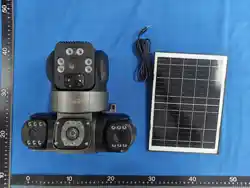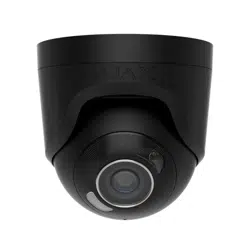

T68 Camera
installation instruction
iPhone: (Apple store search app name "
VI365") Android phone (Google store search
APP ame "VI365"
Scan the QR code to download and install the
A
PP
Notice: All permissions officially prompted
when downloading the APP need to be enabled
W
hen connecting the camera for the first time, you
need to turn on the Bluetooth function and the
location function of your mobile phone.
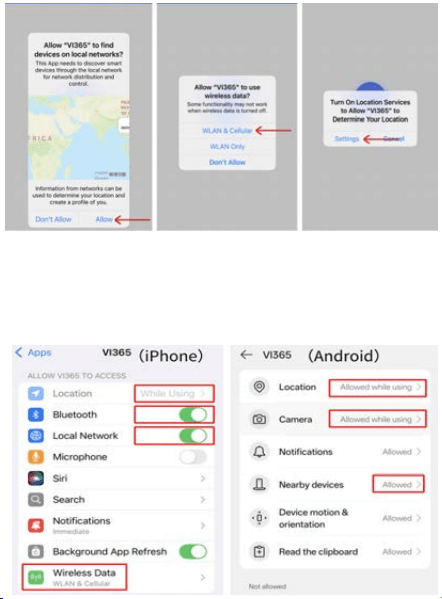
1: If the permission has not been enabled, you
c
an find "VI365" in the phone's settings app to
enable it.
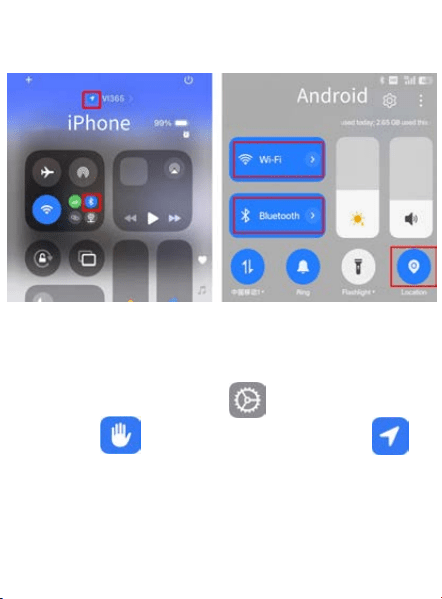
2: Turn on the location function and Bluetooth
f
unction of the mobile phone
Steps to enable the location function on
an iPhone
Op
en the phone settings - Privacy and
Security - Location Services - Enable
O
On
an Android phone, simply slide down the
screen to enable location permission and
Bluetooth, or go to the phone settings - Location
Information - and turn on the permission.
p
e
n
t
h
e
p
h
o
n
e
s
e
t
t
i
n
g
s
-
P
r
i
v
a
c
y
a
n
d
S
e
c
u
r
i
t
y
-
L
o
c
a
t
i
o
n
S
e
r
v
i
c
e
s
-
E
n
a
b
l
e
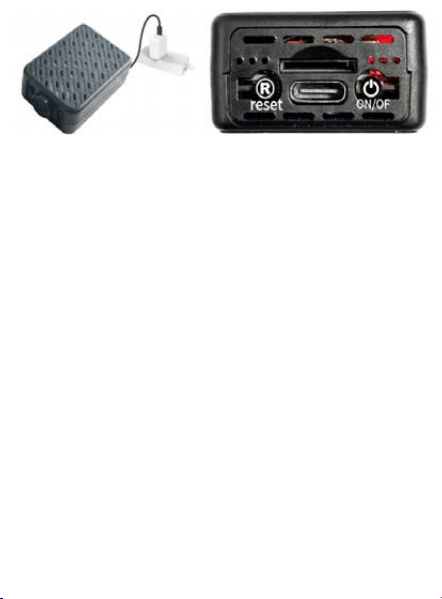
3: Insert the power adapter (turn on the device
s
witch) and wait for 15 seconds to start the
device program. Press and hold the 'Reset'
button for 5 seconds, then restart the device to
enter AP mode.Camera: Red light flashing
slowly
Note: When connecting the camera to your home
WiFi network, entering an incorrect password will
result in a failed connection. To reconnect, you will
need to press and hold the "R" button to reset the
camera
Use a power cord to supply power to the device,
supporting 24-hour use
O
p
e
n
t
h
e
p
h
o
n
e
s
e
t
t
i
n
g
s
-
P
r
i
v
a
c
y
a
n
d
S
e
c
u
r
i
t
y
-
L
o
c
a
t
i
o
n
S
e
r
v
i
c
e
s
-
E
n
a
b
l
e
O
p
e
n
t
h
e
p
h
o
n
e
s
e
t
t
i
n
g
s
-
P
r
i
v
a
c
y
a
n
d
S
e
c
u
r
i
t
y
-
L
o
c
a
t
i
o
n
S
e
r
v
i
c
e
s
-
E
n
a
b
l
e
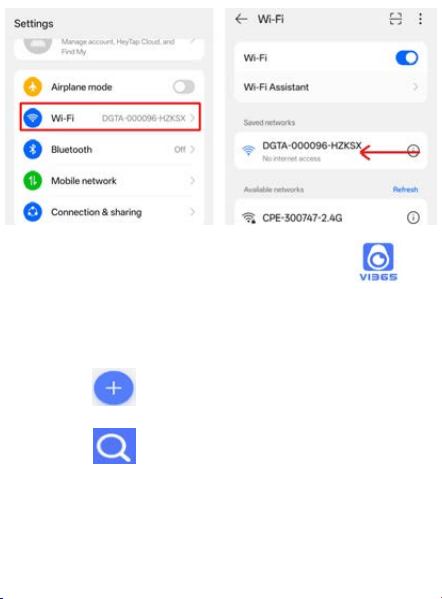
Open the WIFI window in the phone
settings and select
"DGTA-XXXXXX-HZKSX" to connect. As
shown in the figure.
4:Open the LookCamProa app
W
ait for 5 seconds of advertisement time or choose
to skip.
An
droid phone: Click the "+" icon to add the
camera.
iPhone:: Click the "Search" icon to add the
camera.
M
a
nually add as shown in the picture below
(
i
f the camera is already displayed, you can
s
k
ip this step and directly connect to the WIFI
o
f
your home or office according to Step 5)
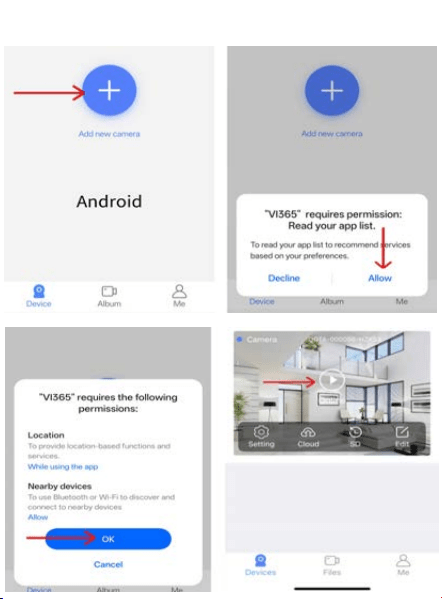
Android :As shown in the picture, add the camera
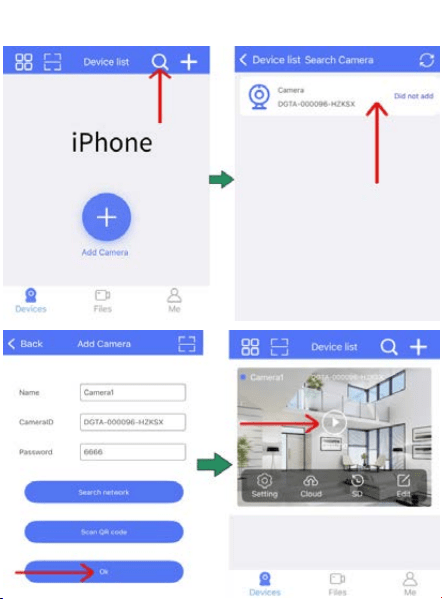
iPhone: As shown in the picture, add the camera
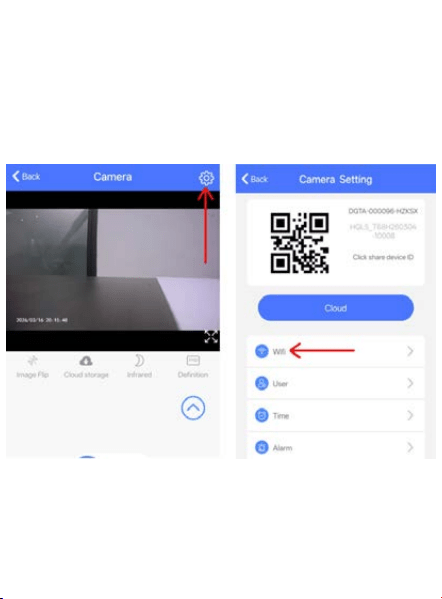
5:
Currently in hotspot mode, the remote
v
i
ewing function is unavailable. Click the
s
e
ttings button on the top right to enter the WiFi
p
a
iring mode, and connect to the WiFi network
o
f
your home or office as shown in the following
p
i
cture.
Cl
ick on "Select Your WIFI", enter the correct
password, and then click "OK" (If your wireless
network cannot be found, please click "
Refresh")
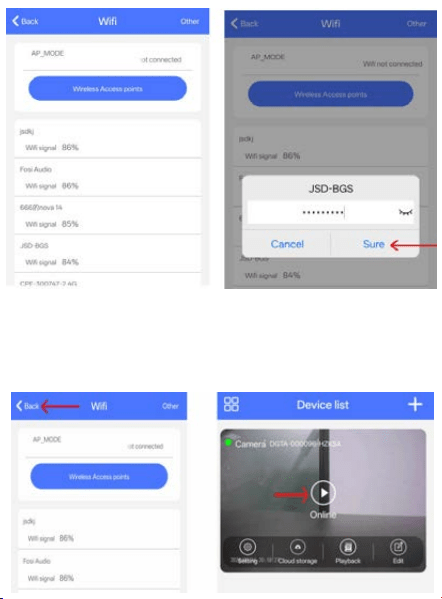
Af
ter entering the password, return to the video
interface and wait for the pairing to be
successful. The camera is online.

Click "Continue trying wireless network" If this
m
essage does not pop up, ignore it
Q:Connection failed. Always shows "Connecting..."
c
o
nnection to the WIFI to fail. Reconnecting requires
r
e
setting the camera by holding down the (R) key for 5
s
e
conds until the camera's red light enters a slow
A
:
The 2.4G password entered is incorrect, causing the
Notice: Select your camera's UID
(
@TUT-XXXXX-XXXX) and connect. If you
c
annot find the UlD, just press and hold the
reset button "RESET" for 6 seconds to reset the
device and wait for about 1-2 minutes.
If your Android system phone displays "The
Q
:The VI365 APP is unable to add hotspot cameras.
A:
Please confirm that the permissions for the "
Vi365" application have been enabled, that the
location function and Bluetooth function of the
mobile phone have b
een activated, and that the
ca
mera's WiFi DGTA-XXXXXX-HZKSXL is in a
connected state.
current network cannot access the Internet,
p
lease switch to another network? Just ignore
it."
Wh
en the connection fails or the camera hotspot
WIFI cannot be found, the camera needs to be reset.
A:
This camera can only listen to sounds but does not
have the function of a walkie-talkie.
If
you don't want to use cloud storage, you can use
an SD card for recording, or you can also record and
watch directly within the application.
bl
inking state. Reconnect the camera hotspot "
D
G
TA-XXXXXX-HZKSX" and follow the above steps to
e
n
ter the correct password and verify, then reconnect to
t
h
e home or office WIFI.
This device complies with part 15 of the FCC Rules. Operation is subject to the following
two conditions: (1) This device may not cause harmful interference, and (2) this device
must accept any interference received, including interference that may cause undesired
operation.
NOTE: This equipment has been tested and found to comply with the limits for a Class B
digital device, pursuant to Part 15 of the FCC Rules. These limits are designed to provide
reasonable protection against harmful interference in a residential installation. This
equipment generates, uses and can radiate radio frequency energy and, if not installed
and used in accordance with the instructions, may cause harmful interference to radio
communications. However, there is no guarantee that interference will not occur in a
particular installation. If this equipment does cause harmful interference to radio or
television reception, which can be determined by turning the equipment off and on, the
user is encouraged to try to correct the interference by one or more of the following
measures:
-- Reorient or relocate the receiving antenna.
-- Increase the separation between the equipment and receiver.
-- Connect the equipment into an outlet on a circuit different from that to which the
receiver is connected.
-- Consult the dealer or an experienced radio/TV technician for help.
Changes or modifications not expressly approved by the party responsible for compliance
could void the user's authority to operate the equipment.
This equipment complies with the FCC RF radiation exposure limits set forth for an
uncontrolled environment. This equipment should be installed and operated with a
minimum distance of 20cm between the radiator and any part of your body.