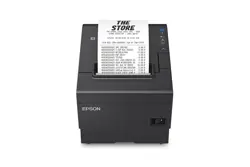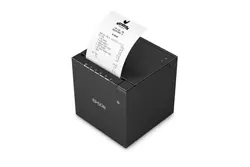
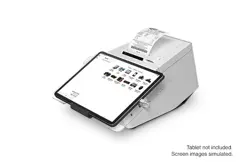
Epson C31C412A7481 OmniLink TM-L90 Plus-i Kitchen Display System Controller

Product's Documents

Below are documents related to this product, you can read online or download:
User Manual
  • KDS Quick User Manual - Network Settings - (English) Read Online | Download pdf
  • KDS Quick User Manual - Menu and Recipe - (English) Download
  • KDS User Manual - Epson KDS Utility (Windows) - (English) Download
  • KDS User Manual - Touchscreen - (English) Download
  • KDS Quick User Manual - Updating Firmware - (English) Download
  • KDS Quick User Manual - Time on KDS - (English) Download
  • KDS Quick User Manual - Tile Arrangement - (English) Download
  • KDS Quick User Manual - Summary Tile - (English) Download
  • KDS Quick User Manual - Station Print Only - (English) Download
  • KDS Quick User Manual - Sound Devices - (English) Download
  • KDS Quick User Manual - POS Menu Routing- - (English) Download
  • KDS Quick User Manual - Order Timers - (English) Download
  • KDS Quick User Manual - Order Recall - (English) Download
  • KDS Quick User Manual - Order Popup Window - (English) Download
  • KDS User Manual - Troubleshooting - (English) Download
  • KDS Quick User Manual - Mirrored Display - (English) Download
  • KDS Quick User Manual - Master Printer - (English) Download
  • KDS User Manual - Network Requirements - (English) Download
  • KDS Quick User Manual - KDS Menu Routing - (English) Download
  • KDS Quick User Manual - Independent Displays - (English) Download
  • KDS Quick User Manual - Expeditor - (English) Download
  • KDS Quick User Manual - Display Tiles - (English) Download
  • KDS Quick User Manual - Customer Facing Display - (English) Download
  • KDS Quick User Manual - Consider Orders Unique - (English) Download
  • KDS Quick User Manual - Chit and Receipt Printing - (English) Download
  • KDS Quick User Manual - Bump and Print - (English) Download
  • KDS Quick User Manual - Bump Bar - KB9000 - (English) Download
  • KDS Quick User Manual - Bump Bar - KB1700 - (English) Download
  • KDS Quick User Manual - Adding a Display - (English) Download
  • KDS User Manual - USB FW Update - (English) Download
  • KDS Parsers User Manual - Waxwing VII-O - (English) Download
  • KDS User Manual - KDS API - (English) Download
  • Technical Reference Guide - (English) Download
Other Documents
  • KDS XML Configuration - Epson KDS - (English) Download
  • Releasing a Stuck Roll Paper Cover - (English) Download
User Service
  • KDS Troubleshooting Guide - KDS Utility (Windows) - (English) Download
Specification
  • KDS Functional Specification - Epson KDS v2.50 - (English) Download
Installation Instruction
  • KDS Quick Start Guide - Single Station - (English) Download
  • KDS Quick Start Guide - Multi Station - (English) Download
C31C412A7481 photo

KDS Quick User Manual - Network Settings

This is the main product document for model C31C412A7481.

The file format is pdf, 2 pages, you can download this manual here .

background
111-38-QUM-022
Rev 2.50
EPSON is a registered trademark and EPSON Exceed Your Vision is a registered logomark of Seiko Epson Corporation. All other
product and brand names are trademarks and/or registered trademarks of their respective companies. Epson disclaims any and all
rights in these marks. Copyright 2022 Seiko Epson Corporation.
Network Settings
About this Guide
This guide consists of 2 sections:
• Overview
• How to Configure - A procedure that can be followed to configure this in a KDS
system. This guide assumes you already have a Single or Multi-Station system
setup as described in the Epson KDS Quick Start Guides.
This guide is relevant for:
KDS FW: v2.50 and above
KDS Utility (Windows): v2.5.0.0 and above
Overview
By default, KDS devices ship DHCP enabled, allowing them to be easily added and
discovered on the local network. It may be necessary to configure the devices to a static
IP and this guide explains how to do that from the Windows Configuration Utility. While
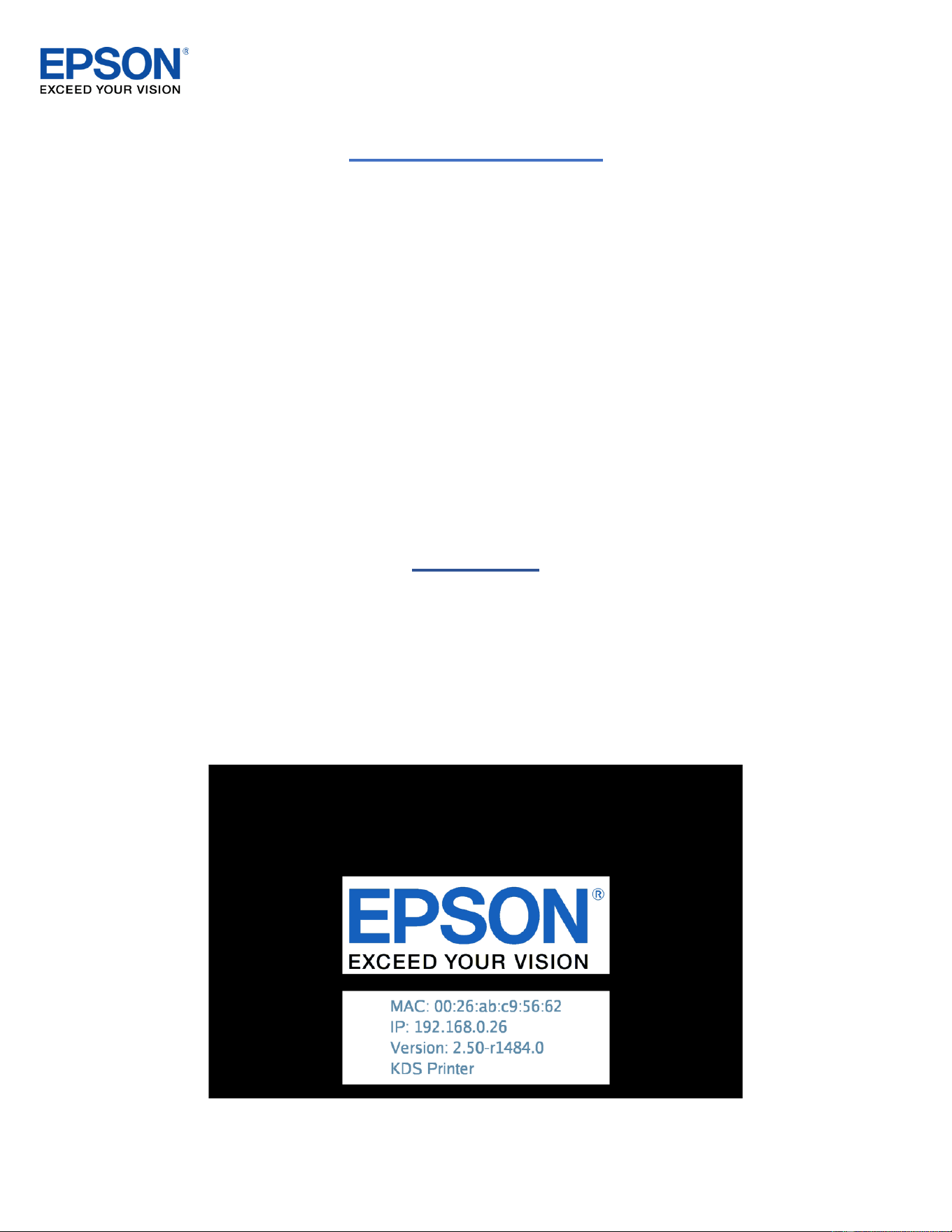
the IP can be referenced from the Utility, it is also conveniently displayed on the KDS
device startup splash screen:
Figure 0.1 – Startup screen of the KDS
background
Network Settings
Quick User Manual
111-38-QUM-022
Rev 2.50
How to Configure
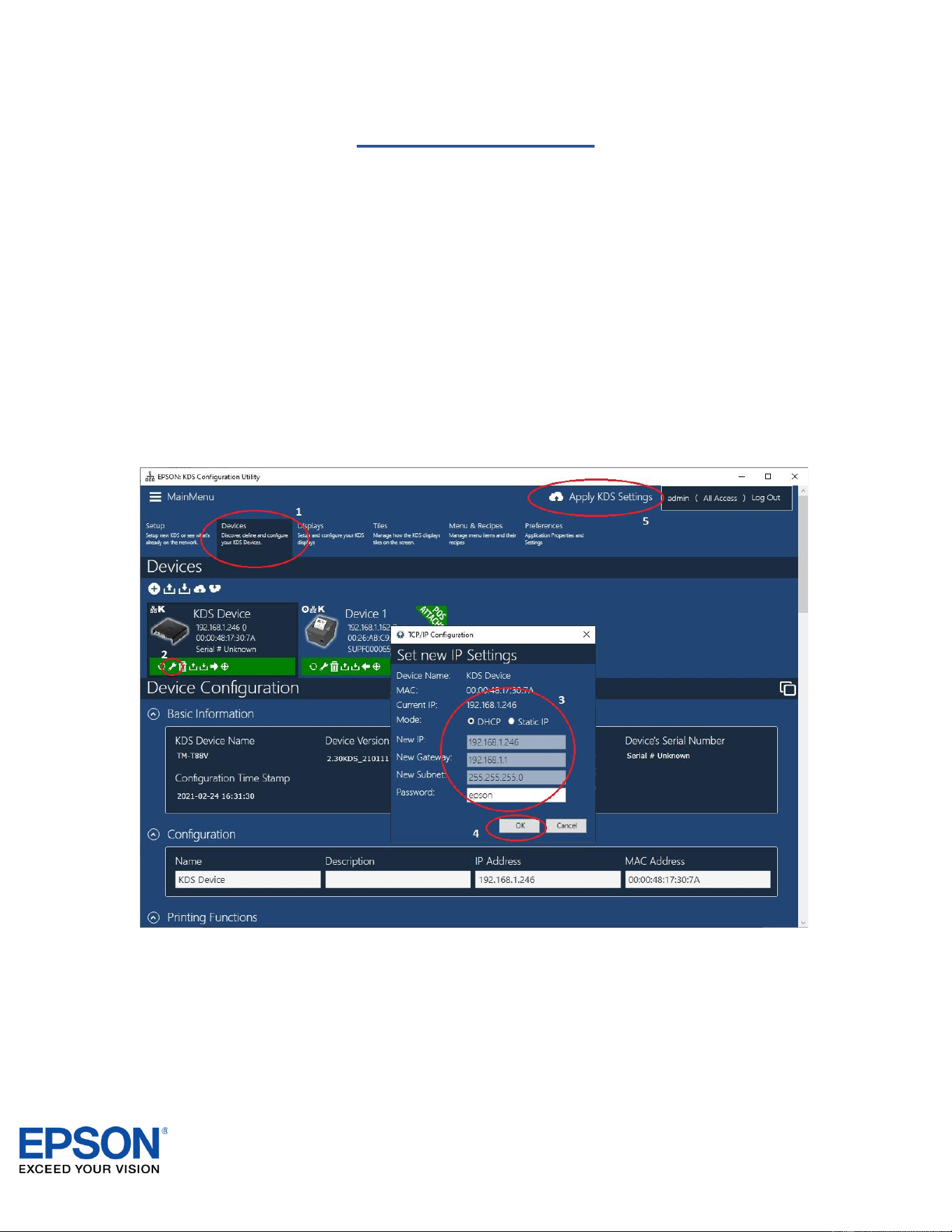
This procedure can be followed to configure network settings for any KDS device.
1. Select Devices
2. Click the wrench icon for the device you wish to configure.
3. Set the IP settings accordingly.
4. Click OK. The settings will be applied to the device.
Repeat steps 2-4 for all of the devices in the system you wish to configure.
5. Click Apply KDS Settings.
The system devices will now have their IP settings updated.

Specifications

Indexed Terms: Controller

Epson C31C412A7481 Questions and Answers

Questions and Answers

Related Products