图纸发布类别
正式归档图纸
版本
1.0
家用防水卡片
机
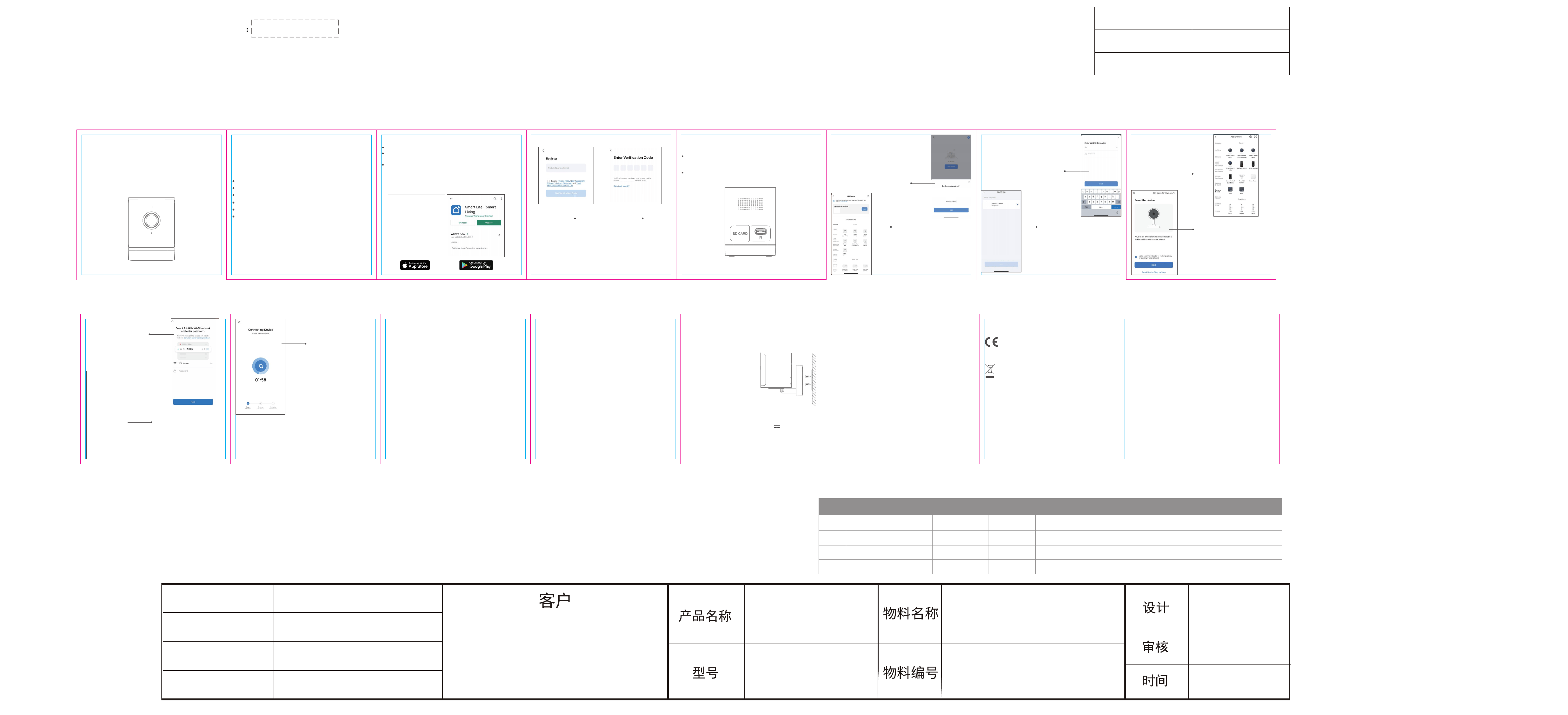
家用防水卡片机-中性海外版-说
明书
原始版本
物料编号 变更者 变更时间 版本升级原因描述
SC305-WBQ4B
中性
风琴8折页,正反印刷
/
四色印刷
105g铜版纸
子柳(徐涛)
大川
接合方式
印刷色
材质
加工工艺
75*75mm
75x525mm
成品尺寸
单位:mm
公差:
展开图尺寸:
±1mm
xxx-xxxx-xxxx
What’s in the Box
Thank you for purchasing Smart Camera. Get started using your new
devices by downloading Smart Life, one convenient app that manages
everything straight from your phone. Easily connect to your home Wi-Fi
and control multiple devices from the touch of your fingertips
*: Different products have different accessories,
please refer to physical packing.
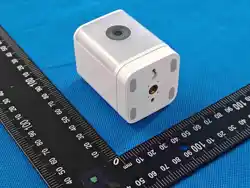
Smart Camera ×1
USB Cable ×1
User Manual ×1
Mounting Bracket ×1 *
Adapter ×1 *
Screw bag ×1 *
Please read the instruction manual carefully
before using the product
SMART CAMERA
USER MANUAL
Frequently Asked Questions
Yes, you can share your cameras with family and friends who will have
access to view the camera and control your bulbs, plugs, and other
devices. In the app, press the Profile button and click on the “Home
Management” button, and you will be able to give or revoke sharing
permissions. In order to share, the other user should already have
downloaded the app and registered a new account.
Can I share with family and friends?
1
• Make sure the device is under the config status (indicator light is flashing
quickly)
• Make sure the Wi-Fi is available and not too far away from router
• Make sure the Wi-Fi password you input is correct
3.
4.
Align the bottom of the camera’s main body, and aim to the right angle.
Then rotate and snap it into the base until it is completely fixed.
Use the USB cable to connect the camera and the adapter, then connect
the socket to power the camera, and see the camera indicator light on.
English Warning Statement:
“This device complies with Industry Canada license-exempt RSS
standard(s). Operation is subject to the following two conditions: (1) this
device may not cause interference, and (2) this device must accept any
interference, including interference that may cause undesired operation
of the device."
French Warning Statement:
“Le présent appareil est conforme aux CNR d'Industrie Canada
applicables aux appareils radio exempts de licence. L'exploitation est
autorisée aux deux conditions suivantes : (1) l'appareil ne doit pas
produire de brouillage, et (2) l'utilisateur de l'appareil doit accepter tout
brouillage radioélectrique subi, même si le brouillage est susceptible
d'en compromettre le fonctionnement."
Open “Smart Life” APP, Turn on the Bluetooth
on your mobile phone, and grant the
corresponding permission to the “Smart Life”
APP. Click the “Add” button.
Wait for the camera to automatically complete
Enter Wi-Fi name and password, then click the
“Next”(Camera support 2.4GHz or 5GHz).
network configuration.
If the dialog box does not pop up,you can click the
“+” icon or “Add Device” button on the home page,
and the camera will be searched, then click the
“Add”.
1.
2.
Take out all accessories and arrange them in order
Refer to th bracket size,drill three holes on the installation area,such as the
wall, ceiling etc., Fixed the mounting bracket on the installation area,Drive in
three expansion screws in sequence to fully secure the base.
My device can't be connected to network with App
4
Installation instructions
6
• Make sure the device is powered on
• Make sure the network is stable and the Wi-Fi name and password not
modified. If not, add device again.
• If the network is normal, but it's still offline. Check if there are too many Wi-Fi
connections. You can restart your router to check the status of the device.
My device shows offline in my App
5
The range of your home Wi-Fi is heavily dependent on your home router
and the conditions of the room. Check with your router specifications for
exact range data.
What’s the Wireless Range?
2
Smart Life app can control an unlimited amount of devices in an unlimited
amount of locations. Your router may have a limit of how many devices can be
connected to one router.
How many cameras can I control?
3
Technical Specifications
• Audio: Internal Speaker and Microphone
• Storage: supports up to 128G Micro SD card (not included)
• Power: General 5V Direct Current 1A,
• Wi-Fi: IEEE 802.11 b/g/n, 2.4GHz(compatible with 5GHz Wi-Fi networks)
symbol “ ” means direct current
• It is recommended that the camera only be used indoor.
• Operating temperature -20~50℃,Operating humidity ≤95%
• Frequency Range: 2.412-2.462GHz (US),2.412~2.472GHz (EU)
warning
Federal Communications Commission (FCC) Declaration of Conformity
FCC Caution: Any changes or modifications not expressly approved by the party responsible for
compliance could void the user's authority to operate this equipment.
This device complies with Part 15 of the FCC Rules.Operation is subject to the following two
conditions: (1) This device may not cause harmful interference, and (2) this device must accept any
interference received, including interference that may cause undesired operation.
Note: This equipment has been tested and found to comply with the limits for a Class B digital device,
pursuant to part 15 of the FCC Rules.These limits are designed to provide reasonable protection
against harmful interference in a residential installation. This equipment generates, uses and can
radiate radio frequency energy and, if not installed and used in accordance with the instructions, may
cause harmful interference to radio communications. However, there is no guarantee that
interference will not occur in a particular installation. If this equipment does cause harmful
interference to radio or television reception, which can be determined by turning the equipment off
and on, the user is encouraged to try to correct the interference by one or more of the following
measures:
—Reorient or relocate the receiving antenna.
—Increase the separation between the equipment and receiver.
—Connect the equipment into an outlet on a circuit different from that to which
the receiver is connected.
—Consult the dealer or an experienced radio/TV technician for help.
Radiation Exposure Statement
This equipment complies with FCC radiation exposure limits set forth for an uncontrolled rolled
environment. This equipment should be installed and operated with minimum distance 20cm
between the radiator and your body.
Declaration Of Conformity European Notice
Hereby, Ningbo Lingzhu Technology CO., Ltd. declares that this
product is in compliance with essential requirements and other relevant
provisions of Directive 2014/53/EU,2011/65/EU.
This product must not be disposed of as normal household
waste, in accordance with EU directive for waste electrical and
electronic equipment (WEEE- 2012/19/EU). Instead,it should be
disposed of by returning it to the point of sale, or to a municipal recycling
collection point.
The device could be used with a separation distance of 20cm to the human
body.
Know your Wi-Fi network and password
Make sure your mobile device is running iOS® 11 or higher or
Android™ 6.0× or higher
Make sure you’re connecting to a 2.4GHz or 5GHz Wi-Fi networ
k
STEP 1.
Enter your mobile phone
number or email address.
STEP 2.
Enter the verification code
and create a password.
Register an account on your Smart Life app
2
Add device
A.Quickly way B.QR code way
4
Open “Smart Life” APP, click “+” on the
top right corner of the page “HOME”, then
select “Smart Camera (Wi-Fi) ”.
*Please refer to the specific APP interface if there are any difference.
* You can find much more useful information in the Help Center on App.
Download the Smart Life app from App Store or Google Play.
1
Get Ready
Scan the QR Code on your phone with
camera. Heard a prompt tone, then press
“I Heard a Prompt”.
Enter wifi name and password,
then press “Next”
Make sure the indicator is flashing or a
prompt tone is heard,then press “Next”
Wait for the network configuration completing
Press the Reset Button (as Pic 1) for several seconds until camera starts
to beep.
Optional: Insert Micro SD card as shown in Pic 1.
How do I reset my device?
Plug in
Pic 1
3
Wi-Fi Name

