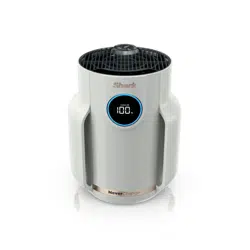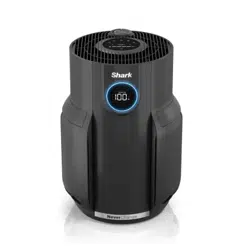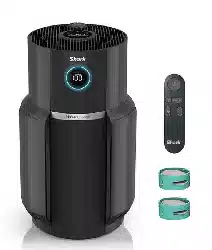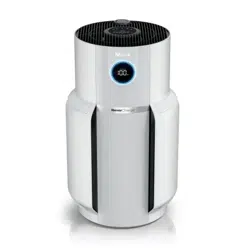
Air Purifier
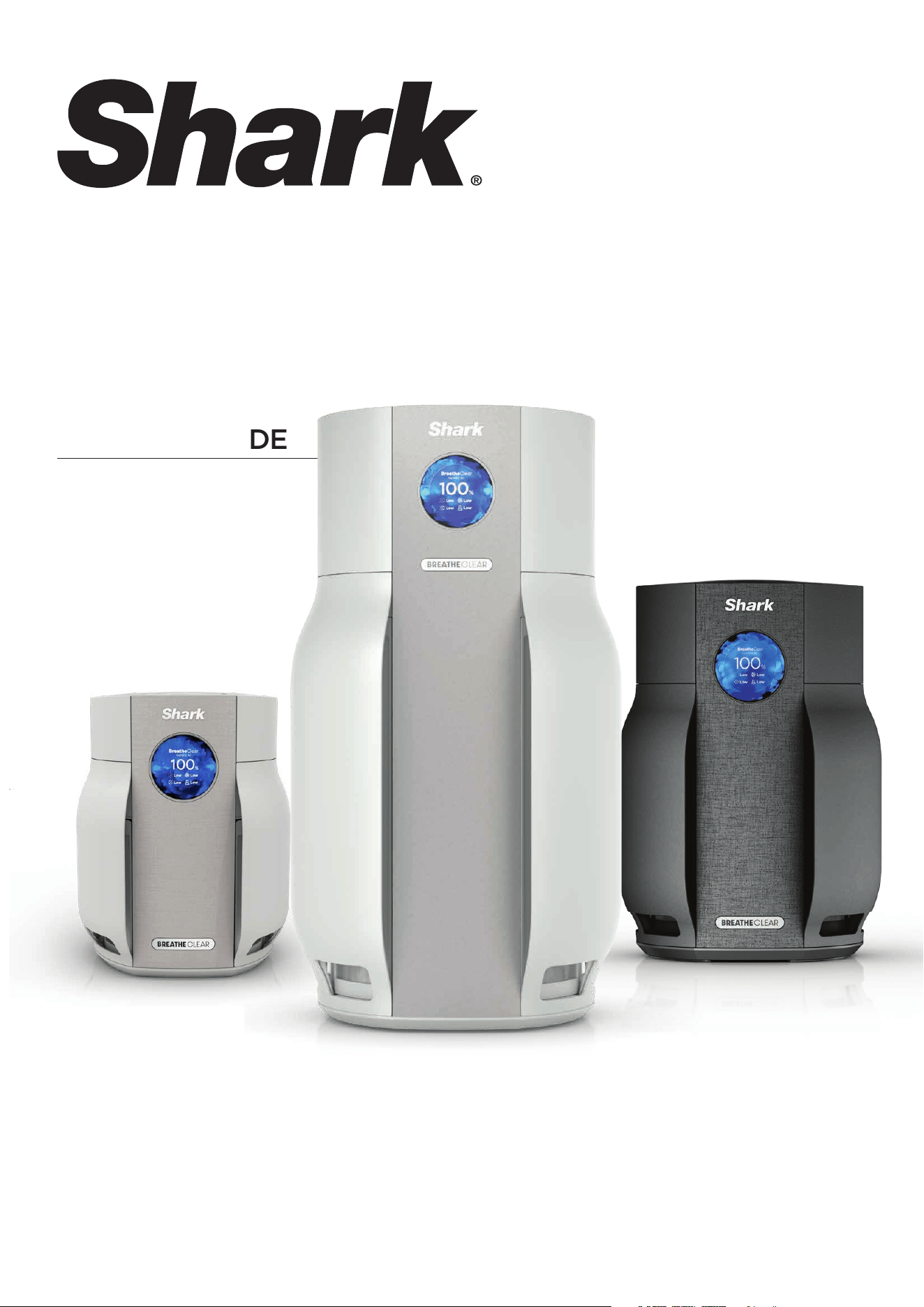
HP360 / HP160 / HP060 SERIES
OWNER’S GUIDE
IMPORTANT SAFETY INSTRUCTIONS
HOUSEHOLD USE ONLY
WARNING TO REDUCE THE RISK OF FIRE, ELECTRIC SHOCK, OR INJURY:
1.
DO NOT operate any unit with a damaged cord or plug.
Discard the unit or return to an authorized service facility for
examination and/or repair.
2. DO NOT run cord under carpeting. DO NOT cover cord with
throw rugs, runners, or similar coverings. DO NOT route cord
under furniture or appliances. Keep cord away from high-traffic
areas where it could be a tripping hazard.
3. If the power cord is damaged, it must be replaced by the
manufacturer, its service agent, or similarly qualified persons in
order to avoid a hazard.
4. This appliance should only be placed on flat and dry surfaces.
5. This appliance is not intended for use by anyone (including
children) with reduced physical, sensory or mental capabilities,
or lack of experience and knowledge, unless they have been
given supervision or instruction concerning use of the appliance
by a person responsible for their safety.
6. Children should be supervised to ensure that they DO NOT play
with the appliance.
7. Cleaning and user maintenance shall not be made by children
without supervision.
8. Prior to cleaning or other maintenance, the appliance must
be unplugged from the electrical outlet.
9. DO NOT handle plug or appliance with wet hands.
10. DO NOT use without filter in place.
11. Only use Shark® branded filters and accessories.
12. DO NOT damage the power cord:
a) DO NOT pull or carry appliance by the cord or use the
cord as a handle.
b) DO NOT unplug by pulling on cord. Grasp the plug, not the cord.
c) DO NOT stand the appliance on the power cord, close a door
on the cord, pull the cord around sharp corners, or leave the
cord near heated surfaces.
13. DO NOT use with any opening blocked; keep free of dust, lint,
hair, and anything that may reduce airflow.
14. DO NOT use if airflow is restricted. If the air paths become blocked,
turn the appliance off and unplug from electrical outlet. Remove
all obstructions before you plug in and turn
on the unit again.
15. DO NOT use if appliance is not working as it should, or has been
dropped, damaged, left outdoors, or dropped into water.
16. DO NOT place appliance on unstable surfaces such as
chairs or tables.
17. DO NOT use in the following areas:
a) Wet or damp surfaces.
b) Outdoor areas.
c) Spaces that are enclosed and may contain explosive or toxic
fumes or vapors (lighter fluid, gasoline, kerosene, paint, paint
thinners, mothproofing substances, or flammable dust).
18. Turn off all controls before plugging in or unplugging
the appliance.
19. Unplug from electrical outlet when not in use and before any
maintenance or cleaning.
20. Hand wash exterior/hard plastic/non-electronic
parts with water only. DO NOT immerse. Cleaning
with chemicals could damage the unit.
21. Make sure filter is in place after routine maintenance.
22. Not suitable for use with solid-state speed controls.
FCC WARNINGS
Note: This equipment has been tested and complies with the limits for a Class B digital
device - pursuant to part 15 of the FCC Rules. These limits are designed to provide
reasonable protection against harmful interference in a residential installation. This
equipment generates, uses, and can radiate radio frequency energy, and if not installed
and used in accordance with the instructions, may cause harmful interference to radio
communications. However, there is no guarantee that interference will not occur in a
particular installation. If this equipment does cause harmful interference to radio or
television reception, which can be determined by turning the equipment o and on,
the user is encouraged to try to correct the interference by one or more of the
following measures:
• Reorient or relocate the receiving antenna.
• Increase the distance between the equipment and the receiver.
• Connect the equipment to a dierent outlet than the receiver.
• Consult the dealer or an experienced technician for help.
This device complies with Part 15 of the FCC Rules. Operation is subject to two conditions:
1. This device may not cause harmful interference, and
2. this device must accept any interference received, including interference that may
cause undesired operation.
Caution: Any changes or modifications to this unit not expressly approved by the party
responsible for compliance could void the user’s authority to operate the equipment.
IC Statement:
This device contains licence-exempt transmitter(s)/receiver(s) that comply with
Innovation, Science and Economic Development Canada’s licence-exempt RSS(s).
Operation is subject to the following two conditions:
1. This device may not cause interference.
2. This device must accept any interference, including interference that may cause
undesired operation of the device.
visit support.sharkninja.com or
SCAN HERE
USING YOUR SMARTPHONE CAMERA
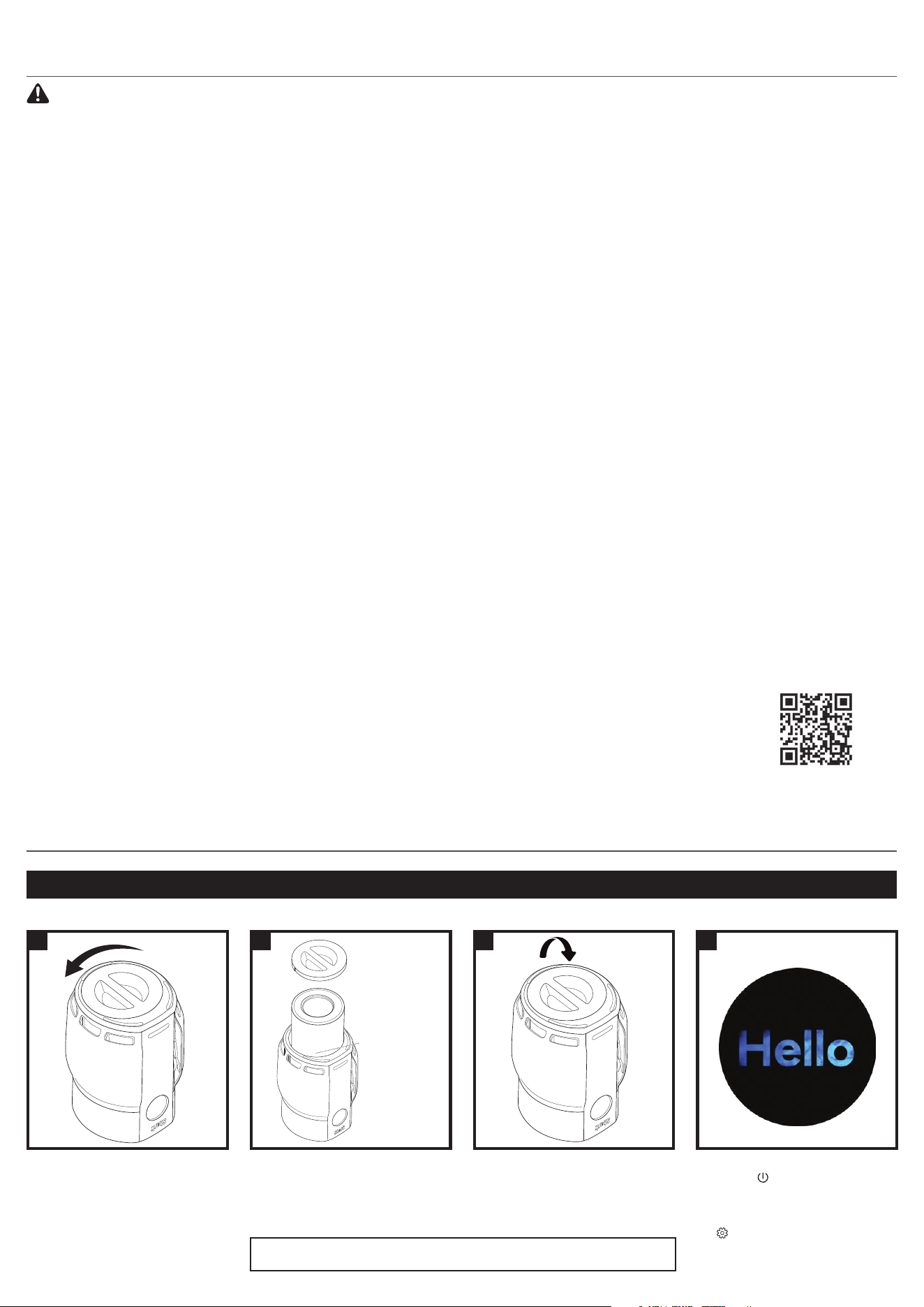
SETTING UP YOUR AIR PURIFIER
1. DO NOT plug in the air purifier.
First, carefully turn the air
purifier upside down and place
it on a level floor surface. Rotate
the filter door counterclockwise
to the unlocked position, then
lift o the door to access the
HEPA filter.
2. Take the HEPA filter out
of its plastic packaging.
Reinstall the HEPA filter in
either orientation.
3. With the HEPA filter
reinstalled, replace the door,
then rotate it clockwise until
it clicks into place.
4. Plug in and press the power
button on your air purifier.
Follow the steps to set up your
unit. All information can be
adjusted later in the SETTINGS
menu. After initial 48-hour
calibration, the sensor will take
up to 5 minutes to calibrate
each time after powering on.
3 421
Turn unit
upside
down
Turn door
clockwise to
close
BEFORE USE:
Remove
HEPA filter
from plastic
Functions and colors may vary by model.
READ AND SAVE THESE INSTRUCTIONS
Note: For first use, allow up to 48 hours for sensor calibration.
MAINTENANCE
BREATHECLEAR
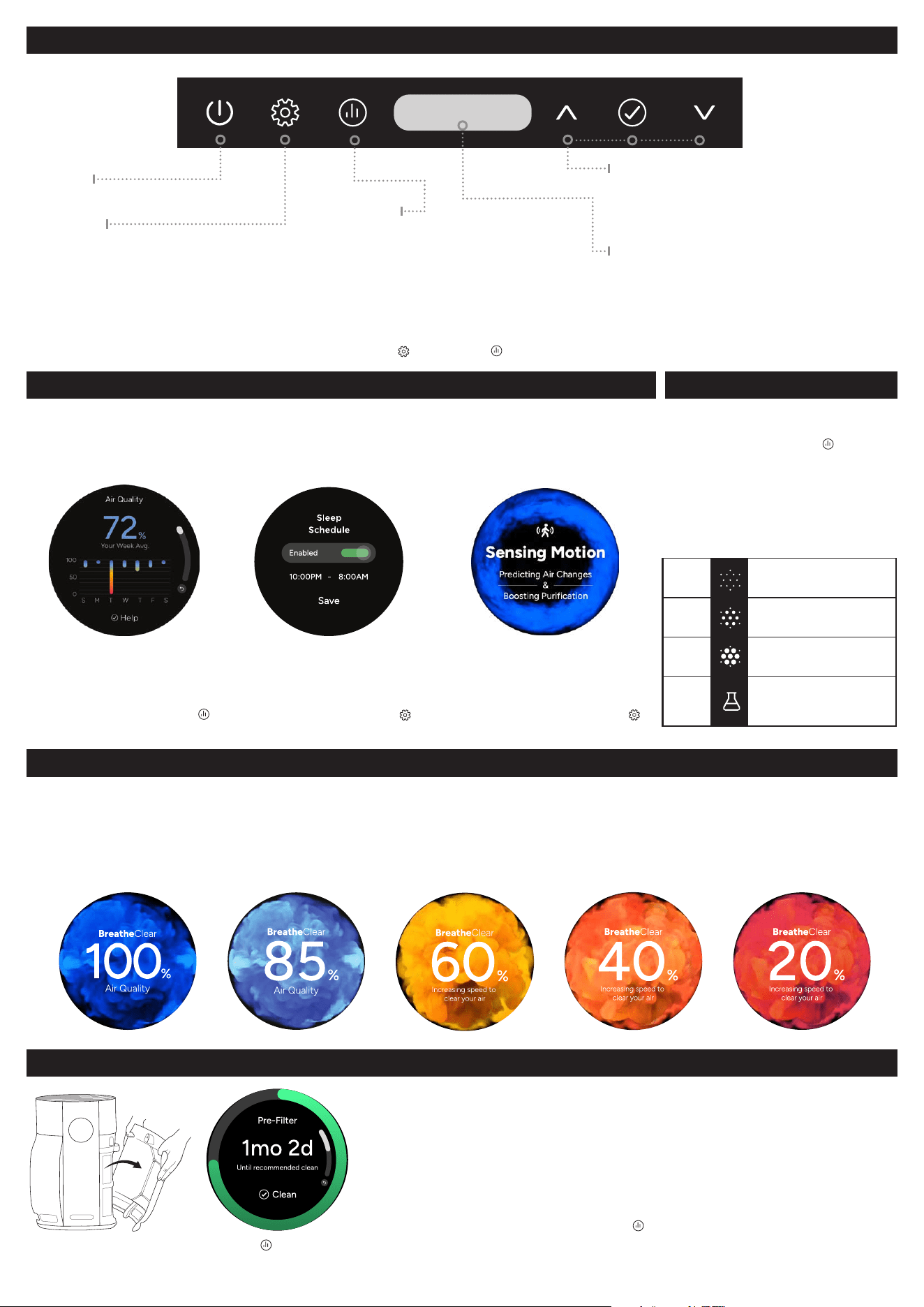
BreatheClear technology automatically adjusts fan speed in response to changes in air quality.
When air quality decreases, the fan speed increases. When air quality improves, fan speed decreases.
DARK BLUE: EXCELLENT
Clean Air Level:
100% to 95%
LIGHT BLUE: GOOD
Clean Air Level:
94% to 85%
YELLOW: FAIR
Clean Air Level:
84% to 60%
ORANGE: MODERATE
Clean Air Level:
59% to 30%
RED: POOR
Clean Air Level:
29% to 0%
CLEANING PRE-FILTERS
To clean the mesh pre-filters, pull them out of the sides of the unit and use
a vacuum cleaner on low speed OR a cloth or towel to remove debris. If
necessary, pre-filters can be rinsed. Do not use abrasive chemical cleaners,
and always allow the filters to air-dry completely for 24 hours before reinstalling.
An alert will appear on the front display when the mesh pre-filters need to
be cleaned (approximately every 8 weeks.) You can also view the estimated
remaining filter life through the My Air IQ menu. Filter maintenance alerts
can be disabled in the Settings menu.
Features and functions may vary by model.
For full instructions on cleaning filters, or to view how-to videos,
visit support.sharkninja.com.
My Air IQ Filter Status
BreatheClear
BREATHECLEAR SETTINGS AND CONTROLS
Power
Turn unit on or o.
Speed Control & Navigation
Press up and down arrows to manually
change the fan speed, or to navigate
through dierent sections. Press the
check mark to confirm selections.
Settings
Sleep Mode: Set or schedule
daily routine.
Brightness: Adjust screen brightness.
Device Settings: Adjust date, clock,
or other system settings.
More Settings: Toggle through Sound
and Motion Sensor features.
My Air IQ
Access data and information
about your air purifier and the
air in your home.
Air Insights: Tracks daily and weekly history
of air quality, humidity, and temperature.
Pollutants: Particle matter and VOC details.
Filter Status: Displays remaining filter life.
BreatheClear (auto)
Switch to BreatheClear to automatically
adjust fan speed based on air quality. Press
again for more info about BreatheClear
status. Press and hold while in BreatheClear
mode to enter Sleep Mode.
To activate or deactivate child lock, press and hold the Settings and My Air IQ
buttons at the same time for 3 seconds.
Functions and colors may vary by model.
KEY FEATURES POLLUTANT INFO
AIR INSIGHTS
Tracks daily and weekly history
of air quality, humidity, and
temperature in your home.
The top of the bar indicates the
maximum recorded air quality, and
the bottom of the bar indicates the
minimum recorded air quality.
Access through My Air IQ
SLEEP MODE
Activate to dim lights and mute
sounds for sleeping or other
quiet times.
Slows motor speed to low, dims
lights, and mutes sounds.
Suggested for use when you would
prefer a quieter experience.
Access through Settings
Your air purifier is always reacting
to your air quality and providing you
updates when you need it.
Disable or enable in Settings
MOTION DETECT
Boosts purification power when
motion has been detected,
proactively responding to potential
movement of dust & particles.
• The built-in sensor detects your air quality to give
you real-time information. You can see more details
about the pollutants in your home by looking at the
Pollutants screen under My Air IQ.
• The PM (particulate matter) value is the amount
of particulate in your air, measured in micrograms
(μg) per cubic meter. Your air purifier measures
three particle sizes, PM1, PM2.5, and PM10.
•
Your unit is also capable of measuring VOCs
(volatile organic compounds). VOCs are gases and
odors emitted from common household products
such as cleaners, makeup, paint, and carpet.
PM1
Ultra-fine particles,
typically from cooking,
smoke, and exhaust.
PM2.5
Small particles, typically
from microplastics, smoke,
smog, and cooking.
PM10
Larger particles, typically
from dust, pollen, and
mold spores.
VOCs
Organic compounds,
typically from gases and
odors emitted from cleaners,
paint, and upholstery.
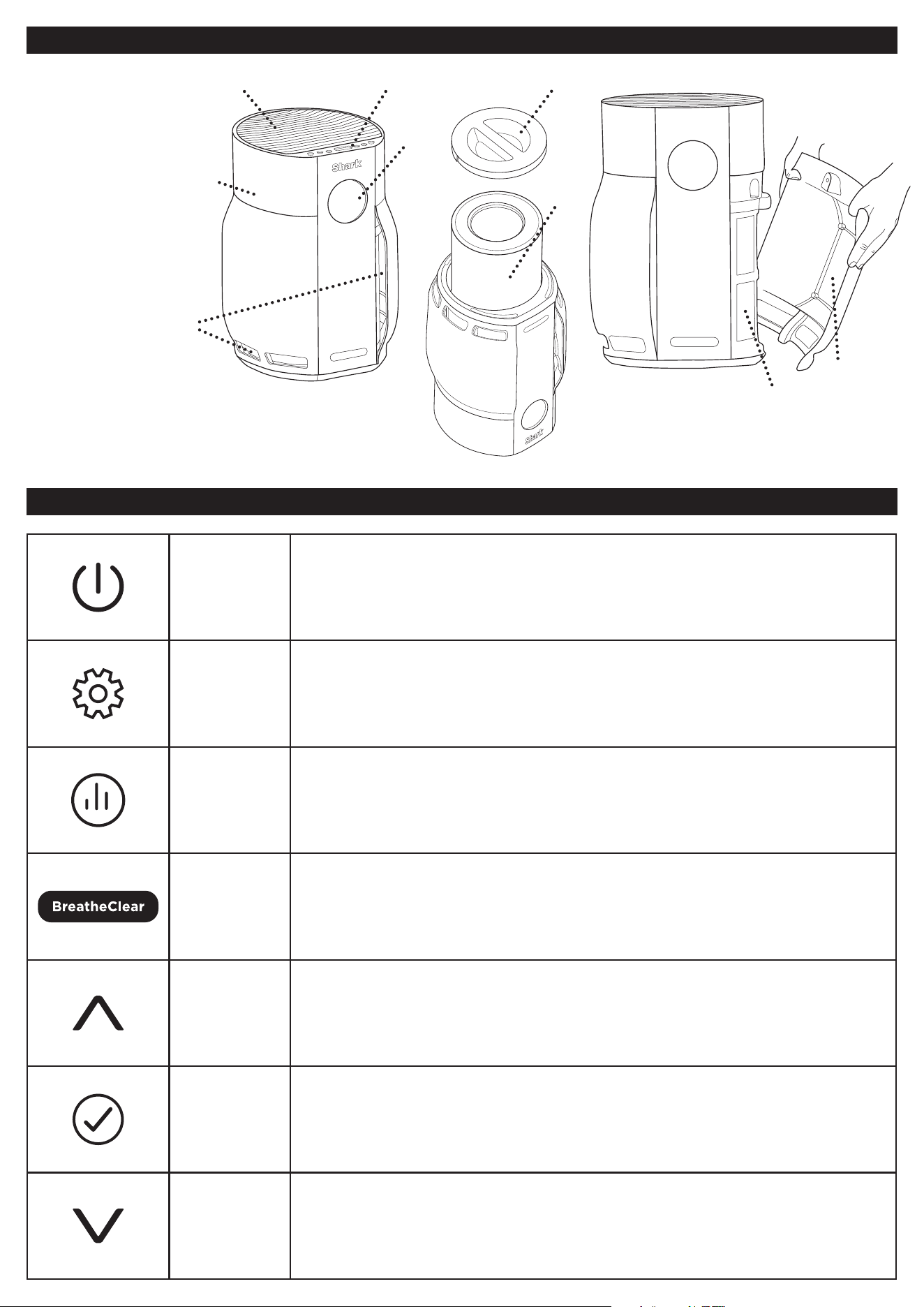
PARTS
UNDERSTANDING YOUR CONTROL PANEL
1. Air Output Vents
2. Control Panel
3. Front Display Screen
4. Air Purifier Body
5. Air Intake Vents
6. Mesh Pre-Filters
7. HEPA Filter Door
8. HEPA Filter
9. Side Panels
1.
2.
7.
3.
8.
4.
5.
6.
9.
Power Press to turn the air purifier on or o.
Settings
Adjust features including Sleep Mode, Brightness,
Dashboard, Alerts, and Device Settings, and find
additional support for using your air purifier.
My Air IQ
Access data and information about your air purifier and the air quality in
your home. Track the levels of PMs (particulate matter) and VOCs (volatile
organic compounds), and time until your recommended filter maintenance.
BreatheClear
Press BreatheClear to return to BreatheClear mode,
automatically adjusting fan speed based on air quality.
Up
Press to navigate through menus, or to manually
increase fan speed from BreatheClear mode.
Confirm Confirm settings within menus and to access further data.
Down
Press to navigate through menus, or to manually
decrease fan speed from BreatheClear mode.
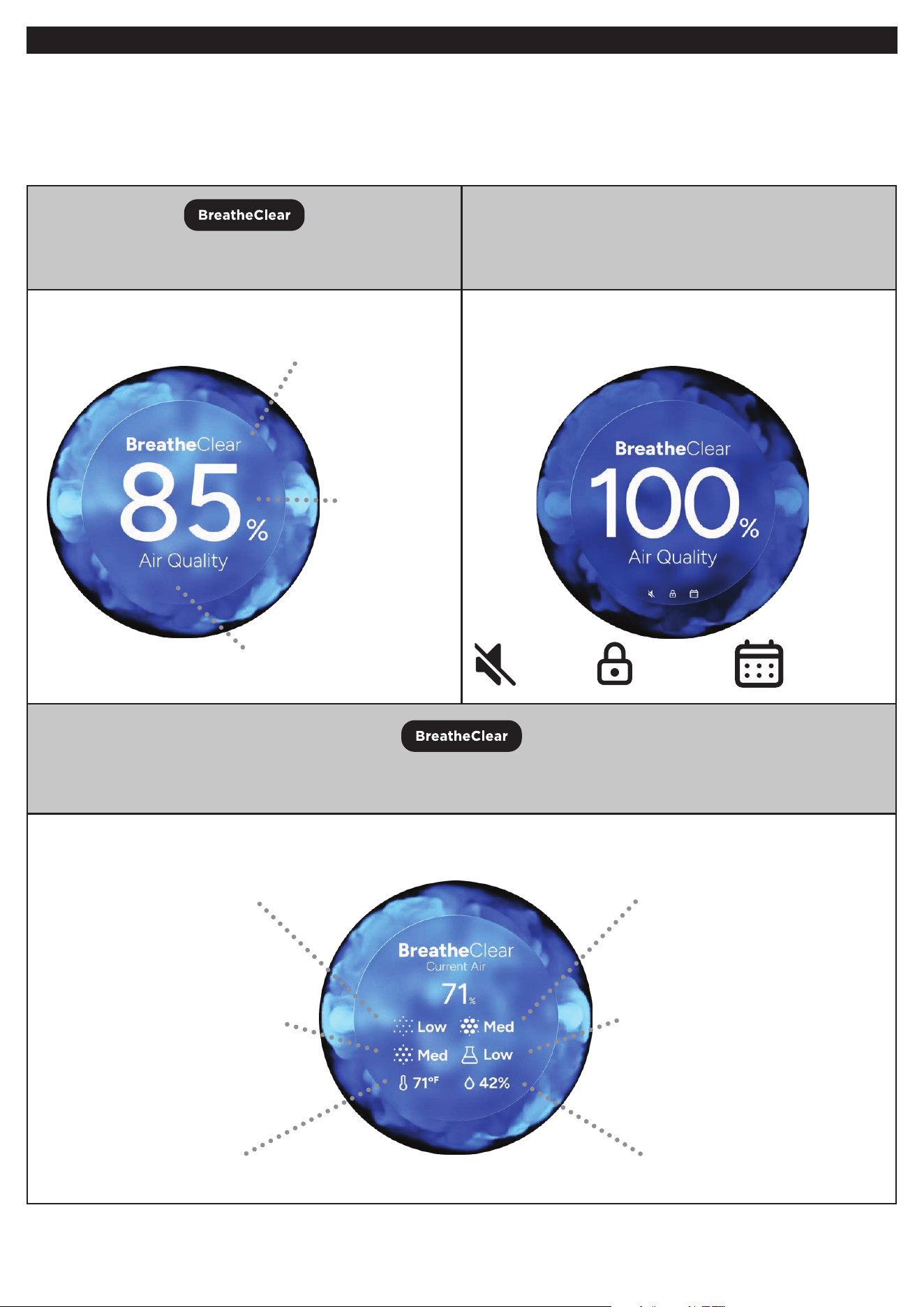
Press at any time to return to
BreatheClear mode.
The air quality display will show icons
to indicate sounds are muted, if child lock
is enabled, or if Sleep Mode is scheduled.
Press BreatheClear from the main air quality screen to see air quality details.
Some configurations may vary by model.
AIR QUALITY RESCAN: If your air quality has been above 95% for more than 30 minutes, the purifier will rescan
the air to double check your air quality.
BREATHECLEAR
BREATHECLEAR MODE: In this mode, the fan speed will automatically adjust in response to changes in air quality.
When air quality worsens, the fan speed increases. When air quality improves, fan speed decreases.
HOW TO READ THE BREATHECLEAR DISPLAY:
Mode:
Displays current mode. BreatheClear,
Sleep Mode, or Fan Speed
Dashboard Icons
Percentage
of Clean Air
(as detected
by sensors)
Background color indicates overall
air quality status
PM1: Current level of ultra-fine
particles in the air, typically caused
by cooking, smoke, and exhaust.
PM10: Current level of larger particles,
typically dust, pollen, and mold spores.
VOCs: Current level of volatile
organic compounds, often
found in chemicals, fumes,
odors, and pollutants.
Current Humidity reading.
PM2.5: Current level of
small particles in the air,
typically microplastics,
smoke, smog, and cooking.
Current Temperature reading.
Sounds
disabled
Sleep Mode
has been
scheduled
Child lock
enabled
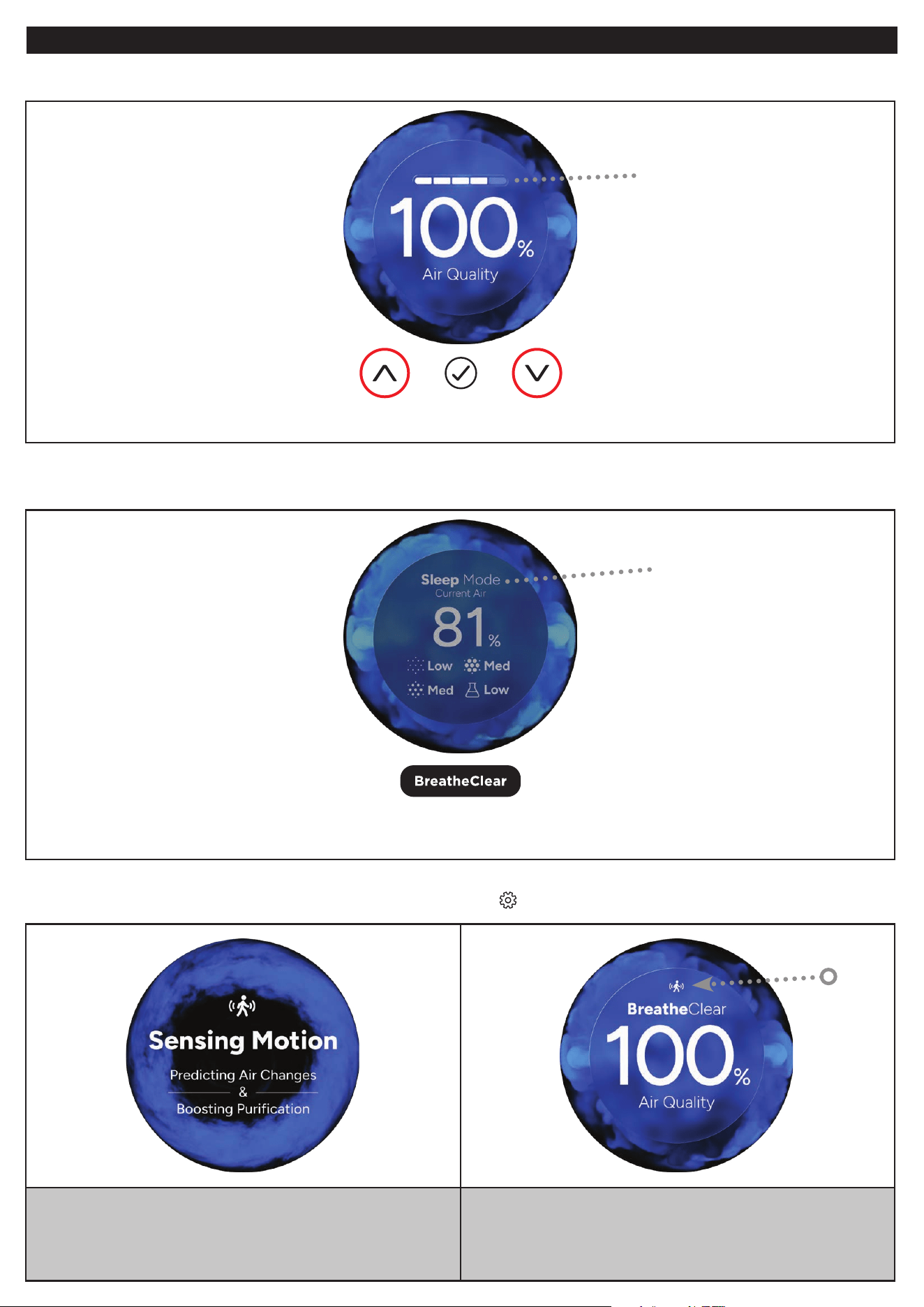
The Sensing Motion Animation, indicates
that motion has been detected and
purification is being boosted.
The Sensing Motion Icon will appear
on the BreatheClear screen if there
is continuous motion in the room.
KEY FEATURES
MANUAL FAN SPEED CONTROL: Control the fan speed manually, from the lowest speed (1) up to highest speed (5).
SLEEP MODE: In this mode, the fan will run in lowest speed (1), all alerts are muted, and the front display screen
will go dark after 10 seconds of inactivity. While in Sleep Mode, the display will awaken with lights dimmed.
MOTION DETECT: Boosts purification by increasing fan speed when motion is detected, to proactively respond to
the movement of particles. Can be turned on or o in Settings
.
Control the fan speed
from speed 1 to speed 5
Mode
Press and hold the BreatheClear button for 3 seconds
to enter Sleep mode, or schedule it from the Settings menu.
Press the up or down arrows to manually adjust the fan speed.
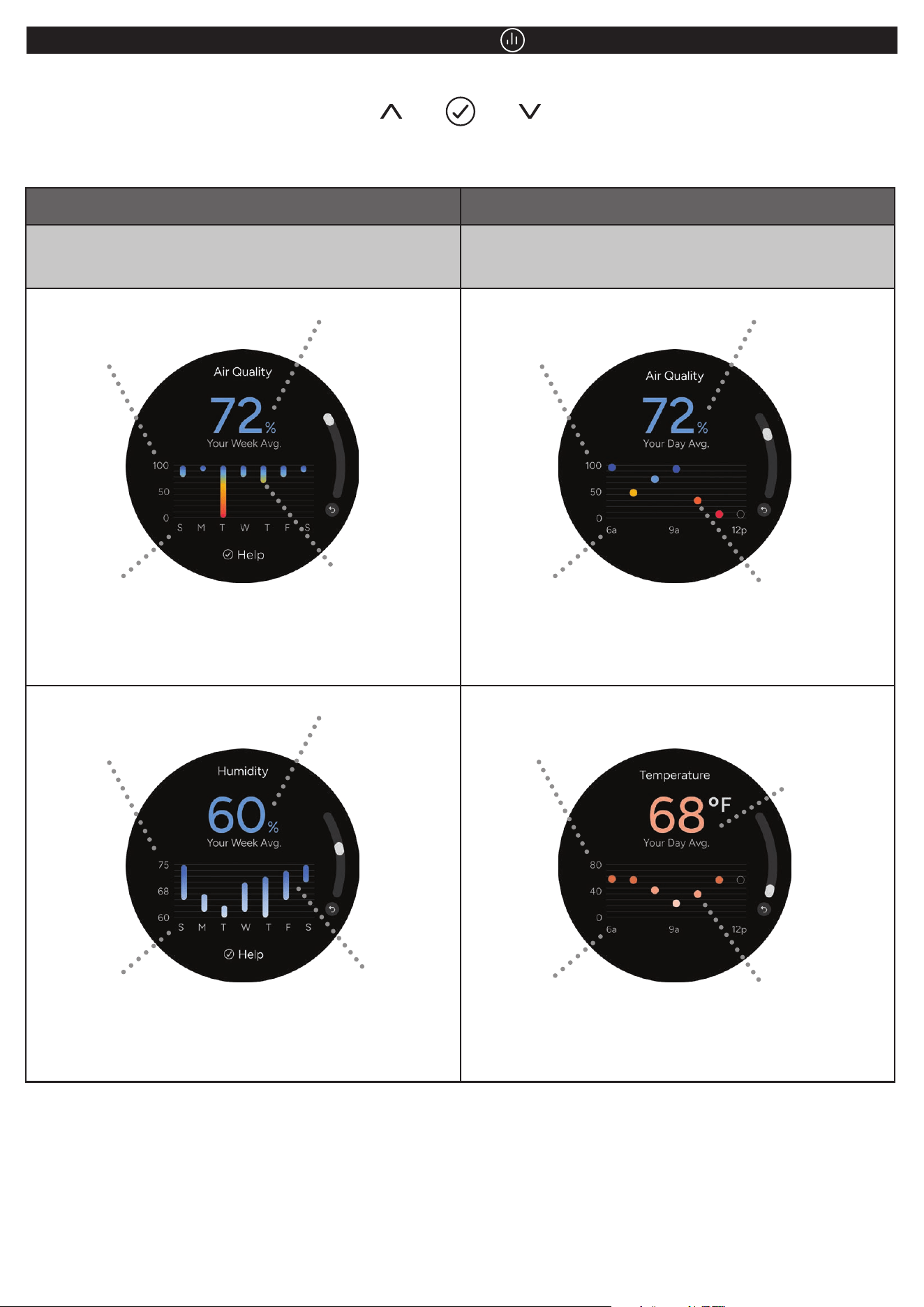
WEEKLY SUMMARY DAILY SUMMARY
Press the check mark for help on
how to read your graph.
Some configurations may vary.
Press the down arrow to
scroll to a daily summary.
Some configurations may vary.
MY AIR IQ
AIR QUALITY INSIGHTS: Monitor your environment with daily and weekly summaries of air quality.
AIR QUALITY
PERCENTAGE
HUMIDITY
AIR QUALITY
PERCENTAGE
TEMPERATURE
DAY
OF THE
WEEK
DAY
OF THE
WEEK
Time
Time
YOUR WEEKLY
AVERAGE:
Displays average
air quality
percentage
for the
week.
YOUR WEEKLY
AVERAGE:
Displays average
humidity
percentage
for the
week.
YOUR DAILY
AVERAGE:
Displays average
air quality
percentage
for the
day.
YOUR DAILY
AVERAGE:
Displays average
temperature
for the
day.
AIR
QUALITY RANGE:
Each bar displays the
range between peak
and lowest air quality
for each day.
HUMIDITY RANGE:
Each bar displays the
range between peak
and lowest humidity
for each day.
AIR QUALITY:
Each dot displays
the average air quality
for the past hour.
AIR QUALITY:
Each dot displays the
average temperature
for the past hour.
Use the navigation buttons to scroll through the graphs.
Press the check mark for help on how to read your graph.
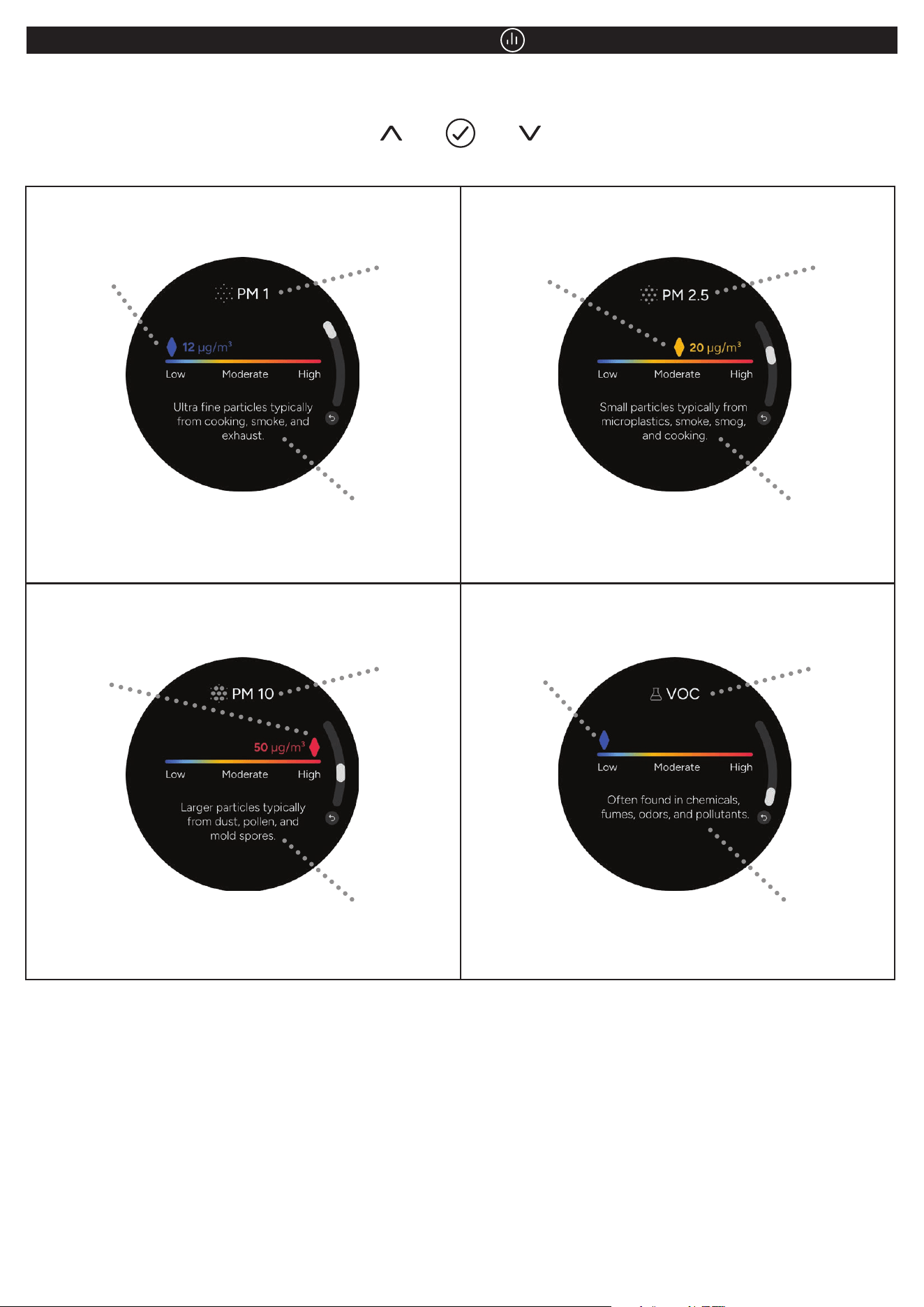
MY AIR IQ
POLLUTANTS: Monitor the current levels of PM (Particulate Matter) and VOCs (Volatile Organic Compounds).
The scale will indicate if the level of each type of pollutant is Low, Moderate, or High.
CURRENT
CONCENTRATION
OF PM 1
CURRENT
CONCENTRATION
OF PM 10
CURRENT
CONCENTRATION
OF VOCs
CURRENT
CONCENTRATION
OF PM 2.5
PARTICLE
MATTER SIZE
PARTICLE
MATTER SIZE
PARTICLE
MATTER SIZE
PARTICLE
MATTER SIZE
POLLUTANT
DESCRIPTION
POLLUTANT
DESCRIPTION
POLLUTANT
DESCRIPTION
POLLUTANT
DESCRIPTION
Use the navigation buttons to scroll through the information for each pollutant type.
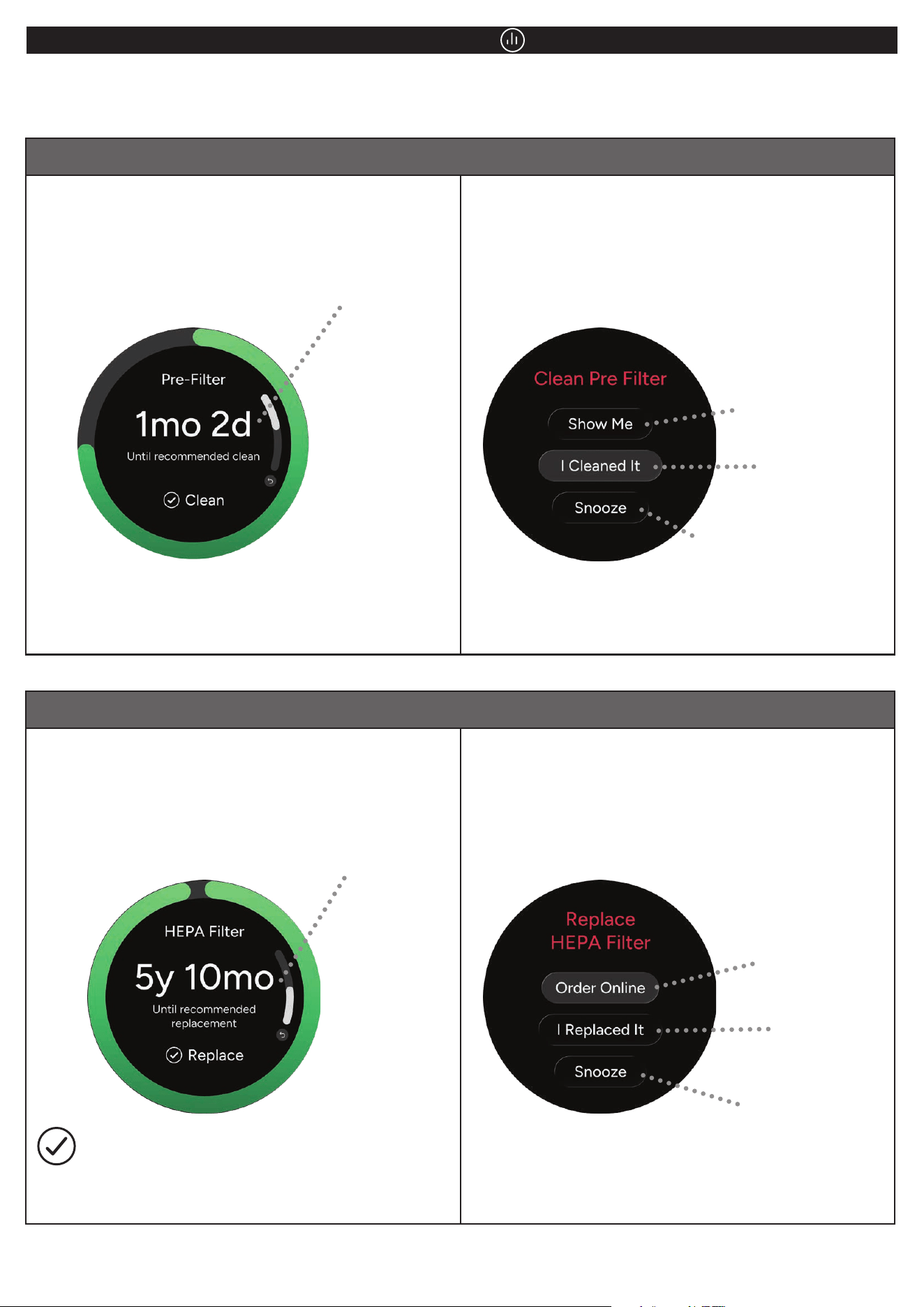
PRE-FILTERS
HEPA FILTERS
MY AIR IQ
FILTER STATUS: Check how long is left until the next recommended maintenance of your pre-filters and
HEPA filter.
For cleaning instructions, see Maintenance section below.
TIME REMAINING
UNTIL RECOMMENDED
CLEAN.
THE FRONT SCREEN WILL DISPLAY A
CLEANING REMINDER APPROXIMATELY
EVERY 8 WEEKS.
THE FRONT SCREEN WILL
DISPLAY A REPLACEMENT
REMINDER AFTER 6 YEARS.
SEE HOW TO CLEAN
PRE-FILTERS.
TO RESET
THE REMINDER.
TO EXIT THE REMINDER
WITHOUT RESETTING.
THE REMINDER WILL BE
SNOOZED FOR 72 HOURS.
SELECT TO BUY
REPLACEMENT
FILTER
SELECT TO
RESET FILTER
STATUS
SELECT TO
CLEAR ALERT
WITHOUT RESETTING
TIME REMAINING
UNTIL RECOMMENDED
REPLACEMENT.
PRESS THE CHECK MARK TO CONFIRM
YOU HAVE REPLACED YOUR HEPA FILTER
AND TO RESET THE REMINDER TIMER.
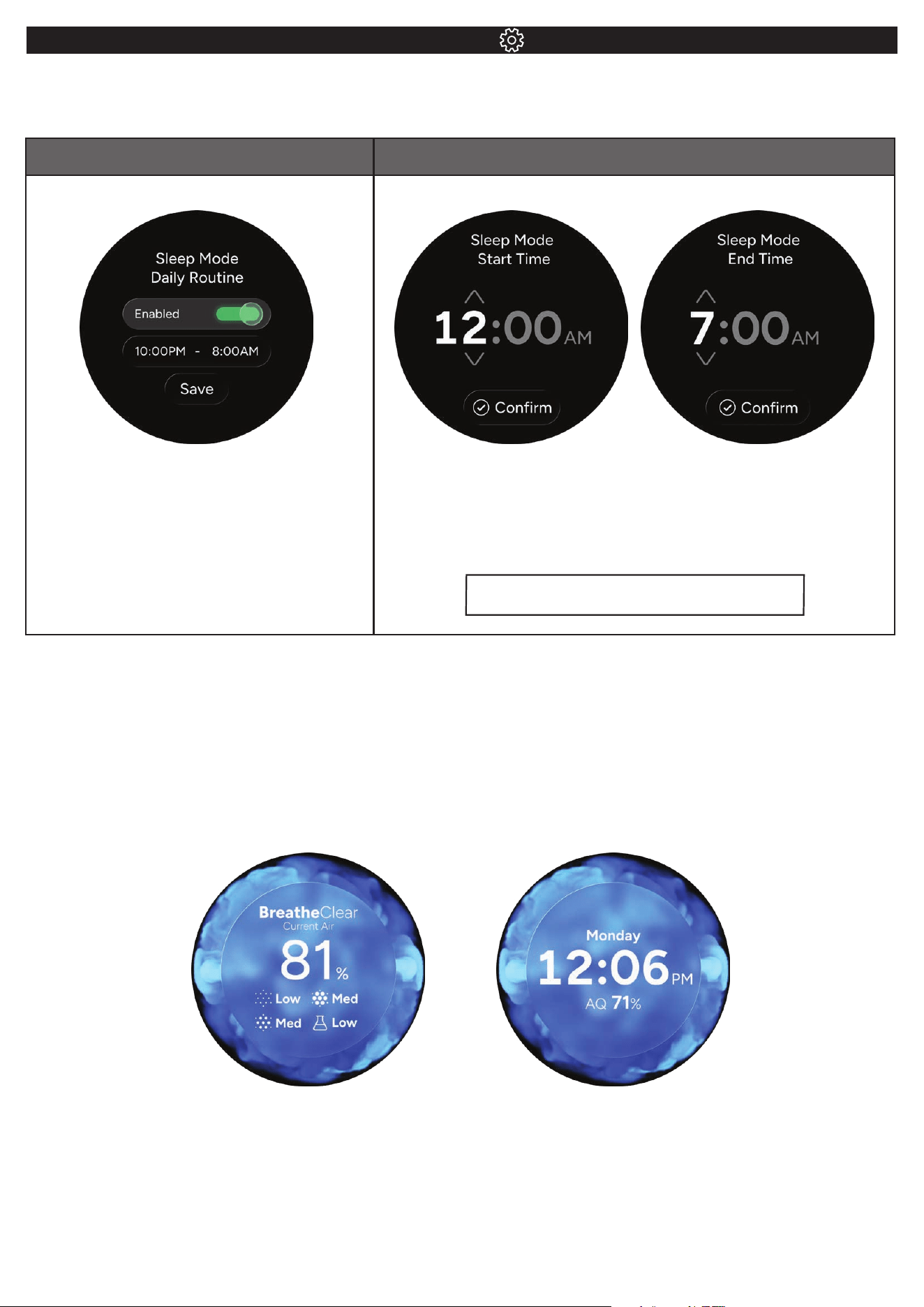
SCHEDULE SLEEP MODE SET START OR END TIME
To set a schedule, select
Schedule Daily Routine and
press the check mark to toggle
Sleep Mode to Enabled.
Note: Press BreatheClear at any point during
Sleep Mode to return to BreatheClear Mode
Once Sleep Mode is enabled, use the up and down
arrows to set a start time and end time.
Select Save to confirm. The unit will enter
Sleep Mode during the set times every day.
SETTINGS
SLEEP MODE: Enable for sleeping or to avoid disruptions. The fan will run at Low Speed, all alerts are disabled,
and display will go dark after 10 seconds. Press any button to wake to dimmed view.
BRIGHTNESS: Adjust screen brightness. Select from Auto (automatically adjusts to ambient light), Bright,
Medium, Dim, or O. Brightness cannot be adjusted while in Sleep Mode.
DASHBOARD: Appears after 5 minutes of inactivity. Use the navigation arrows to select one of the
dashboard options. Pressing any button while on the dashboard screen will return the display to the
BreatheClear Mode display.
Features vary per model.
POLLUTANTS TIME
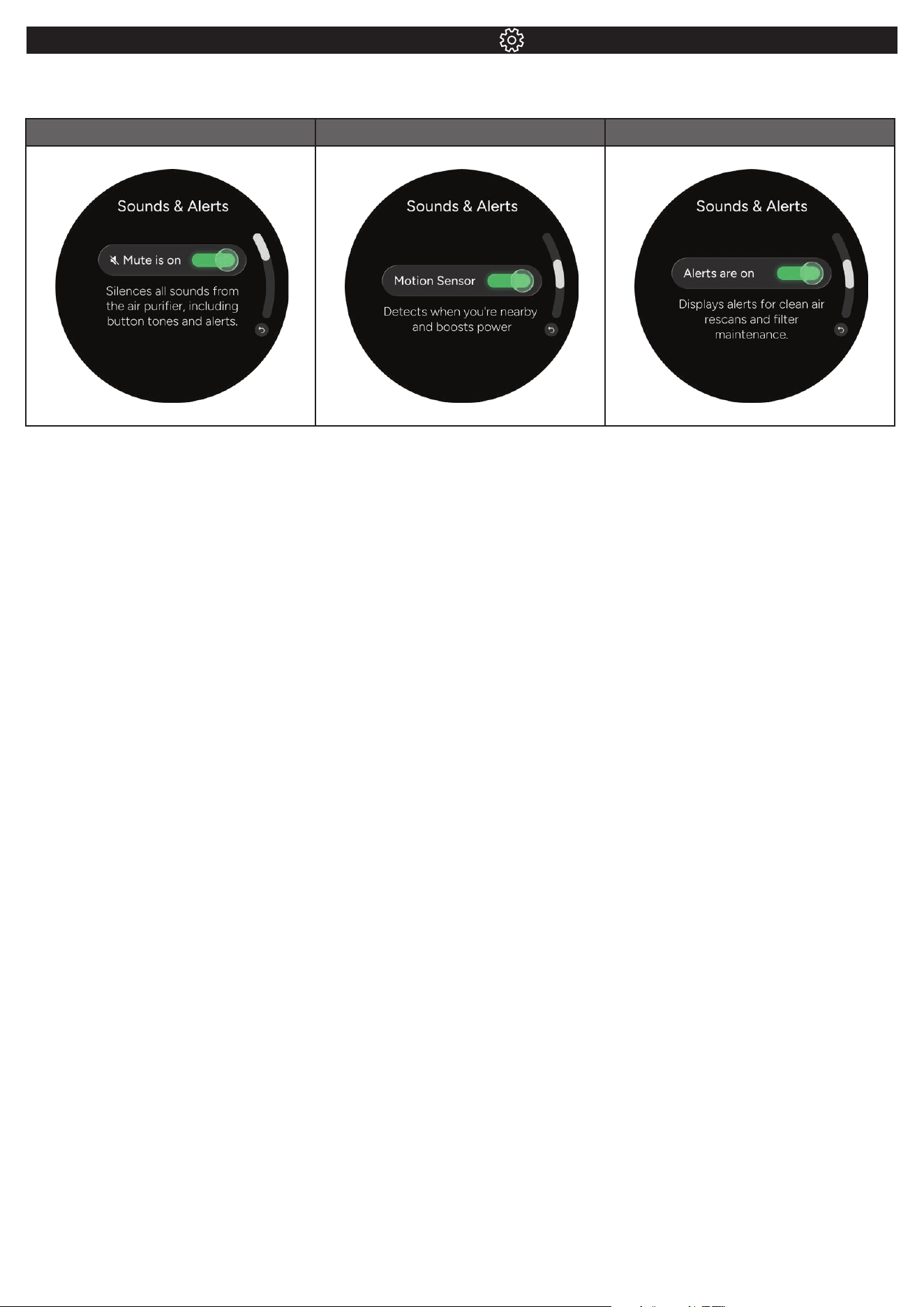
MUTE MOTION SENSOR ALERTS
SETTINGS
SOUNDS & ALERTS: Adjust the settings for sounds, motion sensor, and alerts. Use the check mark to toggle
selections on or o.
SUPPORT: Access more information on product features. Scan the QR code for how-to videos.
DEVICE SETTINGS: Adjust the day, time, clock, or language, or reset the unit to original factory settings.
Features vary per model.
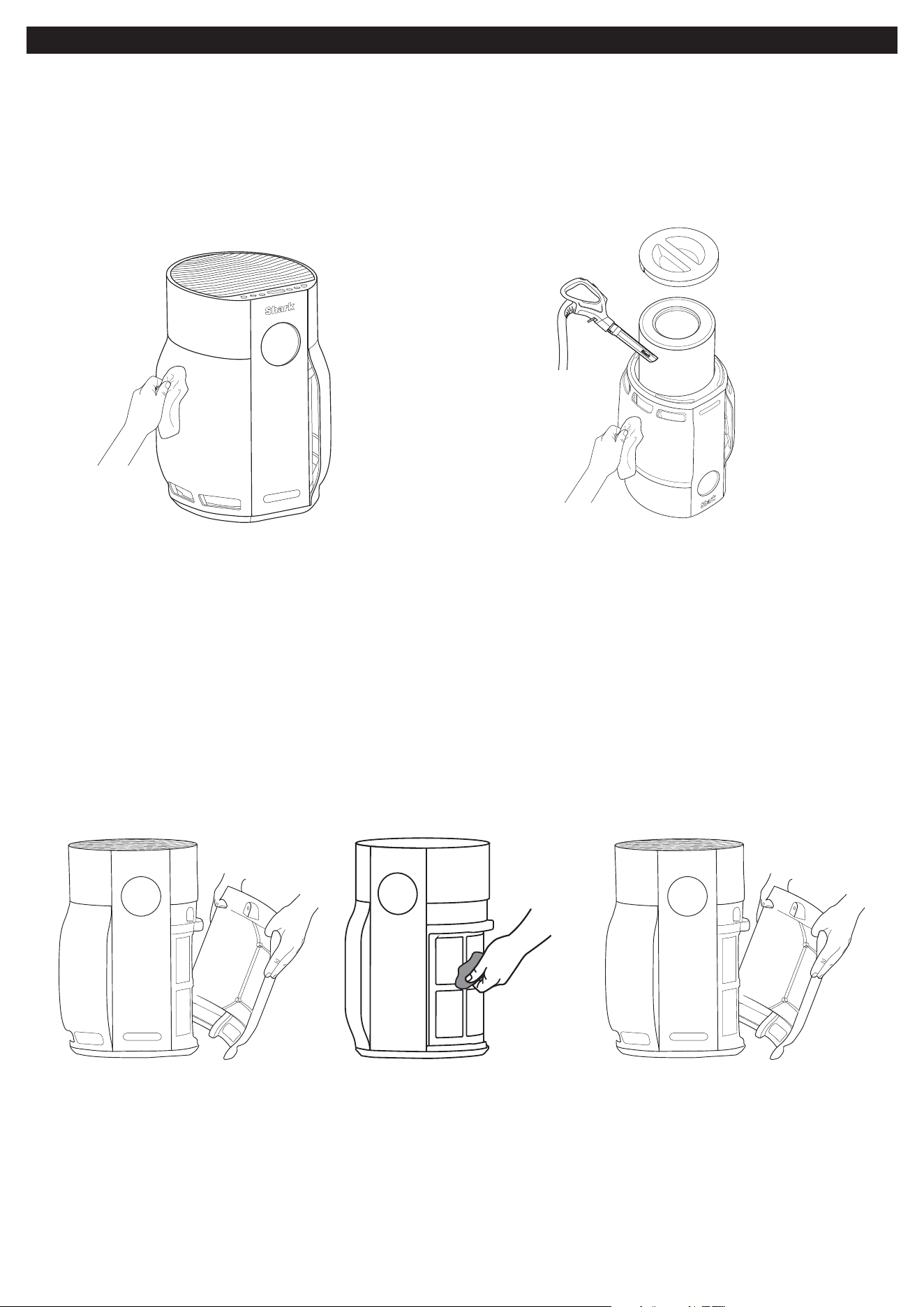
MAINTENANCE
EXTERIOR CLEANING:
For best results, clean the exterior every two months
or as needed. To clean, wipe down the exterior with
a microfiber cloth dampened with warm, soapy water.
Avoid excess water and abrasive chemical cleaners
to prevent damage.
INTERIOR CLEANING:
For best results, clean the interior of the air purifier
every two months or as needed. Remove the filter
door, take out the filter, and use a vacuum cleaner
or a microfiber cloth to remove dust and debris from
the interior. DO NOT use abrasive chemical cleaners
on the inside of the air purifier.
CLEANING THE PRE-FILTERS
Step 1
Pull o the panels on
both sides of the unit.
Step 3
Leave the filters to air-dry
completely for 24 hours
before reinstalling the
side panels.
Step 2
Wipe filters with a damp
cloth, or use a vacuum
cleaner on low speed.
DO NOT use
abrasive chemicals.
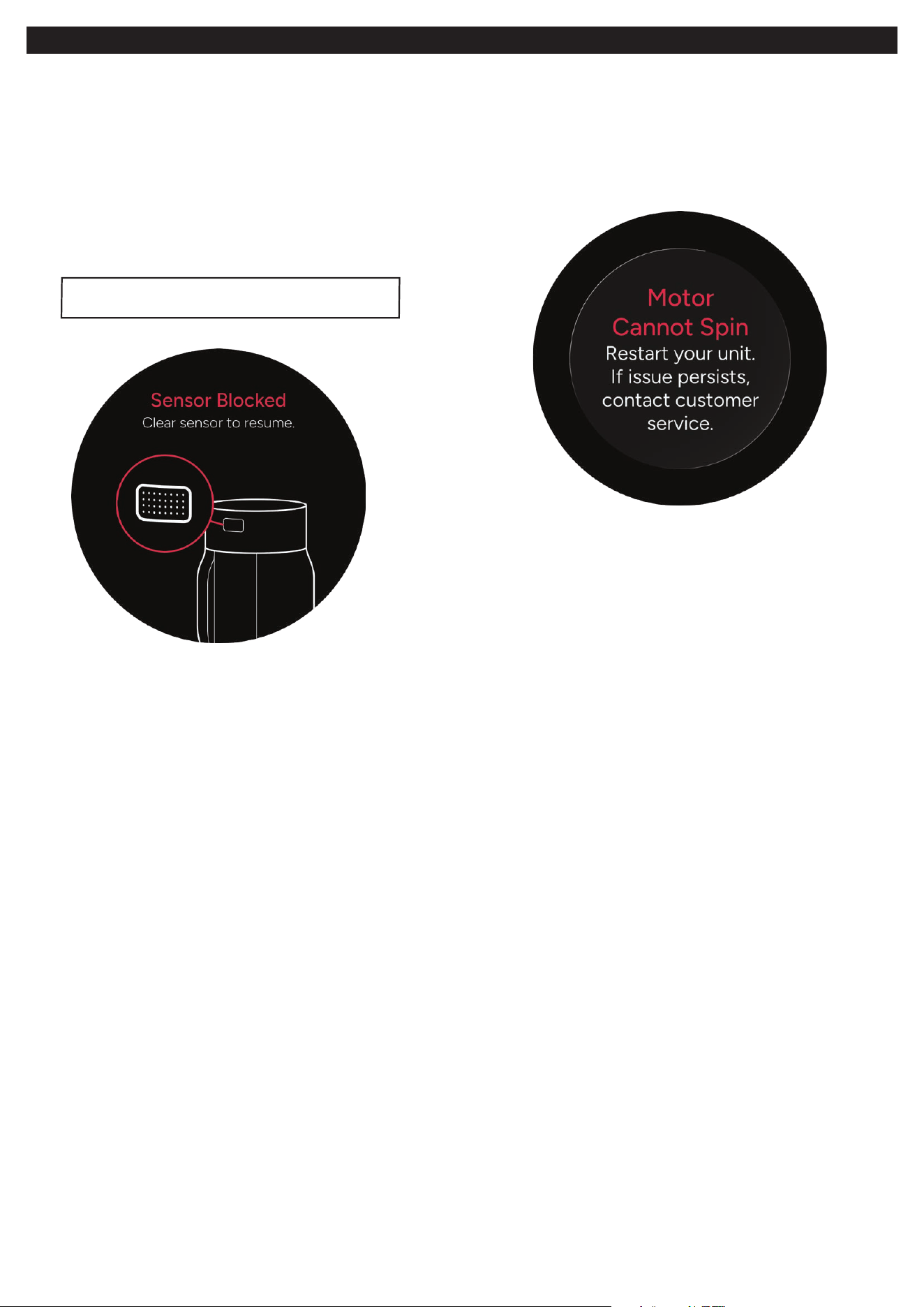
ERRORS AND ALERTS
SENSOR BLOCKED ERROR:
This error appears if air quality has been low for an
extended amount of time. Ensure the sensor is not
blocked and does not need to be cleaned. Use a hand
vacuum or vacuum hose with an attachment to clean
the area around the sensor. Then blow forcefully into the
sensor area. This will help to remove any particles that
may be obstructing the sensor. Do not use compressed
air or any tools that might damage the sensor.
MOTOR CANNOT SPIN ERROR:
When this message appears on the display screen,
turn o your unit and check the vents. Make sure
the side vents are clear and there is nothing blocking
the top vents. Restart your unit.
Note: Using the device near a humidifier
may also cause this error.
FAQs
Question Answer
Where is the best place
to put my air purifier?
For best results, place the air purifier in the room where you spend the
most time. Set up on a level surface, near an electrical socket. For maximum
air flow, keep the air purifier at least 3 inches/8 cm away from the wall.
What is PM?
PM is the amount of particulate matter in the air. BreatheClear technology
tracks 3 distinct sizes of particulate matter: PM1.0, PM2.5, and PM10.
PM1.0 includes ultra-fine allergens and viruses. PM2.5 includes smoke
and bacteria. PM10 includes dust, pollen, and mold.
What are VOCs?
VOCs are volatile organic compounds, including formaldehyde, benzene,
toluene, and xylene. They can be emitted from paints, cleaning products,
candles, and cooking, and commonly have a noticeable scent. The activated
carbon in your unit’s HEPA filter will absorb these particles.
What is BreatheClear mode?
BreatheClear technology automatically adjusts fan speed in response to
changes in air quality. When air quality decreases, the fan speed increases.
When air quality improves, fan speed decreases. The front display screen will
provide real-time air quality feedback so you can monitor the status of your air.
What happens when
the purifier detects motion?
Motion in your home can cause air particles like pet dander or dust to circulate,
lowering air quality. When it detects motion, your air purifier will automatically
increase fan speed to capture particles to help maintain clean air.
Motion detect can be turned on or o in the settings menu.
How often do I need
to replace the HEPA filter?
Shark® NeverChange™ HEPA filter technology provides up to
6 years of use from a single HEPA filter.
How do I mute/unmute
the beeping?
To mute or unmute your air purifier's alert sounds, go to the Settings menu,
select Sounds & Alerts, and press the Select button on the control panel to
toggle between “Mute is on” or “Mute is o.”
How do I enable/disable
child lock?
To enable or disable the child lock setting, press and hold the My Air IQ and
Settings buttons simultaneously for 3 seconds. When child lock is activated,
the dashboard lock icon will appear on the air quality screen.
How do I check
the filter status?
To check the status of the filters, press the My Air IQ button and select
Filter Status from the menu. The screen will show the time remaining
until the mesh pre-filters need cleaning. Press Confirm to see a step-by-
step guide on how to clean them. Press the up or down arrow to see the
remaining time until the HEPA filter needs replacement. Press Confirm to
see a step-by-step guide on removing and replacing the HEPA filter.
Do I need to be concerned
when air quality is low?
Low air quality is relatively common, and can go unnoticed. It may be caused
by buildup of indoor pollutants due to everyday activities like cooking,
cleaning, burning candles, having pets, or keeping windows closed.
The My Air IQ menu can track air quality changes to help you understand
how your activities can aect air quality.
Your Shark® air purifier will help reduce airborne particles
and improve your indoor air quality. This can help to reduce allergy
symptoms, improve sleep quality, and increase your overall comfort.
Why is my air purifier causing
disruptions with my Wi-Fi?
Your air purifier may cause disruptions with your Wi-Fi if it is
not set up properly.
Make sure your air purifier is set up at least 10 feet (3 meters) away from your
Wi-Fi router and connected devices (laptops, etc.) and that it is oriented
more than 30° away from your Wi-Fi router and connected devices.
If your air purifier is set up and positioned correctly and Wi-Fi interference
still occurs, you may need to adjust your Wi-Fi channel. Avoid 5.8 GHz
channels 161 and 165.
TWO (2) YEAR LIMITED WARRANTY
The Two (2) Year Limited Warranty applies to purchases made from
authorized retailers of SharkNinja Operating LLC. Warranty coverage
applies to the original owner and to the original product only and is
not transferable.
SharkNinja warrants that the unit shall be free from defects in material and
workmanship for a period of two (2) years from the date of purchase when
it is used under normal household conditions and maintained according to
the requirements outlined in the Owner’s Guide, subject to the following
conditions and exclusions:
CA RESIDENTS ONLY:
The Two (2) Year Limited Warranty period begins on the original date of
delivery or pick-up.
What is covered by this warranty?
1. The original unit and/or non-wearable parts deemed defective, in
SharkNinja’s sole discretion, will be repaired or replaced up to two (2)
years from the original purchase date.
2. In the event a replacement unit is issued, the warranty coverage ends
six (6) months following the receipt date of the replacement unit or
the remainder of the existing warranty, whichever is later. SharkNinja
reserves the right to replace the unit with one of equal or greater value.
What is not covered by this warranty?
1. Normal wear and tear of wearable parts (such as filters and
batteries, etc.), which require regular maintenance and/or
replacement to ensure the proper functioning of your unit, are
not covered by this warranty. Replacement parts are available
for purchase at sharkninja.com/parts-support.
2. Any unit that has been tampered with or used for commercial purposes.
3. Damage caused by misuse, abuse, negligent handling, failure to
perform required maintenance (e.g., not replacing the filters), or
damage due to mishandling in transit.
4. Consequential and incidental damages.
5. Defects caused by repair persons not authorized by SharkNinja. These
defects include damages caused in the process of shipping, altering, or
repairing the SharkNinja product (or any of its parts) when the repair is
performed by a repair person not authorized by SharkNinja.
6. Products purchased, used, or operated outside North America.
How to get service
If your appliance fails to operate properly while in use under normal household
conditions within the warranty period, visit support.sharkninja.com for
product care and maintenance self-help. Our Customer Service Specialists
are also available at 855 427 5127 to assist with product support and
warranty service options, including the possibility of upgrading to our VIP
warranty service options for select product categories. So we may better
assist you, please register your product online at registeryourshark.com and
have the product on hand when you call.
SharkNinja will cover the cost for the customer to send in the unit to us for
repair or replacement. A fee of $25.95 (subject to change) will be charged
when SharkNinja ships the repaired or replacement unit.
How to initiate a warranty claim
You must call 855 427 5127 to initiate a warranty claim. You will need the
receipt as proof of purchase. We also ask that you register your product
online at registeryourshark.com and have the product on hand when you
call, so we may better assist you. A Customer Service Specialist will provide
you with return and packing instruction information.
How state law applies
This warranty gives you specific legal rights, and you also may have other
rights that vary from state to state. Some states do not permit the exclusion
or limitation of incidental or consequential damages, so the above may not
apply to you.
IMPORTANT INFORMATION
REGISTER YOUR PURCHASE
registeryourshark.com
Scan QR code using
mobile device
TECHNICAL SPECIFICATIONS
Benefits of registering your product and creating an account:
• Get easier, faster product support and access to warranty
information
• Access troubleshooting and product care instructions
• Be among the first to know about exclusive product promotions
TIP: You can find the model and serial numbers on the QR code label
on the bottom of the unit.
PLEASE READ CAREFULLY AND KEEP FOR FUTURE REFERENCE.
This Owner’s Guide is designed to help you get a complete understanding of your new Shark® Air Purifier.
SharkNinja Operating LLC
US: 89 A Street, Suite 100, Needham, MA 02494
CAN: Ville St-Laurent, QC H4S 1A7
1-800-798-7398
sharkninja.com
Illustrations may dier from actual product. We are constantly striving to improve our products; therefore the specifications contained herein
are subject to change without notice.
This product may be covered by one or more U.S. patents. See sharkninja.com/patents for more information.
© 2026 SharkNinja Operating LLC. SHARK is a registered trademark of SharkNinja Operating LLC.
NEVERCHANGE is a trademark of SharkNinja Operating LLC.
HP360_Series_IB_MP_Mv11
HP360Series
Voltage:
120V 60Hz 0.72A
HP160Series
Voltage:
120V~ 60Hz 0.5A
HP060Series
Voltage:
120V~ 60Hz 0.24A
RECORD THIS INFORMATION
Model Number:
__________________________________________________________________________________________________________________________________________________________________________
Serial Number:
____________________________________________________________________________________________________________________________________________________________________________
Date of Purchase:
__________________________________________________________________________________________________________________________________________________________________
(Keep receipt)
Store of Purchase:
________________________________________________________________________________________________________________________________________________________________