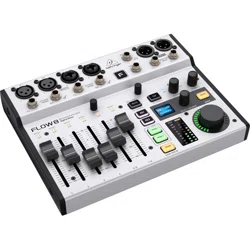
QUICK START GUIDE
FLOW 8C
8-Input Digital Mixer with Bluetooth Audio and App Control, Dual-Stage 138 dB-Mic Preamps, 60 mm-
Faders, 2 FX Processors and USB-C Audio Interface with 32-Bit Float Recording
Please read these safety instructions carefully and pay close attention to any warning symbols displayed
on the product and their related safety information in this instruction.
This symbol, wherever it appears, alerts you to the presence of uninsulated
dangerous voltage inside the enclosure voltage that may be sufficient to constitute
a risk of shock.
Terminals marked with this symbol carry electrical current of sufficient magnitude
to constitute risk of electric shock. Use only high-quality professional speaker
cables with ¼" TS or twist-locking plugs pre-installed.
All other installation or modification should be performed only by qualified
personnel.
Caution Electrical Shock Hazard
This apparatus is supplied by multiple power sources. To completely disconnect it,
disconnect all power sources.
This symbol, wherever it appears, alerts you to important operating and
maintenance instructions. Please read full manual.
Caution
To reduce the risk of electric shock, do not remove the top cover (or the rear
section). No user serviceable parts inside. Refer servicing to qualified personnel.
To reduce the risk of fire or electric shock, do not expose this appliance to rain and
moisture. The apparatus shall not be exposed to dripping or splashing liquids and
no objects filled with liquids, such as vases, shall be placed on the apparatus.
These service instructions are for use by qualified service personnel only. To
reduce the risk of electric shock do not perform any servicing other than that
contained in the operation instructions.
Repairs have to be performed by qualified service personnel.
Warning: Please refer to the information on the exterior of bottom enclosure for
electrical and safety information before installing or operating the device.
Warning: To prevent possible hearing damage, do not listen at high volume levels
for long periods.
As a guide to setting the volume level, check that you can still hear your own voice,
when speaking normally while listening with the headphones.

1. Read and keep these instructions. Heed all warnings and follow all instructions.
2. Do not use this apparatus near water (if applicable). Clean only with dry cloth.
3. Do not block ventilation openings(if applicable). Do not install in a confined space. Install only
according to manufacturer's instructions.
4. Do not install near any heat sources such as radiators, heat registers, stoves or other
apparatus (including amplifiers)
that produce heat. Do not place naked flame sources, such as lighted candles, on the
apparatus.
5. Do not defeat the safety purpose of the polarized or grounding-type plug. A polarized plug has
two blades with one wider than the other (only for USA and Canada). A grounding-type plug
has two blades and a third grounding prong. The wide blade or the third prong are provided for
your safety. If the provided plug does not fit into your outlet, consult an electrician for
replacement of the obsolete outlet.
6. (if applicable) Protect the power cord from being walked on or pinched particularly as plugs,
convenience receptacles, and the point where they exit from the apparatus.
7. Use only attachments and accessories recommended by the manufacturer.
8. Use only specified carts, stands, tripods, brackets, or tables specified by the
manufacturer, or sold with the apparatus (if applicable). When a cart is used,
use caution when moving the cart/apparatus combination to avoid injury from
tip-over.
9. Unplug during storms, or if not in use for a long period.
10. Refer all servicing to qualified service personnel. Servicing is required when the apparatus has
been damaged in any way, such as power-supply cord or plug is damaged, liquid has been
spilled or objects have fallen into the apparatus, the apparatus has been exposed to rain or
moisture, does not operate normally, or has been dropped.
11. (if applicable)The apparatus with protective earthing terminal shall be connected to a MAINS
socket outlet with a protective
earthing connection.
12. (if applicable)Where the MAINS plug or an appliance coupler is used as the disconnect device,
the disconnect device shall remain readily operable.
13. Internal/External Voltage Selectors (if applicable): Internal or external voltage selector
switches, if any, should only be reset and re-equipped with proper plug or alternative voltage by
a qualified service technician. Do not attempt to alter this yourself.
14. Class 2 Wiring (if applicable): To reduce the risk of electric shock, the external wiring
connected to the terminals with "Class 2 Wiring" requires Class 2 wiring installed by an
instructed person or the use of ready-made leads or cords.
15. Class 1 Wiring (if applicable): To reduce the risk of electric shock, the external wiring
connected to the terminals with "Class 1 Wiring" requires Class 1 wiring installed by an
instructed person or the use of ready-made leads or cords.
16. Operating temperature range 5° to 45° C (41° to 113° F).
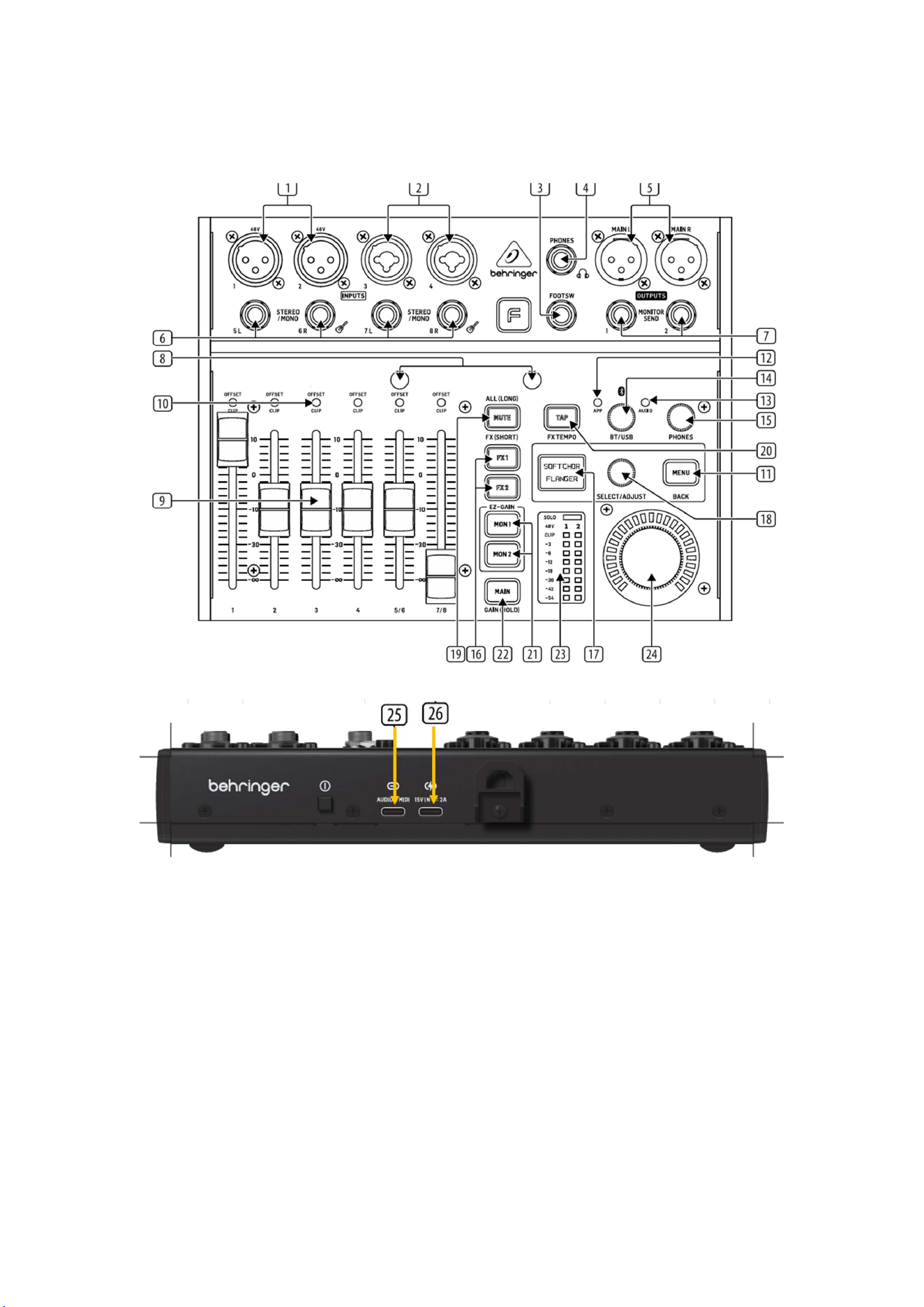
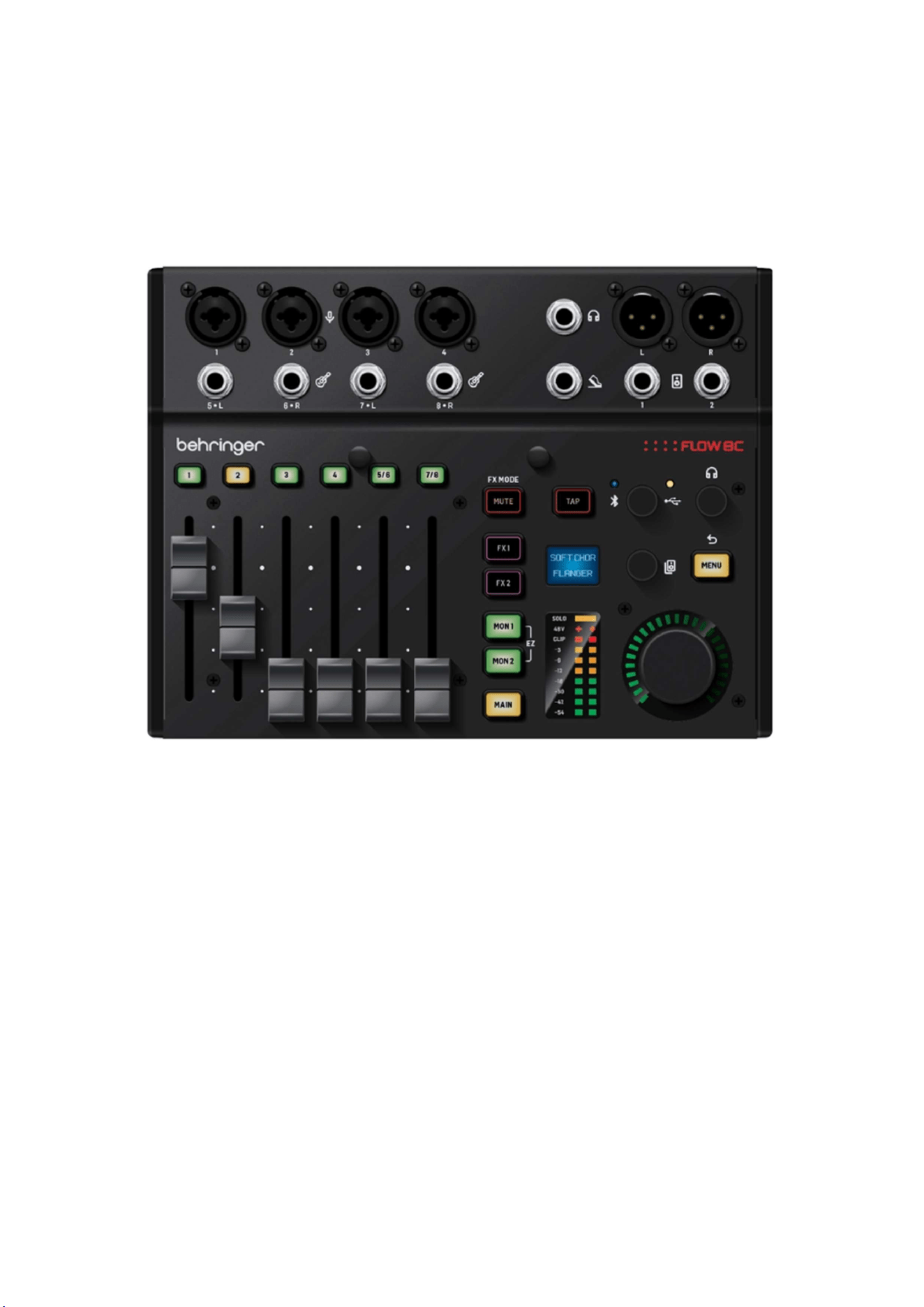
Controls
1. MIC 1/MIC 2 inputs accept audio signals over cables using
balanced XLR connectors. Both XLR jacks feature
individually selectable phantom power for condenser mics.
Phantom power can be activated in the control app or via
the MAIN button and SELECT/ADJUST push encoder (see
“Getting Started”).
9. CHANNEL FADERS set mix levels for their respective channels.
These faders can also be used to control the send levels to the MON
1/MON 2 output jacks or the FX 1/FX 2 internal busses when selected in
the controlapp or by pressing the menu layer’s related hardware button
(see [16], [21] and [22]).
2. MIC 3/MIC 4 combo jacks accept audio signals from line-
level sources or dynamic microphones over cables with
balanced XLR, balanced ¼" TRS or unbalanced ¼" TS
connectors. To run condenser microphones with these
inputs, you will need an external preamp or phantom power
supply that provides +48 V of power, such as the Behringer
PS400. NOTE: These inputs do NOT offer phantom power!
10. OFFSET/CLIP LEDs indicate when the input gain is clipping the
channel headroom or when the hardware faders are in a different position
than the fader level shown in the control app (the LEDs will switch off when
the hardware faders are returned to the level shown in the control app).
11. MENU button push opens Menu Mode when the MAIN, MON 1 or
MON 2 menu layer is selected. Pressing the MENU button again will exit
from Menu Mode.

3. FOOTSW jack connects to an external single or dual
control footswitch using a ¼" TRS connector.
12. APP LED starts blinking when Bluetooth* pairing is underway for the
control app. When pairing is successful, the LED lights consistently. When
the Bluetooth connection fails or is deactivated, the LED will go off. See the
Bluetooth instructions in “Getting Started” for details.
4. PHONES jack connects to headphones using a ¼" TRS
stereo plug.
5. MAIN L/MAIN R connections send out the final stereo mix
over cables using balanced XLR connectors.
13. AUDIO LED lights up to indicate when Bluetooth pairing is active for
audio streaming. See the Bluetooth instructions in “Getting Started” for
details.
6. STEREO/MONO inputs can accept either stereo line-level
signals (5/6 and 7/8 stereo pairs), or a mono signal (5L and
7L for mono line-level sources, 6R and 8R for mono Hi-Z
signals from guitars and basses.)
14. BT/USB knob sets volume for digital audio routed into the mixer via
Bluetooth or the rear USB AUDIO connector.
15. PHONES knob controls the headphone volume.
7. MONITOR SEND (MON 1/MON 2) jacks provide two
monitor outputs. These outputs accept cables with
balanced ¼" TRS or unbalanced ¼" TS connectors.
16. FX 1/FX 2 buttons switches between the two FX engines for patch
selection and parameter adjustment. When the FX 1 or FX 2 menu buttons
are selected, the channel faders are then used to set Send levels to the FX
engines.
8. HOLDING POSTS allow you to place your smartphone
directly onto the mixer for easy viewing of levels and
settings on the smartphone control app.
17. MENU SCREEN displays the names of the currently-active
effects for the two FX engines, and allows access to the FX
preset list when the FX 1 or FX 2 button is pressed. Press the
MENU button to open and close Menu Mode. Rotate the
SELECT/ADJUST push encoder to navigate sub-menus and
then press to select specific menu items.
23. VU METER shows levels for the main mix, monitor mixes or
FX send signals. In SOLO mode, this meter allows more detailed
gain setting on individual input channels. The red LEDs “1” and
“2” at the top of the meter will light up when +48 V phantom
power is activated for Channels 1 and 2 respectively.
18. SELECT/ADJUST push encoder is used to navigate menus
(turn) and to enter/confirm (press).
24. MAIN knob controls the master volume for the currently
selected buss – FX 1, FX 2, MON 1, MON 2 or MAIN. The final
volume setting is indicated by the LED ring around the knob.
When adjusting the master volume setting of the currently-
selected bus from the smartphone app, the LED ring will change
to show the volume setting selected for that bus in the app.
19. MUTE button switches off all audio from the FX section. A
long press of the MUTE button activates the ALL MUTE function
(see “Getting Started”).
20. TAP button allows you to tap in a tempo for quick adjustment
of time-based effects.
25. USB AUDIO jack enables connection to a computer for audio
streaming, firmware updates and MIDI control. This USB
connection also allows FLOW 8C to be used as multi-channel
audio interface for recording to computer. When used as a
recording interface, 10 channels are transmitted to the computer
(8 analog inputs, plus the main L/R bus mix tapped pre-fader),
and 2 stereo playback channels, controllable via the BT/ USB
channel, are streamed back to the FLOW 8C mixer.
21. MON 1/MON 2 buttons select either of the monitor mixes for
direct monitoring and level setting in place of the main mix. To
return to the main mix, press the MAIN button. Press MON 1 and
MON 2 simultaneously to active the EZ GAIN function (see
“Getting Started”).
22. MAIN button selects the main mix for the final output. Press
the MAIN button to return to the main mix after selecting and
checking monitor mixes with the MON 1 and MON 2 buttons.
Press and hold the MAIN button for manual gain setting and to
activate phantom power (see “Getting Started”).
26. DC IN jack uses USB-C connection to provide power to the
unit. Power should come from the included external power
supply or a USB power bank with a UBS-C connection.
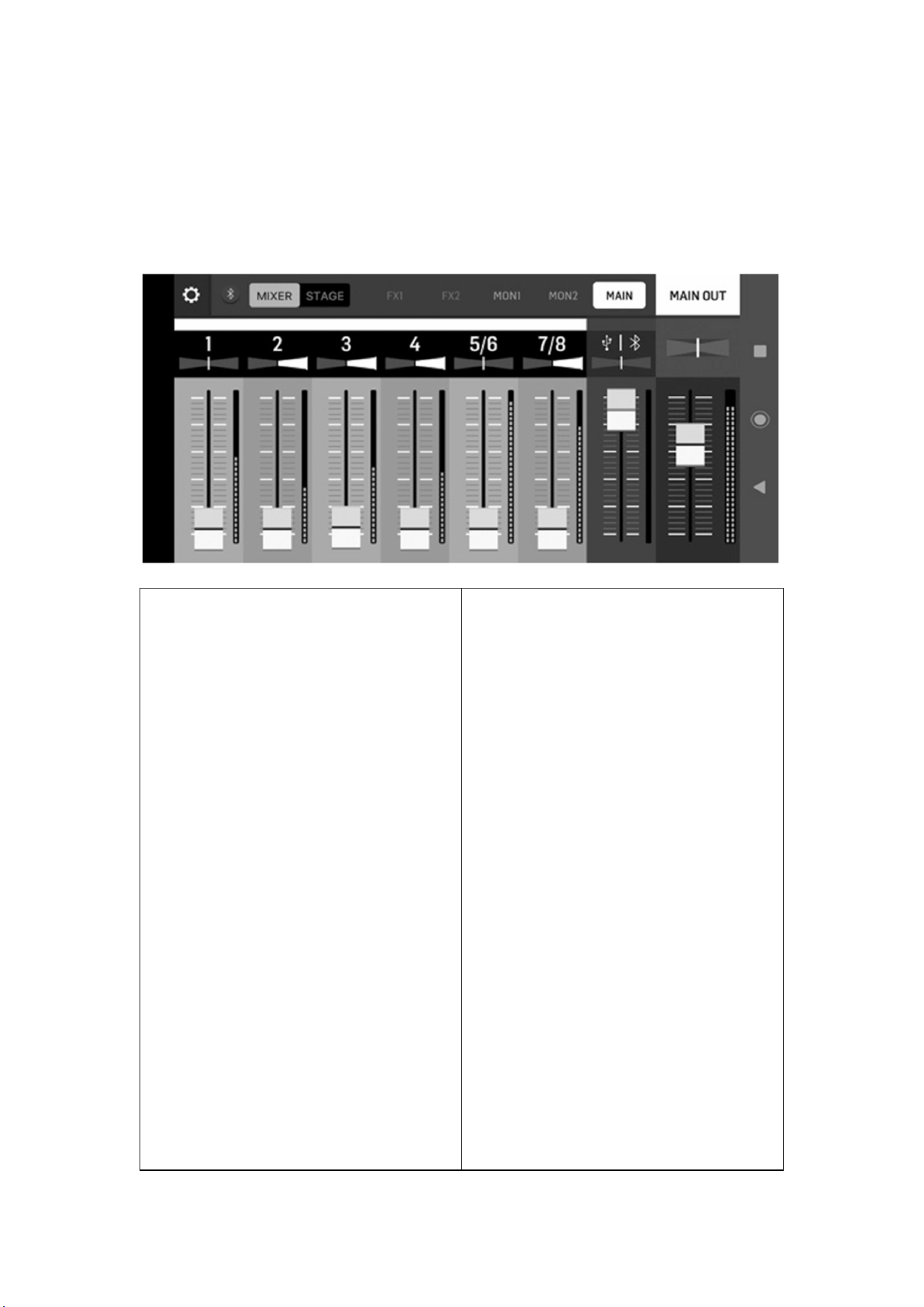
Getting started Bluetooth Connection
Streaming and Control To stream audio from a Bluetooth-enabled device, you will need a smartphone,
tablet or computer with basic Bluetooth audio connectivity.
The mixer can only be controlled and edited by Android** or Apple
iOS** control app. Only one Bluetooth device at a time may be used
to control the mixer via the control app.
Audio may be streamed from a separate Bluetooth device or from
the same device running the control app, but a maximum of one
audio device and one device with the control app are allowed at the
same time.
NOTE: FLOW 8C uses two types of Bluetooth simultaneously:
Bluetooth Low Energy (BLE) for the control app and regular
Bluetooth Audio for wireless audio streaming.
Bluetooth pairing for control app
To control FLOW 8C via app from your Bluetooth device, use the
following procedure:
1. Download and install the free FLOW control app from the Apple
Store** or Google Play Store**
2. Enable Bluetooth on your smartphone or tablet.
3. Press the MENU button on the FLOW 8C mixer hardware and
select the BT PAIRING menu by turning the SELECT/ADJUST push
encoder. Press the encoder to enter this sub-menu.
4. Select PAIR APP with the SELECT/ADJUST push encoder, and
then press the encoder to start the search for a Bluetooth device.
5. Start the FLOW control app on your Bluetooth device (within 60
seconds). The control app will automatically detect FLOW 8C and
connect. When connected, the Bluetooth icon in the control app will
Bluetooth pairing for audio streaming
To stream audio to your FLOW 8C mixer from your Bluetooth
device, use the following procedure:
1.Enable Bluetooth on your smartphone or tablet (if not already
done).
2. Press the MENU button on the FLOW 8C mixer hardware and
select the BT PAIRING menu by turning the SELECT/ADJUST push
encoder. Press the encoder to enter this sub-menu.
3. Select PAIR AUDIO with the SELECT/ADJUST push encoder,
and then press the encoder to start the search for a Bluetooth
device.
4. Go to the Bluetooth menu of your smartphone or tablet.
5. Select “FLOW 8C (Audio)” on your smartphone or tablet to pair.
NOTE: The specific device-naming format that appears in the
Bluetooth menu of your smartphone/tablet may vary by brand, as
well as by OS version.
6. When pairing is successful, the menu on your smartphone or
tablet will indicate success, and the blue AUDIO LED on the mixer
hardware will light consistently.
7. Begin audio playback on your smartphone or tablet (e.g., a radio
app or media player app). Audio will stream wirelessly in stereo to
your FLOW 8C mixer.
8. Make final level adjustments. You can adjust the Bluetooth
playback level by four different means:

change color from gray (inactive) to blue (active), and the blue APP
LED on the mixer hardware will light consistently.
6. In case of unsuccessful connection, press the RETRY button on
the app and follow the on-screen instructions.
Inside the FLOW control app at the BT/USB stereo channel
on the mixer view.
Footswitch operation
By using a footswitch with the FOOTSW jack, you can mute effects,
tap in a tempo for time-based effects, or select next or previous
snapshot:
Footswitch Mode “FX” (default mode): Switch 1 = MUTE
(both FX engines), Switch 2 = TAP TEMPO (both FX
engines)
Footswitch Mode “SNAPSHOT”: Switch 1 = Snapshot Up
(next), Switch 2 = Snapshot Down (previous)
FX Menu Navigation
When the FX 1 or FX 2 menu layer is selected on the mixer
hardware, you will see the currently selected effect preset.
This preset can be changed by turning and pressing the
SELECT/ADJUST push encoder.
Pressing the MENU button while in the FX 1 or FX 2 layer
opens the editable parameters (two per effect) for
adjustment.
Turning the SELECT/ADJUST push encoder allows
you to change the value of the upper/first parameter.
Pressing the SELECT/ADJUST push encoder
accesses the lower/second parameter, which will
allow you to toggle between 2 possible values/states.
Pressing the MENU button again will return you to the preset
select page.
ALL MUTE Function
The ALL MUTE function mutes all channels 1-8.
To activate ALL MUTE, press and hold the MUTE button. When ALL
MUTE is active, you will see these indicators:
• The MENU SCREEN will light red.
• The OFFSET/CLIP LEDs will blink.
• The two red “1” and “2” LEDs at the top of the VU METER will
blink.
Level up/down hardware buttons on your smartphone or
tablet.
Level control inside your audio playback app.
BT/USB level knob on the FLOW 8C mixer hardware.
To exit ALL MUTE, short press the MUTE button.
This ALL MUTE mode is perfect for quick and easy connection/
disconnection of cables while avoiding pops and clicks that could
damage connected speakers and headphones.
Manual gain change and phantom power
Tmanually adjust gain for an input channel or activate phantom
power (channels 1 and 2 only):
1. Press and hold the MAIN button. The MENU SCREEN display
will turn yellow-green.
2. Move a slider to select the desired channel.
3. Use the slider to set the gain.
4. Press the SELECT/ADJUST push encoder to select/deselect +48
V phantom power for channels 1 or 2.
5. Release the MAIN button to exit.
EZ GAIN function
The EZ GAIN function will automatically calibrate and set the gain
and channel level. For Channels 1 and 2, the +48 V phantom power
will be automatically selected, when required. To activate the EZ
GAIN function:
1. Press the MON 1 and MON 2 buttons simultaneously. The MENU
SCREEN display will turn green.
2. Turn the SELECT/ADJUST push encoder to select an input for
EZ GAIN calibration. When selecting ALL, the mixer will calibrate all
8 input channels simultaneously.
3. Press the SELECT/ADJUST push encoder to start the calibration.
4. Sing/speak/play through the channel, and the mixer will auto-
calibrate the gain and channel level, and switch on +48 V phantom
power when required.
NOTE: Please run the calibration process for a minimum of 7 to 10
seconds for best results!
5. When you stop performing, press the SELECT/ADJUST push
encoder to finish the calibration.
6. To calibrate additional channels, repeat Steps 2-5.
7. When done, you can can exit EZ GAIN mode by pressing the
MAIN button or any of the other bus buttons.
SOFT POWER OFF
You can put the FLOW 8C into a power saving mode by pressing
and holding the MENU button. Then only this button will light up,
dimmed.
TIP: To start the mixer again, press the MENU button briefly.
Specifications
Mic Inputs
Mic inputs 1 / 2
Type 2 x XLR jacks, balanced
Mic E.I.N. (20 Hz to 20 kHz) -129 dBu, A-weighted
Distortion (THD+N) < 0.004%, A-weighted
Max. input level +20 dBu
Impedance 10 kΩ balanced, 5 kΩ unbalanced
Mic inputs 3 / 4
Type 2 x XLR / ¼" TRS combo jacks, balanced
Mic E.I.N. (20 Hz to 20 kHz) -117 dBu, A-weighted
Distortion (THD+N) < 0.01%, A-weighted
Max. input level XLR: +6 dBu TRS: +26 dBu
Impedance
XLR: 2 kΩ balanced, 1 kΩ unbalanced TRS:
20 kΩ balanced, 10 kΩ unbalanced
Line Inputs
Type 2 x ¼" TRS jacks, balanced (channels 5L / 7L)
Impedance 20 kΩ balanced, 10 kΩ unbalanced
Gain range -20 dB to +60 dB
Distortion (THD+N) 0.005%, A-weighted, 0 dB gain, 0 dBu out
Max. input level +22 dBu
Monitor Outputs
Type 2 x ¼" TRS jacks, balanced
Impedance 75 Ω, balanced
Max. output level +14 dBu
Main Outputs
Type 2 x XLR jacks, balanced
Impedance 150 Ω, balanced
Max. output level +14 dBu
Phones Output
Type 1 x ¼" TRS jack, stereo
Max. output level +18 dBm / 40 Ω
Bluetooth
Frequency range 2402 MHz ~ 2480 MHz
Channel number 79
Version Bluetooth 4.2 Dual Mode
Max. communication range 12 m (without interference)
Max. output power 9.6 dBm
Power Supply / Voltage

Connector USB-C
Power supply USB-C 5-15VDC, 3A, Power Adaptor included
Power consumption 10 W
Dimensions / Weight
Dimensions (H x W x D) 48 x 229 x 172 mm (1.9 x 9.0 x 6.8")
Weight 1.4 kg (3.1 lbs)
FEDERAL COMMUNICATIONS COMMISSION COMPLIANCE INFORMATION
Responsible Party Name : Empower Tribe Innovations US Inc.
Address: 901 Grier Dr. Las Vegas, NV, 89119, USA
Email address: [email protected]
This equipment has been tested and found to comply with the limits for a Class B digital device,
pursuant to part 15 of the FCC Rules. These limits are designed to provide reasonable protection
against harmful interference in a residential installation. This equipment generates, uses and can radiate
radio frequency energy and, if not installed and used in accordance with the instructions, may cause
harmful interference to radio communications. However, there is no guarantee that interference will not
occur in a particular installation. If this equipment does cause harmful interference to radio or television
reception, which can be determined by turning the equipment off and on, the user is encouraged to try to
correct the interference by one or more of the following measures:
• Reorient or relocate the receiving antenna.
• Increase the separation between the equipment and receiver.
• Connect the equipment into an outlet on a circuit different from that to which the receiver is
connected.
• Consult the dealer or an experienced radio/TV technician for help.
This device complies with Part 15 of the FCC Rules. Operation is subject to the following two conditions:
a. This device may not cause harmful interference, and
b. This device must accept any interference received, including interference that may cause
undesired operation.
Important information:
Changes or modifications to the equipment not expressly approved by Music Tribe can void the user’s
authority to use
the equipment.
Caution!
The manufacturer is not responsible for any radio or TV interference caused by unauthorized
modification to this equipment.
Such modifications could void the user authority to operate the equipment.
FCC RF Radiation Exposure Statement:
1. This Transmitter must not be co-located or operating in conjunction with any other antenna or
transmitter.
2. This equipment complies with FCC RF radiation exposure limits set forth for an uncontrolled
environment. This equipment should be installed and operated with minimum distance of 20
centimeters between the radiator and your body.
Caution!
This device contains licence-exempt transmitter(s)/receiver(s) that comply with Innovation, Science and
Economic Development Canada’s licence-exempt RSS(s). Operation is subject to the following two
conditions:
1. This device may not cause interference.
2. This device must accept any interference, including interference that may cause undesired
operation of the device.
This equipment complies with IC radiation exposure limits set forth for an uncontrolled environment. This
equipment should be installed and operated with minimum distance 20cm between the radiator and your
body.
L’émetteur/récepteur exempt de licence contenu dans le présent appareil est conforme aux CNR
d’Innovation, Sciences et Développement économique Canada applicables aux appareils radio exempts
de licence. L’exploitation est autorisée aux deux conditions suivantes :
1. L’appareil ne doit pas produire de brouillage;
2. L’appareil doit accepter tout brouillage radioélectrique subi, même si le brouillage est
susceptible d’en compromettre le fonctionnement
Cet appareil est conforme à IC l’exposition aux rayonnements limites fixées pour un environnement non
contrôlé. Cet appareil doit être installé et utilisé avec une distance minimale de 20 cm entre le radiateur
et votre corps. Cet transmetteur ne doit pas être co-situé ou opérant en liaison avec toute autre antenne
ou transmetteur.
Hereby, Music Tribe declares that this product is in compliance with Directive 2014/53/EU, Directive
2014/30/EU, Directive 2014/35/EU, Directive 2011/65/EU and Amendment 2015/863/EU, Directive
2012/19/EU, REACH Regulation (EC) No 1907/2006, Regulation (EU) 2019/1021.
EU Representative: Empower Tribe Innovations DE GmbH; Otto-Brenner-Strasse 4a, 47877 Willich,
Germany
UK Representative: Empower Tribe Innovations UK Ltd.; 5 Brindley Road Old Trafford, Manchester,
United Kingdom, M16 9UN
Correct disposal of this product: This symbol indicates that this product must not be disposed
of with household waste, according to the WEEE Directive (2012/19/EU) and your national law. This
product should be taken to a collection center licensed for the recycling of waste electrical and electronic
equipment (EEE). The mishandling of this type of waste could have a possible negative impact on the
environment and human health due to potentially hazardous substances that are generally associated
with EEE. At the same time, your cooperation in the correct disposal of this product will contribute to the
efficient use of natural resources. For more information about where you can take your waste equipment
for recycling, please contact your local city office, or your household waste

collection service.
We Hear You