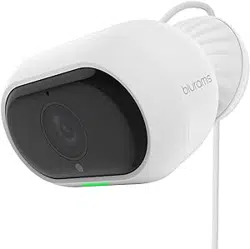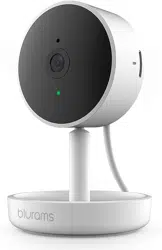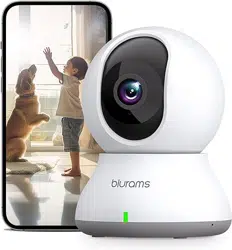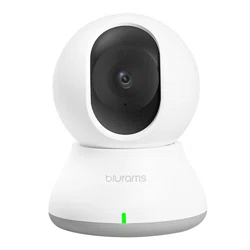

Blurams
User Manual Back to Contents
1
Contents
*One-click access: Simply select the desired section to be automatically directed to its page.
1. Download Blurams App ............................................................................................................ 4
2. Find us .............................................................................................................................................. 5
3. Camera Introduction .................................................................................................................. 6
3.1 Get to Know Your Camera ........................................................................................... 6
3.2 Plug in Your Camera ....................................................................................................... 7
4. Installation and Connection.................................................................................................... 8
4.1 Enabling Access for blurams App ............................................................................ 8
4.2 Adding a Device via QR Code ................................................................................ 12
4.3 Adding a Device via AP Hotspot ........................................................................... 14
4.4 Adding a Device via Bluetooth............................................................................... 16
4.5 Device Offline Issues ................................................................................................... 18
4.6 Changing the Device’s Network Connection ................................................... 18
4.7 Deleting a Device ......................................................................................................... 20
5. Cloud Services ............................................................................................................................ 21
5.1 Cloud Storage Service ................................................................................................ 21
5.1.1 Service Overview ............................................................................................. 21
5.1.2 Differences Between Cloud Storage and SD Card Storage.......... 23
5.1.3 Purchased Cloud Service Not Activated ............................................... 23
5.1.4 How to Purchase Cloud Service ............................................................... 25
5.1.5 The Refund for Cloud Service.................................................................... 26

Blurams
User Manual Back to Contents
2
5.2 AI Services........................................................................................................................ 26
5.2.1 Abnormal Image Detection ........................................................................ 27
5.2.2 Pet Detection ..................................................................................................... 27
5.2.3 Family Care+ ...................................................................................................... 27
5.2.4 Package Detection .......................................................................................... 28
5.2.5 Vehicle Detection ............................................................................................ 28
5.2.6 Smart Voice Reminder .................................................................................. 28
6. Hardware Settings .................................................................................................................... 29
6.1 Video Display is Upside Down ............................................................................... 29
6.2 Video Display is in Black and White .................................................................... 29
6.3 Video Quality is Not Clear ........................................................................................ 30
6.4 No Push Notifications ................................................................................................ 31
7. SD Card Storage ........................................................................................................................ 33
7.1 SD Card Not Detected................................................................................................ 33
7.2 Unable to View Playback from SD Card ............................................................. 34
7.3 Days of SD Card Storage ........................................................................................... 35
8. Account ......................................................................................................................................... 37
8.1 Login Failure.................................................................................................................... 37
8.2 Forgot Password ........................................................................................................... 38
8.3 How to Change Password ........................................................................................ 38
9. Other Features ........................................................................................................................... 39
9.1 Basic Functions .............................................................................................................. 39

Blurams
User Manual Back to Contents
3
9.1.1 Device List ........................................................................................................... 39
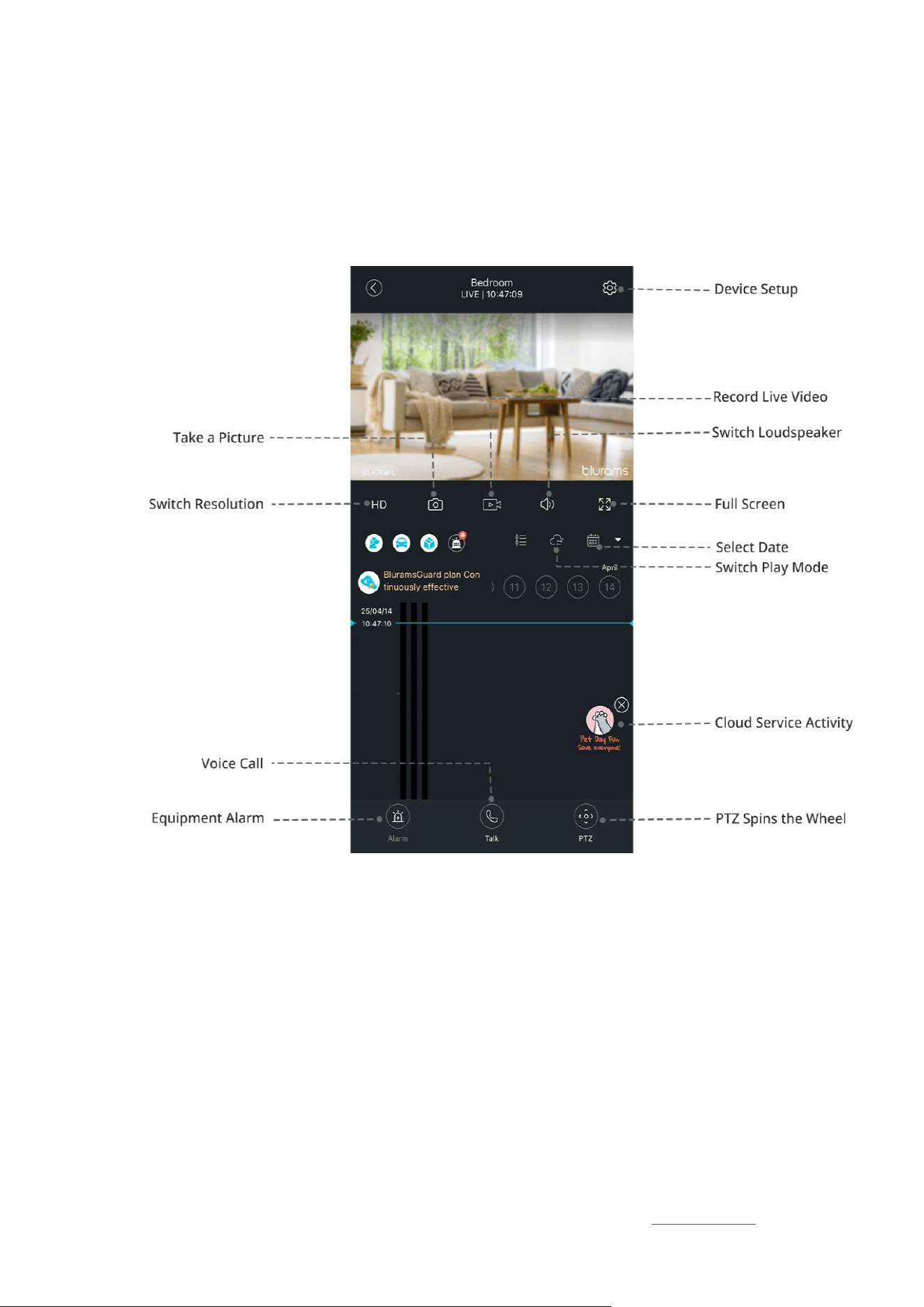
9.1.2 Live View Page .................................................................................................. 40
9.2 Device Settings .............................................................................................................. 41
Blurams
User Manual
Back to Contents
5
2. Find us
Tel: +1 (855) 917 4591
(Mon – Fri 08:00 AM – 05:00 PM Pacific Time)
Support Email: [email protected]
Blurams Forum Blurams Facebook
Blurams Instagram Blurams TikTok Blurams YouTube

Blurams
User Manual Back to Contents
8
4. Installation and Connection
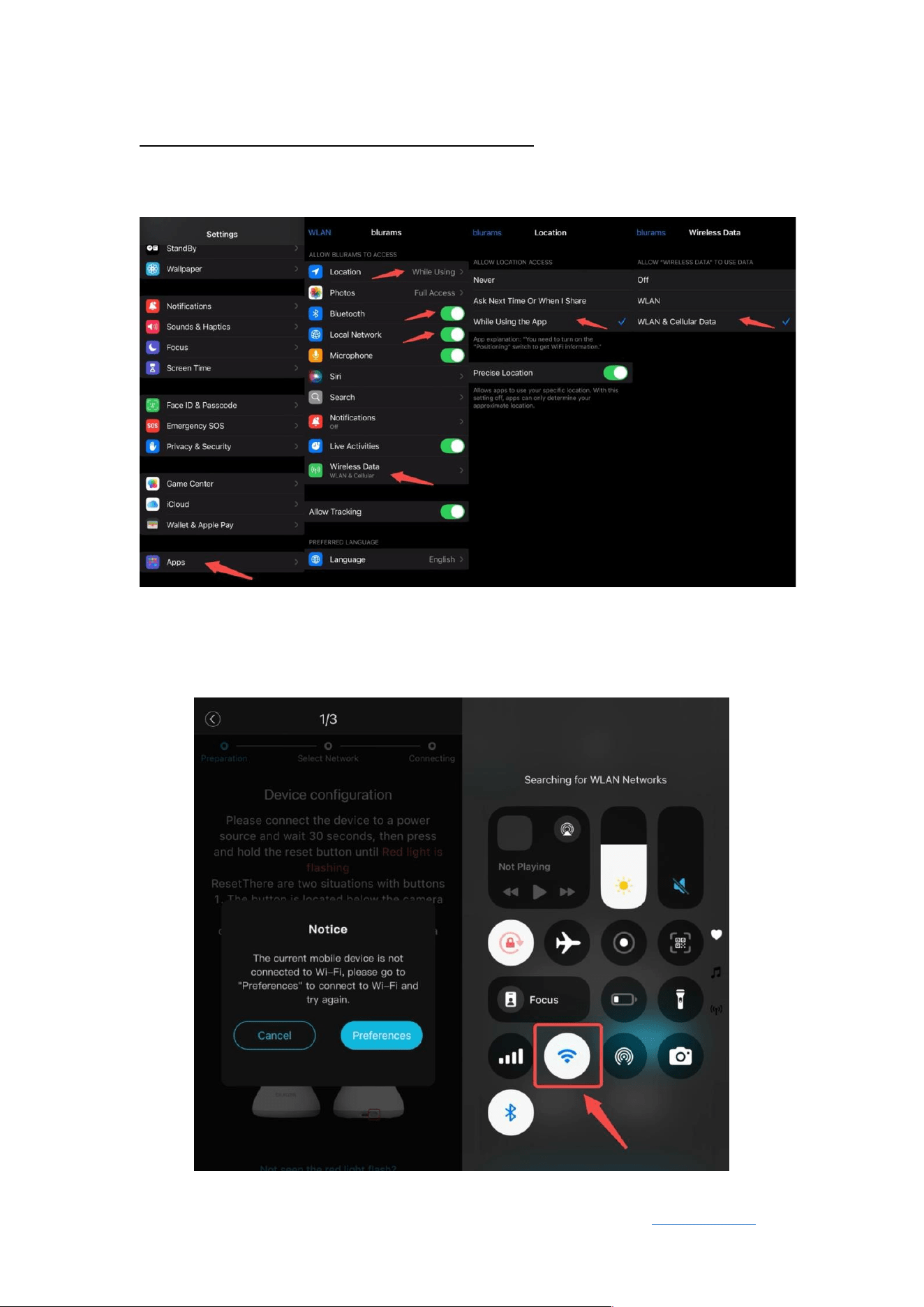
4.1 Enabling Access for blurams App
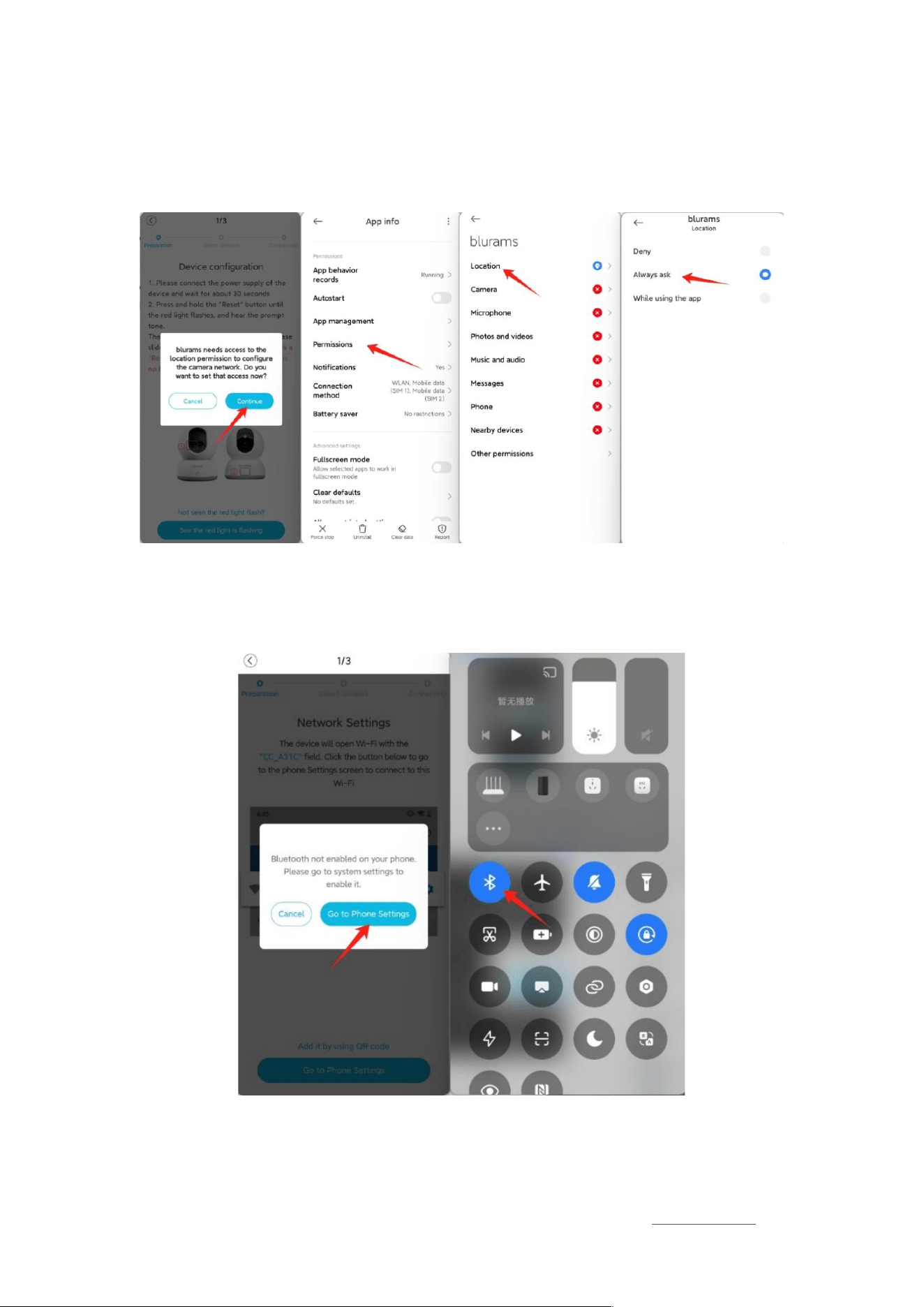
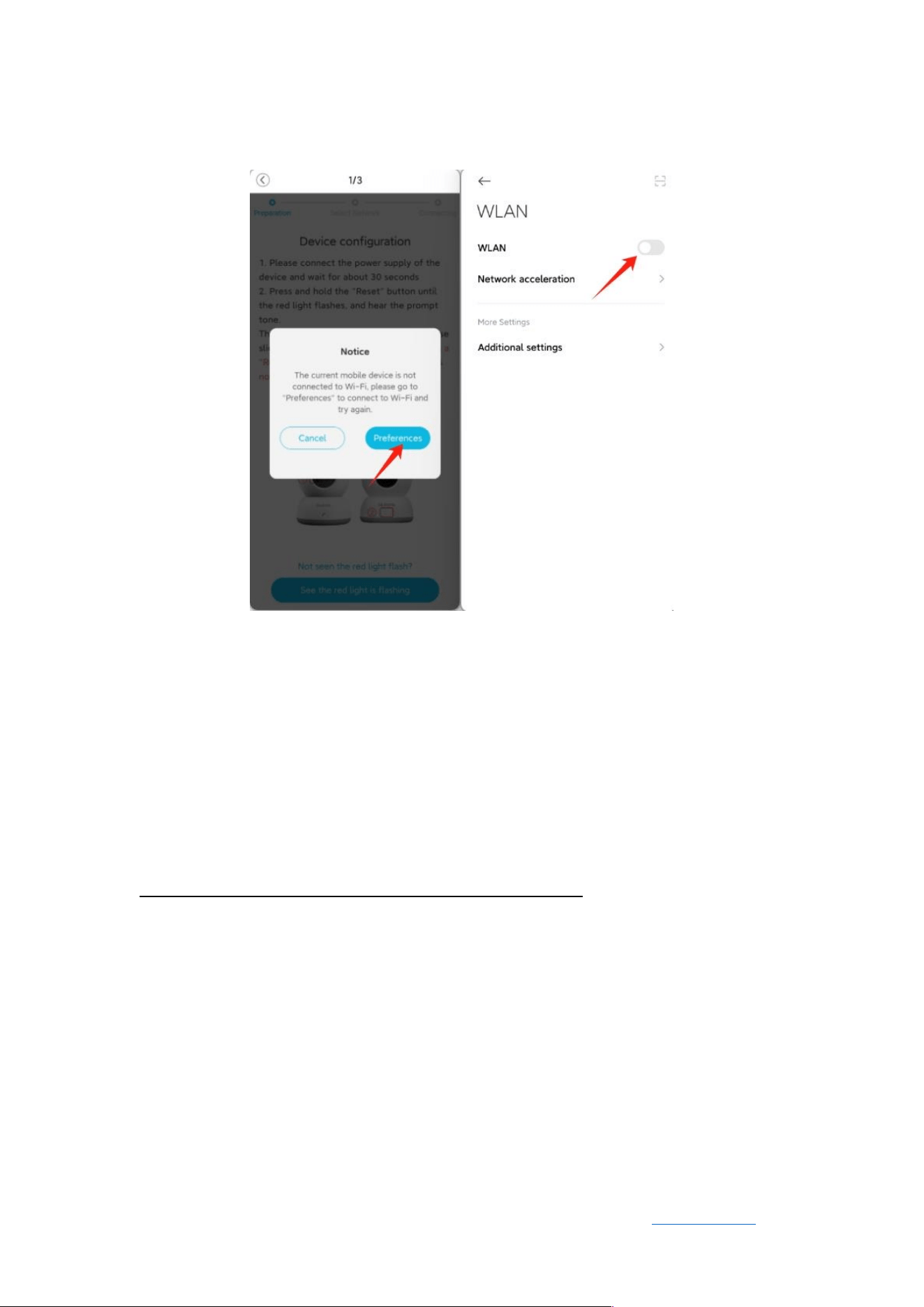
To ensure a smooth setup and connection, please grant the necessary
permissions for the blurams app by following these steps:
1. Open “Settings” on your phone.
2. Navigate to “Apps“ (or App Management).
3. Find and select “Blurams” from the app list.
4. Enable the following permissions:
⚫ Bluetooth: Required for device pairing.
⚫ Local Network: Ensures stable communication with your Blurams device.
⚫ Location: Helps detect and connect to your device properly.
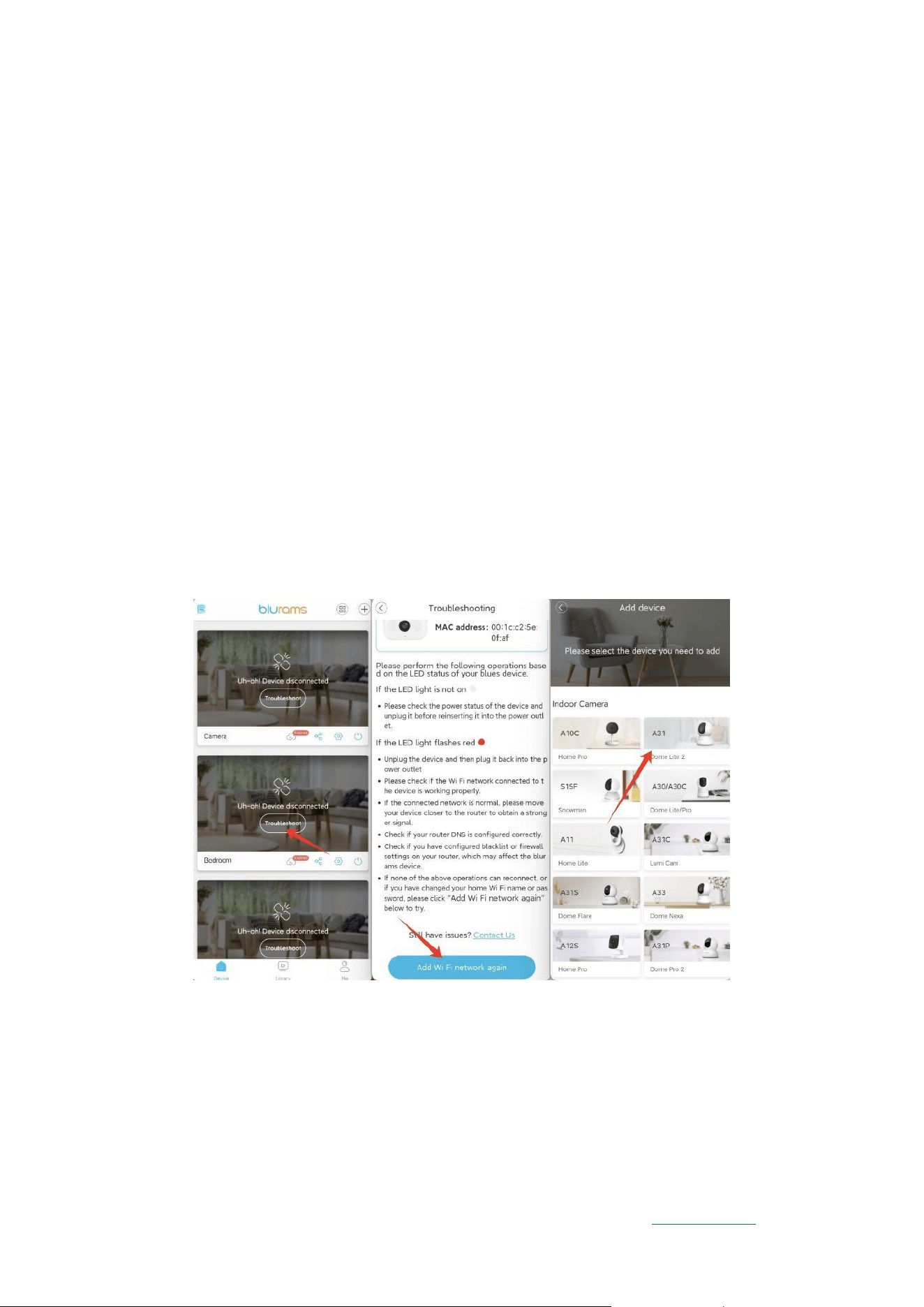
5. Connect the phone to Wi-Fi.
Blurams
User Manual Back to Contents
12
Wi-Fi
Once these permissions are enabled, you can proceed with adding your Blurams
device seamlessly.
4.2 Adding a Device via QR Code
Before adding the device, please ensure the following:
1. After connecting the device to power, wait for about 30 seconds to 1
minute. You should hear a voice prompt saying “Waiting for connection”
or see the indicator light flashing red.
If you don’t hear the prompt or see the red flashing light after a while,
you can try pressing and holding the RESET button to reboot the device
into pairing mode.

Blurams
User Manual Back to Contents
13
Using the power adapter and cable provided in the package is
recommended to avoid power supply issues.
2. Ensure that your router is connected to the internet. Connect your phone
to the same Wi-Fi network and open a web browser to verify if the
connection is functioning correctly.
3. Some device models do not support 5G Wi-Fi. Ensure that your router’s
2.4G Wi-Fi is enabled. You can log in to your router’s control panel to
enable 2.4G Wi-Fi or contact your router provider for assistance. (Most
routers come with 2.4G Wi-Fi enabled by default.)
4. Place the device close to the router.
Steps to add the device via QR code:
1. Connect the device to power.
2. Open the app, go to the device list, and tap the “+” icon to add a device.
3. Select “Add via QR Code”.
4. Wait for the device to prompt “Waiting for connection”. If no prompt is
heard, press and hold the RESET button until you hear the beep.
5. Enter the Wi-Fi name and password.

Blurams
User Manual Back to Contents
14
6. Hold the QR code displayed on your phone in front of the device’s
camera at a distance of 10cm to 30cm until you hear the beep.
7. After scanning the QR code, the device will start connecting. Follow the
on-screen instructions to complete the process.
4.3 Adding a Device via AP Hotspot
Before adding the device, please ensure the following:
1. After connecting the device to power, wait for about 30 seconds to 1
minute. You should hear a voice prompt saying “Waiting for connection”
or see the indicator light flashing red.
If you don’t hear the prompt or see the red flashing light after a while,
you can try pressing and holding the RESET button to reboot the device
into pairing mode.
Use the included power adapter and cable to prevent power issues.
2. Confirm that the router is connected to the internet by checking the
connection through a frequently-used web browser.
3. Some devices do not support 5G Wi-Fi, please enable 2.4G Wi-Fi through
the router’s control panel or by contacting your provider.

Blurams
User Manual Back to Contents
15
4. Place the device close to the router.
Note:
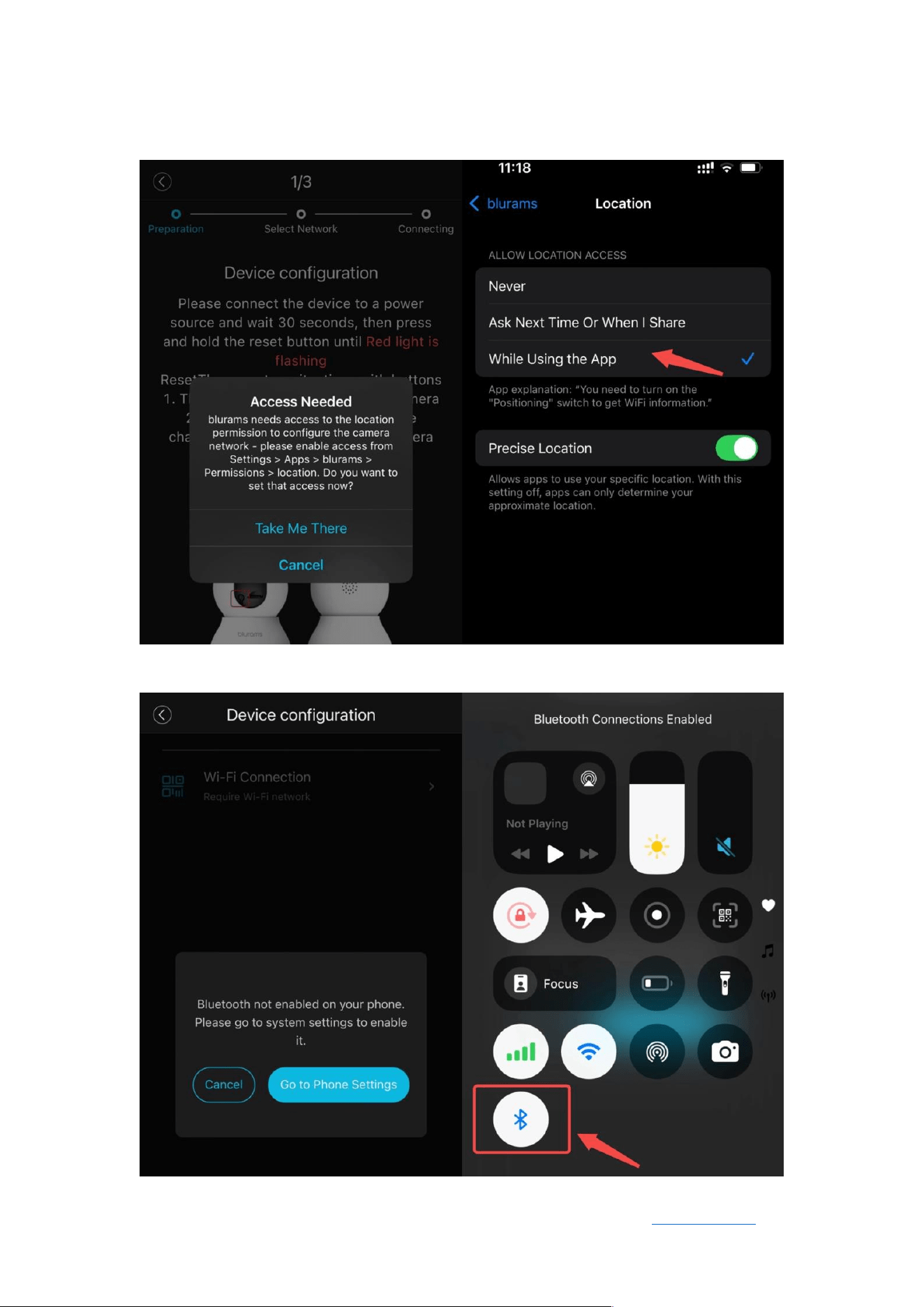
During the setup process, the app needs to access your phone’s current Wi-Fi
name to verify whether the phone is connected to the device’s Wi-Fi hotspot.
Due to Android and iOS system restrictions, location permission is required to
obtain the Wi-Fi name. Please grant location access when prompted.
If location permission was denied, follow these steps to re-enable it:
• For iOS: Go to Settings
>
Blurams
>
Location
>
Select “While Using the
App”
• For Android: Go to Settings
>
Apps
>
Blurams
>
Permissions
>
Turn on
“Location”
Note:
iOS users must grant local network permission to the app to receive device
signals.
Steps to add the device via AP Hotspot:
1. Connect the device to power.
2. Open the blurams app, go to the device list, and tap the “+” icon to add
a device.
3. Select “Add via AP Hotspot”.

Blurams
User Manual Back to Contents
16
4. If the device prompts “Waiting for connection”, skip this step. If not, press
and hold the RESET button until you hear the beep.
5. Go to your phone’s Wi-Fi settings and connect to the network named
CAM_AP_xxxx.
6. Once connected, return to the blurams app.
7. Select the Wi-Fi network you want the device to connect to and enter
the password.
8. Tap “Next”, and the device will start connecting. Follow the instructions
to complete the process.
4.4 Adding a Device via Bluetooth
Before adding the device, please ensure the following:
The app needs to access your phone’s current Wi-Fi name to verify the
connection to the device’s Wi-Fi hotspot. Due to system restrictions, location
permission is required. Please grant location access when prompted.
If location permission was denied, follow these steps to re-enable it:
⚫ For iOS: Go to Settings
>
Blurams
>
Location
>
Select “While Using the App”
⚫ For Android: Go to Settings
>
Apps
>
Blurams
>
Permissions
> Turn on
“Location”

Blurams
User Manual Back to Contents
17
Note: iOS users must grant local network permission to the app to receive
device signals.
Steps to add the device via Bluetooth:
1. Plug in the power cable to your device.
2. In the device list on the app, tap the “+” icon to add a new device.
3. Press and hold the RESET button on the device until the indicator light
starts flashing red or you hear a beep sound—this means the device has
entered pairing mode.
4. Turn on Bluetooth on your phone and select the Bluetooth signal
detected by the app. The signal will appear as CAM_xxxxxxx.
You can also scan the QR code or manually enter the device serial
number to pair.
5. Connect to Wi-Fi: After Bluetooth pairing, choose the Wi-Fi network you
want the device to connect to and enter the Wi-Fi password.
Tap “Next”, and the device will attempt to connect to Wi-Fi and the server
to complete the setup.
Note:
⚫ Bluetooth Compatibility: Only specific models support Bluetooth pairing.
Please check if your device is compatible before proceeding.
⚫ Bluetooth Signal: Make sure your phone’s Bluetooth is enabled and ready
to detect the device.

Blurams
User Manual Back to Contents
18
⚫ Wi-Fi Network: After Bluetooth pairing, the device still needs to connect to
Wi-Fi network.
4.5 Device Offline Issues
If the device fails to connect to the network or appears offline, check the
following:
1. Ensure the router is connected to the internet. Test by connecting your
phone to the same Wi-Fi and browsing a frequently-used website.
2. Some cameras only support 2.4G Wi-Fi. Check if your router has 2.4G Wi-
Fi enabled via the router settings or by contacting your provider.
3. Ensure the correct Wi-Fi name and password are entered. If the router’s
name or password has changed, re-add the device to reconnect.
4. Place the device close to the router, avoiding physical obstructions.
5. Routers have a limit on the number of connected devices. Try
disconnecting some devices before reconnecting your device.
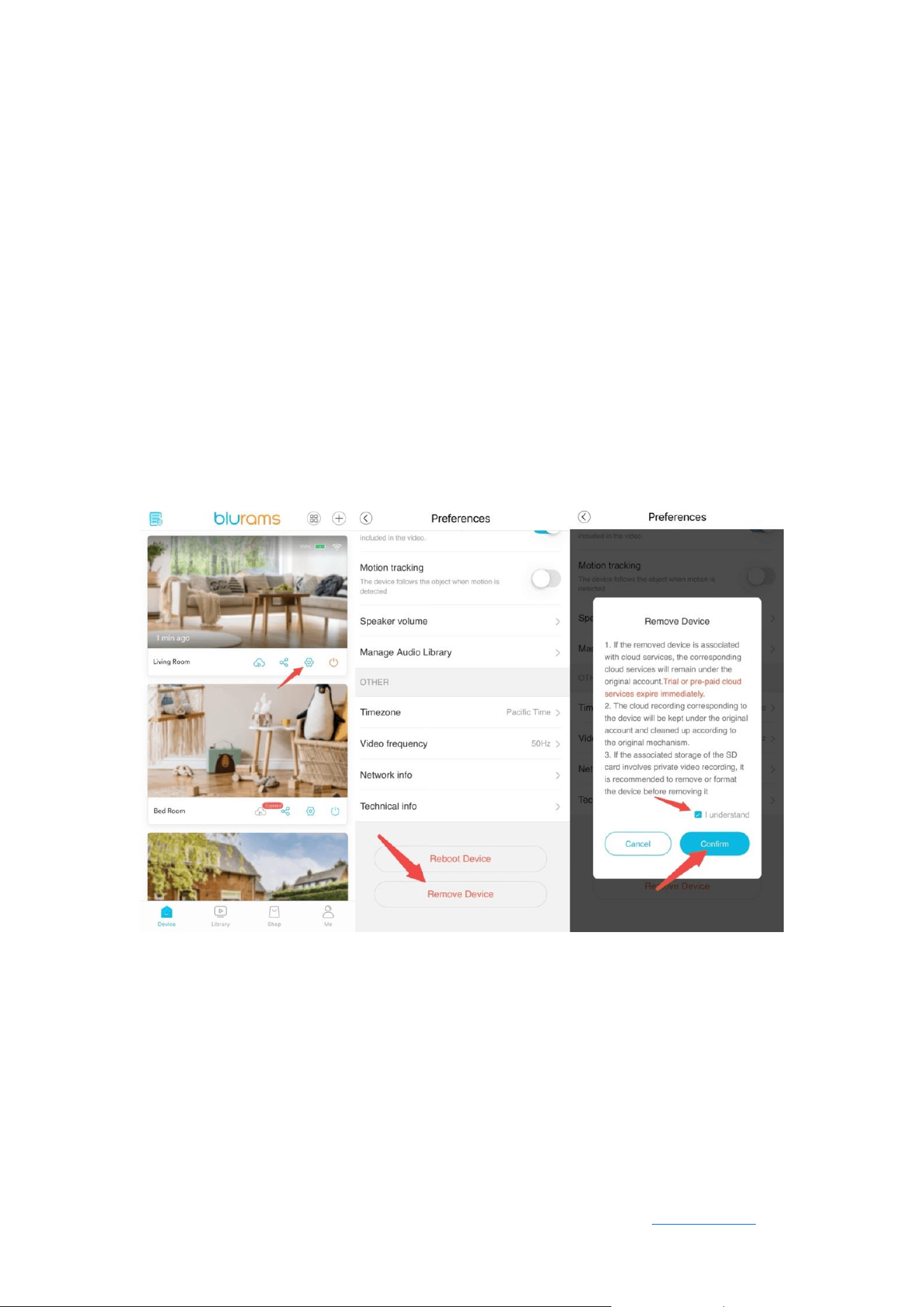
4.6 Changing the Device’s Network Connection
If you move the device to a new location or change your router, follow these
steps to update the Wi-Fi settings:
Blurams
User Manual Back to Contents
19
• If the device is offline:
The only way to update Wi-Fi settings is to re-add the device. You can access
this option through “Troubleshooting”, and “Update Wi-Fi” in device settings,
or by adding the device again.
• If the device is online:
Go to
Device
Settings
>
Network Information
>
Update Wi-Fi.
The device will scan for available networks. Select the desired Wi-Fi and enter
the password to connect.
Alternatively, you can re-add the device to change the Wi-Fi settings.
Blurams
User Manual Back to Contents
20
4.7 Deleting a Device
• If you need to add the device to another account or return it, please delete
it from your account first. You can do this by navigating to the device
settings page and selecting the “Remove Device” option.
• If the device is linked to a cloud service, deleting it will automatically unbind
the cloud service from the device. However, the cloud service will still be
available under your account and can be reassigned to another device.

Blurams
User Manual Back to Contents
21
5. Cloud Services
5.1 Cloud Storage Service
5.1.1 Service Overview
The cloud storage service allows the device to save recorded videos securely
on the cloud. It also offers additional features such as full video recording, fast
playback, and video sharing. Cloud storage is protected by bank-grade AES256
encryption and adheres to five layers of security, including enhanced terminal
security, secure data transmission, cloud storage protection, carrier-grade data
center management, and global security certification.
By subscribing to the cloud service, you will gain access to the following features:
• Continuous video recording stored on the cloud allows you to review all
historical footage anytime, anywhere.
• Fast playback at up to 4x speed improves the efficiency of reviewing
recorded videos.
• Direct video sharing from the cloud to third-party social platforms, so you
can share special moments with friends.

Blurams
User Manual Back to Contents
22
Cloud Service Categories
Cloud service plans are classified based on two factors:
• Storage Duration
This refers to the maximum number of days a video is stored on the cloud
before being automatically deleted.
For example, if you subscribe to a 7-day cloud storage plan, each recorded
video will be stored for up to 7 days
before being replaced by new uploads.
• Subscription Validity
This refers to how long the cloud service remains active.
A monthly plan
lasts one month, while an annual plan lasts one year.
For instance, if a user purchases a monthly plan on October 3rd, the service will
be valid until November 2nd.
During the subscription period, older videos exceeding the storage duration will
be automatically deleted to make room for new recordings.

Blurams
User Manual Back to Contents
23
5.1.2 Differences Between Cloud Storage and SD Card Storage
Cloud Storage
SD Card Storage
Permanent data storage
Unrecoverable damage or
loss
Unlimited storage with multiple choices
Limited storage
Conveniently check the recordings on
the App
/
Downloading and sharing recordings
/
Fast playback at multiple speeds
/
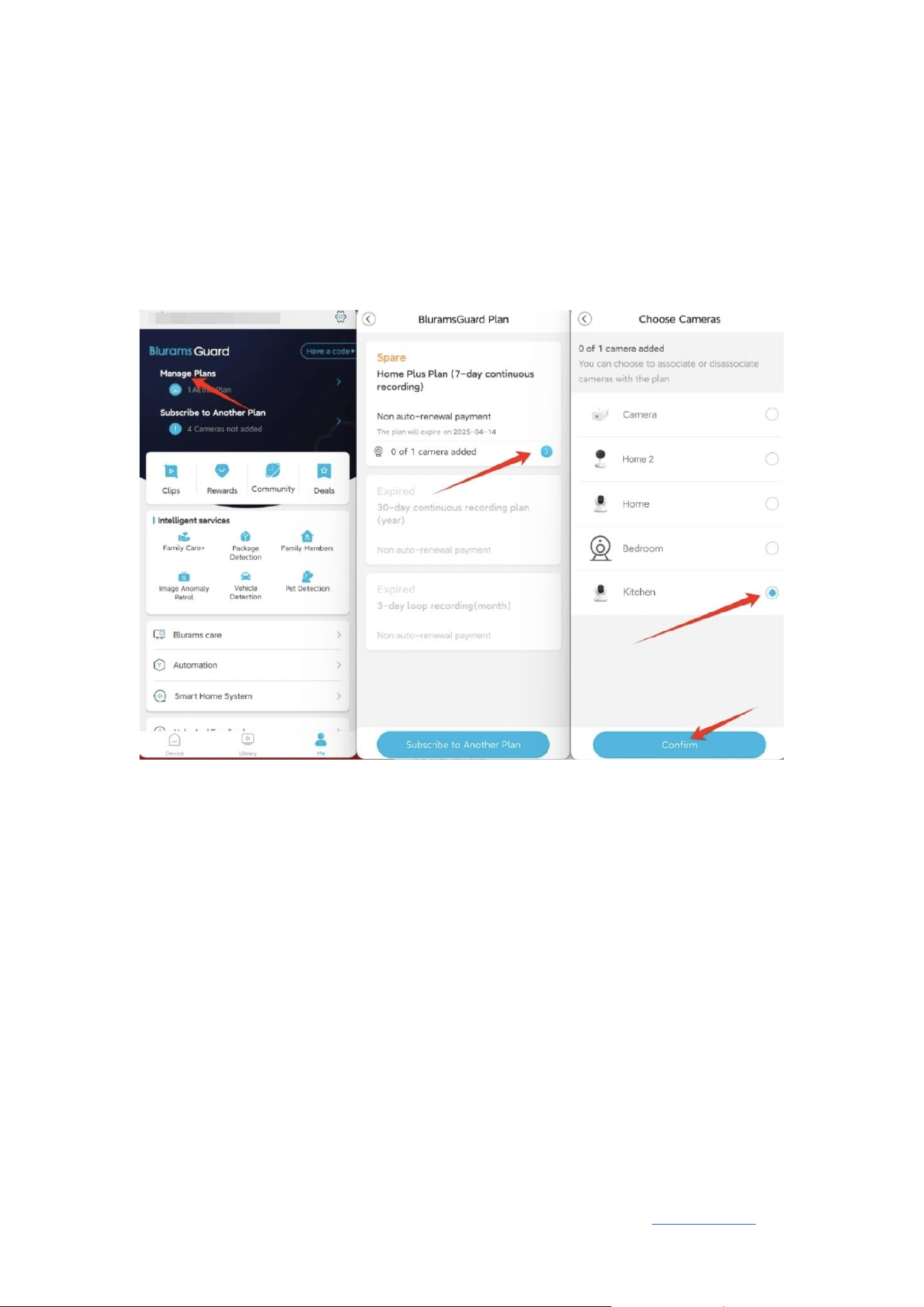
5.1.3 Purchased Cloud Service Not Activated
Normally, after successfully purchasing a cloud service, it will automatically bind
to the device and activate within 5 minutes.
If you have paid for the service but are unable to see recorded videos in the
cloud, follow these troubleshooting steps:
Blurams
User Manual Back to Contents
24
• Check if the cloud service is bound to your device
Go to My Account → Manage Plans to view all active cloud service subscriptions.
If your newly purchased plan is not bound to a device, manually bind it before
use.
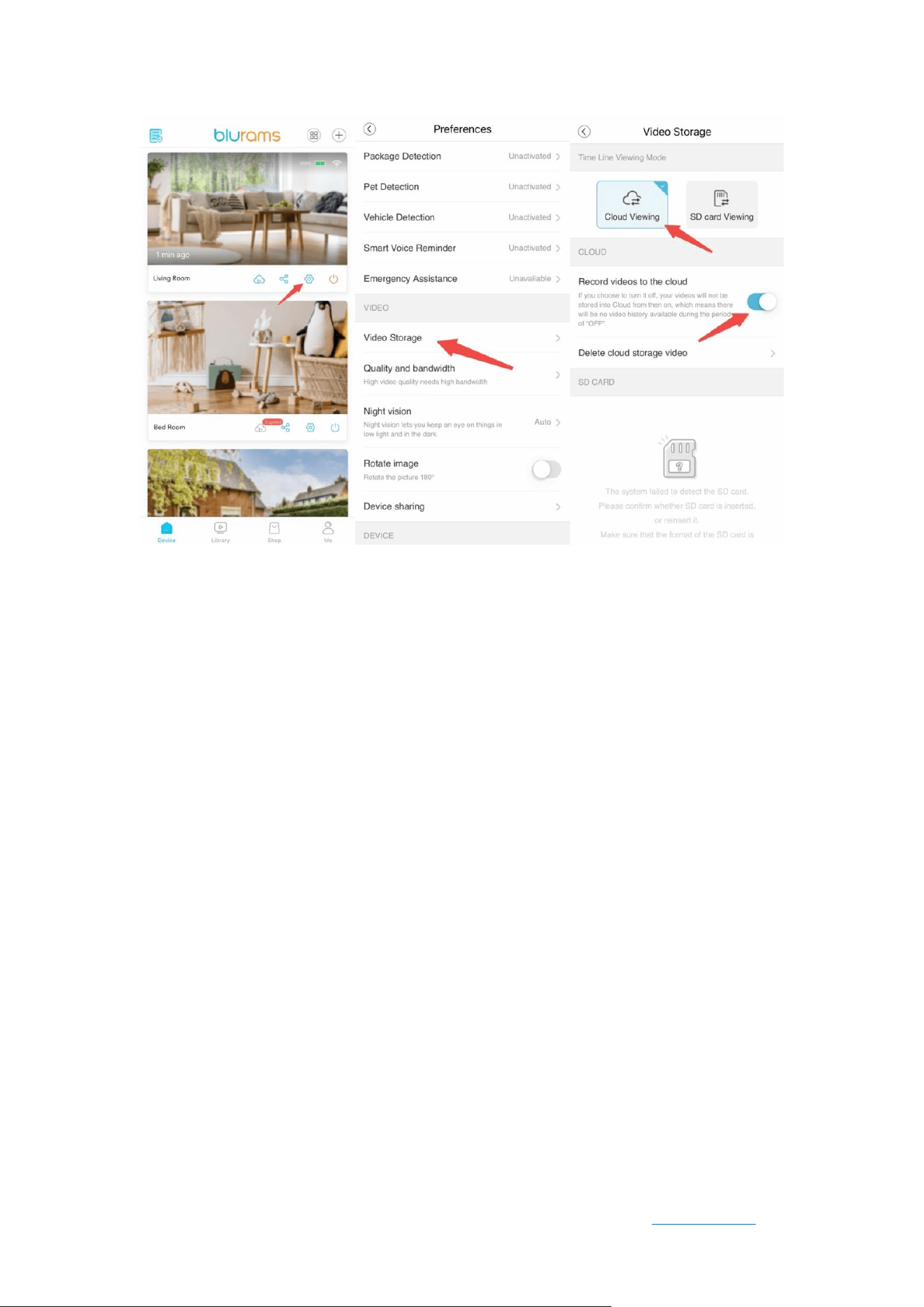
• Ensure cloud video recording is enabled
Navigate to Device Settings → Storage Settings and confirm that “Cloud Video
Recording” is turned on.
If this option is disabled, the platform will not save any uploaded video files.
Blurams
User Manual Back to Contents
25
• Contact customer support
If the issue persists after checking the above steps, provide the device’s MAC
address along with a screenshot of your successful payment (PayPal, iOS, etc.)
and send it to our support team. Our professional customer service
representatives will assist you.
5.1.4 How to Purchase Cloud Service
You can purchase a cloud storage plan by selecting the “ ” icon below the
device card on the home screen of the app. Payment options include PayPal
and credit cards.

Blurams
User Manual Back to Contents
26
Note:
Each cloud service plan applies to only one device at a time. If you have multiple
devices under one account, you must purchase separate cloud service plans for
each device as needed.
5.1.5 The Refund for Cloud Service
Since cloud storage is a virtual service, once activated, it cannot be canceled or
refunded. However, if you encounter any issues while using the service, you may
contact our customer support team for further assistance.
📧 Support Email: support@blurams.com
5.2 AI Services
Blurams currently offers six AI-powered features, which must be purchased
separately for activation.
The supported features include:
• Abnormal Image Detection
• Pet Detection
• Family Care
• Package Detection
• Family Member Management
• Vehicle Detection

Blurams
User Manual Back to Contents
27
Currently, AI services are only available for single-lens PTZ cameras and outdoor
dome cameras. Other models, such as dual-lens PTZ cameras, dual-lens dome
cameras, and 4G devices, are not yet supported but will be added in future
updates.
5.2.1 Abnormal Image Detection
The system captures an image daily and analyzes it using intelligent algorithms
to detect anomalies such as blurriness, color distortion, snowflakes, stripes, or
obstructions.
You can view daily inspection reports in Me →
Image Anomaly Patrol →
“Inspection Report” during the service period.
5.2.2 Pet Detection
When an abnormal event is detected, the system will analyze the footage to
identify pets (mainly cats and dogs).
If a pet is detected, the system will categorize the event under the “Pets” album.
Note:
This feature requires an active cloud storage subscription to function.
5.2.3 Family Care+
If no human activity is detected within a specified time frame, the system will
send push notifications and email alerts to the associated users.

Blurams
User Manual Back to Contents
28
5.2.4 Package Detection
If a package is detected within the camera’s view, the system will send push
notifications to the user to prevent package theft.
5.2.5 Vehicle Detection
The system analyzes the footage to detect vehicles in the scene.
This feature is particularly useful for nighttime garage monitoring, with instant
push notifications for any detected activity.
5.2.6 Smart Voice Reminder
At pre-set times, the device can broadcast custom voice messages as reminders.
Users can record custom voice alerts, set repetition frequency, and configure
playback modes based on their needs.
Blurams
User Manual Back to Contents
29
6. Hardware Settings
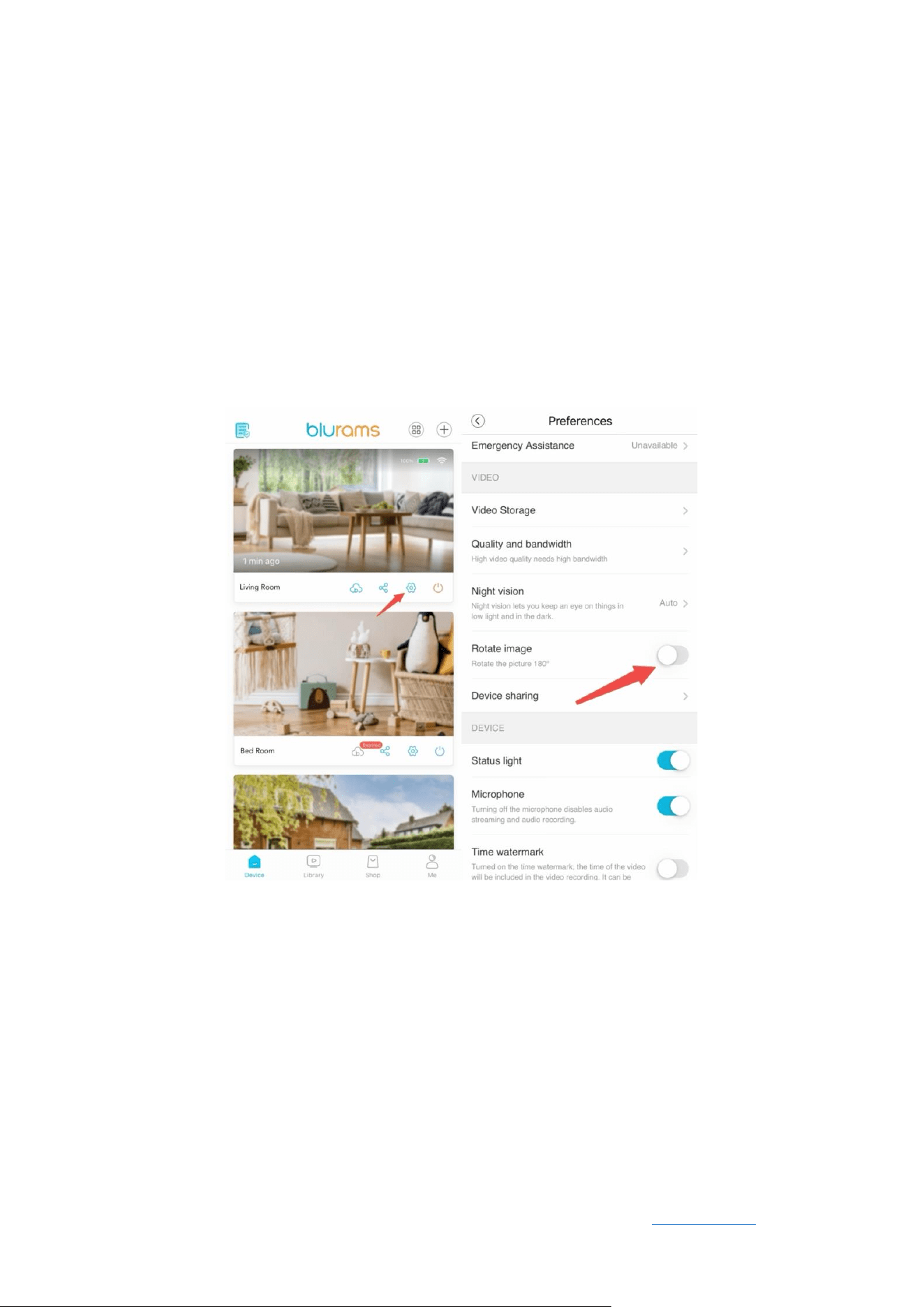
6.1 Video Display is Upside Down
If the video feed on your phone appears upside down, it is likely due to installing
the device with its top facing downward. To correct this, go to the “Settings”
page and enable the “Rotate Image” option to adjust the video orientation.
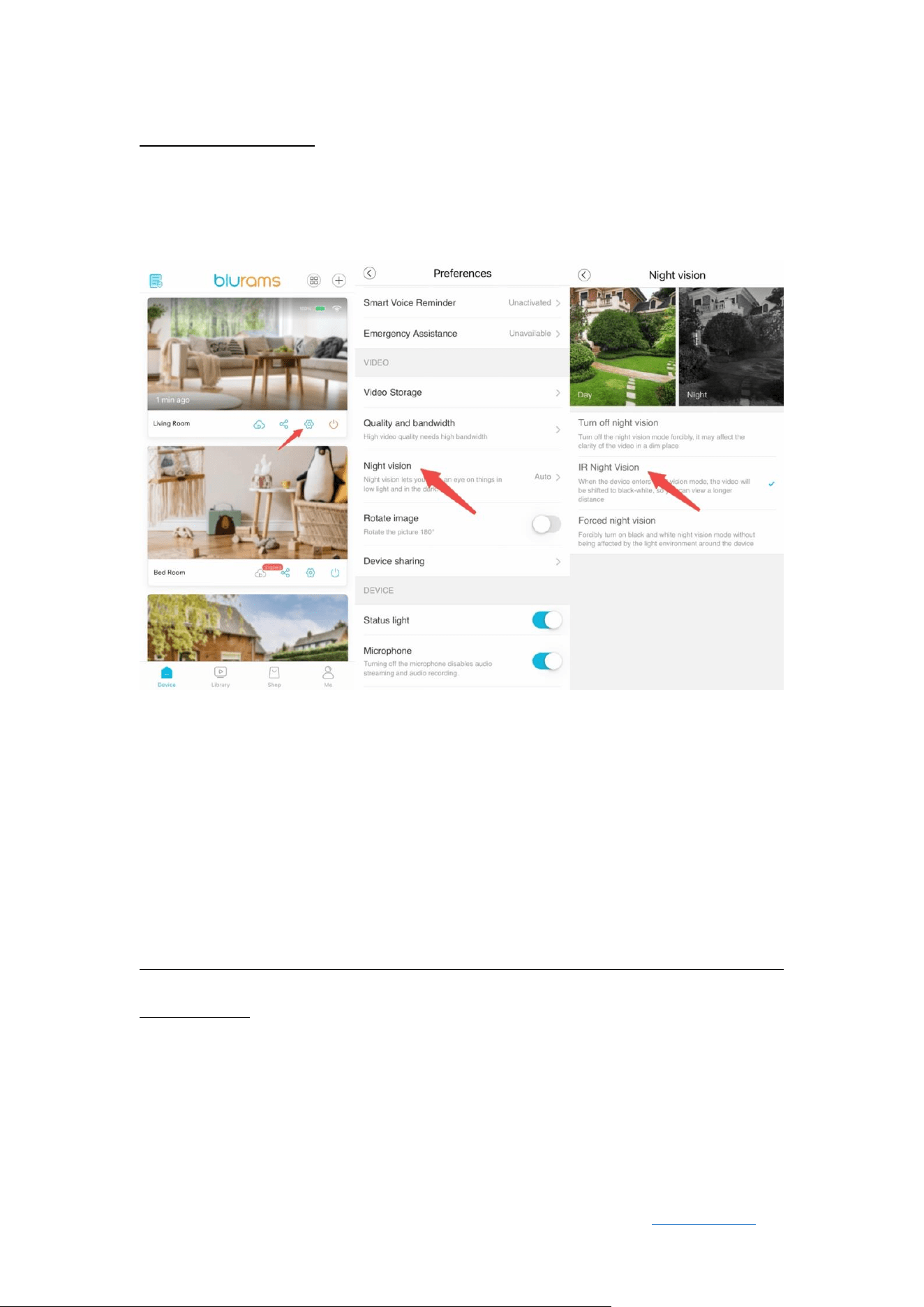
6.2 Video Display is in Black and White
The device automatically switches to night vision mode based on ambient
lighting conditions. When night vision mode is activated, the infrared light turns
on, causing the video feed to appear in black and white. This ensures clear
visibility in low-light environments.
Blurams
User Manual Back to Contents
30
To adjust this setting:
Go to the device “Setting” page and set the “Night Vision” option to Auto or
Off
.
If the video remains black and white despite sufficient lighting, try restarting the
device.
6.3 Video Quality is Not Clear
If the live video feed appears blurry or unclear, follow these steps to
troubleshoot:
• Ensure you have removed the protective film from the camera lens and clean
the lens to maintain clarity.

Blurams
User Manual Back to Contents
31
• Navigate to the device playback page and switch the video quality to HD
mode.
Note:
HD mode requires a higher upload speed on the device and higher download
bandwidth on your phone.
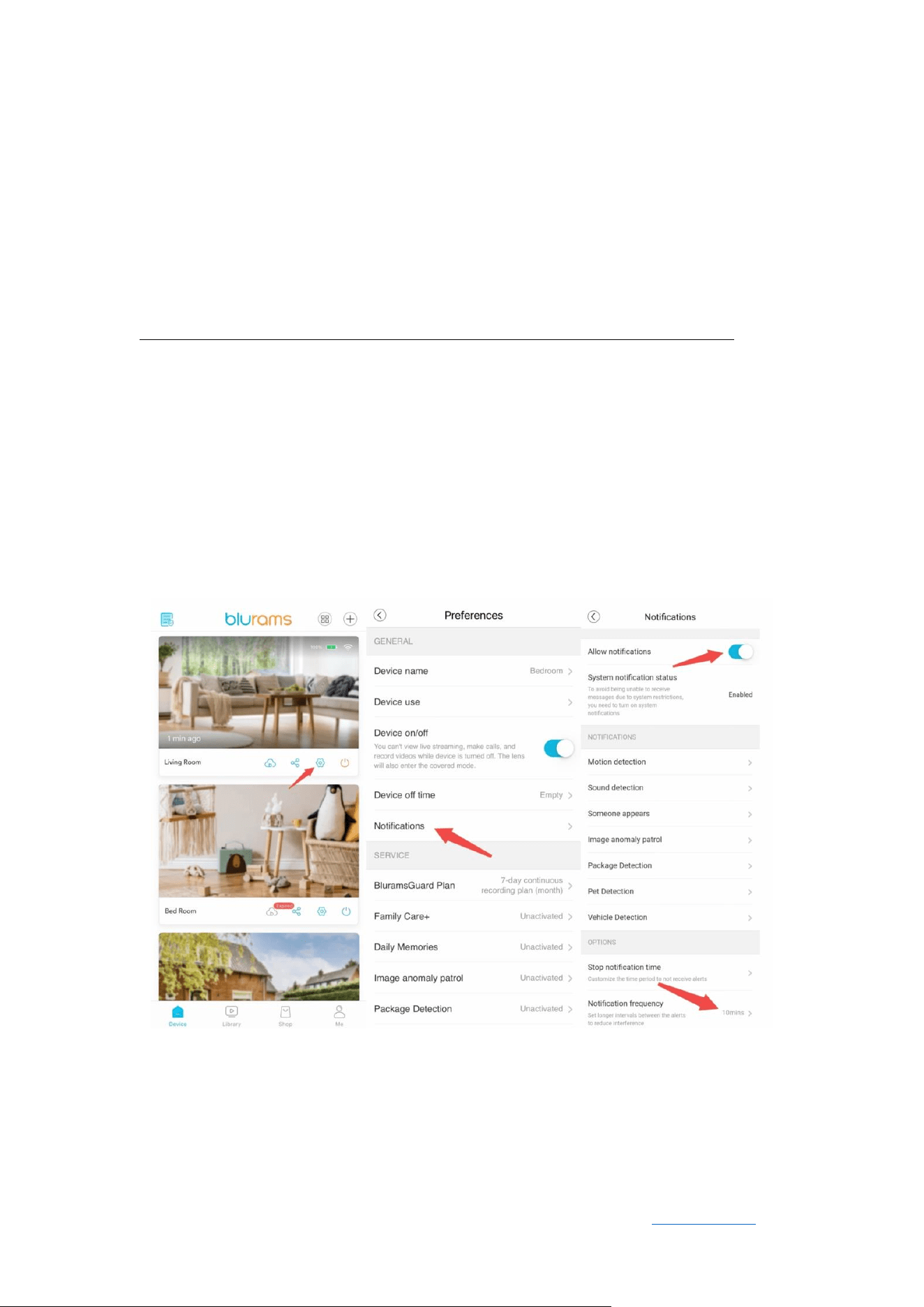
6.4 No Push Notifications
If the device detects an event (such as motion or sound detection) but push
notifications are not received, check the following:
• Ensure your phone is connected to the internet.
• Verify that push notifications are enabled for the app.
To enable push notifications:
• For Android devices:
1. Open the “Settings app” on your phone.
2. Tap “Notifications”.
3. Select the app and turn on “Allow Notifications”.
Note:
Settings may vary depending on your phone model. Contact your device
manufacturer for details.
• For iOS devices:
Blurams
User Manual Back to Contents
32
1. Open the Settings app on your phone.
2. Select the app.
3. Tap Notifications and enable Allow Notifications.
If notifications are still not received, check the app’s notification settings:
1. Turn on “Allow Notifications”.
2. Enable the specific event types you want to receive notifications for (e.g.,
motion detection, sound detection).
3. Verify if the “Stop notification time” is set.
4. Check if the “Notification frequency“ is set too long.
Blurams
User Manual Back to Contents
33
7. SD Card Storage
7.1 SD Card Not Detected
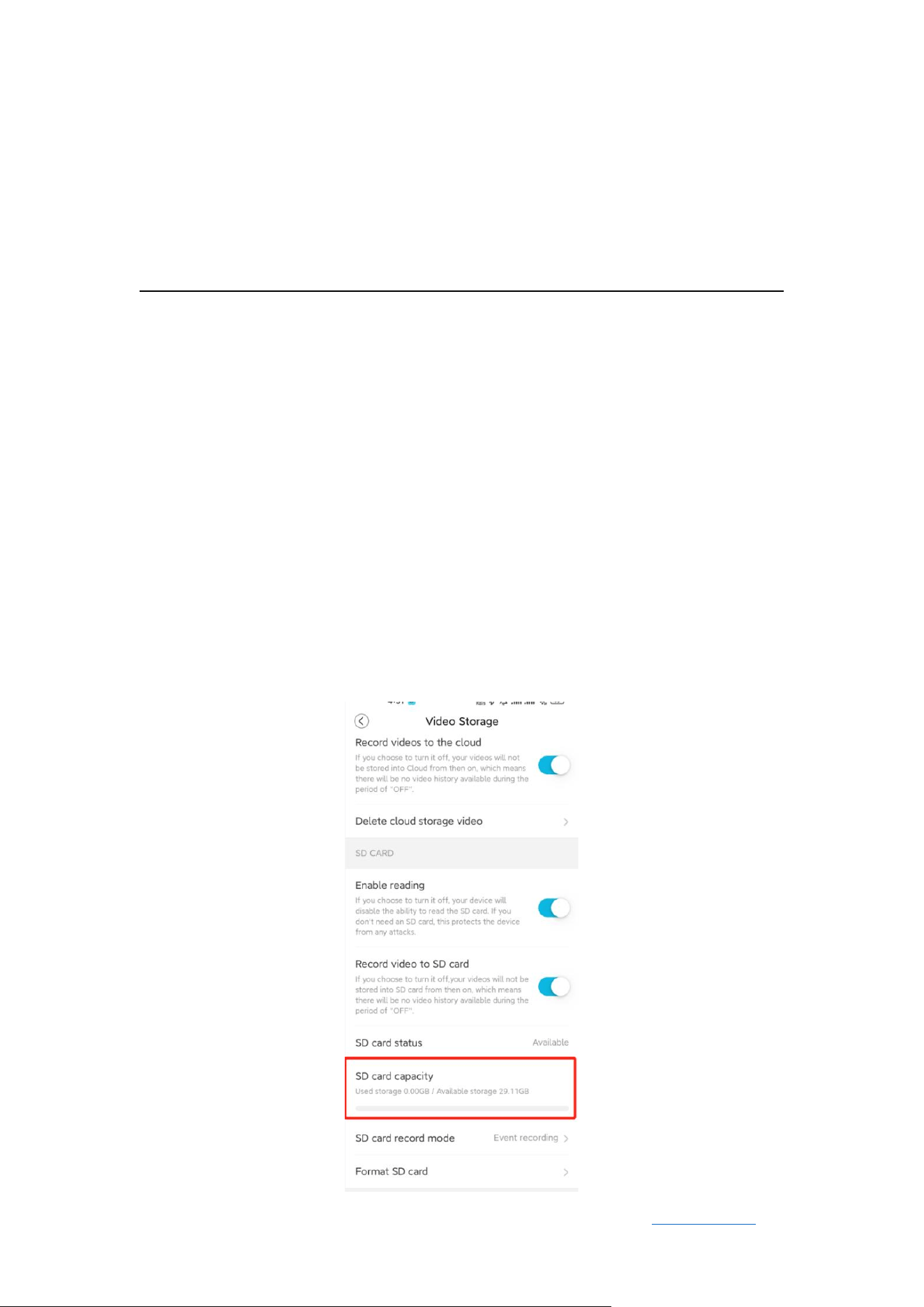
If the SD card is inserted but the device does not recognize it, follow these steps:
1. Once a TF (microSD) card is inserted into the camera, the device will display
storage details on the screen under normal conditions—such as the total
capacity and percentage used.
The displayed capacity may appear slightly lower than the capacity marked on
the card. This discrepancy is due to differences in calculation methods between
the storage card and the device, as well as the space occupied by formatting
and system files. This is a normal occurrence and does not impact the card’s
actual functionality.

Blurams
User Manual Back to Contents
34
2. If the SD card is not detected:
• Insert the SD card into a computer to check if it can be read and written
normally.
• Power off the device before inserting the SD card.
• Ensure the SD card is formatted to FAT32 (the device only supports FAT32
format).
• The device supports SD cards with a capacity of 8GB to 128GB.
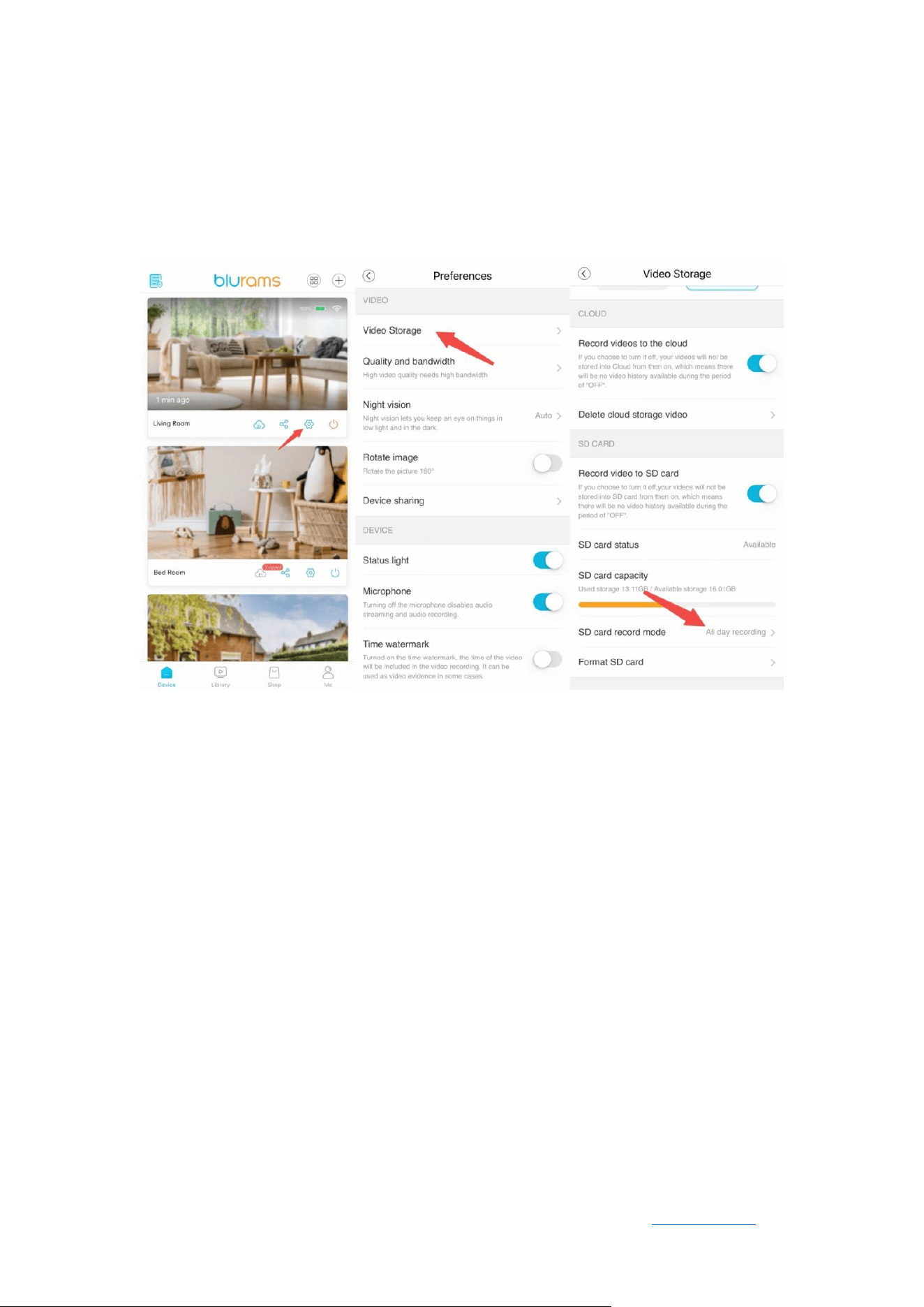
7.2 Unable to View Playback from SD Card
The device supports both cloud recording and SD card recording. By default,
the timeline displays cloud recordings. If the device goes offline, SD card
recordings may not be shown.
To switch to SD card recording mode:
Go to device
Settings
→
Storage
→
Recording Mode
and select one of the
following options:
• No Recording – The device will not record to the SD card.
• Event Recording – The device will record only when an event occurs.
• Continuous Recording – The device will continuously record as long as an
SD card is inserted, even when offline.
Blurams
User Manual Back to Contents
35
Note:
This mode increases read/write frequency, which may shorten the SD card
lifespan.
7.3 Days of SD Card Storage
The storage duration depends on video bitrate and resolution.
For example, with Full HD resolution (1920×1080, 1.5Mbps bitrate):
A full day of continuous recording requires approximately 15.8GB of storage. A
128GB SD card can store about 8.1 days of continuous recording.
• For HD resolution (1Mbps bitrate):
A 128GB SD card can store approximately 12.2 days of continuous recording.

Blurams
User Manual Back to Contents
36
• For SD resolution (512Kbps bitrate):
A 128GB SD card can store approximately 24.3 days of continuous recording.
If event recording mode is enabled, storage duration will be extended. When
the SD card is full, the oldest recordings will be automatically overwritten.

Blurams
User Manual Back to Contents
37
8. Account
8.1 Login Failure
Login failure may be caused by various reasons. First, check if your phone has a
stable internet connection by trying to access a website via a browser.
Common login error messages and solutions:
• “The Account does not exist.”
Ensure that the account was previously registered. If not, register a new account.
Double-check that the entered account details are correct.
• “User login password error!”
Re-enter the password and use the eye icon to check your input.
If unsuccessful, click
Forgot Password
to reset your login credentials.
• “The account has been locked.”
Multiple incorrect login attempts will temporarily lock the account for 15
minutes as a security measure. Please wait before trying again.
• “The account not activated.”
The account has not been activated. Try registering again.

Blurams
User Manual Back to Contents
38
If the issue persists, update the app to the latest version, restart your phone, or
reinstall the app. If the problem is still unresolved, contact customer support.
8.2 Forgot Password
If you forget your password, click “Forgot Password“ on the login page to reset
it.
8.3 How to Change Password
• If you remember your password, log in and navigate to Me
→
Settings
→
Account
→
Change Password.
• If you forget your password, reset it via the
Forgot Password option.
Password requirements:
1. Must be 6–26 characters long.
2. Must include uppercase letters, lowercase letters, and numbers.

Blurams
User Manual Back to Contents
41
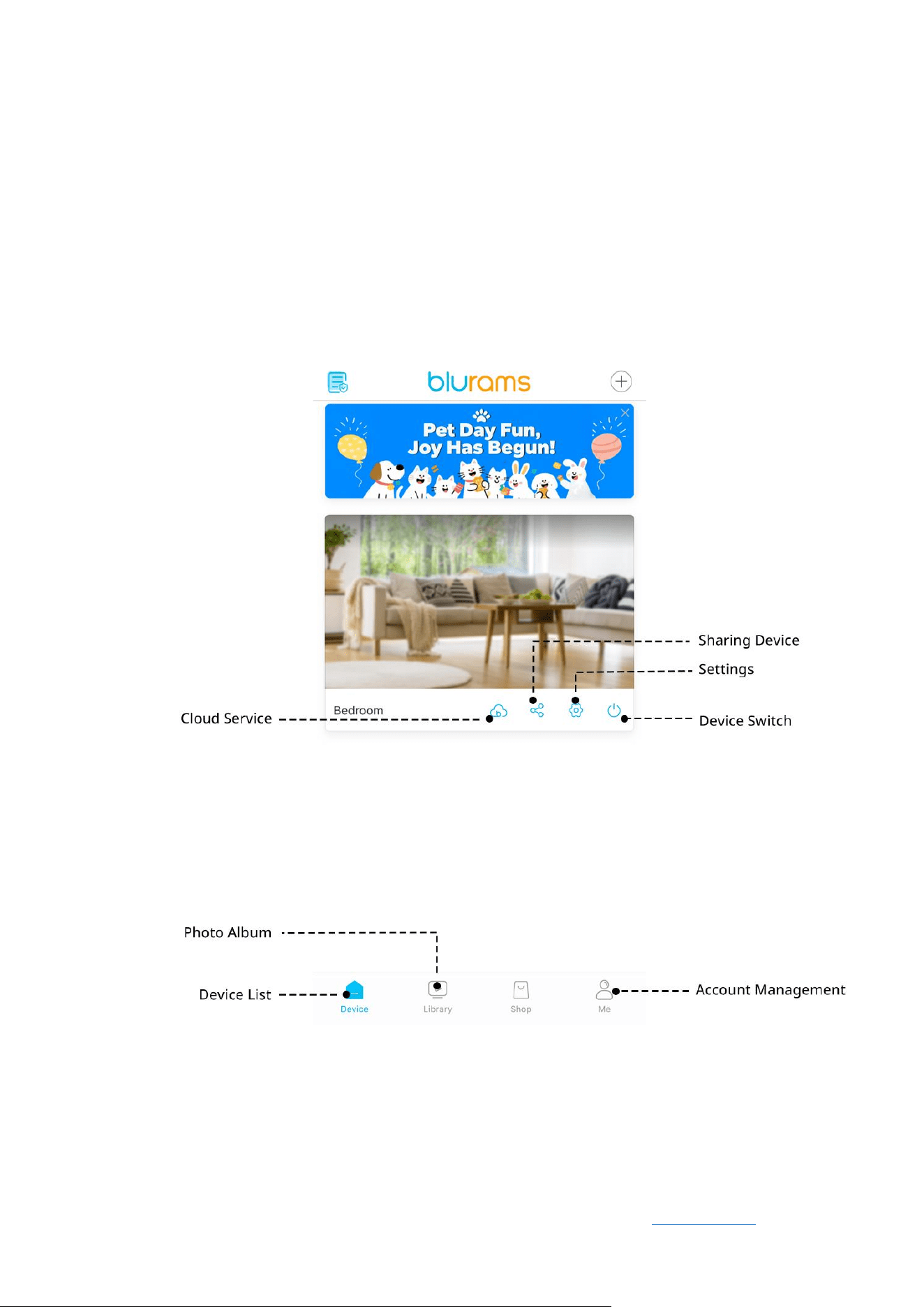
9.2 Device Settings
• Device Power
Temporarily turn the device off (remember to turn it back on).
• Scheduled Power Off
Set a schedule for turning the device on and off.
• Push Notification Settings:
o Motion Detection
o Sound Detection
o Human Detection
o Abnormal Image Inspection
o Package Detection
o Pet Detection
o Vehicle Detection
o Notification Stop Schedule
o Notification Frequency
• BluramsGuard Plan:
o Family Care
o Time-lapse Snapshot
o Abnormal Image Inspection

Blurams
User Manual Back to Contents
42
o Package Detection
o Pet Detection
o Vehicle Detection
o Smart Alerts
• Video Storage:
o Cloud Storage
▪ Cloud Storage On/Off
▪ Delete Cloud Recordings
o SD Card Storage
▪ Card Status
▪ Card Capacity
▪ Recording Mode
▪ Recording Quality
▪ Format SD Card
• Video Quality & Bandwidth:
o Adjust Bitrate
o Adjust Resolution.
• Rotate Image
Corrects video orientation for inverted installations.

Blurams
User Manual Back to Contents
43
• Device Sharing
Allows multiple users to access the camera feed.
• Microphone
Disabling this removes audio from live and recorded videos.
• Timestamp Watermark
Embeds the date/time in the video feed.
• Motion Tracking
Tracks detected movement within the video frame.
• Alarm Alert
Triggers an audible alarm when anomalies are detected.
• Network Information:
o Wi-Fi Name
o Wi-Fi Signal Strength
o Update Wi-Fi