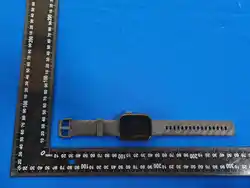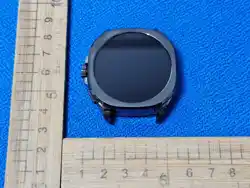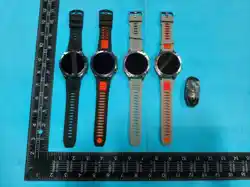

FCC Statement
This device complies with part 15 of the FCC rules. Operation is subject to the
following two conditions: (1) this device may not cause harmful interference,
and (2) this device must accept any interference received, including
interference that may cause undesired operation.
Changes or modifications not expressly approved by the party responsible for
compliance could void the user's authority to operate the equipment.
NOTE: This equipment has been tested and found to comply with the limits for
a Class B digital device, pursuant to part 15 of the FCC Rules. These limits are
designed to provide reasonable protection against harmful interference in a
residential installation. This equipment generates uses and can radiate radio
frequency energy and, if not installed and used in accordance with the
instructions, may cause harmful interference to radio communications.
However, there is no guarantee that interference will not occur in a particular
installation. If this equipment does cause harmful interference to radio or
television reception, which can be determined by turning the equipment off
and on, the user is encouraged to try to correct the interference by one or
more of the following measures:
• Reorient or relocate the receiving antenna.
• Increase the separation between the equipment and receiver.
• Connect the equipment into an outlet on a circuit different from that to
which the receiver is connected.
• Consult the dealer or an experienced radio/TV technician for help. The device
has been evaluated to meet general RF exposure requirement.
The device can be used in portable exposure condition without restriction

1. English ………..………………………………………………………1
2. Français………………………………………………………………15
3. Deutsch ..………………………………………………………… 19
4. italiano…………………………………………………………….. 23
5. Spanish……………………....………………………………… 27
6. Japanese……………………....………………………………… 31
7. Português……………………....……………………………… 35
8. Polski……………..…………....…….…………………………… 39
9. Čeština……………..………....…….…………………………… 43
10. Nederlands……………..…………....…….…………………… 45
11. Svenska……………..………….…….………………………… 47
12. Ελληνικά (Elliniká)……………..….………………………… 49
13. Magyar……………..…………....…….………………………… 51
14. Dansk……………..…………....…….….……………………… 53
15.
한국어
(Hangugeo)…………....………………………… 55
16. ةيبرعلا (Al-‘Arabīyah)……………..………………………… 57

17. Română………………………....……………………………… 59
18. Български (Bǎlgarski)………………….………………… 61
19. Bahasa Indonesia………….....….....…………………… 63
20. Slovenčina……………………..……………………………… 65
21. Hrvatski………………………....……………………………… 67
22. Srpski jezik (latinica)…………………..…………………… 69
23. Lietuvių………………………...……………………………… 71
24. Eesti……………………………...……………………………… 73
25. Latviešu………………………....……………………………… 75
26. Suomi..................................................................77
27. Slovenščina..........................................................79
28. Íslenska................................................................81
29. Norsk.....................................................................83

1
Charging and Activation
a.Connect the watch charging cable to a 5V-1Aadapter and plug it
in.Ensure proper alignmentofthe cable with the metal contact pins
on theback cover of the watch.The built-in magnetswill
automatically attach to the correct poles forcharging.
b.lfthe watch is newly received or has not beenused for a long
time, the battery may be in a 0voltage protection state. Charge the
watch for atleast 15 minutes to accumulate enough power
toactivate it.The built-in magnets will automaticallyattach to the
correct poles for charging.
c.lt is recommended to charge the device once amonth.Keep the
device fully charged and powe!itoffwhen not in use to ensure
longevity andoptimal performance.
2
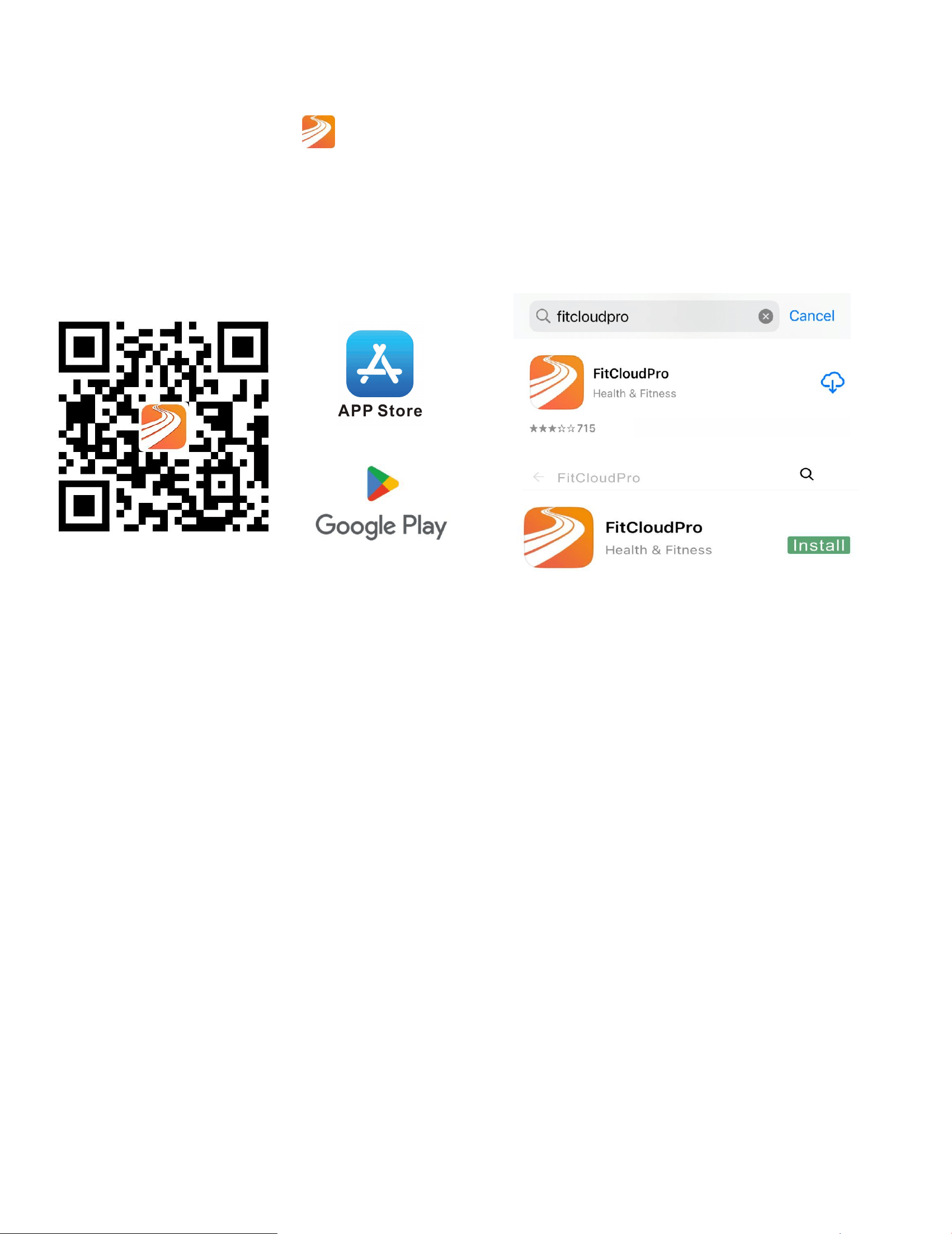
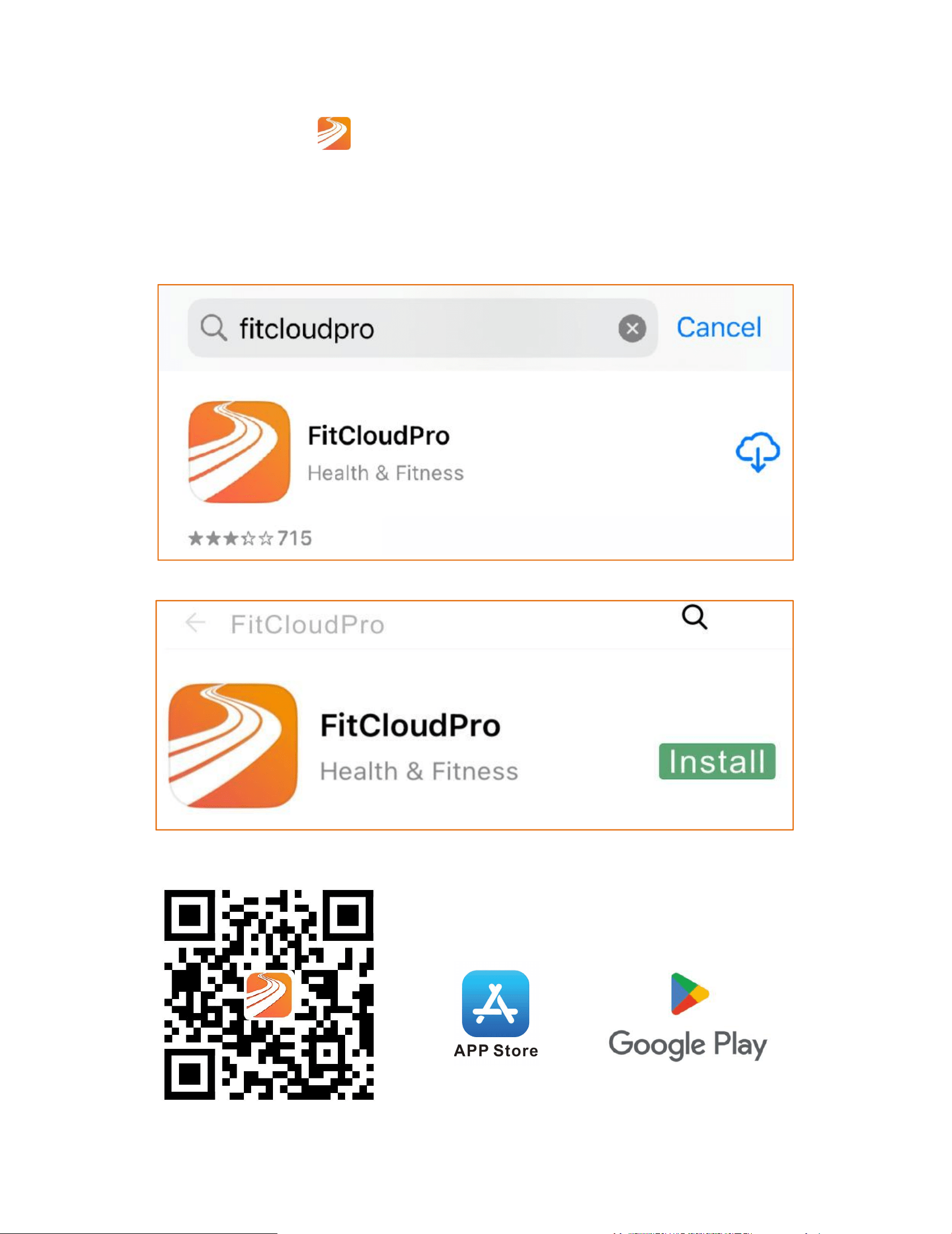
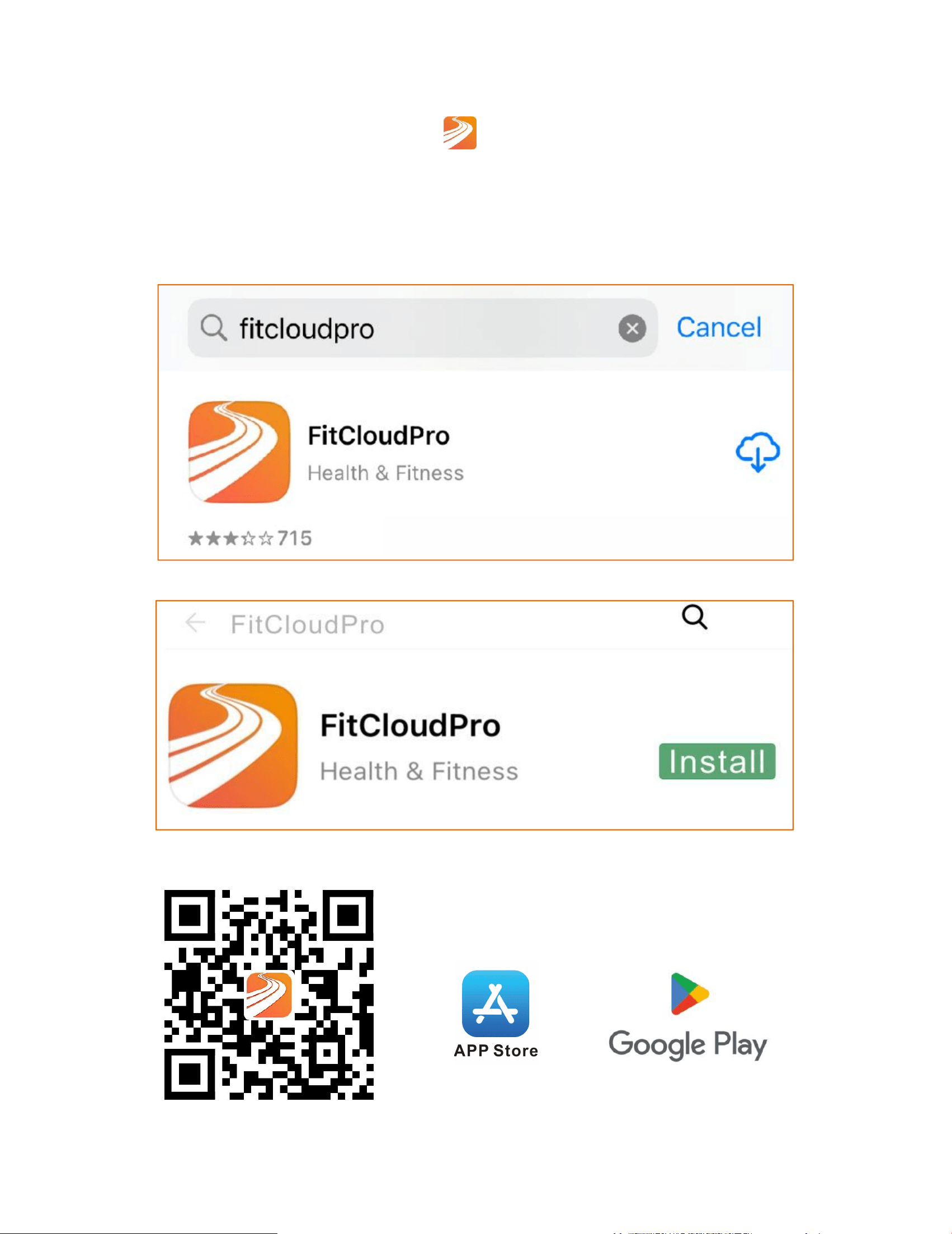
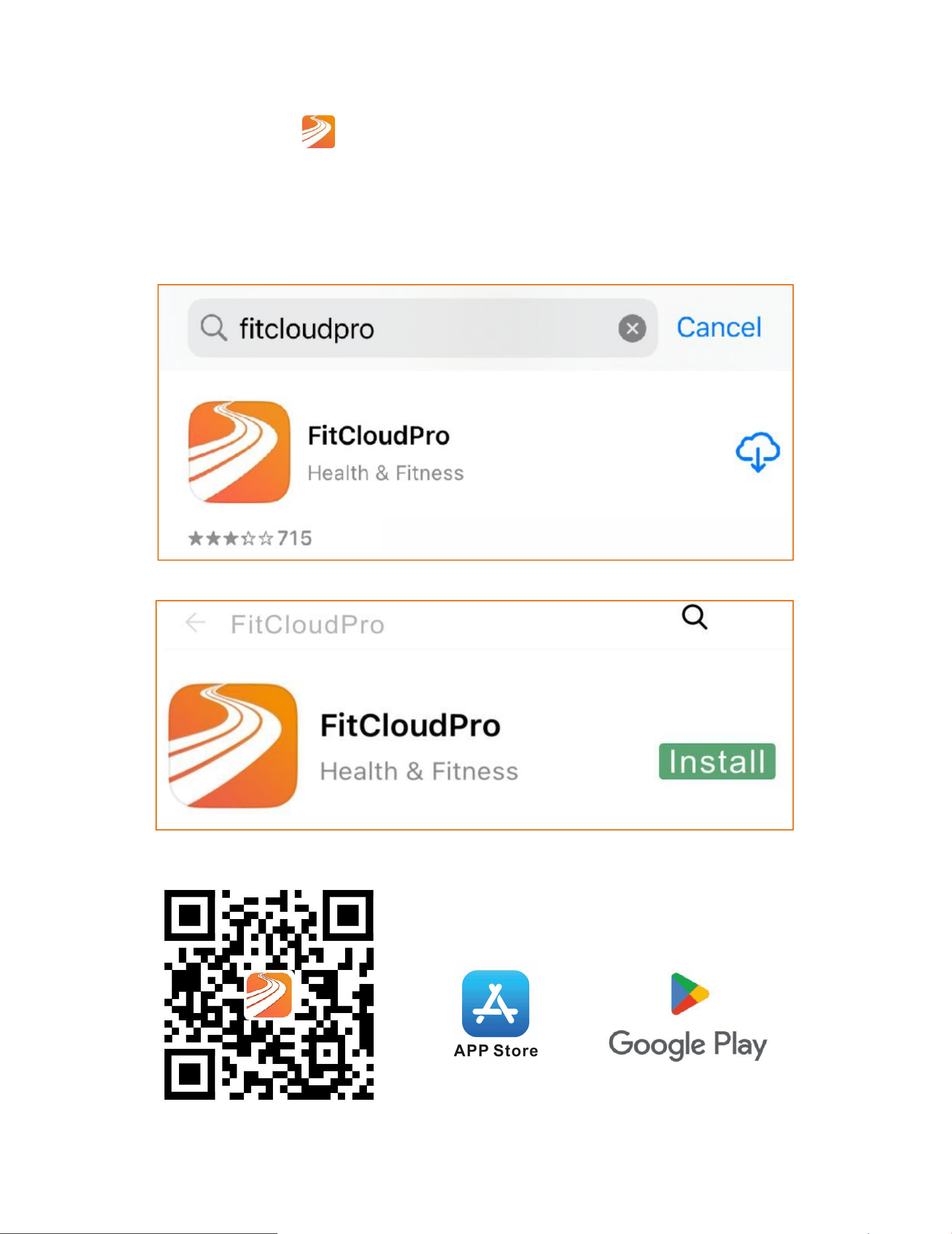
App Download
①Download the"
FitCloudPro" appfromthe App Store or
Google Play.
②Scan QR code to download.
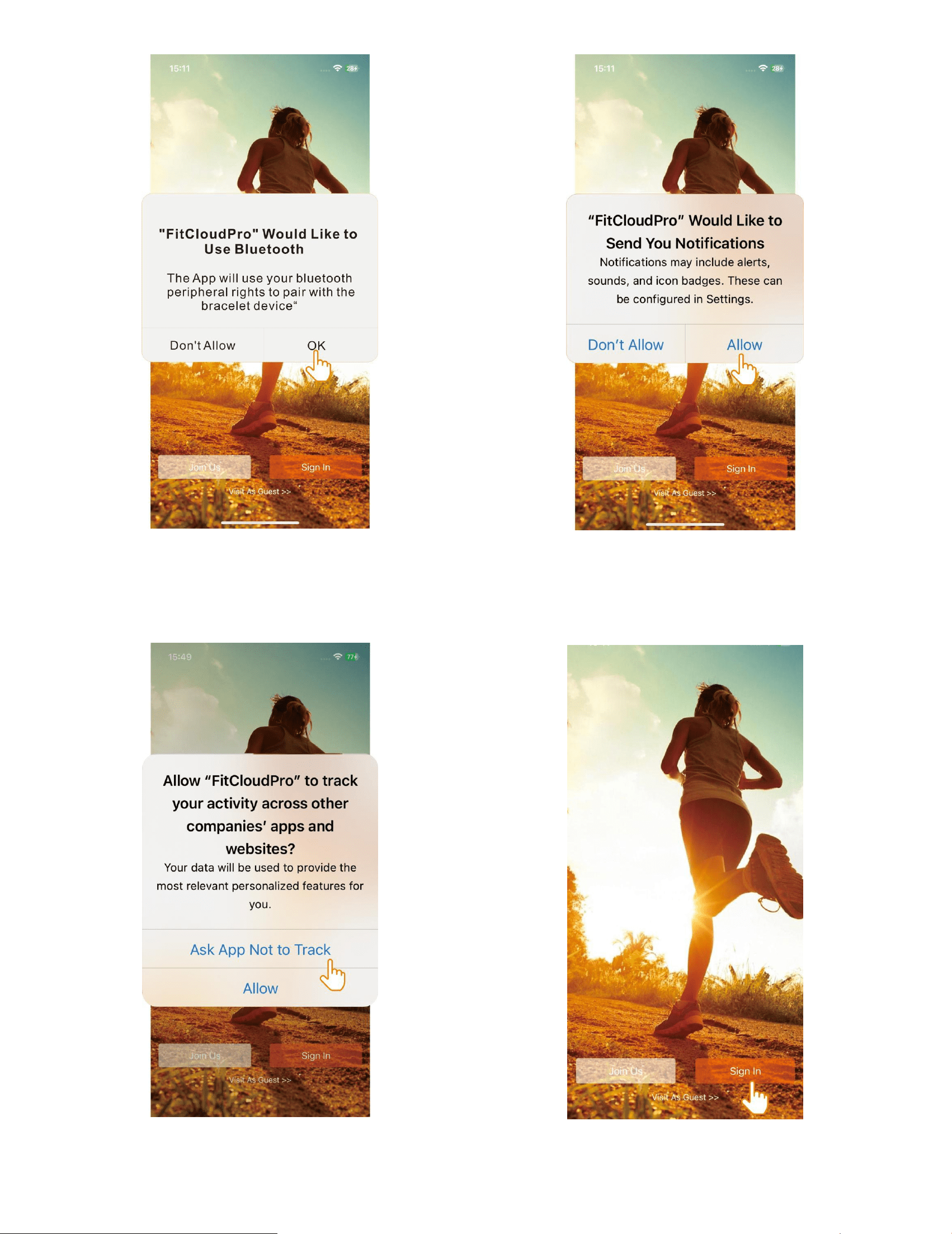
Pair as Follows-l0S
a.Upon first use ofthe FitCloudPro app, enableit to access
Bluetooth, wireless data, andnotifications on your compatible
smartphone bygranting all necessary permissions throughyour
phone's settings.
3
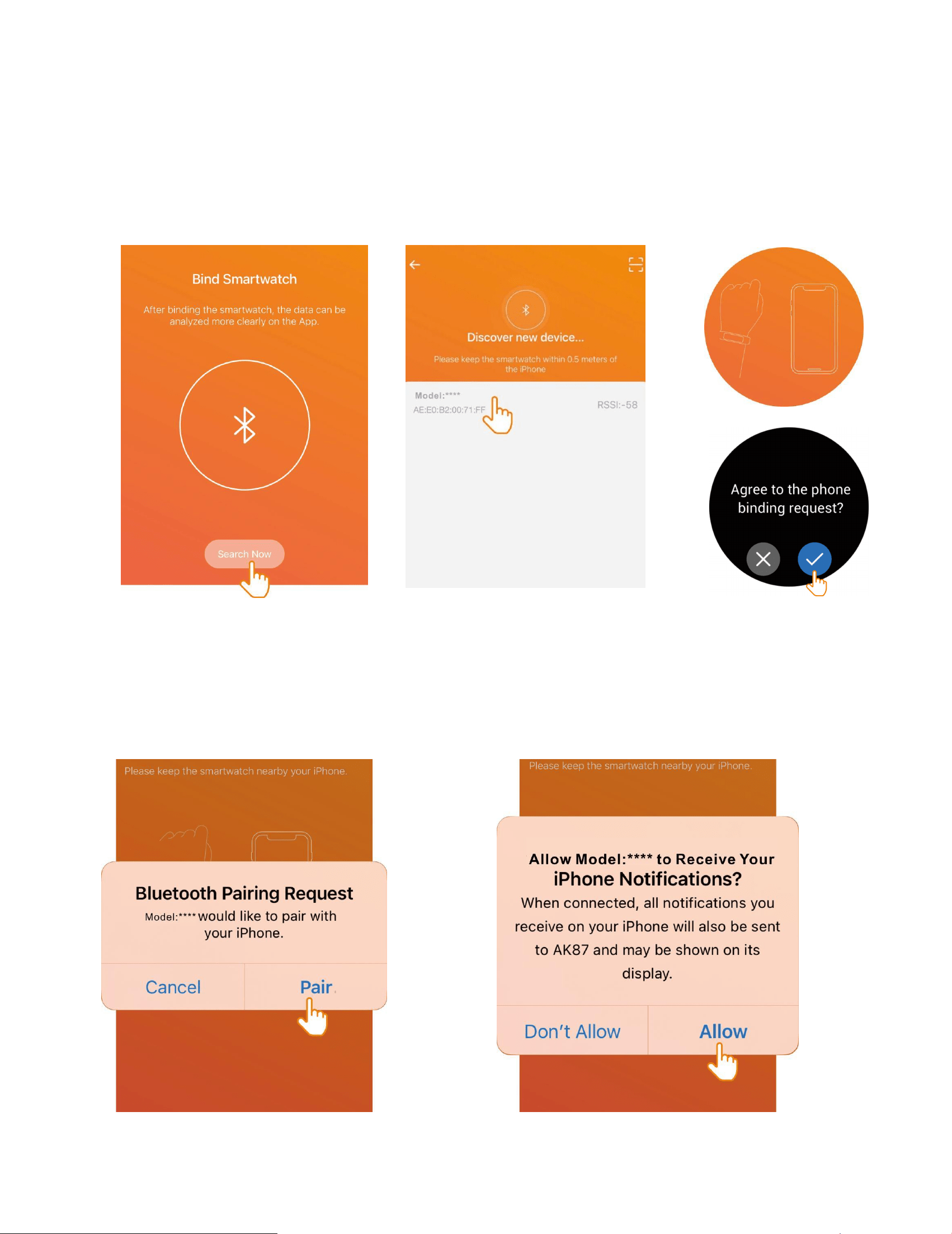
b.Use the app with "VisitAs Guest" or"Sign ln"
4
Connecting Bluetooth-l0S
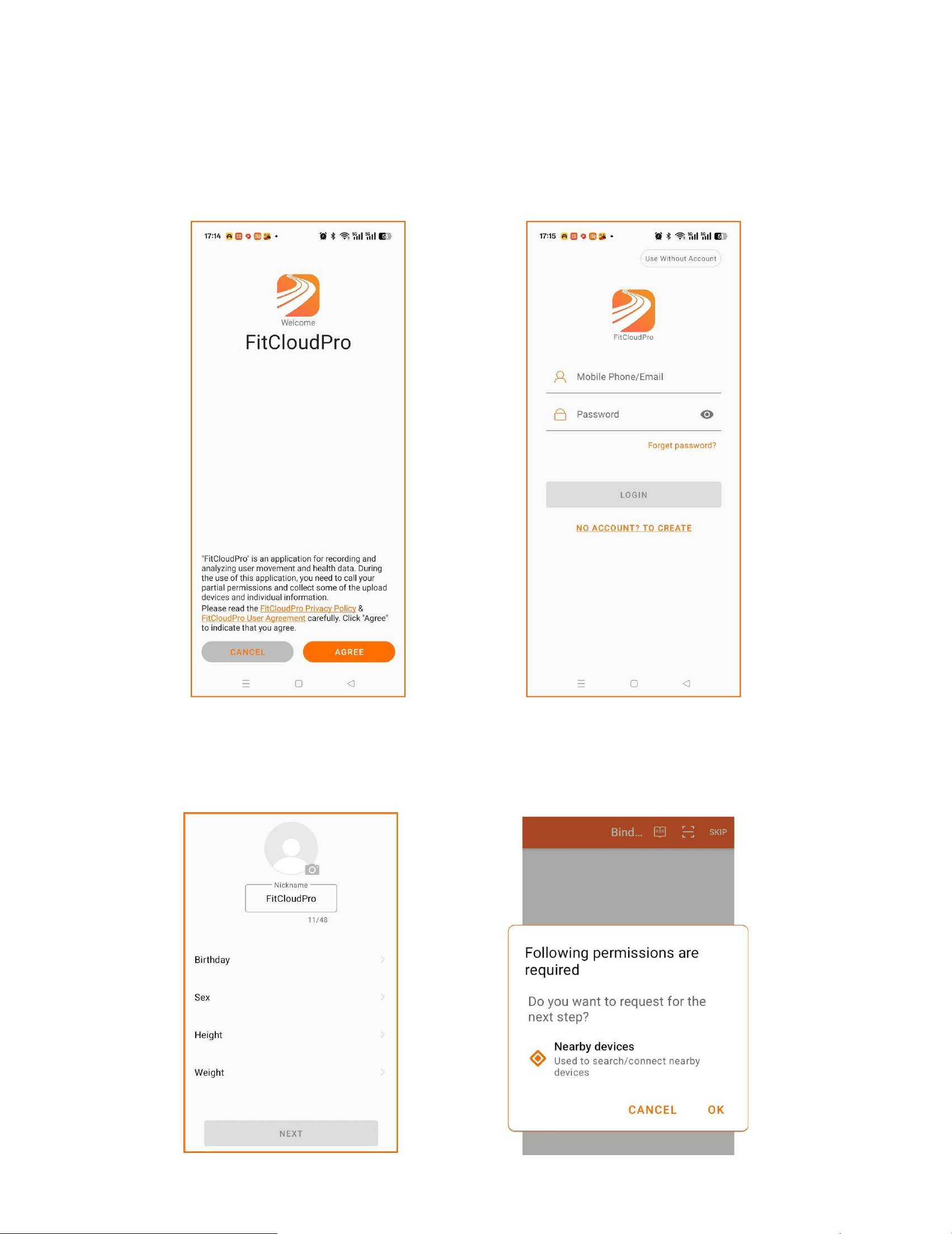
a.Select'Search Now' to discover andconnect to the watch
Bluetooth device. and tarthe watch to 'agree' grant access and
completthe pairing process.
b."Allow Bluetooth Pairing" and "Allow Notifications”
5
Setting Up FitCloudPro App on
Android: Permissions and Agreement
a."Agree"FitCloudPro Privacy Policy & UserAareement ,Login or
Use WithoutAccount:
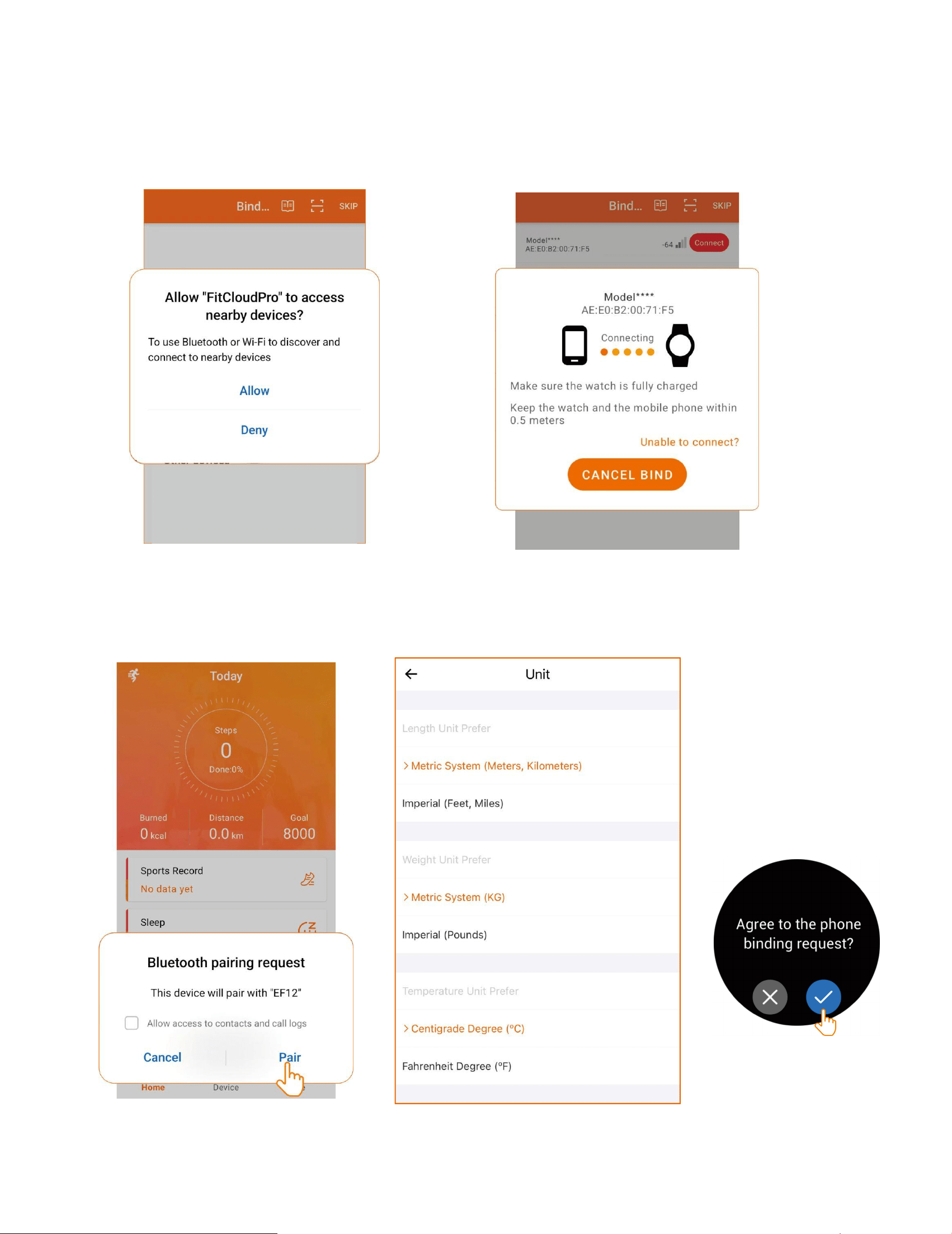
b.Fill in your personal information and Search/connect nearby
permissions Bluetooth request
6
C.Allow FitCloudPro to discover and connecttathe watch
devices.Tap the watch and selectagree to grant access and
complete thepairing process.
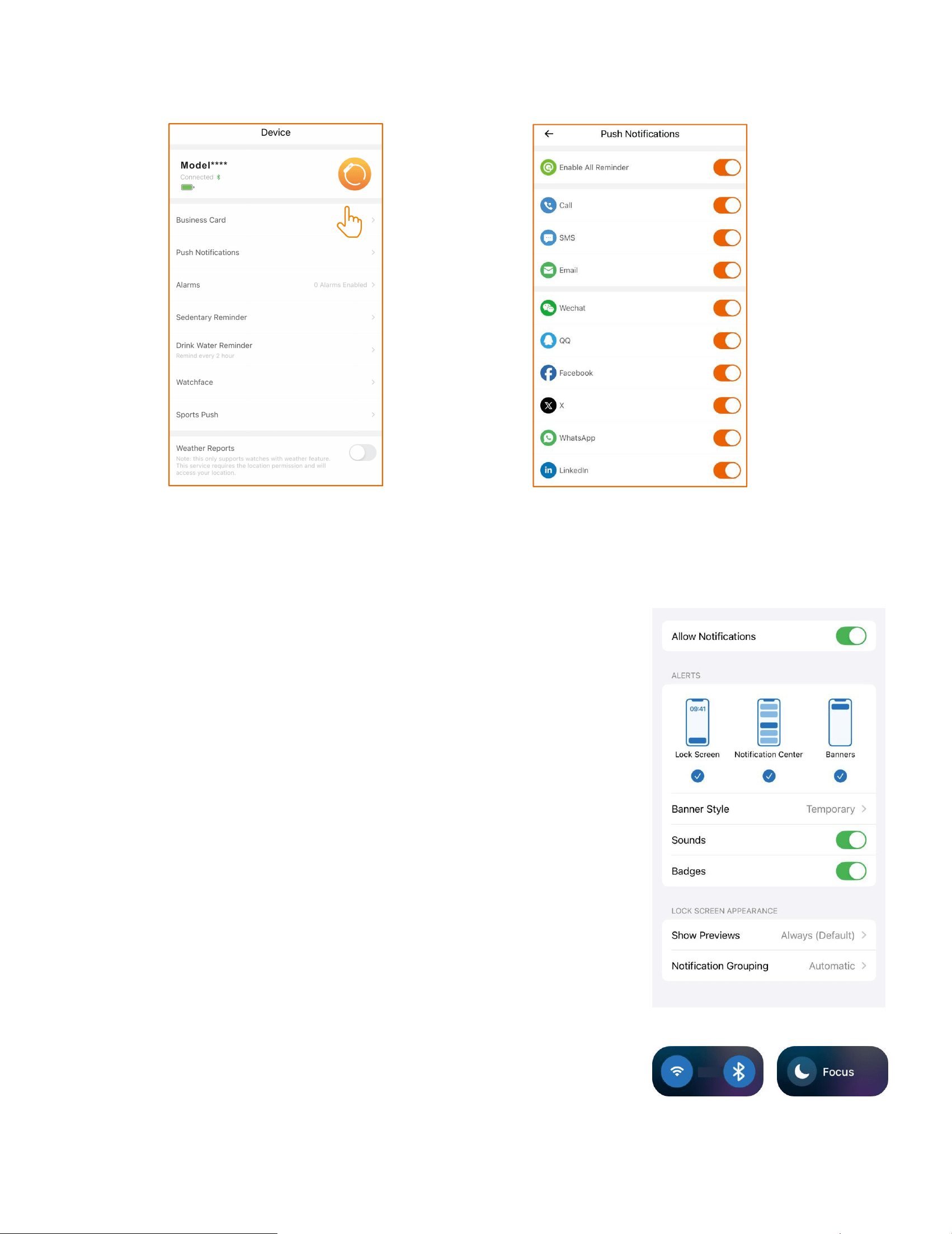
d.Allow Bluetooth pairing requests and Accessto Contacts:
7
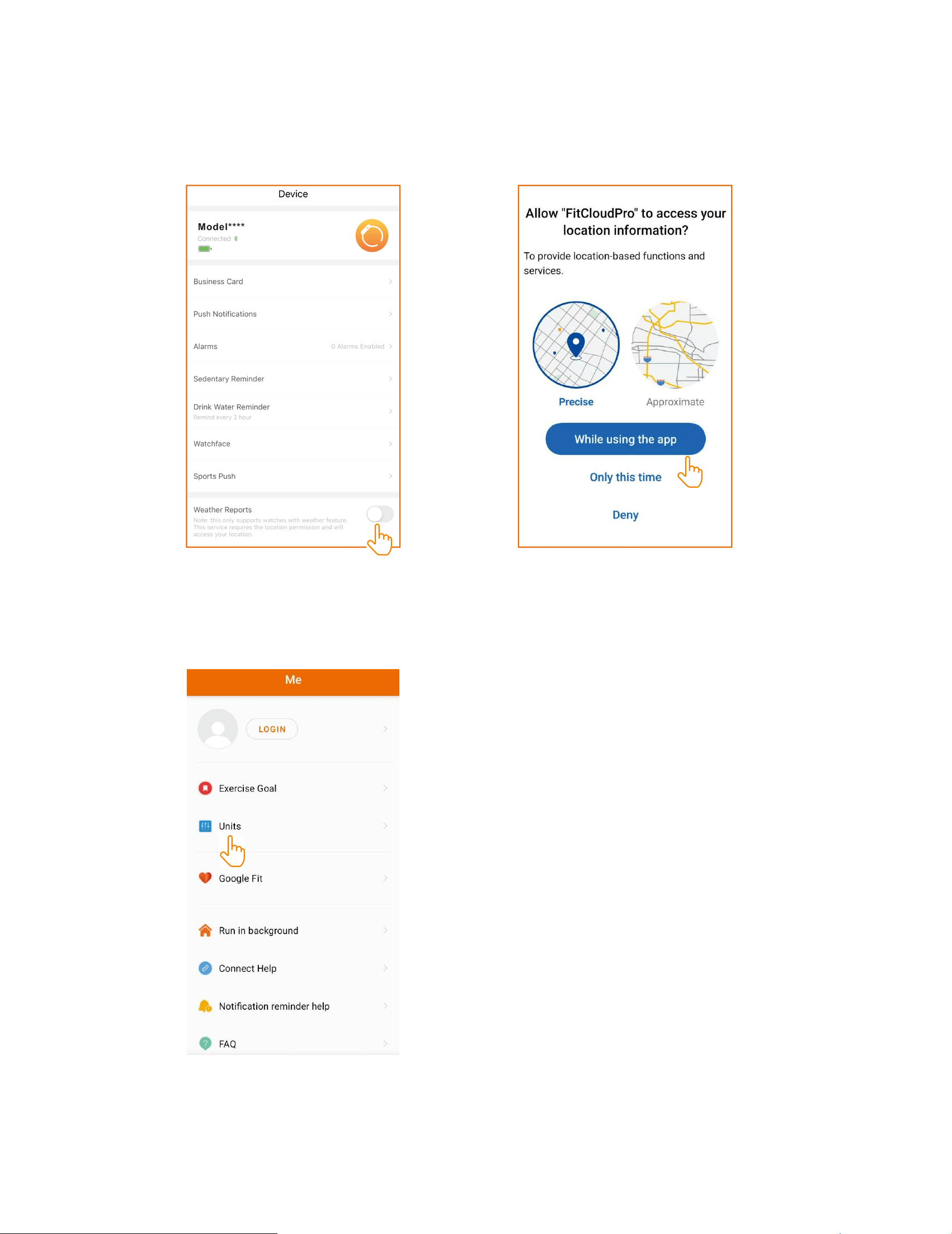
Turning on Push Notifications
a.Note that the watch cannot receivenotifications when the phone
is in Do Not Disturbmode.
b.Ensure the mobile phone's Bluetooth is
active, the FitCloudPro app is running,and the
watch is connected tothe phone's Bluetooth.
c.Make sure that notificationsare visible on
the notificationbar of your phone,
8
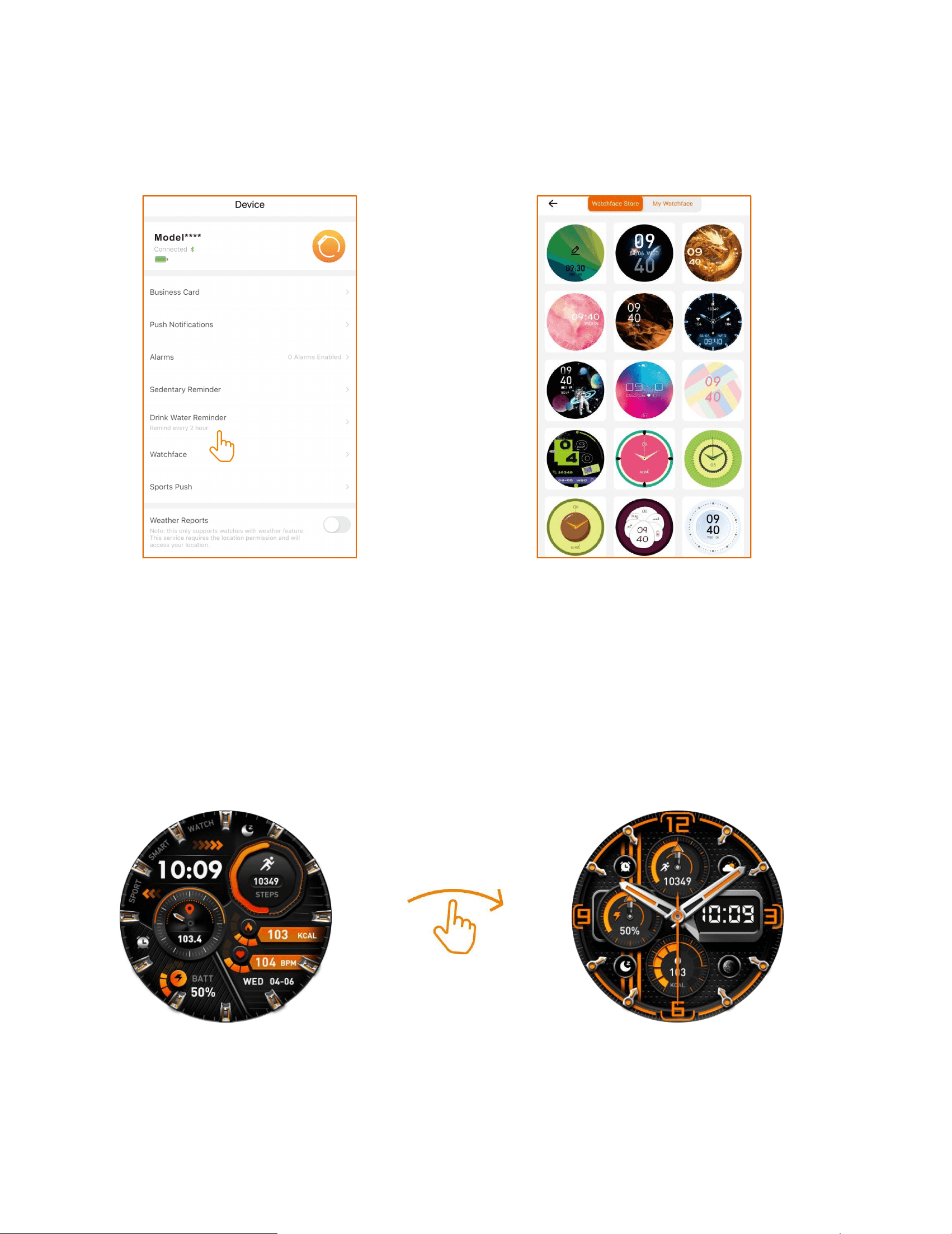
Turning on weather locator
Turn on the weather reports feature in theFitCloudPro app to get weather
forecasts.
Setting the Display Unit of the Watch
9
Setting/Download Watch Faces
a.Press and hold the watch face for 2 secondsthen quickly swipe to
switch between watchfaces
b.Download watch faces through FitCloudPro's watch face Ul
market. Note that onlyone watch face Ul can be saved at a
timeAnew download will replace the previouslysaved watch face
Ul.
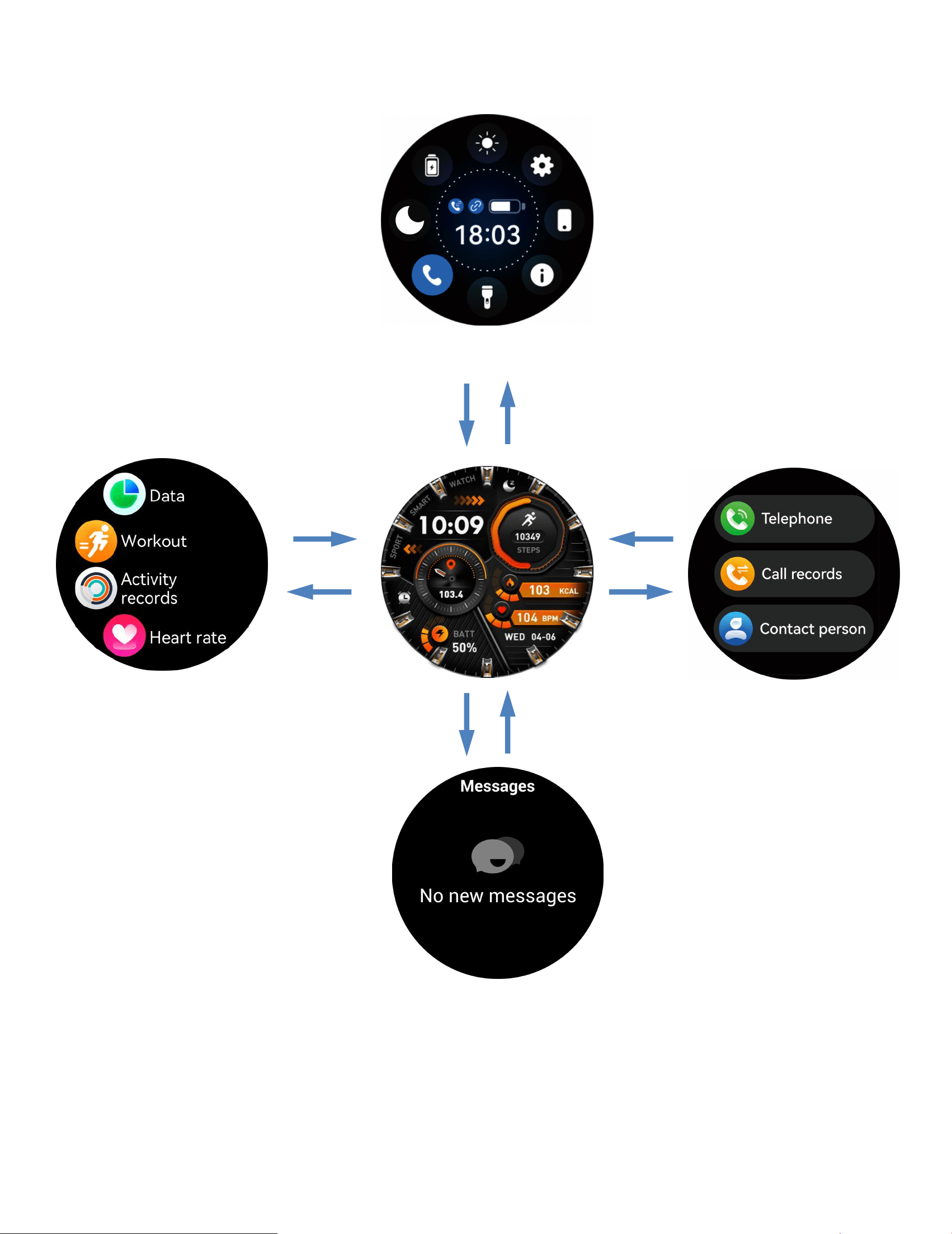
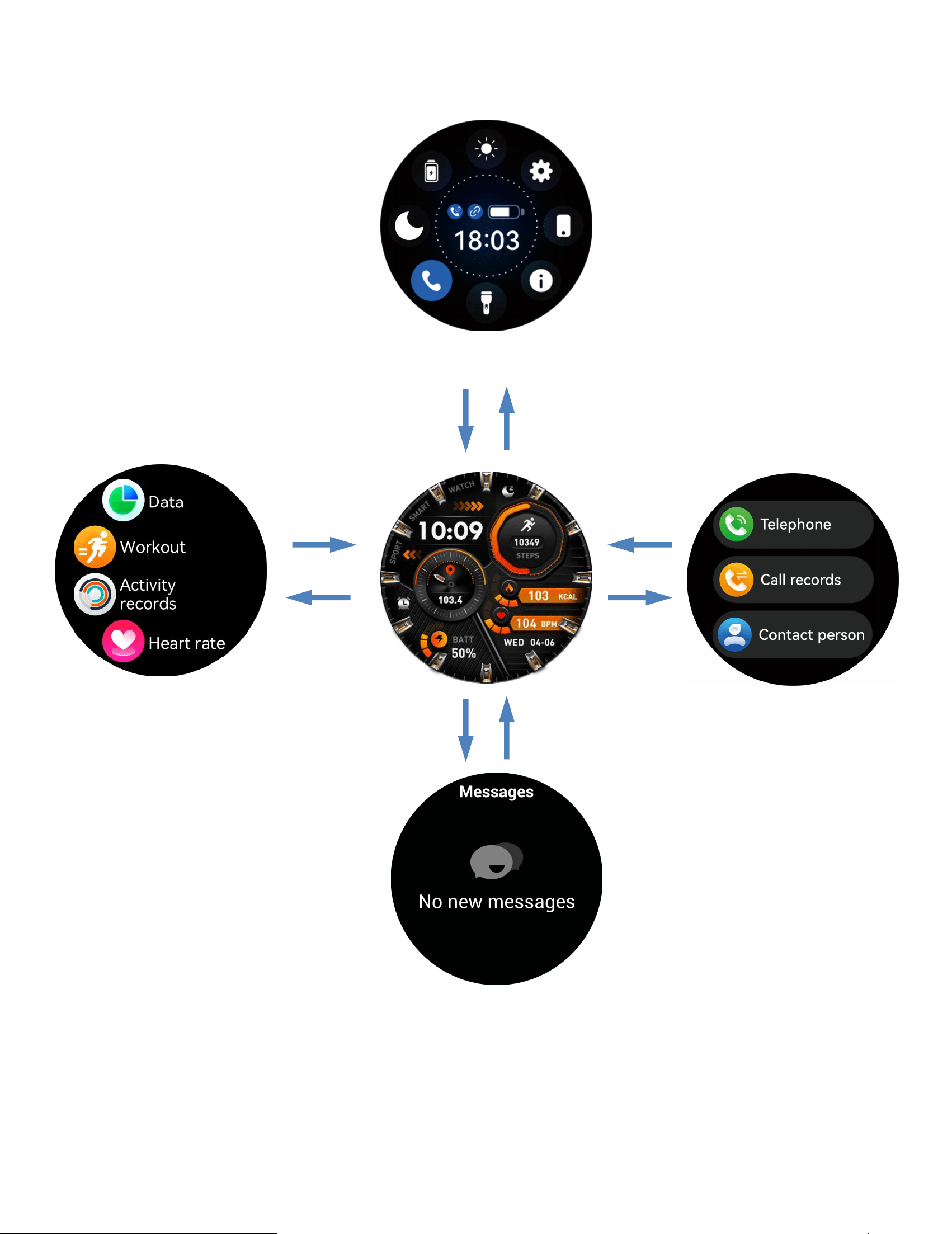
10
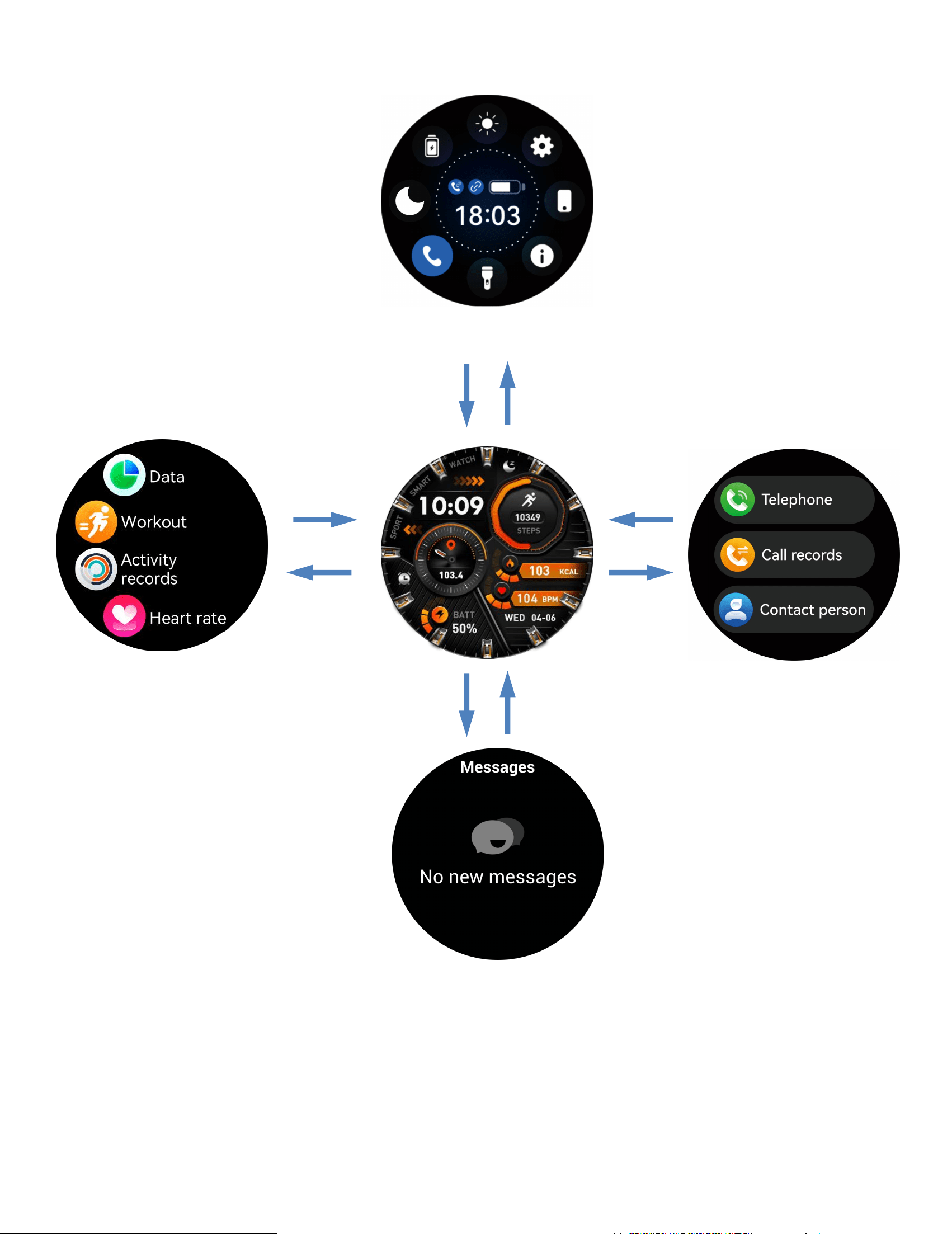
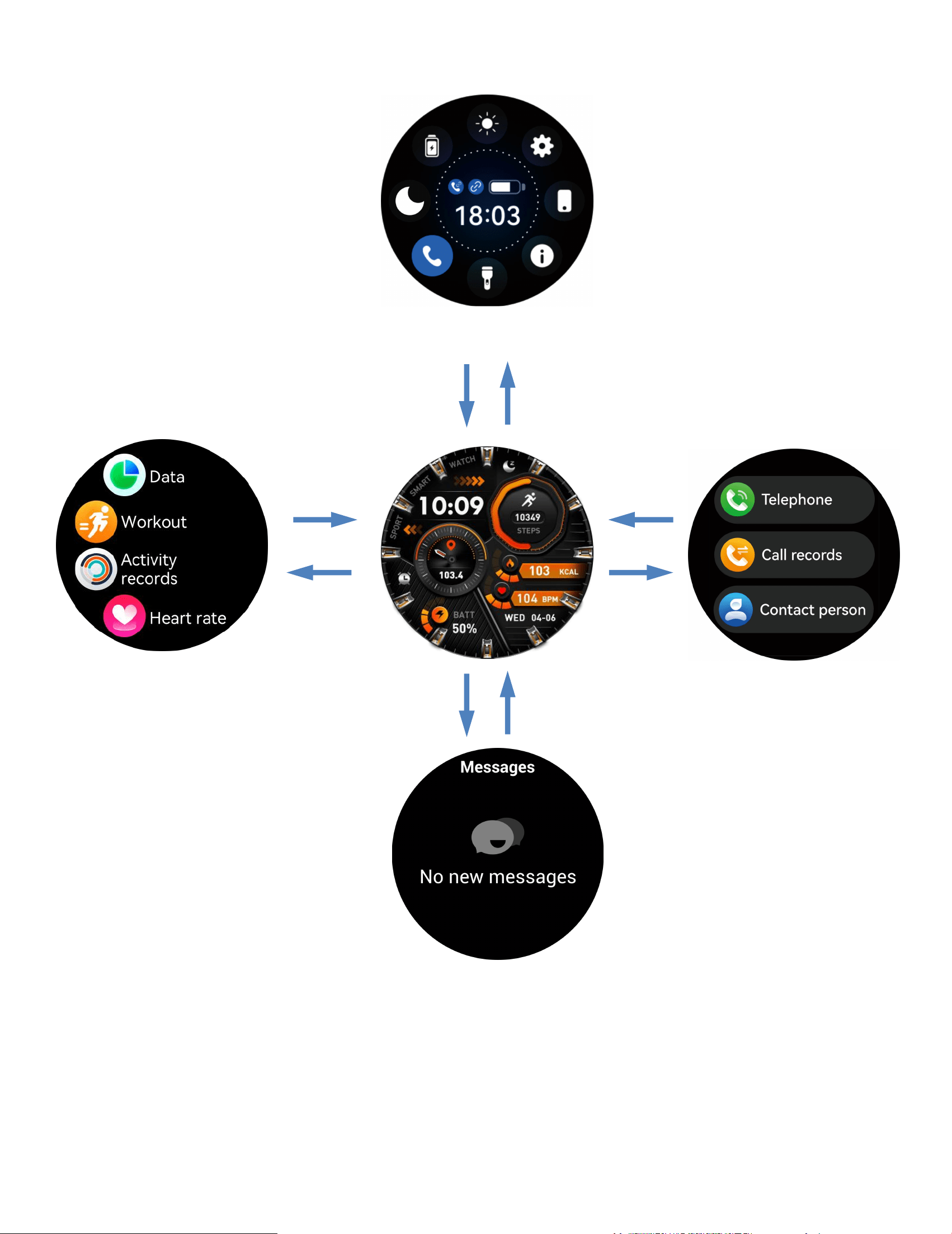
c.Displaying touchscreen functionality
Messages
Dial
Menu
Control Center
11
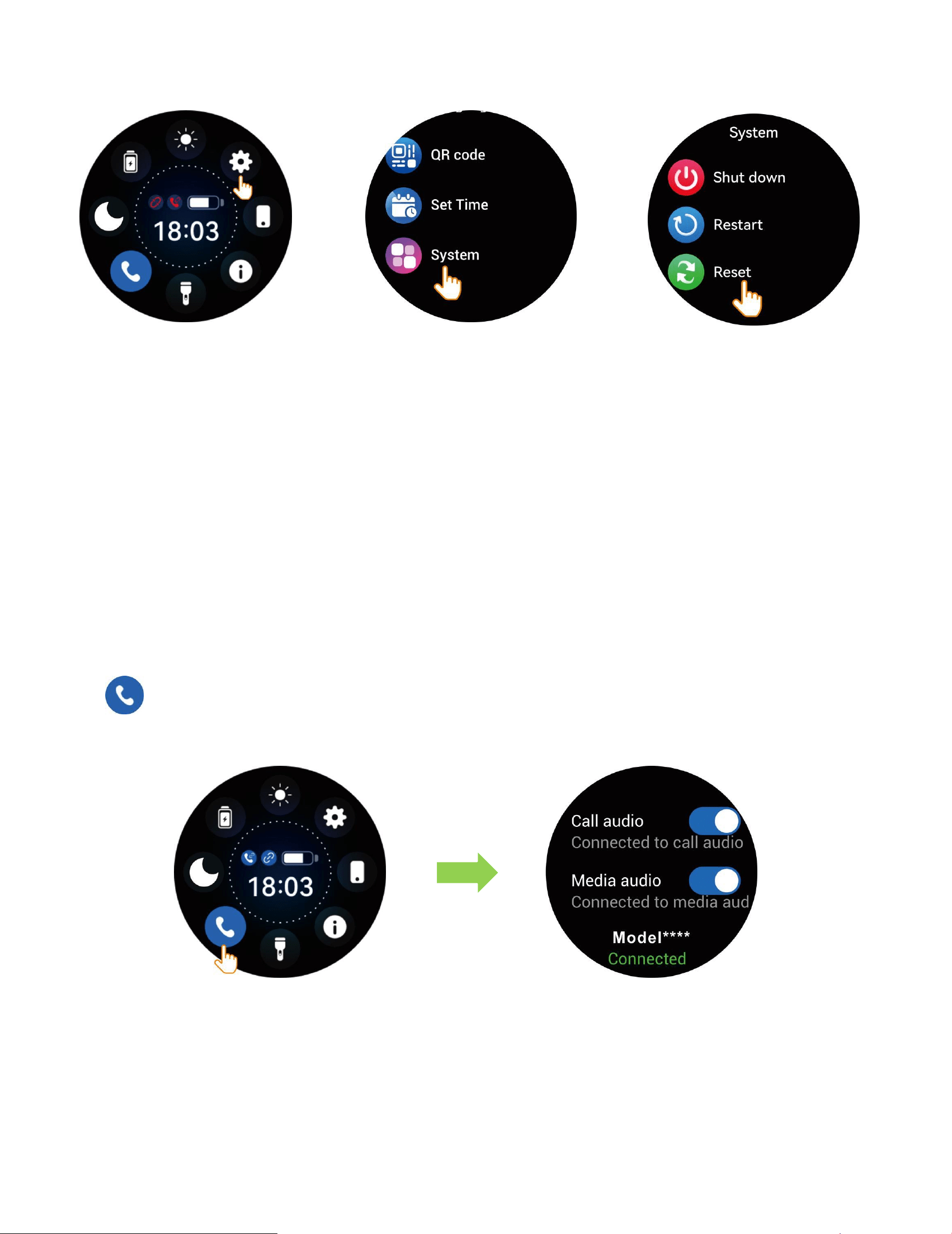
Resetting the Watch
fthe exercise,sleep, and heart rate data areinaccurate,orifthe Bluetooth
connection orcall functionality fails, try resetting the watch asshown below and
rebind.Alternatively, you canreset or update the firmware through the app!
Turning on/off Call Audio and
Media Audio
a.Tap
to enable or disable BluetoothCalling.
Settings
System
Reset
12
b. To prevent the watch from playing media sounds or
making/answering calls, simply turnoff the media audio and call
audio settings.
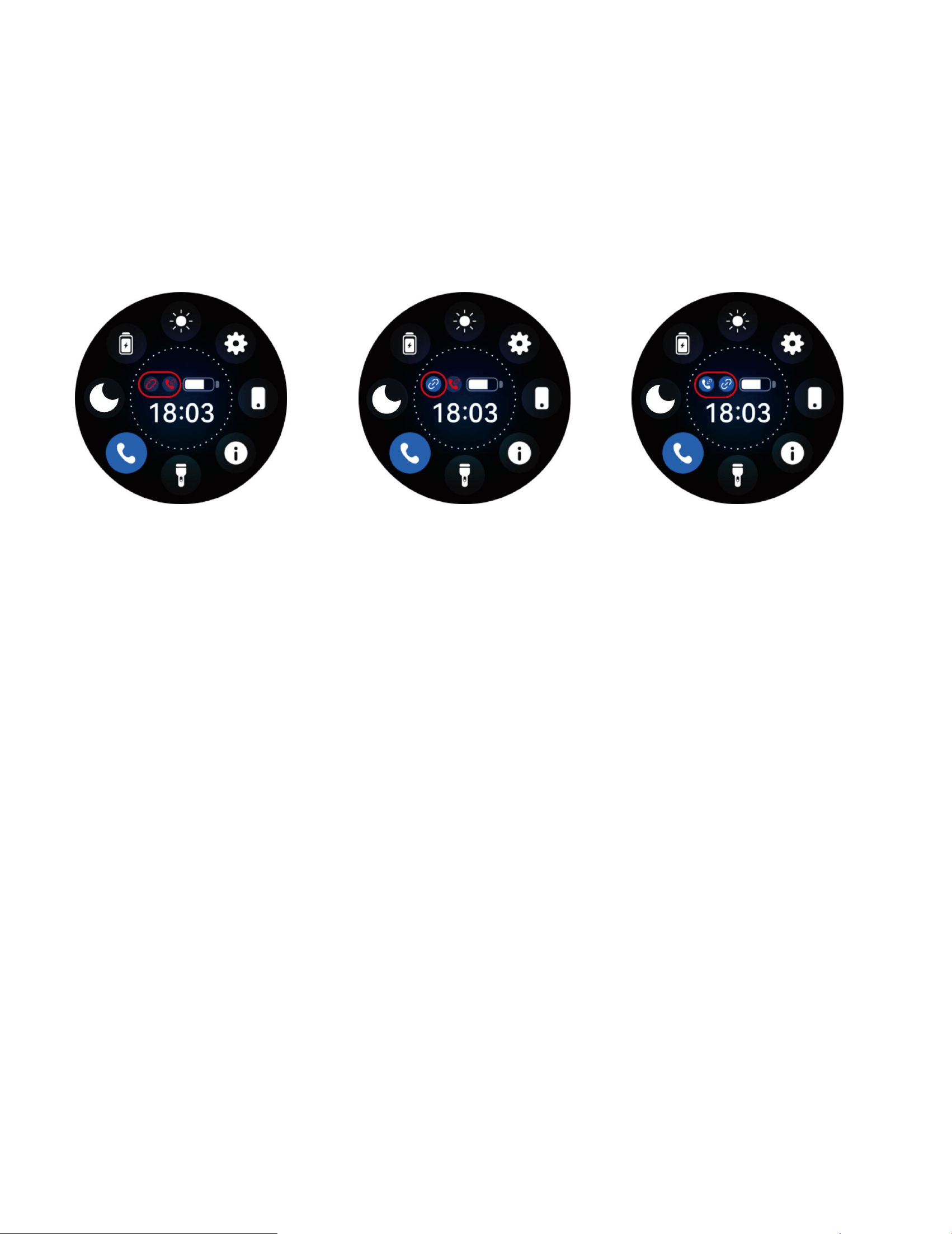
Watch Connection Status
Note:The watch is paired with the iOS systemapp,allowing
message reminders even if theappis closed.However, forAndroid
phonesthe app must be open to receive messagereminders.
BT Call and APP
Disconnected
APP Connected
BT Call Connected
APP Connected
BTCall Disconnected
13
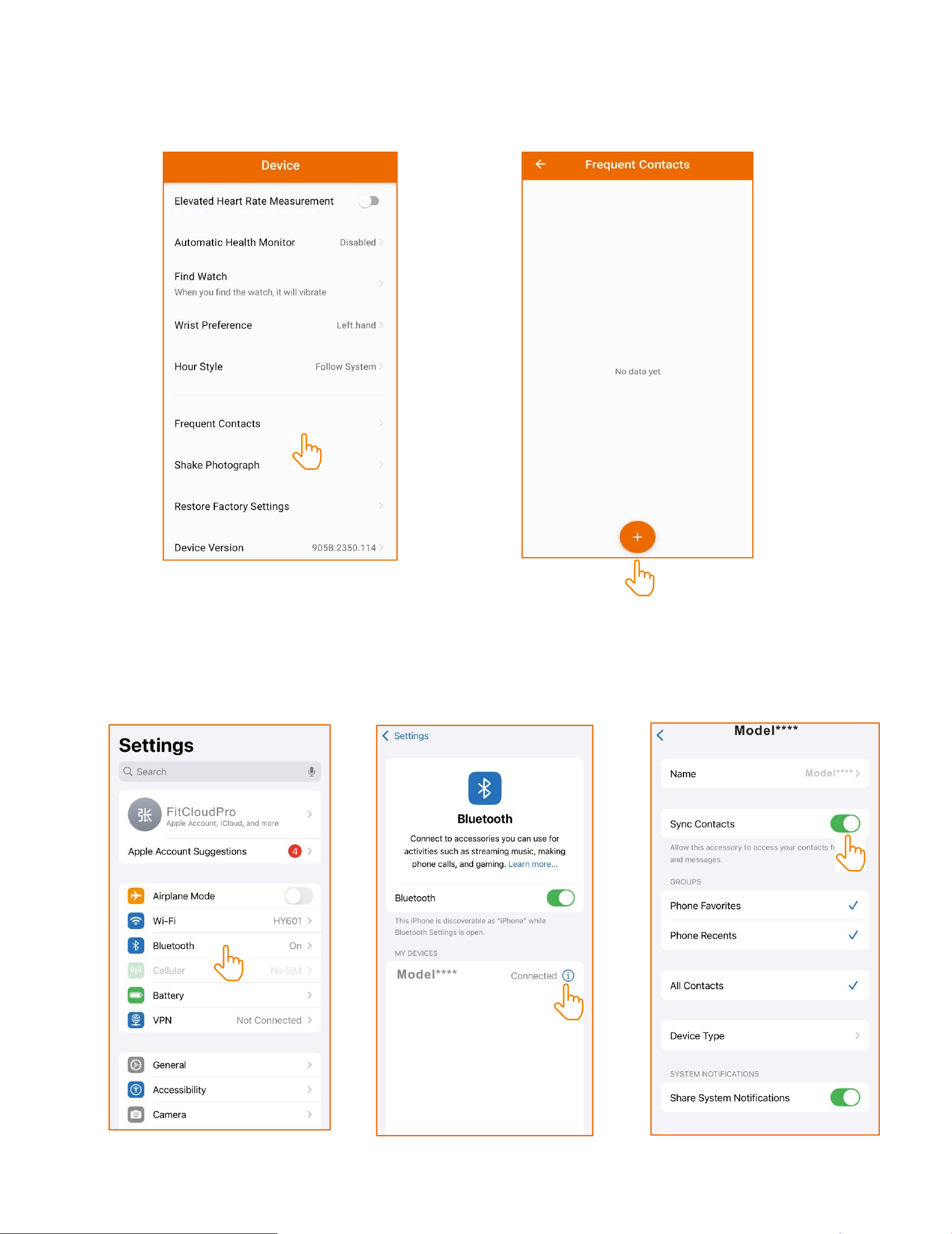
Adding and Syncing Favotite Contacts
a.Add contacts to the watch via FitCloudPro
b.Note some phones require manual activationof Bluetooth
contact syncing due to privacyconsiderations

14
Key Safety Tips
a.Do not expose the watch to extremelyhigh-temperature
environments ike scorchingsun rays or around high-temperature
deviceslike heaters,ovens,microwave ovens,
orwaterheaters.High-temperatureenvironments may cause battery
explosionsor other safety accidents.
b.The productincludes an irremovable purecobalt
battery.Non-profes-sionals are notallowed to disassemble it in case
of a safetyaccident.
c.This product has passed multiplewaterprooftests before
launch.Consideringdifferent using habits,its internal parts
mayexperience wear and tear, which affects itssealing
performance.Therefore please wearand use the smartwatch
carefullyduringswimming and diving, but avoid wearing it in
asauna room or for a hot shower.
d.Our products do not belong to medicalapparatus.The heart rate,
blood oxygen,sleep, calories, and steps.and other healthdata
collected by it are only for referenceratherthan clinical basis.
15
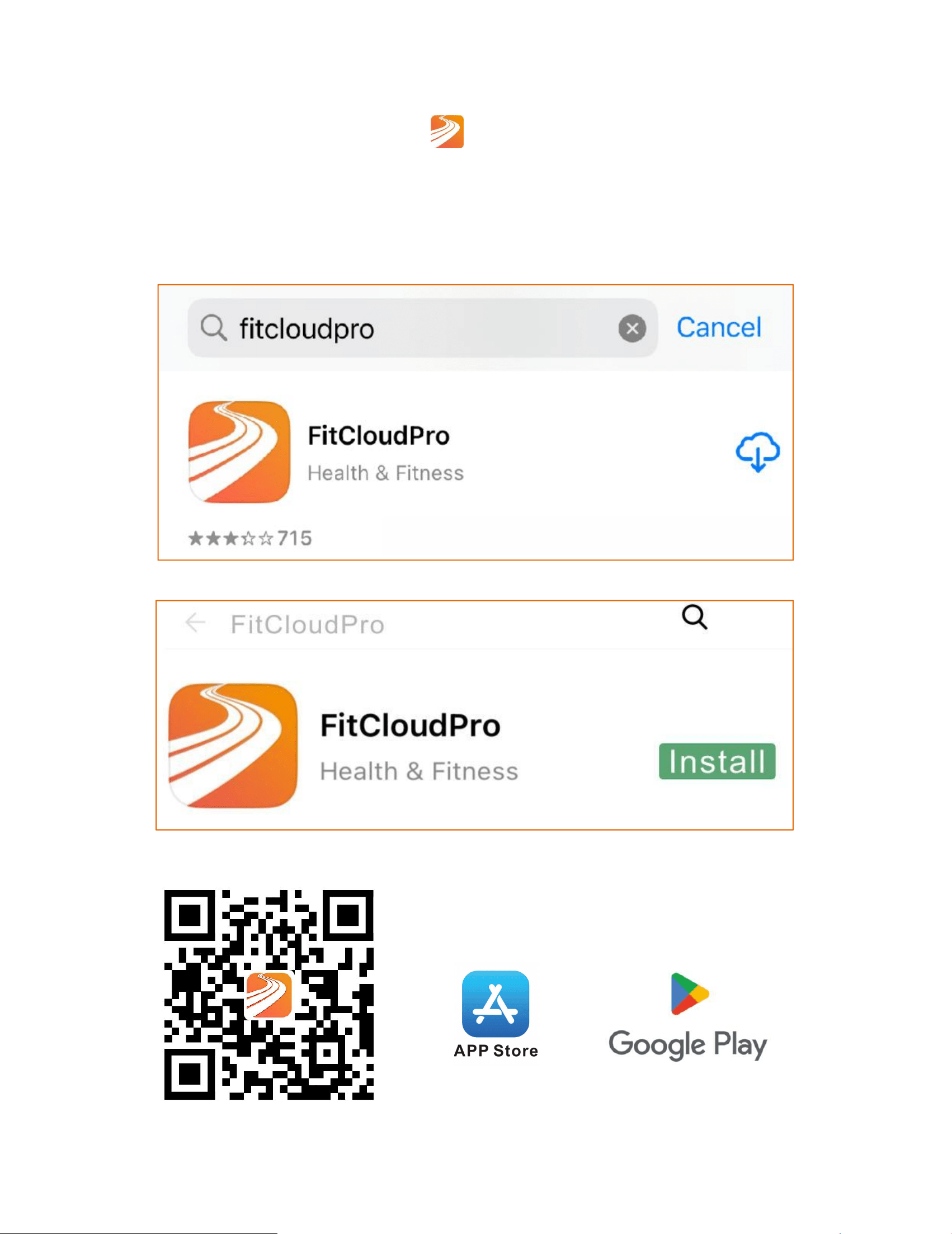
Télécharger l'application
①Téléchargez l'application "
FitCloudPro" depuis l'App Store
ou Google Play.
②Scannez le code QR pour télécharger.
16
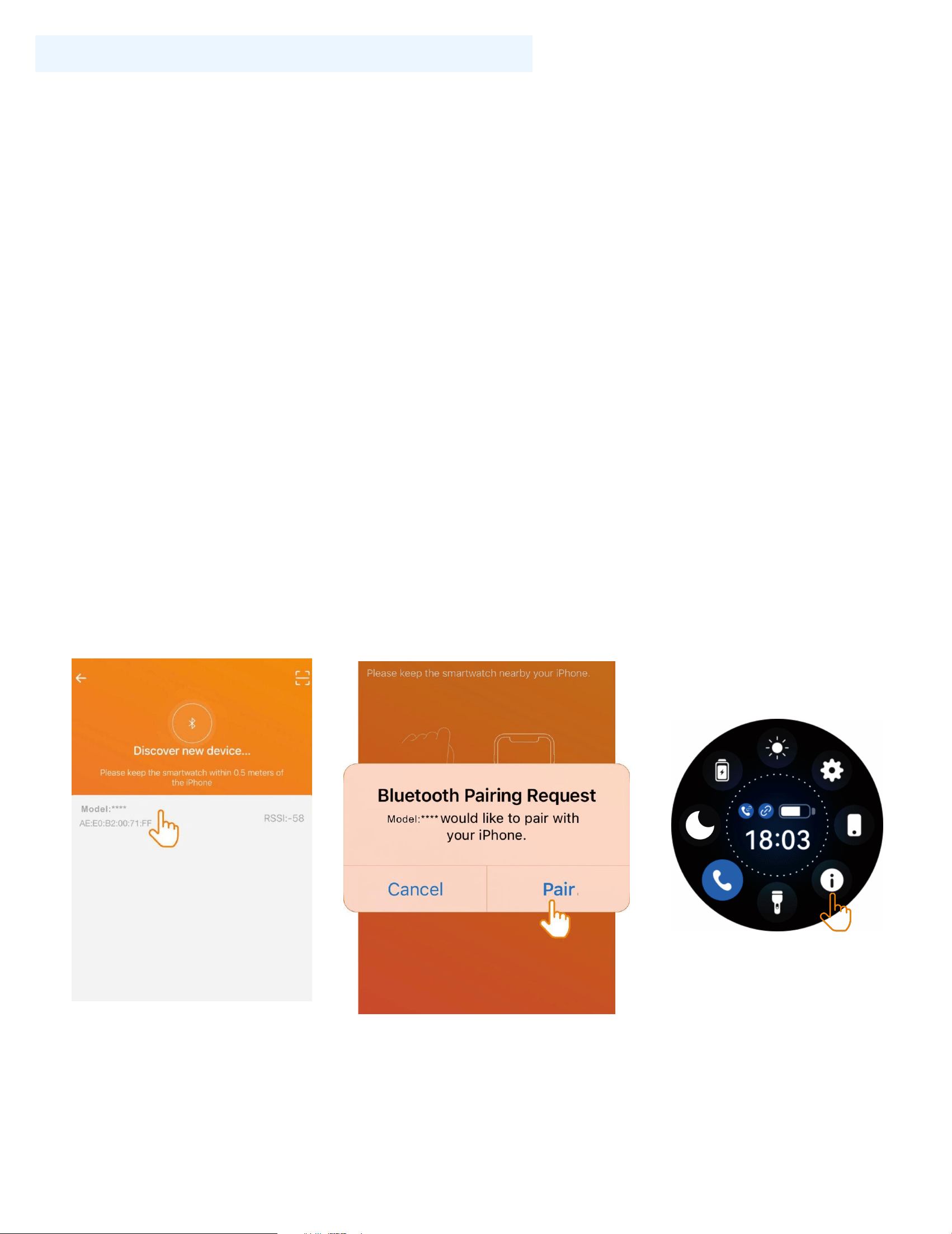
Procédure de connexion sans fil
Connexion sans fil : Ouvrez l'application, veuillez activer la fonction
sans fil du téléphone et de la montre. Lors de la recherche du
réseau sans fil, vous pouvez utiliser le nom du réseau ou l'adresse
MAC de la montre. Assurez-vous que la montre n'est pas liée à
d'autres comptes et que la montre et le téléphone sont le plus
proches possible. Avant d'utiliser la fonction sans fil pour passer un
appel, assurez-vous que l'icône d'appel dans l'écran de contrôle de
la montre est activée, afin de pouvoir rechercher normalement le
réseau sans fil de la montre. Ouvrez l'interface À propos dans le
menu Paramètres de la montre. Après que la liaison de la montre a
réussi, la montre se connectera automatiquement au téléphone
chaque fois que vous ouvrez le client. Vous pouvez synchroniser
les données en faisant glisser vers le bas la page des données du
client.
17
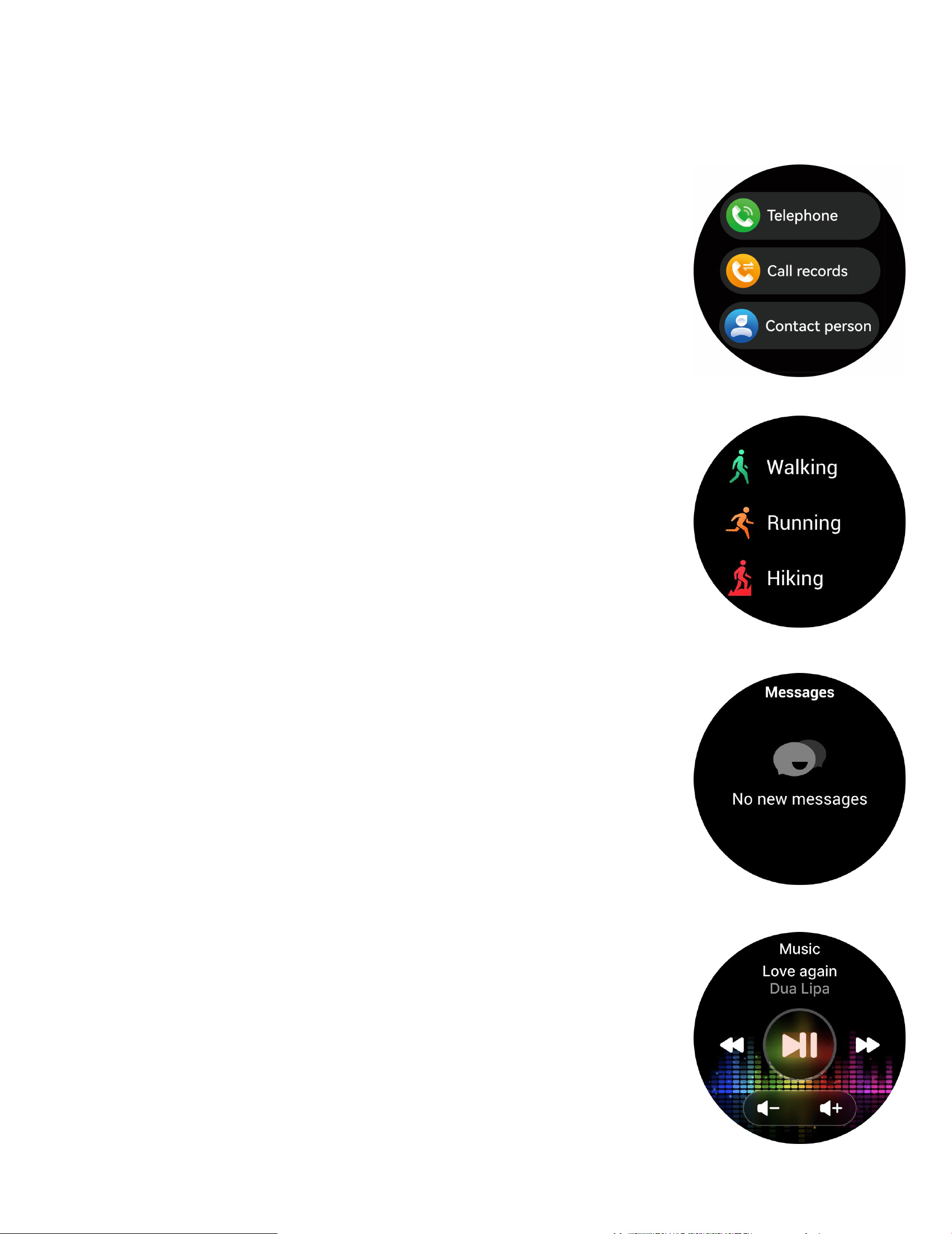
Appel sans fil
Après avoir connecté la montre intelligente au téléphone, vous
pouvez utiliser la montre pour composer des numéros et contrôler
le téléphone pour passer et répondre aux appels.
Vous pouvez également consulter l'historique
des appels de la montre. Vous devez maintenir la
connexion entre la montre et le téléphone stable
lors de l'utilisation de la fonction d'appel
téléphonique.
Sports
La montre intelligente suit automatiquement les
pas effectués à l'écran. (REMARQUE : Vos
statistiques de mouvement sont remises à zéro à
minuit.)
Rappel de messages
L'appareil peut synchroniser les notifications
entrantes provenant des logiciels sociaux, etc.
Remarque : Vous pouvez activer ou désactiver
les notifications entrantes dans l'application.
Contrôle de la musique
Après avoir connecté l'appareil, vous pouvez
contrôler à distance le lecteur de musique sur
votre téléphone.
18
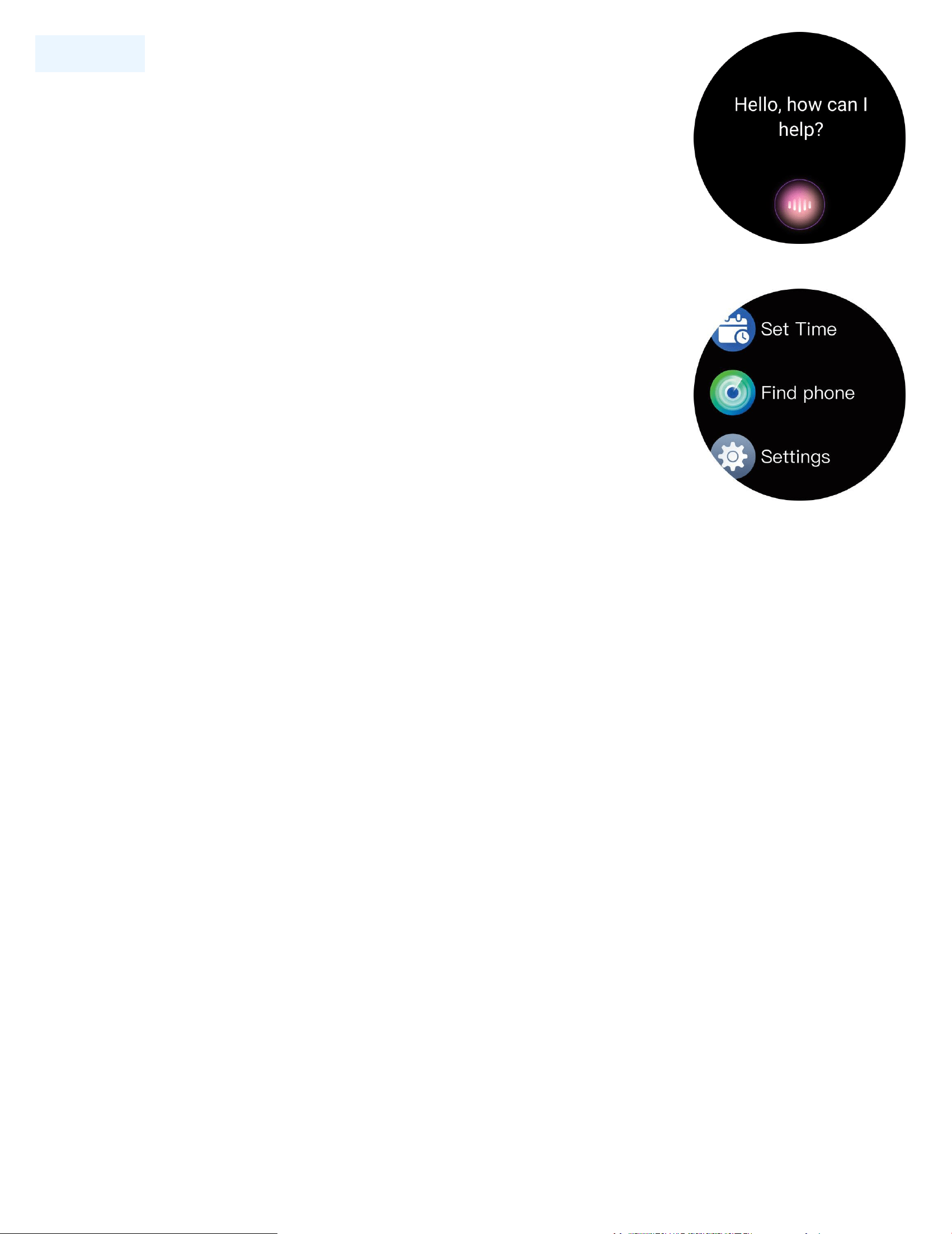
Voix IA
Lorsque la connexion sans fil est activée, la
montre peut réveiller l'assistant vocal sur le
téléphone.
Autres fonctionnalités
Les autres fonctionnalités incluent le
chronomètre, l'alarme, le minuteur, la luminosité,
le mode silencieux activé/désactivé, le mode
théâtre, la réinitialisation d'usine, l'arrêt et les
informations sur l'appareil.
Conseils clés de sécurité
a. Ne exposez pas la montre à des environnements à haute
température extrême, tels que la lumière directe du soleil ou près
d’équipements à haute température comme les chauffages, les
fours et les micro-ondes, ou un chauffe-eau. Les environnements à
haute température peuvent provoquer l’explosion de la batterie
ou d’autres accidents de sécurité.
b. Cette application n'est pas un dispositif médical. Les données
obtenues lors de l'utilisation de cette application sont à titre de
référence uniquement et ne doivent pas être utilisées à des fins de
diagnostic clinique, de recherche médicale, de diagnostic ou de
traitement.
19
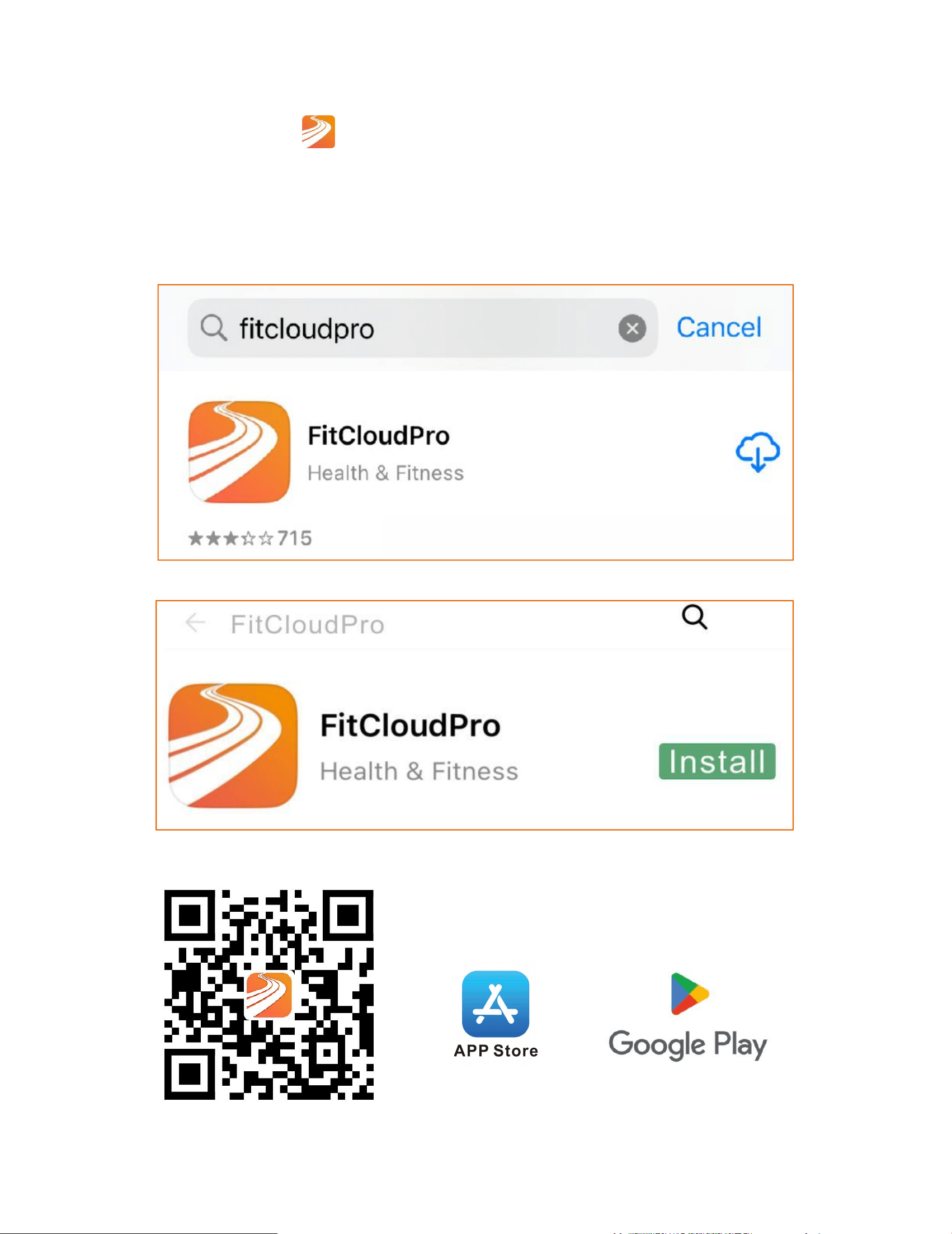
App -Download
①Laden Sie die "
FitCloudPro" -App aus dem App Store oder
von Google Play
herunter.
②QR-Code scannen, um herunterzuladen.
20
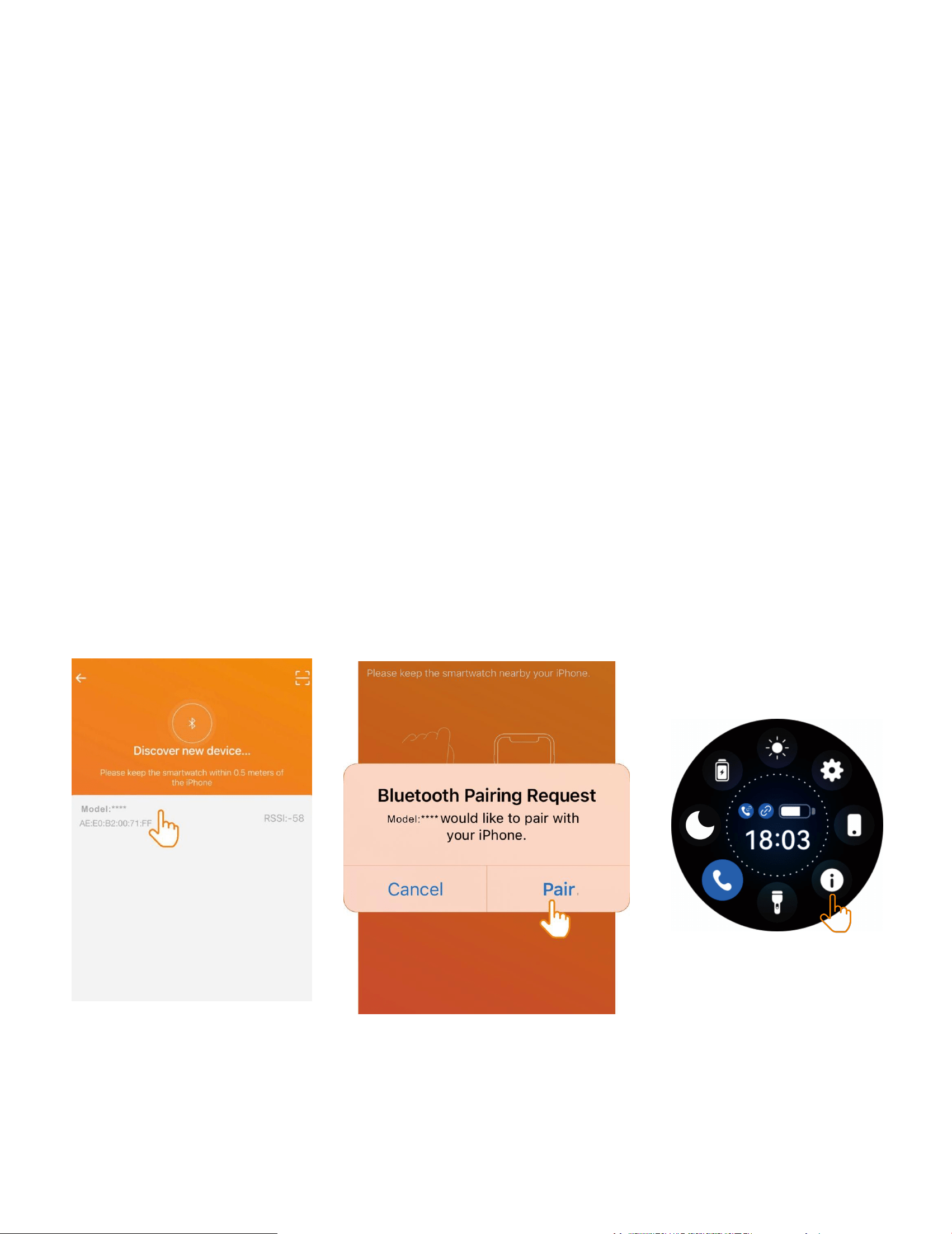
Verfahren für die drahtlose Verbindung
Mit dem drahtlosen Netzwerk verbinden: Öffnen Sie die APP, bitte
aktivieren Sie die drahtlose Funktion des Telefons und der Uhr. Bei
der Suche nach drahtlosem Netzwerk können Sie den Namen oder
die MAC-Adresse der Uhr verwenden. Bitte stellen Sie sicher, dass
die Uhr nicht mit anderen Konten verbunden ist und dass sich die
Uhr und das Telefon so nah wie möglich beieinander befinden.
Bevor Sie drahtlos telefonieren, stellen Sie sicher, dass das
Anrufsymbol im Uhr-Kontrollbildschirm aktiviert ist, damit Sie das
drahtlose Netzwerk der Uhr normal suchen können. Öffnen Sie die
'Über'-Schnittstelle im Menü Einstellungen der Uhr. Nach
erfolgreicher Uhrenbindung verbindet sich die Uhr jedes Mal
automatisch mit dem Mobiltelefon, wenn Sie den Client öffnen.
Sie können Daten synchronisieren, indem Sie auf der
Client-Datenseite nach unten ziehen.
21
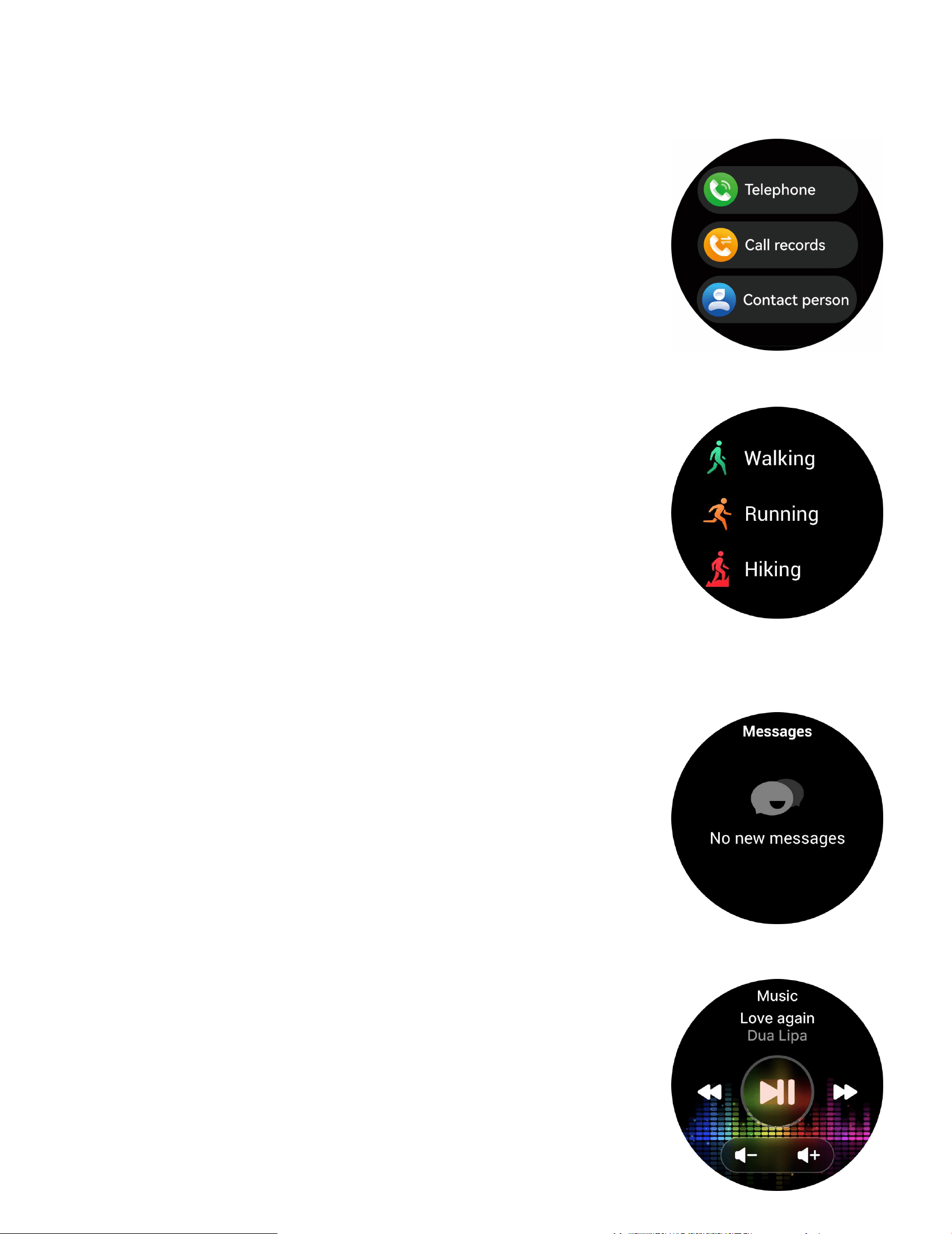
Drahtloses Telefonieren
Nach dem Verbinden der Smartwatch mit dem Telefon können Sie
die Uhr verwenden, um Anrufe zu tätigen und
Anrufe entgegenzunehmen. Sie können auch
den Anrufverlauf der Uhr einsehen. Sie müssen
die Verbindung zwischen der Uhr und dem
Telefon aufrechterhalten, während Sie die
Telefonfunktion nutzen.
Sport
Die Smartwatch verfolgt automatisch die auf
dem Bildschirm angezeigten Schritte.
HINWEIS: Ihre Bewegungsdaten werden um
Mitternacht auf null zurückgesetzt.
Nachrichten-Erinnerung
Das Gerät kann eingehende Benachrichtigungen von sozialen
Software-Apps usw. synchronisieren.
Hinweis: Sie können die eingehenden
Benachrichtigungen in der APP ein- oder
ausschalten.
Musiksteuerung
Nachdem Sie das Gerät verbunden haben,
können Sie den Musikplayer auf Ihrem Telefon
aus der Ferne steuern.
22
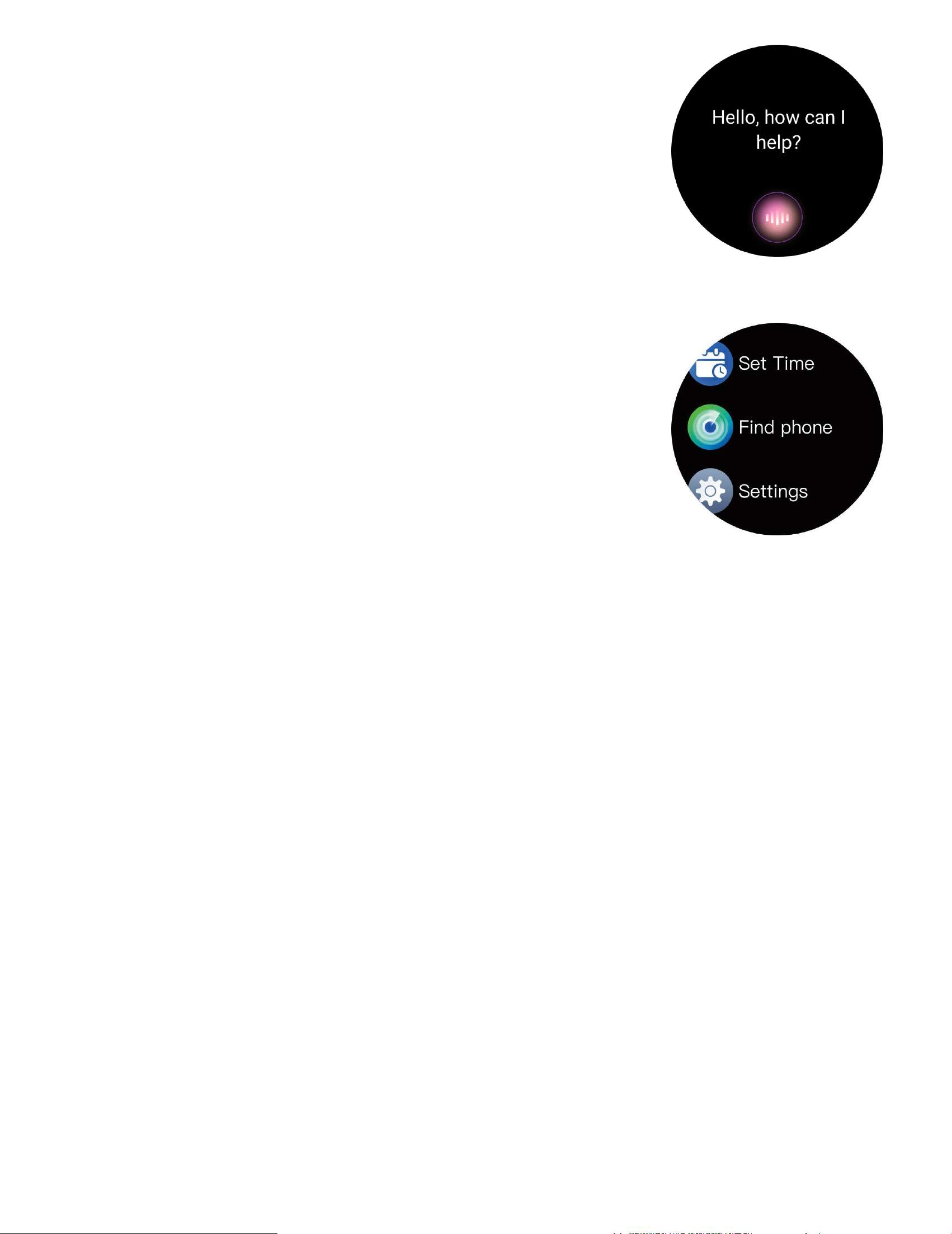
KI-Stimme
Im Zustand der drahtlosen Verbindung kann
die Uhr den Sprachassistenten auf dem Telefon
aktivieren.
Weitere Funktionen
Les autres fonctionnalités incluent le
chronomètre, l'alarme, le minuteur, la
luminosité, le mode silencieux activé/désactivé,
le mode théâtre, la réinitialisation d'usine,
l'arrêt et les informations sur l'appareil.
Wichtige Sicherheitstipps
a. Setzen Sie die Uhr nicht extrem hohen Temperaturen aus, wie
direktem Sonnenlicht oder in der Nähe von hochtemperaturigen
Geräten wie Heizungen, Öfen und Mikrowellen oder
Wassererhitzern. Hohe Temperaturen können zu
Batterieexplosionen oder anderen Sicherheitsunfällen führen.
b. Diese App ist kein medizinisches Gerät. Die beim Gebrauch
dieser App gewonnenen Daten dienen nur als Referenz und sollten
nicht für klinische Diagnosen, medizinische Forschung, Diagnostik
oder Behandlungszwecke verwendet werden.
23
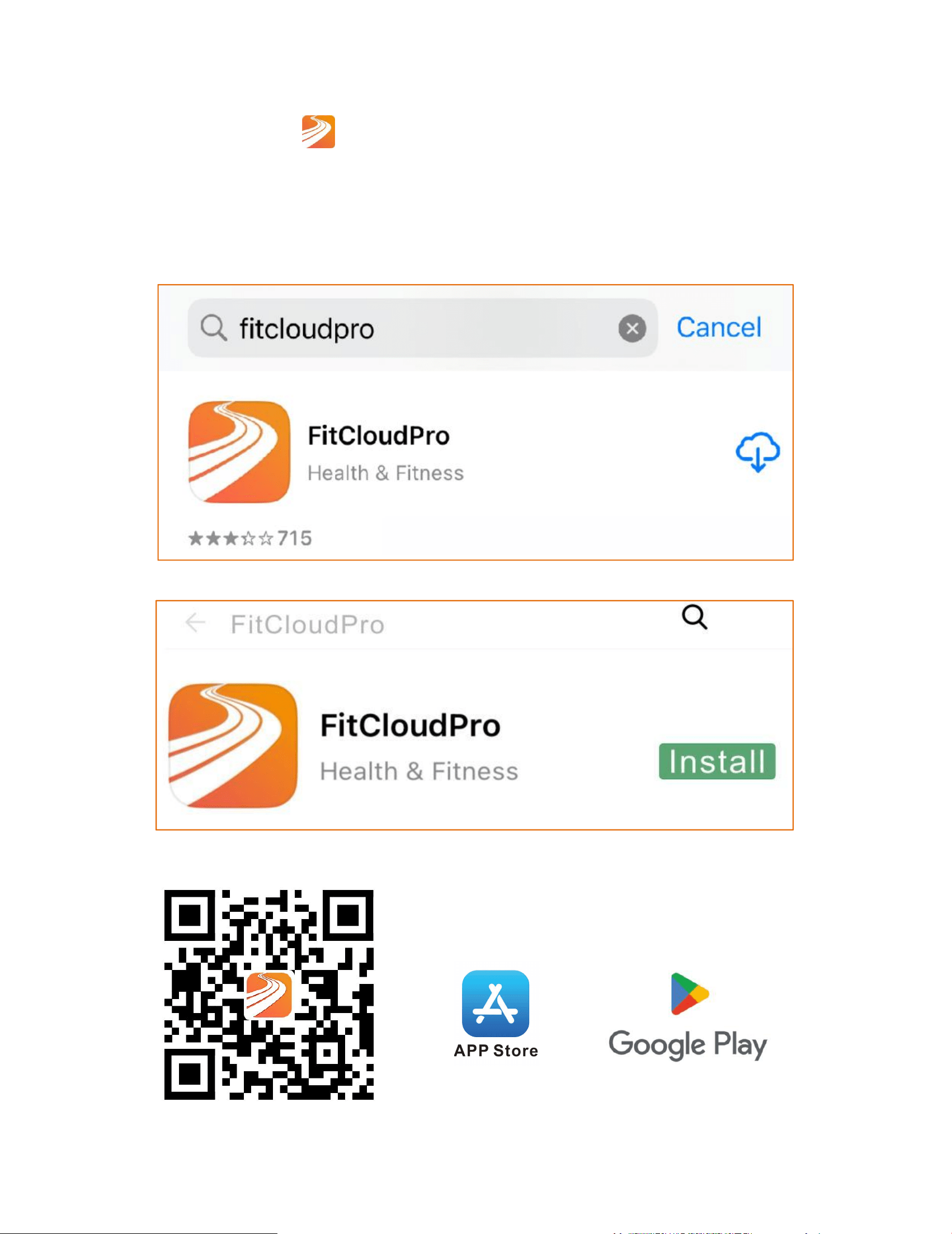
Scarica l'app
①Scarica l'app "
FitCloudPro"" dall'App Store o da Google
Play.
②Scansiona il codice QR per scaricare.
24
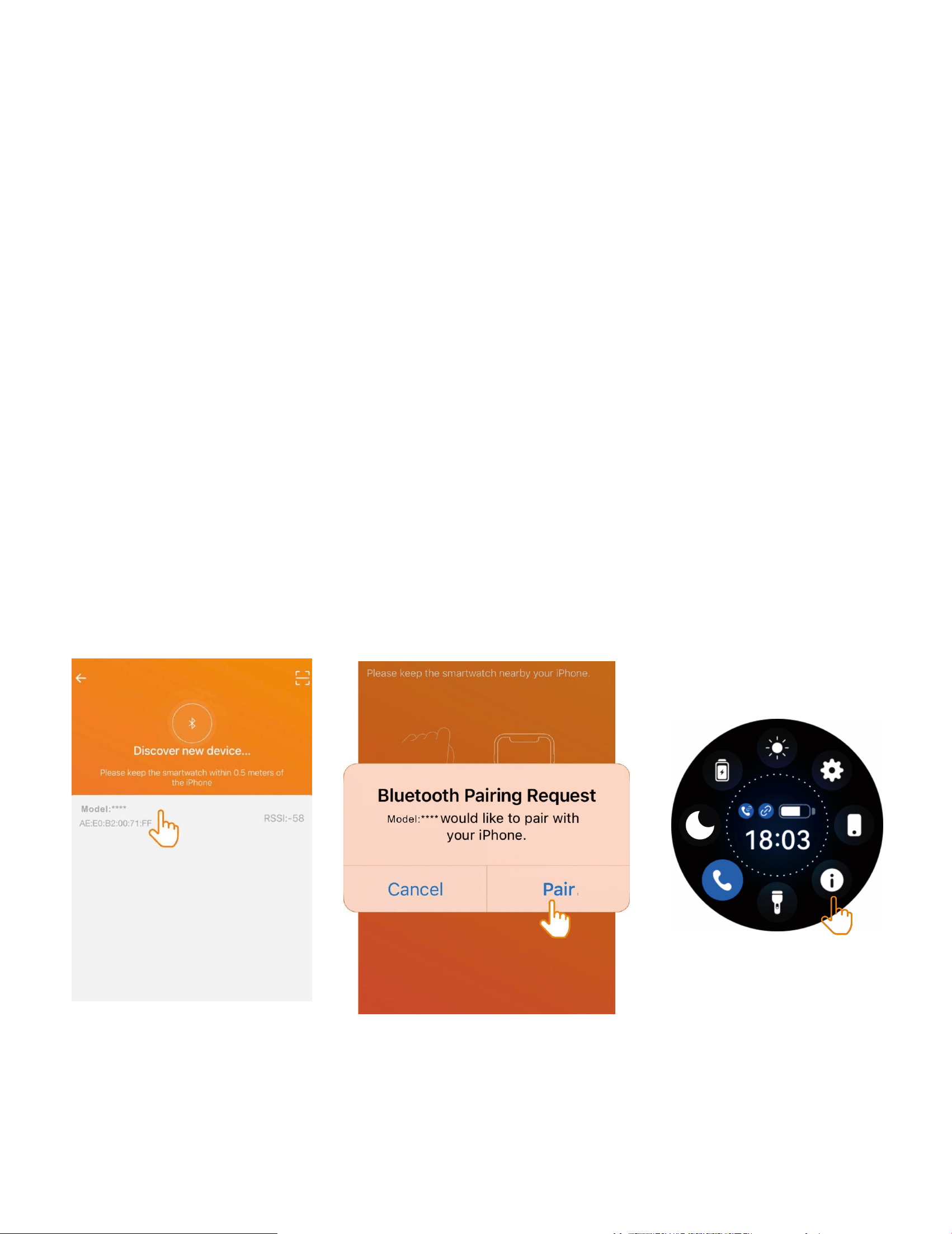
Procedura per la connessione wireless
Connettersi al wireless: Apri l'APP, per favore attiva la funzione
wireless del telefono e dell'orologio. Durante la ricerca del wireless,
puoi utilizzare il nome del wireless o l'indirizzo MAC dell'orologio.
Assicurati che l'orologio non sia collegato ad altri account e che
l'orologio e il telefono siano il più vicini possibile. Prima di usare il
wireless per effettuare una chiamata, assicurati che l'icona della
chiamata nella schermata di controllo dell'orologio sia attiva, in
modo da poter cercare normalmente il wireless dell'orologio. Apri
l'interfaccia Informazioni sotto il menu Impostazioni Orologio.
Dopo che il collegamento dell'orologio è riuscito, l'orologio si
connetterà automaticamente al telefono ogni volta che apri il
client. Puoi sincronizzare i dati trascinando verso il basso nella
pagina dei dati del client.
25
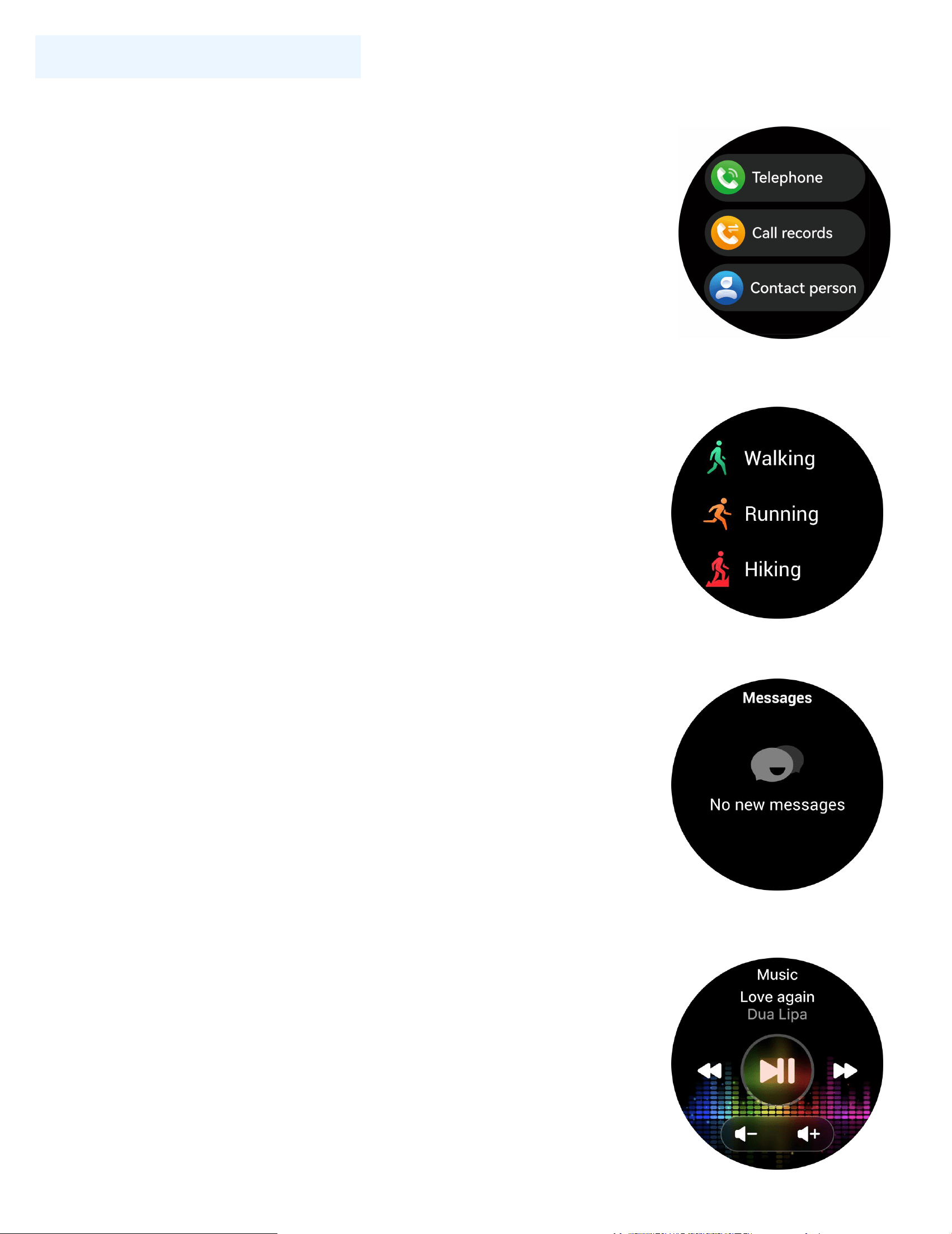
Chiamata wireless
Dopo aver collegato lo Smart Watch al telefono, puoi usare
l'orologio per comporre e controllare il telefono
per effettuare e rispondere alle chiamate. Puoi
anche visualizzare la cronologia delle chiamate
sull'orologio. Devi mantenere stabile la
connessione tra l'orologio e il telefono durante
l'uso della funzione Chiamata.
Sport
Lo Smart Watch traccia automaticamente i
passi effettuati sullo schermo.
NOTA: Le statistiche dei tuoi movimenti
vengono azzerate a mezzanotte.
Promemoria Messaggi
Il dispositivo può sincronizzare le notifiche in
arrivo da software social, ecc. Nota: puoi
attivare/disattivare le notifiche in arrivo
nell'APP.
Controllo della Musica
Dopo aver collegato il dispositivo, puoi
controllare a distanza il lettore musicale sul tuo
telefono.
26
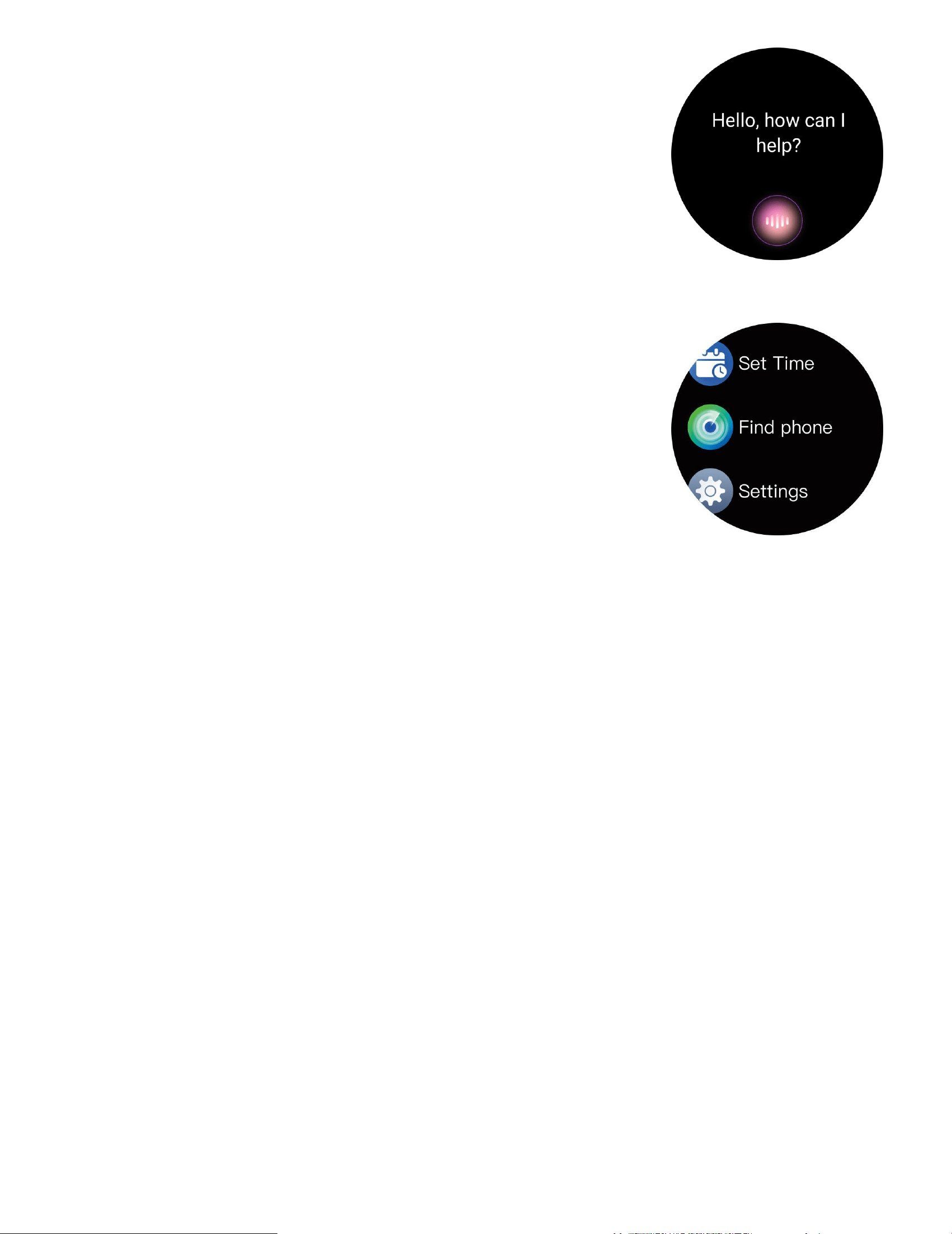
Voce AI
In stato di connessione wireless, l'orologio può
attivare l'assistente vocale sul telefono.
Altre caratteristiche
Altre funzioni includono cronometro, sveglia,
timer, luminosità, silenzioso on/off, modalità
cinema, ripristino dati di fabbrica, spegnimento
e informazioni.
Suggerimenti chiave per la sicurezza
a. Non esporre l'orologio a temperature estremamente elevate,
come la luce diretta del sole o vicino a apparecchi ad alta
temperatura come riscaldatori, forni e microonde. Oppure uno
scaldabagno. Ambienti ad alta temperatura possono causare
esplosioni della batteria o altri incidenti di sicurezza.
b. Questa app non è un dispositivo medico. I dati ottenuti durante
l'uso di questa app sono solo a scopo di riferimento e non devono
essere utilizzati per diagnosi cliniche, ricerche mediche, diagnosi o
scopi di trattamento.
27
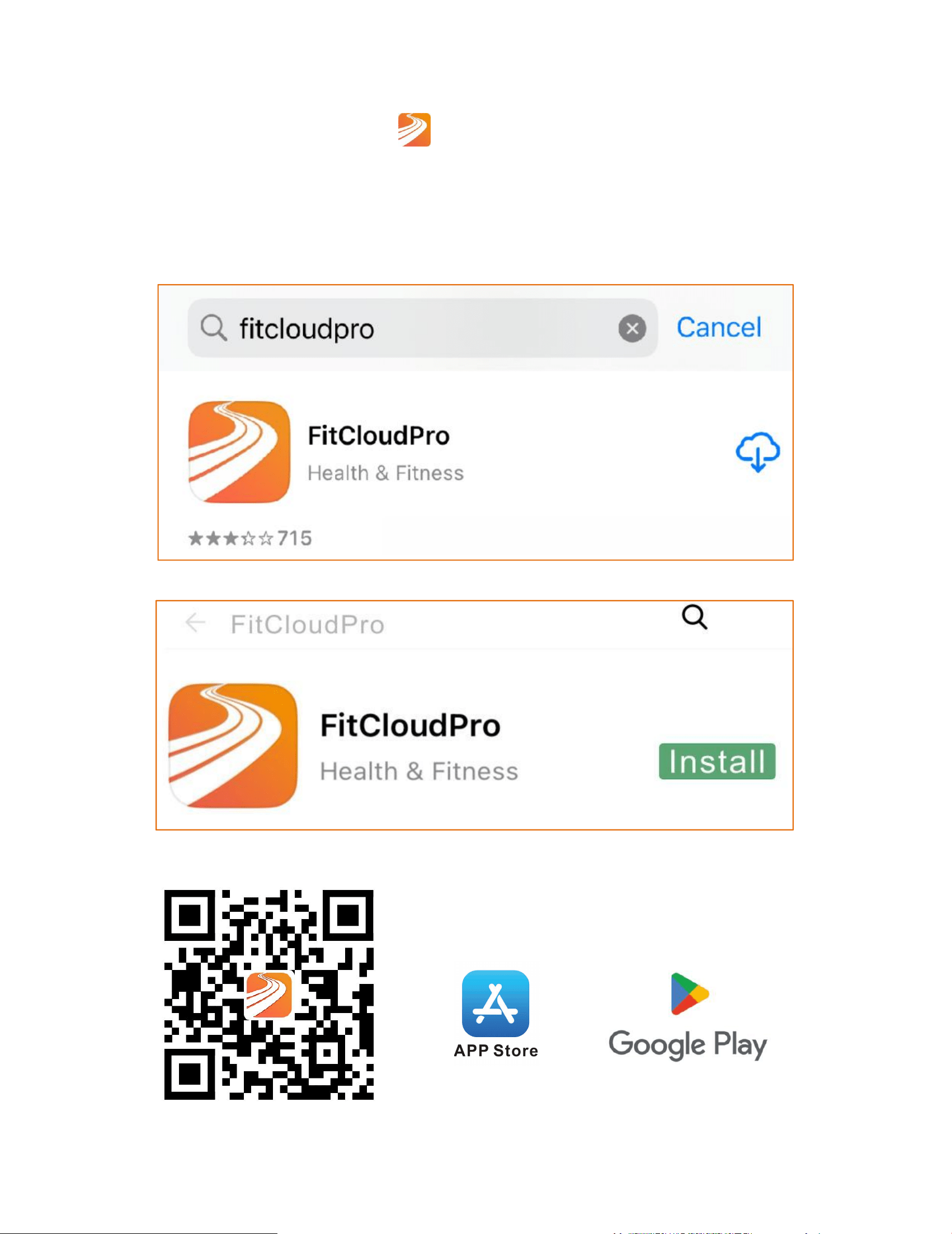
Descargar la aplicación
①Descarga la aplicación"
FitCloudPro" desde la App Store o
Google Play.
②Escanea el código QR para descargar.
28
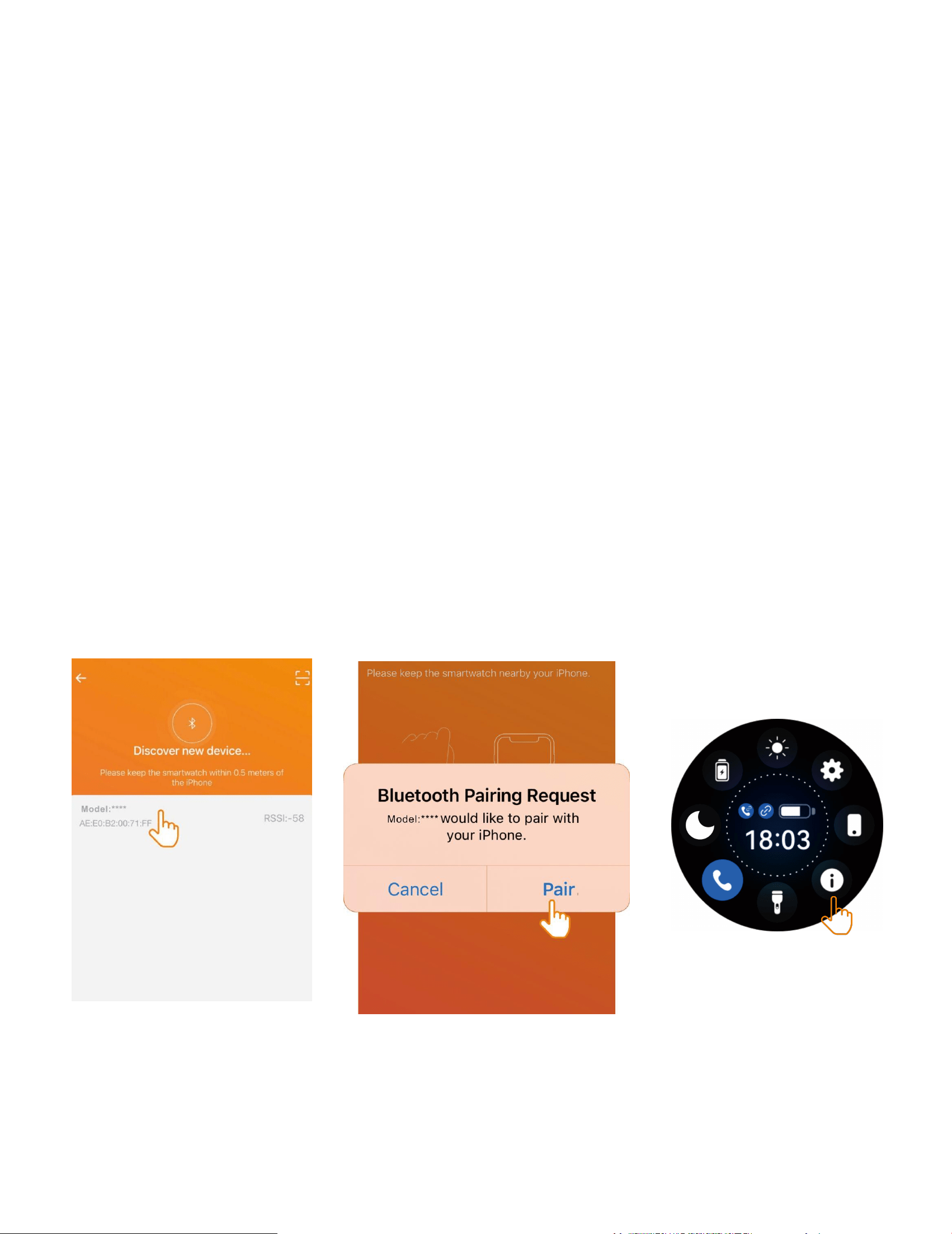
Procedimiento para la conexión inalámbrica
Conectar al inalámbrico: Abre la APP, por favor enciende la función
inalámbrica del teléfono y del reloj. Al buscar conexiones
inalámbricas, puedes usar el nombre inalámbrico o la dirección
MAC del reloj. Asegúrate de que el reloj no esté vinculado a otras
cuentas y de que el reloj y el teléfono estén lo más cerca posible.
Antes de usar la función inalámbrica para hacer una llamada,
asegúrate de que el ícono de llamada en la pantalla de control del
reloj esté activado, para que puedas buscar la conexión
inalámbrica del reloj normalmente. Abre la interfaz Acerca de en el
menú de Configuración del Reloj. Después de que la vinculación
del reloj sea exitosa, el reloj se conectará automáticamente con el
teléfono móvil cada vez que abras la aplicación. Puedes sincronizar
los datos deslizando hacia abajo en la página de datos de la
aplicación.
29
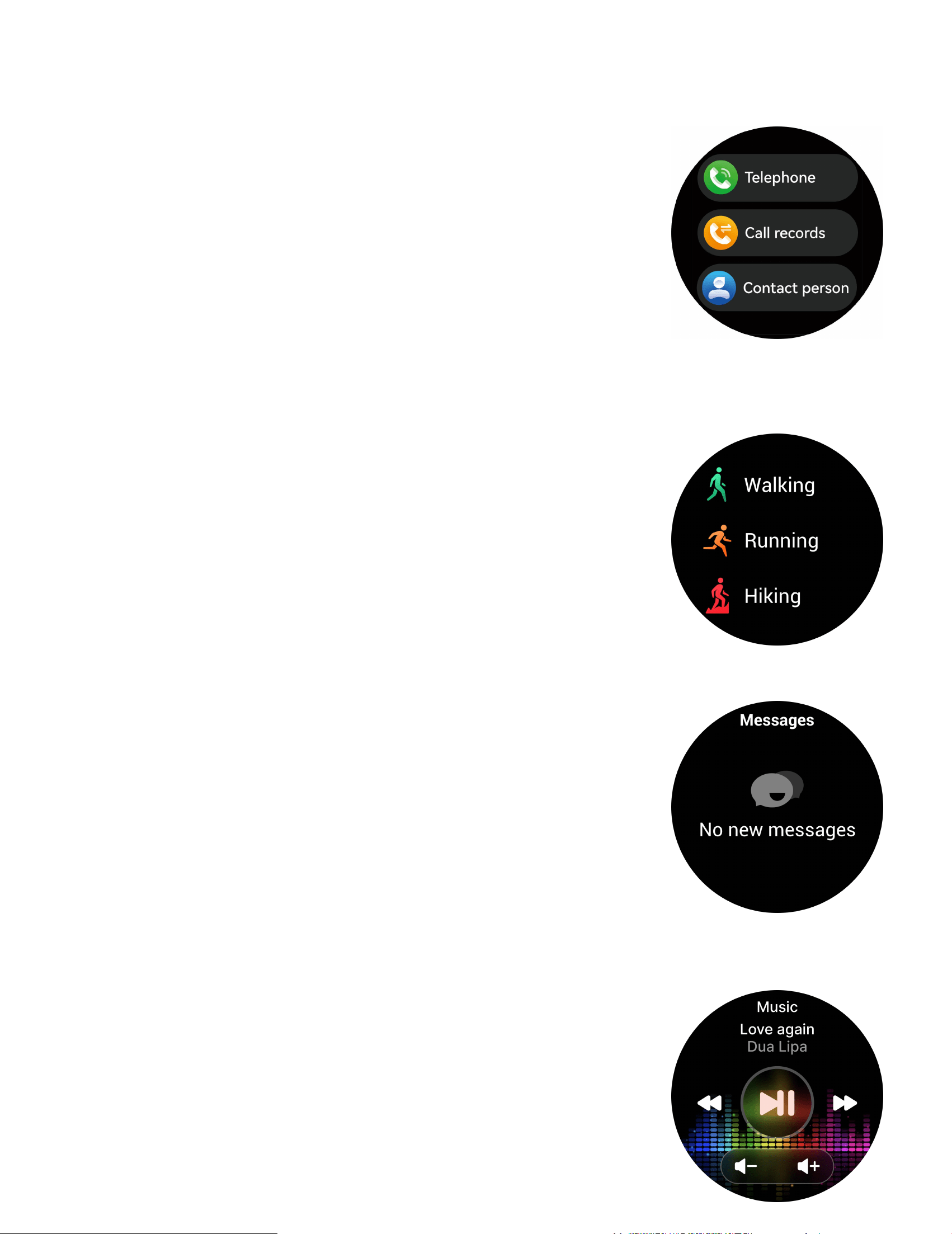
Llamadas inalámbricas
Después de conectar el Reloj Inteligente al teléfono, puedes usar
el reloj para marcar y controlar el teléfono para
realizar y contestar llamadas. También puedes
ver el historial de llamadas del reloj. Debes
mantener la conexión entre el reloj y el
teléfono estable al usar la función de Llamadas.
Deportes
El reloj inteligente registra automáticamente
los pasos mostrados en la pantalla.
NOTA: Tus estadísticas de movimiento se
reinician a cero a medianoche.
Recordatorio de mensajes
El dispositivo puede sincronizar las
notificaciones entrantes de software social,
etc.
Nota: Puedes activar o desactivar las
notificaciones entrantes en la aplicación.
Control de música
Después de conectar el dispositivo, puedes
controlar a distancia el reproductor de música
en tu teléfono.
30
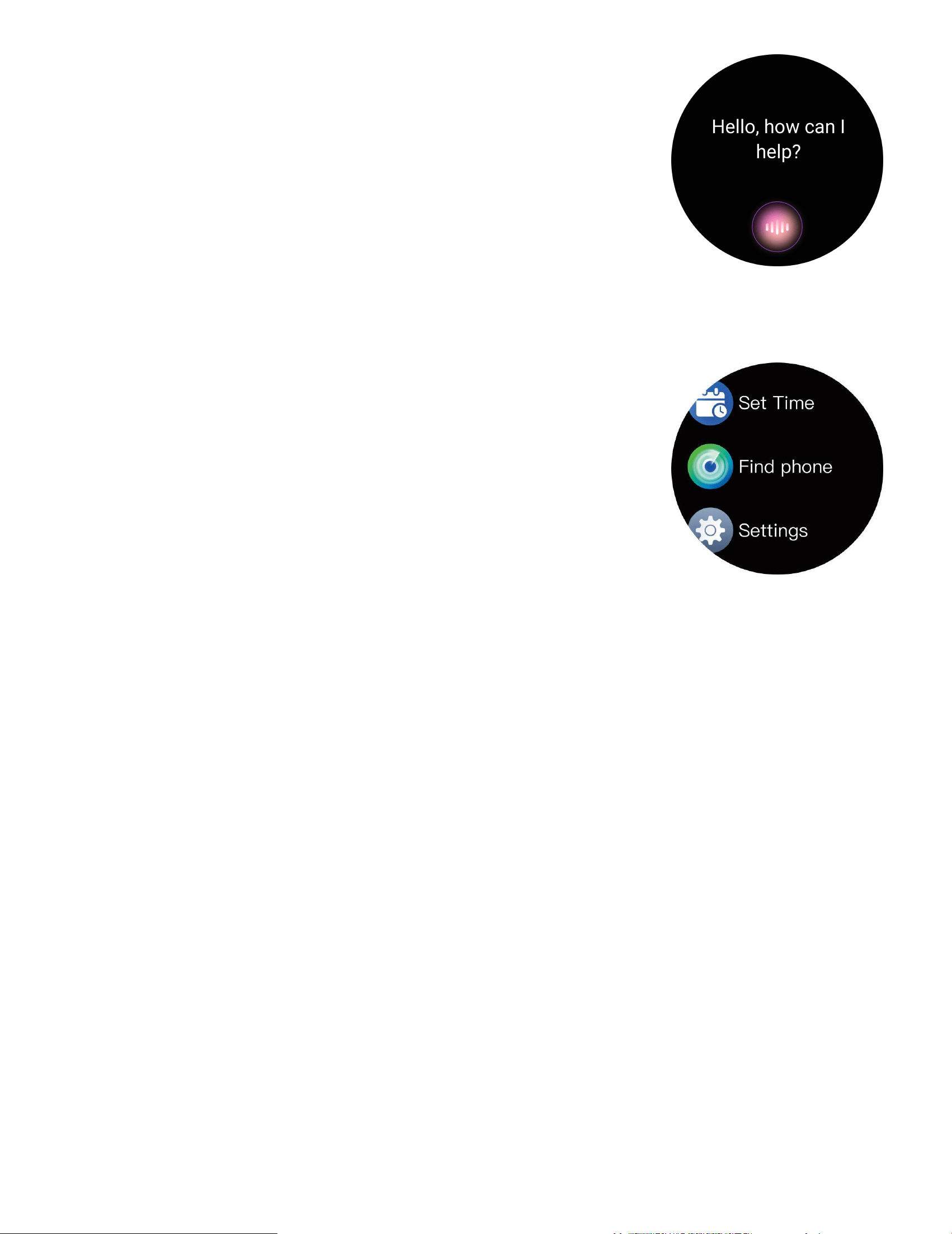
Voz de IA
En el estado de conexión inalámbrica, el reloj
puede activar el asistente de voz en el
teléfono.
Otras características
Otras funciones incluyen cronómetro, alarma,
temporizador, ajuste de brillo,
activación/desactivación de silencio, modo
teatro, restablecimiento de fábrica, apagado y
acerca de
Consejos clave de seguridad
a. No exponga el reloj a ambientes con temperaturas
extremadamente altas, como la luz solar directa o cerca de
equipos de alta temperatura como calefactores, hornos y
microondas, o un calentador de agua. Los ambientes de alta
temperatura pueden causar explosiones de la batería u otros
accidentes de seguridad.
b. Esta aplicación no es un dispositivo médico. Los datos obtenidos
durante el uso de esta aplicación son solo para referencia y no
deben utilizarse para diagnóstico clínico, investigación médica,
diagnóstico o fines de tratamiento.
31
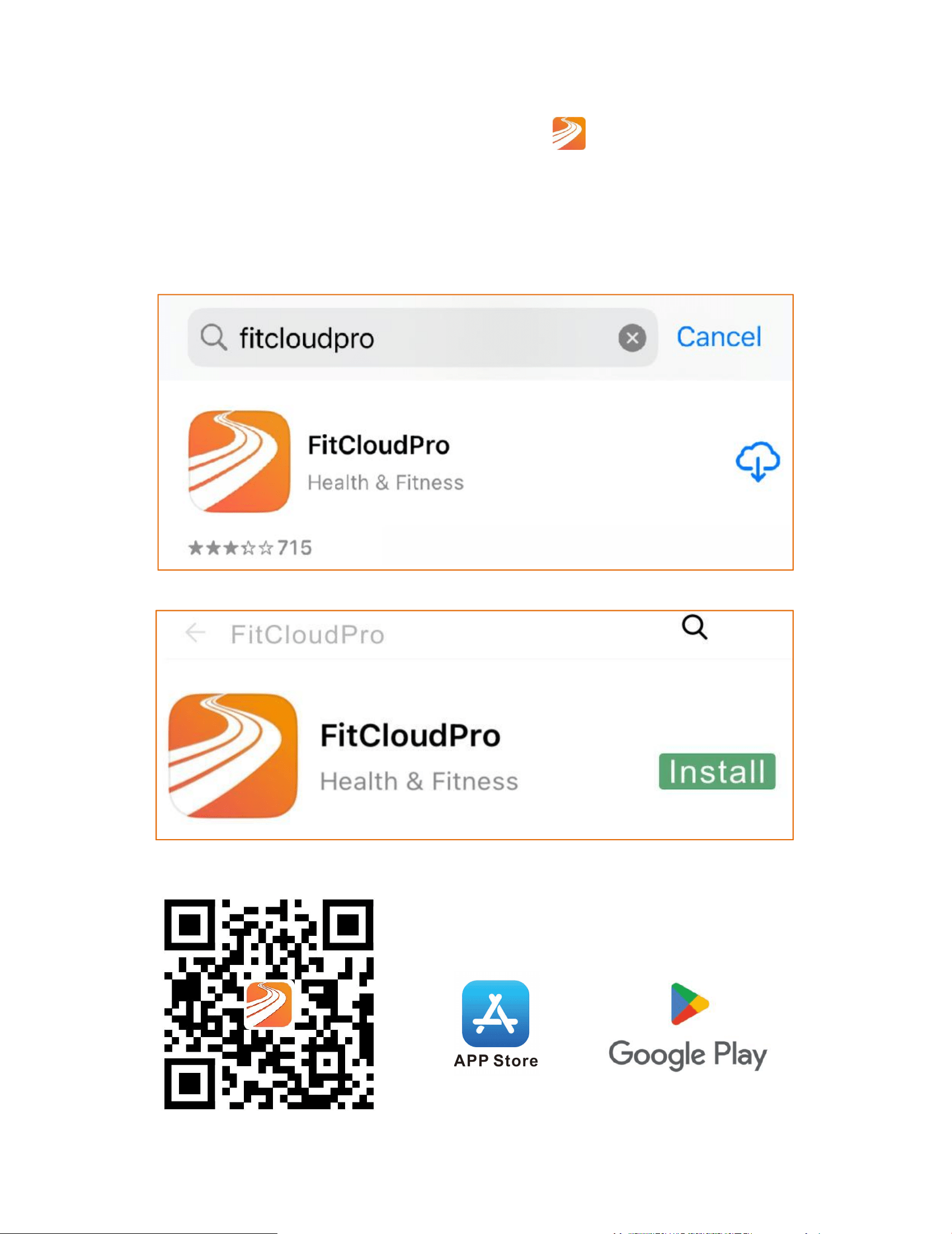
アプリをダウンロード
①App Store または Google Play から
「 FitCloudPro」アプ
リをダウンロードしてください。
②
ダウンロードするには QR コードをスキャンしてください。
32
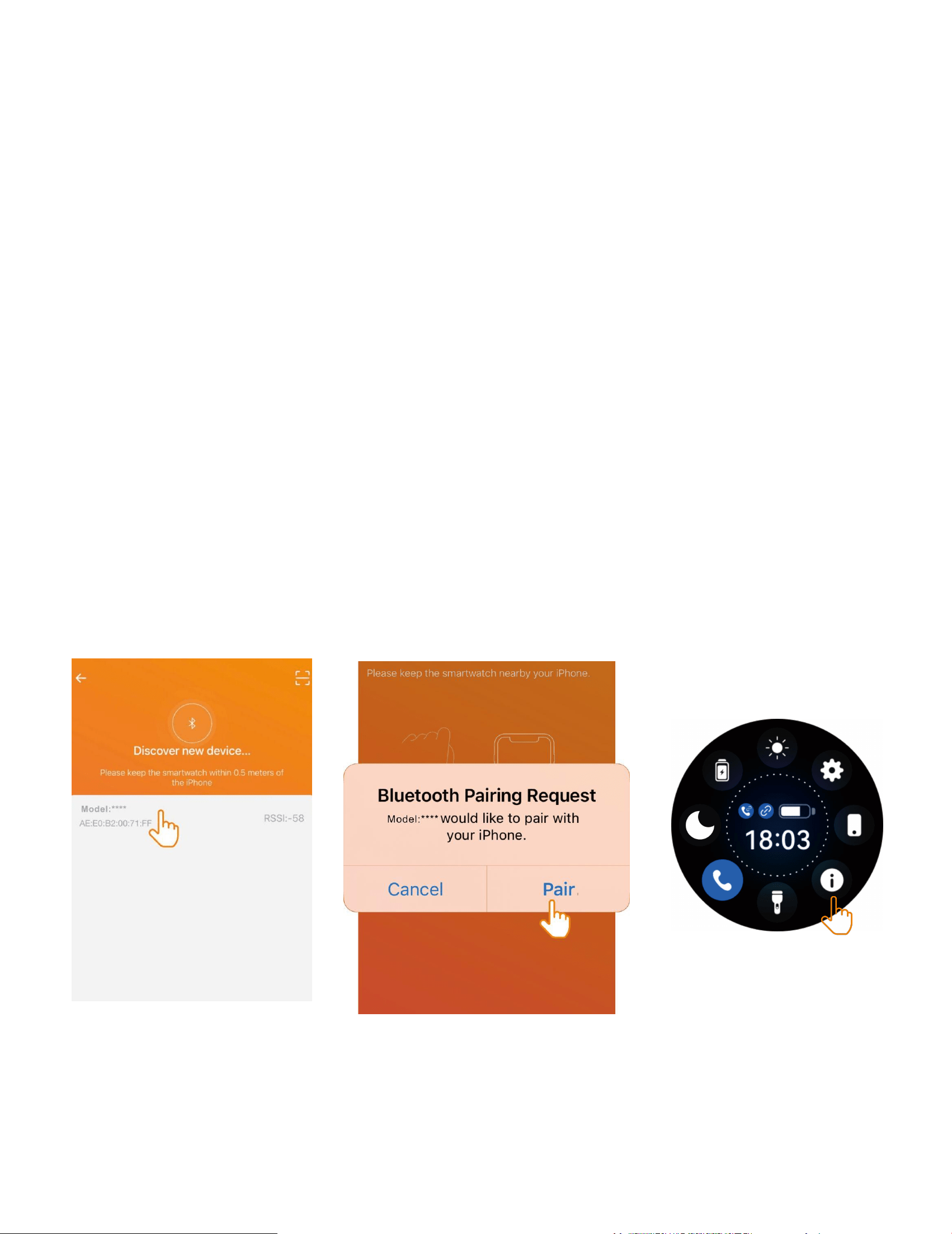
ワイヤレス接続の手順
ワイヤレスに接続する: アプリを開き、スマートフォンと時
計のワイヤレス機能をオンにしてください。ワイヤレスを検
索する際には、時計のワイヤレス名または MAC アドレスを使
用できます。時計が他のアカウントに紐付けられていないこ
と、時計とスマートフォンができるだけ近くにあることを確
認してください。ワイヤレスで通話を行う前に、時計のコン
トロール画面で通話アイコンがオンになっていることを確認
し、時計のワイヤレスを正常に検索できるようにしてくださ
い。時計設定メニューの「情報」画面を開きます。時計のバ
インディングが成功すると、クライアントを開くたびに時計
は自動的にスマートフォンと接続されます。クライアントの
データページで下にスワイプすることでデータを同期できま
す.
33
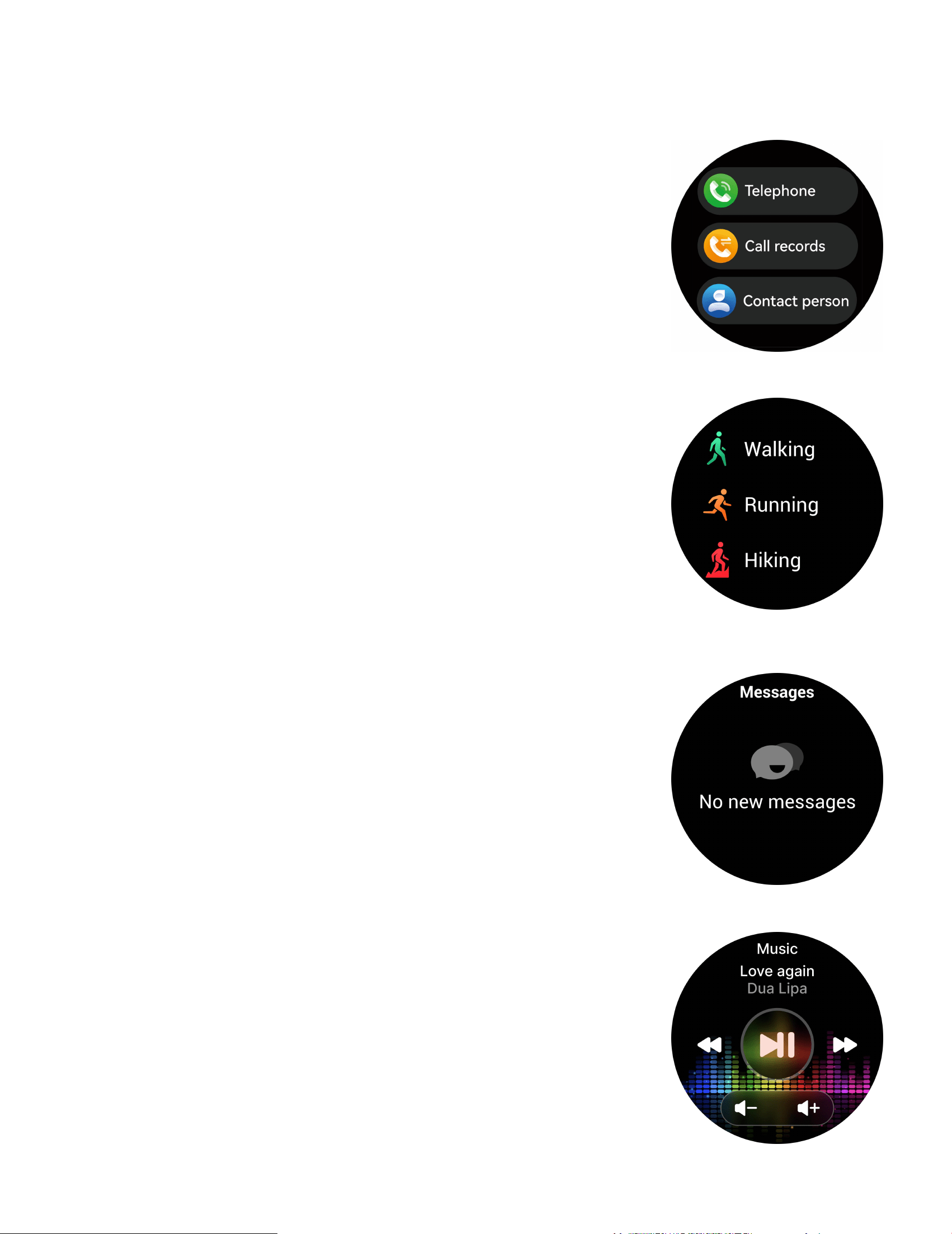
無線通話
スマートウォッチを電話に接続すると、ウォッチを使って電
話をかけたり、着信に応答したりすること
ができます。また、ウォッチの通話履歴を
確認することも可能です。電話機能を使用
する際は、ウォッチと電話の接続を安定さ
せておく必要があります.
スポーツ
スマートウォッチは画面上で自動的に歩数
を記録します。
注意:あなたの運動データは午前 0 時にリ
セットされます.
メッセージのリマインダー
このデバイスは、ソーシャルソフトなどか
らの通知を同期することができます。
注意:受信通知はアプリでオン/オフを切り
替えることができます.
音楽コントロール
デバイスを接続した後、スマートフォンで
音楽プレーヤーをリモート操作できます.
34
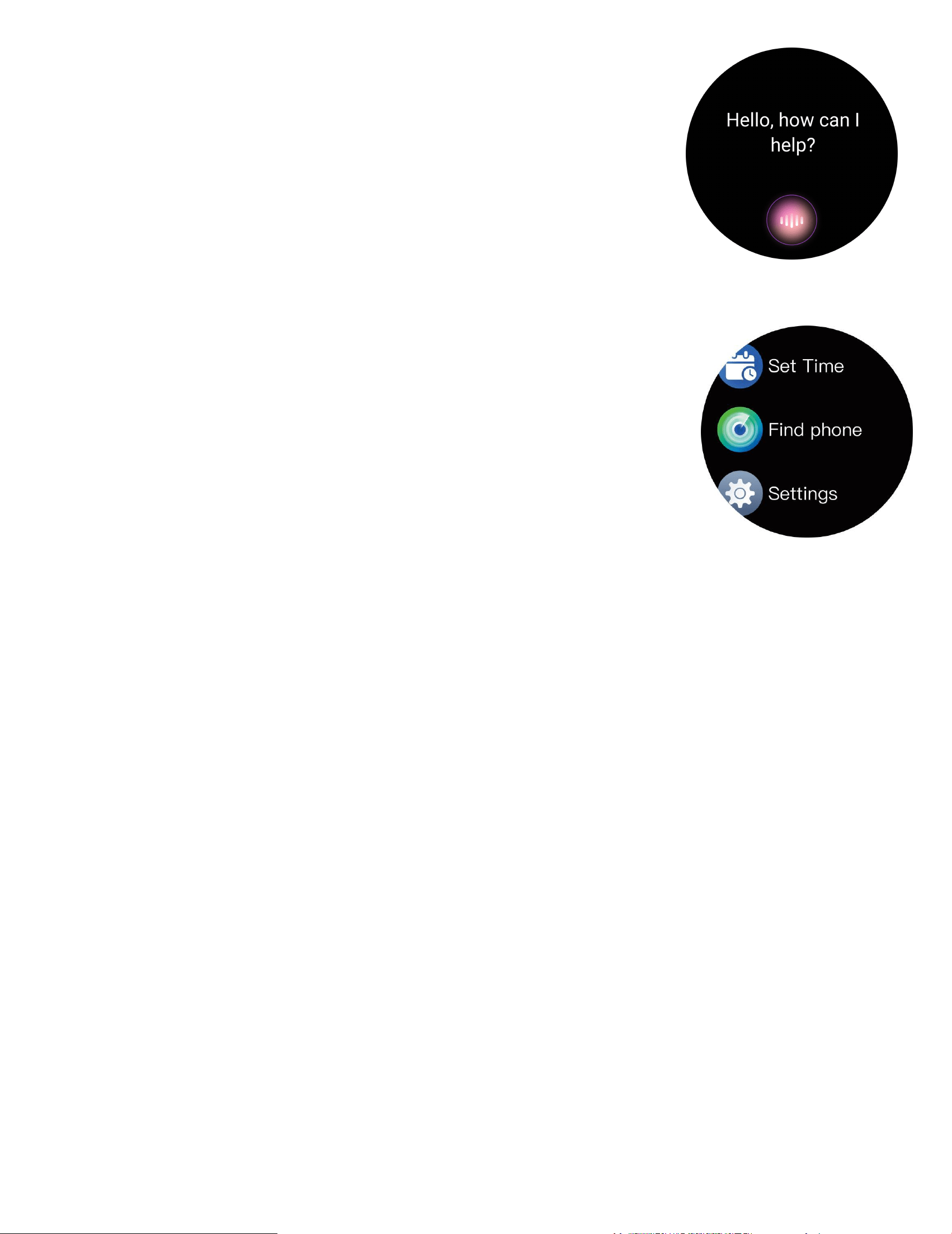
AI 音声
ワイヤレス接続の状態では、時計から電話の
音声アシスタントを起動できます.
その他の機能
その他の機能には、ストップウォッチ、アラ
ーム、タイマー、明るさの調整、ミュートの
オン/オフ、シアターモード、工場出荷時リセ
ット、電源オフ、情報があります.
重要な安全のヒント
a. 時計を極端に高温の環境にさらさないでください。例えば、
直射日光の下や、ヒーター、オーブン、電子レンジなどの高
温機器の近く、または給湯器の近くです。高温の環境は、バ
ッテリーの爆発やその他の安全事故の原因となる可能性があ
ります.
c.このアプリは医療機器ではありません。このアプリの使用
中に得られるデータは参考用であり、臨床診断、医療研究、
診断、治療の目的で使用すべきではありません.
35
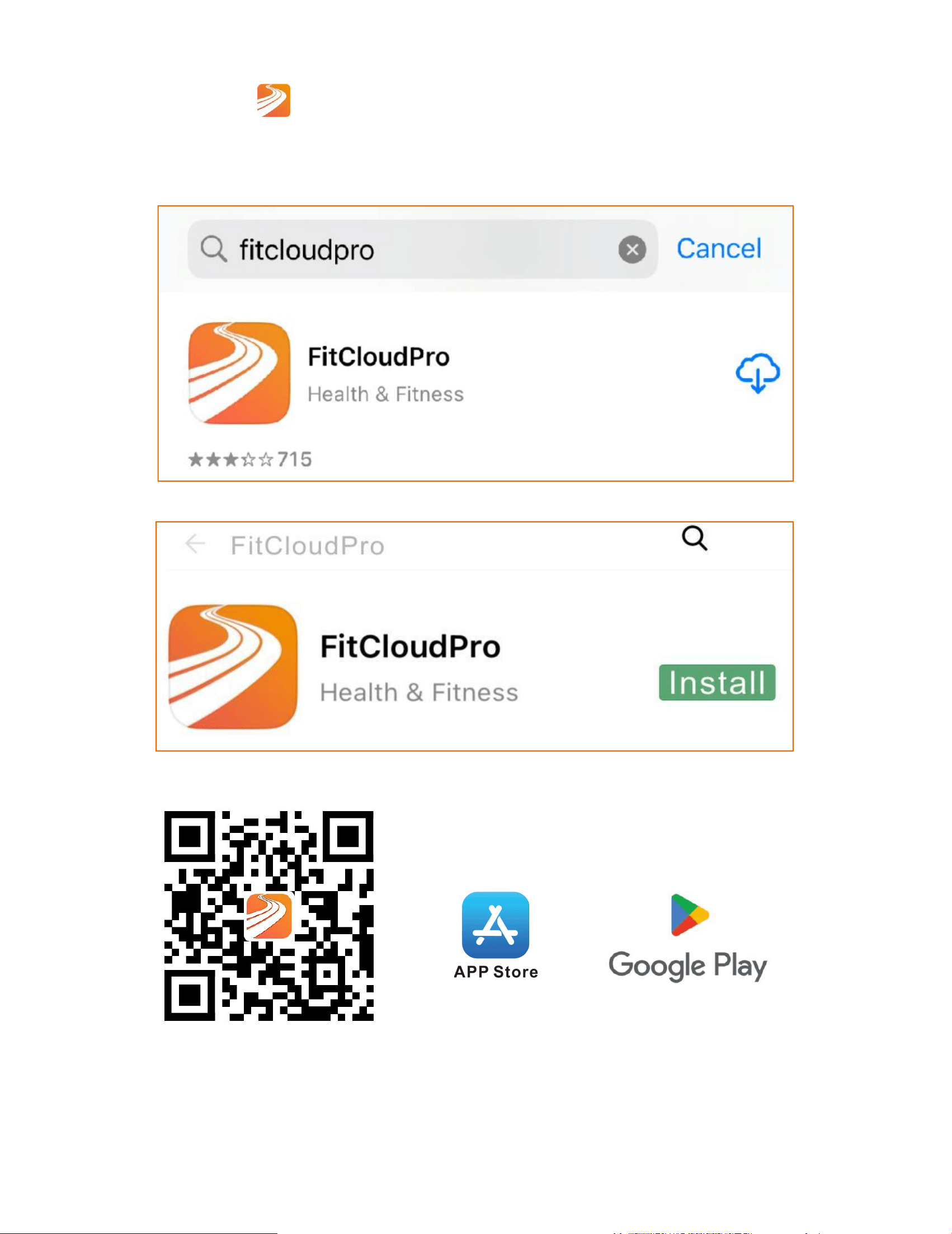
Descarregar Aplicação
①Descarregaro
"
FitCloudPro" na App Store ou na Google Play.
②Digitalize o código QR para descarregar.
36
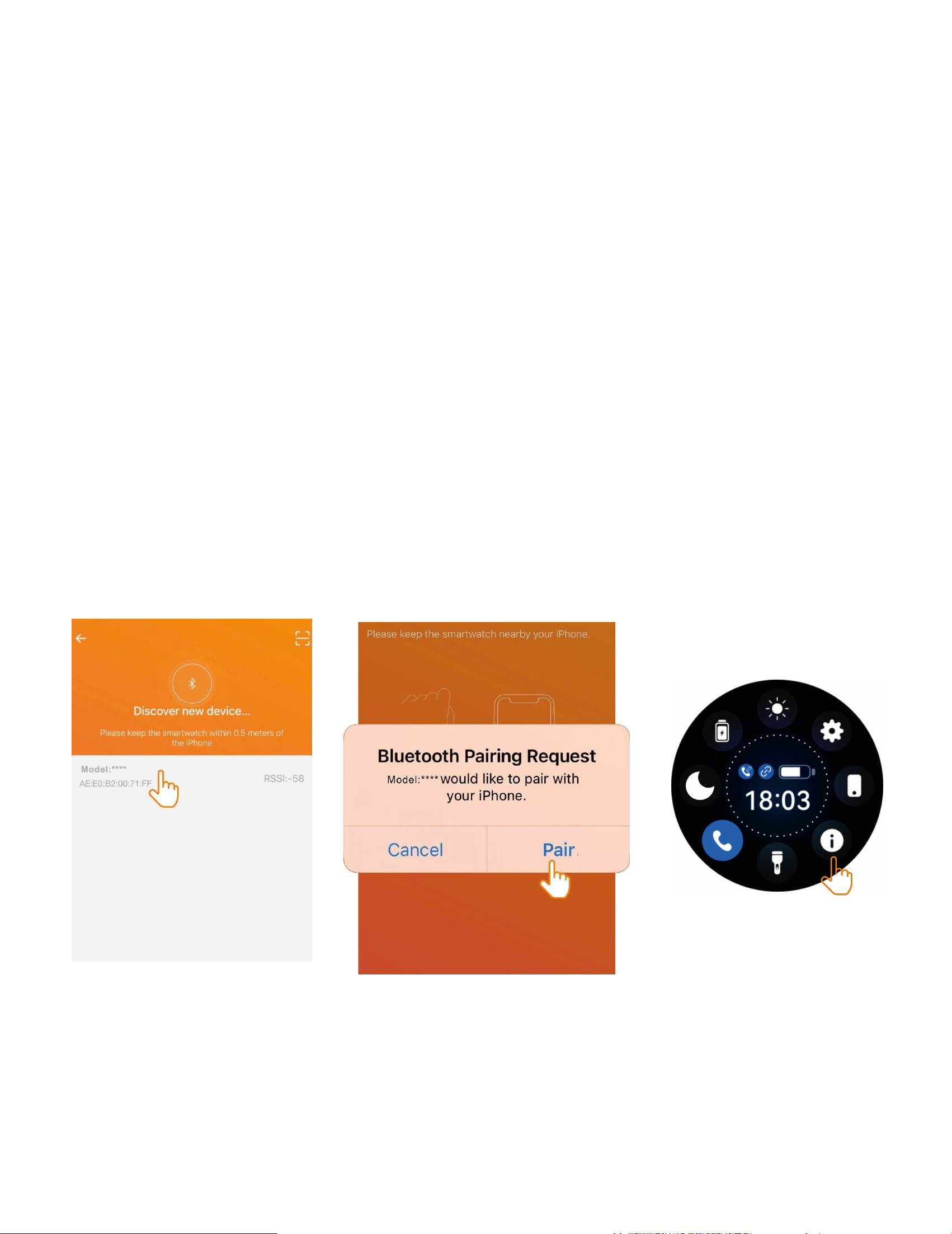
Procedimento para ligação sem fios
Ligar ao wireless: Abra a APP, por favor ative a função wireless do
telemóvel e do relógio. Ao procurar o wireless, pode usar o nome
do wireless ou o endereço MAC do relógio. Certifique-se de que o
relógio não está ligado a outras contas, e que o relógio e o
telemóvel estão o mais próximos possível. Antes de usar o wireless
para fazer uma chamada, assegure-se de que o ícone de chamada
no ecrã de controlo do relógio está ativado, para que possa
procurar o wireless do relógio normalmente. Abra a interface
'Sobre' no menu de Definições do Relógio. Após a ligação do
relógio ser bem-sucedida, o relógio irá ligar-se automaticamente
ao telemóvel sempre que abrir a aplicação. Pode sincronizar dados
ao deslizar para baixo na página de dados da aplicação.
37
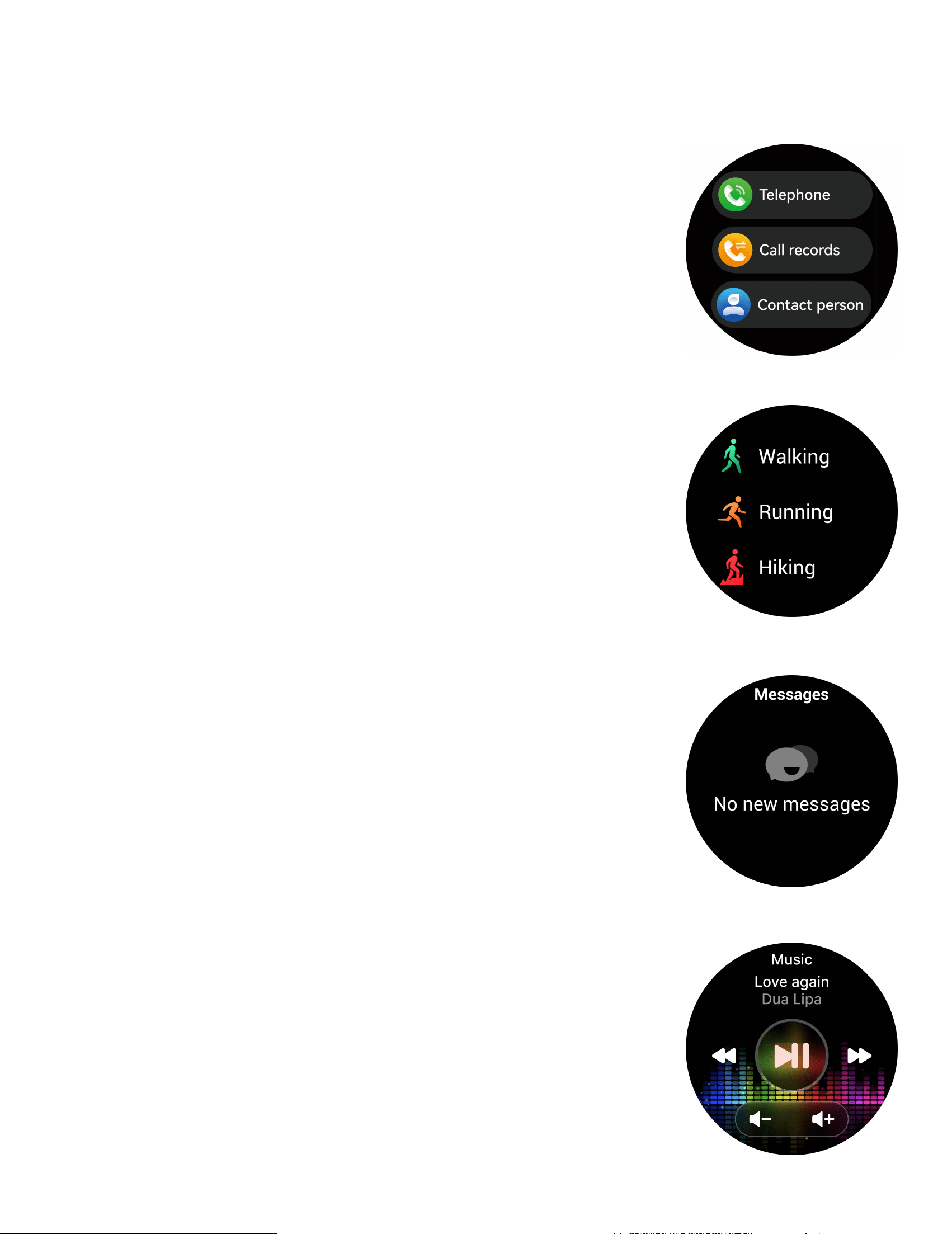
Chamada sem fios
Depois de conectar o Smart Watch ao telefone, pode usar o
relógio para efetuar chamadas e controlar o
telefone para fazer e atender chamadas.
Também pode ver o histórico de chamadas no
relógio. É necessário manter a ligação entre o
relógio e o telefone estável ao utilizar a função
de chamadas.
Desporto
Smart Watch acompanha automaticamente os
passos dados no ecrã.
NOTA: As suas estatísticas de movimento são
redefinidas para zero à meia-noite.
Lembrete de Mensagens
dispositivo pode sincronizar notificações
recebidas de aplicações sociais, etc.
Nota: Pode ativar/desativar as notificações
recebidas na APP.
Controlo de Música
Após ligar o dispositivo, pode controlar
remotamente o leitor de música no seu
telefone.
38
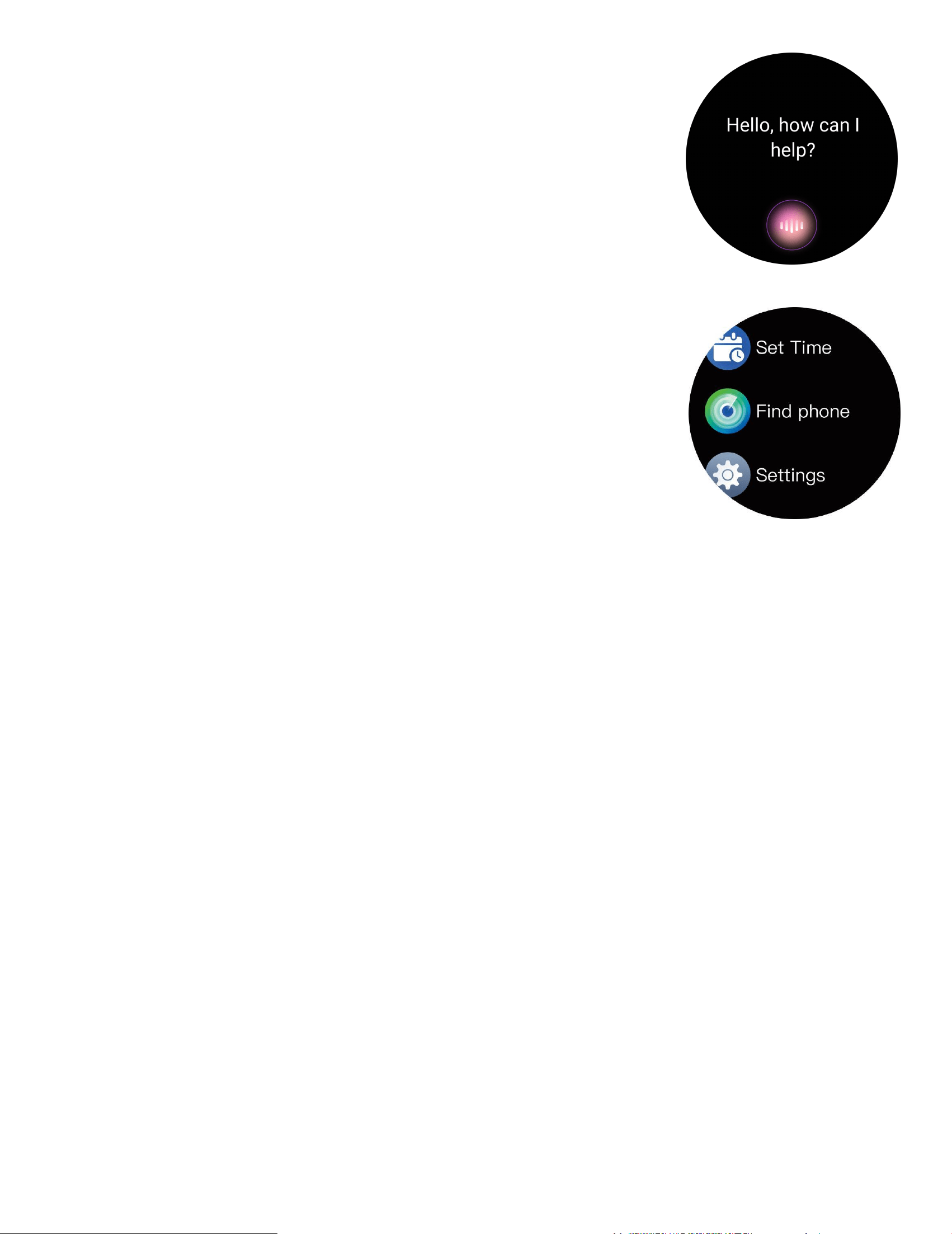
Voz de IA
No estado de ligação sem fios, o relógio pode
despertar o assistente de voz no telemóvel.
Other Features
Outras funcionalidades incluem cronómetro,
alarme, temporizador, brilho, silenciar
ligar/desligar, modo teatro, redefinição de
fábrica, desligar e sobre.
Principais dicas de segurança
a. Não exponha o relógio a ambientes de temperatura
extremamente elevada, como luz solar direta ou perto de
equipamentos de alta temperatura, como aquecedores, fornos e
micro-ondas. Ou um aquecedor de água. Ambientes de alta
temperatura podem causar explosões da bateria ou outros
acidentes de segurança.
b. Esta aplicação não é um dispositivo médico. Os dados obtidos
durante a utilização desta aplicação são apenas para referência e
não devem ser utilizados para diagnóstico clínico, investigação
médica, diagnóstico ou fins de tratamento.
39
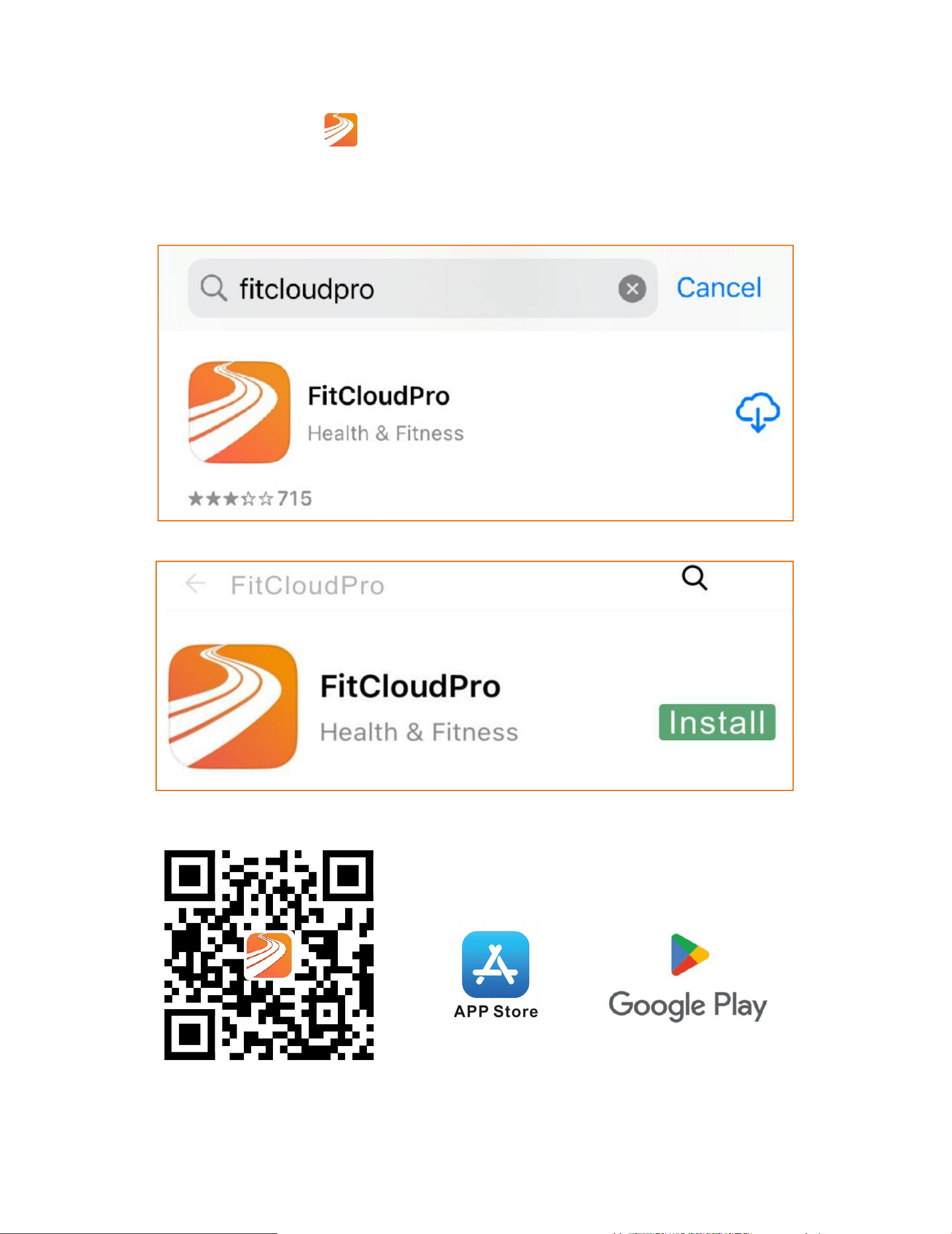
Pobierz aplikację
①Pobierz aplikację "
FitCloudPro" z App Store lub Google Play.
②
Zeskanuj kod QR, aby pobrać.
40
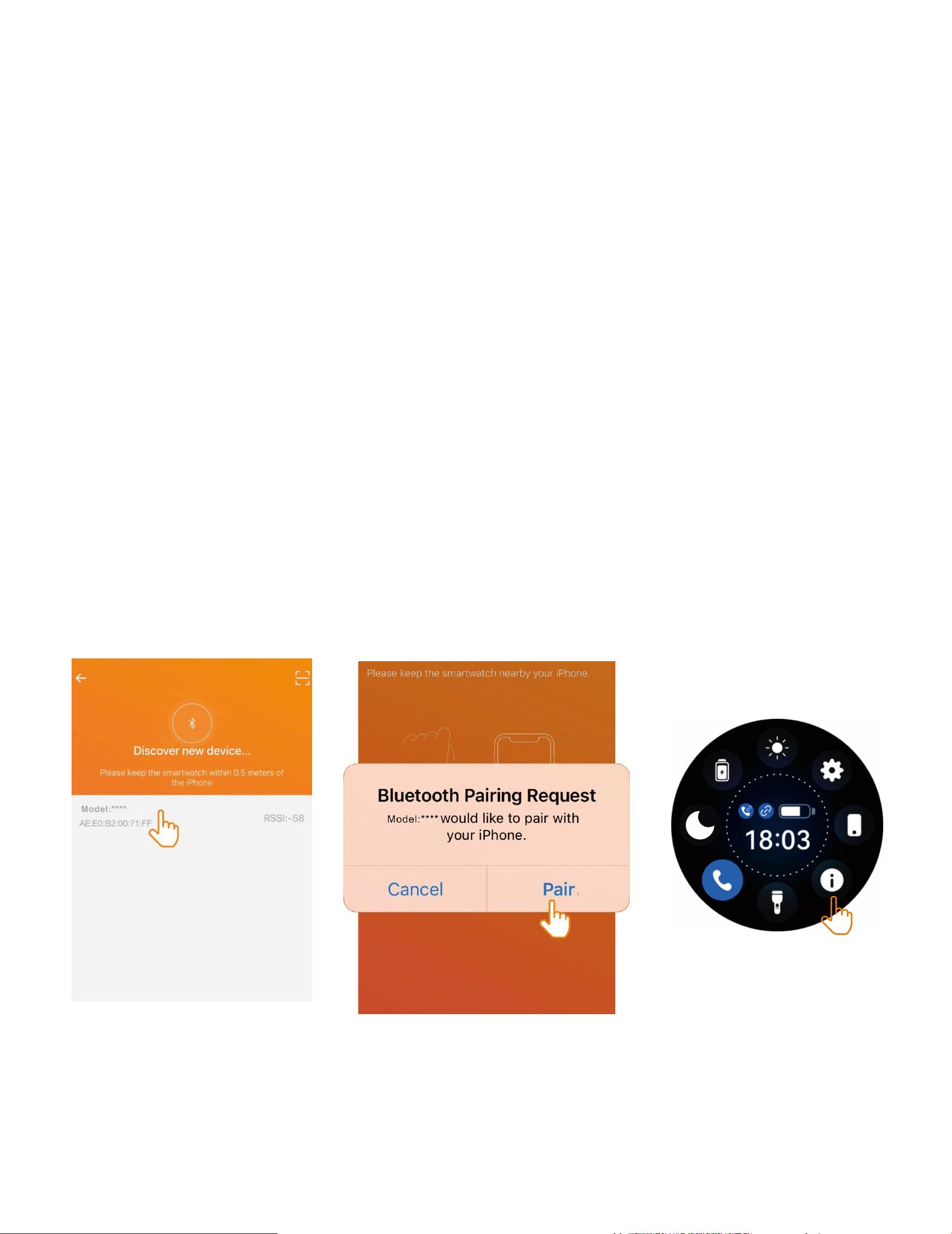
Procedura połączenia bezprzewodowego
Połączenie z siecią bezprzewodową: Otwórz aplikację, włącz
funkcję bezprzewodową w telefonie i zegarku. Podczas
wyszukiwania sieci bezprzewodowej możesz użyć nazwy sieci lub
adresu MAC zegarka. Upewnij się, że zegarek nie jest powiązany z
innymi kontami, a zegarek i telefon znajdują się możliwie najbliżej
siebie. Przed nawiązaniem połączenia bezprzewodowego upewnij
się, że ikona połączenia w ekranie sterowania zegarka jest
włączona, aby można było normalnie wyszukać sieć
bezprzewodową zegarka. Otwórz interfejs „O zegarku” w menu
ustawień zegarka. Po pomyślnym powiązaniu zegarka, zegarek
automatycznie połączy się z telefonem za każdym razem, gdy
otworzysz klienta. Dane możesz synchronizować przeciągając w
dół na stronie danych klienta.
41
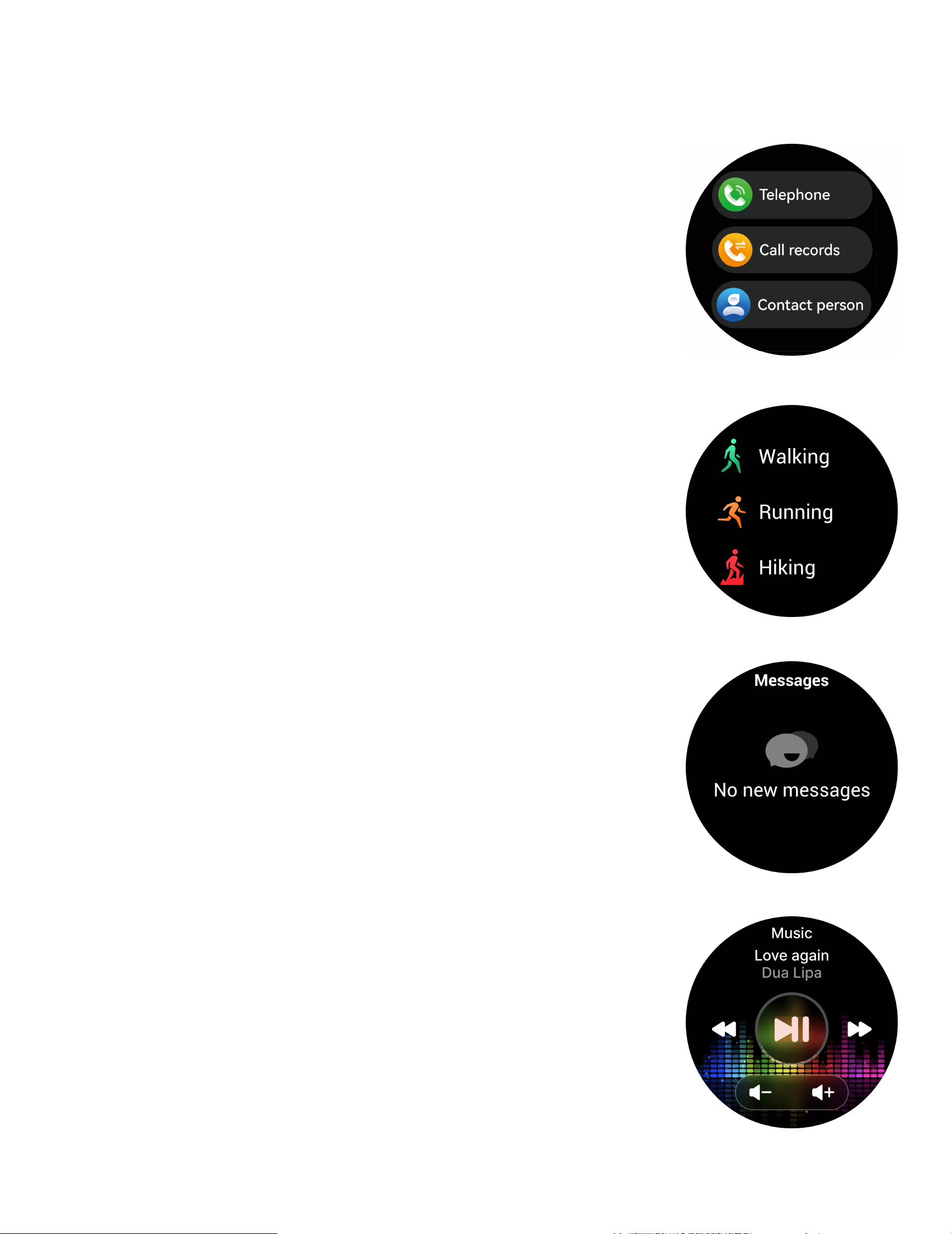
Bezprzewodowe połączenia
Po podłączeniu Smart Watch do telefonu, możesz używać zegarka
do wybierania numerów w celu kontrolowania
telefonu przy wykonywaniu i odbieraniu
połączeń. Możesz również przeglądać historię
połączeń na zegarku. Podczas korzystania z
funkcji rozmów telefonicznych należy utrzymać
stabilne połączenie między zegarkiem a
telefonem.
Sport
Smartwatch automatycznie śledzi liczbę
wykonanych kroków na ekranie.
UWAGA: Statystyki Twojej aktywności resetują
się do zera o północy.
Przypomnienie o wiadomościach
Urządzenie może synchronizować przychodzące
powiadomienia z oprogramowania
społecznościowego itp. Uwaga: Możesz włączyć
lub wyłączyć przychodzące powiadomienia w
aplikacji.
Kontrola muzyki
Po podłączeniu urządzenia możesz zdalnie
sterować odtwarzaczem muzyki na swoim
telefonie.
42
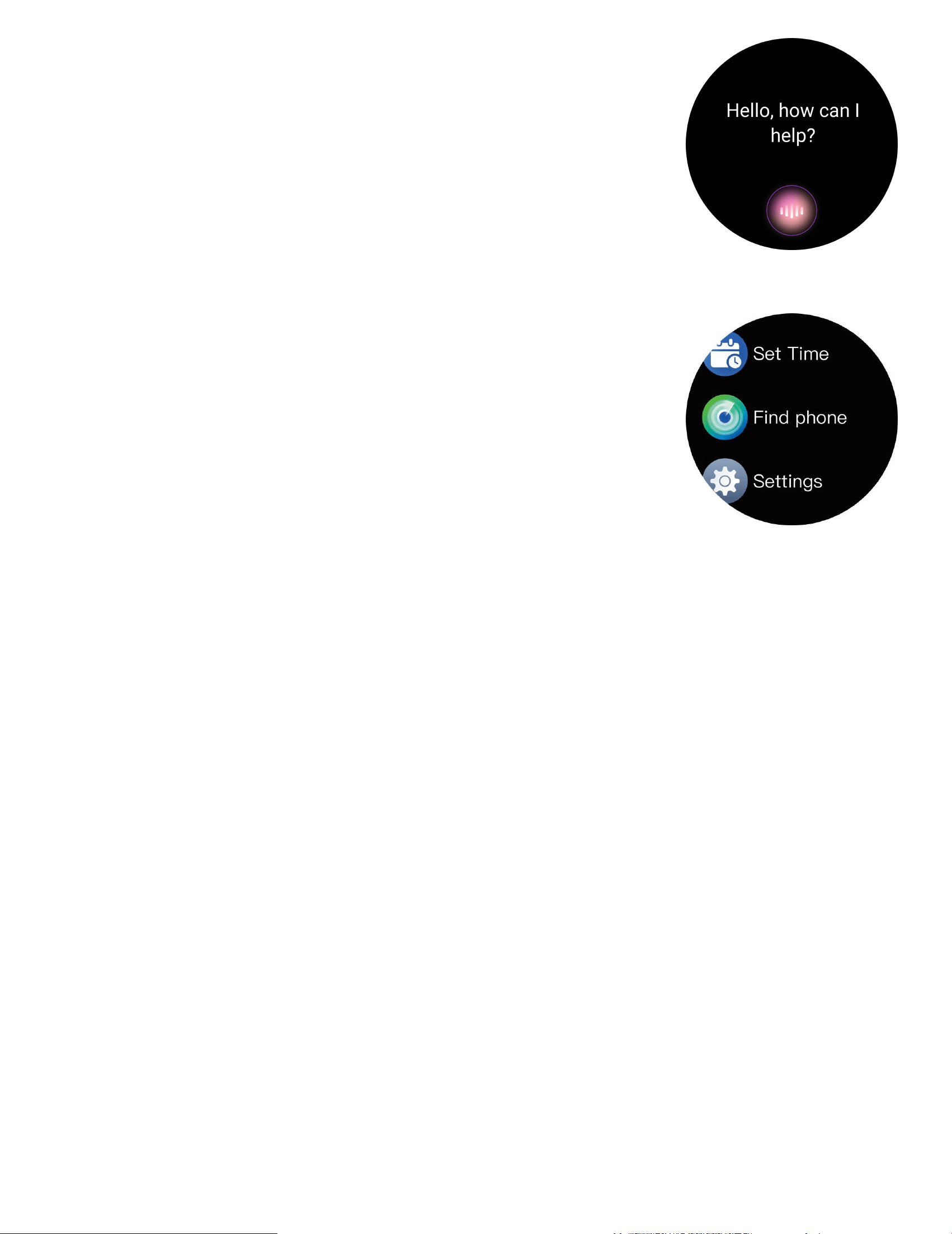
Głos AI
W stanie połączenia bezprzewodowego zegarek
może wybudzać asystenta głosowego w
telefonie.
Inne funkcje
Inne funkcje obejmują stoper, alarm, minutnik,
regulację jasności, wyciszenie włącz/wyłącz, tryb
kinowy, resetowanie do ustawień fabrycznych,
wyłączenie oraz informacje o urządzeniu.
Najważniejsze wskazówki dotyczące bezpieczeństwa
a. Nie narażaj zegarka na ekstremalnie wysokie temperatury, takie
jak bezpośrednie działanie światła słonecznego lub bliskość
urządzeń o wysokiej temperaturze, takich jak grzejniki, piekarniki,
mikrofalówki czy podgrzewacze wody. Środowiska o wysokiej
temperaturze mogą powodować wybuchy baterii lub inne
zagrożenia dla bezpieczeństwa.
c.Ta aplikacja nie jest urządzeniem medycznym. Dane uzyskane
podczas korzystania z tej aplikacji mają charakter wyłącznie
referencyjny i nie powinny być wykorzystywane do diagnozowania,
badań medycznych ani celów leczniczych.
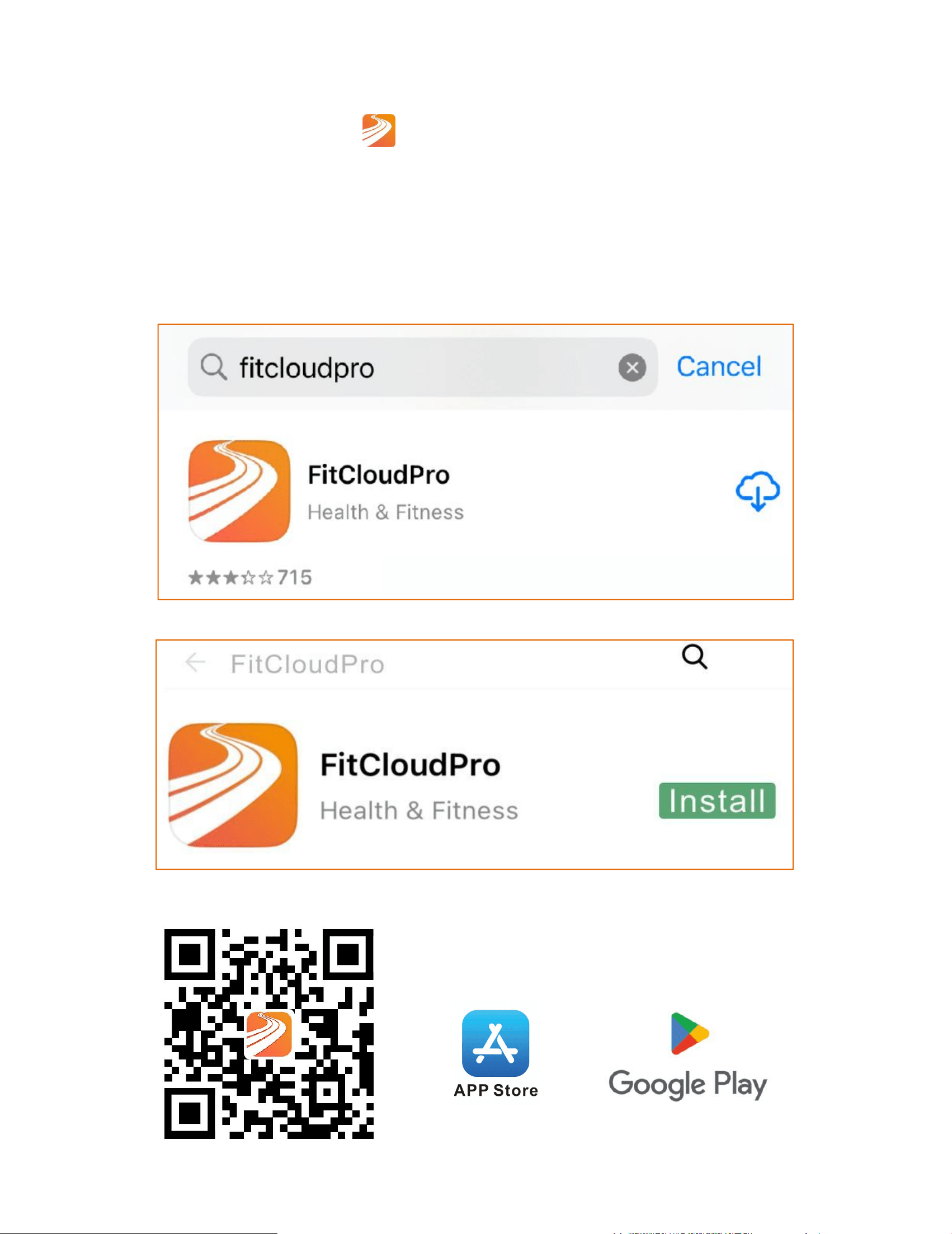
43
Stáhnout aplikaci
①Stáhněte si aplikaci "
FitCloudPro" z App Store nebo
Google Play.
②Naskenujte QR kód pro stažení.
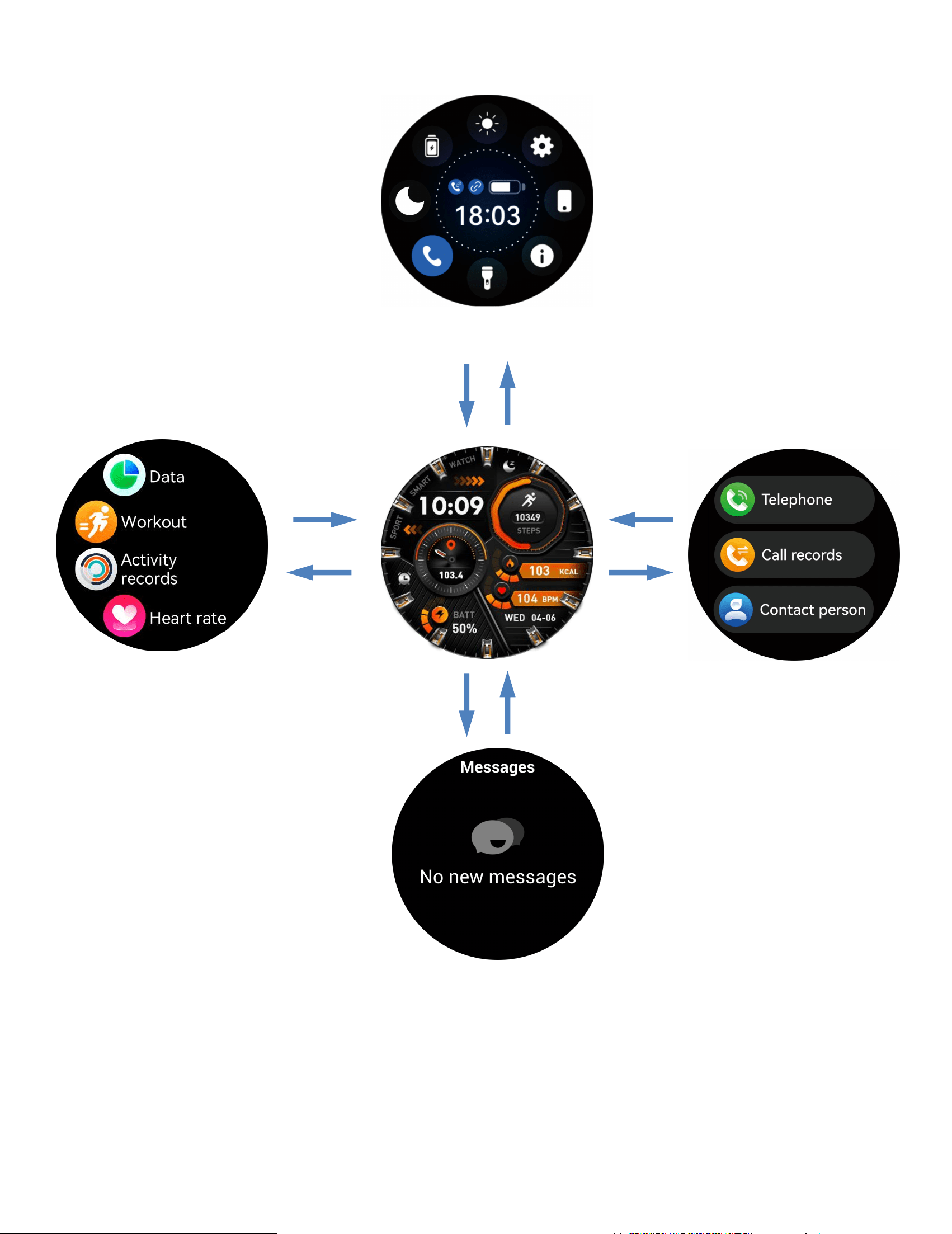
44
Zobrazení funkce dotykové obrazovky
Zprávy
Ciferník
Menu
Ovládací centrum
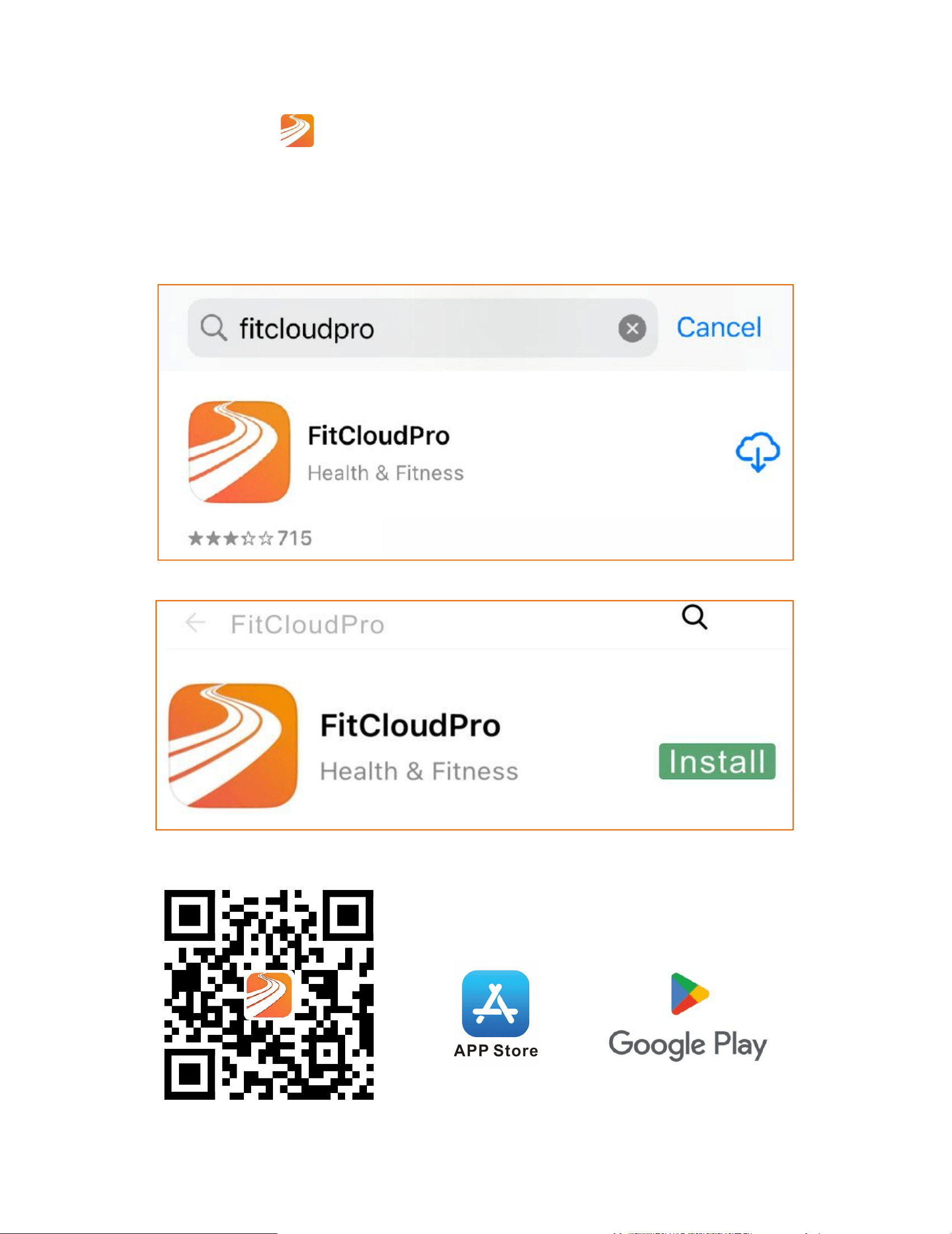
45
App downloaden
①Download de "
FitCloudPro" -app uit de App Store of van
Google Play.
②Scan de QR-code om te downloaden.
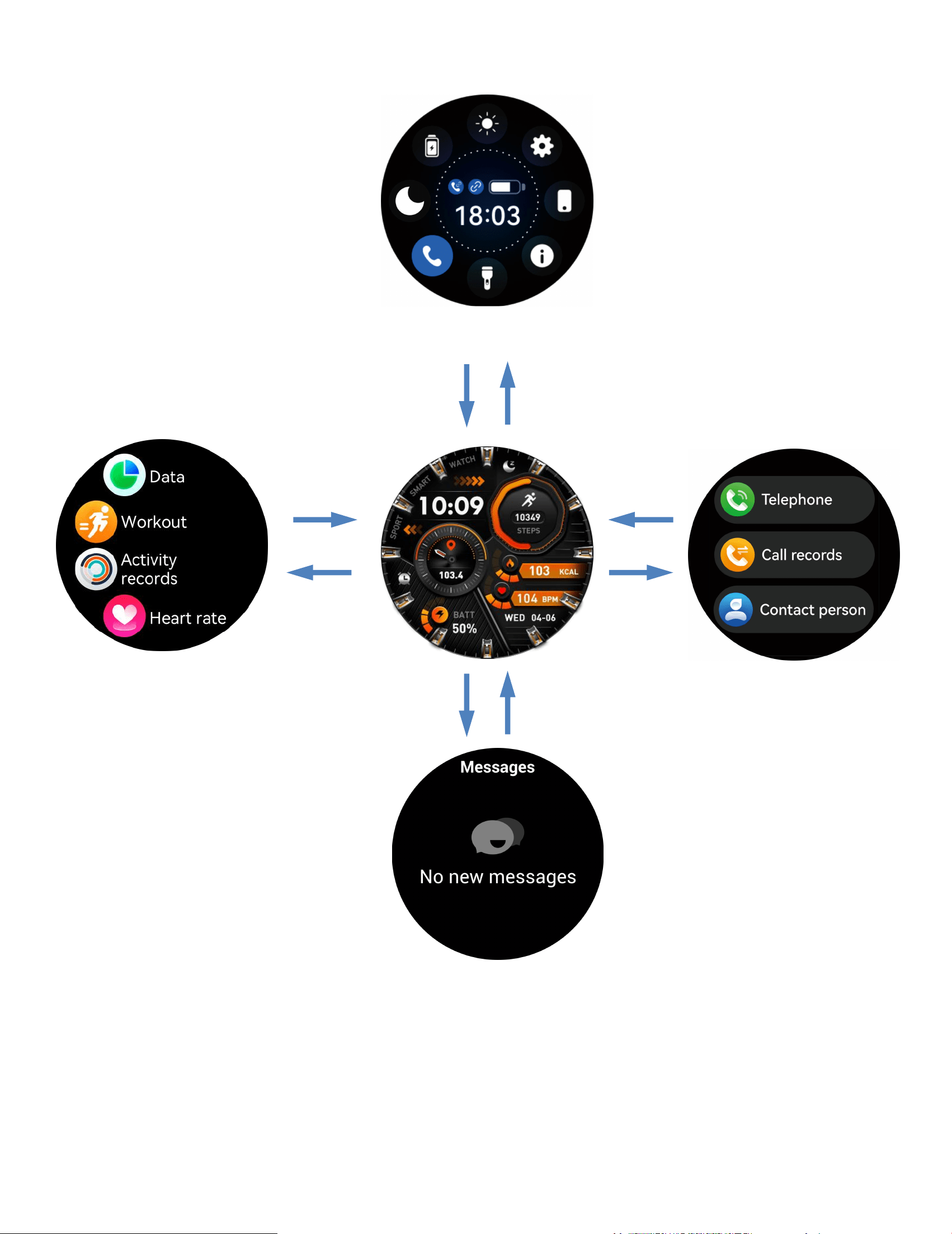
46
Weergave van touchscreen-functionaliteit
Messages
Dial
Menu
Control Center
47
Ladda ner appen
①Ladda ner appen"
FitCloudPro" från App Store eller Google
Play.
②Skanna QR-koden för att ladda ner.
48
Visar pekskärmsfunktionalitet
Meddelan
den
Ursk
iva
Meny
Kontrollcenter
49
Λήψη εφαρμογής
①Κατεβάστε την εφαρμογή "
FitCloudPro" από το App Store ή
το Google Play.
②Σαρώστε τον κωδικό QR για λήψη.
50
Εμφάνιση λειτουργίας οθόνης αφής
Μηνύματα
Καντράν
Μενο
ύ
Κέντρο Ελέγχου
51
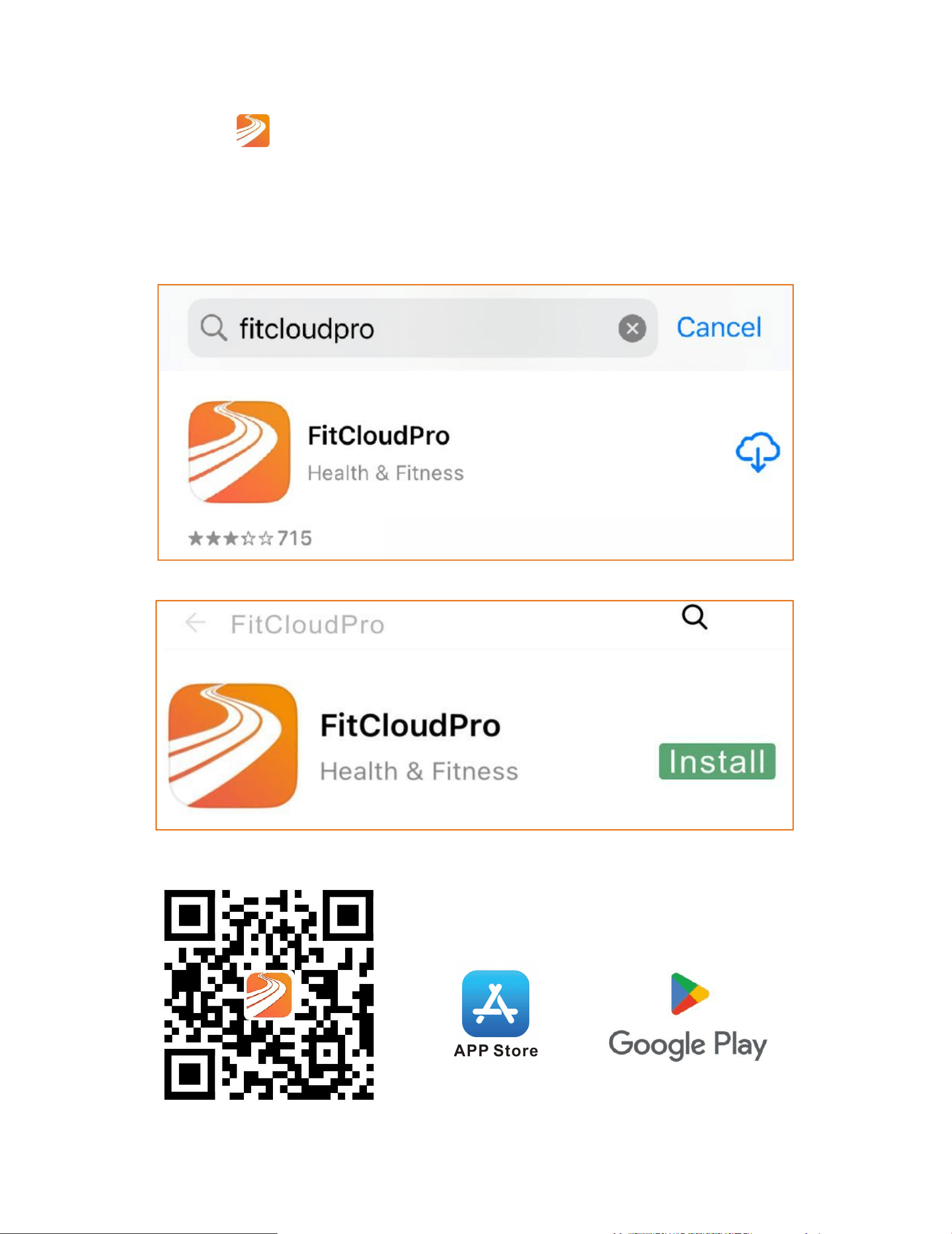
Alkalmazás letöltése
①Töltse le a"
FitCloudPro" alkalmazást az App Store-ból vagy
a Google Play-ről.
②Szkenneld be a QR-kódot a letöltéshez.
52
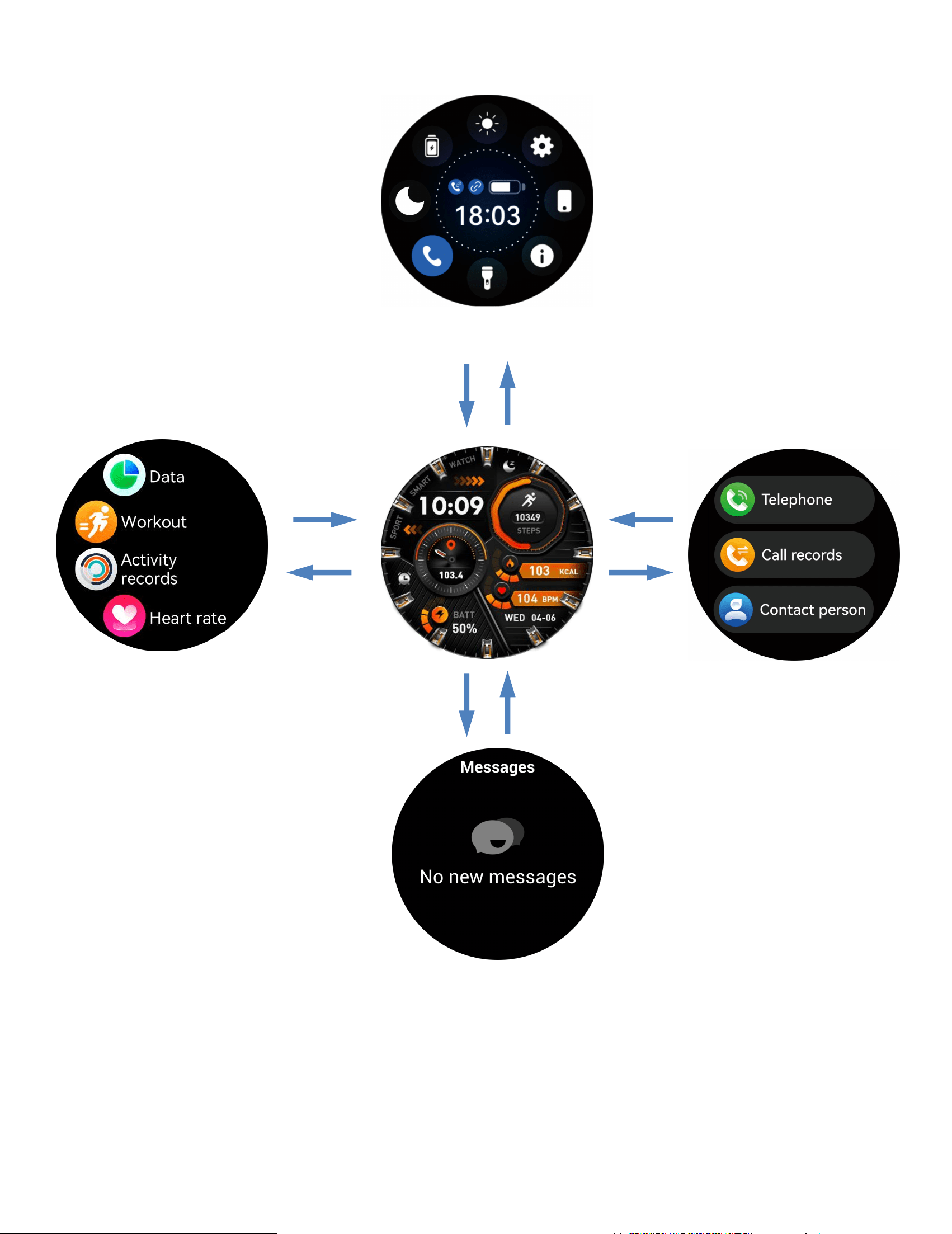
Érintőképernyő-funkció megjelenítése
Üzenetek
Számlap
Menü
Vezérlőközpon
t
53
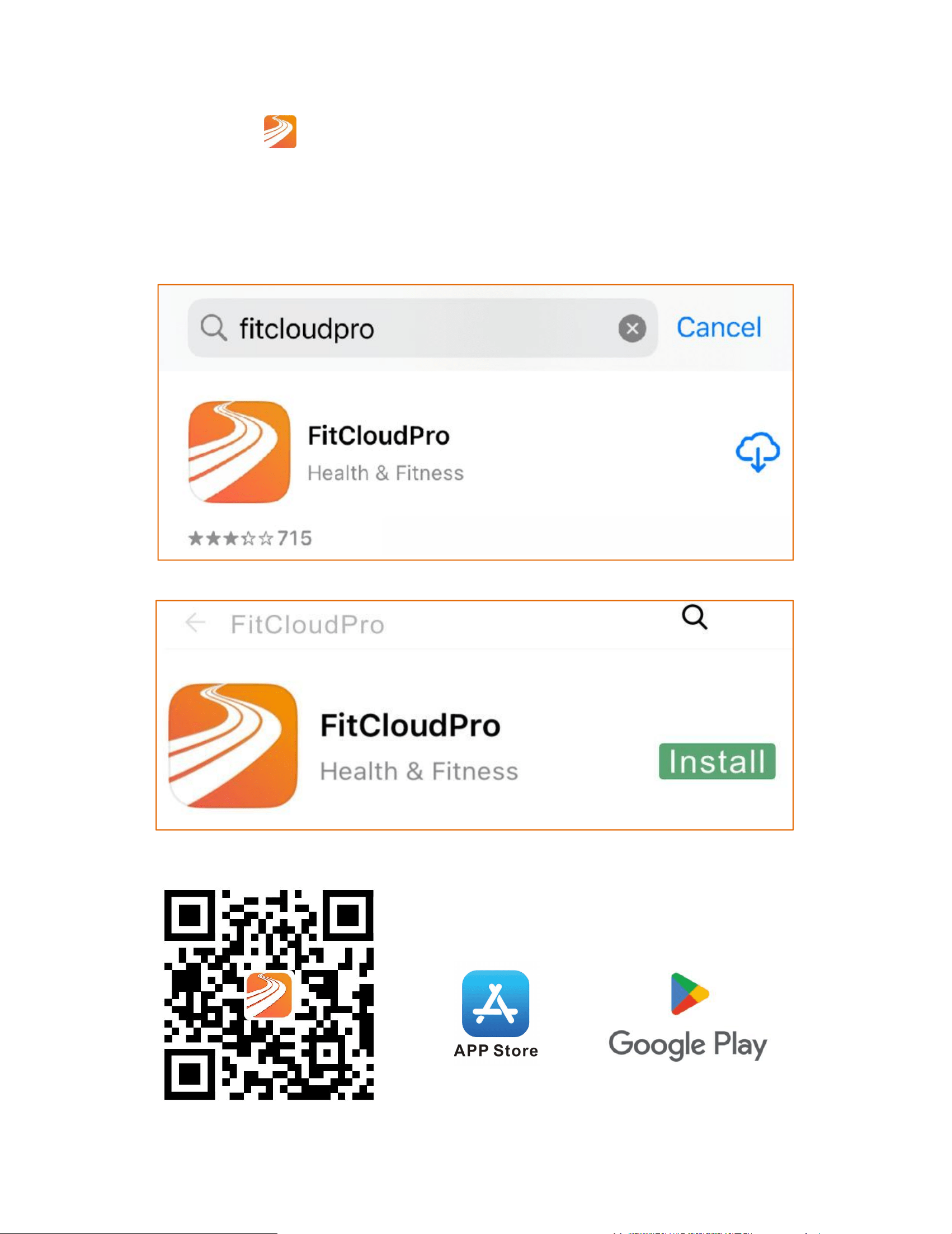
Download appen
①Download "
FitCloudPro" -appen fra App Store eller
Google Play.
②Scan QR-koden for at downloade.
54
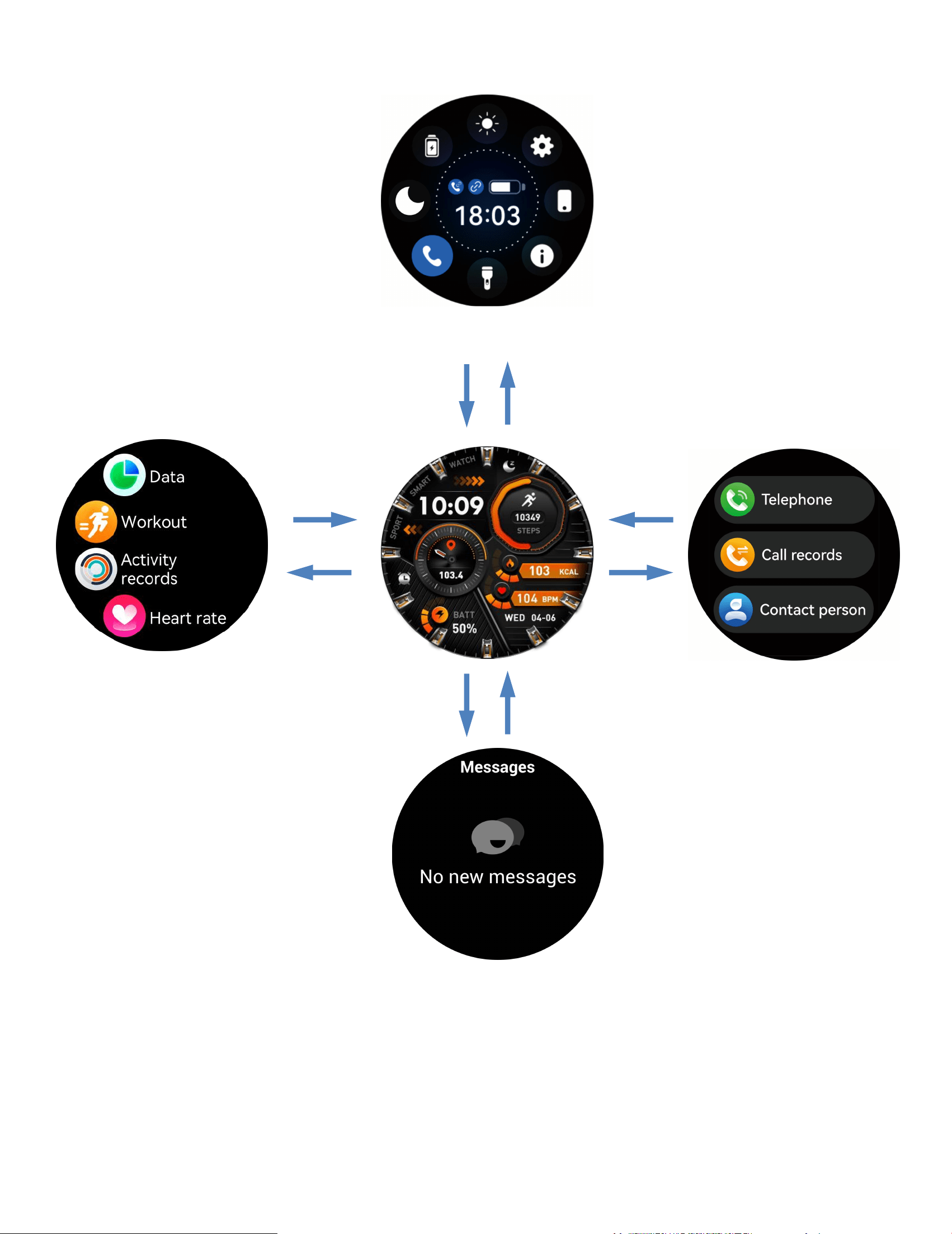
Visning af touchskærmsfunktionalitet
Beskeder
Urskive
Menu
Kontrolcenter
55
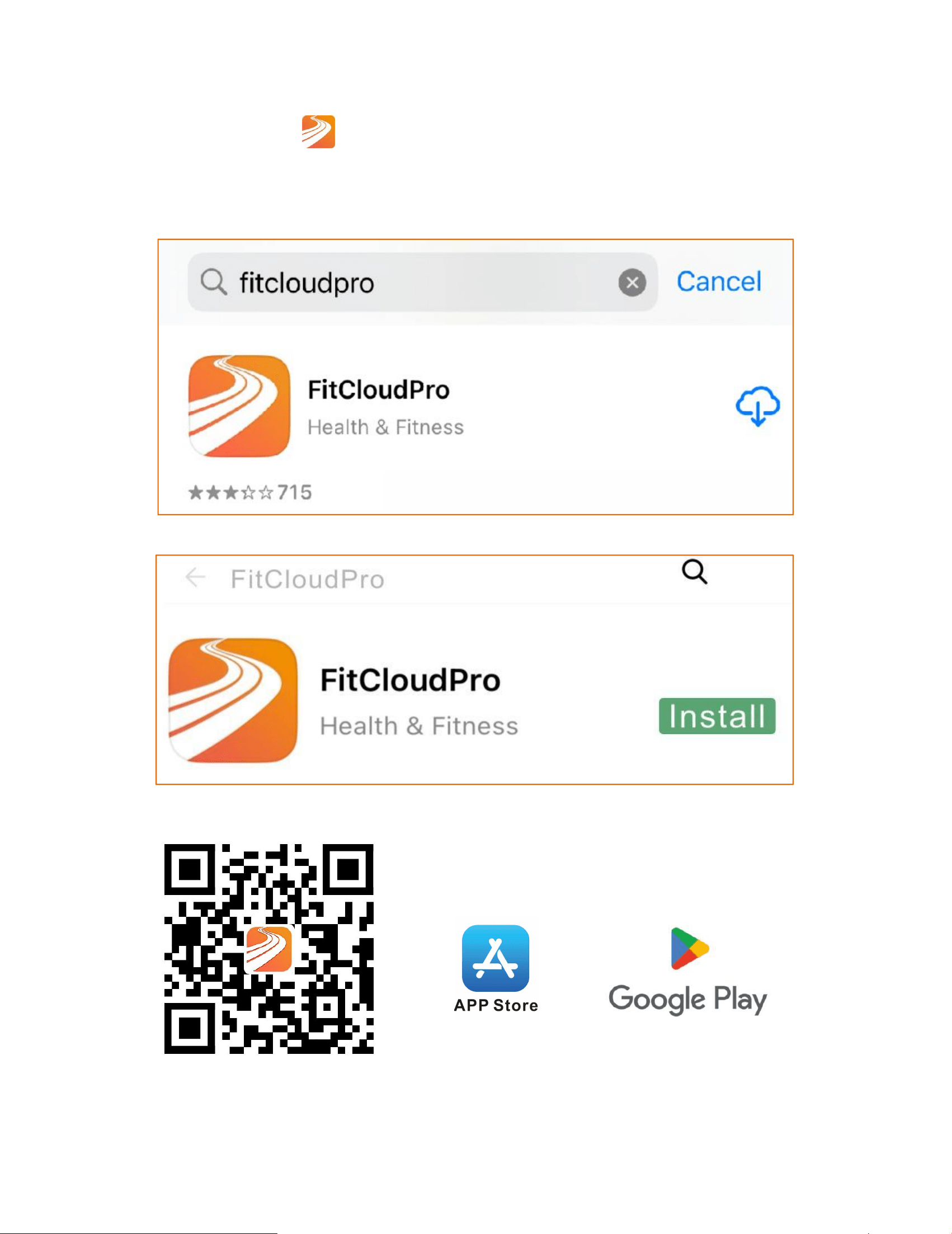
앱 다운로드
①App Store 또는
Google Play 에서" FitCloudPro" 앱을 다
운로드하세요.
②다운로드하려면 QR 코드를 스캔하세요.
56
터치스크린 기능 표시
메시지
다이얼
메뉴
제어 센터
57
ليمحت قيبطتلا
①مق لي
ن
ن
تب قيبطت"
FitCloudPro" نم App Store وأ Google Play.
②
حسما زمر ةباجب
س
لا ةعيسلا (QR) لي
ن
ن
تبلل.
58
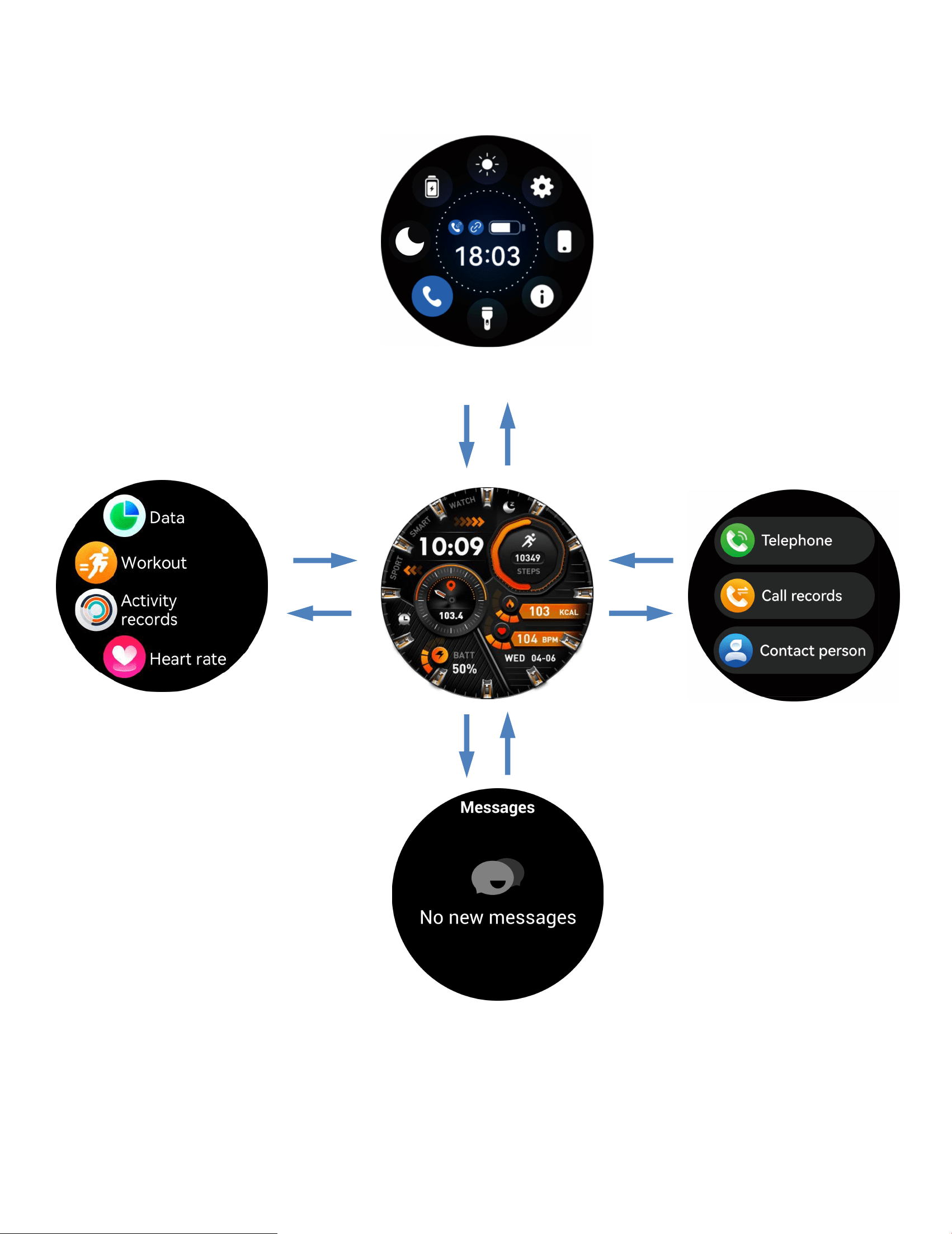
ضرع ةفيظو ةشاشلا يتلا لمعت سمللاب
لئاسرلا
صرق
عاسلا
ةمئاقلا
زكرم مكحبلا
59
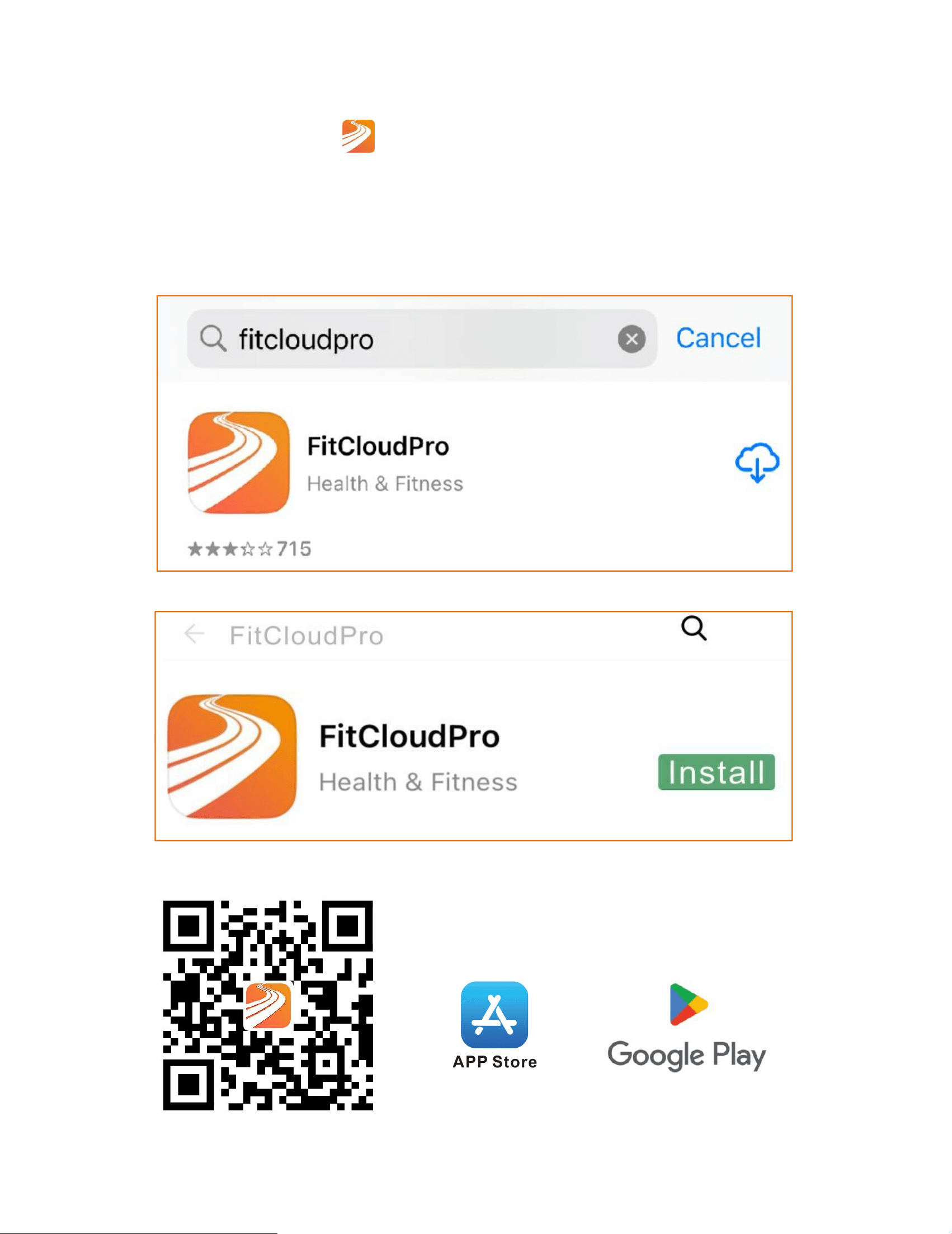
Descărcare aplicație
①Descarcă aplicația "
FitCloudPro" din App Store sau Google
Play.
②Scanează codul QR pentru a descărca.
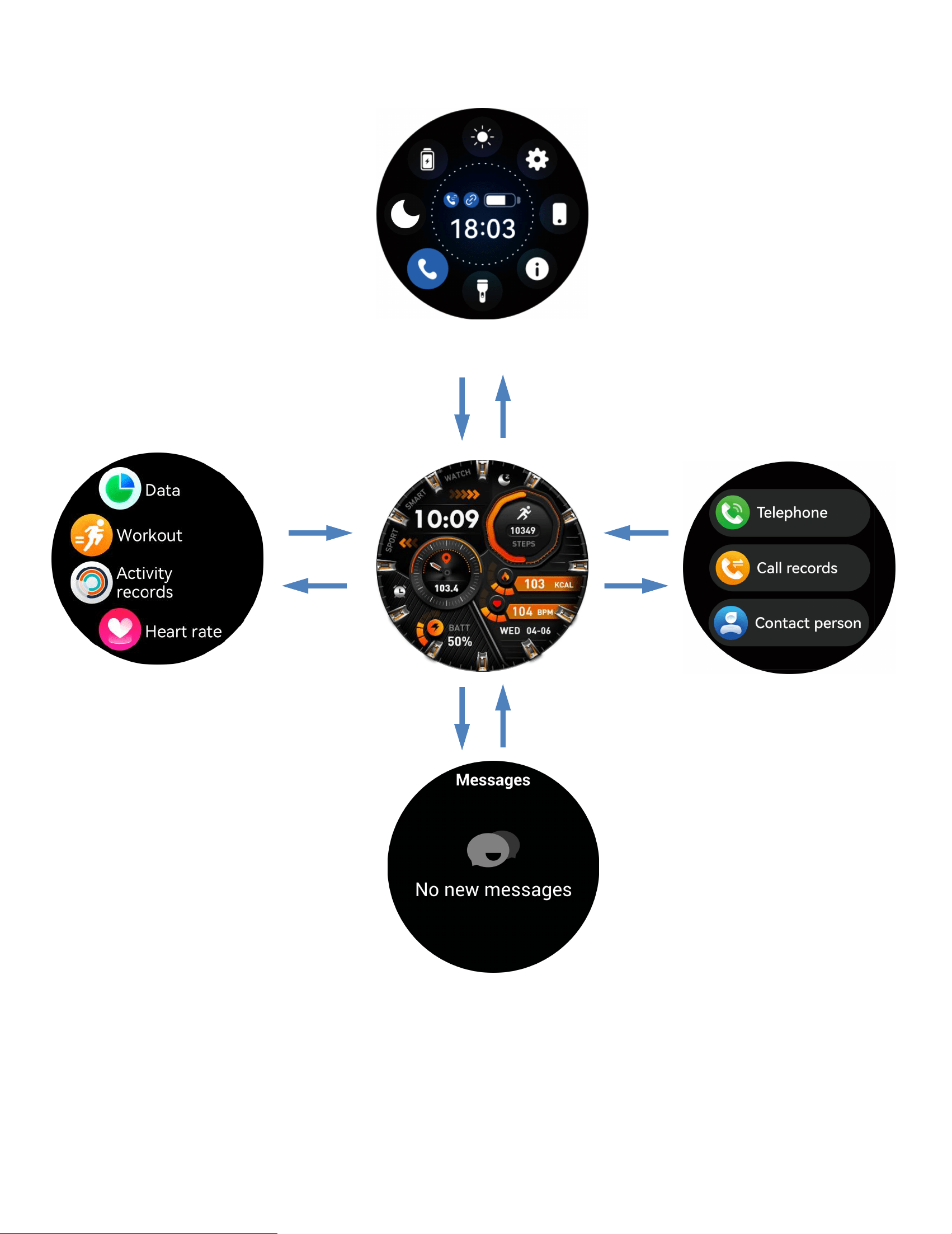
60
Afișarea funcționalității ecranului tactil
Mesaje
Apelare
Meniu
Centru de control
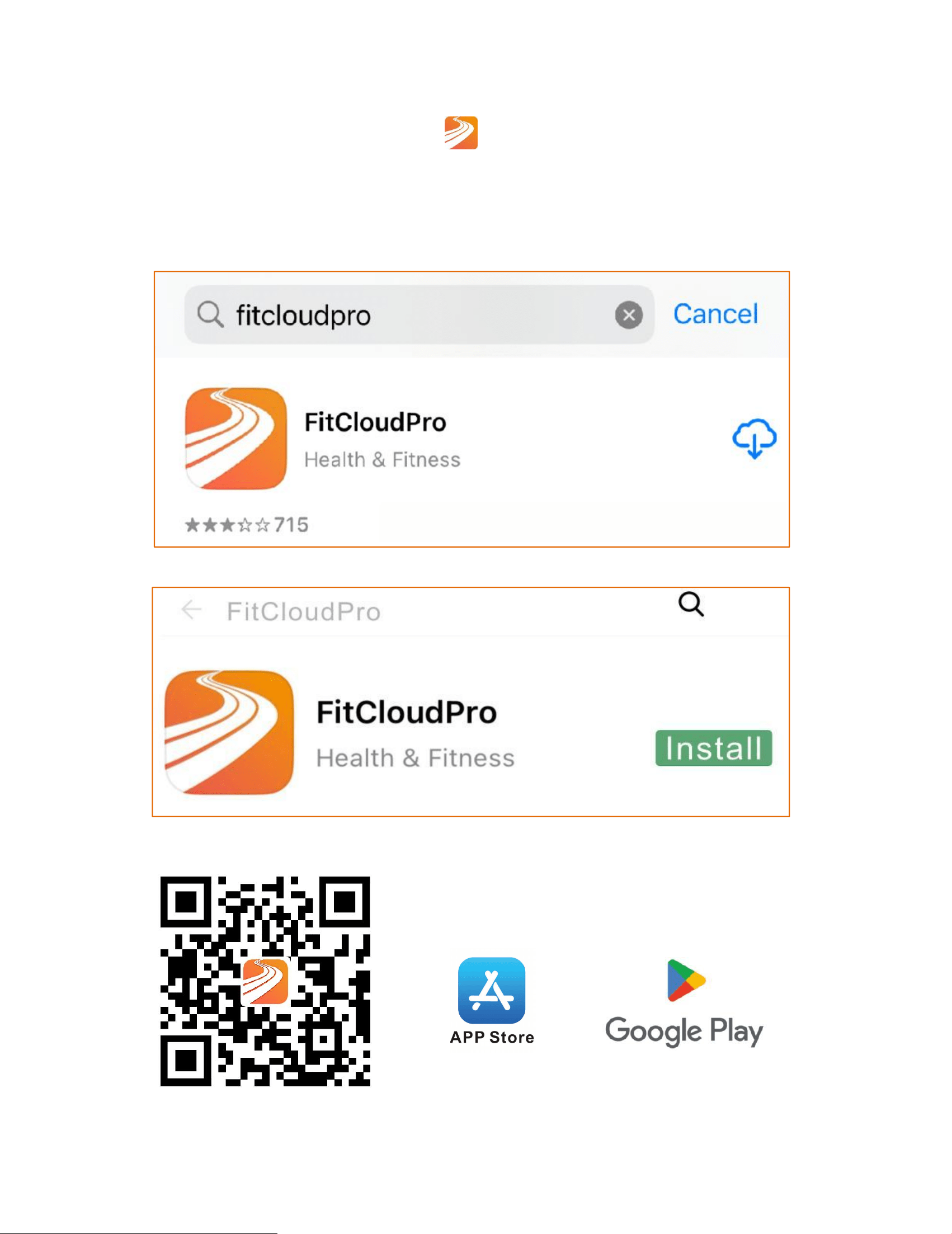
61
Изтегляне на приложение
①Изтеглете приложението"
FitCloudPro" от App Store или
Google Play.
②Сканирайте QR кода, за да изтеглите.
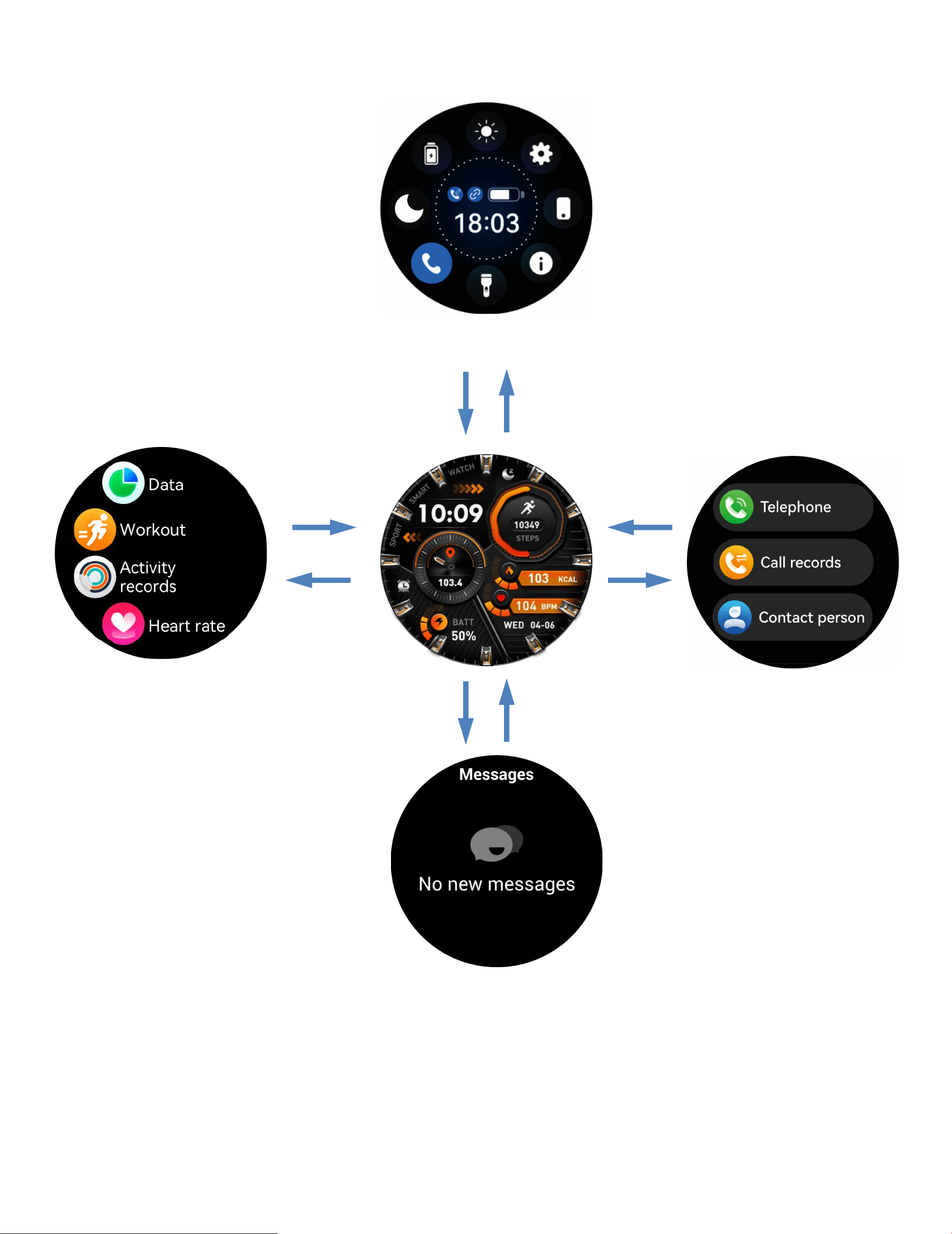
62
Показване на функционалността на сензорния екран
Съобщения
Циферблат
Меню
Контролен център
63
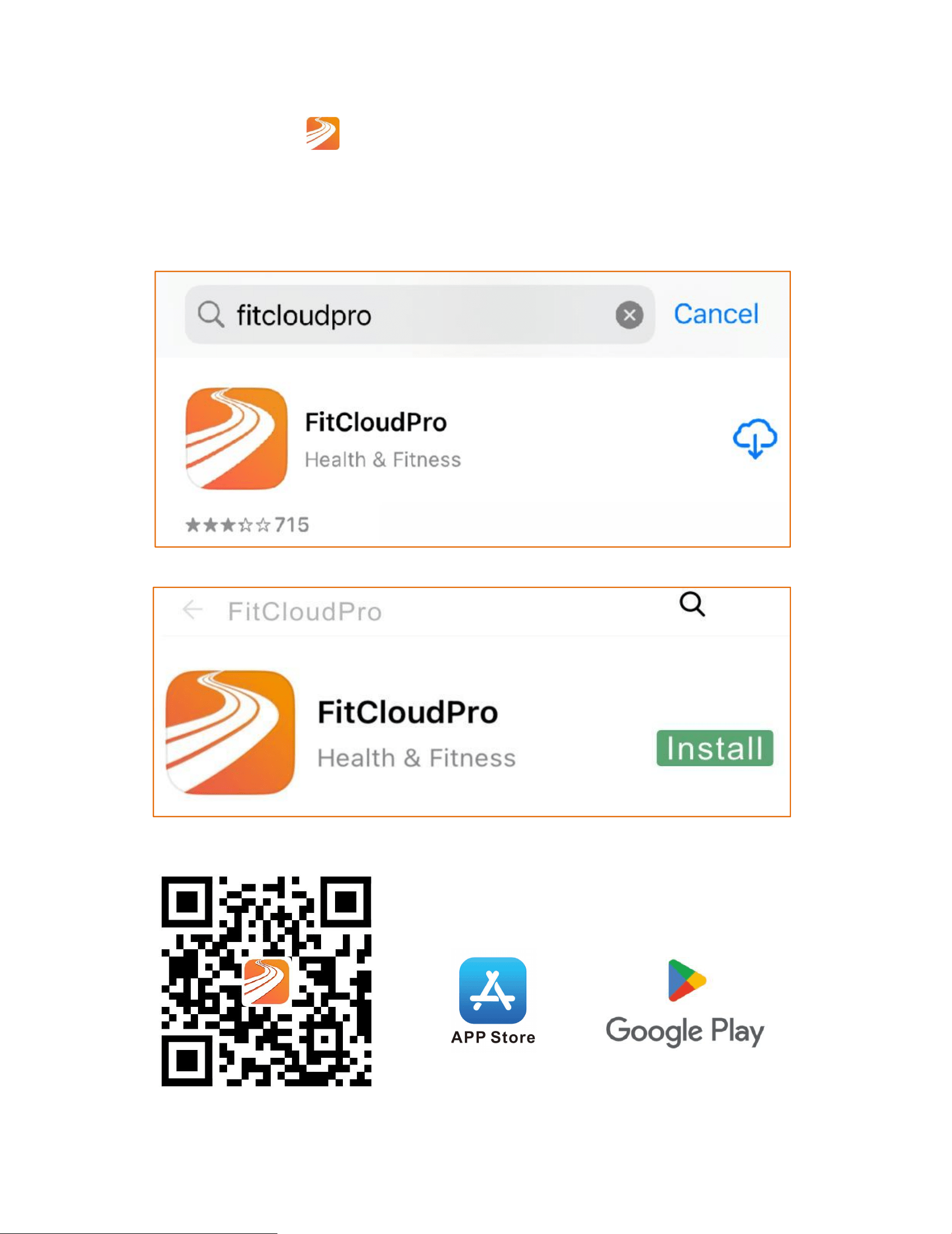
Unduh Aplikasi
①Undhuh aplikasi"
FitCloudPro" appfromthe App Store or
Google Play.
②Pindai kode QR kanggo ngundhuh.
64
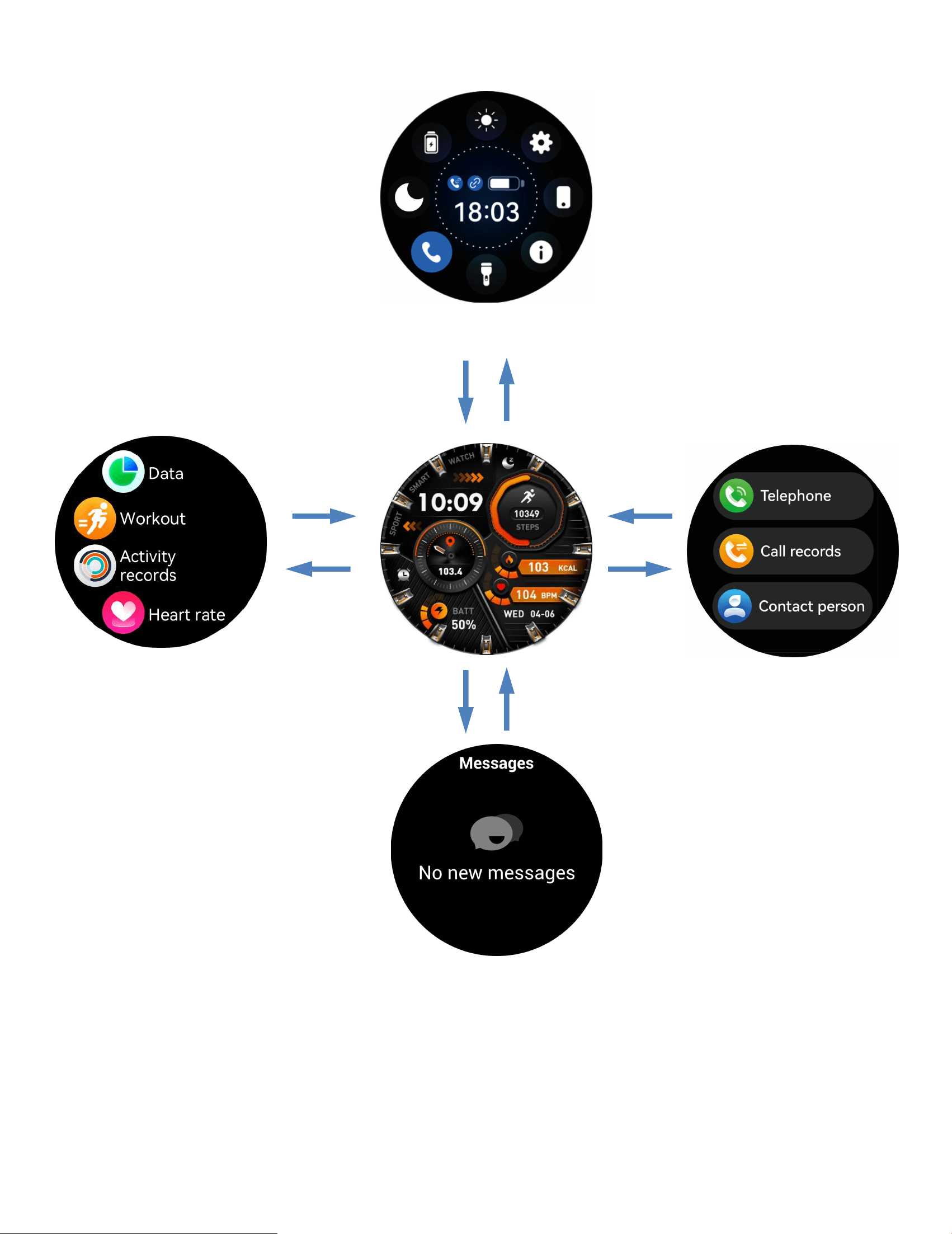
ampilake fungsi layar tutul
Pesen
Nomer Telpon
Menu
Pusat Kontrol
65
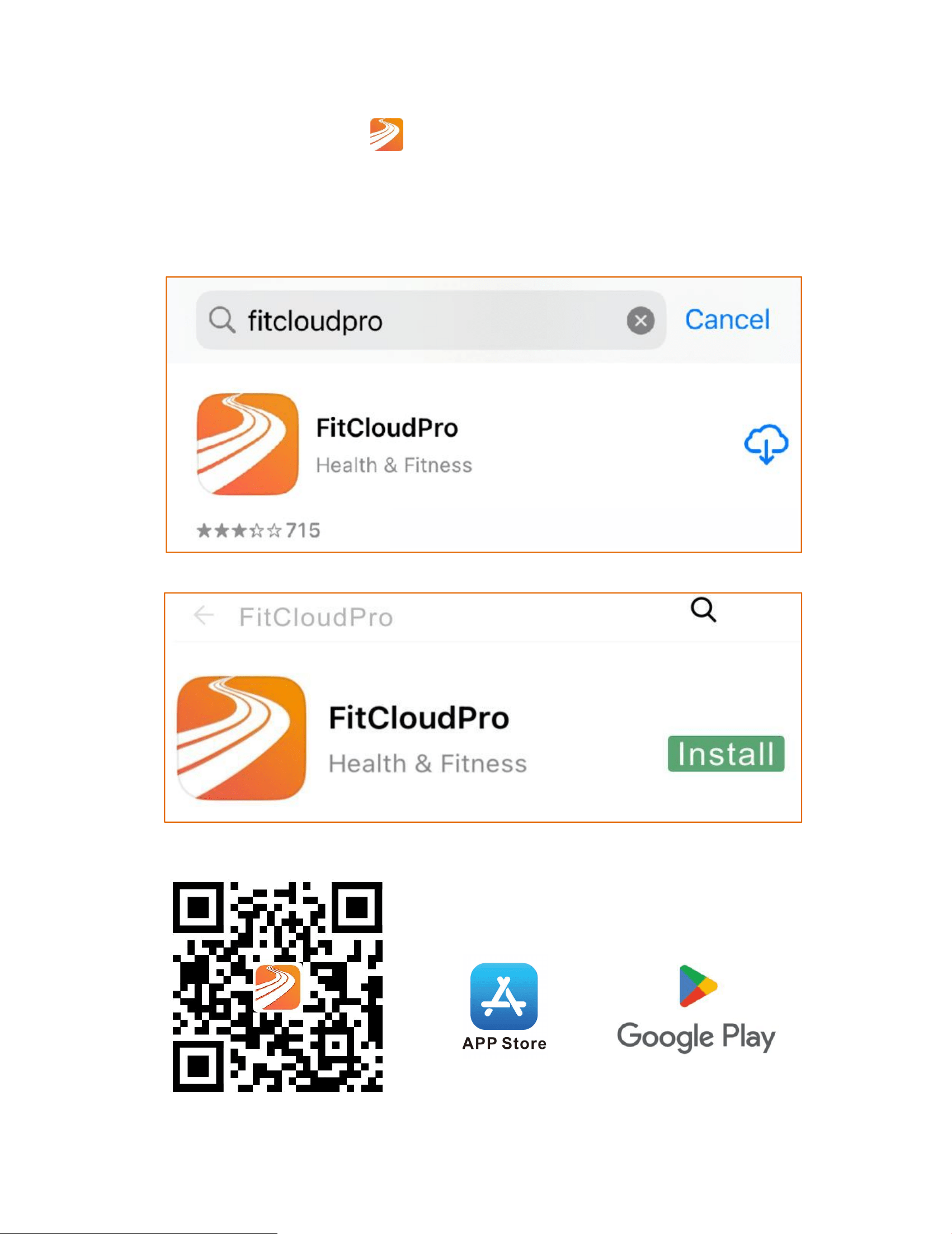
Stiahnuť aplikáciu
①Stiahnite si aplikáciu"
FitCloudPro" z App Store alebo
Google Play.
②Naskenujte QR kód na stiahnutie.
66
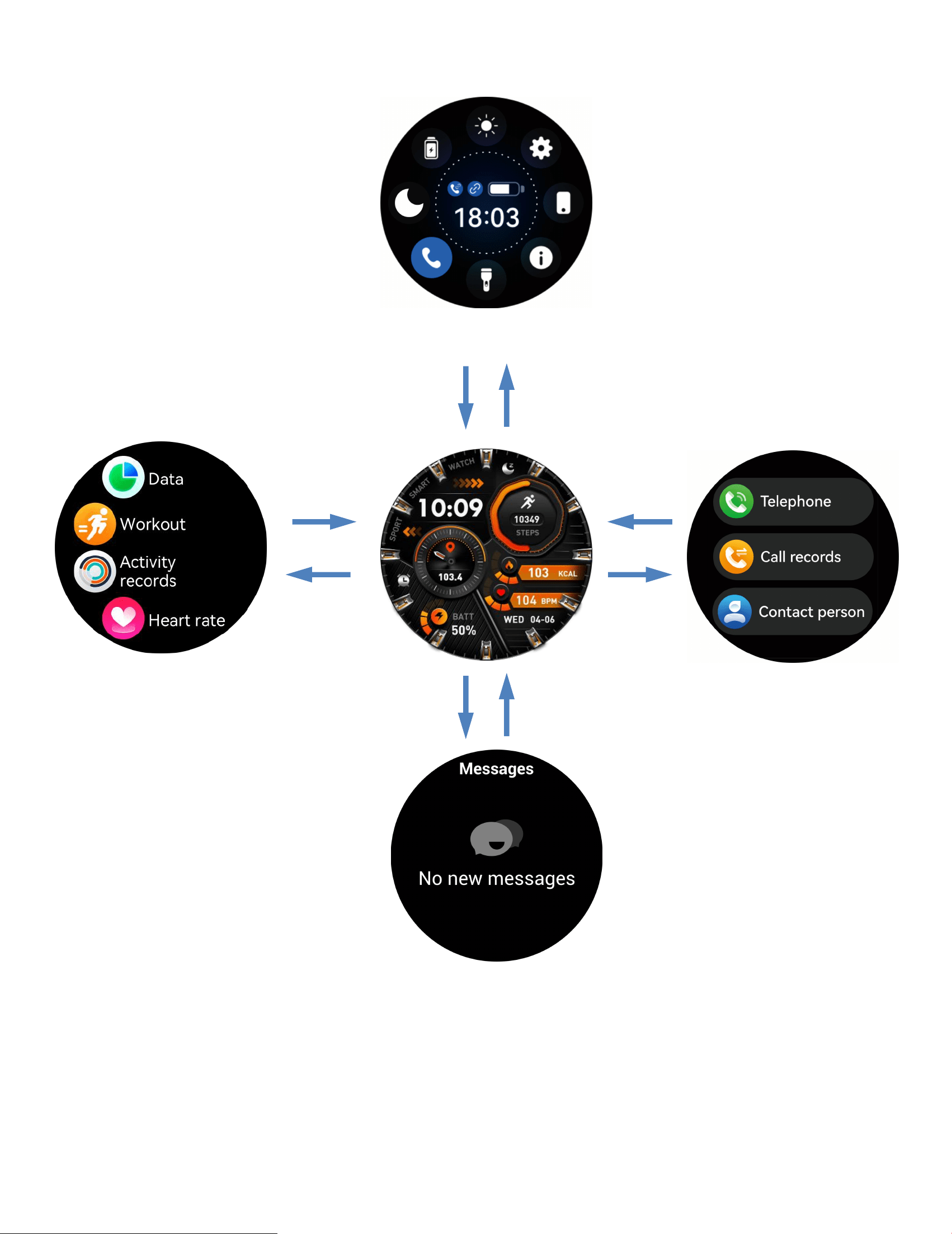
Zobrazenie funkcie dotykovej obrazovky
Správy
Vytáčanie
Menu
Ovládacie centrum
67
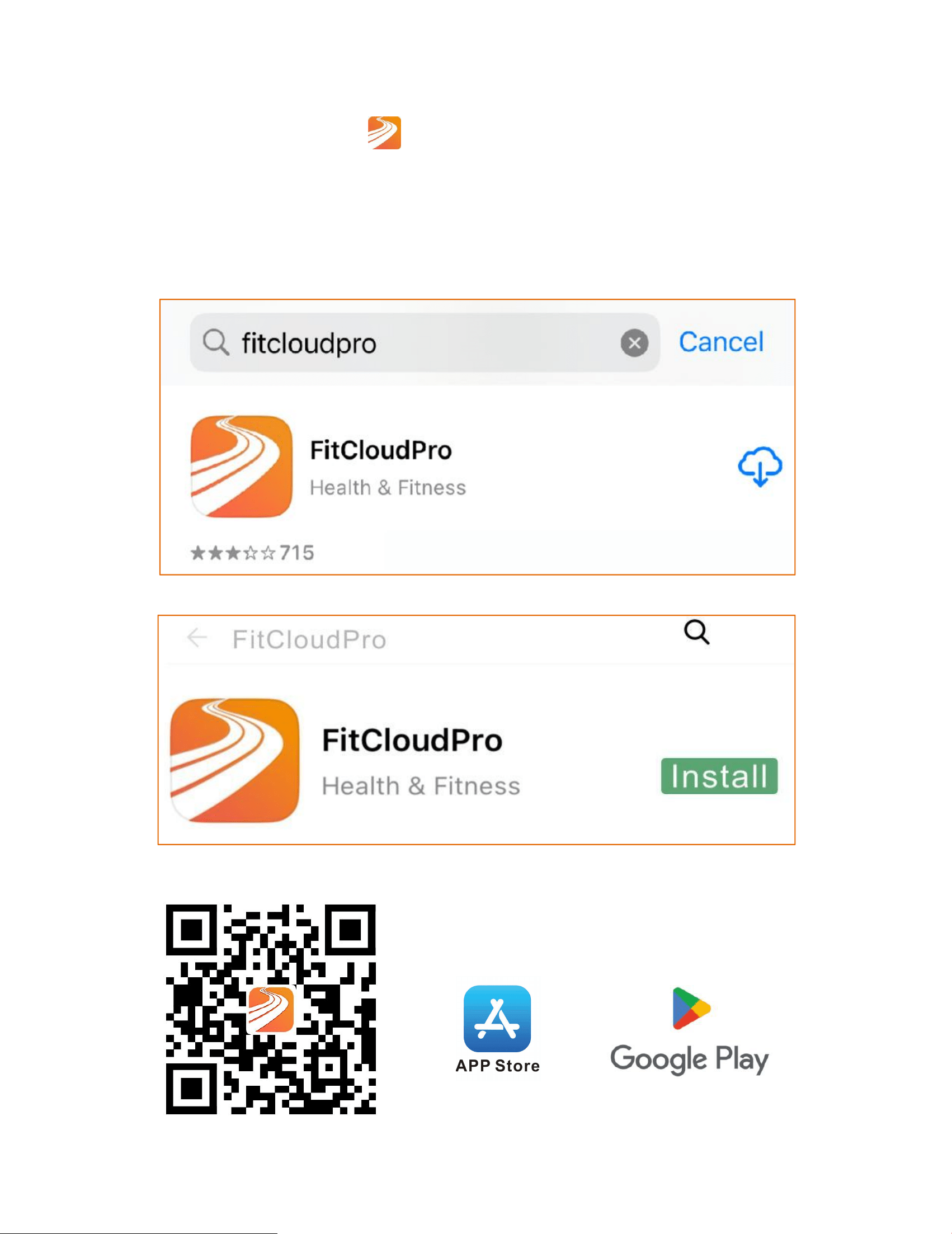
Preuzmi aplikaciju
①Preuzmite aplikaciju"
FitCloudPro" iz App Storea ili Google
Playa.
②Skenirajte QR kod za preuzimanje.
68
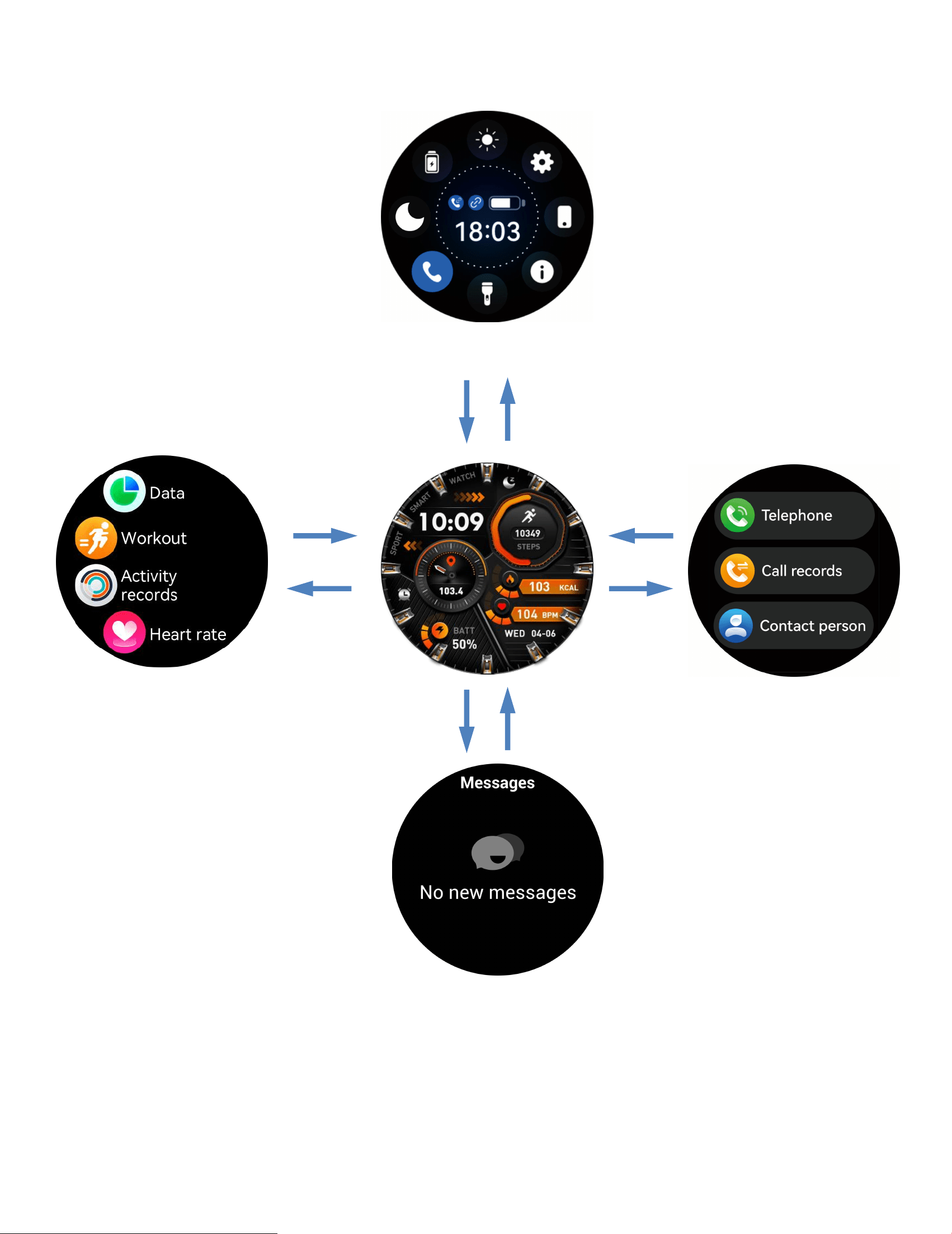
Prikaz funkcionalnosti zaslona osjetljivog na dodir
Poruke
Birač
Izborn
ik
Kontrolni centar
69
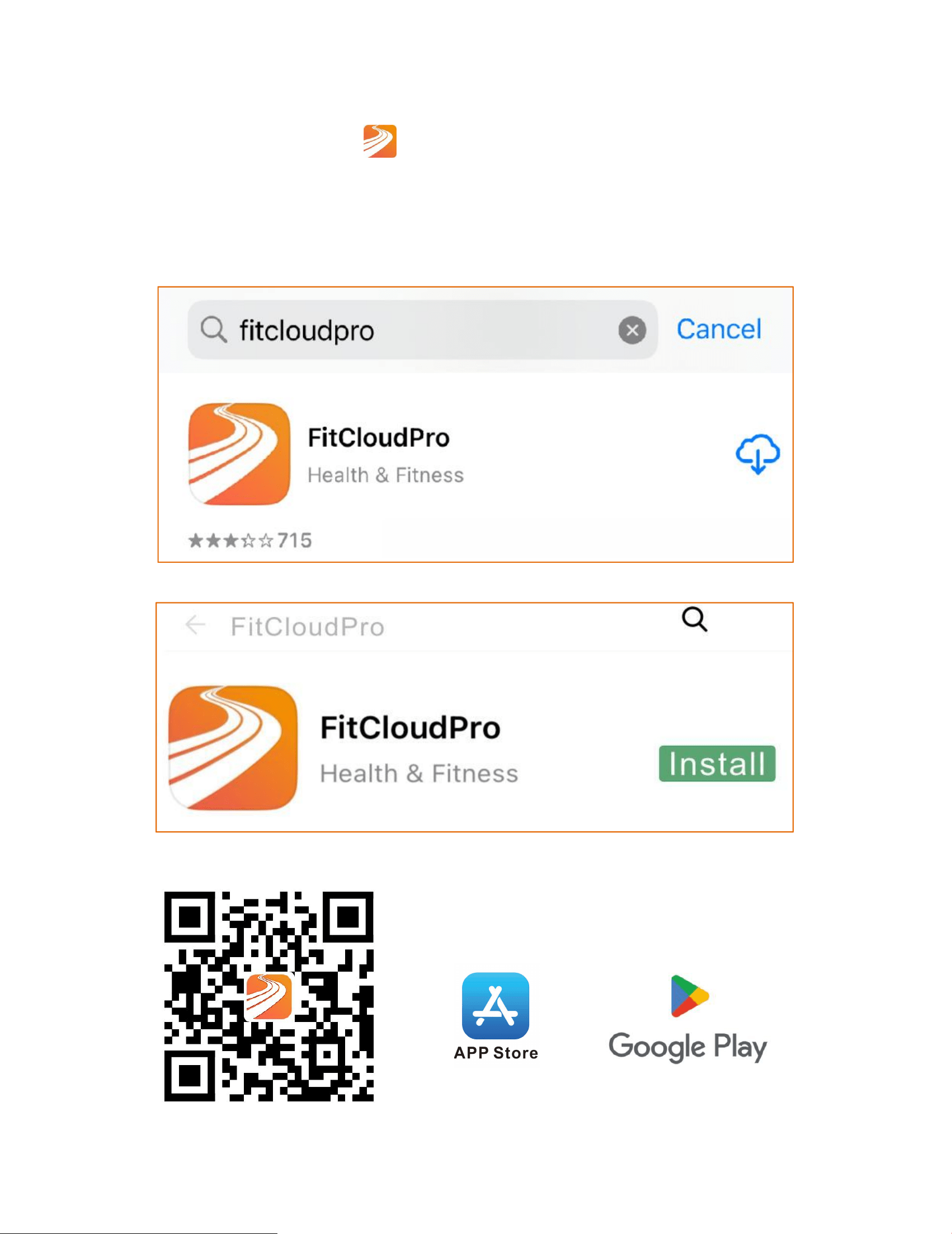
Preuzmi aplikaciju
①Preuzmite aplikaciju
" FitCloudPro" from the App Store
but Google Play.
②
Skenirajte QR kod za preuzimanje.
70
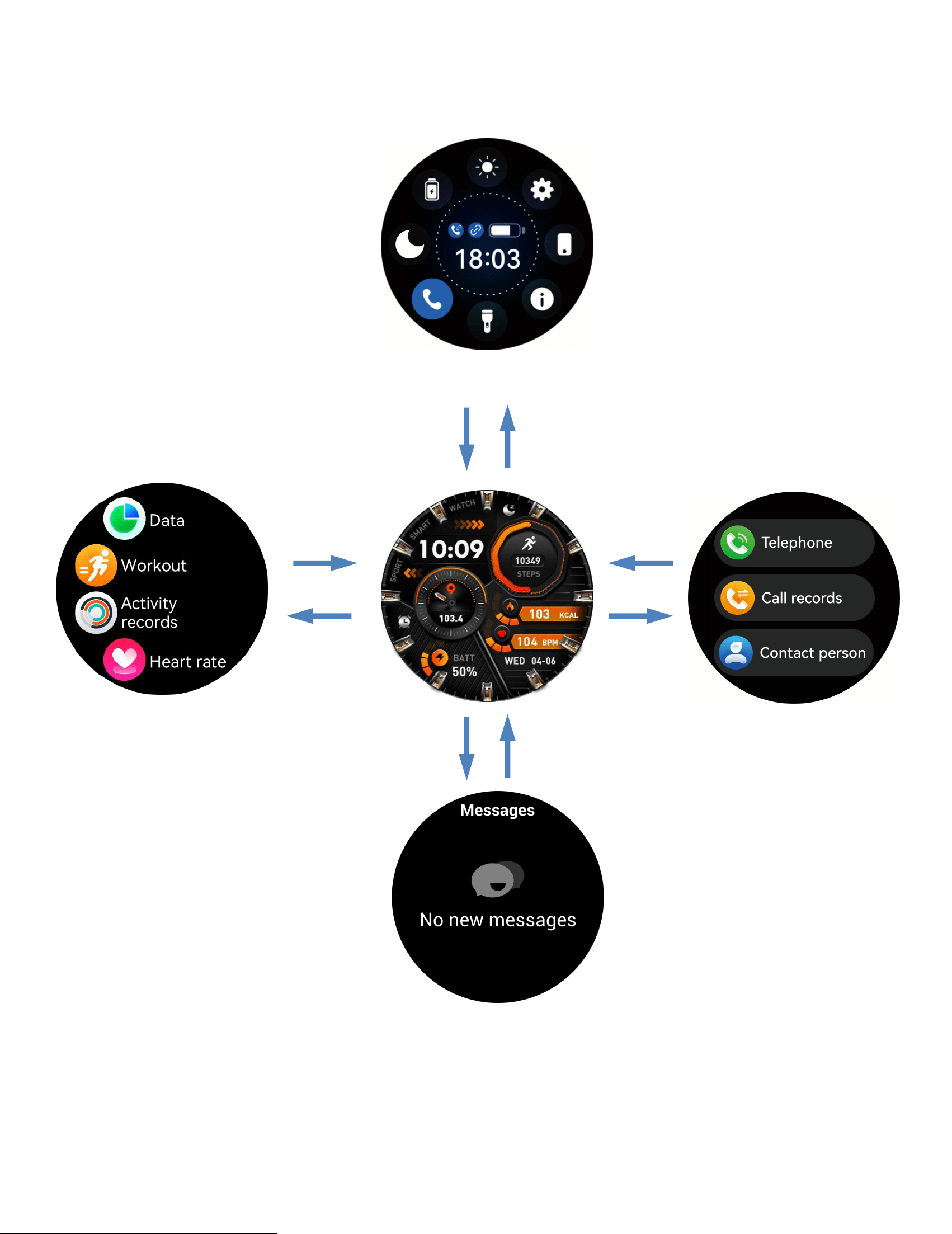
Prikaz funkcionalnosti ekrana osetljivog na dodir
Poruke
Pozivni broj
Meni
Kontrolni centar
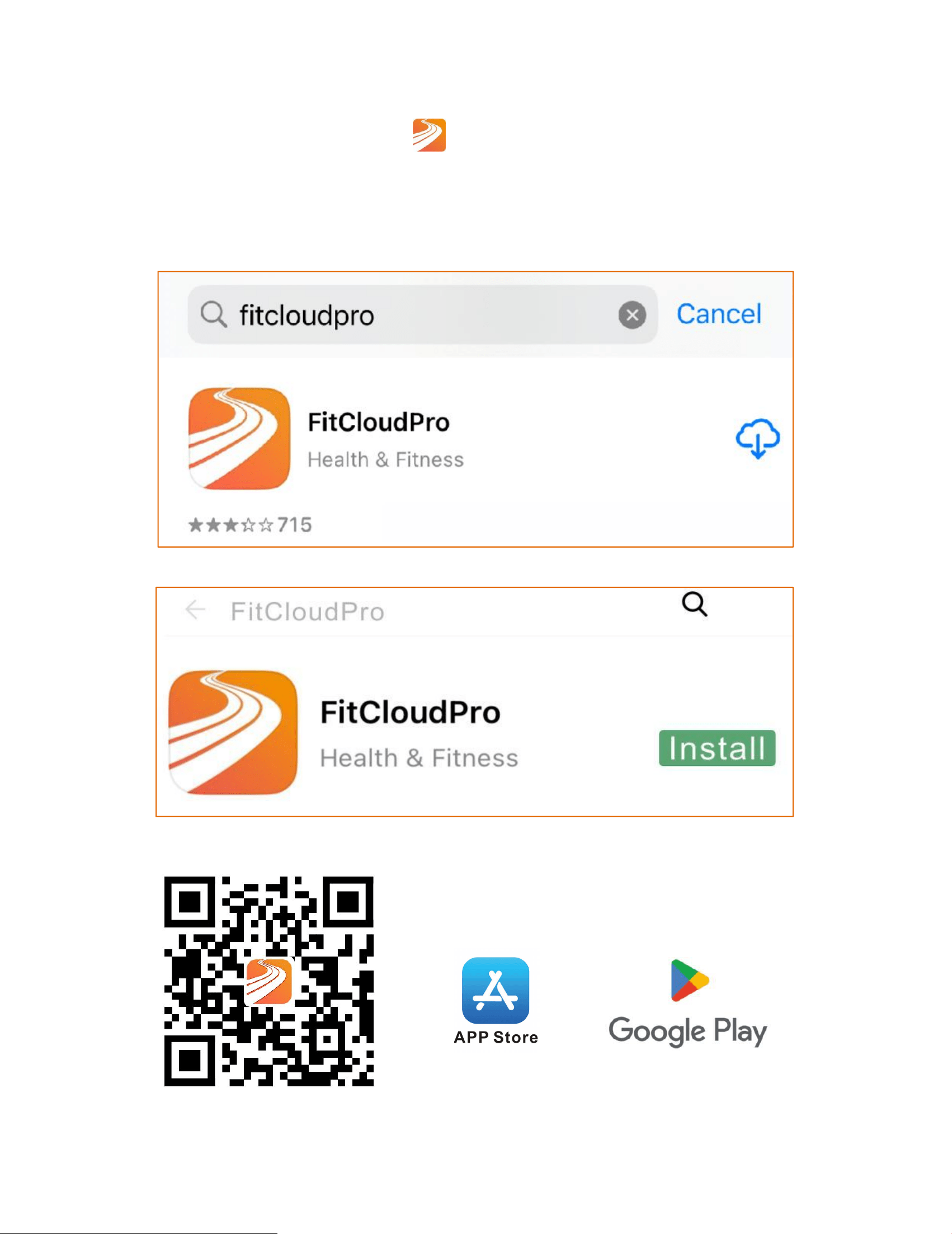
71
Atsisiųsti programėlę
①Atsisiųskite programėlę "
FitCloudPro" iš App Store arba
Google Play.
②Nuskenuokite QR kodą, kad atsisiųstumėte.
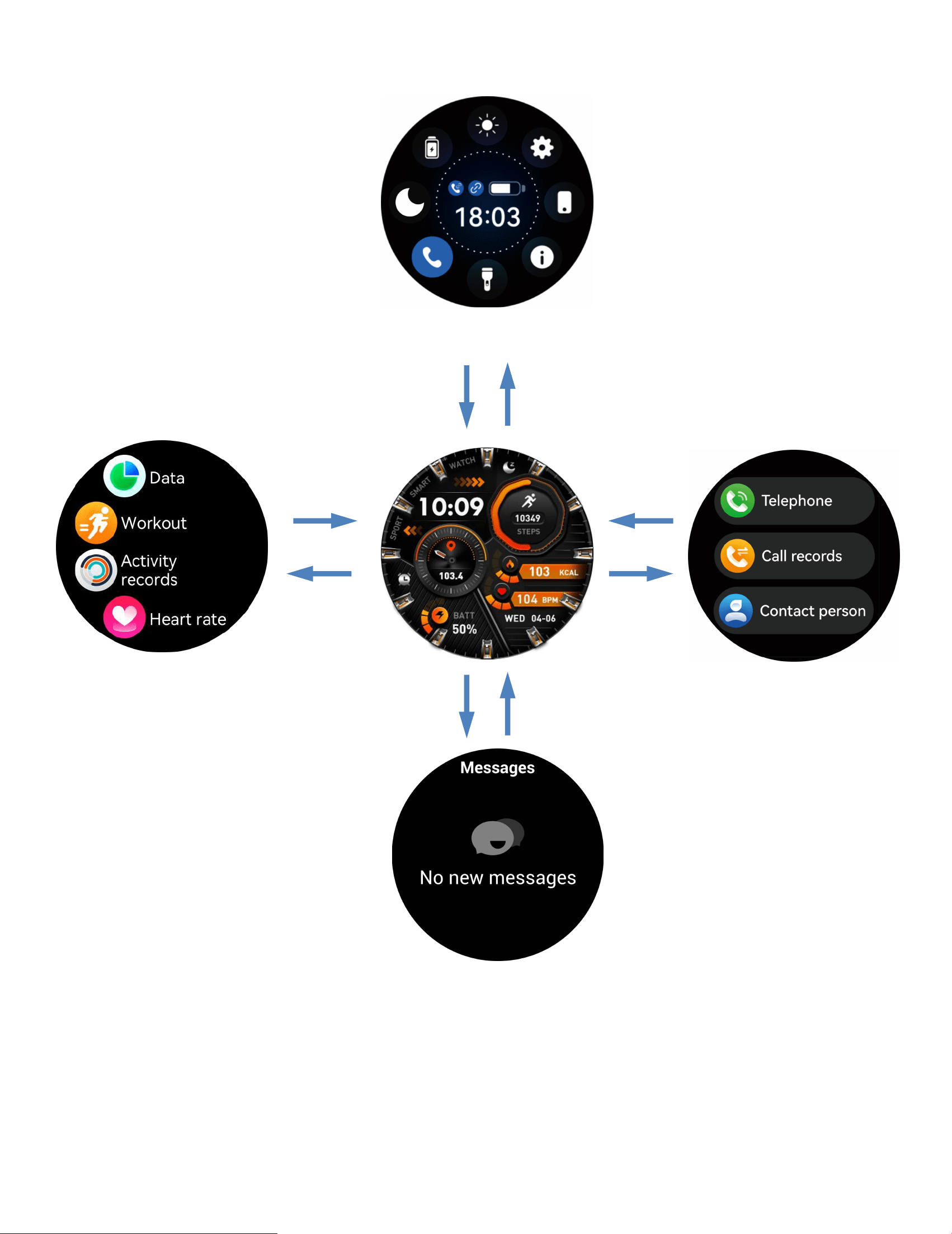
72
Jutiklinio ekrano funkcionalumo rodymas
Pranešimai
Rinkimo mygtukas
Meniu
Valdymo centras
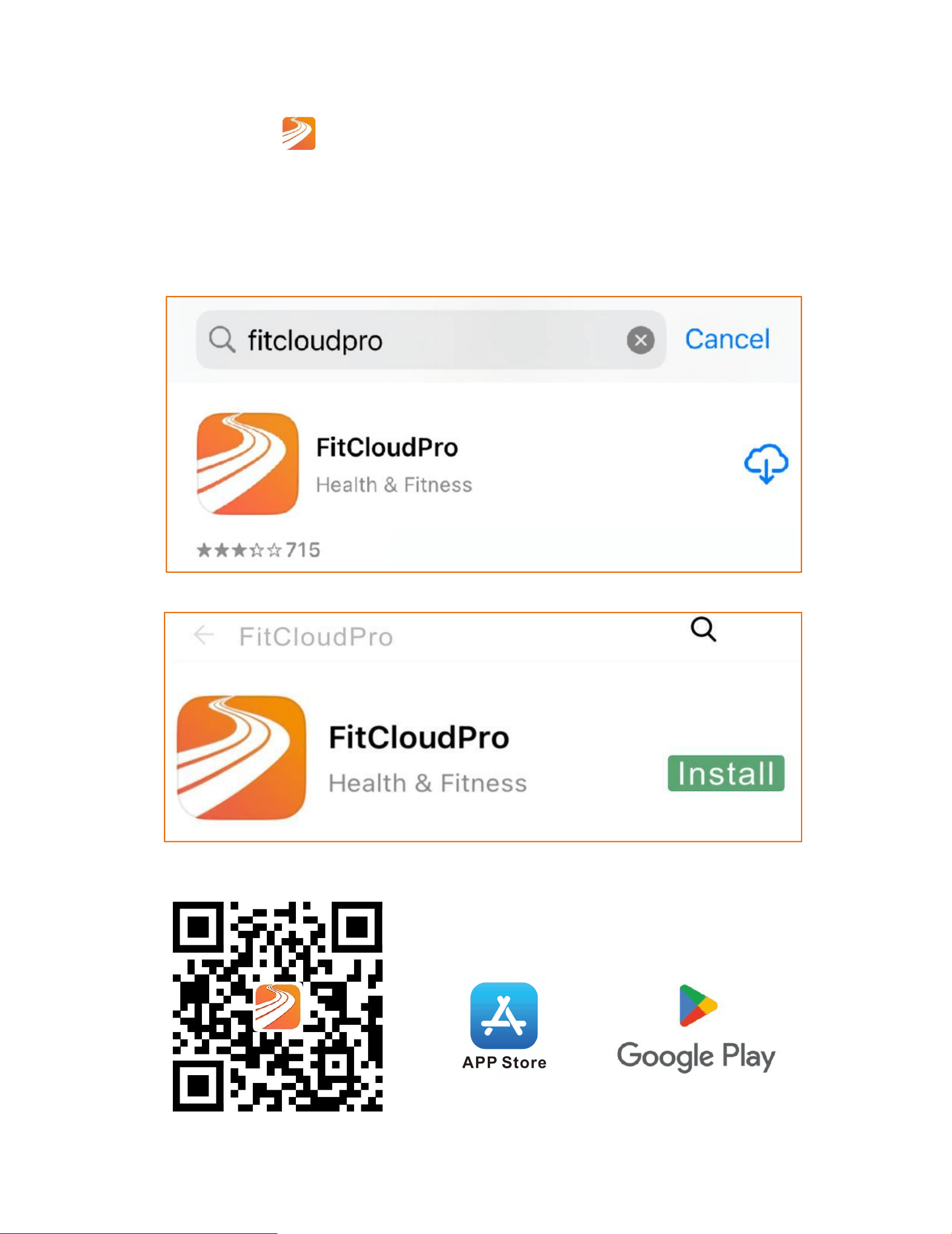
73
Laadi rakendus alla
①Laadige alla "
FitCloudPro" rakendus App Store'ist või
Google Playst.
②Skaneeri QR-kood allalaadimiseks.
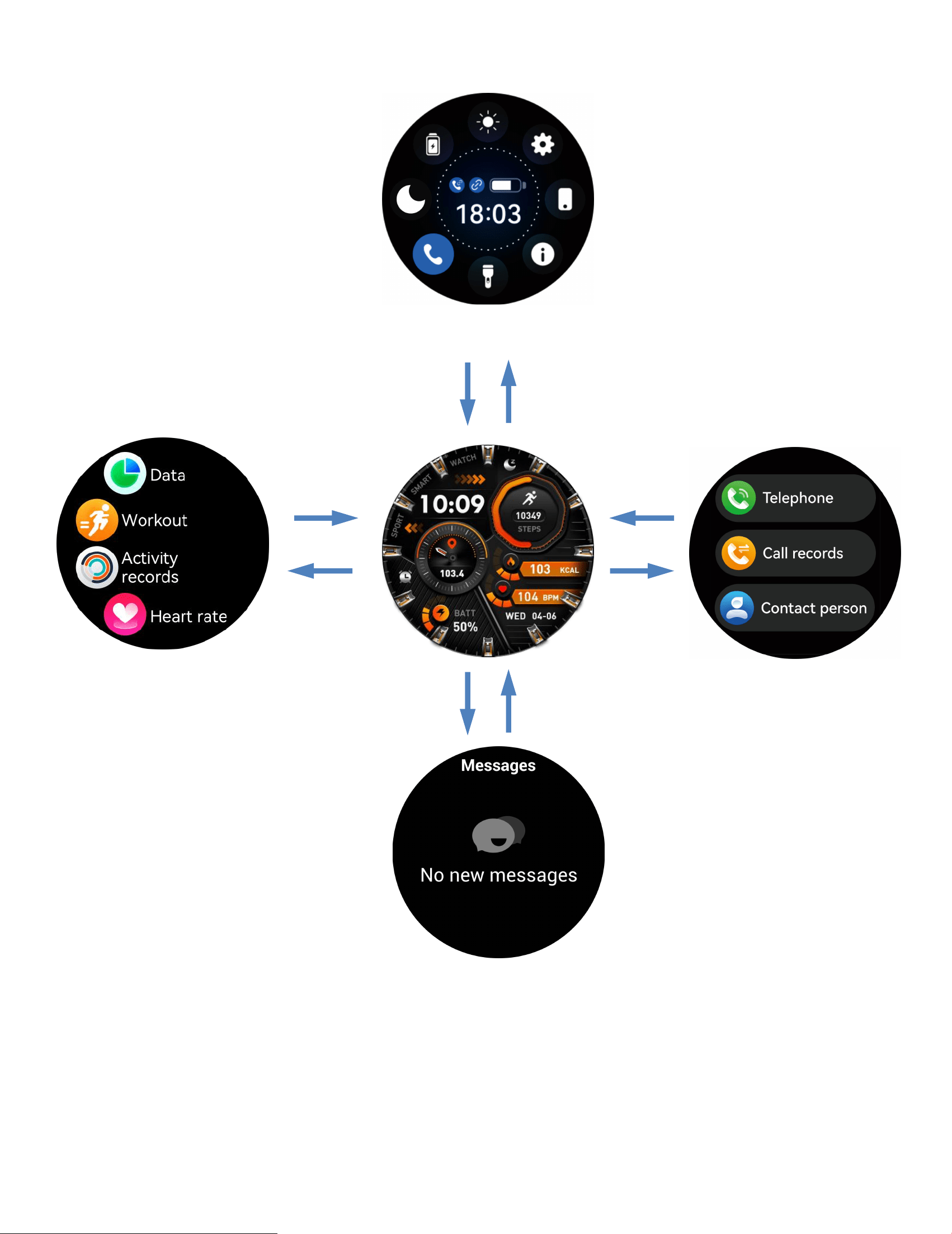
74
Puuteekraani funktsionaalsuse kuvamine
Sõnumid
Numbrivalija
Menü
ü
Juhtimiskeskus
75
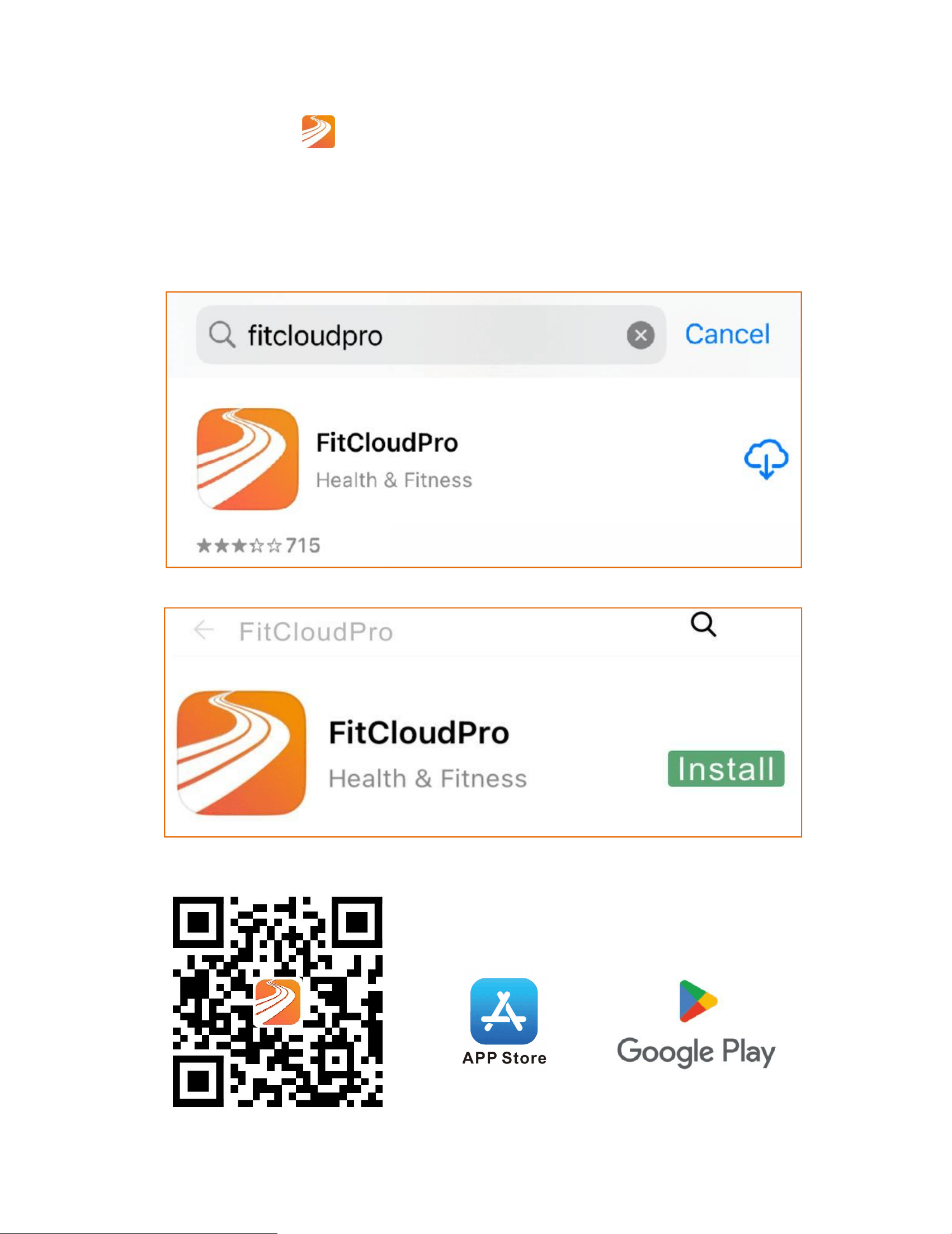
Lejupielādēt lietotni
①Lejupielādējiet "
FitCloudPro" lietotni no App Store vai
Google Play.
②Skenē QR kodu, lai lejupielādētu.
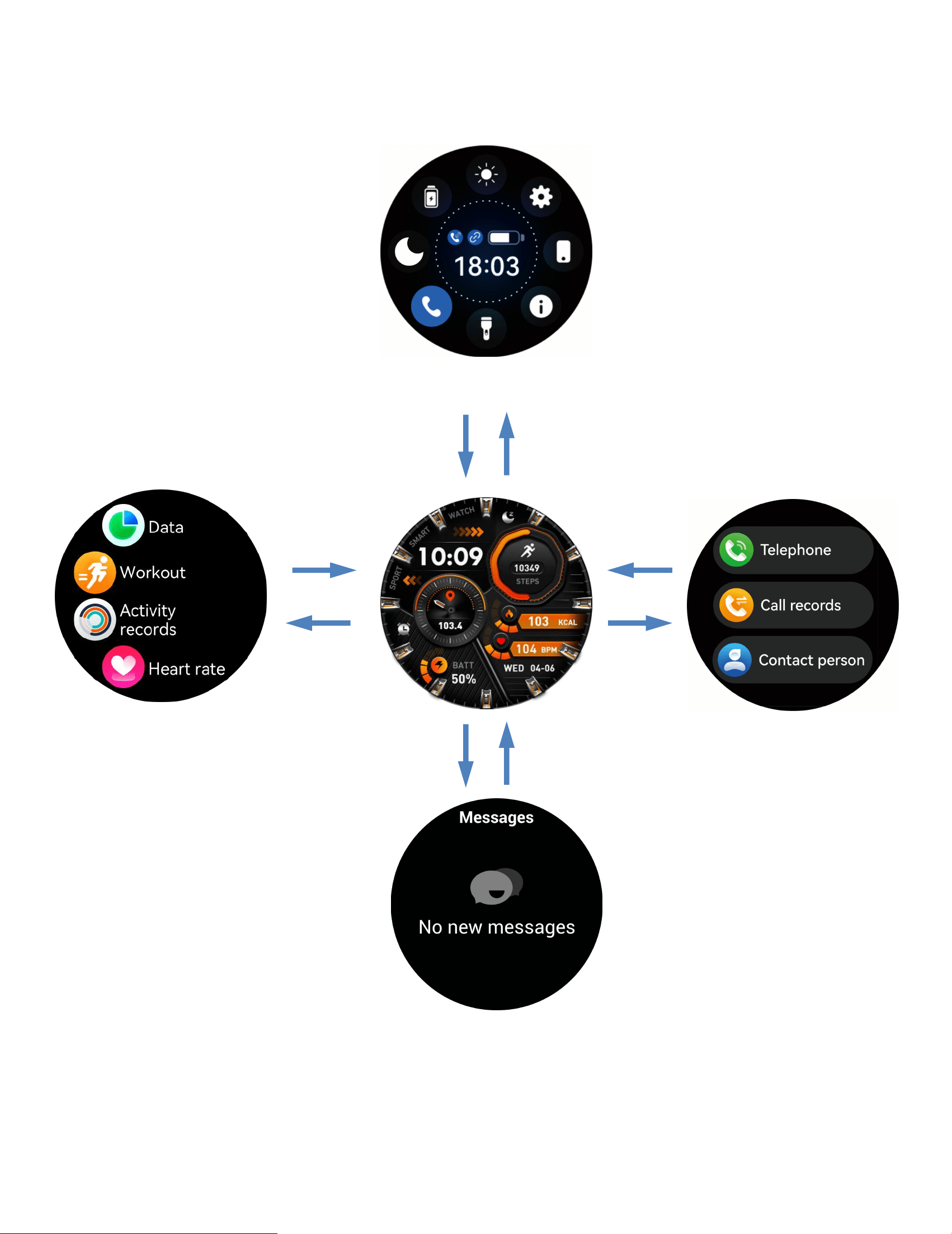
76
Skārienekrāna funkciju attēlošana
Ziņojumi
Zvanu numuru
sastādītājs
Izvēlne
Vadības centrs
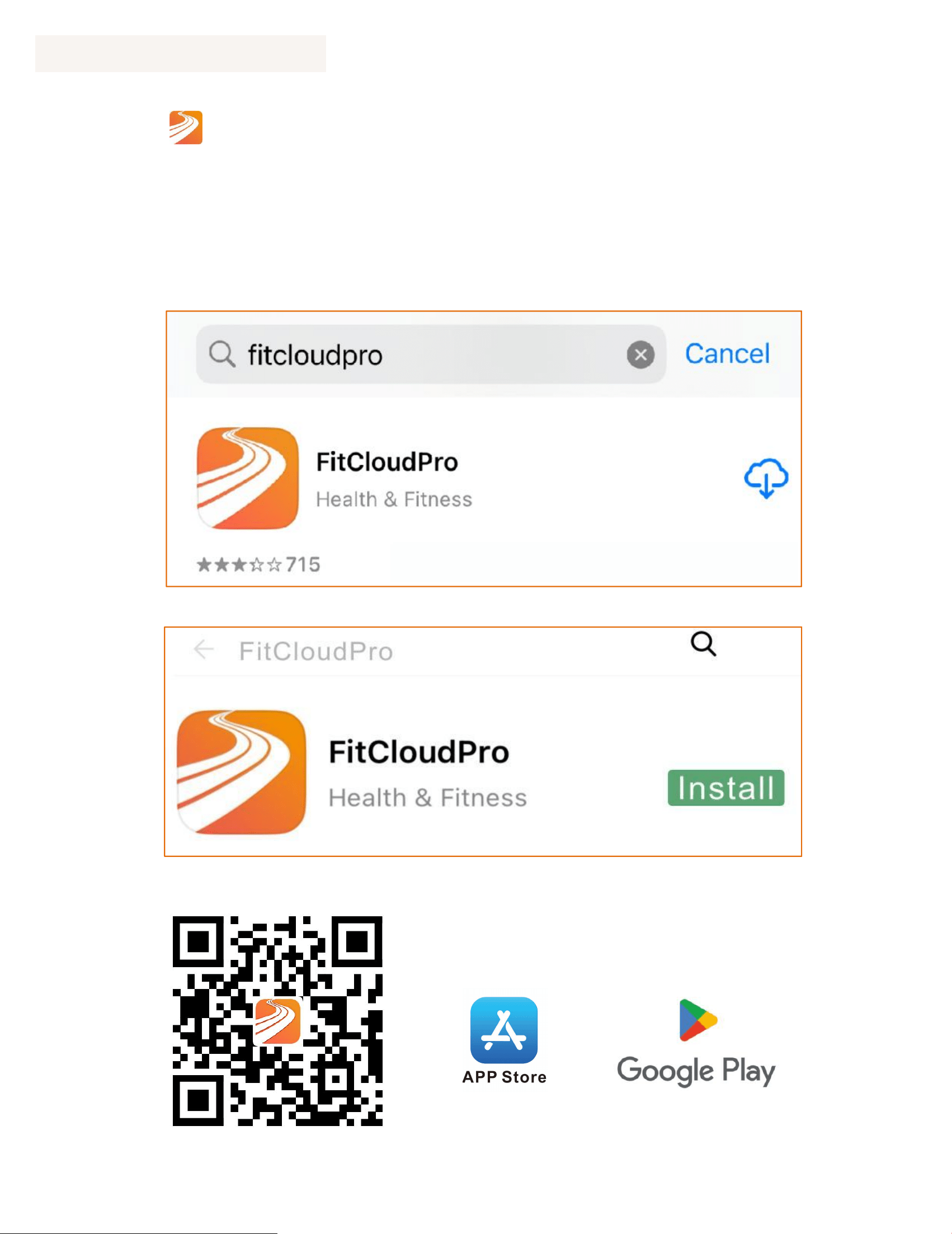
77
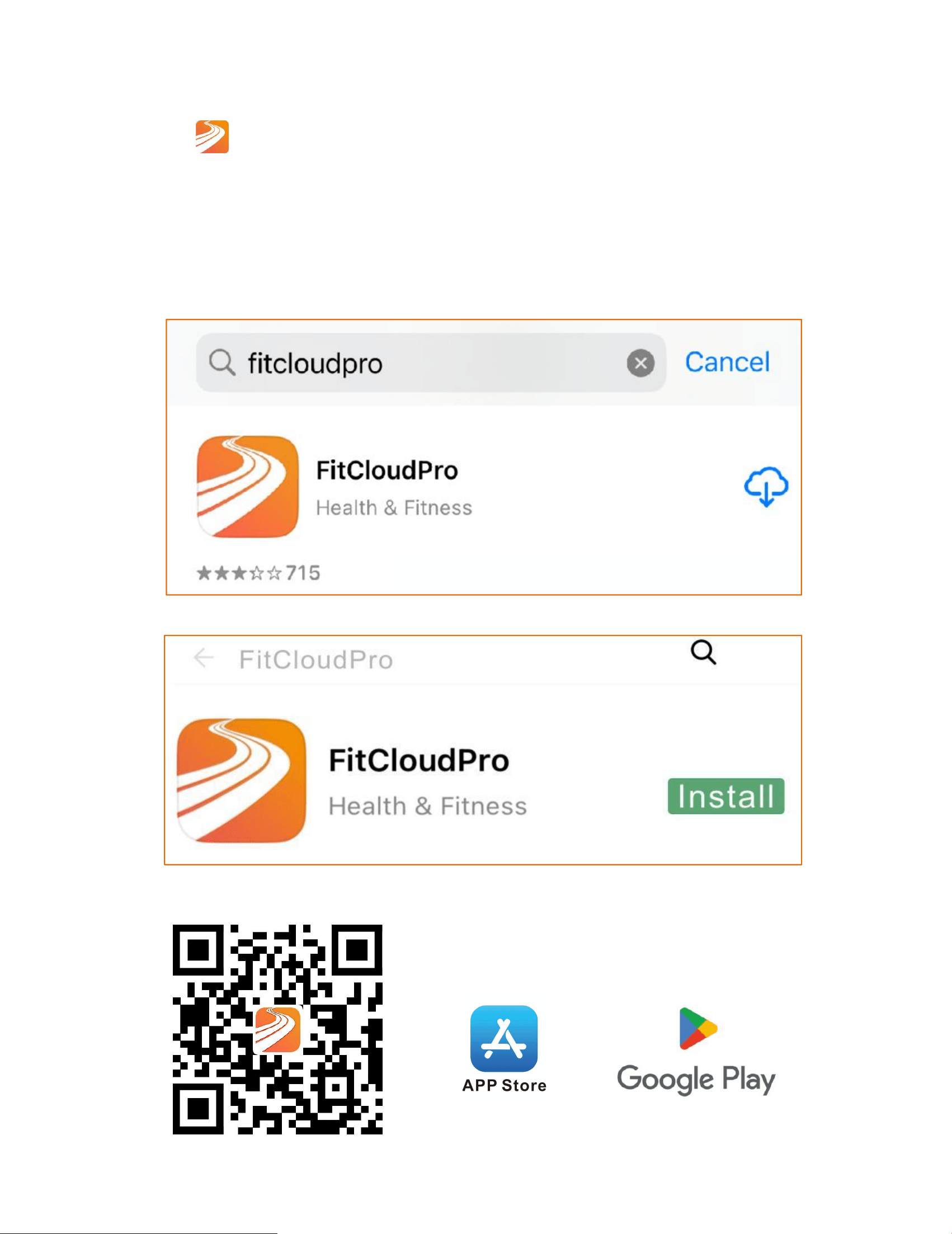
Sovelluksen lataus
①Lataa"
FitCloudPro" sovelluksen App Storesta tai Google
Playsta.
②
Skannaa QR-koodi ladataksesi.
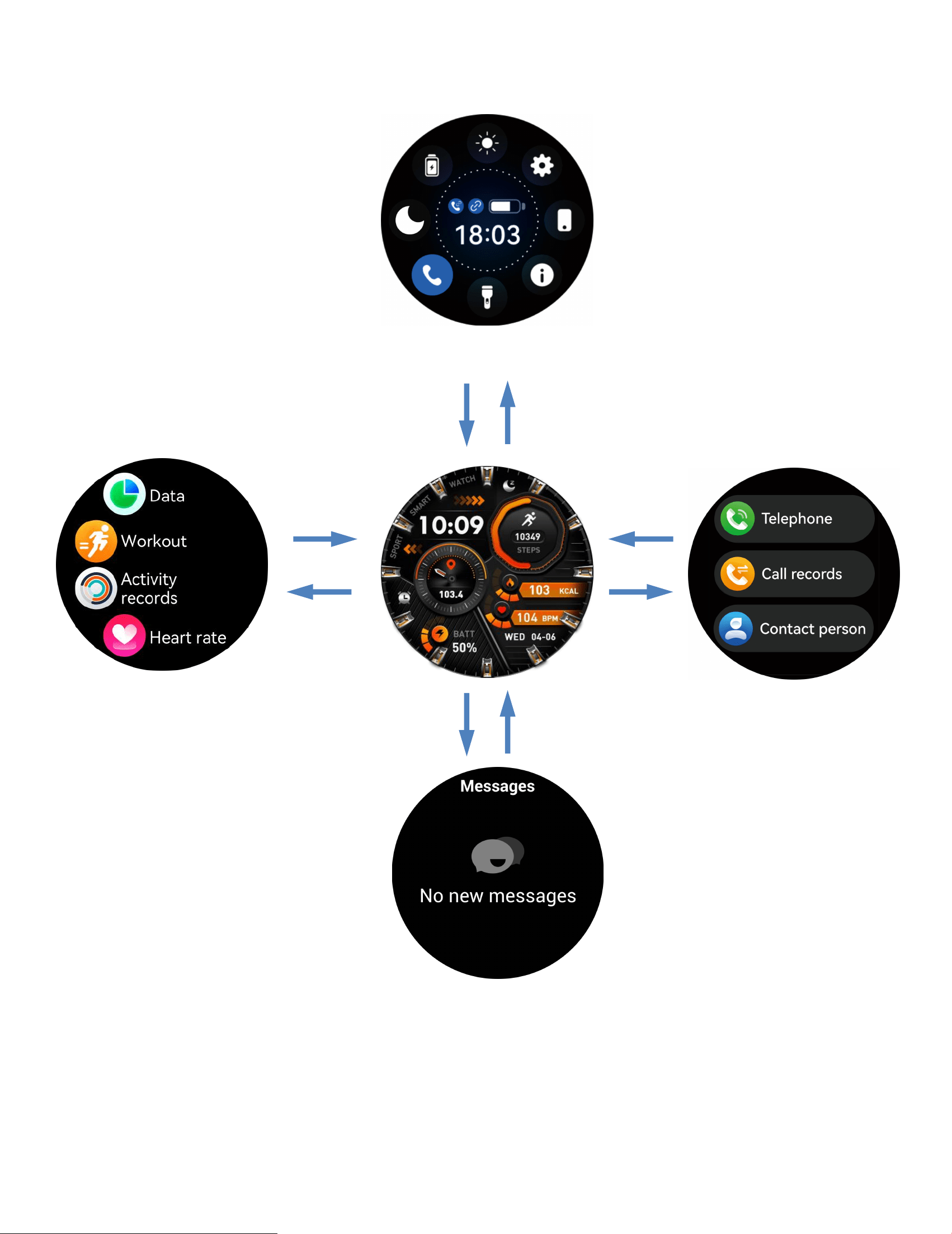
78
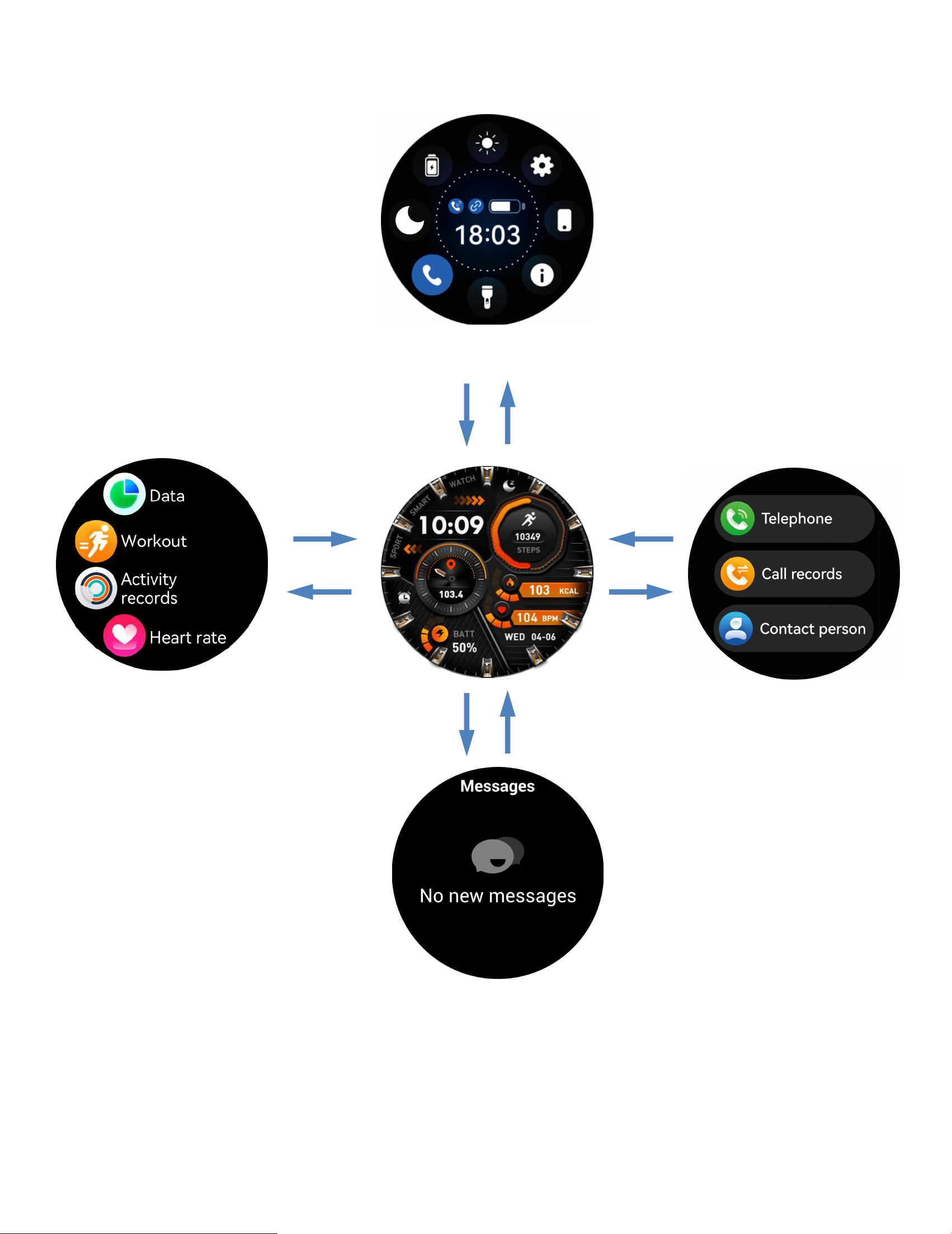
Displaying touchscreen functionality
Viestit
Valitse
Valikk
Ohjauskeskus
79
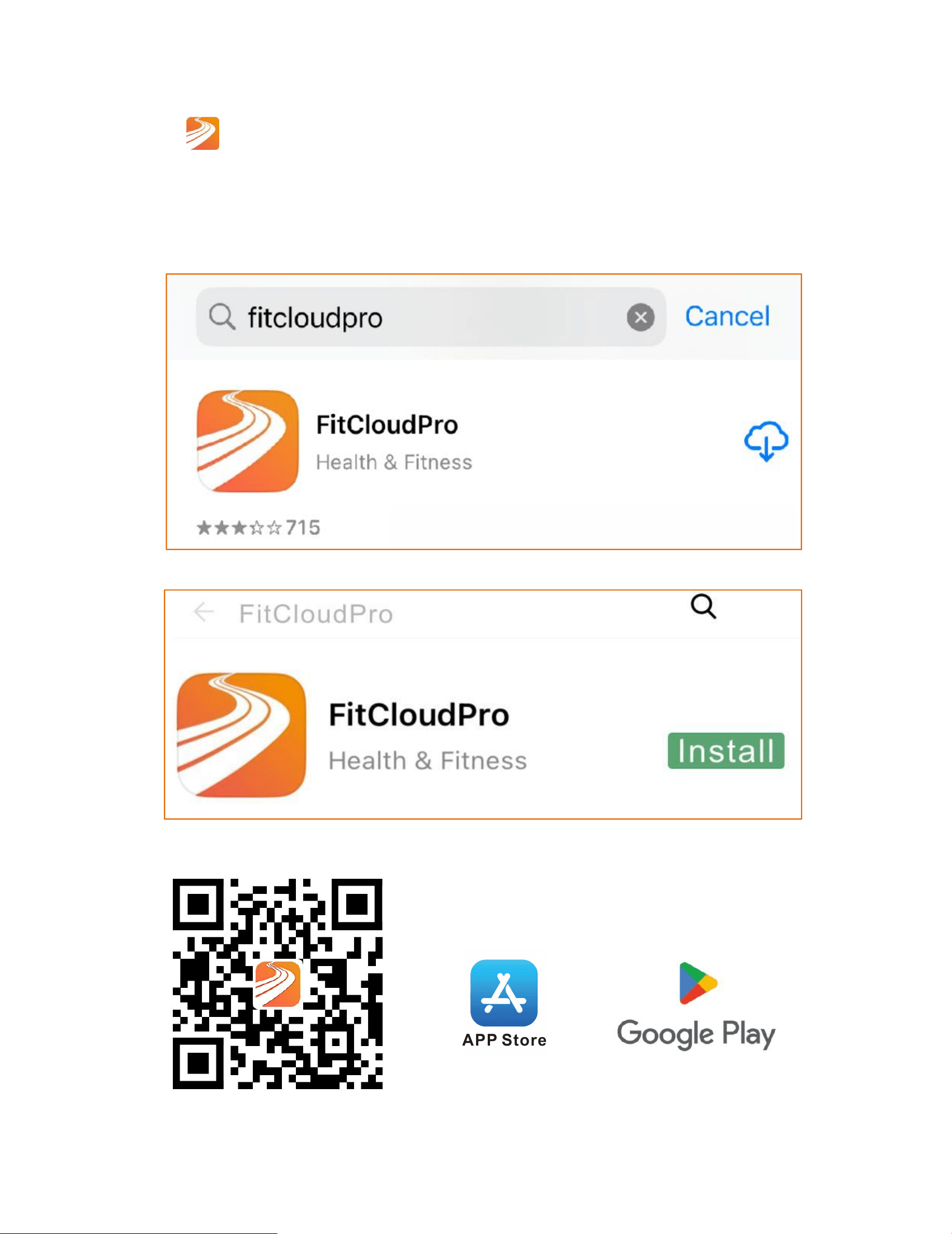
Prenos aplikacije
①Prenesi"
FitCloudPro" aplikacija iz App Stora ali Google
Playa.
②
Skenirajte QR kodo za prenos.
80
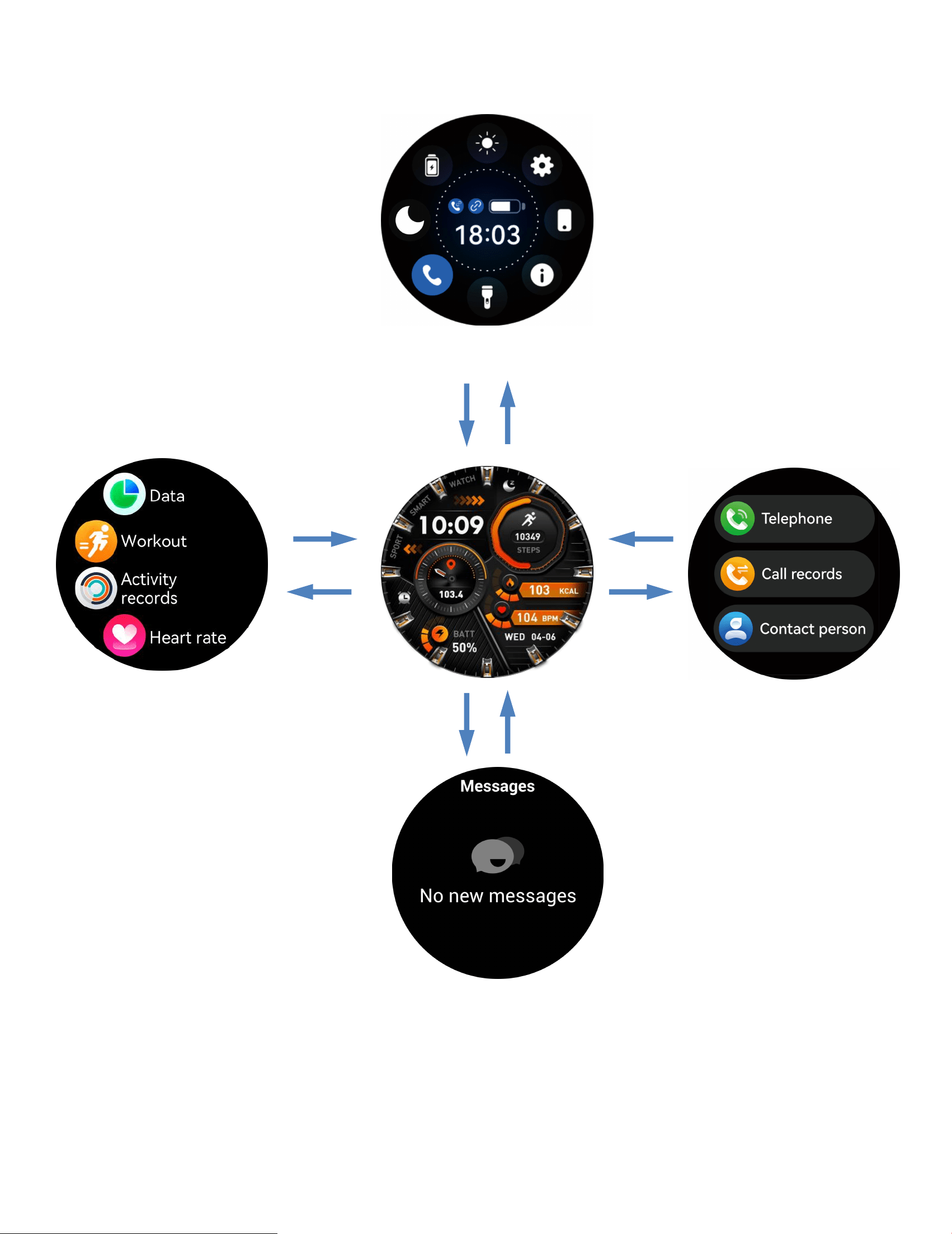
Prikaz funkcionalnosti zaslona na dotik
Sporočila
Gumb za klic
Meni
Nadzorni
81
Sækja app
①Sæktu"
FitCloudPro" forritið úr App Store eða Google Play.
②
Skráðu QR kóðann til að hlaða niður.
82
Sýna snertiskjáaaðgerðir
Skilaboð
Snúningsskífa
Valmy
Stjórnborð
83
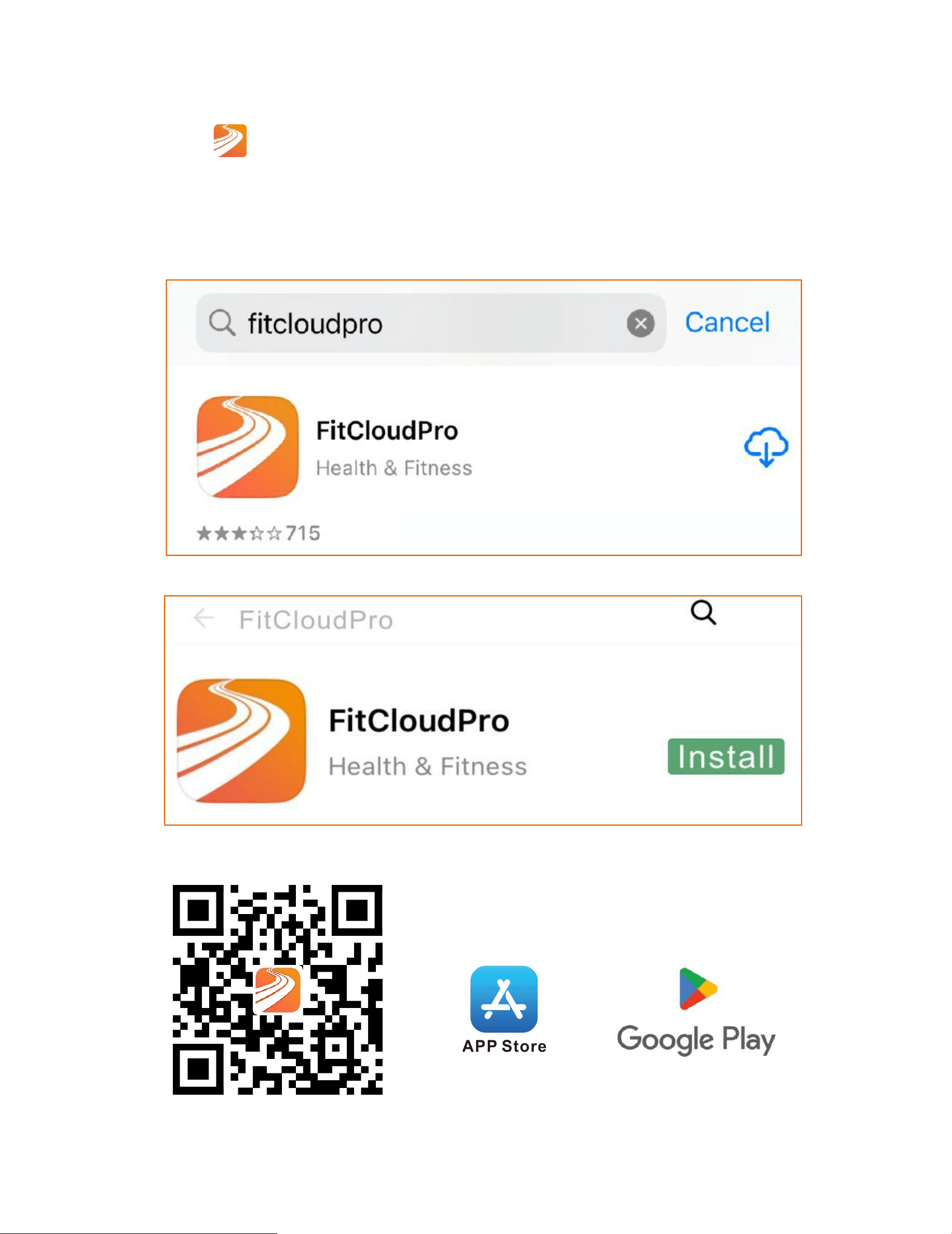
App-nedlasting
①Last ned"
FitCloudPro" app fra App Store eller Google Play.
②Skann QR-koden for å laste ned.
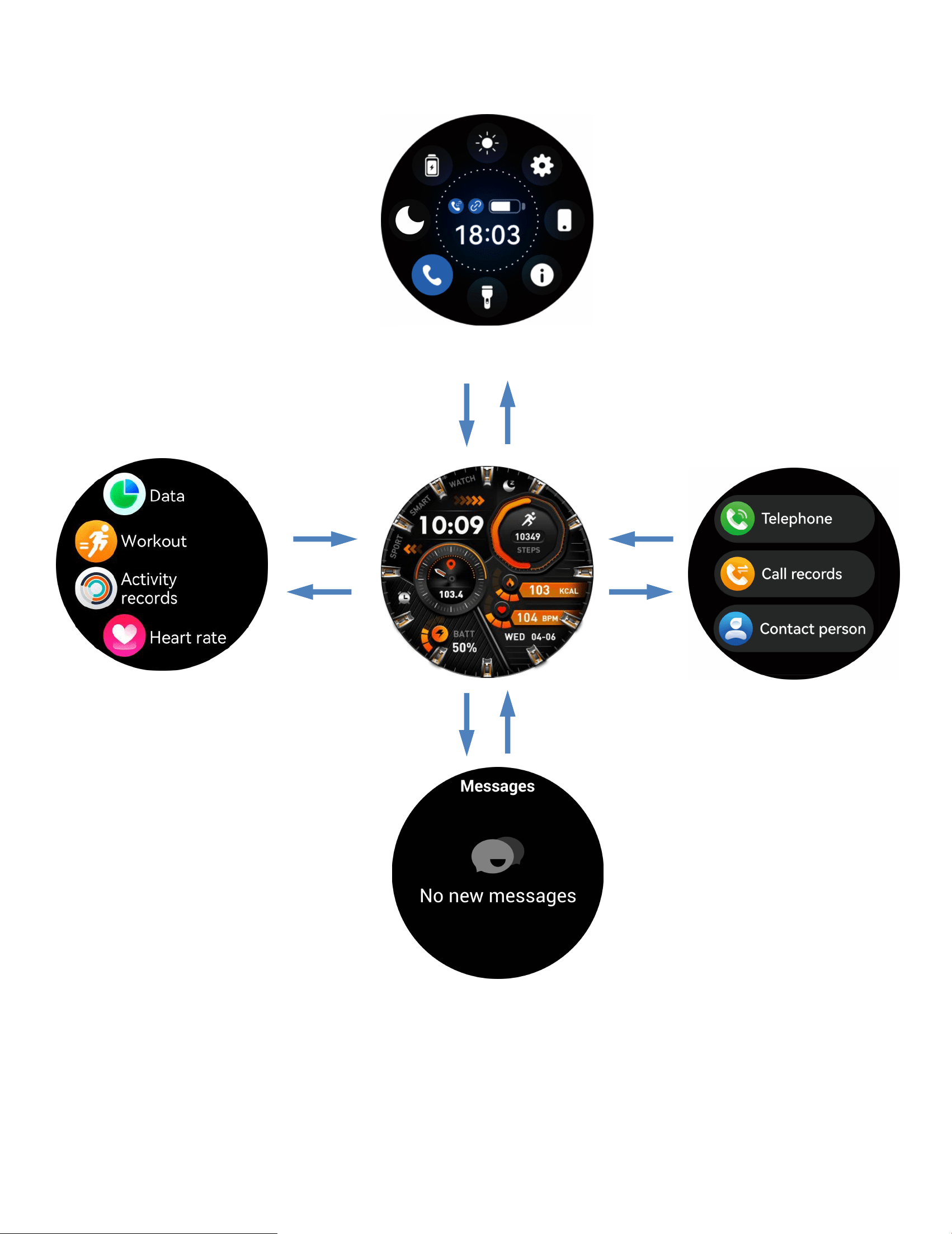
84
Berøringsskjermfunksjonalitet
Meldinger
Ring
Meny
Kontrollsenter