
© 2023 TP-Link 1910013388 REV3.1.0
Deco App
User Guide

Contents
Get Started ·············································································· 1
About This Guide ······································································2
Introduction to Deco App ····················································3
Set Up Your Deco Network ·················································4
Network ···················································································· 8
Create a New Network ···························································9
Switch Between Deco Networks ··································11
Monitor Your Deco Network ············································13
Manage Your Decos ····························································· 14
Add More Decos ····································································15
Replace Main Deco ······························································16
Manage Network Clients ···················································17
Protect Your Network with HomeShield Pro ···········20
Smart Home ··········································································21
Add Smart Devices ······························································22
Quickly Do Tasks with Shortcut ····································· 23
Automate Your Smart Devices ·······································25
Parental Controls ·································································27
Control Online Time and Content·································28
Monitor the Internet Usage ··············································30
Owner and Managers ·························································31
Add Managers ·········································································32
Set Privileges for Managers ···········································33
Change Account Information ········································34
Change Network Owner ····················································35
More Features ······································································36
Test Features at the Deco Lab ·······································37
Check Network Reports ····················································38
Block/Unblock Specic Devices ··································39
QoS ·······························································································40
Change Wi-Fi Settings ························································41
Create a Guest Network ····················································43
Create a IoT Network ···························································45
WPS ······························································································46
Change Internet Settings ·················································47

Network Optimization ························································48
Create Static Routes ··························································49
Set Up VPN Server/Client ···············································51
Congure Connection Alerts ··········································70
Control the Light on Decos ·············································71
Upgrade Your Deco ······························································72
Reboot Your Deco ·································································73
Reboot Schedule ···································································74
Control Your Deco with Alexa ·········································75
Enable App Notications ··················································· 76
Advanced Features ······························································77

Get Started
2
About This Guide
This guide provides a brief introduction to the Deco app.
Features available in Deco may vary by model and software version. Deco availability may also vary by region or ISP. All images, steps, and descriptions
in this guide are only examples and may not reect your actual Deco experience.
Conventions
In this guide, the following conventions are used:
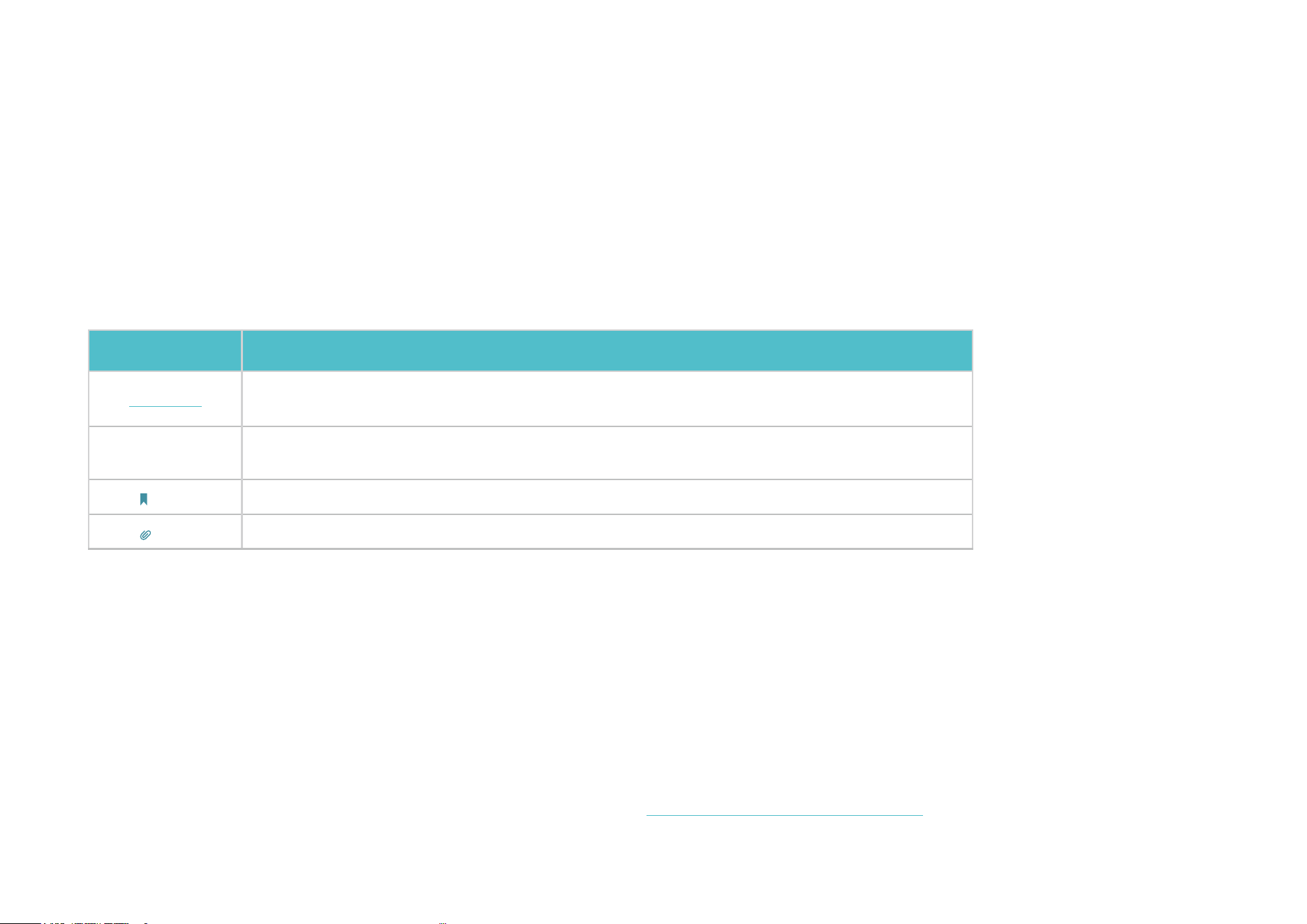
Convention Description
Underline Hyperlinks are in teal and underlined. You can click to redirect to a website or a specic section.
Teal
Key information appears in teal, including management page text such as menus, items,
buttons and so on.
Note: Ignoring this type of note might result in a malfunction or damage to the device.
Tips: Indicates important information that helps you make better use of your device.
IoT Compatibility Disclaimer
IoT compatibility refers only to smart devices that can be controlled via the Deco app. Other wireless devices can still connect to Deco for normal Wi-Fi
use.
Seamless Roaming Disclaimer
Clients need to support 802.11k/v/r and may require additional set up. Performance may vary depending on the client device.
HomeShield Disclaimer
HomeShield includes the Free Basic Plan. Fees apply for the Pro Plan. Visit https://www.tp-link.com/homeshield/ for more information.

3
* Features available in Deco may vary by model and software version. Deco availability may also vary by region or ISP.
Introduction to Deco App
TP-Link Deco app is the perfect way to set up your Deco mesh Wi-Fi in minutes and control your whole-home network. You can monitor your home
Wi-Fi from anywhere, and make changes right from the palm of your hand.
Your network at-a-glance
Easily access what you use most
in the reorganized dashboard.
View the network topology and
status, manage clients, and more.
Safeguard your network
Power up your protection against
intrusions and attacks, stay
updated on security details, and
get network recommendations.
Maintain healthy digital habits
Easily control your kids' online
time and content. Receive intuitive
charts and detailed statistics
concerning your kids' online usage.
More features within reach
Test the in-development features
at the Deco Lab, receive intuitive
network reports, set up networks
for dedicated needs, and more.

4
* Features available in Deco may vary by model and software version. Deco availability may also vary by region or ISP.
Set Up Your Deco Network
First let's start by setting up the Deco network. Get the TP-Link Deco app for iOS or Android, then follow the app to walk through the setup.
1. Get the Deco app
Download and install the Deco app from
Google Play or App Store, or by scanning the
QR code below.
2. Log in with TP-Link ID
Open the app and log in with your TP-Link ID. If
you don’t have a TP-Link ID, create one rst.
Tip: If you forgot your login password, tap Forgot Password.
The app will help you reset your password.
3. Select your Deco model
Search for and select your Deco model. If
you have more than one Deco model, tap the
question below the search box to check how
to maximize the overall network.
or

5
* Features available in Deco may vary by model and software version. Deco availability may also vary by region or ISP.
4. Plug in your devices
Power o your modem, connect your Deco to
the modem, then power them both on.
If you don't have a modem, connect your
Deco directly to the Ethernet outlet.
5. Wait until your Deco is ready for setup
Wait until your Deco's LED pulses blue,
indicating that your Deco is ready for setup.
6. Specify your Deco's location
Select or custom a location for your Deco.
The location will be used as the name of your
Deco.

6
* Features available in Deco may vary by model and software version. Deco availability may also vary by region or ISP.
7. Connect your Deco to the internet
Select the internet connection type and enter
the information. If you are not sure, contact
your internet service provider.
8. Create your Wi-Fi network
Set a network name and a password. These
will be the name and password you use to
connect your devices to Wi-Fi.
9. Connect to your Wi-Fi network
Connect your smartphone/tablet to the
Deco's Wi-Fi.

7
* Features available in Deco may vary by model and software version. Deco availability may also vary by region or ISP.
10. Setup complete
Your Deco network is now up. You can connect
your devices to the Deco network.
11. Add more Decos
Plug in the other included Decos, and they
will automatically join the network within 2
minutes.

Network
After setting up your Deco network, you can easily access what you use most in the reorganized dashboard. Create a new network, switch between
networks, view the network topology and status, manage clients, and more.

9
* Features available in Deco may vary by model and software version. Deco availability may also vary by region or ISP.
Create a New Network
In the Deco app, you can create different Deco networks with your TP-Link ID and manage them conveniently from the Deco app with one account. You
can also help family or friends manage their networks with your Deco app. Two methods are provided as below to create a new network.
1. On the home page, tap + and
select Create a Network.
Method 1. via the home page
2. Search for and select your Deco
model. Follow app instructions
to create the network.
10
* Features available in Deco may vary by model and software version. Deco availability may also vary by region or ISP.
1. Tap to open the side menu.
Method 2. via the side menu
2. Tap .
3. Tap Create New Network. 4. Search for and select your Deco
model. Follow app instructions
to create the network.

11
* Features available in Deco may vary by model and software version. Deco availability may also vary by region or ISP.
Switch Between Deco Networks
If you have created multiple Deco networks with your TP-Link ID, you can switch between them conveniently.
1. On the home page, tap
Change Network.
2. Select a network to switch to.
Method 1. via the home page
12
* Features available in Deco may vary by model and software version. Deco availability may also vary by region or ISP.
1. Tap to open the side menu.
Method 2. via the side menu
2. Tap .
3. Select a network to switch to.

13
* Features available in Deco may vary by model and software version. Deco availability may also vary by region or ISP.
Monitor Your Deco Network
After setting up your Deco network, you can easily monitor your whole-home network. Check the network status and speeds, reboot network, change
the network owner and main Deco, delete the network, and more.
1. On the home page, tap the
Network module.
2. Check the network status,
speeds, and topology.
3. Tap to manage the network.

14
* Features available in Deco may vary by model and software version. Deco availability may also vary by region or ISP.
Manage Your Decos
You can easily manage the Decos in your network. View Deco connections, check the clients of each Deco, edit the Deco's name, and reboot or
remove a Deco.
2. Tap a Deco to view device
details.
1. On the home page, tap the
Network module.
3. Tap to reboot or remove the Deco.

15
* Features available in Deco may vary by model and software version. Deco availability may also vary by region or ISP.
Add More Decos
After creating a Deco network, you can add more Decos to the network to expand the Wi-Fi coverage and manage them easily on your Deco app.
1. On the home page, tap + and
select Add a Deco Unit.
2. Search for and select your
Deco model. Follow app
instructions to add the Deco.

16
* Features available in Deco may vary by model and software version. Deco availability may also vary by region or ISP.
Replace Main Deco
You can replace the current main Deco with a new Deco, and your internet conguration and Wi-Fi settings will remain unchanged.
Note: Make sure that the new Deco supports the operation mode of the current main Deco. Otherwise, the network may be unavailable.
1. On the home page, tap + and
select Replace Main Deco.
2. Follow instructions to complete the settings.

17
* Features available in Deco may vary by model and software version. Deco availability may also vary by region or ISP.
Manage Network Clients
You can manage each network client easily. Change the device name, check its connection status, add it to the profile of a family member, enable high
priority and Mesh Technology for it, and block the device.
1. On the home page, tap the
Clients module.
2. Tap a client to view device details. 3. Congure the device type and
device name.

18
* Features available in Deco may vary by model and software version. Deco availability may also vary by region or ISP.
4. Tap Family Member to check the
prole it belongs to.
5. Tap Connection Preference to
congure the preferred Deco
and Wi-Fi band for this client.
6. Enable High Priority for this
client.
7. Enable Mesh Technology for
this client to turn on seamless
roaming between Decos for this
device.

19
* Features available in Deco may vary by model and software version. Deco availability may also vary by region or ISP.
8. Enable Device Isolation to block
this device from communicating
with other devices on the network to
ensure the network security.
9. Tap Block to prevent this
device from accessing to the
network.

20
* Features available in Deco may vary by model and software version. Deco availability may also vary by region or ISP.
Protect Your Network with HomeShield Pro
With HomeShield Pro, you can power up your protection against intrusions and attacks, stay updated on security details, and receive network
recommendations.
1. On the home page, tap Security. Deco will automatically scan your
network and give you feedbacks.
2. If risks are detected, tap them to know more. Then upgrade to
HomeShield Pro to optimize them and enhance your network security.

Smart Home
After creating a Deco network, you can add your smart home devices to the network and manage them conveniently on your Deco app.

22
* Features available in Deco may vary by model and software version. Deco availability may also vary by region or ISP.
Add Smart Devices
To set up your Smart Home, let's start by adding smart devices to your Deco network.
1. On the home page, swipe up
and tap the Smart module.
2. Tap Get Started. 3. Follow app instructions to add
your devices.
4. The added devices will be
displayed in the Smart module.

23
* Features available in Deco may vary by model and software version. Deco availability may also vary by region or ISP.
Quickly Do Tasks with Shortcut
Shortcut lets you execute an action with a simple tap. For example, if you want to power o your living room light at one tap, follow the steps below.
Note: If you want to create shortcuts for your smart devices, refer to Add Smart Devices to add the them to your Deco network rst.
2. Tap + and select Add Shortcut. 3. Tap Add Action. 4. Choose the devices you'd like
to control.
1. On the home page, swipe up
and tap the Smart module.

24
* Features available in Deco may vary by model and software version. Deco availability may also vary by region or ISP.
6. Name the shortcut and choose
an icon for easy identication.
Now you can tap to execute the
action anytime you like.
5. Add an action to be executed
with a simple tap.

25
* Features available in Deco may vary by model and software version. Deco availability may also vary by region or ISP.
Automate Your Smart Devices
Automation allows you to set interactions between your devices by adding triggers and actions. For example, when you arrive home or when your
smartphone is connected to the Deco network (which is a trigger), the living room plug automatically turns on (which is an action). Then the kettle
plugged into the living room plug will start to boil water.
Note: If you want to create shortcuts for your smart devices, refer to Add Smart Devices to add the them to your Deco network rst.
2. Tap + and select Add
Automation.
3. Tap Add Trigger. 4. Set a time or device trigger to
activate this automation.
1. On the home page, swipe up
and tap the Smart module.

26
* Features available in Deco may vary by model and software version. Deco availability may also vary by region or ISP.
6. Name the automation. Now the action will be executed
when triggered.
5. Add an action to be executed
when triggered.

Parental Controls
Parental Controls helps your kids maintain healthy digital habits.
Easily control your kids' online time and content. Receive intuitive charts and detailed statistics concerning your kids' internet usage.

28
* Features available in Deco may vary by model and software version. Deco availability may also vary by region or ISP.
Control Online Time and Content
To set up Parental Controls, let's start by creating proles for your kids.
1. On the home page, tap
Parental Controls.
2. Tap Get Started and create a
prole for your kid.
3. Select the devices belong to
your kid.
4. A prole will be created for
your kid.

29
* Features available in Deco may vary by model and software version. Deco availability may also vary by region or ISP.
• Filter inappropriate content • Block specic websites • Set "No internet" bedtime • Set online time limits • Set "No internet" otime
5. Control your kids' online time and content with the created prole.
Tip: You can upgrade to HomeShield Pro for more exible controls.

30
* Features available in Deco may vary by model and software version. Deco availability may also vary by region or ISP.
1. On the home page, tap
Parental Controls.
2. Tap a prole to monitor the
internet usage.
Tip: You can also go to More > Reports for
more statistics.
Monitor the Internet Usage
With the created proles, you can view intuitive charts and detailed statistics concerning your kids' internet usage.

Owner and Managers
The Owner creates the Deco network and has full authority to manage the network. The Owner can add one or multiple Managers to help manage the
network as permitted.

32
* Features available in Deco may vary by model and software version. Deco availability may also vary by region or ISP.
Add Managers
Add friends and family members to help manage your network. Each manager should have their own TP-Link ID.
Note: Managers cannot modify the Owner account, add other accounts, or set manager privileges.
1. Go to More > Managers. 2. Tap Add a Manager to add another TP-Link ID account as Manager.

33
* Features available in Deco may vary by model and software version. Deco availability may also vary by region or ISP.
Set Privileges for Managers
You can authorize Managers to manage specic settings.
Note: Privileges may vary slightly depending on the model, software version you have, and the current operation mode.
1. Go to More > Managers.
2. Tap to specify the privileges for the Managers.

34
* Features available in Deco may vary by model and software version. Deco availability may also vary by region or ISP.
Change Account Information
You can change your account name, password, and prole photo.
1. Go to > your account to edit
account information.
2. Tap your account for detailed
inforamtion.
3. Change the account
information as needed.

35
* Features available in Deco may vary by model and software version. Deco availability may also vary by region or ISP.
Change Network Owner
You can change the current Owner account to another TP-Link ID without resetting the whole Deco network. Follow the steps below.
Note: Changing the network owner will delete the network from the old Owner, and this Owner will no longer be able to manage this network.
1. On the home page, tap the Network module.
2. Tap and select Change Network Owner.
3. Follow app instructions to change the Owner account. The old Owner will be unable to manage this network anymore. The new Owner needs to
follow steps in an email sent from TP-Link to log in and manage the network.

More Features
More features are within reach. Test the in-development features at the Deco Lab, receive intuitive network reports, set up networks for dedicated
needs, and more.
Tip: You can use the search box on the More page to quickly nd the features you need.

37
* Features available in Deco may vary by model and software version. Deco availability may also vary by region or ISP.
Test Features at the Deco Lab
Deco Lab is a collection of experimental features like Wi-Fi Assistant. We will keep updating the lab to provide you even better experiences. You can
test the in-development features at the Deco Lab.
1. Go to More > Deco Lab. 2. Check and test the in-development features.

38
* Features available in Deco may vary by model and software version. Deco availability may also vary by region or ISP.
Check Network Reports
The Deco app provides intuitive charts and detailed statistics to help you know your home network better.
1. Go to More > Reports. 2. Check the weekly and monthly reports of your network.

39
* Features available in Deco may vary by model and software version. Deco availability may also vary by region or ISP.
Block/Unblock Specic Devices
You can block undesired devices to prevent them from accessing your network or unblock specific devices.
1. Go to More > Block List. 2. Tap + and choose a method to
block devices.
3. Tap to unblock a device.

40
* Features available in Deco may vary by model and software version. Deco availability may also vary by region or ISP.
QoS
QoS (Quality of Service) allows you to prioritize specic devices. Devices set as high priority will run smoothly even when the network is crowded.
1. Go to More > QoS. 2. Enable QoS. 3. Set the total bandwidth
provided by your ISP.
4. Add high priority devices.

41
* Features available in Deco may vary by model and software version. Deco availability may also vary by region or ISP.
Change Wi-Fi Settings
You can change the network name and password of your main network at any time and share the network easily with family and friends.
1. Go to More > Wi-Fi Settings. 2. Change Wi-Fi network name, password and security. 3. Tap Advanced for advanced
Wi-Fi settings.

42
* Features available in Deco may vary by model and software version. Deco availability may also vary by region or ISP.
4. Select a preferred band to be
enabled in this network.
5. Select a preferred channel
width for 5 GHz network.
6. Enable to hide this network
from Wi-Fi list.

43
* Features available in Deco may vary by model and software version. Deco availability may also vary by region or ISP.
Create a Guest Network
You can create and share a separate network for guests to guarantee the security and privacy of your main network.
1. Go to More > Guest Network. 2. Turn on Guest Network. 3. Set a Wi-Fi network name,
password and security.
4. Tap Duration to set how long
the Guest Network works
before it automatically turns
o.

44
* Features available in Deco may vary by model and software version. Deco availability may also vary by region or ISP.
5. Congure advanced settings.
• Band: Select a preferred band to be enabled in this network.
• Channel Width for 5 GHz: Select a preferred channel width for 5 GHz network. The higher one provides better Wi-Fi performance.
• Bandwidth Control: Enable it and set a download and upload bandwidth for your network.

45
* Features available in Deco may vary by model and software version. Deco availability may also vary by region or ISP.
Create a IoT Network
Create a dedicated and wireless network to manage all your IoT devices, such as smart lights and camers.
1. Go to More > IoT Network. 2. Turn on IoT Network. Set a Wi-
Fi network name and password
for this network.
3. Select a preferred security
method for this network.
4. Select a preferred band to be
enabled in this network.

46
* Features available in Deco may vary by model and software version. Deco availability may also vary by region or ISP.
WPS
WPS (Wi-Fi Protected Setup) helps you to quickly and securely connect a client to the network with a tap without entering any password.
2. Tap the WPS icon on Deco app
and then on your client.
1. Go to More > WPS.

47
* Features available in Deco may vary by model and software version. Deco availability may also vary by region or ISP.
Change Internet Settings
You can change internet settings if needed.
2. Tap IPv4 for IPv4 settings. 3. Tap IPv6 for IPv6 settings. 4. Tap Firewall Rules to add rules
if you want to allow specic
devices to access specic
services.
1. Go to More > Internet
Connection.

48
* Features available in Deco may vary by model and software version. Deco availability may also vary by region or ISP.
Network Optimization
Network Optimization analyzes the quality of the Deco wireless network by scanning the interference signals in the environment and improves your
wireless experience by optimizing the Deco network's channel.
2. Tap Scan to detect network
security and performance.
3. Optimize the network if
needed.
1. Go to More > Network
Optimization.
49
* Features available in Deco may vary by model and software version. Deco availability may also vary by region or ISP.
Create Static Routes
Static routing is a form of routing that is congured manually by a network administrator or a user by adding entries into a routing table. The manually-
congured routing information guides the router in forwarding data packets to the specic destination.
1. Go to More > Advanced> Static Routing, and tap Add Static Route.

50
* Features available in Deco may vary by model and software version. Deco availability may also vary by region or ISP.
2. Fill in the necessary information.
• Description: Specify a description for the routing entry.
• Network Destination: The network destination is the address of the
network of host that you want to assign to a static route.
• Subnet Mask: The Subnet Mask divides the network portion and the
host portion of an IP address.
• Default Gateway: This is the IP address of the default gateway device
that allowing for the contact between the router and the network or
host.
• Interface: Select the interface to specify the type of the network
destination.
3. After you save the settings, if
the entry you have set appear
on the screen, the static
routing is set successfully.

51
* Features available in Deco may vary by model and software version. Deco availability may also vary by region or ISP.
1. Go to More > Advanced > VPN Server.
Use OpenVPN to Access Your Home Network
OpenVPN Server is used to create an OpenVPN connection for remote devices to access your home network.
To use the VPN feature, you need to enable OpenVPN Server on your Deco router, and install and run VPN client software on remote devices. Please
follow the steps below to set up an OpenVPN connection.
2. Tap Add VPN Server and select OpenVPN.
Set Up VPN Server/Client
Use Open VPN, PPTP VPN, or L2TP/IPSec VPN to access your home network, and use VPN Client to access a remote VPN server.

52
* Features available in Deco may vary by model and software version. Deco availability may also vary by region or ISP.
3. Enter the necessary information and save the settings.
• Description: Enter a name for this OpenVPN.
• Service Type: Select the service type (UDP/TCP) for OpenVPN.
• VPN Port: Enter a VPN service port to which a VPN device connect, and the port number should be between 1024 and 65535.
• VPN Subnet/Netmask: Enter the range of IP addresses that can be leased to the device by the OpenVPN server.
• Client Access: Select your client access type. Select Home Network Only if you only want the remote device to access your home network. Select
Internet and Home Network if you also want the remote device to access internet through the VPN server.

53
* Features available in Deco may vary by model and software version. Deco availability may also vary by region or ISP.
4. Tap the VPN you have saved and tap Export Cong File to save the
OpenVPN conguration le which will be used by the remote device to
access your router.
5. Now you need to congure OpenVPN connection on your remote
device.
(1) Visit https://openvpn.net/community-downloads/ to download the
OpenVPN software, and install it on your device where you want to run
the OpenVPN client utility.
Note: You need to install the OpenVPN client utility on each device that you plan to apply the
VPN function to access your Deco router. Mobile devices should download a third-party app from
Google Play or Apple App Store.
(2) After the installation, copy the le exported from your router to
the OpenVPN client utility’s “cong” folder (for example, C:\Program
Files\OpenVPN\cong on Windows). The path depends on where the
OpenVPN client utility is installed.
(3) Run the OpenVPN client utility and connect it to OpenVPN Server.

54
* Features available in Deco may vary by model and software version. Deco availability may also vary by region or ISP.
1. Go to More > Advanced > VPN Server.
Use PPTP VPN to Access Your Home Network
PPTP VPN Server is used to create a PPTP VPN connection for remote devices to access your home network.
To use the VPN feature, you need to set up PPTP VPN Server on your Deco router, and congure the PPTP connection on remote devices.
Please follow the steps below to set up a PPTP VPN connection.
2. Tap Add VPN Server and select PPTP.

55
* Features available in Deco may vary by model and software version. Deco availability may also vary by region or ISP.
3. Enter the necessary information and save the settings.
• Description: Enter a name for this VPN.
• Client IP Address: Enter the range of IP addresses (up to 10) that can be leased to the devices by the PPTP VPN server.
• Allow NetBIOS passthrough: Enable it to allow your VPN device to access your Samba server using NetBIOS name.
• Allow unencrypted connections: Enable it to allow unencrypted connections to your VPN server.
• Account List: Add the PPTP VPN connection account (user name and password) for the remote device. You can create up to 16 accounts.

56
* Features available in Deco may vary by model and software version. Deco availability may also vary by region or ISP.
4. Now you need to congure PPTP VPN on your remote device. The remote device can use the Windows built-in PPTP software or a third-party PPTP
software to connect to PPTP Server. Here we use the Windows built-in PPTP software as an example.
(1) Go to Start > Control Panel > Network and Internet > Network and
Sharing Center and select Set up a new connection or network.
(2) Select Connect to a workplace and click Next.

57
* Features available in Deco may vary by model and software version. Deco availability may also vary by region or ISP.
(3) Select Use my Internet connection (VPN). (4) Enter the internet IP address of the router in the Internet address eld.
Click Next.

58
* Features available in Deco may vary by model and software version. Deco availability may also vary by region or ISP.
(5) Enter the User name and Password you have set for the PPTP VPN
server on your router, and click Connect.
(6) Click Connect Now when the VPN connection is ready to use.

59
* Features available in Deco may vary by model and software version. Deco availability may also vary by region or ISP.
1. Go to More > Advanced > VPN Server.
Use L2TP/IPSec VPN to Access Your Home Network
L2TP/IPSec VPN Server is used to create a L2TP/IPSec VPN connection for remote devices to access your home network.
To use the VPN feature, you need to set up L2TP/IPSec VPN Server on your Deco router, and congure the L2TP/IPSec connection on remote devices.
Please follow the steps below to set up the L2TP/IPSec VPN connection.
2. Tap Add VPN Server and select L2TP/IPSec.

60
* Features available in Deco may vary by model and software version. Deco availability may also vary by region or ISP.
3. Enter the necessary information and save the settings.
• Description: Enter a name for this VPN.
• Client IP Address: Enter the range of IP addresses (up to 10) that can be leased to the devices by the L2TP/IPSec VPN server.
• IPSec Encryption/ IPSec Pre-Shared Key: Keep IPSec Encryption as Encrypted and create an IPSec Pre-Shared Key.
• Account List: Add the L2TP/IPSec VPN connection account (user name and password) for the remote device. You can create up to 16 accounts.

61
* Features available in Deco may vary by model and software version. Deco availability may also vary by region or ISP.
4. Now you need to congure L2TP/IPSec on your remote device. The remote device can use the Windows or Mac OS built-in L2TP/IPSec software or a
third-party L2TP/IPSec software to connect to L2TP/IPSec Server. Here we use the Windows built-in L2TP/IPSec software as an example.
(1) Go to Start > Control Panel > Network and Internet > Network and
Sharing Center and select Set up a new connection or network.
(2) Select Connect to a workplace and click Next.

62
* Features available in Deco may vary by model and software version. Deco availability may also vary by region or ISP.
(3) Select Use my Internet connection (VPN). (4) Enter the internet IP address of the router in the Internet address eld.
Select Don’t connect now; just set it up so I can connect later. Then click
Next.

63
* Features available in Deco may vary by model and software version. Deco availability may also vary by region or ISP.
(5) Enter the User name and Password you have set for the L2TP/IPSec
VPN server on your router, and click Connect.
(6) Click Close when the VPN connection is ready to use.

64
* Features available in Deco may vary by model and software version. Deco availability may also vary by region or ISP.
(7) Go to Network and Sharing Center and click Change Adapter
Settings.
(8) Find the VPN connection you created, then double-click it.

65
* Features available in Deco may vary by model and software version. Deco availability may also vary by region or ISP.
(9) Enter the Username and Password you have set for the L2TP/IPSec
VPN server on your router, and click Properties.
(10) Switch to the Security tab, select Layer 2 Tunneling Protocol with
IPsec (L2TP/IPSec) and click Advanced settings.

66
* Features available in Deco may vary by model and software version. Deco availability may also vary by region or ISP.
(11) Select Use preshared key for authentication and enter the IPSec
Pre-Shared Key you have set for the L2TP/IPSec VPN server on your
router. Then click OK.
(12) Switch to the Security tab, select Layer 2 Tunneling Protocol with
IPsec (L2TP/IPSec) and click Advanced settings.
Done! Click Connect to start VPN connection.

67
* Features available in Deco may vary by model and software version. Deco availability may also vary by region or ISP.
1. Go to More > Advanced > VPN Client.
Use VPN Client to Access a Remote VPN Server
VPN Client is used to create VPN connections for devices in your home network to access a remote VPN server.
To use the VPN feature, simply congure a VPN connection and choose your desired devices on your Deco router, then these devices can access the
remote VPN server. Please follow the steps below:
2. Enable VPN Client and tap Add VPN Server.

68
* Features available in Deco may vary by model and software version. Deco availability may also vary by region or ISP.
3. Select a VPN Type and enter the VPN information provided by your VPN provider and save the settings.
• OpenVPN: Enter the VPN username and password if required by your VPN provider, otherwise simply leave them empty. Then import the
conguration le provided by your VPN provider.
• PPTP: Enter the VPN server address and the VPN username and password provided by your VPN provider.
• L2TP/IPSec: Enter the VPN server address, VPN username and password, and IPSec pre-shared key provided by your VPN provider.

69
* Features available in Deco may vary by model and software version. Deco availability may also vary by region or ISP.
4. Tap Client List and + to add devices that will use the VPN function
Done! Now the devices you specied can access the VPN server you enabled.
5. Tap Access Permission to
allow all devices connected
to your Deco to use the VPN
function or only allow devices
on the Client List to use VPN
function.

70
* Features available in Deco may vary by model and software version. Deco availability may also vary by region or ISP.
Congure Connection Alerts
You can congure Connection Alerts so you can get alerts when new devices connect to your network or when the devices you care about go online
or oine.
Go to More > Connection Alerts to enable notications of new or known clients.

71
* Features available in Deco may vary by model and software version. Deco availability may also vary by region or ISP.
Control the Light on Decos
You can turn on or o the light on your Decos immediately or at specic period.
Go to More > LED Control to turn on or o the light on your Decos or specify a period during which the light will go o.

72
* Features available in Deco may vary by model and software version. Deco availability may also vary by region or ISP.
Upgrade Your Deco
TP-Link is dedicated to improving product features and providing a better customer experience. An up-to-date rmware provides better and more
stable network performance. Always update your Deco to the latest rmware version when prompted in the Deco app.
1. Go to More > System > Update Deco. 2. Download and install the latest
rmware (if any).
3. All Decos in your network will
be updated.

73
* Features available in Deco may vary by model and software version. Deco availability may also vary by region or ISP.
Reboot Your Deco
Reboot your Deco at any time when needed.
1. Go to More > System > Reboot Deco. 2. Select the Deco you need to reboot and tap Reboot. You will lose your
internet connection temporarily during the reboot.

74
* Features available in Deco may vary by model and software version. Deco availability may also vary by region or ISP.
Reboot Schedule
With Reboot Schedule, you can set when and how often the Deco reboots regularly, which may improve the network stability.
1. Go to More > System > Reboot Schedule. 2. Enable Reboot Schedule and set when and how often to reboot the
Deco regularly.

75
* Features available in Deco may vary by model and software version. Deco availability may also vary by region or ISP.
Control Your Deco with Alexa
Alexa Integration allows you to control your Deco using Amazon’s Alexa voice service. You can control and customize your home network by giving
simple voice commands to Alexa, such as enabling the Guest Network, turning o your Deco LEDs, and more.
Follow the steps below to use Alexa voice commands to control your Deco network.
Note: This feature is currently available in English (US), English (UK), German and Japanese.
In the Deco app, tap and go to Link Account > Alexa > TP-Link Router Skill, then follow the app instructions to complete the setup.

76
* Features available in Deco may vary by model and software version. Deco availability may also vary by region or ISP.
Enable App Notications
You can enable notications of what you care most.
Go to > App Settings > Notications to enable notications.

77
* Features available in Deco may vary by model and software version. Deco availability may also vary by region or ISP.
Advanced Features
The Deco app oers a list of advanced features to fulll diverse network needs.
Tip: You can use the search box on the More page to quickly nd the features you need.
Enable IPTV/VLAN mode to
support IPTV services.
Change the operation mode.
Tap More > Advanced to access advanced features.
Note: Features available on this page are based on the current operation mode of the network.

78
* Features available in Deco may vary by model and software version. Deco availability may also vary by region or ISP.
Register a TP-Link DDNS domain
name to access your Decos and
local resources over the internet.
Modify LAN IP to avoid IP
address conflict.
Change DHCP Server settings.
Tip: You can use the search box on the More page to quickly nd the features you need.
Enable MAC Clone if your ISP only
allows specic MAC addresses.

79
* Features available in Deco may vary by model and software version. Deco availability may also vary by region or ISP.
Enable Fast Roaming to further
reduce roaming delays for your
wireless devices.
Enable Beamforming to
concentrate Wi-Fi signal towards
connected devices for stronger
connections.
Set up port forwarding rules to
enable devices in your network
accessible over the internet with
safety.
Tip: You can use the search box on the More page to quickly nd the features you need.
Reserve IP addresses for specic
devices to recognize and
manage them more easily.

80
* Features available in Deco may vary by model and software version. Deco availability may also vary by region or ISP.
Enable UPNP to allow your local
network to dynamically open
ports for applications like gaming.
Tip: You can use the search box on the More page to quickly nd the features you need.
Enable SIP ALG to communicate
with SIP (Session Initiation
Protocol) servers via NAT.