
Kasa Smart App User Guide
(For Cameras)
© 2023 TP-Link 1910013538 REV1.1.0

Contents
About This Guide ································································ 1
Introduction to Kasa Smart App ································· 2
Set Up Your Camera ·························································· 3
Main Device Controls ······················································· 4
Set Schedules ······································································ 7
Enable 24/7 Recording ················································· 10
Check 24/7 Recording Videos ································· 11
Turn On/O Spotlight Temporarily ·························· 12
Screen Recording ···························································· 13
Enable/Disable Siren ······················································ 14
Pan/Tilt ··················································································· 15
Add/Delete View Points ················································ 16
Manage Device Settings ············································· 17
Reset Your Camera ························································· 34
Cameras ··············································································· 36
Grouping ··············································································· 37
Me Page ················································································ 42
Manage Your Account ·················································· 42
Kasa Care ············································································· 43
Third Party Services ······················································· 44
Firmware Update ······························································ 48
Notication ·········································································· 49
Widgets ················································································· 50
Settings ················································································· 59
Scenes ··················································································· 60
Smart Actions ···································································· 65
1
About This Guide
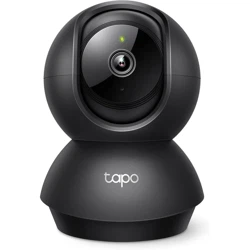
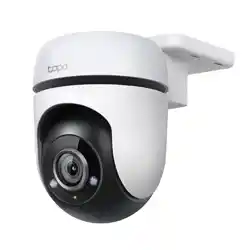
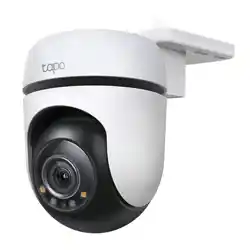
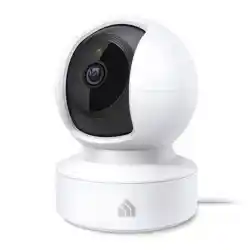
This guide provides a brief introduction to the Kasa Smart app and the Kasa Cameras, as well as regulatory information.
Features available of this product and in Kasa Smart may vary by model and software version. Kasa Spot and Kasa Smart availability may also vary by
region. All images, steps, and descriptions in this guide are only examples and may not reect your actual experience.
Conventions
In this guide, the following convention is used:
Convention Description
Teal
Key information appears in teal, including management page text such as menus, items, buttons and so on.
Underline
Hyperlinks are in teal and underlined. You can click to redirect to a website.
More Info
• Specications can be found on the product page at https://www.tp-link.com.
• Our Technical Support and troubleshooting information can be found at https://www.tp-link.com/support.
• A TP-Link Community is provided for you to discuss our products at https://community.tp-link.com.
• Frequently Asked Questions (FAQs) can be found at https://www.tp-link.com/support/faq/.
2
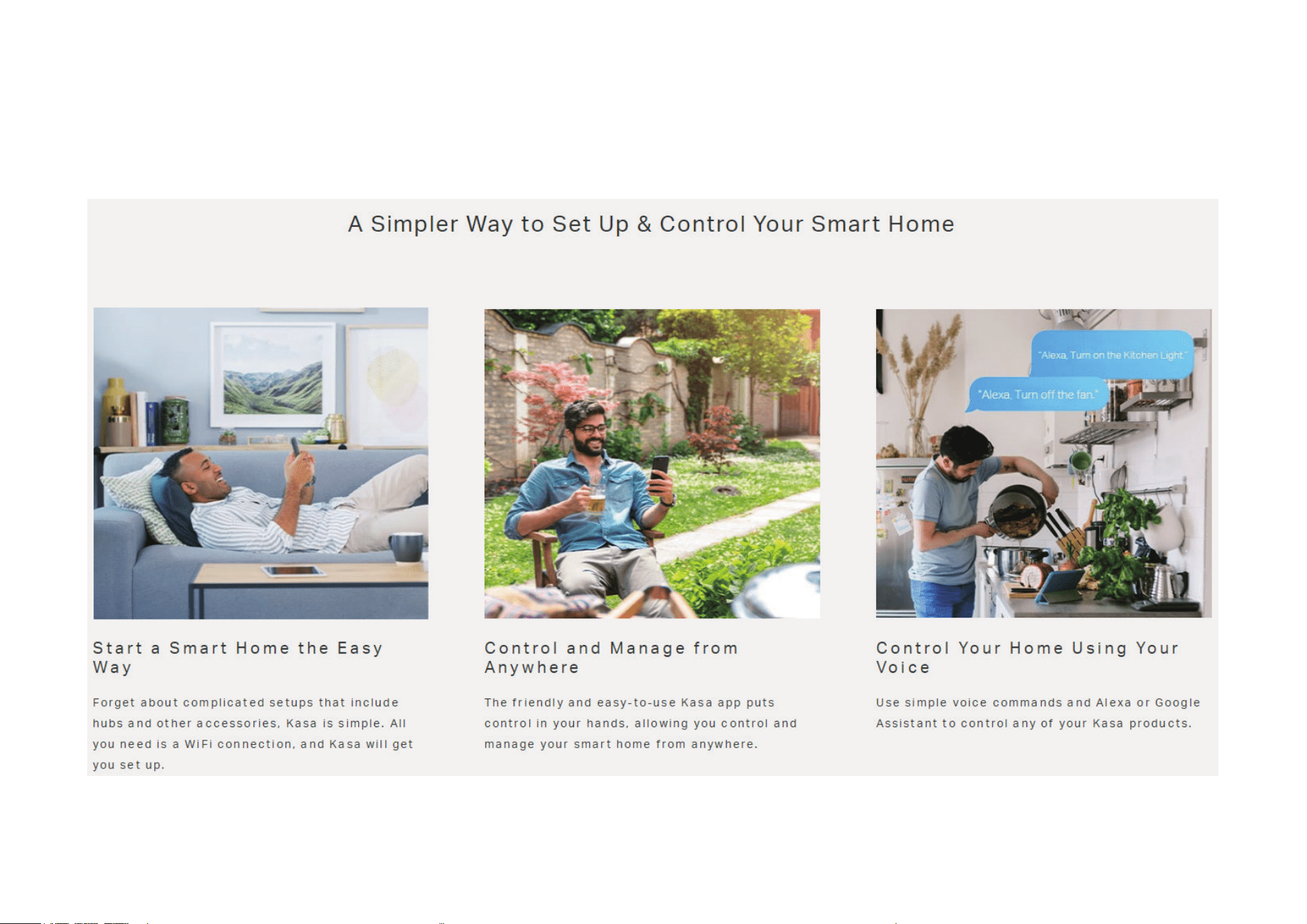
Introduction to Kasa Smart App
3
Set Up Your Camera
Follow the steps below to get started with your new camera.
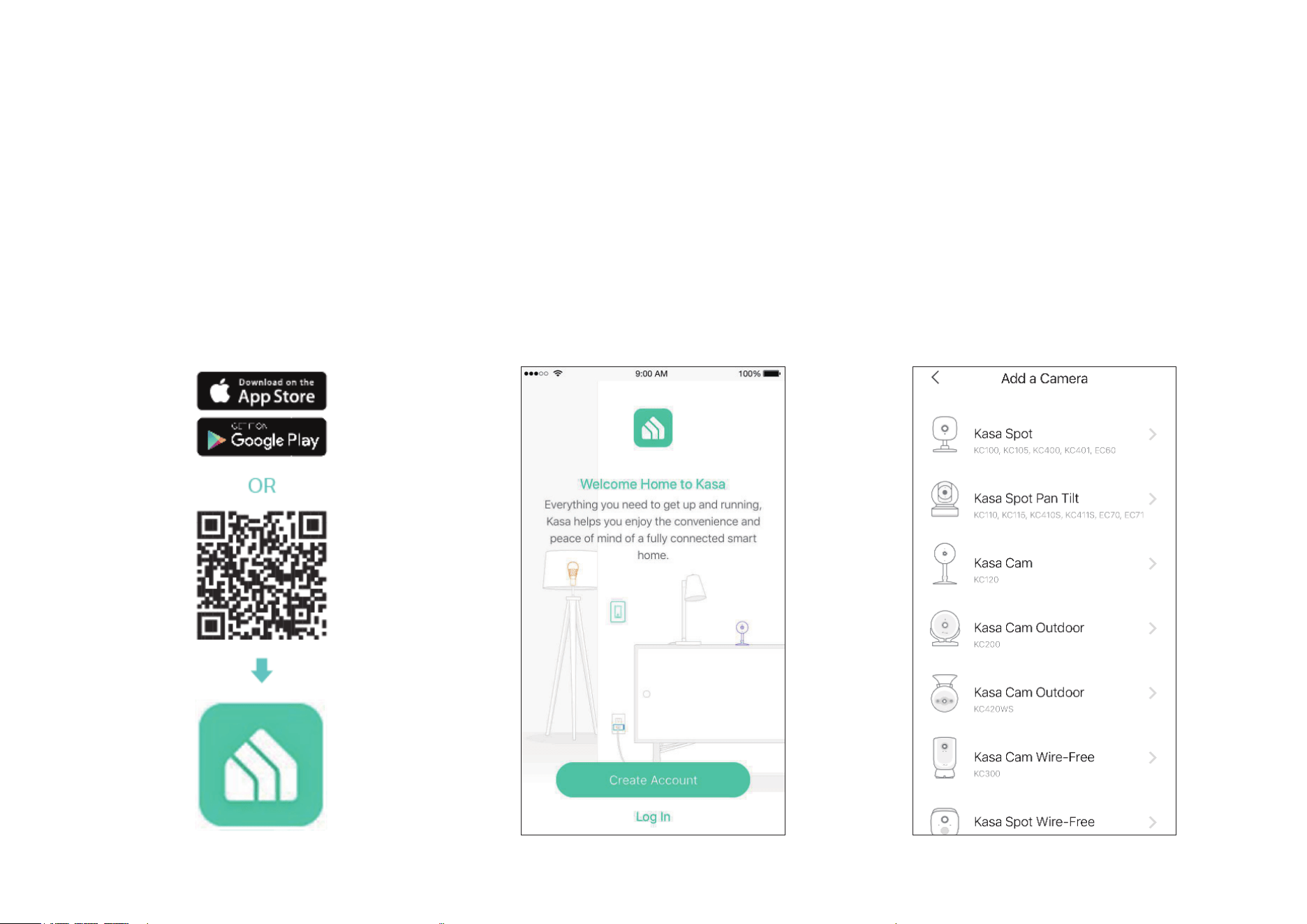
Step 1. Download Kasa
Get the Kasa Smart app from the App Store
or Google Play, or by scanning the QR code
below.
Step 2. Log In
Open the Kasa Smart app and log in with your
TP-Link ID. If you don't have an account, create
one rst.
Step 3. Start Setup
Tap the + button in the Kasa Smart app, select
Device > Cameras and then your model.
Follow step-by-step app instructions to
complete the setup .
4
Main Device Controls
After you successfully set up your smart camera, you will see the home page of the Kasa Smart app. Here you can view and manage all devices that
you've added to Kasa. Tap your smart camera to control and manage it.
Home Page
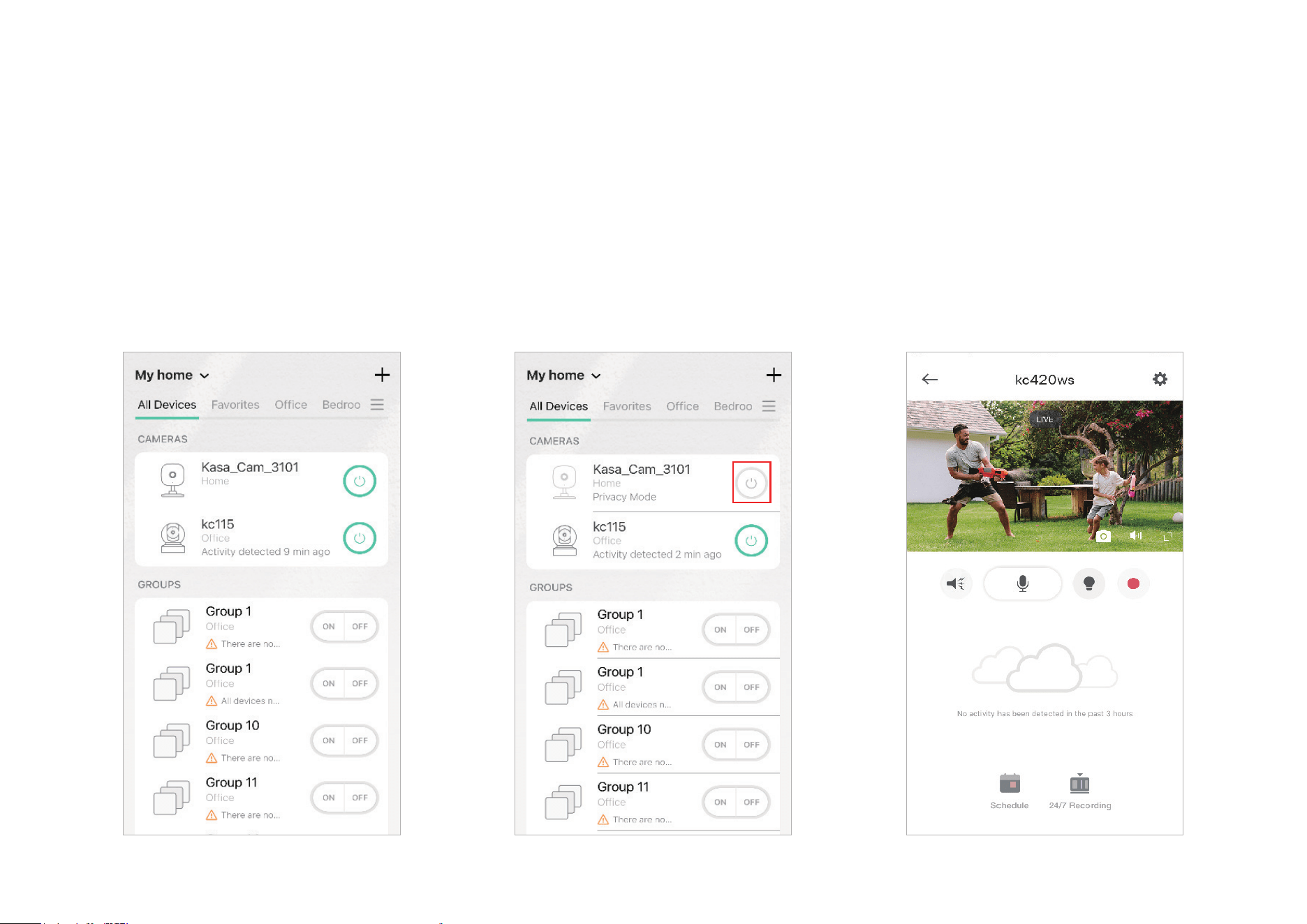
You can see all your Kasa devices listed on the
Home page.
Turn On/O Camera
Turn on/o your camera quickly by tapping the
switch on the home page. If it is o, you are
entering Privacy Mode and cannot stream live
video.
Live View Page
Tap the camera on the Home page to enter
the Live View page. Here you can check live
view video and activities detected by your
camera.
5
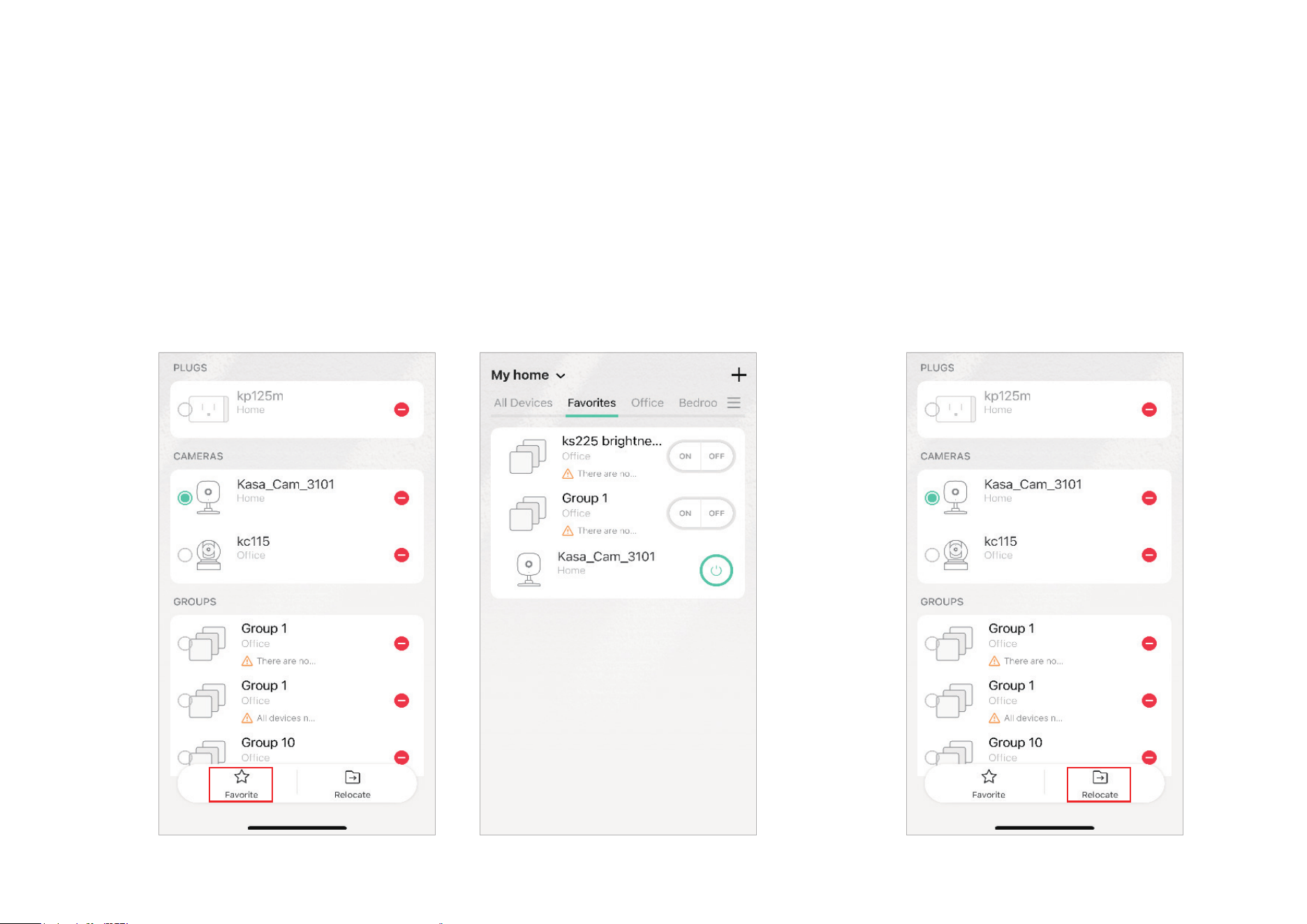
Favorite Devices
Gather the devices you use most often to Favorites so you can easily nd them. Long press your
device and tap Favorite on the Home page.
Relocate Devices
Long press your device and tap Relocate to
move the device to another home or room
you have created.
6
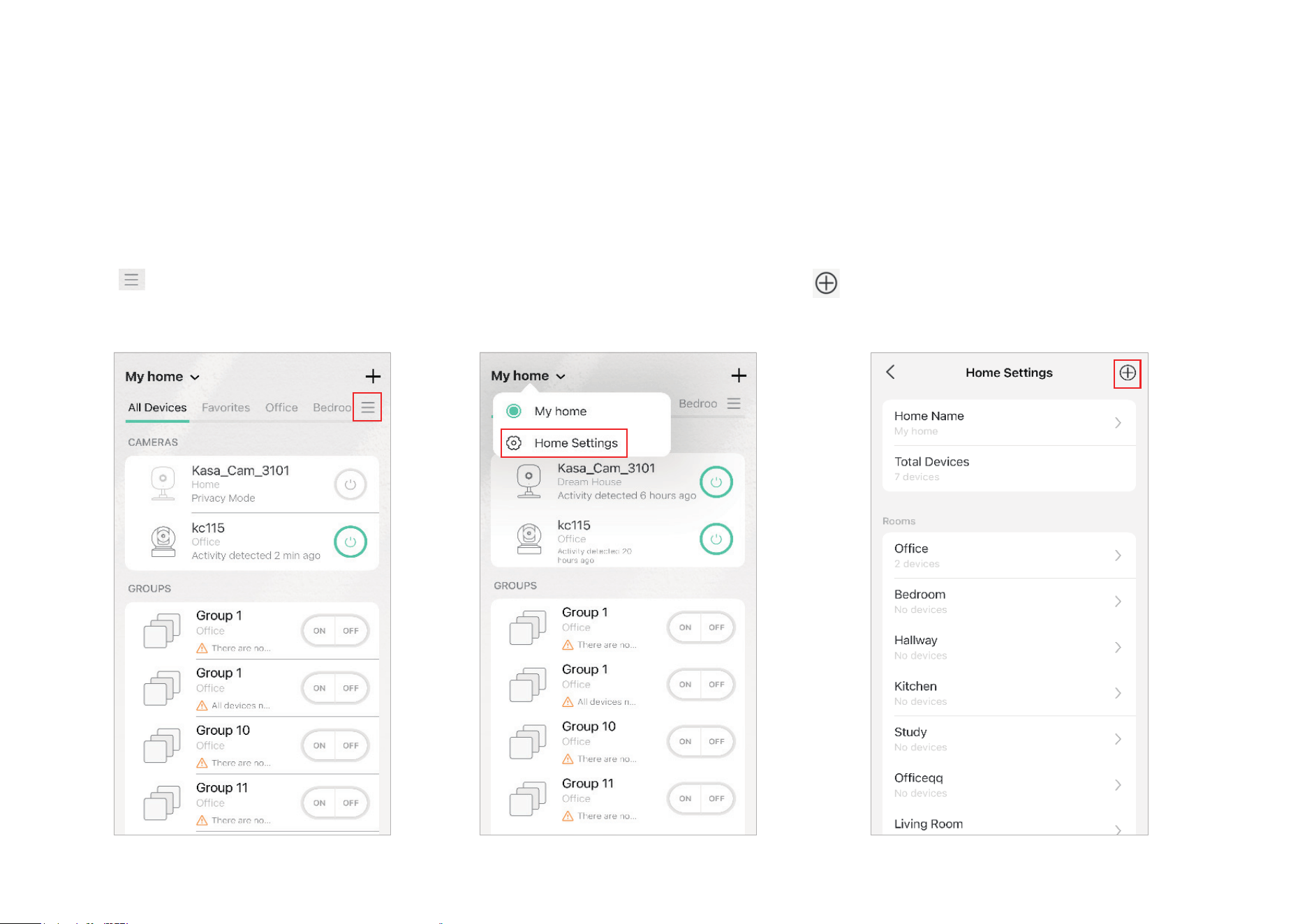
Add a Home
Tap My Home and go to Home Settings. Tap to Add a Home. You can also add rooms for
dierents homes on the home settings page.
Add Rooms
Tap and go to the home page. Then tap
+
Add Rooms to add rooms for this home.
7
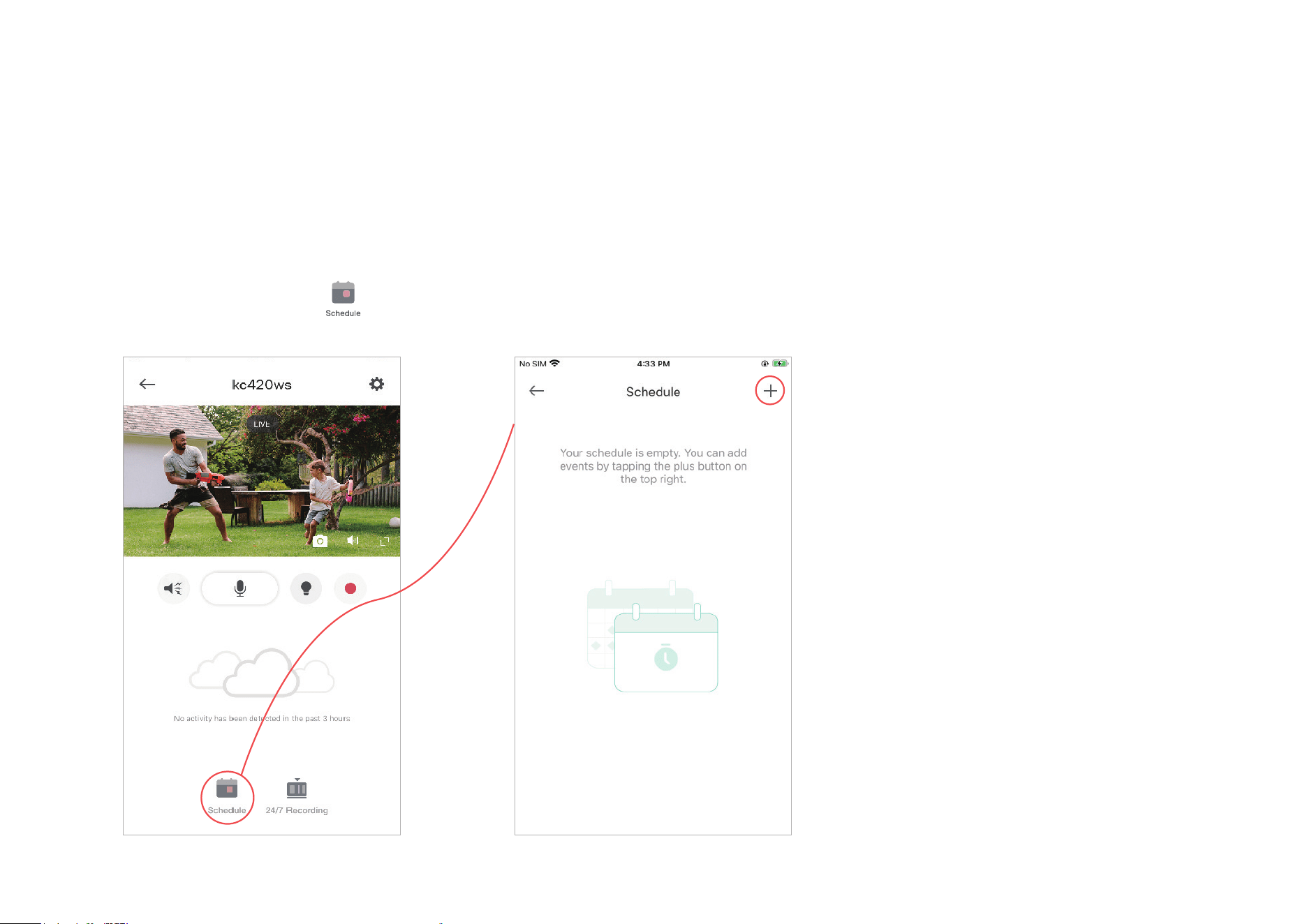
Set Schedules
Set schedules to automatically turn on/o your camera, or turn on/o patrol mode (the camera moving between your viewpoints) of your camera, at set
times according to your daily routine.
Note: When the camera is o, you cannot watch live view video.
Note: Only pan/tilt cameras support Pantrol Mode schedules.
1. Tap your camera on the Home page to enter
the live view page, and then tap
.
2. Tap + on the top right corner.
8
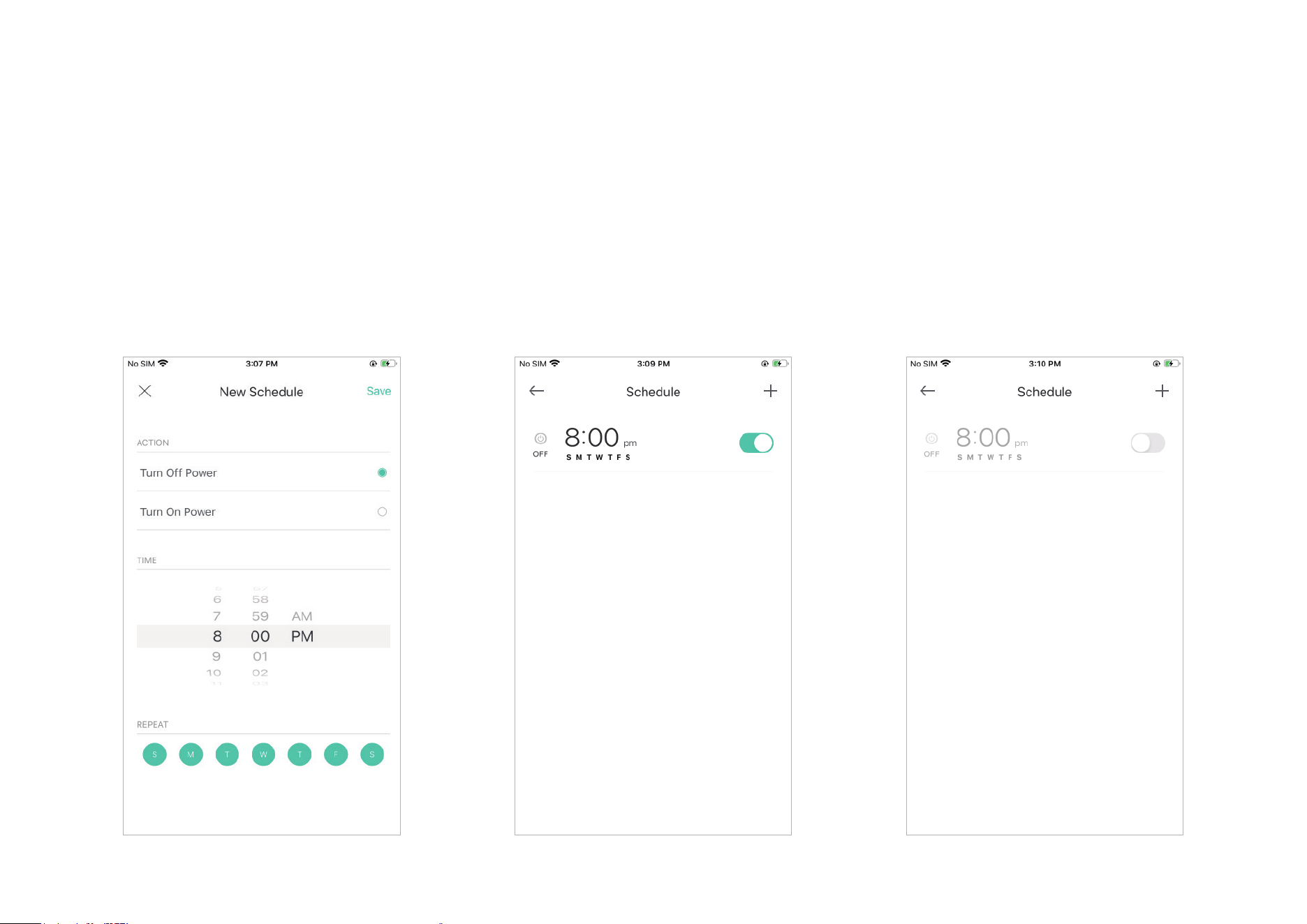
2. Tap Save and you'll see your schedule listed
on the Schedule Page. You can add more
schedules following the same steps.
3. You can turn o your schedule any time on
the Schedule page.
1. Set a schedule to turn your camera on or
o. For example, I want to turn o the camera
at 8:00 PM every day.
Power Schedule
Note: For pan/tilt cameras, select Power after tapping +.
9
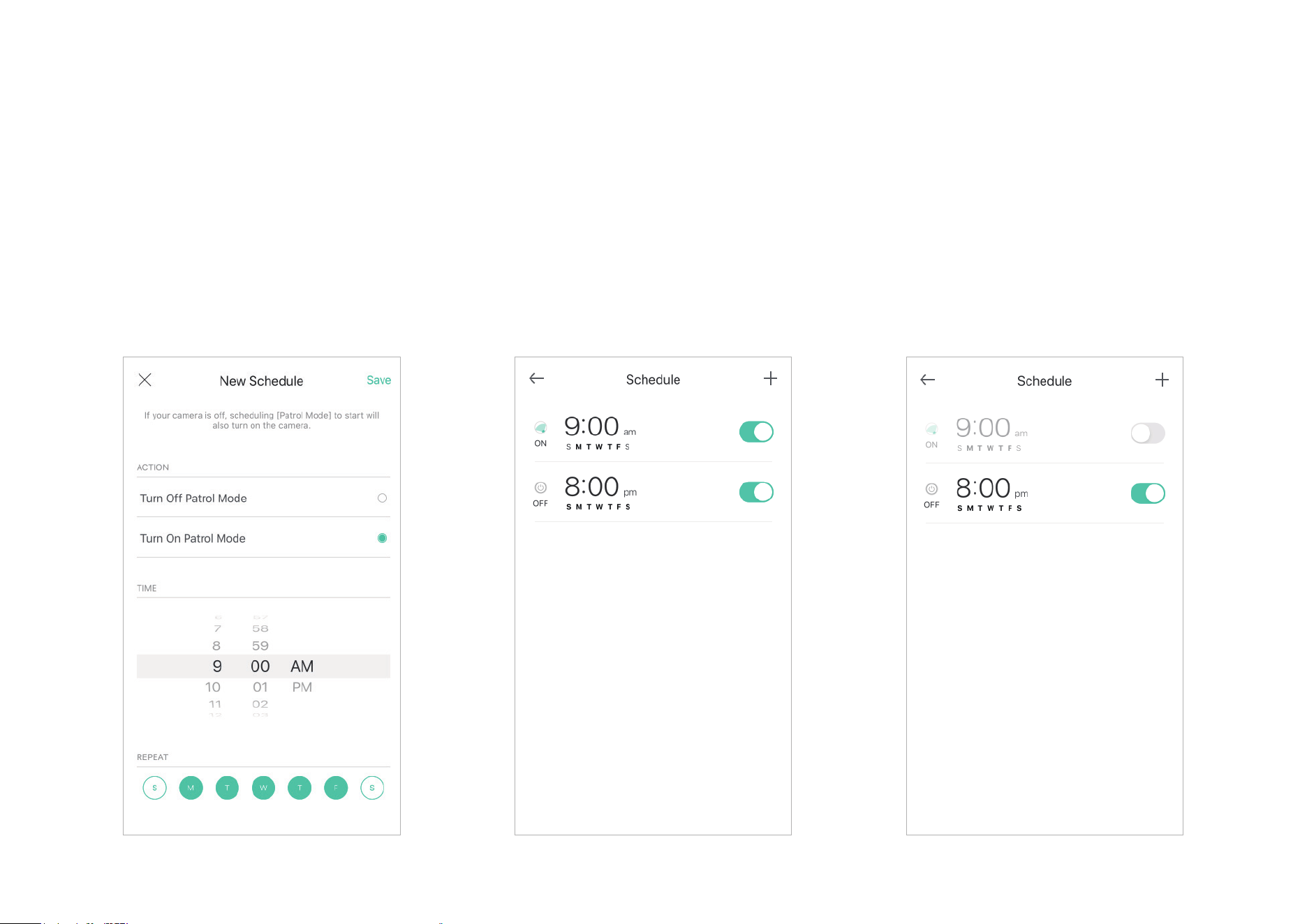
Patrol Mode Schedule
Note: You need at least two viewpoints to use the patrol mode schedule.
Note: Only pan/tilt cameras support Pantrol Mode schedules. You can select Patrol Mode after tapping +.
1 Set a schedule to turn the patrol mode on or
o. For example, I want to turn on patrol mode
at 9:00 AM every weekday.
2. Tap Save and you'll see your schedule listed
on the Schedule Page. You can add more
schedules following the same steps.
3. You can turn o your schedule any time on
the Schedule page.
10
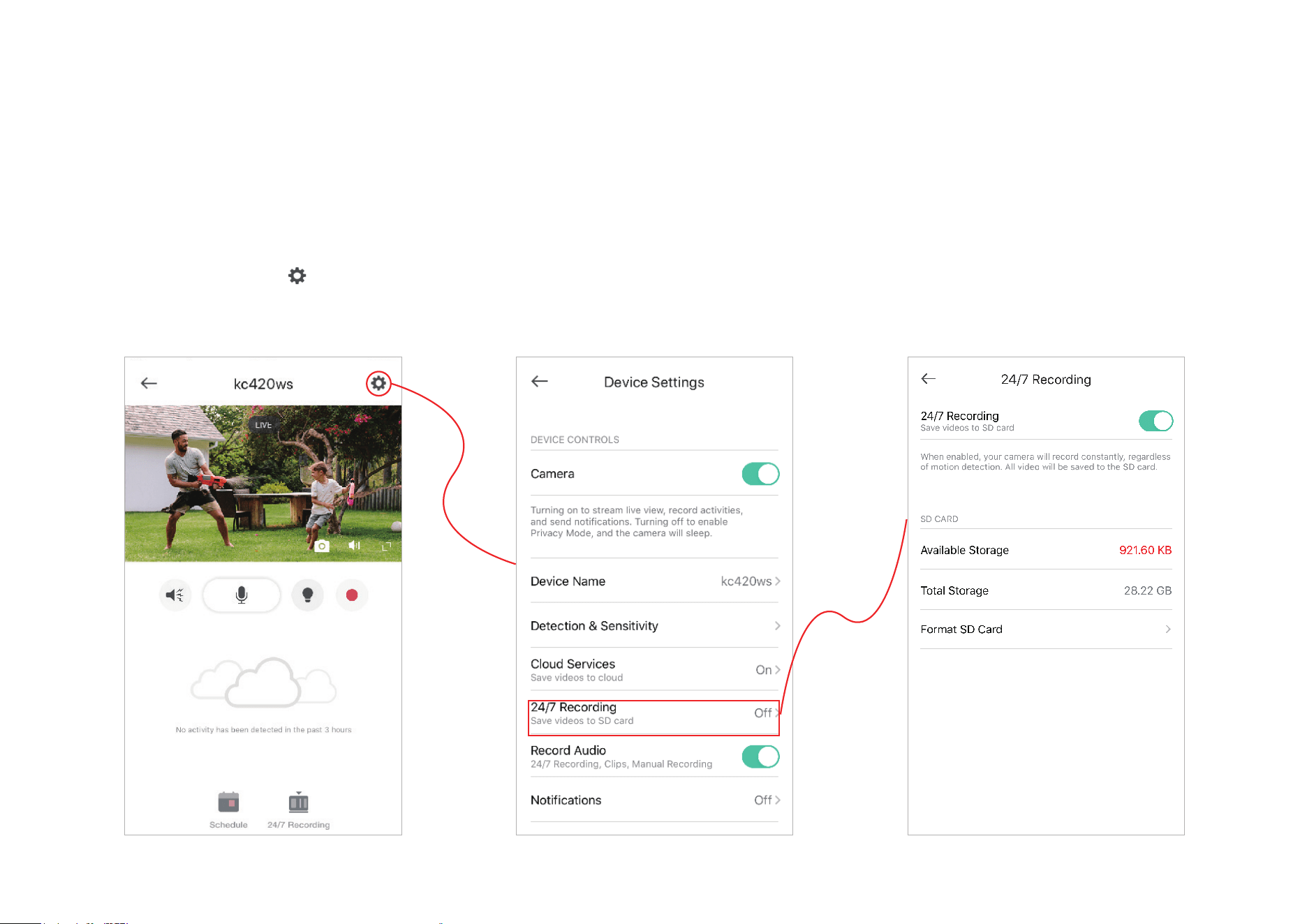
Enable 24/7 Recording
When 24/7 Recording is enabled, your camera will record every minute of every day so you'll never miss a thing.
Note: You need to insert a microSD card rst.
On the live view page, tap
then 24/7 Recording. You can enable or disabled the feature and check the storage of your microSD card.
11
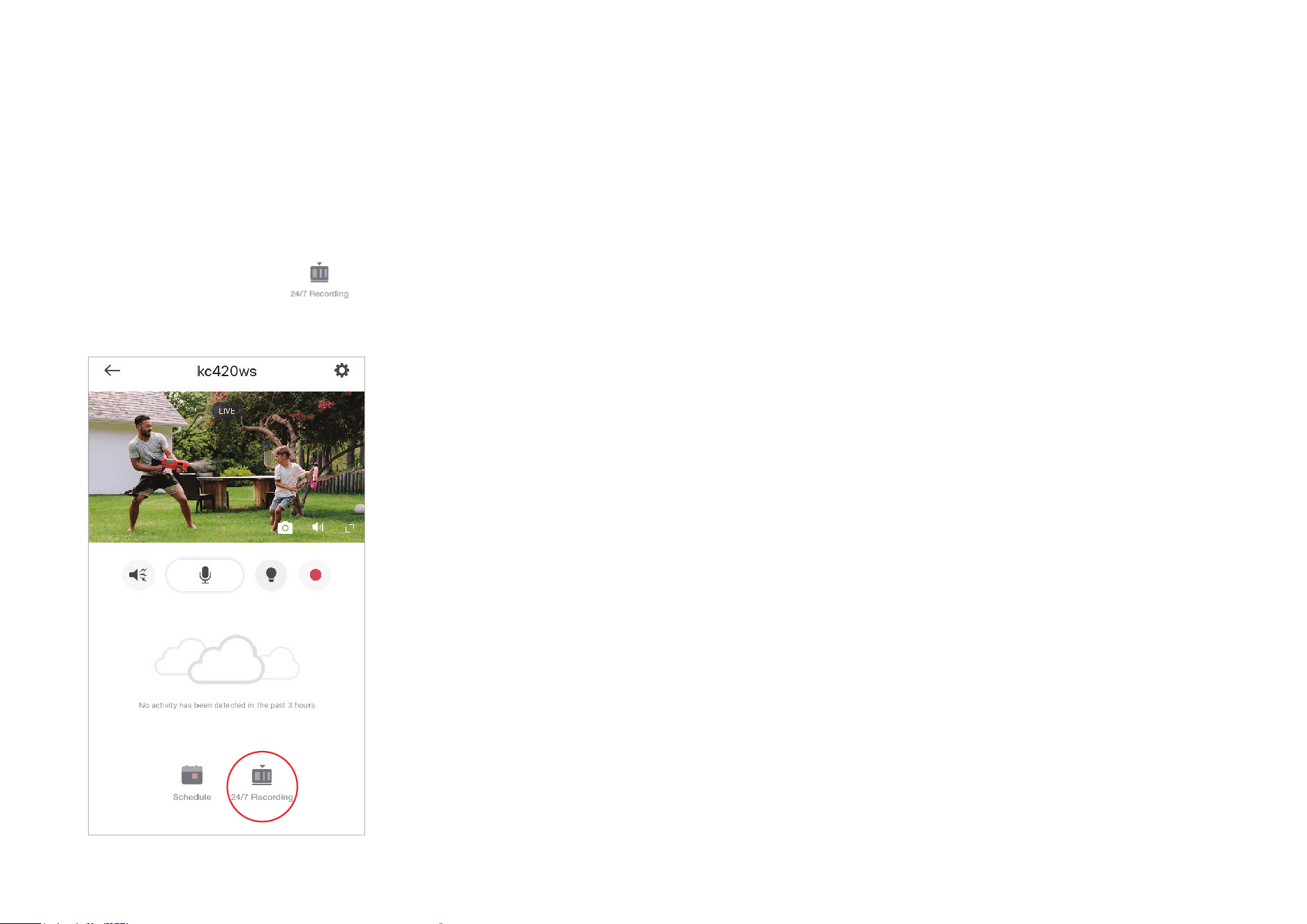
Check 24/7 Recording Videos
The recorded videos are saved in the microSD card. You can check it in the app.
On the Live View page, tap
. You will see recorded videos.
12
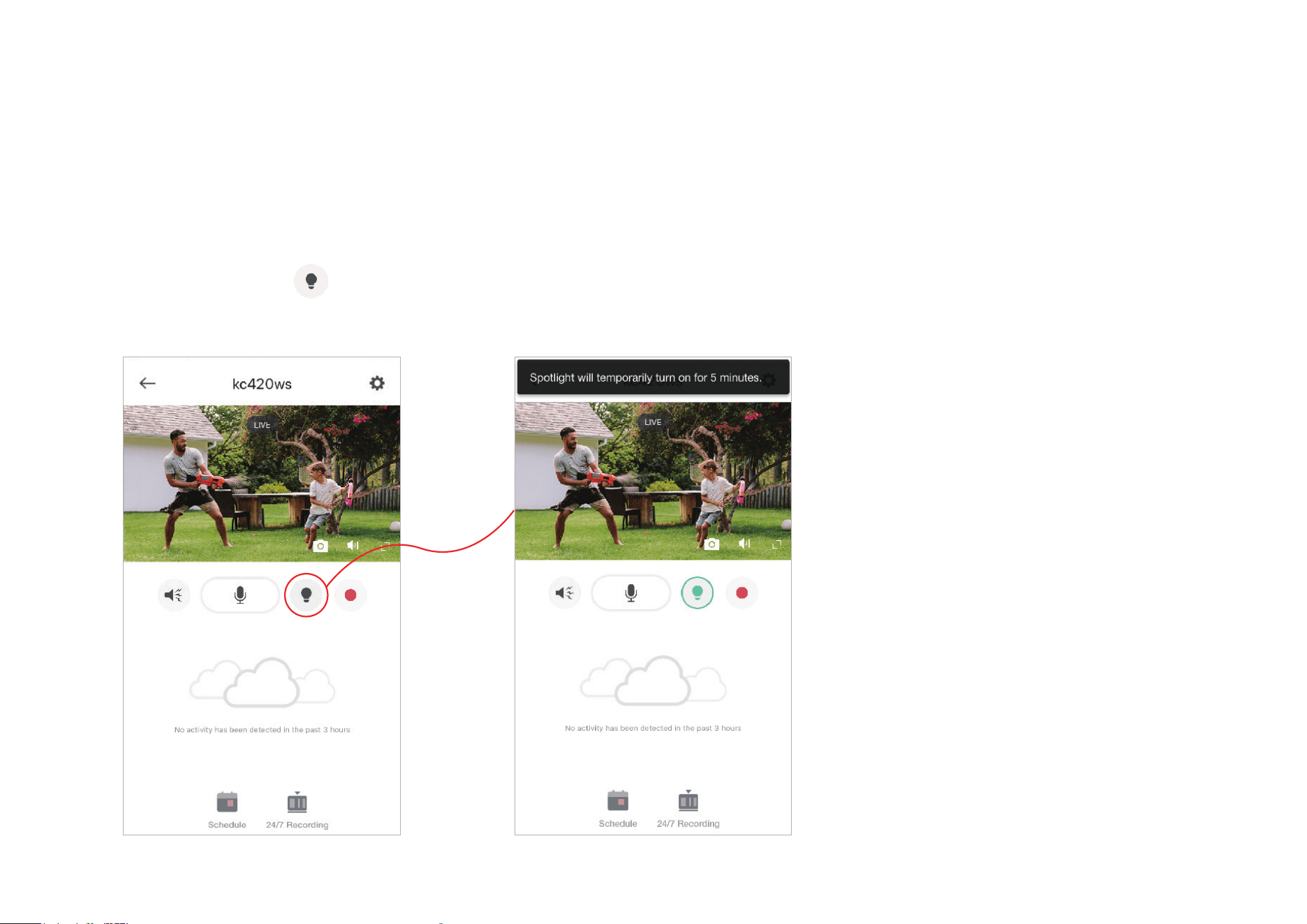
Turn On/O Spotlight Temporarily
You can turn on/o spotlight temporarily in the Live View page. You can also customize the temporary period in Device Settings.
Note: It is suitable for KC420WS only.
On the Live View page, tap
to turn on/o spotlight temporarily. To change the temporary period, go to Device Settings > Spotlight Settings.
13
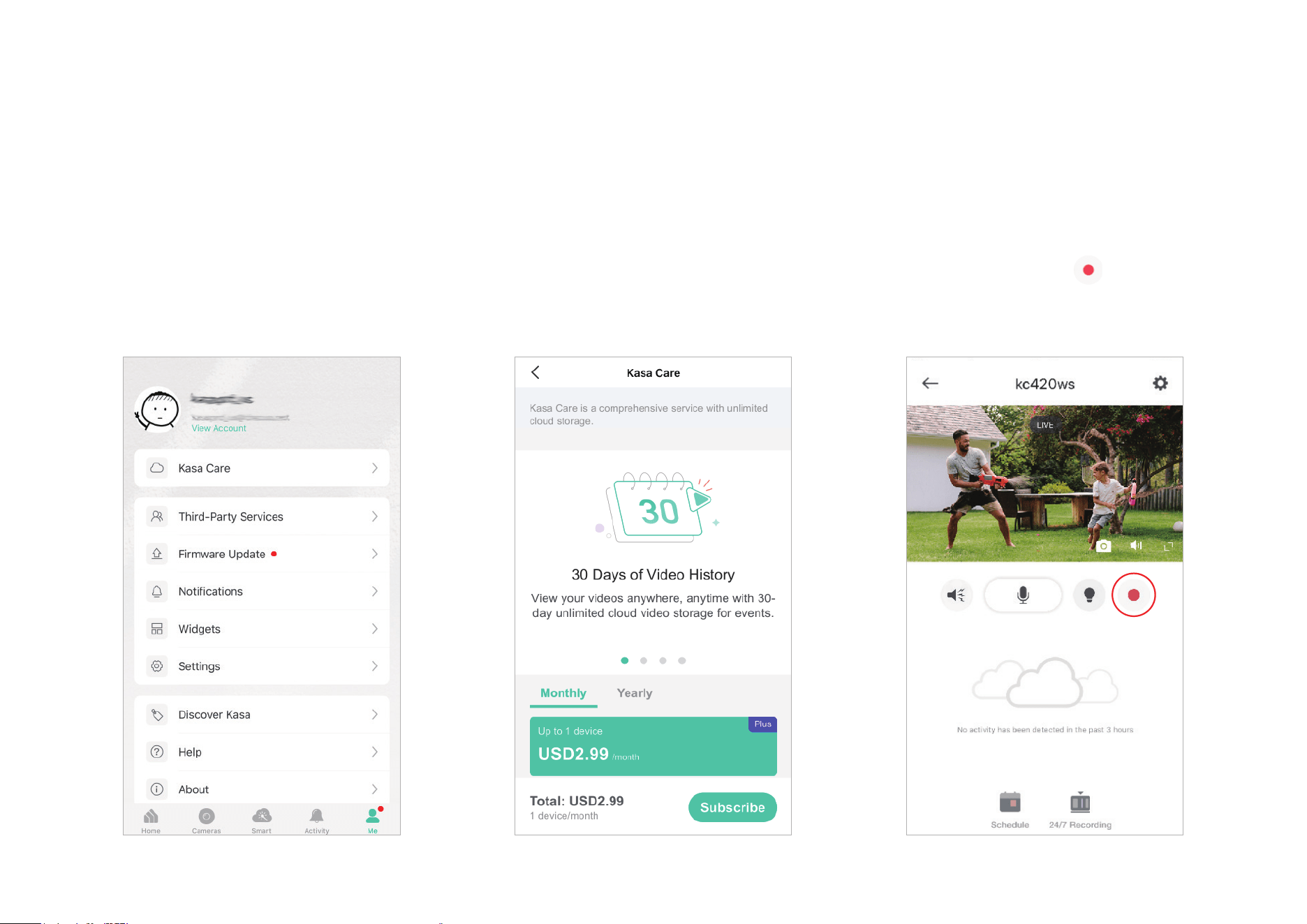
Screen Recording
Quickly record what interests you in Live View.
Note: This feature is currently exclusive to Kasa Care subscribers.
Go to Me > Kasa Care, then subscribe the Kasa Care service for your camera. On the Live View page, tap to record the
live view. The clips will be save to Activity.
14
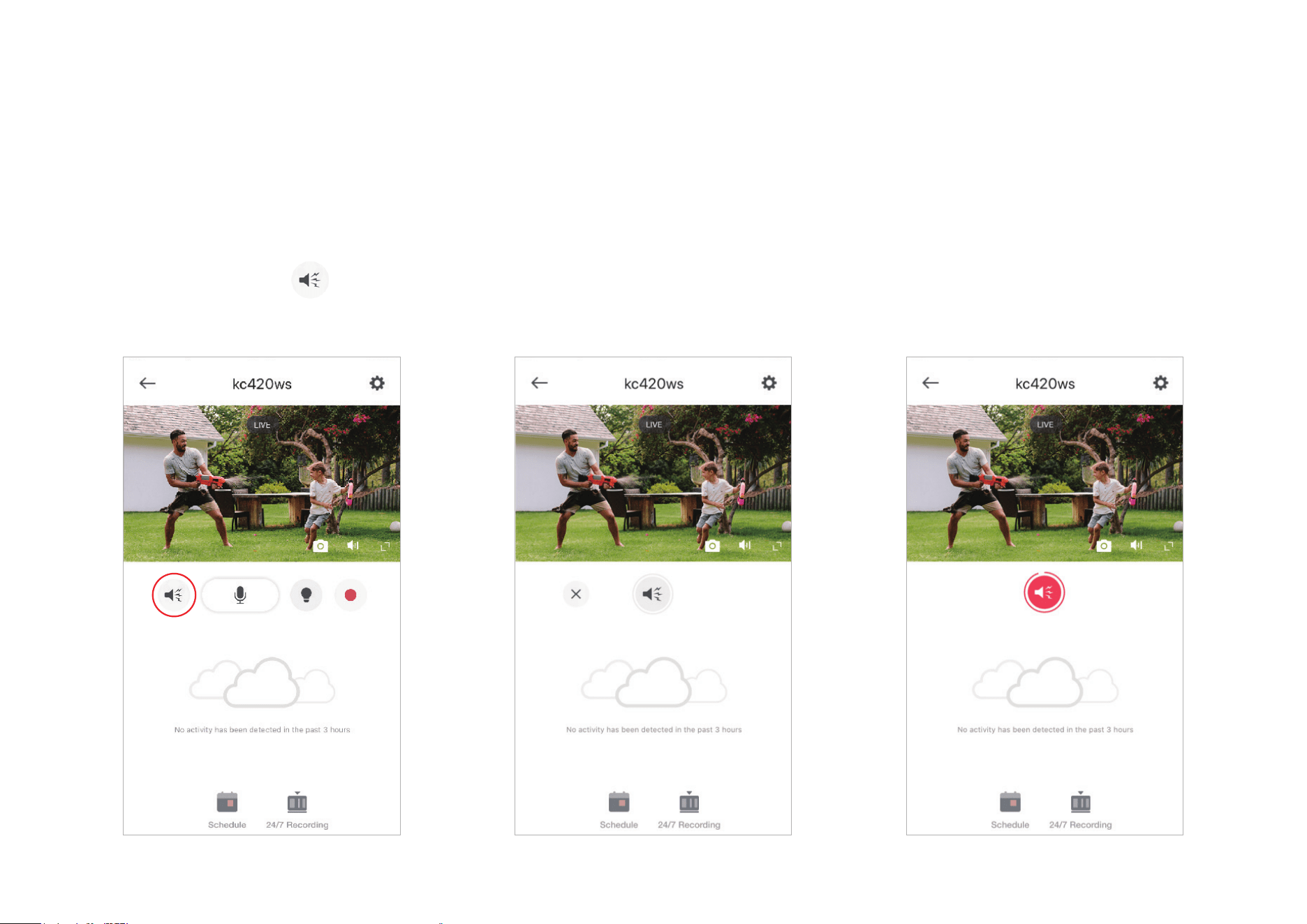
Enable/Disable Siren
You can manually trigger the siren when viewing live video to scare away unwanted visitors if necessary.
Note: It is suitable for KC420WS only.
On the Live View page, tap
and the siren on/o button appears. You can tap once to trigger the siren, and tap again to disarm it.
15
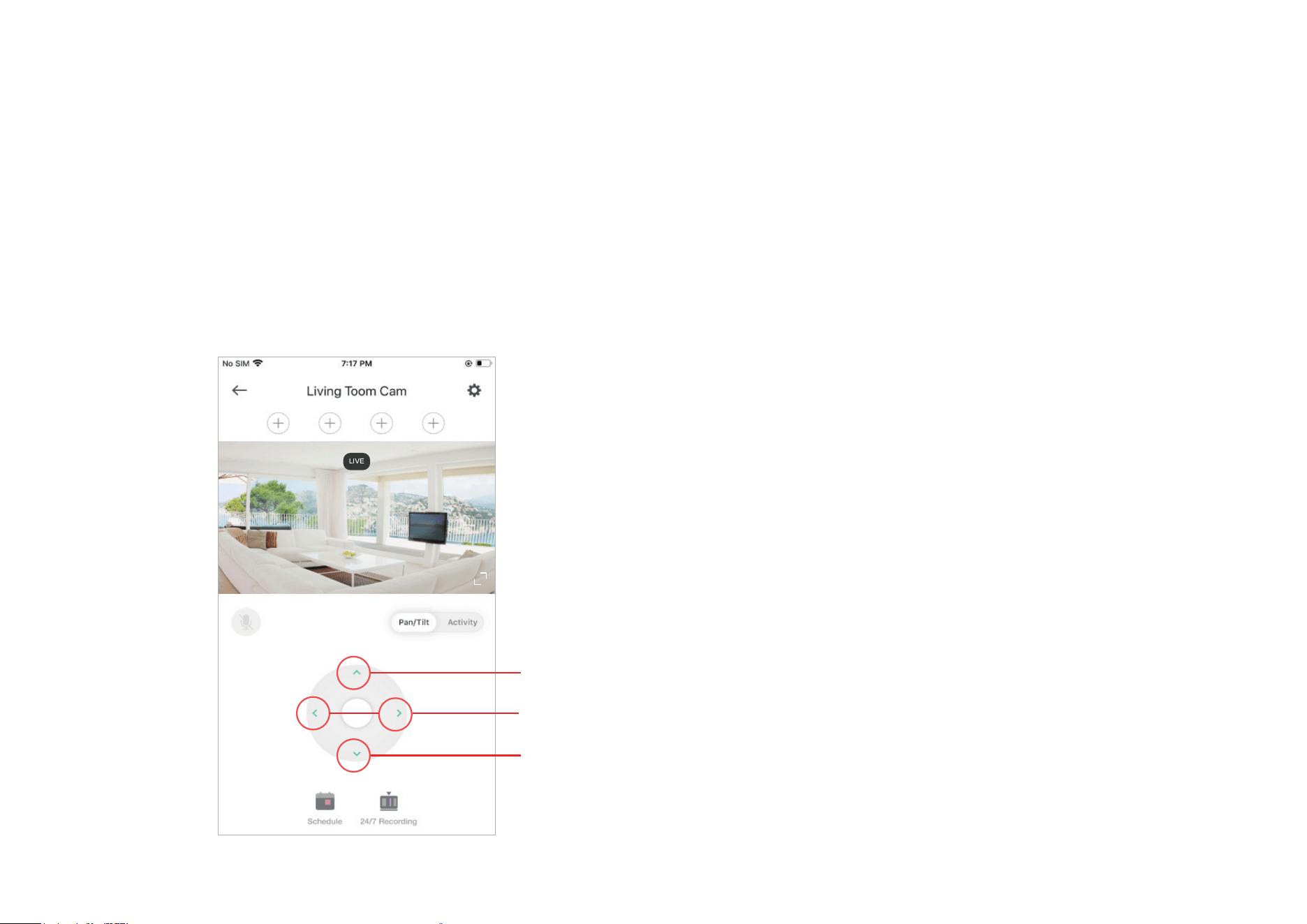
Pan/Tilt
You can swipe up, down, left, and right on your phone to rotate and set the camera's point of view.
Note: It is suitable for pan/tilt cameras only.
On the Live View page, tap the arrow icon to rotate your camera as you like.
Tilt your camera up.
Tilt your camera down.
Tilt your camera left / right.
16
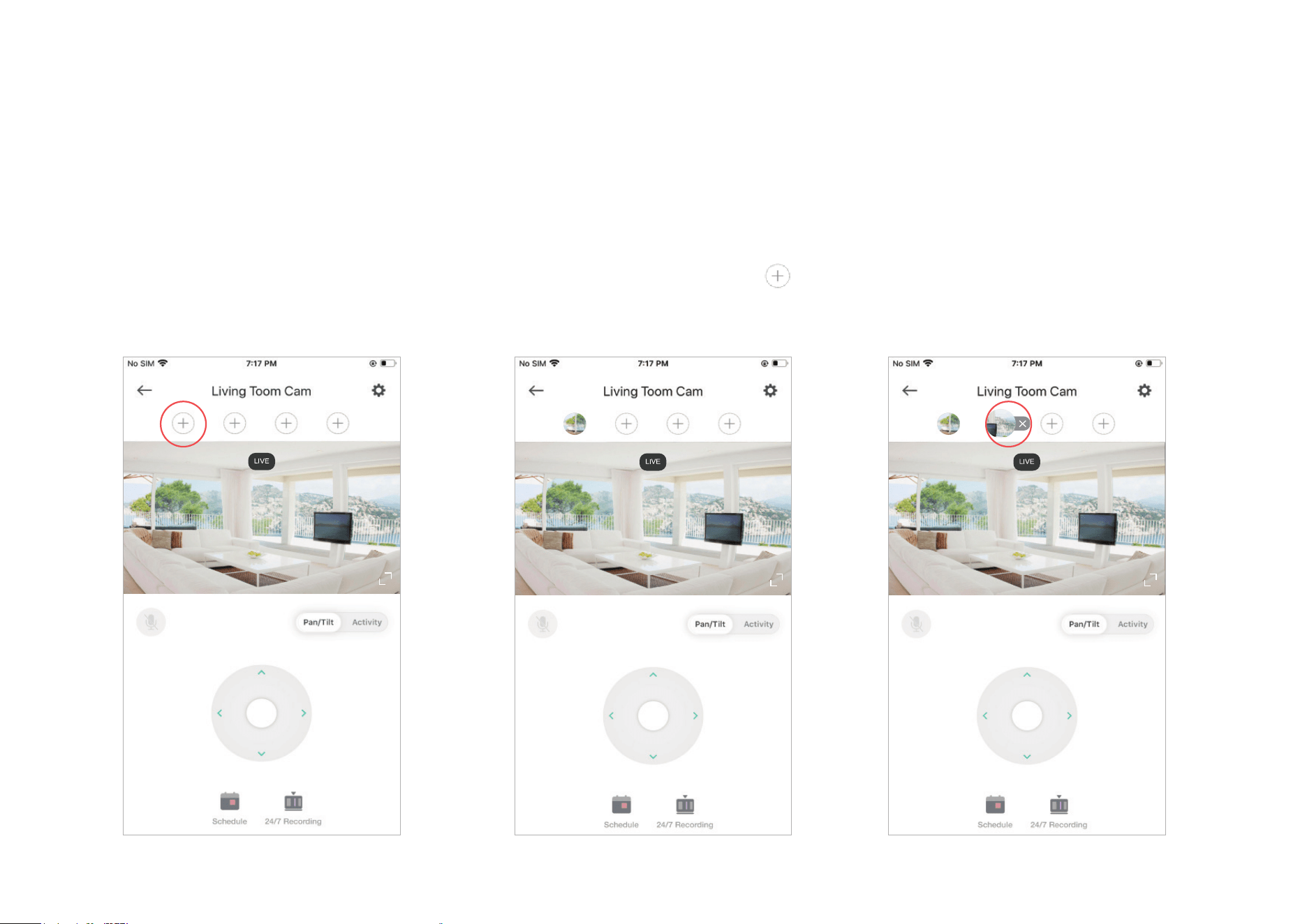
Add/Delete View Points
Add the spots that are most important to you, so you can easily turn your camera to the specic spot with a single tap.
Note: It is suitable for pan/tilt cameras only.
On the Live View page, rotate your camera to locate the spot that matters to you, then tap
to
add it as a viewpoint. Follow the same steps to add other view points.
Tap the viewpoint you have added and X
appears. Then tap X to delete the viewpoint.
17
Manage Device Settings
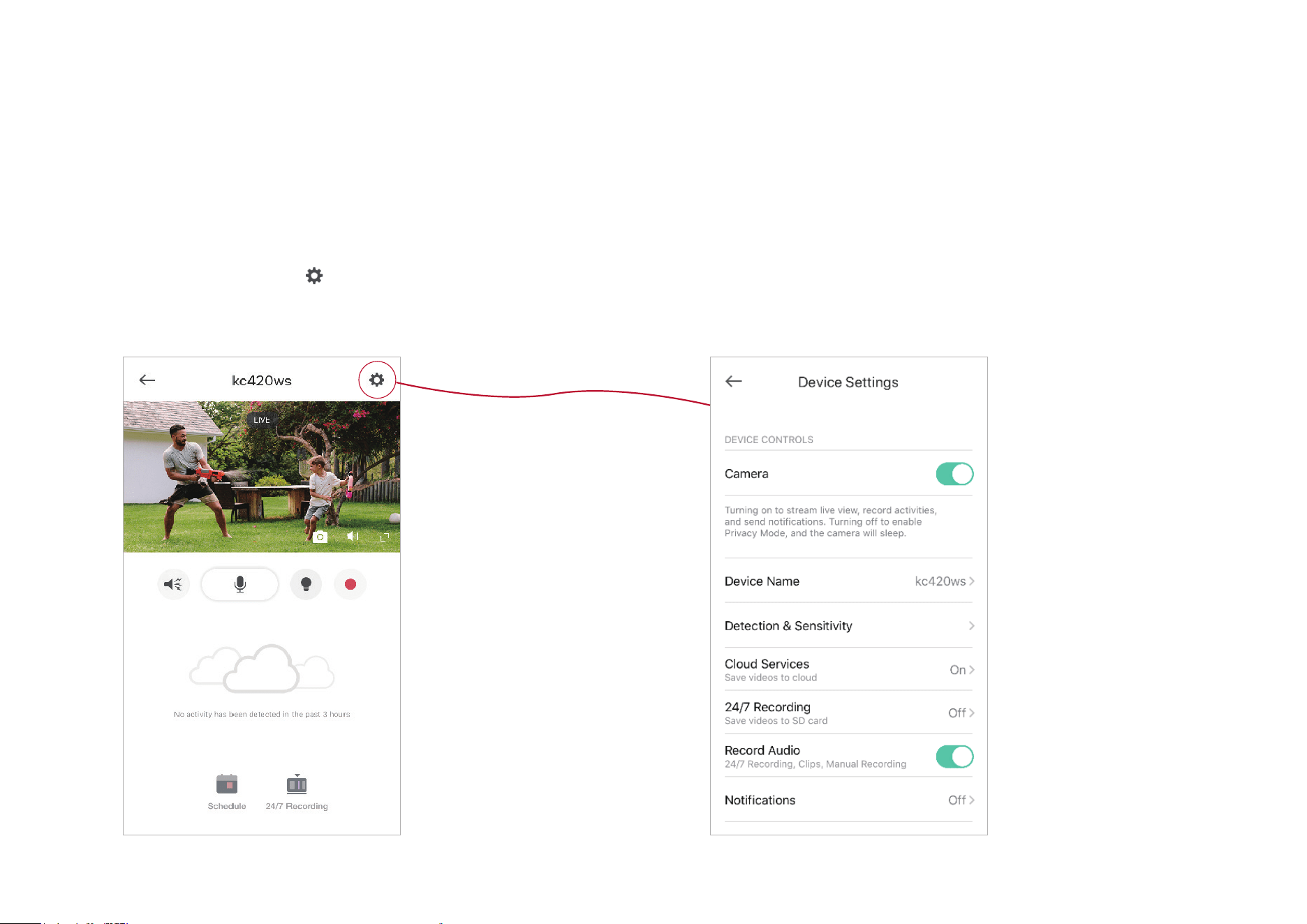
Device controls, camera settings, and advanced are available on the device settings page.
1. On the live view page, tap
to go to the
Device Settings page.
2. Turn on or o the camera.
When Camera is turned o, it means privacy mode is enabled. You can turn the camera o when
you do not want your camera to stream live view and record videos.
18
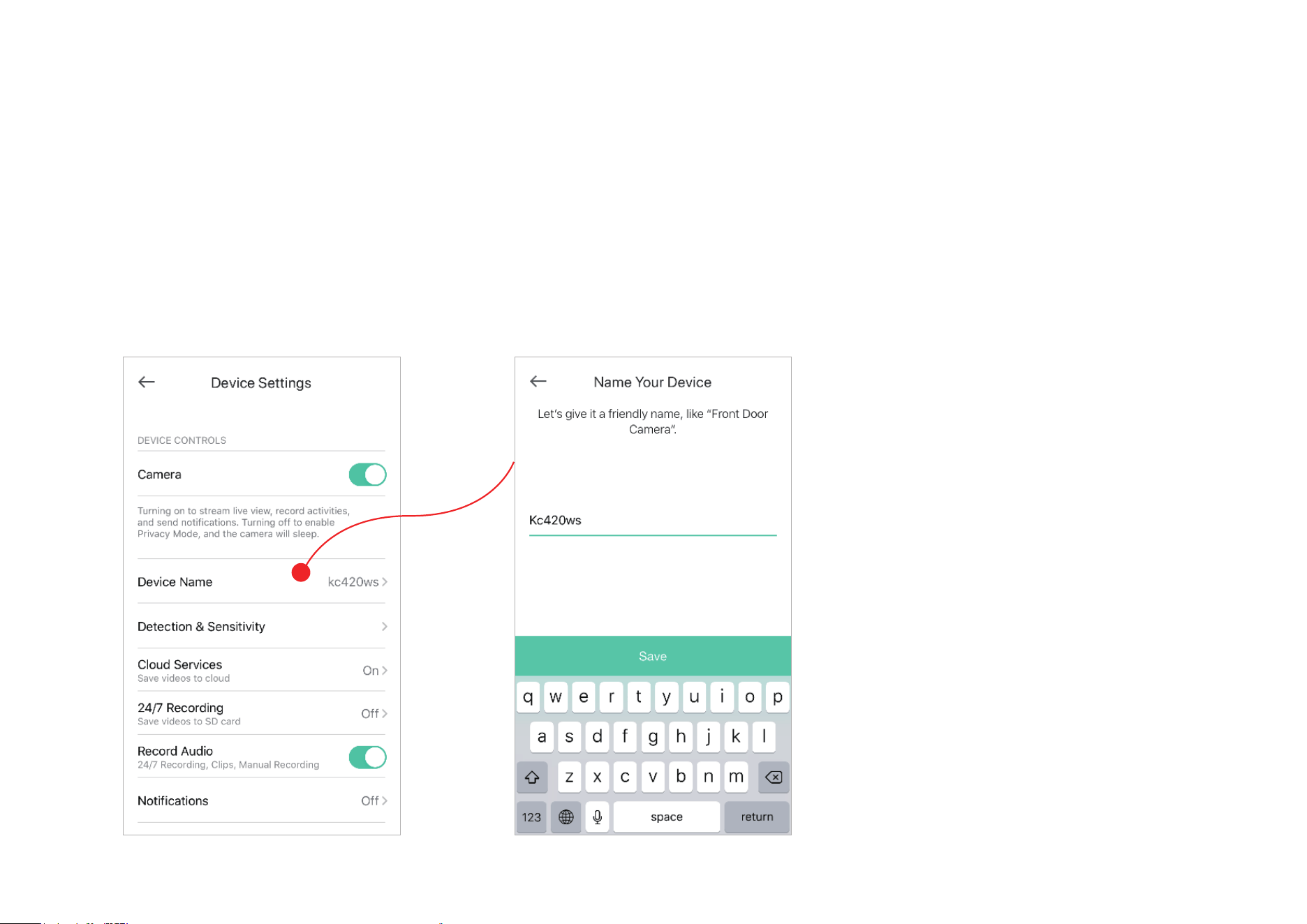
3. Edit device name.
19
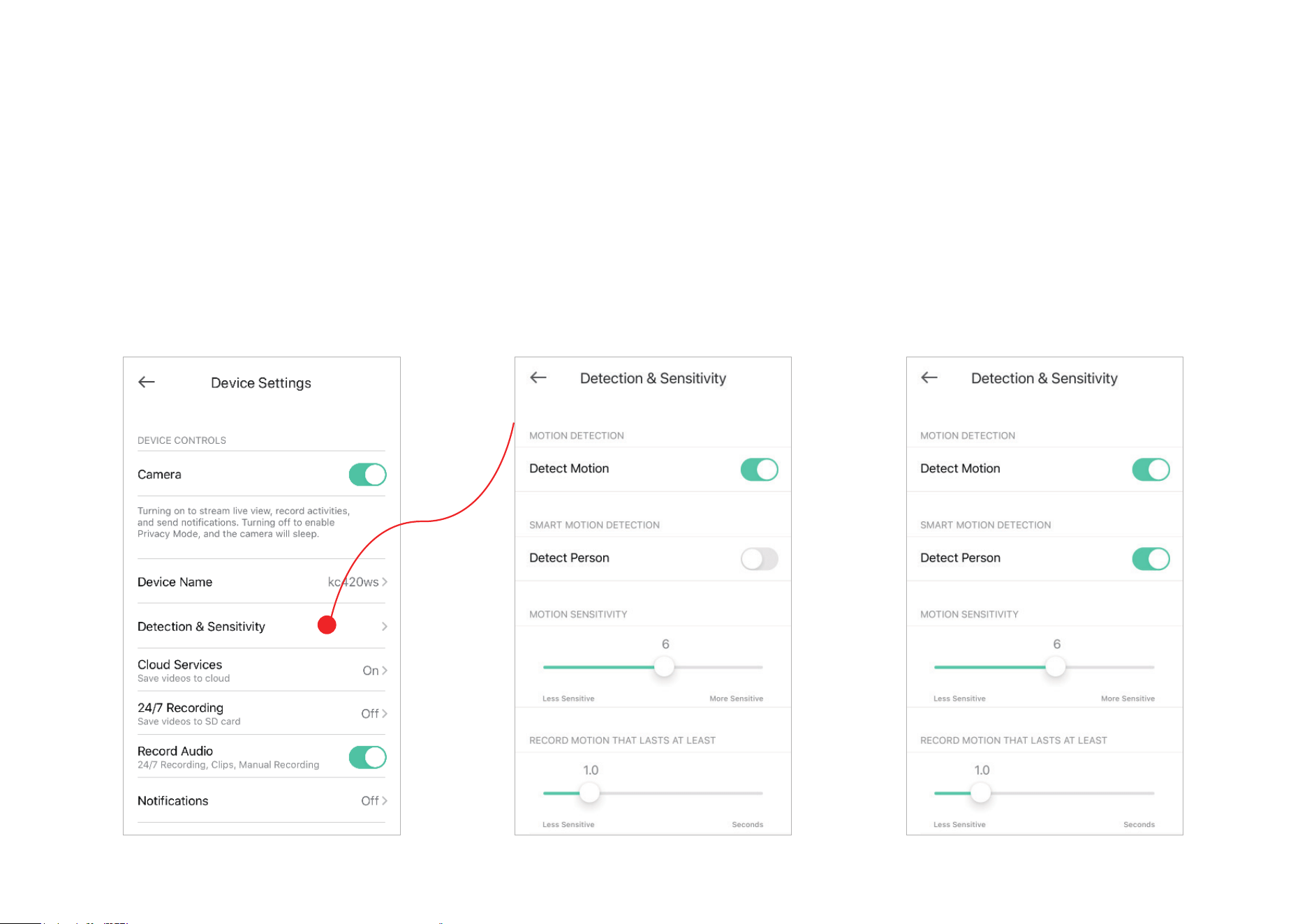
4. Set motion detection for recording videos.
Enable Detect Motion if you want your camera to record when motion is detected. Also set the sensitivity of detection.
Enable Detect Person if you want your camera to record when person is detected.
20
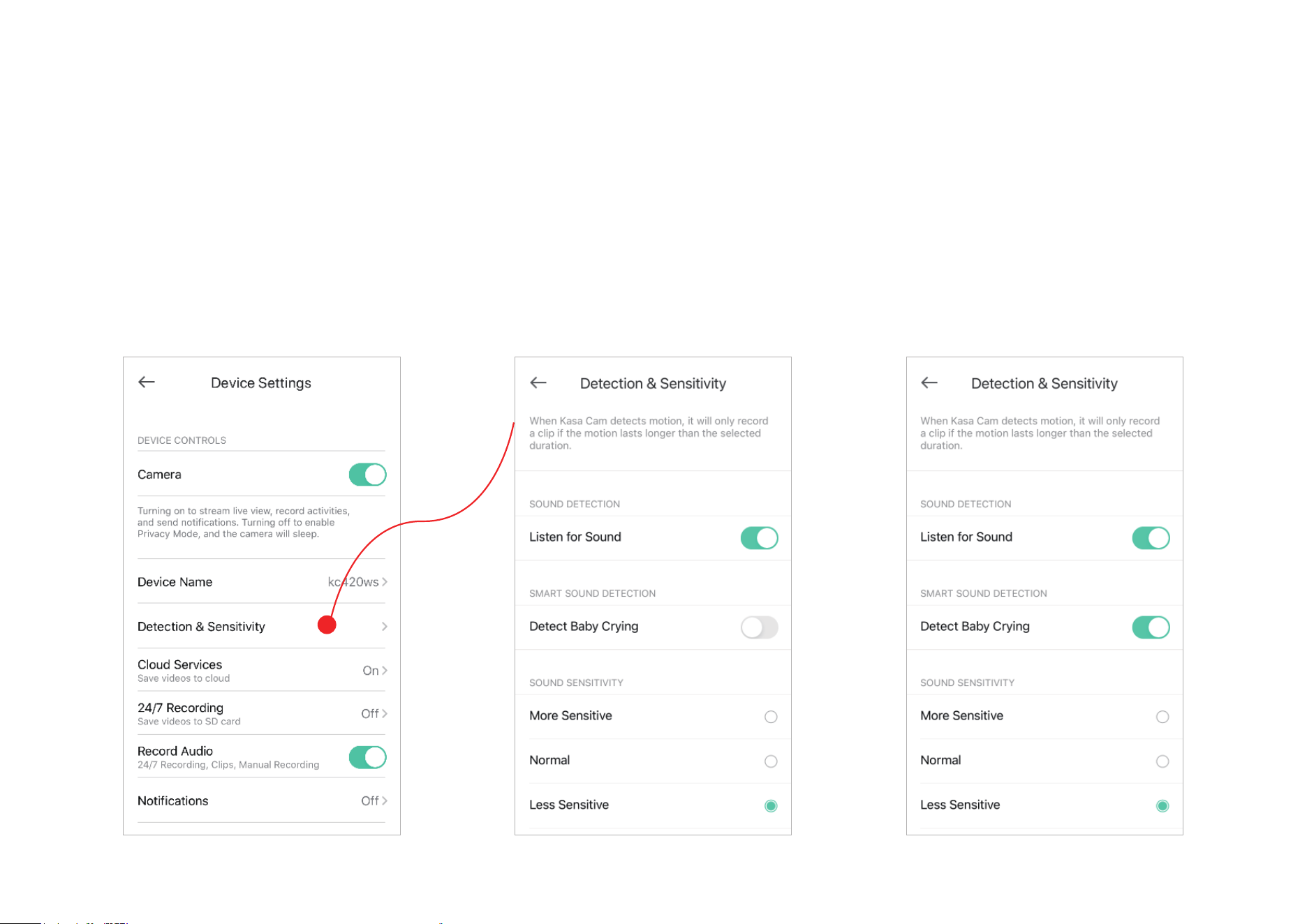
5. Set sound detection for recording videos.
Enable Listen for Sound if you want your camera to record when sound is detected. Then set its sensitivity.
Enable Detect Baby Crying if you want your camera to record when crying is detected.
Note: Only indoor cameras support baby crying detection.
21
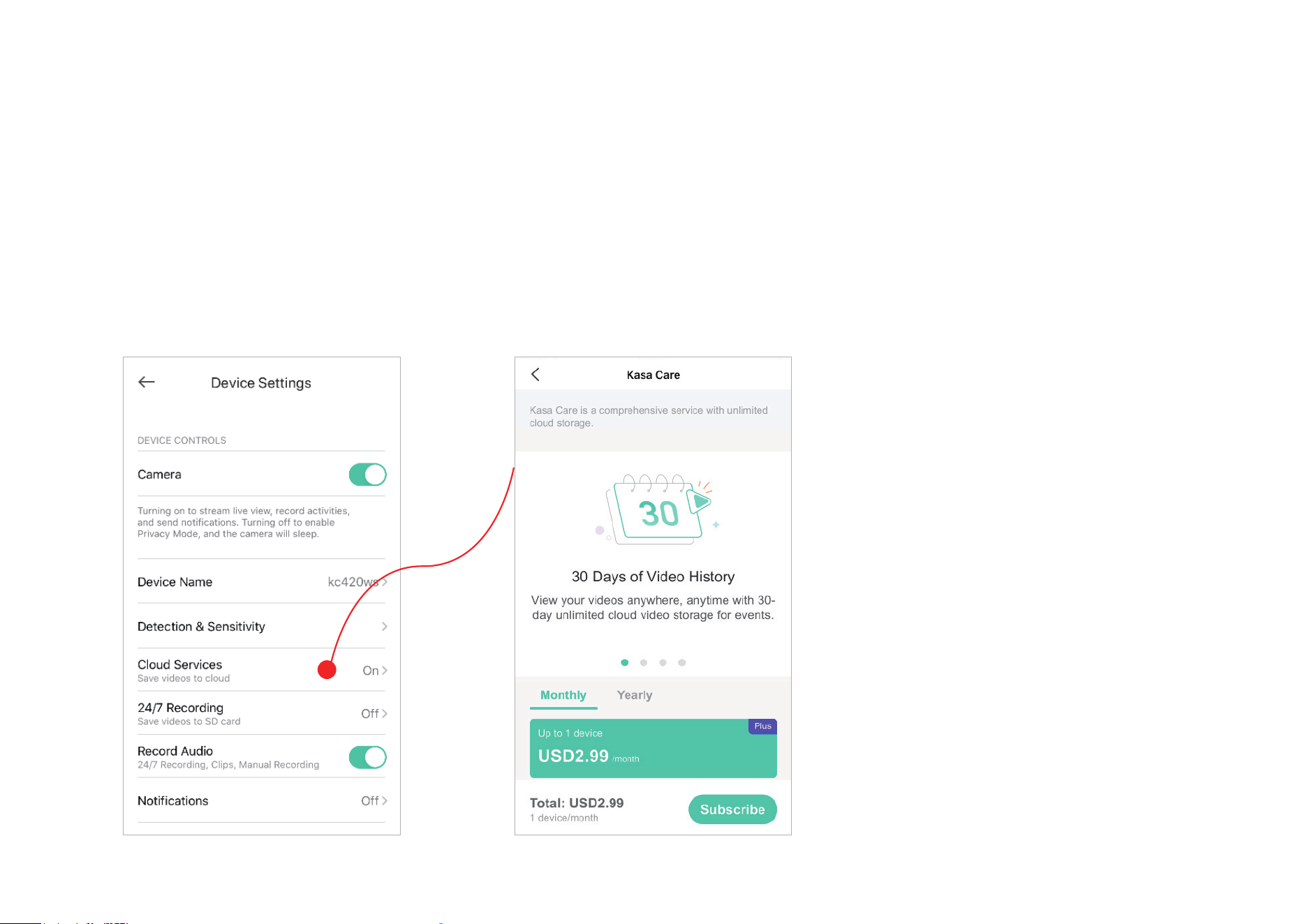
6. Turn on/o cloud services
Turn Cloud Services on/o for your cameras. When it is on, video clips are recorded whenever motion is detected and saved to the Kasa Cloud.
Note: Cloud Services appears in Device Settings when you subscribe to the Kasa Care service.
22
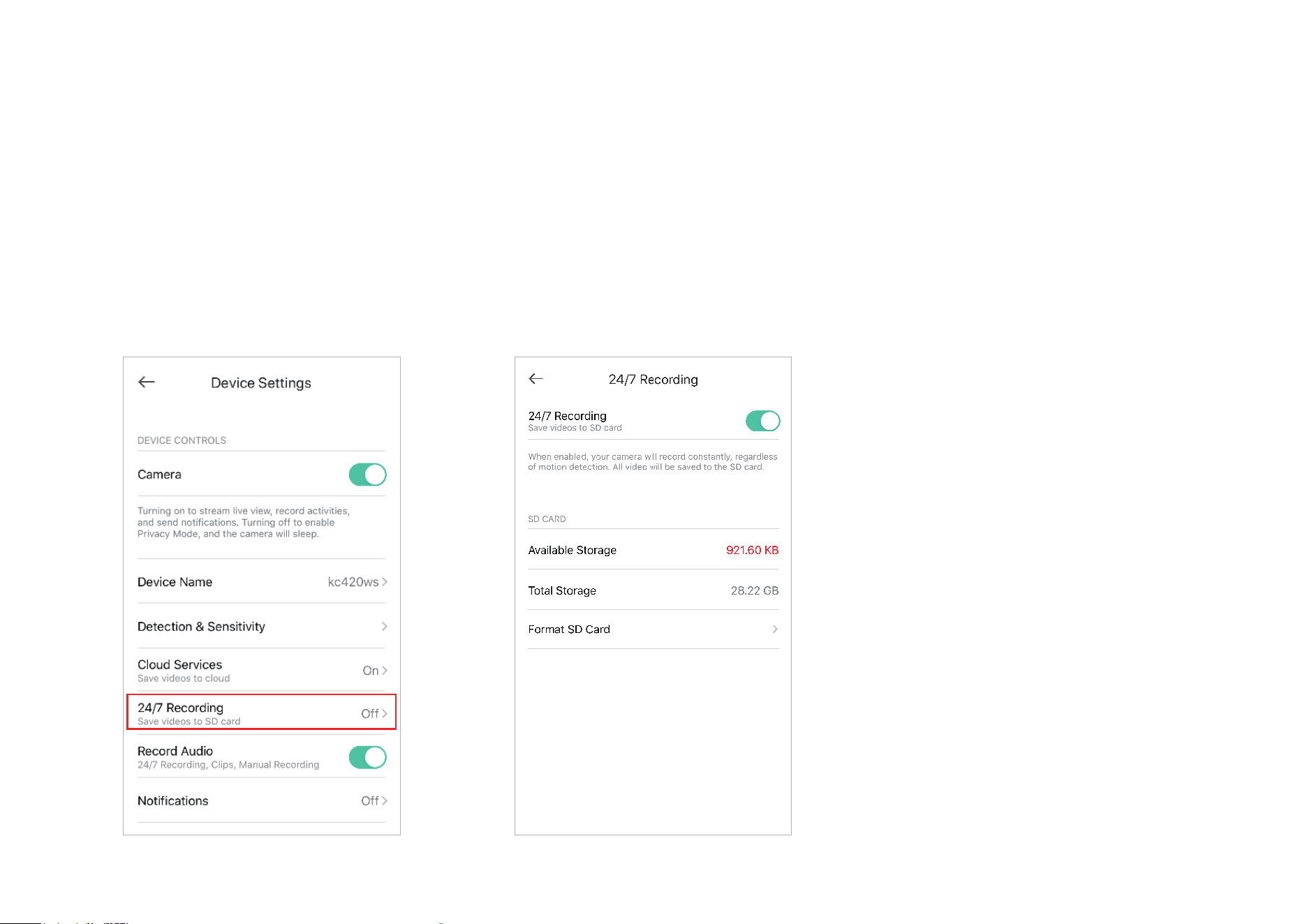
7. 24/7 Recording
Enable 24/7 Recording and your camera will record constantly. All videos will be saved to the microSD card.
Note: Insert a microSD card into the microSD card slot on the device and initialize it in the Kasa Smart app.
23
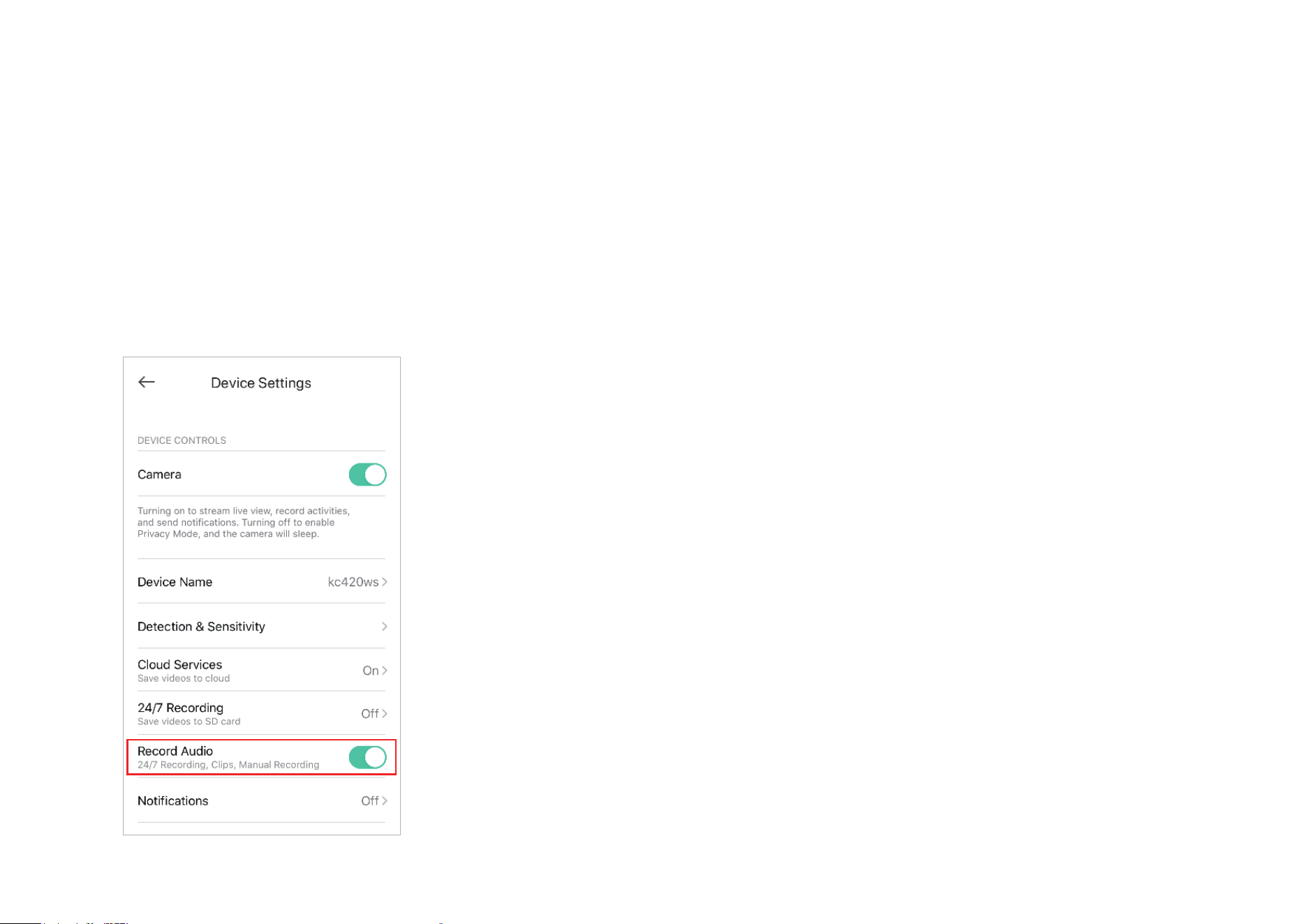
8. Choose whether to record audio.
Enable Record Audio if you want to also record sound during recording.
24
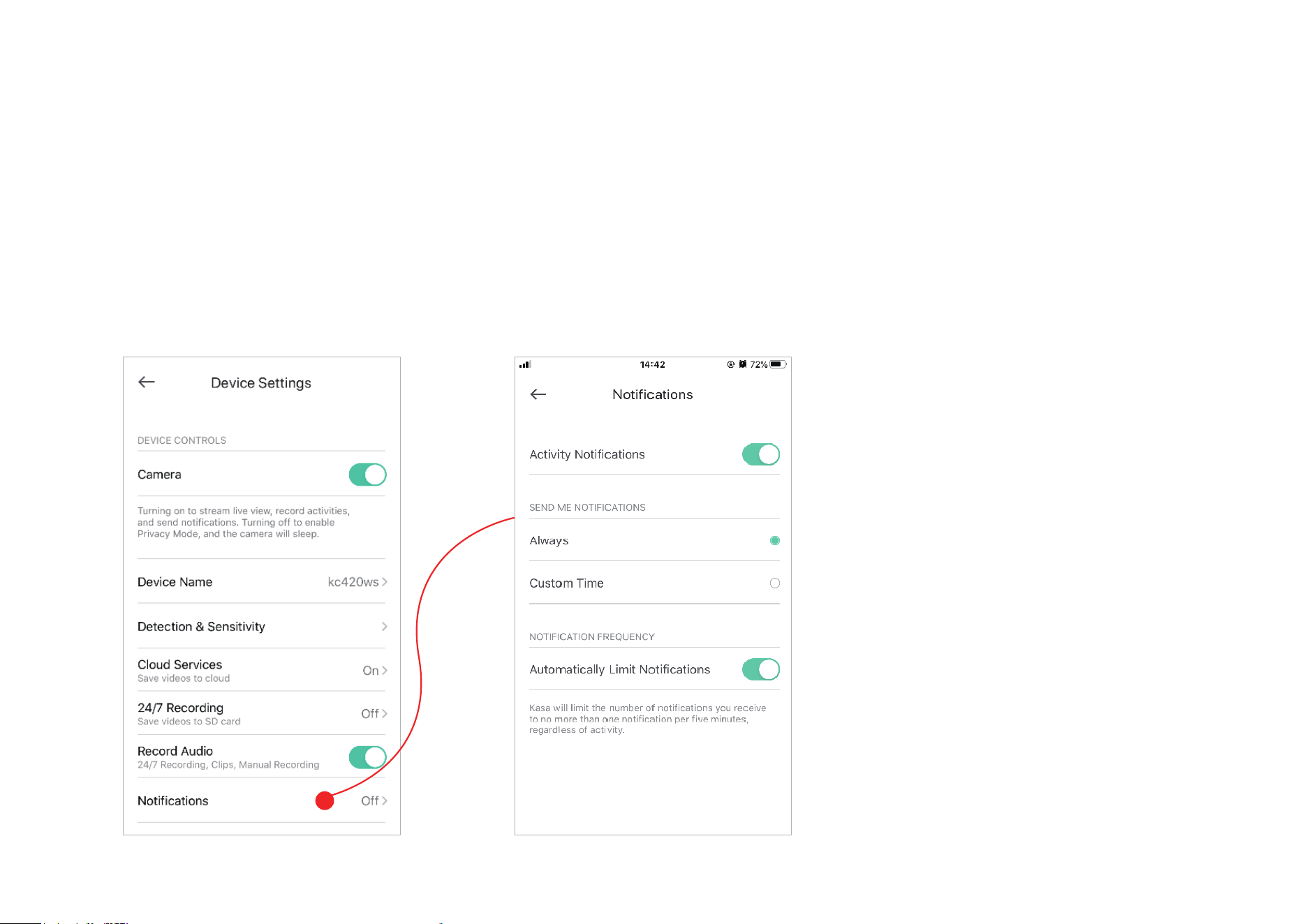
9. Choose whether to receive notications.
Enable Activity Notifications if you want to be notified when activity is detected. You can also set the time when you want to receive notications.
If you don't want to be bothered by frequent notications, enable Automatically Limit Notifications.
25
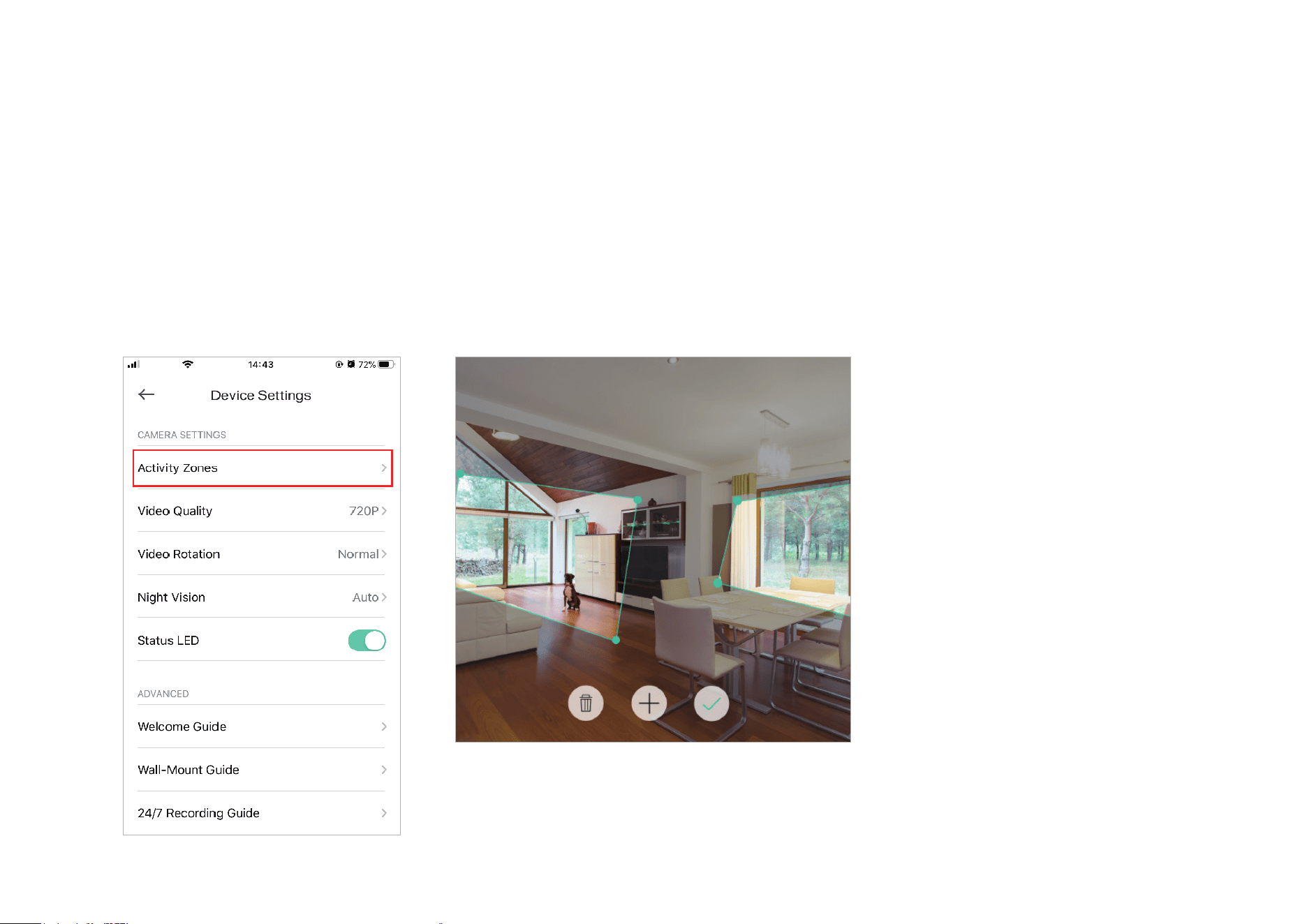
10. Set activity zones.
Control what alerts you by creating multiple custom activity zones around areas that are important to you.
26
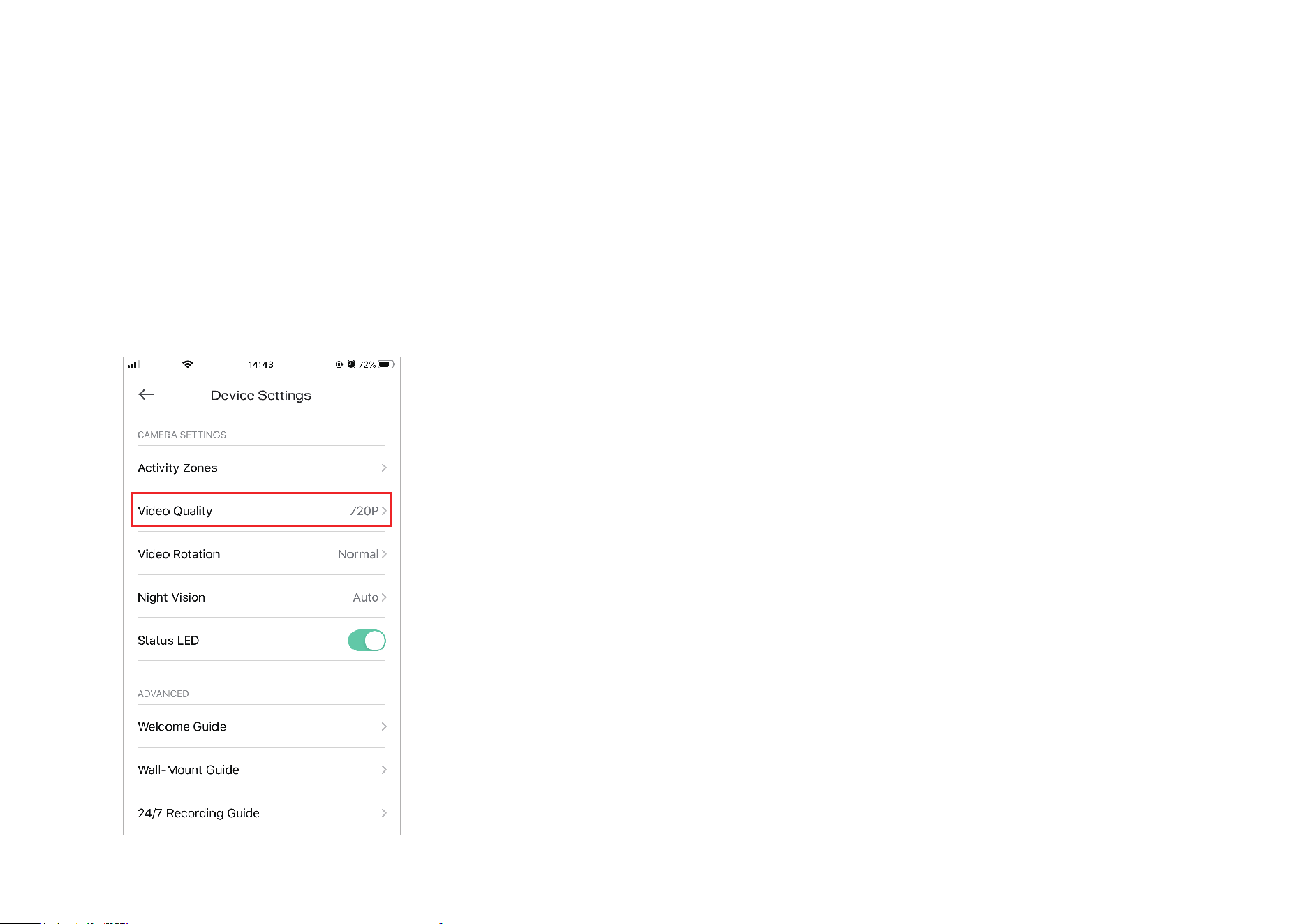
11. Choose the resolution for videos.
The highest quality looks better but requires faster internet connection and larger size for saving the videos.
27
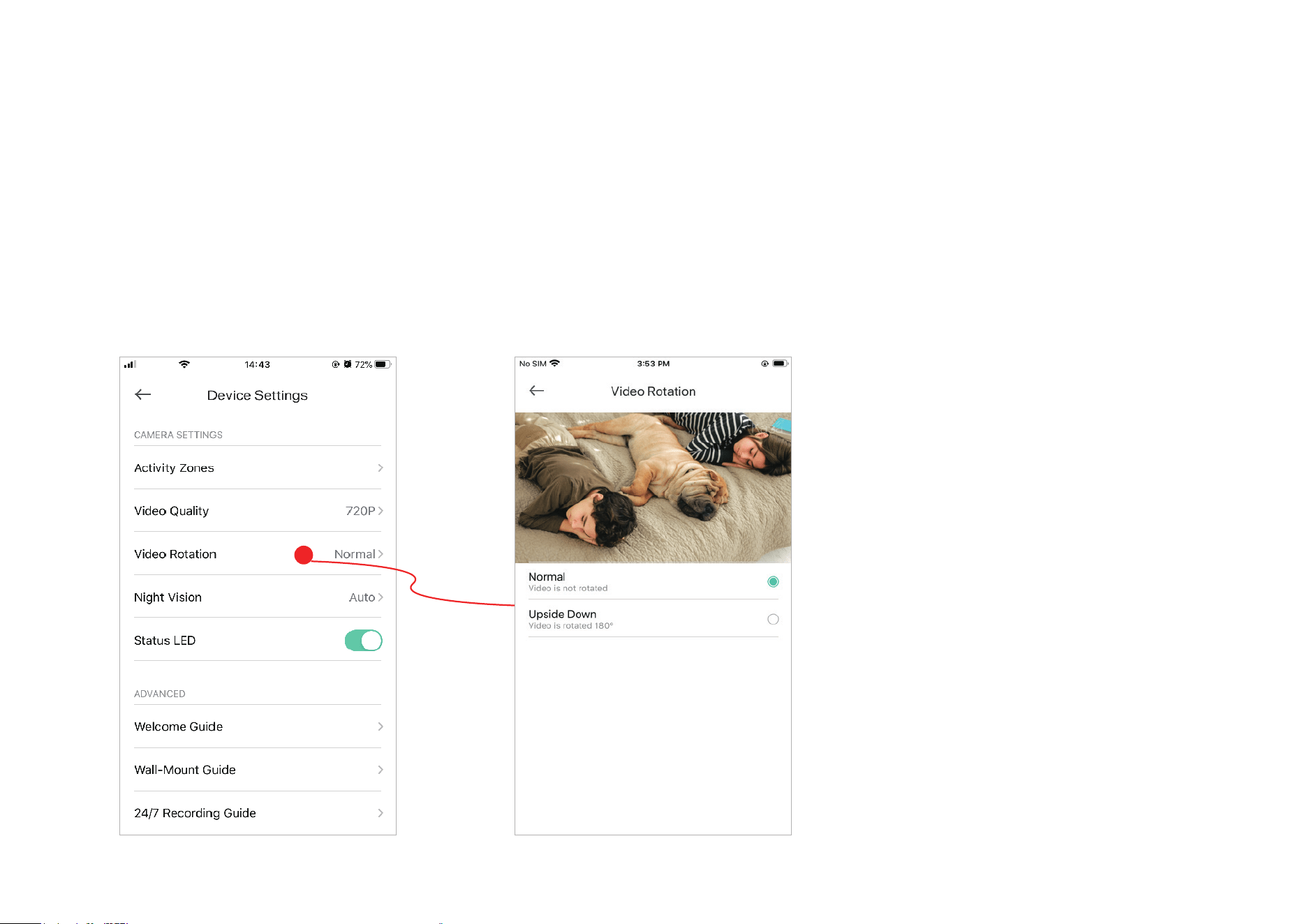
12. Choose to rotate the video.
28
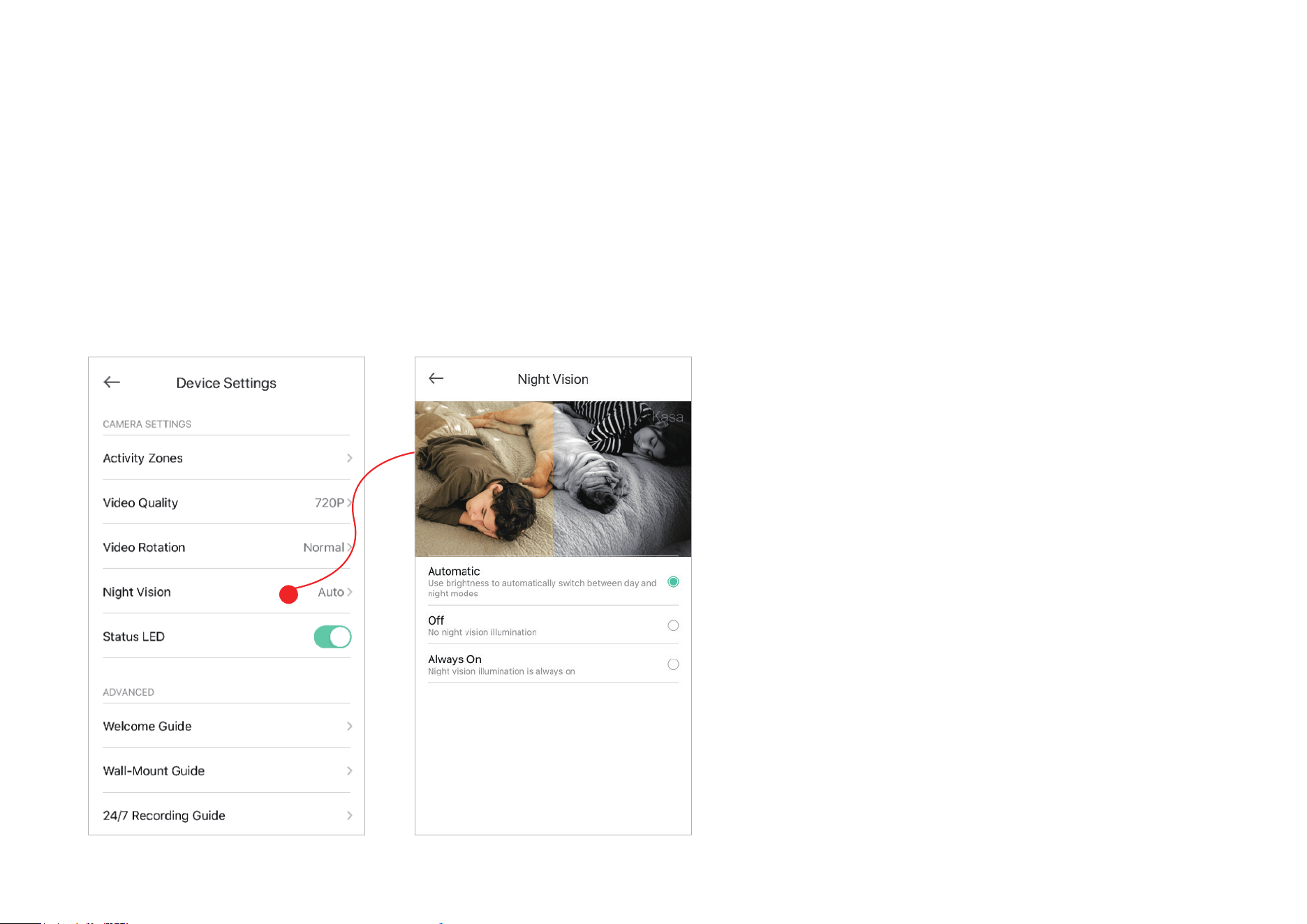
13. Choose when you want the night vision to be on.
Night vision allows you to see clearly at night. You can choose Automatic to turn on night vision automatically in low light conditions and turn off in
daylight.
Note: Night Vision is available with indoor cameras only.
29
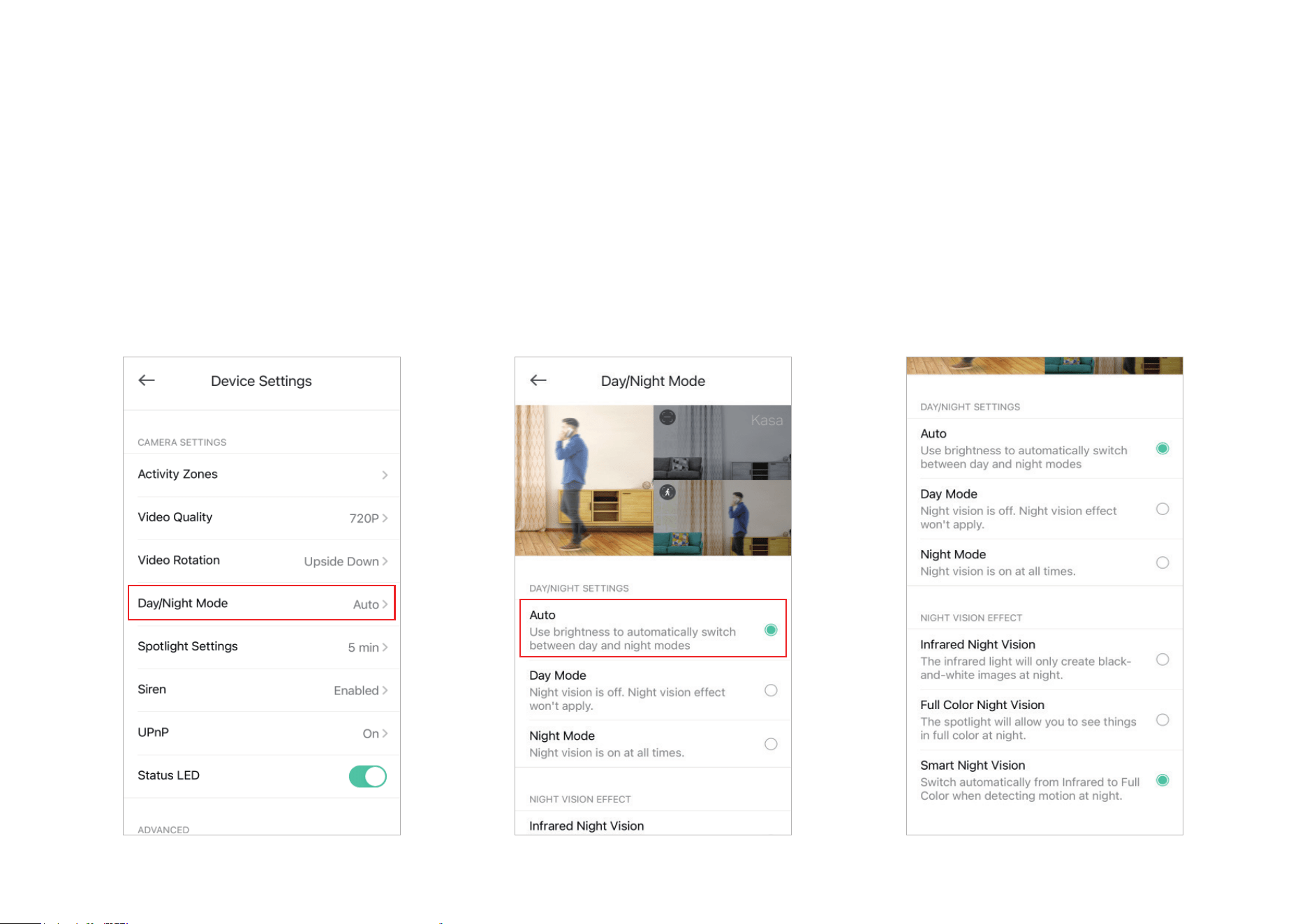
14. Set Day/Night Mode and the Night Vision Eect
Night vision allows you to see clearly at night. You can choose Automatic to turn on night vision automatically in low light conditions and turn off in
daylight.
Full-Color night vision allows you to see things in full color at night. You can choose Smart Night Vision to switch automatically from Infrared to Full color
when detecting motion at night.
Note: Day/Night Mode is available with outdoor cameras only.
30
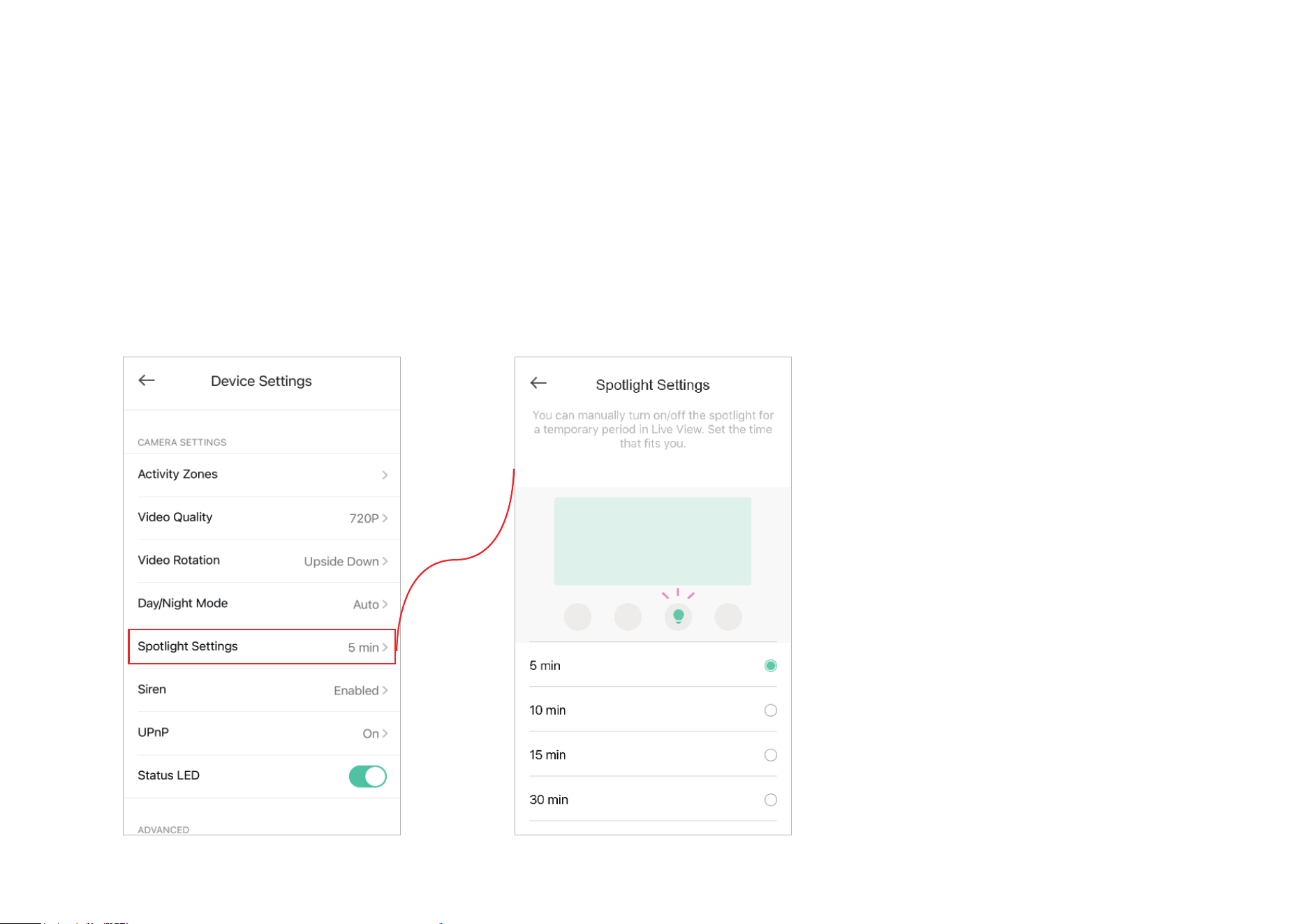
15. Spotlight settings
You can temporarily turn on/o the spotlight in Live View. Here you can customzie the temporary period.
Note: Spotlight Settings is available with outdoor cameras only.
31
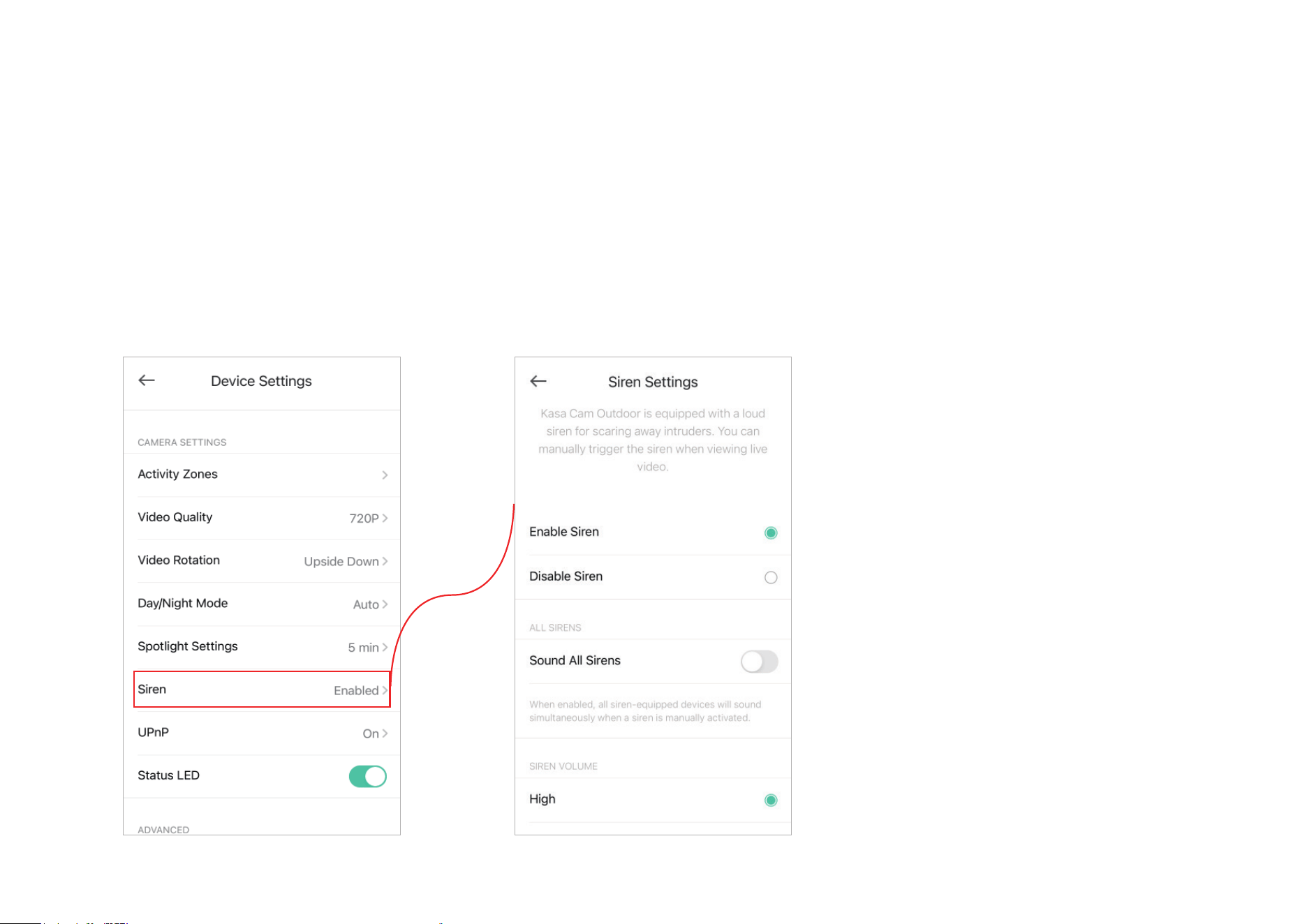
16. Siren settings
You can enable or disable siren, enable sound all sirens, set the siren volume and siren duration.
Note: Siren is available with outdoor cameras only.
32
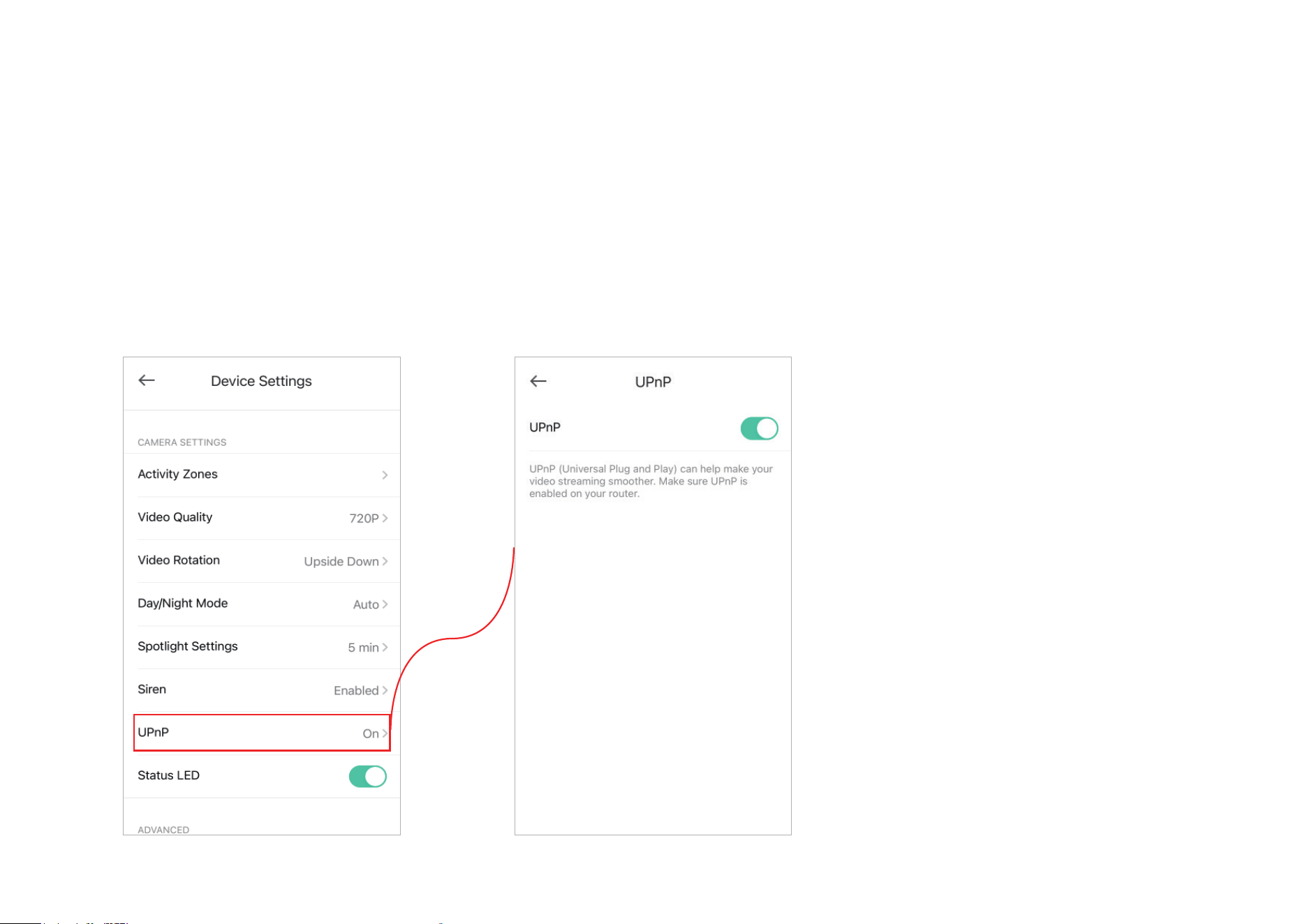
17. UPnP
UPnP (Universal Plug and Play) can help make your video streaming smoother. Make sure UPnP is enabled on your router.
33
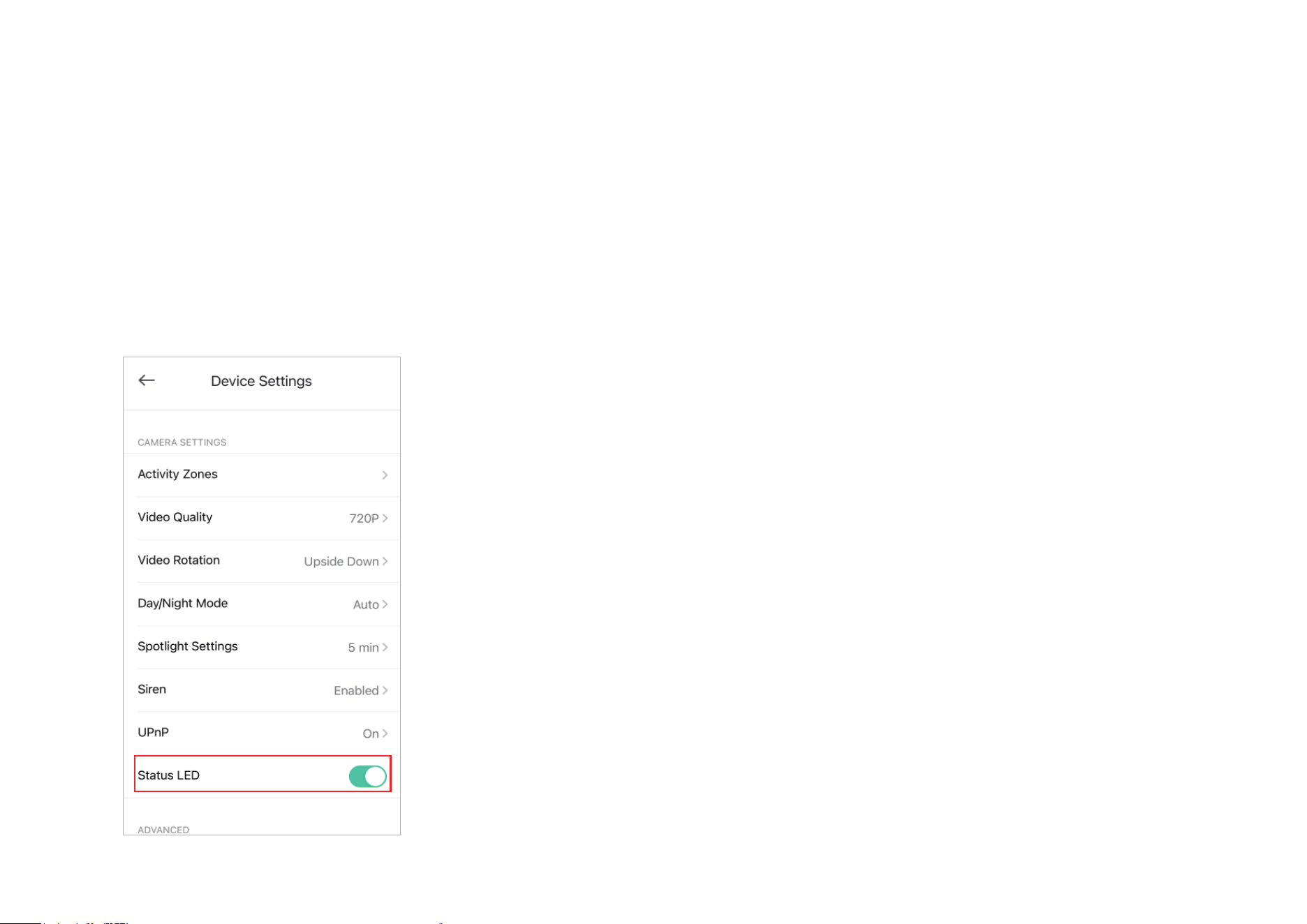
18. Status LED
You can turn off the status LED of your camera.
34
Reset Your Camera
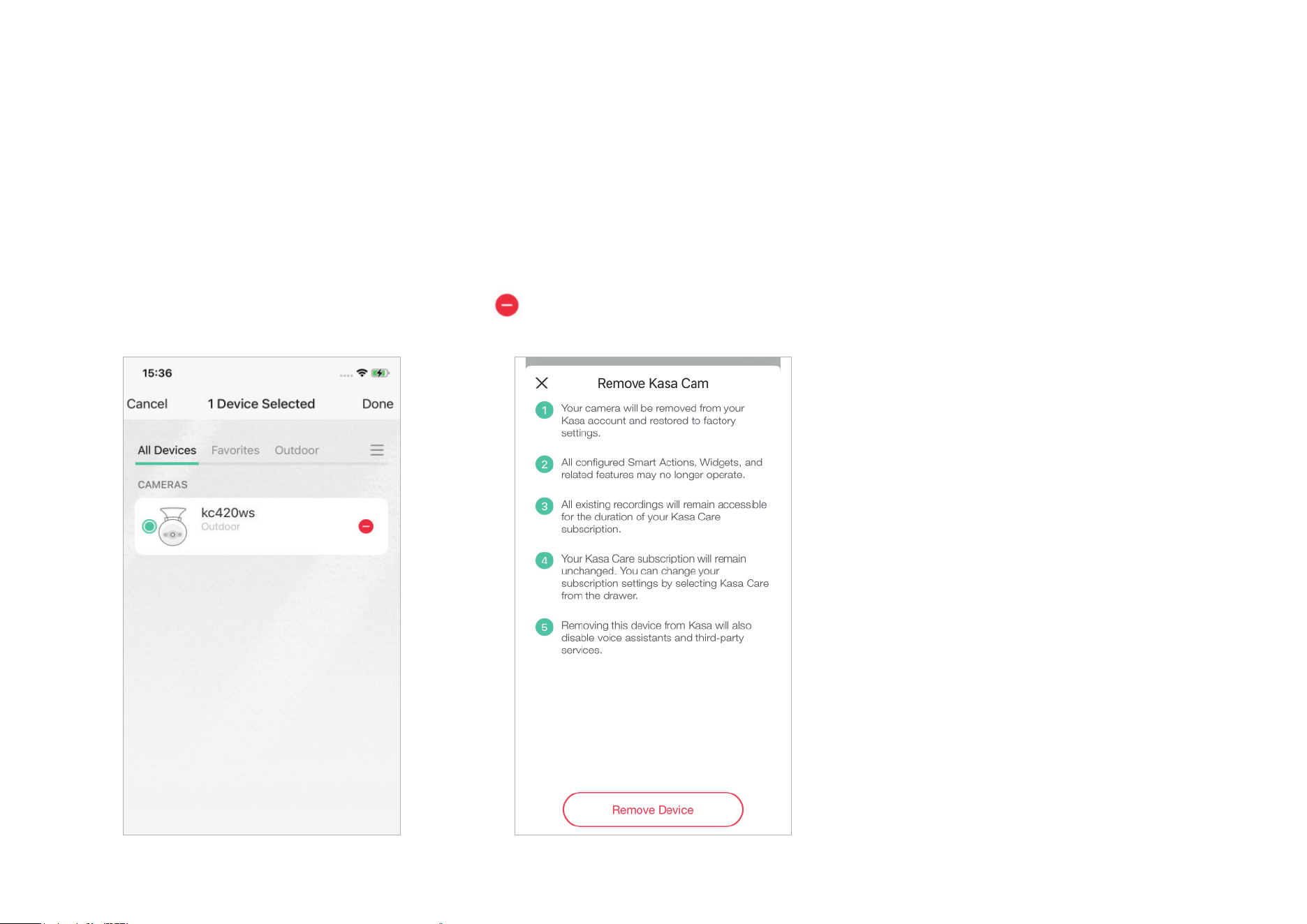
Kasa Smart app provides two methods to reset your camera.
Method 1
Long press your camera on the Home page and tap . Then tap Remove Device. Your camera
will be removed from your Kasa account and restored to factory settings.
35
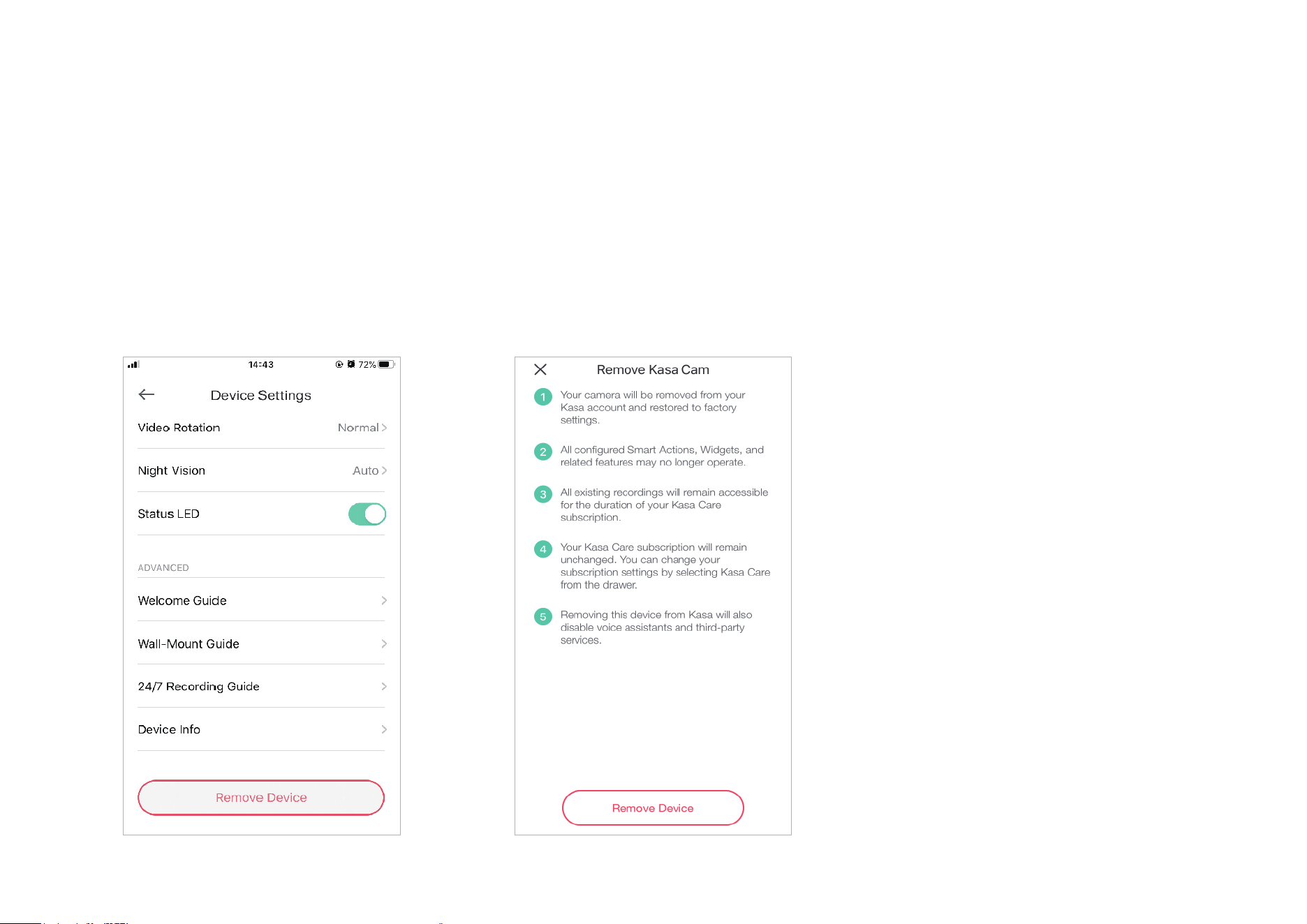
Method 2
Tap your camera and go to the Devices Settings page. Then tap Remove Device in the bottom.
Your camera will be removed from your Kasa account and restored to factory settings.
36
Cameras
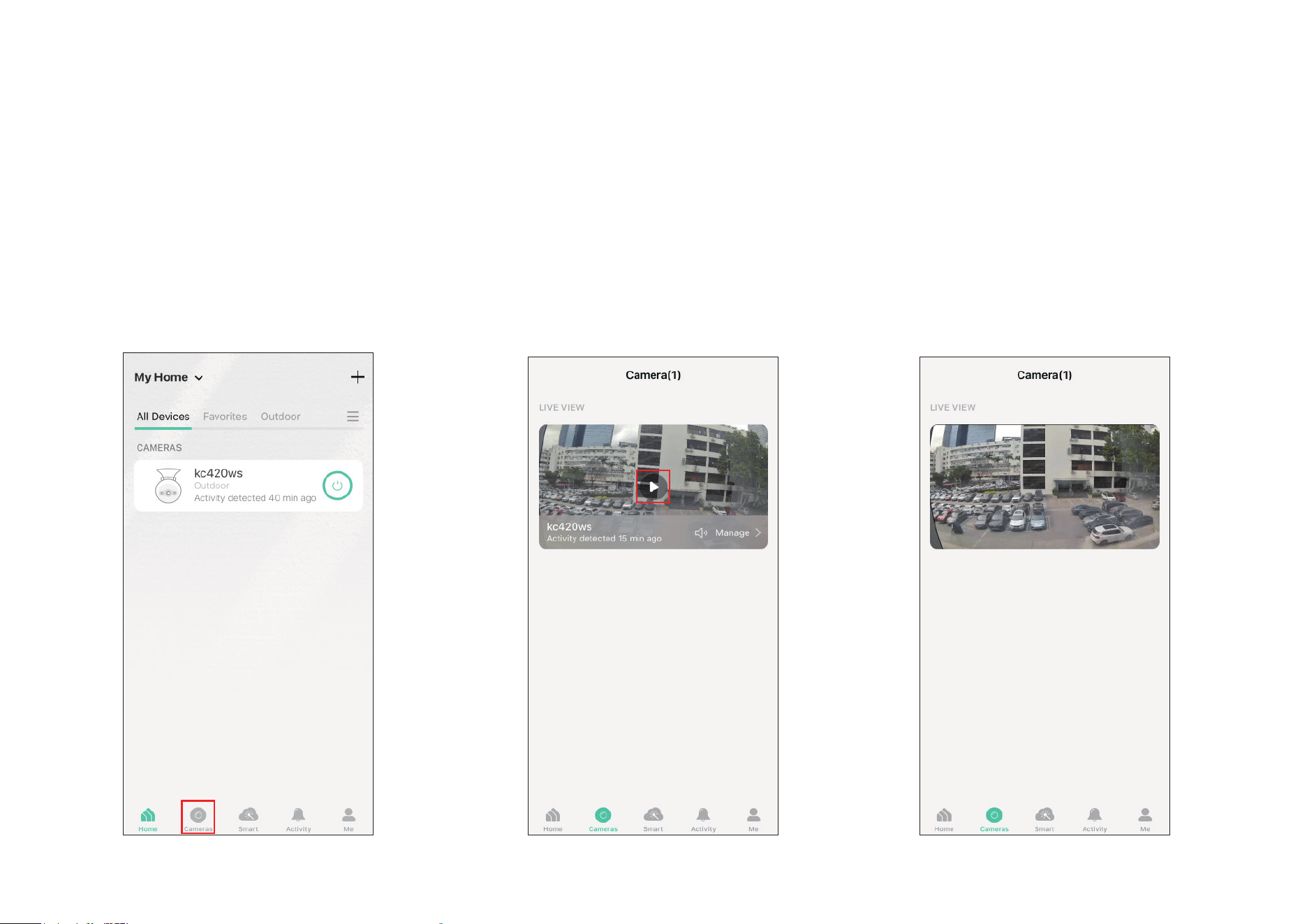
Kasa Smart app provides a shortcut to live view all your cameras on one page.
Open the Kasa Smart app, tap Cameras on the bottom and you can live view all your kasa cameras on the same page.
37
Grouping
A group is a collection of devices that you can tap a single action to control all devices belonging in that group. It is accessible in the home screen just
like any other devices.
You can group together smart plugs, smart switches and smart bulbs.
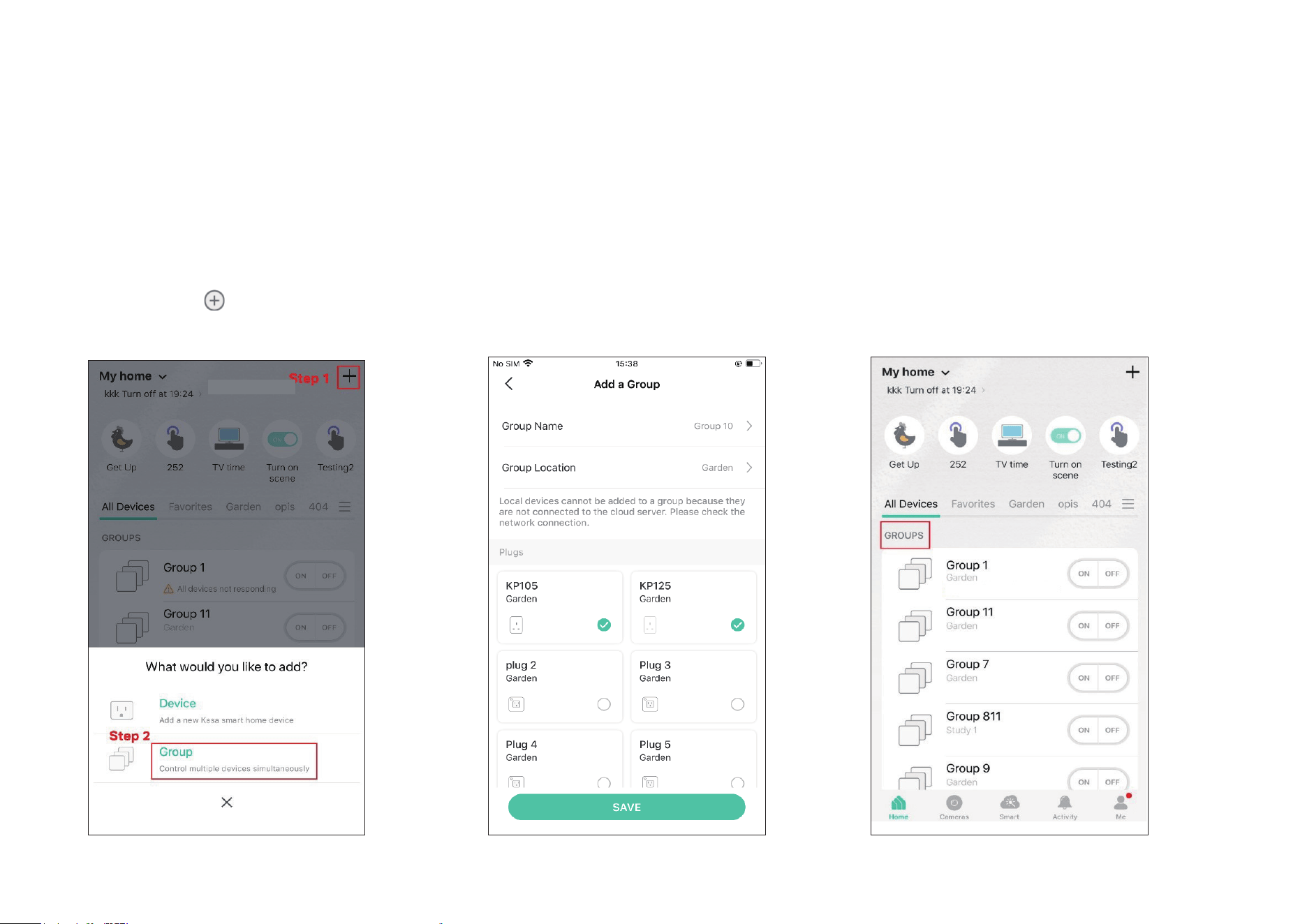
Step 2. Name your group and set location for
it. Select smart devices you want to add to
the group and tap SAVE.
1. Create Groups
Step 1. Tap the
button on the Home
page of the Kasa Smart app, and select
Group.
Step 3. The created group is listed on the
Home page. You can tap ON or OFF to turn on/
o the smart devices together in the group.
38
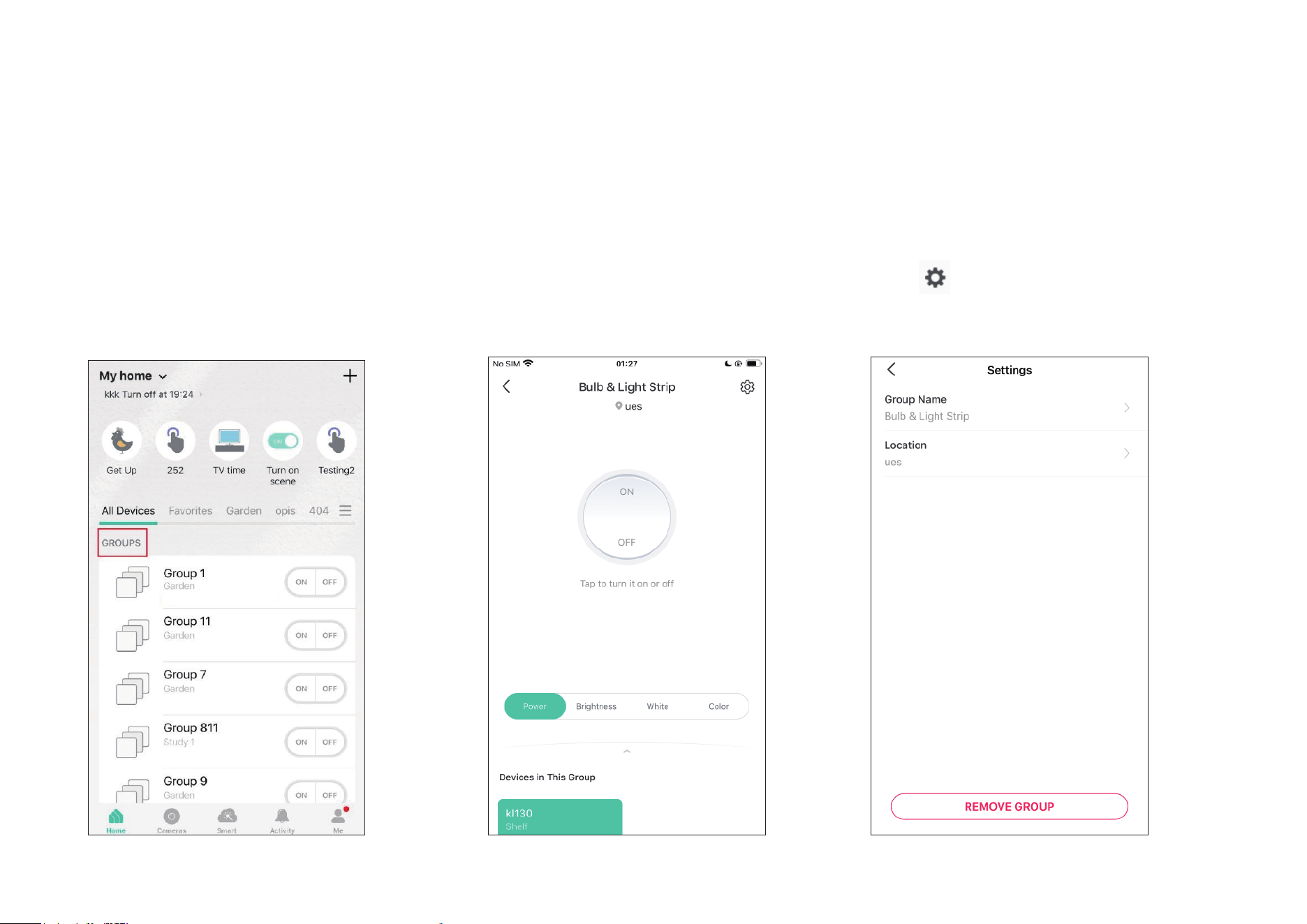
2. Manage the group
1. Tap the group you want to manage. 2. Turn on or o the group on the status
page.
3. Tap in the top right corner to enter the
settings page. Tap Group Name to rename the
group and Location for relocate it.
39
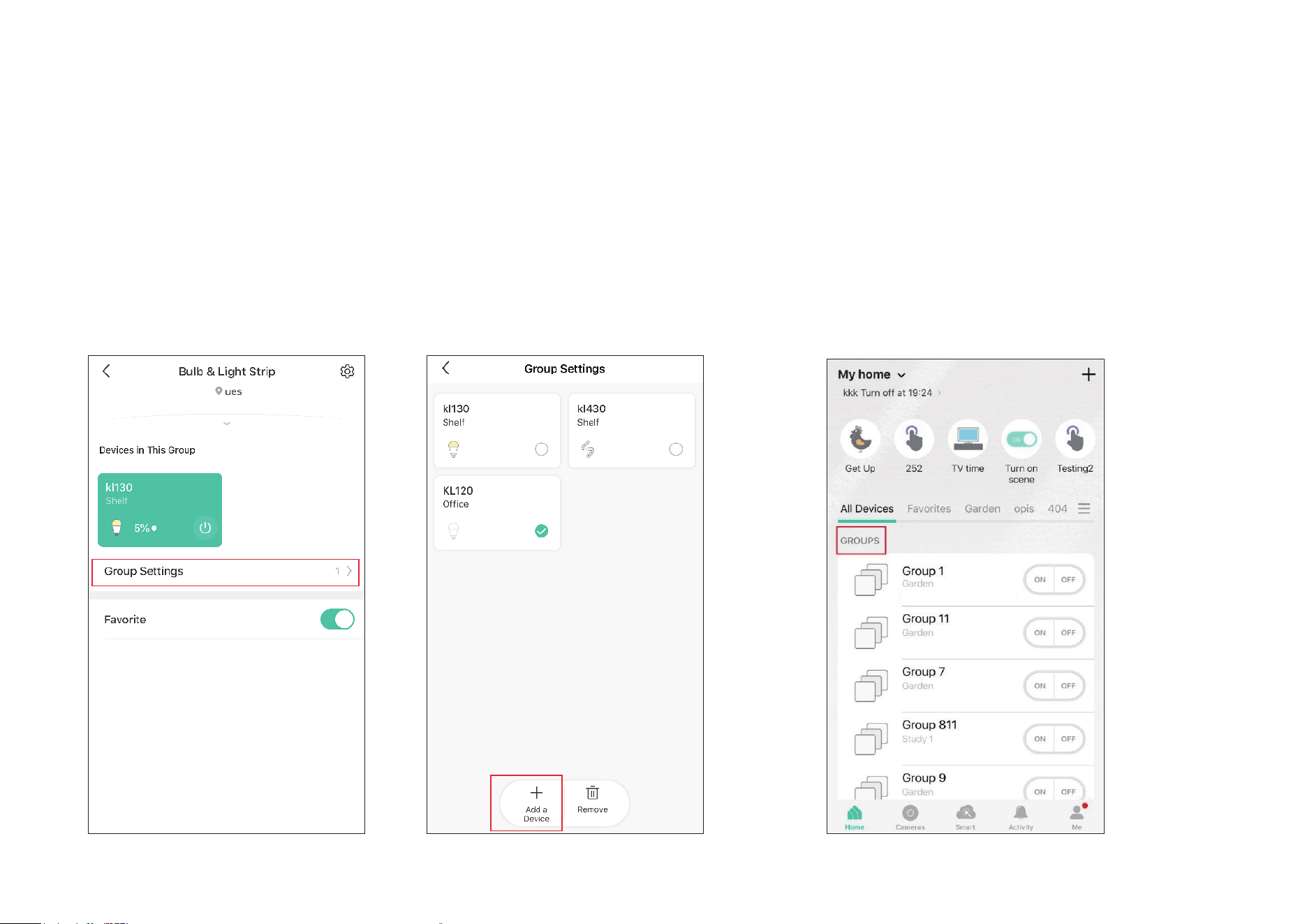
4. Swipe down the status page and tap Group Settings to add/ delete device in the
group. Tap Add Device and you can choose the available devices and tap ADD to add
devices to your group.
5. Back to the Group Settings page, you can choose
the device you want to delete and tap Delete to
remove devices from the group.
40
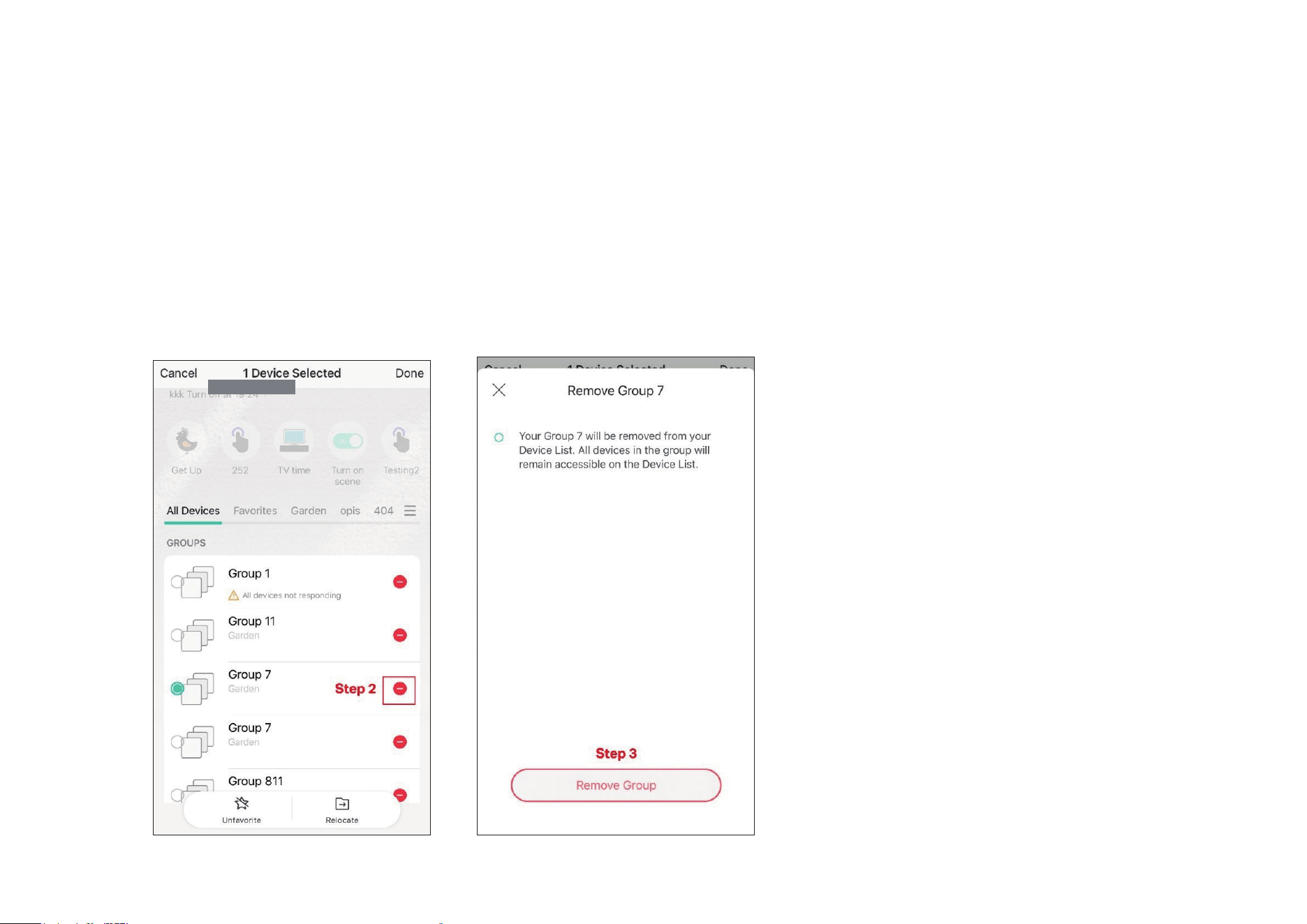
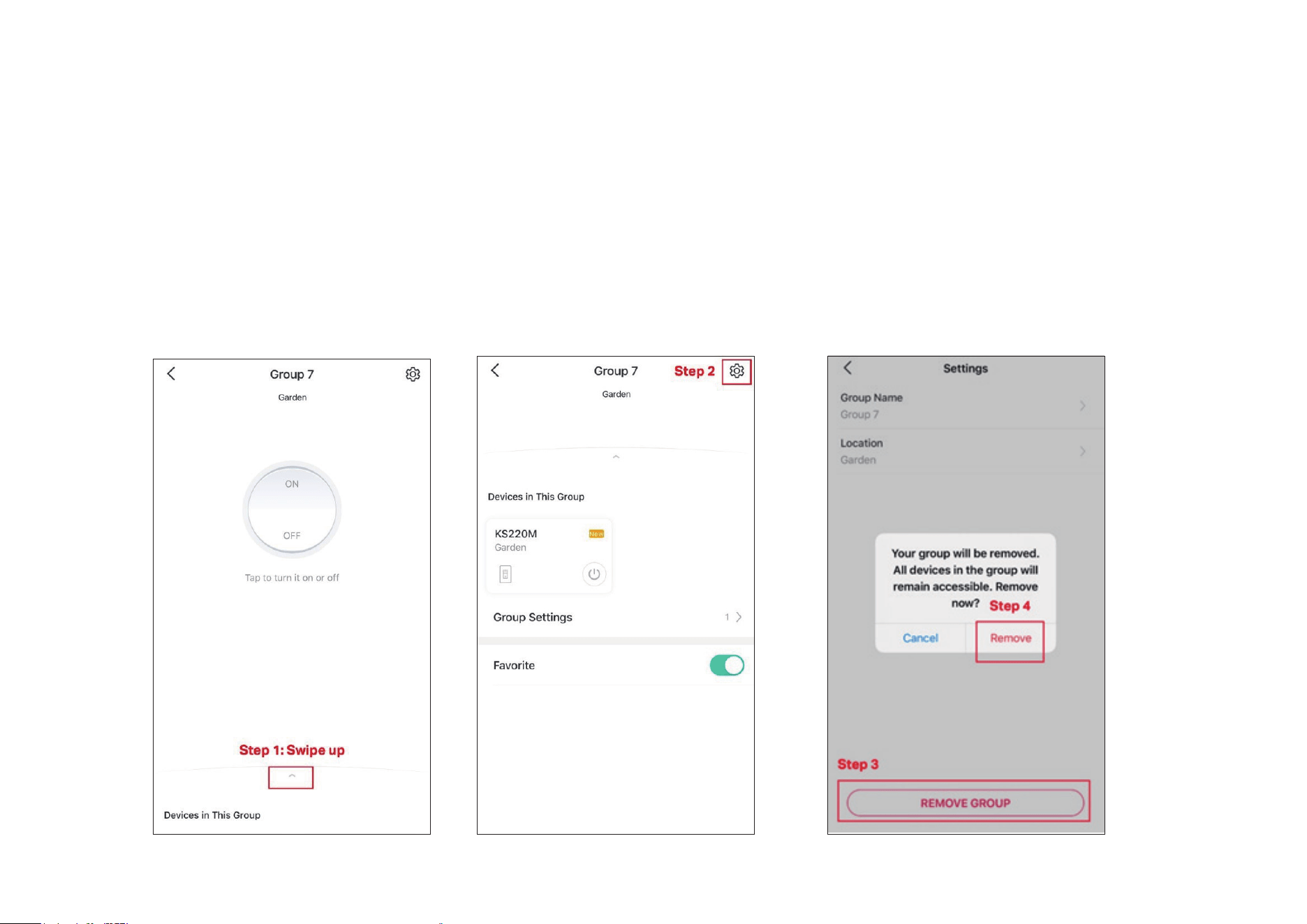
3. Delete a Group
Option 1. From device list, long press an individual group until the delete symbol appears on the right. Tap the delete symbol.
41
Option 2. Tap the gear icon on the Status Page to enter the Group Settings page. Then tap REMOVE GROUP and Remove to remove the device from
your group.
42
Me Page
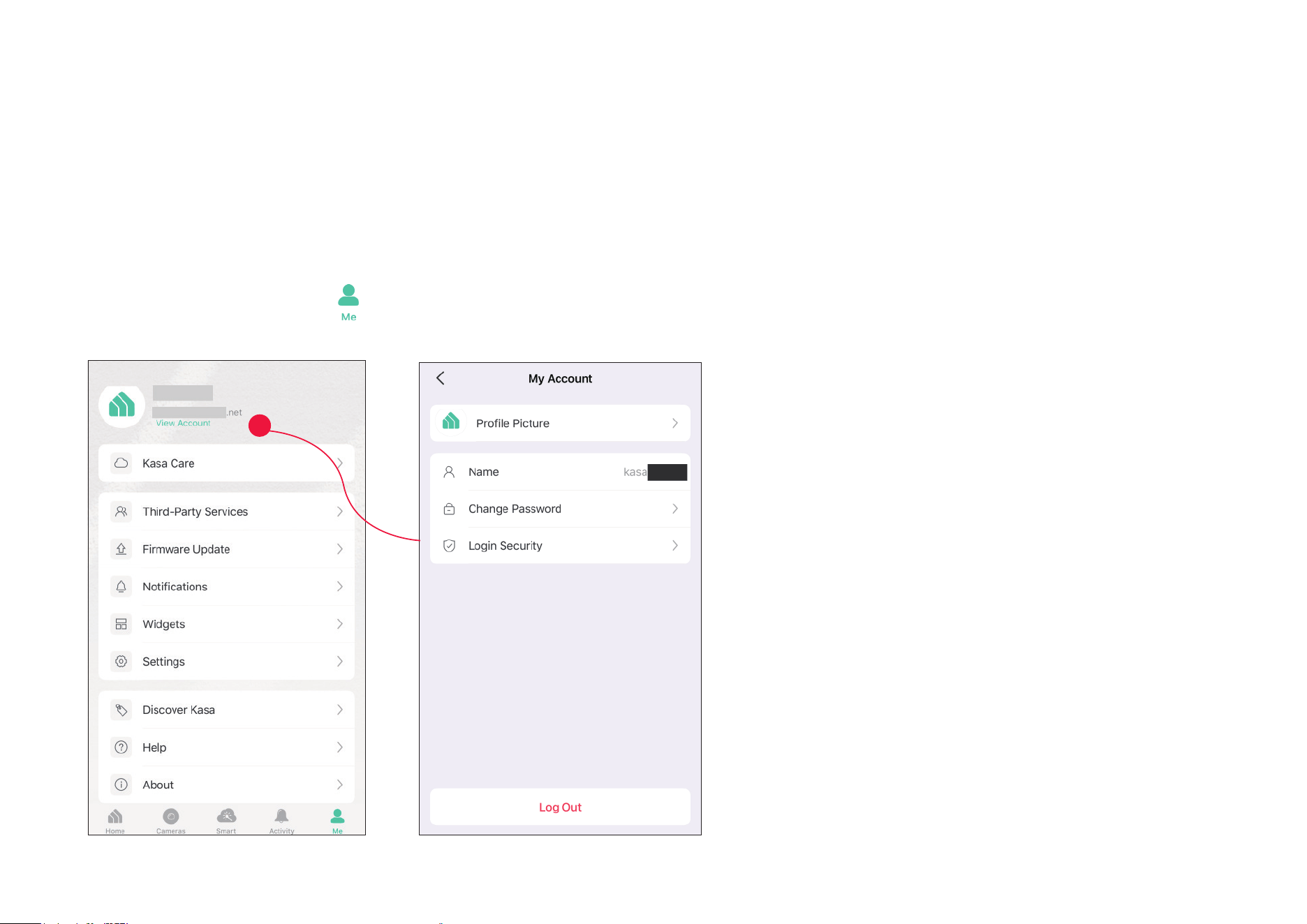
The Kasa app oers a list of advanced features to fulll diverse smart home needs.
Launch the Kasa Smart app. Tap Go to the Me page and tap your account or prole. Here you can change your prole picture, password, and login
security settings.
Manage Your Account
43
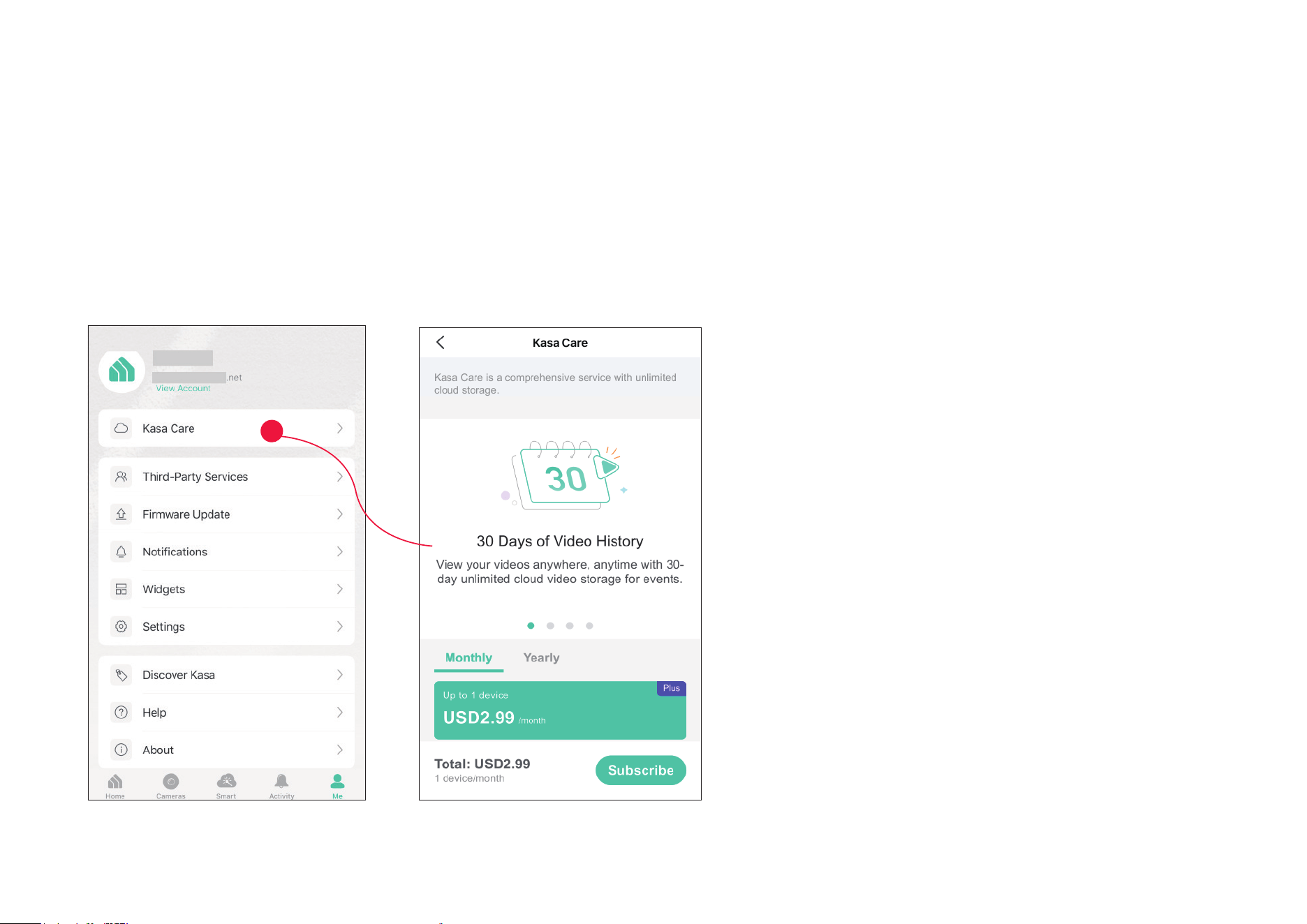
To view the Kasa Care plan, from the Kasa APP > Ta p Me on the bottom> Select Kasa Care.
Note: With the Kasa Care service, every Kasa account is eligible to sign up for a free trial for the new Kasa Care plan once.
Kasa Care
Kasa Care is a cloud-based service that allows users to view and download activity recordings from a Kasa Cam. When you purchase a Kasa Cam, you
can subscribe to our advanced plan to enjoy our Kasa Care cloud service.
44
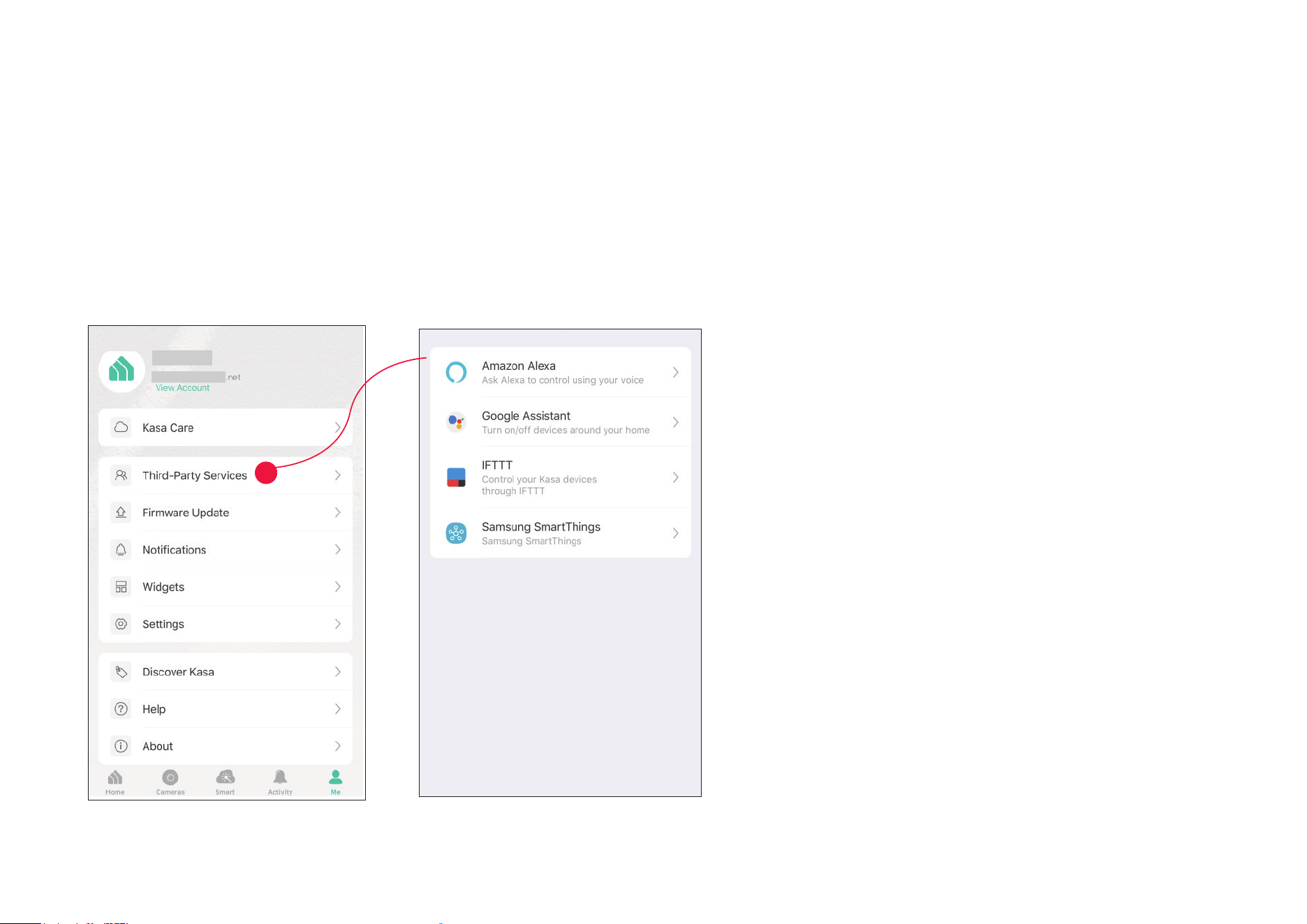
Third Party Services
Use the Kasa Smart app to pair your Smart devices with Amazon Alexa or Google Home Assistant, and enjoy a full hands-free experience. Kasa helps
manage the rest of your smart home too, working with Samsung SmartThings to trigger changes when you arrive home or leave for the day.
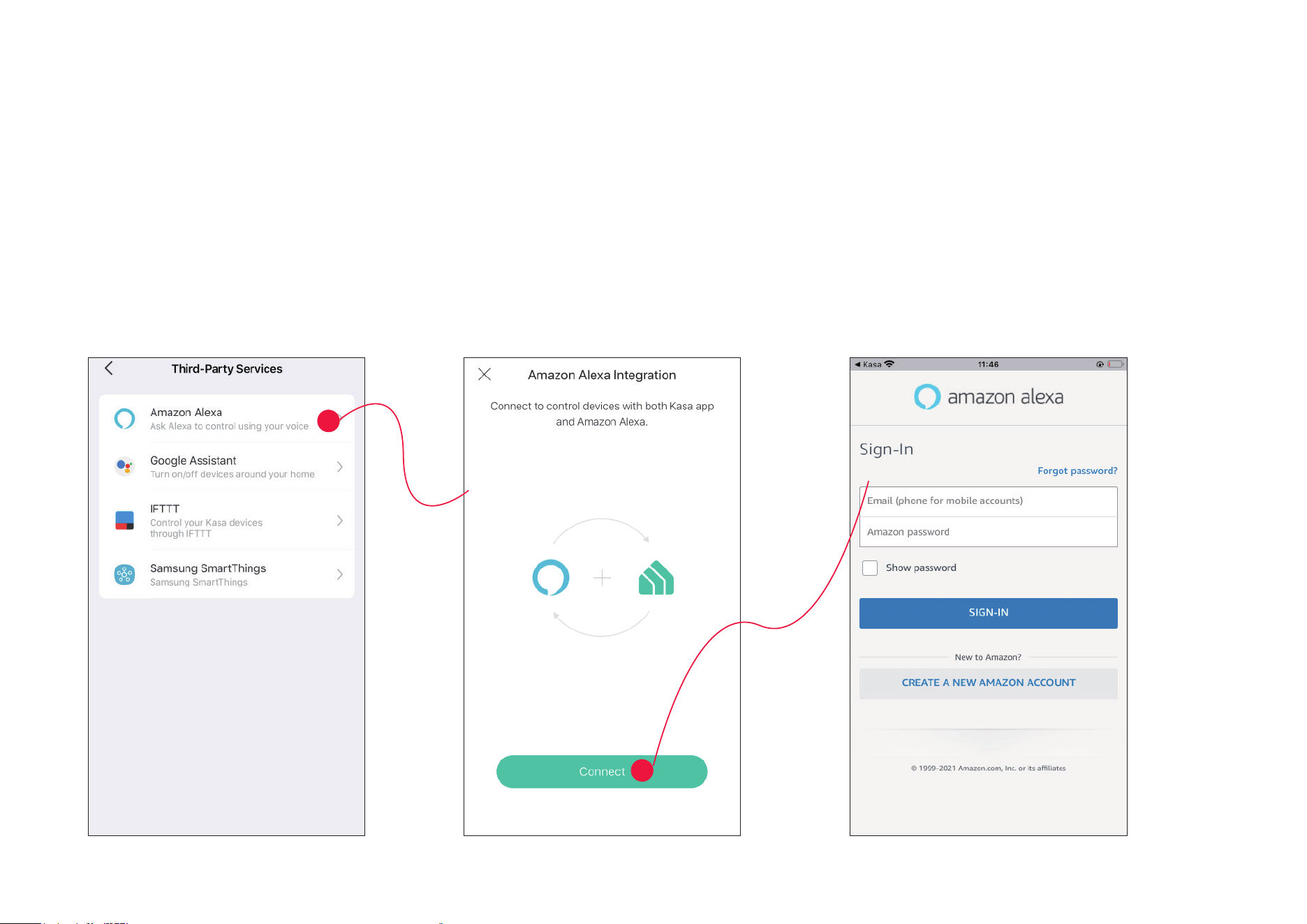
Launch the Kasa Smart app. Go to the Me page and tap Third Party Services. You can choose Amazon Alexa / Google Assistant / IFTTT / Samsung
SmartThings for detailed instructions.
45
1. Tap Amazon Alexa. 2. Tap Connect.
3. Sign in with your amazon account.
1. Set up Amazon Alexa
46
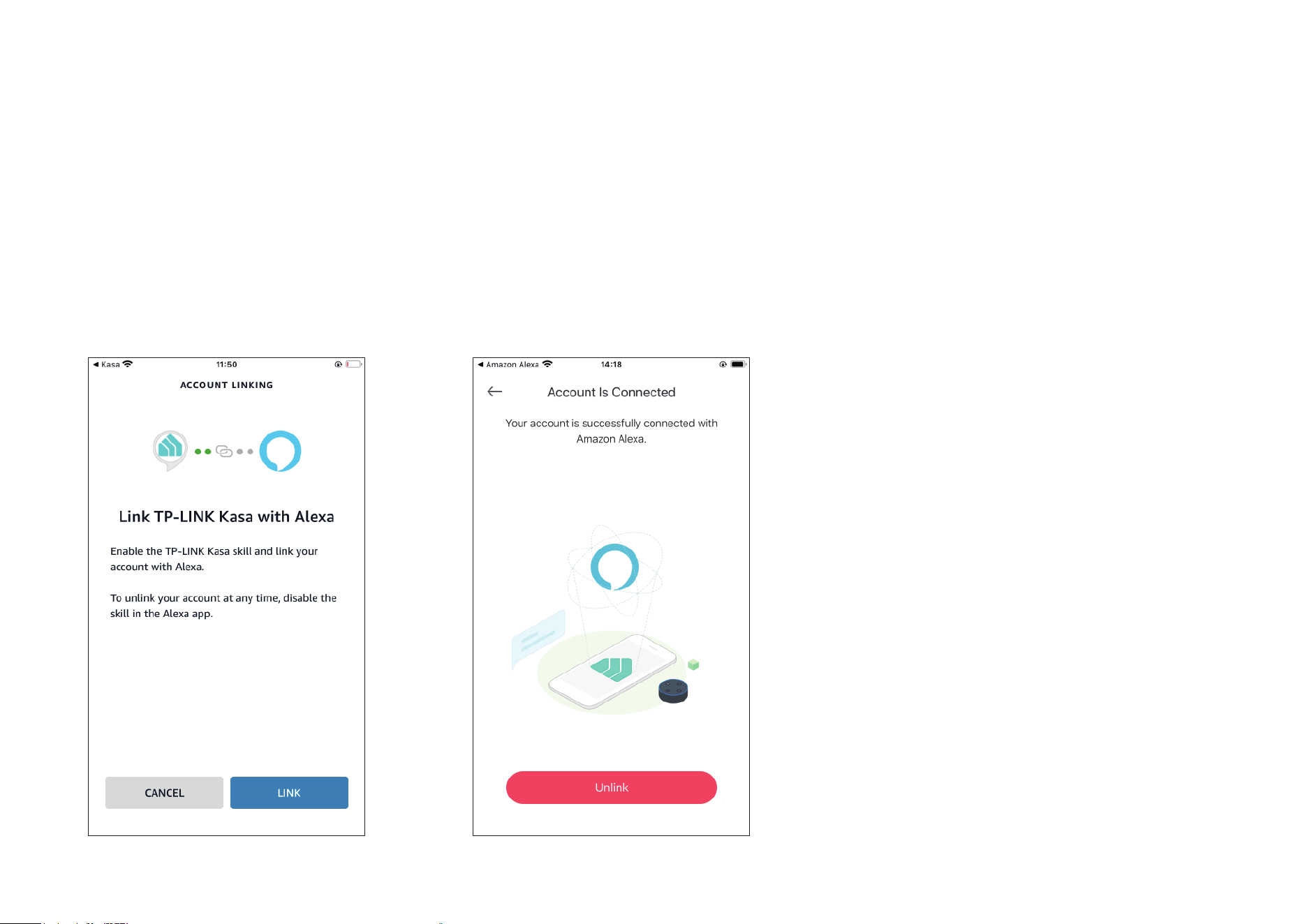
3. After sign-in, tap LINK. 4. Your TP-Link ID has been successfully linked with your amazon account. You can use Alexa voice
commands to control your Smart Wi-Fi Power Strip.
47
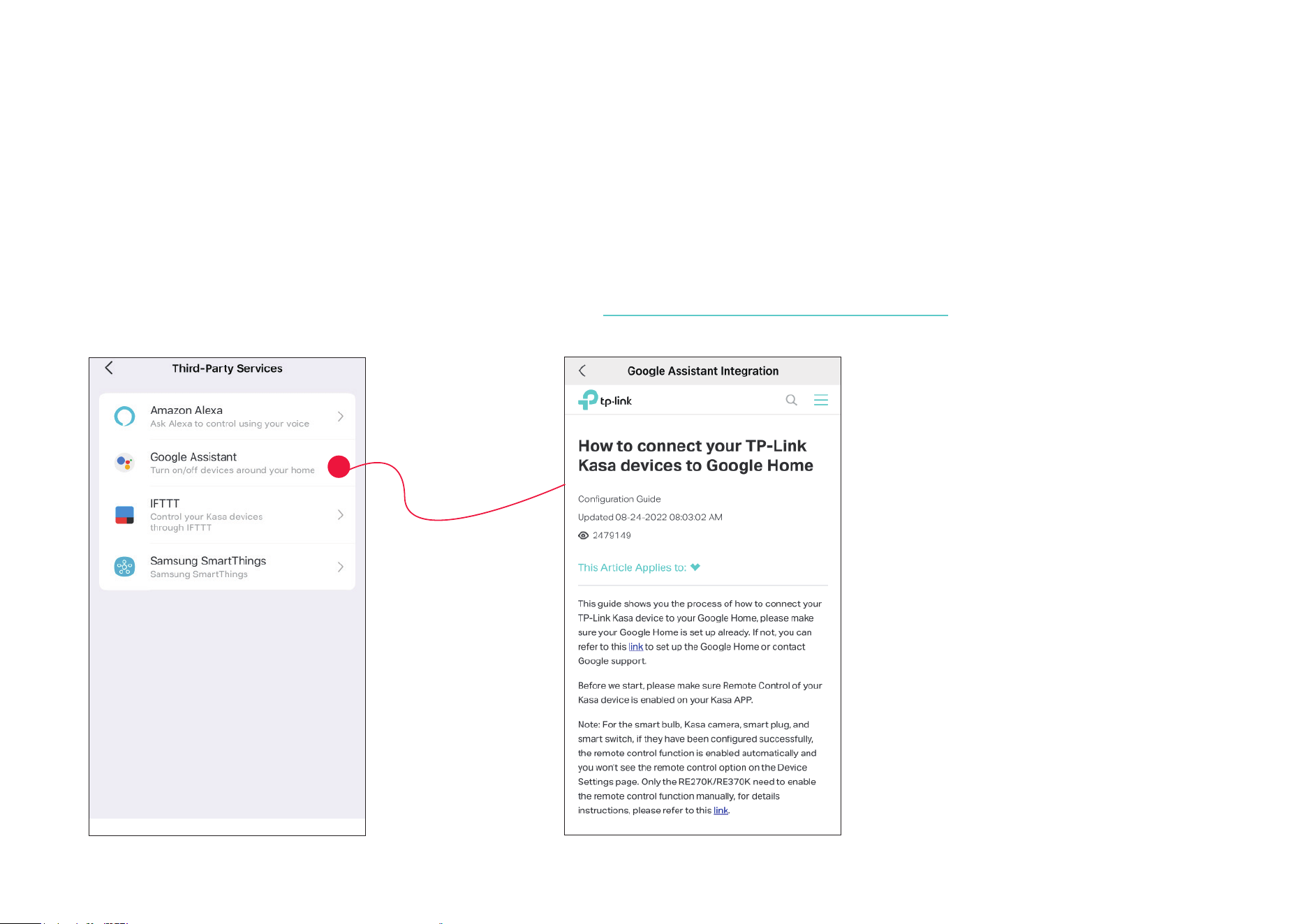
1. Tap Google Assistant.
2. Follow instructions to connect your device to your Google Home.
Or nd the FAQ at https://www.tp-link.com/en/support/faq/1534/.
2. Set up Google Assistant
48
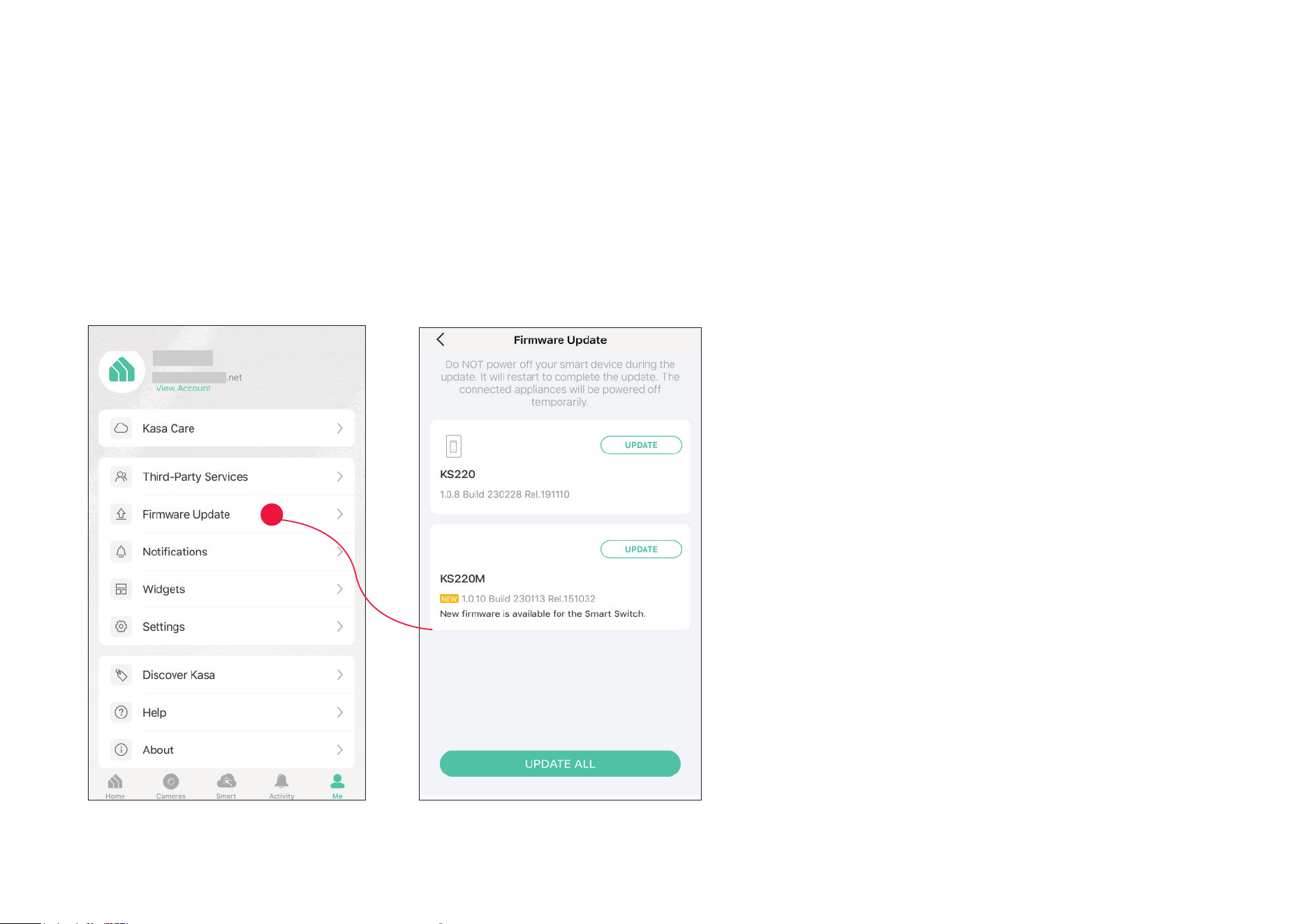
To view the updated rmwares, from the Kasa APP > Tap Me on the bottom> Select Firmware Update. If any rmware updates are available, they will be
displayed on this page.
Firmware Update
The rmware on TP-Link Kasa smart devices can only be updated by using the TP-Link Kasa App.
49
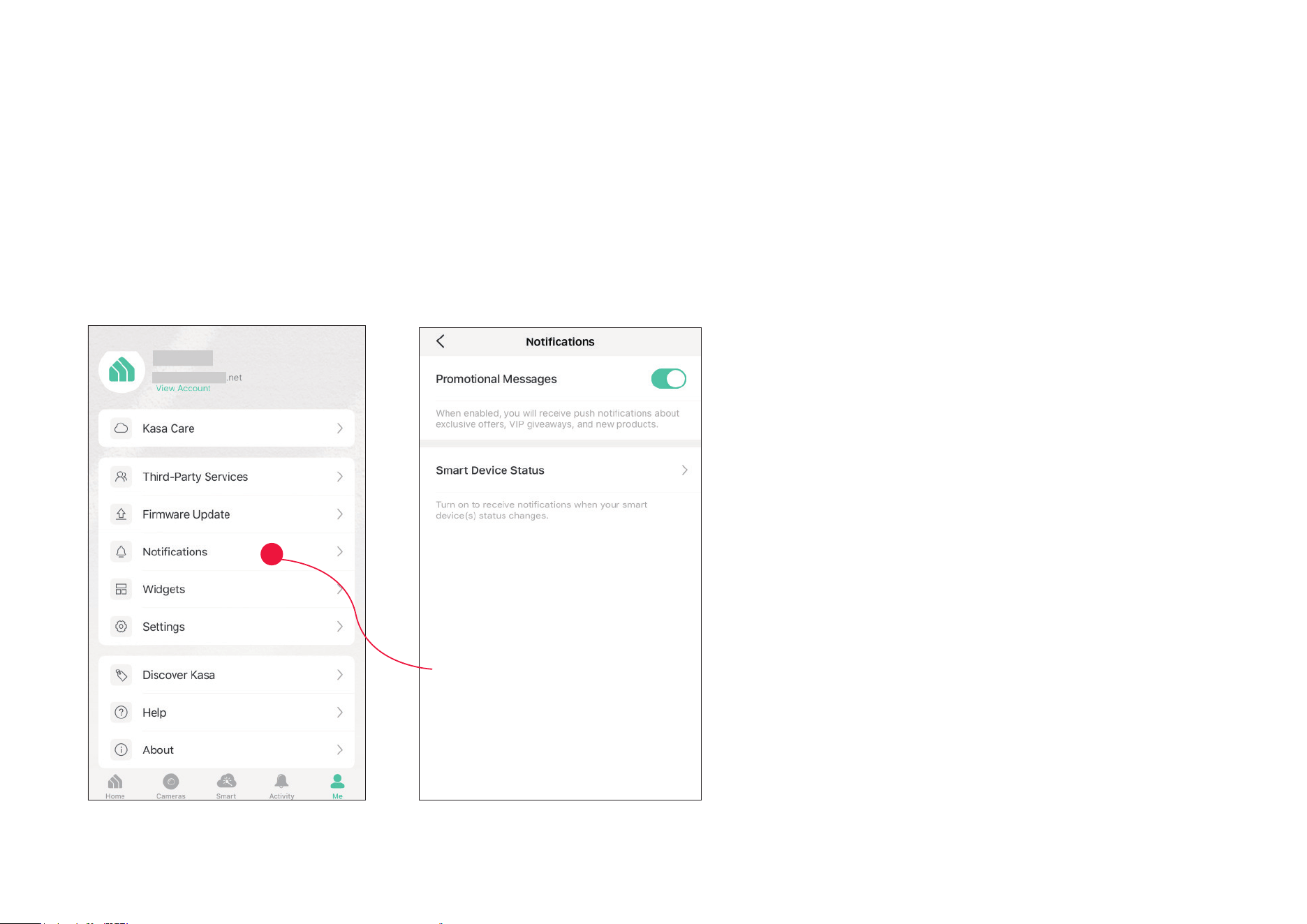
To congure notication settings, from the Kasa APP > Tap Me on the bottom > Select Notication.
Notication
Kasa Cam utilizes the push notication of your smart phone to inform you of detected activities by the camera.

50
Widgets
With widgets, you can tap and send commands to your Kasa devices, such as executing scenes, turning o lights, viewing your Kasa camera clips, and
more.
The Kasa app provides three widgets: namely, KASA CAM WIDGET, KASA DEVICES, and KASA SCENES. These three gadgets cover some of the most
frequently-used functions, including:
• KASA DEVICES: Display the status of your selected devices and simple commands like turning on/o.
• KASA SCENES: Enable/disable the selected scenes.
• KASA CAM WIDGET: Preview and check your video clips.
Widgets come along with your smart home app and can be activated with some simple steps.
For iOS user, the whole process is divided into two procedures:
• Firstly, select the Kasa Devices, Kasa Scenes, and Kasa Cam that you want to set as a widget on the Kasa app.
• Secondly, add the Kasa Widgets on your home screen.
For Android user, you can directly add the Kasa Widgets on your home screen.
Note: Setting steps dier in adding the Kasa Widgets on your home screen in the iOS and Android systems.
51
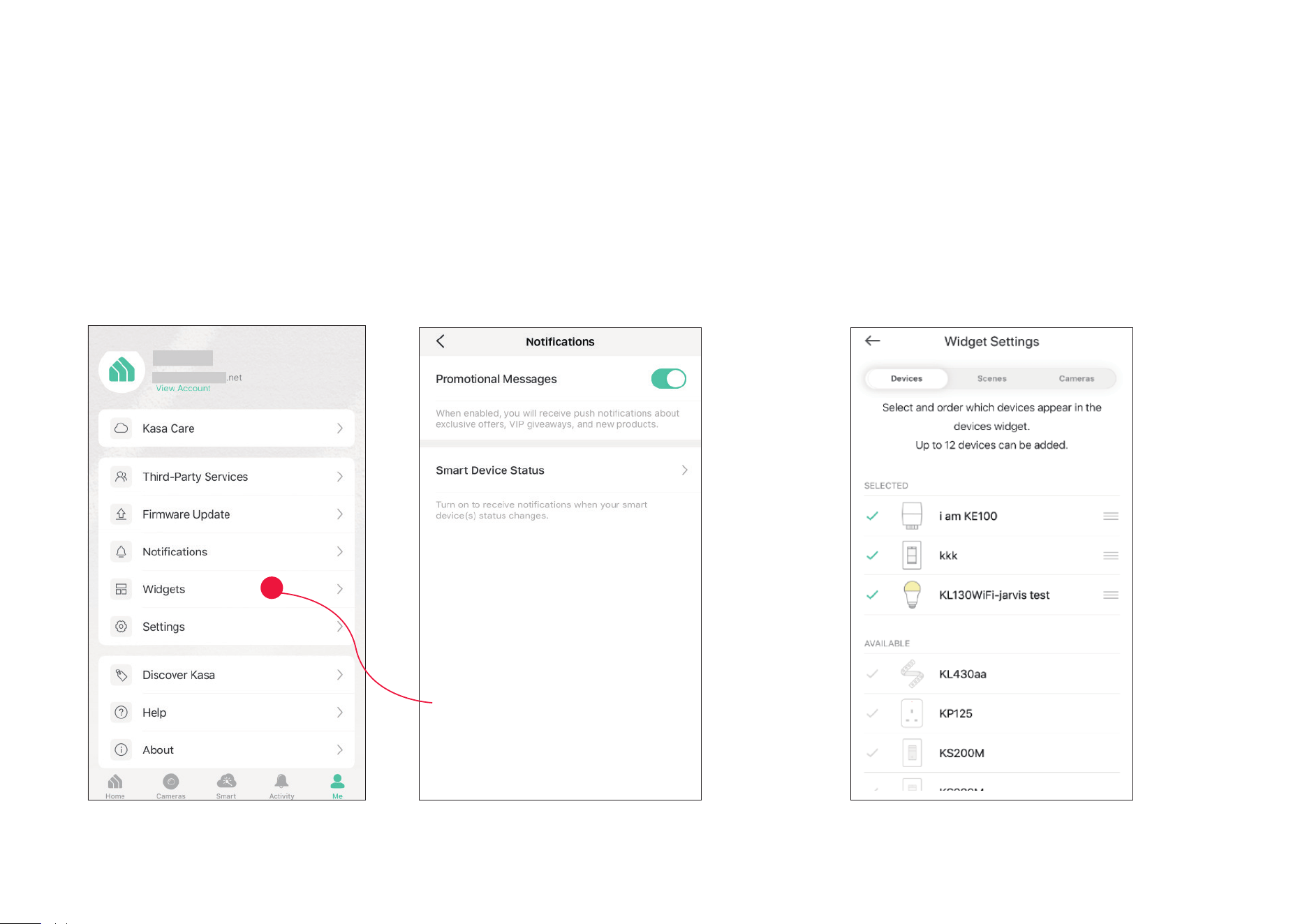
1. Select Your Desired Widgets (for iOS)
Step 1
.
To add widgets, from the Kasa APP > Ta p Me at the bottom > Tap Widgets. Step 2. Choose the Devices, Scenes and Cameras you want
to add in the widgets.
52
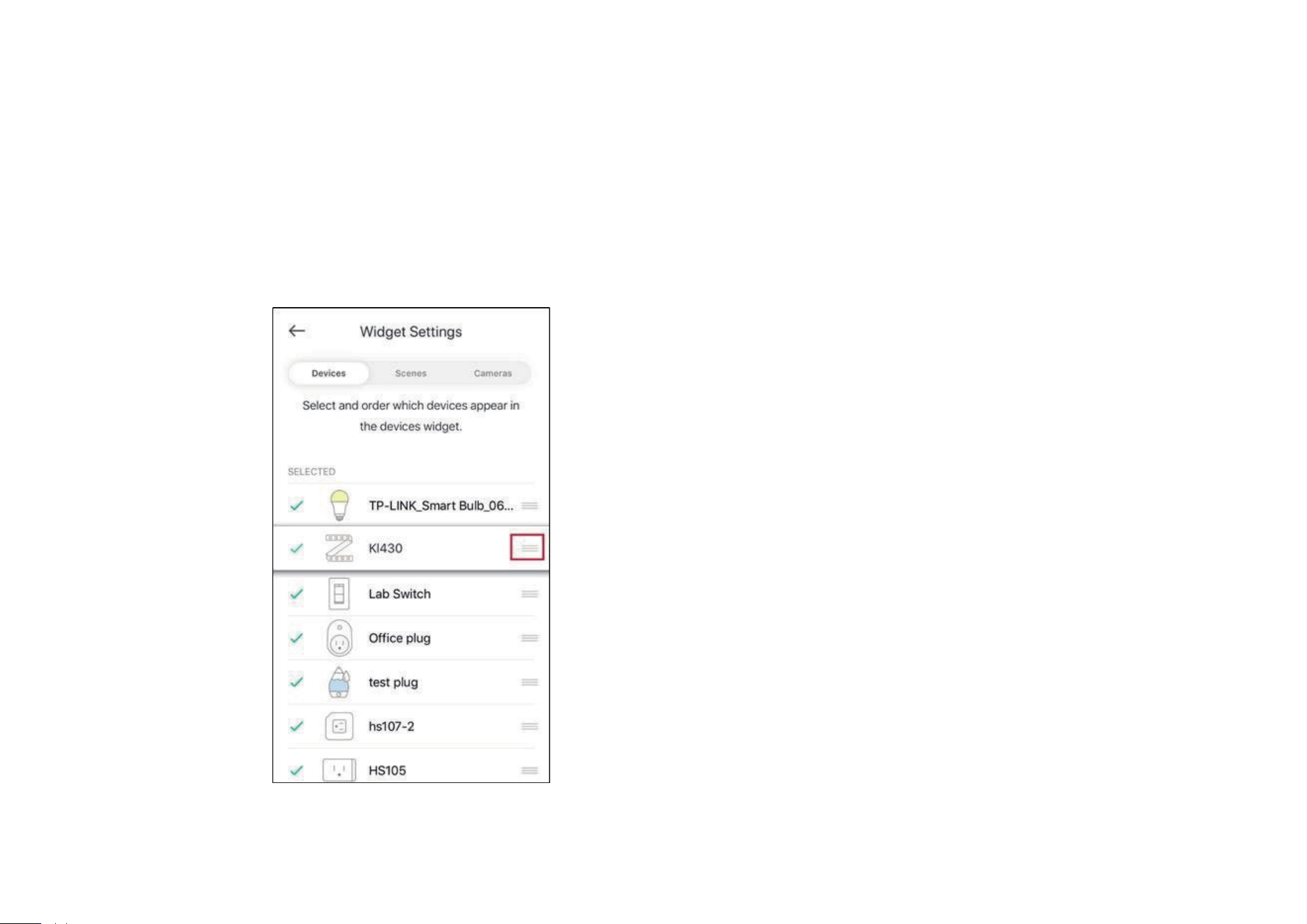
Step 3. If you want to reorder your devices or scenes, touch and hold the ≡ next to them and drag them in the order that you want.
53
2. Add to Your Home Screen (for iOS)
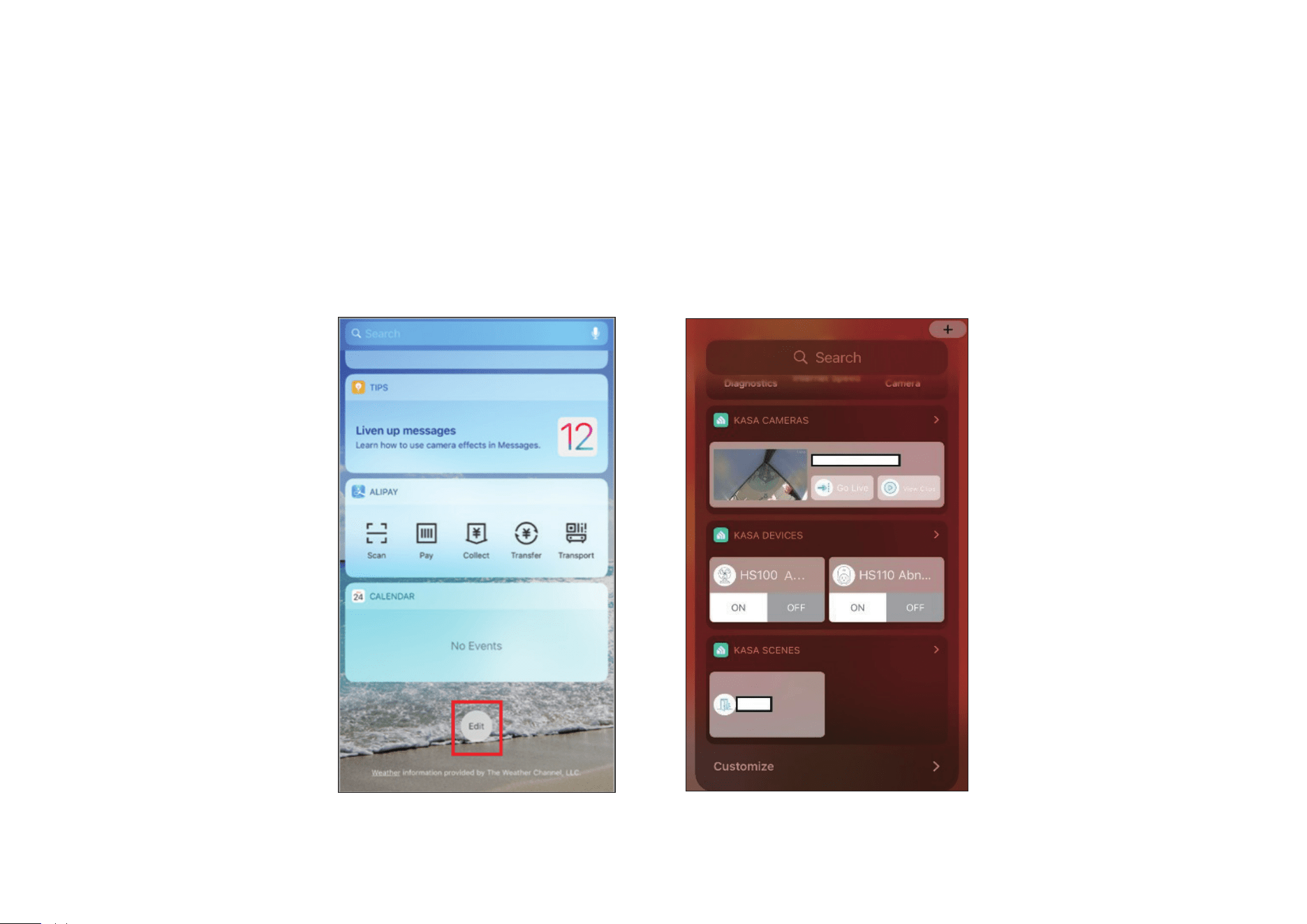
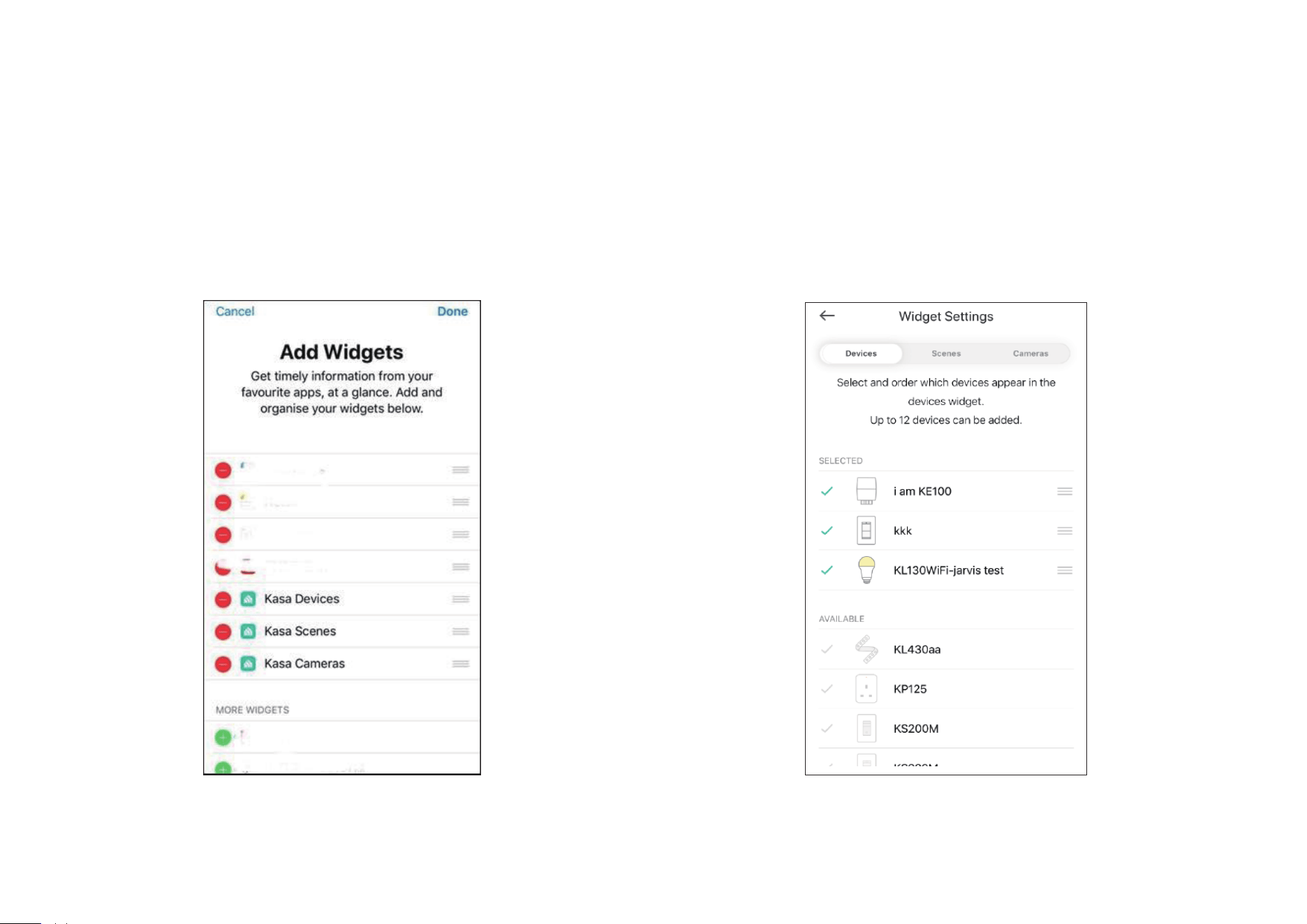
Step 1. Swipe right over the Home screen or Lock screen of iPhone, iPad, or iPod touch to see your widgets in the Today View. Scroll to the bottom and
tap Edit. If your device is iOS 14 system or above, slide the interface down to the bottom and tap Customize.
54
Step 2. Add Kasa Devices, Kasa Scenes, and the Kasa Cam Widget. Step 3. Drag them to your desired spot by tapping and holding the ≡ next
to the apps.
55
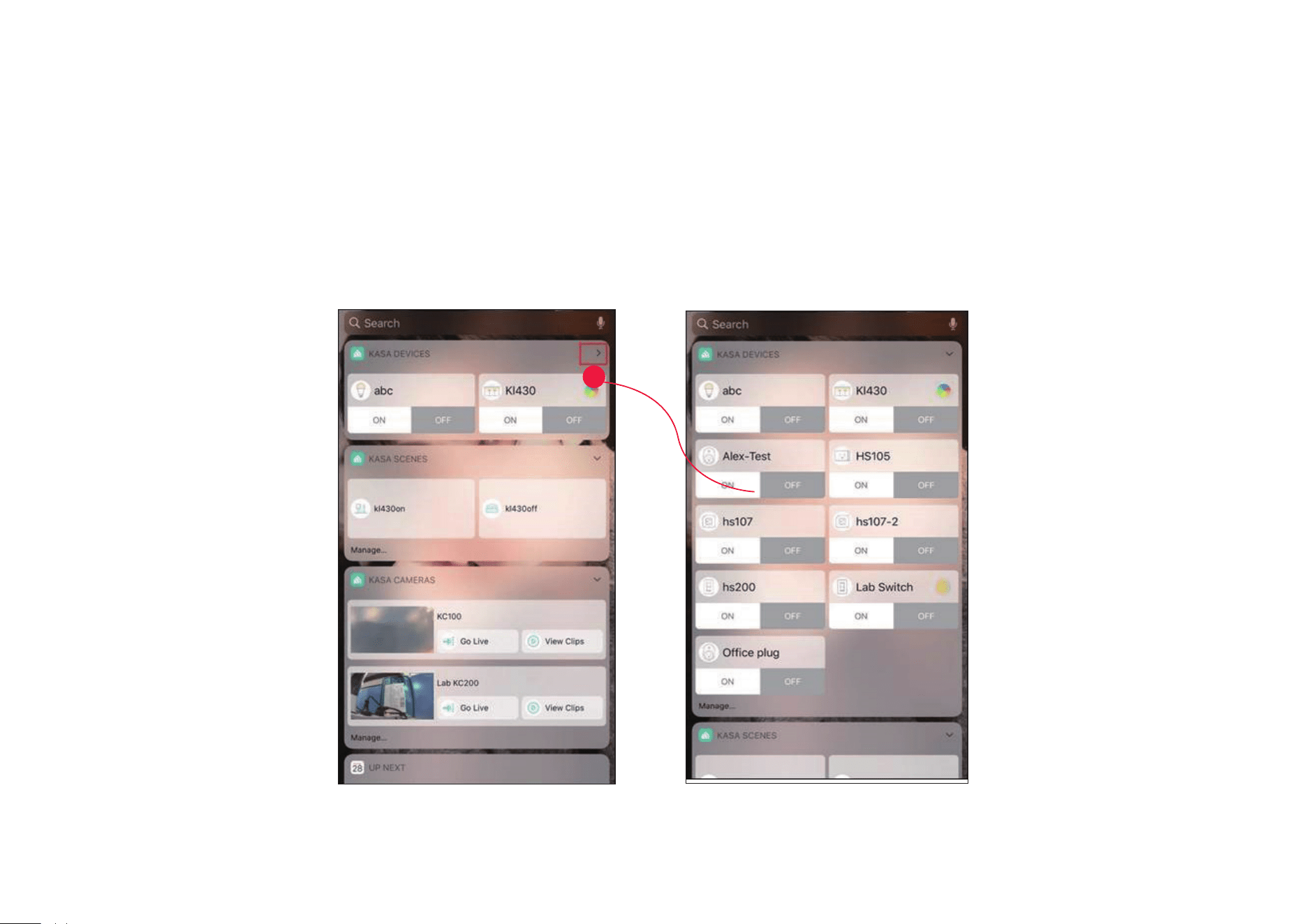
Step 4. Now you can control your Kasa Devices, Kasa Cam, and Kasa Scenes widgets from the Today View. Tap > and you can see all of your selected
Kasa Devices, Scenes, and Cameras.
56
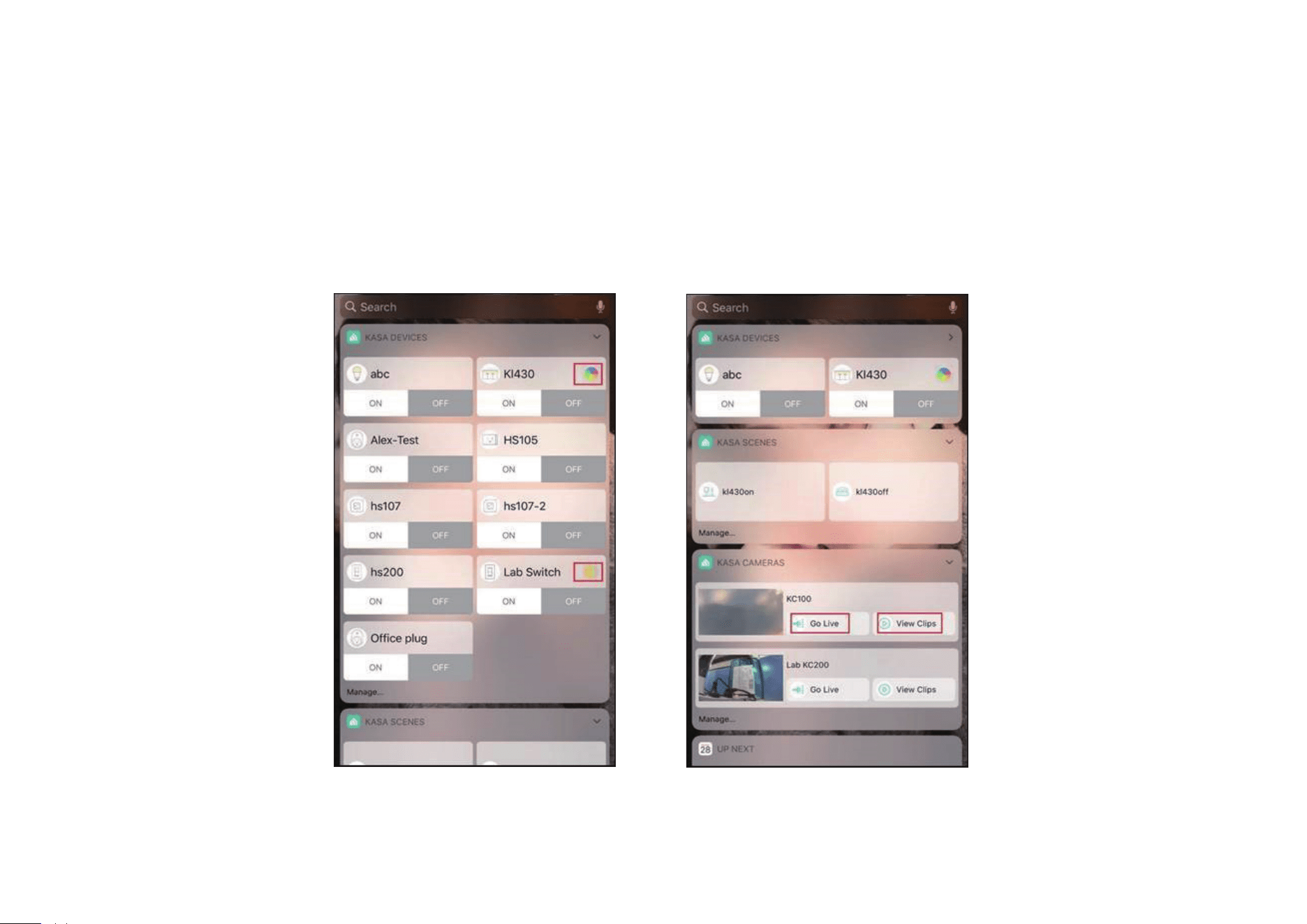
For all Kasa devices, you can switch on/o them. For Kasa devices with adjustable brightness and color, you can also adjust the brightness and color.
Tap the round icon next to the devices and then you can see the corresponding options.
With the Kasa Cam widget, you can tap Go Live and easily go to the Live Page. Meanwhile, you can View Clips of activity detection.
57
Add to Your Home Screen (for Android)
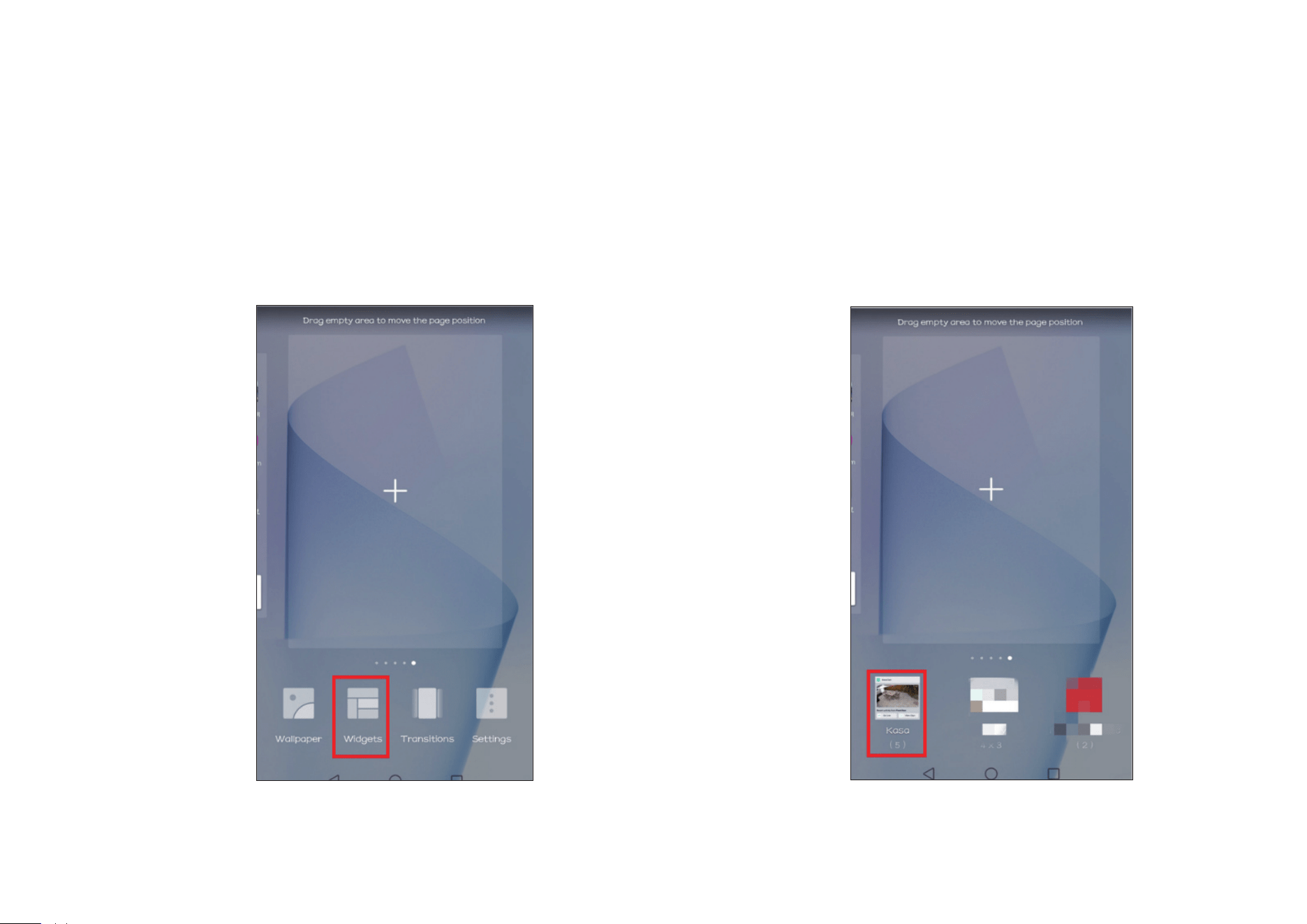
Step 1. Touch and hold an empty area on the home screen to enter home screen
editing mode. Tap the Widgets and you can see all of your widgets.
Step 2. Find Kasa widget and tap it.
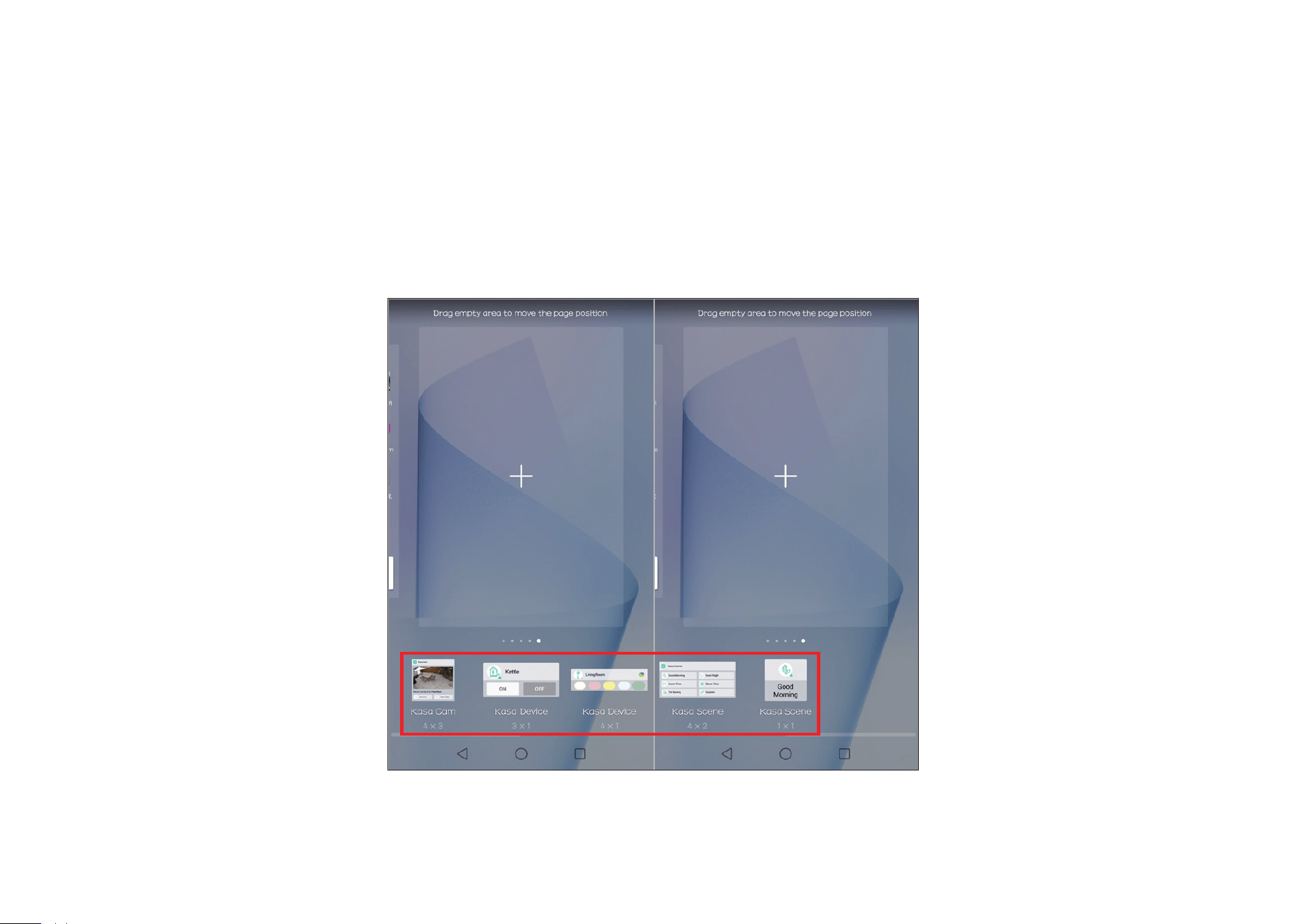
58
Step 3. There are several Kasa widgets including Kasa Cam, Kasa Device and Kasa scene. Touch and hold a widget and drag it to an empty area on the
home screen. You can add widgets you want.
Check that there are enough empty spaces on the home screen for the widget. If there is not enough space, add an empty screen page or free up
some space on the current home screen page.
59
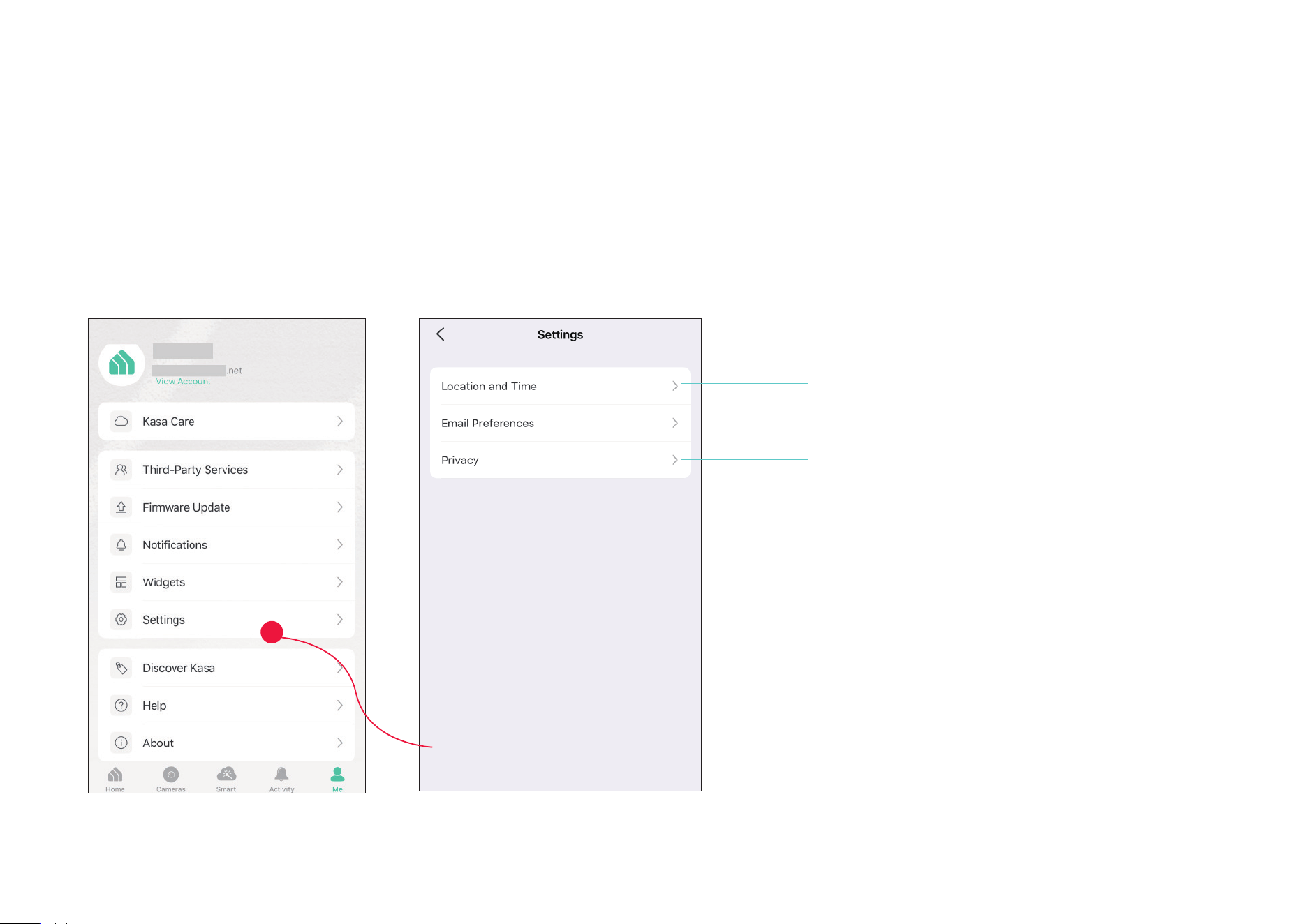
To view the Kasa Care plan, from the Kasa APP > Ta p Me at the bottom > Select Notication.
Settings
Kasa Cam utilizes the push notication of your smart phone to inform you of detected activities by the camera.
Adjust location and time settings.
Enable/ Disable sending anonymous diagnostic and
usage information and bug reports to Kasa.
Congure the settings of emails regarding product
releases and promotions.
60
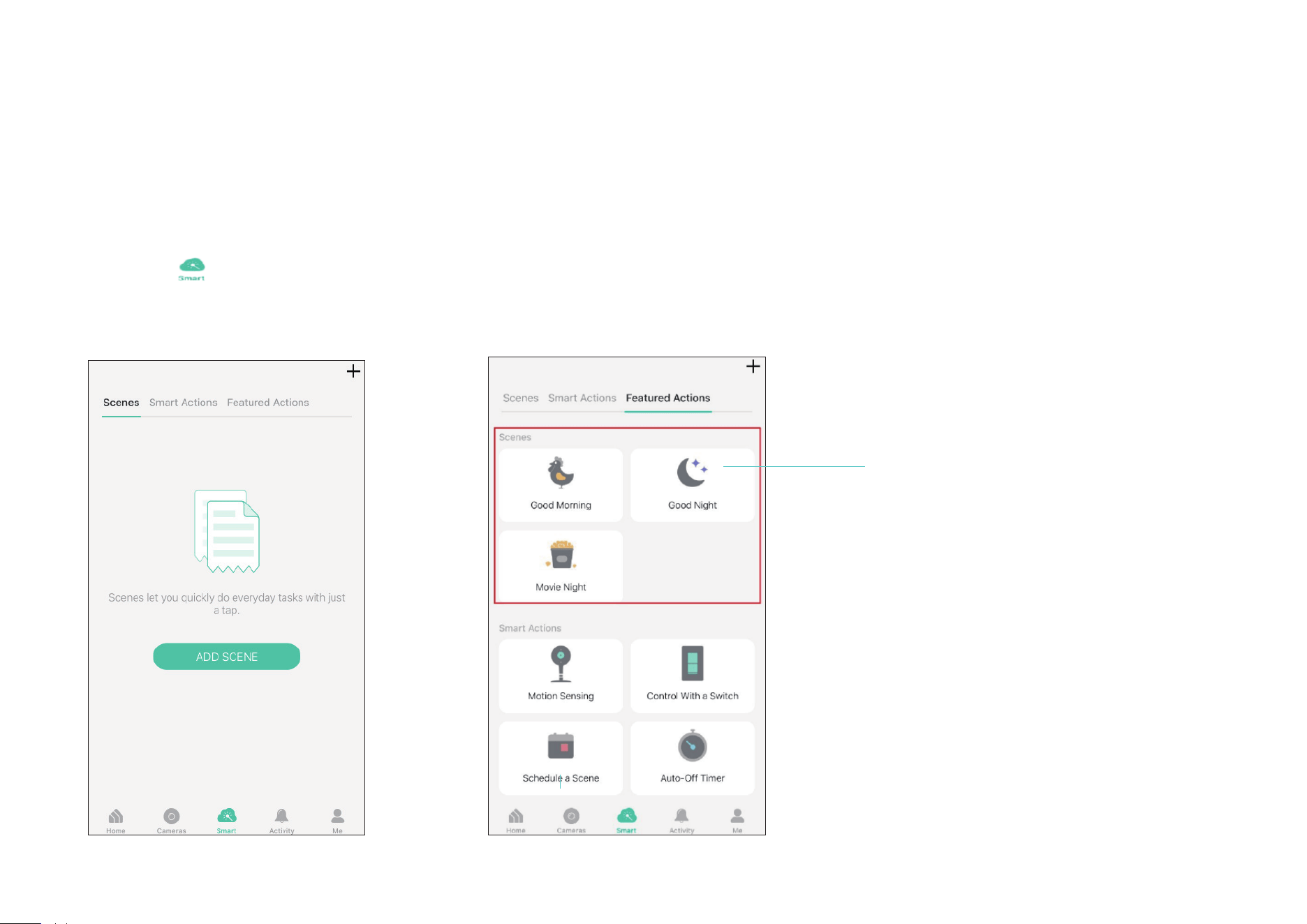
1. Create a Smart Action with Preset
Step 1. Tap at the bottom, then tap
Featured Actions and you can see three
preset scenes.
Step 2. Select a preset scene as you need.
Good Morning
:
Turn on all your smart devices.
Good Night: Turn o all your smart devices.
Movie Night: Dim your lights for movie time.
Scenes
A scene is a preset group of smart devices that can be programmed, customized and activated simultaneously at the touch of a button from your
smartphone or tablet, allowing you to easily set your mood, activity or t any special occasion. For example, when you are ready for bed, you can turn
o your Tapo devices and dim the lights with one tap.
61
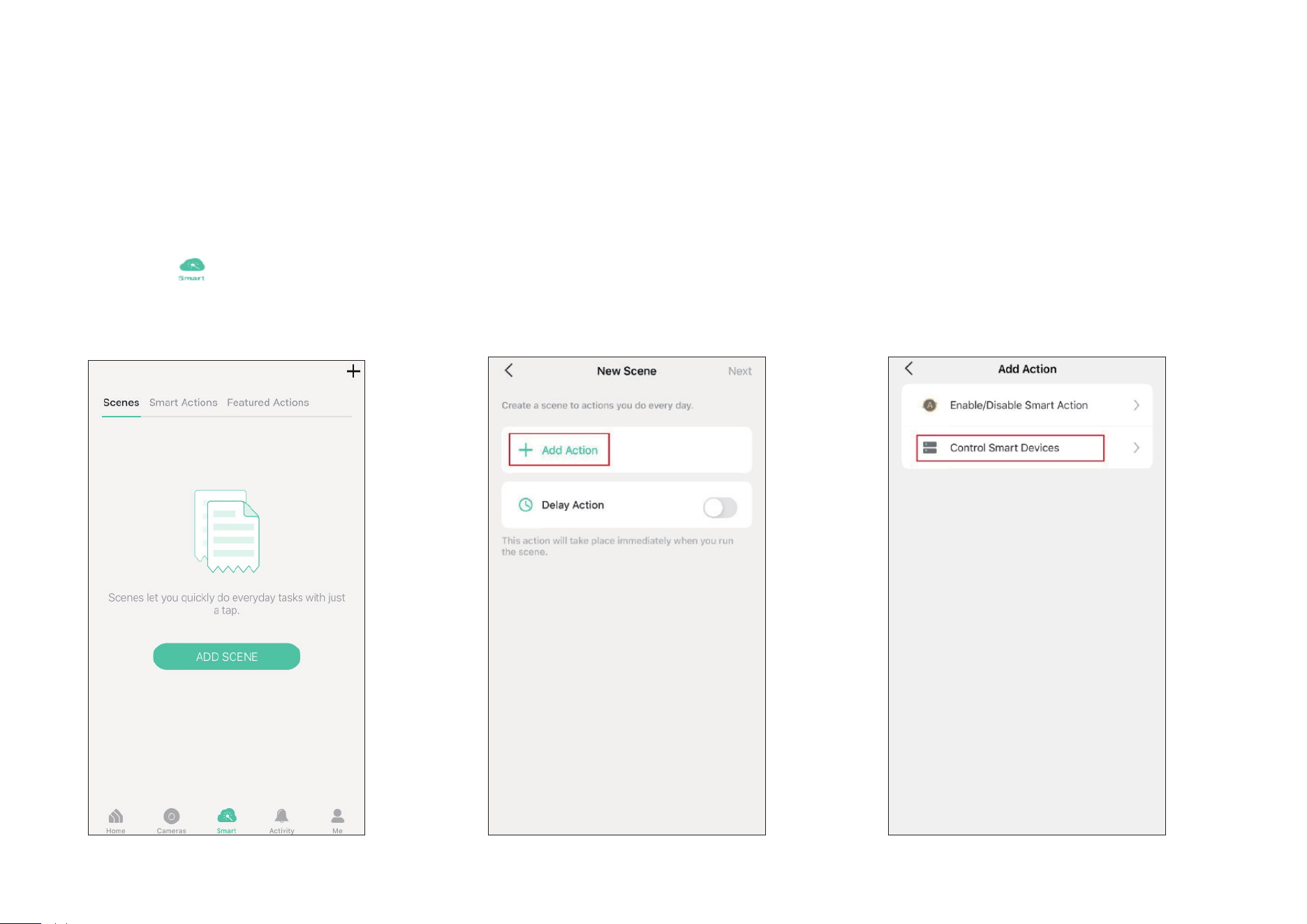
2. Create Your Own Scene
Step 1. Tap at the bottom, tap Scenes
and then tap ADD SCENE. Alternatively, you
can tap + and choose Scenes.
Step 2. Tap Add Action to create a new scene.
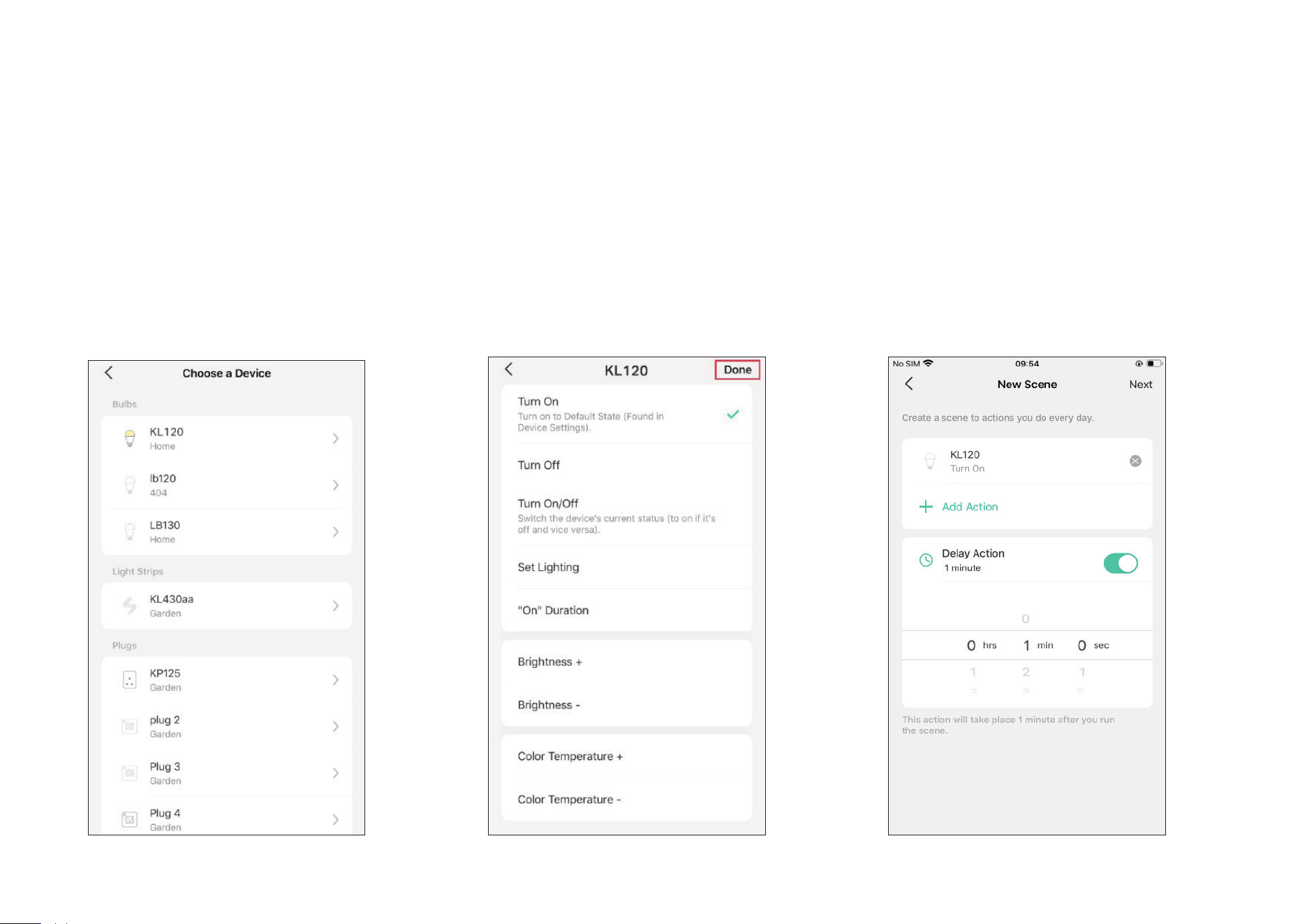
Step 3. Tap Control Smart Devices to select
the smart devices you want to run in the
scene.
62
Step 4. Then choose the device you want to
run in the scene.
Step 5. Customize the status of the smart
device, such as turn on the smart light. Then
tap Done.
Step 6. You can repeat Step 2 to 5 to add
more devices/ smart action in the scene. If
you hope your scene to run after some time
after you tap it, set Delay Action.
63
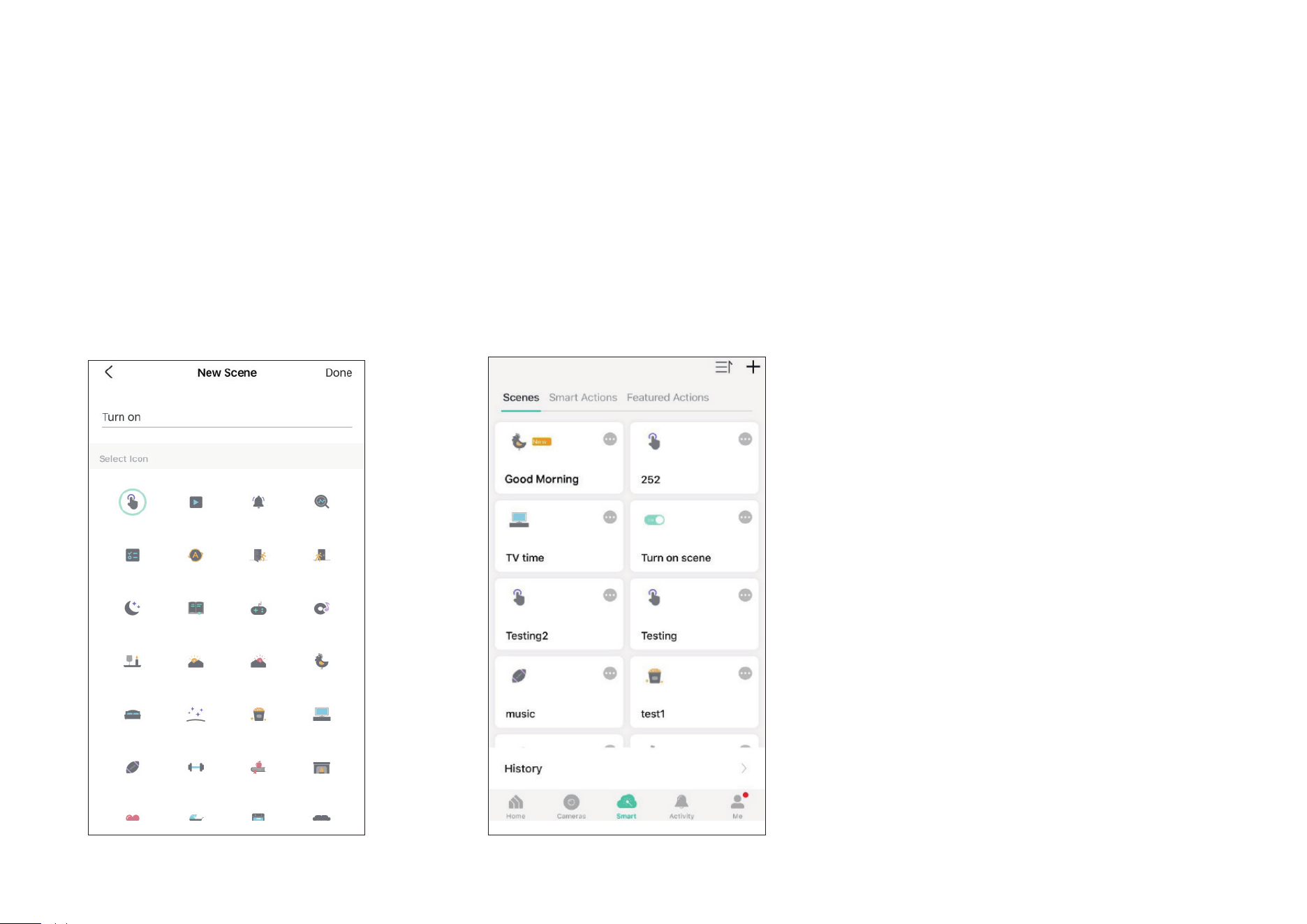
Step 7. Give the scene a Name and choose
an icon to distinguish your new scene with
other existing ones.
Step 8. Finally, tap Done. You can check your
set scene on the top of the home page.
64
3. Manage Your Scene
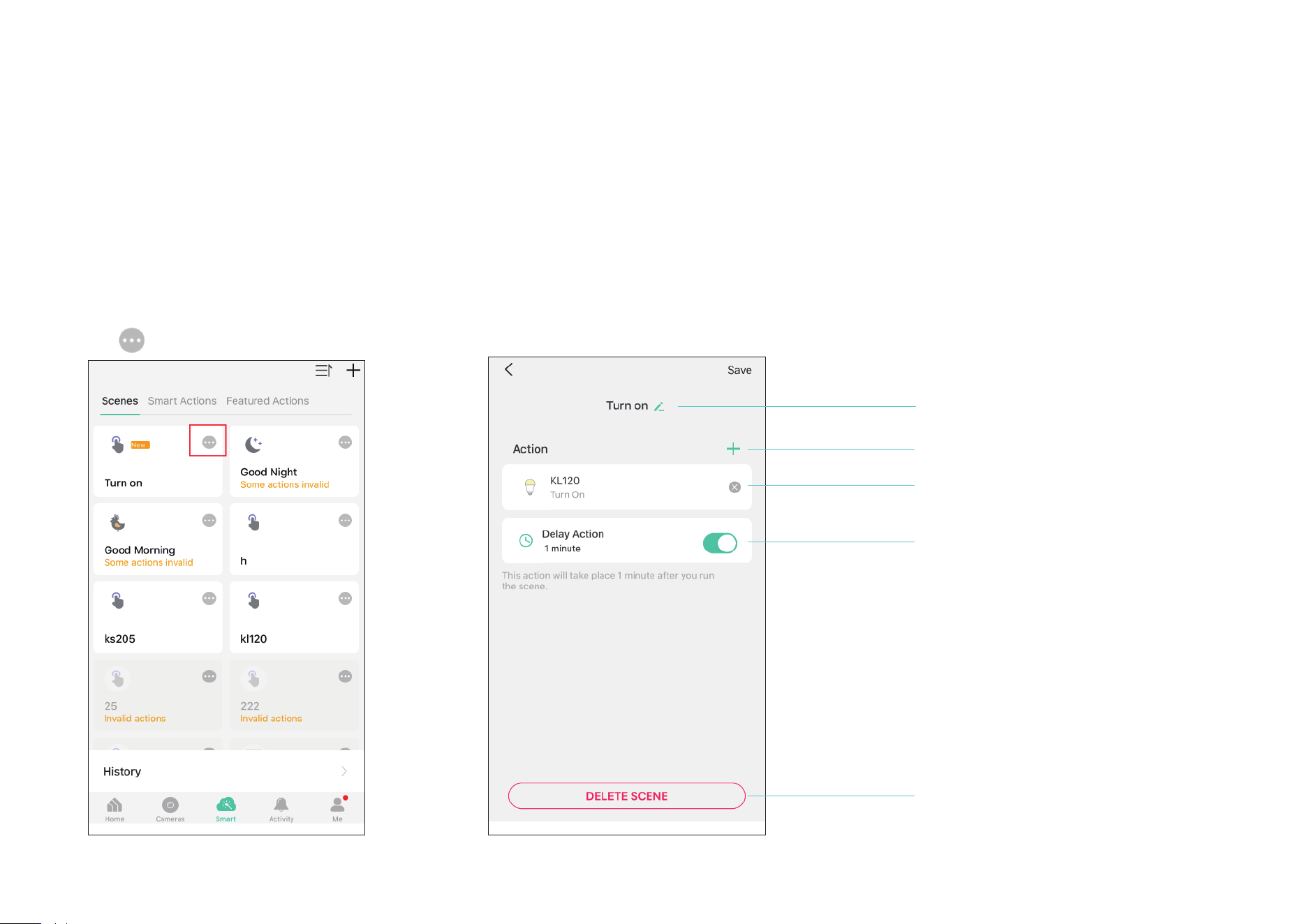
1. Edit scene
Edit your scenes via Smart > Scenes and
tap .
You can rename and delete the scene, add
more action and adjust delay action of the
scene.
Tap to rename your scene.
Tap to add actions to your scene.
Tap to delete your added actions
from your scene.
Tap to delete your scene.
Tap to enable/ disable Delay Action
or adjust delayed time.
65
Smart Actions
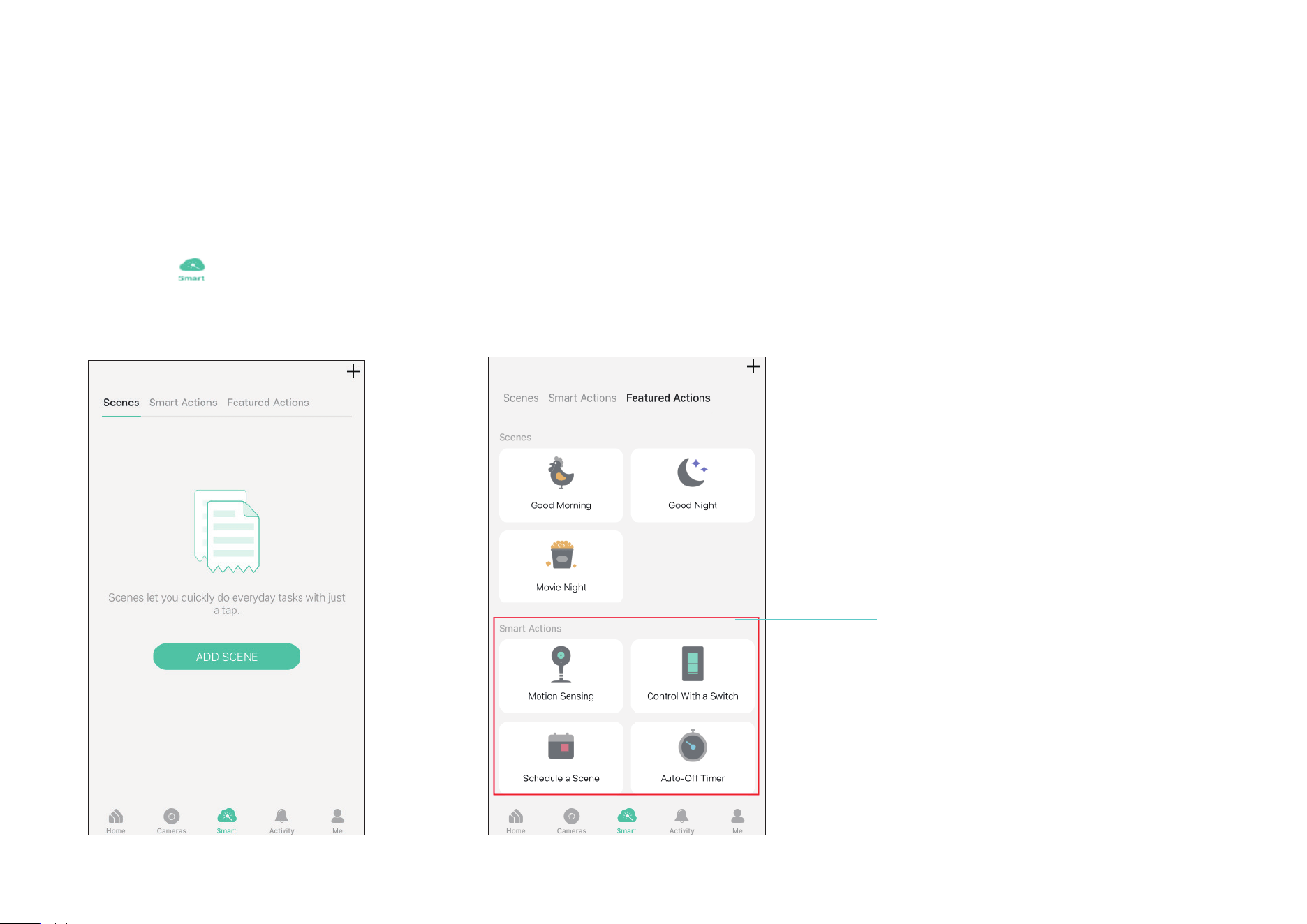
Smart Actions is a function provided that enables device interconnections and home automations. With Smart Actions, your Kasa devices can work
together to create a smarter smart home.
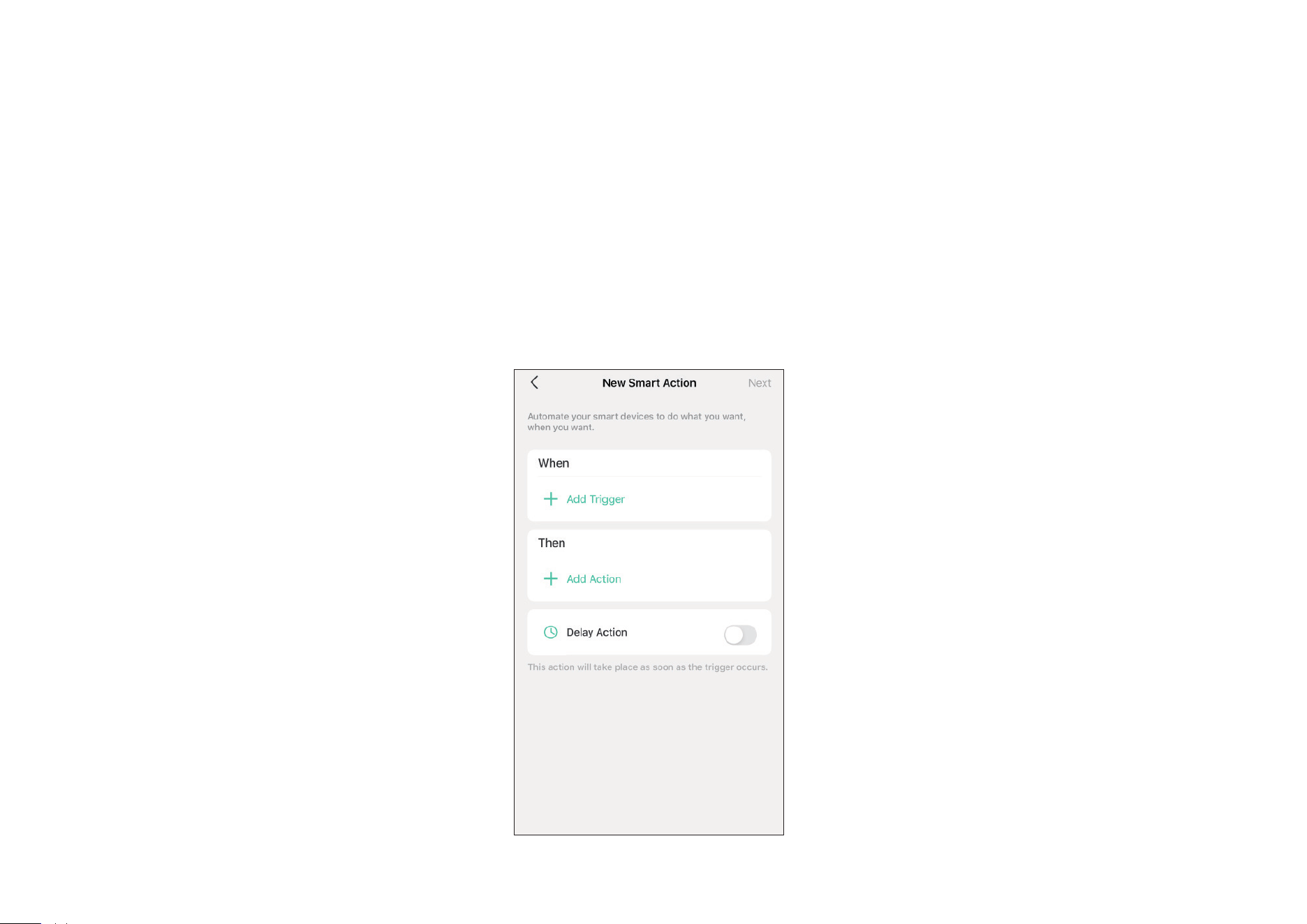
To use the Smart Action feature, you need to congure
1) Add Trigger: Trigger Time or Trigger Device (Set A Specic Time)
2) Add Action: Run a Sceneor Enable/Disable Smart Action/ Control Smart Devices
Note: At most three smart actions can be enabled simultaneously.
66
1. Create a Smart Action with Preset
Step 1. Tap at the bottom, then tap
Featured Actions and you can see three
preset scenes.
Step 2. Select a preset smart action as you
need.
Motion Sensing: Whenever a Smart camera
detects motions, add an action you would like to
trigger.
Control With a Switch: Whenever a Smart switch
turns on/o, add an action you would like to
trigger.
Schedule a Scene: Schedule an action to be
turned on automatically at the time specied.
Auto-o Timer: Whenever a Smart device is
turned on, turn it o after the designated amount
of time.
67
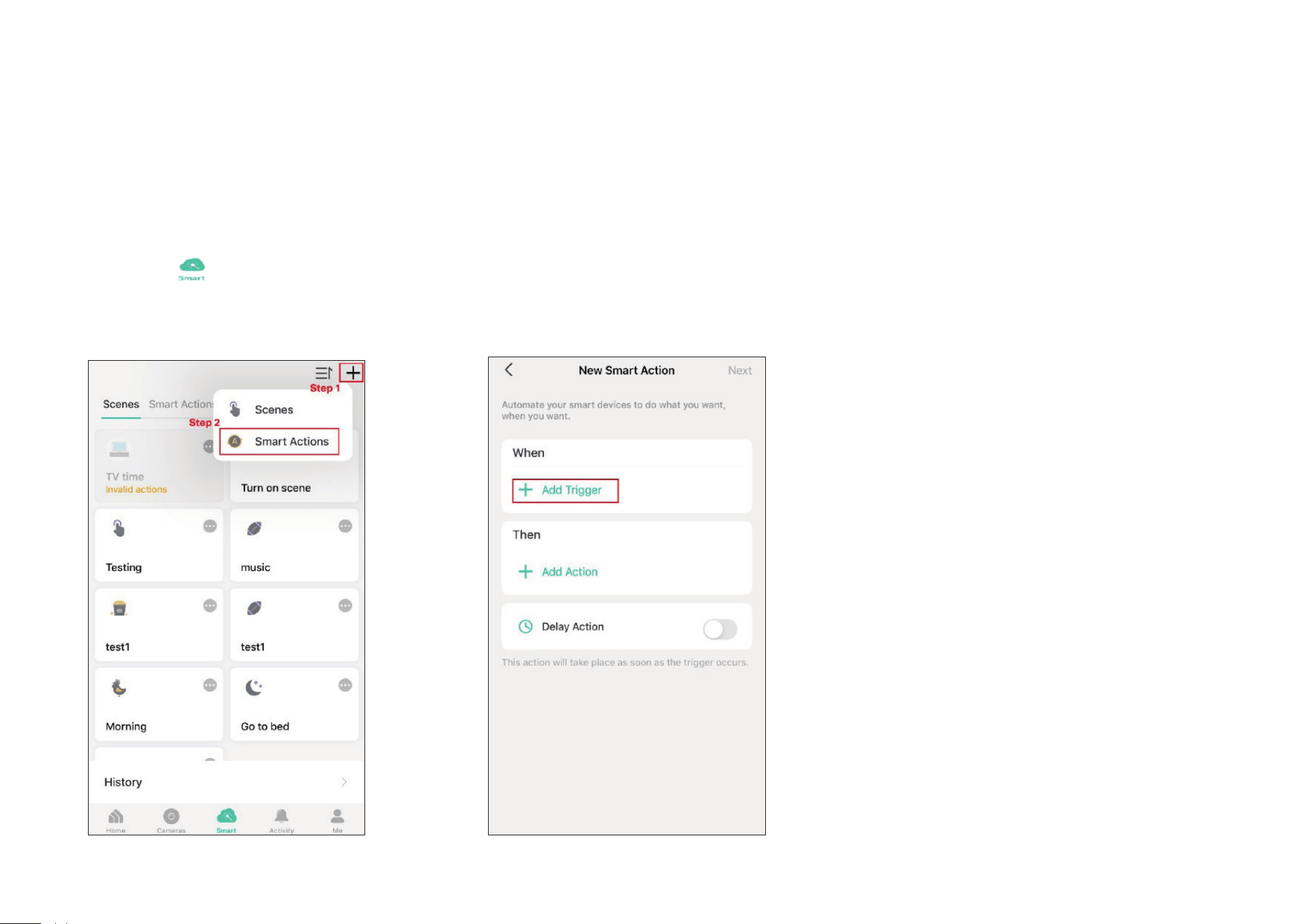
2. Create Your Own Smart Action
Step 1. Tap at the bottom, tap + and
then choose Smart Actions.
Step 2. Tap Add Trigger.
68
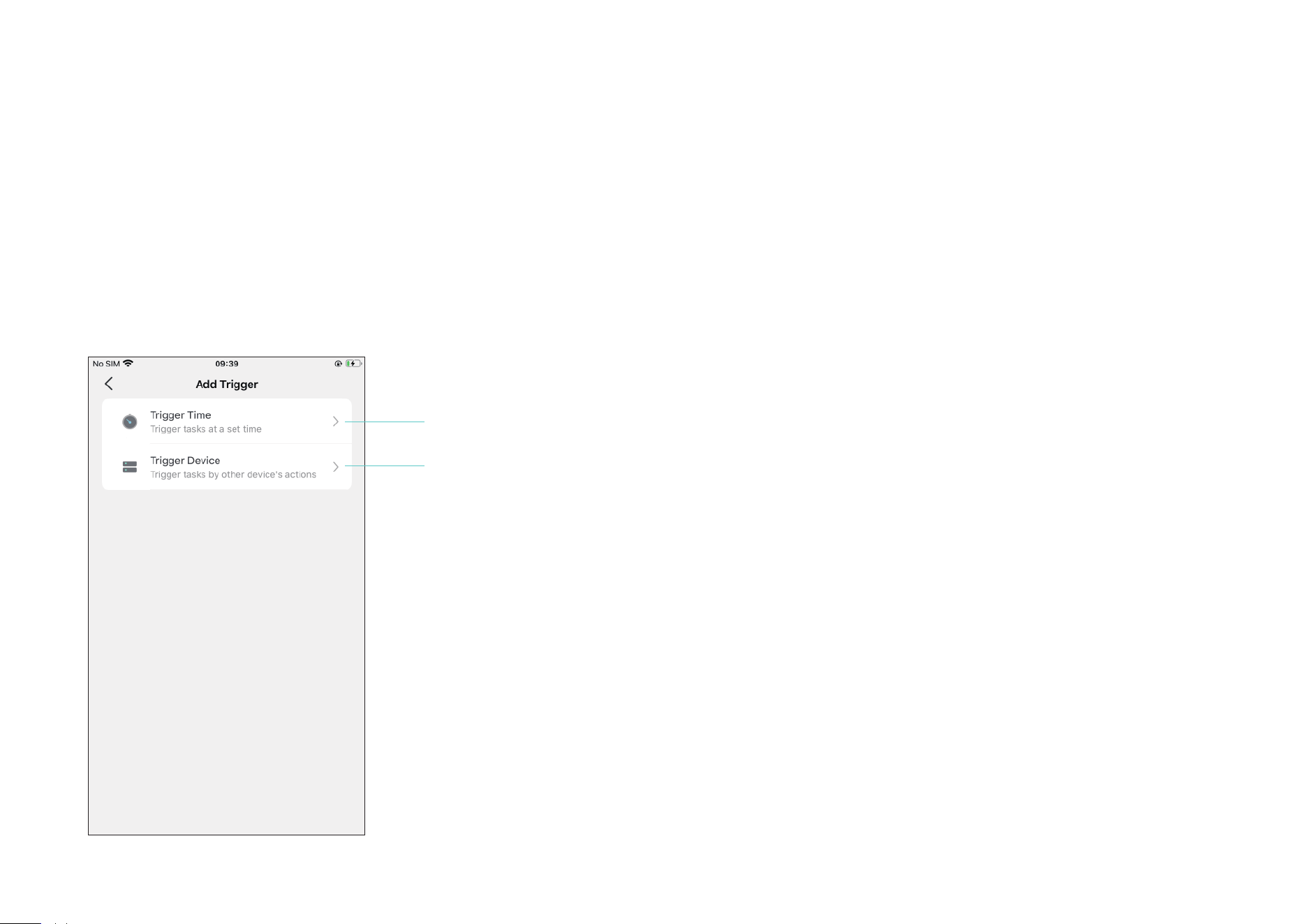
Step 3. Choose a trigger for your smart action.
Note: If there are 2 or more triggers added, any trigger will activate the smart action.
Set a specic time.
Choose the action of the other device as a trigger
.
· Camera: Motion Detected
· Bulb: Turn on
· Plug: Turn on
· Switch: Turn on/o
69
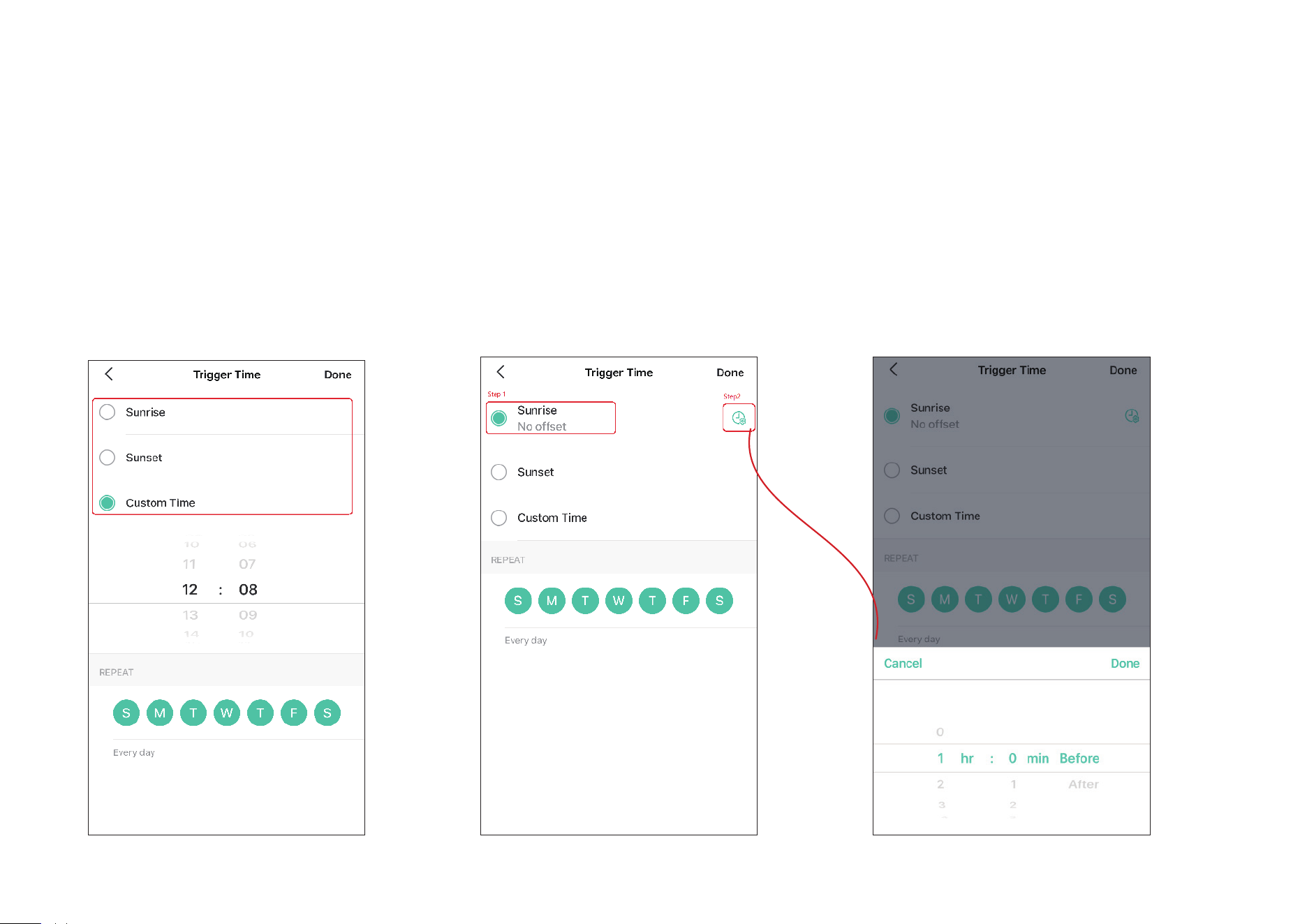
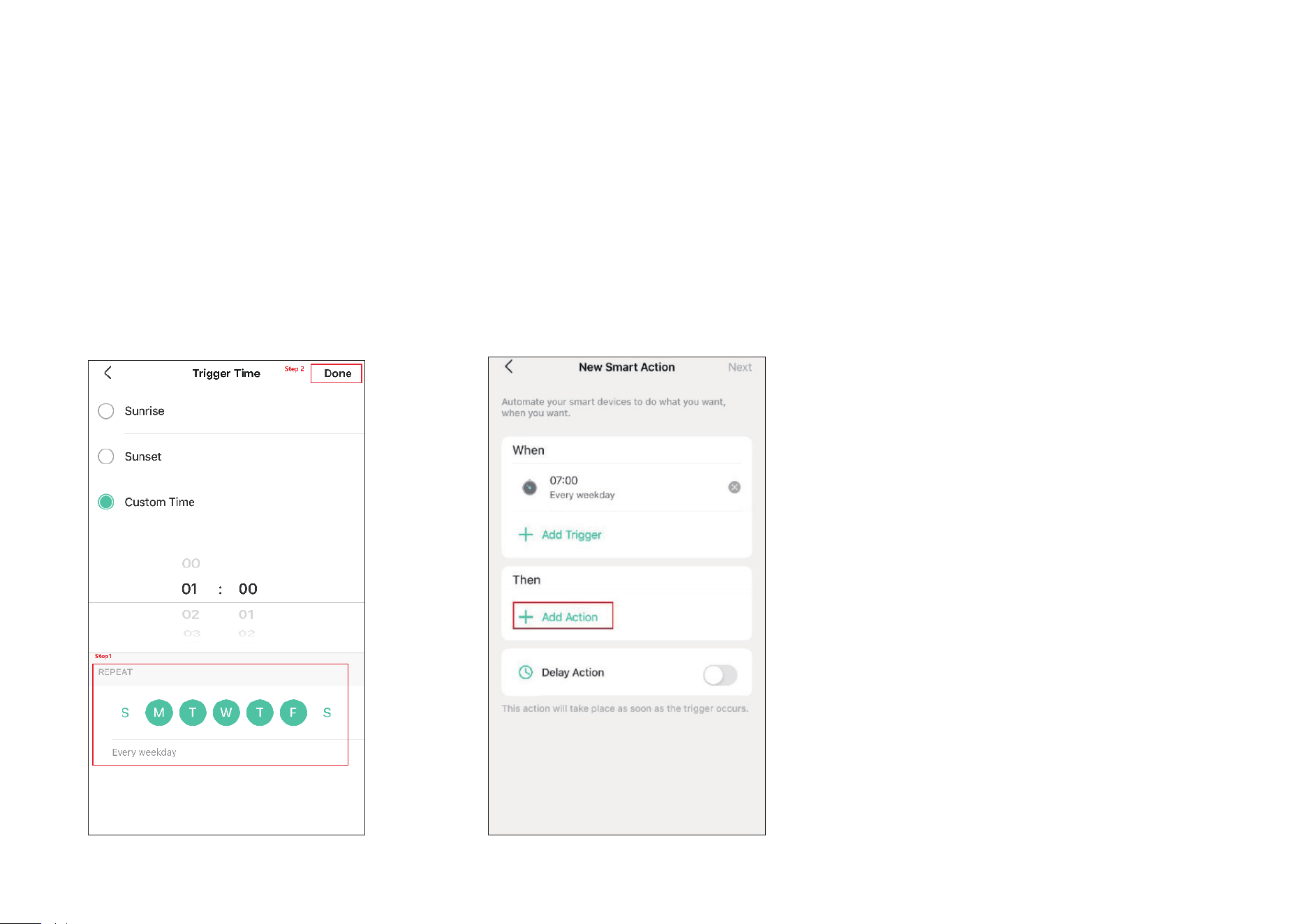
Step 4. Choose from Sunrise, Sunset and Custom Time to set the time for your desired timing for the smart action. For Sunrise and Sunset, you can
also set oset time.
Note: The time of Sunrise and Sunset will be synchronized according to regional realities.
70
Step 5. Set the repeat times and then tap
Done.
Step 6. Tap Add Action.
71
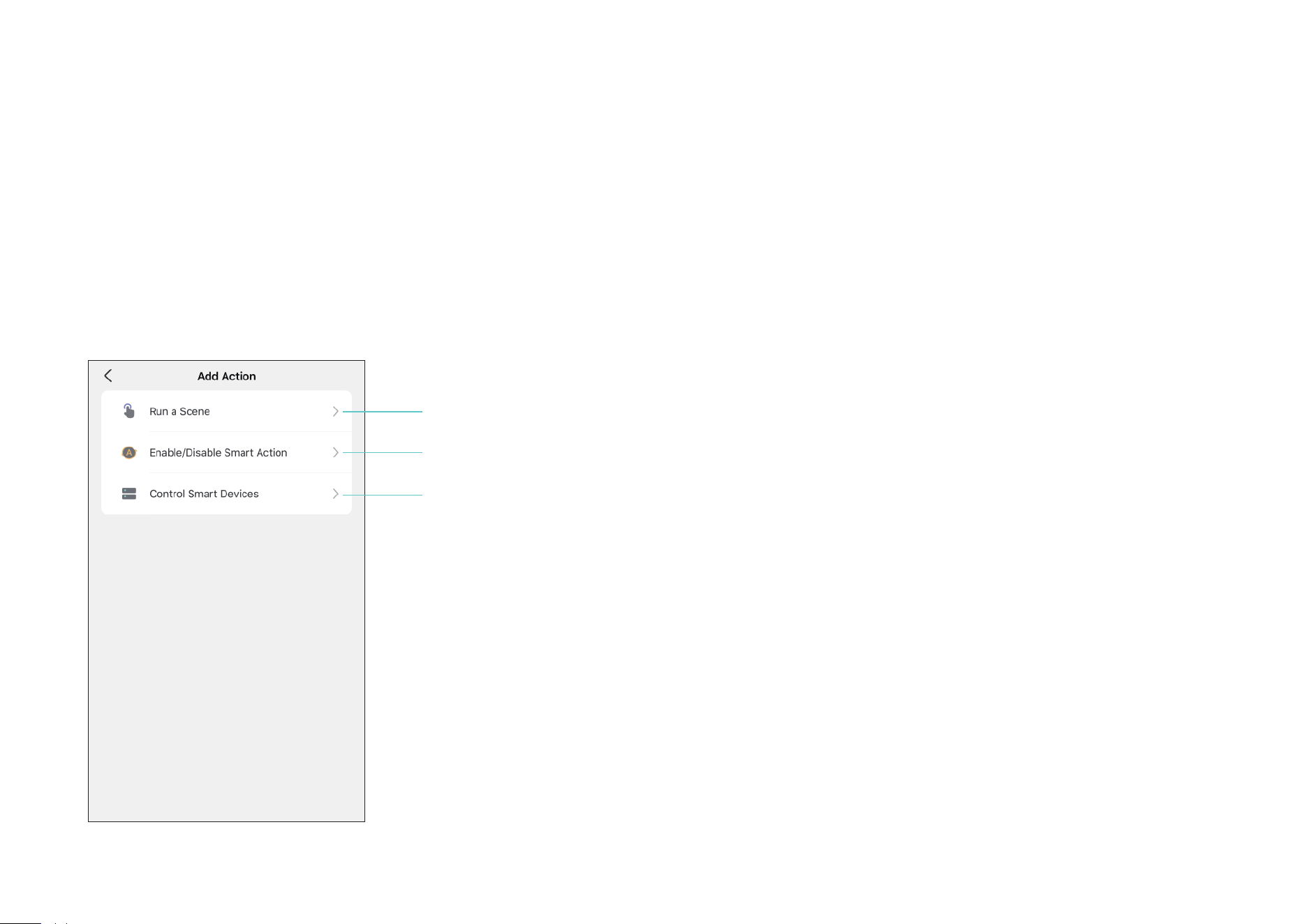
Step 7. Choose the action you want to add.
Choose your desired scene.
Choose your desired action and its enbale/ disable status.
Choose the device you would like to control and then your desired status.
72
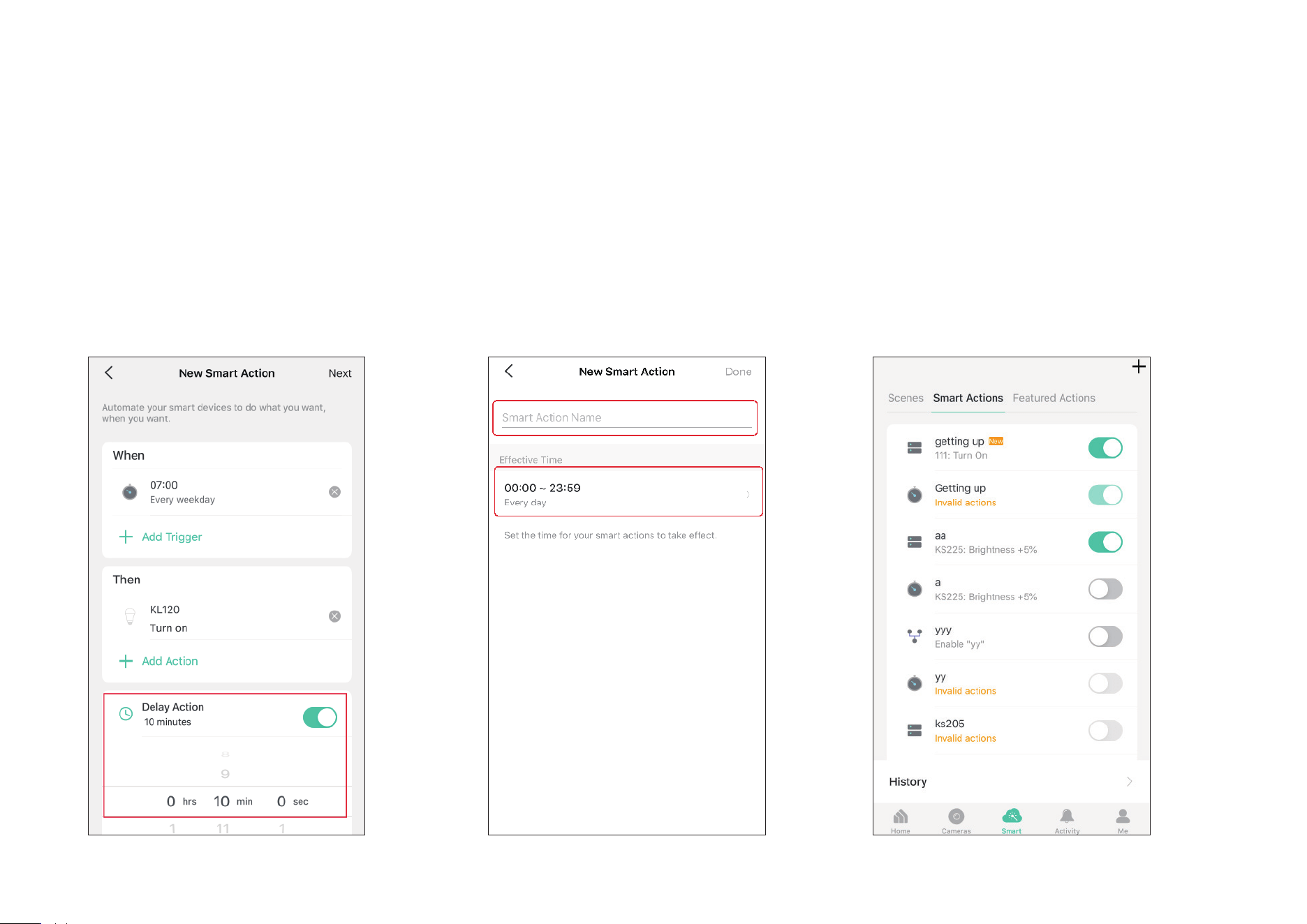
Step 9. Name your smart action and set the eective time for it. Tap Done to complete. You can
nd your newly set Smart Actions via Smart> Smart Actions.
Step 8. If you hope your scene to run after some
time after you tap it, set Delay Action.
73
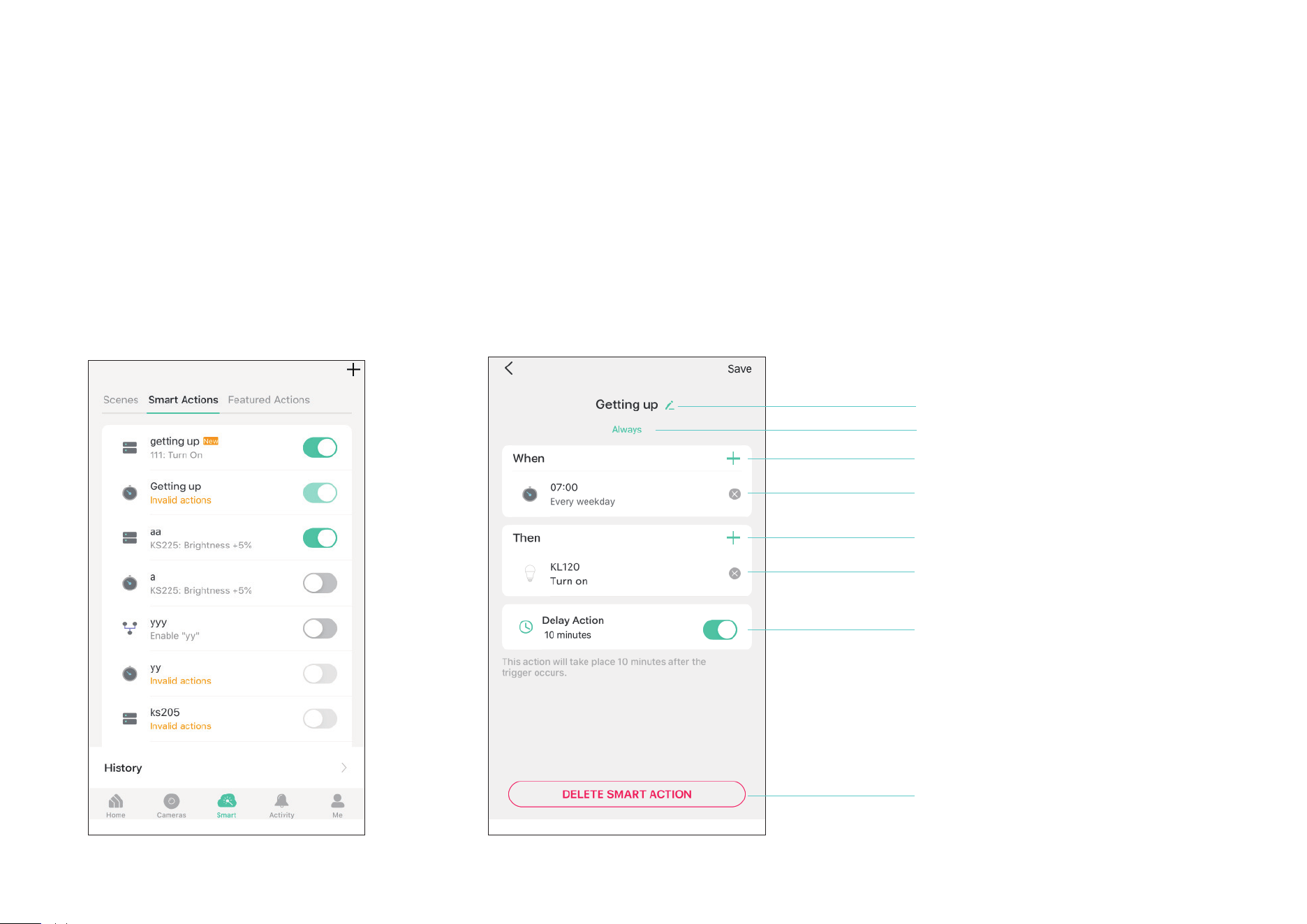
3. Manage Your Smart Action
Step 1. Find your Smart Actions list via
Smart> Smart Actions.
Step 2. You can rename and delete the smart
action, and change its eective time, triggers,
actions, and delay time.
Tap to rename your scene.
Tap to change eective time.
Tap to delete your added actions
from your scene.
Tap to delete your added actions.
Tap to add triggers.
Tap to add actions.
Tap to delete your Smart Action.
Tap to enable/ disable Delay Action
or adjust delayed time.