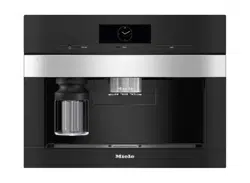

Operating and Installation
Instructions
Built-in Coffee System
To prevent accidents and machine damage, you must read these
instructions before installation or use.
en-US, CA M.-Nr. 12 861 300

Contents
2
IMPORTANT SAFETY INSTRUCTIONS................................................................... 6
Preparing your appliance for an extended vacation............................................. 13
Appliance description ................................................................................................. 16
Front view........................................................................................................................
16
Interior view.....................................................................................................................
17
The milk flask...................................................................................................................
18
Central spout with cup rim sensor ..............................................................................
18
Symbols on the display .................................................................................................
19
Operation........................................................................................................................ 20
Touch display...................................................................................................................
20
Operating actions...........................................................................................................
21
Miele@home ................................................................................................................. 24
Initial commissioning ................................................................................................... 25
Before using for the first time.......................................................................................
25
Turning on for the first time...........................................................................................
25
Setting up the bean system..........................................................................................
28
The bean system ........................................................................................................... 30
Changing the bean system settings (Type of beans)................................................
30
Renaming types of beans ........................................................................................ 30
Changing how the bean containers are allocated................................................ 31
Filling the water tank.................................................................................................... 32
Switching on and off..................................................................................................... 33
Switching the coffee machine on.................................................................................
33
Switching the coffee machine off ................................................................................
33
Preparing for an extended period of inactivity ...........................................................
33
Preparing beverages..................................................................................................... 34
Coffee...............................................................................................................................
34
Coffee drinks in detail .............................................................................................. 34
Milk and milk alternatives........................................................................................ 34
Filling and inserting the milk flask .......................................................................... 35
Making a coffee drink............................................................................................... 36
Canceling a drink....................................................................................................... 36
DoubleShot................................................................................................................ 36
Making 2portions............................................................................................... 36
Preparing a pot of coffee ......................................................................................... 37
Tea ....................................................................................................................................
37
Making tea ................................................................................................................. 38
Starting the TeaTimer manually.............................................................................. 38
Preparing a pot of tea............................................................................................... 39

Contents
3
Dispensing warm or hot water .....................................................................................
39
Expert Mode................................................................................................................... 40
Switching Expert mode on and off...............................................................................
40
Expert mode: allocating bean containers ...................................................................
40
Expert mode: changing the portion size .....................................................................
40
Grinder setting............................................................................................................... 41
Identifying the ideal grinder setting.............................................................................
41
Adjusting the fineness of grind.....................................................................................
41
Parameters ..................................................................................................................... 42
Type of beans..................................................................................................................
42
Amount of coffee............................................................................................................
42
Pre-brewing ground coffee ...........................................................................................
42
Brewing temperature for coffee drinks........................................................................
42
Dispensing temperature for tea drinks, warm water, and hot water.......................
42
Portion size......................................................................................................................
42
Displaying and changing parameters ..........................................................................
43
Changing the portion size .............................................................................................
43
Resetting drinks..............................................................................................................
44
Profiles............................................................................................................................. 45
Profiles .............................................................................................................................
45
Creating a profile ............................................................................................................
45
Processing a profile........................................................................................................
45
Setting when the profile should change .....................................................................
45
MyMiele .......................................................................................................................... 47
MobileStart............................................................................................................... 48
Preparing MobileStart..............................................................................................
48
Settings ........................................................................................................................... 49
Displaying and changing settings ................................................................................
49
Language..........................................................................................................................
49
Time..................................................................................................................................
49
Date..................................................................................................................................
49
Start screen.....................................................................................................................
49
Timer ................................................................................................................................
50
Appliance timer......................................................................................................... 50
Maintenance timer ................................................................................................... 51
TeaTimer..................................................................................................................... 51
Volume .............................................................................................................................
51

Contents
4
Display .............................................................................................................................
51
Brightness.................................................................................................................. 51
Color scheme ............................................................................................................ 51
QuickTouch................................................................................................................ 51
Lighting.............................................................................................................................
51
Info(display information) ..............................................................................................
52
Fresh water......................................................................................................................
52
Altitude.............................................................................................................................
52
Performance Mode ........................................................................................................
52
Eco Mode................................................................................................................... 52
Barista Mode............................................................................................................. 52
Latte Mode ................................................................................................................ 52
Party Mode................................................................................................................ 52
Water hardness...............................................................................................................
53
MotionReact ...................................................................................................................
54
System lock................................................................................................................
54
Miele@home ..................................................................................................................
54
Performing Scan & Connect.........................................................................................
55
Remote control ...............................................................................................................
55
SuperVision .....................................................................................................................
55
RemoteUpdate ...............................................................................................................
56
Software version.............................................................................................................
57
Legal information............................................................................................................
57
Showroom program (Demo mode)..............................................................................
57
Factory default settings.................................................................................................
57
Cleaning and care ......................................................................................................... 58
Overview of cleaning intervals......................................................................................
58
Clean by hand or in dishwasher ...................................................................................
59
Unsuitable cleaning agents...........................................................................................
60
Opening the appliance door .........................................................................................
60
Cleaning the drip tray and grounds container ............................................................
61
Cleaning the drip tray cover..........................................................................................
62
Cleaning the water container........................................................................................
63
Cleaning the central spout............................................................................................
63
Cleaning the cup rim sensor.........................................................................................
65
Cleaning the milk flask with lid.....................................................................................
65
Cleaning the milk valve (daily) ......................................................................................
66
Cleaning the milk valve (once a month)......................................................................
66
Cleaning the bean containers.......................................................................................
69
Cleaning the brew unit and interior by hand ..............................................................
70
Cleaning the interior, inside of the appliance door, and drip tray............................
72
Cleaning the appliance front.........................................................................................
73

Contents
5
Maintenance programs .................................................................................................
73
Opening the Maintenance menu .................................................................................
73
Rinsing the machine.......................................................................................................
73
Rinsing the milk pipework .............................................................................................
73
Clean the milk pipework................................................................................................
73
Degreasing the brew unit ..............................................................................................
74
Descaling the appliance ................................................................................................
77
Automatic cleaning and descaling ............................................................................ 79
What to ensure before and during automatic maintenance programs...................
79
Automatic cleaning ........................................................................................................
80
The Miele Cleaning Cartridge.......................................................................................
80
Replacing the cleaning cartridge..................................................................................
81
Automatic descaling ......................................................................................................
82
The Miele descaling cartridge ......................................................................................
82
Replacing the descaling cartridge................................................................................
83
Removing the descaling cartridge.......................................................................... 83
Inserting the descaling cartridge............................................................................ 83
Choosing not to use a descaling cartridge............................................................ 84
Maintenance Timer ........................................................................................................
84
Canceling automatic cleaning and descaling .............................................................
84
Frequently asked questions........................................................................................ 85
Messages in the display................................................................................................
85
Unusual performance of the coffee system ...............................................................
88
Faults with automatic cleaning and/or descaling ......................................................
91
Unsatisfactory results....................................................................................................
92
Service and warranty.................................................................................................... 95
Contact in the event of a fault......................................................................................
95
Appliance warranty and product registration.............................................................
95
Accessories.................................................................................................................... 96
Caring for the environment ......................................................................................... 97
Saving energy..................................................................................................................
97
Installation...................................................................................................................... 98
Plumbed water connection...........................................................................................
98
Electrical connection .....................................................................................................
99
Installation dimensions .................................................................................................
100
Building in the coffee machine.....................................................................................
102
Technical data................................................................................................................ 104
FCC Declaration of Conformity.................................................................................. 105
Copyrights and licenses .............................................................................................. 106
IMPORTANT SAFETY INSTRUCTIONS
This coffee machine complies with all the stipulated safety
requirements. Inappropriate use can, however, lead to personal
injury and material damage.
Read the operating instructions carefully before using the coffee
machine. They contain important information on safety, installation,
use, and maintenance. This prevents both personal injury and
damage to the coffee machine.
Miele expressly and strongly advises you to read and follow the
instructions in the chapter on installing the coffee machine as well
as the safety instructions and warnings.
Miele cannot be held liable for injury or damage caused by non-
compliance with these instructions.
Keep these operating instructions in a safe place and pass them on
to any future owner.
6

IMPORTANT SAFETY INSTRUCTIONS
Appropriate use
This coffee machine is intended for household use.
Do not use the coffee machine outdoors.
This coffee machine must not be used at altitudes above 6560ft
(2000m).
Persons who lack physical, sensory or mental abilities or
experience with the machine should not use it without supervision or
instruction by a responsible person.
7
IMPORTANT SAFETY INSTRUCTIONS
Safety with children
Danger of burning and scalding at the dispensers.
Children's skin is far more sensitive to high temperatures than that
of adults.
Ensure children do not touch hot surfaces of the coffee machine or
place parts of their body under the dispensers.
Keep the coffee system out of reach of children.
Children must be kept away from the coffee machine unless they
are constantly supervised.
Children should be supervised when they are near the coffee
system. Do not allow them to play with it or to use the controls.
Children must not be allowed to clean the coffee machine
unsupervised.
Remember that coffee and espresso are not suitable drinks for
children.
Danger of suffocation. While playing, children may become
entangled in packaging material (such as plastic wrapping) or pull the
packaging material over their head, presenting the risk of suffocation.
Keep packaging material away from children.
8

IMPORTANT SAFETY INSTRUCTIONS
Technical safety
Installation work or repairs should only be carried out by a Miele
authorized technician. Unauthorized or incorrect installation work or
repairs can pose considerable danger to users.
A damaged coffee system could be dangerous. Before building in
the machine, check it for any externally visible damage. Do not use a
damaged machine.
Before connecting the coffee system, check the voltage and
frequency indicated on the data plate against the voltage and
frequency of the household electrical supply.
This data must correspond in order to prevent damage to the coffee
system. If in doubt, consult a qualified electrician.
Be certain your appliance is properly installed and grounded by a
qualified technician. To guarantee the electrical safety of this
appliance, continuity must exist between the appliance and an
effective grounding system. It is imperative that this basic safety
requirement be met. If there is any doubt, have the electrical system
of the house checked by a qualified electrician.
Reliable and safe operation of the coffee system can only be
guaranteed if it is connected to the electrical supply.
Do not connect the machine to the electrical supply using an
extension cord or power bar.
The coffee machine may not be used in mobile installations such
as ships.
For safety reasons, this machine may only be used when it has
been built in.
Do not place on or near a hot gas or electric burner, or in a heated
oven.
Unplug the coffee machine from the power supply immediately if
you notice any damage or smell burning.
Ensure that the power cord will not be pinched or damaged by any
sharp edges.
To reduce the risk of injury, do not drape cord over the counter top
or table top where it can be pulled on by children or tripped over
unintentionally.
9

IMPORTANT SAFETY INSTRUCTIONS
Do not operate any appliance with a damaged cord or plug or after
the appliance malfunctions, or has been damaged in any manner.
Return appliance to the nearest authorized service facility for
examination, repair or adjustment.
To protect against fire, electric shock and injury to persons do not
immerse cord or plugs in water or other liquid.
To reduce the risk of fire:
- Do not place any heating or cooking appliance beneath the
appliance without a shelf in between.
- Do not mount unit over or near any portion of a heating or cooking
appliance without a shelf in between.
- Do not mount over a sink.
- Do not store anything directly on top of the appliance surface
when the appliance is in operation.
If the coffee machine is to be built in above another appliance,
there must be a full-width, closed shelf between them (except when
it is combined with a Gourmet warming drawer or a built-in vacuum
drawer).
Only use the coffee system in rooms where the ambient
temperature is between +60°F (16°C) and +100°F (38°C).
For repairs, the coffee system must be disconnected from the
electrical power supply.
The coffee system is only disconnected from the power supply if
- the circuit breaker has been tripped, or
- the fuse is removed, or
- the power cord is disconnected from the power supply.
Pull the plug, not the cord, to disconnect the appliance from the
power supply.
The manufacturer's warranty may be invalidated if the appliance is
not repaired by a Miele approved service technician from Technical
Service.
Never open the outer casing of the machine. Tampering with
electrical connections or components and mechanical parts is highly
dangerous to the user and can cause operational faults or electric
shock.
10

IMPORTANT SAFETY INSTRUCTIONS
Plumbed water connection
Do not connect the coffee system to a hot water supply.
The non-return valve must be easily accessible when the coffee
system is built in.
The protective sleeve of the water intake hose must not be
damaged or become kinked. This will cause it to leak.
The integrated water protection system offers protection from
water damage, provided the following conditions are met:
- The coffee machine is correctly installed, connected to the
electricity supply, and plumbed in.
- If a fault is identified, the coffee machine must be repaired
immediately.
- The water supply valve is turned off when the appliance is not in
use for an extended period (e.g., vacation).
11

IMPORTANT SAFETY INSTRUCTIONS
Correct use
Please note the following regarding water:
- The water quality must conform to the requirements for drinking
water in the country in which the coffee machine is being used.
- When using the water container: Only use cold, fresh tap water to
fill the water container. Hot or warm water or other liquids can
damage the coffee machine.
- Change the water every day to prevent a build-up of bacteria.
When using a plumbed-water connection: empty the water
container once a day.
- Do not use sparkling water.
Only put roasted coffee beans in the bean containers. Do not place
coffee beans which have been treated with additives or ground coffee
inside the bean containers.
Do not fill the bean containers with any type of liquid.
Do not use green (unroasted) coffee beans or mixtures of coffee
beans which contain green coffee beans. Green coffee beans are very
hard and still contain residual moisture. These can damage the coffee
machine grinder as soon as grinding begins.
Do not use oily beans or beans that have been treated with
caramel, sugar, or other substances. Sugar and oil will damage the
coffee system.
If decaffeinated coffee beans are used after dispensing a drink with
caffeinated beans, there may still be residues from the caffeinated
beans in the grinder or brew chamber. Discard the first coffee drink
when using decaffeinated coffee.
Only use plain milk. Most sugary additives can clog the milk lines
and damage the machine.
If using dairy milk make sure that it has been pasteurized.
When making tea, please follow the instructions on the tea
packaging.
Do not place flaming alcohol mixtures underneath the central
spout. The flames could ignite plastic components and cause them to
melt.
Do not swing from or hang anything on the machine front when it
is open as this could damage the hinges of the machine.
12

IMPORTANT SAFETY INSTRUCTIONS
Do not use the coffee system to clean objects.
Preparing your appliance for an extended vacation
If you elect to turn off the water to your home for an extended
period of time, please note that this may not be enough to reduce the
risk of a leak. To be completely safe, you must turn off the water
supply to each individual appliance. This means under the sink for a
dishwasher, at the laundry bib for your washer, etc.
Make sure that the coffee machine does not come into contact
with hand sanitizer or sunscreen, as this will damage the surfaces.
13

IMPORTANT SAFETY INSTRUCTIONS
Accessories and parts
Only use genuine Miele accessories. If other parts are used,
warranty, performance, and/or product liability claims may be
invalidated.
The use of accessory attachments not recommended by the
appliance manufacturer may result in fire, electric shock or injury to
persons.
Miele can only guarantee the safety of the appliance when genuine
Miele replacement parts are used. Faulty components should only be
replaced by genuine Miele replacement parts.
14

IMPORTANT SAFETY INSTRUCTIONS
Cleaning and maintenance
Unplug from outlet when not in use and before cleaning. Allow to
cool before putting on or taking off parts, and before cleaning the
appliance.
Clean the coffee machine and the milk flask daily, particularly
before using for the first time.
All parts of the milk system need to be cleaned thoroughly and
regularly.
If you do not make use of the automatic descaling and cleaning
functions, you must regularly run the maintenance programs for
cleaning the milk pipework and the brew unit, and for carrying out
descaling. Miele cannot be held liable for damage that results from
not cleaning and/or descaling the machine properly, or from using the
wrong cleaning/descaling agent, or an unsuitable solution
concentration.
Do not use a steam cleaner to clean this machine. Steam could
reach electrical components and cause a short circuit.
Rinsing coffee grounds down the drain can cause the sink to clog.
Instead, dispose of your coffee grounds appropriately as
biodegradable waste (where facilities exist) or by composting.
For machines with stainless steel surfaces:
Do not use sticky notes, transparent adhesive tape, masking tape,
or other types of adhesive on the stainless steel surfaces. These will
damage the stainless steel surfaces, causing them to lose their dirt-
repellent protective coating.
The finish on stainless steel surfaces is susceptible to scratching.
Even magnets can cause scratching.
SAVE THESE INSTRUCTIONS
15
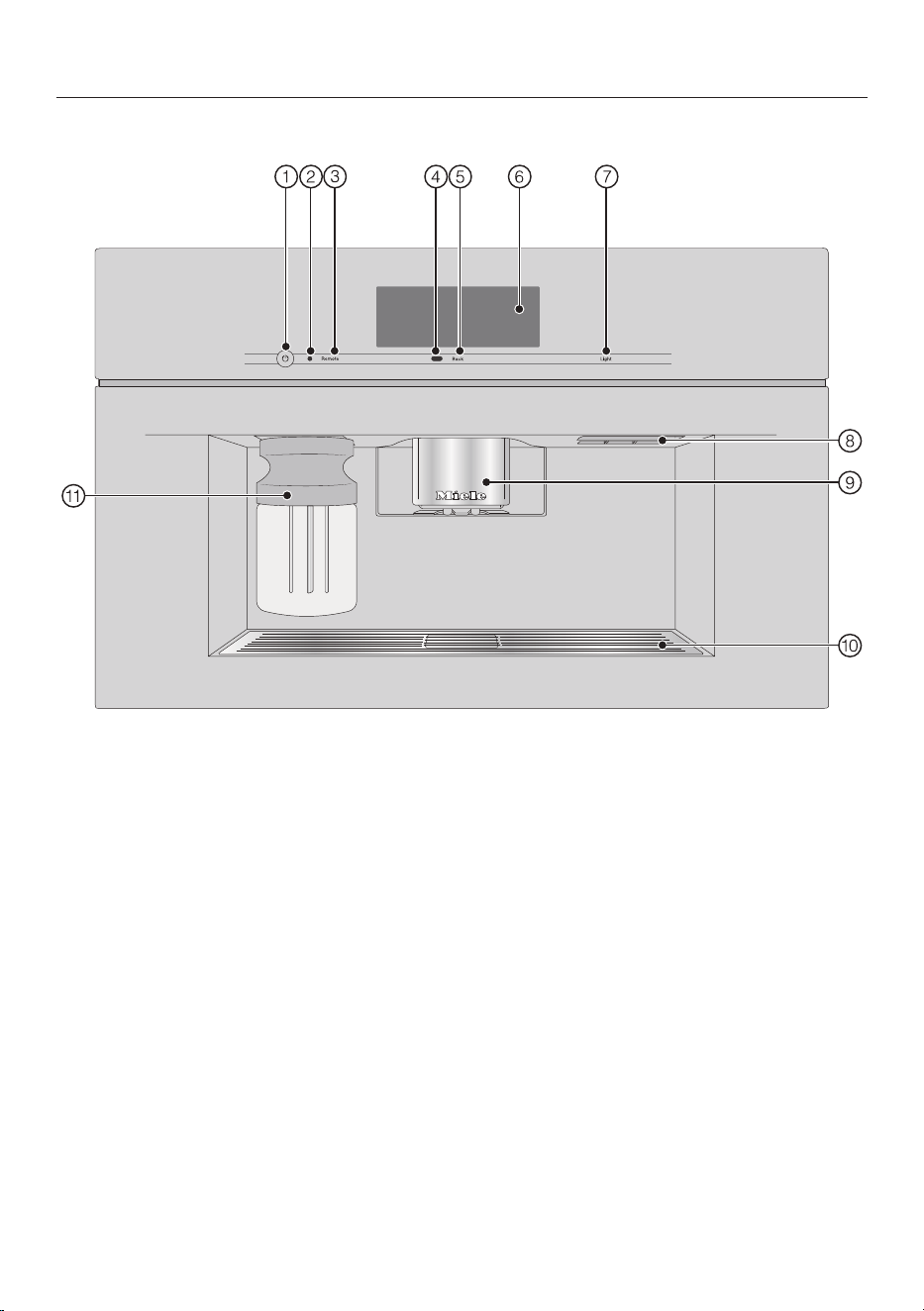
Appliance description
Front view
a
On/Off button
b
Optical interface (for Miele Technical Service only)
c
Remotesensor button (MobileStart)
d
Movement sensor
e
Backsensor button
f
Touch display
g
Lightsensor button
h
Door handle
i
Height-adjustable central spout with lighting
j
Drip-tray cover
k
Milk container
16
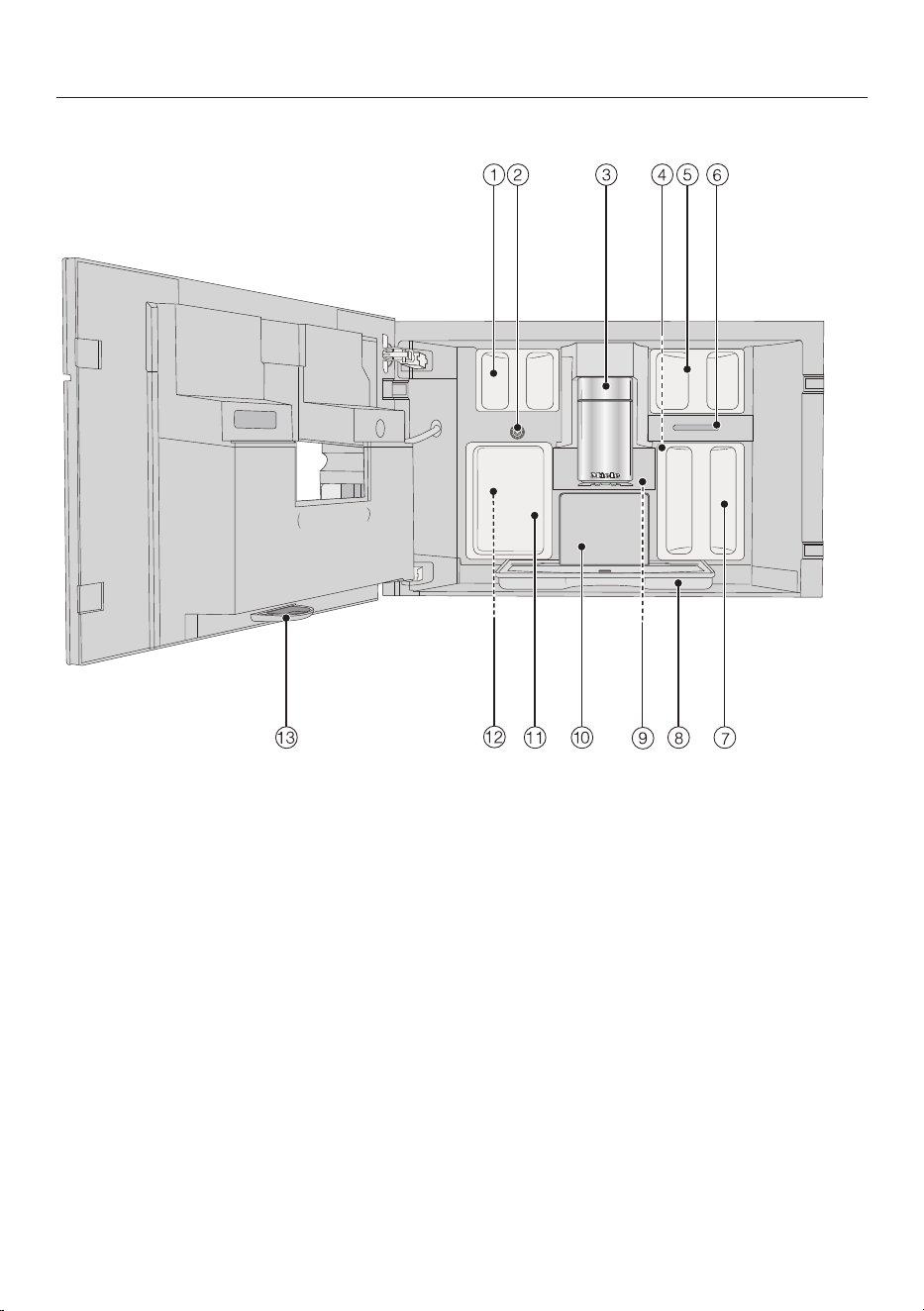
Appliance description
Interior view
a
Bean containers (Type A and Type C)
b
Milk valve
c
Height-adjustable central spout with lighting
d
Grinder setting
e
Bean container (Type B)
f
Fan outlet
g
Water container
h
Drip tray with lid
i
Brew unit
j
Grounds container
k
Maintenance container
l
Holders for cleaning and descaling cartridges (including adapters)
m
Drip tray
17
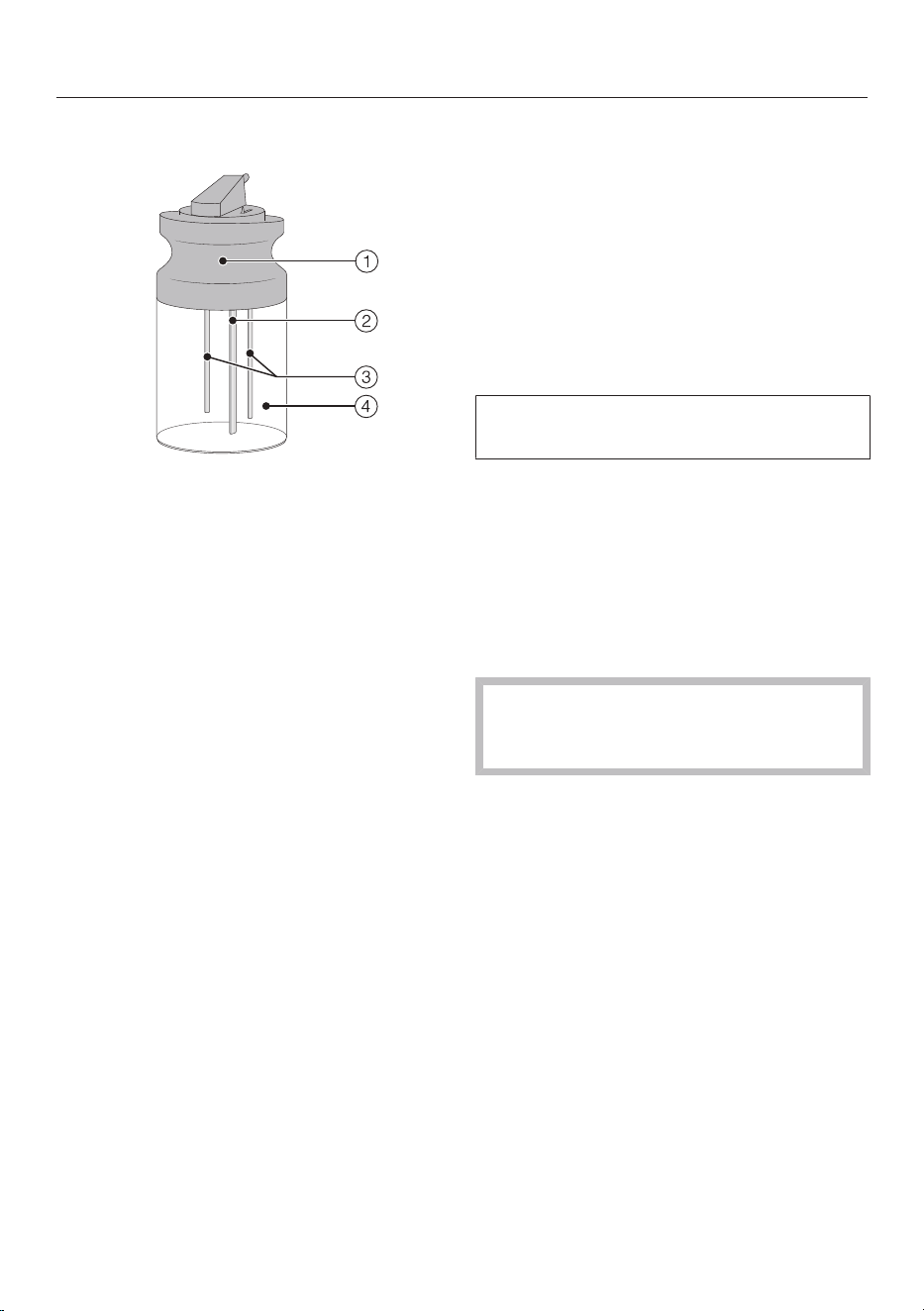
Appliance description
18
The milk flask
a
Lid
b
Milk intake tube
c
Sensor rod
d
Glass flask
Central spout with cup rim
sensor
The central spout with cup rim sensor
features automatic spout adjustment.
Thanks to this spout adjustment
function, the central spout moves down
automatically at the start of a drink
preparation process and the cup rim
sensor stops it at the optimum height
for the cups or glasses being used.
The central spout and cup rim sensor
cannot be manually adjusted.
When the coffee machine is switched
off, the central spout will be in the
middle position.
When a maintenance program is being
carried out, the central spout will move
to the height of the maintenance
container or into a low maintenance
position.
Make sure that the main position is in
the top or middle position before you
open the door.
Appliance description
Symbols on the display
The display shows symbols as well as text.
Symbol Explanation
This symbol indicates that there is additional information and
advice about using the coffee machine. SelectOK to confirm
the messages.
This symbol indicates the Settings menu and the Language
menu option.
The symbol is displayed when the system lock is switched
on. The controls are locked.
The symbol and the desired switching-on time appear in the
display 23:59hours before the coffee machine is due to
switch on if the On at timer and setting for displaying the
time are activated.
This symbol appears during the Clean the milk pipework
maintenance program and during automatic cleaning.
This symbol is also found on the water container: Fill up to
this mark with water.
This symbol appears while the appliance is being descaled.
This symbol can also be found on the water container: Fill up
to this mark.
This symbol and a fault code will appear if a fault occurs.
If Miele@home has been activated for the coffee machine,
these symbols represent the quality of the Wi-Fi connection.
They indicate the strength of the Wi-Fi connection in
increments from strong to not connected.
The “MobileStart” sensor control lights up if Miele@home is
set up for the coffee machine and MobileStart is switched on.
If the sensor control only flashes, the coffee machine is
not yet connected to the network. When the coffee machine
is ready for operation, you can start networking it at any time
by briefly touching the sensor control.
The “SuperVision” symbol appears if Miele@home has been
set up for the coffee machine and the setting SuperVision |
SuperVision display | On has been selected.
19
Operation
Touch display
The delicate touch display can be scratched by pointed or sharp objects, e.g.,
pens.
Only touch the display with your fingers.
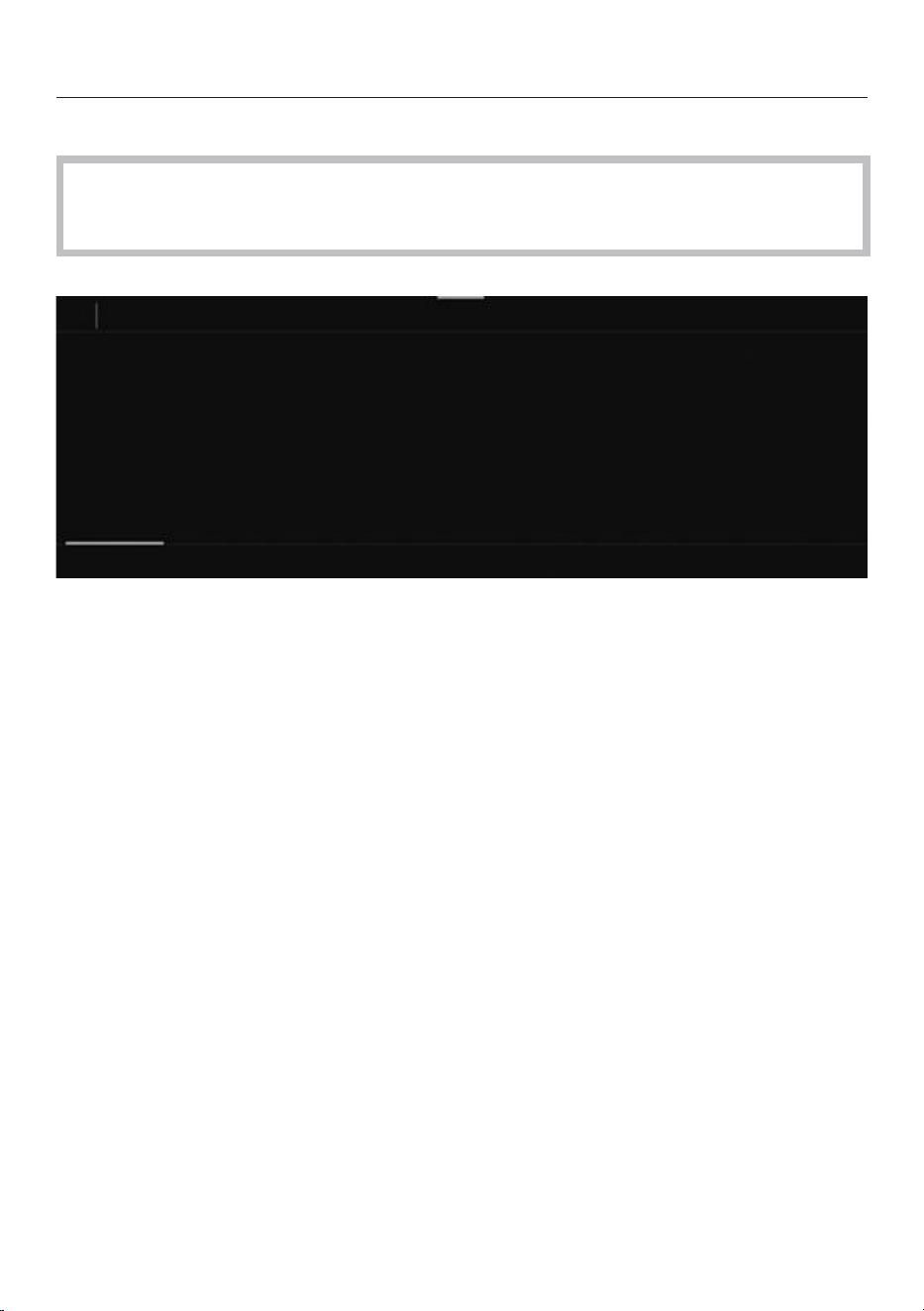
The touch display is split into multiple areas.
12:00
Miele
Long CoffeeCoffeeEspresso
Ristretto
Profiles
The menu path appears on the left of the header. If you tap a menu name in the
header, the display will switch to that menu. To switch to the start screen, tap.
The time of day is shown on the right of the header. Additional symbols may also
appear, e.g., TeaTimer.
The current menu and menu options are shown in the center of the display. You can
scroll to the right or left by swiping your finger across the display to the right or left.
The options that appear in the footer vary according to which menu is selected;
e.g., DoubleShot, Save, orOK.
20
Operation
Operating actions
All the selectable options are displayed in black or white according to your selected
color scheme.
Each time you tap a possible option, the relevant characters (word and/or symbol)
light up orange.
Selecting a menu option
Touch the desired menu option or value in the touch display.
Scrolling
You can scroll left or right.
Swipe across the screen. To do this, place your finger on the touch display and
swipe it in the direction you want.
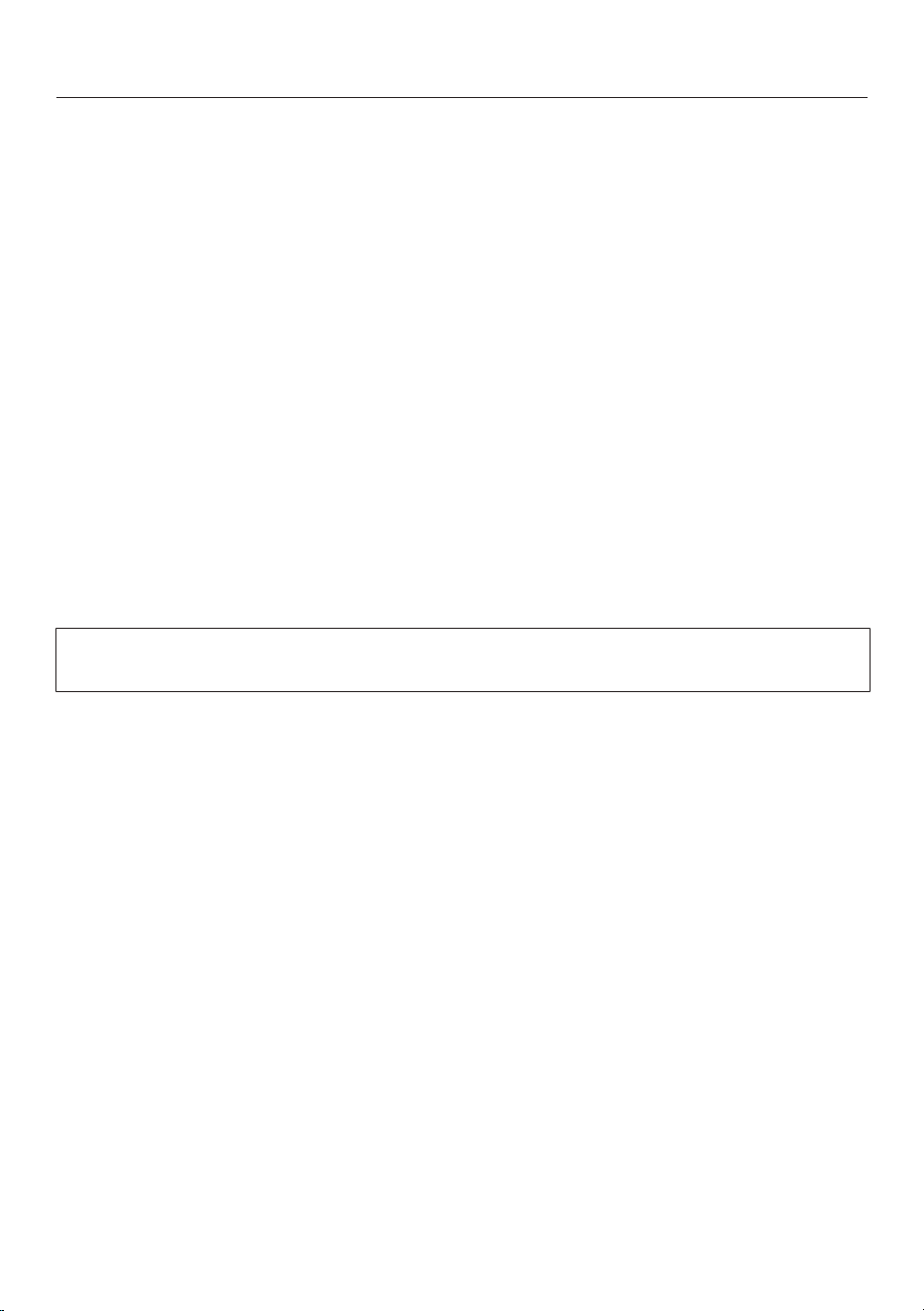
The bar at the bottom shows you where you are in the current menu.
Exiting a menu
Tap the Backsensor button. Alternatively, tap the higher-level menu name within
the menu path.
Entries made before this which have not been confirmed withOK will not be
saved.
Tip: Tapping theBacksensor button three times in succession will take you to the
drinks menu.
Entering numbers with the roller
Swipe the roller up or down until the value you want is displayed centrally in
orange.
Confirm withOK.
21
Operation
Entering numbers using the numerical keypad
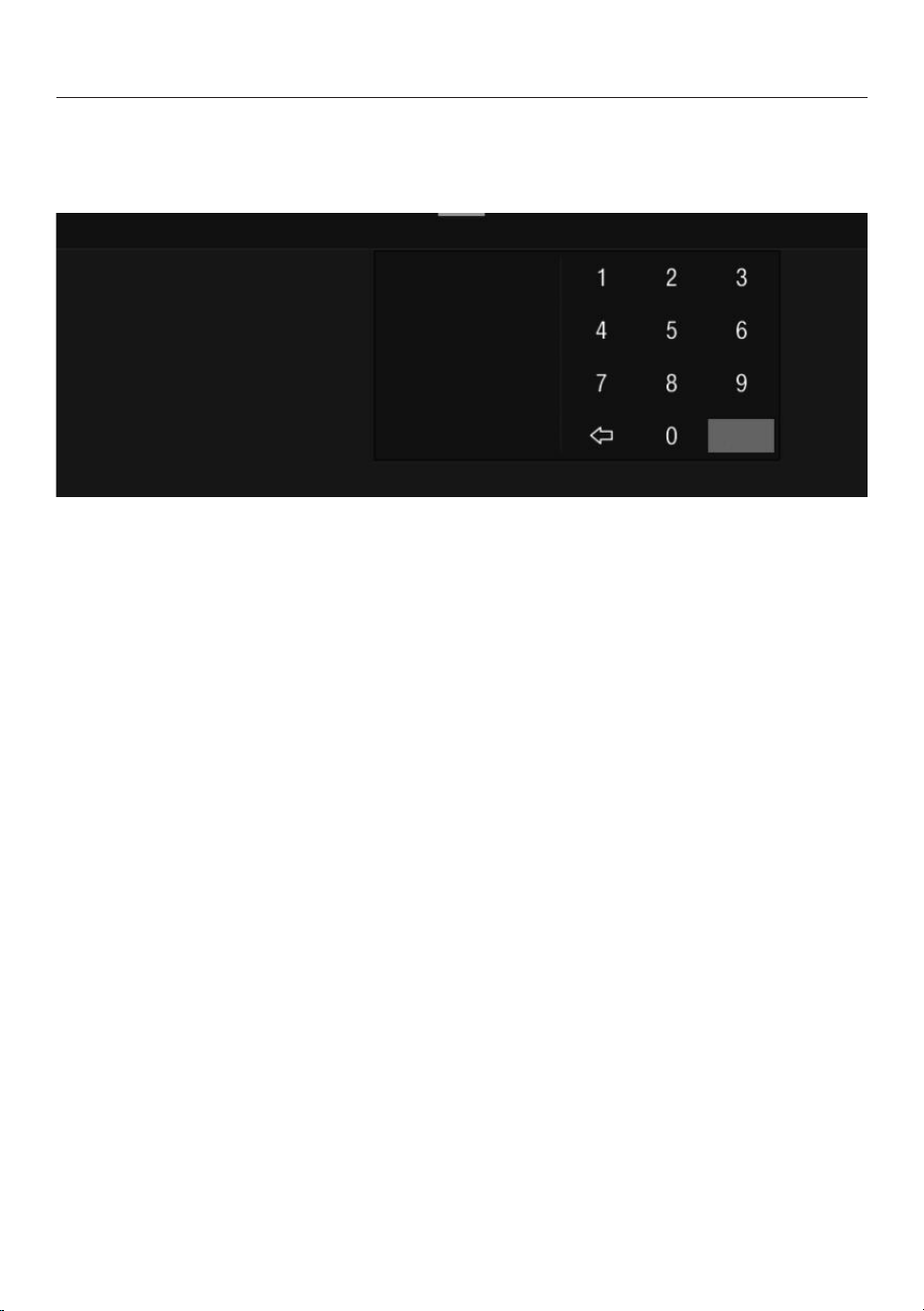
Tap the centrally displayed orange value and keep your finger on it until the
numerical keypad appears.
OK
Select the value you want: as soon as you enter a valid value, OK turns green.
Use the arrow to delete the last entered number.
Confirm withOK.
Entering a name
Letters are entered using a keyboard. It is best to select short names.
Tap the letters or characters you want.
Tip: Use thearrow to delete the last entered character.
TapSave.
Displaying the context menu
When you are in certain menus, a context menu can be displayed, e.g., for
configuring drinks.
For instance, you can tap the name of a drink and keep your finger on it until the
context menu opens.
To close the context menu, tap an area of the display located outside of the menu
window.
Moving entries
You can change the order of the entries in the drinks menu, in Profiles, and in
MyMiele.
Touch an entry and keep your finger on it until the context menu appears.
Select Move.
An orange border appears around the entry.
Tap the selected entry and keep your finger on the display. Drag the entry to the
required position.
22
Operation
Help
Context-sensitive help is available for certain functions. In this case, Help appears in
the bottom line.
Tap Help to display information in text and pictures.
Tap Close to return to the previous menu.
Pull-down menu
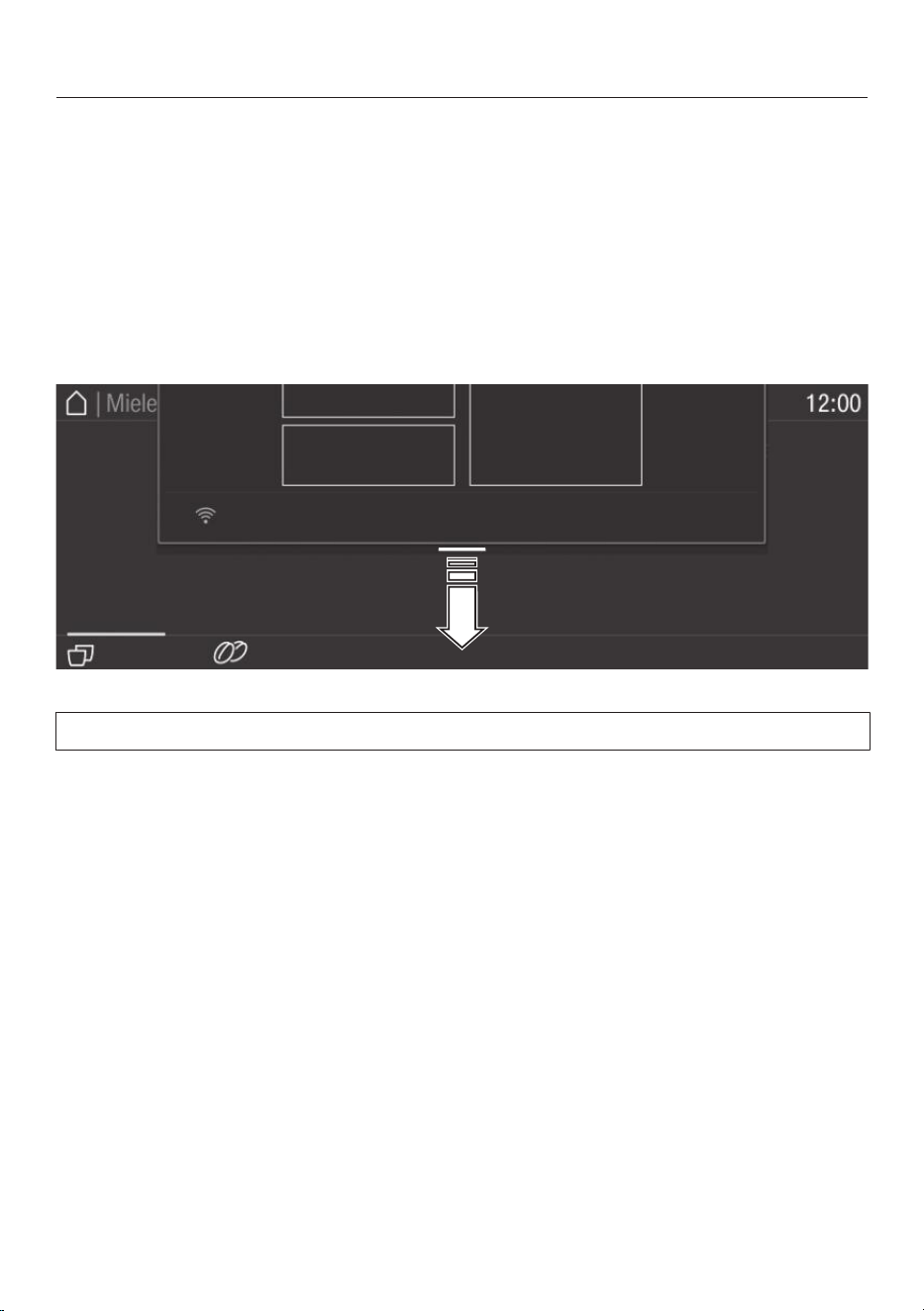
Among other things, the pull-down menu provides access to a schematic
representation of the bean containers and to Expert Mode.
Tap the orange line at the top edge of the screen and drag down with your finger.
Active settings are highlighted in orange.
To close the pull-down menu, drag it back up to the top or tap an area of the
display located outside of the menu window.
23
Miele@home
24
Your coffee machine is equipped with
an integrated Wi-Fi module.
Before installing the coffee machine at
its installation site, ensure that the
signal from your Wi-Fi network is
strong enough.
To use this feature, you will need:
- a Wi-Fi network
- the Miele app
- a Miele user account (this can be
created from the Miele app)
The Miele app will guide you through
the process of connecting your coffee
machine to your home Wi-Fi network.
Once your coffee machine is connected
to your Wi-Fi network, you can use the
app to carry out activities such as the
following:
- install software updates
- call up information on the operating
status of your coffee machine
- change settings on your coffee
machine
- control your coffee machine remotely
Connecting your coffee machine to
your Wi-Fi network will increase
energy consumption, even when the
machine is switched off.
Availability of the Wi-Fi
connection
The Wi-Fi connection shares a
frequency range with other appliances
(including microwave ovens and remote
control toys). This can cause sporadic or
even complete connection failures.
Therefore, the availability of featured
functions cannot be guaranteed.
Miele@home availability
The ability to use the Miele app
depends on the availability of the
Miele@home service in your country.
The Miele@home service is not
available in every country.
For information about availability, please
visit www.miele.com.
Miele App
The Miele App is available to download
free of charge from the Apple App
Store
®
or from the Google Play Store™.
Initial commissioning
25
Before using for the first time
Connect the coffee machine to the
plumbed-water and power supplies.
Install the coffee machine.
Remove any notices from the
machine.
Remove the protective foil from the
drip-tray cover.
Clean the water container, bean
containers, and the central spout.
Have the following to hand (included
with delivery) when setting the machine
up for the first time:
- Miele Cleaning Cartridge
- Miele Descaling Cartridge
Turning on for the first time
Tap theOn/Offbutton.
Selecting the display language
Select the desired display language.
You might also be asked for your
location.
The choice of location determines how
the time of day is displayed, e.g., in the
12 or 24-hour format, as well as how
units are displayed and so on.
Setting up the network (Miele@home)
To receive software updates and
operate the coffee machine via the
Miele app on your mobile device, you
can connect your coffee machine to
your home Wi-Fi network.
The following appears in the display
during commissioning: Set up
Miele@home?
Tip: You can also set up Miele@home
at a later time by scanning the QR code
on the inside of the appliance door (see
“Setting up Scan & Connect”). In this
case, select Skip.
Make sure that your Wi-Fi network
signal is sufficiently strong in the
coffee machine’s final installation site.
Tap Continue.
Select the connection method you
wish to use.
Follow the instructions provided in
the coffee machine display and in the
Miele app.
Connection successfully established
appears in the display.
Any new software that is available for
your coffee machine will be downloaded
via RemoteUpdate the next time the
appliance is switched on. In this case,
you will be notified that you can install
the new software (see “RemoteUpdate”
section).
Networking increases the energy
consumption of the coffee machine.
Touch Continue to proceed with
commissioning.
Setting the date
Set today’s date.
Confirm withOK.
Setting the time of day
Set the current time of day.
Confirm withOK.
If the coffee machine has been
connected to a Wi-Fi network and
signed into the Miele app, the time will
be synchronized based on the location
setting in the Miele app.
Initial commissioning
26
Setting the water hardness
Your local water authority will be able
to tell you the hardness of the water in
your area.
More information can be found under
“Settings – Water hardness”.
Enter your local water hardness (in
°dH) and confirm withOK.
Selecting the water supply (Main
Water)
The coffee machine is intended to be
plumbed into the water supply. You can
choose between the following water
supply options:
- On: The water container will be filled
automatically via the plumbed water
connection.
- Off: You must fill the water container
manually. A message appears in the
display to inform you of this.
Select the option you want.
Setting up automatic cleaning and
descaling
Information about automatic cleaning
and descaling will appear in the display.
Confirm withOK.
Tip: Tap Help to display an illustrated
guide.
Inserting the cleaning cartridge
You will now be prompted to insert the
cleaning cartridge.
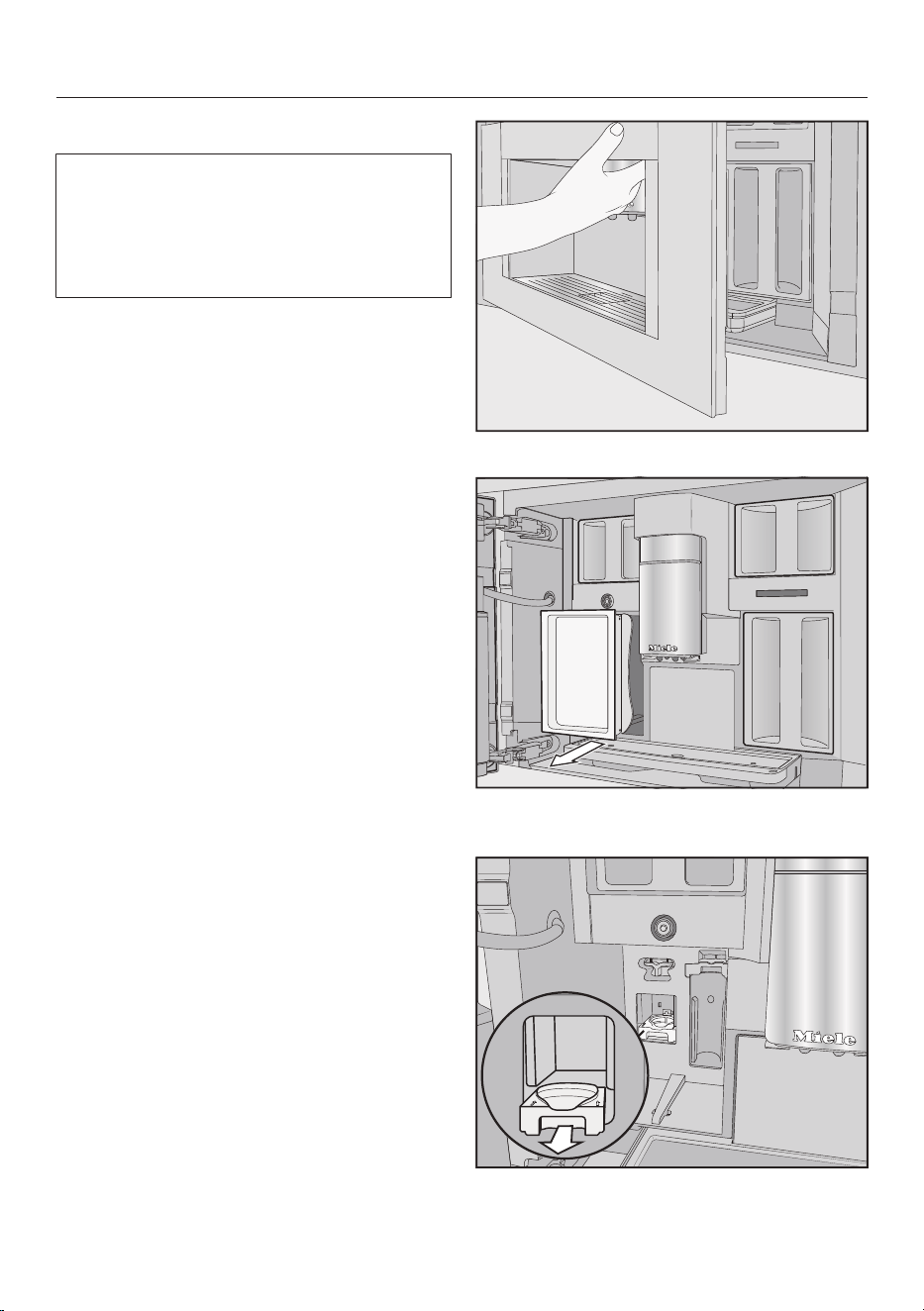
Open the appliance door.
Remove the maintenance container
on the left-hand side.
Pull the cleaning cartridge holder
forward to remove it.
Initial commissioning
27
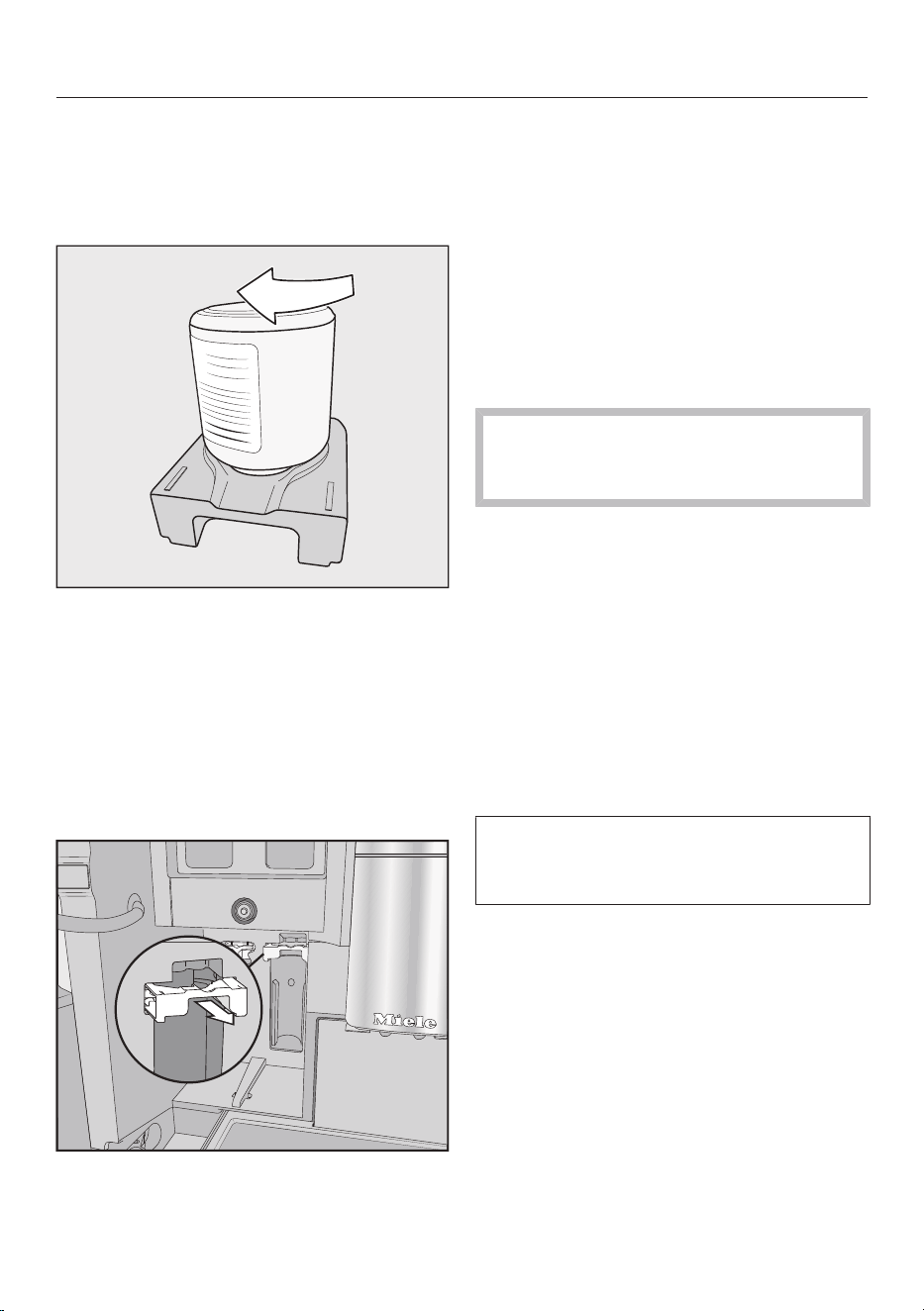
Take the cleaning cartridge out of its
packaging.
Unscrew the screw cap.
The screw cap is no longer required.
Screw the cleaning cartridge into the
holder upside down.
Push the holder and cartridge into the
coffee machine until the holder
audibly clicks into place.
Inserting the descaling cartridge
Take the descaling cartridge out of its
packaging.
Pull the descaling cartridge holder
forward.
Insert the descaling cartridge and
push it upward as far as it will go.
Slide the descaling cartridge holder
back into place.
Put the maintenance container back
inside the appliance.
Close the appliance door.
The descaling cartridge will fill with
water the next time the machine is
switched off.
Always wait for the coffee machine to
switch itself off. Do not force the
machine to switch off.
Changing the start time
Once the cleaning and descaling
cartridges have been inserted, a
message will appear regarding the
current start time set for automatic
cleaning and descaling.
If you want to change the start time,
tap Timer.
Select the time you want.
Confirm withOK.
You can change the start time for
automatic cleaning and descaling at
any time.
Selecting the Performance Mode
You can select the appropriate
Performance mode to suit your personal
preferences (see “Customizing settings
– Performance mode”).
- Eco Mode: This mode consumes the
least amount of energy (default
setting).
- Barista Mode: This mode has been
optimized for unadulterated coffee
enjoyment.
Initial commissioning
28
- Latte Mode: In this mode, milk-based
drinks can be prepared within a much
shorter space of time.
Select the Performance mode you
want.
Selecting a Performance mode other
than Eco Mode increases the energy
consumption of the coffee machine.
The coffee machine is now successfully
set up for use. You can now set up the
bean system.
Setting up the bean system
After setting up the coffee machine, you
will be prompted to set up the bean
system. The coffee machine will assist
you when first filling and naming the
bean containers.
TapYes.
If you select No, the assistant for
setting up the bean system will not be
shown again.
Filling the bean containers
The coffee machine has 2bean
container drawers on the top left and
right.
Open the appliance door.
Pull the bean containers out and take
off the lids.
Fill the bean containers with roasted
coffee beans.
Put the lids back on the bean
containers to seal them.
Push the bean containers all the way
back into the coffee machine. Close
the appliance door.
Tip: Make a note of each type of bean.
After filling the bean containers, you can
now name the types of beans.
Naming the types of beans
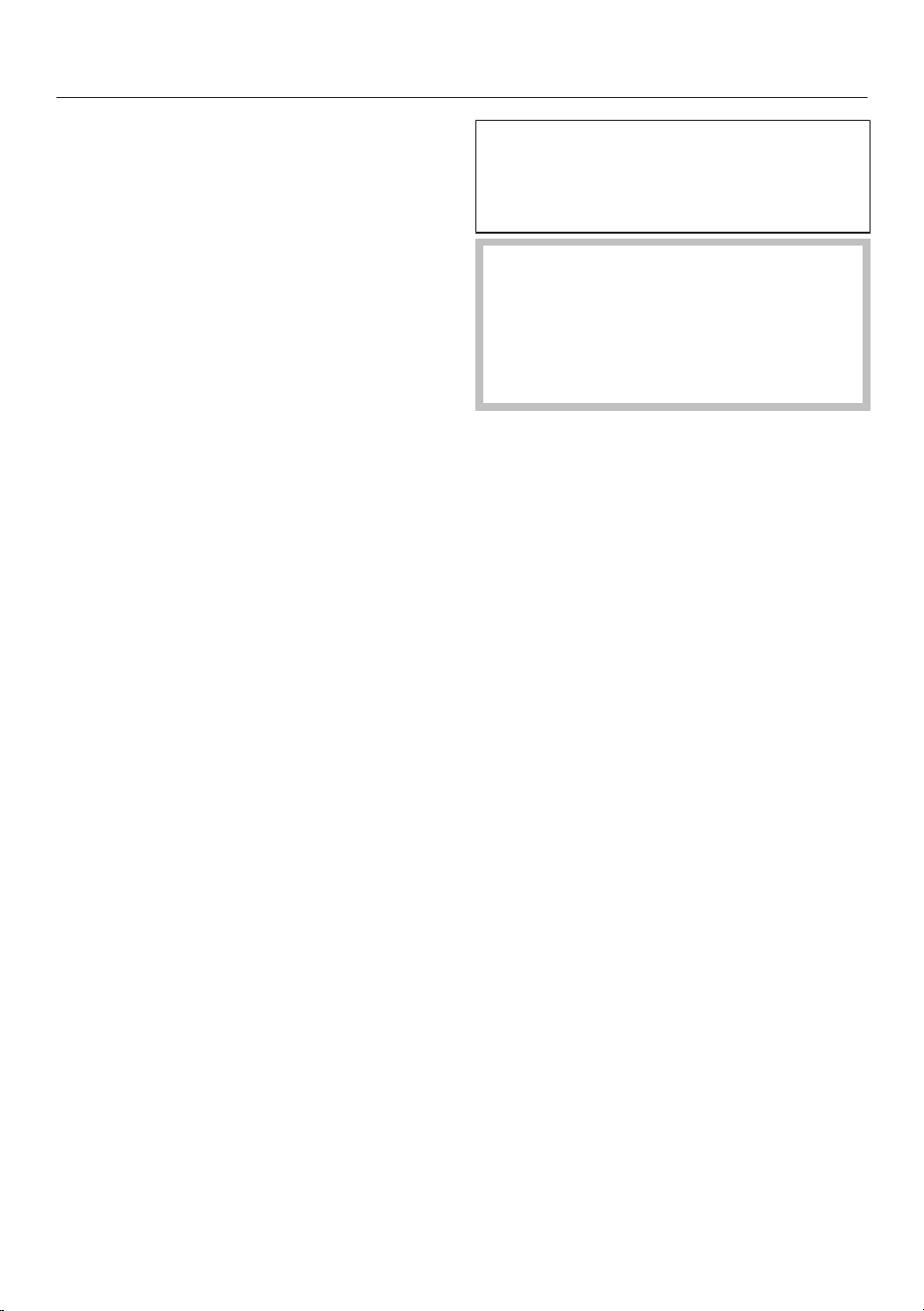
The 3bean containers are shown in the
display as follows and are pre-named.
Type of beans
Type A Type B
Type C
If you rename the bean containers,
please note the following:
- It is best to select short names.
- If you are using the same type of
beans in 2 or allbean containers at
the same time (for instance, because
Initial commissioning
29
you only use one type of beans), make
sure you name them in the exact
same way.
Name type of beans for bean container?
appears in the display and Type A is
highlighted in orange.
TapYes.
The editor will open in the display.
Enter the name you want for the bean
container.
TapSave.
Now name the other 2bean
containers.
<Type XY> Allocate will appear in the
title bar of the display.
Allocating the types of beans
Allocate the individual types of beans to
the coffee drinks you would like.
Select the drinks that are to be
prepared with this type of bean.
The selected drinks are marked in
orange.
Confirm withOK.
Now it is time to allocate the next type
of bean. The coffee drinks that have not
yet been allocated are displayed.
Select the drinks that are to be
prepared with this type of bean.
Confirm withOK.
Any remaining drinks which have not
been selected will be allocated to the
third type of beans.
You have set up the bean system and
you can now prepare drinks.
Tip: Tap All drinks to select all the drinks.
You can then deselect the ones you do
not want.
If you do not allocate the bean
containers to the drinks, you will be
asked what type of bean you want to
use for the coffee as you make it.
To ensure that any coffee residues
from the factory testing process are
removed from the brewing system,
please throw away the first 2cups of
coffee when using the coffee
machine for the first time.
The bean system
30
Coffee or espresso can be made from
whole roasted coffee beans which are
freshly ground for each cup.
Your coffee machine has a bean system
with 3bean containers which can be
filled with different types of beans or
even just one type. You can allocate
bean types to individual coffee drinks as
you wish. Alternatively, you can create
profiles with your own coffee drinks and
allocate other bean types to these
drinks which are different to the
standard Miele profiles.
Risk of damage to the grinder
due to incorrect operation.
The coffee machine will be damaged
if the bean container is filled with
unsuitable substances such as
liquids, ground coffee, or coffee
beans treated with sugar, caramel, or
similar.
In addition, green (unroasted) coffee
beans or mixtures of coffee beans
which contain green coffee beans
can damage the grinder. Green coffee
beans are very hard and still contain
residual moisture. These can damage
the coffee machine grinder as soon
as grinding begins.
Only put roasted coffee beans in the
bean container.
If decaffeinated coffee beans are
used after dispensing a drink with
caffeinated beans, there may still be
residues from the caffeinated beans
in the grinder or brew chamber.
Please be aware that minimal
residues of caffeine may be present
in the next drink that you make.
Changing the bean system
settings (Type of beans)
The drinks menu is displayed.
Touch the sensor control.
SelectSettings.
SelectType of beans.
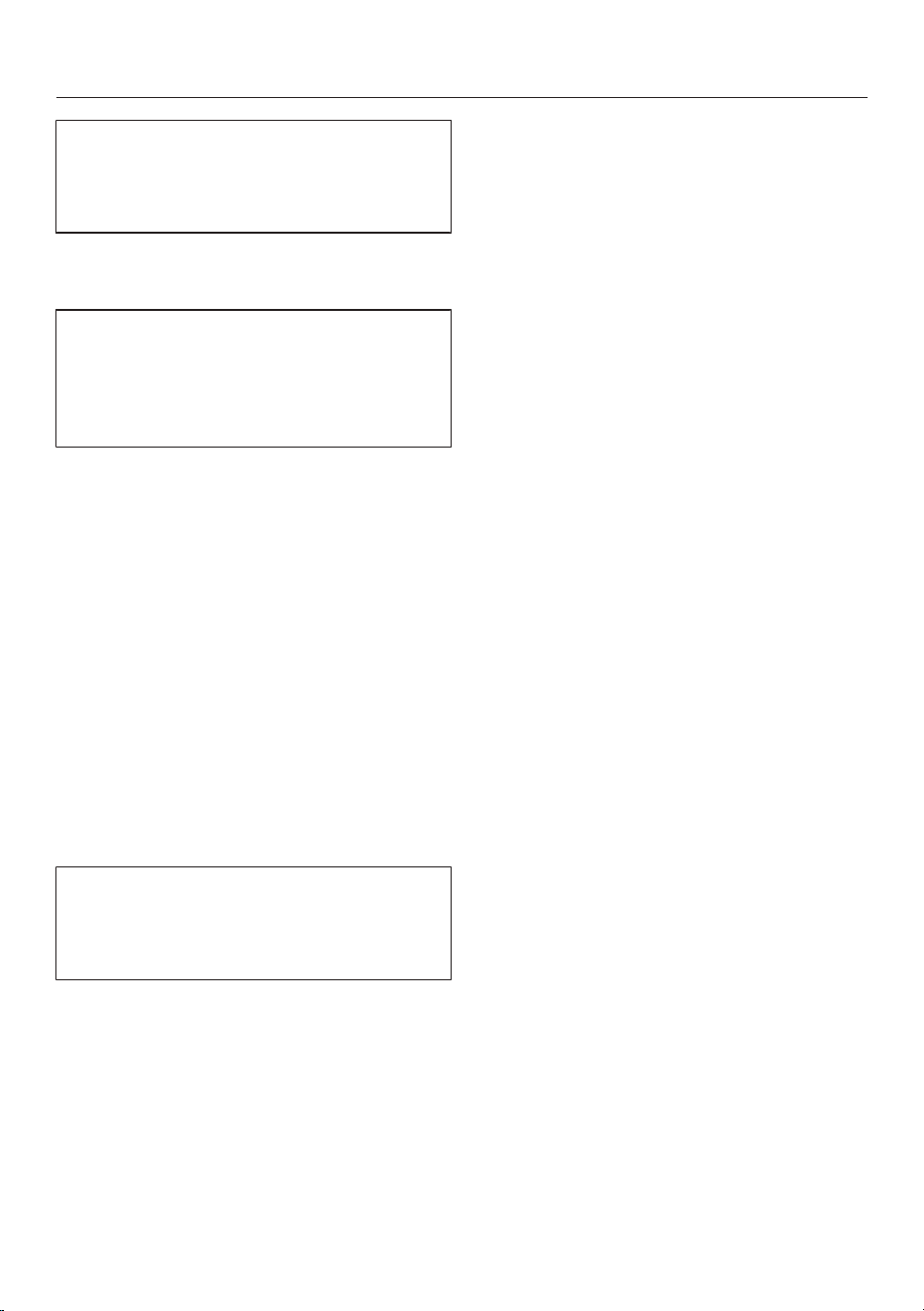
The schematic representation of the
bean containers is displayed.
Type of beans
Type A Type B
Type C
Select a type of beans.
You can now change the name of the
type of beans or how it is allocated.
Tip: If you want to allocate another type
of bean to a coffee drink, you can also
do this under “Change parameters” (see
“Parameters – Type of beans”).
Renaming types of beans
If you rename the types of beans, please
note the following:
- It is best to select short names.
- If you are using the same type of
beans in 2 or allbean containers at
the same time (for instance, because
you only use one type of beans), make
sure you name them in the exact
same way.
Tap Change name.
The editor will open in the display.
Enter the name you want.
Tap Save.
The bean system
31
If you switch from having identical
names to having different names, you
will then need to allocate coffee drinks
to the newly named type of bean.
Changing how the bean containers are
allocated
If you have created extra user profiles
for coffee drinks in addition to the
Miele standard profile, the types of
beans can be individually allocated to
the drinks in each profile.
Tap Change allocation.
If you have set up 1or more profiles and
at least 1coffee drink, first select the
profile.
Select the profile for which you want
to allocate the type of beans.
All coffee drinks will be listed. The
already allocated drinks will be
highlighted in orange.
Change the allocation as required.
Confirm withOK.
Tip: If you tap All drinks, you will highlight
all coffee drinks and you can deselect
the ones you do not want.
If you do not allocate a type of bean,
you will be asked what type of bean
you want to use for the coffee as you
make it.
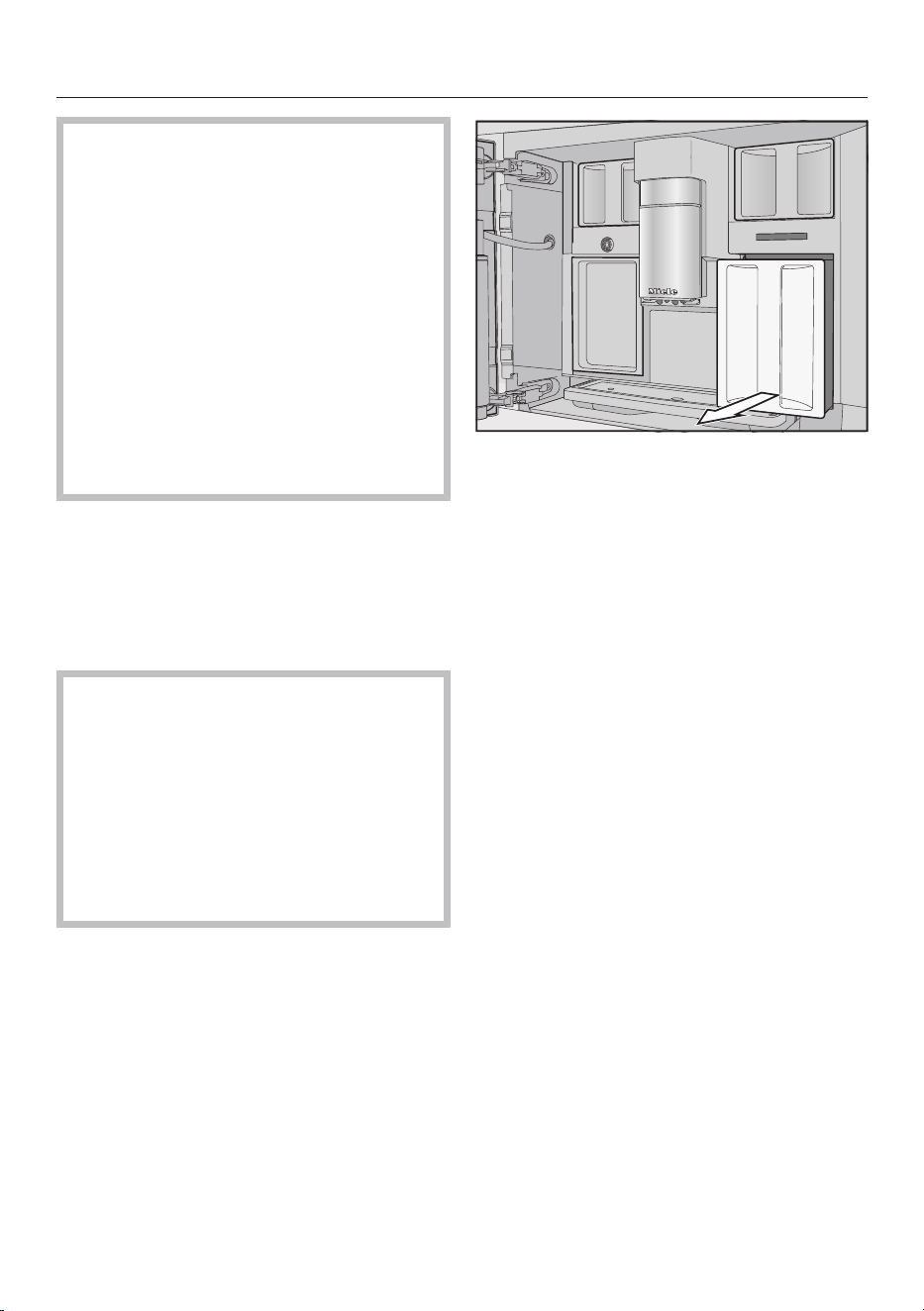
Filling the water tank
32
Risk to health due to
contaminated water.
Bacteria can develop in water which
has been sitting in the water
container for too long and is a risk to
your health. Water that gets left in
the inlet hose can also impair the
flavor if you do not make any drinks
for a long time.
Change the water in the water
container every day.
Discard the first full container of
water if you have not made any
drinks for a while.
If the coffee machine is plumbed into
the drinking water supply, the water
container will fill automatically as soon
as the coffee machine is switched on.
You can fill the water container manually
at any time.
Risk of damage due to incorrect
operation.
Unsuitable liquids such as hot or
warm water or other liquids can
damage the coffee machine.
Carbonated water leaves too much
limescale in the coffee machine.
If filling the water container manually:
Only use fresh, cold tap water.
Open the appliance door.
Pull the water container forward to
remove it.
Fill the water container with fresh,
cold drinking water up to the max.
mark.
Push the water container into the
appliance.
Close the appliance door.
Switching on and off
33
Switching the coffee machine
on
Tap theOn/Offswitch.
The coffee machine heats up and rinses
the pipework. Hot water will run out of
the central spout.
You can now make drinks.
If the coffee machine is already at
operating temperature, rinsing will not
take place when the machine is
switched on.
Switching the coffee machine
off
Tap theOn/Offswitch.
If coffee has been dispensed, the coffee
machine will rinse the pipework
automatically before switching off.
While dispensing a drink or during
maintenance processes, moisture
builds up in the coffee machine. Once
a drink has been dispensed or the
machine has been switched off, the
internal fan will continue to run until
the interior is sufficiently dehumidified.
You will hear an accompanying noise.
Preparing for an extended
period of inactivity
If the coffee machine is not going to be
used for more than 3days, such as
during a vacation, proceed as follows:
Empty the drip tray, the grounds
container, and the water container.
Clean all parts thoroughly, including
the brew unit and appliance interior.
Switch the coffee machine off.
Preparing beverages
34
Danger of burning and scalding at
the dispensers.
The liquids and steam dispensed are
very hot and can cause scalding.
Keep away from the area underneath
the dispensers when hot liquids and
steam are being dispensed.
Do not touch hot components.
Coffee
Coffee drinks in detail
You can use the coffee machine to
prepare the following coffee-based
drinks:
- Ristretto is a concentrated, stronger
espresso. It is prepared with the same
amount of coffee as for an espresso
but with a lot less water.
- Espresso is a strong aromatic coffee
with a thick, hazelnut-brown colored
froth – known as the crema – on top.
We recommend using espresso-
roasted coffee beans to make an
espresso.
- Coffee differs from espresso by the
increased amount of water and the
roast of the beans.
We recommend using coffee beans of
the correct roast to make the coffee.
- Lungo is a coffee with significantly
more water.
- Long black is made with hot water
and two shots of espresso.
- Caffè Americano consists of equal
proportions of espresso and hot
water. The espresso is made first,
then the hot water is dispensed.
- Cappuccinoconsists of approx.
2thirds milk froth and 1third
espresso.
- Latte macchiato consists of 1third
each of hot milk, milk froth, and
espresso.
- Caffè latte consists of espresso and
hot milk.
- Cappuccino Italiano has the same
proportions of milk froth and espresso
as a cappuccino. The difference is that
the espresso is added first and then
the milk froth.
- Espresso macchiato is an espresso
with a small amount of milk froth on
top.
- Flat white is a special variety of
capuccino that contains significantly
more espresso than milk froth for an
intensive coffee aroma.
- Café au lait is a French style of coffee
consisting of coffee and milk froth.
Café au lait is usually served in a bowl.
Hot milk and milk froth can also be
made.
Milk and milk alternatives
Cow’s milk or alternative plant-based
dairy products (e.g., soy milk)
containing added sugar can clog up
the milk pipe and the rest of the milk
pipework. Residues from unsuitable
liquids can interfere with milk
preparation.
The milk used must not contain any
additives.
Dairy milk naturally contains bacteria.
If using dairy milk, make sure that it
has been pasteurized, e.g.,
pasteurized cow’s milk.
You can prepare hot milk and milk froth
using cow’s milk or alternative plant-
based dairy products. However, the
Preparing beverages
35
consistency of the milk froth will vary
greatly depending on the type of milk
used. Not all types of milk are suitable
for milk froth.
Once the appliance has heated up, the
milk will be drawn up into the central
spout where it is heated by steam and
also frothed for drinks requiring milk
froth.
Tip: Using cold cow’s milk (<50°F/
10°C) with a protein content of at least
3% will produce the perfect milk froth.
You can select milk with a fat content
according to your personal preference.
With whole milk (at least3.5% fat), the
milk froth will be slightly creamier than
with low-fat milk.
Alternative plant-based dairy products
– hereafter referred to as “alternative
dairy products” – contain different
ingredients than cow’s milk, for
example. Due to natural settling, dairy
products tend to thicken. When
preparing hot milk or milk froth, this
thicker consistency can prevent the
alternative dairy products from being
drawn into the milk pipework.
Stir alternative dairy products well
immediately before preparation.
Do not shake alternative dairy
products. Shaking causes foam to form
in the packaging and impairs the
preparation process.
Tip: Rinse the milk pipework manually
immediately after preparation.
Filling and inserting the milk flask
Milk is not cooled in the milk flask.
Milk may spoil if it is left in the milk
flask for an extended period without
being cooled (depending on the type
of milk).
In particular, do not leave cow’s milk
in the milk flask for an extended
period without cooling it.
Please follow the manufacturer’s
instructions regarding the shelf life of
the milk used.
If you have not made any milk drinks
for a while, rinse the milk pipework
thoroughly before making the first
drink.
Tip: For high-quality milk froth, always
use cold milk (<50°F/10°C).
If you use alternative dairy products,
make sure that you stir it well. To
ensure the best preparation,
alternative dairy products must be
stirred and not shaken.
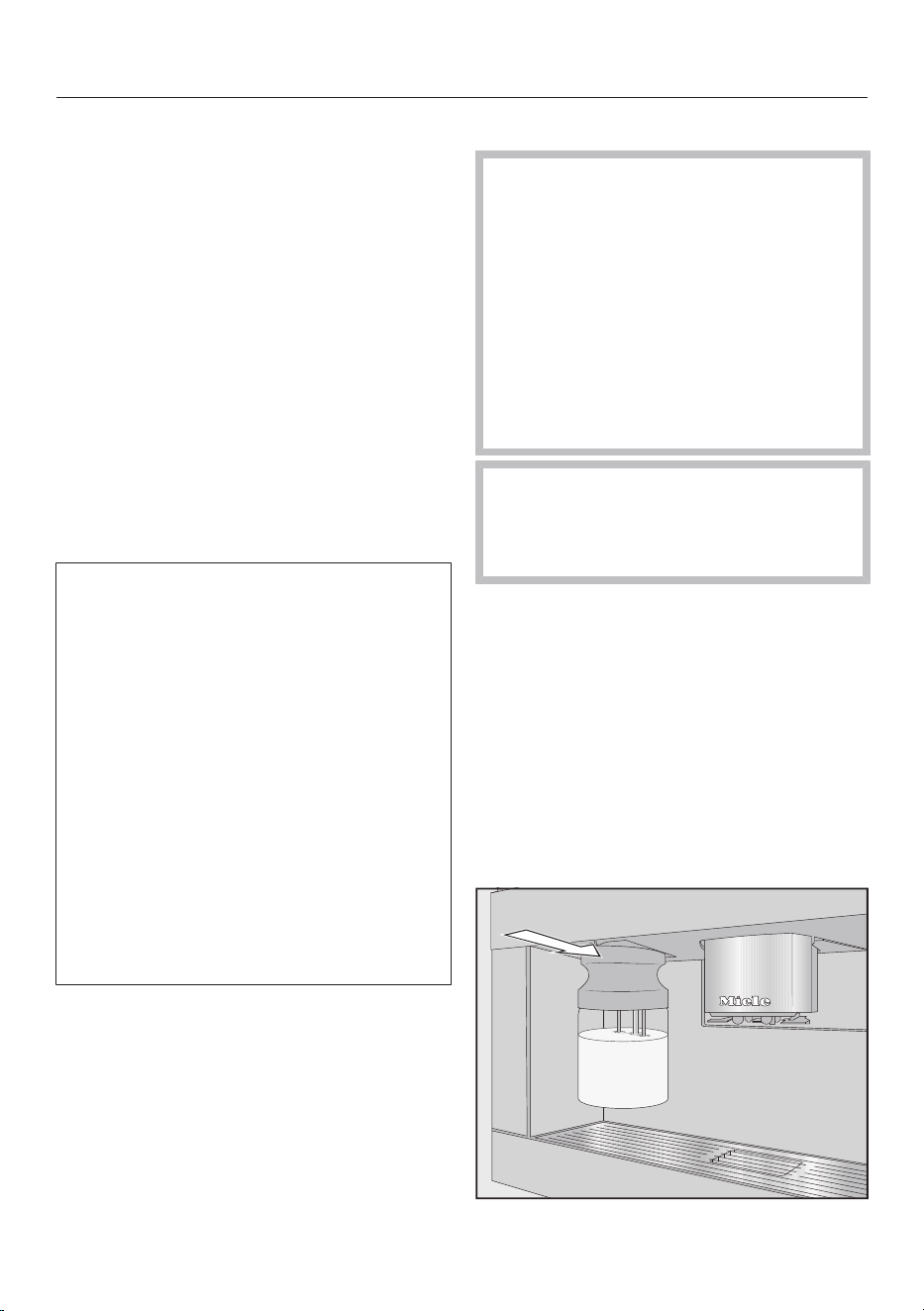
Fill the milk flask with milk up to a
maximum of 3/4" (2cm) below the
rim.
Seal the milk flask with the lid.
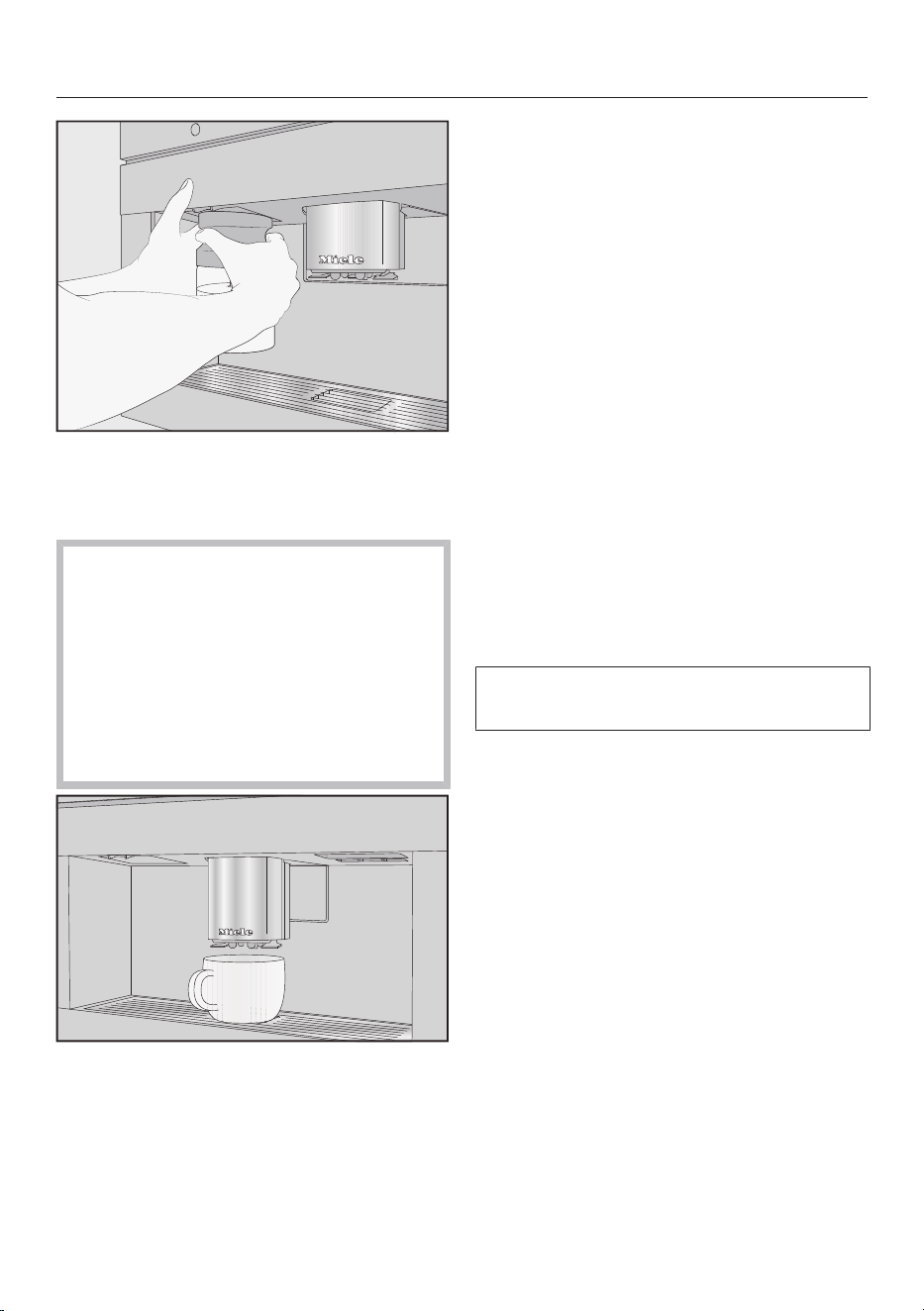
Push the milk flask back into the coffee
machine until it clicks into place.
Preparing beverages
36
Tip: It is easier to remove the milk flask
with both hands.
Making a coffee drink
If decaffeinated coffee beans are
used after dispensing a drink with
caffeinated beans, there may still be
residues from the caffeinated beans
in the grinder or brew chamber.
Please be aware that minimal
residues of caffeinated beans from
the previous drink may be present in
the next drink that you make.
Place a container under the central
spout.
If you want to make a coffee with hot
milk or milk froth, prepare the milk
flask and insert it into the appliance.
Select a coffee drink.
Preparation will begin and the coffee will
be dispensed into the container from
the central spout.
Tip: If you have dispensed a coffee with
milk, rinse the milk pipework manually
after preparation.
Canceling a drink
Press StoporCancel.
DoubleShot
Select the DoubleShot function if
you would like a particularly strong and
aromatic coffee. In this case, more
coffee beans will be ground and brewed
halfway through brewing.
The shorter extraction time means that
fewer unwanted aromas and bitter
compounds will be released.
Making a DoubleShot of coffee
The symbol will appear while
drinks are being made.
Tap the symbol immediately
before or after you start making a
drink.
Dispensing starts and the symbol is
highlighted in orange in the display.
2portions of coffee beans will be
ground and brewed.
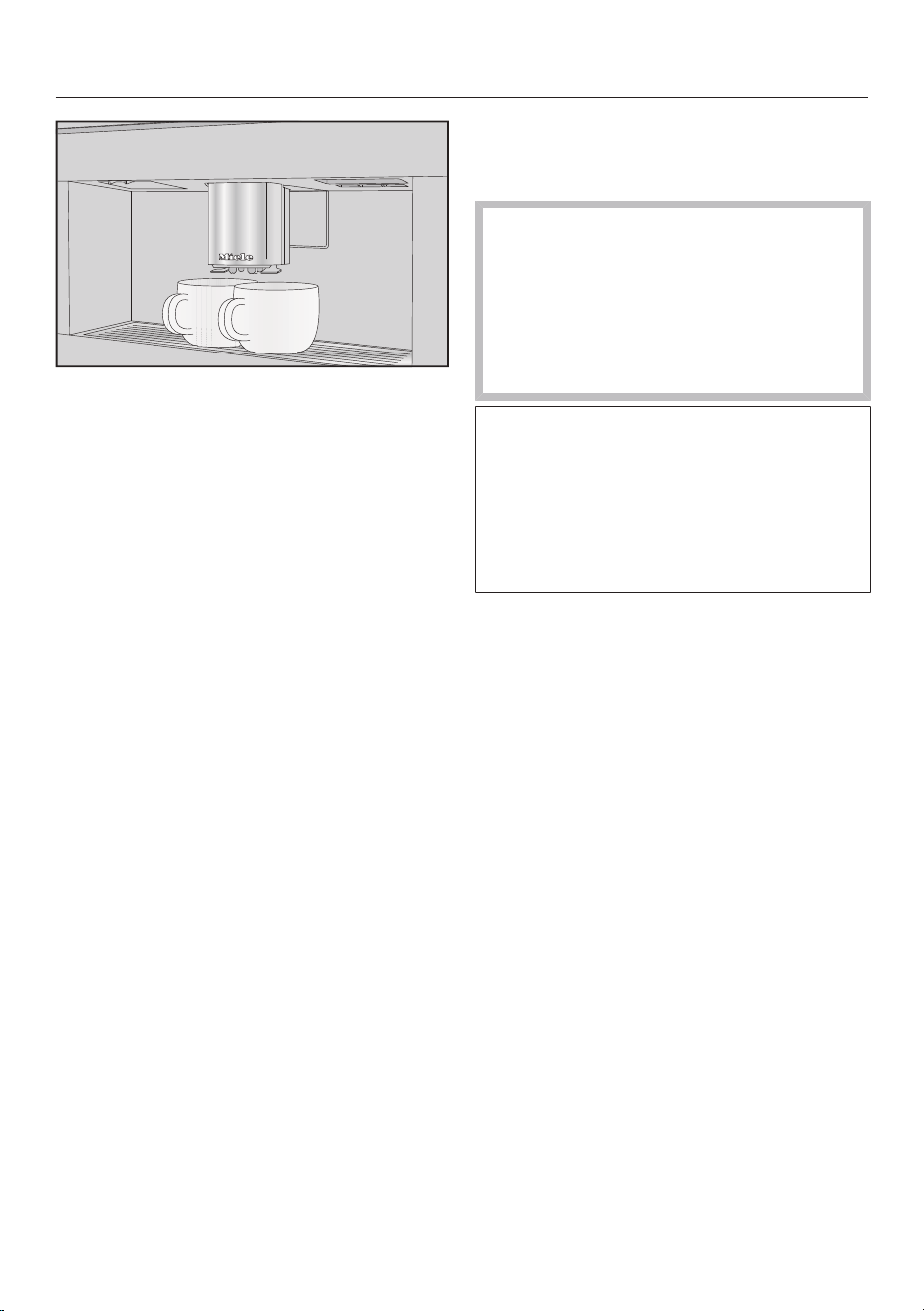
Making 2portions
You can dispense 2portions of a drink
into 1large cup or into 2cups at the
same time.
Preparing beverages
37
Place a cup under each of the main
coffee dispenser spouts.
Tap the symbol immediately before
or after you start making a drink.
Dispensing starts and the symbol is
highlighted in orange in the display.
2portions of the desired drink will be
dispensed.
Preparing a pot of coffee
You can make several cups of coffee one
after the other automatically with the
Coffee Pot function (maximum of 1L).
The drinks menu is displayed.
Tip: Make sure that the bean and water
containers have enough beans and
water inside them before starting the
Coffee Pot function.
Place a sufficiently large container
under the central spout.
Select Coffee Pot.
Tip: You will find Coffee Pot at the end of
the drinks menu.
Select the number of cups you want
(3to8).
Follow the instructions on the display.
Each portion of coffee will be ground,
brewed, and dispensed individually. You
can follow the process on the display.
You can interrupt the dispensing
process at any time.
Tap Cancel.
Tea
If the dispensing temperature is too
high or too low or if the brewing time
is too short or too long, this can
affect the flavor of your tea.
Follow the instructions provided by
the manufacturer of the tea you are
making.
The coffee machine is not intended for
commercial or scientific purposes.
Dispensing temperatures given are
approximate and can vary according to
ambient conditions. A temperature
increment of approximately35°F (2°C)
makes a noticeable difference.
When making tea, you can select from
the following options:
- Japanese Tea is a high-quality green
tea which boasts a fine, fresh, “green”
taste.
Dispensed temperature:
approx.150°F (65°C), brewing time:
approx.1.5minutes
- White Tea is a green tea where only
the young buds of the tea plant are
used and processed very gently.
White tea has a particularly mild taste.
Dispensed temperature:
approx.160°F (70°C), brewing time:
approx.2minutes
- Green Tea gets its green color from
the leaves of the tea plant. The tea
leaves are either roasted or steamed
depending on the region. Green tea
can be infused multiple times.
Dispensed temperature: approx.175°F
(80°C), brewing time:
approx.2.5minutes

Preparing beverages
38
- Black Tea gets its dark color and
characteristic taste from the
fermentation of tea leaves. Black tea
can be enjoyed with a little lemon or
milk.
Dispensed temperature:
approx.210°F (97°C), brewing time:
approx.3minutes
- Chai Latte has its origins in traditional
Ayurveda medicine as a black tea with
typically Indian spices and milk. The
milk mellows the spices and tops off
the flavor experience.
Dispensed temperature:
approx.210°F (97°C), brewing time:
approx.3minutes
- Herbal Tea is an aromatic infusion
drink made up of dried leaves or fresh
parts of plants.
Dispensed temperature:
approx.210°F (97°C), brewing time:
approx.8minutes
- Fruit Tea is made from dried pieces of
fruit and/or parts of plants, e.g., rose
hip. The taste of the drink varies
according to which plants are used
and how they are blended. Lots of fruit
teas are also flavored.
Dispensed temperature:
approx.210°F (97°C), brewing time:
approx.8minutes
The preset dispensing temperature
varies depending on the type of tea.
The respective dispensing temperatures
are the ones that Miele recommends for
making the types of tea concerned.
Whether you use loose tea leaves,
blended tea, or tea bags depends on
your own personal preference.
The amount of tea required varies from
one type of tea to another. Always
follow the recommendations of the
manufacturer on the packaging or of the
retailer. You can adjust the amount of
water according to the type of tea and
the size of the cup (see “Changing the
portion size”).
Making tea
The drinks menu is displayed.
Pour loose tea into a tea filter or
similar.
Place the tea filter or the tea bag in
the tea cup.
Place the tea cup under the central
spout.
Select the type of tea on the display.
Hot water will be dispensed into the
cup.
If you have selected TeaTimer |
Automatic, the TeaTimer for the brewing
time will start automatically.
Alternatively, you can also start the
TeaTimer function manually at this point.
After the brewing time has elapsed, an
audible signal will sound and the
symbol will flash.
Tap to confirm that the brewing
time has elapsed.
The TeaTimer has elapsed.
Now remove the tea leaves or the tea
bag.
Starting the TeaTimer manually
Prepare a cup of tea.
Tap TeaTimer.
The editor opens with a suggested
brewing time.
Change the brewing time if necessary.
Confirm withOK.
After the brewing time has elapsed, an
audible signal will sound and the
symbol will flash.

Preparing beverages
39
Tap to confirm that the brewing
time has elapsed.
The TeaTimer has elapsed.
Now remove the tea leaves or the tea
bag.
Preparing a pot of tea
The Tea pot function allows you to make
a large quantity of tea (maximum of1L).
The type of tea selected determines the
preset temperature.
The drinks menu is displayed.
Tip: Make sure that the water container
has enough water inside it before you
start making a pot of tea.
Place a sufficiently large container
under the central spout.
Select the tea pot option you want.
Select the number of cups you want
(3to8).
You can interrupt the dispensing
process at any time.
Tap Cancel.
Dispensing warm or hot water
You can choose between the following
options:
- Hot water at approx.195°F (90°C)
- Warm water at approx.150°F (65°C)
The drinks menu is displayed.
Place a suitable container under the
central spout.
Choose between warm or hot water.
Dispensing will start.
Expert Mode
40
In Expert mode, you can allocate a bean
type temporarily and change the portion
size while the drink is being made. The
setting will not be saved and will only
apply to the current drink.
Switching Expert mode on and
off
Expert mode is located in the pull-down
menu at the top edge of the screen.
Tap the top edge of the screen in the
middle and drag down with your
finger to open Expert Mode.
The schematic representation of the
bean containers is displayed.
Tap Expert Mode.
Expert mode is active when Expert Mode
is highlighted in orange.
To exit the pull-down menu, drag the
menu window back up to the top or
tap an area of the screen outside of
the pull-down menu.
Expert mode: allocating bean
containers
Tap the top edge of the screen and
open the Expert Mode pull-down
menu.
Now select the bean container
containing the beans you want to use
for the current drink.
To close the menu window, drag it
back up to the top.
If necessary, switch to the drinks
menu.
Now start making the drink.
Expert mode: changing the
portion size
The drinks menu is displayed.
If you select DoubleShot or
2portions, Expert mode cannot be
used to change the portion size.
Select a drink.
Dispensing will start. You can adjust the
portion size while it is being dispensed,
e.g., individually change the amount of
hot milk, milk froth, and espresso for a
latte macchiato.
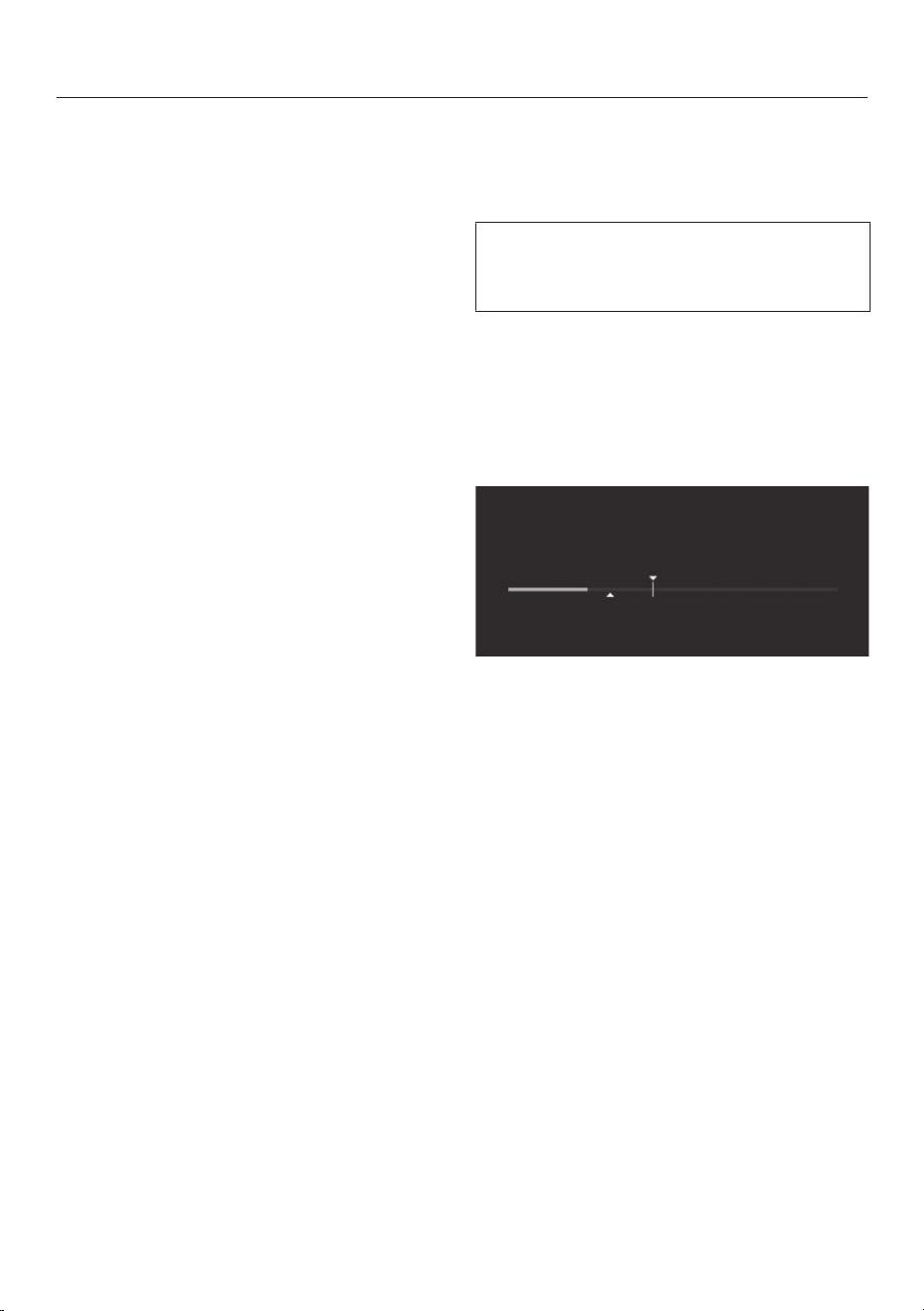
Dispensing
Tap the bar and adjust the indicator
(small triangle) as you wish.
Grinder setting
41
The grinder setting determines the
contact time between the ground coffee
and the water, known as the extraction
time. Only when the ideal grinder
setting is selected can the machine
dispense a perfect cup of coffee with a
fine, hazelnut-brown crema.
Identifying the ideal grinder
setting
There are various ways to tell whether
the coffee grinder is set correctly.
The grinder setting is too coarse if the
coffee or espresso is watery and tastes
acidic. The crema is very pale.
The grinder setting is too fine if the
coffee or espresso tastes too bitter and
the crema is dark brown.
Adjusting the fineness of grind
If the grinder setting is adjusted by
more than one level, the grinder may
be damaged.
Only adjust the grinder one setting at
a time.
Each time you adjust the setting,
start making a new drink so that the
beans are ground. Adjust the grinder
setting one setting at a time again.
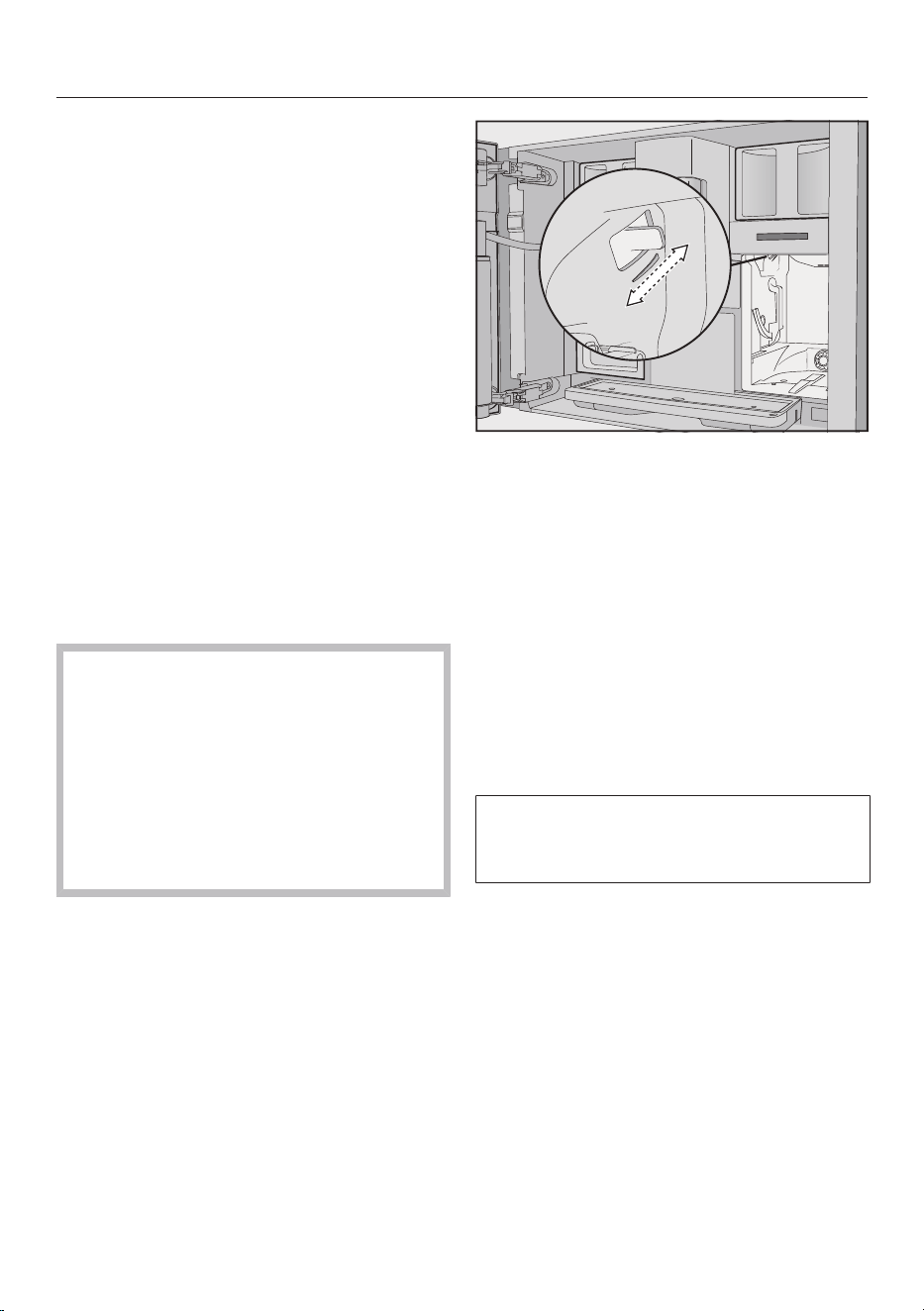
The slide control for adjusting the
fineness is located on the top left
behind the water container.
Open the appliance door.
Remove the water container.
Push the slide control exactly 1
setting forward (for finer grinding) or
one setting backward (for coarser
grinding).
The grinder setting you select will be
used for all coffee drinks and types of
beans.
Put the water container back in place.
Close the appliance door.
Make one cup of coffee.
Adjust the grinder setting again, if
required.
The grinder will naturally wear out
slightly over time. Set the grinder to a
finer setting if necessary.

Parameters
42
Type of beans
You can display which type of bean is
currently being used for this coffee drink
or change which bean container is
allocated to it.
Amount of coffee
The coffee machine can grind and brew
7.5–12.5g of coffee beans per cup. The
greater the amount, the stronger the
coffee.
The amount of coffee is too low if the
espresso or coffee lacks body.
Increase the amount of coffee to brew
more ground coffee.
The amount of coffee is too high if the
espresso or coffee tastes bitter.
Decrease the amount of coffee to brew
less ground coffee.
Pre-brewing ground coffee
When the pre-brewing function is
turned on, the ground coffee is first
moistened with a little hot water. The
ground coffee swells a little.
Then the remaining water is forced
through the moistened coffee at high
pressure. If your coffee tastes too bland
and you want too add some spice and
richness, try the “Pre-brewing” function.
Depending on the type of coffee used,
pre-brewing can intensify the taste.
You can set a short or long duration for
pre-brewing or turn the “Pre-brewing”
function off completely.
Tip: It is particularly recommended to
use the “Pre-brewing” function to make
coffee.
Brewing temperature for coffee
drinks
The brewing temperature must be
adapted to the roast of the beans you
are using. This is crucial whether you are
making espresso or coffee.
Several types are sensitive to high
brewing temperatures, resulting in an
impaired taste. If your coffee tastes
bitter, the brewing temperature you
have selected might be too high.
Espresso is usually brewed at higher
temperatures.
Dispensing temperature for tea
drinks, warm water, and hot
water
You can adjust the dispensing
temperatures used for the individual tea
drinks and for the warm and hot water
by customizing the brewing
temperature.
A temperature increment of
approximately35°F (2°C) makes a
noticeable difference.
Portion size
You can adjust the amount of water for
all coffee drinks, hot water, and types of
tea.
The strength of the coffee is determined
by the ratio between the amount of
ground coffee and water. If the coffee is
brewed with more water but with the
same amount of ground coffee, the
coffee will taste milder and thinner. If
you reduce the amount of water, you will
get a stronger and more powerful
coffee.
Parameters
43
If you significantly increase or decrease
the portion size of a drink and therefore
the amount of water for a coffee, you
should adjust the amount of ground
coffee accordingly.
For coffee drinks with milk you can also
set the amount of milk or milk froth to
suit your personal taste. You can also
set the portion sizes for hot milk and
milk froth.
The changed portion size is always
saved in the current profile. The name
of the current profile is shown in the
top left of the display.
If the water container becomes empty
while making a drink, the coffee
machine will stop programming the
portion size. The new portion size will
not be saved.
Displaying and changing
parameters
You can individually adjust the following
parameters for each drink:
- Bean type
- Amount of coffee
- Brewing temperature
- Pre-brewing
You can adjust the brewing temperature
for making tea and dispensing warm and
hot water.
The drinks menu is displayed.
Tap the name of the drink you want
and keep your finger on it until the
associated context menu appears.
Select Parameters.
The Parametersmenu is displayed.
Select the parameter you want.
The current setting is displayed.
Change the setting as required.
Changing the portion size
The drinks menu is displayed.
Place the desired cup under the
central spout.
Tap the drink you want and keep your
finger on it until the context menu
opens.
Tap Portion size.
The drink will now be made. Save will
appear in the display as soon as the
minimum dispensing amount is
reached.
When the cup is filled to the level you
want, tap Save.
If the maximum amount is reached,
preparation stops and the maximum
possible amount is saved.
If you want to change the portion size
for coffee drinks made with milk or hot
water, the ingredients which make up
the drink will be saved one after the
other while the drink is being made.
The programmed mix of ingredients and
the portion size will now be dispensed
every time that particular drink is
selected.

Parameters
44
Resetting drinks
You can reset portion sizes and
parameters to their factory default
settings for individual drinks or for all
drinks.
The drinks menu is displayed.
Tap the drink you want and keep your
finger on it until the context menu
opens.
Select Reset and confirm with Yes.
The portion size and parameters are
reset to their factory default settings.
The allocated bean type remains stored.

Profiles
45
Profiles
In addition to the Miele drinks menu
(Miele profile), you can create individual
profiles to cater for different tastes and
preferences.
Within the profile, you can adjust the
portion sizes and parameters
individually for all drinks.
You can also delete any unwanted drinks
from your profile. You can save a
maximum of 9drinks in a profile.
Creating a profile
The drinks menu is displayed.
Tap Profiles.
The Profiles menu opens.
Tap Create profile.
The editor will open in the display.
Enter the name you want.
TapSave.
The profile is created. You can now
create drinks (see “Profiles: creating and
processing drinks”).
Processing a profile
You can rename, delete, or move
profiles you have created yourself.
The drinks menu is displayed.
Tap Profiles.
The Profiles menu opens.
To do this, tap the profile name you
want to edit and keep your finger on it
until the context menu appears.
Edit the entry as required.
Setting when the profile should
change
The drinks menu is displayed.
Tap Profiles.
The Profiles menu opens.
To do this, tap the profile name you
want to edit and keep your finger on it
until the context menu appears.
Select the option you want.
You can choose between the following
options:
- Manual: The selected profile will
remain active until you select another
one.
- After each use: The machine will
revert to the Miele profile whenever a
drink is dispensed.
Creating a drink
You can create new drinks based on
existing drinks.
The drinks menu is displayed.
Tap Profiles.
The Profiles menu opens.
Select the profile you want.
The name of the profile is shown in the
top left of the display.
Tap Create drink.
Now select a drink.
Change the portion size and drink
parameters for this drink as required.
Preparation will begin and you can save
the portions for each component as you
wish.
Enter a name for the new drink and
tap Save.
The newly created drink will appear in
the profile.

Profiles
46
Renaming, moving, or deleting
drinks
Once you have created some drinks, you
can edit these drinks in the context
menu.
The desired profile with the newly
created drinks will appear in the display.
To do this, tap the drink name and
keep your finger on it until the context
menu appears.
Edit the entry as required.

MyMiele
47
You can display frequently made drinks,
drinks from profiles, and preferred
maintenance programs on the MyMiele
screen.
Tip: You can also set menu options that
you have entered in MyMiele as your
start screen (see “Settings – Start
screen”).
The main menu is displayed.
TapMyMiele.
You can now configure MyMiele.
MyMiele: Adding an entry
TapAdd entry.
You can now add entries from the
following menus:
- Drinks
- Profiles
- Maintenance
Select an entry.
Confirm the message withOK.
A box containing the selected option
will appear. This also shows which
menu it comes from.
MyMiele: Deleting or moving an entry
Once you have created some entries,
you can move or delete them via the
context menu in the MyMiele screen.
To do this, tap the entry you want and
keep your finger on it until the context
menu appears.
Move or delete the entry as required.
MobileStart
48
Preparing MobileStart
Danger of burning and scalding at
the spouts.
If liquids or steam are dispensed
while the machine is unsupervised,
persons may burn themselves if they
place body parts under the central
spout or touch hot components.
Ensure that no one, especially
children, can be harmed if the
machine is operated without
supervision.
Milk is not cooled in the milk flask or
in a milk carton.
Milk may spoil if it is left in the milk
flask or carton for an extended period
without being cooled (depending on
the type of milk).
In particular, do not leave cow’s milk
in the milk flask or carton for an
extended period without cooling it.
Please follow the manufacturer’s
instructions regarding the shelf life of
the milk used.
With MobileStart you can, for
example, start making a drink via the
Miele app.
Make sure that the coffee machine is
ready to use – for example, check that
the water container and bean
container are sufficiently filled.
Place a sufficiently large, empty cup
under the central spout.
You will only be able to use
MobileStart if
- Miele@home is set up for your coffee
machine and
- the Remote Control and MobileStart
functions have been switched on.
You can then make drinks via the app.
Switching MobileStart on
and off
If you want to use MobileStart, the
Remote Control function must be
switched on.
The drinks menu is displayed.
Touch the sensor control.
The sensor control lights up. You can
now start making a drink via the app.
Follow the prompts to do this.
While MobileStart is switched on, the
time of day is shown on the display.
If the coffee machine is being operated
manually, it cannot be operated via the
app. Operation on the appliance takes
precedence.
After 24hours, the MobileStart function
is switched off automatically.
Settings
49
You can personalize your coffee
machine by adapting the factory default
settings to suit your requirements.
Displaying and changing
settings
The drinks menu is displayed.
Tap the Backsensor button.
Select Settings.
Select the option you want to change.
Change the setting.
If necessary, confirm your choice
withOK.
Some settings which can be found in
the Settings menu are described in
separate sections of the operating
instructions.
Language
You can select the language and, if
applicable, your location for all display
text.
Tip: If you select the wrong language by
mistake, you can find the Language
option again via the symbol.
Time
Display (time display)
Select how you want the time of day to
show in the display when the coffee
machine is switched off:
- On: The time is always visible in the
display.
- Off: The time is not visible in the
display.
- Night dimming: To save energy, the
time is displayed from 5:00am to
11:00pm only.
When the time of day display is
switched on, the energy consumption
of the coffee machine increases.
Clock type
The time of day can be displayed in
analog (clock face) or digital (hours:
minutes plus date) format when the
coffee machine is switched off.
Clock format
- 24-hour display (24h)
- 12-hour display (12h (am/pm))
Setting
Set the hours and the minutes.
Tip: There is a shortcut for setting the
time without having to access the
Settings menu: simply tap the time of
day on the top right of the display.
If the coffee machine has been
connected to a Wi-Fi network and
signed into the Miele app, the time will
be synchronized based on the location
setting in the Miele app.
Date
Set the date.
The date will only appear if the
following setting is selected: Time |
Clock type | Digital.
Start screen
You can choose which screen appears
when the coffee machine is switched
on. For instance, you can use MyMiele
to display a personalized menu (see
“MyMiele”).
The new start screen will appear when
the coffee machine is next switched on.
Settings
50
The drinks menu is set as the start
screen by default.
Timer
Appliance timer
The coffee machine has 3timers:
- Turn on at
- Turn off at
- Off after
You can allocate the individual timer
functions to different days of the week.
For example, you can set different times
for the weekend (Sat and Sun) and/or
weekdays (Mon - Fri). Alternatively, you
can select Daily to use the same timer
settings every day.
Tip: If you are unable to set the timers
because the screen is grayed out, tap
On to enable timer adjustment.
To save the timer functions and activate
the timer, select Accept all.
To deactivate the timer, select Swich all
off.
Delete allows you to deactivate timers
individually. In this case, the following
will appear in the display: -- --.
On at (On at)
The coffee machine switches on at a
particular time, e.g., in the morning for
breakfast.
The coffee machine will not switch on
at the required time if you have
activated the system lock.
The timer settings are deactivated.
Once the coffee machine has come on
automatically three times at the set
time without any drinks being
dispensed, it will stop switching on
automatically. This prevents the coffee
machine from switching
itself on unnecessarily, for example,
while you are on vacation.
The programmed times will, however,
remain in memory and will be
reactivated after manually switching the
machine on again.
If you have set the time to be displayed
while the machine is switched off
(Display | On or Night dimming) and the
time is being displayed in digital format
(Clock type | Digital), the symbol and
the desired switching-on time will
appear in the display 23:59hours
beforehand.
Off at (Off at)
The coffee machine switches off at a
particular time.
Off after (Off after)
The coffee machine switches off after a
particular length of time if no sensor
controls have been pressed.
By default, the coffee machine
switches off after 20minutes.
You can change this to another time
between 20minutes and 9hours.
Extending the Off after time increases
the energy consumption of the coffee
machine.
If you deactivate the timer functions by
selecting Swich all off, the coffee machine
will switch off after the most recent
time selected for Off after. You cannot
deactivate this timer.
Settings
51
Maintenance timer
Use the Maintenance Timer to select
any start time you like for the automatic
maintenance programs (see “Automatic
cleaning and descaling – Maintenance
Timer”).
TeaTimer
You can use the TeaTimer function to
start a kitchen timer when making tea.
There is a preset brewing time for the
type of tea selected. You can adjust the
preset brewing time (up to a maximum
of 14:59minutes).
There are 2TeaTimer functions available
and they can be started independently
of one another.
You can choose between the following
options:
- Automatic: The TeaTimer starts
automatically once the water has
been dispensed.
- Manual: Once the water has been
dispensed, you have the option of
starting the TeaTimer.
The TeaTimer is shown together with
the associated brewing time in the top
right of the display.
While the brewing time is counting
down, you can continue to use the
coffee machine as normal. After the
brewing time has elapsed, an audible
signal will sound and the symbol will
flash.
Volume
You can set the volume of the buzzer
and keypad tones in the bar chart.
Display
Brightness
The display brightness is adjusted via a
bar with seven segments.
Color scheme
Choose between a light or dark color
scheme for the display.
If the light color scheme is selected,
the energy consumption will be higher.
QuickTouch
Use this setting to define whether the
sensor button and proximity sensor
should respond when the coffee
machine is off and the time is being
shown in the display (Time| Display| On
or Night dimming).
When QuickTouch is switched on, the
energy consumption will be higher.
Lighting
Use the segment bar to set the lighting
intensity.
You can use the sensor control to
switch the lighting on or off at any time,
provided that the coffee machine is
switched on.
If the coffee machine is switched off,
you can still switch the lighting on or off
whenever you like but you will need to
select the following settings first:
- Time| Display| On or Night dimming
(time of day is displayed)
- Display | QuickTouch | On
The brighter the lighting is set and the
longer it is switched on, the higher the
energy consumption of the coffee
machine.
Settings
52
Info(display information)
In the Info menu option, you can display
the number of drinks dispensed and the
fill levels of the cartridges (provided that
they have been inserted).
Fresh water
The machine is intended to be plumbed
into the water supply. Fresh water is
automatically taken into the water
container when the plumbed water
connection is on. If it is switched off,
you must fill the water container
manually.
Altitude
If the coffee machine is installed at high
altitudes, the lower air pressure will
cause the water to boil at a
correspondingly lower temperature.
You can set the local altitude to ensure
the ideal drink preparation
temperatures.
Performance Mode
You can select the appropriate
Performance mode for how you use
your appliance:
- Eco mode
- Barista Mode
- Latte mode
There is also a mode for occasional,
intensive use of the coffee machine: the
.
Eco Mode
In Eco Mode, the coffee machine
consumes the least amount of energy.
The system does not heat up until
someone starts making a drink.
Eco Mode is set by default. Selecting a
Performance mode other than Eco
Mode increases the energy
consumption of the coffee machine.
Barista Mode
This Performance mode has been
optimized for unadulterated coffee
enjoyment. Users can enjoy coffee-
based drinks without any delay as the
coffee machine remains heated to the
brewing temperature.
Barista Mode consumes more energy
than Eco Mode.
Latte Mode
This Performance mode has been
optimized for preparing milk. In Latte
Mode, milk-based drinks can be
prepared within a much shorter space
of time.
Latte Mode consumes more energy
than Eco Mode and Barista Mode.
Party Mode
This Performance mode has been
configured for the occasional intensive
use of the coffee machine, e.g., for
family get-togethers.
Before switching off the coffee
machine, empty the drip tray and fill
the water container so that any
pending maintenance programs are
able to run.
Clean the coffee machine thoroughly
after intensive use, particularly the
milk pipework. It may be necessary
to descale the coffee machine
manually and degrease the brew unit.
Please note the following information
about Party mode:
Settings
53
- The general pipework is rinsed much
less frequently or not at all. The milk
pipework is not rinsed until
around1hour after milk was last
dispensed.
- Cleaning status messages or cleaning
prompts are suppressed and delayed
until the appliance is next switched
on.
- The cup light remains permanently
switched on at the maximum
brightness level for as long as the
coffee machine stays switched on.
- The Off at and Off after timers are
deactivated.
- The coffee machine switches off
6hours after the last sensor control
was pressed. The next time the
appliance is switched back on, Party
mode is switched off and the most
recently set Performance mode is
switched back on.
Party mode consumes more energy
than other Performance modes.
Water hardness
Program the coffee machine to the
water hardness level of your area so that
it functions correctly and does not get
damaged.
Your local water authority will be able to
tell you the hardness of the water in
your area.
If you are using bottled drinking water,
e.g., mineral water, select settings
according to the calcium content. The
calcium content is given on the label of
the bottle in mg/l Ca
2+
or ppm (mg Ca
2+
/
l).
Do not use carbonated water.
The hardness level is set to21.8gpg
(21°dH) by default.
Water hardness Calcium
content
mg/lCa
2+
or
ppm (mgCa
2+
/l)
Setting
°dH gpg
1 1 7 1
2 2 14 2
3 3 21 3
4 4 29 4
5 5 36 5
6 6 43 6
7 7 50 7
8 8 57 8
9 9 64 9
10 10 71 10
11 11 79 11
12 12 86 12
13 14 93 13
14 15 100 14
15 16 107 15
16 17 114 16
17 18 121 17
18 19 129 18
19 20 136 19
20 21 143 20
21 22 150 21
22 23 157 22
23 24 164 23
24 25 171 24
25 26 179 25
26 27 186 26
27 28 193 27
28 29 200 28
29 30 207 29
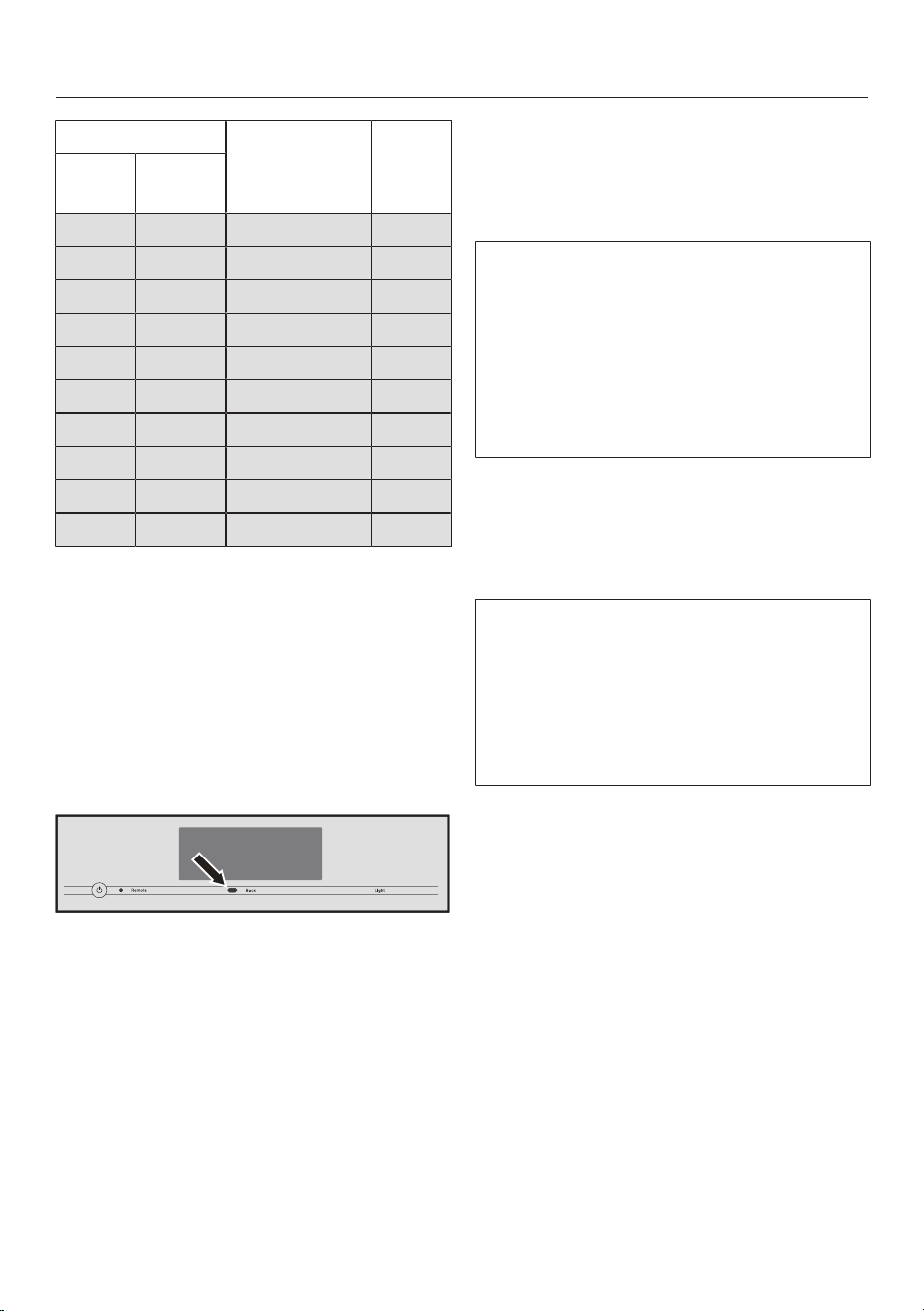
Settings
54
Water hardness Calcium
content
mg/lCa
2+
or
ppm (mgCa
2+
/l)
Setting
°dH gpg
30 31 214 30
31 32 221 31
32 33 229 32
33 34 236 33
34 35 243 34
35 36 250 35
36 37 257 36
37–45 38–47 258–321 37–45
46–60 48–62 322–429 46–60
61–70 63–73 430–500 61–70
Tip: If your water hardness is >21.8gpg
(21°dH), we recommend using bottled
drinking water instead (<150mg/
lCa
2+
). This will mean your coffee
machine will need to be descaled less
often and there will be less impact on
the environment because less descaling
agent will be used.
MotionReact
The movement sensor detects when
you approach the touch display with
your hand or body. You can activate the
following functions individually:
- Switch the light on: You can decide
whether the light should come on
when the coffee machine is on or off.
- Acknowledge buzzer: Audible signal
sounds are suppressed, e.g., in the
event of the message Fill and replace
the water container.
- Switch the appliance on: The start
screen is displayed.
The movement sensor is deactivated by
default.
If you want the movement sensor to
respond even when the coffee
machine is switched off, activate
QuickTouch as well (Display|
QuickTouch| On).
When the system lock is activated, the
movement sensor functions are
deactivated.
System lock
You can lock the coffee machine to
prevent it from being used by
unauthorized persons, such as children.
When the system lock is activated, the
settings for the On at timer and the
movement sensor are deactivated. The
coffee machine will not switch on at
the set time and/or will not respond to
movement when someone approaches
it.
Temporarily deactivating the system
lock
Tap the display for 6seconds.
The system lock is reactivated when the
coffee machine is next switched off.
Miele@home
The coffee machine is equipped with a
Wi-Fi module and enabled for
Miele@home.
Depending on whether you have
connected the coffee machine to your
network or not, the following options are
displayed under Miele@home:
Settings
55
- Set up: This option only appears if the
coffee machine has never been
connected to a Wi-Fi network or if the
network configuration has been reset.
- Deactivate*/Activate*: The settings
for the Wi-Fi network are retained, but
the network is switched on or off.
- Connection status*: Information
about the Wi-Fi connection is
displayed. The symbols indicate the
strength of the connection.
- Set up again*: The settings for the
current Wi-Fi network will be reset.
The Wi-Fi connection will be set up
again.
- Reset*: Networking is switched off
and the settings for the current Wi-Fi
network will be reset.
* This menu option appears if
Miele@home has been set up and the
coffee machine has – where applicable
– been connected to a Wi-Fi network.
Tip: When the coffee machine is ready
for operation, you can start networking
it at any time by briefly touching the
sensor control or by scanning the QR
code in these operating instructions
(see “Performing Scan & Connect”).
Networking increases the energy
consumption of the coffee machine,
even if it is switched off.
The network configuration should be
reset whenever the coffee machine is
being disposed of or sold, or if a used
coffee machine is being put into
operation. This is the only way to
ensure that all personal data has been
removed and the previous owner will
no longer be able to access the coffee
machine.
Performing Scan & Connect
Initial commissioning has been carried
out without Miele@home having been
set up.
Scan the QR code.
If you have installed the Miele app and
have a user account, you will be taken
directly to the networking steps.
If you have not yet installed the Miele
app, you will be taken to the Apple App
Store
®
or the Google Play Store™.
Install the Miele app and set up a user
account.
Scan the QR code again.
The Miele app will guide you through
the setup process.
Remote control
The Remote ControlRemote Controlmenu
option appears if Miele@home has
been set up and the coffee machine has
been connected to a Wi-Fi network.
You can change the coffee machine
settings, for example, in the Mieleapp
when remote control is switched on. To
start making a drink via the app,
MobileStart also needs to be activated.
The remote control function is switched
on by default.
SuperVision
SuperVision allows you to monitor other
domestic appliances in the
Miele@home system.
Settings
56
The SuperVision option appears when
the coffee machine is connected to a
Wi-Fi network.
You can switch SuperVision on or off for
the signed-in domestic appliances. You
can also switch the audible signal on or
off for the listed domestic appliances.
SuperVision display
When SuperVision is on (SuperVision |
On), the symbol appears in the
display.
When the SuperVision display is
switched on, the energy consumption
of the coffee machine increases.
Standby display
SuperVision is also available in Standby
mode if the time display function is
switched on (Settings | Time | Display | On
or Night dimming).
Appliance list
All domestic appliances signed in to the
Miele@home system are listed. If you
switch off SuperVision for a particular
domestic appliance, any faults that
occur in relation to this appliance will
still be displayed.
The Searching for appliances function
increases the energy consumption of
the coffee machine.
RemoteUpdate
The RemoteUpdate function allows the
software on your coffee machine to be
updated. If an update is available for
your coffee machine, it will
automatically download it. Updates will
not be installed automatically. They
must be initiated manually.
If you do not install an update, you can
continue to use your coffee machine in
the usual way. However, Miele
recommends installing updates.
The RemoteUpdate menu option is
only displayed and can only be
selected if the requirements for using
Miele@home have been met.
The RemoteUpdate function is activated
by default. Available updates will be
downloaded automatically but will only
be installed if you initiate installation
manually.
Deactivate RemoteUpdate if you do not
want any updates to be downloaded
automatically.
Running a RemoteUpdate
Information about the content and
scope of an update is provided in the
Mieleapp.
A message will appear in your coffee
machine display if an update is ready for
installation.
You can install the update immediately
or postpone this until later. You will be
reminded about the update the next
time you switch the coffee machine on.
Deactivate RemoteUpdate if you do not
want to install the update.
The update may take several minutes.
Keep in mind the following with respect
to RemoteUpdates:
- You will only receive a message when
a RemoteUpdate is available.
- Once a RemoteUpdate has been
installed, it cannot be undone.
Settings
57
- Do not switch the coffee machine off
during the update. Otherwise, the
update will be aborted and will not be
installed.
- Some software updates can only be
carried out by Miele Service.
Software version
The “Software version” menu option is
intended for Miele Technical Service.
You do not need this information for
domestic use.
Legal information
This menu option contains details of the
open source licenses used.
Showroom program (Demo
mode)
Do not activate this setting for
domestic use.
TheShowroom Program | Demo Mode
function enables the coffee machine to
be demonstrated in shops or
showrooms. In this mode, the machine
lights up but no drinks can be prepared
and no maintenance programs can be
run.
You can activate demo mode without
commissioning the appliance for the
first time. Switch the coffee machine
on and off again. Press the /
Backbutton for 5seconds straight
away. Demo mode is activated.
Factory default settings
You can reset the coffee machine to its
factory default settings.
MyMiele can be reset separately.
The following will not be reset:
- The number of drinks and the
machine status (No. of portions
until machine needs descaling,...
degreasing the brew unit)
- Language
- Time and date
- Profiles and their associated drinks
(the allocation of bean types to
drinks is reset)
- Miele@home
The Maintenance timer is reset to 2am.
Cleaning and care
Risk to health due to inadequate cleaning.
Heat and moisture inside the coffee machine can cause coffee residues to
become moldy and/or milk residues to go off and pose a risk to health.
Carefully clean the coffee machine regularly.
Overview of cleaning intervals
Recommended frequency What do I have to clean/maintain?
Daily
(at the end of the day)
Milk flask and lid
Milk valve
Water container
Drip tray cover
Drip tray and grounds container
Once a week
(more often if heavily soiled)
Central spout
Cup rim sensor
Interior
Brew unit
Drip tray
Appliance front
Once a month Bean container
Remove and clean the milk valve
Once a year (more often if required) Grease the brew unit (with silicone grease)
As and when required/after prompt
appears in display
Clean the milk pipework (with 2cleaning sticks)
Degrease the brew unit (with 1cleaning tablet)
Descale the appliance (with 2descaling tablets)
58
Cleaning and care
59
Clean by hand or in dishwasher
The brew unit is not dishwasher safe.
Only clean the brew unit by hand
with warm water. Do not use any
cleaning agents.
The following components must be
cleaned by hand only:
- Central spout stainless steel cover
- Brew unit
- Bean containers and lids
Risk of damage as a result of
excessively high dishwasher
temperatures.
Components may be ruined (e.g.,
may become warped) if washed in a
dishwasher at temperatures higher
than 130°F (55°C).
For dishwasher-safe components,
always select dishwasher programs
with a maximum temperature of
130°F (55°C).
Contact with natural dyes, such as
those found in carrots, tomatoes, and
ketchup, may discolor the plastic parts
in the dishwasher. This discoloration
does not affect the stability of the
parts.
The following parts are dishwasher-
safe:
- Drip tray, lid, and grounds container
- Drip tray cover
- Central spout (without stainless steel
cover)
- Milk flask with lid
- Cup sensor
- Maintenance container
- Water container
Danger of burning and scalding
on hot components or by hot liquids.
Components can become very hot
during operation. Touching hot
components can cause burning. The
liquids and steam dispensed are very
hot and can cause scalding.
Keep away from the area underneath
the dispensers when hot liquids and
steam are being dispensed.
Always allow the coffee machine to
cool down before cleaning it.
Please be aware that water in the
drip tray can also be very hot.
Risk of damage due to moisture
ingress.
The steam from a steam cleaning
appliance could reach electrical
components and cause a short
circuit.
Do not use a steam cleaner to clean
the coffee machine.
It is important to clean the appliance
regularly. Milk residues can go off and
can block the milk pipe.
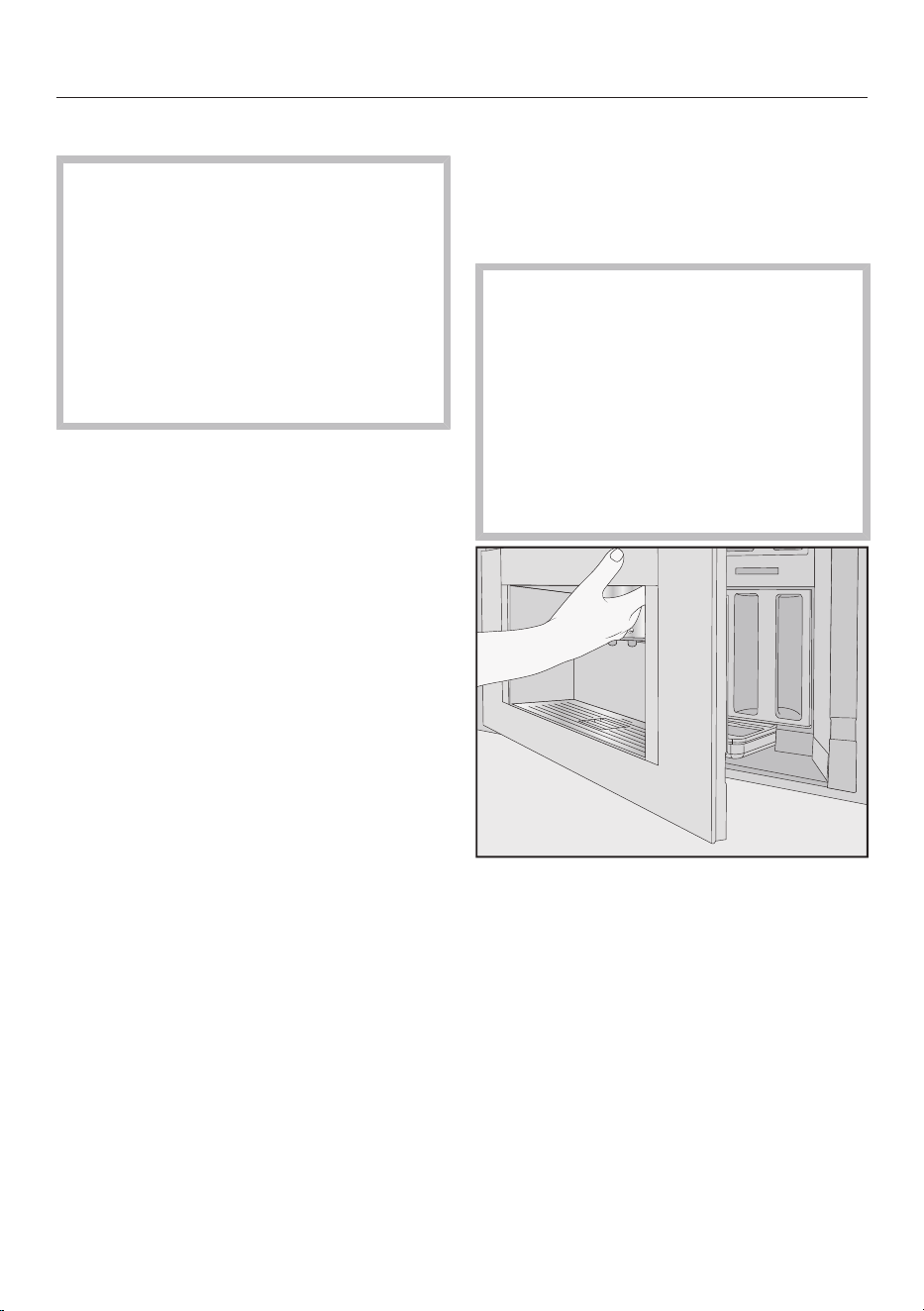
Cleaning and care
60
Unsuitable cleaning agents
Contact with unsuitable cleaning
agents can alter or discolor the
external surfaces. All surfaces are
susceptible to scratching. Scratches
on glass can lead to breakage in
some circumstances.
Remove any residual cleaning agent
immediately. Make sure you remove
any spillages or splashes of descaling
agent immediately.
To avoid damaging the surfaces of your
appliance, do not use the following
cleaning agents:
- cleaning agents containing soda,
ammonia, acids, or chlorides
- solvent-based cleaning agents
- disinfectant cleaning agents and hand
sanitizer
- cleaning agents containing descaling
agents (unsuitable for cleaning the
front of the appliance)
- stainless steel cleaners
- dishwasher cleaners (unsuitable for
cleaning the front of the appliance)
- glass cleaners
- cleaning agents for glass-ceramic
cooktops
- oven cleaners
- steam oven cleaning agents
(DGClean)
- abrasive cleaning agents, such as
scouring powder, scouring cleansers,
or pumice stones
- hard abrasive brushes or sponges,
such as pot scourers or sponges
which have been previously used with
abrasive cleaning agents
- eraser sponges
- sharp metal scrapers
- steel wool or stainless steel sponges
- sunscreen
Opening the appliance door
Risk of damage when opening the
door if the central spout is too high or
too low.
If the central spout is too high or too
low, the door cannot be opened. If
you try to open the door, the central
spout can be damaged.
Make sure that the central spout is in
the top or middle position before you
open the door.
Open the appliance door.
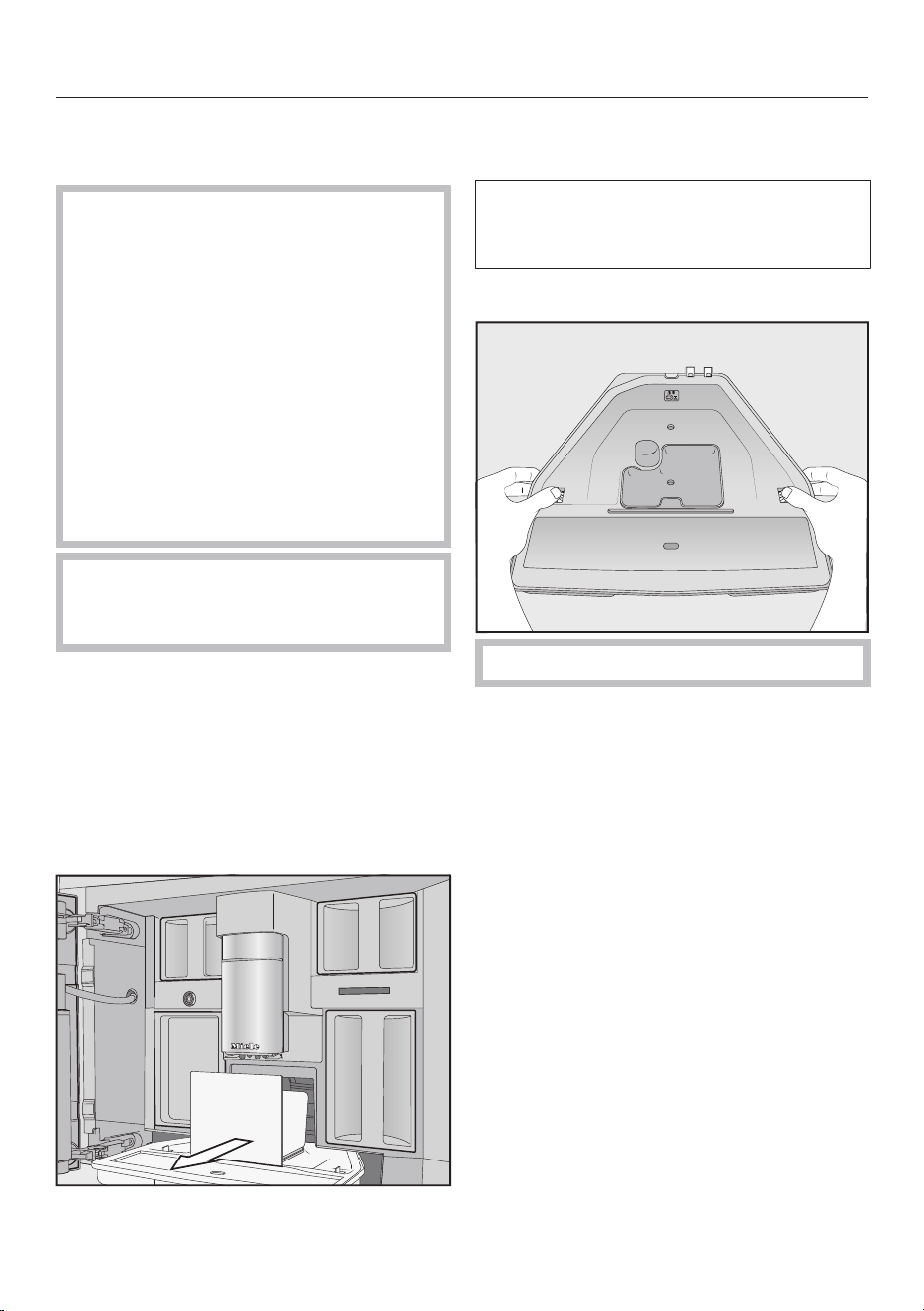
Cleaning and care
61
Cleaning the drip tray and
grounds container
Danger of burning and scalding
on hot components or by hot liquids.
Components can become very hot
during operation. Touching hot
components can cause burning. The
liquids and steam dispensed are very
hot and can cause scalding.
If the pipework has just been rinsed,
wait a while before removing the drip
tray from the coffee machine.
Please be aware that water in the
drip tray can also be very hot.
Do not touch hot components.
Clean the drip tray and grounds
container every day to avoid
unpleasant smells and mold fungi.
A prompt will appear in the coffee
machine display when the drip tray and/
or the grounds container is full and
needs to be emptied. Empty the drip
tray and the grounds container. It is not
necessary to take the lid off the drip tray
in order to empty it.
Open the appliance door.
Remove the drip tray and grounds
container from the machine.
Empty the grounds container after
removing it from the drip tray.
The grounds container may contain a
small amount of water from rinsing as
well as the leftover coffee grounds.
Taking the drip tray apart
The orange clips are not removable.
Take the lid off the drip tray as
follows: press the orange clips
outward on both sides to release the
lid.
Remove the lid.
Clean the drip tray, lid, and grounds
container by hand using warm water
and a little liquid dish soap.
Dry all parts.
Tip: To give the drip tray, lid, and
grounds container an extra thorough
clean, clean them in the dishwasher
from time to time. If the drip tray is
heavily soiled, clean it with a brush
before placing it in the dishwasher.
Clean the drip tray recess inside of
the coffee machine.
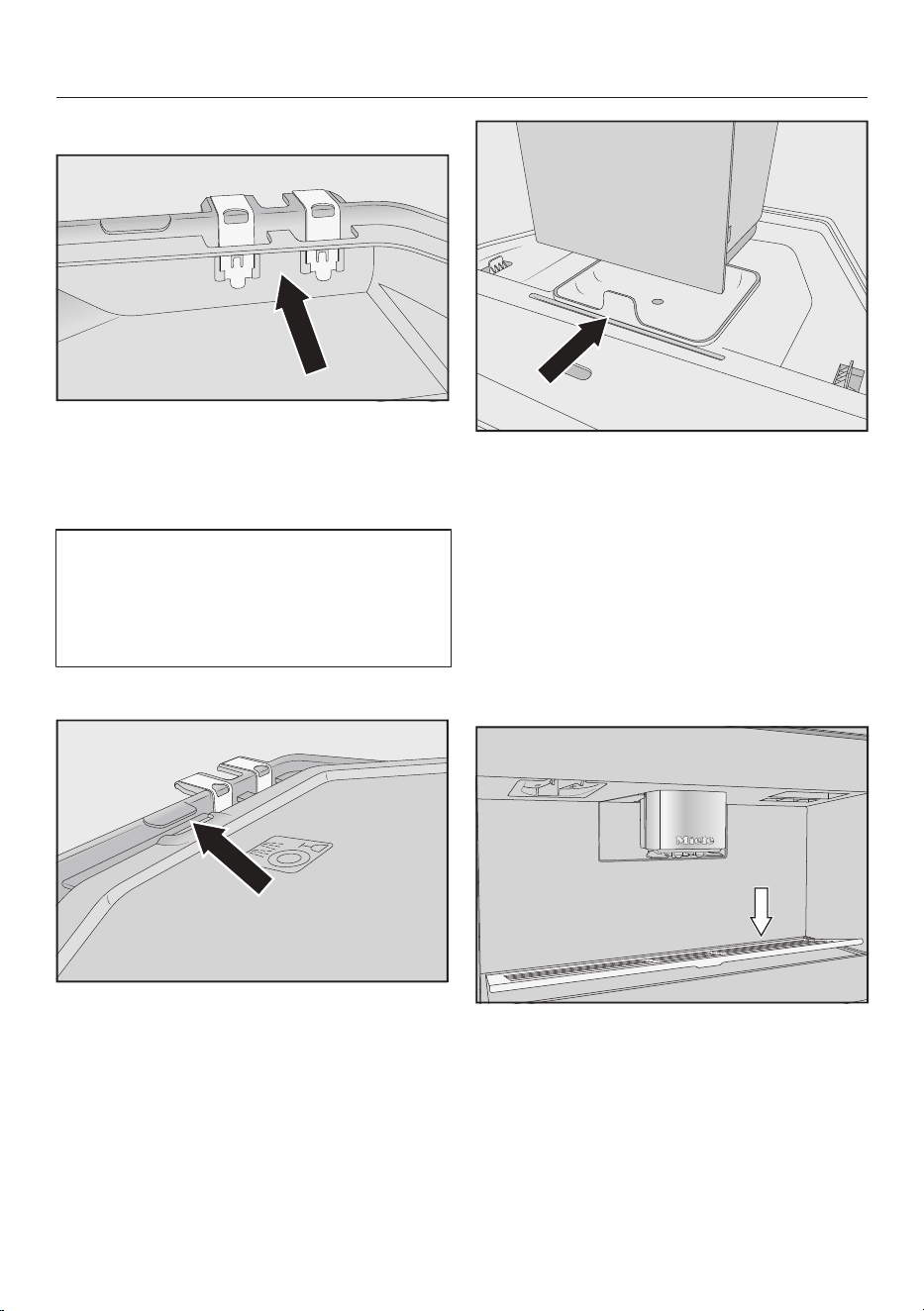
Cleaning and care
62
Cleaning the contacts on the drip tray
Clean the contacts (metal discs) and
the space between them carefully,
e.g., using a brush.
Dry all parts thoroughly.
The contacts will not be able to detect
that the drip tray is full if they are
damp or dirty.
Check the contacts and the area
around them once a week.
Reassembling the drip tray
Attach the drip tray lid as follows:
slide the lid under the lug next to the
contacts and apply pressure to the lid
until the catches at the sides audibly
click into place.
Place the grounds container on the
lid.
Push the drip tray and grounds
container back into the coffee
machine.
Close the appliance door.
Cleaning the drip tray cover
Clean the drip tray cover on a daily
basis.
Remove the drip tray cover as follows:
apply pressure to the rear edge so
that the cover tips forward and you
can remove it easily.
Clean the drip tray cover by hand
using a mild solution of warm water
and liquid dish soap.
Dry the drip tray cover.
Replace the drip tray cover.
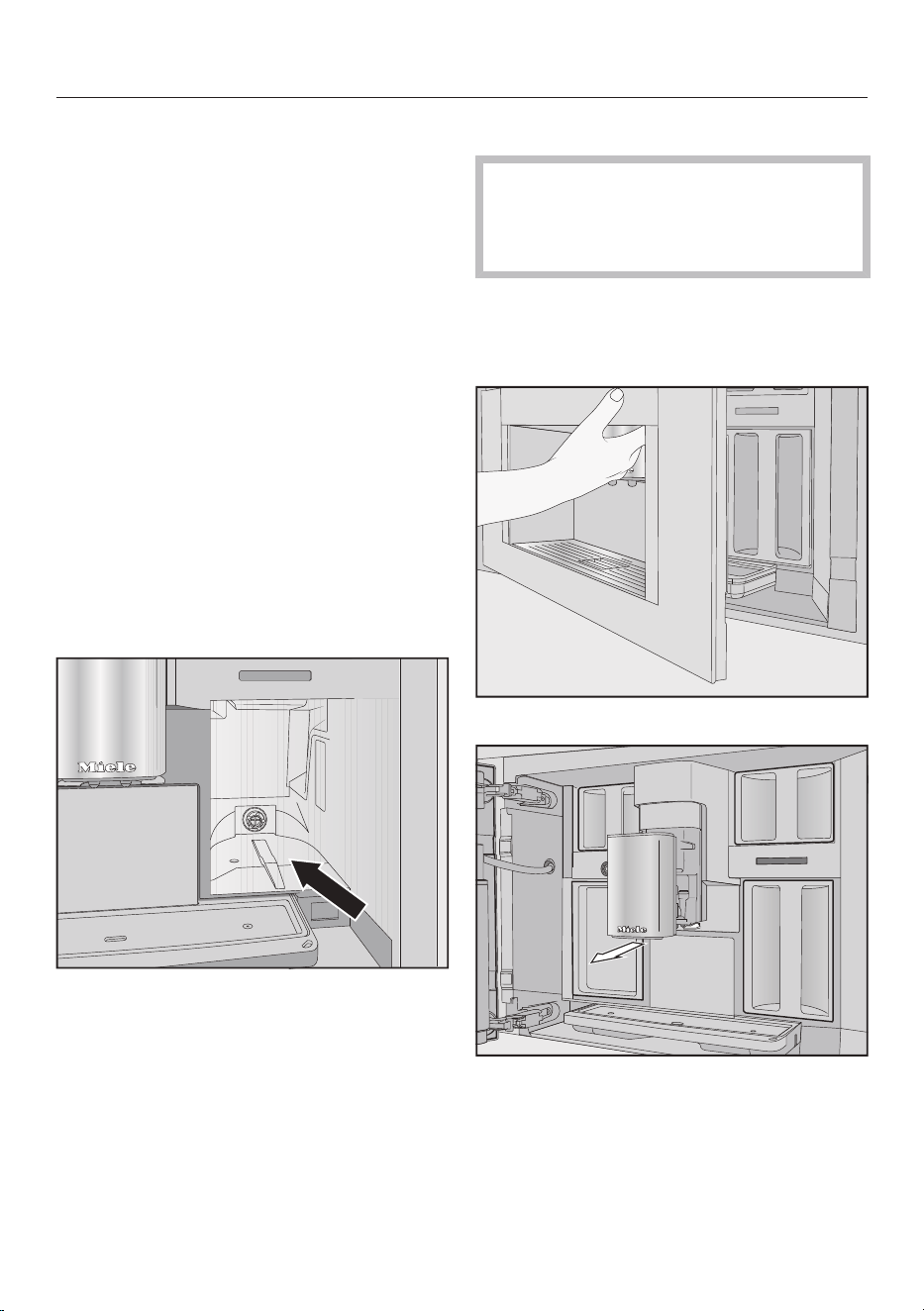
Cleaning and care
63
Tip: To give the drip tray cover an extra
thorough clean, clean it in the
dishwasher from time to time.
Cleaning the water container
Clean the water container every day.
Open the appliance door.
Remove the water container.
Clean the water container every day
with a mild solution of warm water
and liquid dish soap.
Rinse the water container thoroughly
with clean water to remove any
remaining liquid dish soap.
Dry the outside of the water
container.
Tip: To give the water container an extra
thorough clean, clean it in the
dishwasher from time to time.
Clean and dry the surface that the
water container sits on.
Push the water container all the way
into the coffee machine until you feel
a resistance.
Close the appliance door.
Cleaning the central spout
Clean the central spout’s stainless
steel cover by hand only using a mild
solution of warm water and liquid
dish soap.
Clean all parts of the central spout at
least once a week.
Removing the central spout
Open the appliance door.
Pull the central spout’s stainless steel
cover forward to remove it.
Clean the central spout’s stainless
steel cover.
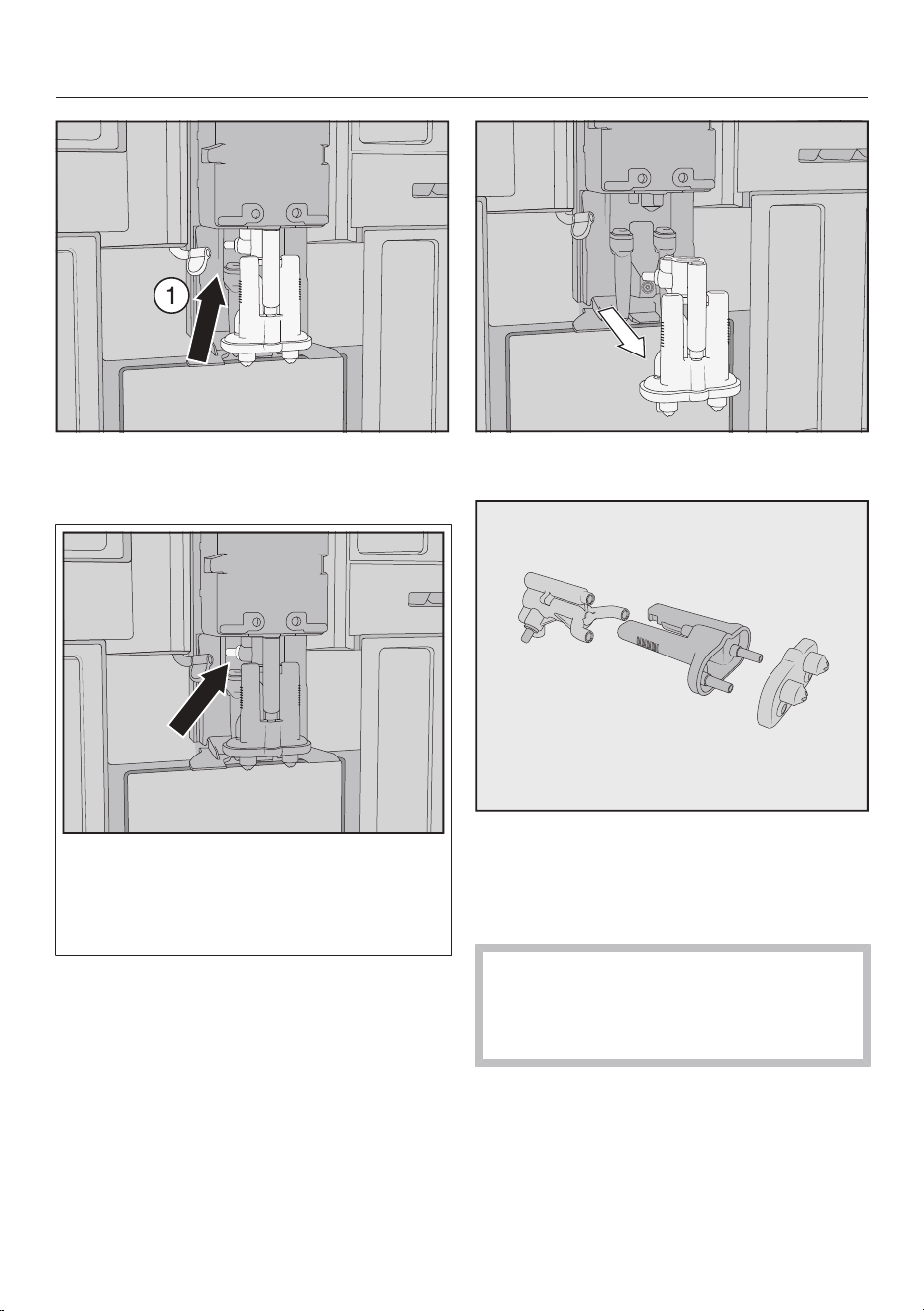
Cleaning and care
64
Detach the milk pipework from the
dispensing unit as follows: pull the
pull tab to the left.
Do not remove the milk pipework
connecting piece.
If necessary, clean the connecting
piece with the cleaning brush.
Grip the dispensing unit by the sides
and pull it down to remove it.
Take the dispensing unit apart,
separating it into 3components: the
Y-piece, the spouts, and the holder.
Cleaning the central spout
Clean the central spout’s stainless
steel cover by hand only using a mild
solution of warm water and liquid
dish soap.
Clean all parts thoroughly by hand.
Tip: With the exception of the stainless
steel cover, all parts of the central spout
should be cleaned in the dishwasher
from time to time to give them a
thorough clean. This will remove coffee
deposits and milk residues effectively.
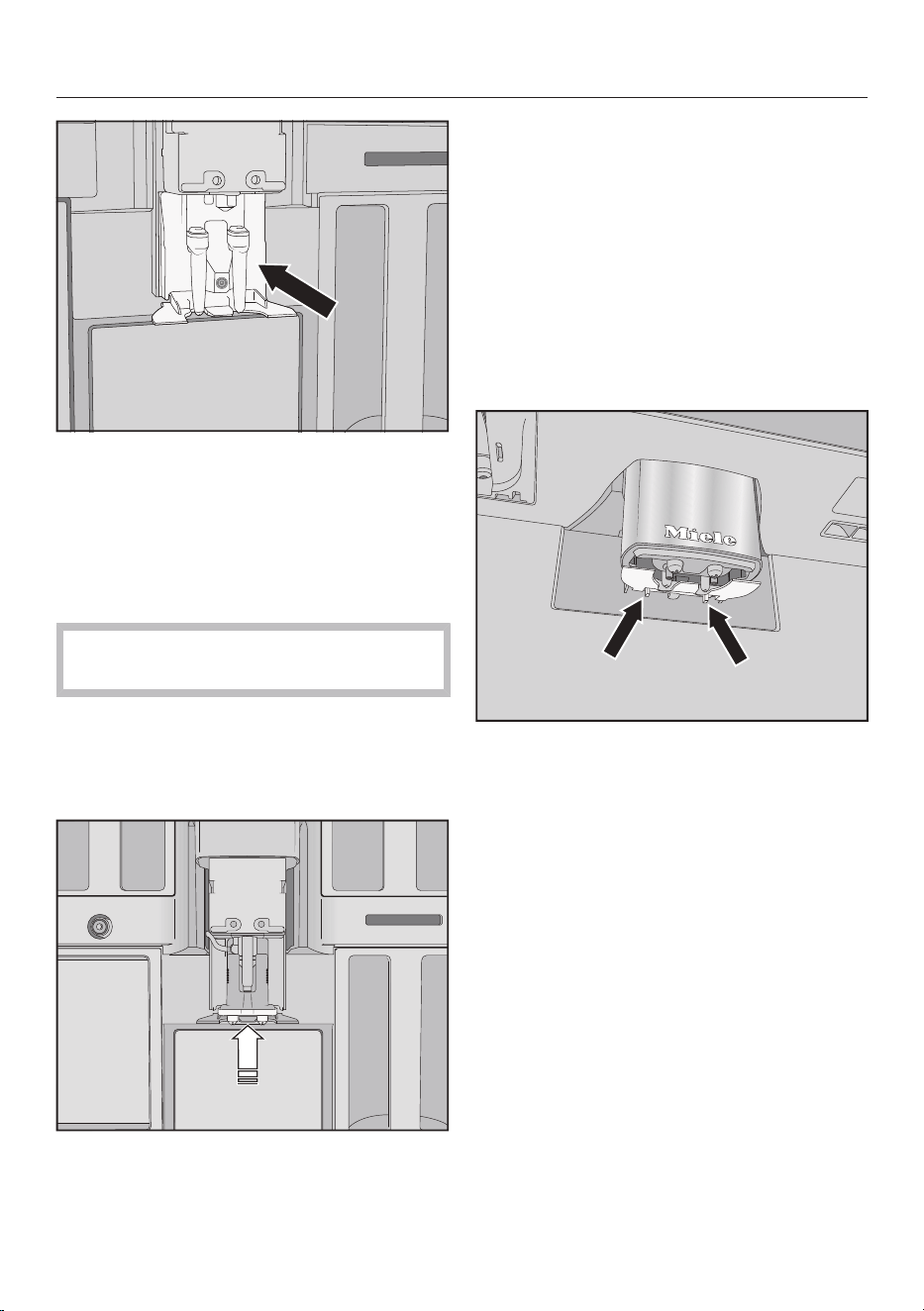
Cleaning and care
65
Clean the area around the central
spout with a damp cloth.
Inserting the central spout
The dispensing unit is easier to
reassemble if the individual parts are
dampened with water beforehand.
Make sure that all parts are tightly
connected to one another.
Reassemble the dispensing unit.
Press down firmly so that the spouts
become securely connected to the
holder.
Slide the dispensing unit into the
coffee machine.
Connect the milk pipework.
Reinstall the stainless steel cover.
Close the appliance door.
Fit cover to main dispenser appears in the
display.
Confirm withOK.
Cleaning the cup rim sensor
Clean the cup rim sensor at least once a
week and more often if heavily soiled.
The cup rim sensor is located under the
central spout.
Press the two catches together (see
arrows).
The cup rim sensor is released.
Clean the cup rim sensor by hand
with a mild solution of warm water
and liquid dish soap.
Tip: To give the cup rim sensor an extra
thorough clean, clean it in the
dishwasher from time to time.
To reinstall the cup rim sensor, press
it into the holder on the central spout
from below.
Cleaning the milk flask with lid
The milk flask should be taken apart and
cleaned every day after use.
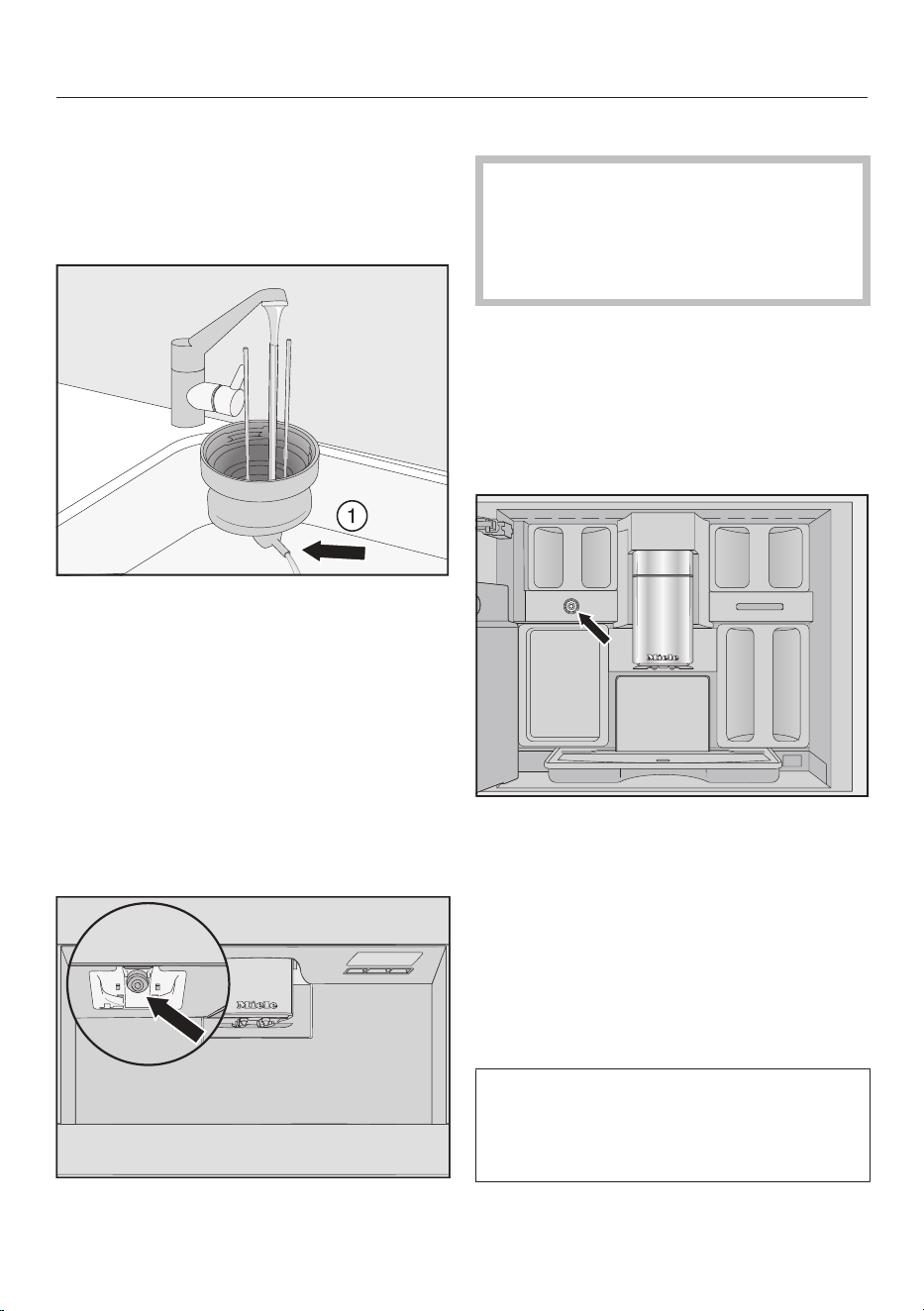
Cleaning and care
66
Both the lid and the glass flask can be
cleaned in the dishwasher, or by hand
using a mild solution of warm water and
liquid dish soap.
Remove and empty the milk flask.
Rinse the milk pipework in the lid
under running water and then place
the milk flask lid in the dishwasher.
If no water runs out of the connecting
piece, clean it with the cleaning
brush.
Clean the glass flask.
Dry all parts and especially the
threads on the lid and on the glass
with a clean cloth.
Reassemble the milk flask.
Clean the milk flask holder on the
coffee machine with a damp cloth.
Cleaning the milk valve (daily)
The milk valve seal can be damaged
by objects with sharp edges or
similar.
Do not use any sharp-edged objects,
e.g., knives, to clean the milk valve.
Clean the milk valve every day. If
allowed to dry, milk residues can
become encrusted on the stainless
steel bolt. These crusty deposits are
difficult remove. Therefore, it is
important to carry out regular cleaning
after preparing milk.
The milk valve is located under the bean
container on the left-hand side.
Open the appliance door.
Clean the milk valve with a damp
cloth/microfiber cloth.
Close the appliance door.
Cleaning the milk valve (once a
month)
Only remove the milk valve when the
coffee machine is switched off. Do not
switch on the coffee machine while
the milk valve is removed.
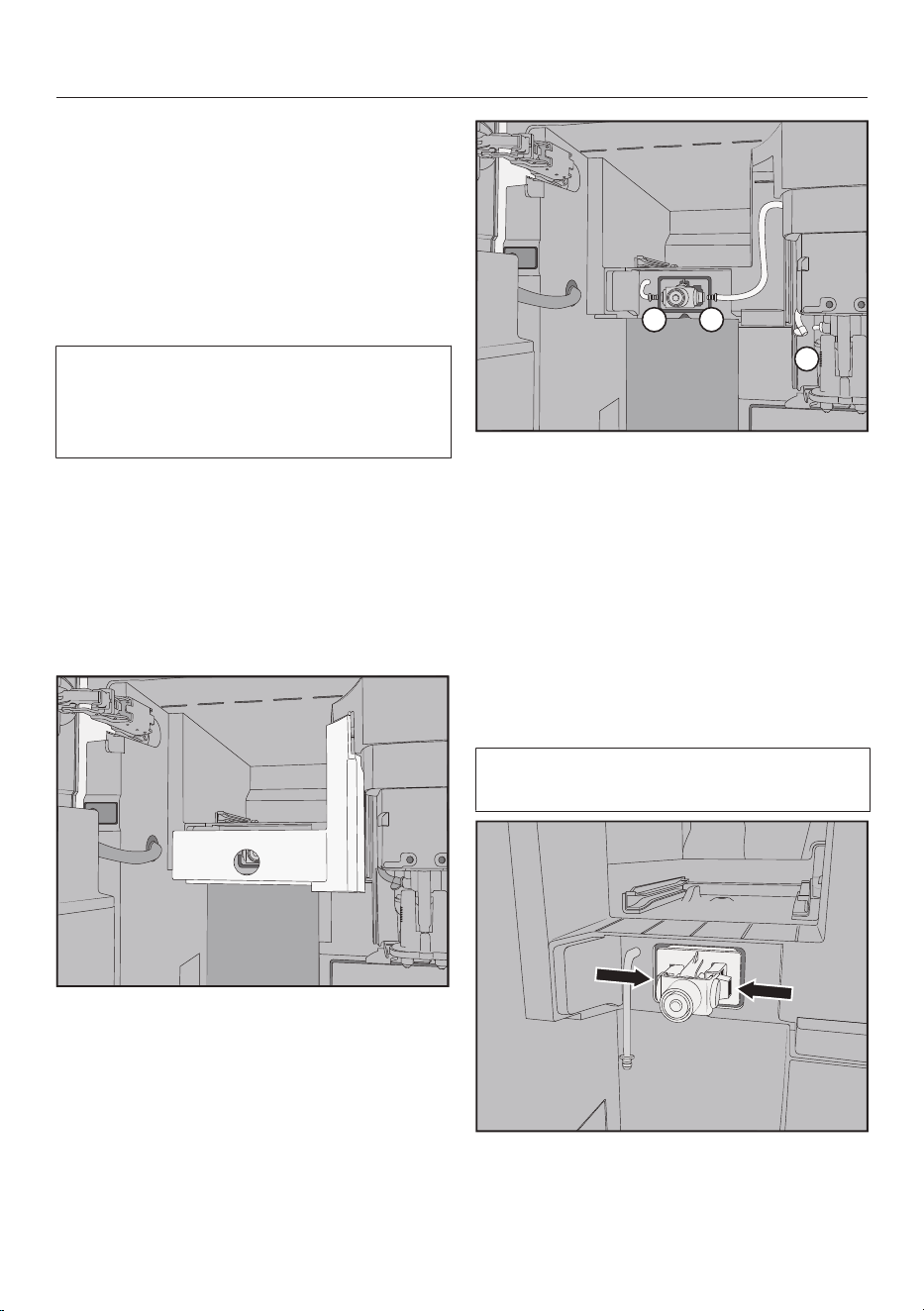
Cleaning and care
67
Remove and clean the milk valve at least
once a month. If the following issues
occur during milk preparation, the milk
valve may be blocked: only hot milk is
dispensed instead of milk froth, the milk
sprays out. Clean the milk valve more
often if necessary.
Removing the milk valve
Only remove the milk valve when the
coffee machine is switched off. Do not
switch on the coffee machine while
the milk valve is removed.
Switch the coffee machine off.
Open the appliance door.
Remove the bean container and
maintenance container on the left-
hand side.
Remove the central spout’s stainless
steel cover.
Remove the milk valve cover. Press on
the recessed grip to unlock the cover.
On the top right-hand side of the
cover, you will find a pin for swiveling
the cover out.
1
2
3
Detach the milk pipework from the
dispensing unit on the central
spout and from the milk valve
silicone seal( and).
Remove the milk pipework
connecting the milk valve to the
central spout.
Disconnect the angular molded hose
from the round hose.
Rinse the hoses thoroughly under
running water.
Do not remove the connecting pieces
from the hoses.
Press the catches on the left and
right-hand sides of the milk valve
holder and pull the holder forward to
remove it.
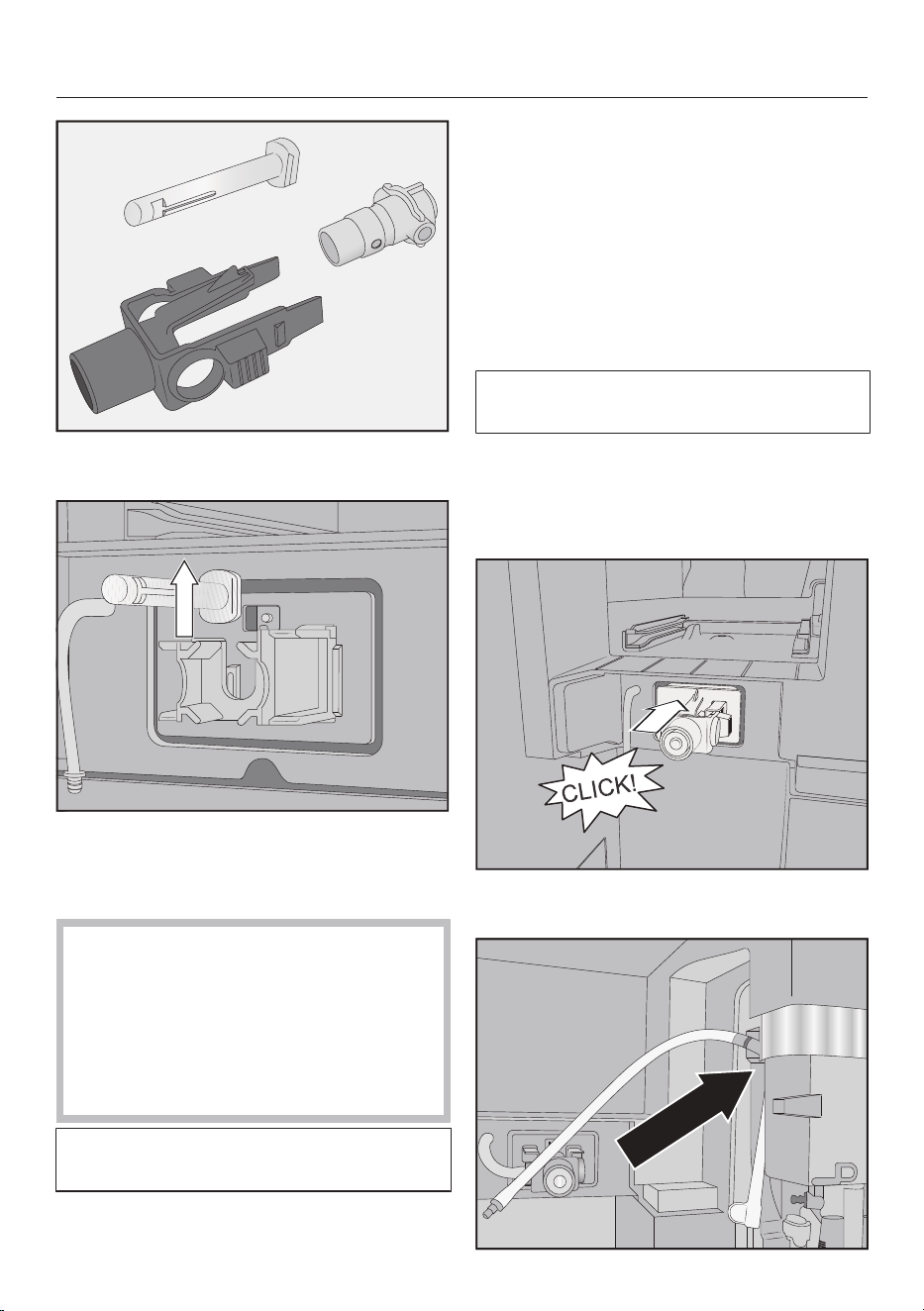
Cleaning and care
68
Take the holder and silicone seal
apart.
Pull the stainless steel bolt upward
and out.
Cleaning the milk valve
The milk valve cover is not
dishwasher-safe.
The milk valve cover may be
damaged if cleaned in the
dishwasher.
The milk valve cover should only be
cleaned by hand.
Do not switch on the coffee machine
while the milk valve is removed.
Clean all parts of the milk valve by
hand.
Tip: With the exception of the cover, all
parts of the milk valve should be
cleaned in the dishwasher from time to
time to give them a thorough clean.
If there are any dry milk residues on the
front, soak the stainless steel bolt in a
mild solution of warm water and liquid
dish soap.
Inserting the milk valve
Do not switch on the coffee machine
while the milk valve is removed.
Insert the stainless steel bolt from
above.
Insert the silicone seal into the milk
valve holder.
Insert the holder and silicone seal
until they audibly click into place.
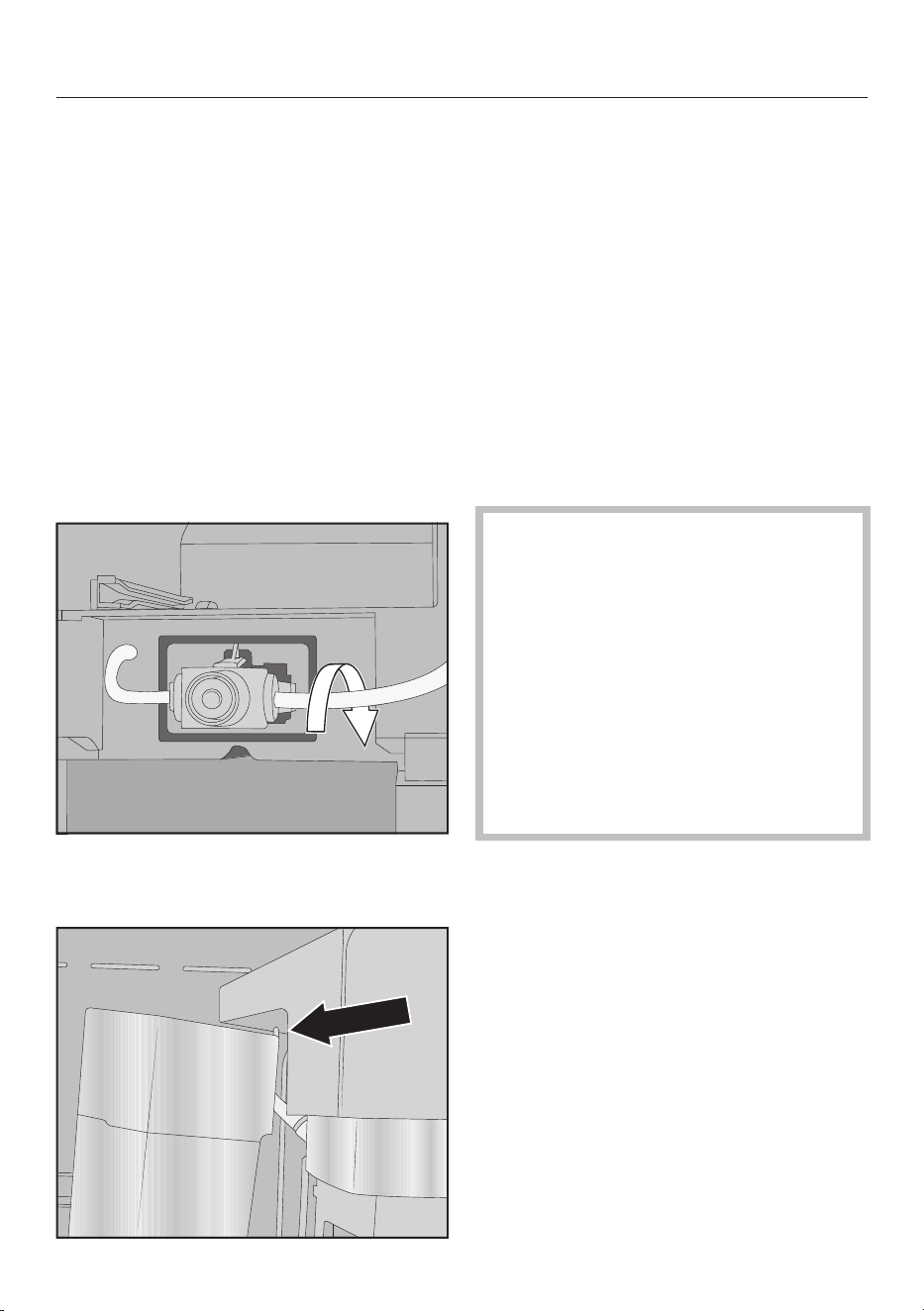
Cleaning and care
69
Connect together the angular molded
hose and longer milk pipework. Start
by attaching the top of the molded
hose to the central spout. The black
connecting piece should be pointing
to the rear.
Then, connect the bottom end of the
molded hose to the dispensing unit.
Insert the milk pipework into the milk
valve on the left and right-hand sides.
Push the connecting pieces into the
silicone seal as far as they will go.
Check that the milk pipework is snug
against the housing and that the
cover can be easily attached.
Tip: If necessary, screw the milk
pipework backward at the connecting
piece on the right-hand side.
Attach the milk valve cover as follows:
insert the pin in the top right-hand
corner and swivel the cover backward
until a proper fit is achieved.
Push the left-hand bean container
and maintenance container back into
the coffee machine.
Attach the central spout’s stainless
steel cover.
Close the appliance door.
You can now switch the coffee machine
back on.
Cleaning the bean containers
Risk of damage from incorrect
use and cleaning.
Immersing the bean containers in
liquids can result in malfunctions. If
they are taken apart, bits may break
off or the mechanism may no longer
work properly once they are
reassembled.
Do not disassemble the bean
containers.
Do not immerse the bean containers
in liquids, e.g., soapy water.
Coffee beans contain oils which can
deposit on the walls of the bean
containers and hinder the flow of the
beans. Therefore, clean the bean
containers at least once a month with a
soft cloth.
If required, you can clean the lids of the
bean containers by hand with a mild
solution of warm water and liquid dish
soap. Dry the lids thoroughly before
replacing them on the bean containers.
Open the appliance door.
Pull the left and right-hand bean
containers out of the coffee machine.
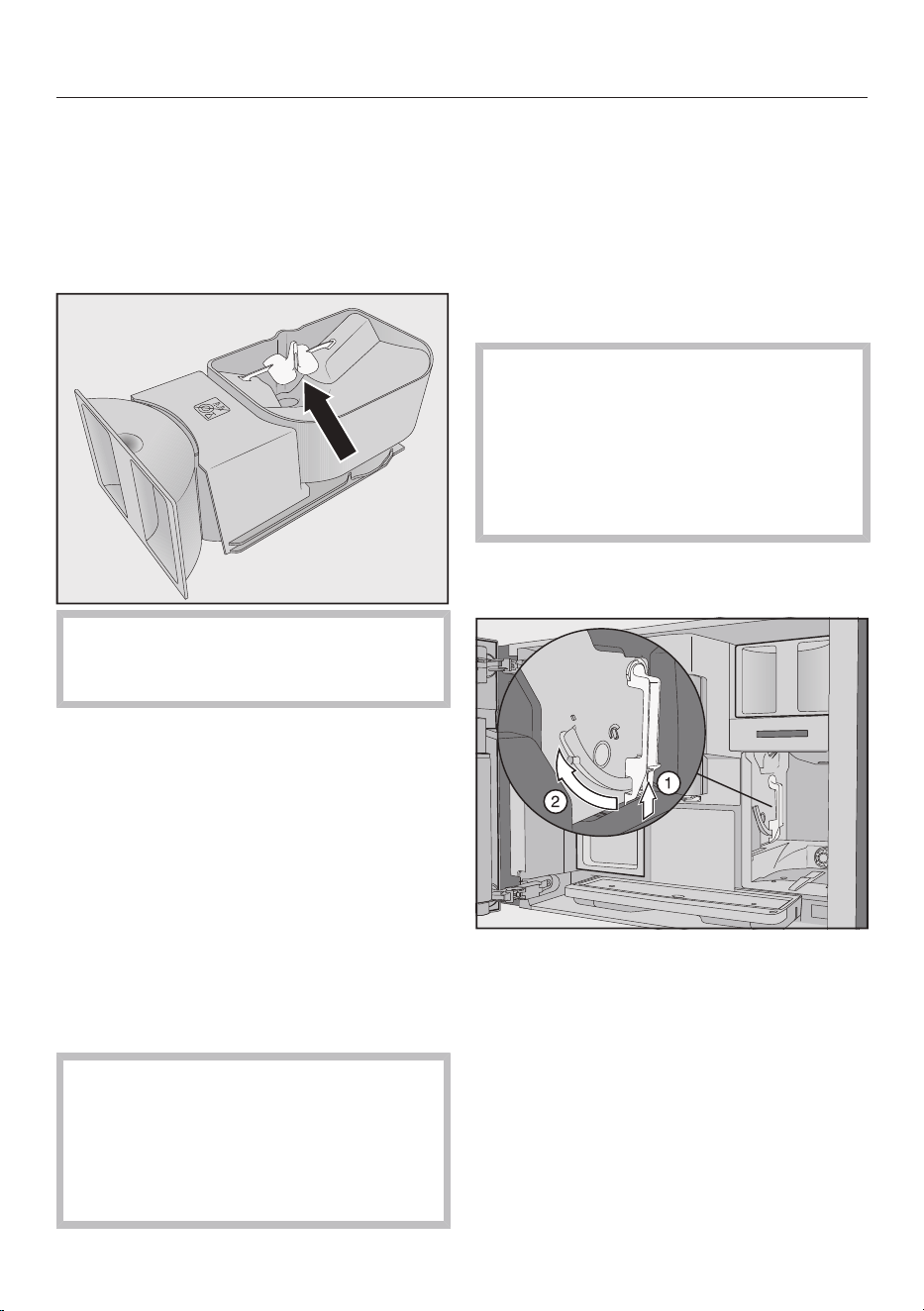
Cleaning and care
70
Clean the bean container wells inside
the machine.
Tip: Use a vacuum cleaner to remove
any coffee residues from the interior.
Remove the lids and empty the bean
containers.
Do not remove the components for
improving the flow of the beans (see
arrow).
Clean the bean containers and lids by
hand using a slightly damp cloth.
Dry all parts carefully before filling the
bean containers with roasted coffee
beans again.
Replace the lids.
Push the bean containers back into
the coffee machine.
Close the appliance door.
Cleaning the brew unit and
interior by hand
The moving parts of the brew unit are
lubricated. Cleaning agents will
damage the brew unit.
Only clean the brew unit by hand
with warm water. Do not use any
cleaning agents.
Remove and rinse out the brew unit
once a week. Also clean the area below
the brew unit once a week.
Depending on whether a cleaning
cartridge is inserted, the display shows
Remove brew unit, rinse and clean interior
after 100 or 200 portions.
Removing the brew unit
It might not be possible to re-insert
the brew unit if you have removed it
and changed the position of the
handle.
Once you have removed the brew
unit, do not change the position of
the handle.
Open the appliance door.
Remove the water container.
Press the button under the handle of
the brew unit and, while doing so,
turn the handle forward.
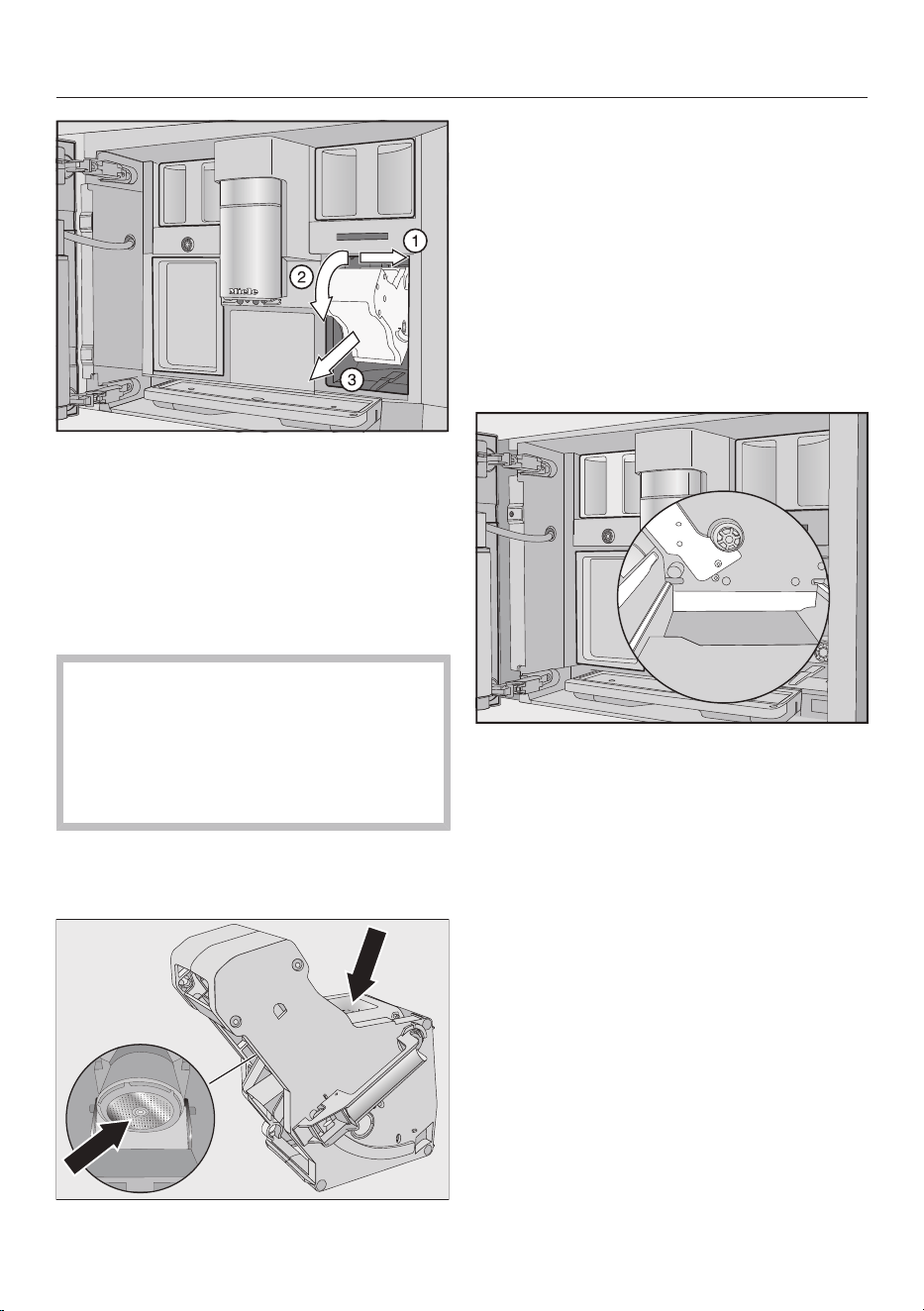
Cleaning and care
71
Pull the brew unit to the side first
and then pull out to the front. Tilt
the brew unit forward.
If you cannot remove the brew unit or
can only do so with difficulty, the brew
unit drive is not in the correct position.
Cleaning the brew unit
The moving parts of the brew unit are
lubricated. Cleaning agents will
damage the brew unit.
Only clean the brew unit by hand
with warm water. Do not use any
cleaning agents.
Clean the brew unit by hand under
warm running water without using
cleaning agent.
Wipe any remaining coffee off the two
filters. One filter is located in the
funnel. The other filter can be found to
the left of the funnel.
Dry the funnel to prevent ground
coffee sticking to it the next time a
coffee is made.
Cleaning the interior of the appliance
Use your vacuum cleaner to remove
dry coffee grounds.
Clean the niche of the brew unit with
a damp, clean cloth. Clean the areas
marked in white in the illustration,
e.g., around the drive shaft, especially
well.
Inserting the brew unit
To insert, follow the instructions for
removal in reverse order: push the
brew unit back into the coffee
machine. Tilt the brew unit forward a
little when doing this.
If you cannot re-insert the brew unit, the
brew unit drive is not in the correct
position.
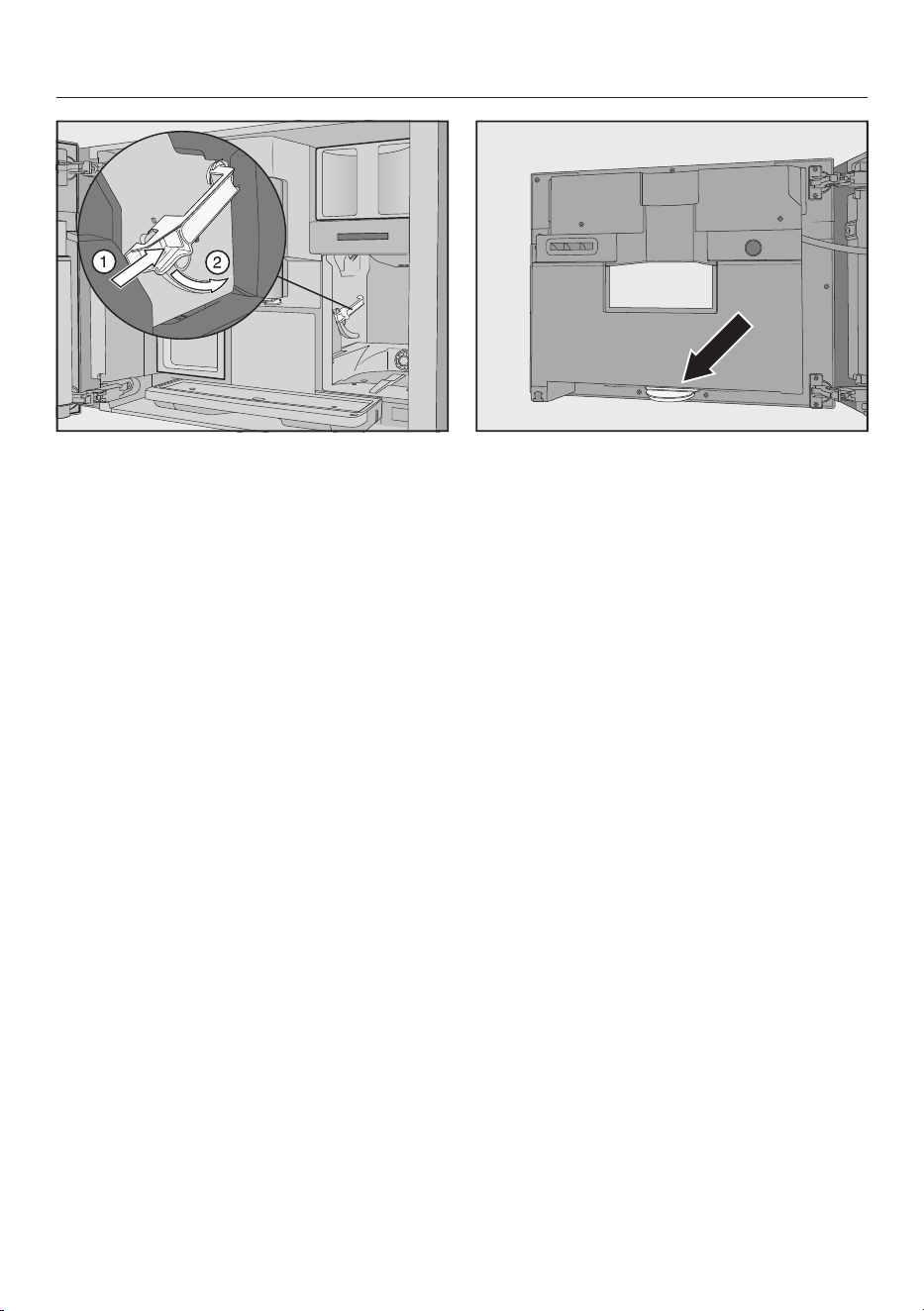
Cleaning and care
72
Press the button under the handle of
the brew unit and, while doing so,
turn the handle backward.
Tip: If you are unable to turn the brew
unit handle, apply firm pressure to the
sides of the brew unit.
Push the water container into the
coffee machine.
The process of removing and inserting
the brew unit causes ground coffee to
drop into the drip tray.
Remove the drip tray and clean the
lid.
Push the drip tray back into the coffee
machine.
Close the appliance door.
Cleaning the interior, inside of
the appliance door, and drip tray
Clean the interior and appliance front as
part of the normal cleaning process. For
instance, if you remove the water
container, use this as an opportunity to
clean the area under the water container
at the same time.
The drip tray is located at the bottom on
the inside of the appliance door. Clean
the drip tray regularly.
Open the appliance door.
Clean the drip tray.
Remove the following parts from the
interior:
- Water container
- Drip tray
- Maintenance container
- Brew unit
- Bean container
Tip: Use your vacuum cleaner to remove
dry ground coffee residues.
Clean the interior and the inside of
the appliance door by hand with a
clean and slightly moist cloth/
microfiber cloth.
Wipe the interior and appliance door
dry using a soft cloth.
Reinsert all parts.
Close the appliance door.

Cleaning and care
73
Cleaning the appliance front
If soiling is not removed promptly, it
could cause the surface to alter or
discolor.
Remove any soiling on the appliance
front straight away.
Make sure that water cannot get
behind the display.
Clean the appliance front after
manual descaling. If possible, wipe
up any spillages of descaling agent
immediately.
Tip: Before cleaning the control panel,
open the appliance door. This will
prevent accidental operation.
Clean the appliance front with a clean
and slightly damp cloth/microfiber
cloth.
After cleaning, wipe the surfaces dry
using a soft cloth.
Tip: You can also use a Miele Microfiber
Cloth to clean the front.
Maintenance programs
The coffee machine has the following
maintenance programs:
- Rinsing the appliance
- Rinsing the milk pipework
- Cleaning the milk pipework*
- Degreasing the brew unit*
- Descaling the machine*
* If you have not inserted a cleaning
cartridge and automatic cleaning has
been switched off, you will need to carry
out this maintenance program manually.
Please also note that the coffee
machine pipework may also have to be
descaled manually at regular intervals
even if a descaling cartridge has been
inserted and automatic descaling is
switched on, depending on how you use
your machine and the hardness of the
water used.
Opening the Maintenance menu
The drinks menu is displayed.
Touch the sensor control.
Select Maintenance.
You can now start the desired
maintenance program.
Rinsing the machine
If you have made a coffee drink, the
coffee machine will rinse the coffee
pipework automatically before switching
off. You can also start the Rinse the
Appliance function manually.
Rinsing the milk pipework
If you have made a drink with milk, the
coffee machine will rinse the milk
pipework automatically after a few
minutes. You can also start the Rinse the
milk pipework function manually.
Clean the milk pipework
You can run the maintenance program
with the Miele cleaning cartridge or with
the cleaning agent for milk pipework
(small sticks of powder cleaning agent).
The maintenance program lasts for
approx.20minutes.
If you have switched on automatic
cleaning and inserted a ready-to-use
cleaning cartridge, the Clean the milk
pipework maintenance program will run
using the cleaning cartridge.
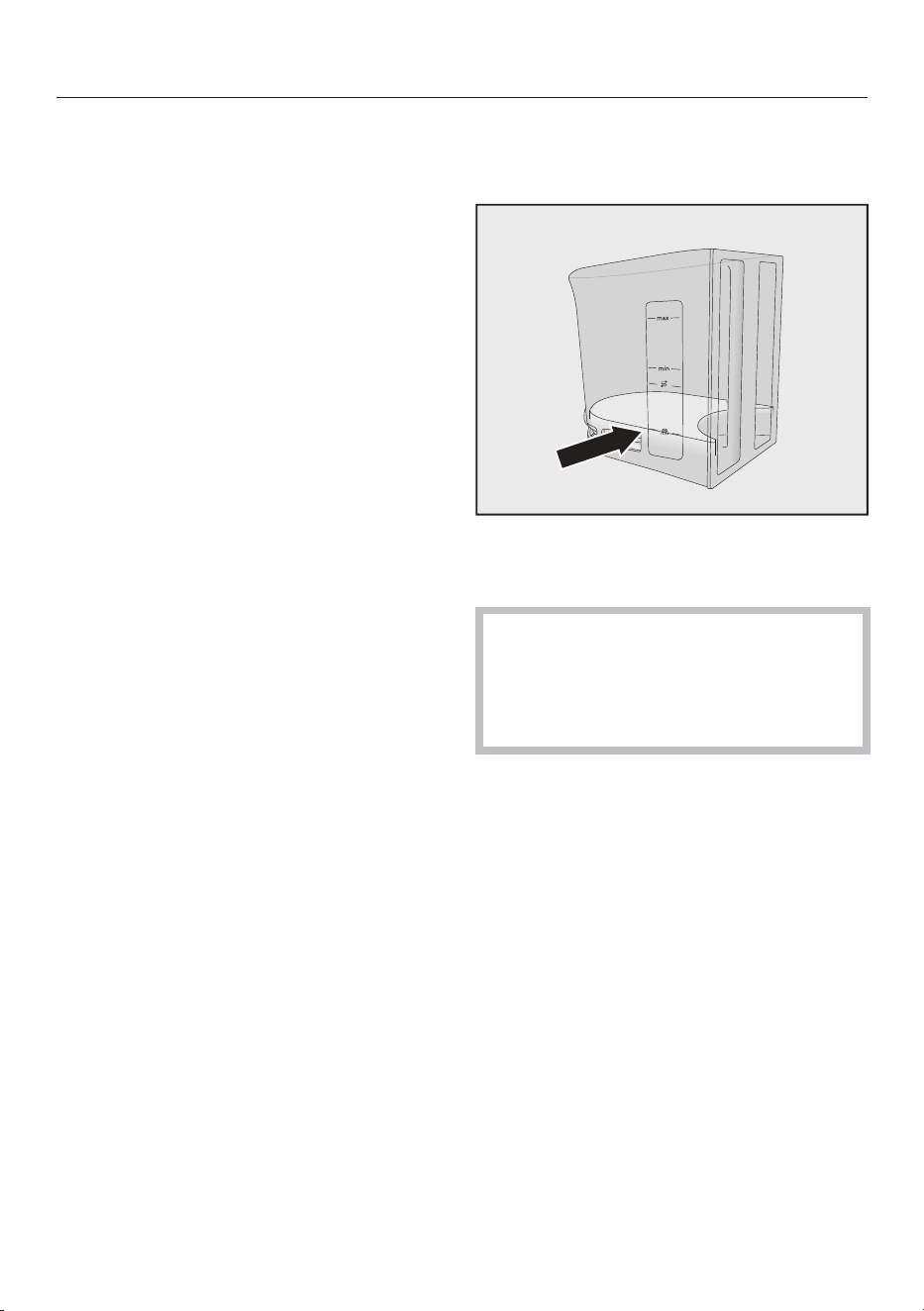
Cleaning and care
74
Cleaning the milk pipework with the
cleaning cartridge
In addition to using the automatic
cleaning function, you can also start the
maintenance program manually, e.g., to
clean the milk pipework after a period of
intensive use.
The Maintenancemenu is displayed.
TapClean the milk pipework.
Follow the instructions on the display.
Cleaning the milk pipework with the
cleaning agent for milk pipework
(sticks)
If automatic cleaning is switched off, the
milk pipework must be cleaned after at
least 15days. Messages appear in the
display to prompt you to clean.
For optimum cleaning results, it is
recommended to use the Miele
Cleaning Agent for milk pipework.
The powder cleaning agent for milk
pipework has been specially developed
for use with Miele Coffee Machines and
prevents subsequent damage.
For each cleaning process, you will need
2sticks of the cleaning agent for milk
pipework.
You can order the cleaning agent for
milk pipework from the Miele online
shop, from Miele Customer Service, or
from your Miele dealer.
Clean the milk pipework will appear in the
display.
Confirm the message withOK.
Follow the instructions on the display.
When Fill water container with lukewarm
water and cleaning agent up to the
symbol and insert appears in the display,
proceed as follows.
Open 2sticks of the cleaning agent
for milk pipework and empty the
contents into the water container.
Fill the water container to the mark
with lukewarm water and stir the
solution.
Follow the instructions for the mixing
ratio carefully. Do not fill the water
container with too little water.
Otherwise, cleaning will be
incomplete.
Reinsert the water container.
Close the appliance door.
Follow the instructions on the display.
If prompted to do so in the display,
rinse the water container thoroughly
with clean water. Make sure that no
cleaning agent is left in the water
container. Fill the water container
with fresh drinking water.
The cleaning process is finished when
Program finished appears in the display.
Degreasing the brew unit
The brew unit must be degreased
regularly in order to ensure aromatic
coffee and trouble-free operation of the
coffee machine. Depending on the
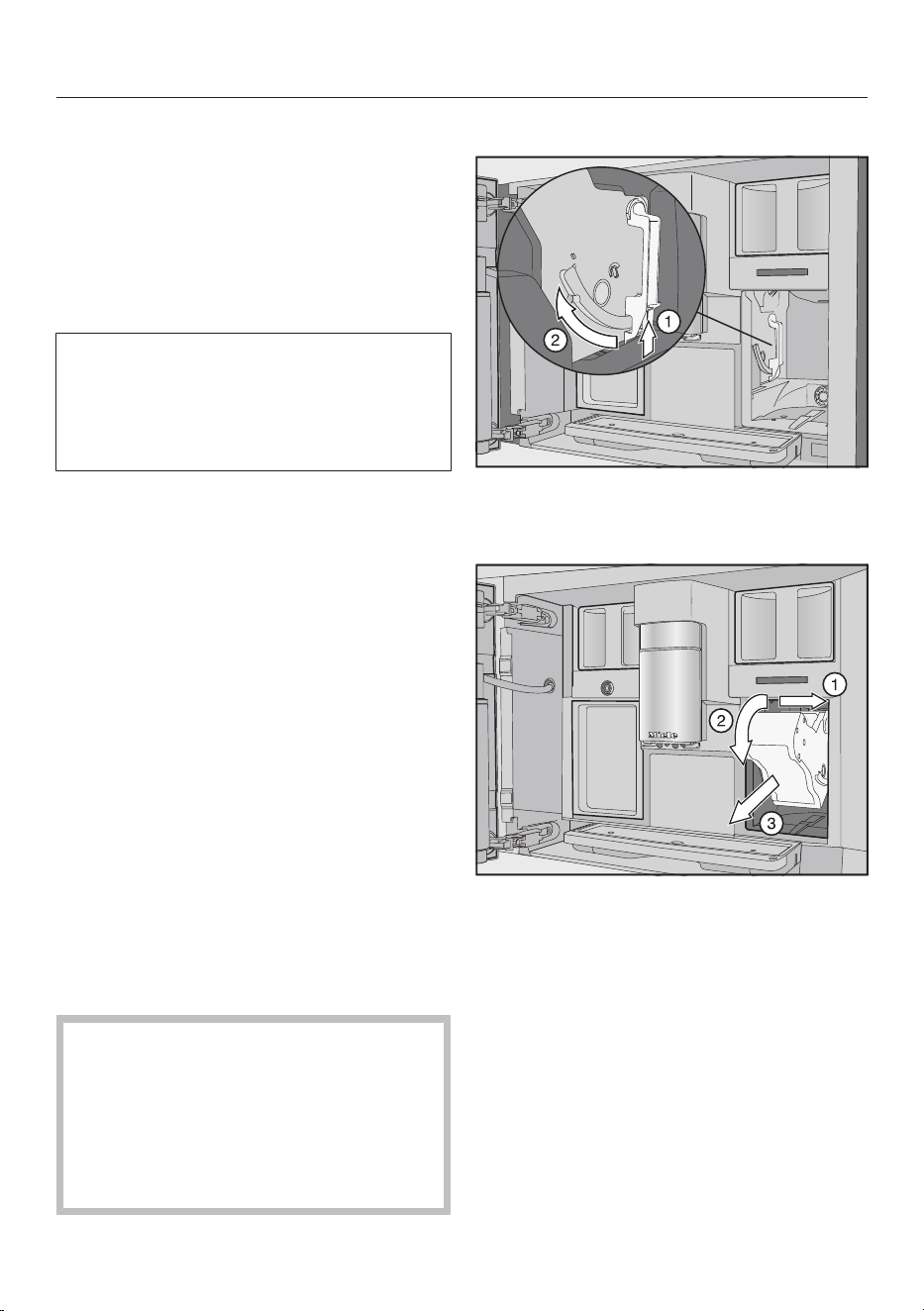
Cleaning and care
75
natural oil content of the type of beans
used, the brew unit can become
blocked quite quickly.
You can run the maintenance program
with the Miele cleaning cartridge or with
cleaning tablets for degreasing the brew
unit. The maintenance program lasts for
approx. 10minutes.
If you have switched on automatic
cleaning and inserted a ready-to-use
cleaning cartridge, the Degrease the
brew unit maintenance program will run
using the cleaning cartridge.
If you have not inserted a Miele cleaning
cartridge, Degrease the brew unit. will
appear in the display after 200portions.
Confirm withOK.
This message will keep being displayed
until the brew unit has been degreased.
Starting Degrease brew unit
The Maintenance menu is displayed.
Tap Degrease the brew unit.
The maintenance program will then
start.
Follow the instructions on the display.
Remove the water container and the brew
unit. Rinse the brew unit by hand and clean
the interior of the machine appears in the
display.
Removing the brew unit
It might not be possible to re-insert
the brew unit if you have removed it
and changed the position of the
handle.
Once you have removed the brew
unit, do not change the position of
the handle.
Open the appliance door.
Remove the water container.
Press the button under the handle of
the brew unit and, while doing so,
turn the handle forward.
Pull the brew unit to the side first
and then pull out to the front. Tilt
the brew unit forward.
If you cannot remove the brew unit or
can only do so with difficulty, the brew
unit drive is not in the correct position.
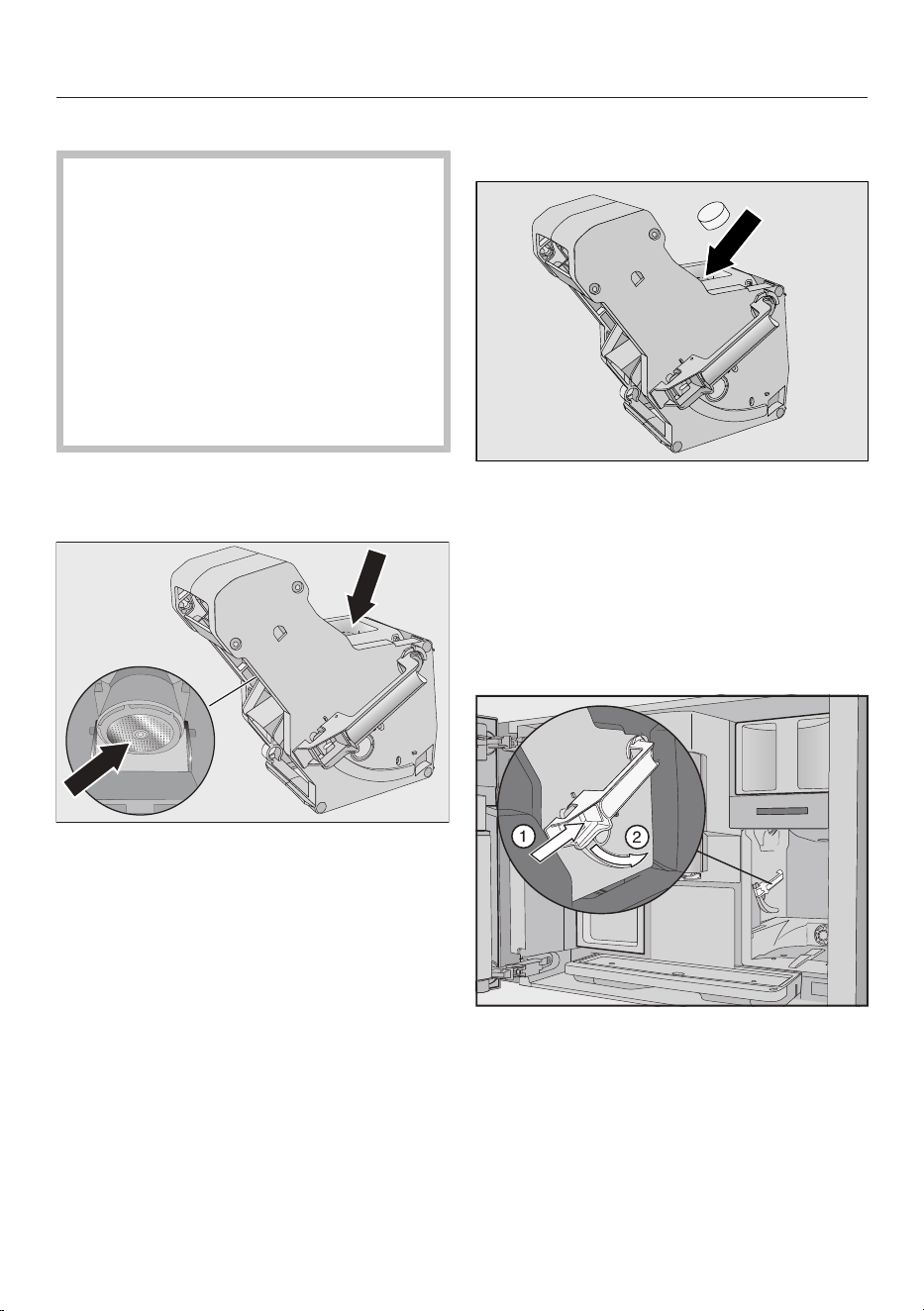
Cleaning and care
76
Cleaning the brew unit and interior
The moving parts of the brew unit are
lubricated. Cleaning agents will
damage the brew unit.
Only clean the brew unit by hand
with warm water. Do not use any
cleaning agents.
To ensure good tasting coffee and to
prevent a build-up of bacteria in the
machine, remove and clean the brew
unit under running water once a
week.
Clean the brew unit by hand under
warm running water without using
any cleaning agents.
Wipe any remaining coffee off the two
filters. One filter is located in the
funnel and the other to the left of the
funnel.
The process of removing the brew unit
causes ground coffee to drop into the
drip tray.
Remove the drip tray and clean the
lid.
Clean the interior of the coffee
machine (see also “Cleaning and care
– Removing the brew unit and
cleaning it by hand”). Use a vacuum
cleaner to remove dry ground coffee
residues.
Dropping a cleaning tablet into the
brew unit
Drop a cleaning tablet into the top of
the brew unit (arrow).
Push the brew unit containing the
cleaning tablet back into the coffee
machine.
If you cannot re-insert the brew unit, the
brew unit drive is not in the correct
position.
Press the button under the handle of
the brew unit and, while doing so,
turn the handle backward.
Push the water container and drip tray
(plus grounds container) back into the
coffee machine.
Close the appliance door.
Cleaning and care
77
Follow the additional instructions
given in the display.
The cleaning process is complete when
the drinks menu appears.
Descaling the appliance
Risk of damage from splashes from
the descaling solution.
Sensitive surfaces and/or natural
floors can suffer damage.
Wipe up any spillages immediately
when descaling.
Limescale builds up in the coffee
machine through use. How often the
machine needs to be descaled will
depend on the water hardness level in
your area. Limescale must be removed
regularly.
The machine will guide you through the
descaling process. Various messages
will appear in the display, e.g., you will
be prompted to empty the drip tray or
fill the water container.
Descaling must be carried out. The
process takes approx.35minutes.
Even if you activate automatic
descaling, the pipework may still have to
be descaled manually with the Descale
Appliance maintenance program at
regular intervals, depending on how you
use your machine.
If you have not inserted a descaling
cartridge, the display will remind you
when you need to descale the coffee
machine.
No. of uses until appliance needs descaling:
50 will appear in the display. The
remaining number of drinks that can be
made before descaling will show in the
display after each drink.
Confirm the message withOK.
When the number of remaining portions
reaches0, the coffee machine will lock.
You can switch the coffee machine off if
you do not want to carry out the
descaling program at this point. You
cannot make any drinks until the
machine has been descaled.
Descaling after prompt appears in the
display
Descale appliance will appear in the
display.
Confirm the message withOK.
The process will start.
Follow the instructions in the display.
When Place 2 descaling tablets in the water
container and fill it with lukewarm water up to
the descaling symbol and insert it
appears in the display, proceed as
follows.
For optimum descaling results, we
recommend using the Miele descaling
tablets.
The descaling tablets have been
specially developed for Miele coffee
machines.
Other descaling agents, which
contain other acids besides citric
acid and/or other undesirable
substances, such as chlorides, may
cause damage to the product.
Moreover, the descaling result
required cannot be guaranteed if the
descaling solution was not of the
appropriate concentration.
The descaling tablets are available to
order from the Miele online shop.
You will need 2descaling tablets.
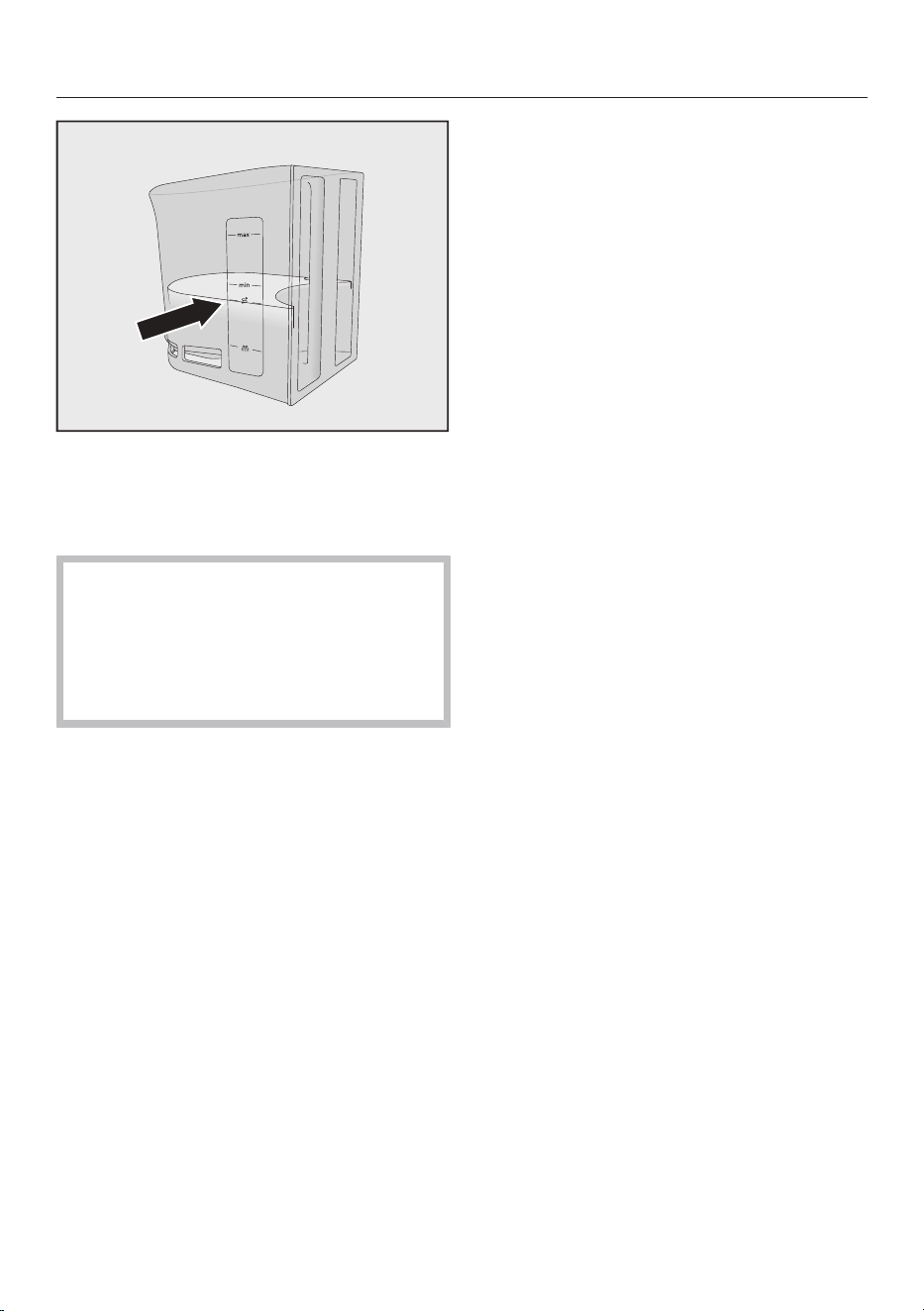
Cleaning and care
78
Fill the water container to the mark
with lukewarm water.
Add 2descaling tablets to the water
container.
Follow the instructions for the mixing
ratio carefully. It is important that you
do not fill the water container with
too much or too little water.
Otherwise the descaling process will
be canceled prematurely.
Carrying out descaling
Reinsert the water container.
Follow the additional instructions
given in the display.
When Rinse and refill the water container
appears in the display:
Remove the water container and rinse
it thoroughly with clean water. Ensure
that no descaling solution residue
remains in the water container.
Fill the water container with tap
water.
The descaling process is complete
when the drinks menu appears.

Automatic cleaning and descaling
79
Risk of damage from spilled cleaning
and descaling solution.
Sensitive surfaces and/or natural
floors can suffer damage.
One way to catch the cleaning and
descaling solution is to place the
maintenance container under the
central spout before switching off the
machine.
Clear up any spillages of cleaning and
descaling solution.
When handling a descaling cartridge
which has already been filled with
water, ensure that the descaling
solution does not come into contact
with sensitive surfaces.
The coffee machine features automatic
maintenance programs for cleaning the
milk pipework and brew unit, and for
descaling the machine. For this, the
Miele Cleaning and Descaling
Cartridges must be inserted into the
coffee machine. If both types of
maintenance program are due to run on
the same day, automatic cleaning will
always be performed before automatic
descaling (total time:
approx.35minutes).
You can set the time for starting
cleaning and descaling via the
Maintenance Timer.
The coffee machine will automatically
determine the days when to carry out
automatic descaling based on the usage
pattern.
During automatic cleaning, the milk
pipework gets cleaned and/or the brew
unit gets degreased.
The coffee machine also determines the
cleaning-solution concentration and the
cleaning-program type for automatic
cleaning based on the number and
types of drinks made. If you do not
make any drinks, the automatic
maintenance programs will not be
started.
In order to run the automatic cleaning
programs, a solution is prepared by
mixing water with the cleaning agent.
This solution is then pumped through
the coffee-machine pipework. After the
defined holding time, all the solution is
rinsed out of the pipework and the
machine can then be used as normal for
making drinks.
During automatic cleaning and
descaling, you will hear various noises
(e.g., rinsing noises) at frequent intervals
even though the machine is switched
off.
What to ensure before and
during automatic maintenance
programs
The coffee machine must be ready to
use and the following conditions must
be met:
- Ready-to-use cleaning and descaling
cartridges are inserted.
- Automatic cleaning is switched on.
- The coffee machine must not be
disconnected from the power supply
during the automatic maintenance
programs.
- The drip tray, brew unit, and central
spout are inserted.
- If filling the water container manually:
the water container is inserted and is
filled with water at least up to the
mark.
- Carry out the instructions which
appear in the display before switching
off, e.g., Empty and refit the drip tray and
the waste container.
Automatic cleaning and descaling
80
- The machine door is closed when the
program is started.
- The coffee machine is switched off.
Automatic cleaning
If you have made a drink containing
milk, the milk pipework will be cleaned
at least 4days afterward.
If you have made a coffee, the brew unit
will be degreased at least 15days
afterward.
Automatic cleaning takes
approx.25minutes.
Switching automatic cleaning
on and off
It is usual to switch on automatic
cleaning as part of the process of
setting up the coffee machine.
However, Automatic Cleaning can be
switched on or off at any time.
The drinks menu is displayed.
Tap the Backsensor button.
Select Settings and then Automatic
Cleaning.
Select the setting you want and
confirm withOK.
If coffee drinks and/or milk have
already been dispensed when
automatic cleaning is switched on, you
will need to clean the coffee machine
manually as a one-off operation. This
will remove any milk residues and
coffee oils, and will reset the counter.
The Miele Cleaning Cartridge
Only use the Miele Cleaning
Cartridge for automatic cleaning. It
has been developed specifically for
use in this coffee machine.
Please note that the Miele Cleaning
Cartridge has a life span of
approx.1year after it has been placed
in the coffee machine.
Critical for the one-year life span is
the date on which the cleaning
cartridge was inserted.
Do not fill the cleaning cartridge with
other fluids or substances.
The Miele Cleaning Cartridge contains a
cleaning agent for the effective removal
of milk residues and coffee oils.
The Miele Cleaning Cartridge will last
for up to 3months of automatic
cleaning, depending on how often the
coffee machine is used. Frequent
manual cleaning or a large number of
drinks will shorten this period
accordingly.
You can display the cartridge fill level as
a segment bar under Settings | Info| Fill
levels. As the cartridge fill level
decreases, various messages will
appear at regular intervals to remind you
to have a new cartridge at the ready.
The first message will appear when the
cartridge is approx.25% full.
Cleaning cartridges are available to
order from the Miele online shop, from
Miele Technical Service, or from your
Miele dealer.
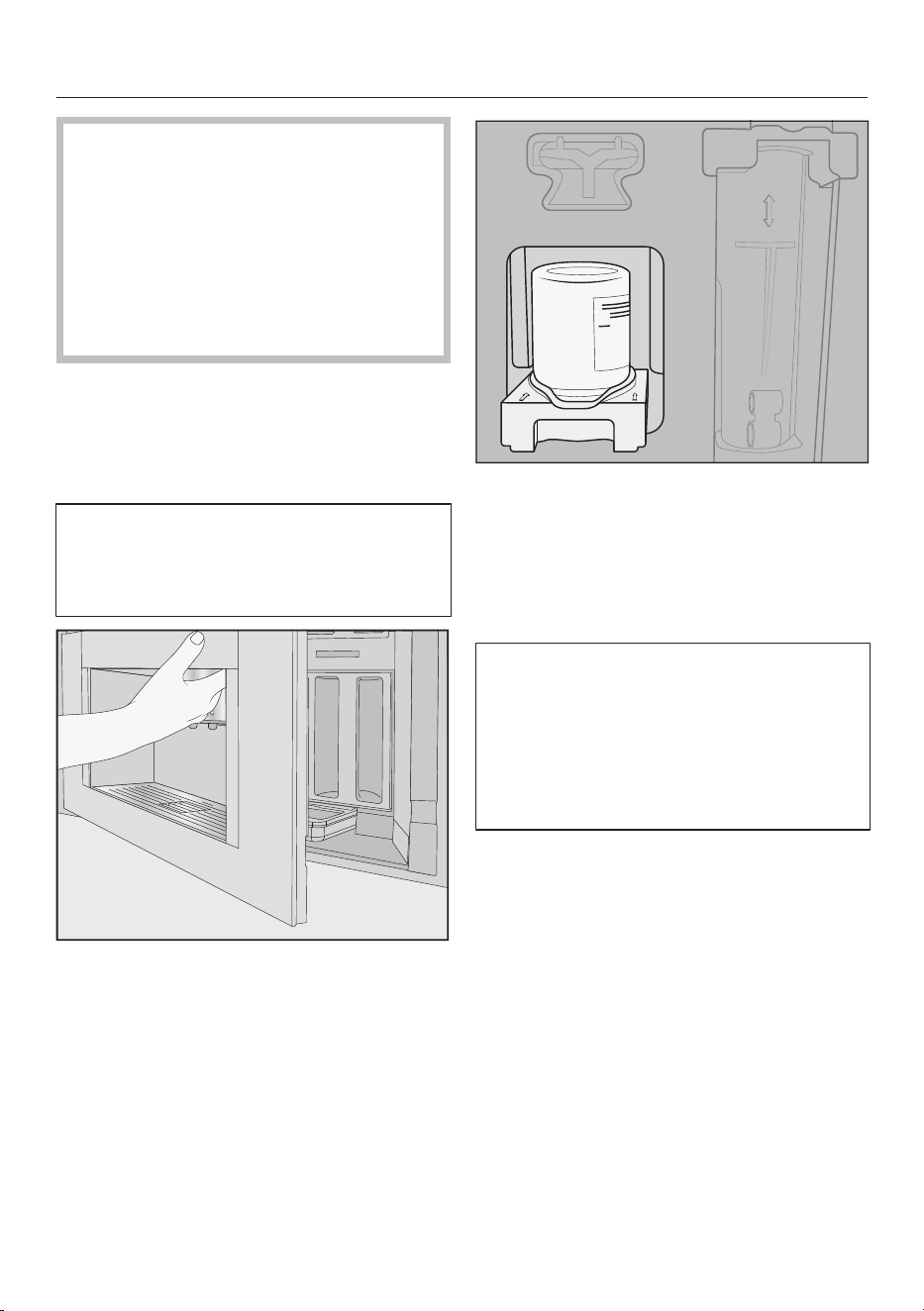
Automatic cleaning and descaling
81
If no cleaning cartridge has been
inserted or if the inserted cartridge is
empty or has expired, the milk
pipework and brew unit must be
cleaned manually. For this, you will
need the appropriate cleaning agents
(see “Cleaning and care” – “Cleaning
the milk pipework” and “Degreasing
the brew unit”).
You can leave the cleaning cartridge in
place during long periods of non-use or
when transporting the coffee machine.
Replacing the cleaning cartridge
Cleaning cartridges are available to
order via the Miele online shop, Miele
Customer Service, or your Miele
dealer.
Open the appliance door.
Remove the maintenance container.
Pull the holder with the cartridge
forward and remove both.
Unscrew the cleaning cartridge from
the holder.
Dispose of the used cartridge with
your household waste.
Cleaning agent residues can
sometimes dry on the holder, leaving
white deposits behind. These residues
will not affect the automatic cleaning
program. If necessary, you can wipe
the residues off with a damp cloth or
put the holder in the dishwasher.
Take the new cartridge out of its
packaging.
Unscrew the screw cap.
The cap is no longer required.
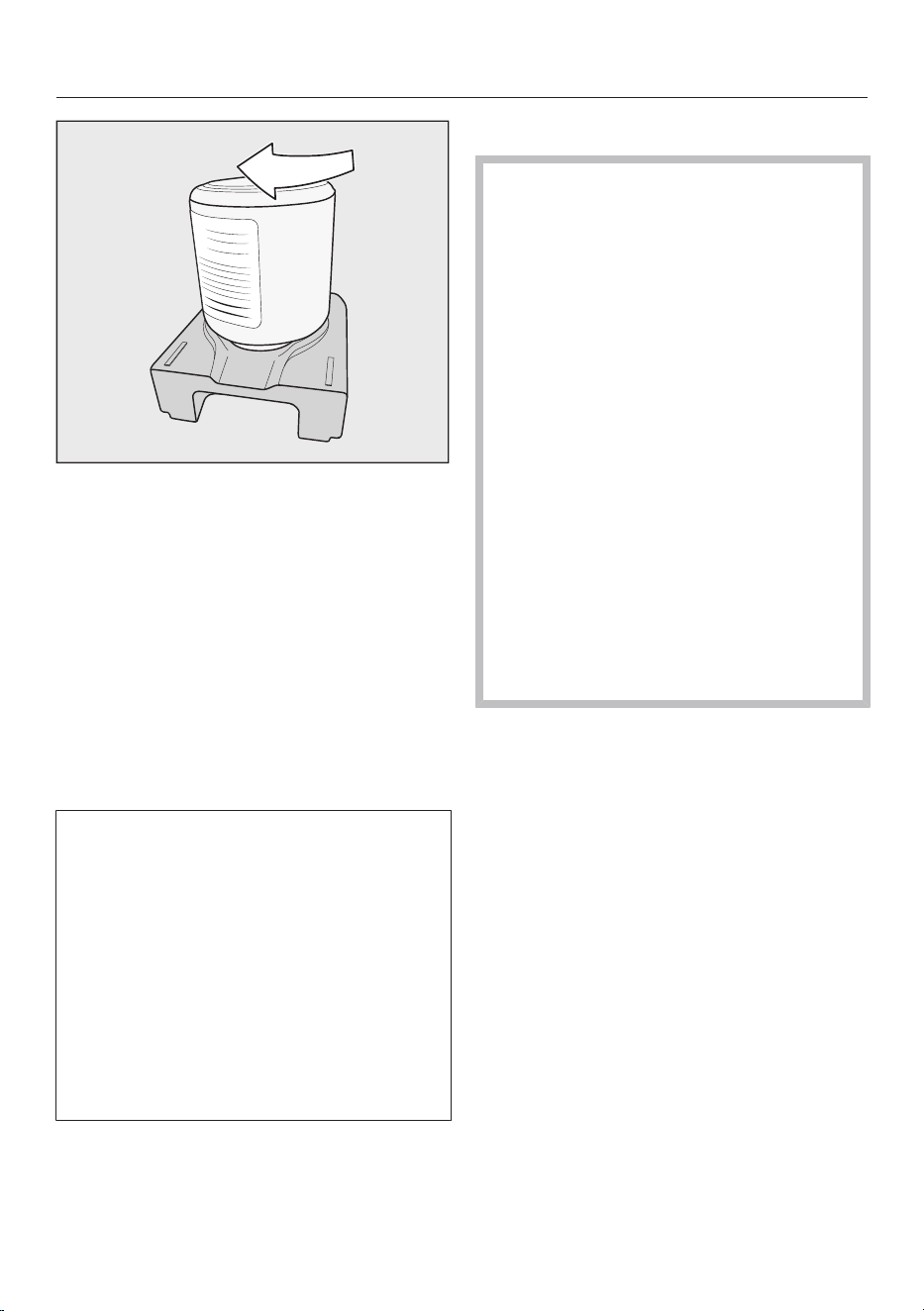
Automatic cleaning and descaling
82
Screw the new cartridge into the
holder upside down.
Push the holder and cartridge into the
coffee machine until the holder
audibly clicks into place.
Put the maintenance container back
inside the appliance.
Close the appliance door.
Automatic descaling
Automatic descaling takes
approx.12minutes.
To ensure the longevity of components
and an environment that is
consistently free of limescale, the
coffee machine needs to be manually
descaled from time to time. The
intervals are determined by your usage
behavior and the water-hardness level
of your area. If you make a lot of
coffees with milk, for example, you will
need to descale the coffee machine
more frequently with the descaling
tablets.
The Miele descaling cartridge
Only use the Miele descaling
cartridge for the automatic descaling
program.
Please note that the Miele descaling
cartridge has a service life of
approx.1year after it has been placed
in the coffee machine and filled with
water for the first time. The date on
which the descaling cartridge was
installed and filled with water
determines the one-year service life.
Do not install a descaling cartridge
which has already been used in
another Miele coffee machine. Your
coffee machine will have no
information about the fill level of this
cartridge. The descaling effect may
be insufficient and damage your
coffee machine.
Do not fill the descaling cartridge
with other fluids or substances.
The descaling agent comes in the form
of tablets in the descaling cartridge. The
cartridge is filled with water when it is
placed in the coffee machine. The
tablets gradually dissolve over time.
The descaling cartridge will last for
7to12months of automatic descaling,
depending on how often the coffee
machine is used.
You can display the cartridge fill level as
a segment bar under Settings | Info| Fill
levels. As the cartridge fill level
decreases, various messages will
appear at regular intervals to remind you
to have a new cartridge at the ready.
The Miele descaling cartridge is
available to order from the Miele online
shop, from Miele Service, or from your
Miele dealer.
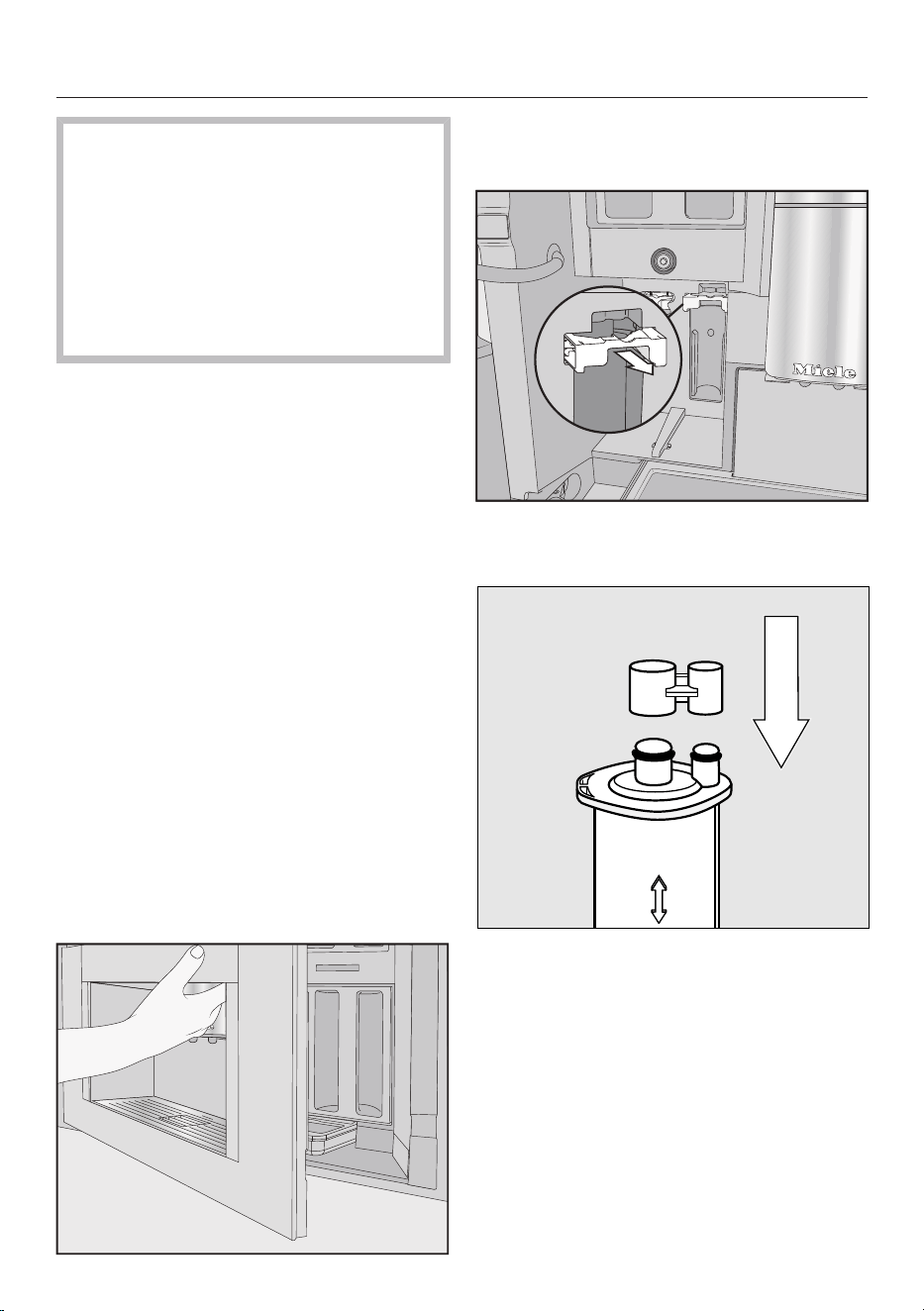
Automatic cleaning and descaling
83
If a descaling cartridge is not
installed, an empty cartridge is
installed, or an expired cartridge is
installed, the coffee machine needs
to be descaled using the Descale
Appliance maintenance program. To
do this, the appropriate descaling
agent is required (see “Descaling the
machine” in “Cleaning and care”).
The descaling cartridge can remain
installed even if the machine is not used
for a long time. Remove the cartridge
before transporting the coffee machine.
However, please note the following:
- Once filled with water, the descaling
cartridge has a maximum shelf life of
max.3weeks outside of the coffee
machine.
- The descaling cartridge should be
transported with care and upright.
Avoid shaking it. Shaking or turning
upside down reduces the service life
or damages the cartridge.
- The cartridge should be stored
upright, in a dark place, and at room
temperature (16–38°C).
Replacing the descaling
cartridge
Removing the descaling cartridge
Open the appliance door.
Remove the maintenance container.
Pull the cartridge holder forward.
Remove the cartridge.
Tip: You can seal the descaling cartridge
with the cap that can be found on the
cartridge. This cap can be easily
detached by snapping it off.
Dispose of the cartridge with your
household waste.
Inserting the descaling cartridge
Insert the cartridge and push it
upward as far as it will go.
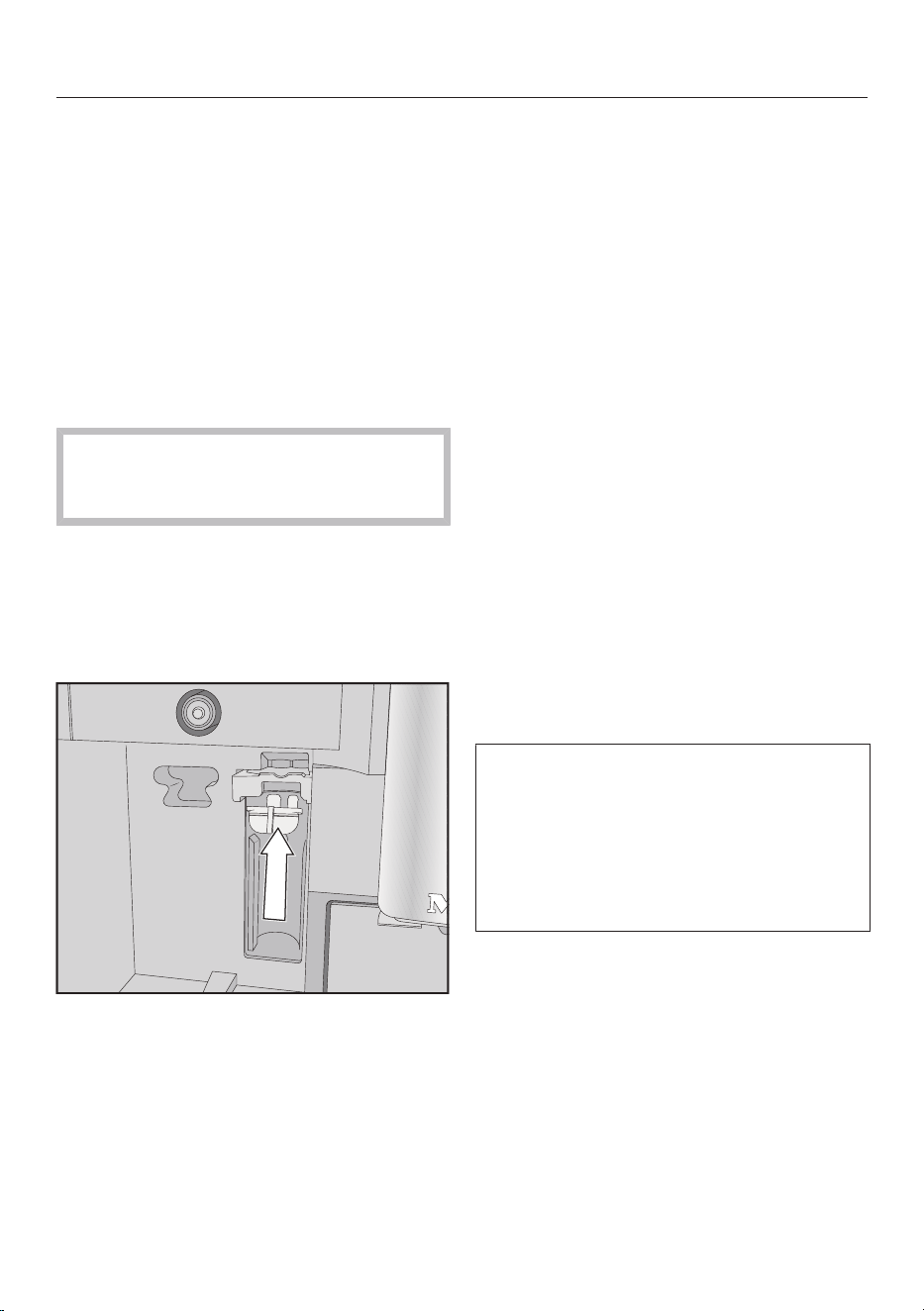
Automatic cleaning and descaling
84
Push the cartridge holder back and
then put the maintenance container in
place.
Close the appliance door.
Follow the instructions on the display.
The next time the coffee machine is
switched off, the new descaling
cartridge will also fill with water when
the machine is rinsed. You will hear
water being pumped into the cartridge
at frequent intervals.
Always wait for the coffee machine to
switch itself off. Do not force the
machine to switch off.
Choosing not to use a descaling
cartridge
If you do not want to insert a descaling
cartridge, seal the system with the
adapter.
Insert the adapter in place of the
cartridge.
Maintenance Timer
In the Maintenance Timer, you can
select any start time you like for the
automatic maintenance programs.
Please note that the automatic
maintenance programs can take a
maximum of around35minutes to run.
You can set different start times for the
weekend and/or weekdays.
Setting the Maintenance Timer
The drinks menu is displayed.
Touch the sensor control.
Select Maintenance.
Select Maintenance timer.
Change the settings as required.
Confirm withOK.
The start time is saved. From now on,
the automatic maintenance programs
will commence at the desired time each
day.
Canceling automatic cleaning
and descaling
You can cancel the automatic cleaning
programs during the holding time.
If the automatic cleaning program is
not performed five times in a row, the
dispensing of drinks is blocked. You
will only be able to make drinks again
once the brew unit has been
degreased and/or the milk pipework
has been cleaned.
Tap theOn/Offswitch.
The time left in hours is shown in the
display.
Tap Cancel.
The cleaning or descaling solution is
rinsed out of the pipework. Rinsing can
take up to 5minutes. You can now make
drinks.
Frequently asked questions
Many malfunctions and faults that can occur in daily operation can be easily
remedied. You can save time and money in many cases, as you do not need to
contact Miele Customer Service.
Information to help you rectify faults yourself can be found at www.miele.com/
service.
The following tables are designed to help you to find the cause of a malfunction or
fault and resolve it.
Messages in the display
Error messages must be confirmed withOK, otherwise the message may
reappear in the display even though the problem has been remedied.
To address the fault, follow the instructions on the display.
If the error message appears in the display again, contact Miele Technical Service.
Problem Possible cause and solution
F1, F2,
F80, F82
F353, F354
There is an internal fault.
Switch the coffee machine off. Wait for
approximately1hour before switching the machine
back on again.
F74, F77
F225, F226
F235, F353, F354
There is an internal fault.
Switch the coffee machine off. Wait for
approximately2minutes before switching the
machine back on again.
85
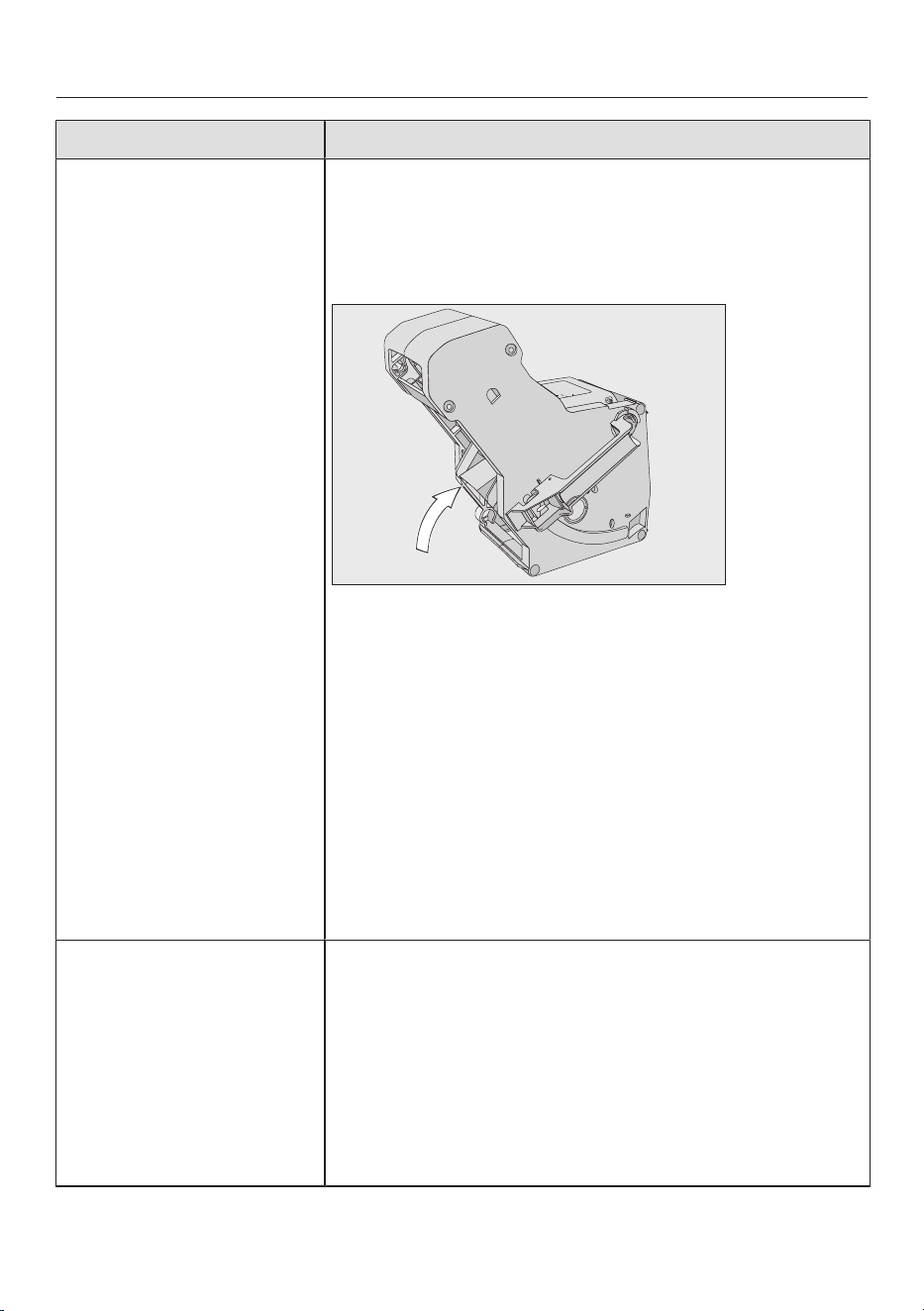
Frequently asked questions
Problem Possible cause and solution
F73 or
Check the brew unit
The brew unit cannot be positioned correctly or is
soiled. It is not possible to press the ground coffee.
Check whether you can remove the brew unit.
If you can remove the brew unit, rinse it under
running water.
Push the coffee ejector of the brew unit into the
correct position (see image).
Replace the water container in the coffee machine
and close the door. Do not insert the brew unit.
Switch the coffee machine on.
This will initialize the brew unit motor and put it back
into the start position.
When Insert the brew unit appears in the display, put
the brew unit back in the coffee machine.
If you cannot remove the brew unit, switch the
coffee machine off. Wait for
approximately2minutes before switching the
machine back on again.
A manual maintenance
program is prematurely
aborted and the follow-
ing appears in the dis-
play: Push the water con-
tainer in until it engages.
The water container has not been filled and inserted
correctly.
Check that you have selected the correct mark.
The symbols marked on the water container indicate
the amount of water required for the
Descale Appliance: and Clean the milk pipework:
maintenance programs.
Fill the water container up to the relevant mark and
restart the process.
86
Frequently asked questions
Problem Possible cause and solution
Check water intake and
empty the water container
The plumbed-water supply is not working.
Check whether the intake hose is kinked or the
water supply valve is not turned on completely.
Remove and empty the water container.
Insert the empty water container into the coffee
machine.
The following message is displayed: Please wait. Water
container filling. The water container fills up.
To turn off the plumbed-water connection, fill and
insert the water container. You can then select
Settings: Main Water| Off.
F233 The cup-rim sensor is not inserted or is incorrectly
inserted.
If the central spout is moving upward and the cup-rim
sensor is bumped, e.g., with a cup, the cup-rim sensor
loses its reference position.
Confirm the message withOK.
Reinstall the cup-rim sensor.
Cup-rim detection remains inactive and the central
spout stays in the top position until the coffee
machine is next switched on. Cup-rim detection is
reinitialized during the next switch-on operation.
F355, F357–F362 The bean system must be set up again, e.g., coffee
beans have possibly got jammed.
Open the machine door and remove both bean
containers from the coffee machine.
Close the machine door.
The bean system is set up.
Follow the instructions on the display.
F307or Remove the milk
valve and clean it
The milk valve is faulty.
Remove and clean the milk valve (see “Cleaning and
care – Removing and cleaning the milk valve”).
87
Frequently asked questions
Unusual performance of the coffee system
Problem Possible cause and solution
The display remains dark
when the coffee ma-
chine is turned on using
theOn/Offbutton.
The On/Off button was not held for long enough.
Tap and hold theOn/Offbutton for at least
3seconds.
The plug is not properly plugged into the electrical
socket.
Insert the plug into the electrical socket.
The fuse has tripped because the coffee machine,
voltage, or another appliance is defective.
Remove the plug from the socket.
Contact a qualified electrician or Technical Service.
The lighting remains off
after the coffee machine
has been switched on.
The lighting has been switched off.
Switch the lighting on (see “Lighting” in the
“Settings” chapter).
The lighting is faulty.
Contact Technical Service.
The time of day is being
displayed but
thesensor button and
movement sensor are
failing to respond.
This is not a fault. The QuickTouchfunction is
switched off. Select Display| QuickTouch| On so that
thesensor button and movement sensor respond
even when the coffee machine is switched off.
The coffee machine
does not respond to op-
eration via the display.
There is a fault.
Tap and hold theOn/Offbutton until the display
switches off and the machine restarts.
The coffee machine
turns off suddenly.
The factory-set switch-off time (20minutes) or the
switch-off time you have programmed has been
reached.
If required, you can select a new switch-off time
(see “Settings – Timer”).
The plug is not properly plugged into the electrical
socket.
Insert the plug into the electrical socket.
The sensor buttons do
not respond.
The coffee machine can
no longer be operated.
There is an internal fault.
Disconnect the coffee machine from the electricity
supply by removing the plug from the socket or
switching off the breaker.
88
Frequently asked questions
Problem Possible cause and solution
A fan can be heard even
though no drinks are be-
ing prepared and the
coffee machine is
switched off.
This is not a fault.
Once a drink has been dispensed or the machine has
been switched off, the internal fan will continue to run
until the interior is sufficiently dehumidified.
The coffee machine
brew unit cannot be re-
moved.
The brew unit drive is not positioned correctly.
If necessary, turn the handle on the brew unit back
to the start position.
Close the appliance door.
Switch the coffee machine off.
Wait approx.1minute before switching the coffee
machine back on.
This will initialize the brew unit drive and put it back
into the start position.
If necessary, repeat these steps.
The brew unit cannot be
re-inserted into the cof-
fee machine.
The brew unit drive is not positioned correctly.
Close the appliance door.
This will initialize the brew unit drive and put it back
into the start position.
If necessary, repeat this step.
Drink dispensing is pre-
maturely aborted even
though there is a con-
tainer under the central
spout.
This is not a fault.
If the container has a very wide opening that prevents
the cup-rim sensor from making contact with the
edge of the container (e.g., in the case of a very large
cup), the drink will be canceled. Use a different
container or position the existing one so that the
sensor can detect the rim.
89
Frequently asked questions
Problem Possible cause and solution
Coffee dispensing is re-
peatedly interrupted and
the message Fill the bean
container appears in the
display.
This is not a fault.
The brew unit has not detected the ground coffee.
Certain types of coffee produce a small amount of
coffee when they are ground. Usually the grinder is
set too fine and the amount is set to minimum.
Confirm the message withOK.
If the display appears with all types of coffee:
Set the grinder to a coarser setting (see “Grinder
setting”).
Select a larger amount of coffee.
Don't forget to check any drinks changed in “User
profiles”.
If the message only appears when dispensing certain
drinks:
Check the amount of coffee set for this drink (see
“Amount of coffee”). Select a larger amount of
coffee.
You may also need to set a coarser grinder setting.
The coffee machine
does not switch itself on
even though the On at
setting has been acti-
vated for the timer.
The system lock is activated.
Deactivate the system lock.
The current day of the week has not been selected.
Check the timer settings and change these if
necessary.
The coffee machine was not used after being
switched on automatically three times in succession
(vacation mode).
Switch the machine on and dispense a drink.
The coffee machine does not switch on with the On at
timer while automatic descaling is being carried out.
This is not a fault. Select a different timer setting.
Steam is dispensed in-
stead of water while pre-
paring hot water or mak-
ing tea.
It is likely that the wrong altitude has been set.
Change the altitude settings (SettingsAltitude).
If necessary, you can also change the temperature
settings for the drinks (Drinks parameters).
The display is hard to
see or not legible.
The display brightness has been set too low.
Change this setting (see “Settings”).
90
Frequently asked questions
Problem Possible cause and solution
The display lights up but
the coffee machine does
not heat up and no
drinks are made.
The Demo mode for demonstrating the coffee
machine in stores and showrooms has been activated.
Deactivate Demo mode (see “Settings”).
Faults with automatic cleaning and/or descaling
Problem Possible cause and solution
After switching on, a
message appears in-
forming you that auto-
matic cleaning and/or
descaling could not be
carried out.
The coffee machines was not ready for operation: all
removable parts, such as the water container, drip
tray, brew unit, or central spout must be installed.
The water container was not filled with drinking water
at least up to the descaling symbol.
The machine door was not closed.
Confirm the message withOK.
Make sure that the coffee machine is ready to use
before the next automatic cleaning and/or descaling
process.
The coffee machine was not switched off at the start
time.
The automatic maintenance programs will only start if
the coffee machine is switched off.
Confirm the message withOK.
Change the start time if necessary.
Descale appliance appears
even though a ready-to-
use descaling cartridge
has been inserted.
Drinks cannot be made.
Depending on the water hardness level in your area
and your usage behavior, the coffee machine will
occasionally need to be descaled using the
maintenance program.
For this you will need to use a suitable descaling
agent, e.g., Miele Descaling Tablets.
Descale the coffee machine using the maintenance
program (see “Descaling the machine” in “Cleaning
and care”).
91
Frequently asked questions
Problem Possible cause and solution
When the machine is
switched on, one of
these messages ap-
pears: Automatic cleaning
could not be carried out.
Start Automatic cleaning
(duration min.) now? Other-
wise Automatic cleaning will
be permanently turned off.
or:
Automatic maintenance
could not be carried out.
Carry out the Automatic
cleaning part of the Auto-
matic maintenance program
(duration min.) now? Other-
wise the Automatic cleaning
part of the Automatic main-
tenance program will be per-
manently turned off
No drinks can be made.
Automatic cleaning could not be carried out five times.
If you want the coffee machine to continue cleaning
the milk pipework and degreasing the brew unit
automatically:
Make sure that the coffee machine is ready for
automatic maintenance (see “Automatic cleaning
and descaling”).
TapOK to start automatic cleaning.
If you select No to switch automatic cleaning off, you
will have to clean the milk pipework and degrease the
brew unit manually (see “Cleaning and care”). For this,
you will need the cleaning agent for milk pipework and
the tablets for degreasing the brew unit.
Unsatisfactory results
Problem Possible cause and solution
The coffee is not hot
enough.
The cup has not been pre-heated.
The smaller the cup and the thicker its walls, the
more important it is to pre-heat it.
Pre-heat the cup with hot water, for example.
The brewing temperature is set too low.
Set a higher brewing temperature.
The filters in the brew unit are blocked.
Remove the brew unit and clean it by hand.
Degrease the brew unit.
92
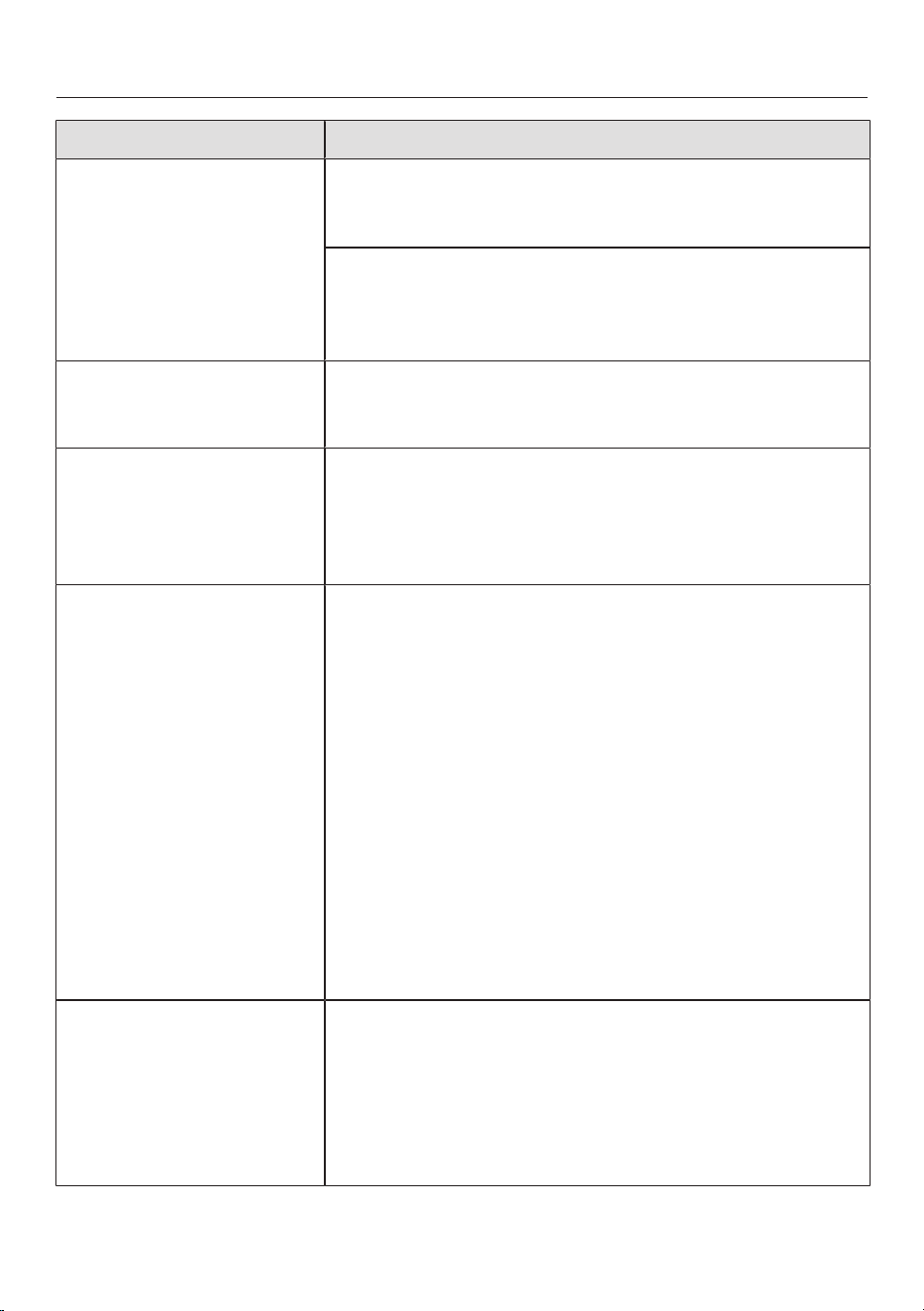
Frequently asked questions
Problem Possible cause and solution
The coffee grinder
makes a louder noise
than usual.
The coffee bean container has become empty during
the grinding process.
Fill the coffee bean container with fresh beans.
There may be foreign objects such as plastic or stones
in amongst the coffee beans.
Switch the coffee machine off immediately. Contact
the Technical Service department.
The coffee is dispensed
too slowly into the cup.
The brew unit is blocked.
Degrease the brew unit (see “Cleaning and care –
Degreasing the brew unit and cleaning the interior”).
The crema on the coffee
or espresso is not as it
should be.
The coffee beans are no longer fresh. If roasted coffee
beans are stored open for too long, the carbon
dioxide gradually escapes from the coffee beans. The
crema is no longer formed during dispensing.
Of course, you can still use the coffee beans.
The coffee tastes weak.
The coffee grounds in
the grounds container
are sludgy and grainy.
Less coffee is being brewed because insufficient
coffee beans are getting into the grinder.
Have you used a dark roast?
This type of coffee bean is often oily. These oils can
cling to the walls of the coffee bean containers and
hinder the flow of beans.
Are you using a type of coffee with very large beans or
different sized beans?
The beans are possibly getting wedged or jammed and
forming “bean bridges”.
Clean the coffee bean containers more often if you
are using darker, more oily coffee beans.
If you are using a type of coffee with very large
beans or different sized beans, pull the bean
containers out slightly and give them a shake.
If necessary, try using a different type of coffee.
Coffee is not being dis-
pensed from both dis-
pensers evenly. Milk
may be sputtering when
being heated up.
Coffee deposits in the central spout prevent the
dispensing of the drinks.
Take the central spout apart and wash all the
components – with the exception of the stainless
steel cover – in the dishwasher.
This cleaning operation should be performed once a
week.
93
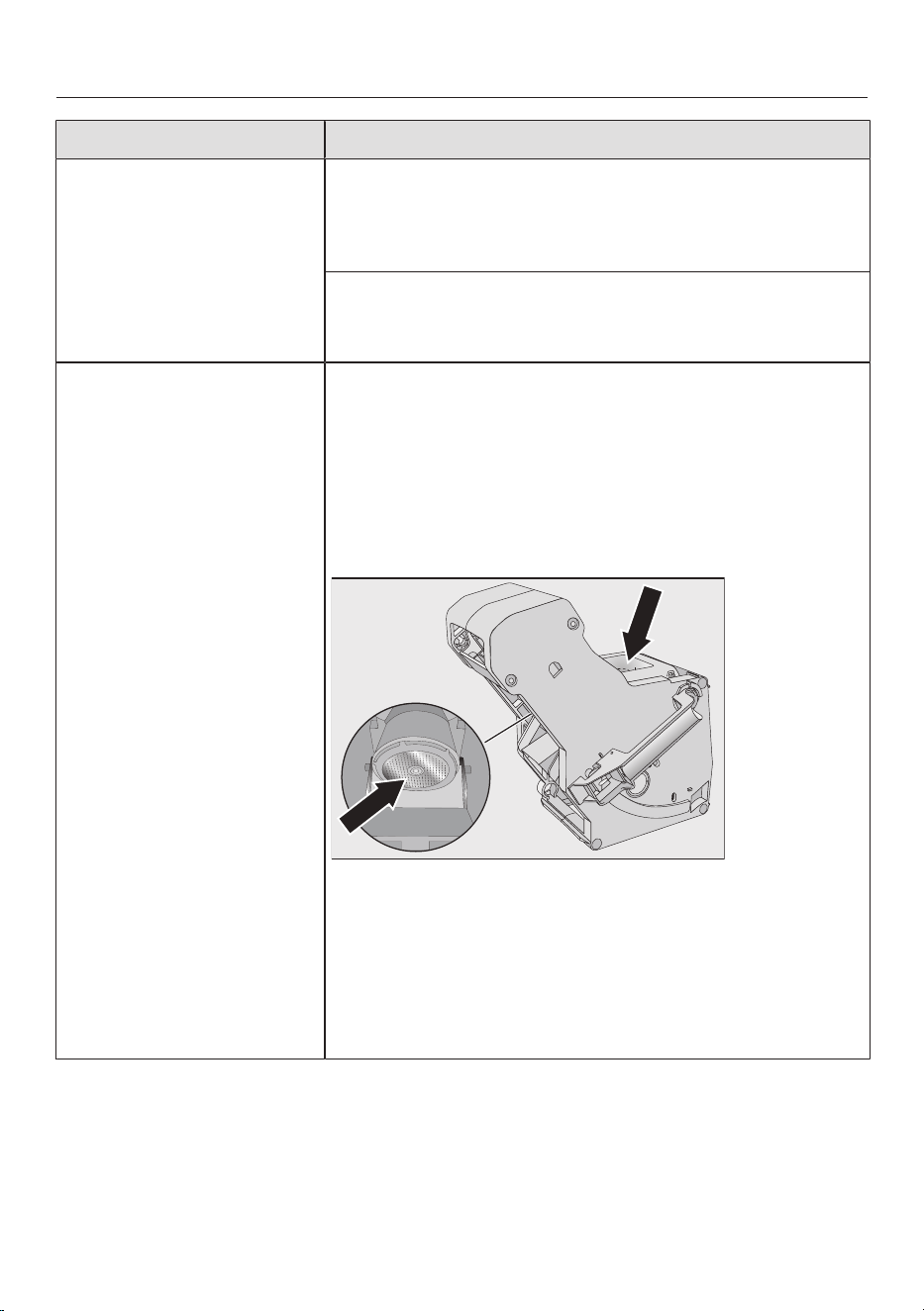
Frequently asked questions
Problem Possible cause and solution
The consistency of the
milk froth is unsatisfac-
tory.
The milk temperature is too high. Good milk froth can
only be achieved when cold milk (below 50°F/10°C) is
used.
Check the temperature of the milk in the milk flask.
The milk pipework is blocked and/or the milk valve is
soiled.
Remove and clean the milk valve.
Coffee drinks trickle/
dribble slowly out of the
central spout.
The brew unit is blocked because the coffee machine
has been used very intensively. And/or the brew unit
has not been regularly removed and cleaned by hand.
If a cleaning cartridge is inserted, start by switching
off Automatic Cleaning (Settings| Automatic Cleaning).
Run the Degrease the brew unit maintenance program
with 1cleaning tablet (see “Cleaning and care –
Degreasing the brew unit and cleaning the interior”).
It is particularly important to clean the filters in the
brew unit thoroughly.
If necessary, switch on Automatic Cleaning before you
start making a drink.
Otherwise, the Clean the milk pipework and Degrease the
brew unit maintenance programs will have to be run
again.
94
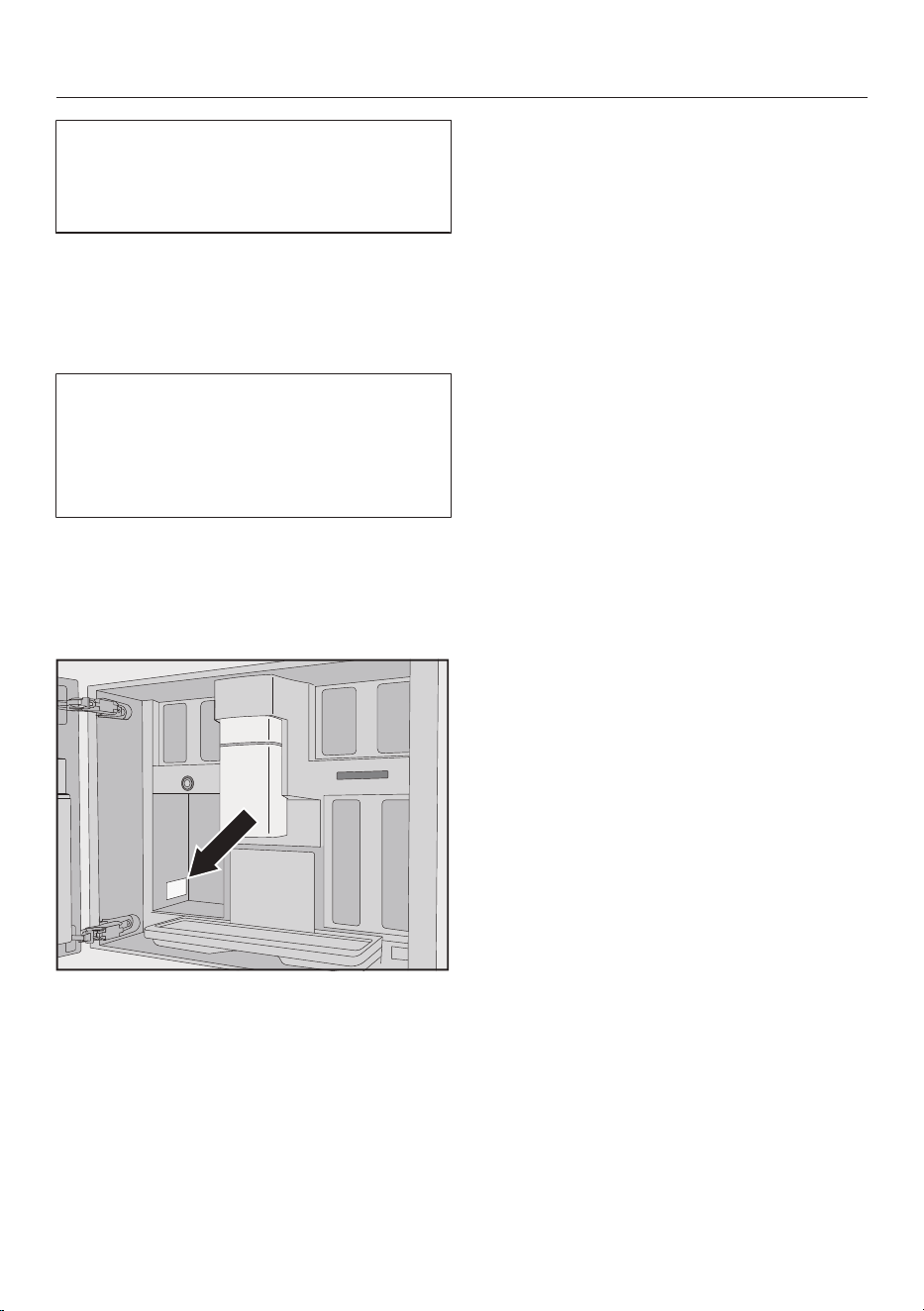
Service and warranty
95
Information to help you rectify faults
yourself and about Miele spare parts
can be found at www.miele.com/
service.
Contact in the event of a fault
In the event of a fault which you cannot
remedy yourself, please contact your
Miele dealer or Miele Customer Service.
You can book a Miele Service Call
online at www.miele.com/service.
Contact information for Miele
Customer Service can be found at the
end of this document.
Please quote the model identifier and
serial number of your appliance (SN)
when contacting Miele Customer
Service. Both pieces of information can
be found on the data plate.
Appliance warranty and product
registration
You can register your product and/or
view the manufacturer´s warranty terms
and conditions for Miele appliances and
vacuum cleaners at www.mieleusa.com.

Accessories
96
These products and other useful
accessories can be ordered via the
Miele Webstore, from Miele Service or
from your Miele dealer.
- Cleaning agent for milk pipework
for cleaning the milk system
- Cleaning tablets
for degreasing the brew unit
- AutoCleaner
for automatically cleaning the milk
pipework and brew unit
- Descaling cartridge
for automatic descaling
- Descaling tabs
for manual descaling
- CJJug 1.0L
Insulated flask for coffee or tea (pot
function)
- Miele Black Edition One for all
perfect for making espresso, café
crema, and speciality coffee with milk
- Miele Black Edition Espresso
Whole coffee beans – perfect for
making espresso
- Miele Black Edition Café Crema
Whole coffee beans – perfect for
making coffee
Caring for the environment
97
Disposal of the packing material
The cardboard box and packing
materials protect the appliance during
shipping. They have been designed to
be biodegradable and recyclable.
Ensure that any plastic wrappings, bags,
etc. are disposed of safely and kept out
of the reach of children. Danger of
suffocation!
Saving energy
The following tips can help you save
energy and money as well as help the
environment:
- Operate the coffee machine in Eco
mode (default setting).
- Switch off the time of day display.
- Select a lower lighting setting or
refrain from using any lighting.
- Switch off the lighting when the
appliance is switched off.
- Select the dark colour scheme for the
display.
- Reduce the brightness of the display.
- If you change the factory default
settings for the “Timer”, this can
increase the energy consumption of
the coffee machine.
- Pay particular attention to the
following message on the display: This
setting increases energy consumption.
- Switch the coffee machine off with
the On/Off switch if it is not going
to be used for a while.
Disposal of your old appliance
Electrical and electronic appliances
contain valuable materials. They also
contain certain substances, compounds
and components which were essential
for the proper functioning and safe use
of the equipment. Handling these
materials improperly by disposing of
them in your household waste can be
harmful to your health and the
environment. Therefore, please do not
dispose of your old appliance with
regular household waste and follow
local regulations on proper disposal.
Consult with local authorities, dealers or
Miele in order to dispose of and recycle
electrical and electronic appliances.
Miele assumes no responsibility for
deleting any personal data left on the
appliance being disposed. Please
ensure that your old appliance is kept
away from children until removal.
Observe safety requirements for
appliances that may tip over or pose an
entrapment hazard.
Installation
*INSTALLATION*
98
Plumbed water connection
Risk of injury and appliance
damage if appliance is not connected
properly.
Failing to connect the appliance
properly can result in personal injury
and/or material damage.
The appliance may only be
connected to the plumbed-water
connection by qualified specialists.
Risk to health and risk of damage
due to contaminated water.
The quality of the incoming water
must conform to the requirements
for drinking water in the country
where the coffee machine is being
used.
Connect the coffee machine to the
water supply.
Connection to the water supply must
comply with the applicable
regulations in the country where the
appliance is being installed. All units
and systems used to supply water to
the coffee machine must also comply
with the applicable regulations in the
respective country.
Connect the coffee machine directly
to the plumbed-water supply.
Avoid connecting the coffee machine
to a water supply in which the water
might stagnate. Otherwise, the flavor
of the drinks could be impaired.
The coffee machine may only be
connected to a cold-water supply.
The water-connection pressure needs
to be between 100and 1,000kPa (14.5
to 145psi).
A water supply valve must be provided
between the stainless-steel hose and
the domestic-water supply to ensure
that the water supply can be cut off if
necessary. Make sure the water supply
valve remains easily accessible once the
coffee machine has been installed.
Connecting the appliance to the water
supply line
Make sure that the supply line is not
kinked or damaged.
A 3/4” BSP to 1/4” compression fitting
adapter is supplied with the machine.
Suitable 1/4” O.D flexible water line or
copper piping is not included.
Remove the water connection cover
from the bottom of the back panel of
the machine.
Take the angled side of the brass
fitting and check whether a gasket is
present. If not, insert one.
Screw the supply line coupling nut
onto the threaded union.
Ensure that the supply line is correctly
fitted and that it is water-tight.
Connecting the water supply
Disconnect the coffee machine
from the power supply before
connecting it to the water supply.
Turn off the water supply at the water
supply valve before connecting the
coffee machine to the water supply.
Make sure that the water supply
valve remains accessible after the
machine has been installed.
To connect the coffee machine to the
water supply, a water supply valve with
a 3/4" connection is required.
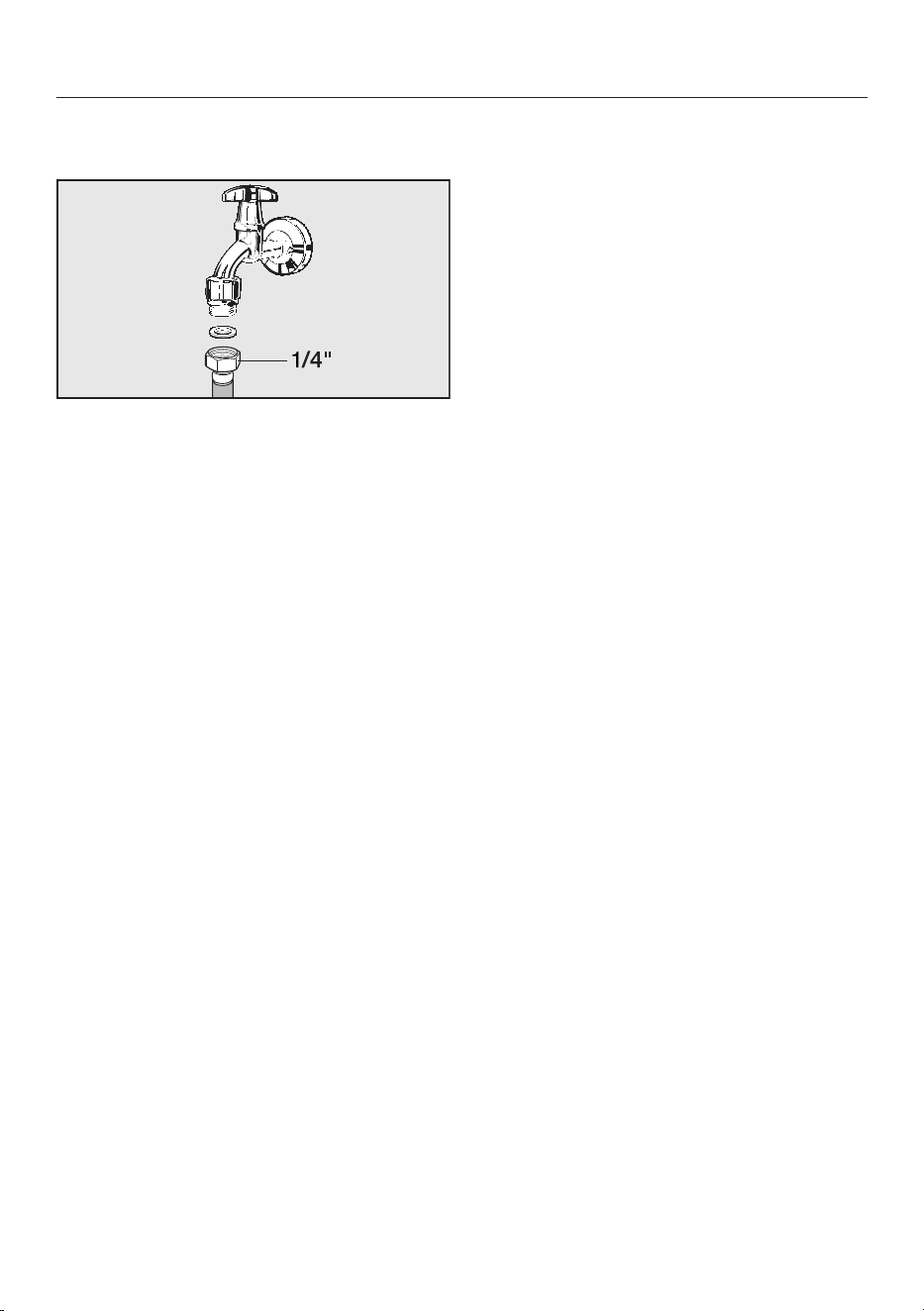
Installation
*INSTALLATION*
99
Check that a seal is present. Install
one if necessary.
Connect the stainless-steel hose to
the water supply valve.
Ensure that it is screwed into position
correctly.
Turn on the water supply valve slowly
and check for leaks at the plumbed-
water connection.
Correct the position of the seal and
screw thread if appropriate.
You can now continue installing the
coffee machine.
Electrical connection
Before connecting the coffee machine,
make sure that the connection data on
the data plate (voltage and frequency)
matches the electrical supply.
This data must match to avoid the risk
of damage to the coffee machine. If in
any doubt, consult a qualified
electrician.
The necessary connection data is given
on the data plate inside your appliance.
The fuse rating must be at least 15A.
If possible, the socket should remain
easily accessible. If the socket is no
longer accessible after installation, an
additional means of disconnection must
be provided for all poles. Suitable
means of disconnection include
switches with an all-pole contact gap of
at least 1/8" (3mm).
Temporary or permanent operation on
an autonomous power supply system or
a power supply system that is not
synchronized with the grid power supply
(e.g., island networks, backup systems)
is possible. A prerequisite for operation
is that the power supply system
complies with local regulations and
standards.
The function and operation of the
protective measures provided in the
domestic electrical installation and in
this Miele product must also be
maintained in isolated operation or in
operation that is not synchronized with
the grid power supply, or these
measures must be replaced by
equivalent measures in the installation.
As described, for example, in the current
version of VDE-AR-E2510-2.
The coffee machine must not be used
with energy saving plugs. These reduce
the energy supply to the machine, which
could generate excessive heat.
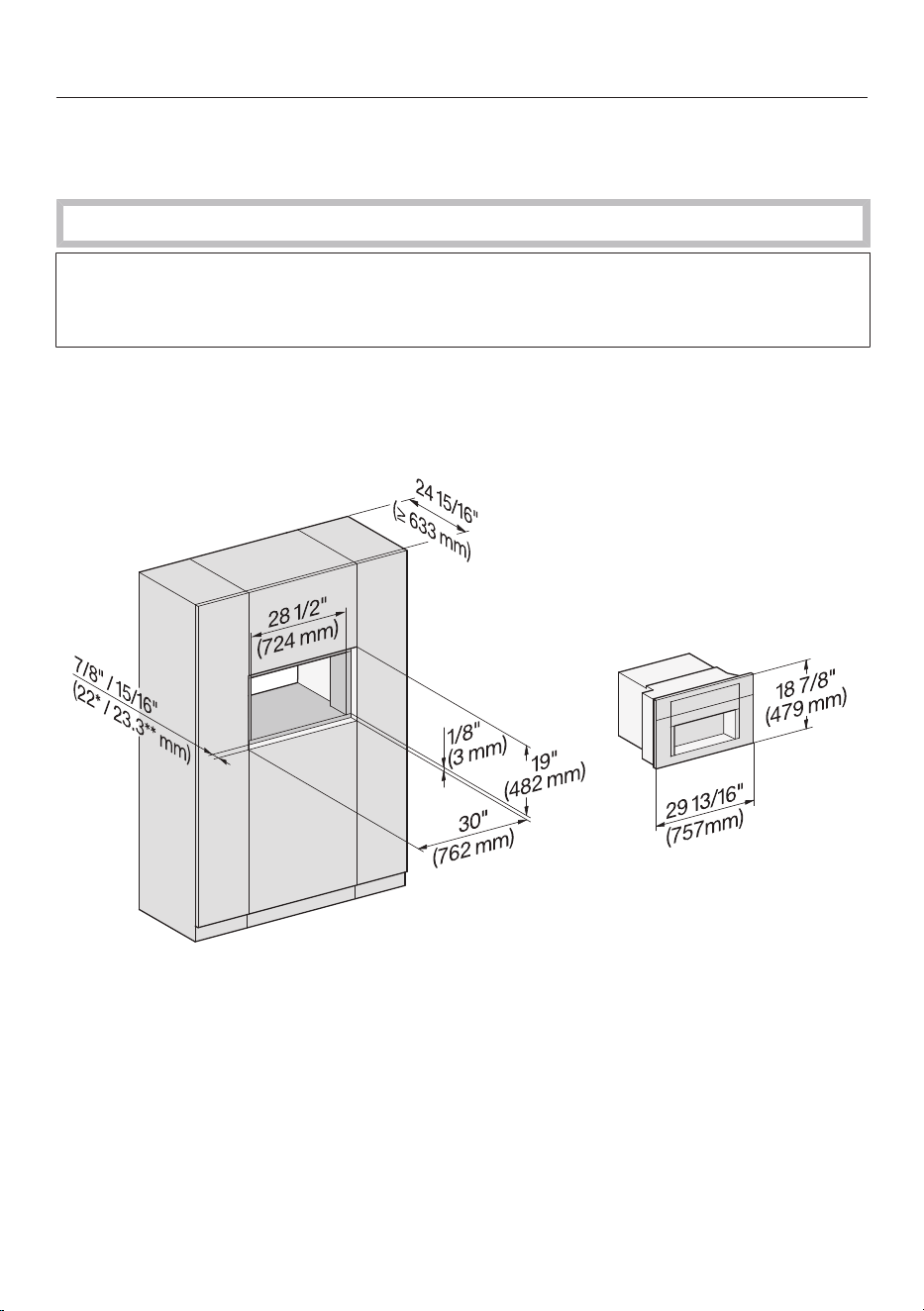
Installation
*INSTALLATION*
Installation dimensions
Installation in a tall cabinet
Observe the required minimum installation height of 337/16" (850mm).
Your coffee machine can be installed flush or proud. Discuss your requirements
with your architect, kitchen designer, and installer.
More installation drawings are available on the Miele homepage.
Combination with other Miele built-in appliances is possible. If the coffee machine
is to be built in above another appliance, there must be a full-width, closed shelf
between them. If the appliance is to be combined with a Gourmet warming drawer/
built-in vacuum drawer, no shelf is required in between.
100
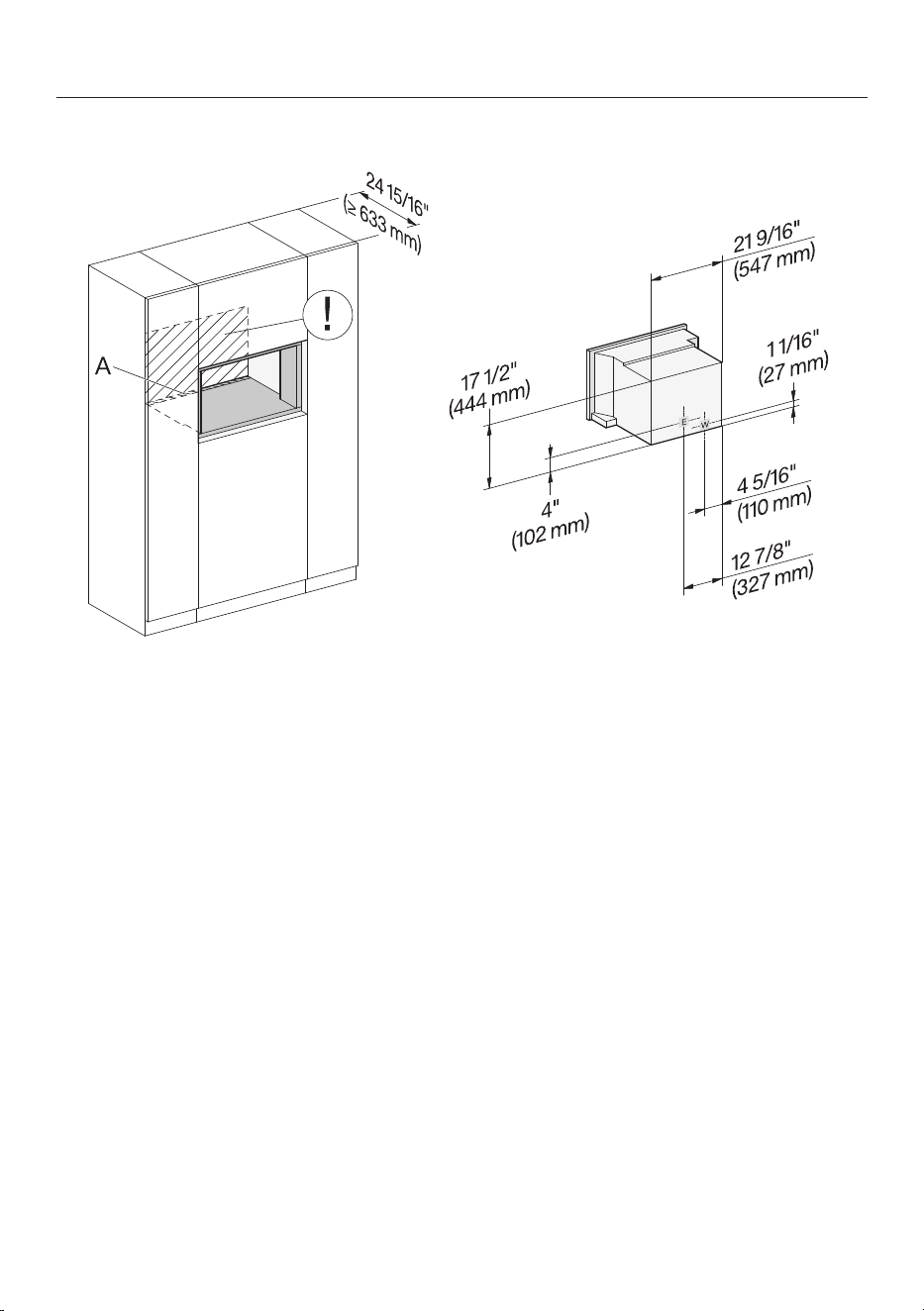
Installation
*INSTALLATION*
Installation and connections
A Cut-out (at least 20"/508mm wide) in the base of the tall cabinet for power
cord and ventilation
E Electrical connection
W Plumbed-water connection
No electrical or plumbed-water connection in this area
101
Installation
*INSTALLATION*
102
Building in the coffee machine
Danger of injury due to incorrect
operation.
A machine that has not been built in
is not safe and can cause injuries.
Do not operate the coffee machine
unless it has been built in.
Danger of damage due to
incorrect operation.
If the ambient temperature range is
not observed, the coffee machine
can not function properly.
The coffee machine may only be
operated within an ambient
temperature range of +60°F to
+100°F (+16°C to +38°C).
Maintain the required minimum
installation height of 337/16"
(850mm).
Risk of damage and injury from
the coffee machine tipping over.
If the coffee machine is not yet
screwed to the cabinet, the appliance
may tip forward when the appliance
door is open.
Make sure that a second person fully
secures the coffee machine during
installation.
First screw the top-left screw to the
cabinet.
Risk of damage due to the use of an
electric screwdriver.
If the coffee machine is secured with
an electric screwdriver, e.g., cordless
screwdriver, the chuck may damage
the appliance door and/or the
interior.
Only use a manual screwdriver to
secure the coffee machine in the
cabinet.
To install the machine, you will need a
TX20 screwdriver.
Tip: We recommend providing a place
to sit the coffee machine which is the
same height as the building-in niche.
This will make it easier to connect the
appliance to the electricity and water
supply.
Connecting the plumbed-water and
electricity supplies
Observe the information under
“Plumbed-water connection” and
“Electrical connection”.
Connect the coffee machine to the
plumbed-water and electricity
supplies.
Tip: We recommend providing a place
to sit the coffee machine which is the
same height as the building-in niche.
This will make it easier to connect the
machine to the electricity and water
supply.
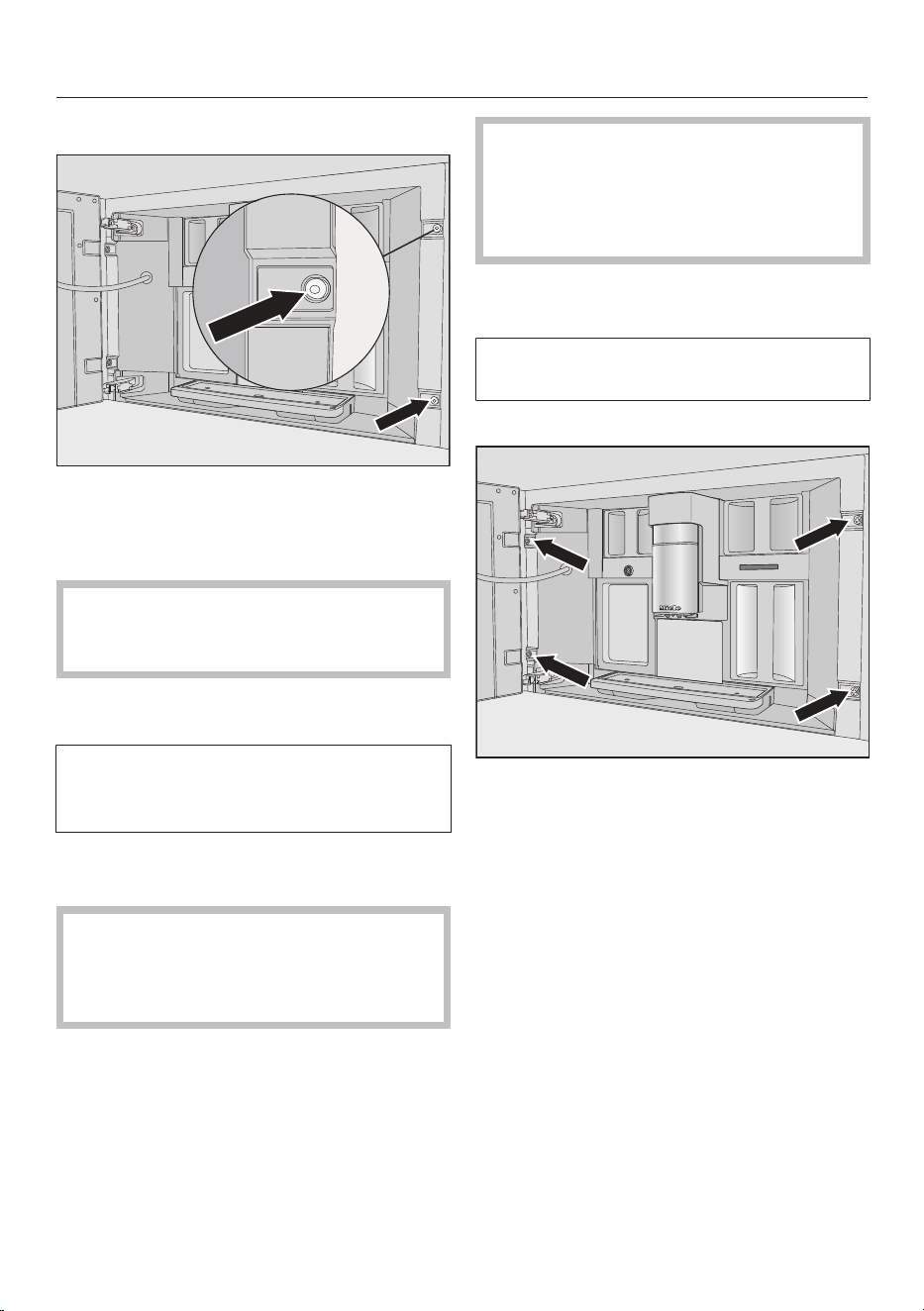
Installation
*INSTALLATION*
103
Removing transport restraints
2 screw holes are fitted with red silicone
plugs to protect the appliance against
transport damage and secure the door
during transport.
Remove the plugs before screwing
the coffee machine to the cabinet
unit.
Pull firmly on the red silicone plugs to
remove them from the screw holes.
The plugs are not required for any
other purpose. Dispose of them with
your household waste.
Pushing in and aligning the coffee
machine
When pushing the machine into the
niche, make sure that the electrical
and plumbed-water connections do
not get trapped or damaged.
Push the coffee machine all the way
into the niche until you feel a
resistance.
Check the height of the coffee
machine to make sure that it is sitting
centrally in the niche and that it is
level. Align the machine.
Never align the coffee machine by
adjusting the door hinges. This will
prevent the milk flask from attaching
correctly and interfere with the milk-
preparation process.
Screwing the coffee machine to the
cabinet
FourTX20 (25mm) screwsare
supplied with the machine.
Open the appliance door.
Secure the coffee machine to the side
walls of the cabinet using the screws
supplied. Start with the top-left
screw. Proceed in a clockwise
direction to tighten the other screws.
Tighten all screws by hand.
Carry out a functional check on the
coffee machine.

Technical data
Electricity consumption in standby: ≤0.8W
Electricity consumption in networked
standby:
≤1.4W
Frequency range 2.412 GHz – 2.462 GHz
Maximum transmitting power < 100 mW
104
FCC Declaration of Conformity
Wi-Fi module EK057
Contains FCC ID: 2AC7Z-EK057
Contains IC: 21098-EK057
This device complies with Part 15 of the FCC Rules and with Industry Canada
licence-exempt RSS standard(s). Operation is subject to the following two
conditions: (1) this device may not cause harmful interference, and (2) this device
must accept any interference received, including interference that may cause
undesired operation.
This equipment complies with FCC radiation exposure limits set forth for an
uncontrolled environment. This equipment should be installed and operated with
minimum distance 8" (20cm) between the radiator and your body. This device and
its antenna(s) must not be co-located or operation in conjunction with any other
antenna or transmitter.
Industry Canada Statement
This digital apparatus does not exceed the ClassB limits for Radio Noise Emissions
from digital apparatus set out in the Radio Interference Regulations of the Canadian
Department of Communications.
Complies with Canadian ICES-003 ClassB specifications.
105

Copyrights and licenses
For the purpose of operating and controlling the communication module, Miele
uses proprietary or third-party software that is not covered by open source
licensing terms. This software/these software components are protected by
copyright. The copyrights held by Miele and third parties must be respected.
In addition, the integrated communication module contains software components
which are distributed under open source licensing terms. You can access these
open source components along with the associated copyright notices, copies of
the valid licensing terms, and any additional information locally via IP using a web
browser (http[s]://<ip address>/Licenses). The liability and warranty arrangements
for the open source licenses displayed in this location only apply in relation to the
respective rights holders.
106

9 Independence Way
Princeton, NJ 08540
www.mieleusa.com
U.S.A.
Miele, Inc.
National Headquarters
Please have the model and serial number
of your appliance available when
contacting Customer Service.
Canada
Importer
Miele Limited
Headquarters and Miele Centre
Customer Support
Phone: 888-99-MIELE (64353)
161 Four Valley Drive
Vaughan, ON L4K 4V8
www.miele.ca
Customer Care Centre
Phone:
1-800-565-6435
905-532-2272
International Headquarters
Miele & Cie. KG
Carl-Miele-Straße 29
33332 Gütersloh
Germany

M.-Nr. 12 861 300 / 02en-US, CA
CVA7775, CVA7875