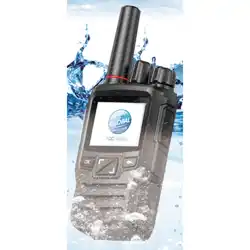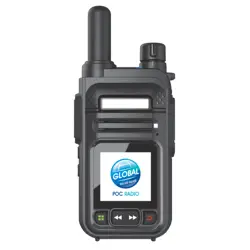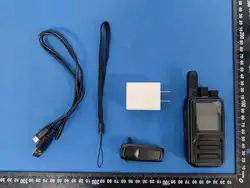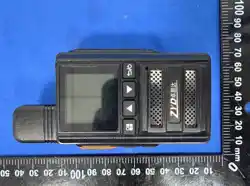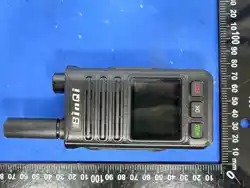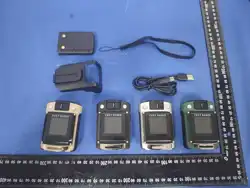
Product Overview
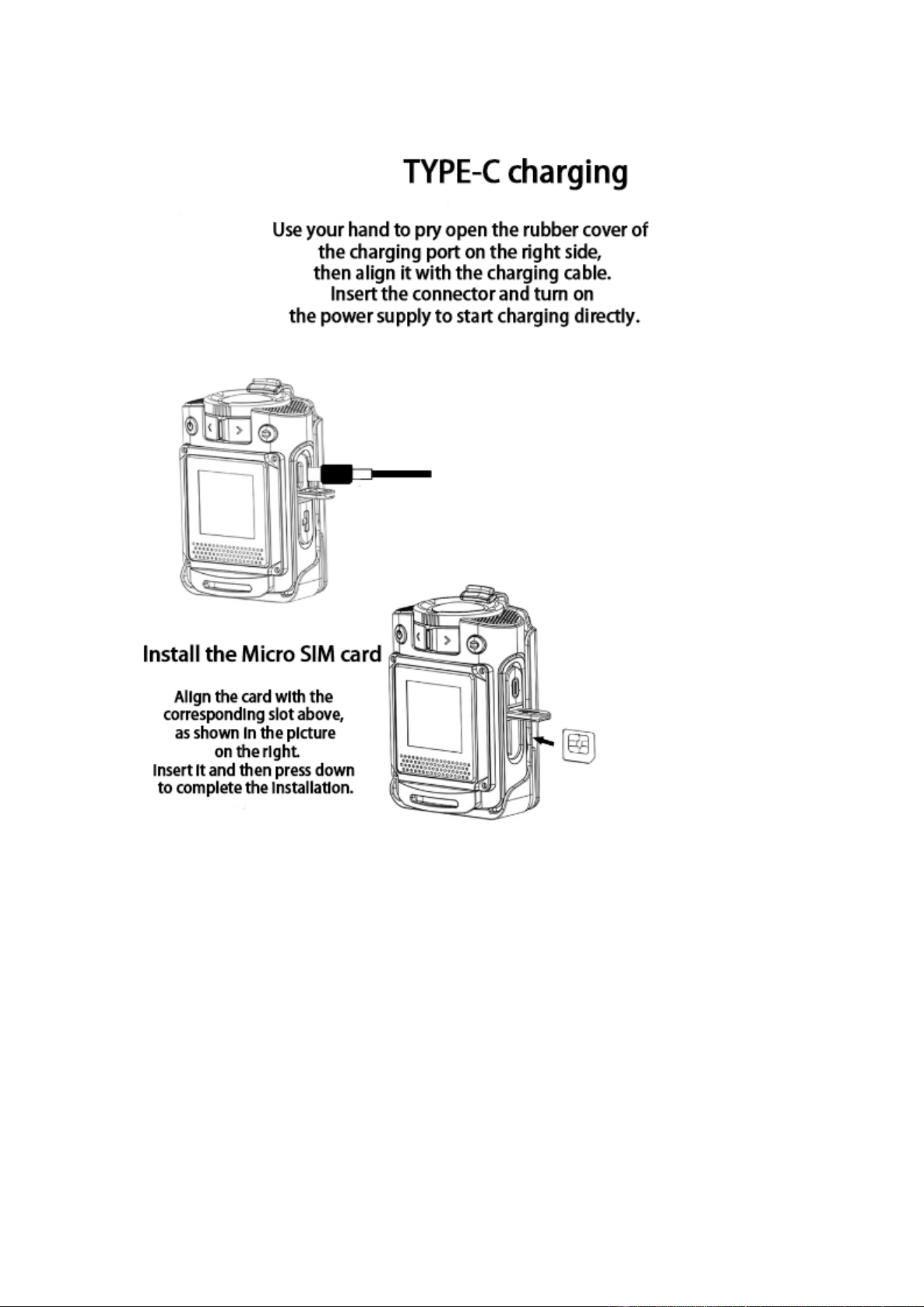
Before Use Installing the Micro SIM Card
1. Open the SIM card slot cover.
2. Install the SIM card.
3. Put the card slot cover back in place(The installation video can be
viewed through the product link.)

Attaching the Battery
⚠CAUTION
Use the approved battery to avoid the risk of explosion.
Dispose of the used battery according to "Precautions for Disposal" in
the Safety Information Booklet.
Attach the battery as shown below, and then attach the battery cover
back.
Charging the Battery
⚠CAUTION
Use the approved charger to charge the battery.
Read the Safety Information Booklet before charging.
The remaining lithium-ion battery power is limited to 30% pursuant to
the new lithium battery shipment regulation approved by the
International Air Transport Association (IATA). Before initial use,
charge the battery.
To charge the battery, connect the
computer with the USB cable.
To determine the charging status, check the battery icon shown on the
LCD display.
To ensure optimum waterproof and dustproof performance, close the
USB Type-C port cover after charging the product.
The product does not support charging with a dock chargerThe product does not support charging with a dock charger.

⚠Notice for use
Do not use this 4G LTE POC RADIO in explosive environments (such as gas, dust,
smoke, etc.) or charge the lithium battery.
When refueling or parking at the gas station, please turn off the 4G LTE POC
RADIO! Under no circumstances should you modify or adjust this device on your
own for any reason.
Do not place the 4G LTE POC RADIO in dusty, damp or water-spraying
environments, nor on unstable surfaces
Ⅰ--Introduction to Basic Functions
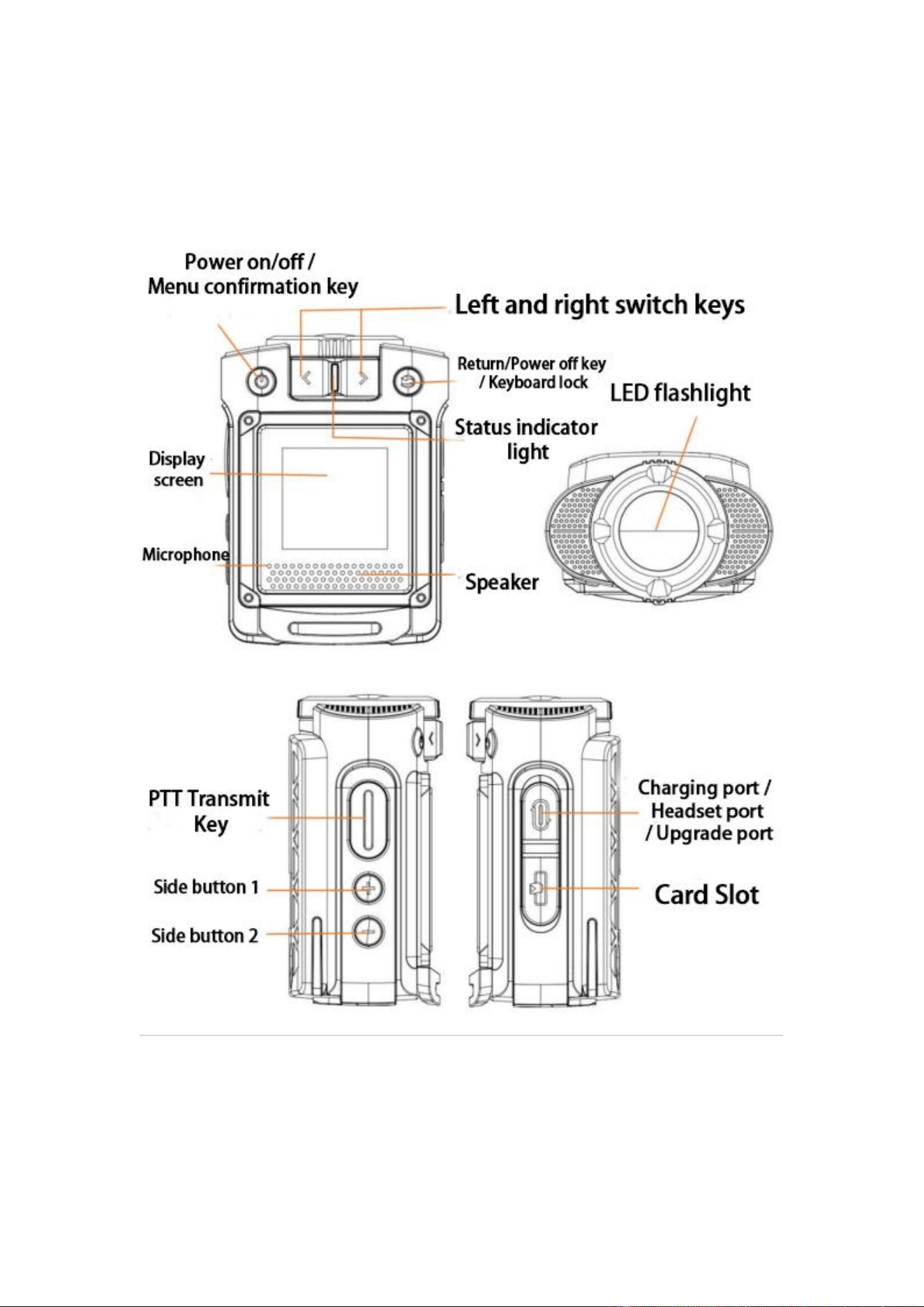
①Power on/off / Menu / Confirm key
A.To power on: Press and hold the power button for "three seconds". Wait for
the green light to come on and then the screen of the walkie-talkie will light up.
It is logging in.
B.Shut down: Press and hold the power button for "three seconds" and a
prompt will appear indicating that the device is shutting down.
C.Menu: Press this key briefly after the device is powered on to enter the
menu.
D.Confirm key: In the options section, this key functions as the confirm button
when pressed briefly.
②Return/Power off key / Keyboard lock
A.Return: A short press is the back button.
B.Power Off Button: For devices that have been bound to the Super App
software on this machine, simply short-press this button on the main interface
to turn off the screen. If not bound, click on it to enter the QR code (how to bind
the App can be found in the "User Program Guide" section later).
C.Keyboard Lock: Press and hold this key for "three seconds" to turn on/off the

keyboard lock. When the keyboard lock is activated, a lock symbol will appear
on the display screen.
③Left and right switch keys
A.Right turn key“ 》 ” :
Short press this key on the main interface to enter the "Group Function"; short
press this key on the menu interface to be the "right-cut or down-switching key".
Long press this key to enter the input interface of the "Group Password Join
Group" function;
B.Left turn button“ 《 ” :
Short press this key on the main interface to enter the "Member Functions";
short press this key on the menu interface to be the "left-cut or up-switching
key".
Long press this key to enter the sharing code interface of the "Group
Password Sharing" function.
④PTT Launch button:
When this key is held down, the status indicator light turns red, and the
display shows the red text "Calling". At this point, speaking into the microphone
will send the message.
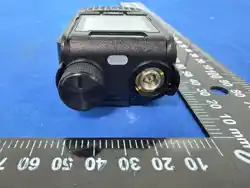
⑤Side button 1:
Short press: Volume up;
Long press: Turn on/off the flashlight;
⑥Side button 2:
Short press the side button 2: Volume down;
⑦Status light:
A. After successful login, it enters the standby mode. This indicator light
flashes green; if the device is turned on but not logged in, the red light
remains on constantly.
B. When the PPT is being launched, the red light remains on constantly;
when receiving voice input, the green light remains on constantly.
C. When charging, the red light remains on constantly; when fully charged,
the green light remains on constantly.

Ⅱ--Menu Function Overview
①Group selection:
A.Group List:
Check the list of groups to which the device has been added. Here, you
can also switch to the groups you need to join.
B.Group Sharing:
Use the following method to share your group with others:
Shared code (6-digit number)
Due to security reasons, the group sharing code is refreshed every 24
hours. Please ensure that you are sharing the latest valid code.
C.New Group:
Create a new group from the menu. After creation, you can share this
group via code .
D.To join an existing group in the following way:
Enter the 6-digit shared code
Usage: Press "《" on the left to switch to "》" on the right to change the
number. Press the confirmation key to move to the next number. After
entering the 6th digit, if it is confirmed to be correct without any errors, it
will be automatically added to the group.
(For security reasons, the group code is refreshed every 24 hours. Please
ensure to use the latest valid code to join.)
E. Exit Group:
Leave the current group (only ordinary members who are not the group
creator can exit the group);
F. Dissolve Group:
Completely remove the group (only the group creator (administrator) can
dissolve the group);
G. Remove Members:
Remove the members in the group (only the creator (administrator) of the
group has this function);
H. Group Owner Transfer:
Transfer the creator (administrator) rights of the group to other members

(only the creator (administrator) of the group has this function);
② Member selection:
A.member list
Display the members of the current group;
B.Temporary Group:
Members of the current group can select the members they want to
have a private conversation with for direct communication.
③ This machine settings
A.Display Settings
Sleep mode settings: 5 seconds, 10 seconds, 30 seconds, 60 seconds,
never sleep
(Setting the duration for automatic screen turning off);
Screen brightness: The brightness can be adjusted from level 1 to
level 5.
B.Sound settings
PTT alert sound: The alert sound switch for the PTT transmission key;
Key press alert tone: The switch for the key press alert tone;
C.Power modes
D.Signal value
E.Battery
F.System
G.IMEI code
Each machine has a unique IMEI code.
H.Reset
I.APN
J.HP Recognition
Download the App
Application User Guide(Super PTT)
Application download and login
create groups,join groups,and configure public
network settings
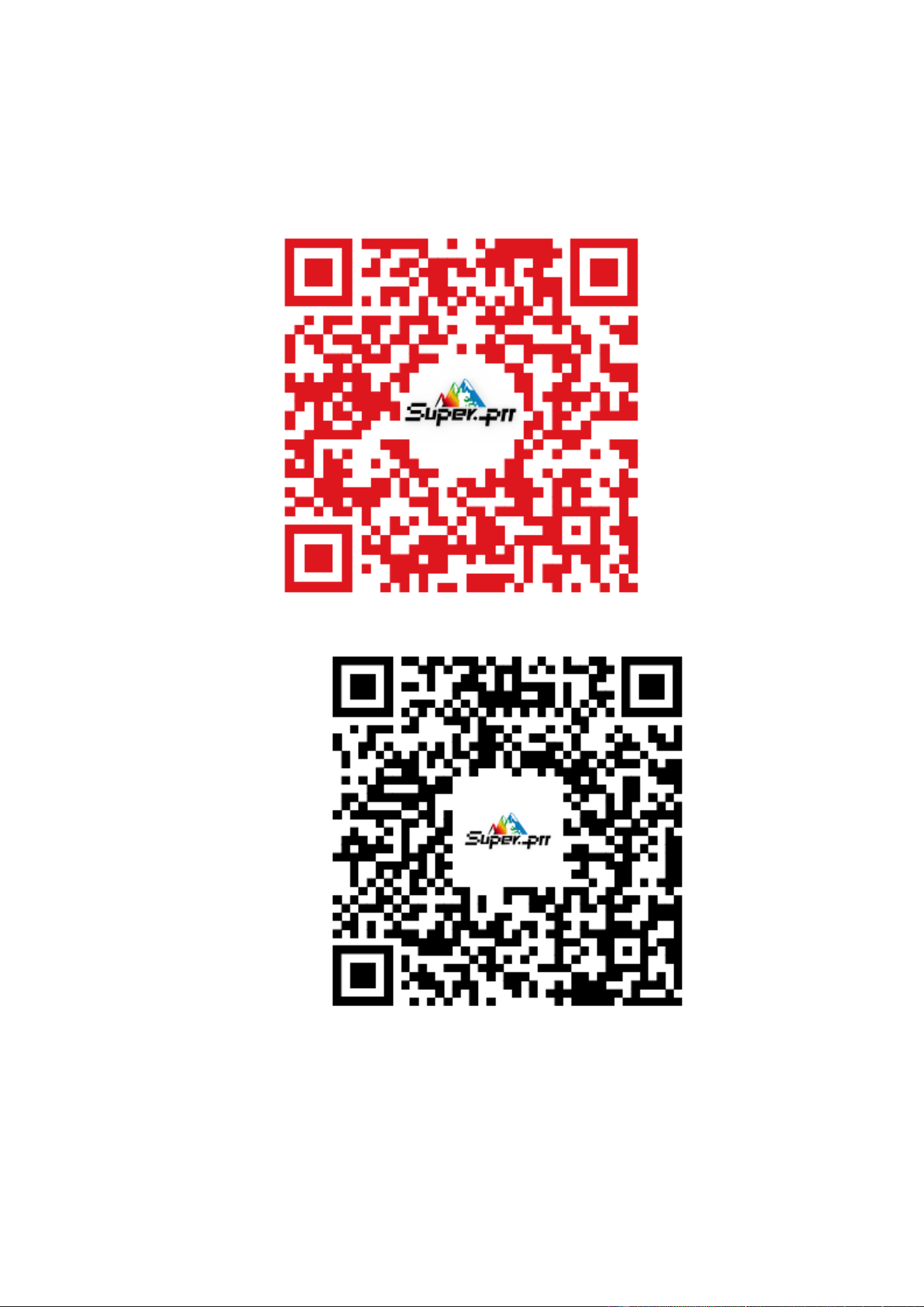
① IOS IPhone
Open the App Store on your iPhone; click on the bottom search bar, enter
"Super PTT" and download it.
②IOS
③Android
Download the application by scanning the QR code.
Pair the device with the application.

A.Click on "Bind Application" on your radio device.
B.In the application, the IMEI code is scanned for pairing.
FCC Statement:
Any Changes or modifications not expressly approved by the party
Responsible for compliance could void the user's authority to operate the
equipment. This device complies with part 15 of the FCC Rules. Operation is
subject to the following two conditions:
(1) This device may not cause harmful interference, and
(2) This device must accept any interference received, including interference
that may cause undesired operation.
SAR tests are conducted using standard operating positions accepted by FCC
with the device transmitting at its highest certified power level in all tested
frequency bands although the SAR is determined at the highest certified power
level, the actual SAR level of the device while operating can be well below the
maximum value. Before a new model is
a available for sale to the public, it
must be tested and certified to the FCC that is does not exceed the exposure
limit established by the FCC. Tests for each product are performed in positions
and locations as required by the FCC. For body worn operation, this device
has been tested and meets the FCC RF exposure guidelines when used with
and accessory designated for this product or when used with and accessory
that contains no metal. To maintain compliance with FCC RF exposure
guidelines hold the transmitter and antenna at least 10mm from your face
and speak in a normal voice, with the antenna pointed up and away from the
face.Note: This equipment has been tested and found to comply with the limits
for a Class B digital device, pursuant to part 15 of the FCC Rules.These
limits are designed to provide reasonable protection against harmful
interference in a residential installation. This equipment generates, uses
and can radiate radio frequency energy and, if not installed and used in
accordance with the instructions, may cause harmful interference to radio
communications. However, there is no guarantee that interference will not
occur in a particular installation. If this equipment does cause harmful
interference to radio or television reception, which can be determined by
turning the equipment off and on, the user is encouraged to try to correct the
interference by one or more of the following measures:
-Reorient or relocate the receiving antenna
-Increase the separation between the equipment and receiver.
-Connect the equipment into an outlet on a circuit different from that to which
the receiver is connected.
-Consult the dealer or an experienced radio/TV technician for help.