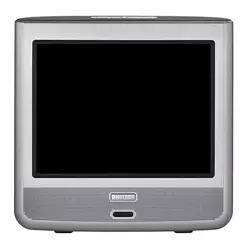

3139 125 31871
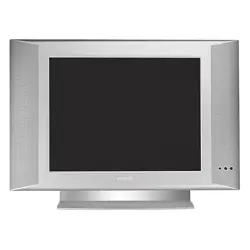
LCD TV
Directions for Use
LCD TV
Need help?
Call us!
Philips representatives are ready to help you with any ques-
tions about your new product. We can guide you through
Connections, First-time Setup, or any of the Features.
We want you to start enjoying your new product right away!
FOR FAST HELP PLEASE CALL,
1-800-531-0039
or
Visit us on the web at
www.philips.com
Important!
Return your
Warranty
Registration Card
within 10 days.
See why inside.
2
Once your PHILIPS purchase is registered, you’re eligible to receive all the privileges
of owning a PHILIPS product. So complete and return the Warranty Registration
Card enclosed with your purchase at once. And take advantage of these important benefits.
Return your Warranty Registration card today to ensure you
receive all the benefits you’re entitled to.
Congratulations
on your
purchase,
and welcome to the
“family!”
Dear PHILIPS product owner:
Thank you for your confidence in PHILIPS. You’ve selected one of the best-built, best-backed products available
today. And we’ll do everything in our power to keep you happy with your purchase for many years to come.
As a member of the PHILIPS “family,” you’re entitled to protection by one of the most comprehensive war-
ranties and outstanding service networks in the industry.
What’s more, your purchase guarantees you’ll receive all the information and special offers for which you quali-
fy, plus easy access to accessories from our convenient home shopping network.
And most importantly you can count on our uncompromising commitment to your total satisfaction.
All of this is our way of saying welcome–and thanks for investing in a PHILIPS product.
Sincerely,
Lawrence J. Blanford
President and Chief Executive Officer
Know these
safetysymbols
t This “bolt of lightning” indicates uninsulated material within your unit may cause an elec-
trical shock. For the safety of everyone in your household, please do not remove product cov-
ering.
s The “exclamation point” calls attention to features for which you should read the
enclosed literature closely to prevent operating and maintenance problems.
WARNING: TO PREVENT FIRE OR SHOCK HAZARD, DO NOT EXPOSE THIS EQUIP-
MENT TO RAIN OR MOISTURE.
CAUTION: To prevent electric shock, match wide blade of plug to wide slot, and fully insert.
ATTENTION: Pour éviter les chocs électriques, introduire la lame la plus large de la fiche dans
la borne correspondante de la prise et pousser jusqu’au fond.
CAUTION
RISK OF ELECTRIC SHOCK
DO NOT OPEN
CAUTION: TO REDUCE THE RISK OF ELECTRIC SHOCK, DO NOT
REMOVE COVER (OR BACK). NO USER-SERVICEABLE PARTS
INSIDE. REFER SERVICING TO QUALIFIED SERVICE PERSONNEL.
Warranty
Verification
Registering your product within
10 days confirms your right to maxi-
mum protection under the terms and
conditions of your PHILIPS warranty.
Owner
Confirmation
Your completed Warranty
Registration Card serves as
verification of ownership in the
event of product theft or loss.
Model
Registration
Returning your Warranty Registration
Card right away guarantees you’ll
receive all the information and special
offers which you qualify for as the
owner of your model.
P.S. Remember, to get the most from your
PHILIPS product, you must return your
Warranty Registration Card within 10
days. So please mail it to us right now!
R
E
G
I
S
T
R
A
T
I
O
N
N
E
E
D
E
D
W
I
T
H
I
N
1
0
D
A
Y
S
Hurry!
Visit our World Wide Web Site at http://www.philips.com
3
IMPORTANT SAFETY INSTRUCTIONS
Read before operating equipment
1. Read these instructions.
2. Keep these instructions.
3. Heed all warnings.
4. Follow all instructions.
5. Do not use this apparatus near water.
6. Clean only with a dry cloth.
7. Do not block any of the ventilation openings. Install in accordance
with the manufacturers instructions.
8. Do not install near any heat sources such as radiators, heat regis-
ters, stoves, or other apparatus (including amplifiers) that produce
heat.
9. Do not defeat the safety purpose of the polarized or grounding-
type plug. A polarized plug has two blades with one wider than
the other. A grounding type plug has two blades and third ground-
ing prong. The wide blade or third prong are provided for your
safety. When the provided plug does not fit into your outlet, con-
sult an electrician for replacement of the obsolete outlet.
10. Protect the power cord from being walked on or pinched particu-
larly at plugs, convenience receptacles, and the point where they
exit from the apparatus.
11. Only use attachments/accessories specified by the manufacturer.
12. Use only with a cart, stand, tripod, bracket, or table
specified by the manufacturer, or sold with the app-
aratus. When a cart is used, use caution when moving
the cart/apparatus combination to avoid injury from tip-over.
13. Unplug this apparatus during lightning storms or when unused for
long periods of time.
14. Refer all servicing to qualified service personnel. Servicing is
required when the apparatus has been damaged in any way, such
as power-supply cord or plug is damaged, liquid has been spilled
or objects have fallen into apparatus, the apparatus has been
exposed to rain or moisture, does not operate normally, or has
been dropped.
15. This product may contain lead and mercury. Disposal of these
materials may be regulated due to environmental considerations.
For disposal or recycling information, please contact your local
authorities or the Electronic Industries Alliance: www.eiae.org
16. Damage Requiring Service - The appliance should be serviced
by qualified service personnel when:
A. The power supply cord or the plug has been damaged; or
B. Objects have fallen, or liquid has been spilled into the appli-
ance; or
C. The appliance has been exposed to rain; or
D. The appliance does not appear to operate normally or
exhibits a marked change in performance; or
E. The appliance has been dropped, or the enclosure damaged.
17. Tilt/Stability - All televisions must comply with recommended
international global safety standards for tilt and stability properties
of its cabinet design.
• Do not compromise these design standards by applying exces-
sive pull force to the front, or top, of the cabinet which could ulti-
mately overturn the product.
• Also, do not endanger yourself, or children, by placing electron-
ic equipment/toys on the top of the cabinet. Such items could
unsuspectingly fall from the top of the set and cause product dam-
age and/or personal injury.
18. Wall or Ceiling Mounting - The appliance should be mounted to
a wall or ceiling only as recommended by the manufacturer.
19. Power Lines - An outdoor antenna should be located away from
power lines.
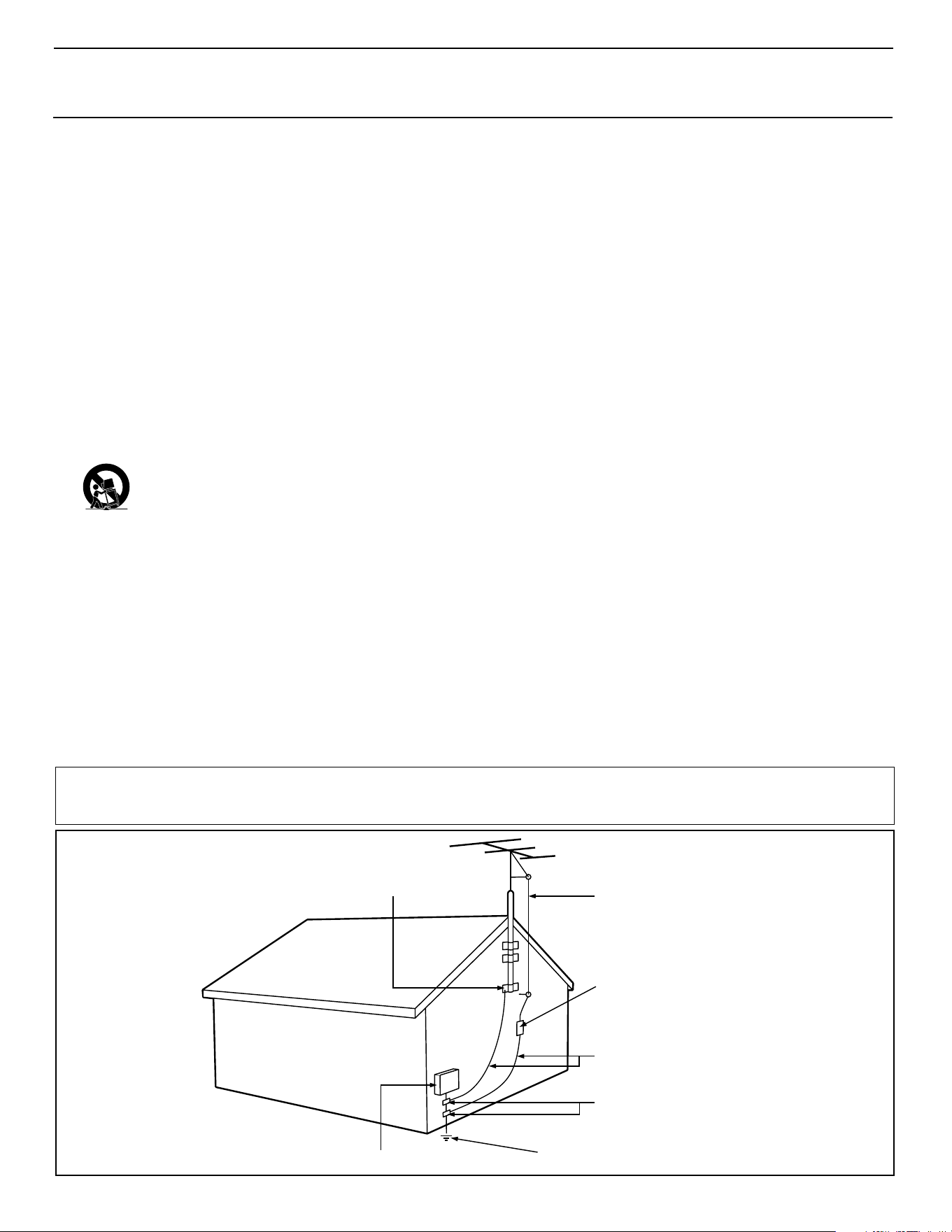
20. Outdoor Antenna Grounding - If an outside antenna is connect-
ed to the receiver, be sure the antenna system is grounded so as to
provide some protection against voltage surges and built up static
charges.
Section 810 of the National Electric Code, ANSI/NFPA No. 70-
1984, provides information with respect to proper grounding of
the mast and supporting structure, grounding of the lead-in wire to
an antenna discharge unit, size of grounding connectors, location
of antenna-discharge unit, connection to grounding electrodes, and
requirements for the grounding electrode. See Figure below.
21. Object and Liquid Entry - Care should be taken so that objects
do not fall and liquids are not spilled into the enclosure through
openings.
22. Battery Usage CAUTION - To prevent battery leakage that may
result in bodily injury, property damage, or damage to the unit:
• Install all batteries correctly, with + and - aligned as marked on
the unit.
• Do not mix batteries (old and new or carbon and alkaline, etc.).
• Remove batteries when the unit is not used for a long time.
ANTENNA LEAD IN WIRE
ANTENNA DISCHARGE UNIT
(NEC SECTION 810-20)
GROUNDING CONDUCTORS (NEC SECTION 810-21)
GROUND CLAMPS
POWER SERVICE GROUNDING ELECTRODE SYSTEM (NEC ART 250, PART H)
GROUND CLAMP
ELECTRIC SERVICE EQUIPMENT
Example of Antenna Grounding
as per NEC - National Electric Code
Note to the CATV system installer: This reminder is provided to call the CATV system installer's attention to Article 820-40 of the NEC
that provides guidelines for proper grounding and, in particular, specifies that the cable ground shall be connected to the grounding system of the
building, as close to the point of cable entry as practical.

4
PRECAUTIONS
Additional Safety Precautions:
• Do not shift or move the LCD TV around when it is powered on.
• Do not connect any AC/DC adapter to your LCD TV that does not originally come with the television. Only use
the recommended part or parts that are approved by Philips Consumer Electronics.
• Caution: Do not use any cover or enclose the AC/DC adapter with any objects like a cloth or box which might
shorten the life of the equipment.
• Do not touch, push or rub the surface of the LCD screen with any sharp or hard objects.
• When the surface of the LCD screen becomes dusty, wipe it gently with an absorbent cotton cloth or other soft
material like chamois. DO NOT use acetone, toluene or alcohol to clean the surface of the screen. These chemi-
cals will cause damage.
• Wipe off water, or saliva as soon as possible. Long exposer time to liquids can cause deformation and color fad-
ing of the LCD screen.
• Be careful of condensation when temperature changes occur. Condensation can cause damage to the LCD
screen and electrically parts. After condensation fades, spots or blemishes will be present on the LCD screen.
Positioning the LCD Television:
• Place the LCD TV on a solid, sturdy base or stand. Be sure the stand is strong enough to handle the weight of
the LCD TV.
•Try to leave at least 6” of space around each side of the LCD TV cabinet to allow for proper ventilation.
• Do not place the LCD TV near a radiator or other sources of heat.
• Do not place the LCD TV where it can be exposed to rain or excessive moisture.
Recycling Procedure/End of Life Disposal:
•To minimize harm to the environment, the batteries supplied with the LCD TV do not contain mercury or nickel
cadmium. If possible, when disposing of batteries, use recycling means available in your area.
• The LCD TV uses materials that can be recycled. To minimize the amount of waste in the environment, check
your area for companies that will recover used televisions for dismantling and collection of reusable materials, or
contact your dealer for TV recycling tips.
• Please dispose of the carton and packing material through the proper waste disposal management in your area.
NOTE: It is possible that this owner's manual may be used with several different television mod-
els. Not all features (and drawings) discussed in this manual will necessarily match those found
with your television system. While every effort is made to give the consumer the most accurate
information possible regarding this product, normal changes in production could occur effect-
ing the images and onscreen menu procedures outlined in this manual. This is normal and does
not require you contacting your dealer or requesting service
.
5
CONTENTS
Introduction
Welcome/Registration of Your TV . . . . . . . . . . . . . . . . . . . .2
Safety Instructions . . . . . . . . . . . . . . . . . . . . . . . . . . . . . . . .3
Precautions . . . . . . . . . . . . . . . . . . . . . . . . . . . . . . . . . . . . . .4
Table of Contents . . . . . . . . . . . . . . . . . . . . . . . . . . . . . . . . .5
Install Menu
How to use the Language Control . . . . . . . . . . . . . .6
How to use the Tuner Mode Control . . . . . . . . . . . . . . . . . .7
How to Auto Program TV Channels . . . . . . . . . . . . . . . . . . .8
How to Add or Delete Channels (Channel Edit) . . . . . . . . .9
How to use the AutoChron™ Control . . . . . . . . . . . . . . . .10
How to use the Name Control (Channel Label) . . . . . . . . .11
Picture Menu
How to use the Picture Adjustment Controls . . . . .12
Sound Menu
How to use the Equalizer Controls . . . . . . . . . . . .13
How to use the Balance Control . . . . . . . . . . . . . . . . . . . . .14
How to use the AVL Control . . . . . . . . . . . . . . . . . . . . . . .15
How to use the Incredible Surround Control . . . . . . . . . . .16
Setting the TV to receive Stereo programming . . . . . . . . .17
Setting the TV to receive SAP (Secondary Audio
Programming) . . . . . . . . . . . . . . . . . . . . . . . . . . . . . . . . . . .18
Features Menu
How to use the Timer Controls . . . . . . . . . . . . . . .19
How to use the Mode Select Control . . . . . . . . . . . . . . . . .20
Understanding the AutoLock™ Controls . . . . . . . . . . . . . .21
Setting up the AutoLock™ Access Code . . . . . . . . . . . . . .22
How to Block Channels . . . . . . . . . . . . . . . . . . . . . . . . . . .23
How to Clear All Blocked Channels at the Same Time . . .24
Blocking Programming Based on Movie Ratings . . . . . . .25
Blocking Programming Based on TV Ratings . . . . . . . . . .26
Other AutoLock™ Blocking Options . . . . . . . . . . . . . . . . .27
Using the AutoLock™ Review Screen . . . . . . . . . . . . . . . .28
Remote Control Use
How to use the Closed Captioning Control . . . . . .29
How to use the Screen Format Control . . . . . . . . . . . . . . .30
How to use the Program List Feature . . . . . . . . . . . . . . . . .31
Setting the Sleeptimer Control . . . . . . . . . . . . . . . . . . . . . .32
Setting the AutoPicture™ Control . . . . . . . . . . . . . . . . . . .33
Setting the AutoSound™ Control . . . . . . . . . . . . . . . . . . . .34
Using the Surf Control . . . . . . . . . . . . . . . . . . . . . . . . . . . .35
FM Radio Mode
Using FM Mode Information . . . . . . . . . . . . . .36-42
General Information
Troubleshooting Tips . . . . . . . . . . . . . . . . . . . . . . .43
Cleaning and Care . . . . . . . . . . . . . . . . . . . . . . . . . . . . . . . .43
Glossary of Terms . . . . . . . . . . . . . . . . . . . . . . . . . . . . . . . .44
Index . . . . . . . . . . . . . . . . . . . . . . . . . . . . . . . . . . . . . . . . . .45
Warranty . . . . . . . . . . . . . . . . . . . . . . . . . . . . . . . . . . . . .46
Here are a few of the features built into your new Television:
Audio/Video Jack Panels allows direct connections with VCRs,
DVDs, PCs or other devices, providing quality TV picture and
sound playback.
Audio Volume Leveler (AVL) Control keeps the TV sound at an
even level. Peaks and valleys that occur during program changes or
commercial breaks are reduced, making for a more consistent, com-
fortable sound.
AutoChron™ automatically sets the right time of day and main-
tains it with digital precision through brownouts, power failures,
and even Daylight Savings Time adjustments.
AutoLock™ allows you to block the viewing of certain channels or
programs with certain ratings if you do not want your children to
view inappropriate materials.
Auto Programming scans (when activated) for all available chan-
nels from regular antenna or cable signals and stores only active
broadcast stations in the TV’s memory.
AutoPicture™ allows you to change the picture settings (color,
tint, contrast, etc.) for various types of programming, such as
sports, movies, multimedia (games), or weak signals with the push
of one button.
AutoSound™ allows you to select from three factory-set controls
and a personal control that you set according to your own prefer-
ences through the onscreen Sound menu. The three factory-set con-
trols (Voice, Music, and Theatre) enable you to tailor the TV sound
so as to enhance the particular programming you are watching.
Closed Captioning allows the viewer to read TV program dialogue
or voice conversations as onscreen text.
Infrared Remote Control works your TV and other remote-con-
trolled devices, such as VCRs, DVD players, cable converters, and
satellite receivers.
Surf Button allows you to easily switch among only the channels
that are of interest to you (the ones that you have
programmed into the TV’s Surf control through the onscreen
menu).
Timer allows you to set your TV to turn itself ON and OFF once or
daily like an alarm clock.
Auto Lock, Auto Picture, Auto Sound,
are all registered trademarks of Philips Consumer Electronics Company.
Copyright © 2003 All rights reserved.
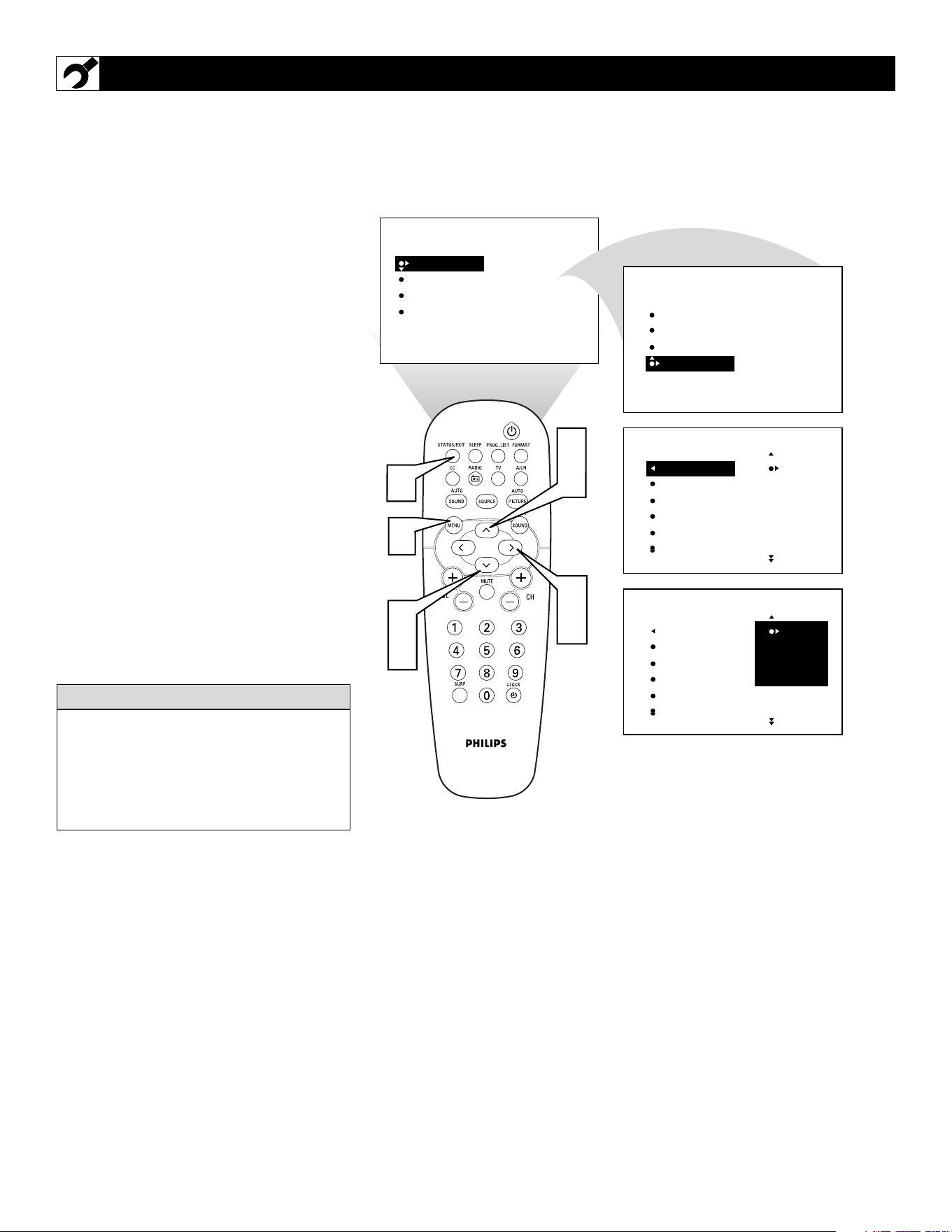
6
F
or or Spanish- and French-speaking TV
owners, an onscreen LANGUAGE option
is present. The LANGUAGE control enables
you to set the TV’s onscreen menu to be
shown in either English, Spanish, or French.
1
Press the MENU button on the
remote control to show the onscreen
menu.
2
Press the CURSOR DOWN button
repeatedly until INSTALL is highlight-
ed.
3
Press the CURSOR RIGHT button
to shift the menu to the left and high-
light LANGUAGE.
4
Press the CURSOR RIGHT button
to highlight the LANGUAGE control
options.
5
Press the CURSOR UP or CURSOR
DOWN button to select ENGLISH,
ESPANOL (Spanish), or FRANCAIS
(French).
6
Press the STATUS/EXIT button to
clear the menu from the screen.
HOW TO USE THE LANGUAGE CONTROL
PICTURE
SOUND
FEATURES
INSTALL
BRIGHTNESS
COLOR
PICTURE
SHARPNESS
TINT
PICTURE
SOUND
FEATURES
INSTALL
LANGUAGE
TUNER MODE
AUTO PROGRAM
CHANNEL EDIT
AutoChron
LANGUAGE
TUNER MODE
AUTO PROGRAM
CHANNEL EDIT
AutoChron
ENGLISH
FRANCAIS
ESPANOL
LANGUAGE
TUNER MODE
AUTO PROGRAM
CHANNEL EDIT
AutoChron
ENGLISH
FRANCAIS
ESPANOL
INSTALL
INSTALL
˜
˜
6
2
5
3
4
1
2
4
Remember, the LANGUAGE control makes
only the TV’s onscreen MENU items appear
in English, Spanish, or French text. It does
not change the other onscreen text features,
such as Closed Captioning (CC), with TV
shows.
HELPFUL
HINT
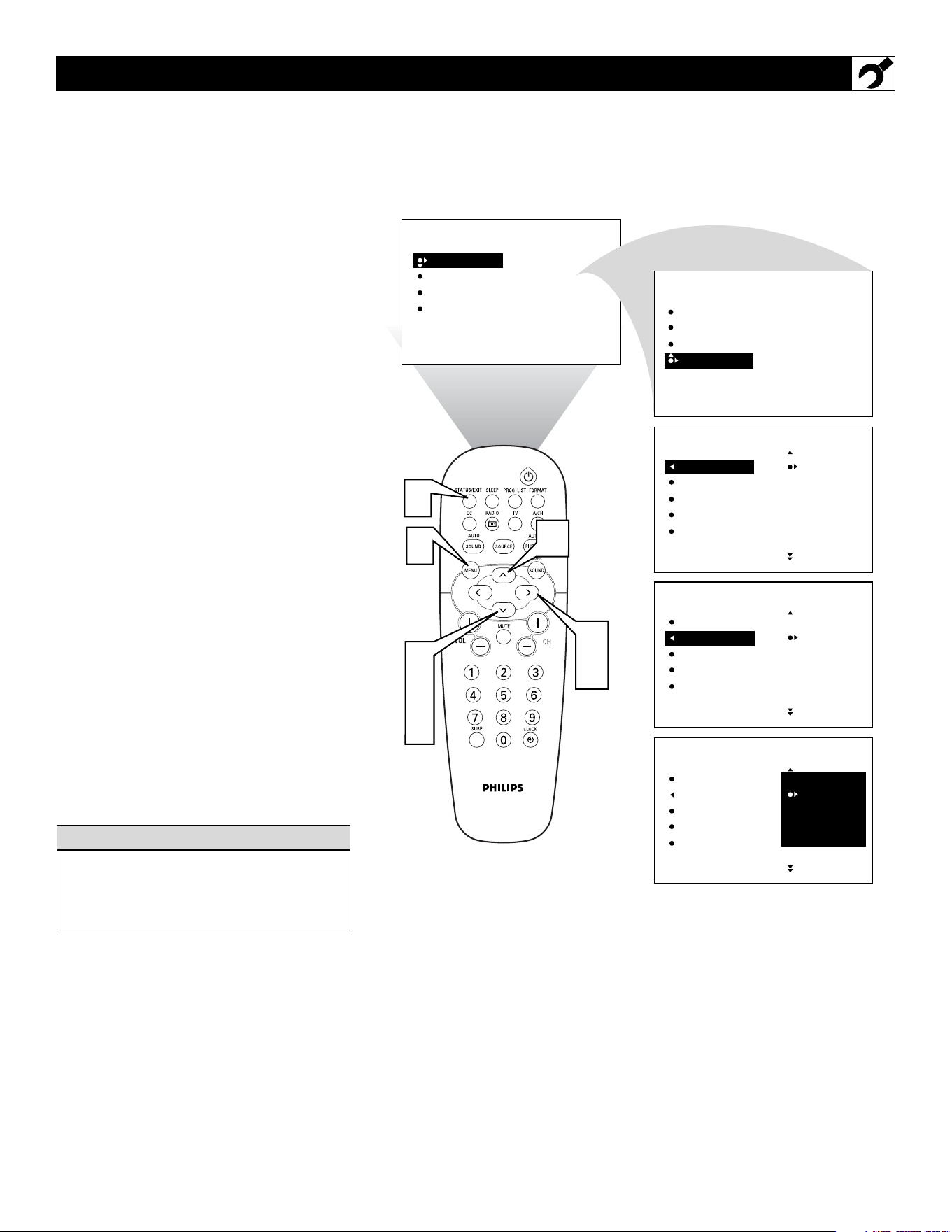
7
T
he TUNER MODE allows you to change
the TV’s signal input to CABLE, ANTEN-
NA, or AUTO mode. It’s important for the TV
to know if you want to receive channels from
a cable TV signal or a normal antenna signal.
NOTE: The AUTO mode setting helps the TV
determine the type of signal or channels being
received when AUTO PROGRAM is activat-
ed.
1
Press the MENU button on the
remote control to show the onscreen
menu.
2
Press the CURSOR DOWN button
repeatedly until INSTALL is highlight-
ed.
3
Press the CURSOR RIGHT button
to shift the menu to the left.
4
Press the CURSOR DOWN button to
highlight the TUNER MODE control.
5
Press the CURSOR RIGHT button
to highlight the tuner options.
6
Press the CURSOR UP or CURSOR
DOWN button to select CABLE,
ANTENNA or AUTO.
If TUNER MODE is set to AUTO,
Auto Program (see below) will detect
whether or not cable input is present.
7
Press the STATUS/EXIT button to
clear the menu from the screen.
HOW TO USE THE TUNER MODE CONTROL
PICTURE
SOUND
FEATURES
INSTALL
BRIGHTNESS
COLOR
PICTURE
SHARPNESS
TINT
PICTURE
SOUND
FEATURES
INSTALL
LANGUAGE
TUNER MODE
AUTO PROGRAM
CHANNEL EDIT
AutoChron
LANGUAGE
TUNER MODE
AUTO PROGRAM
CHANNEL EDIT
AutoChron
ENGLISH
FRANCAIS
ESPANOL
LANGUAGE
TUNER MODE
AUTO PROGRAM
CHANNEL EDIT
AutoChron
ANTENNA
AUTO
CABLE
2
4
6
3
5
1
7
LANGUAGE
TUNER MODE
AUTO PROGRAM
CHANNEL EDIT
AutoChron
ANTENNA
AUTO
CABLE
6
When CABLE is selected, channels 1–125
are available.
When ANTENNA is selected, channels
2–69 are available.
HELPFUL HINT
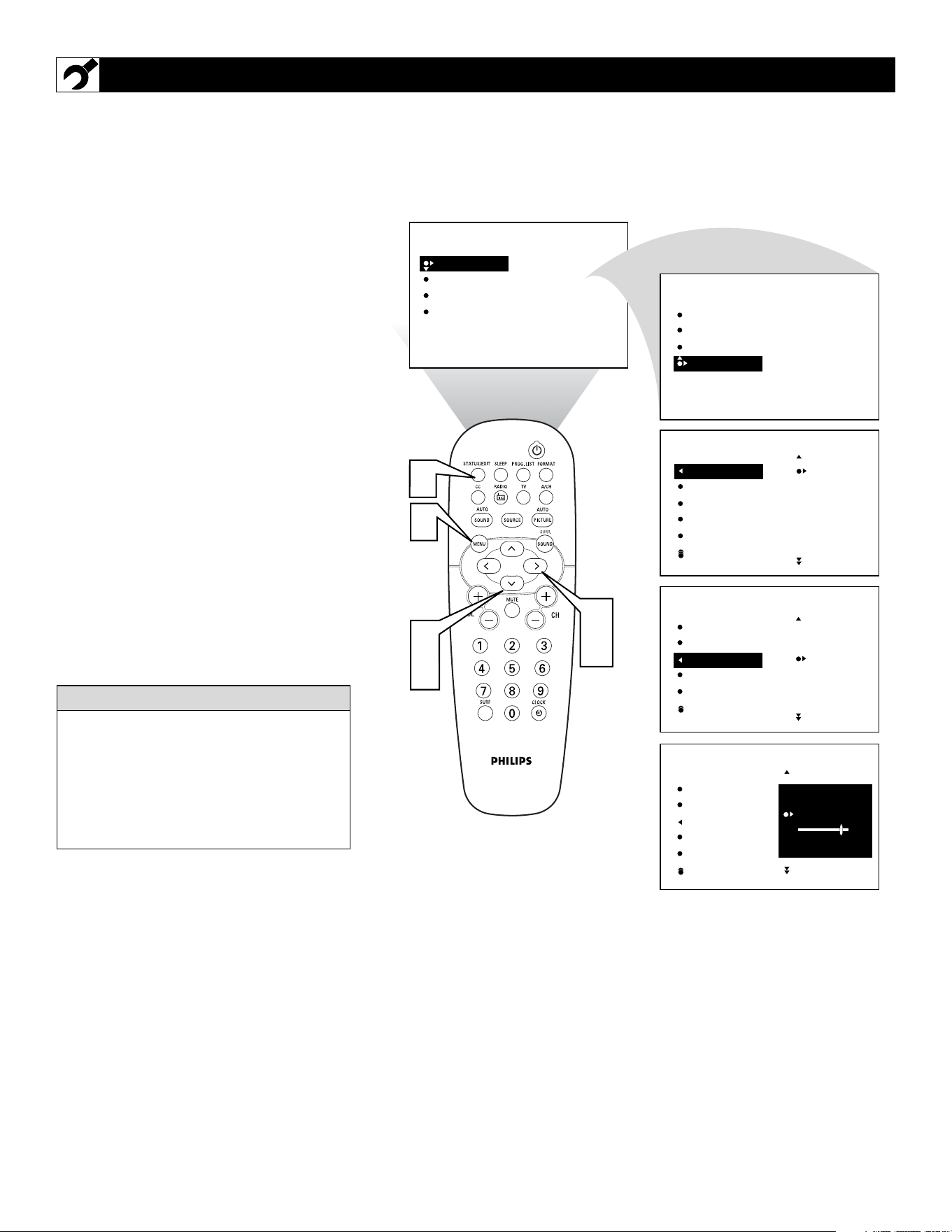
8
Y
our TV can automatically set itself for
local area (or cable TV) channels. This
makes it easy for you to select only the TV
stations in your area by pressing the CHAN-
NEL (+) or (–) button.
1
Press the MENU button on the
remote control to show the onscreen
menu.
2
Press the CURSOR DOWN button
repeatedly until INSTALL is highlight-
ed.
3
Press the CURSOR RIGHT button
to shift the menu to the left. LAN-
GUAGE will be highlighted.
4
Press the CURSOR DOWN button
repeatedly until the AUTO PROGRAM
control is highlighted.
5
Press the CURSOR RIGHT button
to start the Auto Program scanning of
channels.
6
Press the STATUS/EXIT button to
clear the menu from the screen.
HOW TO AUTO PROGRAM TV CHANNELS
PICTURE
SOUND
FEATURES
INSTALL
BRIGHTNESS
COLOR
PICTURE
SHARPNESS
TINT
PICTURE
SOUND
FEATURES
INSTALL
LANGUAGE
TUNER MODE
AUTO PROGRAM
CHANNEL EDIT
AutoChron
LANGUAGE
TUNER MODE
AUTO PROGRAM
CHANNEL EDIT
AutoChron
ENGLISH
FRANCAIS
ESPANOL
LANGUAGE
TUNER MODE
AUTO PROGRAM
CHANNEL EDIT
AutoChron
SEARCH
INSTALL
INSTALL
ANTENNA
PLEASE WAIT
CHANNEL 20
LANGUAGE
TUNER MODE
AUTO PROGRAM
CHANNEL EDIT
AutoChron
INSTALL
2
4
3
5
1
6
After you’ve run Auto Program, check out
the results. Press the CHANNEL (+) or (–)
button and see which channels you can
select.
Remember, an antenna or cable TV signal
must first be connected to your TV (see
instructions for making connections within
the Quick Use and Hookup Guide).
HELPFUL HINT
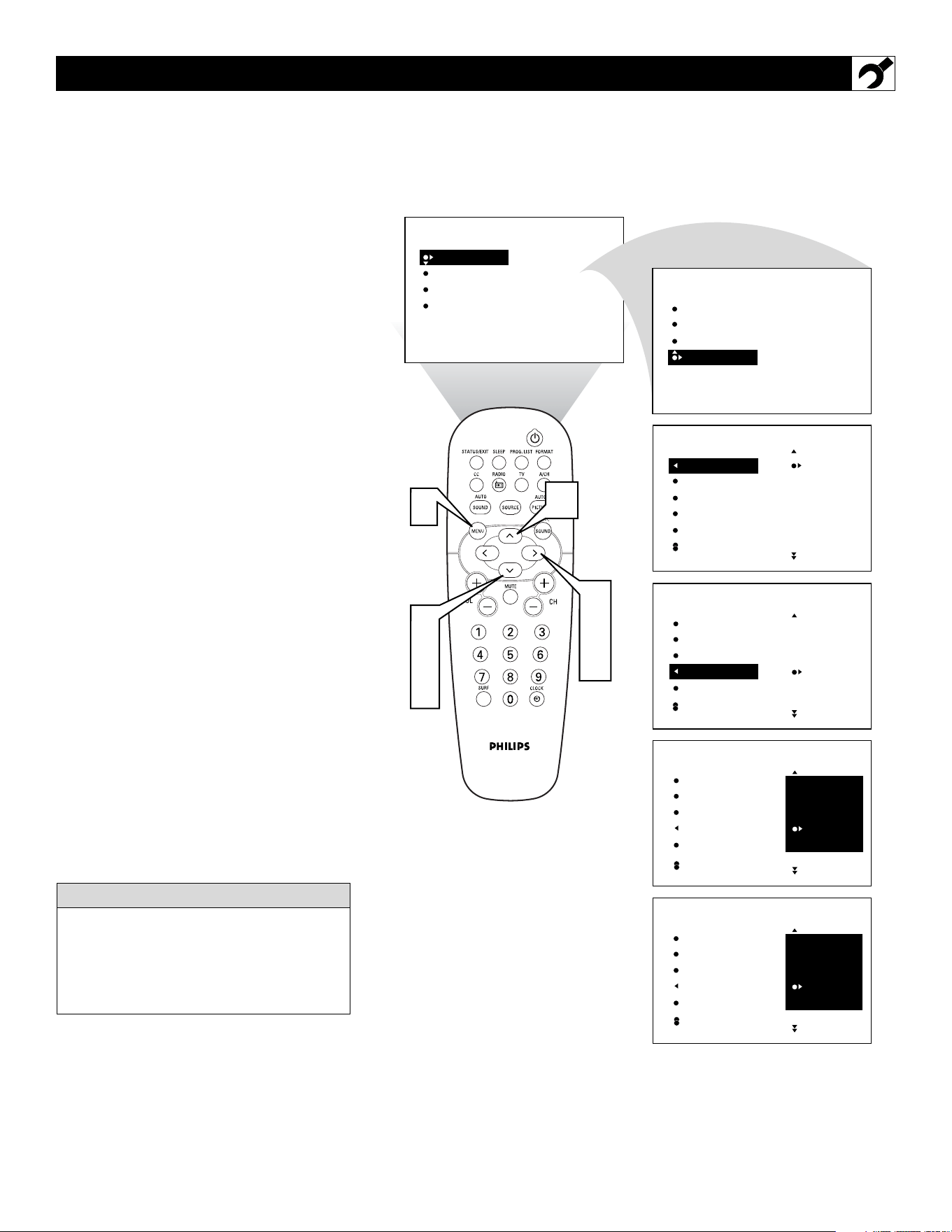
9
C
HANNEL EDIT makes it easy for you to
add or delete channels from the list of
channels stored in the TV’s memory.
1
Press the MENU button on the remote
control to show the onscreen menu.
2
Press the CURSOR DOWN button
repeatedly until INSTALL is highlight-
ed.
3
Press the CURSOR RIGHT button to
shift the menu to the left. LANGUAGE
will be highlighted.
4
Press the CURSOR DOWN button
repeatedly until the CHANNEL EDIT
control is highlighted.
5
Press the CURSOR RIGHT button to
access the CHANNEL EDIT menu.
6
Press the CURSOR UP or CURSOR
DOWN button to scroll through the list
of available channels. Or press the num-
ber buttons on your remote control to
select a specific channel (for example,
press 0 and then 2 to select channel 2).
7
With the channel you want to edit select-
ed, press the CURSOR RIGHT button
to mark the channel as SKIPPED. The
channel you’ve marked SKIPPED will
not appear when you are changing from
channel to channel while watching TV.
NOTE: When you want to add a channel that
has been marked SKIPPED, press the CUR-
SOR UP or CURSOR DOWN button to
highlight the channel; then press the CUR-
SOR RIGHT button to remove the word
SKIPPED.
HOW TO
ADD OR DELETE CHANNELS (CHANNEL EDIT CONTROL)
PICTURE
SOUND
FEATURES
INSTALL
BRIGHTNESS
COLOR
PICTURE
SHARPNESS
TINT
PICTURE
SOUND
FEATURES
INSTALL
LANGUAGE
TUNER MODE
AUTO PROGRAM
CHANNEL EDIT
AutoChron
LANGUAGE
TUNER MODE
AUTO PROGRAM
CHANNEL EDIT
AutoChron
ENGLISH
FRANCAIS
ESPANOL
LANGUAGE
TUNER MODE
AUTO PROGRAM
CHANNEL EDIT
AutoChron
2
3
4
5
LANGUAGE
TUNER MODE
AUTO PROGRAM
CHANNEL EDIT
AutoChron
2
3
4 SKIPPED
5
INSTALL
INSTALL
INSTALL
LANGUAGE
TUNER MODE
AUTO PROGRAM
CHANNEL EDIT
AutoChron
2
3
4
5
INSTALL
2
4
6
3
5
7
1
6
The channels available for you to edit are the
ones that the AUTO PROGRAM feature
found through a search of your TV antenna
or cable TV signals. Channels not found dur-
ing the search are marked SKIPPED.
HELPFUL HINT
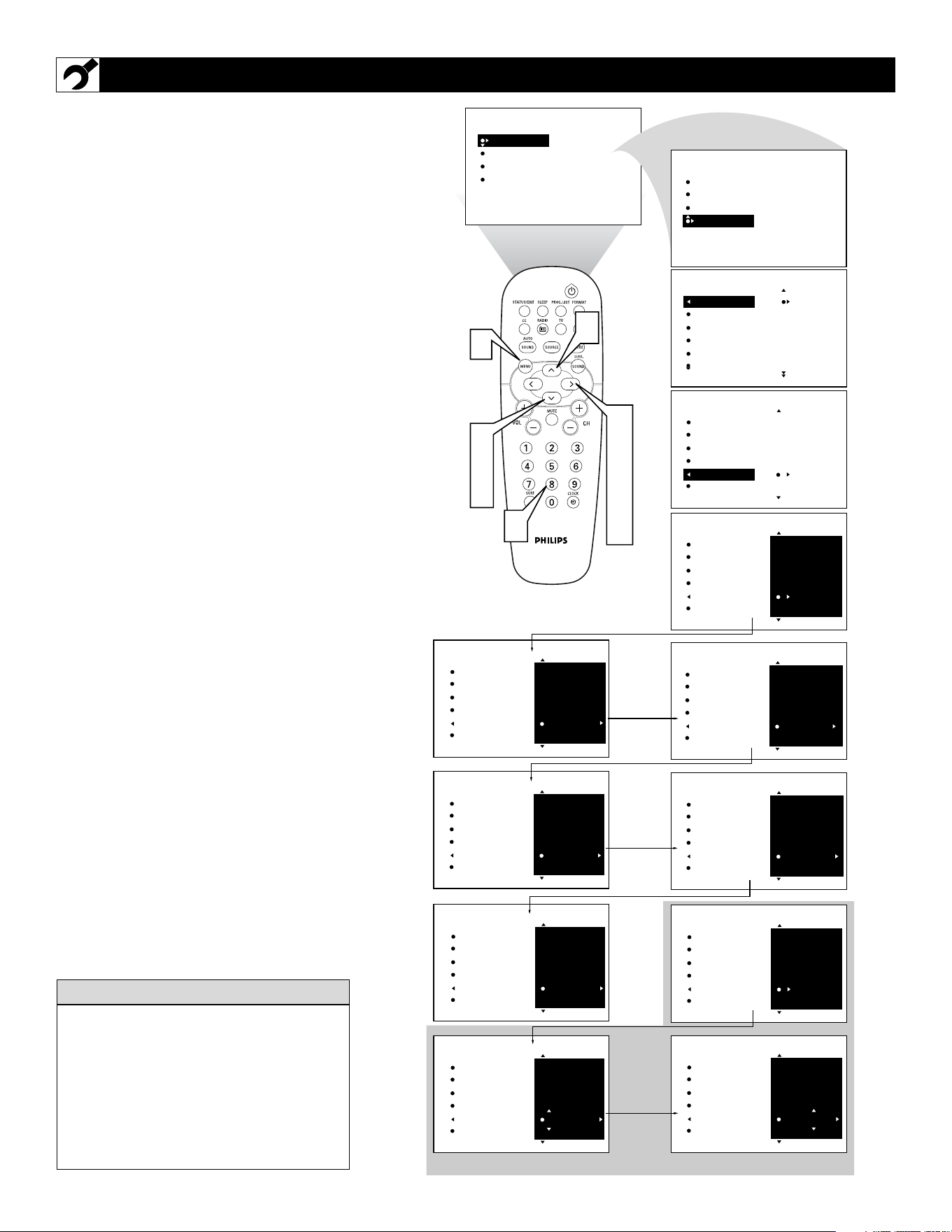
10
A
utoChron
TM
can automatically set the TV’s
onscreen clock. Because the time is
received from a broadcast signal, you must be
sure that a cable TV or antenna signal is pres-
ent before you attempt to use the AutoChron
TM
feature.
1
Press the MENU button on the remote
to show the onscreen menu.
2
Press the CURSOR DOWN button
repeatedly until INSTALL is highlight-
ed.
3
Press the CURSOR RIGHT button to
shift the menu to the left. LANGUAGE
will be highlighted.
4
Press the CURSOR DOWN button
until the AutoChron control is highlight-
ed.
5
Press the CURSOR RIGHT button to
start the AutoChron™ feature. Then just
follow the onscreen instructions to set
the clock.
6
Press the CURSOR RIGHT button to
select AUTO. Within a few seconds, a
menu for choosing your time zone will
appear.
7
Press the CURSOR UP or CURSOR
DOWN button to highlight your correct
time zone.
8
With your correct time zone high-
lighted, press the CURSOR RIGHT
button. Within a few seconds, you will
be given the option to choose whether
you want to select Daylight Savings
Time. If your time zone uses Daylight
Savings, select YES.
9
Enter your local PBS channel or any
local channel that transmit the current
time, and press the CURSOR RIGHT
button to start the searching process. If
the AutoChron™ features finds the cur-
rent time you are done. If it doenot find
the current time, re-enter an other chan-
nel and search again.
HOW TO USE THE AUTOCHRON™ CONTROL
Settin
g
AutoChron™ Manuall
y
LANGUAGE
TUNER MODE
AUTO PROGRAM
CHANNEL EDIT
AutoChron
1_ :_ _ AM
ENTER TIME
INSTALL
PICTURE
SOUND
FEATURES
INSTALL
BRIGHTNESS
COLOR
PICTURE
SHARPNESS
TINT
PICTURE
SOUND
FEATURES
INSTALL
LANGUAGE
TUNER MODE
AUTO PROGRAM
CHANNEL EDIT
AutoChron
LANGUAGE
TUNER MODE
AUTO PROGRAM
CHANNEL EDIT
AutoChron
ENGLISH
FRANCAIS
ESPANOL
LANGUAGE
TUNER MODE
AUTO PROGRAM
CHANNEL EDIT
AutoChron
AUTO
MANUAL
SET TIME
LANGUAGE
TUNER MODE
AUTO PROGRAM
CHANNEL EDIT
AutoChron
ATLANTIC
EASTERN
CENTRAL
TIME ZONE?
INSTALL
INSTALL
INSTALL
LANGUAGE
TUNER MODE
AUTO PROGRAM
CHANNEL EDIT
AutoChron
AUTO
MANUAL
SET TIME
INSTALL
LANGUAGE
TUNER MODE
AUTO PROGRAM
CHANNEL EDIT
AutoChron
YES
NO
DAYLIGHT
SAVINGS TIME?
INSTALL
LANGUAGE
TUNER MODE
AUTO PROGRAM
CHANNEL EDIT
AutoChron
12 PBS
SEARCH FOR
TIME . . .
(Please wait)
INSTALL
LANGUAGE
TUNER MODE
AUTO PROGRAM
CHANNEL EDIT
AutoChron
12 PBS
INSTALL
LANGUAGE
TUNER MODE
AUTO PROGRAM
CHANNEL EDIT
AutoChron
11:00 AM
SEARCH FOR
TIME . . .
Time Found
INSTALL
LANGUAGE
TUNER MODE
AUTO PROGRAM
CHANNEL EDIT
AutoChron
AUTO
MANUAL
SET TIME
INSTALL
LANGUAGE
TUNER MODE
AUTO PROGRAM
CHANNEL EDIT
AutoChron
11:00 AM
ENTER TIME
INSTALL
2
4
7
3
5
6
8
9
1
7
9
SEARCH FOR
TIME . . .
Time Found
END: PRESS STATUS
When turned ON, the AutoChron™ feature
can affect the start up of your television.
When the power button is press and the
AutoChron™ feature is set to the AUTO
position, the TV will scan the channels for a
PBS channel to set the clock automatically.
It may take SEVERAL seconds before the
TV powers itself ON.
H
ELPFUL HINT
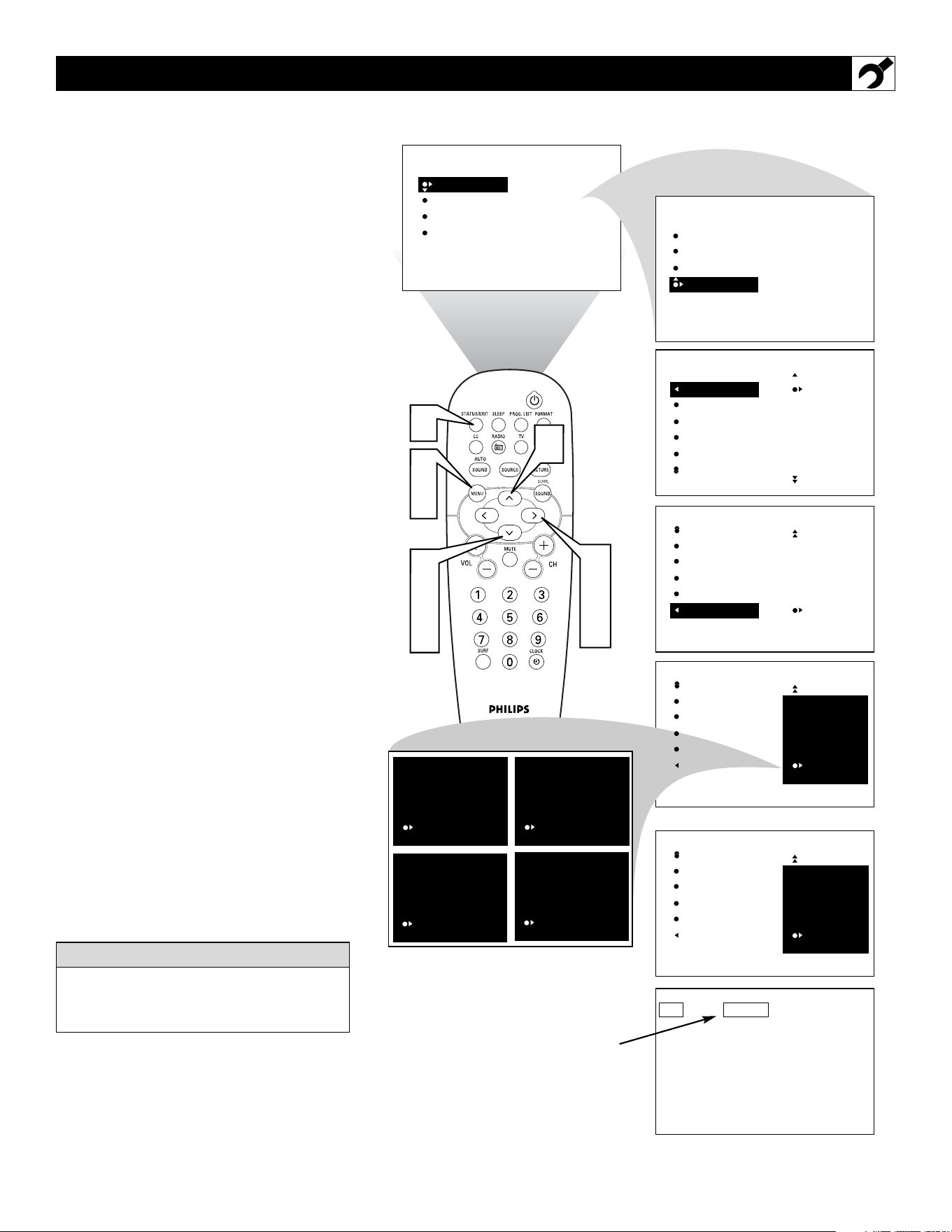
11
T
he channel NAME feature allows you to list
the “call” letters of your favorite stations
beside their channel numbers when they
appear on the screen. The TV has in memory a
list of the 50 most popular channel names (for
example, ABC, NBC, FOX, etc.). You also can
enter a custom name (up to five characters).
Tune to a specific channel that you want to
add a label to, then;
1
Press the MENU button on the remote
control to show the onscreen menu.
2
Press the CURSOR DOWN button
repeatedly until INSTALL in highlight-
ed.
3
Press the CURSOR RIGHT button to
shift the menu to the left. LANGUAGE
will be highlighted.
4
Press the CURSOR DOWN button
repeatedly until the NAME control is
highlighted.
5
Press the CURSOR RIGHT button to
highlight the NAME options area.
6
Press the CURSOR RIGHT button
again; then press the CURSOR UP or
CURSOR DOWN button to scroll
through a list of options for the first char-
acter (A through Z, 0 through 9). Press
the CURSOR RIGHT button and
repeat for the second, third, fourth, and
fifth characters
7
After you have selected a name for the
channel, press the MENU button to
save the name in the TV’s memory.
8
Press the STATUS/EXIT button to
clear the menu from the screen.
HOW TO
USE THE NAME CONTROL (CHANNEL LABEL)
PICTURE
SOUND
FEATURES
INSTALL
BRIGHTNESS
COLOR
PICTURE
SHARPNESS
TINT
PICTURE
SOUND
FEATURES
INSTALL
LANGUAGE
TUNER MODE
AUTO PROGRAM
CHANNEL EDIT
AutoChron
LANGUAGE
TUNER MODE
AUTO PROGRAM
CHANNEL EDIT
AutoChron
ENGLISH
FRANCAIS
ESPANOL
TUNER MODE
AUTO PROGRAM
CHANNEL EDIT
AutoChron
NAME
PERSONAL
INSTALL
INSTALL
OR
BET
12
XY _ _
XYZ _
XYZ1
XYZ12
TUNER MODE
AUTO PROGRAM
CHANNEL EDIT
AutoChron
NAME
X_ _ _ _
INSTALL
TUNER MODE
AUTO PROGRAM
CHANNEL EDIT
AutoChron
NAME
INSTALL
ABC
ACTS
AMC
ARTS
BET
2
4
6
3
5
6
1
7
6
8
The five characters that the channel NAME
feature allows you to input can be letters, a
dash character, or the numbers 0 through 9.
HELPFUL HINT
The Channel Label or NAME will appear
when ever a channel change is made or
when the STATUS/EXIT button is pressed.
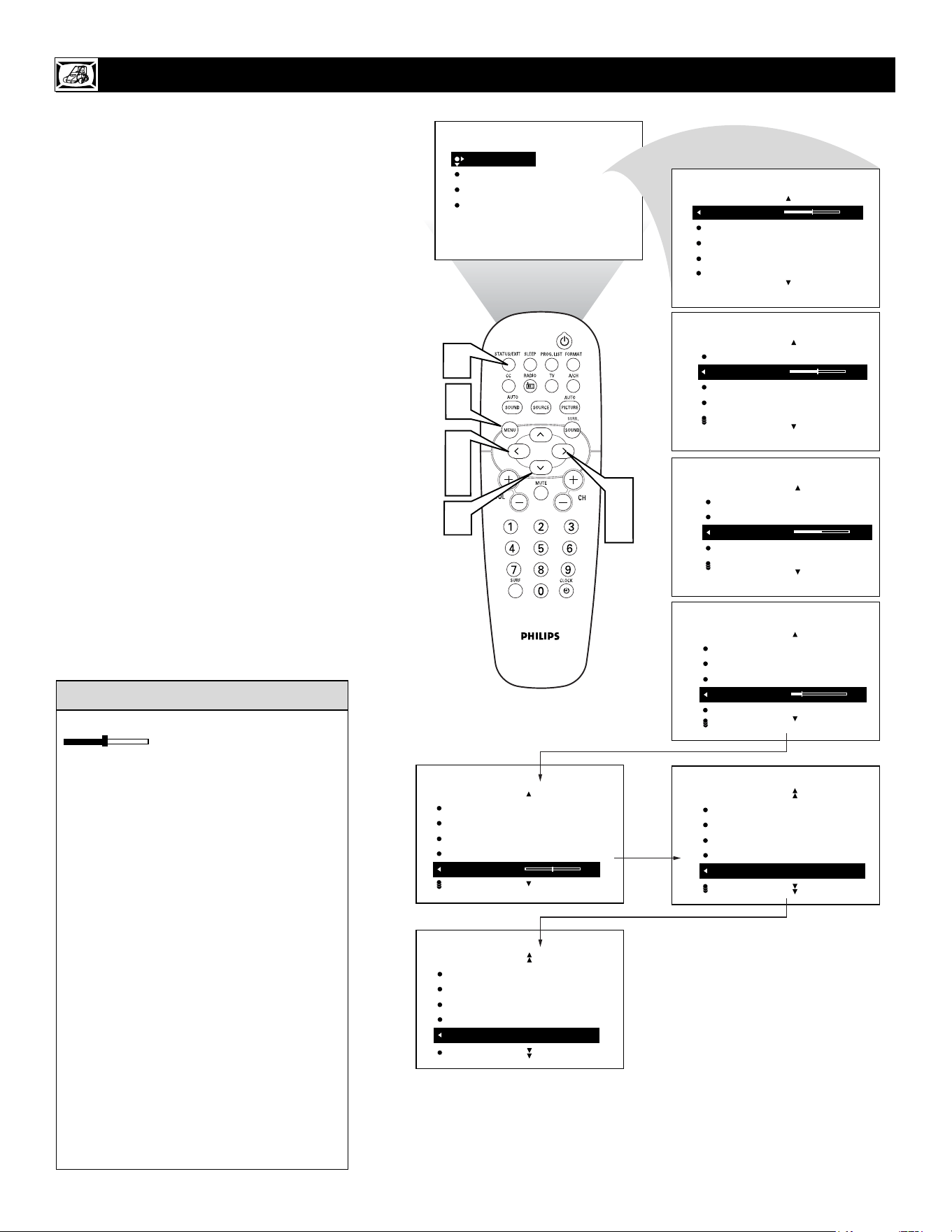
12
T
o adjust your TV picture controls, select a
channel and follow these steps.
1
Press the MENU button on the
remote control to show the onscreen
menu. PICTURE will be highlighted.
2
Press the CURSOR RIGHT and the
menu will shift to the left. BRIGHT-
NESS will be highlighted and an
adjustment bar will be shown to the
right.
3
Use the CURSOR LEFT or RIGHT
to adjust the BRIGHTNESS level of
the picture.
4
After adjusting the BRIGHTNESS
control, press the CURSOR DOWN
to select another picture adjustment:
COLOR, PICTURE, SHARPNESS,
TINT, DNR, or CONTRAST +. Press
the CURSOR LEFT or RIGHT to
adjust the selected control.
NOTE: The menu will show only five items
at a time, so you will need to continue scroll-
ing with the CURSOR DOWN to adjust the
TINT, DNR, or CONTRAST +.
5
Press the STATUS/EXIT button to
remove the menu from the screen.
HOW TO USE THE PICTURE ADJUSTMENT CONTROLS
PICTURE
SOUND
FEATURES
INSTALL
BRIGHTNESS
COLOR
PICTURE
SHARPNESS
TINT
BRIGHTNESS
COLOR 30
PICTURE
SHARPNESS
TINT
PICTURE
BRIGHTNESS
COLOR
PICTURE 30
SHARPNESS
TINT
PICTURE
BRIGHTNESS
COLOR
PICTURE
SHARPNESS 4
TINT
PICTURE
BRIGHTNESS
COLOR
PICTURE
SHARPNESS
TINT 0
PICTURE
COLOR
PICTURE
SHARPNESS
TINT
DNR ON
PICTURE
PICTURE
SHARPNESS
TINT
DNR
CONTRAST + ON
PICTURE
5
4
2
3
1
3
4
BRIGHTNESS 30
COLOR
PICTURE
SHARPNESS
TINT
PICTURE
Remember, when the bar scale is centered
, the control settings are at
normal, mid-range levels. Picture adjust-
ments are described here.
NOTE: The SHARPNESS and TINT
Controls will not be available for adjust-
ments when tuned to the CVI Inputs (CVI
Channel).
BRIGHTNESS – adds or subtracts light
from the darkest part of the picture.
COLOR – adds or eliminates color.
PICTURE – improves the detail of the light-
est parts of the picture.
SHARPNESS – improves the detail in the
picture.
TINT – adjusts the picture to obtain natural
skin tones.
DNR – can help eliminate slightly “speck-
led” picture (an indication of signal noise in
the picture).
CONTRAST + – helps to “sharpen” the
picture quality. The black portions of the
picture become richer in darkness and the
whites become brighter.
HELPFUL
HINT
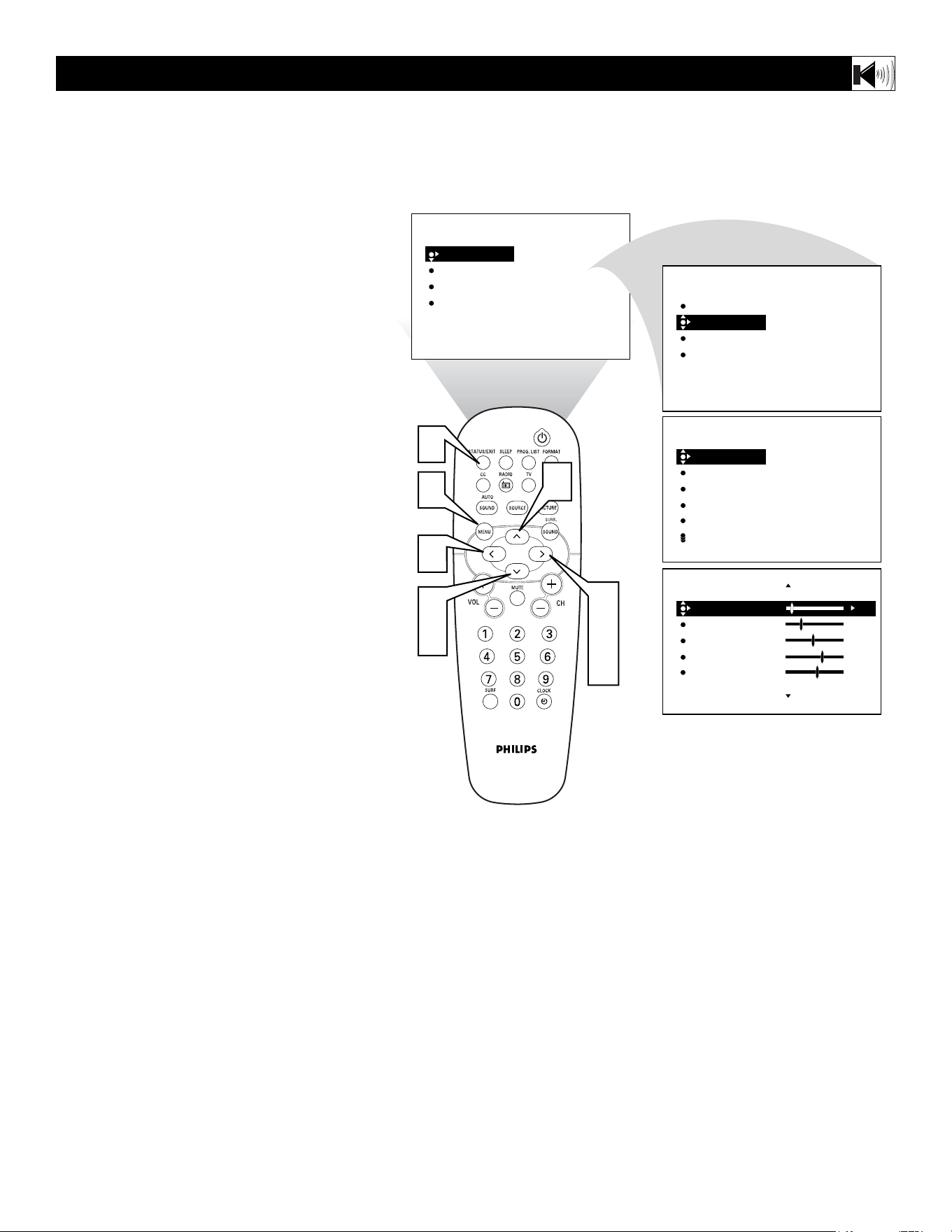
13
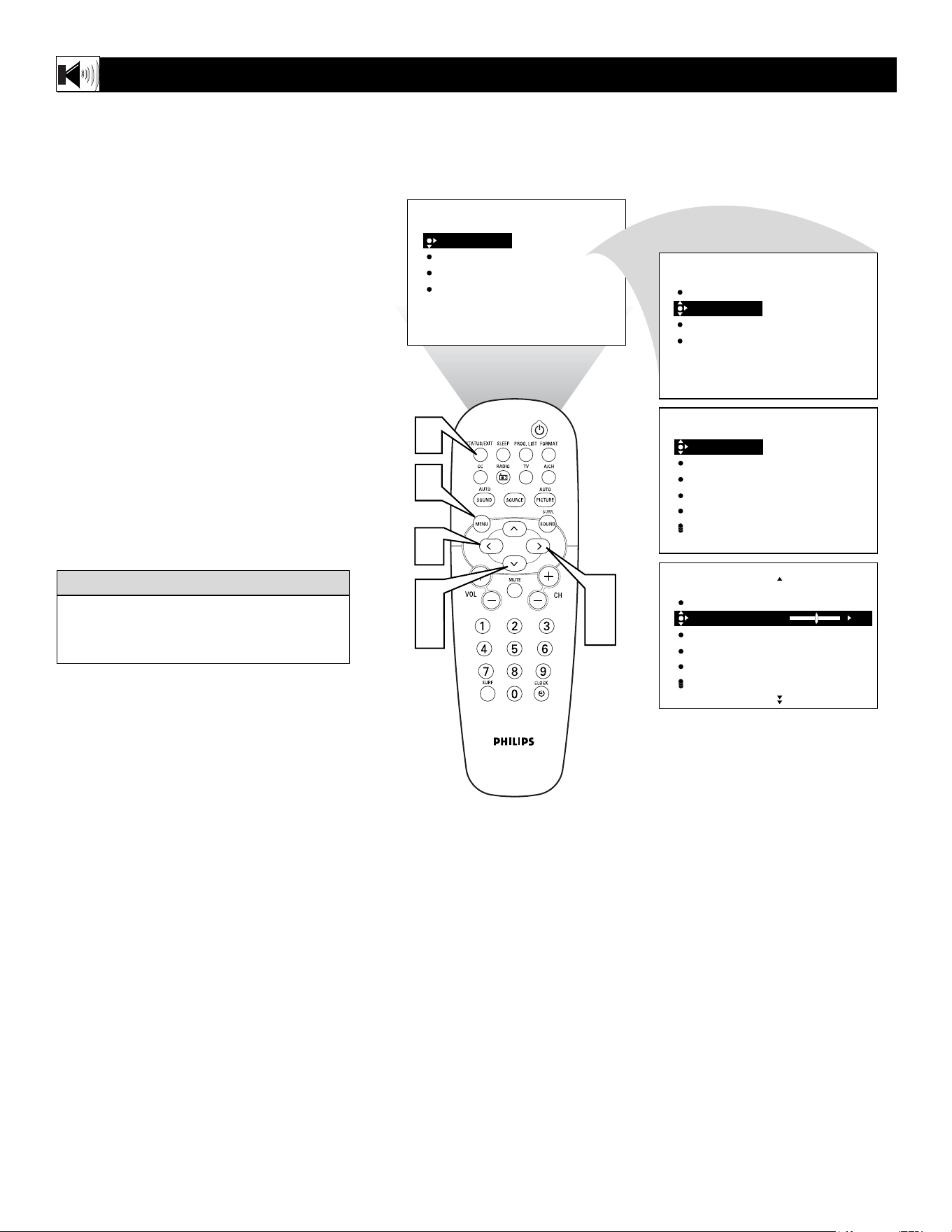
The Equalizer Controls allow you to adjust the
sound frequencies to suit the type of program-
ming be watched.
1
Press the MENU button on the remote
control to show the onscreen menu.
2
Press the CURSOR DOWN button
repeatedly until SOUND in highlighted.
3
Press the CURSOR RIGHT button to
shift the menu to the left. EQUALIZER
will be highlighted.
4
Press the CURSOR RIGHT button to
highlight the EQUALIZER options area.
5
Press the CURSOR UP or DOWN
buttons to highlight any of the frequen-
cy options.
6
Press the CURSOR RIGHT or LEFT
buttons to adjust the control slider to the
level desired.
7
Once all the Equalizer controls have
been set, press the STATUS/EXIT but-
ton to clear the menu from the screen.
HOW TO USE THE EQUALIZER CONTROLS
PICTURE
SOUND
FEATURES
INSTALL
BRIGHTNESS
COLOR
PICTURE
SHARPNESS
TINT
PICTURE
SOUND
FEATURES
INSTALL
EQUALIZER
BALANCE
AVL
INCR. SURROUND
STEREO
EQUALIZER
BALANCE
AVL
INCR. SURROUND
STEREO
120HZ
500HZ
1500HZ
5KHZ
10KHZ
120HZ
500HZ
1500HZ
5KHZ
10KHZ
-11
-2
0
6
3
SOUND
SOUND
2
5
3
4
6
1
5
7
6
EQUALIZER
14
T
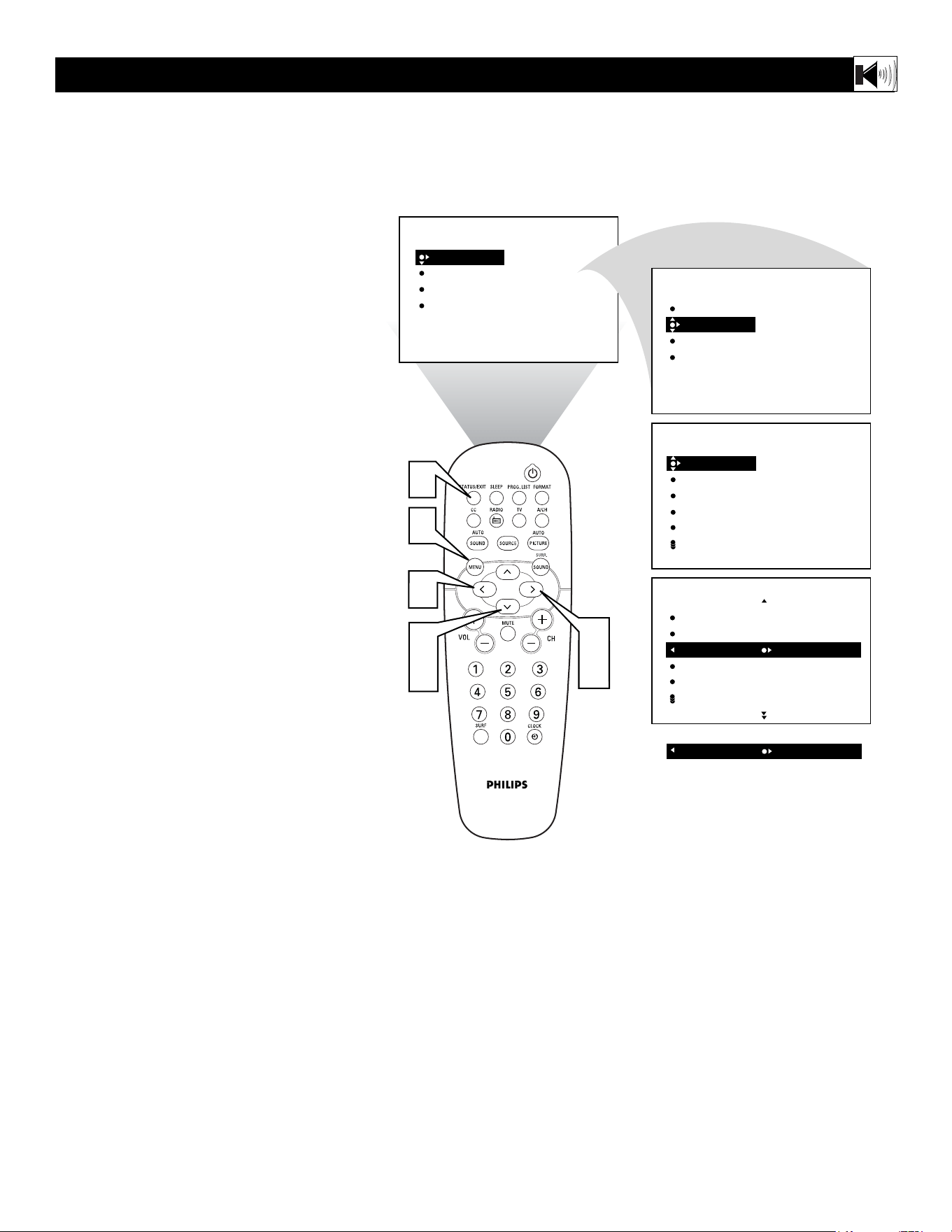
he Balance Control will allow you to adjust
the sound levels between the right and left
speaker output.
1
Press the MENU button on the remote
control to show the onscreen menu. PIC-
TURE will be highlighted.
2
Press the CURSOR DOWN button
repeatedly until SOUND in highlighted.
3
Press the CURSOR RIGHT button to
shift the menu to the left. EQUALIZER
will be highlighted.
4
Press the CURSOR DOWN to highlight
the BALANCE control.
5
Press CURSOR RIGHT or LEFT but-
tons to adjust the sound between the right
and left speakers.
6
Press the STATUS/EXIT button to
remove the menu from the screen.
HOW TO USE THE BALANCE CONTROL
PICTURE
SOUND
FEATURES
INSTALL
BRIGHTNESS
COLOR
PICTURE
SHARPNESS
TINT
EQUALIZER
BALANCE
AVL
INCR. SURROUND
STEREO
120HZ
500HZ
1500HZ
5KHZ
10KHZ
EQUALIZER
BALANCE
AVL
INCR. SURROUND
STEREO
0
SOUND
SOUND
2
4
3
5
1
6
5
PICTURE
SOUND
FEATURES
INSTALL
EQUALIZER
BALANCE
AVL
INCR. SURROUND
STEREO
When the Balance Control slider is at a set-
ting of “0”, both left and right speakers
should have equal sound level between them.
HELPFUL
HINT
15
I
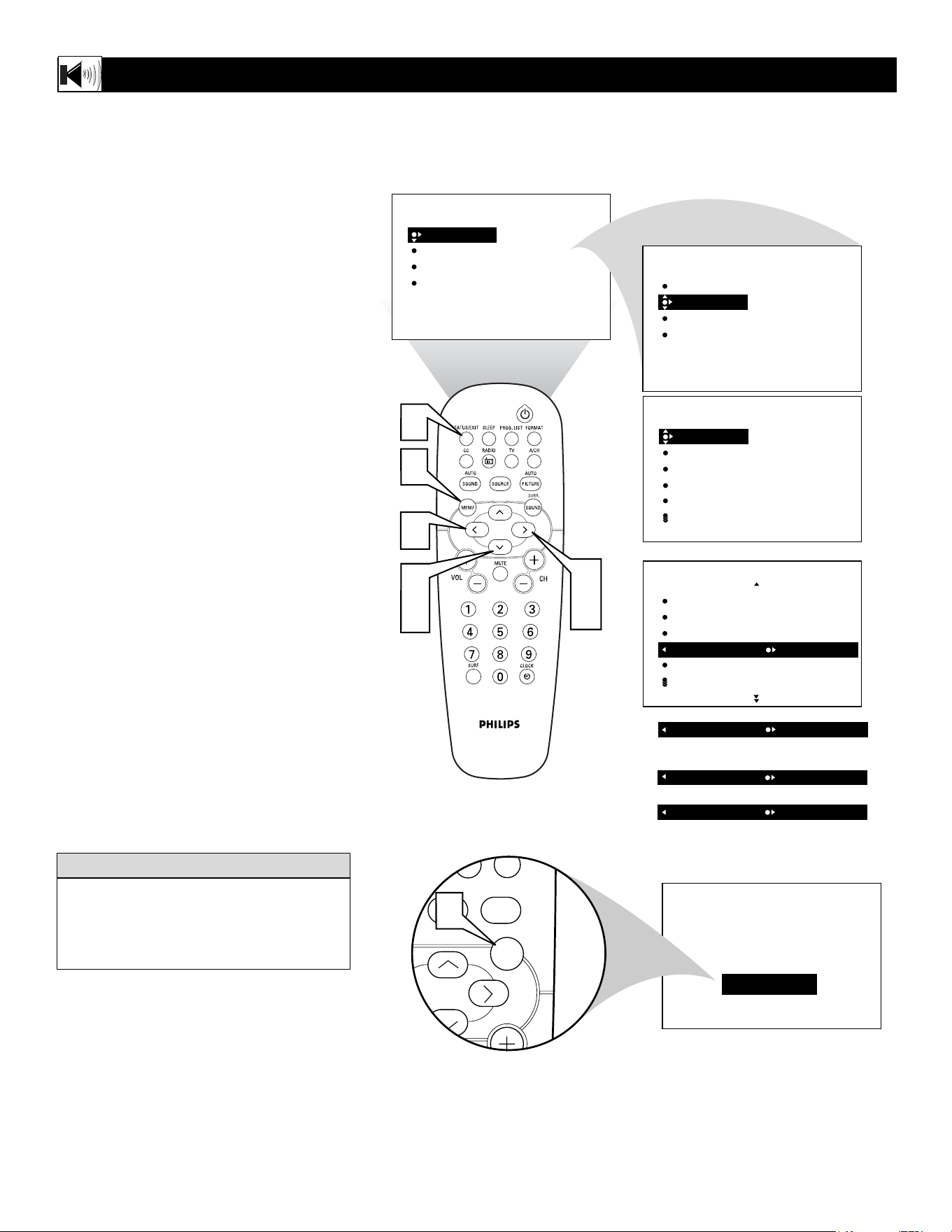
n most cases, the volume levels coming
from broadcast programming or commer-
cials are never the same. With the AVL
(Audio Volume Leveler) control turned ON,
you can have the TV level out sound that is
being heard. This makes for a more consis-
tent sound by reducing the peaks and valleys
that occur during program changes or com-
mercial breaks. To turn the AVL ON, follow
these steps.
1
Press the MENU button on the
remote control to show the onscreen
menu.
2
Press the CURSOR DOWN to high-
light SOUND.
3
Press the CURSOR RIGHT and the
menu will shift to the left. EQUALIZ-
ER will be highlighted and an adjust-
ment bar will be shown to the right.
4
Press the CURSOR DOWN repeated-
ly until AVL is highlighted.
5
Press the CURSOR RIGHT or
LEFT to toggle AVL ON or OFF.
6
Press the STATUS/EXIT button to
remove the menu from the screen.
HOW TO USE THE AVL CONTROL
PICTURE
SOUND
FEATURES
INSTALL
BRIGHTNESS
COLOR
PICTURE
SHARPNESS
TINT
PICTURE
SOUND
FEATURES
INSTALL
EQUALIZER
BALANCE
AVL
INCR. SURROUND
STEREO
EQUALIZER
BALANCE
AVL
INCR. SURROUND
STEREO
120HZ
500HZ
1500HZ
5KHZ
10KHZ
EQUALIZER
BALANCE
AVL
INCR. SURROUND
STEREO
OFF
AVL
ON
OR
SOUND
SOUND
2
4
3
5
1
6
5
16
T
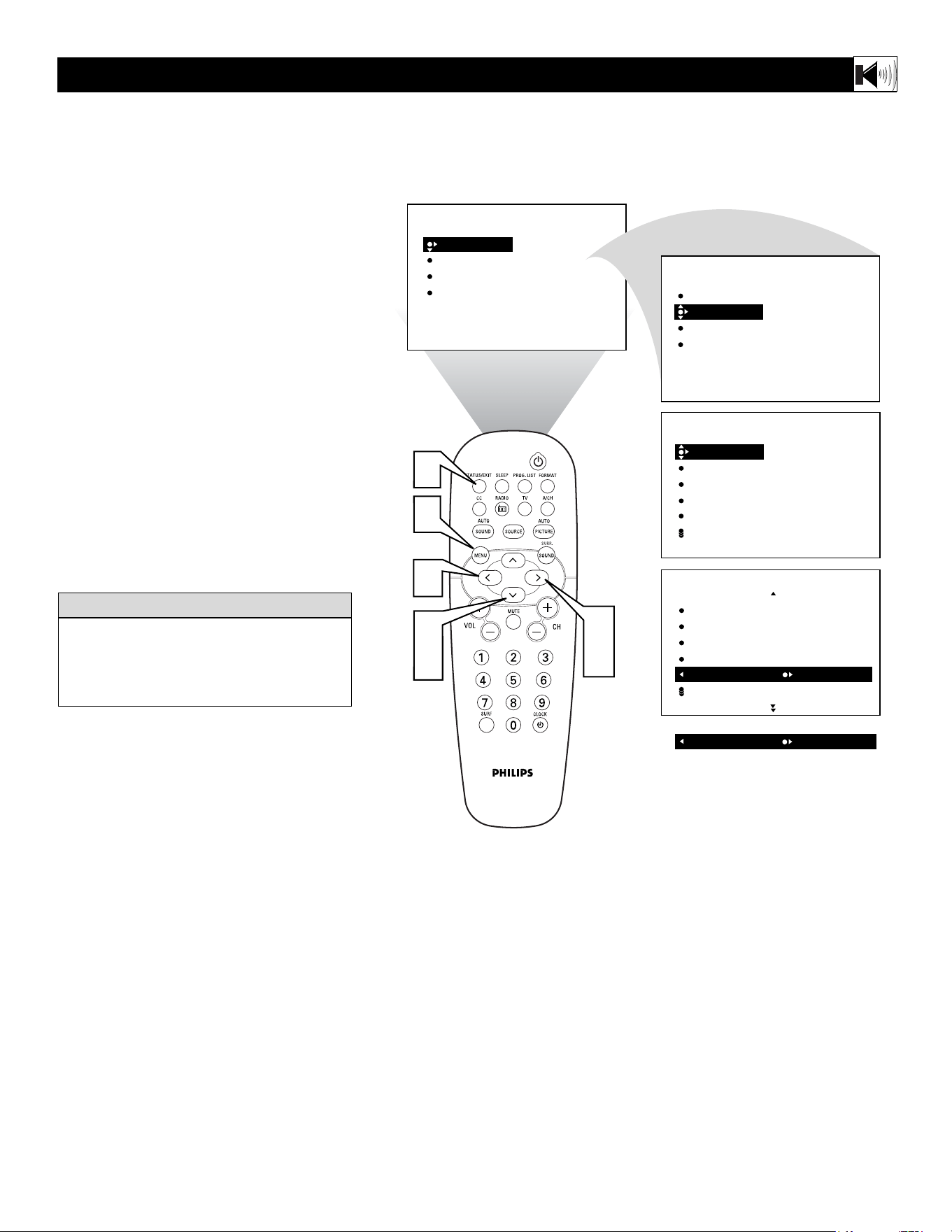
he Incredible Surround feature adds
greater depth and dimension to both mon-
aural (MONO) and stereo TV sound. With
the control set to INCR. SURROUND
(Incredible Surround), the TV’s speakers can
add even wider sound separation to normal
broadcasts.
1
Press the MENU button on the
remote control to show the onscreen
menu.
2
Press the CURSOR DOWN to high-
light SOUND.
3
Press the CURSOR RIGHT and the
menu will shift to the left. EQUALIZ-
ER will be highlighted and an adjust-
ment bar will be shown to the right.
4
Press the CURSOR DOWN repeated-
ly until INCR. SURROUND is high-
lighted. (Incredible Surround)
5
Press the CURSOR RIGHT or
LEFT to toggle the INCR. SUR-
ROUND control settings.
If signal is Stereo: Select STEREO, or
INCR. SURROUND.
If signal is MONO: Select MONO, or
SPATIAL.
6
Press the STATUS/EXIT button to
remove the menu from the screen.
7
You can also change the INCR. SUR-
ROUND onscreen menu control set-
tings by pressing the SURR. (sur-
round) SOUND button on the remote
control.
HOW TO USE THE INCREDIBLE SURROUND CONTROL
PICTURE
SOUND
FEATURES
INSTALL
BRIGHTNESS
COLOR
PICTURE
SHARPNESS
TINT
EQUALIZER
BALANCE
AVL
INCR. SURROUND
STEREO
120HZ
500HZ
1500HZ
5KHZ
10KHZ
EQUALIZER
BALANCE
AVL
INCR. SURROUND
STEREO
OR
INCR. SURROUND
INCR. SURROUND
INCR. SURROUND
STEREO
IF STEREO:
IF MONO:
INCR. SURROUND
MONO
OR
INCR. SURROUND
SPATIAL
SOUND
SOUND
INCR. SURROUND
AUTO
Source
PICTURE
SOUND
SURR.
2
4
3
5
1
6
5
7
PICTURE
SOUND
FEATURES
INSTALL
EQUALIZER
BALANCE
AVL
INCR. SURROUND
STEREO
SPATIAL – widens the sound, simulating a
broader, fuller sound.
INCR. SURROUND – widens the sound,
simulating a broader, fuller sound.
HELPFUL HINT
17
Y
ou can receive broadcast stereo TV pro-
grams. The TV has both an amplifier and
twin speakers through which the stereo sound
can be heard.
1
Press the MENU button on the
remote control to show the onscreen
menu.
2
Press the CURSOR DOWN to high-
light SOUND.
3
Press the CURSOR RIGHT and the
menu will shift to the left. EQUALIZ-
ER will be highlighted and an adjust-
ment bar will be shown to the right.
4
Press the CURSOR DOWN repeated-
ly until STEREO is highlighted.
5
Press the CURSOR RIGHT or
LEFT to toggle the STEREO control
to Stereo or Mono.
6
Press the STATUS/EXIT button to
remove the menu from the screen.
HOW TO SET THE TV TO RECEIVE STEREO PROGRAMMING
PICTURE
SOUND
FEATURES
INSTALL
BRIGHTNESS
COLOR
PICTURE
SHARPNESS
TINT
PICTURE
SOUND
FEATURES
INSTALL
EQUALIZER
BALANCE
AVL
INCR. SURROUND
STEREO
EQUALIZER
BALANCE
AVL
INCR. SURROUND
STEREO
120HZ
500HZ
1500HZ
5KHZ
10KHZ
EQUALIZER
BALANCE
AVL
INCR. SURROUND
STEREO
INCR. SURROUND
OR
STEREO
STEREO
MONO
SOUND
SOUND
2
4
3
5
1
6
5
Remember, if stereo is not present on a
selected show and the TV is placed in the
STEREO mode, the sound coming from the
set will remain monaural.
HELPFUL HINT
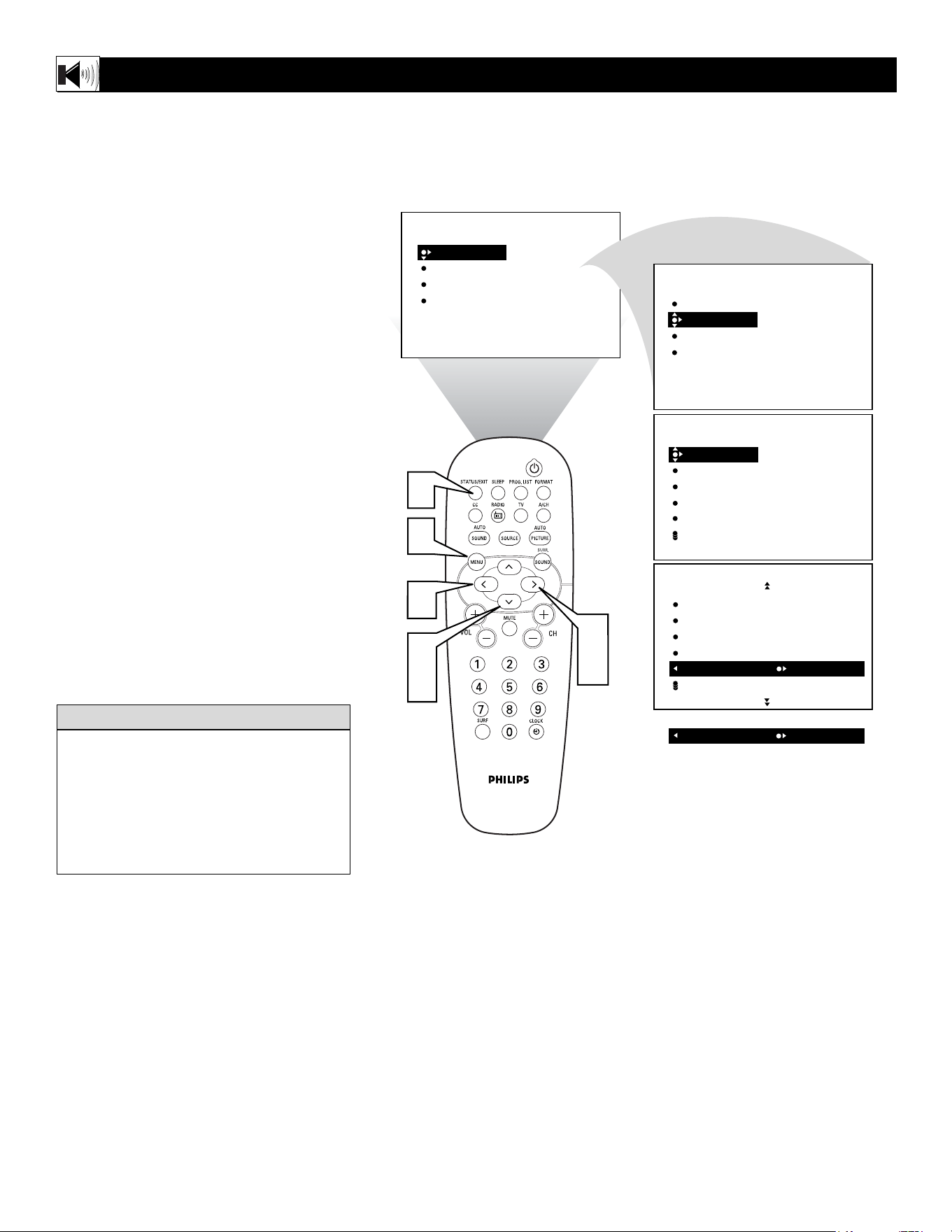
18
S
AP is an additional part of the stereo
broadcast system. Sent as a third audio
channel, an SAP can be heard apart from the
current TV program sound. TV stations are
free to use SAP for any number of purposes.
1
Press the MENU button on the
remote control to show the onscreen
menu.
2
Press the CURSOR DOWN to high-
light SOUND.
3
Press the CURSOR RIGHT and the
menu will shift to the left. EQUALIZ-
ER will be highlighted and an adjust-
ment bar will be shown to the right.
4
Press the CURSOR DOWN repeated-
ly until SAP is highlighted.
5
Press the CURSOR RIGHT or
LEFT to toggle the SAP control to On
or Off.
Note: If SAP is not broadcasted on the select-
ed program your watching, NOT AVAIL-
ABLE will appear in the onscreen menu
option.
6
Press the STATUS/EXIT button to
remove the menu from the screen.
HOW TO SET THE TV TO RECEIVE SAP (SECONDARY AUDIO PROGRAMMING)
PICTURE
SOUND
FEATURES
INSTALL
BRIGHTNESS
COLOR
PICTURE
SHARPNESS
TINT
PICTURE
SOUND
FEATURES
INSTALL
EQUALIZER
BALANCE
AVL
INCR. SURROUND
STEREO
EQUALIZER
BALANCE
AVL
INCR. SURROUND
STEREO
120HZ
500HZ
1500HZ
5KHZ
10KHZ
BALANCE
AVL
INCR. SURROUND
STEREO
SAP
INCR. SURROUND
OR
ON
SAP
OFF
SOUND
SOUND
2
4
3
5
1
6
5
If an SAP signal is not present with a select-
ed program, the SAP option cannot be select-
ed. Also, if SAP is selected on a channel
(with SAP) and you select another channel,
when you return to the original channel, SAP
will be OFF. You will have to reselect the
SAP feature.
HELPFUL HINT
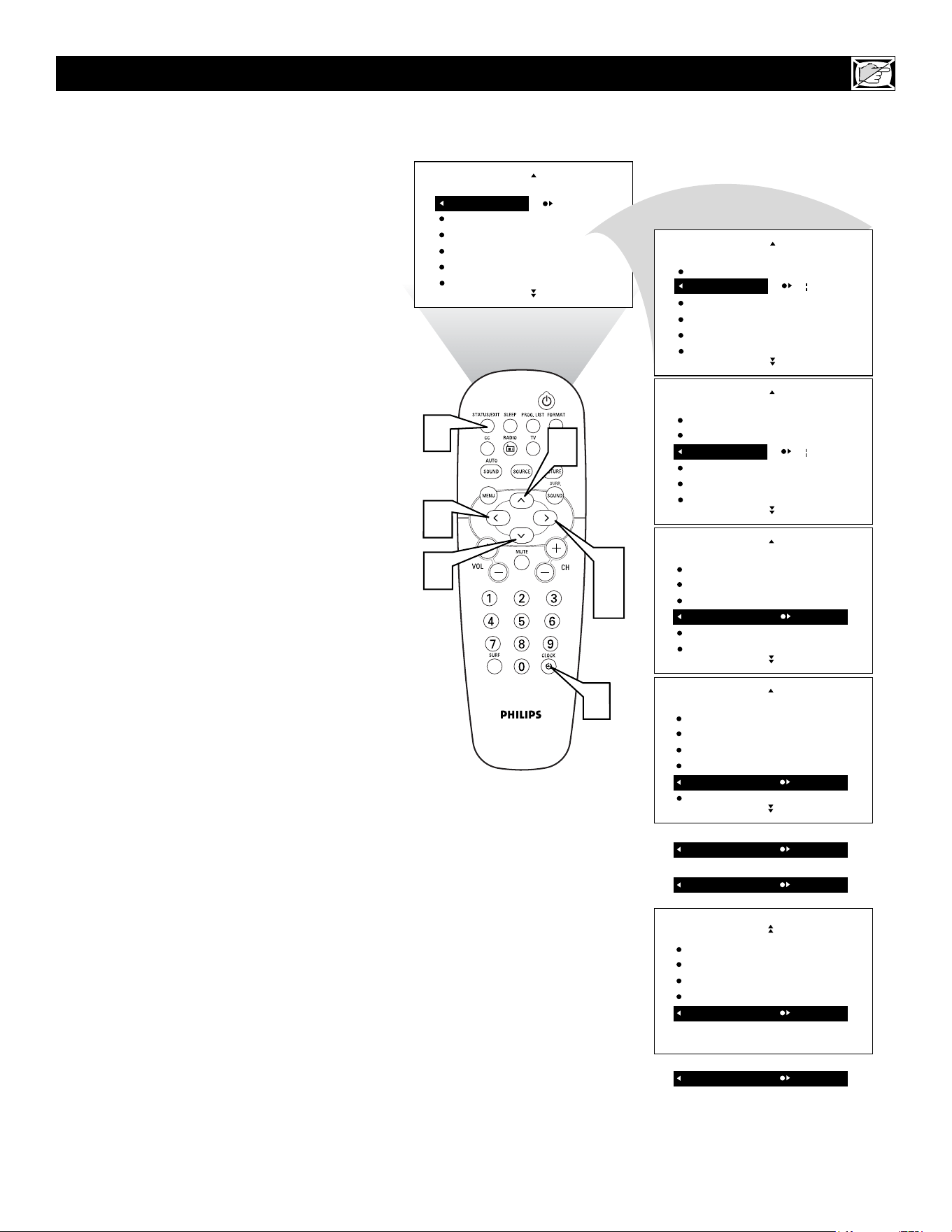
19
Y
our television comes with an on-screen
clock. The TV also can be set to turn on or
off at a specific time and tune to a specific
channel when it powers its self on.
1
Press the CLOCK button on the
remote control to show the TIMER
onscreen menu.
2
Press the CURSOR RIGHT button
and the TIMER options will shift to the
left. TIME will be highlighted.
3
Press the CURSOR UP or DOWN
buttons repeatedly to highlight one of
the TIMER controls. These controls are
the TIME, START TIME, STOP
TIME, CHANNEL, ACTIVATE, or
DISPLAY.
4
Press the CURSOR RIGHT or
LEFT button to make adjustments or
set the control options.
TIME: Enter the current time with the
numbered buttons. Use the Cursor
Right button to move to the AM/PM
area and use the Cursor Left and Right
buttons to toggle AM or PM.
START TIME: Use the Numbered
buttons to enter a start-up time for the
TV to turn on or tune a specific chan-
nel.
STOP TIME: Use the Numbered but-
tons to enter a time for the TV to shut
itself off.
CHANNEL: Use the Numbered but-
tons or the CH + or – buttons to select
a specific channel for the TV to tune to
at the specific Start Time.
ACTIVATE: Set the Timer to preform
it’s function ONCE or DAILY.
DISPLAY: Set to ON or OFF. When
ON, the time will be displayed ALL
the time the TV is ON. When OFF, the
time will only appear when the STA-
TUS/EXIT button is pressed.
5
Press the STATUS/EXIT button to
remove the menu from the screen.
HOW TO
USE THE TIMER CONTROLS
12:03AM
TIME
START TIME
STOP TIME
CHANNEL
ACTIVATE
FEATURES
TIMER
-- --
TIME
START TIME
STOP TIME
CHANNEL
ACTIVATE
FEATURES
TIMER
-- --
TIME
START TIME
STOP TIME
CHANNEL
ACTIVATE
FEATURES
TIMER
8
TIME
START TIME
STOP TIME
CHANNEL
ACTIVATE
FEATURES
TIMER
OFF
TIME
START TIME
STOP TIME
CHANNEL
ACTIVATE
FEATURES
TIMER
ONCE
ACTIVATE
OR
OFF
START TIME
STOP TIME
CHANNEL
ACTIVATE
DISPLAY
FEATURES
TIMER
ON
DISPLAY
OR
3
2
4
1
3
5
4
DAILY
ACTIVATE
OR
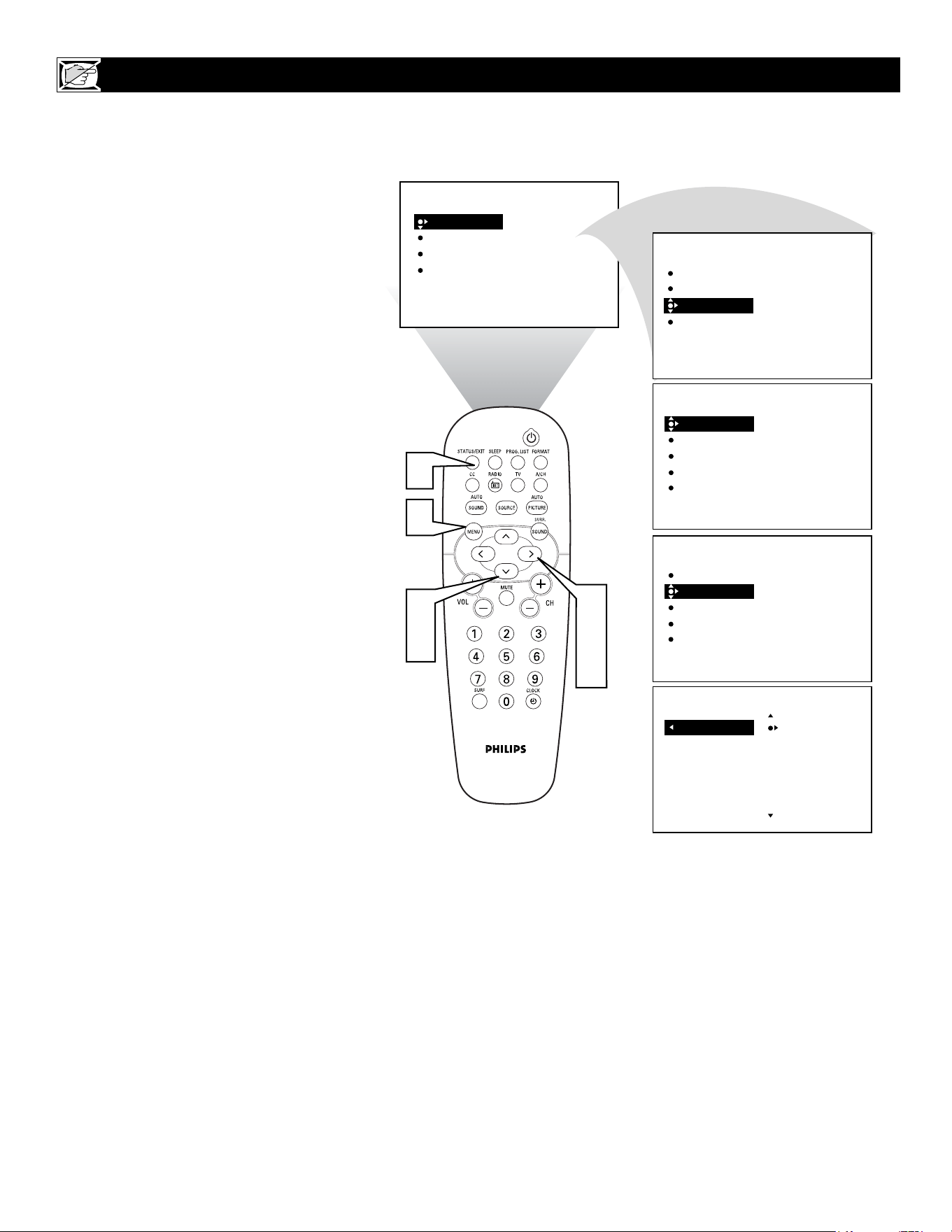
T
he Mode Select Control will allow you to
use set the TV into the TV, or FM Radio
Modes. Depending on how the TV will be
used, these modes may have their own
onscreen menus controls to optimize there use.
1
Press the MENU button on the
remote control to show the onscreen
menu.
2
Press the CURSOR DOWN to high-
light FEATURES.
3
Press the CURSOR RIGHT and the
menu will shift to the left. TIMER will
be highlighted.
4
Press the CURSOR DOWN repeated-
ly until MODE SELECT is highlighted.
5
Press the CURSOR RIGHT button to
shift the menu to the left. FM RADIO
will be highlighted.
6
Press the CURSOR RIGHT button
to
activate the FM Radio mode.
7
Press the STATUS/EXIT button to
remove the menu from the screen.
HOW TO USE THE MODE SELECT CONTROL
PICTURE
SOUND
FEATURES
INSTALL
BRIGHTNESS
COLOR
PICTURE
SHARPNESS
TINT
PICTURE
SOUND
FEATURES
INSTALL
TIMER
MODE SELECT
Auto Lock
CLOSED CAP
TIMER
MODE SELECT
Auto Lock
CLOSED CAP
TIME
START TIME
STOPE TIME
CHANNEL
ACTIVATE
TIMER
MODE SELECT
Auto Lock
CLOSED CAP
FM RADIO
FEATURE
FEATURE
FM RADIO
FEATURE
MODE SELECT
2
4
3
5
6
1
7
20
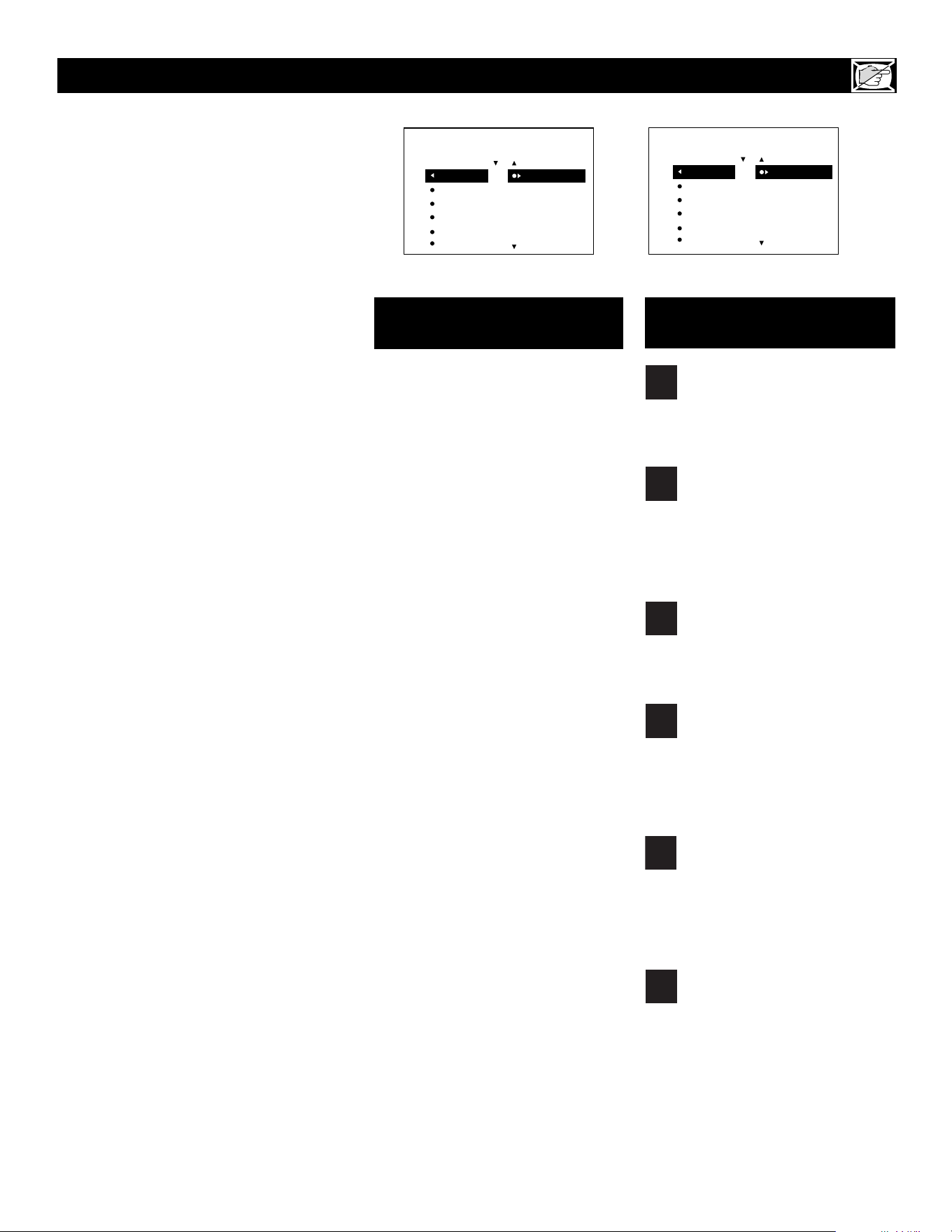
21
UNDERSTANDING THE AUTOLOCK™ CONTROLS
G: General Audience - All ages admitted.
Most parents would find this programming
suitable for all ages. This type of program-
ming contains little or no violence, no
strong language, and little or no sexual dia-
logue or sexual situations.
PG: Parental Guidance Suggested -
This
programming contains material that parents
may find unsuitable for younger children. It
may contain one or more of the following:
Moderate violence, some sexual situations,
infrequent coarse language, or some sugges-
tive dialogue.
PG-13: Parents Strongly Cautioned - This
programming contains material that parents
may find unsuitable for children under the
age of 13. It contains one or more of the fol-
lowing: violence, sexual situations, coarse
language, or suggestive dialogue.
R: Restricted -This programming is specifi-
cally designed for adults. Anyone under the
age of 17 should view this programming
only with an accompanying parent or adult
guardian. It contains one or more of the fol-
lowing: intense violence; intense sexual situ-
ations; strong, coarse language; or intensely
suggestive dialogue.
NC-17: No one under the age of 17 will be
admitted. - This type of programming should
be viewed by adults only. It contains graphic
violence; explicit sex; or crude, indecent lan-
guage.
X: Adults Only - This type of programming
contains one or more of the following: very
graphic violence, very graphic and explicit or
indecent sexual acts, very coarse and intense-
ly suggestive language.
MOVIE RATINGS
(M
OTION
P
ICTURE
A
SSOCIATION OF
A
MERICA
)
TV-Y: (All children -- This program is
designed to be appropriate for all chil-
dren.) Designed for a very young audi-
ence, including children ages 2-6. This type of
programming is not expected to frighten
younger children.
TV-Y7: (Directed to Older Children --
This program is designed for children
ages 7 and above.) It may be more
appropriate for children who have acquired the
development skills needed to distinguish
between make-believe and reality. This pro-
gramming may include mild fantasy and comic
violence (FV).
TV-G: (General Audience -- Most par-
ents would find this program suitable for
all ages.) This type of programming
contains little or no violence, no strong lan-
guage, and little or no sexual dialogue or sexual
situations.
TV-PG: (Parental Guidance
Suggested -- This program contains
material that parents may find unsuit-
able for younger children.) This type of pro-
gramming contains one or more of the follow-
ing: Moderate violence (V), some sexual situa-
tions (S), infrequent coarse language (L), or
some suggestive dialogue (D).
TV-14: (Parents Strongly Cautioned -
- This program contains some material
that many parents would find unsuitable
for children under 14 years of age.) This type
of programming contains one or more of the
following: intense violence (V); intense sexual
situations (S); strong, coarse language (L); or
intensely suggestive dialogue (D).
TV-MA: (Mature Audience Only --
This program is specifically designed to
be viewed by adults and therefore may
be unsuitable for children under 17.) This type
of programming contains one or more of the
following: graphic violence (V); explicit sexual
situations (S); or crude, indecent language (L).
TV PARENTAL GUIDELINES
(TV BROADCASTERS)
TV
G
TV
PG
TV
Y
TV
Y7
TV
14
TV
MA
TV RATING
AutoLock
ON
TV-Y
TV-Y7
TV-G
TV-PG
TV-14
T
he AutoLock™ feature receives and
processes data sent by broadcasters or
other program providers that contain pro-
gram content advisories. When programmed
by the viewer, a TV with AutoLock™ can
respond to the content advisories and block
program content that may be found objection-
able (such as offensive language, violence,
sexual situations, etc.). This is a great feature
to censor the type of programming children
may watch.
In the AutoLock™ section, you’ll learn how
to block channels and programming that is
not rated, is unrated, or has no rating. You
will also find out how to turn these blocking
features ON or OFF. Following are brief
explanations of some terms and ratings relat-
ed to the AutoLock™ feature.
AutoLock™ offers various Blocking
Options from which to choose:
BLOCKING: The BLOCKING control is
what can be thought of as the “master switch”
for AutoLock™. This control affects the set-
tings you have chosen for blocking programs
according to movie ratings or TV ratings, or
for blocking programs that have no rating or
are unrated. When the BLOCKING control is
OFF, the blocking or censoring of programs is
disabled. When the BLOCKING control is
ON, blocking will occur according to the set-
tings you have chosen.
NO RATING: ALL programming with no
content advisory data can be blocked if NO
RATING is set to ON.
Programming that has No Rating is not
encoded with any rating information from the
MPAA or the Parental Guidelines. Any pro-
gramming could fall into this category.
You also can block individual channels or
block programming based on ratings of the
MPAA and TV broadcasters. (See a descrip-
tion of the ratings on this page.)
MOVIE RATING
AutoLock
ON
G
PG
PG-13
R
NC-17
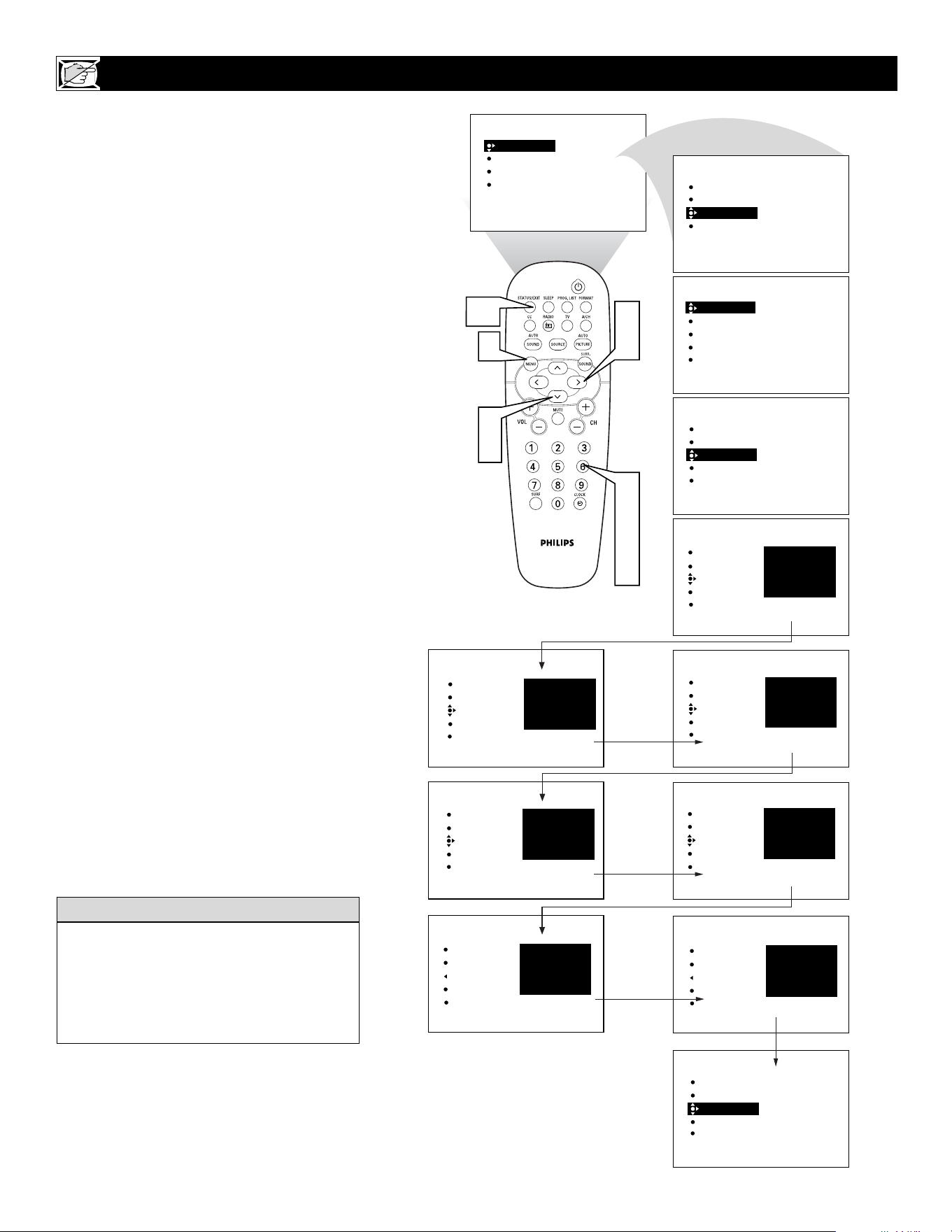
22
A
utoLock
TM
allows parents to block out or
“censor” any channels they think chil-
dren should not watch. A channel blocked by
the AutoLock
TM
control cannot be viewed until
a correct access code is used to unlock the
channel for viewing. First, let’s set your
AutoLock access code.
1
Press the MENU button on the
remote control to show the onscreen
menu.
2
Press the CURSOR DOWN button
to highlight FEATURES.
3
Press the CURSOR RIGHT button
and the menu will shift to the left.
TIMER will be highlighted.
4
Press the CURSOR DOWN button
repeatedly until AutoLock is highlight-
ed.
5
Press the CURSOR RIGHT button
to highlight ACCESS CODE.
6
Press 0,7,1,1 on the remote control.
INCORRECT will appear on the
screen.
7
Press 0,7,1,1 on the remote control
again. ENTER NEW CODE will
appear on the screen.
8
Enter a new four-digit code using the
number buttons. CONFIRM CODE
will appear on the screen.
9
Enter your new four-digit code again.
CORRECT will flash on the screen
briefly and the highlight bar goes back
to AutoLock.
Press the STATUS/EXIT button to
remove the menu from the screen.
SETTING UP THE
AUTOLOCK™ ACCESS CODE
PICTURE
SOUND
FEATURES
INSTALL
BRIGHTNESS
COLOR
PICTURE
SHARPNESS
TINT
PICTURE
SOUND
FEATURES
INSTALL
TIMER
MODE SELECT
AutoLock
CLOSED CAP
TIMER
MODE SELECTL
AutoLock
CLOSED CAP
OFF
ACCESS CODE
----
FEATURES
TIMER
MODE SELECT
AutoLock
CLOSED CAP
OFF
TIME
START TIME
STOP TIME
CHANNEL
ACTIVATE
FEATURES
TIMER
MODE SELECT
AutoLock
CLOSED CAP
FEATURES
ACCESS CODE
- - - -
TIMER
MODE SELECT
AutoLock
CLOSED CAP
FEATURES
ACCESS CODE
X X X X
TIMER
MODE SELECT
AutoLock
CLOSED CAP
FEATURES
ACCESS CODE
X X X X
INCORRECT
TIMER
MODE SELECT
AutoLock
CLOSED CAP
FEATURES
ACCESS CODE
- - - -
TIMER
MODE SELECT
AutoLock
CLOSED CAP
FEATURES
ENTER
NEW CODE
- - - -
TIMER
MODE SELECT
AutoLock
CLOSED CAP
FEATURES
CONFIRM
CODE
- - - -
TIMER
MODE SELECT
AutoLock
CLOSED CAP
FEATURES
CONFIRM
CODE
X X X X
CORRECT
TIMER
MODE SELECTL
AutoLock
CLOSED CAP
FEATURES
ACCESS CODE
- - - -
2
4
3
5
1
10
6
7
8
9
10
Remember that 0711 is the default
AutoLock
TM
code. If your access code has
been changed by someone other than you (a
child, for example) or you have forgotten the
code, you can always get in by inputting the
default code.
HELPFUL HINT
NOTE TO PARENTS: It isn’t possible for
your child to unblock a channel without know-
ing your access code or changing it to a new
one. If your code has been changed without
your knowledge, then you will become aware
that blocked channels may have been viewed.
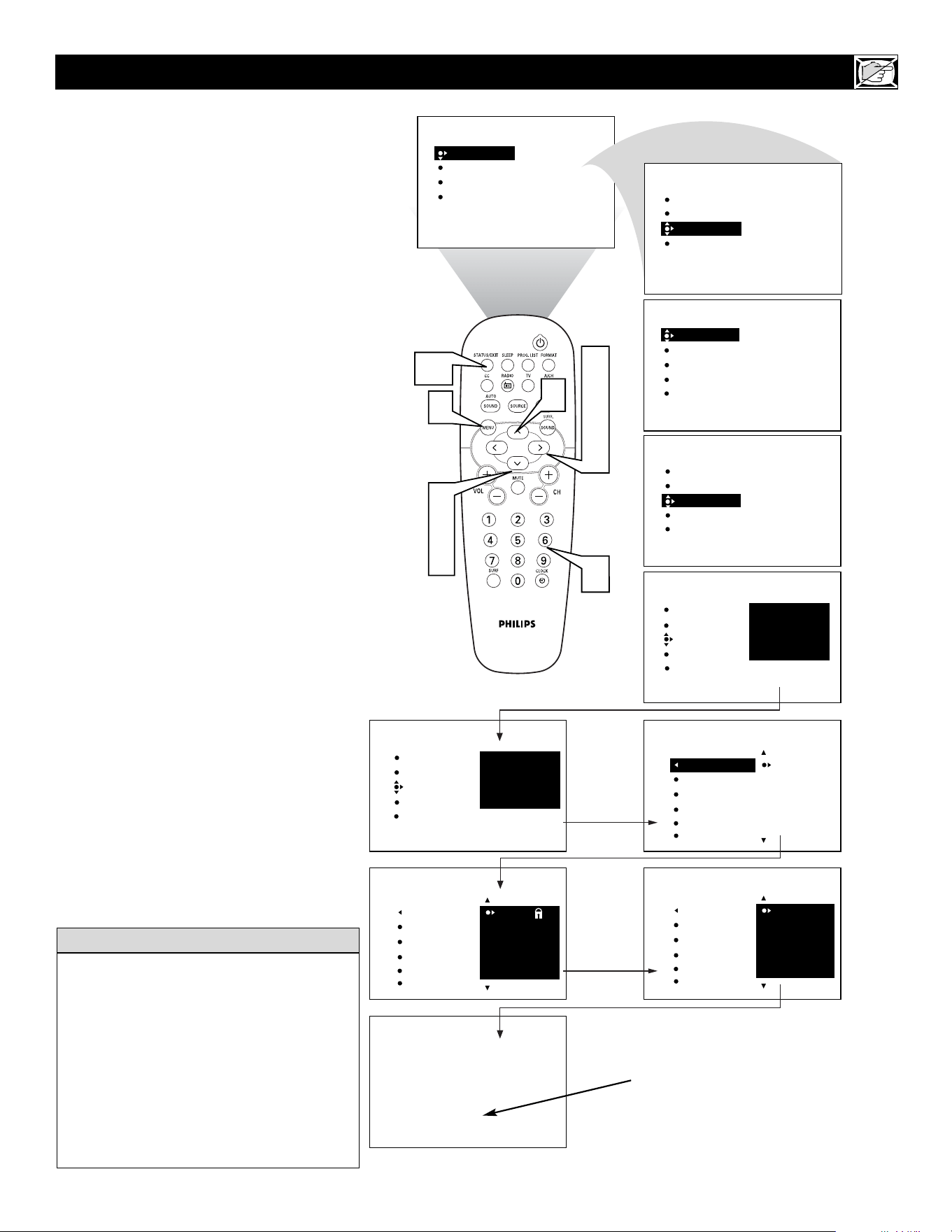
23
A
fter your personal access code has been
set (see the previous page), you are ready
to select the channels or inputs you want to
block out or censor.
1
Press the MENU button on the
remote control to show the onscreen
menu.
2
Press the CURSOR DOWN button
to highlight FEATURES.
3
Press the CURSOR RIGHT button
and the menu will shift to the left.
TIMER will be highlighted.
4
Press the CURSOR DOWN button
repeatedly until AutoLock is highlight-
ed.
5
Press the CURSOR RIGHT button
to highlight ACCESS CODE.
6
Enter your four-digit ACCESS
CODE. CORRECT will flash very
briefly and the menu will move to the
left with BLOCK CHANNEL high-
lighted.
7
Press the CURSOR RIGHT button
to highlight the TV’s available chan-
nels.
8
Press the CURSOR UP or DOWN
button to highlight the channel you
want to block.
9
Press the CURSOR RIGHT button
to block the channel. A padlock image
appears to the right of the channel
number.
Repeat steps 7 and 8 for any channels you
want to block from viewing.
Press the STATUS/EXIT button to
remove the menu from the screen.
H
OW TO
BLOCK CHANNELS USING AUTOLOCK™
PICTURE
SOUND
FEATURES
INSTALL
BRIGHTNESS
COLOR
PICTURE
SHARPNESS
TINT
PICTURE
SOUND
FEATURES
INSTALL
TIMER
MODE SELECT
AutoLock
CLOSED CAP
TIMER
MODE SELECT
AutoLock
CLOSED CAP
OFF
ACCESS CODE
----
FEATURES
TIMER
MODE SELECT
AutoLock
CLOSED CAP
OFF
TIME
START TIME
STOP TIME
CHANNEL
ACTIVATE
FEATURES
TIMER
MODE SELECT
AutoLock
CLOSED CAP
FEATURES
ACCESS CODE
- - - -
TIMER
MODE SELECT
AutoLock
CLOSED CAP
FEATURES
ACCESS CODE
X X X X
2
4
8
3
5
7
9
1
10
6
AutoLock
FEATURES
BLOCK CHANNEL
SETUP CODE
CLEAR ALL
MOVIE RATING
TV RATING
12
13
14
15
16
FEATURES
AutoLock
FEATURES
BLOCK CHANNEL
SETUP CODE
CLEAR ALL
MOVIE RATING
TV RATING
12
13
14
15
16
Channel 12
Blocked by AutoLock
CHANNEL BLOCKING
Access code
- - - -
AutoLock
AV2
AV3
ALL
1
2
BLOCK CHANNEL
SETUP CODE
CLEAR ALL
MOVIE RATING
TV RATING
8
10
Remember that 0711 is the default
AutoLock
TM
code. If your access code has
been changed by someone other than you (a
child, for example) or you have forgotten the
code, you can always get in by inputting the
default code.
NOTE: You also can block out the use of the
A/V external inputs on the rear of the TV. This
stops the viewing of VCR, DVD, and other
sources that can be shown through the A/V input
jacks.
HELPFUL HINT
If a channel is blocked by the BLOCK
CHANNEL option, the TV will display
the screen shown to the right. To watch
the channel, enter your access code or
change the BLOCK CHANNEL option
back to off.
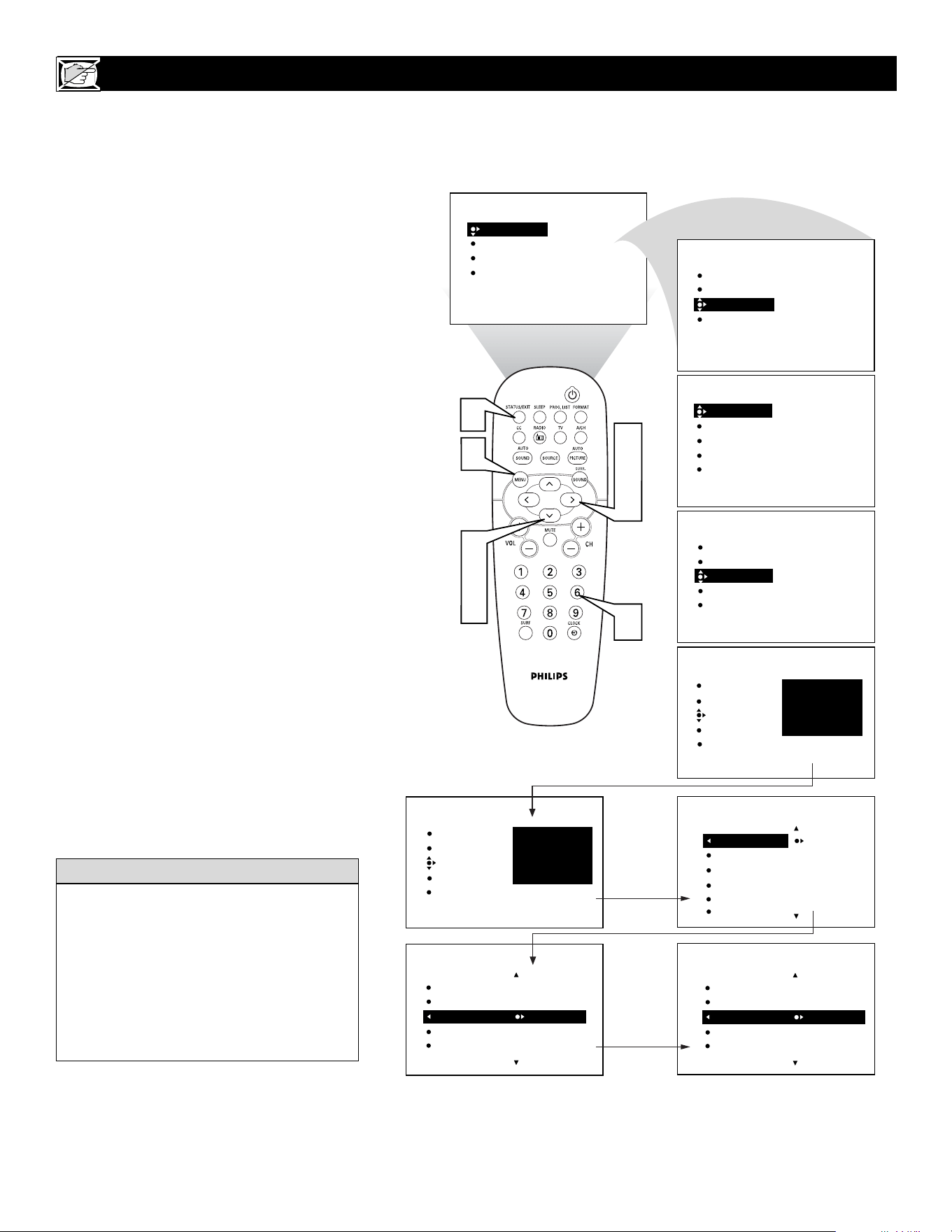
24
V
arious onscreen messages will appear
when someone tries to view blocked pro-
gramming. The message is determined by how
the current programming is blocked. You may
view the blocked programming and turn OFF
the AutoLock™ feature by using the Clear All
control or by entering your access code
1
Press the MENU button on the
remote control to show the onscreen
menu.
2
Press the CURSOR DOWN button
to highlight FEATURES.
3
Press the CURSOR RIGHT button
and the menu will shift to the left.
TIMER will be highlighted.
4
Press the CURSOR DOWN button
repeatedly until AutoLock is highlight-
ed.
5
Press the CURSOR RIGHT button
to highlight ACCESS CODE.
6
Enter your four-digit ACCESS
CODE and the menu will move to the
left with BLOCK CHANNEL high-
lighted.
7
Press the CURSOR DOWN button
until CLEAR ALL is highlighted.
8
Press the CURSOR RIGHT twice.
The CLEAR ALL option will display
the word CLEARED. All blocked chan-
nels and programming are now view-
able.
9
Press the STATUS/EXIT button to
remove the menu from the screen.
HOW TO CLEAR ALL BLOCKED CHANNELS AT THE SAME TIME
PICTURE
SOUND
FEATURES
INSTALL
BRIGHTNESS
COLOR
PICTURE
SHARPNESS
TINT
TIMER
MODE SELECT
AutoLock
CLOSED CAP
OFF
ACCESS CODE
----
FEATURES
TIMER
MODE SELECT
AutoLock
CLOSED CAP
OFF
TIME
START TIME
STOP TIME
CHANNEL
ACTIVATE
FEATURES
TIMER
MODE SELECT
AutoLock
CLOSED CAP
FEATURES
ACCESS CODE
- - - -
TIMER
MODE SELECT
AutoLock
CLOSED CAP
FEATURES
ACCESS CODE
X X X X
2
4
7
3
5
8
1
9
6
FEATURES
AutoLock
AV2
AV3
ALL
1
2
BLOCK CHANNEL
SETUP CODE
CLEAR ALL
MOVIE RATING
TV RATING
AutoLock
FEATURES
BLOCK CHANNEL
SETUP CODE
CLEAR ALL CLEARED
MOVIE RATING
TV RATING
BLOCK OPTIONS
AutoLock
FEATURES
BLOCK CHANNEL
SETUP CODE
CLEAR ALL
MOVIE RATING
TV RATING
BLOCK OPTIONS
PICTURE
SOUND
FEATURES
INSTALL
TIMER
MODE SELECT
AutoLock
CLOSED CAP
If you tune to a specific channel that has been
blocked by BLOCK CHANNEL or any of the
AutoLock™ RATING options, simply enter
your four-digit access code to view the chan-
nel.
NOTE: This will unblock ALL channels until
the TV is shut OFF. When powered back ON,
all previously blocked channels will be
blocked again.
H
ELPFUL HINT
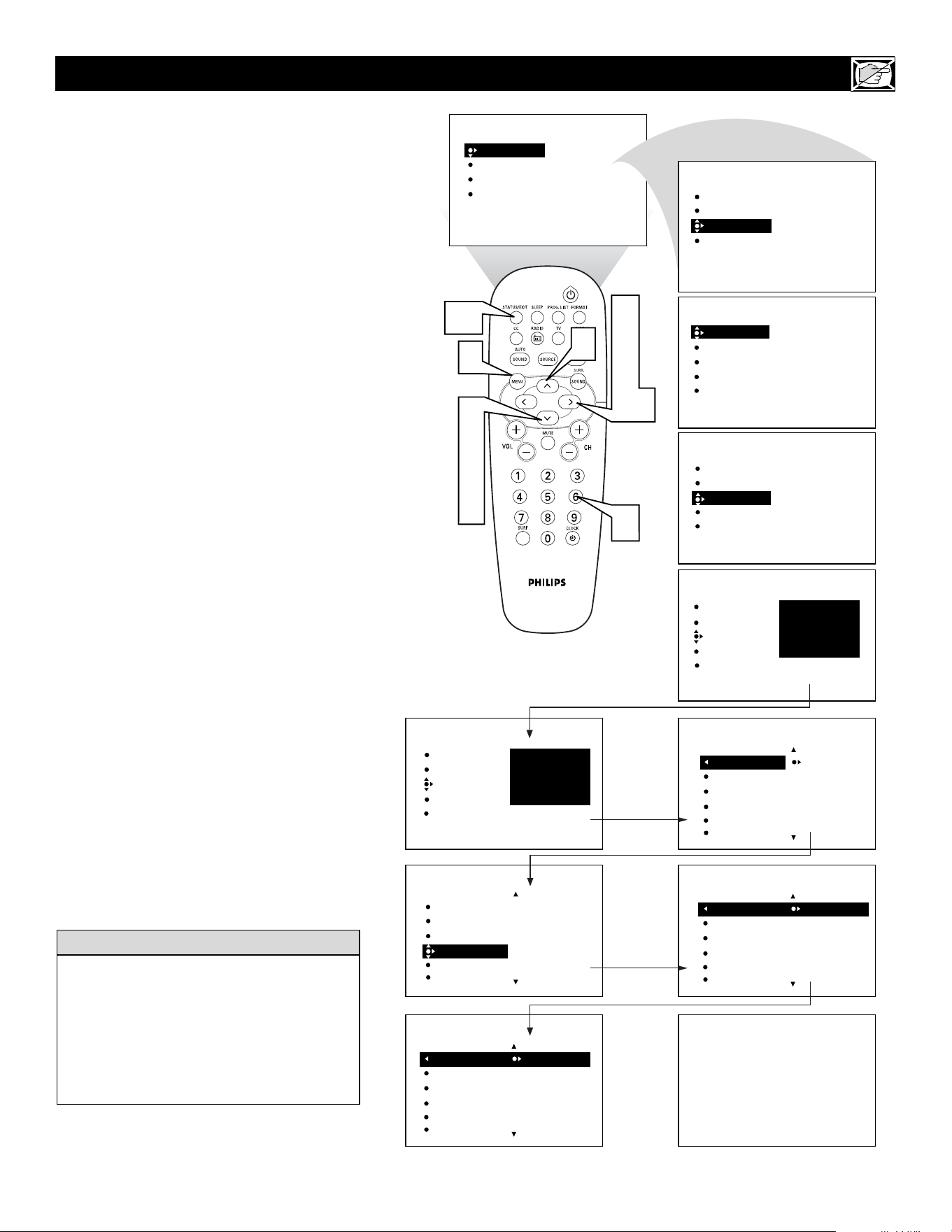
25
A
fter your personal access code has been
set, you can select specific movie ratings
that you want to censor.
1
Press the MENU button on the
remote control to show the onscreen
menu.
2
Press the CURSOR DOWN button
to highlight FEATURES.
3
Press the CURSOR RIGHT button
and the menu will shift to the left.
TIMER will be highlighted.
4
Press the CURSOR DOWN button
repeatedly until AutoLock is highlight-
ed.
5
Press the CURSOR RIGHT button
to highlight ACCESS CODE.
6
Enter your four-digit ACCESS
CODE. CORRECT will flash very
briefly and the menu will move to the
left with BLOCK CHANNEL high-
lighted.
7
Press the CURSOR DOWN repeated-
ly until MOVIE RATING is highlight-
ed.
8
Press the CURSOR RIGHT and the
Rating menu shifts to the left with G
highlighted.
9
Press the CURSOR UP or DOWN to
highlight each rating you want.
Press the CURSOR RIGHT to turn
the rating ON or OFF. Turning the rat-
ing ON will block programs with that
rating from being seen.
Press the STATUS/EXIT button to
remove the menu from the screen.
BLOCKING PROGRAMS BASED ON MOVIE RATINGS
PICTURE
SOUND
FEATURES
INSTALL
BRIGHTNESS
COLOR
PICTURE
SHARPNESS
TINT
PICTURE
SOUND
FEATURES
INSTALL
TIMER
MODE SELECT
AutoLock
CLOSED CAP
TIMER
MODE SELECT
AutoLock
CLOSED CAP
OFF
ACCESS CODE
----
FEATURES
TIMER
MODE SELECT
AutoLock
CLOSED CAP
OFF
TIME
START TIME
STOP TIME
CHANNEL
ACTIVATE
FEATURES
TIMER
MODE SELECT
AutoLock
CLOSED CAP
FEATURES
ACCESS CODE
- - - -
TIMER
MODE SELECT
AutoLock
CLOSED CAP
FEATURES
ACCESS CODE
X X X X
2
4
7
9
3
5
8
10
1
11
6
FEATURES
AutoLock
AV2
AV3
ALL
1
2
BLOCK CHANNEL
SETUP CODE
CLEAR ALL
MOVIE RATING
TV RATING
9
Channel 12
Blocked by AutoLock
MOVIE RATING
Access code
- - - -
AutoLock
G
PG
PG-13
R
NC-17
FEATURES
BLOCK CHANNEL
SETUP CODE
CLEAR ALL
MOVIE RATING
TV RATING
MOVIE RATING
AutoLock
OFF
AV3
ALL
1
2
G
PG
PG-13
R
NC-17
MOVIE RATING
AutoLock
ON
AV3
ALL
1
2
G
PG
PG-13
R
NC-17
10
When a rating is turned ON, all higher ratings
also will be turned on automatically. For
example, if the R rating is turned on, the NC-
17 and X ratings also will be turned on.
All Movie Ratings can be turned ON or OFF.
Refer to page 21 for Movie Rating definitions.
HELPFUL HINT
11
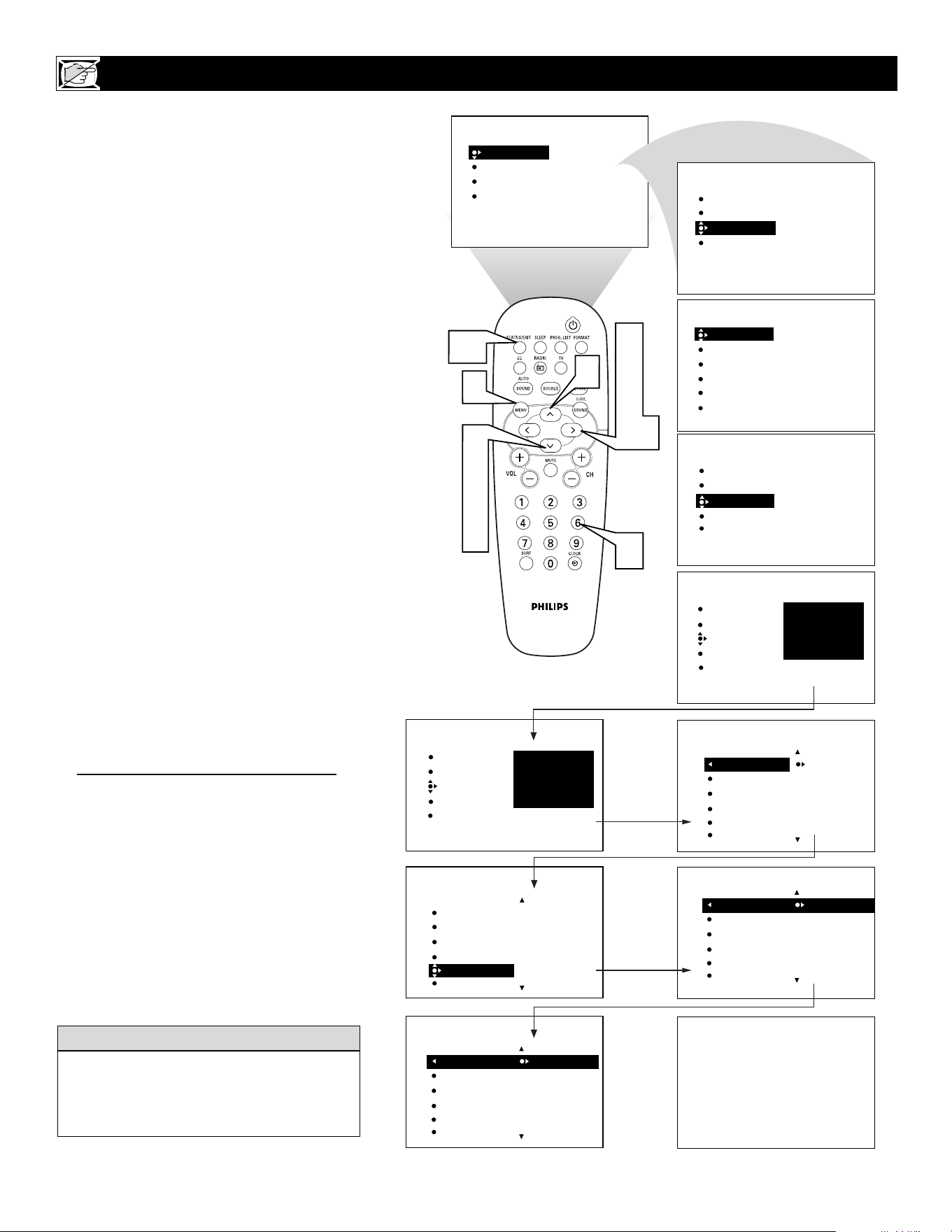
26
Y
ou can select specific TV ratings that you
want to censor by following these steps.
1
Press the MENU button on the
remote control to show the onscreen
menu.
2
Press the CURSOR DOWN button
to highlight FEATURES.
3
Press the CURSOR RIGHT button
and the menu will shift to the left.
TIMER will be highlighted.
4
Press the CURSOR DOWN button
repeatedly until AutoLock is highlight-
ed.
5
Press the CURSOR RIGHT button
to highlight ACCESS CODE.
6
Enter your four-digit ACCESS
CODE. CORRECT will flash very
briefly and the menu will move to the
left with BLOCK CHANNEL high-
lighted.
7
Press the CURSOR DOWN repeated-
ly until TV RATING is highlighted.
8
Press the CURSOR RIGHT and the
menu will shift to highlight the TV
RATING options.
9
Press the CURSOR UP or DOWN to
select a rating.
Press the CURSOR RIGHT to turn
the block on the rating ON or OFF.
NOTE: More specific subratings (for violence,
sexual content, dialogue, or fantasy violence)
are available for TV-Y7, TV-PG, TV-14, and
TV-MA. (Refer to page 23 for definitions.)
To access these subratings, with the main rating
selected, press the CURSOR RIGHT. Then,
repeat steps 9 and 10 to turn the sub-ratings ON
or OFF.
Press the STATUS/EXIT button to
remove the menu from the screen.
BLOCKING PROGRAMS BASED ON
TV RATINGS
PICTURE
SOUND
FEATURES
INSTALL
BRIGHTNESS
COLOR
PICTURE
SHARPNESS
TINT
PICTURE
SOUND
FEATURES
INSTALL
TIMER
MODE SELECT
AutoLock
CLOSED CAP
TIMER
MODE SELECT
AutoLock
CLOSED CAP
OFF
ACCESS CODE
----
FEATURES
TIMER
MODE SELECT
AutoLock
CLOSED CAP
OFF
TIME
START TIME
STOP TIME
CHANNEL
ACTIVATE
FEATURES
TIMER
MODE SELECT
AutoLock
CLOSED CAP
FEATURES
ACCESS CODE
- - - -
TIMER
MODE SELECT
AutoLock
CLOSED CAP
FEATURES
ACCESS CODE
X X X X
2
4
7
9
3
5
8
10
1
11
6
FEATURES
AutoLock
AV2
AV3
ALL
1
2
BLOCK CHANNEL
SETUP CODE
CLEAR ALL
MOVIE RATING
TV RATING
9
Channel 12
Blocked by AutoLock
TV RATING
Access code
- - - -
AutoLock
TV-Y
TV-Y7
TV-G
TV-PG
TV-14
FEATURES
BLOCK CHANNEL
SETUP CODE
CLEAR ALL
MOVIE RATING
TV RATING
TV RATING
OFF
AV3
ALL
1
2
TV-Y
TV-Y7
TV-G
TV-PG
TV-14
TV RATING
AutoLock
ON
AV3
ALL
1
2
TV-Y
TV-Y7
TV-G
TV-PG
TV-14
10
When a rating is turned ON, all higher ratings
also will be turned on automatically. For
example, if the R rating is turned on, the NC-
17 and X ratings also will be turned on.
HELPFUL HINT
11
27
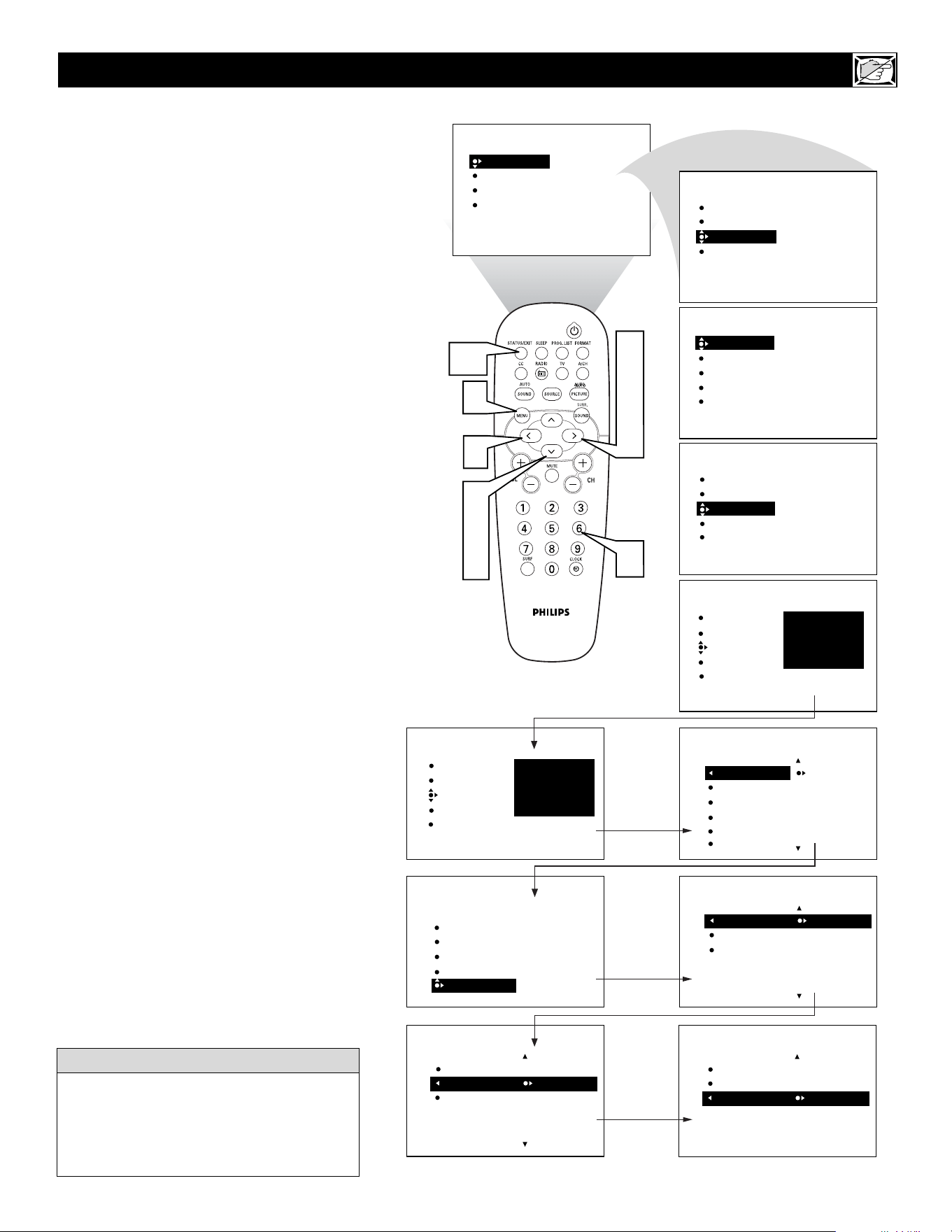
T
he BLOCKING control is what can be
thought of as the “master switch” for
AutoLock™. This control affects the settings
you have chosen for blocking programs
according to movie ratings or TV ratings, or
for blocking programs that have no rating.
When the BLOCKING control is OFF, the
blocking or censoring of programs is dis-
abled. When the BLOCKING control is ON,
blocking will occur according to the settings
you have chosen. Follow these steps to toggle
BLOCKING OFF or ON.
1
Press the MENU button on the
remote control to show the onscreen
menu.
2
Press the CURSOR DOWN button
to highlight FEATURES.
3
Press the CURSOR RIGHT button
and the menu will shift to the left.
TIMER will be highlighted.
4
Press the CURSOR DOWN button
repeatedly until AutoLock is highlight-
ed.
5
Press the CURSOR RIGHT button
to highlight ACCESS CODE.
6
Enter your four-digit ACCESS
CODE. CORRECT will flash very
briefly and the menu will move to the
left with BLOCK CHANNEL high-
lighted.
7
Press the CURSOR DOWN repeated-
ly until BLOCK OPTIONS is high-
lighted.
8
Press the CURSOR RIGHT to enter
the BLOCK OPTIONS menu.
BLOCKING will be highlighted. Or
choose BLOCK UNRAED or NO
RATING.
9
Press the CURSOR RIGHT or
LEFT to toggle BLOCKING (BLOCK
UNRATED or NO RATING) ON or
OFF.
Press the STATUS/EXIT button to
remove the menu from the screen.
OTHER AUTOLOCK™ BLOCKING OPTIONS
PICTURE
SOUND
FEATURES
INSTALL
BRIGHTNESS
COLOR
PICTURE
SHARPNESS
TINT
PICTURE
SOUND
FEATURES
INSTALL
TIMER
MODE SELECT
AutoLock
CLOSED CAP
TIMER
MODE SELECT
AutoLock
CLOSED CAP
OFF
ACCESS CODE
----
FEATURES
TIMER
MODE SELECT
AutoLock
CLOSED CAP
OFF
TIME
START TIME
STOP TIME
CHANNEL
ACTIVATE
FEATURES
TIMER
MODE SELECT
AutoLock
CLOSED CAP
FEATURES
ACCESS CODE
- - - -
TIMER
MODE SELECT
AutoLock
CLOSED CAP
FEATURES
ACCESS CODE
X X X X
2
4
7
3
5
8
9
1
10
6
FEATURES
AutoLock
AV2
AV3
ALL
1
2
BLOCK CHANNEL
SETUP CODE
CLEAR ALL
MOVIE RATING
TV RATING
BLOCK OPTIONS
AutoLock
ON
AV3
ALL
1
2
BLOCKING
BLOCK UNRATED
NO RATING
AutoLock
BLOCKING
BLOCK UNRATED
NO RATING
FEATURES
SETUP CODE
CLEAR ALL
MOVIE RATING
TV RATING
BLOCK OPTIONS
BLOCK OPTIONS
AutoLock
ON
BLOCKING
BLOCK UNRATED
NO RATING
9
BLOCK OPTIONS
AutoLock
ON
BLOCKING
BLOCK UNRATED
NO RATING
Remember, when the BLOCKING control is
OFF, the blocking or censoring of programs
is disabled. When the BLOCKING control is
ON, blocking will occur according to the set-
tings you have chosen.
HELPFUL HINT
10
28
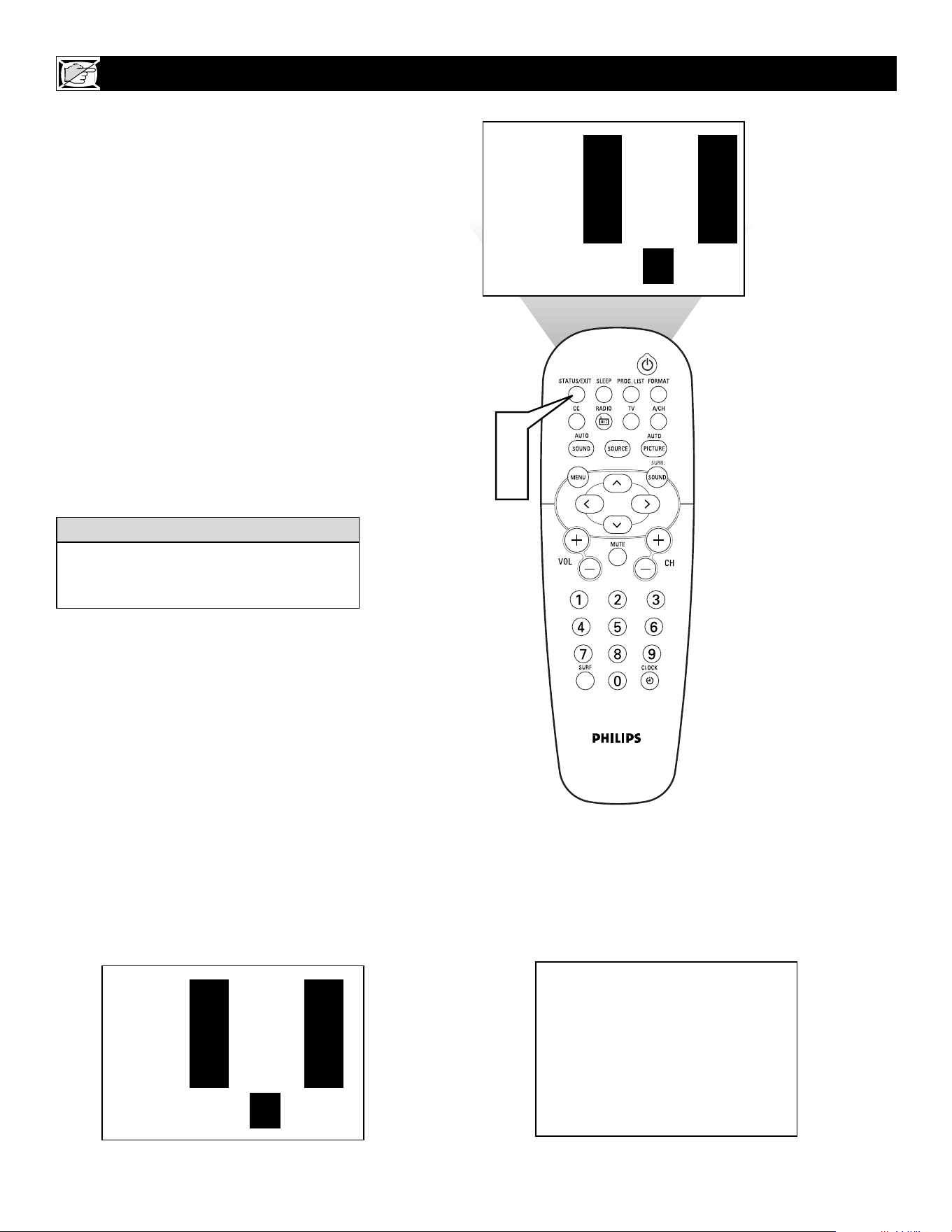
T
o remind you which ratings you have
blocked and which Block Options you
have selected, a review screen is available to
review your AutoLock
TM
settings. To access
this screen follow the steps below.
1
Press the STATUS/EXIT button on
your remote control TWICE. Your
AutoLock
TM
settings will appear on the
screen.
NOTE: If you have blocked specific subrat-
ings, such as V for Violence in the TV-PG cat-
egory, these blocked subratings will not appear
in the review. The subratings however, are still
blocked according to your selections.
2
After a few seconds, the settings will
leave the screen automatically, or you
can press the STATUS/EXIT button
a third time to remove them from the
screen.
USING THE A
UTOLOCK™ REVIEW SCREEN
MOVIE RATING -
-
-
R
NC17
X
BLOCK UNRATED
NO RATING
TV RATING -
Y7
-
PG
14
MA
ON
ON
1
2
The AutoLock™ Status screen will only
appear if the BLOCKING option is set to
ON. For details, see previous page for details.
HELPFUL HINT
This display will appear after the step 1 above
is completed if the AutoLock™ BLOCKING
option is set to ON.
This display will appear after the step 1 above
is completed if the AutoLock™ BLOCKING
option is set to OFF.
MOVIE RATING -
-
-
R
NC17
X
BLOCK UNRATED
NO RATING
TV RATING -
Y7
-
PG
14
MA
ON
ON
AutoLock DISABLED
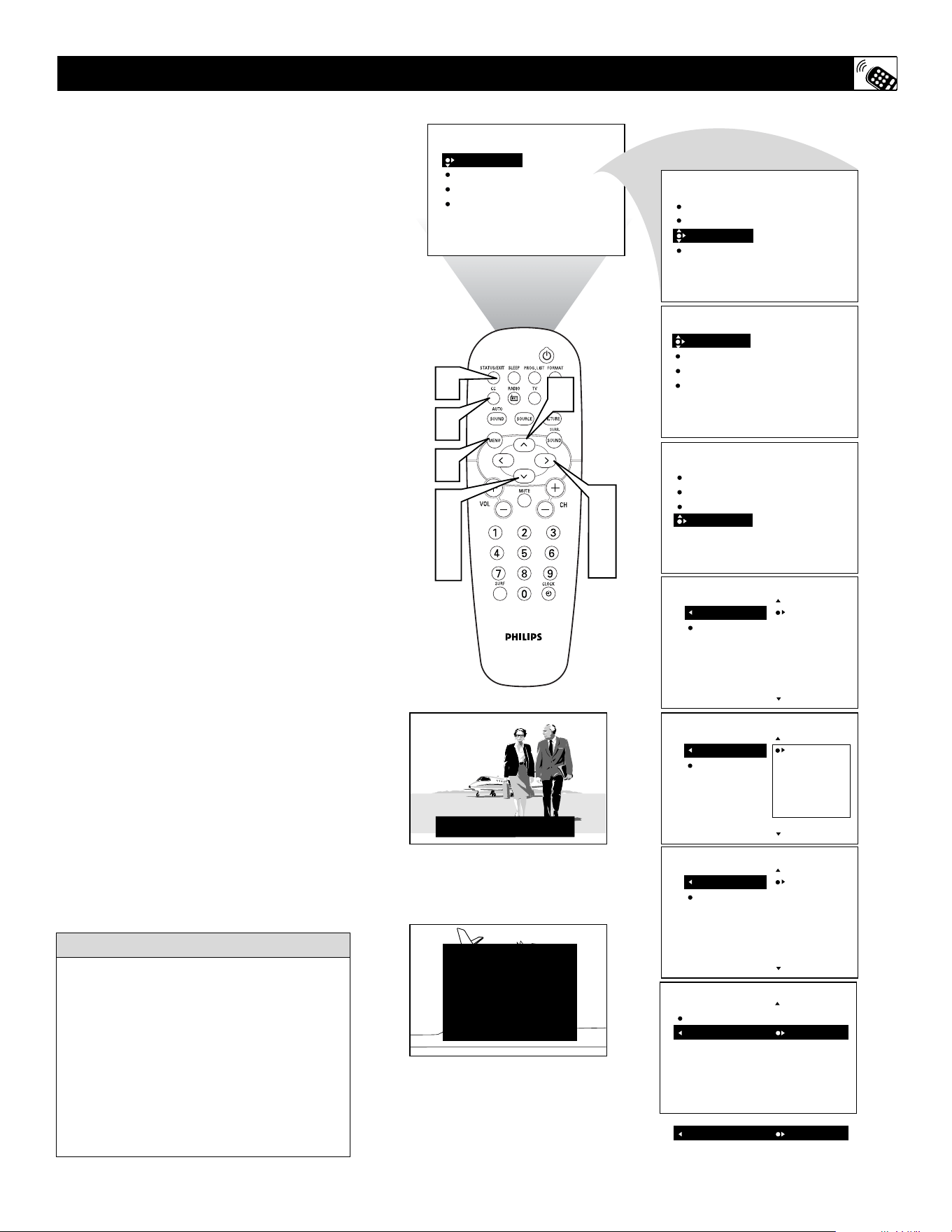
29
C
losed Captioning (CC) allows you to
read the voice content of television pro-
grams on the TV screen. Designed to help the
hearing impaired, this feature uses onscreen
“text boxes” to show dialogue and conversa-
tions while the TV program is in progress.
1
Press the MENU button on the
remote control to show the on-screen
menu.
2
Press the CURSOR DOWN button
twice to highlight FEATURES.
3
Press the CURSOR RIGHT button
and the menu will shift to the left.
4
Press the CURSOR DOWN button
repeatedly until the CLOSED CAP
control is highlighted.
5
Press the CURSOR RIGHT button
again. The menu will shift to the left
and CAPTION MODE will be high-
lighted.
6
Press the CURSOR RIGHT button
to highlight CAPTION MODEs.
7
Press the CURSOR UP or DOWN
button to select a CAPTION MODE:
CC1, CC2, CC3, CC4, CC MUTE,
TXT1, TXT2, TXT3, or TXT4. CC
DISPLAY turns text OFF or ON if the
TV station broadcasting on the channel
is making CLOSED CAPTIONING
available. With CC DISPLAY high-
lighted, press the CURSOR RIGHT to
toggle Closed Captioning ON or OFF.
8
NOTE: You also can press the CC
button on the remote control to turn
the CC option ON or OFF.
9
Press the STATUS/EXIT button to
remove the menu from the screen.
HOW TO USE THE CLOSED CAPTIONING CONTROLS
PICTURE
SOUND
FEATURES
INSTALL
BRIGHTNESS
COLOR
PICTURE
SHARPNESS
TINT
PICTURE
SOUND
FEATURES
INSTALL
TIMER
MODE SELECT
Auto Lock
CLOSED CAP
TIMER
MODE SELECT
Auto Lock
CLOSED CAP
OFF
CAPTION MODE
CC DISPLAY
CAPTION MODE
CC DISPLAY
CC1
CC2
CC3
CC4
CC MUTE
CAPTION MODE
CC DISPLAY
CC1
CC2
CC3
CC4
CC MUTE
OFF
CAPTION MODE
CC DISPLAY
OFF
CC DISPLAY
ON
OR
TIMER
MODE SELECT
AutoLock
CLOSED CAP
OFF
TIME
START TIME
STOP TIME
CHANNEL
ACTIVATE
FEATURES
FEATURES
FEATURES
FEATURES
FEATURES
CLOSED CAP
CLOSED CAP
CLOSED CAP
CLOSED CAP
CAPTION MODE
CC DISPLAY
CC1
CC2
CC3
CC4
CC MUTE
FEATURES
CLOSED CAP
2
4
7
3
5
6
1
7
9
JOHN: Why did they move the meeting up to this week?
MARSHA: I don’t know, but they are pushing to close the deal.
CLOSE CAPTION PROGRAMS ON WXYZ
ALL ITEMS ARE EASTERN STANDARD TIME (EST)
CHECK LOCAL LISTINGS
FOR TIMES IN YOUR AREA
6:00 TOP OF THE MORNING
12:00 NOONDAY NEWS
6:00 WORLD NEWS FOR TODAY
10:00 THE BEST LITTLE CALL-IN SHOW EVER
9:00 PLAYHOUSE MOVIE OF THE WEEK
1:30 AS YOUR LIFE TURNS MY WORLD AROUND
8
Not all TV programs and product commer-
cials are broadcast with Closed Captioning
(CC). Nor are all Closed Captioning
MODEs (CAPTION 1–4 or TEXT 1–4)
necessarily being used by broadcast stations
during the transmission of a program offer-
ing Closed Captioning. Refer to your area’s
TV program listings for the stations and
times of shows being broadcast with Closed
Captioning.
HELPFUL HINT
CAPTION Mode
Example Display
TEXT Mode Example Display -
The TV screen will be
blocked from viewing.
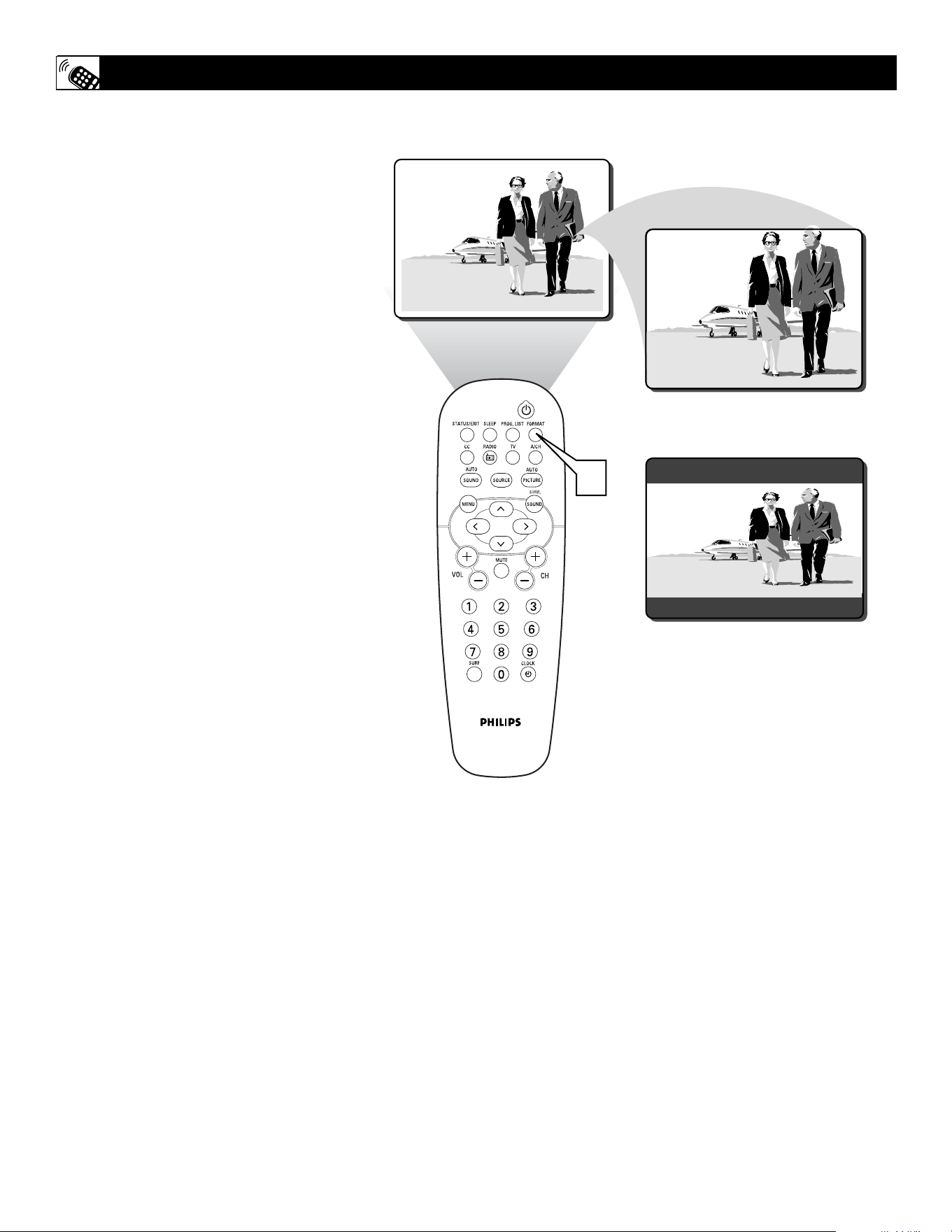
30
Y
ou can change the screen format size to
match the type of program you’re watch-
ing. Select the normal 4:3, EXPAND 4:3, or
COMPRESS 16:9 aspect ratios.
1
Press the FORMAT button repeated-
ly to toggle among the three screen for-
mat sizes; 4:3, EXPAND 4:3, or COM-
PRESS 16:9.
HOW TO USE THE SCREEN FORMAT CONTROL
1
4:3
EXPAND 4:3
COMPRESS 16:9
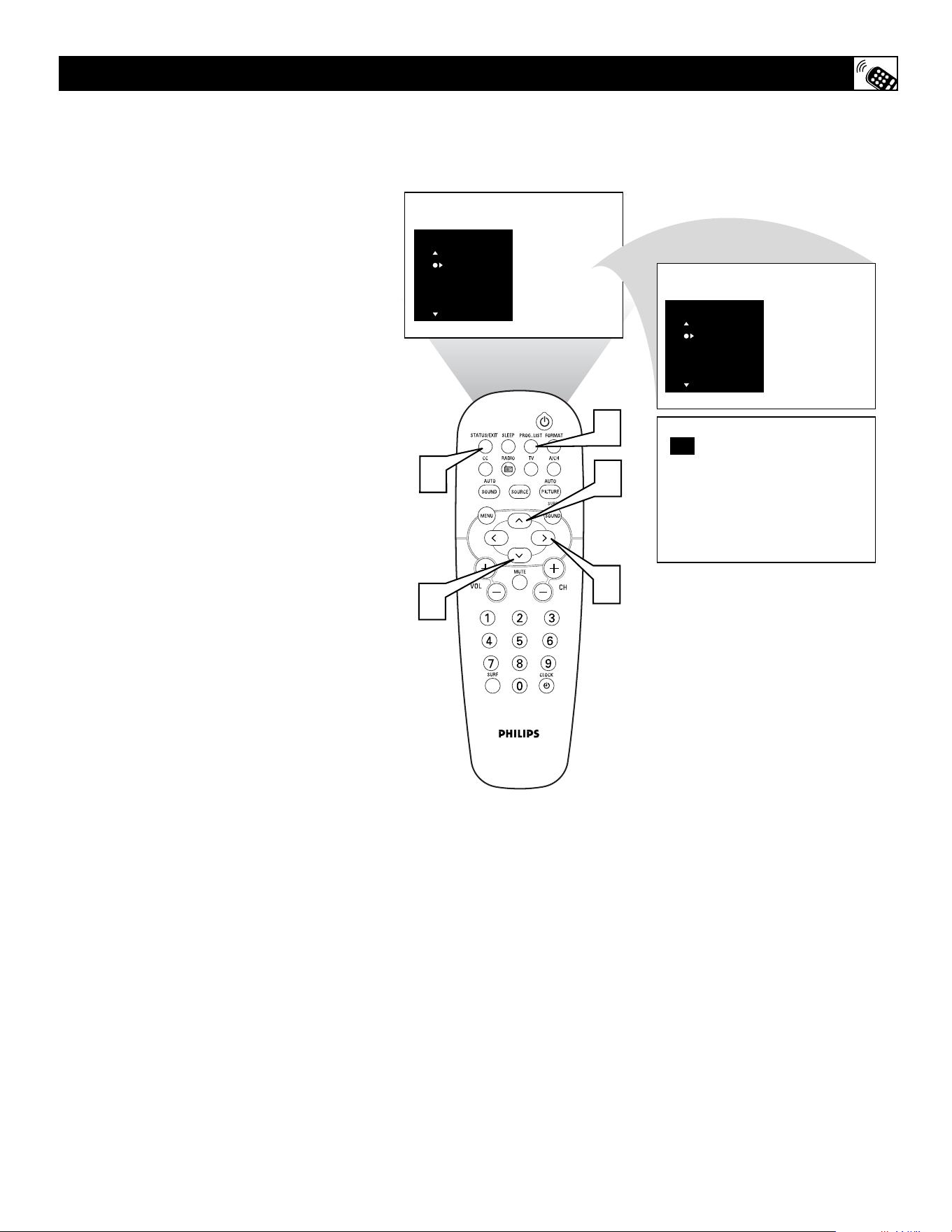
31
T
he Program List Control will allow you to
quickly overview all the programmed
channels that have been placed into the tele-
visions memory (see the Auto Programming
section of this manual for more details).
Program List will let you easily select the
desired channels your looking for. Program
List will display the channel number, the
name of the channel if you have given it one,
and whether it have AutoLock turn on or off.
1
Press the PROGRAM LIST button
on the remote control to show the cur-
rent list of installed channels (the cur-
rent channel will be highlighted).
2
Press the CURSOR UP or DOWN
buttons to scroll the list of channel,
highlighting the one you want to acti-
vate.
3
Press the CURSOR RIGHT button
to activate the channel. The TV will
tune to that channel.
4
Press the STATUS/EXIT button to
remove the menu from the screen.
HOW TO
USE THE PROGRAM LIST CONTROL
6 ABC
8 NBC
10 CBS
PROGRAM LIST
12 ESPN
13 MTV
14 BET
PROGRAM LIST
12
3
1
4
2
2
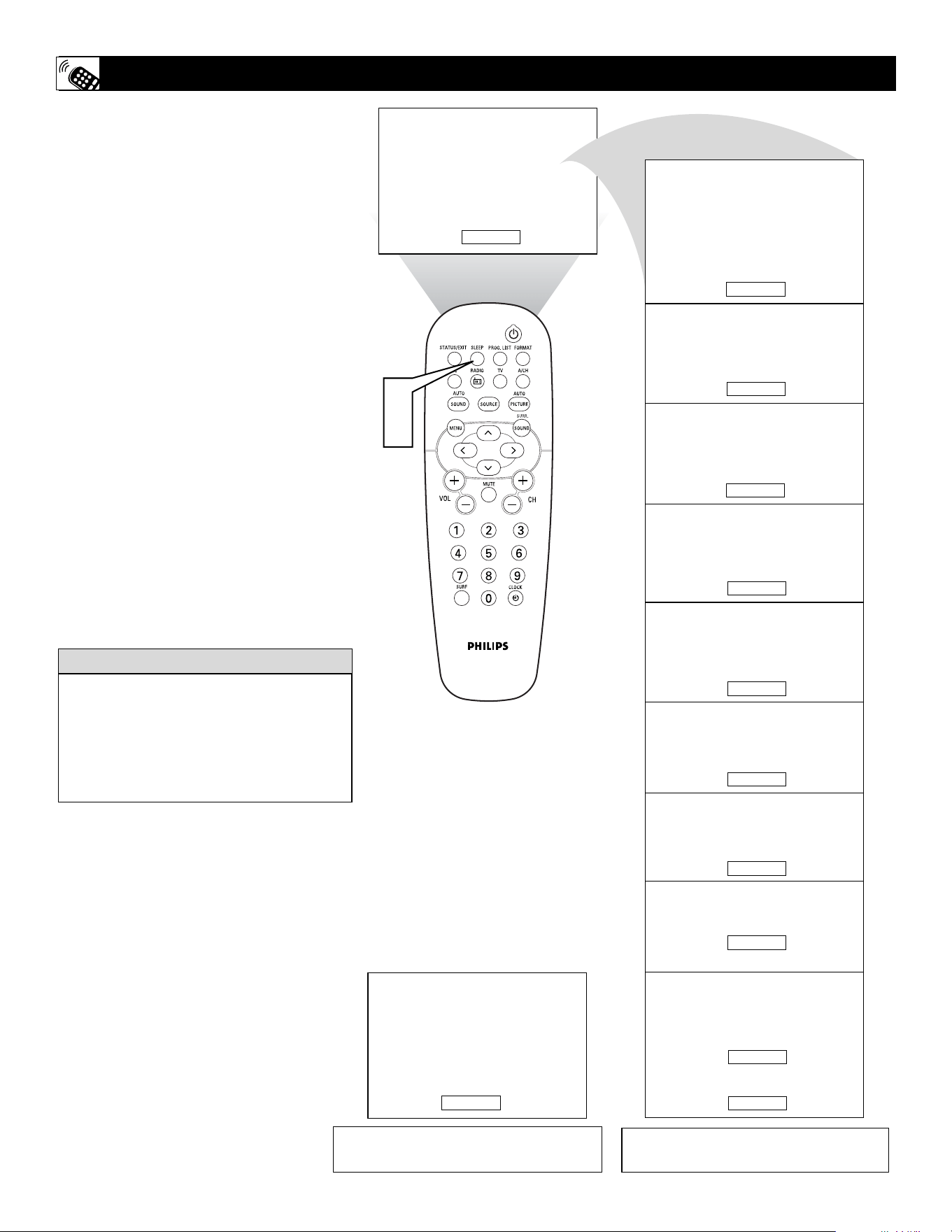
32
SLEEP 240
SLEEP 180
SLEEP 120
SLEEP 90
SLEEP 60
SLEEP 45
SLEEP 30
SLEEP OFF
SLEEP 15
SLEEP 9
GOOD BYE
SLEEP 49
1
2
H
ave you ever fallen asleep in front of the
TV, only to have it wake you up at two in
the morning with a test pattern sound
screeching in your ears? Well, your TV can
enable you to avoid that discomfort by auto-
matically turning itself off. With the Sleep
Timer feature, you can set a timer to automat-
ically switch the TV OFF after a period of
time you choose (15-minute increments up to
60 minutes, then 30-minute increments up to
90 minutes, then 60-minute increments up to
240 minutes).
1
Press the SLEEP button on the
remote control. The SLEEP timer
onscreen display will appear in the
upper part of the screen.
2
Within five seconds, press the
SLEEP button repeatedly to pick the
amount of time (15-minute increments
up to 60 minutes, then 30-minute
increments up to 90 minutes, then 60-
minute increments up to 240 minutes)
before the TV will turn itself off.
An onscreen countdown will appear during
the last minute before the TV shuts itself off.
HOW TO SET THE
SLEEPTIMER CONTROL
To see how many minutes remain before the
TV shuts itself off, press the STATUS/EXIT
button.
A Sleep Timer setting can be cancelled by
pressing any button during the last minute
of the operation.
HELPFUL HINT
During the last minute of a SLEEP timer setting an
onscreen countdown will be displayed.
During the last 10 seconds of a SLEEP timer set-
ting, an onscreen display will read GOOD BYE.
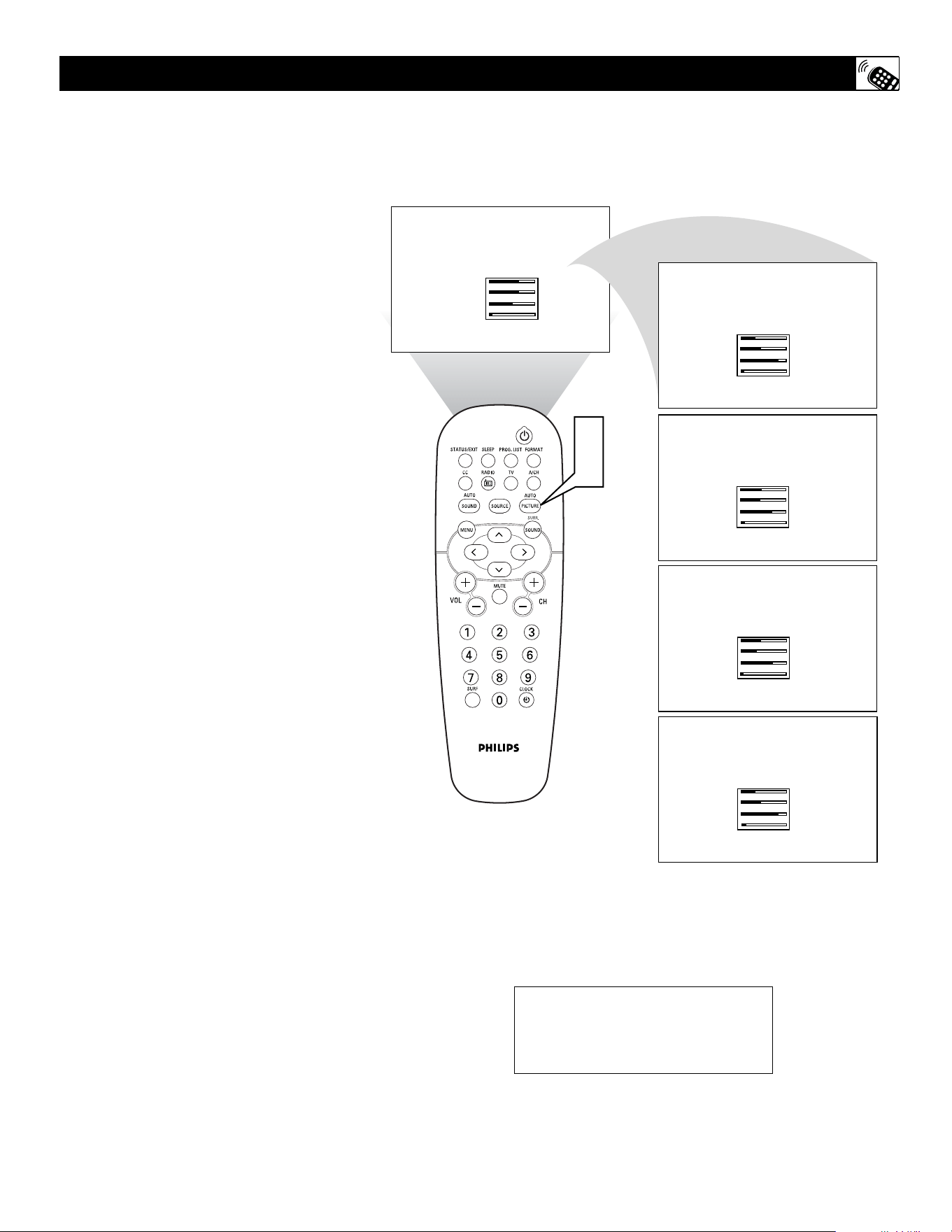
33
BRIGHTNESS
COLOR
PICTURE
SHARPNESS
58
58
50
1
PERSONAL
BRIGHTNESS
COLOR
PICTURE
SHARPNESS
32
42
80
1
MOVIES
BRIGHTNESS
COLOR
PICTURE
SHARPNESS
36
34
65
3
SPORTS
BRIGHTNESS
COLOR
PICTURE
SHARPNESS
34
26
65
1
WEAK SIGNAL
BRIGHTNESS
COLOR
PICTURE
SHARPNESS
32
42
80
4
MULTIMEDIA
1
2
W
hether you’re watching a movie or a
video game, your TV has automatic
video control settings that will match with
your current program source or content.
AutoPicture™ quickly resets your TV’s video
controls for a number of different types of
programs and viewing conditions that you
may have in your home. The Movies, Sports,
Weak Signal, and Multimedia AutoPicture™
controls have been preset at the factory to
automatically adjust the TV’s brightness,
color, picture, sharpness, tint, and color tem-
perature levels. The Personal AutoPicture™
settings are the ones that you made through
the PICTURE options within the onscreen
menu
1
Press the PICTURE button on the
remote control. The current
AutoPicture
TM
setting will appear in the
middle of the screen.
2
Press the PICTURE button repeat-
edly to select either PERSONAL,
MOVIES, SPORTS, WEAK SIGNAL,
or MULTIMEDIA picture settings.
NOTE: The PERSONAL setting and the
PICTURE options within the onscreen menu
are the same. This is the only option in
AutoPicture
TM
that can be changed. To adjust
these settings, use the PICTURE options
within the onscreen menu. All other settings
are set up at the factory during production and
cannot be adjusted.
HOW TO
USE THE AUTOPICTURE™ CONTROL
NOTE: The values shown in the
diagram above are sample values
only. Your television’s values may
vary and display different numbers.
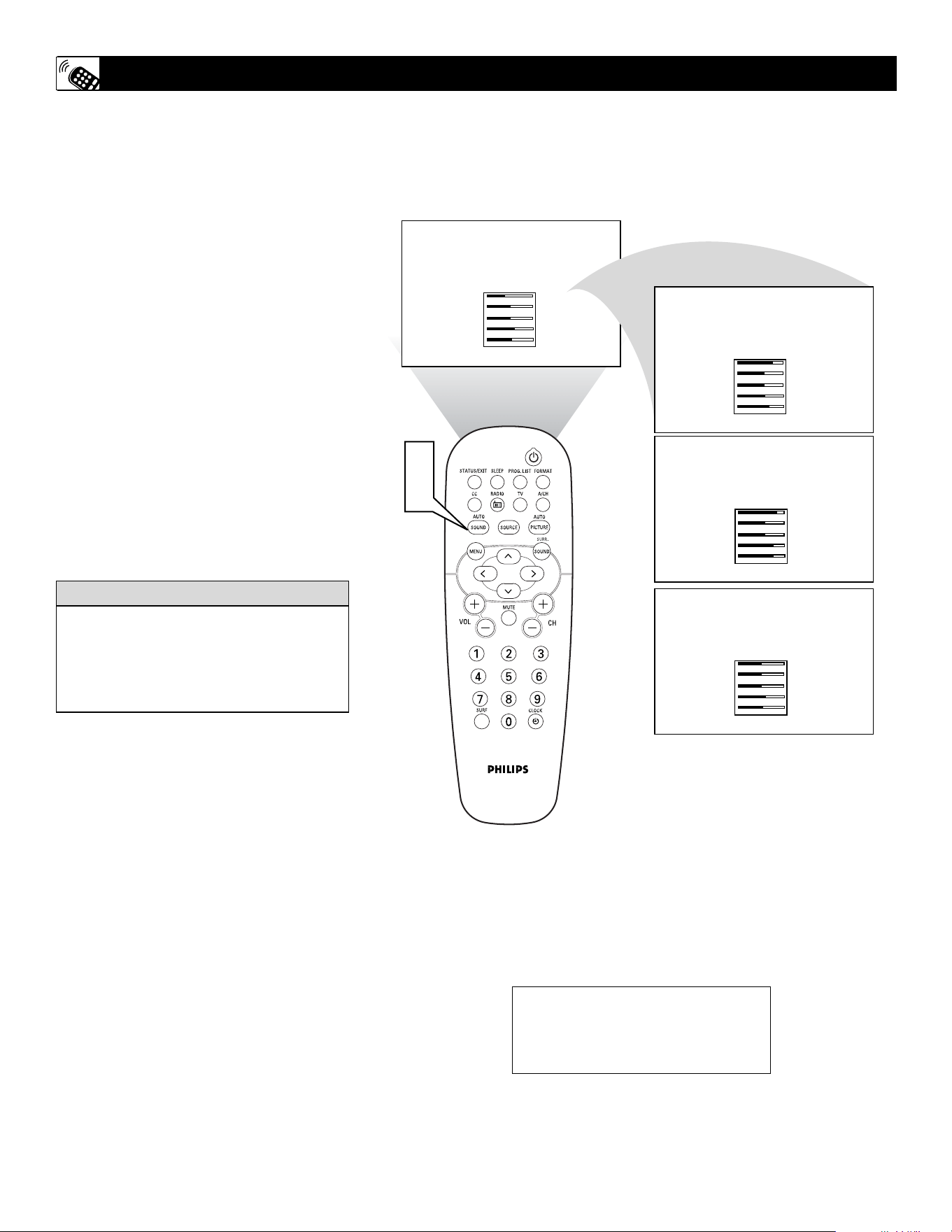
34
120HZ
500HZ
1500HZ
5KHZ
10KHZ
-11
- 2
0
6
3
PERSONAL
120HZ
500HZ
1500HZ
5KHZ
10KHZ
- 5
- 2
0
6
3
THEATRE
120HZ
500HZ
1500HZ
5KHZ
10KHZ
20
6
6
9
15
VOICE
120HZ
500HZ
1500HZ
5KHZ
10KHZ
26
6
6
17
19
MUSIC
1
2
A
utoSound™ allows you to select from
three factory-set controls and a personal
control that you set according to your own
preferences through the onscreen Sound
menu. The three factory-set controls (Voice,
Music, and Theatre) enable you to tailor the
TV sound so as to enhance the particular pro-
gram you are watching. Follow these steps to
select any of the options.
1
Press the SOUND button on the
remote control. The current
AutoSound
TM
setting will appear in the
middle of the screen.
2
Press the SOUND button repeatedly
to toggle among the four settings:
PERSONAL, VOICE, MUSIC, or
THEATRE.
Remember, only the PERSONAL control can
be changed by the viewer. This changes the
settings in the main onscreen menu’s SOUND
controls
HOW TO
USE THE AUTOSOUND™ CONTROL
NOTE: The values shown in the
diagram above are sample values
only. Your television’s values may
vary and display different numbers.
AutoSound
TM
works only with the programs
coming through the ANTENNA/CABLE
(ANT) input on the rear of the TV (RF
audio). It will not control the sound levels
for the external connections.
HELPFUL
HINT
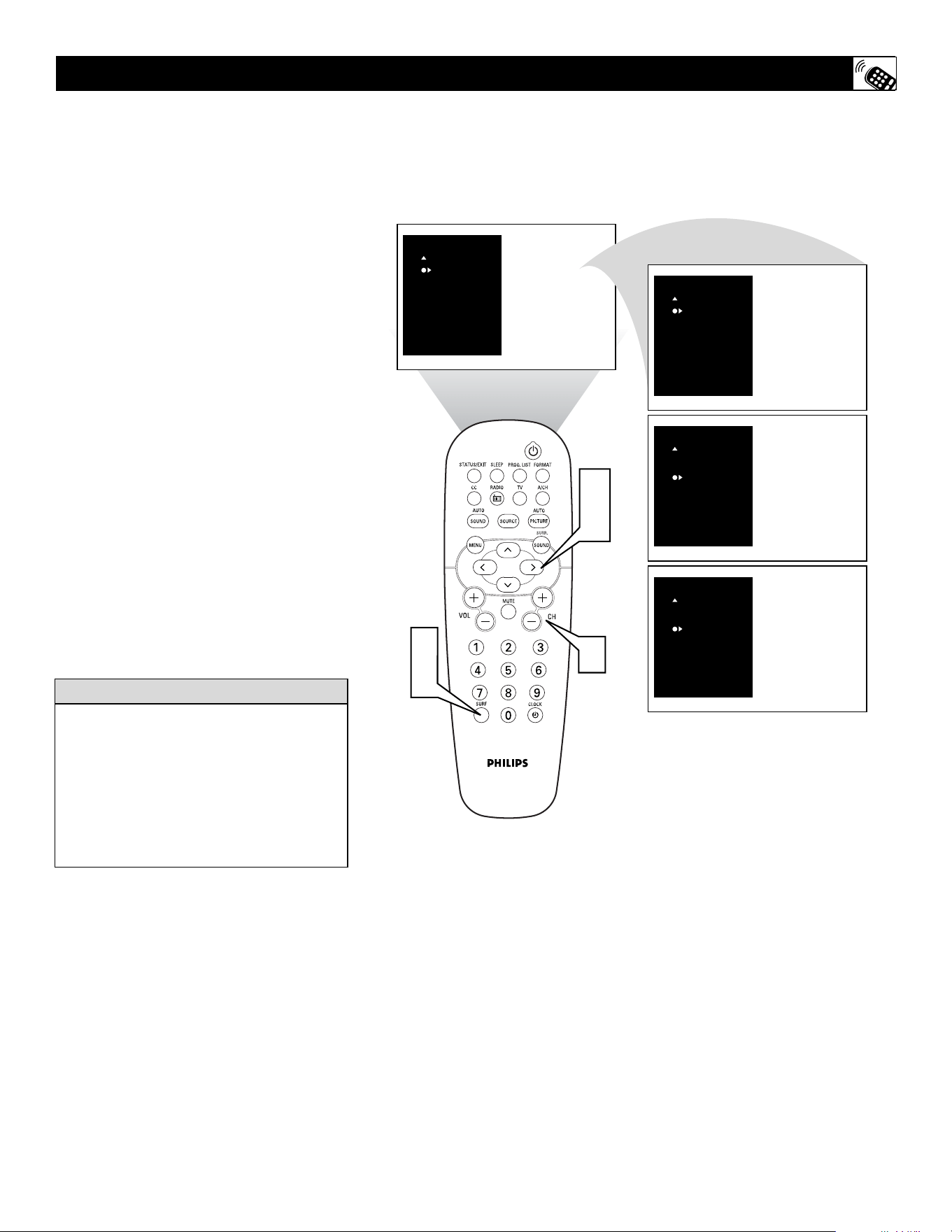
35
5 ADD?
SURF
5 DELETE
SURF
5
3 ADD?
SURF
5
3 DELETE
SURF
3
4
1
2
3
A
list or series of previously viewed chan-
nels can be selected with the SURF button
on your remote control. With this feature, you
can easily switch between different TV chan-
nels that currently interest you. The SURF
control allows you to set up to ten channels in
its quick viewing list.
1
Press the CHANNEL(+) or (–) but-
ton (or the numbered buttons) to select
a channel to add to the SURF list.
2
Press the SURF button on the remote
control. The onscreen display may
read, “SURF LIST EMPTY.” The num-
ber of the current channel will be
shown with “ADD?” to the right.
3
While the SURF list message or the
SURF channel list appears on the
screen, press the CURSOR RIGHT
button to add the present channel to
the SURF list.
4
If you want to delete the present channel
from the SURF list, press the CURSOR
RIGHT button again.
Repeat steps 1 through 3 to add more chan-
nels (up to 10) to the SURF list.
HOW TO USE THE SURF CONTROL
Along with regularly programmed chan-
nels, the external video source connections
can be added to the SURF list. This means
that the external A/V Jacks and their chan-
nels can be added to your SURF list. Use
the Source button to tune their channel and
use the same procedure described on this
page.
HELPFUL
HINT
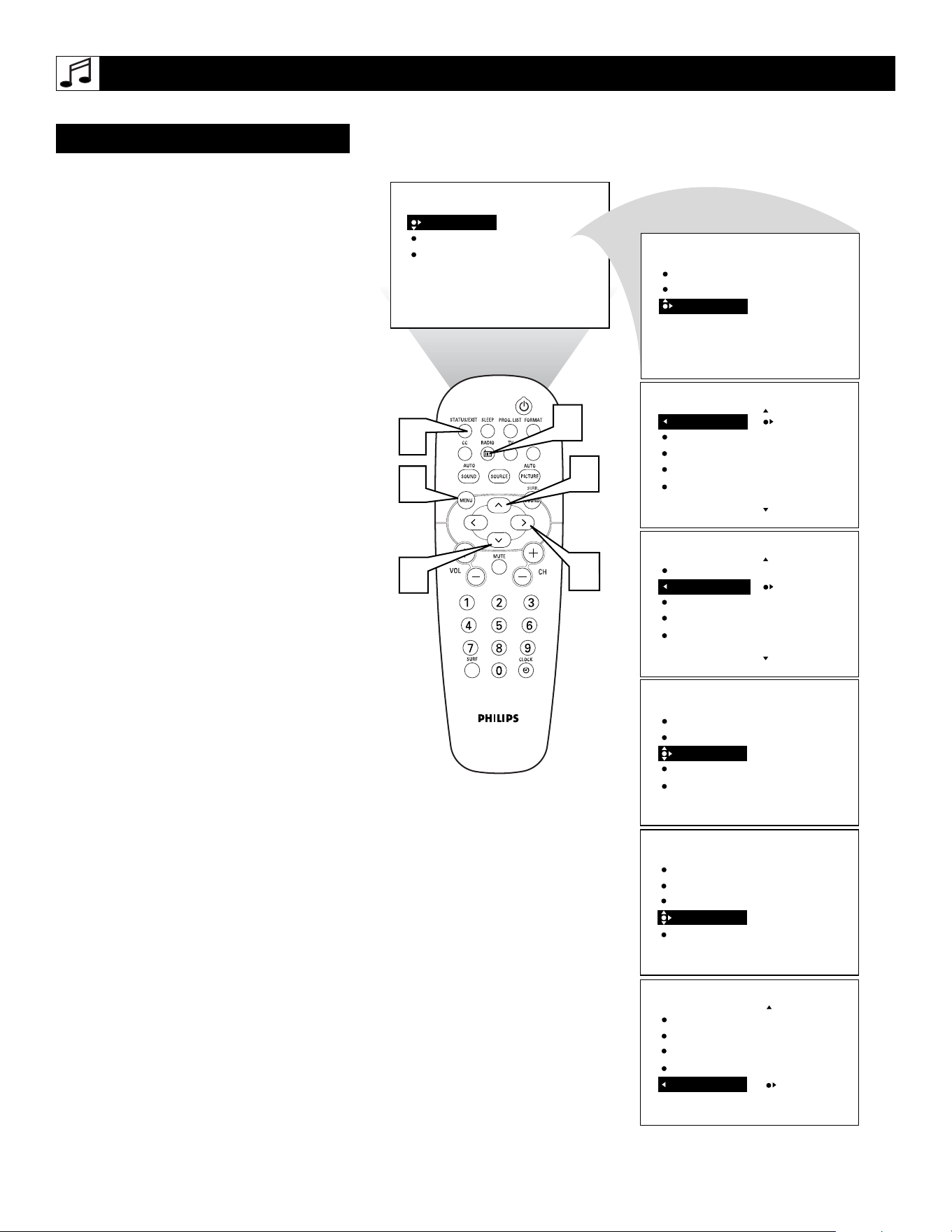
36
T
his TV also provides you with an FM
Radio. An FM Radio signal must be con-
nected to the FM Antenna 75Ω Jack located
on the bottom of the TV.
1
To enter the FM Mode, press the
RADIO button on the remote control.
The FM Mode has its own onscreen
menu options.
2
Press the MENU button on the
remote control to display the FM Mode
onscreen menu.
3
Press the CURSOR UP or DOWN
buttons to scroll through the available
FM Mode onscreen options. These
options include: Language, Auto
Program, Manual Store, Sort, or
Name.
LANGUAGE - Choose to view the
onscreen menu in English, French or
Spanish.
AUTO PROGRAM - The Auto
Program control will search the FM
antenna signal and store any FM chan-
nel it finds in the TV’s memory.
MANUAL STORE - This control will
allow you to manually tune any avail-
able FM signals.
SORT - The Sort Control will allow
you to rearrange your stored FM sta-
tions in the order you prefer.
NAME - You can label or apply a
name to your programmed FM radio
stations. Add your own personal name
or choose one from the predefined list.
4
Press the CURSOR RIGHT button
to adjust or select items within the
highlighted feature sub-menu.
5
Press the STATUS/EXIT button to
remove the onscreen menu from the
TV screen when finished. Or, let the
display time out and the menu will dis-
appear after a few second.
SETTING UP THE FM MODE (FM RADIO)
INSTALL CONTROLS
SOUND
FEATURES
INSTALL
EQUALIZER
BALANCE
AVL
INCR. SURROUND
STEREO
SOUND
FEATURES
INSTALL
LANGUAGE
AUTO PROGRAM
MANUAL STORE
SORT
NAME
LANGUAGE
AUTO PROGRAM
MANUAL STORE
SORT
NAME
ENGLISH
FRANCAIS
ESPANOL
INSTALL
˜
LANGUAGE
AUTO PROGRAM
MANUAL STORE
SORT
NAME
SEARCH
INSTALL
LANGUAGE
AUTO PROGRAM
MANUAL STORE
SORT
NAME
SEARCH
CHANNEL
STORE
INSTALL
LANGUAGE
AUTO PROGRAM
MANUAL STORE
SORT
NAME
FROM
TO
EXCHANGE
INSTALL
LANGUAGE
AUTO PROGRAM
MANUAL STORE
SORT
NAME
PERSONAL
INSTALL
3
4
2
5
3
1
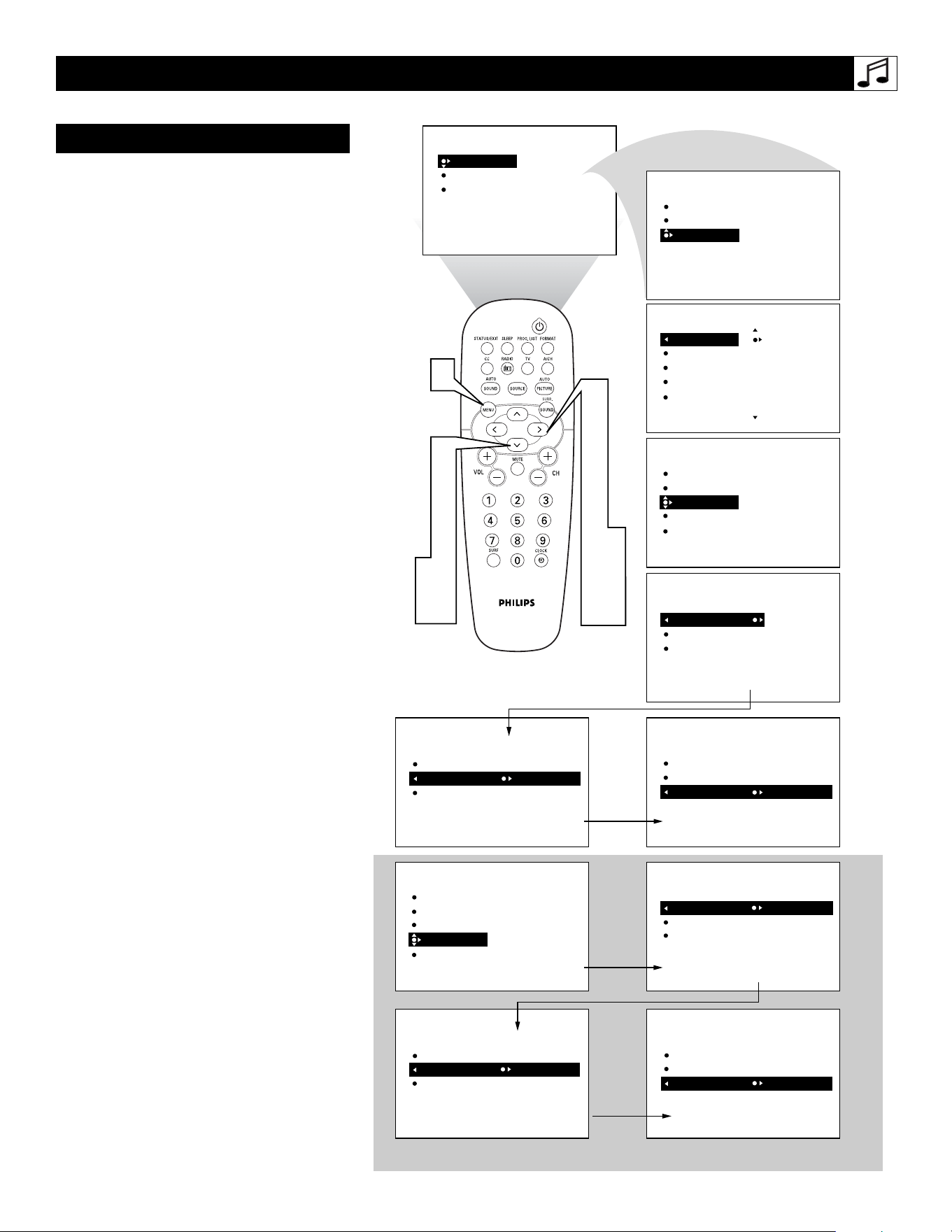
37
T
o Manually search, store and sort FM
channels follow the instructions below:
1
If in the FM Mode, press the MENU
button on the remote control to dis-
play the FM Mode onscreen menu.
2
Press the CURSOR DOWN buttons
to highlight the MANUAL STORE
option.
3
Press the CURSOR RIGHT button
to shift the menu to the left. SEARCH
will be highlighted.
4
Press the CURSOR RIGHT button
to begin the Manual Search of avail-
able FM stations. When a station is
found, the search will end until activat-
ed again.
5
If the station found is one that you
want to keep, press the CURSOR
DOWN button to highlight CHAN-
NEL.
6
Press the CURSOR RIGHT button
repeatedly to toggle a list of 40 chan-
nel references (FM1 to FM40).
7
Press the CURSOR DOWN button to
highlight STORE. Then, press the
CURSOR RIGHT button to store the
station to the selected channel refer-
ence. The onscreen menu will changed
to STORED.
Repeat the process for any other FM Stations.
8
To SORT the channels stored, press
the CURSOR DOWN (while in the
INSTALL menu options) to highlight
the word SORT.
9
Press the CURSOR RIGHT to shift
the menu left. FROM will be highlight-
ed.
Press the CURSOR RIGHT button
repeatedly to select one of the channel
references (FM1 to FM40) you wish to
move.
Press the CURSOR DOWN button
to highlight TO. Press the CURSOR
RIGHT button repeatedly to select one
of the channel references (FM1 to
FM40) you want to swap the reference
chosen in the previous step to.
Press the CURSOR DOWN to high-
light EXCHANGE. Press the CUR-
SOR RIGHT to swap the channel ref-
erence.
SETTING UP THE FM MODE (FM RADIO)
MANUAL STORE/SORT
SOUND
FEATURES
INSTALL
EQUALIZER
BALANCE
AVL
INCR. SURROUND
STEREO
SOUND
FEATURES
INSTALL
LANGUAGE
AUTO PROGRAM
MANUAL STORE
SORT
NAME
LANGUAGE
AUTO PROGRAM
MANUAL STORE
SORT
NAME
ENGLISH
FRANCAIS
ESPANOL
INSTALL
˜
LANGUAGE
AUTO PROGRAM
MANUAL STORE
SORT
NAME
SEARCH
CHANNEL
STORE
INSTALL
LANGUAGE
AUTO PROGRAM
MANUAL STORE
SORT
NAME
FROM
TO
EXCHANGE
INSTALL
3
4
6
7
9
10
11
12
1
2
5
7
8
11
12
SEARCH
CHANNEL
STORE
88.5 FM
INSTALL
MANUAL STORE
SEARCH
CHANNEL
STORE
FM12
INSTALL
MANUAL STORE
SEARCH
CHANNEL
STORE
STORED
INSTALL
MANUAL STORE
FROM FM12
TO
EXCHANGE
INSTALL
SORT
FROM
TO FM35
EXCHANGE
INSTALL
SORT
FROM
TO
EXCHANGE
INSTALL
SORT
10
11
12
SORT onscreen menu options
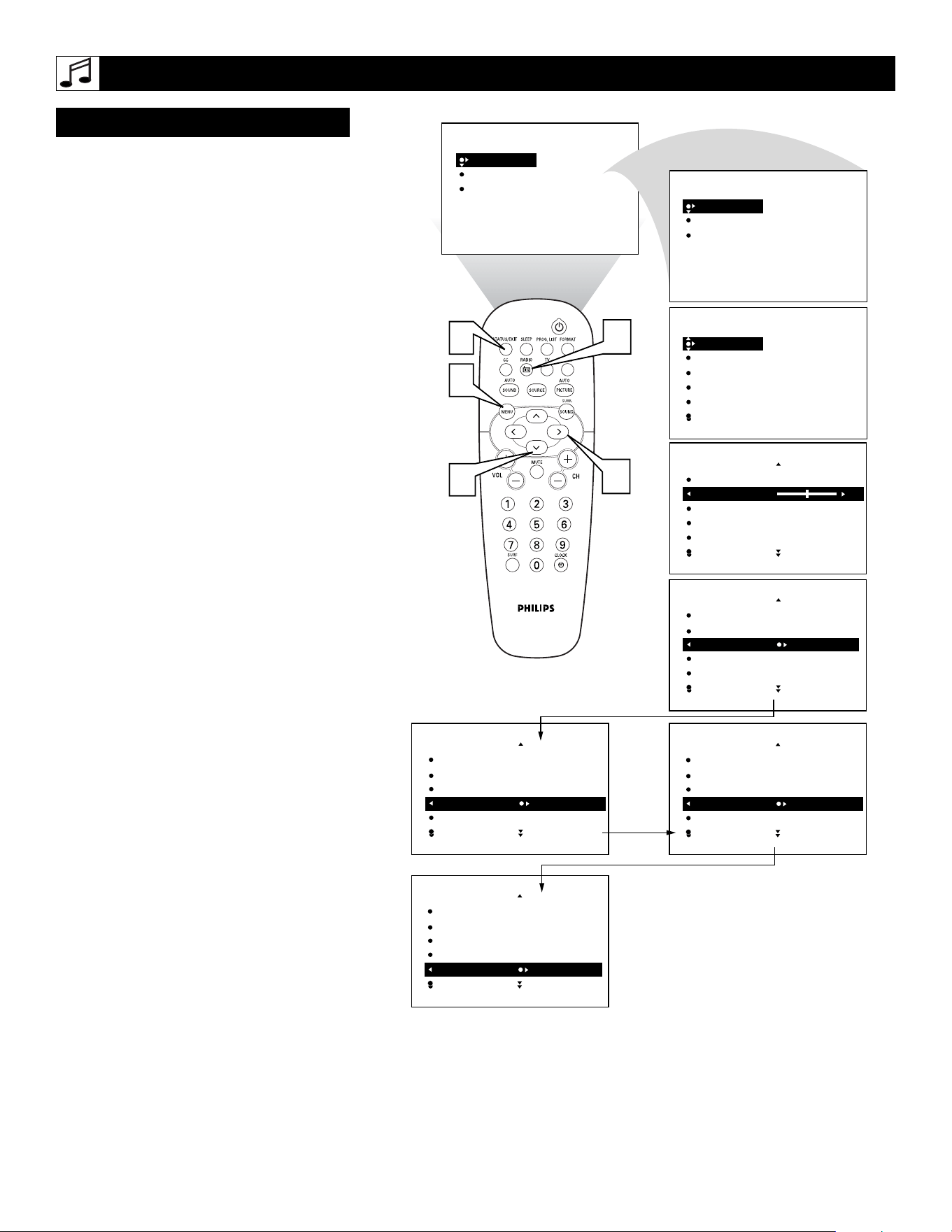
38
T
o ensure the best sound quality from the FM
Radio feature of this TV, several Sound
Controls are available for adjustment.
1
To enter the FM Mode, press the
RADIO button on the remote control.
The FM Mode has its own onscreen
menu options.
2
Press the MENU button on the remote
control to display the FM Mode
onscreen menu.
3
Press the CURSOR DOWN button
until SOUND is highlighted.
4
Press the CURSOR RIGHT button to
shift the menu to the left, accessing the
SOUND onscreen menu options. these
option include: EQUALIZER, BAL-
ANCE, AVL, INCREDIBLE SUR-
ROUND, or STEREO.
EQUALIZER - Allows the listener to
change the sound frequencies to their
liking.
BALANCE - This controls the sound
level balance between the right and left
TV speakers.
AV L - Automatic Volume Leveler, when
ON, will keep the volume level at a con-
sistent level should there be sudden
peaks and valleys in sound levels during
commercial breaks or channel changes.
INCREDIBLE SURROUND - Allows
the user to select a predefined Incredible
Surround setting or Stereo when the sig-
nal is stereo or Spatial and Mono when
the signal is being received in mono.
STEREO - Select Stereo or Mono. If
the signal is being received in Mono the
control cannot be placed in Stereo.
5
Press the STATUS/EXIT button to
remove the onscreen menu from the TV
screen when finished. Or, let the display
time out and the menu will disappear
after a few second.
SETTING UP THE FM MODE (FM RADIO)
SOUND CONTROLS
SOUND
FEATURES
INSTALL
EQUALIZER
BALANCE
AVL
INCR. SURROUND
STEREO
SOUND
FEATURES
INSTALL
EQUALIZER
BALANCE
AVL
INCR. SURROUND
STEREO
EQUALIZER
BALANCE
AVL
INCR. SURROUND
STEREO
120HZ
500HZ
1500HZ
5HZ
10KHZ
SOUND
EQUALIZER
BALANCE 0
AVL
INCR. SURROUND
STEREO
SOUND
EQUALIZER
BALANCE
AVL ON
INCR. SURROUND
STEREO
SOUND
EQUALIZER
BALANCE
AVL
INCR. SURROUND INCR. SURROUND
STEREO
SOUND
EQUALIZER
BALANCE
AVL
INCR. SURROUND INCR. SURROUND
STEREO
SOUND
EQUALIZER
BALANCE
AVL
INCR. SURROUND
STEREO STEREO
SOUND
3
4
2
5
1
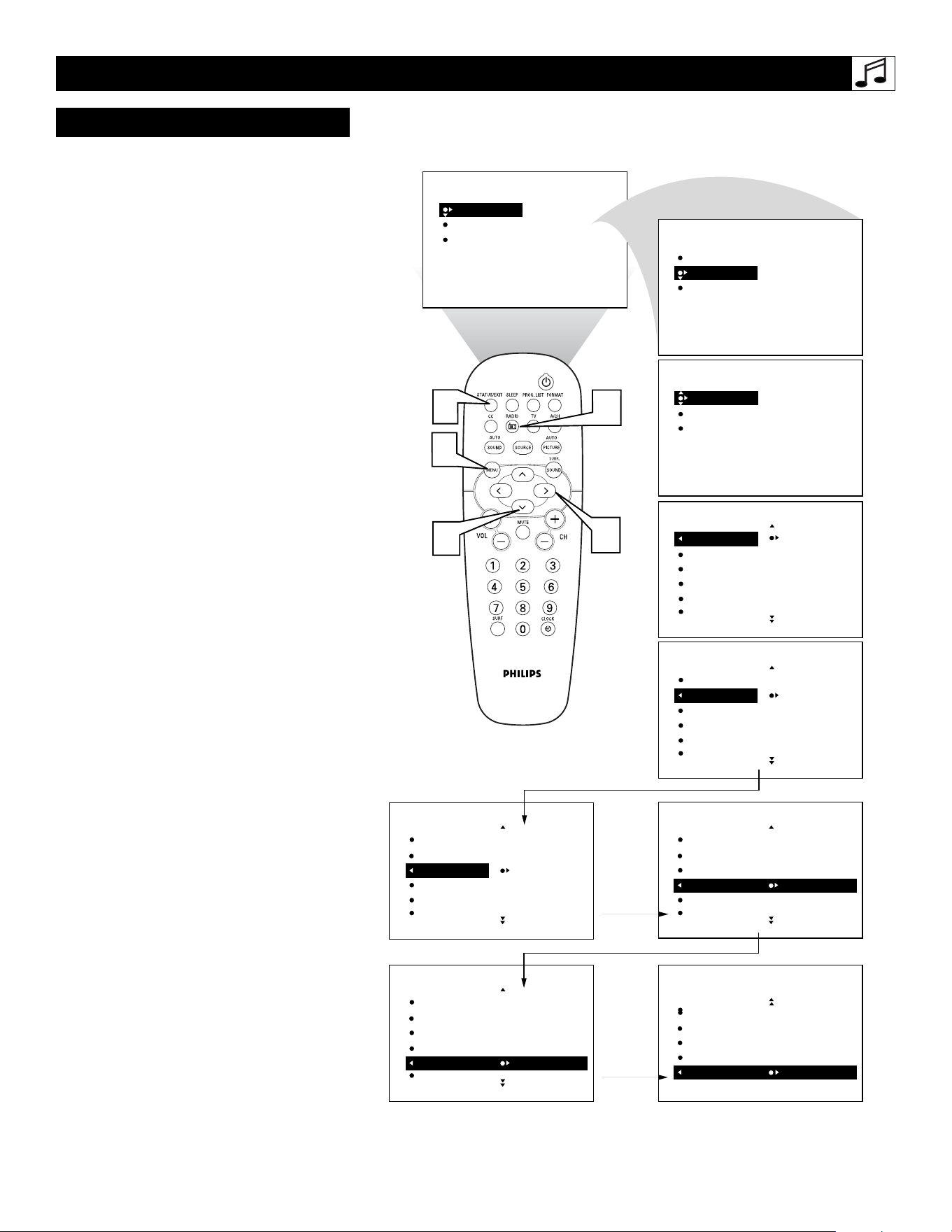
39
T
he FM Radio within the TV can be set to
turn on and off at a specific time, or tune to
a specific channel when it powers on. The
Timer controls also allows the FM Display to
be turned on or off.
1
To enter the FM Mode, press the
RADIO button on the remote control.
The FM Mode has its own onscreen
menu options.
2
Press the MENU button on the remote
control to display the FM Mode
onscreen menu.
3
Press the CURSOR DOWN button
until TIMER is highlighted.
4
Press the CURSOR RIGHT button to
shift the menu to the left, accessing the
TIMER onscreen menu options. these
option include: TIME, START TIME,
STOP TIME, CHANNEL, ACTI-
VATE, or DISPLAY.
TIME - This is simply the Clock set-
ting. Allows you to enter the current
time.
START TIME - This control allows
you to set a specific time you want the
FM Radio to turn ON.
STOP TIME - This control allows you
to set a specific time you want the FM
Radio to turn OFF.
CHANNEL - This controls allows you
to set a specific channel you want the
FM Radio to tune to when it powers on.
ACTIVATE - Once the Time and chan-
nel controls have been adjusted, set
Activate to ONCE or DAILY. ONCe
will activate the process one time, while
DAILY will activate the TIMER con-
trols every week day.
DISPLAY - If set to ON, the Display
control will display the current time on
the TV screen when in the FM Mode.
5
Press the STATUS/EXIT button to
remove the onscreen menu from the TV
screen when finished. Or, let the display
time out and the menu will disappear
after a few second.
SETTING UP THE FM MODE (FM RADIO)
TIMER CONTROLS
SOUND
FEATURES
INSTALL
EQUALIZER
BALANCE
AVL
INCR. SURROUND
STEREO
SOUND
FEATURES
INSTALL
TIMER
MODE SELECT
SCREENSAVER
TIMER
MODE SELECTR
SCREENSAVER
TIME
START TIME
STOP TIME
CHANNEL
ACTIVATE
TIME – – : – –
START TIME
STOP TIME
CHANNEL
ACTIVATE
START TIME
STOP TIME
CHANNEL
ACTIVATE
DISPLAY OFF
FEATURES
FEATURES
TIMER
FEATURES
TIMER
TIME
START TIME – – : – –
STOP TIME
CHANNEL
ACTIVATE
FEATURES
TIMER
TIME
START TIME
STOP TIME – – : – –
CHANNEL
ACTIVATE
FEATURES
TIMER
TIME
START TIME
STOP TIME
CHANNEL 12
ACTIVATE
FEATURES
TIMER
TIME
START TIME
STOP TIME
CHANNEL
ACTIVATE DAILY
FEATURES
TIMER
3
4
2
5
1
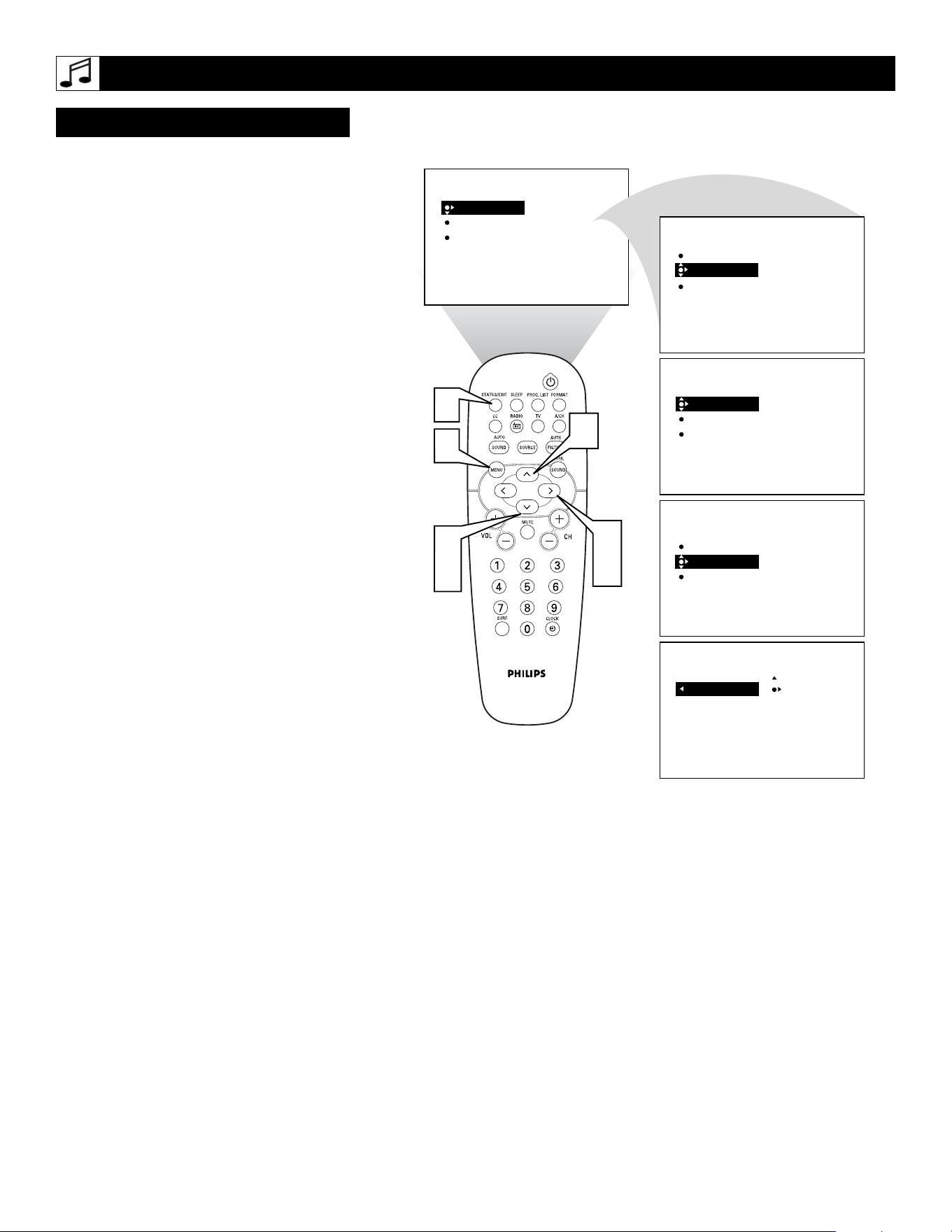
40
T
he Mode Select option allow you to move
from the FM Radio Mode to the TV Mode of
operation.
1
If in the FM mode, press the MENU
button on the remote control to display
the FM Mode onscreen menu.
2
Press the CURSOR DOWN button
until MODE SELECT is highlighted.
3
Press the CURSOR RIGHT button to
shift the menu to the left, accessing the
Mode Select onscreen menu options. TV
will be highlighted.
4
Press the CURSOR RIGHT button to
change the FM Radio Mode to the TV
Mode option. The TV will automatically
switch to the TV Mode of operation.
5
Press the STATUS/EXIT button to
remove the onscreen menu from the TV
screen when finished. Or, let the display
time out and the menu will disappear
after a few second.
SETTING UP THE FM MODE (FM RADIO)
MODE SELECT CONTROL
SOUND
FEATURES
INSTALL
EQUALIZER
BALANCE
AVL
INCR. SURROUND
STEREO
SOUND
FEATURES
INSTALL
TIMER
MODE SELECT
SCREENSAVER
TIMER
MODE SELECT
SCREENSAVER
TIME
START TIME
STOP TIME
CHANNEL
ACTIVATE
TIMER
MODE SELECT
SCREENSAVER
TV
FEATURES
FEATURES
TV
FEATURES
MODE SELECT
2
3
3
4
1
5
3
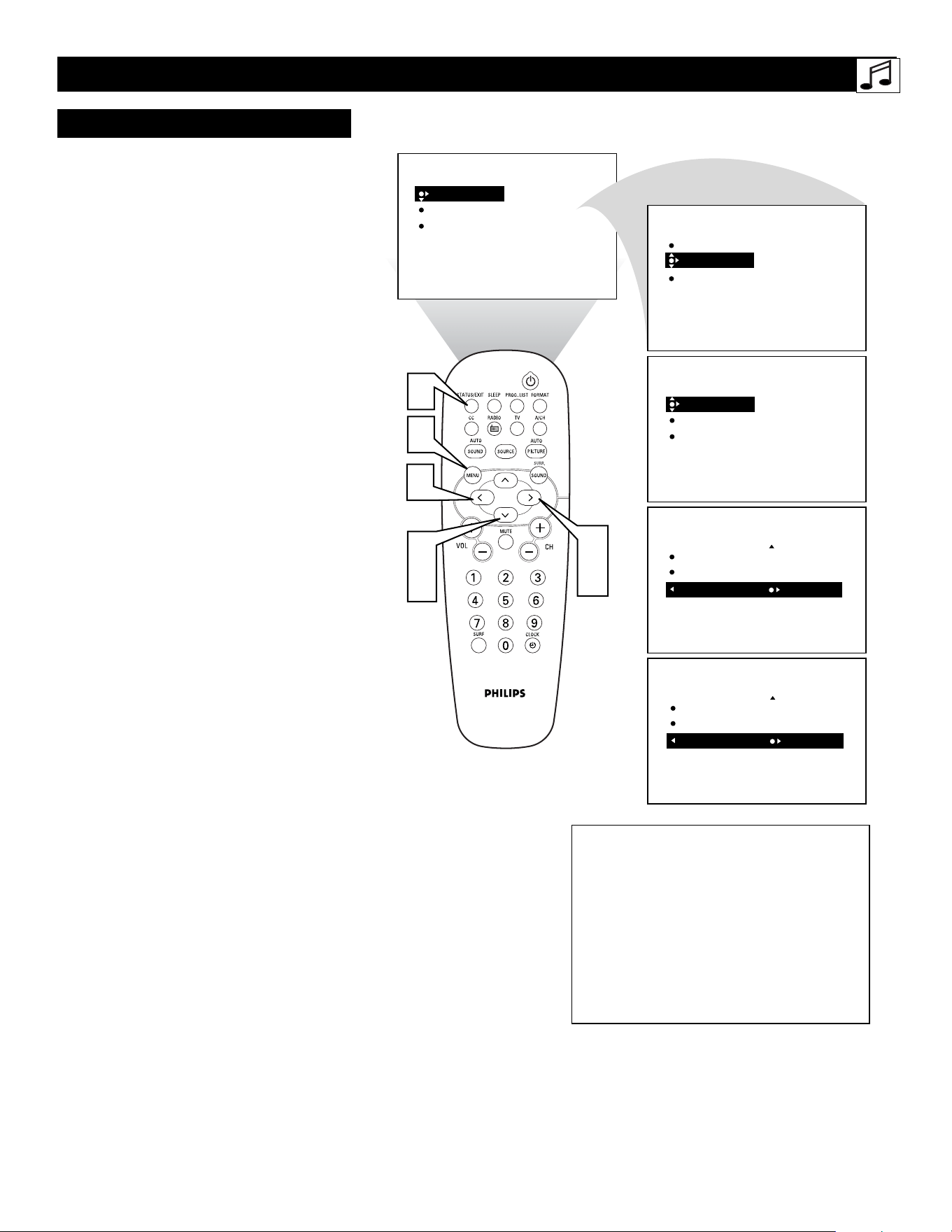
41
W
hile in the FM Mode, there is a
Screensaver option that can be used. The
Screensaver control, when on, will circulate the
screen station indication around the display.
1
If in the FM mode, press the MENU
button on the remote control to display
the FM Mode onscreen menu.
2
Press the CURSOR DOWN button
until FEATURES is highlighted.
3
Press the CURSOR RIGHT button to
shift the menu to the left. TIMER will
be highlighted.
4
Press the CURSOR DOWN button
until SCREENSAVER is highlighted.
5
Press the CURSOR RIGHT or LEFT
button to toggle the Screensaver control
ON or OFF.
With the Screensaver control set to ON,
the display will shift around the screen
pausing in one place for a brief moment.
6
Press the STATUS/EXIT button to
remove the onscreen menu from the TV
screen when finished. Or, let the display
time out and the menu will disappear
after a few second.
SETTING UP THE FM MODE (FM RADIO)
SCREENSAVER C
ONTROL
SOUND
FEATURES
INSTALL
EQUALIZER
BALANCE
AVL
INCR. SURROUND
STEREO
SOUND
FEATURES
INSTALL
TIMER
MODE SELECT
SCREENSAVER
TIMER
MODE SELECT
SCREENSAVER
TIME
START TIME
STOP TIME
CHANNEL
ACTIVATE
TIMER
MODE SELECT
SCREENSAVER OFF
FEATURES
FEATURES
2
4
3
5
1
6
TIMER
MODE SELECT
SCREENSAVER ON
FEATURES
NBC 1
10:30 HRS
FM RADIO
91.30 MHZ
5
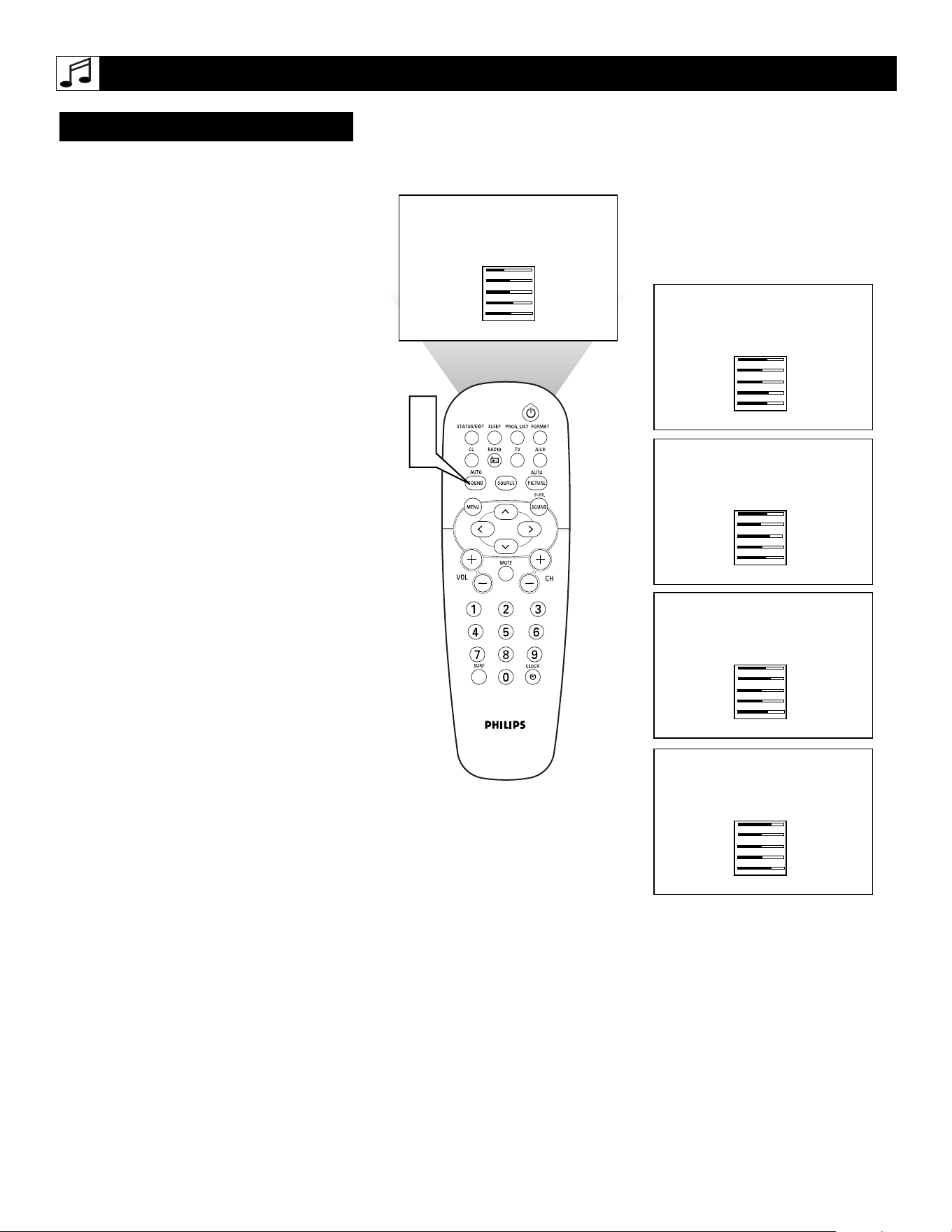
42
A
utoSound™ allows you to select from
four factory-set controls and a personal
control that you set according to your own
preferences through the onscreen Sound menu
within the FM Mode. The four factory-set
controls (Classical, Jazz Pop, or Rock) enable
you to tailor the sound so as to enhance the
particular program you are listening to.
1
If in the FM mode, press the AUTO
SOUND button on the remote control
to display the first AutoSound™option
on the screen.
2
Press the AUTO SOUND button
repeatedly to toggle through the factory
pre-defined setting for the following
musical styles: CLASSICAL, JAZZ,
POP, ROCK or PERSONAL (the way
you set the equalizer).
AUTOSOUND™ CONTROLS
1
2
120HZ
500HZ
1500HZ
5KHZ
10KHZ
-11
- 2
0
6
3
PERSONAL
120HZ
500HZ
1500HZ
5KHZ
10KHZ
4
12
0
1
9
POP
120HZ
500HZ
1500HZ
5KHZ
10KHZ
4
0
0
9
4
CLASSICAL
120HZ
500HZ
1500HZ
5KHZ
10KHZ
9
0
12
1
4
JAZZ
120HZ
500HZ
1500HZ
5KHZ
10KHZ
13
0
0
1
13
ROCK
SETTING UP THE FM MODE (FM RADIO)

43
TROUBLESHOOTING TIPS
CLEANING AND
CARE
No Power
• Check the TV power cord. Unplug the TV, wait 10 seconds,
then reinsert the plug into the outlet and push the POWER
button again.
• Check that the outlet is not on a wall switch.
• Be sure the fuse is not blown on the AC power strip, if one is
being used.
No Picture
• Check antenna/cable connections. Are they properly secured
to the TV's ANT 75Ω plug?
• Check the TUNER MODE control for the correct tuner set-
ting.
•Try running the Auto Program feature to find all available
channels.
• Press the SOURCE button on the remote to make sure the
correct signal source is selected.
• If using an accessory device, be sure that it is functioning
properly.
• If in PC Mode, a video signal MUST BE present or the TV
will turn off.
No Sound
• Check the VOLUME buttons.
• Check the MUTE button on the remote control.
• If you’re attempting to hook up auxiliary equipment, check
the audio jack connections.
TV Only Produces MONO Sound
• If using a cable box with RF only type connections, the signal
coming from the cable box will be produced in MONO only.
• Check Sound control setting. Change setting to Stereo.
Remote Does Not Work
• Check the batteries. If necessary, replace them with AA
Heavy Duty (Zinc Chloride) or Alkaline batteries.
• Clean the remote control and the remote control sensor win-
dow on the TV.
• Check the TV power cord. Unplug the TV, wait 10 seconds,
then reinsert the plug into the outlet and push the POWER
button again.
• Be sure the fuse is not blown on the AC power strip, if one is
being used.
• Check to be sure the TV outlet is not on a wall switch.
• Be sure that the remote is in the correct operating mode.
• Be sure the remote is pointed at the Remote Sensor Window
on the TV. See page 1 of the Quick Use Guide for details.
TV Displays Wrong Channel or No Channels Above 13
• Repeat channel selection.
• Add the desired channel numbers (using the CHANNEL
EDIT control) into the TV’s memory.
• Check to be sure the TUNER MODES are set to the CABLE
option and run the Auto Program feature to find all available
channels.
WARNING Concerning Stationary Images on the TV
Screen:
Do not leave stationary or letterbox images on screen
for extended periods of time. This can cause uneven
display aging.
Normal use of the TV should involve the showing of pictures
that contain constantly moving and changing images that fill the
screen. Be careful not to leave nonmoving images on screen for
extended periods of time, or to display the same images on
screen too frequently, because subtle ghost images can be left
on the picture tubes. Sources of stationary images may be DVD
disks, laser disks, video games, CD-i disks, videotapes, digital
television boxes, broadcast channels, cable channels, satellite
channels, and others. Here are some examples of stationary
images (this is not an all-inclusive list; you may encounter
others in your viewing):
• DVD menus—listings of DVD disk content
• Letterbox black bars—shown at the top and bottom of the
TV screen when a wide screen (16:9) movie is viewed on a
TV with standard (4:3) aspect ratio.
• Video-game images and scoreboards
• Television station logos—present a problem if they are
bright and stationary; moving or low-contrast graphics are
less likely to cause uneven aging of the picture tube
• Stock-market tickers—presented at the bottom of the TV
screen
• Shopping channel logos and pricing displays—bright
and shown constantly or repeatedly in the same location on
the TV screen.
P
LACEMENT OF THE
TV
•To avoid cabinet warping, cabinet color changes, and
increased chance of set failure, do not place the TV where
temperatures can become excessively hot; for example, in
direct sunlight or near a heating appliance.
• Be sure to allow a free flow of air to and from the perforated
back cover of the set.
C
LEANING
•To avoid possible shock hazard, be sure the TV is unplugged
from the electrical outlet before cleaning.
• Regularly dust the TV with a dry, nonscratching duster to
keep the TV clean.
• When cleaning the TV, take care not to scratch or damage the
screen surface. Avoid wearing jewelry or using anything
abrasive. Do not use household cleaners. Wipe the front
screen with a clean cloth dampened with water. Use even,
easy, vertical strokes when cleaning.
• Gently wipe the cabinet surfaces with a clean cloth or sponge
dampened in a solution of cool, clear water and a mild soap
or detergent. Use a clean, dry cloth to dry the wiped surfaces.
Do not use acetone, toluene, or alcohol to clean the screen.
• Occasionally vacuum the ventilation holes or slots in the back
cover of the set.
• Never use thinners, insecticide sprays, or other chemicals on
or near the cabinet, as they might cause permanent marring
of the cabinet finish.

44
GLOSSARY OF TERMS
Audio/Video Inputs • Jacks (standard RCA), located on the
back of the TV, used for external accessory devices. These jacks
are designed to receive higher picture resolution and offer
sound-connection options.
Auto Programming • When activated, this feature scans for all
available channels from regular antenna or cable signals and
stores only active broadcast stations in the TV’s memory.
Channel Edit • The feature that allows you to add or delete
channels from the list of channels stored in the TV’s memory.
Closed Captioning • The broadcast standard feature that allows
you to read the voice content of television programs on the TV
screen. Designed to help the hearing impaired, Closed
Captioning shows dialogue and conversations while a TV pro-
gram is in progress.
Coaxial Cable • A single solid wire normally matched with a
metal plug (F-type) end connector that screws (or pushes) direct-
ly onto a 75-ohm input found on the television or VCR.
Component Video Inputs • Inputs that allow the separate recep-
tion of blue, red, and luminance signals. These inputs provide
the highest possible color and picture resolution in the playback
of digital signal-source material, such as the kind available from
DVD players.
Composite Video Input • An input in which all the components
required for displaying the onscreen image are combined in one
signal.
High-definition Television (HDTV) • High-resolution digital
television.
Incredible Surround • False acoustic management of the audio
signal that produces a dramatic expansion of the wall of sound
that surrounds the listener and heightens overall viewing pleas-
ure.
Menu • An onscreen list of feature controls available for you to
adjust or set.
Onscreen Displays (OSD) • The wording or messages generat-
ed by the television (or VCR) to help you with specific feature
controls (color adjustment or programming, for example).
Remote Control Sensor Window • The window or opening
found on the television control panel through which infrared
remote control command signals are received.
Second Audio Program (SAP) • An additional audio channel
provided for in the Multichannel Television Sound (MTS)
broadcast standard. A monaural soundtrack included within the
recorded or video signal (usually containing a second language
translation for the displayed programming).
S-Video Input • Signal input that allows direct connection of
high-resolution video sources, such as a satellite receiver, DVD
player, S (Super)-VHS videocassette recorder, or video games.
Provides improved picture resolution, sharpness, and clarity.
Tint • TV function that allows you to change the general color
balance between cool and warm. Adjust tint according to your
personal preference.

45
INDEX
Cleaning and Care . . . . . . . . . . . . . . . . . . . . . . . . . . . . . . . . . .43
FM Radio Mode Controls
AutoSound™ Control . . . . . . . . . . . . . . . . . . . . . . . . . . . . . . .42
Install Menu Controls
Auto Program Control . . . . . . . . . . . . . . . . . . . . . . . . . . . . . .36
Language Control . . . . . . . . . . . . . . . . . . . . . . . . . . . . . . . . .36
Manual Store Control . . . . . . . . . . . . . . . . . . . . . . . . . . .36-37
Name (FM Channel Label) Control . . . . . . . . . . . . . . . . . . .36
Sort Control . . . . . . . . . . . . . . . . . . . . . . . . . . . . . . . . . . .36-37
Mode Select Control . . . . . . . . . . . . . . . . . . . . . . . . . . . . . . . .40
Screensaver Control . . . . . . . . . . . . . . . . . . . . . . . . . . . . . . . .41
Sound Adjustment Controls
AV L (Auto Volume Leveler) Control . . . . . . . . . . . . . . . . . .38
Balance Control . . . . . . . . . . . . . . . . . . . . . . . . . . . . . . . . . . .38
Equalizer Controls . . . . . . . . . . . . . . . . . . . . . . . . . . . . . . . . .38
Incredible Surround Control . . . . . . . . . . . . . . . . . . . . . . . . .38
Stereo Control . . . . . . . . . . . . . . . . . . . . . . . . . . . . . . . . . . . .38
Timer Controls . . . . . . . . . . . . . . . . . . . . . . . . . . . . . . . . . . . .39
Glossary of Terms . . . . . . . . . . . . . . . . . . . . . . . . . . . . . . . . . .44
Index . . . . . . . . . . . . . . . . . . . . . . . . . . . . . . . . . . . . . . . . . . . . .45
Registration Information . . . . . . . . . . . . . . . . . . . . . . . . . . . . .2
Safety/Precautions . . . . . . . . . . . . . . . . . . . . . . . . . . . . . . . . .3-4
Table of Contents . . . . . . . . . . . . . . . . . . . . . . . . . . . . . . . . . . . .5
Troubleshooting Tips . . . . . . . . . . . . . . . . . . . . . . . . . . . . . . . .43
TV Mode Controls
AutoChron™ Control . . . . . . . . . . . . . . . . . . . . . . . . . . . . . . .10
AutoLock Controls
Access Code . . . . . . . . . . . . . . . . . . . . . . . . . . . . . . . . . . . . .22
Block Channels . . . . . . . . . . . . . . . . . . . . . . . . . . . . . . . . . . .23
AutoLock Controls (continued)
Blocking Options . . . . . . . . . . . . . . . . . . . . . . . . . . . . . . . . .27
Clear All Blocked Channels . . . . . . . . . . . . . . . . . . . . . . . . .24
Movie Ratings . . . . . . . . . . . . . . . . . . . . . . . . . . . . . . . . . . . .25
Review Screen . . . . . . . . . . . . . . . . . . . . . . . . . . . . . . . . . . . .28
TV Ratings . . . . . . . . . . . . . . . . . . . . . . . . . . . . . . . . . . . . . .26
Understanding the AutoLock™ Control . . . . . . . . . . . . . . . .21
AutoSound™ Control . . . . . . . . . . . . . . . . . . . . . . . . . . . . . . .34
Auto Program Control . . . . . . . . . . . . . . . . . . . . . . . . . . . . . . .8
AutoPicture™ Control . . . . . . . . . . . . . . . . . . . . . . . . . . . . . .33
AVL (Auto Volume Leveler) Control . . . . . . . . . . . . . . . . . . .15
Balance Control . . . . . . . . . . . . . . . . . . . . . . . . . . . . . . . . . . .14
Channel Edit (Add or Delete Channels) Control . . . . . . . . . .9
Closed Captioning Control . . . . . . . . . . . . . . . . . . . . . . . . . . .29
Equalizer Control . . . . . . . . . . . . . . . . . . . . . . . . . . . . . . . . . .13
Incredible Surround Control . . . . . . . . . . . . . . . . . . . . . . . . .16
Language Control . . . . . . . . . . . . . . . . . . . . . . . . . . . . . . . . . . .6
Mode Select Control . . . . . . . . . . . . . . . . . . . . . . . . . . . . . . . .20
Name (Channel Label) Control . . . . . . . . . . . . . . . . . . . . . . .11
Picture Adjustment Controls . . . . . . . . . . . . . . . . . . . . . . . . .12
Program List Control . . . . . . . . . . . . . . . . . . . . . . . . . . . . . . .31
SAP (Secondary Audio Programming) Control . . . . . . . . . .18
Screen Format Control . . . . . . . . . . . . . . . . . . . . . . . . . . . . .30
Sleeptimer Control . . . . . . . . . . . . . . . . . . . . . . . . . . . . . . . . .32
Stereo/Mono Control . . . . . . . . . . . . . . . . . . . . . . . . . . . . . . .17
Surf Control . . . . . . . . . . . . . . . . . . . . . . . . . . . . . . . . . . . . . .35
Timer Controls . . . . . . . . . . . . . . . . . . . . . . . . . . . . . . . . . . . .19
Tuner Mode Control . . . . . . . . . . . . . . . . . . . . . . . . . . . . . . . . .7
Warranty . . . . . . . . . . . . . . . . . . . . . . . . . . . . . . . . . . . . . . . . .46

RENEWED
90 DAY
LIMITED WARRANTY