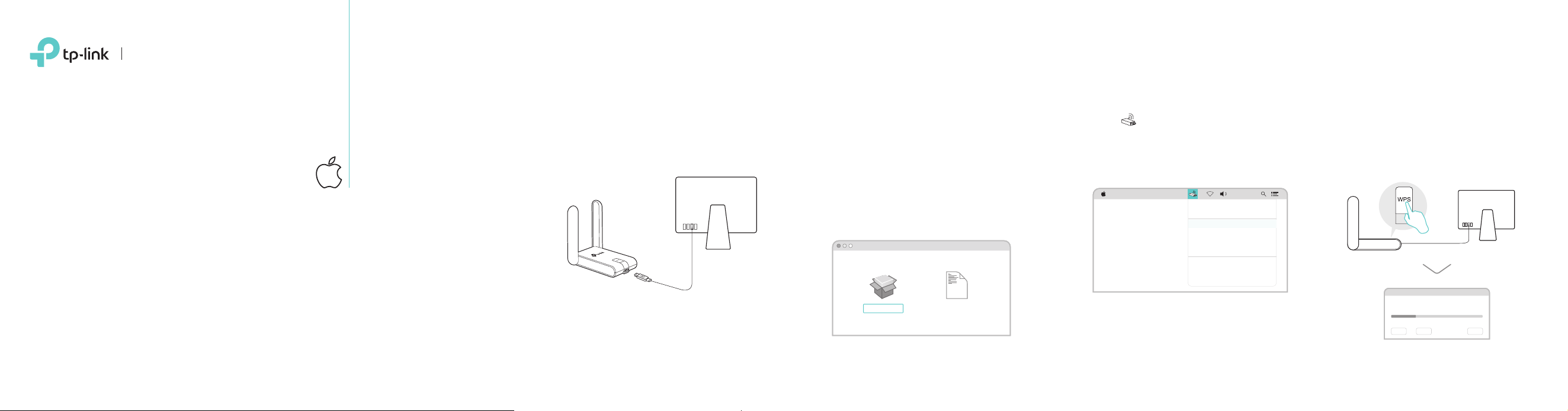
a. Download the driver and utility from this
product’s Support page at
www.tp-link.com.
Note:
If your computer has a CD drive, you can also run the
included CD to install the driver and utility.
b. Unzip the downloaded folder and run the
Install.pkg.
c. Follow the instructions to complete the
installation.
For Mac OS X
Connect the adapter to your computer
using the USB cable provided.
Install.pkg Uninstall.command
SHELL
Option 1: Via TP-Link Utility Option 2: Via Wi-Fi Protected Setup (WPS)
a. Click (TP-Link Utility) on the menu
bar.
b. Select your Wi-Fi network and enter the
Wi-Fi password when prompted.
a. Press the WPS button on your router.
b. Within 2 minutes, press and hold the WPS
button on the adapter until the WPS
progress window appears.
c. When the "WPS Protocol Finished!!"
message appears, click OK.
300Mbps High Gain
Wireless USB Adapter
MODEL NO. TL-WN822N
Quick Installation Guide
1 Connect to a Computer 2 Install Driver and Utility 3 Join a Wireless Network
WPS Progress: Scan Active WPS AP
PIN PBC Cancel
WPS
Fri 5:14 PM
TP-Link_0903
TP-Link_
0001
TP-Link_0002
TP-Link_XXXX
Join Other Network...
WPS...
Open Wireless Utility...
USB-WiFi: On
Turn USB-WiFi Off
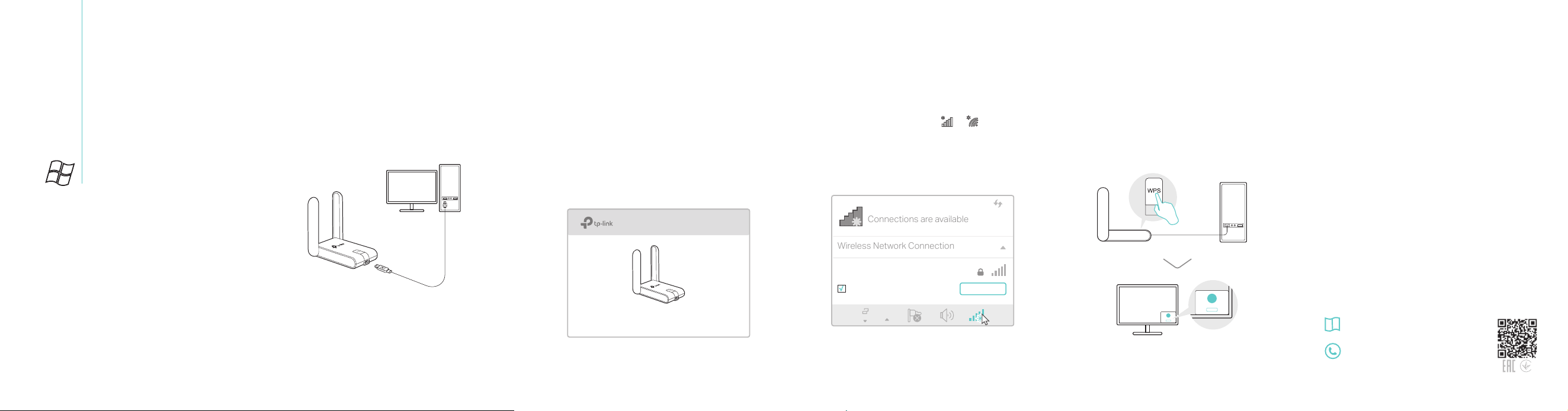
a. Insert the CD and run the Autorun.exe.
Note:
You can also download the driver from this product’s
Support page at www.tp-link.com.
b. Select TL-WN822N and follow the
steps to install the driver and WPS Tool.
Note:
If you can’t install the driver successfully, disable the
antivirus software and firewall, then try again.
Connections are available
Wireless Network Connection
Connect automatically
Connect
√
TP-Link_XXXX
c. When the "Success!" message appears, your
computer is connected to Wi-Fi.
For Windows
Connect the adapter to your computer
using the USB cable provided.
Option 1: Via Windows Wireless Utility
a. Click the network icon ( or ) on the
taskbar.
b. Select your Wi-Fi network, click Connect
and enter the password when prompted.
Option 2: Via WPS Tool
a. Press the WPS button on your router.
b. Within 2 minutes, press and hold the WPS
button on the adapter until WPS Tool opens.
This USB Adapter can only be powered by computers that comply
with Limited Power Source (LPS).
For detailed instructions, please refer to the
User Manual from this product’s Support
page at www.tp-link.com.
For technical support and other information,
please visit http://www.tp-link.com/support,
or simply scan the QR code.
7106507544 REV7.1.0
©2017 TP-Link
TL-WN822N
1 Connect to a Computer
3 Join a Wireless Network
2 Install Driver and WPS Tool
WPS
Cancel
WPS
Cancel
Note:
In Windows XP, a Found New Hardware Wizard
window will appear when the adapter is detected.
Please click Cancel.