
User Guide
SUMMARY
This guide provides basic information for using and upgrading this product, including topics such as components,
features, networks, and HP resources.

Legal information
© Copyright 2025 HP Development
Company, L.P.
AMD is a trademark of Advanced Micro
Devices, Inc. Bluetooth is a trademark
owned by its proprietor and used by HP
Inc. under license. Intel, Celeron, Pentium,
and Thunderbolt are trademarks of Intel
Corporation or its subsidiaries in the
U.S. and/or other countries. Microsoft and
Windows are either registered trademarks or
trademarks of Microsoft Corporation in the
United States and/or other countries. NVIDIA
and the NVIDIA logo are trademarks and/or
registered trademarks of NVIDIA Corporation
in the U.S. and other countries. USB Type-
C, USB-C, and the USB 5 Gbps, and USB
10 Gbps port logos are trademarks or
registered trademarks of USB Implementers
Forum. Miracast, Wi-Fi, and Wi-Fi Direct are
registered trademarks of Wi-Fi Alliance.
The information contained herein is subject to
change without notice. The only warranties
for HP products and services are set
forth in the express warranty statements
accompanying such products and services.
Nothing herein should be construed as
constituting an additional warranty. HP shall
not be liable for technical or editorial errors or
omissions contained herein.
First Edition: December 2025
Document Part Number: P75290-001
Product notice
This user guide describes features that are
common to most models. Some features
might not be available on your computer.
Not all features are available in all editions or
versions of Windows. Systems may require
upgraded and/or separately purchased
hardware, drivers, software or BIOS update to
take full advantage of Windows functionality.
Windows is automatically updated, which
is always enabled. High-speed internet
and Microsoft account required. ISP fees
may apply and additional requirements
may apply over time for updates. See
http://www.windows.com. If your product
ships with Windows in S Mode: Windows
in S Mode works exclusively with apps from
the Microsoft Store within Windows. Certain
default settings, features, and apps cannot
be changed. Some accessories and apps
that are compatible with Windows may not
work (including some antivirus, PDF writers,
driver utilities, and accessibility apps), and
performance may vary, even if you switch
out of S Mode. If you switch to Windows, you
cannot switch back to S Mode. Learn more at
Windows.com/SmodeFAQ.
To access the latest user guides, go to
http://www.hp.com/support, and follow the
instructions to
nd your product. Then select
Setup & User Guides.
Software terms
By installing, copying, downloading, or
otherwise using any software product
preinstalled on this computer, you agree
to be bound by the terms of the HP End
User License Agreement (EULA). If you do
not accept these license terms, your sole
remedy is to return the entire unused product
(hardware and software) within 14 days for a
full refund subject to the refund policy of your
seller.
For any further information or to request a full
refund of the price of the computer, please
contact your seller.

Safety warning notice
Reduce the possibility of heat-related injuries or of overheating the computer by following the practices
described.
WARNING! To reduce the possibility of heat-related injuries or of overheating the computer, do not
place the computer directly on your lap or obstruct the computer air vents. Use the computer only on a
hard, at surface. Do not allow another hard surface, such as an adjoining optional printer, or a soft
surface, such as pillows, rugs or clothing, to block airow. Also, do not allow the AC adapter to come into
contact with the skin or a soft surface, such as pillows, rugs or clothing, during operation. The computer
and the AC adapter provided by HP comply with the user-accessible surface temperature limits dened
by applicable safety standards.
iii

Processor conguration setting (select products only)
Important information about processor congurations.
IMPORTANT: Select computer products are congured with an Intel® Pentium® N35xx/N37xx series or
a Celeron® N28xx/N29xx/N30xx/N31xx series processor and a Windows® operating system. If your
computer is congured as described, do not change the processor conguration setting in
mscong.exe from 4 or 2 processors to 1 processor. If you do so, your computer will not restart. You
will have to perform a factory reset to restore the original settings.
iv Processor conguration setting (select products only)

Table of contents
1 About this guide.................................................................................................................................................................................... 1
2 Getting started...................................................................................................................................................................................... 2
Finding information................................................................................................................................................................................................................................2
3 Components........................................................................................................................................................................................... 4
Locating hardware..................................................................................................................................................................................................................................4
Locating software...................................................................................................................................................................................................................................4
Right...................................................................................................................................................................................................................................................................4
Left......................................................................................................................................................................................................................................................................8
Display .........................................................................................................................................................................................................................................................11
Low blue light mode (select products only) .........................................................................................................................................................11
Keyboard area........................................................................................................................................................................................................................................14
Touchpad........................................................................................................................................................................................................................................14
Touchpad settings.......................................................................................................................................................................................................14
Adjusting touchpad settings...................................................................................................................................................................14
Turning on the touchpad.............................................................................................................................................................................14
Touchpad components ...........................................................................................................................................................................................14
Lights.................................................................................................................................................................................................................................................15
Buttons, speakers, and ngerprint reader...........................................................................................................................................................18
Special keys.................................................................................................................................................................................................................................19
Action keys....................................................................................................................................................................................................................................23
Bottom .........................................................................................................................................................................................................................................................24
360 mode..................................................................................................................................................................................................................................................25
Labels ...........................................................................................................................................................................................................................................................25
Using a SIM card (select products only)............................................................................................................................................................................27
Determining the correct SIM card size for your computer.....................................................................................................................27
Inserting a nano SIM card .................................................................................................................................................................................................27
4 Network connections........................................................................................................................................................................29
Connecting to a wireless network..........................................................................................................................................................................................29
Using the wireless controls..............................................................................................................................................................................................29
Wireless button ............................................................................................................................................................................................................29
Operating system controls...................................................................................................................................................................................29
Connecting to a WLAN ........................................................................................................................................................................................................30
Using HP Mobile Broadband (select products only).....................................................................................................................................30
Locating mobile operator settings.................................................................................................................................................................30
Connecting with HP Mobile Broadband.....................................................................................................................................................31
Using eSIM (select products only)..............................................................................................................................................................................31
Using GPS (select products only)................................................................................................................................................................................31
Using Bluetooth wireless devices (select products only).........................................................................................................................32
v

Connecting Bluetooth devices..........................................................................................................................................................................32
Using NFC to share information (select products only).................................................................................................................32
Connecting to a wired network.................................................................................................................................................................................................33
Connecting to a local area network (LAN) (select products only)......................................................................................................33
Using HP LAN-Wireless Protection (select products only) ......................................................................................................................33
Using HP MAC Address Pass Through (select products only).........................................................................................................................34
5 Navigating the screen ......................................................................................................................................................................36
Using touchpad and touch screen gestures .................................................................................................................................................................36
Tap .......................................................................................................................................................................................................................................................36
Two-nger pinch zoom.........................................................................................................................................................................................................36
Two-nger slide (touchpad and precision touchpad)..................................................................................................................................37
Two-nger tap (touchpad and precision touchpad)......................................................................................................................................37
Three-nger tap (touchpad and precision touchpad).................................................................................................................................37
Four-nger tap (touchpad and precision touchpad) ....................................................................................................................................38
Three-nger swipe (touchpad and precision touchpad)...........................................................................................................................38
Four-nger swipe (precision touchpad) .................................................................................................................................................................38
One-nger slide (touch screen)....................................................................................................................................................................................39
Using an optional keyboard or mouse ................................................................................................................................................................................39
Using an on-screen keyboard (select products only)..............................................................................................................................................39
6 Entertainment features ...................................................................................................................................................................40
Using a camera (select products only)...............................................................................................................................................................................40
Using audio...............................................................................................................................................................................................................................................40
Connecting speakers...........................................................................................................................................................................................................40
Connecting headphones...................................................................................................................................................................................................40
Connecting a microphone................................................................................................................................................................................................41
Connecting headsets ..........................................................................................................................................................................................................41
Using sound settings............................................................................................................................................................................................................41
Viewing or changing sound settings ............................................................................................................................................................41
Using the control panel to view and control audio settings........................................................................................................41
Using video...............................................................................................................................................................................................................................................42
Connecting a Thunderbolt device using a USB Type-C cable (select products only)........................................................42
Connecting video devices using an HDMI cable (select products only)......................................................................................43
Connecting a high-denition TV or monitor using HDMI...............................................................................................................43
Setting up HDMI audio.............................................................................................................................................................................................44
Turning on HDMI audio .................................................................................................................................................................................44
Turning off HDMI audio ................................................................................................................................................................................44
Connecting displays to computers with AMD or NVIDIA graphics (with an optional hub).............................................44
Discovering and connecting to Miracast-compatible wireless displays (select products only)............................... 45
Using data transfer ............................................................................................................................................................................................................................45
Connecting devices to a USB Type-C port (select products only) ....................................................................................................45
7 Managing power .................................................................................................................................................................................47
Using Sleep and Hibernation ....................................................................................................................................................................................................47
Initiating and exiting Sleep ...............................................................................................................................................................................................47
Initiating and exiting Hibernation (select products only) ..........................................................................................................................48
vi

Shutting down (turning off) the computer........................................................................................................................................................................48
Using the Power icon .......................................................................................................................................................................................................................49
Running on battery power............................................................................................................................................................................................................49
Using HP Fast Charge (select products only)....................................................................................................................................................49
Displaying battery charge ................................................................................................................................................................................................50
Finding battery information in HP Support Assistant (select products only)...........................................................................50
Conserving battery power ...............................................................................................................................................................................................50
Identifying low battery levels..........................................................................................................................................................................................50
Resolving a low battery level...........................................................................................................................................................................................51
Resolving a low battery level when external power is available..............................................................................................51
Resolving a low battery level when no power source is available .........................................................................................51
Resolving a low battery level when the computer cannot exit Hibernation...................................................................51
Factory-sealed battery .......................................................................................................................................................................................................51
Running on external power ..........................................................................................................................................................................................................52
8 Security..................................................................................................................................................................................................53
Protecting the computer ...............................................................................................................................................................................................................53
Using passwords.................................................................................................................................................................................................................................54
Setting passwords in Windows ....................................................................................................................................................................................54
Setting passwords in Computer Setup..................................................................................................................................................................55
Managing a BIOS administrator password.........................................................................................................................................................55
Setting a new BIOS administrator password.........................................................................................................................................55
Changing a BIOS administrator password..............................................................................................................................................56
Deleting a BIOS administrator password.................................................................................................................................................56
Entering a BIOS administrator password .................................................................................................................................................57
Using DriveLock Security Options .............................................................................................................................................................................57
Selecting Automatic DriveLock (select products only)..................................................................................................................57
Enabling Automatic DriveLock...............................................................................................................................................................57
Disabling Automatic DriveLock.............................................................................................................................................................58
Entering an Automatic DriveLock password ..............................................................................................................................58
Selecting manual DriveLock ...............................................................................................................................................................................59
Setting a DriveLock master password............................................................................................................................................59
Enabling DriveLock and setting a DriveLock user password ....................................................................................................60
Disabling DriveLock ...................................................................................................................................................................................................60
Entering a DriveLock password........................................................................................................................................................................61
Changing a DriveLock password ....................................................................................................................................................................61
Windows Hello (select products only).................................................................................................................................................................................62
Using antivirus software................................................................................................................................................................................................................62
Using rewall software....................................................................................................................................................................................................................62
Installing software updates.........................................................................................................................................................................................................63
Using HP Client Security (select products only)..........................................................................................................................................................63
Using HP Workforce Experience Platform (select products only).................................................................................................................63
Using an optional security cable (select products only).......................................................................................................................................63
Using a ngerprint reader (select products only)......................................................................................................................................................64
9 Maintenance ........................................................................................................................................................................................65
vii

Improving performance .................................................................................................................................................................................................................65
Using Disk Defragmenter..................................................................................................................................................................................................65
Using Disk Cleanup................................................................................................................................................................................................................65
Using HP 3D DriveGuard (select products only) .............................................................................................................................................65
Identifying HP 3D DriveGuard status...........................................................................................................................................................66
Updating programs and drivers...............................................................................................................................................................................................66
Cleaning your computer................................................................................................................................................................................................................66
Enabling HP Easy Clean (select products only)................................................................................................................................................66
Removing dirt and debris from your computer................................................................................................................................................67
Cleaning your computer with a disinfectant......................................................................................................................................................67
Caring for wood veneer (select products only)................................................................................................................................................68
Traveling with or shipping your computer........................................................................................................................................................................68
10 Backing up, restoring, and recovering .....................................................................................................................................70
Backing up information and creating recovery media...........................................................................................................................................70
Using Windows tools for backing up.........................................................................................................................................................................70
Using the HP Cloud Recovery Download Tool to create a recovery USB ash drive (select products
only) ....................................................................................................................................................................................................................................................70
Restoring and recovering your system ..............................................................................................................................................................................70
Creating a system restore ...............................................................................................................................................................................................71
Restoring and recovery methods...............................................................................................................................................................................71
Recovering using the HP Recovery USB ash drive ....................................................................................................................................71
Changing the computer boot order..........................................................................................................................................................................72
Using HP Sure Recover (select products only).................................................................................................................................................72
11 Computer Setup (BIOS), TPM, and HP Sure Start ................................................................................................................73
Using Computer Setup ...................................................................................................................................................................................................................73
Navigating and selecting in Computer Setup ..................................................................................................................................................73
Restoring factory settings in Computer Setup................................................................................................................................................73
Updating the BIOS ..................................................................................................................................................................................................................74
Determining the BIOS version ...........................................................................................................................................................................74
Preparing for a BIOS update...............................................................................................................................................................................74
Downloading a BIOS update ...................................................................................................................................................................75
Installing a BIOS update..............................................................................................................................................................................75
Changing the boot order using the f9 prompt .................................................................................................................................................76
TPM BIOS settings (select products only) ......................................................................................................................................................................76
Using HP Sure Start (select products only).....................................................................................................................................................................76
12 Using HP PC Hardware Diagnostics .........................................................................................................................................77
Using HP PC Hardware Diagnostics Windows (select products only).......................................................................................................77
Using an HP PC Hardware Diagnostics Windows hardware failure ID code.............................................................................77
Accessing HP PC Hardware Diagnostics Windows.....................................................................................................................................77
Accessing HP PC Hardware Diagnostics Windows from HP Support Assistant (select products
only).........................................................................................................................................................................................................................................77
Accessing HP PC Hardware Diagnostics Windows from the Start menu (select products only)................ 78
Downloading HP PC Hardware Diagnostics Windows...............................................................................................................................78
Downloading the latest HP PC Hardware Diagnostics Windows version from HP.................................................. 78
Downloading the HP PC Hardware Diagnostics Windows from the Microsoft Store............................................ 78
viii

Downloading HP Hardware Diagnostics Windows by product name or number (select products
only).........................................................................................................................................................................................................................................79
Installing HP PC Hardware Diagnostics Windows.........................................................................................................................................79
Using HP PC Hardware Diagnostics UEFI.........................................................................................................................................................................79
Using an HP PC Hardware Diagnostics UEFI hardware failure ID code........................................................................................79
Starting HP PC Hardware Diagnostics UEFI.......................................................................................................................................................79
Starting HP PC Hardware Diagnostics UEFI through HP Hotkey Support software (select products
only) ....................................................................................................................................................................................................................................................80
Downloading HP PC Hardware Diagnostics UEFI to a USB ash drive.........................................................................................80
Downloading the latest HP PC Hardware Diagnostics UEFI version...................................................................................81
Downloading HP PC Hardware Diagnostics UEFI by product name or number (select products
only).........................................................................................................................................................................................................................................81
Using Remote HP PC Hardware Diagnostics UEFI settings (select products only).........................................................................81
Downloading Remote HP PC Hardware Diagnostics UEFI......................................................................................................................81
Downloading the latest Remote HP PC Hardware Diagnostics UEFI version...............................................................81
Downloading Remote HP PC Hardware Diagnostics UEFI by product name or number.....................................82
Customizing Remote HP PC Hardware Diagnostics UEFI settings..................................................................................................82
13 Specications...................................................................................................................................................................................83
Input power...............................................................................................................................................................................................................................................83
Operating environment ..................................................................................................................................................................................................................84
14 Electrostatic discharge.................................................................................................................................................................86
15 Accessibility ......................................................................................................................................................................................87
HP and accessibility..........................................................................................................................................................................................................................87
Finding the technology tools you need...................................................................................................................................................................87
The HP commitment..............................................................................................................................................................................................................87
International Association of Accessibility Professionals (IAAP).........................................................................................................88
Finding the best assistive technology.....................................................................................................................................................................88
Assessing your needs..............................................................................................................................................................................................88
Accessibility for HP products.............................................................................................................................................................................88
Standards and legislation.............................................................................................................................................................................................................89
Standards......................................................................................................................................................................................................................................89
Mandate 376 – EN 301 549...............................................................................................................................................................................89
Web Content Accessibility Guidelines (WCAG)....................................................................................................................................89
Legislation and regulations .............................................................................................................................................................................................89
Useful accessibility resources and links...........................................................................................................................................................................90
Organizations.............................................................................................................................................................................................................................90
Educational institutions......................................................................................................................................................................................................90
Other disability resources................................................................................................................................................................................................91
HP links.............................................................................................................................................................................................................................................91
Contacting support ...........................................................................................................................................................................................................................91
Index ............................................................................................................................................................................................................92
ix
About this guide1
This guide provides basic information for using and upgrading this product.
WARNING! Indicates a hazardous situation that, if not avoided, could result in serious injury or death.
CAUTION: Indicates a hazardous situation that, if not avoided, could result in minor or moderate injury.
IMPORTANT: Indicates information considered important but not hazard-related (for example,
messages related to property damage). Warns the user that failure to follow a procedure exactly as
described could result in loss of data or in damage to hardware or software. Also contains essential
information to explain a concept or to complete a task.
NOTE: Contains additional information to emphasize or supplement important points of the main text.
TIP: Provides helpful hints for completing a task.
This product incorporates HDMI® technology.
About this guide
1

Getting started2
This computer is a powerful tool designed to enhance your work and entertainment. Read this chapter to
learn about best practices after you set up your computer and where to nd additional HP resources.
After you set up and register the computer, HP recommends the following steps to get the most out of your
smart investment:
TIP: To quickly return to the computer Start screen from an open app or the Windows desktop, press
the Windows key on your keyboard. Pressing the Windows key again returns you to the previous screen.
● Connect to the internet—Set up your wired or wireless network so that you can connect to the
internet. For more information, see Network connections on page 29.
● Update your antivirus software—Protect your computer from damage caused by viruses. The
software is preinstalled on the computer. For more information, see Using antivirus software on page
62.
● Get to know your computer—Learn about your computer features. See Components on page 4
and Navigating the screen on page 36 for additional information.
● Find installed software—Access a list of the software preinstalled on the computer by performing
one of these tasks.
– Select the Start button, and then select All apps.
– Right-click the Start button, and then select Installed Apps.
● Back up your hard drive—Create recovery discs or a recovery USB ash drive to back up your hard
drive. See Backing up, restoring, and recovering on page 70.
● Access HP Support Assistant app—For quick online support, open the HP Support Assistant app
(select products only). HP Support Assistant optimizes computer performance and resolves problems
using the latest software updates, diagnostic tools, and guided assistance. Select the Search icon in
the taskbar, type support in the search box, and then select HP Support Assistant.
Finding information
To locate resources that provide product details, how-to information, and more, use this table.
Table 2-1
Additional information
Resource Contents
Setup Instructions Overview of computer setup and features
2 Chapter 2 Getting started

Table 2-1 Additional information (continued)
Resource Contents
HP support
Perform one of these tasks:
● For HP support, go to https://www.hp.com/support,
and follow the instructions to nd your product.
● Select the Search icon in the taskbar, type
support in the search box, and then select HP
Support Assistant.
● Select the question mark icon (select products only)
in the taskbar.
● Online chat with an HP technician
● Support telephone numbers
● Replacement parts videos (select products only)
● Maintenance and service guides
● HP service center locations
Safety & Comfort Guide
To access this guide perform one of these tasks:
● Select the Search icon in the taskbar, type HP
Documentation in the search box, and then
select HP Documentation.
● Go to http://www.hp.com/ergo.
IMPORTANT: You must be connected to the
internet to access the latest version of the user
guide.
● Proper workstation setup
● Guidelines for posture and work habits that increase your
comfort and decrease your risk of injury
● Electrical and mechanical safety information
Regulatory, Safety, and Environmental Notices
To access this document:
■
Select the Search icon in the taskbar, type HP
Documentation in the search box, and then select
HP Documentation.
Important regulatory notices, including information about Restrictions
of Hazardous Substances (RoHS) and proper battery disposal, if
needed
Limited Warranty*
To access this document perform one of these tasks:
● Select the Search icon in the taskbar, type HP
Documentation in the search box, and then
select HP Documentation.
● Go to http://www.hp.com/go/orderdocuments.
IMPORTANT: You must be connected to the
internet to access the latest version of the user
guide.
Specic warranty information about this computer
*You can nd your HP Limited Warranty located with the user guides on your product and/or on the CD
or DVD provided in the box. In some countries or regions, HP might provide a printed warranty in the box.
For countries or regions where the warranty is not provided in printed format, you can request a copy
from http://www.hp.com/go/orderdocuments. For products purchased in Asia Pacic, you can write to HP
at POD, PO Box 161, Kitchener Road Post Ofce, Singapore 912006. Include your product name, and your
name, phone number, and postal address.
Finding information
3
Components3
Your computer features top-rated components. This chapter provides details about your components,
where they are located, and how they work.
Locating hardware
Use these instructions to nd out what hardware is installed on your computer.
■
Select the Search icon in the taskbar, type device manager in the search box, and then select the
Device Manager app.
A list displays all the devices installed on your computer.
For information about system hardware components and the system BIOS version number, press fn+esc
(select products only).
Locating software
Use these instructions to nd out what software is installed on your computer:
■
Right-click the Start button, and then select Installed Apps.
Right
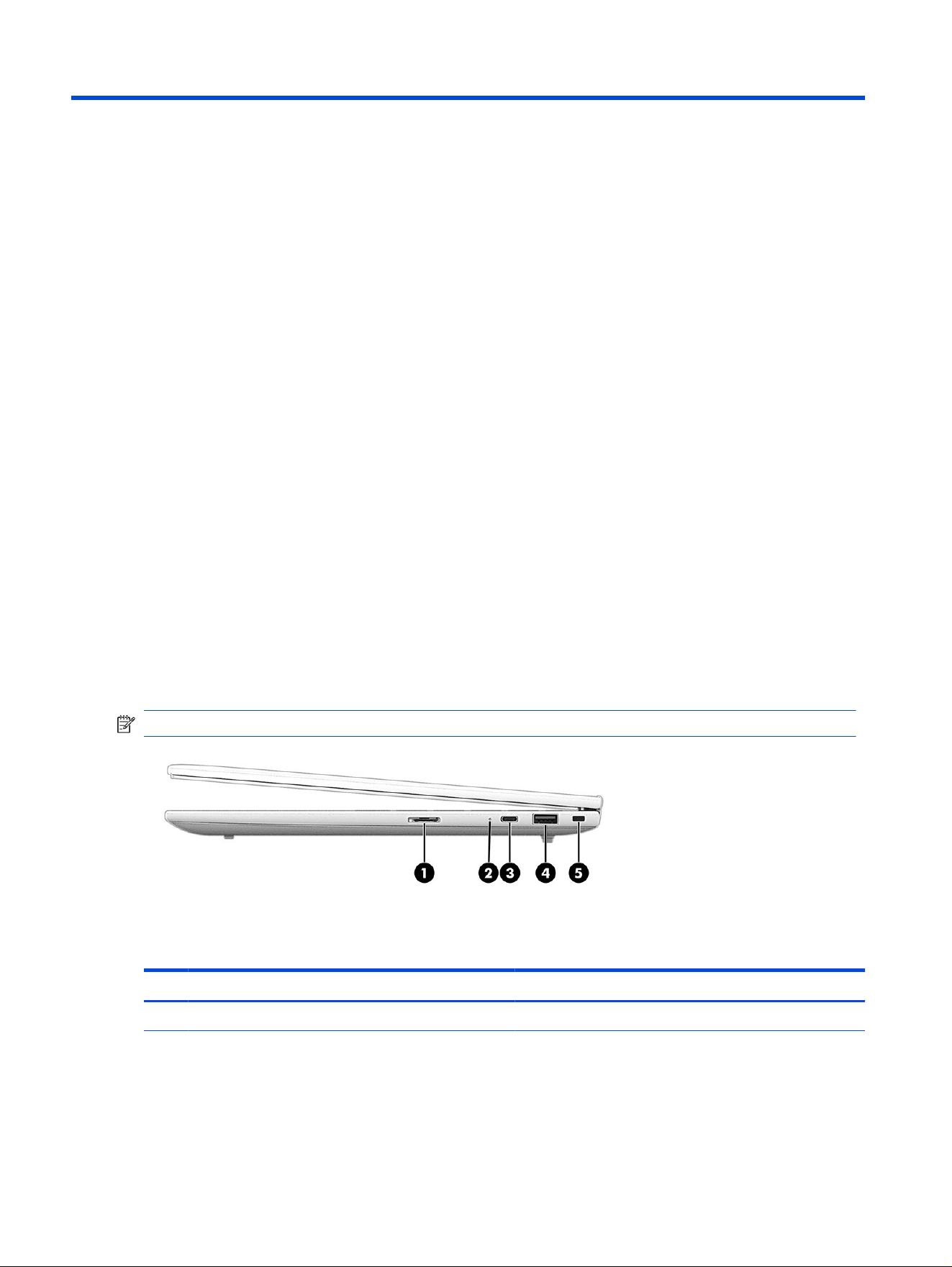
Use these illustrations and tables to identify the components on the right side of the computer.
NOTE: Refer to the illustration that most closely matches your computer.
Table 3-1
Right-side components and their descriptions
Component Description
(1) Nano SIM card slot Supports optional Nano SIM cards.
4 Chapter 3 Components
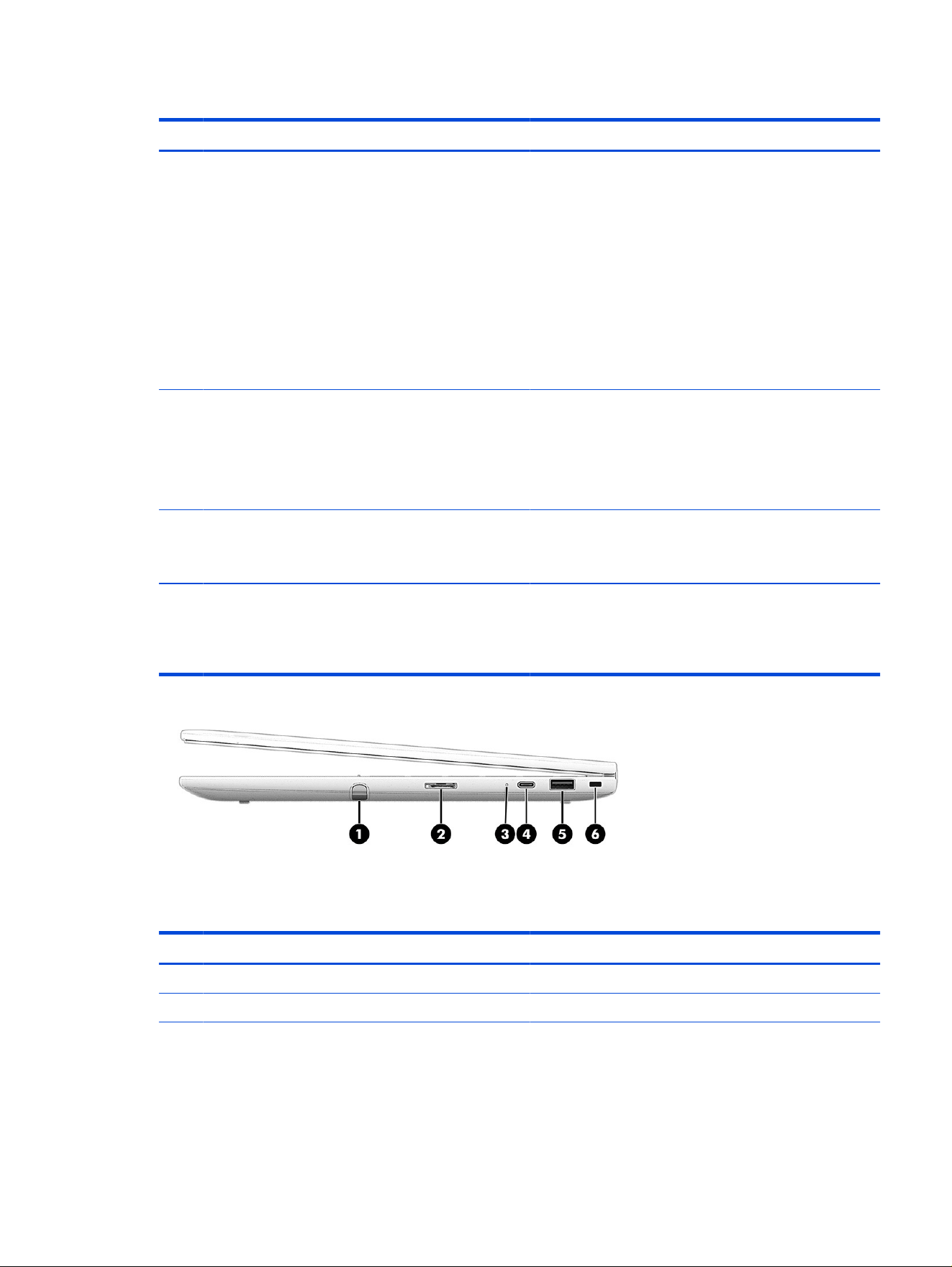
Table 3-1 Right-side components and their descriptions (continued)
Component Description
(2) Battery light When AC power is connected:
● White: The battery charge is greater than 90%.
● Amber: The battery charge is from 0 to 90%.
● Off: The battery is not charging.
When AC power is disconnected (battery not charging):
● Blinking amber: The battery has reached a low battery
level. When the battery has reached a critical battery
level, the battery light begins blinking rapidly.
● Off: The battery is not charging.
(3)
USB Type-C® 10 Gbps port Connects a USB device, provides high-speed data transfer,
and (for select products) charges small devices (such as a
smartphone) when the computer is on or in sleep mode.
NOTE: Use a standard USB Type-C charging cable or cable
adapter (purchased separately) when charging a small
external device.
(4) USB 5 Gbps port Connects a USB device and provides high-speed data
transfer.
NOTE: The port does not provide charging capability.
(5) Security cable slot Attaches an optional security cable to the computer.
NOTE: The security cable is designed to act as a deterrent,
but it might not prevent the computer from being mishandled
or stolen.
Table 3-2 Right-side components and their descriptions
Component Description
(1) Garaged stylus pen (select products only) Storage area for the stylus pen.
(2) Nano SIM card slot Supports optional Nano SIM cards.
Right 5
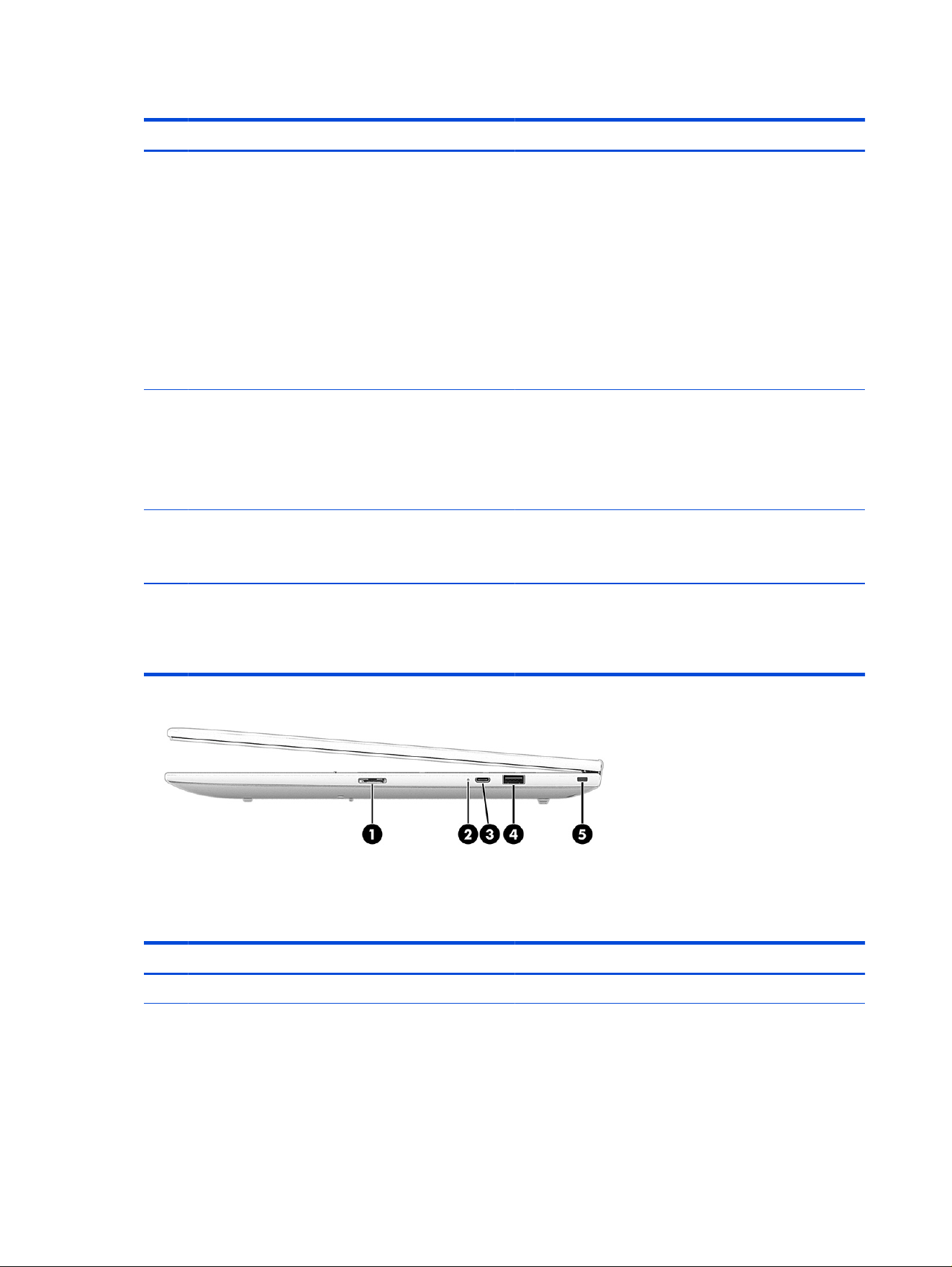
Table 3-2 Right-side components and their descriptions (continued)
Component Description
(3) Battery light When AC power is connected:
● White: The battery charge is greater than 90%.
● Amber: The battery charge is from 0 to 90%.
● Off: The battery is not charging.
When AC power is disconnected (battery not charging):
● Blinking amber: The battery has reached a low battery
level. When the battery has reached a critical battery
level, the battery light begins blinking rapidly.
● Off: The battery is not charging.
(4)
USB Type-C 10 Gbps port Connects a USB device, provides high-speed data transfer,
and (for select products) charges small devices (such as a
smartphone) when the computer is on or in sleep mode.
NOTE: Use a standard USB Type-C charging cable or cable
adapter (purchased separately) when charging a small
external device.
(5) USB 5 Gbps port Connects a USB device and provides high-speed data
transfer.
NOTE: The port does not provide charging capability.
(6) Security cable slot Attaches an optional security cable to the computer.
NOTE: The security cable is designed to act as a deterrent,
but it might not prevent the computer from being mishandled
or stolen.
Table 3-3 Right-side components and their descriptions
Component Description
(1) Nano SIM card slot Supports optional Nano SIM cards.
6 Chapter 3 Components
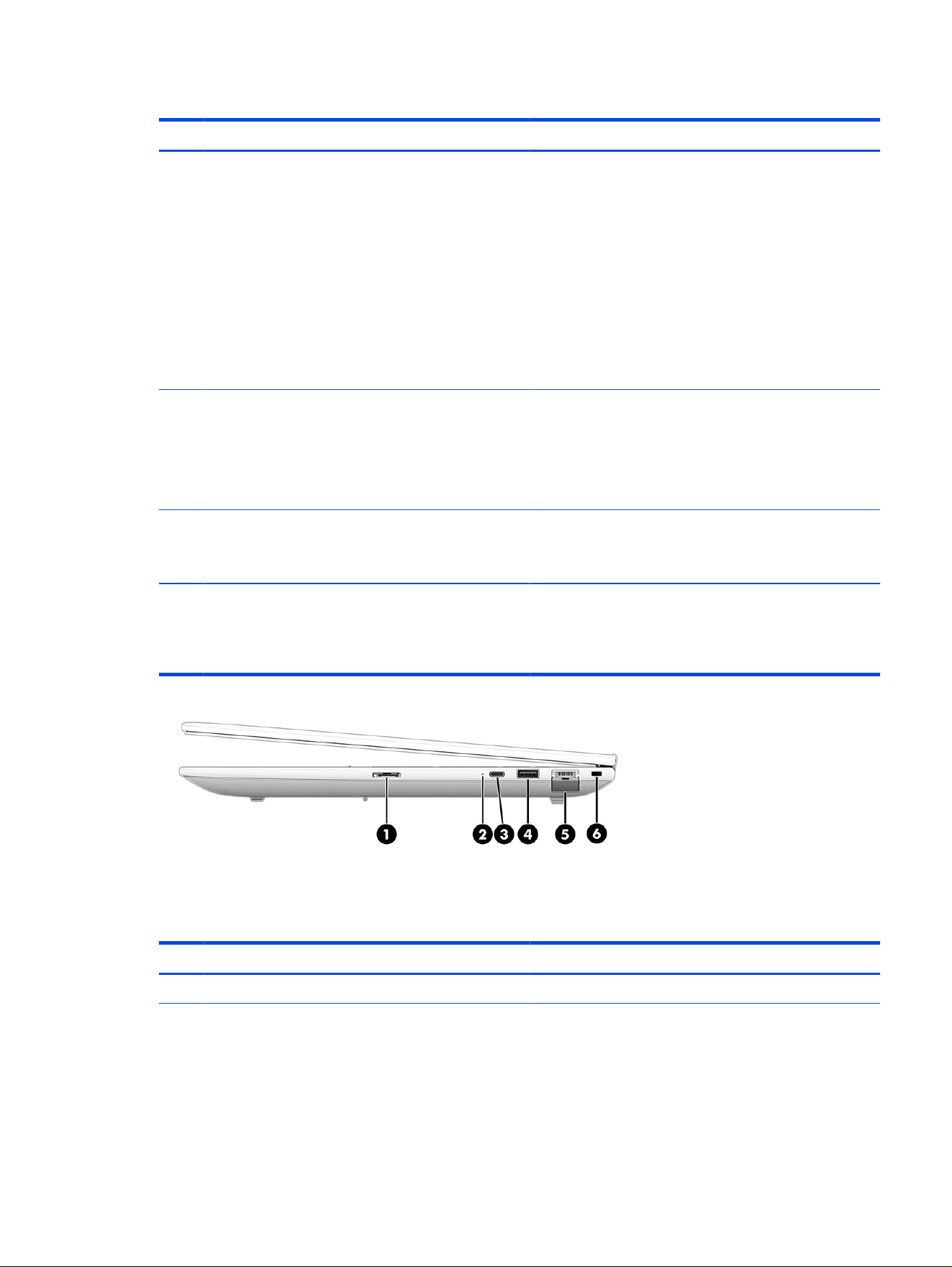
Table 3-3 Right-side components and their descriptions (continued)
Component Description
(2) Battery light When AC power is connected:
● White: The battery charge is greater than 90%.
● Amber: The battery charge is from 0 to 90%.
● Off: The battery is not charging.
When AC power is disconnected (battery not charging):
● Blinking amber: The battery has reached a low battery
level. When the battery has reached a critical battery
level, the battery light begins blinking rapidly.
● Off: The battery is not charging.
(3)
USB Type-C 10 Gbps port Connects a USB device, provides high-speed data transfer,
and (for select products) charges small devices (such as a
smartphone) when the computer is on or in sleep mode.
NOTE: Use a standard USB Type-C charging cable or cable
adapter (purchased separately) when charging a small
external device.
(4) USB 5 Gbps port Connects a USB device and provides high-speed data
transfer.
NOTE: The port does not provide charging capability.
(5) Security cable slot Attaches an optional security cable to the computer.
NOTE: The security cable is designed to act as a deterrent,
but it might not prevent the computer from being mishandled
or stolen.
Table 3-4 Right-side components and their descriptions
Component Description
(1) Nano SIM card slot Supports optional Nano SIM cards.
Right 7
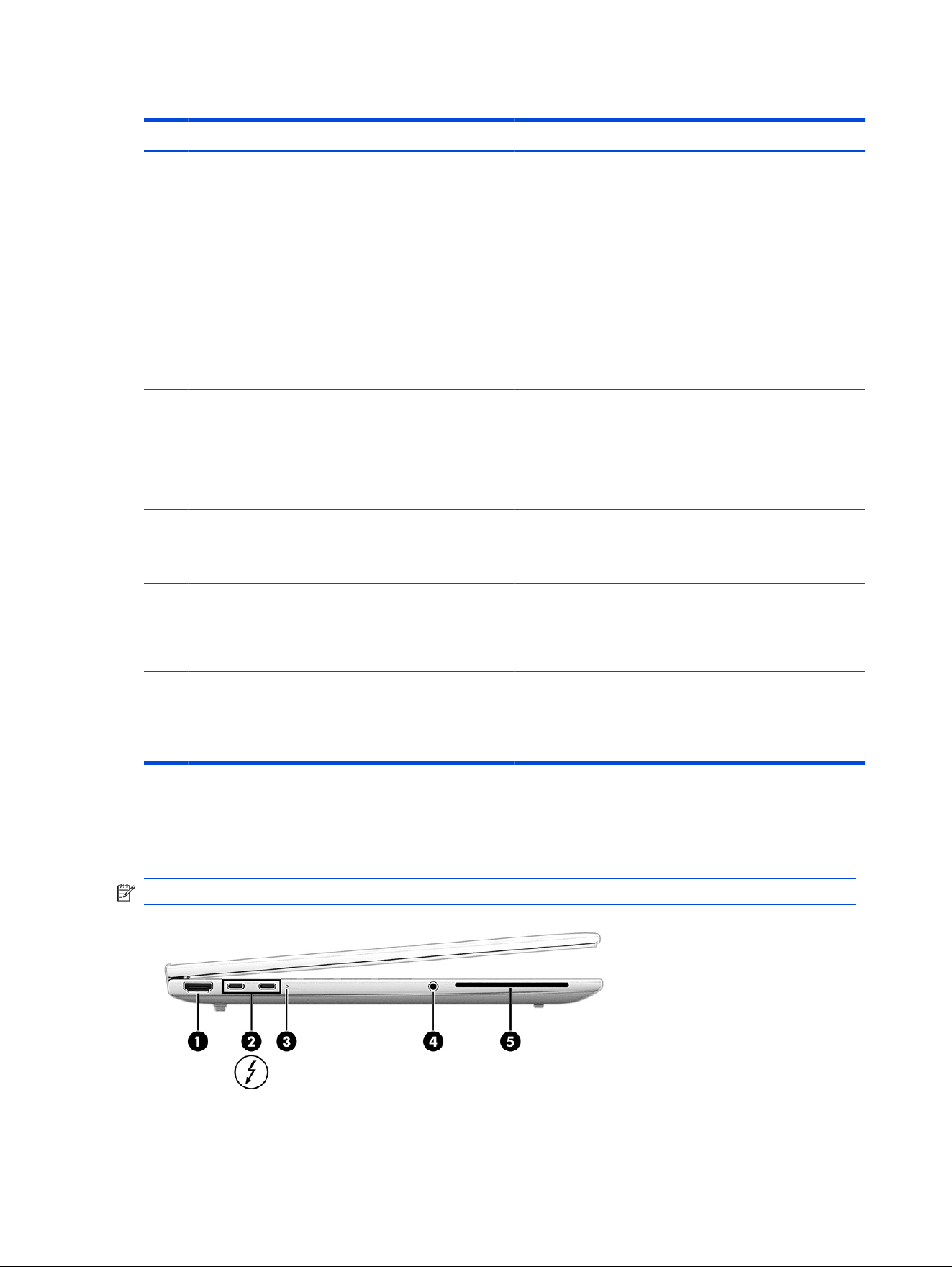
Table 3-4 Right-side components and their descriptions (continued)
Component Description
(2) Battery light When AC power is connected:
● White: The battery charge is greater than 90%.
● Amber: The battery charge is from 0 to 90%.
● Off: The battery is not charging.
When AC power is disconnected (battery not charging):
● Blinking amber: The battery has reached a low battery
level. When the battery has reached a critical battery
level, the battery light begins blinking rapidly.
● Off: The battery is not charging.
(3)
USB Type-C 10 Gbps port Connects a USB device, provides high-speed data transfer,
and (for select products) charges small devices (such as a
smartphone) when the computer is on or in sleep mode.
NOTE: Use a standard USB Type-C charging cable or cable
adapter (purchased separately) when charging a small
external device.
(4) USB 5 Gbps port Connects a USB device and provides high-speed data
transfer.
NOTE: The port does not provide charging capability.
(5) RJ-45 (network) jack/status lights Connects a network cable.
● Green (left): The network is connected.
● Amber (right): Activity is occurring on the network.
(6) Security cable slot Attaches an optional security cable to the computer.
NOTE: The security cable is designed to act as a deterrent,
but it might not prevent the computer from being mishandled
or stolen.
Left
Use these illustrations and tables to identify the components on the left side of the computer.
NOTE: Refer to the illustration that most closely matches your computer.
8
Chapter 3 Components
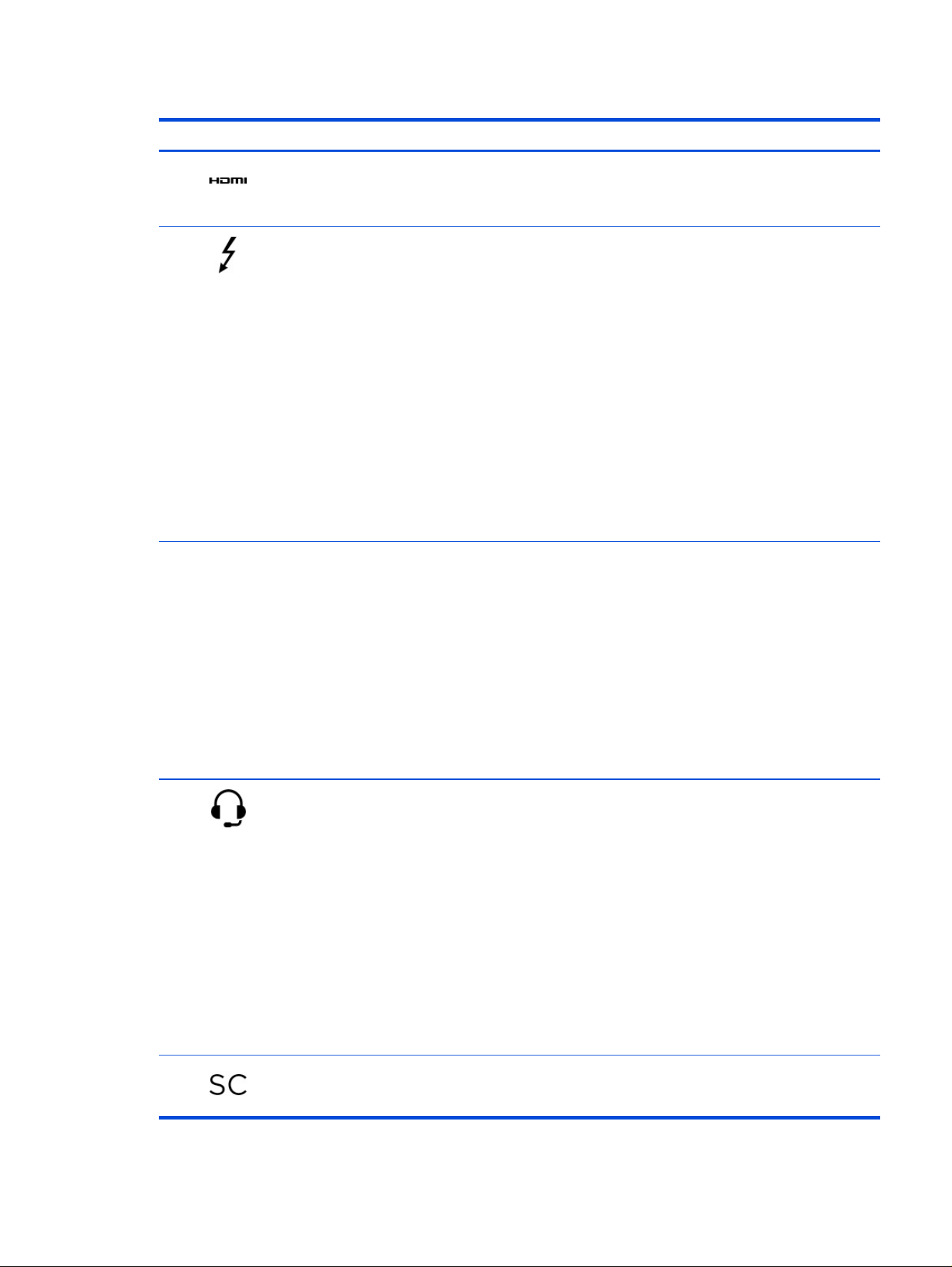
Table 3-5 Left-side components and their descriptions
Component Description
(1) HDMI port Connects an optional video or audio device, such as a
high-denition television, any compatible digital or audio
component, or a high-speed High Denition Multimedia
Interface (HDMI) device.
(2) USB Type-C power connectors and
Thunderbolt™ ports with HP Sleep and Charge
and DisplayPort™ output (2)
Connect an AC adapter that has a USB Type-C connector,
supplying power to the computer and, if needed, charging the
computer battery.
– and –
Connect USB devices, provide high-speed data transfer, and
charge small devices (such as a smartphone).
NOTE: Use a standard USB Type-C charging cable or cable
adapter (purchased separately) when charging a small
external device.
– and –
Connect a display device that has a USB Type-C connector,
providing DisplayPort output.
NOTE: Your computer might also support a Thunderbolt
docking station.
(3)
Battery light When AC power is connected:
● White: The battery charge is greater than 90%.
● Amber: The battery charge is from 0 to 90%.
● Off: The battery is not charging.
When AC power is disconnected (battery not charging):
● Blinking amber: The battery has reached a low battery
level. When the battery has reached a critical battery
level, the battery light begins blinking rapidly.
● Off: The battery is not charging.
(4)
Audio-out (headphone)/Audio-in (microphone)
combo jack
Connects optional powered stereo speakers, headphones,
earbuds, a headset, or a television audio cable. Also connects
an optional headset microphone. This jack does not support
optional standalone microphones.
WARNING! To reduce the risk of personal injury, adjust the
volume before putting on headphones, earbuds, or a headset.
For additional safety information, see the Regulatory, Safety,
and Environmental Notices.
To access this guide:
■
Select the Search icon in the taskbar, type HP
Documentation in the search box, and then select HP
Documentation.
NOTE: When a device is connected to the jack, the
computer speakers are disabled.
(5)
Smart card reader Supports optional smart cards.
Left 9
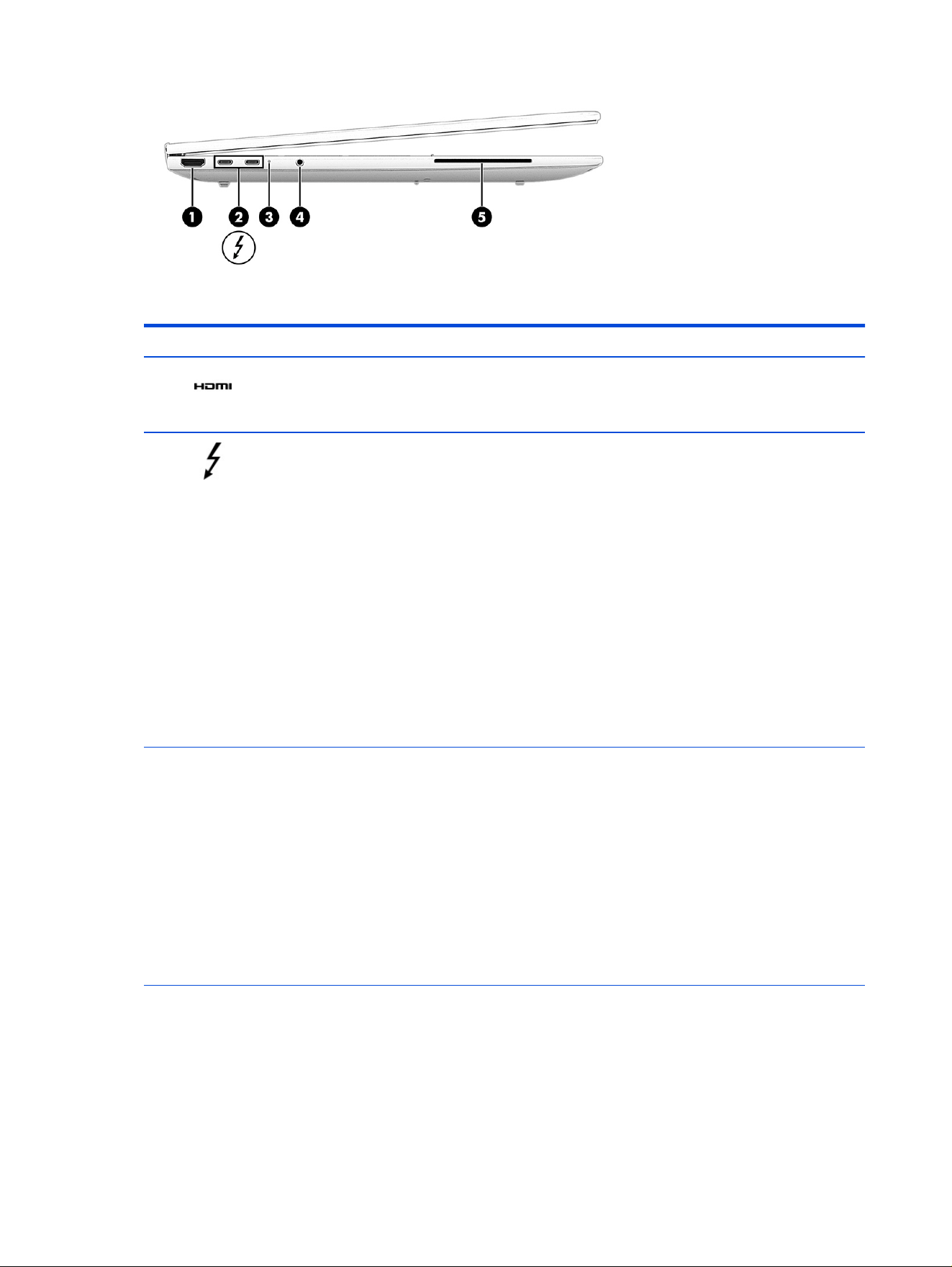
Table 3-6 Left-side components and their descriptions
Component Description
(1) HDMI port Connects an optional video or audio device, such as a
high-denition television, any compatible digital or audio
component, or a high-speed High Denition Multimedia
Interface (HDMI) device.
(2) USB Type-C power connectors and
Thunderbolt ports with HP Sleep and Charge
and DisplayPort output (2)
Connect an AC adapter that has a USB Type-C connector,
supplying power to the computer and, if needed, charging the
computer battery.
– and –
Connect USB devices, provide high-speed data transfer, and
charge small devices (such as a smartphone).
NOTE: Use a standard USB Type-C charging cable or cable
adapter (purchased separately) when charging a small
external device.
– and –
Connect a display device that has a USB Type-C connector,
providing DisplayPort output.
NOTE: Your computer might also support a Thunderbolt
docking station.
(3)
Battery light When AC power is connected:
● White: The battery charge is greater than 90%.
● Amber: The battery charge is from 0 to 90%.
● Off: The battery is not charging.
When AC power is disconnected (battery not charging):
● Blinking amber: The battery has reached a low battery
level. When the battery has reached a critical battery
level, the battery light begins blinking rapidly.
● Off: The battery is not charging.
10 Chapter 3 Components
Table 3-6 Left-side components and their descriptions (continued)
Component Description
(4) Audio-out (headphone)/Audio-in (microphone)
combo jack
Connects optional powered stereo speakers, headphones,
earbuds, a headset, or a television audio cable. Also connects
an optional headset microphone. This jack does not support
optional standalone microphones.
WARNING! To reduce the risk of personal injury, adjust the
volume before putting on headphones, earbuds, or a headset.
For additional safety information, see the Regulatory, Safety,
and Environmental Notices.
To access this guide:
■
Select the Search icon in the taskbar, type HP
Documentation in the search box, and then select HP
Documentation.
NOTE: When a device is connected to the jack, the
computer speakers are disabled.
(5)
Smart card reader Supports optional smart cards.
Display
Use this illustration and table to identify the display components.
Low blue light mode (select products only)
Your computer display is shipped from the factory in low blue light mode for improved eye comfort and
safety. Also, blue light mode automatically adjusts blue light emissions when you are using the computer at
night or for reading.
WARNING! To reduce the risk of serious injury, read the Safety & Comfort Guide. It describes proper
workstation setup and proper posture, health, and work habits for computer users. The Safety & Comfort
Guide also provides important electrical and mechanical safety information. The Safety & Comfort
Guide is available on the web at http://www.hp.com/ergo.
Display
11
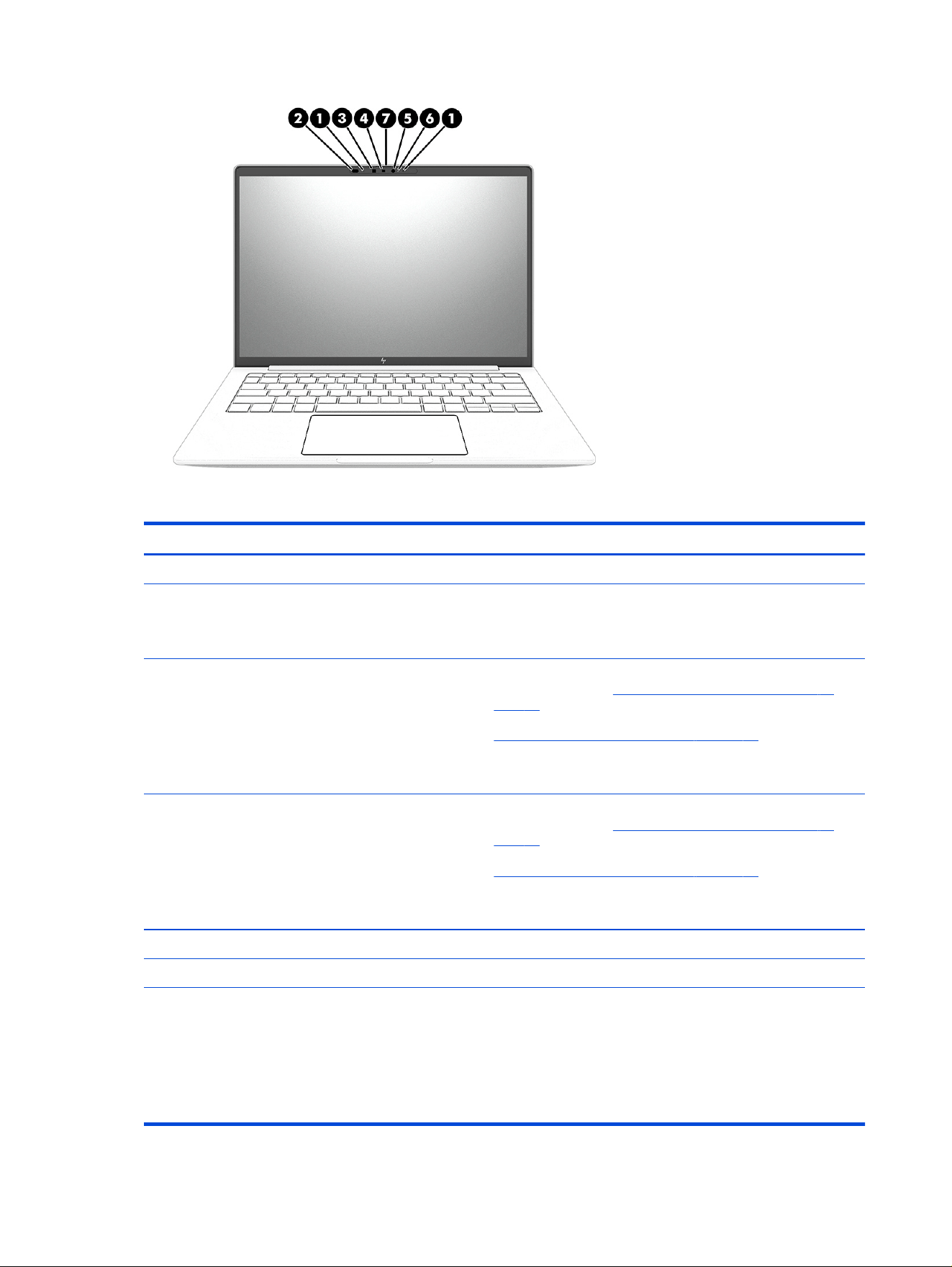
Table 3-7 Display components and their descriptions
Component Description
(1) Internal microphones (2) Record sound.
(2) Ambient light and color sensor Adjusts the brightness of the display, depending on the ambient
light, and manages and controls the color temperature. Color
temperature enables you to measure and adjust the warmth or
coolness of the light source.
(3) Infrared camera Allows you to video chat, record video, and record still images. To
use your camera, see Using a camera (select products only) on
page 40. Some cameras also allow a facial recognition logon to
Windows, instead of a password logon. For more information, see
Windows Hello (select products only) on page 62.
NOTE: Camera functions vary depending on the camera
hardware and software installed on your product.
(4) Web camera Allows you to video chat, record video, and record still images. To
use your camera, see Using a camera (select products only) on
page 40. Some cameras also allow a facial recognition logon to
Windows, instead of a password logon. For more information, see
Windows Hello (select products only) on page 62.
NOTE: Camera functions vary depending on the camera
hardware and software installed on your product.
(5) Infrared camera light On: The camera is in use.
(6) Webcam camera light On: The camera is in use.
(7) Camera privacy cover (select products only) By default, the camera lens is uncovered, but you can slide the
camera privacy cover to block the camera's view. To use the
camera, slide the camera privacy cover in the opposite direction
to reveal the lens.
NOTE: If you have both front-facing and rear-facing cameras,
when one camera lens is revealed and ready to use, the other is
concealed.
12 Chapter 3 Components
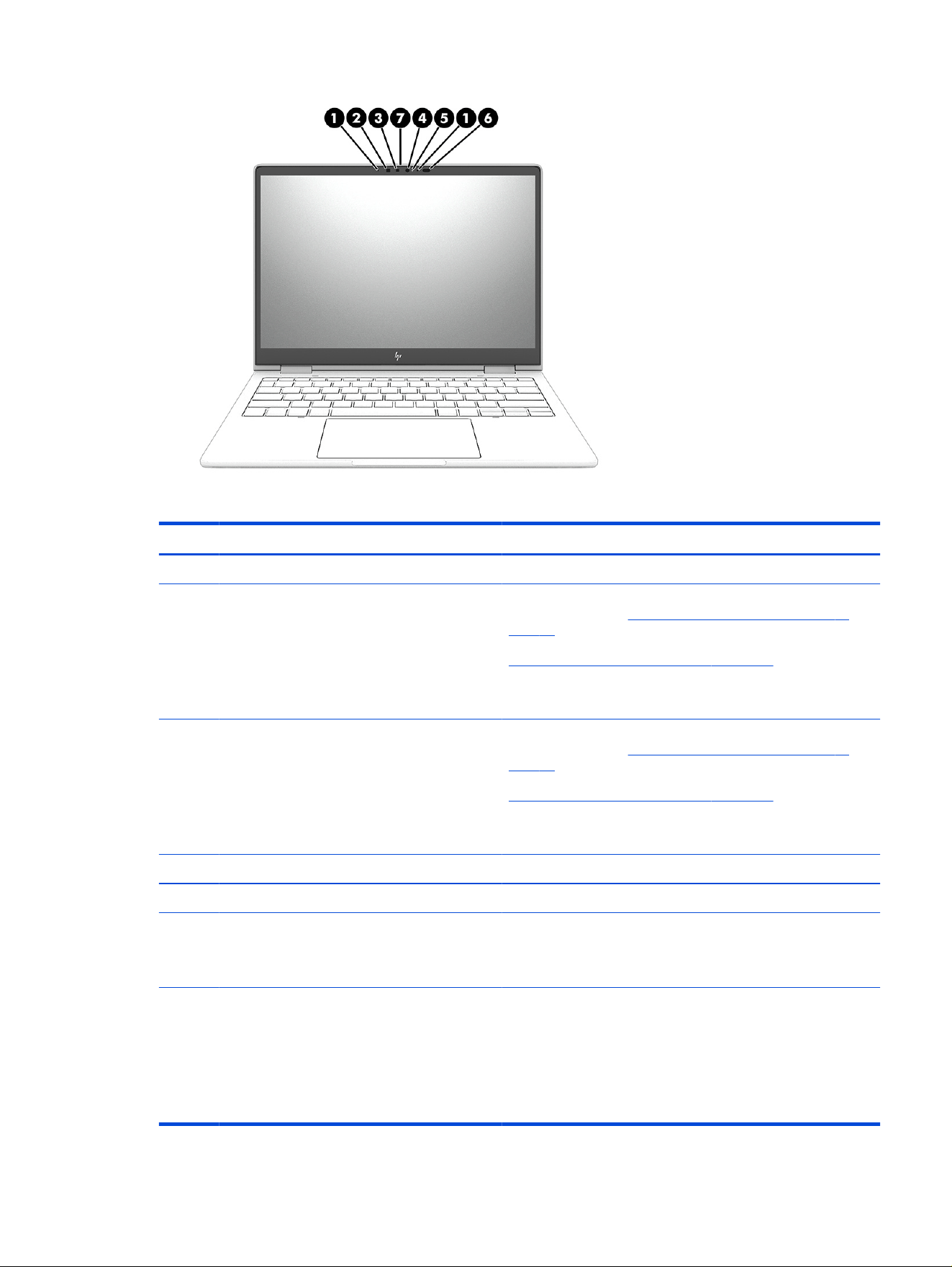
Table 3-8 Display components and their descriptions
Component Description
(1) Internal microphones (2) Record sound.
(2) Infrared camera Allows you to video chat, record video, and record still images. To
use your camera, see Using a camera (select products only) on
page 40. Some cameras also allow a facial recognition logon to
Windows, instead of a password logon. For more information, see
Windows Hello (select products only) on page 62.
NOTE: Camera functions vary depending on the camera
hardware and software installed on your product.
(3) Web camera Allows you to video chat, record video, and record still images. To
use your camera, see Using a camera (select products only) on
page 40. Some cameras also allow a facial recognition logon to
Windows, instead of a password logon. For more information, see
Windows Hello (select products only) on page 62.
NOTE: Camera functions vary depending on the camera
hardware and software installed on your product.
(4) Infrared camera light On: The camera is in use.
(5) Webcam camera light On: The camera is in use.
(6) Ambient light and color sensor Adjusts the brightness of the display, depending on the ambient
light, and manages and controls the color temperature. Color
temperature enables you to measure and adjust the warmth or
coolness of the light source.
(7) Camera privacy cover (select products only) By default, the camera lens is uncovered, but you can slide the
camera privacy cover to block the camera's view. To use the
camera, slide the camera privacy cover in the opposite direction
to reveal the lens.
NOTE: If you have both front-facing and rear-facing cameras,
when one camera lens is revealed and ready to use, the other is
concealed.
Low blue light mode (select products only) 13

*The antennas are not visible from the outside of the computer. For optimal transmission, keep the areas
immediately around the antennas free from obstructions.
For wireless regulatory notices, see the section of the Regulatory, Safety, and Environmental Notices that
applies to your country or region.
To access this guide:
■
Select the Search icon in the taskbar, type HP Documentation in the search box, and then select
HP Documentation.
Keyboard area
Keyboards can vary by language.
NOTE: The keyboard, including the function keys and power key (select products only), is disabled in
stand, tent, and tablet modes. To enable the keyboard, including the power key, change to the clamshell
mode.
Touchpad
The touchpad settings and components are described here.
Touchpad settings
You learn how to adjust the touchpad settings and components here.
Adjusting touchpad settings
Use these steps to adjust touchpad settings and gestures.
1. Select the Search icon in the taskbar, type touchpad settings in the search box, and then press
enter.
2. Choose a setting.
Turning on the touchpad
Follow these steps to turn on the touchpad.
1. Select the Search icon in the taskbar, type touchpad settings in the search box, and then press
enter.
2. Using an external mouse, click the Touchpad button.
If you are not using an external mouse, press the Tab key repeatedly until the pointer rests on the
touchpad button. Then press the spacebar to select the button.
Touchpad components
Use this illustration and table to identify the touchpad components.
14
Chapter 3 Components
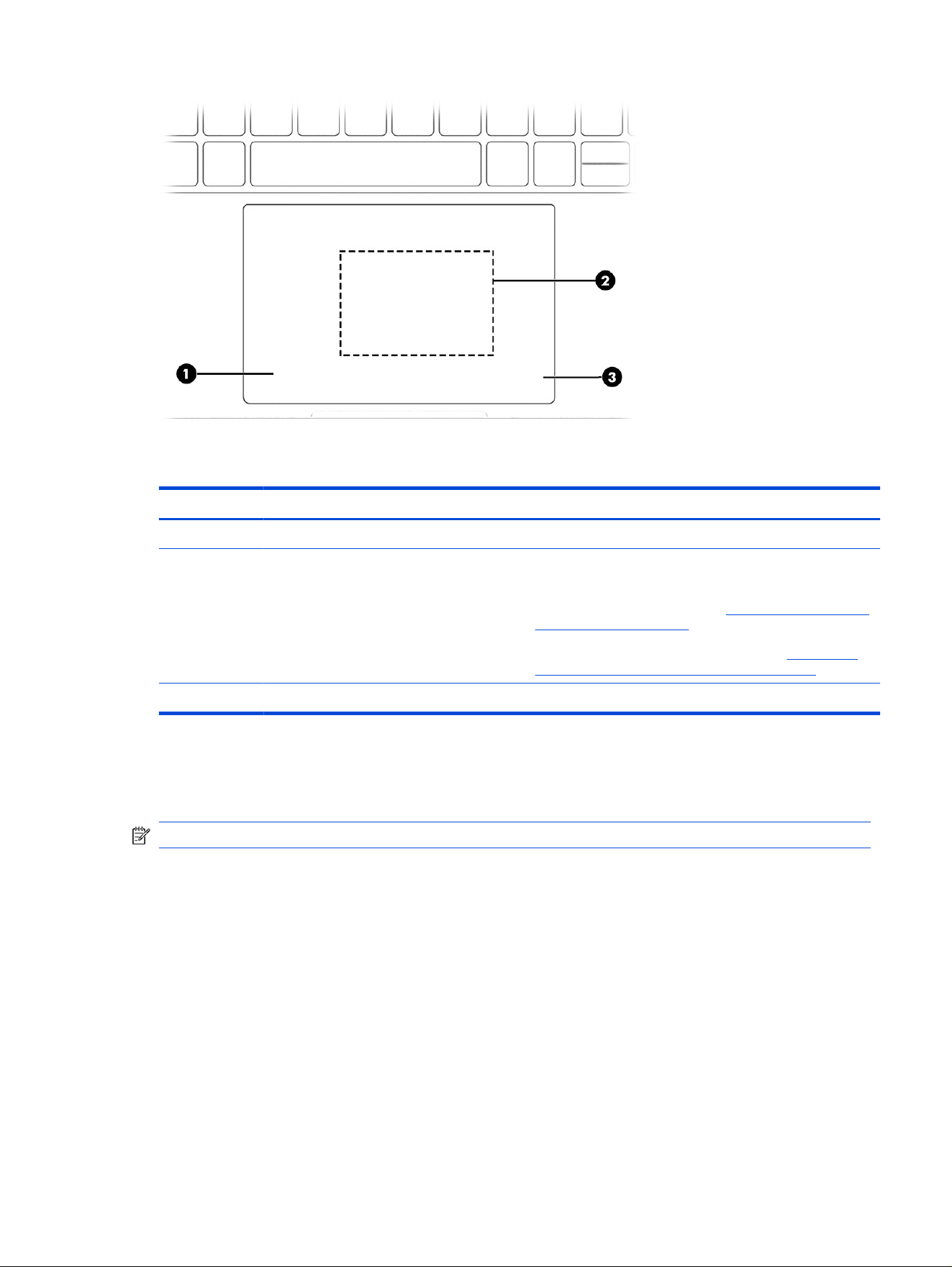
Table 3-9 Touchpad components and their descriptions
Component Description
(1) Left control zone Textured area that allows you to perform additional gestures.
(2) Touchpad zone/Near Field Communication
(NFC) location (select products only)
Reads your nger gestures to move the pointer or activate
items on the screen.
NOTE: For more information, see Using touchpad and touch
screen gestures on page 36.
NOTE: For more information about NFC, see Using NFC to
share information (select products only) on page 32.
(3) Right control zone Textured area that allows you to perform additional gestures.
Lights
Use these illustrations and tables to identify the lights on the computer.
NOTE: Refer to the illustration that most closely resembles your computer.
Lights
15
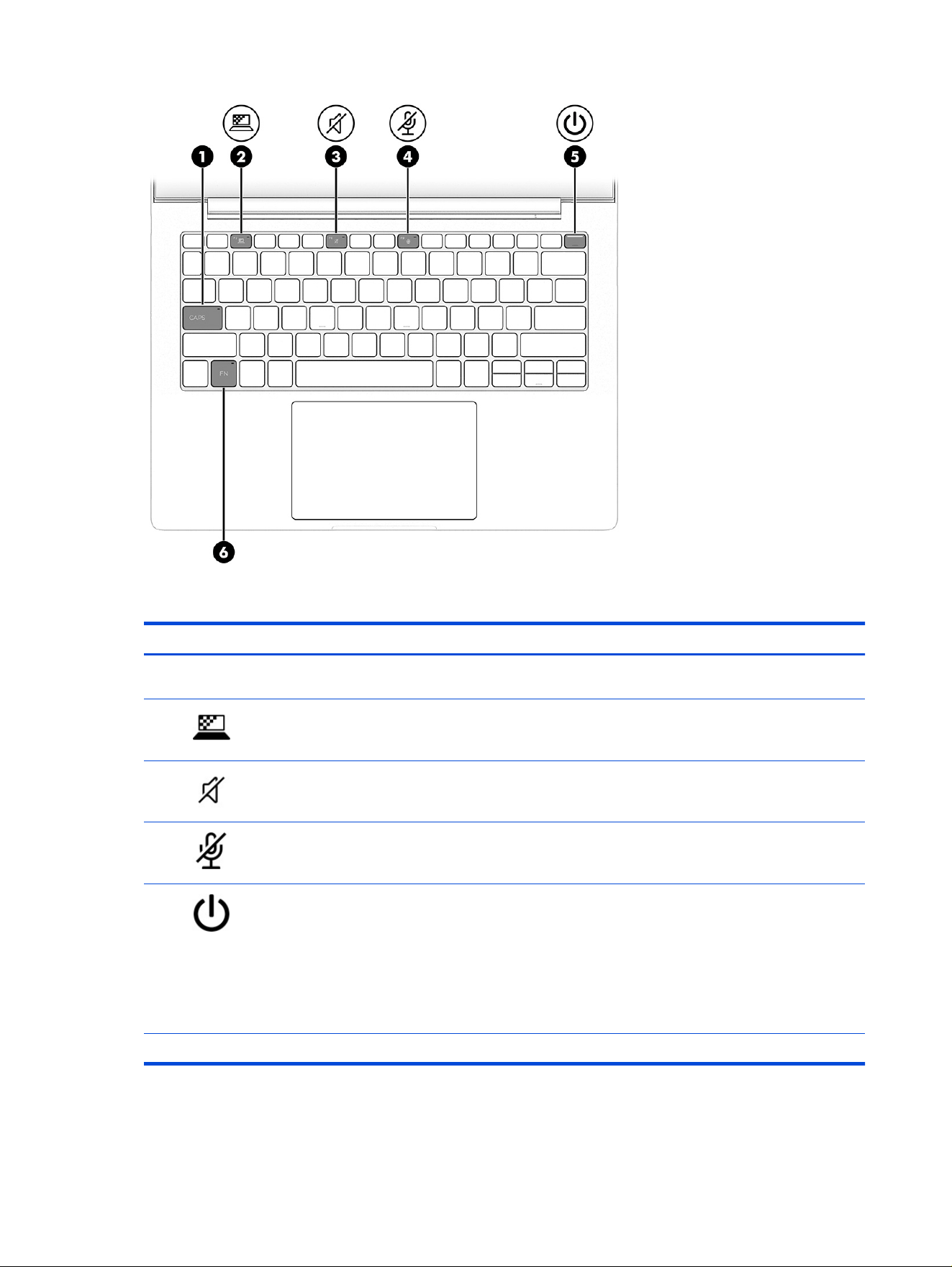
Table 3-10 Lights and their descriptions
Component Description
(1) Caps lock light On: Caps lock is on, which switches the key input to all capital
letters.
(2) Privacy key light (select products only) On: Privacy screen is on, which helps prevent side-angle
viewing.
(3) Mute light ● On: Computer sound is off.
● Off: Computer sound is on.
(4) Microphone mute light ● On: Microphone is off.
● Off: Microphone is on.
(5) Power light ● On: The computer is on.
● Blinking (select products only): The computer is in the
Sleep state, a power-saving state. The computer shuts off
power to the display and other unnecessary components.
● Off: Depending on your computer model, the computer
is off, in Hibernation, or in Sleep. Hibernation is the power-
saving state that uses the least amount of power.
(6) Fn lock light On: The fn key is locked.
16 Chapter 3 Components
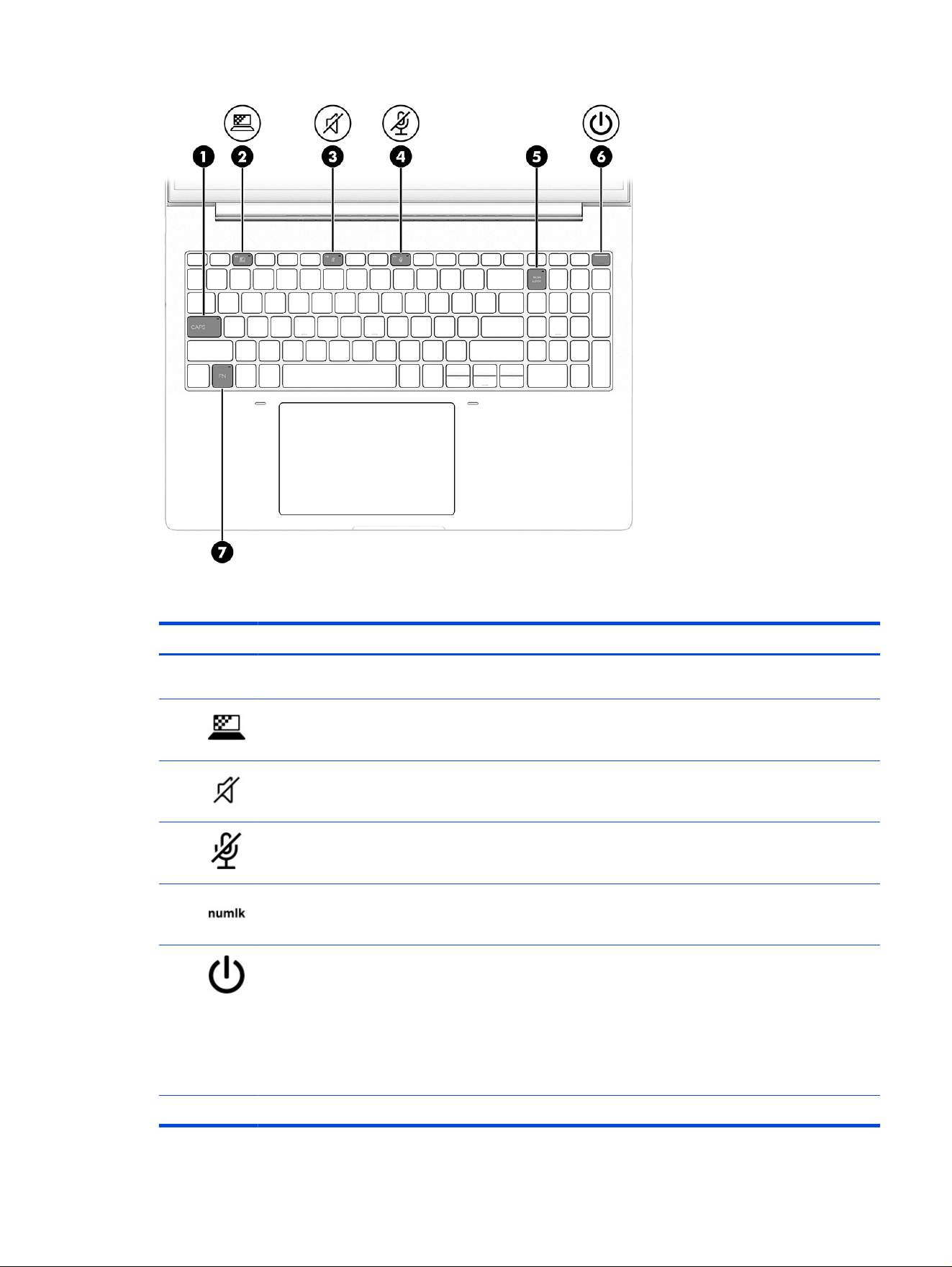
Table 3-11 Lights and their descriptions
Component Description
(1) Caps lock light On: Caps lock is on, which switches the key input to all capital
letters.
(2) Privacy key light (select products only) On: Privacy screen is on, which helps prevent side-angle
viewing.
(3) Mute light ● On: Computer sound is off.
● Off: Computer sound is on.
(4) Microphone mute light ● On: Microphone is off.
● Off: Microphone is on.
(5) Num lk light On: Num lk is on.
(6) Power light ● On: The computer is on.
● Blinking (select products only): The computer is in the
Sleep state, a power-saving state. The computer shuts off
power to the display and other unnecessary components.
● Off: Depending on your computer model, the computer
is off, in Hibernation, or in Sleep. Hibernation is the power-
saving state that uses the least amount of power.
(7) Fn lock light On: The fn key is locked.
Lights 17
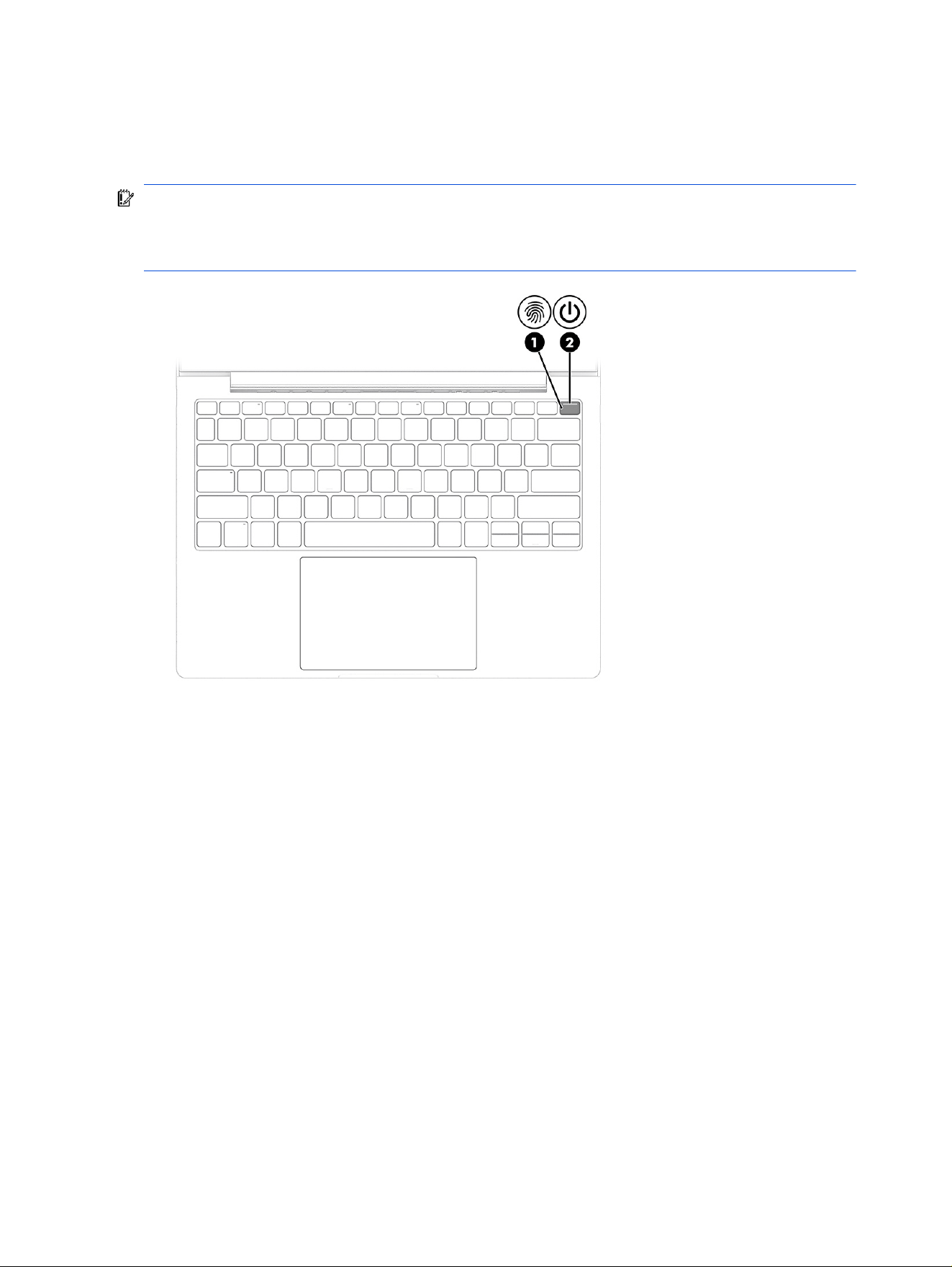
Buttons, speakers, and ngerprint reader
Fingerprint readers can be located on the touchpad, on a side panel of the computer, or on the top cover
below the keyboard.
IMPORTANT: To verify that your computer supports ngerprint reader sign-in, select the Search icon
in the taskbar, type Sign-in options in the search box, and then select the Sign-on options app. If
Fingerprint recognition is not listed as an option, then your notebook does not include a ngerprint
reader.
18 Chapter 3 Components
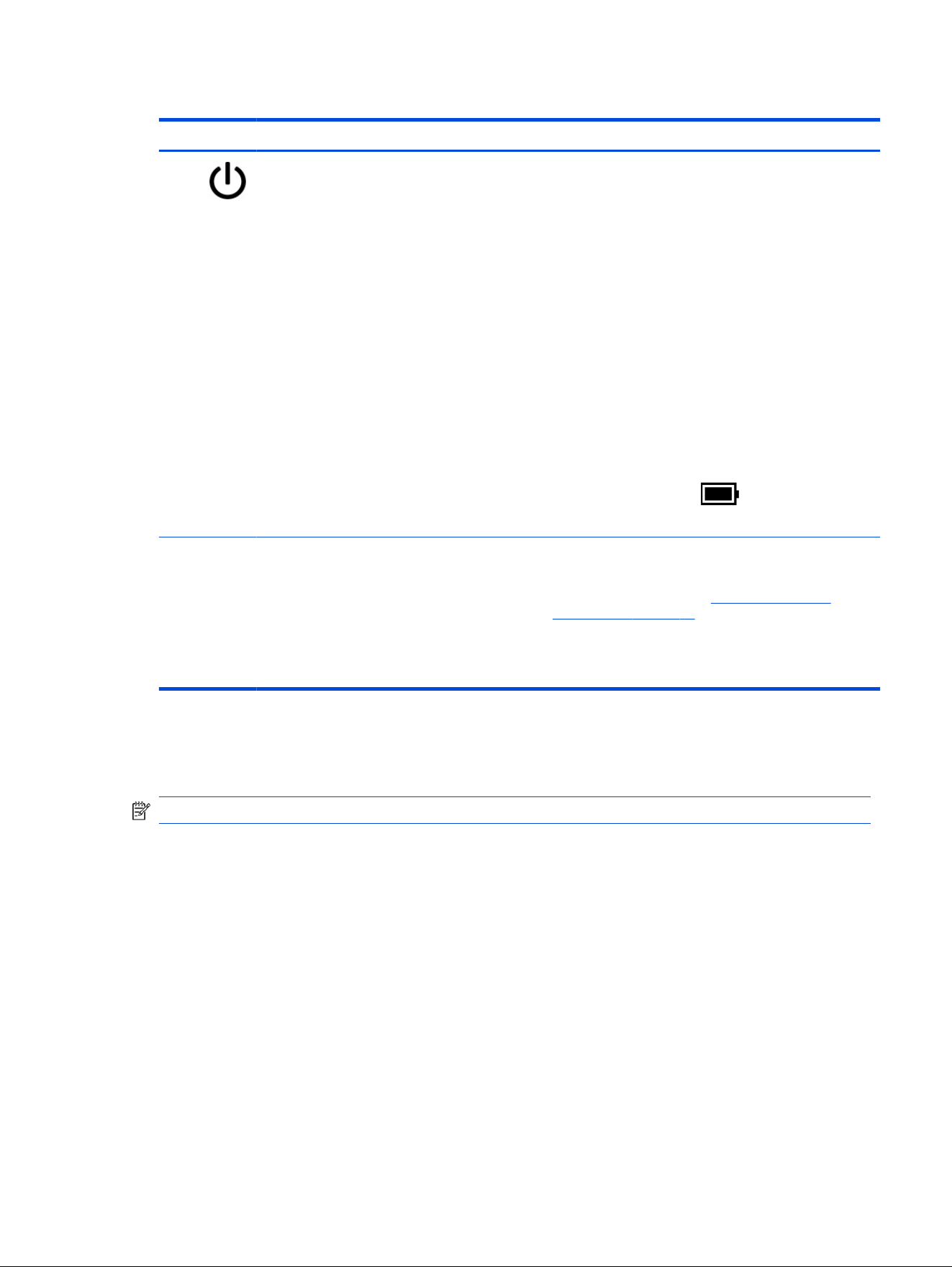
Table 3-12 Power button and ngerprint reader and their descriptions
Component Description
(1) Power button ● When the computer is off, press the button briey to turn
on the computer.
● When the computer is on, press the button briey to
initiate Sleep.
● When the computer is in the Sleep state, press the button
briey to exit Sleep (select products only).
● When the computer is in Hibernation, press the button
briey to exit Hibernation.
IMPORTANT: Pressing and holding down the power button
results in the loss of unsaved information.
If the computer has stopped responding and shut down
procedures are ineffective, press and hold the power button
for at least 4 seconds to turn off the computer.
To learn more about your power settings, use the Power icon.
● Right-click the Power icon , and then select Power
and sleep settings.
(2)
Fingerprint reader (select products only) Allows a ngerprint logon to Windows, instead of a password
logon.
■
Swipe the power button. See Windows Hello (select
products only) on page 62 for details.
IMPORTANT: To prevent ngerprint logon issues, make
sure when you register your ngerprint that all sides of
your nger are registered by the ngerprint reader.
Special keys
Use this illustration and table to identify the special keys.
NOTE: Refer to the illustration that most closely resembles your computer.
Special keys
19
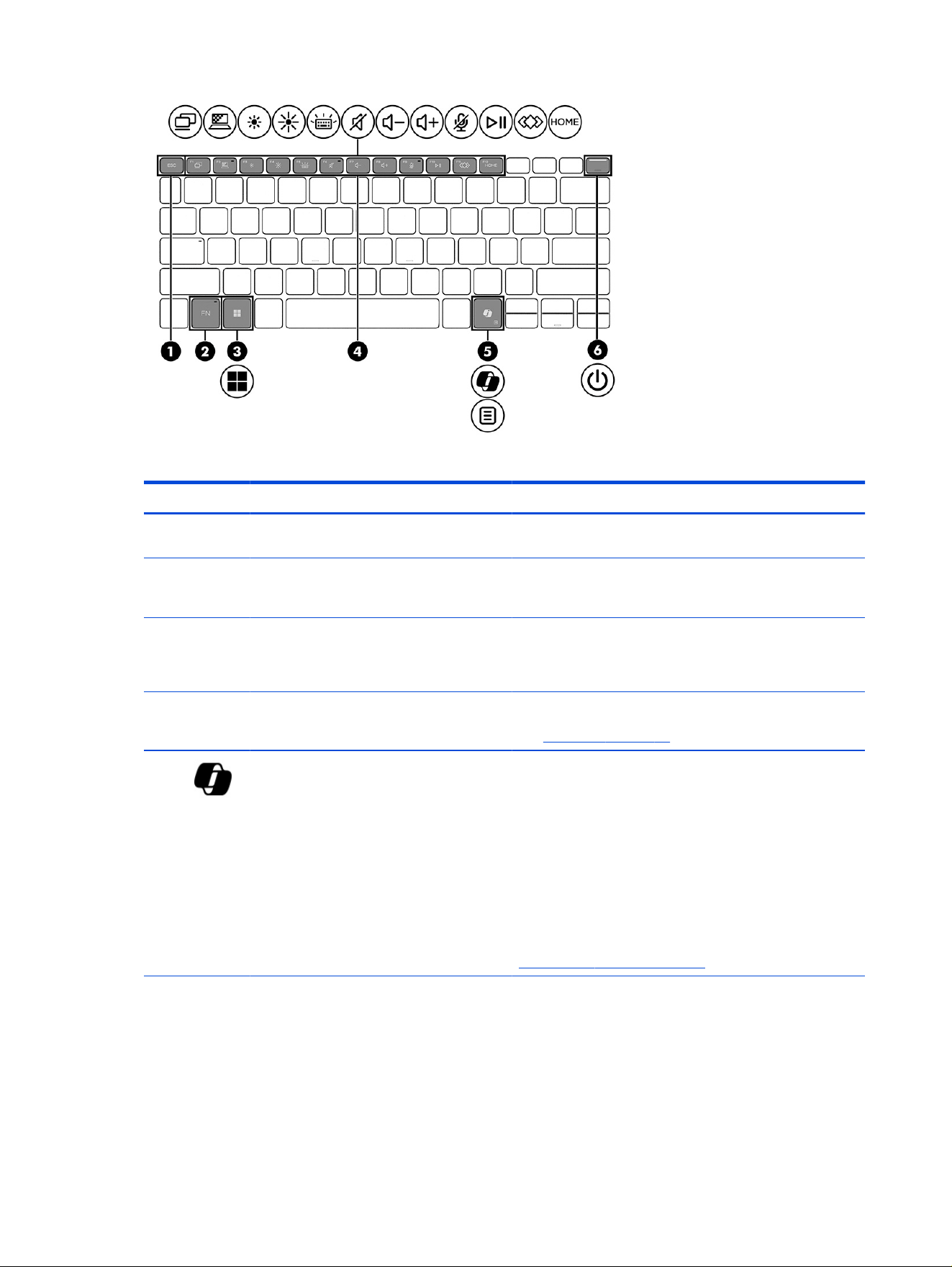
Table 3-13 Special keys and their descriptions
Component Description
(1) esc key Displays system information when pressed in combination
with the fn key.
(2) fn key Executes frequently used system functions when pressed in
combination with another key. Such key combinations are
called hot keys.
(3) Windows key Opens the Start menu.
NOTE: Pressing the Windows key again will close the Start
menu.
(4) Action keys Execute frequently used system functions.
See Action keys on page 23.
(5) Windows Copilot key Opens Windows Copilot (select products only).
● Press only the Copilot key to open Copilot.
● Press the Copilot key + fn key to open a context menu
displaying a set of user options.
NOTE: Copilot in Windows (select products only) requires
Windows 11. Some features require a neural processing unit
(NPU). The timing of feature delivery and availability varies by
market and device. You must have a Microsoft account to use
the Copilot feature. When the Copilot feature is not available,
pressing the Copilot key opens the Bing search engine. See
http://aka.ms/WindowsAIFeatures.
20 Chapter 3 Components
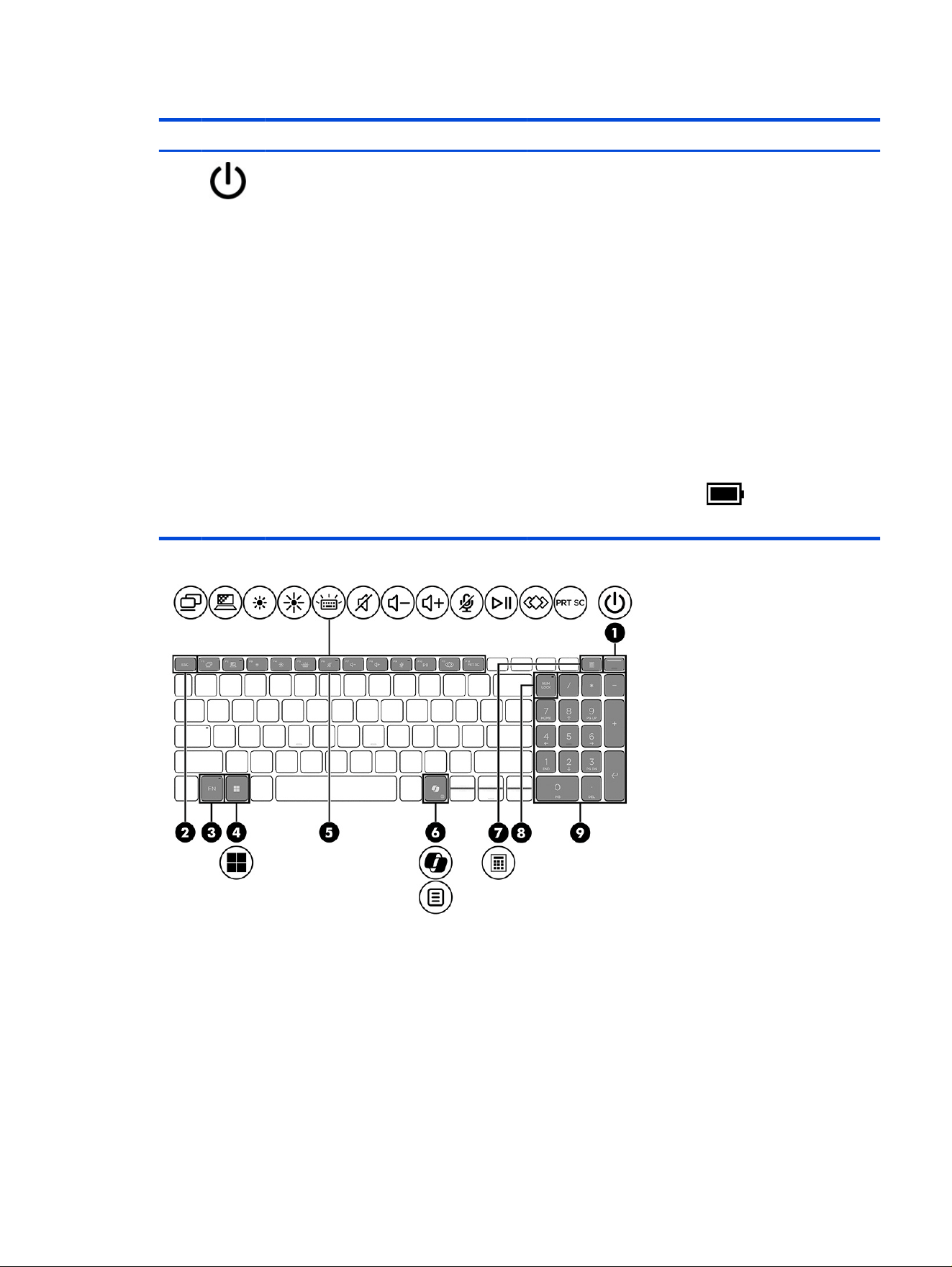
Table 3-13 Special keys and their descriptions (continued)
Component Description
(6) Power button ● When the computer is off, press the button briey to turn
on the computer.
● When the computer is on, press the button briey to
initiate Sleep.
● When the computer is in the Sleep state, press the button
briey to exit Sleep (select products only).
● When the computer is in Hibernation, press the button
briey to exit Hibernation.
IMPORTANT: Pressing and holding down the power button
results in the loss of unsaved information.
If the computer has stopped responding and shut down
procedures are ineffective, press and hold the power button
for at least 4 seconds to turn off the computer.
To learn more about your power settings, use the Power icon.
● Right-click the Power icon , and then select Power
and sleep settings.
Special keys
21
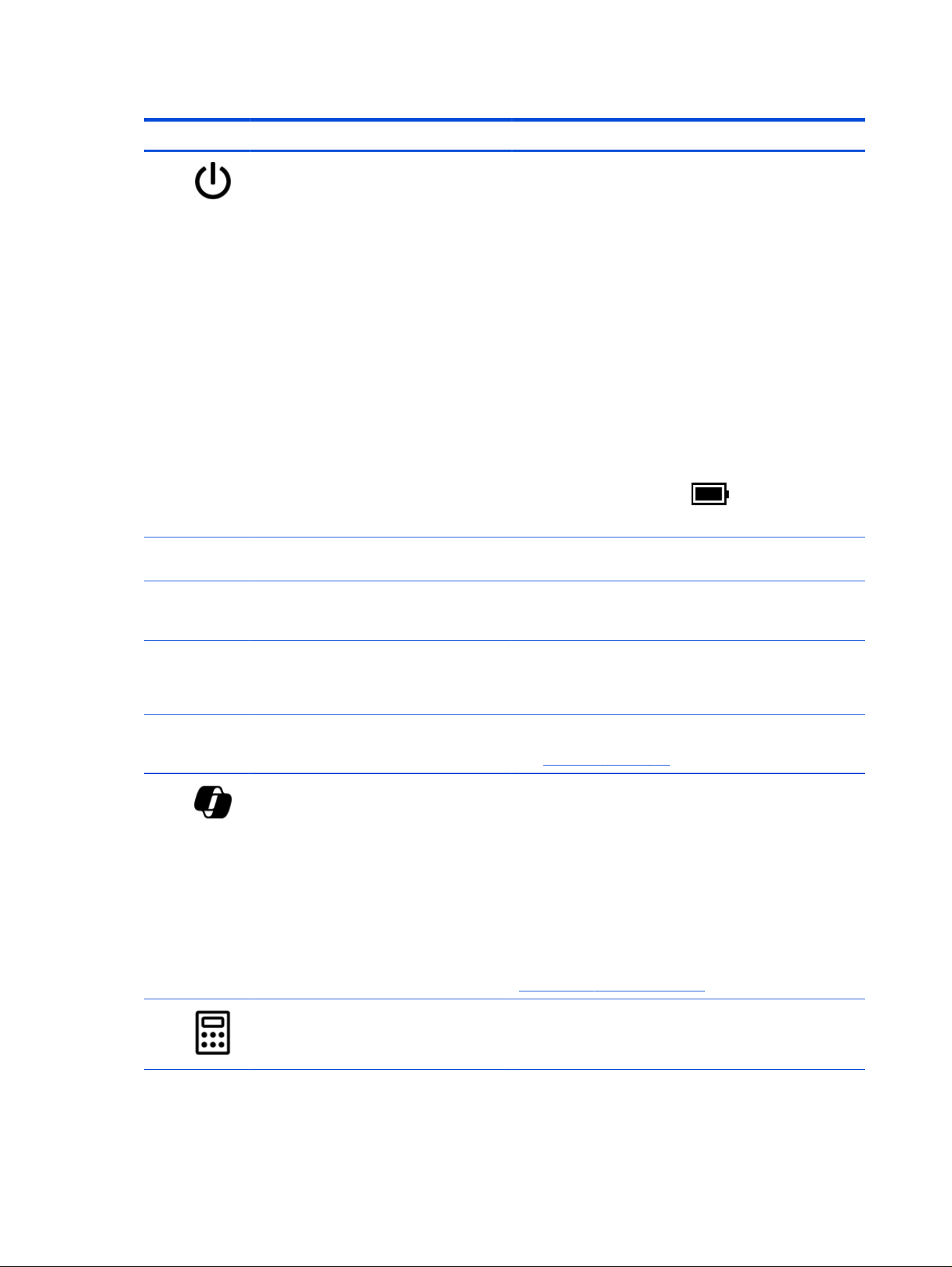
Table 3-14 Special keys and their descriptions
Component Description
(1) Power button ● When the computer is off, press the button briey to turn
on the computer.
● When the computer is on, press the button briey to
initiate Sleep.
● When the computer is in the Sleep state, press the button
briey to exit Sleep (select products only).
● When the computer is in Hibernation, press the button
briey to exit Hibernation.
IMPORTANT: Pressing and holding down the power button
results in the loss of unsaved information.
If the computer has stopped responding and shut down
procedures are ineffective, press and hold the power button
for at least 4 seconds to turn off the computer.
To learn more about your power settings, use the Power icon.
● Right-click the Power icon , and then select Power
and sleep settings.
(2)
esc key Displays system information when pressed in combination
with the fn key.
(3) fn key Executes frequently used system functions when pressed in
combination with another key. Such key combinations are
called hot keys.
(4) Windows key Opens the Start menu.
NOTE: Pressing the Windows key again will close the Start
menu.
(5) Action keys Execute frequently used system functions.
See Action keys on page 23.
(6) Windows Copilot key Opens Windows Copilot (select products only).
● Press only the Copilot key to open Copilot.
● Press the Copilot key + fn key to open a context menu
displaying a set of user options.
NOTE: Copilot in Windows (select products only) requires
Windows 11. Some features require a neural processing unit
(NPU). The timing of feature delivery and availability varies by
market and device. You must have a Microsoft account to use
the Copilot feature. When the Copilot feature is not available,
pressing the Copilot key opens the Bing search engine. See
http://aka.ms/WindowsAIFeatures.
(7) Calculator button Opens the Calculator app. This app functions as a standard
calculator.
22 Chapter 3 Components
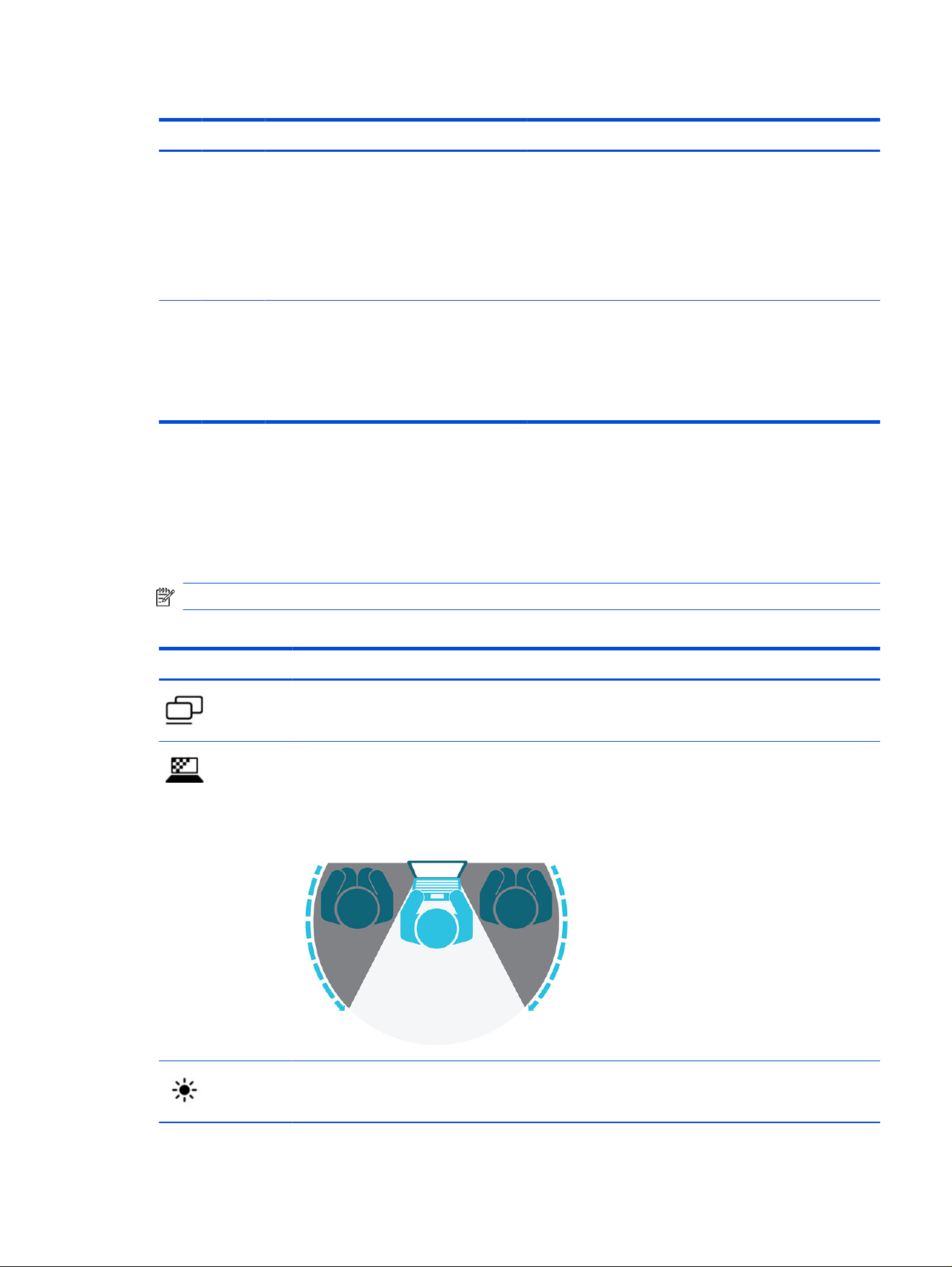
Table 3-14 Special keys and their descriptions (continued)
Component Description
(8) num lk key Performs one of the following functions:
● Turns the embedded numeric keypad on and off when
pressed in combination with the fn key.
● Turns the embedded numeric keypad on and off.
● Alternates between the navigational and numeric
functions on the integrated numeric keypad.
(9) Integrated numeric keypad A separate keypad to the right of the alphabet keyboard. When
num lk is pressed, the integrated keypad can be used like an
external numeric keypad.
NOTE: If the keypad function is active when the computer is
turned off, that function is reinstated when the computer is
turned back on.
Action keys
Action keys perform specic functions and vary by computer. To determine which keys are on your
computer, look at the icons on your keyboard and match them to the descriptions in this table.
■
To use an action key, press and hold the key.
NOTE: On some products, you must press the fn key in combination with the action key.
Table 3-15
Action keys and their descriptions
Icon Description
Switches the screen image between display devices connected to the system. For example, if a monitor is
connected to the computer, repeatedly pressing this key alternates the screen image from the computer
display to the monitor display to a simultaneous display on both the computer and the monitor.
Helps prevent side-angle viewing from onlookers. If needed, decrease or increase brightness for well-lit or
darker environments. Press the key again to turn off the privacy screen.
NOTE: This feature is available only on select products. If the feature is not available on your computer, a
message is displayed when you press this key.
NOTE: To quickly turn on the highest privacy setting, press fn+p.
Decreases the screen brightness incrementally while you hold down the key.
Action keys 23
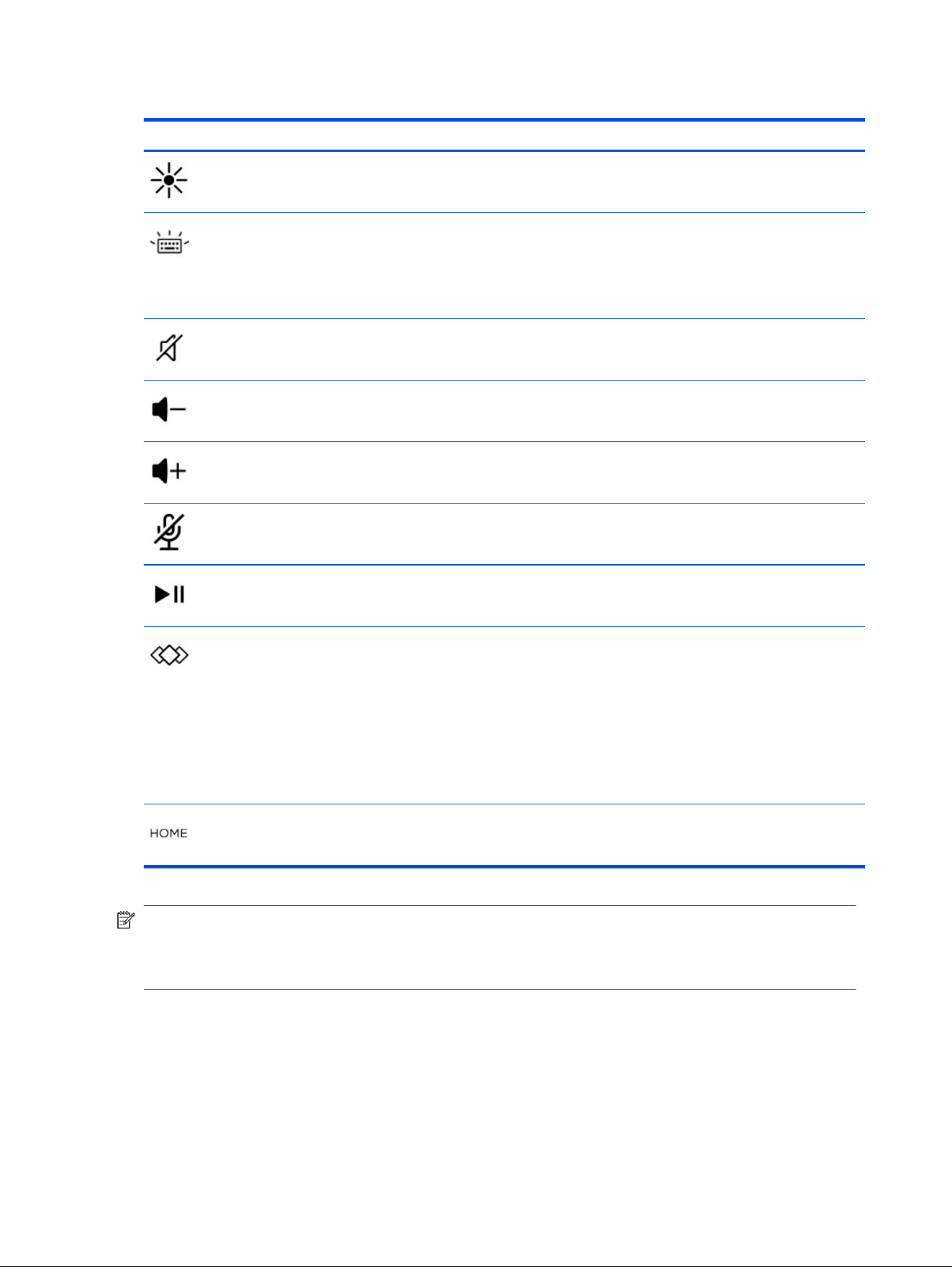
Table 3-15 Action keys and their descriptions (continued)
Icon Description
Increases the screen brightness incrementally while you hold down the key.
Turns the keyboard backlight off or on. On select products, you can adjust the brightness of the keyboard
backlight. Press the key repeatedly to adjust the brightness from high (when you rst start up the
computer), to low, to off. After you adjust the keyboard backlight setting, the backlight will revert to your
previous setting each time you turn on the computer. The keyboard backlight will turn off after 30 seconds
of inactivity. To turn the keyboard backlight back on, press any key or tap the touchpad (select products
only). To conserve battery power, turn off this feature.
Mutes or restores speaker sound.
Decreases speaker volume incrementally while you hold down the key.
Increases speaker volume incrementally while you hold down the key.
Mutes the microphone.
Starts, pauses, or resumes playback of an audio CD, a DVD, or a Blu-ray Disc (BD).
Executes frequently used tasks. Some tasks might not be available on all products.
● Opens an application, le, or website
● Enters frequently used text into a permanent clipboard
● Provides the ability to change system proles
● Provides the ability to change system properties
● Executes user-dened key sequences
Returns you to the main page or homepage of the app or program you are using.
NOTE: The action key feature is enabled at the factory. On select products only, you can disable this
feature by pressing and holding the fn key and the left shift key. The fn lock light will turn on. After you
have disabled the action key feature, you can still perform each function by pressing the fn key in
combination with the appropriate action key.
Bottom
Use this illustration and table to identify the bottom components.
24
Chapter 3 Components
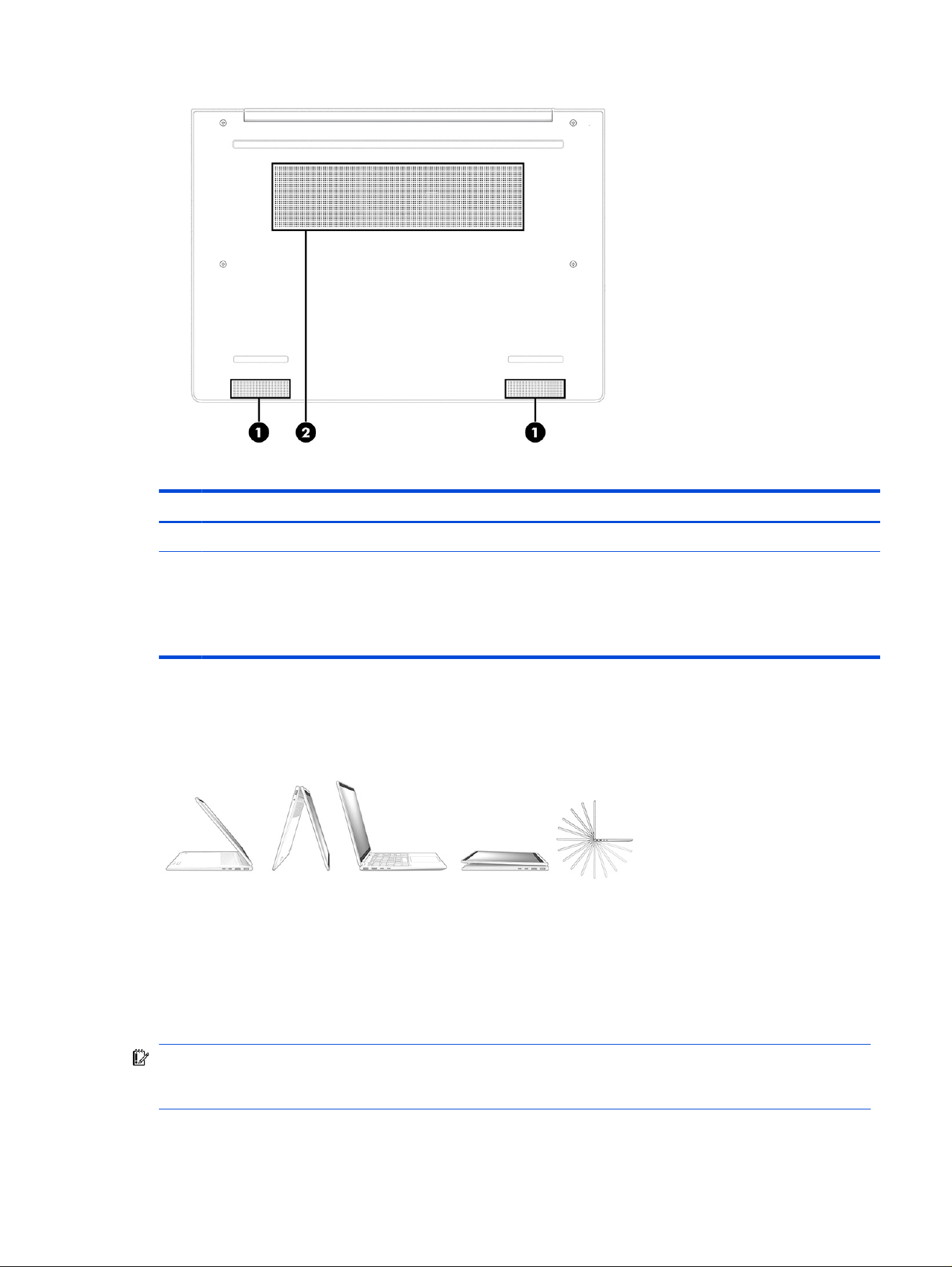
Table 3-16 Bottom components and their descriptions
Component Description
(1) Speakers (2) Produce sound.
(2) Vent Enables airow to cool internal components.
NOTE: The computer fan starts up automatically to
cool internal components and prevent overheating. It is
normal for the internal fan to cycle on and off during
routine operation.
360 mode
If your computer offers 360 mode, the following illustration shows how you can use and fold your device.
Labels
The labels
afxed to the computer provide information you might need when you troubleshoot system
problems or travel internationally with the computer. Labels might be in paper form or imprinted on the
product.
IMPORTANT: Check the following locations for the labels described in this section: the bottom of the
computer, inside the battery bay, under the service door, on the back of the display, or on the bottom of a
tablet kickstand.
360 mode
25
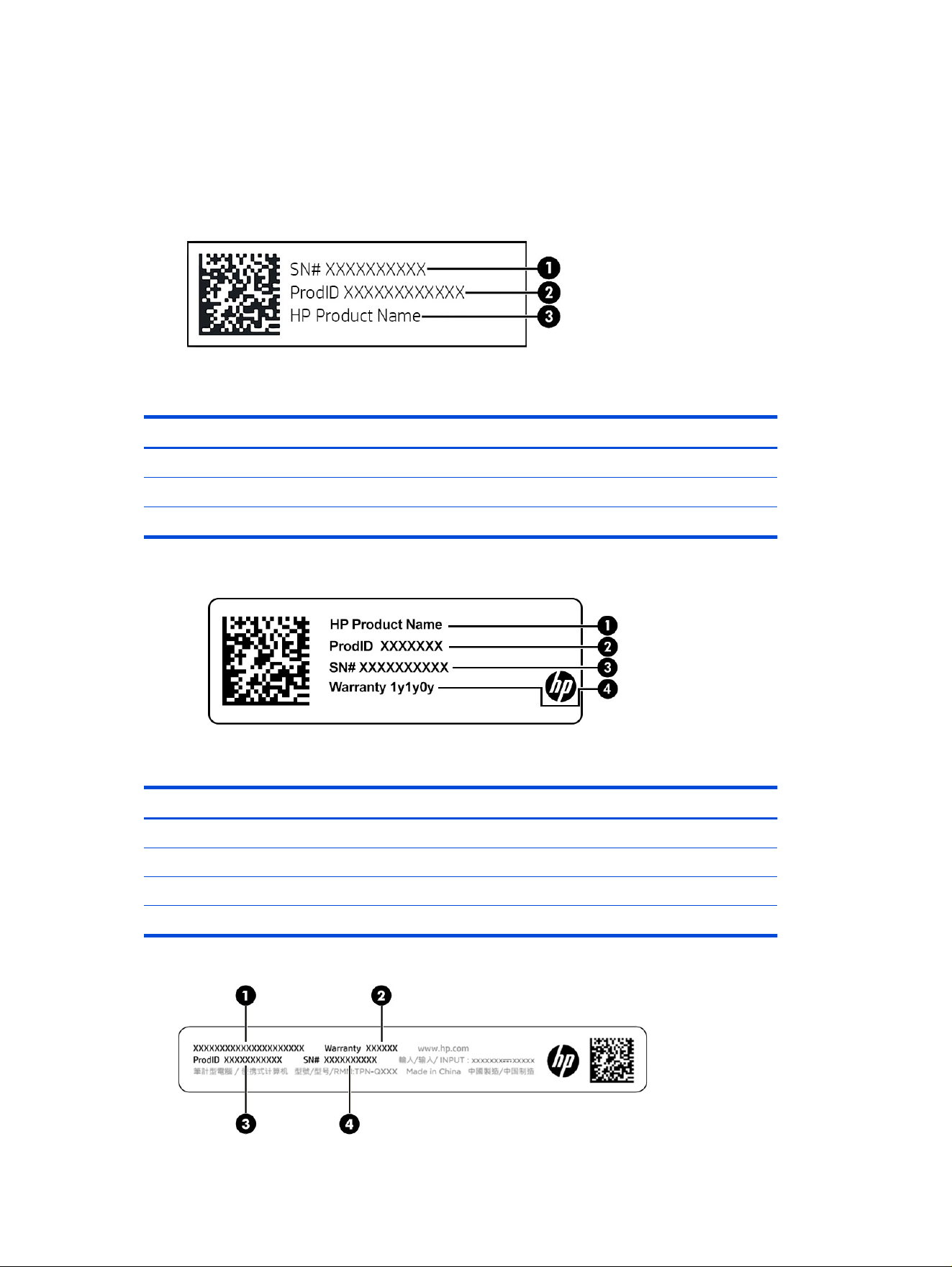
● Service label—Provides important information to identify your computer. When contacting support,
you might be asked for the serial number, the product number, or the model number. Locate this
information before you contact support.
Your service label will resemble one of the examples shown below. Refer to the illustration that most
closely matches the service label on your computer.
Table 3-17 Service label components
Component
(1) Serial number
(2) Product ID
(3) HP product name
Table 3-18 Service label components
Component
(1) HP product name
(2) Product ID
(3) Serial number
(4) Warranty period
26 Chapter 3 Components
Table 3-19 Service label components
Component
(1) HP product name
(2) Warranty period
(3) Product ID
(4) Serial number
Takes you to serial-number-specic information to assist with setting up and using the product as well
as provides you with access to support information.
● Regulatory labels—Provide regulatory information about the computer.
● Wireless certication labels—Provide information about optional wireless devices and the approval
markings for the countries or regions in which the devices have been approved for use.
Using a SIM card (select products only)
Use these instructions to insert a SIM card.
IMPORTANT: You can damage the SIM card if you insert the wrong size card or insert it or the SIM card
tray in the wrong direction. The card might also become stuck in the slot. Do not use SIM card adapters.
To prevent damage to the SIM card or connectors, use minimal force when inserting or removing a SIM
card.
Determining the correct SIM card size for your computer
Before purchasing a SIM card, follow these instructions to determine the correct SIM card size for your
computer.
1. Go to http://www.hp.com/support, and then search for your computer by product name or number.
2. Select Product Information.
3. Refer to the listed options to determine which card to purchase.
Inserting a nano SIM card
To insert a nano SIM card, follow these steps.
1. Turn off the computer by using the Shut down command.
Using a SIM card (select products only)
27
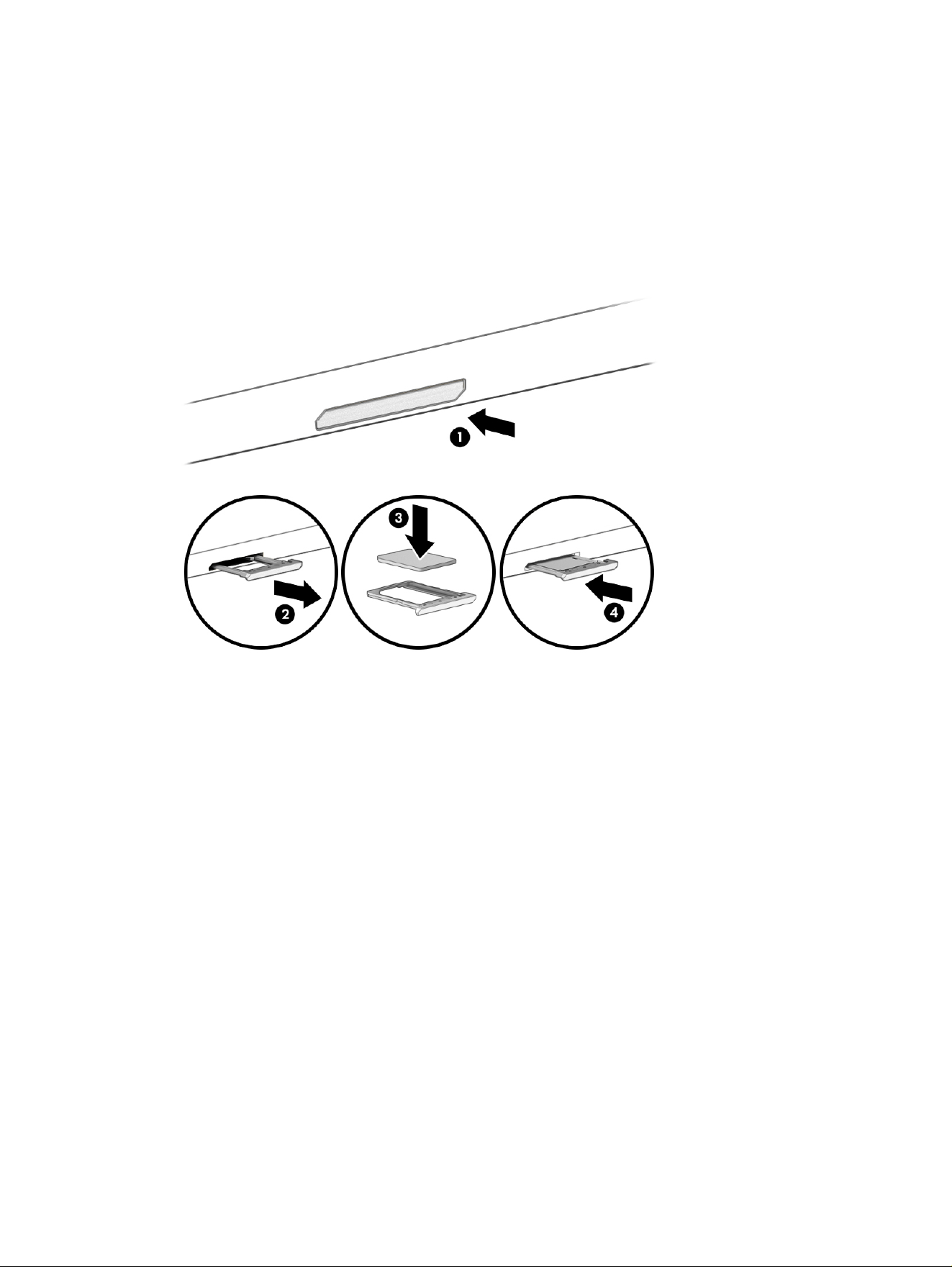
2. Position the computer display-side up on a at surface.
3. Press in gently on the SIM card access tray to disengage the SIM lock, and the tray will pop out of the
slot (1).
4. Remove the tray (2) from the computer and insert the card (3).
5. Replace the tray in the computer. Press in gently on the tray (4) until it is rmly seated.
To remove the SIM card, press in gently on the SIM card access tray to disengage the SIM lock, and the
tray will pop out of the slot. Remove the SIM card. Replace the tray in the computer and press in gently on
the tray until it is rmly seated.
28
Chapter 3 Components

Network connections4
Your computer can travel with you wherever you go. But even at home, you can explore the globe and
access information from millions of websites by using your computer and a wired or wireless network
connection. This chapter helps you get connected to that world.
Connecting to a wireless network
Your computer might be equipped with one or more wireless devices.
● WLAN device—Connects the computer to wireless local area networks, which are commonly referred
to as Wi-Fi networks, wireless LANs, or WLANs. These connections typically occur in corporate ofces,
your home, and public places such as airports, restaurants, coffee shops, hotels, and universities. In a
WLAN, the mobile wireless device in your computer communicates with a wireless router or a wireless
access point.
● HP Mobile Broadband Module (select products only)—A wireless wide area network (WWAN) device
that gives you wireless connectivity over a much larger area. Mobile network operators install
base stations (similar to cell phone towers) throughout large geographic areas, effectively providing
coverage across entire states, regions, or even countries.
● Bluetooth® device—Creates a personal area network (PAN) to connect to other Bluetooth-enabled
devices such as computers, phones, printers, headsets, speakers, and cameras. In a PAN, each device
communicates directly with other devices, and devices must be relatively close together—typically
within 10 m (approximately 33 ft) of each other.
Using the wireless controls
You can control the wireless devices in your computer using one or both of these features.
● Wireless button (also called airplane mode key or wireless key)
● Operating system controls
Wireless button
The computer might have a wireless button, one or more wireless devices, and one or two wireless lights.
All the wireless devices on your computer are enabled at the factory.
The wireless light indicates the overall power state of your wireless devices, not the status of individual
devices.
Operating system controls
The Network and Sharing Center allows you to set up a connection or network, connect to a network, and
diagnose and repair network problems.
Depending on your computer model, use one of the following methods to access operating system
controls:
● Select the Search icon in the taskbar, type control panel in the search box, and then select
Control Panel.
Network connections
29

● On the taskbar, right-click the network status icon, and then select Network and Internet settings.
Connecting to a WLAN
Before you can connect to a WLAN with this procedure, you must rst set up internet access.
NOTE: When you are setting up internet access in your home, you must establish an account with an
internet service provider (ISP). To purchase internet service and a modem, contact a local ISP. The ISP will
help set up the modem, install a network cable to connect your wireless router to the modem, and test the
internet service.
1. Be sure that the WLAN device is on.
2. On the taskbar, select the network status icon, and then select the right arrow icon next to the Wi-Fi
button to see the available networks.
If the WLAN is a security-enabled WLAN, you are prompted to enter a security code. Enter the code,
and then select Next to complete the connection.
NOTE: If no WLANs are listed, you might be out of range of a wireless router or access point.
NOTE: Depending on your computer model, if you do not see the WLAN that you want to connect to,
follow one of these methods:
● On the taskbar, right-click the network status icon, and then select Network and Internet
settings.
● Select WiFi, and then select Show available networks.
A list of options is displayed, which allows you to manually search for and connect to a network or
to create a new network connection.
3. Connect to one of the available networks.
After the connection is made, select the network status icon at the far right of the taskbar to verify the
name and status of the connection.
NOTE: The functional range (how far your wireless signals travel) depends on WLAN implementation,
router manufacturer, and interference from other electronic devices or structural barriers such as walls
and oors.
Using HP Mobile Broadband (select products only)
Your HP Mobile Broadband computer has built-in support for mobile broadband service. Your new
computer, when used with a mobile operator’s network, gives you the freedom to connect to the internet,
send email, or connect to your corporate network without the need for Wi-Fi hotspots.
You might need the HP Mobile Broadband Module IMEI number, MEID number, or both to activate mobile
broadband service. The number might be printed on a label located on the bottom of your computer, inside
the battery bay, under the service door, or on the back of the display.
Locating mobile operator settings
To locate mobile operator settings:
1. On the taskbar, right-click the network status icon.
2. Select Network and Internet settings.
30
Chapter 4 Network connections

3. Under the Network & Internet section, select Cellular, and then, under More cellular settings
select Mobile operator settings.
Some mobile network operators require the use of a subscriber identity module (SIM) card. A SIM card
contains basic information about you, such as a personal identication number (PIN), as well as network
information. Some computers include a SIM card that is preinstalled. If the SIM card is not preinstalled, it
might be included with the HP Mobile Broadband documents provided with your computer, or the mobile
network operator might provide it separately from the computer.
Connecting with HP Mobile Broadband
To connect with HP Mobile Broadband:
1. On the taskbar, select the network icon to open the Quick Settings menu.
2. Select the arrow next to the signal bars icon to connect.
For information about HP Mobile Broadband and how to activate service with a preferred mobile network
operator, see the HP Mobile Broadband information included with your computer.
Using eSIM (select products only)
Your computer might be equipped with an eSIM. An eSIM is a programmable version of the commonly
used SIM that you can use to download different proles from selected carriers.
An eSIM lets you connect to the internet over a cellular data connection. With an eSIM, you do not need to
get a SIM card from your mobile operator, and you can quickly switch between mobile operators and data
plans. For example, you might have one cellular data plan for work and a different plan with another mobile
operator for personal use. If you travel, you can connect in more places by nding mobile operators with
plans in that area.
You can implement eSIMs using these methods:
● Embed the eSIM chip (eUICC). The notebook then operates as a dual SIM, one as eUICC and the
second as standard micro or nano SIM card on a SIM card tray. Only one SIM can be active at a time.
● Place a removable physical eSIM on a SIM card tray, the same as a standard micro or nano SIM card.
In this case, the eSIM is not limited to a single carrier (physical blank eSIM).
You must add an eSIM prole to connect to the internet using cellular data. To add a prole, manage SIM
proles, and learn how to use an eSIM, go to https://support.microsoft.com , and type Use an eSIM in the
search bar.
Using GPS (select products only)
Your computer might be equipped with a Global Positioning System (GPS) device. GPS satellites deliver
location, speed, and direction information to GPS-equipped systems.
To enable GPS, be sure that location is enabled under the Windows privacy setting.
1. Select the Search icon in the taskbar, type location in the search box, and then select Location
privacy settings. Make sure that location services are enabled.
2. Enable the location settings, if they are not already enabled.
Connecting with HP Mobile Broadband
31

Using Bluetooth wireless devices (select products only)
A Bluetooth device provides short-range wireless communications that replace the physical cable
connections that traditionally link electronic devices.
● Computers (desktop, notebook)
● Phones (cellular, cordless, smartphone)
● Imaging devices (printer, camera)
● Audio devices (headset, speakers)
● Mouse
● External keyboard
Connecting Bluetooth devices
Before you can use a Bluetooth device, you must establish a Bluetooth connection.
1. Select the Search icon in the taskbar, type bluetooth in the search box, and then select Bluetooth
and other devices settings.
2. Turn on Bluetooth, if it is not already turned on.
3. Select Add device, and then in the Add a device dialog box, select Bluetooth.
4. Select your device from the list, and then follow the on-screen instructions.
NOTE: If the device requires verication, a pairing code is displayed. On the device that you are adding,
follow the on-screen instructions to verify that the code on your device matches the pairing code. For
more information, see the documentation provided with the device.
NOTE: If your device does not appear in the list, be sure that Bluetooth on that device is turned on.
Some devices might have additional requirements; see the documentation provided with the device.
Using NFC to share information (select products only)
Your computer supports Near Field Communication (NFC), which allows you to wirelessly share
information between two NFC-enabled devices. Information is transferred from the tapping area (antenna)
of one device to another. With NFC and supported apps, you can share websites, transfer contact
information, transfer payments, and print on NFC-enabled printers.
NOTE: To locate the tapping area on your computer, see Components on page 4.
1. Conrm that the NFC function is enabled.
a. Select the Search icon in the taskbar, type wireless in the search box, and then select Turn
wireless devices on or off.
b. Conrm that the selection for NFC is On.
2. Tap the NFC tapping area with an NFC-enabled device. You might hear a sound when the devices
connect.
NOTE: To nd the location of the antenna on the other NFC device, see your device instructions.
32
Chapter 4 Network connections
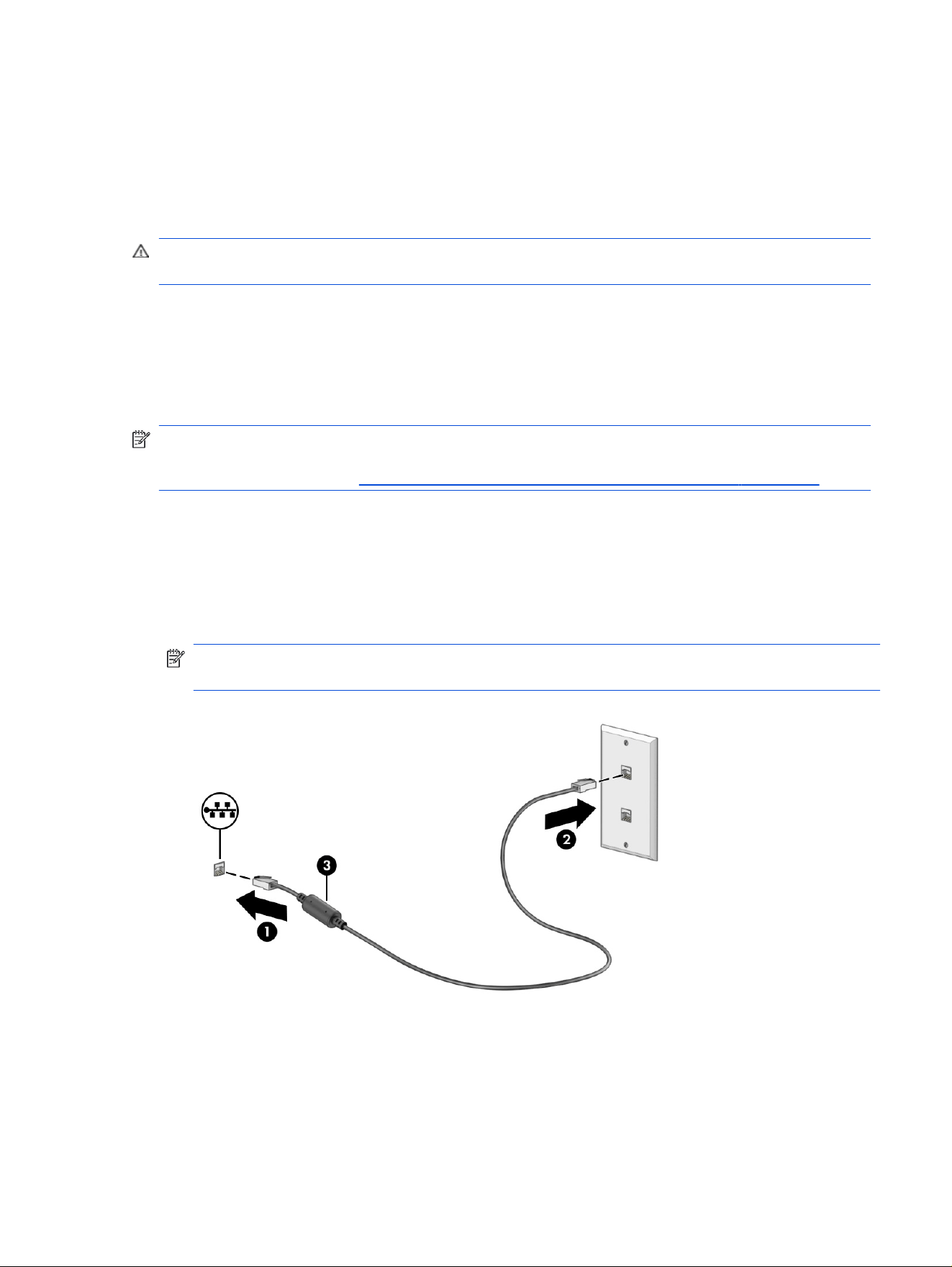
3. Follow any on-screen instructions to continue.
Connecting to a wired network
Select products might allow a local area network (LAN) connection, which uses a network cable. The cable
is sold separately.
WARNING! To reduce the risk of electric shock, re, or damage to the equipment, do not plug a
telephone cable into an RJ-45 (network) jack.
Connecting to a local area network (LAN) (select products only)
Use a LAN connection to connect the computer directly to a router in your home (instead of working
wirelessly) or to connect to an existing network at your ofce.
To connect the network cable, follow these steps:
NOTE: A feature called HP LAN-Wireless Protection might be enabled on your computer. It closes your
wireless (Wi-Fi) or WWAN connection when you connect directly to a LAN. For more information about HP
LAN-Wireless Protection, see Using HP LAN-Wireless Protection (select products only) on page 33.
If the computer does not have an RJ-45 port, you need a network cable and a network jack or an optional
docking device or expansion product to connect to a LAN.
1. Plug the network cable into the network jack (1) on the computer or on an optional docking device or
expansion product.
2. Plug the other end of the network cable into a network wall jack (2) or router.
NOTE: If the network cable contains noise suppression circuitry (3), which prevents interference
from TV and radio reception, orient the circuitry end of the cable toward the computer.
Using HP LAN-Wireless Protection (select products only)
In a LAN environment, you can set HP LAN-Wireless Protection to safeguard your LAN network from
unauthorized wireless access. When HP LAN-Wireless Protection is enabled, the WLAN (Wi-Fi) or WWAN
connection is turned off when the computer is connected directly to a LAN.
Connecting to a wired network
33

To turn on and customize HP LAN-Wireless Protection:
1. Start Computer Setup (BIOS).
● Computers or tablets with keyboards:
Turn on or restart the computer, and before the HP logo appears, press f10 to enter Computer
Setup.
● Tablets without keyboards:
Turn on or restart the tablet, and then quickly hold down the volume down button until the Startup
menu is displayed. Tap f10 to enter Computer Setup.
2. Select Advanced, and then select Built-in Device Options.
3. Select the check box for LAN/WLAN Auto Switching, LAN/WWAN Auto Switching, or both to turn
off WLAN connections, WWAN connections, or both when connected to a LAN network.
4. To save your changes and exit Computer Setup, select Main, select Save Changes and Exit, and
then select Yes.
NOTE: If you are using arrow keys to highlight your choice, you must then press enter.
Your changes take effect when the computer restarts.
Using HP MAC Address Pass Through (select products only)
MAC Address Pass Through provides a customizable way of identifying your computer and its
communications on networks. This system MAC address provides unique identication even when your
computer is connected through a network adapter. This address is enabled by default.
To customize MAC Address Pass Through:
1. Start Computer Setup (BIOS).
● Computers or tablets with keyboards:
■
Turn on or restart the computer, and when the HP logo appears, press f10 to enter Computer
Setup.
● Tablets without keyboards:
■
Turn on or restart the tablet, and then quickly hold down the volume down button until the
Startup menu is displayed. Tap f10 to enter Computer Setup.
2. Select Advanced, and then select MAC Address Pass Through.
3. In the box to the right of Host Based MAC Address, select either System Address to enable MAC
address Pass Through or Custom Address to customize the address.
4. If you selected Custom, select MAC ADDRESS, enter your customized system MAC address, and
then press enter to save the address.
5. Complete one of these tasks:
● If the computer has an embedded LAN and you would like to use the embedded MAC address as
the system MAC address, select Reuse Embedded LAN Address.
34
Chapter 4 Network connections

● Select Main, select Save Changes and Exit, and then select Yes.
NOTE: If you are using arrow keys to highlight your choice, you must then press enter.
Your changes take effect when the computer restarts.
Using HP MAC Address Pass Through (select products only) 35
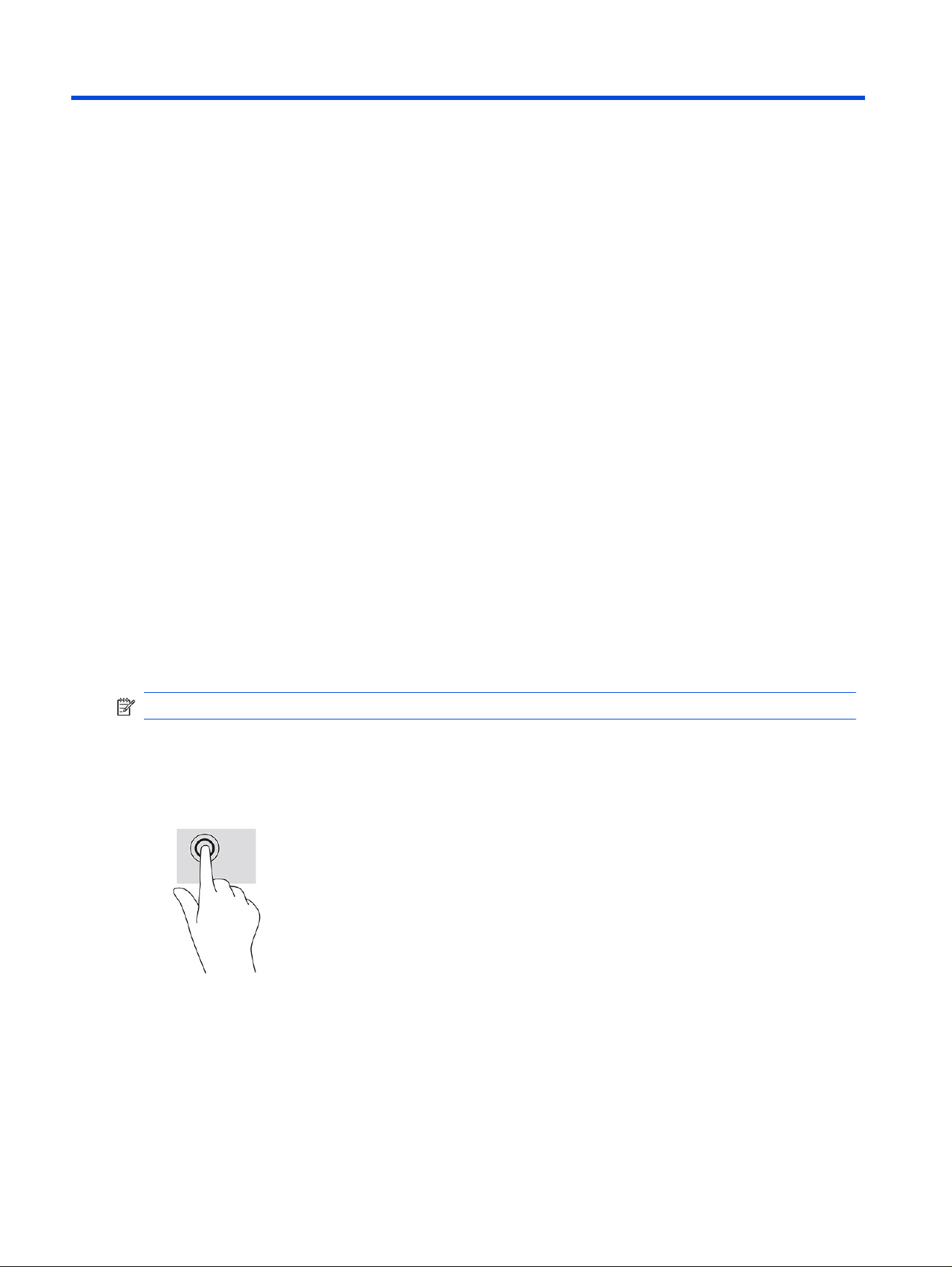
Navigating the screen5
Depending on your computer model, you can navigate the computer screen using one or more methods.
● Use touch gestures directly on the computer screen.
● Use touch gestures on the touchpad.
● Use an optional mouse or keyboard (purchased separately).
● Use an on-screen keyboard.
● Use a pointing stick.
Using touchpad and touch screen gestures
The touchpad helps you navigate the computer screen and control the pointer using simple touch
gestures. You can also use the left and right touchpad buttons as you would use the corresponding
buttons on an external mouse.
To navigate a touch screen (select products only), touch the screen directly using gestures described
in this chapter. To customize gestures and see videos of how they work, select the Search icon in the
taskbar, type control panel in the search box, select Control Panel, and then select Hardware and
Sound. Under Devices and Printers, select Mouse.
To learn more about your touchpad and nd additional information, select Start, select Settings, select
Bluetooth & devices, and then select Touchpad.
NOTE: Unless noted, gestures can be used on both the touchpad and a touch screen.
Tap
Point to an item on the screen, and then tap one nger on the touchpad zone or touch screen to select the
item. Double-tap an item to open it.
Two-nger
pinch zoom
Use the two-nger pinch zoom to zoom out or in on images or text.
● Zoom out by placing two ngers apart on the touchpad zone or touch screen and then moving your
ngers together.
36
Chapter 5 Navigating the screen
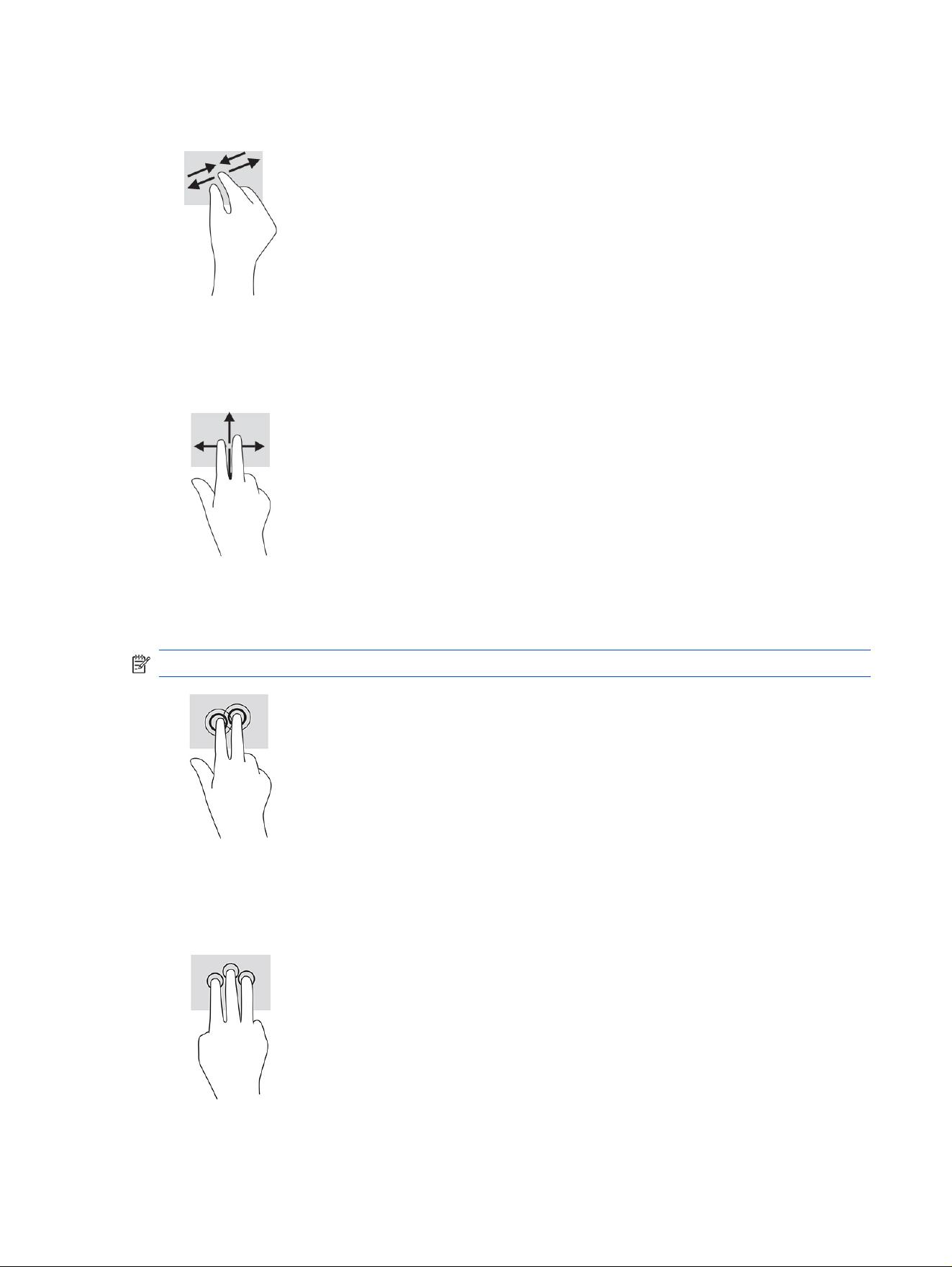
● Zoom in by placing two ngers together on the touchpad zone or touch screen and then moving your
ngers apart.
Two-nger slide (touchpad and precision touchpad)
Place two ngers slightly apart on the touchpad zone and then drag them up, down, left, or right to move
up, down, or sideways on a page or image.
Two-nger tap (touchpad and precision touchpad)
Tap two ngers on the touchpad zone to open the options menu for the selected object.
NOTE: The two-nger tap performs the same function as right-clicking with a mouse.
Three-nger
tap (touchpad and precision touchpad)
By default, the three-nger tap opens the search box. Tap three ngers on the touchpad zone to perform
the gesture.
Two-nger slide (touchpad and precision touchpad)
37
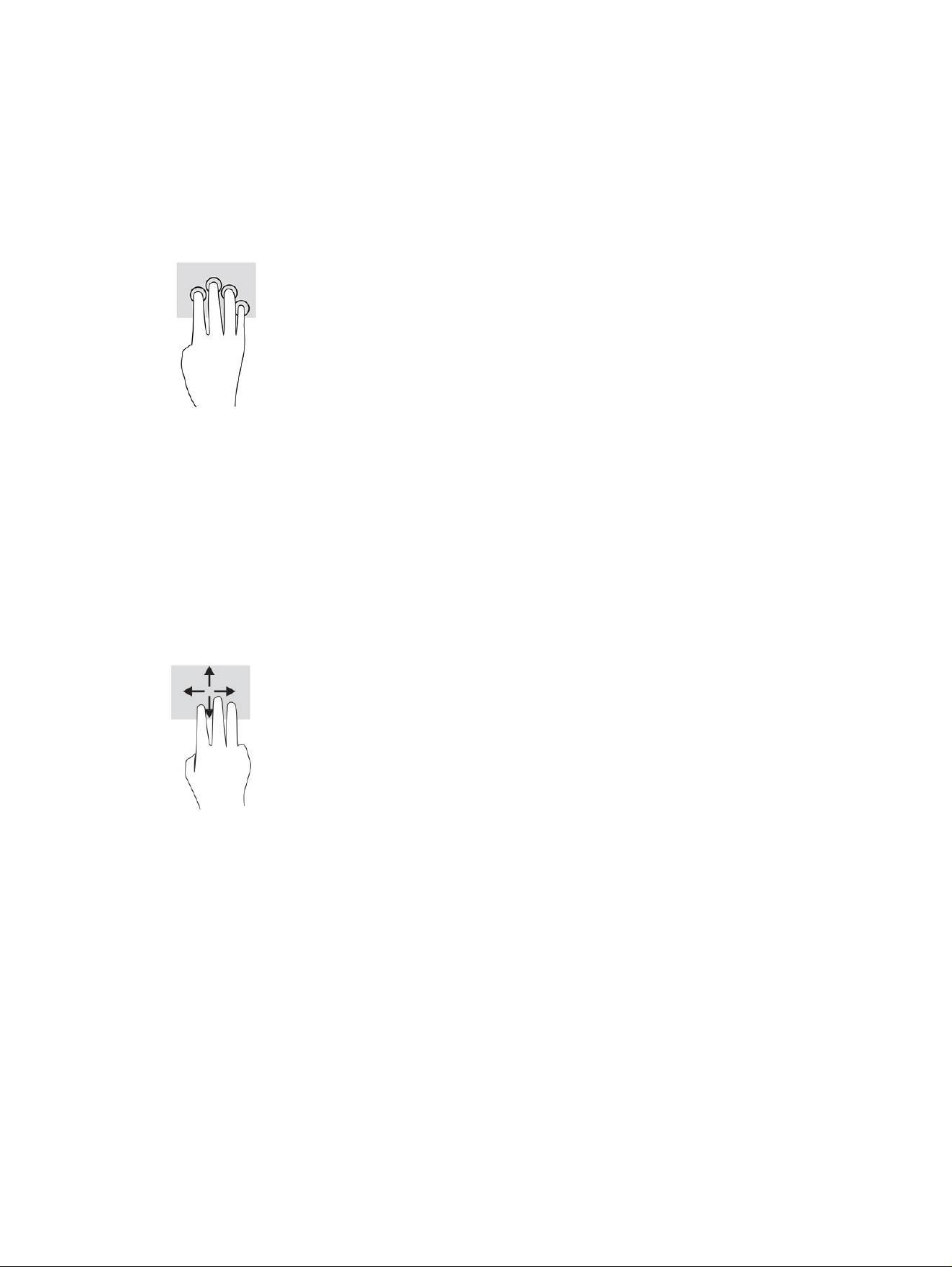
To change the function of this gesture on a precision touchpad, select Start, select Settings, select
Bluetooth & devices, and then select Touchpad. Under Three-nger gestures, in the Taps box, select a
gesture setting.
Four-nger tap (touchpad and precision touchpad)
By default, the four-nger tap opens the Action Center. Tap four ngers on the touchpad zone to perform
the gesture.
To change the function of this gesture on a precision touchpad, select Start, select Settings, select
Bluetooth & devices, and then select Touchpad. Under Four-nger gestures, in the Taps box, select a
gesture setting.
Three-nger swipe (touchpad and precision touchpad)
By default, the three-nger swipe switches between open apps and the desktop.
● Swipe three ngers away from you to see all open windows.
● Swipe three ngers toward you to show the desktop.
● Swipe three ngers left or right to switch between open windows.
To change the function of this gesture on a precision touchpad, select Start, select Settings, select
Bluetooth & devices, and then select Touchpad. Under Three-nger gestures, in the Swipes box, select
a gesture setting.
Four-nger
swipe (precision touchpad)
By default, the four-nger swipe switches between open desktops.
● Swipe four ngers away from you to see all open windows.
● Swipe four ngers toward you to show the desktop.
● Swipe four ngers left or right to switch between desktops.
38
Chapter 5 Navigating the screen
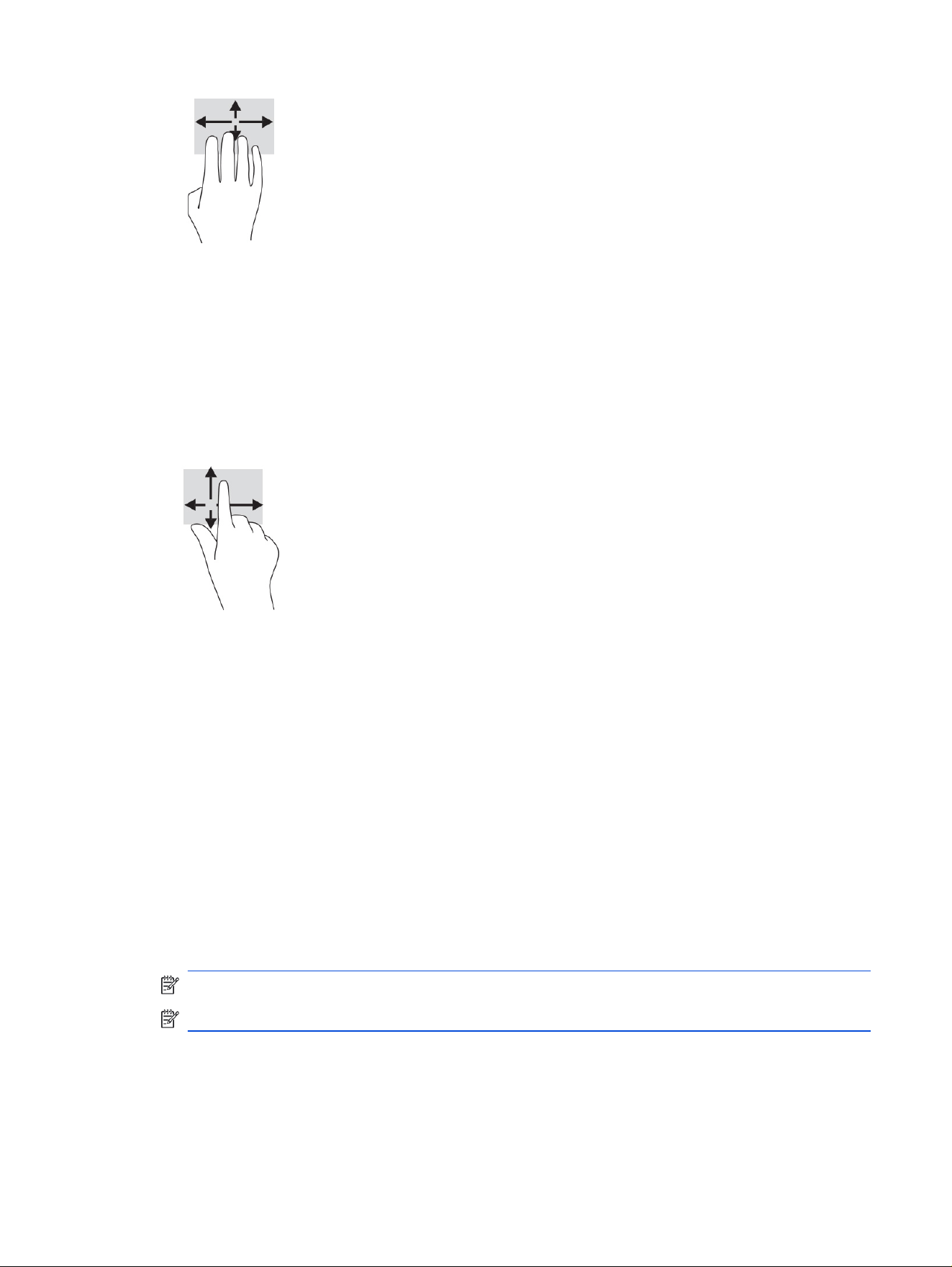
To change the function of this gesture, select Start, select Settings, select Bluetooth & devices, and then
select Touchpad. Under Four-nger gestures, in the Swipes box, select a gesture setting.
One-nger slide (touch screen)
Use the one-nger slide to pan or scroll through lists and pages, or to move an object.
● To scroll across the screen, lightly slide one nger across the screen in the direction you want to move.
● To move an object, press and hold your nger on an object, and then drag your nger to move the
object.
Using an optional keyboard or mouse
An optional keyboard or mouse allows you to type, select items, scroll, and perform the same functions
as you do using touch gestures. The keyboard also allows you to use action keys and hot keys to perform
specic functions.
Using an on-screen keyboard (select products only)
These instructions help you learn to use the on-screen keyboard.
Use one of the following methods to display the on-screen keyboard:
● Select the Search icon in the taskbar, type on-screen keyboard in the search box, and then
select On-Screen Keyboard.
● Press the Windows key +ctrl+o.
NOTE: Suggested words might be displayed above the on-screen keyboard. Tap a word to select it.
NOTE: Action keys and hot keys do not display or function on the on-screen keyboard.
One-nger
slide (touch screen) 39

Entertainment features6
Use your HP computer for business or pleasure to meet with others via the camera, mix audio and video, or
connect external devices like a projector, monitor, TV, or speakers.
See Components on page 4 to locate the audio, video and camera features on your computer.
Using a camera (select products only)
Your computer has one or more cameras that enable you to connect with others for work or play. Most
cameras allow you to video chat, record video, and record still images. Cameras can be front-facing or
rear-facing.
To determine which camera or cameras are on your product, see Components on page 4. To use your
camera, select the Search icon in the taskbar, type camera in the search box, and then select Camera.
Some cameras also feature HD (high-denition) capability, apps for gaming, or facial recognition software
like Windows Hello. See Security on page 53 for details about using Windows Hello.
You can enhance your computer privacy by covering the lens with the camera privacy cover. By default,
the camera lens is uncovered, but you can slide the camera privacy cover to block the camera's view. To
use the camera, slide the camera privacy cover in the opposite direction to reveal the lens.
Using audio
You can download and listen to music, stream audio content (including radio) from the web, record audio,
or mix audio and video to create multimedia. You can also play music CDs on the computer (on select
products) or attach an external optical drive to play CDs.
To enhance your listening enjoyment, attach headphones or speakers.
Connecting speakers
You can attach wired speakers to your computer by connecting them to a USB port or to the audio-out
(headphone)/audio-in (microphone) combo jack on your computer or on a docking station.
To connect wireless speakers to your computer, follow the device manufacturer's instructions. To connect
high-denition speakers to the computer, see Setting up HDMI audio on page 44. Before connecting
speakers, lower the volume setting.
Connecting headphones
You can connect wired headphones to the headphone jack or to the audio-out (headphone)/audio-in
(microphone) combo jack on your computer.
WARNING! To reduce the risk of personal injury, lower the volume setting before putting on
headphones, earbuds, or a headset. For additional safety information, see the Regulatory, Safety, and
Environmental Notices.
To access this guide:
40
Chapter 6 Entertainment features

■
Select the Search icon in the taskbar, type HP Documentation in the search box, and then select
HP Documentation.
To connect wireless headphones to your computer, follow the device manufacturer's instructions.
Connecting a microphone
To record audio, connect a microphone to the microphone jack on the computer. For best results when
recording, speak directly into the microphone and record sound in a setting free of background noise.
Connecting headsets
You can connect a headset to the audio-out (headphone)/audio-in (microphone) combo jack on your
computer.
A standalone microphone can be plugged into a USB port. See your manufacturer's instructions.
WARNING! To reduce the risk of personal injury, lower the volume setting before putting on
headphones, earbuds, or a headset. For additional safety information, see the Regulatory, Safety, and
Environmental Notices.
To access this guide:
■
Select the Search icon in the taskbar, type HP Documentation in the search box, and then select
HP Documentation.
Headphones combined with a microphone are called headsets. You can connect wired headsets to the
audio-out (headphone)/audio-in (microphone) combo jack on your computer.
To connect wireless headsets to your computer, follow the device manufacturer's instructions.
Using sound settings
Use sound settings to adjust system volume, change system sounds, or manage audio devices.
Viewing or changing sound settings
Use these instructions to view or change sound settings.
■
Select the Search icon in the taskbar, type control panel in the search box, and then select
Control Panel, select Hardware and Sound, and then select Sound.
Using the control panel to view and control audio settings
You can view or change sound settings using the audio control panel.
Your computer might include an enhanced sound system by Bang & Olufsen, DTS, Beats audio, or another
provider. As a result, your computer might include advanced audio features that can be controlled through
an audio control panel specic to your audio system.
Use the audio control panel to view and control audio settings.
■
Select the Search icon in the taskbar, type control panel in the search box, select Control Panel,
select Hardware and Sound, select Sound, and then select the audio control panel specic to your
system.
Connecting a microphone
41
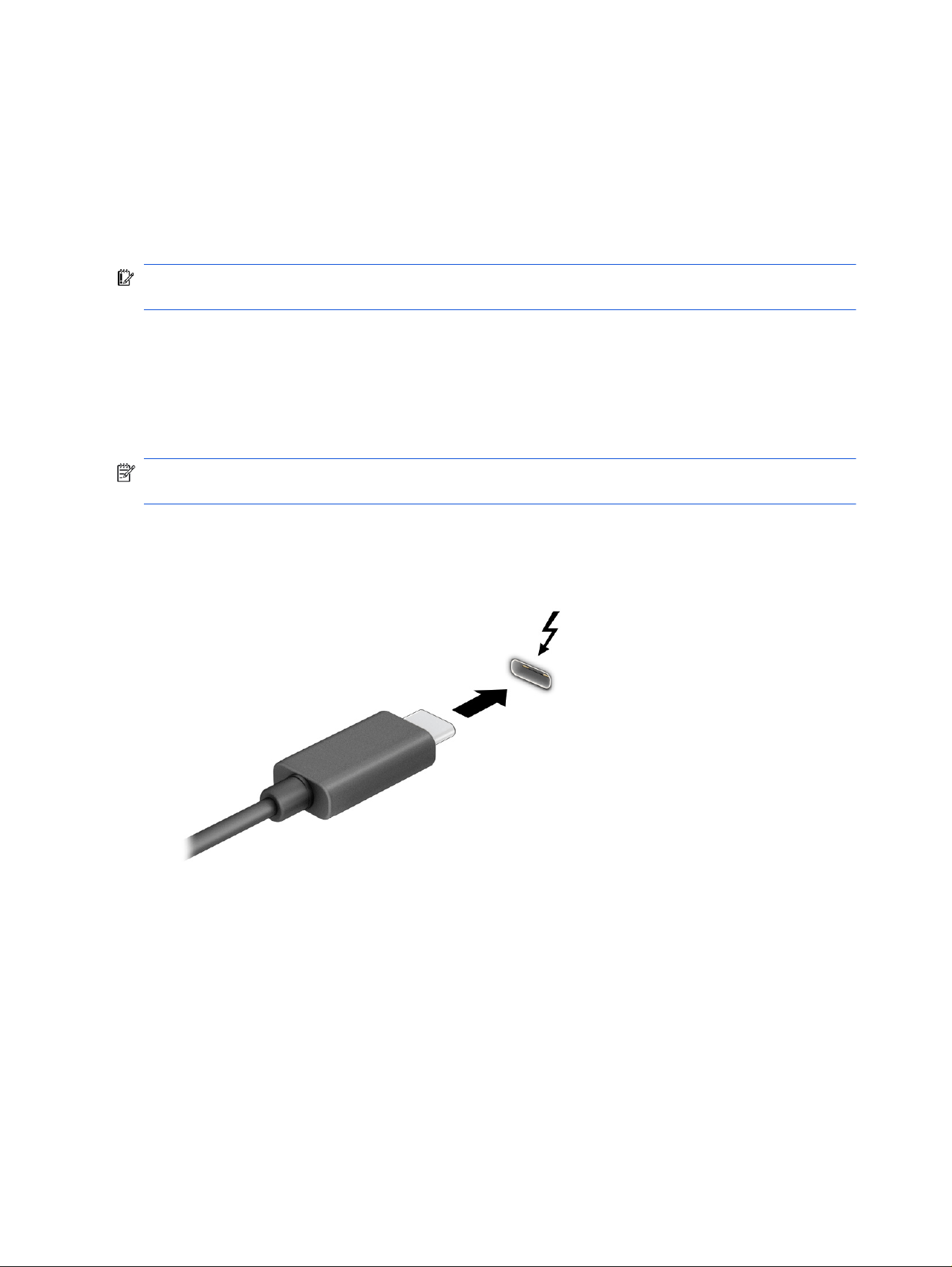
Using video
Your computer is a powerful video device that enables you to watch streaming video from your favorite
websites and download video and movies to watch on your computer when you are not connected to a
network.
To enhance your viewing enjoyment, use one of the video ports on the computer to connect an external
monitor, projector, or TV.
IMPORTANT: Be sure that the external device is connected to the correct port on the computer, using
the correct cable. Follow the device manufacturer's instructions.
For information about using your video features, refer to HP Support Assistant.
Connecting a Thunderbolt device using a USB Type-C cable (select products
only)
To see video or high-resolution display output on an external Thunderbolt device, follow these steps.
NOTE: To connect a USB Type-C Thunderbolt device to your computer, you need a USB Type-C cable,
purchased separately.
Connect the Thunderbolt device according to the following instructions:
1. Connect one end of the USB Type-C cable to the USB Type-C Thunderbolt port on the computer.
2. Connect the other end of the cable to the external Thunderbolt device.
3. Press f4 to cycle through four display states:
● PC screen only: View the screen image on the computer only.
● Duplicate: View the screen image simultaneously on both the computer and external device.
● Extend: View the screen image extended across both the computer and external device.
● Second screen only: View the screen image on the external device only.
42
Chapter 6 Entertainment features
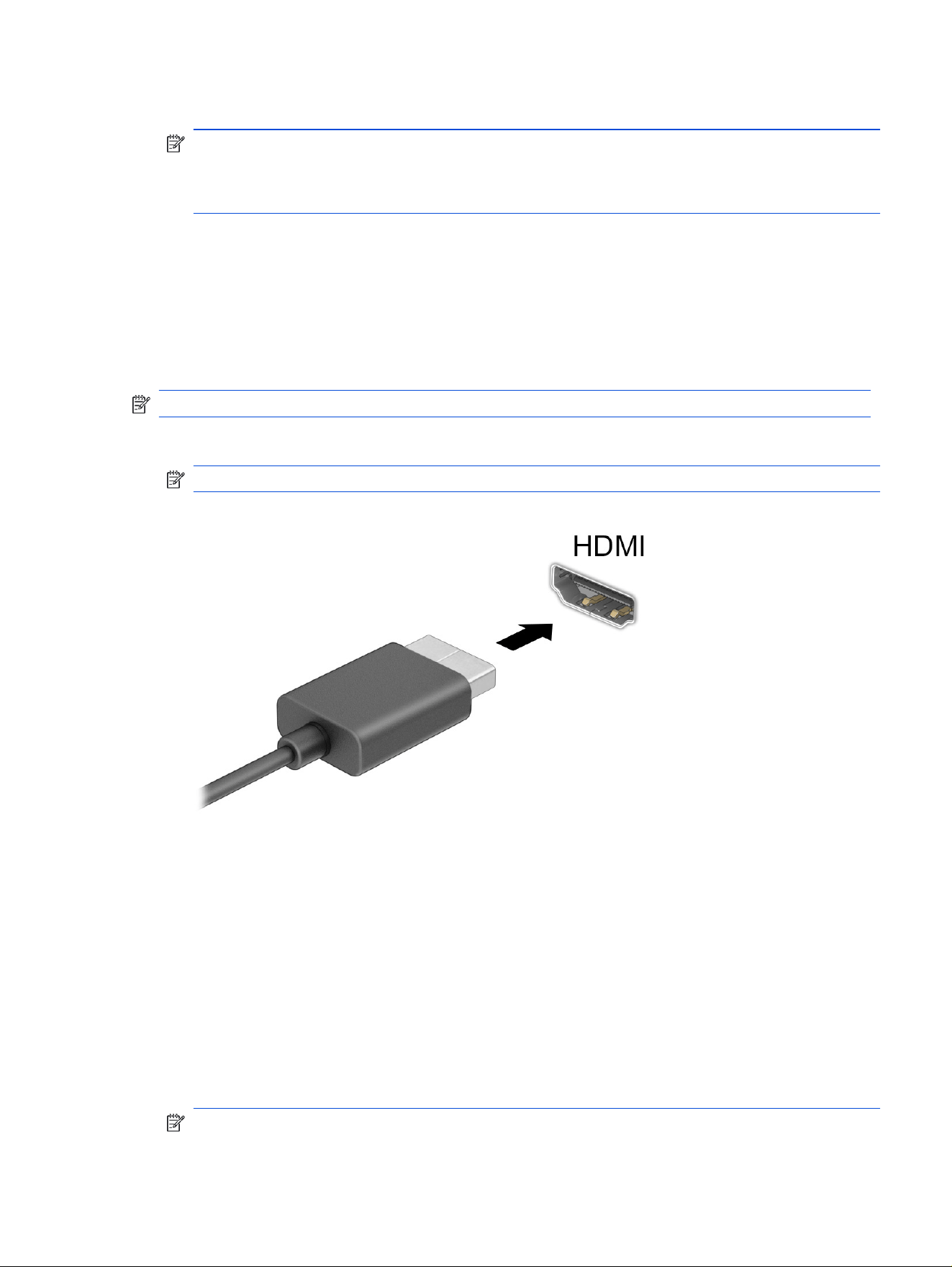
Each time you press f4 the display state changes.
NOTE: For best results, especially if you choose the Extend option, increase the screen resolution
of the external device, as follows. Select the Start button, select Settings, select System, and then
select Display. Under Scale & layout, select the appropriate resolution, and then select Keep
changes.
Connecting video devices using an HDMI cable (select products only)
HDMI is the only video interface that supports high-denition video and audio.
Connecting a high-denition TV or monitor using HDMI
To see the computer screen image on a
high-denition TV or monitor, connect the high-denition device
according to the instructions.
NOTE: To connect an HDMI device to your computer, you need an HDMI cable, purchased separately.
1. Connect one end of the HDMI cable to the HDMI port on the computer.
NOTE: HDMI port shape can vary by product.
2. Connect the other end of the cable to the high-denition TV or monitor.
3. Press f4 to cycle through four display states:
● PC screen only: View the screen image on the computer only.
● Duplicate: View the screen image simultaneously on both the computer and the external device.
● Extend: View the screen image extended across both the computer and the external device.
● Second screen only: View the screen image on the external device only.
Each time you press f4 the display state changes.
NOTE: For best results, especially if you choose the Extend option, increase the screen resolution
of the external device, as follows. Select the Start button, select Settings, select System, and then
Connecting video devices using an HDMI cable (select products only)
43

select Display. Under Scale & layout, select the appropriate resolution, and then select Keep
changes.
Setting up HDMI audio
Use these instructions to set up HDMI audio.
Turning on HDMI audio
After you connect an HDMI TV to the computer, you can then turn on HDMI audio.
Depending on your computer's conguration, you will follow one of these procedures.
1. Right-click the Speakers icon in the notication area, at the far right of the taskbar, and then select
Sound settings.
2. Select More sound settings.
3. On the Playback tab, select Digital Audio (HDMI).
4. Select Set Default, and then select OK.
Turning off HDMI audio
Use these instructions to return the audio stream to the computer speakers.
Depending on your computer's conguration, you will follow one of these procedures.
1. Right-click the Speakers icon in the notication area, at the far right of the taskbar, and then select
Sound settings.
2. Select More sound settings.
3. On the Playback tab, select Speakers.
4. Select Set Default, and then select OK.
Connecting displays to computers with AMD or NVIDIA graphics (with an
optional hub)
To set up multiple display devices, follow these steps.
NOTE: With an AMD® graphics controller and optional hub, you can connect up to six external display
devices, depending on your computer model.
NOTE: With an NVIDIA® graphics controller and optional hub, you can connect up to four external
display devices, depending on your computer model.
1. Connect an external hub (purchased separately) to the DisplayPort (DP) connector on your computer,
using a DP-to-DP cable (purchased separately). Be sure that the hub power adapter is connected to
AC power.
2. Connect your external display devices to the VGA port or DisplayPort connectors on the hub.
44
Chapter 6 Entertainment features

3. To see all of your connected display devices, select the Search icon in the taskbar, type device
manager in the search box, and then select the Device Manager app. If you don't see all of your
connected displays, be sure that each is connected to the correct port on the hub.
NOTE: Multiple display choices include Duplicate, which mirrors your computer screen on all
enabled display devices, or Extend, which spans your computer screen across all enabled display
devices.
Discovering and connecting to Miracast-compatible wireless displays (select
products only)
Follow these steps to discover and connect to Miracast
®
-compatible wireless displays without leaving your
current apps.
NOTE: To learn what type of display you have (Miracast-compatible or Intel WiDi), refer to the
documentation that came with your TV or secondary display.
To discover and connect to Miracast-compatible wireless displays without leaving your current apps,
follow these steps.
■
Select the Search icon in the taskbar, type project in the search box, and then select Connect to a
wireless display. Select Connect, and then follow the on-screen instructions.
Using data transfer
Your computer is a powerful entertainment device that enables you to transfer photos, videos, and movies
from your USB devices to view on your computer.
To enhance your viewing enjoyment, use one of the USB Type-C ports on the computer to connect a
USB device, such as a cell phone, camera, activity tracker, or smartwatch, and transfer the les to your
computer.
IMPORTANT: Be sure that the external device is connected to the correct port on the computer, using
the correct cable. Follow the device manufacturer's instructions.
For information about using your USB Type-C features, refer to HP Support Assistant.
Connecting devices to a USB Type-C port (select products only)
To connect devices to a USB Type-C port, follow these steps.
NOTE: To connect a USB Type-C device to your computer, you need a USB Type-C cable, purchased
separately.
Discovering and connecting to Miracast-compatible wireless displays (select products only)
45
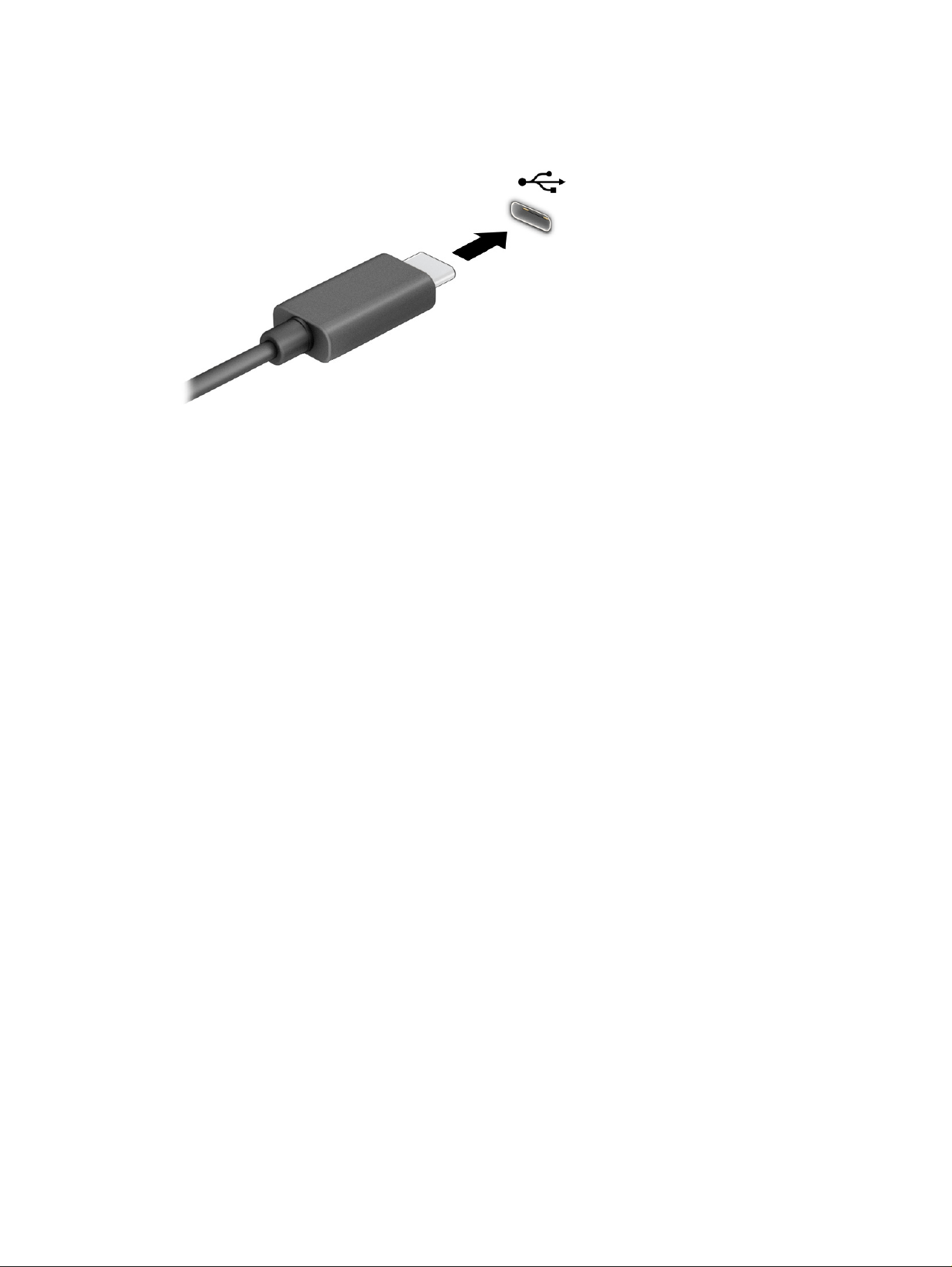
1. Connect one end of the USB Type-C cable to the USB Type-C port on the computer.
2. Connect the other end of the cable to the external device.
46
Chapter 6 Entertainment features

Managing power7
Your computer can operate on either battery power or external power. When the computer is running
on battery power and an external power source is not available to charge the battery, it is important to
monitor and conserve the battery charge.
Some power management features described in this chapter might not be available on your computer.
Using Sleep and Hibernation
Windows has two power-saving states, Sleep and Hibernation.
● Sleep—The Sleep state automatically initiates after a period of inactivity. Your work is available in
memory, allowing you to resume your work quickly. You can also initiate Sleep manually. Depending on
your computer model, the Sleep state might also support Modern Standby mode. This mode keeps
some internal operations awake and enables your computer to receive web notications, such as
emails, while in Sleep. For more information, see Initiating and exiting Sleep on page 47.
● Hibernation—The Hibernation state is automatically initiated if the battery reaches a critical level or
the computer has been in the Sleep state for an extended period of time. In the Hibernation state, your
work is saved to a hibernation le and the computer powers down. You can also initiate Hibernation
manually. For more information, see Initiating and exiting Hibernation (select products only) on page
48.
IMPORTANT: Several well-known vulnerabilities exist when a computer is in the Sleep state. To prevent
an unauthorized user from accessing data on your computer, even encrypted data, HP recommends that
you always initiate Hibernation instead of Sleep anytime the computer will be out of your physical
possession. This practice is particularly important when you travel with your computer.
IMPORTANT: To reduce the risk of possible audio and video degradation, loss of audio or video
playback functionality, or loss of information, do not initiate Sleep while reading from or writing to a disc
or an external media card.
Initiating and exiting Sleep
You can initiate Sleep in several ways.
● Select the Start button, select the Power icon, and then select Sleep.
● Close the display (select products only).
● Press the Sleep hot key (select products only); for example, fn+f1 or fn+f12.
● Briey press the power button (select products only).
You can exit Sleep in any of the following ways:
● Briey press the power button.
● If the computer is closed, raise the display (select products only).
● Press a key on the keyboard (select products only).
Managing power
47

● Tap the touchpad (select products only).
When the computer exits Sleep, your work returns to the screen.
IMPORTANT: If you have set a password to be required on exiting Sleep, you must enter your Windows
password before your work returns to the screen.
Initiating and exiting Hibernation (select products only)
You can enable user-initiated Hibernation and change other power settings and timeouts using Power
Options.
1. Select the Search icon in the taskbar, type power in the search box, and then select Choose a
power plan.
2. In the left pane, select Choose what the power buttons do (wording might vary by product).
3. Depending on your product, you can enable Hibernation for battery power or external power in any of
the following ways:
● Power button—Under Power and sleep buttons and lid settings (wording might vary by
product), select When I press the power button, and then select Hibernate.
● Sleep button (select products only)—Under Power and sleep buttons and lid settings (wording
might vary by product), select When I press the sleep button, and then select Hibernate.
● Lid (select products only)—Under Power and sleep buttons and lid settings (wording might vary
by product), select When I close the lid, and then select Hibernate.
● Power menu—Select Change Settings that are currently unavailable, and then, under
Shutdown settings, select the Hibernate check box.
You can access the Power menu by selecting the Start button.
4. Select Save changes.
To initiate Hibernation, use the method that you enabled in step 3.
To exit Hibernation, briey press the power button.
IMPORTANT: If you have set a password to be required on exiting Hibernation, you must enter your
Windows password before your work returns to the screen.
Shutting down (turning off) the computer
The Shut down command closes all open programs, including the operating system, and then turns off the
display and the computer. Shut down the computer when it will be unused and disconnected from external
power for an extended period.
IMPORTANT: Unsaved information is lost when the computer shuts down. Be sure to save your work
before shutting down the computer.
The recommended procedure is to use the Windows Shut down command.
NOTE: If the computer is in the Sleep state or in Hibernation, rst exit Sleep or Hibernation by briey
pressing the power button.
48
Chapter 7 Managing power

1. Save your work and close all open programs.
2. Select the Start button, select the Power icon, and then select Shut down.
If the computer is unresponsive and you are unable to use the preceding shutdown procedures, try the
following emergency procedures in the sequence provided:
1. Press ctrl+alt+delete, select the Power icon, and then select Shut down.
2. Press and hold the power button for at least 10 seconds.
3. If your computer has a user-replaceable battery (select products only), disconnect the computer from
external power, and then remove the battery.
Using the Power icon
The Power icon is located on the Windows taskbar. The Power icon allows you to quickly access power
settings and view the remaining battery charge.
● To view the percentage of remaining battery charge, place the mouse pointer over the Power
icon .
● To view power settings, right-click the Power icon , and then select Power and sleep settings.
Different power icons indicate whether the computer is running on battery or external power. Placing the
mouse pointer over the icon reveals a message if the battery has reached a low or critical battery level.
Running on battery power
When the computer has a charged battery and is not plugged into external power, the computer runs
on battery power. When the computer is off and unplugged from external power, the battery slowly
discharges. The computer displays a message when the battery reaches a low or critical battery level.
WARNING! To reduce potential safety issues, use only the battery provided with the computer, a
replacement battery provided by HP, or a compatible battery purchased from HP.
Computer battery life varies, depending on power management settings, programs running on the
computer, screen brightness, external devices connected to the computer, and other factors.
NOTE: Select computer products can switch between graphic controllers to conserve battery charge.
Using HP Fast Charge (select products only)
The HP Fast Charge feature allows you to quickly charge your computer battery. Charging time might vary
by ±10%. When the remaining battery charge is between 0 and 50%, the battery charges to 50% of full
capacity in no more than 30 to 45 minutes, depending on your computer model.
To use HP Fast Charge, shut down your computer, and then connect the AC adapter that meets the
maximum charging specication to your computer and to external power.
Using the Power icon
49

Displaying battery charge
To view the percentage of remaining battery charge, place the mouse pointer over the Power icon .
Finding battery information in HP Support Assistant (select products only)
Follow these steps to access battery information.
1. Perform one of these tasks to open Help:
● Select the Search icon in the taskbar, type support in the search box, and then select the HP
Support Assistant app.
● Select the question mark icon (select products only) in the taskbar.
2. Select Fixes & Diagnostics, select Check your battery, and then select Launch. If HP Battery
Check indicates that your battery should be replaced, contact support.
HP Support Assistant provides the following tools and information about the battery:
● HP Battery Check
● Information about battery types, specications, life cycles, and capacity
Conserving battery power
Be sure to conserve battery power and maximize battery life.
● Lower the brightness of the display.
● Turn off wireless devices when you are not using them.
● Disconnect unused external devices that are not plugged into an external power source, such as an
external hard drive connected to a USB port.
● Stop, disable, or remove any external media cards that you are not using.
● Before you leave your work, initiate Sleep or shut down the computer.
Identifying low battery levels
When a battery that is the sole power source for the computer reaches a low or critical battery level, the
computer warns you in one of these ways.
● The battery light (select products only) indicates a low or critical battery level.
● The Power icon shows a low or critical battery notication.
NOTE: For additional information about the Power icon, see Using the Power icon on page 49.
50
Chapter 7 Managing power

The computer takes the following actions for a critical battery level:
● If Hibernation is disabled and the computer is on or in the Sleep state, the computer remains briey in
the Sleep state and then shuts down and loses any unsaved information.
● If Hibernation is enabled and the computer is on or in the Sleep state, the computer initiates
Hibernation.
Resolving a low battery level
You can quickly resolve low battery level conditions.
Resolving a low battery level when external power is available
Connect one of the following devices to the computer and to external power.
● HP AC adapter provided with the computer (select products only)
● AC adapter with the power rating specied on the product label
● Optional docking device or expansion product
● Optional power adapter purchased as an accessory from HP
Resolving a low battery level when no power source is available
Save your work and shut down the computer.
Resolving a low battery level when the computer cannot exit Hibernation
If the battery level is low and you cannot bring the computer out of Hibernation, you might need to perform
additional steps. Connect the AC adapter shipped with your computer (select products only) or an AC
adapter with the power rating specied on the product label, and then complete these steps.
1. Connect the AC adapter to the computer and to external power.
2. Exit Hibernation by pressing the power button.
Factory-sealed battery
To monitor the status of the battery, or if the battery is no longer holding a charge, follow these steps to run
HP Battery Check in the HP Support Assistant app (select products only).
1. Perform one of these tasks to open Help:
● Select the Search icon in the taskbar, type support in the search box, and then select the HP
Support Assistant app.
● Select the question mark icon (select products only) in the taskbar.
2. Select Fixes & Diagnostics, select Check your battery, and then select Launch. If HP Battery
Check indicates that your battery should be replaced, contact support.
The battery in this product cannot be easily replaced by users themselves. Removing or replacing the
battery could affect your warranty coverage. If a battery is no longer holding a charge, contact support.
Resolving a low battery level
51

Running on external power
For information about connecting to external power, see the Setup Instructions poster provided in the
computer box.
The computer does not use battery power when the computer is connected to external power using any of
the following methods:
● HP AC adapter
● AC adapter with the power rating specied on the product label
● Optional docking device or expansion product
WARNING! To reduce potential safety issues, HP recommends using only HP-branded AC adapters.
WARNING! Do not charge the computer battery while you are aboard aircraft.
Connect the computer to external power under any of the following conditions:
● When charging or calibrating a battery
● When installing or updating system software
● When updating the system BIOS
● When writing information to a disc (select products only)
● When running Disk Defragmenter on computers with internal hard drives
● When performing a backup or recovery
When you connect the computer to external power:
● The battery begins to charge.
● The Power icon changes appearance.
When you disconnect external power:
● The computer switches to battery power.
● The Power icon changes appearance.
52
Chapter 7 Managing power

Security8
Computer security is essential for protecting the condentiality, integrity, and availability of your
information. Standard security solutions provided by the Windows operating system, HP applications,
Computer Setup (BIOS), and other third-party software can help protect your computer from a variety of
risks, such as viruses, worms, and other types of malicious code.
NOTE: Some security features listed in this chapter might not be available on your computer.
Protecting the computer
Standard security features provided by the Windows operating system and Computer Setup (BIOS, which
runs under any operating system) can protect your personal settings and data from a variety of risks.
NOTE: Security solutions act as deterrents. These deterrents might not prevent a product from being
mishandled or stolen.
NOTE: Before you send your computer for service, back up and delete condential les, and remove all
password settings.
NOTE: Some features listed in this chapter might not be available on your computer.
NOTE: Your computer supports Computrace, which is an online security-based tracking and recovery
service available in select regions. If the computer is stolen, Computrace can track the computer if the
unauthorized user accesses the internet. You must purchase the software and subscribe to the service
to use Computrace. For information about ordering the Computrace software, go to http://www.hp.com.
Table 8-1
Security solutions
Computer risk Security feature
Unauthorized use of the computer ● HP Client Security software, in combination with a
password, smart card, contactless card, registered
ngerprints, or other authentication credential
● BIOS power-on password
Unauthorized access to Computer Setup (BIOS) BIOS administrator password in Computer Setup*
Unauthorized access to the contents of a hard drive DriveLock password (select products only) in Computer Setup*
Unauthorized startup from an optional external optical drive
(select products only), optional external hard drive (select
products only), or internal network adapter
Boot options feature in Computer Setup*
Unauthorized access to a Windows user account Windows user password
Unauthorized access to data Windows BitLocker
Unauthorized removal of the computer Security cable slot (used with an optional security cable on
select products only)
Security 53

*Computer Setup is an embedded, ROM-based utility that you can use even when the operating system is
not working or will not load. You can use a pointing device (touchpad, pointing stick, or USB mouse) or the
keyboard to navigate and make selections in Computer Setup.
NOTE: On tablets without keyboards, you can use the touch screen.
Using passwords
A password is a group of characters that you choose to secure your computer information. You can set
several types of passwords, depending on how you want to control access to your information. You can set
passwords in Windows or in Computer Setup, which is preinstalled on the computer.
● BIOS administrator, power-on, and DriveLock passwords are set in Computer Setup and are managed
by the system BIOS.
● Windows passwords are set only in the Windows operating system.
● If you forget both the DriveLock user password and the DriveLock master password set in Computer
Setup, the hard drive that is protected by the passwords is permanently locked and can no longer be
used.
You can use the same password for a Computer Setup feature and for a Windows security feature.
Use the following tips for creating and saving passwords:
● When creating passwords, follow the requirements set by the program.
● Do not use the same password for multiple applications or websites, and do not reuse your Windows
password for any other application or website.
● Use the Password Manager feature of HP Client Security to store your user names and passwords
for your websites and applications. You can securely read them in the future if they cannot be
remembered.
● Do not store passwords in a le on the computer.
The following tables list commonly used Windows and BIOS administrator passwords and describe their
functions.
Setting passwords in Windows
Windows passwords can help protect your computer from unauthorized access.
Table 8-2
Types of Windows passwords and their functions
Password Function
Administrator password* Protects access to a Windows administrator-level account.
NOTE: Setting the Windows administrator password does not
set the BIOS administrator password.
User password* Protects access to a Windows user account.
*For information about setting a Windows administrator password or a Windows user password, select
the Search icon in the taskbar, type support in the search box, and then select the HP Support
Assistant app.
54
Chapter 8 Security

Setting passwords in Computer Setup
Computer Setup passwords provide additional layers of security for your computer.
Table 8-3 Types of Computer Setup passwords and their functions
Password Function
BIOS administrator password* Protects access to Computer Setup.
NOTE: If features have been enabled to prevent removing the
BIOS administrator password, you might not be able to remove
the password until those features have been disabled.
Power-on password ● Must be entered each time you turn on or restart the
computer.
● If you forget your power-on password, you cannot turn on
or restart the computer.
DriveLock master password* Protects access to the internal hard drive that is protected
by DriveLock, and is set under DriveLock Passwords during
the enable process. This password is also used to remove
DriveLock protection.
DriveLock user password* Protects access to the internal hard drive that is protected by
DriveLock, and is set under DriveLock Passwords during the
enable process.
*For details about each of these passwords, see the following topics.
Managing a BIOS administrator password
To set, change, or delete this password, follow these steps.
Setting a new BIOS administrator password
A BIOS administrator password helps prevent unauthorized access to Computer Setup. Use these
instructions to set a new BIOS administrator password.
1. Start Computer Setup.
● Computers or tablets with keyboards:
Turn on or restart the computer, and when the HP logo appears, press f10 to enter Computer
Setup.
● Tablets without keyboards:
Turn off the tablet. Press the power button in combination with the volume down button until the
Startup menu is displayed, and then tap f10 to enter Computer Setup.
2. Select Security, select Create BIOS administrator password or Set Up BIOS administrator
Password (select products only), and then press enter.
3. When prompted, type a password.
4. When prompted, type the new password again to conrm.
Setting passwords in Computer Setup
55

5. To save your changes and exit Computer Setup, select Main, select Save Changes and Exit, and
then select Yes.
NOTE: If you are using arrow keys to highlight your choice, you must then press enter.
Your changes go into effect when the computer restarts.
Changing a BIOS administrator password
Use these instructions to change a BIOS administrator password.
1. Start Computer Setup.
● Computers or tablets with keyboards:
■
Turn on or restart the computer, and when the HP logo appears, press f10 to enter Computer
Setup.
● Tablets without keyboards:
■
Turn off the tablet. Press the power button in combination with the volume down button until
the Startup menu is displayed, and then tap f10 to enter Computer Setup.
2. Enter your current BIOS administrator password.
3. Select Security, select Change BIOS administrator Password or Change Password (select
products only), and then press enter.
4. When prompted, type your current password.
5. When prompted, type your new password.
6. When prompted, type your new password again to conrm.
7. To save your changes and exit Computer Setup, select Main, select Save Changes and Exit, and
then select Yes.
NOTE: If you are using arrow keys to highlight your choice, you must then press enter.
Your changes go into effect when the computer restarts.
Deleting a BIOS administrator password
Use these instructions to delete a BIOS administrator password.
1. Start Computer Setup.
● Computers or tablets with keyboards:
■
Turn on or restart the computer, and when the HP logo appears, press f10 to enter Computer
Setup.
● Tablets without keyboards:
■
Turn off the tablet. Press the power button in combination with the volume down button until
the Startup menu is displayed, and then tap f10 to enter Computer Setup.
2. Enter your current BIOS administrator password.
56
Chapter 8 Security

3. Select Security, select Change BIOS administrator Password or Change Password (select
products only), and then press enter.
4. When prompted, type your current password.
5. When prompted for the new password, leave the eld empty, and then press enter.
6. When prompted to type your new password again, leave the eld empty, and then press enter.
7. To save your changes and exit Computer Setup, select Main, select Save Changes and Exit, and
then select Yes.
NOTE: If you are using arrow keys to highlight your choice, you must then press enter.
Your changes go into effect when the computer restarts.
Entering a BIOS administrator password
At the BIOS administrator password prompt, type your password (using the same keys that you used to
set the password), and then press enter. After two unsuccessful attempts to enter the BIOS administrator
password, you must restart the computer and try again.
Using DriveLock Security Options
DriveLock protection prevents unauthorized access to the contents of a hard drive.
DriveLock can be applied only to the internal hard drives of the computer. After DriveLock protection is
applied to a drive, the appropriate password must be entered to access the drive. The drive must be
inserted into the computer or an advanced port replicator for it to be unlocked.
DriveLock Security Options offers the following features:
● Automatic DriveLock—See Selecting Automatic DriveLock (select products only) on page 57.
● Set DriveLock Master Password—See Selecting manual DriveLock on page 59.
● Enable DriveLock—See Enabling DriveLock and setting a DriveLock user password on page 60.
Selecting Automatic DriveLock (select products only)
You must set a BIOS administrator password before you can enable Automatic DriveLock.
When Automatic DriveLock is enabled, a random DriveLock user password and a DriveLock master
password derived from the BIOS administrator password are created. When the computer is turned on,
the random user password automatically unlocks the drive. If the drive is moved to another computer, you
must enter the BIOS administrator password for the original computer at the DriveLock password prompt
to unlock the drive.
Enabling Automatic DriveLock
To enable Automatic DriveLock, follow these steps.
1. Start Computer Setup.
● Computers or tablets with keyboards:
a. Turn off the computer.
b. Press the power button, and when the HP logo appears, press f10 to enter Computer Setup.
Entering a BIOS administrator password
57

● Tablets without keyboards:
a. Turn off the tablet.
b. Press the power button in combination with the volume down button until the Startup menu
is displayed, and then tap f10 to enter Computer Setup.
2. At the BIOS administrator password prompt, enter the BIOS administrator password, and then press
enter.
3. Select Security, select Hard Drive Utilities, select DriveLock/Automatic DriveLock, and then press
enter.
4. Use the enter key, left mouse click, or touch screen to select the Automatic DriveLock check box.
5. To save your changes and exit Computer Setup, select Main, select Save Changes and Exit, and
then select Yes.
NOTE: If you are using arrow keys to highlight your choice, you must then press enter.
Disabling Automatic DriveLock
To disable Automatic DriveLock, follow these steps.
1. Start Computer Setup.
● Computers or tablets with keyboards:
a. Turn off the computer.
b. Press the power button, and when the HP logo appears, press f10 to enter Computer Setup.
● Tablets without keyboards:
a. Turn off the tablet.
b. Press the power button in combination with the volume down button until the Startup menu
is displayed, and then tap f10 to enter Computer Setup.
2. At the BIOS administrator password prompt, enter the BIOS administrator password, and then press
enter.
3. Select Security, select Hard Drive Utilities, select DriveLock/Automatic DriveLock, and then press
enter.
4. Select an internal hard drive, and then press enter.
5. Use the enter key, left mouse click, or touch screen to clear the Automatic DriveLock check box.
6. To save your changes and exit Computer Setup, select Main, select Save Changes and Exit, and
then select Yes.
NOTE: If you are using arrow keys to highlight your choice, you must then press enter.
Entering an Automatic DriveLock password
While Automatic DriveLock is enabled and the drive remains attached to the original computer, you will not
be prompted to enter a DriveLock password to unlock the drive.
58
Chapter 8 Security

However, if the drive is moved to another computer, or the system board is replaced on the original
computer, you will be prompted to provide the DriveLock password. If this happens, at the DriveLock
Password prompt, type the BIOS administrator password for the original computer (using the same kind
of keys you used to set the password), and then press enter to unlock the drive.
After three incorrect attempts to enter the password, you must shut down the computer and try again.
Selecting manual DriveLock
To manually apply DriveLock protection to an internal hard drive, you must set a master password, and
DriveLock must be enabled in Computer Setup.
IMPORTANT: To prevent a DriveLock-protected hard drive from becoming permanently unusable,
record the DriveLock user password and the DriveLock master password in a safe place away from your
computer. If you forget both DriveLock passwords, the hard drive will be permanently locked and can no
longer be used.
Note the following considerations about using DriveLock protection:
● After DriveLock protection is applied to a hard drive, you can access the hard drive only by entering
either the DriveLock user password or the master password.
● The owner of the DriveLock user password should be the day-to-day user of the protected hard drive.
The owner of the DriveLock master password can be either a system administrator or the day-to-day
user.
● The DriveLock user password and the DriveLock master password can be identical.
Setting a DriveLock master password
To set a DriveLock master password, follow these steps.
1. Start Computer Setup.
● Computers or tablets with keyboards:
a. Turn off the computer.
b. Press the power button, and when the HP logo appears, press f10 to enter Computer Setup.
● Tablets without keyboards:
a. Turn off the tablet.
b. Press the power button in combination with the volume down button until the Startup menu
is displayed, and then tap f10 to enter Computer Setup.
2. Select Security, make the selection for Hard Drive Utilities, select DriveLock/Automatic
DriveLock, and then press enter.
3. Select the hard drive you want to protect, and then press enter.
4. Select Set DriveLock Master Password, and then press enter.
5. Carefully read the warning.
Selecting manual DriveLock
59

6. Follow the on-screen instructions to set a DriveLock master password.
NOTE: You can enable DriveLock and set a DriveLock user password before exiting from Computer
Setup. For more information, see Enabling DriveLock and setting a DriveLock user password on page
60.
7. To save your changes and exit Computer Setup, select Main, select Save Changes and Exit, and
then select Yes.
NOTE: If you are using arrow keys to highlight your choice, you must then press enter.
Enabling DriveLock and setting a DriveLock user password
To enable DriveLock and set a DriveLock user password, follow these steps.
1. Start Computer Setup.
● Computers or tablets with keyboards:
a. Turn off the computer.
b. Press the power button, and when the HP logo appears, press f10 to enter Computer Setup.
● Tablets without keyboards:
a. Turn off the tablet.
b. Press the power button in combination with the volume down button until the Startup menu
is displayed, and then tap f10 to enter Computer Setup.
2. Select Security, select Hard Drive Utilities, select DriveLock/Automatic DriveLock, and then press
enter.
3. Select the hard drive you want to protect, and then press enter.
4. Select Enable DriveLock and then press enter.
5. Carefully read the warning.
6. Follow the on-screen instructions to set a DriveLock user password and enable DriveLock.
7. To save your changes and exit Computer Setup, select Main, select Save Changes and Exit, and
then select Yes.
NOTE: If you are using arrow keys to highlight your choice, you must then press enter.
Disabling DriveLock
To disable DriveLock, follow these steps.
1. Start Computer Setup.
● Computers or tablets with keyboards:
a. Turn off the computer.
b. Press the power button, and when the HP logo appears, press f10 to enter Computer Setup.
● Tablets without keyboards:
60
Chapter 8 Security

a. Turn off the tablet.
b. Press the power button in combination with the volume down button until the Startup menu
is displayed, and then tap f10 to enter Computer Setup.
2. Select Security, select Hard Drive Utilities, select DriveLock/Automatic DriveLock, and then press
enter.
3. Select the hard drive you want to manage, and then press enter.
4. Select Disable DriveLock, and then press enter.
5. Follow the on-screen instructions to disable DriveLock.
6. To save your changes and exit Computer Setup, select Main, select Save Changes and Exit, and
then select Yes.
NOTE: If you are using arrow keys to highlight your choice, you must then press enter.
Entering a DriveLock password
Be sure that the hard drive is inserted into the computer (not into an optional docking device or external
MultiBay).
At the DriveLock Password prompt, type your DriveLock user or master password (using the same kind of
keys you used to set the password), and then press enter.
After three incorrect attempts to enter the password, you must shut down the computer and try again.
Changing a DriveLock password
To change a DriveLock password in Computer Setup, follow these steps.
1. Turn off the computer.
2. Press the power button.
3. At the DriveLock Password prompt, type the current DriveLock user password or master password
that you are changing, press enter, and then press or tap f10 to enter Computer Setup.
4. Select Security, select Hard Drive Utilities, select DriveLock/Automatic DriveLock, and then press
enter.
5. Select the hard drive you want to manage, and then press enter.
6. Make the selection for the DriveLock password that you want to change, and then follow the on-
screen instructions to enter passwords.
NOTE: The Change DriveLock Master Password option is visible only if the DriveLock master
password was provided at the DriveLock Password prompt in step 3.
7. To save your changes and exit Computer Setup, select Main, select Save Changes and Exit, and
then select Yes.
NOTE: If you are using arrow keys to highlight your choice, you must then press enter.
Entering a DriveLock password
61

Windows Hello (select products only)
On products equipped with a ngerprint reader or an infrared camera, Windows Hello allows you to enroll
your ngerprint and your facial ID, and set up a PIN. After enrollment, you can use your ngerprint reader,
facial ID, or PIN to sign in to Windows.
To set up Windows Hello:
1. Select the Start button, select Settings, select Accounts, and then select Sign-in options.
2. If you do not have a password set up, you must add one before you can use other sign-in options.
Select Password, and then select Add.
3. Under Facial recognition (Windows Hello) or Fingerprint recognition (Windows Hello), select Set
up.
4. Select Get Started, and then follow the on-screen instructions to enroll your ngerprint or facial ID
and set up a PIN.
IMPORTANT: To prevent ngerprint logon issues, be sure when you register your ngerprint that all
sides of your nger are registered by the ngerprint reader.
NOTE: The PIN is not limited in length. The default setting is for numbers only. To include alphabetic
or special characters, select the include letters and symbols check box.
Using antivirus software
When you use the computer to access email, a network, or the internet, you potentially expose it to
computer viruses. Computer viruses can disable the operating system, programs, or utilities, or cause
them to function abnormally.
Antivirus software can detect most viruses, destroy them, and, in most cases, repair any damage that they
cause. To provide ongoing protection against newly discovered viruses, antivirus software must be kept up
to date.
Windows Defender is preinstalled on your computer. HP strongly recommends that you continue to use an
antivirus program to fully protect your computer.
For more information about computer viruses, access the HP Support Assistant.
Using
rewall software
Firewalls are designed to prevent unauthorized access to a system or network. A rewall can be a
software program that you install on your computer, network, or both, or it can be a solution made up of
both hardware and software.
There are two types of rewalls to consider:
● Host-based rewalls—Software that protects only the computer it is installed on.
● Network-based rewalls—Installed between your DSL or cable modem and your home network to
protect all the computers on the network.
When a rewall is installed on a system, all data sent to and from the system is monitored and compared
with a set of user-dened security criteria. Any data that does not meet those criteria is blocked.
62
Chapter 8 Security

Your computer or networking equipment may already have a rewall installed. If not, rewall software
solutions are available.
NOTE: Under some circumstances a rewall can block access to internet games, interfere with printer
or le sharing on a network, or block authorized email attachments. To temporarily resolve the problem,
disable the rewall, perform the task that you want to perform, and then reenable the rewall. To
permanently resolve the problem, recongure the rewall.
Installing software updates
HP, Windows, and third-party software installed on your computer should be regularly updated to correct
security problems and improve software performance. You can install these updates automatically.
IMPORTANT: Microsoft sends out alerts regarding Windows updates, which may include security
updates. To protect the computer from security breaches and computer viruses, install all updates from
Microsoft as soon as you receive an alert.
To view or change the settings:
1. Select the Start button, select Settings, and then select Windows Update.
2. Follow the on-screen instructions.
3. To schedule a time for installing updates, select Advanced Options, and then follow the on-screen
instructions.
Using HP Client Security (select products only)
HP Client Security software is preinstalled on your computer. You can access this software through the HP
Client Security icon at the far right of the taskbar or Windows Control Panel. It provides security features
that help protect against unauthorized access to the computer, networks, and critical data.
For more information, see the HP Client Security software Help.
Using HP Workforce Experience Platform (select products
only)
HP Workforce Experience Platform is a cloud-based IT solution that enables businesses to effectively
manage and secure their company assets.
HP Workforce Experience Platform helps protect devices against malware and other attacks, monitors
device health, and helps reduce time spent solving device and security issues. You can quickly download
and install the software, which is highly cost-effective relative to traditional in-house solutions. For more
information, go to https://www.hpdaas.com/.
Using an optional security cable (select products only)
A security cable (purchased separately) is designed to act as a deterrent, but it may not prevent the
computer from being mishandled or stolen. To connect a security cable to your computer, follow the device
manufacturer's instructions.
Installing software updates
63

Using a ngerprint reader (select products only)
Integrated ngerprint readers are available on select products. To use the ngerprint reader, you must
enroll your ngerprints in HP Client Security's Credential Manager. For more information, see the HP Client
Security software Help.
After you enroll your ngerprints in Credential Manager, you can use HP Client Security's Password
Manager to store and ll in your user names and passwords in supported websites and applications.
The ngerprint reader is a small metallic sensor that is located in one of the following areas of your
computer:
● Near the bottom of the touchpad
● On the right side of the keyboard
● On the upper-right side of the display
● On the left side of the display
● On the back of the display
Depending on your product, the reader may be oriented horizontally or vertically.
64
Chapter 8 Security

Maintenance9
Performing regular maintenance keeps your computer in optimal condition. This chapter explains how to
use tools like Disk Defragmenter and Disk Cleanup. It also provides instructions for updating programs
and drivers, steps to clean the computer, and tips for traveling with (or shipping) the computer.
Improving performance
You can improve the performance of your computer by performing regular maintenance tasks with tools
such as Disk Defragmenter and Disk Cleanup.
Using Disk Defragmenter
HP recommends using Disk Defragmenter to defragment your hard drive at least once a month.
NOTE: It is not necessary to run Disk Defragmenter on solid-state drives.
To run Disk Defragmenter:
1. Connect the computer to AC power.
2. Select the Search icon in the taskbar, type defragment in the search box, and then select
Defragment and Optimize Drives.
3. Follow the on-screen instructions.
For additional information, access the Disk Defragmenter software Help.
Using Disk Cleanup
Use Disk Cleanup to search the hard drive for unnecessary les that you can safely delete to free up disk
space and help the computer run more efciently.
To run Disk Cleanup:
1. Select the Search icon in the taskbar, type disk in the search box, and then select Disk Cleanup.
2. Follow the on-screen instructions.
Using HP 3D DriveGuard (select products only)
HP 3D DriveGuard protects a hard drive by parking the drive and halting data requests under some
conditions.
● You drop the computer.
● You move the computer with the display closed while the computer is running on battery power.
Maintenance
65

A short time after one of these events, HP 3D DriveGuard returns the hard drive to normal operation.
NOTE: Only internal hard drives are protected by HP 3D DriveGuard. A hard drive installed in an optional
docking device or connected to a USB port is not protected by HP 3D DriveGuard.
NOTE: Because solid-state drives (SSDs) lack moving parts, HP 3D DriveGuard is unnecessary for
these drives.
Identifying HP 3D DriveGuard status
The hard drive light on the computer changes color to show that the drive in a primary hard drive bay, the
secondary hard drive bay (select products only), or both are parked.
Updating programs and drivers
HP recommends that you update your programs and drivers regularly. Updates can resolve issues and
provide new features and options. For example, older graphics components might not work well with the
most recent gaming software. Without the latest driver, you do not get the most out of your equipment.
Go to http://www.hp.com/support to download the latest versions of HP programs and drivers. In addition,
register to receive automatic notications when updates become available.
To update your programs and drivers, follow these steps.
1. Use one of these options:
● Select the Search icon in the taskbar, type support in the search box, and then select the HP
Support Assistant app.
● Select the question mark icon (select products only) in the taskbar.
2. Under My notebook, select Updates.
3. Follow the on-screen instructions.
Cleaning your computer
Cleaning your computer regularly removes dirt and debris so that your device continues to operate at its
best. Use the following information to safely clean the external surfaces of your computer.
Enabling HP Easy Clean (select products only)
HP Easy Clean helps you to avoid accidental input while you clean the computer surfaces. This software
disables devices such as the keyboard, touch screen, and touchpad for a preset amount of time so that
you can clean all computer surfaces.
1. Start HP Easy Clean in one of the following ways:
● Select the Start button, and then select HP Easy Clean.
● Select the HP Easy Clean icon in the taskbar.
● Select the Start button, and then select the HP Easy Clean tile.
2. Now that your device is disabled for a short period, see Removing dirt and debris from your
computer on page 67 for the recommended steps to clean the high-touch, external surfaces
66
Chapter 9 Maintenance

on your computer. After you remove the dirt and debris, you can also clean the surfaces with a
disinfectant. See Cleaning your computer with a disinfectant on page 67 for guidelines to help
prevent the spread of harmful bacteria and viruses.
Removing dirt and debris from your computer
Here are the recommended steps to clean dirt and debris from your computer.
For computers with wood veneer, see Caring for wood veneer (select products only) on page 68.
1. Wear disposable gloves made of latex (or nitrile gloves, if you are latex-sensitive) when cleaning the
surfaces.
2. Turn off your device and unplug the power cord and other connected external devices. Remove any
installed batteries from items such as wireless keyboards.
CAUTION: To prevent electric shock or damage to components, never clean a product while it is
turned on or plugged in.
3. Moisten a microber cloth with water. The cloth should be moist, but not dripping wet.
IMPORTANT: To avoid damaging the surface, avoid abrasive cloths, towels, and paper towels.
4. Wipe the exterior of the product gently with the moistened cloth.
IMPORTANT: Keep liquids away from the product. Avoid getting moisture in any openings. If liquid
makes its way inside your HP product, it can cause damage to the product. Do not spray liquids
directly on the product. Do not use aerosol sprays, solvents, abrasives, or cleaners containing
hydrogen peroxide or bleach that might damage the nish.
5. Start with the display (if applicable). Wipe carefully in one direction, and move from the top of the
display to the bottom. Finish with any exible cables, like power cord, keyboard cable, and USB cables.
6. Be sure that surfaces have completely air-dried before turning the device on after cleaning.
7. Discard the gloves after each cleaning. Clean your hands immediately after you remove the gloves.
See Cleaning your computer with a disinfectant on page 67 for recommended steps to clean the high-
touch, external surfaces on your computer to help prevent the spread of harmful bacteria and viruses.
Cleaning your computer with a disinfectant
The World Health Organization (WHO) recommends cleaning surfaces, followed by disinfection, as a best
practice for preventing the spread of viral respiratory illnesses and harmful bacteria.
After cleaning the external surfaces of your computer using the steps in Removing dirt and debris from
your computer on page 67, Caring for wood veneer (select products only) on page 68, or both, you might
also choose to clean the surfaces with a disinfectant. A disinfectant that is within HP’s cleaning guidelines
is an alcohol solution consisting of 70% isopropyl alcohol and 30% water. This solution is also known as
rubbing alcohol and is sold in most stores.
Follow these steps when disinfecting high-touch, external surfaces on your computer:
1. Wear disposable gloves made of latex (or nitrile gloves, if you are latex-sensitive) when cleaning the
surfaces.
Removing dirt and debris from your computer
67

2. Turn off your device and unplug the power cord and other connected external devices. Remove any
installed batteries from items such as wireless keyboards.
CAUTION: To prevent electric shock or damage to components, never clean a product while it is
turned on or plugged in.
3. Moisten a microber cloth with a mixture of 70% isopropyl alcohol and 30% water. The cloth should
be moist, but not dripping wet.
CAUTION: Do not use any of the following chemicals or any solutions that contain them, including
spray-based surface cleaners: bleach, peroxides (including hydrogen peroxide), acetone, ammonia,
ethyl alcohol, methylene chloride, or any petroleum-based materials, such as gasoline, paint thinner,
benzene, or toluene.
IMPORTANT: To avoid damaging the surface, avoid abrasive cloths, towels, and paper towels.
4. Wipe the exterior of the product gently with the moistened cloth.
IMPORTANT: Keep liquids away from the product. Avoid getting moisture in any openings. If liquid
makes its way inside your HP product, it can cause damage to the product. Do not spray liquids
directly on the product. Do not use aerosol sprays, solvents, abrasives, or cleaners containing
hydrogen peroxide or bleach that might damage the nish.
5. Start with the display (if applicable). Wipe carefully in one direction, and move from the top of the
display to the bottom. Finish with any exible cables, like power cord, keyboard cable, and USB cables.
6. Be sure that surfaces have completely air-dried before turning the device on after cleaning.
7. Discard the gloves after each cleaning. Clean your hands immediately after you remove the gloves.
Caring for wood veneer (select products only)
Your product might feature high-quality wood veneer. As with all natural wood products, proper care is
important for best results over the life of the product. Because of the nature of natural wood, you might
see unique variations in the grain pattern or subtle variations in color, which are normal.
● Clean the wood with a dry, static-free microber cloth or chamois.
● Avoid cleaning products containing substances such as ammonia, methylene chloride, acetone,
turpentine, or other petroleum-based solvents.
● Do not expose the wood to sun or moisture for long periods of time.
● If the wood becomes wet, dry it by dabbing with an absorbent, lint-free cloth.
● Avoid contact with any substance that might dye or discolor the wood.
● Avoid contact with sharp objects or rough surfaces that might scratch the wood.
See Removing dirt and debris from your computer on page 67 for the recommended steps to clean the
high-touch, external surfaces on your computer. After you remove the dirt and debris, you can also clean
the surfaces with a disinfectant. See Cleaning your computer with a disinfectant on page 67 for sanitizing
guidelines to help prevent the spread of harmful bacteria and viruses.
Traveling with or shipping your computer
If you must travel with or ship your computer, follow these tips to keep your equipment safe.
68
Chapter 9 Maintenance

● Prepare the computer for traveling or shipping:
– Back up your information to an external drive.
– Remove all discs and all external media cards, such as memory cards.
– Turn off and then disconnect all external devices.
– Shut down the computer.
● Take a backup of your information. Keep the backup separate from the computer.
● When traveling by air, carry the computer as hand luggage; do not check it in with the rest of your
luggage.
IMPORTANT: Avoid exposing a drive to magnetic elds. Security devices with magnetic elds
include airport walk-through devices and security wands. Airport conveyer belts and similar security
devices that check carry-on baggage use X-rays instead of magnetism and do not damage drives.
● If you plan to use the computer during a ight, listen for the in-ight announcement that tells you when
you can use your computer. In-ight computer use is at the discretion of the airline.
● If you are shipping the computer or a drive, use suitable protective packaging and label the package
“FRAGILE.”
● The use of wireless devices might be restricted in some environments. Such restrictions might apply
aboard aircraft, in hospitals, near explosives, and in hazardous locations. If you are uncertain of the
policy that applies to the use of a wireless device in your computer, ask for authorization to use your
computer before you turn it on.
● If you are traveling internationally, follow these suggestions:
– Check the computer-related customs regulations for each country or region on your itinerary.
– Check the power cord and adapter requirements for each location in which you plan to use the
computer. Voltage, frequency, and plug congurations vary.
WARNING! To reduce the risk of electric shock, re, or damage to the equipment, do not
attempt to run the computer with a voltage converter kit that is sold for appliances.
Traveling with or shipping your computer
69

Backing up, restoring, and recovering10
You can use Windows tools or HP software to back up your information, create a restore point, reset your
computer, create recovery media, or restore your computer to its factory state. Performing these standard
procedures can return your computer to a working state faster.
IMPORTANT: If you are performing recovery procedures on a tablet, the tablet battery must be at least
70% charged before you start the recovery process.
IMPORTANT: For a tablet with a detachable keyboard, connect the tablet to the keyboard base before
beginning any recovery process.
Backing up information and creating recovery media
These methods of creating recovery media and backups are available on select products only.
Using Windows tools for backing up
HP recommends that you back up your information immediately after initial setup. You can do this task
either using Windows Backup locally with an external USB ash drive or using online tools.
NOTE: If computer storage is 32 GB or less, Microsoft System Restore is disabled by default.
Using the HP Cloud Recovery Download Tool to create a recovery USB
ash
drive (select products only)
You can use the HP Cloud Recovery Download Tool to create an HP Recovery bootable USB ash drive.
For details:
■
Go to http://www.hp.com, search for HP Cloud Recovery, and then select the result that matches the
type of computer that you have and follow the on-screen instructions.
NOTE: In select countries, if you cannot create the HP Recovery USB ash drive yourself, contact
support. Go to http://www.hp.com/support, select your country or region, and then follow the on-screen
instructions.
IMPORTANT: HP recommends that you follow the Restoring and recovery methods on page 71 to
restore your computer before you obtain and use the HP USB ash drive. Using a recent backup can
return your machine to a working state sooner than using the HP USB ash drive. After the system is
restored, reinstalling all the operating system software released since your initial purchase can be a
lengthy process.
Restoring and recovering your system
You have several tools available to recover your system both within and outside of Windows if the desktop
cannot load.
70
Chapter 10 Backing up, restoring, and recovering

HP recommends that you attempt to restore your system using the Restoring and recovery methods on
page 71.
Creating a system restore
System Restore is available in Windows. The System Restore software can automatically or manually
create restore points, or snapshots, of the system les and settings on the computer at a particular point.
When you use System Restore, it returns your computer to its state at the time you made the restore point.
Your personal les and documents should not be affected.
Restoring and recovery methods
After you run the rst method, test to see whether the issue still exists before you proceed to the next
method, which might now be unnecessary.
1. Run a Microsoft System Restore.
2. Run Reset this PC.
NOTE: The options Remove everything and then Fully clean the drive can take several hours to
complete and leave no information on your computer. It is the safest way to reset your computer
before you recycle it.
3. Recover using the HP Recovery USB ash drive. For more information, see Recovering using the HP
Recovery USB ash drive on page 71.
For more information about the rst two methods, see the Get Help app:
■
Select the Start button, select All apps, select the Get Help app, and then enter the task you want to
perform.
NOTE: You must be connected to the internet to access the Get Help app.
Recovering using the HP Recovery USB
ash drive
You can use the HP Recovery USB ash drive to recover the operating system and drivers that were
installed at the factory. On select products, you can create recovery media on a bootable USB ash drive
using the HP Cloud Recovery Download Tool.
For details, see Using the HP Cloud Recovery Download Tool to create a recovery USB ash drive (select
products only) on page 70.
NOTE: In select countries, if you cannot create the HP Recovery USB ash drive yourself, contact
support. Go to http://www.hp.com/support, select your country or region, and then follow the on-screen
instructions.
To recover your system:
■
Insert the HP Recovery USB ash drive, and then restart the computer.
NOTE: HP recommends that you follow the Restoring and recovery methods on page 71 to restore your
computer before you obtain and use the HP USB ash drive. Using a recent backup can return your
machine to a working state sooner than using the HP USB ash drive. After the system is restored,
reinstalling all the operating system software released since your initial purchase can be a lengthy
process.
Creating a system restore
71

Changing the computer boot order
If your computer does not restart using the HP Recovery USB ash drive, you can change the computer
boot order, which is the order of devices listed in BIOS for startup information.
IMPORTANT: For a tablet with a detachable keyboard, connect the tablet to the keyboard base before
beginning these steps.
To change the boot order:
1. Insert the HP Recovery USB ash drive.
2. Access the system Startup menu.
● For computers or tablets with keyboards attached, turn on or restart the computer or tablet,
quickly press esc, and then press f9 for boot options.
● For tablets without keyboards, turn on or restart the tablet, and then quickly press and hold one of
the following buttons:
– Volume up
– Volume down
Then select f9.
3. Select the USB ash drive to boot from, and then follow the on-screen instructions.
Using HP Sure Recover (select products only)
Select computer models are congured with HP Sure Recover, a PC operating system (OS) recovery
solution built into the hardware and software. HP Sure Recover can fully restore the HP OS image without
installed recovery software.
Using HP Sure Recover, an administrator or user can restore the system and install:
● Latest version of the OS
● Platform-specic device drivers
● Software applications, in the case of a custom image
To access the latest documentation for HP Sure Recover, go to http://www.hp.com/support. Follow the
on-screen instructions to nd your product and locate your documentation.
72
Chapter 10 Backing up, restoring, and recovering

Computer Setup (BIOS), TPM, and HP
Sure Start
11
HP provides several tools to help set up and protect your computer.
Using Computer Setup
Computer Setup, or Basic Input/Output System (BIOS), controls communication between all the input and
output devices on the system (such as hard drives, display, keyboard, mouse, and printer). Computer Setup
includes settings for types of devices installed, the startup sequence of the computer, and amount of
system and extended memory.
NOTE: Use extreme care when making changes in Computer Setup. Errors can prevent the computer
from operating properly.
To start Computer Setup, turn on or restart the computer, and when the HP logo appears, press f10 to
enter Computer Setup.
Navigating and selecting in Computer Setup
You can navigate and select in Computer Setup using one or more methods.
● To select a menu or a menu item, use the tab key and the keyboard arrow keys and then press enter, or
use a pointing device to select the item.
● To scroll up and down, select the up arrow or the down arrow in the upper-right corner of the screen, or
use the up arrow key or the down arrow key on the keyboard.
● To close open dialog boxes and return to the main Computer Setup screen, press esc, and then follow
the on-screen instructions.
To exit Computer Setup, choose one of the following methods:
● To exit Computer Setup menus without saving your changes, select Main, select Ignore Changes
and Exit, and then select Yes.
NOTE: If you are using arrow keys to highlight your choice, you must then press enter.
● To save your changes and exit Computer Setup menus, select Main, select Save Changes and Exit,
and then select Yes.
NOTE: If you are using arrow keys to highlight your choice, you must then press enter.
Your changes go into effect when the computer restarts.
Restoring factory settings in Computer Setup
To return all settings in Computer Setup to the values that were set at the factory, follow these steps.
NOTE: Restoring defaults will not change the hard drive mode.
Computer Setup (BIOS), TPM, and HP Sure Start
73

1. Start Computer Setup. See Using Computer Setup on page 73.
2. Select Main, select Apply Factory Defaults and Exit, and then select Yes.
NOTE: If you are using arrow keys to highlight your choice, you must then press enter.
NOTE: On select products, the selections might display Restore Defaults instead of Apply
Factory Defaults and Exit.
Your changes go into effect when the computer restarts.
NOTE: Your password settings and security settings are not changed when you restore the factory
settings.
Updating the BIOS
Updated versions of the BIOS might be available on the HP website. Most BIOS updates on the HP website
are packaged in compressed les called SoftPaqs.
Some download packages contain a le named Readme.txt, which contains information regarding
installing and troubleshooting the le.
Determining the BIOS version
To decide whether you need to update Computer Setup (BIOS),
rst determine the BIOS version on your
computer.
If you are already in Windows, you can access BIOS version information (also known as ROM date and
System BIOS) by pressing fn+esc (select products only). Or you can use Computer Setup.
1. Start Computer Setup. See Using Computer Setup on page 73.
2. Select Main, and then select System Information.
3. To exit Computer Setup menus without saving your changes, select Main, select Ignore Changes
and Exit, and then select Yes.
NOTE: If you are using arrow keys to highlight your choice, you must then press enter.
To check for later BIOS versions, see Preparing for a BIOS update on page 74.
Preparing for a BIOS update
Be sure to follow all prerequisites before downloading and installing a BIOS update.
IMPORTANT: To reduce the risk of damage to the computer or an unsuccessful installation, download
and install a BIOS update only when the computer is connected to the following types of reliable external
power:
● The HP AC adapter provided with the computer (select products only)
● A replacement AC adapter provided by HP
● An AC adapter with the power rating specied on the product label
Do not download or install a BIOS update while the computer is operating under these circumstances:
● Running on battery power
74
Chapter 11 Computer Setup (BIOS), TPM, and HP Sure Start

● Docked in an optional docking device
● Connected to an optional docking power source
During the download and installation, follow these instructions:
● Do not disconnect power on the computer by unplugging the power cord from the AC outlet.
● Do not shut down the computer or initiate Sleep.
● Do not insert, remove, connect, or disconnect any device, cable, or cord.
Downloading a BIOS update
After you review the prerequisites, you can check for and download BIOS updates.
1. Perform one of these tasks:
● Select the Search icon in the taskbar, type support in the search box, and then select the HP
Support Assistant app.
● Select the question mark icon (select products only) in the taskbar.
2. Select Updates, and then select Check for updates and messages.
3. Follow the on-screen instructions.
4. At the download area, follow these steps:
a. Identify the most recent BIOS update and compare it to the BIOS version currently installed
on your computer. Make a note of the date, name, or other identier. You might need this
information to locate the update later, after it has been downloaded to your hard drive.
b. Follow the on-screen instructions to download your selection to the hard drive.
Make a note of the path to the location on your hard drive where the BIOS update is downloaded.
You will need to access this path when you are ready to install the update.
NOTE: If you connect your computer to a network, consult the network administrator before
installing any software updates, especially system BIOS updates.
Installing a BIOS update
BIOS installation procedures vary. Follow any instructions that are displayed on the screen after the
download is complete. If no instructions are displayed, follow these steps.
1. Select the Search icon in the taskbar, type file in the search box, and then select File Explorer.
2. Select your hard drive designation. The hard drive designation is typically Local Disk (C:).
3. Using the hard drive path you recorded earlier, open the folder that contains the update.
4. Double-click the le that has an .exe extension (for example, lename.exe).
The BIOS installation begins.
5. Complete the installation by following the on-screen instructions.
NOTE: After a message on the screen reports a successful installation, you can delete the downloaded
le from your hard drive.
Downloading a BIOS update
75

Changing the boot order using the f9 prompt
To dynamically choose a boot device for the current startup sequence, follow these steps.
1. Access the Boot Device Options menu:
● Turn on or restart the computer, and when the HP logo appears, press f9 to enter the Boot Device
Options menu.
2. Select a boot device, press enter, and then follow the on-screen instructions.
TPM BIOS settings (select products only)
Trusted Platform Module (TPM) provides additional security for your computer. You can modify the TPM
settings in Computer Setup (BIOS).
IMPORTANT: Before enabling TPM functionality on this system, you must ensure that your intended
use of TPM complies with relevant local laws, regulations and policies, and approvals or licenses must be
obtained if applicable. For any compliance issues arising from your operation or usage of TPM that
violates the previously mentioned requirement, you shall bear all the liabilities wholly and solely. HP will
not be responsible for any related liabilities.
NOTE: If you change the TPM setting to Hidden, TPM is not visible in the operating system.
To access TPM settings in Computer Setup:
1. Start Computer Setup. See Using Computer Setup on page 73.
2. Select Security, select TPM Embedded Security, and then follow the on-screen instructions.
Using HP Sure Start (select products only)
Select computer models are congured with HP Sure Start, a technology that monitors the computer's
BIOS for attacks or corruption. If the BIOS becomes corrupted or is attacked, HP Sure Start automatically
restores the BIOS to its previously safe state, without user intervention.
HP Sure Start is congured and already enabled so that most users can use the HP Sure Start default
conguration. Advanced users can customize the default conguration.
To access the latest documentation on HP Sure Start, go to http://www.hp.com/support. Select Find your
product, and then follow the on-screen instructions.
76
Chapter 11 Computer Setup (BIOS), TPM, and HP Sure Start

Using HP PC Hardware Diagnostics12
You can use the HP PC Hardware Diagnostics utility to determine whether your computer hardware
is running properly. The three versions are HP PC Hardware Diagnostics Windows, HP PC Hardware
Diagnostics UEFI (Unied Extensible Firmware Interface), and (for select products only) Remote HP PC
Hardware Diagnostics UEFI, a rmware feature.
Using HP PC Hardware Diagnostics Windows (select
products only)
HP PC Hardware Diagnostics Windows is a Windows-based utility that allows you to run diagnostic tests
to determine whether the computer hardware is functioning properly. The tool runs within the Windows
operating system to diagnose hardware failures.
If HP PC Hardware Diagnostics Windows is not installed on your computer, you must download and install
it. To download HP PC Hardware Diagnostics Windows, see Downloading HP PC Hardware Diagnostics
Windows on page 78.
Using an HP PC Hardware Diagnostics Windows hardware failure ID code
When HP PC Hardware Diagnostics Windows detects a failure that requires hardware replacement, a
24-digit failure ID code is generated for select component tests. For interactive tests, such as keyboard,
mouse, or audio and video palette, you must perform troubleshooting steps before you can receive a
failure ID.
You have several options after you receive a failure ID:
● Select Next to open the Event Automation Service (EAS) page, where you can log the case.
● Scan the QR code with your mobile device, which takes you to the EAS page, where you can log the
case.
● Select the box next to the 24-digit failure ID to copy your failure code and send it to support.
Accessing HP PC Hardware Diagnostics Windows
After HP PC Hardware Diagnostics Windows is installed, you can access it from HP Support Assistant or
the Start menu.
Accessing HP PC Hardware Diagnostics Windows from HP Support Assistant (select
products only)
After HP PC Hardware Diagnostics Windows is installed, follow these steps to access it from HP Support
Assistant.
1. Complete one of the following tasks:
● Select the Search icon in the taskbar, type support in the search box, and then select the HP
Support Assistant app.
● Select the question mark icon in the taskbar.
Using HP PC Hardware Diagnostics
77

2. Select Fixes & Diagnostics.
3. Select Run hardware diagnostics, and then select Launch.
4. When the tool opens, select the type of diagnostic test that you want to run, and then follow the
on-screen instructions.
NOTE: To stop a diagnostic test, select Cancel.
Accessing HP PC Hardware Diagnostics Windows from the Start menu (select products
only)
After HP PC Hardware Diagnostics Windows is installed, follow these steps to access it from the Start
menu.
1. Select the Start button, and then select All apps.
2. Select HP PC Hardware Diagnostics Windows.
3. When the tool opens, select the type of diagnostic test that you want to run, and then follow the
on-screen instructions.
NOTE: To stop a diagnostic test, select Cancel.
Downloading HP PC Hardware Diagnostics Windows
The HP PC Hardware Diagnostics Windows downloading instructions are provided in English only. You
must use a Windows computer to download this tool because only .exe les are provided.
Downloading the latest HP PC Hardware Diagnostics Windows version from HP
To download HP PC Hardware Diagnostics Windows from HP, follow these steps.
1. Go to http://www.hp.com/go/techcenter/pcdiags. The HP PC Diagnostics home page is displayed.
2. Select Diagnose PC Hardware issues in Windows, scroll down to the expanded window that
appears, and then select Download.
3. A pop-up that asks what you want to do with the le opens. Select Open or Save As. The latest
version of the diagnostics tool opens or downloads to the selected location.
Downloading the HP PC Hardware Diagnostics Windows from the Microsoft Store
You can download the HP PC Hardware Diagnostics Windows from the Microsoft Store.
1. Select the Microsoft Store app on your desktop or select the Search icon in the taskbar, and then
type Microsoft Store in the search box.
2. Type HP PC Hardware Diagnostics Windows in the Microsoft Store search box.
3. Follow the on-screen directions.
The tool downloads to the selected location.
78
Chapter 12 Using HP PC Hardware Diagnostics

Downloading HP Hardware Diagnostics Windows by product name or number (select
products only)
You can download HP PC Hardware Diagnostics Windows by product name or number.
NOTE: For some products, you might have to download the software to a USB ash drive by using the
product name or number.
1. Go to http://www.hp.com/support.
2. Select Software and Drivers, select your type of product, and then enter the product name or
number in the search box that is displayed.
3. In the Diagnostics section, select Download, and then follow the on-screen instructions to select the
specic Windows diagnostics version to be downloaded to your computer or USB ash drive.
The tool downloads to the selected location.
Installing HP PC Hardware Diagnostics Windows
To install HP PC Hardware Diagnostics Windows, navigate to the folder on your computer or the USB ash
drive where the .exe le downloaded, double-click the .exe le, and then follow the on-screen instructions.
Using HP PC Hardware Diagnostics UEFI
HP PC Hardware Diagnostics Unied Extensible Firmware Interface (UEFI) allows you to run diagnostic
tests to determine whether the computer hardware is functioning properly. The tool runs outside the
operating system so that it can isolate hardware failures from issues that are caused by the operating
system or other software components.
NOTE: For some products, you must use a Windows computer and a USB ash drive to download and
create the HP UEFI support environment because only .exe les are provided. For more information, see
Downloading HP PC Hardware Diagnostics UEFI to a USB ash drive on page 80.
If your PC does not start in Windows, you can use HP PC Hardware Diagnostics UEFI to diagnose hardware
issues.
Using an HP PC Hardware Diagnostics UEFI hardware failure ID code
When HP PC Hardware Diagnostics UEFI detects a failure that requires hardware replacement, a 24-digit
failure ID code is generated.
For assistance in solving the problem, complete one of these tasks:
● Select Contact HP, accept the HP privacy disclaimer, and then use a mobile device to scan the failure
ID code that appears on the next screen. The HP Customer Support - Service Center page appears
with your failure ID and product number automatically lled in. Follow the on-screen instructions.
● Contact support, and provide the failure ID code.
Starting HP PC Hardware Diagnostics UEFI
To start HP PC Hardware Diagnostics UEFI, follow this procedure.
1. Turn on or restart the computer, and quickly press esc.
Downloading HP Hardware Diagnostics Windows by product name or number (select products only)
79

2. Press f2.
The BIOS searches three places for the diagnostic tools, in the following order:
a. Connected USB ash drive
NOTE: To download the HP PC Hardware Diagnostics UEFI tool to a USB ash drive, see
Downloading the latest HP PC Hardware Diagnostics UEFI version on page 81.
b. Hard drive
c. BIOS
3. When the diagnostic tool opens, select the type of diagnostic test that you want to run, and then
follow the on-screen instructions.
Starting HP PC Hardware Diagnostics UEFI through HP Hotkey Support
software (select products only)
This section describes how to start HP PC Hardware Diagnostics UEFI through HP Hotkey Support
software.
NOTE: You must disable Fast Boot to access HP PC Hardware Diagnostics UEFI from the HP System
Information application.
To disable Fast Boot:
1. Turn on or restart the computer, and when the HP logo appears, press f10 to enter Computer Setup.
2. Select Advanced, and then select Boot Options.
3. Clear Fast Boot.
4. Select Save Changes and Exit, and then select Yes.
To start HP PC Hardware Diagnostics UEFI through HP Hotkey Support software, follow this procedure:
1. From the Start menu, open the HP System Information Application or press fn+esc.
2. In HP System Information screen, select Run System Diagnostics, select Yes to run the application,
and then select Restart.
IMPORTANT: To prevent loss of data, save your work in all open apps before restarting your computer.
NOTE: When the restart is complete, the computer opens the HP PC Hardware Diagnostics UEFI
Application. Proceed with the troubleshooting tests.
Downloading HP PC Hardware Diagnostics UEFI to a USB
ash drive
Downloading HP PC Hardware Diagnostics UEFI to a USB ash drive can be useful in some situations.
● HP PC Hardware Diagnostics UEFI is not included in the preinstallation image.
● HP PC Hardware Diagnostics UEFI is not included in the HP Tool partition.
80
Chapter 12 Using HP PC Hardware Diagnostics

● The hard drive is damaged.
NOTE: The HP PC Hardware Diagnostics UEFI downloading instructions are provided in English only,
and you must use a Windows computer to download and create the HP UEFI support environment
because only .exe les are provided.
Downloading the latest HP PC Hardware Diagnostics UEFI version
To download the latest HP PC Hardware Diagnostics UEFI version to a USB ash drive, follow these steps.
1. Go to http://www.hp.com/go/techcenter/pcdiags. The HP PC Diagnostics home page is displayed.
2. Select Diagnose PC Hardware Issues outside of the OS, scroll down to the expanded window that
appears, and then select Download.
3. A pop-up that asks what you want to do with the le opens. Select Open or Save As. The latest
version of the diagnostics tool opens or downloads to the selected location.
Downloading HP PC Hardware Diagnostics UEFI by product name or number (select
products only)
You can download HP PC Hardware Diagnostics UEFI by product name or number (select products only) to
a USB ash drive.
NOTE: For some products, you might have to download the software to a USB ash drive by using the
product name or number.
1. Go to http://www.hp.com/support.
2. Enter the product name or number, select your computer, and then select your operating system.
3. In the Diagnostics section, follow the on-screen instructions to select and download the specic
UEFI Diagnostics version for your computer.
Using Remote HP PC Hardware Diagnostics UEFI settings
(select products only)
Remote HP PC Hardware Diagnostics UEFI is a rmware (BIOS) feature that downloads HP PC Hardware
Diagnostics UEFI to your computer. It can then run the diagnostics on your computer, and it might upload
results to a precongured server.
For more information about Remote HP PC Hardware Diagnostics UEFI, go to
http://www.hp.com/go/techcenter/pcdiags, select Diagnose Other Potential Issues, scroll down to
Remote PC Hardware Diagnostics UEFI, and then select Learn More.
Downloading Remote HP PC Hardware Diagnostics UEFI
Remote HP PC Hardware Diagnostics UEFI is also available as a SoftPaq that you can download to a
server.
Downloading the latest Remote HP PC Hardware Diagnostics UEFI version
You can download the latest Remote HP PC Hardware Diagnostics UEFI version to a USB ash drive.
1. Go to http://www.hp.com/go/techcenter/pcdiags. The HP PC Diagnostics home page is displayed.
Downloading the latest HP PC Hardware Diagnostics UEFI version
81

2. Select Diagnose PC Hardware Issues outside of the OS, scroll down to the expanded window that
appears, and then select Download.
3. A pop-up that asks what you want to do with the le opens. Select Open or Save As. The latest
version of the diagnostics tool opens or downloads to the selected location.
Downloading Remote HP PC Hardware Diagnostics UEFI by product name or number
You can download Remote HP PC Hardware Diagnostics UEFI by product name or number.
NOTE: For some products, you might have to download the software by using the product name or
number.
1. Go to http://www.hp.com/support.
2. Select Software and Drivers, select your type of product, enter the product name or number in the
search box that is displayed, select your computer, and then select your operating system.
3. In the Diagnostics section, follow the on-screen instructions to select and download the Remote
UEFI version for the product.
Customizing Remote HP PC Hardware Diagnostics UEFI settings
Using the Remote HP PC Hardware Diagnostics setting in Computer Setup (BIOS), you can perform several
customizations.
● Set a schedule for running diagnostics unattended. You can also start diagnostics immediately in
interactive mode by selecting Execute Remote HP PC Hardware Diagnostics UEFI.
● Set the location for downloading the diagnostic tools. This feature provides access to the tools from
the HP website or from a server that has been precongured for use. Your computer does not require
the traditional local storage, such as a hard drive or USB ash drive, to run remote diagnostics.
● Set a location for storing the test results. You can also set the user name and password that you use
for uploads.
● Display status information about the diagnostics run previously.
To customize Remote HP PC Hardware Diagnostics UEFI settings, follow these steps:
1. Turn on or restart the computer, and when the HP logo appears, press f10 to enter Computer Setup.
2. Select Advanced, and then select Settings.
3. Make your customization selections.
4. Select Main, then select Save Changes and Exit to save your settings.
Your changes take effect when the computer restarts.
82
Chapter 12 Using HP PC Hardware Diagnostics

Specications13
When you travel with or store your computer, the input power ratings and operating specications provide
helpful information.
Input power
The power information in this section might be helpful if you plan to travel internationally with the
computer.
The computer operates on DC power, which can be supplied by an AC or a DC power source. The AC
power source must be rated at 100 V to 240 V, 50 Hz to 60 Hz. Although the computer can be powered
from a standalone DC power source, it should be powered only with an AC adapter or a DC power source
supplied and approved by HP for use with this computer.
The computer can operate on DC power within one or more of the following specications. The voltage
and current for your computer is located on the regulatory label.
Specications
83

Table 13-1 DC power specications
Input Power Rating
Operating voltage and current 5 V DC @ 3 A / 9 V DC @ 3 A / 12 V DC @ 2.5 A / 15 V DC @2 A –
30 W USB-C®
5 V DC @ 2 A / 12 V DC @ 3 A /15 V DC @ 3 A – 45 W USB-C
5 V DC @ 3 A / 9 V DC @ 3 A / 12 V DC @ 3.75 A /15 V DC @ 3 A
– 45 W USB-C
5 V DC @ 3 A / 9 V DC @ 3 A / 12 V DC @ 5 A / 15 V DC @ 5 A /
20 V DC @ 5 A – 100 W USB-C
5 V DC @ 3 A / 9 V DC @ 3 A / 10 V DC @ 3.75 A / 12 V DC @
3.75 A / 15 V DC @ 3 A / 20 V DC @ 2.25 A – 45 W USB-C
5 V DC @ 3 A / 9 V DC @ 3 A / 12 V DC @ 5 A / 15 V DC @ 4.33
A / 20 V DC @ 3.25 A – 65 W USB-C
5 V DC @ 3 A / 9 V DC @ 3 A / 10 V DC @ 5 A / 12 V DC @ 5 A /
15 V DC @ 4.33 A / 20 V DC @ 3.25 A – 65 W USB-C
5 V DC @ 3 A / 9 V DC @ 3 A / 10 V DC @ 5 A / 12 V DC @ 5 A /
15 V DC @ 5 A / 20 V DC @ 4.5 A – 90 W USB-C
5 V DC @ 3 A / 9 V DC @ 3 A / 12 V DC @ 5 A / 15 V DC @ 5 A /
20 V DC @ 5 A / 5 V DC USB-A port @ 2 A – 100 W USB-C + 10
W USB-A
5 V DC @ 3 A / 9 V DC @ 3 A / 12 V DC @ 5 A / 15 V DC @ 5 A /
20 V DC @ 5 A / 28 V DC @ 5 A – 140 W USB-C
19.5 V DC @ 2.31 A – 45 W
19.5 V DC @ 3.33 A – 65 W
19.5 V DC @ 4.62 A – 90 W
19.5 V DC @ 6.15 A – 120 W
19.5 V DC @ 6.9 A – 135 W
19.5 V DC @ 7.70 A – 150 W
19.5 V DC @ 9.23 A – 180 W
19.5 V DC @ 10.3 A – 200 W
19.5 V DC @ 11.8 A – 230 W
19.5 V DC @ 16.92 A – 330 W
20 V DC @ 14 A – 280 W
NOTE: This product is designed for IT power systems in Norway with phase-to-phase voltage not
exceeding 240 V rms.
Operating environment
Use the operating specications for helpful information when you travel with or store your computer.
84
Chapter 13 Specications

Table 13-2 Operating environment specications
Factor Metric U.S.
Temperature
Operating 5°C to 35°C 41°F to 95°F
Nonoperating –20°C to 60°C –4°F to 140°F
Relative humidity (noncondensing)
Operating 10% to 90% 10% to 90%
Nonoperating 5% to 95% 5% to 95%
Maximum altitude (unpressurized)
Operating –15 m to 3,048 m –50 ft to 10,000 ft
Nonoperating –15 m to 12,192 m –50 ft to 40,000 ft
Operating environment 85

Electrostatic discharge14
Electrostatic discharge is the release of static electricity when two objects come into contact—for
example, the shock you receive when you walk across the carpet and touch a metal door knob.
A discharge of static electricity from ngers or other electrostatic conductors can damage electronic
components.
IMPORTANT: To prevent damage to the computer, damage to a drive, or loss of information, observe
these precautions:
● If removal or installation instructions direct you to unplug the computer, rst be sure that it is properly
grounded.
● Keep components in their electrostatic-safe containers until you are ready to install them.
● Avoid touching pins, leads, and circuitry. Handle electronic components as little as possible.
● Use nonmagnetic tools.
● Before handling components, discharge static electricity by touching an unpainted metal surface.
● If you remove a component, place it in an electrostatic-safe container.
86
Chapter 14 Electrostatic discharge

Accessibility15
HP’s goal is to design, produce, and market products, services, and information that everyone everywhere
can use, either on a standalone basis or with appropriate third-party assistive technology (AT) devices or
applications.
HP and accessibility
Because HP works to weave diversity, inclusion, and work/life into the fabric of the company, it is reected
in everything HP does. HP strives to create an inclusive environment focused on connecting people to the
power of technology throughout the world.
Finding the technology tools you need
Technology can unleash your human potential. Assistive technology removes barriers and helps you
create independence at home, at work, and in the community. Assistive technology helps increase,
maintain, and improve the functional capabilities of electronic and information technology.
For more information, see Finding the best assistive technology on page 88.
The HP commitment
HP is committed to providing products and services that are accessible for people with disabilities.
This commitment supports the company’s diversity objectives and helps ensure that the benets of
technology are available to all.
The HP accessibility goal is to design, produce, and market products and services that can be effectively
used by everyone, including people with disabilities, either on a standalone basis or with appropriate
assistive devices.
To achieve that goal, this Accessibility Policy establishes seven key objectives to guide HP actions. All
HP managers and employees are expected to support these objectives and their implementation in
accordance with their roles and responsibilities:
● Raise the level of awareness of accessibility issues within HP, and provide employees with the training
they need to design, produce, market, and deliver accessible products and services.
● Develop accessibility guidelines for products and services, and hold product development groups
accountable for implementing these guidelines where competitively, technically, and economically
feasible.
● Involve people with disabilities in the development of accessibility guidelines and in the design and
testing of products and services.
● Document accessibility features, and make information about HP products and services publicly
available in an accessible form.
● Establish relationships with leading assistive technology and solution providers.
● Support internal and external research and development that improves assistive technology relevant
to HP products and services.
● Support and contribute to industry standards and guidelines for accessibility.
Accessibility
87

International Association of Accessibility Professionals (IAAP)
IAAP is a not-for-prot association focused on advancing the accessibility profession through networking,
education, and certication. The objective is to help accessibility professionals develop and advance their
careers and to better enable organizations to integrate accessibility into their products and infrastructure.
As a founding member, HP joined to participate with other organizations to advance the eld of
accessibility. This commitment supports HP’s accessibility goal of designing, producing, and marketing
products and services that people with disabilities can effectively use.
IAAP will make the profession strong by globally connecting individuals, students, and organizations to
learn from one another. If you are interested in learning more, go to http://www.accessibilityassociation.org
to join the online community, sign up for newsletters, and learn about membership options.
Finding the best assistive technology
Everyone, including people with disabilities or age-related limitations, should be able to communicate,
express themselves, and connect with the world using technology. HP is committed to increasing
accessibility awareness within HP and with our customers and partners.
Whether it’s large fonts that are easy on the eyes, voice recognition that lets you give your hands a rest, or
any other assistive technology (AT) to help with your specic situation—a variety of assistive technologies
make HP products easier to use. How do you choose?
Assessing your needs
Technology can unleash your potential. AT removes barriers and helps you create independence at home,
at work, and in the community. AT helps increase, maintain, and improve the functional capabilities of
electronic and information technology.
You can choose from many AT products. Your AT assessment should allow you to evaluate several
products, answer your questions, and facilitate your selection of the best solution for your situation.
You will nd that professionals qualied to do AT assessments come from many elds, including those
licensed or certied in physical therapy, occupational therapy, speech/language pathology, and other
areas of expertise. Others, while not certied or licensed, can also provide evaluation information. You will
want to ask about the individual’s experience, expertise, and fees to determine if they are appropriate for
your needs.
Accessibility for HP products
These links provide information about accessibility features and AT, if applicable and available in your
country or region, that are included in various HP products. These resources will help you select the
specic assistive technology features and products most appropriate for your situation.
● HP Aging & Accessibility: Go to http://www.hp.com, type Accessibility in the search box. Select
Ofce of Aging and Accessibility.
● HP computers: For Windows products, go to http://www.hp.com/support, type Windows
Accessibility Options in the Search our knowledge library search box. Select the
appropriate operating system in the results.
● HP Shopping, peripherals for HP products: Go to http://store.hp.com, select Shop, and then select
Monitors or Accessories.
If you need additional support with the accessibility features on your HP product, see Contacting support
on page 91.
Additional links to external partners and suppliers that may provide additional assistance:
88
Chapter 15 Accessibility

● Microsoft Accessibility information (Windows and Microsoft Ofce)
● Google Products accessibility information (Android, Chrome, Google Apps)
Standards and legislation
Countries worldwide are enacting regulations to improve access to products and services for persons
with disabilities. These regulations are historically applicable to telecommunications products and
services, PCs and printers with certain communications and video playback features, their associated
user documentation, and their customer support.
Standards
The US Access Board created Section 508 of the Federal Acquisition Regulation (FAR) standards to
address access to information and communication technology (ICT) for people with physical, sensory, or
cognitive disabilities.
The standards contain technical criteria specic to various types of technologies, as well as performance-
based requirements which focus on functional capabilities of covered products. Specic criteria cover
software applications and operating systems, web-based information and applications, computers,
telecommunications products, video and multimedia, and self-contained closed products.
Mandate 376 – EN 301 549
The European Union created the EN 301 549 standard within Mandate 376 as an online toolkit for public
procurement of ICT products. The standard species the accessibility requirements applicable to ICT
products and services, with a description of the test procedures and evaluation methodology for each
requirement.
Web Content Accessibility Guidelines (WCAG)
Web Content Accessibility Guidelines (WCAG) from the W3C’s Web Accessibility Initiative (WAI) helps
web designers and developers create sites that better meet the needs of people with disabilities or
age-related limitations.
WCAG advances accessibility across the full range of web content (text, images, audio, and video)
and web applications. WCAG can be precisely tested, is easy to understand and use, and allows web
developers exibility for innovation. WCAG 2.0 has also been approved as ISO/IEC 40500:2012.
WCAG specically addresses barriers to accessing the web experienced by people with visual, auditory,
physical, cognitive, and neurological disabilities, and by older web users with accessibility needs. WCAG
2.0 provides characteristics of accessible content:
● Perceivable (for instance, by addressing text alternatives for images, captions for audio, adaptability
of presentation, and color contrast)
● Operable (by addressing keyboard access, color contrast, timing of input, seizure avoidance, and
navigability)
● Understandable (by addressing readability, predictability, and input assistance)
● Robust (for instance, by addressing compatibility with assistive technologies)
Legislation and regulations
Accessibility of IT and information has become an area of increasing legislative importance.
Standards and legislation
89

The HP policy landscape website provides information about key legislation, regulations, and standards in
the following locations:
● United States
● Canada
● Europe
● Australia
Useful accessibility resources and links
These organizations, institutions, and resources might be good sources of information about disabilities
and age-related limitations.
NOTE: This is not an exhaustive list. These organizations are provided for informational purposes only.
HP assumes no responsibility for information or contacts you encounter on the internet. Listing on this
page does not imply endorsement by HP.
Organizations
These organizations are a few of the many that provide information about disabilities and age-related
limitations.
● American Association of People with Disabilities (AAPD)
● The Association of Assistive Technology Act Programs (ATAP)
● Hearing Loss Association of America (HLAA)
● Information Technology Technical Assistance and Training Center (ITTATC)
● Lighthouse International
● National Association of the Deaf
● National Federation of the Blind
● Rehabilitation Engineering & Assistive Technology Society of North America (RESNA)
● Telecommunications for the Deaf and Hard of Hearing, Inc. (TDI)
● W3C Web Accessibility Initiative (WAI)
Educational institutions
Many educational institutions, including these examples, provide information about disabilities and age-
related limitations.
● California State University, Northridge, Center on Disabilities (CSUN)
● University of Wisconsin - Madison, Trace Center
● University of Minnesota computer accommodations program
90
Chapter 15 Accessibility

Other disability resources
Many resources, including these examples, provide information about disabilities and age-related
limitations.
● ADA (Americans with Disabilities Act) Technical Assistance Program
● ILO Global Business and Disability network
● EnableMart
● European Disability Forum
● Job Accommodation Network
● Microsoft Enable
HP links
These HP-specic links provide information that relates to disabilities and age-related limitations.
HP comfort and safety guide
HP public sector sales
Contacting support
HP offers technical support and assistance with accessibility options for customers with disabilities.
NOTE: Support is in English only.
● Customers who are deaf or hard of hearing who have questions about technical support or
accessibility of HP products:
– Use TRS/VRS/WebCapTel to call (877) 656-7058 Monday through Friday, 6 a.m. to 9 p.m. Mountain
Time.
● Customers with other disabilities or age-related limitations who have questions about technical
support or accessibility of HP products:
– Call (888) 259-5707 Monday through Friday, 6 a.m. to 9 p.m. Mountain Time.
Other disability resources
91

Index
Symbols/Numerics
360 mode, identifying 25
A
accessibility 87-89, 91
accessibility needs
assessment 88
action keys 23
home 24
identifying 23
keyboard backlight 24
mute 24
mute microphone 24
pause 24
play 24
privacy screen 23
programmable 24
screen brightness 23
speaker volume 24
switch screen image 23
using 23
administrator password 54
airplane mode key 29
ambient light and color sensor,
identifying 12, 13
antivirus software 62
assistive technology (AT)
nding 88
purpose 87
AT (assistive technology)
nding 88
purpose 87
audio 40
adjusting volume 24
HDMI 44
headphones 40
headsets 41
microphone 41
sound settings 41
speakers 40
audio-out (headphone)/audio-in
(microphone) combo jack,
identifying 9, 11
Automatic Drivelock
selecting 57
Automatic DriveLock
disabling 58
enabling 57
Automatic DriveLock password
entering 58
B
backup, creating 70
backups 70
battery
conserving power 50
discharging 50
factory-sealed 51
nding information 50
low battery levels 50
resolving low battery level 51
battery charge 50
battery information, nding 50
battery light 5-10
battery power 49
BIOS
determining version 74
downloading an update 75
preparing for an update 74
updating 74
Bluetooth device 29, 32
Bluetooth label 25
boot order
changing using the f9
prompt 76
boot order, changing 72
buttons
calculator 22
power 19, 21, 22
C
calculator button, identifying 22
camera 12, 13
identifying 12, 13
using 40
camera light, identifying 12, 13
camera privacy cover
using 40
camera privacy cover,
identifying 12, 13
caps lock light, identifying 16, 17
caring for your computer 66
cleaning your computer 66
caring for wood veneer 68
disinfecting 67
HP Easy Clean 66
removing dirt and debris 67
components
bottom 24
display 11
keyboard area 14
left side 8
right side 4
Computer Setup
BIOS administrator
password 55-57
navigating and selecting 73
restoring factory settings 73
starting 73
connecting to a WLAN 30
connector, power 9, 10
control zone 15
corporate WLAN connection 30
critical battery level 50
customer support,
accessibility 91
D
data transfer 45
Disk Cleanup software 65
Disk Defragmenter software 65
display components 11
display states 43
DriveLock
description 59
disabling 60
enabling 60
DriveLock master password
changing 61
DriveLock password
changing 61
entering 61
setting 59
DriveLock Security Options 57
E
electrostatic discharge 86
esc key, identifying 20, 22
eSIM 31
external power, using 52
92
Index

F
factory-sealed battery 51
ngerprint reader 64
ngerprint reader, identifying 19
ngerprints, registering 62
rewall software 62
fn key, identifying 20, 22
fn lock light, identifying 16, 17
four-nger swipe touchpad
gesture 38
four-nger tap touchpad
gesture 38
G
gesture 38
GPS 31
H
hardware, locating 4
HDMI audio, conguring 44
HDMI port
connecting 43
HDMI port, identifying 9, 10
headphones, connecting 40
headsets, connecting 41
Hibernation
exiting 48
initiated during critical battery
level 50
initiating 48
high-denition devices,
connecting 43, 45
home key 24
HP 3D DriveGuard 65
HP Assistive Policy 87
HP Client Security 63
HP Fast Charge 49
HP LAN-Wireless Protection 33
HP MAC Address Pass
Through 34
HP Mobile Broadband
activating 30, 31
IMEI number 30
MEID number 30
HP PC Hardware Diagnostics UEFI
downloading 80
failure ID code 79
HP Hotkey Support
software 80
starting 79, 80
using 79
HP PC Hardware Diagnostics
Windows
accessing 77, 78
downloading 78
failure ID code 77
installing 79
using 77
HP Recovery media
recovery 71
HP resources 2
HP Sure Recover 72
HP Workforce Experience
Platform 63
I
IMEI number 30
initiating Sleep and
Hibernation 47
input power 83
integrated numeric keypad,
identifying 23
internal microphones,
identifying 12, 13
International Association of
Accessibility Professionals 88
J
jacks
audio-out (headphone)/audio-in
(microphone) combo 9, 11
K
keyboard and optional mouse
using 39
keyboard backlight
action key 24
keypad
integrated numeric 23
keys
action 23
esc 20, 22
fn 20, 22
home 24
num lk 23
Windows 20, 22
L
labels
Bluetooth 25
regulatory 25
serial number 25
service 25
wireless certication 25
WLAN 25
left control zone, identifying 15
left side components 8
lights
AC adapter and battery 5-10
battery 5-10
camera 12, 13
caps lock 16, 17
fn lock 16, 17
microphone mute 16, 17
num lk 17
power 16, 17
privacy key 16, 17
lights, mute 16, 17
lights, num lk 17
low battery level 50
low blue light mode 11
M
maintenance
Disk Cleanup 65
Disk Defragmenter 65
updating programs and
drivers 66
managing power 47
MEID number 30
microphone mute light,
identifying 16, 17
microphone, connecting 41
Miracast 45
mobile broadband
activating 30, 31
IMEI number 30
MEID number 30
mobile operator settings
locating 30
mute light, identifying 16, 17
mute microphone action key 24
mute volume action key 24
N
nano SIM card slot,
identifying 4-7
nano SIM card, inserting 27
NFC 32
num lk light 17
num lk light, identifying 17
O
one-nger slide touch screen
gesture 39
operating environment 84
Index
93

P
passwords
administrator 54
BIOS administrator 55-57
user 54
pause action key 24
play action key 24
ports
HDMI 9, 10, 43
USB SuperSpeed 5-8
USB Type-C 45
USB Type-C power connector
and Thunderbolt port with HP
Sleep and Charge 9, 10
USB Type-C SuperSpeed 5-8
USB Type-C Thunderbolt 42
power
battery 49
external 52
power button, identifying 19, 21,
22
power connector
identifying USB Type-C 9, 10
power icon, using 49
power lights 16, 17
power settings, using 49
precision touchpad
using 36
precision touchpad gestures
four-nger swipe 38
four-nger tap 38
three-nger swipe 38
three-nger tap 37
two-nger slide 37
two-nger tap 37
privacy key light 16, 17
privacy screen action key,
identifying 23
product name and number,
computer 25
programmable action key 24
public WLAN connection 30
R
recovery 70
discs 71
media 71
USB ash drive 71
recovery media 70
creating using HP Cloud
Recovery Download
Tool 70
creating using Windows
tools 70
regulatory information
regulatory label 25
wireless certication labels 25
Remote HP PC Hardware
Diagnostics UEFI settings
customizing 82
using 81
resources, accessibility 90
restoring 70
restoring and recovery
methods 71
right control zone, identifying 15
right side components 4
S
screen brightness action keys 23
Section 508 accessibility
standards 89
security cable 63
security cable slot, identifying 5-8
serial number, computer 25
service labels, locating 25
setup utility
navigating and selecting 73
restoring factory settings 73
shipping the computer 68
shutdown 48
SIM card, correct size 27
SIM card, inserting 27
Sleep
exiting 47
initiating 47
Sleep and Hibernation,
initiating 47
slots
nano SIM card 4-7
security cable 5-8
smart card 9, 11
smart card slot, identifying 9, 11
software
antivirus 62
Disk Cleanup 65
Disk Defragmenter 65
rewall 62
software installed, locating 4
software updates, installing 63
sound
See audio
sound settings, using 41
speaker volume action keys 24
speakers
connecting 40
speakers, identifying 25
special keys, using 19
specications 83
standards and legislation,
accessibility 89
Sure Start
using 76
switch screen image action
key 23
system restore 71
system restore point, creating 70
T
tap touchpad and touch screen
gesture 36
three-nger swipe touchpad
gesture 38
three-nger tap touchpad
gesture 37
Thunderbolt, connecting USB Type-
C 42
touch screen gestures
one-nger slide 39
touchpad
settings 14
using 36
touchpad and touch screen
gestures
tap 36
two-nger pinch zoom 36
touchpad gestures
four-nger swipe 38
four-nger tap 38
three-nger swipe 38
three-nger tap 37
two-nger slide 37
two-nger tap 37
touchpad zone, identifying 15
TPM settings 76
transfer data 45
traveling with the computer 25,
68
turning off the computer 48
two-nger pinch zoom touchpad
and touch screen gesture 36
two-nger slide touchpad
gesture 37
two-nger tap touchpad
gesture 37
U
unresponsive system 48
updating programs and
drivers 66
USB port, identifying 5-8
94
Index

USB Type-C port, connecting 42,
45
USB Type-C port, identifying 5-8
USB Type-C power connector and
Thunderbolt port with HP Sleep
and Charge, identifying 9, 10
user password 54
using passwords 54
using the keyboard and optional
mouse 39
using the touchpad 36
V
vent, identifying 25
video 42
HDMI port 43
Thunderbolt Port device 42
USB Type-C 42
wireless displays 45
volume
adjusting 24
mute 24
W
Windows
backup 70
recovery media 70
system restore point 70
Windows Hello
using 62
Windows key, identifying 20, 22
Windows tools, using 70
wireless button 29
wireless certication label 25
wireless controls
button 29
operating system 29
wireless key 29
wireless light 29
wireless network (WLAN)
connecting 30
corporate WLAN
connection 30
functional range 30
public WLAN connection 30
WLAN device 25
WLAN label 25
WWAN device 29-31
Index
95