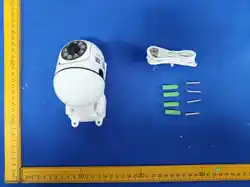
O-KAM Pro
Quick Start Guide
WIFI Camera

Vulnerability Reporng: hp://www.szsinocam.com/Reporng/
Note: This equipment has been tested and found to comply with the limits for a Class B digital device, pursuant to part 15
of the FCC Rules. These limits are designed to provide reasonable protecon against harmful interference in a residenal
installaon. This equipment generates, uses and can radiate radio frequency energy and, if not installed and used in
accordance with the instrucons, may cause harmful interference to radio communicaons. However, there is no
guarantee that interference will not occur in a parcular installaon. If this equipment does cause harmful interference to
radio or television recepon, which can be determined by turning the equipment off and on, the user is encouraged to try
to correct the interference by one or more of the following measures:
—Reorient or relocate the receiving antenna.
—Increase the separaon between the equipment and receiver.
—Connect the equipment into an outlet on a circuit different from that to which the receiver is connected.
—Consult the dealer or an experienced radio/TV technician for help.
Important: Change or modificaons not expressly approved by the manufacturer responsible for compliance could void
the user's authority to operate the equipment.
This device complies with Part 15 of the FCC Rules. Operaon is subject to the following two condions: (1) this device
may not cause harmful interference, and (2) this device must accept any interference received, including interference
that may cause undesired operaon.
RF Exposure Statement
To maintain compliance with FCC's RF Exposure guidelines, this equipment should be
installed and operated with minimum distance of 20cm the radiator your body. This device
and its antenna(s) must not be co-located or operaon in conjuncon with any other antenna nr transmier.
Informaon to User
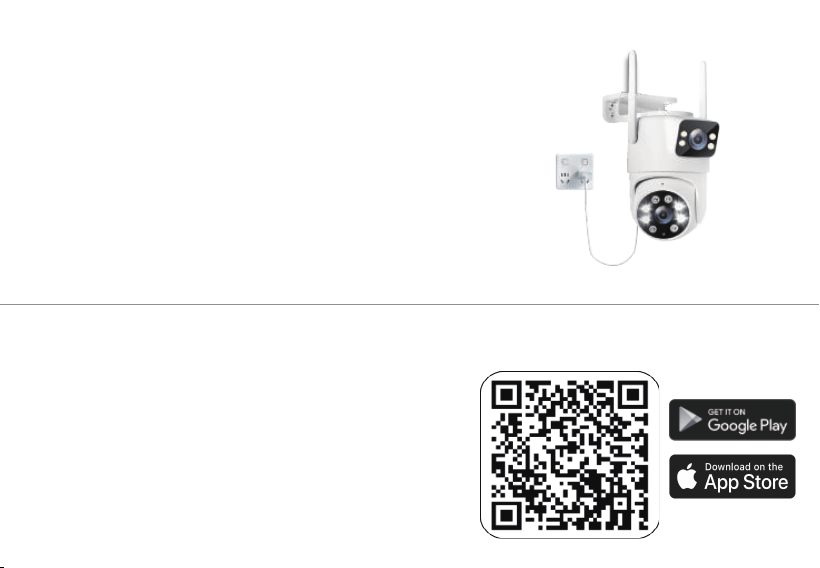
Power supply method
The camera is powered by a 5V-2A DC power supply.
Use your mobile phone to scan the QR code on the right to
download the app, or users can use the APP Store/Google Play
to search for O-KAM Pro to download. Download.
Download App
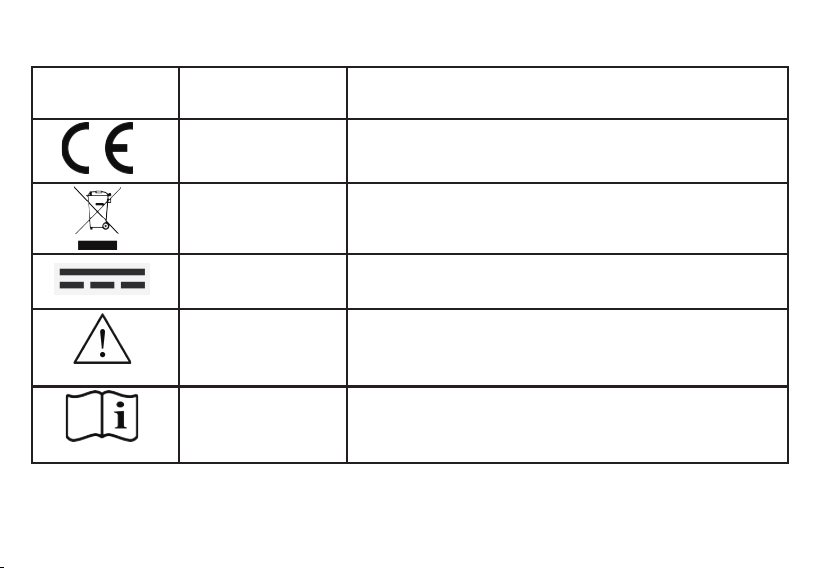
The following table explains symbols that may appear on the camera, its rang label, the supplied power
supply or the packaging. A symbol may apply only to the component on which it is marked.
Final artwork /
reference
Meaning Required user informaon
EU conformity marking
Separate collecon of
electronic waste
Direct current (DC)
This product complies with EU safety standards and may be
lawfully sold on the EU market. This is a mark of compliance and
does not constute a guarantee of quality.
When disposing of this product, do not place it in ordinary
household waste; it must be taken to an e-waste recycling
centre.
This port or device operates on direct current; please use a 5V⎓2A
power adapter.
ISO 7000-0434B
Indicates a potenal hazard which, if not avoided, may result in
minor or moderate injury. Please remain alert when operang the
equipment.
Cauon
ISO 7000-1641
Operang instrucons
Indicates that the user should refer to this manual or the
accompanying documentaon for important safety, operang or
maintenance informaon.

2、Product idenficaon and responsible operators
This product is suitable for designated outdoor areas in private residenal estates, farms and gardens,
amongst others. It is designed to monitor via local applicaons, cloud services or SD card storage, and
provides real-me video, event detecon and recording funcons.
This product is specifically designed for consumers to use in environments where there are no power or
network cables.
• Use only within the specified operang temperature range: -10 to 55°C, operang humidity <90%, IP66
rang, and DC 5V⎓2A
• Install only in locaons where the user has the right to conduct surveillance. Avoid use in public areas,
neighboring properes, and spaces where people have a reasonable expectaon of privacy.
• Do not use this product as the sole means of fire detecon, life safety, medical monitoring, emergency
response, access control, or protecon of high-risk assets.
• Do not modify the product, firmware, antenna, power supply, or installaon system.
• Do not use facial recognion, audio recording, or other analycal features unless they comply with the
principles of lawfulness, necessity, and transparency and are configured correctly.
Warning — No Guarantee of Security
This product can assist with surveillance but cannot prevent intrusions, injuries, or losses. Network, power,
service, or storage failures may delay or prevent alerts and recordings. Maintain appropriate physical security
measures and test the system regularly.
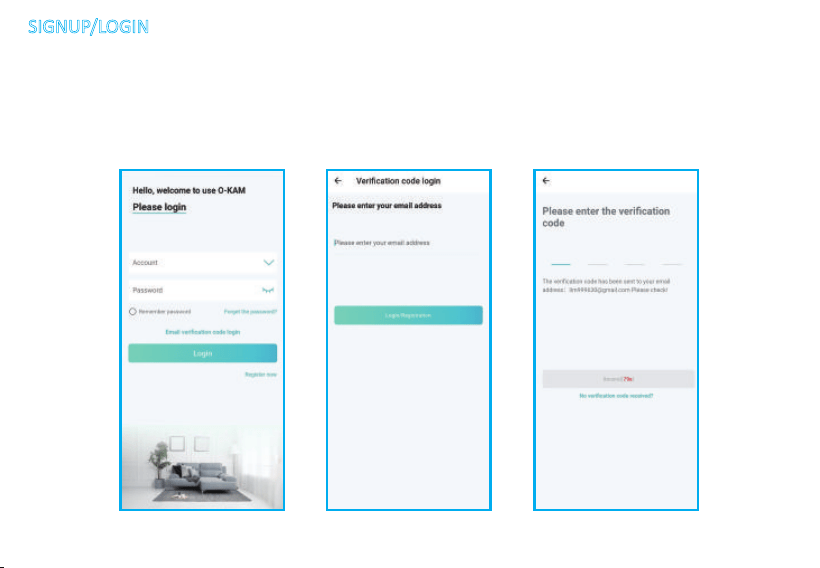
Step 1: New User need to sign up an account and select your country.
Step 2: Click "Sign up" then Enter your email, user name and password, Complete the
verificaon and Sign in your account.
(2)If you already have a O-KAM PRO account, Login directly.
(1) Please register an APP account and log in.
SIGNUP/LOGIN
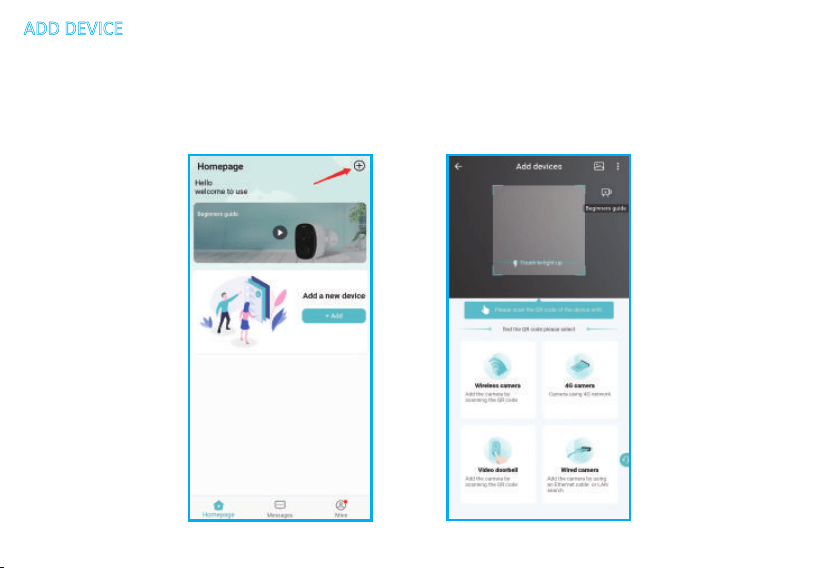
Step 1. Power on the camera unl you hear the APP connecon prompt (no prompt, you need
to reset the camera).
ADD DEVICE
Step 2: Click "+" on App right corner under Home page.
There will have mulple connecon way for you to adding the device.
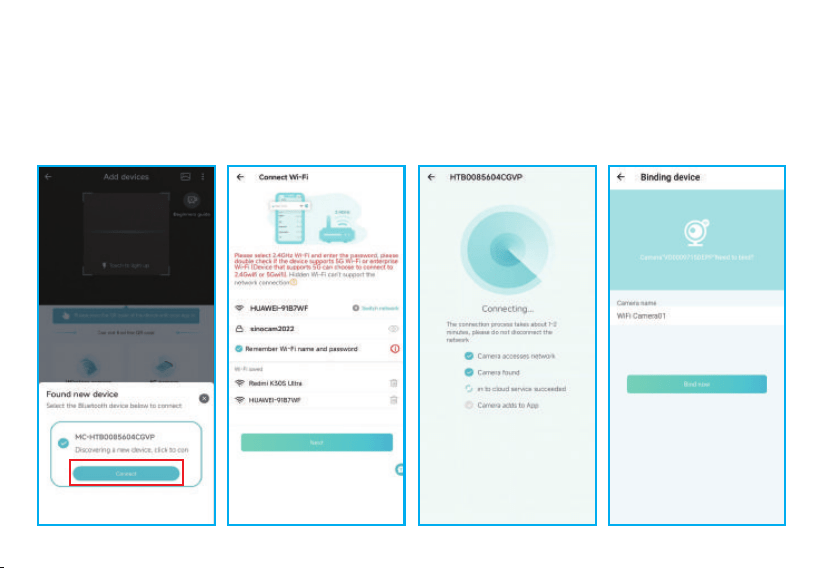
BT-enabled camera with network
1. In the interface of scanning QR code - discover new device, click connect.
2. Select 2.4GHz Wi-Fi and enter the password.
3. Wait for the camera to connect to the router/server.
Quickly configure the network.
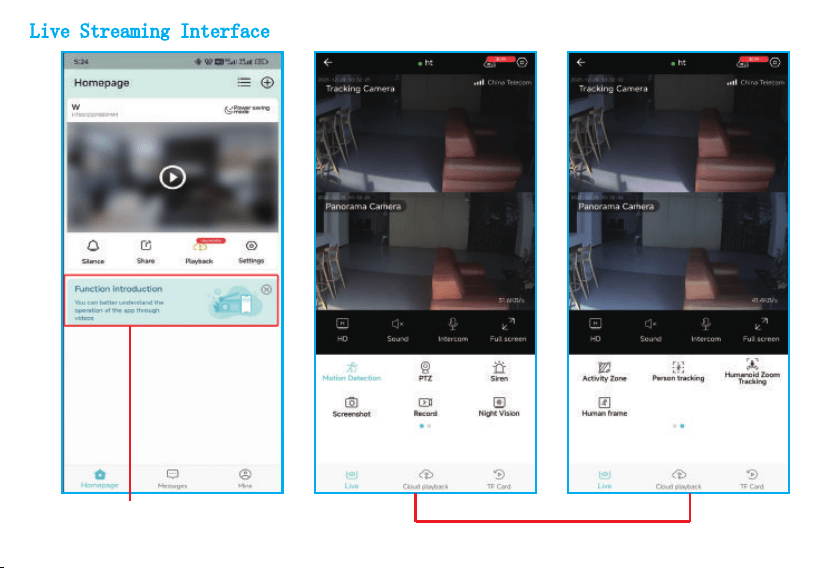
Live Streaming Interface
funconal areas
APP operaon and use, video instrucon
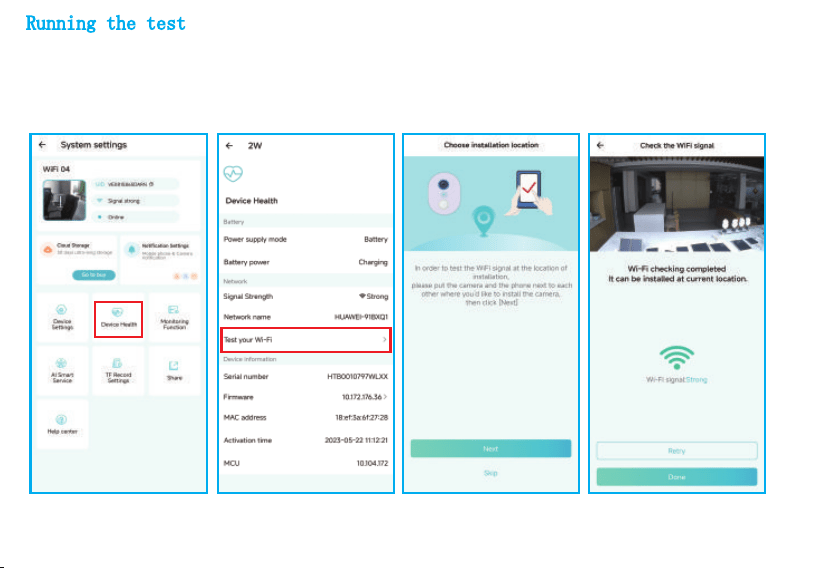
Running the test
The app is configured and the test is run by clicking on the Live View window in the app. Then place the
camera at the installaon locaon for tesng. Make sure the installaon locaon has a strong Wi-Fi signal.
If the Baery Camera does not work properly outdoors, you may need to move the router closer to the
installaon locaon or purchase a Wi-Fi extender.
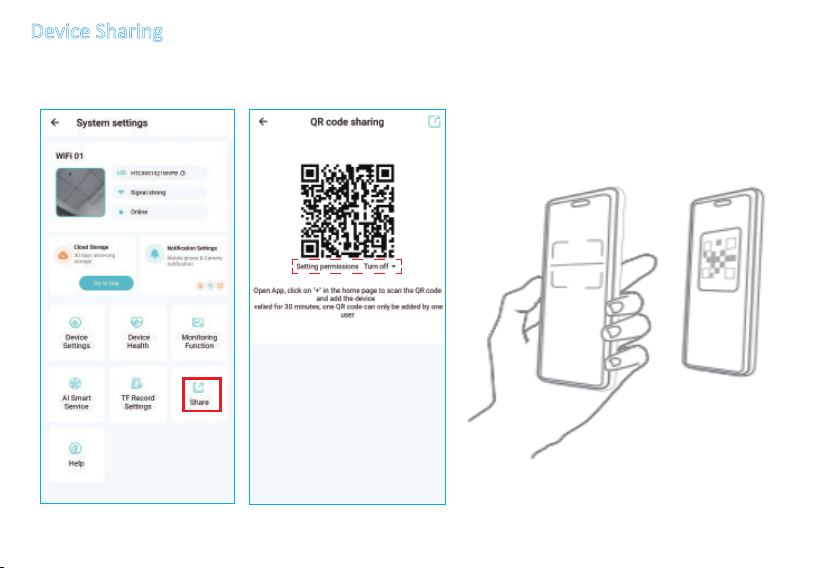
Device Sharing
*Share open permission, the shared person can set the funcon of the device; if If you turn off
the permission, you can only watch the video, but cannot set the funcon.

4、Safety informaon
4.1 Electrical and power safety
• This product is not supplied with a power adaptor; users must use an adaptor that is cerfied to EU standards(
EN 62368-1).
• The mains plug or appliance coupler must remain readily accessible where it is used as the disconnect device.
• Do not use damaged cables, connectors, adapters or sockets. Disconnect power before cleaning, moving or
servicing.
• Keep indoor-only power supplies and connecons dry. Do not touch them with wet hands.
• Do not connect a passive PoE injector unless the product specificaon expressly permits it. Passive PoE can
damage the product and create a hazard.
4.2 Installaon and mechanical safety
• Use the specified fasteners for the mounng surface. Check for concealed cables and pipes before drilling.
• Install overhead or outdoor products so that the mount, safety restraint and cable entries withstand expected
loads and weather.
• Route cables to prevent trips, crushing, sharp bends, water tracking and access by children or pets.
• Keep small parts, protecve films and packaging away from children. They may present choking or suffocaon
hazards.
• Do not place the product on an unstable surface or near heat sources, flames, corrosive chemicals or strong
magnec fields.
• This equipment shall be installed by a skilled person. If the equipment is not provided with an internal all-pole
mains disconnect device, an appropriate all-pole disconnect device complying with Annex L of EN IEC 62368-1 shall
be incorporated into the building installaon. The disconnect device shall be located close to the equipment and
shall be readily accessible.
• This equipment may receive power from more than one source. Disconnect all power sources before installaon or
servicing. Disconnecng only one power source may not fully de-energize the equipment.

4.3 Thermal, opcal and environmental safety
• The enclosure may become warm during normal operaon. Maintain venlaon and do not cover the product.
• Do not stare into infrared LEDs at close range. Install so that emiers are not directed at eyes at short distance.
• Condensaon can damage the product. Allow it to reach room temperature before powering aer a cold transfer.
• A stated IP rang applies only when the product is correctly assembled with approved seals, cable glands and covers; it does not
apply to an indoor power supply.
4.4 espect the rights of others
• Do not record public space, neighbouring property, employees, domesc workers or visitors beyond what is necessary and lawful.
• Provide noce and obtain consent or another valid legal basis where required. Audio and biometric processing may have stricter rules.
• Set the shortest appropriate retenon period and regularly delete unneeded recordings and profiles.
• Respond to applicable requests for access, correcon, restricon, objecon or deleon; obtain advice where roles are unclear.
4.6 Servicing
The product contains no user-serviceable parts except microSD card / baery /Solar panels. Do not open the
enclosure. Contact professional repair technician if the product is damaged, emits smoke or unusual odour, has been
exposed to liquid beyond its rang, or operates abnormally.

6、Installaon and secure setup
1 Before installaon
1.Confirm the installaon locaon, Wi-Fi/Ethernet availability and field of view.
2.Download only the official app from hps://www.veepai.com/cn/support/list-74-1.html
3.Check the app publisher, privacy noce, permissions and minimum operang-system version.
4.Have the product QR/setup code available; do not share it publicly.
6.2 Set up the product
1. Connect the approved power supply or specified PoE source.
2. Open OKAM APP and select Add device. Sign in or create an account using a unique password.
3. Scan or enter the setup code. Grant only permissions necessary for the features you choose.
4. Connect to 2.4GHz WIFI Use an encrypted network and change default router credenals.
5. Install any offered security update before use. Do not interrupt power or network during installaon.
6. Name the device without exposing sensive locaon or personal informaon.Test live view, detecon, alerts,
audio, recording, storage and me zone. Verify that the camera covers only the intended area.
6.3 Mount and posion
Place or mount the camera on a stable surface at a height between 2.5 m and 3 m.Avoid strong backlight, direct sun,
reflecve surfaces, heat, moving foliage and Wi-Fi obstrucons.
ACCOUNT SECURITY
Enable mul-factor authencaon where available. Do not reuse passwords. Give each authorised user an
individual account and minimum necessary permissions. Remove access promptly when no longer needed.
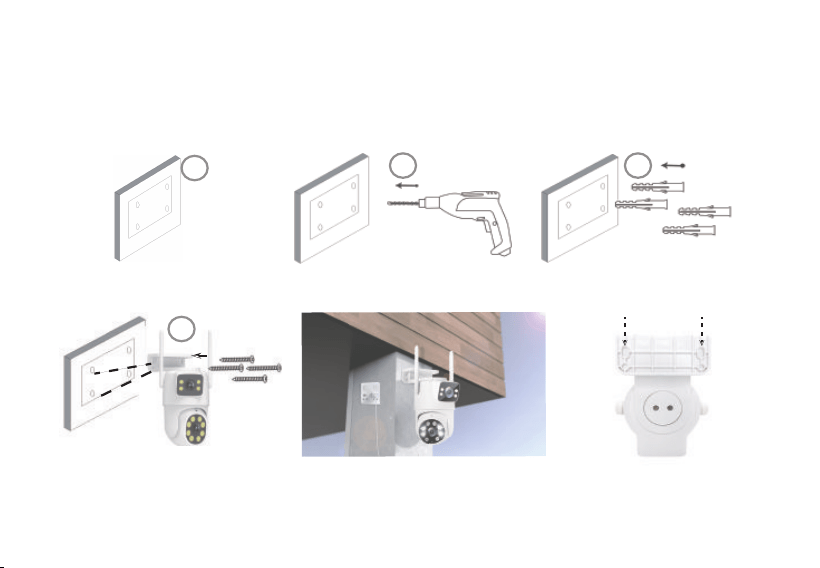
The camera is mounted and fixed:
1. Aach the camera bracket posioning scker to the wall.
2. Using a drill tool, align the logo holes of the scker and drill out the screw holes.
3. Place the green rubber stopper out of the drilled hole.
4. Place the camera in the mounng posion and align the screw holes of the camera bracket, with the wall
screw holes of the camera bracket. Use the matching screws to fix it.
Lifting screw holes
1
2
3
4
7、Technical specificaons
7.1 Network
7.2 Standby power consumpon。Commission Regulaon (EU) 2023/826
Wireless network: 2.4G WiFi IEEE 802.11 b/g/n/ax WIFI6
frequency band(s) in which the radio equipment
operates
Operang Frequency Band: 2412 - 2472MHz
maximum radio-frequency power transmied in
the frequency band(s) in which the radio
equipment operates.
Maximum Radio-Frequency Power: 14.37dBm
Power consumpon in standby mode
1.1W
The power consumpon of networked equipment, other
than HiNA equipment or equipment with HiNA funconality,
in networked standby
the period aer which the equipment reaches automacally
standby mode, in minutes and rounded to the nearest
minute
the period aer which the equipment reaches automacally
networked standby, in minutes and rounded to the nearest
minute
N/A (Not applicable) — The device
connues to operate and does not
automacally enter standby mode
1.1W
N/A (Not applicable) — The device
connues to operate and does not
automacally enter network standby mode

9、Transfer, reset and secure decommissioning
1. Export any recordings you are entled to keep.
2. Remove other users and linked automaons.
3. Remove and securely erase or destroy removable storage. Confirm whether reset erases encrypon keys and local data.
4. Remove the product from the account and verify that remote access no longer works before sale, return, recycling or disposal.
• Disconnect power before cleaning.
• Wipe with a so, dry or slightly damp lint-free cloth. Do not use solvents, abrasives or high-pressure water.
• Keep the lens, microphone opening, venlaon slots, cable seals and mount free from dirt and obstrucon.
• For outdoor products, inspect seals, fasteners, cables and corrosion every six months and aer severe weather
•Test live view, alerts, recording, storage, account access and update status at least once every three months
10、Cleaning and maintenance
11、Troubleshoong
1.Cannot connect
Check supported Wi-Fi band/security, signal, router isolaon, app permissions, date/me and service status. Move temporarily closer to the router.
2.Video unavailable / poor quality
Check bandwidth, privacy mode, lens, lighng, resoluon and concurrent users. Avoid uploading sensive diagnoscs publicly.
3.No recordings
Check the event rules, whether recording is enabled, whether the SD card is damaged, and whether the SD card has been formaed.
4.Frequent false alarms, incorrect recognion
Adjust acvity zones/sensivity; avoid reflecve surfaces,insects, rain, heat sources and moving foliage.
Improve lighng/angle, correct labels and delete poorexamples. Disable recognion if lawful, fair and reliable usecannot be maintained.
5.Update failed
Keep power/network stable, retry official process and contact support. Do not install unverified firmware.
6.Account/device compromised
Disconnect if safe, change account/router passwords, revokesessions, enable MFA, preserve relevant logs and contact security support.
8、Cybersecurity, updates and product lifeme
• Install updates promptly and keep the app, phone/computer and router supported and updated.
• Use unique credenals and mul-factor authencaon. Review device sharing and logged-in sessions.
• Do not expose local services directly to the public internet unless expressly supported and securely configured.
• Protect setup codes, recovery codes, encrypon keys and exported recordings.

12、Disposal and recycling
1 Electrical and electronic equipment
This product must not be disposed of as unsorted municipal waste. Take it to an appropriate separate-collecon facility or use the
return/take-back route available in your country. Proper collecon supports reuse and recycling and reduces risks to health and the environment.
Remove personal data before disposal.
2 Baery
Do not place waste baeries in household waste. Follow statement that removal is by an independent professional, prevent short circuits and
return the baery separately.