U S
E
R
M
A
N U
A
L
A17
User manual for the A17 smartphone,
Android™ operating system.
Senwa Global International, S.A. de C.V.
www.acermobilelatam.com
Product description
This product runs on the Android™ operating system, and it is important to familiarise yourself fully
with its operation in order to guarantee proper use.
Senwa Global International may change this product without prior written notice and reserves the
right to interpret the performance of the product. Due to different software versions and mobile
telephone operators, the appearance of this product could differ from that shown here. Please
consult your product for further details.
Before using your product
Senwa Global International is not responsible for the improper use of the product, of the product
accessories, or of the management of the product storage. Read all the information provided in this
manual.
Operation of this product
The operation of this equipment is subject to the following two conditions:
1. This equipment or product may not cause harmful interference.
2. This equipment or product must accept any interference, including interference that may cause
undesired operation.
Emergency alerts. Emergency alerts notify you of imminent threats and other situations.
There is no charge for receiving an emergency alert message.
A17 · User Manual
About this manual
—
About this manual
© 2026 Senwa Global International S.A. de C.V.
02
01
Introduction
04
02
The phone
05
Installing the Nano SIM card 06
03
Basic gestures
06
04
Navigating the home screen
07
05
Button basics
08
06
Managing applications
09
07
Setting up basic connections
10
08
Settings
12
09
Setting up security protections
16
10
Additional information
17
IMEI number · Calls 17
11
Call and video call technology
17
12
Phone specifications
18
13
Safety warnings
19
14
Precautions
21
A17 · User Manual
Contents
—
Contents
© 2026 Senwa Global International S.A. de C.V.
03
Powering on for the first time
1. Press and hold the power button until the logo appears.
2. A setup process will appear on the screen. Follow the instructions to complete the setup.
Sign in with your Google Account
Your Google Account is the account you use to access Google services such as Gmail, Google Play,
Google Calendar and more. You can create or sign in to an Account during the initial setup. To
manage your Account, go to Settings > Passwords, passkeys and accounts.
Note: You do not need a Google Account to use the phone. You can tap Skip during the initial setup and
add an account later in Settings.
Charging your phone
Before using your phone for the first time, you may need to charge it. Go to the section Charging
the phone in this manual.
Charging the phone
Displaying the battery percentage
Find the battery level in:
The status bar.
Settings > Battery to view it.
Charging the battery
Using a USB cable and an adapter:
1. Connect the charging cable to the USB Type-C port located at the bottom of the phone.
2. Connect the other end to the power adapter.
3. Insert the adapter into a suitable electrical outlet.
Note: The battery is internal and cannot be removed by the user. The charging animation disappears
when the charging process finishes.
A17 · User Manual
01 · Introduction
01
Introduction
© 2026 Senwa Global International S.A. de C.V.
04
Battery saver
You can extend the duration of your phone's battery and make the charge last longer. Go to
Settings > Battery > Battery Saver > Use Battery Saver to activate this function.
Note: The phone loses functions while this feature is activated, including location, notification alerts
and background synchronisation.
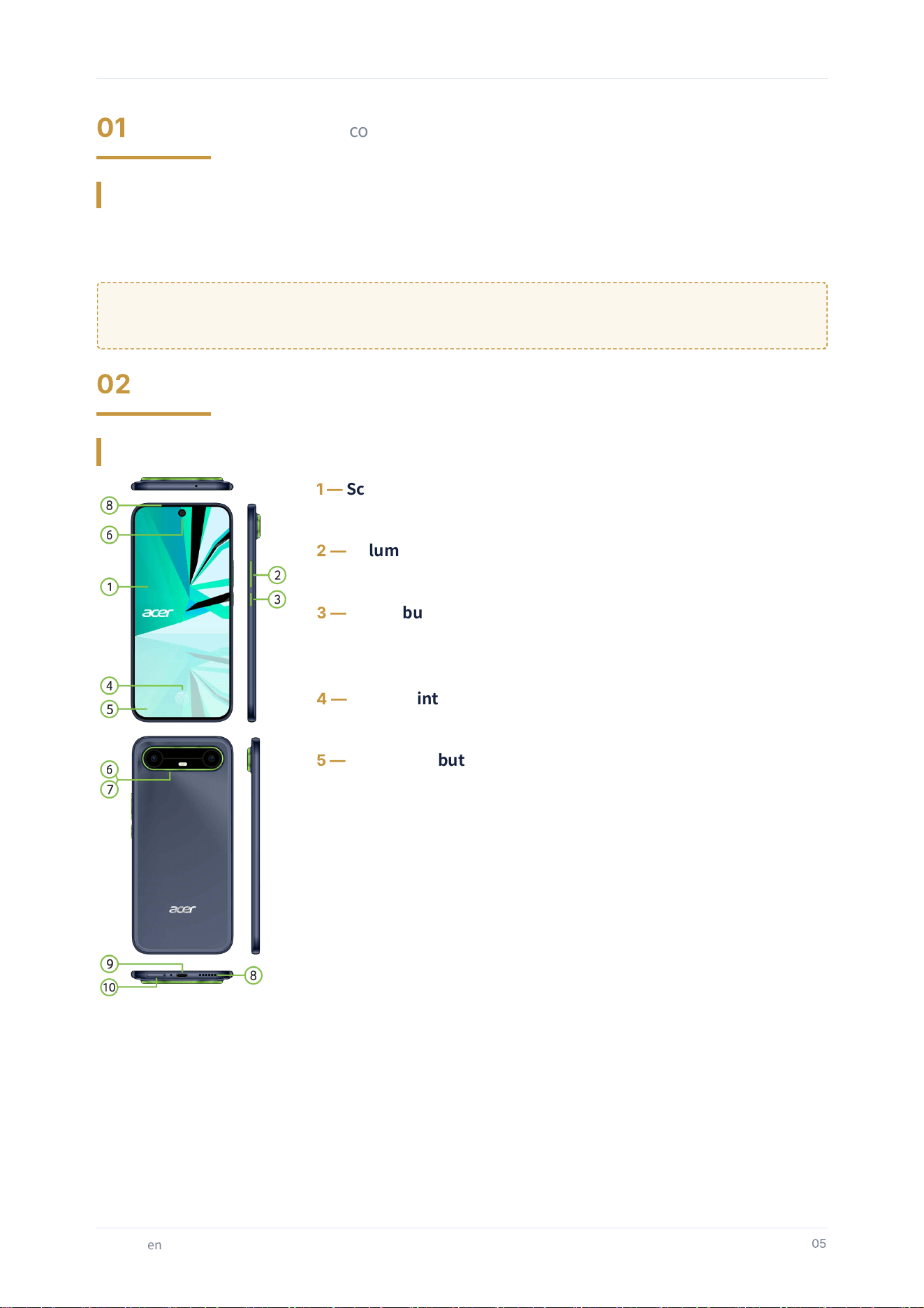
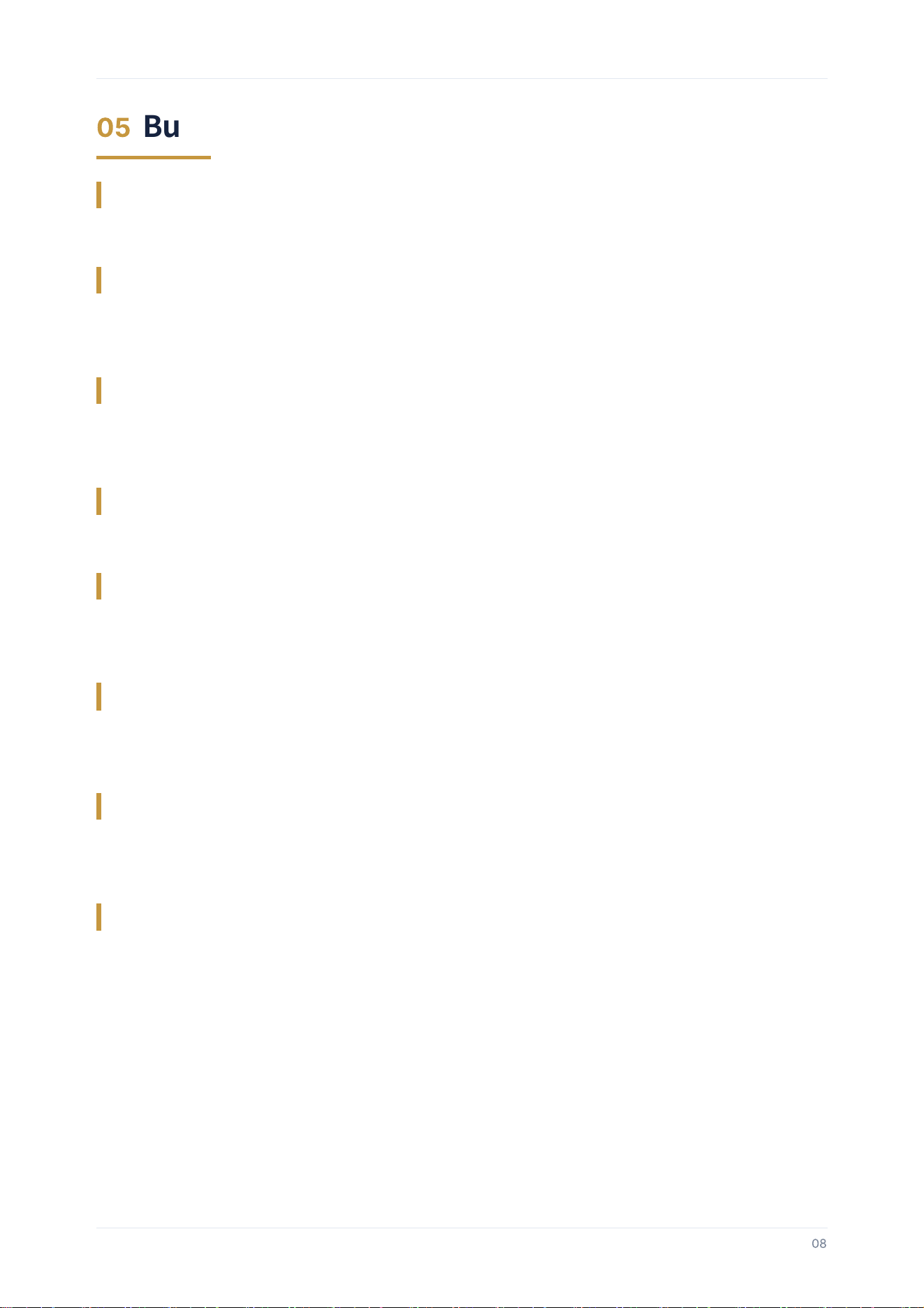
Description
1
—
Screen:
Access your phone.
2
—
Volume buttons:
Adjust the volume of the phone.
3
—
Power button:
Press and hold. Press and hold to turn the phone on and off.
On and Off. Press to turn the screen on or off.
4
—
Fingerprint:
Unlock your phone with your fingerprint.
5
—
Navigation buttons:
Back. Tap to go back and open the screen you were previously working on.
Home. Tap to open the home screen.
Recents. Tap to access previously opened applications.
A17 · User Manual
01‒02 · Introduction · The phone
01
Introduction · continued
02
The phone
© 2026 Senwa Global International S.A. de C.V.
05
6
—
Camera:
Use the front camera and the rear camera to take
photos and video.
7
—
Flash:
Use to improve lighting conditions.
8
—
Earpiece / Speaker:
Earpiece. Use to listen to calls.
Speaker. Use for multimedia content.
9
—
USB Type-C port:
Charging and connection interface.
10
—
SIM card slot:
Nano SIM card. Needed in order to use cellular
networks.
Installing the Nano SIM card
Installation of a Nano SIM card:
1. Turn off your phone (wait a few seconds before inserting the Nano SIM card).
2. Find the Nano SIM card tray, located at the bottom of the phone.
3. Use the tool to remove the tray.
4. Insert or remove the Nano SIM card.
5. Place the tray back into the phone completely and in the same orientation as when you
removed it.
Note: Pay attention to the position of the Nano SIM card in order to insert it correctly.
Basic gestures
Tap / Touch. Tap or touch an item on the screen to interact with it.
Press and hold. Press and hold an item on the screen to interact with and control the particular
function of that item.
Swipe. Move a finger across the screen quickly.
Scroll. To scroll, move a finger across the screen without pausing.
Zoom. Place two fingers on the screen to zoom in and to zoom out.
Auto-rotate. From the quick settings, tap the Auto-rotate icon to activate or deactivate this
function as convenient.
Screenshot. Tap Recents and tap the Screenshot icon.
A17 · User Manual
02 · The phone
02
The phone · continued
© 2026 Senwa Global International S.A. de C.V.
06
Status bar
The top margin of the screen, which contains icons for time, connection, battery and notifications.
Notification panel
Smart Light
The phone has a function called “Smart Light”. This is an alert function for incoming calls,
notifications, low battery, charging and boot mode. Go to Settings > Smart Light to configure this
function.
To view notifications
From the top margin, swipe down once to see your incoming notifications.
To open a notification, tap the notification.
To close a notification, swipe it to the left or to the right.
To close all notifications, tap CLEAR ALL.
To view the quick settings
From the top margin, swipe down to see the quick settings panel.
Tap the pencil icon to edit the panel.
Tap the settings button (gear-shaped icon) to see all the settings of the phone.
Navigation buttons
Use the buttons from the bottom margin of the screen to navigate.
Home screen
Home screen extension. Swipe to the left or to the right to see the home screen extension.
Change the wallpaper. From the home screen, press and hold on an empty space on the screen.
Select Wallpaper & style.
App list
From the bottom margin, swipe up to see the app list. You will be able to see all the applications
installed on your phone in this menu.
A17 · User Manual
04 · Navigating the home screen
04
Navigating the home screen
© 2026 Senwa Global International S.A. de C.V.
07
Turning the phone on
Press and hold the power button until the screen with the logos appears.
Turning the screen on or off
Press the power button once until the screen turns on or off. When the screen is turned off, the
phone locks automatically when the lock function is activated.
Turning the volume up
Use the Volume up button to adjust the volume of calls, music, video or notifications; it can also be
used to take photographs.
Turning the volume down
Use the Volume down button to adjust the volume of calls, music, video or notifications.
Google Assistant
Go to Settings > System > Gestures. Here you will find additional options to configure and
personalise your phone.
Options dialog
Go to Settings > System > Gestures. Here you will find additional options to configure and
personalise your phone.
Restarting the phone
Press and hold the power button for an extended period until an options dialog box appears. Tap
Restart.
Turning the phone off
Press and hold the power button for an extended period until an options dialog box appears. Tap
Power off.
A17 · User Manual
05 · Button basics
05
Button basics
© 2026 Senwa Global International S.A. de C.V.
08
Opening applications
From the bottom margin, swipe up to see the app list.
Closing applications
To close an application, tap Recents and swipe up on the application window.
Uninstalling
1. Press and hold the application you want to delete.
2. Scroll to Uninstall and release the application; after this action, a message will be shown asking
you “Do you want to uninstall this application?”.
Note: Some pre-installed applications cannot be uninstalled.
Creating application shortcuts
Press and hold the application in the App list.
Scroll on the Home screen or the home screen extension.
Creating a group of application shortcuts
1. Press and hold an application and drop it on the icon of another application on the Home
screen to create a folder.
2. Name the folder.
3. Release the application to create the shortcut.
Removing applications from a shortcut group
1. Press and hold the application you want to remove.
2. Scroll to Delete and then lift your finger from the screen.
Deleting a group of application shortcuts
1. Press and hold the folder you want to delete.
2. Scroll to Delete and then lift your finger from the screen.
A17 · User Manual
06 · Managing applications
06
Managing applications
© 2026 Senwa Global International S.A. de C.V.
09
Multimedia
Camera. The Camera application allows you to take photographs and video. There are several
functions in the application to help you capture or edit photos and videos.
Note: To view the photographs captured with the device camera, use the Photos application, which
comes pre-installed from the factory. You can access it from the Google folder, located on the home
screen or in the app drawer.
FM Radio. The phone is equipped with an FM Radio application.
Connect to a Wi-Fi network
Use the Wi-Fi function to access the Internet.
1. Go to Settings > Internet & networks > Internet.
2. Activate the Wi-Fi function.
3. Tap a network to connect.
4. Follow the instructions on the screen to complete the connection.
Connect to a cellular network
You need an active Nano SIM card in order to make telephone calls or send messages with your
phone. Check with your cellular network provider that the card is activated.
Connect to Hotspot
Share the Internet connection between devices by creating a Wi-Fi or mobile data connection.
1. Go to Settings > Internet & networks > Hotspots and connection via mobile devices.
2. Activate one of the available Hotspot functions.
3. Follow the instructions on the screen to complete the connection.
A17 · User Manual
07 · Setting up basic connections
06
Managing applications · continued
07
Setting up basic connections
© 2026 Senwa Global International S.A. de C.V.
10
Turn on airplane mode
Airplane mode deactivates the wireless communications of your phone. Your phone can run
applications that do not require a network or signal. Go to Settings > Internet & networks >
Airplane mode.
Note: You can also access airplane mode through the quick settings.
Connect Bluetooth devices
The Bluetooth function allows you to connect your phone to compatible Bluetooth wireless devices.
To pair with your phone:
1. Go to Settings > Connected devices > Pair new device.
2. Select the device to which you want to connect.
3. Follow the instructions on the screen to complete the connection.
Unpairing Bluetooth devices
Once you pair your phone with the device, they will remain paired unless the connection is
interrupted manually.
1. Go to Settings > Connected devices > Pair new device.
2. Find the device you want to unpair by selecting the gear icon.
3. Choose Forget this device.
Connecting through the USB port
Connect through a USB cable using a compatible connector or adapter to transfer documents and
other files between your phone and your computer.
A17 · User Manual
07 · Setting up basic connections
07
Setting up basic connections · continued
© 2026 Senwa Global International S.A. de C.V.
11
From the Home screen, swipe up to see the app list. Select the Settings application:
Google
Manage your Google Account(s).
Manage Google services.
Manage the preferences of your Google Account(s).
Internet & networks
Make a Wi-Fi connection.
Make a Hotspot connection.
Check cellular networks.
Activate Airplane mode.
Connected devices
Make a Bluetooth connection.
Connect devices to multiple connection preferences.
Apps
Manage the applications and their settings.
View your screen time.
Notifications
Set the notification settings.
View the notification history.
Manage the notifications.
Activate Do Not Disturb.
A17 · User Manual
08 · Settings
08
Settings
© 2026 Senwa Global International S.A. de C.V.
12
Sound & vibration
Configure the volume of various functions.
Configure the tones of various functions.
Modes
Activate Do Not Disturb.
Set Bedtime.
Set Driving.
Display
Manage the brightness level.
Configure the lock screen.
Manage various display functions.
Wallpaper & style
Set the lock screen wallpaper.
Set the home screen wallpaper.
Manage the display settings.
Storage
Manage the file storage of your phone.
Battery
View the battery percentage.
Manage the battery usage.
Activate Battery Saver.
A17 · User Manual
08 · Settings
08
Settings · continued
© 2026 Senwa Global International S.A. de C.V.
13
System
Set the language.
Manage the keyboard.
Configure gestures.
Set the date and time.
Search for and install the system update.
Reset or erase the data of the phone.
About phone
General information about your phone.
Details of your phone.
Security & privacy
View security and privacy alerts.
Activate Find My Device.
Search for and install system updates.
Manage privacy controls.
Location
Configure the use of location.
Manage the location permissions of applications.
Passwords, passkeys and accounts
Manage your Accounts.
A17 · User Manual
08 · Settings
08
Settings · continued
© 2026 Senwa Global International S.A. de C.V.
14
Digital Wellbeing & parental controls
Manage screen time.
Set Bedtime.
Manage interruptions.
Set up parental controls.
Safety & emergency
Manage medical information.
Activate Emergency SOS.
Activate emergency alerts.
RAM expansion via MEGA RAM
Increase the RAM space of your phone.
DuraSpeed
Improve foreground applications by restricting background applications.
Smart Light
This function allows alerts for incoming calls, notifications, low battery, charging and boot
mode.
Accessibility
Find a list of the assistive technologies to help personalise your phone.
Scheduled power off / on
Activate the power-on or power-off time.
This function allows fewer interruptions when necessary.
Smart controls
Smart activation and raise to check the phone.
A17 · User Manual
08 · Settings
08
Settings · continued
© 2026 Senwa Global International S.A. de C.V.
15

Security status
Find My Device. Find My Device helps to locate a lost or misplaced phone. A Google Account is
required for its use. To activate it, go to Settings > Security & privacy > Find My Device.
Security update. Security update allows you to search for and install software updates. Go to
Settings > Security & privacy > Security update and follow the instructions on the screen.
Device security
Screen lock. Screen lock is a secure screen that is used to limit the access to your phone. Go to
Settings > Security & privacy > Screen lock to choose between multiple options.
Fingerprint unlock. Your phone comes equipped with a Fingerprint function. Use this function to
unlock your account in a secure and convenient way, to authorise purchases and payments, and to
sign in to an application. To activate it, go to Settings > Security & privacy > Device unlock >
Fingerprint.
Clearing cached data
To clear data and cache and recover storage space:
1. To clear them, go to Settings > Applications > All applications and select the application. Tap
Storage & cache.
2. Then select CLEAR STORAGE and CLEAR CACHE.
A17 · User Manual
09 · Setting up security protections
09
Setting up security protections
© 2026 Senwa Global International S.A. de C.V.
16
IMEI number
Your phone has a unique IMEI number. You can view the IMEI number of your phone by pressing the
code *#06# on the phone keypad.
Calls
Dialling a number
Go to Phone, tap the phone icon and open the dialling icon. Enter a number using the keypad
and tap the icon to dial.
Go to Phone and select one of the tabs: Favourites / Recents / Contacts. Scroll through the
chosen tab and select the desired contact.
Go to App list > Contacts. Scroll through the list and select the desired contact.
Answering an incoming call
Swipe the icon up to answer an incoming call.
Rejecting an incoming call
Swipe the icon down to reject the call.
Note: Missed calls will be recorded in: Phone › the Recents tab.
Your phone supports 4G / VoLTE calls and 4G / ViLTE video calls. For this function a Nano SIM card
with these capabilities is required:
VoLTE call & ViLTE call
VoLTE call — “high definition voice calls”. VoLTE offers an HD quality service for voice calls
made through the cellular network.
ViLTE call — “high definition video calls”. ViLTE allows you to make HD video calls and to
switch between voice calls and video calls.
Note: These services should be activated by default. To verify, consult your service provider.
VoWiFi call — “high definition voice calls”. VoWiFi offers an HD quality service for voice calls
made through a Wi-Fi network.
A17 · User Manual
10 · Additional information
10
Additional information
11
Call and video call technology
© 2026 Senwa Global International S.A. de C.V.
17
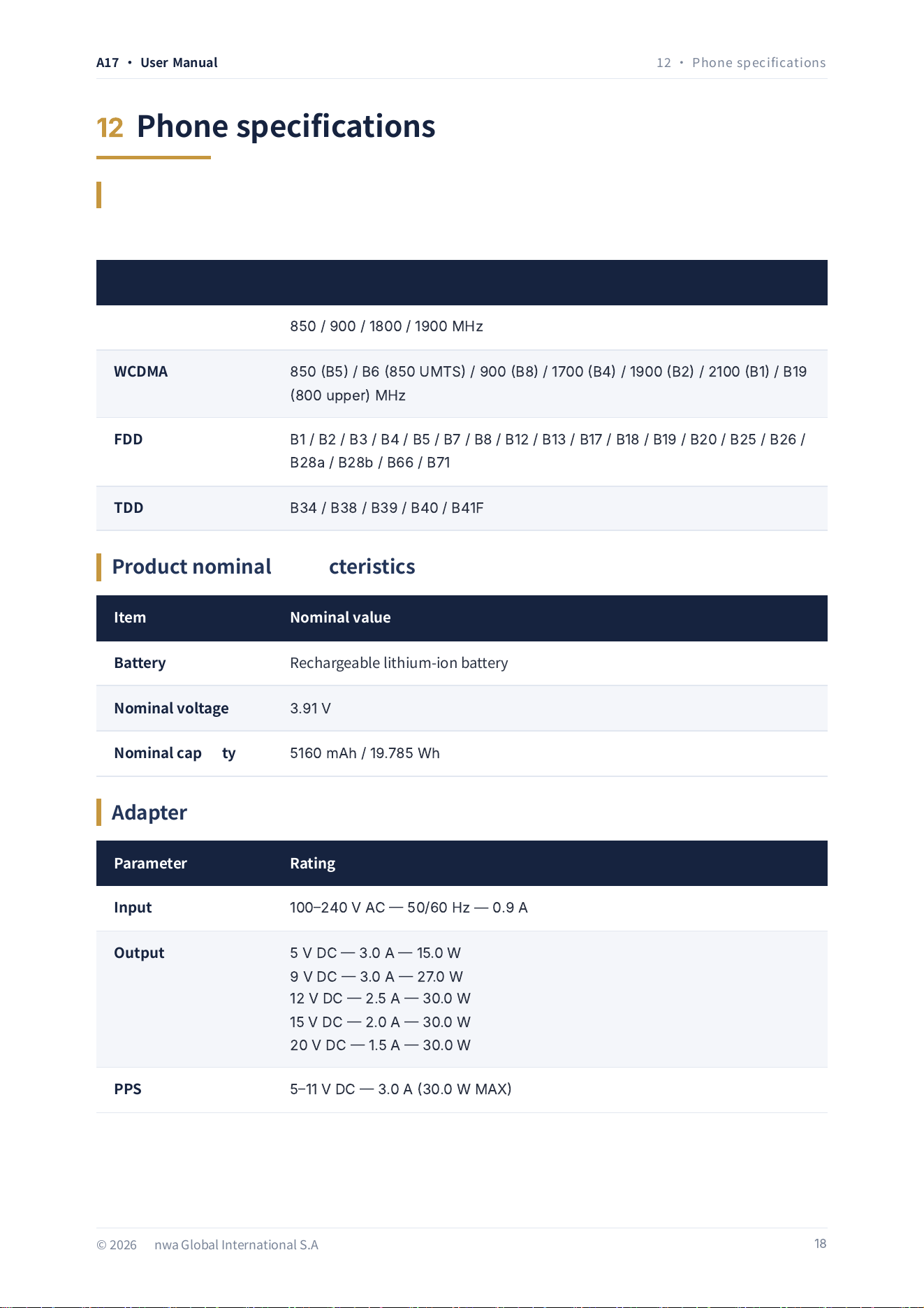
Cellular operation note
Your phone has the ability to operate on the following cellular radio frequency (RF) bands:
Band Frequencies / bands
GSM
850
/
900
/
1800
/
1900
M
H
z
WCDMA
850
B
5
/
B
6
850
UMTS
/
900
B
8
/
1700
B
4
/
1900
B
2
/
2100
B
1
/
B
19
800
upp
e
r
)
M
H
z
FDD
B
1
/
B
2
/
B
3
/
B
4
/
B
5
/
B
7
/
B
8
/
B
12
/
B
13
/
B
17
/
B
18
/
B
19
/
B
20
/
B
25
/
B
26
/
B
28
a
/
B
28
b
/
B
66
/
B
71
TDD
B
34
/
B
38
/
B
39
/
B
40
/
B
41
F
Product nominal characteristics
Item Nominal value
Battery Rechargeable lithium-ion battery
Nominal voltage
3.91
V
Nominal capacity
5160
m
A
h
/
19.785
W
h
Adapter
Parameter Rating
Input
100240
V
AC
50/60
H
z
—
0.9
A
Output
5
V
DC
3.0
A
15.0
W
9
V
DC
3.0
A
27.0
W
12
V
DC
2.5
A
30.0
W
15
V
DC
2.0
A
30.0
W
20
V
DC
1.5
A
30.0
W
PPS
511
V
DC
3.0
A
30.0
W
M
A
X
A17 · User Manual
12 · Phone specifications
12
Phone specifications
© 2026 Senwa Global International S.A. de C.V.
18
Keep out of the reach of children
Keep the phone and all its accessories out of the reach of small children, to avoid choking hazards.
Road safety comes first
Do not use mobile devices while driving. Use a hands-free kit if you need to make or receive an
important call while driving. In some countries, making or receiving calls while driving is illegal.
Turn the phone off on the aircraft
Wireless devices can cause interference in aircraft. The use of a mobile device during a flight is
illegal and dangerous. Please make sure that your phone is turned off during the flight.
Turn the phone off when entering hazardous areas
Strictly respect the laws, codes and regulations on the use of mobile devices in risk areas. Turn your
phone off before entering a place susceptible to explosion, such as petrol stations, oil depots,
chemical plants or sites where any flammable or explosive material is handled.
Follow all special regulations
Follow the special regulations in force in each case, for example in hospitals, and always turn your
phone off when its use is prohibited or when it may cause interference or be dangerous in any way.
Medical equipment
Use mobile devices with caution near medical apparatus, such as pacemakers, hearing aids and
other electronic medical devices, since the phone may cause interference in this type of equipment.
Interference
The conversation quality of any mobile device can be affected by radio interference. Inside the
phone there is an antenna located below the microphone; do not touch the antenna area during a
conversation, to avoid a possible deterioration of the sound quality.
A17 · User Manual
13 · Safety warnings
13
Safety warnings
© 2026 Senwa Global International S.A. de C.V.
19
Qualified service
Only qualified personnel should repair the phone. Repairing the phone yourself can represent a
serious danger and invalidates the warranty.
Accessories and batteries
Use only official accessories and batteries. Once the battery charging is complete, do not leave your
phone connected to the power source for a prolonged period of time; the phone is not designed to
remain connected to the electrical power source for a prolonged time, and doing so could cause
damage to the phone or be dangerous.
Follow local regulations
Use the phone sensibly and appropriately, respecting the laws, rules, uses and customs of each
area.
Emergency calls
Make sure that the phone is on and in service, enter the emergency number (it will vary depending
on the country in which you are) and then press the dial key. Indicate your location and state your
situation briefly. Do not end the call until you are told to do so.
IMPORTANT: Like the rest of mobile devices, this phone does not necessarily support all the functions
described in this manual in the event of mobile network transmission problems. In addition, some
networks are still not compatible with the emergency call service. Therefore, do not rely solely on the
phone for essential communications, such as first aid. For more information, consult your local network
operator.
Airbags
Do not place the phone or its accessories in the airbag deployment area of the car; doing so could
cause personal injury if the airbag system is activated.
Take care of your hearing and your sight
When using the headphones, make sure to adjust the volume carefully, avoiding listening to music
too loudly, since it could damage your hearing. Likewise, do not place the screen of your phone too
close to your eyes and try to keep some light on in the environment while using it.
A17 · User Manual
13 · Safety warnings
13
Safety warnings · continued
© 2026 Senwa Global International S.A. de C.V.
20
This phone is carefully designed with detailed finishes. Please take special care when using it. The
following suggestions will help to extend the useful life of your phone and guarantee the warranty
period:
Keep the phone dry and away from rain, humidity and any other liquid substance that could
oxidise the electronic circuits.
Do not use or store the phone in places with dust or other suspended particles, in order to avoid
damage to the phone.
Do not expose the phone to any source of heat, such as radiators or dryers. High temperatures
shorten the life of the electronic circuits and damage the battery and some plastic parts.
Do not store the phone in extremely cold or hot environments. This phone is designed to be
used in environments with ambient temperatures ranging between 0 °C (32 °F) and 35 °C (95
°F); continuous exposure to very high or very low temperatures can cause the accumulation of
humidity inside the phone, damaging the electronic circuits when moving from a cold area to a
warmer one, and shortening the useful life of the battery and of the phone.
Do not throw or hit the phone, since it could destroy the internal circuits and the high-precision
components that make it up.
Your phone can be inspected by X-ray machines, such as those used on the conveyor belts of
airport checkpoints, but it should not be exposed to magnetic detectors or hand-held scanners.
Do not use cleaning products to clean your phone. Use only a clean, dry cloth.
Do not paint your phone. This could obstruct the moving parts and the slots or ventilation
points of your phone.
© 2026, Senwa Global International S.A. de C.V. The Acer trademarks are licensed to Senwa Global International S.A. de
C.V. by Acer Incorporated. The use of the Acer brand for this product by Senwa Global International S.A. de C.V. is under
licence from Acer Incorporated. Google, Android, Google Play and Gmail are trademarks of Google LLC.
www.acermobilelatam.com — Version 0.94
A17 · User Manual
14 · Precautions
14
Precautions
© 2026 Senwa Global International S.A. de C.V.
21

Federal Communication Commission Interference Statement
FCC ID: 2AZYA-A17
This device complies with Part 15 of the FCC Rules. Operation is subject to the following two
conditions: (1) This device may not cause harmful interference, and (2) this device must
accept any interference received, including interference that may cause undesired operation.
This equipment has been tested and found to comply with the limits for a Class B digital
device, pursuant to Part 15 of the FCC Rules. These limits are designed to provide
reasonable protection against harmful interference in a residential installation. This
equipment generates, uses and can radiate radio frequency energy and, if not installed and
used in accordance with the instructions, may cause harmful interference to radio
communications. However, there is no guarantee that interference will not occur in a
particular installation. If this equipment does cause harmful interference to radio or
television reception, which can be determined by turning the equipment off and on, the user
is encouraged to try to correct the interference by one of the following measures:
-Reorient or relocate the receiving antenna.
-Increase the separation between the equipment and receiver.
-Connect the equipment into an outlet on a circuit different from that to which the receiver
is connected.
-Consult the dealer or an experienced radio/TV technician for help.
FCC Caution: Any changes or modifications not expressly approved by the party responsible
for compliance could void the user's authority to operate this equipment.
Radiation Exposure Statement:
This device meets the government’s requirements for exposure to radio waves.
This device is designed and manufactured not to exceed the emission limits for exposure to
radio frequency (RF) energy set by the Federal Communications Commission of the U.S.
Government.
The exposure standard for wireless device employs a unit of measurement known as the
Specific Absorption Rate, or SAR. The SAR limit set by the FCC is 1.6W/kg. Tests for SAR are
conducted using standard operating positions (Head: 0mm, Body: 10mm) accepted by the
FCC with the device transmitting at its highest certified power level in all tested frequency
bands.
The use of holsters and similar accessories should not contain metallic components in its
assembly, the use of accessories that do not satisfy these requirements may not comply with
FCC RF exposure requirements, and should be avoided.