USER GUIDE
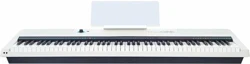
The ONE Keyboard Pro
www.smartpiano.com
C
M
Y
CM
MY
CY
CMY
K
The one_TON_manual_G01_170606.pdf 1 17/6/6 17:25
C
M
Y
CM
MY
CY
CMY
K
The one_TON_manual_G01_170606.pdf 2 17/6/6 17:25
1
C
M
Y
CM
MY
CY
CMY
K
The one_TON_manual_G01_170606.pdf 3 17/6/6 17:25
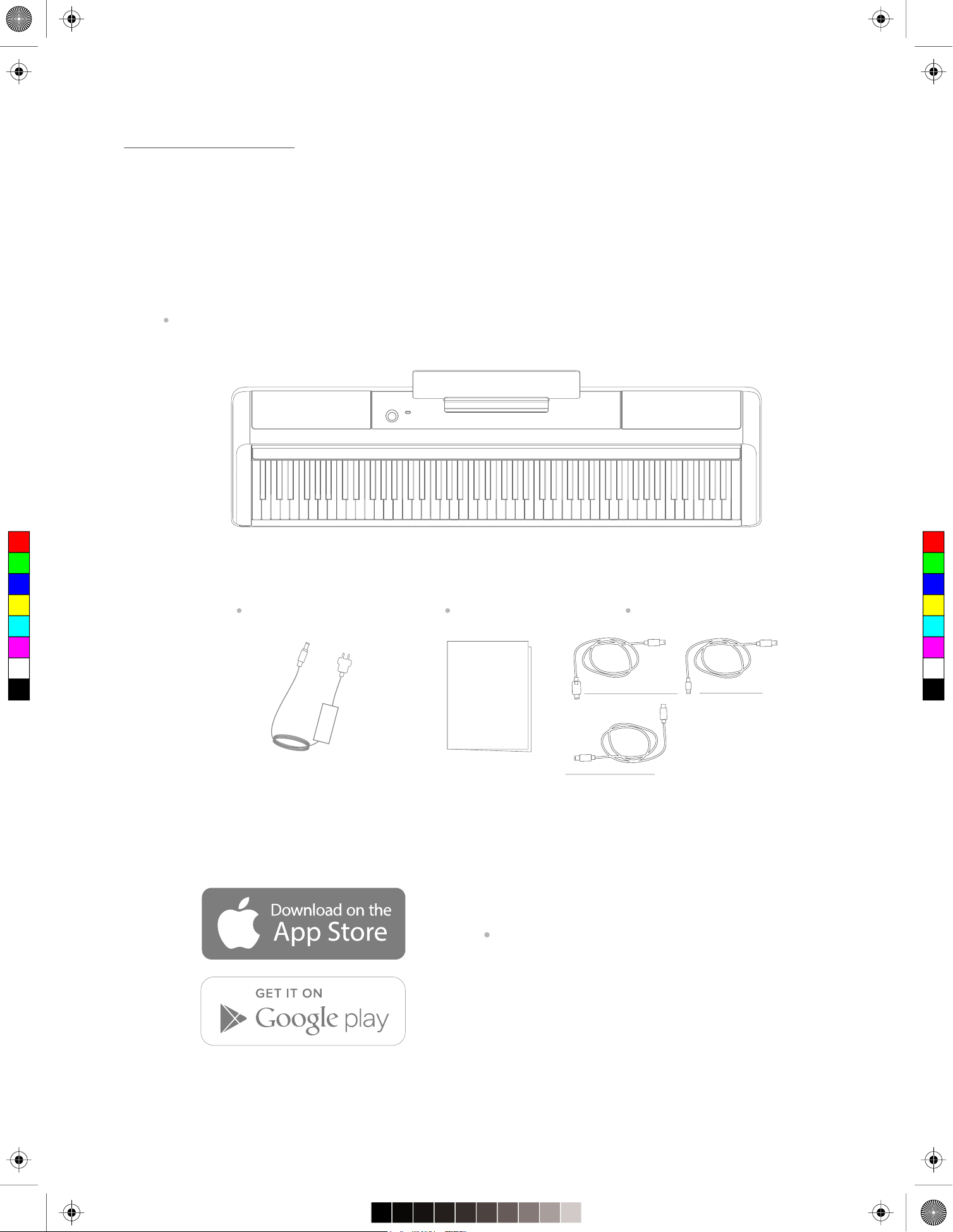
Parts List
Piano body
User gui de
User Guide
Apple Lightning Cable
Micro USB Cable
Power source DC 15V
Cables
Buy other cables from:
www.smartpiano.com
Android Type C Cable
Search "The ONE Smart Piano_by The
ONE"on App Store or Google Play
For more information, please visit:
https://www.smartpiano.com/pages/app
Thanks for purchasing The ONE Keyboard Pro. First, please unpack the shipping carton and check all items
carefully. If any item contained is damaged or missing, please contact<[email protected]>.
Also, you may want to keep the packing materials in case you need to ship the unit in the future.
The package should contain the following items:
P roduct Introduction
C
M
Y
CM
MY
CY
CMY
K
The one_TON_manual_G01_170606.pdf 4 17/6/6 17:25
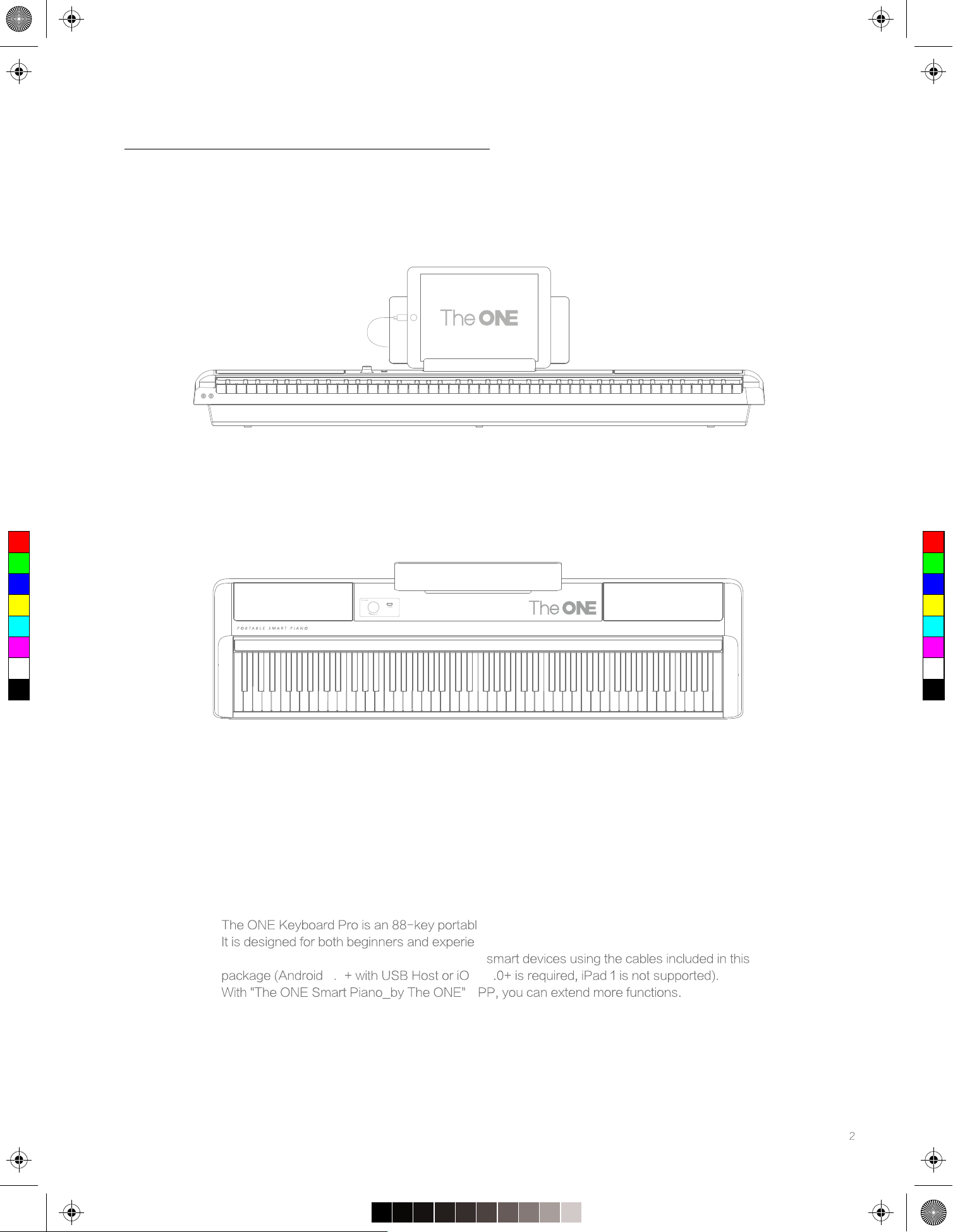
e keyboard instrument that can teach you to play.
nced players. By using the dedicated cables, you
can connect the keyboard to Android or Apple
S
A
5 0 10
etup
usic tand Panel
ase
Fied lot
This section contains information about setting up your instrument and preparing to play.
Please read through this carefully before turning the power on.
ote
For your safety, please unplug the instrument when it is
not in use or durin the thunderstorm.g
C
M
Y
CM
MY
CY
CMY
K
The one_TON_manual_G01_170606.pdf 5 17/6/6 17:25
Power Supply
Before turning the power on or off, please set the olume
leel of instrument and connected audio deice to the
minimum olume.
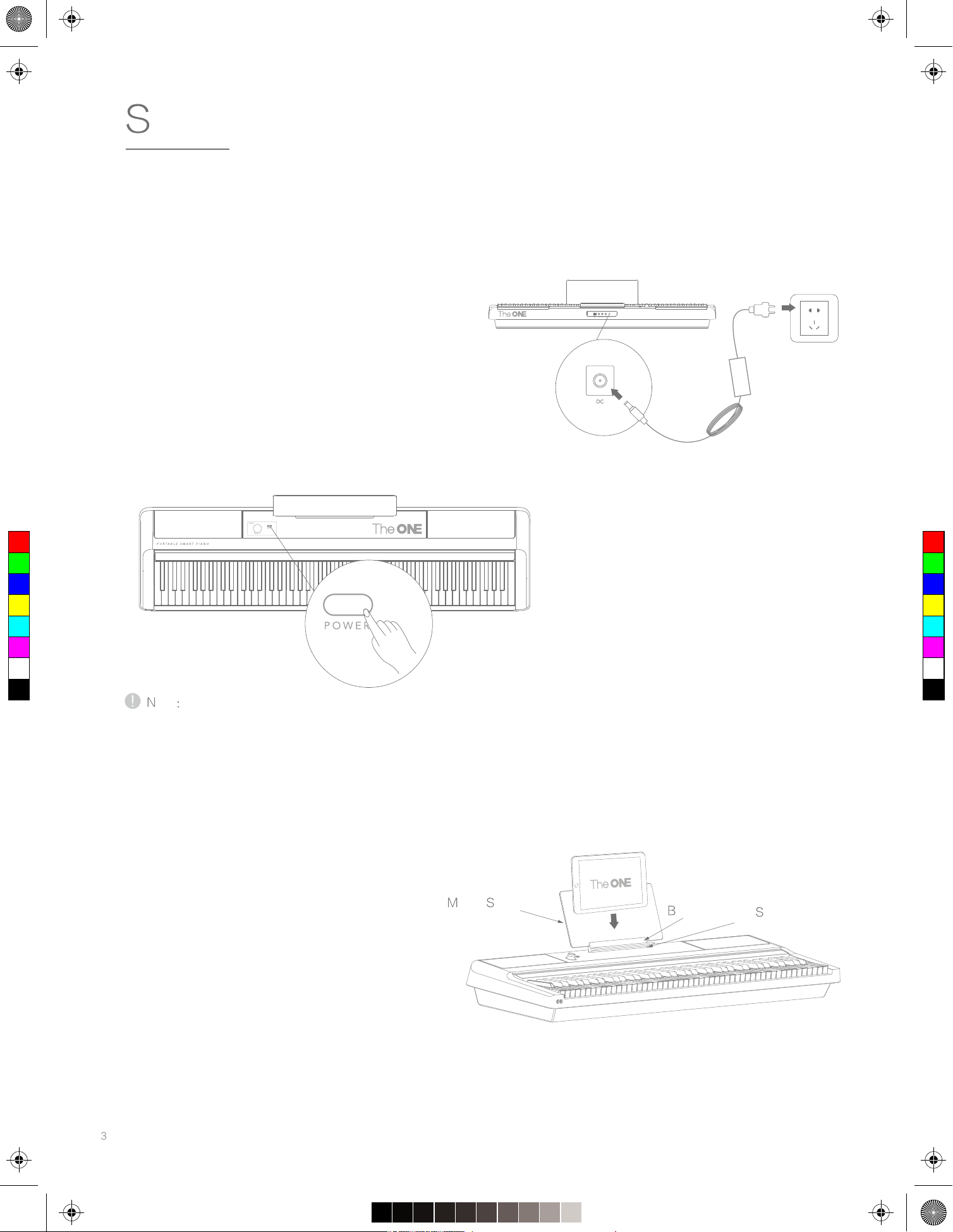
1. Connect the ACDC power adaptor to the DC ack.
. Plug the ACDC power adaptor into an appropriate AC
outlet 1V.
. Press the POE button. The indicator of olume
knob is lighted indicating the instrument is powered on.
. Press the POE button again. The power will be
turned off.
Using the Music Stand
Simply insert the music stand into the base and put the
base into the slot on the keyboard. ou can use this
stand to place smart deice or sheet music.
Panel Control
C
M
Y
CM
MY
CY
CMY
K
The one_TON_manual_G01_170606.pdf 6 17/6/6 17:25
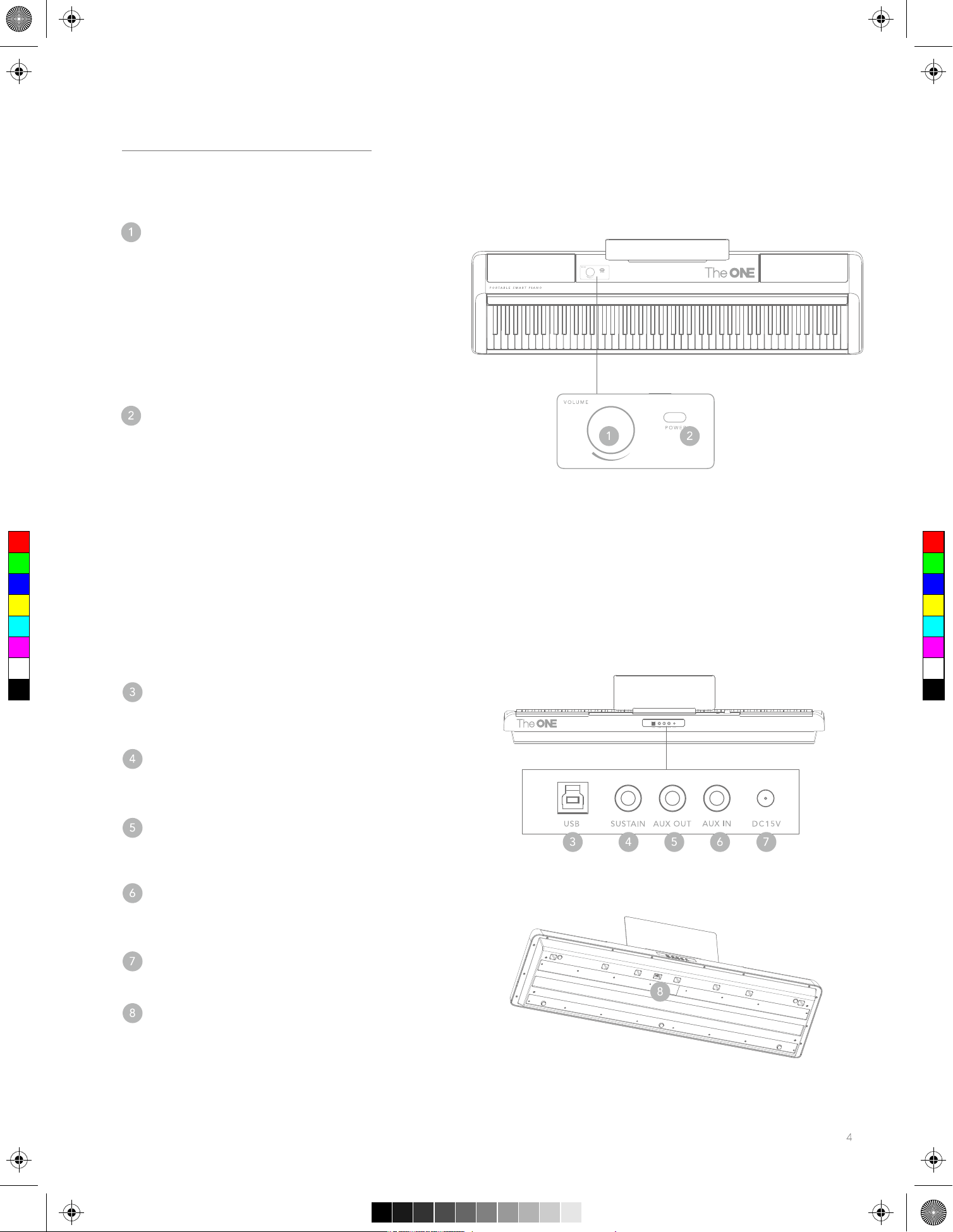
Main Panel
Master Volume Sound
Sound
Selection Button
Pressing the button can switch two modes: Master olume
control and selection.
The initial state is Master olume control. Turn the knob to
the right to increase and to
the left to decrease the
olume.
In the Sound selection mode, timbres can be switched
by rotating the button.The LED light corresponding to each
Power Button
Turn the power on or off. hen the power is on, the
olume indicator will light up.
ear panel
iOSAndroid Deice ack
iOSAndroid smart deices can be connected ia
dedicated cables.
Sustain Pedal ack
Add the pedal effect by connecting to an eternal pedal.
.5mm AU OUT ack
Connect
to eternal audio output deices, to
stream audio from the keyboard.
.5mm AU
IN ack
Connect
to eternal audio source, to play the audio
through the keyboards speakers.
DC IN 15V
Connect the DC 15V power.
Pedal ack
Soft, sostenuto and sustain with half pedal can be used
by connecting pedals.
timbre on the keyboard will light up.
5
C
M
Y
CM
MY
CY
CMY
K
The one_TON_manual_G01_170606.pdf 7 17/6/6 17:25
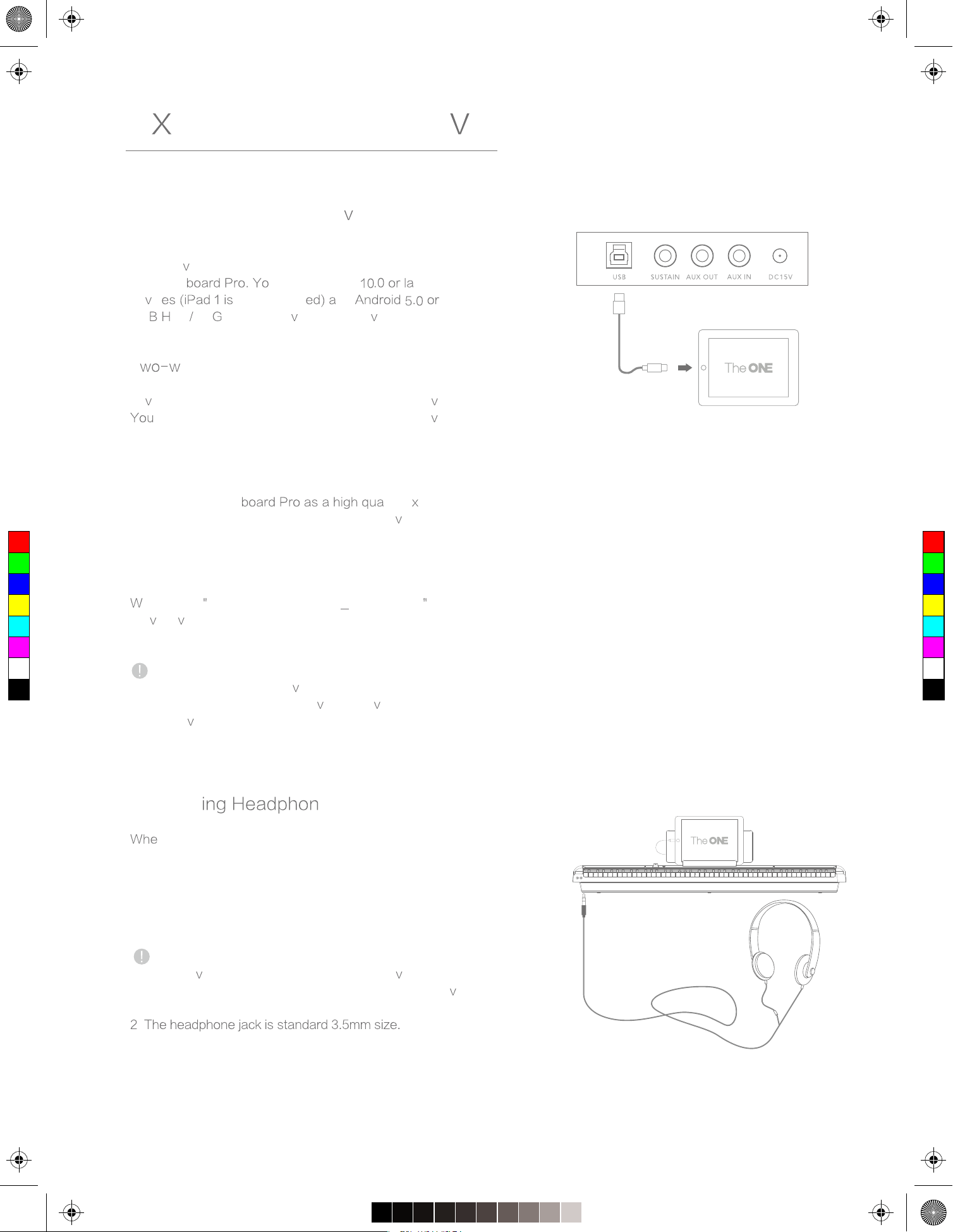
Connecting the Smart De ices
To bring endless fun to music playing, we are integrating
smart de ices, entertainment, and music learning into The
ONE Key
u can plug iOS ter Apple
de ic not support nd later
US
ost OT Android de ices to disco
er more fun
suprises.
T ay USB MIDI Data Transmission
Once The ONE Keyboard Pro is connected to your smart
de ice, you can record sounds from your smart de ice.
can also use it as a spea ker for your smart de ice
to play stored MIDI files.
USB Audio Playback
Use The ONE Key lity e ternal
speaker to stream music from your smart de ice by
simply connecting it.
Download APP to get more functions
e created The ONE Smart Piano by The ONE to
pro
ide arious addtional features.
Note:
Before connecting other de
ices, please make sure that all
the power is off. And set all the
olume le el to the
minimum olume before turning the power on.
Connect es
n you need to practice in silence, a pair of headphone
can be plugged in as illustrated.
Once plugged in, the instrument sound can only be heard
through the headphone instead of the speaker.
Note:
1. Please a
oid using the headphone in high olume for a
long time, since it may cause the auditory fatigue, e en
permanent hearing loss.
.
E ternal Connecti ity
!"#$
C
M
Y
CM
MY
CY
CMY
K
The one_TON_manual_G01_170606.pdf 8 17/6/6 17:25
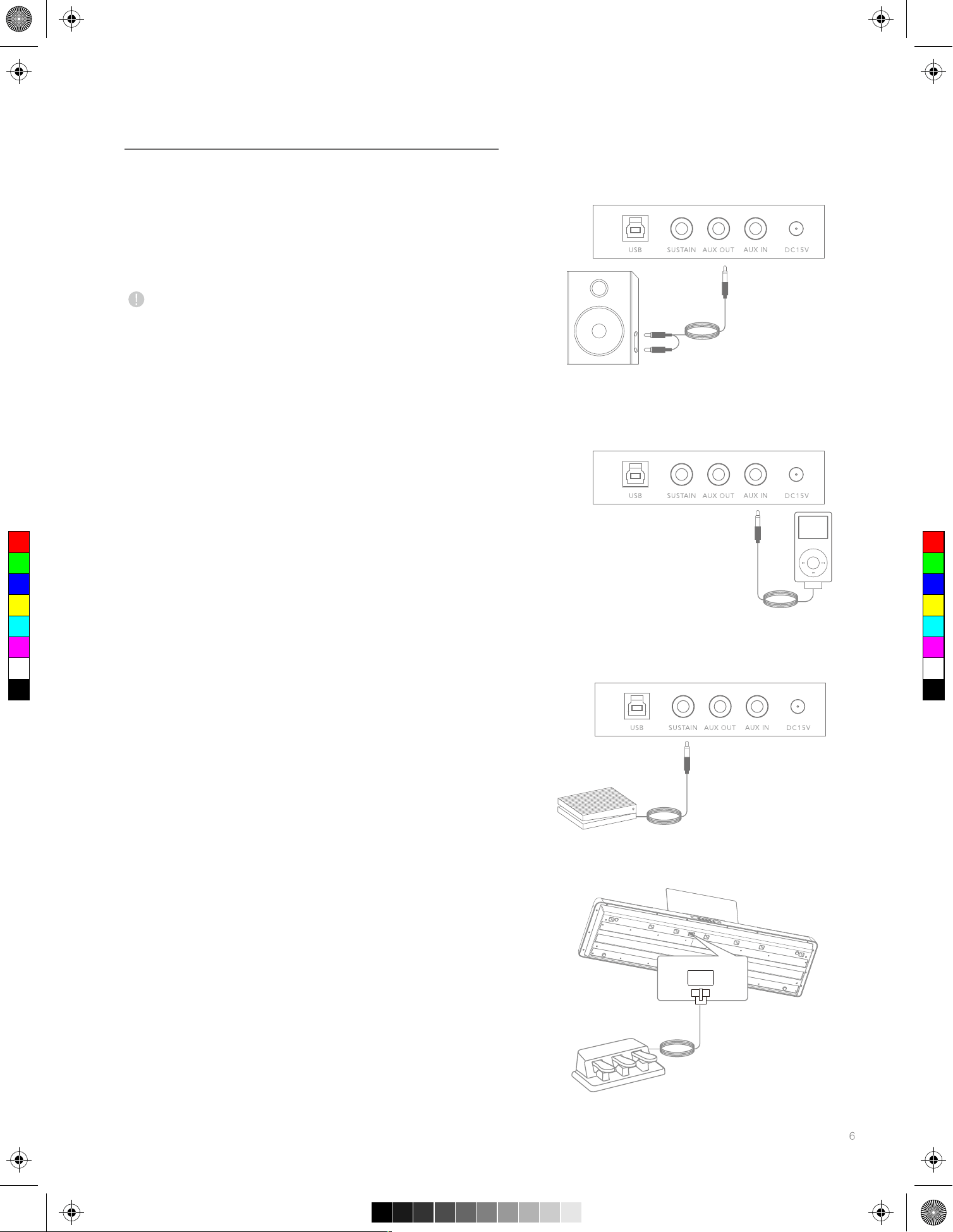
Connecting to Audio Euipment
The keyboard amplifier, stereo sound system, miing
console, or other audio deices can be connected ia
.5mm AU OUT ack.
Note:
Before connecting other deices, please make sure that all
the power is off. And s
et all the olume leel to the
minimum olume before turning the power on.
Connecting the MPCD Player
MPCD player or other audio source can be connected to
your instrument ia the .5mm AU IN ack on the rear
panel.
Connect one end of
the audio cable to the .5mm
AU IN ack, the other end to the MPCD player. Then
you can enoy your faorite music played from the
keyboard spea
ker.
Connecting the Sustain Pedal
The sustain pedal can make the notes sustain more
naturally and enrich the ambiance, which is aailable as an
optional purchase.
Insert
the pedal plug into the ack as shown, and use it
to turn on or off the sustain effect.
Connecting the Pedal
The pedal is not included in the package. oweer, you
may purchase the keyboard pedal to produce sustain
effects.
Insert
the pedal plug into the ack as shown, and use its
sustain effect.
Eternal Connectiity
Basic Operations
C
M
Y
CM
MY
CY
CMY
K
The one_TON_manual_G01_170606.pdf 9 17/6/6 17:25
Power switch
Use the Power Adapter
1. First, make sure the AC adapter is correctly connected.
. Press POE button.The indicator around the olume
button will light up, and enter the Master olume
control mode in the initial alue, which means the power
is on.
. Press the button to enter the timbres
selection mode
androtate the button to switch. After selecting the timbre.
press the button to switch to Master olume control mode.
Note:
If the indicator is not lighted after you press POE button,
please check whether the adapter is correctly connected.
Note:
This page only lists the function your instrument can
achiee. Please refer to the instruction of APP for more
details.
Selecting More Sounds
timbres ,11 drum sets M timbres
can be selected in The ONE Smart Pianoby The ONE
APP.
Note:
1. Please refer to the instruction of APP to get the informa
tion of setting up the smart deice.
.The instrument will switch to grand piano sound when it
works independently.
C
M
Y
CM
MY
CY
CMY
K
The one_TON_manual_G01_170606.pdf 10 17/6/6 17:25
Function Etension
Transpose
ou can set the tune in semitone ia smart deices without
changing the way you play. The adustable range is 1.
o to My Account > Sound settings > Sound setting >
Transpose settings
Octae
ou can set the entire keyboard sound in octae ia smart
deices. The adustable range is 1.
o to My Account > Sound settings > Sound setting
SAFET MAINTENANCE
Power
Connection
Cleaning
Please read carefully before proceeding.
Please keep this manual for future reference.
C
M
Y
CM
MY
CY
CMY
K
The one_TON_manual_G01_170606.pdf 11 17/6/6 17:25
Functions of the product may be subect to strong electromagnetic interference.
If it happens, simply follow the user manual to restore the initial settings. If the
functions still cannot work after rebooting, try to use the product in another
location.
Please dont pull the cord directly when pulling the plug from outlet, otherwise the
cord may get damaged. Please dont connect the deice to the outlet through multiple
connectors, otherwise, it may result in outlet oerheating.
Using other adaptor may cause the fire or electric shock. Please unplug the
power during the thunderstorm.
To preent unepected damage, please turn off the power before connecting
other deices.
In order to preent deformation, discoloration or more serious damage, aoid
eposing the instrument to the following conditions:
Direct sunlight
Etreme temperature or humidity
Ecessie dust or dirt
Strong ibrations or shocks
Strong magnetic fields
adios or teleisions placed nearby may eperience reception interference.
Please place the instrument at a suitable distance from radios and teleisions.
Clean only with a soft, dry cloth. Please do not use the cloth soaked with paint
thinners, solents, cleaning solutions or chemicals.
Please do not use ecessie force on the buttons or switches.
The best enironment for use is:
Temperature: 15 5 umidity: 5
Aoid getting paper, liuid, metal or other things into the instrument. If this
happens, unplug the power adaptor and hae the instrument inspected by
ualified maintenance personnel.
Turn all the power off before moing the instrument.
C
M
Y
CM
MY
CY
CMY
K
The one_TON_manual_G01_170606.pdf 12 17/6/6 17:25
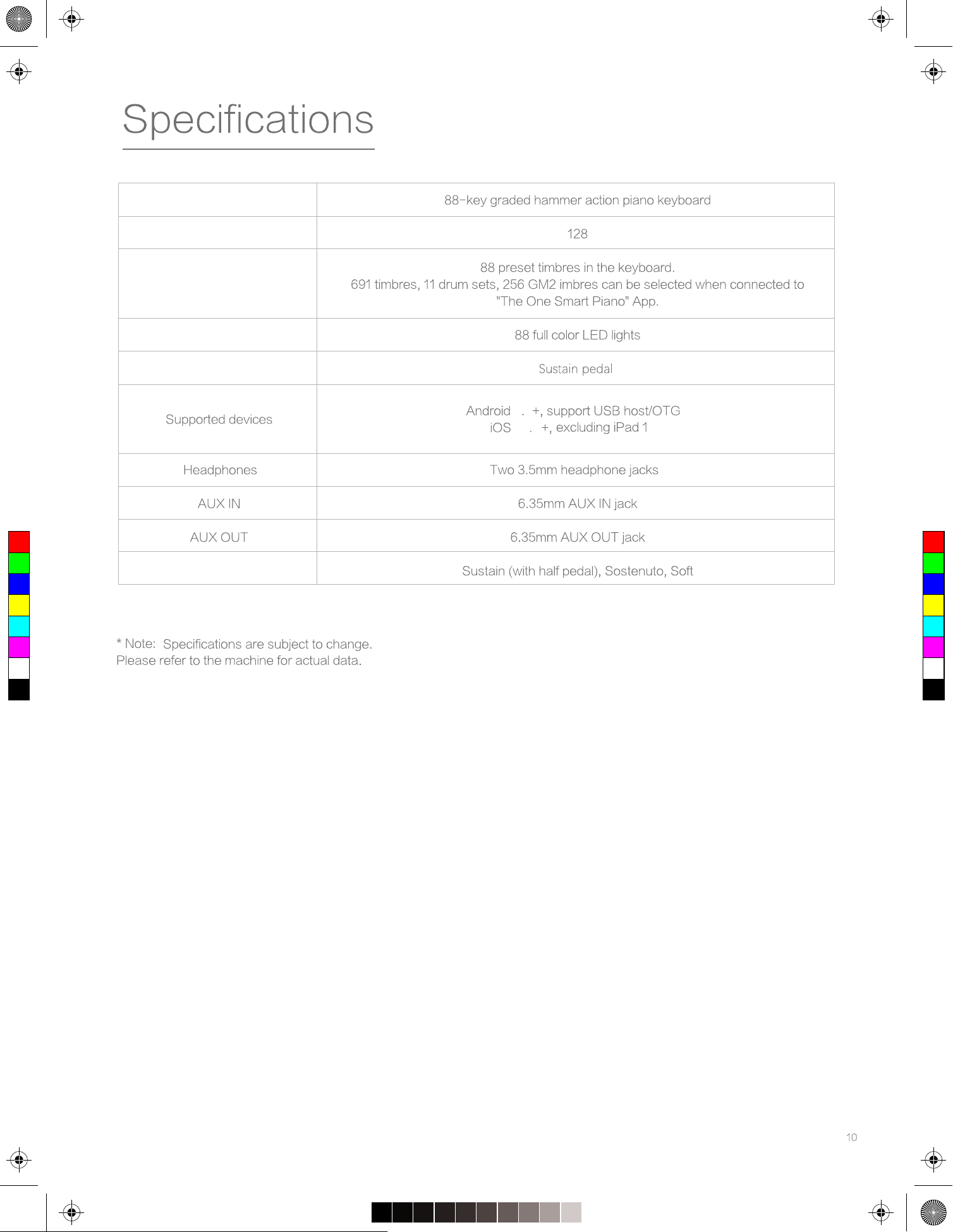
Keyboard
Polyphony
Timbres
LED
Pedal
Pedals
5 0
10 0
11
Trouble shooting
C
M
Y
CM
MY
CY
CMY
K
The one_TON_manual_G01_170606.pdf 13 17/6/6 17:25
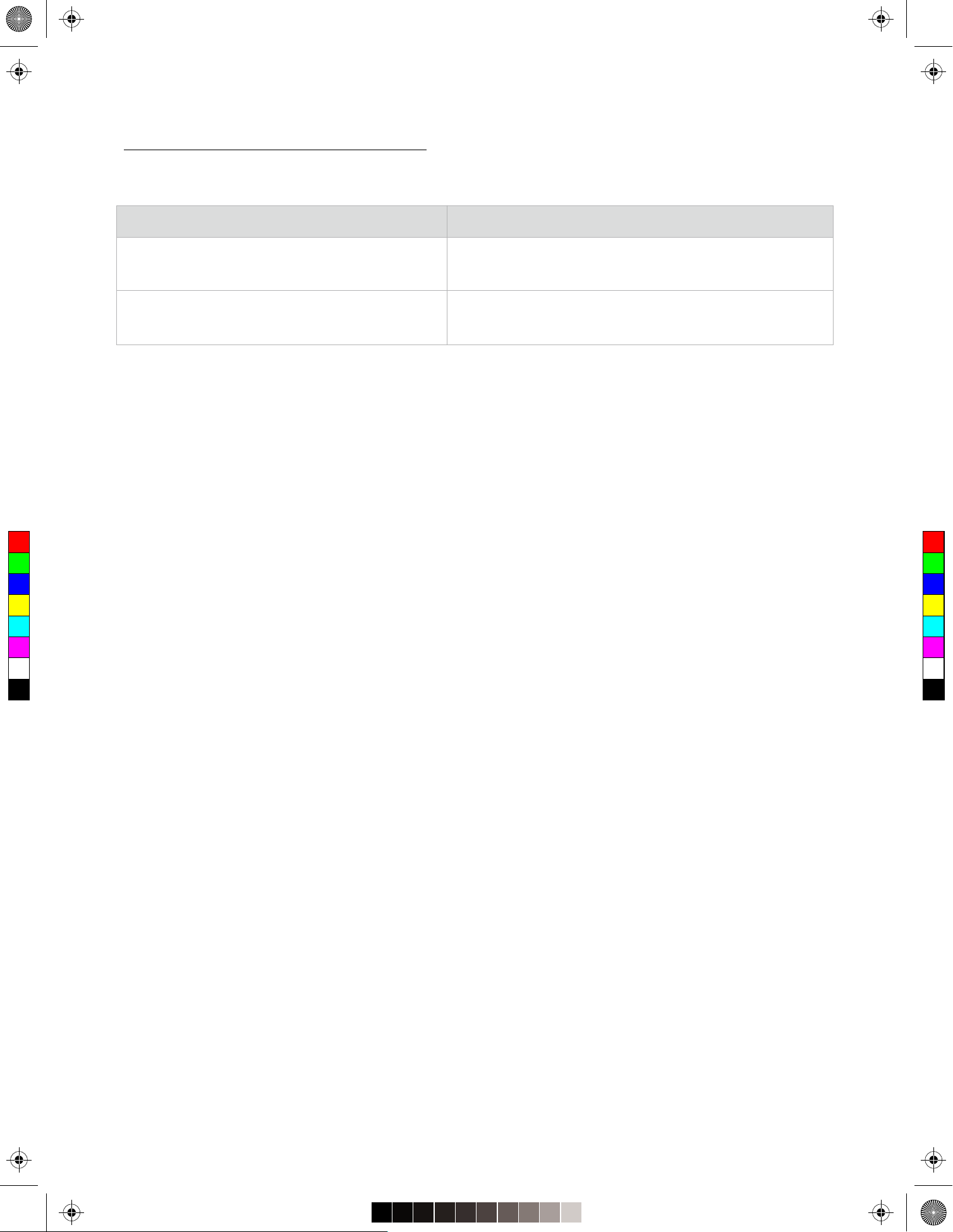
Problem
A noise is heard when tuning on or off the keyboard
Speakers do no work when playing the keyboard
Please contact <[email protected]> if you hae more uestions.
Possible cause and solution
A slight humming noise is normal when start or turn off the
keyboard.
Check if the olume is too low or completely turned off.
Then check if anything is plugged into the headphone ack.
C
M
Y
CM
MY
CY
CMY
K
The one_TON_manual_G01_170606.pdf 16 17/6/6 17:25