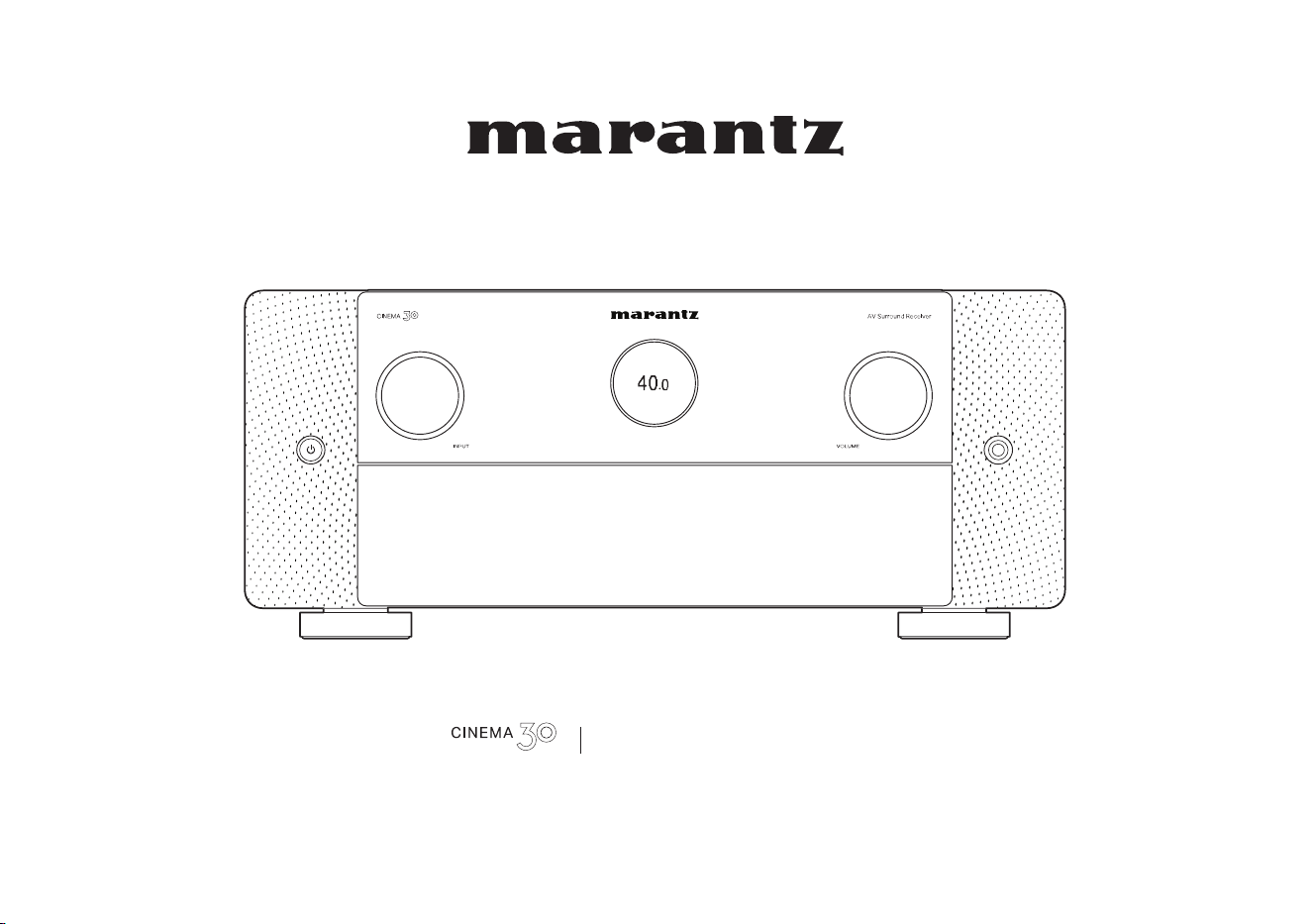
AV Surround Receiver
Owner’s Manual
1
Accessories
9
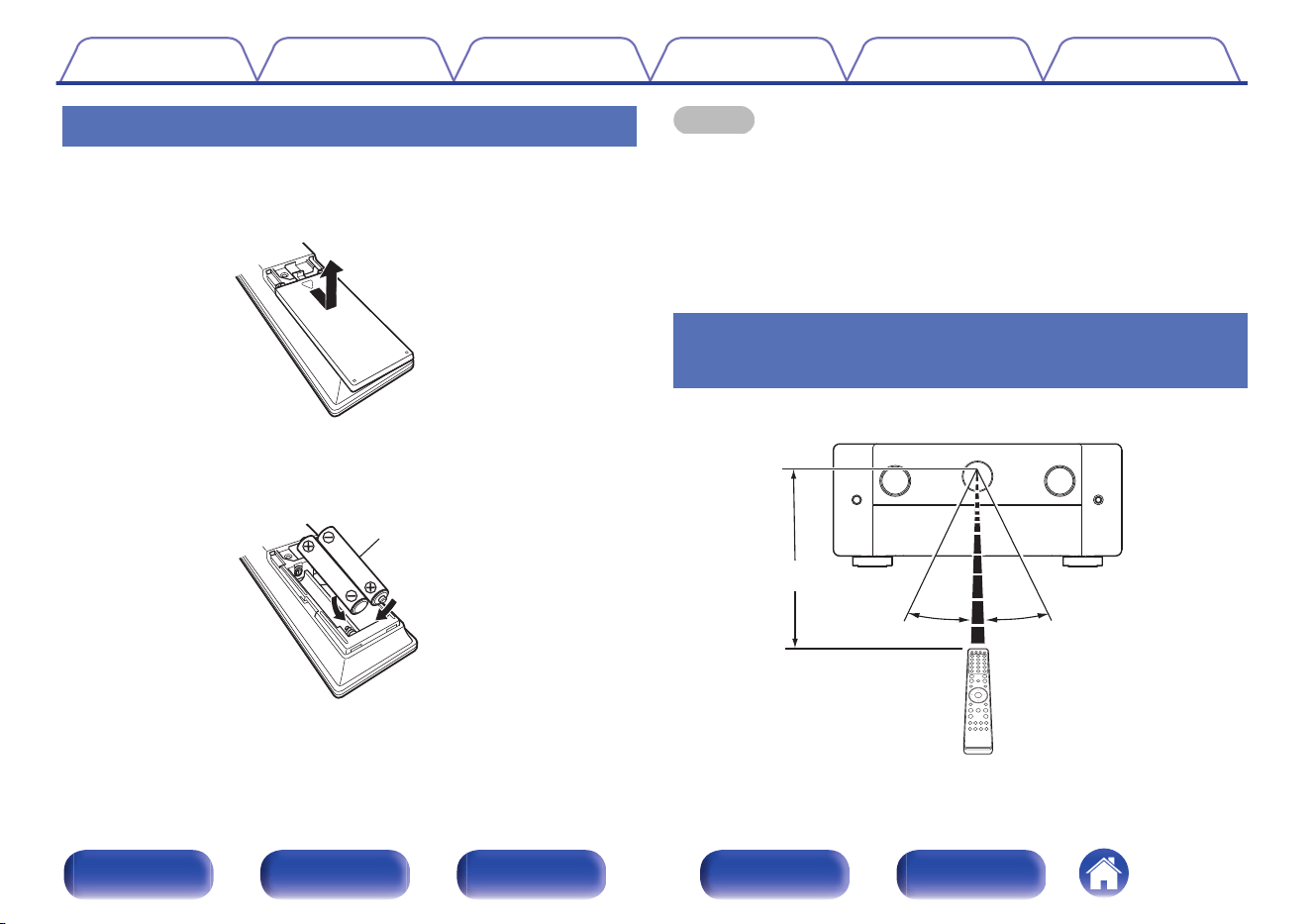
Inserting the batteries
10
Operating range of the remote control unit
10
Features
11
High quality sound
11
High performance
15
Easy operation
19
Part names and functions
20
Front panel
20
Display
25
Rear panel
29
Remote control unit
33
Connections
Speaker installation
37
Connecting speakers
43
Before connecting speakers
43
Connecting speakers to the speaker terminals
47
Connecting an external power amplifier
48
Speaker configuration and “Amp Assign” settings
50
Connecting 5.1-channel speakers
52
Connecting 7.1-channel speakers
53
Connecting 9.1-channel speakers
55
Connecting 11.1-channel speakers
60
Connecting 13.1-channel speakers
65
Bi-amp connection
68
Connecting 9.1-channel speakers: Second pair of front speakers
70
Connecting multi-zone speakers
71
Contents Connections Playback Settings Tips Appendix
2
Front panel Display Rear panel Remote Index
Connecting a TV
75
Connection 1 : TV equipped with an HDMI connector and
compatible with the ARC / eARC
76
Connection 2 : TV equipped with an HDMI connector and
incompatible with the ARC / eARC
77
Connecting a playback device
78
Connecting a set-top box (Satellite tuner/cable TV)
79
Connecting a media player
80
Connecting a Blu-ray Disc player or DVD player
81
Connecting a game console or player device compatible with 8K
82
Connecting a turntable
83
Connecting a USB memory device to the USB port
84
Connecting FM/AM antennas
85
Connecting to a home network (LAN)
87
Wired LAN
87
Wireless LAN
88
Connecting an external control device
89
REMOTE CONTROL jacks
89
FLASHER IN jack
91
DC OUT jacks
92
Connecting the power cord
93
Playback
Basic operation
95
Turning the power on
95
Selecting the input source
95
Adjusting the volume
96
Turning off the sound temporarily (Muting)
96
Playback a Blu-ray Disc player/DVD player
96
Playing a USB memory device
97
Playing files stored on USB memory devices
98
Listening to music on a Bluetooth device
100
Playing music from Bluetooth device
101
Pairing with other Bluetooth devices
102
Reconnecting to this unit from a Bluetooth device
103
Listening to audio on Bluetooth headphones
104
Listening to audio on Bluetooth headphones
105
Adjusting the volume of Bluetooth headphones
106
Reconnecting to a Bluetooth headphones
106
Disconnecting Bluetooth headphones
107
Contents Connections Playback Settings Tips Appendix
3
Front panel Display Rear panel Remote Index
Listening to FM/AM broadcasts
108
Listening to FM/AM broadcasts
109
Tuning in by entering the frequency (Direct Tune)
110
Changing the tune mode (Tune Mode)
111
Tuning in to stations and presetting them automatically (Auto
Preset Memory)
111
Presetting the current broadcast station (Preset Memory)
112
Listening to preset stations
112
Specify a name for the preset broadcast station (Preset Name)
113
Skipping preset broadcast stations (Preset Skip)
114
Cancelling Preset Skip
115
Listening to Internet Radio
116
Listening to Internet Radio
117
Playing back files stored on a PC or NAS
118
Playing back files stored on a PC or NAS
119
Getting the HEOS App
122
HEOS Account
123
Playing from streaming music services
125
Listening to the same music in multiple rooms
127
AirPlay function
131
Playing songs from your iPhone, iPod touch or iPad
132
Playing iTunes music with this unit
132
Play a song from your iPhone, iPod touch or iPad on multiple
synced devices (AirPlay 2)
133
Spotify Connect function
134
Playing Spotify music with this unit
134
Convenience functions
135
Playing back HEOS Favorites
136
Adding to HEOS Favorites
137
Deleting a HEOS Favorites
137
Adjusting the audibility of dialog and vocals (Dialog Enhancer)
137
Adjusting the volume of each channel to match the input source
(Channel Level Adjust)
138
Adjusting the tone (Tone)
139
Selecting a Dirac Live filter (Dirac Live)
140
Adjusting audio delay (Audio Delay)
140
Changing the strength of Tactile Transducer according to the
input source (Tactile Transducer)
141
Displaying your desired video during audio playback (Video
Select)
142
Playing the same music in all zones (All Zone Stereo)
143
Changing the speaker settings to match the listening environment
(Speaker Preset)
144
Contents Connections Playback Settings Tips Appendix
4
Front panel Display Rear panel Remote Index
Selecting a sound mode
145
Selecting a sound mode
146
Direct playback
147
Pure Direct playback
148
Auto surround playback
148
Description of sound mode types
149
Sound mode that can be selected for each input signal
154
HDMI Control function
159
Setting procedure
159
Sleep timer function
160
Using the sleep timer
161
Smart select function
162
Registering the settings
163
Calling up the settings
165
Panel lock function
166
Disabling all key button operations
166
Disabling all button operations except VOLUME
167
Canceling the Panel lock function
167
Remote lock function
168
Disabling the sensor function of the remote control unit
168
Enabling the remote sensor function
168
Web control function
169
Controlling the unit from a web control
170
Playback in ZONE2/ZONE3 (Another room)
172
Connecting ZONE
173
Playback the source in ZONE2/ZONE3
178
Adjusting the Volume in ZONE2/ZONE3
182
Settings
Menu map
183
Menu operations
188
Audio
189
Subwoofer Level Adjust
189
Bass Sync
189
Surround Parameter
190
M-DAX
197
Volume
198
Audyssey
®
199
Dirac Live
202
Graphic EQ
203
DAC Filter
204
Contents Connections Playback Settings Tips Appendix
5
Front panel Display Rear panel Remote Index
Video
205
HDMI Setup
205
Output Settings
210
On-Screen Display
211
Screensaver
212
4K/8K Signal Format
213
HDCP Setup
214
Inputs
215
Input Assign
215
Source Rename
218
Hide Sources
218
Source Level
219
Speakers
220
Audyssey
®
Setup
220
Procedure for speaker settings (Audyssey
®
Setup)
222
Error messages
228
Retrieving Audyssey
®
Setup settings
230
Manual Setup
231
Speaker Layout
231
Amp Assign
231
Front/Center/Surround/Surround Back/Front Wide
233
Height Speakers
234
Layout
235
Front Layout / Middle Layout / Rear Layout / TS/CH
237
Subwoofers
240
Subwoofer Mode
241
Subwoofer Layout
241
Bi-Amp
244
Front B
244
ZONE2
245
ZONE3
245
ZONE2/3
246
View Terminal Config.
246
Contents Connections Playback Settings Tips Appendix
6
Front panel Display Rear panel Remote Index
Distances
246
Levels
248
Crossovers
248
Speaker Preset
249
Advanced
250
Subwoofer Output
250
Low Pass Filter
251
Distribution
252
Front Speaker
252
2ch Playback
253
Tactile Transducer
255
Dirac Live Setup
257
Network
258
Information
258
Connection
258
Wi-Fi Setup
259
Settings
261
Network Control
262
Friendly Name
263
Diagnostics
263
AirPlay
264
Spotify Connect
265
Roon Ready
265
TIDAL Connect
265
Qobuz Connect
265
Wi-Fi and Bluetooth
266
HEOS
267
You have not signed in
267
You have already signed in
267
General
268
Language
268
Owner's Manual
268
ECO
268
Bluetooth Transmitter
272
ZONE2 Setup / ZONE3 Setup
273
Zone Rename
275
Smart Select
276
Trigger Out 1 / Trigger Out 2 / Trigger Out 3
277
Front Panel
278
Firmware
279
Information
281
Usage Data
283
Save & Load
283
Setup Lock
284
Reset
284
Setting the back light of the remote control unit
285
Disabling the backlight
285
Specifying the zone used with the remote control unit
286
Contents Connections Playback Settings Tips Appendix
7
Front panel Display Rear panel Remote Index
Tips
Tips
288
Troubleshooting
290
Power does not turn on / Power is turned off
291
Operations cannot be performed through the remote control unit
292
Display on this unit shows nothing
292
No sound comes out
293
Desired sound does not come out
294
Sound is interrupted or noise occurs
298
No video is shown on the TV
299
The menu screen is not displayed on the TV
301
The color of the menu screen and operations content displayed
on the television is different from normal
301
AirPlay cannot be played back
302
USB memory devices cannot be played back
303
Bluetooth cannot be played back
304
The Internet radio cannot be played back
306
Music files on PC or NAS cannot be played back
307
Various online services cannot be played
308
The HDMI Control function does not work
308
Cannot connect to a wireless LAN network
309
When using HDMI ZONE2, the devices does not function properly
310
Update error messages
311
Resetting factory settings
312
Resetting network settings
313
Factory Restore
314
Appendix
About HDMI
315
Video conversion function
319
Playing back a USB memory devices
321
Playing back a Bluetooth device
322
Playing back a file saved on a PC or NAS
323
Playing back Internet Radio
324
Personal memory plus function
324
Last function memory
324
Sound modes and channel output
325
Sound modes and surround parameters
327
Types of input signals, and corresponding sound modes
330
Explanation of terms
333
Trademark information
344
Specifications
348
Audio section
348
Video section
350
Tuner section
351
Wireless LAN section
351
Bluetooth section
352
General
353
Index
355
Contents Connections Playback Settings Tips Appendix
8
Front panel Display Rear panel Remote Index
Thank you for purchasing this Marantz product.
To ensure proper operation, please read this owner’s manual carefully before using the product.
After reading this manual, be sure to keep it for future reference.
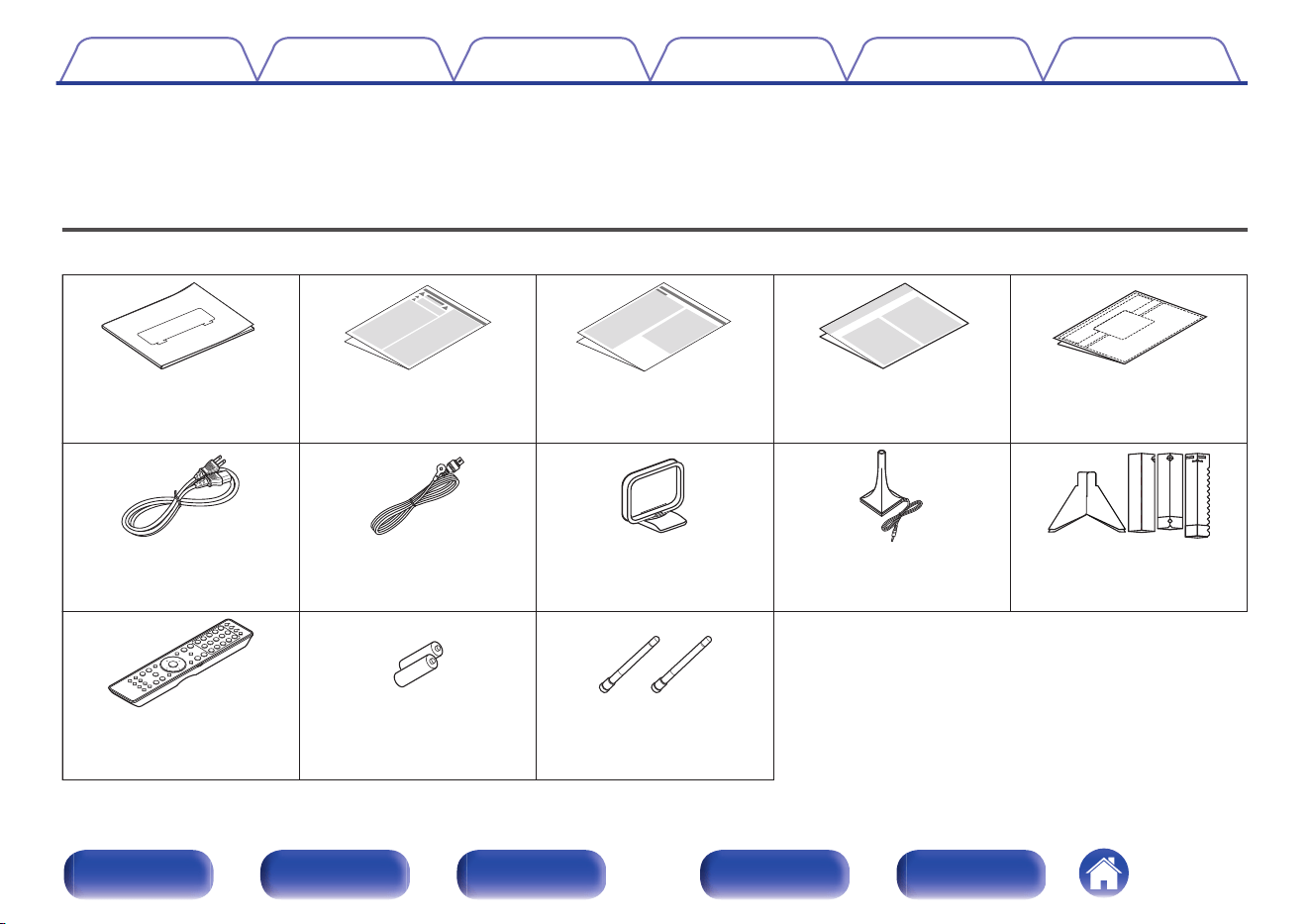
Accessories
Check that the following parts are supplied with the product.
Cable labelsWarranty
(for North America model
only)
Notes on radioSafety InstructionsQuick Start Guide
Sound calibration
microphone stand
Sound calibration
microphone
AM loop antennaFM indoor antennaPower cord
External antennas for
Bluetooth/wireless
connectivity
Remote control unit
(RC051SR)
2× R03/AAA batteries
Contents Connections Playback Settings Tips Appendix
9
Front panel Display Rear panel Remote Index
Inserting the batteries
1
Remove the rear lid in the direction of the arrow and
remove it.
2
Insert two batteries correctly into the battery
compartment as indicated.
Batteries
3
Put the rear cover back on.
NOTE
0
To prevent damage or leakage of battery fluid:
0
Do not use a new battery together with an old one.
0
Do not use two different types of batteries.
0
Remove the batteries from the remote control unit if it will not be in use for long
periods.
0
If the battery fluid should leak, carefully wipe the fluid off the inside of the battery
compartment and insert new batteries.
Operating range of the remote control
unit
Point the remote control unit at the remote sensor when operating it.
30°
Approx. 23 ft/7 m
30°
Contents
Connections Playback Settings Tips Appendix
10
Front panel Display Rear panel Remote Index
Features
High quality sound
0
Powerful 11-channel Discrete Amplifier
Featuring discrete high-current power amplifiers on all channels, this
unit delivers 140 W of power per channel (8 Ω/ohms, 20 Hz - 20 kHz,
T.H.D.: 0.05 %, 2ch. driven). With low impedance driver capability, it
offers operational stability with a wide range of speakers for balanced,
quality sound.
Auto Eco Mode adjusts power output to speakers based on volume
level and on-screen eco meter, providing power consumption reduction
in real-time without sacrificing superb Marantz sound.
0
Discrete 4 subwoofers
Immerse yourself in evenly distributed, accurate bass. Featuring up to
four subwoofer outputs to smooth out low frequencies and provide
better dispersion. No audible peaks or dips - just powerful, room-filling
bass.
0
Current feedback amplifier
This unit uses a high-speed current feedback amplifier circuit for its
preamplifier so that signals from a Blu-ray Disc player and other
equipment that support high-definition audio formats can be amplified
with high fidelity. The high-speed current feedback amplifier also
reproduces a natural sound space.
0
Dolby Atmos (v p. 335)
This unit is equipped with a decoder that supports Dolby Atmos audio
format. The placement or movement of sound is accurately reproduced
by the addition of overhead speakers, enabling you to experience an
incredibly natural and realistic surround sound field.
0
Speaker Virtualizer (v p. 192)
Speaker Virtualizer enables you to access a more immersive
entertainment experience from traditional channel based speaker
layouts through digital signal processing including Dolby Atmos height
virtualization and surround virtualization.
0
Speaker Virtualizer is not for use when both height speakers and surround
speakers are connected.
0
Height Virtualization may be applied when surround speakers are connected.
0
DTS:X (v p. 338)
This unit is equipped with the DTS:X decoder technology. DTS:X brings
the home theater experience to new heights with its immersive object
based audio technology which removes the bounds of channels. The
flexibility of objects allows for sound to be scaled large or small and
moved around the room with greater accuracy than ever before leading
to a richer immersive audio experience.
Contents
Connections Playback Settings Tips Appendix
11
Front panel Display Rear panel Remote Index
0
DTS Virtual:X (v p. 338)
DTS Virtual:X technology features DTS’s proprietary virtual height and
virtual surround processing to deliver an immersive sound experience
from any type of input source (stereo to 7.1.4 channel) and speaker
configuration.
0
DTS Virtual:X is not for use when Height speakers are connected.
0
IMAX Enhanced (v p. 338)
This IMAX Enhanced product have met stringent performance
standards established by IMAX and DTS in order to create a consistent
and higher bar for sound performance. DTS has developed a special
method for reproducing an IMAX signature sound experience in the
consumer’s home. This method combines a unique conversion process
for IMAX theatrical audio mixes utilizing an enhanced DTS codec
technology. The IMAX theatrical audio format with point source
surround speakers closely matches the speaker configuration most
consumers have in their homes today. Coupled with DTS audio
technology, IMAX Enhanced audio products will ensure the best and
most accurate audio reproduction over 5.1 or more speaker channels.
0
Audyssey LFC™ (Low Frequency Containment) (v p. 202)
Audyssey LFC™ solves the problem of low frequency sounds
disturbing people in neighboring rooms or apartments. Audyssey LFC™
dynamically monitors the audio content and removes the low
frequencies that pass through walls, floors and ceilings. It then applies
psychoacoustic processing to restore the perception of low bass for
listeners in the room. The result is great sound that no longer disturbs
the neighbors.
0
Discrete subwoofers and Audyssey Sub EQ HT™ (v p. 221)
The unit has four subwoofer output capability and can adjust the level
and delay for each subwoofer individually.
Audyssey Sub EQ HT™ makes the integration seamless by first
compensating for any level and delay differences between the four
subwoofers and then applying Audyssey MultEQ
®
XT32 to four
subwoofers together for improved deep bass response and detail.
Contents Connections Playback Settings Tips Appendix
12
Front panel Display Rear panel Remote Index
0
Dirac Live Upgradability
The interaction between your sound system and the physical layout of
your room has a huge impact on sound quality. Dirac Live
®
Room
Correction applies state-of-the-art, patented algorithms to analyze and
digitally reduce room impact and enhance speaker performance. Dirac
Live delivers a larger sweet spot, accurate staging, clarity, voice
intelligibility, and a deeper, tighter bass not otherwise possible. Fully
tunable to your preference.
You can purchase a Dirac Live license key to unlock the functionality.
Visit www.dirac.com/marantz/
0
Dirac Live Bass Control Upgradability
Dirac Live Bass Control is a technology to manage low-frequency
channel routing from the signal to the playback channels (speakers) of
your audio device. Additionally, with full control over the device’s
channel and frequency routing and output, the Dirac Live Room
Correction technology is significantly augmented. In particular systems
with multiple subwoofers will see a substantially improved room
correction and bass performance.
For details, please refer to Dirac Live Manual.
https://manuals.marantz.com/DiracLive/ALL/EN
0
Dirac Live Active Room Treatment Upgradability
Dirac Live Active Room Treatment (ART) is an expanded version of
Dirac Live Room Correction that calibrates your speakers as a unified
system and uses each speaker’s strengths to reduce room decay time,
efficiently canceling out lingering bass and leading to unmatched clarity.
ART stands above Bass Control and Room Correction as the most
advanced product in Dirac Live.
For details, please refer to Dirac Live Manual.
https://manuals.marantz.com/DiracLive/ALL/EN
Contents Connections Playback Settings Tips Appendix
13
Front panel Display Rear panel Remote Index
0
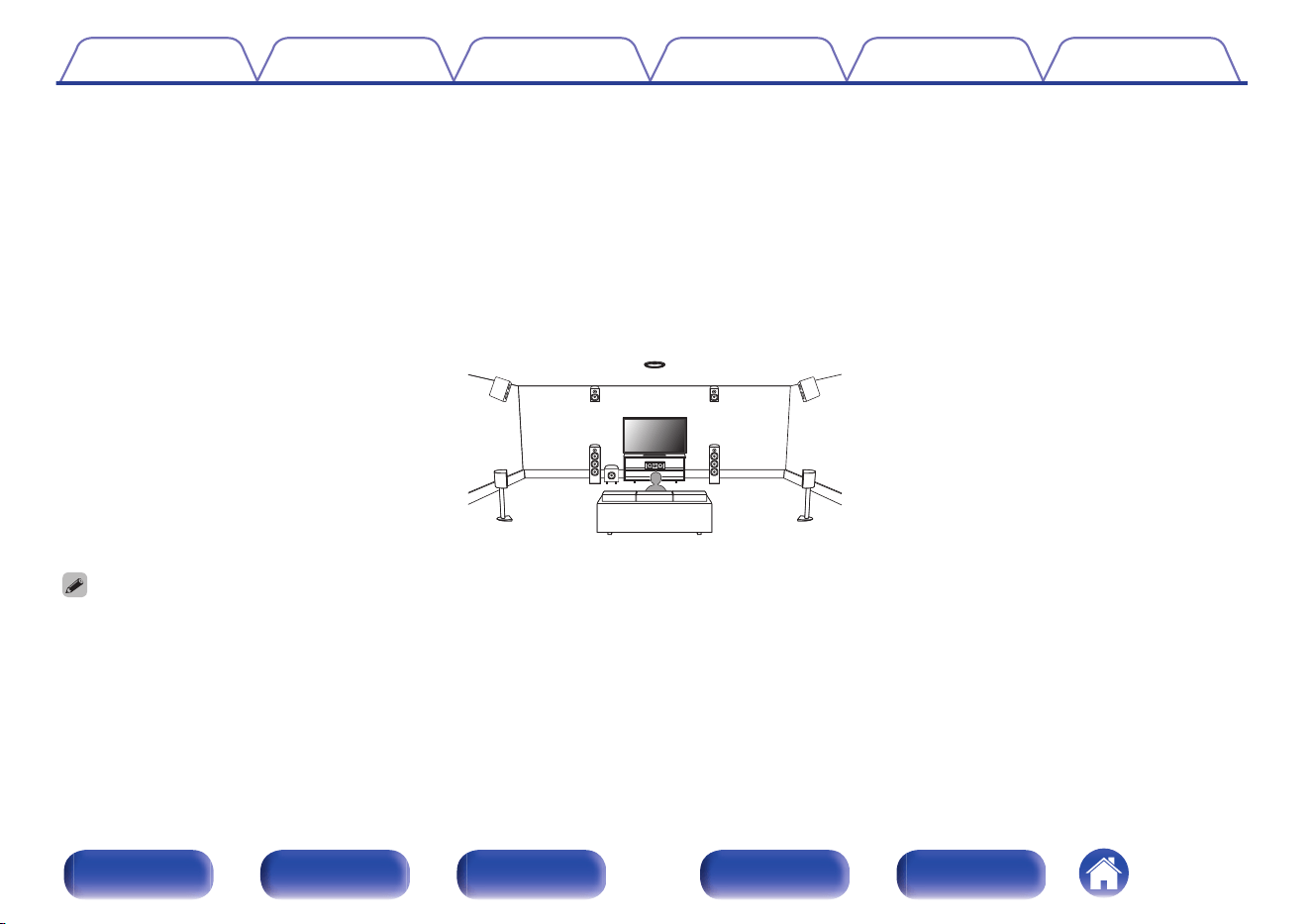
AURO-3D
This unit is equipped with an AURO-3D decoder.
With AURO-3D, Front Height (FHL + FHR), Surround Height (SHL + SHR) and Top Surround (TS/optional) are added to a conventional 5.1-channel
system to achieve a natural and realistic sound field that is three-dimensional and fully immersive.
You will be able to fully enjoy AURO-3D playback if you properly place the speakers for AURO-3D.
2 AURO-3D playback
FHL FHR
SHL
SHR
TS
FL FR
SW
SL SR
C
0
AURO-3D recommends adding FRONT HEIGHT and SURROUND HEIGHT speakers to a 5.1 speaker configuration. Optionally, you may substitute REAR HEIGHT, ceiling
speakers, Dolby Atmos Enabled speakers instead of FRONT HEIGHT and SURROUND HEIGHT speakers for Dolby Atmos, DTS:X and AURO-3D playback.
Contents Connections Playback Settings Tips Appendix
14
Front panel Display Rear panel Remote Index
High performance
0
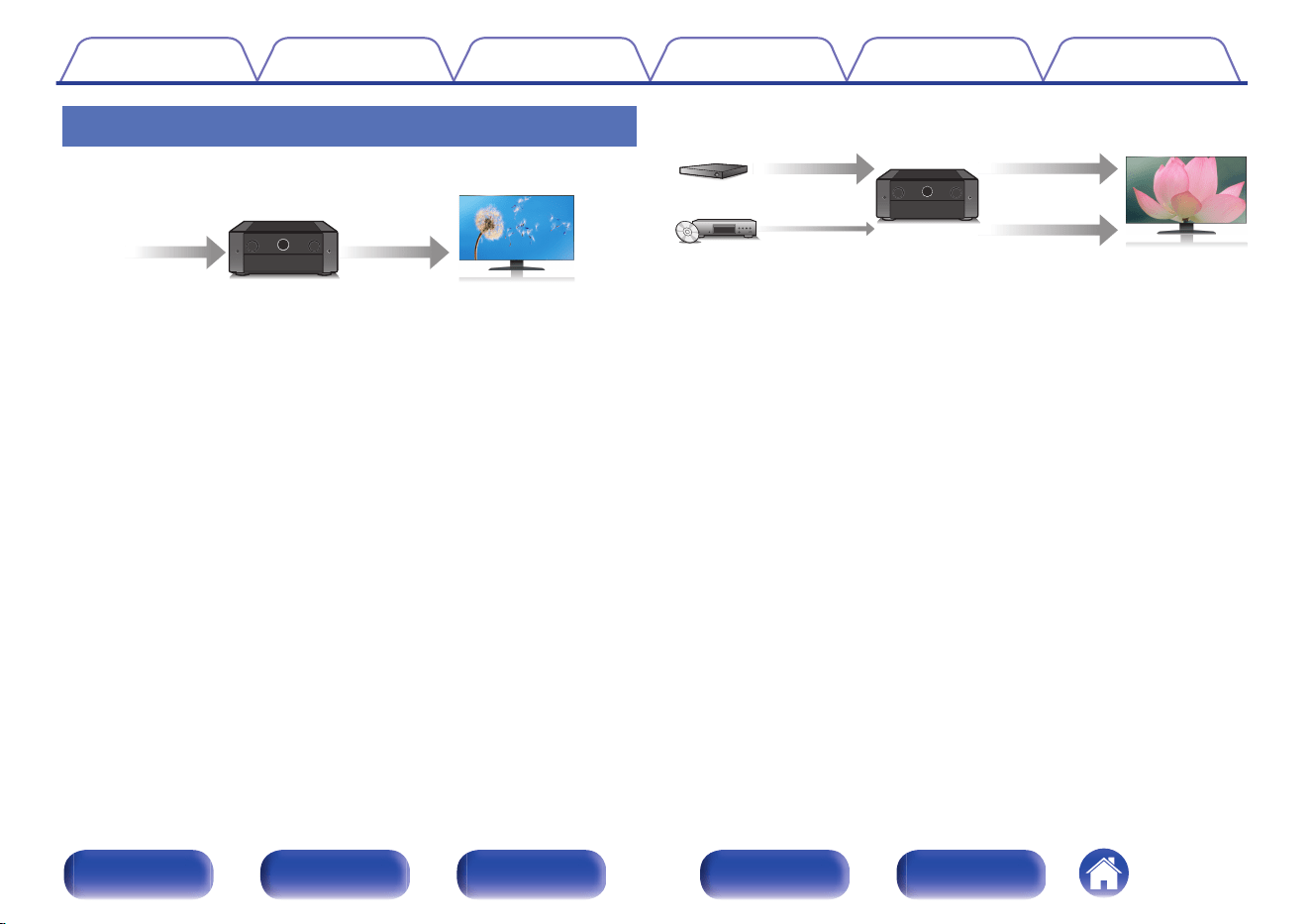
8K 60Hz input/output supported
8K,
4K 120Hz
8K,
4K 120Hz
When 8K Ultra HD (High Definition) is used, an input/output speed of 60
frames per second (60p) is achieved for video signals. When connected
to 8K Ultra HD and 60p video signal input compatible TV, you can enjoy
the sense of realism only available from high-definition images, even
when viewing fast-moving video.
This unit supports a wide range of HDR content, delivering even higher
definition video.
0
HDCP 2.3
This unit is compatible with HDCP 2.3 copyright protection standard.
0
Digital video processor upscales 1080p / 4K to 8K
8K Ultra HD
8K 8K
8K
up scaling
Up to
1080p/4K 60Hz
This unit is equipped with a 8K video upscaling function that allows
1080p/4K video to be output via HDMI at 8K (7680 × 4320 pixels)
resolution. This function enables the device to be connected to a TV
using a single HDMI cable, and produces high definition images for any
video source.
0
eARC (Enhanced Audio Return Channel) function compatibility
The eARC function is compatible with conventional ARC function-
compatible audio formats in addition to multichannel linear PCM, Dolby
TrueHD, Dolby Atmos, DTS-HD, DTS:X and other audio formats a
conventional ARC function cannot transmit.
Additionally, connecting to an eARC function-compatible television
enables enjoyment of higher-quality surround playback of the audio
content played from your television.
0
Equipped with HDMI ZONE2 output (v p. 172)
The ZONE2 multi-room output includes an HDMI output that lets you
enjoy a different A/V source in that room, with another program playing
in the main room.
Contents
Connections Playback Settings Tips Appendix
15
Front panel Display Rear panel Remote Index
0
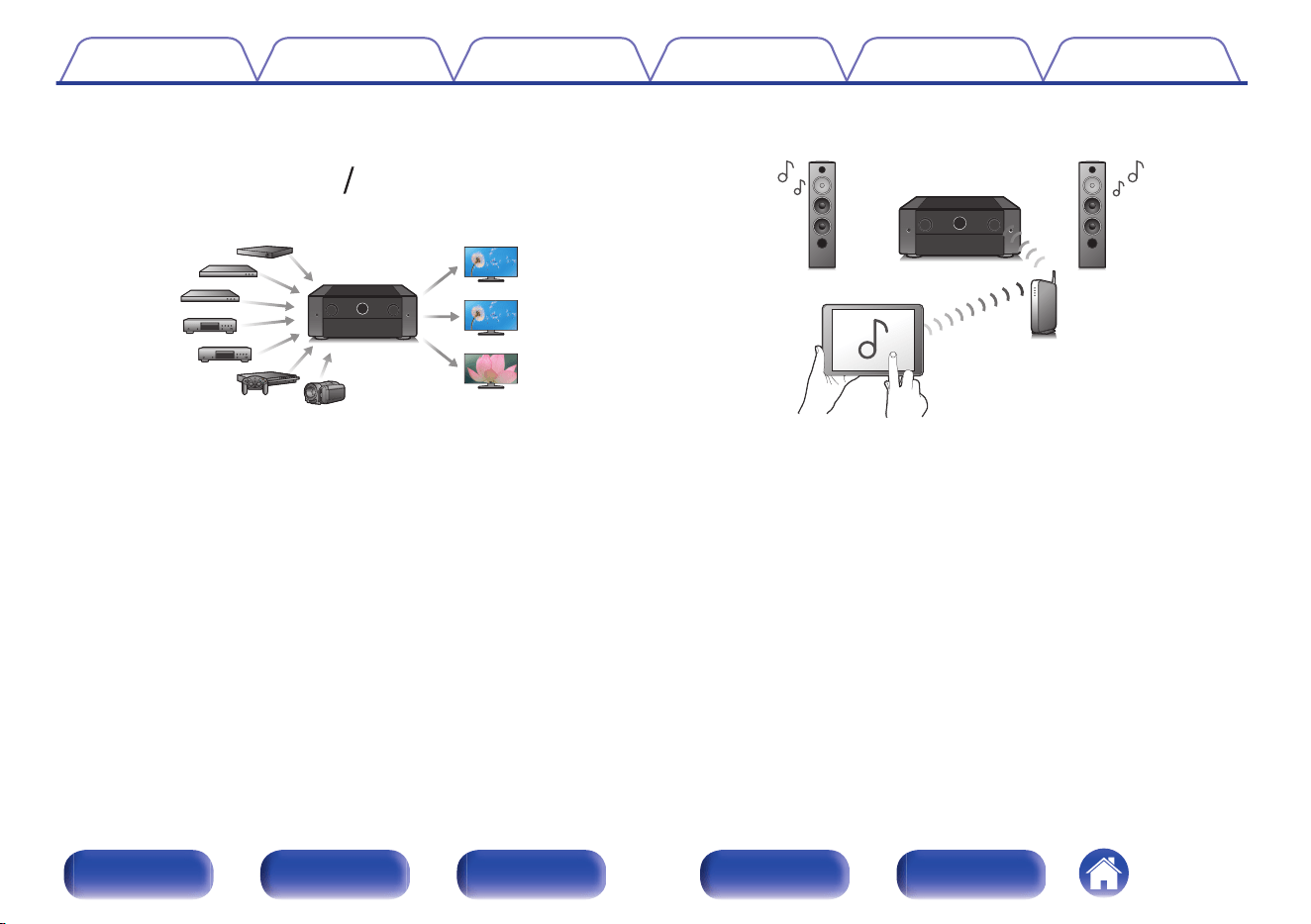
HDMI connections enable connection to various digital AV
devices (7 inputs, 3 outputs)
73
OutIn
This unit is equipped with 7 HDMI inputs enabling connection to various
HDMI compatible devices such as Blu-ray Disc players, game consoles
and HD video camcorders. There are dual HDMI outputs for the main
room, and a third HDMI output for another room.
0
The device is equipped with a AirPlay
®
function in addition to
network functions such as Internet radio etc. (v p. 131)
You can enjoy a wide variety of content, including listening to Internet
Radio, playing audio files stored on your PC.
This unit also supports Apple AirPlay which lets you stream your music
library from an iPhone
®
, iPad
®
, iPod touch
®
or iTunes
®
.
0
Supports AirPlay 2
®
wireless audio
Sync multiple AirPlay 2 compatible devices/speakers for simultaneous
playback.
This unit supports AirPlay 2 and requires iOS 11.4 or later.
Contents
Connections Playback Settings Tips Appendix
16
Front panel Display Rear panel Remote Index
0
Playback of DSD and FLAC files via USB and networks
This unit supports the playback of high resolution audio formats such as
DSD (5.6 MHz) and FLAC 192 kHz files. It provides high quality
playback of high resolution files.
0
Wireless connection with Bluetooth devices can be carried out
easily (v p. 100)
You can enjoy music simply by connecting wirelessly with your
smartphone, tablet, PC, etc.
0
Connect Bluetooth headphones
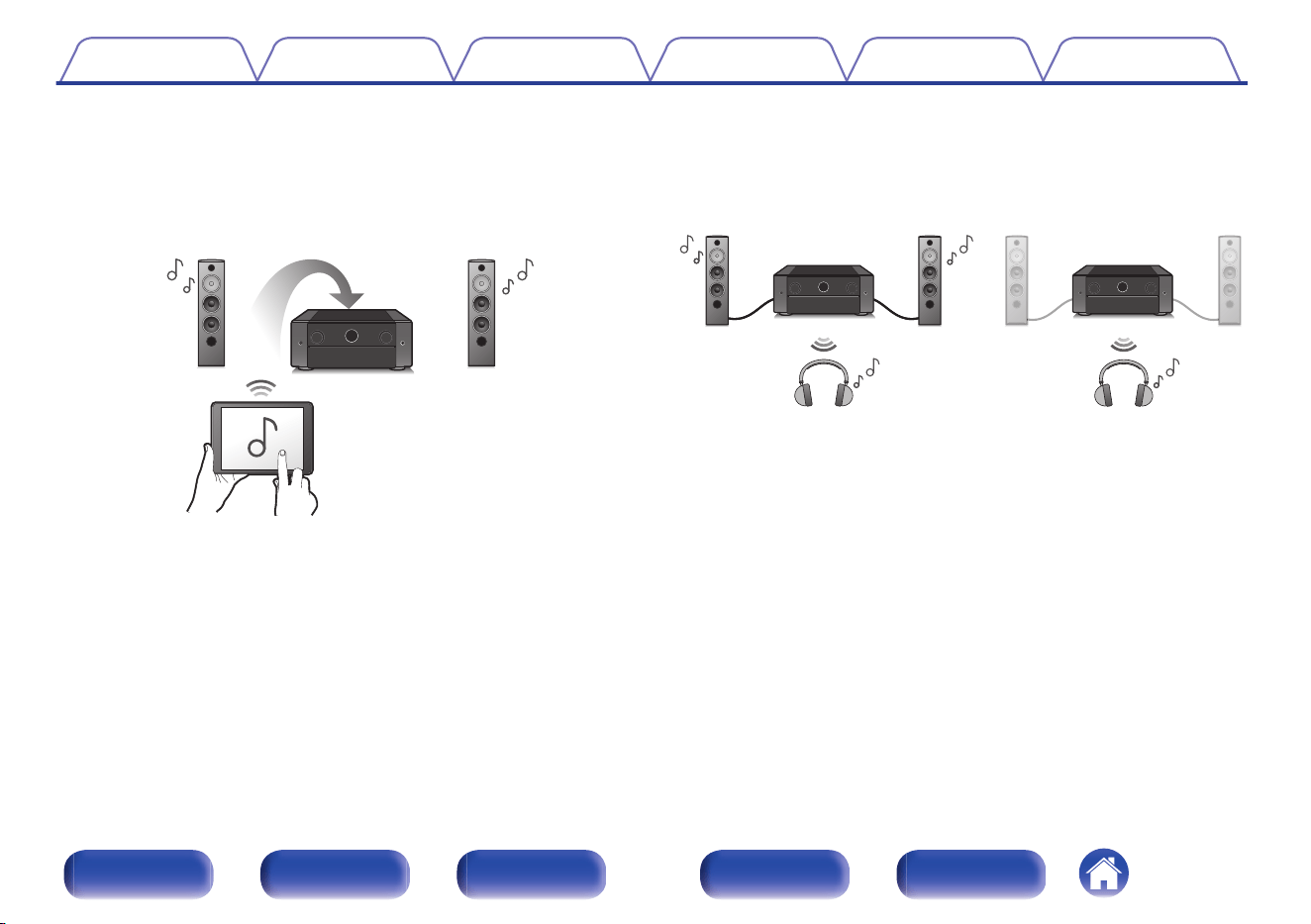
This unit can transmit Bluetooth so you can enjoy audio wirelessly
through your Bluetooth headphones.
Playback can be performed using connected speakers and Bluetooth
headphones simultaneously, or only using Bluetooth headphones.
Contents Connections Playback Settings Tips Appendix
17
Front panel Display Rear panel Remote Index
0
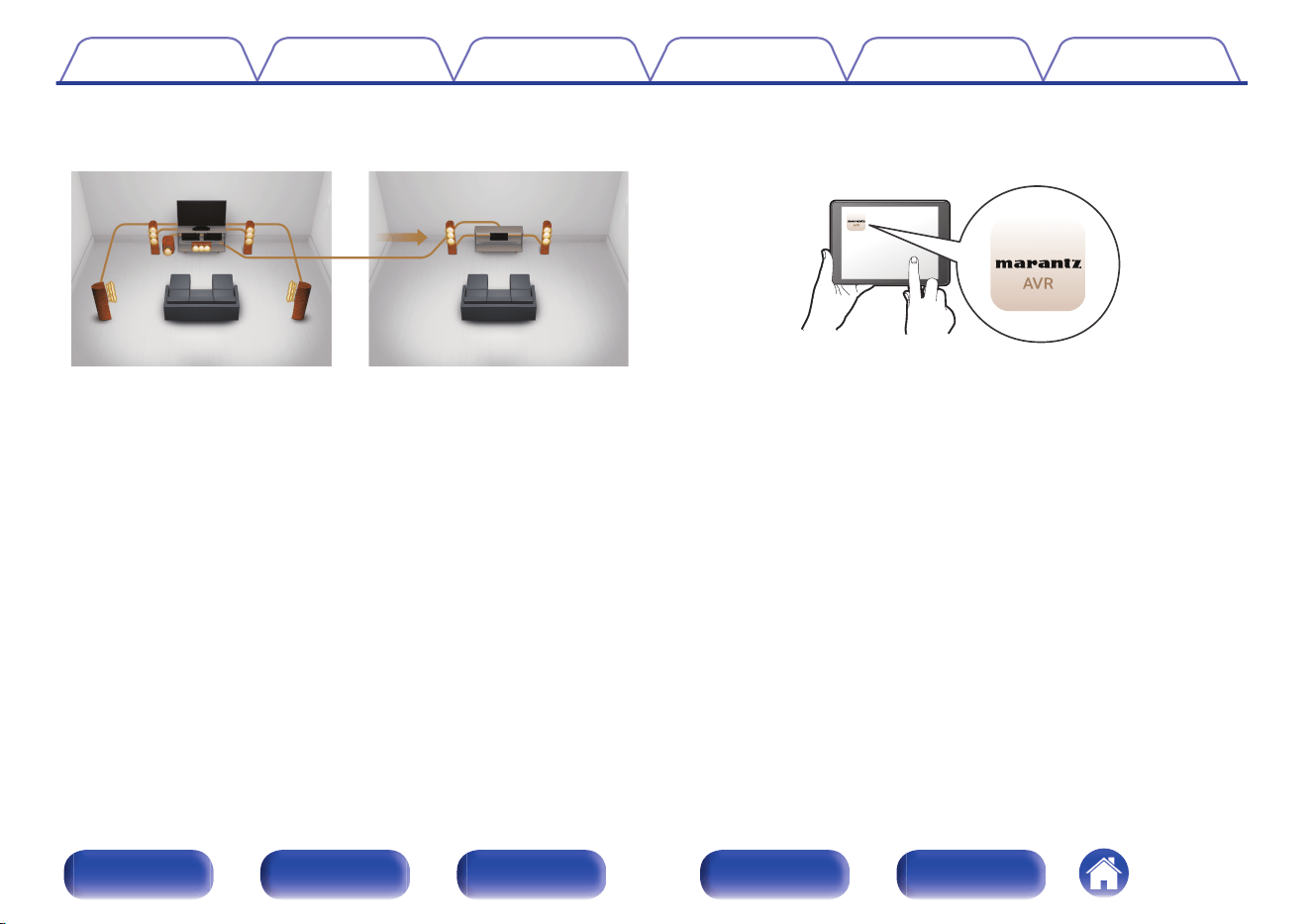
Multi-Room audio (v p. 143)
【MAIN ZONE】【ZONE2】/【ZONE3】
You can select and play back the respective inputs in MAIN ZONE,
ZONE2 and ZONE3.
In addition, when the All Zone Stereo function is used, the music being
played back in MAIN ZONE can be enjoyed in all the zones at the same
time. This is useful when you want to let the background music
propagate throughout the whole house.
0
Energy-saving design
This unit is equipped with an ECO Mode function that allows you to
enjoy music and movies while reducing the power consumption during
use, and also an auto-standby function that automatically turns off the
power supply when the unit is not in use. This helps reduce
unnecessary power use.
0
Compatible with the “Marantz AVR Remote” App
z
for performing
basic operations of the unit with an iPad, iPhone or Android™
devices (Google, Amazon Kindle Fire)
The Marantz AVR Remote app gives you full control of this unit as well
as access to its setup menu for detailed adjustments from your phones
or tablets. “Marantz AVR Remote” App also gives you quick access to
the receiver's status display, option menus, Marantz Blu-ray Disc player
control, and online owner's manual for your convenience.
z
Download the appropriate “Marantz AVR Remote” App for your iOS or Android
devices. This unit needs to be connected to the same LAN or Wi-Fi (wireless
LAN) network that the iPad, iPhone or Android™ is connected to.
Contents
Connections Playback Settings Tips Appendix
18
Front panel Display Rear panel Remote Index
0
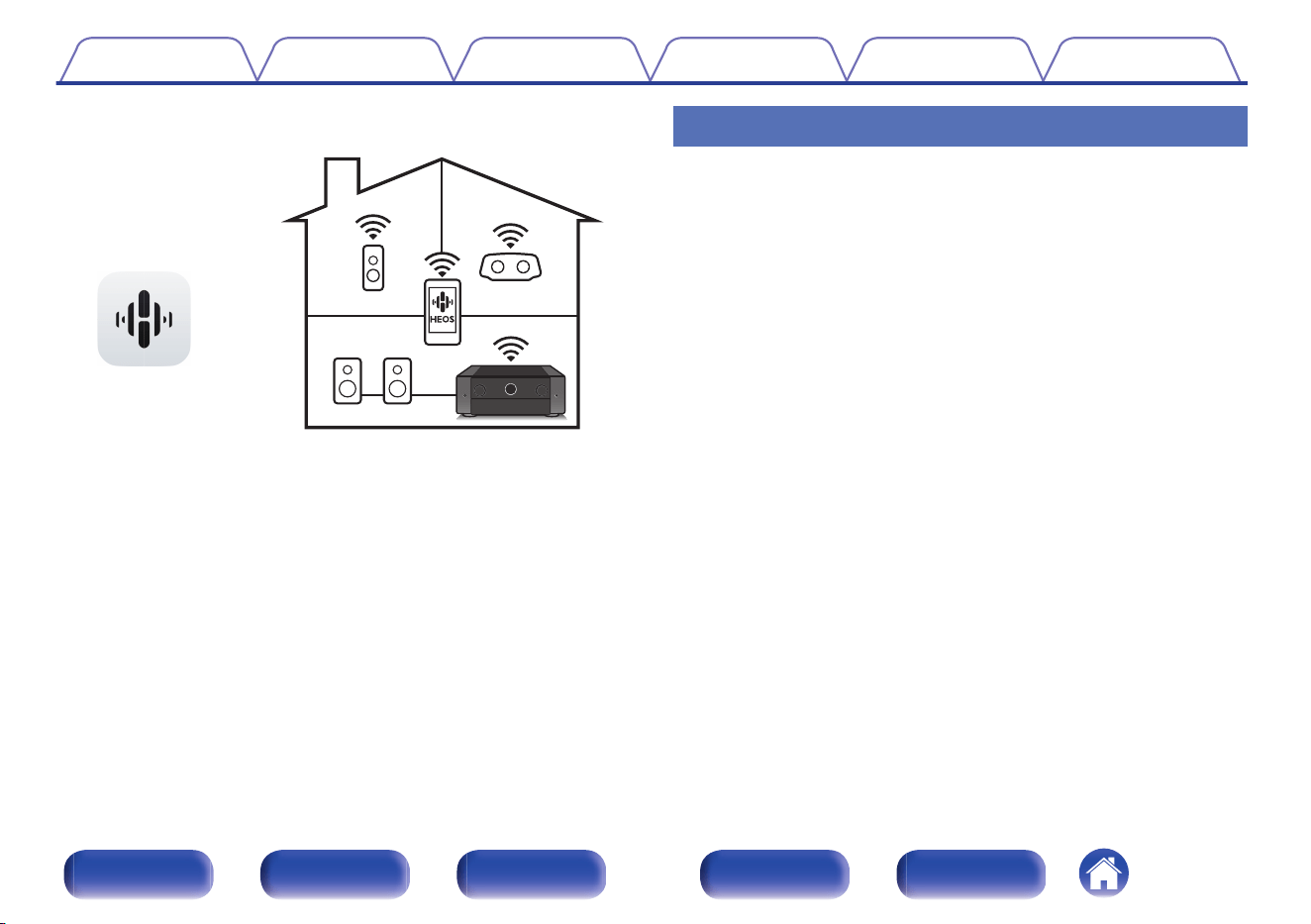
HEOS provides streaming music from your favorite online music
sources
HEOS wireless multi-room sound system that enables you to enjoy your
favorite music anywhere and everywhere around your home. By utilizing
your existing home network and the HEOS App (available for iOS,
Android and Amazon devices), you can explore, browse, and play
music from your own music library or from many online streaming music
services.
When multiple products with HEOS Built-in are connected to the same
network, they can be grouped to play the same music on all products
simultaneously, or different music can be played on each one.
Easy operation
0
“Setup Assistant” provides easy-to-follow setup instructions
First select the language when prompted. Then simply follow the
instructions displayed on the TV screen to set up the speakers, network,
etc.
0
Easy to use Graphical User Interface
This unit is equipped with a Graphical User Interface for improved
operability.
Contents Connections Playback Settings Tips Appendix
19
Front panel Display Rear panel Remote Index
e uw wqtr y
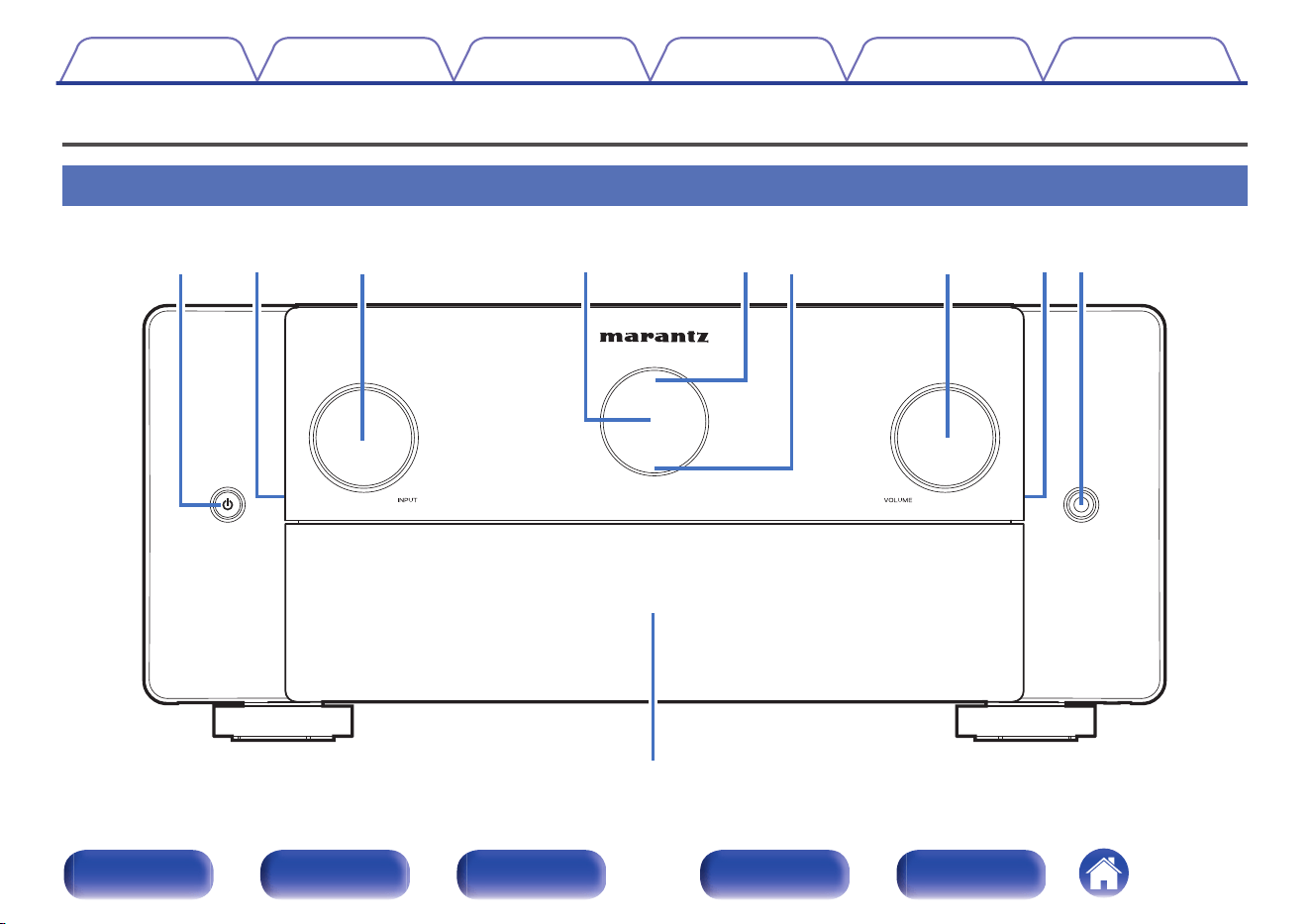
A
Power operation button (X)
Used to turn the power of the MAIN ZONE (room where this unit is
located) on/off (standby). (v p. 95)
B
Illumination
This lights up when the power is turned on. If you press the DIMMER
button, the brightness of the illumination is switched in conjunction with
the brightness of the display.
The illumination turned off from “Front Panel” of the settings menu.
(v p. 278)
C
INPUT selector knob
This selects the input source. (v p. 95)
D
Main display
This displays various pieces of information. (v p. 25)
E
Remote control sensor
This receives signals from the remote control unit. (v p. 10)
F
Protection circuit indicator
This blinks when the protection circuit has operated. (v p. 291)
G
VOLUME knob
This adjusts the volume level. (v p. 96)
Contents Connections Playback Settings Tips Appendix
21
Front panel Display Rear panel Remote Index
i
o
H
Headphones jack
This is used to connect headphones.
When the headphones are plugged into this jack, audio will no longer
be output from the connected speakers or from the PRE OUT
connectors.
NOTE
0
To prevent hearing loss, do not raise the volume level excessively when using
headphones.
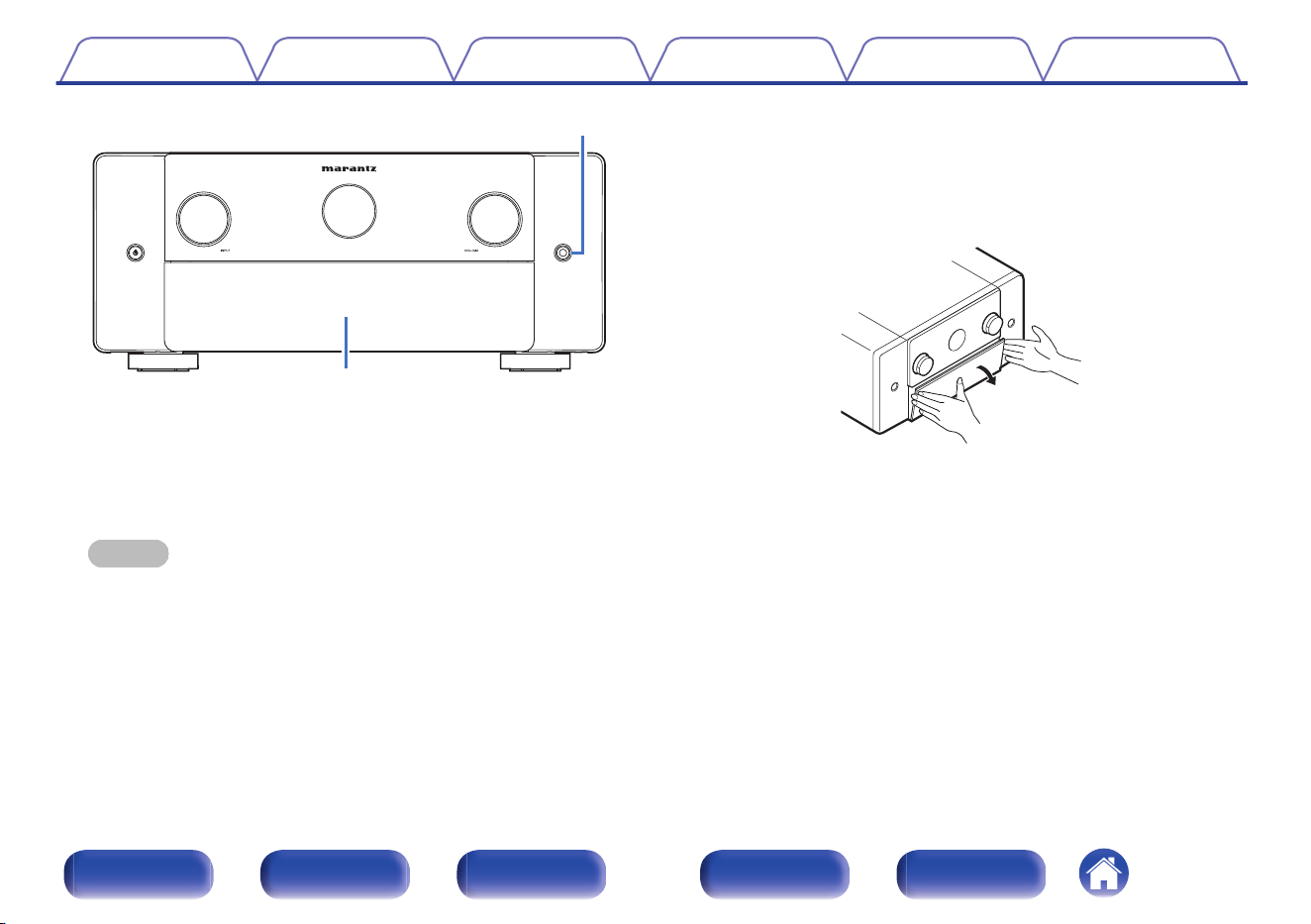
I
Door
When using the buttons and/or terminals behind the door, pull both
sides of the door towards you to open it. Be careful not to catch your
fingers when closing the door.
Contents Connections Playback Settings Tips Appendix
22
Front panel Display Rear panel Remote Index
With the door open
y ou i
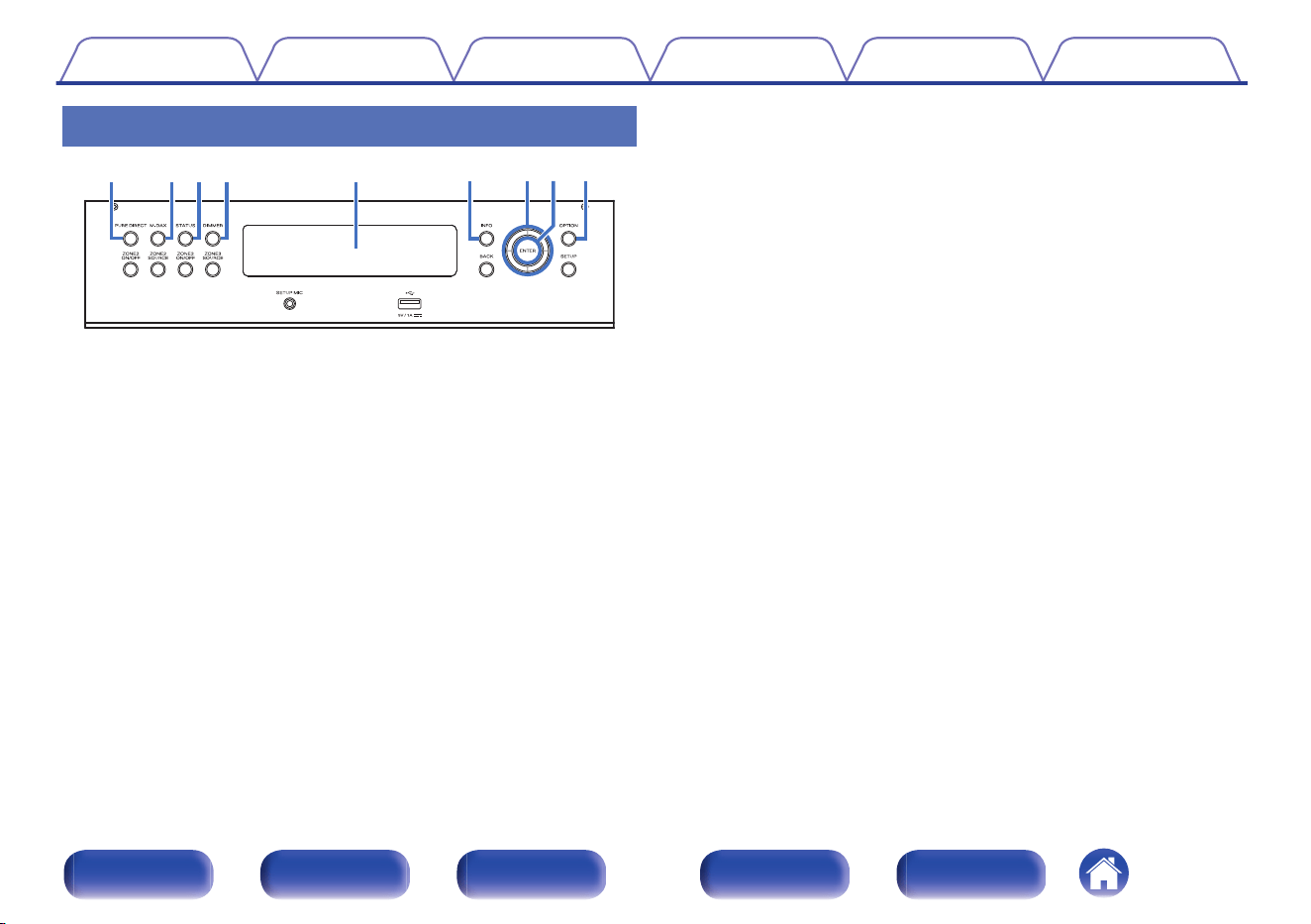
q w e r t
A
PURE DIRECT button
This switches the sound mode between Direct, Pure Direct and Auto.
(v p. 147 – 148)
B
M-DAX button
This enables the M-DAX mode. (v p. 197)
C
STATUS button
Each press of this switches the status information that is shown on the
display.
D
DIMMER button
Each press of this switches the brightness of the display. (v p. 278)
E
Sub display
This displays various pieces of information. (v p. 27)
F
Information button (INFO)
This displays the status information on the TV screen. (v p. 282)
G
Cursor buttons
These select items.
H
ENTER button
This determines the selection.
I
OPTION button
This displays the option menu on the TV screen.
Contents Connections Playback Settings Tips Appendix
23
Front panel Display Rear panel Remote Index
Q0 Q1 Q2 Q3 Q6 Q7Q4
Q5
J
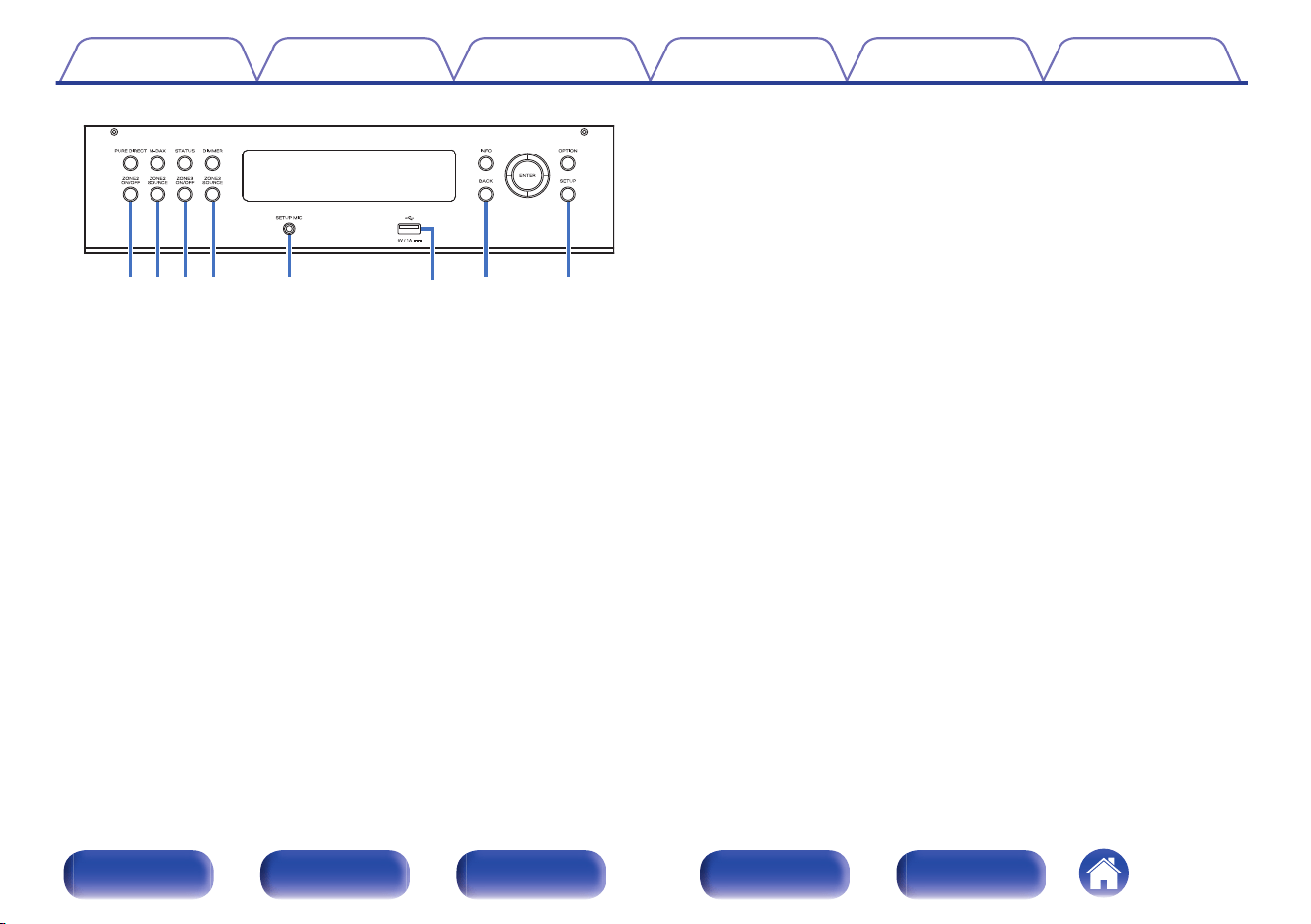
ZONE2 ON/OFF button
This turns the power of ZONE2 (another room) on/off. (v p. 178)
K
ZONE2 SOURCE button
This selects the input source for ZONE2. (v p. 178)
L
ZONE3 ON/OFF button
This turns the power of ZONE3 (another room) on/off. (v p. 178)
M
ZONE3 SOURCE button
This selects the input source for ZONE3. (v p. 178)
N
SETUP MIC jack
This is used to connect the supplied Sound calibration microphone.
(v p. 223)
O
USB port (T)
This is used to connect USB storages (such as USB memory devices).
(v p. 84)
P
BACK button
This returns to the previous screen.
Q
SETUP button
This displays the menu on the TV screen. (v p. 188)
Contents Connections Playback Settings Tips Appendix
24
Front panel Display Rear panel Remote Index
Display
o
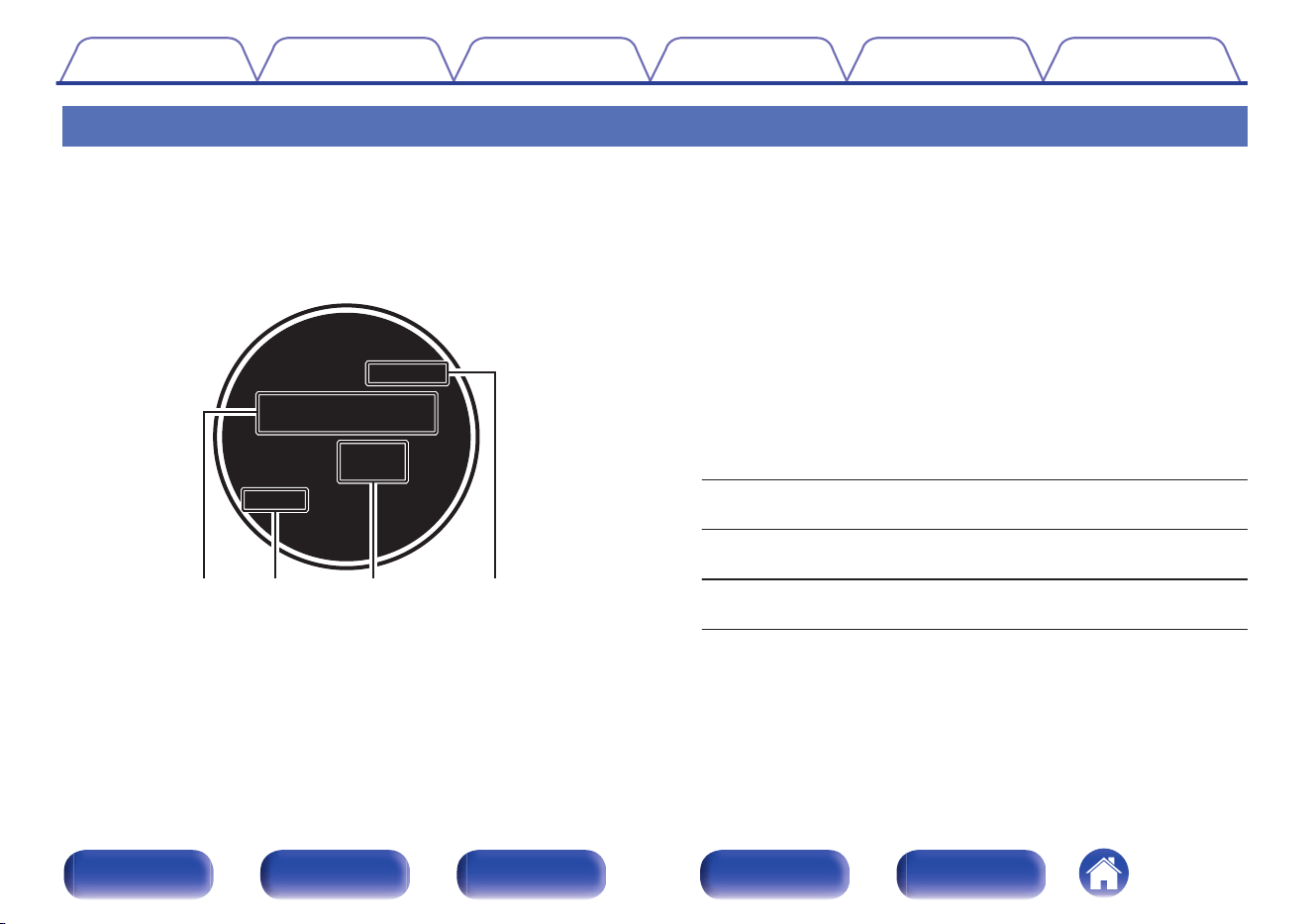
Main display
The input source name, sound mode, setting values and other information are displayed here.
n
Standard display
B
l
u
-
r
a
y
0.0
SLEEP
ZONE2/3
e rq
w
A
Input source indicator
The currently selected input source name is displayed.
If the input source name has been changed using “Source Rename” in
the menu, the input source name after the change is displayed.
(v p. 218)
B
Sleep timer indicator
This lights when the sleep mode is selected. (v p. 160)
C
Volume indicator
D
ZONE2/ZONE3 power on display
ZONE2:
Lights up when ZONE2 power is turned
on.
ZONE3:
Lights up when ZONE3 power is turned
on.
ZONE2/3:
Lights up when ZONE2 and ZONE3
power is turned on. (v p. 180)
Contents Connections Playback Settings Tips Appendix
25
Front panel Display Rear panel Remote Index
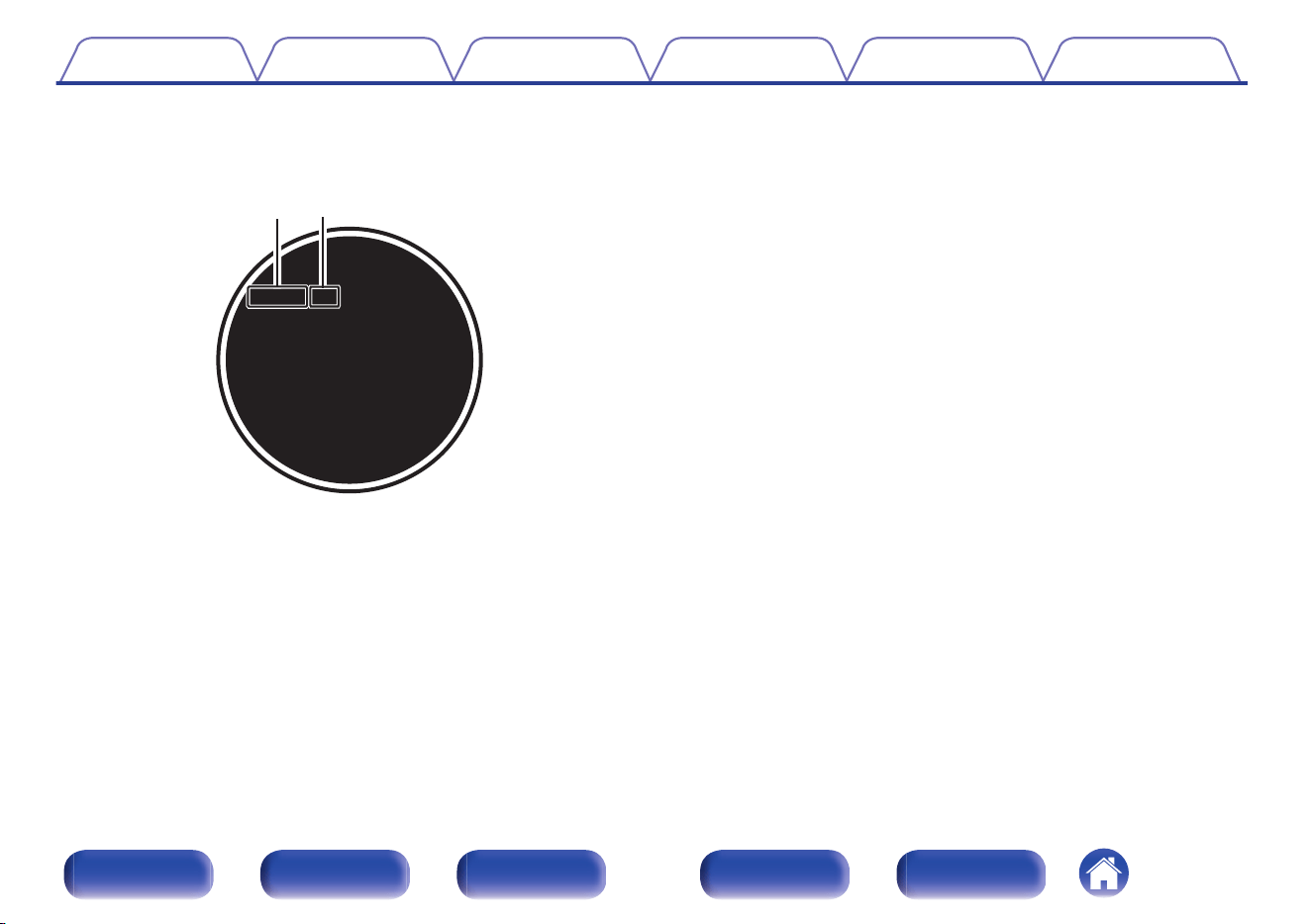
n
Tuner display
These light up according to the reception conditions when the input
source is set to “Tuner”.
01 FM
92 . 10MHz
TUNED
ST
t
y
E
Lights up when the broadcast is properly tuned in.
F
Lights up when receiving FM stereo broadcasts.
Contents Connections Playback Settings Tips Appendix
26
Front panel Display Rear panel Remote Index
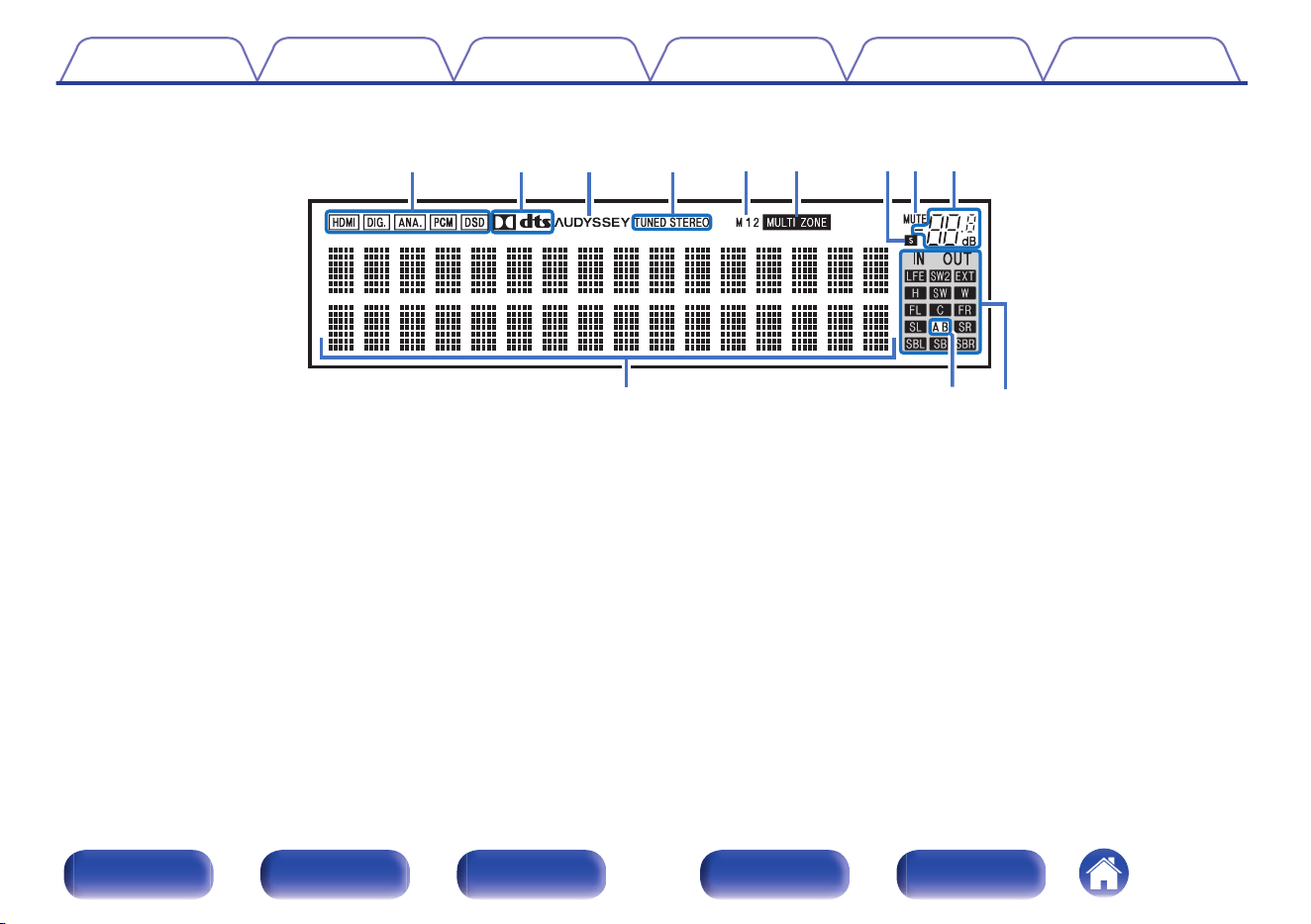
o
Sub display
Q0 Q1 Q2
iuoyt
rewq
A
Input signal indicators
These light according to the audio input mode settings of each input
source. (v p. 217)
B
Decoder indicators
These light when Dolby or DTS signals are input or when the Dolby or
DTS decoder is running.
C
Audyssey
®
indicator
This lights when “MultEQ
®
XT32”, “Dynamic EQ”, “Dynamic Volume” or
“Audyssey LFC
TM
” has been set up. (v p. 199)
D
Tuner reception mode indicators
These light up according to the reception conditions when the input
source is set to “Tuner”.
TUNED: Lights up when the broadcast is properly tuned in.
STEREO: Lights up when receiving FM stereo broadcasts.
E
HDMI output indicator
These light according to the HDMI output setting. When set to
“Auto(Dual)”, the indicators light according to connection status.
F
MULTI ZONE indicator
This lights up when ZONE2 or ZONE3 (another room) power is turned
on. (v p. 180)
Contents Connections Playback Settings Tips Appendix
27
Front panel Display Rear panel Remote Index
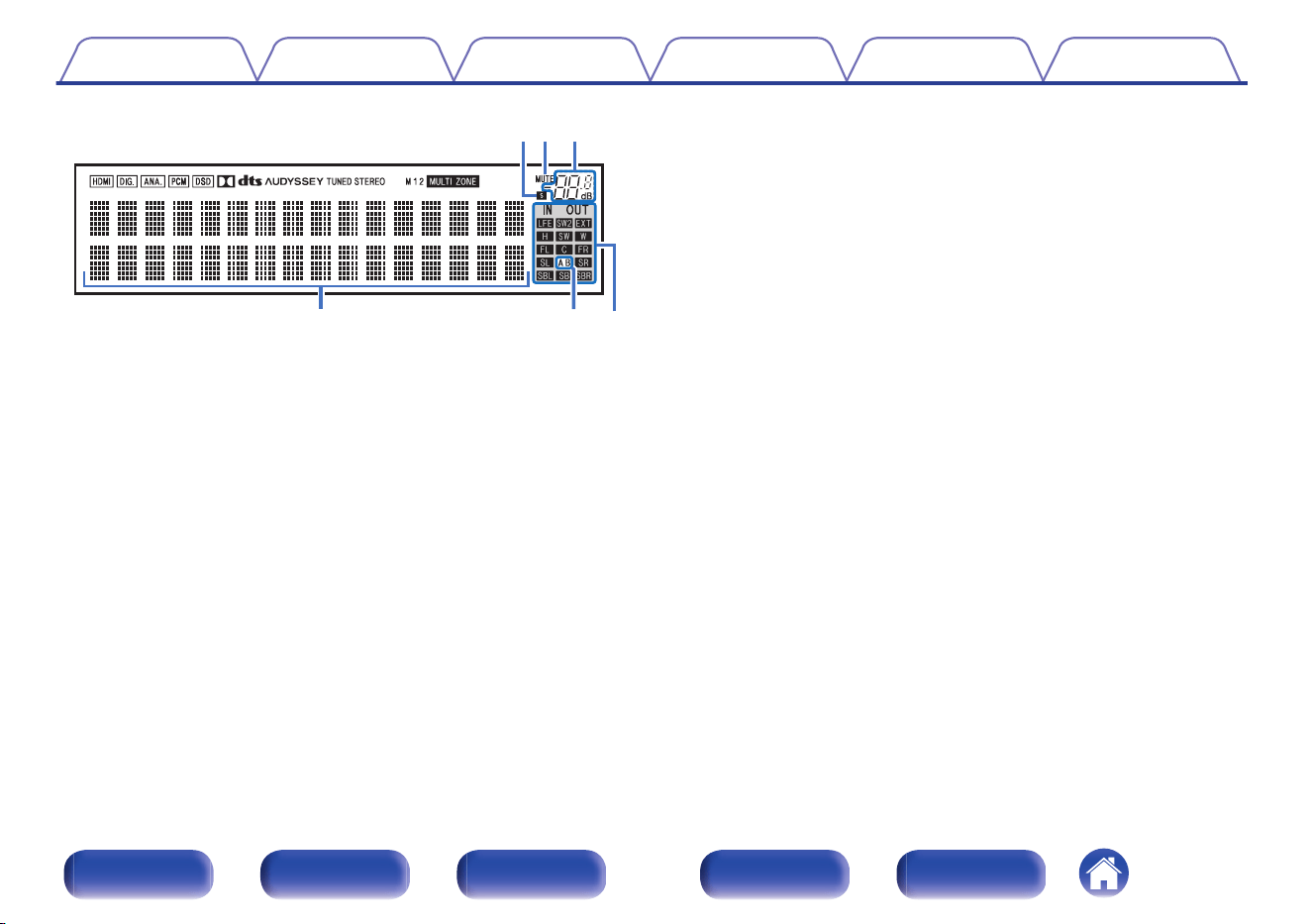
Q0 Q1 Q2
iuo
G
Sleep timer indicator
This lights when the sleep mode is selected. (v p. 160)
H
MUTE indicator
This blinks while the sound is muted. (v p. 96)
I
Volume indicator
J
Information display
The input source name, sound mode, setting values and other
information are displayed here.
K
Front speaker indicator
This lights according to the setting of the front A and B speakers.
L
Input/output signal channel indicators
The channel for input/output signals is displayed according to the
setting configured for “Channel Indicator”. (v p. 278)
0
When “Channel Indicator” is set to “Output” (Default)
These light when audio signals are being output from the speakers.
0
When “Channel Indicator” is set to “Input”
These light corresponding to the channels that include the input
signals.
When playing HD Audio sources, the A indicator lights when a
signal from an extension channel (a channel other than the front,
center, surround, surround back, front height, front wide or LFE
channel) is input.
Contents Connections Playback Settings Tips Appendix
28
Front panel Display Rear panel Remote Index
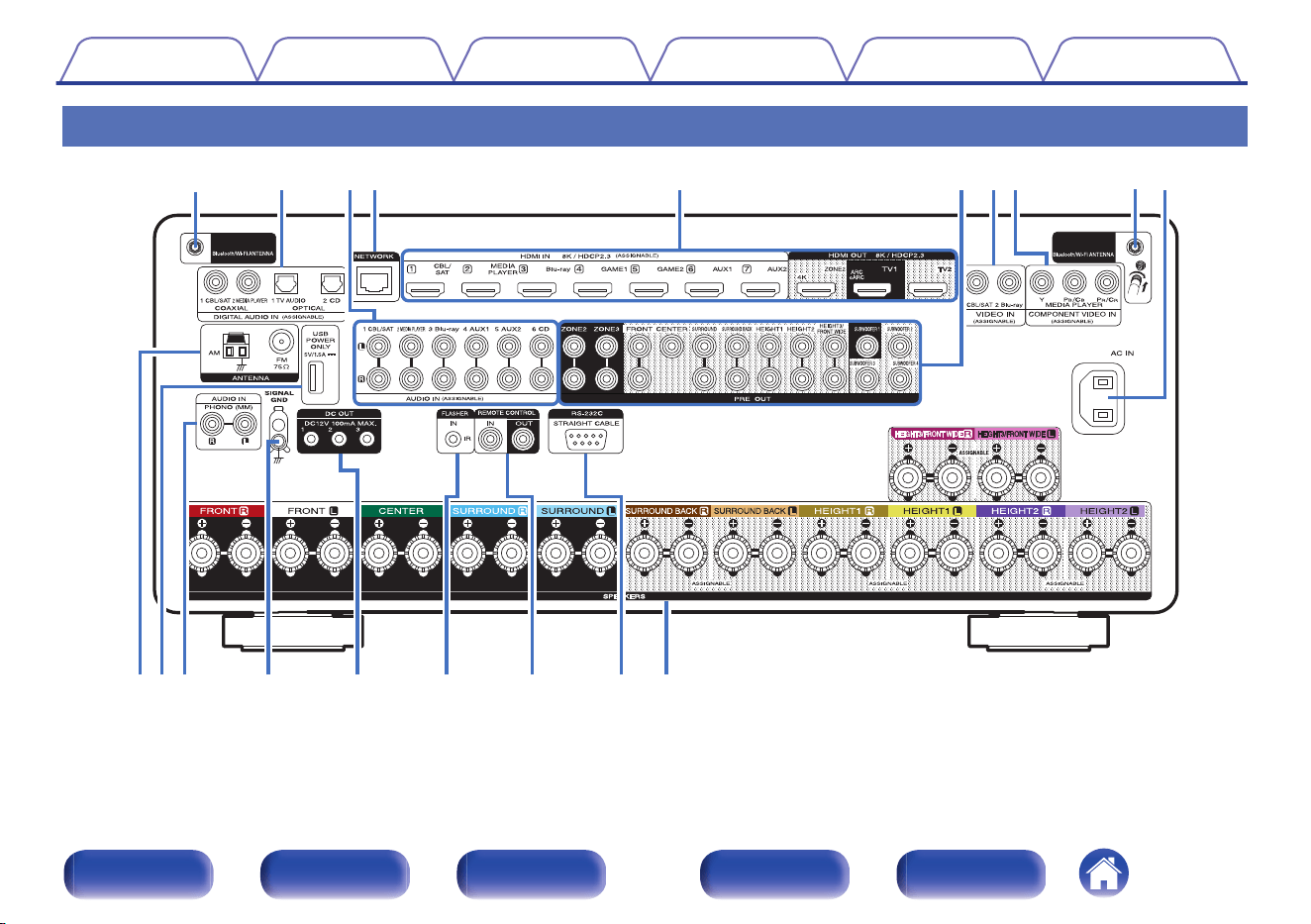
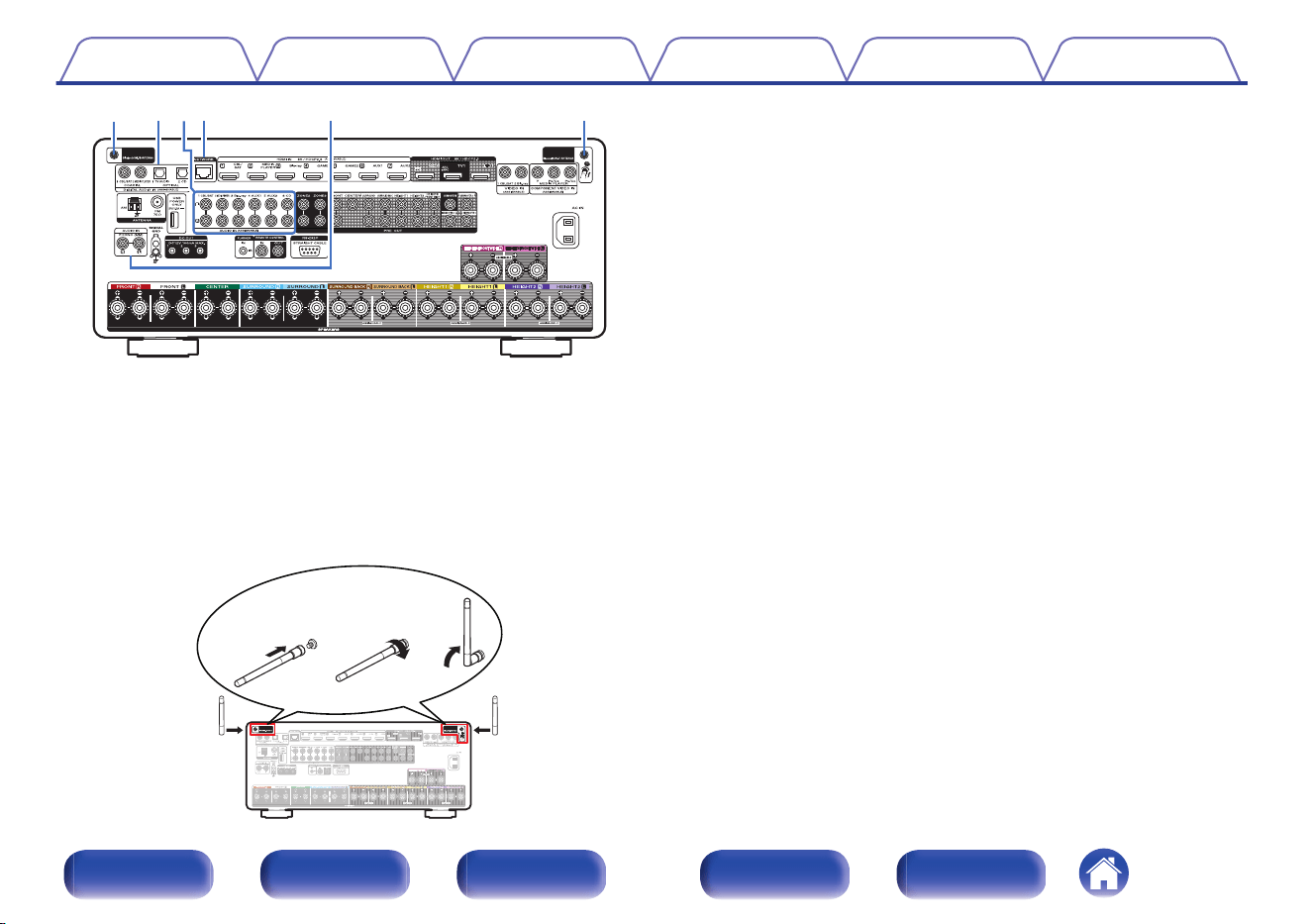
qwree
q
A
Bluetooth/wireless LAN antenna connectors
Used to connect the included external antennas for Bluetooth/wireless
connectivity when connecting to a network via wireless LAN, or when
connecting to a handheld device via Bluetooth. (v p. 88)
A
Place the external antennas for Bluetooth/wireless connectivity
evenly over the screw terminal of rear.
B
Turn clockwise until the antennas is fully connected.
C
Rotate the antenna upwards for best reception.
qwe
B
Digital audio connectors (DIGITAL AUDIO)
Used to connect devices equipped with digital audio connectors.
0
“Connection 2 : TV equipped with an HDMI connector and
incompatible with the ARC / eARC” (v p. 77)
0
“Connecting a set-top box (Satellite tuner/cable TV)” (v p. 79)
0
“Connecting a media player” (v p. 80)
C
Analog audio connectors (AUDIO)
Used to connect devices equipped with analog audio connectors.
0
“Connecting a set-top box (Satellite tuner/cable TV)” (v p. 79)
0
“Connecting a media player” (v p. 80)
0
“Connecting a Blu-ray Disc player or DVD player” (v p. 81)
0
“Connecting a turntable” (v p. 83)
D
NETWORK connector
Used to connect to a LAN cable when connecting to a wired LAN
network. (v p. 87)
Contents
Connections Playback Settings Tips Appendix
30
Front panel Display Rear panel Remote Index
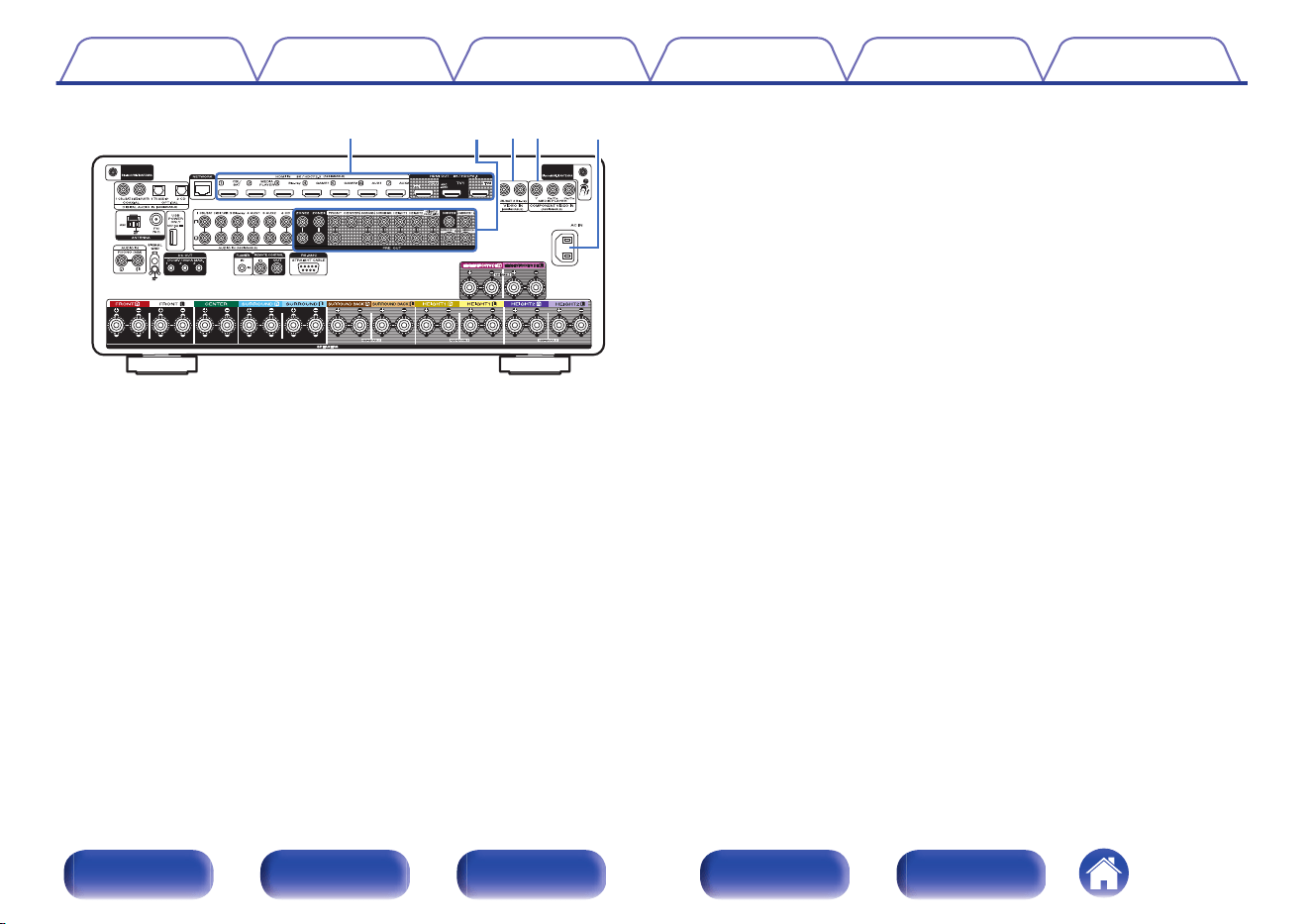
tuioy
E
HDMI connectors
Used to connect devices equipped with HDMI connectors.
0
“Connection 1 : TV equipped with an HDMI connector and
compatible with the ARC / eARC” (v p. 76)
0
“Connection 2 : TV equipped with an HDMI connector and
incompatible with the ARC / eARC” (v p. 77)
0
“Connecting a set-top box (Satellite tuner/cable TV)” (v p. 79)
0
“Connecting a media player” (v p. 80)
0
“Connecting a Blu-ray Disc player or DVD player” (v p. 81)
0
“Connecting a game console or player device compatible with
8K” (v p. 82)
F
PRE OUT connectors
Used to connect a subwoofer with built-in amplifier or an external power
amplifier.
0
“Connecting the subwoofer” (v p. 44)
0
“Connecting an external power amplifier” (v p. 48)
0
“Connecting 13.1-channel speakers” (v p. 65)
0
“Connecting ZONE” (v p. 173)
G
Video connectors (VIDEO)
Used to connect devices equipped with video connectors.
0
“Connecting a set-top box (Satellite tuner/cable TV)” (v p. 79)
0
“Connecting a Blu-ray Disc player or DVD player” (v p. 81)
H
Component video connectors (COMPONENT VIDEO)
Used to connect devices equipped with component video connectors.
0
“Connecting a media player” (v p. 80)
I
AC inlet (AC IN)
Used to connect the power cord. (v p. 93)
Contents
Connections Playback Settings Tips Appendix
31
Front panel Display Rear panel Remote Index
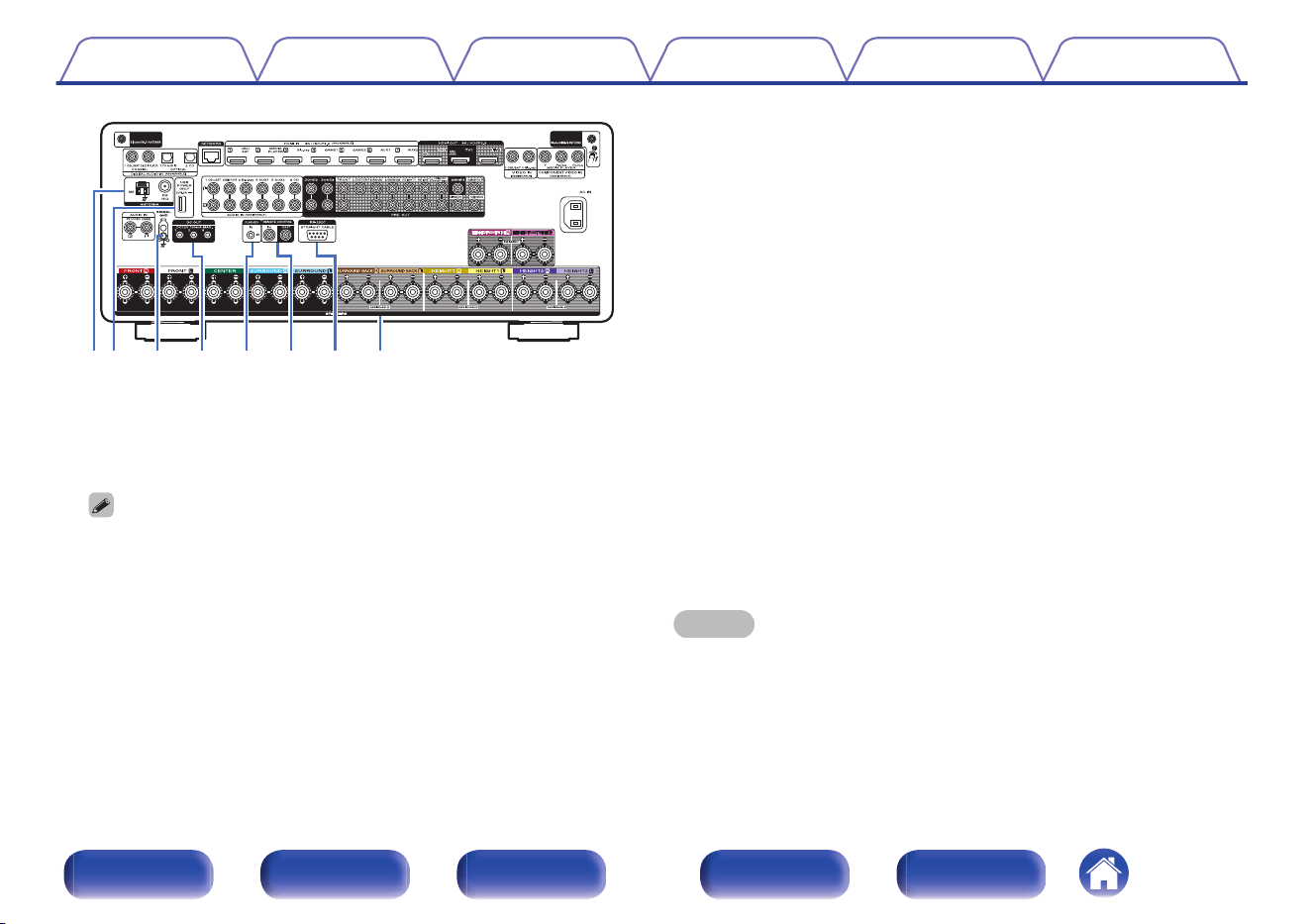
Q0Q1 Q2 Q3 Q4 Q5 Q6 Q7
J
FM/AM antenna terminals (ANTENNA)
Used to connect FM antennas and AM loop antennas. (v p. 85)
K
USB port (POWER SUPPLY)
Can be used to power streaming media players, etc.
0
Use a device’s supplied AC adapter when a power supply of 5 V/1.5 A or more
is required.
0
Connect to the USB port on the front panel to play content from a USB
memory device.
L
SIGNAL GND terminal
Used to connect a ground wire for the turntable. (v p. 83)
M
DC OUT jacks
Used to connect devices equipped with the trigger function.
(v p. 92)
N
FLASHER IN jack
Used when using a control BOX or other such control devices to control
this unit.
O
REMOTE CONTROL jacks
Used to connect infrared receivers/transmitters in order to operate this
unit and external devices from a different room. (v p. 89)
P
RS-232C connector
Used to connect home automation controller devices fitted with
RS-232C connectors. Consult the owner’s manual of the home
automation controller for more information about serial control of this
unit.
Perform the operation below beforehand.
A
Turn on the power of this unit.
B
Turn off the power of this unit from the external controller.
C
Check that the unit is in the standby mode.
Q
Speaker terminals (SPEAKERS)
Used to connect speakers. (v p. 43)
NOTE
0
Do not touch the inner pins of the connectors on the rear panel. Electrostatic
discharge may cause permanent damage to the unit.
Contents Connections Playback Settings Tips Appendix
32
Front panel Display Rear panel Remote Index
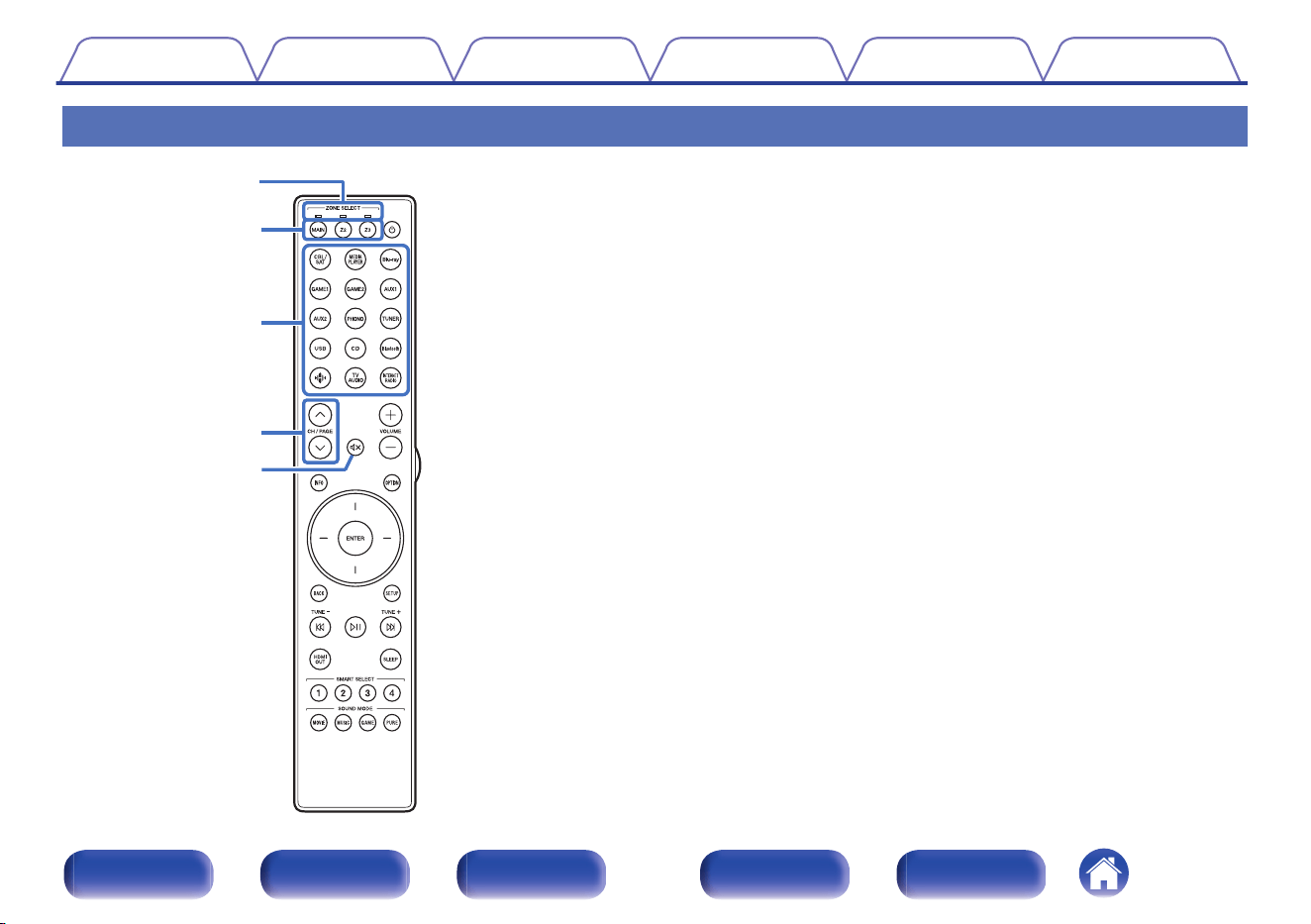
Remote control unit
A
Zone mode indicators
The indicator of the zone that you are operating lights up.
B
ZONE SELECT buttons (MAIN, Z2, Z3)
These switch the zone (MAIN ZONE, ZONE2, ZONE3) that is operated
through the remote control unit.
0
“Playing different sources in MAIN ZONE, ZONE2 and
ZONE3” (v p. 180)
0
“Menu operations” (v p. 188)
0
“Specifying the zone used with the remote control unit” (v p. 286)
C
Input source select buttons
These selects the input source.
0
“Selecting the input source” (v p. 95)
0
“Playing different sources in MAIN ZONE, ZONE2 and
ZONE3” (v p. 180)
D
Channel/page search buttons (CH/PAGE ml)
These select radio stations registered to presets or switch pages.
(v p. 112)
E
MUTE button (:)
This mutes the output audio.
0
“Turning off the sound temporarily (Muting)” (v p. 96)
0
“Turning off the sound temporarily (Muting)” (v p. 182)
q
w
e
t
r
Contents
Connections Playback Settings Tips Appendix
33
Front panel Display Rear panel Remote Index
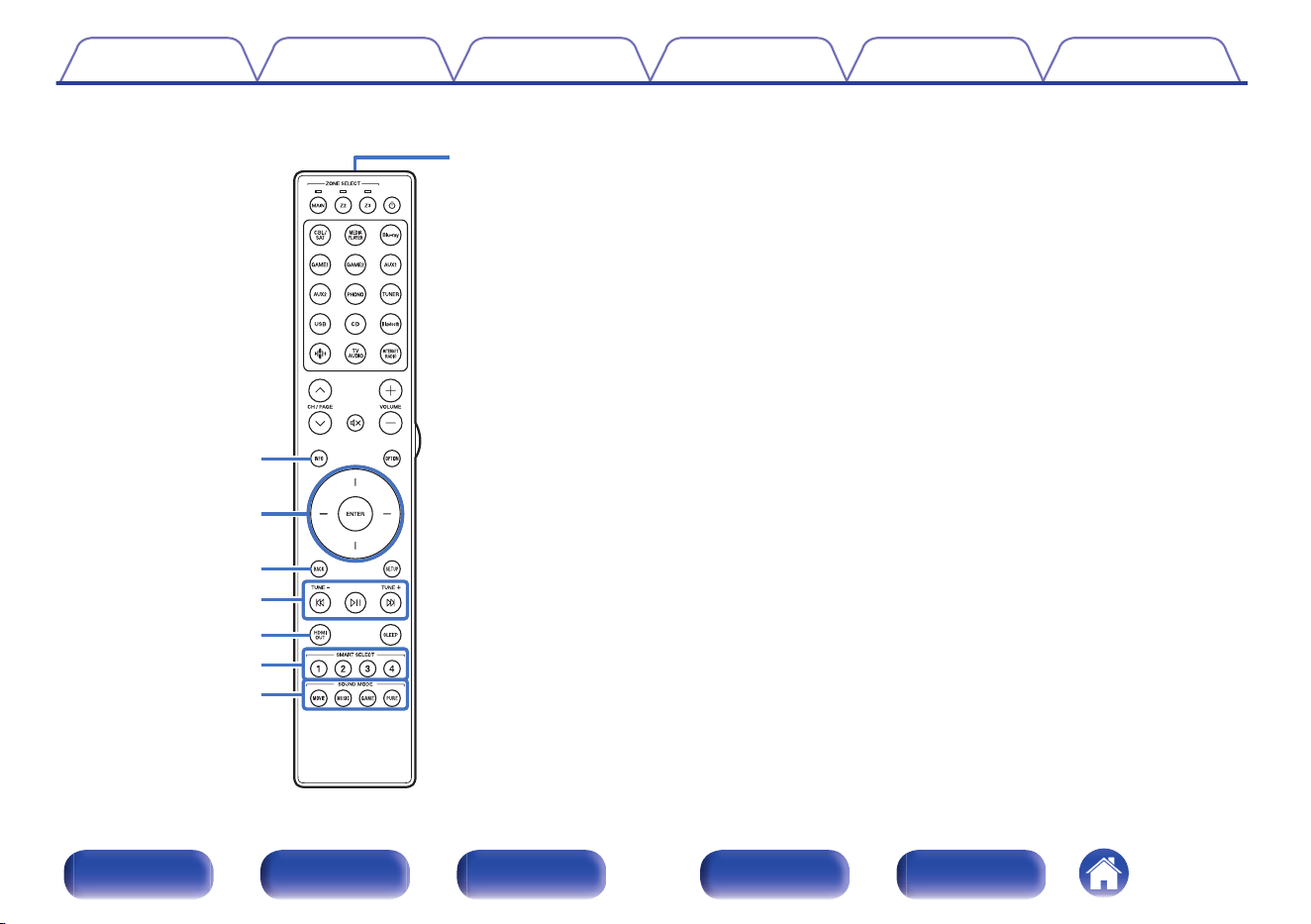
F
Information button (INFO)
This displays the status information on the TV screen. (v p. 282)
G
Cursor buttons
These select items.
H
BACK button
This returns to the previous screen.
I
System buttons
These perform playback related operations.
Tuning up / Tuning down buttons (TUNE +, –)
These select either FM broadcast or AM broadcast. (v p. 109)
J
HDMI OUT button
This sets the HDMI monitor output. (v p. 210)
K
SMART SELECT buttons (1 – 4)
These call up settings registered to each button, such as input source,
volume level and sound mode settings. (v p. 162)
L
SOUND MODE buttons
These select the sound mode. (v p. 145)
M
Remote control signal transmitter
This transmits signals from the remote control unit. (v p. 10)
Q3
o
Q1
Q2
y
Q0
i
u
Contents
Connections Playback Settings Tips Appendix
34
Front panel Display Rear panel Remote Index
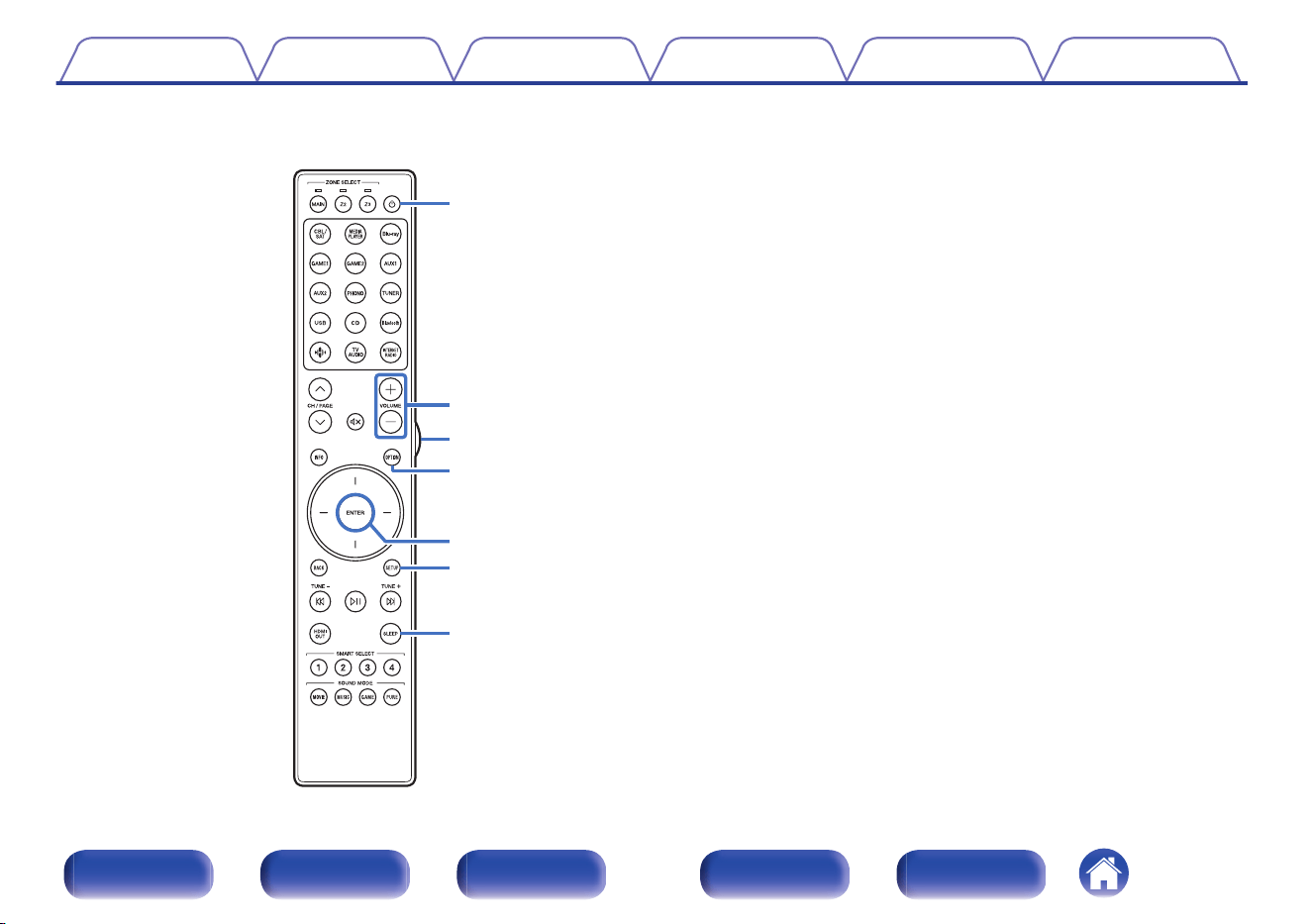
N
POWER button (X)
This turns the power on/off.
0
“Turning the power on” (v p. 95)
0
“Playback in ZONE2/ZONE3 (Another room)” (v p. 172)
O
VOLUME buttons (no)
These adjusts the volume level.
0
“Adjusting the volume” (v p. 96)
0
“Adjusting the Volume in ZONE2/ZONE3” (v p. 182)
P
Light button
This turns on the backlight for approx. 5 seconds. (v p. 285)
Q
OPTION button
This displays the option menu on the TV screen.
R
ENTER button
This determines the selection.
S
SETUP button
This displays the menu on the TV screen. (v p. 188)
T
SLEEP button
This sets the sleep timer. (v p. 160)
Q4
Q5
Q6
Q8
Q7
Q9
W0
Contents
Connections Playback Settings Tips Appendix
35
Front panel Display Rear panel Remote Index
o
Contents
Speaker installation 37
Connecting speakers 43
Connecting a TV 75
Connecting a playback device 78
Connecting a USB memory device to the USB port 84
Connecting FM/AM antennas 85
Connecting to a home network (LAN) 87
Connecting an external control device 89
Connecting the power cord 93
NOTE
0
Do not plug in the power cord until all connections have been completed.
However, when the “Setup Assistant” is running, follow the instructions in the
“Setup Assistant” (page 9 in the separate “Quick Start Guide”) screen for making
connections. (During “Setup Assistant” operation, the input/output connectors do
not conduct current.)
0
Do not bundle power cords together with connection cables. Doing so can result in
noise.
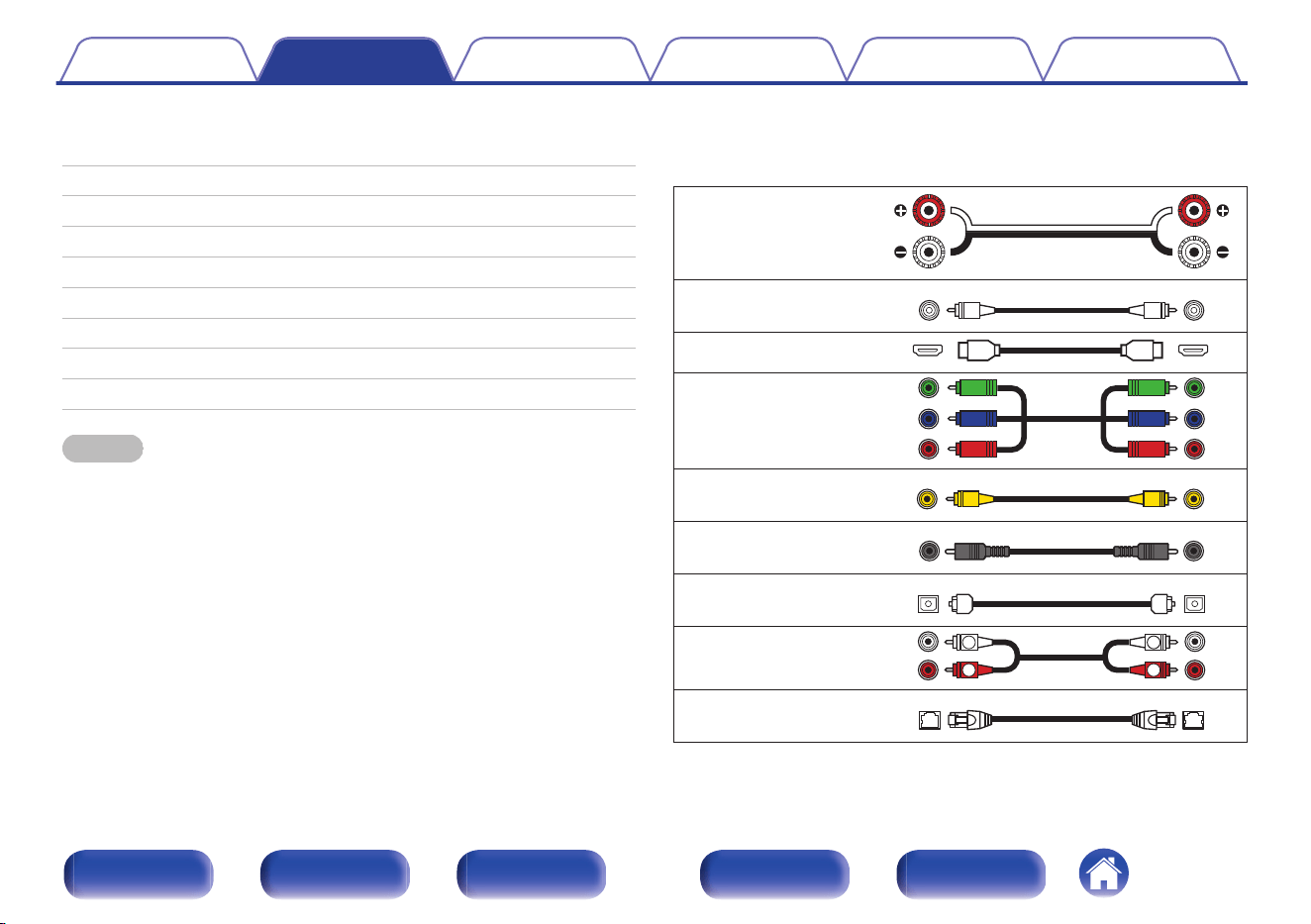
o
Cables used for connections
Provide necessary cables according to the devices you want to
connect.
Speaker cable
Subwoofer cable
HDMI cable
Component video cable
Video cable
Coaxial digital cable
Optical cable
Audio cable
R
L
R
L
LAN cable
Contents Connections Playback Settings Tips Appendix
36
Front panel Display Rear panel Remote Index
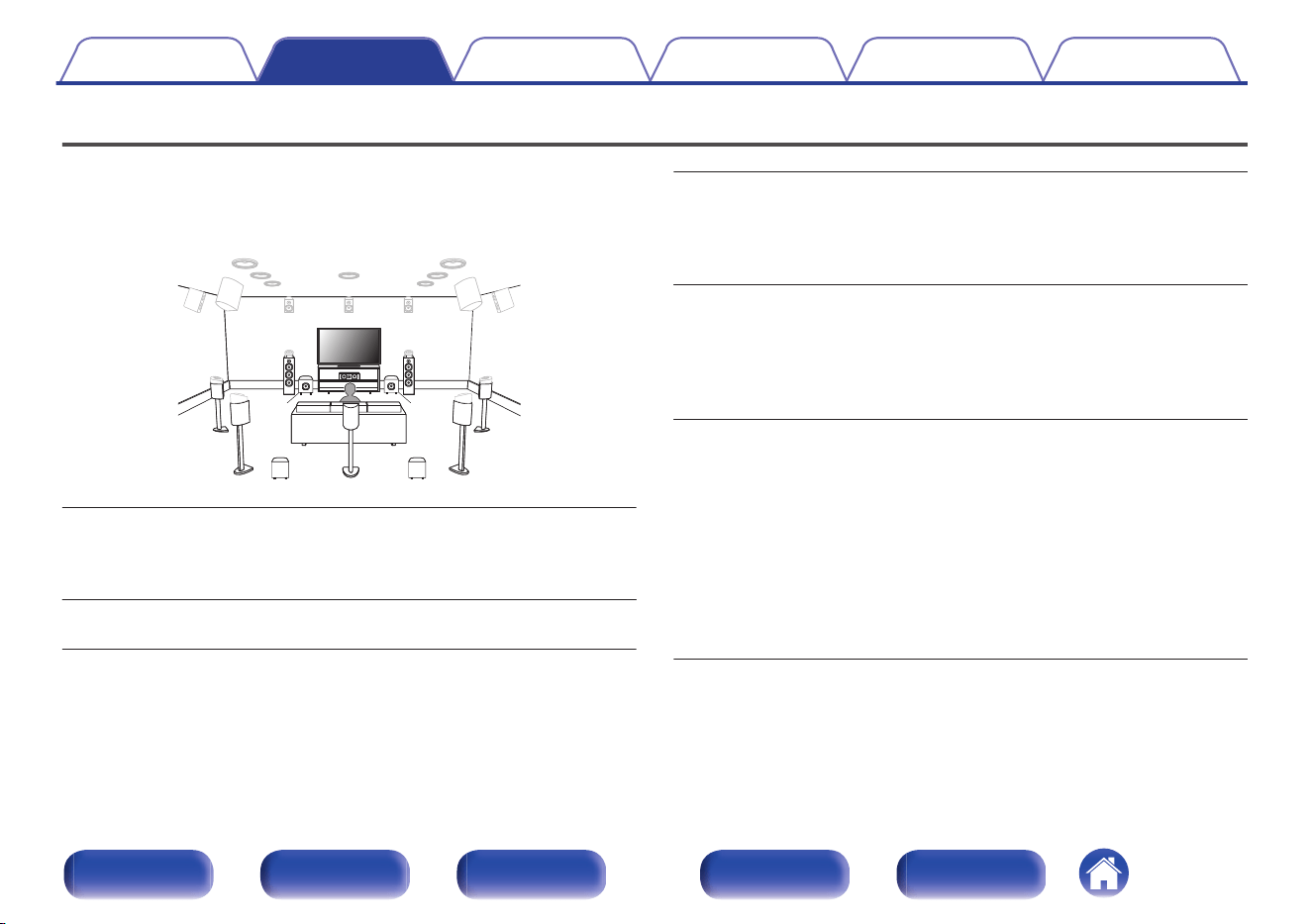
Speaker installation
Determine the speaker system depending on the number of speakers you
are using and install each speaker and subwoofer in the room.
Speaker installation is explained using this example of a typical
installation.
C
FL FR
SBL
SBR
SB
SW1
SL SR
SW3 SW4
SW2
FL/FR
(Front speaker left/
right):
Place the FRONT left and right speakers an
equal distance from the main listening position.
The distance between each speaker and your TV
should also be the same.
C
(Center speaker):
Place the CENTER speaker in between the front
speakers and above or below your TV.
SL/SR
(Surround speaker left/
right):
Place the SURROUND left and right speakers an
equal distance to the left and right sides of the
main listening position. If you don’t have
surround back speakers, move the surround
speakers slightly behind your listening position.
SBL/SBR
(Surround back
speaker left/right):
Place the SURROUND BACK left and right
speakers an equal distance from the main
listening position and directly behind the main
listening position. When using a single surround
back speaker (SB), place it directly behind the
listening position.
SW 1/2/3/4
(Subwoofer):
Place your subwoofer near your front speakers. If
you are using multiple subwoofers, place pairs of
subwoofers spaced equally across the front or
rear walls of the room or place single subs
midway between the front pairs or rear pairs.
You can also set a specific layout when using
multiple subwoofers on the “Subwoofer Mode”
setting (v p. 241):
2 subwoofers: 2 front, or 1 front and 1 rear
3 subwoofers: 2 front and 1rear
4 subwoofers: 2 front and 2 rear
Contents Connections Playback Settings Tips Appendix
37
Front panel Display Rear panel Remote Index
FHL FHR
TRR
TRL
TFR
TFL
RHL RHR
TMR
TML
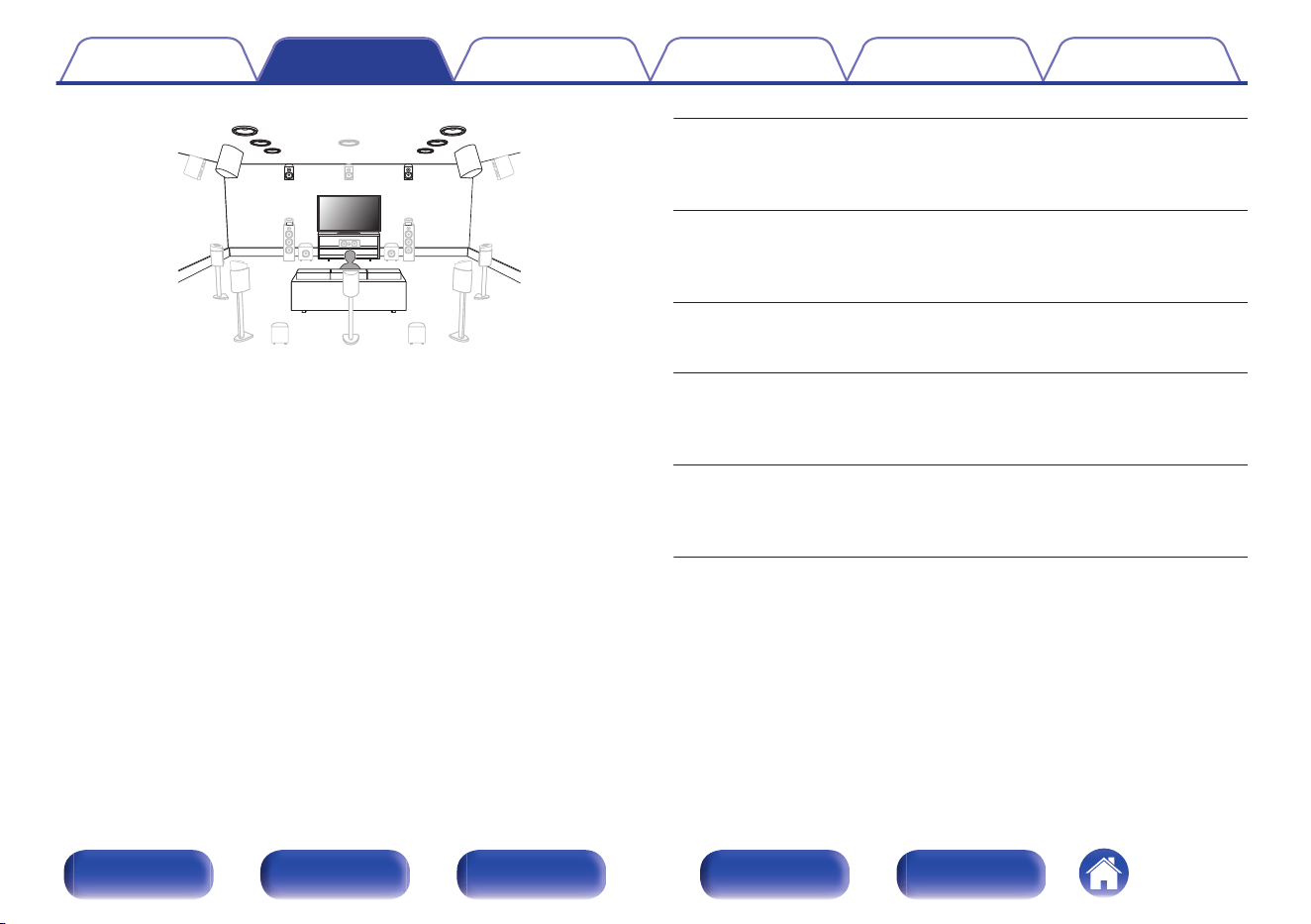
FHL/FHR
(Front height speaker
left/right):
Place the FRONT HEIGHT left and right speakers
directly above the front speakers. Mount them as
close to the ceiling as possible and aim them
towards the main listening position.
TFL/TFR
(Top front speaker
left/right):
Mount the TOP FRONT left and right speakers on
the ceiling slightly in front of your main listening
position and aligned with the left and right front
speakers.
TML/TMR
(Top middle speaker
left/right):
Mount the TOP MIDDLE left and right speakers
directly above the main listening position and
aligned with the left and right front speakers.
TRL/TRR
(Top rear speaker
left/right):
Mount the TOP REAR left and right speakers on
the ceiling slightly behind your main listening
position and aligned with the left and right front
speakers.
RHL/RHR
(Rear height speaker
left/right):
Place the REAR HEIGHT left and right speakers
directly behind the main listening position. Mount
them as close to the ceiling as possible and
aligned with the left and right front speakers.
Contents Connections Playback Settings Tips Appendix
38
Front panel Display Rear panel Remote Index
SHL
SHR
TS
CH
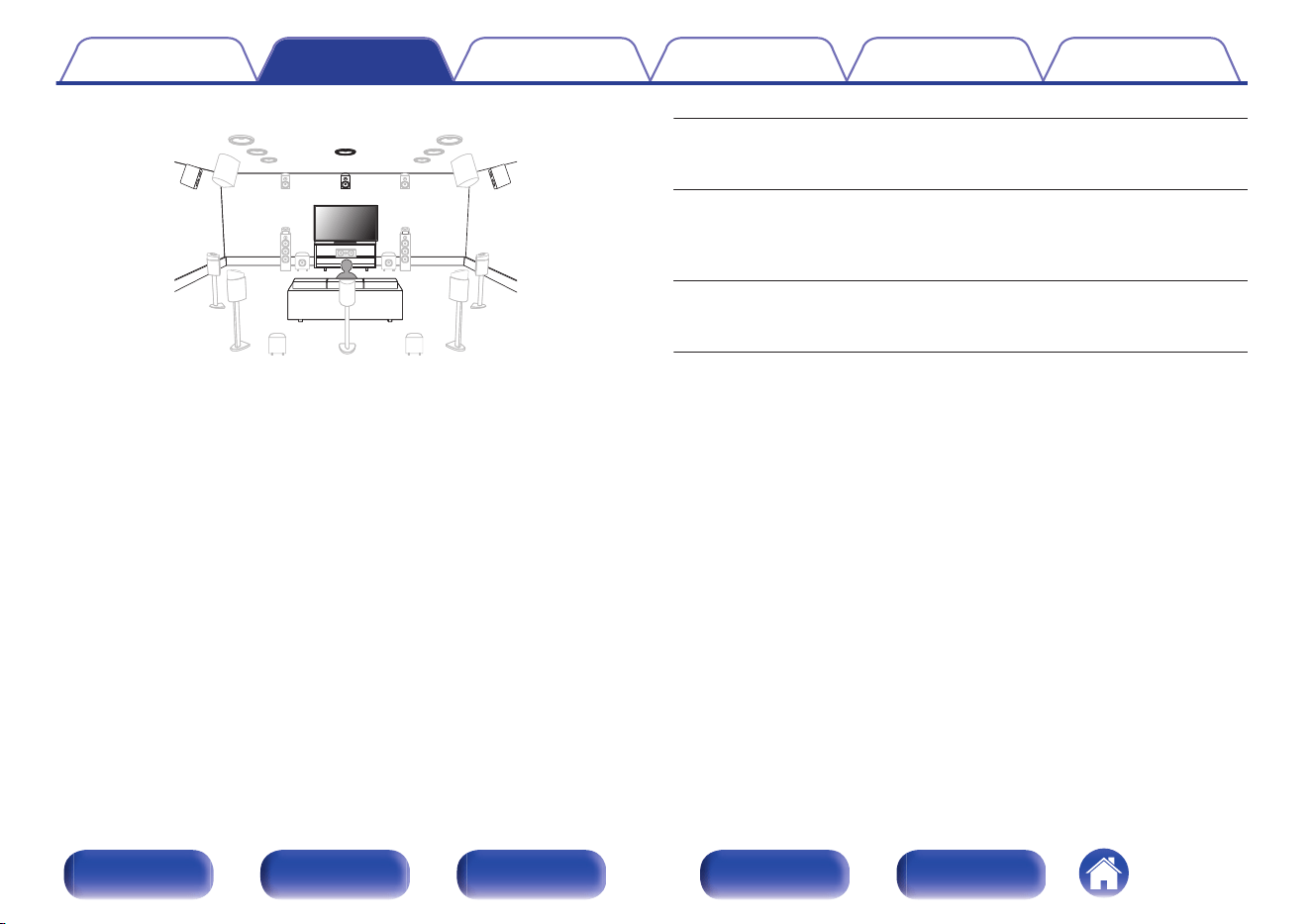
SHL/SHR
(Surround height
speaker left/right):
Place the SURROUND HEIGHT left and right
speakers directly above the surround speakers.
CH
(Center height
speaker):
Place the CENTER HEIGHT speaker directly
above the center speaker. Mount them as close to
the ceiling as possible and aim them towards the
main listening position.
TS
(Top surround
speaker):
Place the TOP SURROUND speaker directly
above the main listening position and aligned with
the center channel speaker.
Contents Connections Playback Settings Tips Appendix
39
Front panel Display Rear panel Remote Index
FDL FDR
BDL BDR
SDL SDR
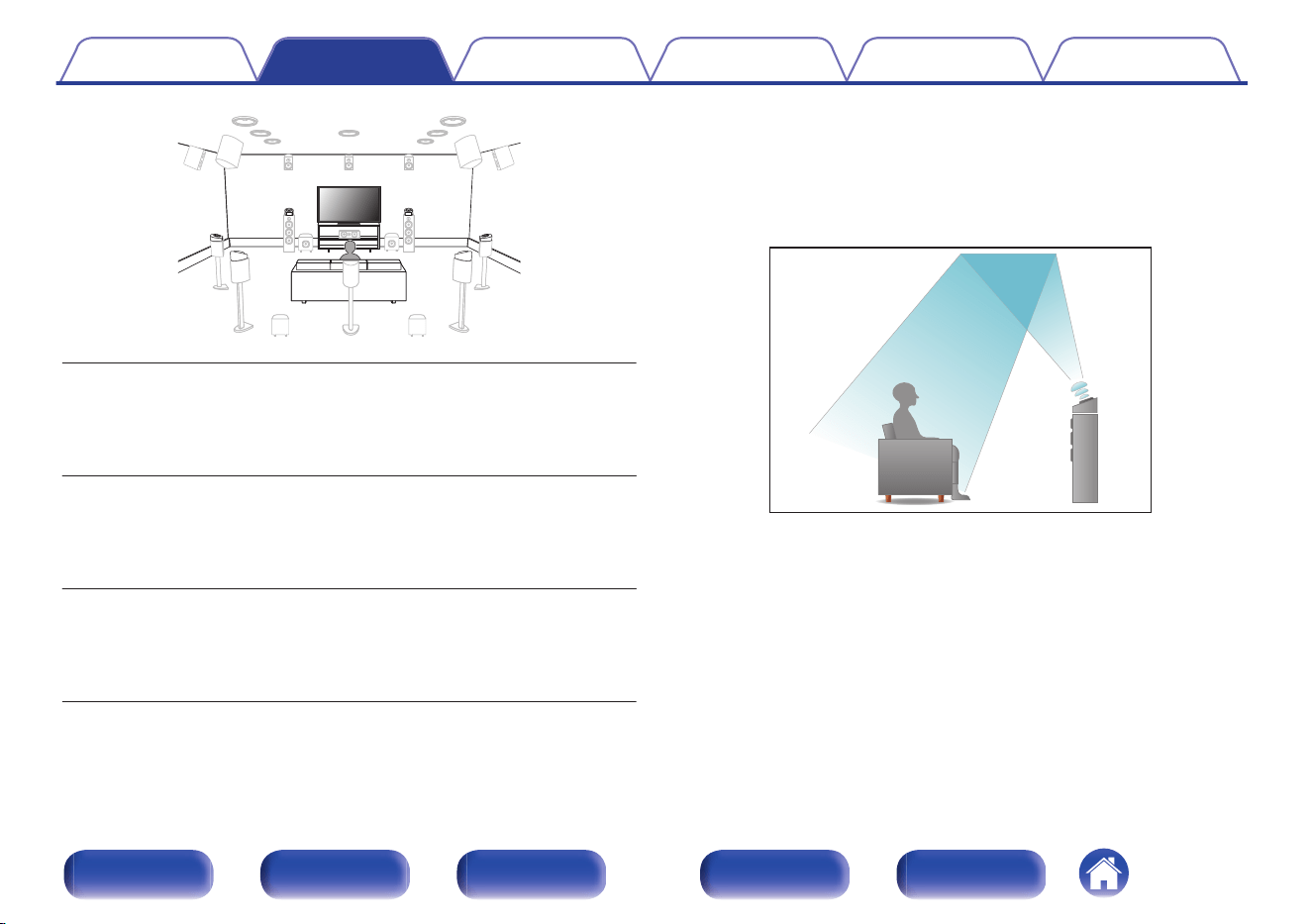
FDL/FDR
(Front Dolby speaker
left/right):
Place the FRONT Dolby Atmos Enabled speaker
on the front speaker. For a Dolby Atmos Enabled
integrated with a front speaker, place the Dolby
Atmos Enabled speaker instead of the front
speaker.
SDL/SDR
(Surround Dolby
speaker left/right):
Place the SURROUND Dolby Atmos Enabled
speaker on the surround speaker. For a Dolby
Atmos Enabled speaker integrated with a surround
speaker, place the Dolby Atmos Enabled speaker
instead of the surround speaker.
BDL/BDR
(Back Dolby speaker
left/right):
Place the BACK Dolby Atmos Enabled speaker on
the surround back speaker. For a Dolby Atmos
Enabled speaker integrated with a surround back
speaker, place the Dolby Atmos Enabled speaker
instead of the surround back speaker.
About Dolby Atmos Enabled speakers
Dolby Atmos Enabled speakers reflect the sound off the ceiling to allow
the sound to come from over your head by using a special upward-
pointing speaker that is placed on the floor.
You can enjoy the Dolby Atmos 3D sound even in an environment where
speakers cannot be installed on the ceiling.
Contents Connections Playback Settings Tips Appendix
40
Front panel Display Rear panel Remote Index
0
This unit is compatible with Dolby Atmos and DTS:X which offers an even wider
and deeper surround sensation.
0
The “Speaker Virtualizer” must be set to “On” for Dolby Atmos playback with 5.1-
channel speaker configurations or less. (v p. 192)
0
IMAX DTS:X / DTS:X can be selected regardless of the speaker configuration.
0
AURO-3D recommends adding FRONT HEIGHT and SURROUND HEIGHT
speakers to a 5.1 speaker configuration. Optionally, you may substitute REAR
HEIGHT, ceiling speakers, Dolby Atmos Enabled speakers instead of FRONT
HEIGHT and SURROUND HEIGHT speakers for Dolby Atmos, DTS:X and
AURO-3D playback.
o
Recommended placement of the speakers
Floor speakers Layout
0
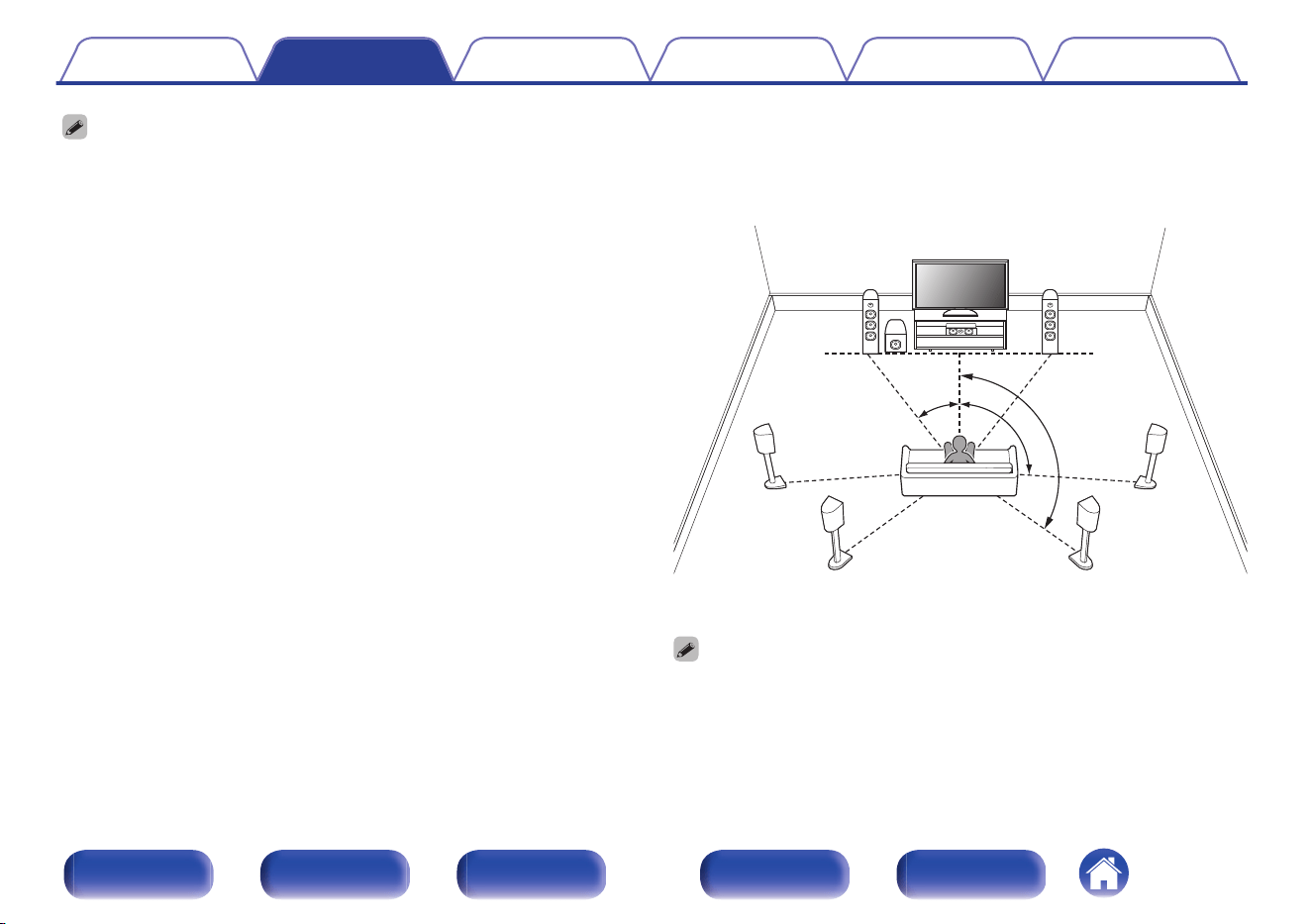
Use the following illustration as a guide for the installation location of
each floor speaker. You do not have to match them exactly.
FL
SW
C
SL
FR
SR
SBL
SBR
z2
z1
z3
z
1 22° - 30°
z
2 90° - 110°
z
3 135° - 150°
0
If you are not using the surround back speakers, the recommended angle of the
surround sound speakers (
z
2) is 120°.
0
When using a single surround back speaker, place it directly behind the listening
position.
Contents
Connections Playback Settings Tips Appendix
41
Front panel Display Rear panel Remote Index
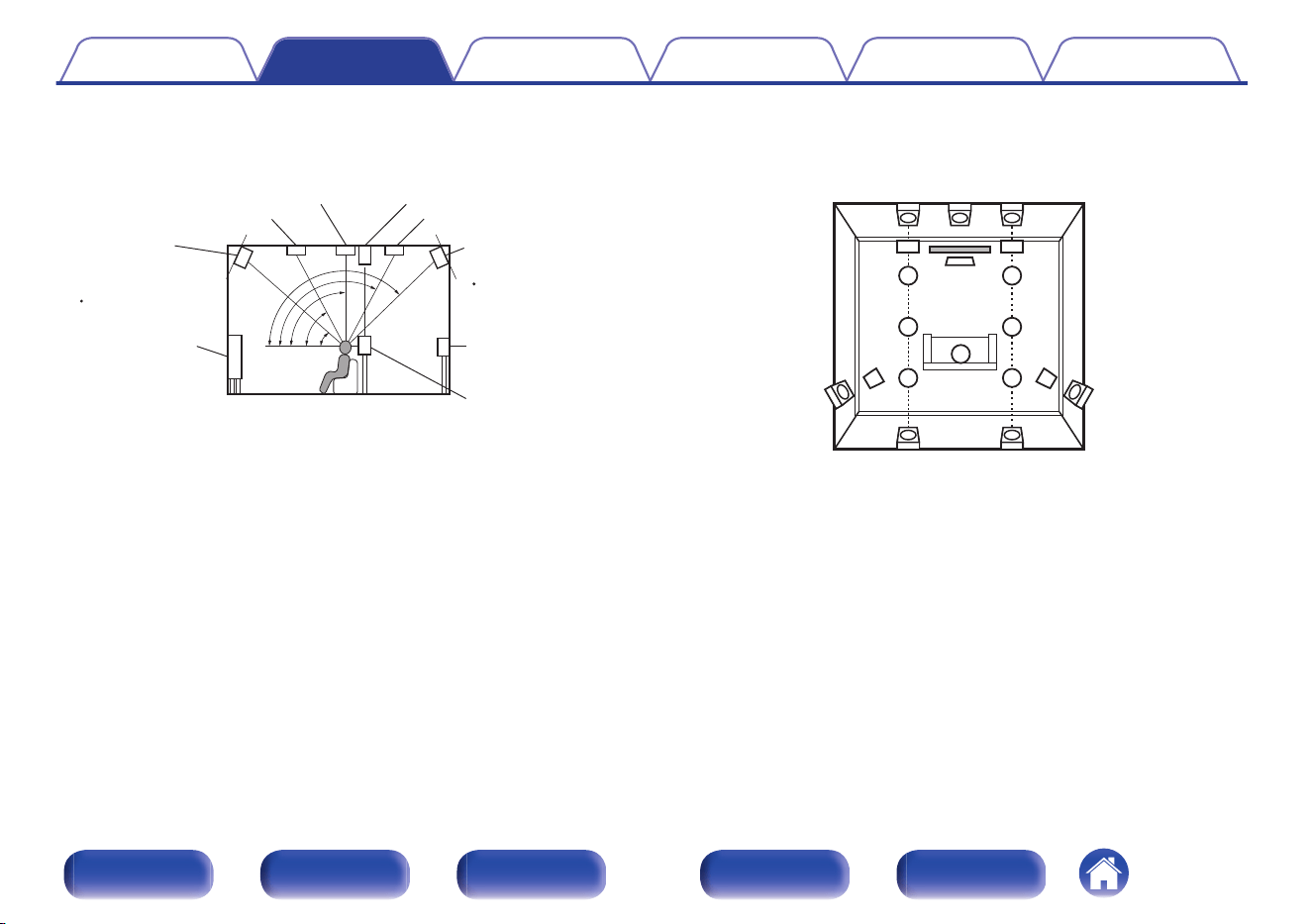
Height speakers Layout
0
Use the following illustration as a guide for the installation location of each height speaker. You do not have to match them exactly.
z
1
z2
z
3
z4
z5
z1 30° - 45°
z4 125° - 150°
z2 30° - 55°
z3 65° - 100°
z5 135° - 150°
Point slightly
downwards
GViewed from the sideH
Top front speaker Top rear speaker
Front speaker
Surround
speaker
Surround
back
speaker
Point slightly
downwards
Rear height
speaker
Top middle / Top surround speaker Surround height speaker
Front height /
Center height
speaker
TS
SL
TRL
RHL RHR
FHL
TML
TFL
FL
SR
TRR
FHRCH
TMR
TFR
FR
C
SHRSHL
GViewed from the topH
Contents Connections Playback Settings Tips Appendix
42
Front panel Display Rear panel Remote Index
Connecting speakers
Here we connect the speakers in the room to this unit.
Before connecting speakers
NOTE
0
Disconnect this unit’s power plug from the power outlet before connecting the
speakers. Also, turn off the subwoofer.
0
Connect so that the speaker cable core wires do not protrude from the speaker
terminal. The protection circuit may be activated if the core wires touch the rear
panel or if the + and - sides touch each other. (“Protection circuit” (v p. 343))
0
Never touch the speaker terminals while the power cord is connected. Doing so
could result in electric shock. When the “Setup Assistant” (page 9 in the separate
“Quick Start Guide”) is running, follow the instructions in the “Setup Assistant”
screen for making connections. (Power is not supplied to the speaker terminals
while the “Setup Assistant” is running.)
0
Use speakers with an impedance of 4 – 16 Ω/ohms.
0
When connecting speakers with different impedances, set the impedance based
on the speaker with the lowest impedance.
NOTE
0
Carry out the following settings when using a speaker with an impedance of 4 – 6
Ω/ohms.
1. Press and hold the main unit’s STATUS and ZONE3 SOURCE at the same
time for at least 3 seconds.
“z4K/8K Format <Enhanced>” appears on the display.
2. Press Cursor Down on the main unit twice.
“zSp. Impedance <8ohms>” appears on the display.
3. Use Cursor Left or Cursor Right on the main unit to select the impedance.
8ohms
(Default):
Select when the impedance for all of the
connected speakers is 8 Ω/ohms or over.
6ohms:
Select when the impedance for any of the
connected speakers is 6 Ω/ohms.
4ohms:
Select when the impedance for any of the
connected speakers is 4 Ω/ohms.
4. Press the main unit’s ENTER to complete the setting.
Contents
Connections Playback Settings Tips Appendix
43
Front panel Display Rear panel Remote Index
o
Connecting the speaker cables
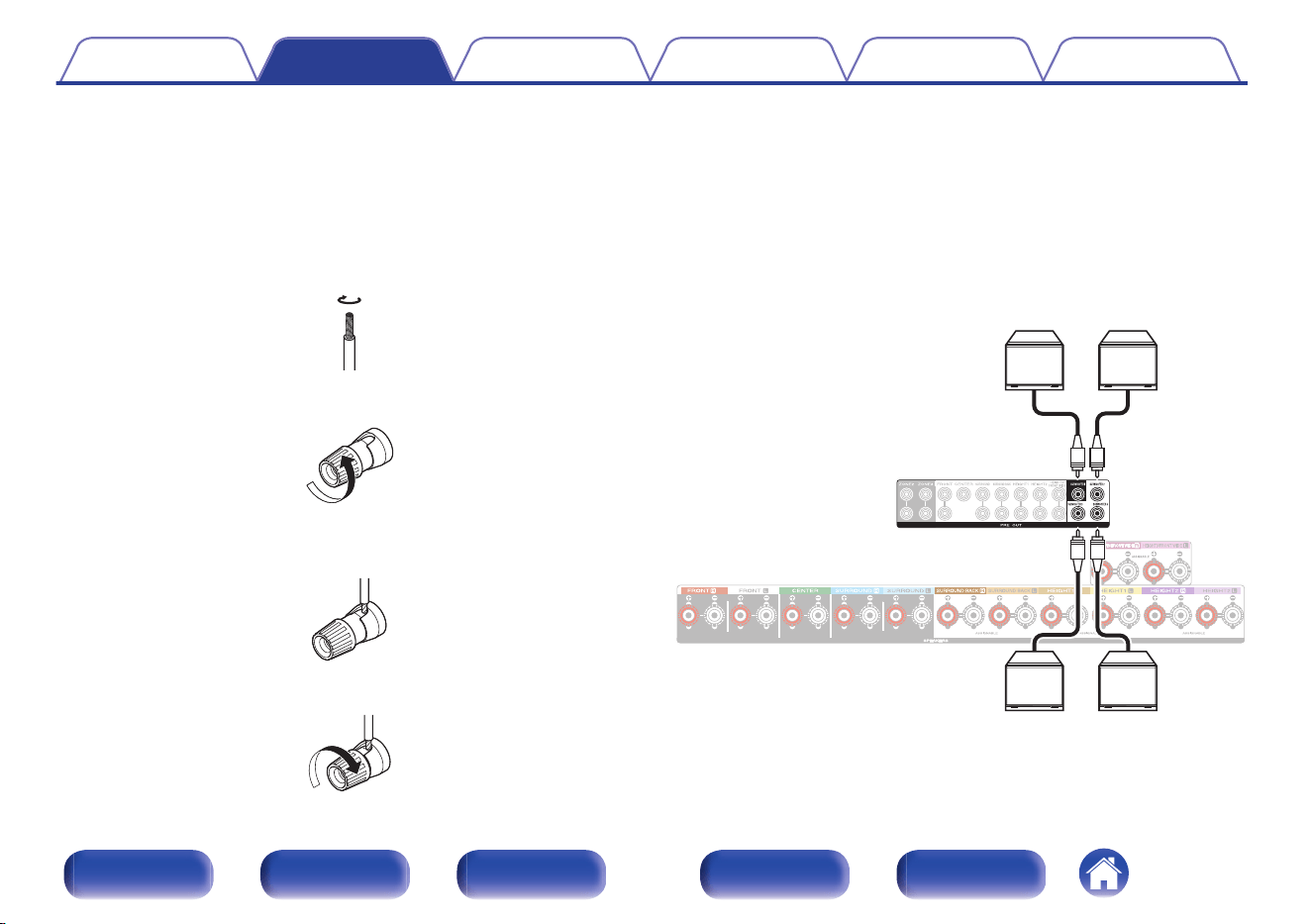
Carefully check the left (L) and right (R) channels and + (red) and –
(black) polarities on the speakers being connected to this unit, and be
sure to connect the channels and polarities correctly.
1
Peel off about 3/8 inch (10 mm) of sheathing from the
tip of the speaker cable, then either twist the core wire
tightly or terminate it.
2
Turn the speaker terminal counterclockwise to loosen it.
3
Insert the speaker cable’s core wire to the hilt into the
speaker terminal.
4
Turn the speaker terminal clockwise to tighten it.
o
Connecting the subwoofer
Use a subwoofer cable to connect the subwoofer. Four subwoofers
can be connected to this unit.
When you are connecting multiple subwoofers, change the setting of
“Subwoofers” in the “Speaker Layout” setting according to the number
of subwoofers to be connected. (v p. 240)
The level and distance can be set separately for Subwoofer 1,
Subwoofer 2, Subwoofer 3 and Subwoofer 4.
SW3 SW4
SW1 SW2
Contents Connections Playback Settings Tips Appendix
44
Front panel Display Rear panel Remote Index
o
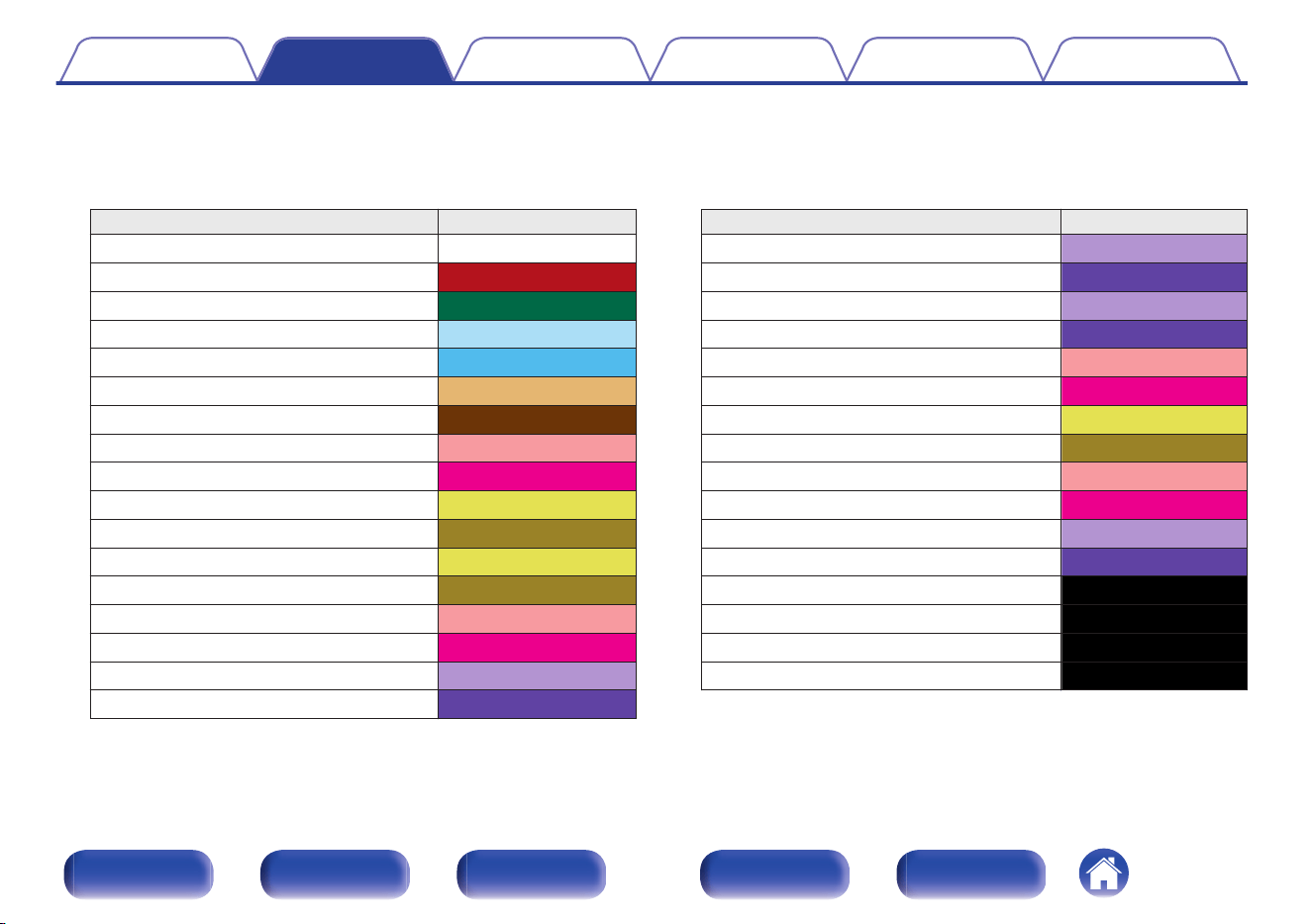
About the cable labels (supplied) for channel identification
The channel display section for speaker terminals on the rear panel is color-coded for each channel to be identifiable.
Attach the cable label corresponding to each speaker to each speaker cable.
This makes it easy to connect the correct cable to the speaker terminals on the rear panel.
Speaker Color
FRONT L White
FRONT R Red
CENTER Green
SURROUND L Light Blue
SURROUND R Blue
SURROUND BACK L Beige
SURROUND BACK R Brown
FRONT WIDE L Pink
FRONT WIDE R Magenta
FRONT HEIGHT L Light Yellow
FRONT HEIGHT R Yellow
TOP FRONT L Light Yellow
TOP FRONT R Yellow
TOP MIDDLE L Pink
TOP MIDDLE R Magenta
TOP REAR L Light Purple
TOP REAR R Purple
Speaker Color
SURROUND HEIGHT L Light Purple
SURROUND HEIGHT R Purple
REAR HEIGHT L Light Purple
REAR HEIGHT R Purple
TOP SURROUND Pink
CENTER HEIGHT Magenta
FRONT DOLBY L Light Yellow
FRONT DOLBY R Yellow
SURROUND DOLBY L Pink
SURROUND DOLBY R Magenta
BACK DOLBY L Light Purple
BACK DOLBY R Purple
SUBWOOFER 1 Black
SUBWOOFER 2 Black
SUBWOOFER 3 Black
SUBWOOFER 4 Black
Contents Connections Playback Settings Tips Appendix
45
Front panel Display Rear panel Remote Index
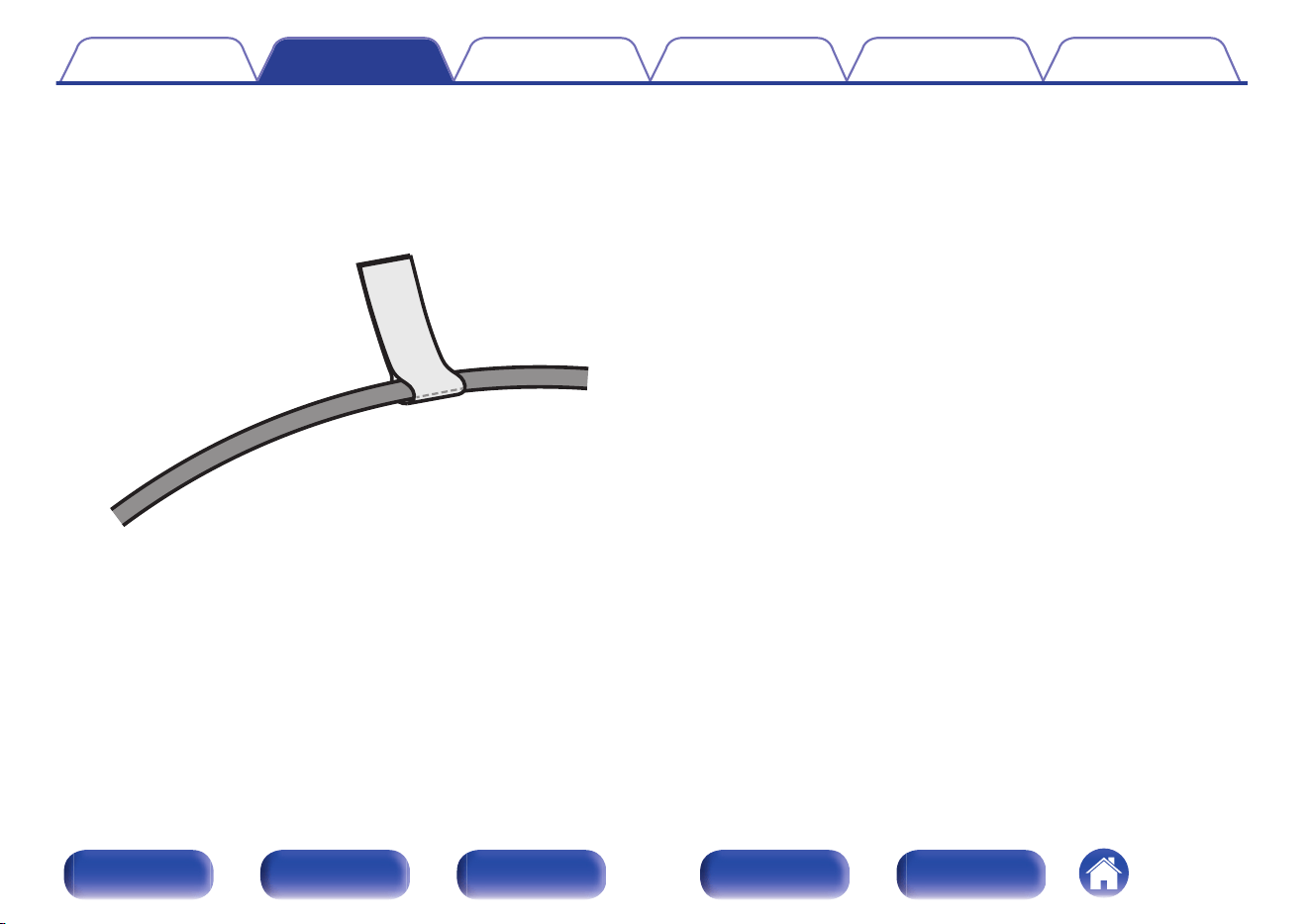
The supplied cable labels include labels for the speaker and HDMI
cables. Attach a cable label to each cable that matches the speakers
and HDMI devices being connected, as shown below. This makes it
easy to identify and properly connect the cables between your
components.
G How to attach the cable labels H
Contents
Connections Playback Settings Tips Appendix
46
Front panel Display Rear panel Remote Index
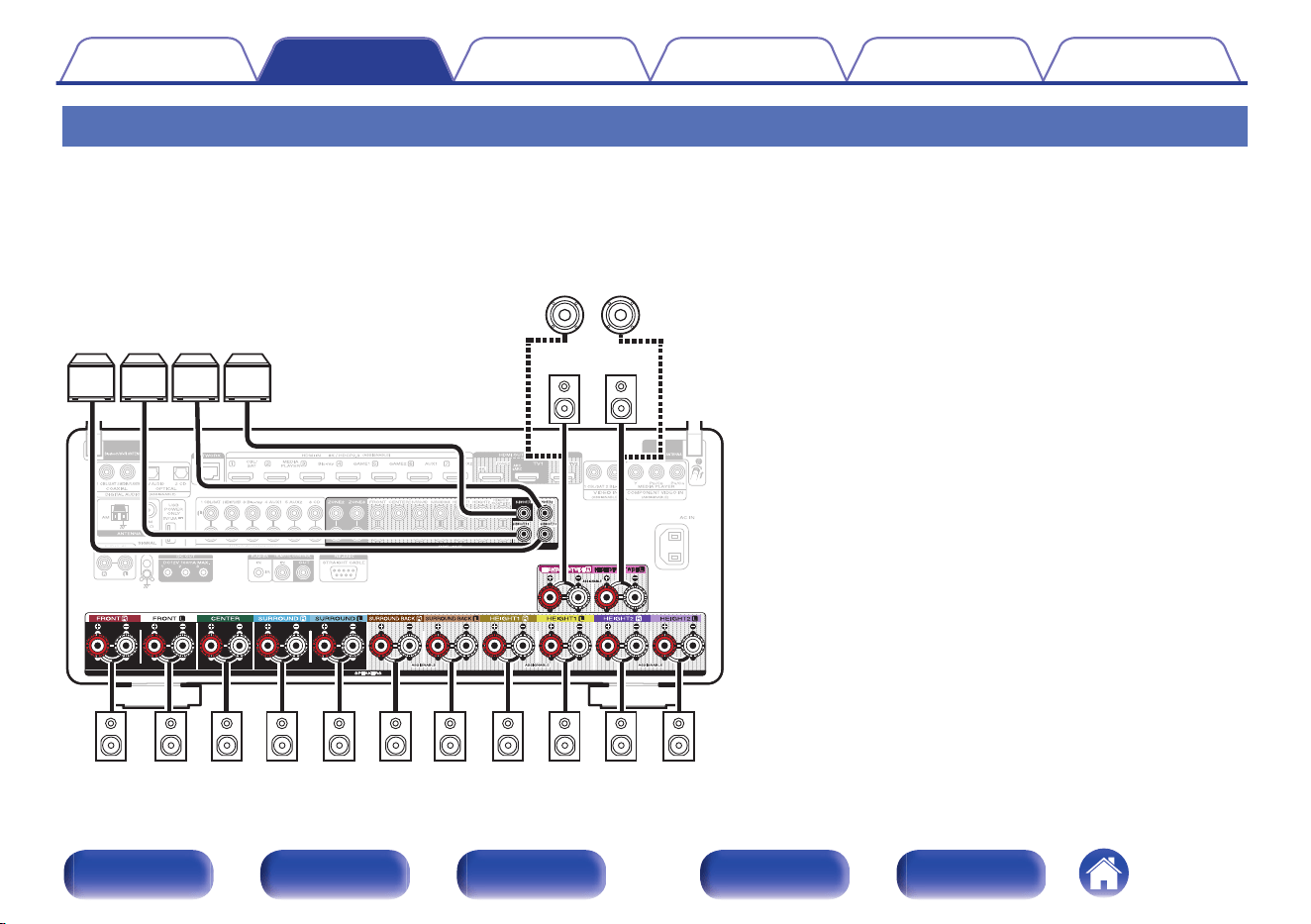
Connecting speakers to the speaker terminals
You can connect 13.4 channel speakers to this unit.
The speaker terminals can perform simultaneous playback for up to 11 channels. Use in combination with pre-out terminals if you wish to perform
simultaneous playback for 13 channels. Refer to “Speaker Layout” for details. (v p. 231)
Connect each speaker according to the speakers you are using.
z
1
When using a single surround back speaker, connect it to the
SURROUND BACK L terminal.
z2
The 3rd set of height speakers can be connected to the HEIGHT3/
FRONT WIDE speaker connectors instead of the Front Wide
channel.
z3
The output terminals for Height/Ceiling/Dolby Atmos Enabled
speakers vary according to the speaker combination that you use.
For the speaker terminal that connects each Height/Ceiling/Dolby
Atmos Enabled speaker, refer to “Speaker Layout” -
“Layout” (v p. 235).
SW4 SW3 SW2 SW1
SR SLFR FL C RHR RHLFHR FHL
SBLSBR
z
1
z
3
z
3
z
3
z
3
FWR FWL
z
2
z
2
TMR TML
z
2,
z
3
z
2,
z
3
Contents
Connections Playback Settings Tips Appendix
47
Front panel Display Rear panel Remote Index
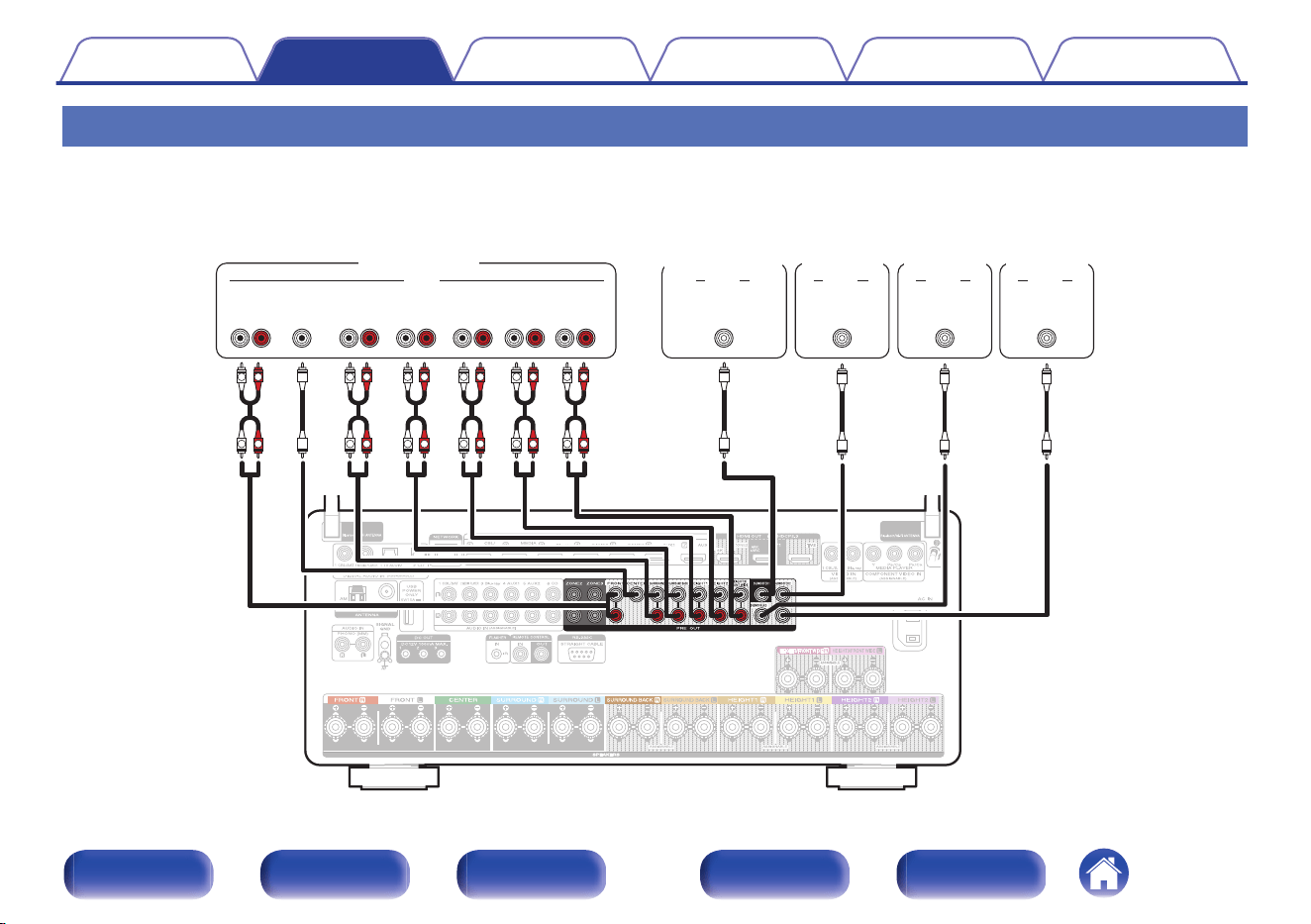
Connecting an external power amplifier
You can use this unit as a preamplifier by connecting an external power amplifier to the PRE OUT connectors. By adding a power amplifier to each
channel, the realness of the sound can be further enhanced.
Select the terminal to use and connect the device.
L
L
L
L
R R
RR
L
L
R
L
L
R
R R
L
L
R
R
L
L
R
R
CENTER
RL
FRONT
RL
AUDIO
SUB-
WOOFER
2
AUDIO
SUB-
WOOFER
1
AUDIO
RL
HEIGHT1 HEIGHT2
RL RL
FRONT WIDESURROUND SURROUND
BACK
RL
SUB-
WOOFER
3
AUDIO
SUB-
WOOFER
4
AUDIO
Power amplifier
Subwoofer
(Primary)
Subwoofer Subwoofer Subwoofer
Contents
Connections Playback Settings Tips Appendix
48
Front panel Display Rear panel Remote Index
0
If you connect an external power amplifier to all speakers and use this unit as a preamplifier, set “Amp Assign” to “Preamplifier”. (v p. 232)
Interference to the preamplifier can be reduced by turning off the signal path to the power amplifier.
0
If you set “Connection” in the menu, the signal path to the power amplifier of each channel is able to be individually turned off and you can use your favorite channel as a
preamplifier. (v p. 231)
0
When using just one surround back speaker, connect it to the left channel (L) terminal.
0
The output signal for the PRE OUT connector of Height1, Height2 and Height3/Front Wide vary depending on the combination of the Height/Ceiling/Dolby Atmos Enabled
speakers that you are using. For the PRE OUT connector that connects each Height/Ceiling/Dolby Atmos Enabled speaker, refer to “Speaker Layout” - “Layout” or “Front
Layout / Middle Layout / Rear Layout / TS/CH” (v p. 237).
Contents Connections Playback Settings Tips Appendix
49
Front panel Display Rear panel Remote Index
Speaker configuration and “Amp Assign” settings
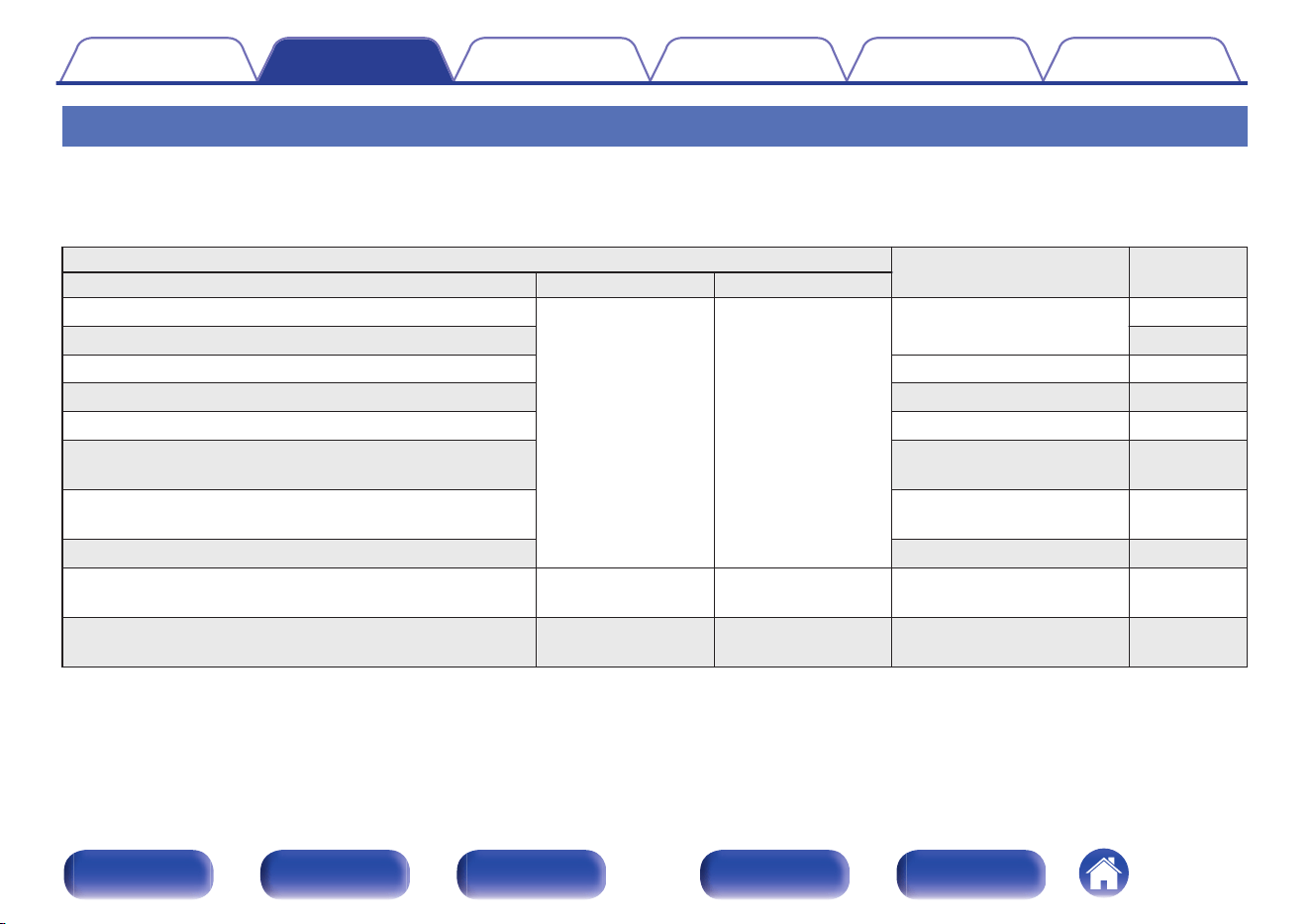
This unit has a built-in 11-channel power amplifier. In addition to the basic 5.1-channel system, a variety of speaker systems can be configured by
changing the “Speaker Layout” settings to suit the application, such as 7.1-channel systems, bi-amp connections and 2-channel systems for multi-zone
playback. (v p. 231)
Perform “Speaker Layout” settings to suit the number of rooms and speaker configuration to be installed. (v p. 231)
Playback speaker in each zone
“Amp Assign” settings
Connection
page
MAIN ZONE ZONE2 ZONE3
5.1-channel playback
2-channel (Pre-out) 2-channel (Pre-out)
Can be set in all “Amp
Assign” settings.
52
7.1-channel playback 53
9.1-channel playback 9.1ch + ZONE2 (Default) 55
11.1-channel playback 11.1ch 60
13.1-channel playback 13.1ch 65
9.1-channel playback (bi-amp connection of front
speakers)
9.1ch (Bi-Amp) 68
5.1-channel playback (bi-amp connection of front,
center and surround speakers)
5.1ch Full Bi-Amp 69
Second front speakers 9.1ch + Front B 70
9.1-channel playback
2-channel
(Speaker out)
2-channel (Pre-out) 9.1ch + ZONE2 (Default) 71
9.1-channel playback 2-channel (Pre-out)
2-channel
(Speaker out)
9.1ch + ZONE3 71
Contents Connections Playback Settings Tips Appendix
50
Front panel Display Rear panel Remote Index
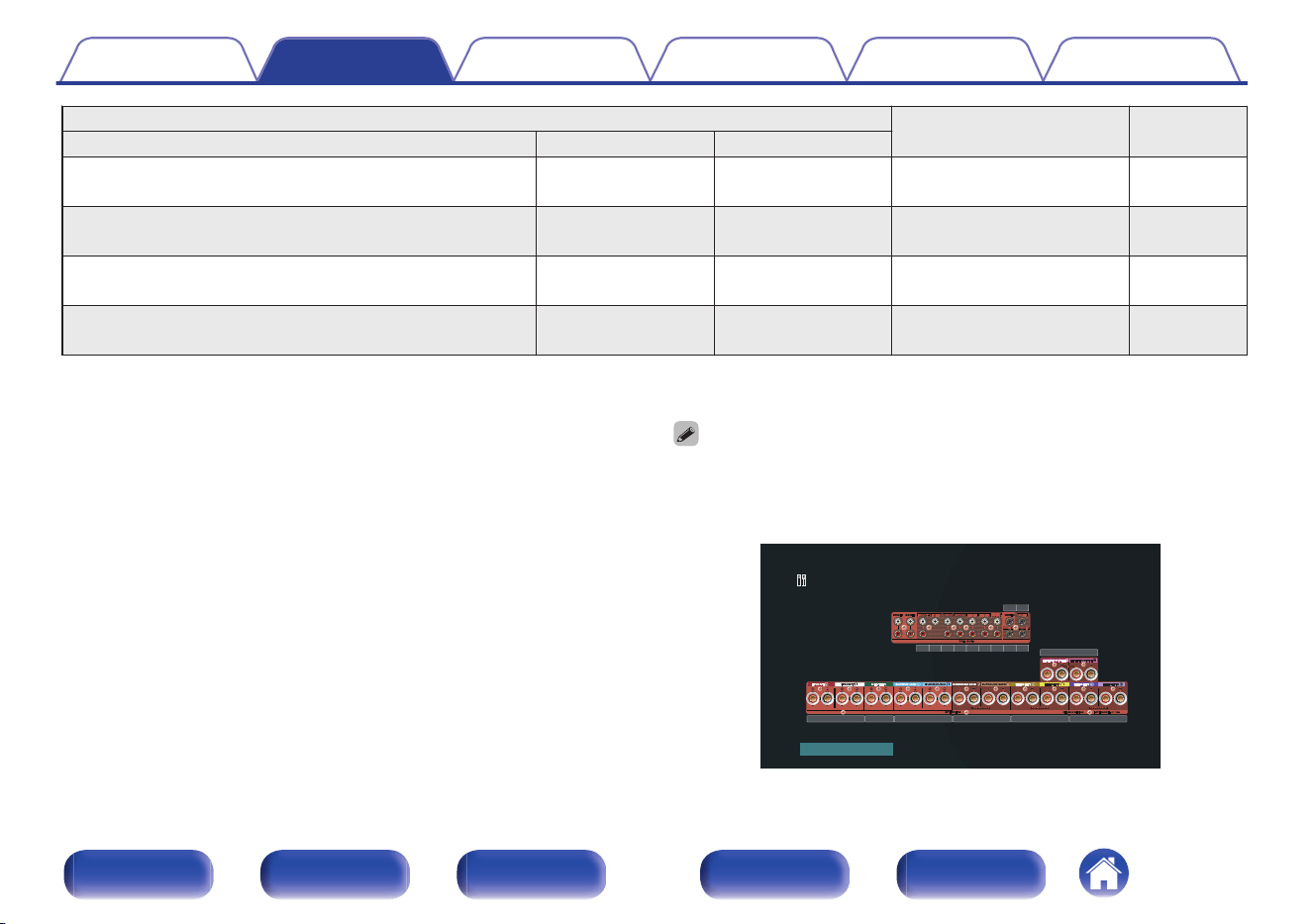
Playback speaker in each zone
“Amp Assign” settings
Connection
page
MAIN ZONE ZONE2 ZONE3
7.1-channel playback (bi-amp connection of front
speakers)
2-channel
(Speaker out)
2-channel (Pre-out) 7.1ch (Bi-Amp) + ZONE2 72
7.1-channel playback
2-channel
(Speaker out)
2-channel
(Speaker out)
7.1ch + ZONE2/3 73
9.1-channel playback
1-channel
(Speaker out)
1-channel
(Speaker out)
9.1ch + ZONE2/3-MONO 74
13.1-channel playback (using this unit as a
preamplifier)
Not used Not used Preamplifier 48
The sound mode that can be selected varies according to the speaker configuration.
The following pages provide basic connection examples.
Refer to the example connection for “Example layout for AURO-3D 9.1
channel system” (v p. 59) when playing AURO-3D with a 9.1-channel
system using the basic 5.1-channel system and the front height and
surround height speakers.
Also refer to the connection example for “Example layout for AURO-3D
13.1 channel system” (v p. 67) when playing AURO-3D with a 13.1-
channel system by adding the Surround Back, Center Height and Top
Surround speakers.
0
In addition to the connections described in p. 52 - 74, this unit allows for various
speaker connections with the “Speaker Layout” setting.
Also refer to the menu screen in “View Terminal Config.” on the “Speaker Layout”
setting screen, which shows how to make connections in your environment.
Front Surround Surround Back Front Height Rear Height
Top Middle
Center
Surround
Surround
Back
Front
Height
Rear
Height
Top
Middle
CenterFront SW 3 SW 4
SW 1 SW 2
Back
Speakers/Speaker Layout
Contents
Connections Playback Settings Tips Appendix
51
Front panel Display Rear panel Remote Index
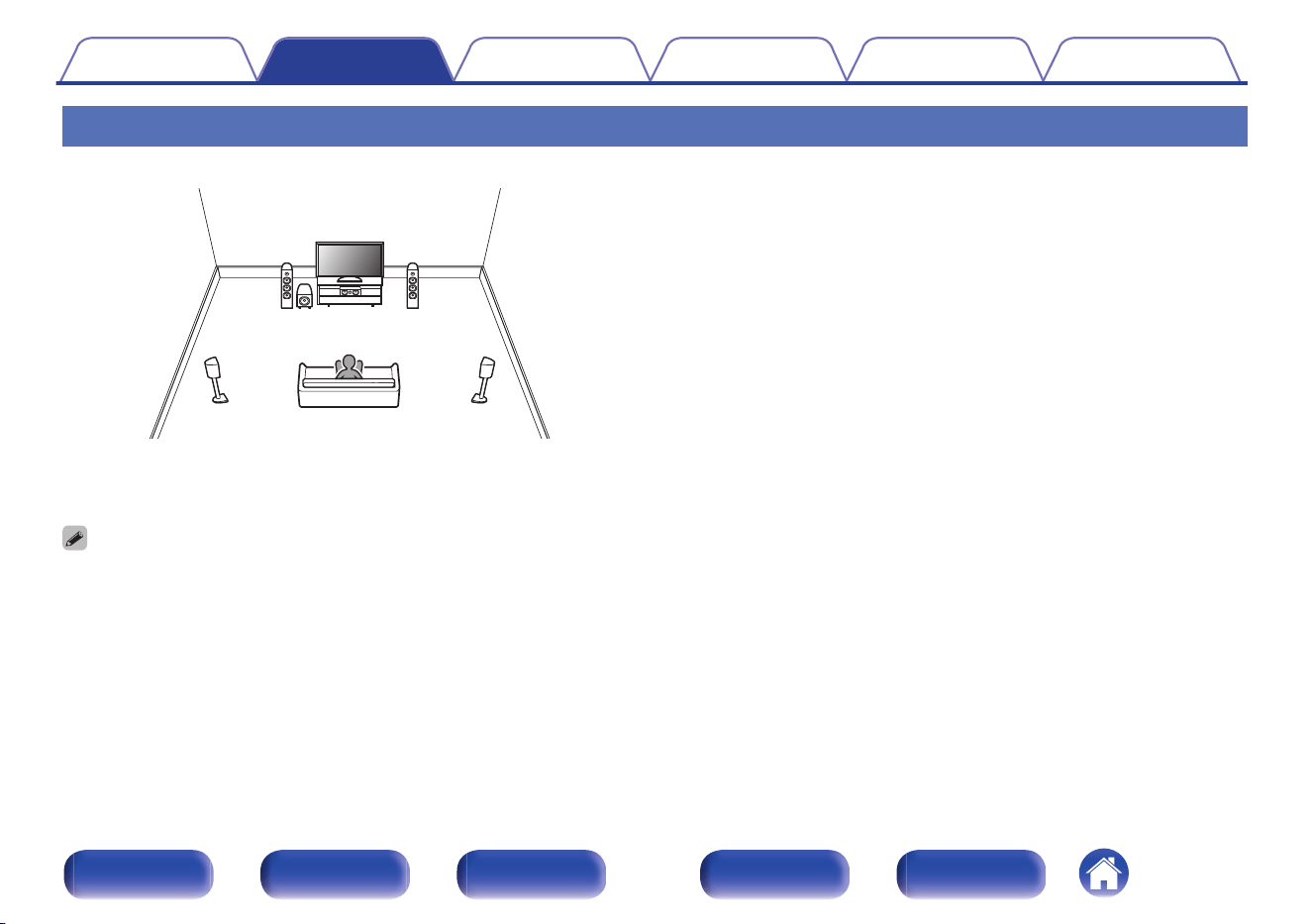
Connecting 5.1-channel speakers
This serves as a basic 5.1-channel surround system.
FL
SW C
SL
FR
SR
For each speaker connection, refer to “Connecting speakers to the
speaker terminals” (v p. 47) or “Connecting an external power
amplifier” (v p. 48).
0
Set Speaker Layout in the menu as follows. (v p. 231)
1. Center: Yes
2. Surround: Yes
3. Subwoofers: 1 spkr
Contents Connections Playback Settings Tips Appendix
52
Front panel Display Rear panel Remote Index
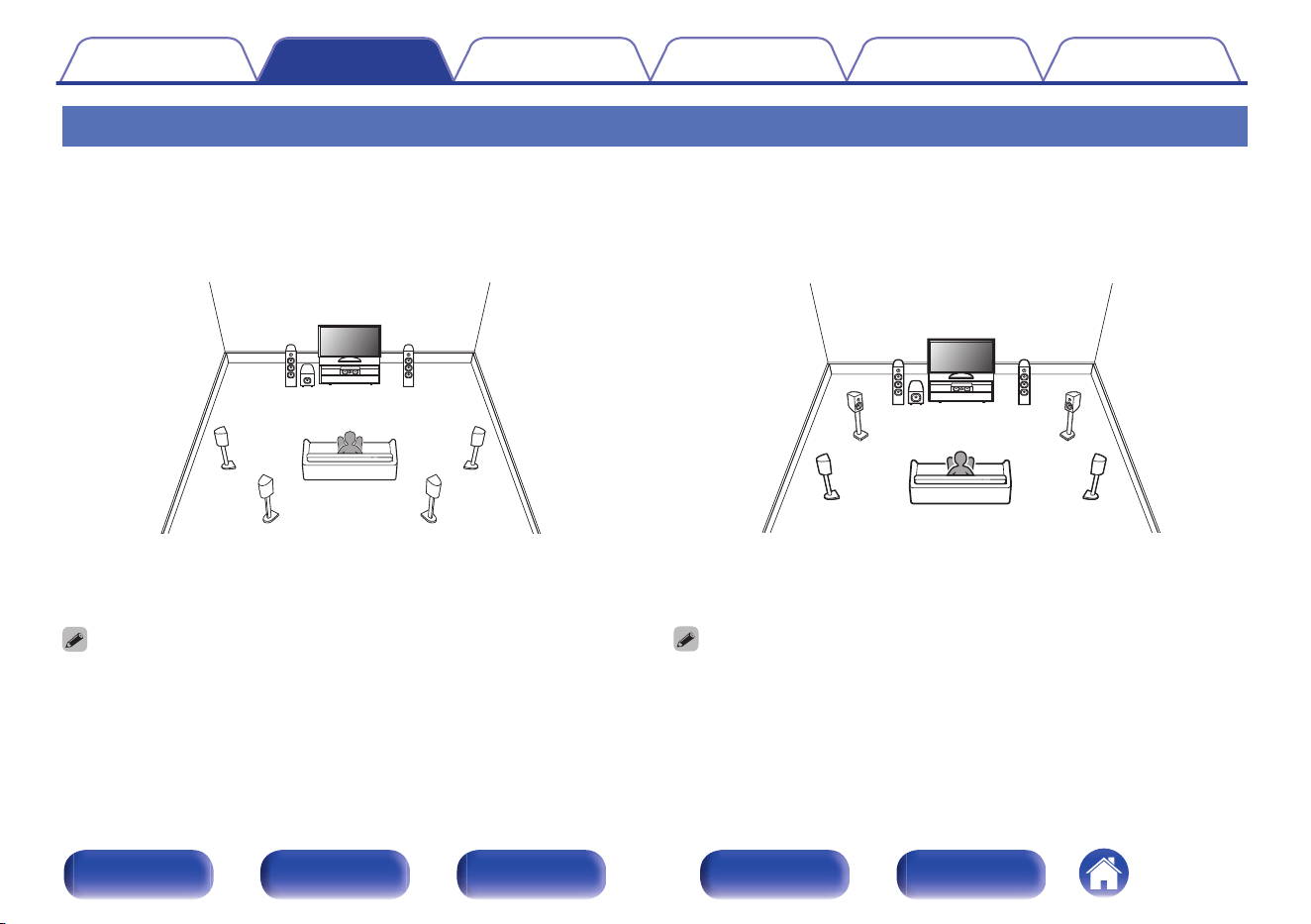
Connecting 7.1-channel speakers
o
Example layout when using surround back
speakers
This 7.1-channel surround system is basic 7.1-channel system.
(Adding surround back speakers to basic 5.1-channel system)
FL
SW
C
SL
FR
SR
SBL SBR
For each speaker connection, refer to the following.
0
“Connecting speakers to the speaker terminals” (v p. 47)
0
“Connecting an external power amplifier” (v p. 48)
0
Set Speaker Layout in the menu as follows. (v p. 231)
1. Center: Yes
2. Surround: Yes
3. Surround Back: 2 spkrs
4. Subwoofers: 1 spkr
o
Example layout when using front wide
speakers
This 7.1-channel surround system is the same as a basic 5.1-channel
system but with front wide speakers.
FL
SW C
SL
FR
SR
FWL FWR
For each speaker connection, refer to the following.
0
“Connecting speakers to the speaker terminals” (v p. 47)
0
“Connecting an external power amplifier” (v p. 48)
0
Set Speaker Layout in the menu as follows. (v p. 231)
1. Center: Yes
2. Surround: Yes
3. Front Wide: Yes
4. Subwoofers: 1 spkr
Contents Connections Playback Settings Tips Appendix
53
Front panel Display Rear panel Remote Index
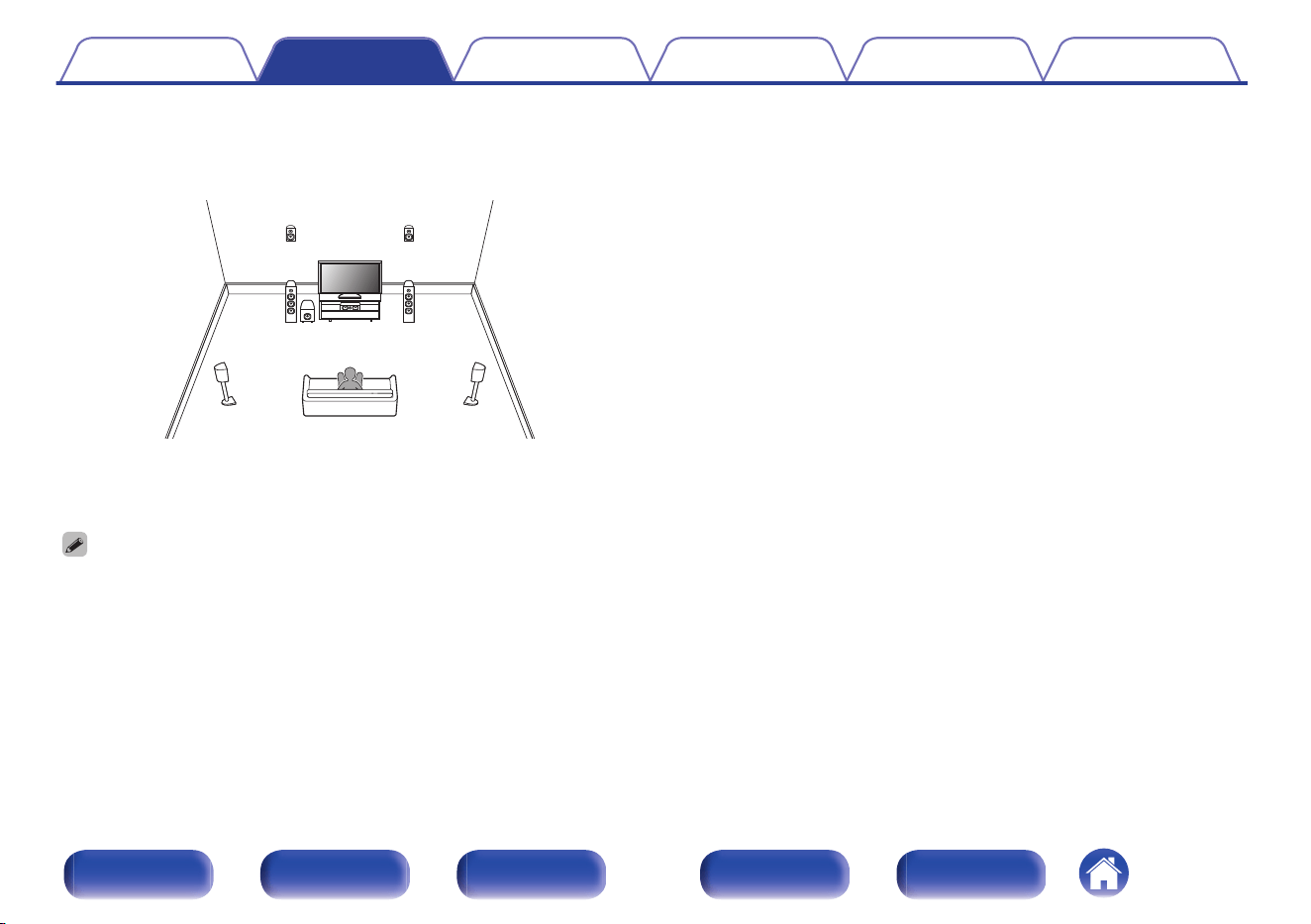
o
Example layout when using height speakers
This 7.1-channel surround system is the same as a basic 5.1-channel
system but with front height speakers.
FL
SW
C
SL
FR
SR
FHL FHR
For each speaker connection, refer to the following.
0
“Connecting speakers to the speaker terminals” (v p. 47)
0
“Connecting an external power amplifier” (v p. 48)
0
Set Speaker Layout in the menu as follows. (v p. 231)
1. Center: Yes
2. Surround: Yes
3. Height Speakers: 2 spkrs
4.
Layout: Front Heightz
5. Subwoofers: 1 spkr
z
The front height speakers can be changed to other height, ceiling or Dolby
Atmos Enabled speakers in the “Speaker Layout” - “Layout” settings.
Contents Connections Playback Settings Tips Appendix
54
Front panel Display Rear panel Remote Index
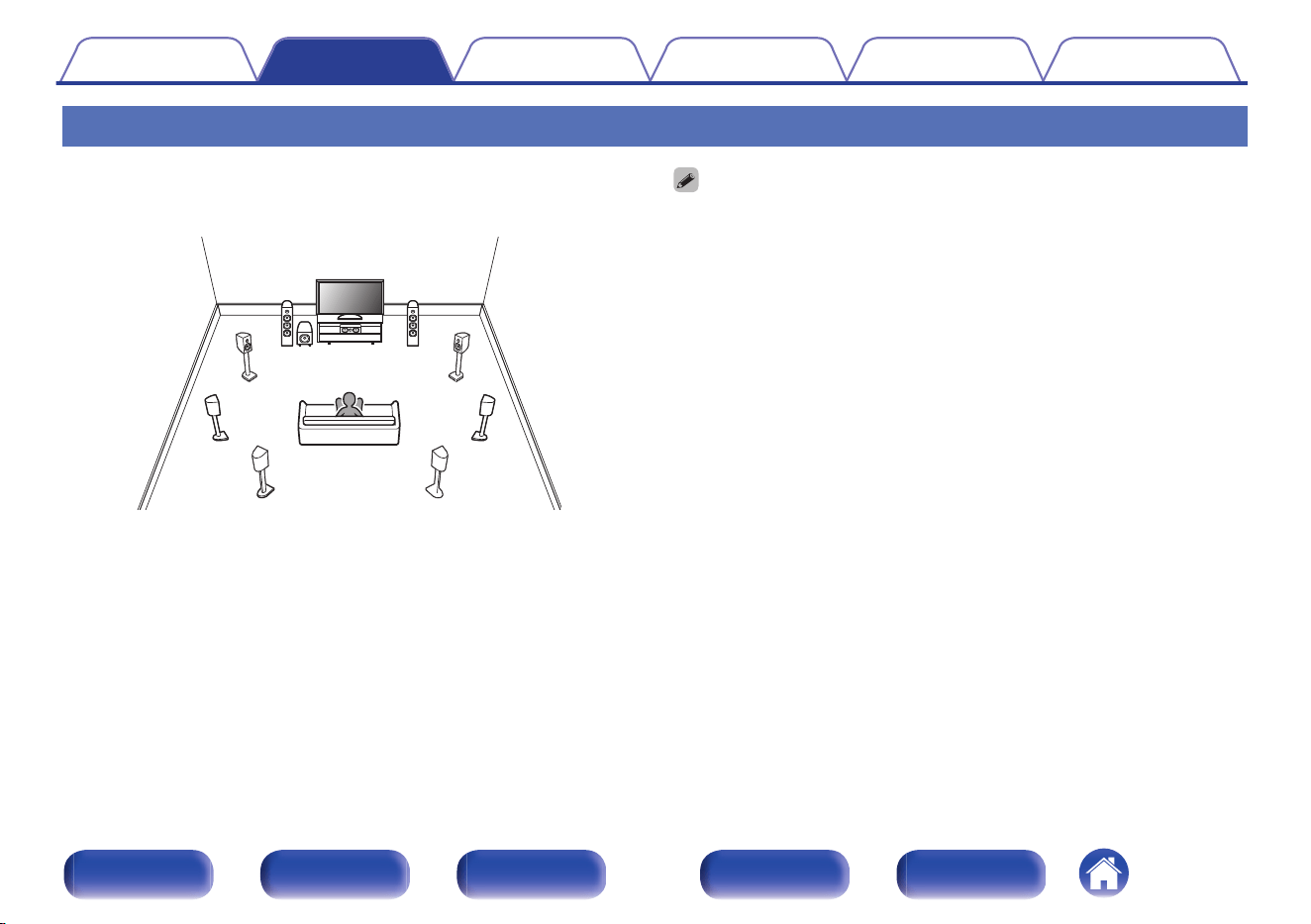
Connecting 9.1-channel speakers
o
Example layout when using surround back
and front wide speakers
FL
SW C
SL
FR
SR
SBRSBL
FWL FWR
For each speaker connection, refer to the following.
0
“Connecting speakers to the speaker terminals” (v p. 47)
0
“Connecting an external power amplifier” (v p. 48)
0
Set Speaker Layout in the menu as follows. (v p. 231)
1. Center: Yes
2. Surround: Yes
3. Surround Back: 2 spkrs
4. Front Wide: Yes
5. Subwoofers: 1 spkr
Contents Connections Playback Settings Tips Appendix
55
Front panel Display Rear panel Remote Index
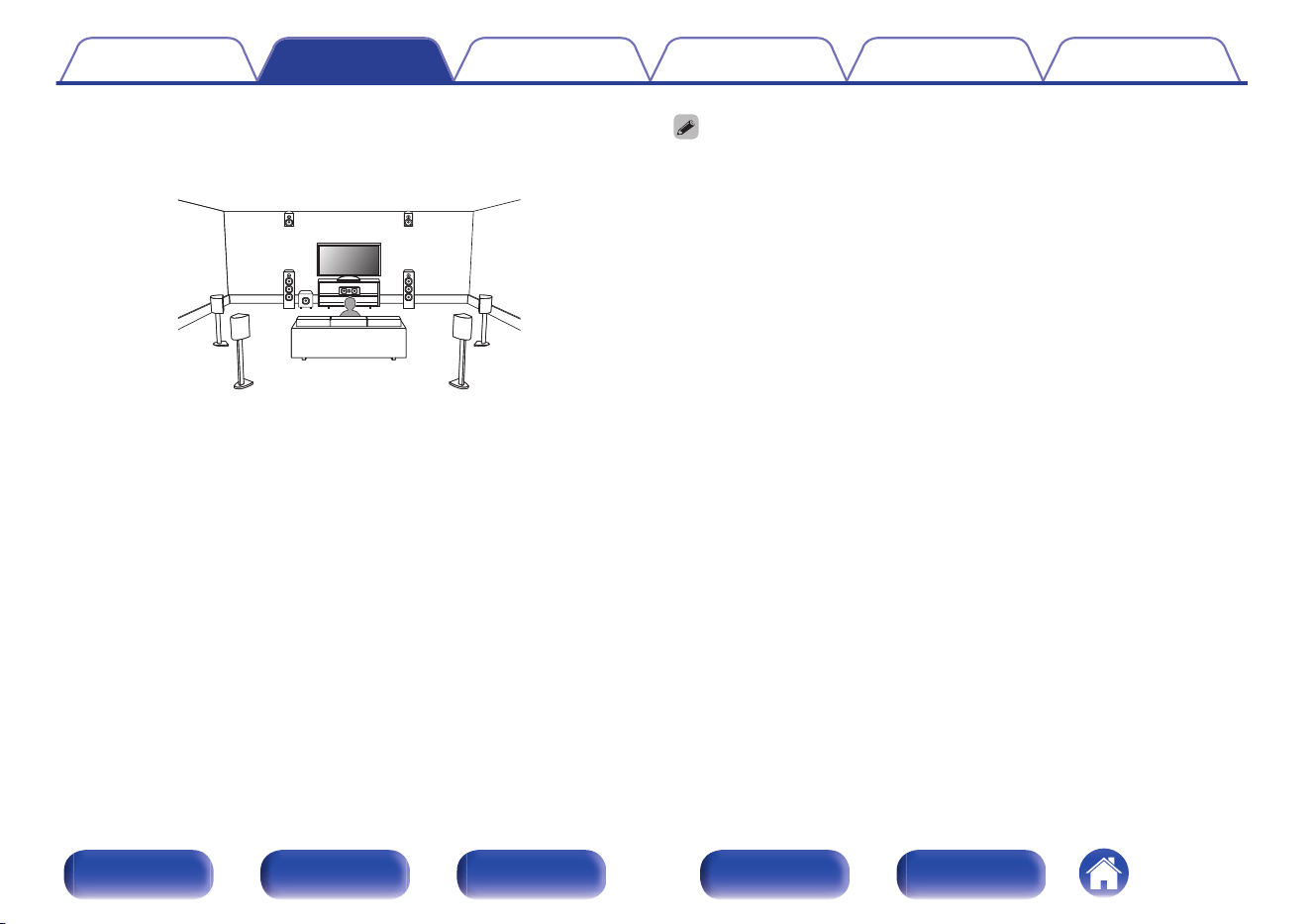
o
Example layout when using surround back
and one set of height speakers
C
FL FR
SBL
SBR
SW
SL SR
FHL FHR
For each speaker connection, refer to the following.
0
“Connecting speakers to the speaker terminals” (v p. 47)
0
“Connecting an external power amplifier” (v p. 48)
0
Set Speaker Layout in the menu as follows. (v p. 231)
1. Center: Yes
2. Surround: Yes
3. Surround Back: 2 spkrs
4. Height Speakers: 2 spkrs
5.
Layout: Front Heightz
6. Subwoofers: 1 spkr
z
The front height speakers can be changed to other height, ceiling or Dolby
Atmos Enabled speakers in the “Speaker Layout” - “Layout” settings.
Contents Connections Playback Settings Tips Appendix
56
Front panel Display Rear panel Remote Index
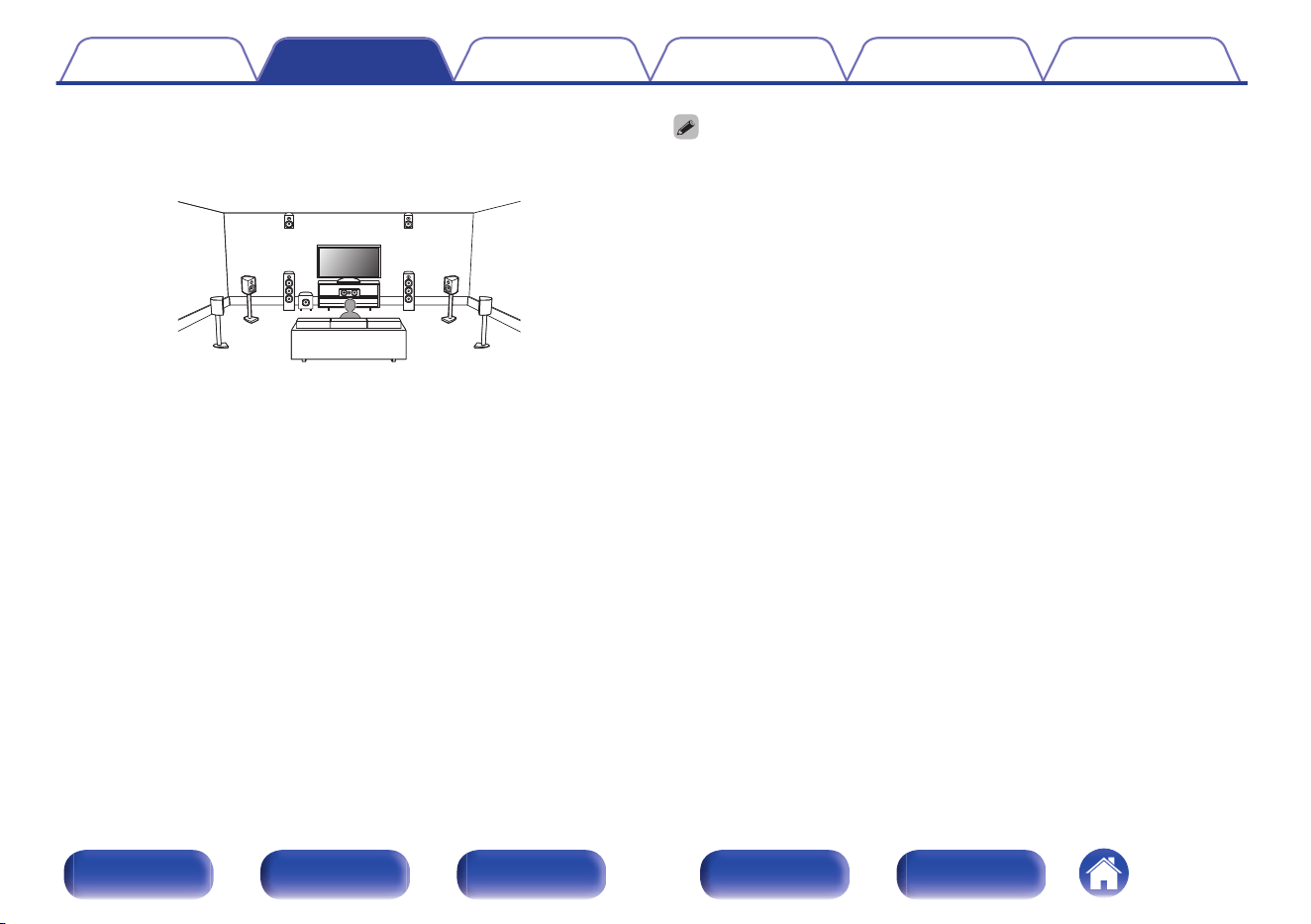
o
Example layout when using front wide and one
set of height speakers
C
FL FR
SW
SL SR
FHL FHR
FWL FWR
For each speaker connection, refer to the following.
0
“Connecting speakers to the speaker terminals” (v p. 47)
0
“Connecting an external power amplifier” (v p. 48)
0
Set Speaker Layout in the menu as follows. (v p. 231)
1. Center: Yes
2. Surround: Yes
3. Front Wide: Yes
4. Height Speakers: 2 spkrs
5.
Layout: Front Heightz
6. Subwoofers: 1 spkr
z
The front height speakers can be changed to other height, ceiling or Dolby
Atmos Enabled speakers in the “Speaker Layout” - “Layout” settings.
Contents Connections Playback Settings Tips Appendix
57
Front panel Display Rear panel Remote Index
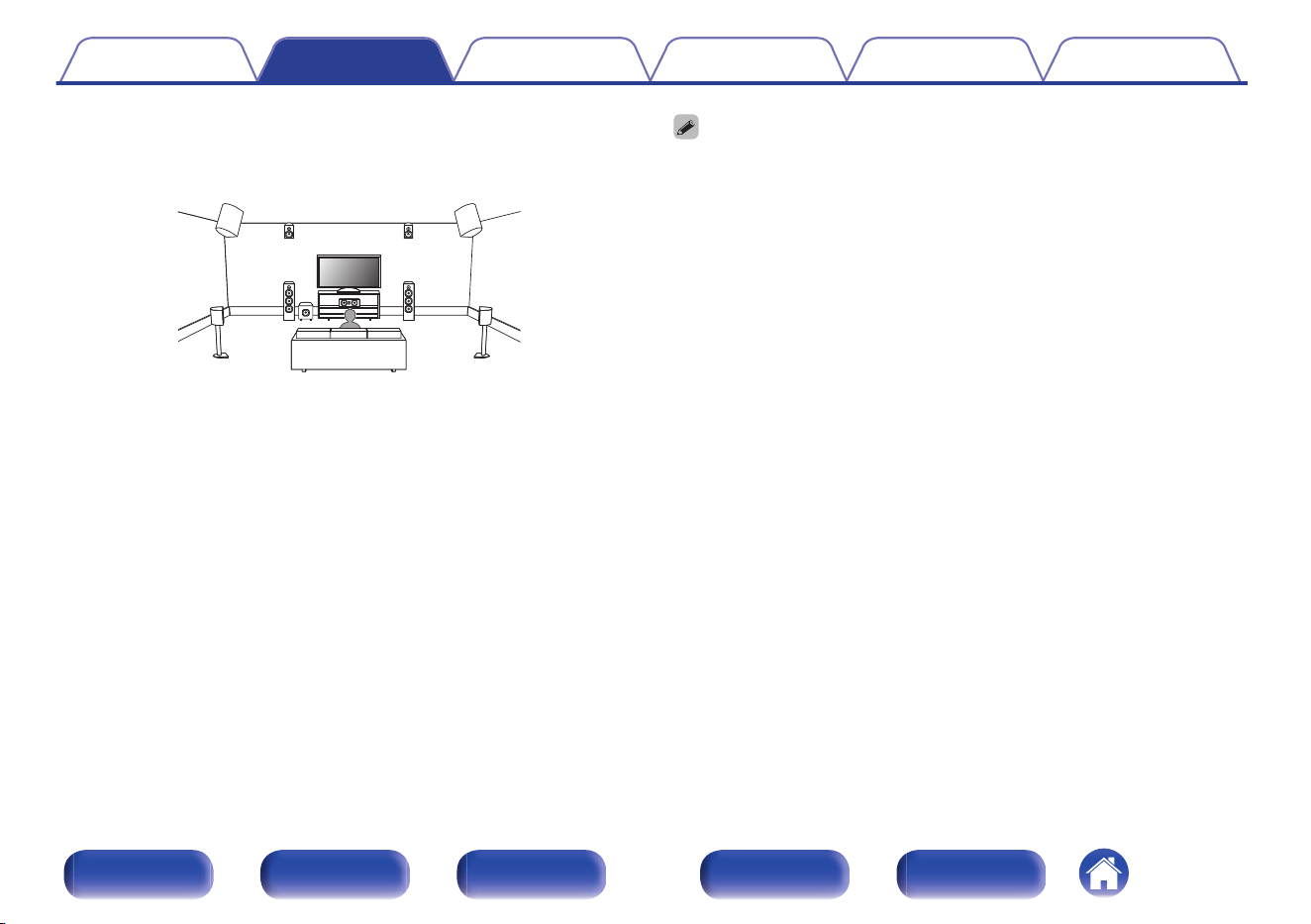
o
Example layout when using two sets of height
speakers
C
FL FR
SW
SL SR
FHL FHR
RHL RHR
For each speaker connection, refer to the following.
0
“Connecting speakers to the speaker terminals” (v p. 47)
0
“Connecting an external power amplifier” (v p. 48)
0
Set Speaker Layout in the menu as follows. (v p. 231)
1. Center: Yes
2. Surround: Yes
3. Height Speakers: 4 spkrs
4.
Front Layout: Front Heightz
5.
Rear Layout: Rear Heightz
6. Subwoofers: 1 spkr
z
The front height speakers and rear height speakers can be changed to other
height, ceiling or Dolby Atmos Enabled speakers in the “Speaker Layout” -
“Layout” settings.
Contents Connections Playback Settings Tips Appendix
58
Front panel Display Rear panel Remote Index
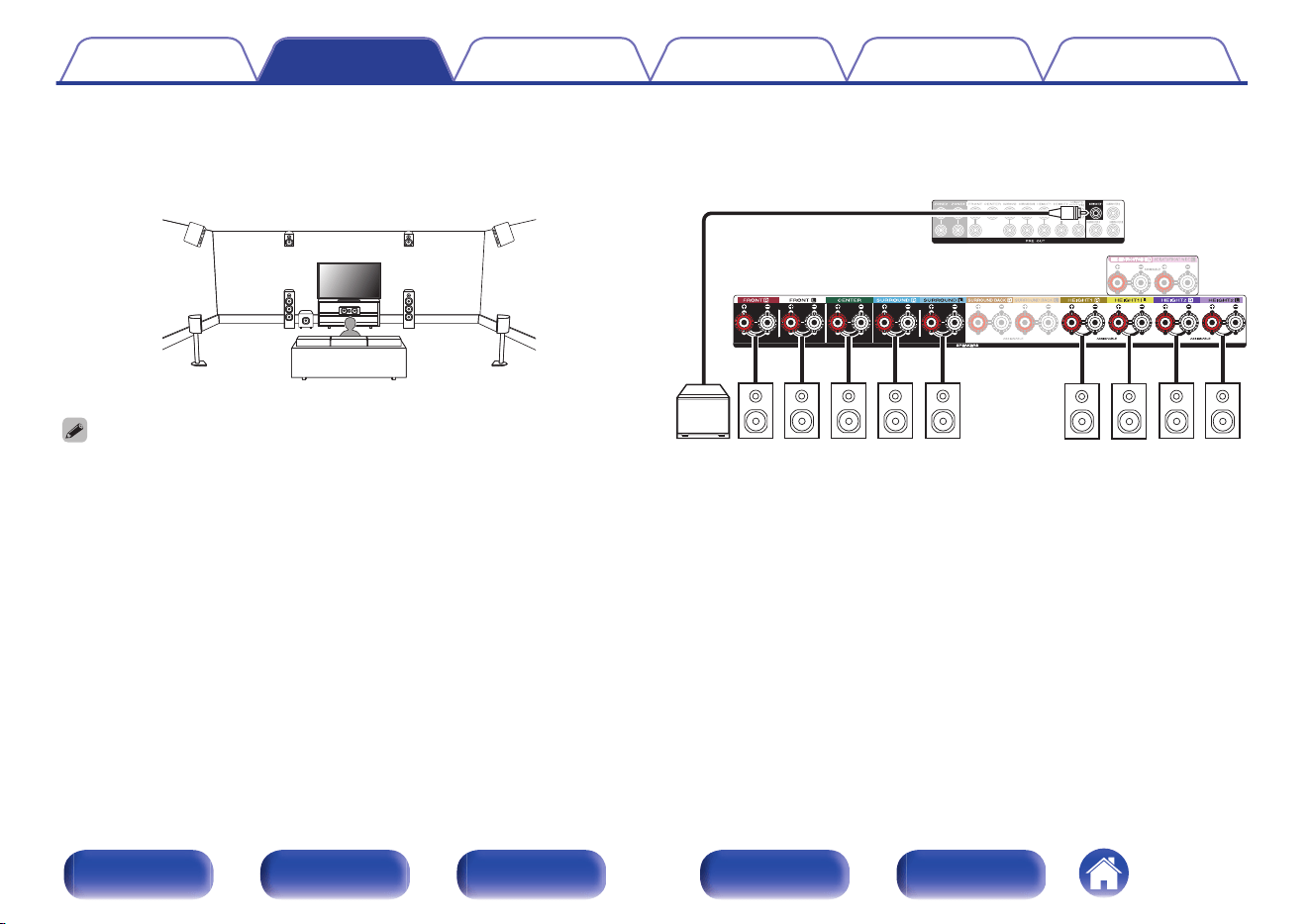
o
Example layout for AURO-3D 9.1 channel system
This speaker configuration is optimized for AURO-3D playback.
FL FR
SW
SL SR
C
FHL FHR
SHL SHR
0
Set Speaker Layout in the menu as follows. (v p. 231)
1. Center: Yes
2. Surround: Yes
3. Height Speakers: 4 spkrs
4. Front Layout: Front Height
5. Rear Layout: Surround Height
6. Subwoofers: 1 spkr
CSRSL
SW
FR FL
FHR FHL
SHR SHL
Contents Connections Playback Settings Tips Appendix
59
Front panel Display Rear panel Remote Index
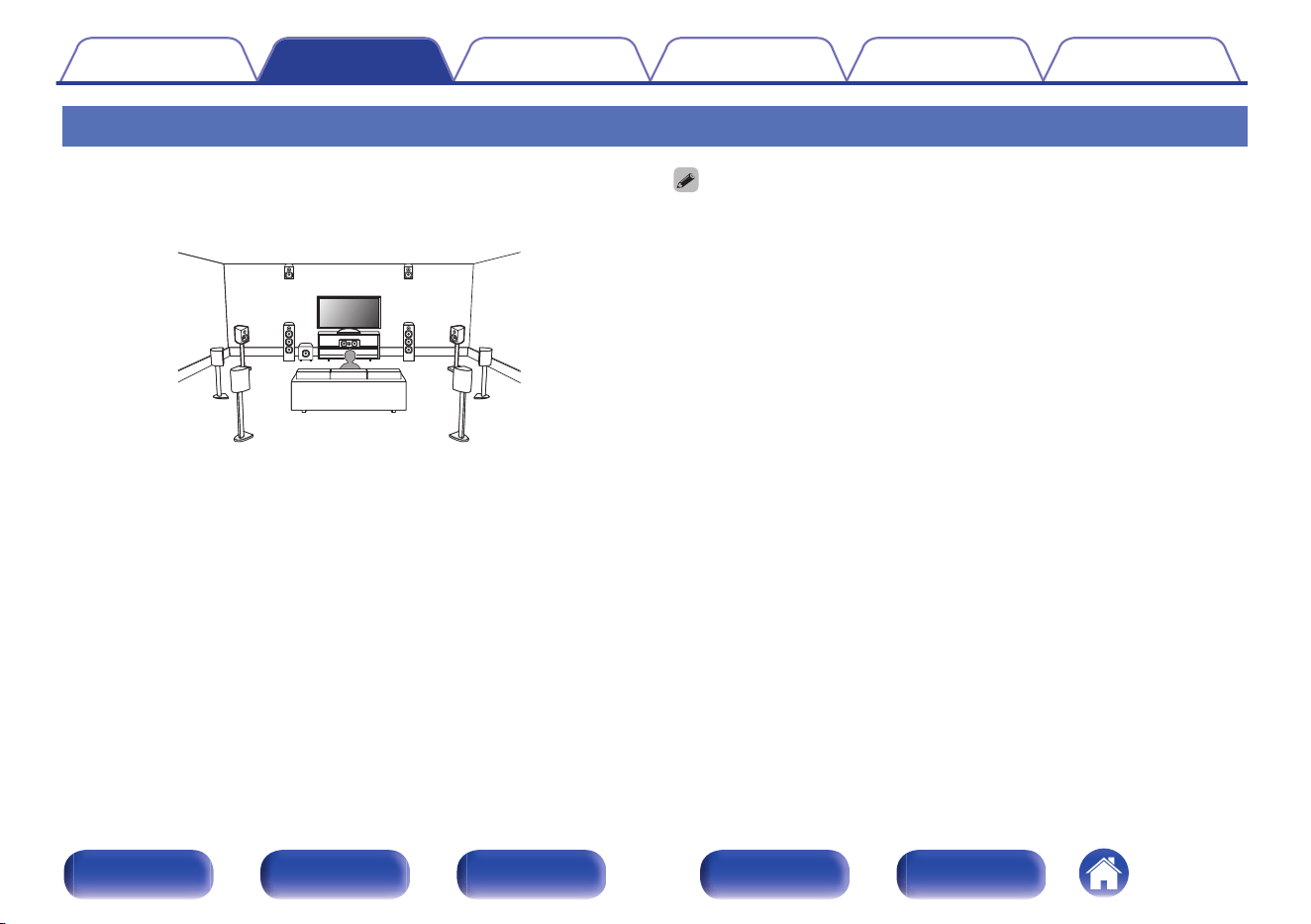
Connecting 11.1-channel speakers
o
Example layout when using surround back,
Front Wide and one set of height speakers
C
FL FR
SW
RSLS
FHL FHR
FWL FWR
SBL
SBR
For each speaker connection, refer to the following.
0
“Connecting speakers to the speaker terminals” (v p. 47)
0
“Connecting an external power amplifier” (v p. 48)
0
Set Speaker Layout in the menu as follows. (v p. 231)
1. Center: Yes
2. Surround: Yes
3. Surround Back: 2 spkrs
4. Front Wide: Yes
5. Height Speakers: 2 spkrs
6.
Layout: Front Heightz
7. Subwoofers: 1 spkr
z
The front height speakers can be changed to other height, ceiling or Dolby
Atmos Enabled speakers in the “Speaker Layout” - “Layout” settings.
Contents Connections Playback Settings Tips Appendix
60
Front panel Display Rear panel Remote Index
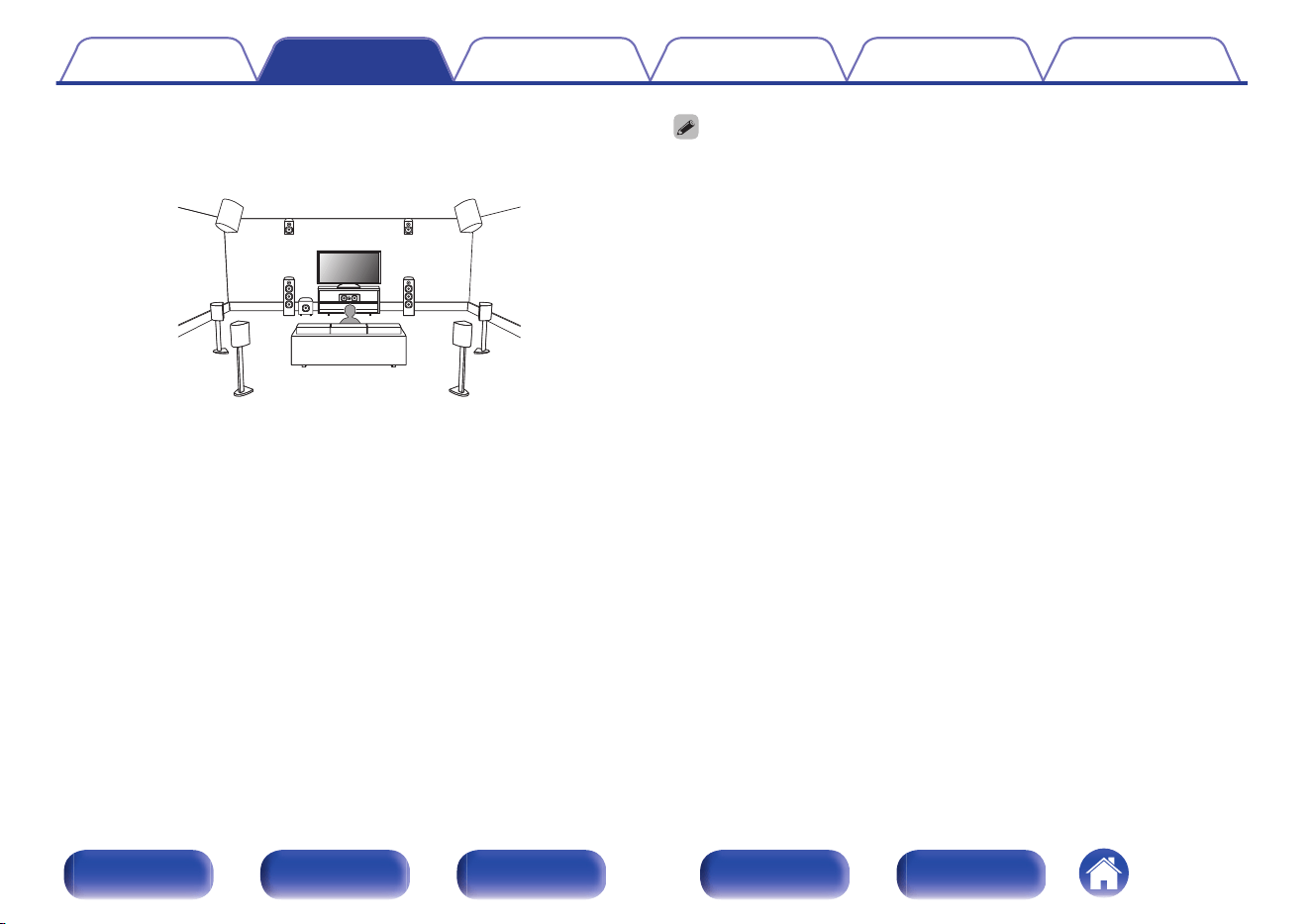
o
Example layout when using surround back
and two sets of height speakers
C
FL FR
SBL
SBR
SW
SL SR
FHL FHR
RHL RHR
For each speaker connection, refer to the following.
0
“Connecting speakers to the speaker terminals” (v p. 47)
0
“Connecting an external power amplifier” (v p. 48)
0
Set Speaker Layout in the menu as follows. (v p. 231)
1. Center: Yes
2. Surround: Yes
3. Surround Back: 2 spkrs
4. Height Speakers: 4 spkrs
5.
Front Layout: Front Heightz
6.
Rear Layout: Rear Heightz
7. Subwoofers: 1 spkr
z
The front height speakers and rear height speakers can be changed to other
height, ceiling or Dolby Atmos Enabled speakers in the “Speaker Layout” -
“Layout” settings.
Contents Connections Playback Settings Tips Appendix
61
Front panel Display Rear panel Remote Index
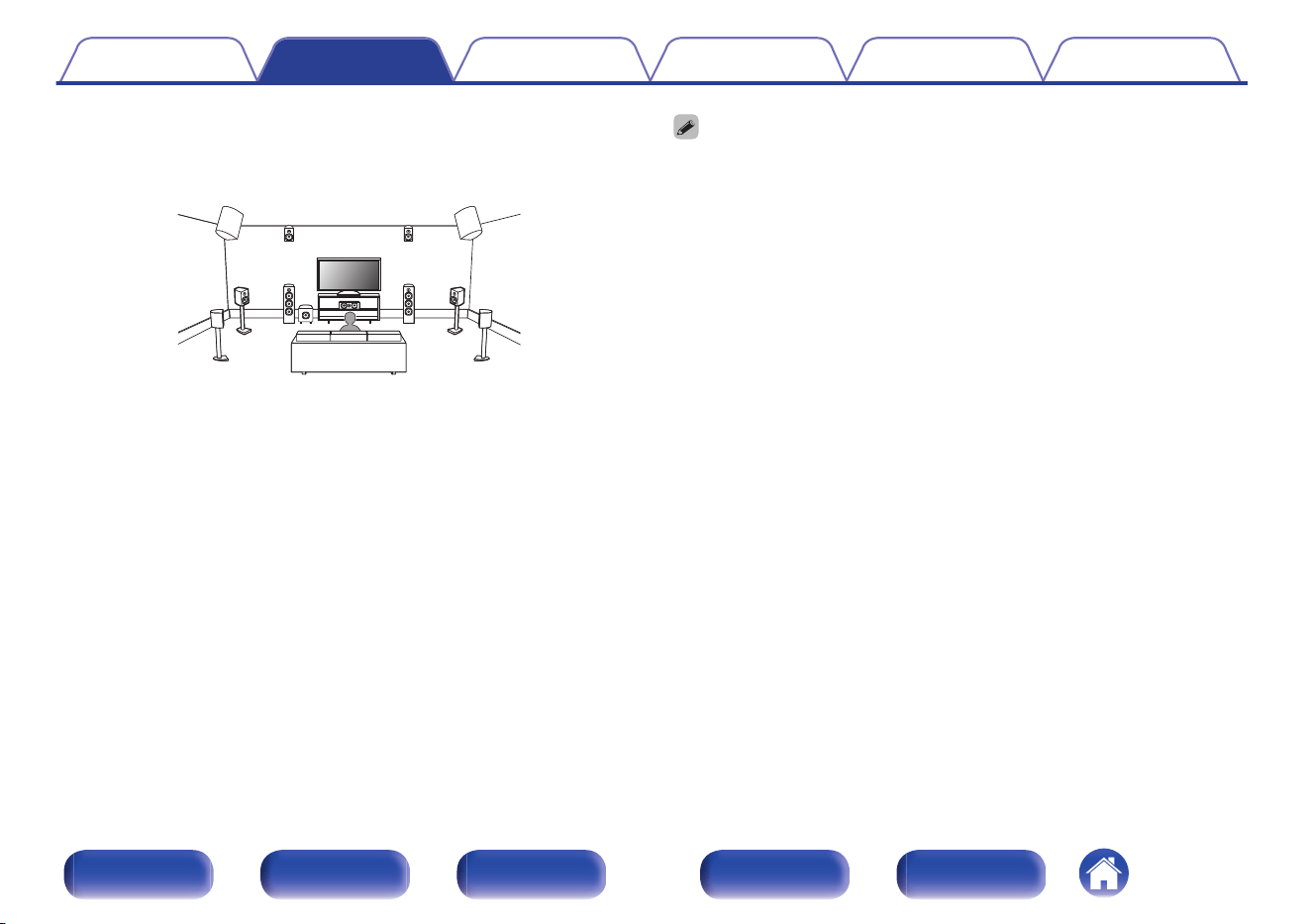
o
Example layout when using front wide and two
sets of height speakers
C
FL FR
SW
RSLS
FHL FHR
RHL RHR
FWL FWR
For each speaker connection, refer to the following.
0
“Connecting speakers to the speaker terminals” (v p. 47)
0
“Connecting an external power amplifier” (v p. 48)
0
Set Speaker Layout in the menu as follows. (v p. 231)
1. Center: Yes
2. Surround: Yes
3. Front Wide: Yes
4. Height Speakers: 4 spkrs
5.
Front Layout: Front Heightz
6.
Rear Layout: Rear Heightz
7. Subwoofers: 1 spkr
z
The front height speakers and rear height speakers can be changed to other
height, ceiling or Dolby Atmos Enabled speakers in the “Speaker Layout” -
“Layout” settings.
Contents Connections Playback Settings Tips Appendix
62
Front panel Display Rear panel Remote Index
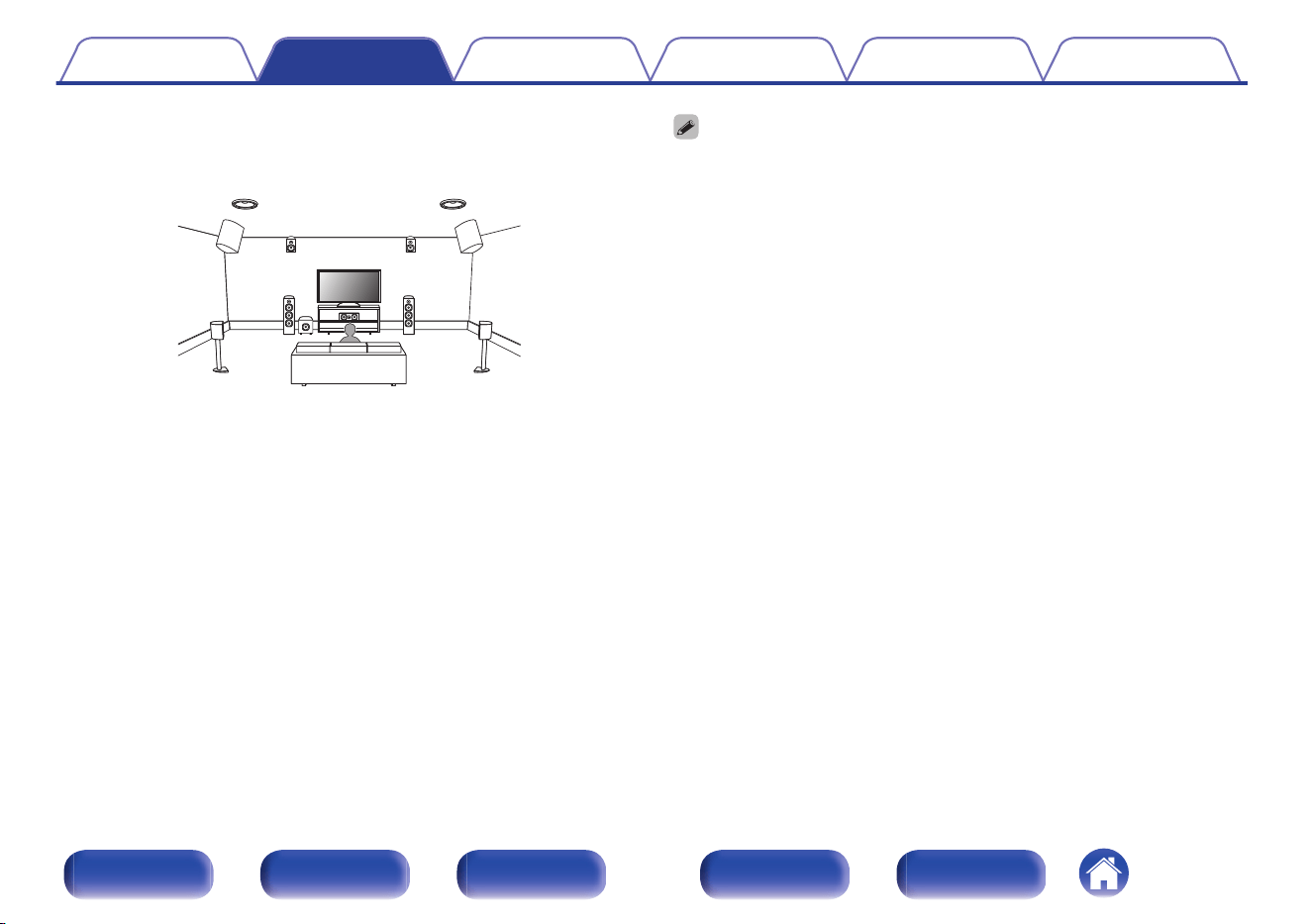
o
Example layout when using three sets of
height speakers
C
FL FR
SW
RSLS
TML TMR
FHL FHR
RHL RHR
For each speaker connection, refer to the following.
0
“Connecting speakers to the speaker terminals” (v p. 47)
0
“Connecting an external power amplifier” (v p. 48)
0
Set Speaker Layout in the menu as follows. (v p. 231)
1. Center: Yes
2. Surround: Yes
3. Height Speakers: 6 spkrs
4.
Front Layout: Front Heightz
5.
Middle Layout: Top Middlez
6.
Rear Layout: Rear Heightz
7. Subwoofers: 1 spkr
z
The front height speakers, top middle speakers and rear height speakers can be
changed to other height, ceiling or Dolby Atmos Enabled speakers in the
“Speaker Layout” - “Layout” settings.
Contents Connections Playback Settings Tips Appendix
63
Front panel Display Rear panel Remote Index
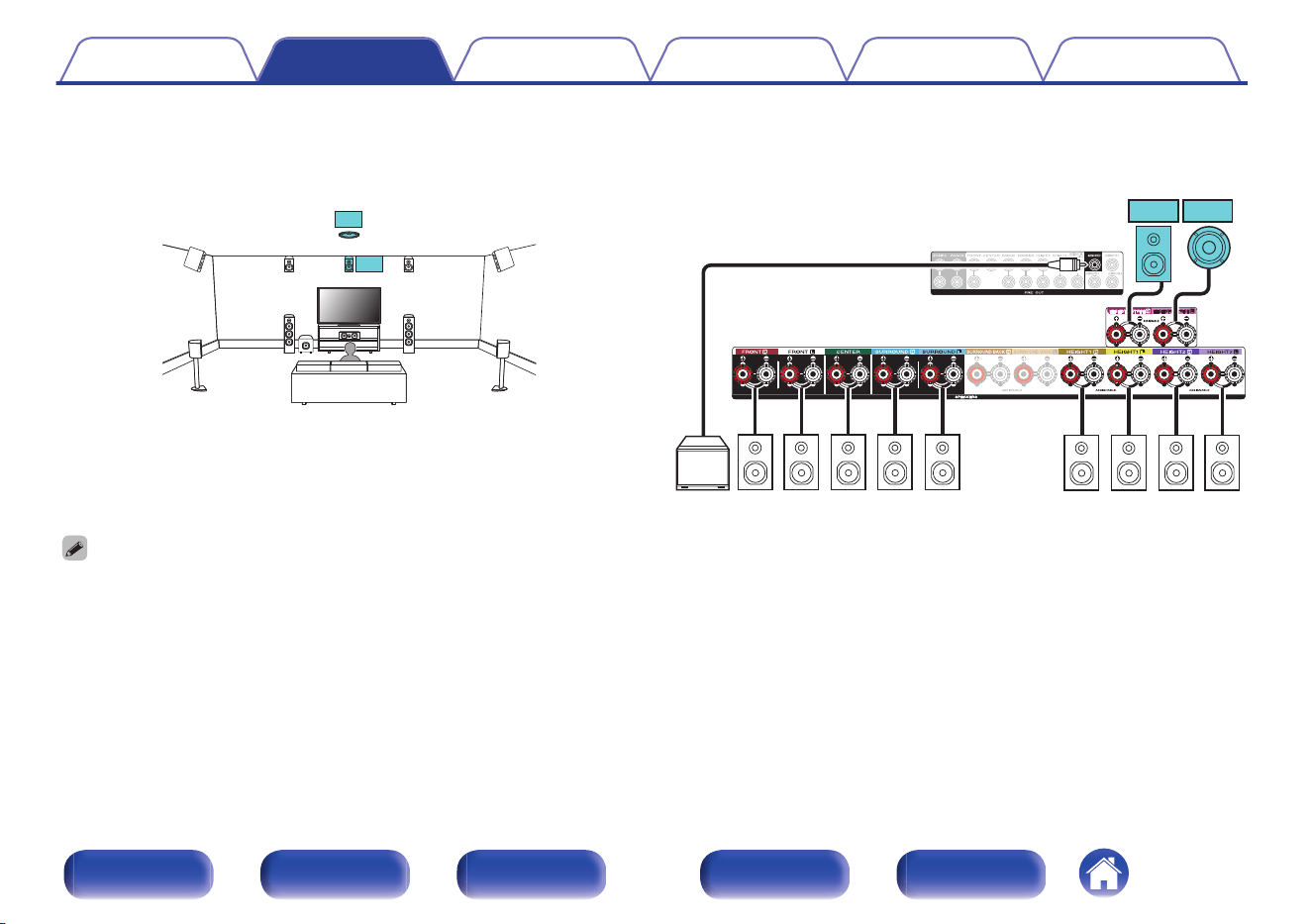
o
Example layout for AURO-3D 11.1 channel system
This speaker configuration is optimized for AURO-3D playback.
FL FR
SW
SRSL
C
FHL FHR
CH
SHL SHR
TS
For each speaker connection, refer to the following.
0
“Connecting speakers to the speaker terminals” (v p. 47)
0
“Connecting an external power amplifier” (v p. 48)
0
Set Speaker Layout in the menu as follows. (v p. 231)
1. Center: Yes
2. Surround: Yes
3. Height Speakers: 6 spkrs
4. Front Layout: Front Height
5. Middle Layout: Surround Height
6. Rear Layout: No
7. TS/CH: TS/CH
8. Subwoofers: 1 spkr
CSRSL
SW
FR FL
FHR FHL
SHR SHL
CH TS
Contents Connections Playback Settings Tips Appendix
64
Front panel Display Rear panel Remote Index
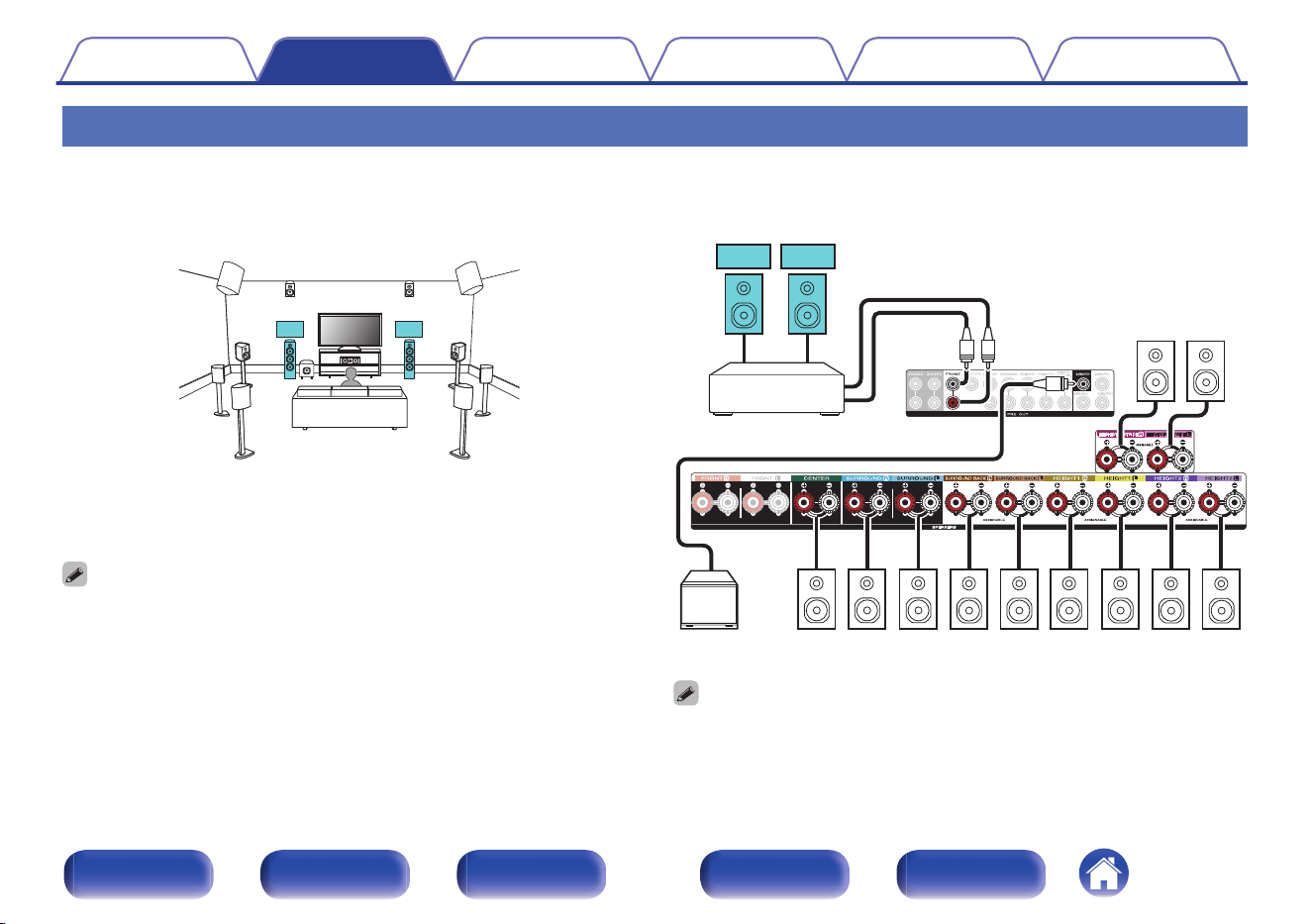
Connecting 13.1-channel speakers
This system, which is based on a 5.1-channel system, plays back up to 13.1-channels at the same time.
o
Example layout when using surround back, Front Wide and two set of height speakers
C
FL FR
SW
RSLS
FHL FHR
RHL RHR
FWL FWR
SBL
SBR
For each speaker connection, refer to the following.
0
“Connecting speakers to the speaker terminals” (v p. 47)
0
“Connecting an external power amplifier” (v p. 48)
0
Set Speaker Layout in the menu as follows. (v p. 231)
1. Center: Yes
2. Surround: Yes
3. Surround Back: 2 spkrs
4. Front Wide: Yes
5. Height Speakers: 4 spkrs
6. Front Layout: Front Height
7. Rear Layout: Rear Height
8. Subwoofers: 1 spkr
FHR FHL
FWR FWL
RHR RHL
C SR SL SBR SBL
SW
FR FL
Power amplifier
0
When connecting 13.1 channel speakers, an external amplifier needs to be
connected to the Front channel or the Front Wide channel at minimum. Set
“Connection” to “Pre-out Only” for your preferred channel. (v p. 231)
Contents Connections Playback Settings Tips Appendix
65
Front panel Display Rear panel Remote Index
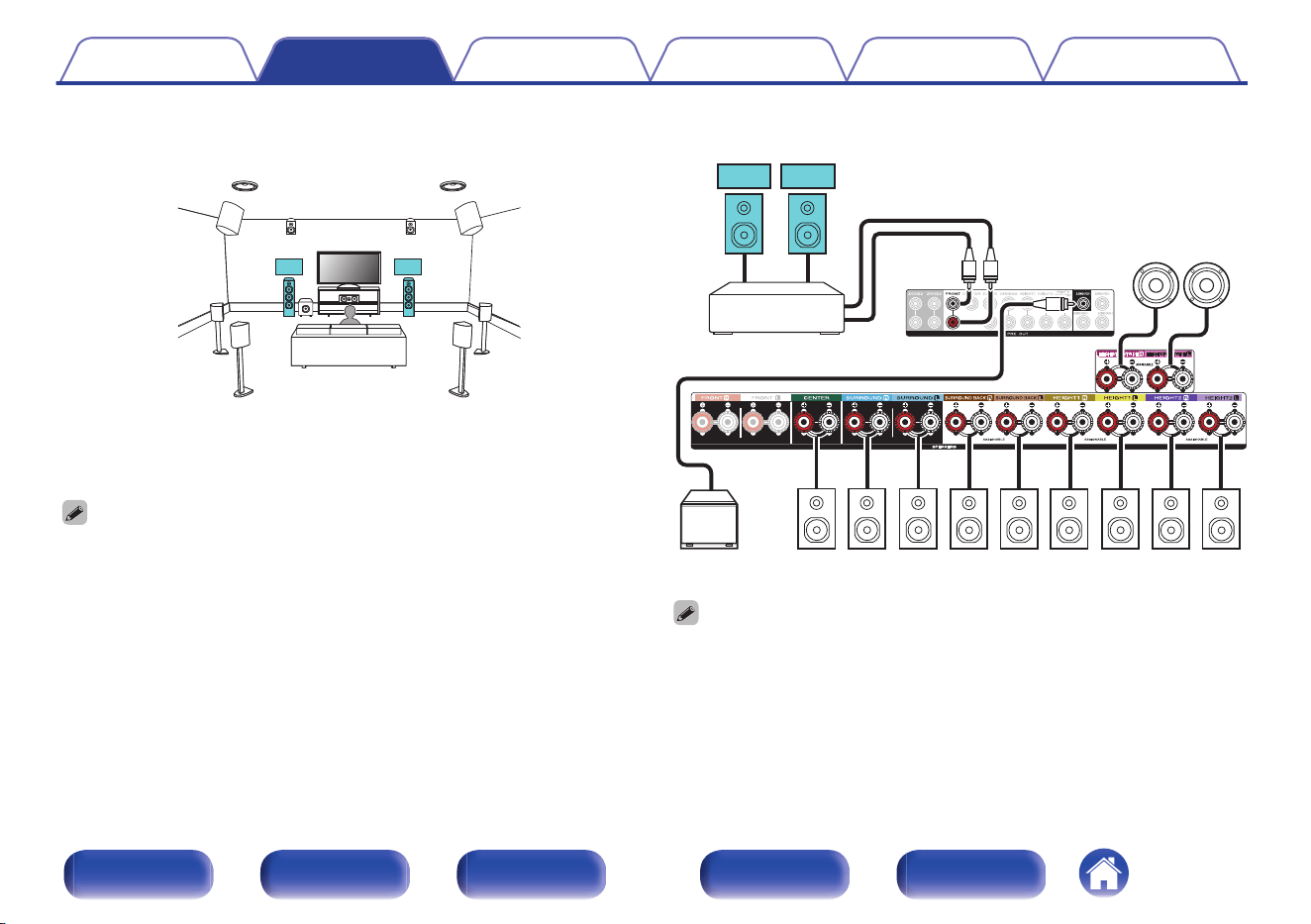
o
Example layout when using surround back and three sets of height speakers
C
FL FR
SBL
SBR
SW
RSLS
TML TMR
FHL FHR
RHL RHR
For each speaker connection, refer to the following.
0
“Connecting speakers to the speaker terminals” (v p. 47)
0
“Connecting an external power amplifier” (v p. 48)
0
Set Speaker Layout in the menu as follows. (v p. 231)
1. Center: Yes
2. Surround: Yes
3. Surround Back: 2 spkrs
4. Height Speakers: 6 spkrs
5. Front Layout: Front Height
6. Middle Layout: Top Middle
7. Rear Layout: Rear Height
8. Subwoofers: 1 spkr
FHR FHL
TMR TML
RHR RHL
C SR SL SBR SBL
SW
FR FL
Power amplifier
0
When connecting 13.1 channel speakers, an external amplifier needs to be
connected to the Front channel or the Front Wide channel at minimum. Set
“Connection” to “Pre-out Only” for your preferred channel. (v p. 231)
Contents Connections Playback Settings Tips Appendix
66
Front panel Display Rear panel Remote Index
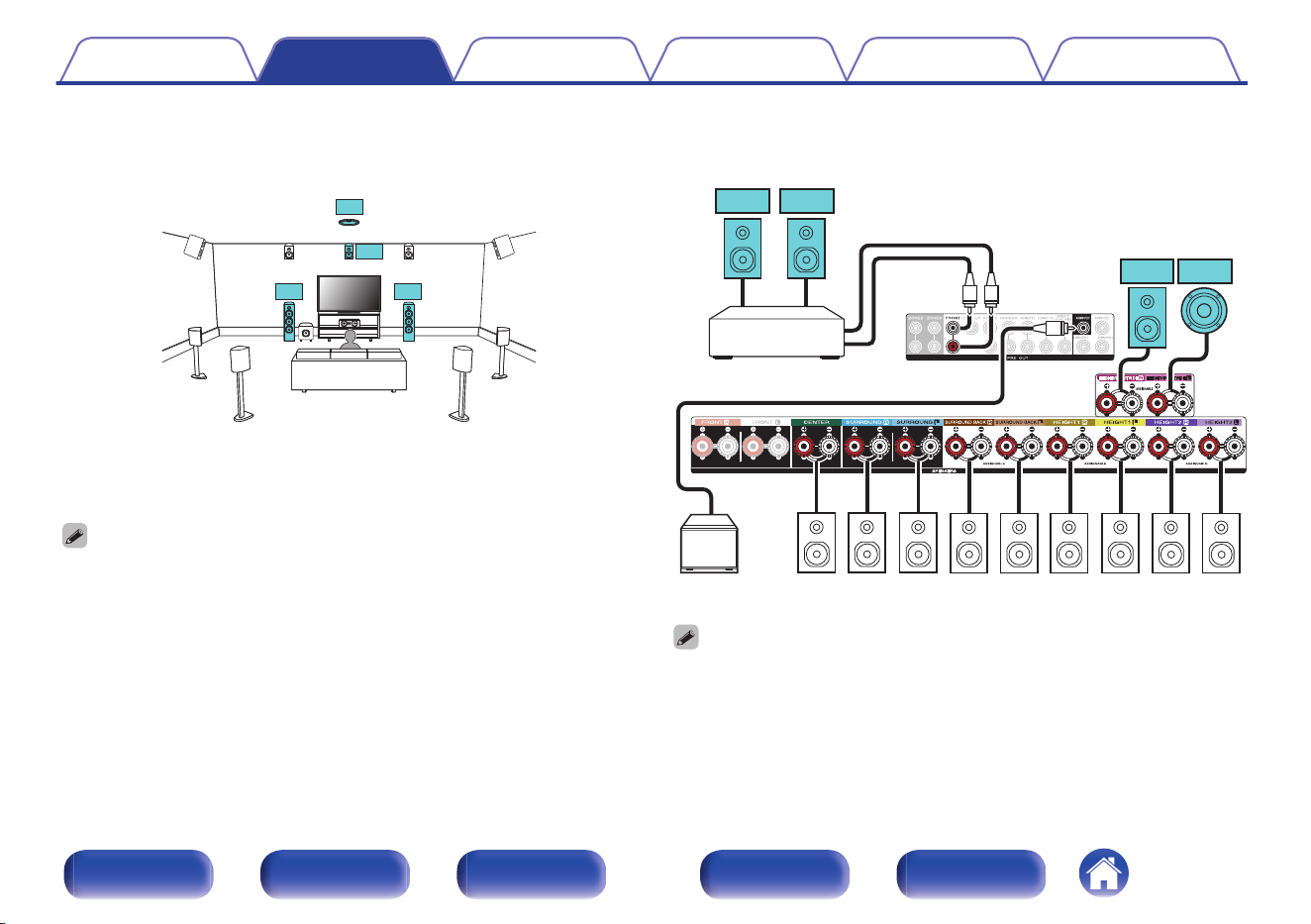
o
Example layout for AURO-3D 13.1 channel system
This speaker configuration is optimized for AURO-3D playback.
FL FR
SW
SRSL
C
FHL FHR
CH
SHL SHR
TS
SBRSBL
For each speaker connection, refer to the following.
0
“Connecting speakers to the speaker terminals” (v p. 47)
0
“Connecting an external power amplifier” (v p. 48)
0
Set Speaker Layout in the menu as follows. (v p. 231)
1. Center: Yes
2. Surround: Yes
3. Surround Back: 2 spkrs
4. Height Speakers: 6 spkrs
5. Front Layout: Front Height
6. Middle Layout: Surround Height
7. Rear Layout: No
8. TS/CH: TS/CH
9. Subwoofers: 1 spkr
FHR FHL
RHR RHL
C SR SL SBR SBL
SW
CH TS
FR FL
Power amplifier
0
When connecting 13.1 channel speakers, an external amplifier needs to be
connected to the Front channel or the Front Wide channel at minimum. Set
“Connection” to “Pre-out Only” for your preferred channel. (v p. 231)
Contents Connections Playback Settings Tips Appendix
67
Front panel Display Rear panel Remote Index
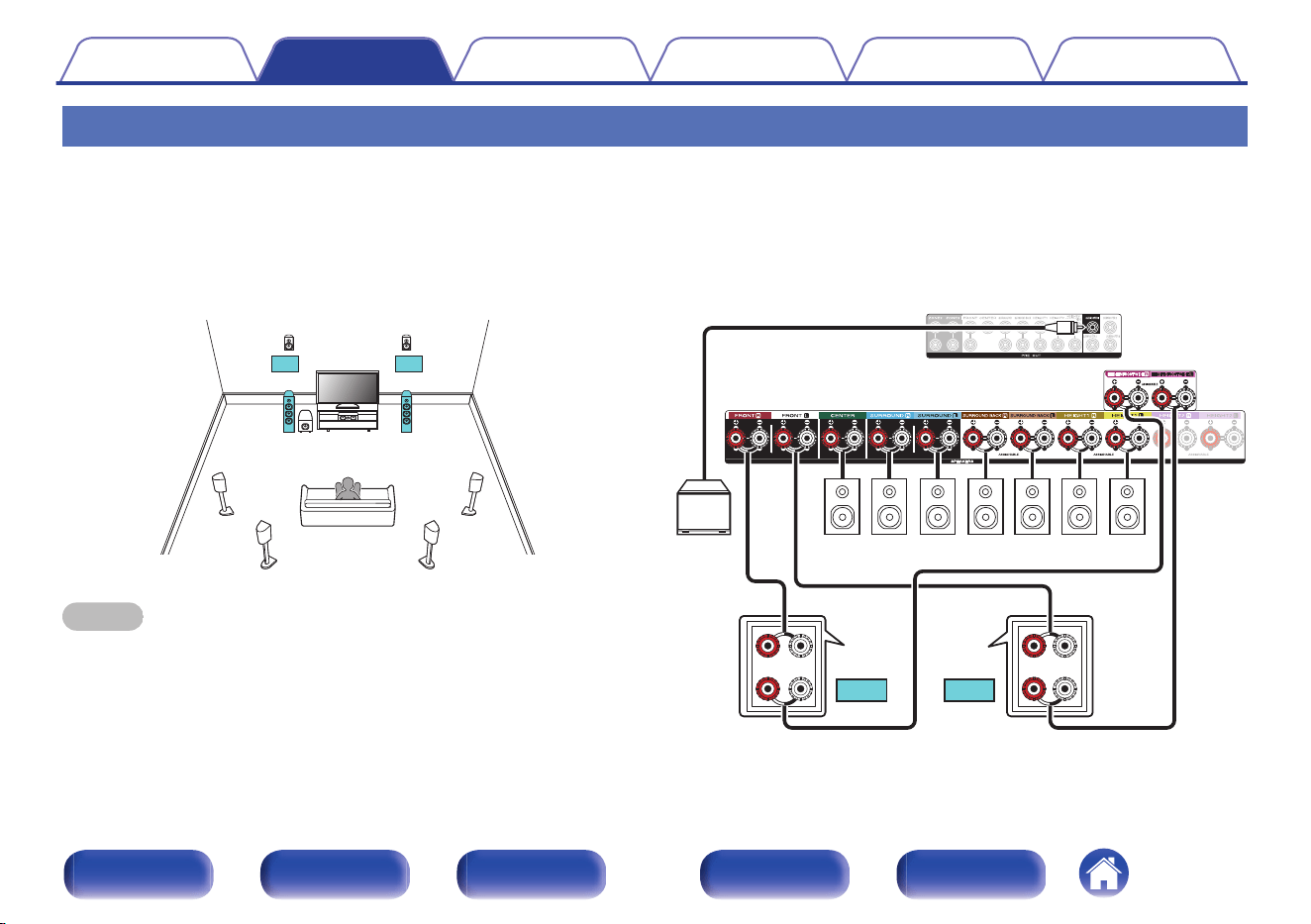
Bi-amp connection
o
9.1-channel playback (bi-amp connection of front speakers)
This system plays back 9.1-channels. You can use the bi-amp connection for front speakers. Bi-amp connection is a method to connect separate
amplifiers to the tweeter terminal and woofer terminal of a speaker that supports bi-amplification. This connection enables back EMF (power returned
without being output) from the woofer to flow into the tweeter without affecting the sound quality, producing a higher sound quality.
You can connect speakers for up to 11-channels for MAIN ZONE. When you connect speakers for 10 or more channels, the output speakers
automatically switch according to the input signal and sound mode.
FHL
SW
C
SL
SBL
FHR
SR
SBR
FL
(Bi-Amp)
FR
(Bi-Amp)
NOTE
0
When making bi-amp connections, be sure to remove the short-circuiting plate or
wire between the speaker’s woofer and tweeter terminals.
wqwq
(R) (L)
FLFR
SW
SBR SBL FHR FHLCSRSL
zz
z
The height speakers, ceiling speakers and Dolby Atmos Enabled speakers can
be connected to the HEIGHT1 speaker terminals. Set the speaker to be
connected from “Speaker Layout” in the menu. (v p. 231)
Contents
Connections Playback Settings Tips Appendix
68
Front panel Display Rear panel Remote Index
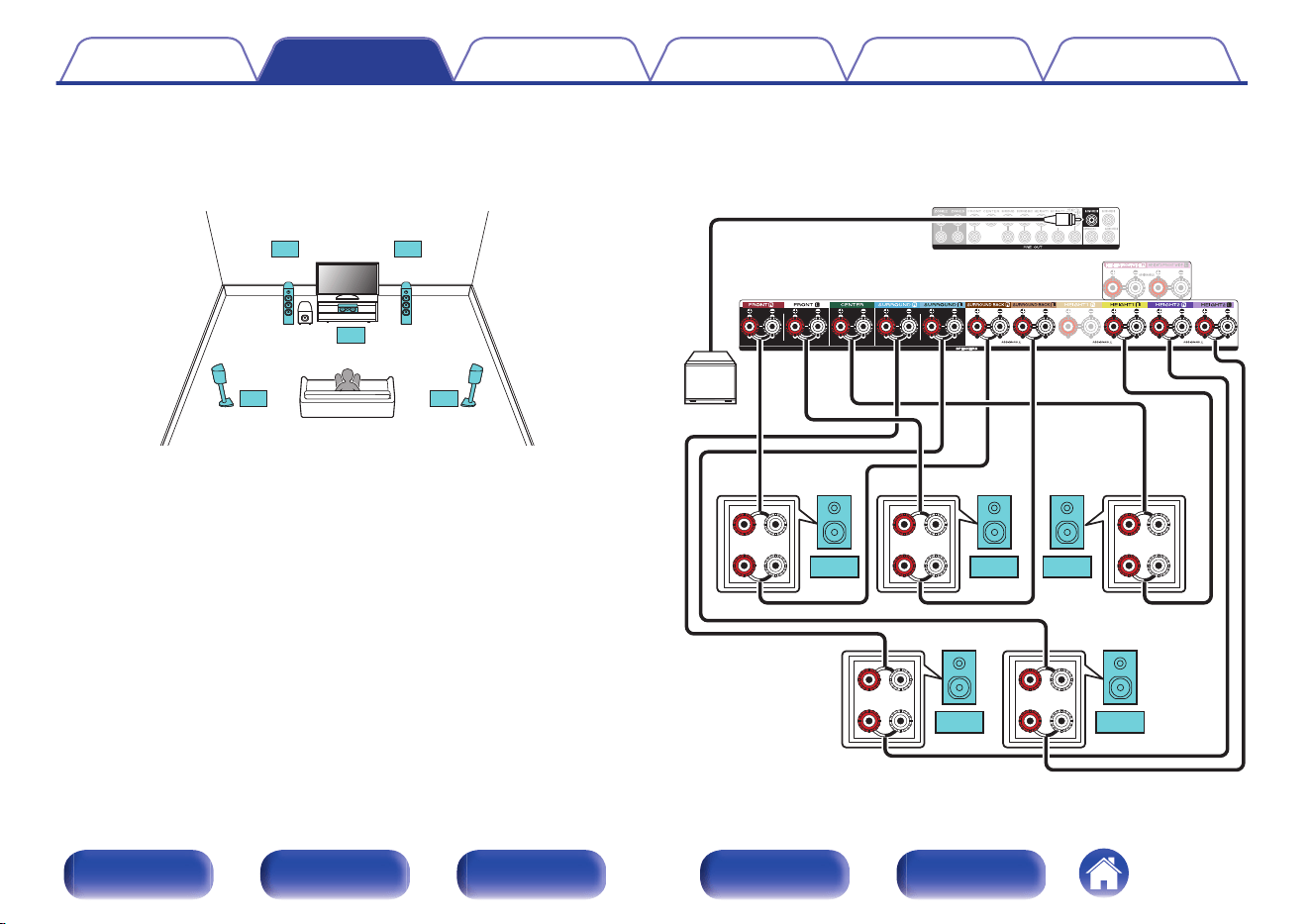
o
5.1-channel playback : Bi-amp connection of front, center and surround speakers
This system plays back 5.1-channels.
You can use the bi-amp connection for all front, center and surround speakers.
SW
FL FR
SL SR
C
(Bi-Amp)
(Bi-Amp)
(Bi-Amp)
(Bi-Amp)
(Bi-Amp)
wqwq
(L)
wq
(R)
wq
(R)
wq
(L)
SW
CFLFR
SR SL
Contents Connections Playback Settings Tips Appendix
69
Front panel Display Rear panel Remote Index
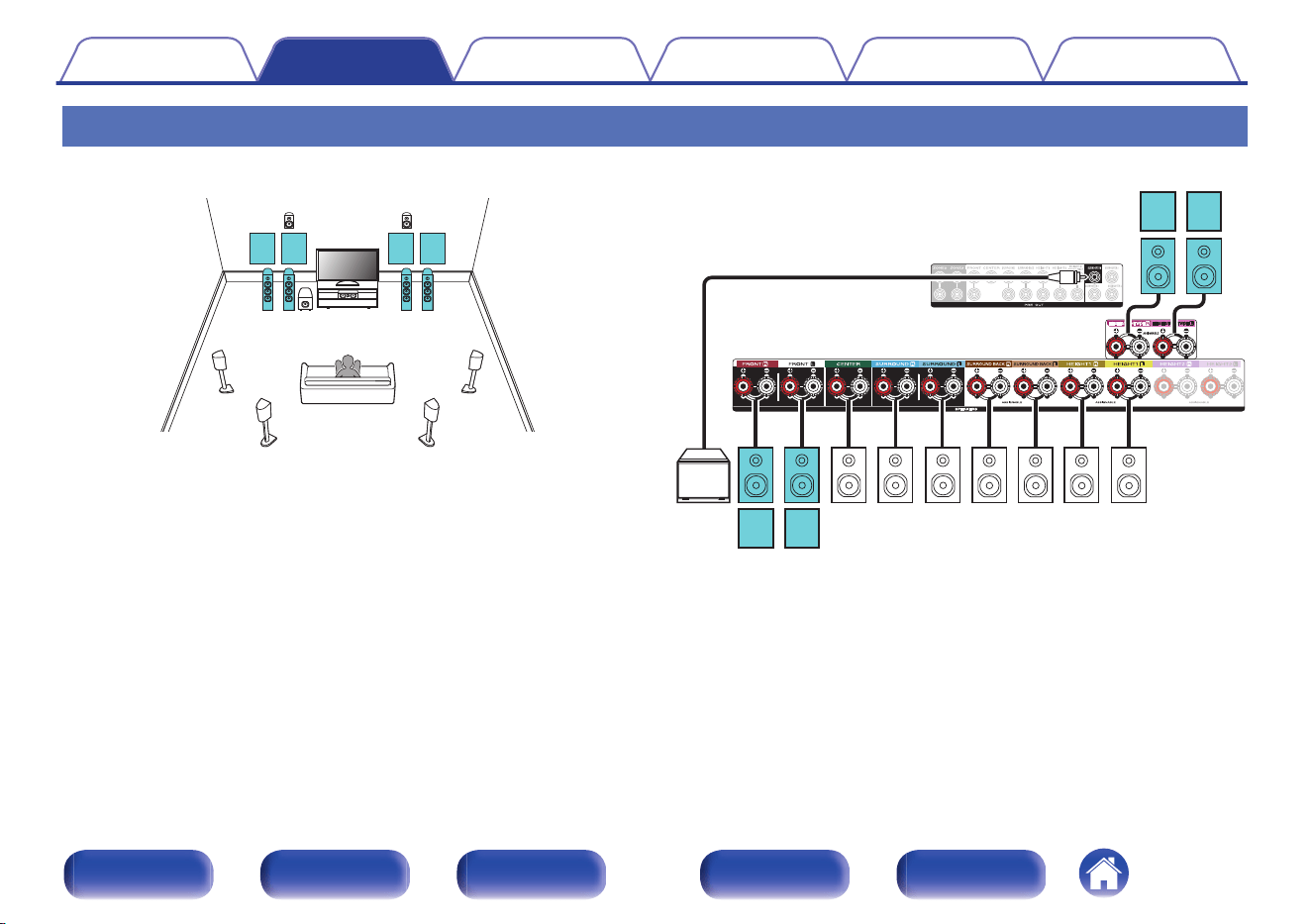
Connecting 9.1-channel speakers: Second pair of front speakers
This system enables switching playback between front speakers A and B as desired.
FHL
SW
C
SL
SBL
FHR
SR
SBR
FLFL
(B) (A)
FRFR
(A) (B)
SBR SBL
CSRSL
SW
FR
(A)
FL
(A)
FHR FHL
zz
FR
(B)
FL
(B)
z
The height speakers, ceiling speakers and Dolby Atmos Enabled speakers can
be connected to the HEIGHT1 speaker terminals. Set the speaker to be
connected from “Speaker Layout” in the menu. (v p. 231)
Contents
Connections Playback Settings Tips Appendix
70
Front panel Display Rear panel Remote Index
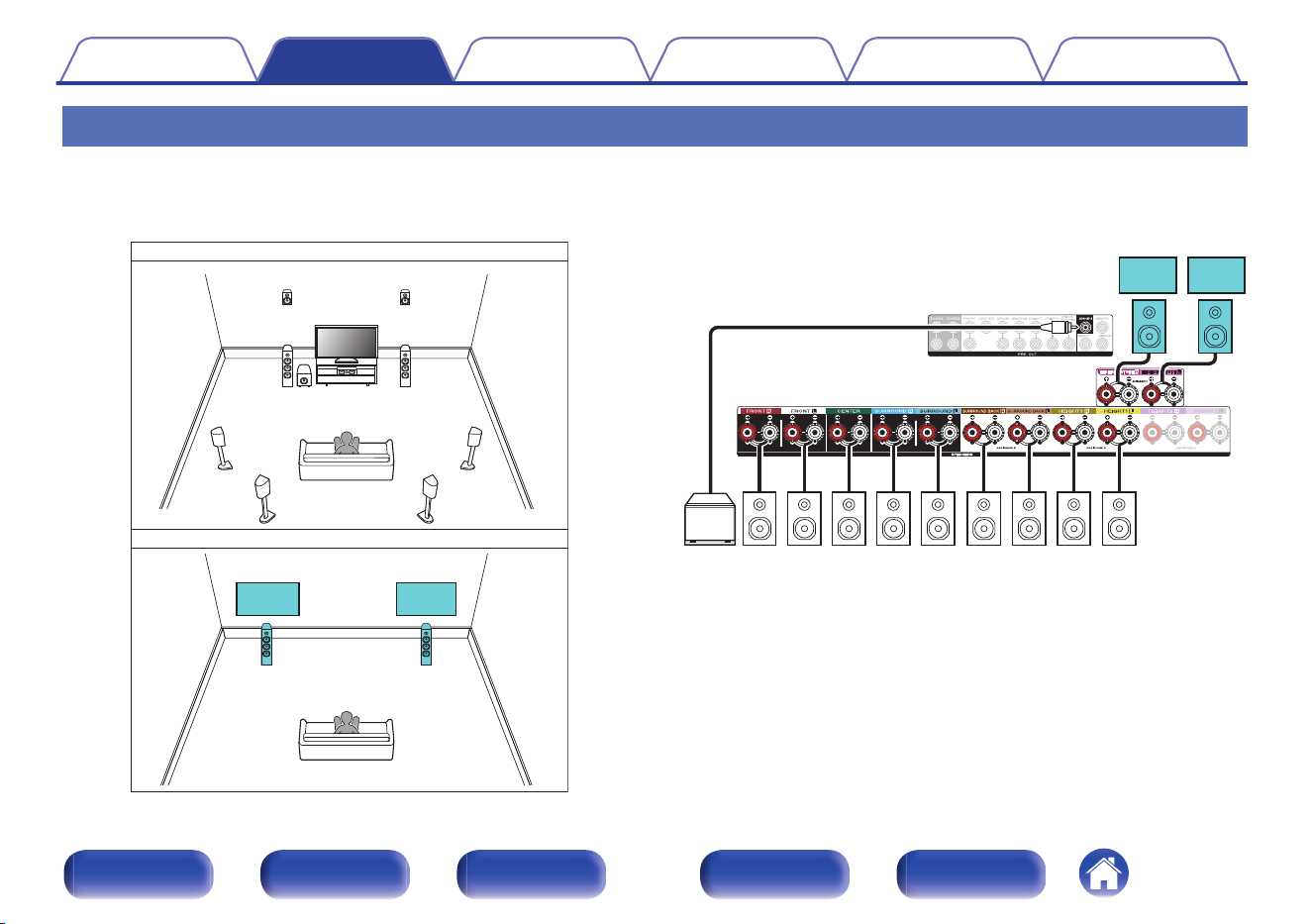
Connecting multi-zone speakers
o
9.1-channel playback (MAIN ZONE) + 2-channel playback (ZONE2 or ZONE3)
This type of configuration plays back 9.1-channels in MAIN ZONE and 2-channels in ZONE2.
(Speakers can output audio from ZONE3 instead of ZONE2 (Amp Assign: 9.1ch + ZONE3)).
MAIN ZONE
ZONE2
FHL
FL
SW
C
SL
SBL
FHR
FR
SR
SBR
ZONE2
L
ZONE2
R
SW
SBR SBL FHR FHL
FR FL C SR SL
zz
ZONE2
R
ZONE2
L
z
The height speakers, ceiling speakers and Dolby Atmos Enabled speakers can
be connected to the HEIGHT1 speaker terminals. Set the speaker to be
connected from “Speaker Layout” in the menu. (v p. 231)
Contents
Connections Playback Settings Tips Appendix
71
Front panel Display Rear panel Remote Index
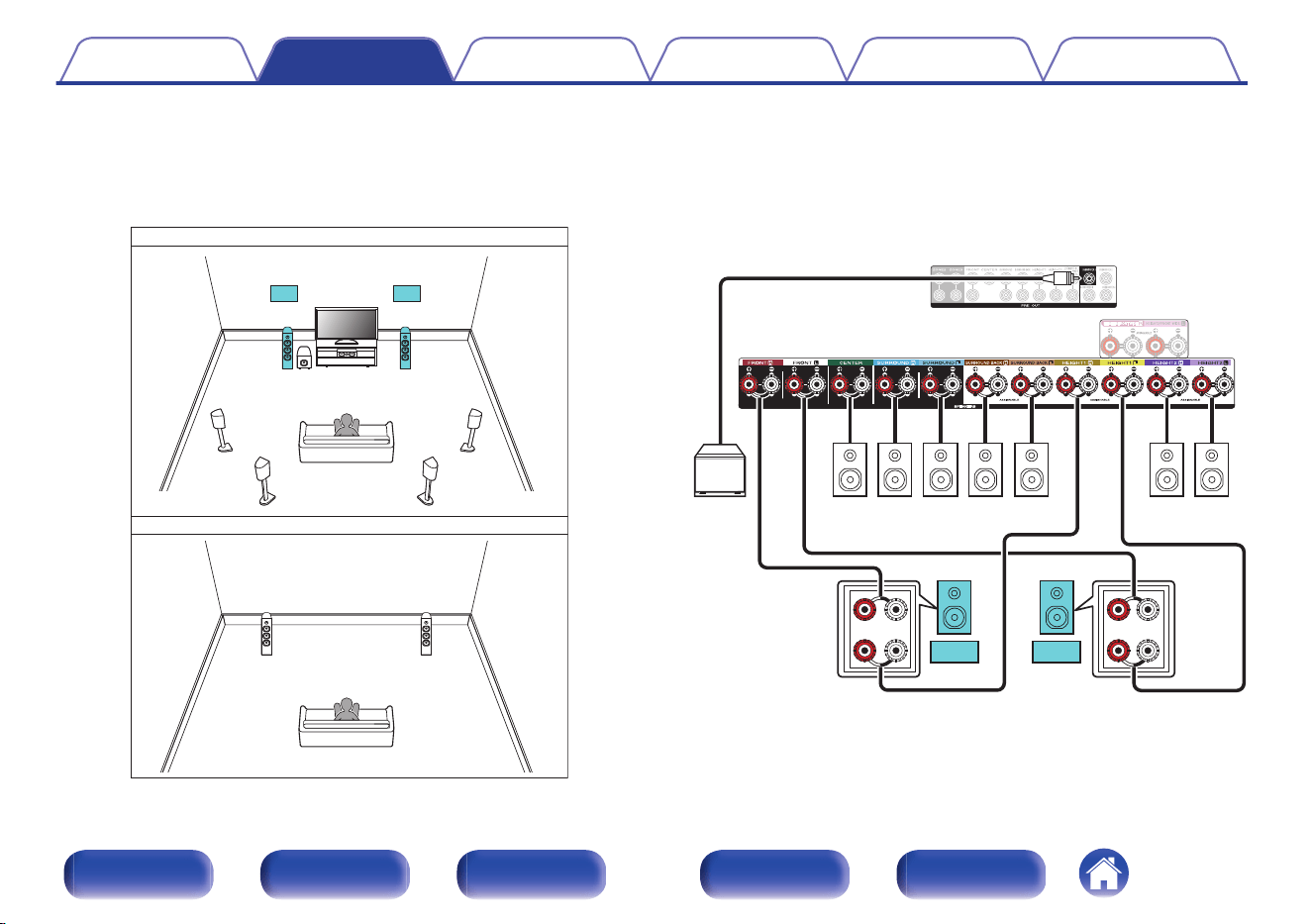
o
7.1-channel playback (bi-amp connection of front speakers: MAIN ZONE) + 2-channel playback
(ZONE2)
This type of configuration plays back 7.1-channels in MAIN ZONE and 2-channels in ZONE2. You can use the bi-amp connection for front speakers in
MAIN ZONE.
SW
C
SL
SR
ZONE2
L
ZONE2
R
FL FR
MAIN ZONE
ZONE2
SBL
SBR
(Bi-Amp)
(Bi-Amp)
wqwq
(R) (L)
SW
CSRSLSBR SBL
ZONE2
R
ZONE2
L
FLFR
Contents Connections Playback Settings Tips Appendix
72
Front panel Display Rear panel Remote Index
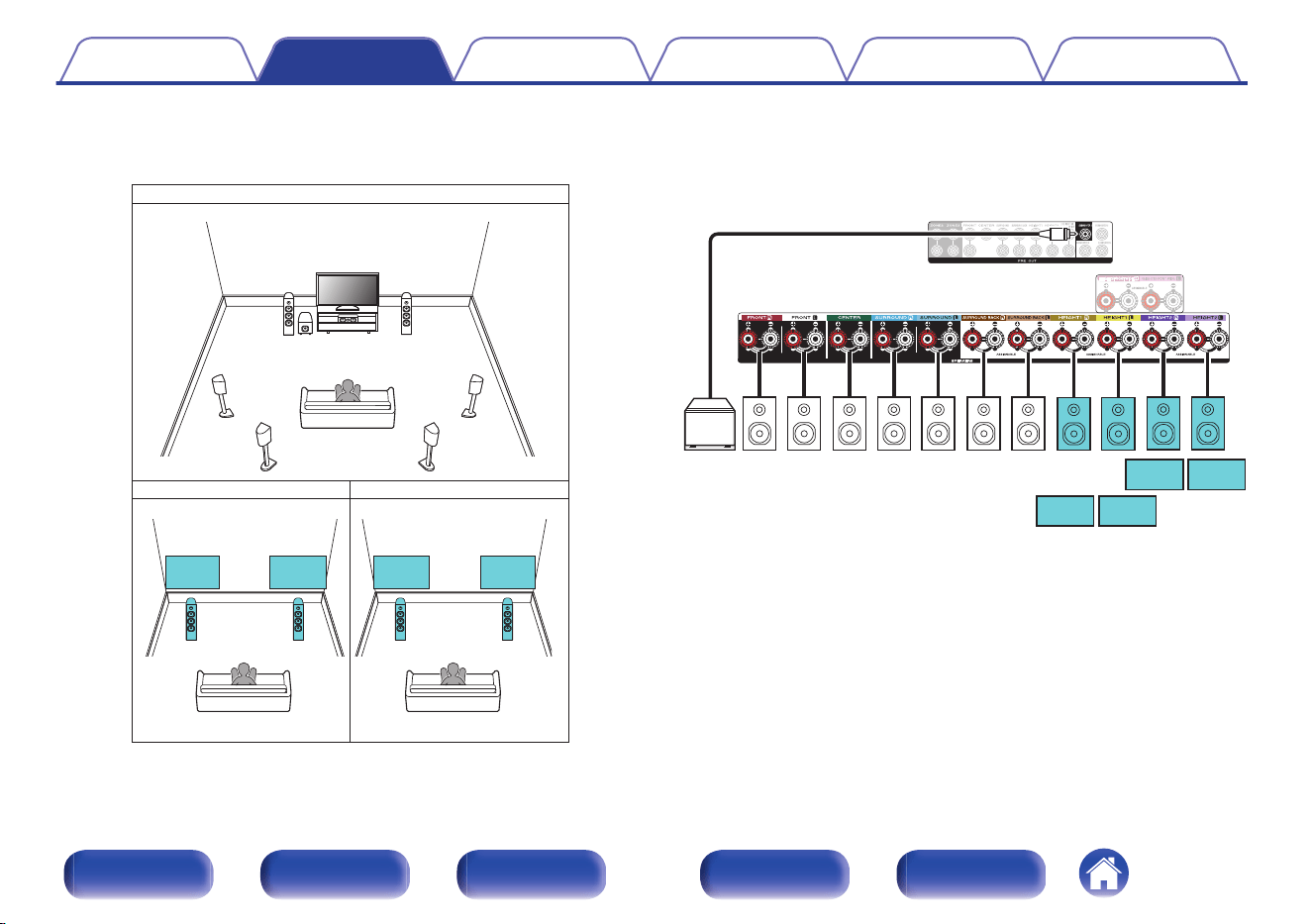
o
7.1-channel playback (MAIN ZONE) + 2-channel playback (ZONE2) + 2-channel playback (ZONE3)
This type of configuration plays back 7.1-channels in MAIN ZONE and 2-channels in ZONE2 and ZONE3.
FL
SW
C
SL
FR
SR
ZONE2
L
ZONE2
R
ZONE3
L
ZONE3
R
MAIN ZONE
ZONE2 ZONE3
SBL
SBR
ZONE3
R
ZONE3
L
ZONE2
R
ZONE2
L
SW
FR FL C SR SL SBR SBL
Contents Connections Playback Settings Tips Appendix
73
Front panel Display Rear panel Remote Index
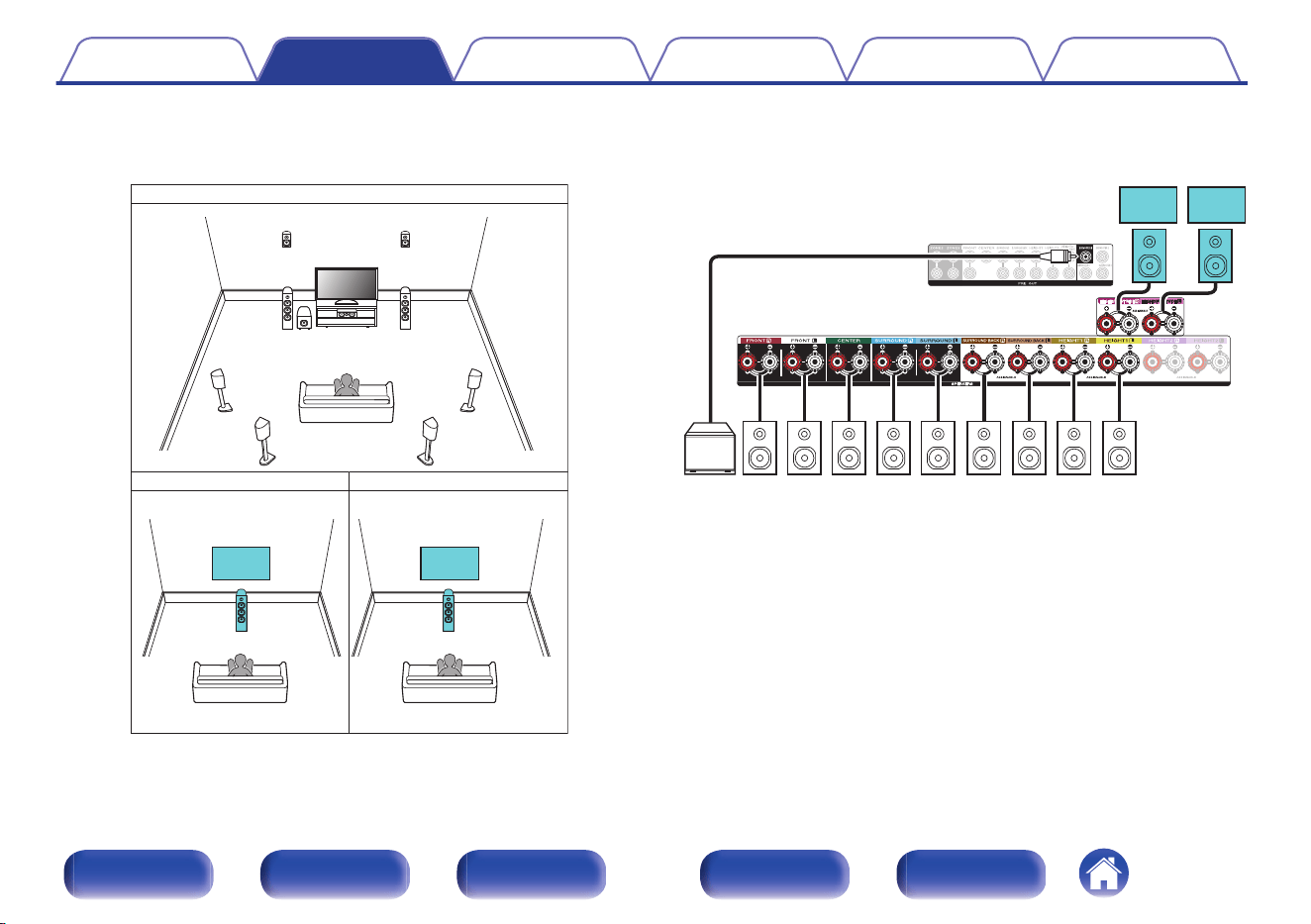
o
9.1-channel playback (MAIN ZONE) + 1-channel playback (ZONE2) + 1-channel playback (ZONE3)
This type of configuration plays back 9.1-channels in MAIN ZONE and 1-channel (monaural) in ZONE2 and ZONE3.
FHL
FL
SW
C
SL
SBL
FR
SR
SBR
ZONE2
Mono
ZONE3
Mono
FHR
MAIN ZONE
ZONE2 ZONE3
SW
SBR SBL FHR FHL
FR FL C SR SL
zz
ZONE3
Mono
ZONE2
Mono
z
The height speakers, ceiling speakers and Dolby Atmos Enabled speakers can
be connected to the HEIGHT1 speaker terminals. Set the speaker to be
connected from “Speaker Layout” in the menu. (v p. 231)
Contents
Connections Playback Settings Tips Appendix
74
Front panel Display Rear panel Remote Index
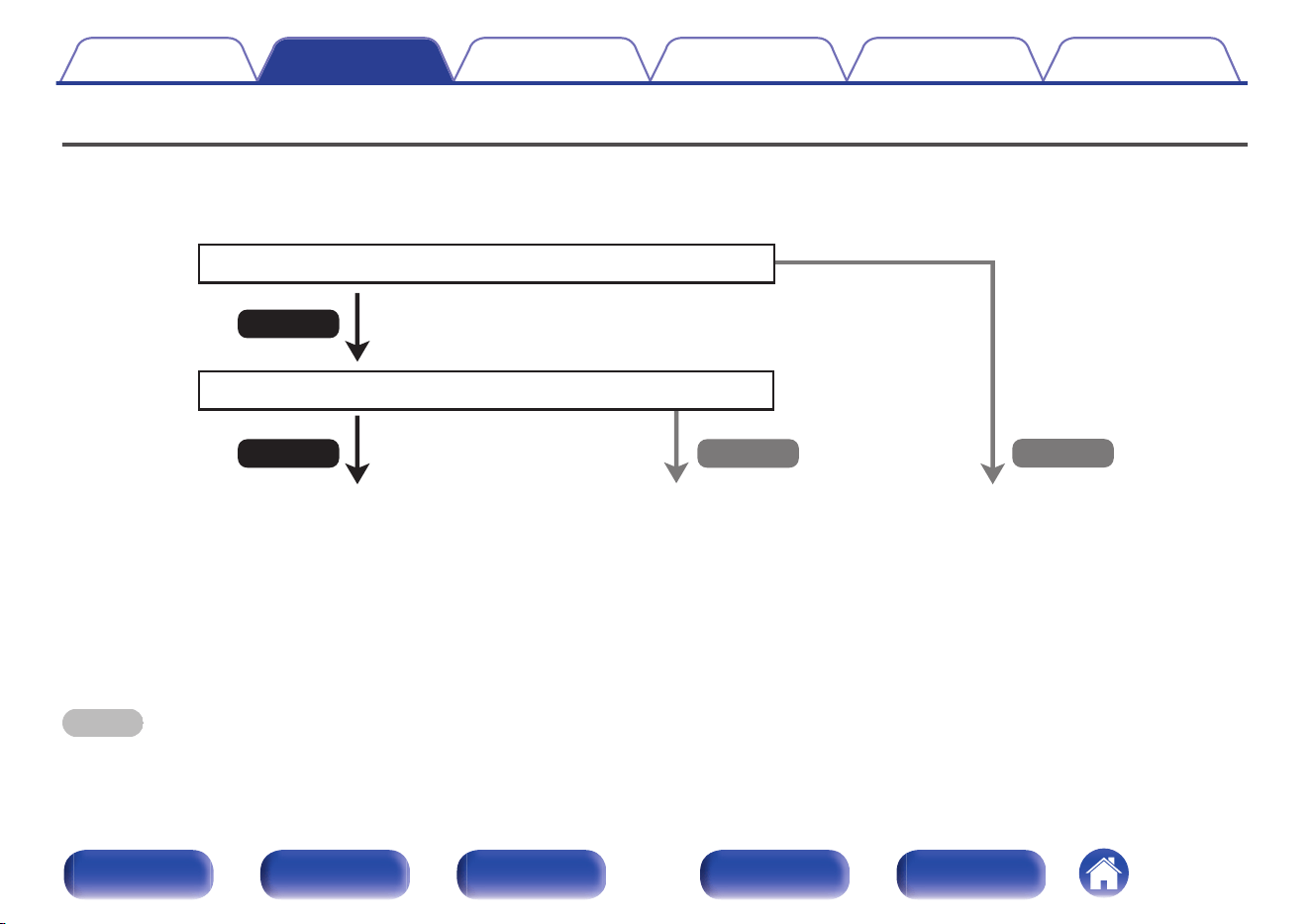
Connecting a TV
Connect a TV to this unit so that the input video is output to the TV. You can also enjoy audio from the TV on this unit.
How to connect a TV depends on the connectors and functions equipped on the TV.
No
Yes
Is the TV equipped with an HDMI connector?
Yes No
Is the TV compatible with the ARC / eARC?
z
“Connection 1 : TV equipped with an HDMI
connector and compatible with the ARC /
eARC” (v p. 76)
“Connection 2 : TV equipped with an HDMI
connector and incompatible with the ARC /
eARC” (v p. 77)
You cannot connect the TV to this
unit.
z
What is ARC and eARC?
ARC (Audio Return Channel) sends audio back to this unit using the same HDMI cable that sends video from this unit to your TV.
This allows this unit to process the sound from your TV’s built-in tuner and apps.
TVs with eARC (Enhanced Audio Return Channel) port provide additional support for high bitrate multichannel audio (Dolby Atmos, Dolby TrueHD, DTS-HD and DTS:X).
Please refer to your TV Owner’s Manual for details about eARC support for your particular model.
NOTE
0
Use a TV with a 2 prong power plug for this unit. Do not connect a TV with a 3 prong power plug, as this may cause noise.
Contents Connections Playback Settings Tips Appendix
75
Front panel Display Rear panel Remote Index
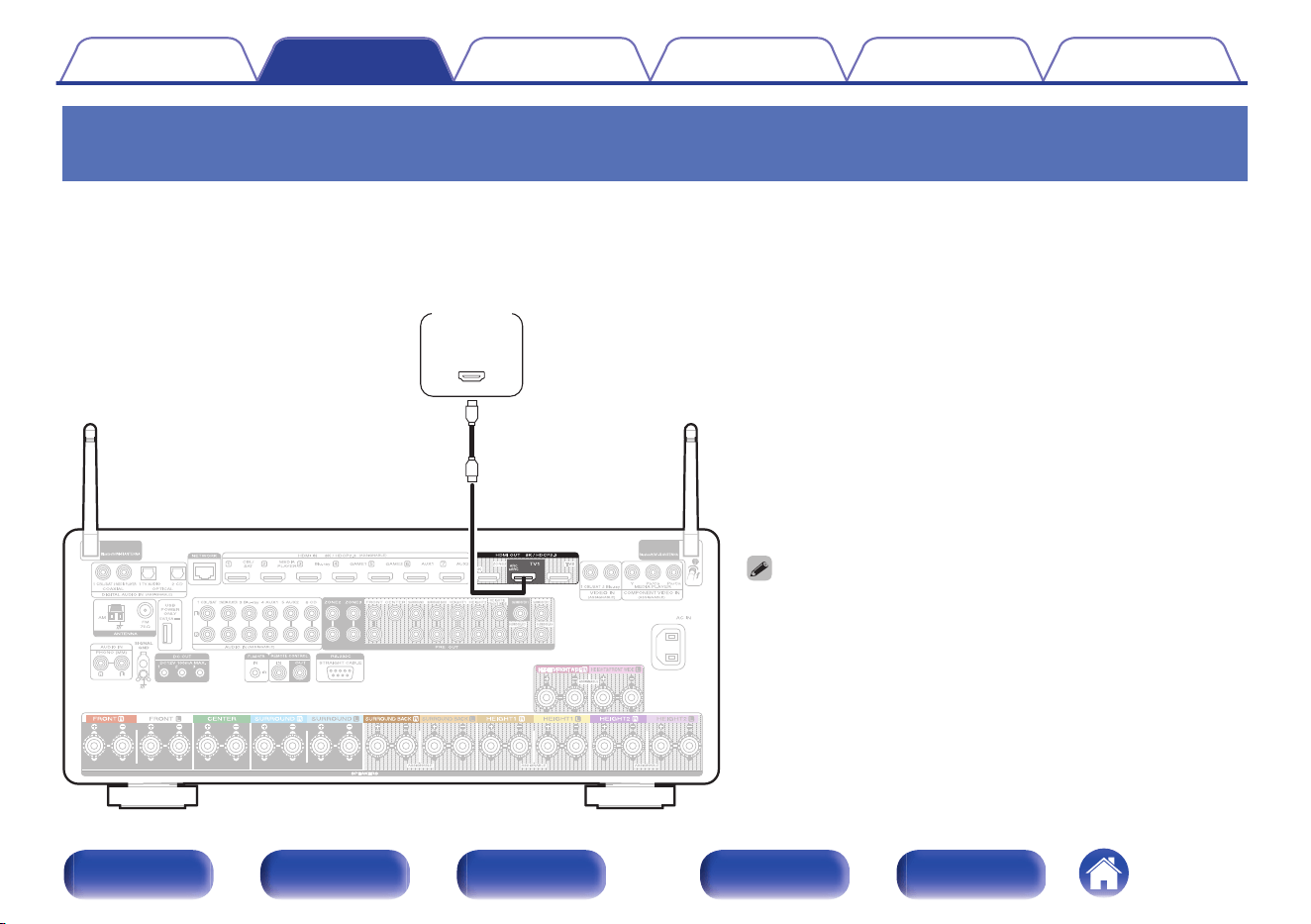
Connection 1 : TV equipped with an HDMI connector and compatible with the ARC /
eARC
Using a high quality HDMI cable
z
, connect one end to the HDMI port labeled “eARC” or “ARC” on your TV. Connect the other end to the HDMI OUT TV 1
port on this unit.
When a TV with eARC support is connected, the eARC function of this unit is enabled automatically and the television audio is played back. When a TV
with ARC support is connected, set “ARC” in the menu to “On”. (v p. 207)
z
For 4K TVs we recommend using an HDMI cable labeled “High Speed”
and “with Ethernet”.
z
For 8K TVs we recommend using an HDMI cable labeled “Ultra High
Speed”.
0
eARC function settings may be required depending on the eARC
function-compatible television you are using. Make sure eARC is set to
on if this setting exists on your television. For more information, check
your television’s owner’s manual.
0
Set “4K/8K Signal Format” to “8K Enhanced” in the menu to enjoy 8K
video. (v p. 213)
(ARC / eARC)
IN
HDMI
TV
Contents Connections Playback Settings Tips Appendix
76
Front panel Display Rear panel Remote Index
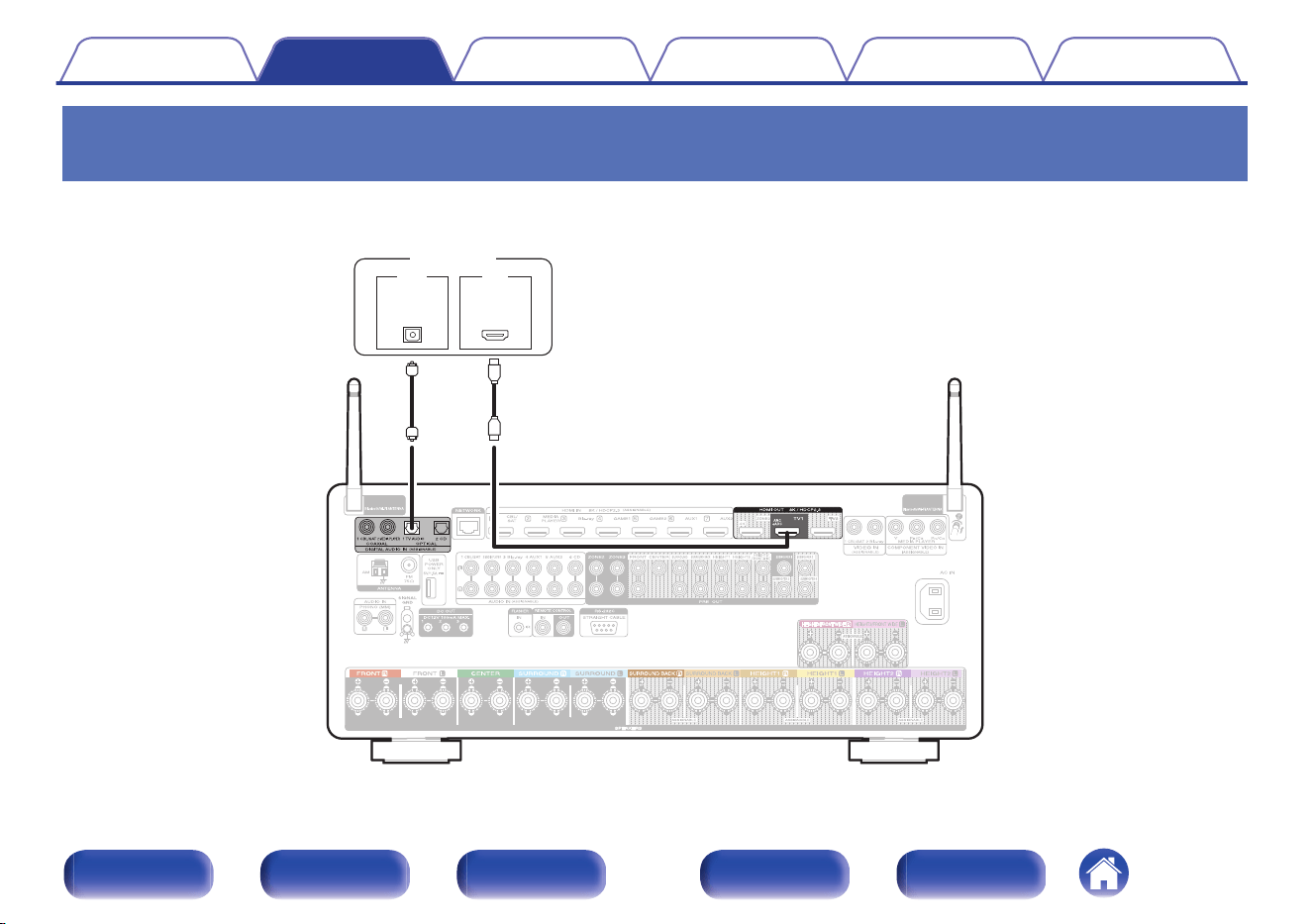
Connection 2 : TV equipped with an HDMI connector and incompatible with the
ARC / eARC
Use an HDMI cable to connect the TV to this unit.
To listen to audio from TV on this unit, use an optical cable to connect the TV to this unit.
OUT
OPTICAL
OUT IN
IN
HDMI
TV
Contents Connections Playback Settings Tips Appendix
77
Front panel Display Rear panel Remote Index
Connecting a playback device
This unit is equipped with three types of video input connectors (HDMI, component video and composite video) and three types of audio input connectors
(HDMI, digital audio and audio).
Select input connectors on this unit according to the connectors equipped on the device you want to connect.
If the device connected to this unit is equipped with an HDMI connector, it is recommended to use HDMI connections.
In the HDMI connection, audio and video signals can be transmitted through a single HDMI cable.
0
“Connecting a set-top box (Satellite tuner/cable TV)” (v p. 79)
0
“Connecting a media player” (v p. 80)
0
“Connecting a Blu-ray Disc player or DVD player” (v p. 81)
0
“Connecting a game console or player device compatible with 8K” (v p. 82)
0
“Connecting a turntable” (v p. 83)
0
Connect devices to this unit as indicated by the input sources printed on the audio/video input connectors of this unit.
0
The source that is assigned to the HDMI IN, DIGITAL AUDIO IN, COMPONENT VIDEO IN, VIDEO IN and AUDIO IN connectors can be changed. See “Input Assign” on how
to change the input source assigned to the input connectors. (v p. 215)
0
To play back audio signals that are input to this unit on a TV connected via HDMI, set in the menu “HDMI Audio Out” to “TV”. (v p. 205)
0
To enjoy content that is copyright protected by HDCP 2.2 or HDCP 2.3, use a playback device and TV compatible with HDCP 2.2 or HDCP 2.3.
Contents Connections Playback Settings Tips Appendix
78
Front panel Display Rear panel Remote Index
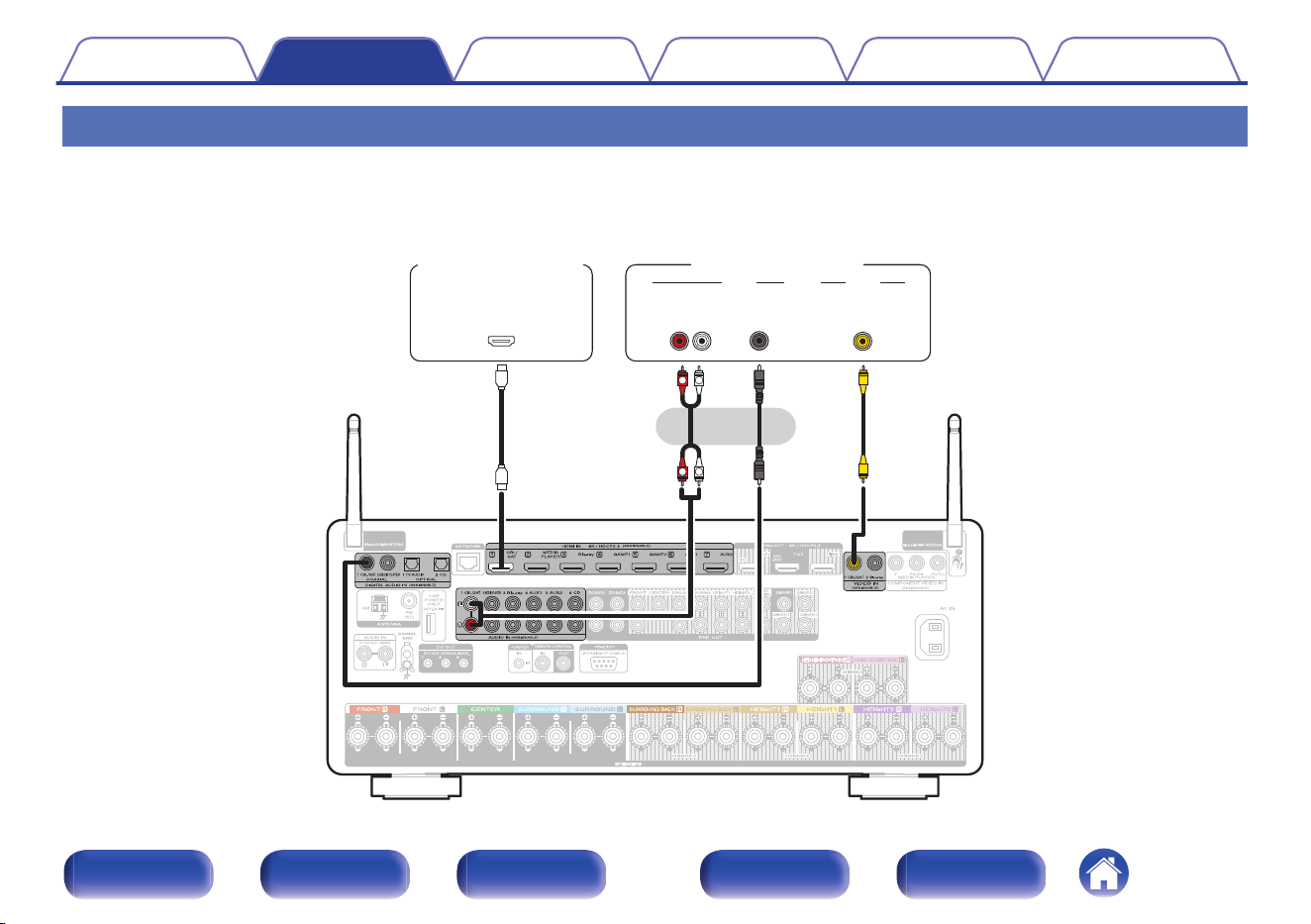
Connecting a set-top box (Satellite tuner/cable TV)
This explanation uses the connection with a satellite tuner/cable TV STB as an example.
Select the input connectors on this unit to match the connectors on the device that you want to connect to.
R
L
R
L
OUT
HDMI
OUT
COAXIAL
AUDIO
AUDIO
RL
OUT
OUT
VIDEO
VIDEO
or
Satellite tuner /
Cable TV
Satellite tuner /
Cable TV
(HDMI incompatible device)
Contents Connections Playback Settings Tips Appendix
79
Front panel Display Rear panel Remote Index
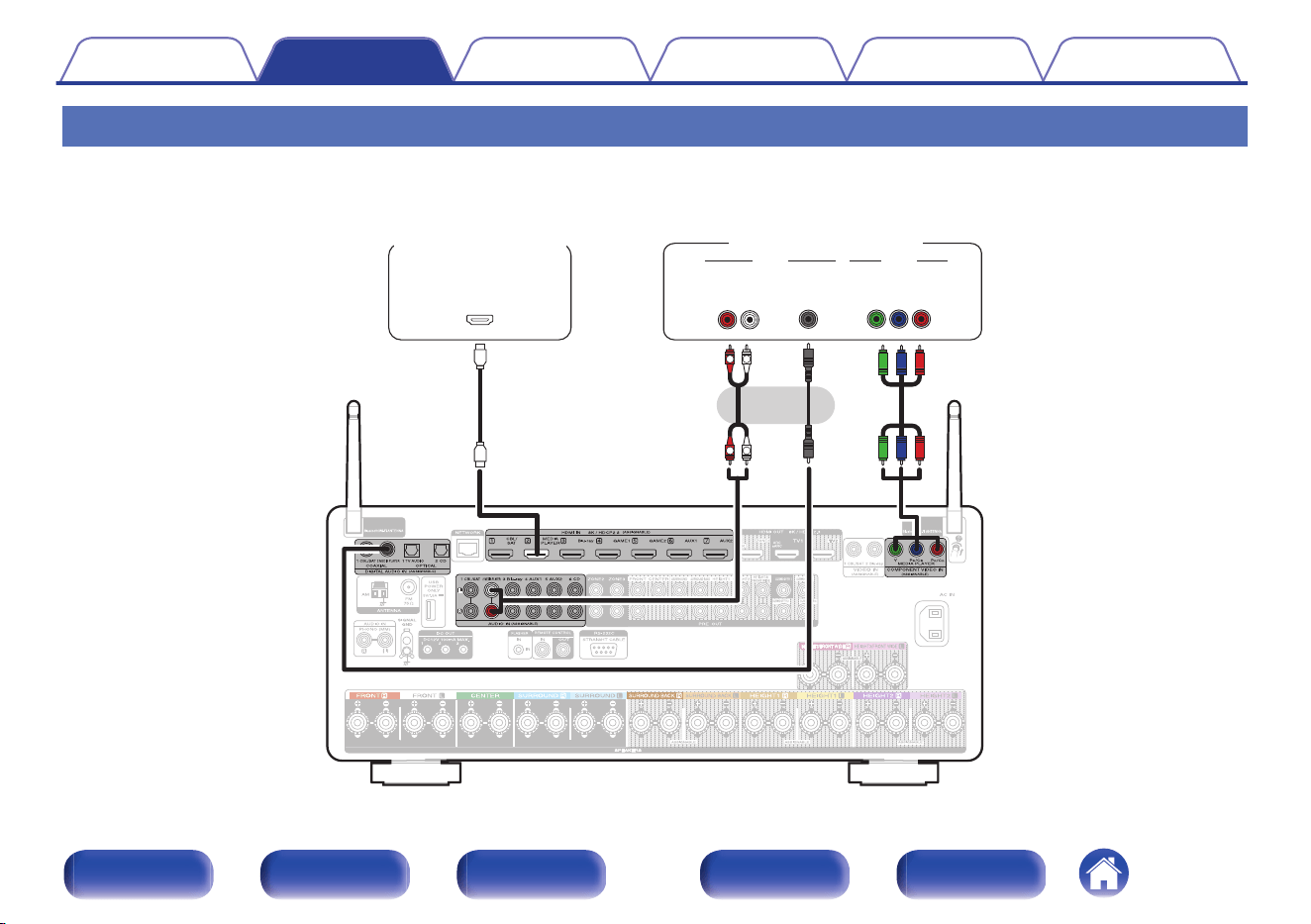
Connecting a media player
This explanation uses the connection with a media player as an example.
Select the input connectors on this unit to match the connectors on the device that you want to connect to.
R
L
R
L
OUT
HDMI
AUDIO VIDEO
AUDIO
RL
OUT
OUT
COAXIAL
OUT
COMPONENT VIDEO
YP
B PR
or
(HDMI incompatible device)
Media playerMedia player
Contents Connections Playback Settings Tips Appendix
80
Front panel Display Rear panel Remote Index
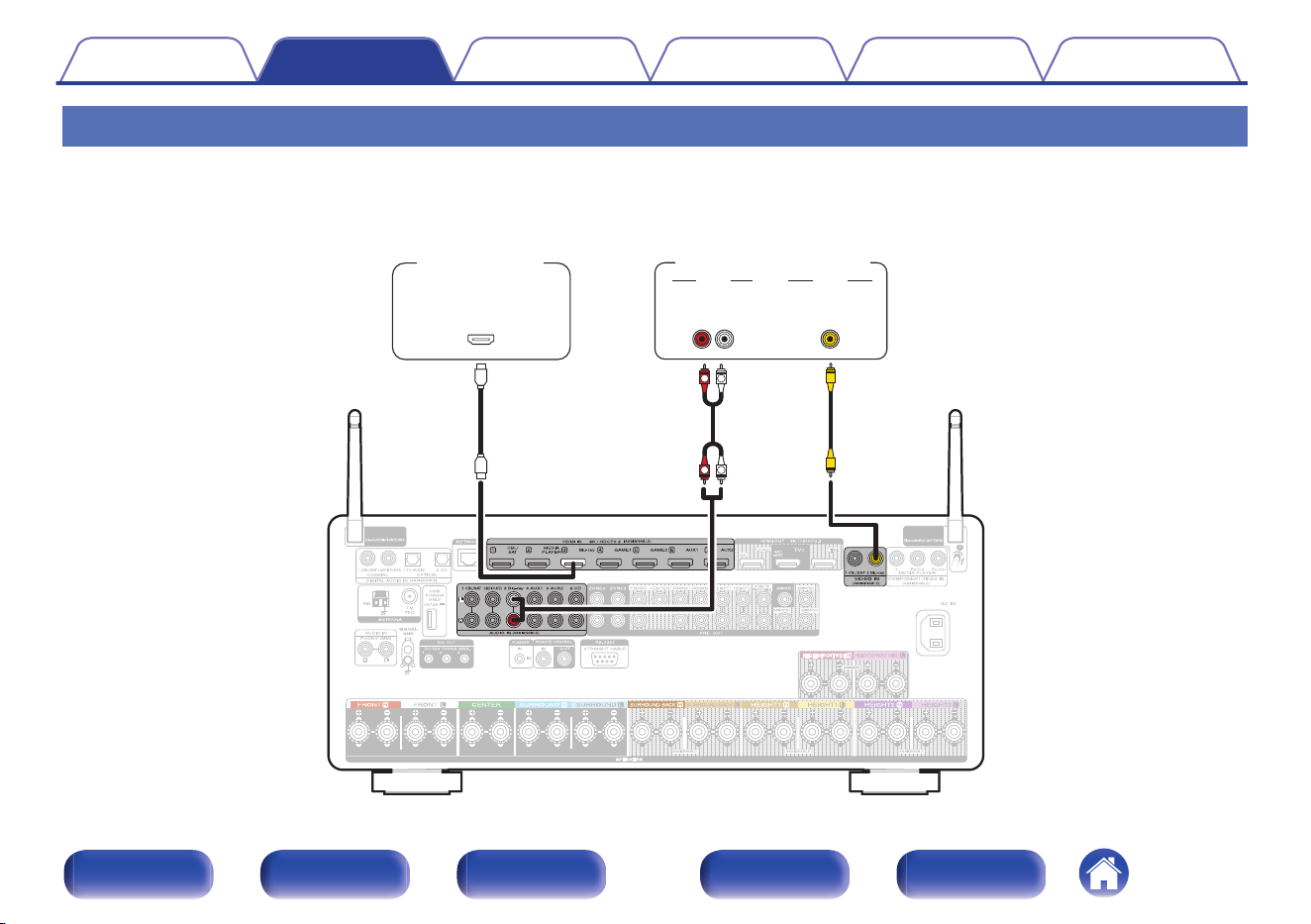
Connecting a Blu-ray Disc player or DVD player
This explanation uses the connection with a Blu-ray Disc player or DVD player as an example.
Select the input connectors on this unit to match the connectors on the device that you want to connect to.
R
L
R
L
OUT
HDMI
OUT
VIDEO
VIDEO
AUDIO
AUDIO
RL
OUT
Blu-ray Disc player /
DVD player
Blu-ray Disc player /
DVD player
(HDMI incompatible device)
Contents Connections Playback Settings Tips Appendix
81
Front panel Display Rear panel Remote Index
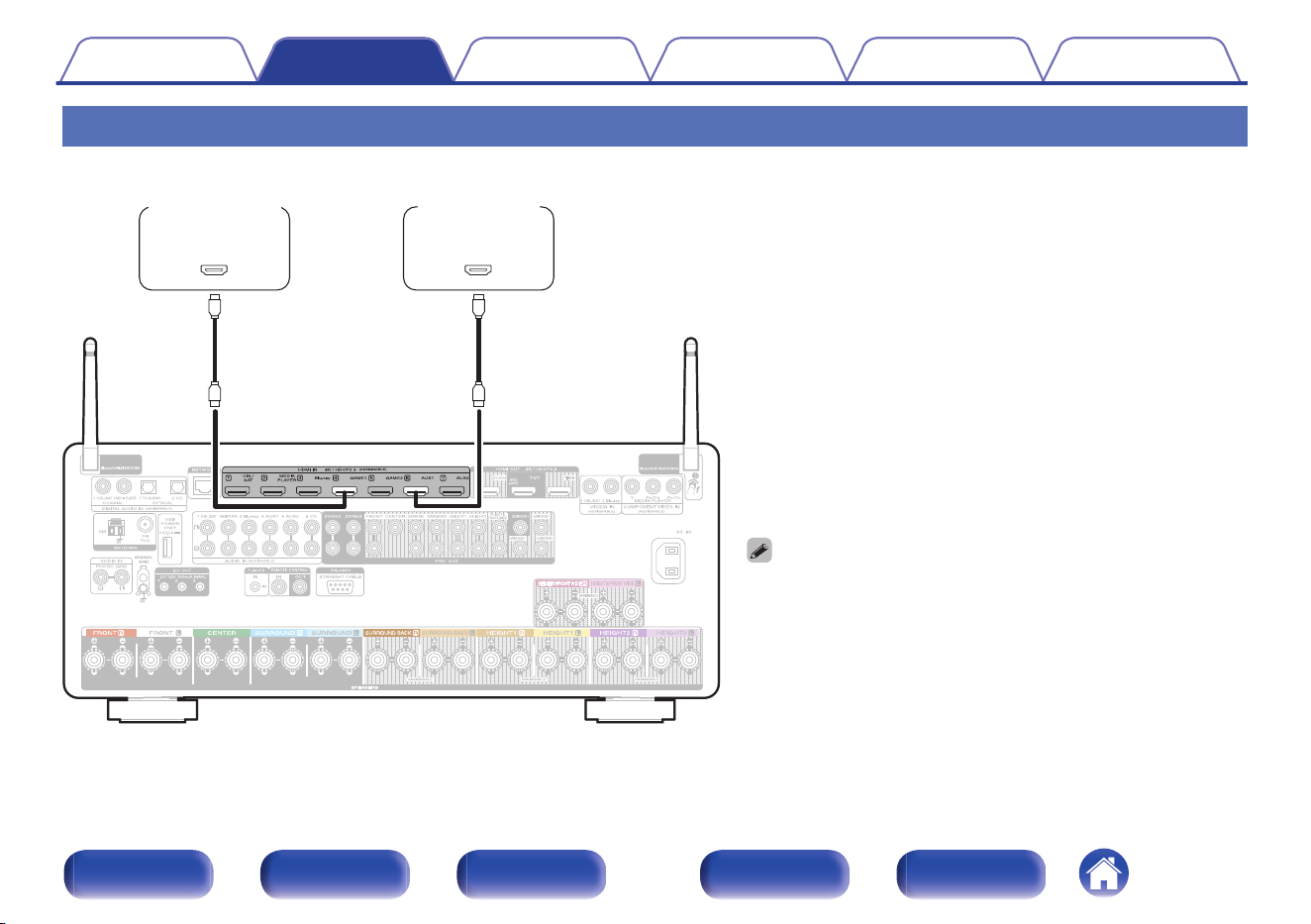
Connecting a game console or player device compatible with 8K
This unit supports 8K HDMI video signals.
0
Use a certified “Ultra High Speed HDMI cable” to enjoy 8K or 4K
120Hz video.
0
Set “4K/8K Signal Format” to “8K Enhanced” in the menu to enjoy 8K
video. (v p. 213)
OUT
HDMI
OUT
HDMI
Game console 8K player
Contents
Connections Playback Settings Tips Appendix
82
Front panel Display Rear panel Remote Index
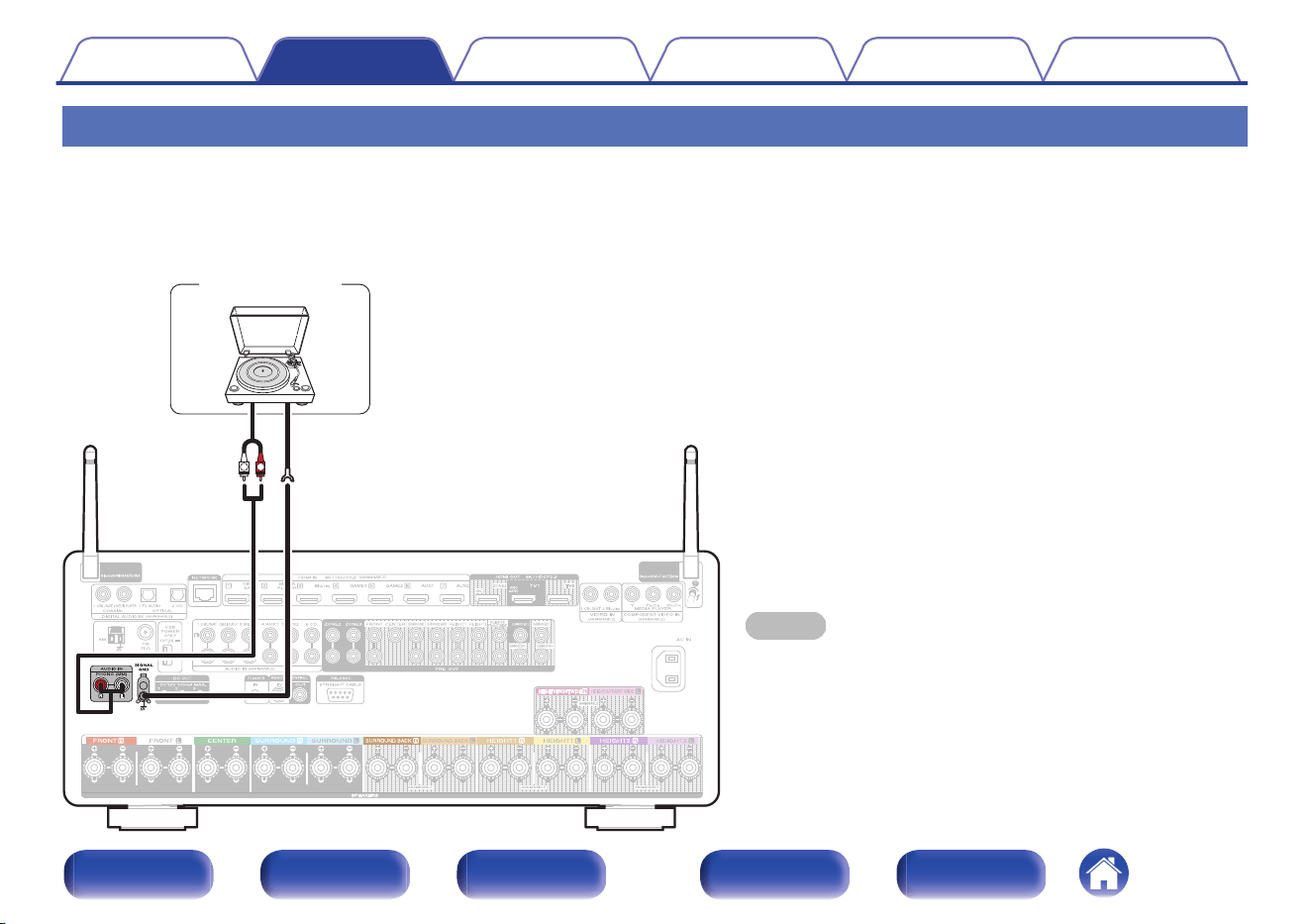
Connecting a turntable
This unit is compatible with turntables equipped with a moving magnet (MM) phono cartridge. When you connect to a turntable with a low output moving
coil (MC) cartridge, use a commercially available MC head amp or a step-up transformer.
If you set this unit’s input source to “Phono” and you accidentally increase the volume without having a turntable connected, you may hear a hum noise
from the speakers.
NOTE
0
The earth terminal (SIGNAL GND) of this unit is not for safety grounding
purposes. If this terminal is connected when there is a lot of noise, the
noise can be reduced. Note that depending on the turntable,
connecting the ground line may have the reverse effect of increasing
noise. In this case, it is not necessary to connect the ground line.
GND
AUDIO
OUT
L
R
(MM cartridge)
Turntable
Contents
Connections Playback Settings Tips Appendix
83
Front panel Display Rear panel Remote Index
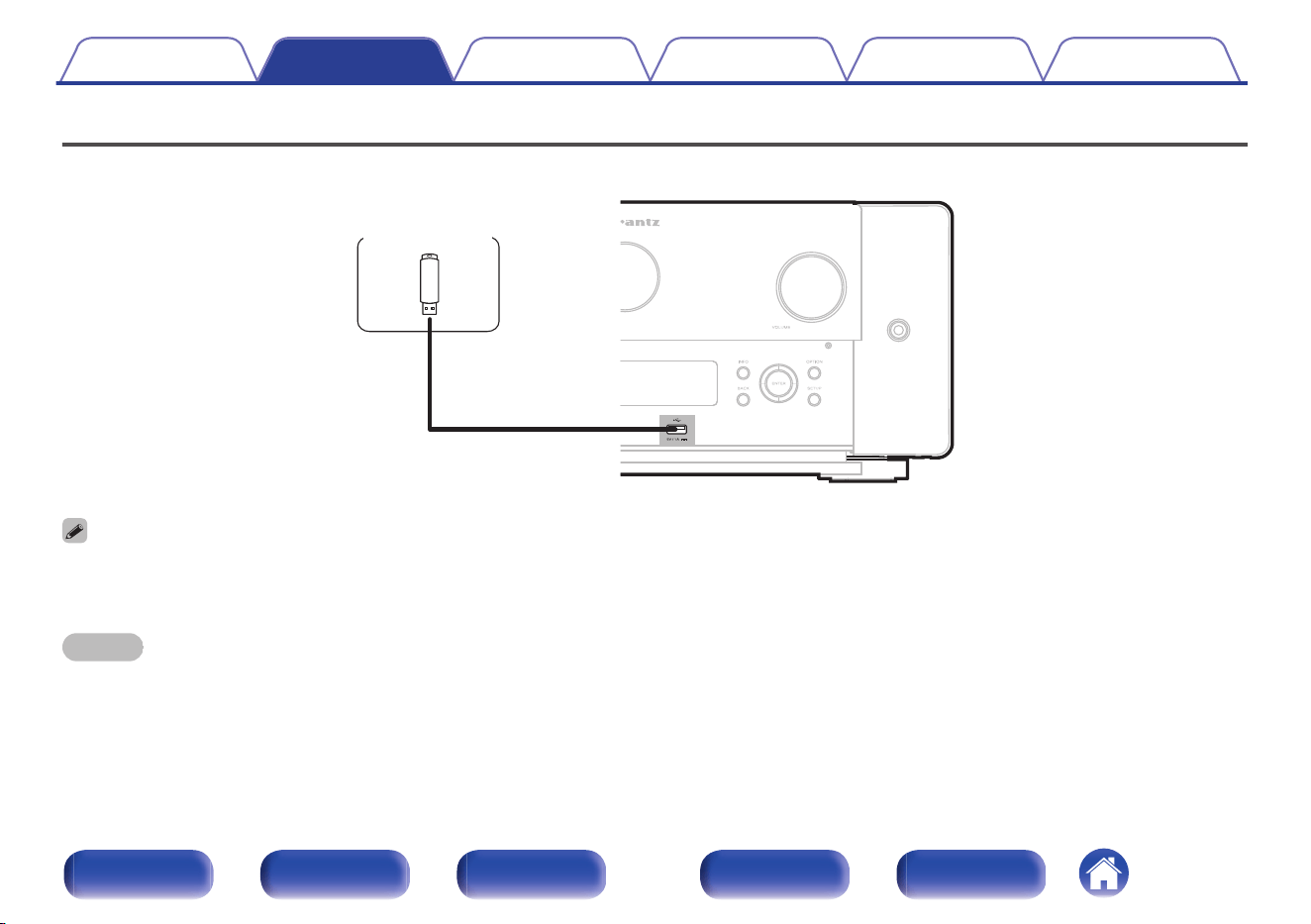
Connecting a USB memory device to the USB port
For operating instructions see “Playing a USB memory device” (v p. 97).
USB memory
device
0
Marantz does not guarantee that all USB memory devices will operate or receive power. When using a portable USB hard disk drive (HDD) which came with an AC adapter,
use that device’s supplied AC adapter.
0
The USB port on the rear panel can only be used to supply power (5 V/1.5 A). It cannot be used to play music files. (v p. 32)
NOTE
0
USB memory devices will not work via a USB hub.
0
It is not possible to use this unit by connecting the unit’s USB port to a PC via a USB cable.
0
Do not use an extension cable when connecting a USB memory device. This may cause radio interference with other devices.
Contents Connections Playback Settings Tips Appendix
84
Front panel Display Rear panel Remote Index
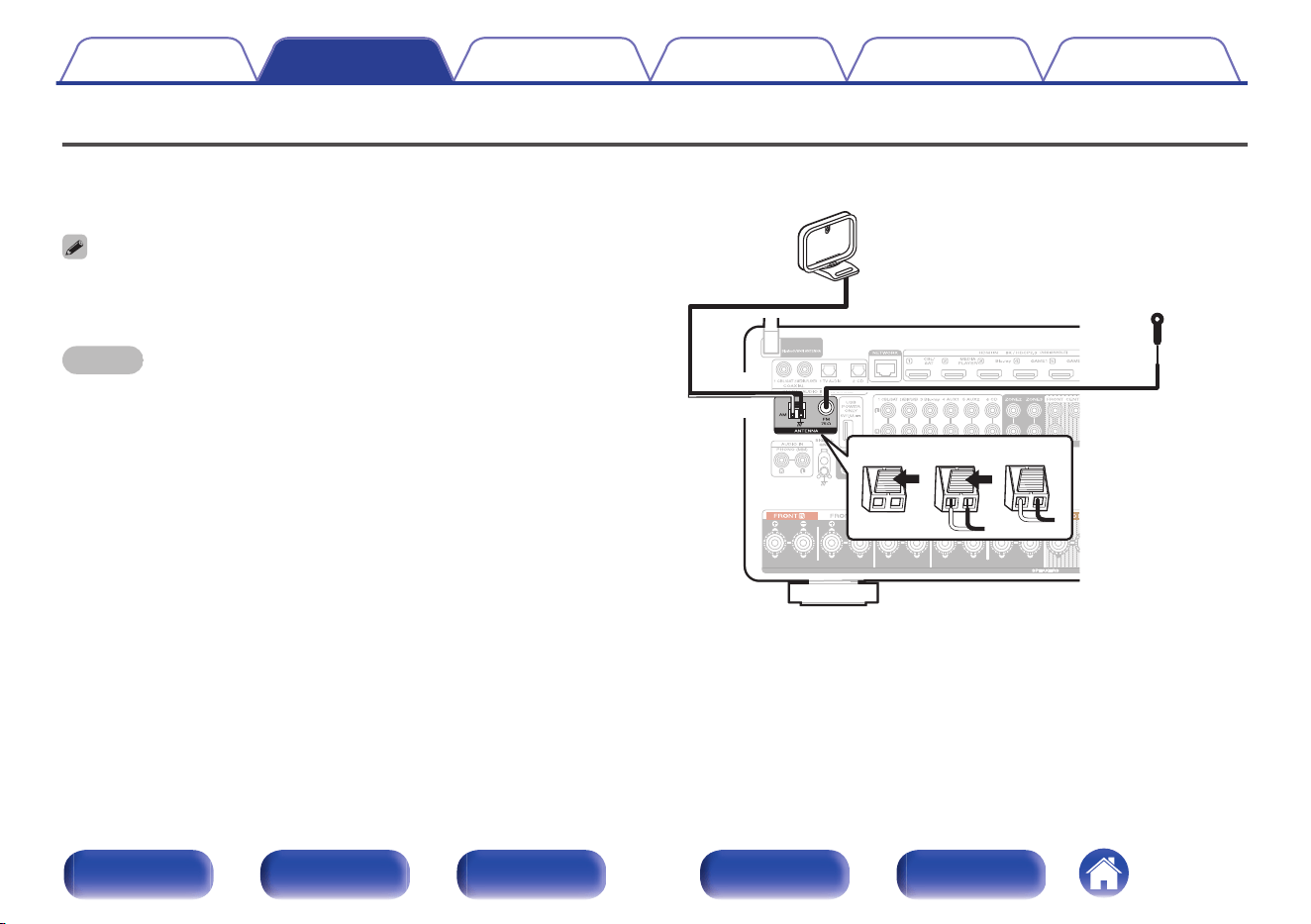
Connecting FM/AM antennas
Connect the antenna, tune in to a broadcast and then move the antenna to
the location where there is least noise. Then use tape, etc. to fix the
antenna in this location. (“Listening to FM/AM broadcasts” (v p. 108))
0
If you are unable to receive a good broadcast signal, we recommend installing an
outdoor antenna. For details, inquire at the retail store where you purchased the
unit.
NOTE
0
Make sure the AM loop antenna lead terminals do not touch metal parts of the
panel.
q we
Black
AM loop antenna
(supplied)
FM indoor antenna
(supplied)
White
Contents Connections Playback Settings Tips Appendix
85
Front panel Display Rear panel Remote Index
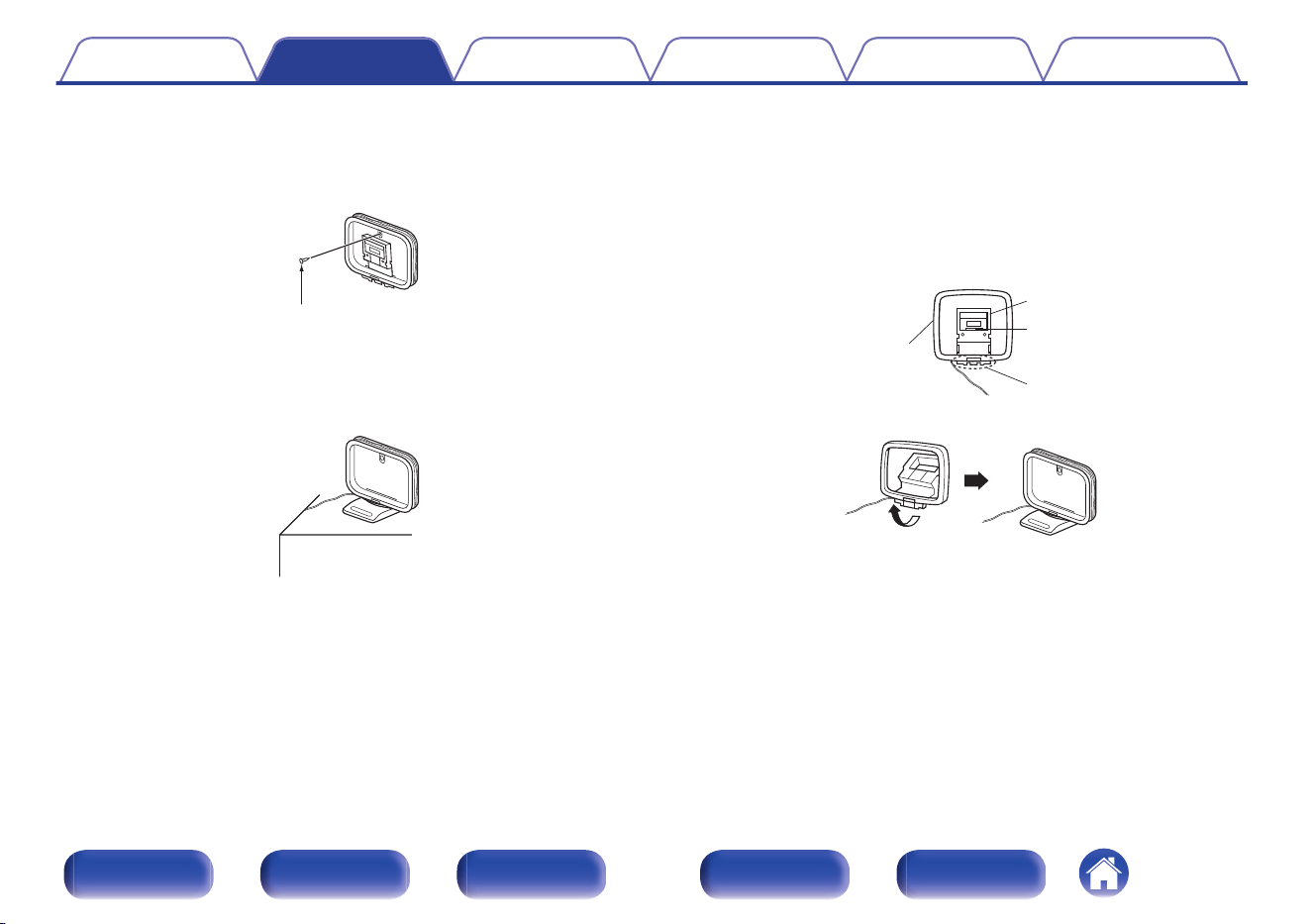
o
Using the AM loop antenna
Suspending on a wall
Suspend directly on a wall without assembling.
Nail, tack, etc.
Standing alone
Use the procedure shown above to assemble.
When assembling, refer to “AM loop antenna assembly”.
o
AM loop antenna assembly
1
Put the stand section through the bottom of the loop
antenna from the rear and bend it forward.
2
Insert the projecting part into the square hole in the
stand.
Projecting part
Square hole
Stand
Loop antenna
Contents Connections Playback Settings Tips Appendix
86
Front panel Display Rear panel Remote Index
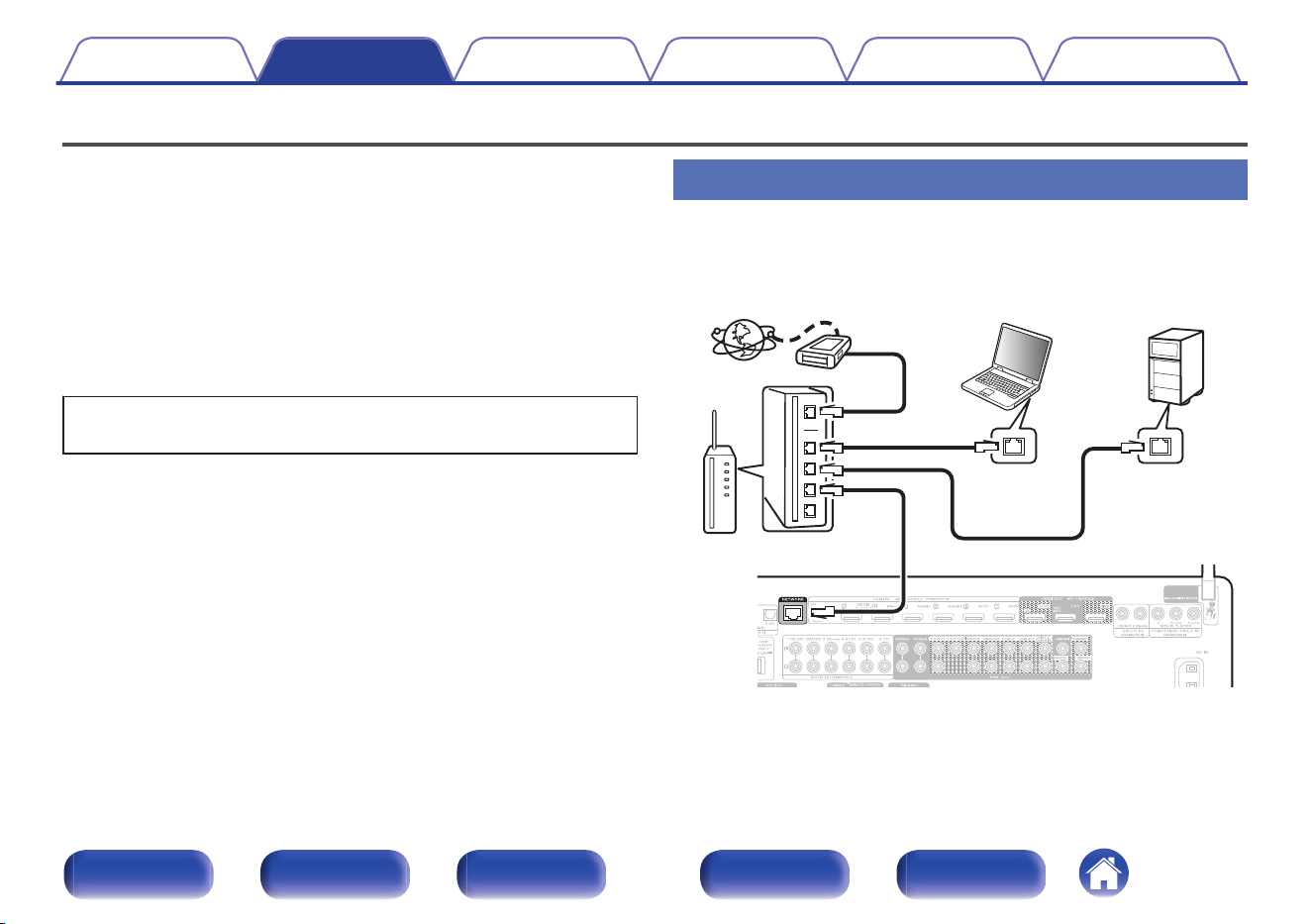
Connecting to a home network (LAN)
This unit can connect to a network using a wired LAN or wireless LAN.
You can connect this unit to your home network (LAN) to enable various
types of playback and operations as described below.
0
Playback of network audio such as Internet Radio and from your media
server(s)
0
Playback of streaming music services
0
Using the Apple AirPlay function
0
Operation on this unit via the network
0
Operation with the HEOS wireless multi-room sound system
0
Firmware Update
For connections to the Internet, contact an ISP (Internet Service
Provider) or a computer shop.
Wired LAN
To make connections via wired LAN, use a LAN cable to connect the
router to this unit as shown in the figure below.
Internet
Modem
PC
Router
To WAN side
To LAN port
To LAN port
NAS
(Network Attached
Storage)
LAN port /
Ethernet
connector
LAN port /
Ethernet
connector
Contents Connections Playback Settings Tips Appendix
87
Front panel Display Rear panel Remote Index
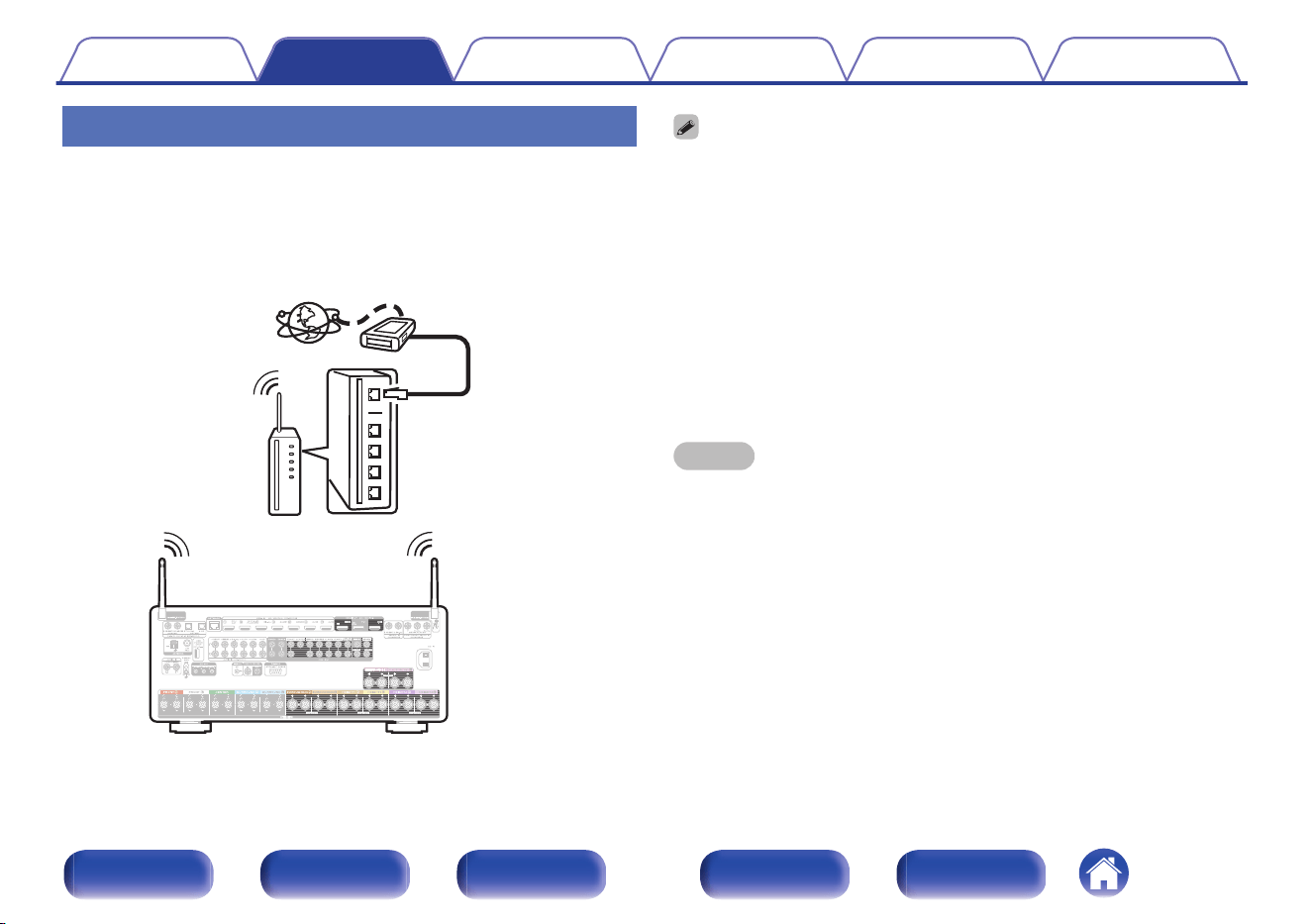
Wireless LAN
When connecting to the network via wireless LAN, connect the external
antennas for Bluetooth/wireless connectivity connection to the rear panel
and stand them upright.
See “Wi-Fi Setup” on how to connect to a wireless LAN router.
(v p. 259)
Internet
Modem
Router with access point
To WAN side
0
When using this unit, we recommend you use a router equipped with the following
functions:
0
Built-in DHCP server
This function automatically assigns IP addresses on the LAN.
0
Built-in 100BASE-TX switch
When connecting multiple devices, we recommend a switching hub with a
speed of 100 Mbps or greater.
0
Only use a shielded STP or ScTP LAN cable (readily available at electronics
stores). (CAT-5 or greater recommended)
0
The normal shielded-type LAN cable is recommended.
If a flat-type cable or unshielded-type cable is used, other devices could be
affected by noise.
0
When using this unit connected to a network with no DHCP function, configure the
IP address, etc. in “Network”. (v p. 258)
NOTE
0
The types of routers that can be used depend on the ISP. Contact your ISP or a
computer shop for details.
0
This unit is not compatible with PPPoE. A PPPoE compatible router is required if
your contracted line is not set using PPPoE.
0
Do not connect a NETWORK connector directly to the LAN port / Ethernet
connector on your computer.
0
Various online services may be discontinued without prior notice.
Contents Connections Playback Settings Tips Appendix
88
Front panel Display Rear panel Remote Index
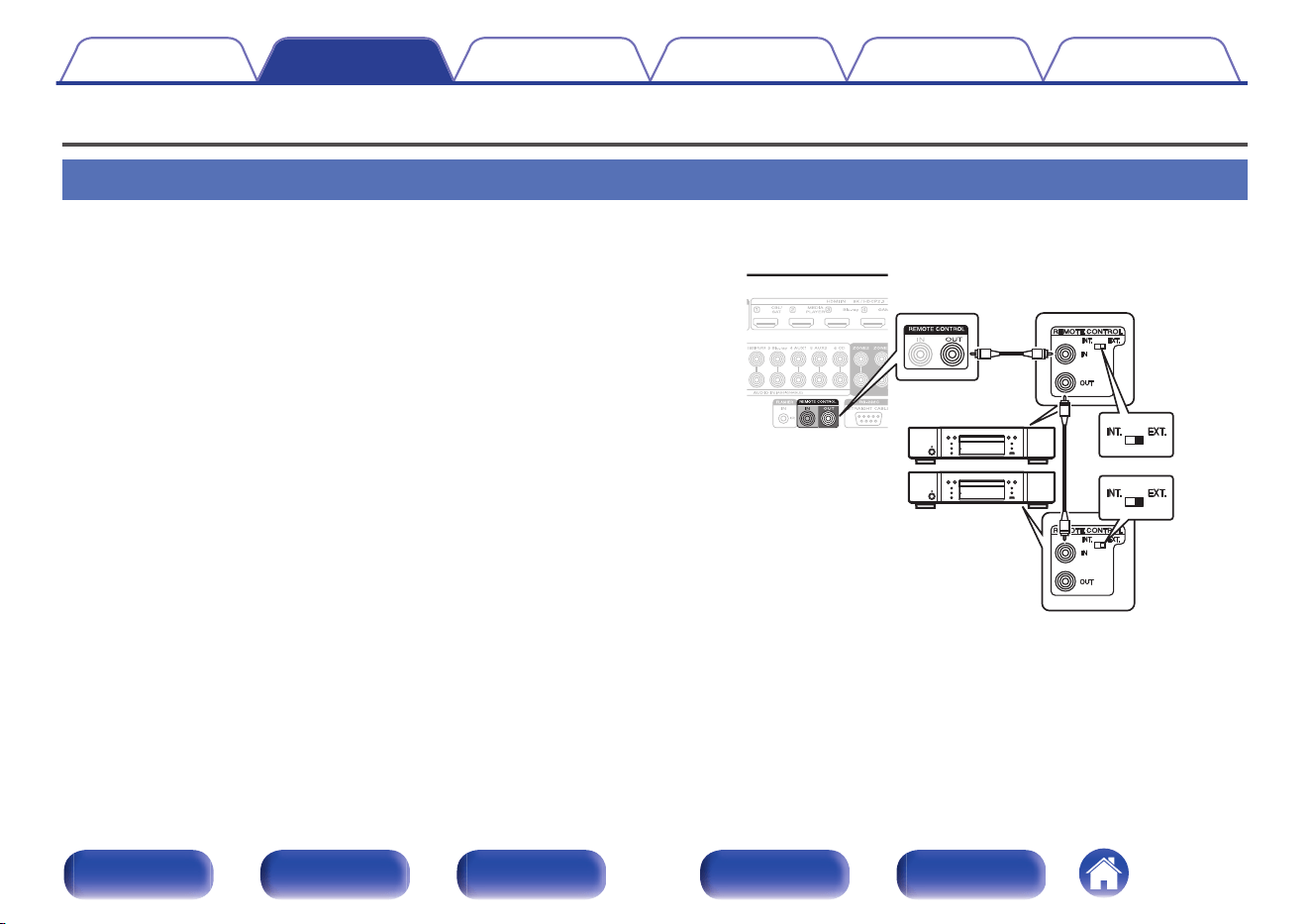
Connecting an external control device
REMOTE CONTROL jacks
If the remote control jack of this unit is connected with the remote control terminal of a Marantz device, the connected device can be controlled with the
remote as a single system.
o
When controlling a connected device from this
unit
0
Connect the REMOTE CONTROL OUT jack of this unit to the
REMOTE CONTROL IN jack of the device to be connected.
0
Point the remote control operations towards this unit. The
transmitted infrared signal from the remote control is received by the
remote control infrared receiver of this unit and is sent to the other
devices through the remote control jack.
0
If there is a remote control switch on the back of the device to be
connected with this unit, set it to “EXTERNAL” or “EXT.”.
0
If you connect the Marantz power amp (including Hi-Fi amplifier) to
any of these terminals, the power of the power amp operates in
conjunction with the power of this unit.
Contents
Connections Playback Settings Tips Appendix
89
Front panel Display Rear panel Remote Index
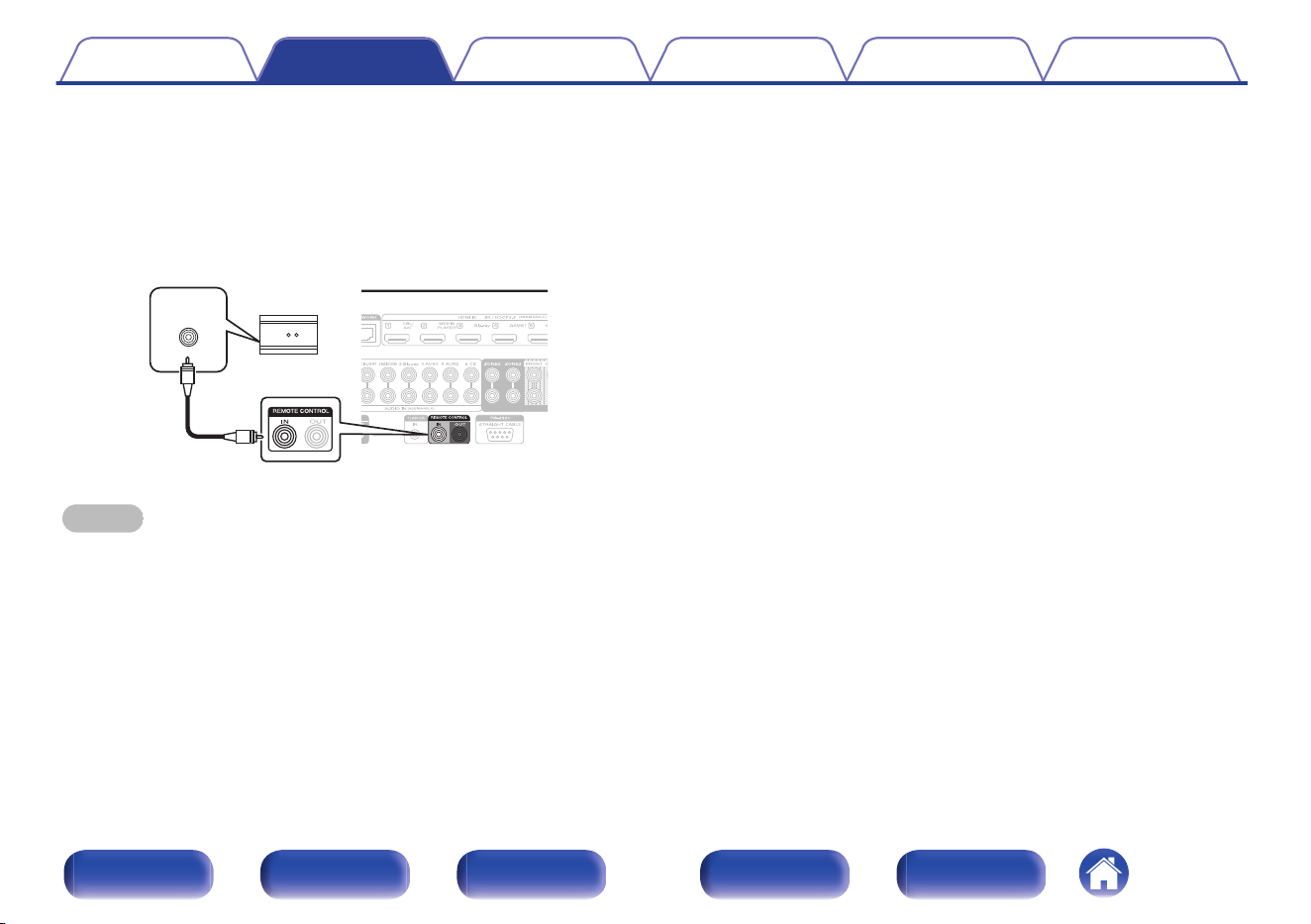
o
When controlling this unit from a connected
device
0
Connect to the REMOTE CONTROL IN jack of this unit from the
REMOTE CONTROL OUT jack of the device to be connected.
0
If you perform this operation, disable the remote sensor function of
this unit using the “Remote lock function”. (v p. 168)
RC OUT
IR receiver
NOTE
0
When the remote control signal receiving function is disabled, you can not perform
operations with the remote control unit.
Contents Connections Playback Settings Tips Appendix
90
Front panel Display Rear panel Remote Index
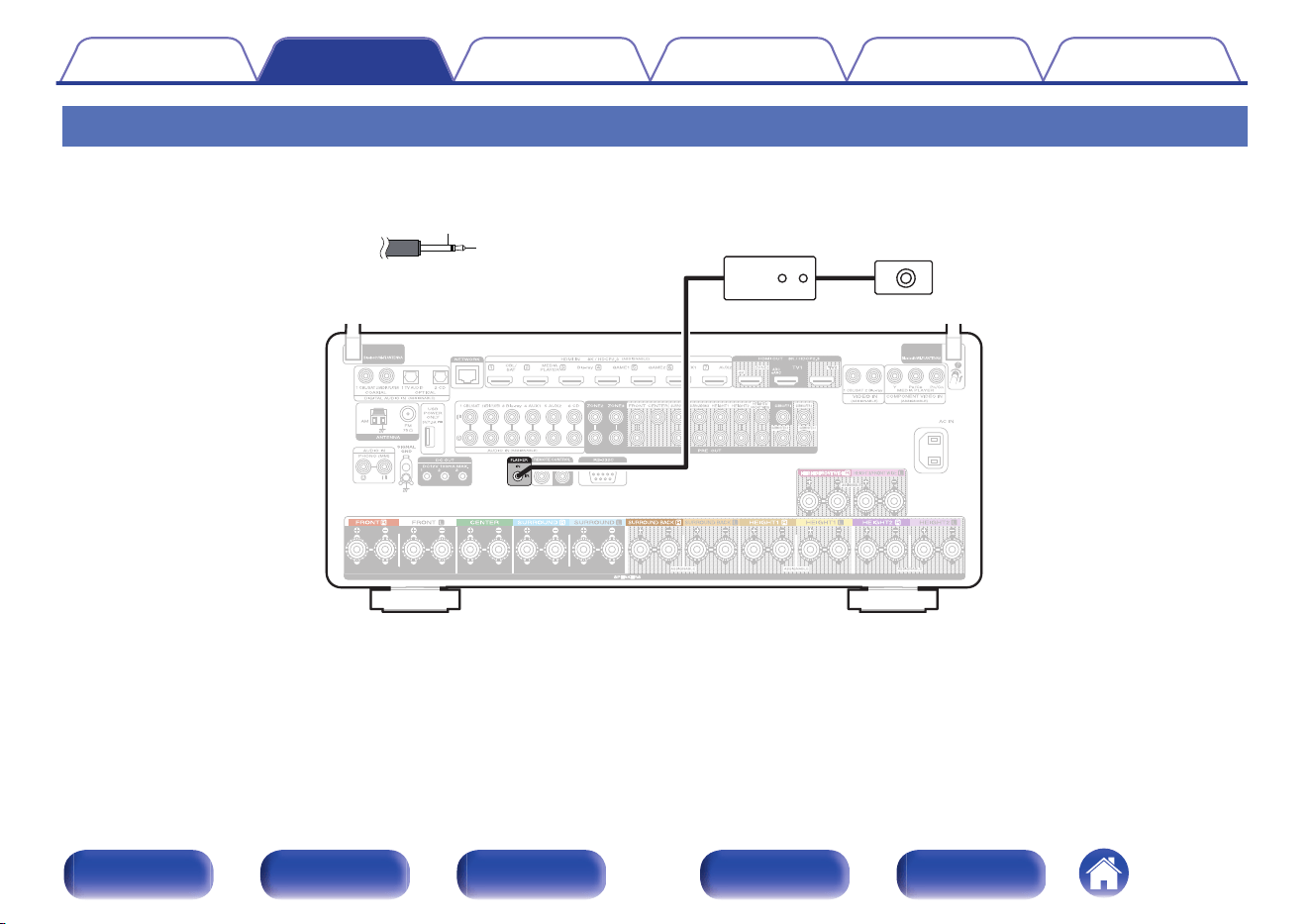
FLASHER IN jack
If a commercially available (sold separately) IR repeater is connected to the FLASHER IN jack of this unit, remote control operations can be performed
even if this unit is installed in a place where the remote control signal may not reach, such as in a cabinet.
GND
Signal
Monaural mini-plug cable
(Sold separately)
IR repeater IR receiver
Contents Connections Playback Settings Tips Appendix
91
Front panel Display Rear panel Remote Index
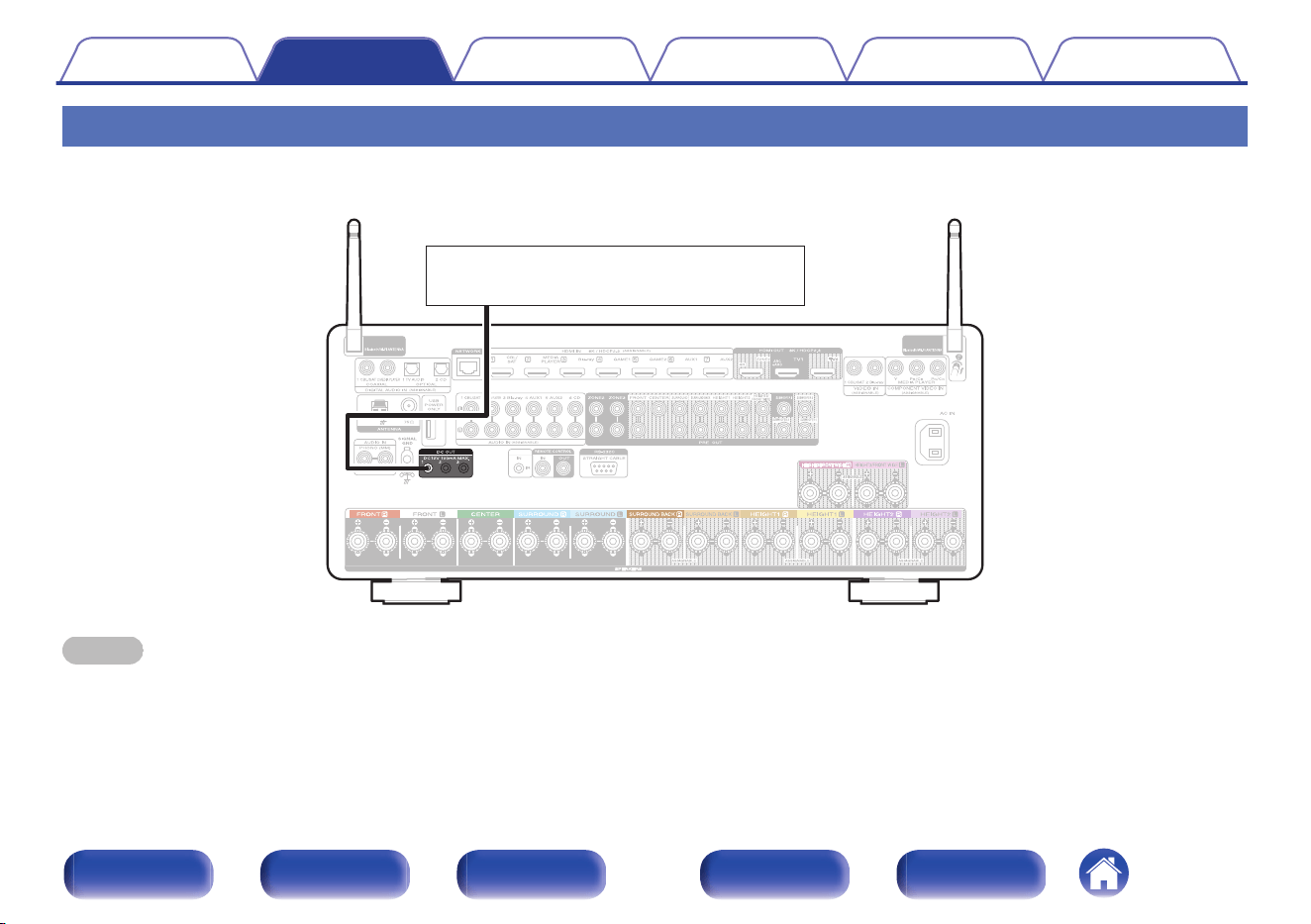
DC OUT jacks
When a device with DC IN jack is connected, the connected device’s power on/standby can be controlled through linked operation to this unit.
A digital signal of a maximum of 12V DC/100mA (total 300mA) per jack will be output from the DC OUT jack.
12 V DC/100 mA trigger-compatible device
NOTE
0
If the permissible trigger input level for the connected device is larger than 12 V DC/100 mA, or has shorted, the DC OUT jack cannot be used. In this case, turn off the power
to the unit, and disconnect it.
Contents Connections Playback Settings Tips Appendix
92
Front panel Display Rear panel Remote Index
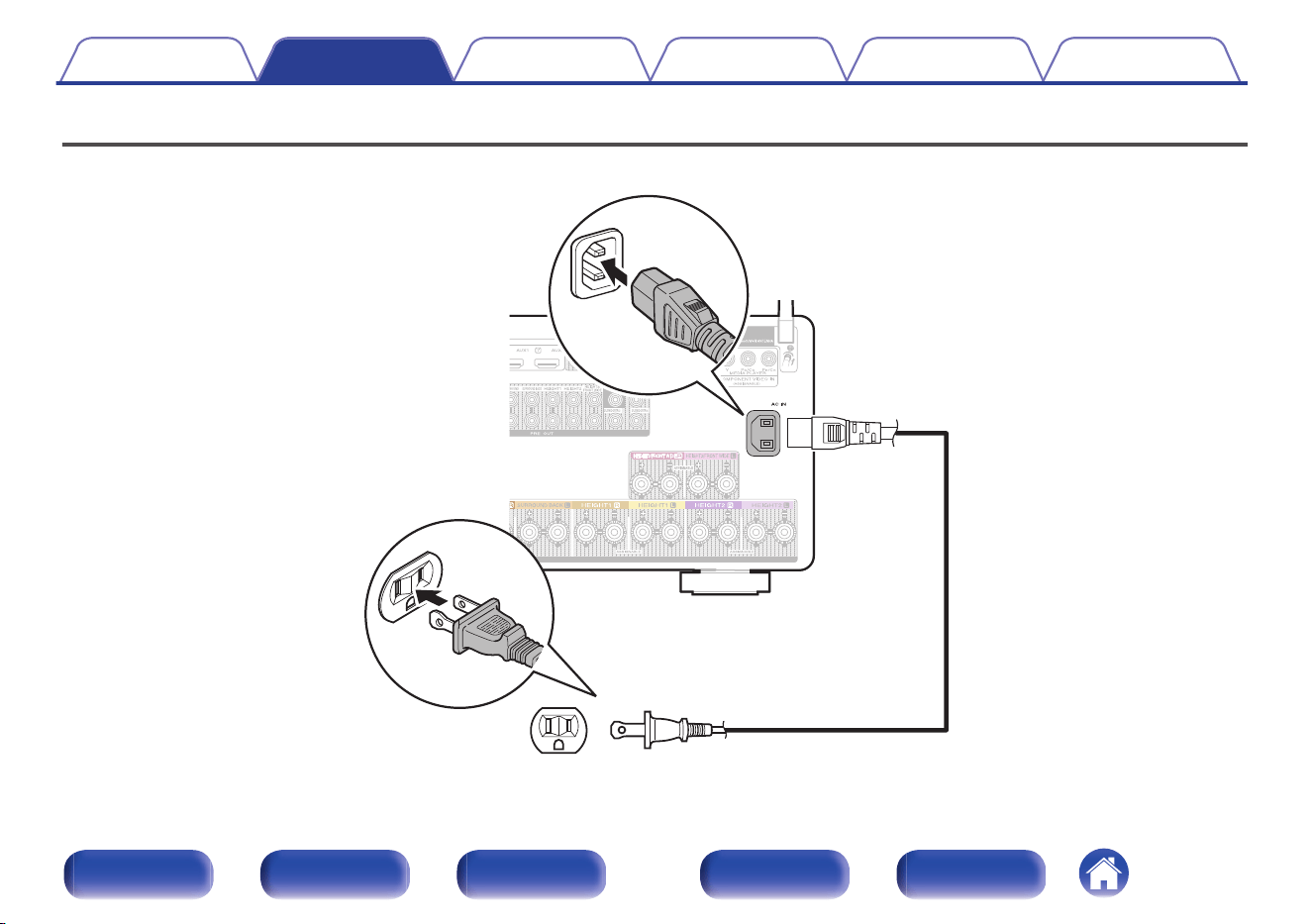
o
Contents
Basic operation
Turning the power on 95
Selecting the input source 95
Adjusting the volume 96
Turning off the sound temporarily (Muting) 96
Selecting a sound mode 145
Playback a device
Playing a Blu-ray Disc player/DVD player 96
Playing a USB memory device 97
Listening to music on a Bluetooth device 100
Listening to audio on Bluetooth headphones 104
Listening to FM/AM broadcasts 108
Playback network audio/service
Listening to Internet Radio 116
Playing back files stored on a PC or NAS 118
Getting the HEOS App 122
AirPlay function 131
Spotify Connect function 134
Convenience functions
Convenience functions 135
HDMI Control function 159
Sleep timer function 160
Smart select function 162
Panel lock function 166
Remote lock function 168
Other functions
Web control function 169
Playback in ZONE2/ZONE3 (Another room) 172
Contents Connections Playback Settings Tips Appendix
94
Front panel Display Rear panel Remote Index
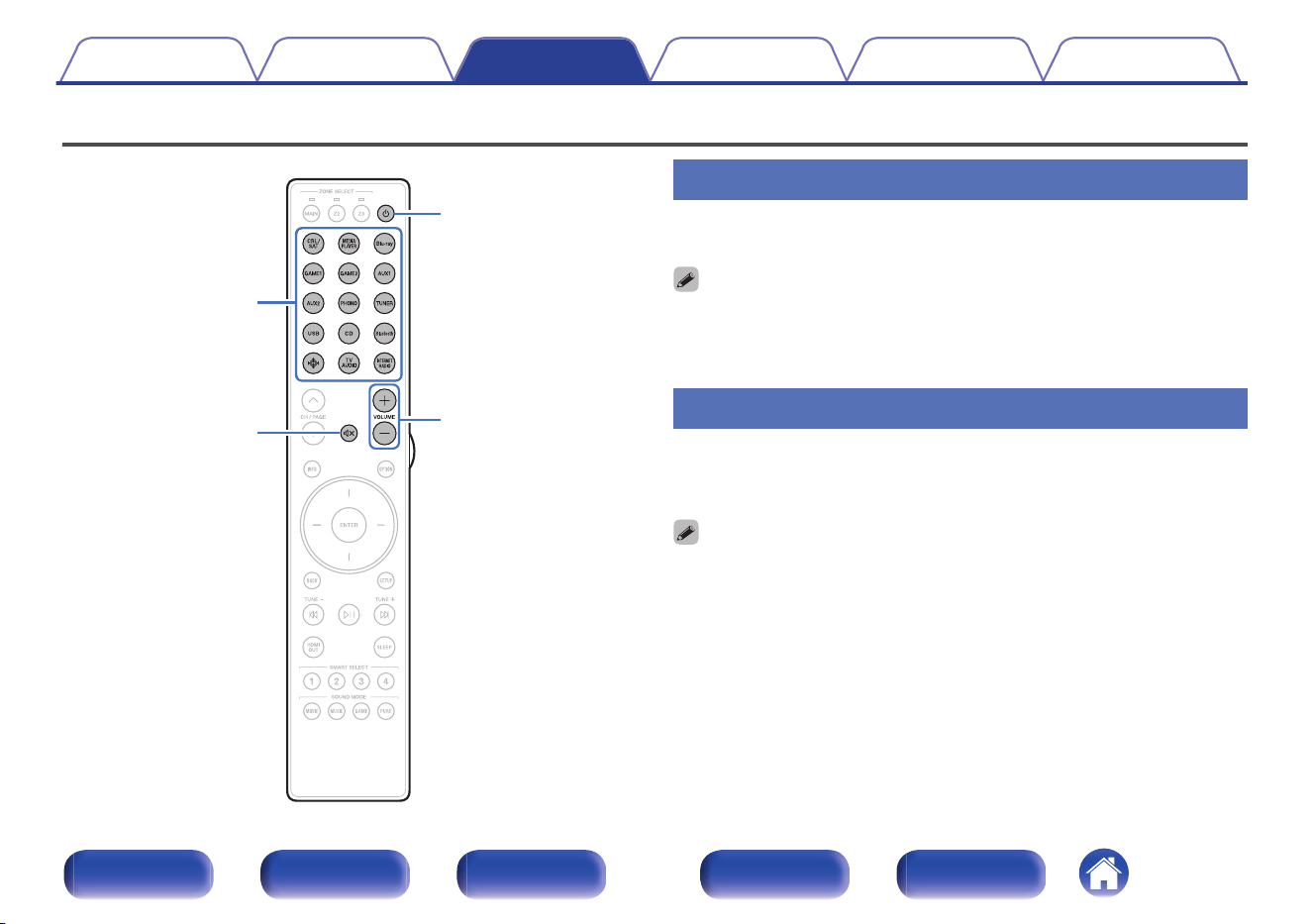
Basic operation
VOLUME
no
no
X
:
Input source
select buttons
Turning the power on
1
Press POWER X to turn on power to the unit.
0
You can press the input source select button when the unit is in standby mode to
turn on the power.
0
You can also switch the power to standby by pressing X on the main unit.
Selecting the input source
1
Press the input source select button to be played back.
The desired input source can be selected directly.
0
You can also select the input source by turning INPUT selector on the main unit.
Contents Connections Playback Settings Tips Appendix
95
Front panel Display Rear panel Remote Index
Adjusting the volume
1
Use VOLUME no to adjust the volume.
0
The variable range differs according to the input signal and channel level setting.
0
You can also adjust the master volume by turning VOLUME on the main unit.
Turning off the sound temporarily
(Muting)
1
Press MUTE :.
0
“MUTE” appears on the display.
0
h appears on the TV screen.
0
The sound is reduced to the level set at “Mute Level” in the menu. (v p. 198)
0
To cancel mute, either adjust the sound volume or press MUTE : again.
0
If h is displayed on the TV screen for more than 5 minutes when the “Screen
Saver” is set to “On”, the h symbol moves randomly over the TV screen.
(v p. 212)
Playback a Blu-ray Disc player/DVD
player
The following describes the procedure for playing Blu-ray Disc player/DVD
player.
1
Prepare for playback.
A
Turn on the power of the TV, subwoofer and player.
B
Change the TV input to the input of this unit.
2
Press POWER X to turn on power to the unit.
3
Press Blu-ray or DVD to switch an input source for a
player used for playback.
4
Play the Blu-ray Disc player or DVD player.
o
Surround playback (v p. 145)
Contents Connections Playback Settings Tips Appendix
96
Front panel Display Rear panel Remote Index
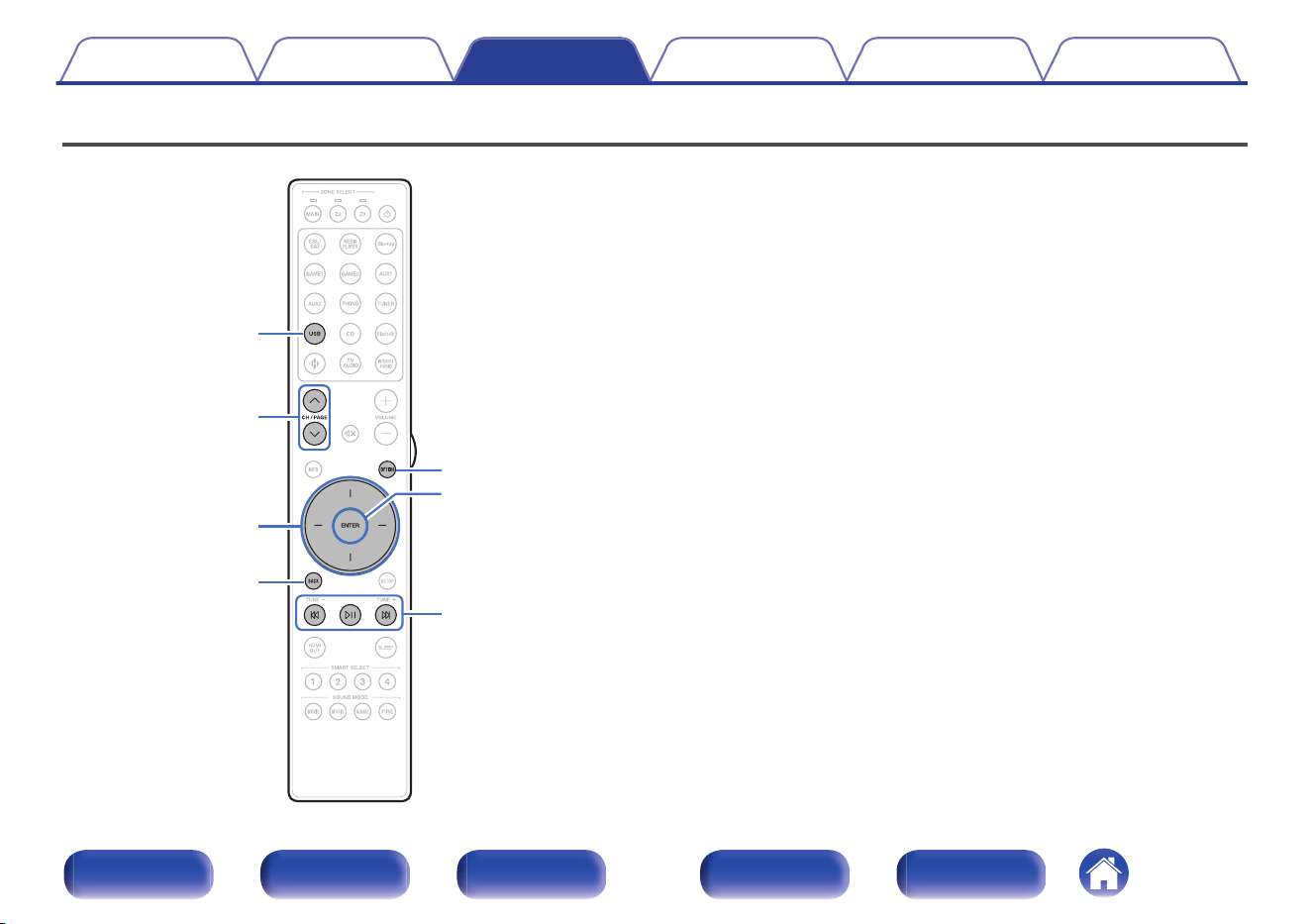
Playing a USB memory device
OPTION
ENTER
BACK
USB
CH/PAGE
ml
p
k j
Cursor Up/Down/
Left/Right
0
Playing back music files stored on a USB memory device.
0
Only USB memory devices conforming to mass storage class standards
can be played on this unit.
0
This unit is compatible with USB memory devices in “FAT32” or “NTFS”
format.
0
The audio format types and specifications supported by this unit for
playback are as follows.
See “Playing back a USB memory devices” (v p. 321) for details.
0
WMA
0
MP3
0
WAV
0
MPEG-4 AAC
0
FLAC
0
Apple Lossless
0
DSD
Contents
Connections Playback Settings Tips Appendix
97
Front panel Display Rear panel Remote Index
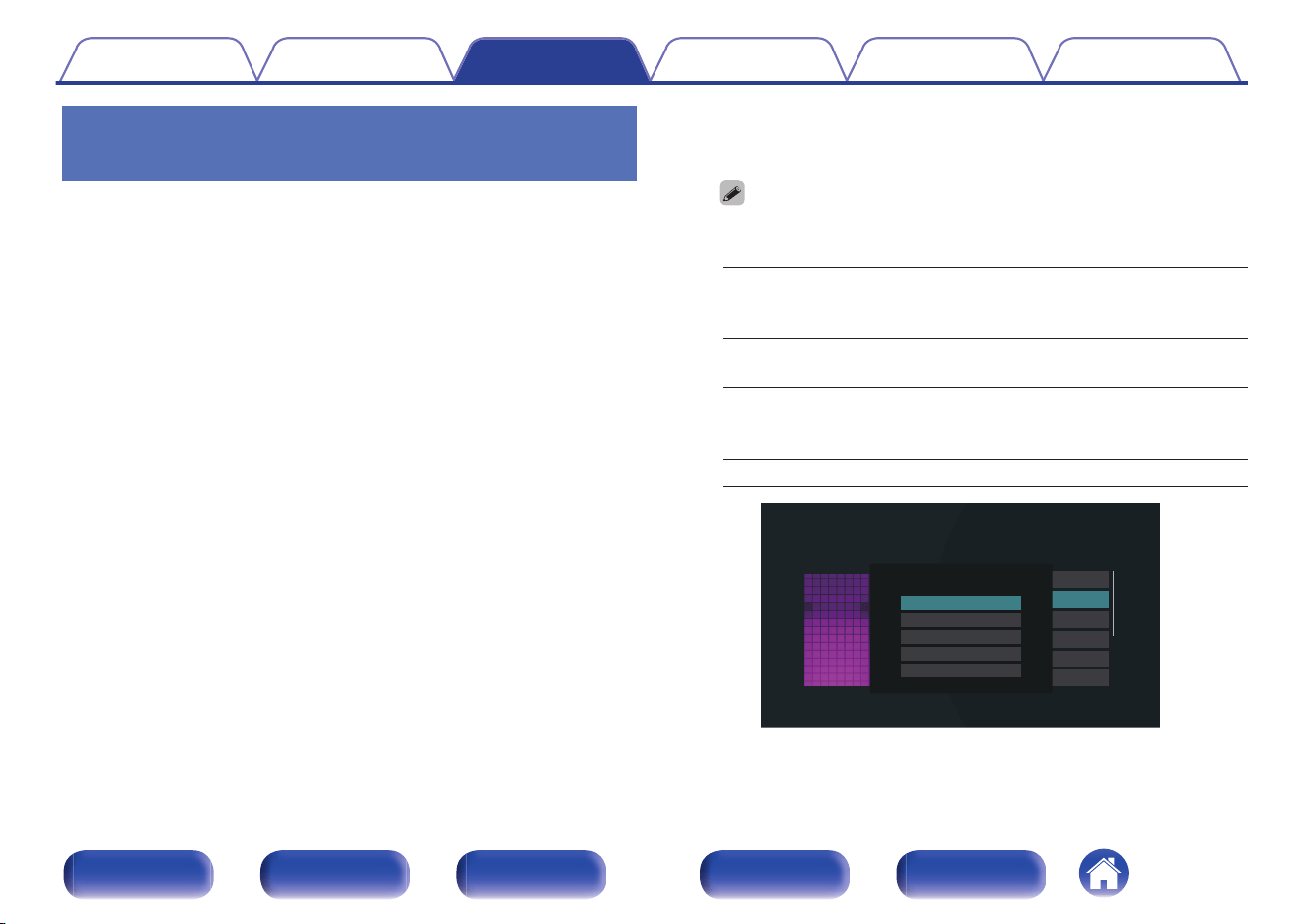
Playing files stored on USB memory
devices
1
Insert a “FAT32” or “NTFS” formatted USB memory
device into the USB port.
2
Press USB to switch the input source to “USB”.
3
Select the name of this unit.
4
Browse the music on your USB memory device and
select something to play.
0
When you select something to play you will be asked how you want to
queue up your music.
Play Now:
Inserts the item into the queue after the
currently playing track and plays the
selected item immediately.
Play Now & Replace
Queue:
Clears the queue and plays the
selected item immediately.
Play Next:
Inserts the item into the queue after the
current song and plays it when the
current song ends.
Add to End of Queue: Adds the item to the end of the queue.
Nature 01
USB Music - Nature
Play Now
Play Now & Replace Queue
Play Next
Add to End of Queue
Cancel
Contents Connections Playback Settings Tips Appendix
98
Front panel Display Rear panel Remote Index
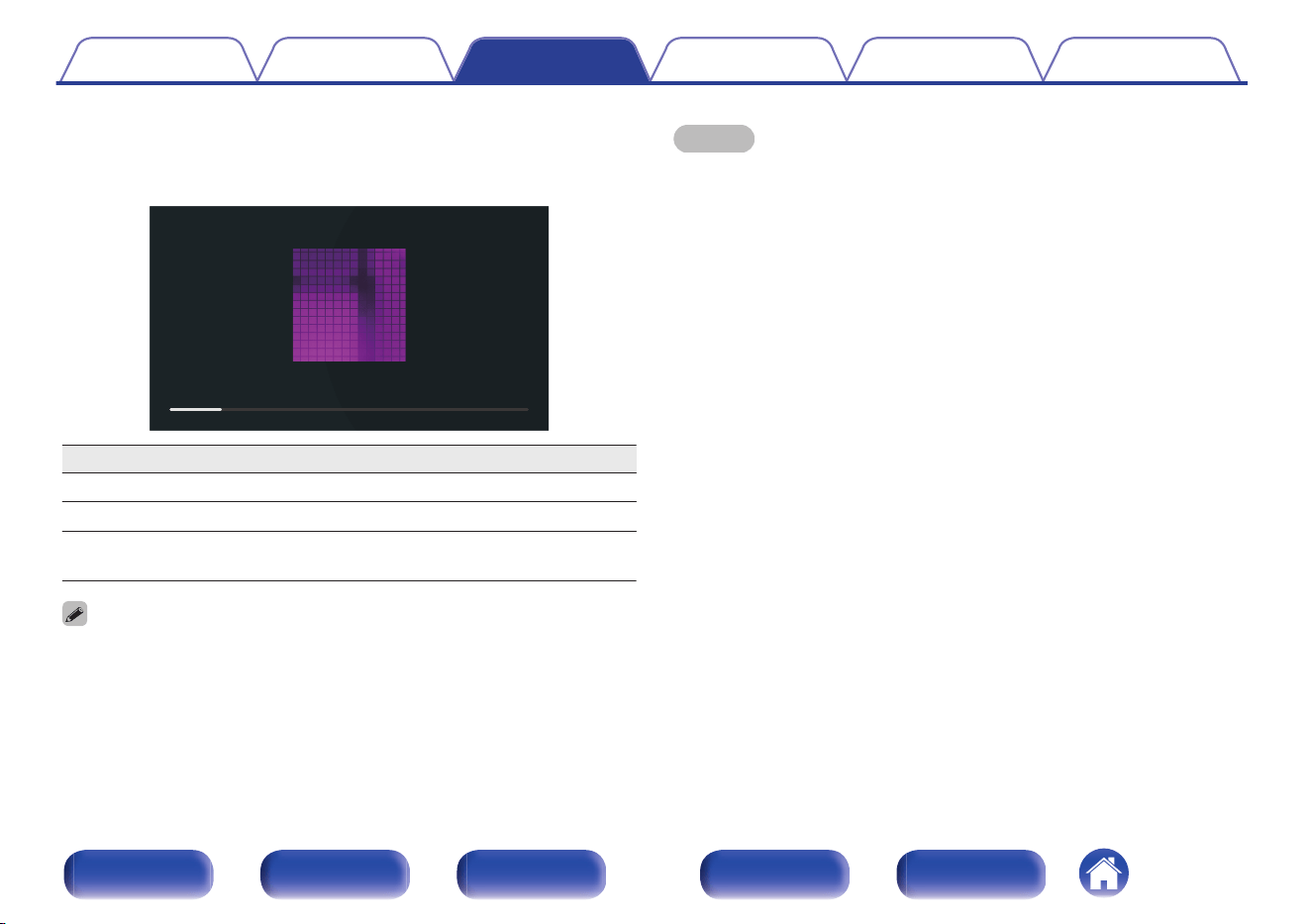
5
Use cursor Up/Down to select the “Play Now” or “Play
Now & Replace Queue”, then press ENTER.
Playback starts.
2:45
-14:21
Nature
Nature 01
-
Various Artists
Now Playing
Operation buttons Function
p
Playback / Pause
k j
Skip to previous track / Skip to next track
CH/PAGE ml
Switch to the previous page/next page in
the list display
0
When an MP3 music file includes album art data, the album art can be displayed
while playing the file.
NOTE
0
Note that Marantz will accept no responsibility whatsoever for any problems
arising with the data on a USB memory device when using this unit in conjunction
with the USB memory device.
0
When a USB memory device is connected to this unit, the unit loads all of the files
on the USB memory device. Loading may take a while if the USB memory device
contains a large number of folders and/or files.
o
Operations accessible through the option
menu
0
“Adjusting the audibility of dialog and vocals (Dialog
Enhancer)” (v p. 137)
0
“Adjusting the volume of each channel to match the input source
(Channel Level Adjust)” (v p. 138)
0
“Adjusting the tone (Tone)” (v p. 139)
0
“Adjusting audio delay (Audio Delay)” (v p. 140)
0
“Changing the strength of Tactile Transducer according to the input
source (Tactile Transducer)” (v p. 141)
0
“Displaying your desired video during audio playback (Video
Select)” (v p. 142)
0
“Playing the same music in all zones (All Zone Stereo)” (v p. 143)
0
“Changing the speaker settings to match the listening environment
(Speaker Preset)” (v p. 144)
0
Changing the “Dirac Live Filter”
https://manuals.marantz.com/DiracLive/ALL/EN/DRDZSYktvnhzad.php
Contents
Connections Playback Settings Tips Appendix
99
Front panel Display Rear panel Remote Index
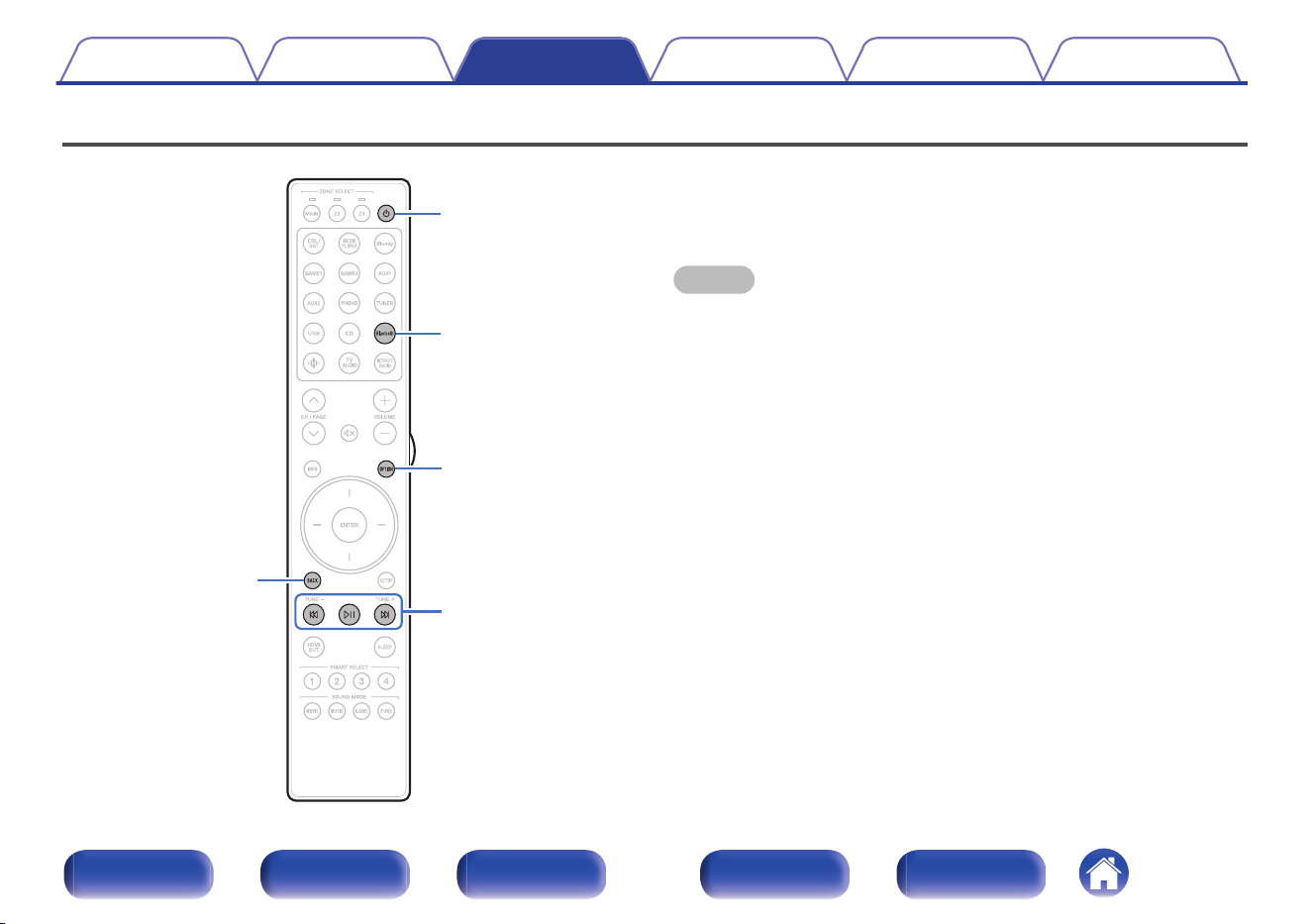
Listening to music on a Bluetooth device
Bluetooth
X
BACK
p
k j
OPTION
Music files stored on Bluetooth devices such as smartphones, digital
music players, etc. can be enjoyed on this unit by pairing and connecting
this unit with the Bluetooth device.
Communication is possible up to a range of about 98.4 ft/30 m.
NOTE
0
To play back music from a Bluetooth device, the Bluetooth device needs to
support the A2DP profile.
Contents Connections Playback Settings Tips Appendix
100
Front panel Display Rear panel Remote Index
Playing music from Bluetooth device
In order to enjoy music from a Bluetooth device on this unit, the Bluetooth
device must first be paired with this unit.
Once the Bluetooth device has been paired, it does not need to be paired
again.
1
Prepare for playback.
A
Connect the supplied external antennas for Bluetooth/wireless
connectivity to the Bluetooth/wireless LAN antenna connectors
on the rear panel. (v p. 30)
B
Press POWER X to turn on power to the unit.
2
Press Bluetooth.
When using for the first time, the unit will go into the pairing mode
automatically and “Pairing...” will appear on the display of the unit.
3
Activate the Bluetooth settings on your mobile device.
4
Select this unit when its name appears in the list of
devices displayed on the screen of the Bluetooth
device.
Connect to the Bluetooth device while “Pairing” is being displayed
on the display of the unit.
Perform the connection with the Bluetooth device close to the unit
(about 3.3 ft/1 m).
5
Play music using any app on your Bluetooth device.
0
The Bluetooth device can also be operated with the remote
control of this unit.
0
The next time the Bluetooth button is pressed on the remote
control unit, this unit automatically connects to the last Bluetooth
device that was connected.
Operation buttons
Function
p
Playback / Pause
k j
Skip to previous track / Skip to next track
0
Press STATUS on this unit during playback to switch the display between Title
name, Artist name, Album name, etc.
Contents Connections Playback Settings Tips Appendix
101
Front panel Display Rear panel Remote Index
Pairing with other Bluetooth devices
Pair a Bluetooth device with this unit.
1
Activate the Bluetooth settings on your mobile device.
2
Press and hold Bluetooth on the remote control unit for
at least 3 seconds.
This unit will go into the pairing mode.
3
Select this unit when its name appears in the list of
devices displayed on the screen of the Bluetooth
device.
0
This unit can be paired with a maximum of 8 Bluetooth devices. When a 9th
Bluetooth device is paired, it will be registered in place of the oldest registered
device.
0
You can also enter pairing mode by pressing the OPTION button when the
Bluetooth playback screen is displayed and selecting “Pairing Mode” from the
displayed option menu.
NOTE
0
To operate the Bluetooth device with the remote control of this unit, the Bluetooth
device needs to support the AVRCP profile.
0
The remote control of this unit is not guaranteed to work with all Bluetooth devices.
0
Depending on the type of Bluetooth device, this unit outputs audio that is coupled
to the volume setting on the Bluetooth device.
o
Operations accessible through the option
menu
0
“Pairing with other Bluetooth devices” (v p. 102)
0
“Adjusting the audibility of dialog and vocals (Dialog
Enhancer)” (v p. 137)
0
“Adjusting the volume of each channel to match the input source
(Channel Level Adjust)” (v p. 138)
0
“Adjusting the tone (Tone)” (v p. 139)
0
“Adjusting audio delay (Audio Delay)” (v p. 140)
0
“Changing the strength of Tactile Transducer according to the input
source (Tactile Transducer)” (v p. 141)
0
“Displaying your desired video during audio playback (Video
Select)” (v p. 142)
0
“Playing the same music in all zones (All Zone Stereo)” (v p. 143)
0
“Changing the speaker settings to match the listening environment
(Speaker Preset)” (v p. 144)
0
Changing the “Dirac Live Filter”
https://manuals.marantz.com/DiracLive/ALL/EN/DRDZSYktvnhzad.php
Contents
Connections Playback Settings Tips Appendix
102
Front panel Display Rear panel Remote Index
Reconnecting to this unit from a
Bluetooth device
After pairing is completed, the Bluetooth device can be connected without
performing any operations on this unit.
This operation also needs to be performed when switching the Bluetooth
device for playback.
1
If a Bluetooth device is currently connected, deactivate
the Bluetooth setting of that device to disconnect it.
2
Activate the Bluetooth setting of the Bluetooth device
to be connected.
3
Select this unit from the Bluetooth device list on your
Bluetooth device.
4
Play music using any app on your Bluetooth device.
0
The screen automatically switches to the “Bluetooth” playback screen if a
Bluetooth device is connected while the power of this unit is on.
0
When the “Network Control” setting of this unit is set to “Always On” and a
Bluetooth device is connected with the unit in the standby state, the power of the
unit will be turned on automatically. (v p. 262)
Contents
Connections Playback Settings Tips Appendix
103
Front panel Display Rear panel Remote Index
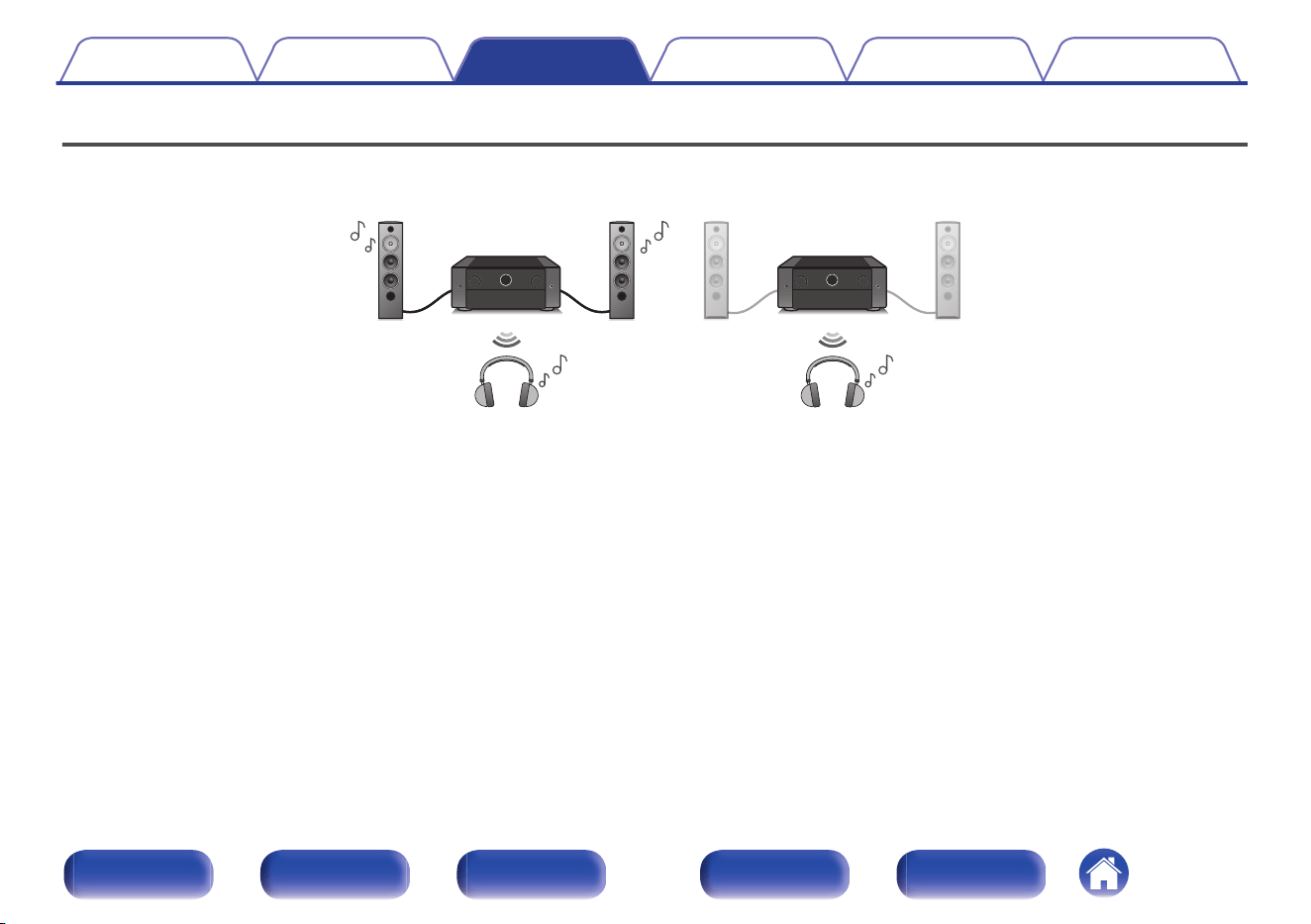
Listening to audio on Bluetooth headphones
You can listen to audio playing through the MAIN ZONE of this unit on Bluetooth headphones.
Output audio from connected speakers and Bluetooth headphones simultaneously, or only using Bluetooth headphones.
(Output Mode: Bluetooth + Speakers) (Output Mode: Bluetooth Only)
Contents Connections Playback Settings Tips Appendix
104
Front panel Display Rear panel Remote Index
Listening to audio on Bluetooth
headphones
1
Set “Transmitter” to “On” from the “General” -
“Bluetooth Transmitter” setting in the menu.
(v p. 272)
2
Select “Output Mode”, and set audio output method.
Bluetooth + Speakers
(Default):
Audio is output to Bluetooth
headphones and main zone speakers.
This simultaneous output is suitable for
family movie night and other group
activities.
Bluetooth Only:
Audio is output to Bluetooth
headphones only.
This is suitable for listening to music or
watching movies by yourself at night
when you need to keep quiet.
3
Enter pairing mode on the Bluetooth headphones you
want to connect to this unit.
4
Select “Device List” and select the name of the
Bluetooth headphones from the device list.
5
Adjust the volume of connected Bluetooth headphones
after the connection is completed.
0
“Output Mode” can also be set from “Bluetooth Transmitter” in the option menu.
0
A2DP profile-compatible Bluetooth speakers can be connected following the same
steps used to connect Bluetooth headphones.
NOTE
0
The volume of Bluetooth headphones cannot be adjusted through this unit’s
MASTER VOLUME or the VOLUME on the remote control unit. Adjust the volume
through the Bluetooth headphones.
0
If you are using Bluetooth headphones that do not have volume control, or if the
volume is insufficient, you can control the volume by adjusting the “Level” of the
“Bluetooth Transmitter” from the options menu. (v p. 106)
0
Stereo mode is fixed as the sound mode when using Bluetooth headphones. Any
sound modes and other audio settings are not reflected in audio output on
Bluetooth headphones.
Audio settings, sound modes and All Zone Stereo mode are not available while
using Bluetooth headphones and “Output Mode” is set to “Bluetooth Only”.
0
Audio may be delayed when sent over Bluetooth.
0
AirPlay and Roon Ready audio cannot be transmitted.
0
Bluetooth headphones cannot be connected when use a Bluetooth input source in
any zone.
Furthermore, selecting a Bluetooth input source in any zone will terminate the
connection between this unit and Bluetooth headphones.
0
Bluetooth headphones cannot be connected when this unit is grouped in the
HEOS App.
Contents
Connections Playback Settings Tips Appendix
105
Front panel Display Rear panel Remote Index
Adjusting the volume of Bluetooth
headphones
If you are using Bluetooth headphones that do not have volume control, or
if the volume is insufficient, you can control the volume by adjusting the
“Level” of the “Bluetooth Transmitter” from the options menu.
1
Press OPTION.
An option menu screen is displayed.
0
When the input source is “HEOS Music”, an option menu for
online music is displayed. Select “AVR Options…”, then press
ENTER.
2
Use cursor Up/Down to select “Bluetooth Transmitter”,
then press ENTER.
The “Bluetooth Transmitter” screen is displayed.
3
Use cursor Up/Down to select “Level”.
4
Use cursor Left/Right to adjust the volume, then press
ENTER.
–50 dB – +10 dB (Default: 0 dB)
0
This setting applies to all connected Bluetooth headphones, regardless of type.
Reconnecting to a Bluetooth
headphones
Follow any of the steps below to reconnect the most recently used
Bluetooth headphones:
0
Reconnect to this unit with Bluetooth headphone's reconnect function.
0
Go to “Bluetooth Transmitter” and then select “Reconnect” within the
options menu.
0
If “Output Mode” is set to “Bluetooth + Speakers”, this unit will
automatically connect to the most recently used Bluetooth headphones
when power is turned on.
0
Select the device you wish to connect from the “Device List” under
“Bluetooth Transmitter” in the menu. (v p. 272)
Contents Connections Playback Settings Tips Appendix
106
Front panel Display Rear panel Remote Index
Disconnecting Bluetooth headphones
Complete any of the following steps to disconnect your Bluetooth
headphones:
0
Turn off your Bluetooth headphones.
0
Go to “Bluetooth Transmitter” and then select “Disconnect” within the
options menu.
0
In the setup menu, go to “General” - “Bluetooth Transmitter”, and set
“Transmitter” to Off. (v p. 272)
Contents Connections Playback Settings Tips Appendix
107
Front panel Display Rear panel Remote Index
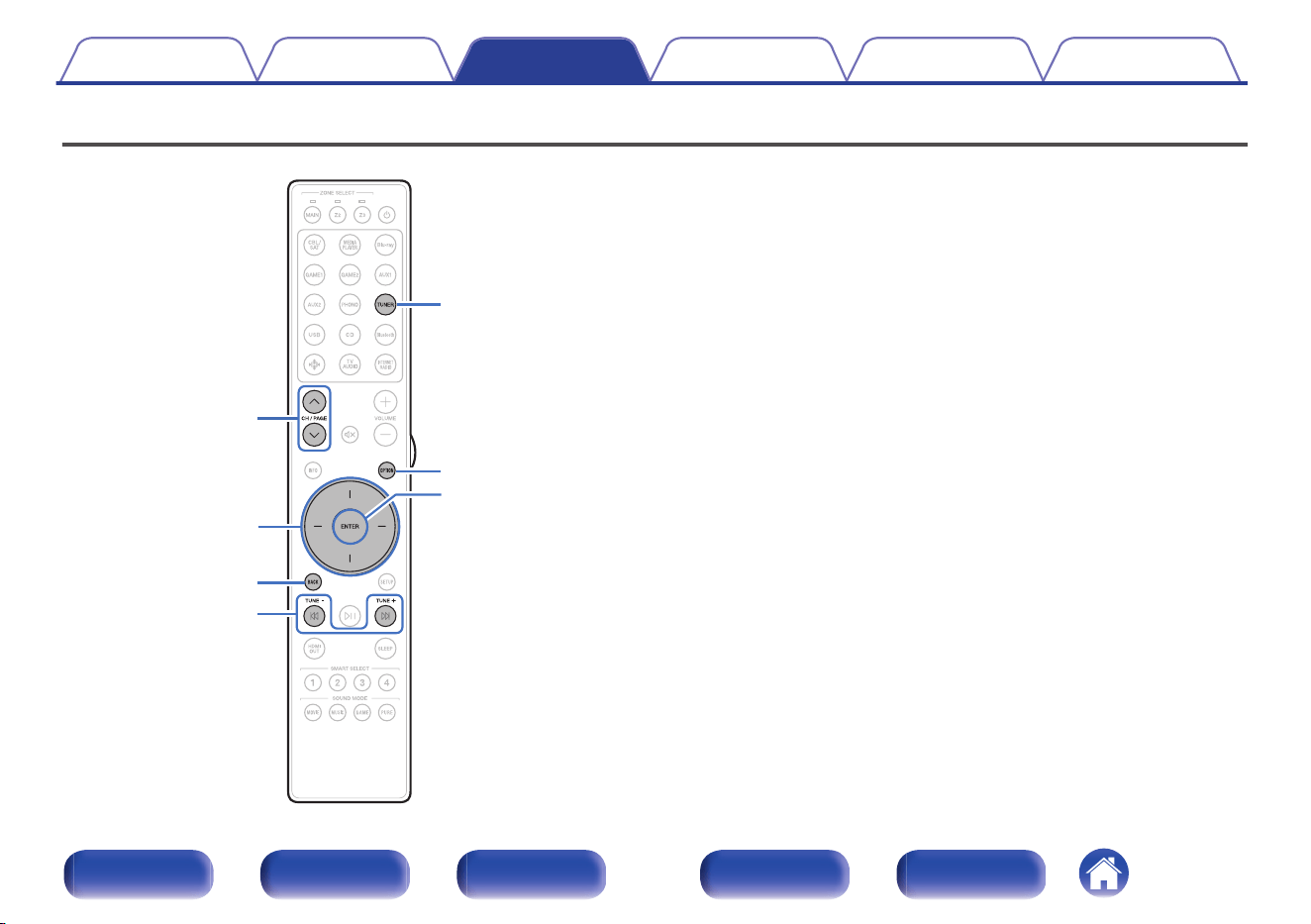
Listening to FM/AM broadcasts
TUNE +, –
OPTION
TUNER
CH/PAGE
ml
BACK
ENTER
Cursor Up/Down/
Left/Right
You can use the built-in tuner of this unit to listen to FM broadcasts and
AM broadcasts.
Make sure the FM antenna and AM loop antenna are connected to this
unit first.
Contents Connections Playback Settings Tips Appendix
108
Front panel Display Rear panel Remote Index
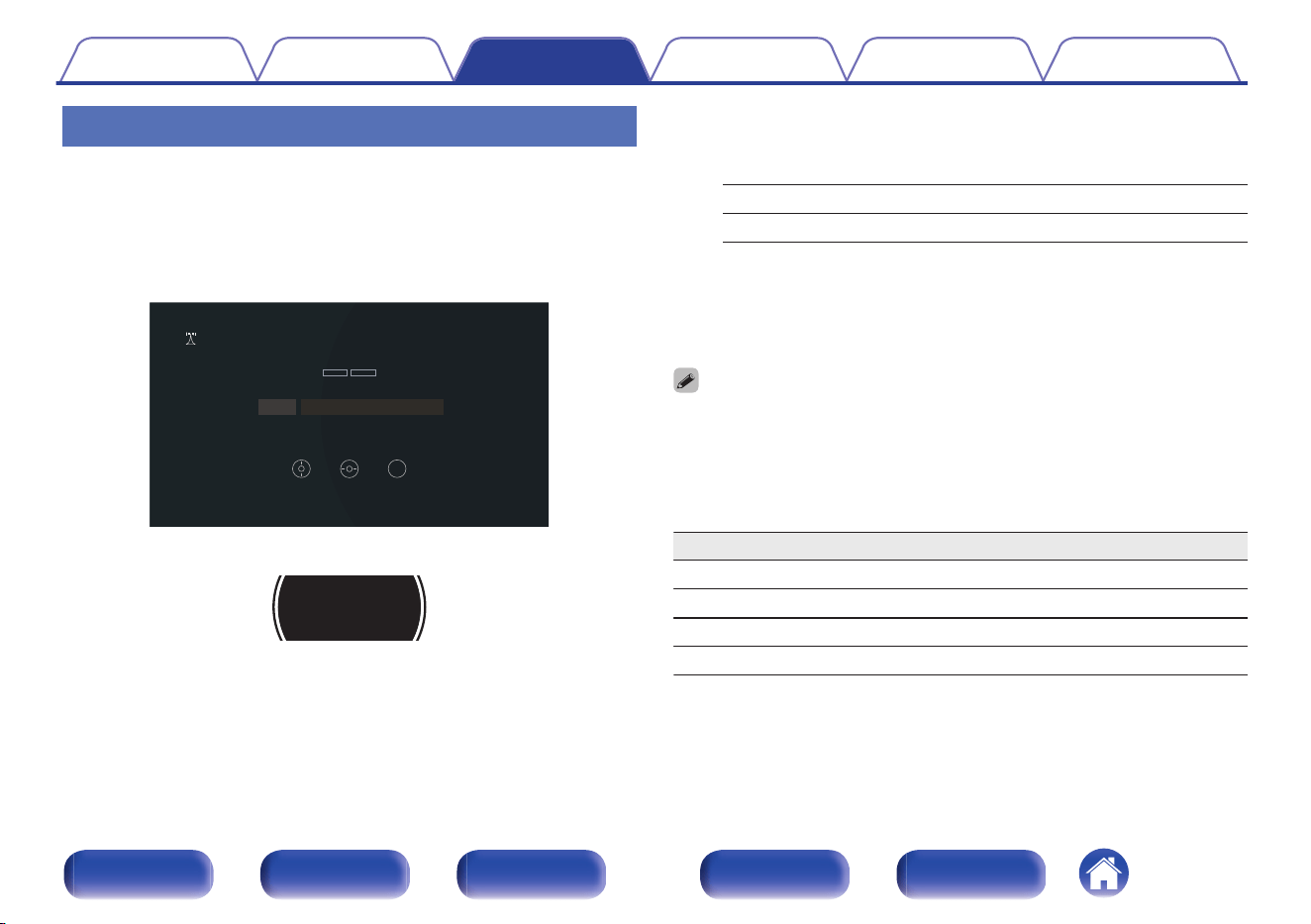
Listening to FM/AM broadcasts
1
Connect the antenna. (“Connecting FM/AM
antennas” (v p. 85))
2
Press TUNER to switch the input source to “Tuner”.
G TV screen H
OPTION
STEREO AUTO
CH 1
FM 92.10 MHz
Tuner
Tun e Pr es e t
Option
Now Playing
G Display of this unit H
01 FM
92 . 10MHz
3
Press OPTION.
The option menu screen is displayed.
4
Use cursor Up/Down to select “FM/AM”, then press
ENTER.
This displays the reception band input screen.
5
Use cursor Left/Right to select “FM” or “AM”, then
press ENTER.
FM: When listening to an FM broadcast.
AM: When listening to an AM broadcast.
6
Press TUNE + or TUNE – to select the station you want
listen to.
Scanning is performed until it finds an available radio station. When
it finds a radio station, it stops the scan automatically and tunes in.
0
The modes for receiving FM broadcasts consists of “Auto” mode that automatically
searches available broadcast stations and “Manual” mode that lets you tune in
using buttons to change the frequency. The default setting is “Auto”. You can also
use “Direct Tune” to tune in by entering the frequency directly.
In “Auto” mode, you cannot tune in to radio stations if the reception is not good.
If this is the case, then use the “Manual” mode or “Direct Tune” mode to tune in.
Operation buttons Function
TUNE +, – Selects the radio station (up/down)
CH/PAGE ml
Selects preset radio stations
Cursor Up/Down Selects the radio station (up/down)
Cursor Left/Right Selects preset radio stations
Contents Connections Playback Settings Tips Appendix
109
Front panel Display Rear panel Remote Index
o
Operations accessible through the option
menu
0
“Tuning in by entering the frequency (Direct Tune)” (v p. 110)
0
“Changing the tune mode (Tune Mode)” (v p. 111)
0
“Tuning in to stations and presetting them automatically (Auto Preset
Memory)” (v p. 111)
0
“Presetting the current broadcast station (Preset
Memory)” (v p. 112)
0
“Specify a name for the preset broadcast station (Preset
Name)” (v p. 113)
0
“Skipping preset broadcast stations (Preset Skip)” (v p. 114)
0
“Adjusting the audibility of dialog and vocals (Dialog
Enhancer)” (v p. 137)
0
“Adjusting the volume of each channel to match the input source
(Channel Level Adjust)” (v p. 138)
0
“Adjusting the tone (Tone)” (v p. 139)
0
“Adjusting audio delay (Audio Delay)” (v p. 140)
0
“Changing the strength of Tactile Transducer according to the input
source (Tactile Transducer)” (v p. 141)
0
“Displaying your desired video during audio playback (Video
Select)” (v p. 142)
0
“Playing the same music in all zones (All Zone Stereo)” (v p. 143)
0
“Changing the speaker settings to match the listening environment
(Speaker Preset)” (v p. 144)
0
Changing the “Dirac Live Filter”
https://manuals.marantz.com/DiracLive/ALL/EN/DRDZSYktvnhzad.php
Tuning in by entering the frequency
(Direct Tune)
You can enter the receiving frequency directly to tune in.
1
Press OPTION when the input source is “Tuner”.
The option menu screen is displayed.
2
Use cursor Up/Down to select “Direct Tune”, then
press ENTER.
The screen that lets you enter the frequency is displayed.
3
Use cursor Up/Down to select a number, then press
cursor Right.
0
If cursor Left is pressed, the immediately preceding input is
cancelled.
4
Repeat step 3 and enter the frequency of the radio
station you want to hear.
5
When setting is completed, press ENTER.
The preset frequency is tuned in.
Contents
Connections Playback Settings Tips Appendix
110
Front panel Display Rear panel Remote Index
Changing the tune mode (Tune Mode)
You can change the mode for tuning into FM and AM broadcasts. If you
cannot tune in automatically with “Auto” mode, change the mode to
“Manual” and tune in manually.
1
Press OPTION when the input source is “Tuner”.
The option menu screen is displayed.
2
Use cursor Up/Down to select “Tune Mode”, then press
ENTER.
3
Use cursor Left/Right to select the tune mode, then
press ENTER.
Auto:
Automatically search for and tune to a
receivable radio station.
Manual:
Manually change the frequency one
step at a time each time the button is
pressed.
Tuning in to stations and presetting
them automatically (Auto Preset
Memory)
A maximum of 56 radio stations can be automatically preset.
1
Press OPTION when the input source is “Tuner”.
The option menu screen is displayed.
2
Use cursor Up/Down to select “Auto Preset Memory”,
then press ENTER.
3
Press ENTER.
The unit starts to tune in to radio stations automatically and preset
them.
0
When presetting is completed, “Completed” is displayed for about
5 seconds and the option menu screen turns off.
0
The preset memory is overwritten.
Contents Connections Playback Settings Tips Appendix
111
Front panel Display Rear panel Remote Index
Presetting the current broadcast
station (Preset Memory)
Your favorite broadcast stations can be preset so that you can tune them
in easily.
Up to 56 stations can be preset.
1
Tune in the broadcast station you want to preset.
(“Listening to FM/AM broadcasts” (v p. 109))
2
Press OPTION.
The option menu screen is displayed.
3
Use cursor Up/Down to select “Preset Memory”, then
press ENTER.
The list of already preset channels is displayed.
4
Use cursor Up/Down to select the channel you want to
preset, then press ENTER.
The current broadcast station that is preset.
0
To preset other stations, repeat steps 1 to 4.
Channel Default settings
1 – 8
92.10 / 92.30 / 92.50 / 92.70 / 93.10 / 93.50 / 93.70 / 94.10
MHz
9 – 16
94.30 / 94.50 / 94.70 / 94.90 / 95.10 / 95.30 / 95.50 / 95.70
MHz
17 – 24
98.10 / 98.30 / 98.50 / 98.70 / 98.90 / 99.10 / 100.10 /
100.30 MHz
25 – 32
100.50 / 100.70 / 100.90 / 101.10 / 101.30 / 101.50 /
101.70 / 101.90 MHz
33 – 40
103.10 / 103.30 / 103.50 / 103.70 / 103.90 / 104.10 /
104.30 / 104.50 MHz
41 – 48
104.70 / 104.90 / 105.10 / 105.30 / 105.50 / 105.70 /
105.90 / 106.10 MHz
49 – 56
106.30 / 106.50 / 106.70 / 106.90 / 107.10 / 107.30 /
107.50 / 107.90 MHz
Listening to preset stations
1
Use CH/PAGE ml to select the desired preset
channel.
0
You can also select preset broadcast stations by pressing TUNER PRESET CH +
or TUNER PRESET CH – on the main unit.
Contents Connections Playback Settings Tips Appendix
112
Front panel Display Rear panel Remote Index
Specify a name for the preset
broadcast station (Preset Name)
You can set the name to the preset broadcast station or change it.
Up to 8 characters can be input.
1
Press OPTION when the input source is “Tuner”.
The option menu screen is displayed.
2
Use cursor Up/Down to select “Preset Name”, then
press ENTER.
The “Preset Name” screen is displayed.
3
Use cursor Left/Right to select the group of the
broadcast station you want to name.
4
Use cursor Up/Down to select the broadcast station
you want to name, then press ENTER.
The screen that lets you edit the Preset Name is displayed.
0
If you select “Clear”, then the unit returns to displaying the
frequency.
5
Enter the characters, then press “OK”.
6
Press OPTION to return to the previous screen.
Contents Connections Playback Settings Tips Appendix
113
Front panel Display Rear panel Remote Index
Skipping preset broadcast stations
(Preset Skip)
Perform auto preset memory to save all the broadcasting stations that can
be received in the memory. Selecting a broadcast station becomes easier
by skipping unnecessary memories.
1
Press OPTION when the input source is “Tuner”.
The option menu screen is displayed.
2
Use cursor Up/Down to select “Preset Skip”, then press
ENTER.
The “Preset Skip” screen is displayed.
3
n
To set the stations you want to skip by groups
A
Use cursor Left/Right to select the group of broadcast stations
you want to skip.
B
Press cursor Up to select “Set z – z to Skip”, then press
ENTER.
Skip all the broadcast stations that are included in the
selected group “z-z”.
(z is the selected group number.)
n
To set the stations you want to skip by stations
A
Use cursor Left/Right to select the group of broadcast
stations you want to skip.
B
Use cursor Up/Down to select the broadcast station you
want to skip.
C
Use cursor Left/Right to select “Skip”.
The station you selected is not displayed.
4
Press OPTION to return to the previous screen.
Contents Connections Playback Settings Tips Appendix
114
Front panel Display Rear panel Remote Index
Cancelling Preset Skip
1
While the “Preset Skip” screen is displayed, use cursor
Left/Right to select a group containing a broadcast
station to cancel the skip for.
2
Use cursor Up/Down to select a broadcast station to
cancel the skip for.
3
Use cursor Left/Right to select “On”.
The skip is cancelled.
NOTE
0
“Preset Skip” cannot be cancelled for groups.
Contents Connections Playback Settings Tips Appendix
115
Front panel Display Rear panel Remote Index
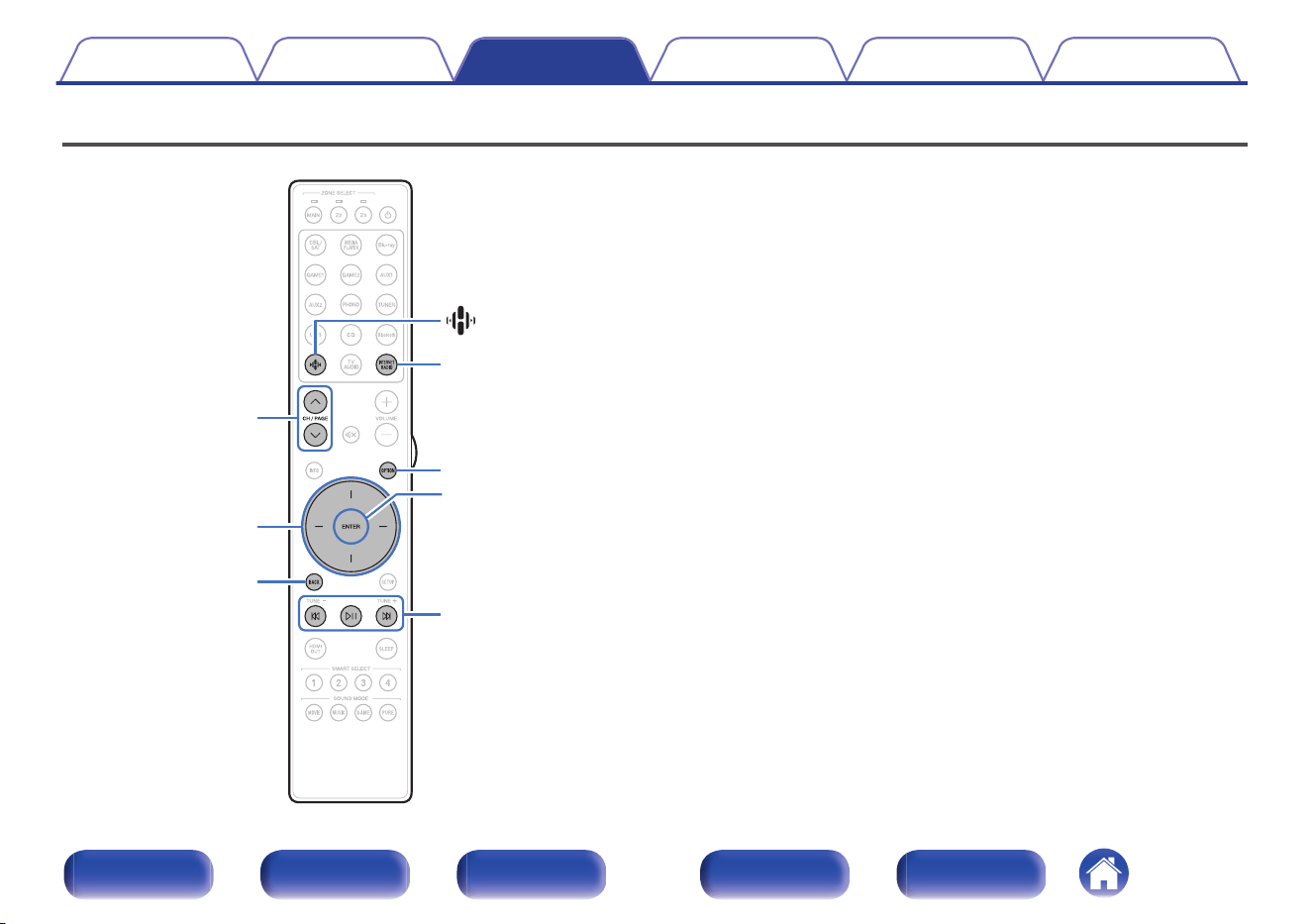
Listening to Internet Radio
INTERNET
RADIO
OPTION
p
k j
BACK
CH/PAGE
ml
(HEOS Music)
ENTER
Cursor Up/Down/
Left/Right
0
Internet Radio refers to radio broadcasts distributed over the Internet.
Internet Radio stations from around the world can be received.
0
The Internet Radio station list on this unit the database service provided
by TuneIn Radio service.
0
The audio format types and specifications supported by this unit for
playback are as follows.
See “Playing back Internet Radio” (v p. 324) for details.
0
WMA
0
MP3
0
MPEG-4 AAC
Contents Connections Playback Settings Tips Appendix
116
Front panel Display Rear panel Remote Index
Listening to Internet Radio
1
Press INTERNET RADIO.
0
You can also press R (HEOS Music). Use cursor Up/Down to
select “TuneIn Internet Radio”, then press ENTER.
2
Select the station you want to play.
Operation buttons Function
p
z
Playback / Pause
k j
z
Skip to previous track / Skip to next track
CH/PAGE ml
Switch to the previous page/next page in
the list display
z Enabled when playing Podcasts.
0
The display switches between track title and radio station name etc. each time the
main unit’s STATUS is pressed.
NOTE
0
The radio station database service may be suspended or be otherwise unavailable
without notice.
o
Operations accessible through the option
menu
0
“Adding to HEOS Favorites” (v p. 137)
0
“Adjusting the audibility of dialog and vocals (Dialog
Enhancer)” (v p. 137)
0
“Adjusting the volume of each channel to match the input source
(Channel Level Adjust)” (v p. 138)
0
“Adjusting the tone (Tone)” (v p. 139)
0
“Adjusting audio delay (Audio Delay)” (v p. 140)
0
“Changing the strength of Tactile Transducer according to the input
source (Tactile Transducer)” (v p. 141)
0
“Displaying your desired video during audio playback (Video
Select)” (v p. 142)
0
“Playing the same music in all zones (All Zone Stereo)” (v p. 143)
0
“Changing the speaker settings to match the listening environment
(Speaker Preset)” (v p. 144)
0
Changing the “Dirac Live Filter”
https://manuals.marantz.com/DiracLive/ALL/EN/DRDZSYktvnhzad.php
Contents
Connections Playback Settings Tips Appendix
117
Front panel Display Rear panel Remote Index
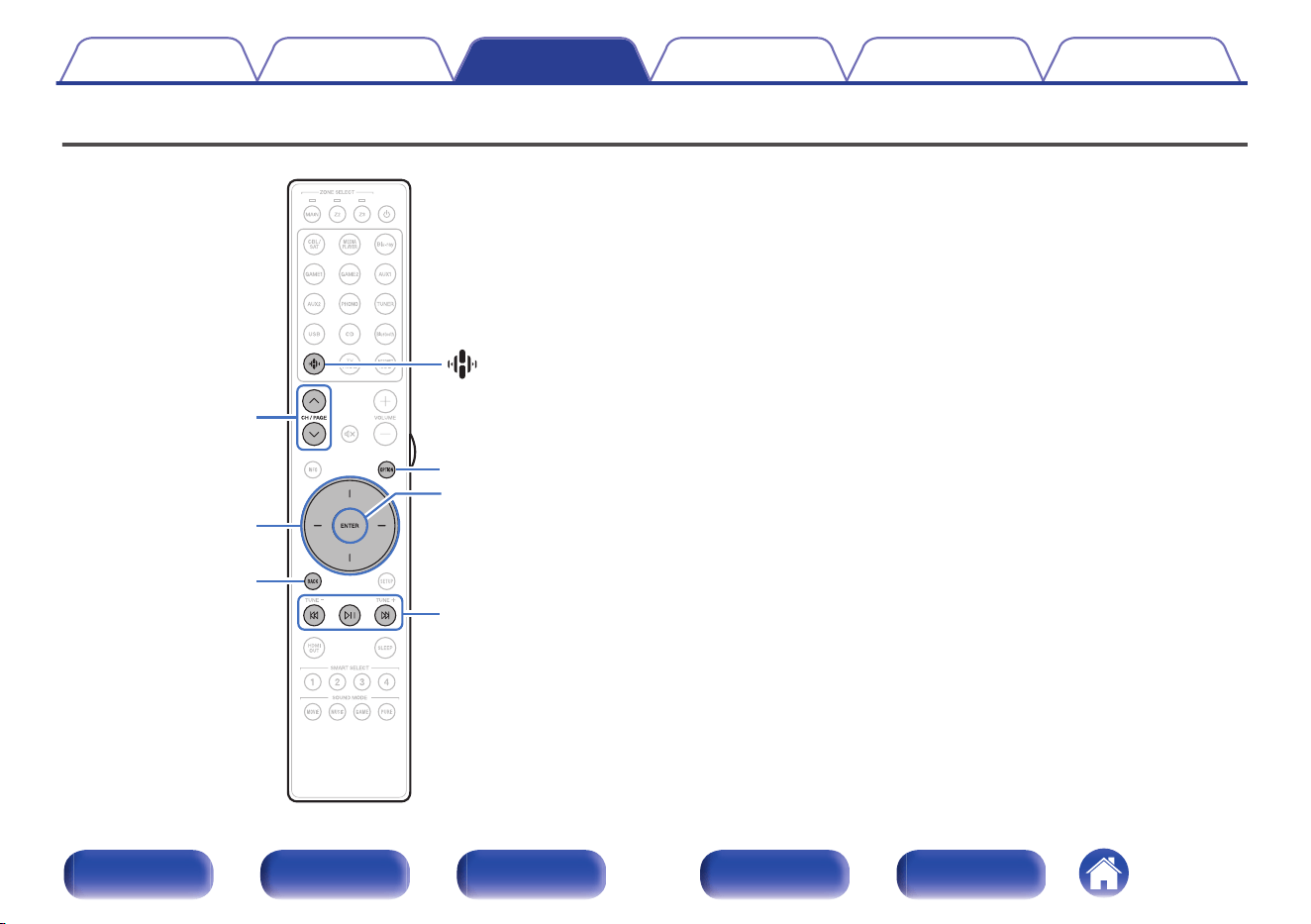
Playing back files stored on a PC or NAS
(HEOS Music)
OPTION
p
k j
BACK
CH/PAGE
ml
ENTER
Cursor Up/Down/
Left/Right
0
This unit can play back music files and playlists (m3u, wpl) from DLNA
compatible servers including PCs and NAS devices on your network.
0
Supported file formats:
For details, see “Playing back a file saved on a PC or
NAS” (v p. 323).
0
WMA
0
MP3
0
WAV
0
MPEG-4 AAC
0
FLAC
0
Apple Lossless
0
DSD
Contents Connections Playback Settings Tips Appendix
118
Front panel Display Rear panel Remote Index
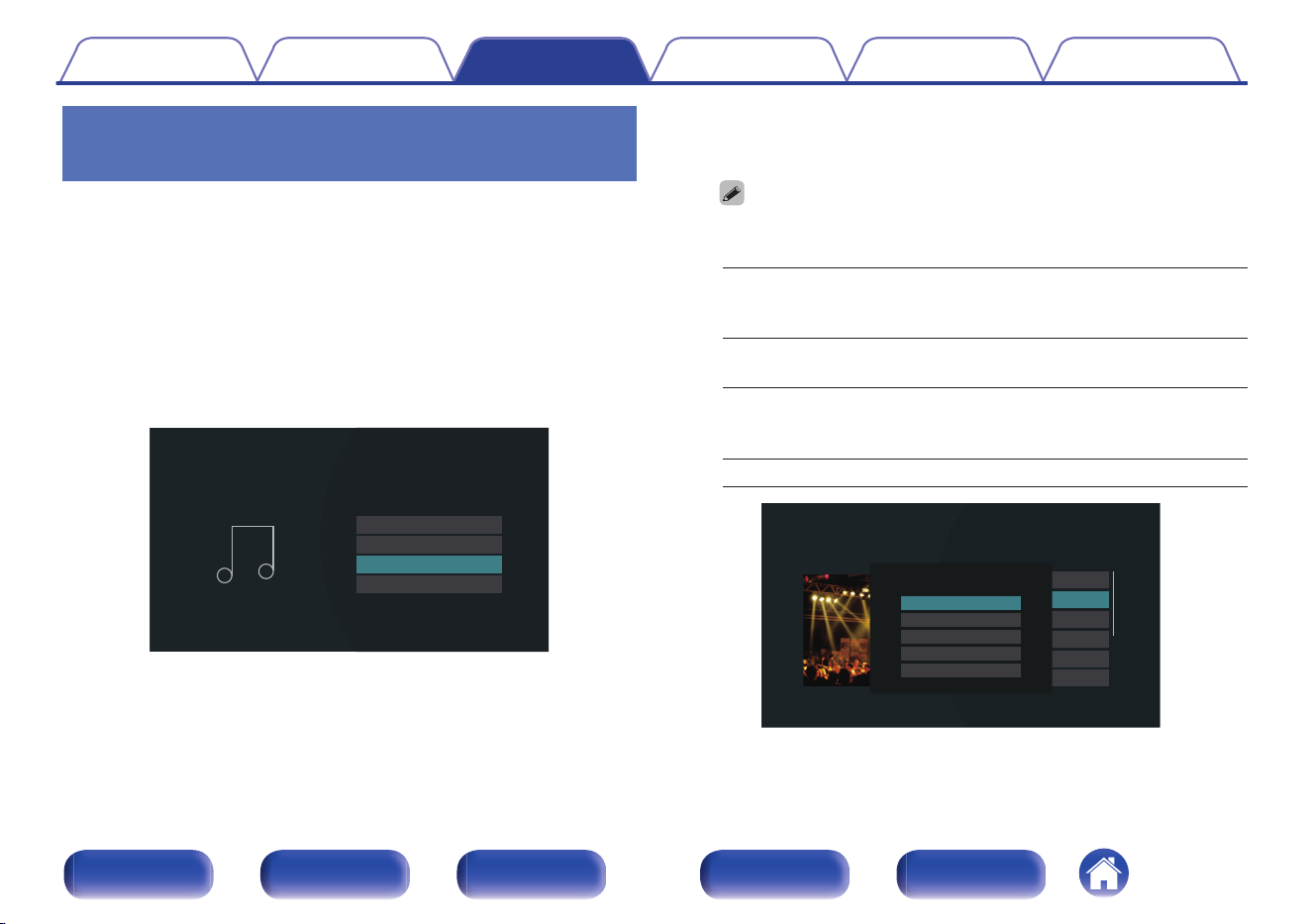
Playing back files stored on a PC or
NAS
Use this procedure to play music files or playlists stored on DLNA files
servers on your local network.
1
Press R (HEOS Music).
If a playback history is present, the last Internet radio station or song
played is played back. Pressing R (HEOS Music) again displays the
HEOS Music top menu.
2
Use cursor Up/Down to select “Music Servers”, then
press ENTER.
USB Music
Music Servers
HEOS Favorites
TuneIn Internet Radio
Music
3
Select the name of your networked PC or NAS
(Network Attached Storage) server.
4
Browse the music on your PC/NAS and select
something to play.
0
When you select something to play you will be asked how you want to
queue up your music.
Play Now:
Inserts the item into the queue after the
currently playing track and plays the
selected item immediately.
Play Now & Replace
Queue:
Clears the queue and plays the
selected item immediately.
Play Next:
Inserts the item into the queue after the
current song and plays it when the
current song ends.
Add to End of Queue: Adds the item to the end of the queue.
Live 01
Play Now
Play Now & Replace Queue
Play Next
Add to End of Queue
Cancel
Music Servers - Live
Contents Connections Playback Settings Tips Appendix
119
Front panel Display Rear panel Remote Index
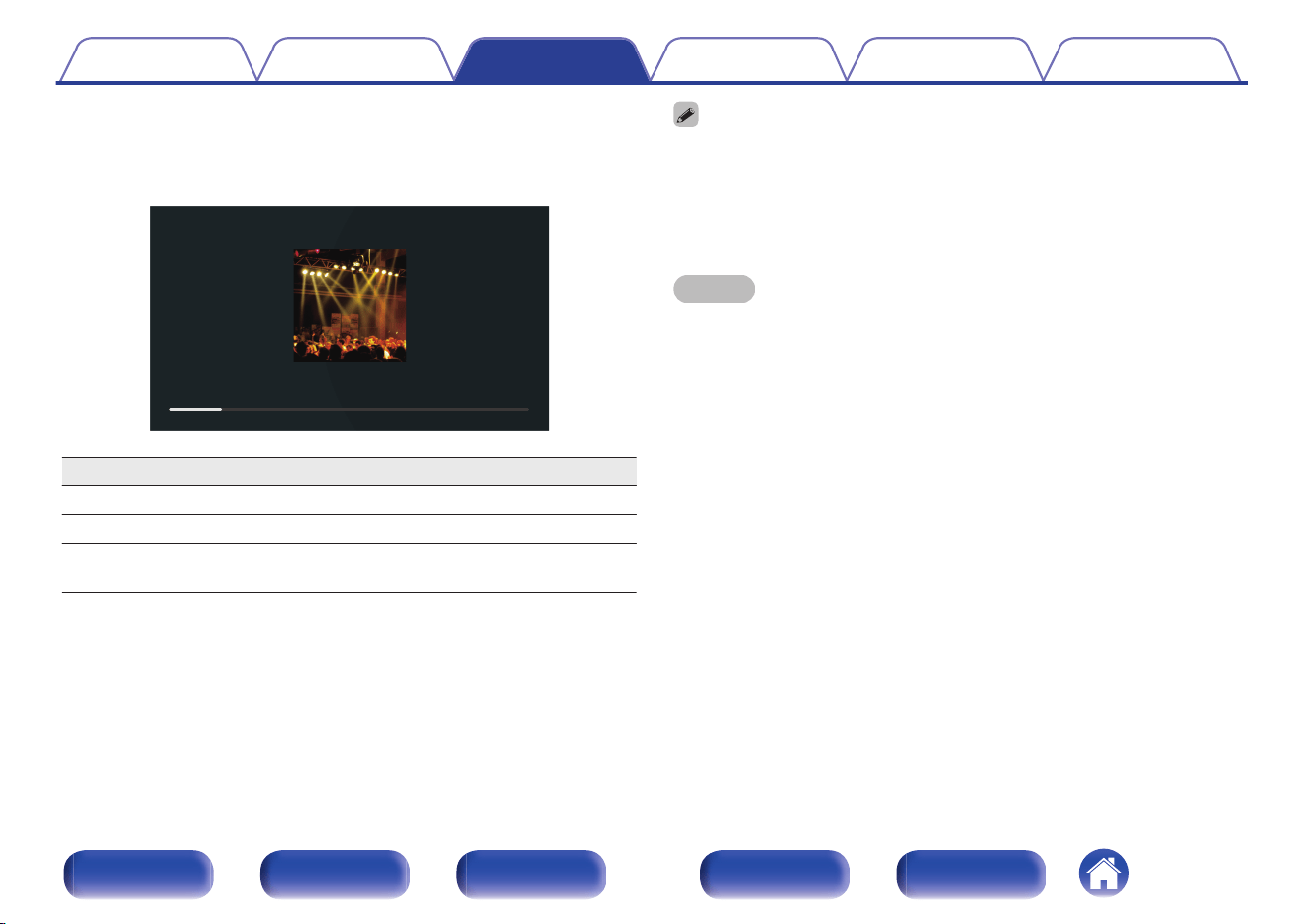
5
Use cursor Up/Down to select the “Play Now” or “Play
Now & Replace Queue”, then press ENTER.
Playback starts.
2:45
-14:21
Live
Live 01
-
Various Artists
Now Playing
Operation buttons Function
p
Playback / Pause
k j
Skip to previous track / Skip to next track
CH/PAGE ml
Switch to the previous page/next page in
the list display
0
The display switches between track title, artist name, and album title each time the
main unit’s STATUS is pressed.
0
When a WMA (Windows Media Audio), MP3 or MPEG-4 AAC file includes album
art data, the album art can be displayed while the music files are playing.
0
If you use Ver.11 or later of Windows Media Player, the album art for WMA files
can be displayed.
NOTE
0
When playing back music files with your PC or NAS connected through wireless
LAN, audio may be interrupted depending on your wireless LAN environment. In
this case, connect using a wired LAN.
0
The order in which the tracks/files are displayed depends on the server
specifications. If the tracks/files are not displayed in alphabetical order due to the
server specifications, searching by the first letter may not work properly.
Contents Connections Playback Settings Tips Appendix
120
Front panel Display Rear panel Remote Index
o
Operations accessible through the option
menu
0
“Adjusting the audibility of dialog and vocals (Dialog
Enhancer)” (v p. 137)
0
“Adjusting the volume of each channel to match the input source
(Channel Level Adjust)” (v p. 138)
0
“Adjusting the tone (Tone)” (v p. 139)
0
“Adjusting audio delay (Audio Delay)” (v p. 140)
0
“Changing the strength of Tactile Transducer according to the input
source (Tactile Transducer)” (v p. 141)
0
“Displaying your desired video during audio playback (Video
Select)” (v p. 142)
0
“Playing the same music in all zones (All Zone Stereo)” (v p. 143)
0
“Changing the speaker settings to match the listening environment
(Speaker Preset)” (v p. 144)
0
Changing the “Dirac Live Filter”
https://manuals.marantz.com/DiracLive/ALL/EN/DRDZSYktvnhzad.php
Contents
Connections Playback Settings Tips Appendix
121
Front panel Display Rear panel Remote Index
Getting the HEOS App
You can use many online music streaming services from the HEOS App. Depending upon your geographical location, there are several options to choose
from.
Download the HEOS App for iOS or Android by searching App Store, Google Play store or Amazon Appstore for “HEOS”.
Contents Connections Playback Settings Tips Appendix
122
Front panel Display Rear panel Remote Index
HEOS Account
HEOS Accounts can be registered by tapping “Home” tab - “Settings” icon
in the HEOS App.
Once you create or sign into your HEOS Account, you can use the HEOS
Favorites feature to save and recall your favorite streaming radio stations
using the on-screen user interface on your AVR.
o
What is a HEOS Account?
A HEOS Account is master account or “keychain” for managing all of
your HEOS music services with one single username and password.
o
Why do I need a HEOS Account?
With the HEOS Account you just have to enter your music services
login names and passwords one time. This allows you to easily and
quickly use multiple controller apps on different devices.
You just log into your HEOS Account on any device and you will have
access to all of your associated music services, play history and
custom playlists, even if you are at a friend’s house listening to music
on their HEOS system.
o
Signing up for a HEOS Account
You will be instructed to signup for a HEOS Account the first time you
try to access any music service from the main “Home” menu of the
HEOS app. Follow the instructions in the HEOS app to complete the
operation.
0
This unit’s HEOS Account setting information is synced with the HEOS app.
Change settings and sign out of your account through the HEOS app.
Contents Connections Playback Settings Tips Appendix
123
Front panel Display Rear panel Remote Index
o
Changing your HEOS Account
1
Tap the “Home” tab.
2
Select the Settings icon in the upper right corner of
the screen.
3
Select the HEOS Account Q icon in the upper right
corner of the screen.
4
Change your location, change your password, delete
your account or sign out of your account.
0
This unit automatically syncs when you change your account settings or sign out
through the HEOS App. To switch HEOS accounts, play back music from an
HEOS App signed in to the account you wish to sync to this unit. The Signing up
for a “HEOS Account” switches automatically.
Contents Connections Playback Settings Tips Appendix
124
Front panel Display Rear panel Remote Index
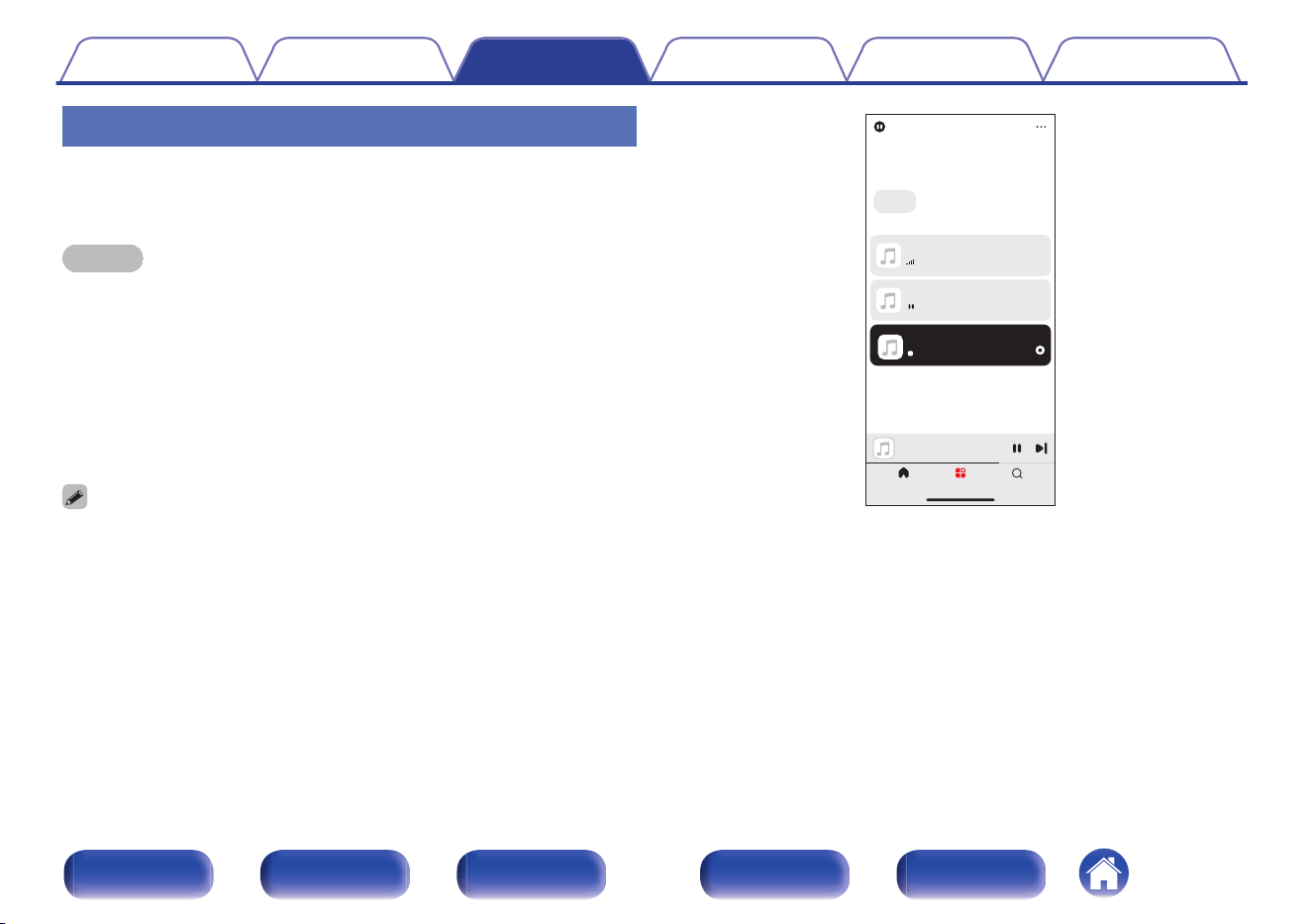
Playing from streaming music services
A music service is an online music company that provides access to vast
music collections via free and/or paid subscriptions. Depending upon your
geographical location, there are several options to choose from.
NOTE
0
The HEOS App and brand is not affiliated with any manufacturer of any mobile
device. Availability of music services may vary by region. Not all services may be
available at time of purchase. Some services may be added or discontinued from
time to time based on decisions of the music service providers or others.
o
Selecting a room/device
1
Tap the “Rooms” tab, and select “Marantz XXXXXXX” if
there are multiple products with HEOS Built-in.
0
Tap “Edit” at the top right to switch edit mode. You can change the displayed
name.
Marantz XXXXXXX
Song 3
Song 2
Bedroom
Song 1
Kitchen
Song 1
Bedroom
Rooms SearchHome
Edit
Rooms
Group Presets
All Rooms
Contents Connections Playback Settings Tips Appendix
125
Front panel Display Rear panel Remote Index
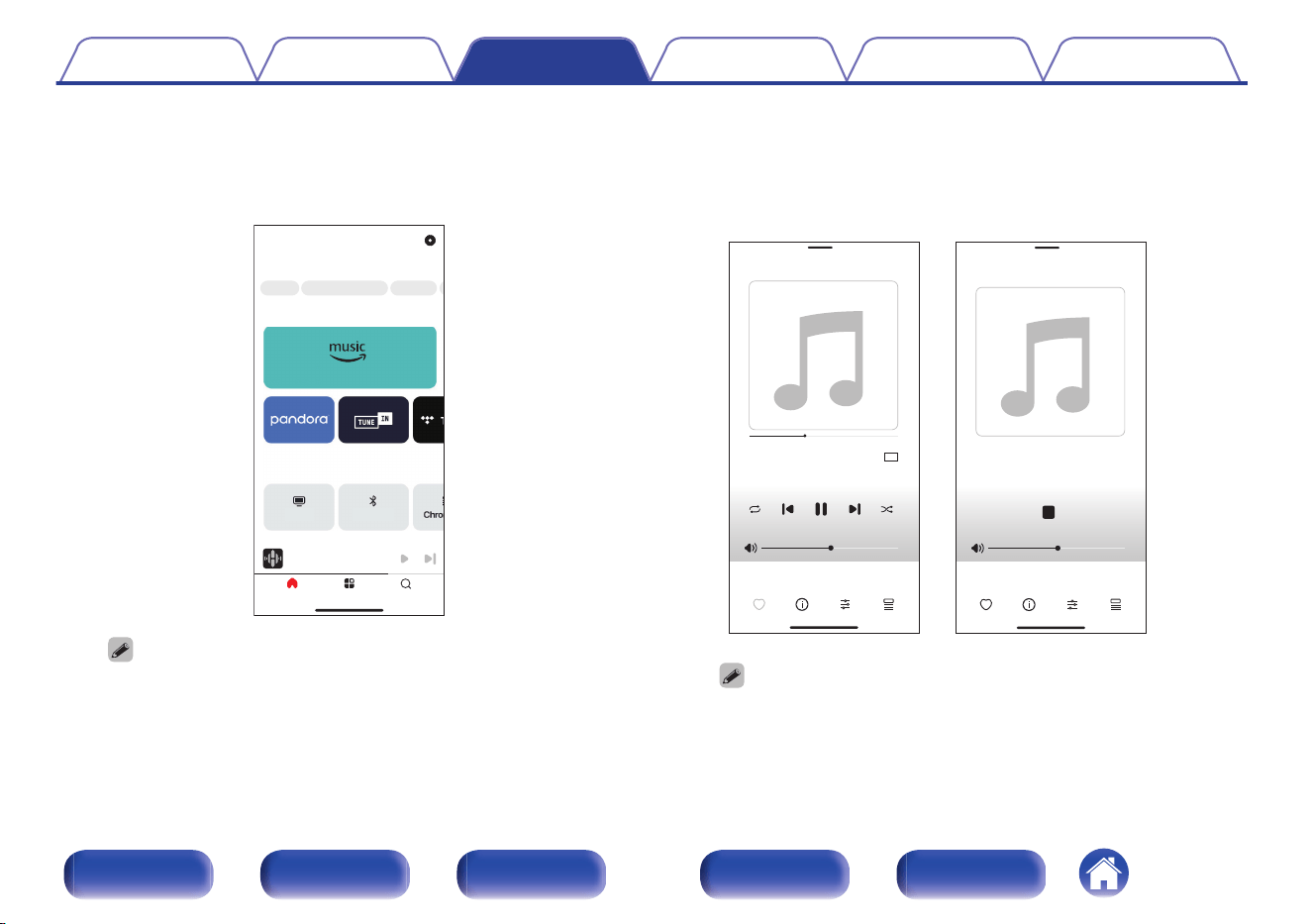
o
Selecting the music track or station from
music sources
1
Tap the “Home” tab and select a music source.
Rooms SearchHome
Living Room
Song 1
BluetoothTV
Music Services
Sources
Home
Edit
Edit
HEOS Favorite StationsRecent New Music
0
All music services displayed may not be available in your location.
2
Browse the music to play.
After selecting a music track or radio station the app will
automatically change to the “Now Playing” screen.
HD
55
0:51 -3:01
Living Room
LIVE
Station
Song
Living Room
Artist
Song
Audio file
Streaming
0
The “Now Playing” banner appears on the “Home” screen, “Rooms” screen
and “Search” screen. You can check the song currently playing and perform
simple playback operations no matter which screen is displayed.
Contents Connections Playback Settings Tips Appendix
126
Front panel Display Rear panel Remote Index
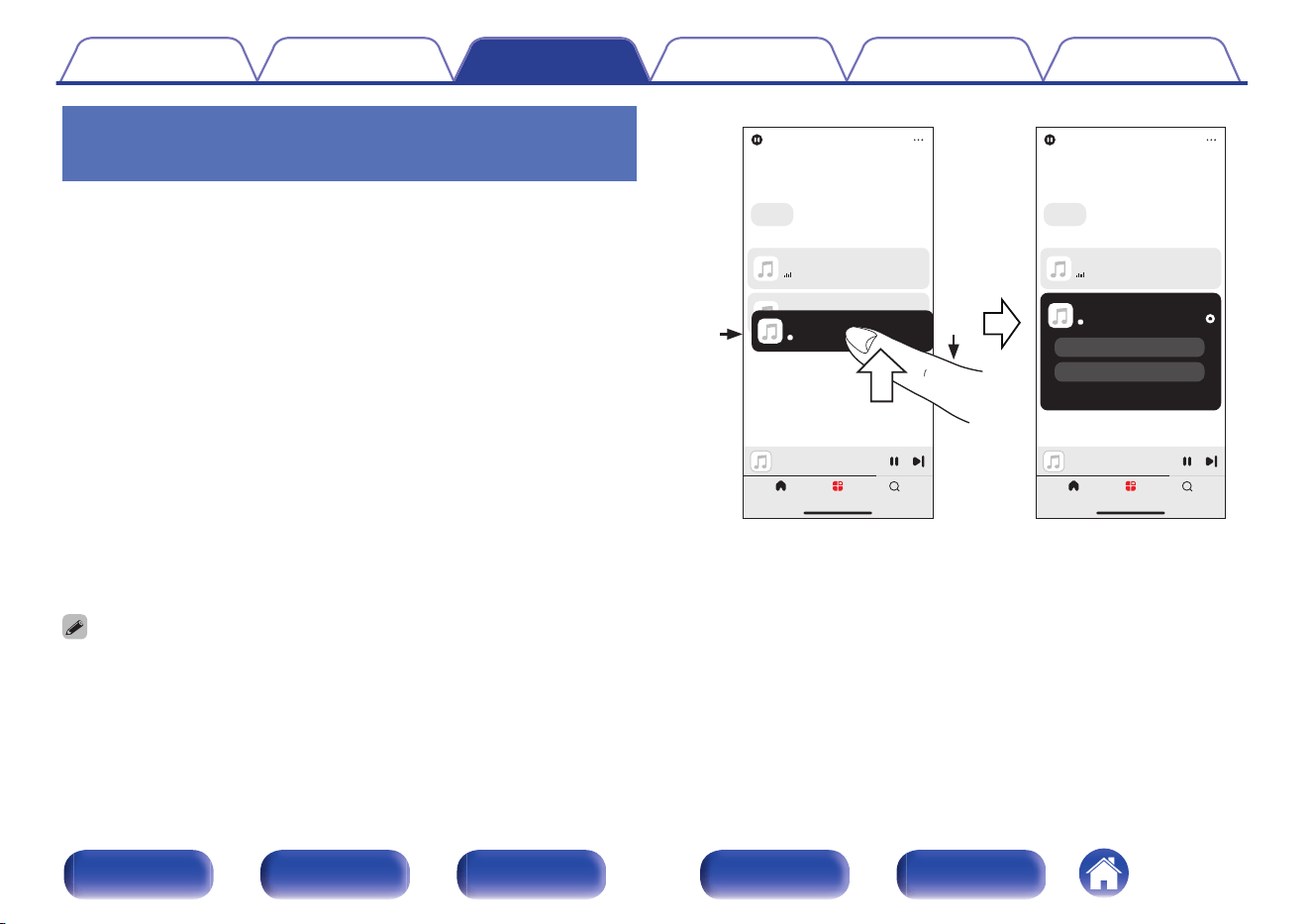
Listening to the same music in multiple
rooms
This system is a true multi-room audio system. You can create one or
more HEOS groups to automatically synchronize audio playback between
multiple products with HEOS built-in so that the music playing different
rooms is perfectly in sync and always sounds amazing! You can easily
add up to 32 products to your system in total. You can group up to 16
individual products to have them play the same song fully synchronized.
o
Grouping rooms
1
Press and hold your finger on room that is not playing
music.
2
Drag it into the room that is playing music and lift your
finger.
3
The two rooms will be grouped together into a single
device group and both rooms will be playing the same
music in perfect sync.
0
You can also use the “Edit” function of the “Group Presets” to manage the group.
STAY,THE KID LAROI & JUSTIN...
Kitchen + Living Room
Bedroom
Song 1
Song 1
Living Room
Kitchen
Song 1
Bedroom
Rooms SearchHome
Bedroom
Song 1
Rooms SearchHome
Song 1
Bedroom
Drag a room out of this group to ungroup it
Song 1
Kitchen
Living Room
Edit
Rooms
Group Presets
All Rooms
Edit
Rooms
Group Presets
All Rooms
2
1
Contents Connections Playback Settings Tips Appendix
127
Front panel Display Rear panel Remote Index
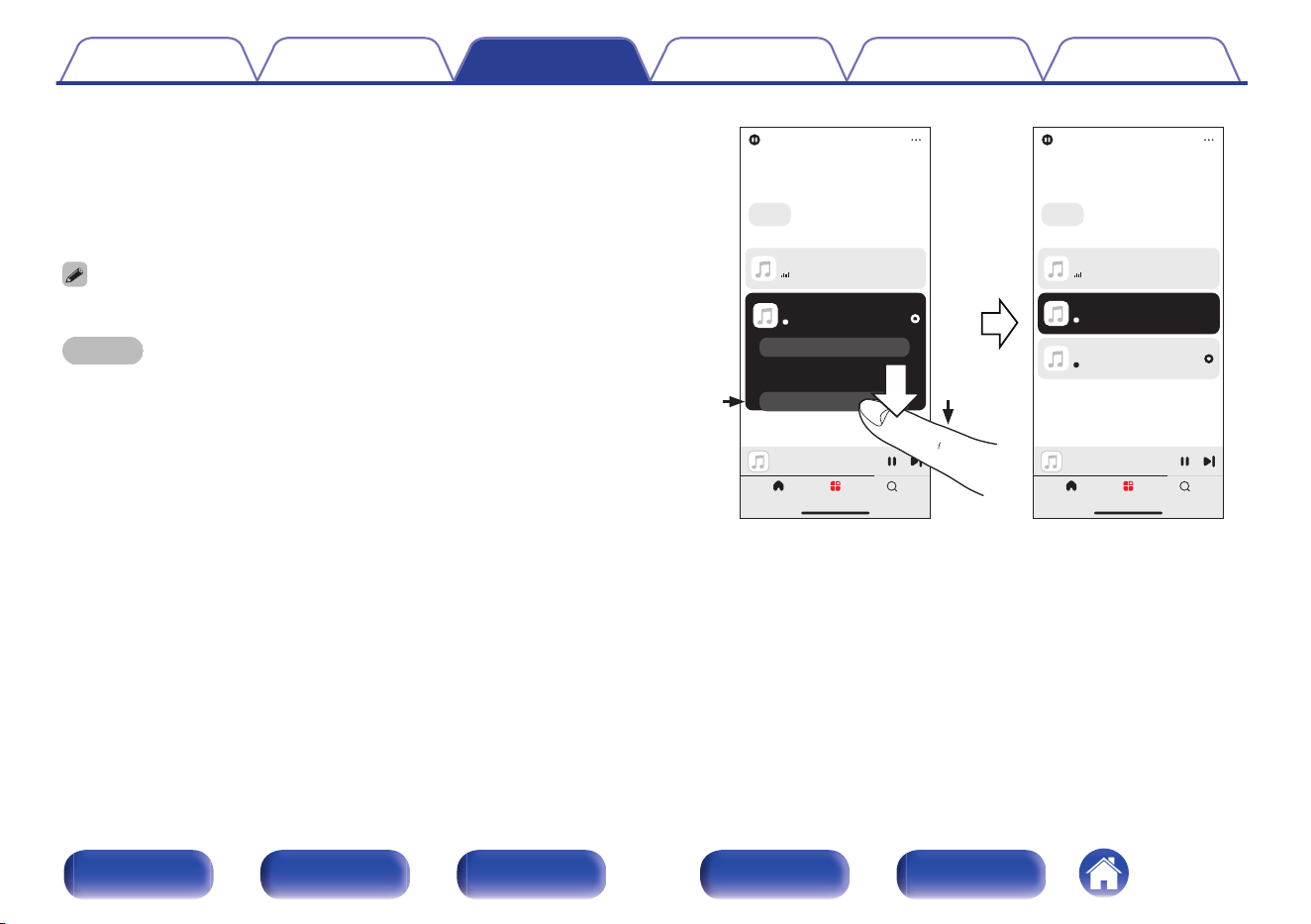
o
Ungrouping rooms
1
Press and hold your finger on room that you want to
remove from the group.
2
Drag it out of the group and lift your finger.
0
You can also use the “Edit” function of the “Group Presets” to manage the group.
NOTE
0
You can not remove the first room that started playing the music before grouping.
Bedroom
Song 1
Rooms SearchHome
Bedroom
Song 1
Rooms SearchHome
Edit
Rooms
Group Presets
All Rooms
Edit
Rooms
Group Presets
All Rooms
Song 1
Bedroom
Kitchen + Living Room
Song 1
Kitchen
Living Room
Song 1
Bedroom
Song 1
Song 1
Living Room
Kitchen
2
1
Contents Connections Playback Settings Tips Appendix
128
Front panel Display Rear panel Remote Index
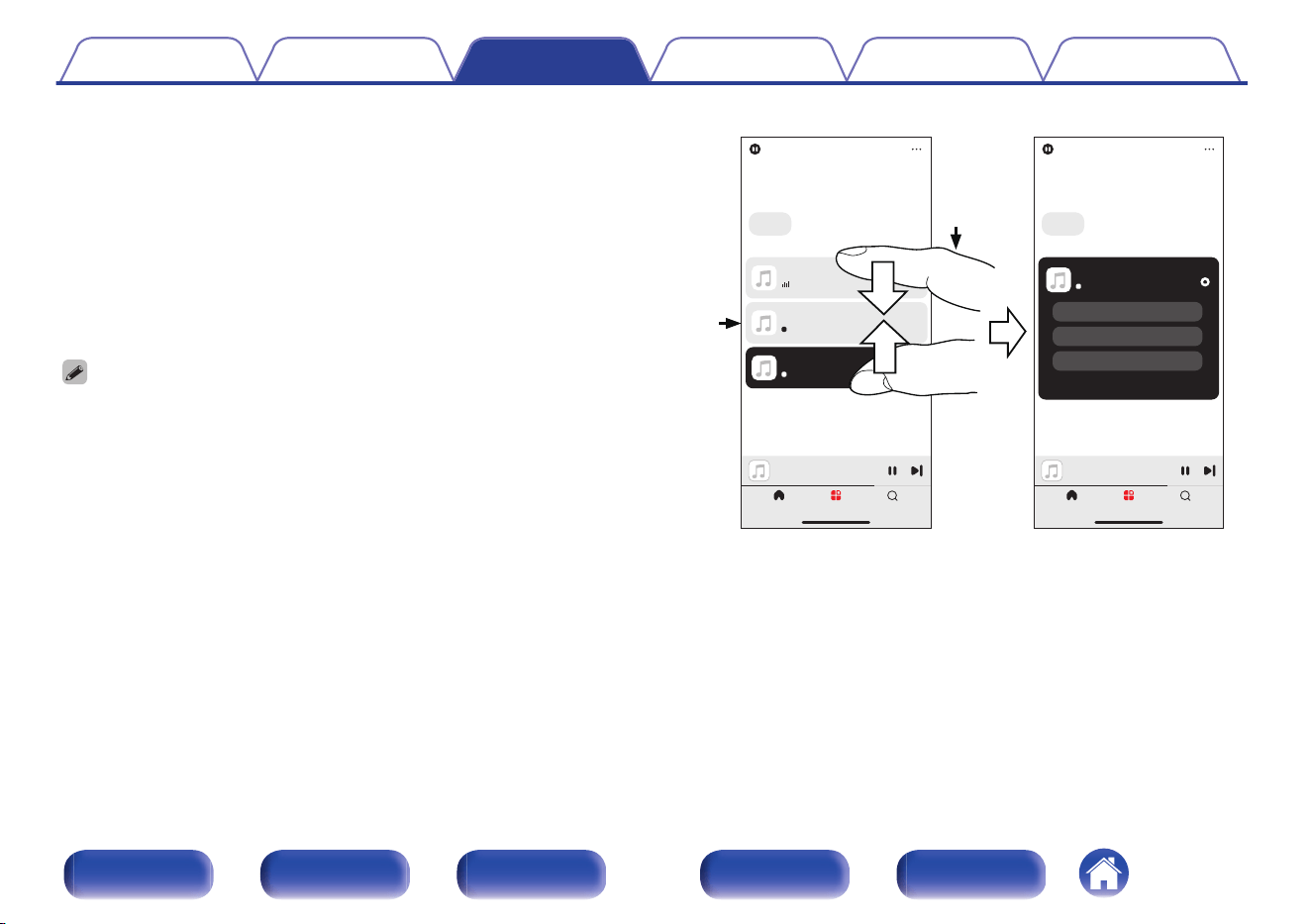
o
Grouping all rooms
You can easily group all rooms (up to 16 rooms) together by using a
“pinch” gesture.
1
Place two fingers on the screen over the list of rooms.
2
Quickly pinch your two fingers together and release.
3
All of your rooms will be joined together and begin
playing the same music in perfect sync.
0
You can also use the “Edit” function of the “Group Presets” to manage the group.
Bedroom
Song 1
Rooms SearchHome
Bedroom
Song 1
Rooms SearchHome
Edit
Rooms
Group Presets
All Rooms
Edit
Rooms
Group Presets
All Rooms
Song 1
Living Room
Song 1
Kitchen
Song 1
Bedroom
Drag a room out of this group to ungroup it
Song 1
Bedroom + Kitchen + Living..
Bedroom
Kitchen
Living Room
2
1
Contents Connections Playback Settings Tips Appendix
129
Front panel Display Rear panel Remote Index
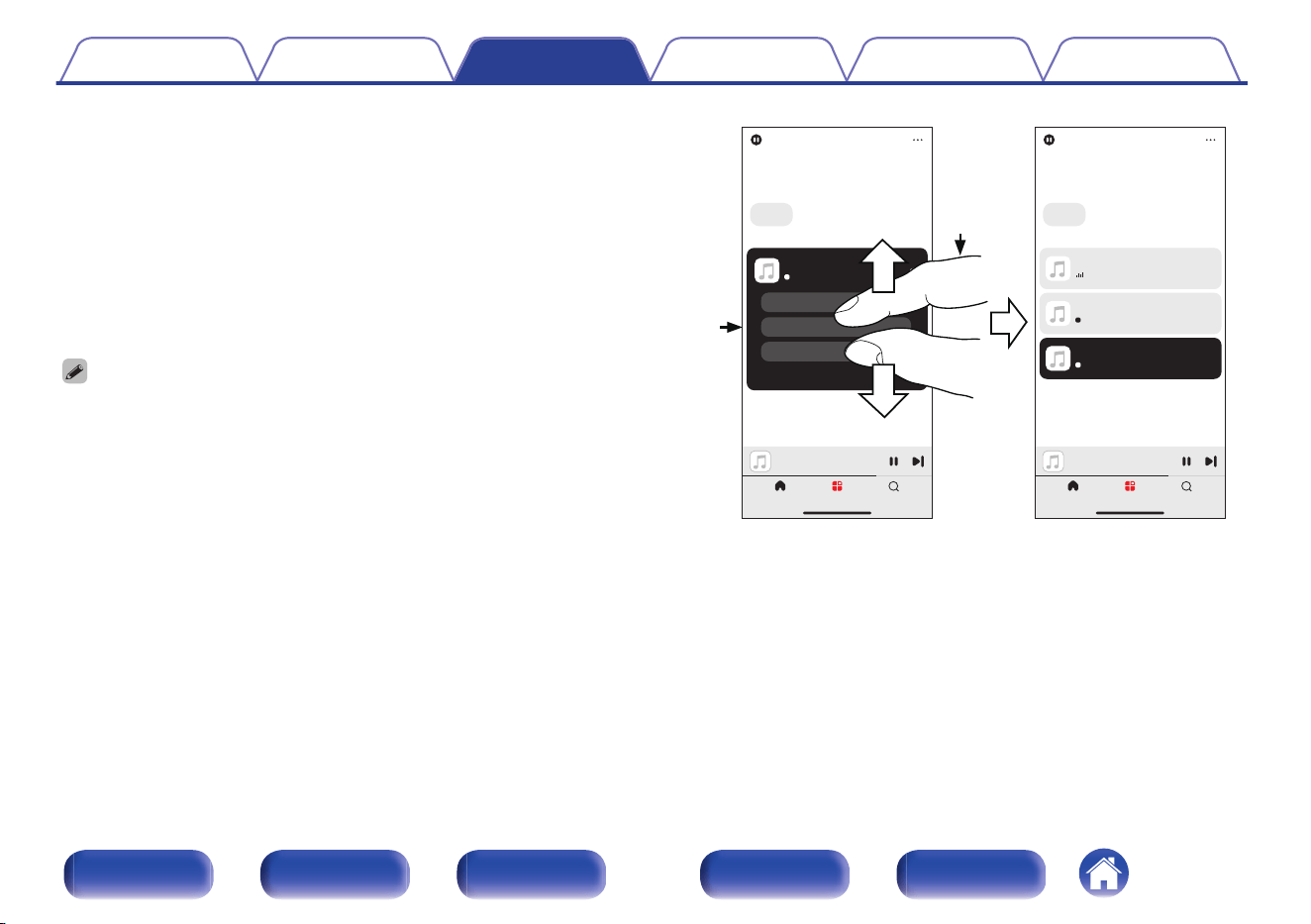
o
Ungrouping all rooms
You can easily ungroup all of your rooms by using a “spread” gesture.
1
Place two fingers close together on the screen over list
of rooms.
2
Quickly spread your two fingers apart from each other
and release.
3
All of your rooms will be ungrouped.
0
You can also use the “Edit” function of the “Group Presets” to manage the group.
Bedroom
Song 1
Rooms SearchHome
Bedroom
Song 1
Rooms SearchHome
Edit
Rooms
Group Presets
All Rooms
Edit
Rooms
Group Presets
All Rooms
Drag a room out of this group to ungroup it
Song 1
Bedroom + Kitchen + Living..
Bedroom
Kitchen
Living Room
Song 1
Living Room
Song 1
Kitchen
Song 1
Bedroom
1
2
Contents Connections Playback Settings Tips Appendix
130
Front panel Display Rear panel Remote Index
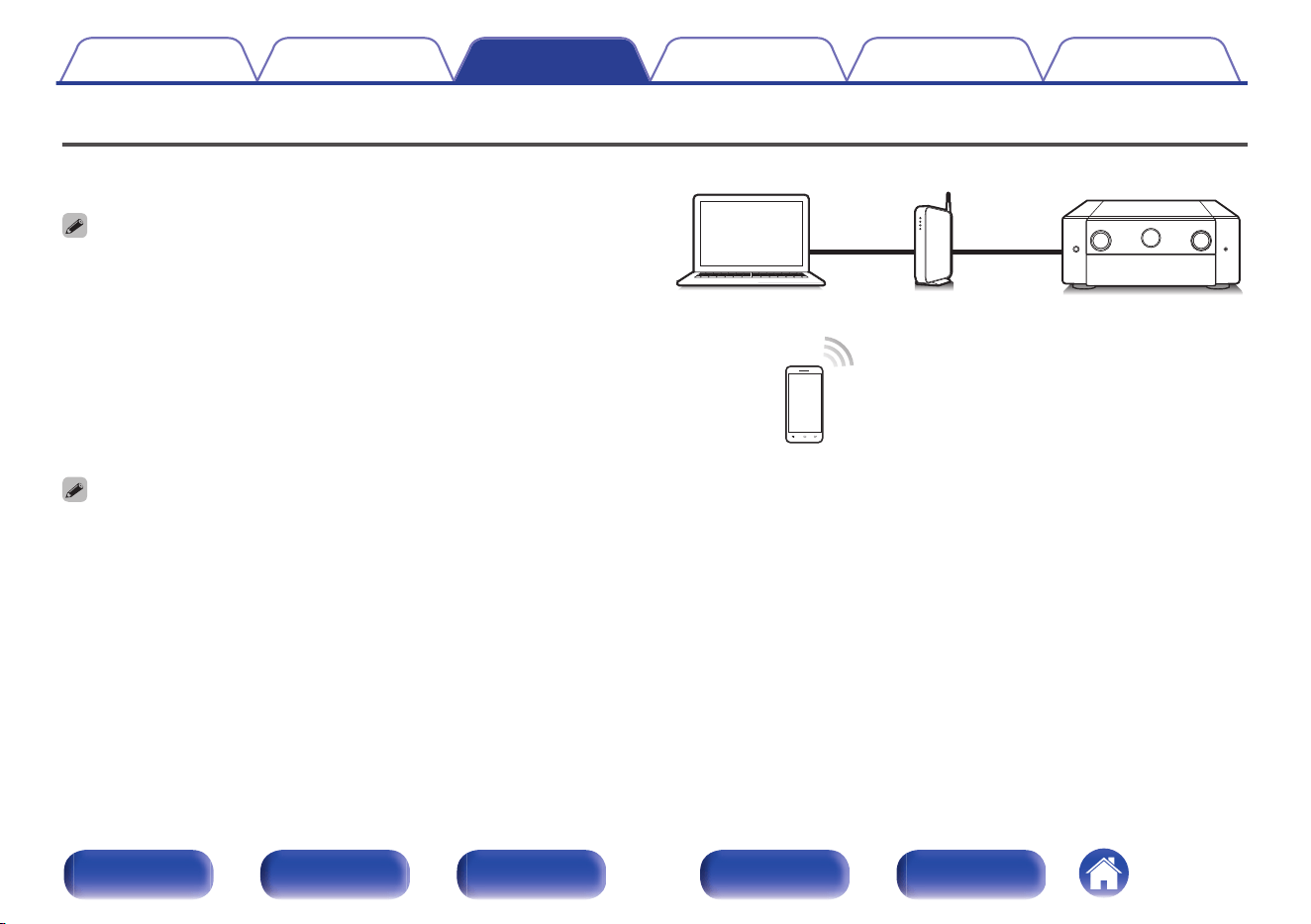
AirPlay function
Music files stored on your iPhone, iPod touch, iPad or iTunes can be
played on this unit via the network.
0
Source input will be switched to “HEOS Music” when AirPlay playback is started.
0
You can stop AirPlay playback by choosing other input source.
0
To see song and artist names together, press STATUS on the main unit.
0
For information about how to use iTunes, also see the Help for iTunes.
0
The screen may differ depending on the OS and software versions.
This unit supports AirPlay 2.
Sync multiple AirPlay 2 compatible devices/speakers for simultaneous
playback.
0
This unit supports AirPlay 2 and requires iOS 11.4 or later.
PC
Router
This unit
Contents Connections Playback Settings Tips Appendix
131
Front panel Display Rear panel Remote Index
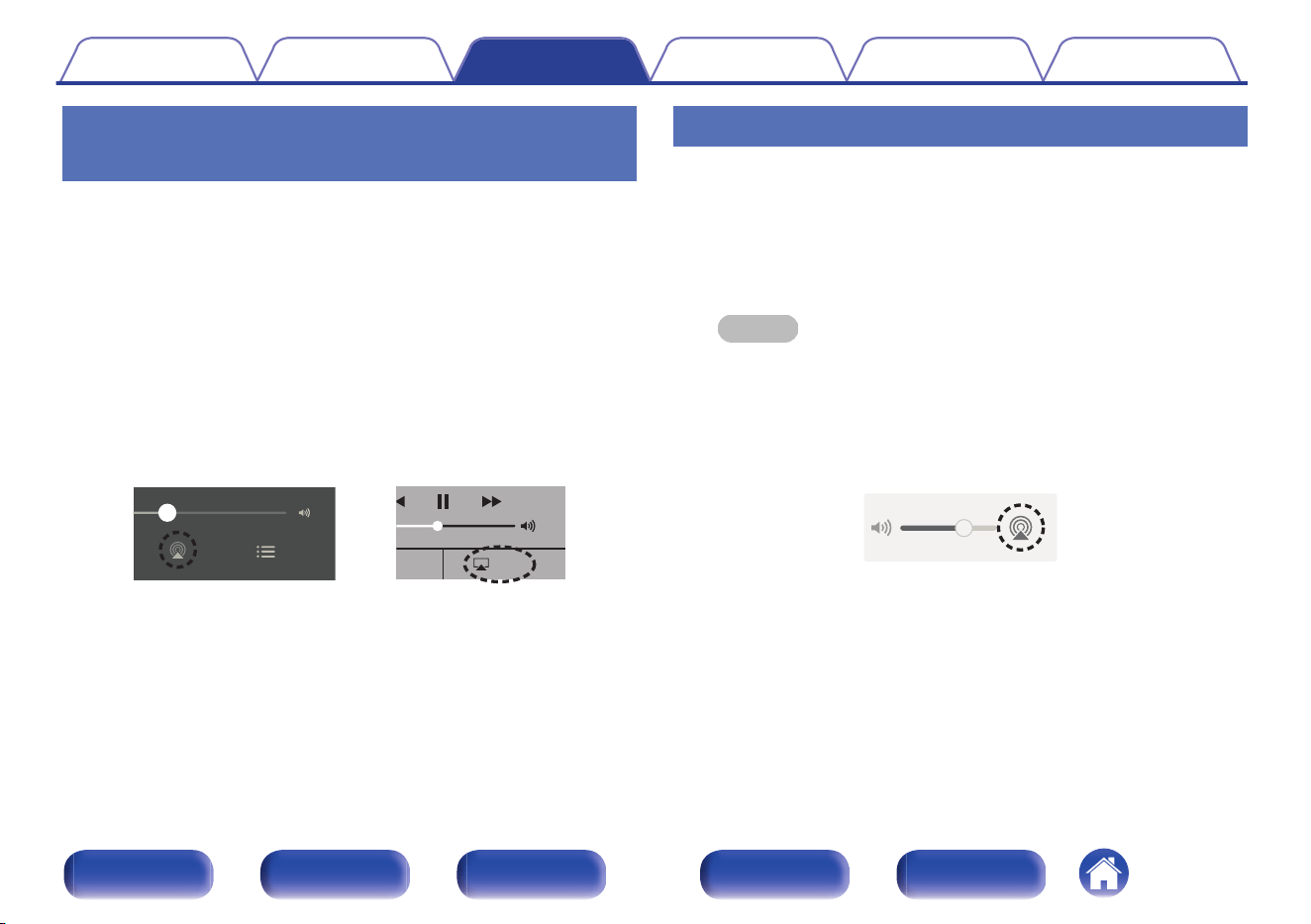
Playing songs from your iPhone, iPod
touch or iPad
If you update your “iPhone/iPod touch/iPad” to iOS 10.0.2 or later, you can
stream music stored in your “iPhone/iPod touch/iPad” directly to this unit.
1
Connect your iPhone, iPod touch or iPad Wi-Fi to the
same network as this unit.
0
For details, see your device’s manual.
2
Play the song on your iPhone, iPod touch or iPad.
AirPlay icon is displayed on the iPhone, iPod touch or iPad screen.
3
Tap the AirPlay icon and select this unit.
AirPlay
AirPlay
D
rop:
AirDrop:
ryone
ryone
[Example] iOS 15
[Example] iOS 10
Playing iTunes music with this unit
1
Install iTunes 10, or later, on a Mac or Windows PC that
is connected to the same network as this unit.
2
Turn this unit ON.
Set “Network Control” to “Always On” for this unit. (v p. 262)
NOTE
0
When “Network Control” is set to “Always On”, the unit consumes more
standby power.
3
Start iTunes and click the AirPlay icon to select this
unit.
[Example] iTunes
4
Choose a song and click play in iTunes.
The music will stream to this unit.
Contents
Connections Playback Settings Tips Appendix
132
Front panel Display Rear panel Remote Index
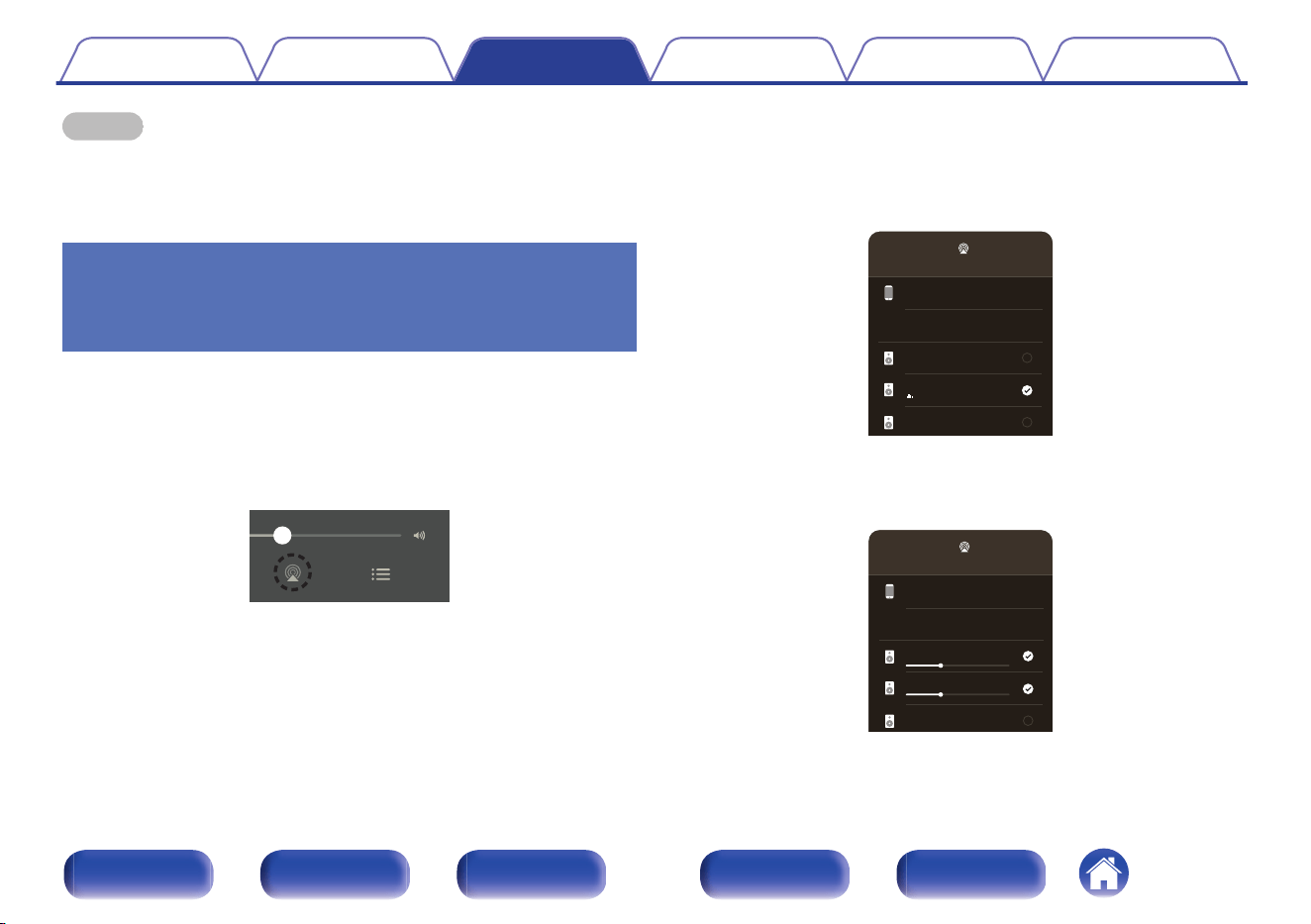
NOTE
0
In playback using the AirPlay function, the sound is output at the iPhone, iPod
touch, iPad or iTunes volume setting level.
You should turn down the iPhone, iPod touch, iPad or iTunes volume prior to
playback and then adjust it to a suitable level.
Play a song from your iPhone, iPod
touch or iPad on multiple synced
devices (AirPlay 2)
Songs from an iPhone, iPod touch or iPad operating iOS 11.4 or later can
be synced with multiple AirPlay 2 supported devices for simultaneous
playback.
1
Play the song on your iPhone, iPod touch or iPad.
AirPlay icon is displayed on the iPhone, iPod touch or iPad screen.
2
Tap the AirPlay icon and select this unit.
Displays a list of devices/speakers that can be played back on the
same network.
0
A circle is displayed to the right of AirPlay 2 compatible devices.
iPhone
AirPlay
Living Room
Marantz xxxxxxxx
Song - Artist
Bedroom
Speakers & TVs
3
Tap the devices/speakers you want to use.
0
Multiple AirPlay 2 compatible devices can be selected.
iPhone
AirPlay
Living Room
Marantz xxxxxxxx
Bedroom
Speakers & TVs
Contents
Connections Playback Settings Tips Appendix
133
Front panel Display Rear panel Remote Index
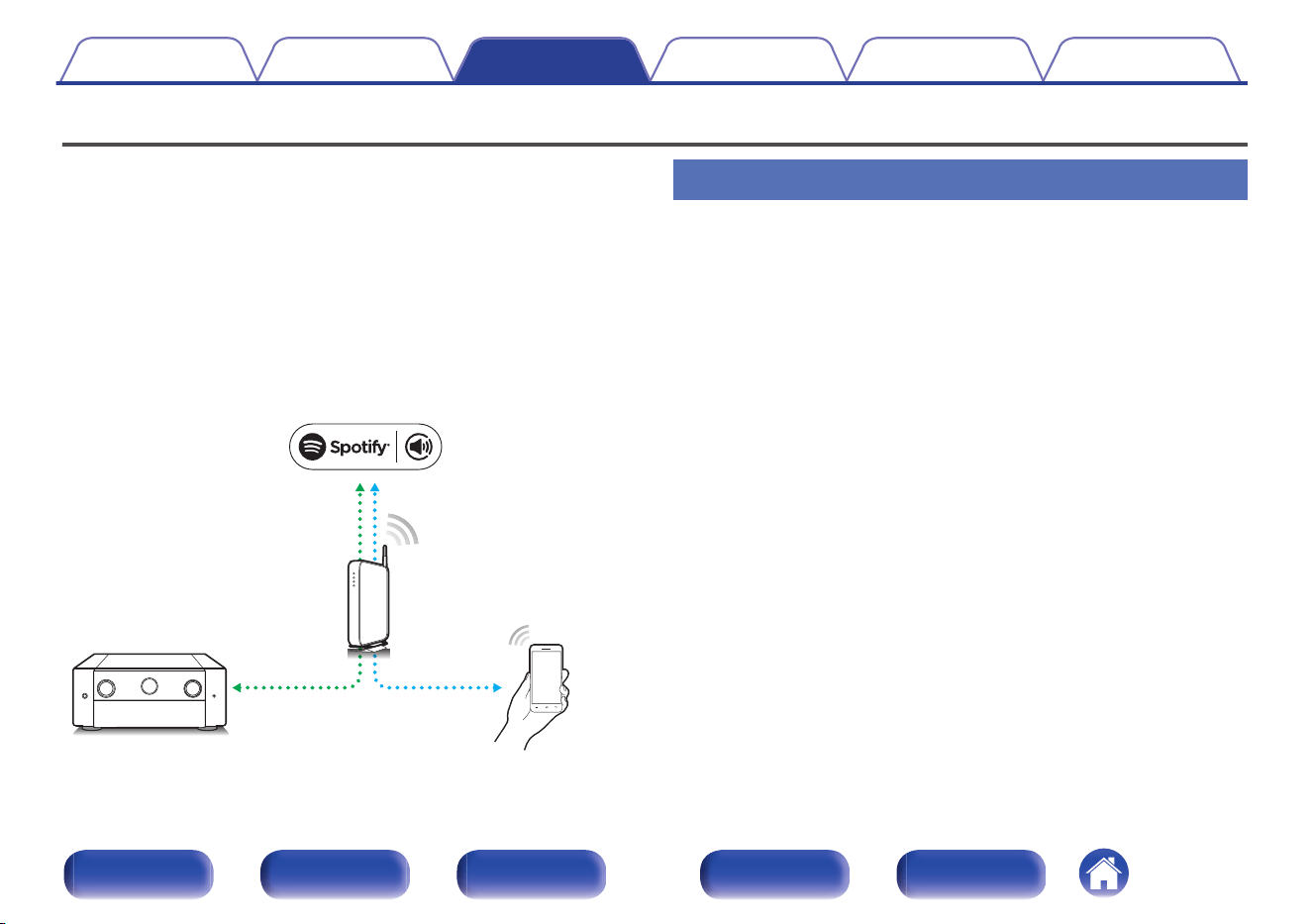
Spotify Connect function
Spotify is all the music you’ll ever need. Millions of songs available
instantly. Just search for the music you love, or let Spotify play you
something great. Spotify works on your phone, tablet, computer and home
speakers. So you’ll always have the perfect soundtrack for whatever
you’re doing. Now you can enjoy Spotify with your free account as well as
Premium account.
Use your phone, tablet or computer as a remote control for Spotify.
Go to www.spotify.com/connect to learn how.
The Spotify software is subject to third party licenses found here:
www.spotify.com/connect/third-party-licenses
Spotify server
Control
This unit
Spotify App
Audio
streaming/
control
Playing Spotify music with this unit
Download the “Spotify App” onto your Android or iOS device beforehand.
1
Connect the Wi-Fi settings of the iOS or Android device
in the same network as this unit.
2
Launch the Spotify App.
3
Play back a Spotify track.
4
Tap the Spotify icon F to select the unit.
The music will stream to this unit.
Contents Connections Playback Settings Tips Appendix
134
Front panel Display Rear panel Remote Index
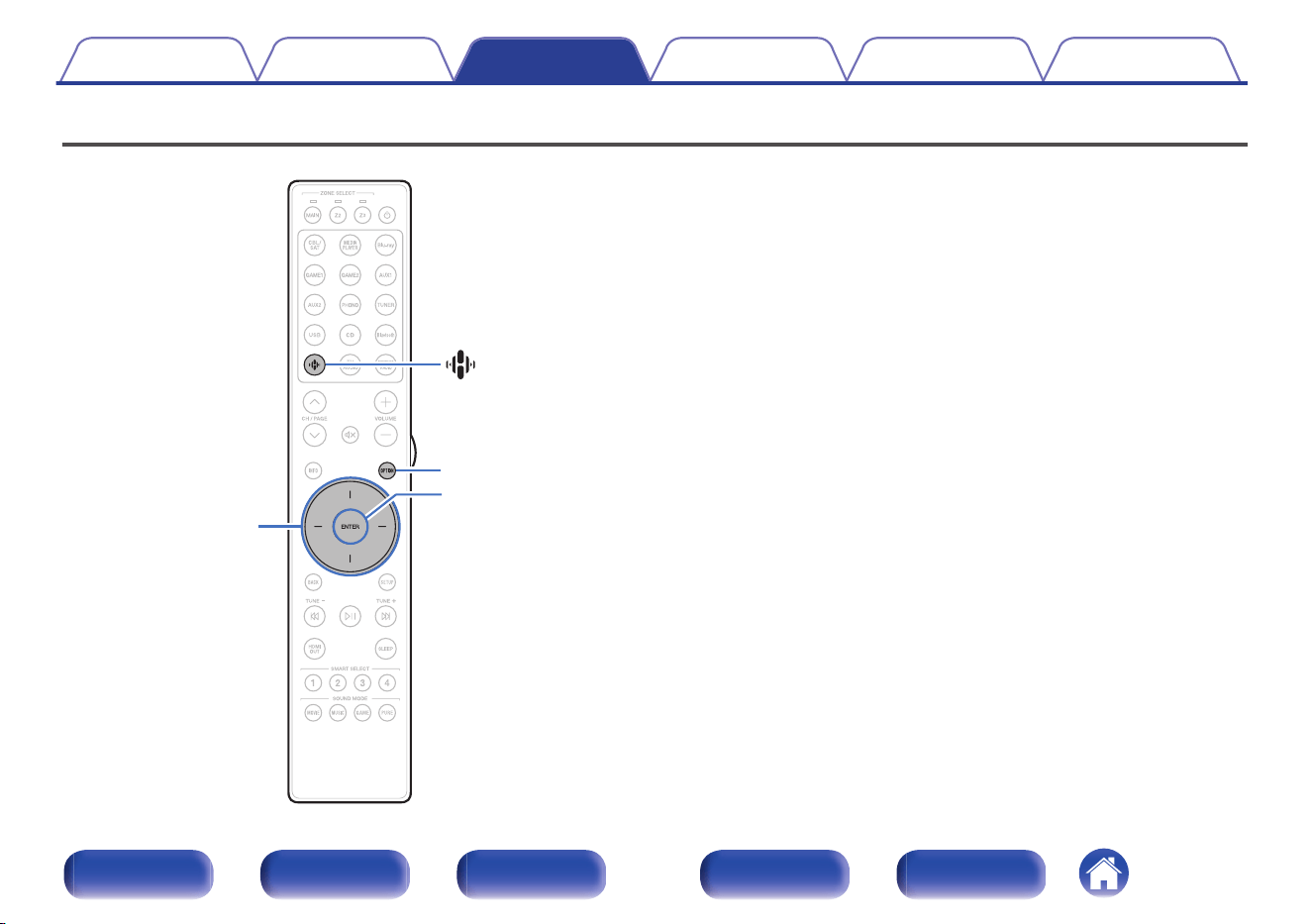
Convenience functions
OPTION
(HEOS Music)
ENTER
Cursor Up/Down/
Left/Right
This section explains how to use convenient functions that can be used for
each input source.
These functions can only be set in the MAIN ZONE.
Contents Connections Playback Settings Tips Appendix
135
Front panel Display Rear panel Remote Index
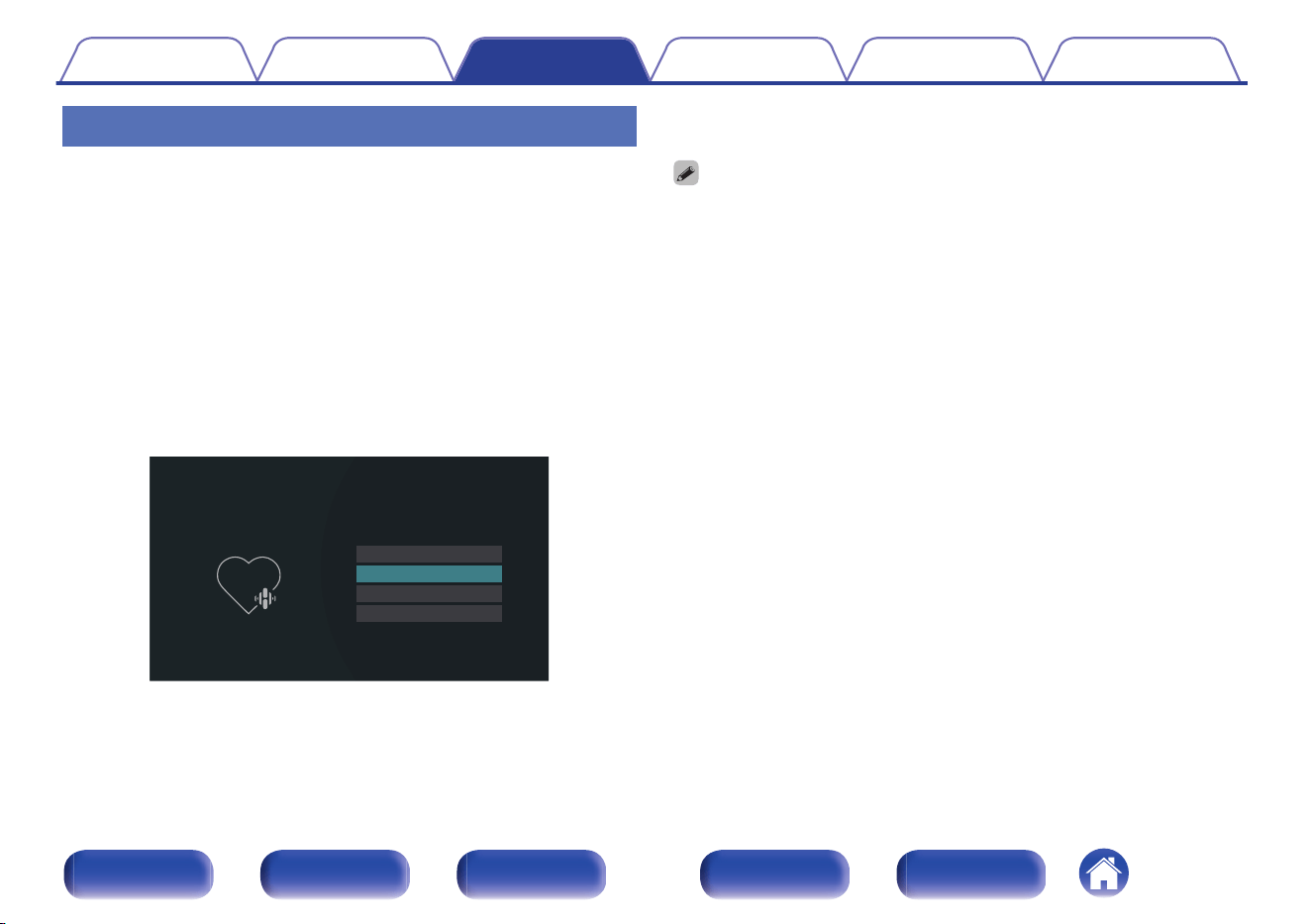
Playing back HEOS Favorites
When using the HEOS Favorites function for the first time on this unit,
create a HEOS Account on the HEOS App or sign in to your account.
Once you create or sign into your HEOS Account, you can use the HEOS
Favorites feature to save and recall your favorite streaming radio stations
using the on-screen user interface on your AVR.
1
Press R (HEOS Music).
If a playback history is present, the last Internet radio station or song
played is played back. Pressing R (HEOS Music) again displays the
HEOS Music top menu.
2
Use cursor Up/Down to select “HEOS Favorites”, then
press ENTER.
USB Music
Music Servers
HEOS Favorites
TuneIn Internet Radio
Music
3
Browse the content and select something to play.
0
“HEOS Favorites - Use HEOS app” is displayed when this unit is not synced with a
HEOS Account in the HEOS App.
Contents Connections Playback Settings Tips Appendix
136
Front panel Display Rear panel Remote Index
Adding to HEOS Favorites
1
While content is playing, press OPTION.
The option menu screen is displayed.
2
Use cursor Up/Down to select “Add to HEOS
Favorites”, then press ENTER.
Deleting a HEOS Favorites
1
While the HEOS Favorites content list is displayed, use
cursor Up/Down to select the item you want to remove
from HEOS Favorites, then press OPTION.
2
Use cursor Up/Down to select “Remove from HEOS
Favorites”, then press ENTER.
Adjusting the audibility of dialog and
vocals (Dialog Enhancer)
This function adjusts the center channel frequency band to enhance the
dialog in the movies and vocals in music for easier listening.
1
Press OPTION.
An option menu screen is displayed.
0
When the input source is “HEOS Music”, an option menu for
online music is displayed. Select “AVR Options…”, then press
ENTER.
2
Use cursor Up/Down to select “Dialog Enhancer”, then
press ENTER.
The “Dialog Enhancer” screen is displayed.
3
Use cursor Left/Right to select your favorite
enhancement effect.
Low / Medium / High: Enhances the dialog and vocals.
Off
(Default):
Does not enhance the dialog or vocals.
4
Press ENTER.
0
“Dialog Enhancer” settings are stored for each source.
0
This cannot be set when the sound mode is set to “Direct” or “Pure Direct”.
Contents Connections Playback Settings Tips Appendix
137
Front panel Display Rear panel Remote Index
Adjusting the volume of each channel
to match the input source (Channel
Level Adjust)
The volume of each channel can be changed while listening to music. You
can set this for each input source.
1
Press OPTION.
An option menu screen is displayed.
0
When the input source is “HEOS Music”, an option menu for
online music is displayed. Select “AVR Options…”, then press
ENTER.
2
Use cursor Up/Down to select “Channel Level Adjust”,
then press ENTER.
The “Channel Level Adjust” screen is displayed.
3
Use cursor Up/Down to select the channel that you
wish to adjust.
4
Use cursor Left/Right to adjust the volume.
–12.0 dB – +12.0 dB (Default: 0.0 dB)
5
Use cursor Up/Down/Left/Right to select “Exit”, then
press ENTER.
0
Select “Reset” and press ENTER if you want to restore the adjustment values of
the various channels to “0.0 dB” (Default).
0
Headphone volume can be adjusted when a headphone is connected.
0
“Channel Level Adjust” settings are stored for each input source.
0
You can only set this for speakers that output audio. In addition, you cannot set
this when in the menu “HDMI Audio Out” is set to “TV”. (v p. 205)
Contents Connections Playback Settings Tips Appendix
138
Front panel Display Rear panel Remote Index
Adjusting the tone (Tone)
Adjusts the tonal quality of the sound.
1
Press OPTION.
An option menu screen is displayed.
0
When the input source is “HEOS Music”, an option menu for
online music is displayed. Select “AVR Options…”, then press
ENTER.
2
Use cursor Up/Down to select “Tone”, then press
ENTER.
The “Tone” screen is displayed.
3
Use cursor Left/Right to set the tone control function to
on/off.
On: Allow tone adjustment (bass, treble).
Off
(Default):
Playback without tone adjustment.
4
Select “On” in step 3 and press cursor Down to select
the sound range to be adjusted.
Bass: Adjust bass.
Treble: Adjust treble.
5
Use cursor Left/Right to adjust the tone, then press
ENTER.
-6 dB – +6 dB (Default : 0 dB)
0
“Tone” settings are stored for each input source.
0
This cannot be set when the sound mode is set to “Direct” or “Pure Direct”.
0
This item cannot be set when “Dynamic EQ” is set to “On”. (v p. 200)
0
You cannot set this when no audio signal is input or in the menu “HDMI Audio Out”
is set to “TV”. (v p. 205)
Contents Connections Playback Settings Tips Appendix
139
Front panel Display Rear panel Remote Index
Selecting a Dirac Live filter (Dirac Live)
Set a Dirac Live filter transferred from Dirac Live software.
This can be set after running Dirac Live Room Correction.
See the Dirac Live Manual for details.
https://manuals.marantz.com/DiracLive/ALL/EN
Adjusting audio delay (Audio Delay)
Compensates for incorrect timing between video and audio.
1
Press OPTION.
An option menu screen is displayed.
0
When the input source is “HEOS Music”, an option menu for
online music is displayed. Select “AVR Options…”, then press
ENTER.
2
Use cursor Up/Down to select “Audio Delay”, then
press ENTER.
The “Audio Delay” screen is displayed.
3
Use cursor Left/Right to set the auto lip sync function
to on/off.
On
(Default):
Automatically adjusts the audio
processing time to compensate for
delays in audio/video timing from TV
compatible with Auto Lip Sync.
Off: Do not adjust automatically.
4
Press cursor Down to select “Adjust” if the timing
mismatch between the picture and sound need to be
corrected manually, then use cursor Left/Right to
adjust the timing.
0 ms – 500 ms (Default : 0 ms)
0
“Audio Delay” settings are stored for each input source.
0
Automatic correction may not be performed depending on the specifications of
your TV even when “Auto Lip Sync” is set to “On”.
0
You can also finely adjust the delay correction value set by “Auto Lip Sync”.
Contents
Connections Playback Settings Tips Appendix
140
Front panel Display Rear panel Remote Index
Changing the strength of Tactile
Transducer according to the input
source (Tactile Transducer)
Adjusts the volume of the tactile transducer output.
1
Press OPTION.
An option menu screen is displayed.
0
When the input source is “HEOS Music”, an option menu for
online music is displayed. Select “AVR Options…”, then press
ENTER.
2
Use cursor Up/Down to select “Tactile Transducer”,
then press ENTER.
The “Tactile Transducer” screen is displayed.
3
Use cursor Left/Right to set the tactile transducer
function to on/off.
On
(Default):
Enable tactile Transducer.
Off: Disable tactile Transducer.
4
If you selected “On” in step 3, press cursor Down and
adjust the “Level”.
5
Use cursor Left/Right to adjust the tone, then press
ENTER.
-12.0 dB – +12.0 dB (Default : 0.0 dB)
0
“Tactile Transducer” settings are stored for each input source.
0
This cannot be set when the “Speakers” - “Manual Setup” - “Advanced” - “Tactile
Transducer” - “Tactile Transducer” is set to “Disabled”.
Contents Connections Playback Settings Tips Appendix
141
Front panel Display Rear panel Remote Index
Displaying your desired video during
audio playback (Video Select)
This unit can display video from a different source on TV during audio
playback. You can set this for each input source.
n
Supported input sources:
CD
z
/ Tuner / HEOS Music / Phono
z
This cannot be set when HDMI connector is assigned.
1
Press OPTION.
An option menu screen is displayed.
0
When the input source is “HEOS Music”, an option menu for
online music is displayed. Select “AVR Options…”, then press
ENTER.
2
Use cursor Up/Down to select “Video Select”, then
press ENTER.
The “Video Select” screen is displayed.
3
Use cursor Left/Right to select the Video Select mode.
Off
(Default):
Disable Video Select mode.
On: Enable Video Select mode.
4
If you selected “On” in step 3, press cursor Down and
select “Source”.
5
Use cursor Left/Right to select the input source for
video you want to play back, then press ENTER.
Last
(Default):
Plays the video from the last input
source that was played.
CBL/SAT /
Media Player /
Blu-ray / Game1 /
Game2 / AUX1 /
AUX2 / CD:
Plays the video from the selected input
source.
z
z
You can select the input source to which the HDMI or video terminal is
assigned.
0
“Video Select” settings are stored for each input source.
Contents Connections Playback Settings Tips Appendix
142
Front panel Display Rear panel Remote Index
Playing the same music in all zones (All
Zone Stereo)
You can play back the music being played back in MAIN ZONE
simultaneously in ZONE2 and ZONE3 (another rooms).
It is useful when you want to enjoy the same music at the same time in
multiple rooms during home party or when you want to play back the same
background music in the entire house.
1
Press OPTION.
An option menu screen is displayed.
0
When the input source is “HEOS Music”, an option menu for
online music is displayed. Select “AVR Options…”, then press
ENTER.
2
Use cursor Up/Down to select “All Zone Stereo”, then
press ENTER.
The “All Zone Stereo” screen is displayed.
3
Select “Start”, then press ENTER.
0
The input sources for ZONE2 and ZONE3 are switched to the
same input source as for MAIN ZONE, and playback starts in the
All Zone Stereo mode.
0
When you do not want ZONE2 or ZONE3 to participate in All
Zone Stereo, press ENTER to clear the check mark and then
press “Start”.
o
Stopping the All Zone Stereo mode
1
During playback in All Zone Stereo mode, press
OPTION.
An option menu screen is displayed.
0
When the input source is “HEOS Music”, an option menu for
online music is displayed. Select “AVR Options…”, then press
ENTER.
2
Use cursor Up/Down to select “All Zone Stereo”, then
press ENTER.
3
Select “Stop”, then press ENTER.
0
The All Zone Stereo mode is canceled even when the power supply of the MAIN
ZONE is turned off.
0
In the All Zone Stereo mode, only the “Multi Ch Stereo” and “Stereo” sound modes
can be selected.
0
When “HDMI Audio Out” is set to “TV”, the All Zone Stereo mode is not available.
(v p. 205)
0
Save the All Zone Stereo mode playback status to the Smart Select function to
enable simple playback in All Zone Stereo mode with a single touch.
Contents Connections Playback Settings Tips Appendix
143
Front panel Display Rear panel Remote Index
Changing the speaker settings to
match the listening environment
(Speaker Preset)
Two speaker settings can be saved to suit the environments where you
use your speakers.
1
Press OPTION.
An option menu screen is displayed.
0
When the input source is “HEOS Music”, an option menu for
online music is displayed. Select “AVR Options…”, then press
ENTER.
2
Use cursor Up/Down to select “Speaker Preset”, then
press ENTER.
The “Speaker Preset” screen is displayed.
3
Use cursor Left/Right to set the preset.
Preset 1
(Default):
Use Preset 1.
Preset 2: Use Preset 2.
0
This function can be used in the following cases.
0
Adjust the speaker settings manually after setting “Speaker Preset” to “Speaker
Preset 2”.
0
Save the result to “Speaker Preset 2” after performing Audyssey
®
Setup for a
second time.
0
You can switch between Audyssey and Dirac Live easily by saving the
Audyssey measurement results to “Speaker Preset 1” and the Dirac Live
measurement results to “Speaker Preset 2”.
Contents Connections Playback Settings Tips Appendix
144
Front panel Display Rear panel Remote Index
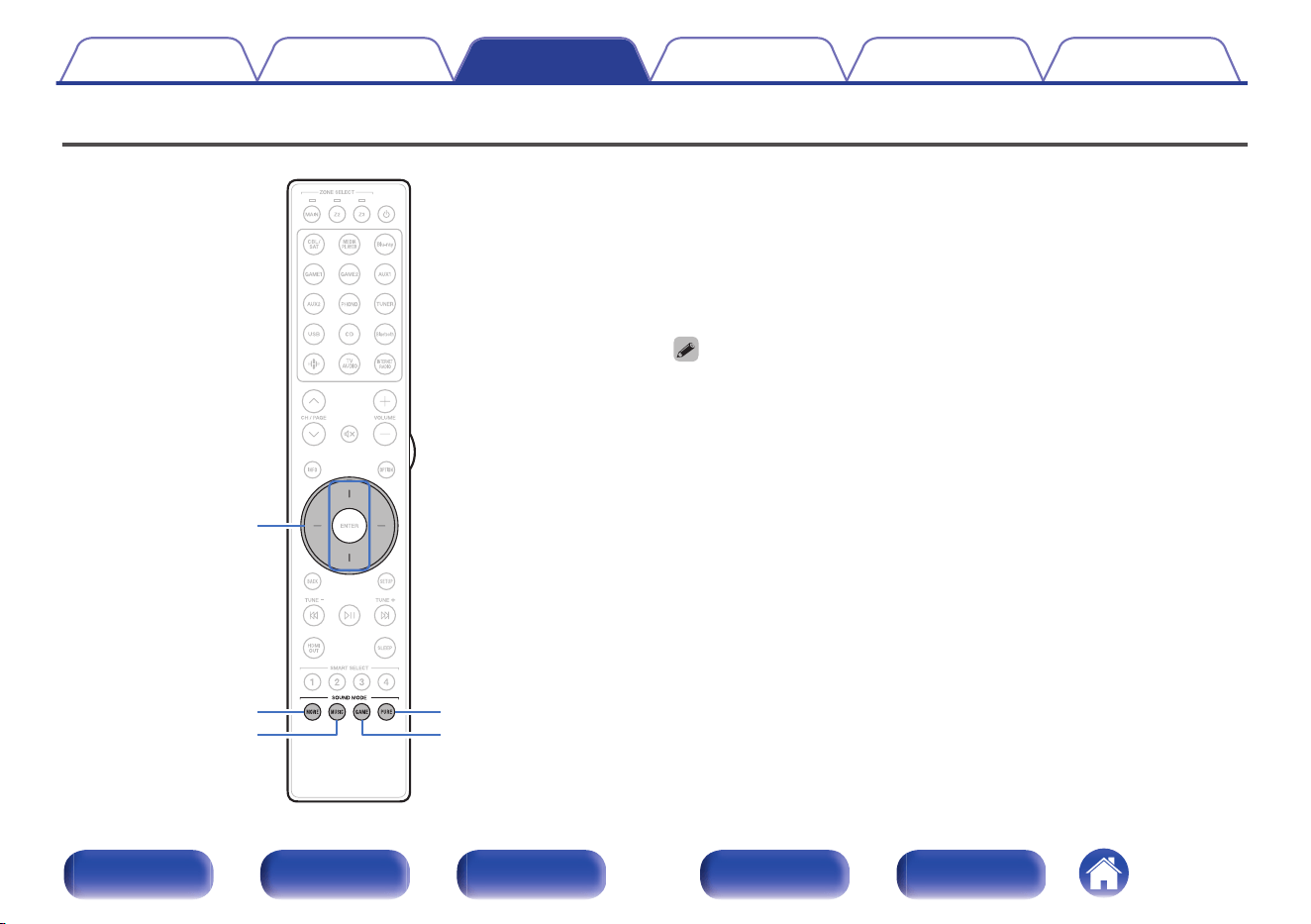
Selecting a sound mode
PURE
MOVIE
MUSIC GAME
Cursor Up/Down
This unit allows you to enjoy various kinds of surround and stereo
playback modes.
Disc formats such as Blu-ray Disc and DVD, as well as being supported by
digital broadcasting, and even by streaming movies and music from
internet-based subscription services.
This unit supports playback of almost all of these multi-channel audio
formats. It also supports surround playback of audio formats other than
multi-channel audio such as 2-channel stereo audio.
0
For audio formats recorded on a disc, see the disc jacket or label.
Contents Connections Playback Settings Tips Appendix
145
Front panel Display Rear panel Remote Index
Selecting a sound mode
1
Press MOVIE, MUSIC or GAME to select a sound mode.
MOVIE :
Switches to the sound mode suitable for
enjoying movies and TV programs.
MUSIC :
Switches to the sound mode suitable for
enjoying music.
GAME :
Switches to the sound mode suitable for
enjoying games.
0
The MOVIE, MUSIC, or GAME button memorizes the last sound mode selected for
its button. Pressing MOVIE, MUSIC, or GAME recalls the same sound mode as
the one selected at the previous playback.
0
If the content played back does not support the previously selected sound mode,
the most appropriate sound mode for the content is automatically selected.
0
You can also press SOUND MODE on the main unit to switch the sound mode.
o
Switching the sound mode
0
Press MOVIE, MUSIC or GAME to display a list of the sound modes
that can be selected. Each time you press MOVIE, MUSIC or GAME,
the sound mode changes.
0
While the list is displayed, you can also use cursor Up/Down to select
a sound mode.
0
Try out various sound modes and enjoy sound mode in your favorite
mode.
0
Please set the surround mode to Dolby Atmos/Surround when playing back Dolby
Atmos encoded content. Dolby Atmos/Surround delivers the optimum playback
experience from Blu-ray and streaming sources encoded with Dolby Atmos as well
as channel based content. The default setting of this receiver is Dolby Atmos/
Surround.
Contents Connections Playback Settings Tips Appendix
146
Front panel Display Rear panel Remote Index
[Example] When MOVIE is pressed
MOVIE SOUND
Stereo
Dolby Surround
DTS Neural:X
Multi Ch Stereo
AURO Surround
AURO-3D
Direct playback
Sound recorded in source is played as is.
1
Press PURE to select “Direct”.
Direct playback begins.
0
While DSD signals are played back, “DSD Direct” is displayed.
0
This can also be set by pressing PURE DIRECT on the main unit.
Contents Connections Playback Settings Tips Appendix
147
Front panel Display Rear panel Remote Index
Pure Direct playback
This mode is for playback with higher sound quality than in Direct playback
mode.
This mode turns off the main unit display. Doing so suppresses noise
sources that affect sound quality.
1
Press PURE to select “Pure Direct”.
The display goes dark, and Pure Direct playback begins.
0
In Direct and Pure Direct sound modes, the following items cannot be adjusted.
0
Dialog Enhancer (v p. 137)
0
Tone (v p. 139)
0
M-DAX (v p. 197)
0
MultEQ
®
XT32 (v p. 199)
0
Dynamic EQ (v p. 200)
0
Dynamic Volume (v p. 201)
0
Dirac Live Filter (v p. 202)
0
Graphic EQ (v p. 203)
0
This can also be set by pressing PURE DIRECT on the main unit.
NOTE
0
When the Pure Direct mode has been selected, the display turns off after about 5
seconds.
Auto surround playback
This mode detects the type of input digital signal, and automatically
selects the corresponding mode for playback.
Perform stereo playback when the input signal is PCM. When the input
signal is Dolby Digital or DTS, the music is played back according to the
respective channel number.
1
Press PURE to select “Auto”.
Auto surround playback begins.
0
This can also be set by pressing PURE DIRECT on the main unit.
Contents Connections Playback Settings Tips Appendix
148
Front panel Display Rear panel Remote Index
Description of sound mode types
Dolby sound mode
Sound mode type Description
Dolby Atmos Please select this mode to play content encoded with Dolby Atmos. If you have selected a different sound mode
previously, please select again this mode for Dolby Atmos content play back. It decodes Dolby Atmos content and its
positioning data in real time and outputs audio from the appropriate speakers, creating natural audio images regardless of
the speaker layout. Use ceiling speakers and/or Dolby Atmos Enabled speakers to realize a three-dimensional sound field.
An immersive audio experience can be enjoyed from traditional speaker layouts that do not employ overhead or Dolby
Atmos Enabled Speakers by selecting the Speaker Virtualizer feature.
Dolby TrueHD Please select this mode to play back the contents encoded with Dolby TrueHD at 192kHz/96kHz.
Dolby Digital Plus Please select this mode to play back the contents encoded with Dolby Digital Plus.
Dolby Digital Please select this mode to play back the contents encoded with Dolby Digital.
Dolby Surround This mode uses Dolby Surround Upmixer to extend various sources to natural and realistic multi channels for playback.
Use ceiling speakers such as top middle speakers to realize a three-dimensional sound field.
Contents Connections Playback Settings Tips Appendix
149
Front panel Display Rear panel Remote Index
DTS sound mode
Sound mode type Description
DTS Surround This mode can be selected when playing sources recorded in DTS.
DTS-HD This mode can be selected when playing sources recorded in DTS-HD.
DTS:X This mode can be selected when playing back content encoded with DTS:X.
It decodes DTS:X content and its positioning data in real time and outputs audio from the appropriate speakers, creating
natural audio images regardless of the speaker layout. Use height speakers to realize a three-dimensional sound field.
IMAX DTS
This mode is automatically activated when playing back IMAX Enhanced content featuring a DTS bitstream. (v p. 193)
0
When “Speaker Layout” - “Surround Back” is set to “2 spkrs”, “Speaker Layout” - “Center” is set to “Yes”, and sound
mode is set to “IMAX DTS”, surround audio is output from the surround back speaker. Audio is not output from the
surround speaker.
0
The bass information of speakers are not redirected to the subwoofer, but getting a better bass effect from front and
center speakers by special algorithm of IMAX “Crossovers” of “Front” and “Center” is set to other than “Full Range”.
IMAX DTS:X This mode is automatically activated when playing back IMAX Enhanced content featuring a DTS:X bitstream.
(v p. 193)
0
The bass information of speakers are not redirected to the subwoofer, but getting a better bass effect from front and
center speakers by special algorithm of IMAX “Crossovers” of “Front” and “Center” is set to other than “Full Range”.
Contents Connections Playback Settings Tips Appendix
150
Front panel Display Rear panel Remote Index
Sound mode type Description
DTS Neural:X This mode uses DTS Neural:X Upmixer to extend various sources to natural and realistic multi channels for playback.
Use height speakers such as front height speakers to realize a three-dimensional sound field.
DTS Virtual:X
z
1
z
2
This mode uses DTS Virtual:X with virtual height and virtual surround processing to realize a three-dimensional sound field
when the height speakers are not used.
z1
It cannot be selected when the input signal is Dolby Digital, Dolby Digital Plus, Dolby TrueHD or Dolby Atmos.
z2
This can be selected when Height, Ceiling and Dolby Atmos Enabled speakers are not being used.
AURO-3D sound mode
Sound mode type Description
AURO-3D This mode uses an AURO-3D decoder to create three-dimensional audio output using the Height Channel. It is ideal for
playback of signals encoded as AURO-3D with a Height Channel. If signals not encoded as AURO-3D are input, an
Upmixer called the Auro-Matic is used to create highly realistic three-dimensional audio output.
AURO Surround This mode uses an AURO-3D decoder to create Surround Sound without a Height Channel. It is ideal for playback of
signals encoded as AURO-3D without a Height Channel. If signals not encoded as AURO-3D are input, an Upmixer called
the Auro-Matic is used to output Surround Sound.
Contents Connections Playback Settings Tips Appendix
151
Front panel Display Rear panel Remote Index
MPEG-H sound mode
Sound mode type Description
MPEG-H This mode can be selected when MPEG-H audio is being delivered, such as in TV broadcasts.
With MPEG-H, you can enjoy playback of highly realistic sound according to the format it is delivered in, such as music
programs with high-quality sound and movies with multi-channel audio.
PCM multi-channel sound mode
Sound mode type Description
Multi Ch In This mode can be selected when playing multi-channel PCM/DSD sources.
Original sound mode
Sound mode type Description
Multi Ch Stereo This mode is for enjoying stereo sound from all speakers.
Contents Connections Playback Settings Tips Appendix
152
Front panel Display Rear panel Remote Index
Auto sound mode
Sound mode type Description
Auto In this mode, the type of digital signal input, such as Dolby Digital, Dolby TrueHD, Dolby Digital Plus, Dolby Digital EX,
Dolby Atmos, DTS, DTS-HD, DTS:X, DTS-ES, PCM (multi-channel) is detected, and the playback mode switches
automatically to the corresponding mode.
If the input signal is analog or PCM (2-channel), stereo playback is used. For Dolby Digital or DTS, the music is played
back according to the respective channel number.
Stereo sound mode
Sound mode type Description
Stereo This mode plays 2-channel stereo audio with no additional surround sound processing.
0
Sound is output from the front left and right speakers, and subwoofer if connected.
0
When multi-channel signals are inputted, they are mixed down to 2-channel audio and are played back with no
additional surround sound processing.
Direct sound mode
Sound mode type Description
Direct This mode plays back audio as recorded in the source.
Pure Direct This mode plays back an even higher quality sound than the “Direct” mode.
The following circuits are stopped in order to further improve sound quality.
0
Display indicator circuit of the main body (display will go off.)
Contents Connections Playback Settings Tips Appendix
153
Front panel Display Rear panel Remote Index
Sound mode that can be selected for each input signal
0
The following sound modes can be selected using the MOVIE, MUSIC and GAME buttons.
0
Adjust the sound field effect with the menu “Surround Parameter” to enjoy surround sound the way you like it. (v p. 190)
0
Only “Stereo” can be selected when headphones are used.
Stereo
SSS
Dolby Surround SSS
DTS Neural:X SSS
DTS Virtual:X z3z4
z2
z2
SSS
AURO-3Dz5 SSS
AURO Surround z2 SSS
Multi Ch Stereo SS
GAME buttonMUSIC buttonMOVIE buttonSound modeInput signal
2-channel z1
z1
2-channel also includes analog input.
z2
It cannot be selected when the speaker configuration is front speakers only.
z3
It cannot be selected when a speaker configuration with any height speakers is used.
z4
It cannot be selected when the input signal is Dolby Digital, Dolby Digital Plus, Dolby TrueHD or Dolby Atmos.
z5
It cannot be selected when a speaker configuration without front height or front Dolby Atmos Enabled speakers is used.
Contents
Connections Playback Settings Tips Appendix
154
Front panel Display Rear panel Remote Index
Stereo
SSS
Dolby Digital
Dolby Digital SSS
Dolby Digital + Dolby Surround SSS
Dolby Digital + Neural:X SSS
Dolby Digital Plus
Dolby Digital Plus SSS
Dolby Digital Plus + Dolby Surround z7 SSS
Dolby Digital Plus + Neural:X SSS
Dolby Atmos z8 SSS
Dolby TrueHD
Dolby TrueHD SSS
Dolby TrueHD + Dolby Surround z7 SSS
Dolby TrueHD + Neural:X SSS
Dolby Atmos z8 SSS
Dolby Atmos
Dolby Atmos SSS
Multi-channel z6
GAME buttonMUSIC buttonMOVIE buttonSound modeInput signal
z6
The sound mode that can be selected differs depending on the audio format of the input signal and the number of channels.
z7
This can be selected when the input signal does not contain Dolby Atmos.
z8
This can be selected when the input signal contains Dolby Atmos.
Contents Connections Playback Settings Tips Appendix
155
Front panel Display Rear panel Remote Index
DTS
DTS Surround SSS
SSS
SSS
SSS
DTS + Dolby Surround
SSS
DTS + Neural:X
SSS
DTS + Virtual:X
SSS
SSS
SSS
DTS-HD
DTS-HD + Dolby Surround
DTS-HD + Neural:X
DTS-HD + Virtual:X z3
z3
SSS
DTS-HD
DTS:X
DTS:X
DTS:X + Virtual:X z3
z9
z9
z3z9
z9
z3z9
SSS
SSS
SSS
IMAX DTS
IMAX DTS
IMAX DTS + Neural:X
IMAX DTS + Virtual:X
SSS
SSS
IMAX DTS:X
IMAX DTS:X
IMAX DTS:X + Virtual:X
Multi-channel z6
GAME buttonMUSIC buttonMOVIE buttonSound modeInput signal
z3
It cannot be selected when a speaker configuration with any height speakers is used.
z6
The sound mode that can be selected differs depending on the audio format of the input signal and the number of channels.
z9 Selectable when “Surround Parameter” - “IMAX” is set to “Auto” in the menu. When “IMAX” is set to “Off”, playback is normal DTS or DTS:X. (v p. 193)
Contents Connections Playback Settings Tips Appendix
156
Front panel Display Rear panel Remote Index
SSS
SSS
SSS
Multi Ch In
SSS
Multi Ch In 7.1
SSS
Multi In + Dolby Surround
SSS
Multi Ch In + Neural:X
SSS
Multi In + Virtual:X
MPEG-H
z3
SSS
AURO-3D z5 z10
SS
AURO Surround z3 z10
Multi Ch Stereo
MPEG-H
Multi-channel z6
PCM multi-channel
GAME buttonMUSIC buttonMOVIE buttonSound modeInput signal
z3
It cannot be selected when a speaker configuration with any height speakers is used.
z5
It cannot be selected when a speaker configuration without front height or front Dolby Atmos Enabled speakers is used.
z6
The sound mode that can be selected differs depending on the audio format of the input signal and the number of channels.
z10
It cannot be selected when the input signal is Dolby Atmos, DTS:X and MPEG-H.
Contents Connections Playback Settings Tips Appendix
157
Front panel Display Rear panel Remote Index
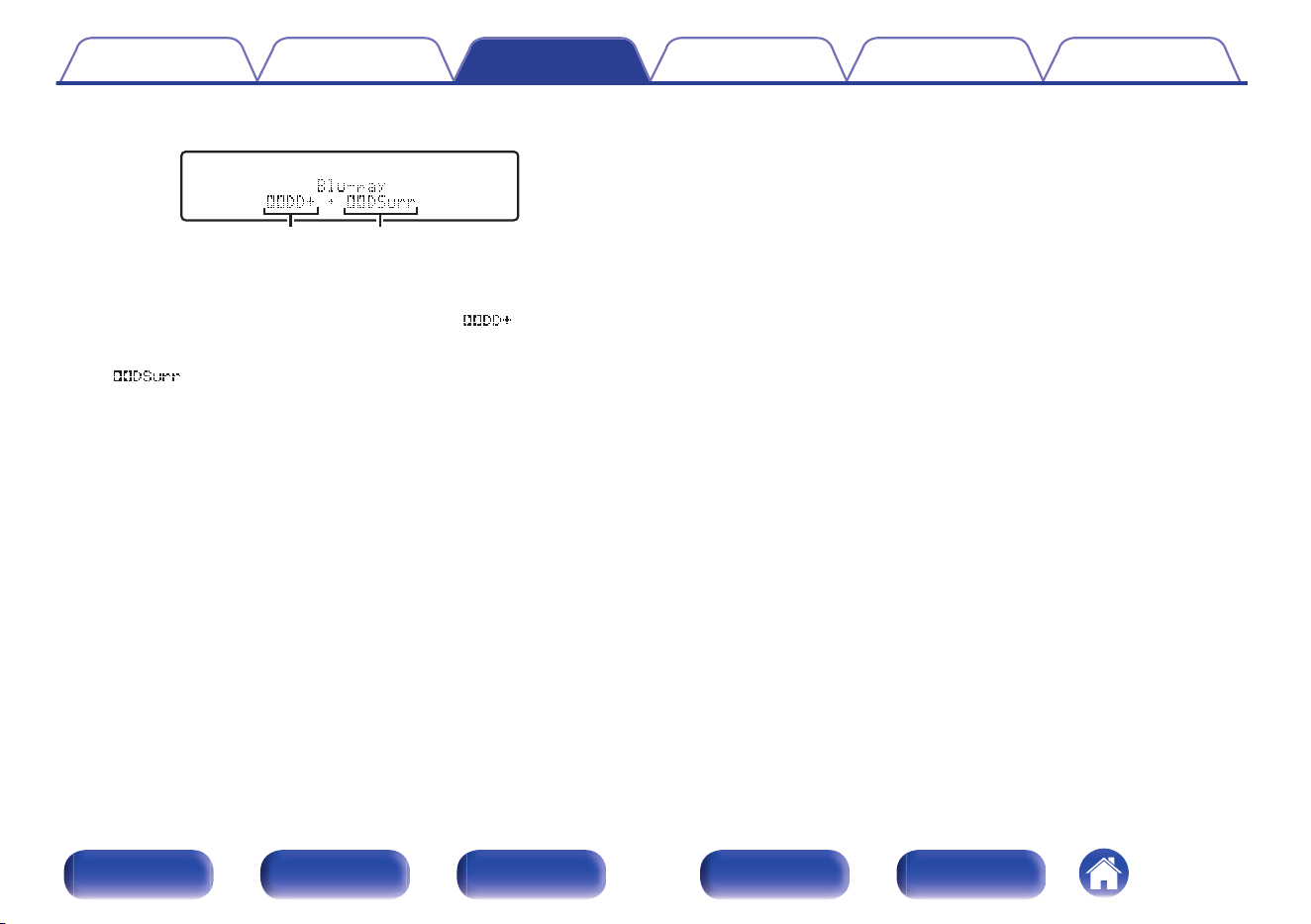
o
Views on the display
q w
A
Shows a decoder to be used.
0
In the case of the Dolby Digital Plus decoder, “
” is displayed.
B
Shows a decoder that creates sound output.
0
“ ” indicates that the Dolby Surround decoder is being used.
Contents Connections Playback Settings Tips Appendix
158
Front panel Display Rear panel Remote Index
HDMI Control function
A recent addition to the HDMI standard is CEC (Consumer Electronics Control), which allows control signals from one device to communicate with
another device via the HDMI cable connection.
Setting procedure
1
Enable the HDMI Control function of this unit.
Set “HDMI Control” to “On”. (v p. 207)
2
Turn the power on for all the devices connected by
HDMI cable.
3
Set the HDMI Control function for all devices connected
by HDMI cable.
0
Please consult the operating instructions for the connected
devices to check the settings.
0
Carry out steps 2 and 3 should any of the devices be unplugged.
4
Switch the television input to the HDMI input connected
to this unit.
5
Switch the input source of this unit to check that video
from the player connected by HDMI is played back
correctly.
6
When you turn the TV’s power to standby, check that
the power of this unit also goes to standby.
NOTE
0
Some functions may not operate depending on the connected TV or player. Check
the owner’s manual of each device for details beforehand.
0
The HDMI ZONE2 function is not compatible with the HDMI Control function.
0
When the HDMI ZONE2 function is used with “HDMI Control” in the menu set to
“On”, the HDMI ZONE2 function may not fully work.
Contents Connections Playback Settings Tips Appendix
159
Front panel Display Rear panel Remote Index
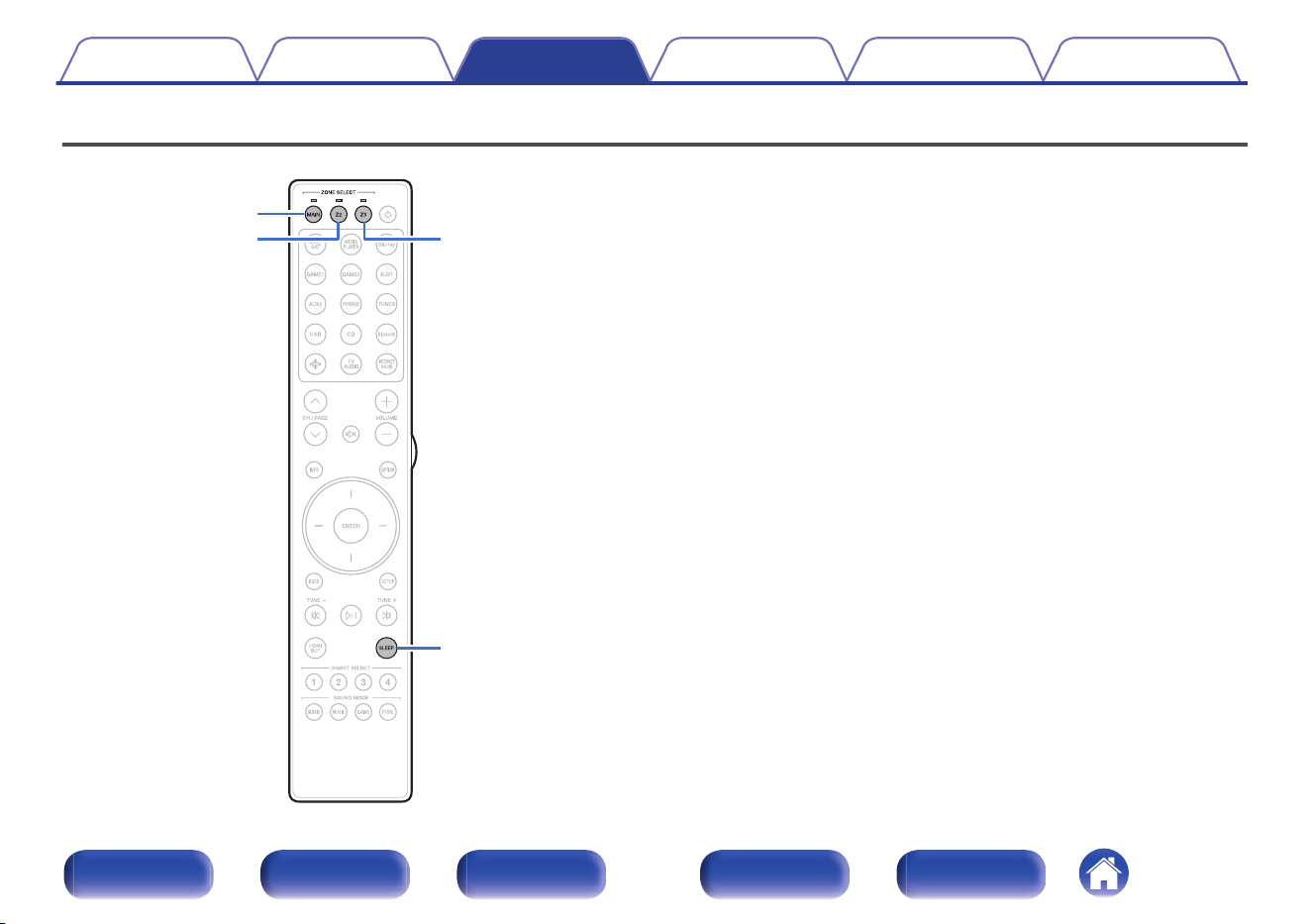
Sleep timer function
MAIN
Z2
SLEEP
Z3
You can have the power automatically switched to standby once a set time
has elapsed. This is convenient for viewing and listening while going to
sleep. The sleep timer function can be set for each zone.
Contents Connections Playback Settings Tips Appendix
160
Front panel Display Rear panel Remote Index
Using the sleep timer
1
Press MAIN, Z2 or Z3 to select the operating zone with
the remote control.
The indicator for the selected zone is lit.
2
Press SLEEP and display the time you want to set.
0
The sleep timer indicator lights up on the display and the sleep
timer starts.
0
You can set the sleep timer in the range from 10 to 120 minutes in
steps of 10 minutes.
o
Checking the remaining time
Press SLEEP when the sleep timer is in operation.
The remaining time appears on the display.
o
To cancel the sleep timer
Press SLEEP to select “Off”.
The sleep timer indicator on the display turns off.
0
The sleep timer setting is canceled when the unit switches to standby mode.
NOTE
0
The sleep timer function cannot turn off the power of devices connected to this
unit. To turn off the power of those connected devices, set up sleep timers on the
connected devices themselves.
Contents Connections Playback Settings Tips Appendix
161
Front panel Display Rear panel Remote Index
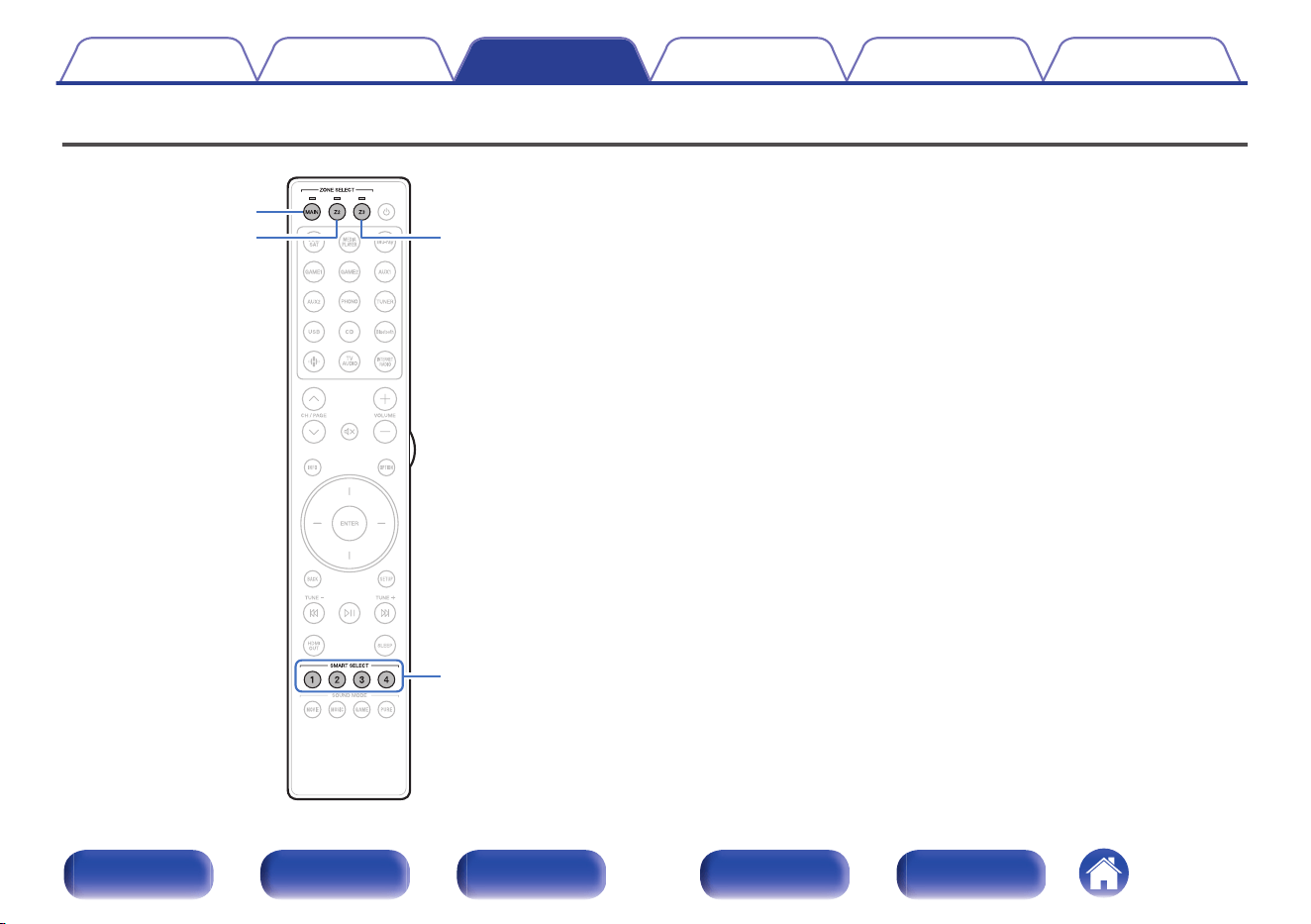
Smart select function
SMART
SELECT
1 – 4
Z3
MAIN
Z2
Settings such as the input source, volume level and sound mode can be
registered to the SMART SELECT 1 - 4 buttons.
You can simply press one of the registered SMART SELECT buttons in
subsequent playbacks to switch to the group of saved settings in a batch.
By saving frequently used settings at the SMART SELECT 1 – 4 buttons,
you will always be able to easily call up the same playback environment.
The Smart Select function can be memorized for each zone.
Contents Connections Playback Settings Tips Appendix
162
Front panel Display Rear panel Remote Index
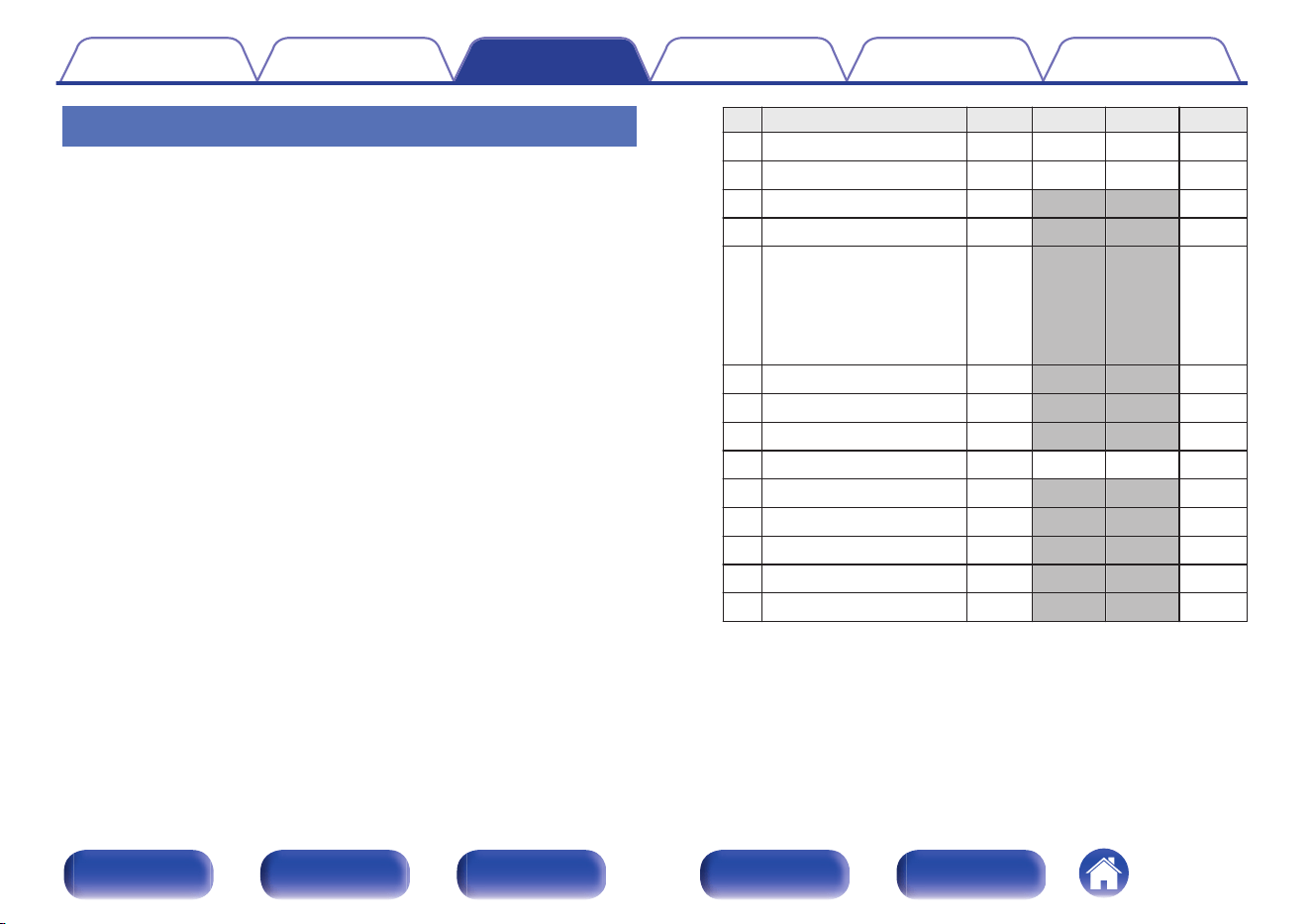
Registering the settings
1
Configure the unit to save the following content.
The Smart Select function can be used to register the following
items for each zone.
Registered Items Main ZONE2 ZONE3 Page
1
Input Source
P P P
95
2
Master Volume
P P P
96
3
Sound Mode
P
145
4
Channel Level
P
138
5
Audyssey Parameters
(Audyssey MultEQ
®
XT32,
Audyssey Dynamic EQ
®
,
Audyssey Dynamic Volume
®
,
Audyssey LFC™)
P
199
6
M-DAX
P
197
7
Dialog Enhancer
P
137
8
HDMI Video Output
P
210
9
Playback Content
P P P
z
10
Speaker Preset
P
144
11
All Zone Stereo
P
143
12
TV Audio Sharing
P
164
13
Dirac Live
P
202
14
Video Select
P
142
z
Press and hold SMART SELECT while a radio station is being received is
being played back with any of the following sources, the current radio
station is memorized.
0
Tuner / Internet Radio Station / Spotify
Contents
Connections Playback Settings Tips Appendix
163
Front panel Display Rear panel Remote Index
2
Press MAIN, Z2 or Z3 to select the operating zone with
the remote control.
The indicator for the selected zone is lit.
3
Press and hold the desired SMART SELECT until
“Smart X Memory”, “Z2 Smart X Memory” or “Z3 Smart
X Memory” appears on the display.
The current settings will be memorized.
X is displayed the number for the SMART SELECT button you
pressed.
o
Changing setting items in Smart Select
You can change the MAIN ZONE Smart Select names displayed on
the TV screen or this unit’s display and saved setting items.
See “Smart Select” in the menu for details on how to make these
changes. (v p. 276)
o
TV Audio sharing settings
You can enjoy the same content as the MAIN ZONE in ZONE2 or
ZONE3 while maintaining surround playback of the content from TV or
other playback devices in the MAIN ZONE with the original audio
format such as Dolby Atmos.
By saving the following settings in advance to Smart Select, you can
easily call up the playback environments to be used in the MAIN
ZONE, ZONE2 and ZONE3 with this function.
1
Select the input source to play back in the MAIN ZONE.
2
Press ZONE2 ON/OFF or ZONE3 ON/OFF on the main
unit to turn on the power of the zone where you want to
play the same content as the MAIN ZONE.
3
Press ZONE2 SOURCE or ZONE3 SOURCE on the main
unit to switch the input source of ZONE2 or ZONE3 to
“Source”.
If “Source” is selected as the input source of ZONE2 or ZONE3, the
input source is changed to mirror that of the MAIN ZONE.
4
Press and hold the desired SMART SELECT until
“Smart Select* Memory” appears on the display.
Contents Connections Playback Settings Tips Appendix
164
Front panel Display Rear panel Remote Index
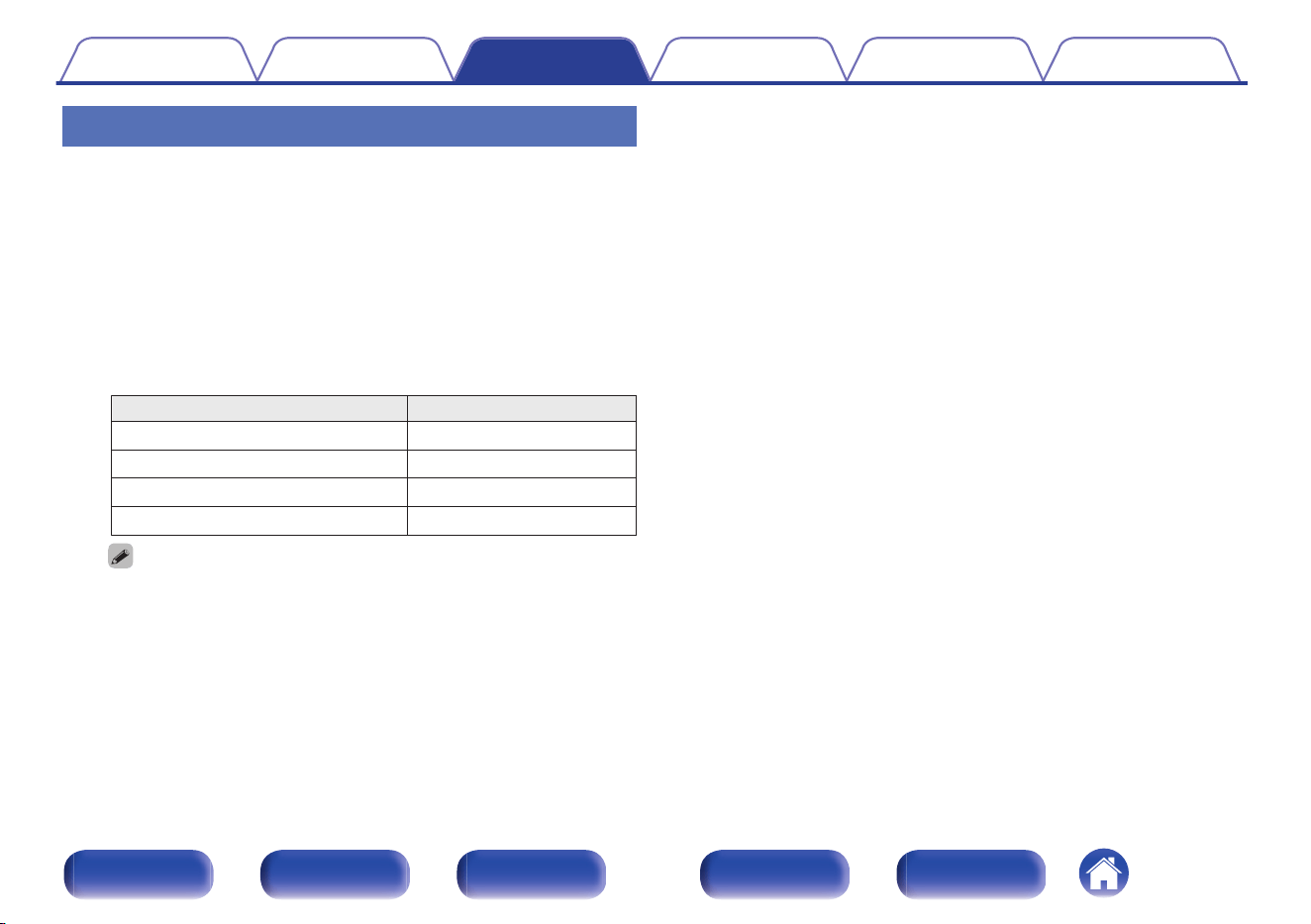
Calling up the settings
1
Press MAIN, Z2 or Z3 to select the operating zone with
the remote control.
The indicator for the selected zone is lit.
2
Press SMART SELECT.
The Smart Select settings registered to the button you pressed are
called up.
0
The default settings for the input source are as shown below.
GMAIN ZONEH / GZONE2H / GZONE3H
Button Input source
SMART SELECT 1 CBL/SAT
SMART SELECT 2 Blu-ray
SMART SELECT 3 Media Player
SMART SELECT 4 HEOS Music
0
Volume is not registered to Smart Select in the factory default settings.
See “Registering the settings” to register volume to Smart Select.
(v p. 163)
Contents Connections Playback Settings Tips Appendix
165
Front panel Display Rear panel Remote Index
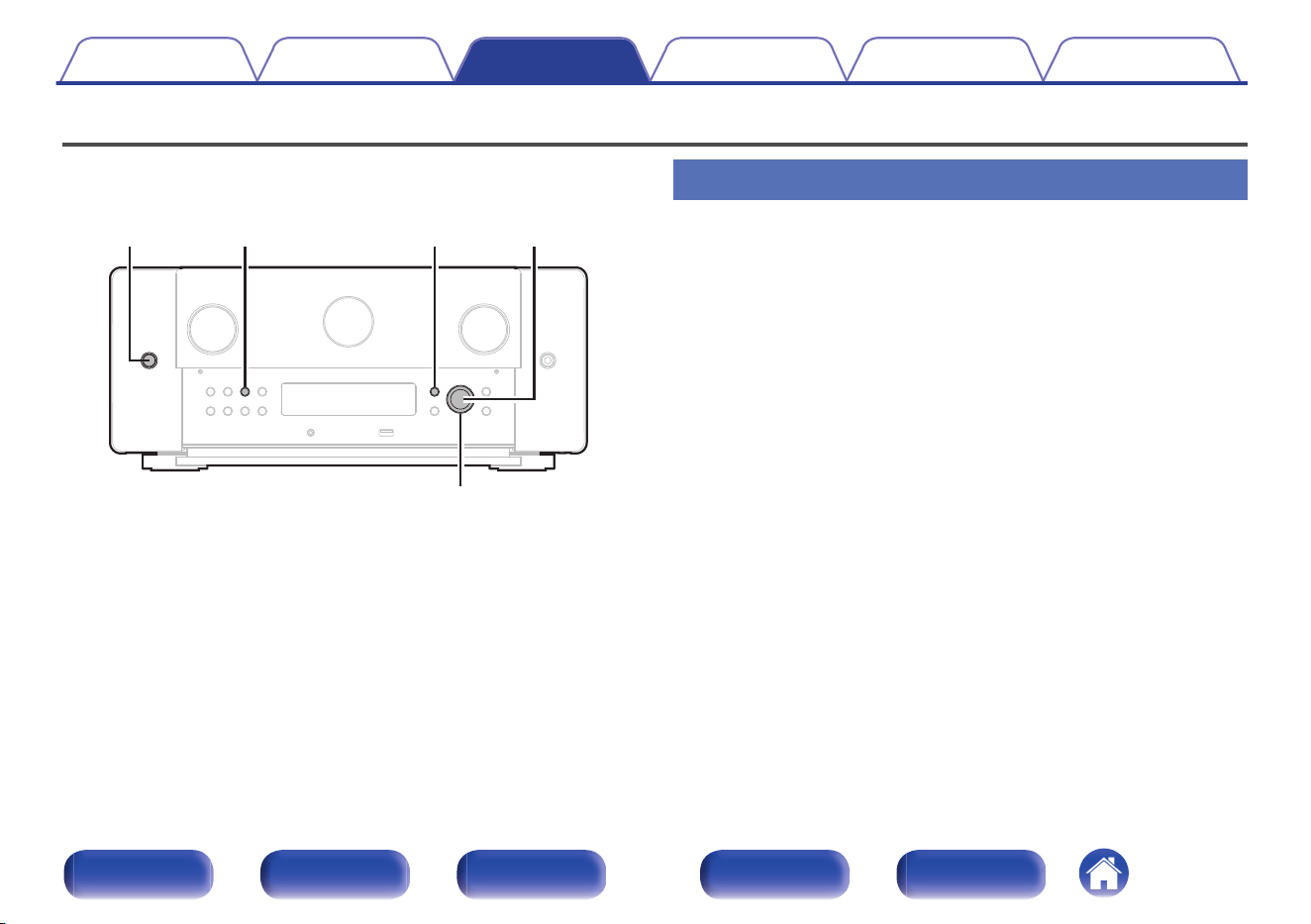
Panel lock function
To prevent accidental operation of this unit, you can disable operation of
the buttons on the front panel.
X
ENTERSTATUS INFO
Cursor Up/Down
Disabling all key button operations
1
Press X while you press and hold STATUS and INFO
with the unit in standby mode.
2
Use cursor Up/Down to select “FP/VOL LOCK On”.
3
Press ENTER to enter the setting.
All button operations except X are disabled.
Contents Connections Playback Settings Tips Appendix
166
Front panel Display Rear panel Remote Index
Disabling all button operations except
VOLUME
1
Press X while you press and hold STATUS and INFO
with the unit in standby mode.
2
Use cursor Up/Down to select “FP LOCK On”.
3
Press ENTER to enter the setting.
All button operations except X and VOLUME are disabled.
Canceling the Panel lock function
1
Press X while you press and hold STATUS and INFO
with the unit in standby mode.
2
Use cursor Up/Down to select “FP LOCK zOff”.
(z The currently set mode.)
3
Press ENTER to enter the setting.
The Panel lock function is canceled.
0
Even when the Panel lock function is set, you can operate the unit using the
remote control unit.
Contents Connections Playback Settings Tips Appendix
167
Front panel Display Rear panel Remote Index
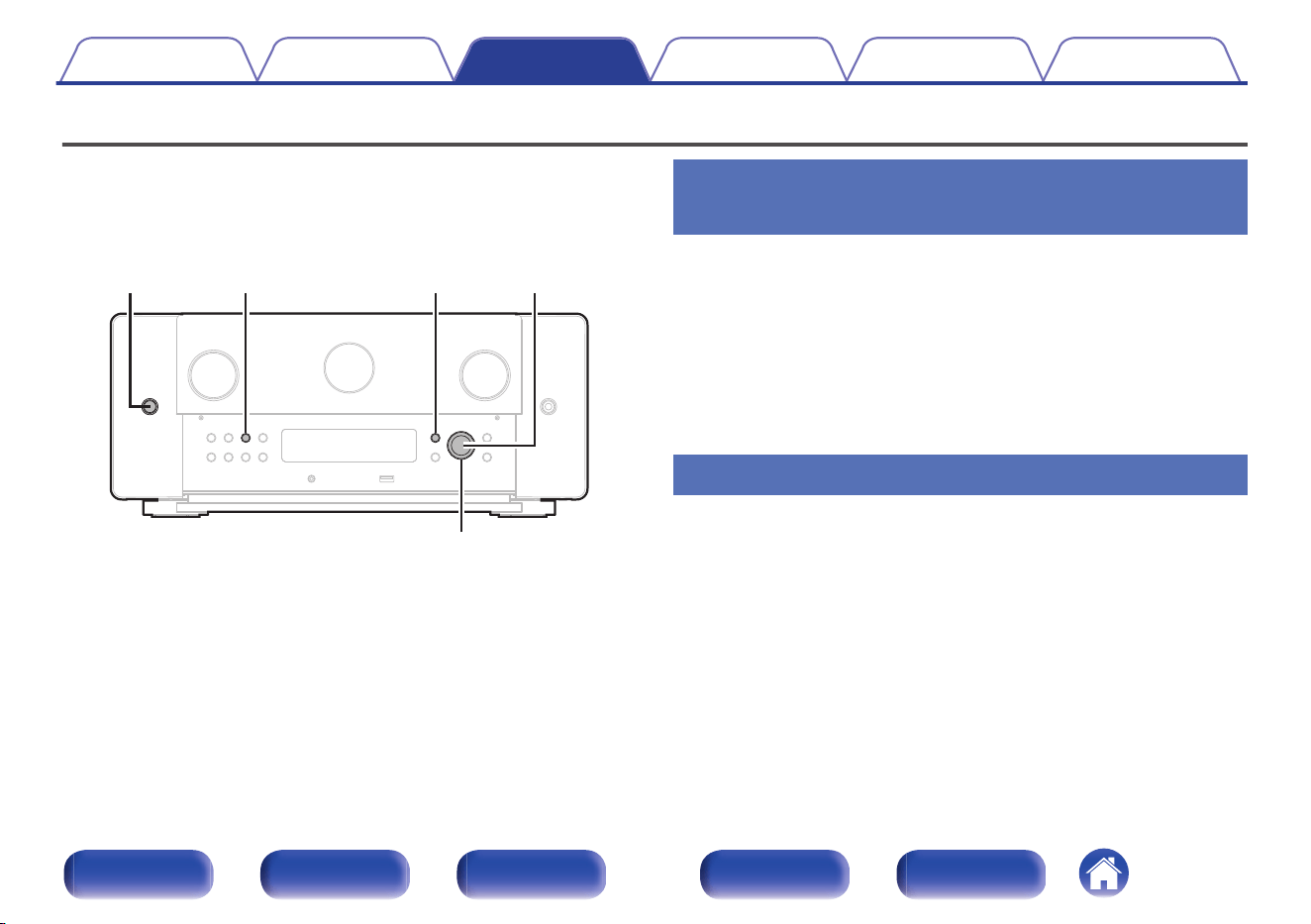
Remote lock function
When connecting an IR receiver, enable the Remote lock function. When
the function is enabled, you can not perform operations with the remote
control unit.
By default, this function is disabled.
X
ENTERSTATUS INFO
Cursor Up/Down
Disabling the sensor function of the
remote control unit
1
Press X while you press and hold STATUS and INFO
with the unit in standby mode.
2
Use cursor Up/Down to select “RC LOCK On”.
3
Press ENTER to enter the setting.
The infrared light receiving function is disabled.
Enabling the remote sensor function
1
Press X while you press and hold STATUS and INFO
with the unit in standby mode.
2
Use cursor Up/Down to select “RC LOCK zOff”.
(z The currently set mode.)
3
Press ENTER to enter the setting.
Infrared light receiving function on the main unit is enabled.
Contents Connections Playback Settings Tips Appendix
168
Front panel Display Rear panel Remote Index
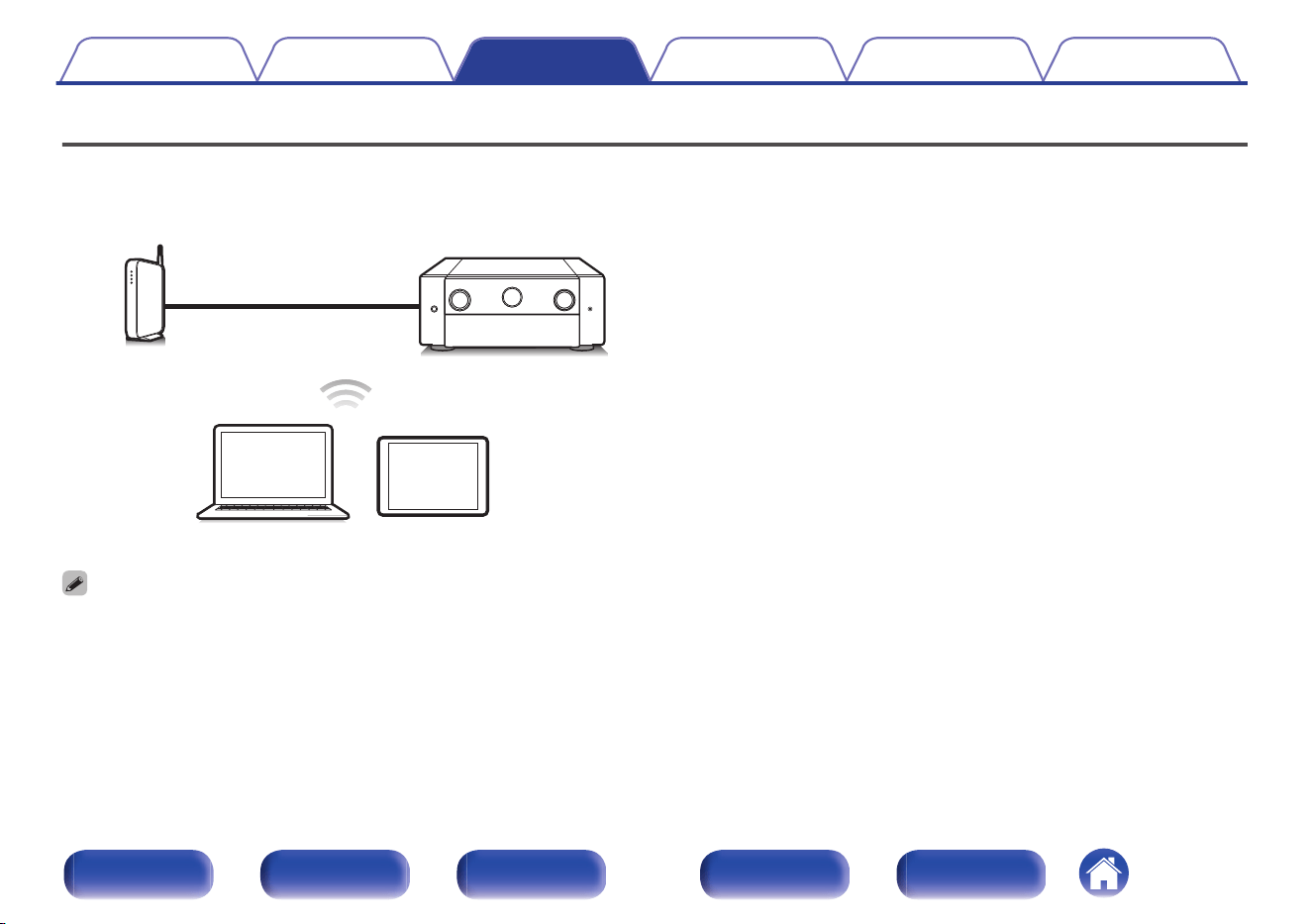
Web control function
You can control and configure this unit from a web control screen on a
web browser.
PC
Router
This unit
Tablet
0
This unit and the PC or tablet need to be connected correctly to the network in
order to use the web control function. (v p. 87)
0
Depending on the settings of your security-related software, you may not be able
to access this unit from your PC. If this is the case, then change the settings of the
security-related software.
Contents
Connections Playback Settings Tips Appendix
169
Front panel Display Rear panel Remote Index
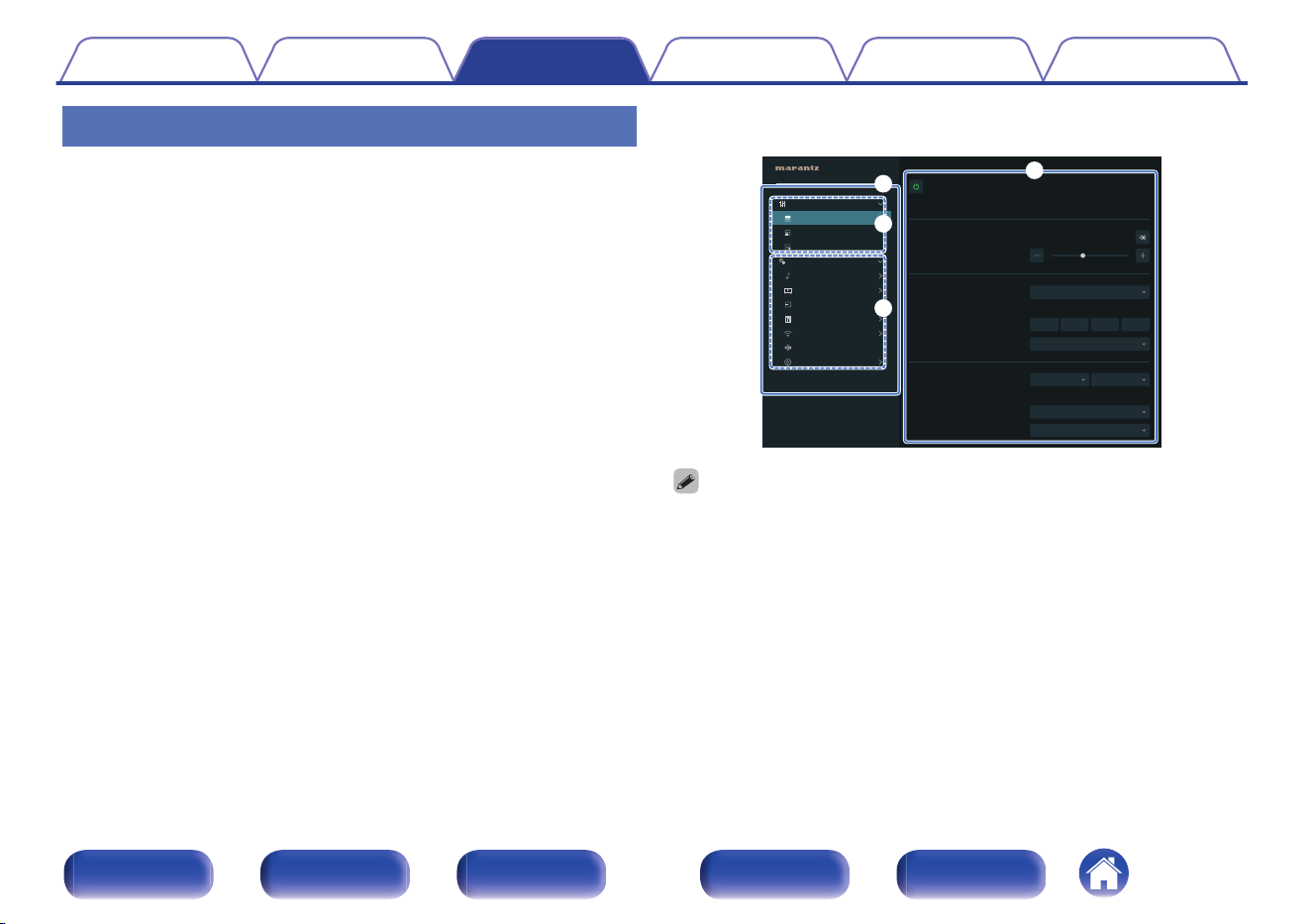
Controlling the unit from a web control
The web control screen supports the following functions.
A
Sidebar Menu
B
Selecting the zone to control
C
Setup Menu
D
Setting of the selected zone and menu in the Sidebar Menu
Web control screen
Top menu
40
Marantz XXXXXXXXXX
CI
e
w
q
r
Volume
Zone Control
MAIN ZONE
ZONE2
ZONE3
Setup Menu
Audio
Video
Inputs
Speakers
Network
HEOS
General
CI Menu
MAIN ZONE
Source
Sound Mode
CBL/SAT
Movie
Stereo
Recall
Auto (Dual)
O
Save
Music Game Pure
Smart Select
Sleep Timer
HDMI VIdeo Output
0
Audyssey Setup is not supported on the web control screen. If you wish to perform
measurement, perform measurement from the on-screen Setup Menu.
0
“CI Menu” contains settings for use by custom installers and should not be used at
any other time.
Contents
Connections Playback Settings Tips Appendix
170
Front panel Display Rear panel Remote Index
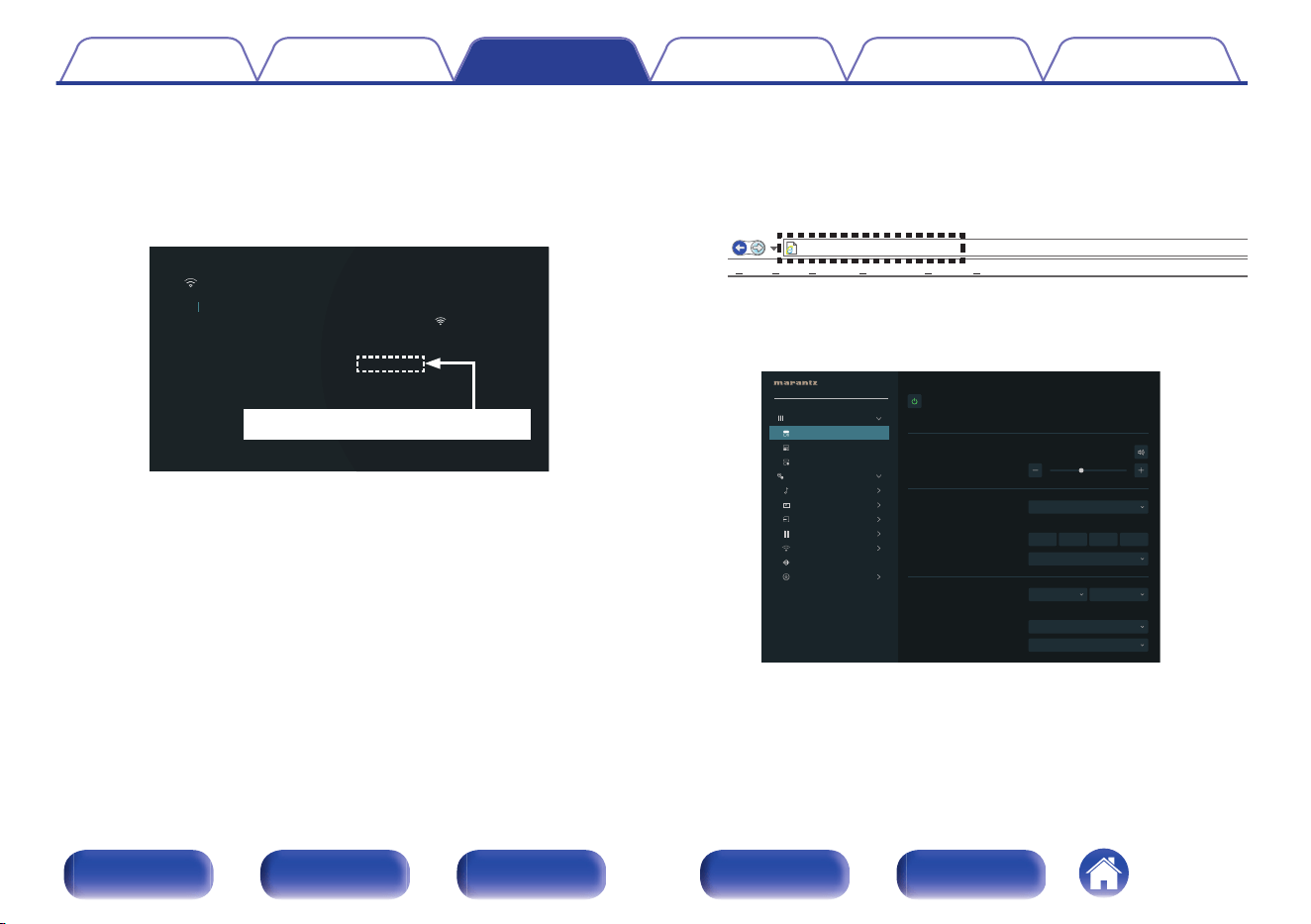
1
Switch the “Network Control” setting to “Always On”.
(v p. 262)
2
Check the IP address of this unit with “Information”.
(v p. 258)
192.168.100.19
000000-000000
000000-000000
Marantz CINEMA 30
SSID-01SSID
DHCP
Checking the IP address.
Friendly Name
Connection
IP Address
MAC Address (Ethernet)
MAC Address (Wi-Fi)
Wireless (Wi-Fi)
On
Displays the current network settings of the AVR.
Network/Information
3
Open a web browser on a PC or tablet.
4
Enter the IP address of this unit in browser’s address
box.
For example, if the IP address of this unit is “192.168.100.19”, enter
“http://192.168.100.19”.
http://192.168.100.19
File
Edit View Tools HelpFavorites
5
When the top menu is displayed on the web browser,
click on the menu item you want to operate.
40
Marantz XXXXXXXXXX
CI
Volume
Zone Control
MAIN ZONE
ZONE2
ZONE3
Setup Menu
Audio
Video
Inputs
Speakers
Network
HEOS
General
CI Menu
MAIN ZONE
Source
Sound Mode
CBL/SAT
Movie
Stereo
Recall
Auto (Dual)
O
Save
Music Game Pure
Smart Select
Sleep Timer
HDMI VIdeo Output
Contents Connections Playback Settings Tips Appendix
171
Front panel Display Rear panel Remote Index
Playback in ZONE2/ZONE3 (Another room)
You can operate this unit to enjoy video and audio in a room (ZONE2 and ZONE3) that is different from the room where this unit is placed (MAIN ZONE).
0
You can simultaneously play back the same source in both the MAIN ZONE, ZONE2 and ZONE3.
0
You can also play back separate sources in the MAIN ZONE, ZONE2 and ZONE3.
o
Connecting ZONE (v p. 173)
“Connection 1 : Connection through the HDMI ZONE2 connector” (v p. 173)
“Connection 2 : Connection using a speaker output terminal” (v p. 174)
“Connection 3 : Connection through the external power amplifiers” (v p. 177)
o
Playback the source in ZONE2/ZONE3 (v p. 178)
“Playing the same source simultaneously in MAIN ZONE, ZONE2 and ZONE3 (TV Audio Sharing setting)” (v p. 178)
“Playing different sources in MAIN ZONE, ZONE2 and ZONE3” (v p. 180)
o
Adjusting the Volume in ZONE2/ZONE3 (v p. 182)
“Adjusting the volume” (v p. 182)
“Turning off the sound temporarily (Muting)” (v p. 182)
Contents
Connections Playback Settings Tips Appendix
172
Front panel Display Rear panel Remote Index
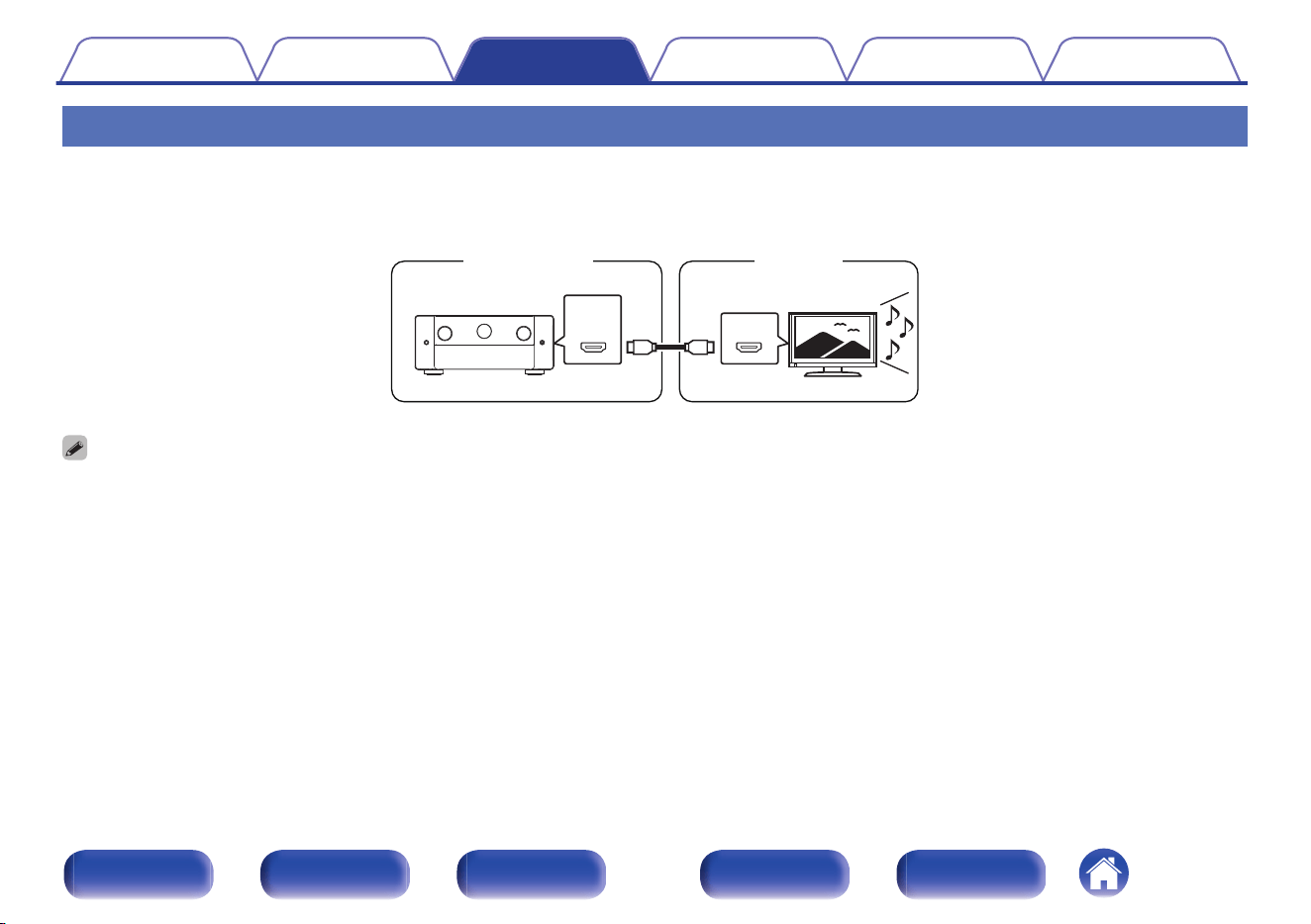
Connecting ZONE
o
Connection 1 : Connection through the HDMI ZONE2 connector
When a TV is connected to the HDMI ZONE2 OUT connector, you can play back a video or audio from the device connected to the HDMI 1 – 7 IN
connector in ZONE2 (HDMI ZONE2 function).
HDMI
ZONE2
HDMI
ZONE2
MAIN ZONE
This unit
0
When a TV is connected to the HDMI ZONE2 OUT connector, and the MAIN ZONE and ZONE2 are set to the same input source, the MAIN ZONE audio may be mixed down
to 2-channel audio.
Contents Connections Playback Settings Tips Appendix
173
Front panel Display Rear panel Remote Index
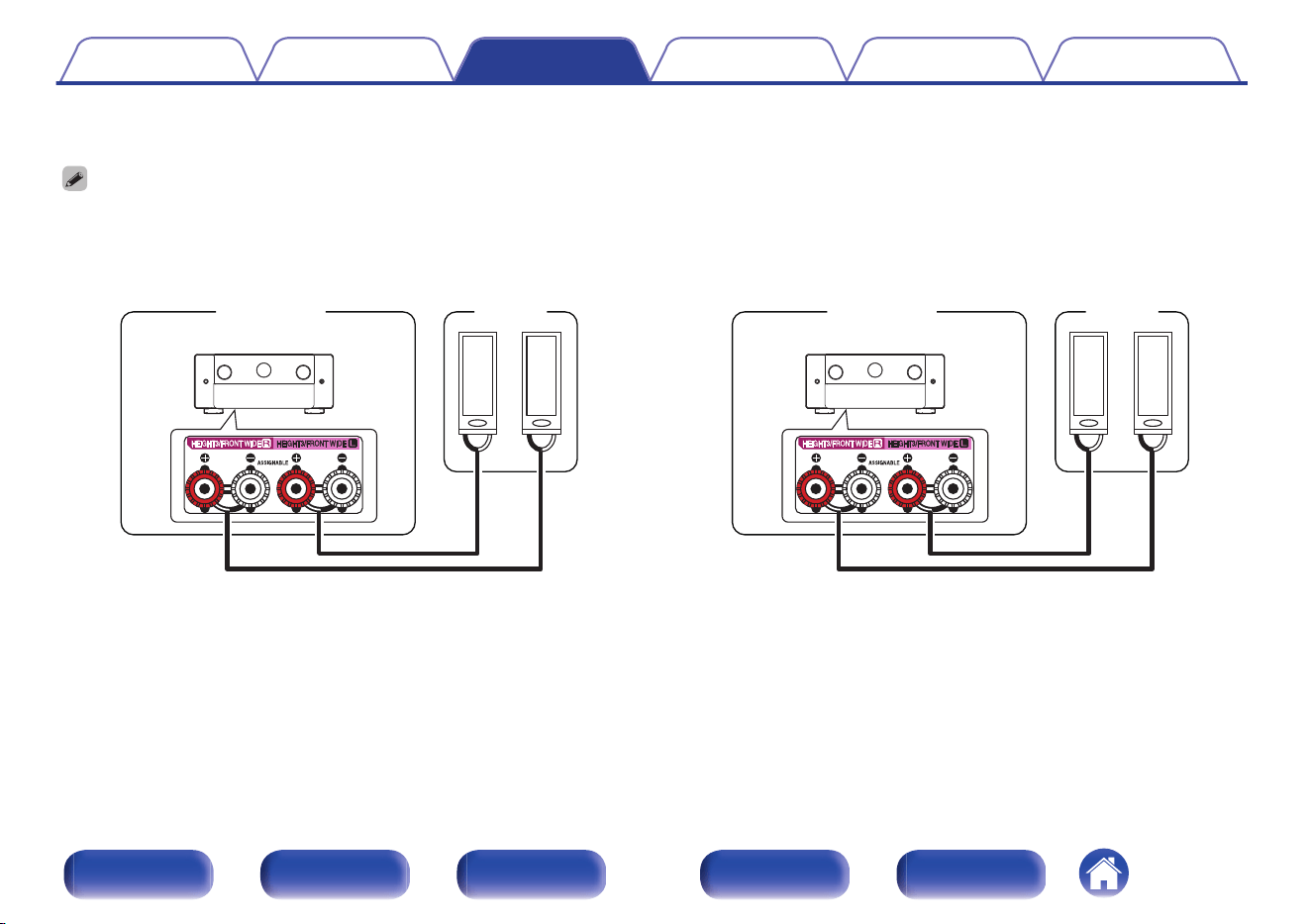
o
Connection 2 : Connection using a speaker output terminal
When “Amp Assign” in the menu is set to any of the following audio is output from speakers in ZONE2 or ZONE3. (v p. 231)
0
The connectors for connecting the ZONE2 and ZONE3 speakers depends on your MAIN ZONE Speaker Layout. Check the connectors under ZONE2 and ZONE3 in
Speaker Layout.
n
Amp Assign: 9.1ch + ZONE2
wqwq
(L) (R)
ZONE2
MAIN ZONE
This unit
n
Amp Assign: 9.1ch + ZONE3
wqwq
(L) (R)
ZONE3
MAIN ZONE
This unit
Contents Connections Playback Settings Tips Appendix
174
Front panel Display Rear panel Remote Index
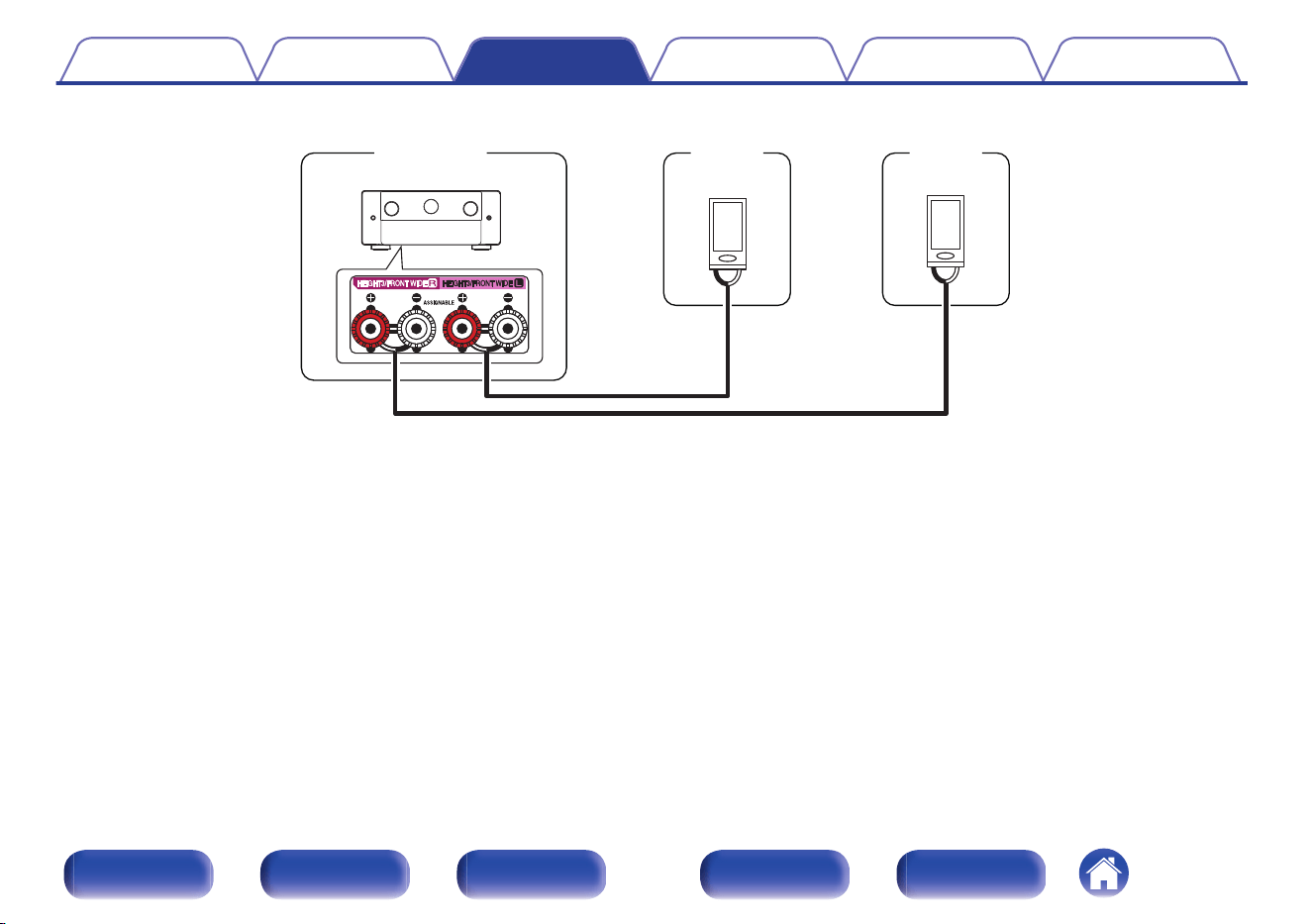
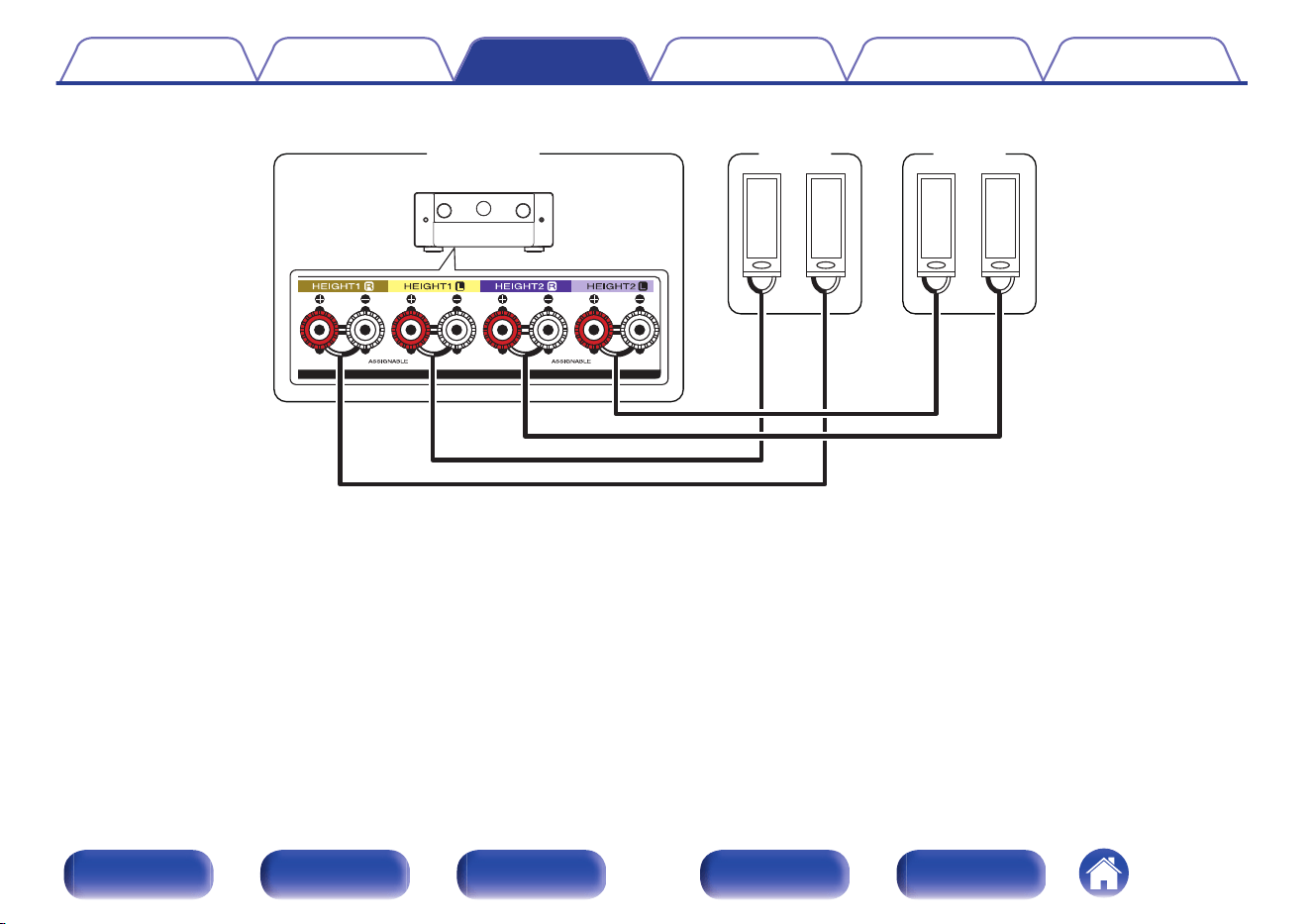
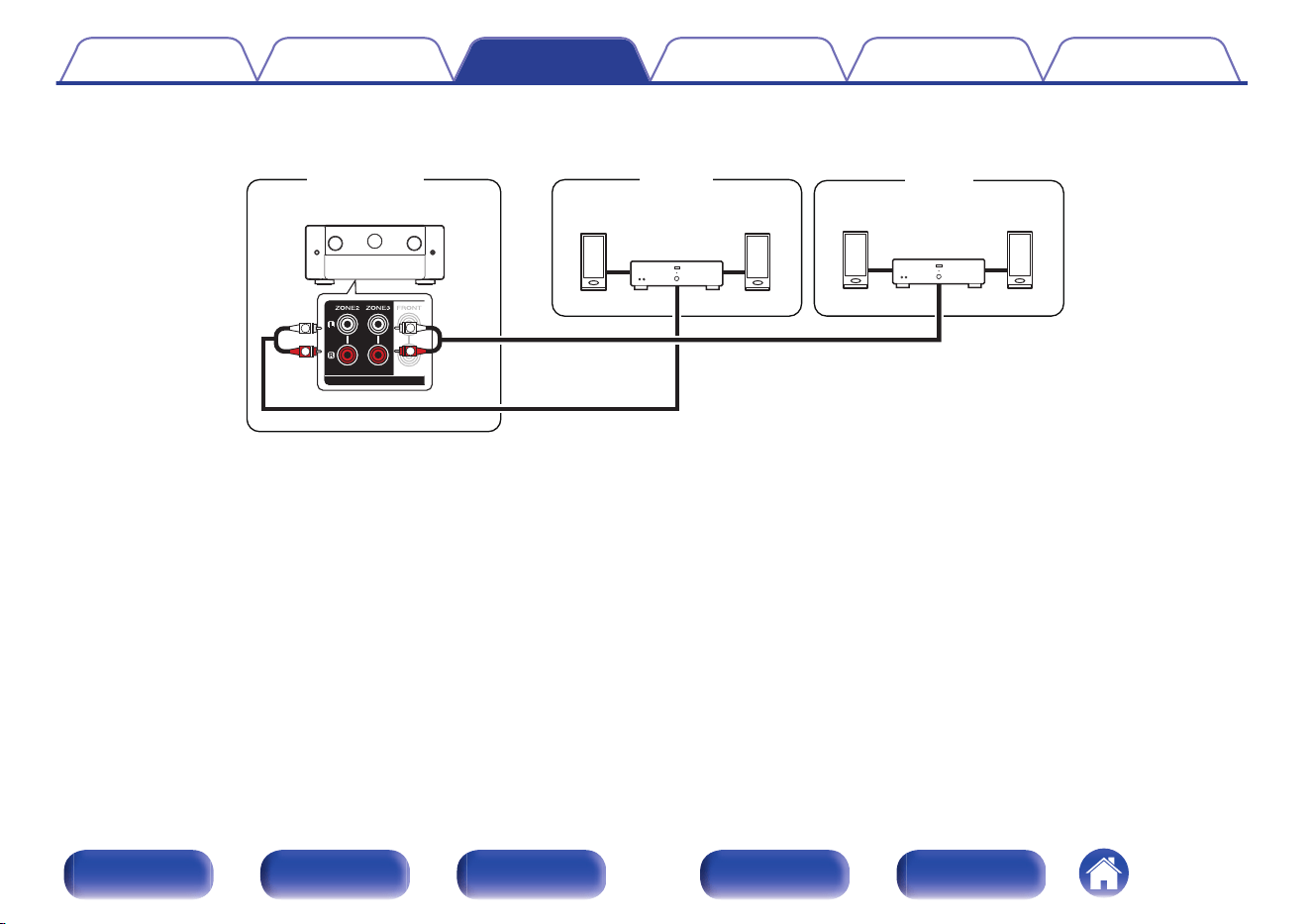
o
Connection 3 : Connection through the external power amplifiers
The audio signals of this unit’s ZONE2 and ZONE3 audio output connectors are played on the ZONE2 and ZONE3 power amplifiers.
R
L
R
L
AUX IN
AUX IN
ZONE3
ZONE2
MAIN ZONE
Power amplifier
This unit
Power amplifier
Contents Connections Playback Settings Tips Appendix
177
Front panel Display Rear panel Remote Index
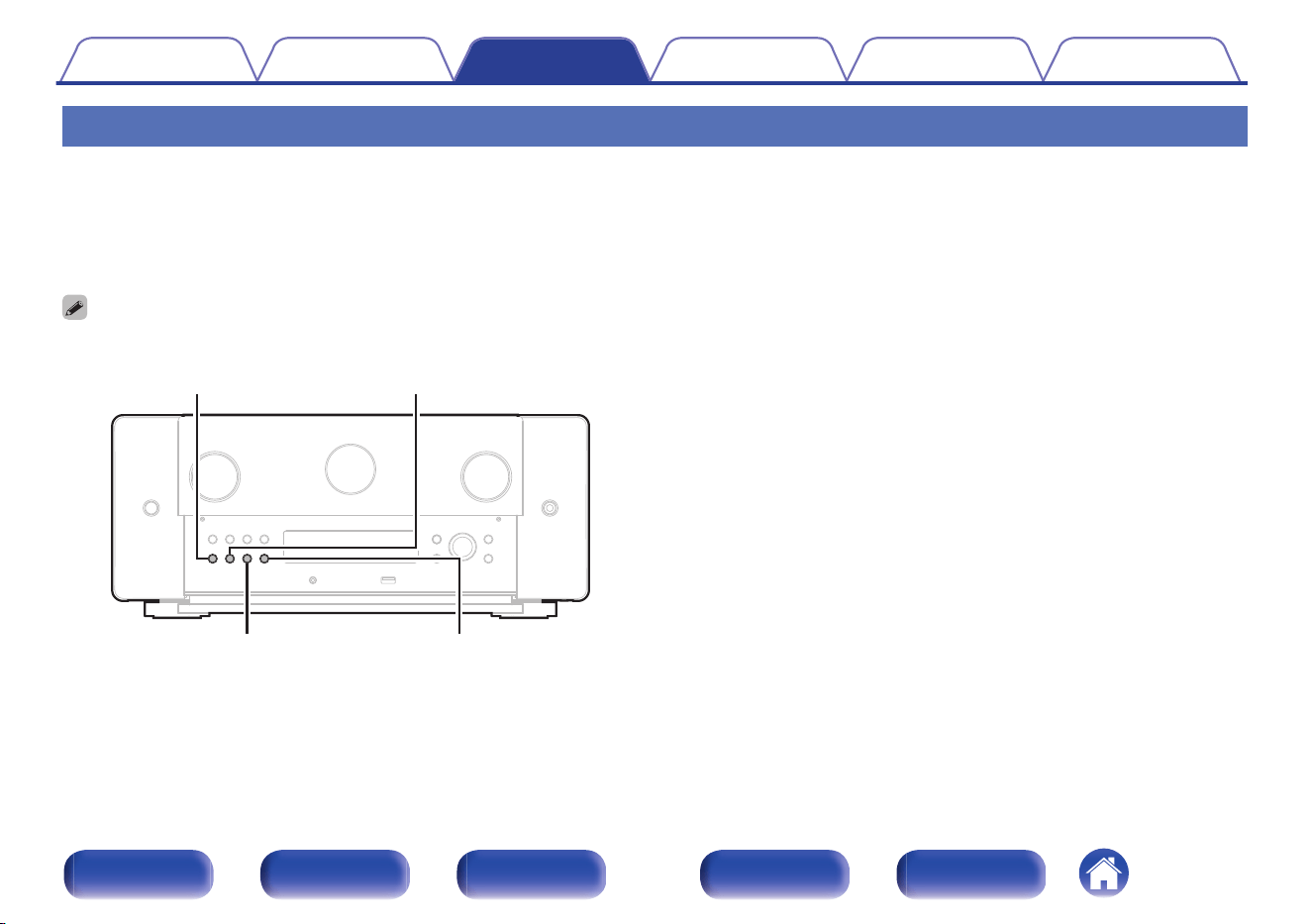
Playback the source in ZONE2/ZONE3
o
Playing the same source simultaneously in MAIN ZONE, ZONE2 and ZONE3 (TV Audio Sharing
setting)
The TV Audio Sharing setting of this unit can be used to output all signals from ZONE2 and ZONE3 by setting “Source” as the input source for ZONE2 and
ZONE3. When playing audio input from a TV via the ARC or eARC or audio input from a playback device, you can enjoy the original input audio format,
such as Dolby Atmos, in surround sound in MAIN ZONE while playing the same content in ZONE2 and ZONE3.
0
Only the controls on the main unit can be used to set “Source” as the input source.
ZONE2 ON/OFF ZONE2 SOURCE
ZONE3 ON/OFF ZONE3 SOURCE
1
Select the input source to play back in the MAIN ZONE.
2
Press ZONE2 ON/OFF or ZONE3 ON/OFF on the main
unit to turn on the power of ZONE2 or ZONE3.
The j indicator on the display lights.
Contents
Connections Playback Settings Tips Appendix
178
Front panel Display Rear panel Remote Index
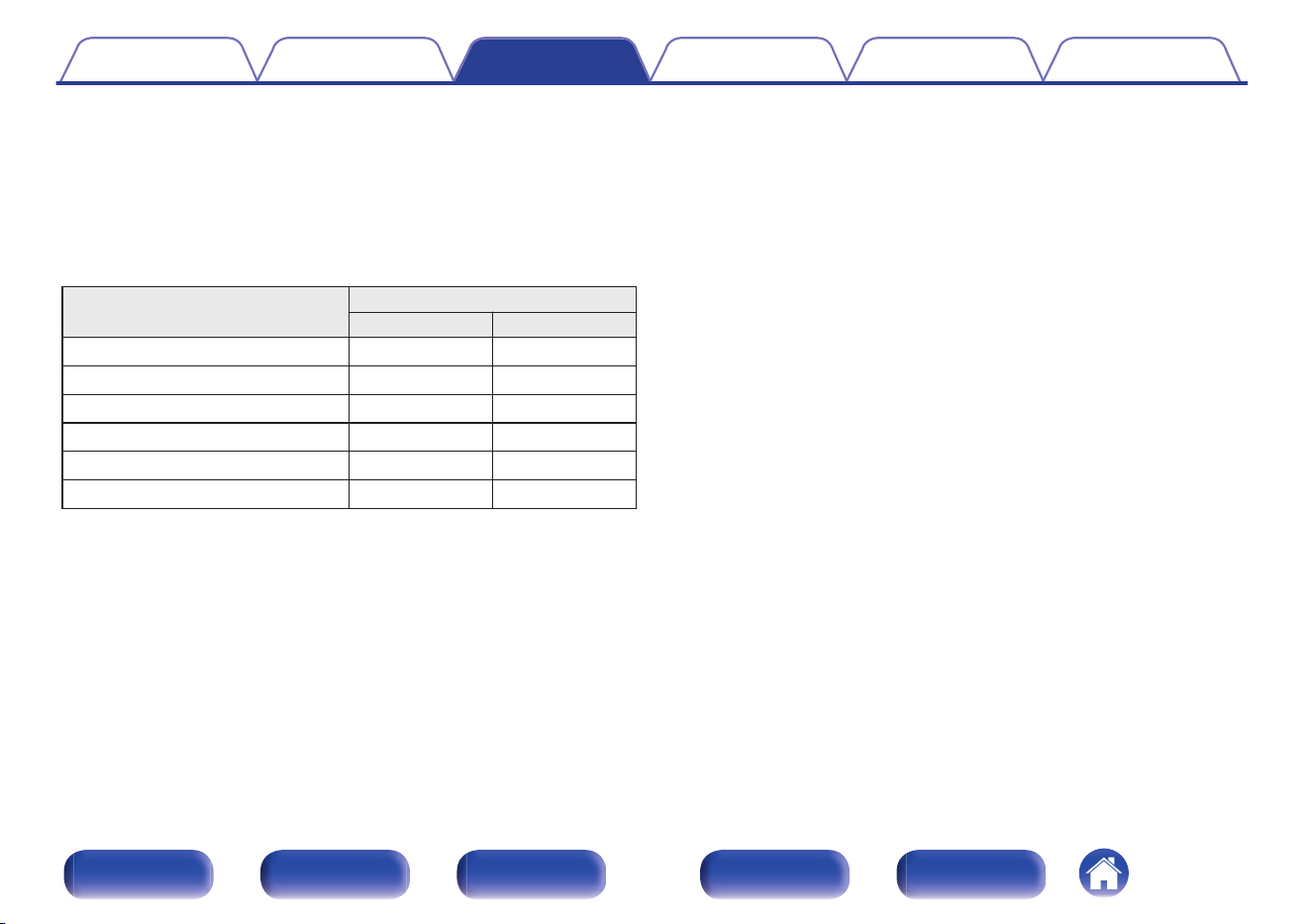
3
Press ZONE2 SOURCE or ZONE3 SOURCE on the main
unit to switch the input source of ZONE2 or ZONE3 to
“Source”.
If “Source” is selected as the input source of ZONE2 or ZONE3, the
input source is changed to mirror that of the MAIN ZONE. “Source”
is the default setting.
0
The following audio signals can be played in ZONE2 and ZONE3.
Input
Output
ZONE2 ZONE3
Digital Audio (HDMI)
S S
Digital Audio (Coaxial/Optical)
S S
Analog Audio
S S
USB
S S
HEOS Music
S S
TUNER
S S
Contents Connections Playback Settings Tips Appendix
179
Front panel Display Rear panel Remote Index
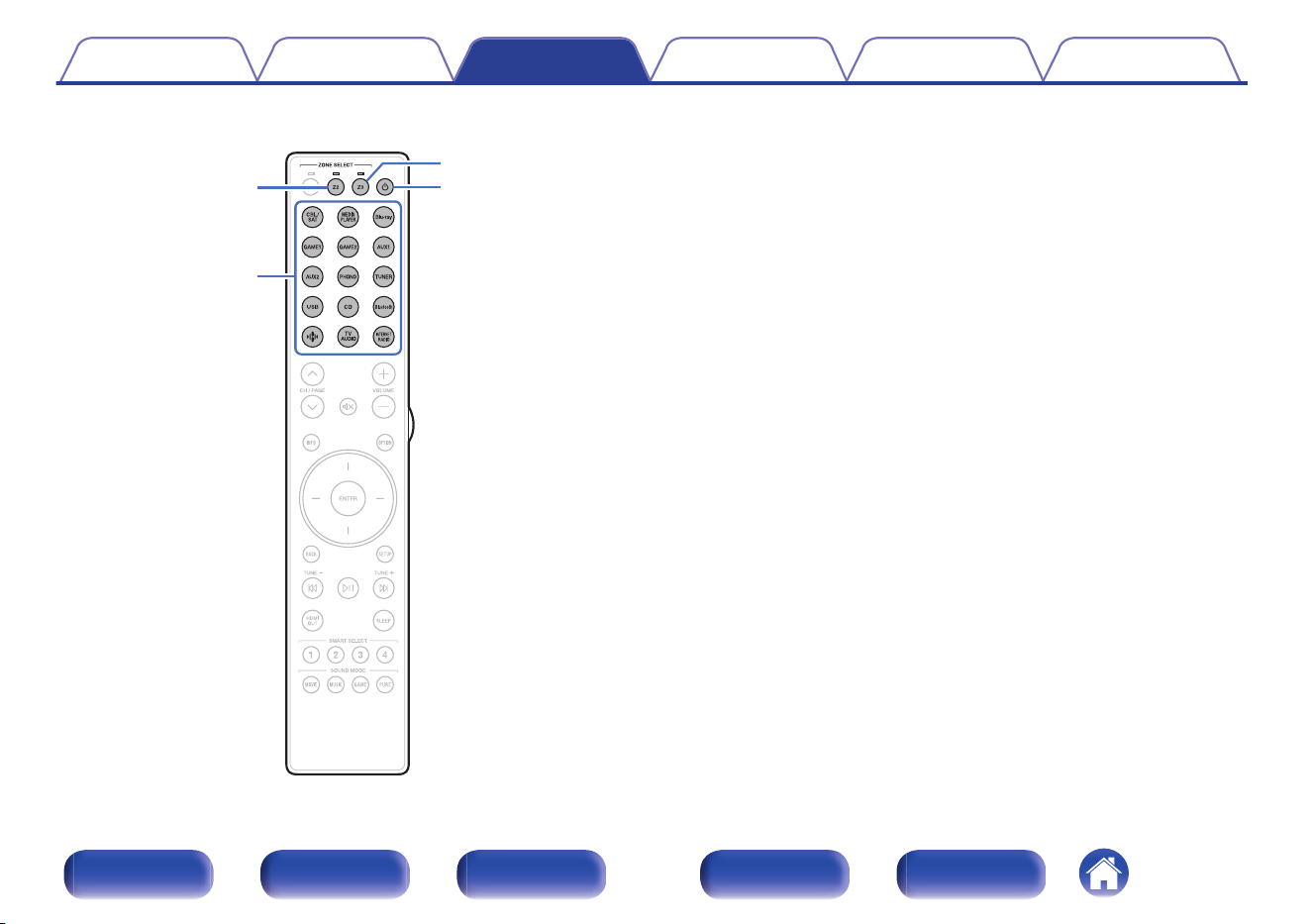
o
Playing different sources in MAIN ZONE, ZONE2 and ZONE3
Z3
X
Z2
Input source
select buttons
1
Press Z2 or Z3 to select the operating zone with the
remote control.
The indicator for the selected zone is lit.
2
Press POWER X to turn on the ZONE2 or ZONE3 power.
The j indicator on the display lights.
0
Power in ZONE2 or ZONE3 can be turned on or off by pressing
ZONE2 ON/OFF or ZONE3 ON/OFF on the main unit.
Contents Connections Playback Settings Tips Appendix
180
Front panel Display Rear panel Remote Index
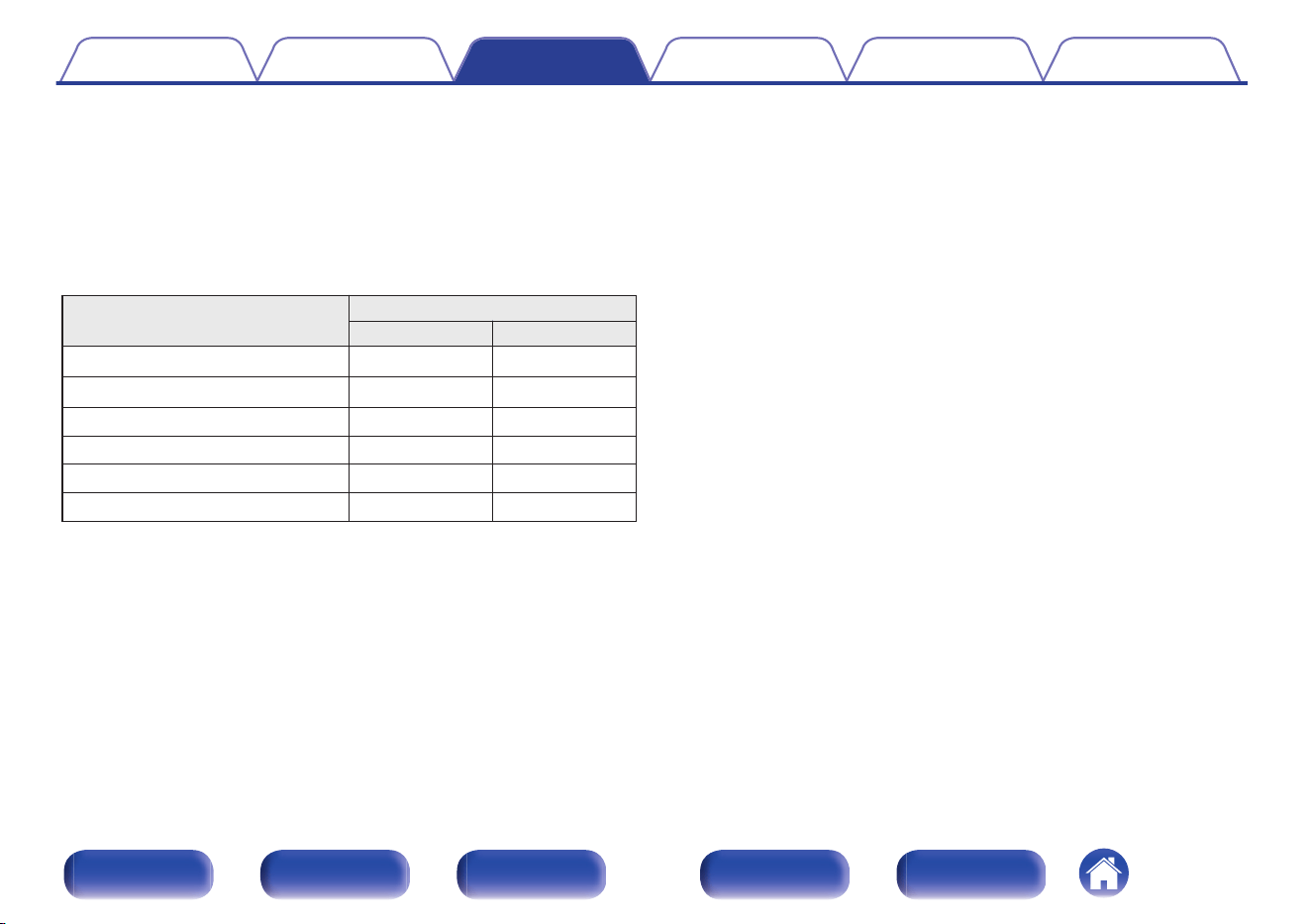
3
Press the input source select button to select the input
source to be played.
The audio signal of the selected source is output to ZONE2 or
ZONE3.
0
To perform an operation with the main unit, press ZONE2
SOURCE or ZONE3 SOURCE. Each time you press ZONE2
SOURCE or ZONE3 SOURCE, the input source changes.
0
The following audio signals can be played in ZONE2 and ZONE3.
Input
Output
ZONE2 ZONE3
Digital Audio (HDMI)
S
z
1
Digital Audio (Coaxial/Optical)
S
z
2 S
z
2
Analog Audio
S S
USB
S S
HEOS Music
S S
TUNER
S S
z1
To play an HDMI signal other than PCM 2-channel in ZONE2, set “HDMI
Audio” to “PCM”. (v p. 274)
z2
Only a 2-channel PCM signal is supported.
Contents
Connections Playback Settings Tips Appendix
181
Front panel Display Rear panel Remote Index
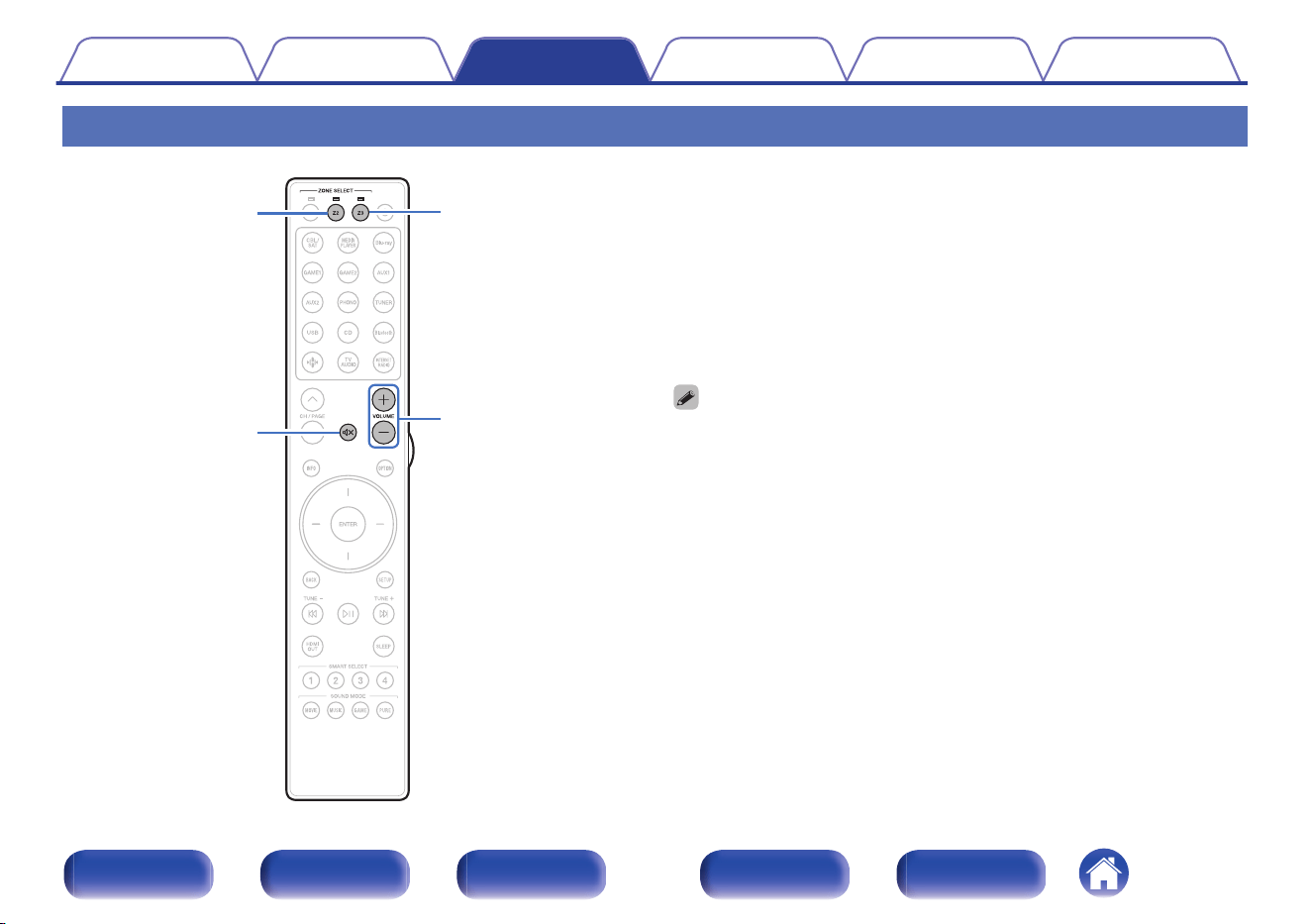
Adjusting the Volume in ZONE2/ZONE3
VOLUME
no
no
Z3Z2
:
o
Adjusting the volume
1
Press Z2 or Z3 to select the operating zone with the
remote control.
The indicator for the selected zone is lit.
2
Use VOLUME no to adjust the volume.
0
At time of purchase, “Volume Limit” is set to “70 (–10 dB)”.
(v p. 274)
0
Turn VOLUME after pressing ZONE2 SOURCE or ZONE3 SOURCE on the main
unit to adjust the volume.
o
Turning off the sound temporarily (Muting)
1
Press Z2 or Z3 to select the operating zone with the
remote control.
The indicator for the selected zone is lit.
2
Press MUTE :.
The sound is reduced to the level set at “Mute Level” in the menu.
(v p. 275)
0
To cancel mute, either adjust the sound volume or press
MUTE : again.
Contents Connections Playback Settings Tips Appendix
182
Front panel Display Rear panel Remote Index
Menu map
When using menu operations, connect this unit to a TV and operate this unit while viewing the TV.
The recommended settings are configured for this unit by default. You can customize this unit based on your existing system and your preferences.
Setting items Detailed items Description Page
Audio
Subwoofer Level Adjust Adjusts the subwoofer channel volume for all input sources. 189
Bass Sync Synchronizes the timing of the low frequency sound. 189
Surround Parameter Adjusts surround sound parameters. 190
M-DAX Expands the low and high frequency components of compressed audio content such as
MP3 files to enable richer audio playback.
197
Volume Sets the MAIN ZONE (room where the unit is located) volume setting. 198
Audyssey
Makes Audyssey MultEQ
®
XT32, Audyssey Dynamic EQ
®
, Audyssey Dynamic
Volume
®
and Audyssey LFC
TM
settings.
199
Dirac Live Select a Dirac Live filter. 202
Graphic EQ Adjusts the tonal quality for each speaker using a graphic equalizer. 203
DAC Filter Selects the DAC filter. 204
Video
HDMI Setup Makes settings for HDMI Audio Out, HDMI Pass Through and HDMI Control settings. 205
Output Settings Makes settings for video output. 210
On-Screen Display Selects the on-screen display user interface preferences. 211
Screensaver Sets the screen saver setting. 212
4K/8K Signal Format Sets signal format options for your 4K or 8K video equipment. 213
HDCP Setup Sets the HDCP version for each HDMI input source. 214
Contents Connections Playback Settings Tips Appendix
183
Front panel Display Rear panel Remote Index
Setting items Detailed items Description Page
Inputs
Input Assign Changes input connector assignment and the audio input mode. 215
Source Rename Changes the display name for input source. 218
Hide Sources Selects source inputs to hide on the user interface and front panel displays. 218
Source Level Adjusts the input level for the current source. 219
Speakers
Audyssey
®
Setup
The acoustic characteristics of the connected speakers and listening room are
measured and the optimum settings are made automatically.
220
Manual Setup
Sets up the speakers manually or changes Audyssey
®
Setup, Dirac Live
®
Room
Correction settings.
231
Dirac Live Setup Displays information about using Dirac Live Room Calibration. 257
Network
Information Displays network information. 258
Connection Configures the network connection. 258
Settings Configures the network settings (DHCP and IP address). 261
Network Control Enables network communication in standby power mode. 262
Friendly Name Edits the name of this unit that is displayed on the network. 263
Diagnostics Tests the network connection. 263
AirPlay Settings for Apple AirPlay. 264
Spotify Connect Toggles access to Spotify Connect. 265
Roon Ready Toggles access to Roon Ready. 265
TIDAL Connect Toggles access to TIDAL Connect. 265
Qobuz Connect Toggles access to Qobuz Connect. 265
Wi-Fi and Bluetooth Toggles power to the Wi-Fi and Bluetooth radios. 266
Contents Connections Playback Settings Tips Appendix
184
Front panel Display Rear panel Remote Index
Setting items Detailed items Description Page
HEOS
[When the user is signed out of the HEOS account]
“–” A guidance to download the HEOS app. 267
[When the user is signed in to the HEOS account]
Signed in as Displays your HEOS account. 267
Contents Connections Playback Settings Tips Appendix
185
Front panel Display Rear panel Remote Index
Setting items Detailed items Description Page
General
Language Selects the language for the on-screen user interface. 268
Owner's Manual Access the online Owner's Manual from your mobile device. 268
ECO Configures the ECO Mode and Auto Standby energy-saving functions. 268
Bluetooth Transmitter Sets Bluetooth transmitter settings. 272
ZONE2 Setup/
ZONE3 Setup
Makes settings for audio playback with ZONE2 and ZONE3. 273
Zone Rename Changes the display title of each zone to one you prefer. 275
Smart Select Sets the “Smart Select” parameters and display name. 276
Trigger Out 1/
Trigger Out 2/
Trigger Out 3
Select the conditions for activating trigger out function. 277
Front Panel Adjusts the front panel display settings. 278
Firmware Checks for the latest firmware information about updates and updates the firmware, and
sets up the notification message display.
279
Information Shows information about this unit settings, input signals, etc. 281
Usage Data Selects whether or not to send anonymous usage data to Marantz. 283
Save & Load Save and restore device settings by using a USB memory device. 283
Setup Lock Protects settings from inadvertent changes. 284
Reset Various settings are reset to the factory default values. 284
Contents Connections Playback Settings Tips Appendix
186
Front panel Display Rear panel Remote Index
Setting items Detailed items Description Page
Setup Assistant
Begin Setup... Performs basic installation/connections/settings from the beginning according to the
guidance indicated on the TV screen.
Page 9 of
the separate
manual
“Quick Start
Guide”
Language Select Sets individual setting items according to the guidance displayed on the TV screen.
Speaker Setup
Speaker Calibration
Network Setup
TV Audio Setup
Input Setup
Mobile Apps
Contents Connections Playback Settings Tips Appendix
187
Front panel Display Rear panel Remote Index
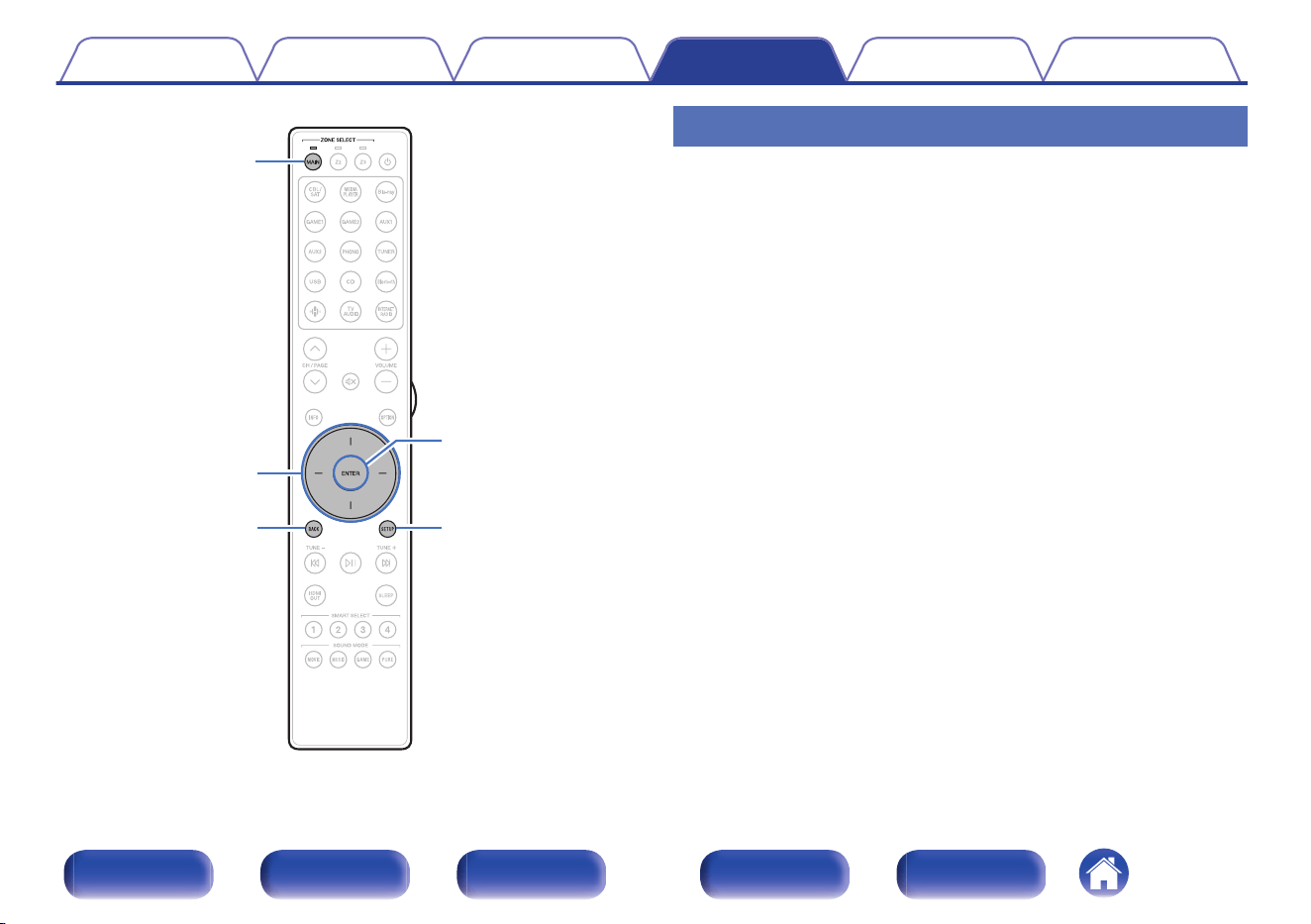
SETUP
BACK
MAIN
ENTER
Cursor Up/Down/
Left/Right
Menu operations
1
Press MAIN on the remote control unit to set the
operating zone to the MAIN ZONE.
The MAIN indicator lights.
2
Press SETUP.
The menu is displayed on the TV screen.
3
Use cursor Up/Down/Right to select the menu to be set
or operated, then press ENTER.
4
Use cursor Left/Right to change to desired setting.
5
Press ENTER to enter the setting.
0
To return to the previous item, press BACK.
0
Exiting the menu, press SETUP while the menu is displayed. The
menu display disappears.
Contents
Connections Playback Settings Tips Appendix
188
Front panel Display Rear panel Remote Index
Audio
Make audio-related settings.
Subwoofer Level Adjust
Adjusts the subwoofer channel volume for all input sources.
o
Subwoofer 1 / Subwoofer 2 / Subwoofer 3 /
Subwoofer 4
Adjusts the volume level for the Subwoofer 1, 2, 3 and 4.
–12.0 dB – +12.0 dB (Default: 0.0 dB)
0
This setting is also reflected in the subwoofer channel level in the “Speakers” -
“Levels” menu settings. (v p. 248)
0
The name of the subwoofer changes depending on the configuration of
“Subwoofer Mode” (v p. 241) and “Subwoofer Layout” (v p. 241).
Bass Sync
For contents recorded in multi-channel such as Blu-ray discs, the
recorded low frequency effects (LFE) may be out of synch and delayed.
This function corrects such a delay of low frequency effects (LFE).
0 ms – 16 ms (Default : 0 ms)
0
How low frequency effects (LFE) are delayed differ according to the disc. Set this
to the desired value.
0
“Bass Sync” settings are stored for each input source.
0
This can be set when the LFE signal is included in the input signal.
Contents Connections Playback Settings Tips Appendix
189
Front panel Display Rear panel Remote Index
Surround Parameter
You can adjust the surround audio sound field effects to match your
preferences.
The items (parameters) that can be adjusted depend on the signal being
input and the currently set sound mode.
0
Some setting items cannot be set while playback is stopped. Make the settings
during playback.
0
“Surround Parameter” settings are stored for each sound mode.
o
Cinema EQ
Gently softens the upper treble range of movie soundtracks to reduce
possible harshness and improve clarity.
On:
“Cinema EQ” is used.
Off
(Default):
“Cinema EQ” is not used.
0
This item cannot be set when sound mode is “Direct”, “Pure Direct”, “Stereo”
and “Original sound mode”.
o
Loudness Management
This sets whether to output as specified in “Dynamic Compression” or
output directly without compressing the dynamic range of audio
recorded in the disc.
On
(Default):
Outputs are given based on enabling the
settings made in “Dynamic Compression”
and Dialogue normalization function.
Off:
“Dynamic Compression” settings and
Dialogue normalization are disabled, and
the signals on the disc are output as is.
0
“Loudness Management” can be set when Dolby Digital, Dolby Digital Plus,
Dolby TrueHD and Dolby Atmos signal is input.
Contents Connections Playback Settings Tips Appendix
190
Front panel Display Rear panel Remote Index
o
Dynamic Compression
Compress dynamic range (difference between loud and soft sounds).
Auto:
Automatic dynamic range compression
on/off control according to source.
Low / Medium / High: These set the compression level.
Off
(Default):
Dynamic range compression is always
off.
0
“Dynamic Compression” can be set when Dolby Digital, Dolby Digital Plus,
Dolby TrueHD, Dolby Atmos or DTS signal is input.
0
“Auto” cannot be set when inputting a DTS signal.
o
Dialog Control
Adjust the volume of dialog in movies, vocals in music, etc. so these
can be heard more easily.
0 – 6 (Default : 0)
0
This can be set when a DTS:X signal that is compatible with the Dialog Control
function is input.
o
Low Frequency Effects
Adjust the low frequency effects level (LFE).
-10 dB – 0 dB (Default: 0 dB)
0
This can be set when the LFE signal is included in the input signal.
0
This item can be selected when a Dolby Digital or DTS signal or DVD-Audio is
played.
0
For proper playback of the different sources, we recommend setting to the
values below.
0
Dolby Digital sources: 0 dB
0
DTS movie sources: 0 dB
0
DTS music sources: -10 dB
Contents Connections Playback Settings Tips Appendix
191
Front panel Display Rear panel Remote Index
o
Speaker Virtualizer
The Speaker Virtualizer enhances the surround and height speaker
channels to create an enveloping virtual surround effect.
On
(Default):
Enables “Speaker Virtualizer”.
Off: Disables “Speaker Virtualizer”.
0
You can set this when the sound mode is “Dolby Atmos”, “Dolby Surround” or
sound mode that has “+Dolby Surround” in the sound mode name.
0
Usable when not using height, ceiling or Dolby Atmos Enabled speakers, or
when not using surround speakers.
0
Audio is not output from the surround back speaker if “Speaker Virtualizer” is
set to “On” when “Speaker Layout” - “Surround Back” is set to “1 spkr” in the
menu.
o
Center Spread
Center Spread expands the center channel signal to left and right front
speakers to create a wider frontal audio image for the listener. It is
optimized and designed primary for playback of stereo music content.
On: Use “Center Spread”.
Off
(Default):
Do not use “Center Spread”.
0
You can set this when sound mode is “Dolby Surround”.
Contents Connections Playback Settings Tips Appendix
192
Front panel Display Rear panel Remote Index
o
DTS Neural:X
DTS Neural:X Expands the non-object based audio signals and
optimizes them for your speaker configuration.
On
(Default):
Use “DTS Neural:X”.
Off: Do not use “DTS Neural:X”.
0
You can set this when sound mode is “DTS:X”.
o
IMAX
Sets the audio mode for IMAX playback.
Auto
(Default):
Automatically enables IMAX mode when
IMAX content is detected.
Off: Disables IMAX mode.
0
This setting cannot be set when headphones are used.
o
IMAX Audio Settings
You can configure special IMAX audio settings to recreate the
conditions of an IMAX theater.
Auto
(Default):
Applies the optimized speaker settings to
reproduce similar to the IMAX theater
environment.
Manual:
Manually adjusts the “High Pass Filter”,
“Low Pass Filter” and “Subwoofer
Output”.
0
You can set this when sound mode is “IMAX DTS” or “IMAX DTS:X”.
0
“Speakers” - “Crossovers”, “Bass” - “Subwoofer Output” and “LPF for LFE” in
the menu cannot be applied during IMAX playback.
o
High Pass Filter
Set the high pass filter cutoff frequency for all speakers during IMAX
playback.
40 Hz / 60 Hz / 70 Hz / 80 Hz / 90 Hz / 100 Hz / 110 Hz / 120 Hz /
150 Hz / 180 Hz / 200 Hz / 250 Hz (Default: 80 Hz)
0
You can set this when “IMAX Audio Settings” is set to “Manual”.
Contents Connections Playback Settings Tips Appendix
193
Front panel Display Rear panel Remote Index
o
Low Pass Filter
Set the low pass filter cutoff frequency of the LFE signal during IMAX
playback.
70 Hz / 80 Hz / 90 Hz / 100 Hz / 110 Hz / 120 Hz / 150 Hz / 180 Hz /
200 Hz / 250 Hz (Default: 120 Hz)
0
You can set this when “IMAX Audio Settings” is set to “Manual”.
o
Subwoofer Output
Set the bass signal to be played by the subwoofer during IMAX
playback.
LFE + Main:
The low range signal of all speakers is
added to the LFE signal output from the
subwoofer. The LFE signal and the bass
component of each speaker is played.
LFE
(Default):
Only the LFE signal is played.
0
You can set this when “IMAX Audio Settings” is set to “Manual”.
o
Auro-Matic Preset
Selects the Auro-Matic Preset for fine tuning the AURO-3D experience
to specific audio material.
Small:
“Small” is ideal for pop and chamber
music.
Medium
(Default):
“Medium” is ideal on jazz music or typical
movies and TV shows.
Large:
“Large” is ideal for recordings that were
recorded in large spaces (e.g. orchestral
recording).
Movie:
“Movie” is ideal for experiencing a large-
cinema effect for watching movies (e.g.
action movies with big explosions).
Speech:
“Speech” is ideal for recordings which are
mostly dialog (e.g. news broadcast), and
that have virtually no inherent spatial
information.
0
You can set this when the sound mode is set to “AURO-3D” or “AURO
Surround”.
0
This cannot be set if the input signal contains AURO-3D signals containing a
Height channel.
Contents
Connections Playback Settings Tips Appendix
194
Front panel Display Rear panel Remote Index
o
Auro-Matic Strength
Changes the level of the up-mixed channels in relation to the original
input signal.
The value ranges from 0 (no up-mixing) to 15 (Maximum level,
providing maximum effect).
0 - 15 (Default:12)
0
You can set this when the sound mode is set to “AURO-3D” or “AURO
Surround”.
0
This cannot be set if the input signal contains AURO-3D signals containing a
Height channel.
o
AURO-3D Mode
Select how to output sound to all speakers when AURO-3D decoding
is active.
Channel Expansion
(Default):
Incoming AURO-3D content is expanded
to additional speakers. All speakers
configured for AURO-3D will output
sound.
Direct:
Incoming AURO-3D content is sent
directly to each corresponding channel.
No content is sent to additional speakers.
0
You can set this when the input signal contains AURO-3D signal and sound
mode is set to AURO-3D.
Contents Connections Playback Settings Tips Appendix
195
Front panel Display Rear panel Remote Index
o
Speaker Select
Selects which speakers output sound, depending on the current sound
mode.
Floor: Plays back without height speakers.
Floor & Height
(Default):
Plays back with height speakers.
0
This can be set when the sound mode is the Multi Ch Stereo mode.
o
Subwoofer
Turn subwoofer output on and off.
On
(Default):
The subwoofer is used.
Off: The subwoofer is not used.
0
You can set this when the sound mode is “Direct” or “Stereo” and in the menu
“Subwoofer Output” is set to “LFE + Main”. (v p. 250)
o
Set Defaults
The “Surround Parameter” settings are returned to the default settings.
Contents
Connections Playback Settings Tips Appendix
196
Front panel Display Rear panel Remote Index
M-DAX
Compressed audio formats such as MP3, WMA (Windows Media Audio)
and MPEG-4 AAC reduce the amount of data by eliminating signal
components that are hard for the human ear to hear. The “M-DAX”
function generates the signals eliminated upon compression, restoring the
sound to conditions near those of the original sound before compression.
It also restores the original bass characteristics for a rich and expanded
tonal range.
o
Mode
High:
Optimized mode for compressed sources
with very weak highs (64 kbps and
under).
Medium:
Apply suitable bass and treble boost for
all compressed sources (96 kbps and
under).
Low:
Optimized mode for compressed sources
with normal highs (96 kbps and over).
Off
(Default):
Do not use “M-DAX”.
0
This item can be set with analog signals or PCM signal (Sample Rate =
44.1/48 kHz) is input.
0
This cannot be set when the sound mode is set to “Direct” or “Pure Direct”.
0
“M-DAX” settings are stored for each input source.
0
This can also be set by pressing M-DAX on the main unit.
Contents Connections Playback Settings Tips Appendix
197
Front panel Display Rear panel Remote Index
Volume
Set the MAIN ZONE (room where the unit is located) volume setting.
o
Scale
Set how volume is displayed.
0 - 98
(Default):
Display in the range 0 (Min) to 98.
-79.5 dB - 18.0 dB:
Display ---dB (Min), in the range –79.5 dB
to 18.0 dB.
0
“Scale” settings are reflected in all the zones.
o
Limit
Make a setting for maximum volume.
40 – 80 (–40 dB – 0 dB)
Off (Default)
0
The dB value is displayed when the “Scale” setting is “-79.5 dB - 18.0
dB”. (v p. 198)
o
Power On Level
Sets the initial volume level when the power is turned on.
Last
(Default):
Sets the power-on level to the last-used
volume level.
Mute: Sets the power-on level to mute level.
1 – 98 (–79 dB – 18 dB) : Sets a specific power-on level.
0
The dB value is displayed when the “Scale” setting is “-79.5 dB - 18.0
dB”. (v p. 198)
o
Mute Level
Set the amount of attenuation when mute is on.
Full
(Default):
Sets the mute level to full mute (no
sound).
–40 dB :
Sets the mute level to 40 dB lower than
the current volume level.
–20 dB :
Sets the mute level to 20 dB lower than
the current volume level.
Contents Connections Playback Settings Tips Appendix
198
Front panel Display Rear panel Remote Index
Audyssey
®
Set Audyssey MultEQ
®
XT32, Audyssey Dynamic EQ
®
, Audyssey
Dynamic Volume
®
and Audyssey LFC™. These can be selected after
Audyssey
®
Setup has been performed.
For additional information on Audyssey technology, please see
“Explanation of terms” (v p. 333).
0
“MultEQ
®
XT32”, “Dynamic EQ”, “Reference Level Offset”, “Surround Level
Compensation”, “Dynamic Volume”, “Audyssey LFC™” and “Containment
Amount” settings are stored for each input source.
0
When the sound mode is in the “Direct” or “Pure Direct” mode, “MultEQ
®
XT32”,
“Dynamic EQ”, “Dynamic Volume” and “Audyssey LFC™” settings cannot be
configured.
0
When the sound mode is in “DTS Virtual:X” or sound mode that have “+Virtual:X”
in the sound mode name, “Dynamic EQ”, “Dynamic Volume” and “Audyssey
LFC™” settings cannot be configured.
0
This item cannot be selected when a DTS:X format with a sampling frequency of
over 48 kHz is input.
o
MultEQ
®
XT32
MultEQ
®
XT32 compensates for both time and frequency
characteristics of the listening area based on Audyssey
®
Setup
measurement results. Selection is done from three types of
compensation curves. We recommend the “Reference” setting.
Reference
(Default):
Selects the default calibrated setting with
a slight roll off at high frequencies.
Optimal for movies.
L/R Bypass:
Selects the reference setting, but
bypasses MultEQ
®
XT32 on the front left
and right speakers.
Flat:
Selects the calibrated setting which is
optimized for small rooms where your
listening position is closer to the
speakers.
Off:
Do not use “MultEQ
®
XT32”.
0
When using headphones, “MultEQ
®
XT32” is automatically set to “Off”.
Contents Connections Playback Settings Tips Appendix
199
Front panel Display Rear panel Remote Index
o
Dynamic EQ
Solves the problem of deteriorating sound quality as volume is
decreased by taking into account human perception and room
acoustics.
Works with MultEQ
®
XT32.
On
(Default):
Use “Dynamic EQ”.
Off: Do not use “Dynamic EQ”.
0
When the menu “Dynamic EQ” setting is “On”, it is not possible to do “Tone”
adjustment. (v p. 139)
0
This item cannot be set when “MultEQ
®
XT32” in the menu is set to “Off”.
o
Reference Level Offset
Audyssey Dynamic EQ
®
is referenced to the standard film mix level. It
makes adjustments to maintain the reference response and surround
envelopment when the volume is turned down from 0 dB. However,
film reference level is not always used in music or other non-film
content. Dynamic EQ Reference Level Offset provides three offsets
from the film level reference (5 dB, 10 dB, and 15 dB) that can be
selected when the mix level of the content is not within the standard.
Recommended setting levels for content are shown below.
0 dB (Film Reference)
(Default):
Optimized for content such as movies.
5 dB :
Select this setting for content that has a
very wide dynamic range, such as
classical music.
10 dB :
Select this setting for jazz or other music
that has a wider dynamic range. This
setting should also be selected for TV
content as that is usually mixed at 10 dB
below film reference.
15 dB :
Select this setting for pop/rock music or
other program material that is mixed at
very high listening levels and has a
compressed dynamic range.
0
Setting is enabled when “Dynamic EQ” is “On”. (v p. 200)
Contents Connections Playback Settings Tips Appendix
200
Front panel Display Rear panel Remote Index
o
Surround Level Compensation
If the volume setting on the unit is below the reference level when
using Audyssey Dynamic EQ, the volume of the channels located
behind the listener is amplified in accordance with that volume setting
to maintain the surround experience for the listener.
Surround Level Compensation can adjust the amplification level.
Heavy
(Default):
Surround and rear channels are
increased in level up to 8.5dB based on
the master volume, when Dynamic EQ is
on.
Medium:
Surround and rear channels are
increased in level up to 5.6dB based on
the master volume, when Dynamic EQ is
on.
Light:
Surround and rear channels are
increased in level up to 2.8dB based on
the master volume, when Dynamic EQ is
on.
Off:
Surround and rear channels are not
increased when Dynamic EQ is on.
0
Setting is enabled when “Dynamic EQ” is “On”. (v p. 200)
o
Dynamic Volume
Solves the problem of large variations in volume level between TV,
movies and other content (between quiet passages and loud
passages, etc.) by automatically adjusting to the user’s preferred
volume setting.
Works with MultEQ
®
XT32.
Heavy:
Most adjustment to softest and loudest
sounds.
Medium:
Medium adjustment to loudest and
softest sound.
Light:
Least adjustment to loudest and softest
sounds.
Off
(Default):
Do not use “Dynamic Volume”.
0
If “Dynamic Volume” is set to “Yes” in “Audyssey
®
Setup”, the setting is
automatically changed to “Medium”. (v p. 220)
0
This item cannot be set when “MultEQ
®
XT32” in the menu is set to “Off”.
Contents Connections Playback Settings Tips Appendix
201
Front panel Display Rear panel Remote Index
o
Audyssey LFC™
Adjusts the low frequency band to prevent bass and vibration from
being conveyed to neighboring rooms.
Works with MultEQ
®
XT32.
On: Use “Audyssey LFC™”.
Off
(Default):
Do not use “Audyssey LFC™”.
0
This item cannot be set when “MultEQ
®
XT32” in the menu is set to “Off”.
o
Containment Amount
Adjusts the amount of low frequency containment. Use higher settings
if you have close neighbors.
1 – 7 (Default : 4)
0
This can be set when “Audyssey LFC™” in the menu is set to “On”.
Dirac Live
o
Filter
Set a Dirac Live filter. This can be set after running Dirac Live Room
Correction. See the Dirac Live Manual for details.
https://manuals.marantz.com/DiracLive/ALL/EN
0
A Dirac Live license needs to be purchased to use Dirac Live. (v p. 257)
Contents Connections Playback Settings Tips Appendix
202
Front panel Display Rear panel Remote Index
Graphic EQ
Uses the graphic equalizer to adjust the tone of each speaker.
0
Speakers for which “Graphic EQ” can be set differ according to the sound mode.
0
This can be set when “MultEQ
®
XT32” setting is “Off”. (v p. 199)
0
This cannot be set when the sound mode is set to “Direct” or “Pure Direct”.
0
If you are using headphones, you can set the equalizer for headphones.
(v p. 203)
o
Graphic EQ / Headphone EQ
Set whether to use the graphic equalizer or not.
On:
Use the graphic equalizer.
Off
(Default):
Do not use the graphic equalizer.
0
“Headphone EQ” is set in the menu when headphones are used.
o
Speaker Selection
Select whether to adjust tones for individual speakers or for all
speakers.
All: Adjust all speaker tones together.
Left/Right
(Default):
Adjust the left and right speaker tones
together.
Each: Adjust the tone for each speaker.
o
Adjust EQ
Adjust tonal balance for each frequency band.
1. Select the speaker.
2. Select the adjustment frequency band.
63 Hz / 125 Hz / 250 Hz / 500 Hz / 1 kHz / 2 kHz / 4 kHz / 8 kHz /
16 kHz
3. Adjust the level.
–20.0 dB – +6.0 dB (Default: 0.0 dB)
0
Front Dolby, Surround Dolby and Back Dolby speakers can only be set when
63 Hz/125 Hz/250 Hz/500 Hz/1 kHz.
Contents Connections Playback Settings Tips Appendix
203
Front panel Display Rear panel Remote Index
o
Curve Copy
Copy the Flat correction curve created in Audyssey
®
Setup.
0
“Curve Copy” is displayed after Audyssey
®
Setup has been performed.
0
“Curve Copy” cannot be used when using headphones.
o
Set Defaults
The “Graphic EQ” settings are returned to the default settings.
DAC Filter
Selects the DAC filter.
o
Filter
Filter 1
(Default):
Recommended setting to enjoy the
Marantz sound.
Filter 2:
Recommended setting for bench test
measurements.
Contents Connections Playback Settings Tips Appendix
204
Front panel Display Rear panel Remote Index
Video
Make video-related settings.
HDMI Setup
Make settings for HDMI Audio Out, HDMI Pass Through and HDMI
Control settings.
NOTE
0
When “HDMI Pass Through” and “HDMI Control” is set to “On”, it consumes more
standby power. (“HDMI Pass Through” (v p. 205), “HDMI Control” (v p. 207))
If you are not using this unit for an extended period, it is recommended that you
unplug the power cord from the power outlet.
o
HDMI Audio Out
Selects the audio output speakers.
AVR
(Default):
Play back through speakers connected to
the unit.
TV:
Play back through TV connected to the
unit.
0
When the HDMI Control function is activated, priority is given to the TV audio
setting. (v p. 159)
0
When the power of this unit is on and “HDMI Audio Out” is set to “TV”, audio is
output as 2-channel from the HDMI OUT connector.
o
HDMI Pass Through
Selects how this unit will transmit HDMI signals to the HDMI output in
standby power mode.
On
(Default):
Transmits the selected HDMI input
through this unit’s HDMI output when this
unit is in standby power mode.
Off:
No HDMI signals are transmitted through
this unit’s HDMI output in standby power
mode.
Contents Connections Playback Settings Tips Appendix
205
Front panel Display Rear panel Remote Index
o
Pass Through Source
Selects the HDMI input to pass through the HDMI output when this unit
is in standby power mode.
Last: Selects the last used HDMI input.
CBL/SAT / Media Player /
Blu-ray / Game1 /
Game2 / AUX1 / AUX2 /
TV Audio / CD
z
(Default : CBL/SAT):
Selects the HDMI input as the standby
source.
z
“Pass Through Source” can be set when any of the HDMI
connectors is assigned to “CD” for the input source in the “Input
Assign” setting. (v p. 215)
0
“Pass Through Source” can be set when “HDMI Control” is set to “On” or
“HDMI Pass Through” is set to “On”. (“HDMI Pass Through” (v p. 205),
“HDMI Control” (v p. 207))
o
RC Source Select
Set whether to allow this unit to be turned on by the input source select
button on the remote control when this unit is in standby power mode.
Power On + Source
(Default):
The power of this unit is turned on and
the input source changes.
Source Select Only:
This unit remains in standby but switches
the HDMI input source when you press
an input source button. The power
display of this unit blinks when the input
source select button of the remote control
is pressed.
0
“RC Source Select” can be set when “HDMI Control” is set to “On” or “HDMI
Pass Through” is set to “On”. (“HDMI Pass Through” (v p. 205), “HDMI
Control” (v p. 207))
Contents Connections Playback Settings Tips Appendix
206
Front panel Display Rear panel Remote Index
o
HDMI Control
You can link operations with devices connected to HDMI and
compatible with HDMI Control.
On: Use HDMI Control function.
Off
(Default):
Do not use HDMI Control function.
0
If using the HDMI Control function, connect a TV compatible with HDMI control
to the HDMI OUT TV 1 connector.
0
Please consult the operating instructions for each connected device to check
the settings.
0
When “HDMI Control” is set to “On”, the power to this unit can be linked to the
TV power and the volume of this unit can be controlled using the TV remote
control.
0
Refer to “HDMI Control function” for more information about the HDMI Control
function. (v p. 159)
NOTE
0
If the “HDMI Control” settings have been changed, always reset the power to
connected devices after the change.
o
ARC
On the TV connected to the HDMI OUT TV 1 connector, set whether to
receive sound from the TV via HDMI.
On: Use ARC function.
Off
(Default):
Do not use ARC function.
0
If using this function, use a TV compatible with ARC (Audio Return Channel)
and enable the HDMI Control function of the TV.
0
When “ARC” is set to “On”, the volume of this unit can be controlled using the
TV remote control even when “HDMI Control” is set to “Off” on this unit.
NOTE
0
If the “ARC” settings have been changed, always reset the power to
connected devices after the change.
0
Using an eARC function-compatible television enables audio playback from
the speaker connected to this unit, regardless of “ARC” settings in the menu.
Contents
Connections Playback Settings Tips Appendix
207
Front panel Display Rear panel Remote Index
o
TV Audio Switching
Sets automatic switching to the “TV Audio” input when a TV connected
via HDMI sends an appropriate CEC control command to this unit.
On
(Default):
Select the “TV Audio” input automatically
when receiving a command from the TV.
Off:
Do not select the “TV Audio” input
automatically when receiving a command
from the TV.
0
“TV Audio Switching” can be set when “HDMI Control” is set to “On”.
(v p. 207)
o
Power Off Control
Links the power standby of this unit to external devices.
All
(Default):
If power to a connected TV is turned off
independently of the input source, power
to this unit is automatically set to standby.
Video:
With an input source being selected that
is assigned “HDMI”, when you turn the
power of the TV off, power to this unit is
automatically set to standby.
(v p. 216)
Off: This unit does not link with power to a TV.
0
“Power Off Control” can be set when “HDMI Control” is set to “On”.
(v p. 207)
Contents Connections Playback Settings Tips Appendix
208
Front panel Display Rear panel Remote Index
o
Power Saving
Enables the Power Saving feature of the AVR to reduce energy costs
when using the TV's speakers.
This function is activated in the following cases.
0
When “TV Audio” is selected as the input source of this unit
0
When playing content from a device connected by HDMI
On: Use Power Saving feature.
Off
(Default):
Do not use Power Saving feature.
0
“Power Saving” can be set when “HDMI Control” is set to “On”. (v p. 207)
Contents Connections Playback Settings Tips Appendix
209
Front panel Display Rear panel Remote Index
Output Settings
Makes settings for video output.
o
HDMI Video Output
Select the HDMI monitor connector to be used.
Auto(Dual)
(Default):
The presence of a TV connected to the
HDMI OUT TV 1 or HDMI OUT TV 2
connector is detected automatically, and
that TV connection is used.
TV 1:
A TV connected to the HDMI OUT TV 1
connector is always used.
TV 2:
A TV connected to the HDMI OUT TV 2
connector is always used.
0
If both the HDMI OUT TV 1 and HDMI OUT TV 2 connectors are connected
and “HDMI Upscaler” is set to “Auto”, the signals are output with a resolution
that is compatible with both TVs. (v p. 211)
0
You can check which resolutions are compatible with your TV in “TV 1 Info.”
and “TV 2 Info.”. (v p. 281)
0
When connecting multiple Dolby Vision TVs, the signal will only be optimal for
one TV. A TV connected to the HDMI OUT TV 1 connector has priority.
o
Video Mode
Configure the video processing method to match the type of video
content.
Auto
(Default):
Process video automatically based on
the HDMI content information.
Game:
Always process video for game content.
Minimize the video delay when the video
is delayed compared to the button
operations on the controller of the game
console.
Movie:
Perform image processing that is suitable
for contents other than games.
Bypass:
Remove all video processing from the
HDMI video path.
0
If “Video Mode” is set to “Auto”, the mode is switched according to the input
contents.
0
Information displays such as the volume bar cannot be overlaid with the video
signal when “Video Mode” is set to “Bypass”.
0
This item can be set when “HDMI” is assigned for each input source.
0
This cannot be set when sound mode is set to “IMAX DTS” or “IMAX DTS:X”.
Contents Connections Playback Settings Tips Appendix
210
Front panel Display Rear panel Remote Index
o
HDMI Upscaler
Sets the mode for upscaling 1080p and 4K HDMI content to 8K.
Auto:
Upscale 1080p and 4K HDMI video to 8K
based on the TV’s capabilities.
Off
(Default):
8K upscaler is disabled.
0
This item can be set when “HDMI” is assigned for each input source.
0
This function is not effective when the input signal is compressed video or
HDR.
0
This cannot be set when sound mode is set to “IMAX DTS” or “IMAX DTS:X”.
0
This item can be set when “Video Mode” is set to anything other than
“Bypass”. (v p. 210)
On-Screen Display
Select the on-screen display user interface preferences.
o
Volume
Sets where to display the volume level.
Bottom
(Default):
Display at the bottom.
Top: Display at the top.
Off: Turn display off.
0
When the master volume display is hard to see when superimposed text
(closed captioning) or movie subtitles are present, set to “Top”.
o
Info
Displays status of operation temporarily when the input source is
switched.
On
(Default):
Turn display on.
Off: Turn display off.
Contents Connections Playback Settings Tips Appendix
211
Front panel Display Rear panel Remote Index
o
Now Playing
Sets the display time for the playback display when the input source is
“HEOS Music” or “Tuner”.
Always On
(Default):
Show display continuously.
Auto Off:
Show display for 30 seconds after
operation.
o
21:9 Mode
The position of the volume, options, and information will shift into the
viewable area when using a 21:9 aspect ratio display.
On: “21:9 Mode” is used.
Off
(Default):
“21:9 Mode” is not used.
Screensaver
Select the screen saver setting.
A screen saver is activated if no operation is performed for more than 5
minutes when no video signal is input or when the same screen (e.g. the
setup menu) is displayed.
Use cursor Up/Down/Left/Right to clear the screen saver.
On: Turns screen saver on.
Off
(Default):
Turns screen saver off.
0
The screen saver is activated in the following cases.
0
When the setup menu is displayed
0
When no video signal is input
0
When the HEOS Music, USB, Bluetooth or Tuner playback screen is displayed
Contents
Connections Playback Settings Tips Appendix
212
Front panel Display Rear panel Remote Index
4K/8K Signal Format
Set the format of 4K and 8K signal to be played back by this unit when the
TV or playback device connected to this unit is HDMI 4K or 8K signal
compatible.
o
4K/8K Signal Format
Sets the signal format options for devices connected to each input on
this unit.
Standard:
Select if your TV and the source device
support 4K 60Hz 4:2:0 8 bit video signals.
Enhanced
(Default):
Select if your TV, the source device, and
cables support high quality 4K 60Hz
4:4:4 8 bit, 4:2:2 or 4:2:0 10 bit video
signals.
8K Enhanced:
Select if your TV, the source device, and
cables support high quality 8K 60Hz or
4K 120Hz video signals.
GRelation between the “4K/8K Signal Format” setting and supported
resolutionsH
Support
Resolution
Color
Space
Pixel
Depth
4K/8K Signal Format
Standard Enhanced
8K
Enhanced
4K 24Hz,
4K 30Hz,
4K 25Hz
RGB /
YCbCr 4:4:4
8 bit
P P P
10,12 bit –
P P
YCbCr 4:2:2 12 bit
P P P
4K 60Hz,
4K 50Hz
YCbCr 4:2:0
8 bit
P P P
10,12 bit –
P P
RGB /
YCbCr 4:4:4
8 bit –
P P
10,12 bit – –
P
YCbCr 4:2:2 12 bit –
P P
4K 120Hz,
4K 100Hz
YCbCr 4:2:0
8,10,12
bit
– –
P
RGB /
YCbCr 4:4:4
8,10 bit – –
P
YCbCr 4:2:2 12 bit – –
P
8K 24Hz,
8K 30Hz,
8K 25Hz
YCbCr 4:2:0
8,10,12
bit
– –
P
RGB /
YCbCr 4:4:4
8,10 bit – –
P
YCbCr 4:2:2 12 bit – –
P
8K 60Hz,
8K 50Hz
YCbCr 4:2:0 8, 10 bit – –
P
Contents Connections Playback Settings Tips Appendix
213
Front panel Display Rear panel Remote Index
0
When setting this to “Enhanced”, we recommend using a “Premium High
Speed HDMI Cable” or “Premium High Speed HDMI Cable with Ethernet” that
has an “HDMI Premium Certified Cable” label attached to the product
package.
0
When setting this to “8K Enhanced”, we recommend using a certified “Ultra
High Speed HDMI cable”.
0
When this setting is “8K Enhanced”, configure the television or playback
device settings to match this setting.
0
When this setting is “8K Enhanced”, video may not be output correctly
depending on the connected playback device or HDMI cable. In this case,
change this setting to “Enhanced” or “Standard”.
0
“Custom” is displayed for the setting item if our service engineers or custom
installers has configured the HDMI signal format for this unit.
0
“4K/8K Signal Format” can also be set by the following procedure. However,
the menu screen is not displayed. Watch the display while configuring the
setting.
1. Switch to the HDMI input source you want to set.
2. Press and hold the main unit’s ZONE3 SOURCE and STATUS at the same
time for at least 3 seconds.
“z4K/8K Format <Enhanced>” appears on the display.
3. Use cursor Left or cursor Right on the main unit to select the 4K/8K Signal
Format.
4. Press the main unit’s ENTER to complete the setting.
HDCP Setup
Sets the HDCP version for each HDMI input source.
Video may not be output depending on the HDCP version of your player
and the TV.
If this issue occurs, use this setting to set one version of HDCP. This may
be able to output video.
Auto
(Default):
Automatically applies the HDCP version of
this unit according to TV.
1.4: Fixes the HDCP version of this unit to 1.4.
2.3: Fixes the HDCP version of this unit to 2.3.
0
“Custom” is displayed for the setting item if our service engineers or custom
installers has configured the HDCP version for this unit.
Contents Connections Playback Settings Tips Appendix
214
Front panel Display Rear panel Remote Index
Inputs
Perform settings related to input source playback.
You do not have to change the settings to use the unit. Make settings when needed.
Input Assign
By making connections as indicated by the input sources printed on the
audio/video input connectors of this unit, you can just press one of the
input source select buttons to easily play back audio or video from a
connected device.
Please change the assignment of the HDMI input connector, digital audio
input connector and analog audio input connector when connecting an
input source that differs from that printed to the audio/video input
connectors of this unit.
Sets the audio input mode for each “INPUT MODE” source. “AUTO” is
normally recommended for this setting. This automatically detects and
plays signal input to this unit prioritized in the following order: HDMI >
DIGITAL > ANALOG.
CBL/SAT
Media Player
Blu-ray
Game1
Game2
AUX1
AUX2
TV Audio
1
[ INPUT MODE ]
2
3
4
5
6
7
-
1
2
3
-
-
4
5
-
COAX1
COAX2
-
-
-
-
-
OPT1
AUTO
AUTO
AUTO
HDMI
HDMI
AUTO
AUTO
DIGITAL
[ VIDEO ]
VIDEO1
COMP
VIDEO2
-
-
-
-
-
CD - 6OPT2 AUTO-
[ HDMI ][ DIGITAL ][ ANALOG ]
Inputs/Input Assign
Changes HDMI input assignments.
Set Defaults
0
By default, each item is set as follows.
Input source
Input connector
INPUT
MODE
HDMI DIGITAL
ANALOG
VIDEO
CBL/SAT 1 COAX1 1 VIDEO1 AUTO
Media Player 2 COAX2 2 COMP AUTO
Blu-ray 3 – 3 VIDEO2 AUTO
Game1 4 – – – HDMI
Game2 5 – – – HDMI
AUX1 6 – 4 – AUTO
AUX2 7 – 5 – AUTO
TV Audio – OPT1 – – DIGITAL
CD – OPT2 6 – AUTO
Contents Connections Playback Settings Tips Appendix
215
Front panel Display Rear panel Remote Index
n
TV set top box/satellite users please note
When using the digital audio output on a TV/satellite box:
To play the video signal assigned to “HDMI” combined with the audio
signal assigned at “Input Assign” - “DIGITAL”, you will also need to
select “DIGITAL” in the “INPUT MODE”.
0
The same input connector can be assigned to multiple input sources. For example,
assign the same HDMI input connector to multiple sources to use each input
source in combination with analog or digital audio as you prefer. In such cases, set
the audio connector for playback in “INPUT MODE”.
o
HDMI
Set this to change the HDMI input connectors assigned to the input
sources.
1 / 2 / 3 / 4 / 5 / 6 / 7
Assign an HDMI input connector to the
selected input source.
– :
Do not assign an HDMI input connector
to the selected input source.
0
When “HDMI Control” or “ARC” is set to “On” in the menu, “HDMI” cannot be
assigned to “TV Audio”. (“HDMI Control” (v p. 207), “ARC” (v p. 207))
0
The eARC function does not operate when “HDMI” is set as the “TV Audio”
input source.
o
DIGITAL
Set this to change the digital audio input connectors assigned to the
input sources.
COAX1 (Coaxial) /
COAX2 /
OPT1 (Optical) / OPT2:
Assign a digital audio input connector to
the selected input source.
– :
Do not assign a digital audio input
connector to the selected input source.
o
ANALOG
Set this to change the analog audio input connectors assigned to the
input sources.
1 / 2 / 3 / 4 / 5 / 6:
Assign a analog audio input connector to
the selected input source.
– :
Do not assign a analog audio input
connector to the selected input source.
o
VIDEO
Set this to change the component video input connectors and
composite video input connectors assigned to the input sources.
COMP (Component
video) /
VIDEO1 / VIDEO2:
Assign the video input connector to the
selected input source.
– :
Do not assign a video input connector to
the selected input source.
Contents Connections Playback Settings Tips Appendix
216
Front panel Display Rear panel Remote Index
o
INPUT MODE
Set the audio input modes for each input source.
It is normally recommended to set the audio input mode to “AUTO”.
AUTO
(Default):
Automatically detect input signal and
perform playback.
HDMI: Play only signals from HDMI input.
DIGITAL: Play only signals from digital audio input.
ANALOG: Play only signals from analog audio input.
0
If “ARC” is set to “On” and a TV compatible with the ARC is connected via the
HDMI OUT TV 1 connectors, the input mode whose input source is “TV Audio”
is fixed to ARC.
0
When an eARC function-compatible television is connected to the HDMI OUT
TV 1 connector, the input mode whose input source is “TV Audio” is fixed to
eARC.
o
Set Defaults
The “Input Assign” settings are returned to the default settings.
Contents Connections Playback Settings Tips Appendix
217
Front panel Display Rear panel Remote Index
Source Rename
0
Changes the display name of the input source.
Once changed, the name is displayed on the display and menu screens
of this unit.
0
If the device name can be acquired from a connected HDMI device, the
display name is changed automatically.
Use this function to change names as needed when the device you are
using differs from the input source on this unit.
CBL/SAT / Media Player /
Blu-ray / Game1 / Game2 /
AUX1 / AUX2 / TV Audio /
CD / Phono:
Change the display name for input source.
Set Defaults:
The “Source Rename” settings are returned
to the default settings.
0
Up to 16 characters can be input.
Hide Sources
Remove from the display input sources that are not used.
Show
(Default):
Use this source.
Hide: Do not use this source.
Contents Connections Playback Settings Tips Appendix
218
Front panel Display Rear panel Remote Index
Source Level
This function corrects the playback level of the selected input source’s
audio input.
Make this setting if there are differences in the input volume levels
between the different sources.
o
Source Level
n
When the input source is set to “HEOS Music” or
“Tuner”
-12 dB – +12 dB (Default : 0 dB)
o
Analog Inputs / Digital Inputs
n
When the input source is set other than to “HEOS
Music” or “Tuner”
-12dB – +12dB (Default : 0dB)
0
The analog input level can be adjusted independently for input sources for which
“ANALOG” is assigned at “Input Assign”. (v p. 215)
0
The digital input level can be adjusted independently for input sources for which
“HDMI” or “DIGITAL” is assigned at “Input Assign”. (v p. 215)
0
“Source Level” settings are stored for each input source.
Contents Connections Playback Settings Tips Appendix
219
Front panel Display Rear panel Remote Index
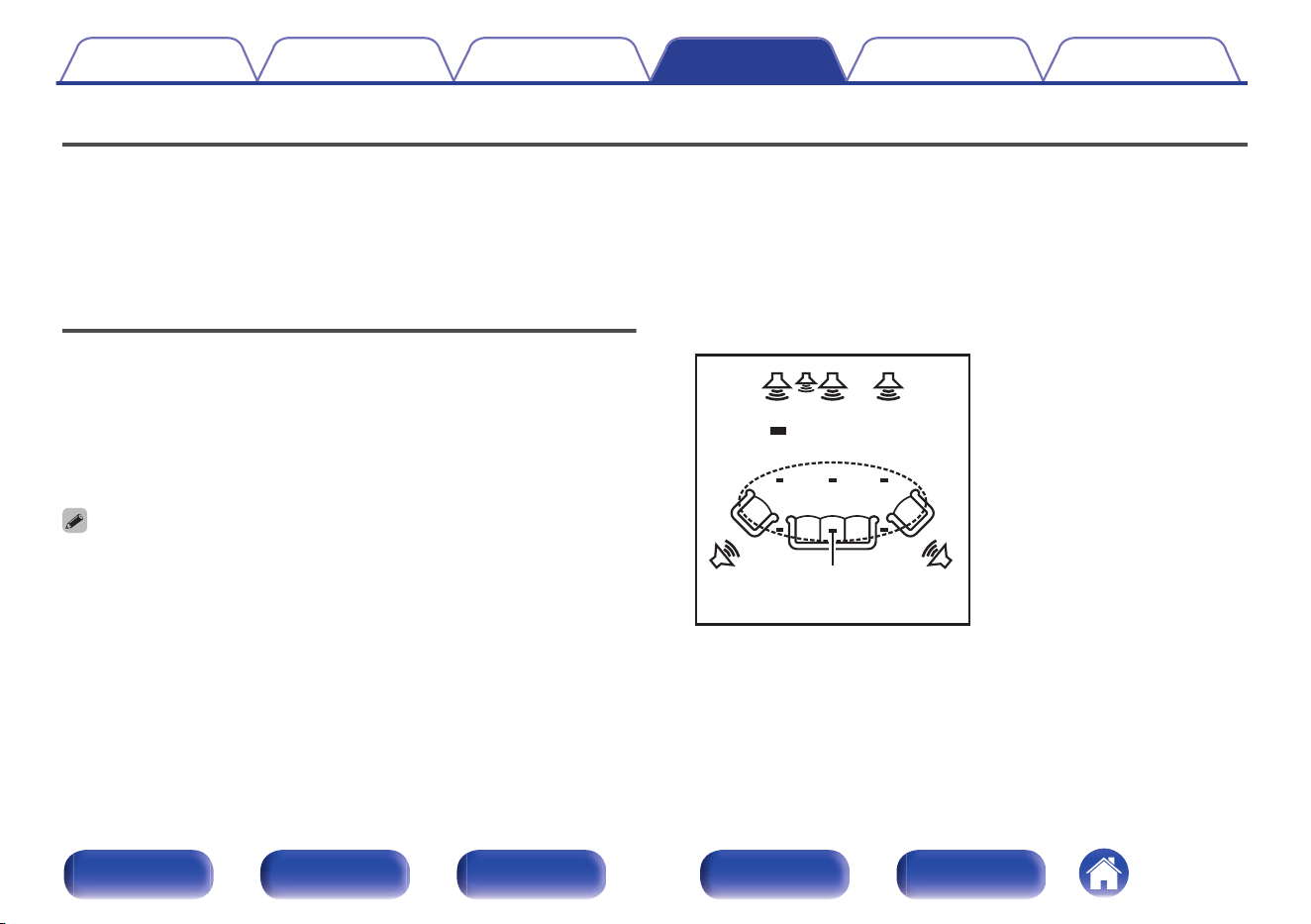
Speakers
The acoustic characteristics of the connected speakers and listening room are measured and the optimum settings are made automatically. This is called
“Audyssey
®
Setup”.
You do not have to perform Audyssey
®
Setup when you have already performed “Speaker Calibration” in “Setup Assistant”.
To set up the speakers manually, use “Manual Setup” on the menu. (v p. 231)
Audyssey
®
Setup
To perform measurement, place the Sound calibration microphone in
multiple locations all around the listening area. For best results, we
recommend you measure in six or more positions, as shown in the
illustration (up to eight positions).
When measuring the second and subsequent positions, install the Sound
calibration microphone within 2 ft (60 cm) of the first measurement position
(main listening position).
0
If you perform Audyssey
®
Setup, Audyssey MultEQ
®
XT32, Audyssey Dynamic
EQ
®
, Audyssey Dynamic Volume
®
and Audyssey LFC™ functions are enabled.
(v p. 199)
FL SW C FR
SRSL
Surround speaker (R)
Surround speaker (L)
Subwoofer
Center speaker
Front speaker (R)
Front speaker (L)
( :Measuring positions)
FL
FR
C
SW
SL
SR
Listening position
Contents Connections Playback Settings Tips Appendix
220
Front panel Display Rear panel Remote Index
o
About the main listening position
The main listening position is the position where listeners would
normally sit or where one would normally sit alone within the listening
environment. Before starting Audyssey
®
Setup, place the Sound
calibration microphone in the main listening position.
Audyssey MultEQ
®
XT32 uses the measurements from this position to
calculate speaker distance, level, polarity, and the optimum crossover
value for the subwoofer.
o
About Audyssey Sub EQ HT™
The Audyssey Sub EQ HT™ performs corrections based on the
volume level and the distances of multiple subwoofers, and processes
the Audyssey MultEQ
®
XT32 signal to reproduce a powerful low
frequency sound.
To run Audyssey Sub EQ HT™ you must set “Measure (2 spkrs)”,
“Measure (3 spkrs)” or “Measure (4 spkrs)” and set “Subwoofer Mode”
to “Standard” in “Speaker Layout”. (v p. 241).
0
Audyssey Sub EQ HT will not work when “Subwoofer Mode” is set to
“Directional”.
NOTE
0
Make the room as quiet as possible. Background noise can disrupt the room
measurements. Close windows and turn off the power on electronic devices
(radios, air conditioners, fluorescent lights, etc.). The measurements could be
affected by the sounds emitted by such devices.
0
During the measurement process, place cell phones outside the listening room.
Cell phone signals could disrupt the measurements.
0
Do not stand between the speakers and Sound calibration microphone or allow
obstacles in the path while the measurements are being made. Also, install the
Sound calibration microphone at least 20 inches (50 cm) away from the wall.
Failure to do so will result in inaccurate readings.
0
During the measurement process, audible test tones will come from the speakers
and subwoofer(s), but this is part of normal operation. If there is background noise
in the room, these test signals will increase in volume.
0
Operating VOLUME no on the remote control unit or VOLUME on the main unit
during the measurements will cancel the measurements.
0
Measurement cannot be performed when headphones are connected. Unplug the
headphones before performing Audyssey
®
Setup.
Contents
Connections Playback Settings Tips Appendix
221
Front panel Display Rear panel Remote Index
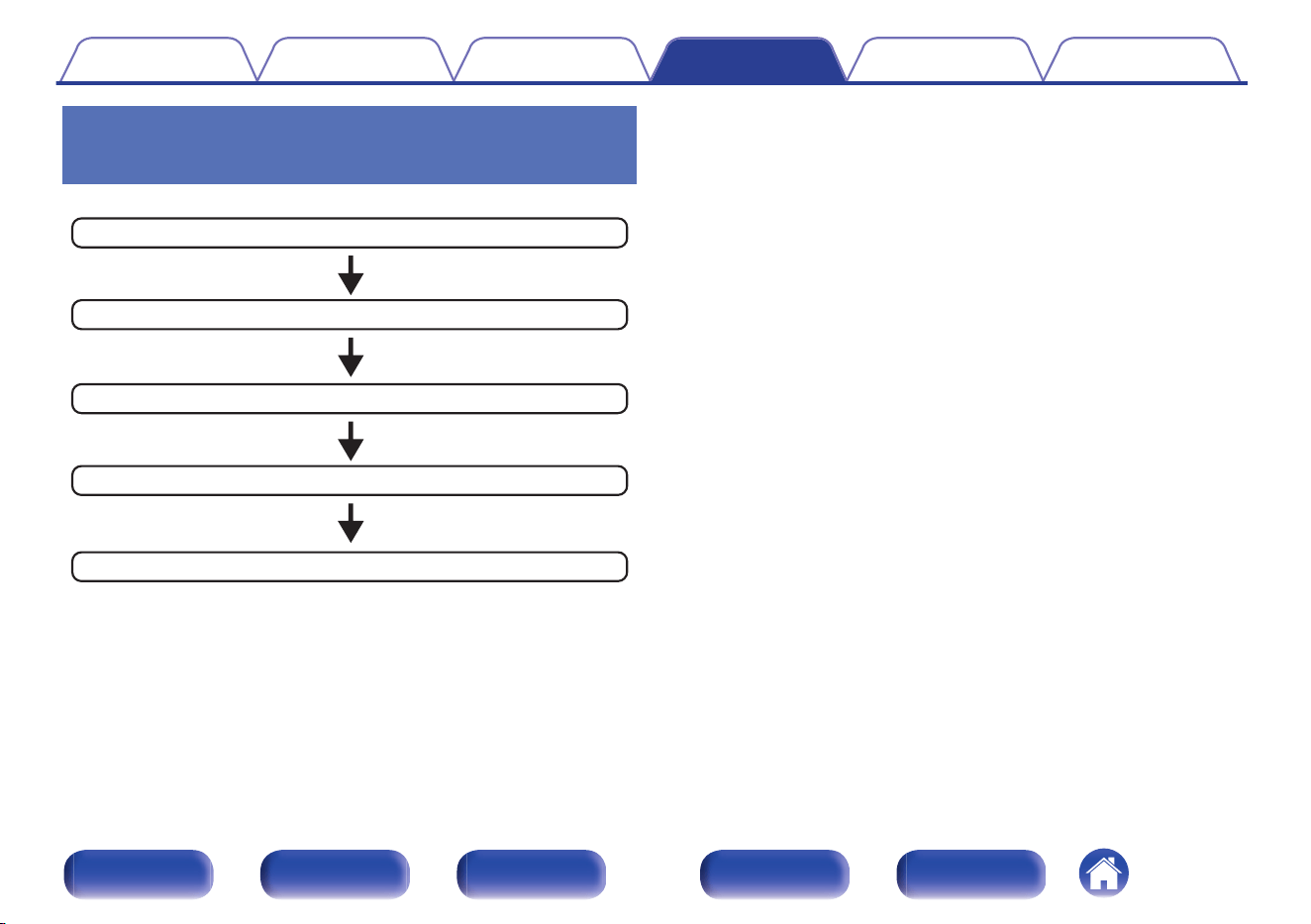
Procedure for speaker settings
(Audyssey
®
Setup)
Finish
Check
Calculation & Store
Measurement
Preparation
1
Attach the Sound calibration microphone to the
supplied microphone stand or own tripod and install it
at the main listening position.
When installing the Sound calibration microphone, point the tip of
the microphone toward the ceiling and adjust the height to match the
height of the ears of a listener in a seated position.
2
If using a subwoofer capable of the following
adjustments, set up the subwoofer as shown below.
n
When using a subwoofer with a direct mode
Set the direct mode to “On” and disable the volume adjustment
and crossover frequency setting.
n
When using a subwoofer without a direct mode
Make the following settings:
0
Volume : 10 o’clock position
0
Crossover frequency : Maximum/Highest Frequency
0
Low pass filter : Off
0
Standby mode : Off
Contents Connections Playback Settings Tips Appendix
222
Front panel Display Rear panel Remote Index
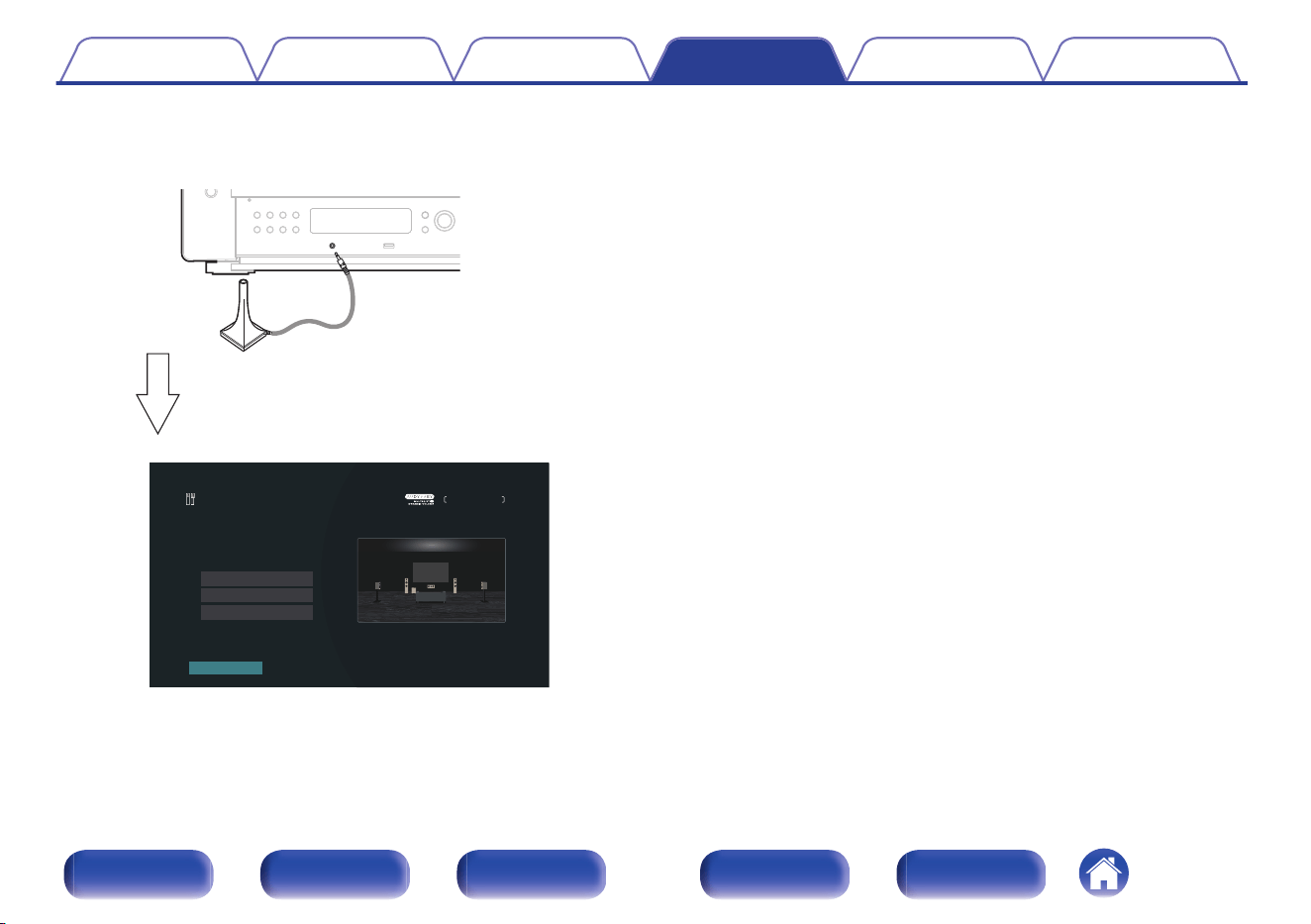
3
Connect the Sound calibration microphone to the
SETUP MIC jack of this unit.
When the Sound calibration microphone is
connected, the following screen is displayed.
Channel Select
Dolby Speaker Setup
Start
Audyssey Setup
Speaker Preset 1
Your AVR can automatically measure the acoustics of your
room then optimize your speakers using the included
microphone and microphone stand.
Set the following items if necessary.
Speaker Layout
4
Select “Start”, then press ENTER.
Audyssey
®
Setup can also make the following settings.
0
Speaker Layout
Set the Speaker Layout to suit your speaker environment.
0
Channel Select
If “Amp Assign” is set to “9.1ch + Front B”, select the Front
speakers to be measured.
0
Dolby Speaker Setup
Set the distance between the Dolby Atmos Enabled speaker and
the ceiling.
This can be set when using the Front Dolby Atmos Enabled,
Surround Dolby Atmos Enabled or Back Dolby Atmos Enabled
speaker.
5
Follow the instructions on the screen display and press
“Next” to proceed further.
Contents Connections Playback Settings Tips Appendix
223
Front panel Display Rear panel Remote Index
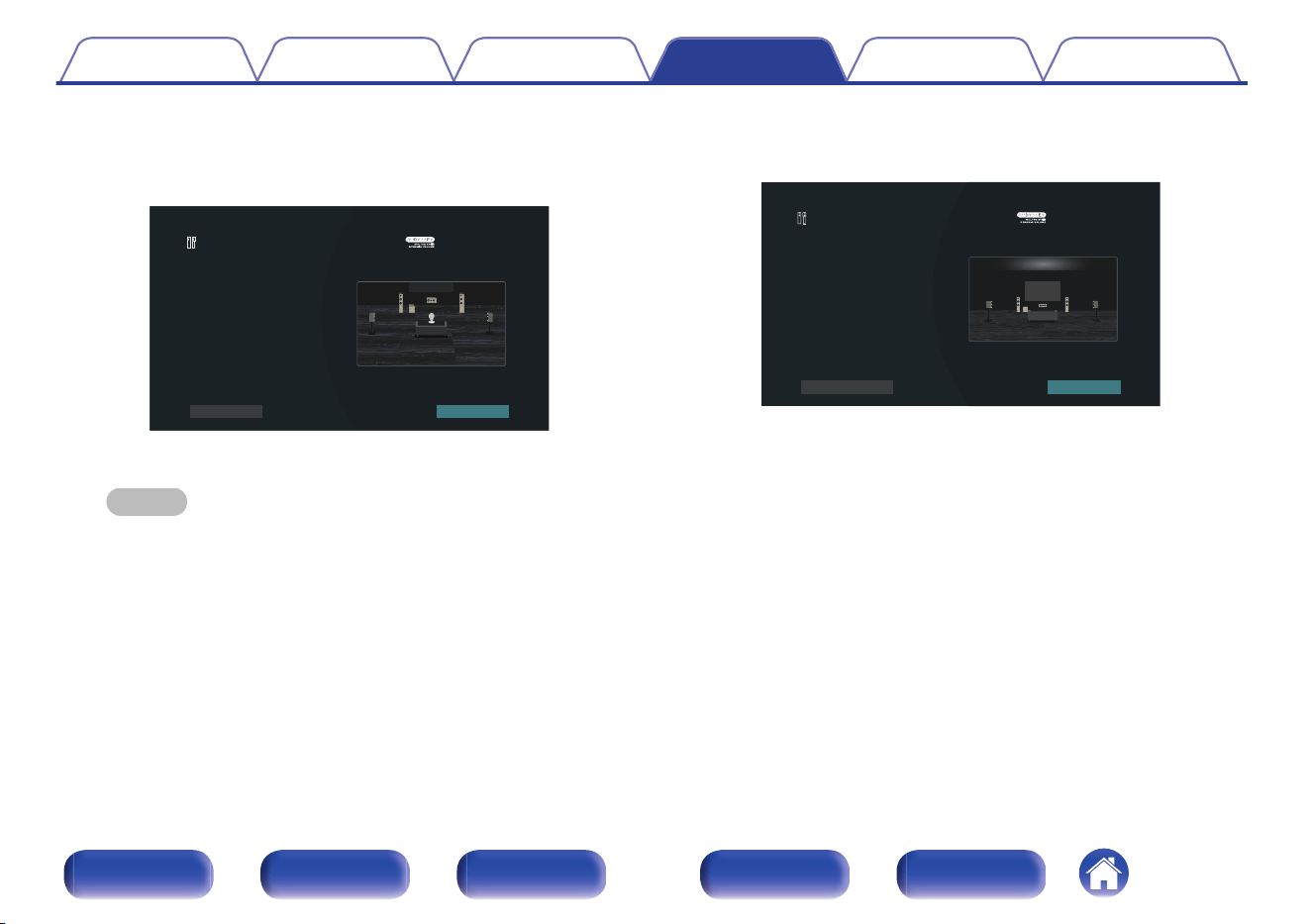
6
When the following screen is displayed, select “Begin
Test” and then press ENTER.
Start the measurement of the first position.
1
Audyssey Setup
Back
Begin Test
Select "Begin Test" to start the calibration.
NOTE: You will hear a series of loud chirps starting and
stopping during the tests.
Do not stand or place any objects between the speakers
and microphone while the measurements are being
made.
0
Measurement requires several minutes.
NOTE
0
If “ERROR” or “CAUTION” is displayed on TV screen:
0
Go to “Error messages” (v p. 228). Check any related items, and
perform the necessary procedures.
0
If the volume level for the subwoofer is not appropriate, an error message
is displayed. See “Subwoofer level error message and how to adjust”
(v p. 229).
7
When the detected speaker is displayed, select “Next”
and then press ENTER.
Audyssey Setup
Speaker Detection
Front Yes
Yes
1 spkr
Yes
No
Center
Subwoofer
Surround
Surround Back
Repeat Last Test Next
Contents Connections Playback Settings Tips Appendix
224
Front panel Display Rear panel Remote Index
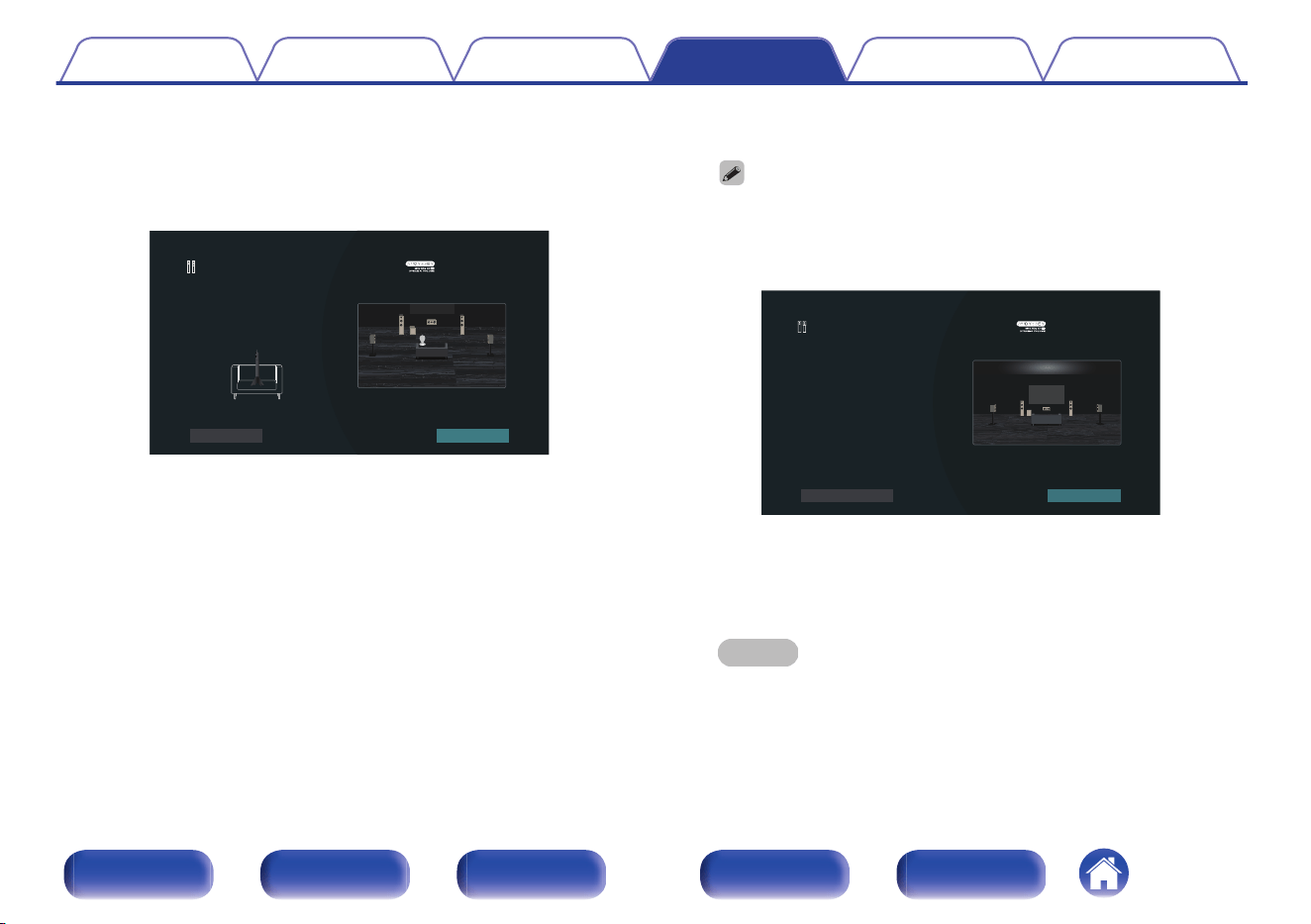
8
Move the Sound calibration microphone to position 2,
select “Continue”, then press ENTER.
The measurement of the second position starts.
Measurements can be made in up to eight positions.
2
Audyssey Setup
•••••••••• Ear Height
Back
Place the microphone at the ear level of the listener
seated at the 2nd listening position, which should be no
more than 2 ft (60 cm) away from the 1st listening
position, then select "Continue ...
Continue
n
Stopping Audyssey
®
Setup
A
Press BACK to display the popup screen.
B
Press cursor Left to select “Yes”, then press ENTER.
9
Repeat step 8, measuring positions 3 to 8.
0
To skip measuring the fourth and subsequent listening position, press
cursor Left to select “Complete” and press ENTER to proceed to step 11.
10
Select “Continue”, then press ENTER.
Audyssey Setup
Repeat Last Test
Continue
Measurements complete.
Select "Continue" to analyze the data...
Start the analysis and storage of the measurement results.
0
Analysis takes several minutes to complete.
The more speakers and measurement positions that there are,
the more time it takes to perform the analysis.
NOTE
0
When the measurement results are being saved, make sure the power is
not turned off.
Contents Connections Playback Settings Tips Appendix
225
Front panel Display Rear panel Remote Index
11
Perform the settings for Audyssey Dynamic EQ
®
and
Audyssey Dynamic Volume
®
.
The following screen is displayed during the analysis. Configure the
settings as preferred.
Audyssey Setup
Audyssey Dynamic EQ maintains bass, clarity and
surround sound at low volumes letting you enjoy late-
night movies and television. Turn on Dynamic EQ?
No
Ye s
0
Dynamic EQ corrects the frequency response in consideration of
the audio characteristics of the room and human hearing ability so
that sound can be heard even at low volume.
This is recommended when using the unit with the volume turned
down, e.g. when enjoying a movie or TV program in the middle of
the night.
0
Dynamic Volume adjusts the output volume to the optimal level
while constantly monitoring the level of the audio input to the unit.
Optimal volume control is performed automatically without any
loss in the dynamism and clarity of the sound when, for example,
the volume suddenly increases for commercials shown during
television programs.
12
When the analysis and storage ends, unplug the Sound
calibration microphone from the SETUP MIC jack on the
main unit and then press “Next”.
100%
Audyssey Setup
Back
Next
Now Analyzing and correcting your room data.
Please disconnect the microphone from your AVR.
Applying room corrections.
Contents Connections Playback Settings Tips Appendix
226
Front panel Display Rear panel Remote Index
0
When performing Audyssey
®
Setup for the first time, the measurement data
is automatically saved to “Speaker Preset 1” of “Speaker Preset”.
0
If Audyssey
®
Setup has already been performed, the following “Speaker
Preset” selection screen is displayed.
Audyssey Setup
Back
Select which Preset to use. Preset 1 is already used,
selecting Preset 1 now will overwrite the previously stored
setting.
Speaker Preset 2
Speaker Preset 1
0
See “Speaker Preset” for detailed information on the Speaker Preset
function. (v p. 249)
13
Select “Details” and press ENTER to verify the
measurement results.
0
Subwoofers may measure a greater reported distance than the
actual distance due to added electrical delay common in
subwoofers.
NOTE
0
Do not enable new speakers in Speaker Layout menu after Audyssey
®
Setup. If it
is changed, run Audyssey
®
Setup again in order to configure the optimum
equalizer settings.
Contents
Connections Playback Settings Tips Appendix
227
Front panel Display Rear panel Remote Index
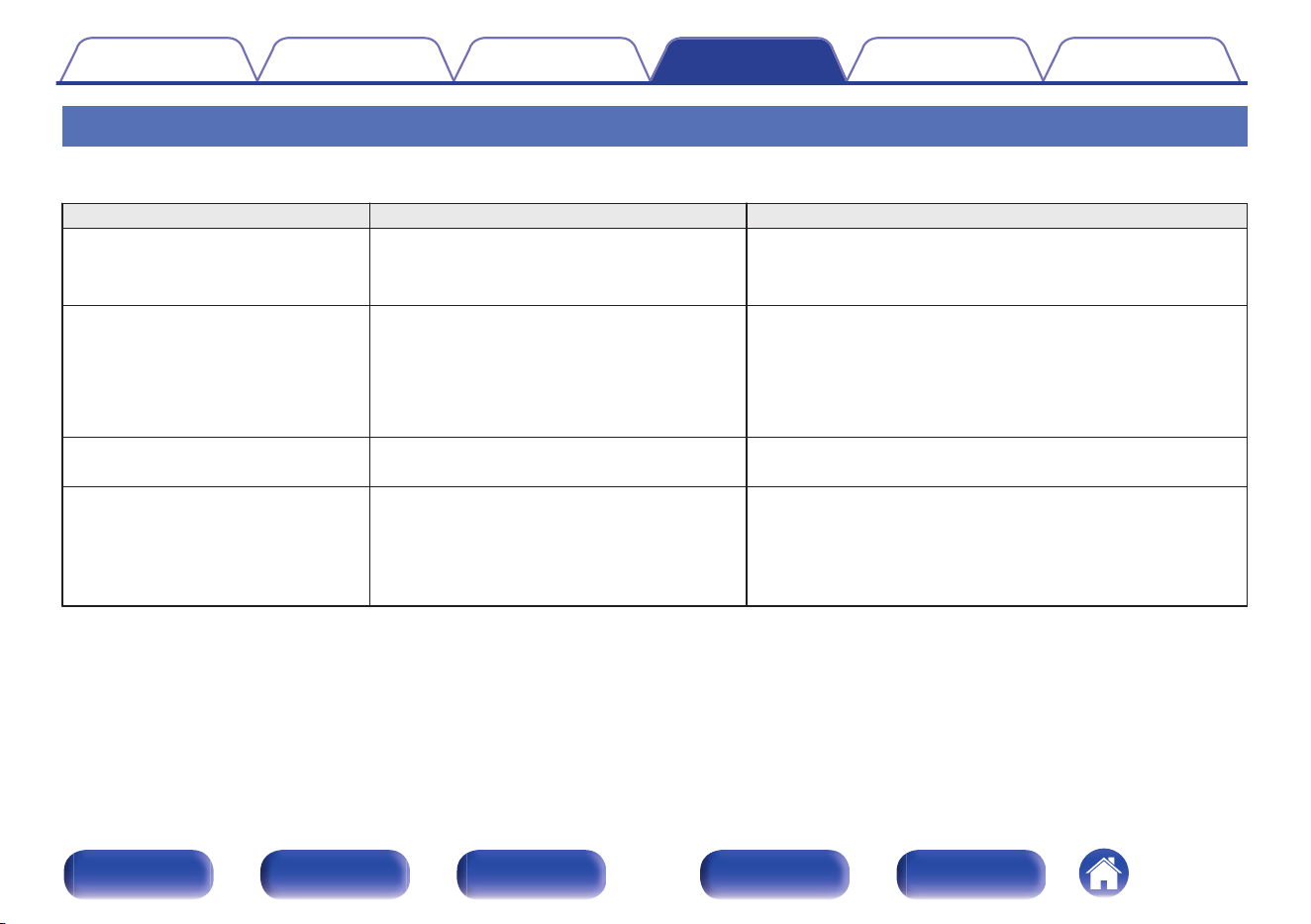
Error messages
An error message is displayed if Audyssey
®
Setup could not be completed due to speaker placement, the measurement environment, etc. If an error
message is displayed, check the relevant items and perform the necessary measures. Be sure to turn off the power before checking speaker connections.
Examples Error details Measures
No speakers found.
0
Sound calibration microphone is not
detected.
0
Connect the included Sound calibration microphone to the
SETUP MIC jack of this unit.
0
Not all speakers could be detected.
0
Check the speaker connections.
Ambient noise is too high or level is too
low
0
There is too much noise in the room.
0
Either turn off any device generating noise or move it away.
0
Perform again when the surroundings are quieter.
0
Speaker or subwoofer sound is too low.
0
Check the speaker installation and the direction in which the
speakers are facing.
0
Adjust the subwoofer’s volume.
Front R : None
0
The displayed speaker could not be
detected.
0
Check the connections of the displayed speaker.
Front R : Phase
0
The displayed speaker is connected with the
polarity reversed.
0
Check the polarity of the displayed speaker.
0
For some speakers, this error message may be displayed
even if the speaker is properly connected. If you are sure the
connection is correct, press cursor Right to select “Ignore”,
then press ENTER.
Contents Connections Playback Settings Tips Appendix
228
Front panel Display Rear panel Remote Index
o
Subwoofer level error message and how to
adjust
The optimal level of each subwoofer channel for Audyssey
®
Setup
measurement is 75 dB.
During subwoofer level measurement, an error message is displayed
when one level of subwoofers is outside the 72 – 78 dB range.
When using a subwoofer with built-in amplifier (active type), adjust the
subwoofer volume so that the subwoofer level is within the 72 to 78 dB
range.
G Error message H
Audyssey Setup
Back
Skip SW Level Matching
Your Subwoofer 1's level is too high. If your subwoofer has a volume control on it, select "SW Level
Matching" to interactively adjust the level of your subwoofer. If your subwoofer does not have a volume
control, or if you do not want to use a subwoofer, select "Skip".
1
Select “SW Level Matching” and then press ENTER.
2
Adjust the volume control on your subwoofer so that
the measured level is within the 72 to 78 dB range.
3
When the measured level is within the 72 to 78 dB
range, select “Next” and then press ENTER.
0
If you use two subwoofers, the second subwoofer’s adjustment
will be started. Repeat the operation from step 2, 3.
Contents Connections Playback Settings Tips Appendix
229
Front panel Display Rear panel Remote Index
Retrieving Audyssey
®
Setup settings
If you set “Restore...” to “Restore”, you can return to Audyssey
®
Setup
measurement result (value calculated at the start by MultEQ
®
XT32) even
when you have changed each setting manually.
Channel Select
Dolby Speaker Setup
Start
Audyssey Setup
Speaker Preset 1
Your AVR can automatically measure the acoustics of your
room then optimize your speakers using the included
microphone and microphone stand.
Set the following items if necessary.
Check Results
Restore...
Speaker Layout
Contents Connections Playback Settings Tips Appendix
230
Front panel Display Rear panel Remote Index
Manual Setup
Perform when setting the speakers manually or when changing settings
made in Audyssey
®
Setup.
0
If you enable new speakers in the Speaker Layout menu after
performing Audyssey
®
Setup, you will no longer be able to select
Audyssey MultEQ
®
XT32, Audyssey Dynamic EQ
®
or Audyssey
Dynamic Volume
®
. (v p. 199)
0
Changing the following settings:
Distances / Levels / Crossovers settings will not disable Audyssey
®
or
require running Audyssey
®
Setup again.
0
Dirac Live cannot be selected when changing the Speaker
Configuration in the Speaker Layout menu after performing Dirac Live
Room Correction.
0
“Manual Setup” can be used without changing the settings. Please set if
necessary.
Speaker Layout
Select a suitable speaker layout for your speaker system.
o
Amp Assign
Select the power amplifier usage method to match your speaker
system.
You need to configure the detailed settings for the speaker
configuration in accordance with the selected mode. Select Amp
Assign configure the corresponding detailed settings.
13.1ch:
0
Setting to use the 11-channel power
amplifier in this unit and an external
power amplifier connected to PRE OUT
to play back up to 13.1-channels.
0
You can connect speakers for up to 11.1-
channels for MAIN ZONE.
11.1ch:
0
Settings to assign all power amplifier
within this unit to MAIN ZONE to play
back up to 11.1-channels.
9.1ch + ZONE2
(Default):
0
Setting to assign the power amplifiers in
this unit for ZONE2 to 2-channels.
0
You can connect speakers for up to 9.1-
channels for MAIN ZONE.
Contents Connections Playback Settings Tips Appendix
231
Front panel Display Rear panel Remote Index
9.1ch + ZONE3:
0
Setting to assign the power amplifiers in
this unit for ZONE3 to 2-channels
0
You can connect speakers for up to 9.1-
channels for MAIN ZONE.
7.1ch + ZONE2/3:
0
Setting to assign the power amplifiers
within this unit for ZONE2 and ZONE3
each to two different channel.
0
You can connect speakers for up to 7.1-
channels for MAIN ZONE.
9.1ch + ZONE2/3-MONO:
0
Setting to assign the power amplifiers in
this unit for ZONE2 and ZONE3 each to
a different channel.
0
You can connect speakers for up to 9.1-
channels for MAIN ZONE.
9.1ch (Bi-Amp):
0
Setting to assign the power amplifiers in
this unit for front speaker bi-amp
connection to 2-channels.
0
You can connect speakers for up to 9.1-
channels for MAIN ZONE.
7.1ch (Bi-Amp) + ZONE2:
0
Setting to assign the power amplifiers in
this unit for front speaker bi-amp
connection to 2-channels.
0
Setting to assign the power amplifiers in
this unit for ZONE2 to 2-channels.
5.1ch Full Bi-Amp:
0
Setting to assign the power amplifiers in
this unit for front, center and surround
speakers to 10 channels.
0
You can connect speakers for up to 5.1
channels for MAIN ZONE.
9.1ch + Front B:
0
Setting to assign the power amplifiers
within this unit for connecting the second
set of front speakers.
0
You can switch between the desired
combination of front speakers A and
front speakers B.
Switch the front speaker using the “Front
Speaker” setting. (v p. 252)
Preamplifier:
0
This unit will be used as a preamplifier by
connecting an external power amplifier to
all speakers. Interference to the
preamplifier can be reduced by turning
off the signal path to the power amplifier.
Contents Connections Playback Settings Tips Appendix
232
Front panel Display Rear panel Remote Index
o
Front/Center/Surround/Surround Back/Front
Wide
Set the correct audio output terminals for your speaker system.
n
Configuration
Select whether or not each speaker exists. For Surround Back
speakers, select the number of speakers to be used.
[Front/Center/Surround/Front Wide]
Yes
(Default):
The selected speakers will be used.
No: The selected speakers will not be used.
[Surround Back]
2 spkrs
(Default):
Two Surround Back speakers will be
used.
1 spkr:
Only one Surround Back speaker will be
used. When you select this setting,
connect to the SURROUND BACK L
terminal.
No: Surround Back speakers will not be used.
0
“Front” is fixed as “Yes” as it is required for playback.
0
When “Surround” is set to “No”, “Surround Back” and “Front Wide” settings are
automatically set to “No”.
n
Connection
Select the audio output terminal.
Spkr + Pre-out
(Default):
Speaker and pre-out outputs are active.
Pre-out Only:
Only pre-out terminals are active.
Interference to the preamplifier can be
reduced by turning off the signal path to
the power amplifier.
0
When “Amp Assign” is set to “Preamplifier”, the “Connection” setting of all
speakers will be fixed as “Pre-out Only”.
0
When “Amp Assign” is set to “13.1ch” and 13 channels of speakers are used,
at least one of the channels assigned to the Front, Height 3 or Front Wide
must be set to “Pre-out Only”.
Contents
Connections Playback Settings Tips Appendix
233
Front panel Display Rear panel Remote Index
o
Height Speakers
Select the number of the height speakers, ceiling speakers and Dolby
Atmos Enabled speakers used in MAIN ZONE.
None:
Uses no height, ceiling and Dolby Atmos
Enabled speakers.
2 spkrs:
Uses a set of (two) height speakers,
ceiling speakers or Dolby Atmos Enabled
speakers.
4 spkrs:
Uses two set of (four) height speakers,
ceiling speakers or Dolby Atmos Enabled
speakers.
5 spkrs:
Uses five height speakers, ceiling
speakers or Dolby Atmos Enabled
speakers.
6 spkrs:
Uses six height speakers, ceiling
speakers or Dolby Atmos Enabled
speakers.
0
Select the “5 spkrs” setting or higher when using Top Surround or Center
Height speakers.
0
“5 spkrs” and “6 spkrs” can be selected when “Front Wide” is not used.
Contents
Connections Playback Settings Tips Appendix
234
Front panel Display Rear panel Remote Index
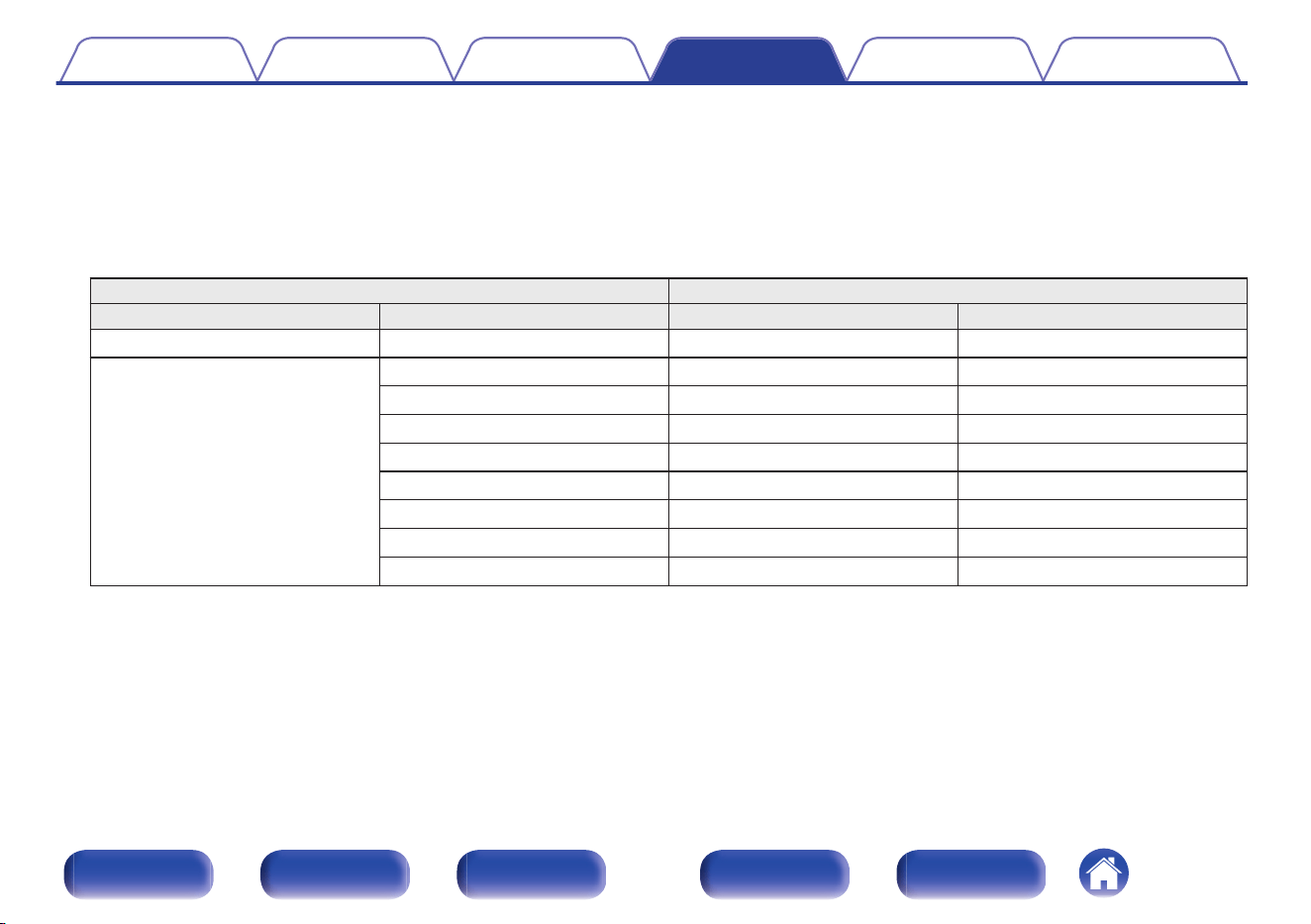
o
Layout
n
Configuration
Set the speaker layout when installing 1 set (2-channels) of Height, Ceiling or Dolby Atmos Enabled speakers.
The layouts that can be selected differ depending on the combinations of “Amp Assign” and floor speaker settings in the menu. (“Amp
Assign” (v p. 231), “Front/Center/Surround/Surround Back/Front Wide” (v p. 233))
[2-channel height speakers]
Settings AUDIO OUT connectors
Height Speakers Layout HEIGHT 1 HEIGHT 2
None - - -
2 spkrs
Front Height Front Height -
Top Front Top Front -
Top Middle Top Middle -
Top Rear Top Rear -
Rear Height Rear Height -
Front Dolby Front Dolby -
Surround Dolbyz1
Surround Dolby -
Back Dolbyz2
Back Dolby -
z1 This can be selected when using Surround speakers. Set “Surround” in the menu to “Yes”. (v p. 233)
z2 This can be selected when using two Surround Back speakers. Set “Surround Back” in the menu to “2 spkrs”. (v p. 233)
Contents
Connections Playback Settings Tips Appendix
235
Front panel Display Rear panel Remote Index
n
Connection
Select the audio output terminal.
Spkr + Pre-out
(Default):
Speaker and pre-out outputs are active.
Pre-out Only:
Only pre-out terminals are active.
Interference to the preamplifier can be
reduced by turning off the signal path to
the power amplifier.
0
When “Amp Assign” is set to “Preamplifier”, the “Connection” setting of all
speakers will be fixed as “Pre-out Only”.
Contents Connections Playback Settings Tips Appendix
236
Front panel Display Rear panel Remote Index
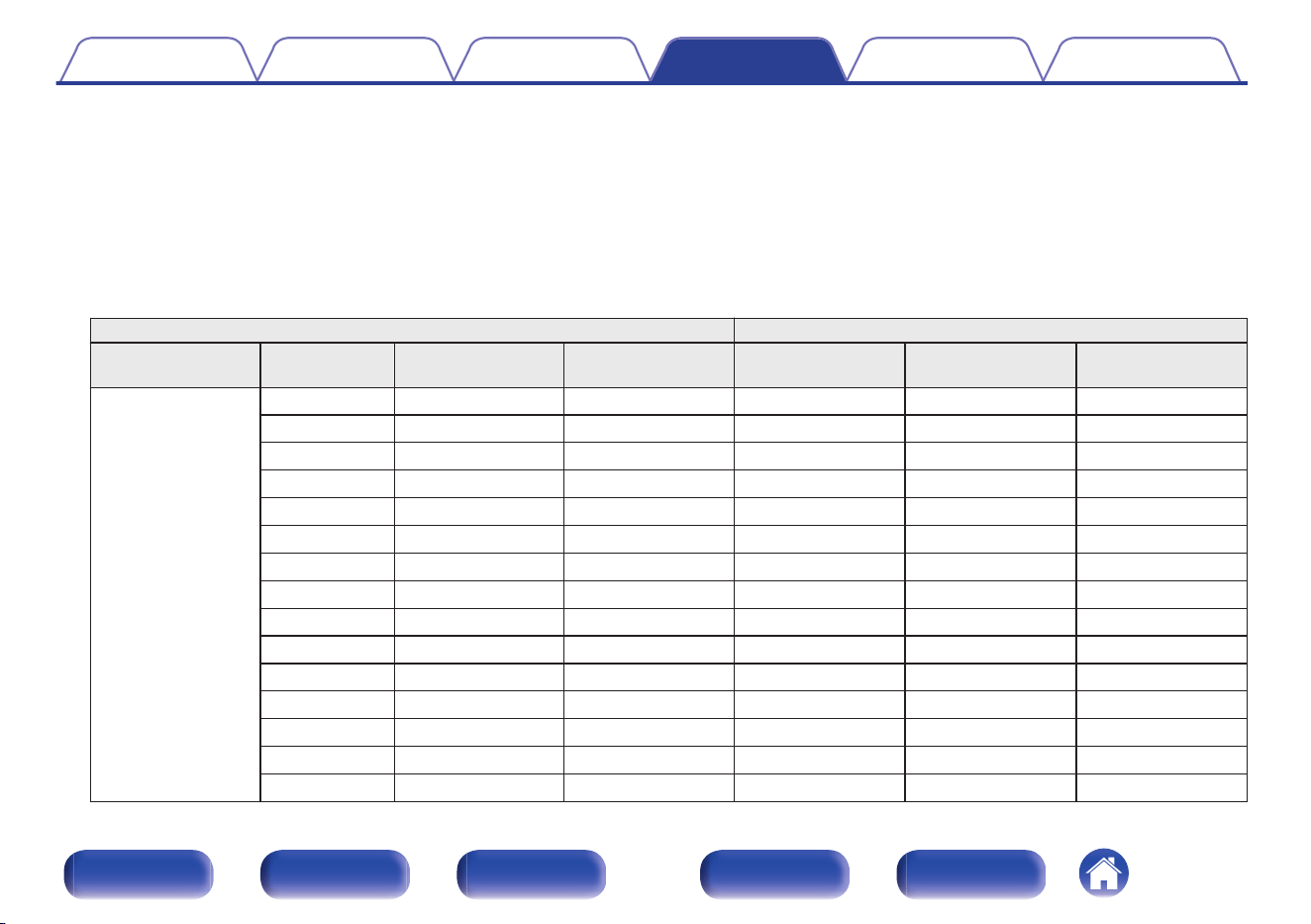
o
Front Layout / Middle Layout / Rear Layout / TS/CH
Select the layout setting and audio output terminals for your Height speakers.
n
Configuration
Set the speaker layout when installing 2 sets (4-channels) or more of Height, Ceiling or Dolby Atmos Enabled speakers.
The layouts that can be selected differ depending on the combinations of “Amp Assign” and floor speaker settings in the menu. (“Amp
Assign” (v p. 231), “Front/Center/Surround/Surround Back/Front Wide” (v p. 233))
[4-channel height speakers]
Settings AUDIO OUT connectors
Height Speakers NOTE Front Layout Rear Layout HEIGHT 1 HEIGHT 2
HEIGHT 3/FRONT
WIDE
4 spkrs
Front Height Top Middle Front Height Top Middle -
Front Height Top Rear Front Height Top Rear -
Front Height Surround Height Front Height Surround Height -
Front Height Rear Height Front Height Rear Height -
Front Height Surround Dolby Front Height Surround Dolby -
Front Height
Back Dolbyz1
Front Height Back Dolby -
Top Front Top Rear Top Front Top Rear -
Top Front Rear Height Top Front Rear Height -
Top Front Surround Dolby Top Front Surround Dolby -
Top Front
Back Dolbyz1
Top Front Back Dolby -
Top Middle Rear Height Top Middle Rear Height -
Front Dolby Top Rear Front Dolby Top Rear -
Front Dolby Rear Height Front Dolby Rear Height -
Front Dolby Surround Dolby Front Dolby Surround Dolby -
Front Dolby
Back Dolbyz1
Front Dolby Back Dolby -
Contents Connections Playback Settings Tips Appendix
237
Front panel Display Rear panel Remote Index
[5-channel height speakers]
Settings AUDIO OUT connectors
Height
Speakers
NOTE Front Layout Rear Layout TS/CH HEIGHT 1 HEIGHT 2
HEIGHT 3/
FRONT WIDE
5 spkrs
Front Height Surround Height Top Surround Front Height Surround Height L: Top Surround
Front Height Surround Height Center Height Front Height Surround Height R: Center Height
Front Height Rear Height Top Surround Front Height Rear Height L: Top Surround
Front Height Rear Height Center Height Front Height Rear Height R: Center Height
Contents Connections Playback Settings Tips Appendix
238
Front panel Display Rear panel Remote Index
[6-channel height speakers]
Settings AUDIO OUT connectors
Height
Speakers
NOTE Front Layout
Middle
Layout
Rear Layout TS/CH HEIGHT 1 HEIGHT 2
HEIGHT 3/
FRONT WIDE
6 spkrs
Front Height Top Middle Rear Height No Front Height Rear Height Top Middle
z2
Front Height
Surround
Height
Rear Height No Front Height Rear Height
Surround
Height
Front Height
Surround
Height
No TS/CH Front Height
Surround
Height
L: Top
Surround
R: Center
Height
Front Height Surround Dolby Rear Height No Front Height Rear Height Surround Dolby
Front Height Surround Dolby
Back Dolbyz1
No Front Height Back Dolby Surround Dolby
Front Height No Rear Height TS/CH Front Height Rear Height
L: Top
Surround
R: Center
Height
Top Front Top Middle Top Rear No Top Front Top Rear Top Middle
Top Front Surround Dolby Top Rear No Top Front Top Rear Surround Dolby
Front Dolby Top Middle
Back Dolbyz1
No Front Dolby Back Dolby Top Middle
Front Dolby Surround Dolby Rear Height No Front Dolby Rear Height Surround Dolby
Front Dolby Surround Dolby
Back Dolbyz1
No Front Dolby Back Dolby Surround Dolby
z1 This can be selected when using two Surround Back speakers. Set “Surround Back” in the menu to “2 spkrs”. (v p. 233)
z2
Use 2 sets of Height speakers in the appropriate sound modes for Dolby Atmos, DTS:X or AURO-3D playback.
Use the Front Height and Rear Height speakers for Dolby Atmos playback.
Use the Front Height, Surround Height and Rear Height speakers for DTS:X playback.
Use the Front Height and Surround Height speakers for AURO-3D playback.
Contents
Connections Playback Settings Tips Appendix
239
Front panel Display Rear panel Remote Index
n
Connection
Select the audio output terminal.
Spkr + Pre-out
(Default):
Speaker and pre-out outputs are active.
Pre-out Only:
Only pre-out terminals are active.
Interference to the preamplifier can be
reduced by turning off the signal path to
the power amplifier.
0
When “Amp Assign” is set to “Preamplifier”, the “Connection” setting of all
speakers will be fixed as “Pre-out Only”.
0
When “Amp Assign” is set to “13.1ch” and 13 channels of speakers are used,
at least one of the channels assigned to the Front, Height 3 or Front Wide
must be set to “Pre-out Only”.
o
Subwoofers
Set the presence of a subwoofer.
4 spkrs: Use four subwoofers.
3 spkrs: Use three subwoofers.
2 spkrs: Use two subwoofers.
1 spkr
(Default):
Use only one subwoofer.
No:
Select when a subwoofer is not
connected.
Contents Connections Playback Settings Tips Appendix
240
Front panel Display Rear panel Remote Index
o
Subwoofer Mode
When you are using multiple subwoofers, set the audio to be output
from the subwoofer.
Standard
(Default):
All subwoofers output LFE signals and
bass below the crossover frequency of all
the speakers.
Directional:
All subwoofers output LFE signals. In
addition, each subwoofer outputs bass
below the crossover frequency of
speakers that are placed near them.
0
This can be set when “Subwoofers” is set to “4 spkrs”, “3 spkrs” or “2 spkrs”.
o
Subwoofer Layout
When you are using multiple subwoofers, configure the subwoofer
layout. The layouts that can be selected differ depending on the
configuration of “Subwoofer Mode”.
[When “Subwoofers” is set to “2 spkrs”]
Left/Right
(Default):
Place subwoofers symmetrically on the
front side.
Front/Rear:
Place a subwoofer in the middle of the
front side and another in the middle of the
rear side.
[When “Subwoofers” is set to “3 spkrs”]
FL/FR/Rear:
Place subwoofers symmetrically on the
front side and one in the middle of the
rear side.
[When “Subwoofers” is set to “4 spkrs”]
FL/FR/RL/RR:
Place the subwoofers in the four corners
of the room.
Contents Connections Playback Settings Tips Appendix
241
Front panel Display Rear panel Remote Index
0
This can be set when “Subwoofers” is set to “4 spkrs”, “3 spkrs” or “2 spkrs”, and “Subwoofer Mode” is set to “Directional”.
0
The name of the Subwoofer that is displayed in the GUI of this unit depends on the setting combination of “Subwoofers”, “Subwoofer Mode”, and “Subwoofer Layout”.
Subwoofers Subwoofer Mode
Subwoofer
Layout
Subwoofer name
Subwoofer 1 Subwoofer 2 Subwoofer 3 Subwoofer 4
1 spkr - - Subwoofer 1 - - -
2 spkrs
Standard - Subwoofer 1 Subwoofer 2 - -
Directional
Left/Right Subwoofer Left Subwoofer Right - -
Front/Rear Subwoofer Front Subwoofer Rear - -
3 spkrs
Standard - Subwoofer 1 Subwoofer 2 Subwoofer 3 -
Directional FL/FR/Rear Subwoofer FL Subwoofer FR Subwoofer Rear -
4 spkrs
Standard - Subwoofer 1 Subwoofer 2 Subwoofer 3 Subwoofer 4
Directional FL/FR/RL/RR Subwoofer FL Subwoofer FR Subwoofer RL Subwoofer RR
Contents Connections Playback Settings Tips Appendix
242
Front panel Display Rear panel Remote Index
0
With the “Directional” setting, your room is divided into four areas as shown below so that each subwoofer plays the bass of the speaker set to other
than “Full Range” which is located within the area.
FHL CH
TFLFWL TFR
TML TMR
TRL TRR
FWR
FDL FDR
SDL SDR
SBL SBR
BDL BDR
TS
SB
FHR
SHL SHR
RHL RHR
C
FL FR
SL SR
LEFT
FrontRear
RIGHT
For example, if “Subwoofers” = 2 spkrs and Subwoofer Layout = Left/Right, Subwoofer Left (Subwoofer 1) plays the bass of the speakers in the Left
area which includes FL/SL and Subwoofer Right (Subwoofer 2) plays the bass of the speakers in the Right area which includes FR/SR.
Contents Connections Playback Settings Tips Appendix
243
Front panel Display Rear panel Remote Index
o
Bi-Amp
When “Amp Assign” is “9.1ch (Bi-Amp)” and “7.1ch (Bi-Amp) +
ZONE2”, the speaker terminal used for the bi-amp connection of the
front speakers is displayed. Depending on the settings of Main Zone
speaker configuration, the terminal is determined automatically.
HEIGHT 3/FRONT WIDE:
The HEIGHT 3/FRONT WIDE speaker
terminal is used for the bi-amp
connection of the front speakers.
HEIGHT 2:
The HEIGHT 2 speaker terminal is used
for the bi-amp connection of the front
speakers.
HEIGHT 1:
The HEIGHT 1 speaker terminal is used
for the bi-amp connection of the front
speakers.
o
Front B
When “Amp Assign” is “9.1ch + Front B”, the speaker terminal used for
the second front speakers is displayed. Depending on the settings of
Main Zone speaker configuration, the terminal is determined
automatically.
HEIGHT 3/FRONT WIDE:
The HEIGHT 3/FRONT WIDE speaker
terminal is used for the second front
speakers.
HEIGHT 2:
The HEIGHT 2 speaker terminal is used
for the second front speakers.
HEIGHT 1:
The HEIGHT 1 speaker terminal is used
for the second front speakers.
Contents Connections Playback Settings Tips Appendix
244
Front panel Display Rear panel Remote Index
o
ZONE2
When “Amp Assign” is “9.1ch + ZONE2”, “7.1ch + ZONE2/3” and
“7.1ch (Bi-Amp) + ZONE2”, the speaker terminal used for the ZONE2
speakers is displayed. Depending on the settings of Main Zone
speaker configuration, the terminal is determined automatically.
HEIGHT 3/FRONT WIDE:
The HEIGHT 3/FRONT WIDE speaker
terminal is used for the ZONE2 speakers.
HEIGHT 2:
The HEIGHT 2 speaker terminal is used
for the ZONE2 speakers.
HEIGHT 1:
The HEIGHT 1 speaker terminal is used
for the ZONE2 speakers.
o
ZONE3
When “Amp Assign” is “9.1ch + ZONE3” and “7.1ch + ZONE2/3”, the
speaker terminal used for the ZONE3 speakers is displayed.
Depending on the settings of Main Zone speaker configuration, the
terminal is determined automatically.
HEIGHT 3/FRONT WIDE:
The HEIGHT 3/FRONT WIDE speaker
terminal is used for the ZONE3 speakers.
HEIGHT 2:
The HEIGHT 2 speaker terminal is used
for the ZONE3 speakers.
HEIGHT 1:
The HEIGHT 1 speaker terminal is used
for the ZONE3 speakers.
Contents Connections Playback Settings Tips Appendix
245
Front panel Display Rear panel Remote Index
o
ZONE2/3
When “Amp Assign” is “9.1ch + ZONE2/3-MONO”, the speaker
terminal used for the ZONE2/3 speakers is displayed. Depending on
the settings of Main Zone speaker configuration, the terminal is
determined automatically.
HEIGHT 3/FRONT WIDE:
The HEIGHT 3/FRONT WIDE speaker
terminal is used for the ZONE2/3
speakers.
HEIGHT 2:
The HEIGHT 2 speaker terminal is used
for the ZONE2/3 speakers.
HEIGHT 1:
The HEIGHT 1 speaker terminal is used
for the ZONE2/3 speakers.
o
View Terminal Config.
This shows how to connect the speaker terminals and PRE OUT
connectors for your “Speaker Layout” setting on the menu screen.
Distances
Set distance from listening position to speakers.
Measure beforehand the distance from the listening position to each
speaker.
When using Dirac Live, the unit is fixed as msec.
“Distances” values for each filter are stored independently in Dirac Live
Room Correction.
o
Unit
Set the unit of distance.
Feet (Default)
Meters
[When using Dirac Live]
msec
o
Step
Set the minimum variable width of the distance.
1 ft / 0.1 ft (Default: 1 ft)
0.1 m / 0.01 m
[When using Dirac Live]
1 ms / 0.1 ms
Contents Connections Playback Settings Tips Appendix
246
Front panel Display Rear panel Remote Index
o
Set the distance
0.0 ft – 59.1 ft / 0.00 m – 18.00 m
[When using Dirac Live]
0.0 ms – 20.0 ms
0
The speakers that can be selected differ depending on the “Speaker Layout”
settings. (v p. 231)
0
Default settings:
Front L / Front R / Front Height L / Front Height R / Center / Front Wide L /
Front Wide R / Front Dolby L / Front Dolby R / Subwoofer 1 / Subwoofer 2 /
Subwoofer 3 / Subwoofer 4: 11.8 ft (3.60 m)
Speakers other than the above: 9.8 ft (3.00 m)
o
Dolby Speaker Setup
Set the distance between the Dolby Atmos Enabled speaker and the
ceiling.
3.0 ft - 10.8 ft / 0.90 m - 3.30 m (Default: 5.9 ft / 1.80 m)
0
This can be set when “Front Dolby”, “Surround Dolby” or “Back Dolby” is set to
use in “Speaker Layout”. (v p. 231)
0
Cannot be set when Dirac Live are being used. (v p. 202)
o
Set Defaults
The “Distances” settings are returned to the default settings.
Contents
Connections Playback Settings Tips Appendix
247
Front panel Display Rear panel Remote Index
Levels
Set the volume of the test tone to be the same at the listening position
when it is output from each speaker.
“Levels” values for each filter are stored independently in Dirac Live Room
Correction.
o
Test Tone Start
A test tone is output from the selected speaker.
While listening to the test tone, adjust the volume output from the
selected speaker.
–12.0 dB – +12.0 dB (Default : 0.0 dB)
0
The set “Levels” are reflected in all sound modes.
0
If you want to adjust the channel levels for each input source, set these in
“Channel Level Adjust” in the options menu. (v p. 138)
0
When headphones are connected to the PHONES connector on this unit, you
cannot set “Levels”.
o
Set Defaults
The “Levels” settings are returned to the default settings.
Crossovers
Set in accordance with the lower limit frequency of the base frequencies
that can be played back through each speaker. See the speaker manual
for information concerning speaker crossover frequency.
o
Set the crossover frequency
Full Range:
Select “Full Range” to set the speaker to
play full-range audio.
40 Hz / 60 Hz / 70 Hz /
80 Hz / 90 Hz / 100 Hz /
110 Hz / 120 Hz / 150 Hz /
180 Hz / 200 Hz / 250 Hz
(Default: 80 Hz)
Selects the crossover point to send the
low frequency sound to the subwoofer.
0
The default crossover frequency is “80 Hz”, which will work best with the
widest variety of speakers. We recommend setting to a higher frequency that
the crossover frequency when small speakers are used. For example, set to
“250 Hz” when the frequency range of the speakers is 250 Hz – 20 kHz.
0
Sound below the crossover frequency is cut off from the output of the
speakers. This cut off bass frequency is output from the subwoofer or front
speakers.
0
The “Front” is automatically set to “Full Range” when “Subwoofers” is set to
“No” in the “Speaker Layout”.
0
Each speaker can be set to “Full Range” only when the Front is set to “Full
Range”.
0
The audio settings in “IMAX Audio Settings” are applied during IMAX
playback. (v p. 193)
Contents Connections Playback Settings Tips Appendix
248
Front panel Display Rear panel Remote Index
Speaker Preset
Two speaker settings can be saved to suit the environments where you
use your speakers.
For example, in some cases the characteristics of a room change
depending on whether a screen is used. By saving two different presets,
you can easily switch between the equalizer and speaker settings for each
situation that were measured with an Audyssey
®
Setup.
Presets also make it easy to switch between the sound effects of an
Audyssey Setup and those of Dirac Live.
If you want to use a preset, select the preset you want to use and then
configure settings such as Audyssey
®
Setup, Dirac Live Room
Correction
z
and speaker settings to save those settings to the selected
preset.
z
When exporting measurement results from Dirac Live Software to this unit for the
first time, the settings are automatically saved in “Speaker Preset 2”.
Speaker Preset 1
(Default):
Saves the settings to Preset 1.
Speaker Preset 2: Saves the settings to Preset 2.
0
The following settings are saved to presets.
0
“Speaker Layout” settings
0
“Distances” settings
0
“Levels” settings
0
“Crossovers” settings
0
“Subwoofer Output” settings
0
“Low Pass Filter” settings
0
“Distribution” settings
0
“2ch Playback” settings
0
“Front Speaker” settings
0
“MultEQ
®
XT32” data
0
“Dirac Live” data
0
“Graphic EQ” data
0
This setting also be configured using “Speaker Preset” in the option menu.
(v p. 144)
Contents
Connections Playback Settings Tips Appendix
249
Front panel Display Rear panel Remote Index
Advanced
The following advanced speaker settings are available.
o
Low Frequency Effects
0
“Subwoofer Output” (v p. 250)
0
“Low Pass Filter” (v p. 251)
0
“Distribution” (v p. 252)
o
Front Speaker (v p. 252)
o
2ch Playback (v p. 253)
o
Tactile Transducer (v p. 255)
Subwoofer Output
Selects which low frequency signals are sent to the subwoofer outputs.
o
Subwoofer Output
LFE
(Default):
The subwoofer outputs receive the LFE
track, plus any redirected bass from
speakers with crossovers set. Use this
setting as the default for home theater
bass management in a typical room.
LFE + Main:
The subwoofer outputs receive the LFE
track, plus redirected bass, and a copy of
the low frequency signals from all full-
range speakers.
o
Bass Extraction LPF
Selects the low-pass filter point for the full-range speaker to copy the
low frequency signal to subwoofer.
40 Hz / 60 Hz / 70 Hz / 80 Hz / 90 Hz / 100 Hz / 110 Hz / 120 Hz /
150 Hz / 180 Hz / 200 Hz / 250 Hz (Default: 80 Hz)
Contents Connections Playback Settings Tips Appendix
250
Front panel Display Rear panel Remote Index
0
“Subwoofer Output” can be set when “Speaker Layout” - “Subwoofers” in the
menu is set to other than “No”. (v p. 240)
0
Play music or a movie source and select the mode offering the strongest bass.
0
If “Crossovers” - “Front” and “Center” are set to “Full Range”, and “Subwoofer
Output” is set to “LFE”, no sound may be output from the subwoofers,
depending on the input signal or selected sound mode. (v p. 248)
Select “LFE + Main” if you want the bass signals to always be produced from
the subwoofer.
0
“Bass Extraction LPF” can only be set for channels with “Crossovers” set to
“Full Range”.
0
The audio settings in “IMAX Audio Settings” are applied during IMAX
playback. (v p. 193)
Low Pass Filter
Selects the crossover point for the LFE channel. Set this when you want to
change the playback LFE signal of the subwoofer.
o
Low Pass Filter
70 Hz / 80 Hz / 90 Hz / 100 Hz / 110 Hz / 120 Hz / 150 Hz / 180 Hz /
200 Hz / 250 Hz (Default: 120 Hz)
0
The audio settings in “IMAX Audio Settings” are applied during IMAX
playback. (v p. 193)
Contents Connections Playback Settings Tips Appendix
251
Front panel Display Rear panel Remote Index
Distribution
Adjusts the amount of LFE signal sent to the full-range floor speakers.
o
Front/Center/Surround/Surround Back/Front
Wide
Off
(Default):
Floor Speakers do not play LFE signals.
–20 dB – 0 dB
Adjusts the amount of LFE signal sent to
the full-range speakers.
0
This can only be set if the “Front”, “Center”, “Surround”, “Surround Back” or
“Front Wide” speaker is set to “Full Range” in “Crossovers”.
Front Speaker
Set the front speaker A/B to use for every sound mode.
A
(Default):
Front speaker A is used.
B : Front speaker B is used.
A+B : Both front speakers A and B are used.
0
This can be set when “Amp Assign” is set to “9.1ch + Front B”. (v p. 232)
Contents Connections Playback Settings Tips Appendix
252
Front panel Display Rear panel Remote Index
2ch Playback
Select the method for setting the speakers used in the 2-channel direct
and stereo playback modes.
o
Setting
Select the method for setting the speakers used in the 2-channel direct
and stereo playback modes.
Auto
(Default):
The settings in “Speakers” are applied.
(v p. 220)
Manual:
Set the speakers for 2-channel playback.
Make the following settings.
o
Crossover
Set the maximum frequency of the bass signal output from each
channel to the subwoofer.
Full Range:
Select “Full Range” to set the speaker to
play full-range audio.
40 Hz / 60 Hz / 70 Hz /
80 Hz / 90 Hz / 100 Hz /
110 Hz / 120 Hz / 150 Hz /
180 Hz / 200 Hz / 250 Hz
(Default: 80 Hz)
Selects the crossover point to send the
low frequency sound to the subwoofer.
0
When “Speaker Layout” - “Subwoofers” in the menu is set to “No”, “Full
Range” is automatically set. (v p. 240)
0
When “2ch Playback” - “Subwoofer” is set to “No”, “Full Range” is
automatically set. (v p. 253)
o
Subwoofer
Set the presence of a subwoofer.
Yes
(Default):
Use a subwoofer.
No:
Select when a subwoofer is not
connected.
0
When “Speaker Layout” - “Subwoofers” in the menu is set to “No”, No is
automatically set. (v p. 240)
Contents Connections Playback Settings Tips Appendix
253
Front panel Display Rear panel Remote Index
o
Subwoofer Output
Selects which low frequency signals are sent to the subwoofer outputs.
LFE
(Default):
When “2ch Playback” - “Crossover” is set
to “Full Range”, only LFE signals are
output from the subwoofer. Also, when
“2ch Playback” - “Crossover” is set to
other than “Full Range”, the front channel
low range signals are added to the LFE
signals and output from the subwoofer.
LFE + Main:
The front channel low range signal is
added to the LFE signal output from the
subwoofer.
0
This can be set when “2ch Playback” - “Subwoofer” is set to “Yes”.
o
Bass Extraction LPF
Selects the low-pass filter point for the full-range speaker to copy the
low frequency signal to subwoofer.
40 Hz / 60 Hz / 70 Hz / 80 Hz / 90 Hz / 100 Hz / 110 Hz / 120 Hz /
150 Hz / 180 Hz / 200 Hz / 250 Hz (Default: 80 Hz)
0
This can be set when “2ch Playback” - “Crossover” is set to “Full Range”, and
“2ch Playback” - “Subwoofer” is set to “Yes”.
o
LFE Distribution
Adjusts the amount of LFE signal sent to the full-range front speakers.
Off
(Default):
Front Speakers do not play LFE signals.
–20 dB – 0 dB
Adjusts the amount of LFE signal sent to
the front speakers
0
This can be set when “2ch Playback” - “Crossover” is set to “Full Range”, and
“2ch Playback” - “Subwoofer” is set to “Yes”.
Contents Connections Playback Settings Tips Appendix
254
Front panel Display Rear panel Remote Index
o
Distance FL / Distance FR
Set distance from main listening position to speaker.
The unit is “msec” when using “Dirac Live”.
0.0 ft – 59.1 ft (Default: 11.8 ft) /
0.00 m – 18.00 m (Default: 3.60 m)
[When using Dirac Live]
0.0 ms – 20.0 ms
o
Level FL / Level FR
Adjust the level of each channel.
-12.0 dB – +12.0 dB (Default: 0.0 dB)
Tactile Transducer
Set the level and low pass filter cutoff frequency when using tactile
transducers.
o
Tactile Transducer
Sets the tactile transducer option.
Enabled: Enables tactile transducers.
Disabled
(Default):
Disables the tactile transducers.
0
For Tactile Transducer connections, use the Subwoofer 4 PRE OUT
connector.
0
This can not be set when “Speaker Layout” - “Subwoofers” is set to “4 spkrs”.
o
Level
Adjusts the volume of the tactile transducer output.
–12.0 dB – +12.0 dB (Default : 0.0 dB)
0
The “Level” are reflected in all input sources.
0
If you want to adjust the transducer output levels for each input source, set
these in “Tactile Transducer” in the options menu. (v p. 141)
Contents Connections Playback Settings Tips Appendix
255
Front panel Display Rear panel Remote Index
o
Low Pass Filter
Selects the low pass filter cutoff frequency for the tactile transducer
output.
40 Hz / 60 Hz / 70 Hz / 80 Hz / 90 Hz / 100 Hz / 110 Hz / 120 Hz /
150 Hz / 180 Hz / 200 Hz / 250 Hz (Default: 80 Hz)
0
The “Low Pass Filter” are reflected in all input sources.
Contents Connections Playback Settings Tips Appendix
256
Front panel Display Rear panel Remote Index
Dirac Live Setup
Dirac Live is a powerful solution that helps you get the best from your speakers.
Dirac Live and its various features use research-driven acoustic processing algorithms to analyze your room and reduce its impact on sound quality,
resulting in speaker performance that would be physically impossible otherwise.
You will need to create a Dirac Live account and purchase a license before running Dirac Live.
You can create an account and purchase a license on the website below.
www.dirac.com/marantz/
See the Dirac Live manual for details on Dirac Live.
https://manuals.marantz.com/DiracLive/ALL/EN
Contents
Connections Playback Settings Tips Appendix
257
Front panel Display Rear panel Remote Index
Network
To use this unit by connecting it to a home network (LAN), you must configure network settings.
If you set up your home network (LAN) via DHCP, set “DHCP” to “On”. (Use the default setting.) This allows this unit to use your home network (LAN).
When assigning an IP address to each device manually, you need to assign an IP address to this unit using the “IP Address” settings, and enter
information about your home network (LAN) such as the gateway address and subnet mask, etc.
Information
Display network information.
Friendly Name / Connection / SSID / DHCP / IP Address /
MAC Address (Ethernet) / MAC Address (Wi-Fi) /
Wi-Fi signal strength
Connection
Choose whether to connect the home network to a wireless LAN or a
wired LAN.
When connecting to the network using wired LAN, select “Wired
(Ethernet)” after connecting a LAN cable.
When connecting to the network using wireless LAN, select “Wireless (Wi-
Fi)” and configure the “Wi-Fi Setup”. (v p. 259)
o
Connect Using
Select the method for connecting to the home network (LAN).
Wired (Ethernet): Use a LAN cable to connect to a network.
Wireless (Wi-Fi)
(Default):
Use the wireless LAN (Wi-Fi) function to
connect to a network.
0
“Wired (Ethernet)” is set when “Wi-Fi” is set to “Disabled”. (v p. 266)
Contents Connections Playback Settings Tips Appendix
258
Front panel Display Rear panel Remote Index
Wi-Fi Setup
Connect to a wireless LAN (Wi-Fi) router.
The router can be connected in the following ways. Select the connection
method to suit your home environment.
NOTE
0
You will need to sign in to your HEOS account to use the network features.
Follow the guidance on your TV screen after setting up your Wi-Fi to create a
HEOS account or sign in to an existing account.
If you do not sign in to your HEOS account, you will not be able to use the Wi-Fi
connection feature.
o
Scan Networks
Select the network you wish to connect to from the list of possible
networks shown on the TV screen.
1. Select the network you wish to connect to from the list of wireless
networks.
Select “Rescan” if the network cannot be found.
2. Enter your password and select “OK”.
o
Use iOS Device
Use your iOS device (iPhone/iPod/iPad) to connect to the network. By
connecting your iOS device to this unit using Wi-Fi, the unit can be
automatically connected to the same network as your device.
1. Select “Use iOS Device” on the TV screen.
2. Check that your iOS device is connected to the wireless LAN (Wi-
Fi) router and select “Marantz CINEMA 30” from “SET UP NEW
AIRPLAY SPEAKER...” at the bottom of the Wi-Fi configuration
screen of your iOS device.
3. Tap “Next” on the screen of the iOS device.
0
The iOS device firmware version needs to support iOS 10.0.2 or later.
Contents Connections Playback Settings Tips Appendix
259
Front panel Display Rear panel Remote Index
o
WPS Router
Use a WPS-compatible router to connect using the push button
method.
1. Select “Push Button” on the TV screen.
2. Switch to the WPS mode by pressing the WPS button of the router
you wish to connect to.
0
The time for pressing the button varies depending on the router.
3. Select “Connect” on the TV screen within 2 minutes.
o
Manual
Enter the name (SSID) and password of the network you wish to
connect to.
1. Set the following items.
SSID:
Input the name of the wireless network
(SSID).
Security:
Select the encryption method according
to the encryption setting of the access
point you are using.
Password: Input the password.
2. Select “Connect” at the end of the setting.
0
The Default key of this unit is fixed at “1”. Set Default key of the router to “1” to use.
Contents Connections Playback Settings Tips Appendix
260
Front panel Display Rear panel Remote Index
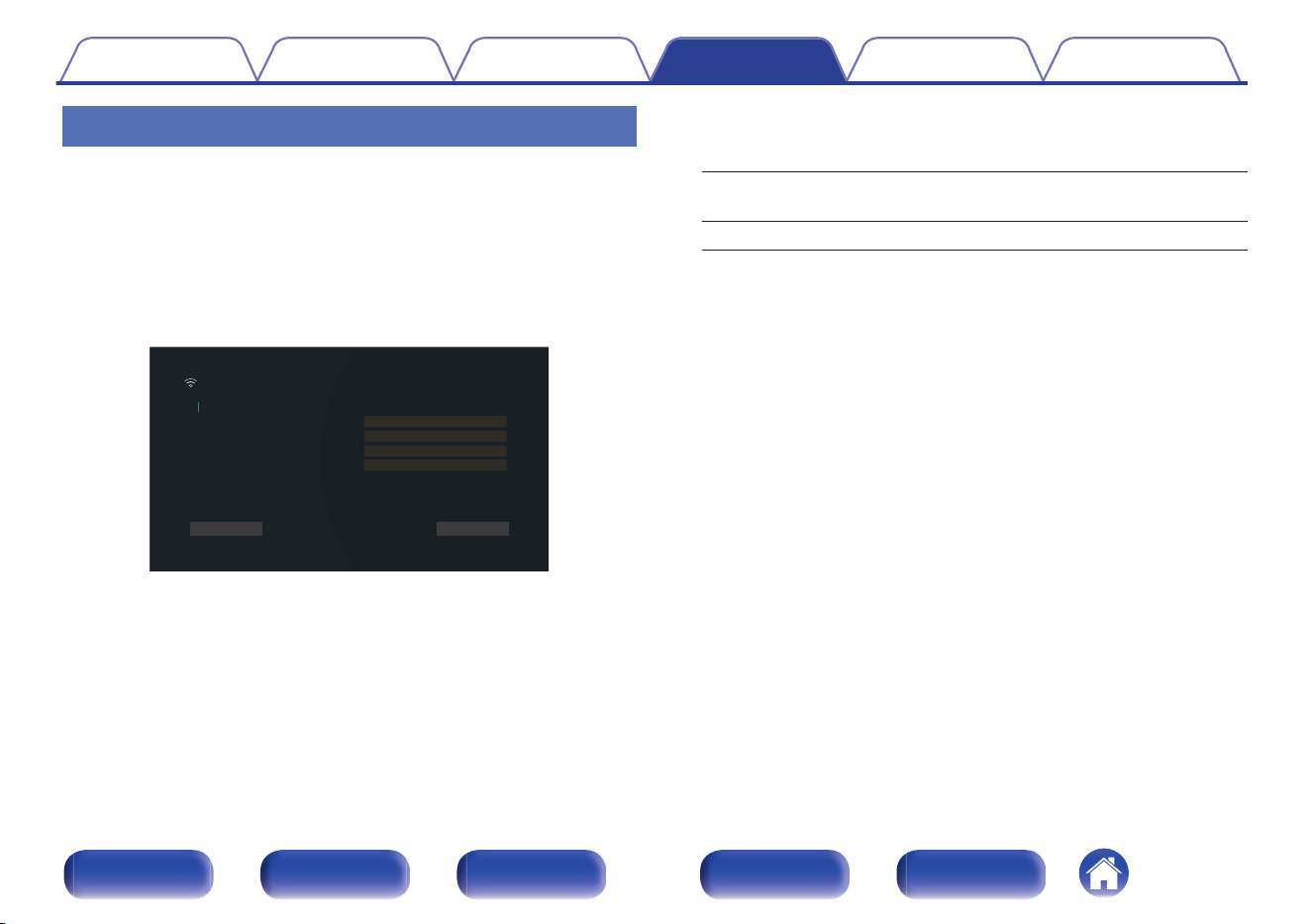
Settings
Configure the IP address.
0
If you are using a broadband router (DHCP function), the information
required for network connection such as the IP address will be
automatically configured since the DHCP function is set to “On” in the
default settings of this unit.
0
Set up the IP Address, Subnet Mask, Default Gateway and DNS server
information only when assigning a fixed IP address or when connecting
to a network without DHCP function.
000.000.000.000
000.000.000.000
000.000.000.000
000.000.000.000
Network/Settings
Configures the network settings automatically or manually.
DHCP
-IP Address
-Subnet Mask
-Default Gateway
-DNS
Off
Cancel Save
o
DHCP
Selects how to connect to the network.
On
(Default):
Configure the network settings
automatically from your router.
Off: Configure the network settings manually.
o
IP Address
Set the IP address within the ranges shown below.
0
The Network Audio function cannot be used if other IP addresses
are set.
CLASS A: 10.0.0.1 - 10.255.255.254
CLASS B: 172.16.0.1 - 172.31.255.254
CLASS C: 192.168.0.1 - 192.168.255.254
o
Subnet Mask
When connecting an xDSL modem or connector adapter directly to
this unit, input the subnet mask indicated in the documentation
supplied by your provider. Normally input “255.255.255.0”.
Contents
Connections Playback Settings Tips Appendix
261
Front panel Display Rear panel Remote Index
o
Default Gateway
When connected to a gateway (router), input its IP address.
o
DNS
Enter the DNS address indicated in the documentation supplied by
your provider.
0
If you cannot connect to the Internet, recheck the connections and settings.
(v p. 87)
0
If you do not understand about Internet connection, contact your ISP (Internet
Service Provider) or the store from which you purchased your computer.
Network Control
Enables network communication in standby power mode.
Off In Standby: Suspend network function during standby.
Always On
(Default):
Network is on during standby. Main unit
operable with a network compatible
controller.
0
When using the web control function, Marantz AVR Remote App or HEOS App,
use with the “Network Control” setting set to “Always On”.
NOTE
0
When “Network Control” is set to “Always On”, the unit consumes more standby
power.
Contents Connections Playback Settings Tips Appendix
262
Front panel Display Rear panel Remote Index
Friendly Name
The Friendly Name is the name of this unit displayed on the network. You
can change the Friendly Name according to your preferences.
o
Friendly Name
Selects Friendly Name from the list.
When you select “Other”, you can change the Friendly Name
according to your preferences.
Home Theater /Living Room / Family Room / Guest Room /
Kitchen / Dining Room / Master Bedroom / Bedroom / Den /
Office / Other
0
Up to 30 characters can be input.
0
The default Friendly Name on first use is “Marantz CINEMA 30”.
o
Set Defaults
Restores Friendly Name, which you had changed, to the default
setting.
Diagnostics
Used to check the network connection.
o
Physical Connection
Checks the physical LAN port connection.
OK
Error:
The LAN cable is not connected. Check
the connection.
0
When connected using a wireless LAN, “Connection Wireless (Wi-Fi)” will
be displayed.
o
Router Access
Checks the connection from this unit to the router.
OK
Error:
Failed to communicate with the router.
Check the router settings.
Contents Connections Playback Settings Tips Appendix
263
Front panel Display Rear panel Remote Index
o
Internet Access
Checks whether this unit has access to the Internet (WAN).
OK
Error:
Failed to connect to the Internet. Check
the Internet connection environment or
router settings.
AirPlay
Settings for Apple AirPlay.
o
AirPlay Name
Displays the name which identifies this unit on Apple devices.
0
If you registered this unit to the Apple Home app, use the app to change the
name.
o
AirPlay
Enables/disables the Apple AirPlay.
On
(Default):
Enables Apple AirPlay.
Off: Disables Apple AirPlay.
Contents Connections Playback Settings Tips Appendix
264
Front panel Display Rear panel Remote Index
Spotify Connect
Toggles access to Spotify Connect.
On
(Default):
Enables Spotify Connect.
Off: Disables Spotify Connect.
Roon Ready
Toggles access to Roon Ready.
On
(Default):
Enables Roon Ready.
Off: Disables Roon Ready.
TIDAL Connect
Toggles access to TIDAL Connect.
On
(Default):
Enables TIDAL Connect.
Off: Disables TIDAL Connect.
Qobuz Connect
Toggle access to Qobuz Connect.
On
(Default):
Enables Qobuz Connect.
Off: Disables Qobuz Connect.
Contents Connections Playback Settings Tips Appendix
265
Front panel Display Rear panel Remote Index
Wi-Fi and Bluetooth
Enables/disables the Wi-Fi and Bluetooth radios.
o
Wi-Fi
The Wi-Fi function can be stopped to prevent noise that affects the
sound quality. Using a wired LAN to connect this unit to the network
enables playback with a high sound quality.
Enabled
(Default):
Enables the Wi-Fi function.
Disabled: Disables the Wi-Fi function.
o
Bluetooth
Stopping Bluetooth receiver and transmitter functions reduces a
source of noise that affects sound quality, enabling higher sound
quality playback.
Enabled
(Default):
Enables the Bluetooth function.
Disabled: Disables the Bluetooth function.
Contents Connections Playback Settings Tips Appendix
266
Front panel Display Rear panel Remote Index
HEOS
HEOS Account is needed in order to use HEOS Favorites.
The menu displayed differs depending on the status of the HEOS Account.
You have not signed in
A QR code is displayed on the TV screen.
Scan the QR code with your mobile device and download the HEOS App.
After creating or signing in to your HEOS Account in the HEOS App, you
can save and call up your favorite streaming music services from this
unit’s screen. (v p. 136)
See “Getting the HEOS App” (v p. 122) for details about the HEOS App.
0
This unit’s HEOS Account setting information is synced with the HEOS App.
Change settings and sign out of your account through the HEOS App.
You have already signed in
o
Signed in as
The currently signed in HEOS Account is displayed.
0
This unit automatically syncs when you change your account settings or sign out
through the HEOS App. To switch HEOS accounts, play back music from an
HEOS App signed in to the account you wish to sync to this unit. The “HEOS
Account” switches automatically.
Contents Connections Playback Settings Tips Appendix
267
Front panel Display Rear panel Remote Index
General
Make various other settings.
Language
Set the language for display the menu on the TV screen.
English / Français / Español (Default: English)
0
“Language” can also be set up by the following operation. However, the menu
screen is not displayed. Watch the display while configuring the settings.
1. Press and hold the main unit’s ZONE3 SOURCE and STATUS at the same time
for at least 3 seconds.
“z4K/8K Format <Enhanced>” appears on the display.
2. Press cursor Down on the main unit once.
“zLanguage <ENGLISH>” appears on the display.
3. Use the main unit’s cursor Left or cursor Right and set the language.
4. Press the main unit’s ENTER to complete the setting.
Owner's Manual
Shows URL and QR code to access the online Owner's Manual from your
mobile device.
ECO
Configure the ECO Mode and auto standby mode settings.
o
ECO Mode
This mode can reduce the power consumption and heat generation of
this unit when power on.
This is done by reducing the power supply line to the power amplifier,
in turn the maximum power output.
Contents Connections Playback Settings Tips Appendix
268
Front panel Display Rear panel Remote Index
On:
Power savings are always active,
regardless of volume or input signal.
Auto
(Default):
Gives you the best balance between
power savings and maximum power
output:
For low volume levels, the power savings
are active. If you increase the volume
level, the power savings are switched off
automatically, so you can enjoy
maximum output power without
distortion.
If the volume is set to a high level but no
input signal is detected for more than 2
minutes, this unit will enable power
savings. When an input signal is detected
again or the input source is changed, this
unit will automatically turn off power
savings again at high volume levels.
Off:
No power savings.
0
When the unit is switching between the different power saving states in “ECO
Mode: Auto”, you may notice a click noise from the inside of this unit, this is
normal.
0
If content is paused for more than 2 minutes and playback is resumed from the
same source at these high volume levels, there may be short delay before
maximum power is restored.
0
“ECO Mode” cannot be set when “Amp Assign” is set to
“Preamplifier” (v p. 232) or speaker impedance is set to 4 Ω/ohms
(v p. 43).
Contents Connections Playback Settings Tips Appendix
269
Front panel Display Rear panel Remote Index
o
Power On Default
Set the mode to ECO when the power is on.
Last
(Default):
The ECO Mode will be set to the previous
setting before the power was switched
off.
On:
When power is turned on, the mode will
always be switched to the ECO Mode in
“On”.
Auto:
When power is turned on, the mode will
always be switched to the ECO Mode in
“Auto”.
Off:
When power is turned on, the mode will
always be switched to the ECO Mode in
“Off”.
o
On Screen Display
Display the power consumption of this unit using a meter on the TV
screen.
Always On:
Always display the meter on the TV
screen.
Auto
(Default):
Display the meter when changing the
mode or volume.
Off: Do not display the meter.
Contents Connections Playback Settings Tips Appendix
270
Front panel Display Rear panel Remote Index
o
Auto Standby
Set so the unit power automatically switches to standby.
n
MAIN ZONE
Sets the time for switching to auto standby when there are no audio or
video signals input into this unit.
Before the unit enters standby mode, “Auto Standby” is displayed on
the unit display and the menu screen.
60 min:
The unit goes into standby after 60 minutes.
30 min:
The unit goes into standby after 30 minutes.
15 min:
The unit goes into standby after 15 minutes.
Off
(Default):
The unit does not go into standby
automatically.
n
ZONE2 / ZONE3
When there are no operations for a certain period of time as set here,
the power is automatically shut off even if there is audio or video input.
8 hours:
Switches ZONE2/ZONE3 the standby
state after about 8 hours.
4 hours:
Switches ZONE2/ZONE3 to the standby
state after about 4 hours.
2 hours:
Switches ZONE2/ZONE3 to the standby
state after about 2 hours.
Off
(Default):
Does not automatically switch ZONE2/
ZONE3 to the standby state.
Contents Connections Playback Settings Tips Appendix
271
Front panel Display Rear panel Remote Index
Bluetooth Transmitter
Sets this unit's Bluetooth transmitter.
Set to use Bluetooth headphones to listen to audio playing in the MAIN
ZONE.
o
Transmitter
Enables or disables the Bluetooth transmitter.
On: Enables the Bluetooth transmitter feature.
Off
(Default):
Disables the Bluetooth transmitter
feature.
o
Output Mode
Selects the audio output method.
Bluetooth + Speakers
(Default):
Audio is output to Bluetooth headphones
and main zone speakers.
Bluetooth Only:
Audio is output to Bluetooth headphones
only.
o
Connected device
Displays the Bluetooth device connected to this unit.
o
Device List
0
Available devices are displayed in the list once you start pairing
mode on the Bluetooth headphones you want to connect. Select
your Bluetooth headphones from the list to pair them.
0
This unit can only pair with one Bluetooth headphone at a time.
However, up to 8 Bluetooth headphones can be registered. Switch
between registered devices from Device List in the “Bluetooth
Transmitter” setup menu.
0
To remove a saved Bluetooth device from the list, use the cursor
Up/Down buttons to select it, then press the OPTION button and
select “Forget This Device”.
0
“Output Mode” can also be set from “Bluetooth Transmitter” in the option menu.
0
A2DP profile-compatible Bluetooth speakers can be connected following the same
steps used to connect Bluetooth headphones.
NOTE
0
Bluetooth transmitter and Bluetooth receiver function cannot be used at the same
time. Settings in this menu are not available when listening to music on a Bluetooth
device in any zone.
0
Even when “Transmitter” is set to “On”, press Bluetooth on the remote control to
select the “Bluetooth” source and enable the Bluetooth receiver function.
To listen to music stored on Bluetooth devices such as smartphones on this unit,
press Bluetooth on the remote control to switch the input source to Bluetooth, then
reconnect the Bluetooth device.
0
Menu settings for Bluetooth Transmitter are not available when this unit is grouped
within the HEOS App.
Contents Connections Playback Settings Tips Appendix
272
Front panel Display Rear panel Remote Index
ZONE2 Setup / ZONE3 Setup
Makes settings for audio playback with ZONE2 and ZONE3.
0
Values set for “Volume Limit” and “Power On Volume” are displayed according to
the setting specified for the volume “Scale”. (v p. 198)
o
Bass
Adjust bass.
-10dB – +10dB (Default : 0dB)
o
Treble
Adjust treble.
-10dB – +10dB (Default : 0dB)
o
High Pass Filter
Make settings for cutting the low range to reduce distortion in the bass.
On:
The low range is attenuated.
Off
(Default):
The low range is not attenuated.
o
L Ch Level
Adjust the left channel output level.
-12 dB – +12 dB (Default : 0 dB)
o
R Ch Level
Adjust the right channel output level.
-12 dB – +12 dB (Default : 0 dB)
o
Channel
Set whether to playback in stereo or monaural.
Stereo
(Default):
Stereo playback.
Mono: Monaural playback.
Contents Connections Playback Settings Tips Appendix
273
Front panel Display Rear panel Remote Index
o
HDMI Audio (ZONE2 only)
Selects the audio signal format for playing an HDMI source in ZONE2.
Through
(Default):
The HDMI audio signal is passed through
this unit to the device in ZONE2.
PCM:
The HDMI audio signal input into this unit
is converted to a PCM signal that can be
output from the ZONE2 PRE OUT
connectors or speaker terminals.
z
z
When the same input source is set for both MAIN ZONE and ZONE2, PCM 2-
channel is used for the audio in MAIN ZONE too. However, it may not be
possible to convert the signal from some playback devices to a PCM signal
using this setting.
o
Volume Level
Set the volume output level.
Variable
(Default):
Volume can be adjusted.
1 – 98
(–79 dB – 18 dB):
Volume is fixed at the desired level. The
volume cannot be adjusting using the
remote control unit.
0
The dB value is displayed when the “Scale” setting is “ –79.5 dB – 18.0 dB”.
(v p. 198)
o
Volume Limit
Make a setting for maximum volume.
60 – 80 (–20 dB – 0 dB)
(Default : 70 (-10 dB))
Off: Do not set a maximum volume.
0
This can be set when “Volume Level” is set to “Variable”. (v p. 274)
0
The dB value is displayed when the “Scale” setting is “ –79.5 dB – 18.0 dB”.
(v p. 198)
o
Power On Volume
Sets the initial volume level when the power is turned on.
Last
(Default):
Sets the power-on level to the last-used
volume level.
Mute: Sets the power-on level to mute level.
1 – 98
(–79 dB – 18 dB):
Sets a specific power-on level.
0
This can be set when “Volume Level” is set to “Variable”. (v p. 274)
0
The dB value is displayed when the “Scale” setting is “ –79.5 dB – 18.0 dB”.
(v p. 198)
Contents Connections Playback Settings Tips Appendix
274
Front panel Display Rear panel Remote Index
o
Mute Level
Set the amount of attenuation when mute is on.
Full
(Default):
Sets the mute level to full mute (no
sound).
-40 dB :
Sets the mute level to 40 dB lower than
the current volume level.
-20 dB :
Sets the mute level to 20 dB lower than
the current volume level.
Zone Rename
Change the display title of each zone to one you prefer.
MAIN ZONE / ZONE2 / ZONE3
Set Defaults:
The default setting is restored for the edited
zone name.
0
Up to 10 characters can be input.
Contents Connections Playback Settings Tips Appendix
275
Front panel Display Rear panel Remote Index
Smart Select
Sets the “Smart Select” parameters and display name.
For more information about registration and calling up “Smart Select”, see
“Smart select function” (v p. 162).
o
Name
Change the Name that appears on the TV screen to one you prefer.
0
Up to 16 characters can be input.
o
Smart Select Parameters
Select the parameters to be registered for Smart Select.
The following paprameters can be registered:
0
Input Source
0
Master Volume
0
Sound Mode
0
Channel Level
0
Audyssey Parameters
0
M-DAX
0
Dialog Enhancer
0
HDMI Video Output
0
Playback Content
0
Speaker Preset
0
All Zone Stereo
0
TV Audio Sharing
0
Dirac Live
Contents
Connections Playback Settings Tips Appendix
276
Front panel Display Rear panel Remote Index
Enabled
(Default):
The current settings are registered when
Smart Select is registered. In addition,
when Smart Select is called up, the
content of the registered settings is called
up.
Disabled:
Settings are not registered when Smart
Select is registered. In addition, when
Smart Select is called up, the content of
the registered settings is not called up.
0
“Smart Select” can be set for each Smart Select.
0
When “Input Source” is “Disabled”, Video Select information is not registered/
called up either.
Trigger Out 1 / Trigger Out 2 / Trigger
Out 3
Select the conditions for activating trigger out.
For details about how to connect the DC OUT jacks, see “DC OUT
jacks” (v p. 92).
n
When setting for zone (MAIN ZONE / ZONE2 /
ZONE3)
Trigger out is activated through linkage to the power of the zone set to
“On”.
n
When setting for input source
Activate trigger out when the input source set to “On” is selected.
n
When setting for HDMI Out
Activate trigger out when the HDMI Out set to “On” is selected.
On:
Activate trigger on this mode.
Off: Do not activate trigger on this mode.
Contents Connections Playback Settings Tips Appendix
277
Front panel Display Rear panel Remote Index
Front Panel
Adjusts the front panel display settings.
o
Displays
n
Brightness
Adjusts the brightness of the front panel display.
Bright
(Default):
Sets the front panel display to full
brightness.
Dim:
Sets the front panel display to 50%
brightness.
Dark:
Sets the front panel display to 25%
brightness.
Off:
Turns off the front panel display until
controls are activated.
0
You can also adjust the display by pressing DIMMER on the main unit.
n
Channel Indicator
Sets whether to use the input signal display or output signal display for
the channel indication on the display.
Input:
Uses the input signal display for the
channel indication on the display.
Output
(Default):
Uses the output signal display for the
channel indication on the display.
o
Illumination
n
Brightness
Adjusts the brightness of the illumination.
Auto
(Default):
Uses the same brightness setting as
Displays.
Bright: Sets the illumination to full brightness.
Dim: Sets the illumination to 50% brightness.
Dark: Sets the illumination to 25% brightness.
Off: Turns off the illumination.
Contents Connections Playback Settings Tips Appendix
278
Front panel Display Rear panel Remote Index
Firmware
Checks for the latest firmware information about updates, updates the
firmware.
o
Check for Update
Check for firmware updates.
The firmware can be updated if a firmware update has been released.
Update Now:
Execute the update process. When the
update starts, the menu screen is shut
down. During the update, the progress is
shown on the display.
Update Later: Update later.
0
This unit automatically retries updating if updating fails. If an update still
cannot be performed, an “Update Error” message appears in the display. See
“Troubleshooting” – “Update error messages” for information on update error
messages. (v p. 311)
Check the conditions according to the message and try the update again.
0
This menu cannot be selected when “Allow Update” is set to “Off”.
o
Auto-Update
Turns on Automatic Updates so that feature updates are automatically
downloaded and installed when this unit is in standby mode.
n
Auto-Update
This unit will automatically update to the newest firmware when in
standby mode.
On: Turns on Automatic Updates.
Off
(Default):
Turns off Automatic Updates.
n
Time Zone
Change the time zone.
Set the time zone that matches the area where you live.
0
This menu cannot be selected when “Allow Update” is set to “Off”.
Contents Connections Playback Settings Tips Appendix
279
Front panel Display Rear panel Remote Index
o
Allow Update
Enable or disable updates for this unit.
On
(Default):
Enables this unit to receive updates.
Off: Prevents this unit from receiving update.
0
This setting causes Incompatibilities between this unit and HEOS App.
Notes concerning use of “Update”
0
In order to use these functions, you must have the correct system
requirements and settings for an Internet connection. (v p. 87)
0
Do not turn off the power until updating is completed.
0
Approximately 1 hour is required for the updating procedure to be
completed.
0
Once updating starts, normal operations on this unit cannot be
performed until updating is completed. Furthermore, there may be
cases where backup data is reset for the parameters, etc., set on this
unit.
0
If the update fails, press and hold the X on the main unit for more than
5 seconds, or remove and re-insert the power cord. After about 1
minute, “Please wait” appears on the display and update restarts. If the
error continues, check the network environment.
Contents Connections Playback Settings Tips Appendix
280
Front panel Display Rear panel Remote Index
Information
Show information about this unit settings, input signals, etc.
o
Audio
Show the audio information for MAIN ZONE.
Sound Mode: The currently set sound mode.
Input Signal: The input signal type.
Format:
The number of input signal channels
(presence of front, surround, LFE).
Sample Rate: The input signal’s sampling frequency.
Offset:
The dialogue normalization correction
value.
Flag:
This is displayed when inputting signals
including a surround back channel.
“MATRIX” is displayed with DTS-ES
Matrix input signals, “DISCRETE” with
DTS-ES Discrete signals.
o
Video
Show the HDMI input/output signals and HDMI TV information for
MAIN ZONE.
HDMI Signal Info.
Resolution / HDR / Color Space / Pixel Depth / ALLM / QFT / FRL
Rate
TV 1 Info. / TV 2 Info.
Interface / HDR / Resolutions / Enhanced Features / Max FRL
Rate
0
A or B may be displayed at the end of resolution. A represents uncompressed
video and B represents compressed video.
0
Refer to “About HDMI” for more information about ALLM, QFT and FRL.
(v p. 316)
o
ZONE
Show information about current settings.
MAIN ZONE:
This item shows information about
settings for MAIN ZONE. The information
displayed differs according to the input
source.
ZONE2/3:
This item shows information about
settings for ZONE2 and ZONE3.
Contents Connections Playback Settings Tips Appendix
281
Front panel Display Rear panel Remote Index
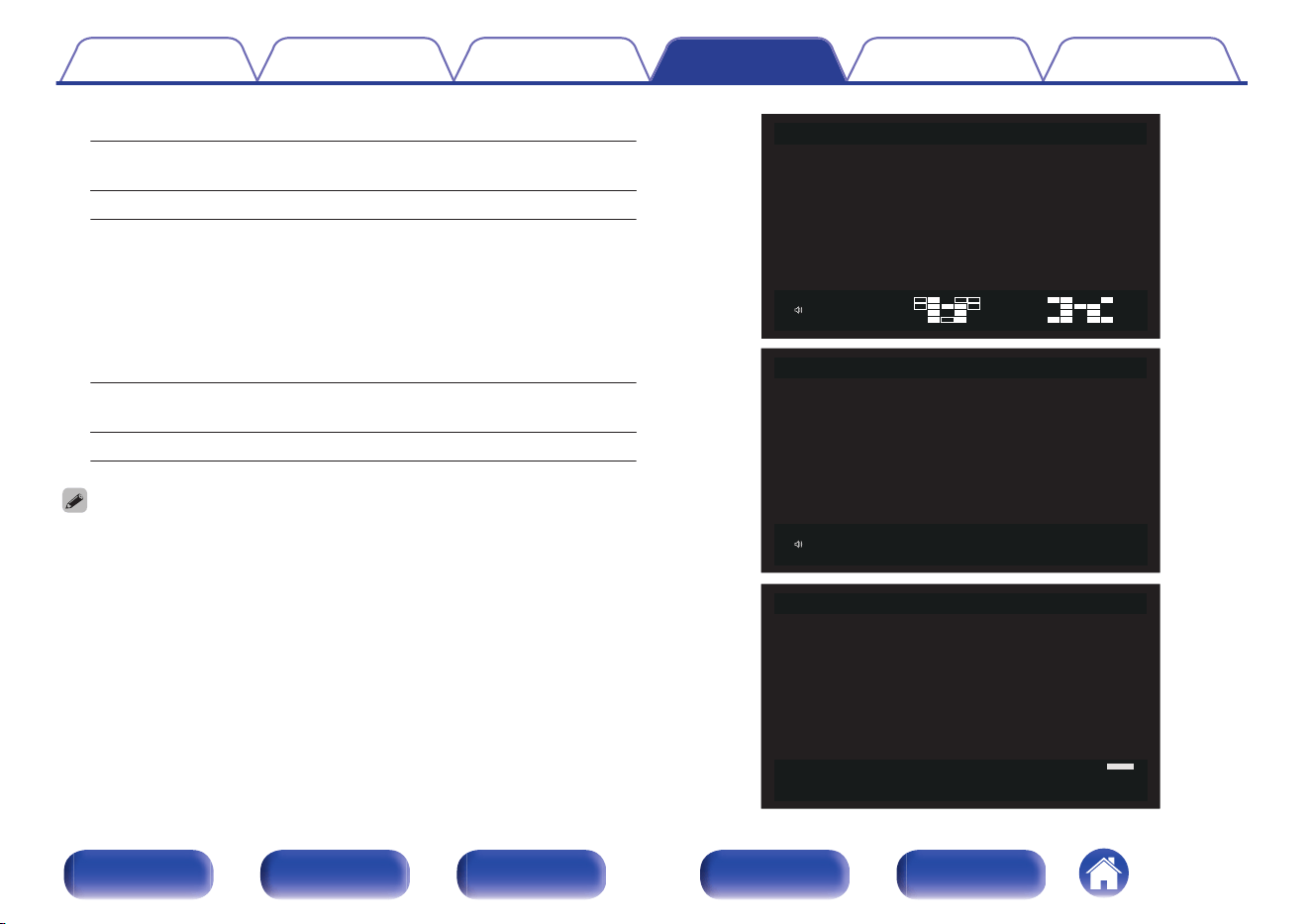
o
Firmware
Version:
Displays information for the current
firmware.
DTS Version: Displays the current DTS version.
o
Notifications
Displays and sets notifications.
Also, sets whether or not to display the notification when the power is
turned on.
Notification Alerts
On
(Default):
Notification messages are displayed.
Off: Notification messages are not displayed.
0
Pressing INFO on the remote control switches the display to show information
such as the input source name, the volume, the sound mode name, the video
input/output signals, and other information. The FRL Rate is displayed when the
“4K/8K Signal Format” setting of this unit is “8K Enhanced” and the connected TV
supports FRL transmission mode.
EXT
LFE
SB
SBR
SBL
C
FR
FWR
FHR
FL
FHL
FWL
SR
SL
SW
SBR
SBL
C
FR
FL
SR
SL
FHL
RHL
FHR
RHR
40.0
SOURCE
Blu-ray
SIGNAL
Dolby Audio
-
Dolby
TrueHD
SOUND
Dolby
Audio - TrueHD
+ DSurr
INPUT
SIGNAL
ACTIVE
SPEAKERS
40.0
AUDYSSEY
SOURCE
Blu-ray
SIGNAL
Dolby Audio
-
Dolby
TrueHD
SOUND
Dolby
Audio - TrueHD
+ DSurr
MultEQ
XT32
: Reference
Dynamic
EQ
: On
Dynamic
Volume
: Medium
:8K24A
:HDR10
:YCbCr
4:2:2/BT.2020
:12bits
:40Gbps
=
>8K24A
=
>HDR10
=
>YCbCr
4:2:2/BT.2020
=
>12bits
=
>40Gbps
ALLM
SOURCE
Blu-ray
SIGNAL
Dolby Audio
-
Dolby
TrueHD
SOUND
Dolby
Audio - TrueHD
+ DSurr
Resolution
HDR
Color Space
Pixel Depth
FRL Rate
Contents Connections Playback Settings Tips Appendix
282
Front panel Display Rear panel Remote Index
Usage Data
To help us improve our products and customer service, Marantz collects
anonymous information about how you use this unit (such as frequently
used input sources and sound modes and speaker settings). Marantz will
never provide any information we collect to third parties.
Yes:
Provide information on the operating status
of this unit.
No:
Do not provide information on the operating
status of this unit.
Save & Load
Save and restore device settings by using a USB memory device.
0
Use a USB memory device that has at least 128 MB of free space and is formatted
to FAT32. Data may not Save/Load correctly to some USB memory devices.
0
It may take up to 10 minutes for data to Save/Load. Do not turn off the power until
the process is complete.
o
Save Configuration
Current unit settings are stored on the USB memory device.
When the settings are saved correctly, “Saved” appears on the display
and the file “config.avr” is created on the USB memory device.
0
Do not change the file name of the created file. Doing so will prevent the file
from being recognized as a settings file when restoring.
o
Load Configuration
Settings saved on the USB memory device are restored.
When the saved settings are restored correctly, “Loaded” appears on
the display and the unit automatically restarts.
Contents
Connections Playback Settings Tips Appendix
283
Front panel Display Rear panel Remote Index
Setup Lock
Protect settings from inadvertent changes.
o
Lock
On: Turn protection on.
Off
(Default):
Turn protection off.
0
When cancelling the setting, set “Lock” to “Off”.
NOTE
0
When “Lock” is set to “On”, no setting items are displayed except for “Setup
Lock”.
Reset
Returns settings to the factory default.
Initialization can be performed for all unit settings or for Network settings
only.
o
All Settings
All settings are reset to the factory default values.
o
Network Settings
Only network settings are reset to the factory default values.
0
Before returning the settings to the default settings, use the “Save & Load” function
from the menu to save and restore the details of various settings configured on the
unit. (v p. 283)
0
The “Reset” operation can also be performed by using the button on the main unit.
For details on resetting all of the settings to the factory defaults see “Resetting
factory settings” (v p. 312), and for details on resetting the network settings to
the factory defaults see “Resetting network settings” (v p. 313).
NOTE
0
Do not disconnect the power or turn the device off during network settings
initialization.
Contents Connections Playback Settings Tips Appendix
284
Front panel Display Rear panel Remote Index
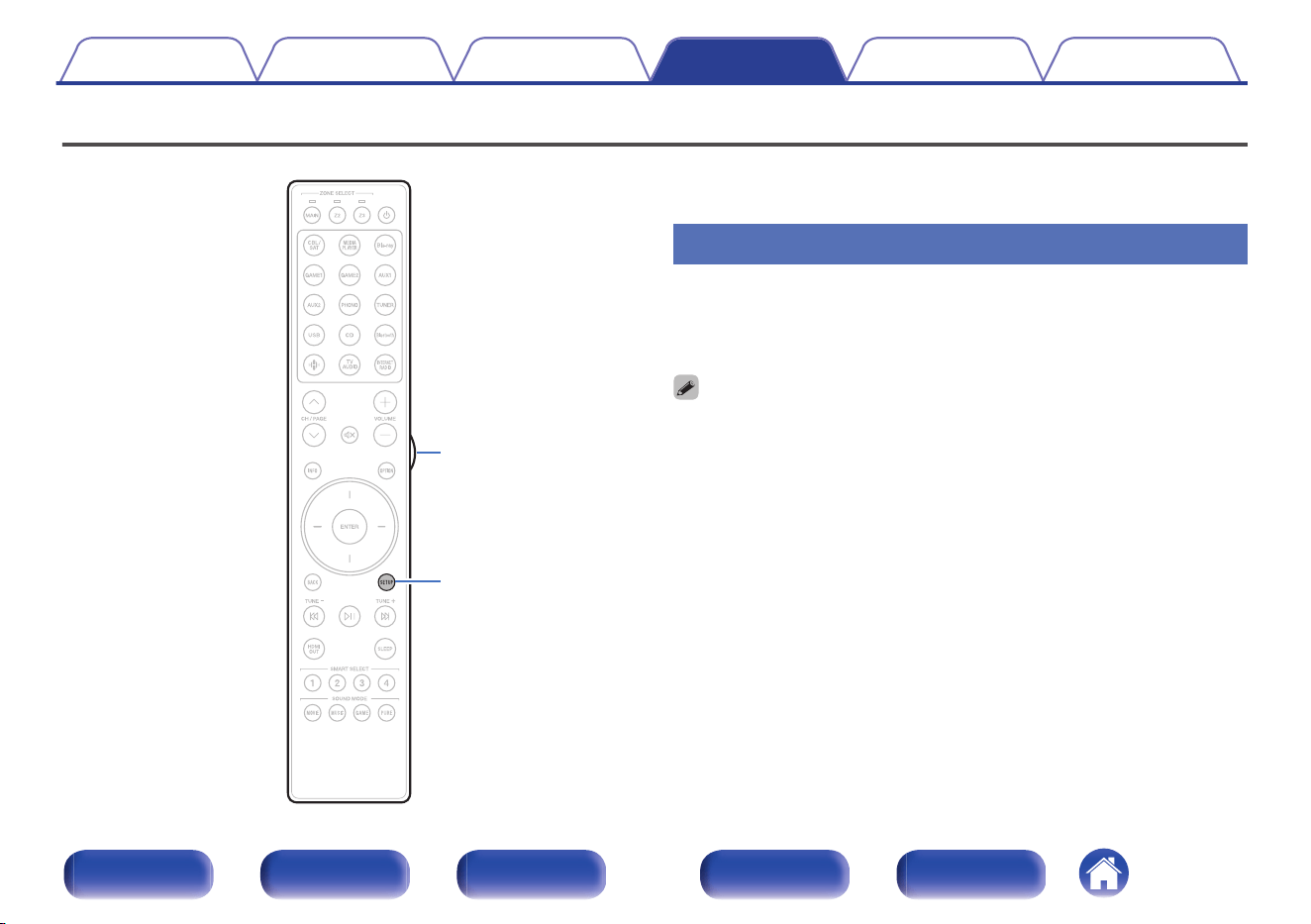
Setting the back light of the remote control unit
SETUP
Light button
You can turn off the backlight of the remote control unit.
0
Backlight is set on in the factory settings.
Disabling the backlight
1
Press and hold both SETUP and Light button until the
MAIN and Z2 indicators on the remote are flashing
green, then release.
0
The backlight function can be turned on by performing step 1 again while the
backlight function is off.
Contents Connections Playback Settings Tips Appendix
285
Front panel Display Rear panel Remote Index
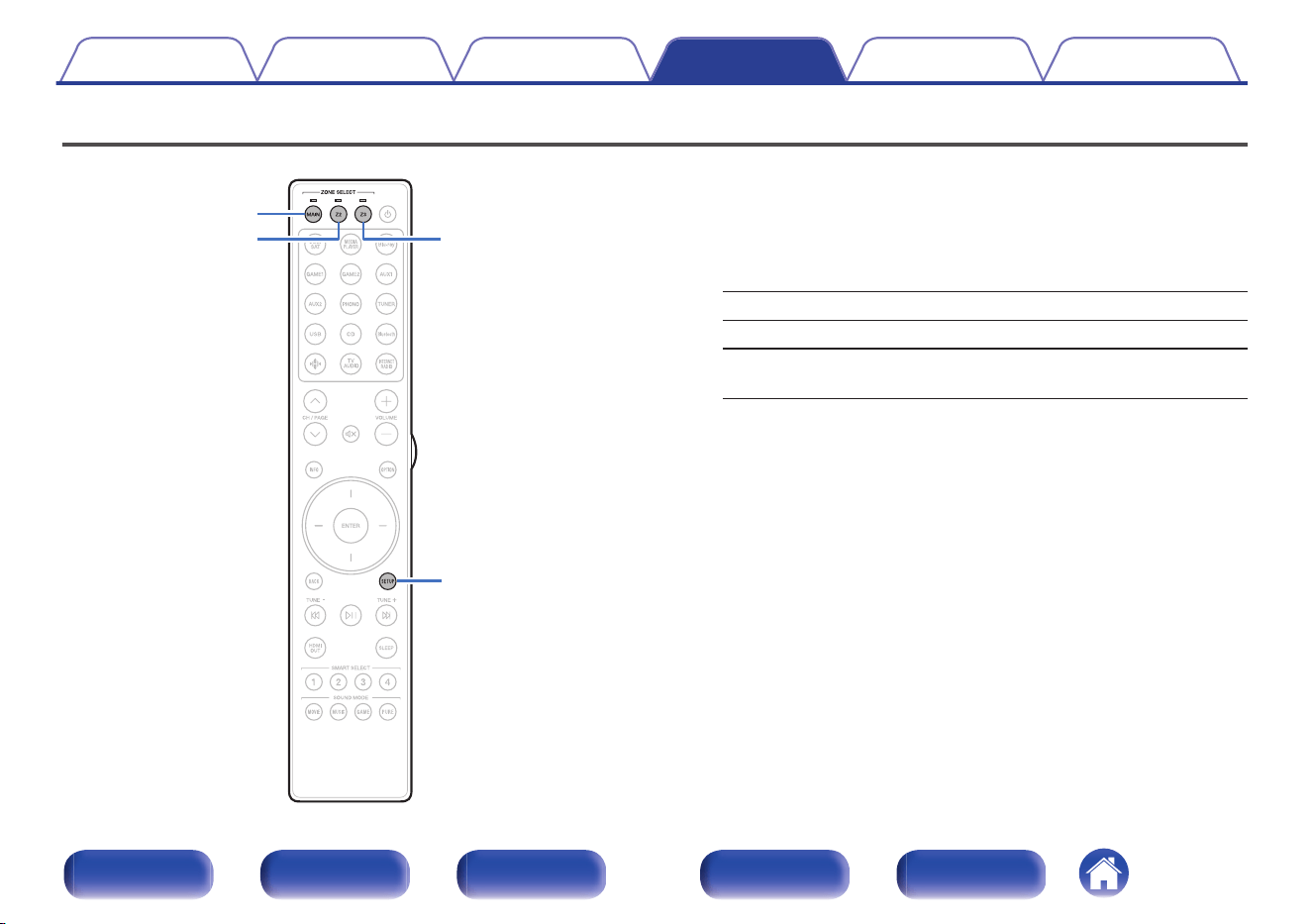
Specifying the zone used with the remote control unit
SETUP
Z3
MAIN
Z2
To prevent accidental misuse, you can set the zone for which the remote
control unit is used.
1
Press and hold down either MAIN, Z2 or Z3 and SETUP
at the same time until the MAIN, Z2 and Z3 indicators
flash green.
MAIN: When only using MAIN ZONE
Z2: When using MAIN ZONE and ZONE2
Z3
(Default):
When using MAIN ZONE, ZONE2 and
ZONE3
Contents Connections Playback Settings Tips Appendix
286
Front panel Display Rear panel Remote Index
o
Contents
Tips
I want the volume not to become too loud by mistake 288
I want to keep the volume at the same level when I turn the power
on 288
I want to have the subwoofer always output audio 288
I want to make human voices in the movies clearer 288
I want to keep bass and clarity during playback at a lower volume
level 288
I want to automatically adjust the volume level difference in content
such as TV and movies 288
I want to set the optimized listening environment after changing the
configuration/position of the speakers or changing a speaker to a
new one 289
I want to combine a desired video with the current music 289
I want to skip unused input sources 289
I want to enjoy the same music in all zones at the home party, etc. 289
I want to minimize the delay in video signals when I’m playing a
game on my game console 289
I want to use the external power amplifier to the Front channel for
my 13.1-channel speaker system 289
Troubleshooting
Power does not turn on / Power is turned off 291
Operations cannot be performed through the remote control unit 292
Display on this unit shows nothing 292
No sound comes out 293
Desired sound does not come out 294
Sound is interrupted or noise occurs 298
No video is shown on the TV 299
The menu screen is not displayed on the TV 301
The color of the menu screen and operations content displayed on
the television is different from normal 301
AirPlay cannot be played back 302
USB memory devices cannot be played back 303
Bluetooth cannot be played back 304
The Internet radio cannot be played back 306
Music files on PC or NAS cannot be played back 307
Various online services cannot be played 308
The HDMI Control function does not work 308
Cannot connect to a wireless LAN network 309
When using HDMI ZONE2, the devices does not function properly 310
Update error messages 311
Contents Connections Playback Settings Tips Appendix
287
Front panel Display Rear panel Remote Index
Tips
I want the volume not to become too loud by mistake
0
Set the volume upper limit for “Volume Limit” in the menu beforehand. This prevents children or others from increasing the volume too much by mistake.
You can set this for each zone. (“Volume” (v p. 198), “Volume Limit” (v p. 274))
I want to keep the volume at the same level when I turn the power on
0
By default, the volume setting when power was previously set to standby on this unit is applied at next power on with no change. To use a fixed volume
level, set the volume level at power on for “Power On Volume” in the menu. You can set this for each zone. (“Volume” (v p. 198), “Power On
Volume” (v p. 274))
I want to have the subwoofer always output audio
0
Depending on the input signals and sound mode, the subwoofer may not output audio. When “Subwoofer Output” in the menu is set to “LFE + Main”,
you can have the subwoofer always output audio. (v p. 250)
I want to make human voices in the movies clearer
0
Select a setting that makes the dialog easier to hear in the option menu “Dialog Enhancer”. (v p. 137)
I want to keep bass and clarity during playback at a lower volume level
0
Set “Dynamic EQ” in the menu to “On”. This setting corrects the frequency characteristics to allow you to enjoy clear sound without the bass being lost
even during playback at a lower volume level. (v p. 200)
I want to automatically adjust the volume level difference in content such as TV and movies
0
Set “Dynamic Volume” in the menu. Volume level changes (between quiet scenes and loud scenes) in TV shows or movies are automatically adjusted
to your desired level. (v p. 201)
Contents
Connections Playback Settings Tips Appendix
288
Front panel Display Rear panel Remote Index
I want to set the optimized listening environment after changing the configuration/position of the speakers or changing a speaker to a new
one
0
Perform Audyssey
®
Setup. This automatically makes the optimized speaker settings for the new listening environment. (v p. 220)
I want to combine a desired video with the current music
0
Set “Video Select” in the option menu to “On”. You can combine the current music with your desired video source from a Set-top Box or Blu-ray, etc.
while listening to music from the Tuner, CD, Phono, HEOS Music, USB or Bluetooth. (v p. 142)
I want to skip unused input sources
0
Set unused input sources for “Hide Sources” in the menu. This allows you to skip unused input sources when turning the INPUT selector knob on this
unit. (v p. 218)
I want to enjoy the same music in all zones at the home party, etc.
0
Set “All Zone Stereo” in the option menu to “Start”. You can simultaneously play back music in another room (ZONE2, ZONE3) that is played back in
MAIN ZONE. (v p. 143)
I want to minimize the delay in video signals when I’m playing a game on my game console
0
When the video is delayed against button operations with the controller on the game console, set “Video Mode” in the menu to “Game”. (v p. 210)
I want to use the external power amplifier to the Front channel for my 13.1-channel speaker system
0
Set the “Connection” setting of front speakers to “Pre-out Only” to connect your external power amplifier for front channels. (v p. 233)
Contents
Connections Playback Settings Tips Appendix
289
Front panel Display Rear panel Remote Index
Troubleshooting
If a problem should arise, first check the following:
1. Are the connections correct?
2. Is the set being operated as described in the owner’s manual?
3. Are the other devices operating properly?
0
If steps 1 to 3 above do not improve the problem, restarting the device may improve the problem.
Continue pressing the X button on the unit until “Restart” appears in the display, or remove and re-insert the power cord of the unit.
If this unit does not operate properly, check the corresponding symptoms in this section.
If the symptoms do not match any of those described here, consult your dealer as it could be due to a fault in this unit. In this case, disconnect the power
immediately and contact the store where you purchased this unit.
Contents Connections Playback Settings Tips Appendix
290
Front panel Display Rear panel Remote Index
Power does not turn on / Power is turned off
Power does not turn on.
0
Check whether the power plug is correctly inserted into the power outlet. (v p. 93)
Power automatically turns off.
0
The sleep timer is set. Turn on the power again. (v p. 160)
0
“Auto Standby” is set. “Auto Standby” is triggered when there is no operation for a set amount of time. To disable “Auto Standby”, set “Auto Standby” on
the menu to “Off”. (v p. 271)
Power turns off and the protection circuit indicator flashes in orange approx. every 2 seconds.
0
The protection circuit has been activated due to a rise in temperature within this unit. Turn the power off, wait about an hour until this unit cools down
sufficiently, and then turn the power on again. (v p. 343)
0
Please re-install this unit in a place having good ventilation.
Power turns off and the protection circuit indicator flashes in orange approx. every 0.5 seconds.
0
Check the speaker connections. The protection circuit may have been activated because speaker cable core wires came in contact with each other or a
core wire was disconnected from the connector and came in contact with the rear panel of this unit. After unplugging the power cord, take corrective
action such as firmly re-twisting the core wire or taking care of the connector, and then reconnect the wire. (v p. 43)
0
Turn down the volume and turn on the power again. (v p. 95)
0
This unit’s amplifier circuit has failed. Unplug the power cord and contact our customer service center.
The power to this unit does not turn off when you press the Power operation button. “ZONE2 On” or “ZONE3 On” appears on the display.
0
Power in either ZONE2 or ZONE3 is on. To turn off the power of the device (standby), press either the ZONE2 ON/OFF or ZONE3 ON/OFF button on
the main unit or press the POWER X button after pressing the Z2 or Z3 button on the remote control unit.
Contents
Connections Playback Settings Tips Appendix
291
Front panel Display Rear panel Remote Index
Operations cannot be performed through the remote control unit
Operations cannot be performed through the remote control unit.
0
Batteries are worn out. Replace with new batteries. (v p. 10)
0
Operate the remote control unit within a distance of about 23 ft/7 m from this unit and at an angle of within 30°. (v p. 10)
0
Remove any obstacle between this unit and the remote control unit.
0
Insert the batteries in the proper direction, checking the q and w marks. (v p. 10)
0
The set’s remote control sensor is exposed to strong light (direct sunlight, inverter type fluorescent bulb light, etc.). Move the set to a place in which the
remote control sensor will not be exposed to strong light.
0
The operation target zone does not correspond to the zone setting specified on the remote control unit. Press the MAIN or ZONE2 button to select the
operating zone of the remote control. (v p. 188)
0
When using a 3D video device, the remote control unit of this unit may not function due to effects of infrared communications between units (such as TV
and glasses for 3D viewing). In this case, adjust the direction of units with the 3D communications function and their distance to ensure they do not
affect operations from the remote control unit of this unit.
Display on this unit shows nothing
Display is off.
0
Set “Displays” - “Brightness” on the menu to something other than “Off”. (v p. 278)
0
When the sound mode is set to “Pure Direct”, the display is off. (v p. 148)
Contents
Connections Playback Settings Tips Appendix
292
Front panel Display Rear panel Remote Index
No sound comes out
No sound comes out of speakers.
0
Check the connections for all devices. (v p. 43)
0
Insert connection cables all the way in.
0
Check that input connectors and output connectors are not reversely connected.
0
Check cables for damage.
0
Check that speaker cables are properly connected. Check that cable core wires come in contact with the metal part on speaker terminals. (v p. 43)
0
Securely tighten the speaker terminals. Check speaker terminals for looseness. (v p. 43)
0
Check that a proper input source is selected. (v p. 95)
0
Adjust the volume. (v p. 96)
0
Cancel the mute mode. (v p. 96)
0
Check the digital audio input connector setting. (v p. 215)
0
Check the digital audio output setting on the connected device. On some devices, the digital audio output is set to off by default.
0
When a headphone is plugged into the PHONES jack on the main unit, sound is not output from the speaker terminal and PRE OUT connector.
0
Audio is output to your Bluetooth headphones, but not to speakers or pre-outs when “Output Mode” set to “Bluetooth Only”. Change “Output Mode” to
“Bluetooth + Speakers” to output audio from your Bluetooth headphones as well as your speakers or pre-outs. (v p. 272)
No sound comes out when using the DVI-D connection.
0
When this unit is connected to a device equipped with a DVI-D connector, no sound is output. Make a separate audio connection.
Contents
Connections Playback Settings Tips Appendix
293
Front panel Display Rear panel Remote Index
Desired sound does not come out
The volume does not increase.
0
The maximum volume is set too low. Set the maximum volume using “Limit” on the menu. (v p. 198)
0
Appropriate volume correction processing is performed according to the input audio format and settings, so the volume may not reach the upper limit.
The Bluetooth headphones do not have volume control and the volume is too low or too high.
0
Control the volume by adjusting the “Level” of the “Bluetooth Transmitter” from the option menu. (v p. 106)
The Bluetooth headphones have a volume control function but the volume is still too low or too high.
0
Control the volume by adjusting the “Level” of the “Bluetooth Transmitter” from the option menu. (v p. 106)
No sound comes out with the HDMI connection.
0
Check the connection of the HDMI connectors. (v p. 76)
0
When outputting HDMI audio from the speakers, set “HDMI Audio Out” on the menu to “AVR”. To output from the TV, set “TV”. (v p. 205)
0
When using the HDMI Control function, check that the audio output is set to the AV amplifier on the TV. (v p. 159)
When an eARC function-compatible television is connected, television audio is not output from the speaker connected to this unit
0
eARC function settings may be required depending on the eARC function-compatible television you are using. Make sure eARC is set to on if this
setting exists on your television. For more information, check your television’s owner’s manual.
0
Make sure the input source of this unit is “TV Audio”.
0
The eARC function does not operate when the HDMI input connector is set to the “TV Audio” input source. To enable eARC function operation, remove
the HDMI input connector setting, then restart this unit and the television. (v p. 216)
Contents
Connections Playback Settings Tips Appendix
294
Front panel Display Rear panel Remote Index
No sound comes out of a specific speaker.
0
Check that speaker cables are properly connected.
0
Check that a selection other than “No” is set for the “Speaker Layout” setting in menu. (v p. 231)
0
Check the “Amp Assign” setting in the menu. (v p. 231)
0
When the sound mode is “Stereo”, audio is only output from the front speakers and subwoofer.
0
Audio is not output from the surround back speaker if “Speaker Virtualizer” is set to “On” when “Speaker Layout” - “Surround Back” is set to “1 spkr” in
the menu. (v p. 192)
0
When “Speaker Layout” - “Surround Back” is set to “2 spkrs”, “Speaker Layout” - “Center” is set to “Yes”, and sound mode is set to “IMAX DTS”,
surround audio is output from the surround back speaker. Audio is not output from the surround speaker. (v p. 233)
No sound is produced from subwoofer.
0
Check the subwoofer connections.
0
Turn on the subwoofer’s power.
0
Set “Speaker Layout” - “Subwoofers” in the menu to “1 spkr”, “2 spkrs”, “3 spkrs” or “4 spkrs”. (v p. 240)
0
When “Crossovers” - “Front” in the menu is set to “Full Range”, depending on the input signal and the sound mode, no sound may be output from the
subwoofer. (v p. 248)
0
When no subwoofer audio signal (LFE) is included in the input signals, no sound may be output from the subwoofer. (v p. 250)
0
You can make the subwoofer always output sound by setting the “Subwoofer Output” to “LFE + Main”. (v p. 250)
DTS sound is not output.
0
Check that the digital audio output setting on the connected device is set to “DTS”.
Contents
Connections Playback Settings Tips Appendix
295
Front panel Display Rear panel Remote Index
Dolby Atmos, Dolby TrueHD, DTS-HD, Dolby Digital Plus audio is not output.
0
Make HDMI connections. (v p. 79)
0
Check the digital audio output setting on the connected device. On some devices, “PCM” is set by default.
DTS Neural:X mode cannot be selected.
0
DTS Neural:X cannot be selected when using the headphones.
Dolby Surround mode cannot be selected.
0
Dolby Surround cannot be selected when using the headphones.
IMAX DTS:X cannot be selected.
0
IMAX DTS:X and IMAX DTS cannot be selected but DTS:X and DTS can be selected, when the headphones are used.
Sound modes other than “Stereo” or “Direct” cannot be selected.
0
Only “Stereo” or “Direct” can be selected for the sound mode if Headphone:X signals are input.
Audyssey MultEQ
®
XT32, Audyssey Dynamic EQ
®
, Audyssey Dynamic Volume
®
and Audyssey LFC™ cannot be selected.
0
These cannot be selected when you have not performed Audyssey
®
Setup. (v p. 220)
0
Switch to a sound mode other than “Direct” or “Pure Direct”. (v p. 147)
0
Audyssey Dynamic EQ
®
, Audyssey Dynamic Volume
®
and Audyssey LFC™ cannot be selected when sound mode is “DTS Virtual:X” or sound mode
that have “+ Virtual:X” in the sound mode name.
0
These cannot be selected when using the headphones.
Contents
Connections Playback Settings Tips Appendix
296
Front panel Display Rear panel Remote Index
Dirac Live can not be selected.
0
This cannot be selected when you have not perforned Dirac Live Room Correction. “Dirac Live Setup” (v p. 257)
0
This cannot be selected when using the headphone.
0
Dirac Live cannot be used when the “Speaker Layout” is changed to different settings from the settings that were used when Dirac Live Room
Correction was performed.
“M-DAX” cannot be selected.
0
Check that an analog signal or PCM signal (Sample Rate = 44.1/48 kHz) is input. For playback of multichannel signals such as Dolby Digital or DTS
surround, “M-DAX” cannot be used. (v p. 197)
0
Switch to a sound mode other than “Direct” or “Pure Direct”. (v p. 147)
No audio is output from PRE OUT or speakers for ZONE2/ZONE3.
0
In ZONE2/ZONE3, the audio can be played back when signals input from digital connectors (OPTICAL/COAXIAL) are in 2ch PCM format.
0
In ZONE2, the audio can be played back when signals input from the HDMI connector are in 2ch PCM format. To play back the audio in ZONE2
irrespective of the input signal format, set “HDMI Audio” in the menu to “PCM”. Depending on the played back device, the audio may not be played back
even with this setting. In that case, set the audio format to “PCM (2ch)” on the played back device. (v p. 274)
0
When listening to audio from a Bluetooth device in ZONE2/ZONE3, remove any obstructions between the Bluetooth device and this unit and use it
within a range of about 98.4 ft/30 m.
Sound mode settings are not available when using Bluetooth headphones. Audio menu settings are also not available.
0
This unit cannot change sound mode or audio menu settings for audio output to Bluetooth headphones.
Contents
Connections Playback Settings Tips Appendix
297
Front panel Display Rear panel Remote Index
Sound is interrupted or noise occurs
During playback from the Internet radio or USB memory device, sound is occasionally interrupted.
0
When the transfer speed of the USB memory device is slow, sound may occasionally be interrupted.
0
The network communication speed is slow or the radio station is busy.
When making a call on iPhone, noise occurs in audio output on this unit.
0
When making a call, keep a distance of 0.7 ft/20 cm or longer between iPhone and this unit.
Noise often occurs in FM/AM broadcasting.
0
Change the antenna orientation or position. (v p. 85)
0
Separate the AM loop antenna from the unit.
0
Use an outdoor antenna. (v p. 85)
0
Separate the antenna from other connection cables. (v p. 85)
The sounds appear to be distorted.
0
Lower the volume. (v p. 96)
0
Set “Off” to the “ECO Mode”. When “On” or “Auto” is in the “ECO Mode”, the audio may by distorted when the playback volume is high. (v p. 268)
Sound cuts out when using Wi-Fi connection.
0
The frequency band used by the wireless LAN is also used by microwave ovens, cordless telephones, wireless game controllers and other wireless
LAN devices. Using such devices at the same time as this unit may cause sound to cut out due to electronic interference. Sound cut out can be
improved using the following methods. (v p. 87)
- Install devices that cause interference away from this unit.
- Turn off the power supply to devices that cause interference.
- Change the settings of the router channel to which this unit is connected to. (See the instruction manual of the wireless router for details on how to
change the channel.)
- Switch to a wired LAN connection.
0
Particularly when you play back large music files, depending on your wireless LAN environment, the playback sound may be interrupted. In this case,
make the wired LAN connection. (v p. 259)
Contents
Connections Playback Settings Tips Appendix
298
Front panel Display Rear panel Remote Index
No video is shown on the TV
No picture appears.
0
Check the connections for all devices. (v p. 76)
0
Insert connection cables all the way in.
0
Check that input connectors and output connectors are not reversely connected.
0
Check cables for damage.
0
Match the input settings to the input connector of the TV connected to this unit. (v p. 215)
0
Check that the proper input source is selected. (v p. 95)
0
Check the video input connector setting. (v p. 215)
0
Check that the resolution of the player corresponds to that of the TV. (v p. 281)
0
Check whether the TV is compatible with copyright protection (HDCP). If connected to a device not compatible with HDCP, video will not be output
correctly. (v p. 318)
0
To enjoy content that is copyright protected by HDCP 2.2 or HDCP 2.3, use a playback device and TV compatible with HDCP 2.2 or HDCP 2.3.
0
To play back a 4K video, use a “High Speed HDMI Cable” or a “High Speed HDMI Cable with Ethernet”. In order to achieve a higher fidelity for 4K
videos, it is recommended to use a “Premium High Speed HDMI Cables” or a “Premium High Speed HDMI Cables with Ethernet” that has an HDMI
Premium Certified Cable label on the product package.
0
Use a certified “Ultra High Speed HDMI cable” to enjoy 8K or 4K 120Hz video. If you use a different HDMI cable, the video may not display or other
problems may occur.
No video is shown on the TV with the DVI-D connection.
0
With the DVI-D connection, on some device combinations, devices may not function properly due to the copy guard copyright protection (HDCP).
(v p. 318)
Contents
Connections Playback Settings Tips Appendix
299
Front panel Display Rear panel Remote Index
While the menu is being displayed, no video is shown on the TV.
0
The video being played will not appear in the background of the menu when the menu is operated.
When using HDMI ZONE2, the video output in MAIN ZONE is interrupted.
0
When ZONE2 is operated with the same input source selected for MAIN ZONE and ZONE2, video in MAIN ZONE may be interrupted.
Contents Connections Playback Settings Tips Appendix
300
Front panel Display Rear panel Remote Index
The menu screen is not displayed on the TV
The menu screen or status information screen is not displayed on the TV.
0
The status information will not appear on the TV when the following video signals are being played.
- Some images of 3D video content
- Computer resolution images (example: VGA)
- Video with an aspect ratio other than 16:9 or 4:3
- Some kind of HDR signals
- Some kind of game contents
- Compressed video
0
When a 2D video is converted to a 3D video on the TV, the menu screen or status information screen is not displayed properly. (v p. 282)
0
In the pure direct playback mode, the menu screen or status information is not displayed. Switch to a sound mode other than the pure direct mode.
(v p. 146)
The color of the menu screen and operations content displayed on the television is
different from normal
The color of the menu screen and operations content displayed on the television is different.
0
Performing operations on this unit during playback of a Dolby Vision signal may cause variance in the color display of the menu screen and operations
content. This is a characteristic of the Dolby Vision signal and is not a malfunction.
Contents
Connections Playback Settings Tips Appendix
301
Front panel Display Rear panel Remote Index
AirPlay cannot be played back
The AirPlay icon is not displayed on iTunes / iPhone / iPod touch / iPad.
0
This unit and PC / iPhone / iPod touch / iPad are not connected to the same network (LAN). Connect it to the same LAN as this unit. (v p. 87)
0
The firmware on iTunes / iPhone / iPod touch / iPad is not compatible with AirPlay. Update the firmware to the latest version.
Audio is not output.
0
The volume on iTunes / iPhone / iPod touch / iPad is set to the minimum level. The volume on iTunes / iPhone / iPod touch / iPad is linked with the
volume on this unit. Set a proper volume level.
0
The AirPlay playback is not performed, or this unit is not selected. Click the AirPlay icon on the iTunes / iPhone / iPod touch / iPad screen and select this
unit. (v p. 132)
Audio is interrupted during the AirPlay playback on iPhone / iPod touch / iPad.
0
Quit the application running in the background of the iPhone/iPod touch/iPad, and then play using AirPlay.
0
Some external factors may be affecting the wireless connection. Modify the network environment by taking measures such as shortening the distance
from the wireless LAN access point.
iTunes cannot be played back through the remote control unit.
0
Enable the “Allow iTunes audio control from remote speakers” setting on iTunes. Then, you can perform playback, pause, and skip operations through
the remote control unit.
Contents
Connections Playback Settings Tips Appendix
302
Front panel Display Rear panel Remote Index
USB memory devices cannot be played back
USB memory device is not recognized.
0
Disconnect and reconnect the USB memory device. (v p. 84)
0
Mass storage class compatible USB memory devices are supported.
0
This unit does not support a connection through a USB hub. Connect the USB memory device directly to the USB port.
0
The USB memory device must be formatted to “FAT32” or “NTFS”.
0
Not all USB memory devices are guaranteed to work. Some USB memory devices are not recognized. When using a type of portable hard disc drive
compatible with the USB connection that requires power from an AC adapter, use the AC adapter that came with the drive.
Files on the USB memory device are not displayed.
0
Files of a type not supported by this unit are not displayed. (v p. 97)
0
This unit is able to display files in a maximum of eight folder layers. A maximum of 5000 files (folders) can also be displayed for each layer. Modify the
folder structure of the USB memory device.
0
When multiple partitions exist on the USB memory device, only files on the first partition are displayed.
iOS and Android devices are not recognized.
0
The USB port of this unit does not support playback from iOS and Android devices.
Files on a USB memory device cannot be played.
0
Files are created in a format that is not supported by this unit. Check the formats supported by this unit. (v p. 321)
0
You are attempting to play a file that is copyright protected. Files that are copyright protected cannot be played on this unit.
0
Playback may not be possible if the album art file size exceeds 2 MB.
Contents
Connections Playback Settings Tips Appendix
303
Front panel Display Rear panel Remote Index
Bluetooth cannot be played back
Bluetooth devices cannot be connected to this unit.
0
The Bluetooth function in the Bluetooth device has not been enabled. See the Owner’s Manual of the Bluetooth device to enable the Bluetooth function.
0
Bring the Bluetooth device near to this unit.
0
The Bluetooth device cannot connect with this unit if it is not compatible with the A2DP profile.
0
Turn the power of the Bluetooth device off and on again, and then try again.
Smartphones and other Bluetooth devices cannot be connected.
0
Smartphones and other Bluetooth devices cannot be connected when “Transmitter” is set to “On”. Press Bluetooth on the remote control to switch the
input source to Bluetooth, then connect the device. (v p. 272)
Cannot connect Bluetooth headphones.
0
Bring the Bluetooth headphones near to this unit.
0
Turn the power of the Bluetooth headphones off and on again, and then try again.
0
Go to “General” - “Bluetooth Transmitter”, and set “Transmitter” to “On” within the menu. (v p. 272)
0
Make sure this unit is not already connected to another pair of Bluetooth headphones. Check the currently connected Bluetooth headphones by
pressing INFO on the remote control or STATUS button on the unit.
Disconnect the connected Bluetooth headphones before connecting the ones you want to use.
0
Bluetooth headphones cannot be connected if Bluetooth is being used as an input source in any zone.
0
Bluetooth headphones cannot be connected if this unit is grouped in the HEOS App. Remove this unit from the group to enable Bluetooth headphones
connection.
0
The Bluetooth headphones cannot connect with this unit if it is not compatible with the A2DP profile.
0
Connection and operation are not guaranteed for all Bluetooth-enabled devices.
0
This unit can only connect to one Bluetooth headphone at a time. However, up to 8 Bluetooth headphones can be registered. You can switch between
registered devices from “Device List” in the “Bluetooth Transmitter” menu. (v p. 272)
Contents
Connections Playback Settings Tips Appendix
304
Front panel Display Rear panel Remote Index
The sound is cut off.
0
Bring the Bluetooth device near to this unit.
0
Remove obstructions between the Bluetooth device and this unit.
0
To prevent electromagnetic interference, locate this unit away from microwave ovens, wireless LAN devices and other Bluetooth devices.
0
Reconnect the Bluetooth device.
The sound is cut off or noise occurs when using Bluetooth headphones.
0
Move the Bluetooth headphones closer to this unit.
0
Remove obstructions between the Bluetooth headphones and this unit.
0
Reconnect the Bluetooth headphones.
0
To prevent electromagnetic interference, locate this unit away from microwave ovens, wireless LAN devices and other Bluetooth devices.
0
We recommend using wired LAN to connect this unit and other devices.
0
Bluetooth transmits on the 2.4 GHz band which may interfere with Wi-Fi transmitted on this band. Connect this unit and other devices to Wi-Fi network
on a 5 GHz band if available on your Wi-Fi router.
Audio is delayed on my Bluetooth headphones.
0
This unit cannot adjust audio delay on Bluetooth headphones.
Contents
Connections Playback Settings Tips Appendix
305
Front panel Display Rear panel Remote Index
The Internet radio cannot be played back
A list of broadcasting stations is not displayed.
0
The LAN cable is not properly connected, or the network is disconnected. Check the connection status. (v p. 87)
0
Perform the network diagnostic mode.
Internet Radio cannot be played.
0
The selected radio station is broadcasting in a format that is not supported by this unit. Formats that can be played back in this unit are MP3, WMA and
AAC. (v p. 324)
0
The firewall function is enabled on the router. Check the firewall setting.
0
The IP address is not properly set. (v p. 261)
0
Check the power of the router is on.
0
To obtain the IP address automatically, enable the DHCP server function on the router. Also, set the DHCP setting to “On” on this unit. (v p. 261)
0
To obtain the IP address manually, set the IP address on this unit. (v p. 261)
0
Some radio stations broadcast silently during some time period. In this case, no audio is output. Wait for a while and select the same radio station, or
select another radio station. (v p. 117)
0
The selected radio station is not in service. Select a radio station in service.
Cannot connect to favorite radio stations.
0
Radio station is not currently in service. Register radio stations in service.
Contents
Connections Playback Settings Tips Appendix
306
Front panel Display Rear panel Remote Index
Music files on PC or NAS cannot be played back
Files stored on a computer cannot be played.
0
Files are stored in a non-compatible format. Record in a compatible format. (v p. 323)
0
Files that are copyright protected cannot be played on this unit.
0
The USB port of this unit cannot be used for connection to a computer.
0
Media sharing settings on the server or NAS do not allow this unit. Change the settings to allow this unit. For details, see the owner’s manual of the
server or NAS.
Server is not found, or it is not possible to connect to the server.
0
The computer’s or router’s firewall is activated. Check the computer’s or router’s firewall settings.
0
Computer’s power is not turned on. Turn on the power.
0
Server is not running. Launch the server.
0
IP address of this unit is wrong. Check the IP address of this unit. (v p. 258)
Music files on PC cannot be played back.
0
Even if PC is connected to the USB port on this unit, music files on it cannot be played back. Connect PC to this unit through the network. (v p. 87)
Files on PC or NAS are not displayed.
0
Files of a type not supported by this unit are not displayed. (v p. 323)
Music stored on a NAS cannot be played.
0
If you use a NAS in conformity with the DLNA standard, enable the DLNA server function in the NAS setting.
0
If you use a NAS that does not conform with the DLNA standard, play the music via a PC. Set Windows Media Player’s media sharing function and add
NAS to the selected play folder.
0
If connection is restricted, set audio equipment as the connection target.
Contents
Connections Playback Settings Tips Appendix
307
Front panel Display Rear panel Remote Index
Various online services cannot be played
Various online services cannot be played.
0
The online service may have been discontinued.
The HDMI Control function does not work
The HDMI Control function does not work.
0
Check that “HDMI Control” in the menu is set to “On”. (v p. 207)
0
You cannot operate devices that are not compatible with the HDMI Control function. In addition, depending on the connected device or the settings, the
HDMI Control function may not work. In this case, operate the external device directly. (v p. 159)
0
Check that the HDMI Control function setting is enabled on all devices connected to this unit. (v p. 159)
0
When you make connection related changes such as connecting an additional HDMI device, the link operation settings may be initialized. Turn off this
unit and devices connected via HDMI, and turn them on again. (v p. 159)
0
The HDMI OUT TV 2 connector is not compatible with the HDMI Control function. Use the HDMI OUT TV 1 connector to connect to the TV. (v p. 76)
Contents
Connections Playback Settings Tips Appendix
308
Front panel Display Rear panel Remote Index
Cannot connect to a wireless LAN network
Cannot connect to the network.
0
You will need to sign in to your HEOS account to use the Wi-Fi features. Follow the guidance on your TV screen after setting up your Wi-Fi to create a
HEOS account or sign in to an existing account.
0
The network name (SSID), password and encryption setting have not been set up correctly. Configure the network settings according to the setting
details of this unit. (v p. 260)
0
Shorten the distance from the wireless LAN access point and remove any obstructions to improve access first before re-connecting again. Place the
unit away from microwave ovens and other network access points.
0
Configure the access point channel settings away from channels that are being used by other networks.
0
This unit is not compatible with WEP (TSN).
Cannot connect to a WPS Router.
0
Check that the WPS mode of the router is operating.
0
Press the WPS button on the router and then press the “Connect” button displayed on the TV within 2 minutes.
0
A router/settings that are compatible with WPS 2.0 standards are required. Set the encryption type to “None”, “WPA-PSK (AES)” or WPA2-PSK (AES).
(v p. 260)
0
If the router encryption method is WEP/WPA-TKIP/WPA2-TKIP/WPA3-SAE (AES), you cannot connect by using the WPS button on the router. In this
case, use the “Scan Networks” or “Manual” method to connect.
Cannot connect to the network using iPhone/iPod touch/iPad.
0
Update the iPhone/iPod touch/iPad firmware to the latest version.
0
When configuring the settings via a wireless connection, iOS 10.0.2 or later needs to be supported.
Contents
Connections Playback Settings Tips Appendix
309
Front panel Display Rear panel Remote Index
When using HDMI ZONE2, the devices does not function properly
When using MAIN ZONE, video output is interrupted in HDMI ZONE2.
0
With the same input source selected for MAIN ZONE and ZONE2, when you operate MAIN ZONE, video may be interrupted in HDMI ZONE2.
When using HDMI ZONE2, no video or audio is output from the TV in ZONE2.
0
Check that the power is on for ZONE2. (v p. 180)
0
Check the input source for ZONE2. (v p. 180)
0
In ZONE2, playback is only possible when the input signals are HDMI signals.
0
When the TV does not support the input audio format, audio is not output. Set the audio format to “PCM” on the playback device. Alternatively, set
“ZONE2 Setup” - “HDMI Audio” in the menu to “PCM”. (v p. 274)
0
When the TV is not compatible with the resolution of the input video, no video is output. Set the output resolution on the playback device to a resolution
that is compatible with the TV.
When using HDMI ZONE2, MAIN ZONE audio is played back as PCM.
0
When the same input source is selected for MAIN ZONE and ZONE2, the audio format is limited according to the specifications of the TV in ZONE2.
Contents
Connections Playback Settings Tips Appendix
310
Front panel Display Rear panel Remote Index
Update error messages
If an update is interrupted or fails, an error message appears.
Display Description
Connection failed. Please check your network, then try
again.
The network connection is unstable.
Connection to the server failed.
Check your network environment and try the update again.
Update failed. Please check your network, then try
again.
The download of the firmware failed.
Check your network environment and try the update again.
Please check your network, unplug and reconnect the
power cord, and try again.
The update failed.
Press and hold the X on the main unit for more than 5 seconds, or remove and re-insert the
power cord.
The update restarts automatically.
Please contact customer service in your area. This unit may be broken.
Contact our Customer Service Center in your area.
Contents Connections Playback Settings Tips Appendix
311
Front panel Display Rear panel Remote Index
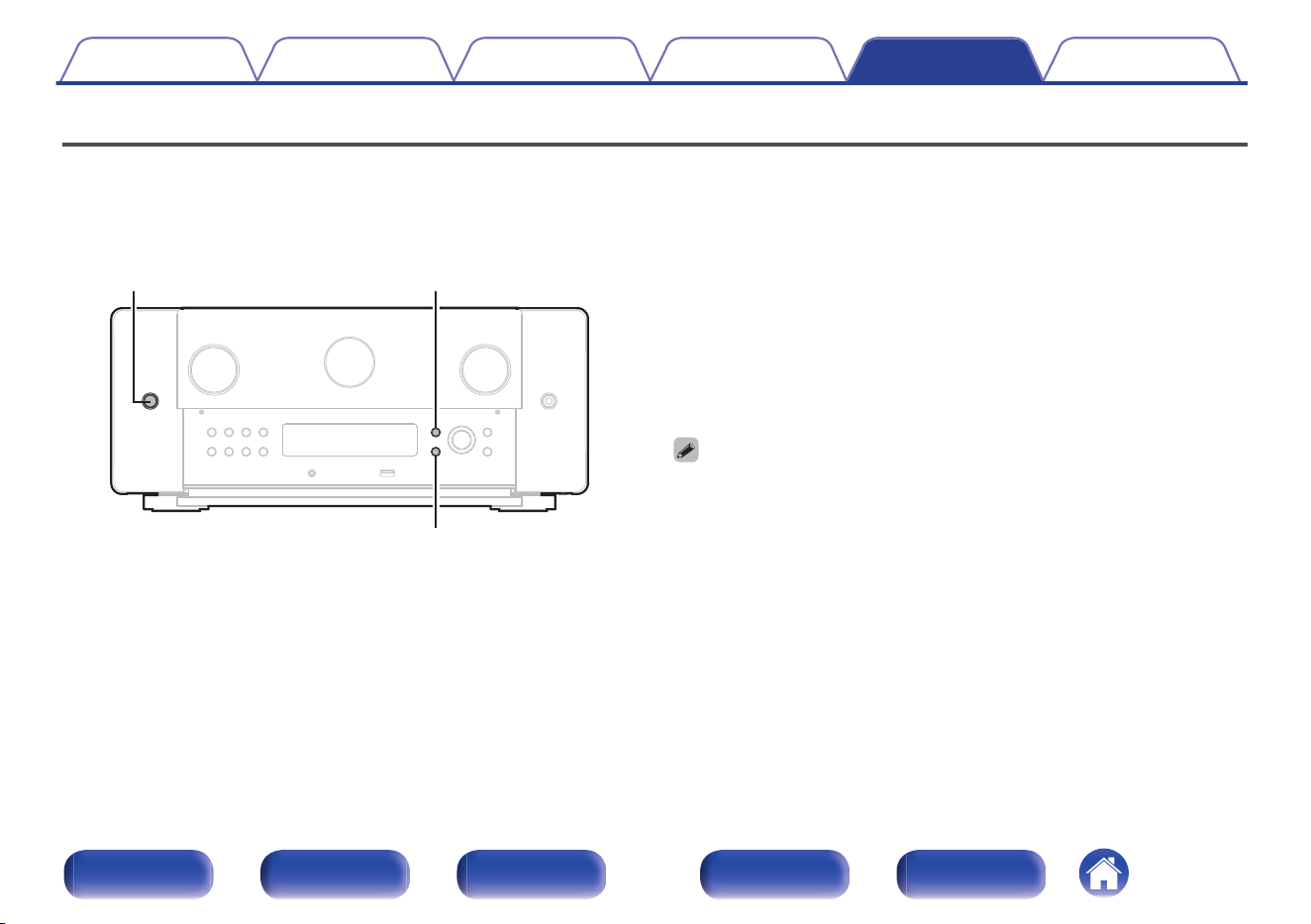
Resetting factory settings
If the indicators are incorrect or the unit cannot be operated, restarting the unit may improve the problem. We recommend restarting the unit before
returning the settings to the default settings. (v p. 290)
If the operations are not improved by restarting the unit, follow the steps below.
Various settings are reset to the factory default values. Make settings again.
X INFO
BACK
1
Turn off the power using X.
2
Press X while simultaneously pressing INFO and
BACK.
3
Remove your fingers from the two buttons when
“Initialized” appears on the display.
0
Before returning the settings to the default settings, use the “Save & Load” function
from the menu to save and restore the details of various settings configured on the
unit. (v p. 283)
0
You can also reset all settings to the factory defaults using “Reset” - “All Settings”
in the menu. (v p. 284)
Contents
Connections Playback Settings Tips Appendix
312
Front panel Display Rear panel Remote Index
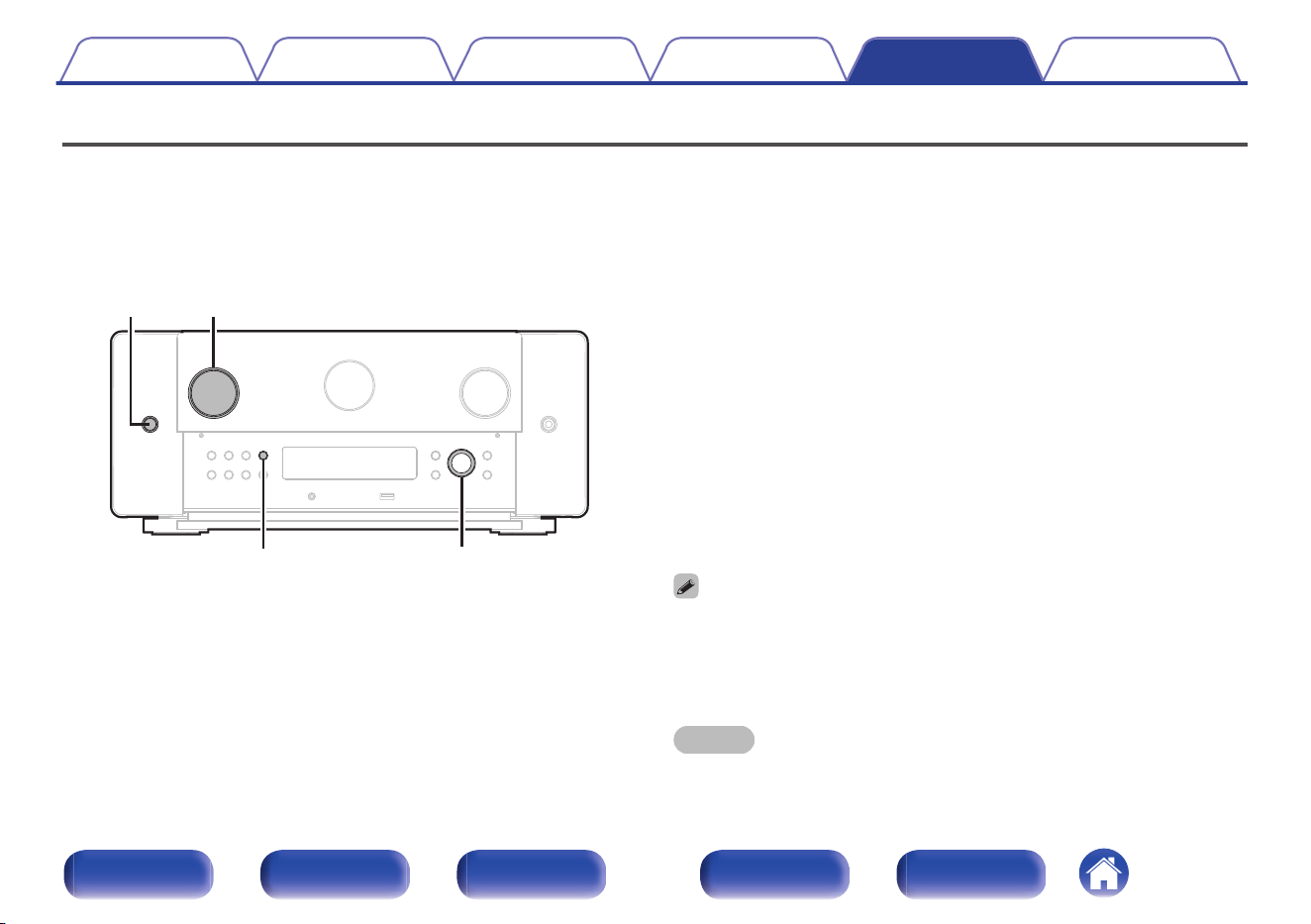
Resetting network settings
If network contents cannot be played or the unit cannot connect to the network, restarting the unit may improve the problem. We recommend restarting the
unit before returning the settings to the default settings. (v p. 290)
If the operations are not improved by restarting the unit, follow the steps below.
Network settings are reset to the factory default values. Make settings again.
However, the menu “Speaker Layout” and “Video” settings are not reset.
X
DIMMER
INPUT
Cursor Right
1
Press X to turn on power to the unit.
2
Turn INPUT selector to select “HEOS Music”.
3
Press and hold the main unit's DIMMER and cursor
Right at the same time for at least 3 seconds.
4
Remove your fingers from the two buttons when
“Network Reset...” appears on the display.
5
“Completed” is shown in the display when reset is
complete.
0
Before returning the settings to the default settings, use the “Save & Load” function
from the menu to save and restore the details of various settings configured on the
unit. (v p. 283)
0
You can also reset the network settings to the factory defaults using “Reset” -
“Network Settings” in the menu. (v p. 284)
NOTE
0
Do not turn the power off until reset is complete.
Contents Connections Playback Settings Tips Appendix
313
Front panel Display Rear panel Remote Index
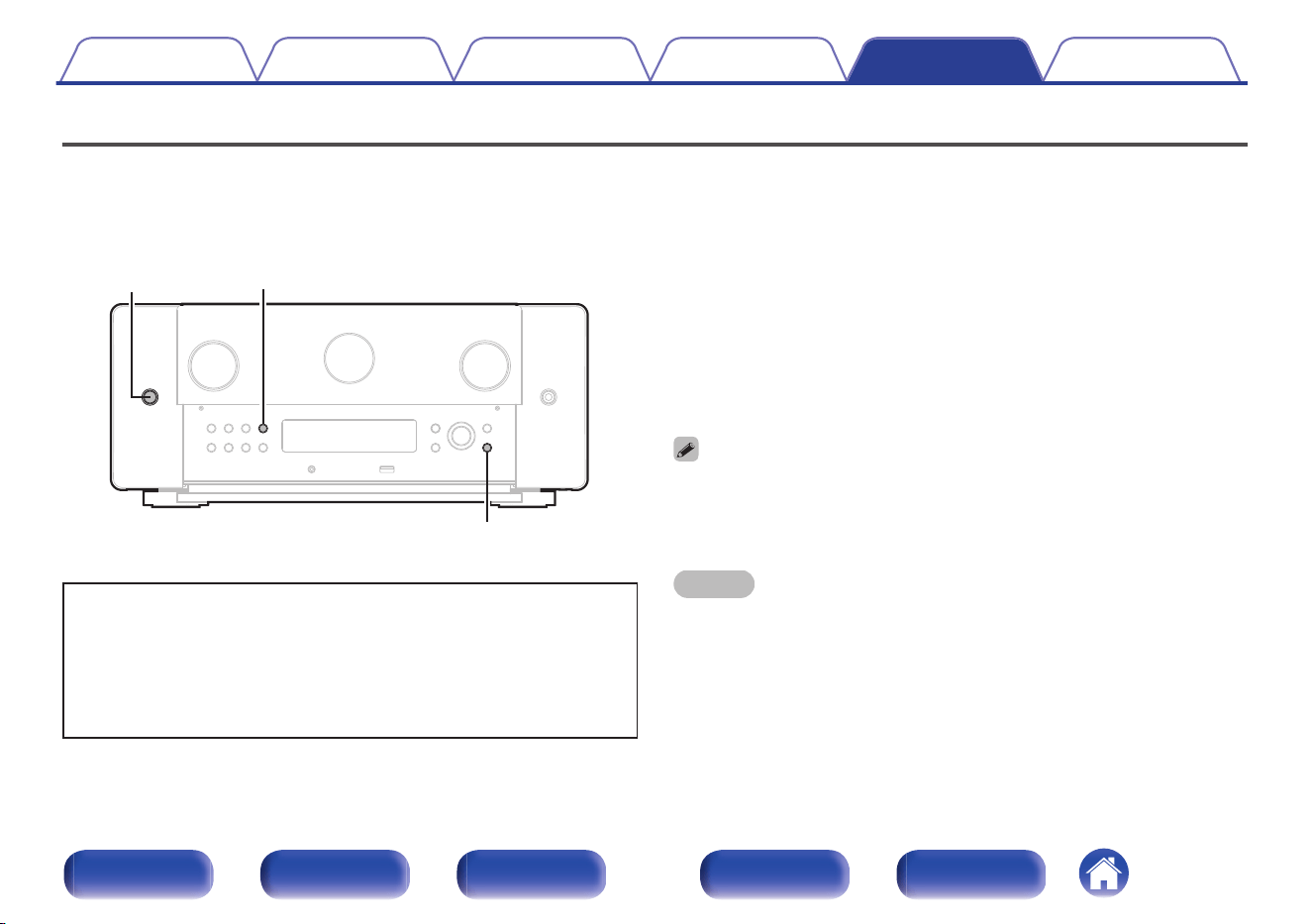
Factory Restore
When the unit or the network functions do not work properly, operation may be improved by performing the Factory Restore.
Do this when the unit still does not work properly even after trying the steps for “Resetting factory settings” or “Resetting network settings”. (v p. 312,
313)
After performing the Factory Restore, various settings are reset to the default settings. Configure the network settings and update the firmware again.
X
DIMMER
SETUP
WARNING
By initiating Factory Restore mode, you will be installing limited
recovery firmware on this unit. Functionality will remain limited
until a firmware update is performed over the Internet. Do not
perform a Factory Restore if you do not have this unit connected
to your home network.
1
Press X while simultaneously pressing SETUP and
DIMMER.
2
When “Restoring” appears on the display, release the
buttons.
When the Factory Restore is complete, “Completed” appears on the
display for about 5 seconds, and the unit automatically restarts.
0
This operation takes time because it requires reconnecting to the network,
restoring and updating the firmware.
0
If this operation does not improve the problem, contact our customer service
center.
NOTE
0
Do not turn off the power until the Factory Restore is complete.
Contents Connections Playback Settings Tips Appendix
314
Front panel Display Rear panel Remote Index
About HDMI
HDMI is an abbreviation of High-Definition Multimedia Interface, which is
an AV digital interface that can be connected to a TV or amplifier.
With the HDMI connection, high definition video and high quality audio
formats adopted by Blu-ray Disc players (Dolby Digital Plus, Dolby
TrueHD, DTS-HD) can be transmitted, which is not possible with the
analog video transmission.
Furthermore, in the HDMI connection, audio and video signals can be
transmitted through a single HDMI cable, while in conventional
connections it is necessary to provide audio and video cables separately
for connection between devices. This allows you to simplify the wiring
configuration that tends to be quite complex in a home theater system.
This unit supports the following HDMI functions.
0
4K / 8K
This unit supports input and output of 4K (3840 x 2160 pixels) and 8K
(7680 x 4320 pixels) video signals of HDMI.
0
Deep Color
An imaging technology supported by HDMI. Unlike RGB or YCbCr,
which uses 8 bits (256 shades) per color, it can use 10 bits (1024
shades), 12 bits (4096 shades), or 16 bits (65536 shades) to produce
colors in higher definition.
Both devices linked via HDMI must support Deep Color.
0
VRR (Variable Refresh Rate):
VRR reduces or eliminates lag, stutter and frame tearing for more fluid
and better detailed gameplay.
0
QFT (Quick Frame Transport):
QFT reduces latency for smoother no-lag gaming, and real-time
interactive virtual reality.
0
FRL (Fixed Rate Link):
FRL (Fixed Rate Link) is transmission technology that is required to
provide higher resolutions such as ultra high speed bandwidths of 4K
60Hz or higher.
Contents
Connections Playback Settings Tips Appendix
315
Front panel Display Rear panel Remote Index
0
ARC (Audio Return Channel)
This function transmits audio signals from the TV to this unit through
the HDMI cable and plays back the audio from the TV on this unit
based on the HDMI Control function.
If a TV without the ARC function is connected via HDMI connections,
video signals of the playback device connected to this unit are
transmitted to the TV, but this unit can not play back the audio from the
TV. If you want to enjoy surround audio for TV program, a separate
audio cable connection is required.
In contrast, if a TV with the ARC function is connected via HDMI
connections, no audio cable connection is required. Audio signals from
the TV can be input to this unit through the HDMI cable between this
unit and the TV. This function allows you to enjoy surround playback
on this unit for the TV.
0
eARC (Enhanced Audio Return Channel)
The eARC function is an extension of the conventional ARC function. It
utilizes dedicated eARC function control to play back television audio
from this unit without passing through HDMI control. Furthermore, the
eARC function can transmit multichannel linear PCM, Dolby TrueHD,
Dolby Atmos, DTS-HD, DTS:X and other audio formats not compatible
with conventional ARC. Connecting to an eARC function-compatible
television also enables enjoyment of higher-quality surround playback
of the audio content played from your television.
0
Auto Lip Sync
This function can automatically correct delay between the audio and
video.
Use a TV that is compatible with the Auto Lip Sync function.
0
ALLM (Auto Low Latency Mode)
This unit automatically switches to low latency mode depending on
playback contents when using a combination of television and game
console compatible with the ALLM function.
0
HDMI Pass Through
Even when the power to this unit is set to standby, signals input from
the HDMI input connector are output to a TV or other device that is
connected to the HDMI output connector.
Contents Connections Playback Settings Tips Appendix
316
Front panel Display Rear panel Remote Index
0
HDMI Control
If you connect the unit and an HDMI Control function compatible TV or
player with an HDMI cable and then enable the HDMI Control function
setting on each device, the devices will be able to control each other.
0
Power off link
This unit power off can be linked to the TV power off step.
0
Audio output destination switching
From the TV, you can switch whether to output audio from the TV or
the AV amplifier.
0
Volume adjustment
You can adjust this unit’s volume in the TV volume adjustment
operation.
0
Input source switching
You can switch this unit input sources through linkage to TV input
switching.
When playing the player, this unit input source switches to the
source for that player.
0
Content Type
It automatically makes settings suitable for the video output type
(content information).
0
3D
This unit supports input and output of 3D (3 dimensional) video signals
of HDMI. To play back 3D video, you need a TV and player that
provide support for the HDMI 3D function and a pair of 3D glasses.
NOTE
0
Some functions may not operate depending on the connected TV or player. Check
the owner’s manual of each device for details beforehand.
Contents Connections Playback Settings Tips Appendix
317
Front panel Display Rear panel Remote Index
o
Supported audio formats
2-channel Linear
PCM
2-channel, 32 kHz – 192 kHz, 16/20/24 bit
Multi-channel
Linear PCM
7.1-channel, 32 kHz – 192 kHz, 16/20/24 bit
Bitstream
Dolby Digital / DTS / Dolby Atmos / Dolby TrueHD /
Dolby Digital Plus / DTS:X / DTS-HD / MPEG-H
DSD 2-channel – 5.1-channel, 2.8 MHz
o
Supported video signals
0
480i
0
480p
0
576i
0
576p
0
720p 60/50Hz
0
1080i 60/50Hz
0
1080p 120/100/60/50/24Hz
0
4K 120/100/60/50/30/25/24Hz
0
8K 60/50/30/25/24Hz
Copyright protection system
In order to play back digital video and audio such as BD video or DVD
video via HDMI connection, both this unit and the TV or player must to
support the copyright protection system known as HDCP (High-
bandwidth Digital Content Protection System). HDCP is copyright
protection technology comprised of data encryption and authentication of
the connected AV devices. This unit supports HDCP.
0
If a device that does not support HDCP is connected, video and audio
are not output correctly. Read the owner’s manual of your television or
player for more information.
Contents Connections Playback Settings Tips Appendix
318
Front panel Display Rear panel Remote Index
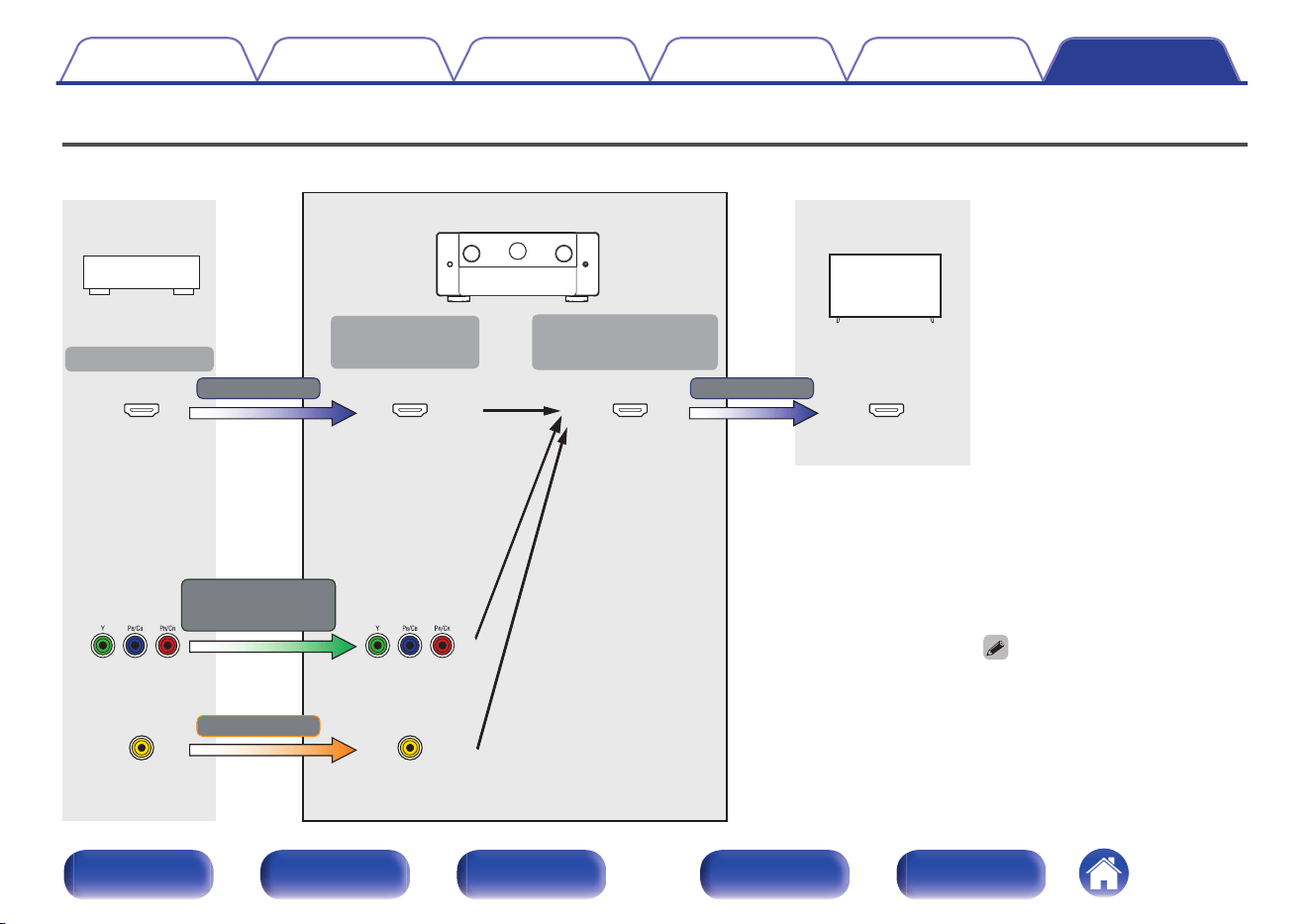
Video conversion function
This unit automatically converts the input video signals as shown in the diagram before outputting them to the TV.
0
The MAIN ZONE Video Conversion
function is compatible with the
following formats: NTSC, PAL,
SECAM, NTSC4.43, PAL-N, PAL-M
and PAL-60.
0
When component video signals are
used, only 480i and 576i signals are
converted to HDMI signals.
HDMI-compatible TV
Output
(MONITOR OUT)
Input (IN)
HDMI signal
Output
Video device
HDMI signal
HDMI connector HDMI connector HDMI connector HDMI connector
This unit
Video signal
Component video
connectors
Component
video connectors
Video connector Video connector
Component
video signal
Contents
Connections Playback Settings Tips Appendix
319
Front panel Display Rear panel Remote Index
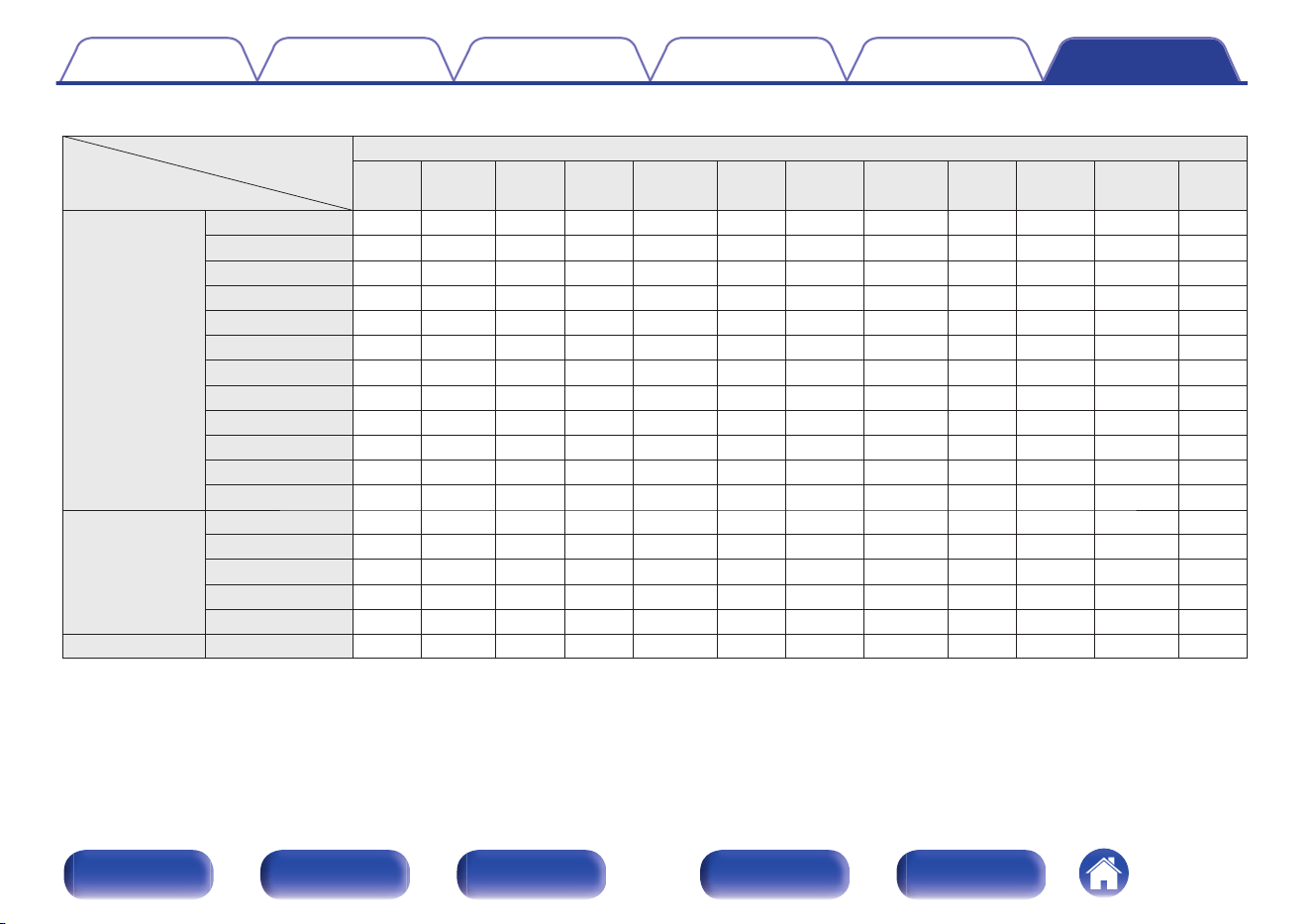
When “HDMI Upscaler” in the menu is set to “Auto”, this unit upscales the input HDMI video signal and then outputs it to the TV. (v p. 211)
480i/576i
480i/576i
480p/576p
720p
1080i
1080p
HDMI
480i/576i
480p/576p
720p 1080i
1080p
30/25/24Hz
1080p
60/50Hz
1080p
120/100Hz
4K
30/25/24Hz
4K
60/50Hz
4K
120/100Hz
8K
30/25/24Hz
8K
60/50Hz
HDMI
480i/576i
480p/576p
720p
1080i
1080p 30/25/24Hz
1080p 60/50Hz
1080p 120/100Hz
4K 30/25/24Hz
4K 60/50Hz
4K 120/100Hz
8K 30/25/24Hz
8K 60/50Hz
Output signal
Input signal
Component video
Video
Contents Connections Playback Settings Tips Appendix
320
Front panel Display Rear panel Remote Index
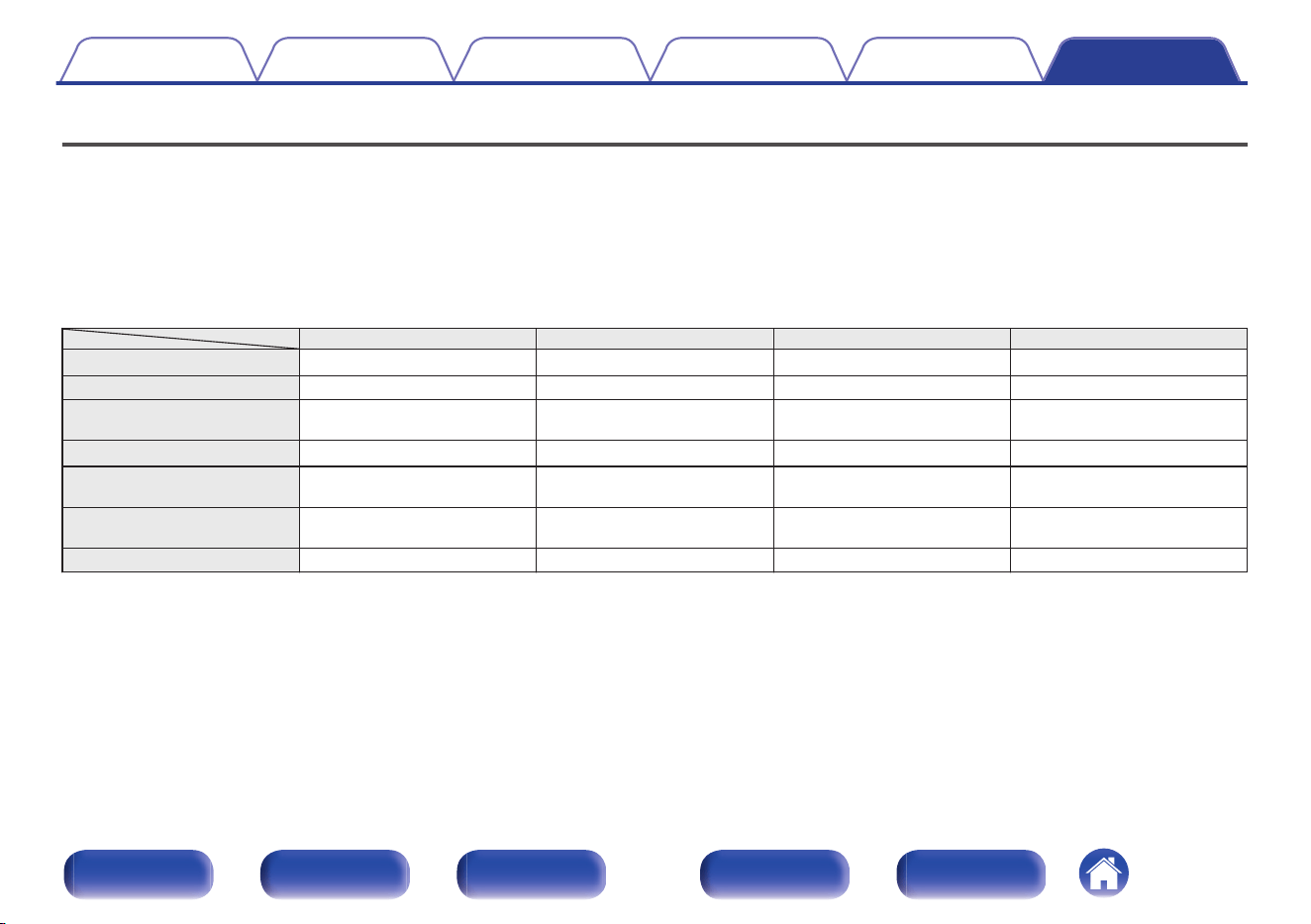
Playing back a USB memory devices
0
This unit is compatible with MP3 ID3-Tag (Ver. 2) standard.
0
This unit can show the artwork that was embedded by using MP3 ID3-Tag Ver. 2.3 or 2.4.
0
This unit is compatible with WMA META tags.
0
If the image size (pixels) of an album artwork exceeds 500 × 500 (WMA/MP3/Apple Lossless/DSD) or 349 × 349 (MPEG-4 AAC), then music may not
be played back properly.
o
Compatible formats
Sampling frequency Channel Bit rate Extension
WMA
z
1
32/44.1/48 kHz 2-channel 48 – 192 kbps .wma
MP3 32/44.1/48 kHz 2-channel 32 – 320 kbps .mp3
WAV
32/44.1/48/88.2/
96/176.4/192 kHz
2-channel – .wav
MPEG-4 AAC
z
1
32/44.1/48 kHz 2-channel 48 - 320 kbps .aac/.m4a
FLAC
44.1/48/88.2/
96/176.4/192 kHz
2-channel – .flac
Apple Lossless
z
2
44.1/48/88.2/
96/176.4/192 kHz
2-channel – .m4a
DSD 2.8/5.6 MHz 2-channel – .dsf/.dff
z1
Only files that are not protected by copyright can be played on this unit.
Content downloaded from pay sites on the Internet are copyright protected. Also, files encoded in WMA format when ripped from a CD, etc. on a computer may be
copyright protected, depending on the computer’s settings.
z2
The Apple Lossless Audio Codec (ALAC) decoder is distributed under the Apache License, Version 2.0 (http://www.apache.org/licenses/LICENSE-2.0).
Contents
Connections Playback Settings Tips Appendix
321
Front panel Display Rear panel Remote Index
o
Maximum number of playable files and folder
The limits on the number of folders and files that can be displayed by
this unit are as follows.
Media
Item
USB memory device
Number of folder directory levels
z
1
8 levels
Number of folders 500
Number of files
z
2
5000
z1
The limited number includes the root folder.
z2
The allowable number of files may differ according to the USB memory device
capacity and the file size.
Playing back a Bluetooth device
This unit supports the following Bluetooth profile.
0
A2DP (Advanced Audio Distribution Profile):
When a Bluetooth device that supports this standard is connected,
monaural and stereo sound data can be streamed at a high quality.
0
AVRCP (Audio/Video Remote Control Profile):
When a Bluetooth device that supports this standard is connected, the
Bluetooth device can be operated from this unit.
o
About Bluetooth communications
Radio waves broadcast from this unit may interfere with the operation
of medical devices. Make sure you turn off the power of this unit and
Bluetooth device in the following locations as radio wave interference
may cause malfunctions.
0
Hospitals, trains, aircraft, petrol kiosks and places where flammable
gases are generated
0
Near automatic doors and fire alarms
Contents
Connections Playback Settings Tips Appendix
322
Front panel Display Rear panel Remote Index
Playing back a file saved on a PC or NAS
0
This unit is compatible with MP3 ID3-Tag (Ver. 2) standard.
0
This unit can show the artwork that was embedded by using MP3 ID3-Tag Ver. 2.3 or 2.4.
0
This unit is compatible with WMA META tags.
0
If the image size (pixels) of an album artwork exceeds 500 × 500 (WMA/MP3/WAV/FLAC/Apple Lossless/DSD) or 349 × 349 (MPEG-4 AAC), then
music may not be played back properly.
0
A server or server software compatible with distribution in the corresponding formats is required to play music files via a network.
For playing mentioned audio formats via a network a server software, for example Twonky Media Server or jRiver Media Server, needs to be installed
on your computer or NAS for full support. There are other server software available too. Please check supported formats.
o
Specifications of supported files
Sampling frequency Channel Bit rate Extension
WMA
z
1
32/44.1/48 kHz 2-channel 48 – 192 kbps .wma
MP3 32/44.1/48 kHz 2-channel 32 – 320 kbps .mp3
WAV
32/44.1/48/88.2/
96/176.4/192 kHz
2-channel – .wav
MPEG-4 AAC
z
1
32/44.1/48 kHz 2-channel 48 - 320 kbps .aac/.m4a
FLAC
44.1/48/88.2/
96/176.4/192 kHz
2-channel – .flac
Apple Lossless
z
2
44.1/48/88.2/
96/176.4/192 kHz
2-channel – .m4a
DSD 2.8/5.6 MHz 2-channel – .dsf/.dff
z1
Only files that are not protected by copyright can be played on this unit.
Content downloaded from pay sites on the Internet are copyright protected. Also, files encoded in WMA format when ripped from a CD, etc. on a computer may be
copyright protected, depending on the computer’s settings.
z2
The Apple Lossless Audio Codec (ALAC) decoder is distributed under the Apache License, Version 2.0 (http://www.apache.org/licenses/LICENSE-2.0).
Contents
Connections Playback Settings Tips Appendix
323
Front panel Display Rear panel Remote Index
Playing back Internet Radio
o
Playable broadcast station specifications
Sampling frequency Bit rate
Extension
WMA 32/44.1/48 kHz
48 – 192
kbps
.wma
MP3 32/44.1/48 kHz
32 – 320
kbps
.mp3
MPEG-4 AAC 32/44.1/48 kHz
48 - 320
kbps
.aac/
.m4a
Personal memory plus function
The most recently used settings (input mode, HDMI output mode, sound
mode, tone control, channel level, MultEQ
®
XT32, Dynamic EQ, Dynamic
Volume, Dirac Live, M-DAX and audio delay, etc.) are saved for each input
source.
0
“Surround Parameter” settings are stored for each sound mode.
Last function memory
This function stores the settings which were made before going into the
standby mode.
Contents
Connections Playback Settings Tips Appendix
324
Front panel Display Rear panel Remote Index
Sound modes and channel output
S This indicates the audio output channels or surround parameters that can be set.
D This indicates the audio output channels. The output channels depend on the settings of “Speaker Layout”. (v p. 231)
S
Dz4
SDD
Dz5 Dz5 Dz5 Dz5 Dz5 Dz5 Dz5 Dz5 Dz5 Dz5 Dz5 Dz5 Dz5
D
S
Dz4
SDD D
Stereo
S D
Dolby Atmos
SDDDDDDDDDD D D D D
Dolby TrueHD
SDD
Dz5
D
Dolby Digital Plus
SDD
Dz5
D
Dolby Digital
SDD D
Dolby Surround z1
SDD
Dz6 Dz7
DDDDDD D D D D
IMAX DTS:X
SDDDDDDDDDDDD D D D D
IMAX DTS
SD
Dz8 Dz8
D
DTS:X
SDDDDDDDDDDDD D D D D
DTS-HD
SDD
Dz5 Dz5
D
DTS Surround
SDDD D
DTS Neural:X z2
SDDDDDDDDDDDD D D D D
DTS Virtual:X z3
SDDD D
AURO-3D
SDDD D
Dz9Dz9Dz9Dz9
DDD
Dz11Dz11Dz11Dz11Dz11Dz11Dz11Dz11Dz11 Dz11 Dz11
D
AURO Surround
SDDD D
Multi Ch In
SDD
Dz5
D
MPEG-H
SDDDDDDDDDDDD D D D D
Multi Ch Stereo
SDDDD D
Sound mode
Channel output
Front
L/R
Center
Surround
L/R
Surround
Back
L/R
Front
Wide
L/R
Front
Height
L/R
Top
Front
L/R
Top
Middle
L/R
Top
Rear
L/R
Rear
Height
L/R
Surround
Height
L/R
Center
Height
Top
Surround
Front
Dolby Atmos
Enabled
L/R
Surround
Dolby Atmos
Enabled
L/R
Back
Dolby Atmos
Enabled
L/R
Subwoofer
Direct/Pure Direct (2-channel)
Direct/Pure Direct (Multi-channel)
DSD Direct (2-channel)
DSD Direct (Multi-channel)
z1 - z11 : “Sound modes and channel output” (v p. 326)
Contents
Connections Playback Settings Tips Appendix
325
Front panel Display Rear panel Remote Index
z1
The applicable sound mode includes “Dolby Surround” and sound modes that have “+Dolby Surround” in the sound mode name.
z2
The applicable sound mode includes “DTS Neural:X” and sound modes that have “+Neural:X” in the sound mode name.
z3
The applicable sound mode includes “DTS Virtual:X” and sound modes that have “+Virtual:X” in the sound mode name.
z4 Audio is output when “Low Frequency Effects” - “Subwoofer Output” in the menu is set to “LFE + Main”. (v p. 250)
z5
A signal for each channel contained in an input signal is output as audio.
z6
Audio is not output when the “Surround Parameter” - “Speaker Virtualizer” in the menu is set to “On” and “Speaker Layout” - “Surround Back” in the menu is set to “1 spkr”.
(v p. 192, 233)
z7 Audio is not output when the “Surround Parameter” - “Speaker Virtualizer” is set to “On”. (v p. 192)
z8
When “Speaker Layout” - “Surround Back” is set to “2 spkrs”, “Speaker Layout” - “Center” is set to “Yes”, and sound mode is set to “IMAX DTS”, surround audio is output
from the surround back speaker. Audio is not output from the surround speaker. (v p. 233)
z9
For the best AURO-3D experience Front Height, Top Surround and Surround Height speakers are recommended, however you may substitute Top speakers.
z10
For the best AURO-3D experience Front Height and Surround Height speakers are recommended, however you may substitute rear height, ceiling speaker or Dolby
Atmos Enabled speakers.
z11 Audio is output from the speakers specified in the “Surround Parameter” - “Speaker Select” settings. (v p. 196)
Contents Connections Playback Settings Tips Appendix
326
Front panel Display Rear panel Remote Index
Sound modes and surround parameters
SS
SSSS
Stereo
SSSS
Dolby Atmos
SS S S S
Dolby TrueHD
SS S S
Dolby Digital Plus
SS S S
Dolby Digital
SS S S
Dolby Surround
SS S S S
IMAX DTS:X
SSSS SSSS
IMAX DTS
SS S SSS
DTS:X
SSSS SS
DTS-HD
SS S S
DTS Surround
SS S S
DTS Neural:X
SS S
DTS Virtual:X
SS
AURO-3D
SS
AURO Surround
SS
Multi Ch In
SS
MPEG-H
SS
Multi Ch Stereo
SS S S S S
Surround Parameter
Cinema
EQ
Loudness
Management
Dynamic
Compression
Dialog
Control
Low
Frequency
Eects
Speaker
Select
Center
Spread
Speaker
Virtualizer
DTS Neural:X IMAX
IMAX Audio
Settings
High Pass
Filter
Sound mode
Direct/Pure Direct (2-channel)
Direct/Pure Direct (Multi-channel)
DSD Direct (2-channel)
DSD Direct (Multi-channel)
z1
z1
z2 z3 z4
z5
z6 z7 z8
z1 - z8 : “Sound modes and surround parameters” (v p. 329)
Contents
Connections Playback Settings Tips Appendix
327
Front panel Display Rear panel Remote Index
Audyssey
M-DAX
z15
MultEQ® XT32
z11z12
Dynamic EQ
z13z14
Dynamic
Volume
Dirac Live
z13z14
Audyssey
LFC™
z13z14
Sz16 Sz16 Sz17
Sz17
Sz17
Sz17
S
Sz16 Sz16
S
Stereo
Sz18
SS
S
Sz18
SSSS SS
Dolby Atmos
SSSSSSS S
Dolby TrueHD
SSSSSSS S
Dolby Digital Plus
SSSSSSS S
Dolby Digital
SSSSSSS S
Dolby Surround
SSSSSSS S
IMAX DTS:X
SS S S S SS SS S
IMAX DTS
SS S S S SS SS S
DTS:X
SSSSSSS S
DTS-HD
SSSSSSS S
DTS Surround
SSSSSSS S
DTS Neural:X
SSSSSSS S
DTS Virtual:X
SSSS S
AURO-3D
Sz19 Sz19 Sz20
SSSSSSS SS
AURO Surround
SSSSSSS SS
Multi Ch In
SSSSSSS S
MPEG-H
SSSSSSS S
Multi Ch Stereo
SSSS
S
S
S
S
S
S
S
S
S
S
S
S
S
S
S
S
S
SSSS SS
Surround Parameter
Bass Sync
Dialog
Enhancer
Subwoofer
Level Adjust
Tone
Subwoofer
Low Pass
Filter
Auro-Matic
Preset
Auro-Matic
Strenght
AURO-3D
Mode
Sound mode
Direct/Pure Direct (2-channel)
Direct/Pure Direct (Multi-channel)
DSD Direct (2-channel)
DSD Direct (Multi-channel)
z1
z1
z9
z10
z5
z8 z8
Subwoofer
Output
z1, z5, z8 - z20: “Sound modes and surround parameters” (v p. 329)
Contents
Connections Playback Settings Tips Appendix
328
Front panel Display Rear panel Remote Index
z1
During playback in Pure Direct mode, the surround parameters are the same as in Direct mode.
z2
This item can be selected when a Dolby Digital, Dolby Digital Plus, Dolby TrueHD or Dolby Atmos signal is played.
z3
This item can be selected when a Dolby Digital, Dolby Digital Plus, Dolby TrueHD, Dolby Atmos, DTS:X, DTS-HD or DTS signal is played.
z4
This item can be selected when a DTS:X signal that is compatible with the Dialog Control function is input.
z5
This can be set when the LFE signal is included in the input signal.
z6
This item can be selected when Height, Ceiling or Dolby Atmos Enabled speakers are used.
z7
This item can be set when any Height, Ceiling or Dolby Atmos Enabled speakers are not used, or Surround speakers are not used.
z8 This item can be selected when “Surround Parameter” - “IMAX Audio Settings” in the menu is set to “Manual”. (v p. 193)
z9 This item cannot be set when “Dynamic EQ” is set to “On”. (v p. 200)
z10 This item cannot be set when “Speaker Layout” - “Subwoofers” in the menu is set to “No”. (v p. 240)
z11
This item cannot be set when Audyssey
®
Setup (Speaker Calibration) has not been performed.
z12
This item cannot be selected when a DTS:X format with a sampling frequency of over 48 kHz is input.
z13
This item cannot be set when sound mode is “DTS Virtual:X” or sound mode that have “+Virtual:X” in the sound mode name.
z14
This item cannot be set when “MultEQ
®
XT32” in the menu is set to “Off”. (v p. 199)
z15
This item can be set when the input signal is analog, PCM 48 kHz or 44.1 kHz.
z16 This setting is available when “Low Frequency Effects” - “Subwoofer Output” in the menu is set to “LFE + Main”. (v p. 250)
z17
Only the “Distances” and “Levels” settings are applied. The acoustic filter is not applied.
z18 This item can be set when “Crossovers” - “Front” is set to other than “Full Range” or “Low Frequency Effects” - “Subwoofer Output” is set to “LFE + Main”. (v p. 248,
250)
z19
This cannot be set if the input signal contains AURO-3D signals containing a Height channel.
z20
This can be set if the input signal contains an AURO-3D signal.
Contents
Connections Playback Settings Tips Appendix
329
Front panel Display Rear panel Remote Index
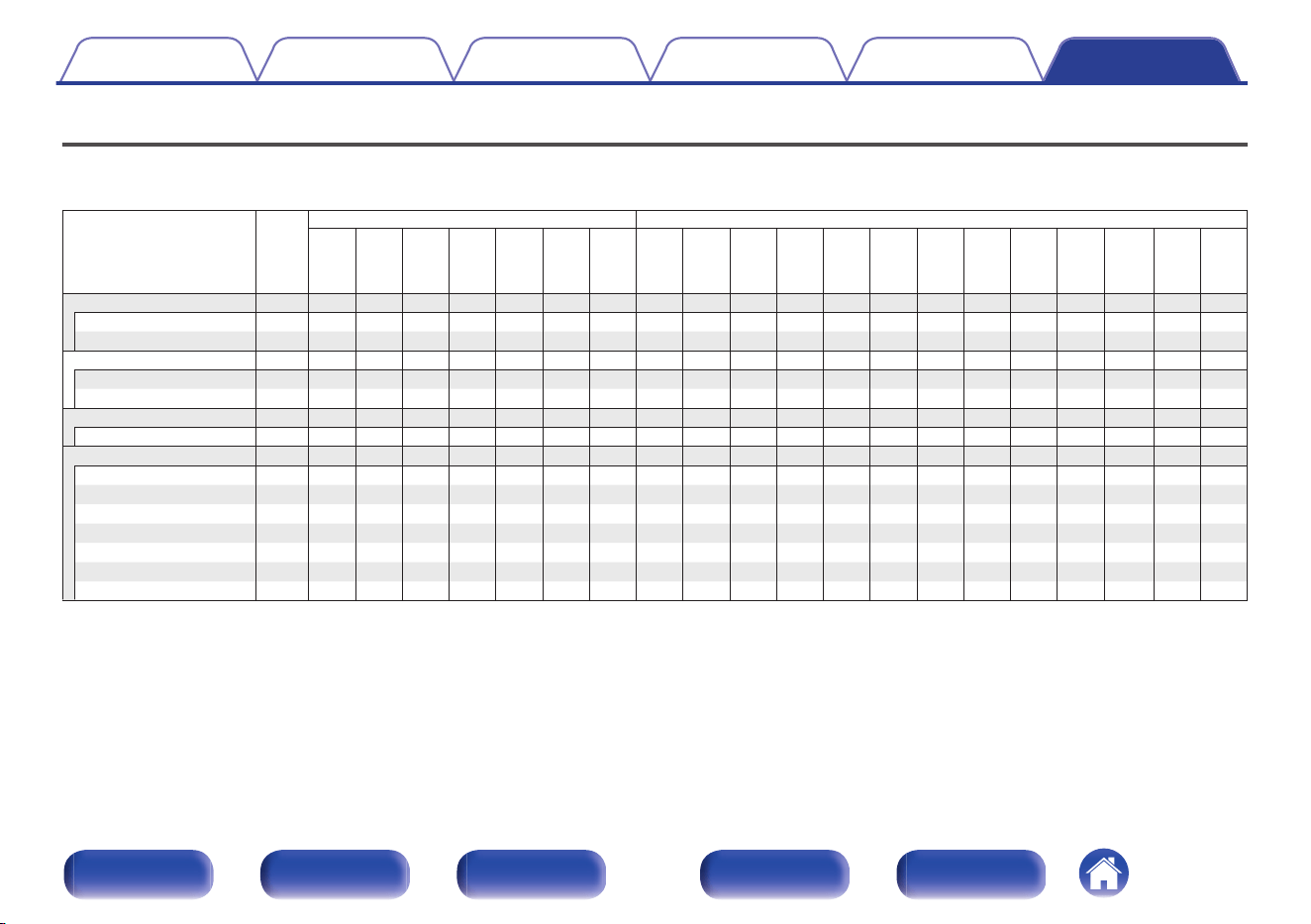
Types of input signals, and corresponding sound modes
F This indicates the default sound mode.
S This indicates the selectable sound mode.
Dolby
TrueHD
Dolby
Digital
Plus
Dolby
Digital
DTS-HD DTS
DSD
(Super
Audio
CD)
Dolby
Atmos
Dolby
TrueHD
Dolby
Digital
Plus
Dolby
Digital
(EX)
IMAX
DTS:X
IMAX
DTS
DTS:X DTS-HD DTS AURO-3D MPEG-H
DSD
(Super
Audio
CD)
Direct
Direct
SSSSS
S
SSSSSSSSSSSS
DSD Direct
S S
Pure Direct
Pure Direct
SSSSSS SSSSSSSSSS S S
DSD Pure Direct
S S
Stereo
Stereo
SSSSSFFSSSSSSSSSSSSS
Dolby Surround
Dolby Atmos
z1
F
Dolby TrueHD
S
Sz2
S
Sz3
Dolby Digital Plus
S
Sz4
S
Dolby Digital
SS
Dolby (D+) (HD) + Dolby Surround
FFF
Sz3
Dolby (D+) (HD) + Neural:X
SSS
Sz3
Dolby Surround
FFFSSSS
Sound mode NOTE
2-channel signal Multi-channel signal
Analog /
PCM
PCM
multi-
channel
z1 - z4 : “Types of input signals, and corresponding sound modes” (v p. 332)
Contents
Connections Playback Settings Tips Appendix
330
Front panel Display Rear panel Remote Index
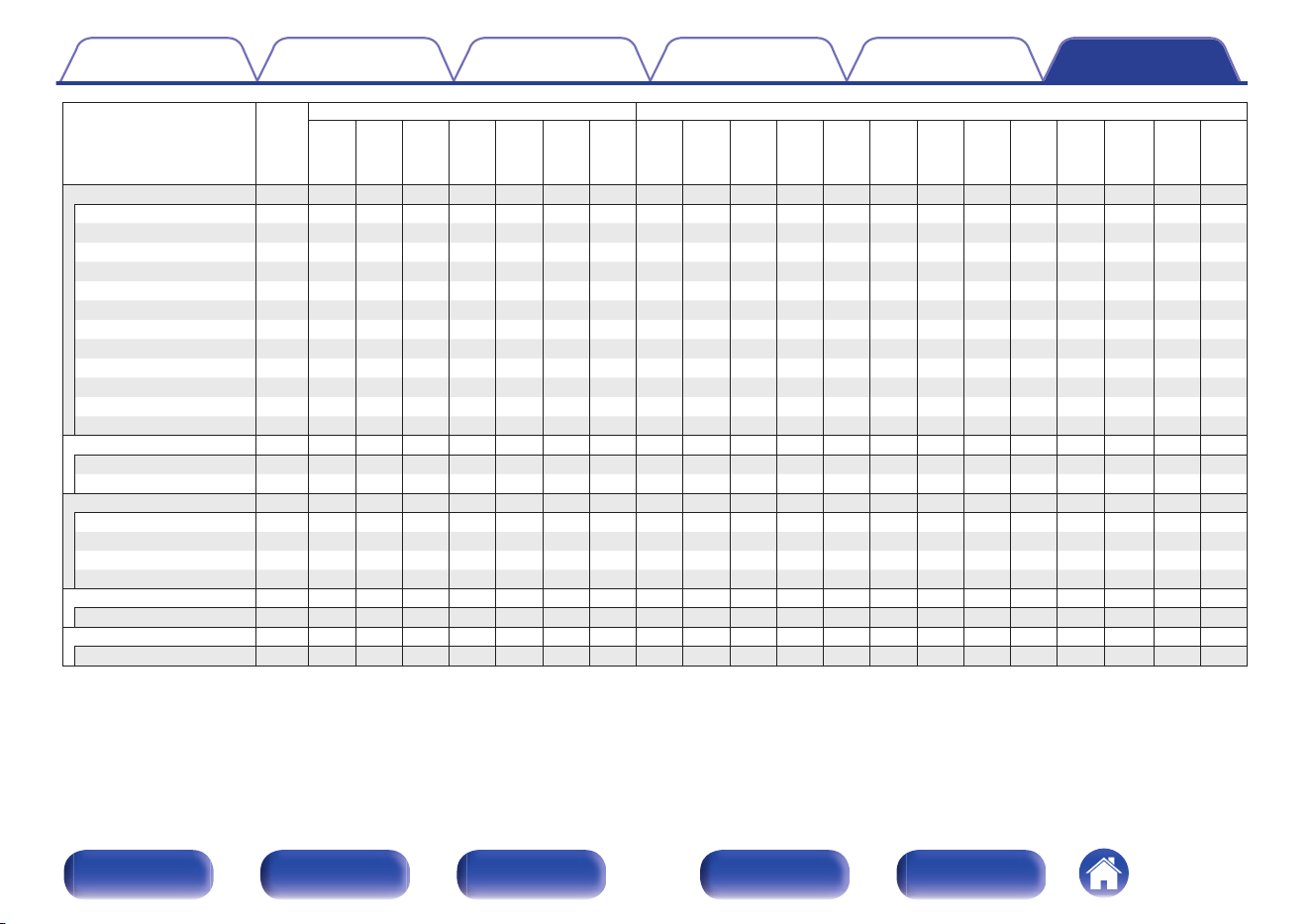
Dolby
TrueHD
Dolby
Digital
Plus
Dolby
Digital
DTS-HD DTS
DSD
(Super
Audio
CD)
Dolby
Atmos
Dolby
TrueHD
Dolby
Digital
Plus
Dolby
Digital
(EX)
IMAX
DTS:X
IMAX
DTS
DTS:X DTS-HD DTS AURO-3D MPEG-H
DSD
(Super
Audio
CD)
DTS Surround
IMAX DTS:X
Fz5
IMAX DTS
Sz5
DTS:X
Sz6
F
DTS-HD
S
Sz6
S
Sz7
DTS Surround
S
Sz6
S
IMAX DTS + Neural:X
Fz5
IMAX DTS / IMAX DTS:X + Virtual:X
Sz5 Sz5
DTS (-HD) + Dolby Surround
SSS
Sz7
DTS (-HD) + Neural:X
Sz6 Fz8 Fz8 Sz7
DTS (-HD) / DTS:X + Virtual:X
Sz6 Sz6 Sz9
SS
Sz7
DTS Neural:X
SSS
Fz9 Fz9
SS
DTS Virtual:X
SSSS
AURO-3D
AURO-3D
z10
SSSSSSS SSS S SSS S S
MPEG-H
MPEG-H
AURO Surround
z10
SSSSSSS SSS S SSS S S
Multi Ch In
Multi Ch In / Multi Ch In 6.1
Sz11 Fz12
F
F
Multi In + Dolby Surround
SS
Multi In + Neural:X
SS
Multi In + Virtual:X
SS
Multi Ch Stereo
SSSSSSSSSSSS SSSSSSSS
Sound mode NOTE
2-channel signal Multi-channel signal
Analog /
PCM
PCM
multi-
channel
Original sound mode
z5 - z12 : “Types of input signals, and corresponding sound modes” (v p. 332)
Contents
Connections Playback Settings Tips Appendix
331
Front panel Display Rear panel Remote Index
z1
This item can be selected when using any of the Surround Back, Front Height, Top Front, Top Middle, Top Rear, Rear Height, Front Dolby, Surround Dolby or Back Dolby
speaker. It can also be selected when the “Surround Parameter” - “Speaker Virtualizer” setting is turned “On”.
z2
This can be selected when the Dolby Atmos signal contains the Dolby TrueHD signal.
z3
This item can be selected if the AURO-3D signal contains Dolby TrueHD.
z4
This can be selected when the Dolby Atmos signal contains the Dolby Digital Plus signal.
z5 Selectable when “Surround Parameter” - “IMAX” is set to “Auto” in the menu. (v p. 193)
z6 Selectable when “Surround Parameter” - “IMAX” is set to “Off”. (Selectable sound modes vary depending on the type of input signal). (v p. 193)
z7
This item can be selected if the AURO-3D signal contains DTS-HD.
z8
This item cannot be selected when a DTS(-HD) format with a sampling frequency of over 48 kHz is input.
z9
This item cannot be selected when a DTS:X format with a sampling frequency of over 48 kHz is input.
z10
This item cannot be selected if the sampling frequency of the input signal is 32 kHz.
z11
This item can be selected if the AURO-3D signal contains Multi Channel PCM.
z12
Multi ch In 7.1 can be selected only when the input signals include surround back signals and surround back speakers are being used.
Contents Connections Playback Settings Tips Appendix
332
Front panel Display Rear panel Remote Index
Explanation of terms
o
Audyssey
Audyssey Dynamic EQ
®
Audyssey Dynamic EQ
®
solves the problem of deteriorating sound quality
as volume is decreased by taking into account human perception and
room acoustics.
Audyssey Dynamic EQ
®
works in tandem with Audyssey MultEQ
®
XT32
to provide well-balanced sound for every listener at any volume level.
Audyssey Dynamic Volume
®
Dynamic Volume solves the problem of large variations in volume level
between television programs, commercials, and between the soft and loud
passages of movies. Audyssey Dynamic EQ
®
is integrated into Dynamic
Volume so that as the playback volume is adjusted automatically, the
perceived bass response, tonal balance, surround impression, and dialog
clarity remain the same.
Audyssey LFC™ (Low Frequency Containment)
Audyssey LFC™ solves the problem of low frequency sounds disturbing
people in neighboring rooms or apartments. Audyssey LFC™ dynamically
monitors the audio content and removes the low frequencies that pass
through walls, floors and ceilings. It then applies psychoacoustic
processing to restore the perception of low bass for listeners in the room.
The result is great sound that no longer disturbs the neighbors.
Audyssey MultEQ
®
XT32
Audyssey MultEQ
®
XT32 is a room equalization solution that calibrates
any audio system so that it can achieve optimum performance for every
listener in a large listening area. Based on several room measurements,
MultEQ
®
XT32 calculates an equalization solution that corrects for both
time and frequency response problems in the listening area and also
performs a fully automated surround system setup.
Contents
Connections Playback Settings Tips Appendix
333
Front panel Display Rear panel Remote Index
o
Dirac Live
Dirac Live
®
room correction
Dirac Live
®
is an advanced room correction technology developed by
Dirac Research. As the most advanced room correction technology
available on the market, Dirac Live helps listeners to correct for one of the
weakest components in the audio chain: the listening room. Dirac Live not
only corrects the frequency response, but also the impulse response of
the loudspeakers in a room, yielding improved imaging and timbre, better
clarity, tighter bass, and less early reflections, as well as reduced
resonances and room modes. The market leader in room correction, this
sophisticated algorithm is used in high-end AVRs, in luxury car sound
systems from companies such as Rolls Royce, BMW, and Bentley, as well
as in thousands of high-end digital cinema theaters across the world.
o
AURO-3D
Auro-3D
®
The Auro-3D
®
technology suite is a groundbreaking new audio technology
that combines height-based listening formats with powerful creative tools
to deliver an unrivaled three-dimensional sound experience. Auro-3D
®
is
the general format name for Sound in 3D and its related speaker lay-outs.
Auro-Matic
®
Auro-Matic
®
up-mixing technology software is a unique creative tool that
transforms legacy Mono, Stereo and Surround content into a natural 3D or
2D listening experience.
Contents Connections Playback Settings Tips Appendix
334
Front panel Display Rear panel Remote Index
o
Dolby
Dolby Atmos
Introduced first in the cinema, Dolby Atmos brings a revolutionary sense of
dimension and immersion to the Home Theater experience. Dolby Atmos
is an adaptable and scalable object based format that reproduces audio
as independent sounds (or objects) that can be accurately positioned and
move dynamically throughout the 3 dimensional listening space during
playback. A key ingredient of Dolby Atmos is the introduction of a height
plane of sound above the listener.
Dolby Atmos Stream
Dolby Atmos content will be delivered to your Dolby Atmos Enabled AV
receiver via Dolby Digital Plus or Dolby TrueHD on Blu-ray Disc,
downloadable files and streaming media. A Dolby Atmos stream contains
special metadata that describes the positioning of sounds within the room.
This object audio data is decoded by a Dolby Atmos AV receiver and
scaled for optimum playback through Home Theater speaker systems of
every size and configuration.
Dolby Digital
Dolby Digital is a multi-channel digital signal format developed by Dolby
Laboratories.
A total of 5.1-channels are played: 3 front channels (“FL”, “FR” and “C”), 2
surround channels (“SL” and “SR”) and the “LFE” channel for low
frequency effects.
Because of this, there is no crosstalk between channels and a realistic
sound field with a “three-dimensional” feeling (sense of distance,
movement and positioning) is achieved. This delivers a thrilling surround
sound experience in the home.
Dolby Digital Plus
Dolby Digital Plus is an improved Dolby Digital signal format that is
compatible with up to 7.1-channels of discrete digital sound and also
improves sound quality thanks to extra data bit rate performance. It is
upwardly compatible with conventional Dolby Digital, so it offers greater
flexibility in response to the source signal and the conditions of the
playback device.
Dolby Surround
Dolby Surround is a next generation surround technology that intelligently
up mixes stereo; 5.1 and 7.1 content for playback through your surround
speaker system. Dolby Surround is compatible with traditional speaker
layouts, as well as Dolby Atmos enabled playback systems that employ in-
ceiling speakers or products with Dolby speaker technology.
Contents
Connections Playback Settings Tips Appendix
335
Front panel Display Rear panel Remote Index
Dolby Speaker Technology (Dolby Atmos Enabled speakers)
A convenient alternative to speakers built into the ceiling, Dolby Atmos
Enabled speakers employ the ceiling above you as a reflective surface for
reproducing audio in the height plane above the listener. These speakers
feature a unique upward firing driver and special signal processing. These
features can be built into a conventional speaker or standalone speaker
module. The features minimally impact the overall speaker footprint while
providing an immersive listening experience during Dolby Atmos and
Dolby Surround playback.
Dolby TrueHD
Dolby TrueHD is a high definition audio technology developed by Dolby
Laboratories, using lossless coding technology to faithfully reproduce the
sound of the studio master.
This format provides the facility to support up to 8 audio channels with a
sampling frequency of 96 kHz/24 bit resolution and up to 6 audio channels
with a sampling frequency of 192 kHz/24 bit resolution.
Speaker Virtualizer
Dolby Atmos height virtualization is a digital signal processing solution that
leverages Dolby’s deep understanding of human audio perception to
create the sensation of overhead sound from the listener-level speakers.
This signal processing applies height-cue filters to overhead audio
components contained within the audio signal before they are mixed into
the listener-level speakers.
These filters simulate the natural spectral cues imparted by our ears to
sounds that originate from overhead.
For stereo and 3.1-channel speaker configuration, Dolby Atmos height
virtualization is combined with surround virtualization to create an
enveloping 360-degree audio minus the speakers that would ordinarily be
employed behind or to the side of the listener.
Contents
Connections Playback Settings Tips Appendix
336
Front panel Display Rear panel Remote Index
o
DTS
Dialog Control
Gives you control of the listening experience. You can lift the dialog out
from the background sounds when clarity and intelligibility are desired.
This requires that content has been authored to support Dialog Control.
DTS
This is an abbreviation of Digital Theater System, which is a digital audio
system developed by DTS. DTS delivers a powerful and dynamic
surround sound experience, and is found in the world’s finest movie
theaters and screening rooms.
DTS 96/24
DTS 96/24 is a digital audio format enabling high sound quality playback in
5.1-channels with a sampling frequency of 96 kHz and 24 bit quantization
on DVD-Video.
DTS Digital Surround
DTS™ Digital Surround is the standard digital surround format of DTS,
Inc., compatible with a sampling frequency of 44.1 or 48 kHz and up to
5.1-channels of digital discrete surround sound.
DTS-ES™ Discrete 6.1
DTS-ES™ Discrete 6.1 is a 6.1-channel discrete digital audio format
adding a surround back (SB) channel to the DTS digital surround sound.
Decoding of conventional 5.1-channel audio signals is also possible
according to the decoder.
DTS-ES™ Matrix 6.1
DTS-ES™ Matrix 6.1 is a 6.1-channel audio format that inserts a surround
back (SB) channel to the DTS digital surround sound through matrix
encoding. Decoding of conventional 5.1-channel audio signals is also
possible according to the decoder.
DTS Express
DTS Express is an audio format supporting low bit rates (max. 5.1-
channels, 24 to 256 kbps).
DTS-HD
This audio technology provides higher sound quality and enhanced
functionality than the conventional DTS and is adopted as an optional
audio for Blu-ray Disc.
This technology supports multi-channel, high data transfer speed, high
sampling frequency, and lossless audio playback. Maximum 7.1-channels
are supported in Blu-ray Disc.
Contents
Connections Playback Settings Tips Appendix
337
Front panel Display Rear panel Remote Index
DTS-HD High Resolution Audio
DTS-HD High Resolution Audio is an improved version of the conventional
DTS, DTS-ES and DTS 96/24 signals formats, compatible with sampling
frequencies of 96 or 48 kHz and up to 7.1-channels of discrete digital
sound. High data bit rate performance provides high quality sound. This
format is fully compatible with conventional products, including
conventional DTS digital surround 5.1-channel data.
DTS-HD Master Audio
DTS-HD Master Audio is a lossless audio format created by Digital
Theater System (DTS). This format provides the facility to support up to 8
audio channels with a sampling frequency of 96 kHz/24 bit resolution and
up to 6 audio channels with a sampling frequency of 192 kHz/24 bit
resolution. It is fully compatible with conventional products, including
conventional DTS digital surround 5.1-channel data.
DTS:X
DTS:X produces a hemisphere of audio, where flyovers as well as ambient
backgrounds become truly enveloping. DTS:X objects enable audio to
move smoothly from one speaker to any other creating life-like realism.
DTS Neural:X
Enables an immersive audio experience for older content. DTS Neural:X
can upmix your stereo, 5.1 or 7.1 content to take full advantage of all
speakers in your surround sound system.
DTS Virtual:X
DTS Virtual:X allows you to enjoy multi-dimensional sound regardless of
room size, layout, or speaker configuration.
IMAX
®
IMAX
®
is well admired around the world for a premium large format movie
experience. IMAX delivers the most advanced movie projection
technology combined with rich, deep sound.
Contents Connections Playback Settings Tips Appendix
338
Front panel Display Rear panel Remote Index
o
Audio
Apple Lossless Audio Codec
This is a codec for lossless audio compression method developed by
Apple Inc. This codec can be played back on iTunes, iPod or iPhone. Data
compressed to approximately 60 – 70 % can be decompressed to exactly
the same original data.
FLAC (Free Lossless Audio Codec)
FLAC stands for Free lossless Audio Codec, and is a lossless free audio
file format. Lossless means that the audio is compressed without any loss
in quality.
The FLAC license is as shown below.
Copyright (C) 2000, 2001, 2002, 2003, 2004, 2005, 2006, 2007, 2008,
2009 Josh Coalson
Redistribution and use in source and binary forms, with or without
modification, are permitted provided that the following conditions are met:
0
Redistributions of source code must retain the above copyright notice,
this list of conditions and the following disclaimer.
0
Redistributions in binary form must reproduce the above copyright
notice, this list of conditions and the following disclaimer in the
documentation and/or other materials provided with the distribution.
0
Neither the name of the Xiph.org Foundation nor the names of its
contributors may be used to endorse or promote products derived from
this software without specific prior written permission.
THIS SOFTWARE IS PROVIDED BY THE COPYRIGHT HOLDERS AND
CONTRIBUTORS “AS IS” AND ANY EXPRESS OR IMPLIED
WARRANTIES, INCLUDING, BUT NOT LIMITED TO, THE IMPLIED
WARRANTIES OF MERCHANTABILITY AND FITNESS FOR A
PARTICULAR PURPOSE ARE DISCLAIMED. IN NO EVENT SHALL THE
FOUNDATION OR CONTRIBUTORS BE LIABLE FOR ANY DIRECT,
INDIRECT, INCIDENTAL, SPECIAL, EXEMPLARY, OR
CONSEQUENTIAL DAMAGES (INCLUDING, BUT NOT LIMITED TO,
PROCUREMENT OF SUBSTITUTE GOODS OR SERVICES; LOSS OF
USE, DATA, OR PROFITS; OR BUSINESS INTERRUPTION) HOWEVER
CAUSED AND ON ANY THEORY OF LIABILITY, WHETHER IN
CONTRACT, STRICT LIABILITY, OR TORT (INCLUDING NEGLIGENCE
OR OTHERWISE) ARISING IN ANY WAY OUT OF THE USE OF THIS
SOFTWARE, EVEN IF ADVISED OF THE POSSIBILITY OF SUCH
DAMAGE.
LFE
This is an abbreviation of Low Frequency Effect, which is an output
channel that emphasizes low frequency effect sound. Surround audio is
intensified by outputting 20 Hz to 120 Hz deep bass to the system
subwoofer(s).
MP3 (MPEG Audio Layer-3)
This is an internationally standardized audio data compression scheme,
using the “MPEG-1” video compression standard. It compresses the data
volume to about one eleventh its original size while maintaining sound
quality equivalent to a music CD.
Contents
Connections Playback Settings Tips Appendix
339
Front panel Display Rear panel Remote Index
MPEG (Moving Picture Experts Group), MPEG-2, MPEG-4
These are the names for digital compression format standards used for
the encoding of video and audio. Video standards include “MPEG-1
Video”, “MPEG-2 Video”, “MPEG-4 Visual”, “MPEG-4 AVC”. Audio
standards include “MPEG-1 Audio”, “MPEG-2 Audio”, “MPEG-4 AAC”.
MPEG-H
MPEG-H 3D Audio is a new audio technology to truly immerse and
envelop listeners in sound from all directions, which opens an entire next
level of sound going beyond stereo and surround. With sound coming
from above, a third dimension is added to the audio experience making it
much more realistic and natural.
Thanks to its unique personalization features, MPEG-H 3D Audio also
offers users a great flexibility to actively engage with the content and adapt
it to their own preferences.
MPEG-H 3D Audio enables true object based sound and is also the basis
of Sony’s 360 Reality Audio for immersive music streaming services. 360
Reality Audio makes it possible for artists and creators to produce music
by mapping sound sources such as vocals, chorus and instruments with
positional information and placing them within a spherical space.
WMA (Windows Media Audio)
This is audio compression technology developed by Microsoft
Corporation.
WMA data can be encoded using Windows Media
®
Player.
To encode WMA files, only use applications authorized by Microsoft
Corporation. If you use an unauthorized application, the file may not work
properly.
Sampling frequency
Sampling involves taking a reading of a sound wave (analog signal) at
regular intervals and expressing the height of the wave at each reading in
digitized format (producing a digital signal).
The number of readings taken in one second is called the “sampling
frequency”. The larger the value, the closer the reproduced sound is to the
original.
Contents
Connections Playback Settings Tips Appendix
340
Front panel Display Rear panel Remote Index
Speaker impedance
This is an AC resistance value, indicated in Ω (ohms).
Greater power can be obtained when this value is smaller.
Dialogue normalization function
This function operates automatically during playback of Dolby Digital,
Dolby Digital Plus, Dolby TrueHD, Dolby Atmos, DTS or DTS-HD sources.
It automatically corrects the standard signal level for individual program
sources.
Dynamic range
The difference between the maximum undistorted sound level and the
minimum discernible level above the noise emitted by the device.
Downmix
This function converts the number of channels of surround audio to a
lower number of channels and plays back according to the system’s
configuration.
o
Video
Progressive (sequential scanning)
This is a scanning system of the video signal that displays 1 frame of video
as one image. Compared to the interlace system, this system provides
images with less flickering and jagged edges.
Contents Connections Playback Settings Tips Appendix
341
Front panel Display Rear panel Remote Index
o
Network
AirPlay
AirPlay sends (plays) contents recorded in iTunes or on an iPhone/iPod
touch/iPad to a compatible device via the network.
WEP Key (network key)
This is key information used for encrypting data when conducting data
transfer. On this unit, the same WEP key is used for data encryption and
decryption, so the same WEP key must be set on both devices in order for
communications to be established between them.
Wi-Fi
®
Wi-Fi Certification assures tested and proven interoperability by the Wi-Fi
Alliance, a group certifying interoperability among wireless LAN devices.
WPA (Wi-Fi Protected Access)
This is a security standard established by the Wi-Fi Alliance. In addition to
the conventional SSID (network name) and WEP key (network key), it also
uses a user identification function and encrypting protocol for stronger
security.
WPA2 (Wi-Fi Protected Access 2)
This is a new version of the WPA established by the Wi-Fi Alliance,
compatible with more secure AES encryption.
WPA/WPA2-Personal
This is a simple authentication system for mutual authentication when a
preset character string matches on the wireless LAN access point and
client.
WPA2/WPA3-Personal
WPA2/WPA3-Personal Mode was defined by Wi-Fi Alliance
®
to minimize
user disruption and provide a gradual migration path to WPA3-Personal
while maintaining interoperability with WPA2-Personal only devices.
WPA3-Personal
WPA3-Personal replaces the WPA2-Personal Pre-Shared Key (PSK)
authentication with Simultaneous authentication of equals (SAE). Unlike
PSK, SAE is resistant to offline dictionary attacks.
Network Names (SSID: Service Set Identifier)
When forming wireless LAN networks, groups are formed to prevent
interference, data theft, etc. These groups are based on “SSID (network
names)”. For enhanced security, a WEP key is set so that communication
is unavailable unless both the “SSID” and the WEP key match. This is
suitable for constructing a simplified network.
Contents
Connections Playback Settings Tips Appendix
342
Front panel Display Rear panel Remote Index
o
Others
HDCP
When transmitting digital signals between devices, this copyright
protection technology encrypts the signals to prevent content from being
copied without authorization.
MAIN ZONE
The room where this unit is placed is called the MAIN ZONE.
Pairing
Pairing (registration) is an operation that is required in order to connect a
Bluetooth device to this unit using Bluetooth. When paired, the devices
authenticate each other and can connect without mistaken connections
occurring.
When using Bluetooth connection for the first time, you need to pair this
unit and the Bluetooth device to be connected.
Protection circuit
This is a function to prevent damage to devices within the power supply
when an abnormality such as an overload, excess voltage occurs or over
temperature for any reason.
Contents
Connections Playback Settings Tips Appendix
343
Front panel Display Rear panel Remote Index
Trademark information
Apple, AirPlay, iPad, iPad Air, iPad Pro, iPhone and Mac are trademarks
of Apple Inc., registered in the U.S. and other countries.
The trademark “iPhone” is used in Japan with a license from Aiphone
K.K.
Use of the Works with Apple AirPlay badge means that an accessory has
been designed to work specifically with the technology identified in the
badge and has been certified by the developer to meet Apple
performance standards.
Manufactured under license from GOER DYNAMICS, BV.
AURO-3D
®
and the related symbols are registered trademarks of GOER
DYNAMICS, BV. All materials contained in this work are protected by
copyright law and may not be reproduced, distributed, transmitted,
displayed, published or broadcast without the prior written permission of
GOER DYNAMICS, BV or in case of third-party materials, the owner of
that content. You may not alter or remove any trademark, copyright or
other notice from copies of the content.
GOER DYNAMICS, BV: mail
[email protected], www.auro-3d.com
The Bluetooth
®
word mark and logos are registered trademarks owned
by the Bluetooth SIG, Inc. and any use of such marks by DEI Sales, Inc.
is under license. Other trademarks and trade names are those of their
respective owners.
Contents Connections Playback Settings Tips Appendix
344
Front panel Display Rear panel Remote Index
Dolby, Dolby Vision, Dolby Atmos, and the double-D symbol are
registered trademarks of Dolby Laboratories Licensing Corporation.
Manufactured under license from Dolby Laboratories.
Confidential unpublished works. Copyright © 2012–2024 Dolby
Laboratories. All rights reserved.
For DTS patents, see http://patents.dts.com. Manufactured under
license from DTS, Inc. DTS, DTS:X, and the DTS:X logo are registered
trademarks or trademarks of DTS, Inc. in the United States and other
countries. © 2021 DTS, Inc. ALL RIGHTS RESERVED.
The terms HDMI, HDMI High-Definition Multimedia Interface, HDMI
Trade dress and the HDMI Logos are trademarks or registered
trademarks of HDMI Licensing Administrator, Inc.
HDR10+™ logo is a trademark of HDR10+ Technologies, LLC.
Contents Connections Playback Settings Tips Appendix
345
Front panel Display Rear panel Remote Index
Manufactured under license from IMAX Corporation. IMAX
®
is a
registered trademark of IMAX Corporation in the United States and/or
other countries. All Rights Reserved. For DTS patents, see http://
patents.dts.com. Manufactured under license from DTS, Inc. DTS, the
Symbol, DTS and the Symbol together are registered trademarks or
trademarks of DTS, Inc. in the United States and/or other countries ©
DTS, Inc. All Rights Reserved.
The Wi-Fi CERTIFIED logo is a registered trademark of the Wi-Fi
Alliance.
Wi-Fi Certification provides assurance that the device has passed the
interoperability test conducted by the Wi-Fi Alliance, a group that certifies
interoperability among wireless LAN devices.
The MPEG-H TV Audio system logo is a trademark of Fraunhofer IIS and
is registered in Germany and other countries.
Contents Connections Playback Settings Tips Appendix
346
Front panel Display Rear panel Remote Index
App Store
®
is registered trademark of Apple, Inc. in the U.S. and other
countries.
Google Play and the Google Play logo are trademarks of Google LLC.
© 2018 Dirac Research AB. All rights reserved. Dirac, Dirac Live and the
Dirac logos are trademarks of Dirac Research AB.
Being Roon Ready means that Marantz uses Roon streaming
technology, for an incredible user interface, simple setup, rock-solid daily
reliability, and the highest levels of audio performance, without
compromise.
Contents Connections Playback Settings Tips Appendix
347
Front panel Display Rear panel Remote Index
Specifications
Audio section
0
Power amplifier
Rated output: Front:
140 W + 140 W (8 Ω/ohms, 20 Hz – 20 kHz with 0.05 % T.H.D.)
175 W + 175 W (6 Ω/ohms, 1 kHz with 0.7 % T.H.D.)
Center:
140 W (8 Ω/ohms, 20 Hz – 20 kHz with 0.05 % T.H.D.)
175 W (6 Ω/ohms, 1 kHz with 0.7 % T.H.D.)
Surround:
140 W + 140 W (8 Ω/ohms, 20 Hz – 20 kHz with 0.05 % T.H.D.)
175 W + 175 W (6 Ω/ohms, 1 kHz with 0.7 % T.H.D.)
Surround back / Height1 / Height2 / Height3 / Front wide:
140 W + 140 W (8 Ω/ohms, 20 Hz – 20 kHz with 0.05 % T.H.D.)
175 W + 175 W (6 Ω/ohms, 1 kHz with 0.7 % T.H.D.)
Output connectors: 4 – 16 Ω/ohms
Contents Connections Playback Settings Tips Appendix
348
Front panel Display Rear panel Remote Index
0
Analog
Input sensitivity: 200 mV
Frequency response: 10 Hz – 100 kHz — +1, –3 dB (Direct mode)
S/N: 102 dB (IHF–A weighted, Direct mode)
Distortion: 0.005 % (20 Hz – 20 kHz) (Direct mode)
Rated output: 1.2 V
0
Digital
D/A output: Rated output — 2 V (at 0 dB playback)
Total harmonic distortion — 0.004 % (1 kHz, at 0 dB)
S/N ratio — 104 dB
Dynamic range — 104 dB
Digital input: Format — Digital audio interface
0
Phono equalizer
Input sensitivity: 2.5 mV
RIAA deviation: ±1 dB (20 Hz to 20 kHz)
S/N: 74 dB (IHF-A)
Distortion factor: 0.03 % (1 kHz, 3 V)
Contents Connections Playback Settings Tips Appendix
349
Front panel Display Rear panel Remote Index
Video section
0
Standard video connectors
Input level and impedance: 1 Vp-p, 75 Ω/ohms
Frequency response: 5 Hz – 10 MHz — 0, –3 dB
0
Color component video connector
Input level and impedance: Y signal — 1 Vp-p, 75 Ω/ohms
P
B
/ C
B
signal — 0.7 Vp-p, 75 Ω/ohms
P
R
/ C
R
signal — 0.7 Vp-p, 75 Ω/ohms
Frequency response: 5 Hz – 60 MHz — 0, –3 dB
Contents Connections Playback Settings Tips Appendix
350
Front panel Display Rear panel Remote Index
Tuner section
[FM] [AM]
(Note: μV at 75 Ω/ohms, 0 dBf = 1 x 10
–15
W)
Reception frequency range: 87.5 MHz – 107.9 MHz 520 kHz – 1710 kHz
Effective sensitivity: 1.2 μV (12.8 dBf) 18 μV
50 dB sensitivity: MONO ― 2.8 μV (20.2 dBf)
S/N ratio: MONO ― 70 dB (IHF–A weighted, Direct mode)
STEREO ― 67 dB (IHF–A weighted, Direct mode)
Distortion: MONO ― 0.7 % (1 kHz)
STEREO ― 1.0 % (1 kHz)
Wireless LAN section
Network type (wireless LAN standard): Conforming to IEEE 802.11a/b/g/n/ac
(Wi-Fi
®
compliant)
z
1
Security: WEP 64 bit, WEP 128 bit
WPA/WPA2-PSK (AES)
WPA/WPA2-PSK (TKIP)
WPA3-SAE (AES)
Used frequency range: 2.4 GHz, 5 GHz
z1
The Wi-Fi
®
CERTIFIED Logo and the Wi-Fi CERTIFIED On-Product Logo are registered trademarks of the Wi-Fi Alliance.
Contents
Connections Playback Settings Tips Appendix
351
Front panel Display Rear panel Remote Index
Bluetooth section
Communications system: Bluetooth Specification Version 5.4
Transmission power: Bluetooth Specification Power Class 1
Maximum communication range:
Approx. 98.4 ft/30 m in line of sight
z
2
Used frequency range: 2.4 GHz
Modulation scheme: FHSS (Frequency-Hopping Spread Spectrum)
Supported profiles: Receiver function
A2DP (Advanced Audio Distribution Profile) 1.4
AVRCP (Audio Video Remote Control Profile) 1.5
Transmitter function
A2DP (Advanced Audio Distribution Profile) 1.4
Corresponding codec: SBC
Transmission range (A2DP): 20 Hz – 20,000 Hz
z2
The actual communication range varies depending on the influence of such factors as obstructions between devices, electromagnetic waves from
microwave ovens, static electricity, cordless phones, reception sensitivity, antenna performance, operating system, application software, etc.
Contents
Connections Playback Settings Tips Appendix
352
Front panel Display Rear panel Remote Index
General
Operating temperature: 41 °F - 95 °F (5 °C - 35 °C)
Power supply: AC 120 V, 60 Hz
Power consumption: 780 W
Power consumption in standby mode:
0.2 W
z
Power consumption in CEC standby
mode:
0.5 W
z When “Network Control” in the menu is set to “Off In Standby” and “HDMI Pass Through” is set to “Off”.
For purposes of improvement, specifications and design are subject to change without notice.
Contents Connections Playback Settings Tips Appendix
353
Front panel Display Rear panel Remote Index
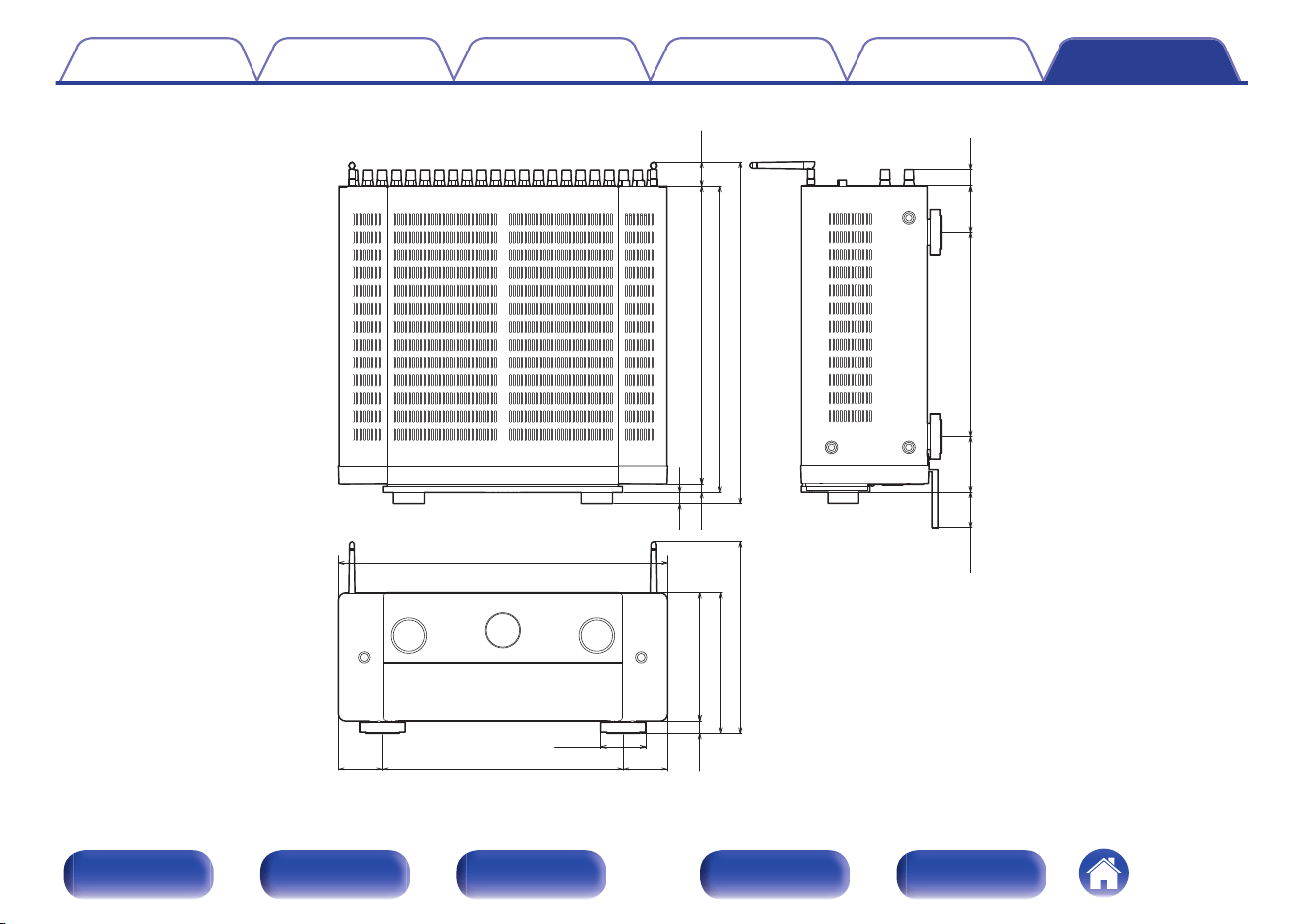
o
Dimensions (Unit : in. (mm))
2.4 (60)
0.7
(17)
2.4 (62)
0.9
(22)
1.9 (47) 10.7 (273)3.0 (75)
6.8 (172)
7.5 (189)
10.1 (257)
17.4 (442)
2.4 (60)
12.7 (322)
2.4 (60)
0.4
(11)
0.6
(15)
15.7 (399)
16.1 (410)
18.0 (457)
1.3
(32)
o
Weight: 42 lb 8 oz (19.4 kg)
Contents Connections Playback Settings Tips Appendix
354
Front panel Display Rear panel Remote Index
Index
v Numerics
11.1-channel .................................................. 60
13.1-channel .................................................. 65
3D ................................................................ 317
4K/8K ........................................................... 315
5.1-channel .................................................... 52
7.1-channel .................................................... 53
9.1-channel .................................................... 55
v A
AirPlay .......................................................... 131
All Zone Stereo ............................................ 143
Audio formats ....................... 318, 321, 323, 324
Audio settings ....................................... 183, 189
Audyssey Dynamic EQ® ............................. 333
Audyssey Dynamic Volume® ...................... 333
Audyssey LFC™ .......................................... 333
Audyssey MultEQ® XT32 ............................ 333
Audyssey settings ................................ 199, 222
Audyssey Sub EQ HT™ ............................... 221
Audyssey® Setup ........................................ 220
Auto sound mode ......................................... 148
Auto Standby ............................................... 271
v B
Bi-amp ............................................................ 68
Bluetooth device .......................................... 101
Blu-ray Disc player ................................... 81, 96
v C
Cable TV ........................................................ 79
v D
Dirac Live ..................................................... 257
Direct sound mode ....................................... 153
Display ........................................................... 25
Dolby Atmos ................................................. 335
Dolby sound mode ............................... 149, 335
DTS sound mode ................................. 150, 337
DVD player ............................................... 81, 96
v E
ECO Mode ................................................... 268
External control device ................................... 89
v F
Factory Restore ............................................ 314
Firmware Update .......................................... 279
FM/AM antenna ...................................... 85, 109
Front panel ..................................................... 20
v G
Game console ................................................ 82
General settings ................................... 186, 268
v H
HDCP ........................................................... 318
HDMI Control ....................................... 159, 207
HEOS Account ..................................... 123, 267
HEOS Favorites ........................................... 137
v I
Input Assign ................................................. 215
Input settings ........................................ 184, 215
Input source ................................................... 95
Internet Radio ............................................... 116
v L
Listening position ......................................... 220
v M
M-DAX ......................................................... 197
Menu map .................................................... 183
Muting ............................................................ 96
v N
NAS ............................................................. 118
Network settings .......................................... 258
Contents
Connections Playback Settings Tips Appendix
355
Front panel Display Rear panel Remote Index
v O
Original sound mode .................................... 152
v P
Pairing .................................................. 101, 102
PC ................................................................ 118
PCM multi-channel sound mode .................. 152
Protection circuit .......................................... 343
Pure direct .................................................... 148
v Q
Qobuz Connect ............................................ 265
Queue ............................................ 98, 119, 126
v R
Rear panel ...................................................... 29
Remote control unit ........................................ 33
Resetting factory settings ............................. 312
Resetting network settings ........................... 313
Roon Ready ................................................. 265
v S
Satellite tuner ................................................. 79
Set-top box ..................................................... 79
Setup Assistant ............................................ 187
Sleep timer ................................................... 160
Smart select ................................................. 162
Sound mode ................................................. 146
Speaker connection ....................................... 43
Speaker settings .................................. 184, 220
Spotify .......................................................... 134
Stereo sound mode ...................................... 153
v T
TIDAL Connect ............................................ 265
Tips .............................................................. 288
Troubleshooting ........................................... 290
TV ............................................................ 76, 77
v U
USB memory device ................................ 84, 97
v V
Video Select ................................................. 142
Video settings ....................................... 183, 205
Volume ................................................... 96, 138
v W
Web control .................................................. 169
Wi-Fi settings ............................................... 259
Wired LAN .............................................. 87, 258
Wireless LAN ......................................... 88, 259
v Z
ZONE2/ZONE3 ...................................... 71, 173
Contents Connections Playback Settings Tips Appendix
356
Front panel Display Rear panel Remote Index

3520 10953 00ASG
©2023 DEI Sales, Inc. All Rights Reserved.
357