© 2022 TP-Link 1910020947
REV1.0.0
User Guide
BBA GPON Routers

Contents
About This Guide 1
Chapter 1 Get to Know About Your GPON Router 3
1. 1. Product Overview. . . . . . . . . . . . . . . . . . . . . . . . . . . . . . . . . . . . . . . . . . . . . . . . . . . . . . . . . . . . 4
1. 2. Appearance . . . . . . . . . . . . . . . . . . . . . . . . . . . . . . . . . . . . . . . . . . . . . . . . . . . . . . . . . . . . . . . . . 4
1. 2. 1. Top Panel . . . . . . . . . . . . . . . . . . . . . . . . . . . . . . . . . . . . . . . . . . . . . . . . . . . . . . . . . . . . . 4
1. 2. 2. The Back Panel. . . . . . . . . . . . . . . . . . . . . . . . . . . . . . . . . . . . . . . . . . . . . . . . . . . . . . . . 6
Chapter 2 Connect the Hardware 8
2. 1. Position Your GPON Router . . . . . . . . . . . . . . . . . . . . . . . . . . . . . . . . . . . . . . . . . . . . . . . . . . 9
2. 2. Connect Your GPON Router . . . . . . . . . . . . . . . . . . . . . . . . . . . . . . . . . . . . . . . . . . . . . . . . . . 9
Chapter 3 Log In to Your GPON Router 12
Chapter 4 Set Up Internet Connection 14
4. 1. Use Quick Setup Wizard . . . . . . . . . . . . . . . . . . . . . . . . . . . . . . . . . . . . . . . . . . . . . . . . . . . . 15
4. 2. Quick Setup Via TP-Link Aginet App . . . . . . . . . . . . . . . . . . . . . . . . . . . . . . . . . . . . . . . . 16
4. 3. Manually Set Up Your Internet Connection . . . . . . . . . . . . . . . . . . . . . . . . . . . . . . . . . . 17
4. 3. 1. Set Up Internet Connection in GPON Router Mode . . . . . . . . . . . . . . . . . . . . 17
4. 3. 2. Set Up Internet Connection in Wireless Router Mode . . . . . . . . . . . . . . . . . 17
4. 4. Test Internet Connectivity . . . . . . . . . . . . . . . . . . . . . . . . . . . . . . . . . . . . . . . . . . . . . . . . . . 18
4. 5. Set Up an IPv6 Internet Connection . . . . . . . . . . . . . . . . . . . . . . . . . . . . . . . . . . . . . . . . . 19
4. 5. 1. Set Up Internet Connection in GPON Router Mode . . . . . . . . . . . . . . . . . . . . 19
4. 5. 2. Set Up Internet Connection in Wireless Router Mode . . . . . . . . . . . . . . . . . 20
4. 6. IPv6 Tunnel . . . . . . . . . . . . . . . . . . . . . . . . . . . . . . . . . . . . . . . . . . . . . . . . . . . . . . . . . . . . . . . . . 21
Chapter 5 Setup Your Network via TP-Link Aginet App 24
5. 1. Set Up Your Router. . . . . . . . . . . . . . . . . . . . . . . . . . . . . . . . . . . . . . . . . . . . . . . . . . . . . . . . . . 25
5. 2. Dashboard. . . . . . . . . . . . . . . . . . . . . . . . . . . . . . . . . . . . . . . . . . . . . . . . . . . . . . . . . . . . . . . . . . 28
5. 3. Add More Mesh Devices . . . . . . . . . . . . . . . . . . . . . . . . . . . . . . . . . . . . . . . . . . . . . . . . . . . . 30
5. 4. Check Mesh Device Status . . . . . . . . . . . . . . . . . . . . . . . . . . . . . . . . . . . . . . . . . . . . . . . . . 31
5. 5. Remove/Reboot Mesh Devices . . . . . . . . . . . . . . . . . . . . . . . . . . . . . . . . . . . . . . . . . . . . . 34
5. 6. Manage Connected Devices . . . . . . . . . . . . . . . . . . . . . . . . . . . . . . . . . . . . . . . . . . . . . . . . 35
5. 7. Create a New Network . . . . . . . . . . . . . . . . . . . . . . . . . . . . . . . . . . . . . . . . . . . . . . . . . . . . . . 36
5. 8. Parental Controls . . . . . . . . . . . . . . . . . . . . . . . . . . . . . . . . . . . . . . . . . . . . . . . . . . . . . . . . . . . 37
5. 9. Wi-Fi Settings . . . . . . . . . . . . . . . . . . . . . . . . . . . . . . . . . . . . . . . . . . . . . . . . . . . . . . . . . . . . . . 38

5. 10. Guest Network. . . . . . . . . . . . . . . . . . . . . . . . . . . . . . . . . . . . . . . . . . . . . . . . . . . . . . . . . . . . . . 39
5. 11. Internet Connection . . . . . . . . . . . . . . . . . . . . . . . . . . . . . . . . . . . . . . . . . . . . . . . . . . . . . . . . 40
5. 12. Block List . . . . . . . . . . . . . . . . . . . . . . . . . . . . . . . . . . . . . . . . . . . . . . . . . . . . . . . . . . . . . . . . . . . 42
5. 13. Upgrade Your Router. . . . . . . . . . . . . . . . . . . . . . . . . . . . . . . . . . . . . . . . . . . . . . . . . . . . . . . . 43
5. 14. Advanced Features . . . . . . . . . . . . . . . . . . . . . . . . . . . . . . . . . . . . . . . . . . . . . . . . . . . . . . . . . 44
Chapter 6 VoIP 48
6. 1. Connecting the Telephone . . . . . . . . . . . . . . . . . . . . . . . . . . . . . . . . . . . . . . . . . . . . . . . . . . 49
6. 2. Entering Telephone Information. . . . . . . . . . . . . . . . . . . . . . . . . . . . . . . . . . . . . . . . . . . . . 49
6. 3. Telephone Book . . . . . . . . . . . . . . . . . . . . . . . . . . . . . . . . . . . . . . . . . . . . . . . . . . . . . . . . . . . . 51
6. 3. 1. Telephone Book . . . . . . . . . . . . . . . . . . . . . . . . . . . . . . . . . . . . . . . . . . . . . . . . . . . . . . 51
6. 3. 2. Emergency Calls . . . . . . . . . . . . . . . . . . . . . . . . . . . . . . . . . . . . . . . . . . . . . . . . . . . . . 52
6. 4. Telephony Devices Management. . . . . . . . . . . . . . . . . . . . . . . . . . . . . . . . . . . . . . . . . . . . 53
6. 5. Call Log . . . . . . . . . . . . . . . . . . . . . . . . . . . . . . . . . . . . . . . . . . . . . . . . . . . . . . . . . . . . . . . . . . . . 55
6. 6. Digit Map . . . . . . . . . . . . . . . . . . . . . . . . . . . . . . . . . . . . . . . . . . . . . . . . . . . . . . . . . . . . . . . . . . . 55
6. 7. Call Blocks. . . . . . . . . . . . . . . . . . . . . . . . . . . . . . . . . . . . . . . . . . . . . . . . . . . . . . . . . . . . . . . . . . 56
6. 7. 1. Do Not Disturb . . . . . . . . . . . . . . . . . . . . . . . . . . . . . . . . . . . . . . . . . . . . . . . . . . . . . . . 56
6. 7. 2. Blocking Certain Calls . . . . . . . . . . . . . . . . . . . . . . . . . . . . . . . . . . . . . . . . . . . . . . . . 56
6. 7. 3. Prevent from Dialing. . . . . . . . . . . . . . . . . . . . . . . . . . . . . . . . . . . . . . . . . . . . . . . . . . 57
6. 8. Call Forwarding . . . . . . . . . . . . . . . . . . . . . . . . . . . . . . . . . . . . . . . . . . . . . . . . . . . . . . . . . . . . . 58
6. 9. Voice Mail Settings . . . . . . . . . . . . . . . . . . . . . . . . . . . . . . . . . . . . . . . . . . . . . . . . . . . . . . . . . 59
Chapter 7 Customize Your Network Settings 61
7. 1. Configure LAN Settings. . . . . . . . . . . . . . . . . . . . . . . . . . . . . . . . . . . . . . . . . . . . . . . . . . . . . 62
7. 1. 1. Change the LAN IP Address . . . . . . . . . . . . . . . . . . . . . . . . . . . . . . . . . . . . . . . . . . 62
7. 1. 2. Use the Router as a DHCP Server. . . . . . . . . . . . . . . . . . . . . . . . . . . . . . . . . . . . . 63
7. 1. 3. Reserve LAN IP Addresses . . . . . . . . . . . . . . . . . . . . . . . . . . . . . . . . . . . . . . . . . . . 64
7. 2. Configure IPv6 LAN Settings. . . . . . . . . . . . . . . . . . . . . . . . . . . . . . . . . . . . . . . . . . . . . . . . 64
7. 2. 1. Configure the RADVD Address Type . . . . . . . . . . . . . . . . . . . . . . . . . . . . . . . . . . 65
7. 2. 2. Configure the DHCPv6 Server Address Type . . . . . . . . . . . . . . . . . . . . . . . . . 65
7. 3. Configure GPON Settings . . . . . . . . . . . . . . . . . . . . . . . . . . . . . . . . . . . . . . . . . . . . . . . . . . . 66
7. 4. Set Up a Dynamic DNS Service Account . . . . . . . . . . . . . . . . . . . . . . . . . . . . . . . . . . . . 67
7. 5. Create Static Routes. . . . . . . . . . . . . . . . . . . . . . . . . . . . . . . . . . . . . . . . . . . . . . . . . . . . . . . . 67
7. 6. RIP Settings . . . . . . . . . . . . . . . . . . . . . . . . . . . . . . . . . . . . . . . . . . . . . . . . . . . . . . . . . . . . . . . . 70
7. 7. Specify Wireless Settings. . . . . . . . . . . . . . . . . . . . . . . . . . . . . . . . . . . . . . . . . . . . . . . . . . . 71
7. 7. 1. Change Basic Wireless Settings . . . . . . . . . . . . . . . . . . . . . . . . . . . . . . . . . . . . . . 71
7. 7. 2. Advanced Wireless Settings. . . . . . . . . . . . . . . . . . . . . . . . . . . . . . . . . . . . . . . . . . 73
7. 7. 3. View Wireless Information . . . . . . . . . . . . . . . . . . . . . . . . . . . . . . . . . . . . . . . . . . . . 76
7. 8. Schedule Your Wireless Function . . . . . . . . . . . . . . . . . . . . . . . . . . . . . . . . . . . . . . . . . . . 77

7. 9. Use WPS for Wireless Connection . . . . . . . . . . . . . . . . . . . . . . . . . . . . . . . . . . . . . . . . . . 78
Chapter 8 Multi-SSID 81
Chapter 9 TP-Link Cloud Service 83
9. 1. Register a TP-Link ID. . . . . . . . . . . . . . . . . . . . . . . . . . . . . . . . . . . . . . . . . . . . . . . . . . . . . . . . 84
9. 2. Change Your TP-Link ID Information. . . . . . . . . . . . . . . . . . . . . . . . . . . . . . . . . . . . . . . . . 84
9. 3. Manage the User TP-Link IDs . . . . . . . . . . . . . . . . . . . . . . . . . . . . . . . . . . . . . . . . . . . . . . . 85
9. 3. 1. Add TP-Link ID to Manage the GPON Router . . . . . . . . . . . . . . . . . . . . . . . . . . 86
9. 3. 2. Remove TP-Link ID(s) from Managing the GPON Router . . . . . . . . . . . . . . . 86
9. 4. Manage the GPON Router via the TP-Link Aginet App . . . . . . . . . . . . . . . . . . . . . . . 87
Chapter 10 USB Settings 88
10. 1. Access the USB Storage Device . . . . . . . . . . . . . . . . . . . . . . . . . . . . . . . . . . . . . . . . . . . . 89
10. 1. 1. Access the USB Device Locally . . . . . . . . . . . . . . . . . . . . . . . . . . . . . . . . . . . . . 89
10. 1. 2. Access the USB Device Remotely . . . . . . . . . . . . . . . . . . . . . . . . . . . . . . . . . . . 90
10. 1. 3. Customize the Access Settings . . . . . . . . . . . . . . . . . . . . . . . . . . . . . . . . . . . . . 92
10. 2. Media Sharing . . . . . . . . . . . . . . . . . . . . . . . . . . . . . . . . . . . . . . . . . . . . . . . . . . . . . . . . . . . . . . 94
10. 3. 3G/4G Settings . . . . . . . . . . . . . . . . . . . . . . . . . . . . . . . . . . . . . . . . . . . . . . . . . . . . . . . . . . . . . 95
Chapter 11 EasyMesh with Seamless Roaming 97
11. 1. Set Up a EasyMesh Network . . . . . . . . . . . . . . . . . . . . . . . . . . . . . . . . . . . . . . . . . . . . . . . . 98
11. 2. Manage Devices in the EasyMesh Network. . . . . . . . . . . . . . . . . . . . . . . . . . . . . . . . .100
Chapter 12 Guest Network 102
12. 1. Create a Network for Guests . . . . . . . . . . . . . . . . . . . . . . . . . . . . . . . . . . . . . . . . . . . . . .103
12. 2. Customize Guest Network Options. . . . . . . . . . . . . . . . . . . . . . . . . . . . . . . . . . . . . . . . .103
Chapter 13 NAT Forwarding 105
13. 1. ALG . . . . . . . . . . . . . . . . . . . . . . . . . . . . . . . . . . . . . . . . . . . . . . . . . . . . . . . . . . . . . . . . . . . . . . .106
13. 2. Set Up Public Services on The Local Network by Virtual Servers. . . . . . . . . . . .106
13. 3. Open Ports Dynamically by Port Triggering . . . . . . . . . . . . . . . . . . . . . . . . . . . . . . . . .108
13. 4. Make Applications Free from Port Restriction by DMZ . . . . . . . . . . . . . . . . . . . . . .110
13. 5. Make Xbox Online Games Run Smoothly by UPnP . . . . . . . . . . . . . . . . . . . . . . . . . .111
Chapter 14 Parental Controls 113
Chapter 15 Quality of Service 118

15. 1. Set up QoS for the network . . . . . . . . . . . . . . . . . . . . . . . . . . . . . . . . . . . . . . . . . . . . . . . .119
15. 2. Configure Queue Settings . . . . . . . . . . . . . . . . . . . . . . . . . . . . . . . . . . . . . . . . . . . . . . . . .119
15. 3. Configure Flow Classification . . . . . . . . . . . . . . . . . . . . . . . . . . . . . . . . . . . . . . . . . . . . . .121
Chapter 16 Network Security 124
16. 1. Firewall & DoS Protection . . . . . . . . . . . . . . . . . . . . . . . . . . . . . . . . . . . . . . . . . . . . . . . . . .125
16. 2. Service Filtering . . . . . . . . . . . . . . . . . . . . . . . . . . . . . . . . . . . . . . . . . . . . . . . . . . . . . . . . . . .126
16. 3. Access Control . . . . . . . . . . . . . . . . . . . . . . . . . . . . . . . . . . . . . . . . . . . . . . . . . . . . . . . . . . . .127
16. 4. IP & MAC Binding . . . . . . . . . . . . . . . . . . . . . . . . . . . . . . . . . . . . . . . . . . . . . . . . . . . . . . . . . .129
Chapter 17 VPN Server&Client 131
17. 1. Use OpenVPN to Access Your Home Network . . . . . . . . . . . . . . . . . . . . . . . . . . . . . .132
17. 2. Use PPTP VPN to Access Your Home Network . . . . . . . . . . . . . . . . . . . . . . . . . . . . .133
17. 3. Use IPSec VPN to Access Your Home Network . . . . . . . . . . . . . . . . . . . . . . . . . . . . .137
17. 4. VPN Connections. . . . . . . . . . . . . . . . . . . . . . . . . . . . . . . . . . . . . . . . . . . . . . . . . . . . . . . . . .146
Chapter 18 Manage Your GPON Router 147
18. 1. Set System Time . . . . . . . . . . . . . . . . . . . . . . . . . . . . . . . . . . . . . . . . . . . . . . . . . . . . . . . . . .148
18. 2. Control the LED. . . . . . . . . . . . . . . . . . . . . . . . . . . . . . . . . . . . . . . . . . . . . . . . . . . . . . . . . . . .149
18. 3. Test Internet Connectivity . . . . . . . . . . . . . . . . . . . . . . . . . . . . . . . . . . . . . . . . . . . . . . . . .149
18. 4. Update the Firmware. . . . . . . . . . . . . . . . . . . . . . . . . . . . . . . . . . . . . . . . . . . . . . . . . . . . . . .150
18. 5. Back Up and Restore Configuration Settings . . . . . . . . . . . . . . . . . . . . . . . . . . . . . . .151
18. 6. Reboot the GPON Router . . . . . . . . . . . . . . . . . . . . . . . . . . . . . . . . . . . . . . . . . . . . . . . . . .152
18. 7. Administration Management . . . . . . . . . . . . . . . . . . . . . . . . . . . . . . . . . . . . . . . . . . . . . . .153
18. 7. 1. Change the Login Password. . . . . . . . . . . . . . . . . . . . . . . . . . . . . . . . . . . . . . . .153
18. 7. 2. Local Management . . . . . . . . . . . . . . . . . . . . . . . . . . . . . . . . . . . . . . . . . . . . . . . .154
18. 7. 3. Remote Management . . . . . . . . . . . . . . . . . . . . . . . . . . . . . . . . . . . . . . . . . . . . . .155
18. 7. 4. HTTP Referer Head Check . . . . . . . . . . . . . . . . . . . . . . . . . . . . . . . . . . . . . . . . .156
18. 7. 5. ICMP Ping . . . . . . . . . . . . . . . . . . . . . . . . . . . . . . . . . . . . . . . . . . . . . . . . . . . . . . . . .156
18. 7. 6. Session ID . . . . . . . . . . . . . . . . . . . . . . . . . . . . . . . . . . . . . . . . . . . . . . . . . . . . . . . . .157
18. 8. System Log. . . . . . . . . . . . . . . . . . . . . . . . . . . . . . . . . . . . . . . . . . . . . . . . . . . . . . . . . . . . . . . .157
18. 9. CWMP Settings. . . . . . . . . . . . . . . . . . . . . . . . . . . . . . . . . . . . . . . . . . . . . . . . . . . . . . . . . . . .159
18. 10. SNMP Settings . . . . . . . . . . . . . . . . . . . . . . . . . . . . . . . . . . . . . . . . . . . . . . . . . . . . . . . . . . . .160
18. 11. Monitor the Internet Traffic Statistics. . . . . . . . . . . . . . . . . . . . . . . . . . . . . . . . . . . . . . .162
FAQ 164
1
About This Guide
This guide is a complement of Quick Installation Guide. The Quick Installation Guide
instructs you on quick internet setup, and this guide provides details of each function
and shows you the way to configure these functions appropriate to your needs.
Note: Features available in the router may vary by model and software version. Router
availability may also vary by region or ISP. All images, steps, and descriptions in this
guide are only examples and may not reflect your actual Router experience.
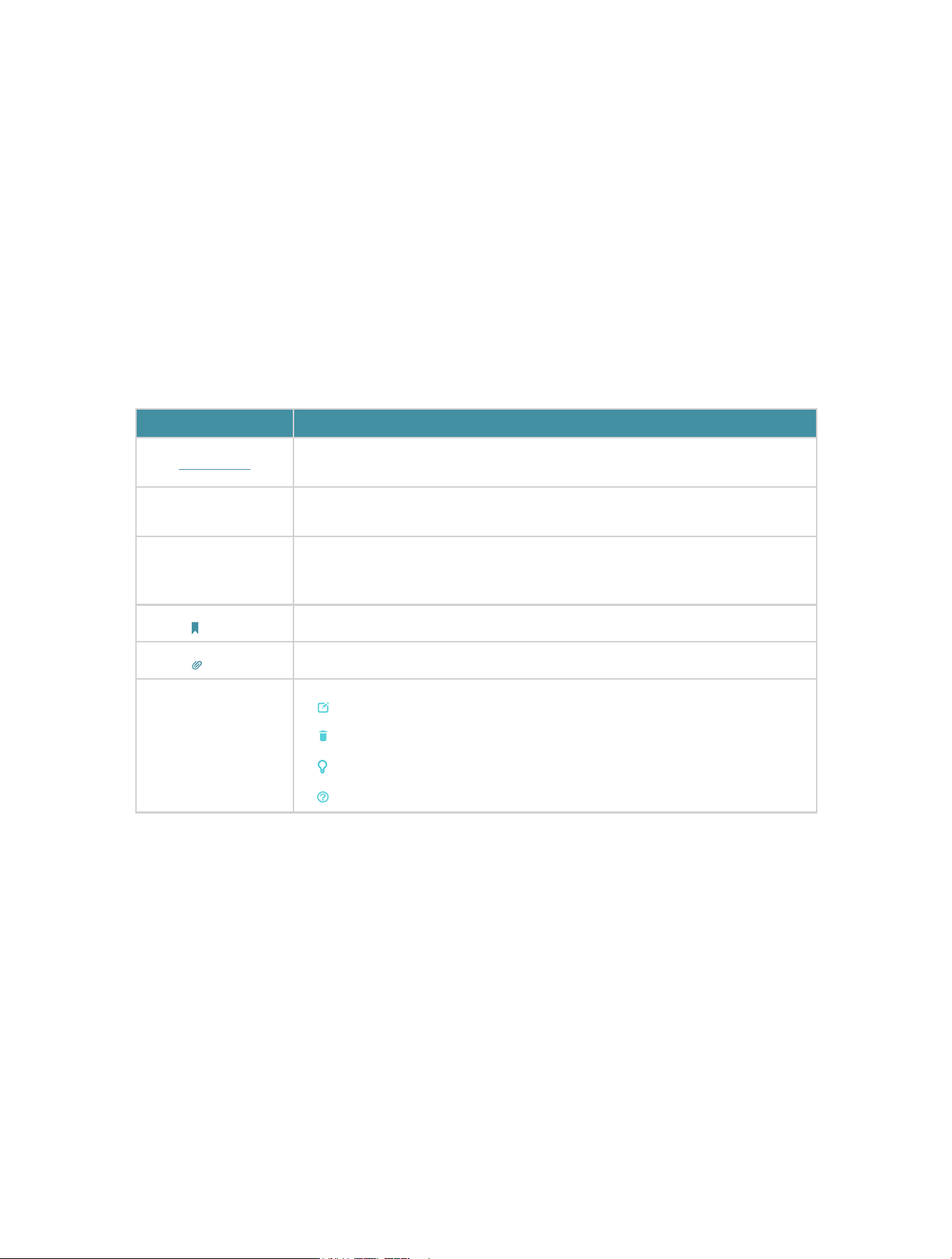
Conventions
In this guide the following conventions are used:
Convention Description
Underlined
Underlined words or phrases are hyperlinks. You can click to redirect to a
website or a specific section.
Teal
Contents to be emphasized and texts on the web page are in teal, including the
menus, items, buttons, etc.
>
The menu structures to show the path to load the corresponding page. For
example, Advanced > Wireless > WDS means the WDS function page is under
the Wireless menu that is located in the Advanced tab.
Note:
Ignoring this type of note might result in a malfunction or damage to the device.
Tips:
Indicates important information that helps you make better use of your device.
symbols on the web
page
•
Click to edit the corresponding entry.
•
Click to delete the corresponding entry.
•
click to enable or disable the corresponding entry.
•
Click to view more information about items on the page.
More Info
The Quick Installation Guide can be found where you find this guide or inside the
package of the router.
*Maximum wireless signal rates are the physical rates derived from IEEE Standard
802.11 specifications. Actual wireless data throughput and wireless coverage are
not guaranteed and will vary as a result of 1) environmental factors, including building
materials, physical objects, and obstacles, 2) network conditions, including local
interference, volume and density of traffic, product location, network complexity, and
network overhead, and 3) client limitations, including rated performance, location,
connection, quality, and client condition.

2
*Use of Wi-Fi 6 (802.11ax), and features including OFDMA, MU-MIMO, 1024-QAM, and
HT160 require clients to also support the corresponding features.
*Saving clients’ battery power requires clients to also support the 802.11ax Wi-Fi
standard. Actual power reduction may vary as a result of network conditions, client
limitations, and environmental factors.
*Use of WPA3 requires clients to also support the corresponding feature.
*This router may not support all the mandatory features as ratified in Draft 3.0 of IEEE
802.11ax specification.
*Further software upgrades for feature availability may be required.


4
Chapter 1
Get to Know About Your GPON Router
1 1 Product Overview
TP-Link’s GPON router is a combined wired/wireless network connection device with
integrated high speed GPON ONT, NAT router, 4-port switch, and wireless access point,
reducing hassle of configuration and saving space.
With extremely high downstream and upstream access speed, the router gives you
unparalleled surfing experience.
With Ethernet ports and antennas, the router provides wired and wireless access for
multiple computers and mobile devices.
With various features and functions, the router is the perfect hub for your home or
business network.
Note: The appearance of the product is for illustration only, it may be different from your device, please refer to the
actual product.
1 2 Appearance
1 2 1 Top Panel
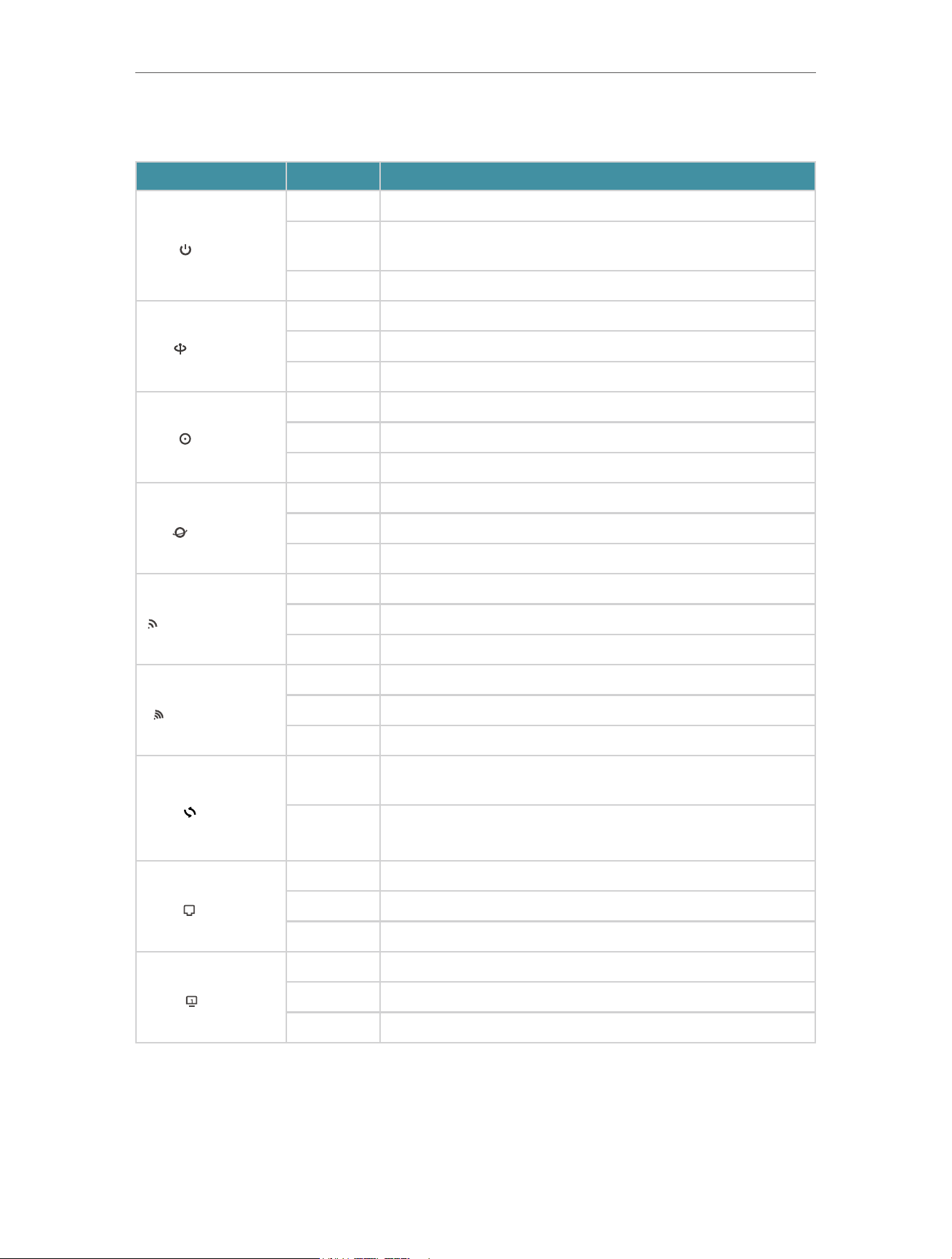
The GPON router’s LEDs (view from left to right) are located on the front. You can check
the GPON router’s working status by following the LED Explanation table.
5
Chapter 1
Get to Know About Your GPON Router
Some Common LEDs Explanation
LED Status Indication
(Power)
On The system is starting up or has started up successfully.
Flashing
The system is rebooting or the firmware is being upgraded. Do
not disconnect or power off your router.
Off Power is off.
(GPON)
On The router is registered with the ISP.
Flashing The router is trying to register with the ISP.
Off The router is not yet registered with the ISP.
(LOS)
On The router is unable to transmit optical signal.
Flashing No optical signal is received or the received signal is too weak.
Off The router is receiving optical signal properly.
(Internet)
On Internet service is available.
Flashing The router is transmitting or receiving data.
Off The router’s WAN port is unplugged.
(2.4GHz Wireless)
On The 2.4GHz wireless band is enabled.
Flashing The router is transmitting or receiving data via 2.4GHz band.
Off The 2.4GHz wireless band is disabled.
(5GHz Wireless)
On The 5GHz wireless band is enabled.
Flashing The router is transmitting or receiving data via 5GHz band.
Off The 5GHz wireless band is disabled.
(WPS)
On/Off
Turns on when a WPS synchronization is established and
automatically turns off about 5 minutes later.
Flashing
A wireless device is trying to connect to the network via WPS.
This process may take up to 2 minutes.
(WAN)
On A device is connected to the WAN port.
Flashing The WAN port is sending or receiving data.
Off No device is connected to the WAN port.
(LAN)
On A device is connected to the LAN port.
Flashing The LAN port is sending or receiving data.
Off No device is connected to the LAN port.
6
Chapter 1
Get to Know About Your GPON Router
Some Common LEDs Explanation
LED Status Indication
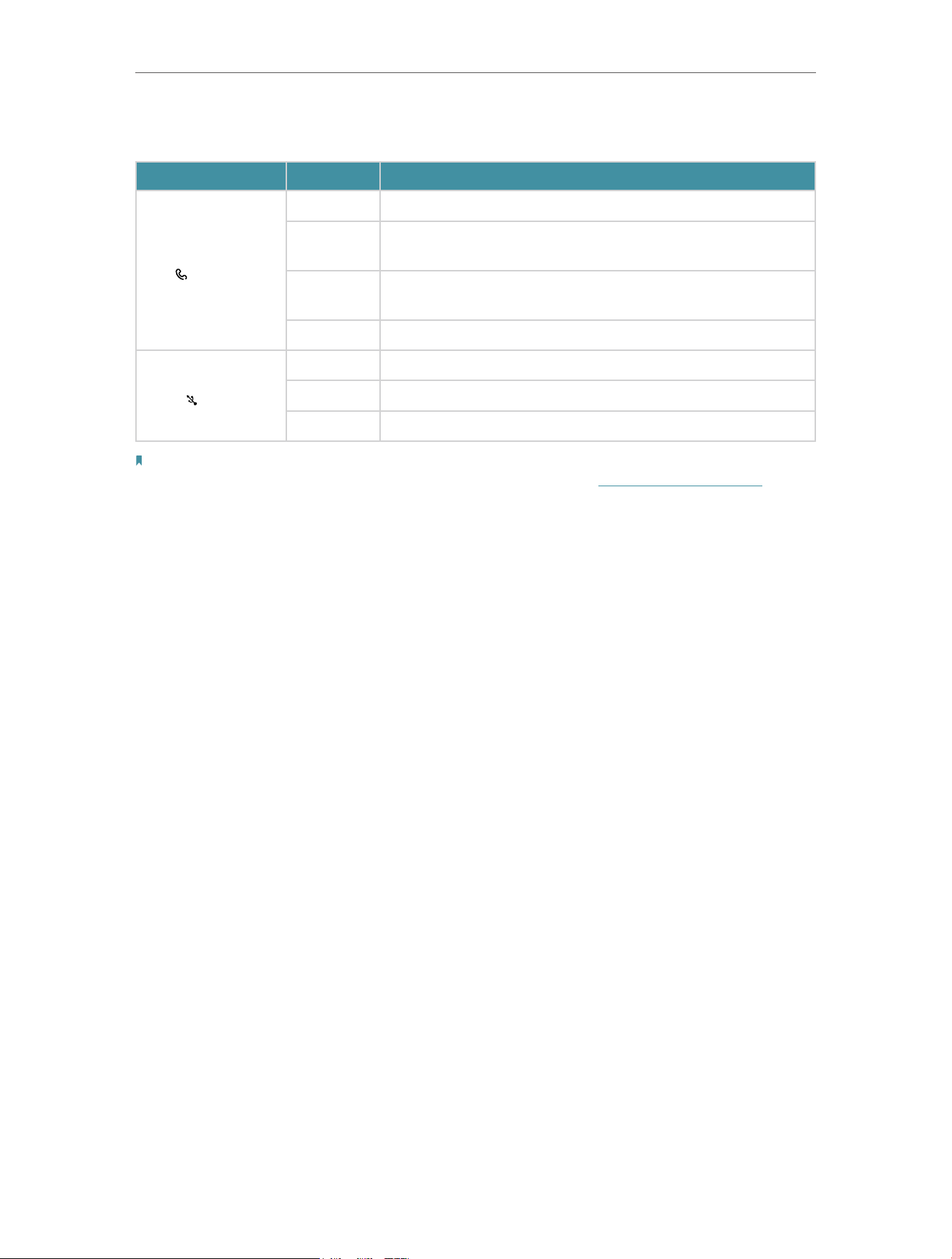
(PHONE)
On The SIP account is registered successfully.
Flashing
Slowly
The phone is on-hook and there are voice messages.
Flashing
Quickly
The phone is ringing.
Off No SIP account is registered.
(USB)
On The USB device is identified and ready to use.
Flashing A new USB device is being identified, or data is being transferred.
Off No USB device is plugged in to the USB port.
Note:
1. If the GPON LED is off, please check your Internet connection first. Refer to Connect Your GPON Router for more
information about how to make Internet connection correctly. If you have already made a right connection, please
contact your ISP to make sure your Internet service is available now.
1 2 2 The Back Panel
The following parts (view from left to right) are located on the back panel.

7
Chapter 1
Get to Know About Your GPON Router
Some Common Buttons and Ports Explanation
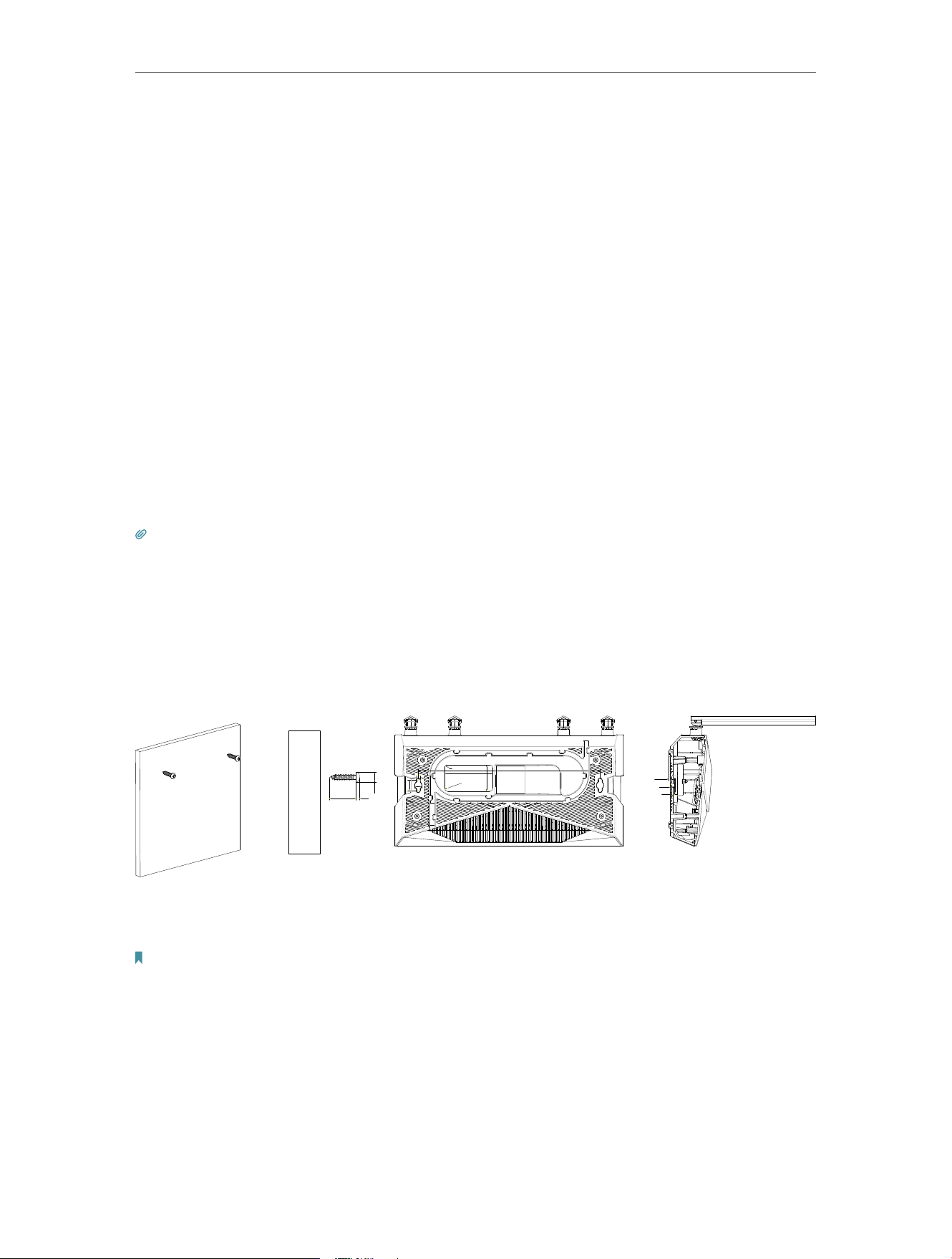
Item Description
GPON
For connecting the GPON router to the internet. Connect the port to the
splitter via a fiber cable. For details, please refer to Get to Know About Your
GPON Router.
LAN1, LAN2, LAN3,
LAN4/WAN Ports
For connecting the GPON router to your PC or other Ethernet network
devices.
Phone
For connecting your analog phone to the GPON router. Note that you can
only connect to two ports (one to a Phone1 and the other to a Phone2) at
most.
POWER For connecting the router to power socket via the provided power adapter.
USB Port For connecting to a USB storage device.
ON/OFF The switch for the power. Press it to power on or off the router.
RESET
Press and hold this button for at least 5 seconds until all LEDs blink to reset
the router to its factory default settings.
Wi-Fi Press the button to turn both 2.4GHz and 5GHz Wi-Fi on or off.
WPS Press the button for 5 seconds to start a WPS synchronization.

9
Chapter 2
Connect the Hardware
2 1 Position Your GPON Router
With the GPON router, you can access your network from anywhere within the wireless
network coverage. However, the wireless signal strength and coverage varies depending
on the actual environment where your GPON router is in. Many obstacles may limit the
range of the wireless signal, for example, concrete structures, thick walls.
For your security and best Wi-Fi performance, please:
• Do Not locate the GPON router in the place where it will be exposed to moisture or
excessive heat.
• Keep away from the strong electromagnetic radiation and the device of
electromagnetic sensitive.
• Place the GPON router in a location where it can be connected to the various devices
as well as to a power source.
• Make sure the cables and power cord are safely placed out of the way so they do not
create a tripping hazard.
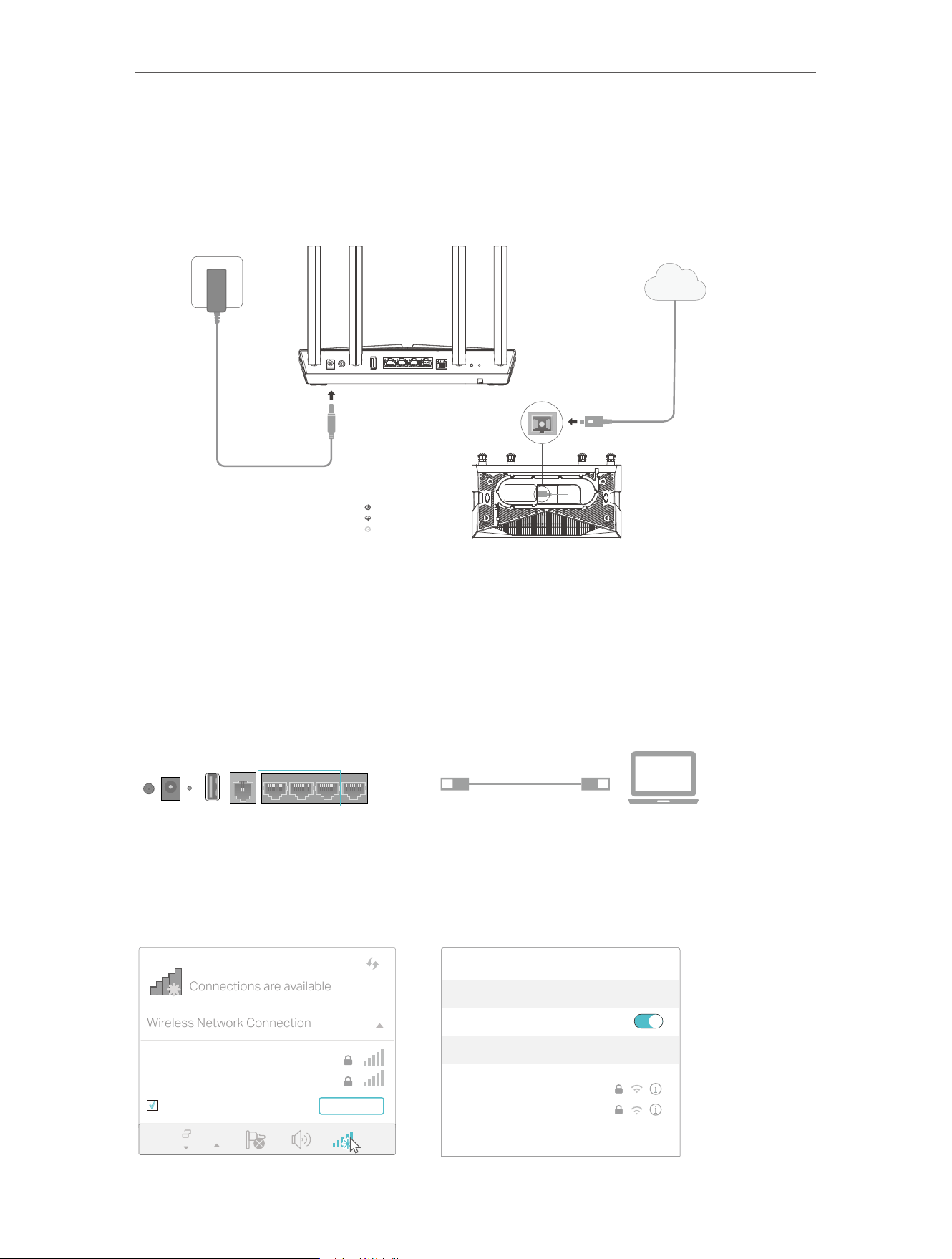
Tips: The GPON router can be placed on a shelf or desktop.
Generally, the router is placed on a horizontal surface, such as on a shelf or desktop.
The device also can be mounted on the wall, but please note that the installation height
should not higher than 2m.
55
30
3-R3.5
1.2
1.78
3
207
4
7.6
12
nD
L2 H
C2
NOTE:
4.5<D<7.1;
H<3;
L2>9
Note:
The diameter of the screw head, 4.5mm<D<7.1mm, and the distance of two screws is 207mm. The screw that project
from the wall need around 3mm based, and the length of the screw need to be at least 9mm to withstand the weight of
the product.
2 2 Connect Your GPON Router
Follow the steps below to connect your GPON router.
10
Chapter 2
Connect the Hardware
1. Connect the fiber line and power adapter. The electrical outlet shall be installed
near the device and shall be easily accessible.
3
Verify that the hardware connection is
correct by checking the following LEDs.
Power: On
GPON: On or Flashing
LOS: O
Fiber Line
1
Power Adapter
2
Internet
WPS/
Wi-Fi
ResetLAN1 LAN2 LAN3 Power
LAN4
/WAN
On/O FXSUSB
2 Connect your computer to the GPON router.
Method 1: Wired
Connect your computer’s Ethernet port to the LAN port on the GPON router via the
Ethernet cable.
Ethernet Cable
ON/OFF POWER RESET USB PHONE LAN3 LAN2 LAN1 WAN
Method 2: Wirelessly
Use the default SSID (Wireless Network Name) and Wireless Password printed on the
product label of the GPON router to connect wirelessly.
Computer Smart Device
Connections are available
Wireless Network Connection
Connect automatically Connect
√
TP-Link_XXXX
TP-Link_XXXX_5G
Wi-Fi
Wi-Fi
TP-Link_XXXX
TP-Link_XXXX_5G
CHOOSE A NETWORK...
Other...
< Settings

11
Chapter 2
Connect the Hardware
Method 3: Use the WPS button
Wireless devices that support WPS, including Android phones, tablets, most USB
network cards, can be connected to your router through this method. (WPS is not
supported by iOS devices.)
Note:
The WPS function cannot be configured if the wireless function of the router is disabled. Also, the WPS function will
be disabled if your wireless encryption is WEP or Enterprise. Please make sure the wireless function is enabled and is
configured with the appropriate encryption before configuring the WPS.
1 ) Tap the WPS icon on the device’s screen.
2 ) Immediately press the WPS button on your GPON router.
3 ) The WPS LED flashes for about two minutes during the WPS process.
4 ) When the WPS LED is on, the client device has successfully connected to the
GPON router.

Chapter 3
Log In to Your GPON Router
13
Chapter 3
Log In to Your GPON Router
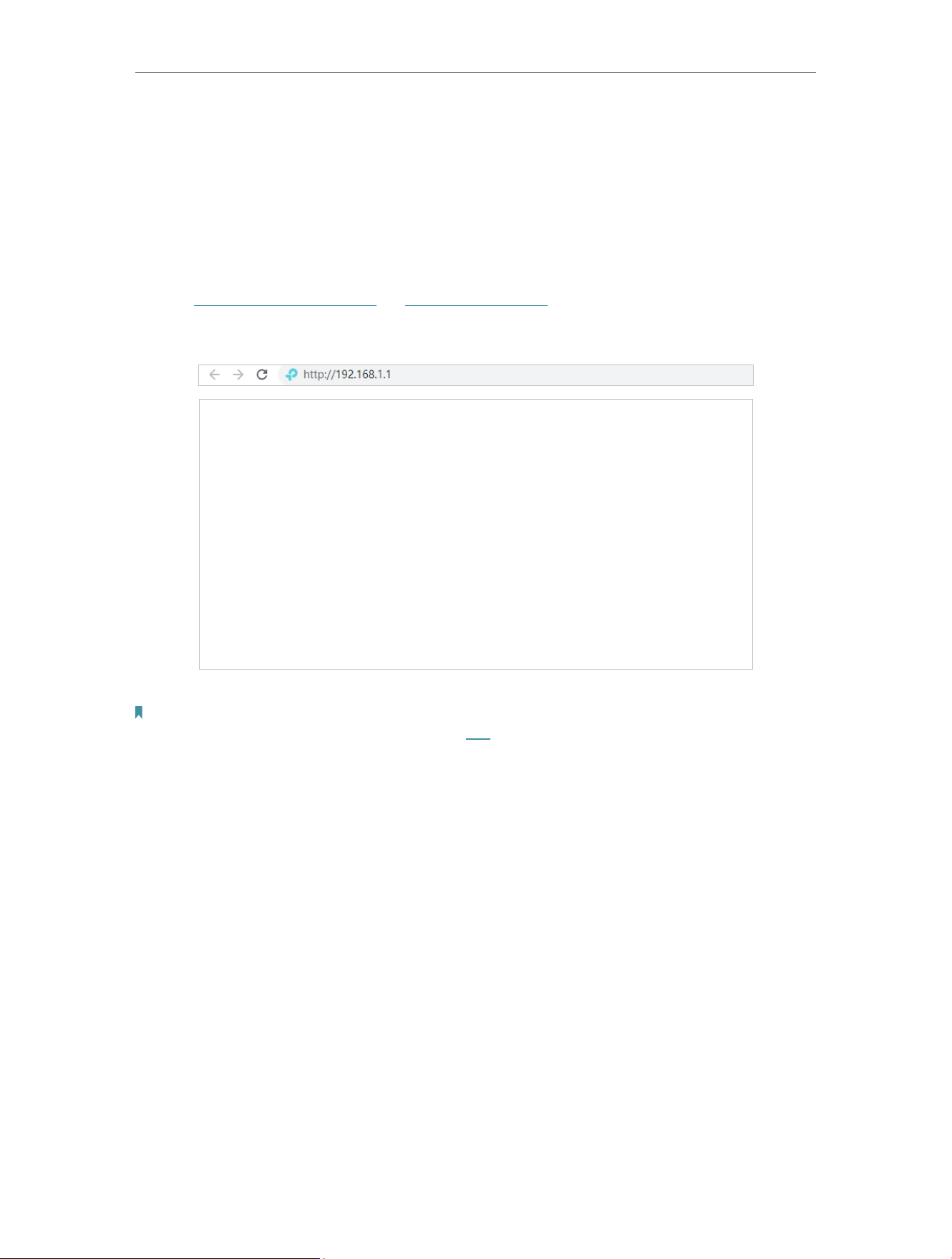
With a web-based utility, it is easy to configure and manage the router. The web-based
utility can be used on any Windows, Mac OS or UNIX OS with a Web browser, such as
Microsoft Internet Explorer, Mozilla Firefox or Apple Safari.
Follow the steps below to log in to your router.
1. Set up the TCP/IP Protocol in Obtain an IP address automatically mode on your
computer.
2. Visit http://tplinkmodem.net or http://192.168.1.1, and create a login password for
secure management purposes. Then click Save to log in.
Note:
• If the login window does not appear, please refer to the FAQ Section.

Chapter 4
Set Up Internet Connection
This chapter introduces how to connect your GPON router to the internet. The
GPON router is equipped with a web-based Quick Setup wizard. It has necessary ISP
information built in, automates many of the steps and verifies that those steps have
been successfully completed. Furthermore, you can also set up an IPv6 connection if
your ISP provides IPv6 service.
It contains the following sections:
• Use Quick Setup Wizard
• Quick Setup Via TP-Link Aginet App
• Manually Set Up Your Internet Connection
• Test Internet Connectivity
• Set Up an IPv6 Internet Connection
• IPv6 Tunnel

15
Chapter 4
Set Up Internet Connection
4 1 Use Quick Setup Wizard
The Quick Setup Wizard will guide you to set up your router.
Tips:
If you need the IPv6 internet connection, please refer to the section of Set Up an IPv6 Internet Connection.
Follow the steps below to set up your GPON router.
1. Visit http://tplinkmodem.net or http://192.168.1.1, and log in with the password you
set for the GPON router.
2. Follow the step-by-step instructions to complete Quick Setup configuration or go to
Quick Setup for configuration to connect your router to the internet. Then follow the
step-by-step instructions to connect your router to the internet.
3. To enjoy a more complete service from TP-Link (remote management, TP-Link DDNS,
and more.), log in with your TP-Link ID or click Sign Up Now to get one. Then follow the
instructions to bind the cloud router to your TP-Link ID.
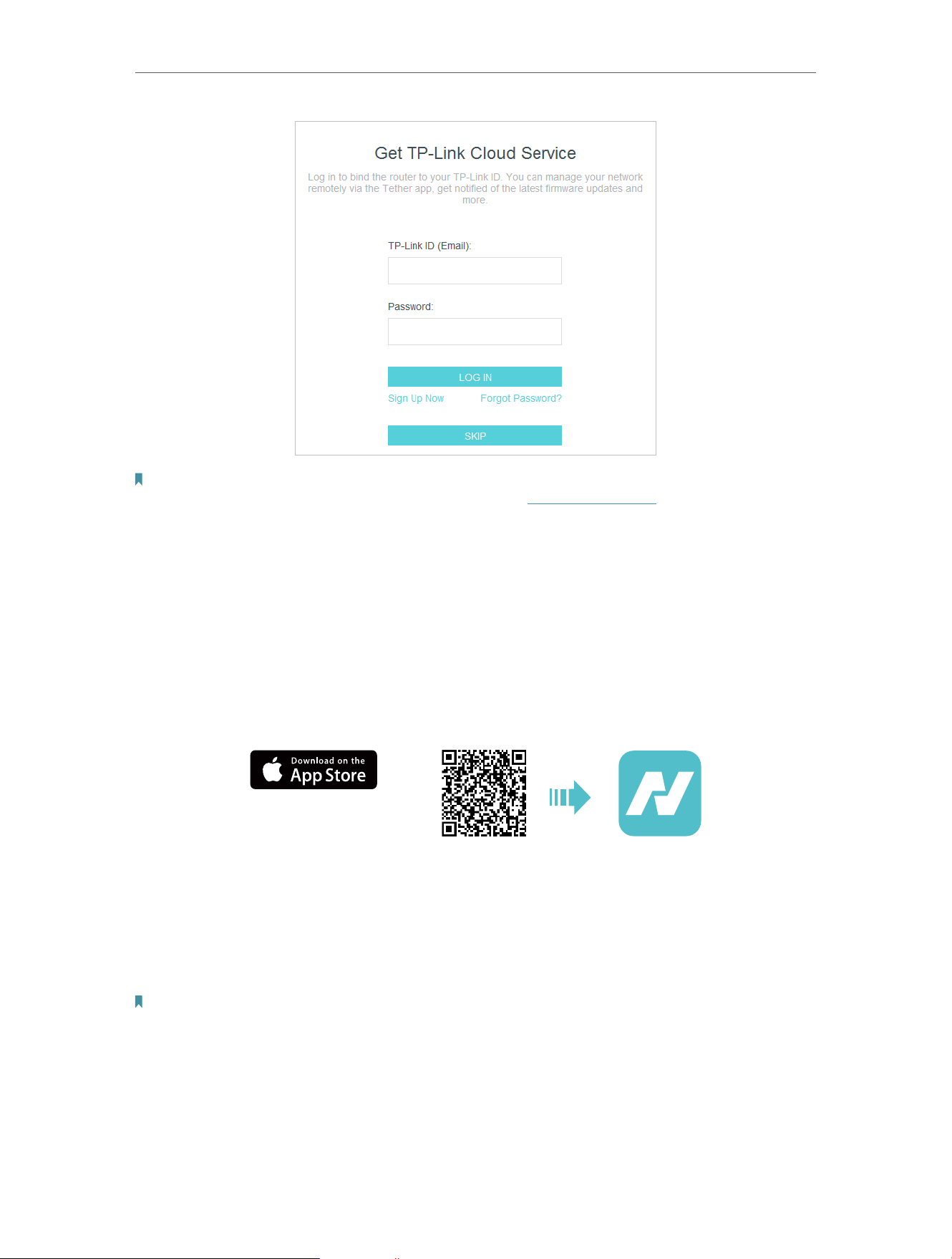
16
Chapter 4
Set Up Internet Connection
Note:
• To learn more about the TP-Link Cloud service, please refer to the TP-Link Cloud Service section.
• If you do not want to register a TP-Link ID now, you may click Skip to proceed.
• If you have changed the preset wireless network name (SSID) and wireless password during the Quick Setup process,
all your wireless devices must use the new SSID and password to connect to the router.
4 2 Quick Setup Via TP-Link Aginet App
The Aginet app runs on iOS and Android devices, such as smartphones and tablets.
1. Launch the Apple App Store or Google Play store and search “TP-Link Aginet” or
simply scan the QR code to download and install the app.
OR
2. Launch the Aginet app and log in with your TP-Link ID.
Note: If you don’t have a TP-Link ID, create one first.
3. Tap the Create a Network button and select how you will connect your device to the
internet. Follow the steps to complete the setup and connect to the internet.
4. Connect your devices to the newly configured wireless networks of the router and
enjoy the internet!

17
Chapter 4
Set Up Internet Connection
4 3 Manually Set Up Your Internet Connection
4 3 1 Set Up Internet Connection in GPON Router Mode
1 Visit http://tplinkmodem.net or http://192.168.1.1, and log in with the password you
set for the GPON router.
2 Go to Advanced > Network > GPON WAN page, click Add. Enter the information
provided by your ISP.
3 Click OK to make the settings effective, and you can refer to Test Internet
Connectivity to test the Internet connection.
Tips: You can view and edit all Internet connections on Advanced > Network >DSLWAN page.
4 3 2 Set Up Internet Connection in Wireless Router Mode
1 Visit http://tplinkmodem.net or http://192.168.1.1, and log in with the password you
set for the GPON router.

18
Chapter 4
Set Up Internet Connection
2 Go to Advanced > Network > EWAN page, enable EWAN Connection.
3 Confirm the information provided by your ISP and click OK to connect to the internet.
4 4 Test Internet Connectivity
After manually setting up the Internet connection, you need to test the Internet
connectivity. The GPON router provides a diagnostic tool to help you locate the
malfunction.
1 Visit http://tplinkmodem.net or http://192.168.1.1, and log in with the password you
set for the GPON router.
2 Go to Advanced > System Tools > Diagnostics page.

19
Chapter 4
Set Up Internet Connection
3 Click Start to test the Internet connectivity and you will see the test result in the
gray box.
4 5 Set Up an IPv6 Internet Connection
4 5 1 Set Up Internet Connection in GPON Router Mode
If your ISP has provided a fiber line that supports IPv6 connection as well as some
detailed IPv6 parameters, you can manually set up an IPv6 connection.
If your ISP provides an IPv4-only connection or IPv6 tunnel service, permit IPv6
connection by referring to IPv6 Tunnel.
Follow the steps below to set up an IPv6 connection:
1 Make sure you have set up an IPv4 connection before setting up an IPv6 connection.
2 Visit http://tplinkmodem.net or http://192.168.1.1, and log in with the password you
set for the GPON router.
3 Go to Advanced > Network > GPON WAN page.
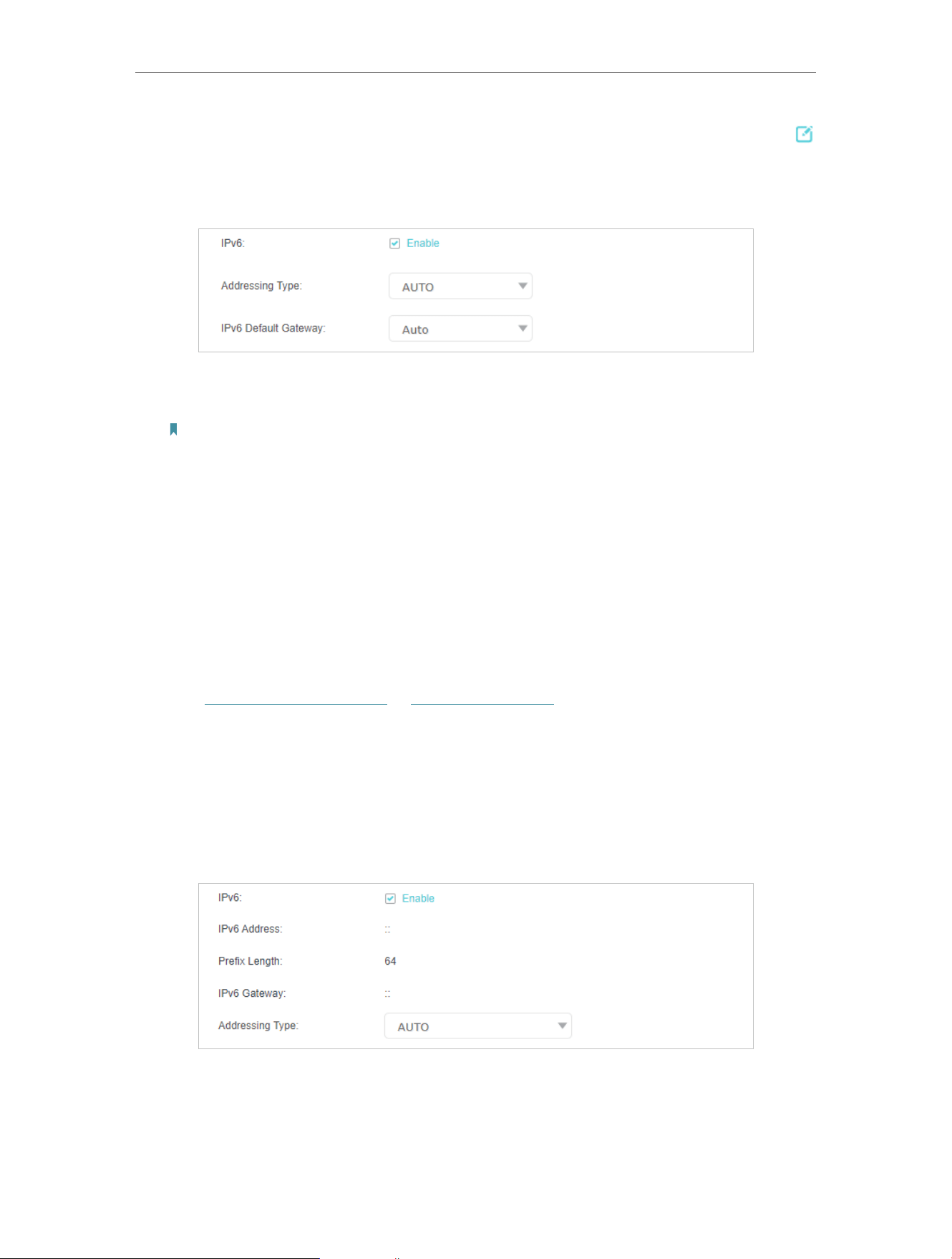
20
Chapter 4
Set Up Internet Connection
4 Select your WAN Interface Name (Status should be Connected) and click the
(Edit) icon.
5 Scroll down the page, enable IPv6, and configure the IPv6 parameters.
• Addressing Type: Consult your ISP for the addressing type, AUTO, DHCPv6, or
SLAAC. SLAAC is the most commonly used addressing type.
Note: If your ISP has provided the IPv6 address, click Advanced to reveal more settings. Check to use IPv6
specified by ISP and enter the parameters provided by your ISP.
6 Click OK to make the settings effective. Now IPv6 service is available for your
network.
4 5 2 Set Up Internet Connection in Wireless Router Mode
In Wireless Router Mode, you can also permit IPv6 connection by setting up an IPv6
connection or the IPv6 tunnel just as in the GPON Router Mode.
1 Make sure you have set up an IPv4 connection before setting up an IPv6 connection.
2 Visit http://tplinkmodem.net or http://192.168.1.1, and log in with the password you
set for the GPON router.
3 Go to Advanced > Network > EWAN page.
4 Scroll down the page, enable IPv6, and configure the IPv6 parameters.
5 Click OK to make the settings effective. Now IPv6 service is available for your
network.

21
Chapter 4
Set Up Internet Connection
4 6 IPv6 Tunnel
IPv6 Tunnel is a transition mechanism that enables IPv6-only hosts to reach IPv4
services or vice versa and allows isolated IPv6 hosts and networks to reach each other
over IPv4-only infrastructure before IPv6 completely supplants IPv4. It is a temporary
solution for networks that do not support native dual-stack, where both IPv6 and IPv4
run independently.
1. Visit http://tplinkmodem.net or http://192.168.1.1, and log in with the password you
set for the GPON router.
2. Go to Advanced > Network > EWAN.
3. Click Add and enable IPv6 and Click Advanced to view more advanced settings.
4. Select the checkbox to enable IPv6 Tunnel.
Tips:
Please check the IPv6 tunnel settings each time while reconfiguring WAN connection, as WAN connection configuration
may take effect on tunnel settings.
5. Fill in information as required by different tunneling mechanisms.

22
Chapter 4
Set Up Internet Connection
1 ) DS-Lite: Fill in blanks and click OK. Select this tunneling mechanism if your ISP
uses DS-Lite deployment for assigning address.
2 ) 6rd: Fill in blanks and click OK. Select this tunneling mechanism if your ISP uses
6rd deployment for assigning address.

23
Chapter 4
Set Up Internet Connection
3 ) 6to4: Fill in blanks and click OK. Select this tunneling mechanism if your ISP
uses 6to4 deployment for assigning address.

Chapter 5
Setup Your Network via
TP-Link Aginet App
This chapter guides you on how to setup your router and mesh device via TP-Link
Aginet app, as well as regulatory information. Features available in Aginet app may vary
by model and software version. Aginet app availability may also vary by region or ISP.
All images, steps, and descriptions in this guide are only examples and may not reflect
your actual mesh experience.
25
Chapter 5
Setup Your Network via TP-Link Aginet App
5 1 Set Up Your Router
The intuitive Aginet app guides you through an easy setup process that gets each unit
up and all your routers connected.
Follow the steps below to set up your router.
1 Download and install the Aginet app
Scan the QR code below or go to Google Play or the App Store to download the Aginet
app. Install the app on your Android or iOS smartphone or tablet.
OR
2 Log in or sign up with TP-Link ID.
Open the Aginet app. Use your TP-Link ID to log in. If you don’t have a TP-Link ID, tap
Don’t have an account? and sign up first.
Note: If you forgot your login password, tap Forgot Password. The Aginet app will guide you through the rest.
3 Plug in and power on router.
Power off your modem. Connect your router to the modem and power them both on. If
you don’t have a modem, connect the Ethernet outlet directly to your router.

26
Chapter 5
Setup Your Network via TP-Link Aginet App
4 Select a location.
Select a location for this router. If its location is not listed, you can create a new one by
choosing Custom. This will be the name of your router.
5 Set up internet connection.
Select the internet connection type and enter the information. If you are not sure,
contact your internet service provider.

27
Chapter 5
Setup Your Network via TP-Link Aginet App
6 Create your Wi-Fi network.
Set a network name and a password. These will be the name and password you use to
connect your routers to Wi-Fi.
7 Connect to your Wi-Fi network.
Connect your phone/tablet to the router’s Wi-Fi.

28
Chapter 5
Setup Your Network via TP-Link Aginet App
8 Setup complete.
Your network is now up. Connect all devices to the network. You can also Add Agent to
expand the Wi-Fi coverage.
5 2 Dashboard
After you successfully set up your mesh network, you will see the dashboard of the
Aginet app. Here you can get an overview of the network status, create family profiles,
and customize your home network and set up various advanced features.
1 Tap
to get an overview of the network status.

29
Chapter 5
Setup Your Network via TP-Link Aginet App
2 Tap to create family profiles.
3 Tap for more features.

30
Chapter 5
Setup Your Network via TP-Link Aginet App
5 3 Add More Mesh Devices
After creating a mesh network, you can add more mesh devices to the network to
expand the Wi-Fi coverage and manage them easily on your Aginet app.
1. In Network, tap + > Add Agent. Then select the Mesh Device.
2. Follow app instructions to complete the setup.

31
Chapter 5
Setup Your Network via TP-Link Aginet App
5 4 Check Mesh Device Status
In Network, you can check the working status (online/offline) of all the mesh devices,
check the details (speed/mesh device’s IP address & MAC address/connected clients)
of each mesh device, change the mesh device’s location/name, and more.
1. Tap
to check all mesh devices’ status.

32
Chapter 5
Setup Your Network via TP-Link Aginet App
2. Tap a mesh device to check more details.
3. Check download/upload speed of the mesh device.

33
Chapter 5
Setup Your Network via TP-Link Aginet App
4. Tap and change or customize the location/name of the mesh device.
5. Check the clients connected to the mesh device.

34
Chapter 5
Setup Your Network via TP-Link Aginet App
6. Tap the client’s name. Change or customize client’s information.
5 5 Remove/Reboot Mesh Devices
You can reset your mesh device to factory default settings or reboot your mesh device
to clear cache and enhance running performance easily in the Aginet app. Follow the
steps below.
Note:
Rebooting your mesh device will keep the current settings on it.
Removing your mesh device will reset it to factory default settings and you will need to set up your mesh device again.
You can also press and hold the Reset button for at least 5 second to quickly reset your mesh device to factory default
settings.
In Network, tap . Select a mesh device.
7. Tap to remove or reboot the mesh device.

35
Chapter 5
Setup Your Network via TP-Link Aginet App
Note:
If the LED light of mesh device does not turn flashing blue after tapping Remove, press and hold the Reset button for at
least 5 second to reset it.
5 6 Manage Connected Devices
In Network, you can mange your connected devices easily, such as changing the device
name and type.
1. Tap a connected device to check the details (e.g. real-time upload and download
speeds, device name/profile, etc.).
2. Change the Device Type and Device Name as needed.

36
Chapter 5
Setup Your Network via TP-Link Aginet App
5 7 Create a New Network
In the Aginet app, you can create different mesh networks with your TP-Link ID and
manage them conveniently from the Aginet app with one account. You can also help
family or friends manage their networks with your Aginet app. Two methods are provided
as below to create a new network.
Method 1. Create a new network from the Overview page
1. Tap + > Create a Network.
2. Then follow app instructions to complete the setup.
Method 2. Create a new network from the Menu page
1. Tap
to open the menu. Tap > Add a Network.

37
Chapter 5
Setup Your Network via TP-Link Aginet App
2. Then follow app instructions to complete the setup.
5 8 Parental Controls
Parental Controls helps you set time limits and filter content to flexibly control your kids
when they’re online.
1. In Family, tap Create a Profile.
2. Then follow app instructions to complete the setup.

38
Chapter 5
Setup Your Network via TP-Link Aginet App
5 9 Wi-Fi Settings
You can change the network name and password of your main network at any time and
share the network easily with family and friends.
1. In More, Tap Wi-Fi Settings.
2. Manage main network (e.g. change your main network’s Wi-Fi name and password,
hide the network from Wi-Fi list, etc.).
1. Tap Advanced. For better Wi-Fi performance, set the channel width for 2.4GHz /
5GHz / 6GHz Wi-Fi as needed. (It is recommended to use the default settings.)

39
Chapter 5
Setup Your Network via TP-Link Aginet App
5 10 Guest Network
You can create and share a separate network for guests to guarantee the security and
privacy of your main network.
1. In More, Tap Guest Network.
2. Set a Wi-Fi name and password for the guest network.

40
Chapter 5
Setup Your Network via TP-Link Aginet App
5 11 Internet Connection
In Internet Connection, You can modify WAN settings (IPv4 & IPv6), enable MAC Clone
mode.
1. In More, Tap Internet Connection.
2. View IPv4 details or change the internet connection type.

41
Chapter 5
Setup Your Network via TP-Link Aginet App
3. Enable IPv6 to set up an IPv6 internet connection.

42
Chapter 5
Setup Your Network via TP-Link Aginet App
4. Tap Advanced and enable MAC Clone as needed.
Tip: For more about MAC Clone, refer to https://www.tp-link.com/support/faq/2925/
5 12 Block List
Add devices to the block list to prevent the devices from accessing your network,
ensuring the safety of your personal information shared in the network.
1. In More, Tap Block List.

43
Chapter 5
Setup Your Network via TP-Link Aginet App
2. Tap + and add clients or other devices to the block list.
5 13 Upgrade Your Router
TP-Link is dedicated to improving product features and providing a better customer
experience. An up-to-date firmware provides better and more stable network
performance. Always update your router to the latest firmware version when prompted
in the Aginet app.
1. In More, Tap System and Firmware Update.

44
Chapter 5
Setup Your Network via TP-Link Aginet App
2. Download and install the firmware (if any) and follow app instructions to update your
router to the latest version.
5 14 Advanced Features
Additional features are available under the Advanced menu. You can control mesh
device’s LED, enable reboot schedule, bind your TP-Link ID, change the operation
mode, configure system settings.
1. In More, Tap LED Control.

45
Chapter 5
Setup Your Network via TP-Link Aginet App
2. Toggle off LED to turn off the light on mesh device. Configure the LED Off Time to
turn off the LED light at bedtime only.
3. Enable Reboot Schedule as needed.

46
Chapter 5
Setup Your Network via TP-Link Aginet App
4. Bind your TP-Link ID.
5. Change the Operation Mode as needed.

47
Chapter 5
Setup Your Network via TP-Link Aginet App

Chapter 6
VoIP
This chapter guides you on how to make telephone calls via Internet. You may not be
able to configure VoIP when using certain models, please contact your ISP for support.
• Connecting the Telephone
• Entering Telephone Information
• Telephone Book
• Telephony Devices Management
• Call Log
• Digit Map
• Call Blocks
• Call Forwarding
• Voice Mail Settings

49
Chapter 6 VoIP
6 1 Connecting the Telephone
Connect your telephone to the TAE ports on the side panel or RJ11 ports on the
rearpanel. Please note that you can only connect to two ports (one to a Phone 1 and
the other to a Phone 2) at most.
6 2 Entering Telephone Information
Before using telephony services, you should first enter your telephone information
provided by your telephony service provider.
Follow the steps below to enter information:
1 Visit http://tplinkmodem.net or http://192.168.1.1, and log in with the password you
set for the GPON router.
2 Go to Advanced > Telephony > Telephone Number to open the configuration page.
Click Add and you will see the following screen.
3 Enter the necessary information as required, and click OK to make the settings
effective.
Phone Number: The number you use to dial and answer.
Registrar Address: Usually a domain name, if not, an IP address.
Authentication ID and Password: Not necessary information, but if you have, fill them in.
Advanced: Click to have more configuration.
To have more configuration on telephony settings
Click Advanced under Advanced Settings to configure more telephony settings.

50
Chapter 6 VoIP
Bound Interface: Bound Interface decides where to send/receive the VoIP traffic. An
easy way to select the interface is to check the location of the SIP (Session Initiation
Protocol) server. If it locates somewhere on the Internet then select Any_WAN. If it is on
the local network, select LAN.
Locale Selection: Select a country where you are located. The GPON router is embedded
with some default parameters according to different countries such as ring tones.
Usually you can keep the default value.
DSCP for SIP/RTP: DSCP (Differentiated Services Code Point) is the first 6 bits in
the ToS byte. DSCP marking allows users to assign specific application traffic to be
executed in priority by the next Router based on the DSCP value. Select DSCP for the
SIP (Session Initiation Protocol) and RTP (Real-time Transport Protocol) respectively. If
you are unsure, please always keep the default value.
DTMF Relay Setting: DTMF is Dual Tone Multi Frequency. Options available are SIP-Info,
RFC2833, and In-band. If you are unsure which one to choose, please always keep the
default value.
• SIP INFO: If it is selected, the GPON router will capture the DTMF tone and transfer it
into SIP form. Then it will be sent to the remote end with SIP message.
• RFC2833: If it is selected, the GPON router will capture the keypad number you pressed
and transfer it into digital form then send to the other side; the receiver will generate
the tone according to the digital form it receives. This function is very useful when the
network traffic congestion occurs and it still can remain the accuracy of DTMF tone.
• In-band: If it is selected, the GPON router will send the DTMF tone as audio directly
when you press the keypad on the phone.

51
Chapter 6 VoIP
Registry Expiration Time: Expiration time for the registration message sending.
Registration Retry Interval: Set the time duration for your SIP Registrar server to keep
your registration record. Before the time expires, the GPON Router will send another
register request to SIP Registrar again. If you are unsure of it, please always keep the
default value.
No answer Time: Set a time period, after which the caller is told that the call is not
answered and he or she can leave a message if the voice mail function is enabled.
T.38 support: Select the checkbox to enable this function. T 38 specifies a protocol for
transmitting a fax across IP network in real time. It allows the transfer of fax documents
in real-time between two standard Group 3 facsimile terminals over the Internet or
other networks using IP protocols. It will only function when both sites support this
feature and are enabled.
End with: Select the checkbox to use the pound sign (#) as an end-of-dialing.
When the Status column change to
, your telephone information is successfully
registered. At this time, you can pick up your phone, dial the number, and call via Internet!
6 3 Telephone Book
You can store all contacts on your GPON router, have a telephone book, set speed dial
number for some contacts and enable emergency calls.
6 3 1 Telephone Book
Follow the steps below to have a telephone book on the GPON router.
1 Visit http://tplinkmodem.net or http://192.168.1.1, and log in with the password you
set for the GPON router.
2 Go to Advanced > Telephony > Telephone Book. Click Add to enter a new contact’s
information.

52
Chapter 6 VoIP
3 You can set speed dial number for certain numbers. Speed dial function allows you
to reach the desired party by dialing the reduced number of keys rather than a long
phone number.
4 Click OK to save the settings.
6 3 2 Emergency Calls
Make my telephone automatically call a specific contact when
the handset is picked up but no operation is done within a period
of time. In this way the old, the kids, the patient or the pregnant
in house are able to send signals for help when emergencies
occur.
1 Visit http://tplinkmodem.net or http://192.168.1.1, and log in
with the password you set for the GPON router.
2 Go to Advanced > Telephony > Telephone Book.
I want to:
How can I
do that?
53
Chapter 6 VoIP
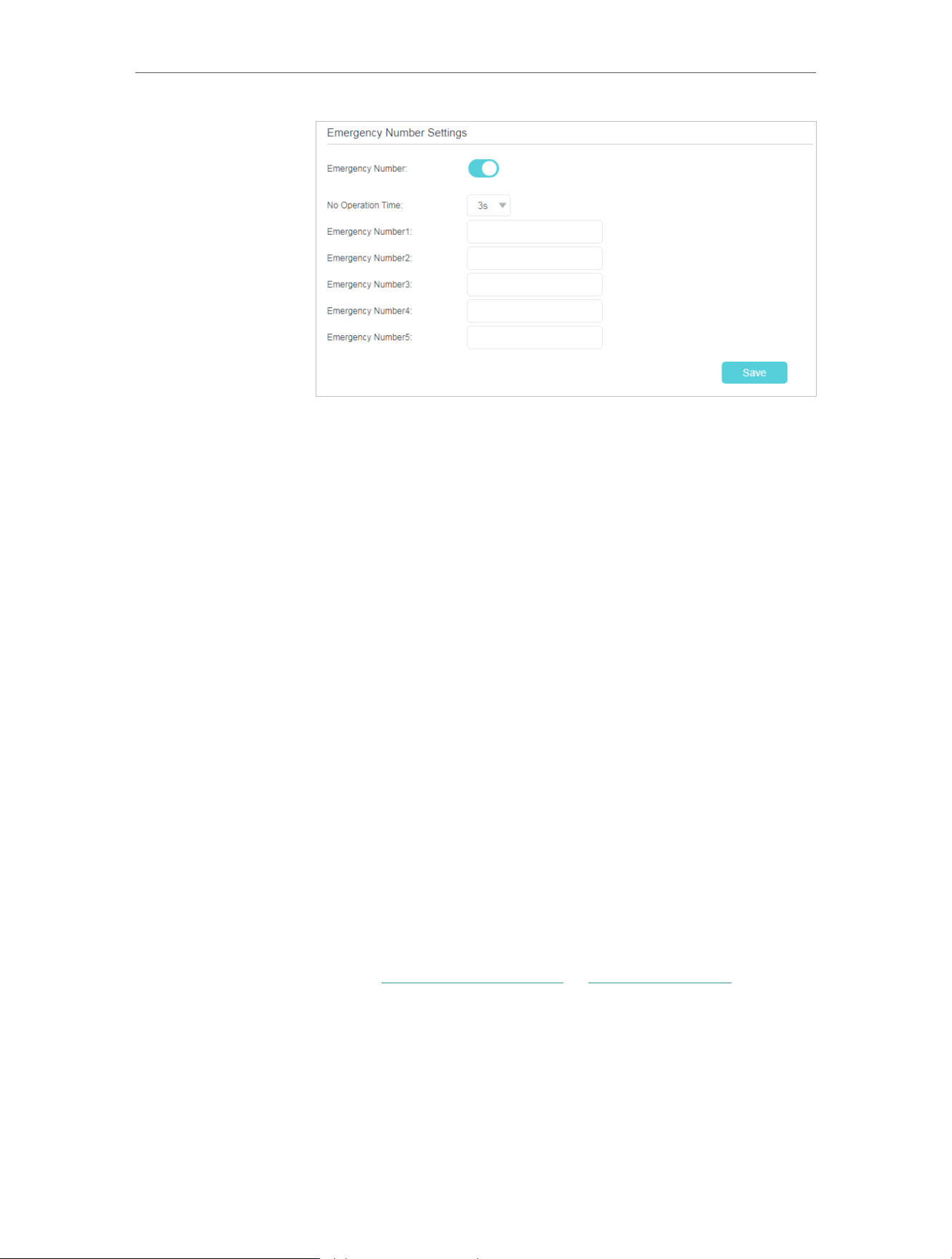
3 Enable Emergency Number.
4 No Operation Time: Set how long should the telephone wait
before the first number is automatically dialed).
5 Emergency Number: Set the number to be automatically
reached. If more than one number is set, the GPON router
will automatically call the next one if the previous is not
answered.
6 Click Save to make the settings effective.
From now on, if you pick up your phone but do not dial within
the no operation time, your phone will automatically call the
emergency number!
6 4 Telephony Devices Management
Bind different telephony devices with different incoming and
outgoing call numbers, because I have more than one telephone
number and telephony device and I don’t want all telephones
ring at the same time when a number is called.
1 Visit http://tplinkmodem.net or http://192.168.1.1, and log in
with the password you set for the GPON router.
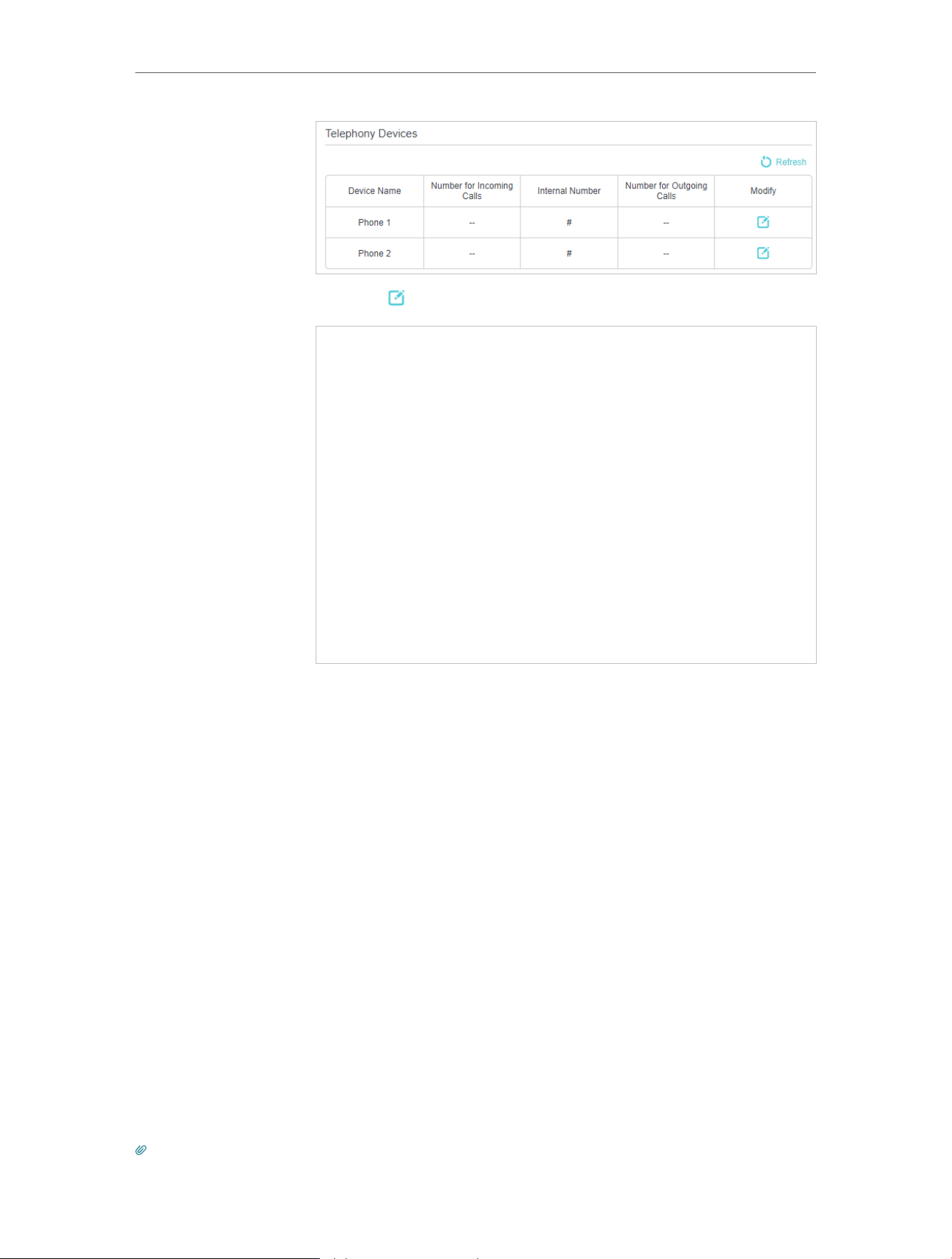
2 Go to Advanced > Telephony > Telephony Devices.
Done!
I want to:
How can I
do that?
54
Chapter 6 VoIP
3 Click to manage your telephony devices.
4 Device Name: Name the telephone device here.
5 Number for Outgoing Calls: Assign an outgoing number for
this phone.
6 Number for Incoming Calls: Tick the incoming number for
this phone.
7 VAD Support: VAD (Voice Activation Detection) prevents
transmitting the silence packets to consume the bandwidth. It
is also known as Silence Suppression, a software application
that ensures bandwidth when voice activity is activated.
8 Adjust the Speaker Gain slider to control the speaker sound.
9 Adjust the Mic Gain slider to control the speaker sound of
microphone.
10 Click Save to make the settings effective.
Now your telephony devices are bound to different incoming
call numbers and outgoing call numbers.
Tips:
Done!
55
Chapter 6 VoIP
Internal number showed on the table are used to make calls between telephony devices connected to the same GPON
router. It is preset and cannot be changed.
6 5 Call Log
Have a call list recording detailed information of incoming calls
and outgoing calls on your GPON router.
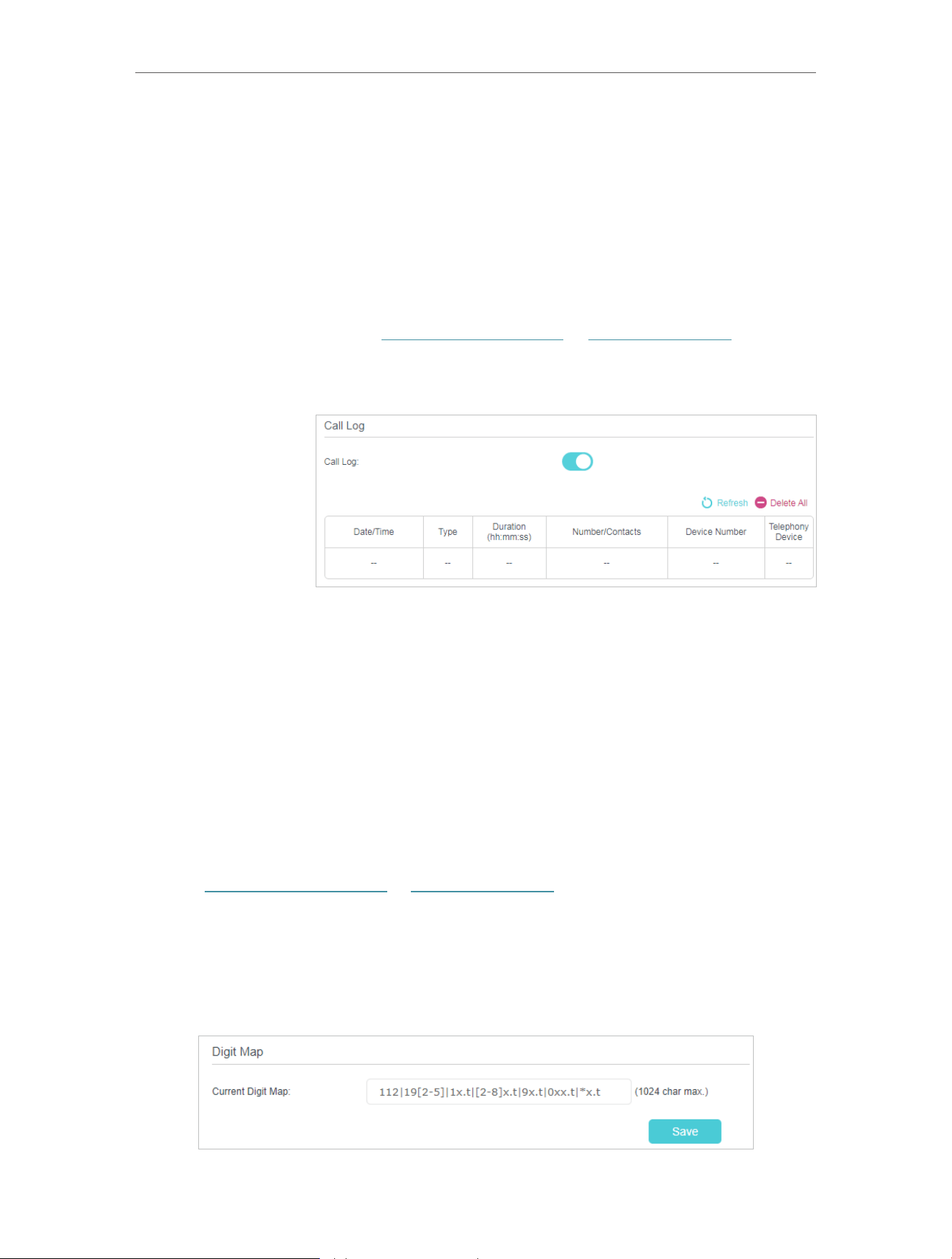
1 Visit http://tplinkmodem.net or http://192.168.1.1, and log in
with the password you set for the GPON router.
2 Go to Advanced > Telephony > Call Log.
3 Enable Call Log.
From now on, all calls in and out are recorded here. If you’ve
already had a telephone book, name of the contact would be
shown on the call list.
6 6 Digit Map
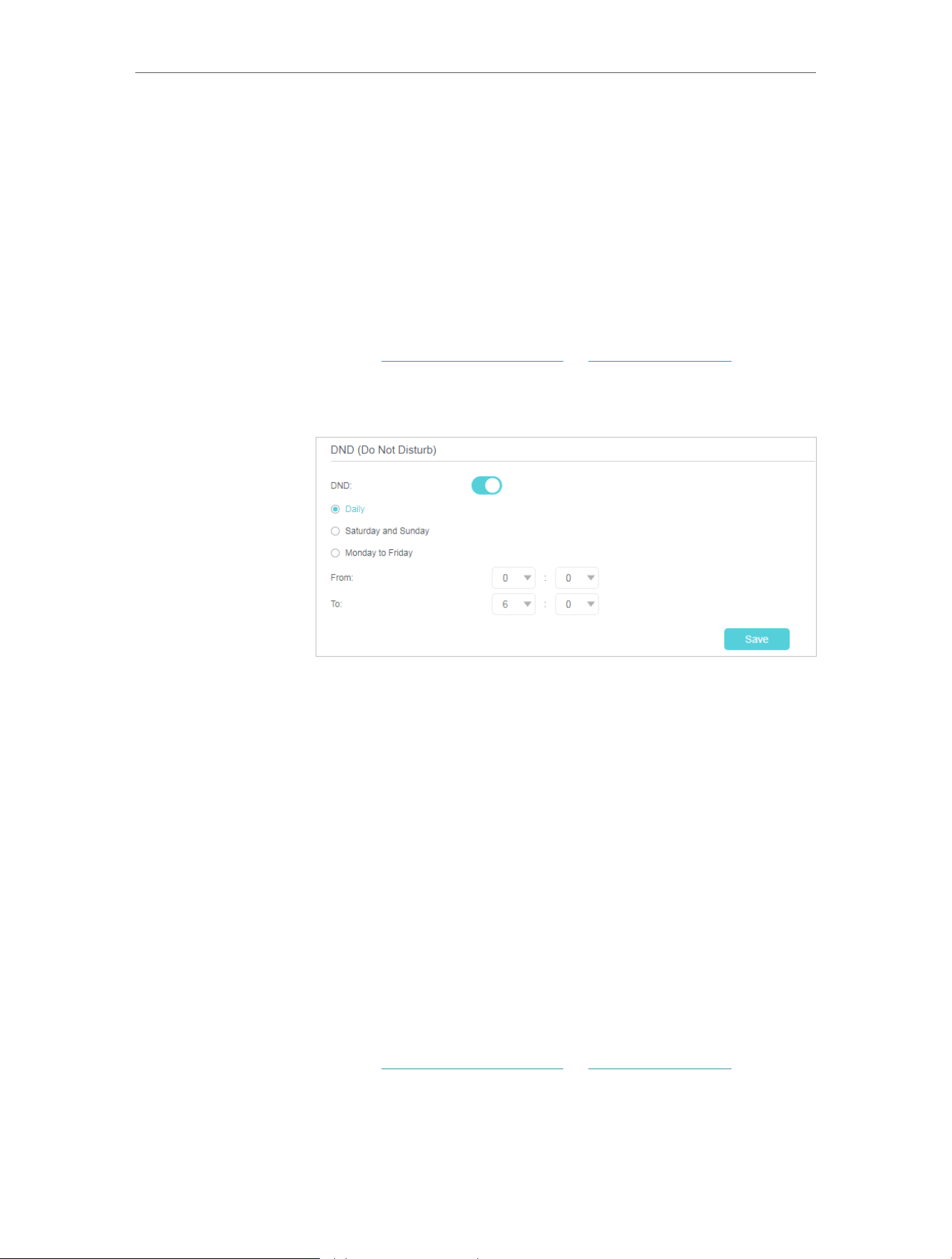
A digit map can be used to match digits to control numbers from being dialed. A number
can only be dialed out when the sequence of its digits matches the digit map.
1 Visit http://tplinkmodem.net or http://192.168.1.1, and log in with the password you
set for the GPON router.
2 Go to Advanced > Telephony > Digit Map. Enter a digit map rule by referring to the
example settings.
3 Save the settings. Now, only the numbers matching the digit map can be dialed out.
I want to:
How can I
do that?
Done!
56
Chapter 6 VoIP
6 7 Call Blocks
When you do not want calls to be received or dialed, use call block functions. This part
consists of three functions: Do Not Disturb, Block Certain Calls and Prevent from Dialing.
6 7 1 Do Not Disturb
Have no telephone ring at a certain period of time.
1 Visit http://tplinkmodem.net or http://192.168.1.1, and log in
with the password you set for the GPON router.
2 Go to Advanced > Telephony > DND & Call Blocking.
3 Enable DND.
4 Set the day(s) when DND is enabled.
5 Click Save to make the settings effective.
Now, within this period of time, no telephone will ring, but all
incoming calls would be recorded in call log. Enjoy your peaceful
time and when you are back, check the call log to see what was
missed.
6 7 2 Blocking Certain Calls
Block certain calls, for example, the anonymous calls, or calls
from the annoying salesmen.
1 Visit http://tplinkmodem.net or http://192.168.1.1, and log in
with the password you set for the GPON router.
2 Go to Advanced > Telephony > DND & Call Blocking.
I want to:
How can I
do that?
Done!
I want to:
How can I
do that?

57
Chapter 6 VoIP
3 Click Add under Incoming Calls.
4 Select Specific Number and enter the telephone number
that you want to block in the Number field, or Anonymous
Number to block all unknown calls.
5 Click OK to make the settings effective.
Now your GPON router will automatically callout matching to
your dial plan.
6 7 3 Prevent from Dialing
Prevent my GPON router from dialing a certain type of numbers.
For example, it costs a lot to call a mobile phone via my telephone
number, so I don’t want anyone to call a mobile phone using my
number.
1 Visit http://tplinkmodem.net or http://192.168.1.1, and log in
with the password you set for the GPON router.
2 Go to Advanced > Telephony > DND & Call Blocking.
3 Click Add under Outgoing Calls.
4 Select a Call Type from the drop-down list that you want to
block. If Call with Specific Number Prefix is selected, add a
telephone number prefix in the Number Prefix field.
5 Click OK to make the settings effective.
Now your GPON router will prevent all mobile phone from being
Done!
I want to:
How can I
do that?
Done!

58
Chapter 6 VoIP
dialed.
Number type may vary according to your circumstances. You
can also set prefix by choosing Calls with Specific Number Prefix.
When a prefix is set, all numbers with this prefix is prevented
from being called.
6 8 Call Forwarding
Call Forwarding allows you to redirect incoming calls to a designated phone number.
1 Visit http://tplinkmodem.net or http://192.168.1.1, and log in with the password you
set for the GPON router.
2 Go to Advanced > Telephony > Call Forwarding. Click Add to enter a new contact’s
information.
3 Select a call type to be forwarded.
All Incoming Calls: If this option is selected, all incoming calls will be forwarded.
Calls to the Telephone Number: If this option is selected, select a telephone number
from the list. Any incoming calls to this number will be forwarded.
In addition:
59
Chapter 6 VoIP
Calls to the Phone: If this option is selected, select a telephony device from the list. Any
incoming calls to this device will be forwarded.
Calls from a Person in the Telephone Book: If this option is selected, select a contact
from the list. Any incoming calls from this contact will be forwarded.
Calls from the Telephone Number: If this option is selected, enter a specific telephone
number. Any incoming calls from this number will be forwarded.
4 Enter a Destination Telephone Number that incoming calls will be redirected to.
5 Select Forward the Calls via from the drop-down list.
6 Select the Call Forward Condition:
Unconditional: All incoming calls will be redirected to the designated telephone number
whether the receiver is busy or not.
No Answer: Incoming calls that are not answered for the specified time period will be
redirected to the designated telephone number.
7 Click OK.
Note: If you want to disable this entry, click the Bulb icon.
6 9 Voice Mail Settings
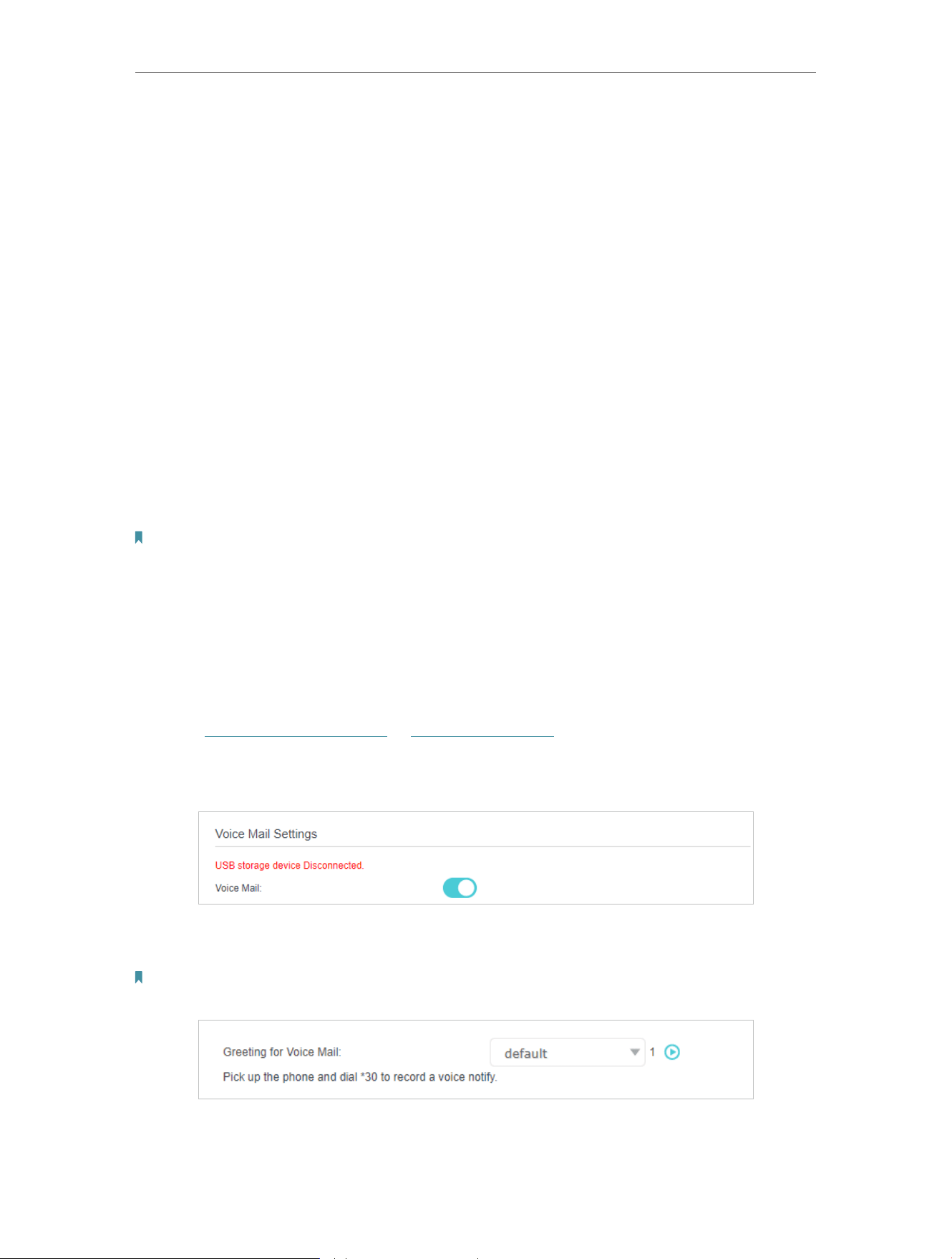
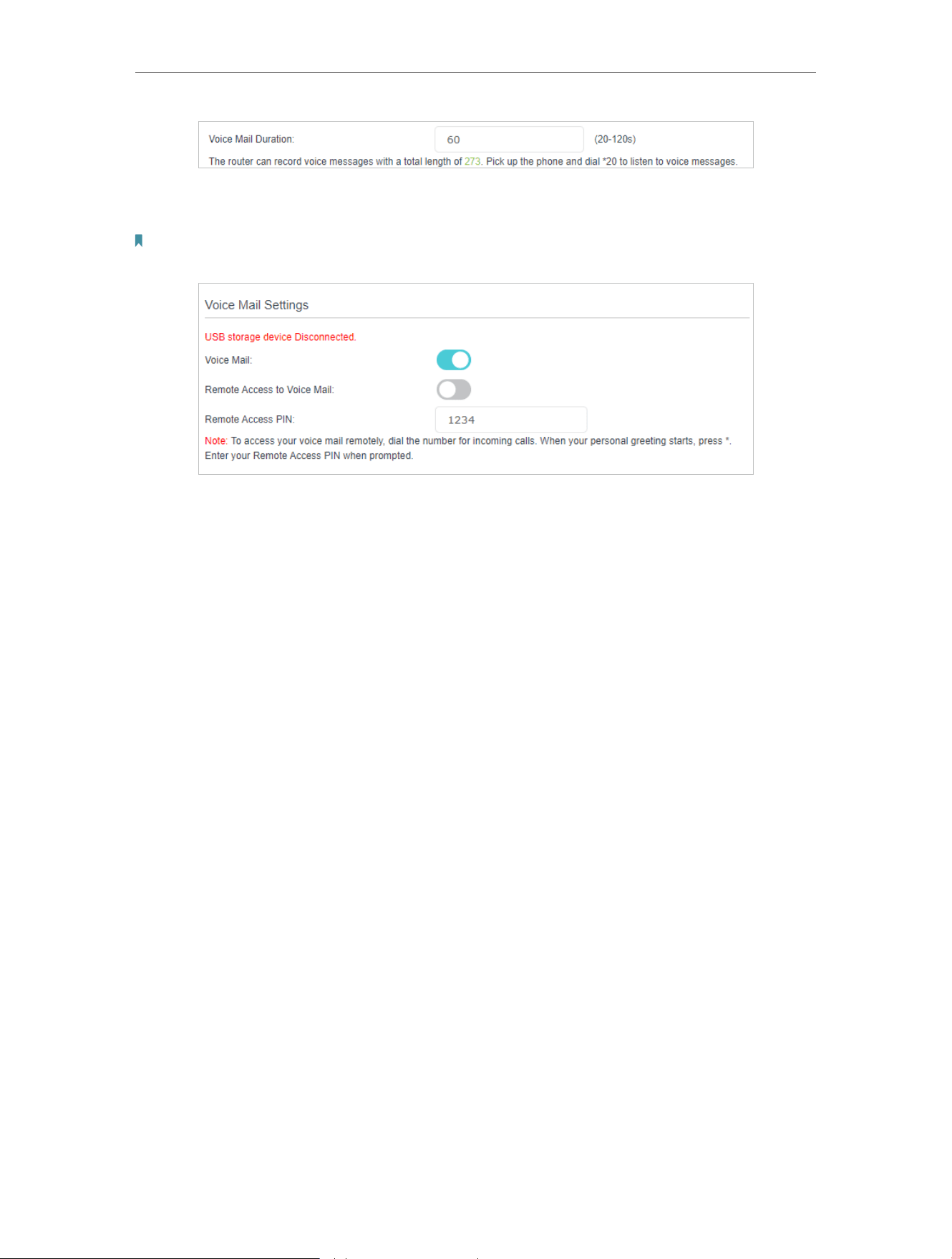
Voice Mail allows callers to leave voice messages on an external USB storage device
with the appropriate configuration files when calls are not answered. To use this function,
plug the USB storage device into the USB port on the router.
1 Visit http://tplinkmodem.net or http://192.168.1.1, and log in with the password you
set for the GPON router.
2 Go to Advanced > Telephony > Voice Mail. Toggle On to enable Voice Mail.
3 Select the Greeting for Voice Mail to use either the default or your custom greeting
for the voice mail. You can click the Play icon to play the greeting.
Note: Pick up the phone (analog phone or DECT handset) and dial *30 to record a personalized greeting for your voice
mail.
4 Enter a value in seconds in the Voice Mail Duration field to limit the length of each
voice mail.
60
Chapter 6 VoIP
5 (Optional) If you want to listen to your voice mails remotely, toggle On to enable
Remote Access to Voice Mail and create a PIN in the Remote Access PIN field.
Note: To access your voice mail remotely, dial the number for incoming calls. When your personal greeting starts,
press *. Enter your Remote Access PIN when prompted.

Chapter 7
Customize Your Network
Settings
This chapter introduces how to change the default settings or adjust the basic
configuration of the GPON router using the web management page.
It contains the following sections:
• Configure LAN Settings
• Configure IPv6 LAN Settings
• Configure GPON Settings
• Set Up a Dynamic DNS Service Account
• Create Static Routes
• RIP Settings
• Specify Wireless Settings
• Schedule Your Wireless Function
• Use WPS for Wireless Connection

62
Chapter 7
Customize Your Network Settings
7 1 Configure LAN Settings
7 1 1 Change the LAN IP Address
The GPON router is preset with a default LAN IP 192.168.1.1, which you can use to log in
to its web management page. The LAN IP address together with the Subnet Mask also
defines the subnet that the connected devices are on. If the IP address conflicts with
another device in your local network or your network requires a specific IP subnet, you
can change it.
Follow the steps below to change your IP address.
1 Visit http://tplinkmodem.net or http://192.168.1.1, and log in with the password you
set for the GPON router.
2 Go to Advanced > Network > LAN Settings page and select IPv4.
3 Enter a new IP Address appropriate to your needs.
4 Select the Subnet Mask from the drop-down list. The subnet mask together with
the IP address identifies the local IP subnet.
5 Keep IGMP Snooping enabled by default. IGMP snooping is the process of listening
to IGMP (Internet Group Management Protocol) network traffic. The function
prevents hosts on a local network from receiving traffic for a multicast group they
have not explicitly joined.
6 You can configure the router’s Second IP and Subnet Mask for LAN interface
through which you can also access the web management page.
7 Keep the rest settings as the default settings.
8 Click Save to make the settings effective.
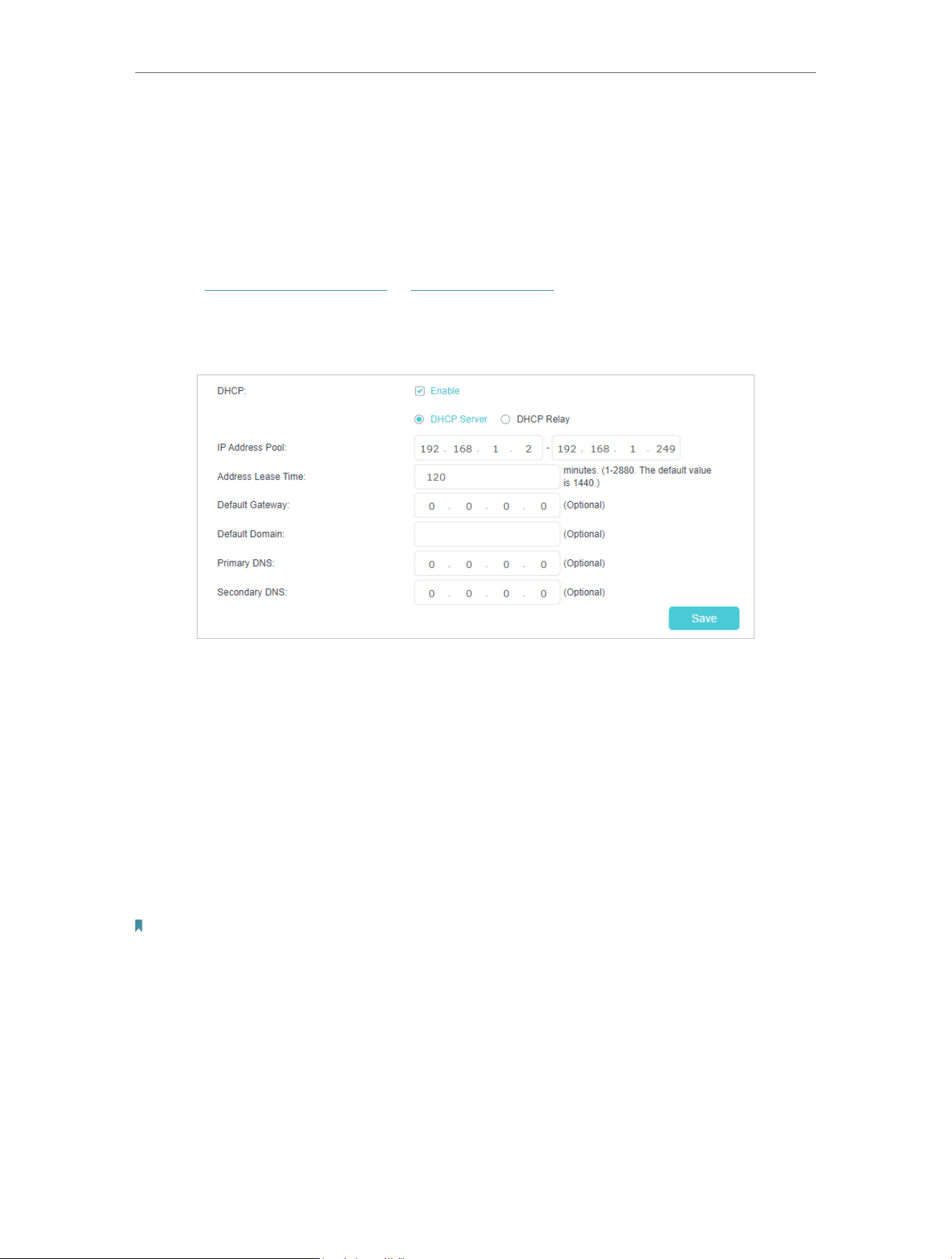
63
Chapter 7
Customize Your Network Settings
7 1 2 Use the Router as a DHCP Server
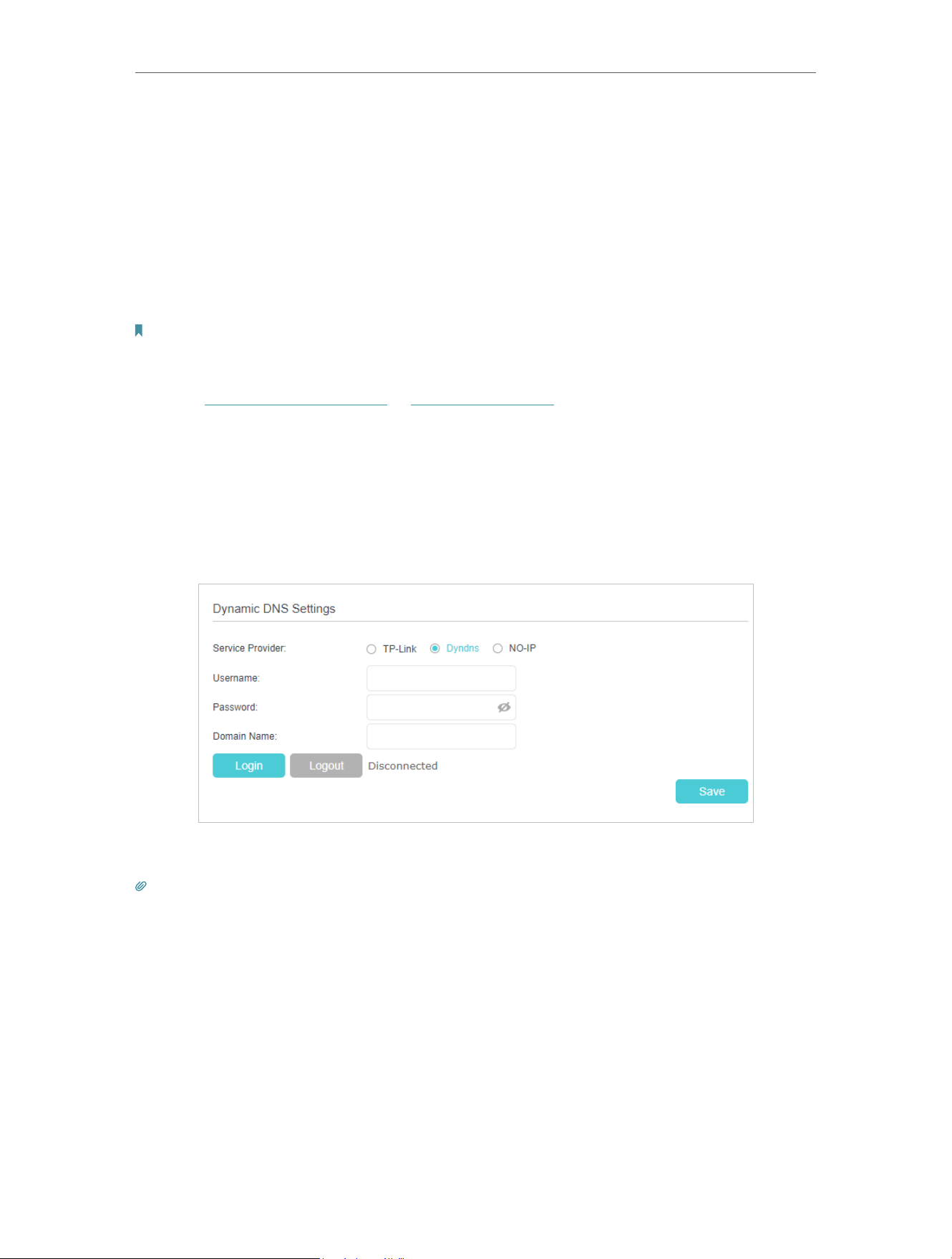
You can configure the router to act as a DHCP server to assign IP addresses to its clients.
To use the DHCP server function of the router, you must configure all computers on the
LAN to obtain an IP Address automatically.
Follow the steps below to configure DHCP server.
1 Visit http://tplinkmodem.net or http://192.168.1.1, and log in with the password you
set for the GPON router.
2 Go to Advanced > Network > LAN Settings page and select IPv4.
3 Enable DHCP function and select DHCP Server.
4 Specify the IP Address Pool, the start address and end address must be on the
same subnet with LAN IP. The router will assign addresses within this specified
range to its clients. It is from 192.168.1.2 to 192.168.1.249 by default.
5 Enter a time duration in the Address Lease Time field. The Address Lease Time is
the amount of time in which a DHCP client can lease its current dynamic IP address
assigned by the router. After the dynamic IP address expires, the user will be
automatically assigned a new dynamic IP address.
6 Keep the rest settings as the default settings and click Save.
Note:
1. The router can be configured to work as a DHCP Relay. A DHCP relay is a computer that forwards DHCP data
between computers that request IP addresses and the DHCP server that assigns the addresses. Each of the device’s
interfaces can be configured as a DHCP relay. If it is enabled, the DHCP requests from local PCs will be forwarded to
the DHCP server that runs on WAN side.
2. You can also appoint IP addresses within a specified range to devices of the same type by using Condition Pool
feature. For example, you can assign IP addresses within the range (192.168.0.50 to192.168.0.80) to Camera devices,
thus facilitating the network management. Enable DHCP feature and configure the parameters according to your
situation on the Advanced > Network > LAN Settings page.

64
Chapter 7
Customize Your Network Settings
7 1 3 Reserve LAN IP Addresses
You can view and add a reserved address for a client. When you specify an IP address
for a device on the LAN, that device will always receive the same IP address each time
when it accesses the DHCP server. If there are some devices in the LAN that require
permanent IP addresses, please configure Address Reservation on the router for the
purpose.
Follow the steps below to reserve an IP address for your devices.
1 Visit http://tplinkmodem.net or http://192.168.1.1, and log in with the password you
set for the GPON router.
2 Go to Advanced > Network > LAN Settings page, and select IPv4.
3 Scroll down to the Address Reservation section, and click Add to add an address
reservation entry for your device.
4 Enter the MAC Address of the device for which you want to reserve IP address.
5 Specify the IP address which will be reserved by the router.
6 Select the Enable This Entry check box and click OK to make the settings effective.
7 2 Configure IPv6 LAN Settings
Based on the IPv6 protocol, the router provides two ways to assign IPv6 LAN addresses:
• Configure the RADVD (Router Advertisement Daemon) address type
• Configure the DHCPv6 Server address type

65
Chapter 7
Customize Your Network Settings
7 2 1 Configure the RADVD Address Type
1 Visit http://tplinkmodem.net or http://192.168.1.1, and log in with the password you
set for the GPON router.
2 Go to Advanced > Network > LAN Settings.
3 Select IPv6 to configure IPv6 LAN parameters.
1 ) Select RADVD as the address type to make the router assign IPv6 address
prefixes to hosts.
Note:
Do not select the Enable RDNSS and Enable ULA Prefix check boxes unless required by your ISP. Otherwise
you may not be able to access the IPv6 network. For more information about RDNSS and ULA Prefix, contact
our technical support.
2 ) Keep Site Prefix Type as the default setting Delegated. If your ISP has provided
a specific IPv6 site prefix, select Static and enter the prefix.
3 ) Keep WAN Connection as the default settings.
4 Click Save to make the settings effective.
7 2 2 Configure the DHCPv6 Server Address Type
1 Visit http://tplinkmodem.net or http://192.168.1.1, and log in with the password you
set for the GPON router.
2 Go to Advanced > Network > LAN Settings.
3 Select IPv6 to configure IPv6 LAN parameters.

66
Chapter 7
Customize Your Network Settings
1 ) Select DHCPv6 Server as the address type to make the router assign IPv6
addresses to hosts.
2 ) Specify the Starting/Ending IPv6 Address for the IPv6 suffixes. The router will
generate IPv6 addresses within the specified range.
3 ) Keep Address Lease Time as the default setting.
4 ) Keep Site Prefix Type as the default value Delegated. If your ISP has provided a
specific IPv6 site prefix, select Static and enter the prefix.
5 ) Keep WAN Connection as the default setting.
4 Click Save to make the settings effective.
7 3 Configure GPON Settings
Follow the steps below to change your IP address.
1 Visit http://tplinkmodem.net or http://192.168.1.1, and log in with the password you
set for the GPON router.
2 Go to Advanced > Network > GPON Settings page.
3 Select a ASCII+HEX/HEX from the SN Type checkbox. Select a ASCII/HEX from the
Password Type checkbox. Do not change the default settings unless necessary.
67
Chapter 7
Customize Your Network Settings
7 4 Set Up a Dynamic DNS Service Account
Most ISPs (Internet service providers) assign a dynamic IP address to the router and
you can use this IP address to access your router remotely. However, the IP address
can change any time and you don’t know when it changes. In this case, you might need
the DDNS (Dynamic Domain Name Server) feature on the router to allow you and your
friends to access your router and local servers (FTP, HTTP, etc.) using domain name, in
no need of checking and remembering the IP address.
Note: DDNS does not work if the ISP assigns a private WAN IP address (such as 192.168.1.x) to the router.
To set up DDNS, please follow the instructions below:
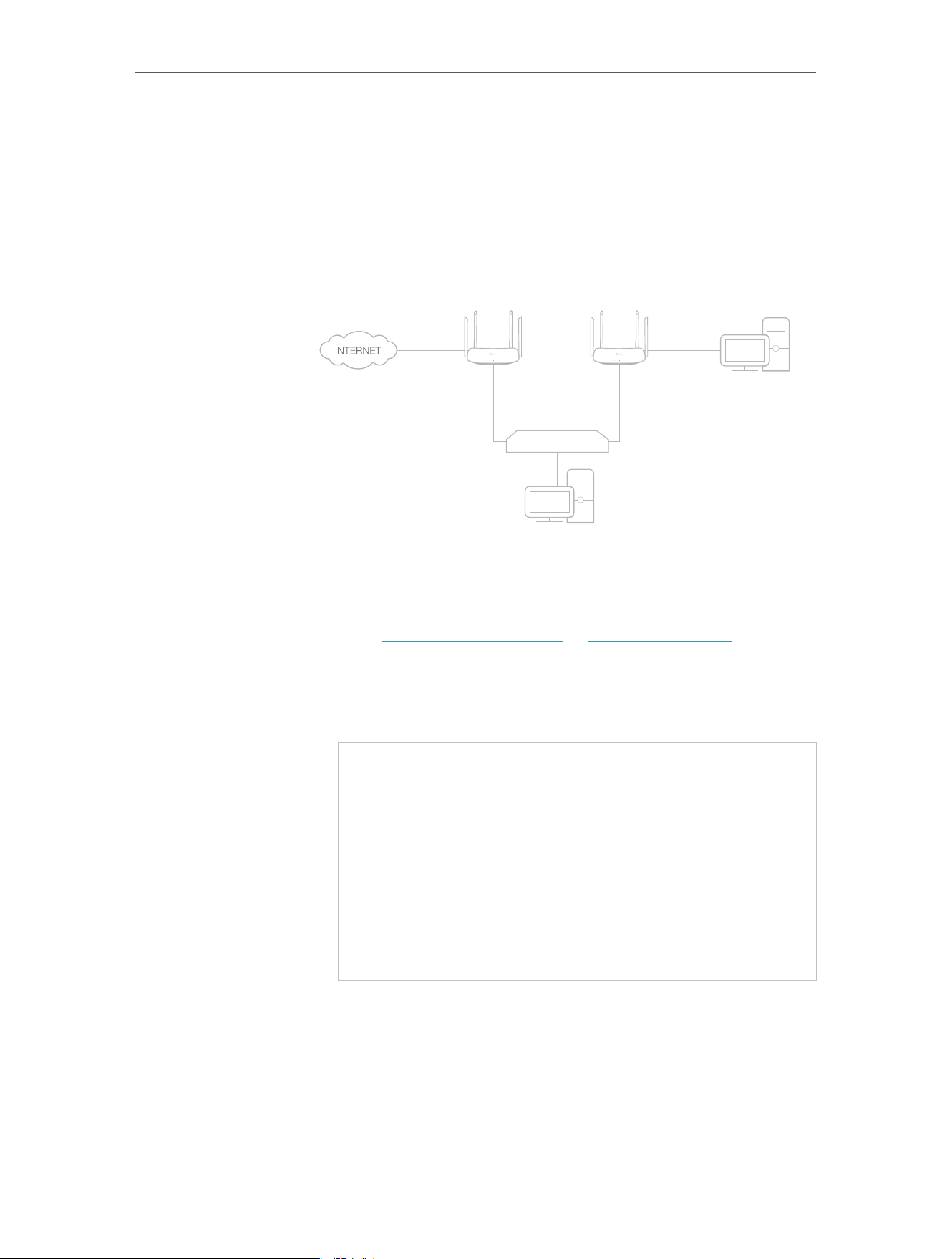
1 Visit http://tplinkmodem.net or http://192.168.1.1, and log in with the password you
set for the GPON router.
2 Go to Advanced > Network > Dynamic DNS.
3 Select the Service Provider (TP-Link/Dyndns/NO-IP).
4 Log in with your DDNS account, select a service provider. Enter the username,
password and domain name of the account (such as lisa.ddns.net).
5 Click Log in and Save.
Tips: If you want to use a new DDNS account, please log out first, then log in with the new account.
7 5 Create Static Routes
A static route is a pre-determined path that network information must travel to reach
a specific host or network. Data from one point to another will always follow the same
path regardless of other considerations. Normal internet usage does not require this
setting to be configured.
Visit multiple networks and multiple servers at the same time.
For example, in a small office, my PC can surf the internet
I want to:
68
Chapter 7
Customize Your Network Settings
through GPON Router A, but I also want to visit my company’s
network. Now I have a switch and another GPON Router B. I
connect the devices as shown in the following image so that the
physical connection between my PC and my company’s server
is established. To surf the internet and visit my company’s
network at the same time, I need to configure the static routing.
Company’s Server
My PC
Switch
LAN: 192.168.1.1
192.168.1.100
LAN: 192.168.1.2
WAN: 172.30.30.100
172.30.30.1
GPON
Router A
GPON
Router B
1 Make sure the routers use different LAN IP addresses on the
same subnet. Disable GPON Router B’s DHCP function.
2 Visit http://tplinkmodem.net or http://192.168.1.1, and log in
with the password you set for the GPON Router A.
3 Go to Advanced > Network > Static Routing. Select your
current WAN Interface and click Save.
4 Click Add to add a new static routing entry. Finish the settings
according to the following explanations:
How can I
do that?

69
Chapter 7
Customize Your Network Settings
• Network Destination: The destination IP address that you
want to assign to a static route. This IP address cannot be on
the same subnet with the WAN IP or LAN IP of the Router A.
In the example, the IP address of the company network is the
destination IP address, so here we enter 172.30.30.1.
• Subnet Mask: Determines the destination network with the
destination IP address. If the destination is a single IP address,
enter 255.255.255.255; otherwise, enter the subnet mask of
the corresponding network IP. In the example, the destination
network is a single IP, so here we enter 255.255.255.255.
• Gateway: The IP address of the gateway device to which the
data packets will be sent. This IP address must be on the
same subnet with the router’s IP which sends out the data. In
the example, the data packets will be sent to the LAN port of
Router B and then to the Server, so the default gateway should
be 192.168.1.2.
• Interface: Determined by the port (WAN/LAN) that sends
out the data packets. In the example, the data is sent to the
gateway through the LAN port of Router A, so LAN should be
selected.
5 Select the Enable This Entry check box to enable this entry.
6 Click Save to make the settings effective.
Open a web browser on your PC. Enter the company server’s IP
address to visit the company network.
Done!
70
Chapter 7
Customize Your Network Settings
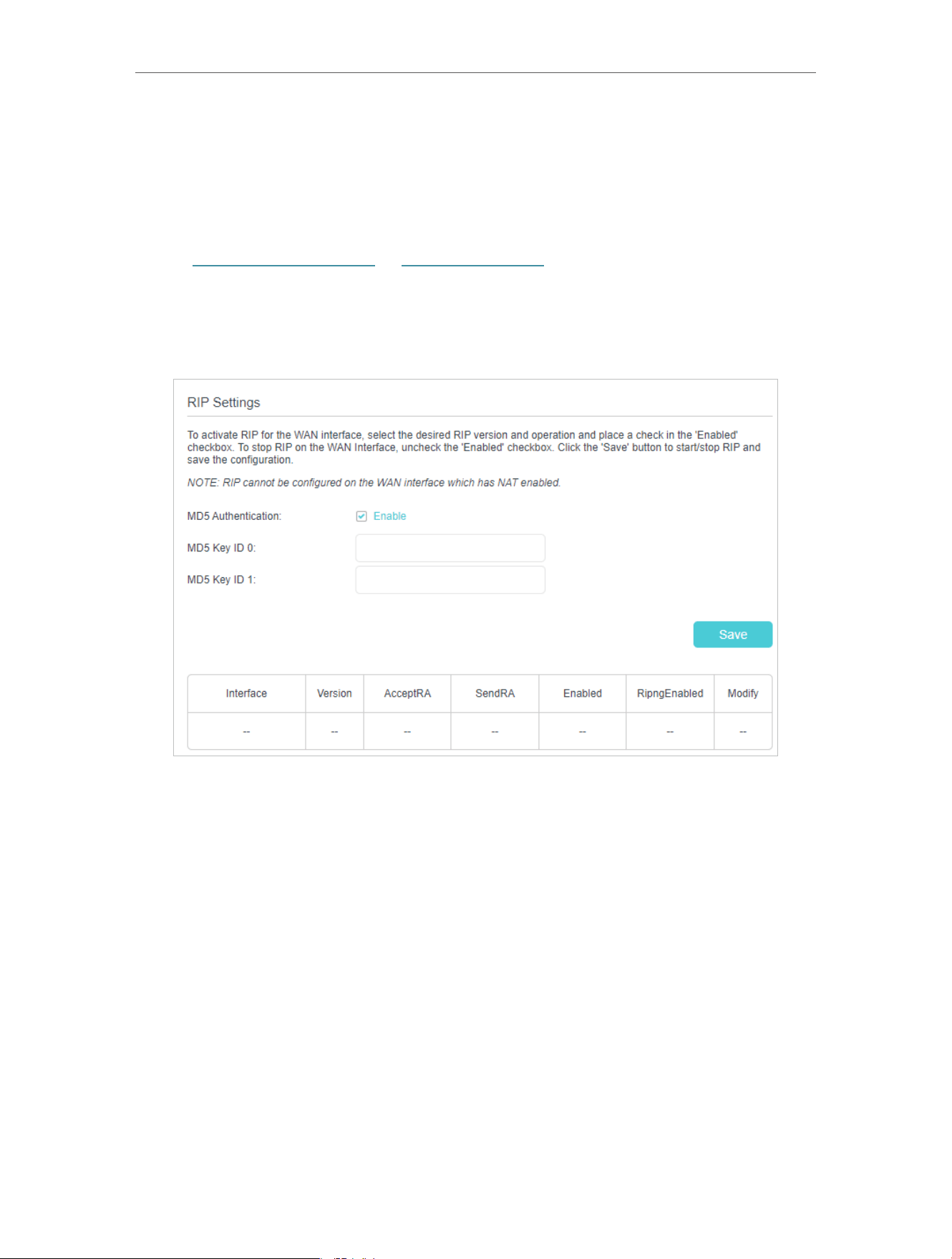
7 6 RIP Settings
To activate RIP for the WAN interface, select the desired RIP version and operation and
place a check in the ‘Enabled’ checkbox. To stop RIP on the WAN Interface, uncheck the
‘Enabled’ checkbox. Click the ‘Save’ button to start/stop RIP and save the configuration.
1. Visit http://tplinkmodem.net or http://192.168.1.1, and log in with the password you
set for the GPON router.
2. Go to Advanced > Network > RIP Settings.
3. Configure RIP settings.
• MD5 Authentication - Enable MD5 Authentication to enhance the rip RA packets
security.
• MD5 Key ID 0 - Setting the MD5 Key ID 0 value.
• MD5 Key ID 1 - Setting the MD5 Key ID 1 value.
• Interface - The WAN interface name of the RIP rule table’s entry used in.
• Version - The RIP version (RIPv1/RIPv2) of the RIP rule table’s entry used.
• AcceptRA - Enable it to make the RIP rule entry can accept the Router Advertisement.
• SendRA - Enable it to make the RIP rule entry can send the Router Advertisement.
• Enabled - Enable it to make the RIP rule entry active for IPv4.
• RipngEnabled - Enable it to make the RIP rule entry active for IPv6, which is also known
as Ripng.
• Modify - Click here to modify the RIP rule entry.

71
Chapter 7
Customize Your Network Settings
7 7 Specify Wireless Settings
7 7 1 Change Basic Wireless Settings
The GPON router’s wireless network name (SSID) and password, and security option
are preset in the factory. The preset SSID and password can be found on the product
label. You can customize the wireless settings according to your needs.
Visit http://tplinkmodem.net or http://192.168.1.1, and log in with the password you set
for the GPON router.
¾ To enable or disable the wireless function:
1 Go to Basic > Wireless.
2 The wireless radio is enabled by default. If you want to disable the wireless function
of the router, just clear the Enable check boxes. In this case, all the wireless settings
will be invalid.
¾ To change the wireless network name (SSID) and wireless password:
1 Go to Basic > Wireless.
2 Enter a new SSID (32 characters at most) in the Network Name (SSID) field and a
new password in the Password field and click Save. The SSID and password are
case-sensitive.
Note:
If you use a wireless device to change the wireless settings, you will be disconnected after the new settings are effective.
Please write down the new SSID and password for future use.
¾ To hide SSID:
1 Go to Basic > Wireless.
2 Select Hide SSID, and your SSID will not be broadcast. Your SSID won’t display on
your wireless devices when you scan for local wireless networks and you need to
manually join the network.
¾ To change the mode or channel:
1 Go to Advanced > Wireless > Wireless Settings.

72
Chapter 7
Customize Your Network Settings
2 Select the wireless network mode or channel and click Save to make the settings
effective.
Mode: Select the desired transmission mode.
• 802.11b/g/n mixed: Select if you are using a mix of 802.11b, 11g, and 11n wireless
clients.
• 802.11b/g/n/ax mixed: Select if you are using a mix of 802.11b, 11g, 11n and 11ax
wireless clients.
• 802.11a/n/ac mixed: Select if you are using a mix of 802.11a, 11n, and 11ac wireless
clients.
• 802.11a/n/ac/ax mixed: Select if you are using a mix of 802.11a, 11n, 11ac and 11ax
wireless clients.
Note: When 802.11n only mode is selected, only 802.11n wireless stations can connect to the router. It is strongly
recommended that you select 802.11b/g/n mixed (for 2.4GHz) and 802.1 a/n/ac/ax mixed (for 5GHz), and all of 802.11a,
802.11b, 802.11g, 802.11n, 802.11ac, and 802.11ax wireless stations can connect to the router.
Channel: Select the channel you want to use from the drop-down list. This field
determines which operating frequency will be used. It is not necessary to change the
wireless channel unless you notice interference problems with another nearby access
point.
Channel Width: Select the channel width from the drop-down list. The default setting is
Auto, which can adjust the channel width for your clients automatically.
Transmit Power: Select Low, Middle, or High to specify the data transmit power. The
default and recommended setting is High.
¾ To change the security option:
1 Go to Advanced > Wireless > Wireless Settings.
2 Select an option from the Security drop-down list and configure the related
parameters. The router provides four options, No Security, WPA-PSK[TKIP]+WPA2-
PSK[AES], WPA2-PSK[AES], WPA2-PSK[AES]+WPA3-Personal. WPA3 uses the
newest standard and the security level is the highest. We recommend you don’t
change the default settings unless necessary.
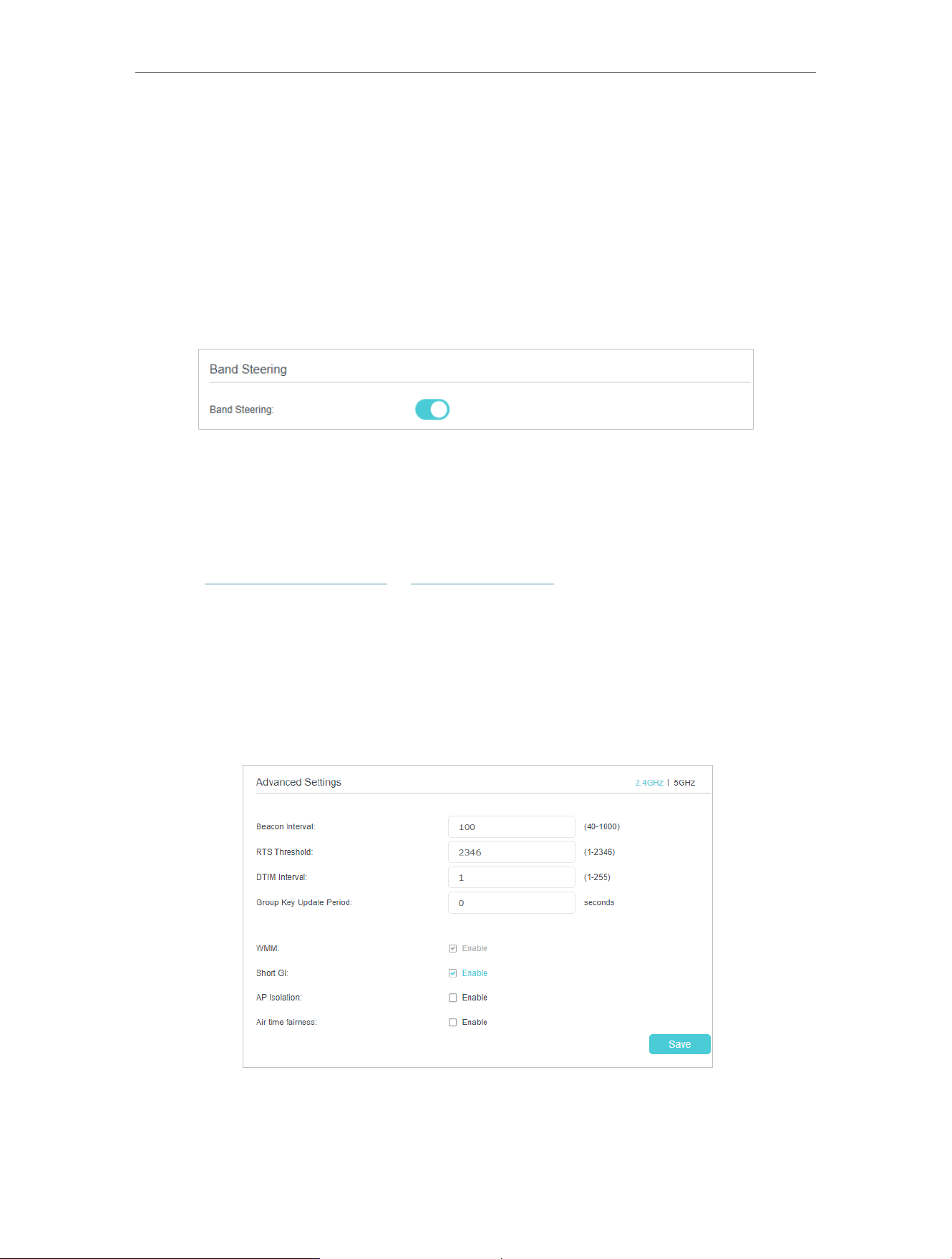
73
Chapter 7
Customize Your Network Settings
3 Click Save to make the settings effective.
¾ To enable network roaming:
Network roaming helps devices choose better AP based on actual conditions to
balance network demands.
1 Go to Advanced > Wireless > Wireless Settings.
2 Locate the Band Steering section, select the Enable check box to make the settings
effective.
7 7 2 Advanced Wireless Settings
Advanced wireless settings are for those who want more network controls. You can
follow the instructions below to configure your router.
1 Visit http://tplinkmodem.net or http://192.168.1.1, and log in with the password you
set for the GPON router.
2 Go to Advanced > Wireless > Advanced Settings.
¾ To change basic advanced settings:
Locate the Advanced Settings section and configure the advanced settings according
to the explanation below, and then click Save.
• Beacon Interval: Enter a value between 40 and 1000 in milliseconds to determine the
duration between which beacon packets are broadcast by the router to synchronize
the wireless network. The default is 100 milliseconds.

74
Chapter 7
Customize Your Network Settings
• RTS Threshold: Enter a value between 1 and 2347 to determine the packet size of
data transmission through the router. By default, the RTS (Request to Send) Threshold
size is 2347. If the packet size is greater than the preset threshold, the router sends
Request to Send frames to a particular receiving station and negotiates the sending
of a data frame, or else the packet will be sent immediately.
• DTIM Interval: Enter a value between 1 and 255 to determine the interval of the
Delivery Traffic Indication Message (DTIM). 1 indicates the DTIM Interval is the same
as Beacon Interval.
• Group Key Update Period: Enter the number of seconds to control the time interval
for the encryption key automatic renewal. The default is 0, indicating no key renewal.
• WMM: This feature guarantees the packets with high-priority messages being
transmitted preferentially. WMM is enabled compulsively under 802.11n or 802.11ac
mode.
• Short GI: This feature is enabled by default and recommended to increase the data
capacity by reducing the Guard Interval (GI) time.
• AP Isolation: Select this check box to enable the AP Isolation feature that allows you
to confine and restrict all wireless devices on your network from interacting with each
other, but still able to access the internet.
• Air time fairness: Select this checkbox to enable the Airtime Fairness(ATF) feature that
allows you to optimize the throughput of each flow. The ATF traffic scheduler uses the
per-destination airtime targets to balance airtime usage across flow destinations.
Note:
If you are not familiar with the settings mentioned above, it’s strongly recommended that you keep the provided default
settings; otherwise it may result in lower wireless network performance.
¾ To enable or disable WPS function:
WPS (Wi-Fi Protected Setup) provides you with an easier approach to set up a security-
protected Wi-Fi connection. This function is enabled by default, but if you do not need
this function, clear the WPS Enable check box.
1 Visit http://tplinkmodem.net or http://192.168.1.1, and log in with the password you
set for the GPON router.
2 Go to Advanced > Wireless > WPS.
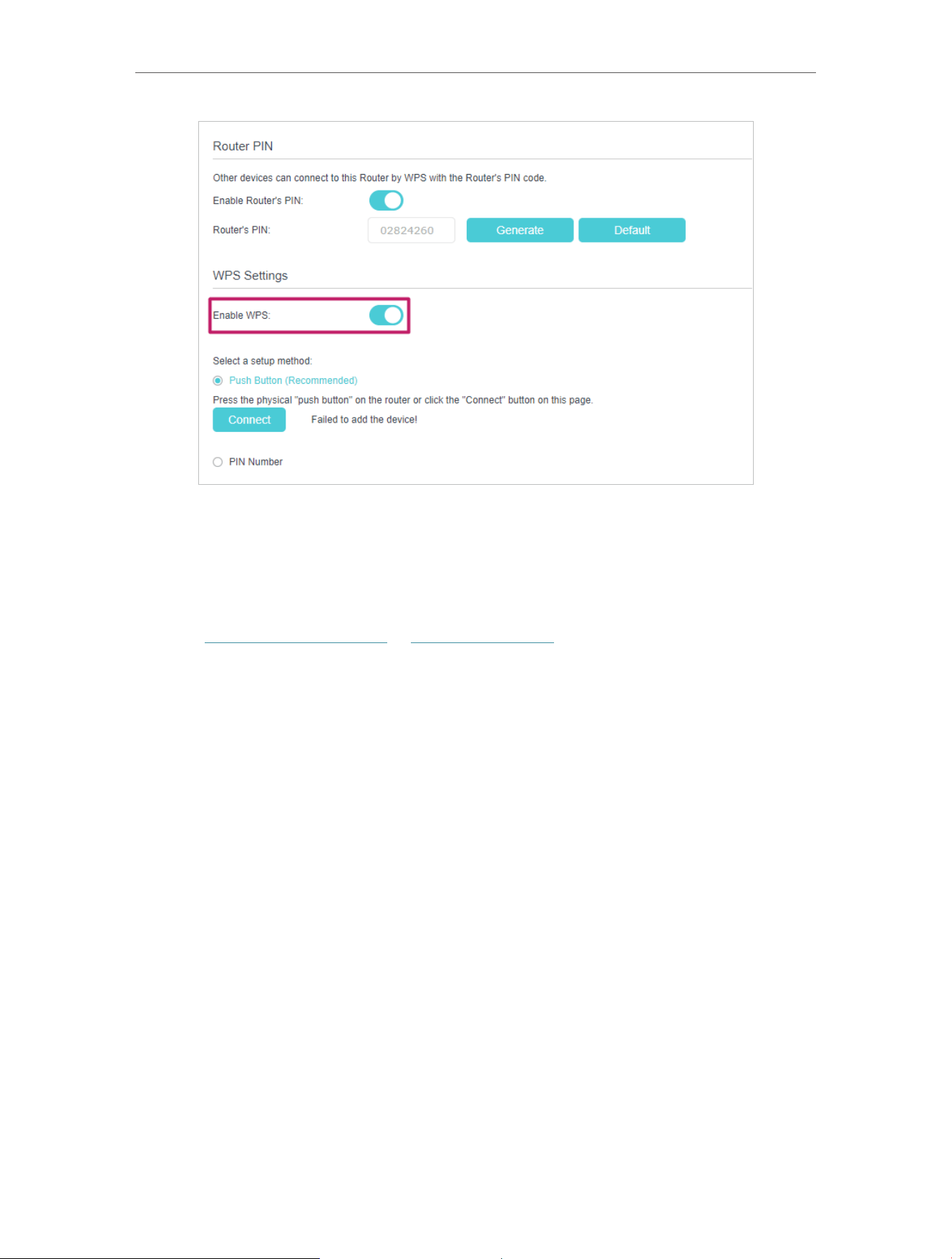
75
Chapter 7
Customize Your Network Settings
¾ To create multi-SSID network:
The router supports additional up to three multi-SSID wireless networks for client
access in each wireless band. You can specify the access and security settings to
ensure network security and privacy according to your situation.
1 Visit http://tplinkmodem.net or http://192.168.1.1, and log in with the password you
set for the GPON router.
2 Go to Advanced > Wireless > Multi-SSID.
1 ) Locate the Multi-SSID section, and enable 2.4GHz or 5GHz to open the
corresponding setup page.
2 ) Select the Enable MSSID 1 or 2 check box(es) to enable the corresponding
multi-SSID network.

76
Chapter 7
Customize Your Network Settings
3 ) Enter a new Network Name (SSID) or use the default name, this field is case
sensitive. Don‘t select Hide SSID unless you want your guests to manually input
the SSID for Wi-Fi access.
4 ) Select the Security option for the multi-SSID network, WPA/WPA2 Personal is
recommended, and you can set a password for the network.
If you want to allow the clients in your Multi-SSID network to communicate with
each other via methods such as Network Neighborhood and Ping, select the
Allow Guests to See Each Other check box.
If you want to allow the clients in your Multi-SSID network to access your
router’s USB storage sharing via methods such as Network Neighborhood and
FTP, select the Allow Guests to Access My USB Storage Sharing check box.
5 ) Repeat step 1) to step 4) to set other wireless networks if needed, and click
Save to make the settings effective.
7 7 3 View Wireless Information
¾ To view the detailed wireless network settings:
1 Visit http://tplinkmodem.net or http://192.168.1.1, and log in with the password you
set for the GPON router.
2 Go to Advanced > Status page. You will find the Wireless panel.
3 Click 2.4GHz or 5GHz to view the wireless details.
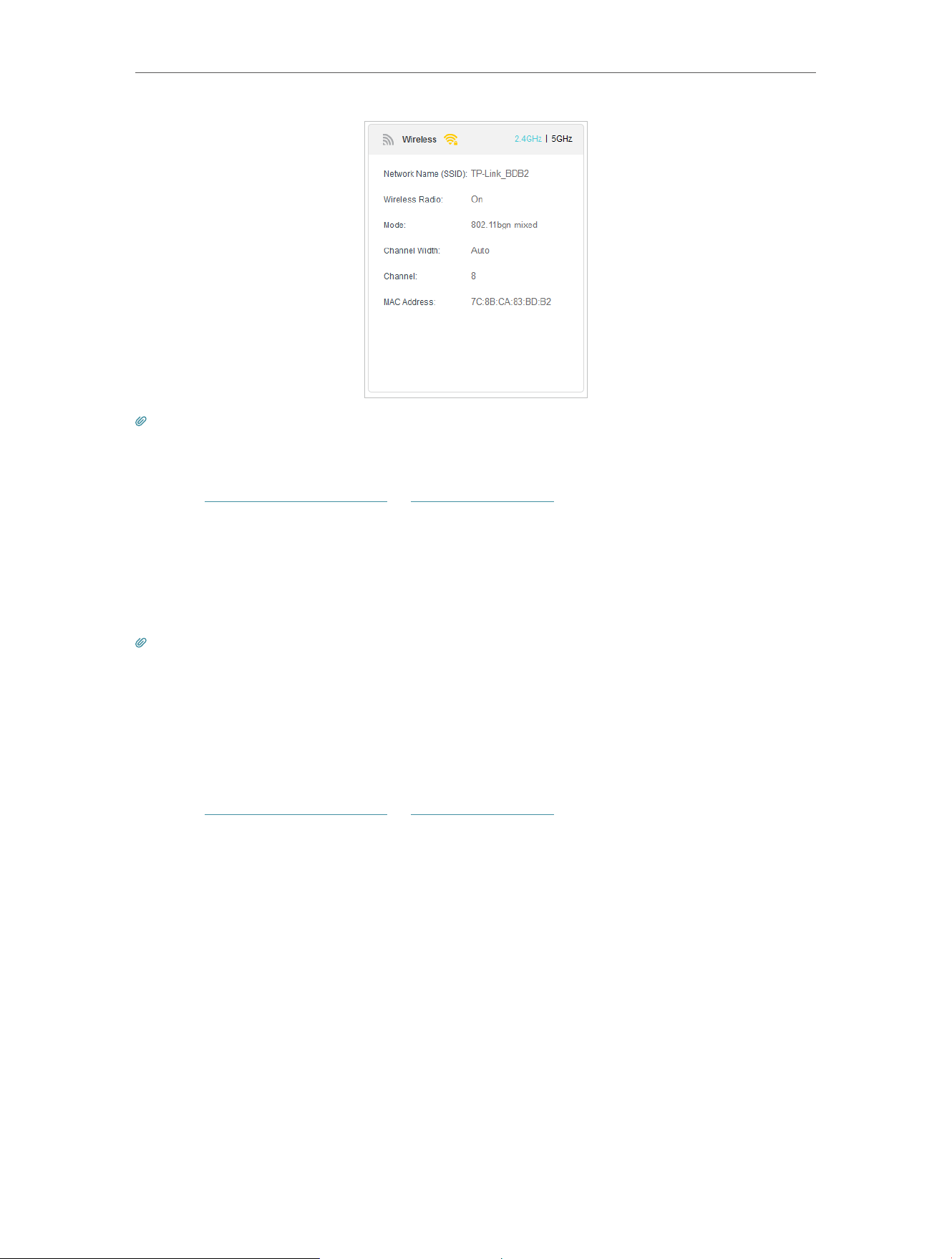
77
Chapter 7
Customize Your Network Settings
Tips: You can also see the wireless details by clicking the router icon on Basic> Network Map.
¾ To view the detailed information of the connected wireless clients:
1 Visit http://tplinkmodem.net or http://192.168.1.1, and log in with the password you
set for the GPON router.
2 Go to Advanced > Wireless > Statistics page.
3 You can view the detailed information of the wireless clients, including its connection
type and security option as well as the packets transmitted.
Tips: You can also see the wireless details by clicking the wireless clients icon on Basic > Network Map.
7 8 Schedule Your Wireless Function
You can automatically turn off your wireless networks when you do not need the wireless
connection.
1 Visit http://tplinkmodem.net or http://192.168.1.1, and log in with the password you
set for the GPON router.
2 Go to Advanced > Wireless > Wireless Schedule.
3 Enable the Wireless Schedule function.
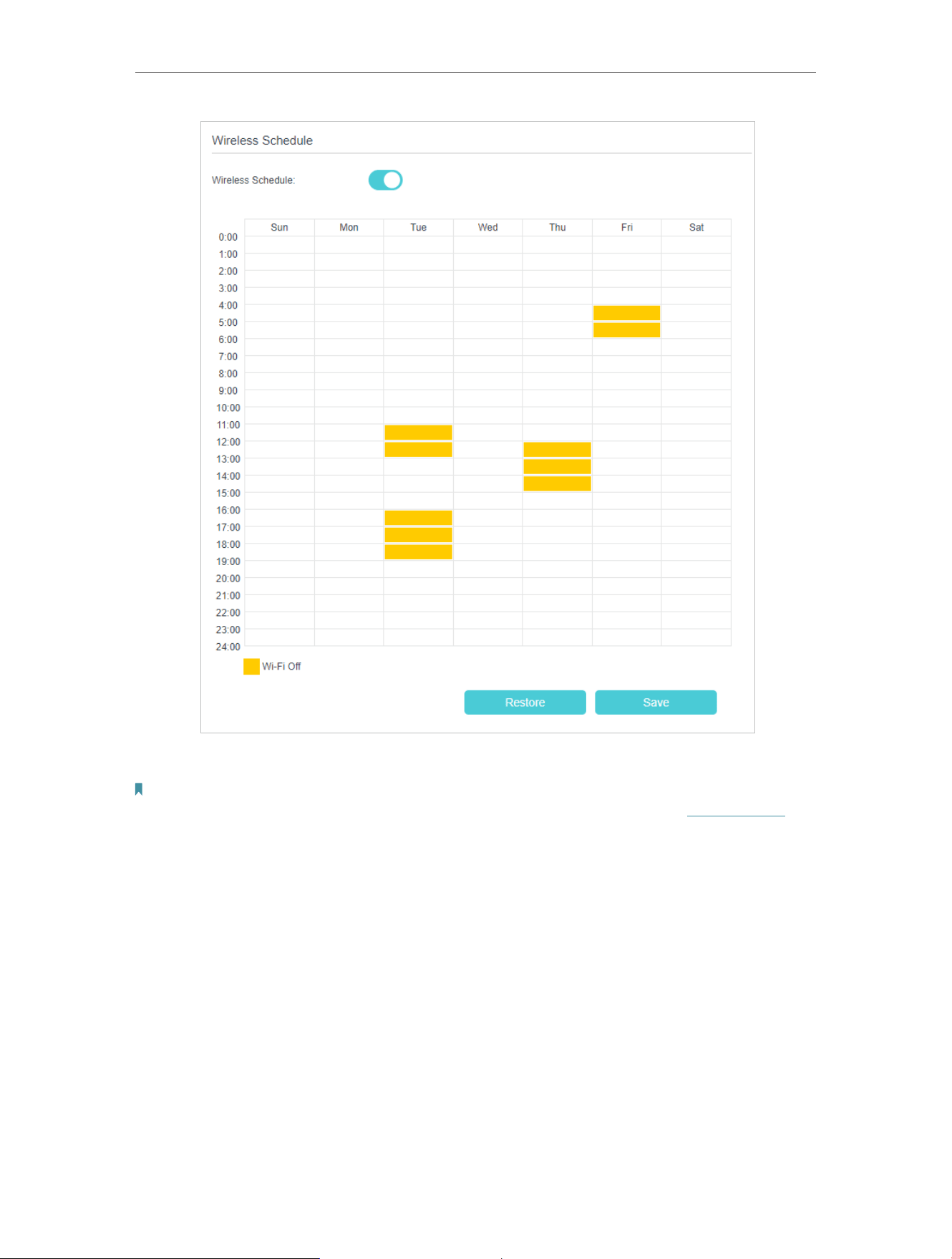
78
Chapter 7
Customize Your Network Settings
4 Click Add to set the Wireless Off Time, and click Save to make the settings effective.
Note:
1. Make sure that the time of the router is correct before using this function. For details, refer to Set System Time.
2. The wireless LED will turn off if the corresponding wireless network is disabled.
3. The wireless network will be automatically turned on after the time period you set.
7 9 Use WPS for Wireless Connection
You can use WPS (Wi-Fi Protected Setup) to add a new wireless device to your existing
network quickly and easily.
Method 1: Use the WPS button
Use this method if your client device has a WPS button.
1 Press the WiFi/WPS button of the router.
2 Press the WPS button of the client device directly.
3 The WPS LED flashes for about 2 minutes during the WPS process.
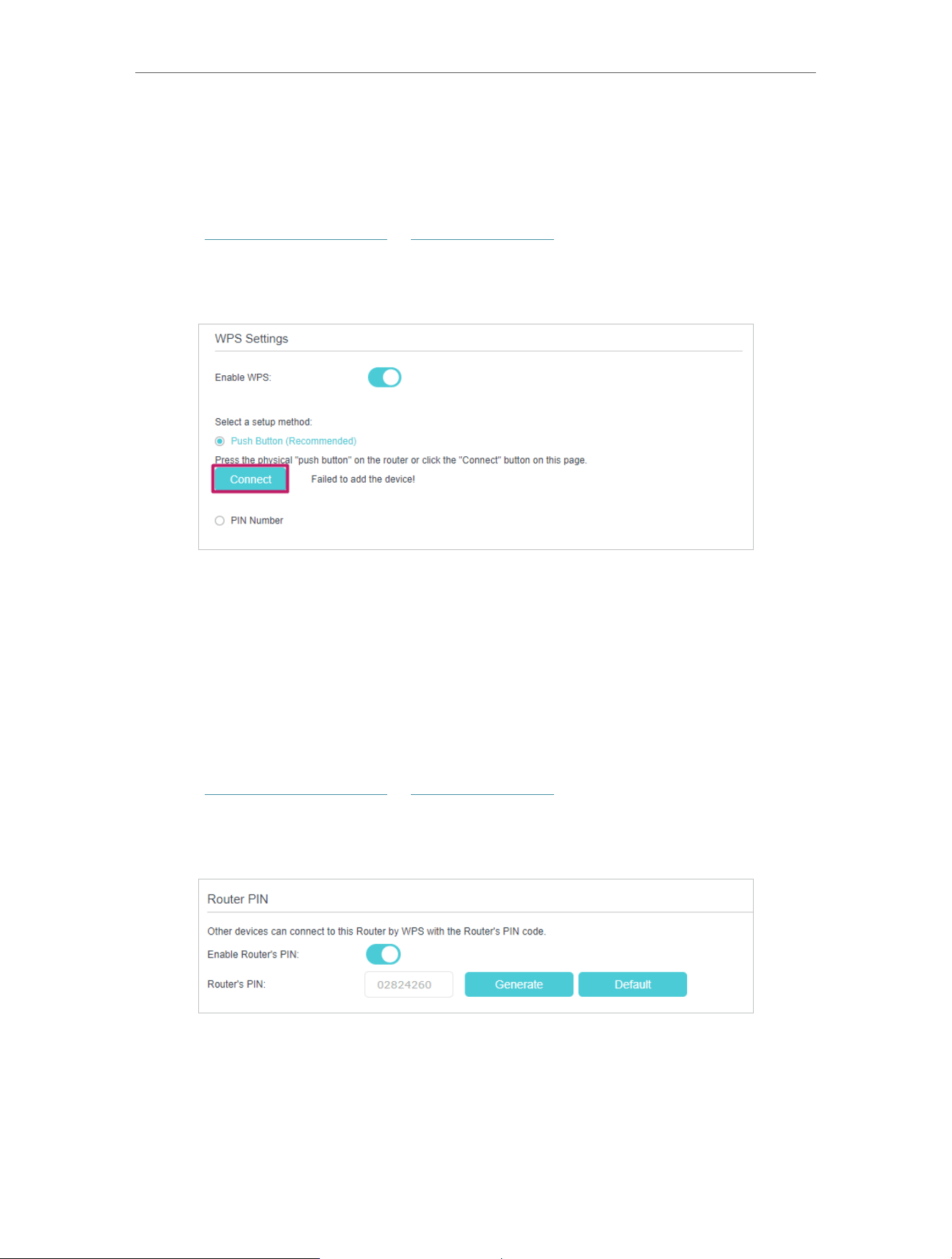
79
Chapter 7
Customize Your Network Settings
4 When the WPS LED is on, the client device has successfully connected to the router.
Method 2: Use the “Connect” button on the web management page
Use this method if your client device has a WPS button.
1 Visit http://tplinkmodem.net or http://192.168.1.1, and log in with the password you
set for the GPON router.
2 Go to Advanced > Wireless > WPS page.
3 Click Connect on the page.
4 Press the WPS button of the client device directly.
5 The WPS LED of the router flashes for about 2 minutes during the WPS process.
6 When the WPS LED is on, the client device has successfully connected to the router.
Method 3: Enter the router’s PIN on your client device
Use this method if your client device asks for the router’s PIN.
1 Visit http://tplinkmodem.net or http://192.168.1.1, and log in with the password you
set for the GPON router.
2 Go to Advanced > Wireless > WPS, and enable Router’s PIN.
3 Take a note of the current PIN of the router. You can also click the Generate button
to get a new PIN.
4 Enter the router’s PIN on the client device. (The default PIN is also printed on the
label of the router.)
5 The WPS LED flashes for about 2 minutes during the WPS process.
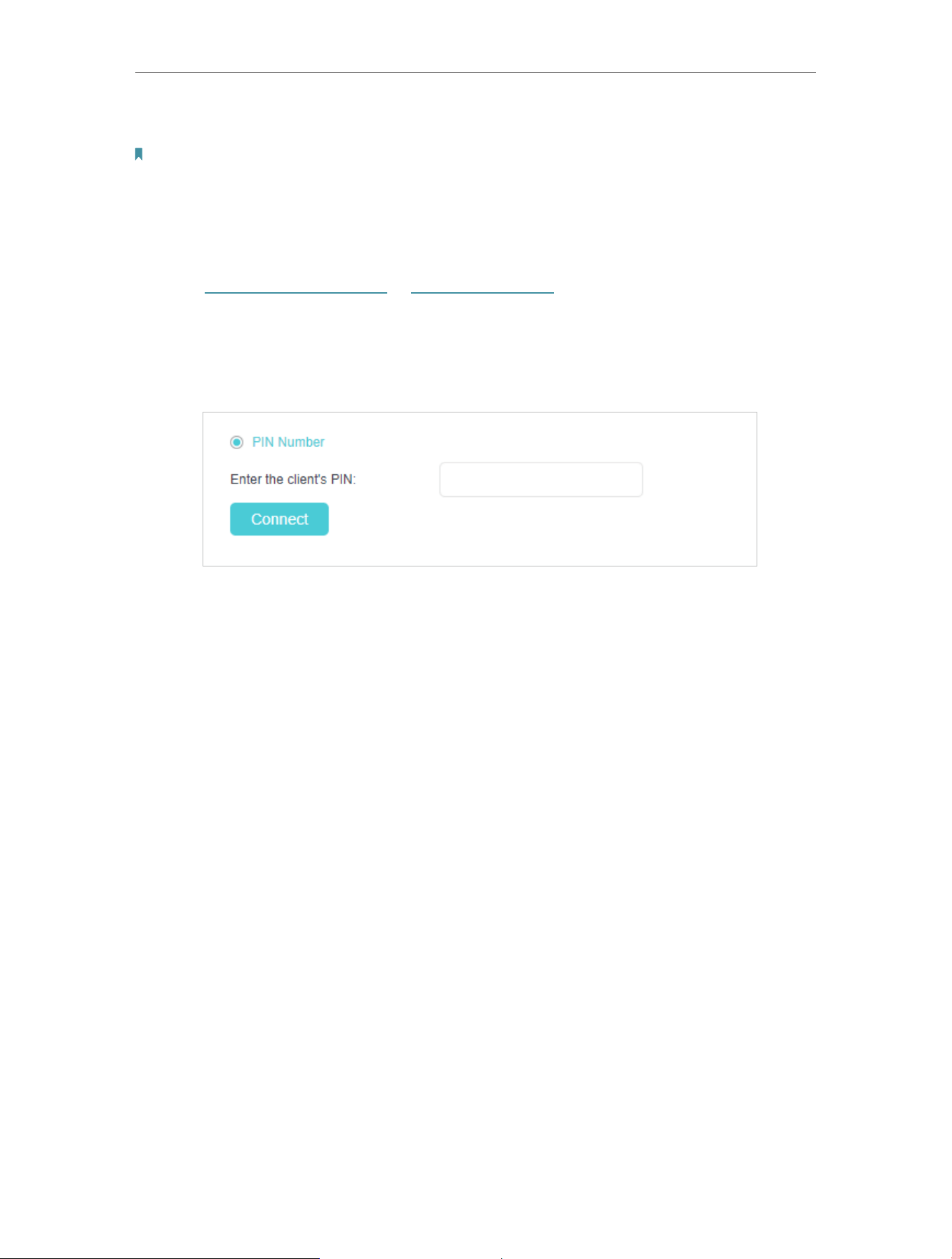
80
Chapter 7
Customize Your Network Settings
6 When the WPS LED is on, the client device has successfully connected to the router.
Note:
1. The WPS LED on the router will light on for five minutes if the device has been successfully added to the network.
2. The WPS function cannot be configured if the wireless function of the router is disabled. Please make sure the
wireless function is enabled before configuring WPS.
Method 4: Enter the client device’s PIN on the router
1 Visit http://tplinkmodem.net or http://192.168.1.1, and log in with the password you
set for the GPON router.
2 Go to Advanced > Wireless > WPS, and click PIN Number.
3 Enter the Client’s PIN.
4 Then click the Connect button.
5 Device has been added successfully! or the similar information will appear on the
web page, which means the client device has successfully connected to the router.

Chapter 7
Multi-SSID
Multi-SSID function allows you to provide Wi-Fi access for your visitors without
disclosing your main network. When you have guests in your house, apartment, or
workplace, you can create a multi-SSID wireless network for them. In addition, you can
customize the network settings to ensure your network security and privacy.

82
Chapter 7
Multi-SSID
¾ To create a multi-SSID network:
1. Visit http://tplinkmodem.net or http://192.168.1.1, and log in with the password you
set for the GPON router.
2. Go to Basic > Multi-SSID or Advanced > Wireless > Multi-SSID.
3. Create the multi-SSID network as needed.
1 ) Select the Enable check box to create the corresponding multi-SSID network.
You can create three multi-SSID wireless networks at most.
2 ) Enter a new Network Name (SSID) or use the default name, this field is case-
sensitive. Don‘t select Hide SSID unless you want your guests to manually input
the SSID for Wi-Fi access.
3 ) Select the Security option for the multi-SSID wireless network, WPA/WPA2/
WPA3 Personal (Recommended) is recommended, and you can set a password
for the network.
4. Click Save to make the settings effective. Now your guests can access your multi-
SSID wireless network using the SSID and password specified.

Chapter 8
TP-Link Cloud Service
TP-Link Cloud service provides a better way to manage your cloud devices. Log in to
your GPON router with a TP-Link ID, and you can easily monitor and manage your home
network when you are out and about via the Aginet app. To ensure that your GPON
router stays new and gets better over time, the TP-Link Cloud will notify you when an
important firmware upgrade is available. Surely you can also manage multiple TP-Link
Cloud devices with a single TP-Link ID.
This chapter introduces how to register a new TP-Link ID, bind or unbind TP-Link IDs
to manage your GPON router, and the Aginet app with which you can manage your
home network no matter where you may find yourself.
It contains the following sections:
• Register a TP-Link ID
• Change Your TP-Link ID Information
• Manage the User TP-Link IDs
• Manage the GPON Router via the TP-Link Aginet App
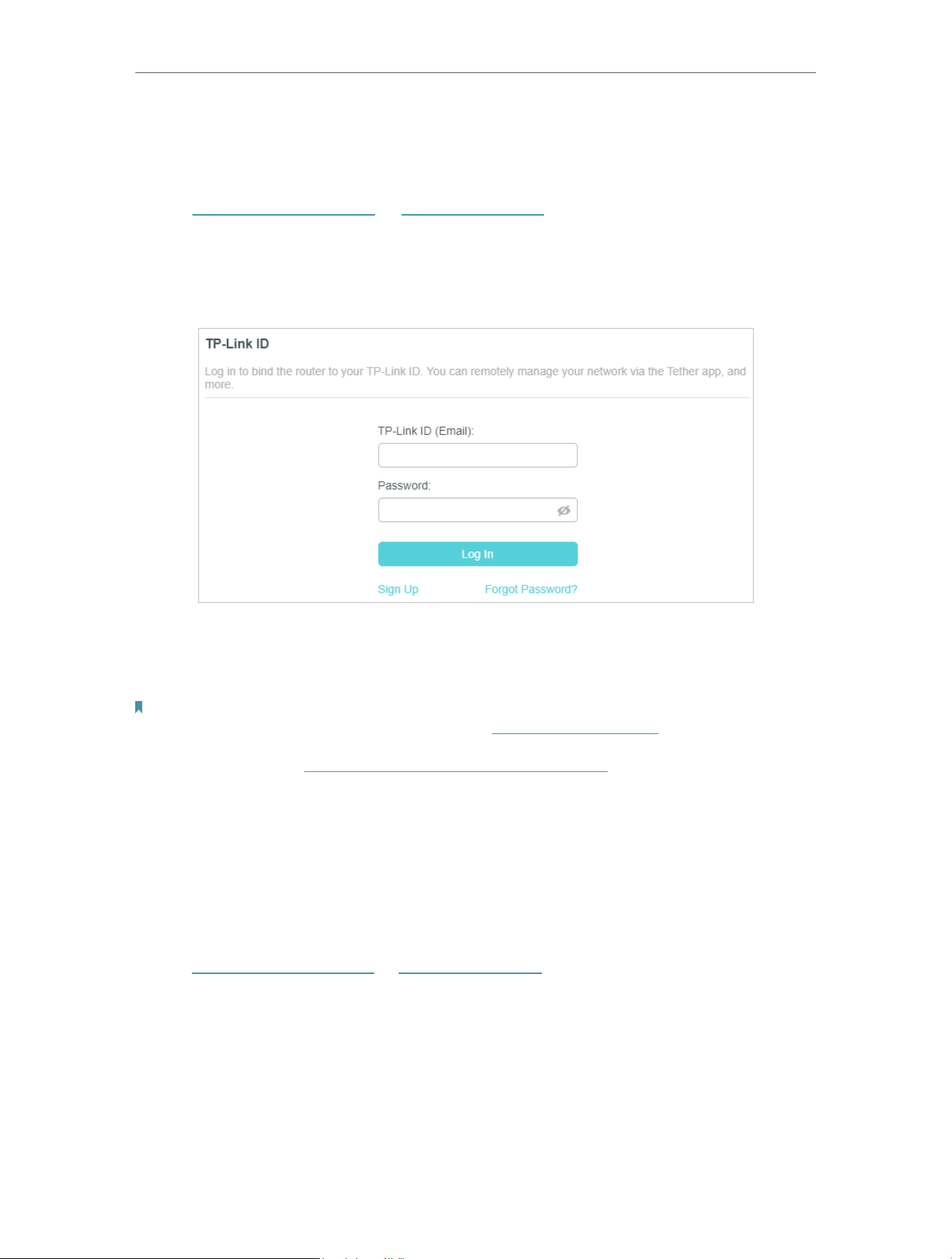
84
Chapter 8
TP-Link Cloud Service
9 1 Register a TP-Link ID
If you have skipped the registration during the Quick Setup process, you can:
1. Visit http://tplinkmodem.net or http://192.168.1.1, and log in with the password you
set for the GPON router.
2. Go to Basic > TP-Link Cloud.
3. Click Sign Up and follow the instructions to register a TP-Link ID.
4. After activating your TP-Link ID, come back to the TP-Link Cloud page to log in. The
TP-Link ID used to log in to the router for the first time will be automatically bound as
an Admin.
Note:
• To learn more about the Admin and User TP-Link ID, refer to Manage the User TP-Link IDs.
• Once you have registered a TP-Link ID on the web management page, you can only register another TP-Link ID via the
Aginet APP. Please refer to Manage the GPON Router via the TP-Link Aginet App to install the app.
• If you want to unbind the admin TP-Link ID from your router, please go to Basic > TP-Link Cloud, an click Unbind in the
Device Information section.
9 2 Change Your TP-Link ID Information
Follow the steps below to change your email address and password of your TP-Link ID
as needed.
1. Visit http://tplinkmodem.net or http://192.168.1.1, and log in with your TP-Link ID.
2. Go to Basic > TP-Link Cloud, and focus on the Account Information section.
• To change your email address:
1. Click
behind the Email.
2. Enter the password of your TP-Link ID, then a new email address. And click Save.

85
Chapter 8
TP-Link Cloud Service
• To change your password:
1. Click
behind the Password.
2. Enter the current password, then a new password twice. And click Save.
9 3 Manage the User TP-Link IDs
The TP-Link ID used to log in to the GPON router for the first time will be automatically
bound as the Admin account. An admin account can add or remove other TP-Link IDs

86
Chapter 8
TP-Link Cloud Service
to or from the same router as Users. All accounts can monitor and manage the router
locally or remotely, but user accounts cannot:
• Reset the GPON router to its factory default settings either on the web management
page or in the Aginet app.
• Add/remove other TP-Link IDs to/from the GPON router.
9 3 1 Add TP-Link ID to Manage the GPON Router
1. Visit http://tplinkmodem.net or http://192.168.1.1, and log in with your TP-Link ID.
2. Go to Basic > TP-Link Cloud, and focus on the Bound Accounts section.
3. Click
, enter another TP-Link ID as needed and click Save.
Note: If you need another TP-Link ID, please register a new one via the Aginet app. Refer to Manage the GPON Router
via the TP-Link Aginet App to install the app and register a new TP-Link ID.
4. The new TP-Link ID will be displayed in the Bound Accounts table as a User.
9 3 2 Remove TP-Link ID(s) from Managing the GPON Router
1. Visit http://tplinkmodem.net or http://192.168.1.1, and log in with your TP-Link ID.
2. Go to Basic > TP-Link Cloud, and focus on the Bound Accounts section.
3. Tick the checkbox(es) of the TP-Link ID(s) you want to remove and click Unbind.
87
Chapter 8
TP-Link Cloud Service
9 4 Manage the GPON Router via the TP-Link Aginet
App
The Aginet app runs on iOS and Android devices, such as smartphones and tablets.
1. Launch the Apple App Store or Google Play store and search “TP-Link Aginet” or
simply scan the QR code to download and install the app.
OR
2. Launch the Aginet app and log in with your TP-Link ID.
Note: If you don’t have a TP-Link ID, create one first.
3. Connect your device to the GPON router’s wireless network.
4. Go back to the Aginet app, select the model of your router and log in with the password
you set for the router.
5. Manage your router as needed.
Note: If you need to remotely access your router from your smart devices, you need to:
• Log in with your TP-Link ID. If you don’t have one, refer to Register a TP-Link ID.
• Make sure your smartphone or tablet can access the internet with cellular data or a Wi-Fi network.

Chapter 10
USB Settings
This chapter describes how to use the USB ports to share files and media from the USB
storage devices over your home network locally, or remotely through the internet.
The GPON router supports USB external flash drives and hard drives.
It contains the following sections:
• Access the USB Storage Device
• Media Sharing
• 3G/4G Settings

89
Chapter 10
USB Settings
10 1 Access the USB Storage Device
Insert your USB storage device into the GPON router’s USB port and then access files
stored there locally or remotely.
Tips:
• If you use USB hubs, make sure no more than 4 devices are connected to the GPON router.
• If the USB storage device requires using bundled external power, make sure the external power has been connected.
• If you use a USB hard drive, make sure its file system is FAT32, exFat, NTFS or HFS+.
• Before you physically disconnect a USB device from the router, safely remove it to avoid data damage: Go to Advanced
> USB Sharing > USB Storage Device and click Remove.
10 1 1 Access the USB Device Locally
Insert your USB storage device into the GPON router’s USB port and then refer to the
following table to access files stored on your USB storage device.
Windows
computer
• Method 1:
Go to Computer > Network, then click the Network Server Name (TP-
SHARE by default) in the Computer section.
Note:
Operations in different systems are similar. Here we take Windows 7 as an example.

90
Chapter 10
USB Settings
Windows
computer
• Method 2:
Open the Windows Explorer (or go to Computer) and type the server
address \\tplinkwifi.net or ftp://tplinkwifi.net in the address bar, then
press Enter.
Mac
1 ) Select Go > Connect to Server.
2 ) Type the server address smb://tplinkwifi.net.
3 ) Click Connect.
4 ) When prompted, select the Guest radio box. (If you have set up a
username and a password to deny anonymous access to the USB
disks, you should select the Registered User radio box. To learn how
to set up an account for the access, refer to To Set Up Authentication
for Data Security.)
Tablet
Use a third-party app for network files management.
Tips:
You can also access your USB storage device by using your Network/Media Server Name as the server address. Refer
to To Customize the Address of the USB Storage Device to learn more.
10 1 2 Access the USB Device Remotely
You can access your USB disk outside the local area network. For example, you can:
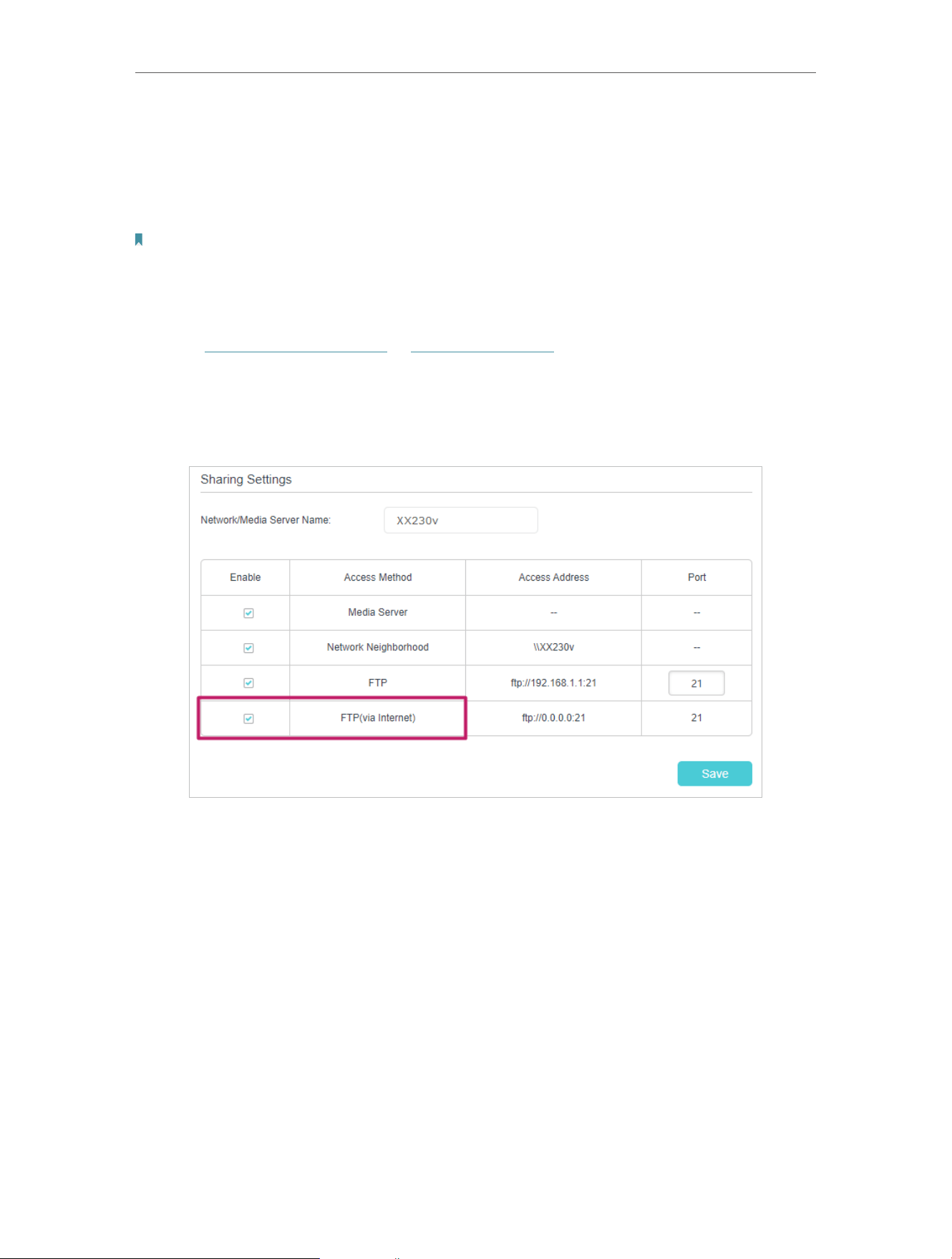
91
Chapter 10
USB Settings
• Share photos and other large files with your friends without logging in to (and paying
for) a photo-sharing site or email system.
• Get a safe backup for the materials for a presentation.
• Remove the files on your camera’s memory card from time to time during the journey.
Note:
If your ISP assigns a private WAN IP address (such as 192.168.x.x or 10.x.x.x), you cannot use this feature because
private addresses are not routed on the internet.
Follow the steps below to configure remote access settings.
1 Visit http://tplinkmodem.net or http://192.168.1.1, and log in with the password you
set for the GPON router.
2 Go to Advanced > USB Sharing > Sharing Access > Sharing Settings.
3 Tick the FTP checkbox, and then click Save.
4 Refer to the following table to access your USB disk remotely.

92
Chapter 10
USB Settings
Computer
1 ) Open the Windows Explorer (or go to Computer, only for Windows
users) or open a web browser.
2 ) Type the server address in the address bar:
Type in ftp://<WAN IP address of the router>:<port number> (such
as ftp://59.40.2.243:21). If you have specified the domain name
of the router, you can also type in ftp://<domain name>:<port
number> (such as ftp://MyDomainName:21)
3 ) Press Enter on the keyboard.
4 ) Access with the username and password you set in To Set Up
Authentication for Data Security.
Tips:
You can also access the USB disk via a third-party app for network files management, which can
resume broken file transfers.
Tablet
Use a third-party app for network files management.
Tips:
Click Set Up a Dynamic DNS Service Account to learn how to set up a domain name for you router.
10 1 3 Customize the Access Settings
By default, all the network clients can access all folders on your USB disk. You can
customize your sharing settings by setting a sharing account, sharing specific contents
and setting a new sharing address on the router’s web management page.
1 Visit http://tplinkmodem.net or http://192.168.1.1, and log in with the password you
set for the GPON router.
2 Go to Advanced > USB Sharing > Sharing Access > Sharing Settings.
• To Customize the Address of the USB Storage Device
You can customize the server name and use the name to access your USB storage
device.
1 In the Sharing Settings session, make sure Media Server is ticked, and enter a
Network/Media Server Name as you like, such as MyShare, then click Save.
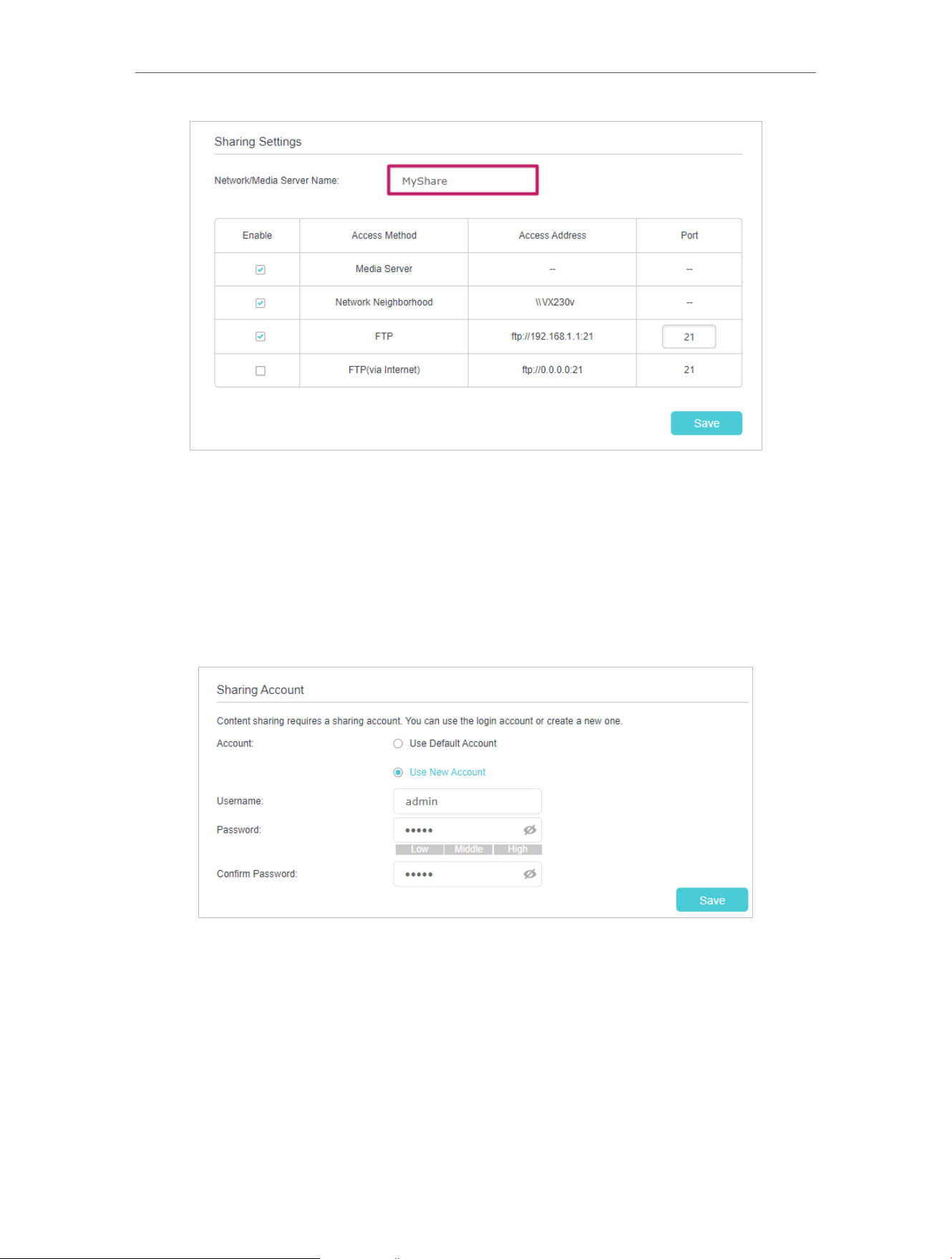
93
Chapter 10
USB Settings
2 Now you can access the USB storage device by visiting \\MyShare (for Windows) or
smb://MyShare (for Mac).
• To Set Up Authentication for Data Security
You can set up authentication for your USB storage device so that network clients will
be required to enter username and password when accessing the USB storage device.
1 In the Sharing Account section, enable Use New Account.
2 Modify the access account. The username and password are both admin for default
administrator account, and both visit for default visitor account. Accessing as an
administrator can read and modify the shared folders while visitors can only read
the shared folders.
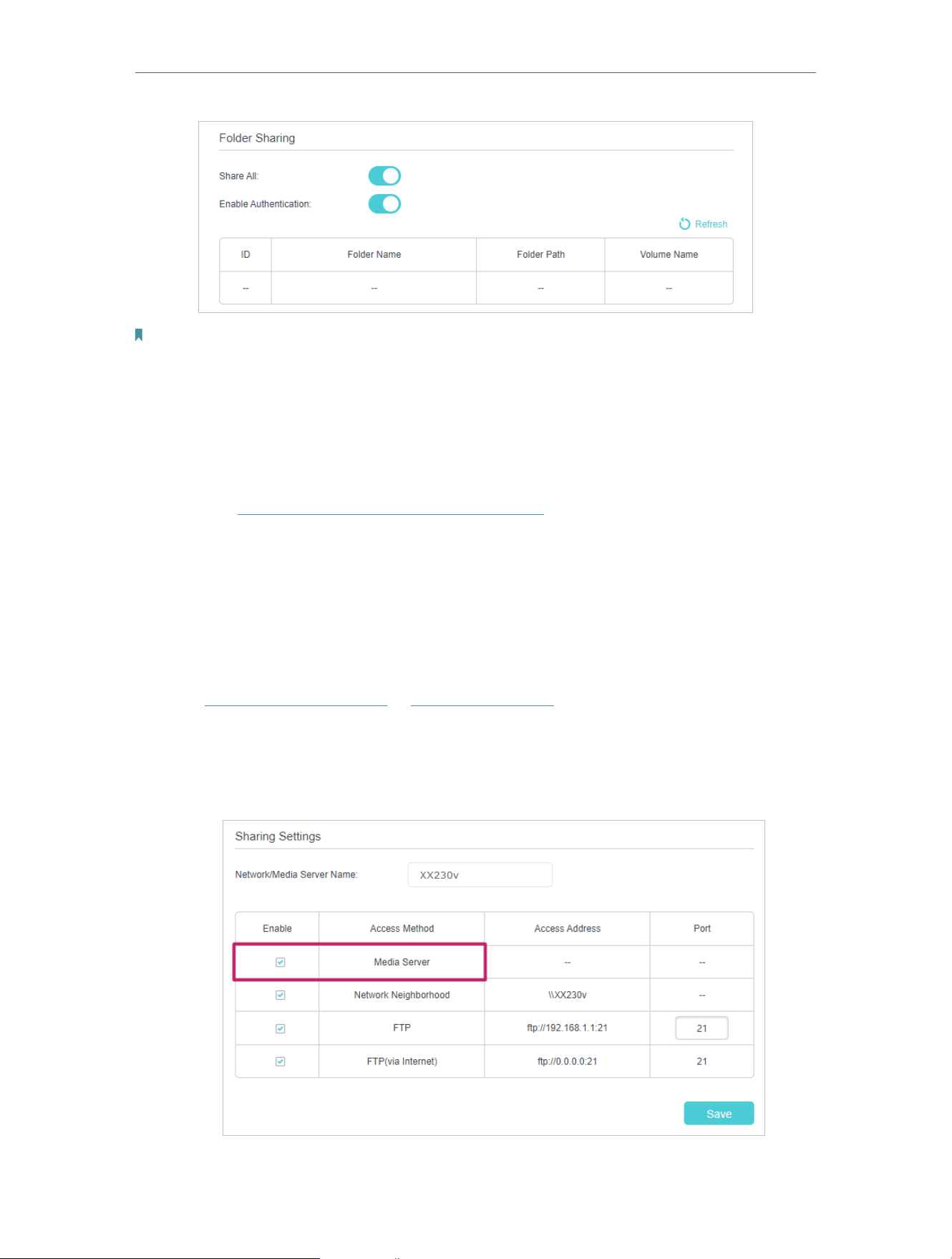
94
Chapter 10
USB Settings
Note:
1. For Windows users, do not set the sharing username the same as the Windows username. Otherwise, Windows
credential mechanism may cause the following problems:
• If the sharing password is also the same as the Windows password, authentication will not work since the Windows
will automatically use its account information for USB access.
• If the sharing password is different from the Windows password, the Windows will be unable to remember your
credentials and you will always be required to enter the sharing password for USB access.
2. Due to Windows credential mechanism, you might be unable to access the USB disk after changing Authentication
settings. Please log out from the Windows and try to access again. Or you can change the address of the USB disk
by referring to To Customize the Address of the USB Storage Device.
10 2 Media Sharing
The feature of Media Sharing allows you to view photos, play music and watch movies
stored on the USB storage device directly from DLNA-supported devices, such as your
computer, tablet and PS2/3/4.
1 Visit http://tplinkmodem.net or http://192.168.1.1, and log in with the password you
set for the GPON router.
2 Go to Advanced > USB Sharing > Sharing Access > Sharing Settings.
3 Enable Media Server.

95
Chapter 10
USB Settings
4 When your USB storage device is inserted into the router, your DLNA-supported
devices (such as your computer and pad) connected to the router can detect and
play the media files on the USB storage devices.
5 Refer to the following table for detailed instructions.
Windows
Computer
• Go to Computer > Network, then click the Media Server Name (Model
number-share by default) in the Media Devices section.
Note:
Here we take Windows 7 as an example.
Tablet
• Use a third-party DLNA-supported player.
10 3 3G/4G Settings
Time Machine backs up all files on your Mac computer to a USB storage device
connected to your router.
1 Visit http://tplinkmodem.net or http://192.168.1.1, and log in with the password you
set for the GPON router.
2 Go to Advanced > USB Sharing > 3G/4G Settings.

96
Chapter 10
USB Settings
3 Tick the checkbox to enable 3G/4G as a backup solution for Internet access.
4 Tick the checkbox to set the Dial Number, APN, Username and Password manually.
Note: The following Advanced settings will only display if you enable 3G/4G as the backup solution for Internet access.
5 Click Save.


98
Chapter 10
EasyMesh with Seamless Roaming
TP-Link EasyMesh Controller and TP-Link EasyMesh Agent work together to form
one unified Wi-Fi network. Walk through your home and stay connected with the fastest
possible speeds thanks to EasyMesh’s seamless coverage.
Unified Wi-Fi Network
Controller and agents share the same wireless settings, including network name,
password, access control settings and more.
Seamless Roaming
Devices automatically switch between your controller and agents as you move
through your home for the fastest possible speeds.
Easy Setup and Management
Set up a EasyMesh network with a push of WPS buttons. Manage all network devices
on the Aginet app or at your router’s web management page.
11 1 Set Up a EasyMesh Network
1. Visit http://tplinkmodem.net or http://192.168.1.1, and log in with the password you
set for the GPON router.
2. Go to Basic > Mesh or Advanced > Wireless > Mesh, and enable EasyMesh.
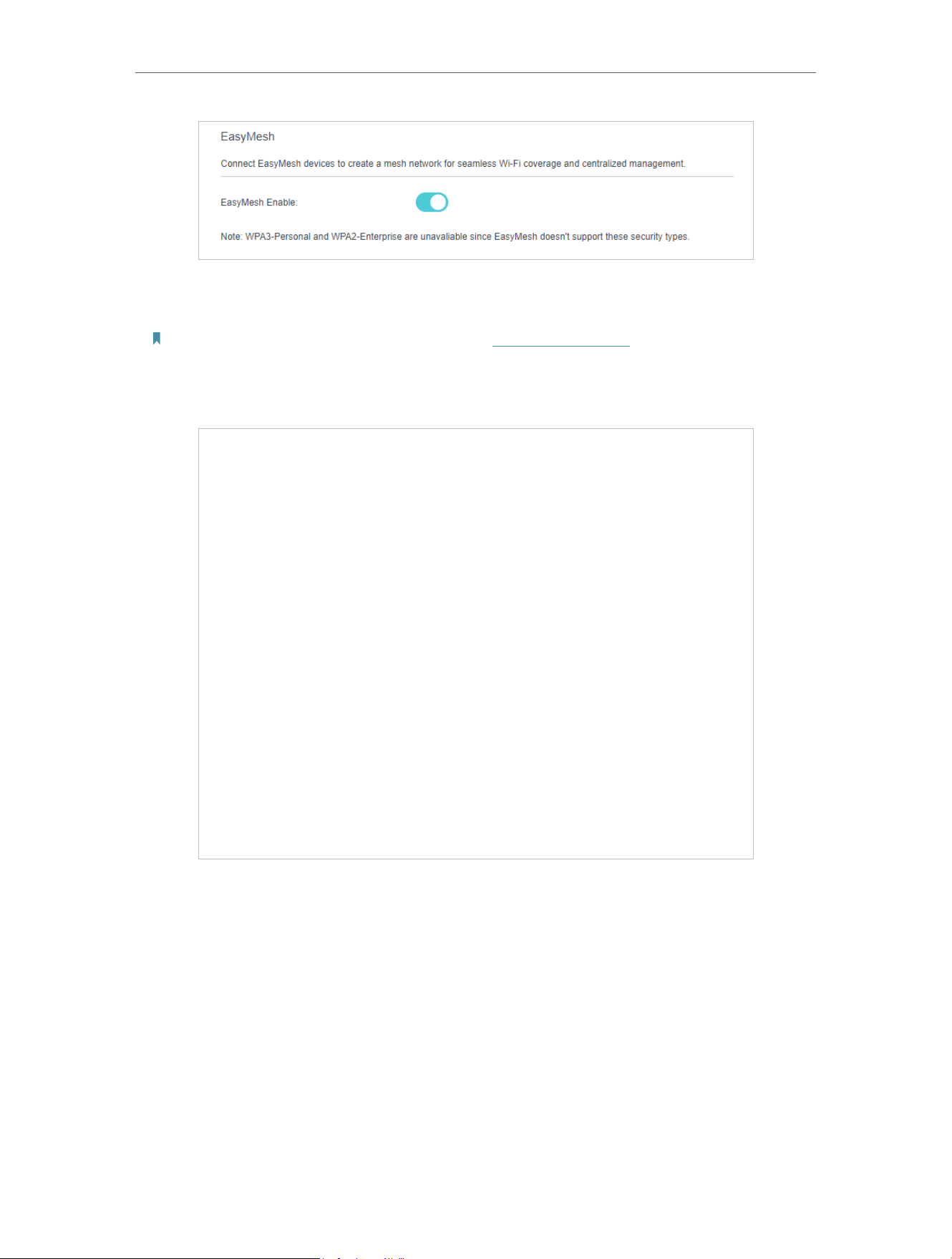
99
Chapter 10
EasyMesh with Seamless Roaming
3. Connect a EasyMesh agent to this controller by following the setup instructions in
the agent’s manual. The agent will be listed on the controller’s Mesh page.
Note: To check full list of TP-Link EasyMesh devices, visit https://www.tp-link.com.
4. If you have set up the agent to join the EasyMesh network, it will be listed on the
controller’s EasyMesh page.
Otherwise, you need to find it in the Add Mesh Device list and click Add to add it to
the EasyMesh network.
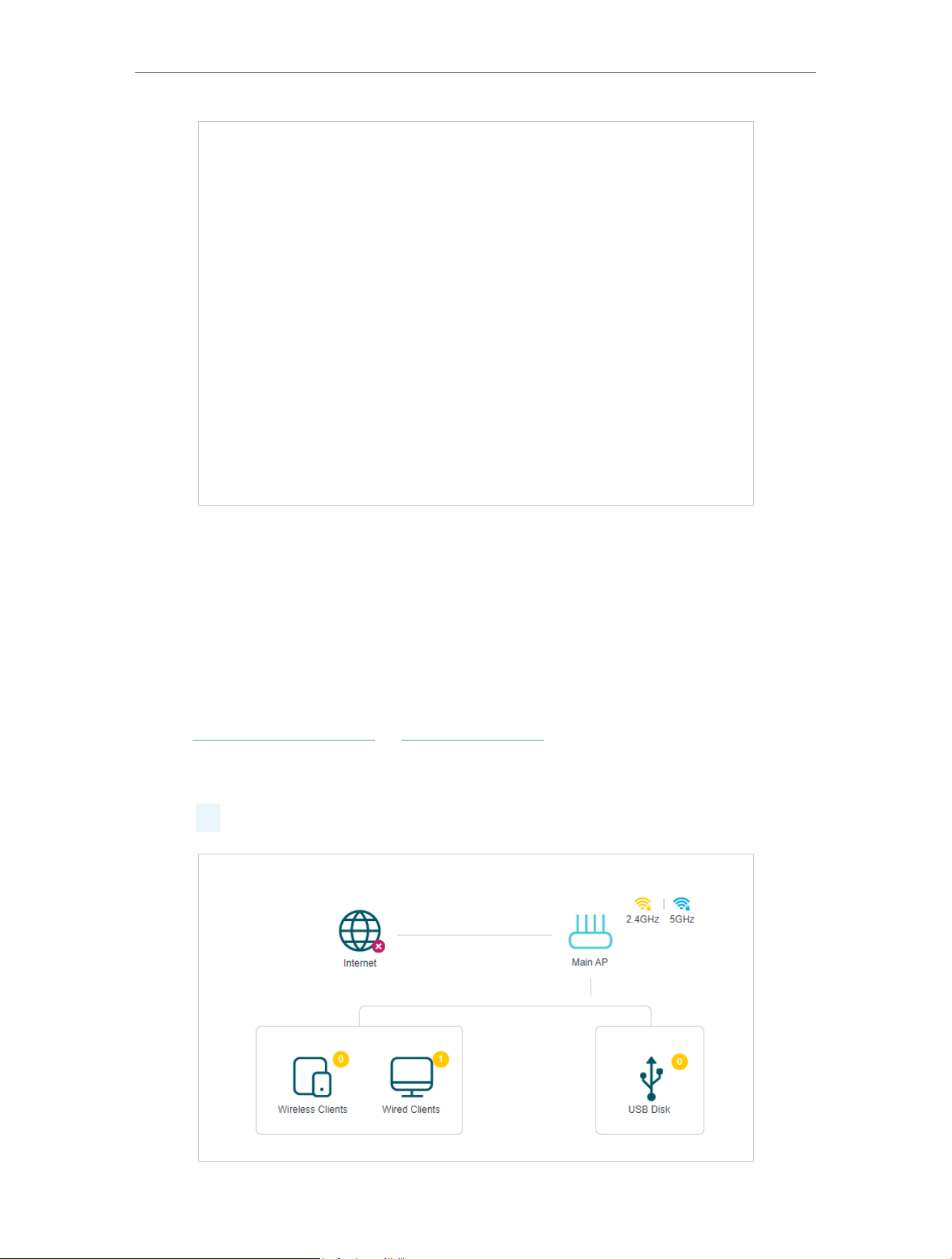
100
Chapter 10
EasyMesh with Seamless Roaming
Done! Now your controller and agents successfully form a EasyMesh network!
11 2 Manage Devices in the EasyMesh Network
In a EasyMesh network, you can manage all mesh devices and connected clients on
your router’s web page.
• To view mesh devices and connected clients in the network:
1. Visit http://tplinkmodem.net or http://192.168.1.1, and log in with the password you
set for the GPON router.
2. Go to Basic > Network Map.
3. Click
to view all mesh devices, and click to view all connected clients.

101
Chapter 10
EasyMesh with Seamless Roaming
• To manage a EasyMesh device in the network:
1. Visit http://tplinkmodem.net or http://192.168.1.1, and log in with the password you
set for the GPON router.
2. Go to Basic > Network Map.
3. Click the Mesh device’s IP Address to redirect to the web management page of this
device and view detailed information.
4. Manage the EasyMesh device as needed. You can:
• Change device information.
• Delete this device from the EasyMesh network.

Chapter 11
Guest Network
This function allows you to provide Wi-Fi access for guests without disclosing your
main network. When you have guests in your house, apartment, or workplace, you can
create a guest network for them. In addition, you can customize guest network options
to ensure network security and privacy.
It contains the following sections:
• Create a Network for Guests
• Customize Guest Network Options

103
Chapter 11
Guest Network
12 1 Create a Network for Guests
1. Visit http://tplinkmodem.net or http://192.168.1.1, and log in with the password you
set for the GPON router.
2. Go to Advanced > Guest Network. Locate the Wireless section.
3. Create a guest network as needed.
1 ) Tick the Enable checkbox for the 2.4GHz or 5GHz wireless network.
2 ) Customize the SSID. Don‘t select Hide SSID unless you want your guests to
manually input the SSID for guest network access.
3 ) Select the Security type and customize your own password. If No security is
selected, no password is needed to access your guest network.
4. Click Save. Now your guests can access your guest network using the SSID and
password you set!
Tips:
To view guest network information, go to Network Map and locate the Guest Network section. You can turn on or off the
guest network function conveniently.
12 2 Customize Guest Network Options
1. Visit http://tplinkmodem.net or http://192.168.1.1, and log in with the password you
set for the GPON router.
2. Go to Advanced > Guest Network. Locate the Settings section.
3. Customize guest network options according to your needs.

104
Chapter 11
Guest Network
• Allow guests to see each other
Tick this checkbox if you want to allow the wireless clients on your guest network
to communicate with each other via methods such as network neighbors and Ping.
4. Click Save. Now you can ensure network security and privacy!

Chapter 13
NAT Forwarding
The GPON router’s NAT (Network Address Translation) feature makes devices on the
LAN use the same public IP address to communicate with devices on the internet,
which protects the local network by hiding IP addresses of the devices. However, it also
brings about the problem that an external host cannot initiatively communicate with a
specified device on the local network.
With the forwarding feature the GPON router can penetrate the isolation of NAT and
allows devices on the internet to initiatively communicate with devices on the local
network, thus realizing some special functions.
The TP-Link GPON router supports four forwarding rules. If two or more rules are set,
the priority of implementation from high to low is Port Forwarding, Port Triggering,
UPNP and DMZ.
It contains the following sections:
• ALG
• Set Up Public Services on The Local Network by Virtual Servers
• Open Ports Dynamically by Port Triggering
• Make Applications Free from Port Restriction by DMZ
• Make Xbox Online Games Run Smoothly by UPnP
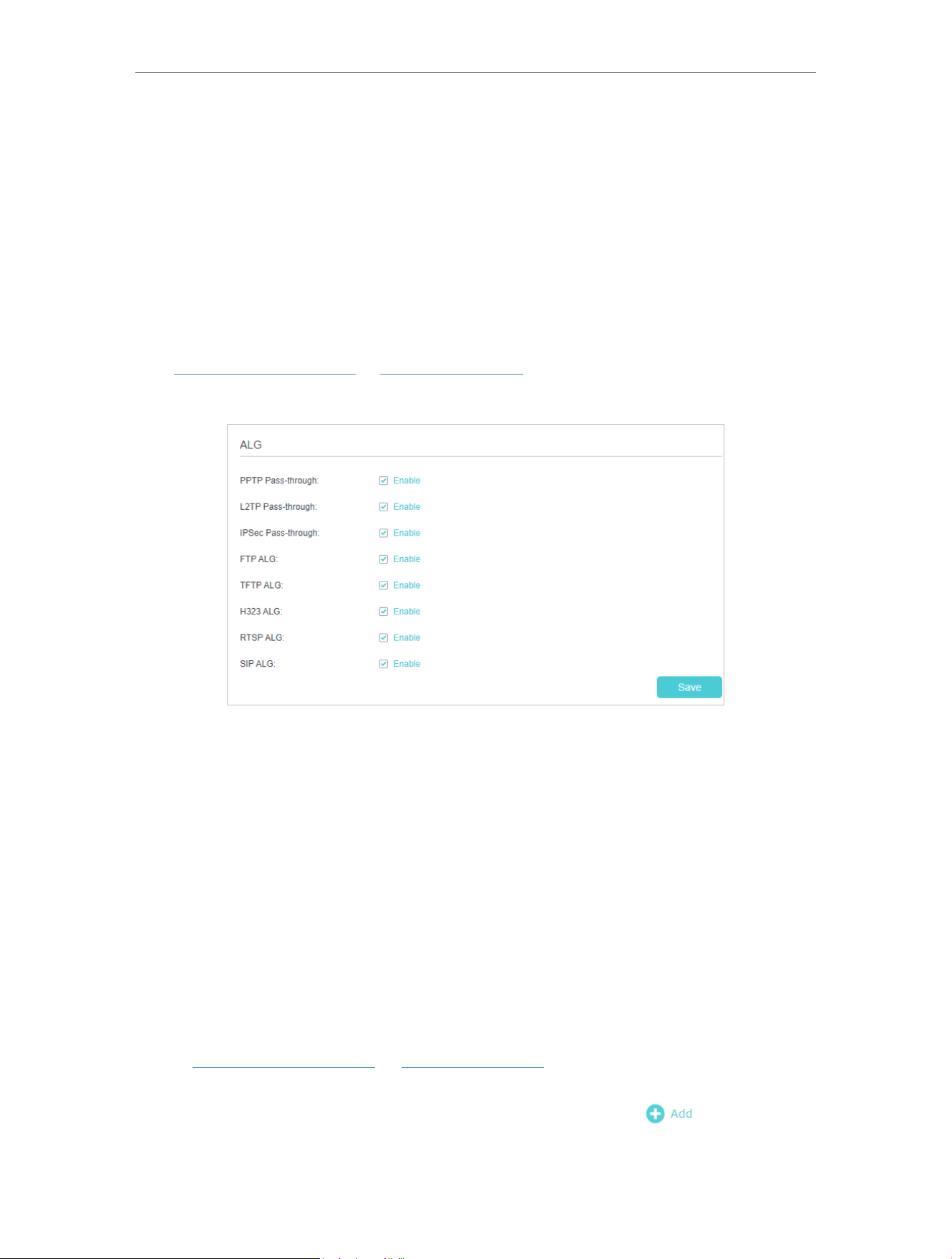
106
Chapter 13
NAT Forwarding
13 1 ALG
ALG allows customized Network Address Translation (NAT) traversal filters to be plugged
into the gateway to support address and port translation for certain application layer
“control/data” protocols such as FTP, TFTP, H323 etc. It is recommended to keep the
default settings.
You may need to disable SIP ALG when you are using voice and video applications to
create and accept a call through the router, since some voice and video communication
applications do not work well with SIP ALG.
Visit http://tplinkmodem.net or http://192.168.1.1, and log in with the password you set
for the GPON router. Go to Advanced > Security > ALG.
13 2 Set Up Public Services on The Local Network by
Virtual Servers
Virtual Servers are used to set up public services on the local network. A virtual server
is defined as an external port, and all requests from the Internet to this external port
will be redirected to a designated computer, which must be configured with a static or
reserved IP address. When you build up a server on the local network and want to share
it on the Internet, Virtual Servers can realize the service and provide it to the Internet
users.
The table displays the relevant parameters of the virtual server.
To set up a Virtual Server rule:
1. Visit http://tplinkmodem.net or http://192.168.1.1, and log in with the password you
set for the GPON router.
2. Go to Advanced > NAT Forwarding > Virtual Servers and click
.
3. Select an interface name from the drop-down list.

107
Chapter 13
NAT Forwarding
4. Click View Existing Applications to select a service from the list to automatically
populate the appropriate port number in the External Port and Internal Port fields. If
the service is not listed, enter the External Port number (e.g. 21) or a range of ports
(e.g. 21-25). Leave the Internal Port blank if it is the same as the External Port or enter
a specific port number (e.g. 21) if the External Port is a single port. The following
picture takes application FTP as an example.

108
Chapter 13
NAT Forwarding
5. Enter the IP address of the computer running the service application in the Internal
IP field.
6. Select a protocol for the service application: TCP, UDP, or All from the Protocol drop-
down list.
7. Select Enable This Entry.
8. Click OK.
Tips:
• If you want to disable this entry, click the Bulb icon.
• It is recommended to keep the default settings of Internal Port and Protocol if you are not clear about which port or
protocol to use.
• If the local host device is hosting more than one type of available services, you need to create a rule for each service.
Please note that the External Port should NOT be overlapped.
13 3 Open Ports Dynamically by Port Triggering
Port Triggering can specify a triggering port and its corresponding external ports.
When a host on the local network initiates a connection to the triggering port, all the
external ports will be opened for subsequent connections. The router can record the
IP address of the host. When the data from the internet return to the external ports, the
router can forward them to the corresponding host. Port Triggering is mainly applied to
online games, VoIPs, video players and common applications including MSN Gaming
Zone, Dialpad and Quick Time 4 players, etc.
Follow the steps below to configure the Port Triggering rules:
1. Visit http://tplinkmodem.net or http://192.168.1.1, and log in with the password you
set for the GPON router.
2. Go to Advanced > NAT Forwarding > Port Triggering and click
.

109
Chapter 13
NAT Forwarding
3. Click View Existing Applications, and select the desired application. The Triggering
Port, Triggering Protocol and External Port will be automatically filled in. The following
picture takes application MSN Gaming Zone as an example.
4. Click OK.

110
Chapter 13
NAT Forwarding
Tips:
• You can add multiple port triggering rules according to your network need.
• The triggering ports can not be overlapped.
• If the application you need is not listed in the Existing Applications list, please enter the parameters manually. You
should verify the external ports the application uses first and enter them into External Port field according to the
format the page displays.
13 4 Make Applications Free from Port Restriction
by DMZ
When a PC is set to be a DMZ (Demilitarized Zone) host on the local network, it is totally
exposed to the internet, which can realize the unlimited bidirectional communication
between internal hosts and external hosts. The DMZ host becomes a virtual server with
all ports opened. When you are not clear about which ports to open in some special
applications, such as IP camera and database software, you can set the PC to be a DMZ
host.
Note:
When DMZ is enabled, the DMZ host is totally exposed to the internet, which may bring some potential safety hazards. If
DMZ is not in use, please disable it in time.
I want to:
Make the home PC join the internet online game without port restriction.
For example, due to some port restriction, when playing the online games, you can log
in normally but cannot join a team with other players. To solve this problem, set your PC
as a DMZ host with all ports open.
How can I do that?
1 Assign a static IP address to your PC, for example 192.168.1.100.
2 Visit http://tplinkmodem.net or http://192.168.1.1, and log in with the password you
set for the GPON router.
1 Go to Advanced > NAT Forwarding > DMZ and tick to enable DMZ.
3 Enter the PC’s IP address 192.168.1.100 manually in the DMZ Host IP Address field.
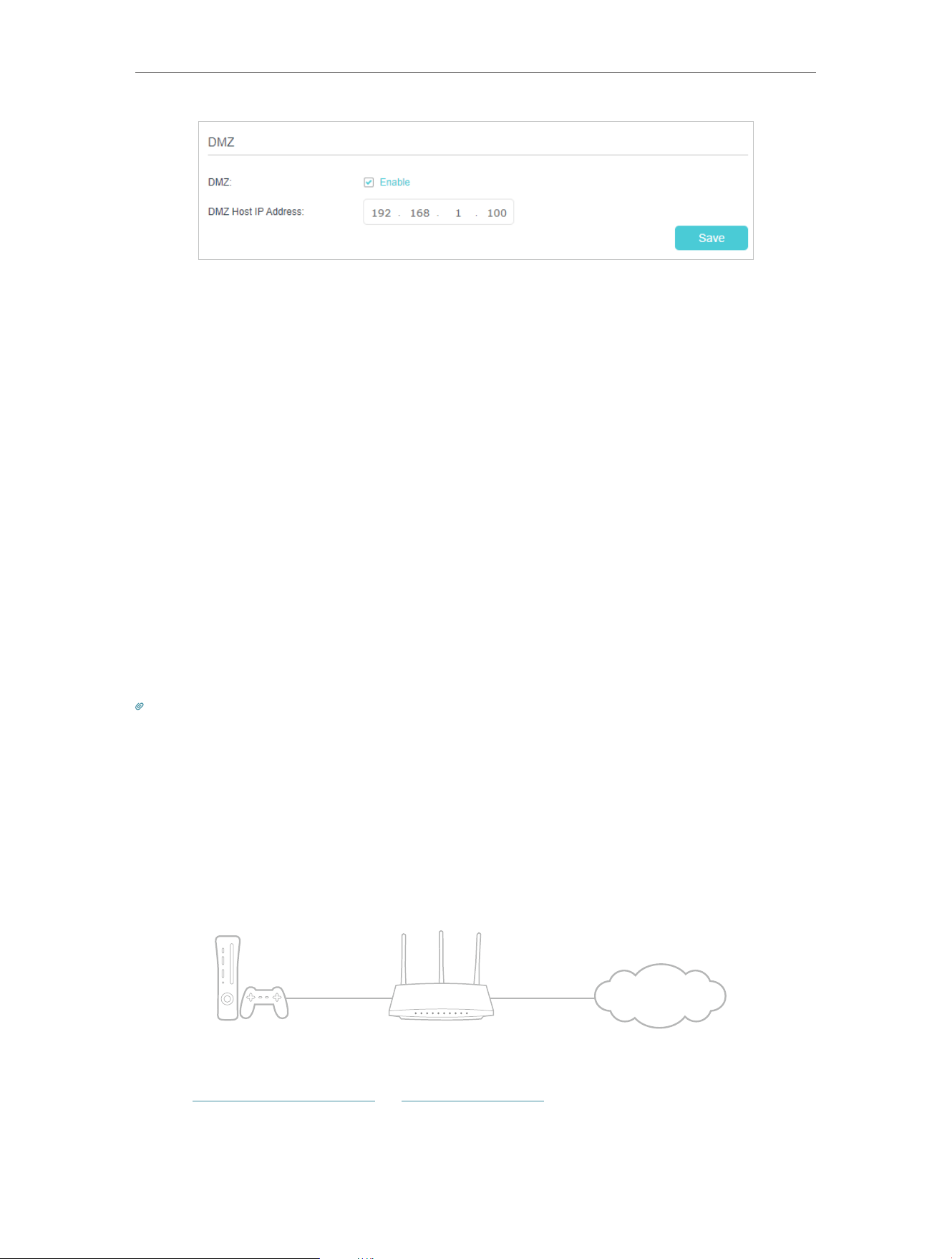
111
Chapter 13
NAT Forwarding
2 Click SAVE .
Done!
The configuration is completed. You’ve set your PC to a DMZ host and now you can
make a team to game with other players.
13 5 Make Xbox Online Games Run Smoothly by
UPnP
The UPnP (Universal Plug and Play) protocol allows applications or host devices
to automatically find the front-end NAT device and send request to it to open the
corresponding ports. With UPnP enabled, the applications or host devices on the
local network and the internet can freely communicate with each other thus realizing
the seamless connection of the network. You may need to enable the UPnP if you
want to use applications for multiplayer gaming, peer-to-peer connections, real-time
communication (such as VoIP or telephone conference) or remote assistance, etc.
Tips:
• UPnP is enabled by default in this router.
• Only the application supporting UPnP protocol can use this feature.
• UPnP feature needs the support of operating system (e.g. Windows Vista/ Windows 7/ Windows 8, etc. Some of
operating system need to install the UPnP components).
For example, when you connect your Xbox to the router which has connected to
the internet to play online games, UPnP will send request to the router to open the
corresponding ports allowing the following data penetrating the NAT to transmit.
Therefore, you can play Xbox online games without a hitch.
INTERNET
If necessary, you can follow the steps to change the status of UPnP.
1. Visit http://tplinkmodem.net or http://192.168.1.1, and log in with the password you
set for the GPON router.
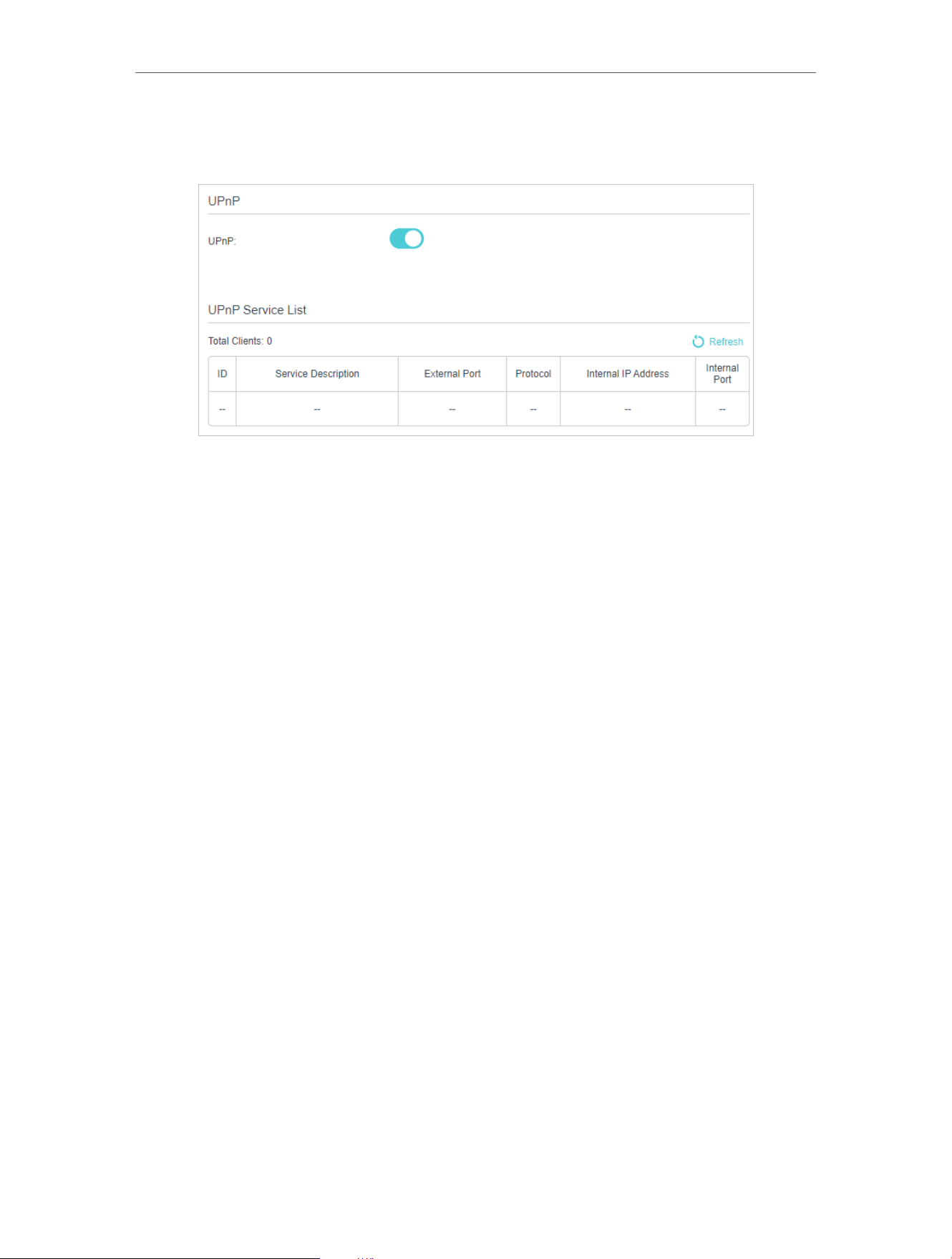
112
Chapter 13
NAT Forwarding
2. Go to Advanced > NAT Forwarding > UPnP and toggle on or off according to your
needs.

Chapter 13
Parental Controls
This function allows you to block inappropriate, explicit and malicious websites, and
control access to specified websites at specified time.
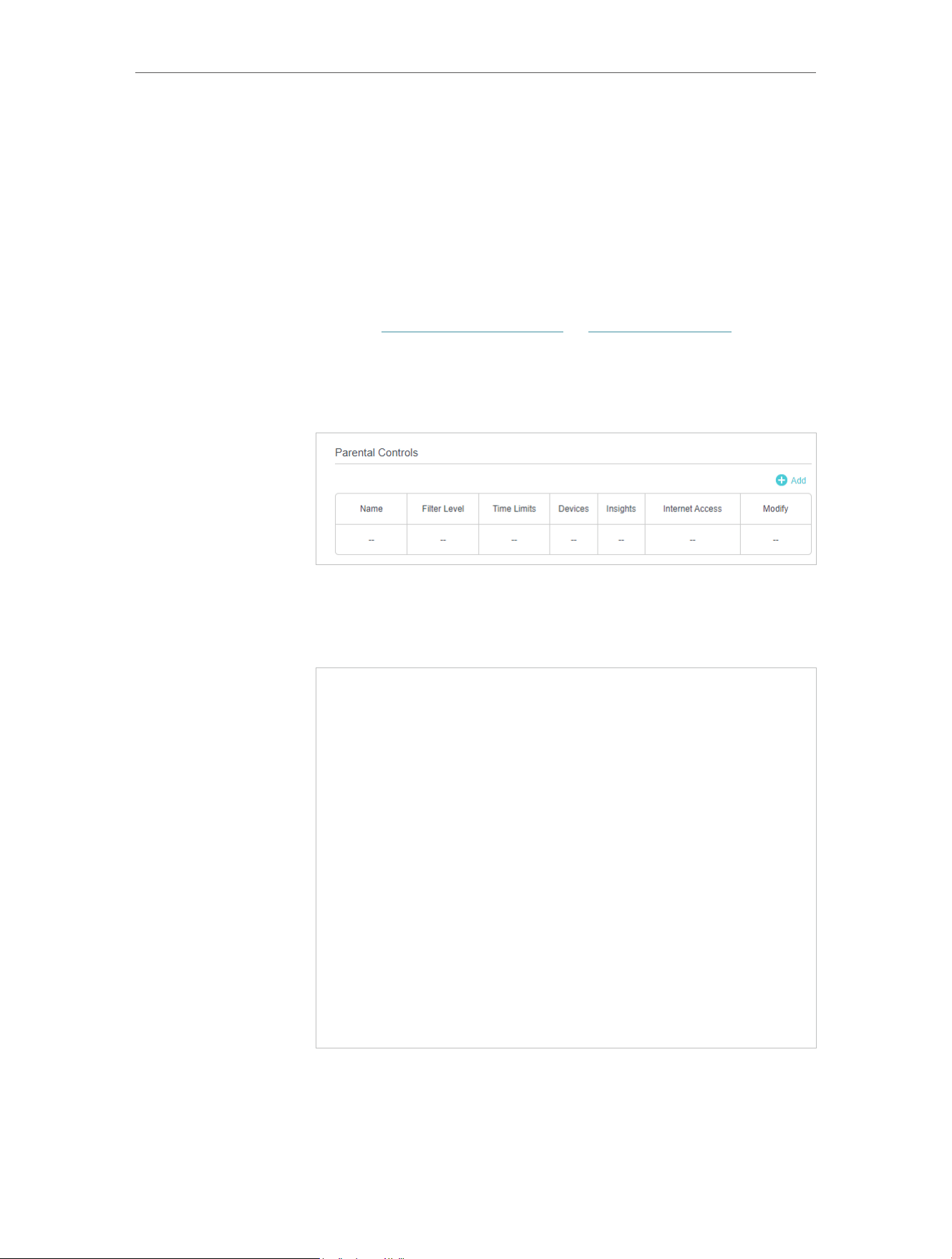
114
Chapter 13
Parental Controls
Control what types of websites my children or other home
network users can visit and the time of day they are allowed to
access the internet.
For example, I want to allow my children’s devices (e.g. a computer
or a tablet) to access only www.tp-link.com and Wikipedia.org
from 18:00 (6 PM) to 22:00 (10 PM) on the weekdays and not
other time.
1 Visit http://tplinkmodem.net or http://192.168.1.1, and log in
with the password you set for the GPON router.
2 Go to Basic > Parental Controls or Advanced > Parental
Controls.
3 Click Add, and then enter the Name manually. Click Add and
specify the devices belonging to the family member. Click
Next.
4 Select a filter level based on the age of the family member.
Blocked content will then be displayed in the Filter Content
list. Click Next.
I want to:
How can I
do that?

115
Chapter 13
Parental Controls
5 (Optional) Delete items from the Filter Content list, add
items from the Available Categories list, or click Add a New
Keyword to add a filter keyword (for example, “Facebook”) or
URL.
6 Enable Time Limits for Mon to Fri and Sat & Sun, then set the
daily internet time allowed. Enable BedTime on School Nights
(Sunday to Thursday) and Weekend (Friday and Saturday),
then set the time period during devices in the profile cannot
access the internet.

116
Chapter 13
Parental Controls
7 Click Save.
Now you can control your children’s internet access as needed.
Tips:
• To monitor internet usage of a family member:
1. Find the profile of the family member, then click the Insights icon.
2. On the Top 5 Visits page, select a day of the last 7 days to check the time
spent online and top visited websites. You can block the websites if needed.
3. On the Blocked History page, select a day of the last 7 days to check the
blocked website history. You can unblock websites if needed, and click
Unblocked Websites to view them.
Done!
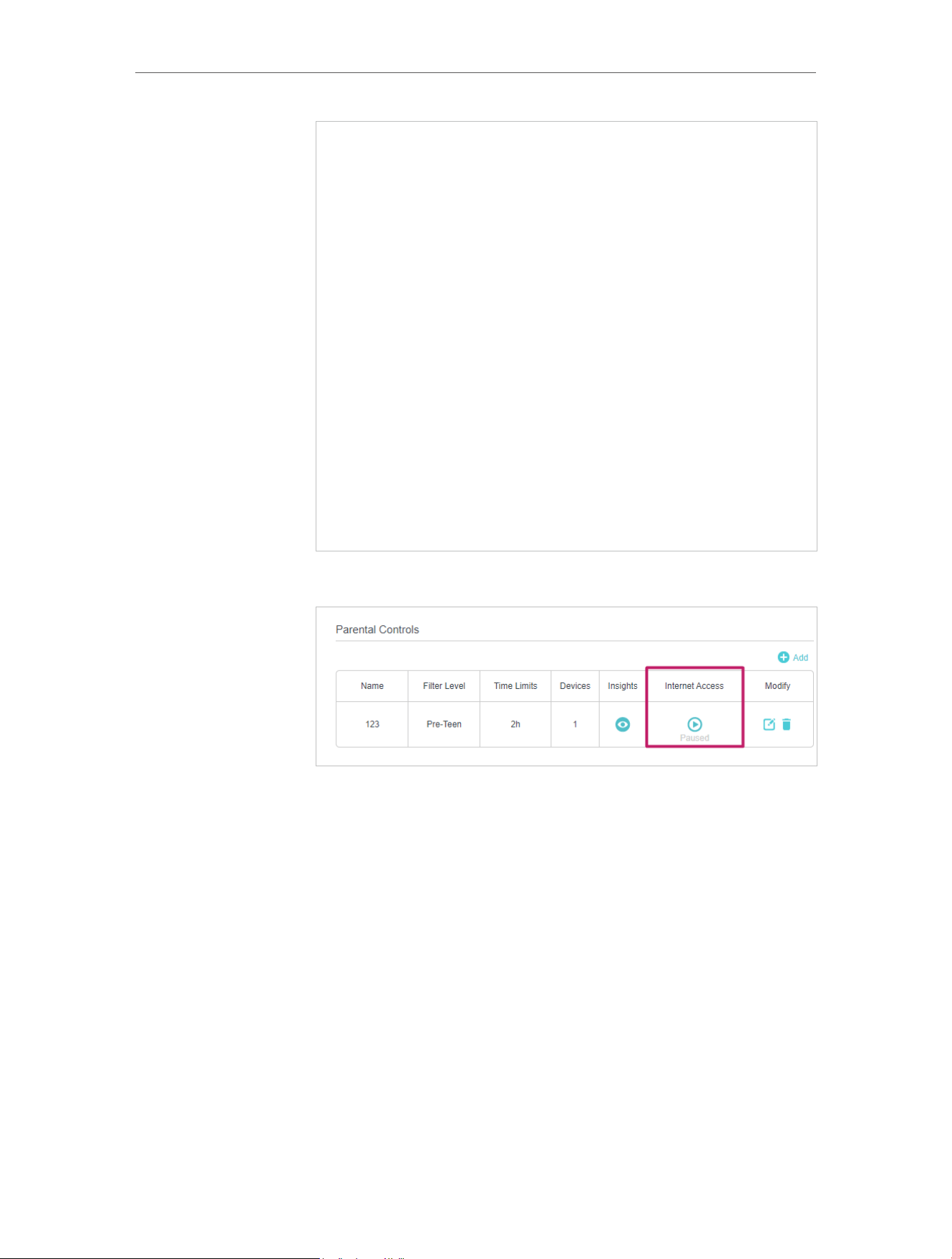

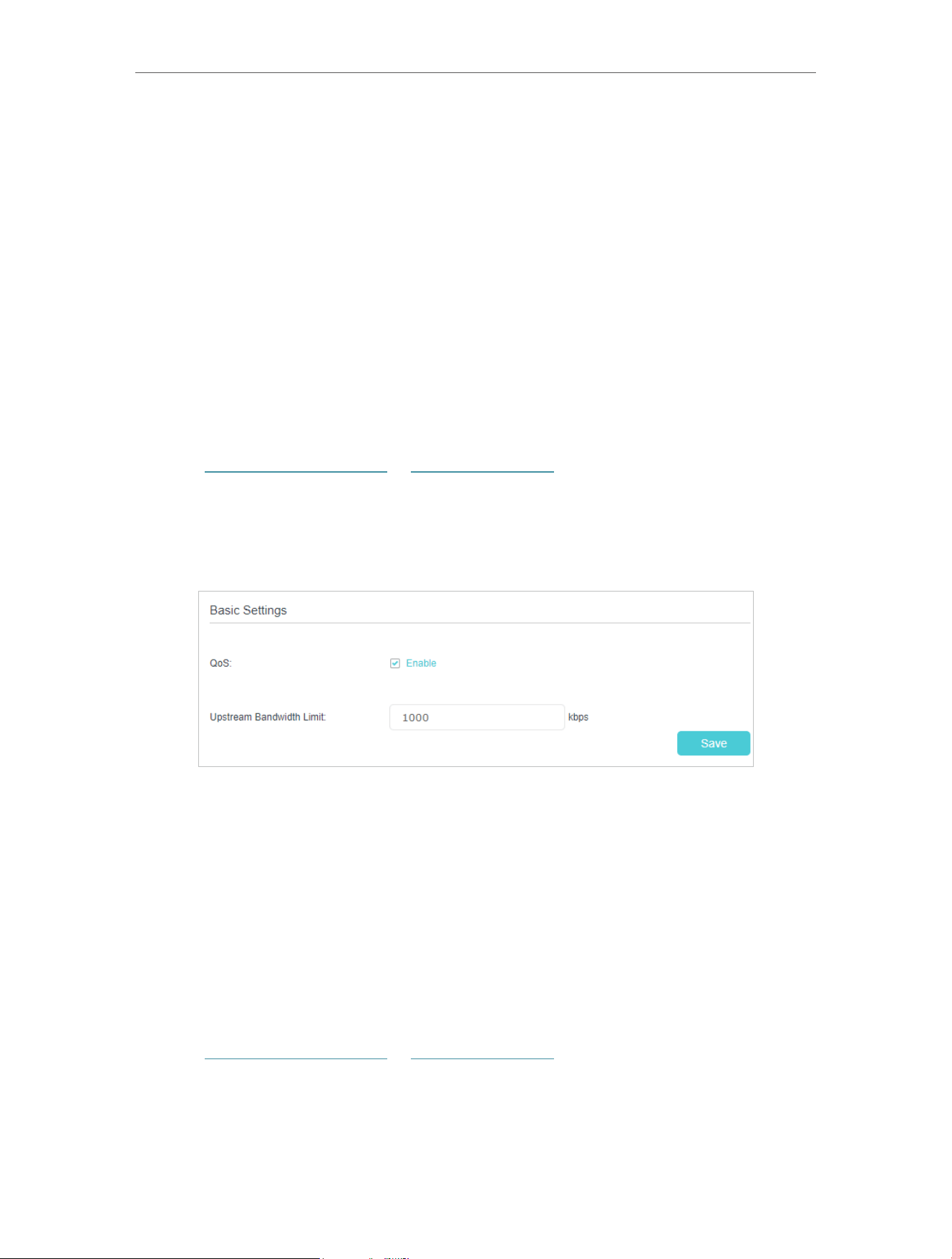
119
Chapter 15
Quality of Service
The GPON router allows you to configure the quality of service (QoS) for optimal
throughput and performance when handling differentiated wireless traffic, such as
Voiceover-IP (VoIP), other types of audio, video, streaming media, and traditional IP data.
To configure QoS on the GPON routers, you should set parameters on the transmission
queues for different types of wireless traffic. In normal use, we recommend that you
keep the default values for the GPON routers.
15 1 Set up QoS for the network
This feature helps the GPON router allocate upstream bandwidth to improve the
network’s overall performance.
To set up QoS for the network:
1 Visit http://tplinkmodem.net or http://192.168.1.1, and log in with the password you
set for the GPON router.
2 Go to Advanced > QoS > Basic Settings.
3 Enable QoS.
4 Enter your total Upstream Bandwidth Limit.
5 Click Save to make the settings effective.
15 2 Configure Queue Settings
This page allows you to manage your network with queues. With SP algorithm, you
can define packets which is more important and get throught more quickly; with WRR
algorithm, you can allocate quota of bandwith to certain kind of packets.
To add a new queue:
1 Visit http://tplinkmodem.net or http://192.168.1.1, and log in with the password you
set for the GPON router.
2 Go to Advanced > QoS > Queue Settings.
3 Click Add.

120
Chapter 15
Quality of Service
4 Enter a Queue Name.
5 Select Interface.
6 Enter queue’s Shaping rate.
7 Select the scheduling algorithm according to your needs.
• SP (Strict Priority): Select this if you want to ensure services in higher-priority queues.
The router will process outgoing traffic from the highest-priority queue first, then
from a lower-priority queue.
• WRR (Weighted Round Robin): Select this if you want to balance traffic in queues
proportional to their queue weight. The router will process more packets in a queue if
the queue has a higher weight.
8 Select queue’s Precedence if queue’s algorithm is SP.
9 Enter queue’s Weight if queue’s algorithm is WRR.
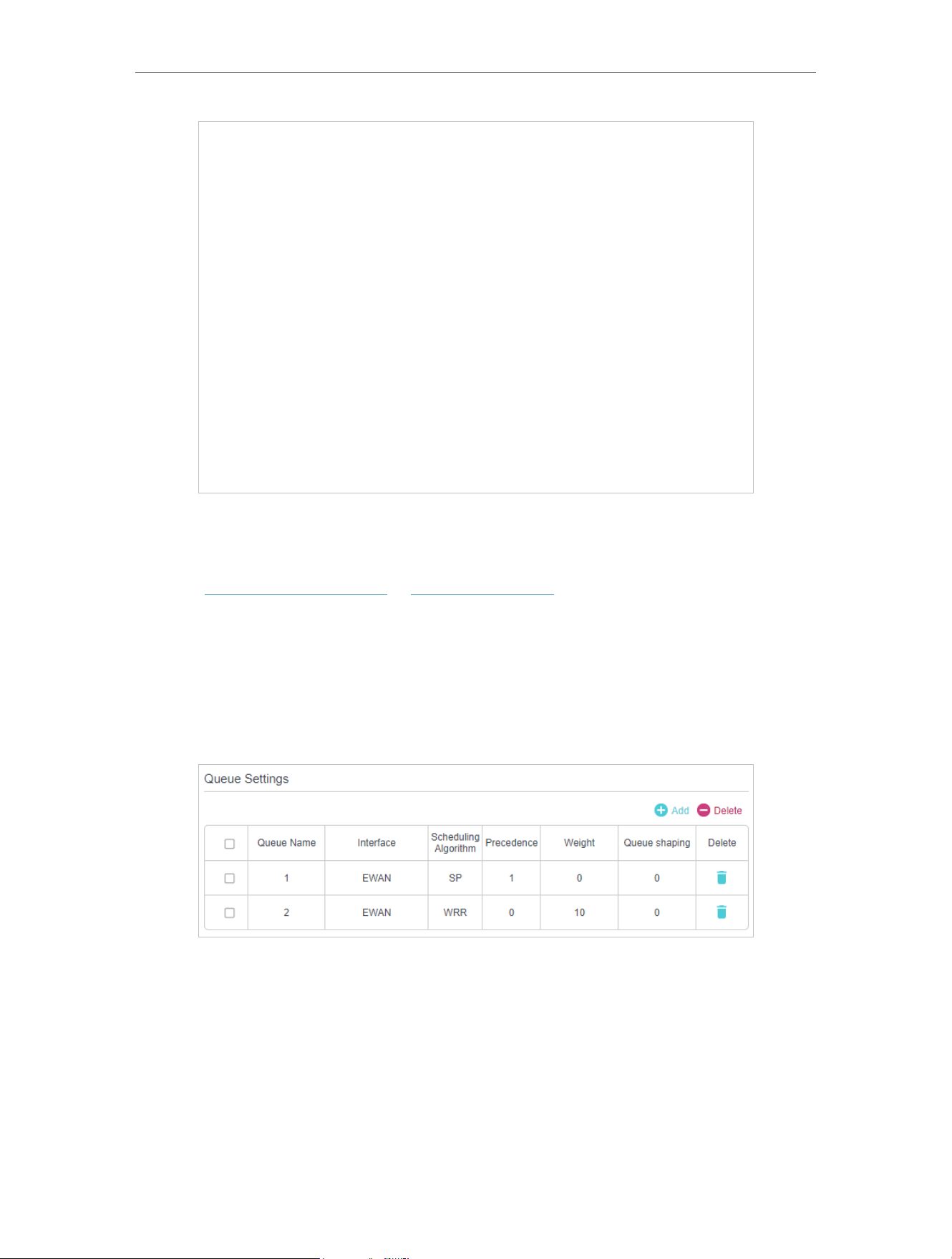
121
Chapter 15
Quality of Service
10 Click OK to save queue.
To delete a queue:
1 Visit http://tplinkmodem.net or http://192.168.1.1, and log in with the password you
set for the GPON router.
2 Go to Advanced > QoS > Queue Settings.
3 In the queue list, select the corresponding checkbox of the queue to be deleted and
click Delete above the table to delete multi queues, or click delete icon to delete
one queue.
15 3 Configure Flow Classification
This page allows you to add classification rules to choose certain kind of packages
to enter a queue. The classification of packages is based mainly on the differences of
data link layer header, network layer header, transport layer header and so on.An option
should be empty if you don’t want to use it for a classification.

122
Chapter 15
Quality of Service
To add a new classification:
1 Visit http://tplinkmodem.net or http://192.168.1.1, and log in with the password you
set for the GPON router.
2 Go to Advanced > QoS > Flow Classification
3 Click Add to enter new information and configure more settings.
Class Name: Each classification has a unique name as its identification.
Order: Each packet can match only one flow classification. Matching is started from low
order to high order.
Ingress interface: Classification will only take effect at packets ingressing from this
interface.

123
Chapter 15
Quality of Service
Ether Type: Ethernet protocol for classification.
Source MAC Address: Source mac address for classification.
Source MAC Mask: Source mac mask for classification
Destination MAC Address: Destination mac address for classification. Please note that
only LAN mac address can take effect.
Destination MAC Mask: Destination mac mask for classification.
Source IP Address: Source ip address for classification.
Source IP Mask: Source ip mask for classification.
Destination IP Address: Destination ip address for classification.
Destination IP Mask: Destination ip mask for classification.
DSCP Check: Classification will only take effect at packets having this DSCP.
Protocol: Classification will only take effect at packets of this protocol.
Queue: Packets matching the classification will enter this queue.
Mark DSCP: Packets matching the classification will be marked at DSCP field.
Mark 802.1P Priority: Packets matching the classification will be marked at 802.1P field.
Committed Rate: Set the maximum rate allowed for the flow.
Committed Burst Size: Set the maximum traffic amount allowed to be transmitted in
case of a burst of traffic.
Note: If you want to delete a classification, select the corresponding checkbox of the rules to be deleted in the
classification list, and click Delete above the table to delete selected classifications, or click Delete icon to delete one
classification.
To delete a queue:
1 Visit http://tplinkmodem.net or http://192.168.1.1, and log in with the password you
set for the GPON router.
2 Go to Advanced > QoS > Flow Classification.
3 In the classification list, select the corresponding checkbox of the rules to be
deleted and click Delete above the table to delete selected classifications, or click
delete icon to delete one classification.

Chapter 15
Network Security
This chapter guides you on how to protect your home network from unauthorized users
by implementing network security functions. You can block or allow specific client
devices to access your wireless network using MAC Filtering, or using Access Control
for wired and wireless networks, or you can prevent ARP spoofing and ARP attacks by
using IP & MAC Binding.
This chapter contains the following sections:
• Firewall & DoS Protection
• Service Filtering
• Access Control
• IP & MAC Binding
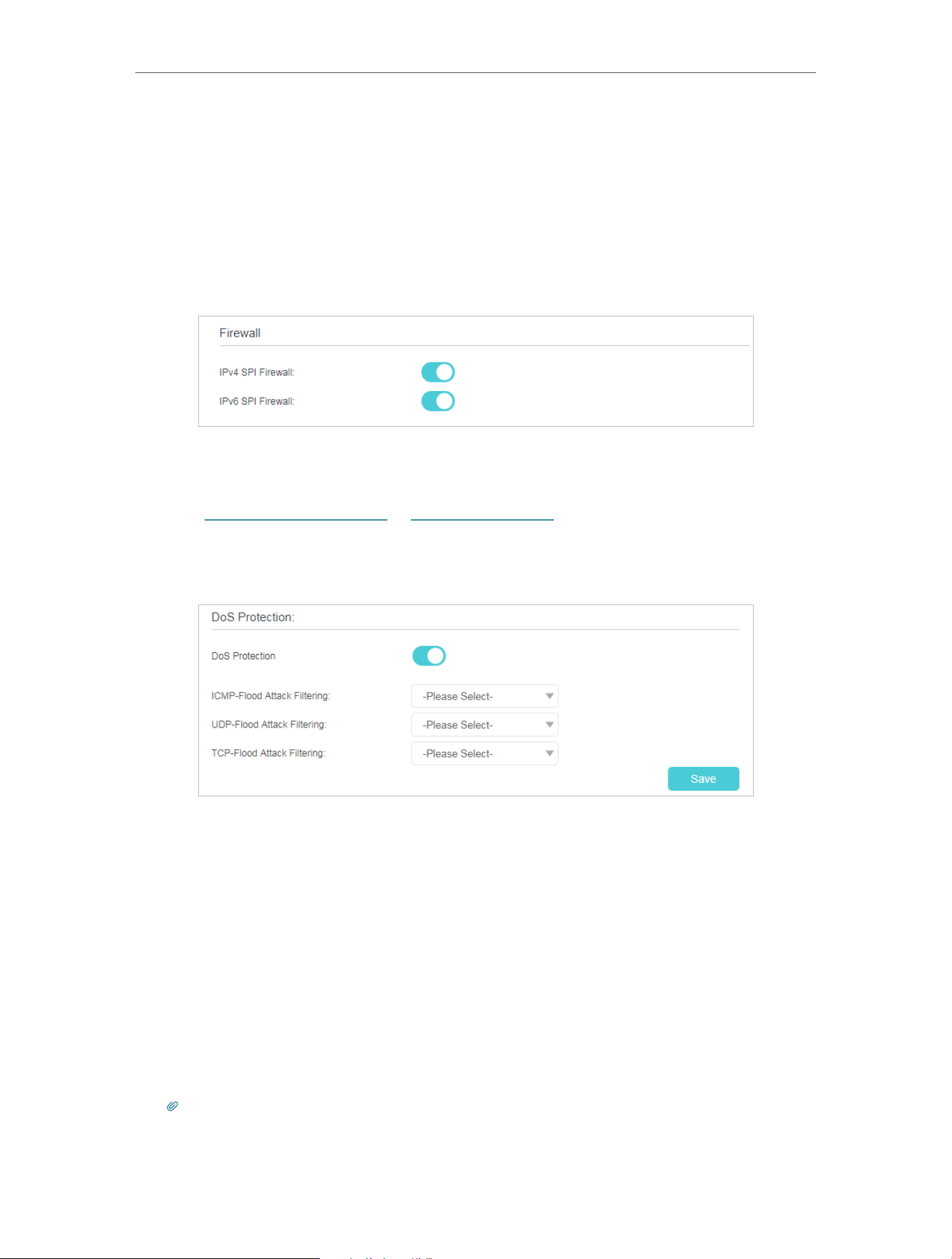
125
Chapter 15
Network Security
16 1 Firewall & DoS Protection
The SPI (Stateful Packet Inspection) Firewall and DoS (Denial of Service) Protection
protect the router from cyber attacks.
The SPI Firewall can prevent cyber attacks and validate the traffic that is passing
through the router based on the protocol. This function is enabled by default, and it is
recommended to keep the default settings.
DoS Protection can protect your home network against DoS attacks from flooding your
network with server requests. Follow the steps below to configure DoS Protection.
1 Visit http://tplinkmodem.net or http://192.168.1.1, and log in with the password you
set for the GPON router.
2 Go to Advanced > Security > Firewall & DoS Protection.
3 Enable DoS Protection.
4 Set the protection level (Low, Middle or High) for ICMP-Flood Attack Filtering, UDP-
Flood Attack Filtering and TCP-Flood Attack Filtering.
• ICMP-Flood Attack Filtering - Enable to prevent the ICMP (Internet Control
Message Protocol) flood attack.
• UDP-Flood Attack Filtering - Enable to prevent the UDP (User Datagram
Protocol) flood attack.
• TCP-Flood Attack Filtering - Enable to prevent the TCP (Transmission Control
Protocol) flood attack.
5 Click Save.
Tips:
1. The level of protection is based on the number of traffic packets. You can specify the level under DoS Protection
Level Settings.
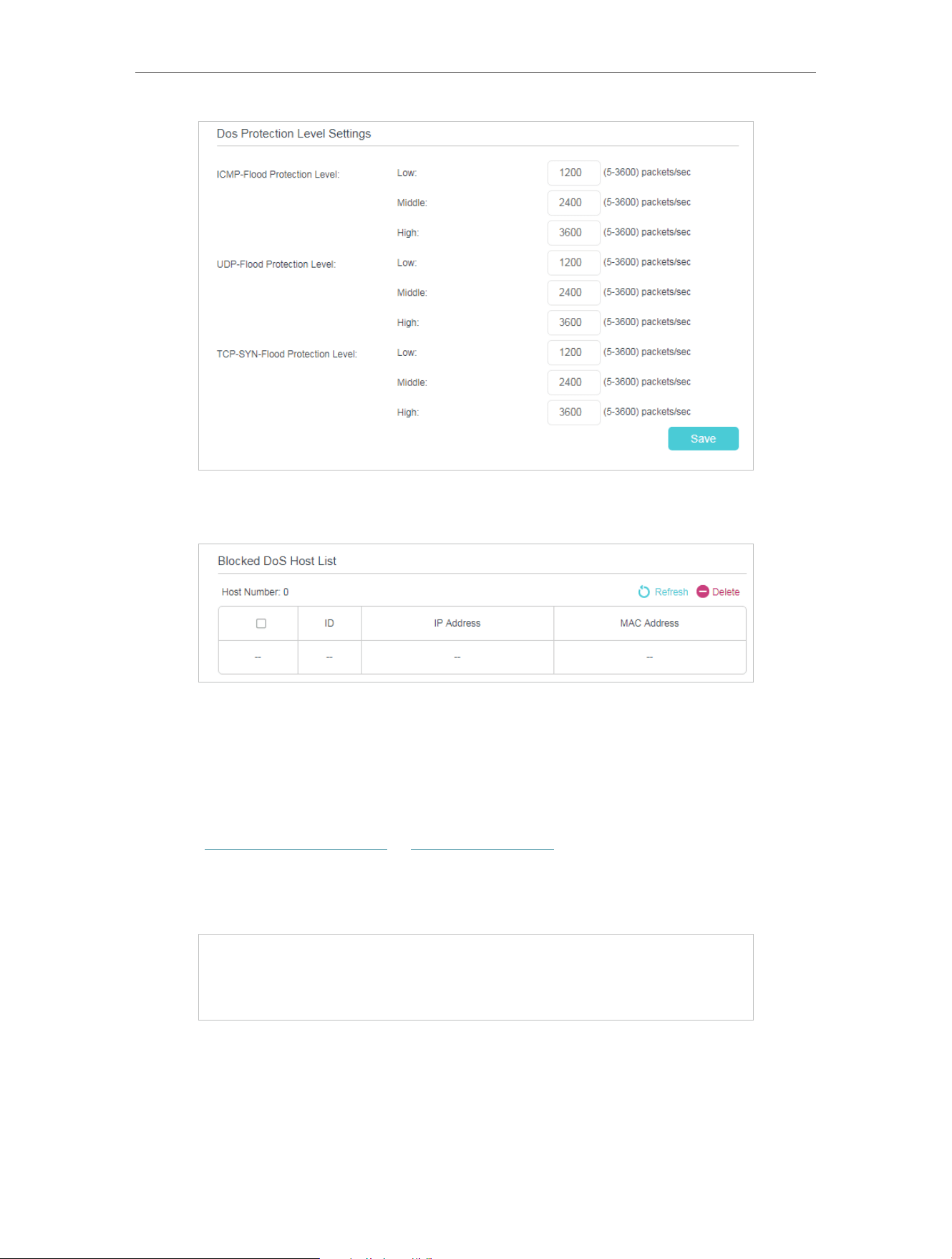
126
Chapter 15
Network Security
2. The protection will be triggered immediately when the number of packets exceeds the preset threshold value,
and the vicious host will be displayed in the Blocked DoS Host List.
16 2 Service Filtering
With Service Filtering, you can prevent certain users from accessing the specified
service, and even block internet access completely.
1 Visit http://tplinkmodem.net or http://192.168.1.1, and log in with the password you
set for the GPON router.
2 Go to Advanced > Security > Service Filtering, and enable Service Filtering.
3 Click Add.

127
Chapter 15
Network Security
4 Select a Service Type from the drop-down list and the following four fields will be
automatically filled in. Select Custom when your desired service type is not listed,
and enter the information manually.
5 Specify the IP address(es) that this filtering rule will apply to.
6 Click Save to make the settings effective.
Note: If you want to disable an entry, click the icon.
16 3 Access Control
Access Control is used to block or allow specific client devices to access your network
(via wired or wireless) based on a list of blocked devices (Blacklist) or a list of allowed
devices (Whitelist).
Block or allow specific client devices to access my network (via
wired or wireless).
1 Visit http://tplinkmodem.net or http://192.168.1.1, and log in
with the password you set for the GPON router.
2 Go to Advanced > Security > Access Control and enable
Access Control.
I want to:
How can I
do that?

128
Chapter 15
Network Security
3 Select the access mode to either block (recommended) or
allow the device(s) to access your network.
To block specific device(s):
1 ) Select Blacklist and click Save.
2 ) Select the device(s) to be blocked in the Online Devices
table (or click the Add under the Devices in Blacklist and
enter the Device Name and MAC Address manually).
3 ) Click Block above the Online Devices table. The selected
devices will be added to Devices in Blacklist automatically.
To allow specific device(s):
1 ) Select Whitelist and click Save.
2 ) Click Add in the Devices in Whitelist section.

129
Chapter 15
Network Security
3 ) Enter the Device Name and MAC Address. (You can copy
and paste the information from Online Devices table if
the device is connected to your network.)
4 ) Click Save.
Now you can block or allow specific client devices to access
your network (via wired or wireless) by Blacklist or Whitelist.
16 4 IP & MAC Binding
IP & MAC Binding, namely, ARP (Address Resolution Protocol) Binding, is used to bind
a network device’s IP address to its MAC address. This will prevent ARP spoofing and
other ARP attacks by denying network access to a device with a matching IP address in
the Binding list, but an unrecognized MAC address.
Prevent ARP spoofing and ARP attacks.
1 Visit http://tplinkmodem.net or http://192.168.1.1, and log in
with the password you set for the GPON router.
2 Go to Advanced > Security > IP & MAC Binding, and enable
IP & MAC Binding.
Done!
I want to:
How can I
do that?
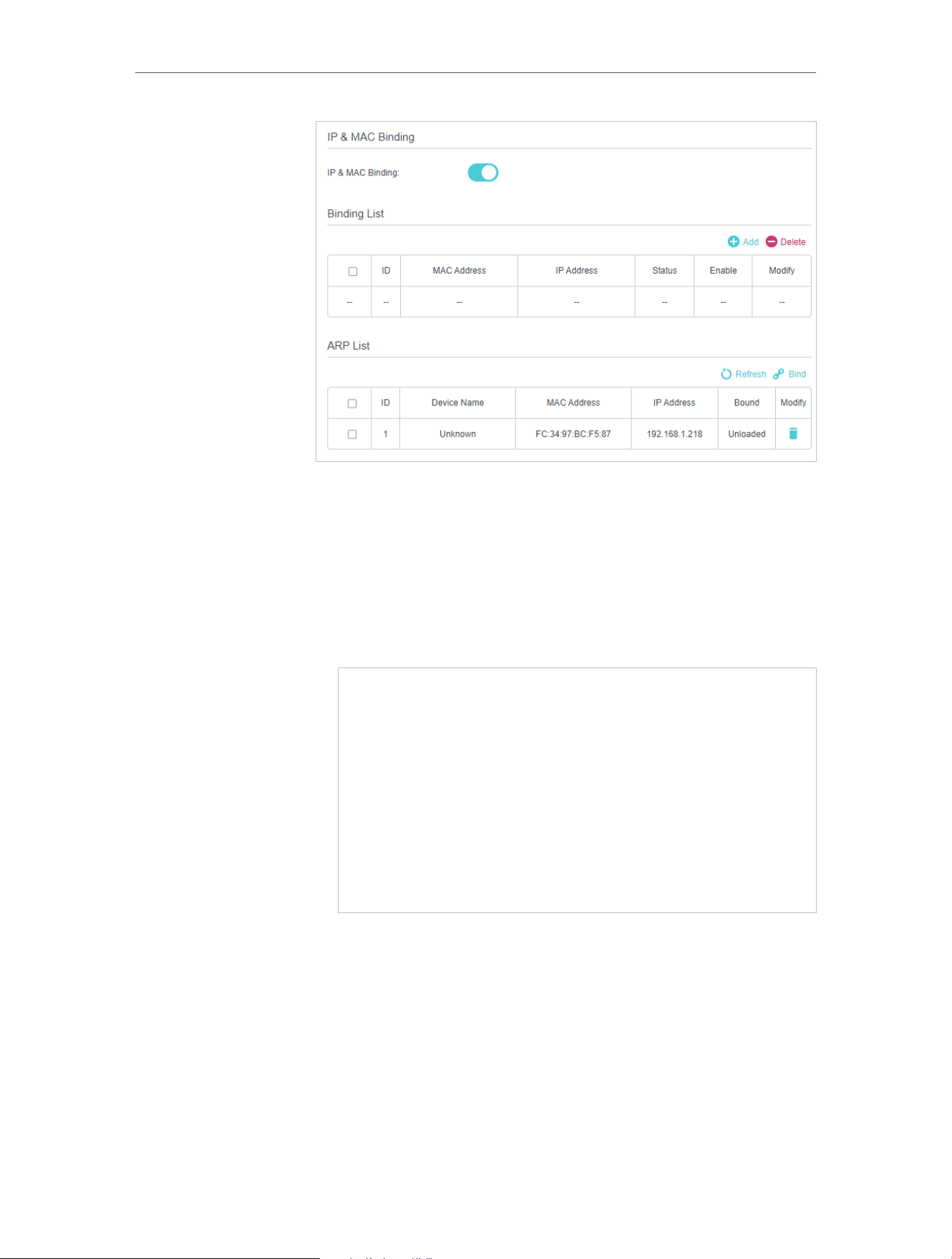
130
Chapter 15
Network Security
3 Bind your device(s) according to your needs.
To bind the connected device(s):
1 ) Select the device(s) to be bound in the ARP List.
2 ) Click Bind to add to the Binding List.
To bind the unconnected device:
1 ) Click Add in the Binding List section.
2 ) Enter the MAC address and IP address that you want to
bind.
3 ) Select the Enable This Entry check box to enable the
entry and click Save.
Enjoy the internet without worrying about ARP spoofing and
ARP attacks.
Done!

Chapter 16
VPN Server&Client
The router offers several ways to set up VPN connections:
VPN Server allows remote devices to access your home network in a secured way
through the internet. The router supports three types of VPN Server:
OpenVPN is somewhat complex but with higher security and more stability, suitable for
restricted environments such as campus network and company intranet.
PPTP VPN is easy to use with the built-in VPN software of computers and mobile
devices, but it is vulnerable and may be blocked by some ISPs.
L2TP/IPSec VPN is more secure but slower than PPTP VPN, and may have trouble
getting around firewalls.
VPN Client allows devices in your home network to access remote VPN servers,
without the need to install VPN software on each device.
This chapter contains the following sections:
• Use OpenVPN to Access Your Home Network
• Use PPTP VPN to Access Your Home Network
• Use IPSec VPN to Access Your Home Network
• VPN Connections
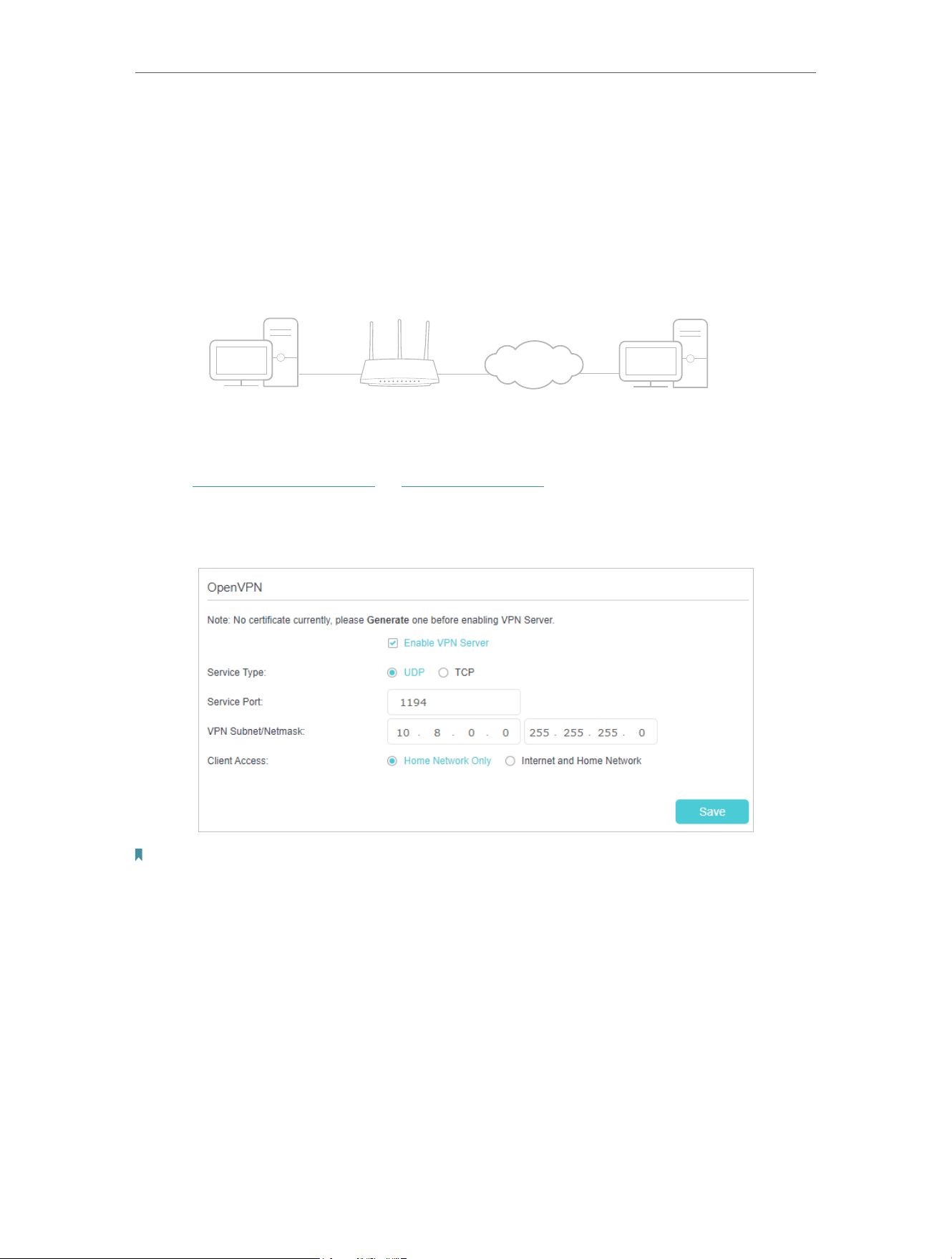
132
Chapter 16 VPN Server&Client
17 1 Use OpenVPN to Access Your Home Network
OpenVPN Server is used to create an OpenVPN connection for remote devices to
access your home network.
To use the VPN feature, you need to enable OpenVPN Server on your router, and install
and run VPN client software on remote devices. Please follow the steps below to set up
an OpenVPN connection.
INTERNET
Home Network Router (VPN Server) Remote Devices
Step1 Set up OpenVPN Server on Your Router
1. Visit http://tplinkmodem.net or http://192.168.1.1, and log in with the password you
set for the GPON router.
2. Go to Advanced > VPN > OpenVPN, and tick the box of Enable VPN Server.
Note:
• Before you enable VPN Server, we recommend you configure Dynamic DNS Service (recommended) or assign a
static IP address for router’s WAN port and synchronize your System Time with internet.
• The first time you configure the OpenVPN Server, you may need to generate a certificate before you enable the VPN
Server.
3. Select the Service Type (communication protocol) for OpenVPN Server: UDP, TCP.
4. Enter a VPN Service Port to which a VPN device connects, and the port number
should be between 1024 and 65535.
5. In the VPN Subnet/Netmask fields, enter the range of IP addresses that can be leased
to the device by the OpenVPN server.
6. Select your Client Access type. Select Home Network Only if you only want the
remote device to access your home network; select Internet and Home Network if
you also want the remote device to access internet through the VPN Server.
133
Chapter 16 VPN Server&Client
7. Click SAVE .
8. Click GENERATE to get a new certificate.
Note: If you have already generated one, please skip this step, or click GENERATE to update the certificate.
9. Click EXPORT to save the OpenVPN configuration file which will be used by the
remote device to access your router.
Step 2 Configure OpenVPN Connection on Your Remote Device
1. Visit http://openvpn.net/index.php/download/community-downloads.html to
download the OpenVPN software, and install it on your device where you want to
run the OpenVPN client utility.
Note: You need to install the OpenVPN client utility on each device that you plan to apply the VPN function to access
your router. Mobile devices should download a third-party app from Google Play or Apple App Store.
2. After the installation, copy the file exported from your router to the OpenVPN client
utility’s “config” folder (for example, C:\Program Files\OpenVPN\config on Windows).
The path depends on where the OpenVPN client utility is installed.
3. Run the OpenVPN client utility and connect it to OpenVPN Server.
17 2 Use PPTP VPN to Access Your Home Network
PPTP VPN Server is used to create a PPTP VPN connection for remote devices to
access your home network.
To use the VPN feature, you need to set up PPTP VPN Server on your router, and
configure the PPTP connection on remote devices. Please follow the steps below to
set up a PPTP VPN connection.
Step 1 Set up PPTP VPN Server on Your Router
1. Visit http://tplinkmodem.net or http://192.168.1.1, and log in with the password you
set for the GPON router.
2. Go to Advanced > VPN > PPTP VPN, and tick the box of Enable VPN Server.
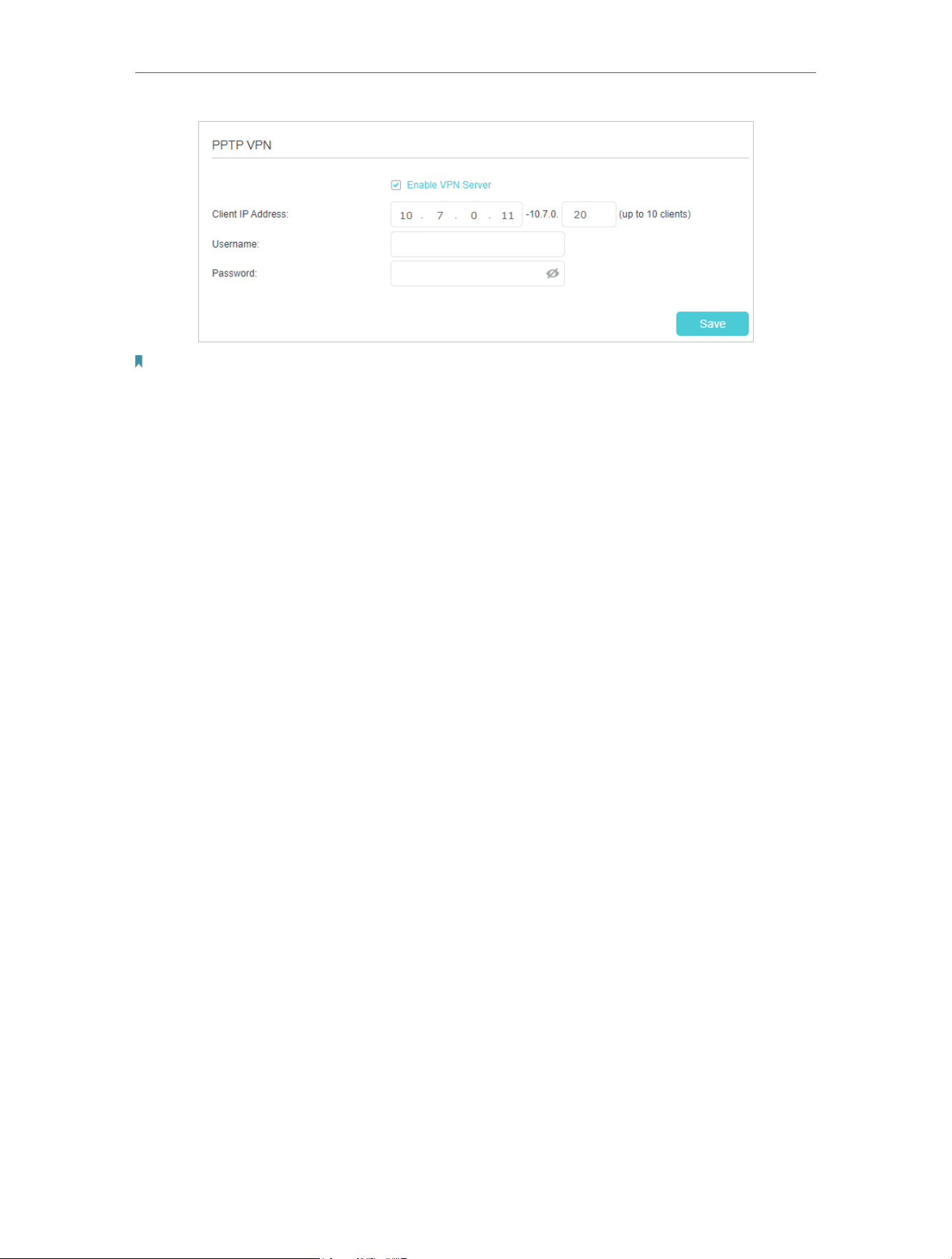
134
Chapter 16 VPN Server&Client
Note: Before you enable VPN Server, we recommend you configure Dynamic DNS Service (recommended) or assign a
static IP address for router’s WAN port and synchronize your System Time with internet.
3. In the Client IP Address field, enter the range of IP addresses (up to 10) that can be
leased to the devices by the PPTP VPN server.
4. Enter the Username and Password to authenticate clients to the PPTP VPN server.
5. Click SAVE .
6. On the client devices, create a PPTP VPN connection. The official supported platforms
include Windows, Mac OSX, Linux, iOS, and Android.
7. Launch the PPTP VPN program, add a new connection and enter the domain name
of the registered DDNS service or the static IP address that is assigned to the WAN
port, to connect the client device to the PPTP VPN server.
Step 2 Configure PPTP VPN Connection on Your Remote Device
The remote device can use the Windows built-in PPTP software or a third-party PPTP
software to connect to PPTP Server. Here we use the Windows built-in PPTP software
as an example.
1. Go to Start > Control Panel > Network and Internet > Network and Sharing Center.
2. Select Set up a new connection or network.

135
Chapter 16 VPN Server&Client
3. Select Connect to a workplace and click Next.
4. Select Use my Internet connection (VPN).

136
Chapter 16 VPN Server&Client
5. Enter the internet IP address of the router (for example: 218.18.1.73) in the Internet
address field. Click Next.
6. Enter the User name and Password you have set for the PPTP VPN server on your
router, and click Connect.

137
Chapter 16 VPN Server&Client
7. Click Connect Now when the VPN connection is ready to use.
17 3 Use IPSec VPN to Access Your Home Network
IPSec VPN Server is used to create a IPSec VPN connection for remote devices to
access your home network.
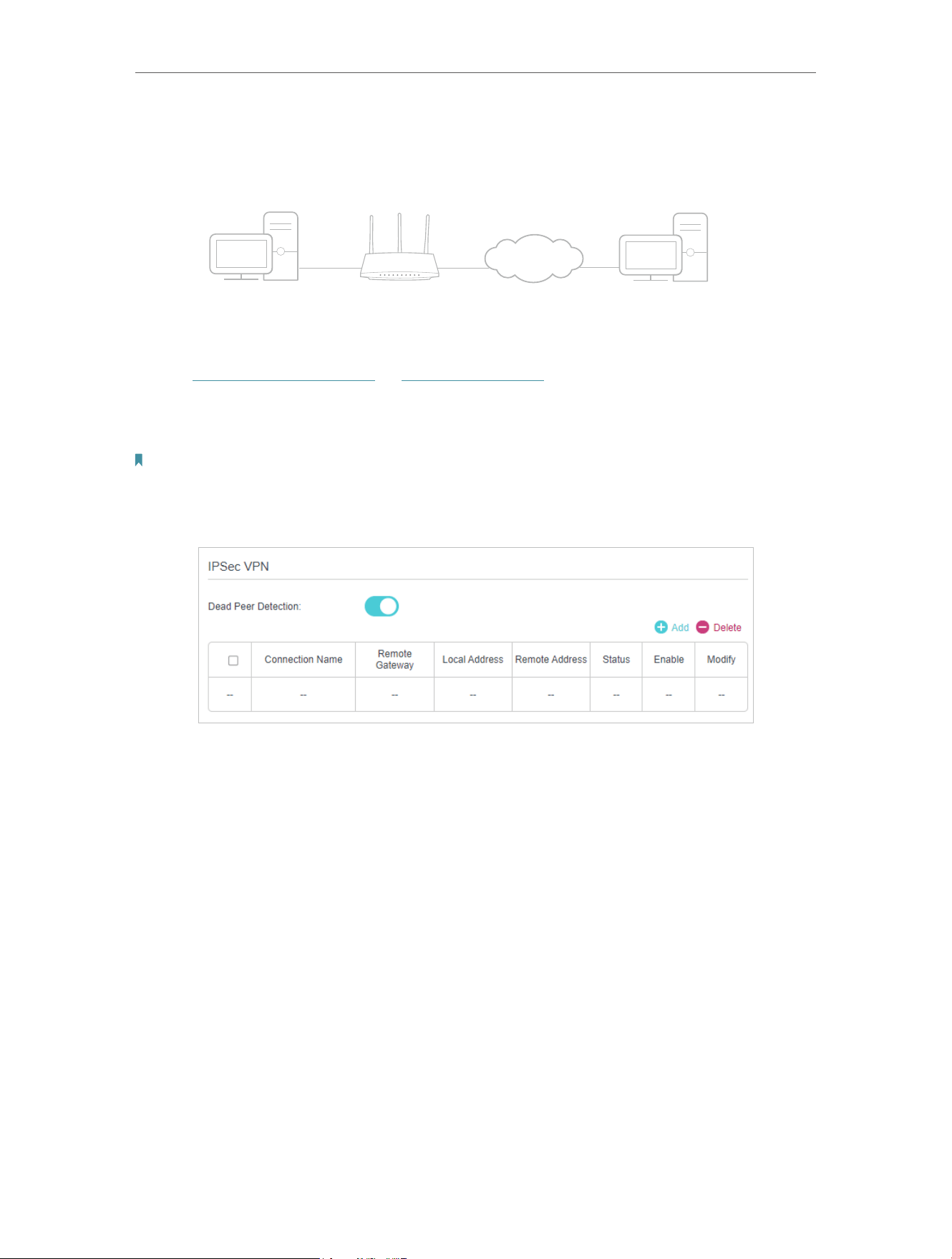
138
Chapter 16 VPN Server&Client
To use the VPN feature, you need to set up IPSec VPN Server on your router, and
configure theIPSec connection on remote devices. Please follow the steps below to
set up the IPSec VPN connection.
INTERNET
Home Network Router (VPN Server) Remote Devices
Step 1 Set up IPSec VPN Server on Your Router
1. Visit http://tplinkmodem.net or http://192.168.1.1, and log in with the password you
set for the GPON router.
2. Go to Advanced > VPN > IPSec VPN, and enable Dead Peer Detection.
Note:
• Firmware update may be required to support IPSec VPN Server.
• Before you enable Dead Peer Detection, we recommend you configure Dynamic DNS Service (recommended) or
assign a static IP address for router’s WAN port and synchronize your System Time with internet.
3. Click Add.
4. Configure the IPSec VPN server parameters.

139
Chapter 16 VPN Server&Client
5. Configure the advanced settings according to the following explanation. We
recommend that you keep the default settings. If you want to change these settings,
make sure that both VPN server endpoints use the same Encryption Algorithm,
Integrity Algorithm, Diffie-Hellman Group and Key Lifetime in both phase1 and
phase2.

140
Chapter 16 VPN Server&Client
6. Click OK.
Note:
• For the comprehensive guide, please refer to the User Guide on the product’s support page.
Step 2 Configure IPSec VPN Connection on Your Remote Device
The remote device can use the Windows or Mac OS built-in IPSec software or a third-
party IPSec software to connect to IPSec Server. Here we use the Windows built-in
IPSec software as an example.
1. Go to Start > Control Panel > Network and Internet > Network and Sharing Center.
2. Select Set up a new connection or network.

141
Chapter 16 VPN Server&Client
3. Select Connect to a workplace and click Next.
4. Select Use my Internet connection (VPN).

142
Chapter 16 VPN Server&Client
5. Enter the internet IP address of the router (for example: 218.18.1.73) in the Internet
address field, and select the checkbox Don’t connect now; just set it up so I can
connect later. Click Next.
6. Enter the User name and Password you have set for the IPSec VPN server on your
router, and click Connect.

143
Chapter 16 VPN Server&Client
7. Click Close when the VPN connection is ready to use
8. Go to Network and Sharing Center and click Change adapter settings.

144
Chapter 16 VPN Server&Client
9. Find the VPN connection you created, then double-click it.
10. Enter the User name and Password you have set for the IPSec VPN server on your
router, and click Properties.

145
Chapter 16 VPN Server&Client
11. Switch to the Security tab, select Layer 2 Tunneling Protocol with IPsec (L2TP/
IPSec) and click Advanced settings.
12. Select Use preshared key for authentication and enter the IPSec Pre-Shared Key
you have set for the IPSec VPN server on your router. Then click OK.
Done! Click Connect to start VPN connection.
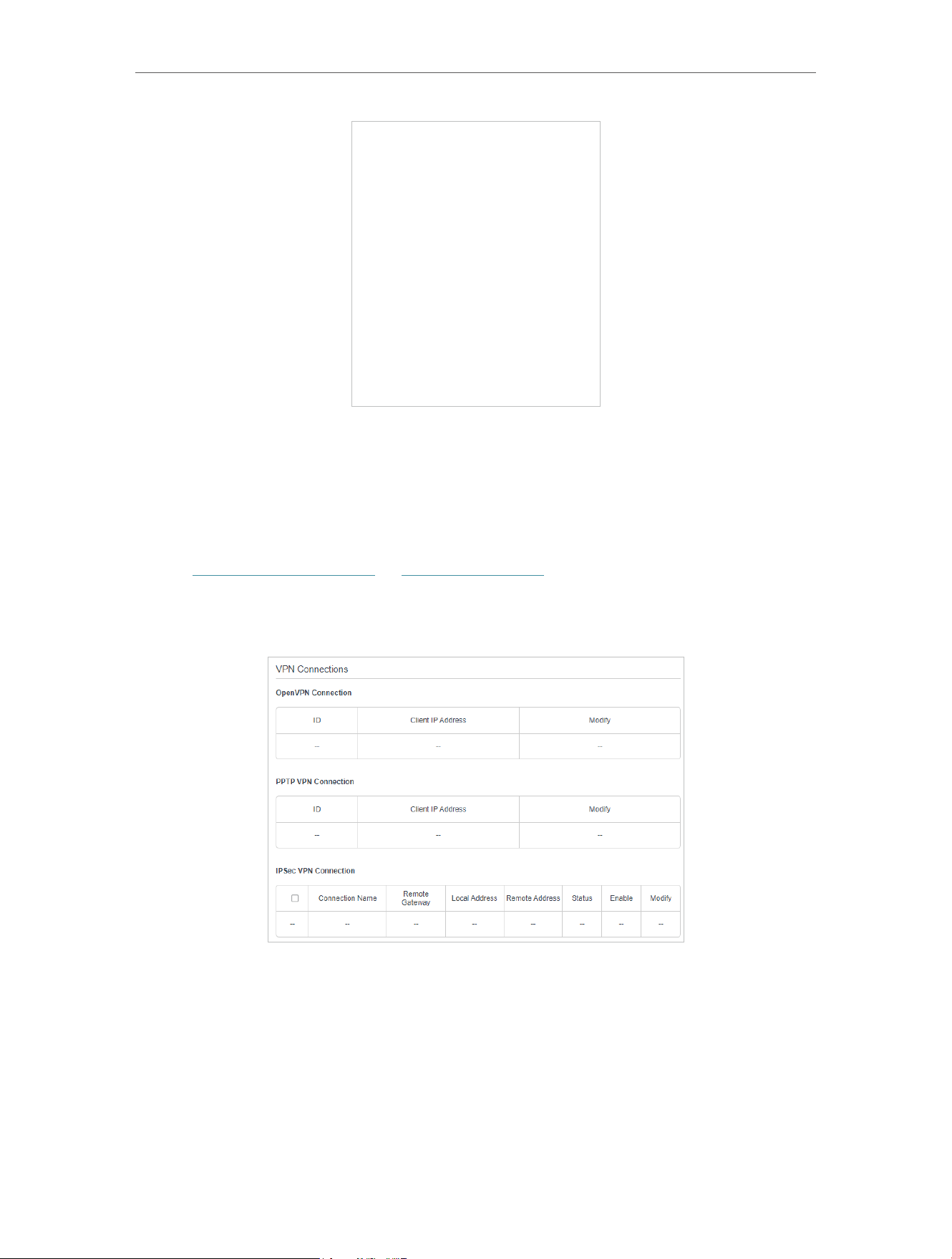
146
Chapter 16 VPN Server&Client
17 4 VPN Connections
VPN Connections page displays the clients that are currently connected to the
OpenVPN servers, PPTP VPN servers and IPSec VPN hosted on the router.
1. Visit http://tplinkmodem.net or http://192.168.1.1, and log in with the password you
set for the GPON router.
2. Go to Advanced > VPN > VPN connections.

Chapter 17
Manage Your GPON Router
This chapter introduces how to change the system settings and administrate your
router’s network.
This chapter contains the following sections:
• Set System Time
• Control the LED
• Test Internet Connectivity
• Update the Firmware
• Back Up and Restore Configuration Settings
• Reboot the GPON Router
• Administration Management
• System Log
• CWMP Settings
• SNMP Settings
• Monitor the Internet Traffic Statistics

148
Chapter 17
Manage Your GPON Router
18 1 Set System Time
System time is the time displayed while the router is running. The system time you
configure here will be used for other time-based functions like Parental Controls and
Wireless Schedule. You can manually set how to get the system time.
Follow the steps below to set your system time.
1 Visit http://tplinkmodem.net or http://192.168.1.1, and log in with the password you
set for the GPON router.
2 Go to Advanced > System Tools > Time Settings page.
3 Configure the system time using the following methods:
Get from PC: Click this button if you want to use the current time of your PC.
Get from the Internet: Click this button if you want to get time from the internet.
Make sure your router can access the internet before you select this way to get
system time.
4 Click Save.
5 After setting the system time, you can set Daylight Saving Time according to your
needs. Enable Daylight Saving Time, and set the start and end time and then click
Save to make the settings effective.

149
Chapter 17
Manage Your GPON Router
18 2 Control the LED
The LED of the router indicates its activities and status. You can enable the Night Mode
feature to specify a time period during which the LED is off.
1. Visit http://tplinkmodem.net or http://192.168.1.1, and log in with the password you
set for the GPON router.
2. Go to Advanced > System > LED Control.
3. Enable Night Mode.
4. Specify the LED off time, and the LED will be off during this period every day.
5. Click SAVE .
18 3 Test Internet Connectivity
Diagnostics function is used to test the connectivity between the router and the host
or other network devices.
1 Visit http://tplinkmodem.net or http://192.168.1.1, and log in with the password you
set for the GPON router.
2 Go to Advanced > System Tools > Diagnostics page.
¾ To test the internet connection of the router:
Locate the Diagnostic Tools section, and click the Start to test the internet connectivity
and you will find the test results in the gray box.

150
Chapter 17
Manage Your GPON Router
18 4 Update the Firmware
TP-Link is dedicated to improving product features, giving you a better network
experience.
We will inform you through the web management page if there’s any update firmware
available for your router. The latest firmware can also be downloaded from the Support
page of our website www.tp-link.com for free.
Note:
1. Make sure that you have a stable connection between the router and your computer. It is NOT recommended to
upgrade the firmware wirelessly.
2. Back up your router configuration before upgrading the firmware.
3. DO NOT turn off the router during the firmware upgrade.
¾ Follow the steps below to upgrade the firmware online:
1. Click Check for Upgrades.
2. If a new firmware is displayed, click Upgrade and click Yes when prompted, then the
router will automatically download the latest firmware file and upgrade.
¾ Follow the steps below to manually update the firmware:
1. Download the latest firmware file for the router from our website www.tp-link.com.
2. Visit http://tplinkmodem.net or http://192.168.1.1, and log in with the password you
set for the GPON router.
3. Go to Advanced > System Tools > Firmware Upgrade.
4. Focus on the Device Information section. Make sure the downloaded firmware file
matches with the Hardware Version.
151
Chapter 17
Manage Your GPON Router
5. Focus on the Local Upgrade section. Click Browse to locate the downloaded new
firmware file, and click Upgrade.
6. Wait a few minutes for the upgrading and rebooting.
18 5 Back Up and Restore Configuration Settings
The configuration settings are stored as a configuration file in the router. You can back
up the configuration file to your computer for future use and restore the router to a
previous settings from the backup file when needed. Moreover, if needed you can erase
the current settings and reset the router to its default factory settings.
1. Visit http://tplinkmodem.net or http://192.168.1.1, and log in with the password you
set for the GPON router.
2. Go to Advanced > System Tools > Backup & Restore.
¾ To back up configuration settings:
Click Backup to save a copy of the current settings to your local computer. A conf.bin
file will be stored to your computer.
¾ To restore configuration settings:
1 ) Click Browse to locate the previous backup configuration file, and click Restore.
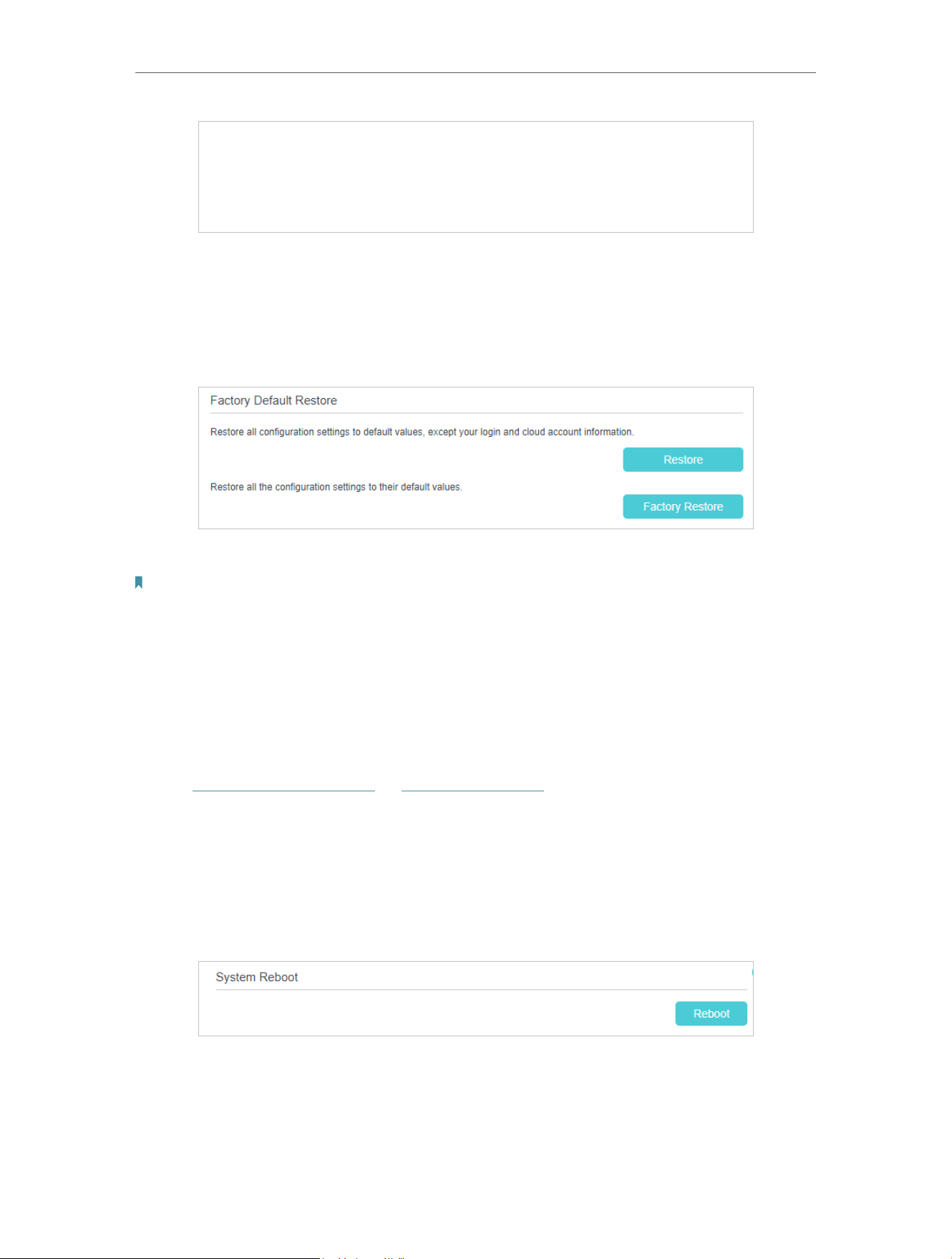
152
Chapter 17
Manage Your GPON Router
2 ) Wait a few seconds for the restoring and rebooting.
¾ To reset the router to factory default settings:
1 ) Locate the Factory Default Restore section, and click Factory Restore to reset
the router.
2 ) Wait a few minutes for the resetting and rebooting.
Note:
1. During the resetting process, do not turn off the router.
2. We strongly recommend you back up the current configuration settings before resetting the router.
18 6 Reboot the GPON Router
The Reboot feature cleans the cache to enhance the running performance of the router.
You can reboot the router manually or set it to reboot regularly.
1. Visit http://tplinkmodem.net or http://192.168.1.1, and log in with the password you
set for the GPON router.
2. Go to Advanced > System Tools > Reboot Schedule, and you can restart your router.
¾ To reboot the router manually:
Click Reboot, and wait a few minutes for the router to rebooting.
¾ To schedule the router to reboot at a specific time:
1 ) Enable Auto Reboot.
2 ) Specify the Time when the router reboots.

153
Chapter 17
Manage Your GPON Router
3 ) Click Save to make the settings effective.
Some settings of the router may take effect only after rebooting, including:
• Change the LAN IP Address (system will reboot automatically).
• Change the Operation Mode (system will reboot automatically).
• Upgrade the firmware of the router (system will reboot automatically).
• Restore the router to its factory defaults (system will reboot automatically).
• Update the configuration with the file (system will reboot automatically).
Note:
The Auto Reboot feature takes effect based on the router’s system time. Please make sure you have already set up the
time of the router.
18 7 Administration Management
18 7 1 Change the Login Password
A login password is required to log in to the router’s web management page. You
are asked to set a login password at first login. You can change it with the account
management feature.
1 Visit http://tplinkmodem.net or http://192.168.1.1, and log in with the password you
set for the GPON router.
2 Go to Advanced > System Tools > Administration, and locate the Account
Management section.
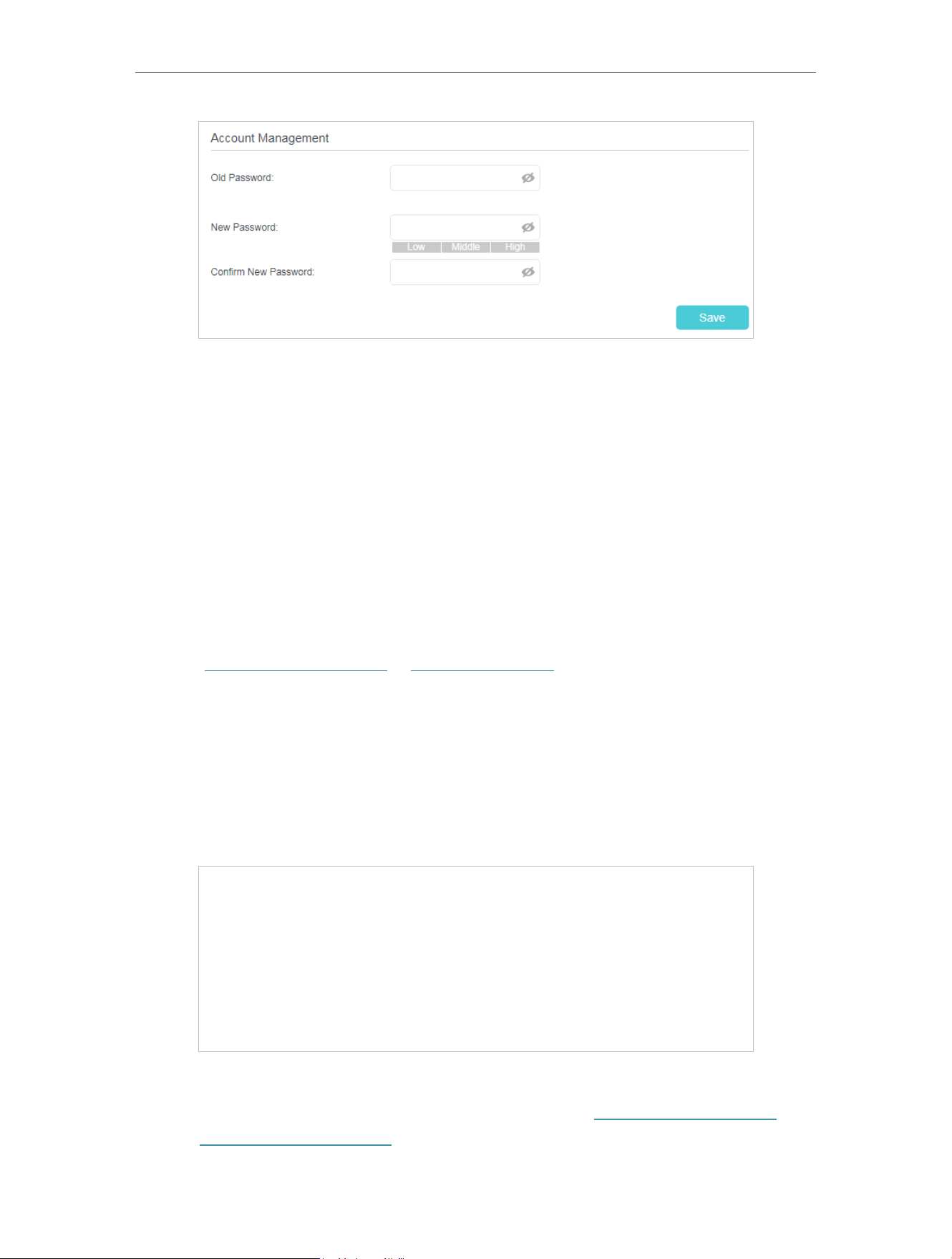
154
Chapter 17
Manage Your GPON Router
3 Enter the old password and a new password twice (both case-sensitive).
4 Click Save to make the settings effective.
18 7 2 Local Management
You can control the local devices’ authority to manage the router via Local Management
feature. By default all local connected devices are allowed to manage the router. You
can also specify one device to manage the router and enable local management over a
more secure way, HTTPS.
Follow the steps below to allow only the specific device to manage the router via the
local management over HTTPS.
1 Visit http://tplinkmodem.net or http://192.168.1.1, and log in with the password you
set for the GPON router.
2 Go to Advanced > System Tools > Administration, and locate the Local Management
section.
3 Enable Local Management over HTTPS and keep the Port for HTTP and Port for
HTTPS as the default settings. Enter the IP address or MAC address of the local
device to manage the router.
4 Click Save.
Now, you can manage the GPON router over both HTTP (http://tplinkmodem.net) and
HTTPS (https://tplinkmodem.net).

155
Chapter 17
Manage Your GPON Router
Note:
If you want all local devices can manage the router, just leave the IP/MAC Address field blank.
18 7 3 Remote Management
By default, the remote devices are not allowed to manage the router from the internet.
You can enable remote management over HTTP and/or HTTPS if needed. HTTPS is a
more secure way to access the router.
Note:
If your ISP assigns a private WAN IP address (such as 192.168.x.x or 10.x.x.x), you cannot use the remote management
feature because private addresses are not routed on the internet.
Follow the steps below to allow remote devices to manage the router over HTTPS.
1 Visit http://tplinkmodem.net or http://192.168.1.1, and log in with the password you
set for the GPON router.
2 Go to Advanced > System Tools > Administration, and locate the Remote
Management section.
3 Enable Remote Management and Remote Management via HTTPS to allow for
HTTPS connection. Keep the Port as the default setting.
4 Set the client device allowed for remote management. Select All to allow all remote
devices to manage the router. If you just want to allow a specific device to manage
the router, select Only the Following IP/MAC Address and enter the IP/MAC address
of the remote device.
5 Click Save.

156
Chapter 17
Manage Your GPON Router
All devices or the specific device on the internet can log in to your router using the
address displayed on the Manage This Router via the Address field to manage the
router.
Tips:
1. If you were warned about the certificate when visiting the web management page remotely, click Trust (or a
similar option) to continue. To avoid this warning, you can download and install the certificate on the router’s web
management page at Advanced > System Tools > Administration.
2. The router’s WAN IP is usually a dynamic IP. Please refer to Set Up a Dynamic DNS Service Account if you want to log
in to the router through a domain name.
18 7 4 HTTP Referer Head Check
HTTP referer header check function can protect your networks against CSRF attacks.
This function is enabled by default. You can disable this function if needed.
1 Visit http://tplinkmodem.net or http://192.168.1.1, and log in with the password you
set for the GPON router.
2 Go to Advanced > System Tools > Administration, and locate the HTTP Referer
Head Check
section.
3 Clear the Enable check box and click Save if you want to disable this function.
18 7 5 ICMP Ping
ICMP (Internet Control Message Protocol) Ping is used to diagnose the network by
sending ICMP echo request packets to the target remote or local host and waiting for
an ICMP response.
You can control the router’s replies to ICMP Ping requests.
1 Visit http://tplinkmodem.net or http://192.168.1.1, and log in with the password you
set for the GPON router.
2 Go to Advanced > System Tools > Administration, and locate the ICMP Ping section.
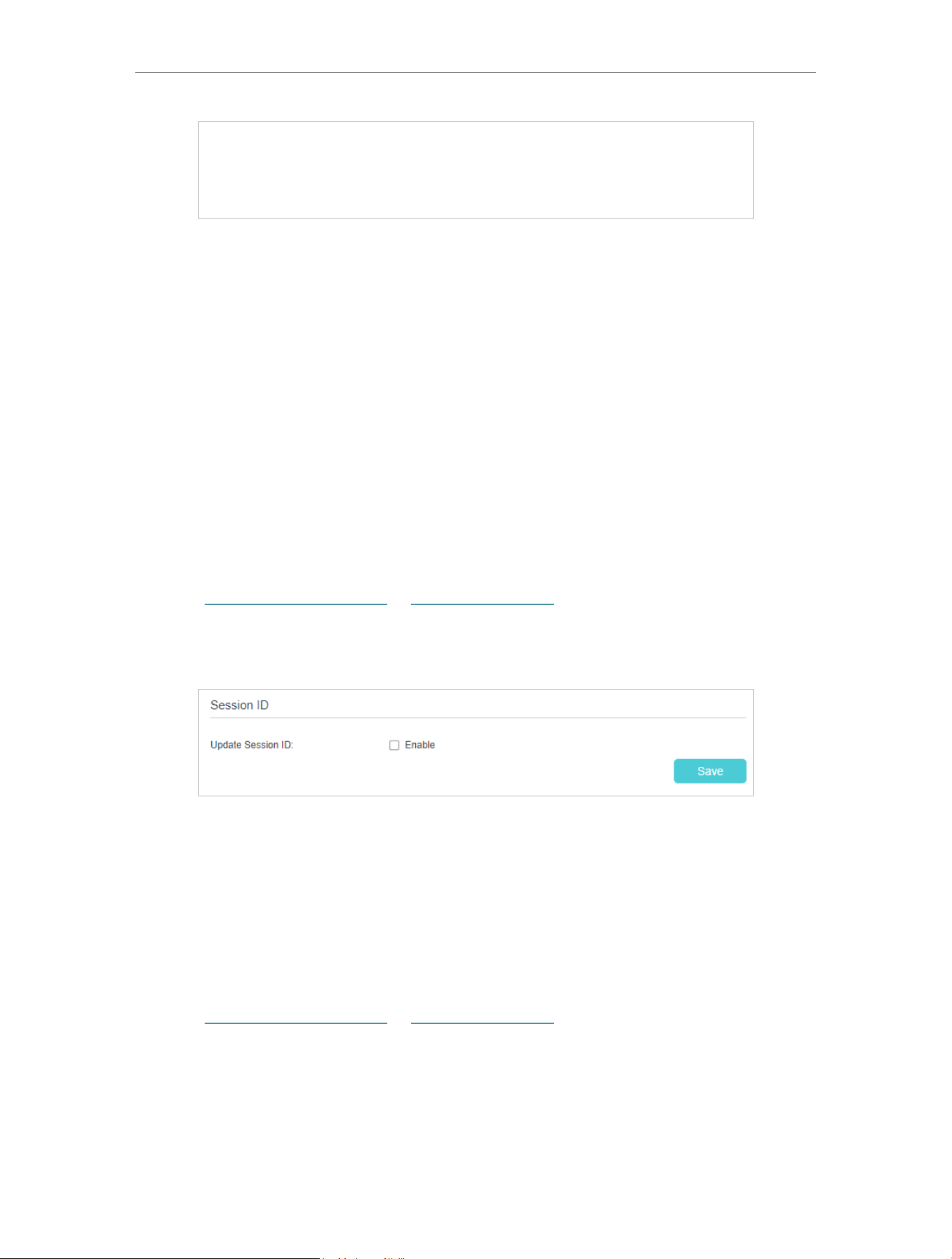
157
Chapter 17
Manage Your GPON Router
3 Specify the ICMP Ping reply options.
• Remote: Select it if you want the computers on a public network to ping the
router’s WAN IP address.
• Local: Enabled by default, if enabled, the computers on a private network can
ping the router’s LAN IP address.
4 Click Save to make the settings effective.
18 7 6 Session ID
When Session ID function is enabled, it will be saved into Flash every time the PPP
connection is updated. This can prevent some problems of PPPoE/L2TP/PPTP
connection being rejected to reconnect to servers when the device is powered off or
the network disconnect accidentally.
1 Visit http://tplinkmodem.net or http://192.168.1.1, and log in with the password you
set for the GPON router.
2 Go to Advanced > System Tools > Administration, and locate the Session ID section.
3 Enable the Update Session ID and Click Save to make the settings effective.
18 8 System Log
System Log can help you know what happened to your router, facilitating you to locate
the malfunctions. For example when your router does not work properly, you may need
to save the system log and send it to the technical support for troubleshooting.
1 Visit http://tplinkmodem.net or http://192.168.1.1, and log in with the password you
set for the GPON router.
2 Go to Advanced > System Tools > System Log page.
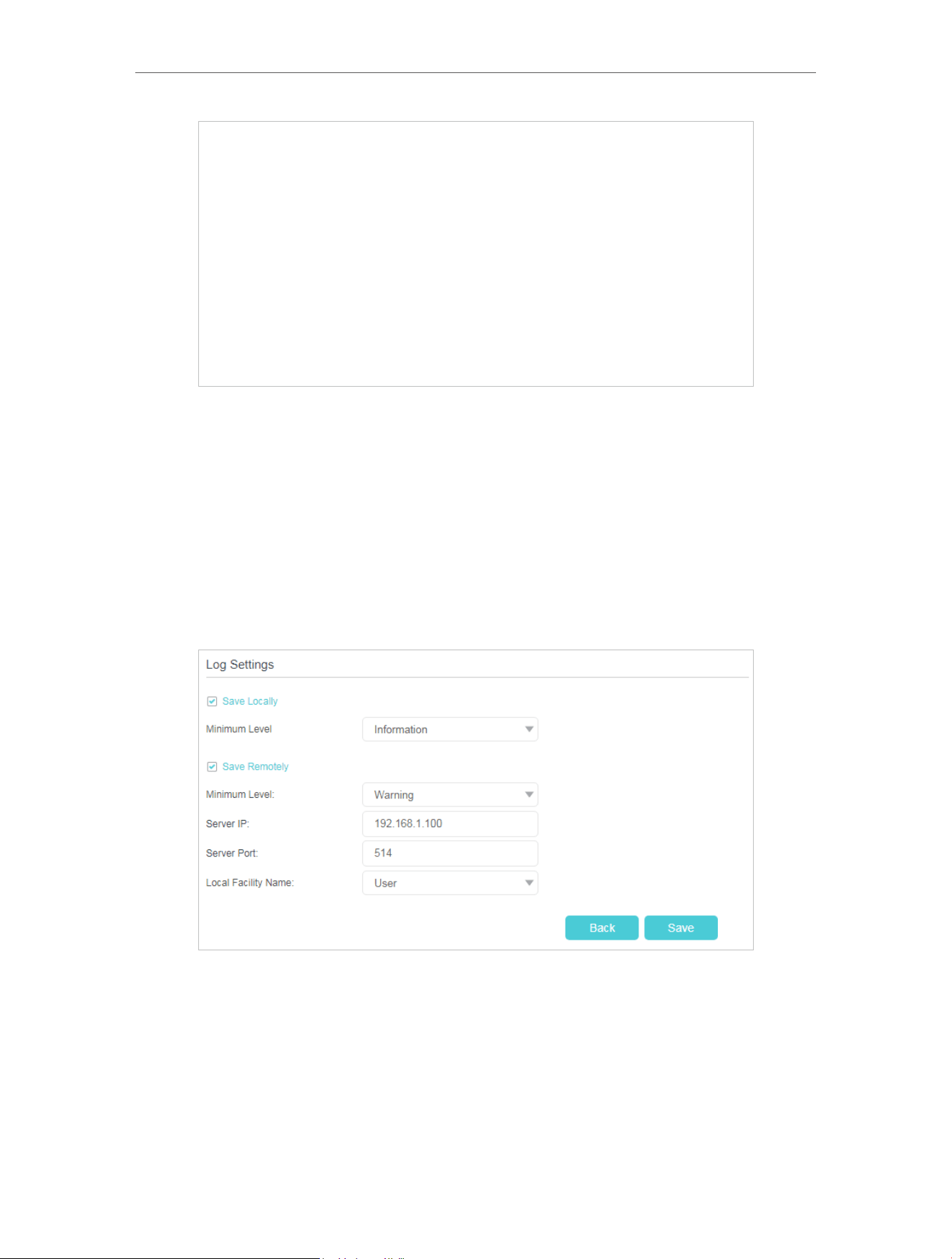
158
Chapter 17
Manage Your GPON Router
¾ To view the system logs:
You can view specific system logs by selecting the log type and level.
Click Refresh to refresh the log list.
¾ To save the system logs:
You can save the system logs to your local computer or a remote server.
Click Save Log to save the logs in a txt file to your computer.
Click Log Settings to set the storage path of logs.
• Save Locally: Select this option to cache the system log to the router’s local memory,
select the minimum level of system log to be saved from the drop-down list. The logs
will be shown in the table in descending order on the System Log page.
• Save Remotely: Select this option to send the system log to a remote server, select
the minimum level of system log to be saved from the drop-down list and enter the
information of the remote server. If the remote server has a log viewer client or a sniffer
tool implemented, you can view and analyze the system log remotely in real-time.

159
Chapter 17
Manage Your GPON Router
18 9 CWMP Settings
The router supports CWMP (CPE WAN Management Protocol), also called TR-069. This
collects information, performs diagnostics and configures the devices automatically
via ACS (Auto-Configuration Server).
1 Visit http://tplinkmodem.net or http://192.168.1.1, and log in with the password you
set for the GPON router.
2 Go to Advanced > System Tools > CWMP Settings page.
• CWMP: Enable or disable the CWMP (CPE WAN Management Protocol) function.
• Inform: Enable or disable the function of sending an inform message to the ACS (Auto
Configuration Server) periodically.
• Inform Interval: Set the time interval in seconds when the Inform message will be sent
to the ACS.
• ACS URL: Enter the web address of the ACS which is provided by your ISP.

160
Chapter 17
Manage Your GPON Router
• ACS Username/Password: Enter the username/password to log in to the ACS server.
• Interface used by TR-069 client: Select which interface to be used by the TR-069
client.
• Display SOAP messages on serial console: Enable or disable this function.
• Connection Request Authentication: Select this check box to enable authentication
for the connection request.
• Username/Password: Enter the username/password for the ACS server to log in to
the router.
• Path: Enter the path for the ACS server to log in to the router.
• Port: Enter the port that connects to the ACS server.
• URL: Enter the URL that connects to the ACS server.
• Simple Traversal of UDP over NATs: Select this check box to enable STUN for the
connection request and set the STUN maximum and minimum keep alive period,
server address and port.
Click Save to make the settings effective.
18 10 SNMP Settings
SNMP (Simple Network Management Protocol) is widely used in network management
for network monitoring. It allows management applications to retrieve status updates
and statistics from the SNMP agent within this device. In this way, network administrators
can easily search and modify the information on any node on the network. Meanwhile,
they can locate faults promptly and implement the fault diagnosis, capacity planning
and report generating.
The SNMP Agent is an application running on the router that performs the operational
role of receiving and processing SNMP messages, sending responses to the SNMP
manager, and sending traps when an event occurs. So a router contains SNMP “agent”
software can be monitored and/or controlled by SNMP Manager using SNMP messages.
1 Visit http://tplinkmodem.net or http://192.168.1.1, and log in with the password you
set for the GPON router.
2 Go to Advanced > System Tools > SNMP Settings page.

161
Chapter 17
Manage Your GPON Router
• SNMP Agent/SNMP Agent for WAN: Turn on to enable the built-in SNMP agent that
allows the router to operate as the operational role in receiving and processing of
SNMP messages, sending responses to the SNMP manager, and triggering SNMP
traps when an event occurs.
• Read-only Community: Displays the default public community string that protects the
router from unauthorized access.
• Write Community: Displays the default write community string that protects the router
from unauthorized changes.
• System Name: Displays the administratively-assigned name for this managed device.
• System Description: Displays the textual description of the managed device. This
value should include the full name and version identification of the system’s hardware
type, software operating-system, and networking software.
• System Location: Displays the physical location of this device (for example, the
telephone closet, 3rd floor).
• System Contact: Displays the textual identification of the contact person for this
managed device, together with information on how to contact this person.
• Trap Manager IP: Displays the IP address of the host to receive the traps.
You are suggested to keep the default settings. Click Save to make the settings effective.
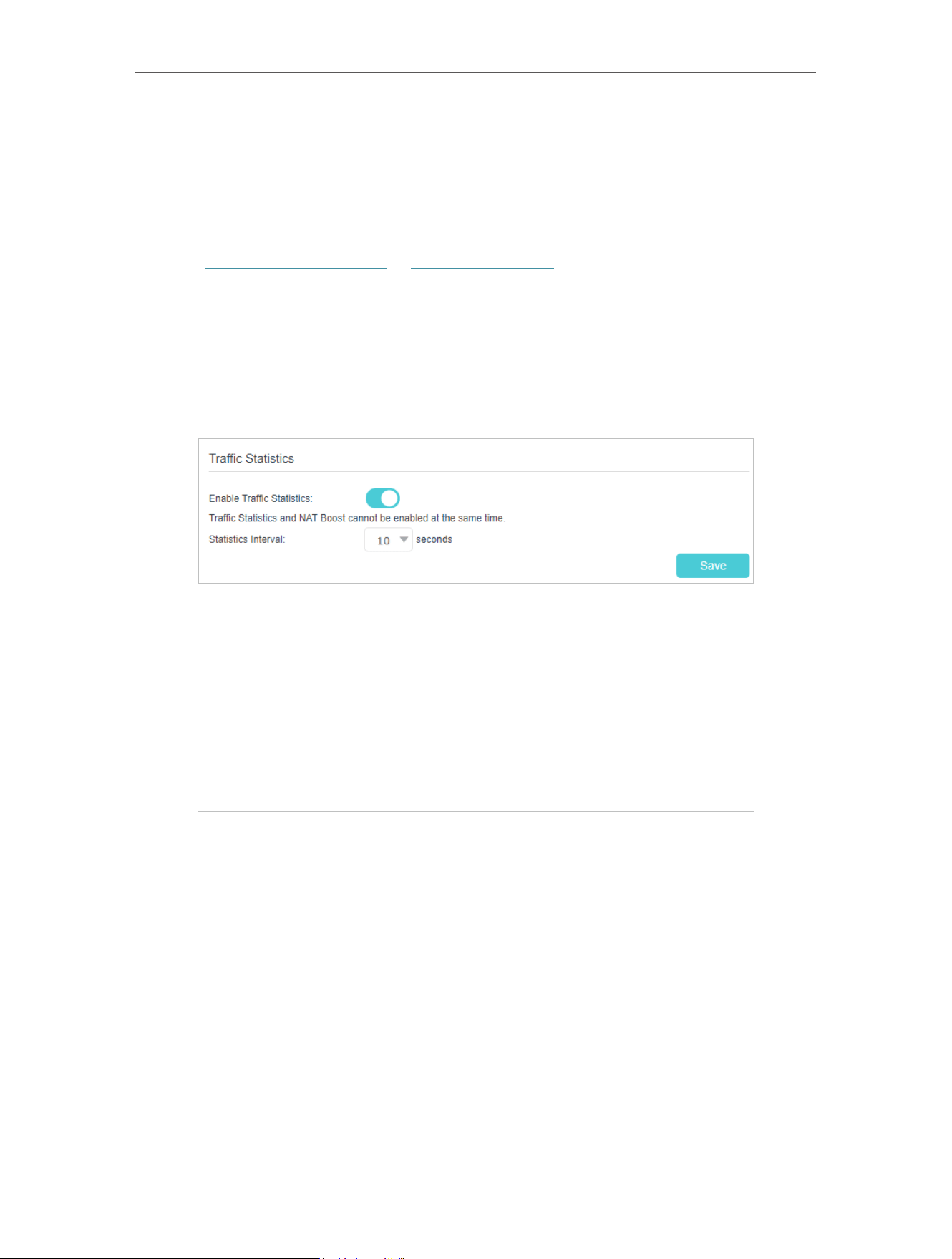
162
Chapter 17
Manage Your GPON Router
18 11 Monitor the Internet Traffic Statistics
The traffic statistics function allows you to monitor the volume of internet traffic
statistics. You can view the network traffic of the LAN, WAN and WLAN sent and
received packets.
1 Visit http://tplinkmodem.net or http://192.168.1.1, and log in with the password you
set for the GPON router.
2 Go to Advanced > System Tools > Traffic Statistics.
3 Turn on Enable Traffic Statistics to enable traffic statistics function, you can view
the total number of packets and bytes received and transmitted by the router within
the selected Statistics Interval. This function is disabled by default.
4 You can refer to Traffic Statistics List for the detailed information about the traffic
usage of all devices.


164
FAQ
Q1 What should I do if I forget my wireless password?
The default wireless password is printed on the label of the router. If the password has
been altered:
1. Connect your computer to the router using an Ethernet cable.
2. Visit http://tplinkmodem.net or http://192.168.1.1, and log in with the password you
set for the GPON router.
3. Go to Wireless to retrieve or reset your wireless password.
Q2 What should I do if I forget my web management password?
• If you are using a TP-Link ID to log in, or you have enabled the Password Recovery
feature of the router, click Forgot password on the login page and then follow the
instructions to reset it.
• Alternatively, press and hold the Reset button of the router until the Power LED
blinks to restore factory default settings, and then visit http://tplinkmodem.net or
http://192.168.1.1 to create a new login password.
Note:
• You’ll need to reconfigure the router to surf the internet once the router is reset, and please mark down your new
password for future use.
Q3 What should I do if I can’t log in to the router’s web management
page?
This can happen for a variety of reasons. Please try the methods below to log in again.
• Make sure your computer is connected to the router correctly and the corresponding
LED indicator(s) light up.
• Make sure the IP address of your computer is configured as Obtain an IP address
automatically and Obtain DNS server address automatically.
• Make sure http://tplinkmodem.net or http://192.168.1.1 is correctly entered.
• Check your computer’s settings:
1 ) Go to Start > Control Panel > Network and Internet, and click View network
status and tasks.
2 ) Click Internet Options on the bottom left.
3 ) Click Connections and select Never dial a connection.

165
4 ) Click LAN settings and deselect the following three options and click OK.
5 ) Go to Advanced > Restore advanced settings, click OK to save the settings.

166
• Use another web browser or computer to log in again.
• Reset the router to factory default settings and try again. If login still fails, please
contact the technical support.
Note: You’ll need to reconfigure the router to surf the internet once the router is reset.
Q4 What should I do if I can’t access the internet even though the
configuration is finished?
1 Visit http://tplinkmodem.net or http://192.168.1.1, and log in with the password you
set for the GPON router.
2 Go to Advanced> Network > Status to check internet status:
If IP Address is a valid one, please try the methods below and try again:
• Your computer might not recognize any DNS server addresses. Please manually
configure the DNS server.
1 ) Go to Advanced > Network > LAN Settings.
2 ) Enter 8.8.8.8 as Primary DNS, click SAVE .
Tips: 8.8.8.8 is a safe and public DNS server operated by Google.
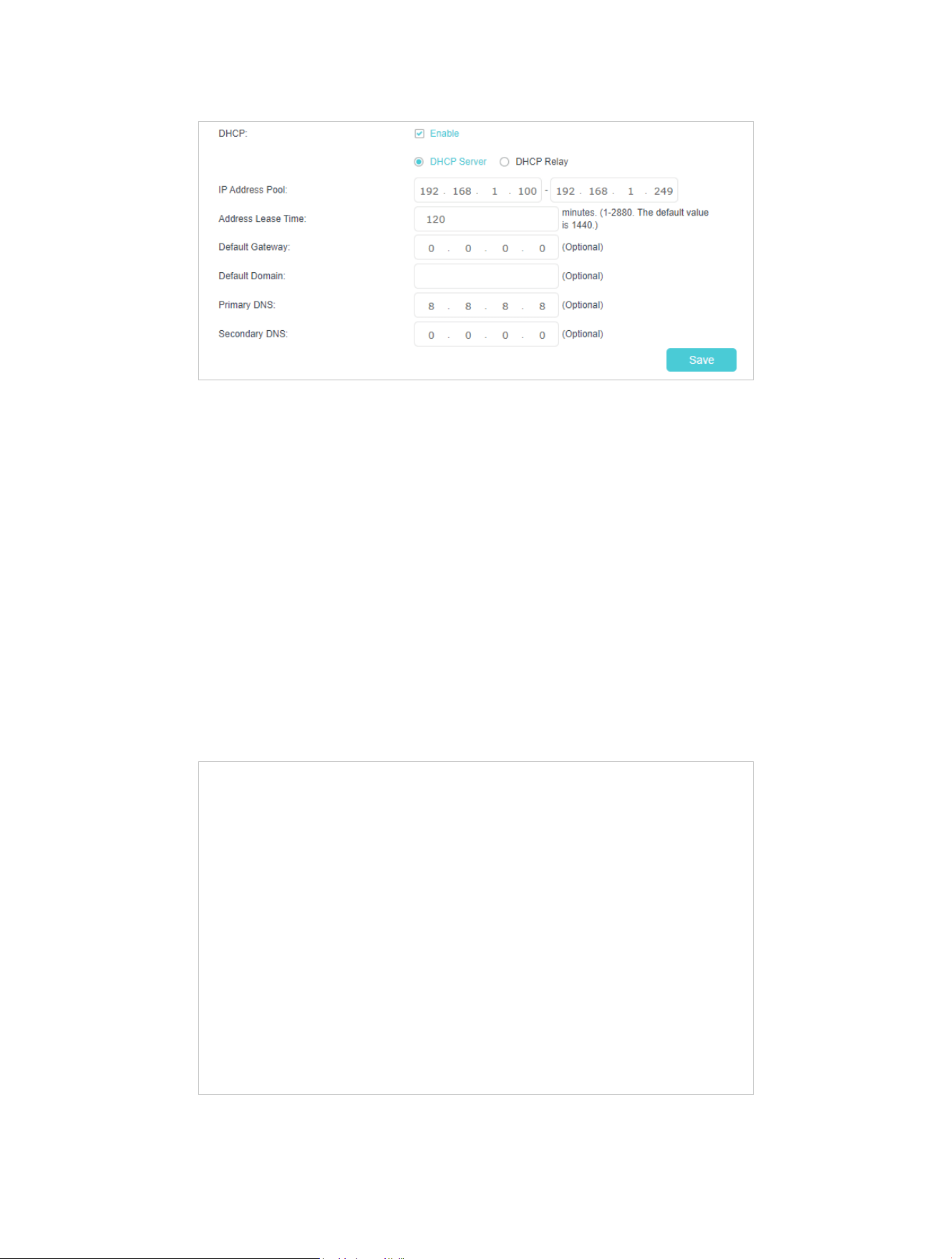
167
• Restart the modem and the router.
1 ) Power off your modem and router, and leave them off for 1 minute.
2 ) Power on your modem first, and wait about 2 minutes until it gets a solid cable
or Internet light.
3 ) Power on the router.
4 ) Wait another 1 or 2 minutes and check the internet access.
• Reset the router to factory default settings and reconfigure the router.
• Upgrade the firmware of the router.
• Check the TCP/IP settings on the particular device if all other devices can get internet
from the router.
As the picture below shows, if the IP Address is 0 0 0 0, please try the methods below
and try again:
• Make sure the physical connection between the router and the modem is proper.
• Clone the MAC address of your computer.

168
1 ) Visit http://tplinkmodem.net or http://192.168.1.1, and log in with the password
you set for the GPON router.
2 ) Go to Internet or Advanced > Network > Internet and focus on the MAC Clone
section.
3 ) Choose an option as needed (enter the MAC address if Use Custom MAC
Address is selected), and click SAVE .
Tips:
• Some ISP will register the MAC address of your computer when you access the internet for the first time
through their Cable modem, if you add a router into your network to share your internet connection, the ISP will
not accept it as the MAC address is changed, so we need to clone your computer’s MAC address to the router.
• The MAC addresses of a computer in wired connection and wireless connection are different.
• Modify the LAN IP address of the router.
Note:
Most TP-Link routers use 192.168.0.1/192.168.1.1 as their default LAN IP address, which may conflict with the IP
range of your existing ADSL modem/router. If so, the router is not able to communicate with your modem and you
can’t access the internet. To resolve this problem, we need to change the LAN IP address of the router to avoid
such conflict, for example, 192.168.2.1.
1 ) Visit http://tplinkmodem.net or http://192.168.1.1, and log in with the password
you set for the GPON router.
2 ) Go to Advanced > Network > LAN.
3 ) Modify the LAN IP address as the follow picture shows. Here we take 192.168.2.1
as an example.
4 ) Click Save.
• Restart the modem and the router.

169
1 ) Power off your modem and router, and leave them off for 1 minute.
2 ) Power on your modem first, and wait about 2 minutes until it get a solid cable
or Internet light.
3 ) Power on the router.
4 ) Wait another 1 or 2 minutes and check the internet access.
• Double check the internet connection type.
1 ) Confirm your internet connection type, which can be learned from the ISP.
2 ) Visit http://tplinkmodem.net or http://192.168.1.1, and log in with the password
you set for the GPON router.
3 ) Go to Advanced > Network > Internet.
4 ) Select your Internet Connection Type and fill in other parameters.
5 ) Click Save.
6 ) Restart the modem and the router again.
• Please upgrade the firmware of the router.
If you’ve tried every method above but still cannot access the internet, please contact
the technical support.
Q5 What should I do if I can’t find my wireless network or I cannot
connect the wireless network?
If you fail to find any wireless network, please follow the steps below:
• Make sure the wireless function of your device is enabled if you’re using a laptop with
built-in wireless adapter. You can refer to the relevant document or contact the laptop
manufacturer.

170
• Make sure the wireless adapter driver is installed successfully and the wireless
adapter is enabled.
• On Windows 7
1 ) If you see the message No connections are available, it is usually because the
wireless function is disabled or blocked somehow.
2 ) Click Troubleshoot and windows might be able to fix the problem by itself.
• On Windows XP
1 ) If you see the message Windows cannot configure this wireless connection,
this is usually because windows configuration utility is disabled or you are
running another wireless configuration tool to connect the wireless.
2 ) Exit the wireless configuration tool (the TP-Link Utility, for example).
3 ) Select and right click on My Computer on desktop, select Manage to open
Computer Management window.
4 ) Expand Services and Applications > Services, find and locate Wireless Zero
Configuration in the Services list on the right side.
5 ) Right click Wireless Zero Configuration, and then select Properties.
6 ) Change Startup type to Automatic, click on Start button and make sure the
Service status is Started. And then click OK.
If you can find other wireless network except your own, please follow the steps below:
• Check the WLAN LED indicator on your wireless router/modem.
• Make sure your computer/device is still in the range of your router/modem. Move it
closer if it is currently too far away.
• Go to Wireless or Advanced > Wireless > Wireless Settings, and check the wireless
settings. Double check your wireless Network Name and SSID is not hided.
If you can find your wireless network but fail to connect, please follow the steps below:
• Authenticating problem/password mismatch:
1 ) Sometimes you will be asked to type in a PIN number when you connect to
the wireless network for the first time. This PIN number is different from the
Wireless Password/Network Security Key, usually you can only find it on the
label of your router.

171
2 ) If you cannot find the PIN or PIN failed, you may choose Connecting using a
security key instead, and then type in the Wireless Password/Network Security
Key.
3 ) If it continues to show note of Network Security Key Mismatch, it is suggested
to confirm the wireless password of your wireless router.
Note: Wireless Password/Network Security Key is case sensitive.
• Windows unable to connect to XXXX / Can not join this network / Taking longer than
usual to connect to this network:
• Check the wireless signal strength of your network. If it is weak (1~3 bars),
please move the router closer and try again.
• Change the wireless Channel of the router to 1, 6 or 11 to reduce interference
from other networks.
• Re-install or update the driver for your wireless adapter of the computer.

172
FCC compliance information statement
Product Name: BBA GPON Routers
Model Number: BBA GPON Routers
Component Name Model
I.T.E. Power T120200-2B1
Responsible party:
TP-Link USA Corporation
Address: 10 Mauchly, Irvine, CA 92618
Website: http://www.tp-link.com/us/
Tel: +1 626 333 0234
Fax: +1 909 527 6804
E-mail: [email protected]om
This equipment has been tested and found to comply with the limits for a Class
B digital device, pursuant to part 15 of the FCC Rules. These limits are designed
to provide reasonable protection against harmful interference in a residential
installation. This equipment generates, uses and can radiate radio frequency
energy and, if not installed and used in accordance with the instructions, may
cause harmful interference to radio communications. However, there is no
guarantee that interference will not occur in a particular installation. If this
equipment does cause harmful interference to radio or television reception,
which can be determined by turning the equipment off and on, the user is
encouraged to try to correct the interference by one or more of the following
measures:
• Reorient or relocate the receiving antenna.
• Increase the separation between the equipment and receiver.
• Connect the equipment into an outlet on a circuit different from that to which
the receiver is connected.
• Consult the dealer or an experienced radio/ TV technician for help.
This device complies with part 15 of the FCC Rules. Operation is subject to the
following two conditions:
1. This device may not cause harmful interference.
2. This device must accept any interference received, including interference
that may cause undesired operation.
Any changes or modifications not expressly approved by the party responsible
for compliance could void the user’s authority to operate the equipment.

173
Note: The manufacturer is not responsible for any radio or TV interference
caused by unauthorized modifications to this equipment. Such modifications
could void the user’s authority to operate the equipment.
FCC RF Radiation Exposure Statement
This equipment complies with FCC RF radiation exposure limits set forth for an
uncontrolled environment. This device and its antenna must not be co-located
or operating in conjunction with any other antenna or transmitter.
To comply with FCC RF exposure compliance requirements, this grant is
applicable to only Mobile Configurations. The antennas used for this transmitter
must be installed to provide a separation distance of at least 23 cm from all
persons and must not be co-located or operating in conjunction with any other
antenna or transmitter.
We, TP-Link USA Corporation, has determined that the equipment shown as
above has been shown to comply with the applicable technical standards, FCC
part 15. There is no unauthorized change is made in the equipment and the
equipment is properly maintained and operated.
Issue Date: 2022.11.30
FCC compliance information statement
Product Name: I.T.E. Power Supply
Model Number: T120200-2B1
Responsible party:
TP-Link USA Corporation
Address: 10 Mauchly, Irvine, CA 92618
Website: http://www.tp-link.com/us/
Tel: +1 626 333 0234
Fax: +1 909 527 6804
E-mail: [email protected]om
This equipment has been tested and found to comply with the limits for a Class
B digital device, pursuant to part 15 of the FCC Rules. These limits are designed
to provide reasonable protection against harmful interference in a residential
installation. This equipment generates, uses and can radiate radio frequency
energy and, if not installed and used in accordance with the instructions, may
cause harmful interference to radio communications. However, there is no
guarantee that interference will not occur in a particular installation. If this
equipment does cause harmful interference to radio or television reception,
which can be determined by turning the equipment off and on, the user is
encouraged to try to correct the interference by one or more of the following
measures:

174
• Reorient or relocate the receiving antenna.
• Increase the separation between the equipment and receiver.
• Connect the equipment into an outlet on a circuit different from that to which
the receiver is connected.
• Consult the dealer or an experienced radio/ TV technician for help.
This device complies with part 15 of the FCC Rules. Operation is subject to the
following two conditions:
1. This device may not cause harmful interference.
2. This device must accept any interference received, including interference
that may cause undesired operation.
Any changes or modifications not expressly approved by the party responsible
for compliance could void the user’s authority to operate the equipment.
We, TP-Link USA Corporation, has determined that the equipment shown as
above has been shown to comply with the applicable technical standards, FCC
part 15. There is no unauthorized change is made in the equipment and the
equipment is properly maintained and operated.
Issue Date: 2022.11.30

175
Canadian Compliance Statement
This device contains licence-exempt transmitter(s)/receiver(s) that comply with
Innovation, Science and Economic Development Canada’s licence-exempt
RSS(s). Operation is subject to the following two conditions:
1. This device may not cause interference.
2. This device must accept any interference, including interference that may
cause undesired operation of the device.
L’émetteur/récepteur exempt de licence contenu dans le présent appareil est
conforme aux CNR d’Innovation, Sciences et Développement économique
Canada applicables aux appareils radio exempts de licence. L’exploitation est
autorisée aux deux conditions suivantes :
1. l’appareil ne doit pas produire de brouillage;
2. l’utilisateur de l’appareil doit accepter tout brouillage radioélectrique subi,
meme si le brouillage est susceptible d’en compromettre le fonctionnement
Caution:
The device for operation in the band 5150–5250 MHz is only for indoor use
to reduce the potential for harmful interference to co-channel mobile satellite
systems;
DFS (Dynamic Frequency Selection) products that operate in the bands 5250-
5350 MHz, 5470-5600MHz, and 5650-5725MHz.
Avertissement:
Le dispositif fonctionnant dans la bande 5150-5250 MHz est réservé uniquement
pour une utilisation à l’intérieur afin de réduire les risques de brouillage
préjudiciable aux systèmes de satellites mobiles utilisant les mêmes canaux;
Les produits utilisant la technique d’atténuation DFS (sélection dynamique des
fréquences) sur les bandes 5250- 5350 MHz, 5470-5600MHz et 5650-5725MHz.
Radiation Exposure Statement:
This equipment complies with IC radiation exposure limits set forth for an
uncontrolled environment. This equipment should be installed and operated
with minimum distance 20cm between the radiator & your body.
Déclaration d’exposition aux radiations:
Cet équipement est conforme aux limites d’exposition aux rayonnements IC
établies pour un environnement non contrôlé. Cet équipement doit être installé
et utilisé avec un minimum de 20 cm de distance entre la source de rayonnement
et votre corps.

176
Industry Canada Statement
CAN ICES-3 (B)/NMB-3(B)
NCC Notice & BSMI Notice:
注意!
取得審驗證明之低功率射頻器材,非經核准,公司、商號或使用者均不得擅自變
更頻率、加大功率或變更原設計之特性及功能。
低功率射頻器材之使用不得影響飛航安全及干擾合法通信;經發現有干擾現象
時,應立即停用,並改善至無干擾時方得繼續使用。
前述合法通信,指依電信管理法規定作業之無線電通信。
低功率射頻器材須忍受合法通信或工業、科學及醫療用電波輻射性電機設備之干
擾。
應避免影響附近雷達系統之操作。
高增益指向性天線只得應用於固定式點對點系統。
安全諮詢及注意事項
• 安全諮詢及注意事項
• 請使用原裝電源供應器或只能按照本產品注明的電源類型使用本產品。
• 清潔本產品之前請先拔掉電源線。請勿使用液體、噴霧清潔劑或濕布進行清
潔。
• 注意防潮,請勿將水或其他液體潑灑到本產品上。
• 插槽與開口供通風使用,以確保本產品的操作可靠並防止過熱,請勿堵塞或
覆蓋開口。
• 請勿將本產品置放於靠近熱源的地方。除非有正常的通風,否則不可放在密
閉位置中。
• 不要私自拆開機殼或自行維修,如產品有故障請與原廠或代理商聯繫。
限用物質含有情況標示聲明書
設備名稱:GPON Routers
Equipment name
型號(型式):
Type designation (Type)
單元
Unit
限用物質及其化學符號
Restricted substances and its chemical symbols
鉛
Lead
(Pb)
汞
Mercury
(Hg)
鎘
Cadmium
(Cd)
六價鉻
Hexavalent
chromium
(Cr
+6
)
多溴聯苯
Polybrominated
biphenyls
(PBB)
多溴二苯醚
Polybrominated
diphenyl ethers
(PBDE)
PCB
○ ○ ○ ○ ○ ○
外殼
○ ○ ○ ○ ○ ○
電源供應器
− ○ ○ ○ ○ ○

177
天線
○ ○ ○ ○ ○ ○
備考1.〝超出0.1 wt %〞及〝超出0.01 wt %〞係指限用物質之百分比含量超出百分比含量基準值
Note 1:“Exceeding 0.1 wt %” and “exceeding 0.01 wt %” indicate that the percentage content of
the restricted substance exceeds the reference percentage value of presence condition.
備考2.〝○〞係指該項限用物質之百分比含量未超出百分比含量基準值。
Note 2:“○” indicates that the percentage content of the restricted substance does not exceed the
percentage of reference value of presence.
備考3.〝−〞係指該項限用物質為排除項目。
Note 3:The “−” indicates that the restricted substance corresponds to the exemption.
Safety Information
• Keep the device away from water, fire, humidity or hot environments.
• Do not attempt to disassemble, repair, or modify the device. If you need service,
please contact us.
• Do not use damaged charger or USB cable to charge the device.
• Do not use any other chargers than those recommended
• Do not use the device where wireless devices are not allowed.
• Adapter shall be installed near the equipment and shall be easily accessible.
• Use only power supplies which are provided by manufacturer and in the original
packing of this product. If you have any questions, please don’t hesitate to
contact us.
• This product uses radios and other components that emit electromagnetic
fields. Electromagnetic fields and magnets may interfere with pacemakers
and other implanted medical devices. Always keep the product and its power
adapter more than 15 cm (6 inches) away from any pacemakers or other
implanted medical devices. If you suspect your product is interfering with your
pacemaker or any other implanted medical device, turn off your product and
consult your physician for information specific to your medical device.
• Operating Temperature: 0℃~40℃
Please read
and follow the above safety information when operating the device.
We cannot guarantee that no accidents or damage will occur due to improper
use of the device. Please use this product with care and operate at your own
risk.
Explanations of the symbols on the product label
The product label can be found at the bottom of the product and its I.T.E. power
supply. Symbols may vary from products.
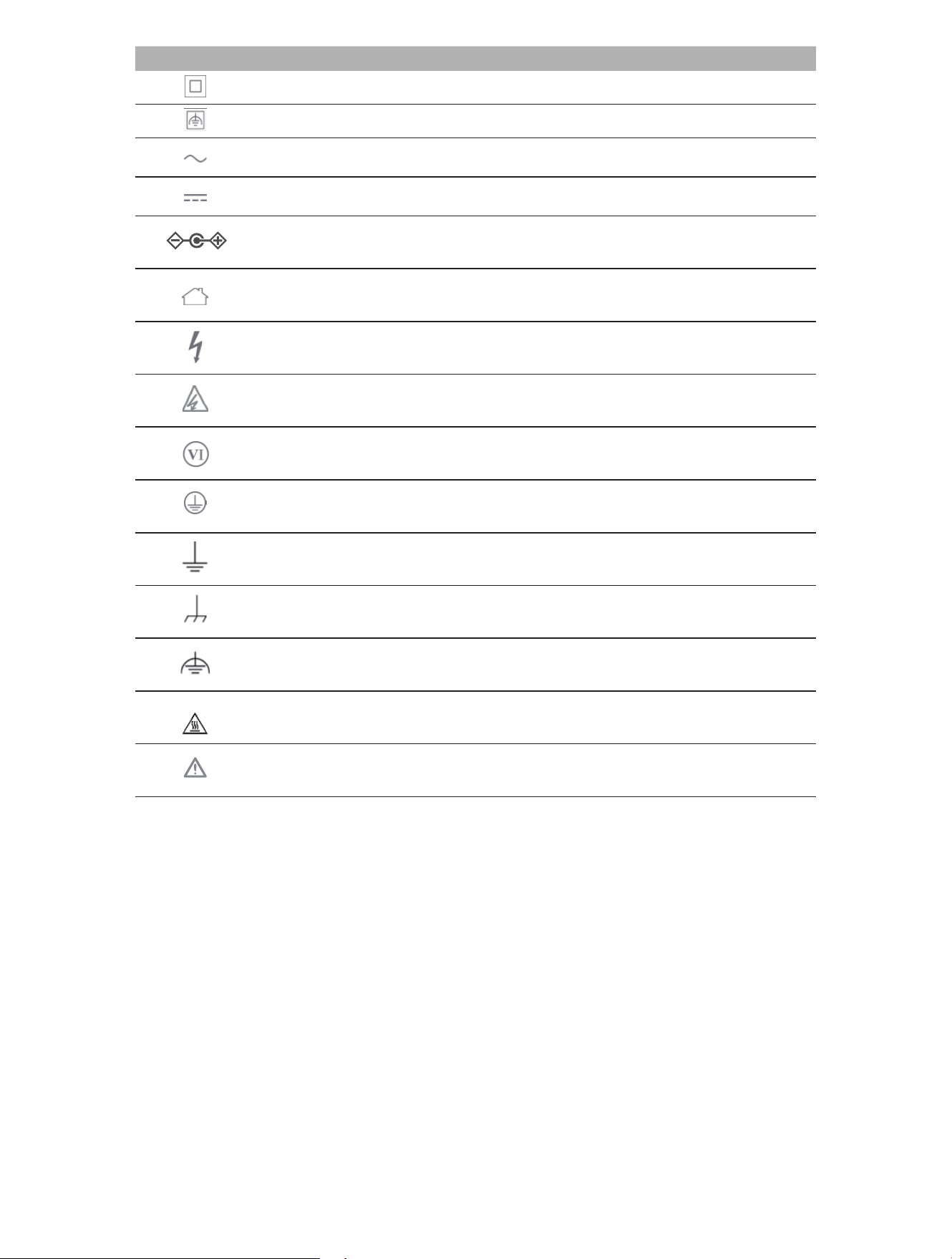
1
78
Symbol Explanation
Class II equipment
Class II equipment with functional earthing
Alternating current
Direct current
Polarity of d.c. power connector
For indoor use only
Dangerous voltage
Caution, risk of electric shock
Energy efficiency Marking
Protective earth
Earth
Frame or chassis
Functional earthing
Caution, hot surface
Caution
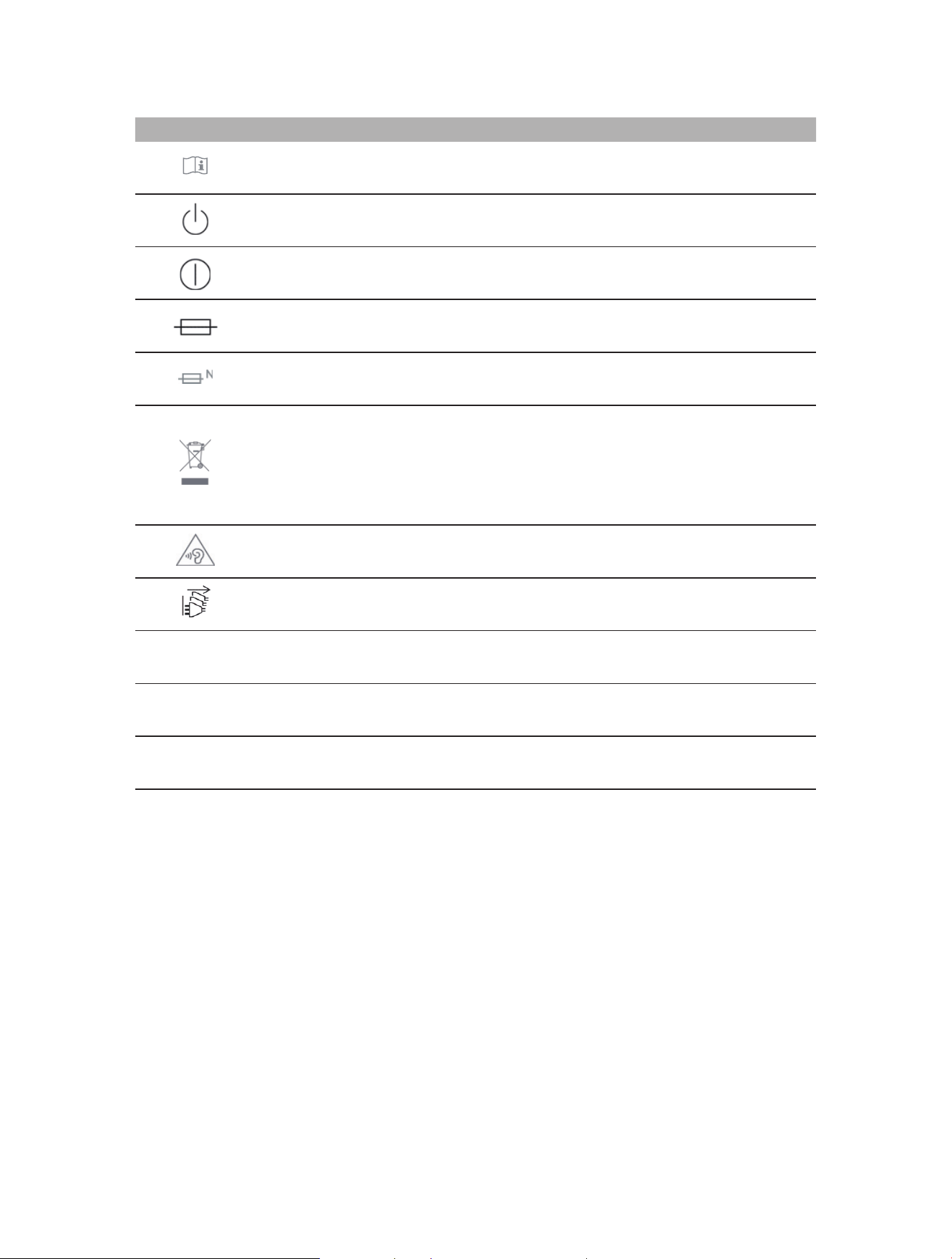
1
79
Symbol Explanation
Operator’s manual
Stand-by
“ON”/”OFF” (push-push)
Fuse
Fuse is used in neutral N
RECYCLING
This product bears the selective sorting symbol for Waste electrical and electronic equipment
(WEEE). This means that this product must be handled pursuant to European directive 2012/19/
EU in order to be recycled or dismantled to minimize its impact on the environment.
User has the choice to give his product to a competent recycling organization or to the retailer
when he buys a new electrical or electronic equipment.
Caution, avoid listening at high volume levels for long periods
Disconnection, all power plugs
m
Switch of mini-gap construction
µ
Switch of micro-gap construction (for US version)
Switch of micro-gap / micro-disconnection construction (for other versions except US)
ε
Switch without contact gap (Semiconductor switching device)