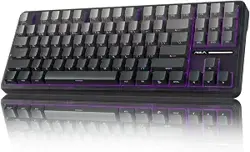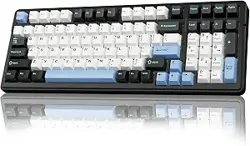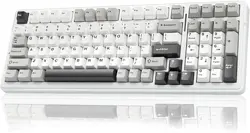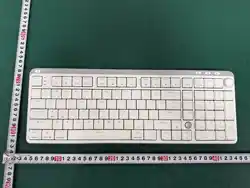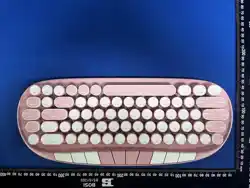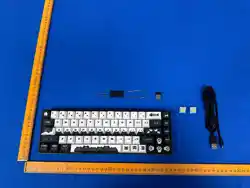
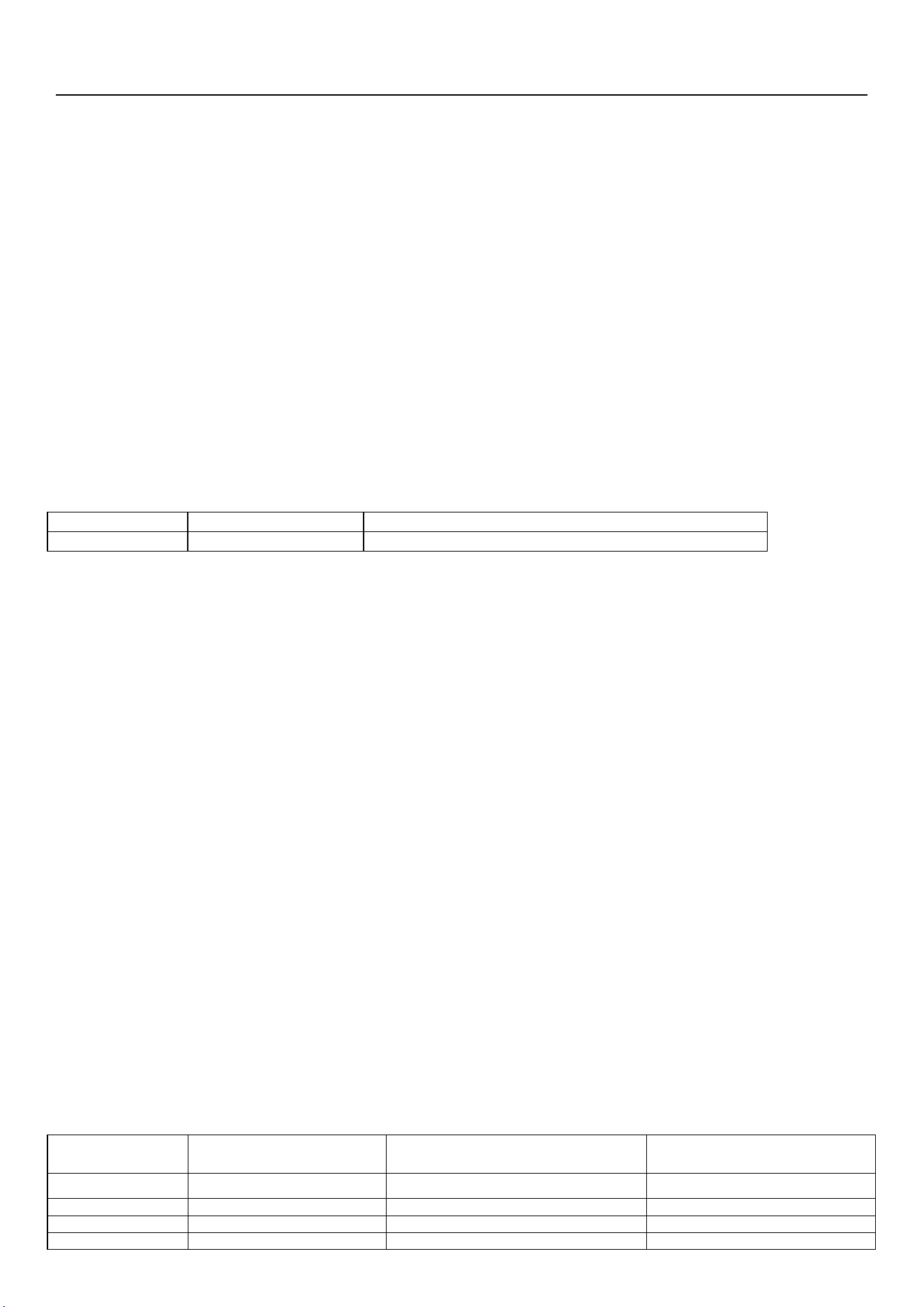
Product type: Tri-mode RGB gaming mechanical keyboard
Product name:R68
Product Description
The product features a tri-mode design, supporting three connection methods: wired USB, 2.4 GHz wireless and BLE
wireless, to meet users’ needs across a variety of scenarios;
The device combines multiple HID subsets, including keyboard, mouse, consumer, system and custom devices, with a
high degree of integration enabling comprehensive input functionality.
With gaming-grade key performance, it ensures high efficiency and stability through rapid response combined with
software anti-interference algorithms, whilst supporting full anti-ghosting input; it offers a variety of dynamic RGB lighting
effects, with each RGB LED utilising independent 3-channel hardware PWM control, delivering 16 million true full-colour
shades, and a high refresh rate to maintain stable lighting.
Version
Time
Description
VER 0100
2025/05/28
1.0
1. Equipment Specifications
USB 2.0 Full-Speed interface, supporting a 1000 report rate
2.4G return rate 125
BT1,BT2,BT3 return rate 115
2.4 GHz wireless connection, proprietary protocol, stable and reliable, supports BIOS system input
BLE wireless connectivity, supporting multi-host connections
Combines multiple HID subset devices and supports multiple report formats
Supported operating systems: Windows 7, Windows 8, Windows 10, Android and iOS
Excellent mechanical key performance, rapid response, strong resistance to interference, and support for full
anti-ghosting input
Standard keyboard reporting format, ensuring system input compatibility
Supports multimedia shortcut keys
Supports the system power management button
RGB multi-colour backlight design, 16 million true colours, a variety of dynamic lighting effects; parameters such as
lighting mode, brightness, colour, direction and transition speed can be adjusted using key combinations
Each RGB LED supports 256-level hardware PWM control, delivering bright colours and a stable display
Supports the addition of keyboard side lights, indicator lights, scroll wheels, buttons and various sensors, etc., in
accordance with customisation requirements
2. Keyboard layout
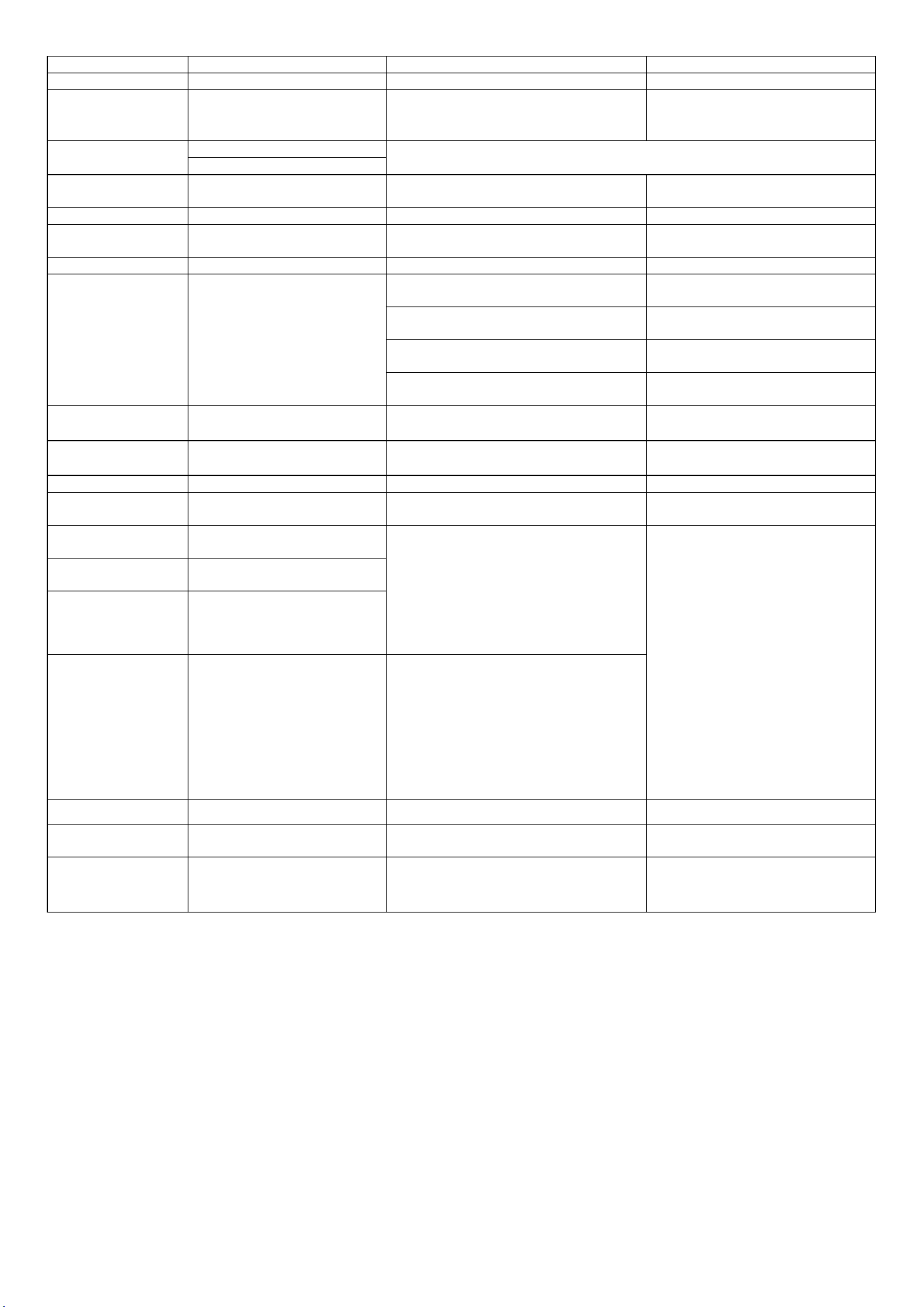
3.FN Key Combination Functions
Key
combinations
Features
Notes
FN+F1~F12
Standard Multimedia
FN+Y
prtsc
FN+U
scrlk
FN+I
pause
FN+H
ins
FN+J
home
Switch using
FN+CTRL
~,
F1,F2,F3,F4,F5,F6,F7,F8,F9,F1
0,F11,F12
Switch between
Windows and macOS
DIP switch selection
FN+CTRL
FN/Number, primary/secondary
function switch
FN+left AIT
Production lighting test button
FN+AIT, single-colour light switching
Fn+A
Arrow keys
WASD to switch between the four
directional keys
FN+TAB
Backlight switch
FN+Caps
Backlight effect switching
Spectrum / Steady / Static / Breathing /
Hundred Flowers
Waves (default) / Waterfall / Fountain /
Ripples / Rotating / Tides / Ocean Waves
Diffusion / Ripple / Single Point / Plum
Blossom / Tap
Flowing Light / Falling Rain / Starlight /
Fireworks / Waves
FN+
↓
Brightness--
Reduce brightness
:
0%-20%-40%-60%-80%-100%
FN+↑
Brightness++
Increase brightness:
0%-20%-40%-60%-80%-100%
FN+→
Increased speed
Speed up the lighting sequence
FN+
←
Slowing down
Slow down the speed at which the lighting
effects play
FN+Q
Switch to the first Bluetooth
device
Press briefly to switch between Bluetooth
channels 1, 2 and 3;
Press and hold for 3 seconds to delete
pairing information and start a new
broadcast
The button indicator flashes when
disconnected; it stops flashing once
connected
Three-position DIP switch:
Bluetooth, wired, 2.4G
FN+W
Switch to the second Bluetooth
device
FN+E
Switch to the third Bluetooth
device
FN+R
Switch to 2.4 GHz mode
Must be used in conjunction with a 2.4
GHz wireless receiver dongle;
Press briefly to switch to the 2.4 GHz
channel;
Press and hold for 3 seconds to re-enter
pairing mode;
The button indicator flashes when
disconnected and stops flashing once
connected
FN+win
The Win key light is white
Windows and App keys not working
FN + Space
Restore factory settings
Press and hold for 3 seconds to reset the
device to its factory settings
Charging indicator
light
FN key
Charging
–
blue light
Fully charged
–
green light
Low battery – red light
4.RGB backlight effects on the keyboard
Topic
Name
Adjustable content
Description
Brightness
Speed
Color
Direction
1
Spectrum
√
√
×
√
The backlight cycles through a full
spectrum of rainbow colours
Gradient
√
×
√
×
The overall backlighting of the
keyboard fades from left to right,
whilst the colour saturation also
decreases
Breathing
√
√
√
×
Full-screen breathing backlight
display
Static
√
×
√
×
The backlight remains on at all times
Hundred
Flowers
√
√
×
×
Customisable gradient lighting for
each key
2
Waves
√
√
√
√
The lighting forms a wave-like
pattern, flowing horizontally
Waterfall
√
√
√
√
The lighting creates the effect of a
waterfall, flowing up and down
Fountain
√
√
√
√
The lighting takes the shape of a
fountain, flowing outwards from the
centre
Glistening
Water
√
√
√
×
The lighting creates the illusion of
ripples on the lake’s surface
Rotation
√
√
√
√
The lights rotate around the centre of
the keyboard
Tides
√
√
×
The lights ebb and flow, rising and
falling
Ocean
Waves
√
√
×
The lighting creates the effect of
waves crashing against the shore,
with the light reaching the edge and
then returning.
3
Diffusion
√
√
√
×
When the button is pressed, the effect
radiates outwards from the centre of
the button
Ripples
√
√
√
×
When the button is pressed, the effect
radiates outwards from the centre of
the button
Single point
√
√
√
×
Press the button to turn it on;
release the button and it will
gradually switch off
Plum
Blossom
√
√
×
When the button is pressed, a plum
blossom is displayed with the button
at its centre
piano keys
√
√
√
×
When you press a key, the key lights
come on; when you release it, they go
out.
4
Shooting
Star
√
√
√
×
The lighting creates the effect of a
shooting star
Rain
√
√
√
×
The lighting creates the effect of
falling rain
Starlight
√
√
√
×
The lights create a starlit effect,
switching on and off at random
Fireworks
√
√
√
×
The lighting creates the effect of
fireworks bursting
Waveband
√
√
√
×
The lights are flickering up and down
5
Customising
Lighting
√
×
√
×
Users can customise the colour of each
key
√:Adjustment supported
×:Adjustment not supported

5. PC-based host software
Once the device is connected, you can control its functions via the Windows application, including: lighting settings, button
configuration and macro recording.
6. Firmware Update
The device supports software updates via a USB port, allowing the product to be upgraded to the latest software version,
which facilitates product maintenance and version updates.
7.FCC Caution:
This device complies with part 15 of the FCC Rules. Operation is subject to the following two conditions: (1) This device
may not cause harmful interference, and (2) this device must accept any interference received, including interference that
may cause undesired operation.
Any changes or modifications not expressly approved by the party responsible for compliance could void the user's
authority to operate the equipment.
NOTE: This equipment has been tested and found to comply with the limits for a Class B digital device, pursuant to Part 15
of the FCC Rules. These limits are designed to provide reasonable protection against harmful interference in a residential
installation. This equipment generates, uses and can radiate radio frequency energy and, if not installed and used in
accordance with the instructions, may cause harmful interference to radio communications. However, there is no guarantee
that interference will not occur in a particular installation.
If this equipment does cause harmful interference to radio or television reception,
which can be determined by turning the equipment off and on, the user is encouraged to try to correct the interference by
one or more of the following measures:
-- Reorient or relocate the receiving antenna.
-- Increase the separation between the equipment and receiver.
-- Connect the equipment into an outlet on a circuit different
from that to which the receiver is connected.
-- Consult the dealer or an experienced radio/TV technician for help.
The device has been evaluated to meet general RF exposure requirement. The device can be used in portable exposure
condition without restriction.