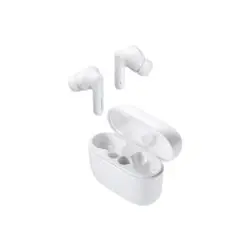
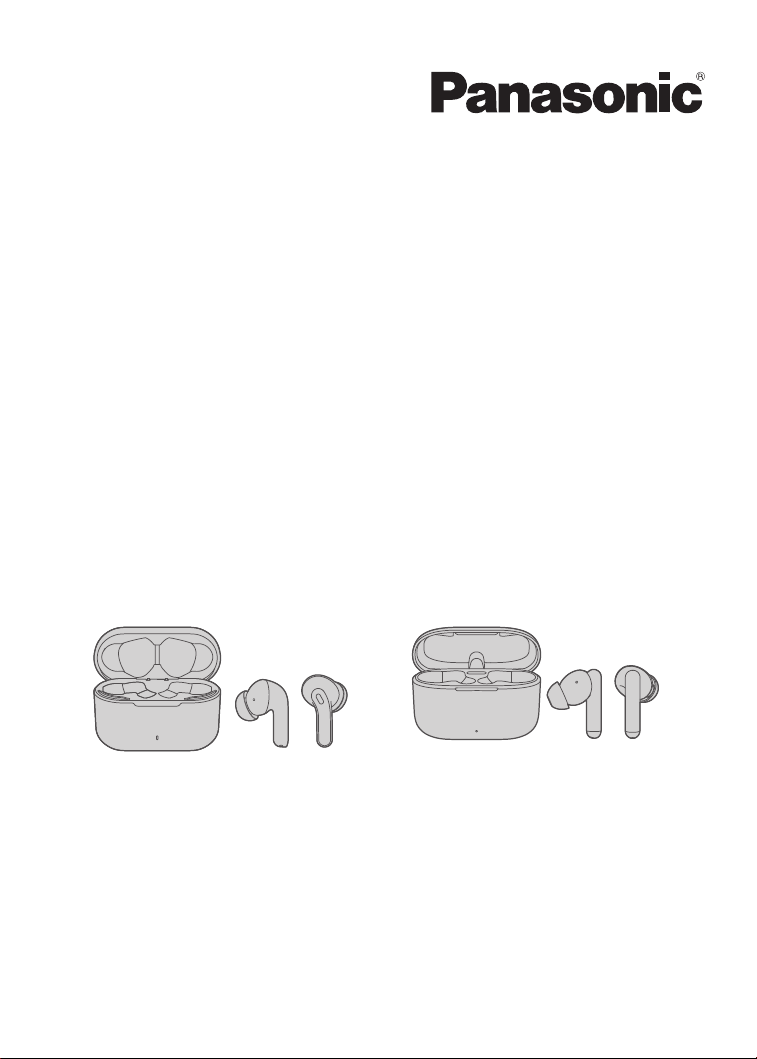
RZ-B310W
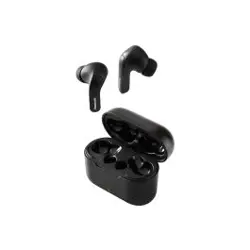
RZ-B110W
Digital Wireless Stereo Earphones
Owner’s Manual
RZ-B310W RZ-B110W
Thank you for purchasing a Panasonic product.
Please read these operating instructions before using the unit and save them for
future reference.

Before use
Accessories ..................................................3
(Important) About water resistance ..............3
Charging .......................................................3
How to fit the earphones ..............................6
Part names ...................................................7
Turning the earphones on and off ................8
Connecting to a Bluetooth
®
device ..............9
Operation
Listening to music ......................................11
Making a phone call ...................................11
Using the external sound control (RZ-
B310W) ......................................................12
Activating voice functions ...........................12
Game mode (RZ-B310W) ..........................13
Operating with the touch sensors ...............13
Other
Restoring to the factory settings .................15
Troubleshooting .........................................15
Specifications .............................................17
Earpiece Cleaning ......................................20
Clean the charging contacts of
earphones ..................................................21
Clean the charging contacts of charging
cradle .........................................................21
2
Table of Contents
Expressions used in this document
R The product illustrations may differ from the actual product.
R Unless otherwise indicated, illustrations in these Owner’s Manual are of RZ-B310W.
Accessories
1 x USB charging cord
(Input plug: USB Type-A Shape, Output plug: USB Type-C Shape)
1 x Earpieces set (2 each of sizes S, M, and L) (M size fitted to the earphones)
Only for U.S.A.
To order accessories, refer to “Limited Warranty”.
(Important) About water resistance
Specifications for this unit are equivalent of IPX4 of IEC 60529, the protection level of electronic
device enclosures that protects from splashes, and is not designed to be totally waterproof.
n About IPX4 (liquid ingress protection level against splashing water)
This unit is compatible to operate after splashing from nozzles approximately 2.6 L/min (0.7 gal/
min) of room temperature tap water from every direction approximately 20 cm (8 in) from this unit
for 10 minutes.
The charging cradle and the USB charging cord (supplied) are not water resistant.
Water resistance is not guaranteed under all conditions.
n Cautions for use in places where the unit may get wet (from spray, rain, etc.)
Observe the following precautions. Incorrect operation cause malfunction.
R Do not charge the charging cradle or the earphones while your hands are wet or while there
are still water droplets on this unit (earphones or charging cradle).
R Do not use the USB charging cord.
R Do not apply soapy water or detergent or immerse in water.
R If water drops get onto the unit in cold climates, wipe off with a soft, dry cloth.
R If water gets onto the earphones or microphone, wipe off with a soft, dry cloth.
– Sound may get smaller or get distorted.
– If there are water drops left in the earpieces, you may hear the sound at reduced volume or
you may not be able to hear anything at all. If this is the case, remove the earpieces and
get rid of the water drops.
If water does get into the earphones or the charging cradle, cease use and consult your dealer.
Malfunction due to improper handling by you will not be covered by the warranty.
Charging
The chargeable battery (installed in the unit) is not charged initially. Charge the battery before
using the unit.
3
Before use
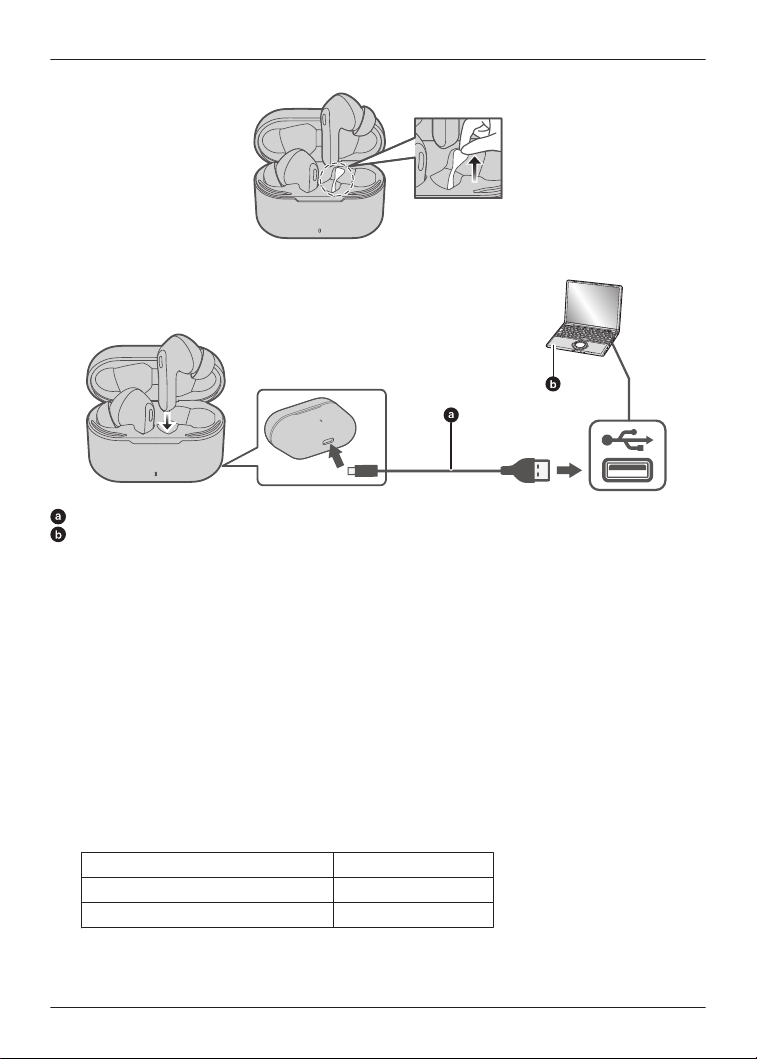
Before initial use: Remove the insulation sheet before charging.
: USB charging cord (supplied)
: Power source (e.g., PC)
1 Use the USB charging cord (supplied) to connect the charging cradle to a 5.0 V power
source (500 mA or higher).
R Charging cradle starts charging:
Battery fully charged:
RZ-B310W: The status indicator lights off.
RZ-B110W: The status indicator lights red.
Battery is charging:
RZ-B310W: The status indicator lights red.
RZ-B110W: The status indicator flashes red.
R Check the direction of the USB charging cord terminals and plug in/out straight holding
onto the plug. (It may result in malfunction by the deforming of the terminal if it is plugged
in obliquely or in wrong direction.)
2 Put the earphones into the charging cradle.
R Confirm the L side and R side of the earphones, then insert in charging cradle.
R Charging time (The time required to charge the batteries from empty to full)
Earphones Approx. 2.5 hours
Charging cradle Approx. 2.5 hours
Earphones with charging cradle Approx. 2.5 hours
4
Before use
Note:
R Do not use any other USB charging cords except the supplied one. Doing so may cause
malfunction.
R Charging may not be performed or may stop if the computer is in or switched to standby or
sleep mode.
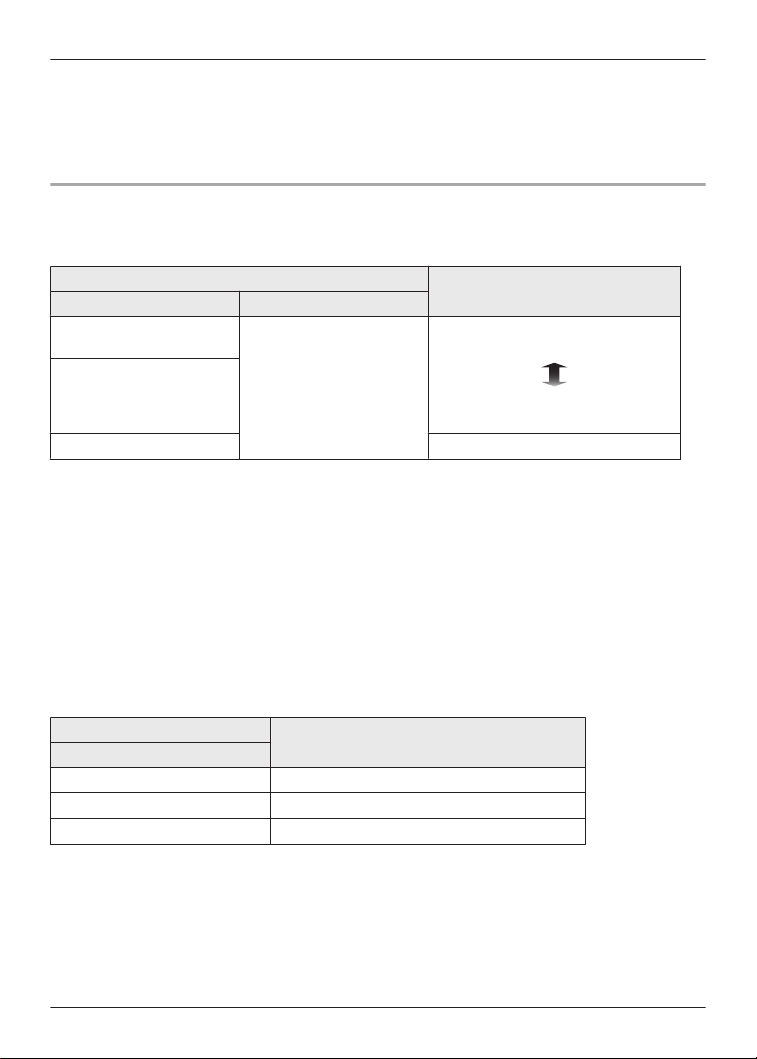
Battery level notification (USB charging cord not connected)
RZ-B310W:
The status indicator shows the charge remaining in the battery of the charging cradle.
Charging cradle
Charging status
Status Indicator Lid
Green
*1
Open~Close There is plenty of charge in the
battery.
Red
*1
The charge in the battery is
running low.
Red (Flash 5 times)
*2
Charging cradle’s battery is empty.
*1 The status indicator lights for about 5 seconds:
– when you open or close the charging cradle lid.
– when you put the earphones into the charging cradle.
*2 The status indicator flashes, earphone’s batteries are not charged. Charge the unit (page 3).
Note:
R When the status indicator remains off even after opening the charging cradle lid, the
earphones cannot be turned on/off automatically. When using earphones, turn the earphones
on/off manually (page 8).
RZ-B110W:
When you put the earphones into the charging cradle, the status indicator shows the charge
remaining in the battery of the earphones and charging cradle.
Charging cradle
Charging status
Status Indicator
Lights off Earphone’s batteries are full.
White
*1
Earphone’s batteries are charging.
White (Flashes)
*2
Charging cradle’s battery is empty.
*1 When you take the earphones out of the charging cradle, the status indicator lights for about
13 seconds.
*2 The status indicator flashes, earphone’s batteries are not charged. Charge the unit (page 3).
Note:
R When the status indicator remains off even after putting the earphones into the charging
cradle, the earphones cannot be turned on by taking out the earphones. When using the
earphones, turn the earphone on manually (page 8).
5
Before use
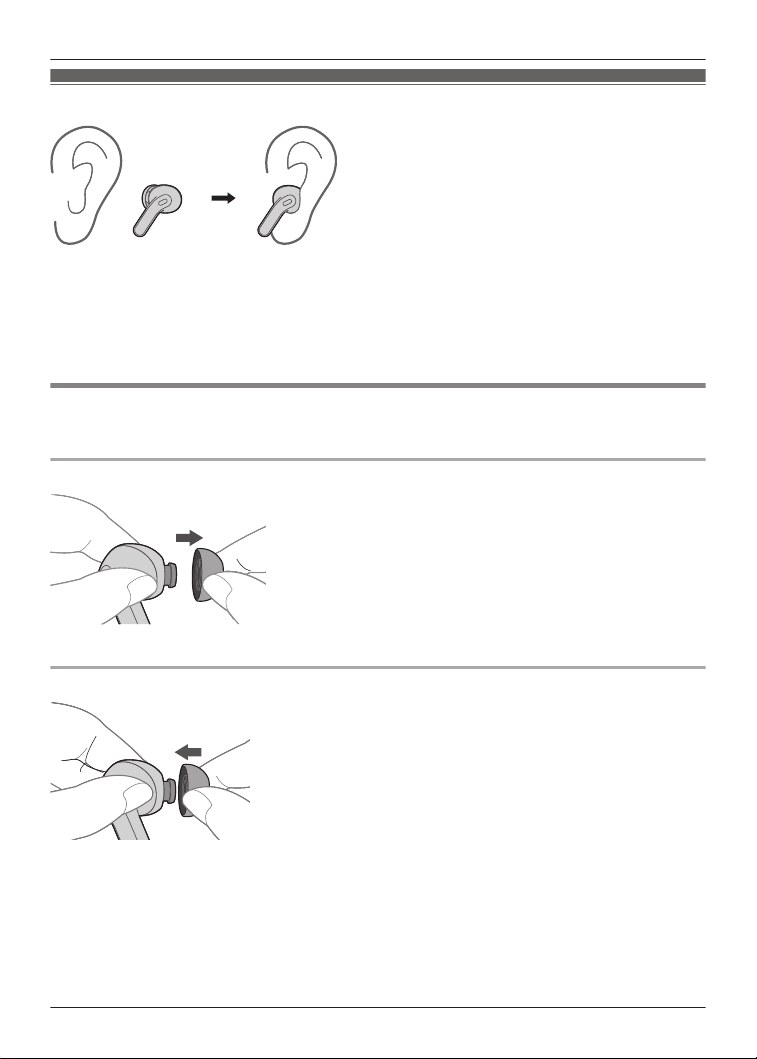
How to fit the earphones
1 2
1 Check the orientation L (left) and R (right) of the earphones.
2 Fit firmly by turning the earphones a small amount at a time.
R Confirm that the earphones will not fall from your ears after you have fitted them.
R The left earphone has a raised dot indicating the L side.
To remove/attach the earpieces
If the earphones fall out easily, replace with the earpieces (supplied) of a different size.
Removing the earpieces
R Hold the earpiece with your fingertips and twist slightly to pull it out.
How to attach the earpieces
R Make sure the earpieces are fitted firmly onto the earphones and confirm that they are not at
an angle.
6
Before use
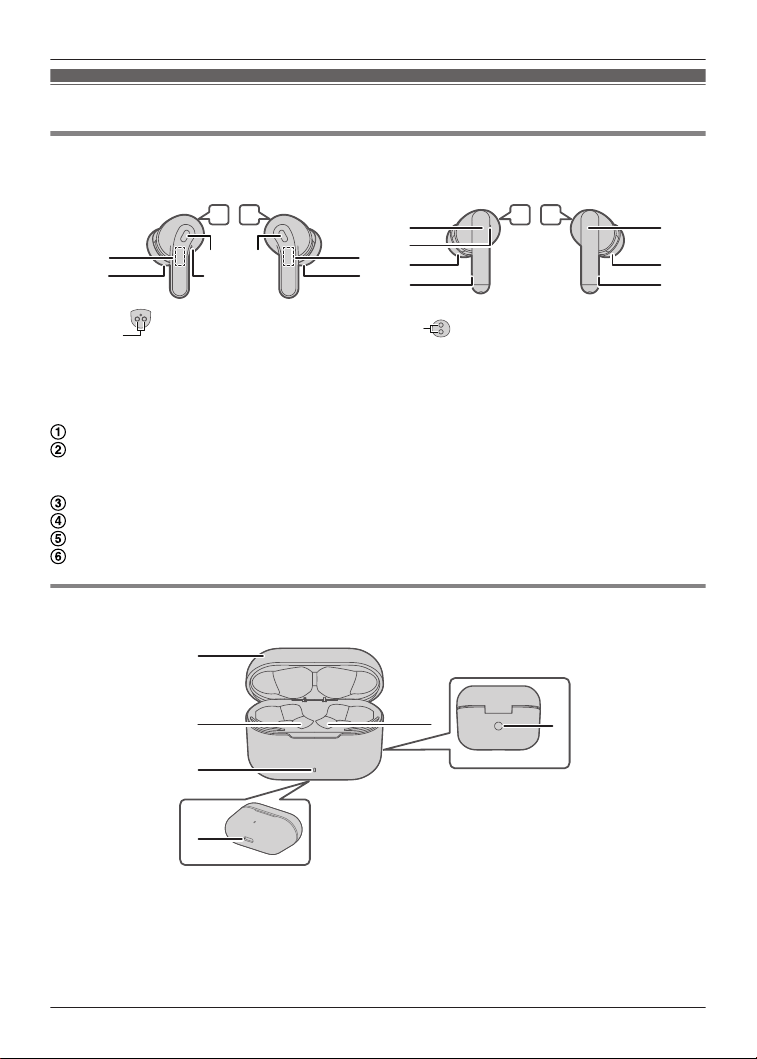
Part names
Main unit (Earphones)
RZ-B310W: RZ-B110W:
1 2
Bottom
6
L R
4 43
5
5
2
1
L R
1 2
Bottom
6
1
4
3
2
4
5 5
1
L side earphone (left)
2
R side earphone (right)
Touch sensor (L) (left)
Touch sensor (R) (right)
R Touching these enables you to perform a variety of operations. (page 13, “Operating
with the touch sensors”)
Raised dot indicating the L side
Earpieces
Microphones
Charging contacts
Main unit (Charging cradle)
RZ-B310W:
Bottom
j
9
8 8
7
Rear
k
7
Before use
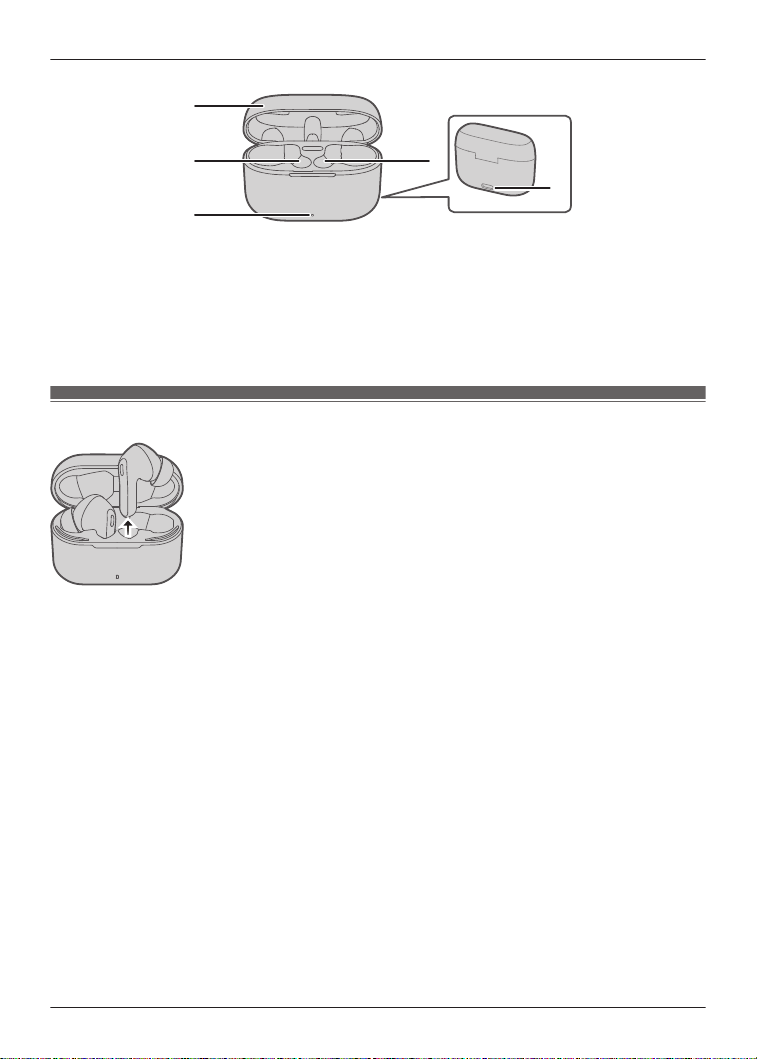
RZ-B110W:
Rear
j
9
8
7
8
G Charging cradle lid
H Charging slot
I Status indicator
J Charging terminal
R Connect the USB charging cord (supplied) to this terminal when charging. (page 3, “Charging”)
K Reset button
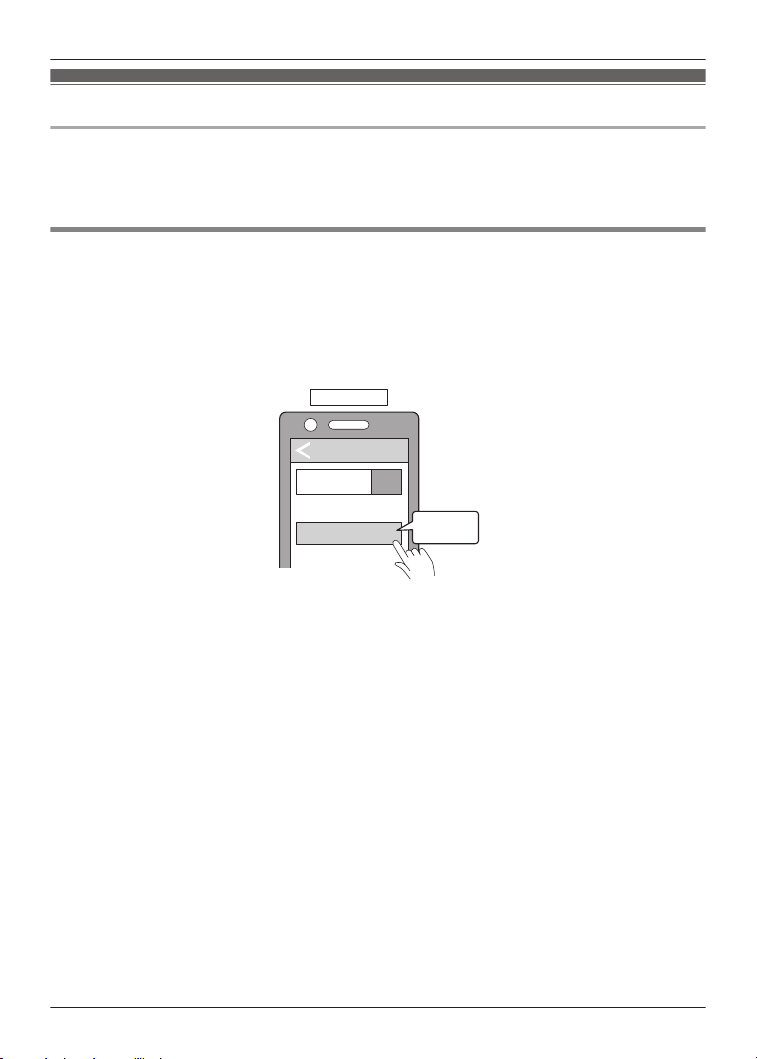
Turning the earphones on and off
n To turn the earphones on
RZ-B310W: Open the charging cradle lid.
RZ-B110W: Take the earphones out of the charging cradle.
n To turn the earphones off
RZ-B310W: Put the earphones into the charging cradle, then close the charging cradle lid.
RZ-B110W: Put the earphones into the charging cradle.
n To turn the earphones on and off manually
RZ-B310W:
To power on: Touch and hold (L or R) touch sensor for about 3 seconds.
To power off: Touch and hold (L or R) touch sensor for about 5 seconds after disabling
Bluetooth
®
connection from the device.
RZ-B110W:
To power on: Touch and hold (L or R) touch sensor for about 3 seconds.
n Auto power off
If the earphones have not connected the device for 5 minutes continually, earphones power off
automatically.
8
Before use
Connecting to a Bluetooth
®
device
Preparation
R Put the earphones into the charging cradle.
R Place the Bluetooth
®
device within approx. 1 m (3.3 ft.) from the unit.
R Check the device operation using its operation instructions as required.
Connecting by pairing (registering) your earphones with a Bluetooth
®
device
1 Take both earphones (L and R) out of the charging cradle.
2 Turn on the Bluetooth
®
device and enable the Bluetooth
®
function.
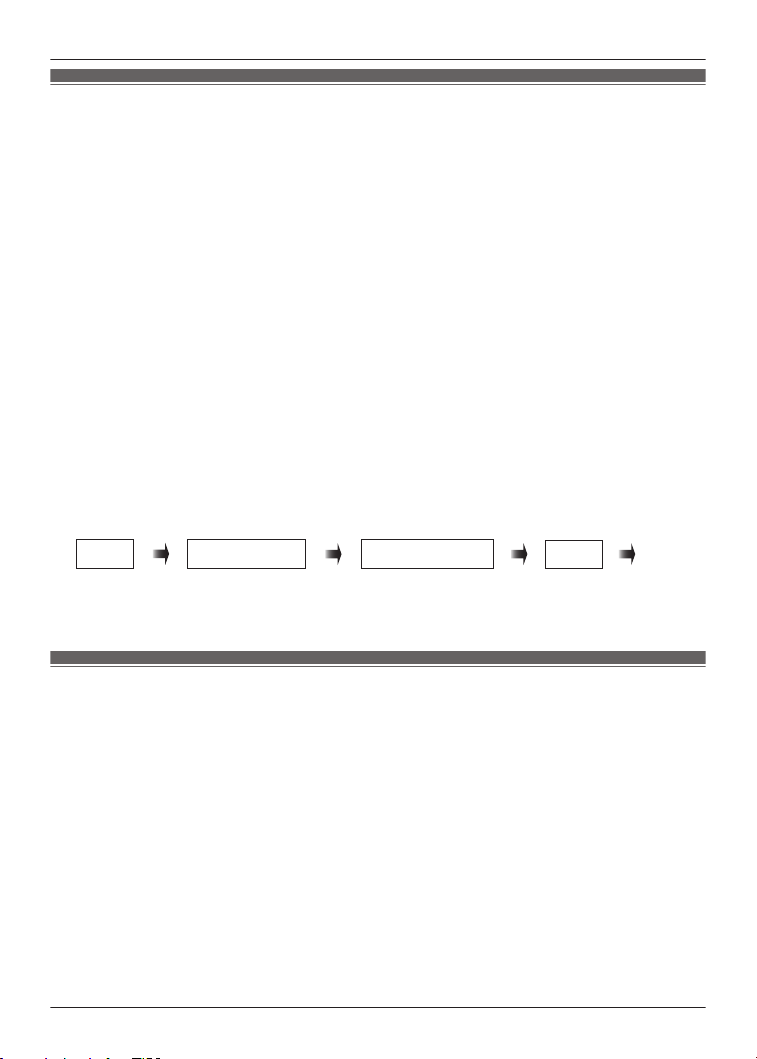
3 From the Bluetooth
®
menu of the Bluetooth
®
device, select device name “RZ-B310W”
or “RZ-B110W”.
Bluetooth
Bluetooth
Device
ON
RZ-B310W
Select
e.g. RZ-B310W
4 Confirm that the earphones and the Bluetooth
®
device are connected.
Important:
R Depending on the connected Bluetooth
®
device, a loud sound may be output during playback.
Check the volume setting of the Bluetooth
®
device before starting playback.
R You can pair a maximum of 4 Bluetooth
®
devices with the RZ-B310W earphones and a
maximum of 10 Bluetooth
®
devices with the RZ-B110W earphones. When you pair a device
after the maximum has been exceeded, previous devices are overwritten. To use overwritten
devices again, do the pairing again.
Note:
R This unit remembers the device lastly connected. The unit may connect automatically after
turning on the power of this unit.
R This product does not support multi-point connectivity (connection to multiple devices at the
same time).
9
Before use

How to pair additional devices
To pair the 2nd and subsequent devices:
1 Take both earphones (L and R) out of the charging cradle.
2 DISCONNECT the connected device in use from the earphones.
R DO NOT UNPAIR from the device’s Bluetooth
®
settings.
R The earphones will automatically go into pairing mode by announcing “Pairing”.
3 Turn on the Bluetooth
®
device and enable the Bluetooth
®
function on the next device
you want to pair.
4 From the Bluetooth
®
menu of the Bluetooth
®
device, select device name “RZ-B310W”
or “RZ-B110W”.
5 Confirm that the earphones and the Bluetooth
®
device are connected.
Note:
R If you have two devices paired and the last device you used with the earphones was the
second device, disconnect the Bluetooth
®
connection for the earphones on the second device.
Follow the pairing procedure above to pair your next device.
10
Before use

Listening to music
If the Bluetooth
®
compatible device supports the “A2DP” and “AVRCP” Bluetooth
®
profiles, music
can be played back with remote control operations on the unit.
R A2DP (Advanced Audio Distribution Profile): Transmits audio to the unit.
R AVRCP (Audio/Video Remote Control Profile): Allows remote control of the device using the
unit.
1 Connect the Bluetooth
®
device and the unit. (page 9, “Connecting to a Bluetooth
®
device”)
2 Select and play the music or the video on the Bluetooth
®
device.
R The unit’s earphones will output the music or the audio of the video being played back.
R For operating procedures during music playback (page 13, “Operating with the touch
sensors”)
R Operating time may become shorter depending on the usage conditions.
Note:
R The unit might leak sound depending on the volume level.
R When the volume is increased to near maximum level, music may sound distorted. Decrease
the volume until the distortion is cleared.
Making a phone call
With Bluetooth
®
enabled phones (cell phones or smartphones) that support the “HFP” Bluetooth
®
profile, you can use the unit for phone calls.
HFP (Hands-Free Profile):
This profile can be used to receive monaural sounds and establish two-way communication using
the microphone on the unit. In addition, this profile has the incoming and outgoing calls function.
(This unit does not have a function that allows you to make phone calls independently of a
Bluetooth
®
enabled phone.)
1 Connect the Bluetooth
®
device and the unit. (page 9, “Connecting to a Bluetooth
®
device”)
2 Touch a touch sensor (L or R) on the earphone once to answer an incoming call.
R During an incoming call, ringtone will sound from the unit.
R To reject a phone call, touch and hold a touch sensor (L or R) for about 2 seconds.
3 Start talking.
4 RZ-B310W: Touch a touch sensor (L or R) on the earphone once to end the call.
RZ-B110W: Touch a touch sensor (L or R) on the earphone 2 times to end the call.
Note:
R Depending on the Bluetooth
®
enabled phone, you may hear incoming and outgoing call
ringtones of the phone from the unit.
11
Operation
Using the external sound control (RZ-B310W)
The external sound control function switches between Active noise cancelling and Ambient
sound.
n Active noise cancelling
Reduces the sounds (noise) you can hear from outside.
R Setting noise cancelling to ON changes the volume and sound quality. The sound quality is set
to the optimum.
R While using the noise cancelling function, a very small amount of noise which is generated
from the circuit that reduces noise may be heard, but this is normal and not indicative of any
trouble. (This very-low-level noise may be heard in quiet places or in the blank parts between
tracks.)
n Ambient sound
You can hear ambient sound through the microphones embedded in the earphones while
enjoying music.
Note:
R If the earphones are covered with your hand or case, howling may occur. Do not cover and
use the unit continuously.
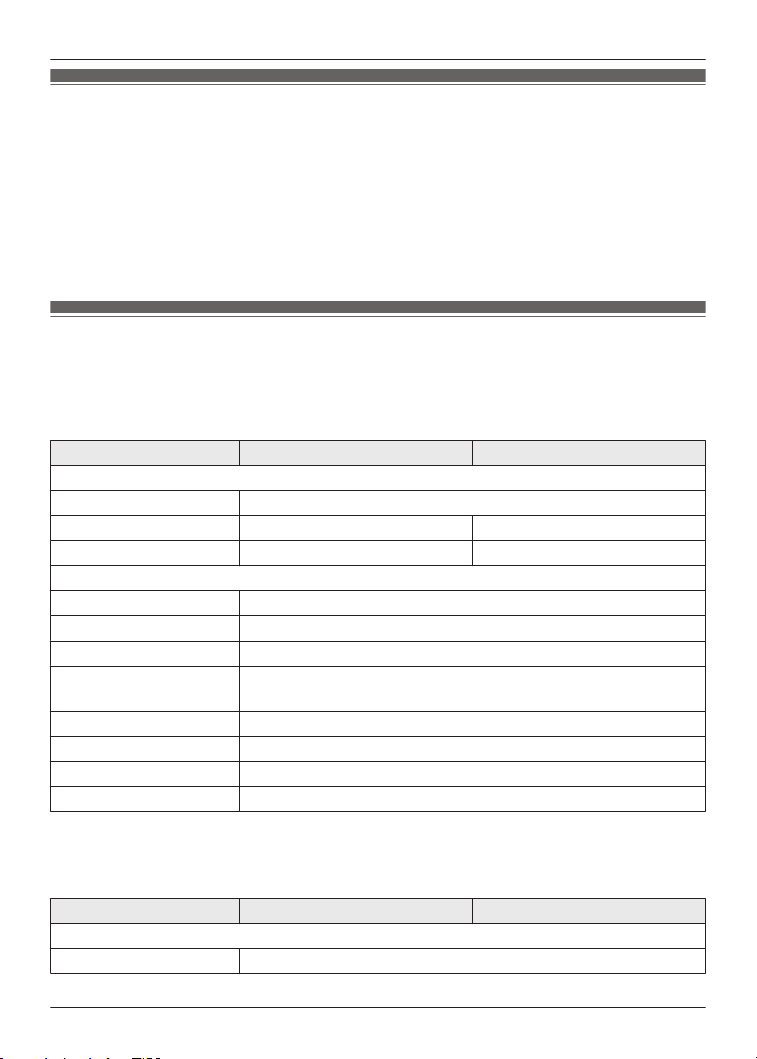
1 While wearing the earphones, touch and hold the touch sensor (L or R) for about 3
seconds.
R The mode is switched each time you touch and hold the touch sensor. (A guidance
message will notify you of the mode you switched to.)
Off
Ambient sound
Noise cancelling
Off . . .
2 Adjust the volume of the playback device.
Activating voice functions
You can use a touch sensor on the earphone to activate the voice functions (Siri, Google
Assistant, etc.) on your smartphone or similar device.
1 Connect the Bluetooth
®
device and the unit. (page 9, “Connecting to a Bluetooth
®
device”)
2 Touch the touch sensor (L or R) rapidly on the earphone 3 times to activate the voice
function.
R The voice assistant function on the Bluetooth
®
device is activated.
Note:
R For details about voice function commands, refer to the operating instructions for the
Bluetooth
®
device.
R The voice function may not work depending on the smartphone, etc. and specifications.
12
Operation
Game mode (RZ-B310W)
This unit is equipped with game mode. In the game mode, earphones delay will be reduced to
ensure the synchronization of the game audio and picture.
The game mode can only be activated while playing games or listening to music.
Touch a touch sensor (L or R) rapidly on the earphone 5 times to turn on/off the game
mode.
Note:
R Depending on the environment, sound cut off or noise might easily occur.
R A tone sounds during the game mode is activated or disactivated.
Operating with the touch sensors
Depending on the Bluetooth
®
device, even if you operate the touch sensors on the earphones,
some functions may not respond or may operate differently from the descriptions below.
RZ-B310W:
Function Touch sensor (L) Touch sensor (R)
Listening to music
Playback/pause Touch once
Forward a track – Touch rapidly 2 times
Back a track Touch rapidly 2 times –
Making a phone call
Receiving a phone call Touch once while receiving the call
End a phone call Touch once during the call
Reject a phone call Touch and hold for about 2 seconds while receiving the call
Change control of
external sounds
*1
Touch and hold for about 3 seconds
Start the voice assistant Touch rapidly 3 times
Game mode Touch rapidly 5 times
Turning on Touch and hold L or R for about 3 seconds
Turning off Touch and hold for about 5 seconds in disconnected state
*1 3 different modes are switched each time you touch and hold the touch sensor.
RZ-B110W:
Function Touch sensor (L) Touch sensor (R)
Listening to music
Playback/pause Touch rapidly 2 times
13
Operation
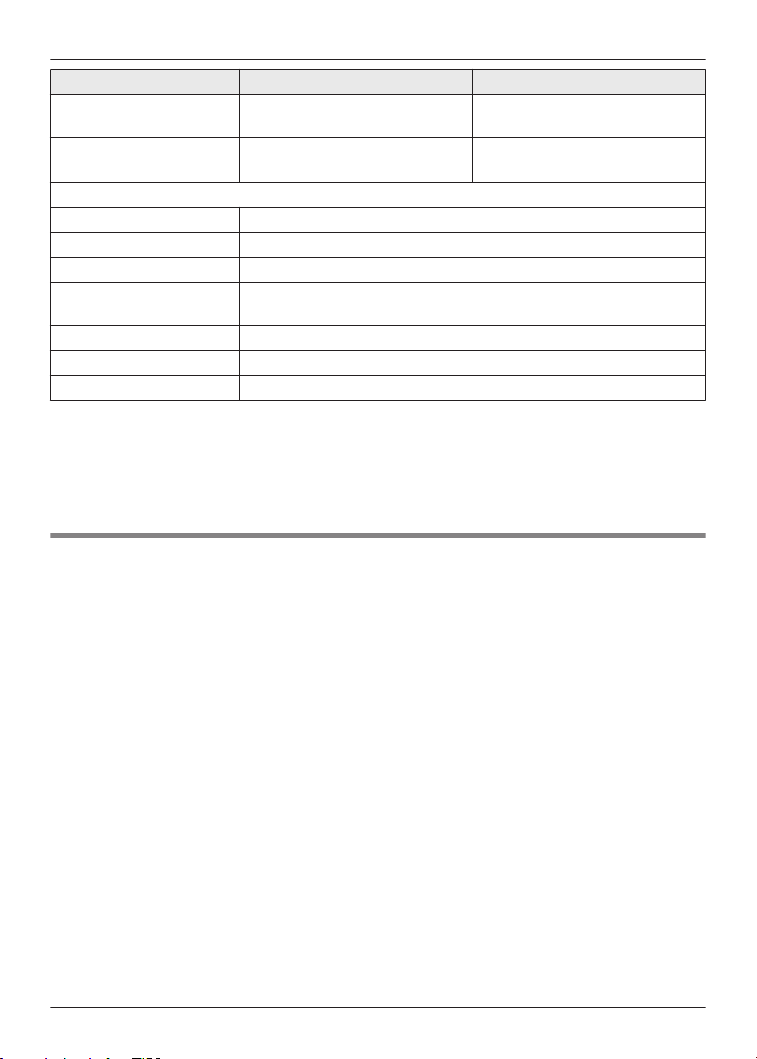
Function Touch sensor (L) Touch sensor (R)
Forward a track – Touch and hold for about 2
seconds
Back a track Touch and hold for about 2
seconds
*1
–
Making a phone call
Receiving a phone call Touch once while receiving the call
End a phone call Touch rapidly 2 times during the call
Reject a phone call Touch and hold for about 2 seconds while receiving the call
Receiving waiting call
and end the 1st call
Touch once while receiving the waiting call
Reject the waiting call Touch and hold for about 2 seconds while receiving the waiting call
Start the voice assistant Touch rapidly 3 times
Turning on Touch and hold L or R for about 3 seconds
*1 This operation is available as the “forward a track” function when using the L side earphone
while the R side earphone is charging.
Note:
R You can also use just one side of the earphones independently. (page 14, “Using just one
earphone”)
Using just one earphone
By pairing (registering) this unit, you can also use just one of the earphones independently.
For example, if you take just the R side earphone out and leave the L side earphone in the
charging cradle, the R side earphone will connect to the smartphone. This way, you can listen to
music or make a call with one earphone while charging the other. The sound will be monaural.
R When you are using just one of the earphones, taking the other earphone out of the charging
cradle will automatically connect the earphones wirelessly with each other and switch use to
both earphones. The sound will be stereo.
R RZ-B310W: In this case, it is only possible to perform operations available on the side you are
using.
R RZ-B110W: During listening to music, the “back a track” operation is not available using the L
side earphone while the R side earphone is charging.
14
Operation

Restoring to the factory settings
When you want to delete all pairing device information, etc. in the earphones, you can restore the
earphones to the factory settings (original settings upon purchase).
Important:
R Charge the earphones before restoring the earphones to their factory settings.
RZ-B310W:
1 Open the charging cradle lid.
R Wait until the status indicator goes off.
2 While the earphones are in the charging cradle, press the reset button rapidly 5 times.
R The status indicator flashes in orange 3 times. When the reset is finished, the status
indicator goes off.
RZ-B110W:
1 Take both earphones (L and R) out of the charging cradle.
2 Touch the touch sensor (L or R) rapidly 6 times in disconnected state.
R When the reset is finished, the unit beeps.
Note:
R To re-pair the earphones with a Bluetooth
®
device, delete the registered information (device
name: RZ-B310W or RZ-B110W) on the device, then pair the earphones with the Bluetooth
®
device again.
Troubleshooting
Before requesting service, make the following checks. If you are in doubt about some of the
check points, or if the remedies indicated do not solve the problem, consult your dealer for
instructions.
Does not connect with the Bluetooth
®
device.
R Delete the registration information for this unit from the Bluetooth
®
menu, etc., of the
Bluetooth
®
device, then pair again (page 9).
R If you want to connect to the other device, you have to disconnect the connected device.
R You can pair a maximum of 4 Bluetooth
®
devices with the RZ-B310W earphones and a
maximum of 10 Bluetooth
®
devices with the RZ-B110W earphones. When you pair a device
after the maximum has been exceeded, previous devices are overwritten. To use overwritten
devices again, do the pairing again.
The left and right batteries deplete at different rates.
R There may be some difference between left and right due to signal and usage condition.
Cannot charge the unit.
R Make sure to charge in a room temperature between 10 °C (50 °F) and 35 °C (95 °F).
RZ-B310W: In this case, the earphones are not charging when the status indicator continues
to flash.
15
Other

RZ-B110W: In this case, the earphones are not charging even when:
– the USB charging cord is connected to the charging cradle, the status indicator lights off.
– the USB charging cord is not connected to the charging cradle and the earphones are put in
it, the status indicator lights in white.
R Is the unit already charged? If the unit is fully charged,
– RZ-B310W: the status indicator will turn off immediately.
– RZ-B110W: the status indicator will light red immediately.
R If the status indicator does not flash or light even after putting the earphones into the charging
cradle, there is no charge remaining in the charging cradle battery. First charge the charging
cradle.
R Is the USB charging cord connected firmly to the USB terminal of the computer?
R Have the earphones been put into the charging cradle correctly? (page 3)
R Make sure the computer is turned on and is not on standby or sleep mode.
Is the USB port you are currently using working properly? If your computer has other USB
ports, unplug the connector from its current port and plug it into one of the other ports.
R If the measures mentioned above are not applicable, unplug the USB charging cord and plug it
in again.
R If the charging time and operating time get shorter, the batteries in the earphones and
charging cradle may be getting depleted.
Cannot operate the earphones.
R Try turning the power off and on (page 8).
R Please restore factory setting (page 15).
The earphones do not turn on automatically.
R Touch and hold touch sensor for about 3 seconds, earphones turn on manually (page 8).
No sound.
R Make sure that the earphones and the Bluetooth
®
device are connected correctly.
R Check if music is playing on the Bluetooth
®
device.
R Make sure that the earphones are turned on.
R Pair and connect the Bluetooth
®
device and the earphones again (page 9).
R Check if the Bluetooth
®
compatible device supports “A2DP” profile. For details on profiles, see
“Listening to music” (page 11). Also refer to the operating manual for the Bluetooth
®
compatible device.
Low volume.
R Increase the volume on the Bluetooth
®
device.
Sound from the device is cut off. / Too much noise. / Sound quality is bad.
R Sound may be disrupted if signals are blocked. Do not fully cover the earphones with the palm
of your hand, etc.
R The device may be out of the 10 m (33 ft.) communication range. Move the device closer to
the earphones.
R Remove any obstacle between the earphones and the device.
R Switch off any wireless LAN device when not in use.
16
Other
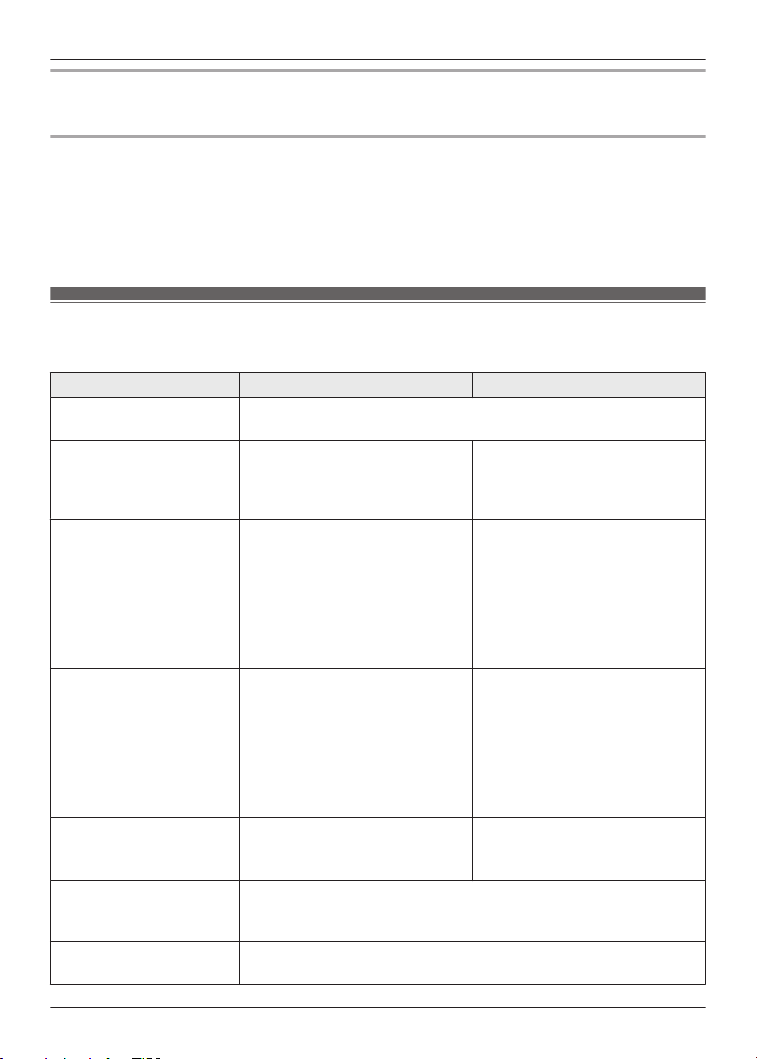
The voice of the person on the other end of the call is small.
R Increase the volume on the Bluetooth
®
device.
Cannot make a phone call.
R Check if the Bluetooth
®
compatible device supports “HFP” profile. For details on profiles, see
“Listening to music” (page 11) and “Making a phone call” (page 11). Also refer to the operating
manual for the Bluetooth
®
enabled phone.
R Check the audio settings on the Bluetooth
®
compatible telephone, and if the setting does not
allow communication with this unit, change the setting (page 9).
Specifications
n General
RZ-B310W RZ-B110W
Power supply
(Charging cradle)
DC 5 V, 500 mA
Internal battery Earphones: 3.7 V, Lithium
polymer 40 mAh
Charging cradle: 3.7 V, Lithium
polymer 330 mAh
Earphones: 3.7 V, Lithium
polymer 45 mAh
Charging cradle: 3.7 V, Lithium
polymer 400 mAh
Operating time
*1
(Earphones)
Approx. 5.0 hours (Noise
cancelling: ON, AAC)
Approx. 6.0 hours (Noise
cancelling: OFF, AAC)
Approx. 5.0 hours (Noise
cancelling: ON, SBC)
Approx. 6.0 hours (Noise
cancelling: OFF, SBC)
Approx. 6.0 hours (AAC)
Approx. 6.0 hours (SBC)
Operating time
*1
(Earphones + Charging
cradle)
Approx. 16.0 hours (Noise
cancelling: ON, AAC)
Approx. 20.0 hours (Noise
cancelling: OFF, AAC)
Approx. 16.0 hours (Noise
cancelling: ON, SBC)
Approx. 20.0 hours (Noise
cancelling: OFF, SBC)
Approx. 26 hours (AAC)
Approx. 26 hours (SBC)
Quick charge operating
time
*1
(Earphones)
15 min. charge, Approx. 60 min.
(Noise cancelling: ON, AAC)
15 min. charge, Approx. 70 min.
(AAC)
Charging time
*2
(25 °C (77 °F))
Earphones: Approx. 2.5 hours
Charging cradle: Approx. 2.5 hours
Earphones with charging cradle: Approx. 2.5 hours
Charging temperature
range
10 °C to 35 °C (50 °F to 95 °F)
17
Other
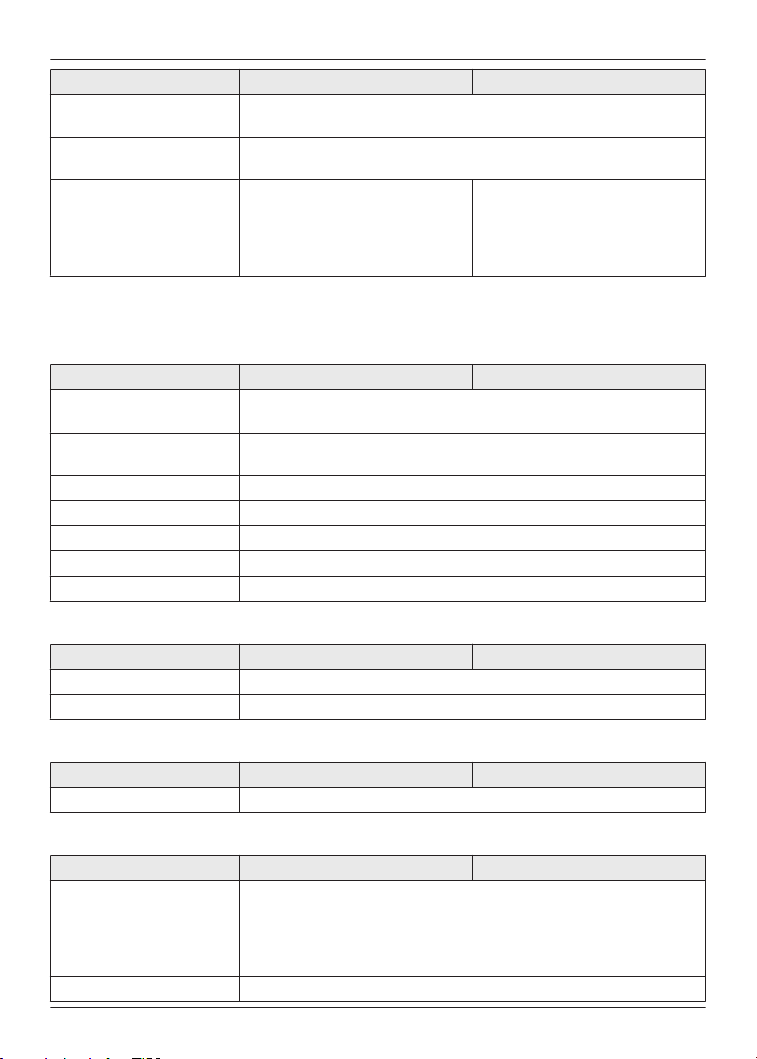
RZ-B310W RZ-B110W
Operating temperature
range
0 °C to 40 °C (32 °F to 104 °F)
Operating humidity
range
35 %RH to 80 %RH (no condensation)
Mass (Weight) Earphone: Approx. 4.7 g (0.17
oz.) (one side only: L and R are
the same)
Charging cradle: Approx. 40 g
(1.4 oz.)
Earphone: Approx. 4.2 g (0.15
oz.) (one side only: L and R are
the same)
Charging cradle: Approx. 34 g
(1.2 oz.)
*1 It may be shorter depending on the operating conditions.
*2 The time required to charge the batteries from empty to full.
n Bluetooth
®
section
RZ-B310W RZ-B110W
Bluetooth
®
system
specification
Ver. 5.3
Wireless equipment
classification
Class 2
Max RF Power (e.i.r.p) 4 dBm
Frequency band 2402 MHz to 2480 MHz
Supported profiles A2DP, AVRCP, HFP
Supported codec SBC, AAC
Operating distance Up to 10 m (33 ft.)
n Earphones section
RZ-B310W RZ-B110W
Driver units 10 mm (3/8 in.)
Microphone Mono
n Charging cradle section
RZ-B310W RZ-B110W
Charging terminal USB Type-C Shape
n Accessory section
RZ-B310W RZ-B110W
USB Charging Cord
(Input Plug: USB
Type-A Shape,
Output Plug: USB
Type-C Shape)
Approx. 0.2 m (0.66 ft.)
Earpieces set S, M, L (Size M Attached)
18
Other
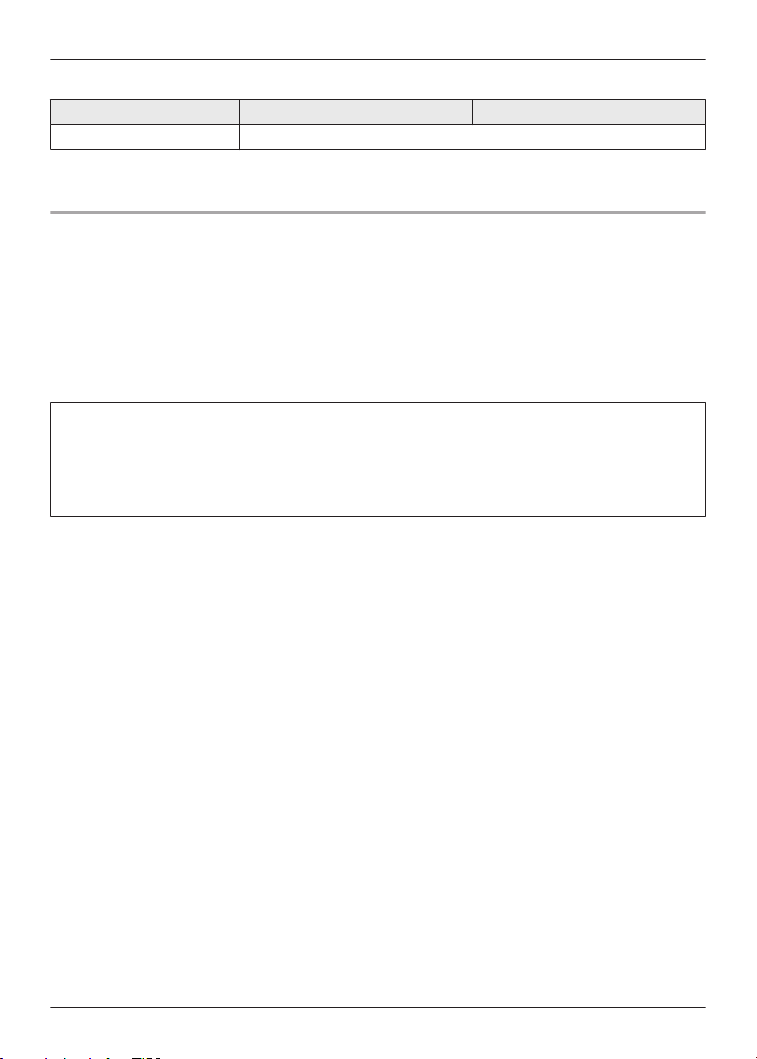
n Water resistant
RZ-B310W RZ-B110W
Water resistant IPX4 equivalent (earphones only)
R Specifications are subject to change without notice.
Trademarks
The Bluetooth
®
word mark and logos are registered trademarks owned by Bluetooth SIG, Inc.
and any use of such marks by Panasonic Holdings Corporation is under license.
Other trademarks and trade names are those of their respective owners.
Siri is a trademark of Apple Inc., registered in the U.S. and other countries.
Google Assistant is a trademark of Google LLC.
Other system names and product names appearing in this document are in general the
registered trademarks or trademarks of the respective developer companies. Note that the
TM
mark and ® mark do not appear in this document.
This product incorporates the open source software other than the software licensed under the
GPL V2.0 and/or LGPL V2.1. The software categorized as above are distributed in the hope
that it will be useful, but WITHOUT ANY WARRANTY, without even the implied warranty of
MERCHANTABILITY or FITNESS FOR A PARTICULAR PURPOSE. Please refer to the
detailed terms and conditions thereof shown at the following web page.
https://panasonic.jp/support/global/cs/audio/download/index.html
19
Other
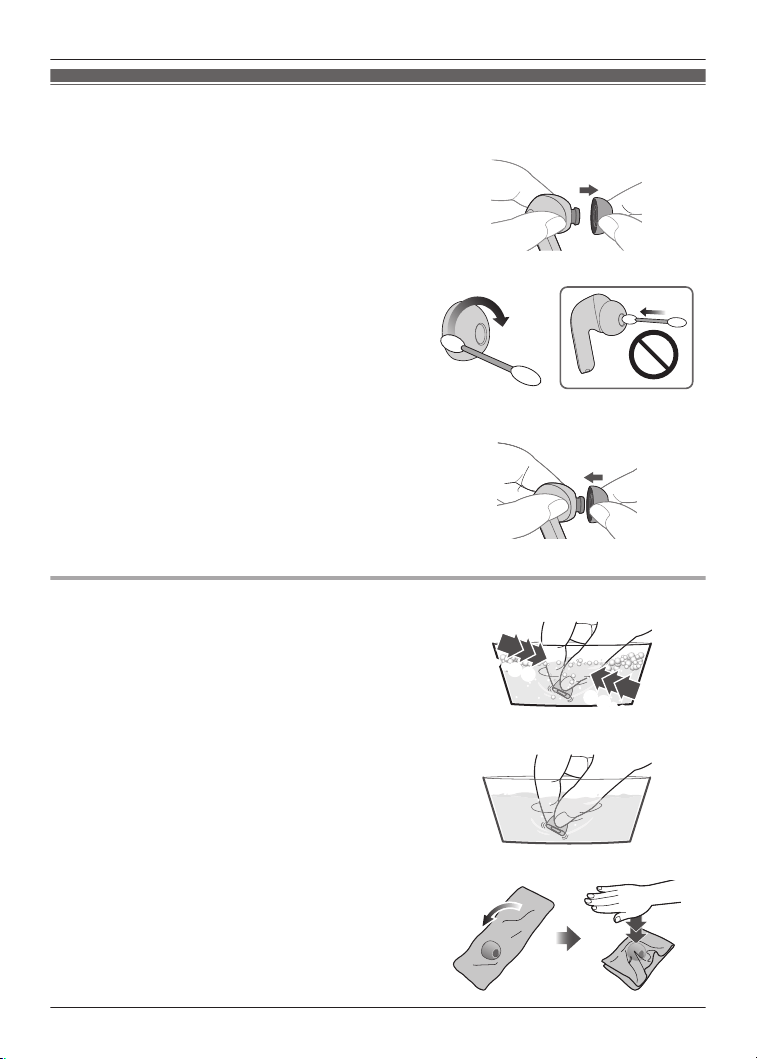
Earpiece Cleaning
Regular cleaning is necessary to continue using the earpieces comfortably.
1 Remove the earpieces.
R Hold the earpiece with your fingertips and
twist slightly to pull it out.
R If you clean the earpieces while they are
attached to the earphones, you may damage
the protective mesh on the earphones.
2 Use cotton swab, etc., to gently wipe the
outside of the earpieces to remove foreign
material.
R Use a diluted neutral detergent to hand wash
the earpieces, and wipe off the moisture well
after washing (page 20, “When the
earpieces are very dirty”).
3 Attach the earpieces.
R Make sure the earpieces are fitted firmly onto
the earphones and confirm that they are not at
an angle.
R Store the earphones in the charging cradle to
protect them from foreign material, etc.,
getting on them.
When the earpieces are very dirty
1 Wash the earpieces with the tips of your
fingers.
(Using a diluted neutral detergent in warm water
is effective.)
2 Rinse well with clean water after washing.
3 Put in between a soft, dry cloth, press firmly
3 to 5 times to ensure the moisture is
eliminated.
R After washing the earpieces, eliminate the
moisture and dry thoroughly.
・・・
・・・
20
Other
Clean the charging contacts of earphones
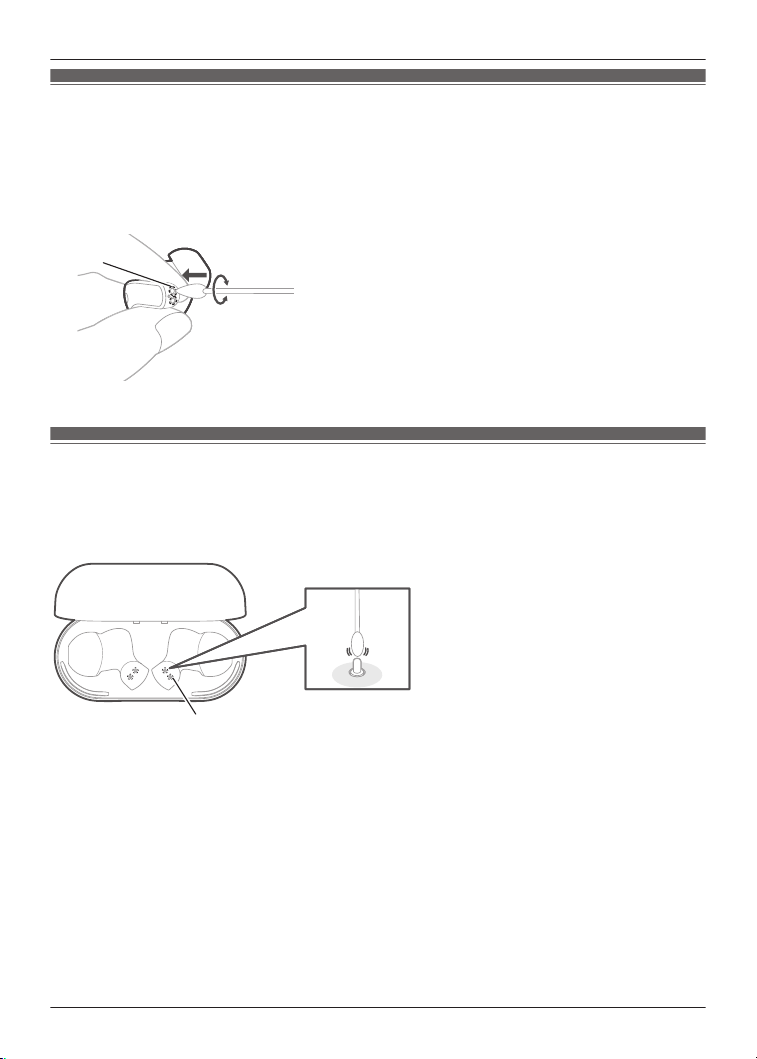
Use pointed cotton swab to gently wipe the charging contacts of the earphones to remove foreign
material.
1 Touch the tip of the pointed cotton swab to the charging contacts (A).
2 Rotate the cotton swab to wipe away dirt.
1
2
A
Clean the charging contacts of charging cradle
Use cotton swab to gently clean the charging contacts of the charging cradle.
1 Use a cotton swab to the tip of the charging contacts (B) from above.
2 Wipe off dirt by stroking the tip of the charging contacts with a cotton swab.
B
2
Important:
Do not apply force to the charging contacts from the side or at any angle. (It may cause damage)
21
Other

Disposal of Old Equipment and Batteries
Only for European Union and countries with recycling systems
These symbols on the products, packaging, and/or accompanying documents mean that used
electrical and electronic products and batteries must not be mixed with general household waste.
For proper treatment, recovery and recycling of old products and used batteries, please take
them to applicable collection points in accordance with your national legislation.
By disposing of them correctly, you will help to save valuable resources and prevent any potential
negative effects on human health and the environment.
For more information about collection and recycling, please contact your local authority. Penalties
may be applicable for incorrect disposal of this waste, in accordance with national legislation.
Note for the battery symbol (bottom symbol):
This symbol might be used in combination with a chemical symbol. In this case it complies with
the requirement set by the Directive for the chemical involved.
22
Other

23
Notes
© Panasonic System Networks Malaysia Sdn. Bhd. 2023
PNQP1791YA PP1222MU1043