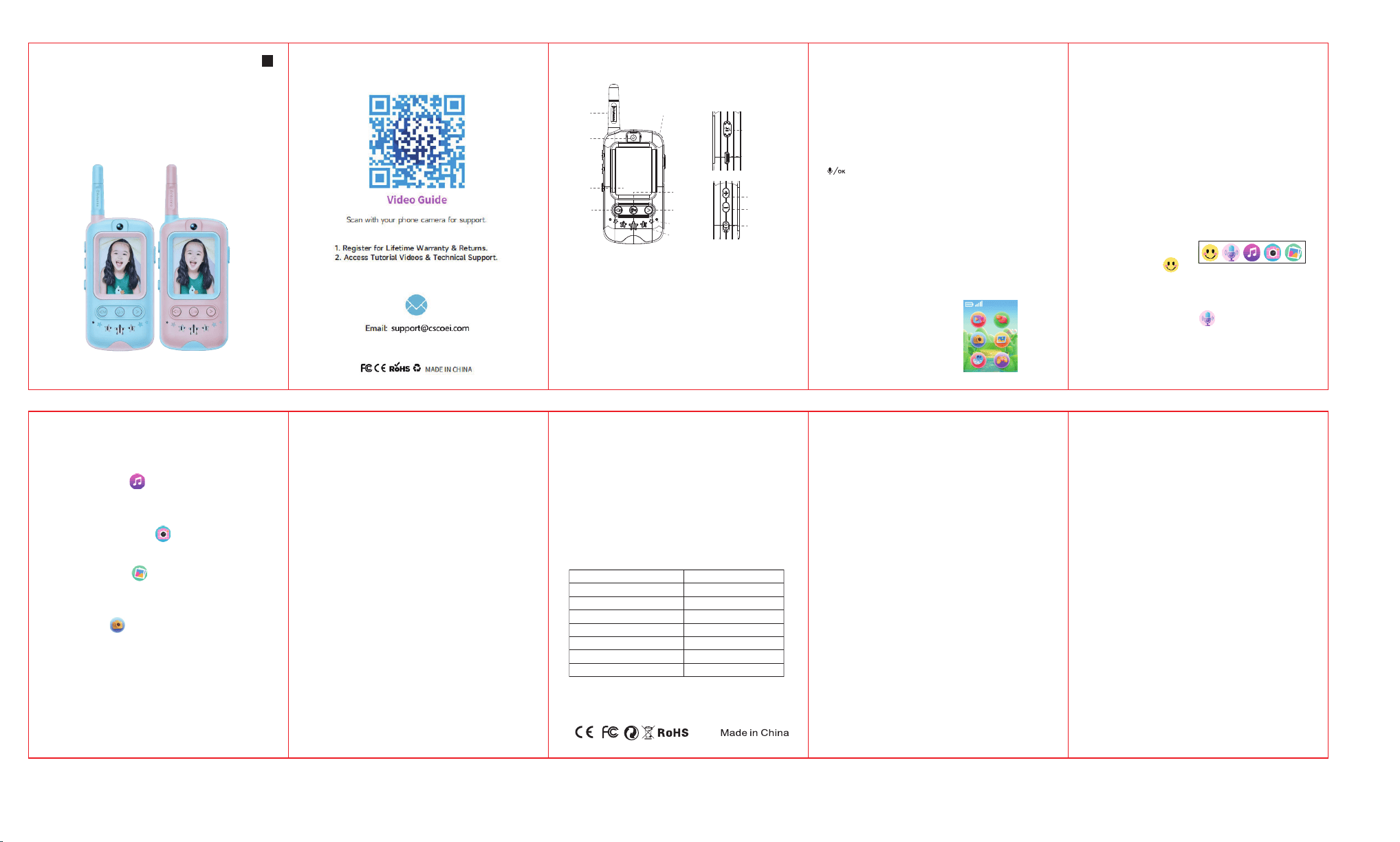
IV. Detailed explanation of the six major functions of the
main menu interface:
1-Video intercom
a. Short press the intercom button (confirmation button) to
make a call, and the recipient simply needs to short press the
call button to connect; b. Single press the right button to
switch the video window display; c. Single press the left
button to switch between four voice effects (original voice,
child voice, robot voice, and adult voice); d. Short press the
back button to return to the main menu.
2-WeChat
Upon en
tering the WeChat chat page, there are five functions
available at the bottom, arranged from left to right as follows:
Emoticons, voice chat, music, photography, and images
As shown in the figure below:
(1) Emoji operation:
Short press the "Call/OK" button to enter the selection mode,
short press the "</M" or ">" button to select an expression,
and short press the "Call/OK" button to send
(2) Voice intercom operation:
1) Long press to activate voice chat, long press to speak,
release to end and send.
2)Short press 'volume +
or -' to query historical information,
and short press 'call/OK' to listen to historical voice. Press the
Children's video interphone
Instruction Manual
EN
1-Video intercom
2-WeChat mode
3-Photo mode
4-Album Mode
5-Theme Mode
6- Game Mode
II. Basic function operation of buttons
1) Short press the "+ " key to increase the volume. Short
press the "- " key to decrease the volume.
2) After selecting the function, please press the confirm
button (call button) to enter
3) To exit this function, please press the return button on the
right side.
4) Short press the "+ " key to increase the volume. Short
press the "- " key to decrease the volume.
5) In video mode and WeChat chat mode, long press the,
" " button to initiate voice communication. In video
intercom mode, transmission is
through a one-way channel,
and only after the speaking party ends the conversation by
releasing the intercom button can the other party press and
hold the intercom button to send voice messages. When a
microphone icon appears on the screen, it indicates that the
other party is speaking.
III. Power-on and Power-off Functions
Turn the 'power switch', pull up to turn on, and pull down to
turn off.
When the power switch is turned upwards, the main interface
of the six-grid layout will appear, as shown below:
the
"Call/OK" button to confirm, or press the back button to
cancel the deletion.
5-Theme mode:
Press the intercom button (confirmation button) briefly to
enter theme mode, press the left and right buttons briefly to
select the desired theme, and then press the confirmation
button
6-Game mode:
Press the confirm button briefly to enter game mode. Both
players need to enter game mode together to automatically
start the game. Use the left and right buttons to select the
type, and press "Call/OK" briefly to confirm.
V. Chargin
g Indication:
a. Use the charging cable provided with this device, connect
it to the charger, and the power indicator light will turn "red".
When fully charged, the charging indicator light will
automatically turn off.
b. Charger compatibility specification: 5V/1A.
c. Before using this product for the first time, please fully
charge it.
VI. Product power-on/off and automatic shutdown
functions:
This product enters working mode upon power-on; it remains
in working mode whether in use or not. When the product is
in a low battery state, it will au
tomatically shut down. If you
stop using it, please set the toggle switch to the "OFF"
position. To restart the product, simply toggle the power
switch to "OFF" first, and then to "ON" to start it normally.
VII. Product pairing and connection methods:
This product adopts a WIFI2.4G transmission and connection
mode; each package contains two intercoms, which have
Display
CMOS pixel
Batter y capacity
USB por t
Operating temperature
Storage temperature
Po w er supply
Product dimensions
2.0 Inch lPS
30W
3.7V 400-650mAh
Type-C
-20°C~60°C
-30°C~70°C
5V/1A
124mm*54mm*23mm
been pre-paired. These two intercoms cannot be connected
to other devices for use. If multiple sets of products are
purchased, they can only be connected one-to-one on a set
basis, and multiple products cannot be connected and used
simultaneously.
VIII. Precautions:
a.
This product is suitable for outdoor use. Slight echo may
occur when used face-to-face at close range. This is a normal
acoustic feedback phenomenon.
b. This device is not waterproof
C. The indoor distance of the product should be determined
based on the principle of ensuring smooth images.
IX. Product specifications
FCC Warning
This device complies with Part 15 of the FCC rules. Operat
ion
is subject to the following two conditions:
(1) This device may not cause harmful interference, and (2)
this device must accept any interference received, including
interference that may cause undesired operation.
Note 1: According to Part 15 of the FCC rules, this device has
been tested and meets the limits for Class B digital devices.
These limits are intended to provide reasonable protection
against harmful interference in residential instal
lations. This
device generates, uses, and can radiate radio frequency
energy. If not installed and used according to instructions, it
may cause harmful interference to radio communications.
However, there is no guarantee that interference will not
occur in a specific installation. If this device does cause
harmful interference to radio or television reception, it can be
determined by turning the device off and on. Users are
encouraged to try to correct th
e interference through one or
more of the following measures:
- Redirect or reposition the receiving antenna.
- Increase the spacing between the equipment and the
receiver.
- Connect the device to a socket different from the one
connected to the receiver.
- Please consult a dealer or an experienced radio/TV
technician for assistance.
Note 2: Any changes or modifications to this device without
the explicit approval of the party responsible for complian
ce
may render the user's authority to operate the equipment
invalid.
This device has been evaluated as compliant with general
radiofrequency exposure requirements. It can be used under
portable exposure conditions without any restrictions.
left or right button to exit the query information.
Note: Messages after the 8th will be automatically
overwritten and cleared. Restarting the device will
automatically clear all messages!
(3) Music operation:
Short press the "Call/OK" button to enter the selection mode,
short press the "</M" or ">" button to select music, and
short press the "Call/OK" button to send.
(4) Photography operation:
Short press the "Call/OK" button to enter the photo-taking
interface, take a photo, and send it directly.
(5) Image processi
ng:
Short press the "Call/OK" button to enter the image interface,
short press the "</M" or ">" button to select a picture, and
short press the "Call/OK" button to send.
3-Take a photo :
Enter the photo interface and press the confirm/call button to
take a photo
4- Photo album:
Enter the album interface, use the left and right buttons to
select pictures, briefly press the "Call/OK" button to view
photos, and press the back button to exit.
Deleting Photos: Select a photo, long press the "Call/OK"
button, use the left and right but
tons to select "OK" to delete
a single photo, select "ALL?" to delete all photos, short press
1、 Appearance and functional description
1- Return key
2- Antenna
3-Camera
4- Display Screen
5-Volume up/up button
6-Volume down/Down arrow
7- Power switch
8-MIC hole
9-Intercom button/
Confirm button
10-Type-C interface
11 -Charging indicator light
12- Lanyard hole
13- Horn
14- Left arrow key
15- Right arrow key
9
13
15
2
3
4
14
8
12
5
6
7
1
10