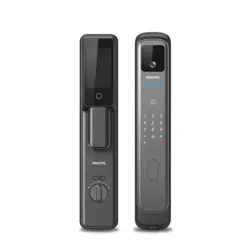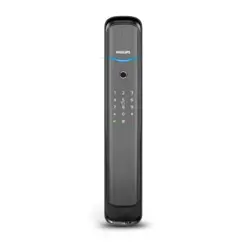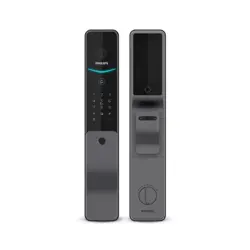
DDL720-MVP-17HWS
7000 series
User
manual
Register your product(s) to get
support from below link:
www. philips.com/support
Palm vein
smart door lock


1
Contents
1. Important Information 6. Other features02 19
24
Safety
Caution
Disposal of used locks and batteries
Armed mode
Mute mode
Factory reset
Doorbell
Video and intercom
Display
2. Assembly
7. Indicators
Packing list
Exploded views
Notice before assembling
Adjustable latch instructions
Assembly steps
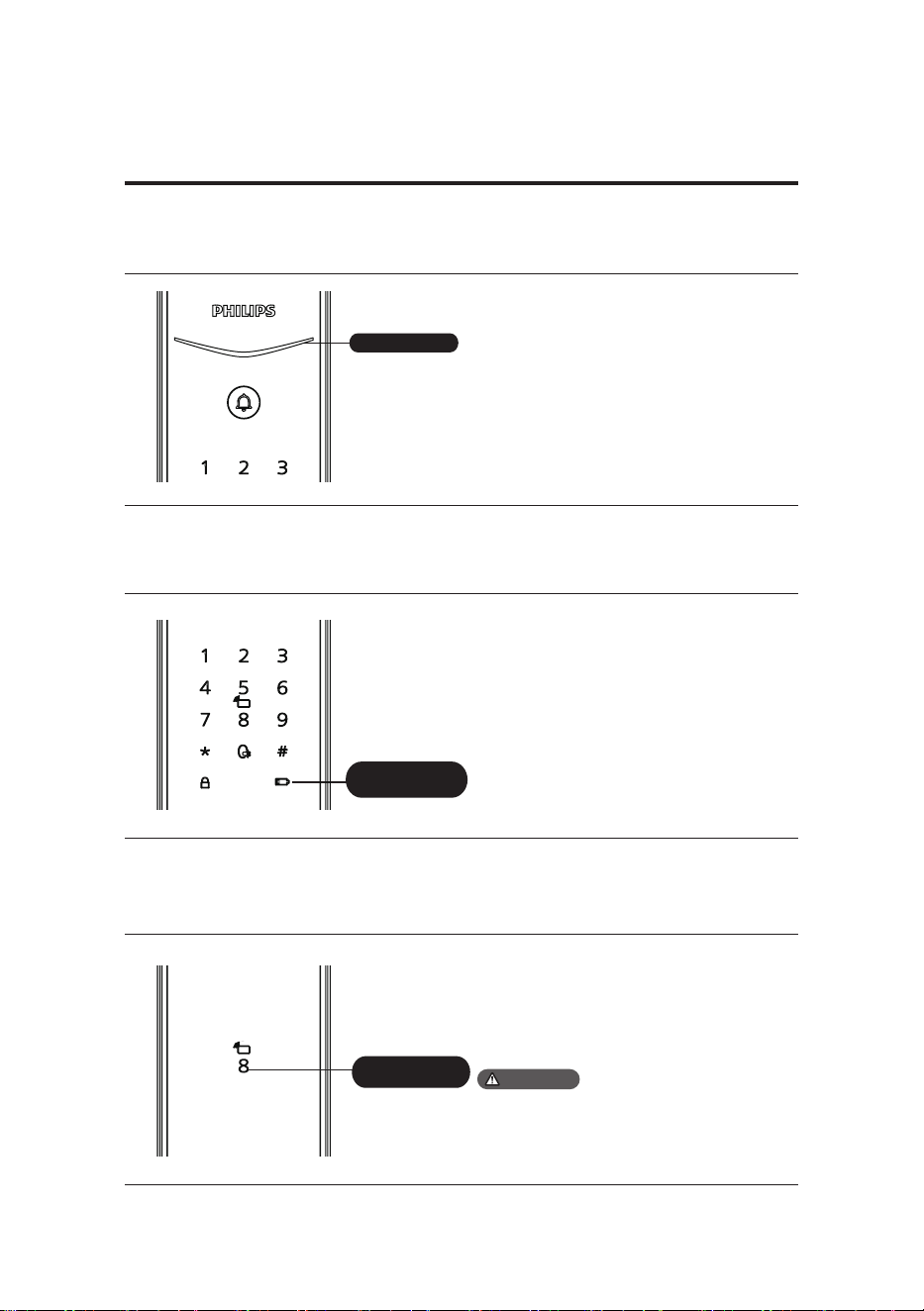
Lock status indicator
Low battery indicator
Armed mode indicator
Mute indicator
Privacy mode indicator
System lock-out indicator
03
22
Exterior assembly
Interior assembly
3. Get to know your lock 09
4. Settings 10
16
Instructions before setting
Master mode
Settings
System settings
Network settings
APP download
Device Addition
8. Troubleshooting
Alert types
How to apply external power source
Battery replacement
Battery charging
5. Get to use your lock
Outdoor/ indoor unlock
Outdoor/ indoor lock
Privacy mode
Mechanical key unlock

2
1. Important information
Safety
◆
Before using this product, please carefully read
through and understand all instructions. Damage
resulting from failure to follow these instructions
is not covered by the warranty.
◆
Please only use the accessories/components
specied by the manufacturer.
◆
Please only use alkaline batteries/lithium
polymer batteries provided with this product, or
batteries of the same specication/type.
◆
Please do not attempt to forcibly disassemble
the product to trigger an alert or cause damage.
◆
Please avoid using sharp objects to scrape
the ngerprint sensor, as this may result in
permanent damage.
◆
Please avoid exposing the product to areas
where water may leak or splash.
◆
To prevent damage to the protective cover, do
not expose the product to corrosive substances.
◆
Please avoid hanging objects on the handle as
it may interfere with the functioning of the lock.
◆
Please use a soft, damp cloth to wipe
ngerprints or dirt from the assembly surface.
◆
Please do not remove the batteries while
setting up or operating the product.
◆
Please select professional personnel for door
lock installation and follow the installation
instructions provided by our company. Do not
disassemble the door lock and ensure that the
relevant sealed stickers are properly kept.
◆
After completing the installation and
troubleshooting, please change the default
master PIN code immediately. Ensure that the
mechanical keys are stored properly and do not
share the PIN codes with others.
◆
When the door lock's low battery alert is
triggered, promptly replace the batteries and
ensure correct polarity, or recharge the batteries
as needed.
Caution
◆
Do not place the batteries near sources of
ignition to prevent explosions.
◆
Do not use any power source that does not
meet safety requirements to power the product.
◆
Please avoid short-circuiting the battery's
polarity with metal objects to prevent
explosions.
◆
Please ensure that installation or any
component replacement is carried out by
Philips, a Philips authorized service center, or
professional technicians.
◆
Please refrain from using accessories
or components made by unauthorized
manufacturers or not explicitly recommended by
Philips. Using such accessories and components
may void the warranty.
Disposal of used
products and batteries
◆
You can have your products taken back at
authorized Philips service centers. You may
receive appropriate compensation if your
products meet our refund conditions.
◆
Please familiarize yourself with local
regulations regarding the disposal and separate
collection of used batteries and products. Proper
disposal of used products and batteries helps
reduce negative impacts on the environment
and human health. It's important to note that
batteries should not be disposed of with regular
household waste.
3
⑬
Installation kit
Warranty
Card
Easy
Key
Quick Start
Guide
EasyKey
2 Assembly
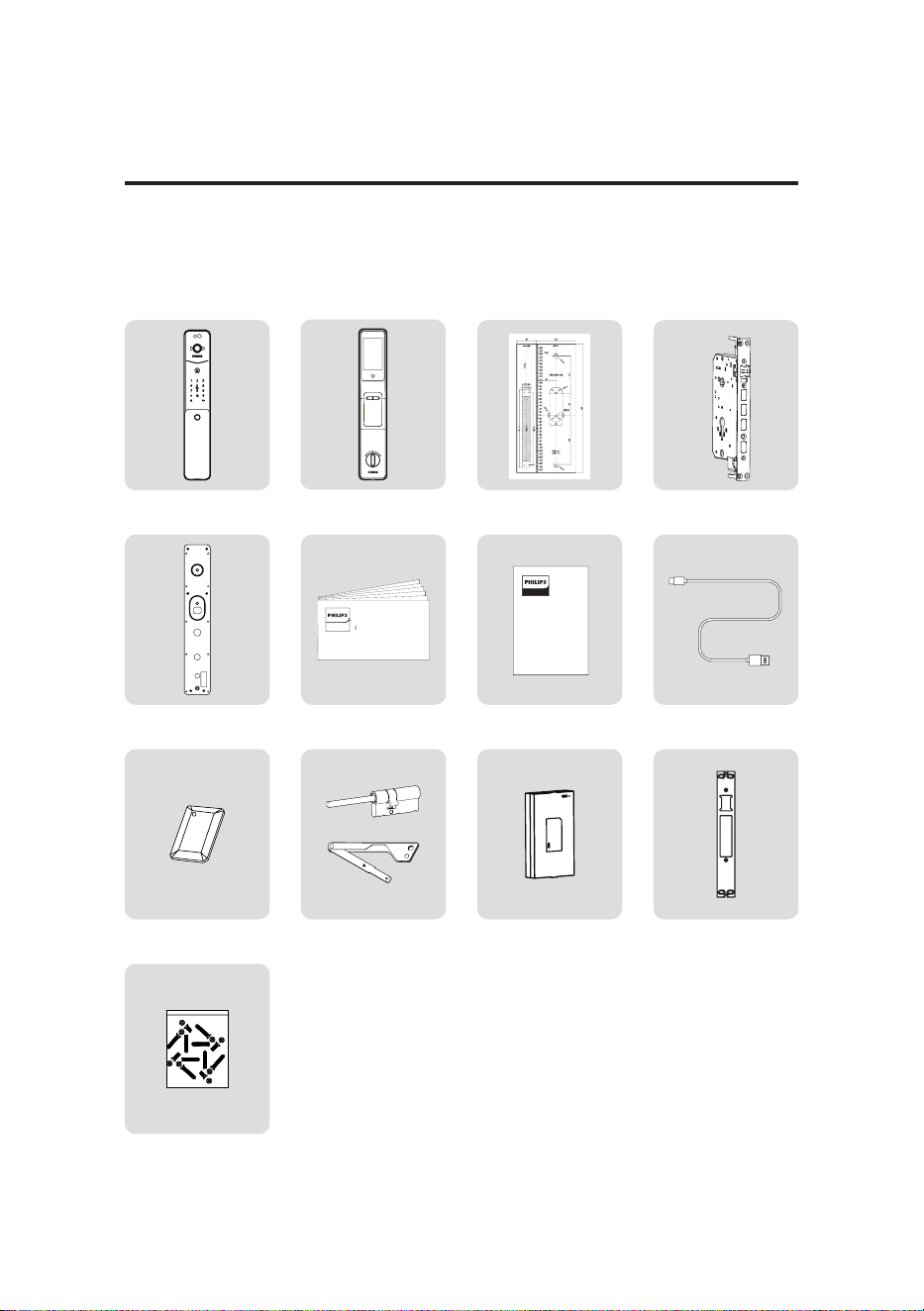
Packing list
This packing list is for reference only. Please refer to the actual included items.
①
Exterior assemblywith
silicon pad
②
Interior assemblywith
silicon pad
③
Drilling template
④
Mortise
⑤
Mounting plate
⑥
QSG
⑦
Warranty card
⑧
Charging cable
⑨
Key tag
⑩
Mechanical key
⑪
Li-polymer battery
⑫
Strike plate
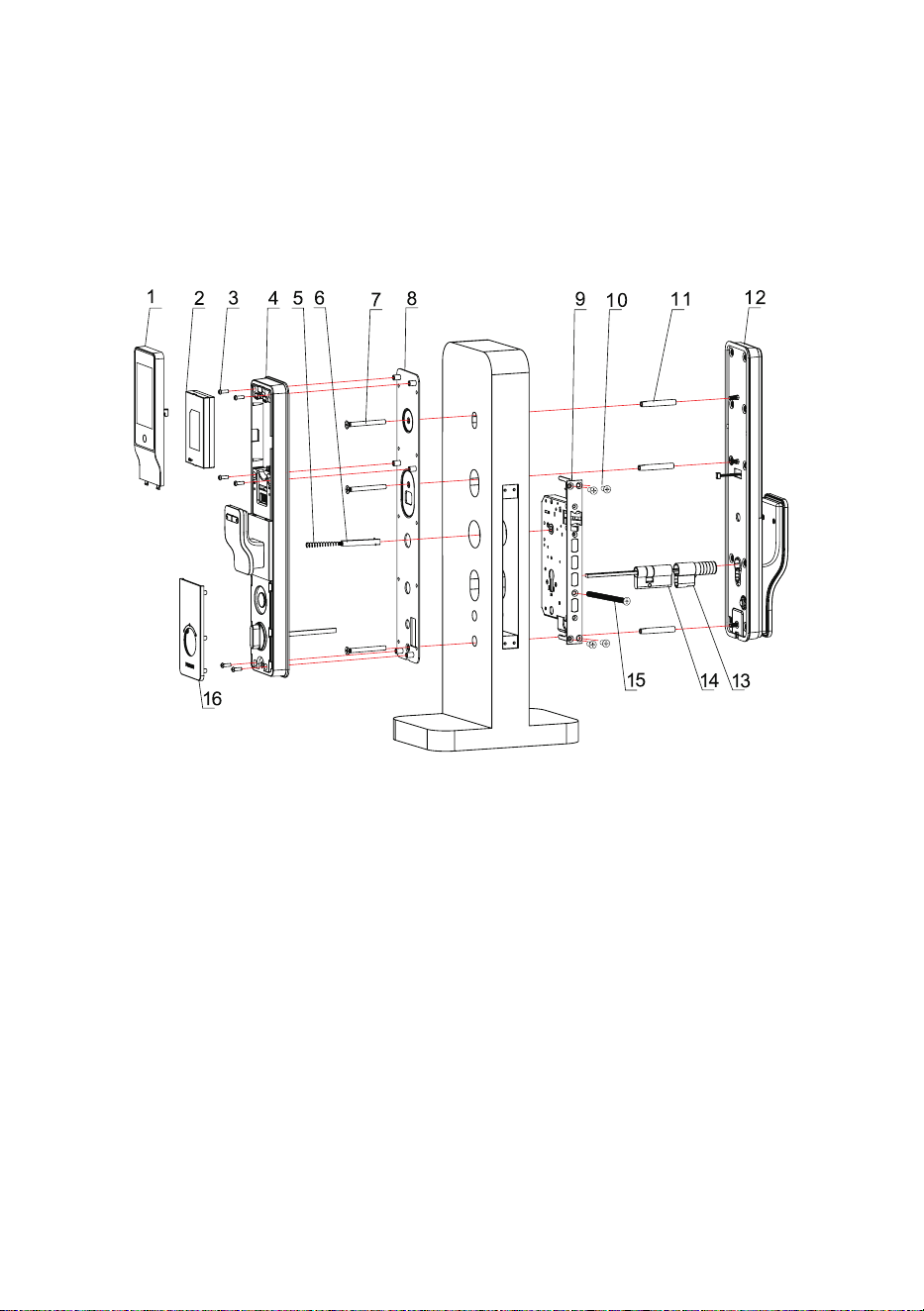
4
1.Display × 1
2. Li-polymer battery × 1
3.M4 anchor screw × 6
4. Interior assembly × 1
5.Spring × 1
6.Square shaft × 1
7.M6 anchor screw × 3
8. Mounting plate × 1
9. Mortise × 1
10. Mortise anchor
screw × 4
11. M6 screw tube × 3
12. Exterior assembly × 1
13. Plastic cover × 1
14. Lock cylinder × 1
15. Lock cylinder anchor × 1
16. Bottom deco cover × 1
Exploded views
5
1
3
2
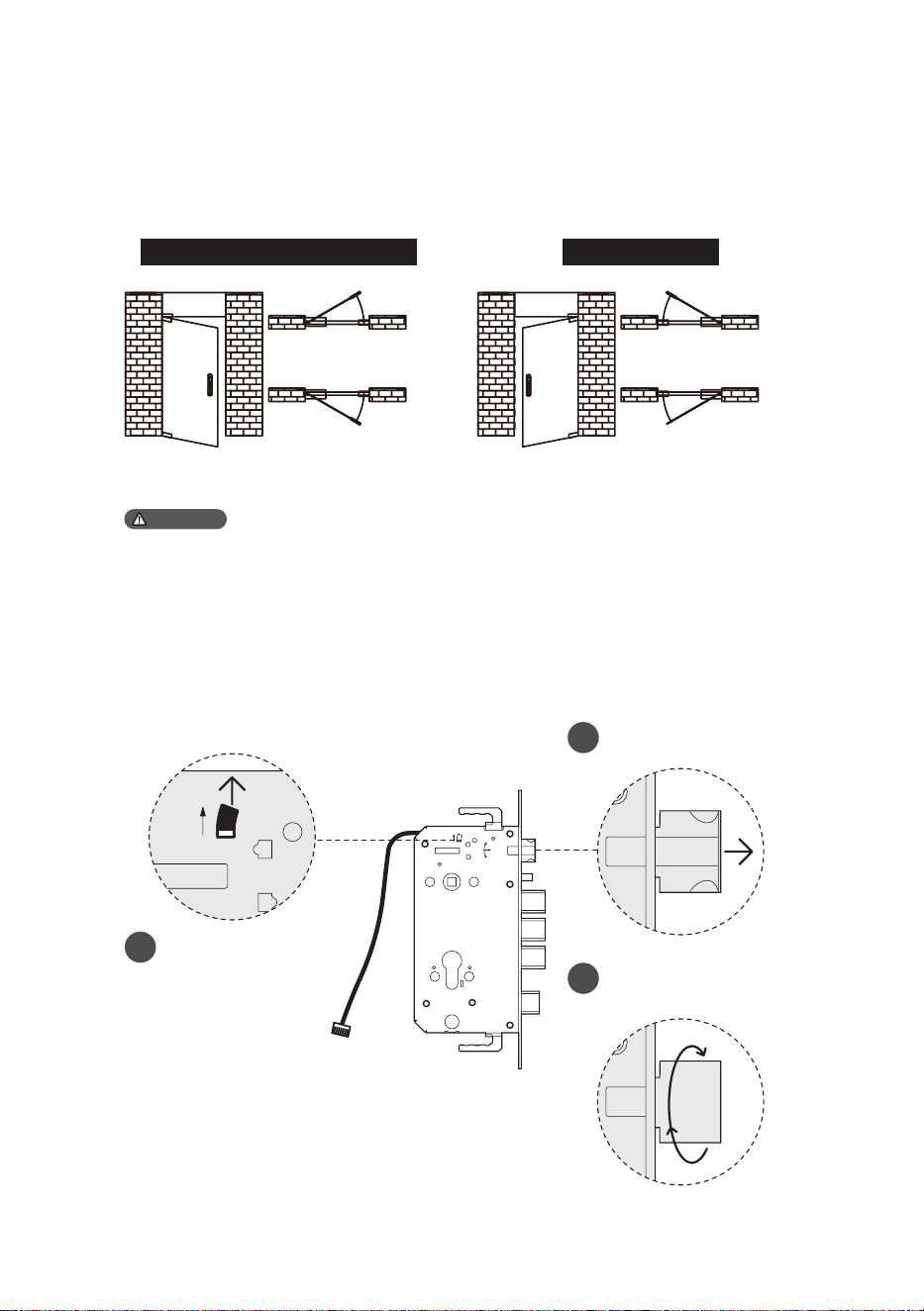
Notice before assembling
This product applies to doors with swing directions as follows left-hand inswing,
left-hand outswing, right-hand inswing, and right-hand outswing.
Left-haLeft-hand swingnd swing Right-hand swing
Left-hand inswing
Left-hand outswing
Right-hand inswing
Right-hand outswing
1. Please select the appropriate installation kit based on the door thickness.
2. The product supports door thickness ranging from 38 to 120mm. For thicknesses out of this range,
please consult your local dealer.
Attention
Adjustable latch instructions
Toggle the tumbler in the
direction of the arrow.
Rotate the latch bolt 180°,
press it inward to complete
the latch adjustment.
Push the latch out in the
direction of the arrow.
6
3 4
37-41mm
Lock cylinder
Lock cylinder anchor
M6 screw tube
connecting cable
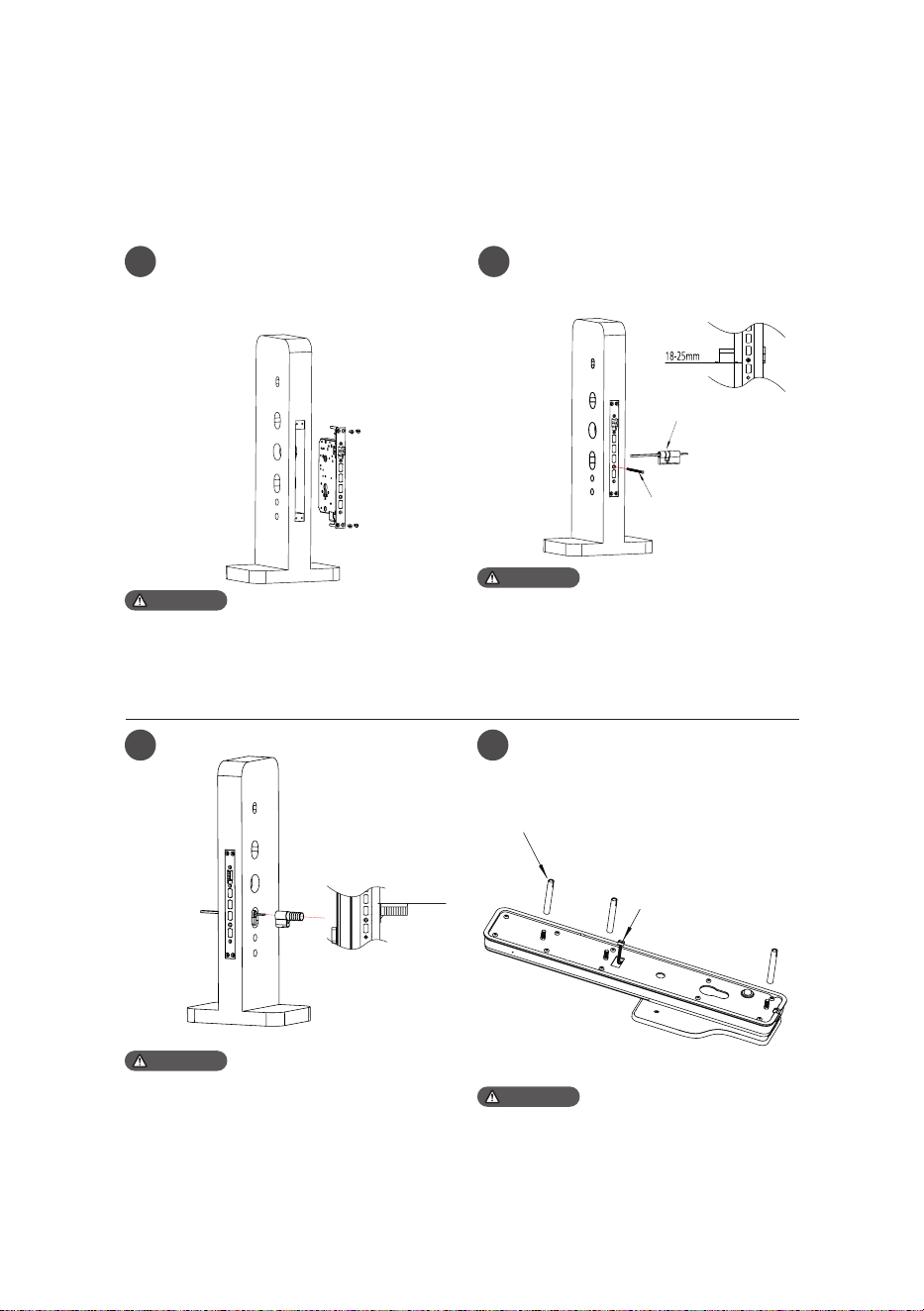
Please make sure the dead bolt are retracted
during assembly.
1. Trim the plastic cover to an appropriate length
according to the actual door thickness.
2. Trimming requirement after inserting the
plastic cover into the lock cylinder, trim it when
it protrudes from the door surface at a position
between 37-41mm. After trimming, align it with
the lock cylinder and insert the plastic cover.
Select the appropriate length of screw tube based
on the actual door thickness.
Attention
Attention
Attention
To drill holes in the door according
to the drilling template, mount the
mortise into the jamb, and secure the
four anchor screws.
Install the plastic cover. Install the M6 screw tube on the
exterior assembly.
Install the screw tubes onto the
exterior assembly, then insert the
mortise tumbler into the tumbler hole.
1 2
Assembly procedure
The following assembly steps apply to the right-hand swing doors. For left-hand
swing doors, please read through the [Notice before assembling] and adjust the
latch direction rst.
Attention
1.Trim the tumbler to an appropriate length as per
the door thickness.
2.Trimming requirement: insert the lock cylinder
into the mortise, trim the tumbler when it protrudes
from the door surface at a position between 18-
25mm. After trimming, align it with the mortise and
insert the lock cylinder.
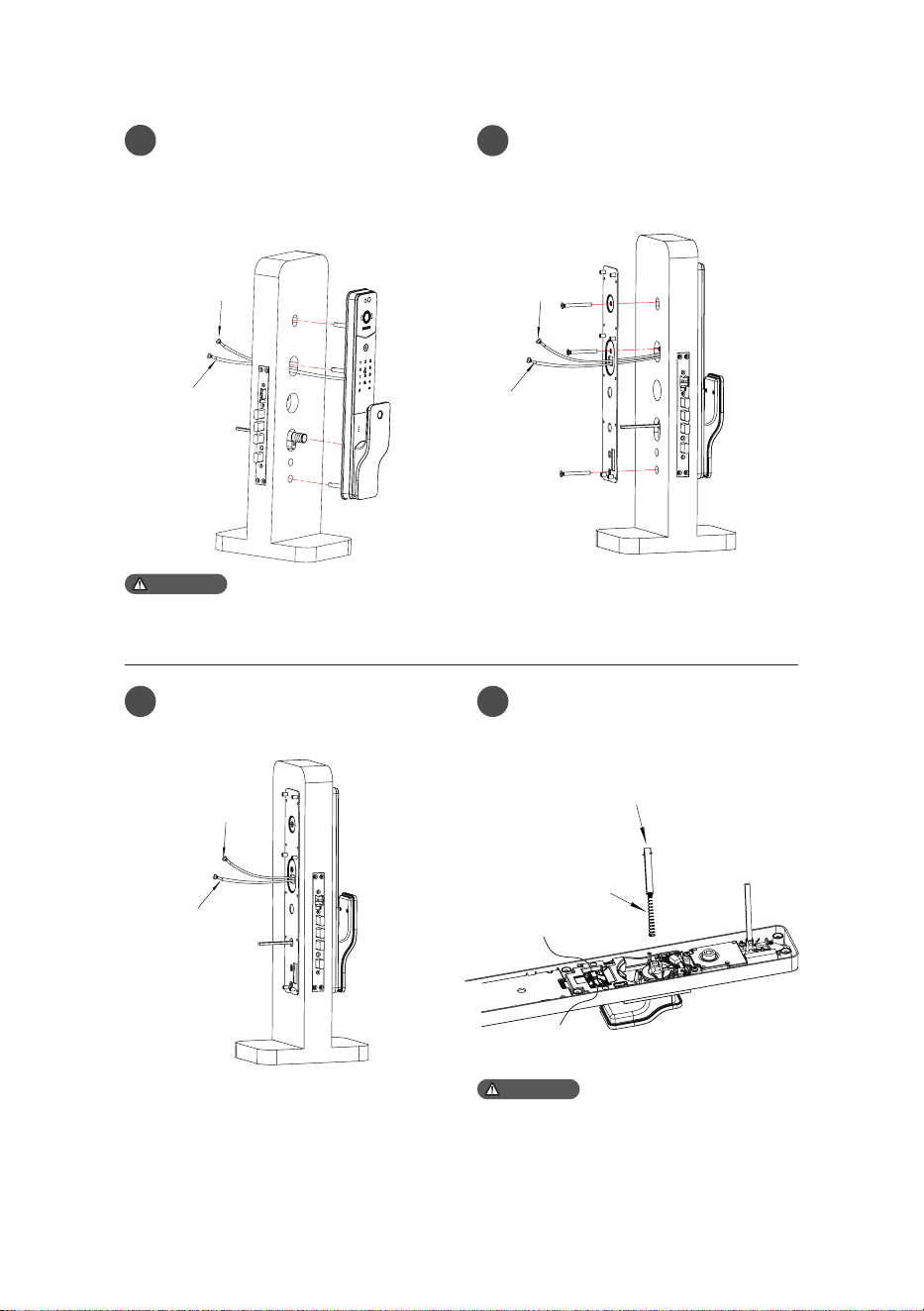
7
5
6
7 8
Trim the deadlock latch to an appropriate length,
ensuring that the remaining length of the deadlock
latch is approximately 1cm shorter than the door
thickness.
connecting cable
connecting cable
connecting cable
Mortise cable
Mortise cable
Mortise cable
square shaft
spring
Mortise cable
connecting cable
Attention
Attention
Pass the connecting cable through the
hole on the door. Align the keyway
hole and the plastic cover, inserting
them to closely t against the exterior
side of the door.
Installation of the exterior assembly
and mounting plate assembly is
complete.
Closely align the mounting plate
against the interior side of the door,
and secure it tightly with the M6
anchor screw.
The inner panel installs the square
shaft and spring and plugs the outer
panel connecting wire and the lock
connecting wire into the corresponding
sockets on the inner panel.
Mortises without detection switch do not have
mortise cables.
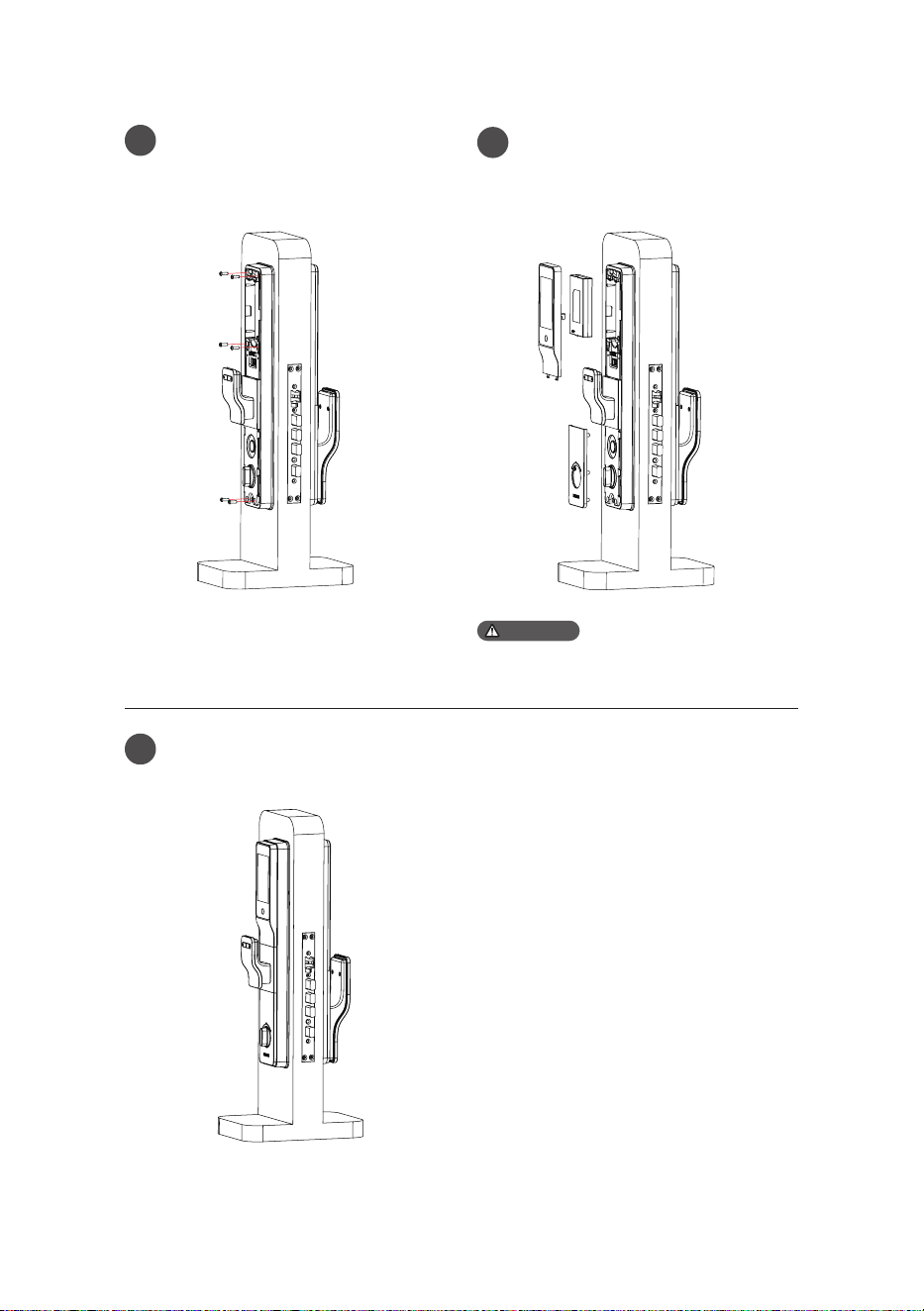
8
9
11
10
Insert the battery into the compartment according
to the orientation indicated on the battery
Attention
Install the interior assembly and lock
the 6 M4 screws.
Check the thumb turn, mechanical
keys, and all components to ensure
they are securely connected.
Install the battery, and put on the
battery cover and bottom deco cover
to complete the assembly.
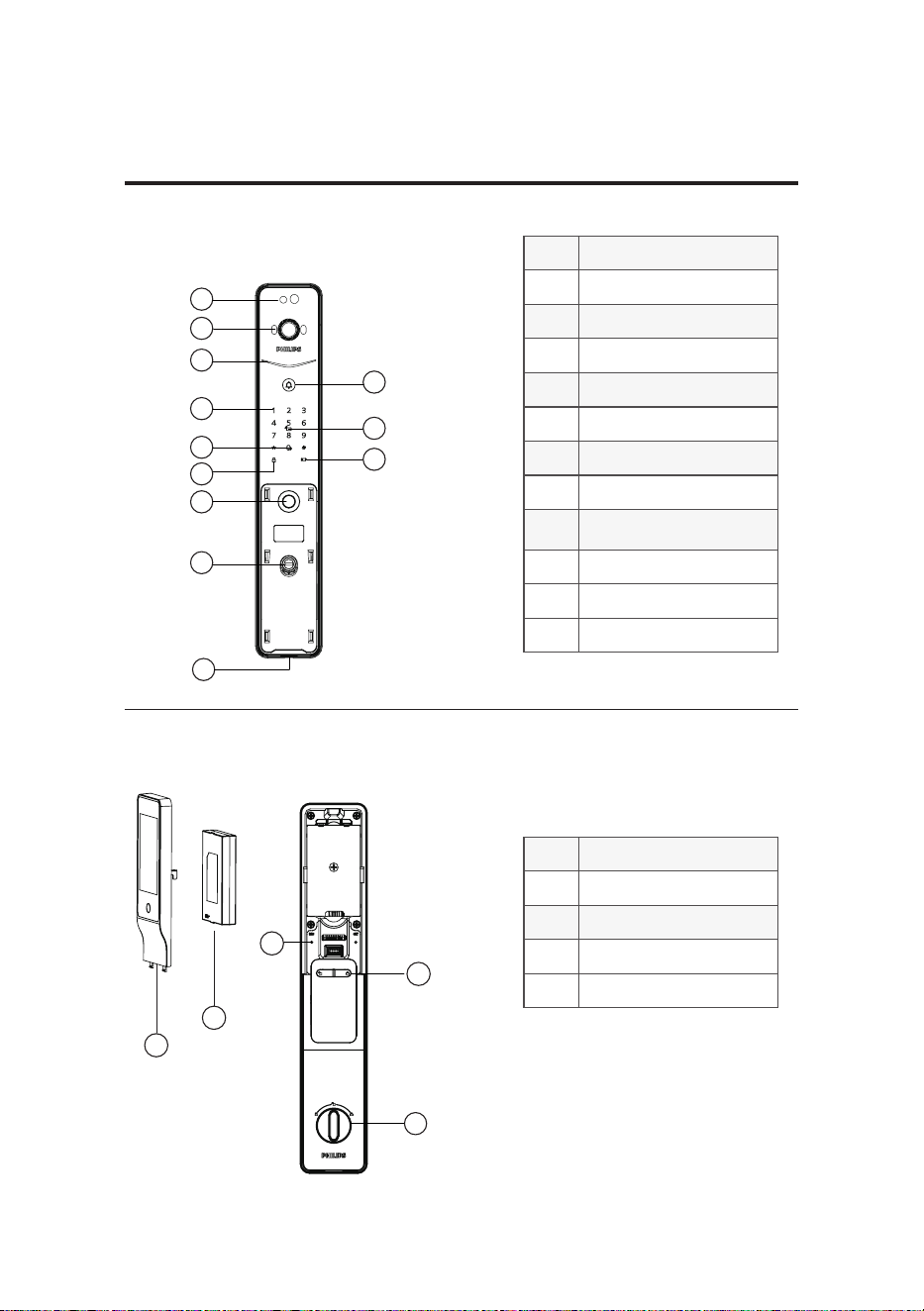
9
①
Palm vein
②
Video module
③
Lock status indicator
④
Doorbell
⑤
Keypad
⑥
Key tag scanner
⑦
Mute button
⑧
Lock button
⑨
Fingerprint recognition
area
⑩
Keyway hole
⑪
Charging port
⑫
Low battery indicator
①
Display
②
Li-polymer battery
③
RES button
④
[OPEN/CLOSE] button
⑤
Thumb turn
1
1
2
2
3
3
4
5
4
8
6
5
9
7
10
11
12
This packing list is for reference only. Please refer to the actual packing items.
3 Get to know your lock
Inside escutcheon
Exterior assembly
10
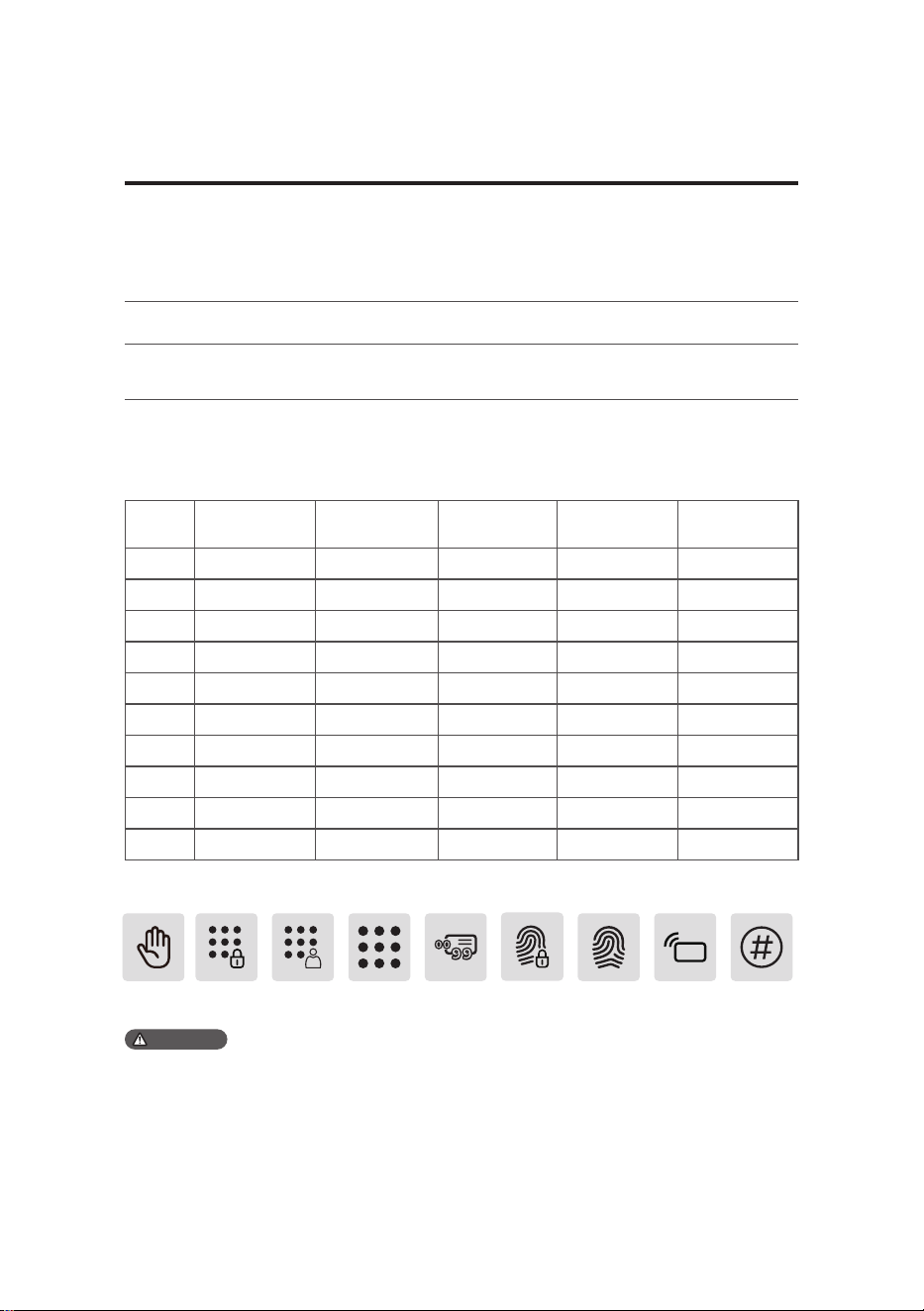
No. Name Fingerprint
PIN code
Key tag Palm vein
00
01
02
03
04
05
06
07
08
09
Master
ngerprint
Fingerprint Key tag [#] button
Instructions before setting
◆ The system modes include the general mode and dual verication mode.
4 Settings
General mode Door can be opened using any enrolled access method
Door can be opened using any two combinations ongerprint,
PlN code, key tag, or palm vein.
Dual verication mode
◆ User code
You can delete a user's information by the user number without having to delete everything. You
can record the user information in the following table for easy management and future reference.
Palm vein Master PIN
code
One-time
code
No. 00-99
PIN code
◆ Icon annotation
1.When navigating the menu, to return to the previous menu, press the [*] key.
2. The default PIN code is 12345678.
3. Capacity:1 master PIN code, 100 ngerprints (including 1 master ngerprint), 20 user PIN codes, 100 key
tags, and 50 palm vein.
Attention
11
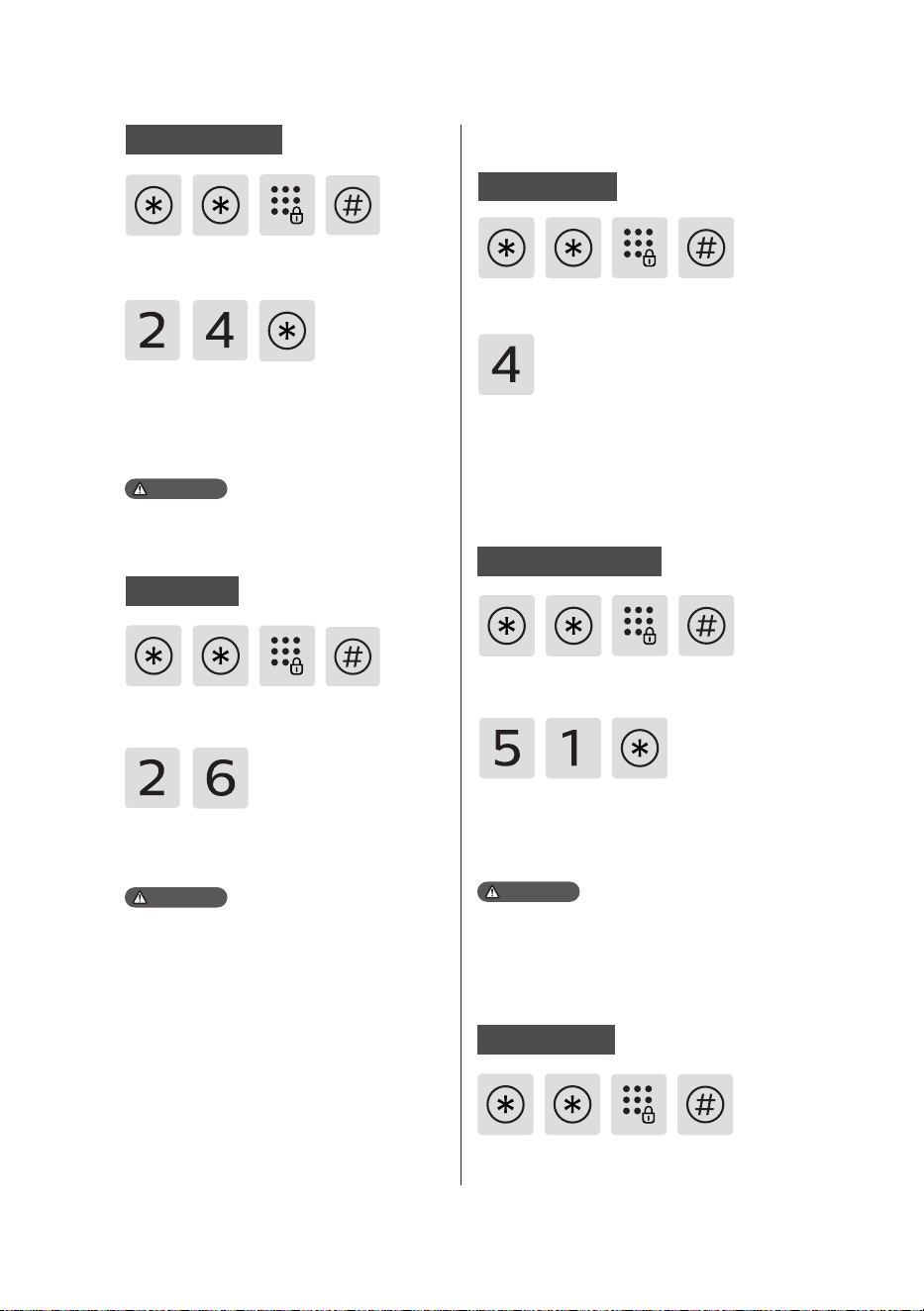
Press the [*] key twice, enter the master
PIN code, and then press the [#] key to
confirm.
Press [1] to enter settings, then press [1]
again to add a user. The door lock will
automatically detect and add PIN codes,
fingerprints, and key tags. Users can
simply add the desired access method.
11
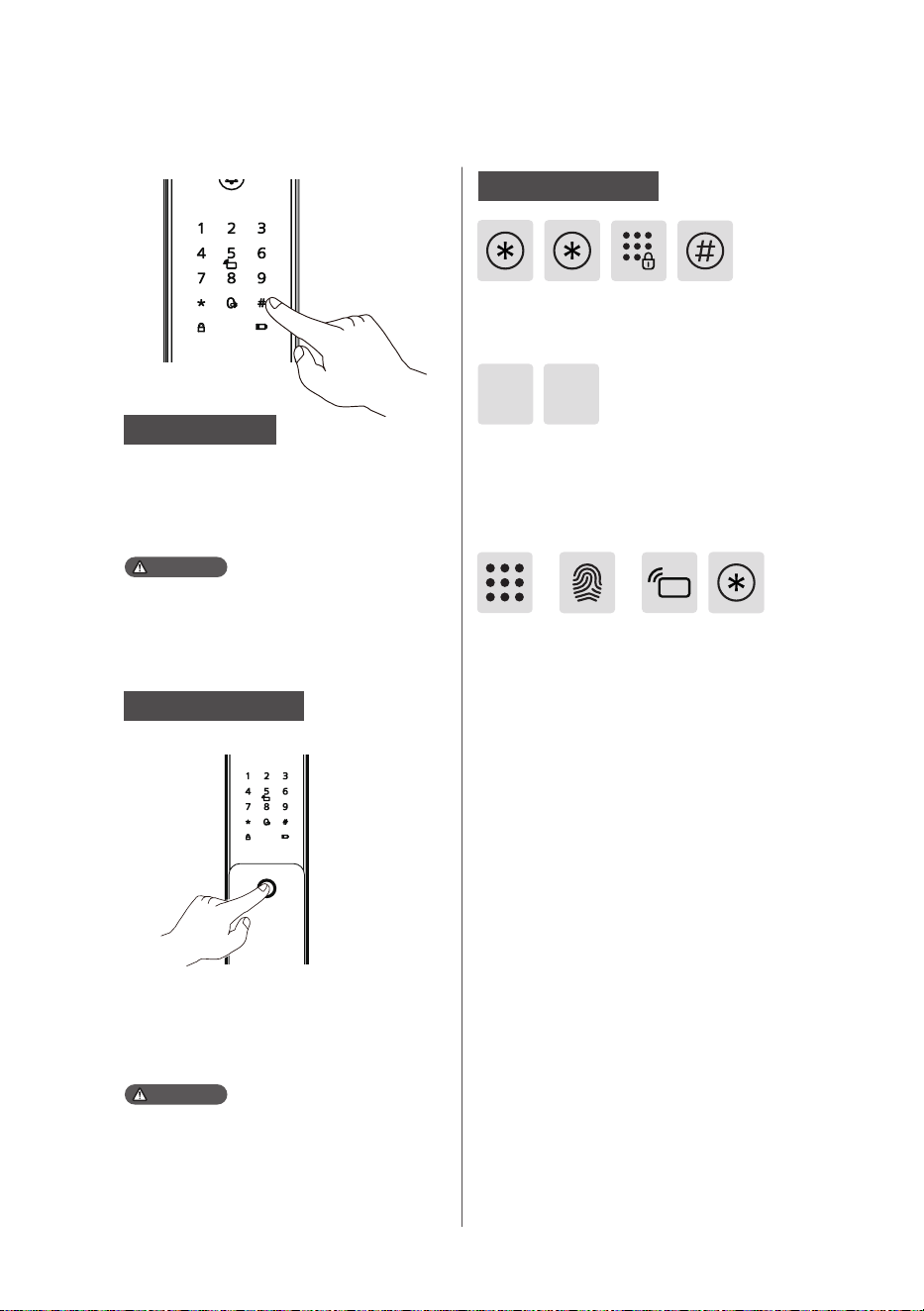
Master mode Settings
Attention
Attention
Master PIN code
Master ngerprint
After illuminating the keypad, without
inputting any other numbers, press the [*] key
twice, then enter the master PIN code, and
press [#] to conrm to enter master mode.
After illuminating the keypad, without
entering any other numbers, press the [*] key
twice. Then, place the enrolled nger on the
ngerprint sensor to enter master mode.
If the master PIN code is set to the default PIN
code, you must change the master PIN code
in master mode before proceeding with other
operations.
1. The door lock does not have a master ngerprint
by default. Please enroll a master ngerprint
before use.
2.Do not enroll the master ngerprint to be the
same as any user ngerprint.
Add a PIN code: Enter a new user PIN code,
press [#] to conrm, then re-enter the PIN
code and press [#] again. After the successful
addition prompt, press [*] to return to the
previous menu until exiting master mode.
Add a ngerprint: Place your nger on the
ngerprint scanner. When prompted to
“Please remove your nger and try again,”
lift and then re-place your nger on the
scanner. Repeat this process several times.
After hearing the successful addition
prompt, press the [*] key to return to the
previous menu until exiting master mode.
Add a key tag: Enroll a new key tag. After
the successful addition prompt, press the
[*] key to return to the previous menu until
exiting master mode.
Add a user PIN code
or or
12
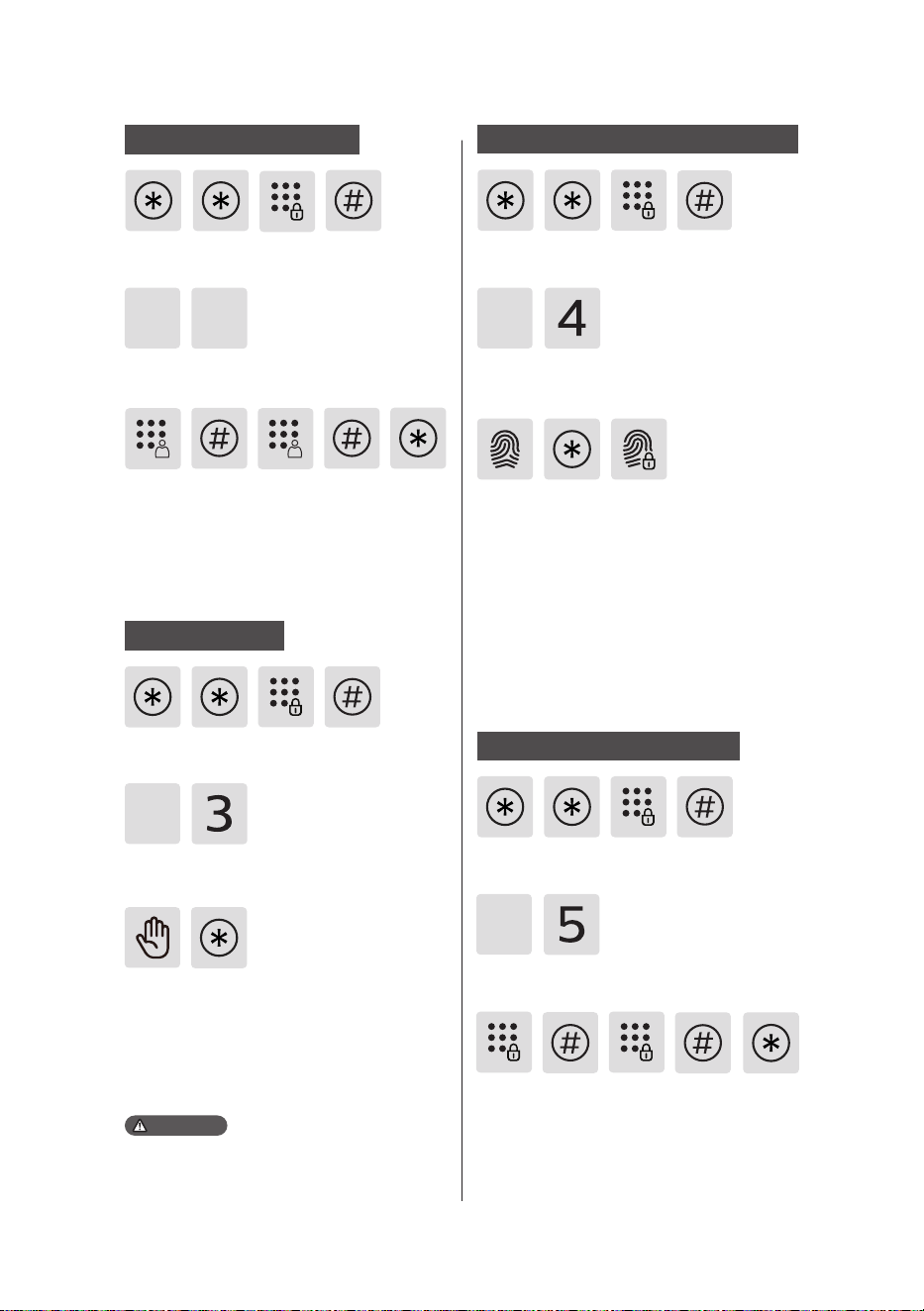
Enter a 6-12 digit one-time code and press
the [#] key to conrm. Re-enter the code and
press the [#] key to conrm. After the voice
prompts successful addition, press the [*] key
to return to the previous menu until exiting
master mode.
Press the [*] key twice, enter the master PIN
code, and then press the [#] key to conrm.
Press the [*] key twice, enter the master PIN
code, and then press the [#] key to conrm.
No master ngerprint set :Input a new user
ngerprint, which will automatically
become the master ngerprint. After
hearing the successful addition prompt,
press the [*] key to return to the previous
menu until exiting master mode.
Master ngerprint already set :Input a new
user ngerprint, which will replace the
existing master ngerprint. After hearing
the successful addition prompt, press the
[*] key to return to the previous menu until
exiting master mode.
Press [1] to enter settings, then press [4] to
enter the option for adding or modifying the
master ngerprint.
1
1
Press the [*] key twice, enter the master PIN
code, and then press the [#] key to conrm.
Press [1] to enter settings, then press [3] to
add a palm vein.
Straighten the palm of your hand, palm is
facing the palm vein recognition area, 10 to
20 centimeters away from the door lock for
entry.After the voice prompt for successful
entry, press [*] to return to the upper menu
until you exit the management mode.
Enter a new master PIN code, press [#] to
conrm, then re-enter the PIN code, and
press [#] to conrm. After the successful
setting prompt, press the [*] key to return
to the previous menu until exiting master
mode.
Press [1] to enter settings, then press [5] to
modify the master PIN code.
1
The palm of the hand should be facing the palm
vein recognition area when recording, the angle
of palm deection is less than 25°, and the angle of
rotation is less than 90°.
Press the [*] key twice, enter the master PIN
code, and then press the [#] key to conrm.
Add a one-time PIN code Add or modify the master ngerprint
Press [1] to enter settings, then press [2] to
add a one-time code.
2
1
Attention
Add a palm vein
Modify the master PIN code
13
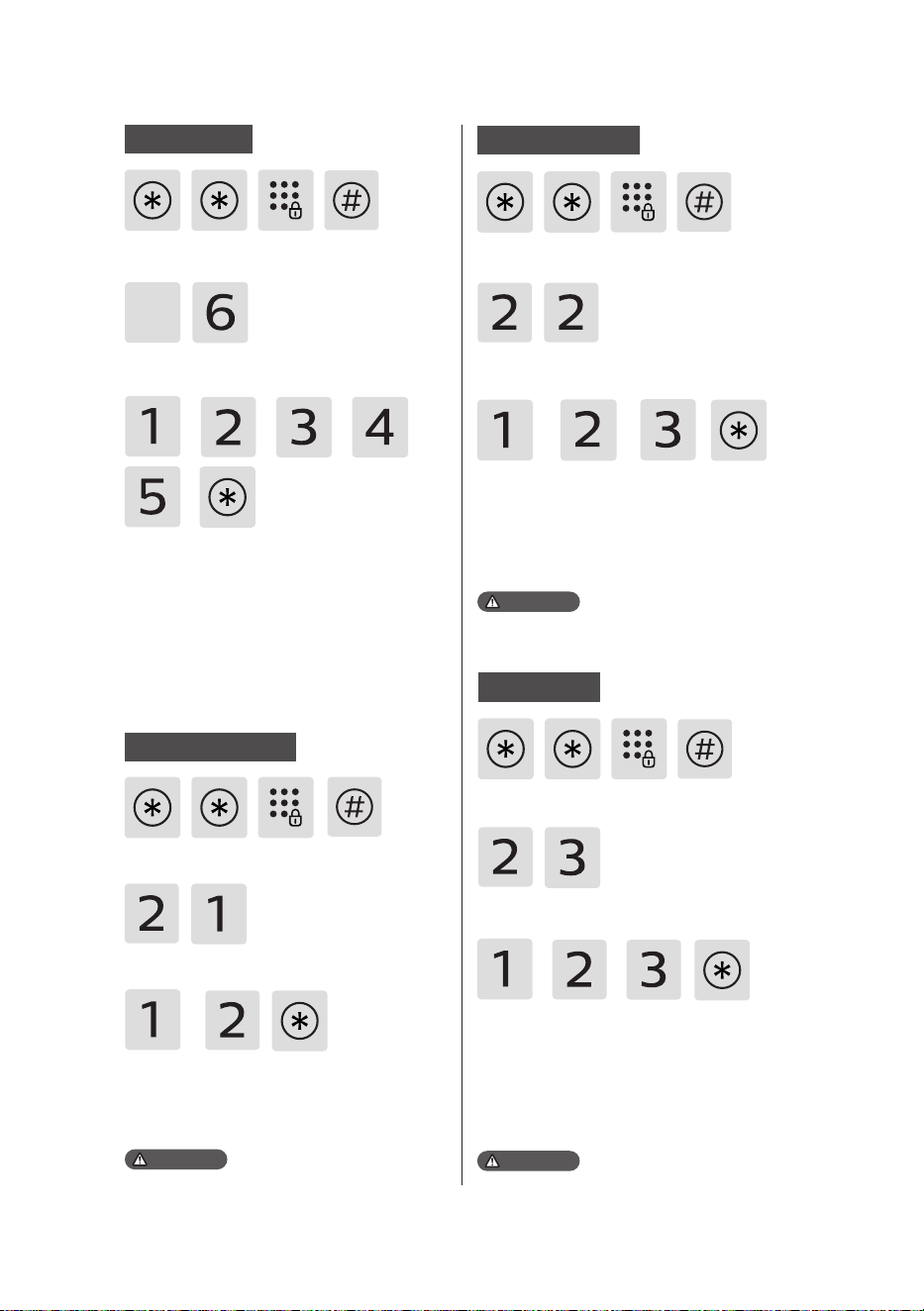
Select your preferred language: For Chinese,
press [1]; For English, press [2]. After hearing
the successful prompt, press [*] to return
to the previous menu until exiting master
mode.
Press the [*] key twice, enter the master PIN
code, and then press the [#] key to conrm.
Press [2] to enter system settings, then press
[2] again to enter volume settings.
Select your preferred volume: For high
volume, press [1]; For low volume, press [2];
For mute mode, press [3]. After setting the
volume successfully, press [*] to return to the
previous menu until exiting master mode.
Volume settings
The default language is English.
The default volume is high.
System settings
Press the [*] key twice, enter the master PIN
code, and then press the [#] key to conrm.
Language settings
Press [2] to enter system settings, then press
[1] to enter language settings.
Press [1] to enter settings, then press [6] to
delete a user.
Press the [*] key twice, enter the master PIN
code, and then press the [#] key to conrm.
Delete a user
1
Select the access method to delete Press [1]
to delete a PIN code; Press [2] to delete a
ngerprint; Press [3] to delete a key tag. Press
[4] to delete a palm vein. Press [5] to delete all
users.Follow the voice prompts for specic
deletion instructions. After successful
deletion, press the [*] key to return to the
previous menu until exiting master mode.
Press [2] to enter system settings, then press
[3] to enter ECO settings.
Select【1】to enable or disable the video
function;
Select【2】to enable or disable the palm vein
function;
Select【3】to adjust sensor sensitivity. After
the voice prompt conrms the settings,
press【*】to exit master mode.
Press the [*] key twice, enter the master PIN
code, and then press the [#] key to conrm.
ECO settings
ECO mode is o by default.
Attention
Attention
Attention
or
or
or
or
or
or oror or
14
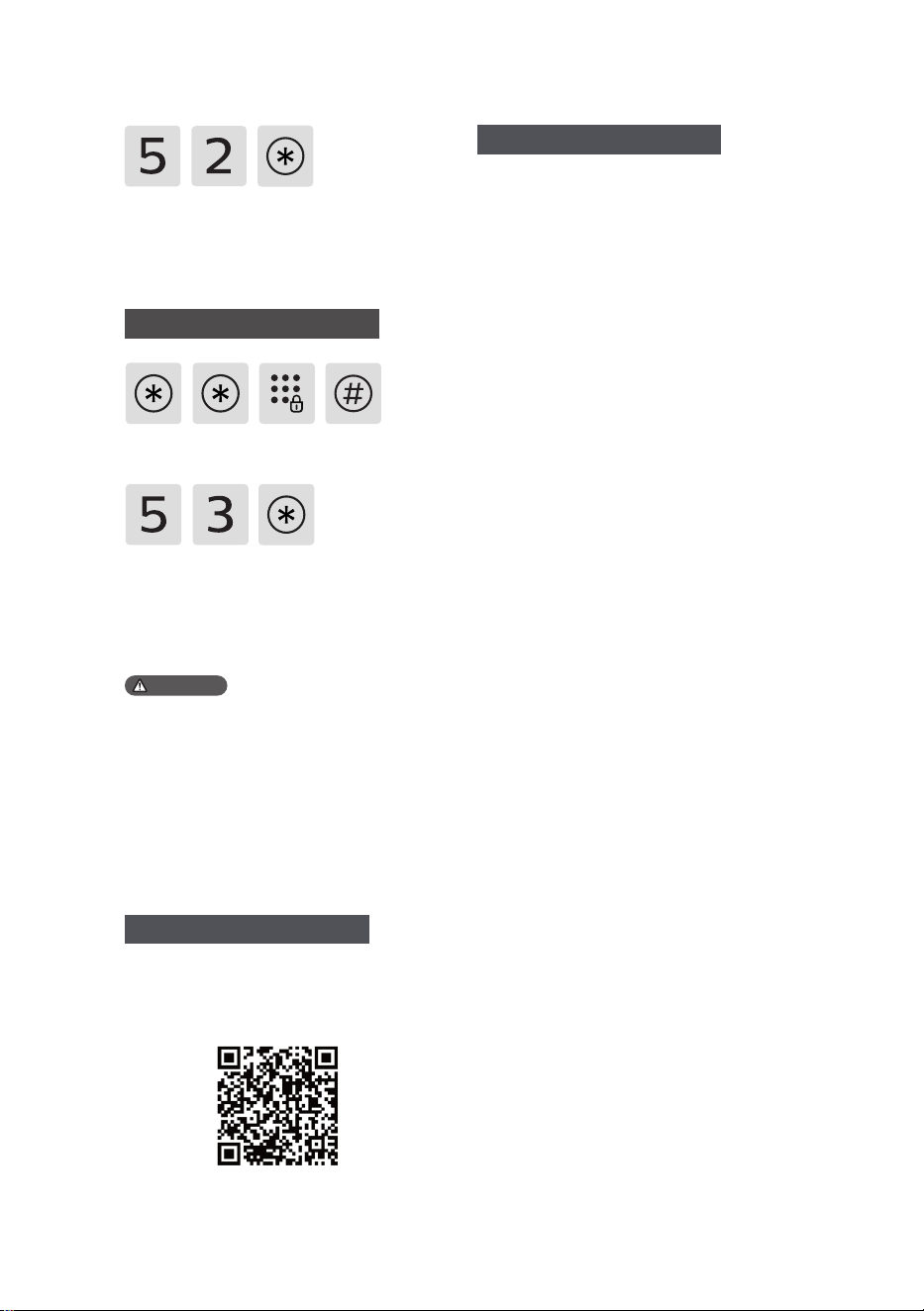
Press the [*] key twice, enter the master PIN
code, and then press the [#] key to conrm.
Press [2] to enter system settings, then press
[4] to enable or disable dual verication.
After successful setup, press [*] to return
to the previous menu until exiting master
mode.
Dual verication
The default system mode is 'General Mode'.
Press the [*] key twice, enter the master PIN
code, and then press the [#] key to conrm.
Press [2] to enter system settings, then press
[6] to enable or disable auto mode.
Auto mode
1. Auto mode settings are disabled when the
mortise includes a detection switch.
2. If a mechanical mortise without a
detection switch is used, it defaults to
manual mode, and users should then
proceed to set it to auto mode.
3. After successfully setting to auto mode,
you can adjust the latch bolt rebound
duration based on the voice prompts,
with the default rebound duration set to 3
seconds.
1. The default latch bolt rebound duration
is 300 milliseconds.
Network settings
Assembly settings
Press [4] to enter network settings, after
successful setup, the master mode will
automatically exit.
Join a network
Door-swing settings
Press the [*] key twice, enter the master PIN
code, and then press the [#] key to conrm.
Press the [*] key twice, enter the master PIN
code, and then press the [#] key to conrm.
Press [5] to enter assembly settings, then
press [1] to enter door-swing settings. After
successful setup, press [*] to return to the
previous menu until exiting master mode.
Torque settings
Press the [*] key twice, enter the master PIN
code, and then press the [#] key to conrm.
Attention
Attention
Attention
15
Network Connection
Latch bolt rebound duration
Press the [*] key twice, enter the master PIN
code, and then press the [#] key to conrm.
Press [5] to enter assembly settings, then
press [3] to set latch bolt rebound duration.
After successful setup, press [*] to return
to the previous menu until exiting master
mode.
1. The default latch bolt rebound duration is
300 milliseconds.
2. The latch bolt rebound duration can
be adjusted within the range of 200 to
500 milliseconds, with increments of 100
milliseconds per adjustment.
Press [5] to enter assembly settings, select
[2] to enter torque settings. After successful
setup, press [*] to return to the previous
menu until exiting master mode.
Scan QR code
Step1: Connect the door lock with power
supply and find the QR codeunder the
rear trim of the door lock.
Step2: Open the official App, tap [+]
in the upper right corner of the APP
homepage,and enter into the page for
QR code scanning.
Step3: After scanning the QR code,
please follow the prompts on the App to
finish the network configuration
.
Manually add
Step1: Open the official App, tap [+]
in the upper right corner of the APP
homepage,and choose to add the device
manually.
Step2: Search the current door lock's
model name from the manually-add-
device page and enter into the network
configuration page.
Step3: Follow the prompts on the App
to finish the network configuration.
Please scan the QR code or go to the
corresponding App Store to search and
download “Philips Home Access”.
Download the official App
Add door Lock to network
Attention
16
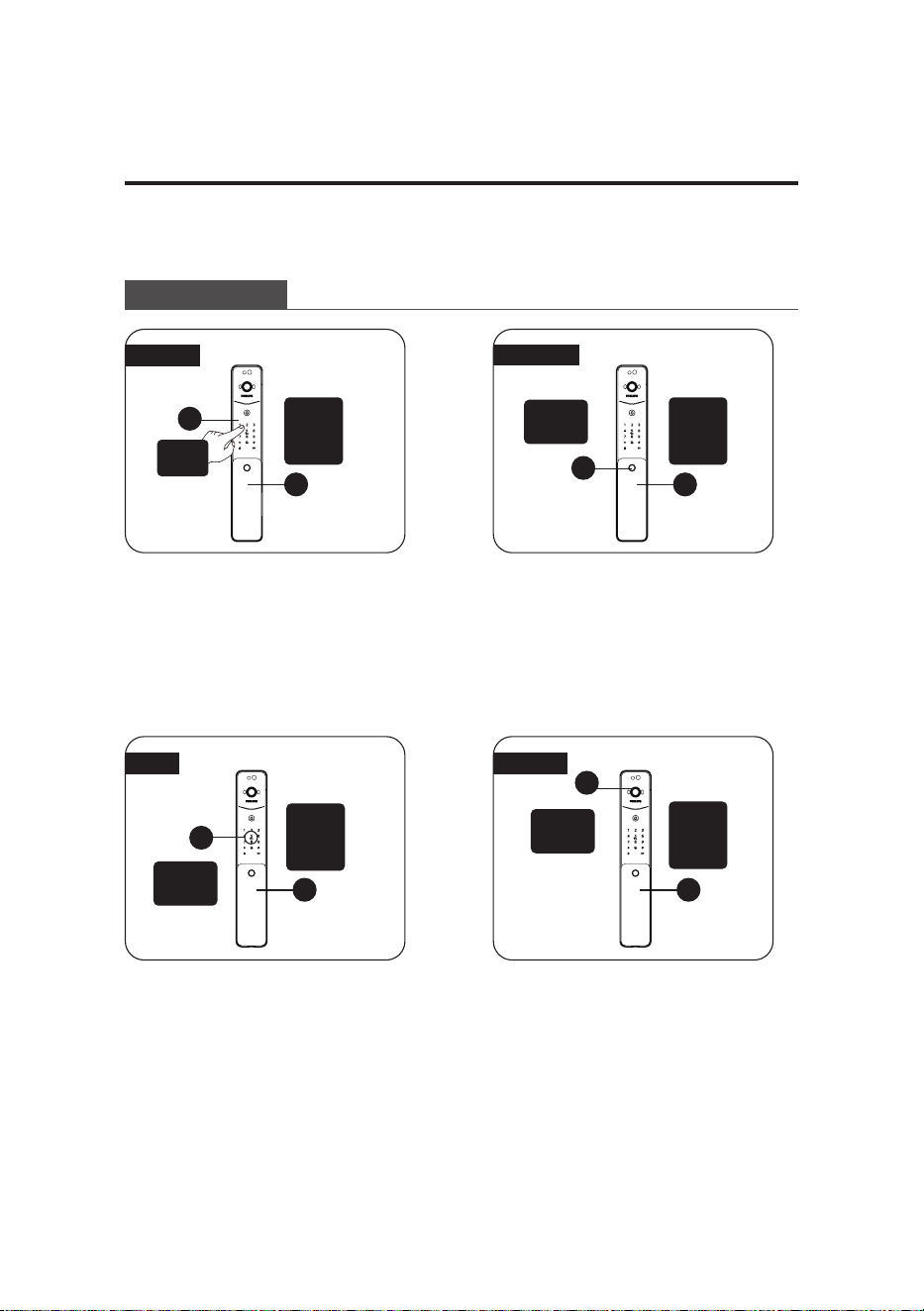
① Touch to wake up the keypad, enter
the pre-set PIN code, then press the
[#] key to conrm.
①Place the nger with the pre-
enrolled ngerprint correctly on the
ngerprint scanner on the back of the
handle.
①Place the enrolled key tag properly
on the key tag recognition area.
①Place the palm vei with the pre-
enrolled palm vein correctly on the
palm vein recognition area.
②After the voice prompt "Door
opened", push or pull the handle to
open the door.
②After the voice prompt "Door
opened", push or pull the handle to
open the door.
②After the voice prompt "Door
opened", push or pull the handle to
open the door.
② After the voice prompt "Door
opened", push or pull the handle to
open the door.
Outdoor/ indoor unlock
Outdoor unlock
PIN code
Fingerprint
Palm vein
推
拉
开
门
1
1
1
2 2
2 2
1
Touch
keypad
Key tag
Fingerprint
recognition
area
Push/
pull the
handle to
unlock
Push/
pull the
handle to
unlock
Push/
pull the
handle to
unlock
Push/
pull the
handle to
unlock
Key tag
recognition
area
Palm vein
recognition
area
5 Get to use your lock
17
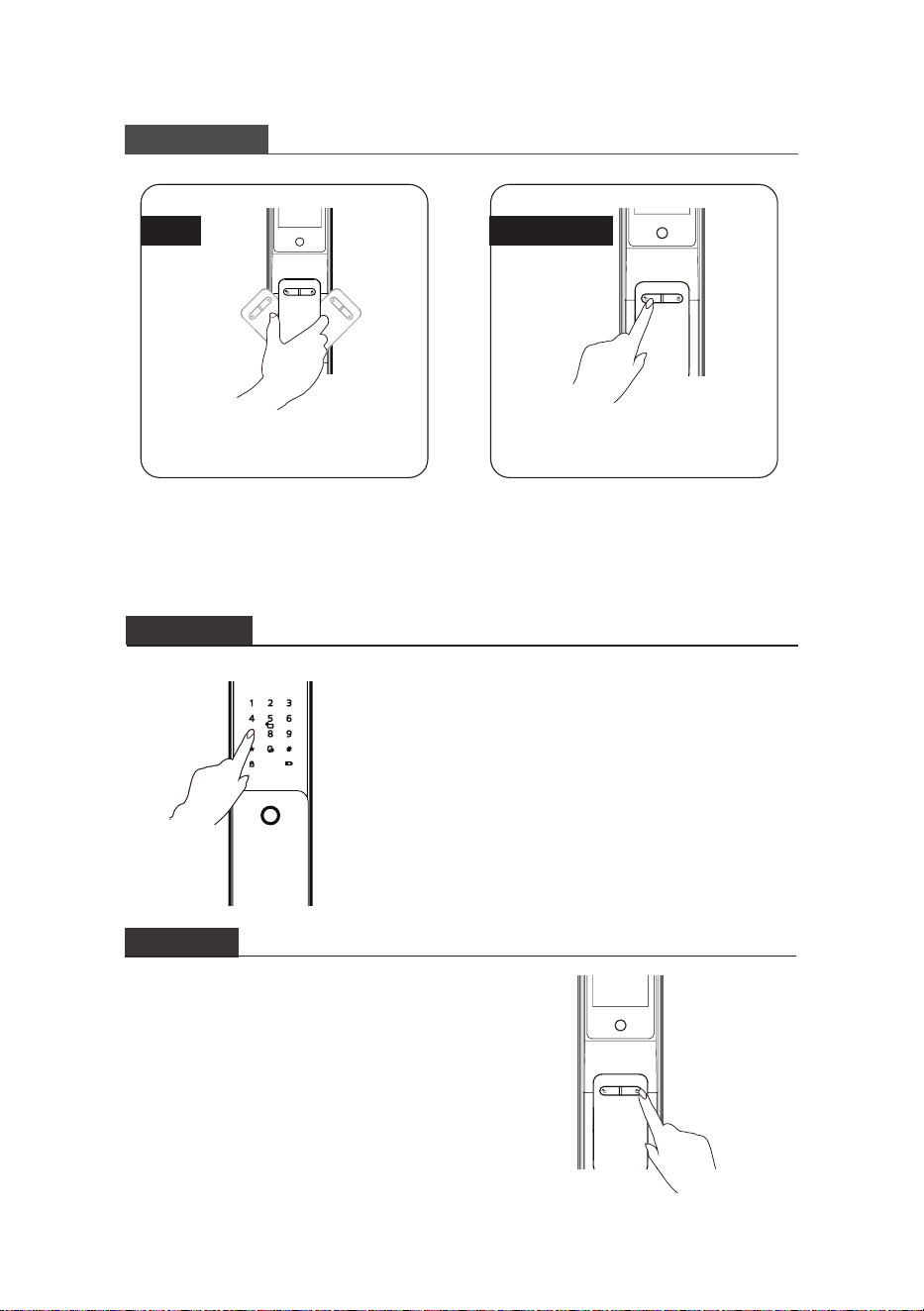
Double-press the [OPEN] button
within one second, then push or
pull the door to unlock.
Indoor unlock
[OPEN] button
Lever
Outdoor/ indoor lock
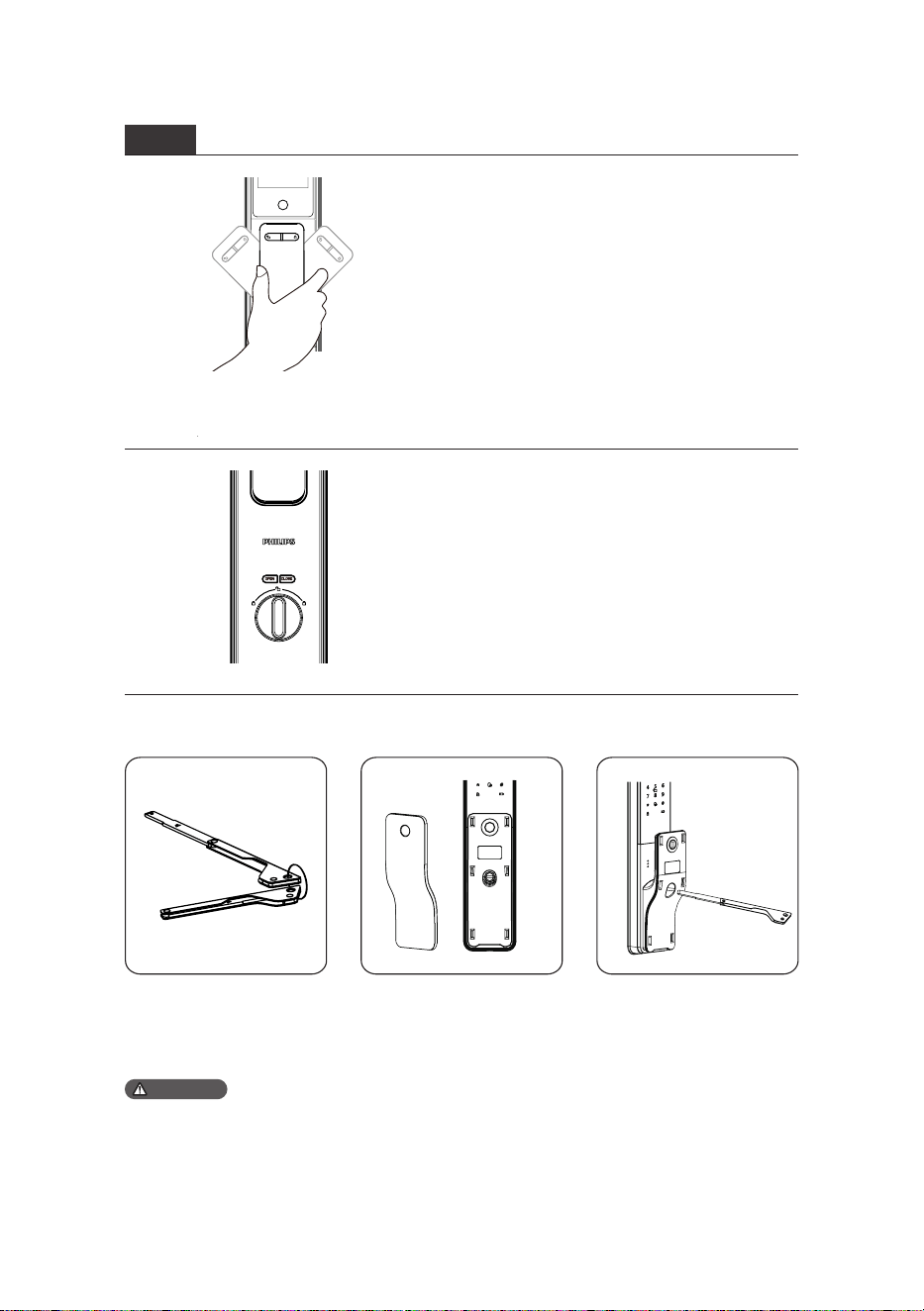
After the door is closed, the main bolt will automatically extend to lock, accompanied
by a voice prompt indicating that the door is closed.
If the automatic locking
fails, press the lock button
on the keypad after
closing it.
Outdoor lock
If the automatic locking
fails, press the "CLOSE"
button to manually lock
the door after closing it.
Indoor lock
To unlock indoors, simply grip
the handle and rotate it.
18
Mechanical key
1. Avoid using the mechanical key regularly. Only resort to it in emergencies such as drained
battery, forgotten PIN code, or system malfunctions.
2. Store the mechanical key outside the home, ideally in the oce, car, or a secure location, for
easy access during emergencies.
① Take out the mechanical
key from the packaging.
② Remove the handle cover. ③ Insert the mechanical
key into the keyway hole
and rotate to unlock after
inserting rmly.
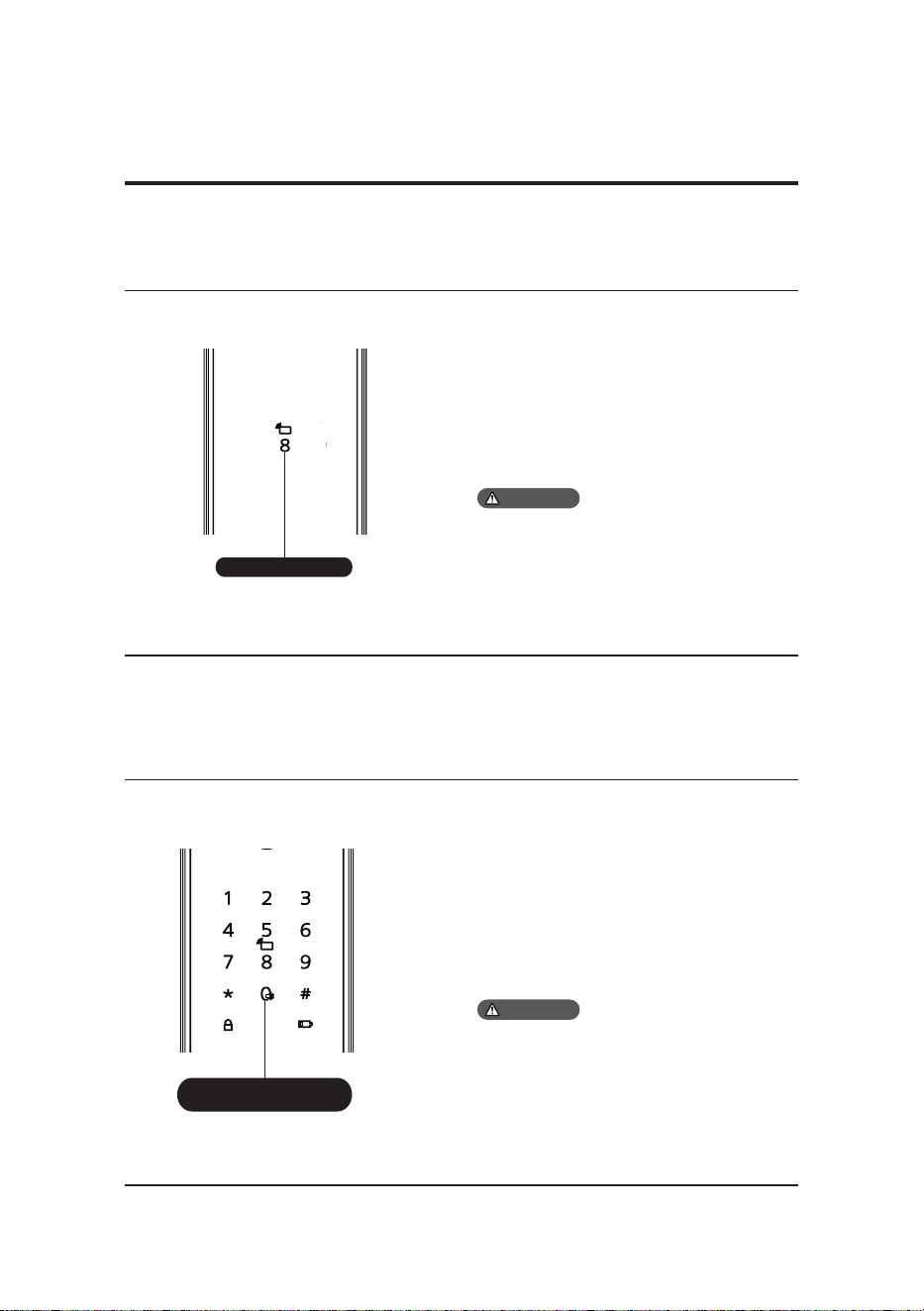
When the smart lock is locked, turn
the thumb turn left or right to activate
privacy mode (as shown in the left image).
To deactivate privacy mode, turn the
thumb turn to the middle position.
Attention
Lever
To lock indoors, simply grip the
handle and rotate it.
Lock-out mode
19
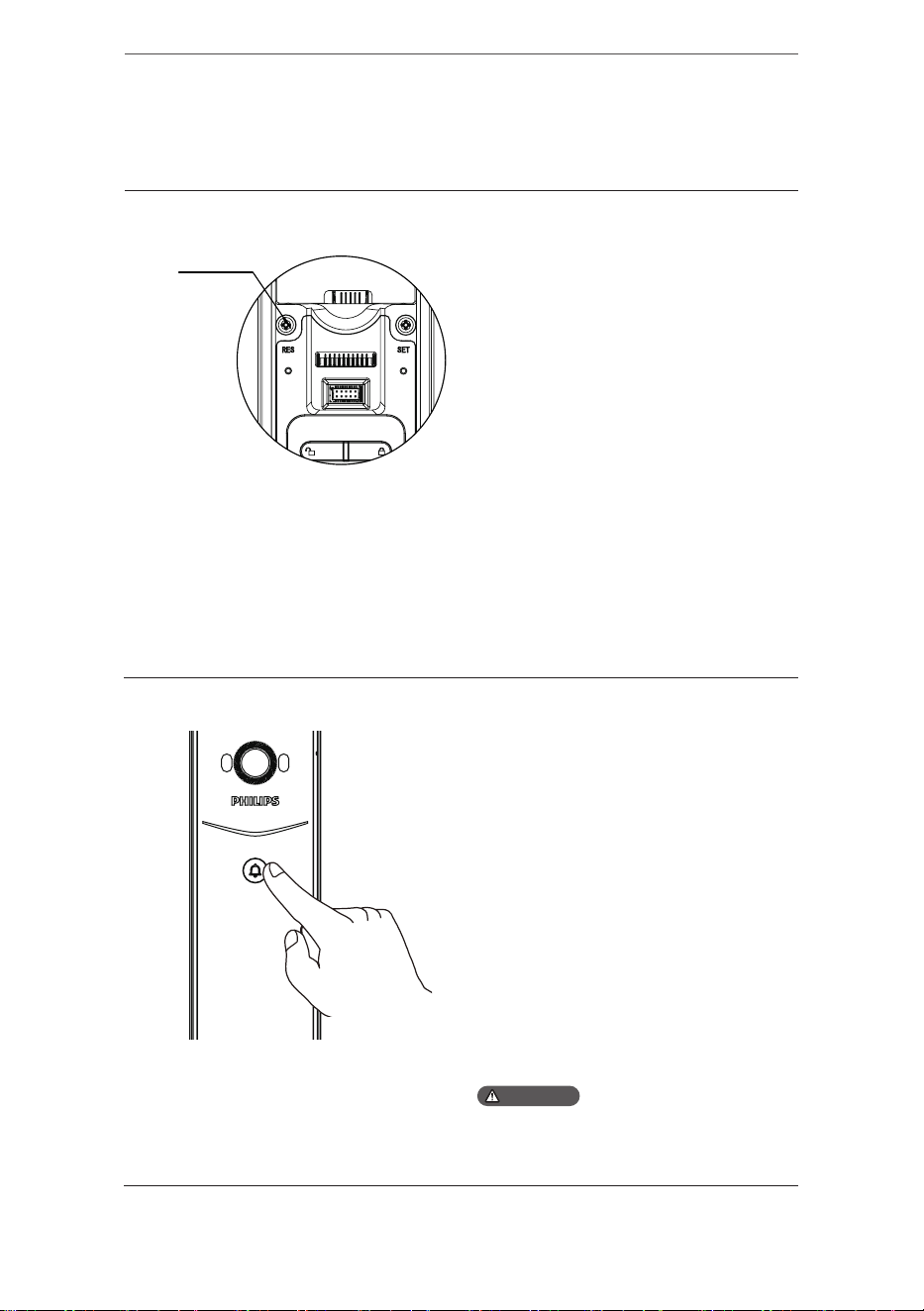
Armed mode
Function:
Once the door lock is opened from the
inside, it will trigger an alert.
How to use:
After locking the door, press [8] key to
enter the armed mode.
1. Armed mode is only available for mortise
locks equipped with a detection switch;
mortise locks without a detection switch do
not support this feature.
2. The armed mode does not aect unlocking
from the outside.
1.Switching voice mode to mute mode: while
the system is awake, press the "Mute" button
for 2 seconds to enter mute mode. The voice
prompt will say "Mute mode".
2.Switching mute mode to voice mode: while
the system is awake, press the "Mute" button
for 2 seconds to return to voice mode. The
voice prompt will say "Voice mode".
Mute button
Function:
Activate mute mode by pressing the
mute button to silence voice prompts
during door unlock—great for quiet
times to avoid disturbing others in the
household.
How to use:
After locking the door, press [8] key to
enter the armed mode.
Armed mode button
The 0 button alsoserves
as a mute button
6 Other features
Attention
Attention
20
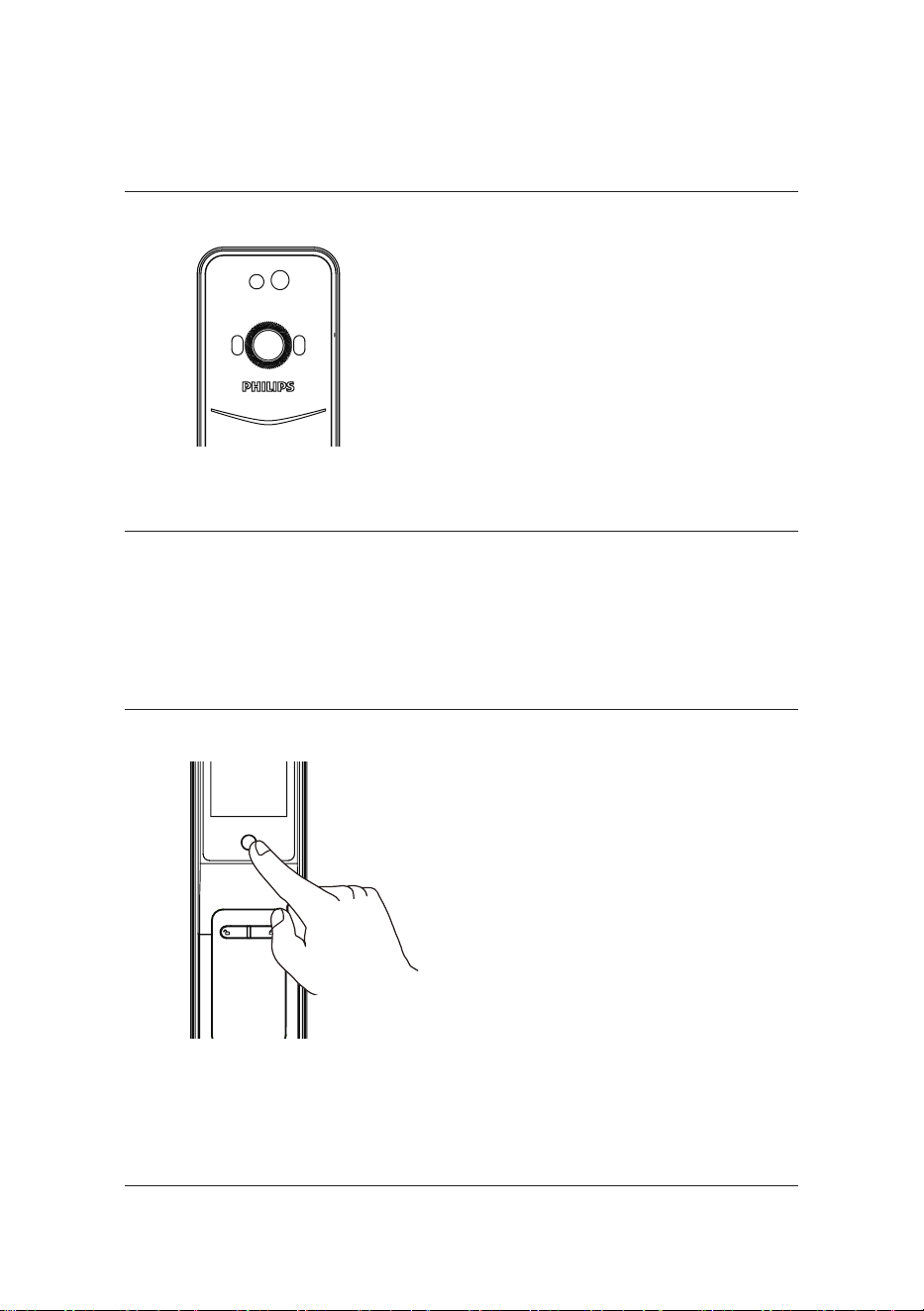
Function:
Empty all user data and restore to
factory default settings.
How to use:
Press the [RES] button twice with a
sharp object to reset the lock, which
will erase all user information.
Doorbell
Function:
The indoor speaker plays a dingdong
sound, informing that
someone is at the door.
How to use:
When the doorbell is pressed, the
indoor chime will sound. At the
same time, the door lock's camera
will capture video of the visitor and
send it to the linked app. Users can
then remotely view their doorway
in real time upon receiving the push
notication on the app.
When the doorbell is pressed, the smile
indicator will ash in blue.
RES
Factory reset
Attention
21
Video and intercom
Function:
The app's video viewing feature
allows real-time monitoring
of the doorstep and two-way
communication.
How to use:
Once the door lock is connected
to the app, you can use the video
viewing feature to monitor the
doorway in real-time and engage in
two-way communication.
Display
Function:
When the doorbell is pressed, users
can view their doorway via the indoor
display.
How to use:
1. When the doorbell is pressed, the
indoor display turns on. Pressing the
button below the screen or opening
the door from outside can turn o
the display.
2. The display time-out duration and
brightness can be set via the App.
22
Red:
when the door lock is awakened, it
automatically checks the battery
voltage. If the battery voltage is too
low, the low battery indicator will
illuminate. When unlocking, a voice
prompt will remind you to replace
the battery.
Low battery indicator
Armed mode indicator
Blue: when the system wakes up, the
indicator turns blue, indicating that the door
lock is ready for operation.
Green: when the door lock is unlocked, the
indicator turns green, indicating that the
door has opened.
Red: when the door lock is locked, the
indicator turns red, indicating that the door
has closed.that the door has opened.
White:
when the door lock is in the locked
state, the [8] key illuminates, indicating
that the Armed mode can be activated.
Armed mode is only available for mortise
locks equipped with a detection switch;
mortise locks without a detection switch do
not support this feature.
7 Indicators
Status indicator
Low battery
indicator
Status indicator
Armed mode
indicator
Attention
23
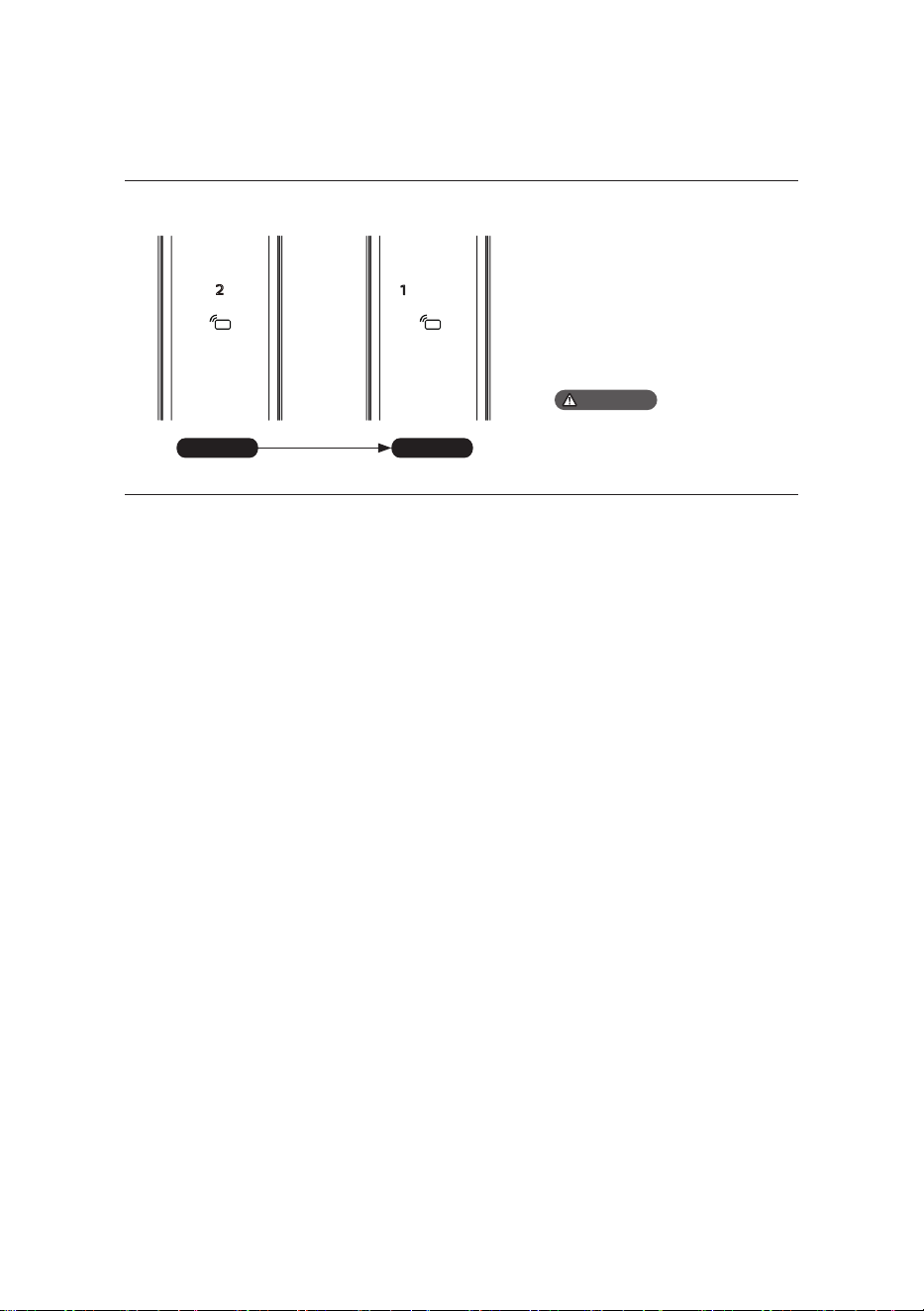
System lock-out indicator
If there are ve consecutive
incorrect attempts within ve
minutes using ngerprint,
PIN code, or key tag, the door
lock will be locked for two
minutes.
Prompts will only appear upon
touching to wake up the keypad
or verifying access methods.
[2] button in flashing [1] button in flashing
In 2 mins In 1 mins
Attention
24
8 Troubleshooting
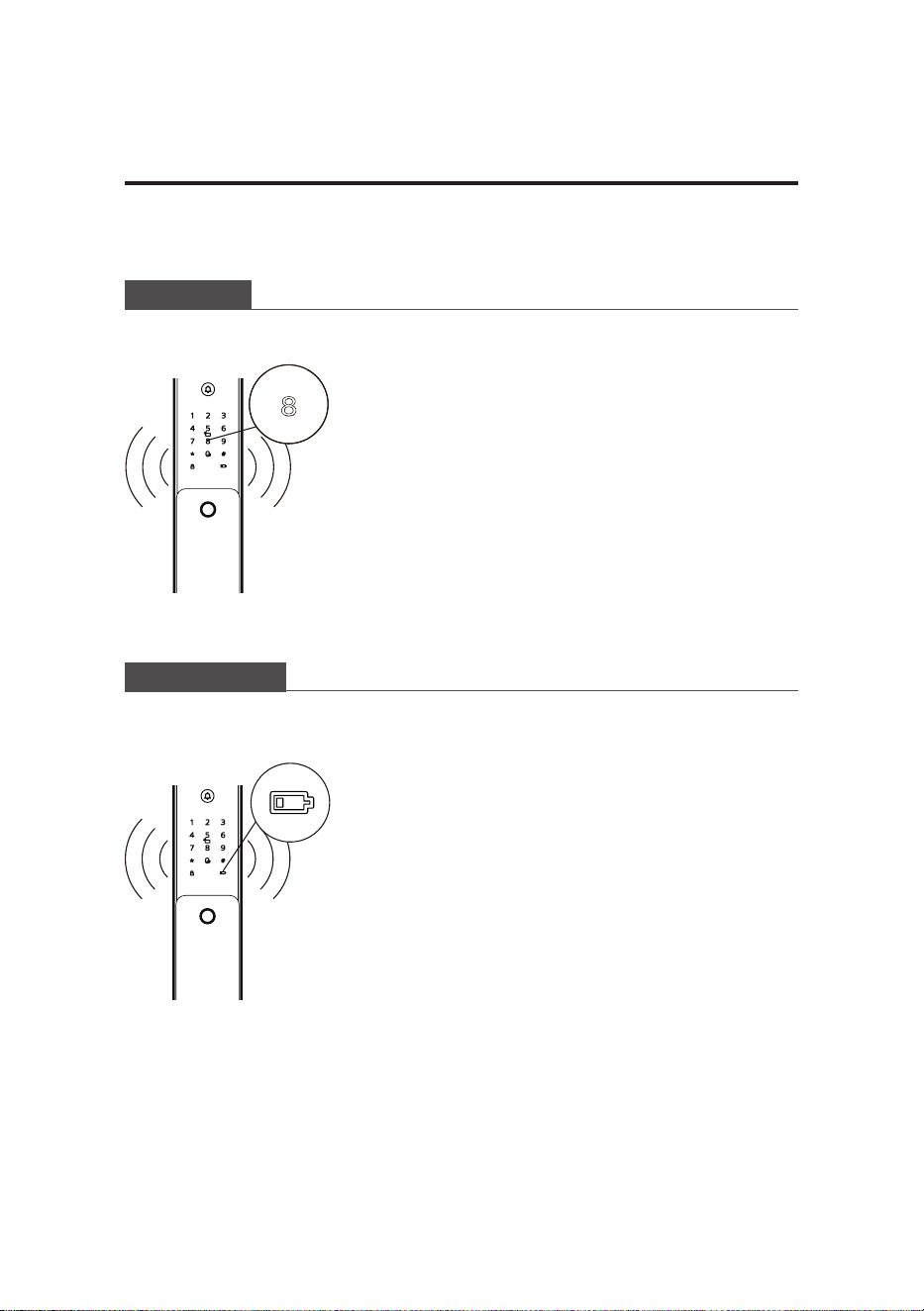
Alert types
Armed mode
Low battery alert
Triggering:
when the door lock is in the armed mode,
an alert will be triggered upon unlocking
the lock from the inside.
Alert method:
continuous, repeated alert sound.
O:
the alert ends upon successful verication
of any access method.inside.
Triggering:
when the system awakens, it will
automatically check the battery voltage. If
the battery voltage is low, an alert will be
triggered, prompting you to replace the
battery promptly.
Alert method:
a voice prompt “Low battery, please replace
the battery” upon unlocking.
O:
the alert will be o automatically.
25
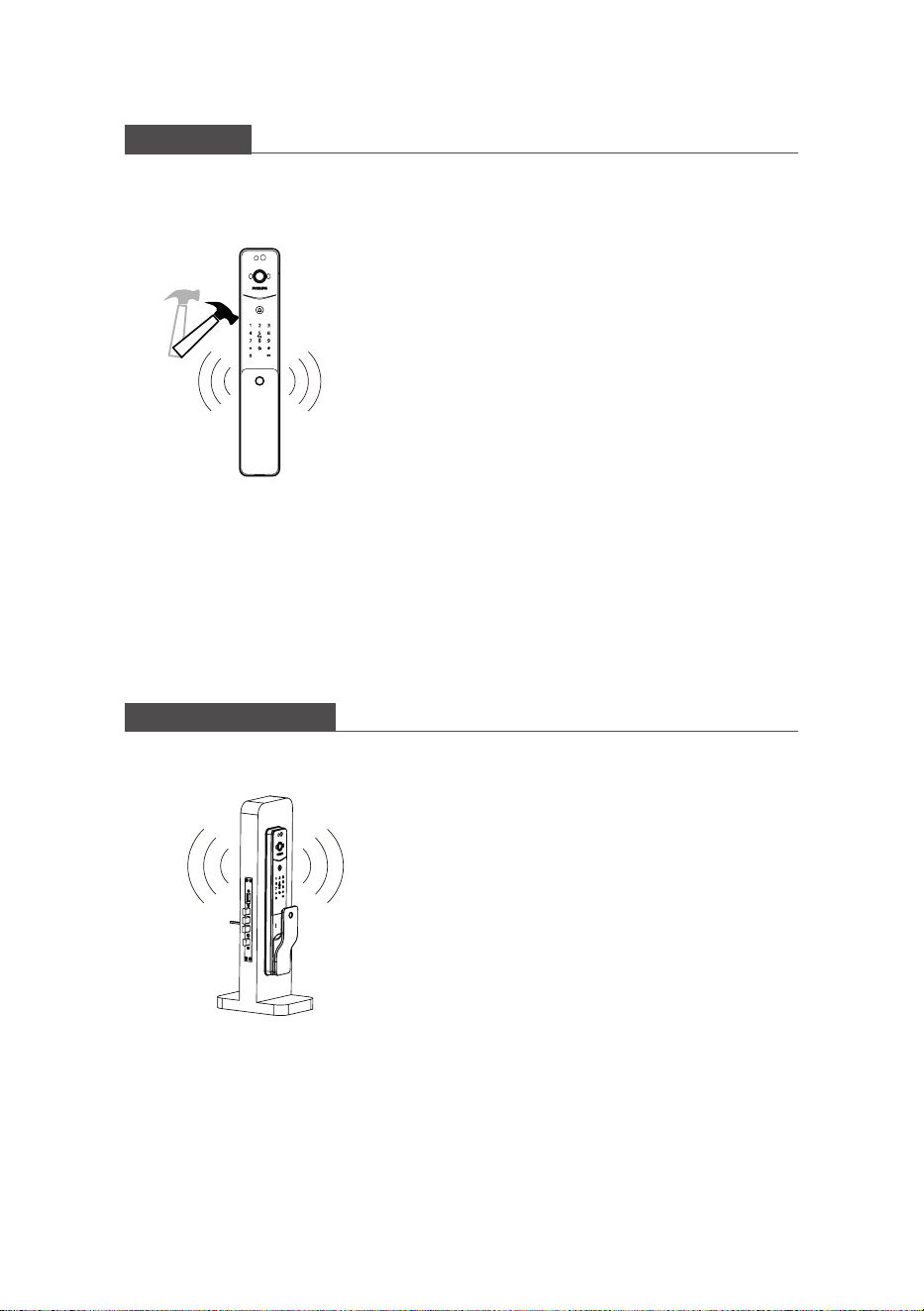
Latch abnormality alert
Tamper alert
Triggering:
abnormal latch bolt operation resulting in
unsuccessful locking or unlocking
Alert method:
continuous, repeated alert sound.
O:
the alert will be o automatically
Triggering1:
after the door gap is pried open, the
assitant bolt will extend.
Alert method:
continuous, repeated alert sound.
O:
the alert will be o automatically or after
a successful verication of any access
method.
Triggering2:
exterior assembly is pried open, and not
properly aligned with the door.
Alert method:
continuous, repeated alert sound.
O:
the alert will automatically be o or
upon successful verication of any access
method from outside or unlocking from
inside.
26
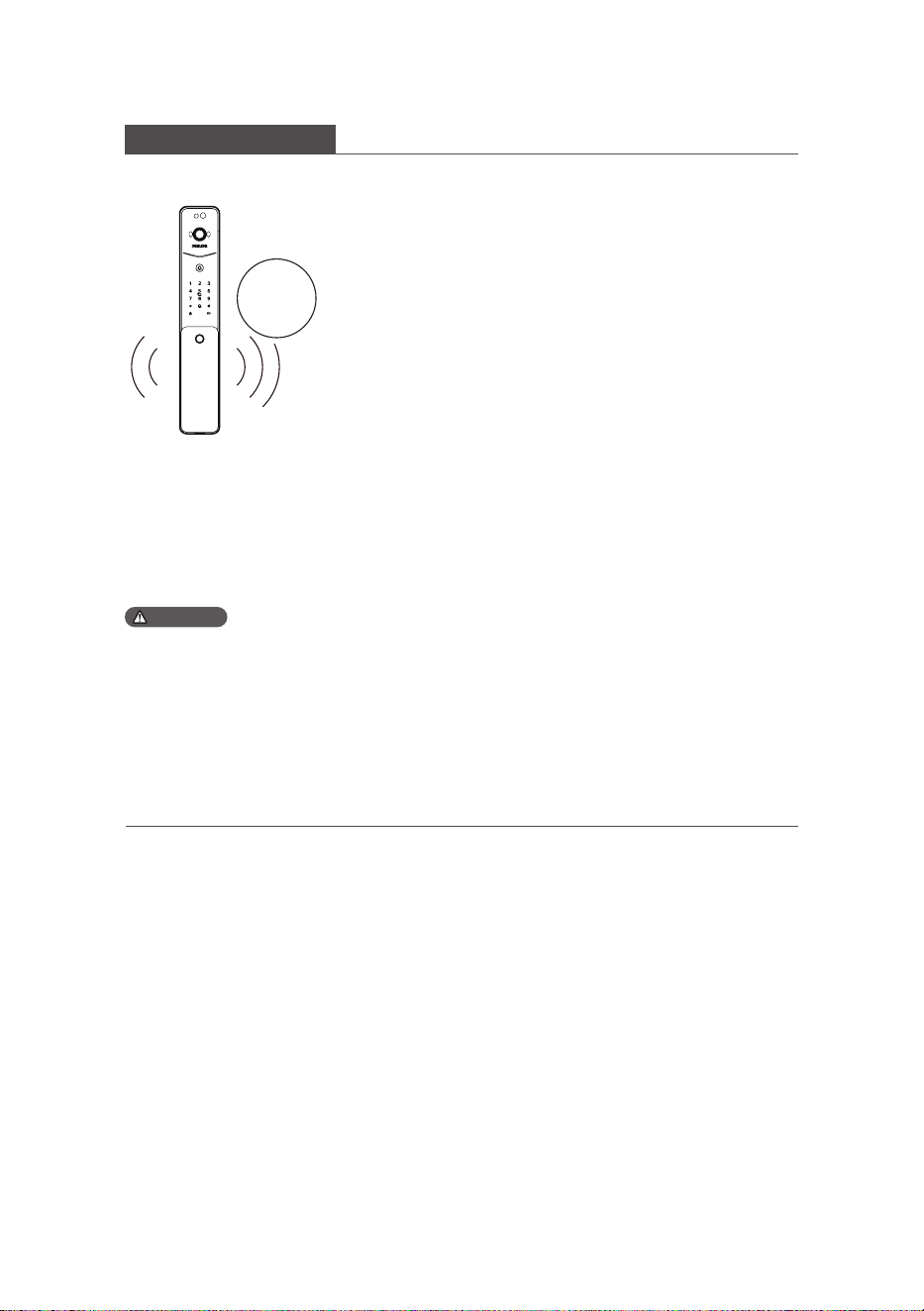
Radar
sensor
1. The motion detection alert is disabled by default. To enable this feature, please
log in to the app, bind your door lock model, and go to the app's settings. Then,
locate the "Loitering Alert" option and enable it.
2. Frequent use of video-related features drains the battery faster. To reduce
battery consumption, it's recommended to set the motion detection sensitivity to
the lowest level, reducing detection frequency.
Motion detection alert
Triggering1:
if suspicious individuals linger within the
view of the main camera outside the door
for a duration exceeding the preset value,
it will activate a loitering alert.
Alert method:
the main camera will automatically
capture video or images and send alert
notications to the app.
O:
motion detection function is o by default.
To use this function, you can enable or
disable it in the app.
Attention
27
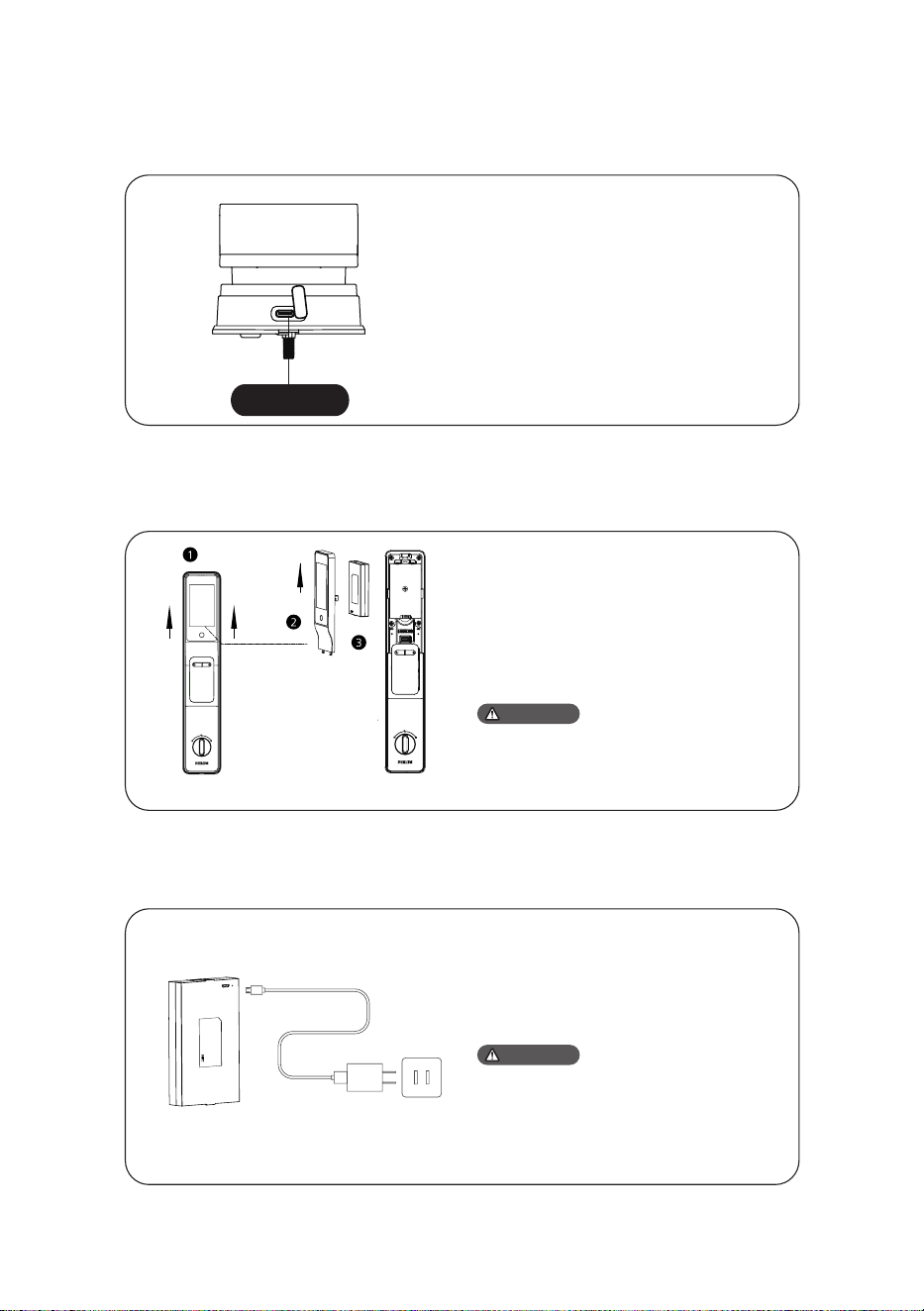
How to apply external power source
Battery replacement
Battery charging
RES and power
supply port
When the battery voltage is low and you're
unable to unlock the door from outside, you can
use a 5V power bank as an emergency power
source for the door lock. After unlocking the door,
please replace the battery promptly. In case of
system malfunction and inability to open the door
from outside, you can also use a 5V power bank
toprovide power to the door lock. Upon powering
up, the system will automatically restart.
Remove the battery from the door lock
and charge the lithium polymer battery
using a charging cable.
1. The lithium polymer battery has a one-year
warranty.
2. Charging voltage 5V.
3. Poor network conditions may accelerate
battery consumption in the door lock.
Attention
1. press and hold the lower screen location
area;
2. Push up to remove the screen assembly;
3. Remove the battery to replace.
The power source for the door
lock is a 5000mAh lithium
Please utilize the provided battery with the
product, as using alternatives may impact the
functionality of the device.
Attention

Philips and the Philips Shield Emblem are registered trademarks of Koninklijke Philips
N.V. and are used under license. This product has been manufactured by and is sold
under the responsibility of Shenzhen Conex Intelligent Technology Co., Ltd., and
Shenzhen Conex Intelligent Technology Co., Ltd. is the warrantor concerning this
product.