2
Important Safety Instruction
• Read these instructions.
• Keep these instructions.
• Heed all warnings.
• Follow all instructions.
• Do not use this apparatus near water.
• Clean only with dry cloth.
• Do not block any ventilation openings. Install in accordance with the manufacturer’s instructions.
• Do not install near any heat sources such as radiators, heat registers, stoves, or other apparatus (including amplifiers) that produce heat.
• Do not defeat the safety purpose of the polarized or grounding-type plug. A polarized plug has two blades with one wider than the other. A grounding type
plug has two blades and a third grounding prong. The wide blade or the third prong are provided for your safety. If the provided plug does not fit into your
outlet, consult an electrician for replacement of the obsolete outlet.
• Protect the power cord from being walked on or pinched particularly at plugs, convenience receptacles, and the point where they exit from the apparatus.
• Only use attachments/accessories specified by the manufacturer.
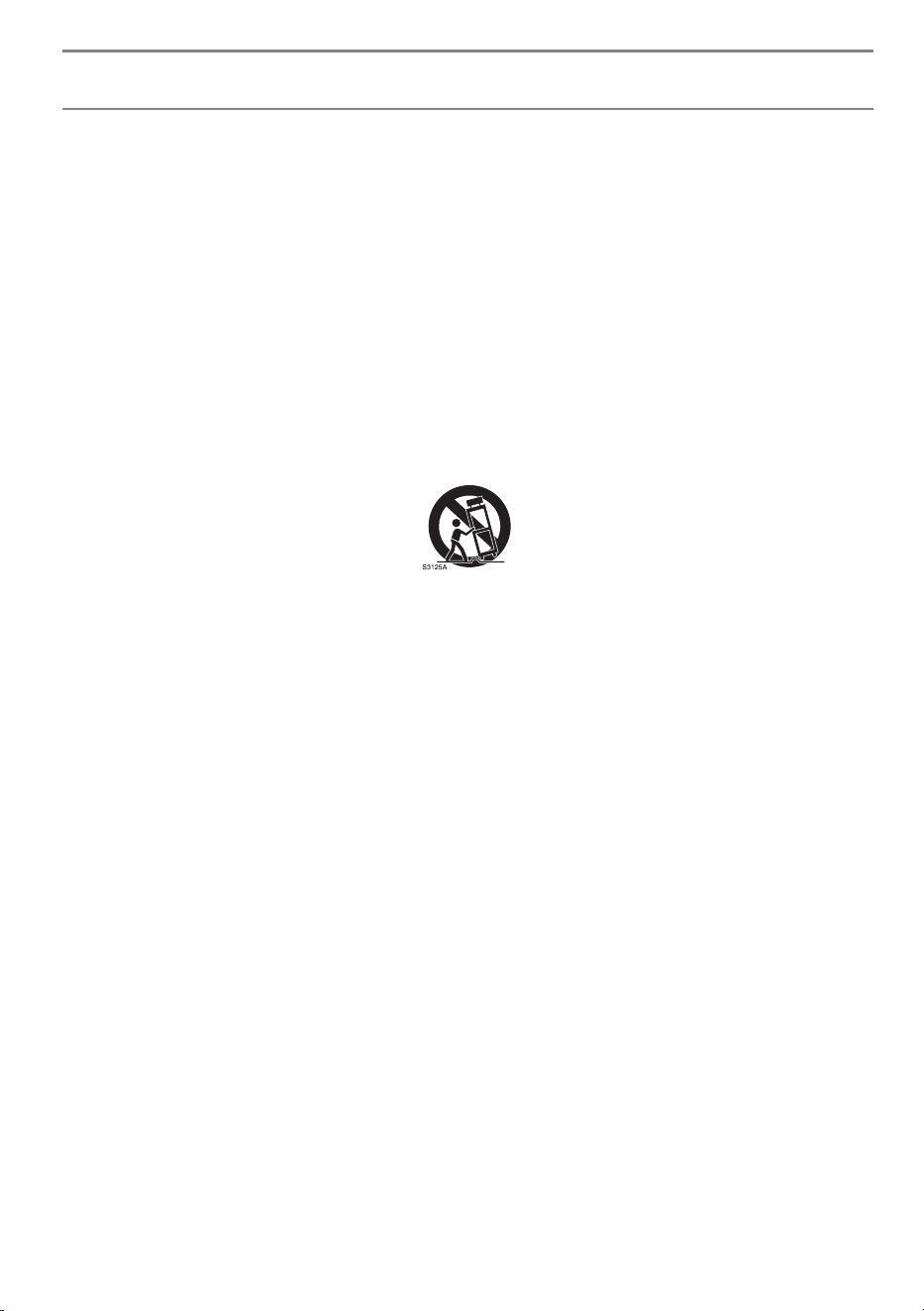
• Use only with the cart, stand, tripod, bracket, or table specified by the manufacturer, or sold with the apparatus. When a cart is used, use caution when
moving the cart/apparatus combination to avoid injury from tip-over.
• Unplug this apparatus during lightning storms or when unused for long periods of time.
• Refer all servicing to qualified service personnel. Servicing is required when the apparatus has been damaged in any way, such as power-supply cord or
plug is damaged, liquid has been spilled or objects have fallen into the apparatus, the apparatus has been exposed to rain or moisture, does not operate
normally, or has been dropped.
By using this product, you agree that all disputes between you and LG arising out of or relating in any way to this product (including but not limited to warranty
disputes) shall be resolved exclusively through binding arbitration on an individual basis. The terms of the arbitration agreement (including details on the
procedure for resolving disputes) is available at www.lg.com/us/arbitration (USA) or www.lg.com/ca_en/arbitration (Canada).
3
Warning! Safety instructions
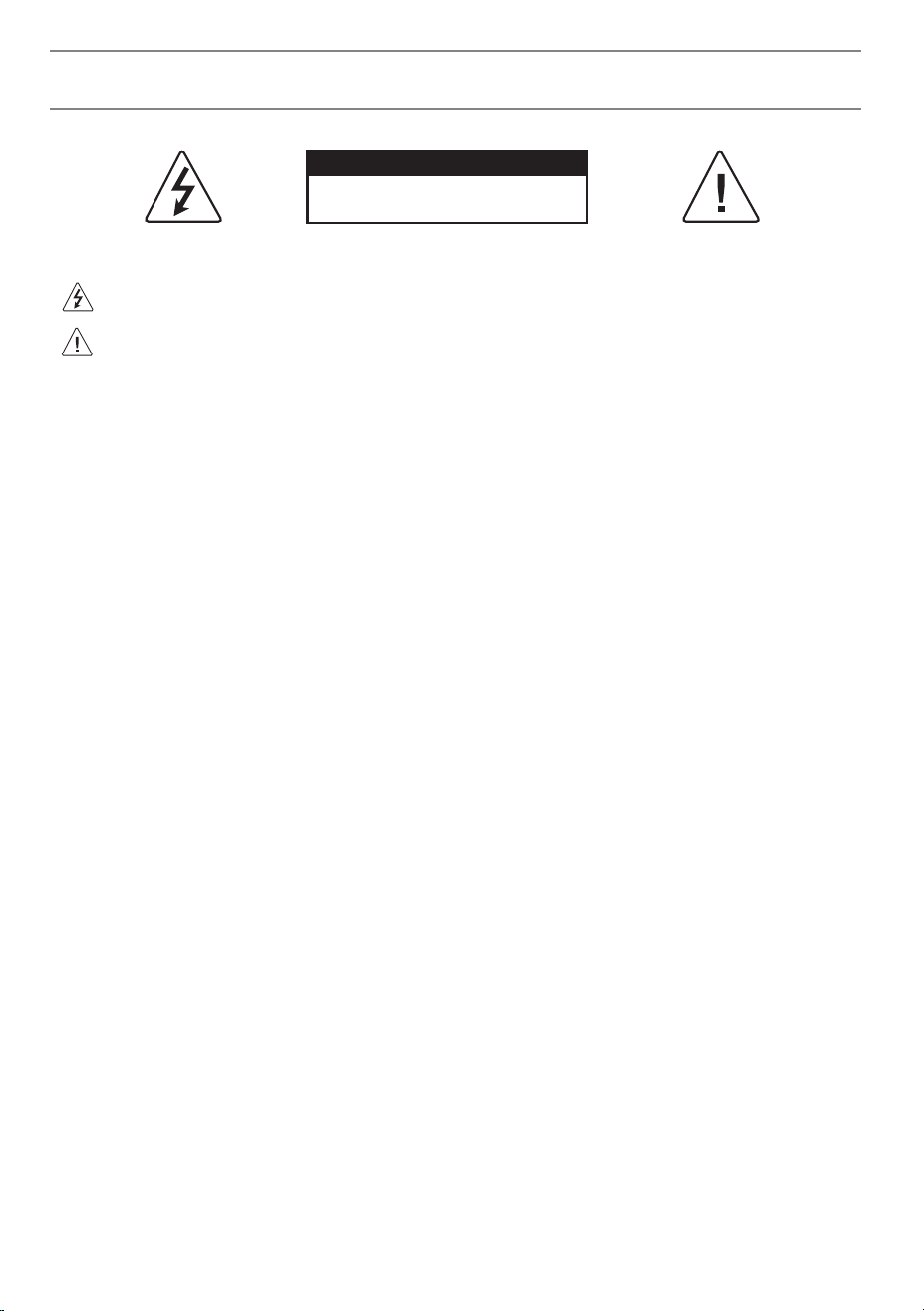
CAUTION
RISK OF ELECTRIC SHOCK
DO NOT OPEN
CAUTION: TO REDUCE THE RISK OF ELECTRIC SHOCK, DO NOT REMOVE COVER (OR BACK). NO USER-SERVICEABLE PARTS INSIDE. REFER TO QUALIFIED SERVICE
PERSONNEL.
This symbol is intended to alert the user to the presence of uninsulated “dangerous voltage” within the product’s enclosure that may be of sufficient
magnitude to constitute a risk of electric shock to persons.
This symbol is intended to alert the user to the presence of important operating and maintenance (servicing) instructions in the literature
accompanying this apparatus.
WARNING: TO REDUCE THE RISK OF FIRE AND ELECTRIC SHOCK, DO NOT EXPOSE THIS PRODUCT TO RAIN OR MOISTURE.
• TO PREVENT THE SPREAD OF FIRE, KEEP CANDLES OR OTHER ITEMS WITH
OPEN FLAMES AWAY FROM THIS PRODUCT AT ALL TIMES.
• Do not place the product and/or remote control in the following
environments:
- Keep the product away from direct sunlight.
- An area with high humidity such as a bathroom.
- Near any heat source such as stoves and other devices that produce
heat.
- Near kitchen counters or humidifiers where they can easily be exposed
to steam or oil.
- An area exposed to rain or wind.
- Do not expose to dripping or splashing and do not place objects filled
with liquids, such as vases, cups, etc. on or over the apparatus (e.g., on
shelves above the unit).
- Near flammable objects such as gasoline or candles, or expose the
product to direct air conditioning.
- Do not install in excessively dusty places.
- On unsecured or high furniture, such as shelves or bookshelves.
Otherwise, this may result in fire, electric shock, combustion/explosion,
malfunction or product deformation.
• Ventilation
- Install your product where there is proper ventilation. Do not install in
a confined space such as a bookcase.
- Do not install the product on a carpet or cushion.
- Do not block or cover the product with cloth or other materials while
unit is plugged in.
• Take care not to touch the ventilation openings. When watching the
product for a long period, the ventilation openings may become hot.
• Keep a distance of at least 10 cm (3.9 inches) away from other objects so
that the vents of the Zero Connect Box are not blocked.
- An increase in the internal temperature of the product may result in
fire and product failure.
• Protect the power cord from physical or mechanical abuse, such as being
twisted, kinked, pinched, closed in a door, or walked upon. Pay particular
attention to plugs, wall outlets, and the point where the cord exits the
device.
• Do not move the product whilst the Power cord is plugged in.
• Do not use a damaged or loosely fitting power cord.
• Be sure to grasp the plug when unplugging the power cord. Do not pull
on the power cord to unplug the product.
• Do not connect too many devices to the same AC power outlet as this
could result in fire or electric shock.
• Disconnecting the Device from the Main Power
- The power plug is the disconnecting device. In case of an emergency,
the power plug must remain readily accessible.
• Do not let your children climb or cling onto the product. Otherwise, the
product may fall over, which may cause serious injury.
• Outdoor Antenna Grounding (Can differ by country):
- If an outdoor antenna is installed, follow the precautions below.
An outdoor antenna system should not be located in the vicinity of
overhead power lines or other electric light or power circuits, or where
it can come in contact with such power lines or circuits as death or
serious injury can occur.
Be sure the antenna system is grounded to provide some protection
against voltage surges and built-up static charges.
Section 810 of the National Electrical Code (NEC) in the U.S.A. provides
information with respect to proper grounding of the mast and
supporting structure, grounding of the lead-in wire to an antenna
discharge unit, size of grounding conductors, location of antenna
discharge unit, connection to grounding electrodes and requirements
for the grounding electrode.
Antenna grounding according to the National Electrical Code, ANSI/
NFPA 70

4
• Never touch this apparatus or antenna during a lightning storm. You may
be electrocuted.
• Make sure the power cord is connected securely to the product and wall
socket if not secured damage to the Plug and socket may occur and in
extreme cases a fire may break out.
• Do not insert metallic or inflammable objects into the product. If a
foreign object is dropped into the product, unplug the power cord and
contact the customer service.
• Do not touch the end of the power cord while it is plugged in. You may
be electrocuted.
• If any of the following occur, unplug the product immediately
and contact your local customer service.
- The product has been damaged.
- If water or another substance enters the product (like an AC adapter,
power cord, or product).
- If you smell smoke or other odors coming from the product.
- When lightning storms or when unused for long periods of time.
Even the product is turned off by remote control or button, AC power
source is connected to the unit if not unplugged in.
• If the back screen of the TV moves, be careful as it may cause injury due
to jamming.
• Always avoid touching the back screen when it is moving, and ensure
that there are no people or objects around that could get jammed.
• Do not use high voltage electrical equipment near the product (e.g., a
bug zapper). This may result in product malfunction.
• Do not attempt to modify this product in any way without written
authorization from LG Electronics. Accidental fire or electric shock
can occur. Contact your local customer service for service or repair.
Unauthorized modification could void the user’s authority to operate
this product.
• Use only an authorized attachments / accessories approved by LG
Electronics. Otherwise, this may result in fire, electric shock, malfunction,
or product damage.
• Never disassemble the AC adapter or power cord. This may result in fire
or electric shock.
• Handle the adapter carefully to avoid dropping or striking it. Do not
subject the adaptor to external shock. An impact could damage the
adapter.
• To reduce the risk of fire or electrical shock, do not touch the product
with wet hands. If the power cord prongs are wet or covered with dust,
dry the power plug completely or wipe dust off.
• Batteries
- Store the accessories (battery, etc.) in a safe location out of the reach
of children.
- Do not short circuit, disassemble, or allow the batteries to overheat.
Do not dispose of batteries in a fire. Batteries should not be exposed
to excessive heat.
- Caution: Use the correct batteries for the product. Risk of fire or
explosion if the battery is replaced by an incorrect type.
• Moving
- When moving, make sure the product is turned off, unplugged, and
all cables have been removed. It may take 2 or more people to carry
larger products. Do not press or put stress on the front panel of the
product. Otherwise, this may result in product damage, fire hazard
or injury.
• Keep the packing anti-moisture material or vinyl packing out of the
reach of children.
• Do not allow an impact shock, any objects to fall into the product, and do
not drop anything onto the screen.
• Do not press strongly upon the panel with a hand or a sharp object such
as a nail, pencil, or pen, or make a scratch on it. It may causedamage
to screen.
• Do not hold the product screen, scratch the surface with a metal object,
or apply impact to it.
- The screen may break, resulting in personal injury or malfunction of
the product.
• Do not push or kick the product.
• Do not place heavy objects on top of the product.
• Be careful if you have pets
• Cleaning
- When cleaning, unplug the power cord and wipe gently with a soft/
dry cloth. Do not spray water or other liquids directly on the product.
Do not clean your product with chemicals including glass cleaner,
any type of air freshener, insecticide, lubricants, wax (car, industrial),
abrasive, thinner, benzene, alcohol etc., which can damage the
product and/or its panel. Otherwise, this may result in electric shock
or product damage.
5
Note
Reading the User Guide
The user guide consists of a ‘Quick User Guide,’ enclosed with your TV purchase, and an ‘Electronic User Guide,’ stored as a programme on the TV.
Quick User Guide
Contains safety precautions that must be complied with when using the TV, component installation methods, and external device connection methods.
• You can also download or view the Quick User Guide on digital devices such as PCs and mobile phones. Search for the model name in the user guide search
bar on the LG Electronics website.
• If you lose or damage the Quick User Guide, call the LG Electronics Customer Center to request a replacement.
Electronic User Guide
• LG Electronics is not responsible for any damage to the product or injuries caused by using non-genuine LG products.
• TV components are subject to change without prior notice for performance upgrades. The model name or design may also be changed according to the
circumstances or policies of the manufacturer.
• Images shown in this manual may differ from the actual product.
Optional Extras
Magic Motion Remote Control: A Magic Motion Remote Control with smart features such as voice recognition and motion control.
Shelf (SH-T4TA77): A shelf-type cabinet for storing connected devices, accessories, and other items.
External device connection cable: Cables for connecting external devices such as antennas to the TV.
• To make separate purchases, contact the LG Electronics Customer Service Center.
Before reading this manual
Understanding 60GHz wireless
• Wireless TVs use 60GHz radio waves to transmit high-quality video and audio wirelessly.
• The high bandwidth of 60GHz frequencies is advantageous for large data transmission and has strong linearity but is greatly affected by obstacles.
• For the best TV viewing experience, the transmitting and receiving antennas should face each other, and there should be no obstacles in the transmission
path.
• Transmission errors caused by obstacles are not malfunctions. Use the TV after properly installing it according to the recommended installation method.
• This product satisfies the standards for protecting the human body against electromagnetic waves*. (*Meets IEC62311 standards)
6
Installing and Using
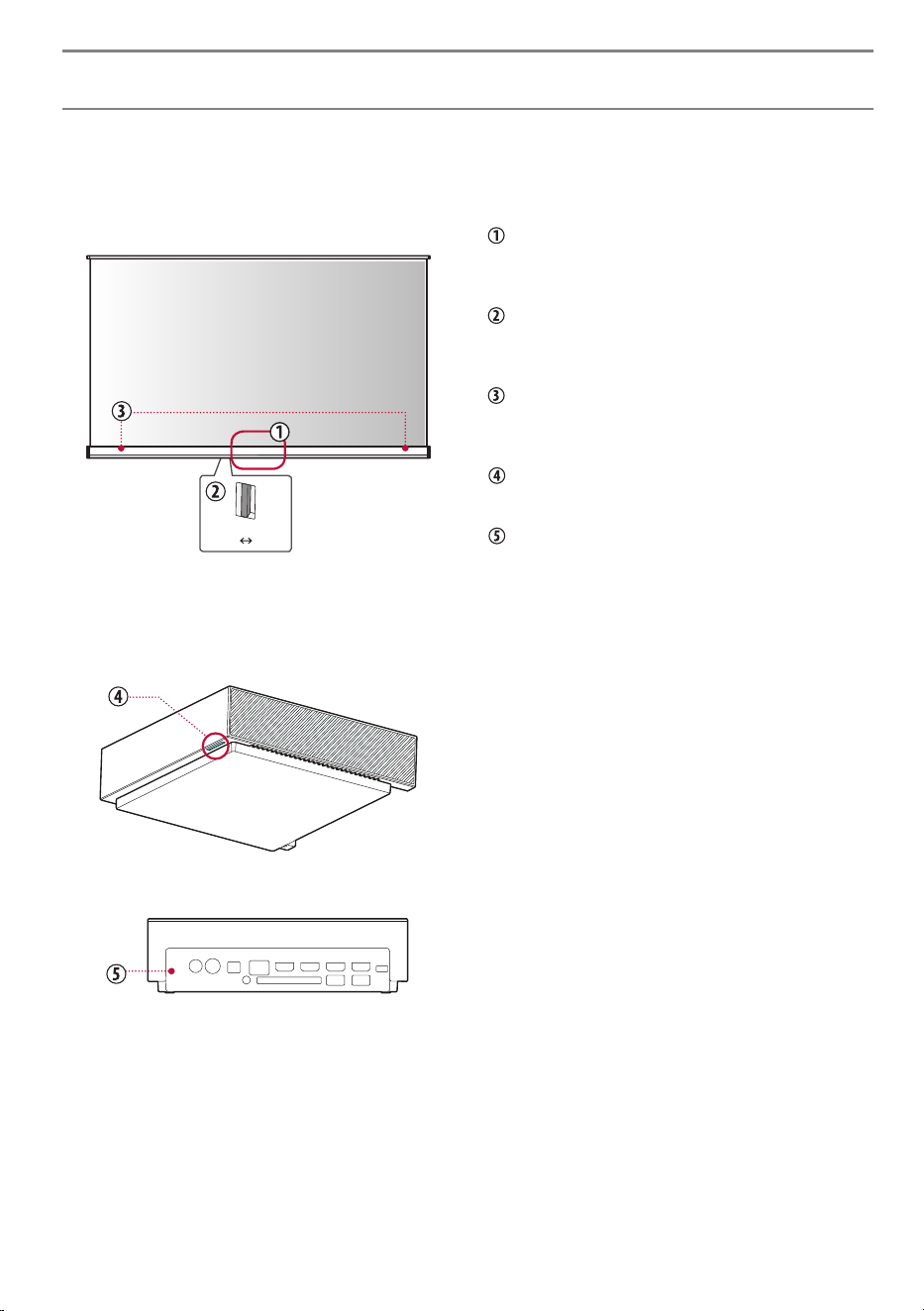
Examining the Appearance and Component Names of the Wireless TV (TV Screen +
Zero Connect Box)
TV Screen
Off On
Zero Connect Box (WM26GA)
It is a device that wirelessly transmits video and audio signals to the TV screen
by connecting an external antenna or set-top box.
Front and bottom views
Rear view
Power button
The power button is used to turn the TV screen on, switch to Always
Ready mode.
Mic switch
You can turn the TV-embedded microphone on and off by controlling
the microphone switch at the bottom of the TV.
Wireless signal receiver
This part receives the video and audio signals sent by the Zero
Connect Box.
Front LED
Indicates the power or operation status of the Zero Connect Box.
External connection terminal
You can connect the Zero Connect Box's power cord and external
video/audio devices such as external antennas and set-top boxes.
7
Installing Zero Connect Box
1. Choosing the Installation Location
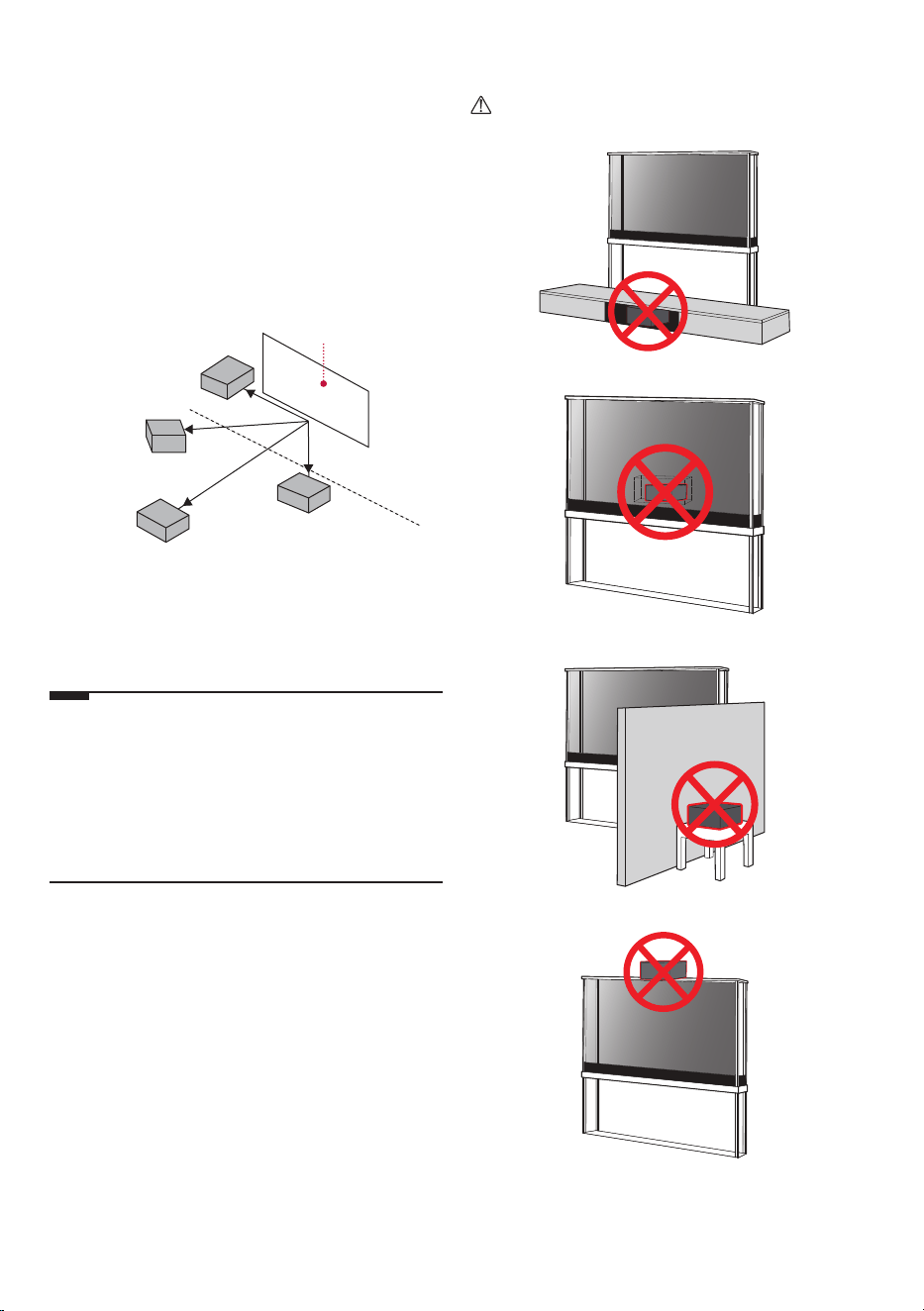
The Zero Connect Box can be installed in front, beside or below the TV screen.
Follow the user guide for proper installation.
• Do not place obstacles between the TV Screen and Zero Connect Box.
Doing so may interfere with wireless signal transmission.
• Install the Zero Connect Box lower than the wireless signal receiver of
the TV screen.
• The transmission range of the Zero Connect Box varies depending upon
the direction in which it faces the TV screen. Refer to the figure below
and install it within the appropriate distance.
TV Screen
3m (9.84feet) of the side
5m (16.4feet) diagonally
10m (32.8feet) of the front
3m (9.84feet) of the bottom
2. Performing Antenna Auto-Tuning
Please run the antenna auto-tuning for optimal wireless environment
settings.
Note
• Do not install two wireless TVs or Zero Connect Boxes in the same room.
They may interfere with one another.
• Do not place electronic devices or objects on top of the Zero Connect
Box. Doing so may cause interference in transmission, resulting in
screen display failure.
• When using a sound bar, ensure that it does not obstruct the wireless
signal receiver of the TV screen.
Caution
8
Installing the TV Screen
Installing as a stand
(Depending upon model)
This method involves setting up the TV screen upright on the floor using a
stand.
• Ensure a minimum distance of 10cm (3.9 inches) between the TV
screen and the ceiling, side walls, and the stand and the rear wall when
installing.
Note
• If you pull the TV screen forward, it may fall and lead to damage or
injury; therefore, ensure that it is secured to the wall.
• Install the screws on the back of the TV screen and the fixing hooks on
the wall at the same level to prevent tilting. Then, use a sturdy strap
to tie and secure the screws and fixing hook together. (Fixing hooks,
screws, and straps are sold separately.)
Warning
• Do not apply foreign substances (oils, lubricants, etc.) to the screw
parts when assembling the product. Doing so may cause damage to
the product.
• Ensure that all screws provided are used when assembling the stand, and
check that they are tightened fully. Incorrect assembly may cause the TV
to tilt or fall, resulting in damage.
• Tightening the screws with excessive force may cause them to come off
due to abrasion of the screw joint.
• Professional installation is required for the initial installation of the
product and the installation after changing its location; therefore, please
ensure that it is installed by an expert designated by the retail store.
Performance and safety issues may arise if you install the product by
yourself.
Caution
• Since the TV screen is heavy, at least two people should lift it vertically
when unpacking or moving it.
• Do not move while holding the cable holder or cable organization
band. Doing so may damage parts or the TV screen, or may cause injury.
(Depending upon model)
• Do not forcibly tilt the TV screen. Doing so may cause it to fall and result
in damage or injury.
• Take care to avoid getting your hands or fingers caught in the stand and
injuring yourself.
Connecting External Terminals
You can connect external devices such as cables, HDMI, and set-top boxes
to the TV. For more information of external device’s connection, refer to the
manual provided with each device.
• When used with an external device using a 60GHz frequency, the screen
may fail to display due to mutual interference.
• Set the appropriate resolution and frequency for the connected device.
Failure to do so may cause straining of the eyes.
• The detailed installation method may vary depending upon the TV
model.
• The TV may be capable of operating without a set-top-box from a
multichannel video programming distributor (MVPD).
Installing Antenna/Cable
• Insert the coaxial cable that transmits audio/video signals into the
antenna/cable input terminal or antenna input terminal on the back of
the Zero Connect Box.
• Be careful not to bend the copper wire when connecting the coaxial
cable.
• Use a signal amplifier if the signal is weak.
• When using one antenna for two or more TVs, use a signal splitter.
Note
• Do not apply oil or lubricant to the screws used during installation.
Doing so may cause the TV to malfunction.
HDMI
• Use an HDMI certified cable (less than 3m (9.84feet)) with the HDMI
logo (Ultra High Speed HDMI
®
/™ cable).
• Turn off the power of the TV and all connected devices, and unplug them
from the socket before connecting the HDMI cable.
• Connecting a device that supports the HDMI Ultra HD Deep color feature
to the TV will provide a clearer image. If you connect a device that
does not support this feature and enable the feature, it may not work
properly. If problems arise, change the settings.
Note
• HDMI audio support formats may vary depending upon the TV model.
• HDMI devices should have bezels less than 10mm (0.39inches) thick
and 18mm (0.7inches) width.
9
USB / USB Hub
If the USB hub connected to the TV does not recognize USB devices, connect
the USB directly to the TV terminal.
Note
• If the shapes of the TV terminal and the USB device do not match, use
an extension cable that supports .
• USB devices should have bezels less than 10mm (0.39inches) thick and
18mm (0.7inches) width.
IR Blaster
This is an infrared transmitter that allows smoother control of devices such as
set-top boxes, Blu-ray players, DVD players, sound bars, and gaming consoles.
• If the Zero Connect Box is installed in a location other than the bottom
of the TV, external devices may not be controlled smoothly with the TV
remote control; therefore, connecting an IR blaster is recommended.
• Controlling the IR blaster requires an integrated remote control setting.
• Secure both ends of the IR blaster to the front (receiver) of the external
device remote control using the tape provided.
• In order to control external devices through "Hands-free Voice Control",
an IR blaster connection is required.
Adapter
Caution
• Please be sure to connect the TV to the AC-DC power adapter before
connecting the TV’s power plug to a wall power outlet. (Depending
upon model)
Wired LAN
• TV audio can be transmitted to the sound bar (external audio device).
When transmitting via wired methods (optical digital, HDMI ARC),
connect to the rear external terminal of the Zero Connect Box, and when
transmitting wirelessly (LG soundbar supporting the WOWCAST feature),
use the WOWCAST feature. (Depending upon country)
Remote RS-232C setup
To obtain the RS-232C external control setup information, please visit www.
lg.com. Download and read the manual, (Depending upon model).
Caution
• Do not drop the product or let it fall over when connecting external
devices. Otherwise, this may result in injury or damage to the product.
• When connecting external devices such as video game consoles, make
sure the connecting cables are long enough. Otherwise, the product may
fall over, which may cause injury or damage the product.
Using the TV
Using the power button
Press the power button ( ) located on the bottom of the TV briefly to turn
the screen on and hold it to turn off all functions and the screen.
• Only use the power button when the TV screen and the Zero Connect Box
are connected.
• The shape and location of the power button may vary depending upon
the TV model.
• When you turn on the power for the first time after purchasing the
product, it may take about 1 minute for the screen to turn on due to
initialization.
• For models with motion sensors, if you set screen on with the motion
sensor, the TV will turn on by recognising the motion. (Depending upon
model)
10
Managing
Protecting the OLED TV Screen
• Unlike general LED/LCD TVs, OLED TVs can display perfect black and produce clear images without light blurring.
• Due to the characteristics of OLED materials that provide high-resolution display, image retention may occur or persist, leaving an afterimage on the screen.
• Image retention is a common phenomenon in all OLED panels. Using the recommended viewing mode can minimize image retention.
• Avoid displaying images that are likely to cause image retention, and follow the recommendations.
Images that are likely to cause image retention
• Screen with black areas on one or more sides on the top, bottom, left or right.
• Images whose aspect ratio is 4:3 or 21:9.
• Screens with images fixed for a long time, such as channel numbers, broadcast station logos, game console icons, or set-top box menus.
• Other static screens or screens that repeat the same scene.
Recommendations for Minimizing Image Retention
• If there are black areas on one or more of the top, bottom, left, or right sides of the screen, remove the black areas before watching.
• Turn off the menu for setting up external devices such as set-top boxes so that it is not displayed on the screen for a prolonged period.
Note
• OLED TVs automatically lower screen brightness when a fixed image is received for an extended period and restore brightness once the fixed image is gone.
• This is one of the features of the TV for minimizing image retention and is not a malfunction.
Running Pixel Cleaning
OLED TVs are equipped with a pixel cleaning feature that detects screen conditions on its own to prevent retention.
• Pixel cleaning automatically calculates the optimal execution time based on cumulative viewing time and runs automatically when you turn off the TV.
• Horizontal lines may appear at the top and bottom of the screen during pixel cleaning.
• The pixel cleaning feature works when the TV is connected to the power cord and main power.
• Pixel cleaning can also be run manually.
11
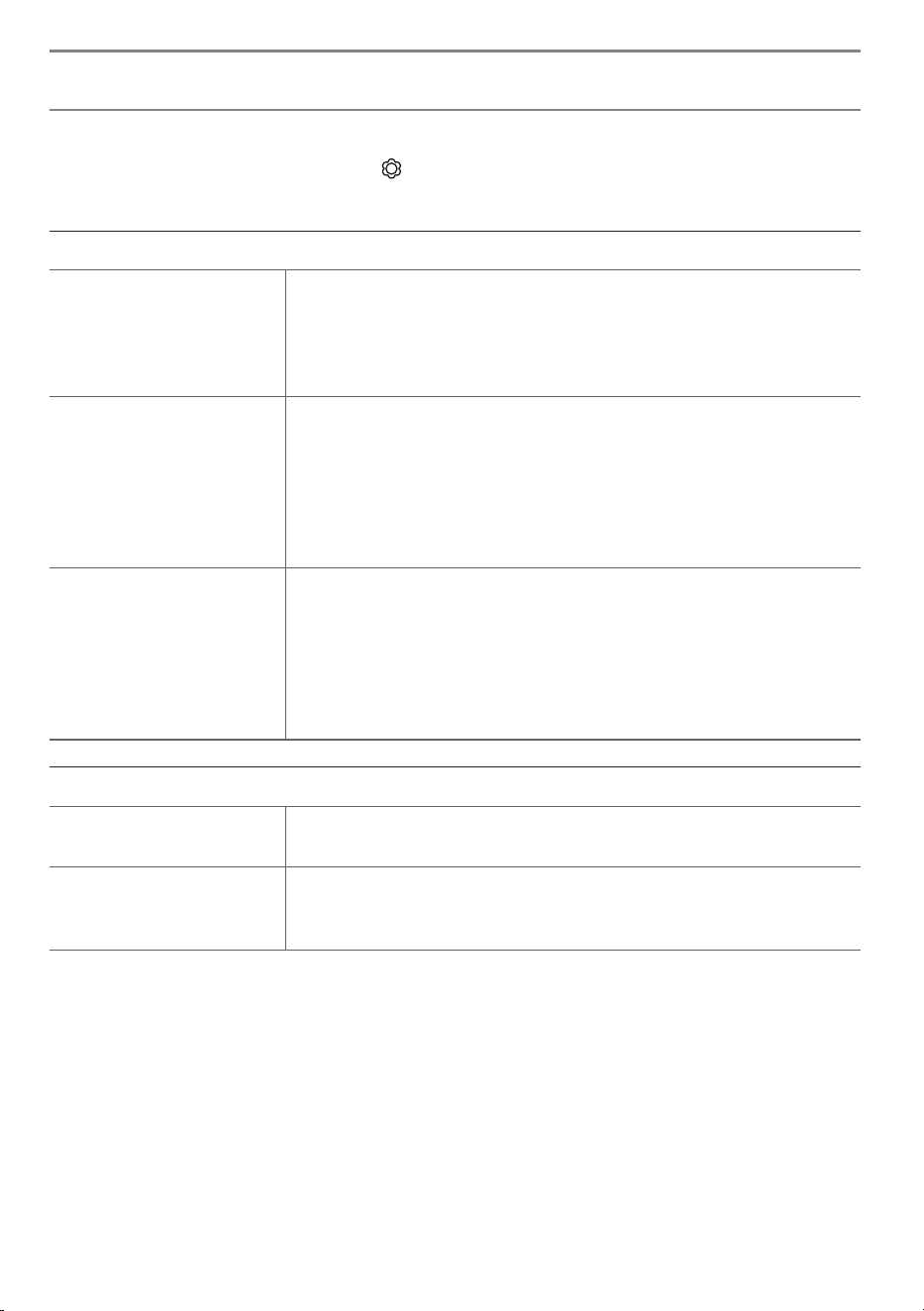
Troubleshooting
• If you notice any of the problems below while using the product, please check again. It may not be a fault.
• Before contacting the LG Electronics Service Center, press the button on the remote control three times in TV/HDMI input mode to check the product
model name and serial number. You will be able to receive faster assistance.
• For detailed information or videos, visit www.lg.com for the troubleshooting page.
Power and Screen
The product does not turn on. » Is the power cord plugged in properly?
Check if the power cord is plugged properly into the product and socket.
» Is there a problem with the socket?
Plug the power plug of another device into the socket where the product was plugged in to check if the
socket is functioning properly.
The product turns off suddenly. » Is the sleep timer set?
Check if the auto-off function is activated on the settings related time.
» Check if the external devices are working together.
Stop using the external devices you are using together and check if the TV is working normally.
» Did the auto-off feature work?
This product is equipped with an auto-off function that automatically turns off the power if the remote
control is not used for 15 minutes without an input signal.
Dots on the screen. » Do you see white dots, bright dots, dark dots, or flickering dots on the screen?
This product is an advanced product containing millions of pixels. You may see flickering dots of about
1/1,000,000 (1 PPM). These are not considered product defects or malfunctions.
• White Dots: dots that appear bright,
• Bright Dots: dots that appear brighter than normal image
• Dark Dots: dots which part of a letter or an object is invisible or blurry
• Flickering Dots: Dots that flicker
Zero Connect Box Connection
A power connection image appears on
the screen.
» Is the Zero Connect Box connected properly?
Ensure that the Zero Connect Box power cord is plugged firmly into the socket.
A Zero Connect Box connection image
appears on the screen.
» Are there any objects interfering with the wireless signal transmission?
Clear any objects between the TV screen and the Zero Connect Box.
» Follow the on-screen instructions to auto-tune the antenna or reconnect the Zero Connect Box.
12
Hands-free Voice Control
Voice recognition is not working well. » Is the Hands-free Voice Control feature turned on?
Check to see if the hands-free voice setting is turned on. (Depending upon model)
Motion Detection
In Always Ready mode, the motion
sensor activates unnecessarily or fails
to activate.
(Depending upon model)
» Is the motion sensor clean?
The motion sensor is located at the bottom center of the TV screen and may not function properly if covered
with foreign substances. Wipe it clean with a soft cloth.
» Is there an object interfering with the motion sensor detection?
Clear any objects in front of the TV screen.
» Is the motion sensor too sensitive or insensitive?
The motion sensor can activate when detecting movements of pets, robot vacuum cleaners, and other
objects as they are recognized as motions.
Noise
There is noise coming from the
product.
» Do you hear a "ticking" sound?
This is the sound of the plastic deforming due to temperature and humidity. It is a common phenomenon in
plastic products like furniture and cars; therefore, it is not a cause for concern.
» Is the noise related to electricity?
The sound is caused by the high-speed switching circuit that supplies current to the product, and it does not
affect the functionality of the product.
» Do you hear the fan noise from the Zero Connect Box?
This is a normal sound created to dissipate heat generated inside the product.
* LG Electronics manages product production with strict standards, and noise below a certain level is not
considered a product defect or malfunction.
13
Other
If any of the following issues occur, turn off the product, unplug the power plug from the socket and contact the LG Electronics Service Center for inspection.
Do not repair the product yourself.
• If the product fails to display images or produce sound, even when the power is turned on
• If the product continues to display images or produce sound, even when the power is turned off
• If there is smoke or a burning smell coming from the product
• If water or a foreign substance gets into the product
• If the screen image appears to be cut off
• If the product makes repetitive sounds, such as a "buzzing" or "cracking" noise
• If there is any other problem or malfunction with the product
Product information
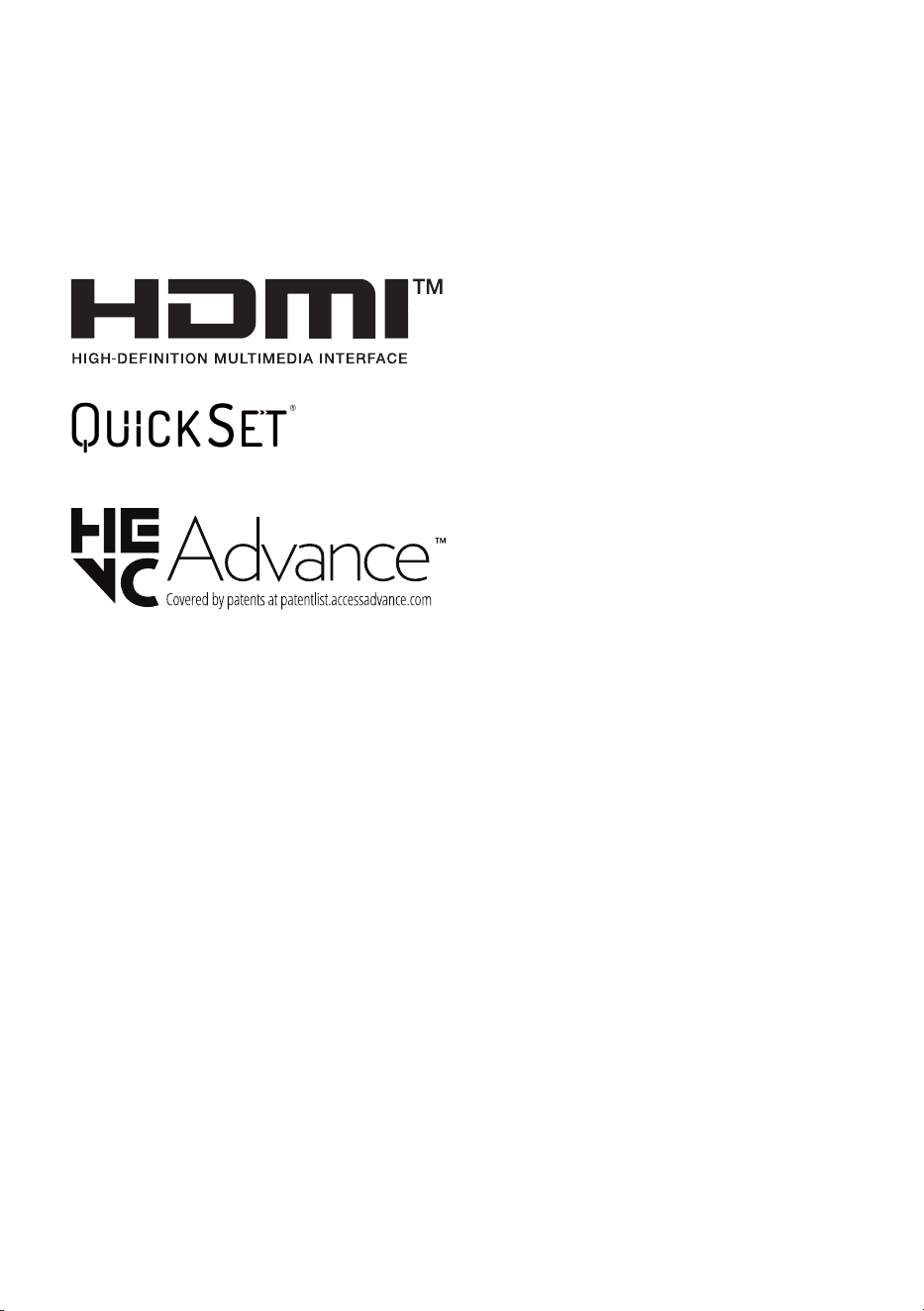
Broadcasting Specifications
(Depending upon country)
Television system Terrestrial / Cable / Satellites Digital TV
External antenna impedance 75Ω
Environment Condition
Operating Temperature 0°C to 40°C (32 °F to 104 °F)
Operating Humidity Less than 80%
Storage Temperature -20°C to 60°C (-4 °F to 140 °F)
Storage Humidity Less than 85%
Wireless Reception Conditions Distance
3 - 10m (9.84 -32.80 feet)
(Only under conditions with no obstacles)
Power requirement AC 120V~ 50/60Hz
Adapter Zero Connect Box
Manufacturer : Shenzhen Honor Electronic Co., Ltd.
Model : ADT-65AI-D00-3
Product specifications may be changed without prior notice due to upgrade of product functions.
Estimated yearly energy consumption indicated on the FTC label is measured in accordance with the Test Procedures for Television Sets (USA only).
The actual energy consumption depends on the usage environment (The content watched, TV settings, etc.).
• For information of the power supply and power consumption, refer to the label attached to the product.
- The typical power consumption is measured in accordance with IEC 62087 or each country’s energy regulations.
- See the label on the bottom of the product for power source, power ratings and product information.
* On some models, the label is inside the external device connection terminal cover.
* Depending upon the model or country, the typical power consumption may not be on label.
14
Open Source Software Notice Information
To obtain the source code that is contained in this product, under GPL, LGPL, MPL, and other open source licenses that have the obligation to disclose source code,
and to access all referred license terms, copyright notices, please visit https://opensource.lge.com.
LG Electronics will also provide open source code to you for a charge covering the cost of performing such distribution upon email request to
This offer is valid to anyone in receipt of this information for a period of three yearsafter our last shipment of this product.
Licenses
(Magic Motion Remote Control supported models only)
15
Regulatory
-
-
-
-
NOTE TO CABLE/TV INSTALLER
(For USA)
This reminder is provided to call the CATV system installer’s attention to Article 820-40 of the National Electric Code (U.S.A.). The code provides guidelines for
proper grounding and, in particular, specifies that the cable ground shall be connected to the grounding system of the building, as close to the point of the cable
entry as practical.
LG Take-back & Recycling Policy
16
WARNING! (STABILITY HAZARD)
A television set may fall, causing serious personal injury or death. Many injuries, particularly to children, can be avoided by taking simple precautions such as:
- ALWAYS use cabinets or stands or mounting methods recommended by the manufacturer of the television set.
- ALWAYS use furniture that can safely support the television set.
- ALWAYS ensure the television set is not overhanging the edge of the supporting furniture.
- ALWAYS educate children about the dangers of climbing on furniture to reach the television set or its controls.
- ALWAYS route cords and cables connected to your television so they cannot be tripped over, pulled or grabbed.
- NEVER place a television set in an unstable location.
- NEVER place the television set on tall furniture (for example, cupboards or bookcases) without anchoring both the furniture and the television set to a
suitable support.
- NEVER place the television set on cloth or other materials that may be located between the television set and supporting furniture.
- NEVER place items that might tempt children to climb, such as toys and remote controls, on the top of the television or furniture on which the television
is placed.
If the existing television set is going to be retained and relocated, the same considerations as above should be applied.
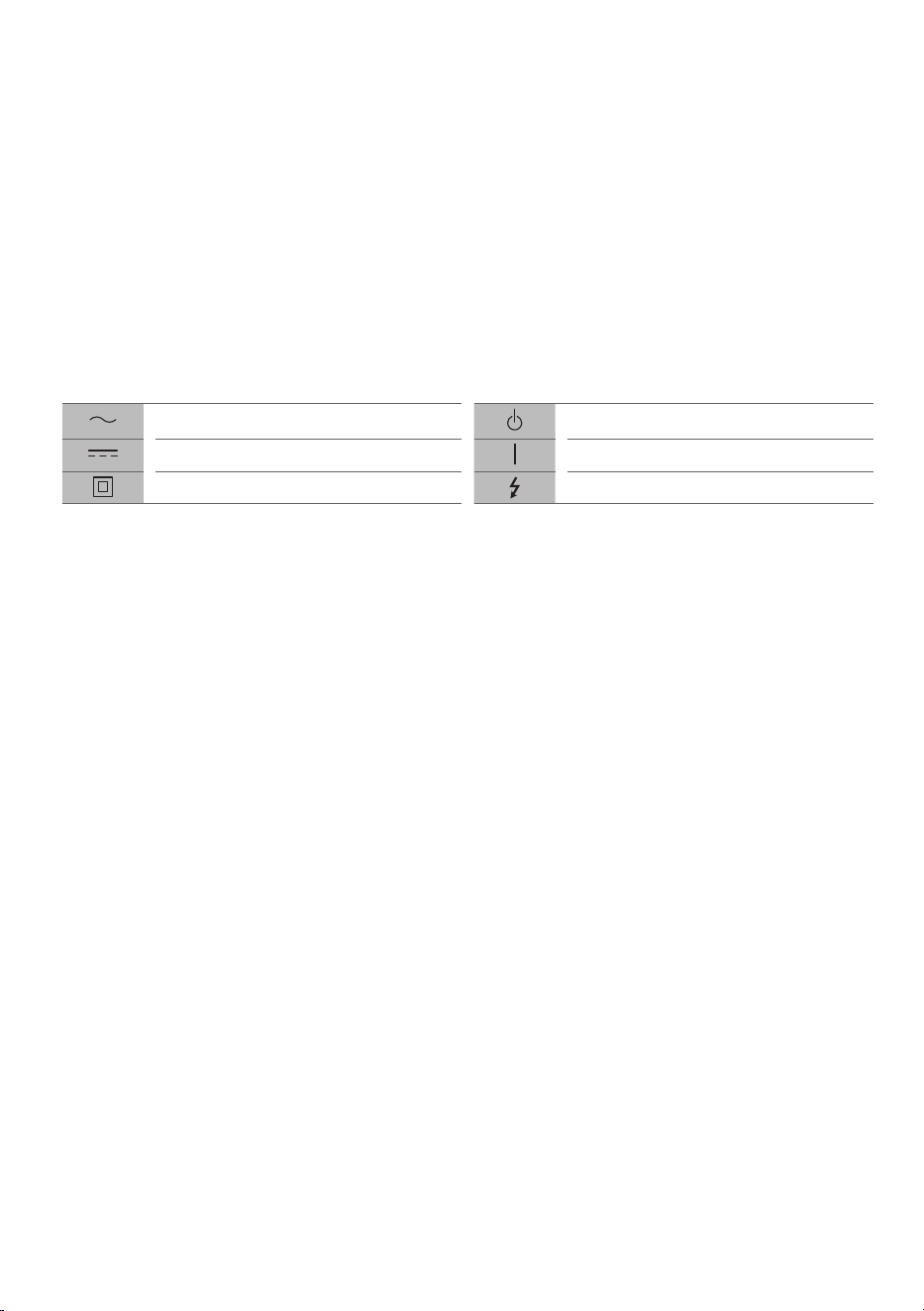
Symbols
Refers to alternating current (AC). Refers to stand-by.
Refers to direct current (DC). Refers to “ON” (power).
Refers to class II equipment. Refers to dangerous voltage.
17
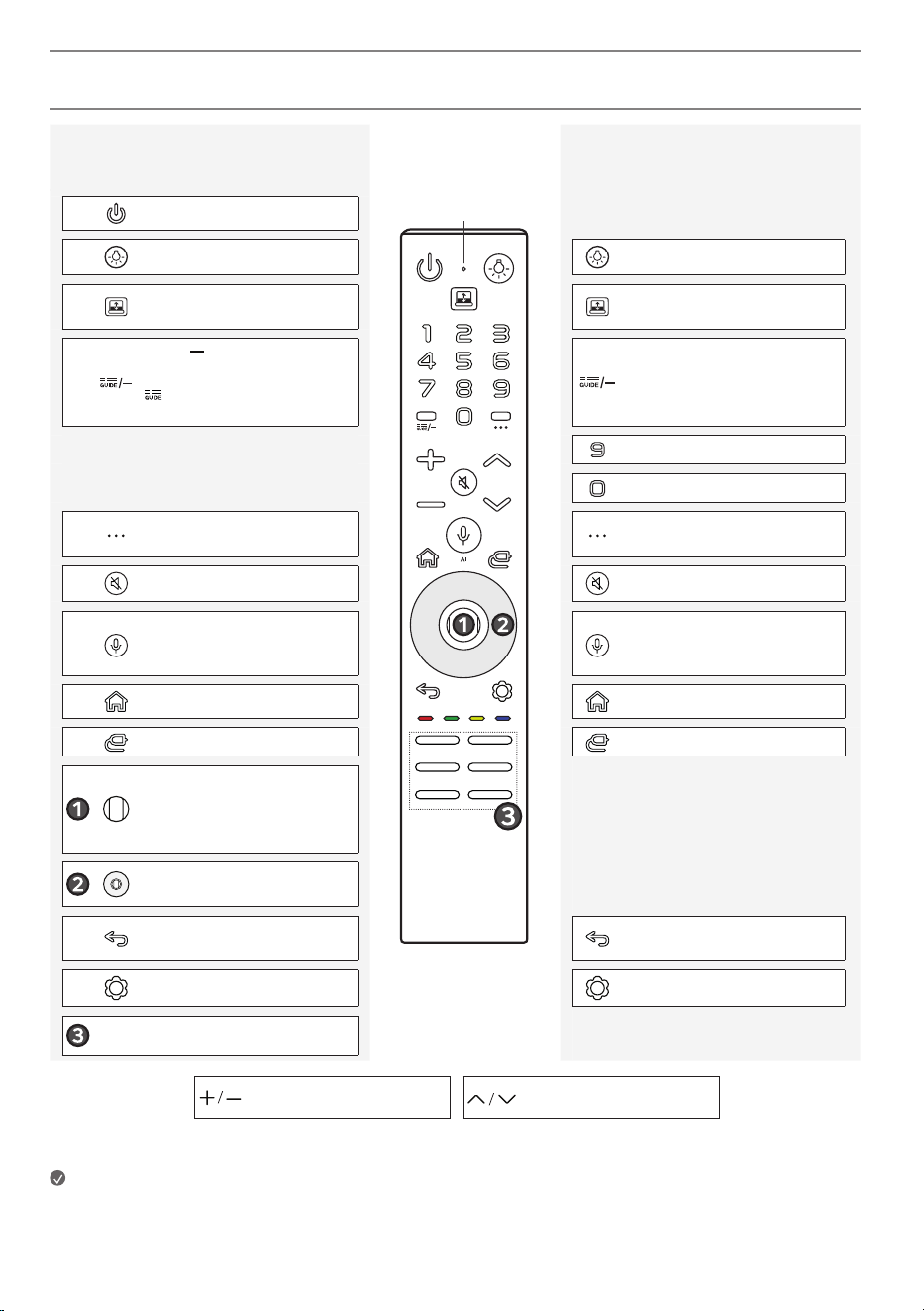
Using Magic Motion Remote Control
Adjusts the Volume Level.
Scrolls through the saved Channels.
Short press
Basic Guide
Long press
Extension Guide
Power: Turns the TV On or Off.
Microphone
Turns the Light On or Off. Accesses the Lighting Settings.
Turns Black Mode or Transparent Mode.
Accesses the Transparent Mode
Switch Settings.
Inserts a between numbers such as
2-1 and 2-2.
Displays the channel event according
to time scheduler.
Accesses the saved Channels List.
Accesses the Quick Help.
Accesses the Edit Quick Access.
Displays more remote control functions.
Enables SAP (Second Audio Program)
Feature.
Mutes all sounds. Accesses the Accessibility Shortcuts.
Check for recommended content. (Some
recommended services may not be
available in some countries.)
Speak while pressing and holding the
button to use the Voice recognition
feature.
Displays the Home Menu.
To enable the Screen Zoom.
Changes the Input Source. Displays the Home Hub.
Press to select menu and operate device.
(play/pause, etc.)
Scroll up and down Scrolls the screen
or change channels.
Up, Down, Left, Right Navigation
buttons.
Move to the Previous Step.
The screen displayed on the TV is closed
and the Home Menu appears.
Displays the Quick Settings Menu. Displays the All Settings Menu.
Various content service buttons.
Note
• The terms in this manual are used in general terms to help users understand and may not match the terms displayed on the screen.
18
The descriptions in this manual are based on the buttons on the remote
control. Please read this manual carefully and use the TV correctly.
This remote uses infrared light. When in use, it should be pointed in the
direction of the TV’s remote sensor.
(Some buttons and services may not be provided depending upon models
or regions.)
How to register the Magic Motion Remote
Control
To use the Magic Motion Remote Control, first pair it with your TV.
1. Put batteries into the Magic Motion Remote Control and turn the TV on.
2. Point the Magic Motion Remote Control at your TV and press the
Wheel (OK) on the remote control.
* If the TV fails to register the Magic Motion Remote Control, try again after
turning the TV off and back on.
How to deregister the Magic Motion Remote
Control
Press the (Back) and (Home) buttons at the same time, for five
seconds, to unpair the Magic Motion Remote Control with your TV.
* Press and hold the (Home) and (Settings) buttons for more than
5 seconds to disconnect and re-register the Magic Motion Remote Control
at the same time.
• It is recommended that an Access Point (AP) be located more than
0.2m(0.65ft) away from the TV. If the AP is installed closer than
0.2m(0.65ft), the Magic Motion Remote Control may not perform as
expected due to frequency interference.
Using Always Ready
(Depending on model)
You can operate the TV and connect to Bluetooth with direct voice recognition
while the power is off.
* Pressing the button while watching TV switches the screen to [Always
Ready] that is turned on, and pressing the button once more turns the
screen to [Always Ready] that is turned off.
* Press the (Home) button or the (Back) button to watch TV when
the screen is in [Always Ready] that is turned on.
* Press the Wheel (OK) button to display the wallpaper when the screen
is in [Always Ready] that is turned off, and press the button to watch TV.
Note
• Using Always Ready may increase energy consumption.
Connecting Smart Devices using NFC Tagging
NFC is technology that uses Near Field Communication (13.56MHz), allowing
you to conveniently send and receive information without separate settings.
By bringing a smart device near the NFC-enabled remote control, you can
install the LG ThinQ app and connect the device to the TV.
1. Turn on NFC in the smart device’s settings. To use NFC with Android
devices, set the NFC option to enable ‘read/write tags’ in the smart
device's settings. The NFC settings may vary depending on the device.
2. Bring the smart device near the (NFC) on the remote control. The
required distance for NFC tagging is about 1cm (0.39inches).
3. Follow the instructions to install the LG ThinQ app on your smart device.
4. Retagging the smart device to the remote control allows you to
conveniently access various features on the connected TV through the LG
ThinQ app.
Note
• This feature is available for NFC-enabled smart devices only.
• This feature is only available if the remote control has an NFC logo.
The model and serial number of the product are located
on the back and on one side of the product. Record
them below in case you ever need service.
Model
Serial No.
Supplier`s Declaration of Conformity
Trade Name LG
Responsible Party LG Electronics USA, Inc.
Address 111 Sylvan Avenue, North
Building, Englewood Cliffs,
NJ07632
E-mail [email protected]
LG Customer Information Center
For inquires or comments, visit www.lg.com or call;
1-800-984-6306 USA
Register your product Online!
www.lg.com