KATASYMBOL
T80M Pro
Scan the QR Code for multi-language guide and support.
Scannen Sie den QR-Code für mehrsprachige Anleitung und Unterstützung.
katasymbol.com
Instruction / Anleitung
Support / Unterstützung
Find more instructions
and Customer Support inside the App.
Support / Unterstützung
Weitere Anleitungen und Kundenbetreuung
finden Sie in der App.
Scan to download App
Katasymbol ( iOS & Android)
Scan for user guide and support
in other languages
Scannen zum Herunterladen der App
Katasymbol ( iOS & Android).
Scannen Sie für Benutzerhandbuch
und Support in anderen Sprachen.
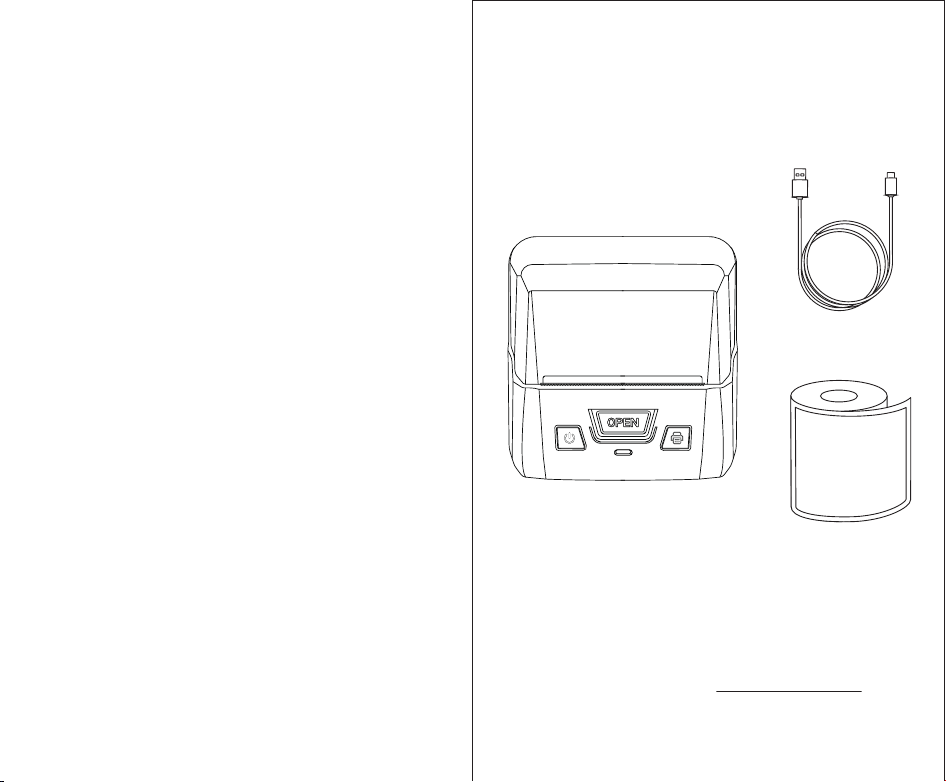
Checklist
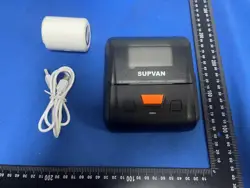
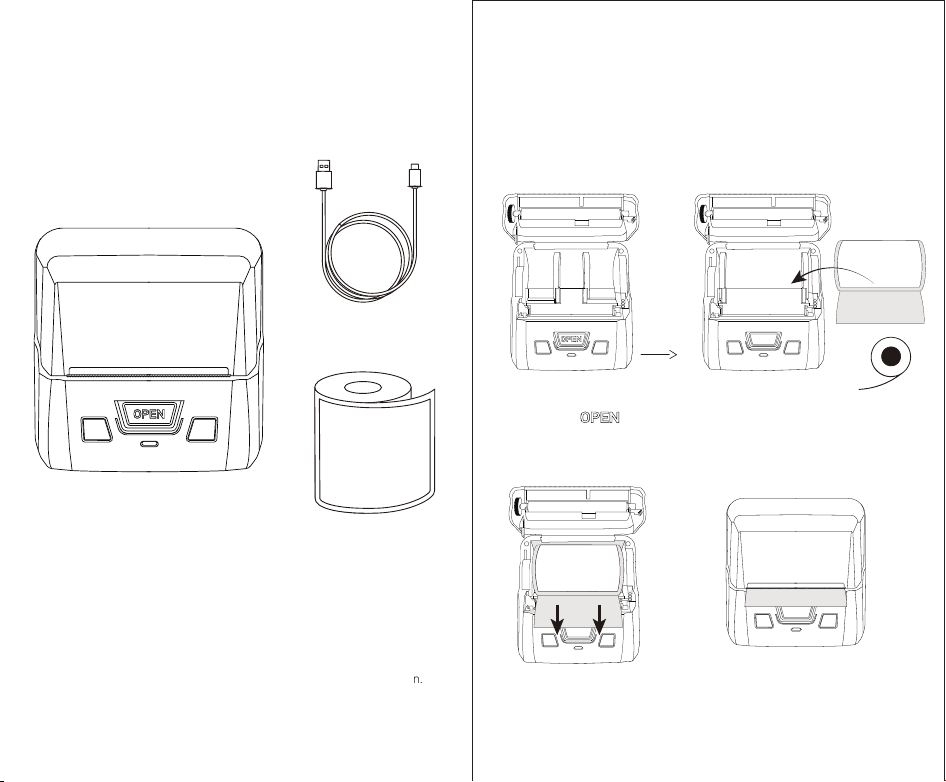
1 Printer
1 Cable*
*The cable may be used as a charging cable,
or data cable – connect to your computer
and use the “Katasymbol” label editor software to edit and print.
Download the software at: us.supvan.com/download
03
Label Tape
(One tape packed inside
the printer's tape case)
----------------------------------------- 03
----------------------------- 04
--------------------------------------- 05
------------------------ 06
------------ 07
--------------------------------------- 08
----------------------------------------- 09
------------------------------------- 10
---------------------------------- 11
-------------------------------- 12
---------------------------- 14
---------------------------- 15
---------------------------------- 16
--------------------------------------- 18
----------------- 19
------------------------------------- 20
--------------- 21
------- 22
--------------------------- 23
---------------------------------- 24
----------------------------------------- 25
---------------------------------- 26
------------------------ 27
------------------ 29
----------------------------- 30
----------------------------- 31
Contents
Checklist
Install the Label Tape
The Printer
Connect to Printer via App
Use with Computer Software
Print & Cut
Features
Maintenance
Troubleshooting
Safety Information
Warranty / Disclaimer
Product Specifications
Available Labels
Checkliste
Legen Sie das Etikettenband ein
Der Drucker
Verbindung zum Drucker über App
Verwendung mit Computersoftware
Drucken & Schneiden
Besonderheiten
Wartung
Fehlerdiagnose
Sicherheitsinformationen
Garantie / Haftungsausschluss
Produktspezifikation
Verfügbare Etiketten
English
Deutsch
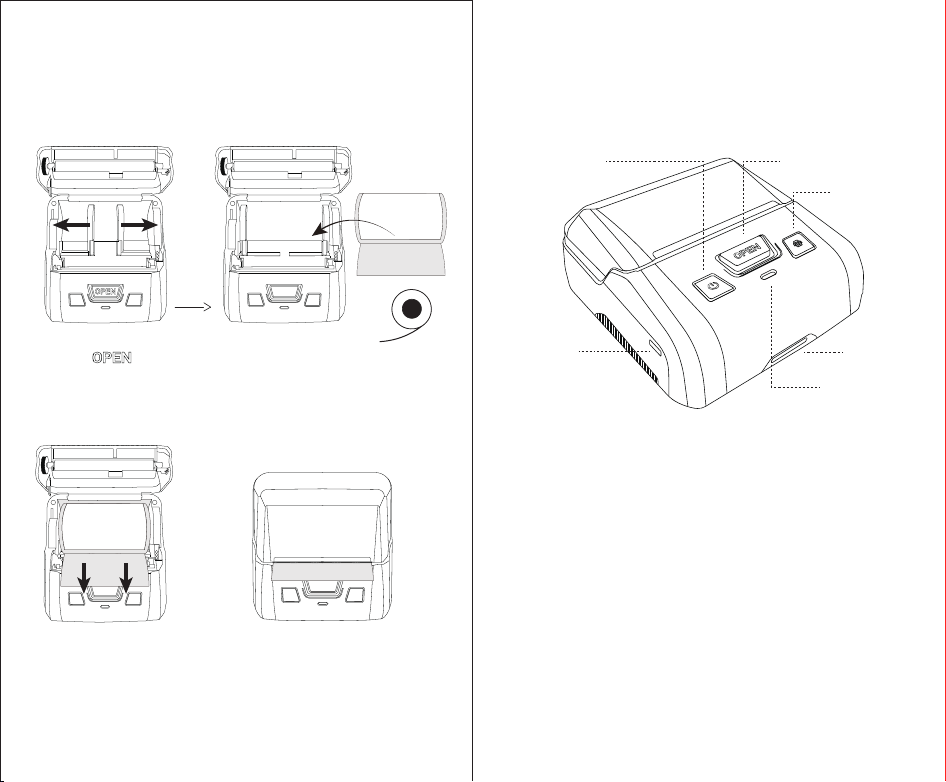
Install the Label Tape
Put in the label tape.
* note the round plastic piece
must be on the right side
Pull and turn a length of
label paper out, and close
the case tightly.
① Long press the power button
to turn on the printer.
② Double-click the printer button
to retract the paper precisely to
the standby position.
04
① Press to open
the label tape case.
② Pull to open the label
holding clip.
The Printer
05
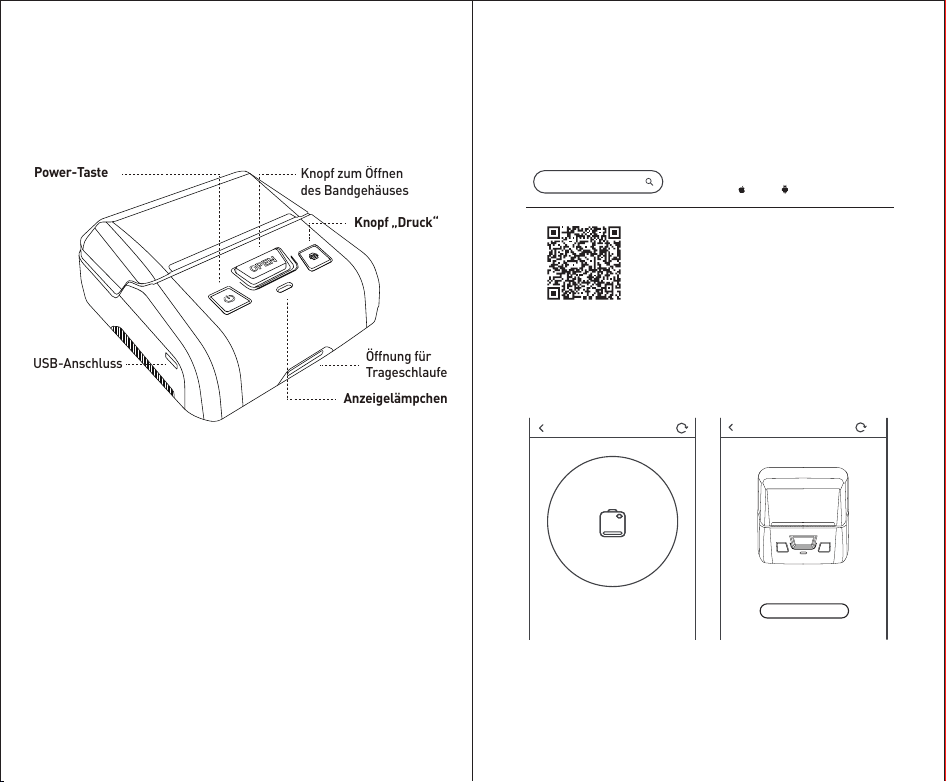
- Long press to turn on and off.
Power Button
Status Indicator
- Green: Standby / normal
- Green blinks: Printing
- Yellow: Bluetooth not connected
- Red blinks: Device error / printing error
- Red: Low battery / charging
Print Button
- Press to repeat last printing.
- Double-press to retract label paper.
- Triple-press to print a QR code for
connecting to the printer (Android only).
USB port
Power button
Indicator light
Print Button
Tape case open button
Strap hole
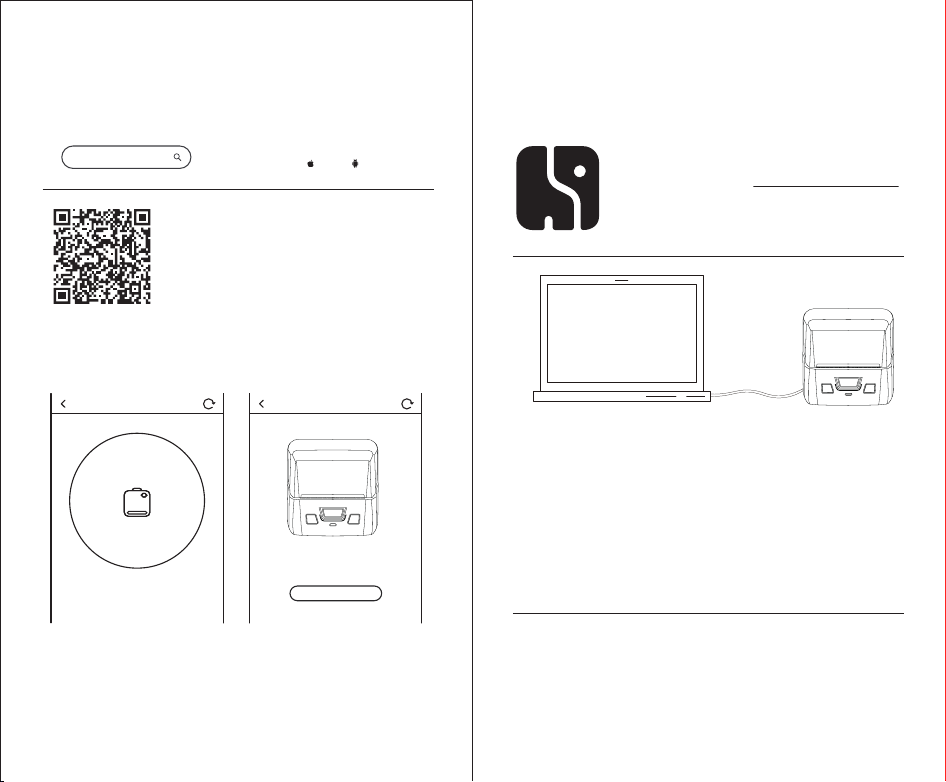
Connect to Printer via App
*If asked for permission, please allow the App
to access the location information of the smart phone (Android only).
Otherwise the Bluetooth connection will not function.
Download “
Katasymbol
”
from App store ( iOS & Android).
Or scan the QR code
to download the App
1. Hold the power button for 2 seconds to
turn on the printer with Bluetooth on.
2. Turn on the Bluetooth on your phone.
3. Download and open the App on your
smartphone.*
4. Click “Add Printer”and search for the
device to connect.
Katasymbol
Connect printer Connect printer
skip
T80M Pro
Connect
06
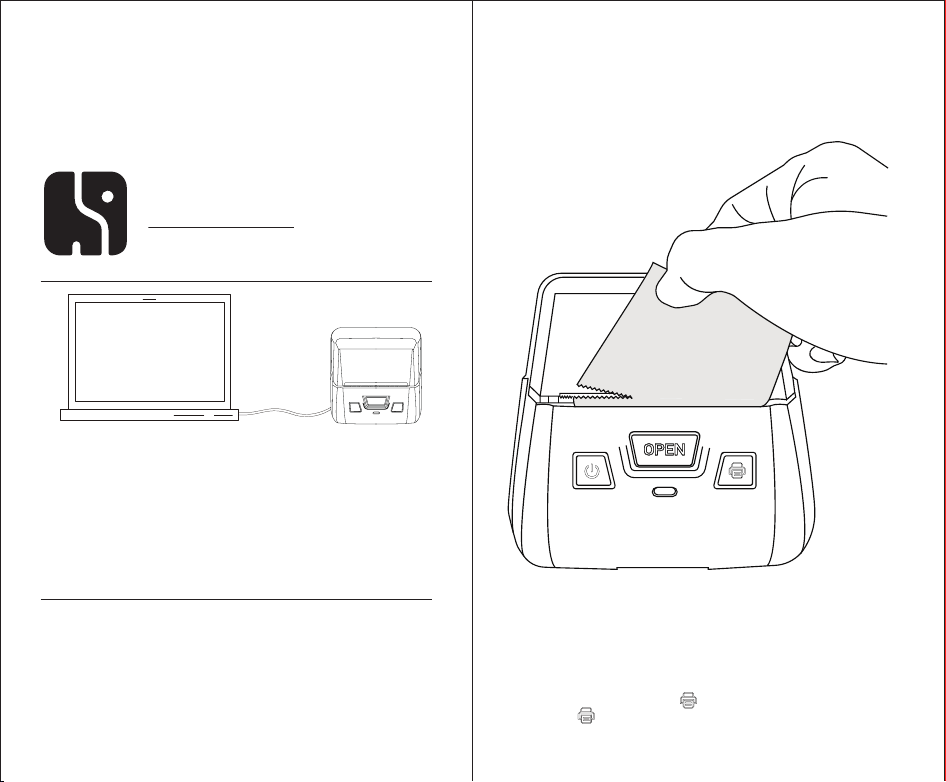
Use with Computer Software
07
The label editing PC software, “Katasymbol”
is available on both the Windows and MacOS
systems. Download at: us.supvan.com/download
Also, for the MacOS version, search
“Katasymbol”, on the Mac App Store.
1. Connect the printer to the computer via the USB data cable.
2. Open the “Katasymbol” software.
3. Long press power button to turn the printer on.
4. The software will automatically detect the printer and the label
paper installed, then enter editing mode.
5. If editing mode is not auto-entered, select T80M Pro in the enter
menu, and click new label to enter editing mode.
The Smartphone App and the PC software feature a variety of
templates and customization features, including more than 30 fonts,
600 symbols, 50 frames. Or upload your own fonts and graphs.
For batch printing, you may also import excel file into the App /
software to print a set of labels in a single click.
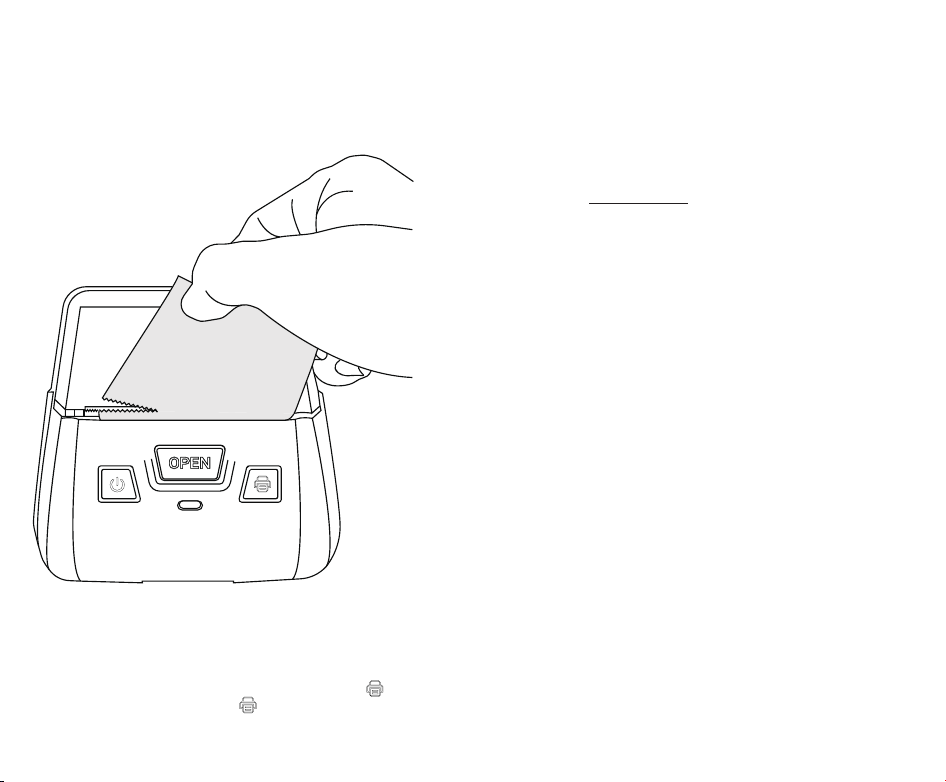
Print & Cut
08
Features
The smartphone App and computer software comes with all
kinds of label templates for various uses. New templates are
constantly being added and updated.
Various Templates for Edits
After the last printing, the device will store the file informa-
tion. You may repeat the last printing job by simply press the
print button to fast print. If another type of label was installed,
a welcome page will be printed.
In-printer Memory
Batch Printing
Import Excel document to the App / PC software for batch
printing.
Use with Different Labels
Compatible with different kinds of labels, to serve various
needs.
09
Precise Label Positioning
Automatically detect the label paper position by
double-pressing the print button, precisely retract the paper
to the standby position and avoid wasting.
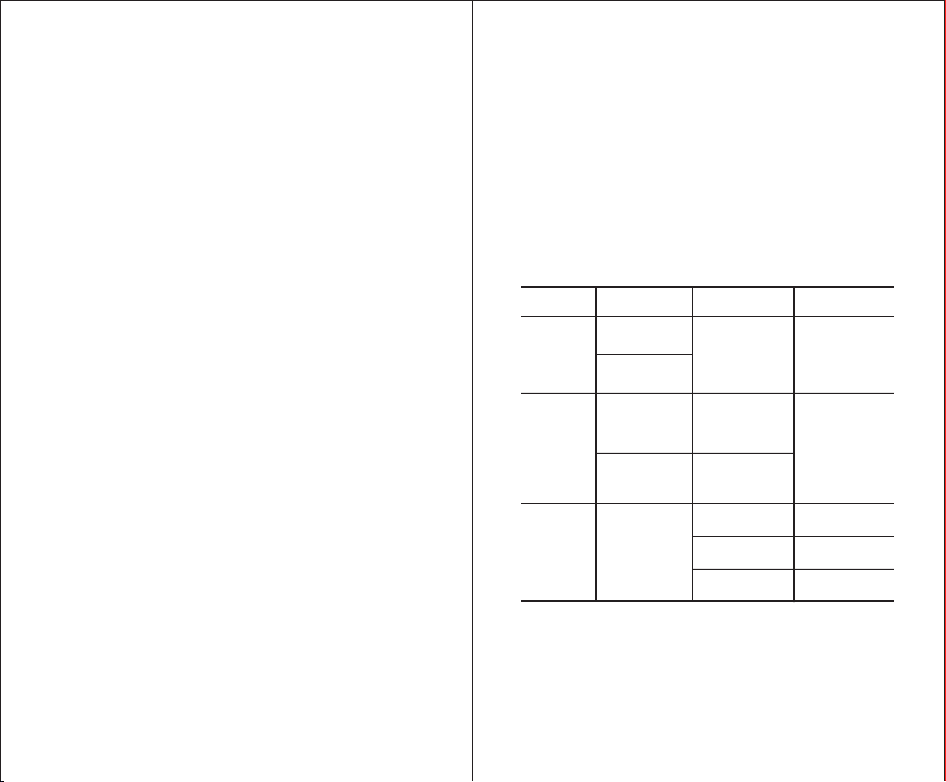
Choose red/black on white thermal label paper (order at
Amazon or katasymbol.com) to print two colors of content on
a single piece of paper. Simply set the content color in the
editing App / PC software and click print.
Red/Black Dual-Color Printing Available
After editing the label in the smartphone App / PC software, click
[Preview & Print] to print from your phone / computer.
You may quick re-print the last printed label by press button
on the printer. And double-press to retract any excess paper.
Maintenance
Max. Print Length
Battery
Print Head Maintenance
It is advised to not print out more than 8m or a full roll of label
paper in a single print job.
- Turn off the printer, open the paper case and take out
the label paper roll.
- Use a cloth or cotton swab with ethanol alcohol, wipe
the printhead gently.
- Wait for it to completely dry before turn on the printer.
If not used for a long time, please charge the printer every 3
months to avoid the natural loss of lithium battery.
10
Troubleshooting
In general, when the printer is malfunctioning or in fault, the
smartphone App will show fault notice; the connection between
the printer and smartphone will halt and the printing will stop.
Fault List
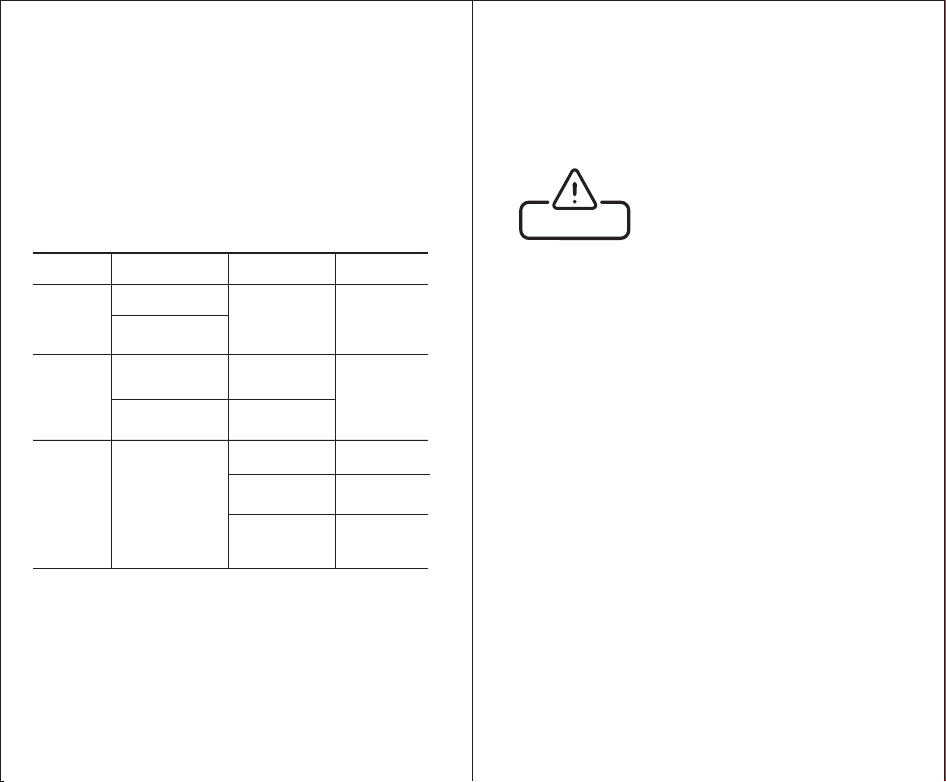
SolutionApp Message Description Fault
Label paper
case not closed
Charge
Change and install
label paper
Check the label
paper roll
Close the paper
case properly
Low Battery
Non-original
manufacturer
product
Label paper
not installed
No label paper left
Paper stuck
Low Battery
Red light on
Prints blurred
Label paper
not recognized
Print error
Normal
printing, but no
label coming
out
Label paper
installed but not
recognized by
the printer
No label paper
has been
recognized
Reinstall the
label paper
Fault Notice
*If the fault cause cannot be determined,
please contact us via the in-App Customer Service.
11
SAFETY INFORMATION
- Please carefully read this manual
before using the product.
- Please keep this product and
its accessories away from
children, to avoid potential danger.
- Do not disassemble the printer if
you are not an authorized service
person; Do not open the cover
when the printer is printing;
- Please use SUPVAN’s factory
original products and
consumables, otherwise may
result in bad printing quality or
damage to the printer.
- Do not pull the label forcibly during the printing process, to
avoid damage to the printer;
- This product is a precision product, please use on a plain
surface, avoid fall and other impacts.
- The print head of this product is a precision part. Do not
scratch it to avoid affecting the printing function;
- Do not throw the printer into fire or high temperature;
- Please use a single power socket, instead of multiple sockets
with multiple devices plugged in, which may cause fire or
electric shock;
12
- Please do not use an adapter that does not support DC 5V
output;
- When charging, do not let printer / power supply / power
socket to be in contact with water, and do not plug or unplug the
power with wet hands, to prevent electric shock;
- Please do not let metal or liquid enter the equipment, to
prevent fire or electric shock, or damage to the internal parts
and the printer;
- Please use the printer in a clean environment. Do not use it on
rug or blanket, or dusts may cause short circuit.
- Please keep the printer away from flammable solutions such
as alcohol or gasoline, and away from fire to avoid explosion and
fire hazards.
- Please do not touch the print head with your hand. If you touch
it at the end of the printer, it may cause skin burns;
- Please do not press the printer;
- The printer and label paper supplies should be stored in a
room temperature, dry, ventilated place without direct sunlight.
- If peculiar smell or sound is detected when using the printer,
please turn it off immediately and contact the seller.
- After long period of working, the lithium battery may generate
heat and diffuse on the bottom side of the printer. This is
normal. You may pause the printer and wait it to cool to resume
normal work.
13
06
Product Specifications
Name:
Model:
Printing Method:
Resolution:
Label Width:
Max. Effective Printing Width:
Print Speed:
Battery Capacity:
Physical Dimension:
Data Transfer:
Power Supply:
Working Environment:
Storage Environment:
Working Humidity:
Storage Humidity:
Label Printer
Katasymbol T80M Pro
Thermal printing
203 dpi
20 mm – 78 mm
72 mm
10 mm/s - 45 mm/s
1500mAh
124 mm x 115 mm x 60 mm
Bluetooth BLE 4.0
dual transfer mode
5V 2A
5℃ - 40℃
-25℃ - 55℃
20% - 90% No frost
20% - 93% No frost
15
- SUPVAN will not be responsible for any consequences
caused by:
- Failure to operate the device according to the
instructions and safety warnings listed in this manual.
- Use of non-SUPVAN factory’s consumables.
- Unauthorized disassemble, service, or customization
to the product.
- Malfunctions caused by abnormal voltage or improper
operating environment.
- Damage caused by fall, press, water, moisture, or any
human actions.
- Damage caused by force majeure such as flood, fire, or
lightning strike.
- Uses other than the designed uses of this printer.
- SUPVAN reserves the right to change the contents of
this manual due to product upgrading.
- The non-SUPVAN trademarks and symbols included
in this manual are owned by other companies.
Disclaimer
- Beginning from the date of purchase, 3 months warranty
on the print head or total print length of 30km, whichever
comes first; 12 months warranty on the other parts.
- The warranty of newly serviced parts is subject to the
warranty of the whole device.
- No warranty on the label consumables. If there is a quality
problem, they can be replaced free of charge.
Warranty
14
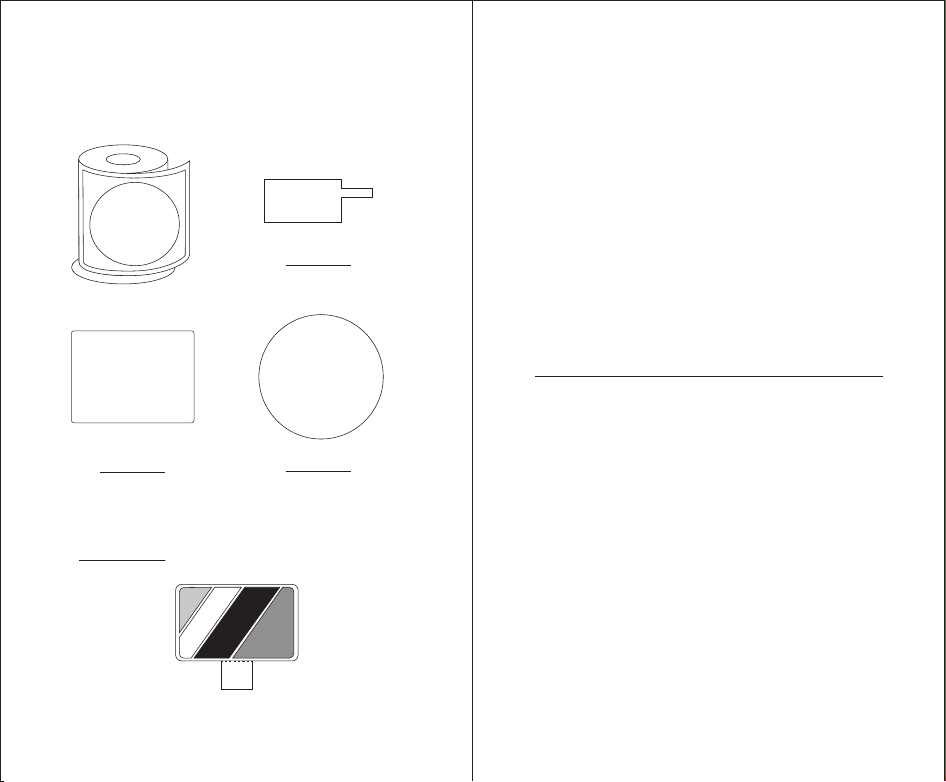
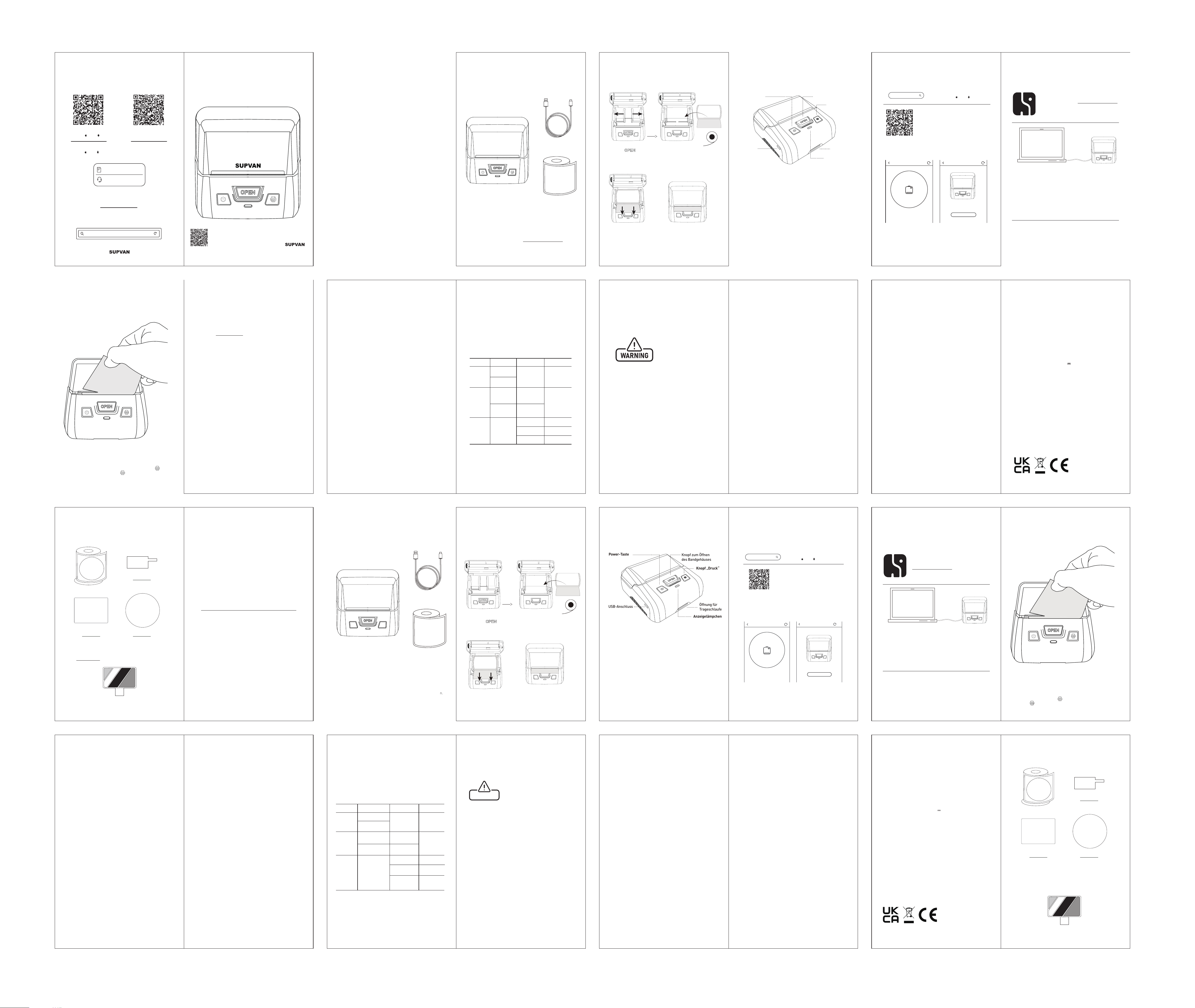
Available Labels
Red/black dual-color-prints label, transparent label, index label,
label paper in other colors or patterns, are all available in various sizes.
Find on katasymbol.com or search on Amazon.
DEUTSCH
BEDIENUNGSANLEITUNG
Round Label
⌀ 80 mm
Thermal Label
50 mm x 80 mm
Special-Shaped Label
25 mm x 38 mm + 40 mm
Colored and other shapes/sizes...
16 17
Checkliste
Legen Sie das
Etikettenband ein
1 Drucker
1 Kabel *
* Das Kabel kann als Ladekabel oder Datenkabel verwendet
werden - schließen Sie es an Ihren Computer an und mit der
Etiketten-Editor-Software "Katasymbol" zu bearbeiten und zu drucken.
Laden Sie die Software herunter unter: us.supvan.com/download
1. Drücken Sie , um das
Etikettenbandgehäuse zu öffnen.
2. Ziehen Sie, um die
Halteklammer zu öffnen.
Legen Sie die Etikettenrolle ein.
* Beachten Sie, dass die runden
Plastikstücke auf der rechten
Seite liegen müssen.
Ziehen und drehen Sie ein
Stück Etikettenband
heraus und schließen Sie
das Gehäuse fest.
1. Klicken Sie auf die Power-Taste, um
den
Drucker einzuschalten.
2. Doppelklicken Sie, um das
Etikettenband präzise
Etikettenbänder
(Ein Etikettenband im
Etikettenbandgehäuse
des Druckers verpackt)
18 19
Der Drucker
Verbindung zum
Drucker über App
Laden Sie „Katasymbol“ aus dem
App Store ( iOS & Android) herunter.
Oder scannen Sie den
QR-Code, um die App
herunterzuladen.
Katasymbol
Drucker anschließen
Drucker anschließen
überspringen
T80M Pro
anschließen
1. Halten Sie die Power-Taste 2 Sekunden
lang gedrückt, um den Drucker bei
eingeschaltetem Bluetooth einzuschalten.
2. Schalten Sie Bluetooth an Ihrem Smartphone
ein.
3. Laden Sie die App herunter und öffnen Sie sie
auf Ihrem Smartphone. *
4. Klicken Sie auf „Drucker hinzufügen“ und
suchen Sie nach dem zu verbindenden Gerät.
* Wenn Sie um Erlaubnis gefragt werden, erlauben Sie der App den
Zugriff auf die Standortinformationen des Smartphones (nur Android).
Andernfalls funktioniert die Bluetooth-Verbindung nicht.
20 21
- Langes Drücken zum Ein- und Ausschalten.
Power-Taste
Statusanzeige
Grün: Standby / normal
Grün blinkt: wird gedruckt
Gelb: Bluetooth nicht verbunden
Rot blinkt: Gerätefehler / Druckfehler
Rot: schwache Batterie / Aufladen
Knopf „Druck“
- Drücken Sie, um den letzten Druck zu wiederholen.
- Drücken Sie zweimal, um Etikettenpapier einzuziehen.
- Drücken Sie dreimal, um einen QR-Code für die Verbindung
zum Drucker zu drucken (nur Android).
USB-Anschluss
Power-Taste
Anzeigelämpchen
Knopf „Druck“
Knopf zum Öffnen
des Bandgehäuses
Öffnung für
Trageschlaufe
Drucken & Schneiden
Verwendung mit
Computersoftware
22 23
Die Etiketten-Editor-Software "Katasymbol" ist
für Windows- und MacOS-Systeme verfügbar.
Zum Herunterladen unter:
us.supvan.com/download
Auch für MacOS-Versionen suchen Sie im Mac
App Store nach "Katasymbol".
1. Schließen Sie den Drucker über ein USB-Datenkabel an den
Computer an.
2. Öffnen Sie die Software "Katasymbol".
3. Drücken Sie Power-Taste lang, um den Drucker einzuschalten.
4. Die Software erkennt den Drucker und das eingebaute
Etikettband automatisch und geht dann in den Bearbeitungsmodus
5. Sie wählen im Eingabe-Menü T80M Pro und klicken dann auf
Neues Etikett, um in den Bearbeitungsmodus zu gelangen, wenn
der Bearbeitungsmodus nicht automatisch eingeschaltet ist.
Die Smartphone-App und PC-Software verfügen über verschiedene
Muster und Anpassungsfunktionen, darunter mehr als 30
Schriftarten, 600 Symbole und 50 Rahmen. Oder laden Sie Ihre
eigenen Schriften und Grafiken hoch.
Für den Stapeldruck können Sie auch Excel-Dateien in die App /
Software importieren, um eine Reihe von Etiketten mit nur einem
Klick zu drucken.
Klicken Sie auf [Vorschau & Druck] um von Smartphone /
Computer zu drucken, nach der Bearbeitung von Etiketten in
der Smartphone-App / PC-Software.
Sie können die zuletzt gedruckten Etiketten schnell erneut
drucken, indem Sie die Taste auf dem Drucker drücken.
Drücken Sie zweimal, um überschüssiges Band zurückzuho-
len.

Besonderheiten Wartung
Max. Drucklänge
Batterie
Wartung des Druckkopfs
Es wird empfohlen, nicht mehr als 8 m oder eine volle Rolle
Etikettenband in einem einzigen Druckauftrag auszudrucken.
- Schalten Sie den Drucker aus, öffnen Sie das Gehäuse und
nehmen Sie die Etikettenbandrolle heraus.
- Wischen Sie den Druckkopf vorsichtig mit einem Tuch oder
Wattestäbchen mit Ethanolalkohol ab.
- Warten Sie, bis es vollständig getrocknet ist, bevor Sie den
Drucker einschalten.
Wenn Sie den Drucker längere Zeit nicht benutzen, laden Sie ihn
bitte alle 3 Monate auf, um den natürlichen Verlust der
Lithiumbatterie zu vermeiden.
24 25
Die Smartphone-App und die Computersoftware werden mit
allen Arten von Etikettenmustern für verschiedene Zwecke
geliefert. Neue Muster werden ständig hinzugefügt und
aktualisiert.
Verschiedene Muster für Bearbeitungen
Nach dem letzten Drucken speichert das Gerät die Dateiinforma-
tionen. Sie können den letzten Druckvorgang schnell wiederholen,
indem Sie einfach auf die Taste [Druck] drücken. Wenn ein anderer
Etikettentyp eingelegt ist, wird eine Begrüßungsseite gedruckt.
Speicher im Drucker
Stapeldruck
Importieren von Excel-Dokumenten in die App / PC-Software
zum Stapeldrucken.
Verwendung mit verschiedenen Etikettenbändern
Kompatibel mit verschiedenen Arten von Etikettenbändern, um
verschiedene Bedürfnisse zu erfüllen.
Präzise Etikettenpositionierung
Erkennen Sie automatisch die Position des Etikettenbandes durch
Doppelklicken auf die Taste [print], ziehen Sie das Band präzise in
die Standby-Position zurück und vermeiden Sie Verschwendung.
Wählen Sie Rot/Schwarz auf dem weißen Etiketten aus
Thermo-Papier (bestellt bei Amazon oder katasymbol.com)
und drucken Sie Inhalte in zwei Farben auf einem Blatt
Papier. Sie bestimmen die Druckfarbe einfach in der
Smartphone-App / PC-Software und dann auf [Druck]
klicken.
Farbdruck (Rot/Schwarz) verfügbar
WARNUNG
- Bitte lesen Sie dieses Handbuch sorgfältig
durch, bevor Sie das Produkt verwenden.
- Bitte halten Sie dieses Produkt und sein
Zubehör von Kindern fern, um potenzielle
Gefahren zu vermeiden.
- Zerlegen Sie den Drucker nicht, wenn Sie
kein autorisierter Servicetechniker sind.
Öffnen Sie die Abdeckung nicht, wenn der
Drucker druckt.
- Bitte verwenden Sie die Originalprodukte
und Verbrauchsmaterialien von SUPVAN. Andernfalls kann dies zu
einer schlechten Druckqualität oder Beschädigung des Druckers
führen.
- Ziehen Sie während des Druckvorgangs nicht gewaltsam am Etikett,
um Schäden am Drucker zu vermeiden.
- Dieses Produkt ist ein Präzisionsprodukt, bitte auf einer ebenen
Fläche verwenden, Stürze und andere Stöße vermeiden.
- Der Druckkopf dieses Produkts ist ein Präzisionsteil. Zerkratzen Sie
den Druckkopf nicht, um die Druckfunktion nicht zu beeinträchtigen.
- Werfen Sie den Drucker nicht ins Feuer oder stellen Sie ihn nicht in
eine Umgebung mit hohen Temperaturen.
- Bitte verwenden Sie eine einzelne Steckdose anstelle von
Mehrfachsteckdosen mit mehreren angeschlossenen Geräten, da dies
zu Bränden oder Stromschlägen führen kann.
- Bitte verwenden Sie keinen Adapter, der keinen 5V DC Ausgang
unterstützt.
- Lassen Sie den Drucker / das Netzteil / die Steckdose während des
Ladevorgangs nicht mit Wasser in Berührung kommen und stecken
oder trennen Sie den Netzstecker nicht mit nassen Händen, um einen
Stromschlag zu vermeiden.
- Bitte lassen Sie kein Metall oder Flüssigkeit in das Gerät eindringen,
um Feuer oder Stromschlag oder Schäden an den Innenteilen und
dem Drucker zu vermeiden.
SicherheitsinformationenFehlerdiagnose
Im Allgemeinen zeigt die Smartphone-App bei einer Fehlfunktion
oder einem Fehler des Druckers eine Fehlermeldung an. Die
Verbindung zwischen Drucker und Smartphone wird unter-
brochen und der Druckvorgang wird gestoppt.
Fehlerliste
LösungApp-Nachricht Beschreibung Fehler
Das Gehäuse, wo die
Etikettenbandrolle
eingelegt ist,
nicht geschlossen
Aufladen
Etikettenband
wechseln
und anbringen
Überprüfen Sie die
Etikettenbandrolle
Schließen Sie
das Gehäuse richtig
Schwache
Batterie
Nicht originales
Herstellerprodukt
Etikettenband
nicht installiert
Kein Etikettenband
mehr vorhanden
Papierstau
Schwache
Batterie
rotes Licht an
die gedruckte Zeichen
verschwommen
Etikettenband
nicht erkannt
Druckfehler
Normaler Druck, aber
kein Etikett kommt
heraus
Etikettenband
installiert, aber vom
Drucker nicht erkannt
Es wurde kein
Etikettenband erkannt
Bringen Sie
das Etikettenband
wieder an
Fehlerhinweis
* Wenn die Fehlerursache nicht ermittelt werden kann, kontaktieren
Sie bitte den Kundendienst mit einem Klick auf „Unterstützung“.
26 27

- Bitte verwenden Sie den Drucker in einer sauberen Umgebung.
Verwenden Sie den Drucker nicht auf Teppichen oder Decken, da
sonst Staub einen Kurzschluss verursachen kann.
- Bitte halten Sie den Drucker von brennbaren Lösungen wie
Alkohol oder Benzin und von Feuer fern, um Explosions- und
Brandgefahren zu vermeiden
- Bitte berühren Sie den Druckkopf nicht mit der Hand. Wenn Sie
ihn am Ende des Druckers berühren, kann es zu Hautverbrennun-
gen kommen
- Bitte drücken Sie nicht auf den Drucker.
- Drucker und Zubehör (Etikettenbänder) sollten an einem
trockenen, belüfteten Ort mit Raumtemperatur und ohne direkte
Sonneneinstrahlung gelagert werden.
- Wenn bei der Verwendung des Druckers ein eigenartiger Geruch
oder Geräusch festgestellt wird, schalten Sie ihn bitte sofort aus
und wenden Sie sich an den Verkäufer.
- Nach längerer Arbeitszeit kann die Lithiumbatterie Wärme
erzeugen und auf der Unterseite des Druckers diffundieren. Das
ist normal. Sie können den Drucker anhalten und warten, bis er
abgekühlt ist, um die normale Arbeit fortzusetzen.
- Ab Kaufdatum 3 Monate Garantie auf den Druckkopf oder eine
Gesamtdrucklänge von 30 km, je nachdem, was zuerst eintritt;
12 Monate Garantie auf die anderen Teile.
- Die Garantie für neu gewartete Teile unterliegt der Garantie
des gesamten Geräts.
- Keine Garantie auf die Etikettenverbrauchsmaterialien. Wenn
es ein Qualitätsproblem gibt, können sie kostenlos ersetzt
werden.
Garantie
- SUPVAN haftet nicht für Folgen, die durch Folgendes
verursacht werden:
- Nichtbeachtung des Geräts gemäß den in diesem Handbuch
aufgeführten Anweisungen und Sicherheitshinweisen;
- Verwendung von Verbrauchsmaterialien, die nicht von
SUPVAN stammen;
- Nicht autorisierte Demontage, Wartung oder Anpassung des
Produkts;
- Fehlfunktionen, die durch abnormale Spannung oder
unsachgemäße Betriebsumgebung verursacht werden;
- Schäden durch Sturz, Presse, Wasser, Feuchtigkeit oder
menschliche Handlungen;
- Schäden durch höhere Gewalt wie Überschwemmung, Feuer
oder Blitzschlag;
- alle anderen Verwendungen, die zu Designzwecken dieses
Druckers nicht passen.
- SUPVAN behält sich das Recht vor, den Inhalt dieses
Handbuchs aufgrund von Produktverbesserungen zu ändern.
- Die in diesem Handbuch enthaltenen Nicht-SUPVAN-Marken
und -Symbole sind Eigentum anderer Unternehmen.
Haftungsausschluss
Sicherheitsinformationen
28 29
Verfügbare EtikettenProduktspezifikation
Name:
Modell:
Druckverfahren:
Auflösung:
Etikettenbreite:
Max. Effektive Druckbreite:
Druckgeschwindigkeit:
Batteriekapazität:
Abmessungen:
Datenübertragung:
Stromversorgung:
Arbeitsumgebung:
Speicherumgebung:
Arbeitsfeuchtigkeit:
Luftfeuchtigkeit bei Lagerung:
Etikettendrucker
Katasymbol T80M Pro
Thermodruck
203 dpi
20 mm – 78 mm
72 mm
10 mm/s - 45 mm/s
1500mAh
124 mm x 115 mm x 60 mm
Bluetooth BLE 4.0
dualer Übertragungsmodus
5V 2A
5℃ - 40℃
-25℃ - 55℃
20% - 90%; kein Frost
20% - 93%; kein Frost
Rote/Schwarze Farbetiketten, Durchsichtige Etiketten, Index Etiketten,
Etikettenband in anderen Farben oder Mustern stehen in
verschiedenen Größen zur verfügung.
Diese finden Sie auf katasymbol.com oder suchen Sie danach bei
Amazon.
Durchsichtig
⌀ 80 mm
Thermo-Etiketten
50 mm x 80 mm
Flaggenetiketten
25 mm x 38 mm + 40 mm
Farbige und weitereFormen/Größen …
30 31
Drucken & Schneiden
Verwendung mit
Computersoftware
Der Drucker
Verbindung zum
Drucker über App
Laden Sie „Katasymbol“ aus dem
App Store ( iOS & Android) herunter.
Oder scannen Sie den
QR-Code, um die App
herunterzuladen.
Katasymbol
Drucker anschließen
Drucker anschließen
überspringen
T80M Pro
anschließen
1. Halten Sie die Power-Taste 2 Sekunden
lang gedrückt, um den Drucker bei
eingeschaltetem Bluetooth einzuschalten.
2. Schalten Sie Bluetooth an Ihrem Smartphone
ein.
3. Laden Sie die App herunter und öffnen Sie sie
auf Ihrem Smartphone. *
4. Klicken Sie auf „Drucker hinzufügen“ und
suchen Sie nach dem zu verbindenden Gerät.
* Wenn Sie um Erlaubnis gefragt werden, erlauben Sie der App den
Zugriff auf die Standortinformationen des Smartphones (nur Android).
Andernfalls funktioniert die Bluetooth-Verbindung nicht.
Checkliste
Legen Sie das
Etikettenband ein
WARNUNG
- Bitte lesen Sie dieses Handbuch sorgfältig
durch, bevor Sie das Produkt verwenden.
- Bitte halten Sie dieses Produkt und sein
Zubehör von Kindern fern, um potenzielle
Gefahren zu vermeiden.
- Zerlegen Sie den Drucker nicht, wenn Sie
kein autorisierter Servicetechniker sind.
Öffnen Sie die Abdeckung nicht, wenn der
Drucker druckt.
- Bitte verwenden Sie die Originalprodukte
und Verbrauchsmaterialien von SUPVAN. Andernfalls kann dies zu
einer schlechten Druckqualität oder Beschädigung des Druckers
führen.
- Ziehen Sie während des Druckvorgangs nicht gewaltsam am Etikett,
um Schäden am Drucker zu vermeiden.
- Dieses Produkt ist ein Präzisionsprodukt, bitte auf einer ebenen
Fläche verwenden, Stürze und andere Stöße vermeiden.
- Der Druckkopf dieses Produkts ist ein Präzisionsteil. Zerkratzen Sie
den Druckkopf nicht, um die Druckfunktion nicht zu beeinträchtigen.
- Werfen Sie den Drucker nicht ins Feuer oder stellen Sie ihn nicht in
eine Umgebung mit hohen Temperaturen.
- Bitte verwenden Sie eine einzelne Steckdose anstelle von
Mehrfachsteckdosen mit mehreren angeschlossenen Geräten, da dies
zu Bränden oder Stromschlägen führen kann.
- Bitte verwenden Sie keinen Adapter, der keinen 5V DC Ausgang
unterstützt.
- Lassen Sie den Drucker / das Netzteil / die Steckdose während des
Ladevorgangs nicht mit Wasser in Berührung kommen und stecken
oder trennen Sie den Netzstecker nicht mit nassen Händen, um einen
Stromschlag zu vermeiden.
- Bitte lassen Sie kein Metall oder Flüssigkeit in das Gerät eindringen,
um Feuer oder Stromschlag oder Schäden an den Innenteilen und
dem Drucker zu vermeiden.
Sicherheitsinformationen
SAFETY INFORMATION
- Please carefully read this manual
before using the product.
- Please keep this product and
its accessories away from
children, to avoid potential danger.
- Do not disassemble the printer if
you are not an authorized service
person; Do not open the cover
when the printer is printing;
- Please use SUPVAN’s factory
original products and
consumables, otherwise may
result in bad printing quality or
damage to the printer.
- Do not pull the label forcibly during the printing process, to
avoid damage to the printer;
- This product is a precision product, please use on a plain
surface, avoid fall and other impacts.
- The print head of this product is a precision part. Do not
scratch it to avoid affecting the printing function;
- Do not throw the printer into fire or high temperature;
- Please use a single power socket, instead of multiple sockets
with multiple devices plugged in, which may cause fire or
electric shock;
06
Product Specifications
Available Labels
Red/black dual-color-prints label, transparent label, index label,
label paper in other colors or patterns, are all available in various sizes.
Find on katasymbol.com or search on Amazon.
DEUTSCH
BEDIENUNGSANLEITUNG
KATASYMBOL
T80M Pro
Scan the QR Code for multi-language guide and support.
Scannen Sie den QR-Code für mehrsprachige Anleitung und Unterstützung.
Round Label
⌀ 80 mm
Thermal Label
50 mm x 80 mm
Special-Shaped Label
25 mm x 38 mm + 40 mm
Colored and other shapes/sizes...
1 Drucker
1 Kabel *
* Das Kabel kann als Ladekabel oder Datenkabel verwendet
werden - schließen Sie es an Ihren Computer an und mit der
Etiketten-Editor-Software "Katasymbol" zu bearbeiten und zu drucken.
Laden Sie die Software herunter unter: us.supvan.com/download
1. Drücken Sie , um das
Etikettenbandgehäuse zu öffnen.
2. Ziehen Sie, um die
Halteklammer zu öffnen.
Legen Sie die Etikettenrolle ein.
* Beachten Sie, dass die runden
Plastikstücke auf der rechten
Seite liegen müssen.
Ziehen und drehen Sie ein
Stück Etikettenband
heraus und schließen Sie
das Gehäuse fest.
1. Klicken Sie auf die Power-Taste, um
den
Drucker einzuschalten.
2. Doppelklicken Sie, um das
Etikettenband präzise
Verfügbare Etiketten
Name:
Model:
Printing Method:
Resolution:
Label Width:
Max. Effective Printing Width:
Print Speed:
Battery Capacity:
Physical Dimension:
Data Transfer:
Power Supply:
Working Environment:
Storage Environment:
Working Humidity:
Storage Humidity:
Label Printer
Katasymbol T80M Pro
Thermal printing
203 dpi
20 mm – 78 mm
72 mm
10 mm/s - 45 mm/s
1500mAh
124 mm x 115 mm x 60 mm
Bluetooth BLE 4.0
dual transfer mode
5V 2A
5℃ - 40℃
-25℃ - 55℃
20% - 90% No frost
20% - 93% No frost
Besonderheiten Wartung
Max. Drucklänge
Batterie
Wartung des Druckkopfs
Es wird empfohlen, nicht mehr als 8 m oder eine volle Rolle
Etikettenband in einem einzigen Druckauftrag auszudrucken.
- Schalten Sie den Drucker aus, öffnen Sie das Gehäuse und
nehmen Sie die Etikettenbandrolle heraus.
- Wischen Sie den Druckkopf vorsichtig mit einem Tuch oder
Wattestäbchen mit Ethanolalkohol ab.
- Warten Sie, bis es vollständig getrocknet ist, bevor Sie den
Drucker einschalten.
Wenn Sie den Drucker längere Zeit nicht benutzen, laden Sie ihn
bitte alle 3 Monate auf, um den natürlichen Verlust der
Lithiumbatterie zu vermeiden.
Fehlerdiagnose
Im Allgemeinen zeigt die Smartphone-App bei einer Fehlfunktion
oder einem Fehler des Druckers eine Fehlermeldung an. Die
Verbindung zwischen Drucker und Smartphone wird unter-
brochen und der Druckvorgang wird gestoppt.
Fehlerliste
LösungApp-Nachricht Beschreibung Fehler
Das Gehäuse, wo die
Etikettenbandrolle
eingelegt ist,
nicht geschlossen
Aufladen
Etikettenband
wechseln
und anbringen
Überprüfen Sie die
Etikettenbandrolle
Schließen Sie
das Gehäuse richtig
Schwache
Batterie
Nicht originales
Herstellerprodukt
Etikettenband
nicht installiert
Kein Etikettenband
mehr vorhanden
Papierstau
Schwache
Batterie
rotes Licht an
die gedruckte Zeichen
verschwommen
Etikettenband
nicht erkannt
Druckfehler
Normaler Druck, aber
kein Etikett kommt
heraus
Etikettenband
installiert, aber vom
Drucker nicht erkannt
Es wurde kein
Etikettenband erkannt
Bringen Sie
das Etikettenband
wieder an
Fehlerhinweis
* Wenn die Fehlerursache nicht ermittelt werden kann, kontaktieren
Sie bitte den Kundendienst mit einem Klick auf „Unterstützung“.
- Bitte verwenden Sie den Drucker in einer sauberen Umgebung.
Verwenden Sie den Drucker nicht auf Teppichen oder Decken, da
sonst Staub einen Kurzschluss verursachen kann.
- Bitte halten Sie den Drucker von brennbaren Lösungen wie
Alkohol oder Benzin und von Feuer fern, um Explosions- und
Brandgefahren zu vermeiden
- Bitte berühren Sie den Druckkopf nicht mit der Hand. Wenn Sie
ihn am Ende des Druckers berühren, kann es zu Hautverbrennun-
gen kommen
- Bitte drücken Sie nicht auf den Drucker.
- Drucker und Zubehör (Etikettenbänder) sollten an einem
trockenen, belüfteten Ort mit Raumtemperatur und ohne direkte
Sonneneinstrahlung gelagert werden.
- Wenn bei der Verwendung des Druckers ein eigenartiger Geruch
oder Geräusch festgestellt wird, schalten Sie ihn bitte sofort aus
und wenden Sie sich an den Verkäufer.
- Nach längerer Arbeitszeit kann die Lithiumbatterie Wärme
erzeugen und auf der Unterseite des Druckers diffundieren. Das
ist normal. Sie können den Drucker anhalten und warten, bis er
abgekühlt ist, um die normale Arbeit fortzusetzen.
- Ab Kaufdatum 3 Monate Garantie auf den Druckkopf oder eine
Gesamtdrucklänge von 30 km, je nachdem, was zuerst eintritt;
12 Monate Garantie auf die anderen Teile.
- Die Garantie für neu gewartete Teile unterliegt der Garantie
des gesamten Geräts.
- Keine Garantie auf die Etikettenverbrauchsmaterialien. Wenn
es ein Qualitätsproblem gibt, können sie kostenlos ersetzt
werden.
Garantie
- SUPVAN haftet nicht für Folgen, die durch Folgendes
verursacht werden:
- Nichtbeachtung des Geräts gemäß den in diesem Handbuch
aufgeführten Anweisungen und Sicherheitshinweisen;
- Verwendung von Verbrauchsmaterialien, die nicht von
SUPVAN stammen;
- Nicht autorisierte Demontage, Wartung oder Anpassung des
Produkts;
- Fehlfunktionen, die durch abnormale Spannung oder
unsachgemäße Betriebsumgebung verursacht werden;
- Schäden durch Sturz, Presse, Wasser, Feuchtigkeit oder
menschliche Handlungen;
- Schäden durch höhere Gewalt wie Überschwemmung, Feuer
oder Blitzschlag;
- alle anderen Verwendungen, die zu Designzwecken dieses
Druckers nicht passen.
- SUPVAN behält sich das Recht vor, den Inhalt dieses
Handbuchs aufgrund von Produktverbesserungen zu ändern.
- Die in diesem Handbuch enthaltenen Nicht-SUPVAN-Marken
und -Symbole sind Eigentum anderer Unternehmen.
Haftungsausschluss
Sicherheitsinformationen Produktspezifikation
Name:
Modell:
Druckverfahren:
Auflösung:
Etikettenbreite:
Max. Effektive Druckbreite:
Druckgeschwindigkeit:
Batteriekapazität:
Abmessungen:
Datenübertragung:
Stromversorgung:
Arbeitsumgebung:
Speicherumgebung:
Arbeitsfeuchtigkeit:
Luftfeuchtigkeit bei Lagerung:
Etikettendrucker
Katasymbol T80M Pro
Thermodruck
203 dpi
20 mm – 78 mm
72 mm
10 mm/s - 45 mm/s
1500mAh
124 mm x 115 mm x 60 mm
Bluetooth BLE 4.0
dualer Übertragungsmodus
5V 2A
5℃ - 40℃
-25℃ - 55℃
20% - 90%; kein Frost
20% - 93%; kein Frost
Etikettenbänder
(Ein Etikettenband im
Etikettenbandgehäuse
des Druckers verpackt)
Rote/Schwarze Farbetiketten, Durchsichtige Etiketten, Index Etiketten,
Etikettenband in anderen Farben oder Mustern stehen in
verschiedenen Größen zur verfügung.
Diese finden Sie auf katasymbol.com oder suchen Sie danach bei
Amazon.
Durchsichtig
⌀ 80 mm
Thermo-Etiketten
50 mm x 80 mm
Flaggenetiketten
25 mm x 38 mm + 40 mm
Farbige und weitereFormen/Größen …
Checklist
1 Printer
1 Cable*
*The cable may be used as a charging cable,
or data cable – connect to your computer
and use the “Katasymbol” label editor software to edit and print.
Download the software at: us.supvan.com/download
03
Install the Label Tape
Put in the label tape.
* note the round plastic piece
must be on the right side
Pull and turn a length of
label paper out, and close
the case tightly.
① Long press the power button
to turn on the printer.
② Double-click the printer button
to retract the paper precisely to
the standby position.
04
Connect to Printer via App
*If asked for permission, please allow the App
to access the location information of the smart phone (Android only).
Otherwise the Bluetooth connection will not function.
Download “
Katasymbol
”
from App store ( iOS & Android).
Or scan the QR code
to download the App
1. Hold the power button for 2 seconds to
turn on the printer with Bluetooth on.
2. Turn on the Bluetooth on your phone.
3. Download and open the App on your
smartphone.*
4. Click “Add Printer”and search for the
device to connect.
Katasymbol
Connect printer Connect printer
skip
T80M Pro
Connect
06
Use with Computer Software
07
Maintenance
Max. Print Length
Battery
Print Head Maintenance
It is advised to not print out more than 8m or a full roll of label
paper in a single print job.
- Turn off the printer, open the paper case and take out
the label paper roll.
- Use a cloth or cotton swab with ethanol alcohol, wipe
the printhead gently.
- Wait for it to completely dry before turn on the printer.
If not used for a long time, please charge the printer every 3
months to avoid the natural loss of lithium battery.
10 12 15
16 17 18 19 20 21 22 23
24 25 26 27 28 29 30 31
Label Tape
(One tape packed inside
the printer's tape case)
The label editing PC software, “Katasymbol”
is available on both the Windows and MacOS
systems. Download at: us.supvan.com/download
Also, for the MacOS version, search
“Katasymbol”, on the Mac App Store.
1. Connect the printer to the computer via the USB data cable.
2. Open the “Katasymbol” software.
3. Long press power button to turn the printer on.
4. The software will automatically detect the printer and the label
paper installed, then enter editing mode.
5. If editing mode is not auto-entered, select T80M Pro in the enter
menu, and click new label to enter editing mode.
The Smartphone App and the PC software feature a variety of
templates and customization features, including more than 30 fonts,
600 symbols, 50 frames. Or upload your own fonts and graphs.
For batch printing, you may also import excel file into the App /
software to print a set of labels in a single click.
① Press to open
the label tape case.
② Pull to open the label
holding clip.
katasymbol.com
Instruction / Anleitung
Support / Unterstützung
Find more instructions
and Customer Support inside the App.
Support / Unterstützung
Weitere Anleitungen und Kundenbetreuung
finden Sie in der App.
Scan to download App
Katasymbol ( iOS & Android)
Scan for user guide and support
in other languages
Scannen zum Herunterladen der App
Katasymbol ( iOS & Android).
Scannen Sie für Benutzerhandbuch
und Support in anderen Sprachen.
----------------------------------------- 03
----------------------------- 04
--------------------------------------- 05
------------------------ 06
------------ 07
--------------------------------------- 08
----------------------------------------- 09
------------------------------------- 10
---------------------------------- 11
-------------------------------- 12
---------------------------- 14
---------------------------- 15
---------------------------------- 16
--------------------------------------- 18
----------------- 19
------------------------------------- 20
--------------- 21
------- 22
--------------------------- 23
---------------------------------- 24
----------------------------------------- 25
---------------------------------- 26
------------------------ 27
------------------ 29
----------------------------- 30
----------------------------- 31
Contents
Checklist
Install the Label Tape
The Printer
Connect to Printer via App
Use with Computer Software
Print & Cut
Features
Maintenance
Troubleshooting
Safety Information
Warranty / Disclaimer
Product Specifications
Available Labels
Checkliste
Legen Sie das Etikettenband ein
Der Drucker
Verbindung zum Drucker über App
Verwendung mit Computersoftware
Drucken & Schneiden
Besonderheiten
Wartung
Fehlerdiagnose
Sicherheitsinformationen
Garantie / Haftungsausschluss
Produktspezifikation
Verfügbare Etiketten
English
Deutsch
Troubleshooting
In general, when the printer is malfunctioning or in fault, the
smartphone App will show fault notice; the connection between
the printer and smartphone will halt and the printing will stop.
Fault List
SolutionApp Message Description Fault
Label paper
case not closed
Charge
Change and install
label paper
Check the label
paper roll
Close the paper
case properly
Low Battery
Non-original
manufacturer
product
Label paper
not installed
No label paper left
Paper stuck
Low Battery
Red light on
Prints blurred
Label paper
not recognized
Print error
Normal
printing, but no
label coming
out
Label paper
installed but not
recognized by
the printer
No label paper
has been
recognized
Reinstall the
label paper
Fault Notice
*If the fault cause cannot be determined,
please contact us via the in-App Customer Service.
11
- Please do not use an adapter that does not support DC 5V
output;
- When charging, do not let printer / power supply / power
socket to be in contact with water, and do not plug or unplug the
power with wet hands, to prevent electric shock;
- Please do not let metal or liquid enter the equipment, to
prevent fire or electric shock, or damage to the internal parts
and the printer;
- Please use the printer in a clean environment. Do not use it on
rug or blanket, or dusts may cause short circuit.
- Please keep the printer away from flammable solutions such
as alcohol or gasoline, and away from fire to avoid explosion and
fire hazards.
- Please do not touch the print head with your hand. If you touch
it at the end of the printer, it may cause skin burns;
- Please do not press the printer;
- The printer and label paper supplies should be stored in a
room temperature, dry, ventilated place without direct sunlight.
- If peculiar smell or sound is detected when using the printer,
please turn it off immediately and contact the seller.
- After long period of working, the lithium battery may generate
heat and diffuse on the bottom side of the printer. This is
normal. You may pause the printer and wait it to cool to resume
normal work.
13
- SUPVAN will not be responsible for any consequences
caused by:
- Failure to operate the device according to the
instructions and safety warnings listed in this manual.
- Use of non-SUPVAN factory’s consumables.
- Unauthorized disassemble, service, or customization
to the product.
- Malfunctions caused by abnormal voltage or improper
operating environment.
- Damage caused by fall, press, water, moisture, or any
human actions.
- Damage caused by force majeure such as flood, fire, or
lightning strike.
- Uses other than the designed uses of this printer.
- SUPVAN reserves the right to change the contents of
this manual due to product upgrading.
- The non-SUPVAN trademarks and symbols included
in this manual are owned by other companies.
Disclaimer
- Beginning from the date of purchase, 3 months warranty
on the print head or total print length of 30km, whichever
comes first; 12 months warranty on the other parts.
- The warranty of newly serviced parts is subject to the
warranty of the whole device.
- No warranty on the label consumables. If there is a quality
problem, they can be replaced free of charge.
Warranty
14
Print & Cut
08
The Printer
05
- Long press to turn on and off.
Power Button
Status Indicator
- Green: Standby / normal
- Green blinks: Printing
- Yellow: Bluetooth not connected
- Red blinks: Device error / printing error
- Red: Low battery / charging
Print Button
- Press to repeat last printing.
- Double-press to retract label paper.
- Triple-press to print a QR code for
connecting to the printer (Android only).
- Langes Drücken zum Ein- und Ausschalten.
Power-Taste
Statusanzeige
Grün: Standby / normal
Grün blinkt: wird gedruckt
Gelb: Bluetooth nicht verbunden
Rot blinkt: Gerätefehler / Druckfehler
Rot: schwache Batterie / Aufladen
Knopf „Druck“
- Drücken Sie, um den letzten Druck zu wiederholen.
- Drücken Sie zweimal, um Etikettenpapier einzuziehen.
- Drücken Sie dreimal, um einen QR-Code für die Verbindung
zum Drucker zu drucken (nur Android).
Features
The smartphone App and computer software comes with all
kinds of label templates for various uses. New templates are
constantly being added and updated.
Various Templates for Edits
After the last printing, the device will store the file informa-
tion. You may repeat the last printing job by simply press the
print button to fast print. If another type of label was installed,
a welcome page will be printed.
In-printer Memory
Batch Printing
Import Excel document to the App / PC software for batch
printing.
Use with Different Labels
Compatible with different kinds of labels, to serve various
needs.
09
Precise Label Positioning
Automatically detect the label paper position by
double-pressing the print button, precisely retract the paper
to the standby position and avoid wasting.
Die Smartphone-App und die Computersoftware werden mit
allen Arten von Etikettenmustern für verschiedene Zwecke
geliefert. Neue Muster werden ständig hinzugefügt und
aktualisiert.
Verschiedene Muster für Bearbeitungen
Nach dem letzten Drucken speichert das Gerät die Dateiinforma-
tionen. Sie können den letzten Druckvorgang schnell wiederholen,
indem Sie einfach auf die Taste [Druck] drücken. Wenn ein anderer
Etikettentyp eingelegt ist, wird eine Begrüßungsseite gedruckt.
Speicher im Drucker
Stapeldruck
Importieren von Excel-Dokumenten in die App / PC-Software
zum Stapeldrucken.
Verwendung mit verschiedenen Etikettenbändern
Kompatibel mit verschiedenen Arten von Etikettenbändern, um
verschiedene Bedürfnisse zu erfüllen.
Präzise Etikettenpositionierung
Erkennen Sie automatisch die Position des Etikettenbandes durch
Doppelklicken auf die Taste [print], ziehen Sie das Band präzise in
die Standby-Position zurück und vermeiden Sie Verschwendung.
Choose red/black on white thermal label paper (order at
Amazon or katasymbol.com) to print two colors of content on
a single piece of paper. Simply set the content color in the
editing App / PC software and click print.
Red/Black Dual-Color Printing Available
USB port
Power button
Indicator light
Print Button
Tape case open button
Strap hole
After editing the label in the smartphone App / PC software, click
[Preview & Print] to print from your phone / computer.
You may quick re-print the last printed label by press button
on the printer. And double-press to retract any excess paper.
USB-Anschluss
Power-Taste
Anzeigelämpchen
Knopf „Druck“
Knopf zum Öffnen
des Bandgehäuses
Öffnung für
Trageschlaufe
Die Etiketten-Editor-Software "Katasymbol" ist
für Windows- und MacOS-Systeme verfügbar.
Zum Herunterladen unter:
us.supvan.com/download
Auch für MacOS-Versionen suchen Sie im Mac
App Store nach "Katasymbol".
1. Schließen Sie den Drucker über ein USB-Datenkabel an den
Computer an.
2. Öffnen Sie die Software "Katasymbol".
3. Drücken Sie Power-Taste lang, um den Drucker einzuschalten.
4. Die Software erkennt den Drucker und das eingebaute
Etikettband automatisch und geht dann in den Bearbeitungsmodus
5. Sie wählen im Eingabe-Menü T80M Pro und klicken dann auf
Neues Etikett, um in den Bearbeitungsmodus zu gelangen, wenn
der Bearbeitungsmodus nicht automatisch eingeschaltet ist.
Die Smartphone-App und PC-Software verfügen über verschiedene
Muster und Anpassungsfunktionen, darunter mehr als 30
Schriftarten, 600 Symbole und 50 Rahmen. Oder laden Sie Ihre
eigenen Schriften und Grafiken hoch.
Für den Stapeldruck können Sie auch Excel-Dateien in die App /
Software importieren, um eine Reihe von Etiketten mit nur einem
Klick zu drucken.
Klicken Sie auf [Vorschau & Druck] um von Smartphone /
Computer zu drucken, nach der Bearbeitung von Etiketten in
der Smartphone-App / PC-Software.
Sie können die zuletzt gedruckten Etiketten schnell erneut
drucken, indem Sie die Taste auf dem Drucker drücken.
Drücken Sie zweimal, um überschüssiges Band zurückzuho-
len.
Wählen Sie Rot/Schwarz auf dem weißen Etiketten aus
Thermo-Papier (bestellt bei Amazon oder katasymbol.com)
und drucken Sie Inhalte in zwei Farben auf einem Blatt
Papier. Sie bestimmen die Druckfarbe einfach in der
Smartphone-App / PC-Software und dann auf [Druck]
klicken.
Farbdruck (Rot/Schwarz) verfügbar

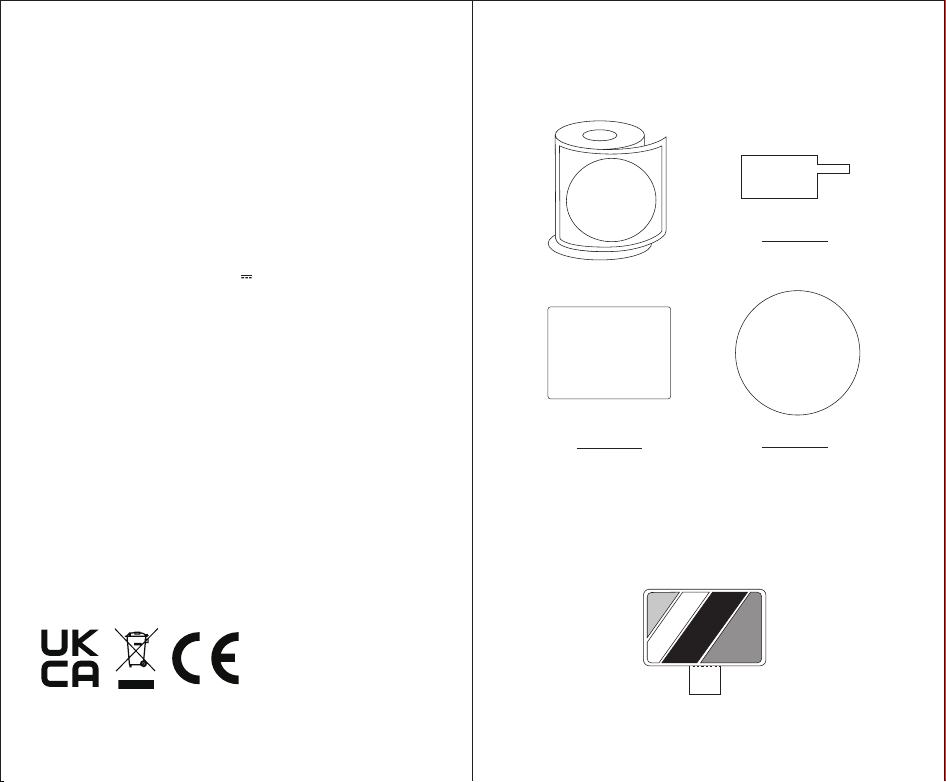
FCC Warnning:
This equipment has been tested and found to comply with the limits for a Class B digital device,
pursuant to part 15 of the FCC Rules. These limits are designed to provide
reasonable
protection against harmful interference in a residential installation. This equipment generates,
uses and can radiate radio
frequency
energy
and,
if
not
installed
and
used
in
accordance
with
the
instructions,
may cause
harmful
interference
to
radio
communications.
However,
there
is
no
guarantee
that interference
will
not
occur
in
a
particular
installation.
If
this
equipment
does
cause
harmful interference to radio or television reception, which can be
determined by turning the equipment off
and
on,
the
user
is
encouraged
to
try
to
correct
the interference
by
one
or
more
of
the following measures:
•
Reorient or relocate the receiving antenna.
•
Increase the separation between the equipment and receiver.
•
Connect the equipment into an outlet on a circuit different from that to which the receiver is
connected.
• Consult the dealer or an experienced radio/TV technician for help.
Caution:
Any
changes
or
modifications
to
this
device
not
explicitly
approved
by
manufacturer
could void your authority to operate this equipment.
This
device
complies
with
part
15
of
the
FCC
Rules.
Operation
is
subject
to
the
following
two
conditions:
(1)This
device
may
not
cause
harmful
interference,
and
(2)
this
device
must
accept
any
interference received, including interference that may cause undesired operation.
This
equipment
complies
with
FCC
radiation
exposure
limits
set
forth
for
an
uncontrolled
environment.
This
equipment
should
be
installed
and
operated
with
minimum
distance
0cm
between the radiator and your body.

ISED Statement
‐
English:
This device contains licence-exempt transmitter(s)/receiver(s) that
comply with Innovation, Science and Economic
Development Canada’s licence-exempt RSS(s).
Operation is subject to the following two conditions:
(1) This device may not cause interference.
(2) This device must accept any interference, including interference that may cause undesired
operation of the device.
‐
French:Cet appareil contient des émetteurs/récepteurs exempts de licence qui sont
conformes aux CNR exempts de licence d’Innovation, Sciences et
Développement économique
Canada. Le fonctionnement est soumis aux deux conditions suivantes :
(1) Cet appareil ne doit pas causer d’interférences.
(2) Cet appareil doit accepter toute interférence, y compris les interférences susceptibles de
provoquer un fonctionnement indésirable de l’appareil.
This
equipment
complies
with
Canada
radiation
exposure
limits
set
forth
for
an
uncontrolled
environment.
This
equipment
should
be
installed
and
operated
with
minimum
distance
0cm
between
the
radiator & your body.
Cet équipement est conforme Canada limites d'exposition aux radiations dans un environnement
non contrôlé.
Cet équipement doit être installé et utilisé avec une distance minimale de 0 cm entre le
radiateur et votre corps.