—— Monitor Chores
—— Manage Chores
Chore
—— Monitor Rewards
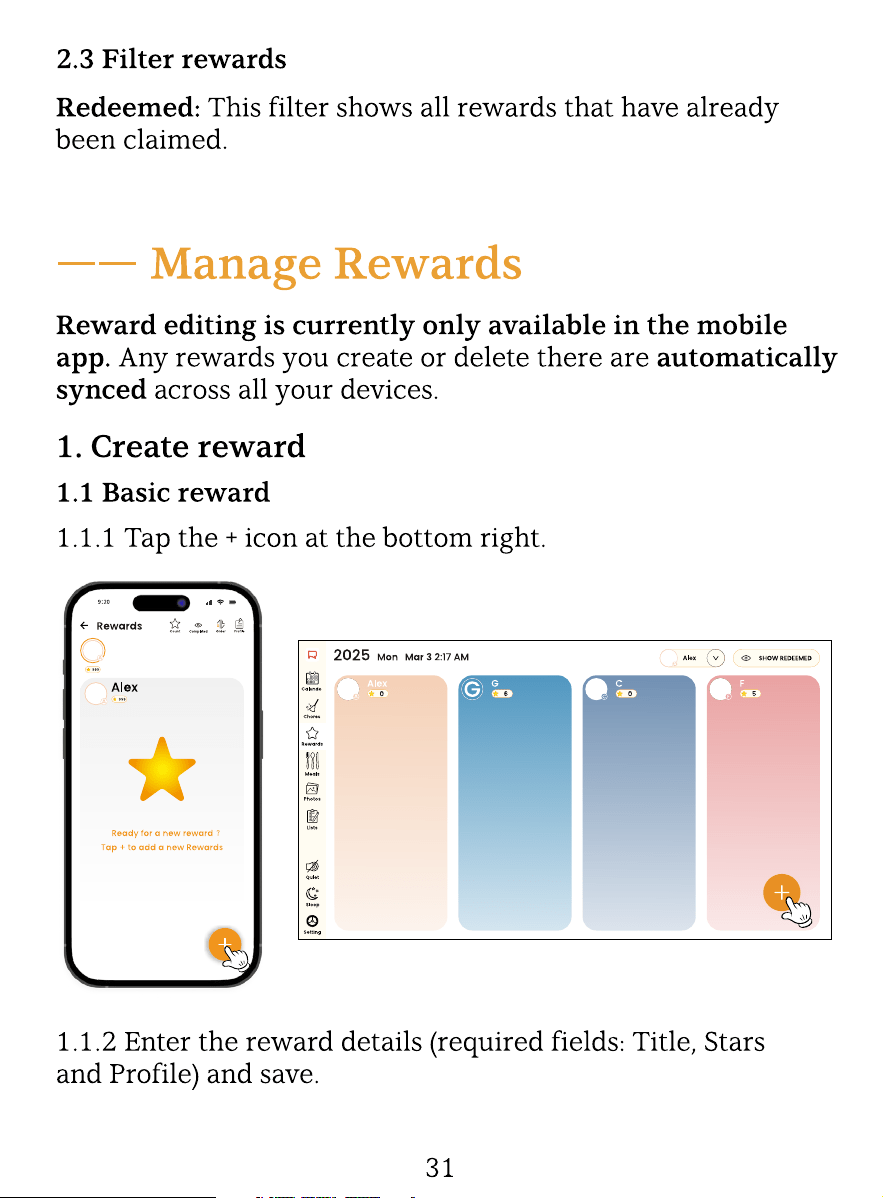
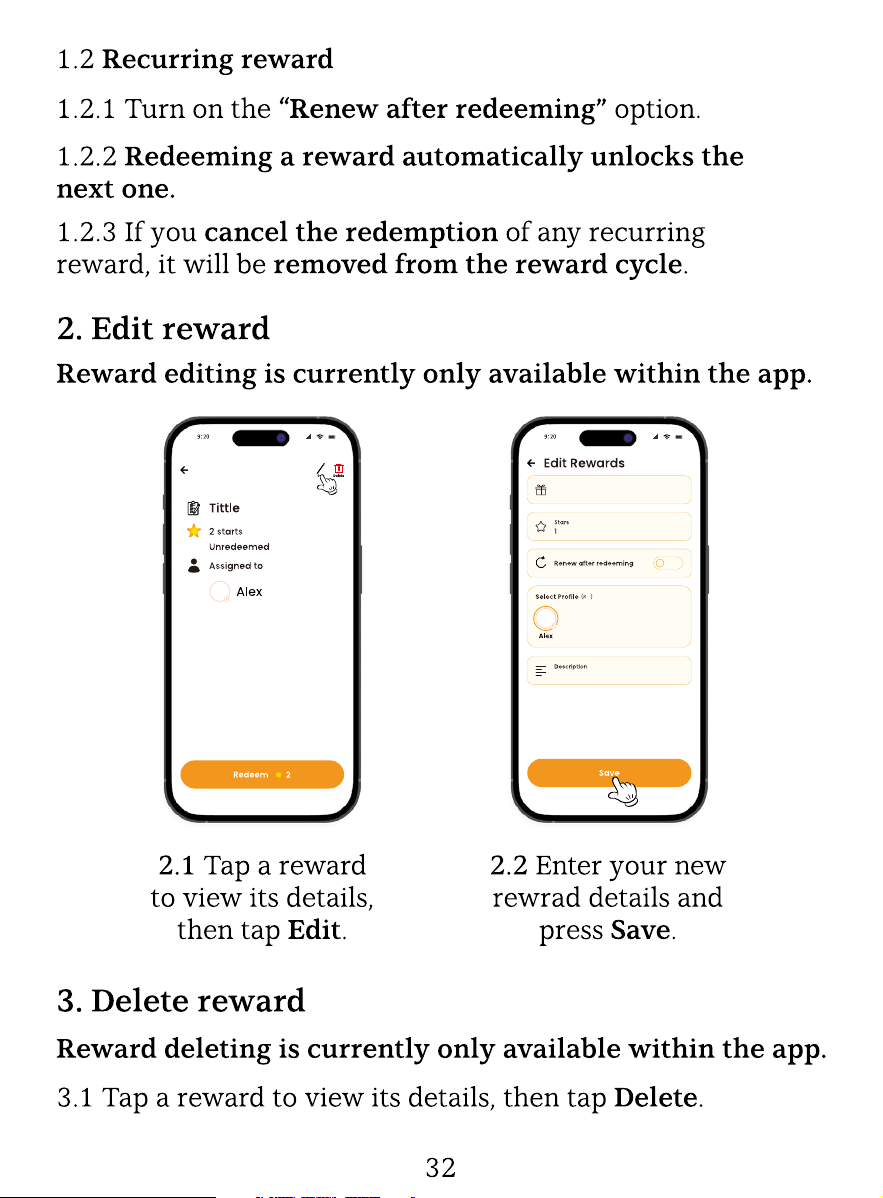
—— Manage Rewards
Rewards
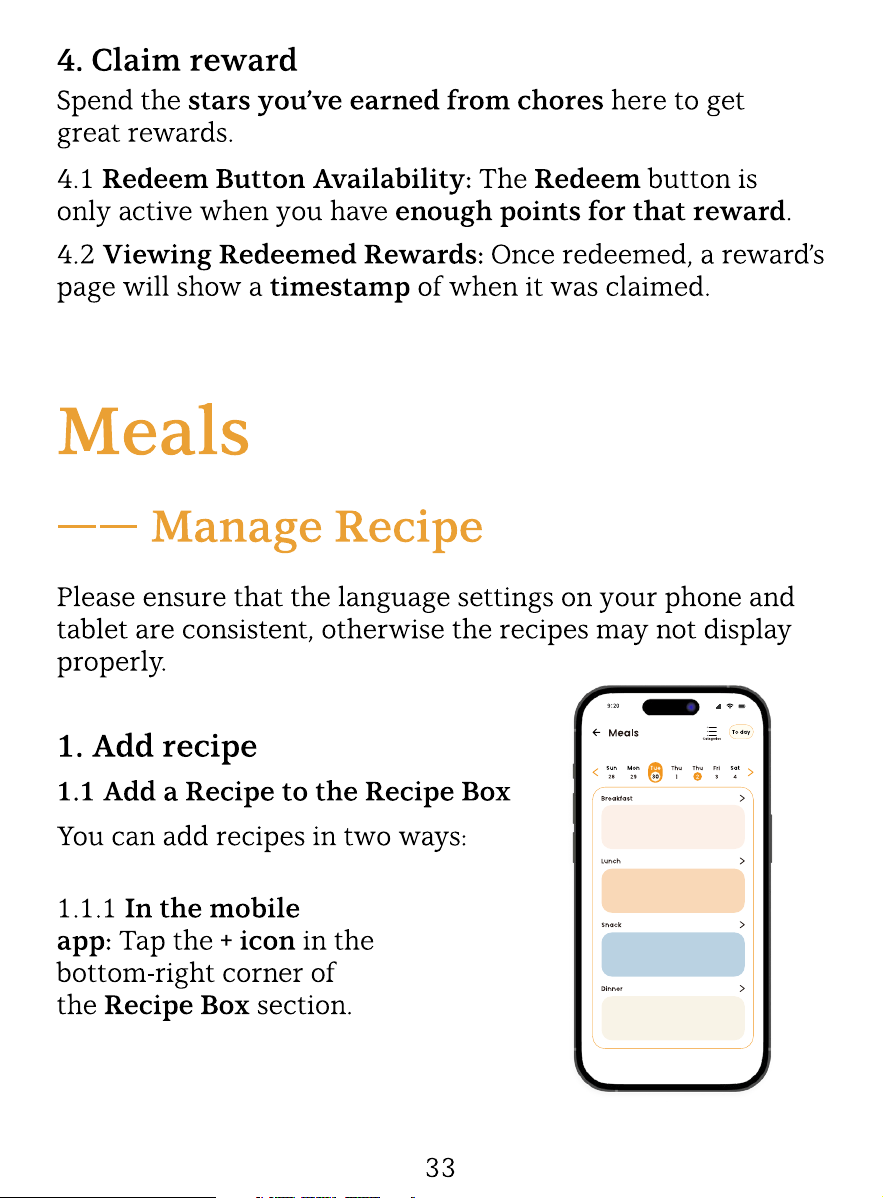
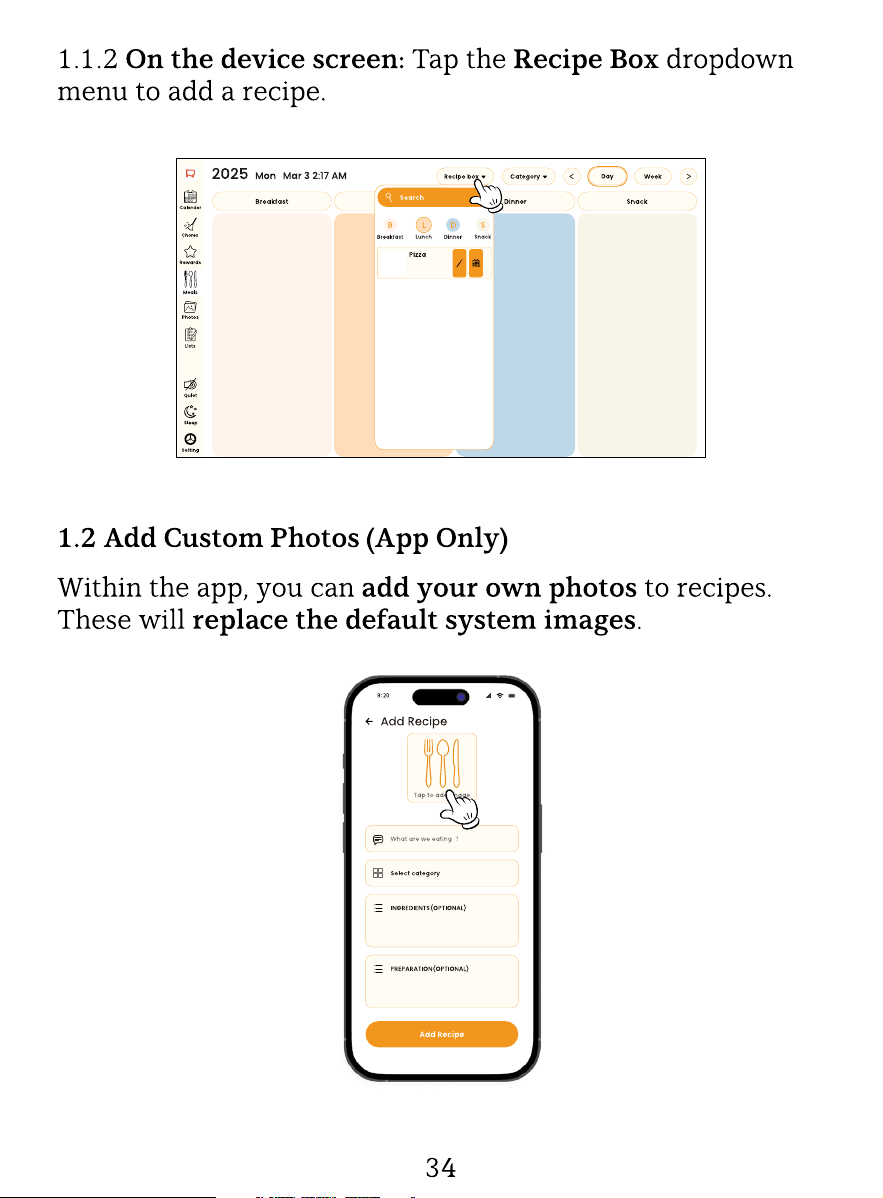
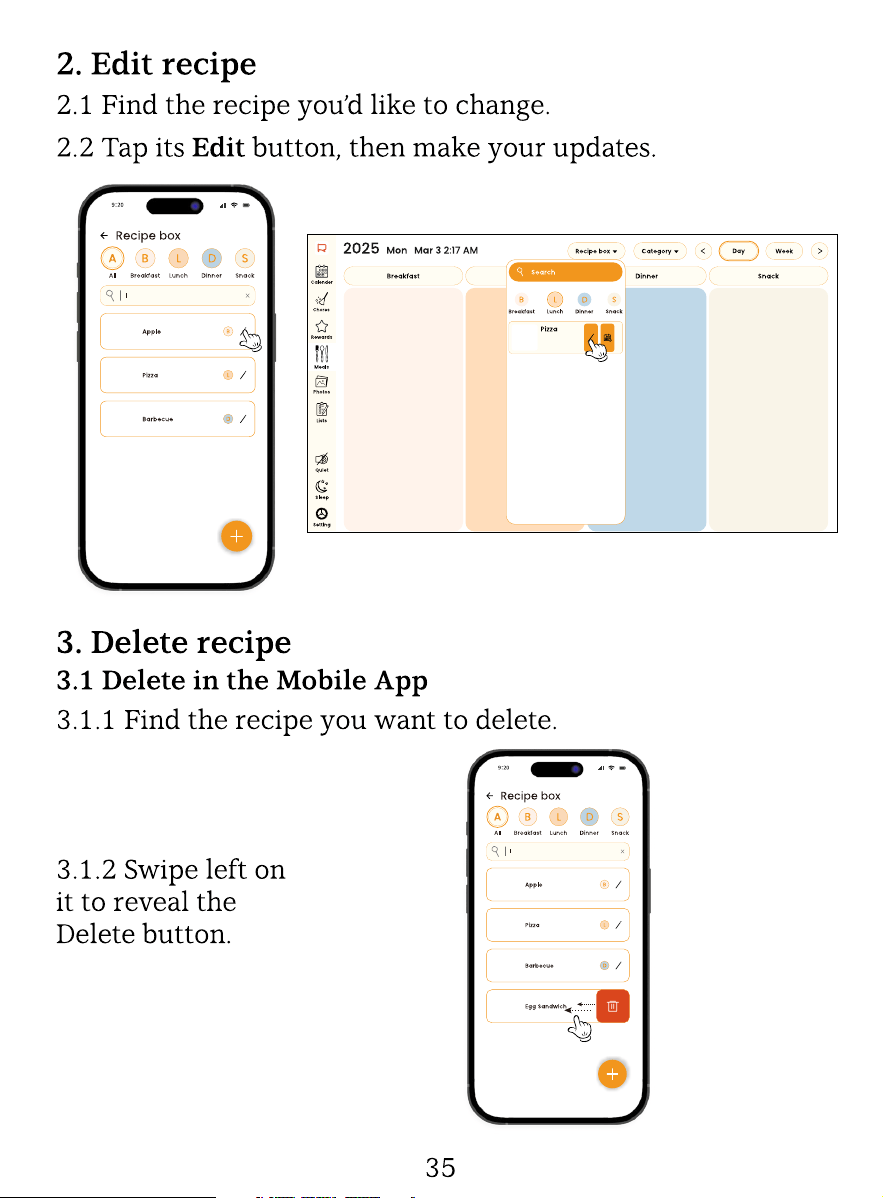
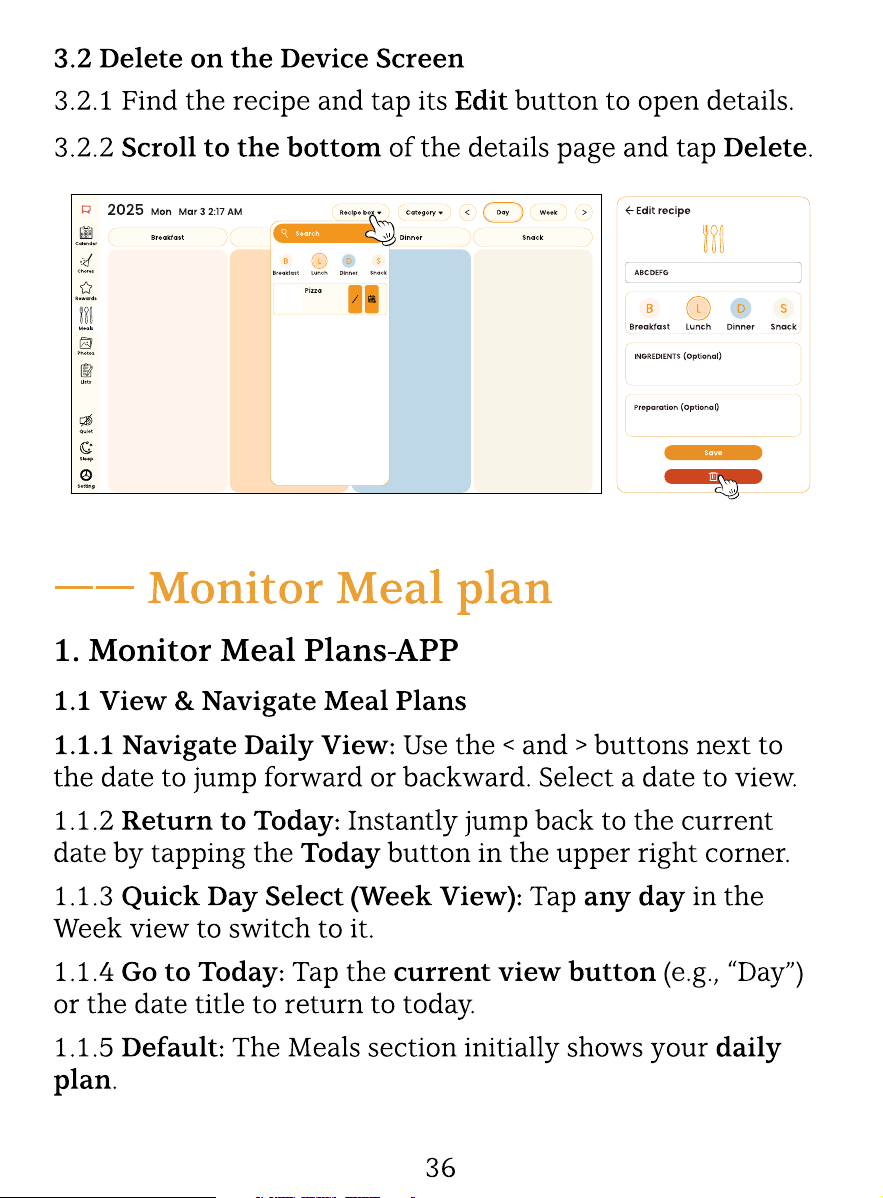
—— Manage Recipe
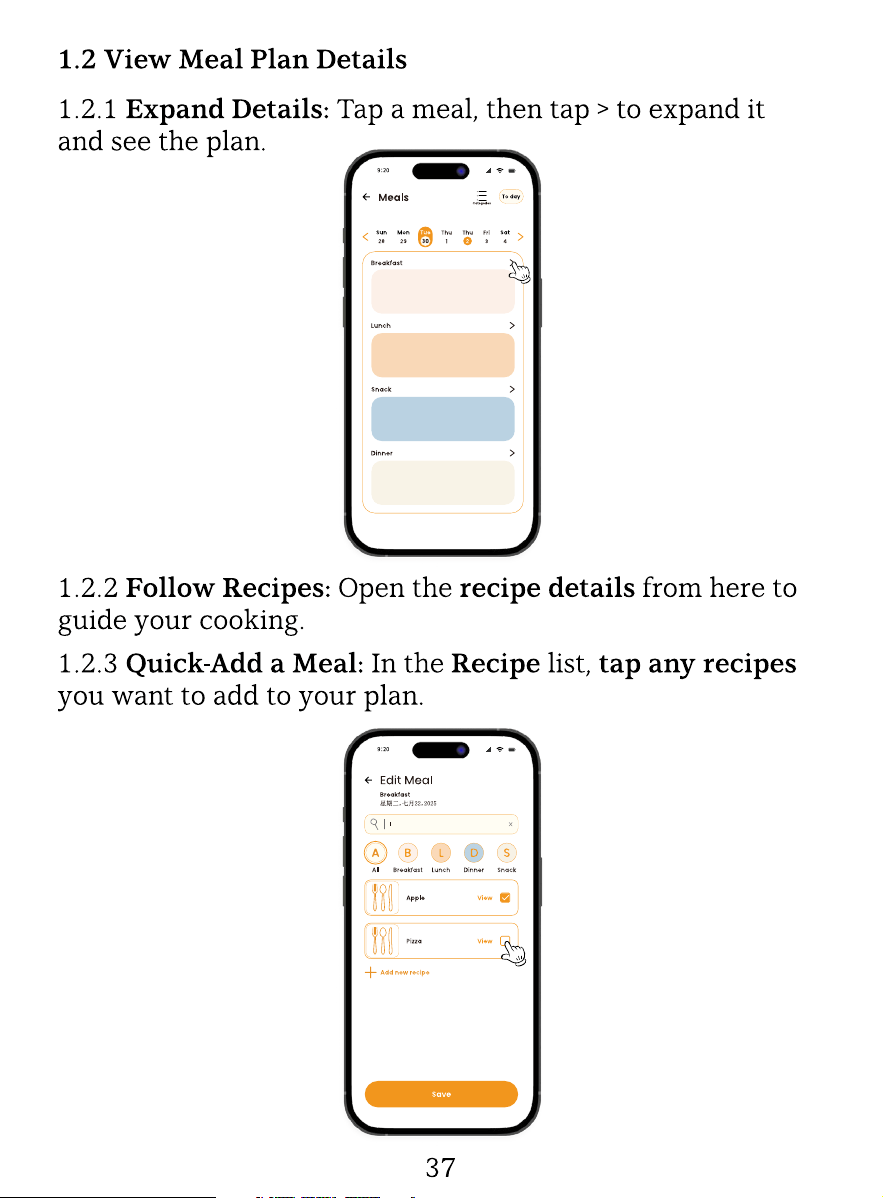
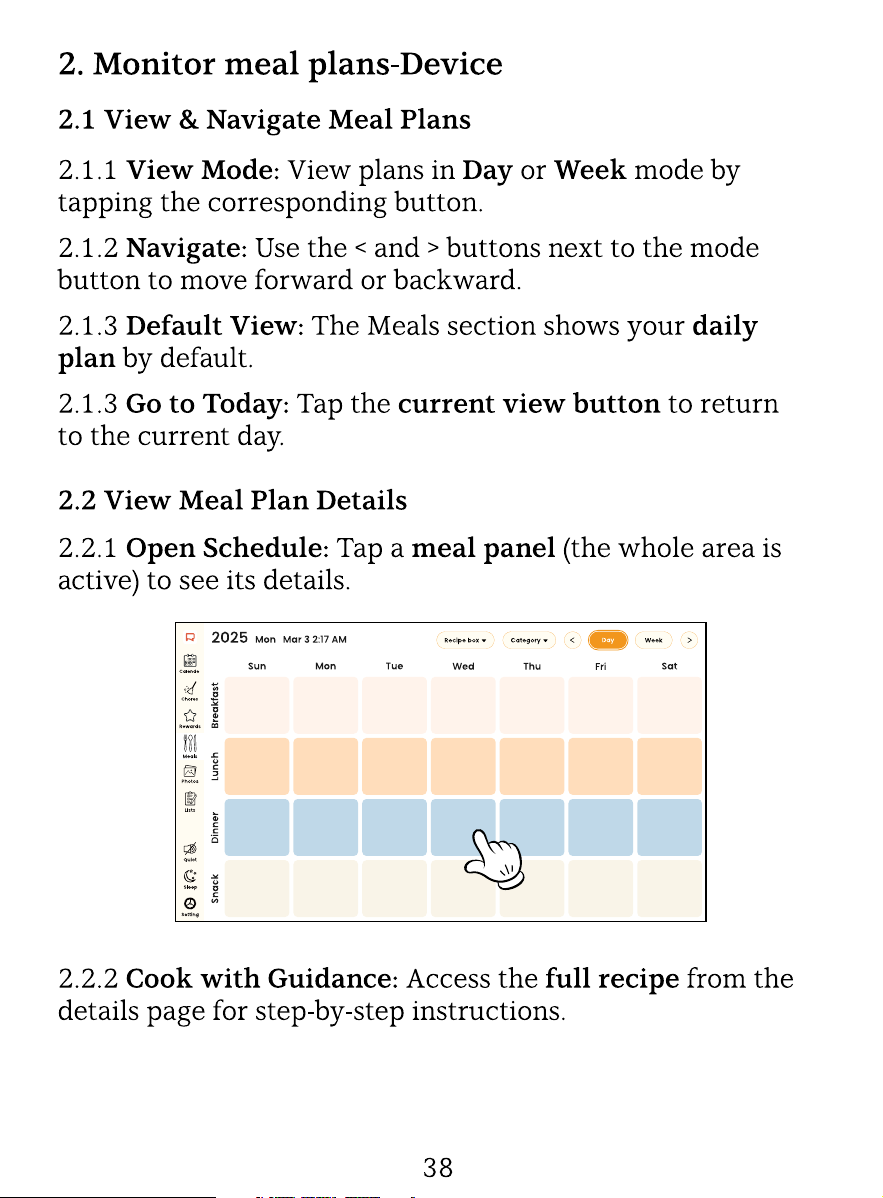
—— Monitor Meal plans
—— Manage Meal Plans
Meals
—— Monitor Lists
—— Manage lists
—— Manage tasks
Lists
—— Scheduled Sleep and Instant Sleep
Sleep Mode
—— Basic Operations Supported
Settings
—— For Detailed Operations
Photos
21
21
23
33
33
36
39
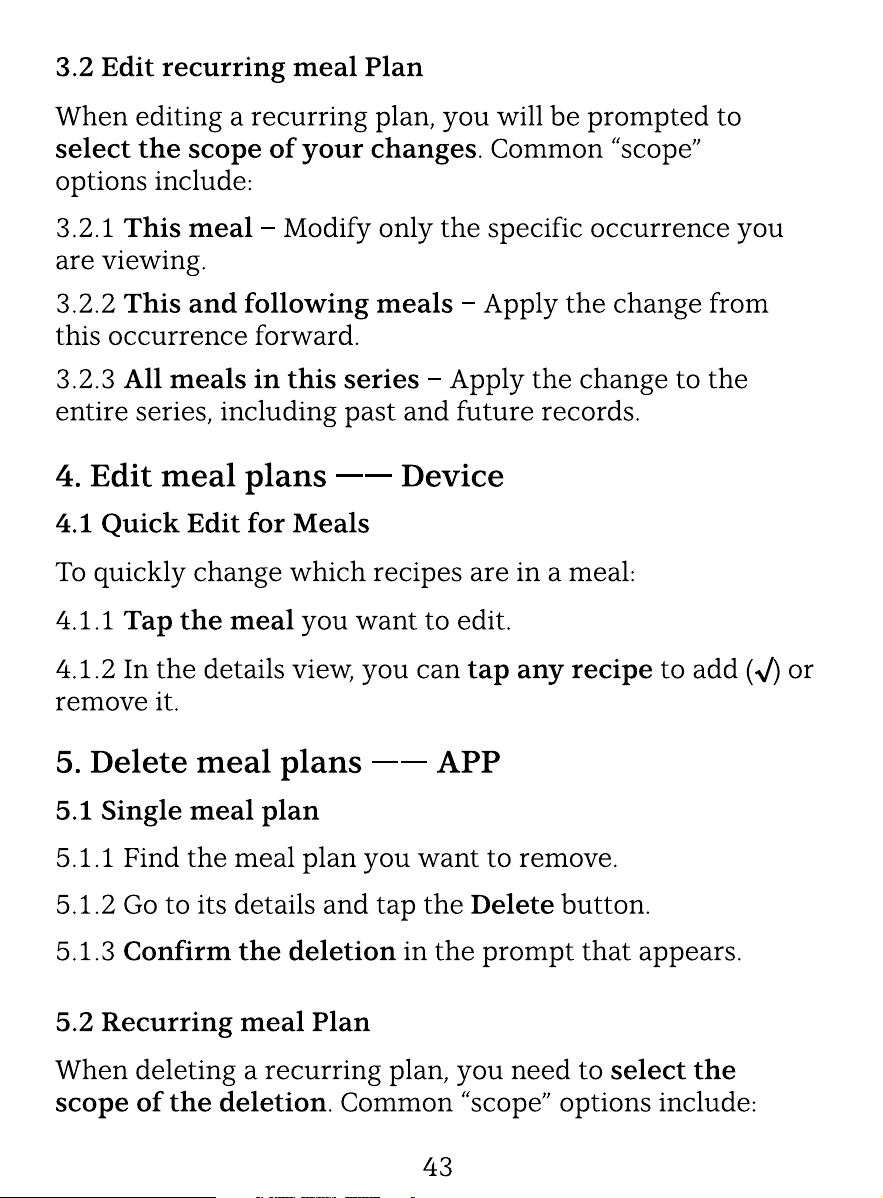
44
44
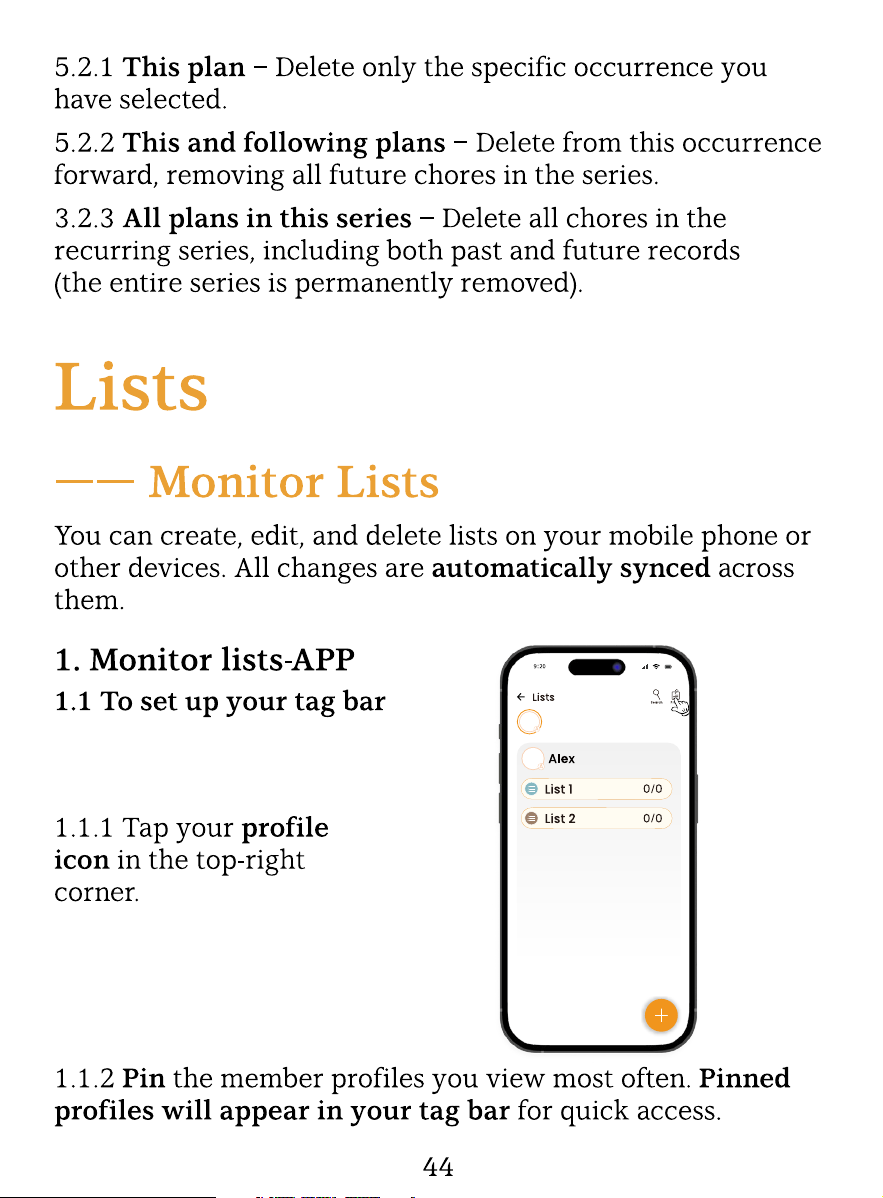
45
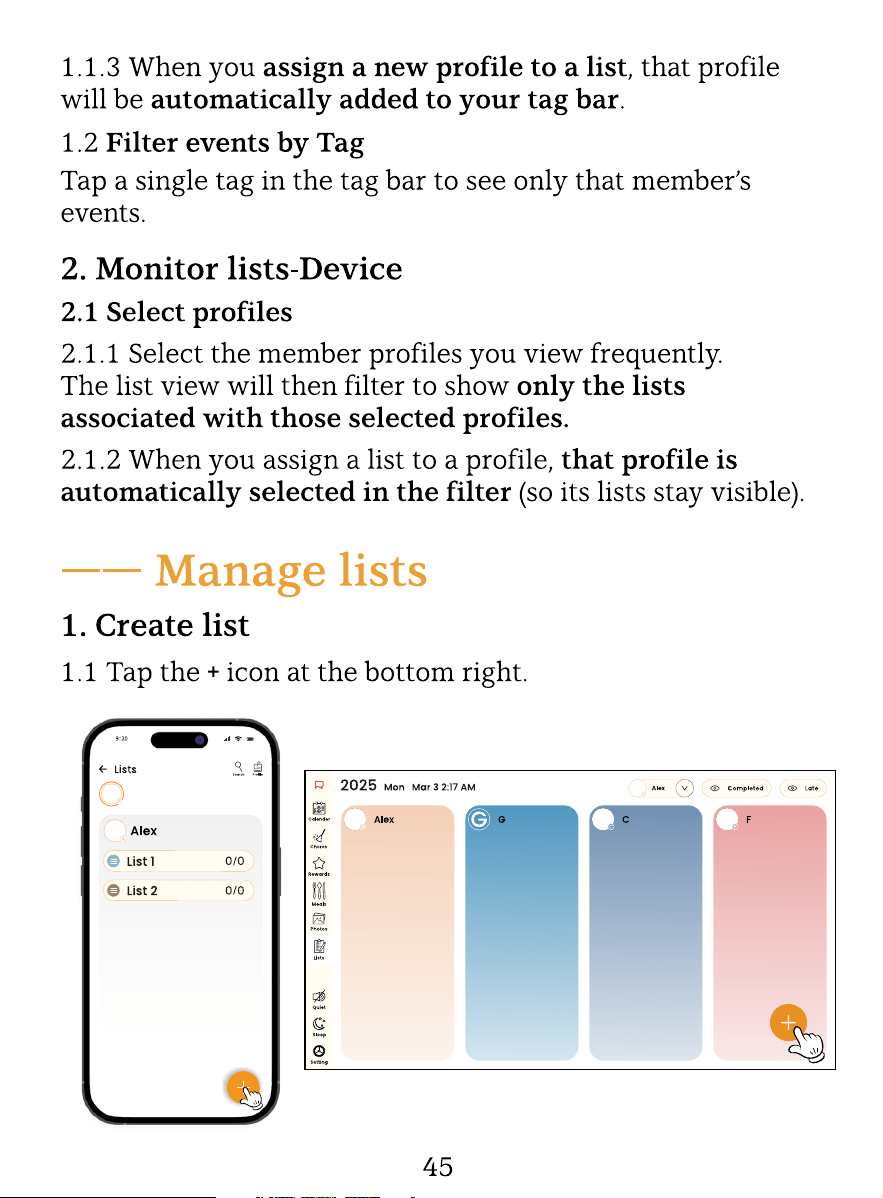
46
51
53
53
55
55
55
—— Notif ication & Reminder Policy
Reminder
—— Event Reminder —— Device
57
57
58
60
60
29
29
31
—— Task Reminder —— Device
—— Task Reminder —— In APP
60
61
03
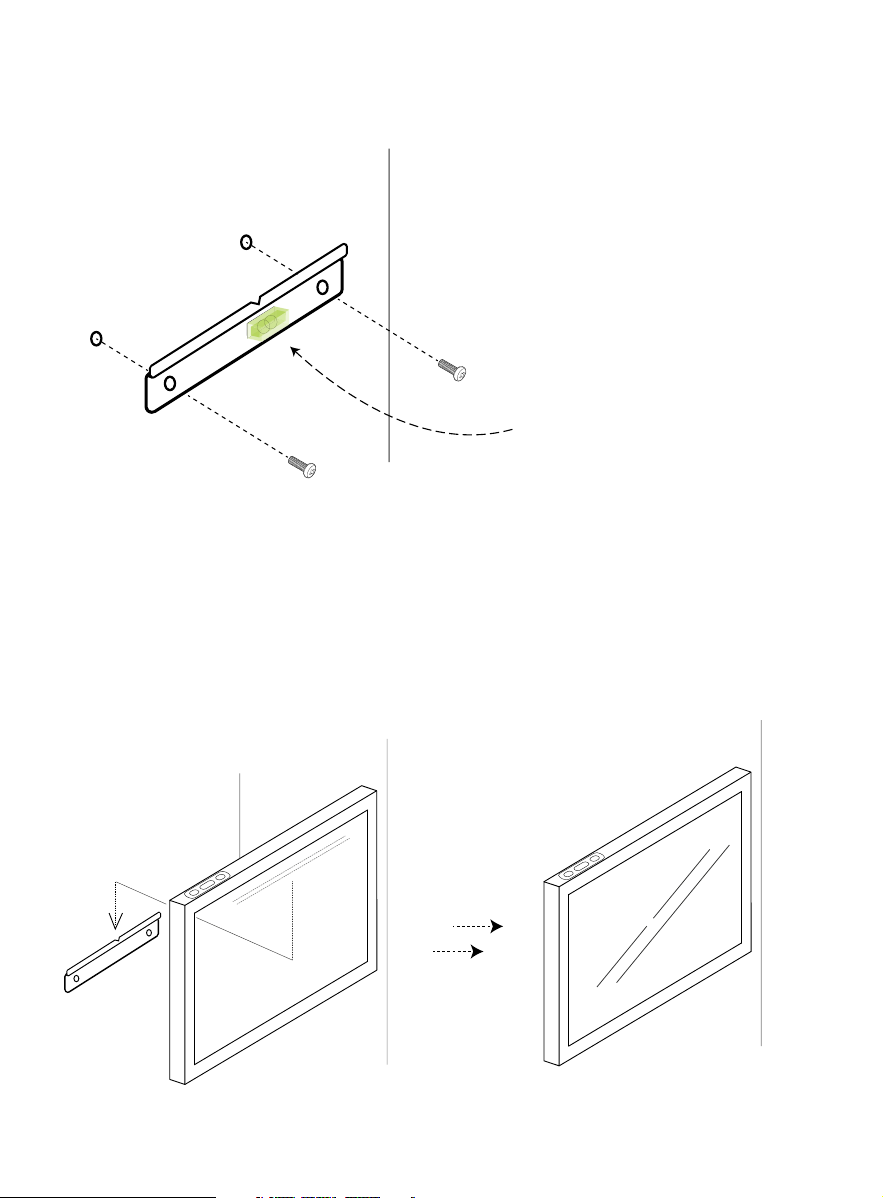
1. Attachthe mount to the wallusing the provided anchors
and matching screws(c), with thepleat facing towards you.
2. Alignthepleatwith thegrooveslocated at theback top of
the device, andhookthe device on. Before f
ixed installation,
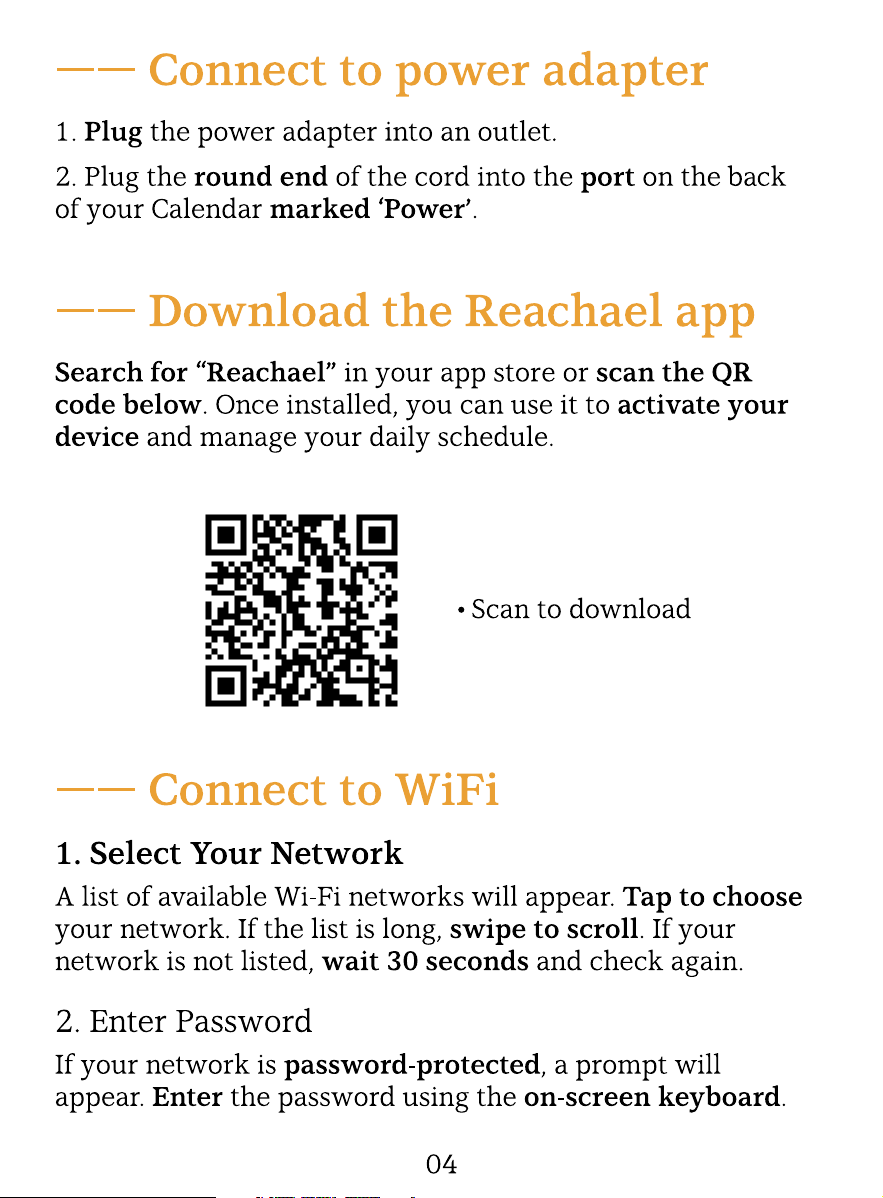
please refer to the “Connect to power adapter” section to
connect the power cord.
Place the level on the
f
ixed position of the
bracket to help you
calibrate the bracket
position more easily.
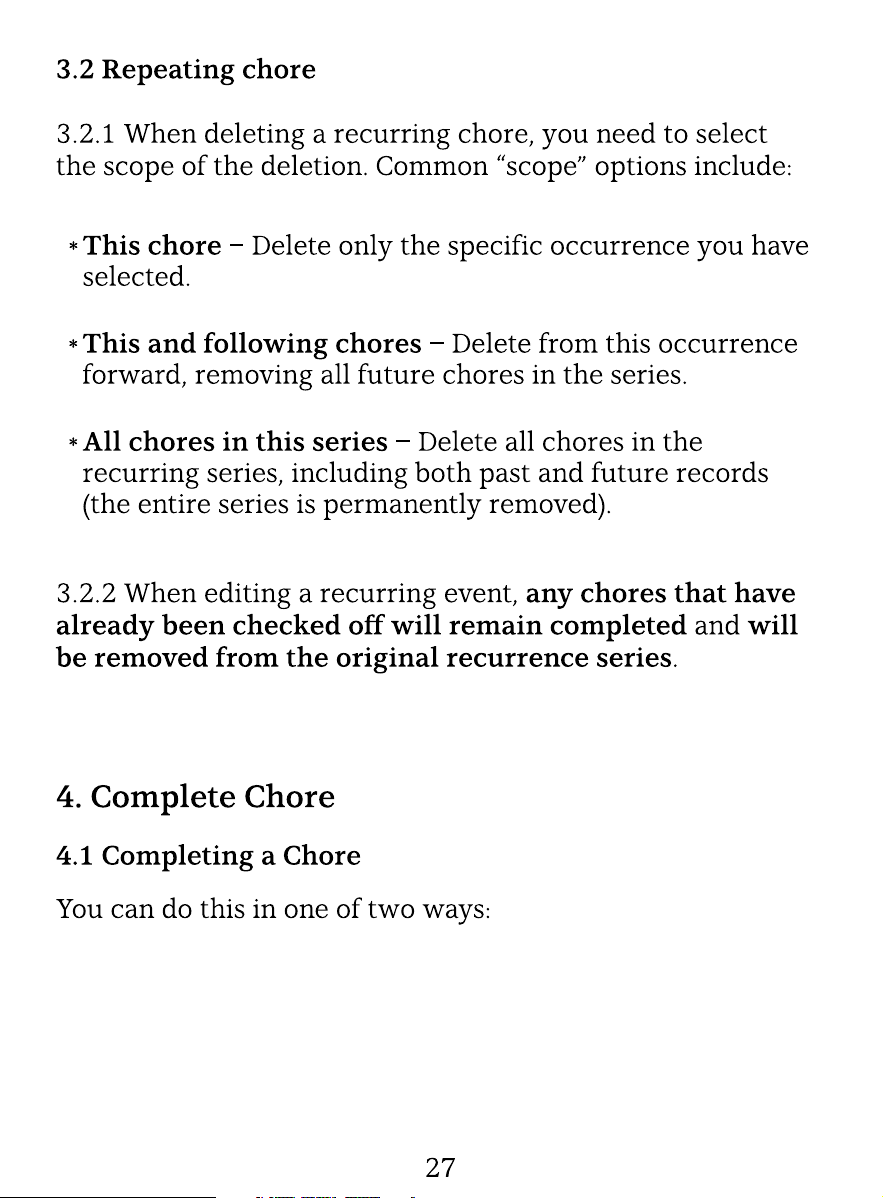
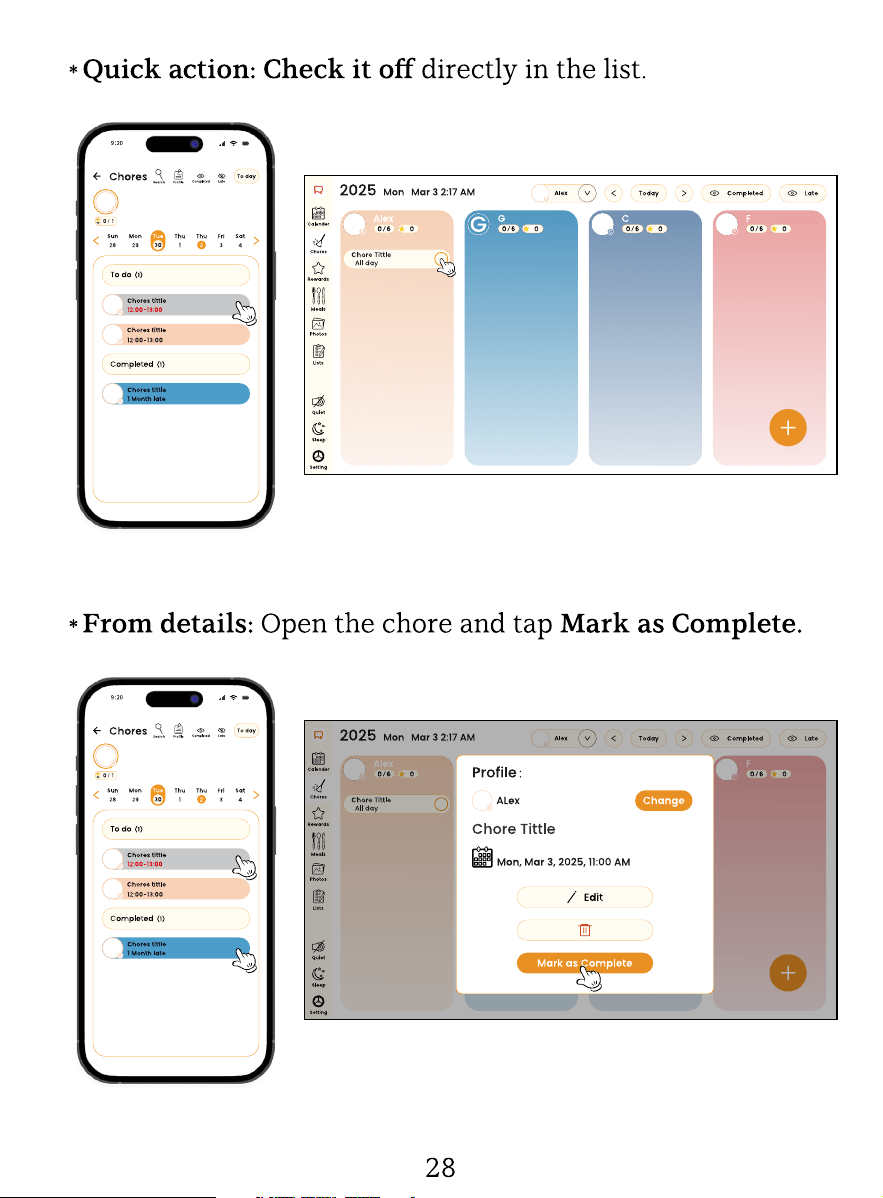
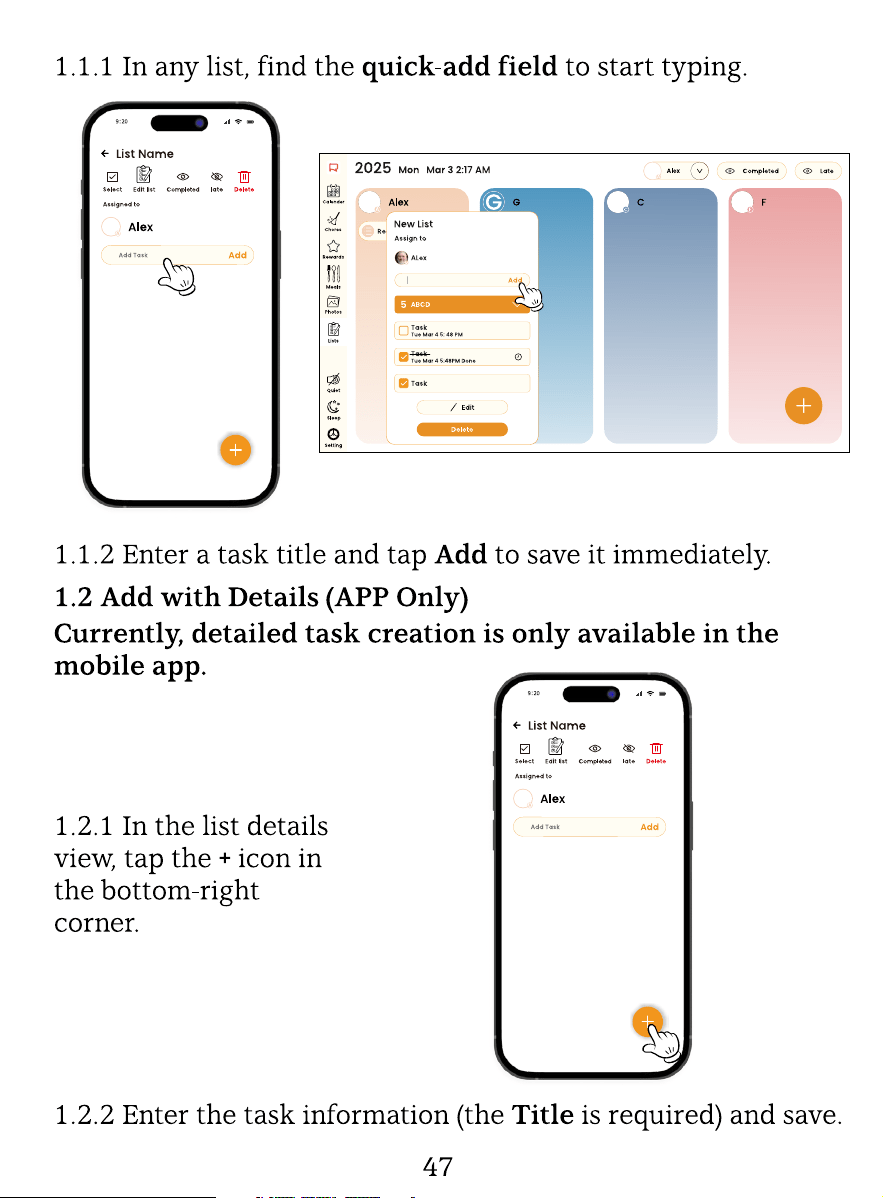
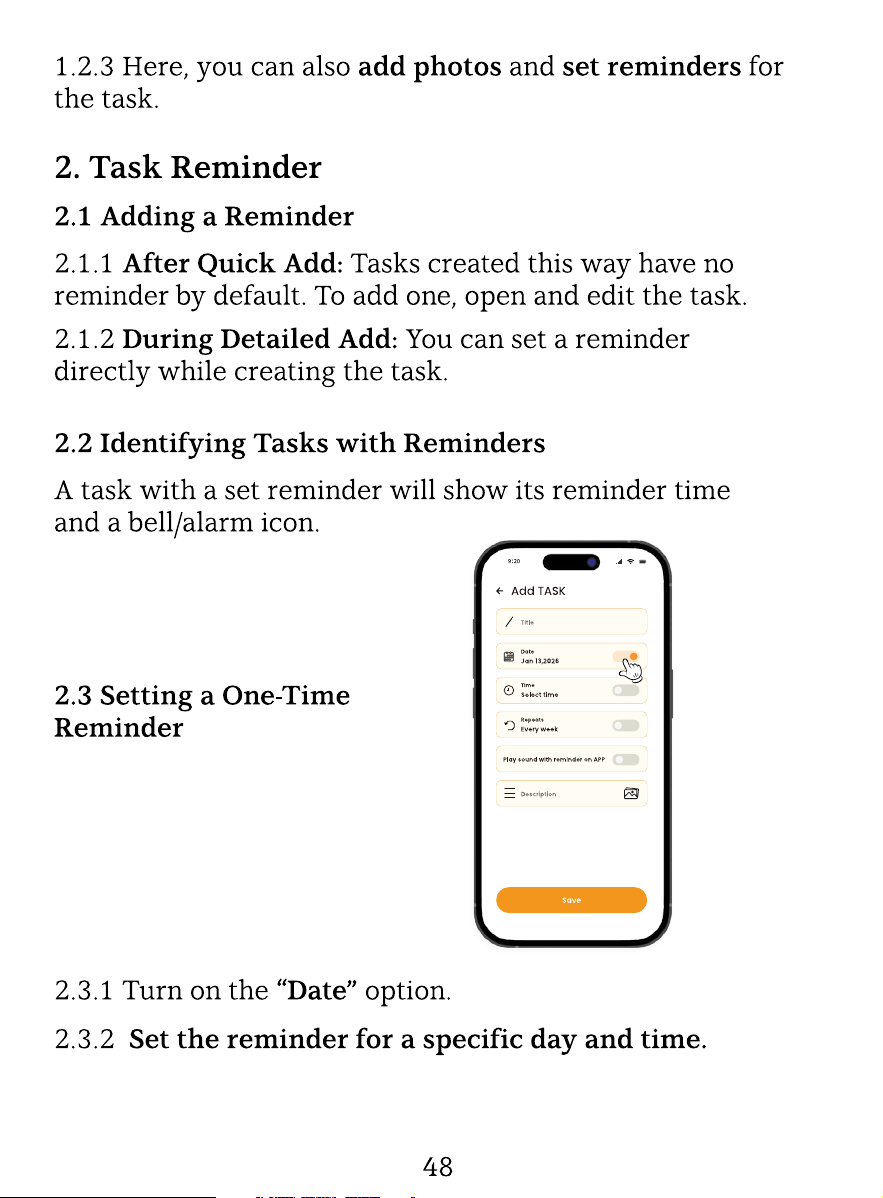
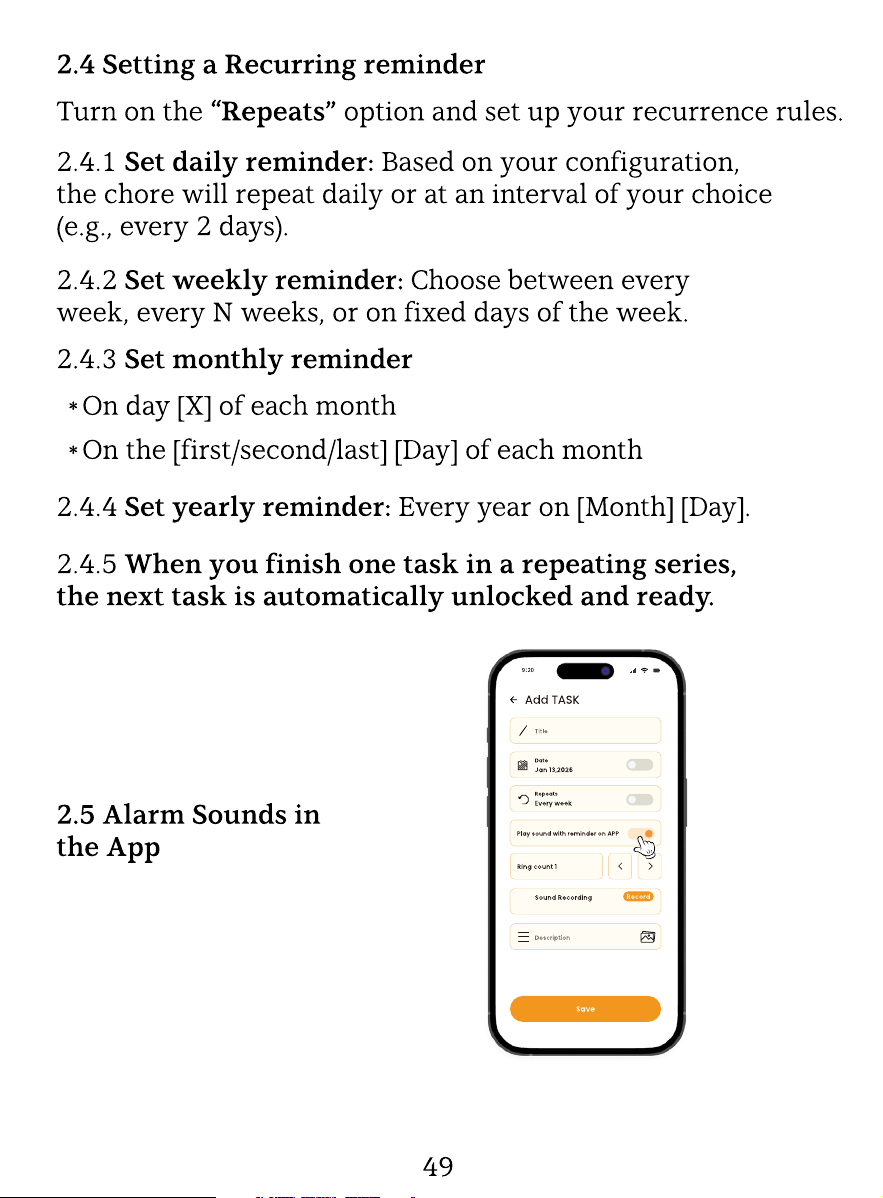
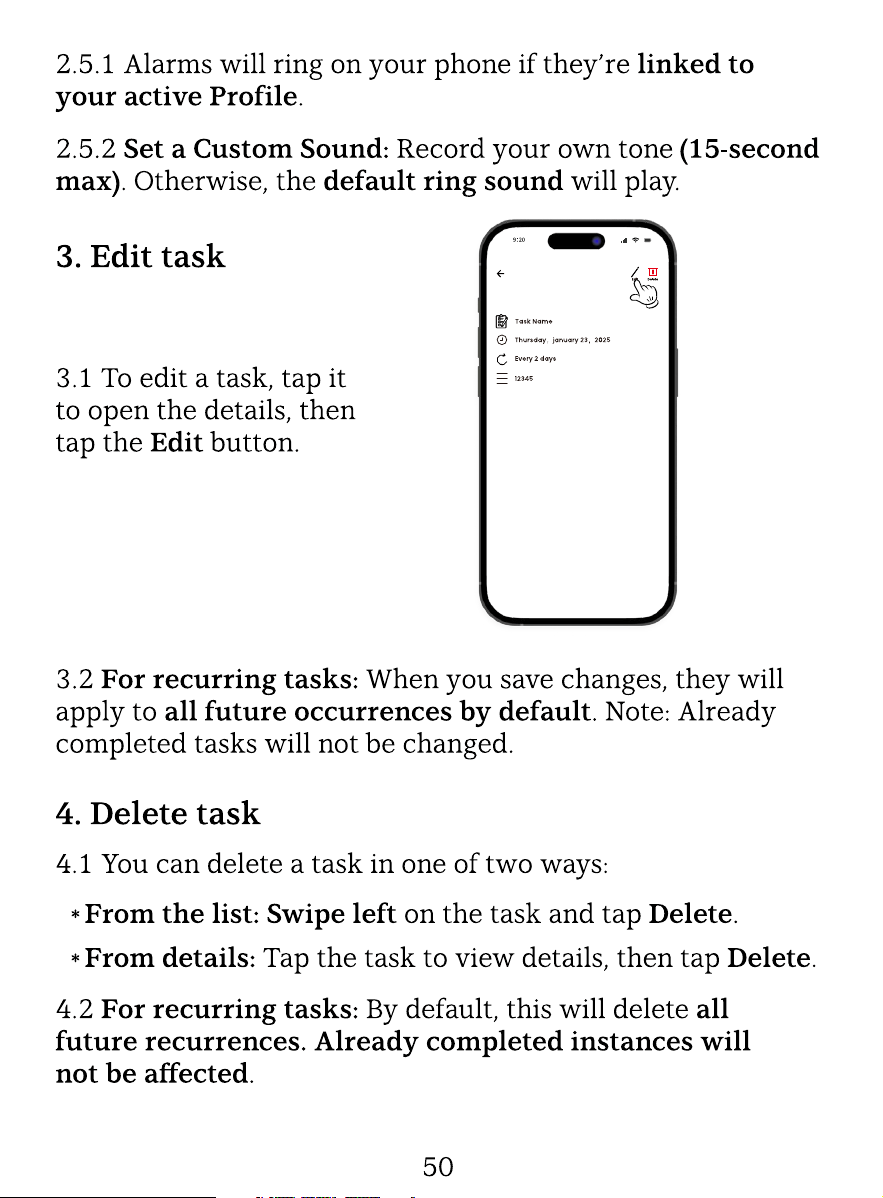

5. Complete task
5.1 Marking Tasks Complete/Incomplete
5.1.1 Complete:Check o the task directly in the list,
or open it and tapMark as Complete.
5.1.2 Incomplete:Uncheck it directly in the list, or open it
and mark it as incomplete.
5.2.1 Completed with Reminder:The completion time is
recorded and displayed.
5.2.2 Expired Reminder:The overdue time is shown, and
the reminder icon is highlighted in red.
5.2 Task Status & Reminder
If you mark acompletedrecurring task as incomplete, it will
be removed from its original series.
5.3 Special Case: Recurring Tasks
Photos
To upload photos/videos and manage albums, please use
the mobile app. This is the only supported method at the
moment.
51
2. Edit Photos (Before Uploading)
While selecting photos, you can crop them and draw doodles.
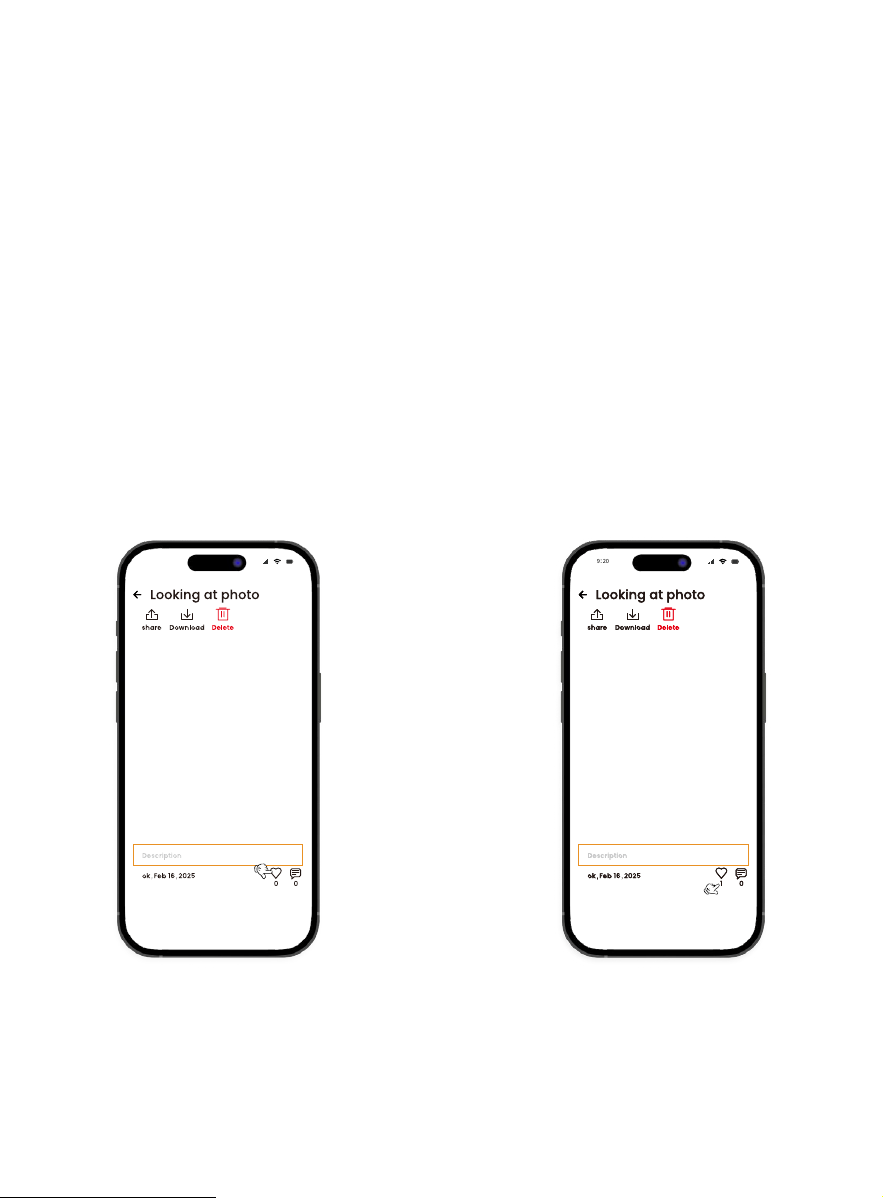
3. Like & Comment on Photos
3.1 View Details:Tap any photo to open it.
3.2 Like:Tap
thehearticon.
3.3 View Likes:Tap the
number below the heart
to see who liked it.
�:�� �:���:��
1. Upload Photos & Videos
1.1 Limit:You can select up to 9 photos or videos per upload.
1.2 For a more stable upload, try uploading your videos in
batches.
52
Sleep Mode
—— Scheduled Sleep and
Instant Sleep
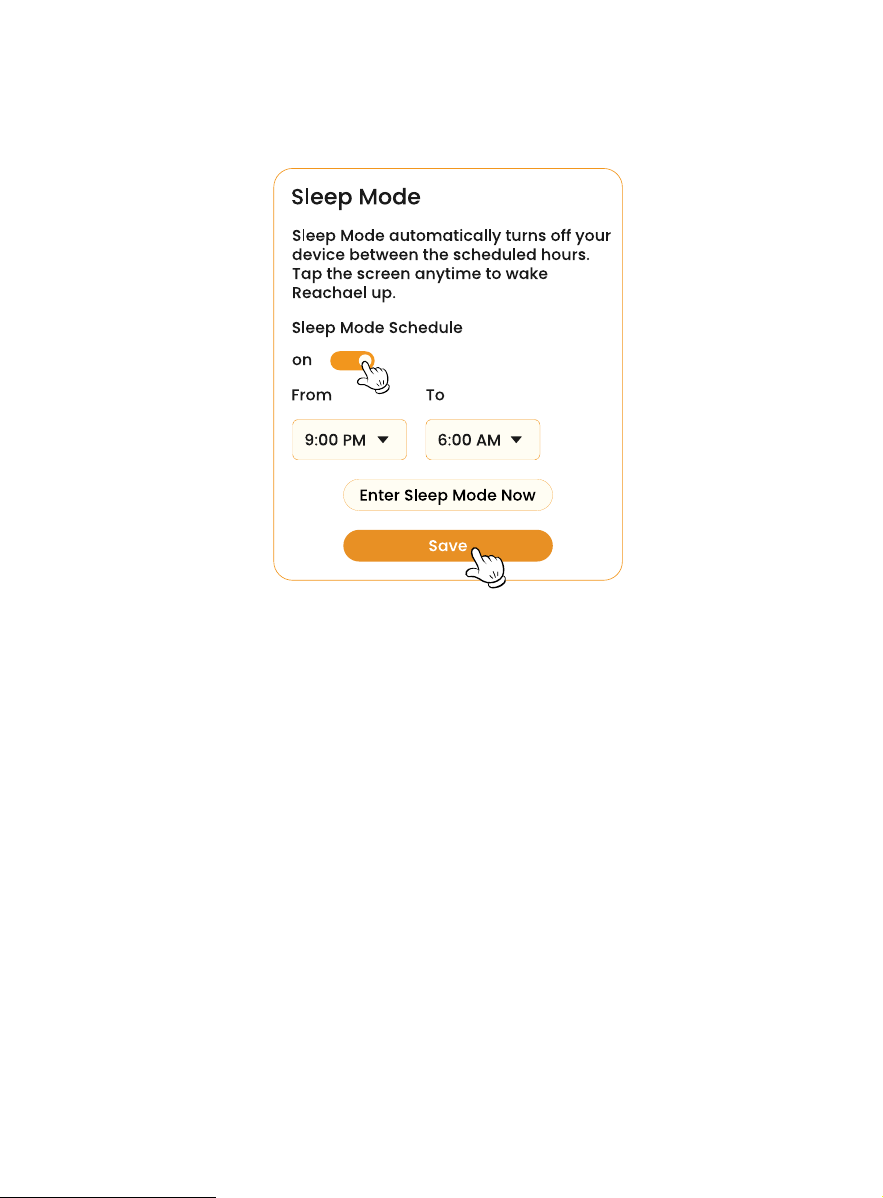
1. Tap themoon iconin the sidebar.
2. Set a Sleep Schedule
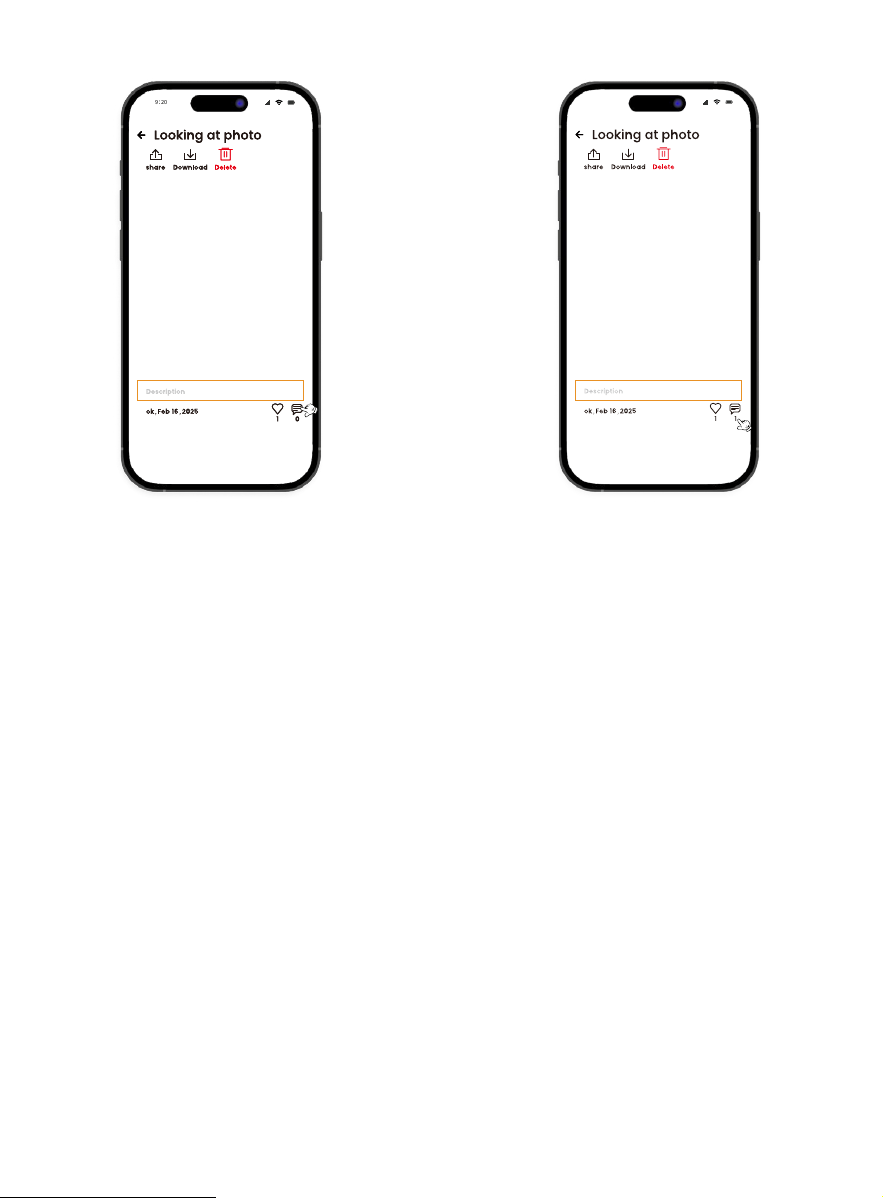
3.5 View All Comments:
Tap the number below the
comment icon.
3.4 Comment:Tap
thecommenticon to open the
box and add your comment.
�:���:��
�:��
53
3. Enter Sleep Mode Immediately
4. Woken up during the process
Tap‘Enter Sleep Mode Now’to put the display to sleep. Press
thepower buttonagain to wake it up.
If the device is woken up during this process and no operation
is detected for 30 seconds, it will re-enter sleep mode.
Toggle on‘Sleep mode schedule’, set the times for the
Calendar to enter and exit Sleep Mode, and tapSaveto conf
irm.
Manual Wake-up: You can press the physicalpower
buttonat any time to wake the Calendar from Sleep Mode.
*
54
—— For Detailed Operations
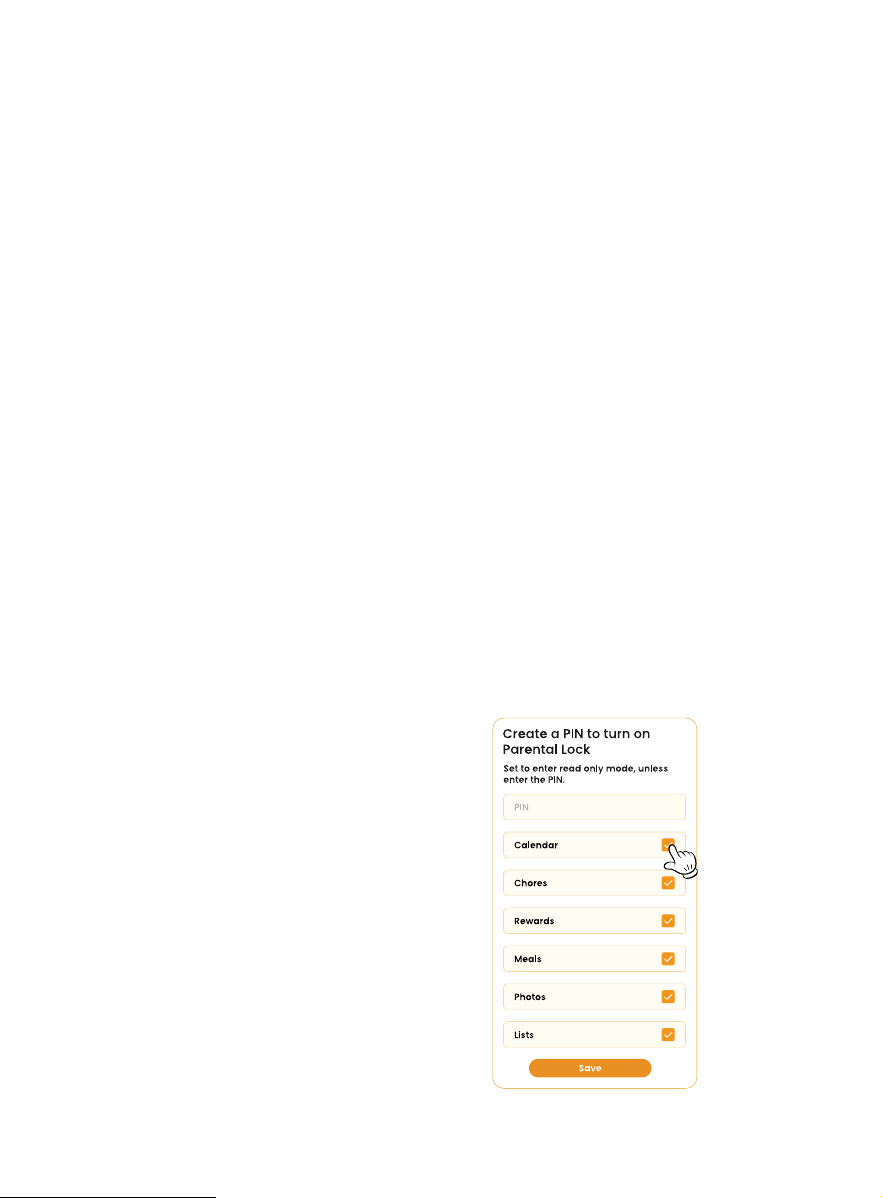
1. Parental Protect
Step 1: Set a 4-digit PIN.
Step 2: Select the
section where it
will be used.
1.1 The purpose of the screen lock is to safeguard your data
against random or unauthorized changes.
Settings
—— Basic Operations Supported
1. Language:Switch between English, Chinese, and Spanish.
2. Time:Set time zone.
3. Display:Adjust font size and screen brightness.
4. Sound:Adjust volume.
55

1.2 Sections with parental controls enabled are view-only and
require the correct parental control password to edit.
2. Forgot PIN
2.1 Click“Forgot PIN”.
If you forget your PIN while trying to verify it:
2.2 We will send atemporary PINto your registered
email address.
2.3 You can then use this temporary PIN tomodify or
disablethe parental controls.
3. Device Password
3.1 The device password must be 4 digits, it will be used
under the following conditions:
3.2 Forgot Device Password
3.1.1 Require password on wake.
If you forget your password, click “Forgot Password” to
reset your device. Follow the instructions to reset your
device.
3.1.2 Require device password when waking from sleep.
56

4.4 Time and date display and sound are disabled by
default in screensaver settings.
4.1 The screen saver displays system-provided images
by default.
4.2 To use the photo screensaver, manually enable the
mode and choose your photos.
4. Screensaver
4.3 The photo screensaver allows customization of the
playback sequence and display interval.
Reminder
—— Notif ication & Reminder Policy
1. Quiet Hours
To avoid disturbing your rest, the App will suspend all push
notif
ications daily from22:01 to 07:29 (the next day).
2. Delayed Reminders
If a reminder is scheduled to fall within Quiet Hours, it will
be automatically postponed and delivered at07:30on the
same day.
57
3. All-Day Events/Tasks
For all-day events or tasks, the system defaults the reminder
time to09:00on the day of the event. Any advance
reminders you set (e.g., 1 hour, 2 hours, or 24 hours before)
will be calculated based on this 09:00 reference point.
4. Multi-Day & Repeating Events
If an event spans multiple days or repeats, the system will
send a separate reminder for each individual day.
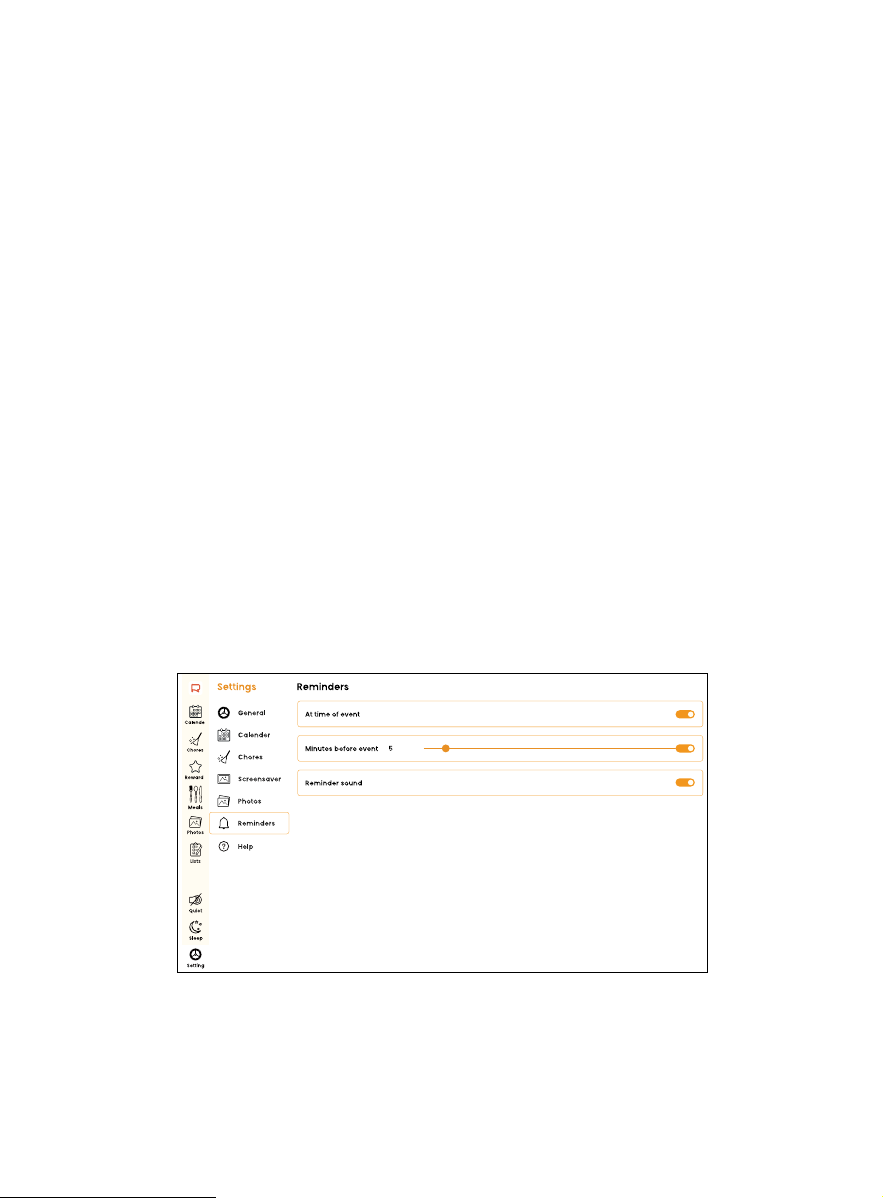
1. General Setting
—— Event Reminder —— Device
You can enable reminders on your Calendar to alert you
about upcoming events.
58
1.1 At time of event:Reminders for calendar events are
triggered upon occurrence.
1.2 Minutes before event:Reminders for calendar events are
sent in advance, according to the scheduled time.
1.3 If neither of the two time settings is enabled, reminders
will remain o. By default, our system does not send push
notif
ications.
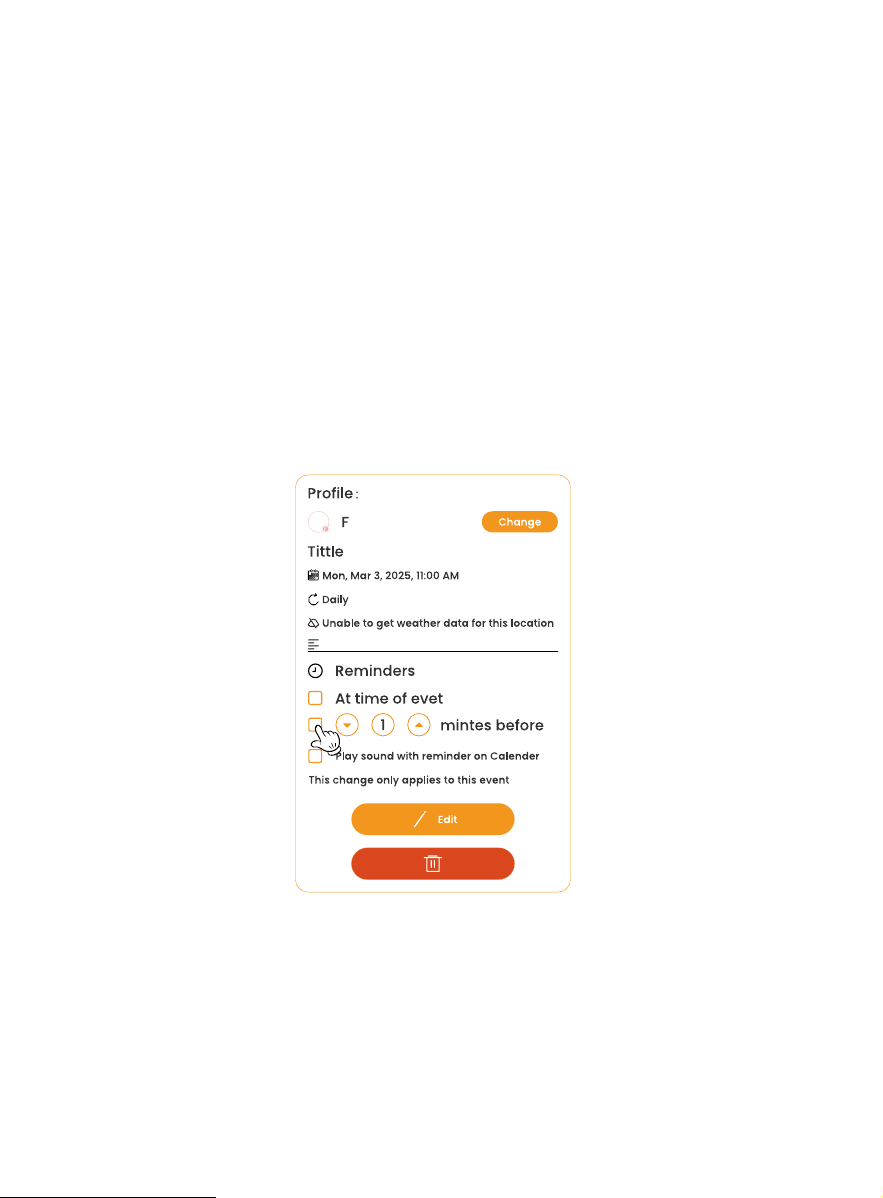
2. Set individually
2.1 Allows you to set an individual reminder time for a
calendar.
2.2 This calendar’s reminders are not aected by the
general settings.
59

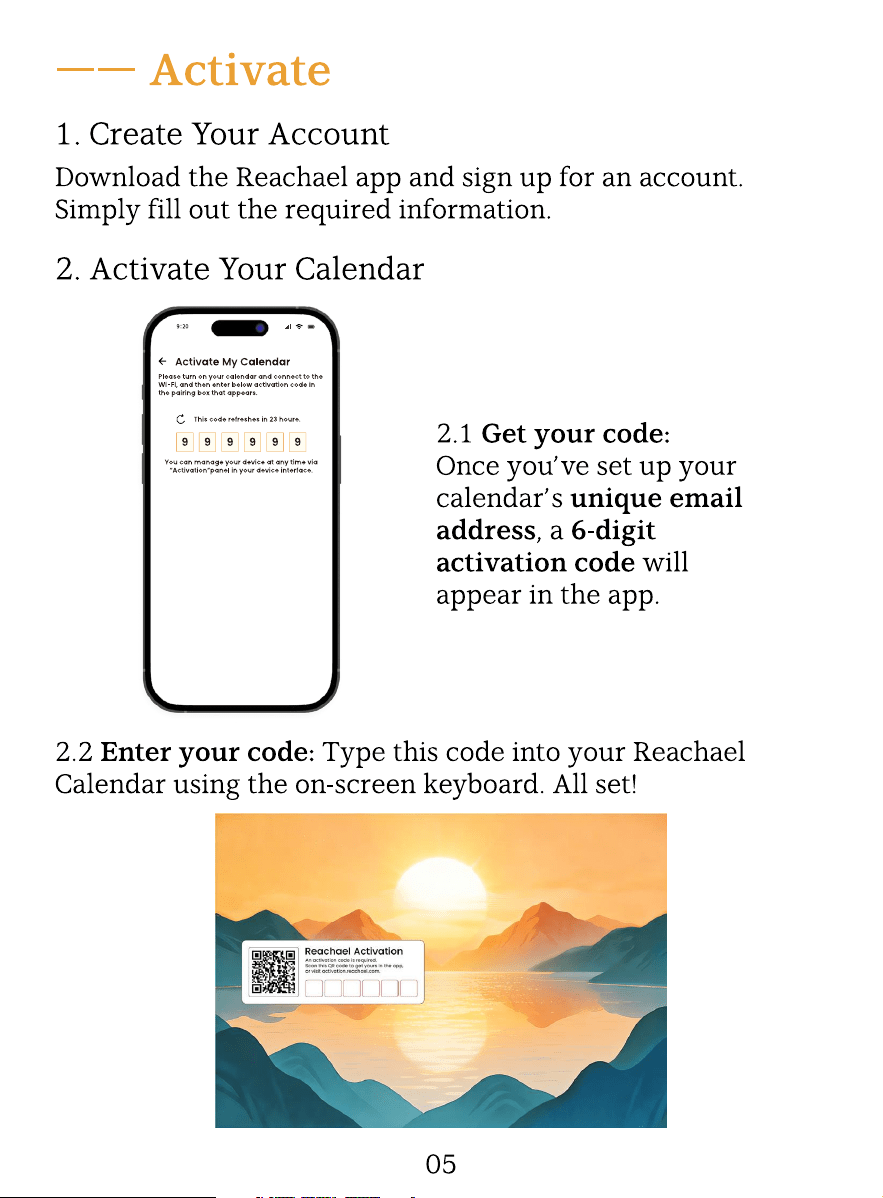
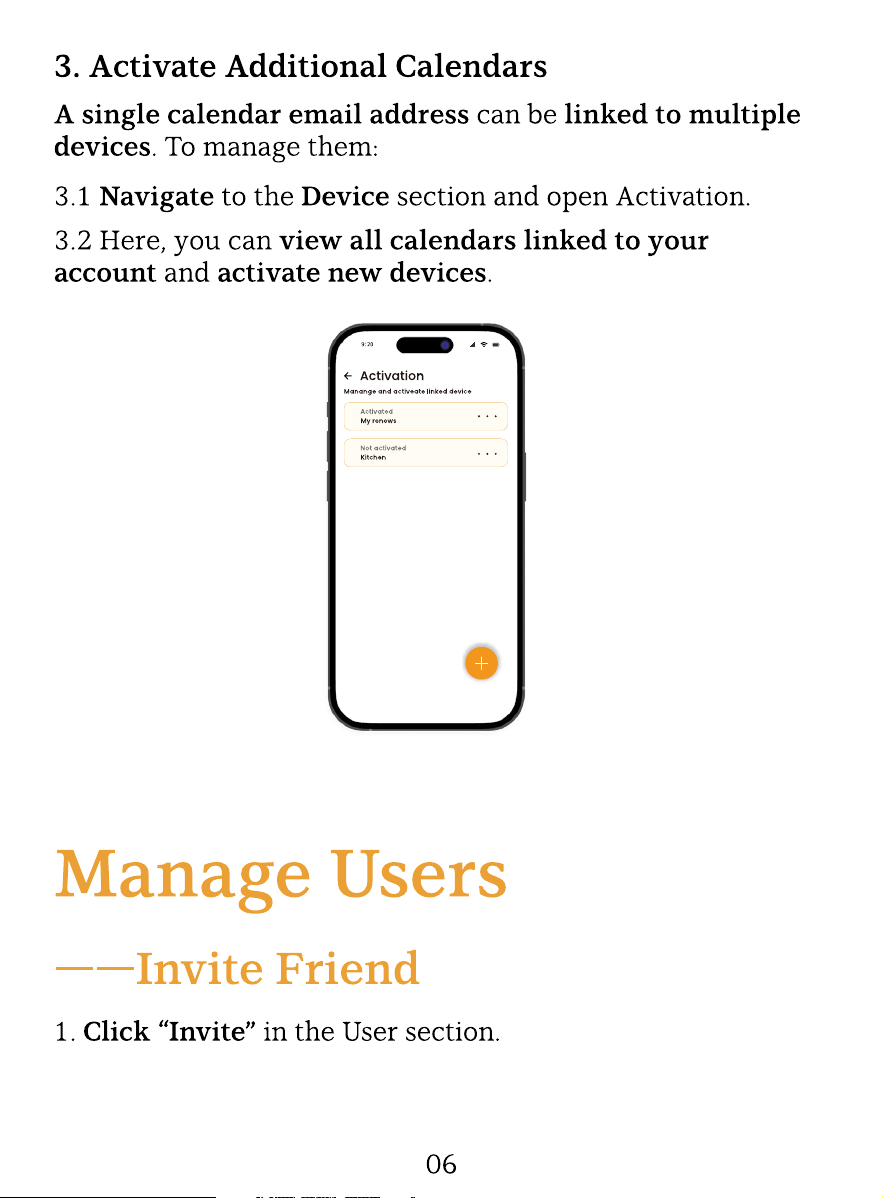
If you have any questions about how to use or set up your
Reachael calendar, please visit our user Guide in APP.
For video instructions, visit www.youtube.com and search
Reachael Calendar or of
f icial website.
Or contact us at support@reachael.com.
Need Help?
—— Task Reminder —— Device
1. You can set alarms based on your specif ic needs. Please
note: All alarm notif
ications will be accompanied by a
ringtone.
2. To avoid disturbance, alarms will not be pushed during the
designated Quiet Hours.
—— Task Reminder —— In APP
Alarm tasks are usually pushed to your phone, just like
calendar events.If you enable “Play sound with reminder
on APP” within a task, and selected related prof
ile, the
alarm will also ring on your phone.
60
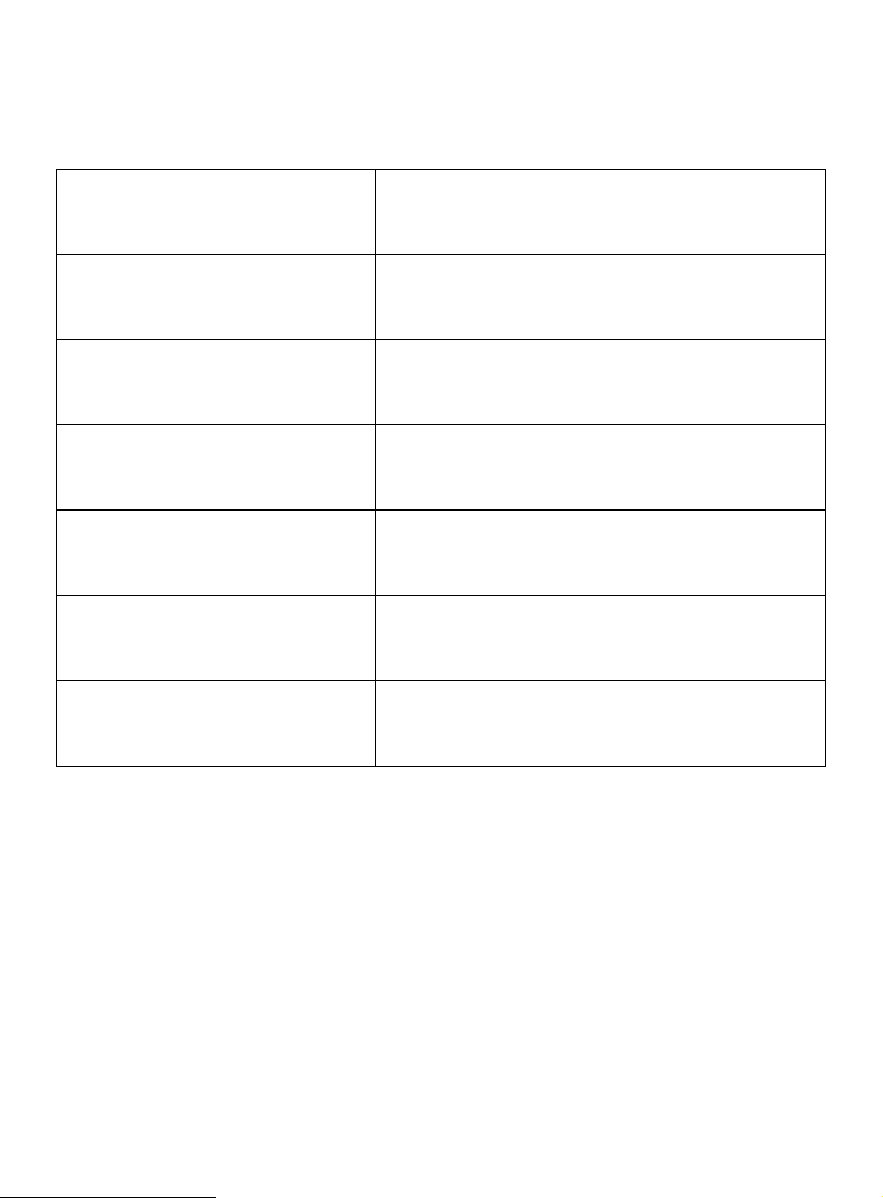
Specif ic
Display
Resolution
RAM
Storage(for photos
and system software)
Stero speakers
Mobile App Compatibility
Wi-Fi Connectivity
15.6" FHD Panel With 10-Point Touchscreen
1920x1080 pixels
(included5GBforphotosandvideos)
Wi-Fi (802.11 a/b/g/n/ax/ac) with
2.4 Ghz and 5Ghz band
iOS and Android
2GB
32GB
4Ω3W X 2
61
www.Reachael.com
Distributor:
HongKongGenesisTechnologyCo.,Ltd.
UNIT NO. A222 , 3F , HANG FUNG INDUSTRIAL BUILDING,
PHASE 2 , NO. 2G HOK YUEN STREET , HUNGHOM KL
尺寸:130*185mm,
材质:157g铜板纸/单面彩色印刷
130mm
185mm
T.1.08.21.000008
R-Sync_ FFC警告卡
1 / 1
2026-04-08
Ver1.1
PZ202506002单
FC C Cauon.
This device complies with part 15 of the FCC Rules. Operaon is subject
to the following two condions: (1) This device may not cause harmful
interference, and (2) this device must accept any interference received,
including interference that may cause undesired operaon.
Any Changes or modificaons not expressly approved by the party
responsible for compliance could void the user's authority to operate
the equipment.
Note: This equipment has been tested and found to comply with the
limits for a Class B digital device, pursuant to part 15 of the FCC Rules.
These limits are designed to provide reasonable protecon against
harmful interference in a residenal installaon. This equipment
generates uses and can radiate radio frequency energy and, if not
installed and used in accordance with the instrucons, may cause
harmful interference to radio communicaons. However, there is no
guarantee that interference will not occur in a parcular installaon.
If this equipment does cause harmful interference to radio or television
recepon, which can be determined by turning the equipment off and on,
the user is encouraged to try to correct the interference by one or more
of the following measures:
-Reorient or relocate the receiving antenna.
-Increase the separaon between the equipment and receiver.
-Connect the equipment into an outlet on a circuit different from that to
which the receiver is connected.
-Consult the dealer or an experienced radio/TV technician for help.
This equipment complies with FCC radiaon exposure limits set forth for
an uncontrolled environment. This equipment should be installed and
operated with minimum distance 20cm between the radiator & your body.
2026-04-08