
soundcore Sleep A30 User Guide
Get the most out of your soundcore Sleep A30 sleep earbuds for a resul
night.
Getting Started
• Pair Sleep A30 with Your Device
• Wear Your Sleep A30
Key Features
• Use Tap Controls
• Switch Between Listening Modes
• Manage Active Noise Cancellation
• Make and Receive Calls with Sleep A30
• Find Your Sleep A30 with the
soundcore App
• Track Your Sleep
Device Management
• Unpair, Restart, or Reset Your Sleep A30
• Check Battery and Charging Status
• Clean Your Sleep A30
• Update Firmware and App
More Information
• Sleep A30 Specifications
• Get Support
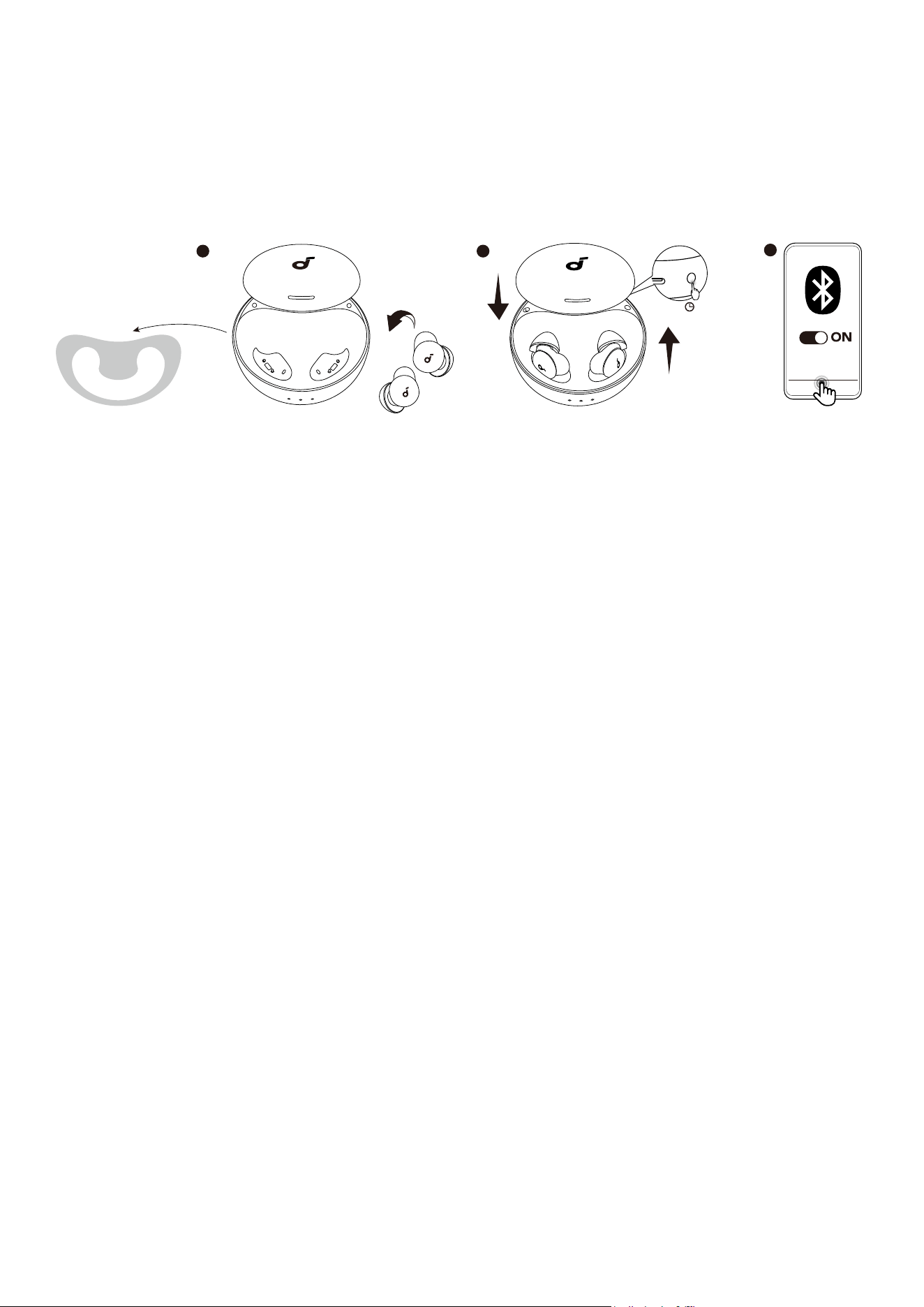
Pair Sleep A30 with Your Device
Connect your Sleep A30 to your device to customize controls, listen to
relaxing audio, manage sleep modes, update firmware, and more.
How to Pair for the First Time
L
R
3s
R
21
soundcore
Sleep A30
3
1. Remove the protective film from the earbuds before first use.
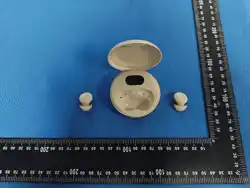
2. Place the earbuds back in the charging case, then close and reopen the
lid. The earbuds will automatically turn on and enter Bluetooth pairing
mode. The LED indicator inside the case will begin to flash.
3. On your device, go to Bluetooth settings and select "soundcore Sleep
A30" from the list.
4. When successfully paired, the LED indicator in the case will stay on for 1
second, then pulse slowly until the lid is closed.
How to Pair Manually
You can also manually pair your Sleep A30 with a device at any time.
1. Place both earbuds in the charging case and leave the lid open.
2. Press and hold the button on the back of the charging case for 3
seconds to enter pairing mode.
3. On your device, select "soundcore Sleep A30" from the Bluetooth list to
connect.

Use the soundcore App
soundcore
Apple and the Apple logo are trademarks of
Apple Inc.
Google Play and the Google Play
logo are
trademarks of Google Inc.
Download the soundcore app to customize controls, listen to relaxing
audio, manage sleep modes, and get the latest firmware updates. If you
cannot connect your earbuds to the app, check the App Store or Google
Play Store to make sure you have the latest version.
URL for app download:
http://dl-soundcore.soundcore.com/qcdl?flow=soundcore
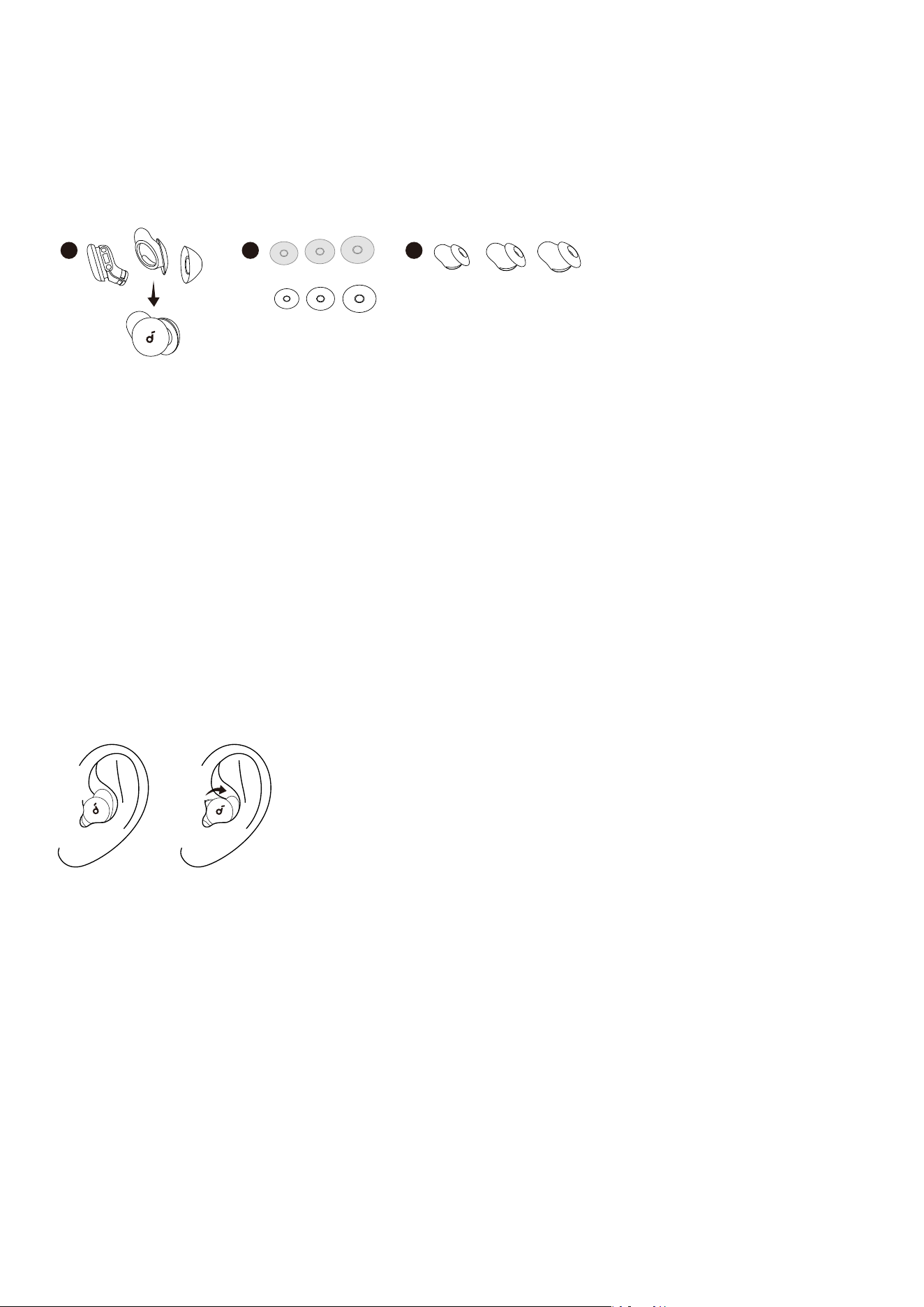
Wear Your Sleep A30
Choose the accessories that best fit your ears and wear your earbuds
correctly for optimal comfort and noise isolation.
Choose Your Ear Tips and Ear Wings
1
2
XS S L
M
S
L
3
2 (M)1 (S) 3 (L)
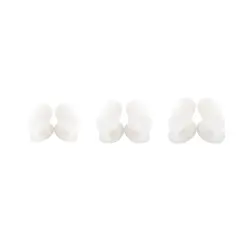
Your Sleep A30 earbuds come with ear tips and ear wings in multiple sizes.
The medium size is pre-installed. You can mix and match sizes to find the
peect fit.
Two types of ear tips are included in the package:
• Silicone Ear Tips: Designed for the best comfort.
• Memory Foam Ear Tips: Designed for a tighter seal to enhance noise
isolation.
Note: Memory foam ear tips are consumables and should be replaced
periodically. Do not clean them with alcohol or water.
How to Wear the Earbuds Correctly
For the best noise isolation, insert each earbud into your ear canal. Gently
rotate it until the ear wing rests comfortably and securely against your ear
ridge.

Use Tap Controls
You can tap the suace on your earbuds to switch modes, adjust volume,
control noise cancellation, and more.
Here's what you can do with tap controls:
• Switch between listening modes: Double-tap the le earbud to switch
between Bluetooth and Local modes.
• Turn Active Noise Cancellation on or o: Double-tap the right earbud.
• Decrease volume: Triple-tap the le earbud.
• Increase volume: Triple-tap the right earbud.
For the best results, tap firmly. You can customize these controls in the
soundcore app.

Switch Between Listening Modes
Choose your audio source by switching between two listening modes:
Bluetooth or Local.
• Bluetooth Mode: Connect to the soundcore app or other apps on your
device to play any audio you like.
• Local Mode: Listen to calming sounds stored on your earbuds without
needing your device, ensuring proper rest free from notifications.
How to Switch Modes
With your earbuds in and connected to your device, there are two ways
you can switch modes:
• With your Sleep A30 earbuds: Double-tap the le earbud to switch
between Bluetooth Mode and Local Mode. You will hear a tone to
confirm the change.
• In the soundcore app: Open the app to switch modes. You can also use
the app to set the default mode for your earbuds in "More Settings".
Download Audio to Your Sleep A30
You can transfer calming audio provided by soundcore to your earbuds to
be played in Local Mode. You won't need your phone to play it.
Supported Audio Types:
• Sleep-Inducing Soundscapes
• White Noise
1
2
3

How to Download soundcore Audio to Your Earbuds
1. In the soundcore app, go to Audio Library.
2. Tap the Snore Masking or White Noise category.
3. Choose the audio you like and tap the download icon next to it.
4. In the pop-up that appears, tap Download to start transferring the
audio to your earbuds.
5. Wait for the transfer to complete.

Manage Active Noise Cancellation
The Active Noise Cancellation (ANC) on your Sleep A30 reduces low-
frequency background sounds, like home appliances or traic, to help you
sleep better.
How to Turn ANC On and O
With your earbuds in and connected to your device, you can control ANC
in two ways:
• On your Sleep A30 earbuds: Double-tap the right earbud to turn Active
Noise Cancellation on and o. You'll hear a tone to confirm. This can be
customized in the soundcore app.
• In the soundcore app: You can turn ANC on and o directly from the
app's home screen.
Noise Cancellation Management during Sleep
Your Sleep A30 can automatically manage Active Noise Cancellation (ANC)
based on your sleep settings in the soundcore app. Here's how it works
with the "Audio Action Upon Sleep Detection" setting:
• If you choose Stop Audio, ANC will stay on all night by default.
• If you choose Play Local Audio, ANC will automatically turn o aer the
earbuds detect that you have fallen asleep.
• If you turn the Audio Action Upon Sleep Detection feature o, both
audio and ANC will remain on all night. Note that this setting will
consume more power and may reduce battery life.

Make and Receive Calls with Sleep A30
1
3
1
2
By default, the call feature on your Sleep A30 is turned o. You'll need to
enable it in the soundcore app to make and receive calls.
How to Turn On the Call Feature
1. Make sure your Sleep A30 earbuds are on and connected to your
device.
2. Open the soundcore app and tap the Settings icon in the top-right
corner.
3. Tap Calls and Prompt Tones.
4. Enable Call.
How to Manage Calls
Once the feature is on, you can use tap controls to manage your calls:
• Answer call: Double-tap either earbud.
• End call: Double-tap either earbud.
• Decline call: Triple-tap either earbud.

Find Your Sleep A30 with the
soundcore App
2
1
If you misplace your Sleep A30, you can use the Find Device feature in the
soundcore app to locate them.
How to Find Your Sleep A30
1. Open the soundcore app and make sure your earbuds are connected.
2. From the device's home screen, tap the More Settings icon in the top-
right corner.
3. Tap Find Device.
4. Tap the earbud you want to find. It will play a loud sound to help you
locate it.
Important: Remove the earbuds from your ears before using the Find
Device feature. The sound it plays is loud and could harm your hearing.

Track Your Sleep
Your Sleep A30 can track your sleep stages, surrounding noise levels, and
sleeping positions to create a detailed sleep report.
You can track your sleep in two ways:
Manual Tracking (via the app)
This method is available only in Bluetooth Mode.
• To start, tap Sleep with Audio on the app's home screen.
• This mode can accurately record your sleep latency (the time it takes
you to fall asleep).
Automatic Tracking (via the earbuds)
This method works in both Bluetooth and Local modes.
• The earbuds use built-in sensors to automatically detect when you fall
asleep and begin recording data.
• Note: This mode does not record sleep latency.

How to View Your Sleep Report
Aer you've slept for more than 30 minutes, a report will be generated.
• With your earbuds connected: You can view the report directly from
Sleep A30's main page in the app.
• With your earbuds disconnected: You can access your sleep reports
from the My Devices page in the app.
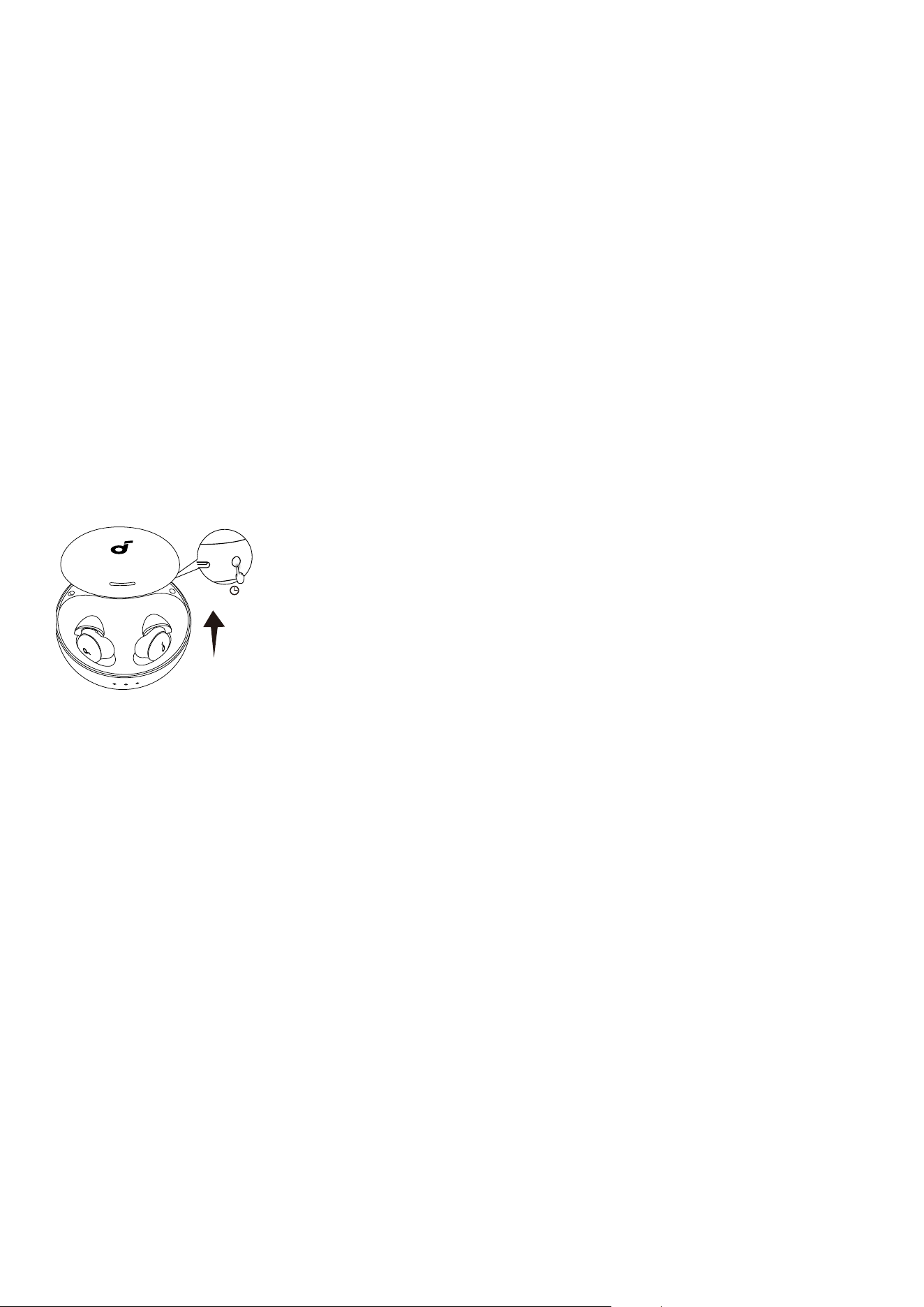
Unpair, Restart, or Reset Your Sleep A30
If your Sleep A30 isn't working as expected, you can try unpairing,
restarting, or resetting it.
Unpair Your Sleep A30
Go to the Bluetooth settings on your device, find "soundcore Sleep A30" in
the list of devices, and either forget or remove it.
Restart Your Sleep A30
To restart your earbuds, place them in the charging case and close the
lid. Wait a few seconds, then open the lid again. The earbuds will restart
automatically.
Reset Your Sleep A30
10s
R
If you still have pairing issues aer restarting, you can reset the earbuds.
1. First, remove or forget "soundcore Sleep A30" from your device's
Bluetooth settings.
2. Place the earbuds in the charging case and leave the lid open.
3. Press and hold the button on the back of the case for 10 seconds until
the LED indicator inside the case turns o for 3 seconds.
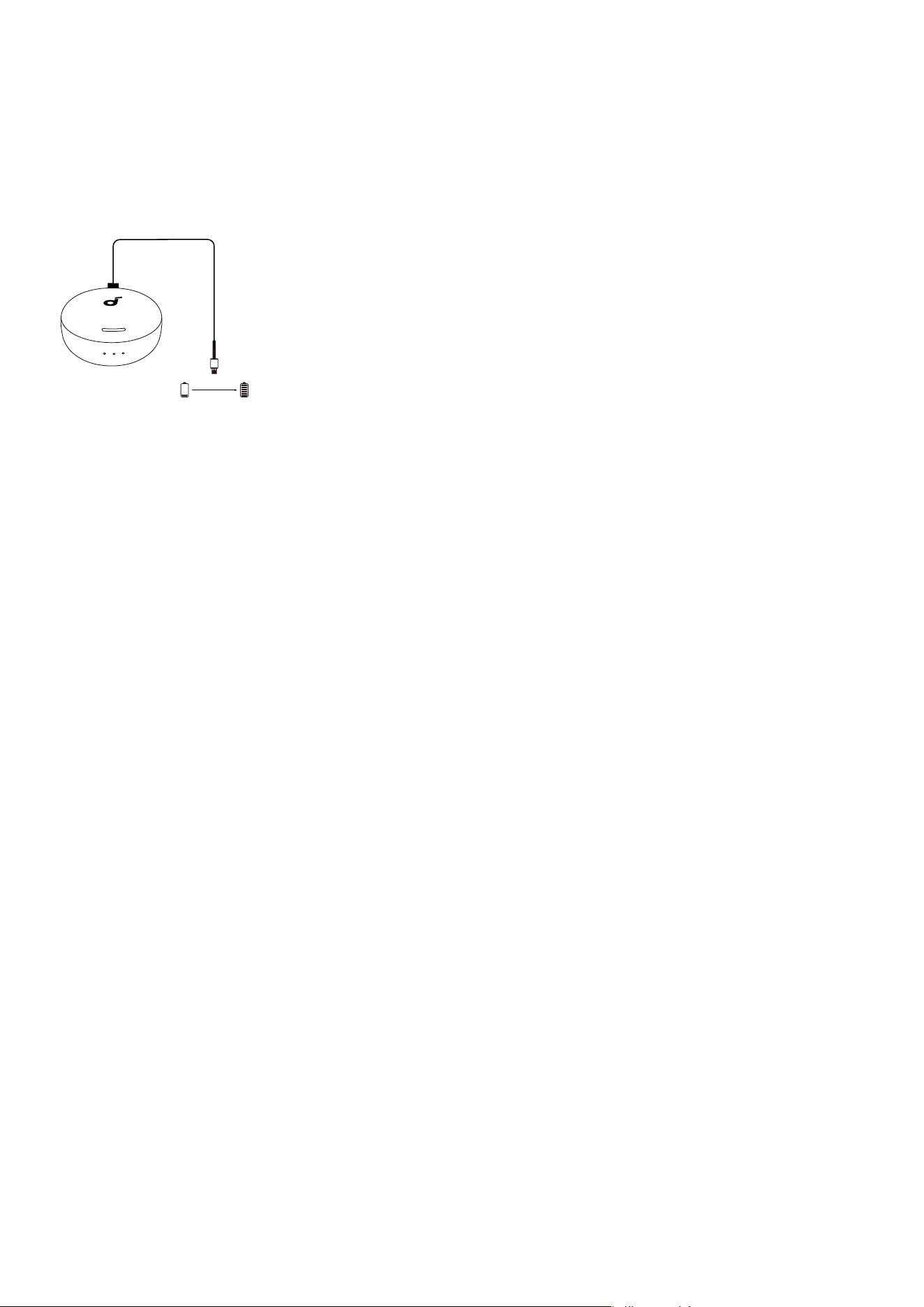
Check Battery and Charging Status
How to Charge Your Earbuds and Case
Before charging, make sure the earbuds and the USB-C port on the case
are completely dry. We recommend fully charging the earbuds and case
before the first use.
2.5 hrs
1. Place the earbuds in the charging case and close the lid.
2. Connect the case to a power source using the included USB-C cable
and a 5V charger (not included).
Check Charging Case Battery Level
The LED lights on the case show the battery level.
While the case is charging:
• Less than 20%: The first light flashes.
• 20% - 60%: The first light is solid, and the second flashes.
• 60% - 100%: The first two lights are solid, and the third flashes.
• Fully charged: All three lights are solid for 5 minutes, then turn o.
When you open the lid (not charging):
• Less than 5%: The first light flashes for 5 seconds.
• 5% - 20%: The first light is solid for 5 seconds.
• 20% - 60%: The first two lights are solid for 5 seconds.
• 60% - 100%: All three lights are solid for 5 seconds.

Clean Your Sleep A30
To get the best peormance, clean your earbuds regularly to remove any
dust or earwax.
L
R
• Use a cotton swab lightly dampened with alcohol to gently clean the
metal mesh filter under the ear tip.
• Use the same method to clean the charging contacts on the earbuds
and inside the charging case.
Note
• Do not use alcohol, water, or other liquids to clean the memory foam
ear tips.
• Memory foam ear tips are consumables and should be replaced
periodically

Update Firmware and App
How to Update the Firmware
You'll be notified through the soundcore app when a new firmware version
is available for your Sleep A30. You can also manually check for updates
in the app's settings.
R
To ensure the update completes successfully:
• Place the earbuds in the charging case and leave the lid open.
• Make sure the charging case is connected to a power source.
• Do not use the earbuds until the update is finished.
How to Update the soundcore App
If you have trouble connecting your earbuds to the soundcore app, go to
the App Store or Google Play Store on your phone to make sure you have
the latest version of the app.
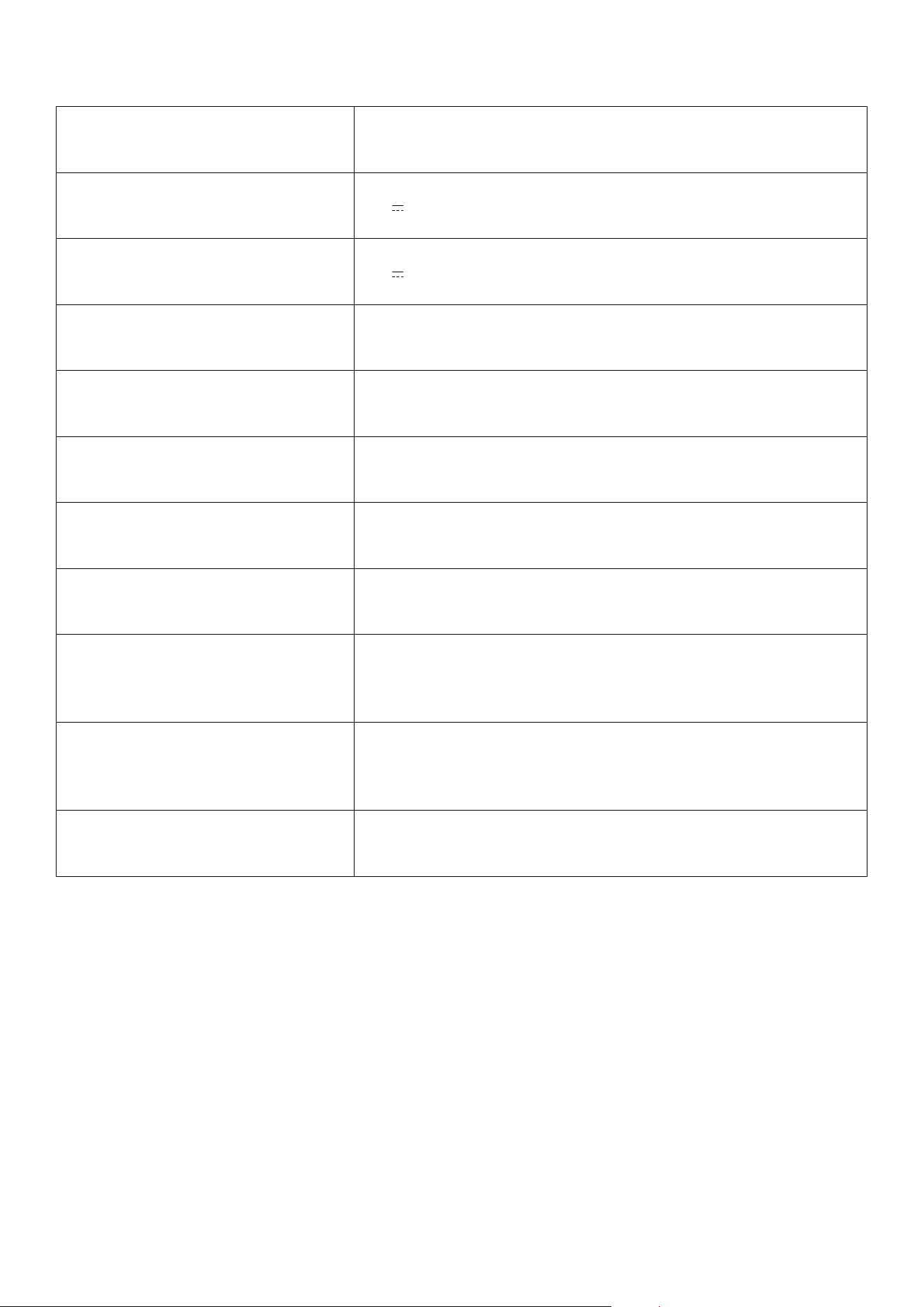
Sleep A30 Specifications
Feature Specification
Input 5V
0.6A
Output 5V
0.088A (0.044A per port)
Battery capacity 800mAh/38mAh
Charging time (earbuds) 1.5H
Playtime (earbuds/case) 9/45H
Frequency response 20~20000Hz
Impedance 13.5ohm
Waterproof rating
(earbuds)
IPX4
Bluetooth version
soundcore Sleep A30 supports Bluetooth 5.4.
However, due to device limitations, it may be
displayed as Bluetooth 5.3.
Bluetooth range 10m
Note: Specifications are subject to change without notice.

Get Support
service@soundcore.com
support.mea@soundcore.com (For Middle East and Africa Only)
support@anker.com (
日本
)
support.kr@anker.com (
한국
)
+1 (800) 988 7973 (US/Canada)
+44 (0) 1604 936200 (UK)
+49 (0) 69 9579 7960 (DE)
03 4455 7823 (
日本
)
+86 400 0550 036 (
中国
)
+82 1666-8470 (
한국
)
+971 8000320817 (UAE)
+966 8008500030 (KSA)
+965 22069086 (Kuwait)
+20 8000000826 (Egypt)
+90 (850) 460 14 14 (Türkiye)
+8 (800) 511-86-23 (Russia)
000-8000-504-414 (India)
Note: The 'x' of SN Code: xxxxxxxxxxxxxxxx is a variable, see below table.
Variable 'x'
Range of
variable
Content
Eighth 8,9,A,B,C...
Denotes the year, 8 means 2018, 9 means 2019, A
means 2020, B means 2021, C means 2022, and
so on.
Ninth and
tenth
01,02,03...
Denotes weeks, 01 means the first week in this
year, 02 means the secondary week in this year,
and so on.
Eleventh 1-7
Denotes date, 1 means Monday, 2 means
Tuesday..., 7 means Sunday and so on.
The last five 00001-99999 Denotes serial No.

Hereby, Anker Innovations Limited declares that this device is in
compliance with The Product Security and Telecommunications
Infrastructure (Security Requirements for Relevant Connectable Products)
Regulations 2023. For the Statement of Compliance, visit the website:
https://uk.soundcore.com/pages/psti-related.
1. Power consumption in standby mode: ≤0.5W
2. Powermanagement: ≤20min
3. Information of applicable adapter:
Brand: ANKER
Manufacturer: Anker Innovations Limited
Model: A2337
Input: 100-240Vac, 1A, 50-60Hz
Output: 5V
3A / 9V 3A / 12V 2.5A / 15V 2A / 20V
1.5A (30W Max)
Default Open Port: Classic Bluetooth
Port Description: Aer the device is powered on, Classic Bluetooth visibility
(or pairing mode) is automatically enabled, providing Bluetooth pairing
(or control) services. The Bluetooth service is disabled when the device is
powered o.