User Guide
Quality, Design and Innovation
home.liebherr.com/fridge-manuals
Contents
1 General safety instructions.................................. 3
2 Appliance at a glance............................................ 4
2.1 Scope of supply............................................................ 4
2.2 Overview of appliance and equipment..................... 4
2.3 Special features........................................................... 4
2.4 Range of use of appliance.......................................... 5
2.5 Appliance noise emissions......................................... 5
2.6 Conformity..................................................................... 5
2.7 SVHC substances according to REACH regulation. 5
3 Setting up and connecting.................................... 6
3.1 Installation requirements........................................... 6
3.2 Appliance dimensions................................................. 6
3.3 Transporting the appliance........................................ 6
3.4 Unpacking appliance................................................... 7
3.5 Reversing the door opening direction...................... 7
3.6 Aligning the door.......................................................... 14
3.7 Removing transport lock............................................. 15
3.8 Installing door handle................................................. 15
3.9 Mounting anti-tipping device..................................... 15
3.10 Installing appliance..................................................... 16
3.11 Setting up the appliance so it is level...................... 16
3.12 Installing multiple appliances.................................... 16
3.13 After installation.......................................................... 16
3.14 Disposing of packaging............................................... 17
3.15 Connecting the appliance to the power supply...... 17
4 Functionality of the Touch display....................... 17
4.1 Navigation and symbol explanation......................... 17
4.2 Menus............................................................................. 18
4.3 Sleep mode................................................................... 18
5 Putting into operation........................................... 19
5.1 Switching on appliance (first use)............................ 19
6 Storage.................................................................. 19
6.1 Information regarding storage................................... 19
7 Controls................................................................. 19
7.1 Control and display elements.................................... 19
7.1.1 Status display........................................................... 20
7.1.2 Display symbols........................................................20
7.1.3 Acoustic signals....................................................... 20
7.2 Appliance functions..................................................... 20
7.2.1 Notes on the appliance functions......................... 20
7.2.2 Switching appliance on and off ............................20
7.2.3 Temperature ..............................................................21
7.2.4 Temperature recording ............................................21
7.2.5 Settings menu access protection .........................22
7.2.6 Access code...............................................................23
7.2.7 Maintenance interval reminder ............................. 24
7.2.8 Language .................................................................. 24
7.2.9 Temperature unit..................................................... 24
7.2.10 Display brightness ..................................................25
7.2.11 Alarm Sound.............................................................. 25
7.2.12 Key Sound.................................................................. 25
7.2.13 WiFi connection ....................................................... 26
7.2.14 LAN connection ........................................................ 27
7.2.15 Device information .................................................28
7.2.16 Operating hours .......................................................28
7.2.17 Software .................................................................. 28
7.2.18 Sensor calibration ................................................... 28
7.2.19 Temperature alarm ..................................................28
7.2.20 Door alarm ............................................................... 30
7.2.21 Alarm simulation ..................................................... 30
7.2.22 Alarm forwarding ......................................................31
7.2.23 Demo mode............................................................... 31
7.2.24 Resetting to factory settings ................................32
7.3 Messages...................................................................... 32
7.3.1 Warnings....................................................................32
7.3.2 Reminder....................................................................34
8 Features................................................................. 34
8.1 Safety lock.................................................................... 34
8.2 Sensors.......................................................................... 34
8.3 Interfaces...................................................................... 34
9 Maintenance.......................................................... 35
9.1 Maintenance schedule................................................ 35
9.2 Defrosting appliance................................................... 36
9.3 Cleaning the appliance............................................... 37
10 Customer help....................................................... 37
10.1 Technical specifications............................................. 37
10.2 Technical fault.............................................................. 38
10.3 Customer Service......................................................... 38
10.4 Type plate...................................................................... 39
11 Shutting down....................................................... 39
12 Disposal................................................................. 39
12.1 Preparing appliance for disposal.............................. 39
12.2 Disposing of the appliance in an environmentally
friendly manner............................................................ 39
13 Additional information.......................................... 39
14 Quick Start Guide for everyday use...................... 41
The manufacturer is continually working on the further
development of all types and models. Please be aware that
we reserve the right to make changes to the shape, equip‐
ment and technology.
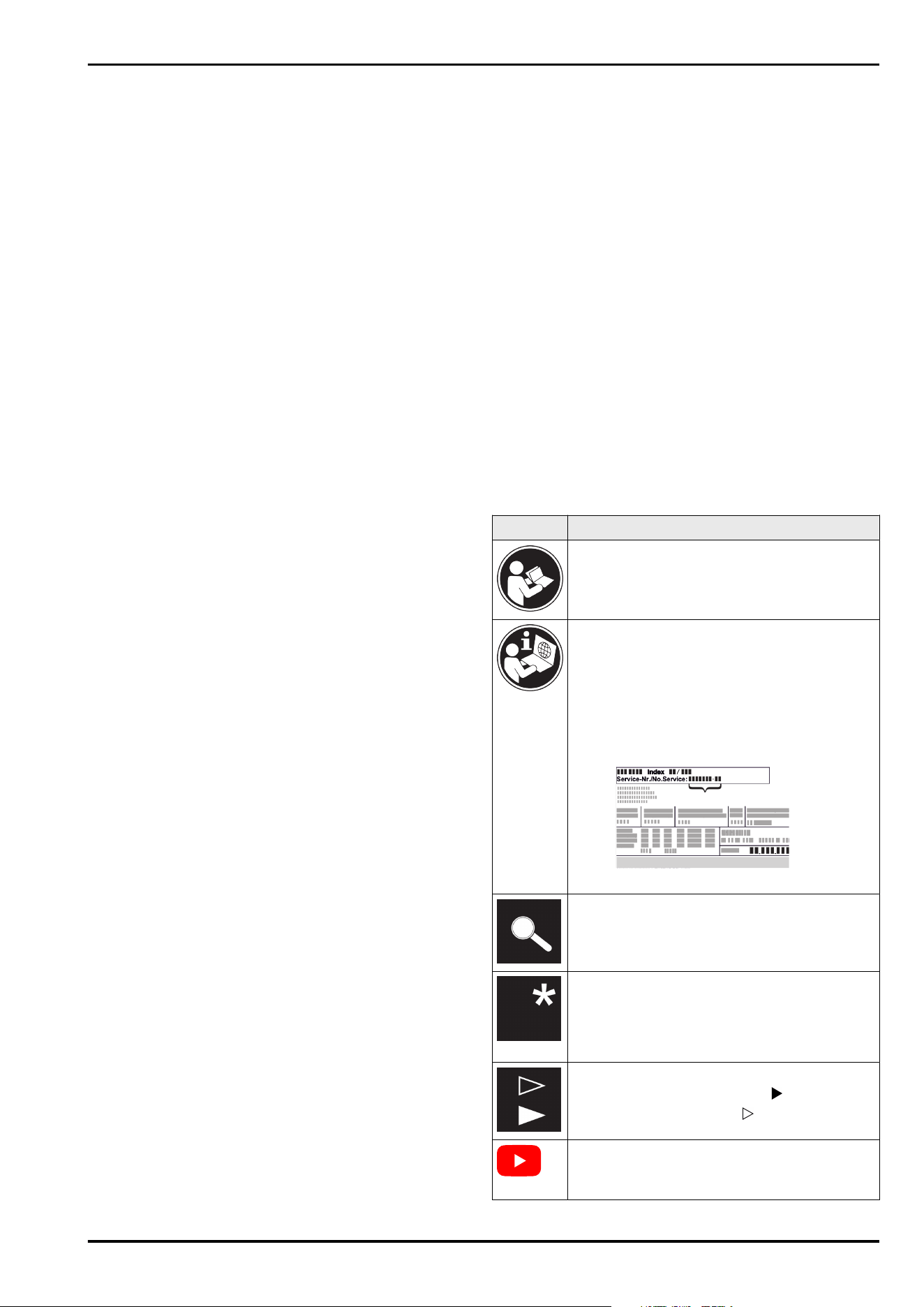
Symbol
Explanation
Read instructions
Please read the information in these instruc‐
tions carefully to understand all of the benefits
of your new appliance.
Additional information on the Internet
The digital manual with additional informa‐
tion and in other languages can be found
via the QR code on the front of the
manual or by entering the service number at
home.liebherr.com/fridge-manuals.
The service number can be found on the serial
tag:
Fig.Example illustration
Check appliance
Check all parts for transport damage. If you
have any complaints, please contact your
agent or customer service.
Differences
These instructions apply to a range of models,
so differences are possible. Sections that
apply to certain models only are marked with
an asterisk (*).
Instructions and results
Instructions are marked with a .
Results are marked with a .
Videos
Videos about the appliances are available on
the YouTube channels of Liebherr-Hausgeräte.
2 * Depending on model and options
Open source licences:
The appliance contains software components that use
open source licences. Information on the open source
licences used can be found here: home.liebherr.com/
open-source-licences
These operating instructions apply to:
-
SFFfg 4001
-
SFFfg 5501
1 General safety instructions
Please keep these operating instructions in a safe place so
you can refer back to them at any time.
If you pass the appliance on, please hand these operating
instructions to the next user.
Read these operating instructions carefully before use to
ensure safe and correct use of the appliance. Follow the
instructions, safety instructions and warning messages
included at all times. They are important for ensuring you
can operate and install the appliance safely and without any
problems.
Danger for the user:
-
This appliance may only be used by specialist and labora‐
tory personnel who have been trained for this purpose
and are familiar with all safety measures pertaining
to laboratory work. Children and persons with reduced
physical, sensory or mental capabilities or lack of expe‐
rience and knowledge must not commission or operate
this appliance.
-
The socket must be easily accessible so that the appli‐
ance can be disconnected quickly from the electricity
supply in an emergency. It must not be located in the
area behind the appliance.
-
When disconnecting the appliance from the supply,
always take hold of the plug. Do not pull the cable.
-
In the event of a fault pull out the mains plug or deacti‐
vate the fuse.
-
WARNING: Do not damage the mains power cable. Do
not operate the appliance with a defective mains power
cable.
-
WARNING: Multiple sockets/distributors and other elec‐
tronic equipment (such as halogen transformers) must
not be placed or operated at the rear of the appliance.
-
WARNING: Keep ventilation openings, in the appliance
enclosure or in the built-in structure, clear of obstruction.
-
WARNING: Dust deposits on fan blades! Risk of sparking
due to friction!
Do not store dusty objects in the appliance.
The ventilation slots of the recirculation fan must be
cleaned each month using a vacuum cleaner.
-
Only customer service or other specially trained staff
may repair or perform other operations on the appliance.
-
Only assemble, connect and dispose of the appliance
according to the instructions.
Fire hazard
-
The coolant used (information on the model plate) is
ecofriendly but also flammable Any leaking coolant may
ignite.
•
WARNING: Do not damage refrigeration circuit.
•
Do not handle ignition sources inside the appliance.
•
WARNING: Do not use electrical appliances in the
fridge compartment which do not comply with the
design recommended by the manufacturer.
•
If the refrigerant leaks: remove any naked flames or
ignition sources from the vicinity of the leakage point.
Properly air the room. Inform customer services.
-
Do not operate the appliance close to explosive gases.
-
Do not store or use petrol or other flammable gases and
liquids close to the appliance.
-
Keep burning candles, lamps and other items with naked
flames away from the appliance so that they do not set
the appliance on fire.
Danger of tipping and falling:
-
WARNING: In order to prevent danger due to an unstable
appliance, it must be fixed in accordance with the
instructions.
-
Do not misuse the plinth, drawers, doors etc. as a step or
for support.
Danger of frostbite, numbness and pain:
-
Avoid prolonged skin contact with cold surfaces or refri‐
gerated/frozen goods or take protective measures, e.g.
wear gloves.
Danger of injury and damage:
-
WARNING: Do not use mechanical equipment or other
methods to speed up the defrosting process other than
those recommended by the manufacturer.
-
WARNING: Risk of injury due to electric shock! There are
live electrical parts under the cover.
-
NOTICE: Appliance must only be used using original
manufacturer accessories or using accessories from
other providers approved by the manufacturer. The user
bears the risk of using accessories which are not
approved.
Risk of crushing
-
Do not hold the hinge when opening and closing the door.
Fingers may get caught.
Specialist personnel qualifications:
The appliance may only be installed, tested, maintained,
and commissioned by specialist personnel who are
familiar with the installation, commissioning, and opera‐
tion of the appliance.
Specialist personnel are persons who, on account of their
specialist training, knowledge and experience as well as
their knowledge of the relevant standards, are able to
assess and perform the work assigned to them and iden‐
tify potential hazards. They must have training, instruc‐
tion, and authorisation to work on the appliance.
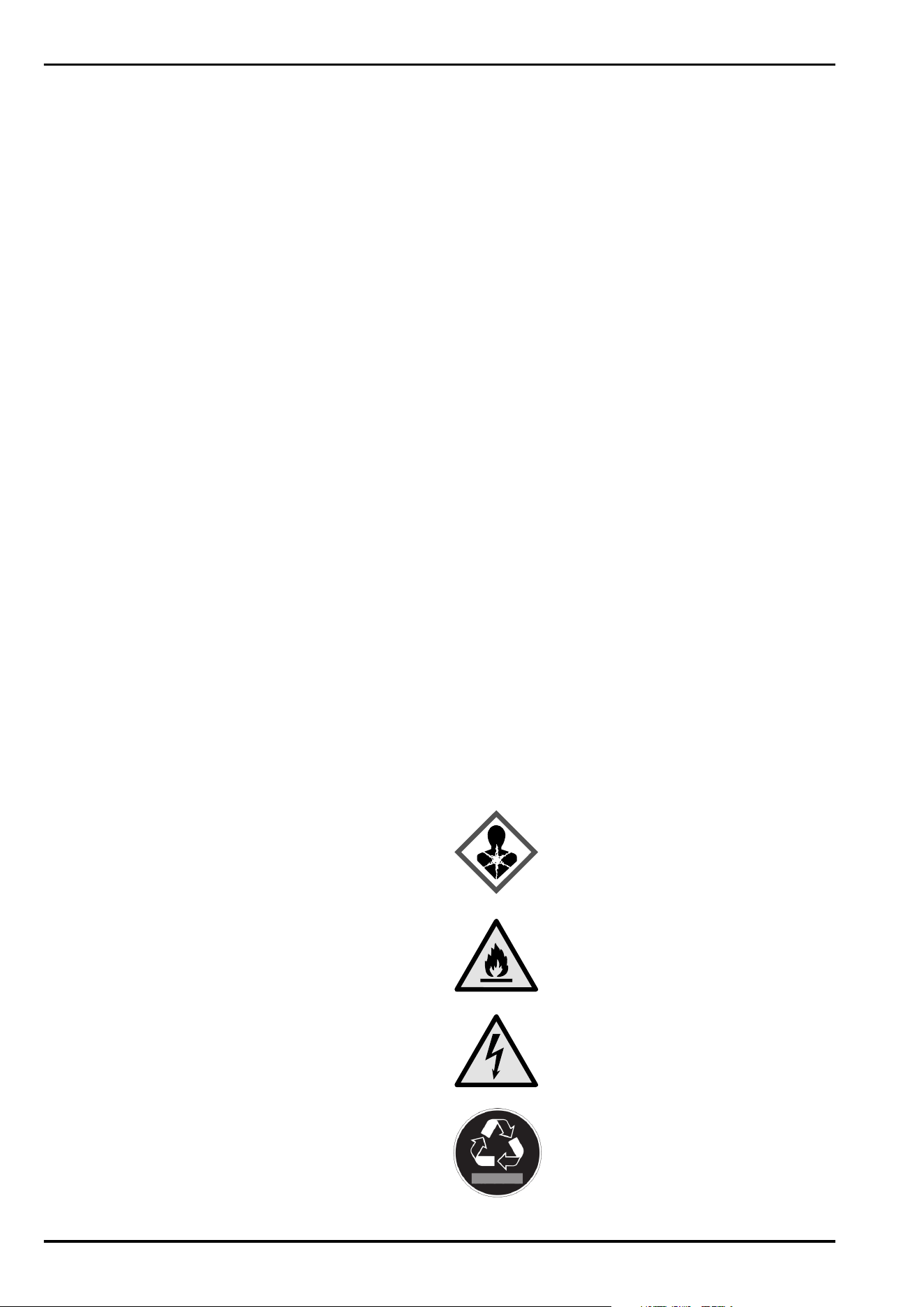
Symbols on the appliance:
This symbol may be located on the
compressor. It relates to the oil in the
compressor and makes reference to the
risk that:Swallowing or inhaling can be
fatal. This advice is only relevant to recy‐
cling. There is no danger in normal opera‐
tion.
WARNING: Danger of fire / flammable
materials. This symbol is located on the
compressor and indicates the danger of
flammable materials. Do not remove the
sticker.
The symbol is located on the back of the
appliance near the alarm relay and indi‐
cates the following danger: Electric shock!
Even if an appliance is disconnected from
the mains there may still be extraneous
voltage. Do not remove sticker.
This or a similar sticker may be located
on the rear of the appliance. This sticker
indicates that there are vacuum insulation
panels (VIP) or perlite panels in the door
and/or housing. This advice is only relevant
to recycling. Do not remove the sticker.
General safety instructions
* Depending on model and options 3
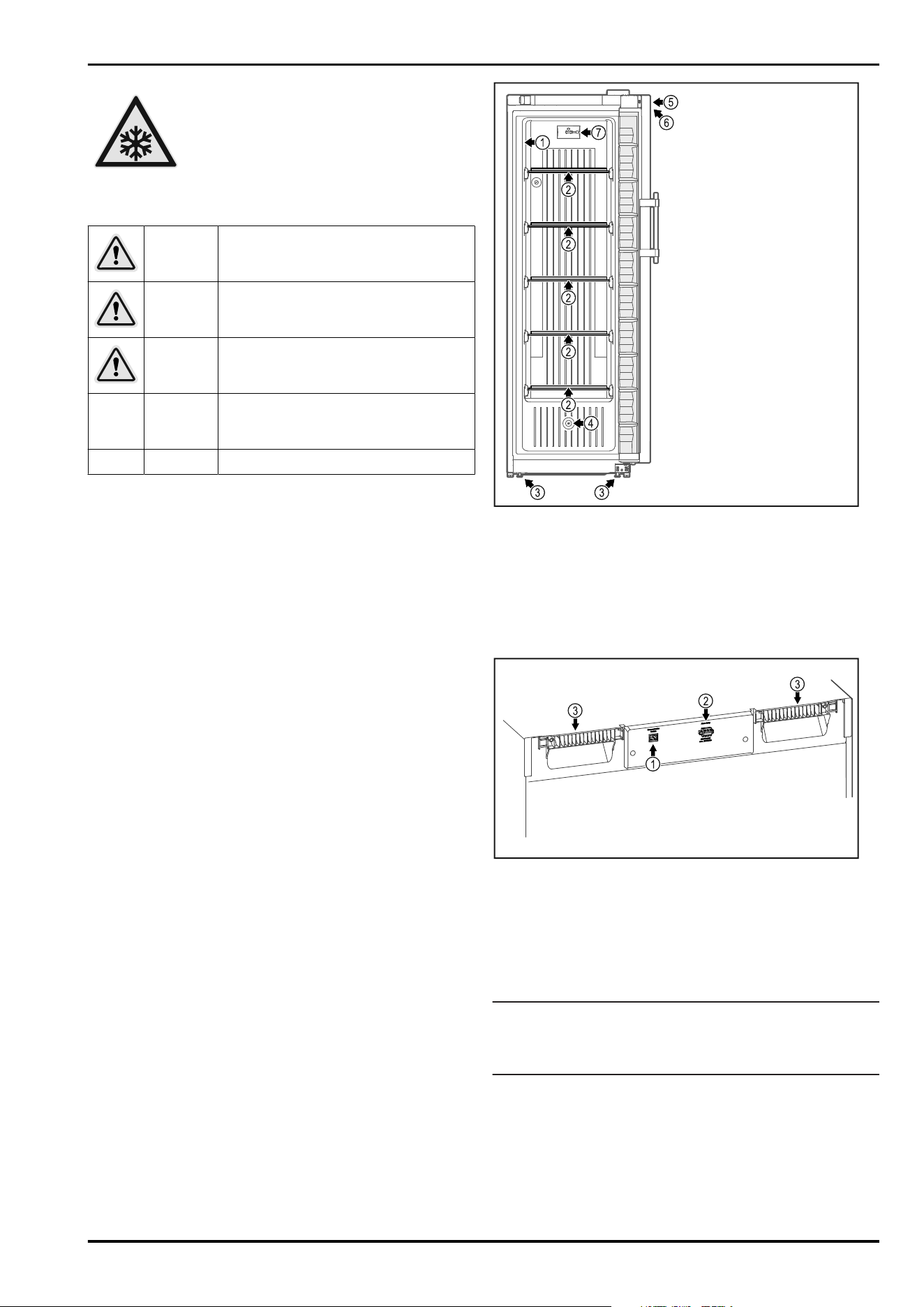
WARNING: Cold surface! Only touch with
suitable hand protection.
This or similar sticker may be on the appli‐
ance and indicates the danger of frostbite.
Please note the warning messages and other specific
advice in the other chapters:
DANGER
Indicates an immediately hazardous
situation which will lead to death or
serious injuries if it is not avoided.
WARNING
Indicates a hazardous situation which
will lead to death or serious injuries if
it is not avoided.
CAUTION
Indicates a hazardous situation which
will lead to minor or moderate injuries
if it is not avoided.
NOTICE
Indicates a hazardous situation which
may lead to damage to property if it is
not avoided.
Note Indicates useful instructions and tips.
2 Appliance at a glance
2.1 Scope of supply
Check all parts for transport damage. If you have any
complaints, please contact your dealer or Customer Service.
(see 10.3 Customer Service)
The delivery comprises the following parts:
-
Free-standing appliance
-
Equipment *
-
Installation materials *
-
Operating instructions
-
Service brochure
-
Quality certificate *
-
Mains cable
-
Wall fastening kit
2.2 Overview of appliance and equip‐
ment
SFFfg 4001
SFFfg 5501
Fig. 1 Example illustration of the front
Equipment
(1)
Type plate (5) Lock
(2) Glass shelf (6) Control elements and
temperature display
(3) Adjusting feet /
castors *
(7) C sensor
(4) Sensor feedthrough
Fig. 2 Example illustration of the rear
Equipment
(1)
LAN/WiFi interface * (3) Carrying aid
(2) Potential-free alarm
output
2.3 Special features
Note
Accessories are available from Customer Service
(see 10.3 Customer Service) and the Liebherr-Hausgeräte
store at home.liebherr.com/shop/de/deu/zubehor.html.
Appliance at a glance
4 * Depending on model and options
SmartModule
The appliance can be equipped with a SmartModule.
It is a WLAN and LAN interface for the connection between
the appliance and an external documentation and alarm
system such as Liebherr SmartMonitoring dashboard.
Liebherr SmartMonitoring dashboard is not available
in all countries. Check availability via the QR code
(see 7.2.13WiFi connection ) by entering your model.
Retrofitting drawers
When retrofitting drawer systems in Liebherr refrigera‐
tors/freezers that are used to store temperature-sensitive
materials such as medicines requiring refrigeration and
refrigerated goods that are subject to special standard
requirements, a temperature qualification is required.
Retrofitting drawers in Liebherr refrigerators/freezers can
lead to spoilage of the stored goods or damage to
the stored goods. Therefore, retrofitting must only be
carried out by authorised service providers of the refriger‐
ator/freezer manufacturer.
2.4 Range of use of appliance
Intended use
This laboratory freezer, with an interior free of ignition
sources, is suitable for professional storage of highly
flammable products in closed containers, at temperatures
between -9°C and -30°C.
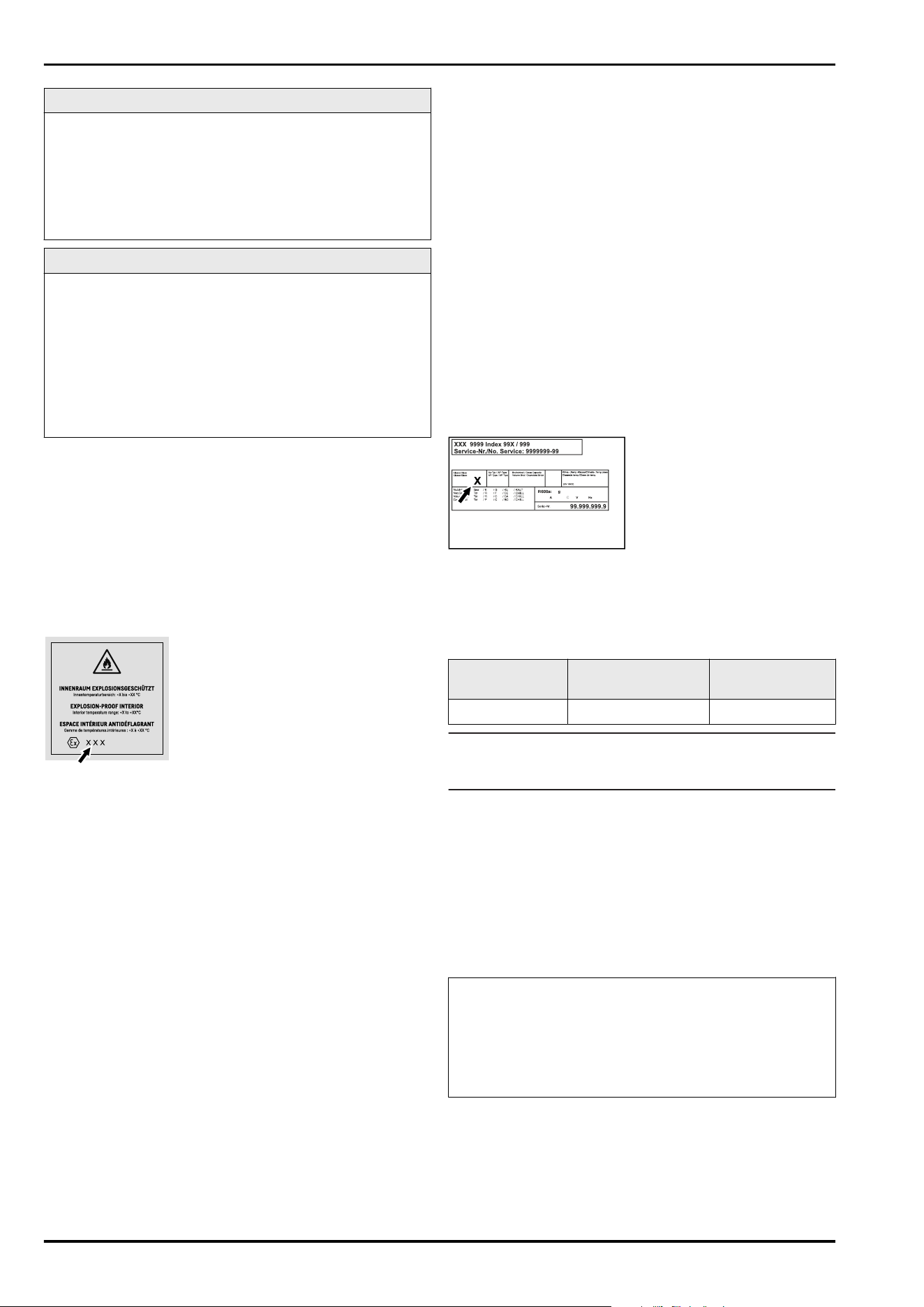
Explosion-proof interior
The values relating to your appliance are printed on the
sticker on the appliance door.
Fig. 3 Protection category: II 3/-G Ex ec IIC T6 Gc/-
The interior is permitted as a hazardous area as per
2014/34/EU (ATEX directive).
The following substances can be stored in suitable and
tightly sealed containers:
-
Research samples
-
Reagents
-
Laboratory inventory
-
Chemicals such as ethanol, acetone, isopropanol, etc.
Observe the following specifications for storage:
-
Observe the corresponding zone, explosion group and
temperature class of the substances to be stored.
-
Observe auto-ignition temperature. The auto-ignition
temperature of the substances to be stored must be
above temperature class T6 (> 85°C).
-
Refer to the relevant safety data sheet for the storage
conditions of the products to be stored.
-
Observe maximum storage quantities.
-
Observe the prevailing directives if wanting to store
different substances together.
-
If unsure, consult with safety experts or suppliers as
to whether the substance in question is suitable for
storage.
-
Observe local and specific directives and requirements to
secure the safety of personnel and the facility.
The storage of temperature-sensitive substances requires
the use of an independent, continuous monitoring alarm
system. This alarm system must be designed in such a way
that a responsible person can register any alarm status so
that appropriate action can be taken.
Foreseeable incorrect use
Do not use the appliance for the following applications:
-
Storage and refrigeration of:
•
Chemically unstable substances
•
Blood, plasma or other body fluids for the purpose
of infusion, application or introduction in the human
body.
-
Use in potentially explosive atmospheres.
-
Use outdoors or in areas exposed to dampness and
splashing water.
Improper use of the appliances will result in goods stored
being damaged or spoiled.
Climate classes
The applicable climate class for your appliance is printed on
the type plate.
Fig. 4 Type plate
(X)
This climate class indi‐
cates the ambient
conditions in which
the appliance can be
safely operated.
Climate class (X) max. room tempera‐
ture
max. rel. humidity
7 35°C 75%
Note
The minimum permitted room temperature at the setup
location is 10°C.
2.5 Appliance noise emissions
The A-weighted emission sound pressure level during oper‐
ation of the appliance is under 70 dB(A) (sound power rel.
1 pW).
2.6 Conformity
The coolant circuit has been tested for leak-tightness. The
appliance complies with the relevant safety regulations.
The designated product complies with the provisions of
the following European directives and regulations:
(EU) 2019/2020, 2014/35/EU, 2014/30/EU, 2011/65/EU,
2014/34/EU
The full text of the EU Declaration of Conformity is avail‐
able at the following web address: www.liebherr.de
2.7 SVHC substances according to
REACH regulation
You can check whether your appliance contains SVHC
substances according to REACH regulation at the following
Appliance at a glance
* Depending on model and options 5
link: home.liebherr.com/de/deu/de/liebherr-erleben/nach‐
haltigkeit/umwelt/scip/scip.html
3 Setting up and connecting
3.1 Installation requirements
The installation conditions are crucial to ensure that you
can operate your appliance safely, efficiently and without
problems.
-
Observe all safety instructions.
-
Consider the location and position in the room.
WARNING
Danger of fire due to incorrect positioning!
If the mains cable or plug touches the back of the appli‐
ance, the vibration can damage the mains cable or the plug
resulting in a short circuit.
► Make sure the mains cable is not trapped under the appli‐
ance when you position the appliance.
► Stand the appliance so that it is not touched by connec‐
tors or main cables.
► Do not connect any appliances to sockets in the area of
the back of the appliance.
► Do not place and operate multi-sockets/power distribu‐
tors and other electronic devices (such as halogen trans‐
formers) at the back of the appliances.
WARNING
Fire hazard due to dampness!
If live parts or the mains lead become damp this may cause
short circuits.
► The appliance is designed for use in enclosed areas. Do
not operate the appliance outdoors or in areas where it is
exposed to splash water or damp conditions.
WARNING
Leaking coolant and oil!
Fire. The coolant contained in the appliance is eco-friendly,
but also flammable. The oil contained in the appliance
is flammable. Escaping coolant and oil can ignite if the
concentration is high enough and in contact with an
external heat source.
► Do not damage the pipelines of the coolant circuit and
the compressor.
3.1.1 Installation site
-
A dry and well-ventilated room is an optimum installation
location.
-
If the appliance is installed in a very damp environment,
condensation may form on the appliance exterior.
Always make sure there is good ventilation and aeration
at the installation site.
-
The more refrigerant there is in the appliance, the larger
than room must be in which it is located. In rooms that
are too small, a leak can product a flammable gas/air
mixture. For every 8g of refrigerant, the installation room
must be at least 1 m
3
in size. Information on the refrig‐
erant contained is given on the type plate inside the
appliance.
-
The floor on which the appliance stands must be hori‐
zontal and level.
3.1.2 Position in space
-
Do not place the appliance in direct sunlight or near radi‐
ators or similar sources of heat.
-
Always position the appliance with the rear directly on
the wall.
-
Use in hazardous areas is not permitted.
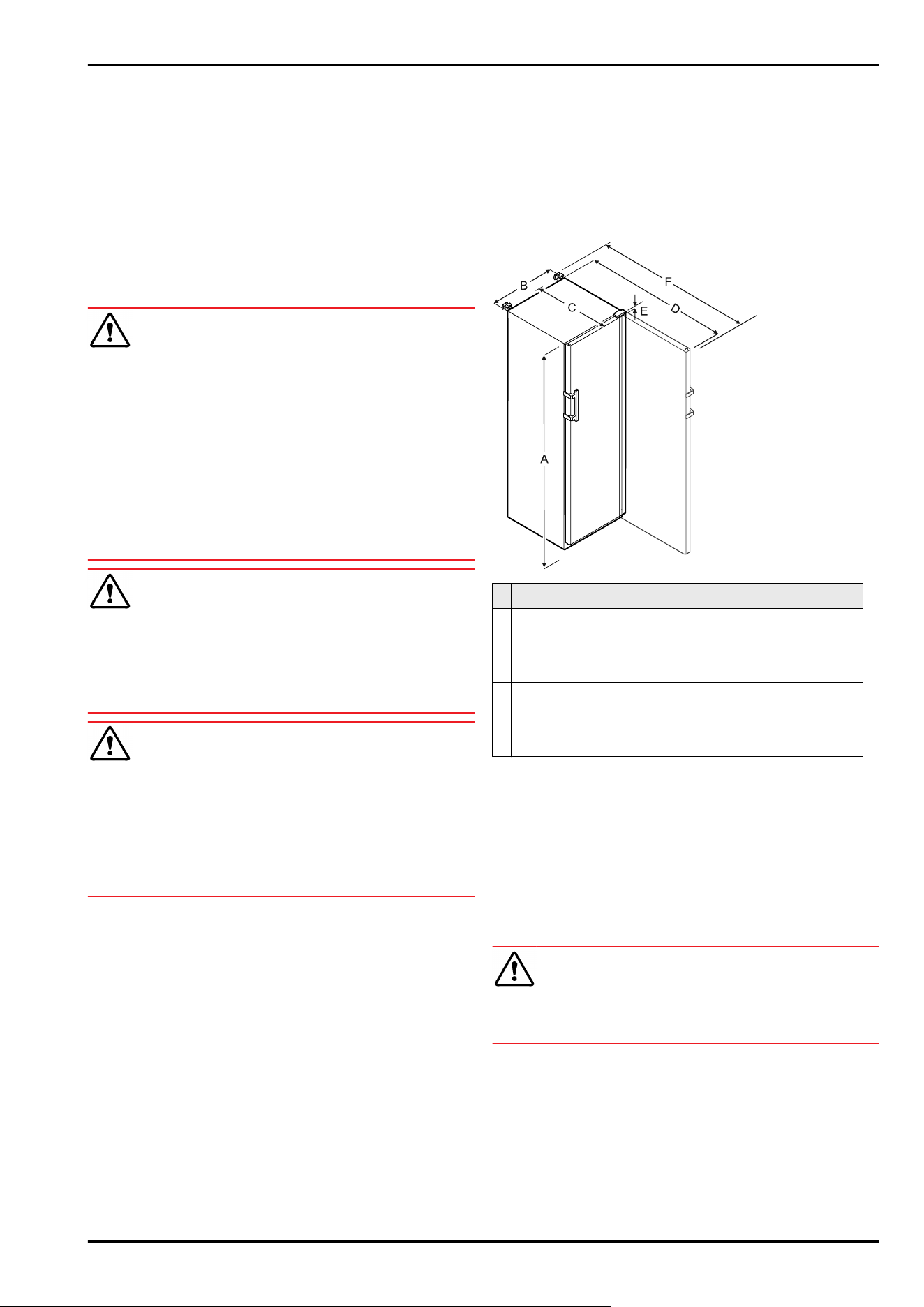
3.2 Appliance dimensions
SFFfg 4001 SFFfg 5501
A 1884mm 1684mm
B 597mm 747mm
C 664mm 779mm
D 1203mm 1468mm
E 23mm 23mm
F 1241mm 1506mm
A = appliance height including feet/castors
B = appliance width without handle [handle depth = 45mm]
C = appliance depth without handle [handle depth = 45mm]
D = appliance depth with door open
E = hinge height
F = appliance depth with protruding handle and anti-tipping
device
3.3 Transporting the appliance
WARNING
Risk of injury and damage due to the appliance tipping over!
► Pay attention to uneven floors and ramps when trans‐
porting appliances.
3.3.1 Transporting the appliance for initial use
Ensure that the following requirements are met:
❑
The appliance is packaged.
❑
The appliance is upright.
► Transport the appliance with the help of two people.
► Unpacking the appliance.
Setting up and connecting
6 * Depending on model and options
3.3.2 Transporting the appliance after initial
use
Observe the following instructions if you wish to transport
or move the appliance again after initial use.
Ensure that the following requirements are met:
❑
The appliance is emptied.
❑
The appliance is upright.
❑
Door is secured against accidental opening.
❑
The pull-out trolley is secured against accidental
opening.
► Transport the appliance with the help of two people.
After transport:
► Unscrew the adjustable feet on the appliance.
► Align the appliance.
3.4 Unpacking appliance
► Check the appliance and the packaging for damage
during transport. Contact the supplier immediately if you
suspect any damage. Do not connect appliance to the
power supply.
► Remove all packaging materials from the rear or the side
walls of the fridge that may prevent proper installation or
prevent air flow and ventilation.
3.5 Reversing the door opening direc‐
tion
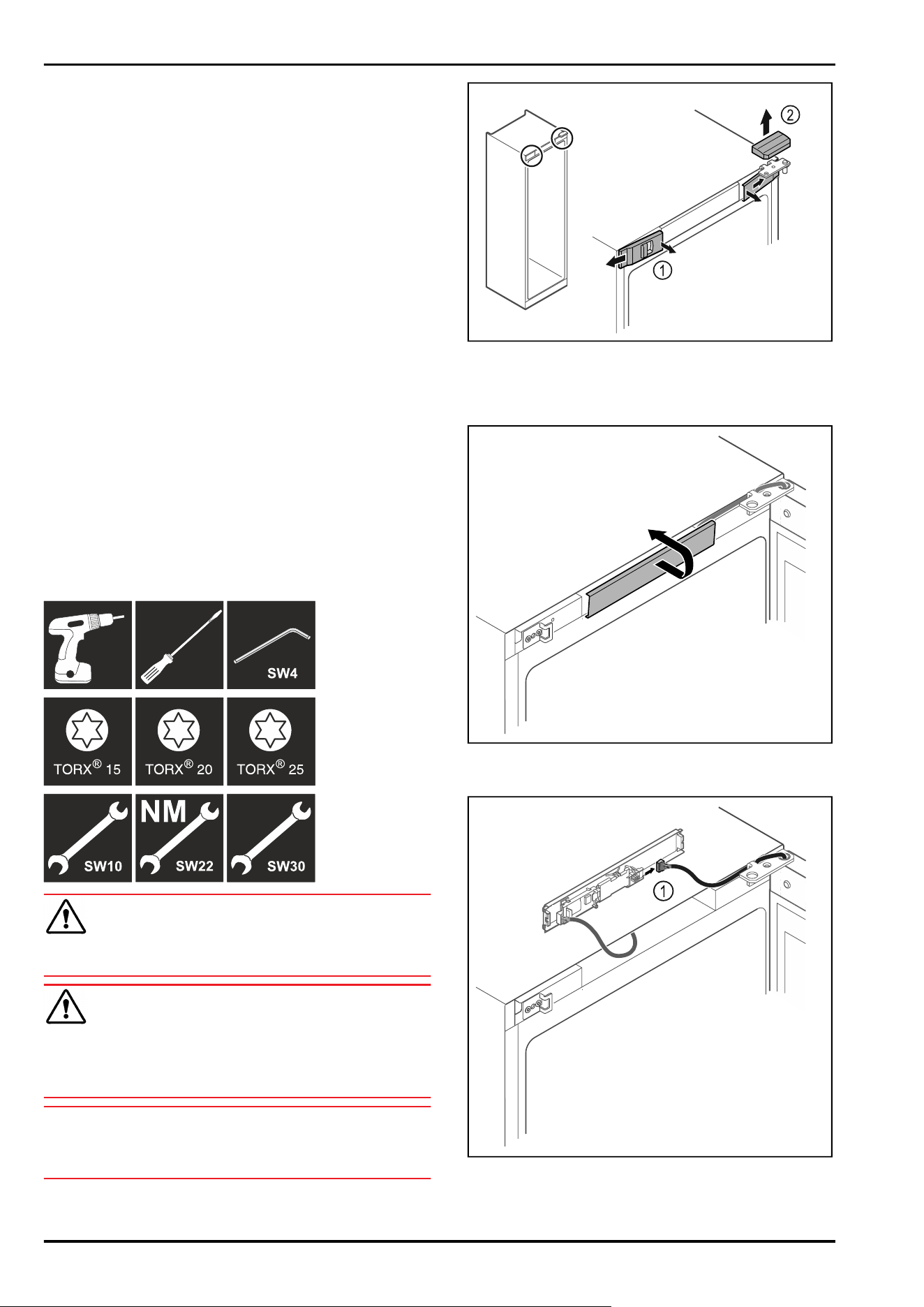
Tools
WARNING
Risk of injury if the door is not reversed correctly!
► Replace the door hinge with specialist personnel.
WARNING
Risk of injury and material damage due to heavy door!
► Only perform the conversion if you can carry a weight of
25 kg.
► Always have someone help you carry out the conversion.
NOTICE
Live parts!
Damage to electrical components.
► Remove the mains plug before you reverse the door.
► Open the door.
Fig.5
► Unlatch the front covers Fig. 5 (1) on the inside and
remove them sideways.
► Lift off the upper cover Fig.5(2).
Fig.6
► Unlatch the middle cover and remove it.
Fig.7
► Disconnect the plug Fig.7(1) from the circuit board.
Setting up and connecting
* Depending on model and options 7
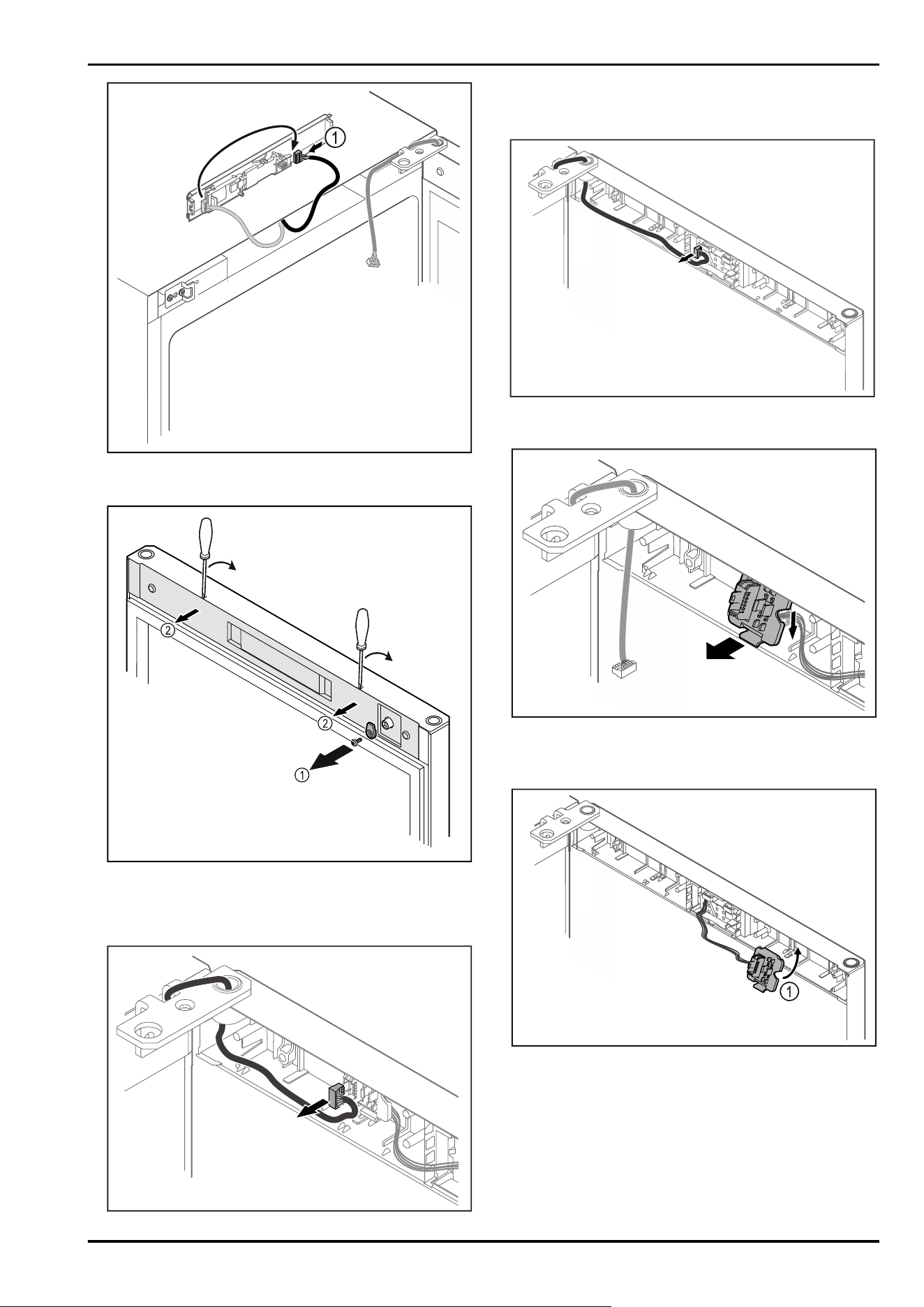
Fig.8
► Connect the plug Fig.8(1) to the circuit board.
Fig.9
► Unscrew the door latch Fig.9(1).
► Unlatch the cover Fig. 9 (2) with a small screwdriver and
remove it.
Fig. 10
► Remove the plug from the plug holder.
-or-
Fig.11
► Remove the plug from the circuit board.
Fig. 12 The installation position for the plug holder can be
rotated by 180°.*
► Unlatch the plug holder.*
Fig.13
► Engage the plug holder Fig.13(1) on the opposite side.*
Setting up and connecting
8 * Depending on model and options
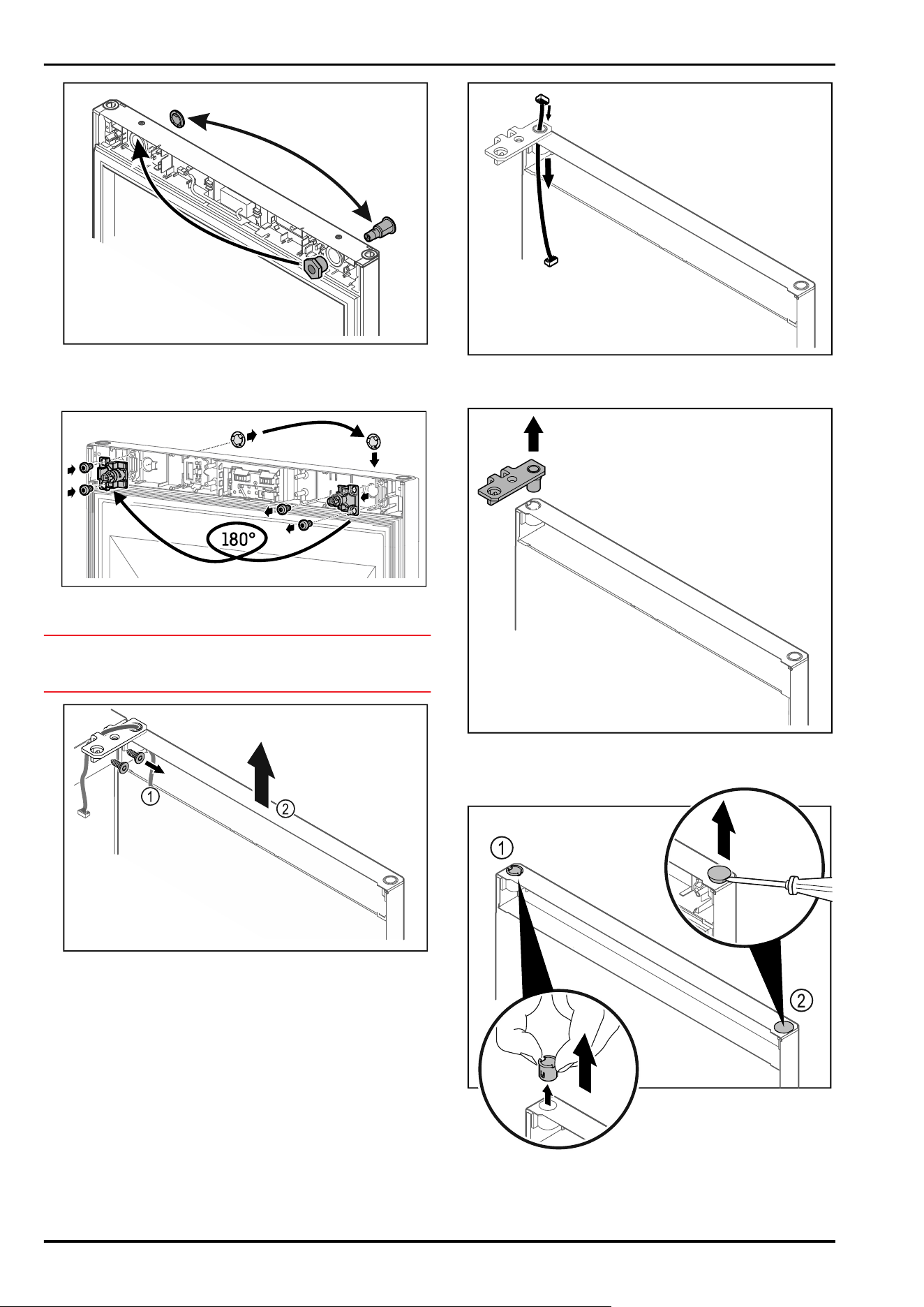
Fig. 14
► Put the lock and cover on the opposite side.
-or-
Fig. 15
► Put the lock and cover on the opposite side.
NOTICE
Risk of injury if the door tips out!
► Hold the door.
Fig. 16
► Unscrew the hinge Fig. 16(1).
► Lift the door with the hinge straight up by Fig. 16 (2)
roughly 200mm and take it off.
► Carefully place the door on a soft surface.
Fig.17
► Carefully pull out the cable.
Fig. 18
► Pull out the hinge.
Fig. 19
► Pull out the hinge bushing Fig. 19(1) with your fingers.
► Carefully lift the cover plug Fig. 19 (2) with a slotted
screwdriver and pull it out.
Setting up and connecting
* Depending on model and options 9
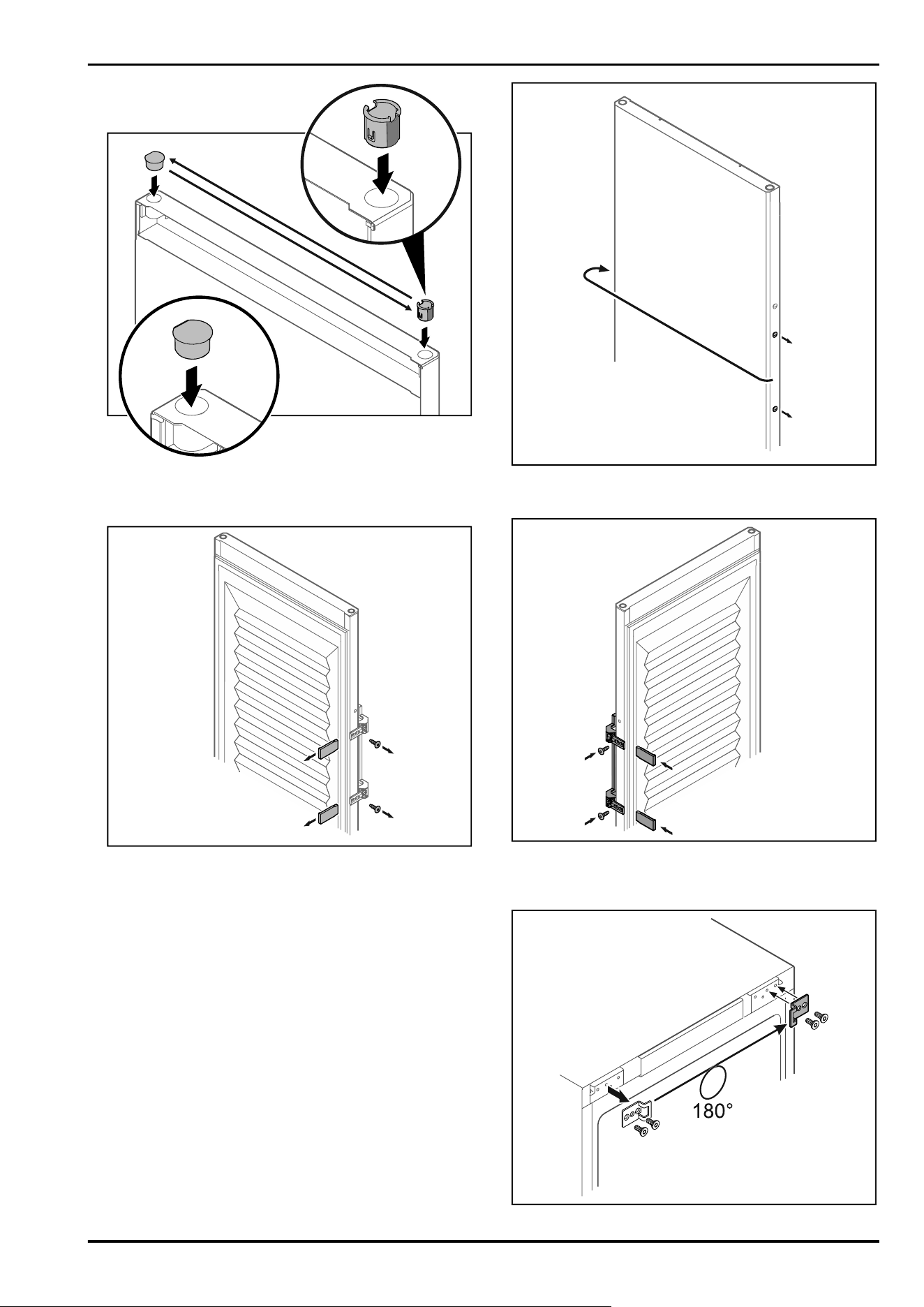
Fig.20
► Insert hinge bushing and cover plug on the opposite side
(the flattened sides face outwards).
Fig. 21 Insulated door
► Remove the panels.
► Unscrew the handle.
Fig.22
► Put the stopper on the opposite side.
Fig. 23 Insulated door
► Screw the handle onto the opposite side.
► Attach the panels.
Setting up and connecting
10 * Depending on model and options
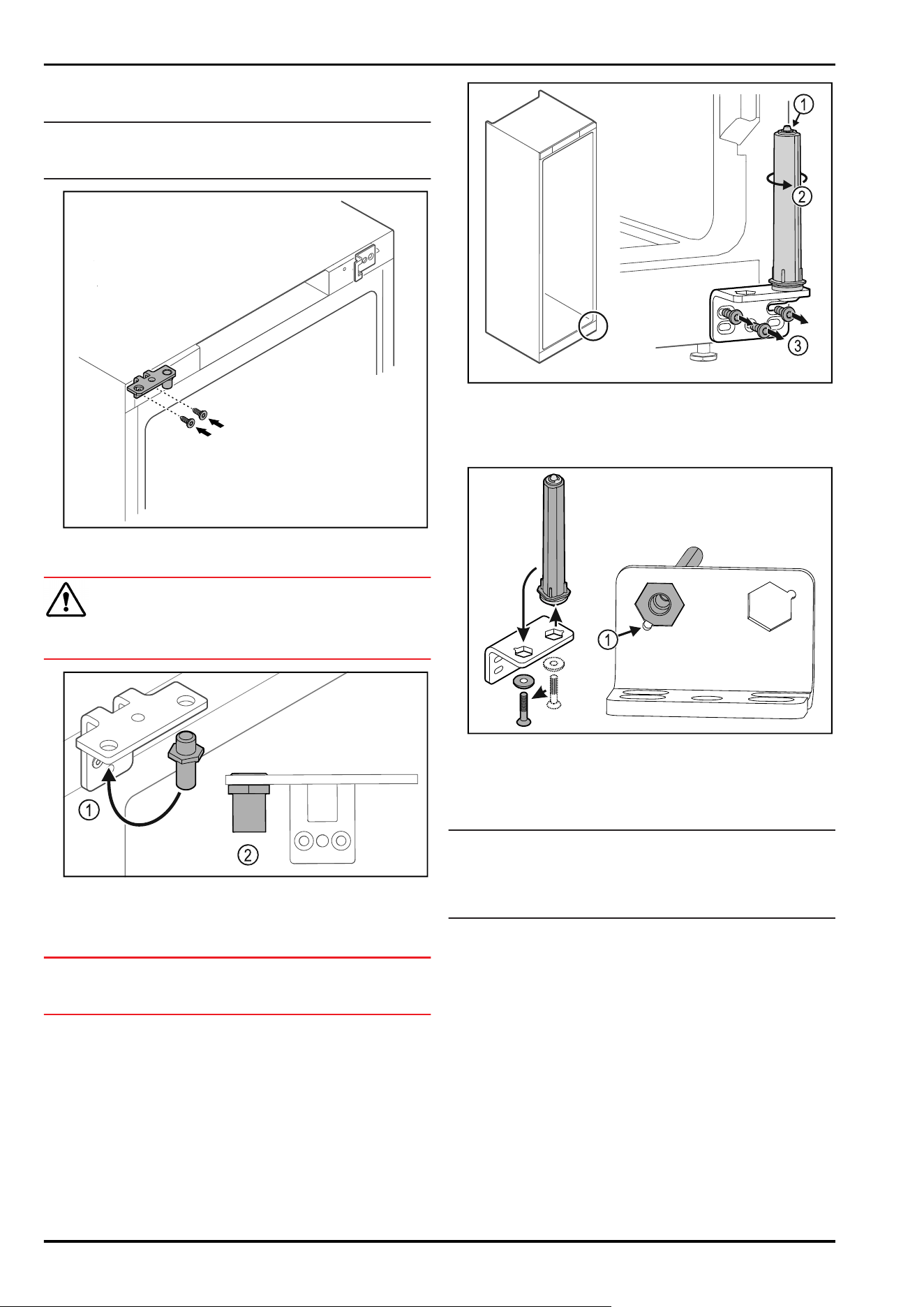
Fig. 24
► Put the closing bracket on the opposite side.
Note
The holes are pre-marked and must be pierced with the
self-tapping screws.
Fig.25
► Move the hinge to the opposite side.
WARNING
Risk of injury and material damage if the door tips out!
► Tighten the bearing pins to the specified torque.
Fig. 26
► Put the pin back into the hinge Fig. 26(1).
► Tighten the pin Fig. 26(2) to a torque of 12 Nm.
► Unscrew the hinge again.
NOTICE
Risk of injury due to tensioned spring!
► Do not disassemble the door closing system Fig.27(1).
Fig.27
► Turn the closing system Fig.27(2) until it clicks.
▷ The tension of the closing system is released.
► Unscrew the hinge Fig.27(3).
Fig.28
► Put the door closing system in the hinge.
► Make sure the pin chamfer Fig.28(1) faces the round hole
when you put it in.
-or-
Note
Incorrect alignment of the height adjustment washers.
Nuts no longer have sufficient hold.
► The washer must lock into the underside of the closing
system.
Setting up and connecting
* Depending on model and options 11
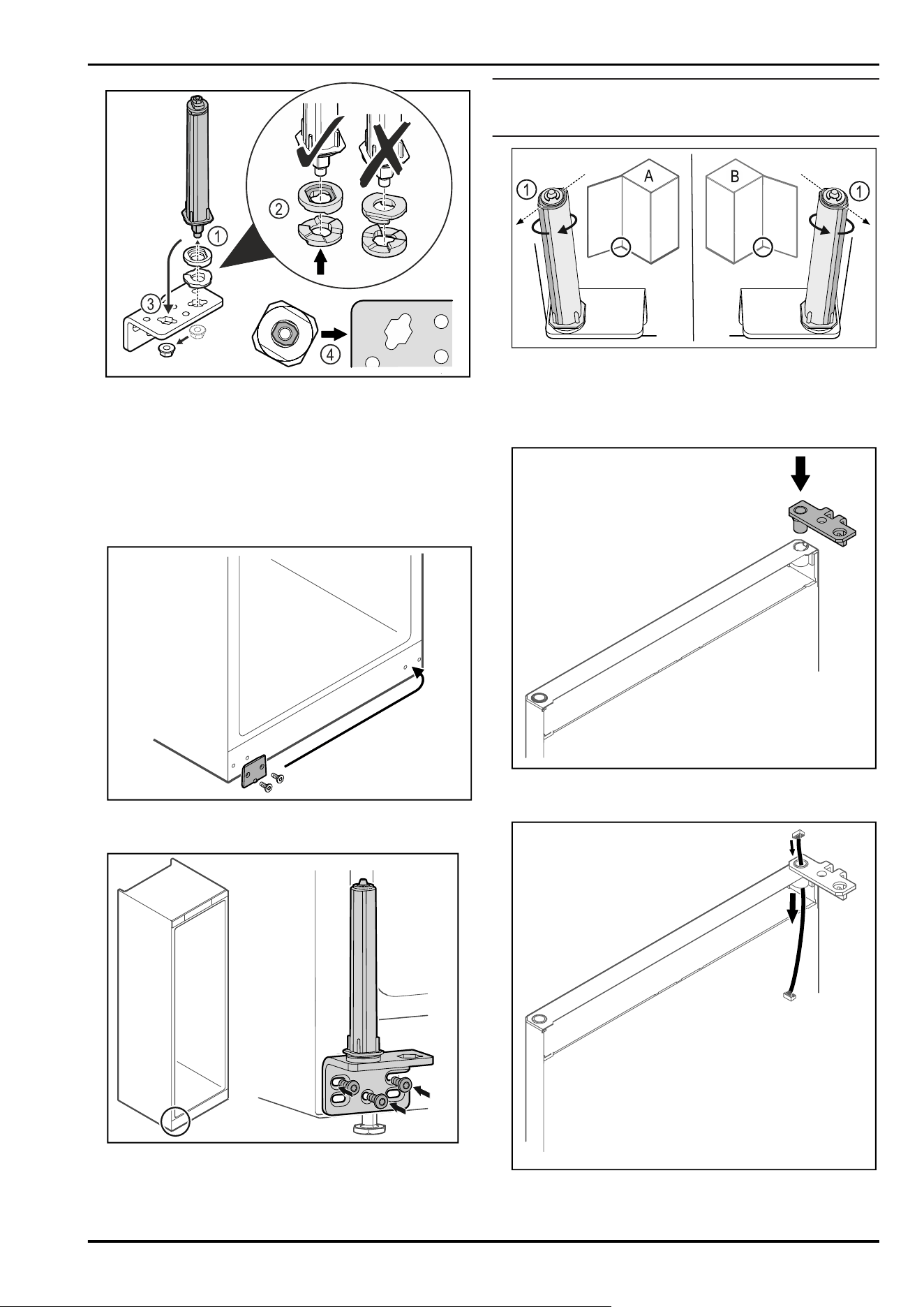
Fig.29
► Loosen the nut and remove the door closing system
Fig.29(1).
► Observe the correct alignment of the height adjustment
washers Fig.29(2).
► Put the door closing system in the hinge and fix in place
with the nut Fig.29(3).
► Observe the correct alignment of the door closing system
when doing so Fig.29(4).
Fig.30
► Put the cover plate on the opposite side.
Fig.31
► Screw the hinge onto the opposite side.
Note
Correct alignment and tension are important for the closing
system to work properly.
Fig. 32 Left-hinged (A) / Right-hinged (B)
► Turn the closing system against the resistance until the
bar of the closing system Fig.32(1) points outwards.
▷ The closing system automatically stays in this position.
▷ The closing system is now aligned and tensioned.
Fig.33
► Put the hinge into the door.
Fig.34
► Carefully push the cable through.
Setting up and connecting
12 * Depending on model and options
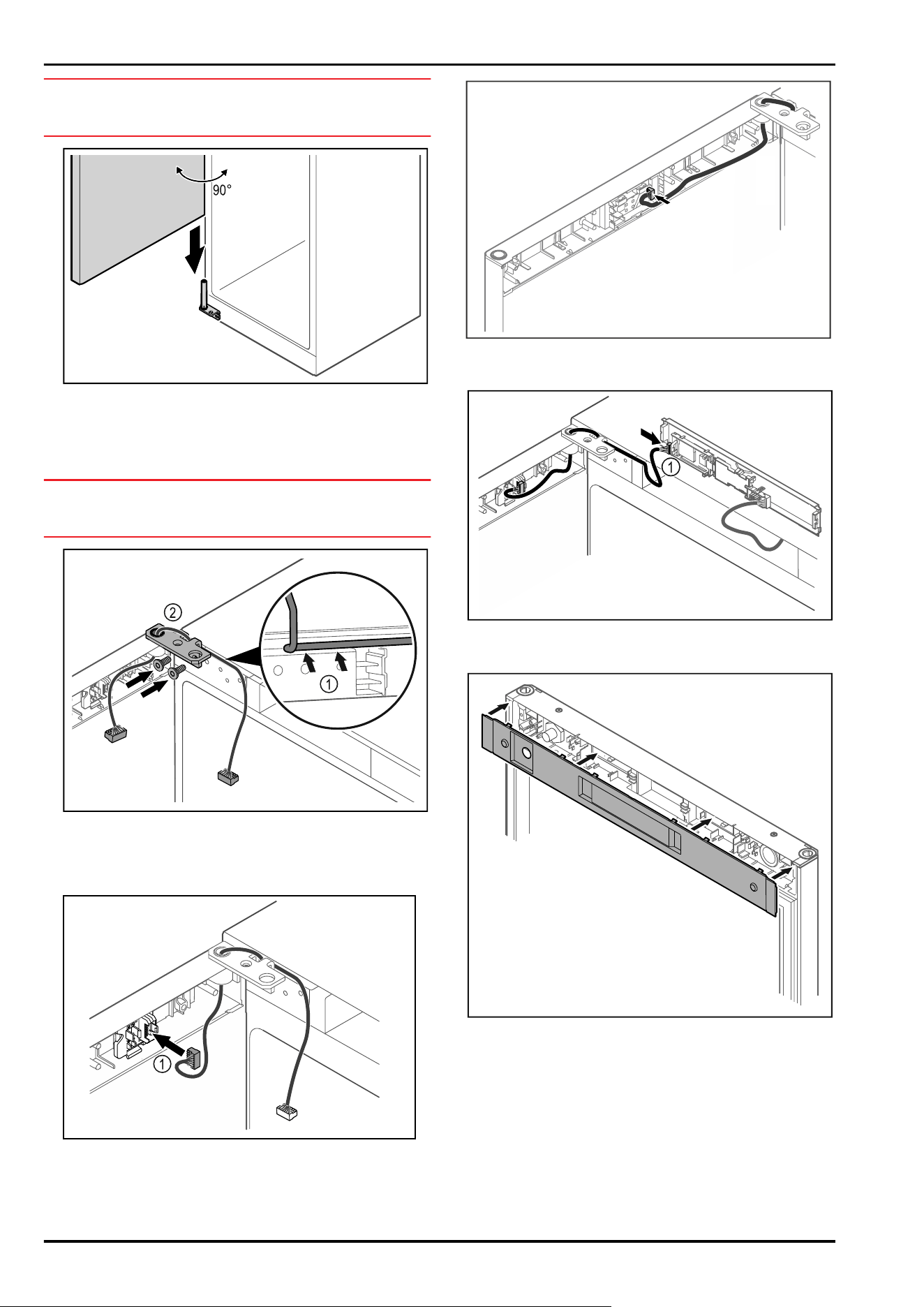
NOTICE
Risk of injury if the door tips out!
► Hold the door.
Fig.35
► Together with a second person, lift the door from the
ground.
► Carefully put the door on the closing system with the
door opened at a 90° angle.
NOTICE
Material damage due to incorrect mounting!
► Do not pinch the cable when mounting the hinge.
Fig.36
► Feed the cable through the recess in the hinge and lay it
carefully Fig.36(1).
► Screw on the hinge Fig.36(2).
Fig.37
► Put the plug Fig.37(1) in the plug holder.
-or-
Fig.38
► Plug the connector into the circuit board.
Fig. 39
► Connect the plug Fig. 39(1) to the circuit board.
Fig.40
► Set the cover back in place.
Setting up and connecting
* Depending on model and options 13
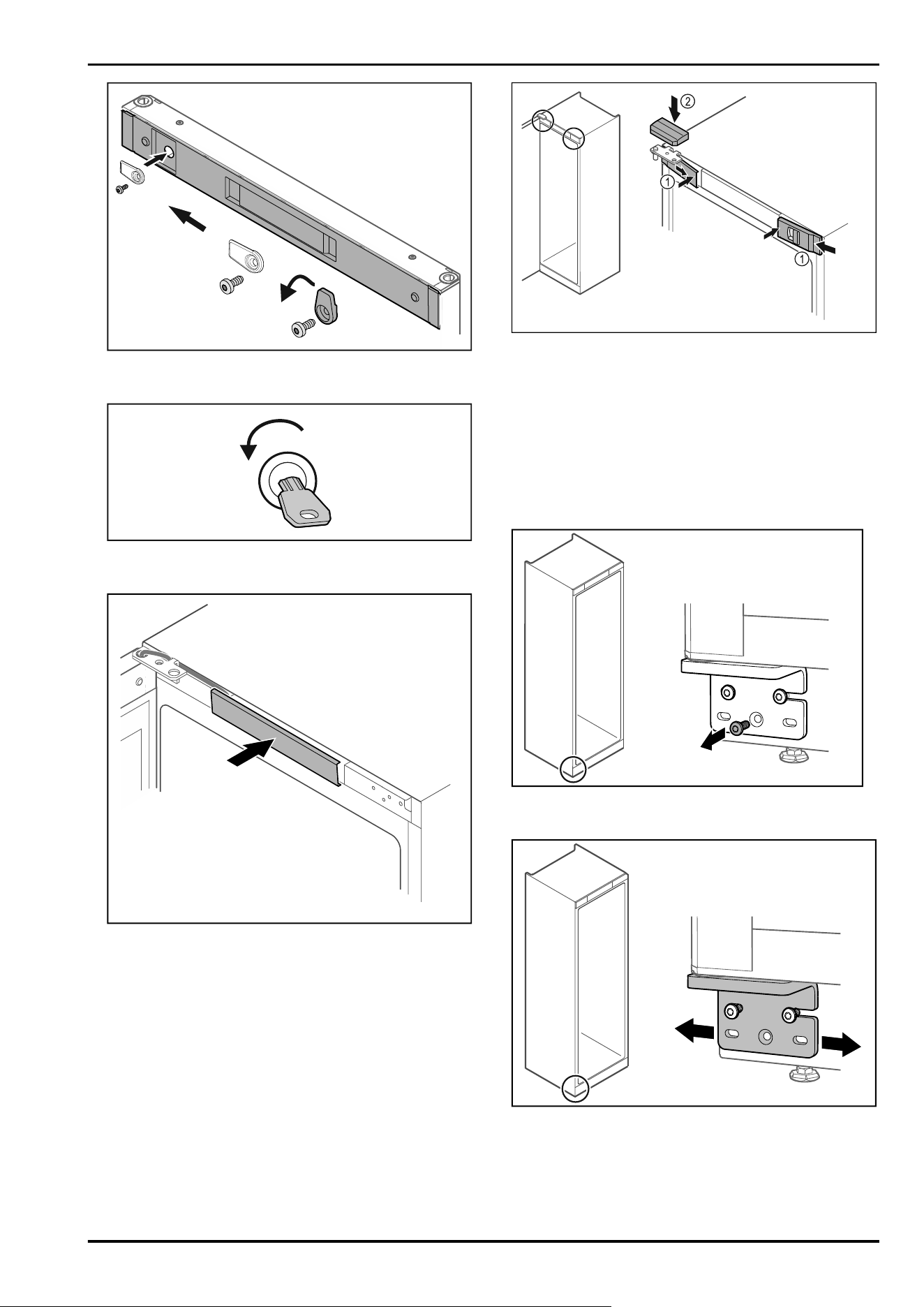
Fig. 41
► Screw on the door latch.
Fig. 42
► Open the door.
Fig.43
► Snap in the middle cover.
Fig.44
► Hook in the front covers Fig. 44 (1) on the side and snap
them into place on the inside.
► Snap on the top cover Fig.44(2) from above.
► Close the door.
▷ The door has now been reversed.
3.6 Aligning the door
If the door is not straight, you can adjust it on the lower
hinge.
Fig.45
► Remove the middle screw on the lower hinge.
Fig.46
► Slightly undo both screws and move the door with the
hinge to the left or right.
► Fully tighten the screws (the middle screw is no longer
needed).
▷ The door is now straight.
Setting up and connecting
14 * Depending on model and options
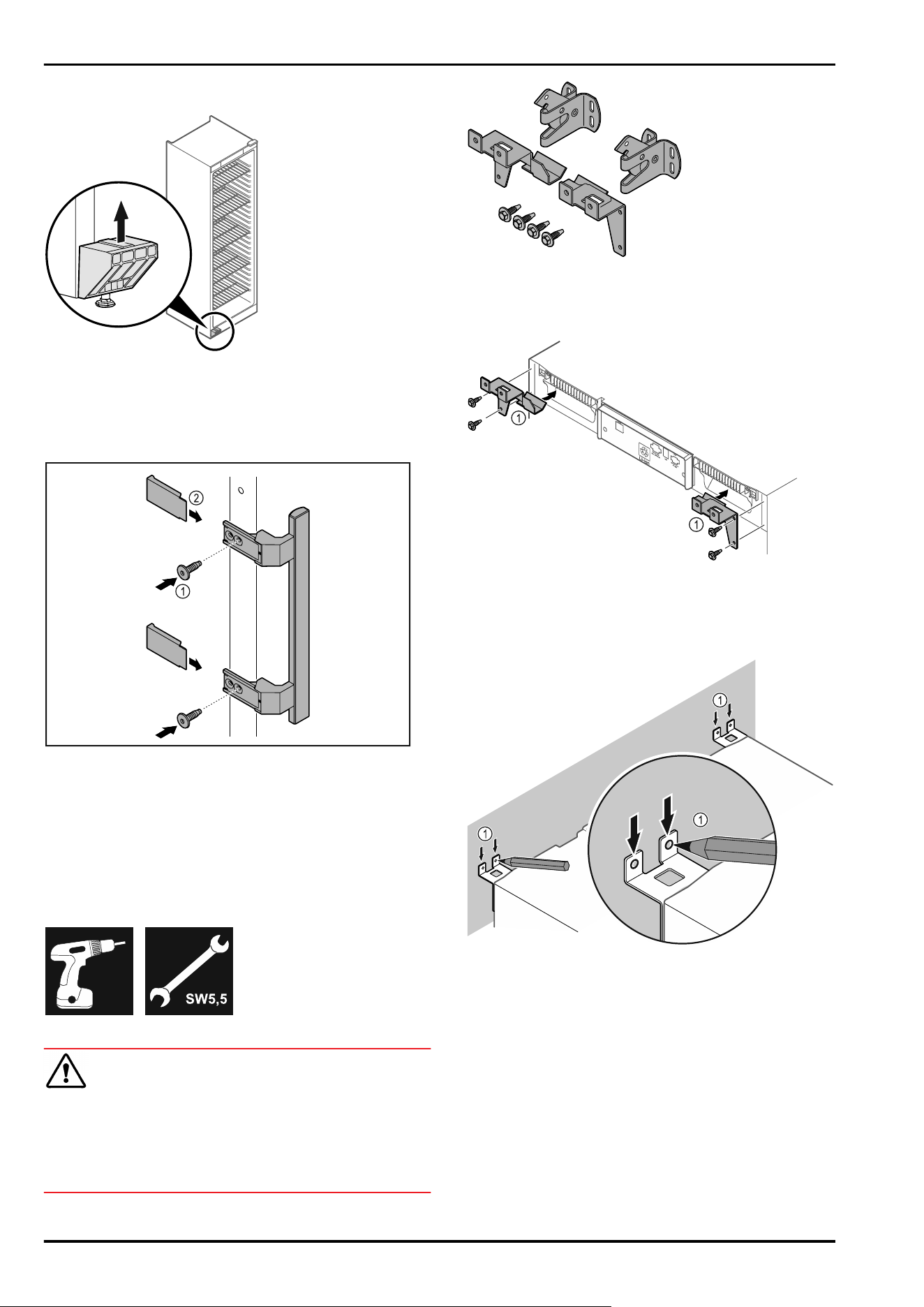
3.7 Removing transport lock
Fig. 47
► Remove transport lock in upwards direction.
▷ Base holder remains on the appliance.
3.8 Installing door handle
Fig.48
► Attach handle from accessory kit to the door using the
screws Fig.48(1) supplied.
► Put on cover Fig.48(2).
► Insert the plug from the accessory pack on the opposite
side. *
3.9 Mounting anti-tipping device
Tools
Fig. 49
WARNING
Danger of injury and damage due to appliance tipping over!
Danger to life and material damage to the appliance. An
appliance without an anti-tip device fitted can tip over if you
open the door or pull out shelves, for example.
► Before putting the appliance into operation: Always fit
the anti-tilt device according to the instructions.
Prevent appliance from tipping over.
Fig.50
The anti-tilt device is included with the device. It consists
of two retaining parts, two securing hooks and four self-
tapping screws (4 x 14).
Fig.51
► Fit the retaining parts Fig. 51 (1) to the device with self-
tapping screws.
► Push appliance with retaining parts mounted against the
wall.
Fig.52
► Make markings on the wall Fig.52(1).
► Remove appliance.
Setting up and connecting
* Depending on model and options 15
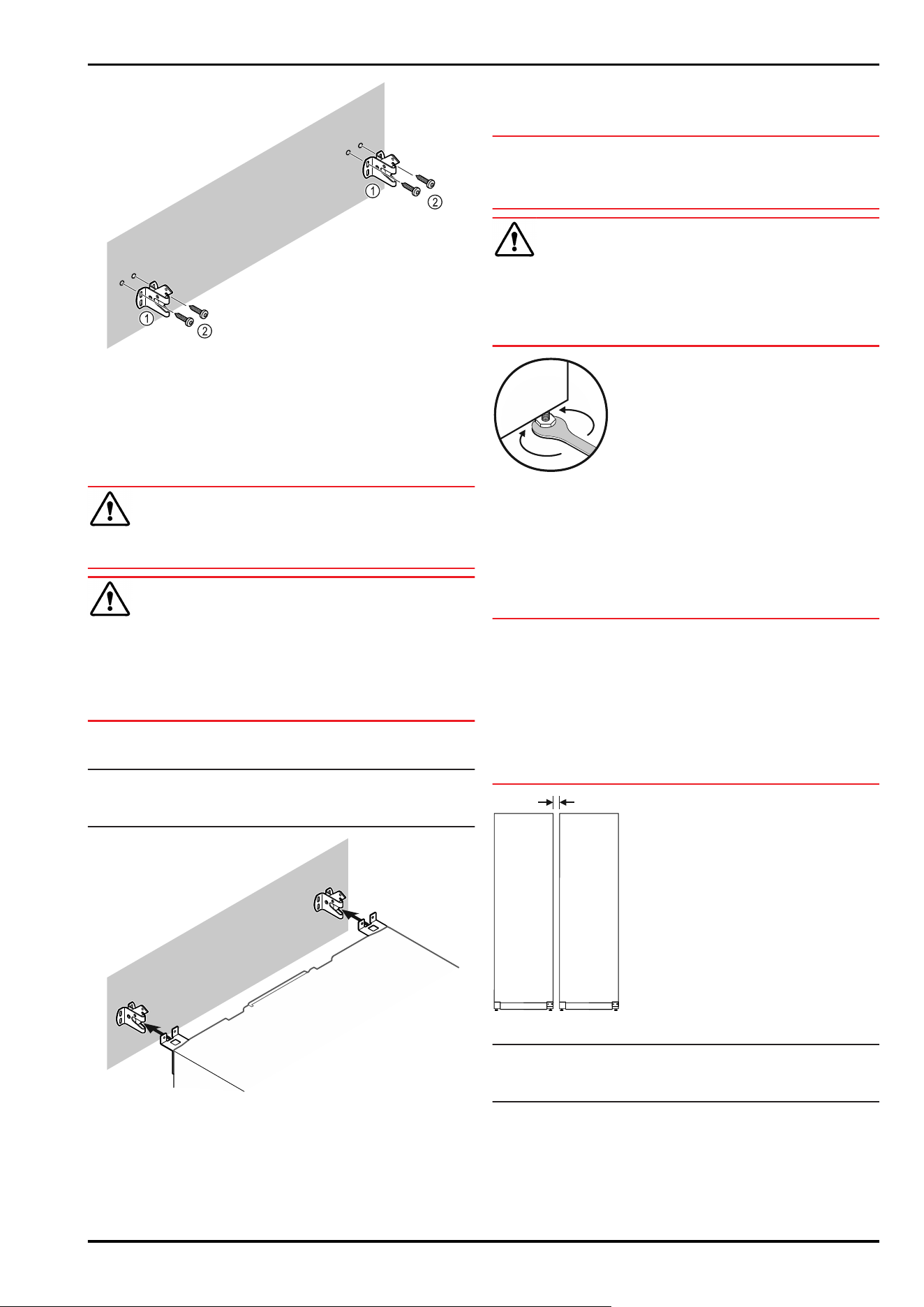
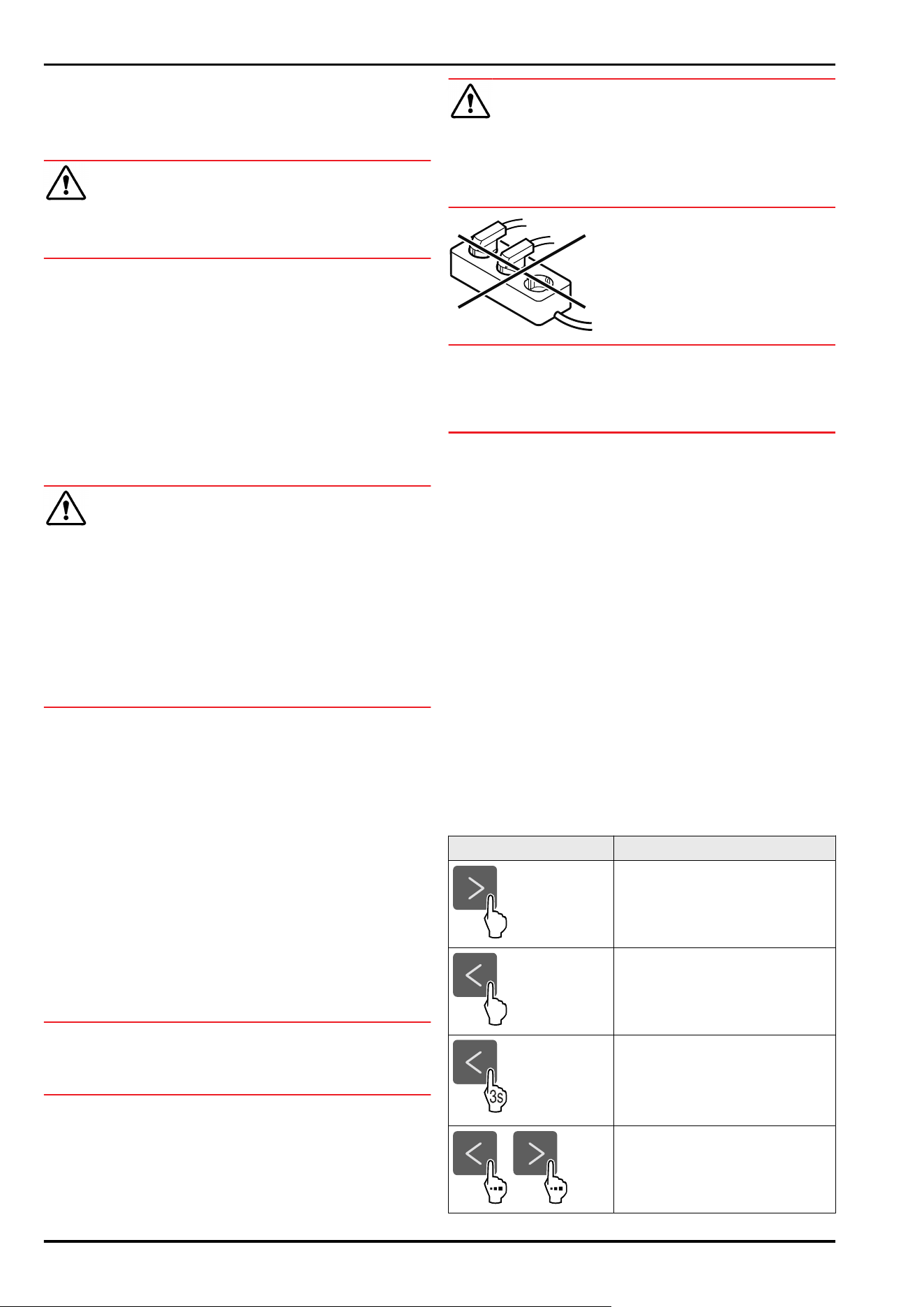
Fig.53
Use fixing material (e.g. dowels) which is appropriate
for the nature of the wall (wood, concrete) and suffi‐
cient attachment points .
► Attach retaining hooks.
3.10 Installing appliance
CAUTION
Risk of injury and damage.
► Use 2 people to install appliance.
CAUTION
Risk of injury and damage.
The door can knock against the wall and become damaged
as a result. In the case of glass doors, the damaged glass
can cause injuries.
► Protect the door from knocking against the wall. Attach
door stopper, e.g. felt stopper, to the wall.
► Connect all necessary components (e.g. mains cable) to
the back of the appliance and route to the side.
Note
Cables can be damaged.
► Do not jam the cable when pushing the appliance back.
Fig.54
► Slide appliance up against the wall so that the retaining
parts latch into the securing hooks.
▷ The appliance is now secured against tipping.
▷ It can be released by folding back the securing hooks.
3.11 Setting up the appliance so it is
level
NOTICE
Appliance body is deformed and door does not close.
► Align appliance horizontally and vertically.
► Compensate for uneven floors using adjustable feet.
WARNING
Incorrect height adjustment of the adjustable foot!
Can cause severe or even fatal injury. Incorrect height
adjustment can cause the bottom part of the adjustable
foot to come loose and the appliance to tip over.
► Do not unscrew the adjustable foot too far.
Fig.55
Raising appliance:
► Turn adjustable foot clockwise.
Lowering appliance:
► Turn adjustable foot anticlockwise.
3.12 Installing multiple appliances
NOTICE
Risk of damage due to condensation between the side
walls.
► Do not install the appliance directly next to another
fridge.
► Install appliances with a space 3cm between appliances.
► Only install multiple appliances up to temperatures of
35°C and 65% humidity next to one another.
► At higher levels of humidity, increase space between
appliances.
Fig. 56 Side-by-side installation
Note
A side-by-side kit is available as an accessory via Liebherr
Customer Service. (see 10.3 Customer Service)
3.13 After installation
► Peel off the protective films. *
► Clean appliance. (see 9.3Cleaning the appliance)
► If necessary: Disinfect the appliance.
Setting up and connecting
16 * Depending on model and options
► Keep the invoice so you have the appliance and dealer
information available if needed.
3.14 Disposing of packaging
WARNING
Danger of suffocation due to packing material and plastic
film!
► Do not allow children to play with packing material.
The packaging is made of recyclable materials:
-
corrugated board/cardboard
-
expanded polystyrene parts
-
polythene bags and sheets
-
polypropylene straps
-
nailed wooden frame with polyethylene panel*
► Take the packaging material to an official collecting
point.
3.15 Connecting the appliance to the
power supply
WARNING
Danger of electric shock and injury due to damaged appli‐
ance or damaged mains cable!
Danger of cuts and fatal injuries. If the appliance or the
mains cable is damaged during transport, you may be elec‐
trocuted. You could also cut yourself on damaged parts of
the appliance housing.
► Check the appliance and the mains cable for damage
after transport.
► Never put the appliance into operation if the appliance or
the mains cable are damaged.
► Contact Customer Service.
You can connect your appliance to the mains using the
power cable supplied separately. The mains power cable
has an appliance coupler at one end and a mains plug at the
other end.
Make sure that the following requirements are fulfilled:
-
The appliance and power cable are undamaged.
-
The appliance is set up in accordance with the regula‐
tions. (see 3.7 Removing transport lock)
-
Requirements for the electrical connection are met.
-
Dimensions for connection in accordance with regula‐
tions are known and observed.
-
Mains voltage and frequency correspond to the specifica‐
tions on the type plate.
-
The socket is earthed according to the regulations and
fused.
-
The fuse tripping current is between 10A and 16A.
-
The socket is easily accessible and is not behind the
appliance.
NOTICE
Danger of damage to incorrect operation!
Damage to the electrical components of the appliance.
► Only use the supplied mains cable.
WARNING
Danger of fire due to incorrect connection!
Burns.
Damage to the appliance.
► Do not use an extension cable.
► Do not use distributor blocks.
NOTICE
Danger of damage to incorrect connection!
Damage to the appliance.
► Do not connect the appliance to a stand-alone inverter,
e.g. solar power systems and petrol generators.
► Connect the mains cable plug to the power supply.
Ensure that the plug is tightly in the socket.
▷ The standby symbol appears in the display.
▷ If no action occurs within 60 seconds: The standby
symbol fades or disappears.
▷ The appliance is connected. For information regarding
first use, see the following section or the operating
instructions.
4 Functionality of the Touch
display
You operate your appliance using the Touch display. You
select appliance functions in the Touch display (hereafter
referred to as display) by tapping them. If you do not
perform any action on the display for 10 seconds, the
display either jumps back to the higher-level menu or
directly to the status display.
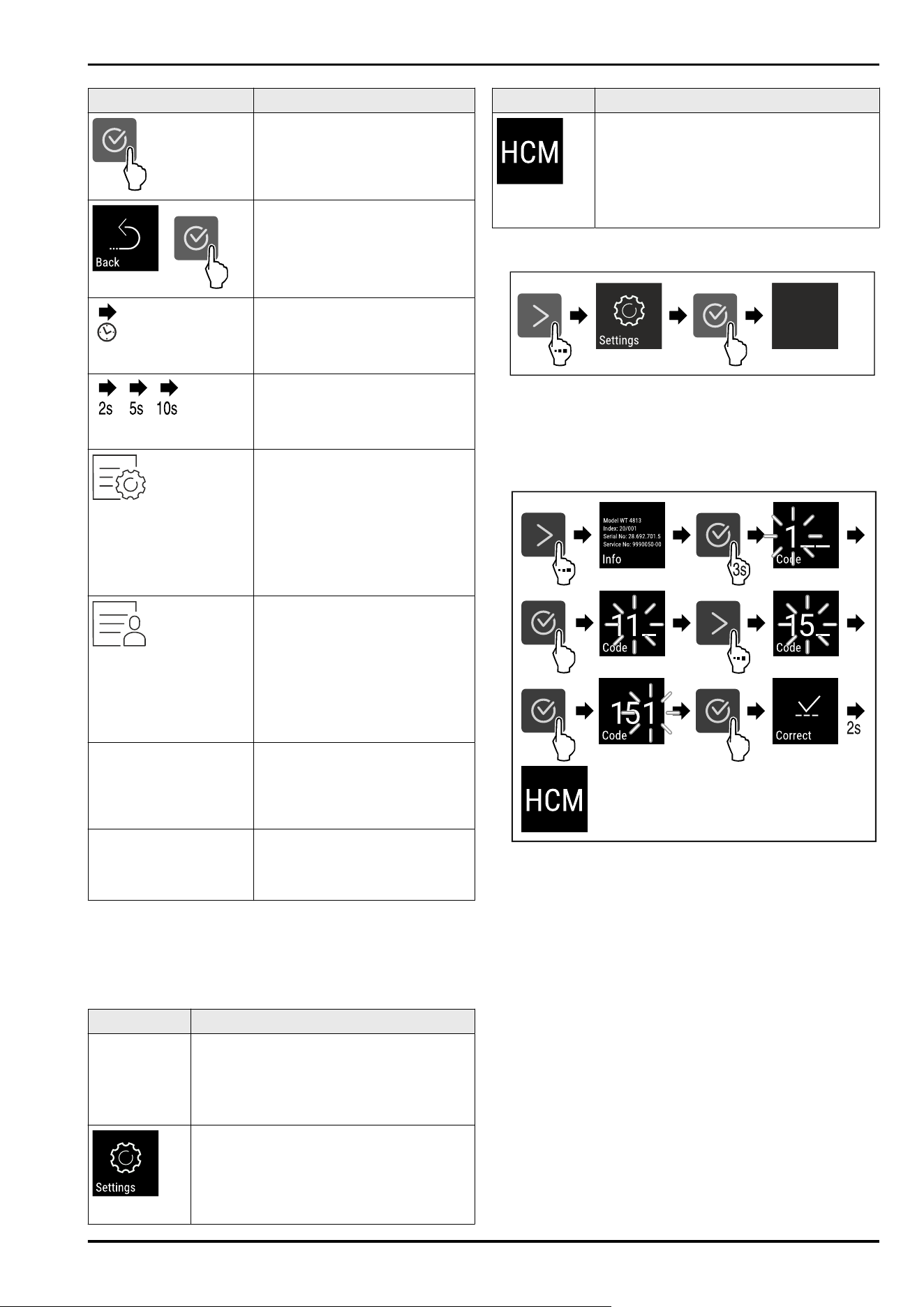
4.1 Navigation and symbol explanation
In the illustrations, different symbols are used to navigate
the display. The following table describes these symbols.
Symbol
Description
Press the Next navigation
arrow:
Navigates to the next option in
the menu.
Press the Back navigation
arrow:
Jumps back one option in the
menu.
Press and hold the Back naviga‐
tion arrow for 3seconds:
Jumps back to the status
display in the main menu or from
the Settings menu.
Press the navigation arrow
several times in succession:
Navigates in the menu to the
desired function.
Functionality of the Touch display
* Depending on model and options 17
Symbol Description
Press the Confirm symbol:
Activates/deactivates function.
Opens submenu.
Press the Confirm symbol
together with the back icon:
Jumps back one menu level.
Arrow with clock:
It takes more than 10 seconds
for the following message to
appear in the display.
Arrow with a time indication:
It takes the specified amount of
time until the following message
appears in the display.
“Open Settings menu” symbol:
Navigates to the Settings menu
and opens the settings menu.
If necessary: Navigate to the
desired function in the Settings
menu.
(see 4.2.1 Opening the Settings
menu)
“Open Advanced menu” symbol:
Navigates to the Advanced menu
and opens the advanced menu.
If necessary: Navigate to the
desired function in the Advanced
menu.
(see 4.2.2 Opening the Advanced
menu)
No action for
10seconds
If you do not perform any action
on the display for 10 seconds,
the display either jumps back to
the higher-level menu or directly
to the status display.
Opening door and
closing it again
If you open the door and immedi‐
ately close it again, the display
jumps directly back to the status
display.
Note: Illustrations of the display are shown in the English
version.
4.2 Menus
The appliance functions can be found in various menus.
Menu
Description
Main menu When you switch the appliance on, you are
automatically in the main menu.
From here you can navigate to the most
important appliance functions, to the
Settings menu and to the Advanced menu.
Settings menu
The Settings menu contains additional
appliance functions for setting up your
appliance.
(see4.2.1 Opening the Settings menu)
Menu Description
Advanced
menu
The advanced menu contains special
appliance functions for setting up your
appliance. Access to the Advanced menu
is protected by the numerical code 151.
(see4.2.2 Opening the Advanced menu)
4.2.1 Opening the Settings menu
Fig. 57 Example illustration
► Carry out action steps according to the illustration.
▷ Settings menu is open.
► If necessary: Navigate to the desired function.
4.2.2 Opening the Advanced menu
Fig.58Access with numerical code 151
► Carry out action steps according to the illustration.
▷ The expanded menu is open.
► If necessary: Navigate to the desired function.
4.3 Sleep mode
If you do not touch the display for 1 minute, the display
switches to sleep mode. In sleep mode, the display bright‐
ness is dimmed.
4.3.1 Ending sleep mode
► Press any navigation key.
▷ Sleep mode is ended.
Functionality of the Touch display
18 * Depending on model and options
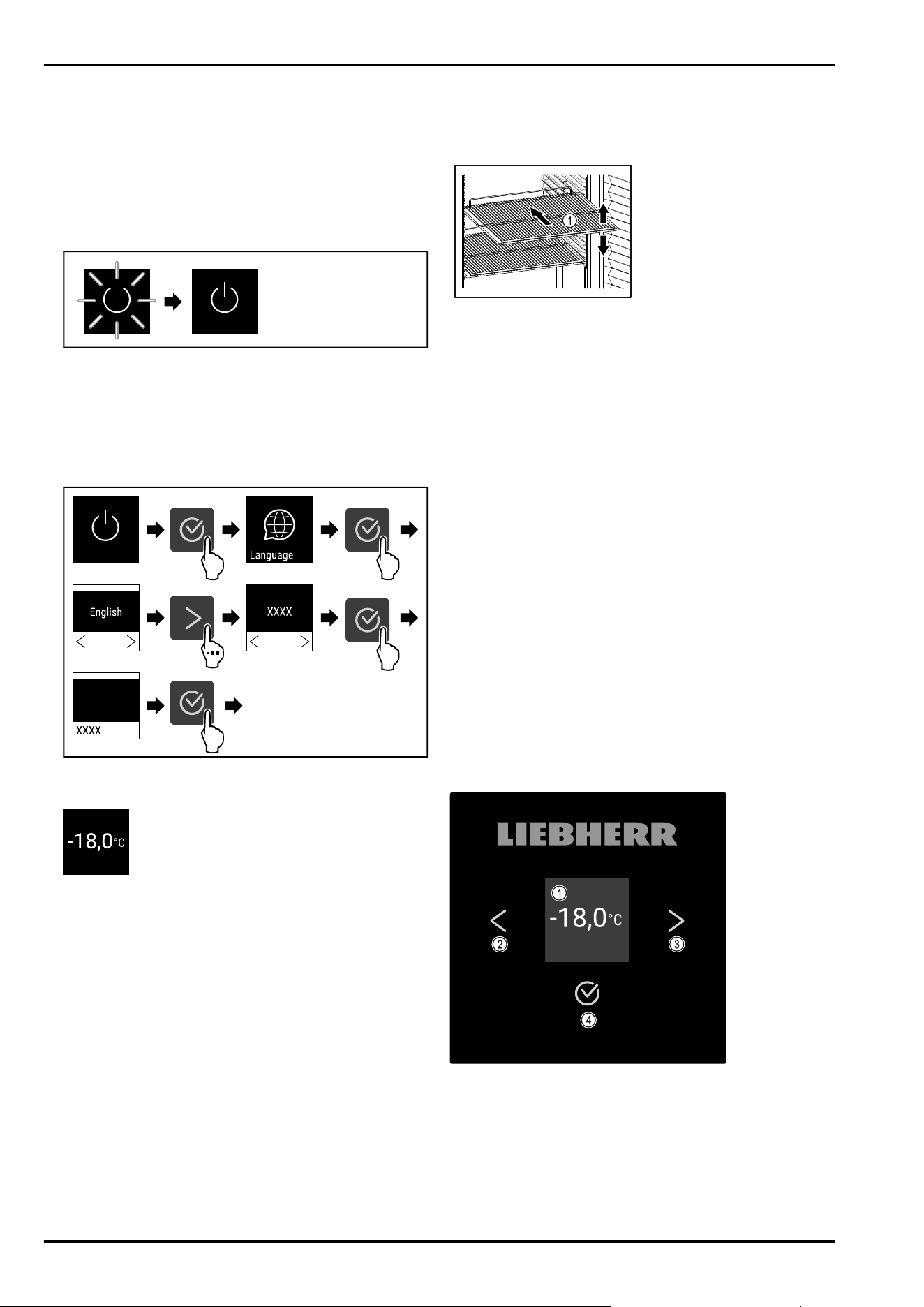
5 Putting into operation
5.1 Switching on appliance (first use)
Make sure the following prerequisites are met:
- Appliance is installed and connected.
- All adhesive strips, adhesive and protective films and
transport locks are removed from inside and outside the
appliance.
Fig. 59 Example illustration
The standby symbol flashes until the startup process is
complete.
The standby symbol is shown in the display.
If the appliance has been supplied with factory settings, the
screen language first needs to be selected when using for
the first time.
3s
Fig.60
► Carry out action steps according to the illustration.
Fig.61
▷ The appliance is switched on once the temperature
appears in the display.
▷ The temperature display flashes until the set tempera‐
ture is reached.
6 Storage
6.1 Information regarding storage
Fig. 62 Example illustration
When stocking observe the following:
❑
If storage surfaces Fig. 62 (1) are movable, adjust them
according to height.
❑
Observe maximum load weight. (see 10.1 Technical speci‐
fications)
❑
Do not load appliance until storage temperature has been
reached (maintain cold chain).
❑
Refrigerated goods must not touch the rear wall.
❑
Refrigerated items do not protrude beyond the shelves.
❑
Keep liquids in closed containers.
❑
Leave space when storing items for refrigeration to
ensure good air circulation.
❑
Do not store refrigerated goods under the defrost water
bowl.
7 Controls
7.1 Control and display elements
The display provides a quick overview of the current appli‐
ance status, the temperature setting, the status of func‐
tions and settings as well as alarm and error messages.
It is operated using the navigation arrows and confirmation
symbol.
Functions can be activated or deactivated and setting
values can be changed.
Fig.63Display
(1)
Status display (3) Forward navigation
arrow
(2) Backwards navigation
arrow
(4) Confirm
Putting into operation
* Depending on model and options 19
7.1.1 Status display
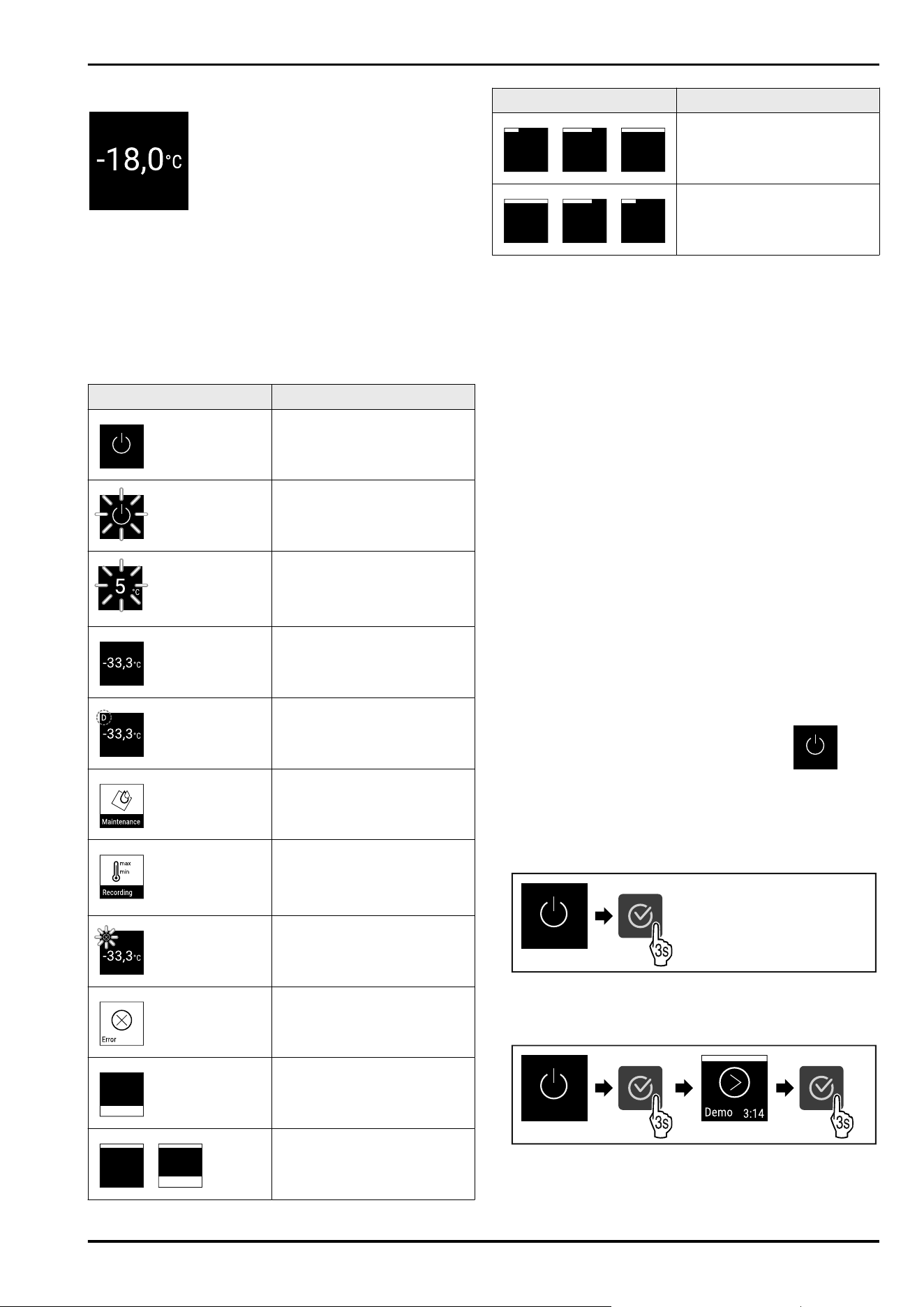
Fig. 64 Status display with actual temperature
The status display shows the actual temperature and is
the home display. You navigate from here to the other func‐
tions and settings. The status display may show a range of
display symbols.
7.1.2 Display symbols
Display symbols provide information about the status of the
appliance.
Symbol
Appliance status
Standby
Appliance is switched off.
Flashing standby symbol
Appliance is starting up.
Flashing temperature
Target temperature not yet
reached. Appliance cooling to
temperature set.
Temperature display
Displays the current interior
temperature
D in the display
Appliance is in DemoMode.
Maintenance reminder
The time interval set has
expired.
Data memory full
The data memory (999 hours)
is full. From now, the oldest
data will be overwritten.
Flashing symbol
A fault is still active.
Error symbol
Appliance is in error state.
White bar at the bottom
Submenu
White bar at the top
Default, active setting or
active value
Symbol Appliance status
Increasing bar
Press button for 3 seconds to
activate setting.
Decreasing bar
Press button for 3 seconds to
deactivate setting.
Status display symbols
7.1.3 Acoustic signals
A signal sounds in the following cases:
-
If a function or a value is confirmed.
-
If a function or a value can either not be activated or not
deactivated.
-
As soon as an error occurs.
-
If there is an alarm message.
The alarms can be switched on and off in the customer
menu.
7.2 Appliance functions
7.2.1 Notes on the appliance functions
The appliance functions are set at the factory so that your
appliance is fully functional.
Before you alter, activate or deactivate the device functions,
make sure that the following requirements are met:
❑
You have read and understood the descriptions of how
the display works. (see 4 Functionality of the Touch
display)
❑
You have familiarised yourself with the operating and
display elements of your appliance. (see 7.1 Control and
display elements)
7.2.2 Switching appliance on and off
Using this setting the entire appliance can be switched on
and off.
Switching on appliance
Without activated DemoMode:
Fig.65
► Carry out action steps according to the illustration.
With activated DemoMode:
Fig.66
► Carry out action steps according to the illustration.
Controls
20 * Depending on model and options
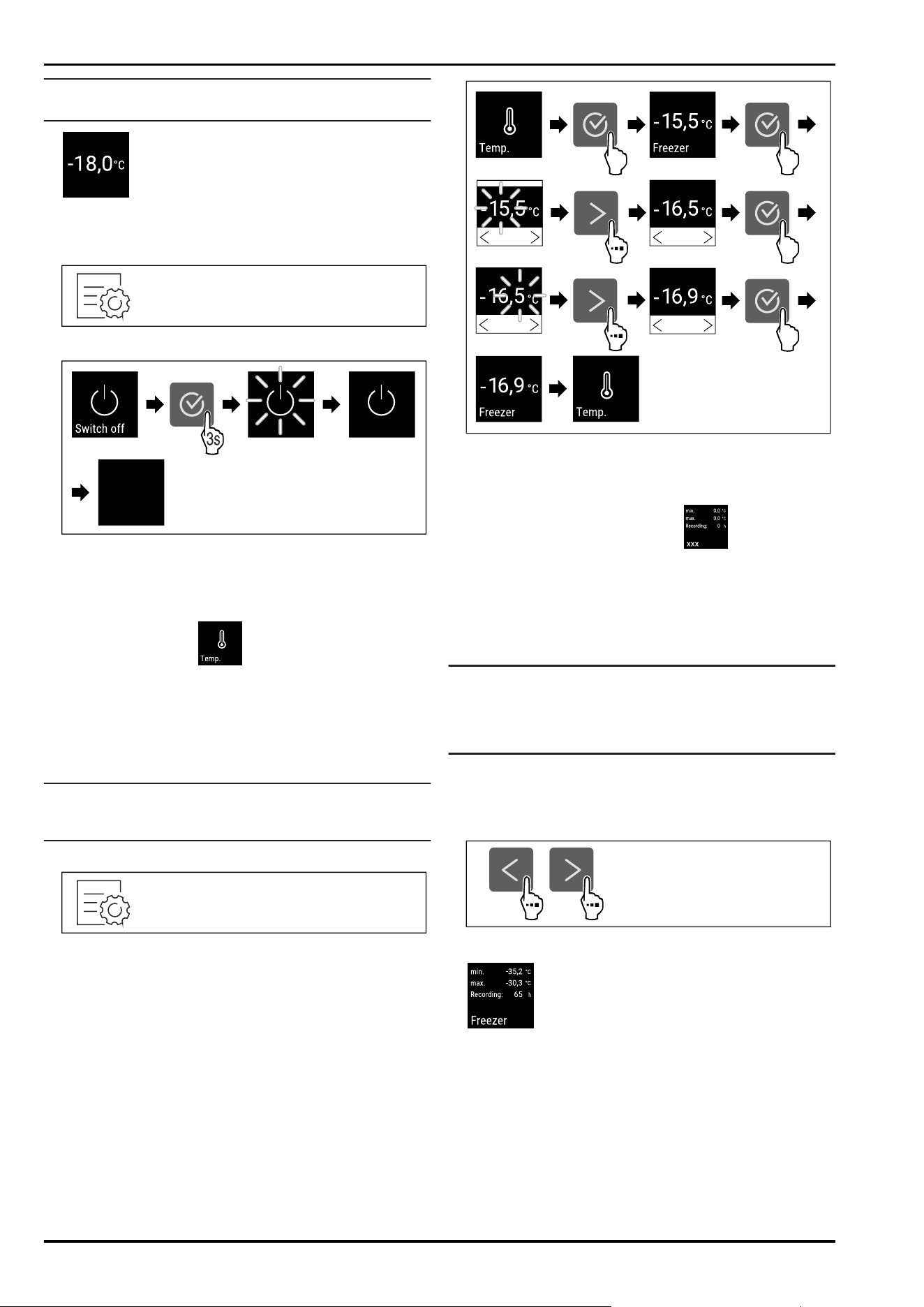
Note
Deactivate DemoMode before countdown finishes.
Fig. 67
▷ The temperature appears in the display.
Switching off appliance
Fig.68
Fig. 69
► Carry out action steps according to the illustration.
▷ Standby symbol is shown in the display.
▷ Display switches off after approximately 10 minutes.
7.2.3 Temperature
The temperature depends on the following factors:
-
How often the door is opened
-
How long the door is open for
-
The room temperature of the installation site
-
The type, temperature and amount of frozen food
Note
The temperature may differ from the temperature displayed
in some areas of the interior.
Setting temperature
Fig.70
Fig. 71 Changing temperature from -15.5°C to -16.9°C
► Carry out action steps according to the illustration.
▷ Temperature is set.
7.2.4 Temperature recording
The appliance displays the minimum and maximum temper‐
atures of the interior. The recording of these temperatures
starts automatically after the appliance is switched on; they
are recorded at one minute intervals. A note indicating that
the data memory is full is displayed after 999 hours (approx.
40 days). The temperature recording should then be reset.
Note
We recommend resetting the temperature recording once
after reaching the set temperature when the appliance is
commissioned. This ensures that the value displayed for the
maximum temperature is a meaningful value.
Displaying temperature recording
The temperature recording displays the length of the
recording and the minimum and maximum temperatures
measured during this period of time.
Fig.72
Fig.73
▷ Status screen with the temperature recordings is
displayed.
Resetting temperature recording
The displayed minimum and maximum temperatures can be
reset at any time. This deletes the displayed values and the
recording interval starts again.
Controls
* Depending on model and options 21
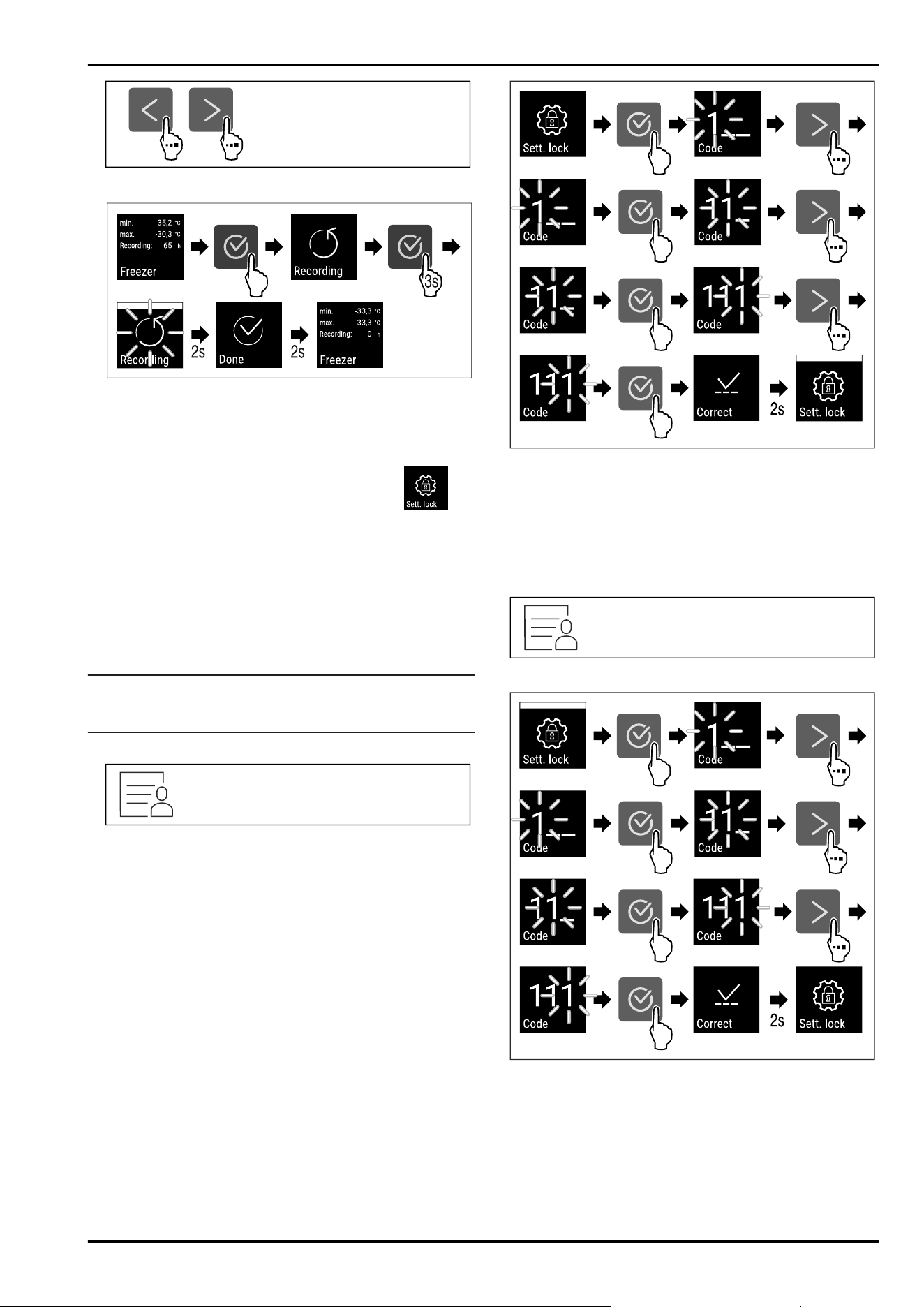
Fig. 74
Fig.75
► Carry out steps according to the illustration.
▷ Temperature recording is reset.
▷ Recording interval starts again.
7.2.5 Settings menu access protection
This setting enables the settings menu access protection
via a three-digit PIN code.
Application:
-
Prevent settings and functions being changed uninten‐
tionally.
-
Prevent appliance being switched off unintentionally.
-
Avoid unintentional temperature adjustment.
Note
► In the following examples, the factory-set PIN code: 111
is used.
Activating the settings menu access protection
Fig. 76
Fig.77
► Carry out action steps according to the illustration.
▷ Settings menu access protection is activated.
Changing the access protection PIN code for the settings
menu
See: (see 7.2.6Access code)
Deactivating the settings menu access protection
Fig.78
Fig.79
► Carry out action steps according to the illustration.
▷ Settings menu access protection is deactivated.
Opening protected settings menu
If the access protection is active, you must enter the PIN
code in order to be able to open the settings menu. As
soon as you exit the settings menu, the access protection
re-activates automatically.
Controls
22 * Depending on model and options
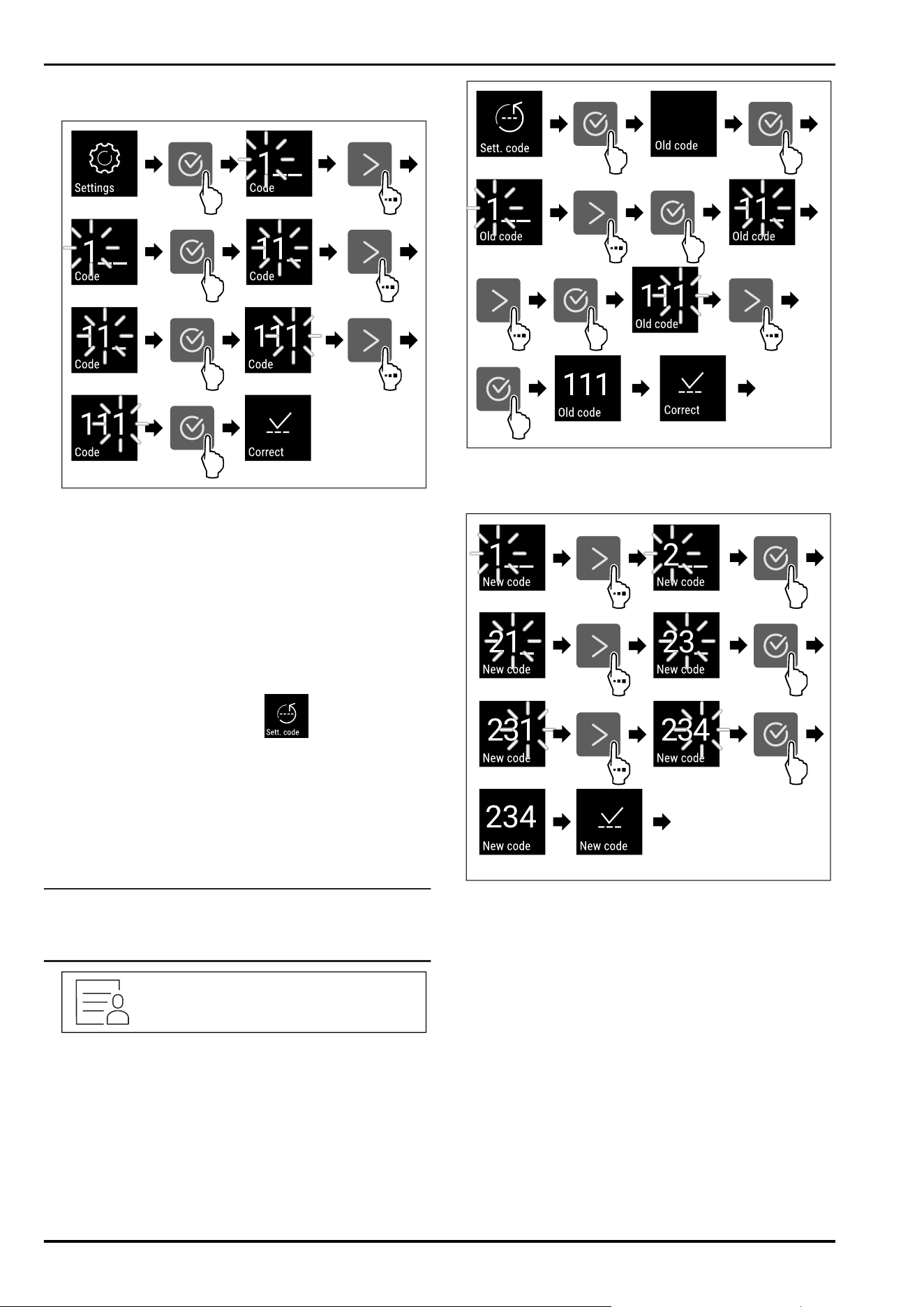
► Tap navigation arrow repeatedly until corresponding
function is displayed.
Fig.80
► Carry out action steps according to the illustration.
▷ The PIN code is correct.
▷ The settings menu opens.
7.2.6 Access code
Various settings are possible.
Application:
-
Changing the settings code.
-
Resetting the settings code.
Settings menu access protection
Changing the settings code
This setting allows the settings code for settings menu
access protection to be changed.
The setting is made in 3 stages:
- Entering the old settings code
- Entering the new settings code
- Confirming the new settings code
Note
► In the following example, the default factory-set settings
code111 is changed.
► The new settings code is:234
Fig.81
The access protection for the settings menu must be
active. (see 7.2.5 Settings menu access protection )
► Tap the navigation arrow repeatedly until the corre‐
sponding function is displayed.
Fig.82
► Carry out action steps according to the illustration.
▷ Entry of the old settings code successful.
Fig.83
► Carry out action steps according to the illustration.
▷ Entry of the new settings code successful.
Controls
* Depending on model and options 23
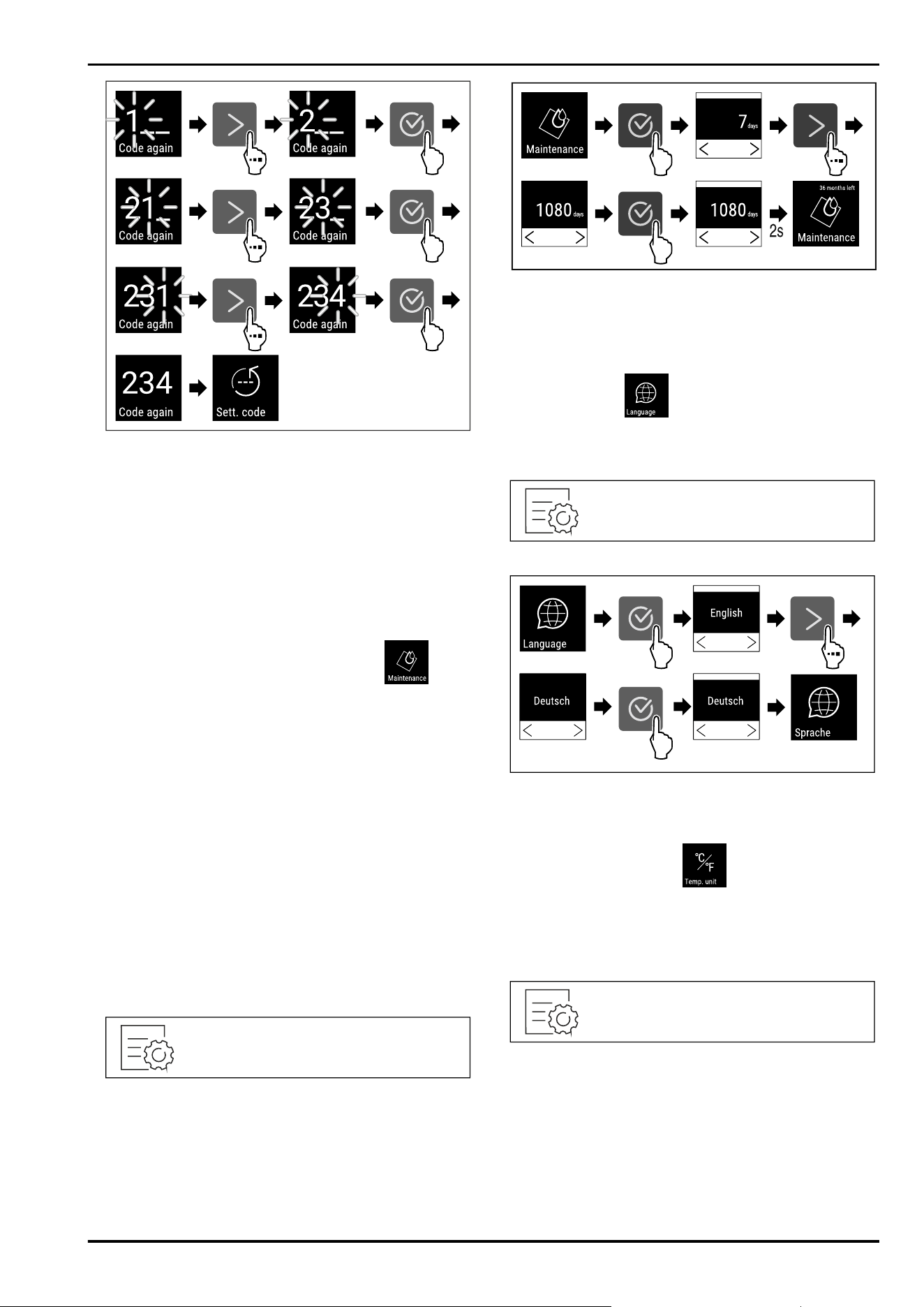
Fig.84
► Carry out action steps according to the illustration.
▷ Confirmation of the new settings code successful.
▷ The settings code has been changed.
Resetting the settings code
The settings code for the settings menu access protection
has been forgotten or is not known.
► Reset appliance to factory settings (see 7.2.24 Resetting
to factory settings ) .
▷ The appliance is reset to the original settings.
▷ The factory-set settings code is:111
7.2.7 Maintenance interval reminder
Setting for the time interval after which a maintenance
reminder is issued.
The following values can be set:
-
7 days
-
14 days
-
30 days
-
60 days
-
90 days
-
180 days
-
360 days
-
720 days
-
1080 days
-
Off
Setting maintenance interval reminder
The following steps describe how the maintenance interval
is set.
Fig.85
Fig.86
► Carry out action steps according to the illustration.
▷ The time interval, after which the maintenance reminder
is issued, is set.
▷ The remaining time is displayed.
7.2.8 Language
This setting allows the display language to be set.
Setting language
Fig. 87
Fig.88
► Carry out action steps according to the illustration.
▷ The selected language is set.
7.2.9 Temperature unit
Use this function to set the temperature unit. You can set
degrees Celsius or degrees Fahrenheit as the temperature
unit.
Setting the temperature unit
Fig.89
Controls
24 * Depending on model and options
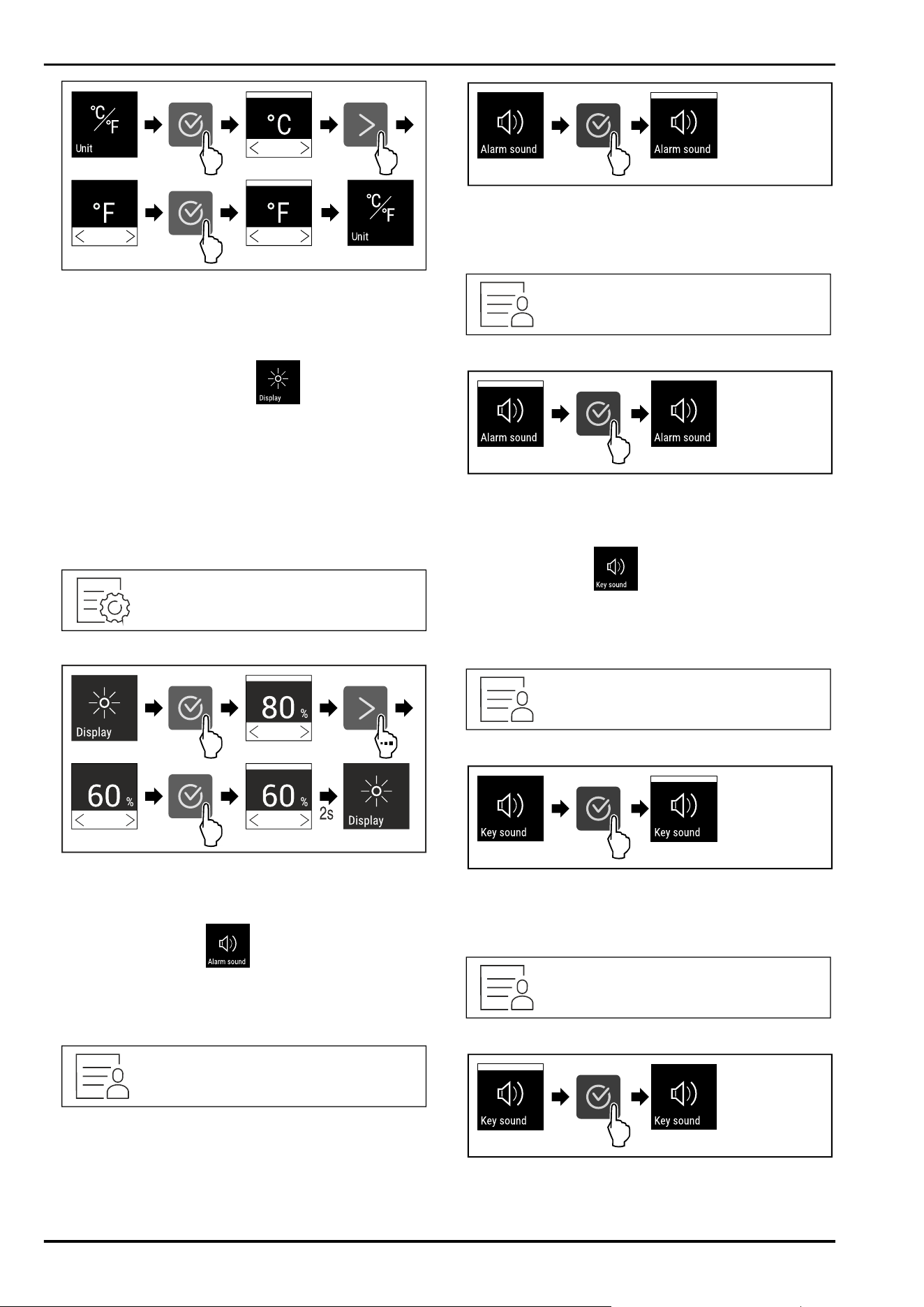
Fig. 90 Example illustration: Switch from degreesCelsius
to degrees Fahrenheit.
► Carry out action steps according to the illustration.
▷ The temperature unit is set.
7.2.10 Display brightness
Use this function to set the display brightness in stages.
You can select the following brightness levels:
-
40%
-
60%
-
80%
-
100 % (pre-setting)
Setting the brightness
Fig. 91
Fig. 92 Example illustration: Switch from 80 % to 60%.
► Carry out action steps according to the illustration.
▷ The brightness is set.
7.2.11 Alarm Sound
This function enables all alarm sounds, such as door alarm,
to be switched on and off.
Activating Alarm Sound
Fig. 93
Fig. 94
► Carry out action steps according to the illustration.
▷ Alarm Sound is activated.
Deactivating Alarm Sound
Fig.95
Fig.96
► Carry out action steps according to the illustration.
▷ Alarm Sound is deactivated.
7.2.12 Key Sound
This function makes it possible to switch all confirmation
sounds and the Startsound on and off.
Activating Key Sound
Fig.97
Fig.98
► Carry out action steps according to the illustration.
▷ Key Sound is activated.
Deactivating Key Sound
Fig.99
Fig. 100
► Carry out action steps according to the illustration.
▷ Key Sound is deactivated.
Controls
* Depending on model and options 25
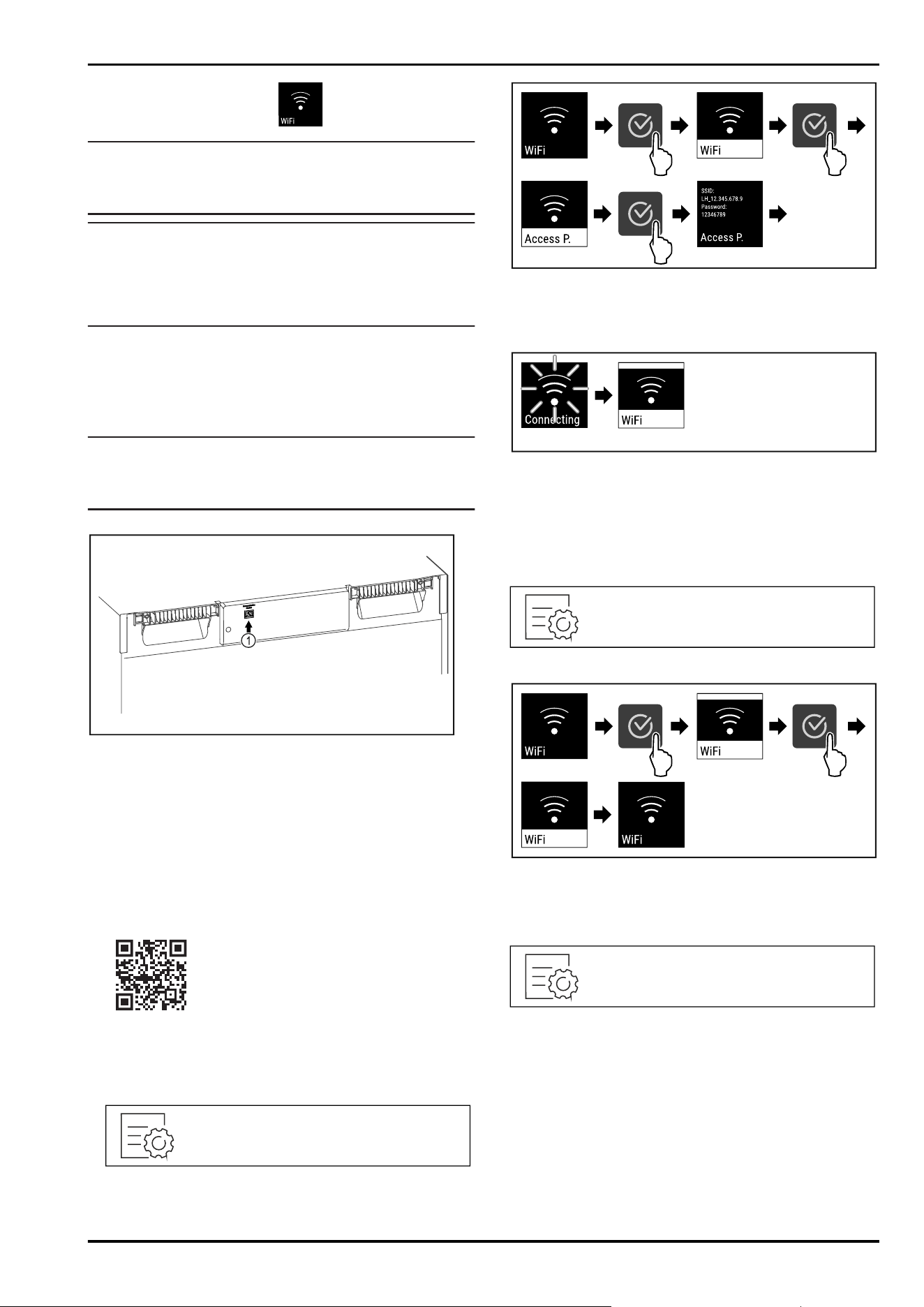
7.2.13 WiFi connection
Note
Liebherr SmartMonitoring Dashboard is not available in all
countries. Check availability via the QR code by entering
your model.
Note
Use of the Liebherr SmartMonitoring Dashboard at https://
smartmonitoring.liebherr.com requires installation of a
SmartModule and a commercial MyLiebherr account. When
commissioning online you can register using the login data
you have, or register again and create a company account.
This setting establishes a wireless connection between the
appliance and the internet. The connection is controlled via
the SmartModule. The appliance can be integrated via the
browser-based Liebherr SmartMonitoring Dashboard and
advanced options as well as customised methods relating
to control, administration and monitoring can be used.
Note
Accessories are available from Customer Service
(see 10.3 Customer Service) and the Liebherr-Hausgeräte
store at home.liebherr.com/shop/de/deu/zubehor.html.
Fig. 101
Make sure that the following requirements are fulfilled:
❑
SmartModule Fig. 101(1) is in use.
Establishing connection
You commission and set up your SmartModule online via the
Liebherr SmartMonitoring Dashboard on your web-enabled
device.
On the Liebherr SmartMonitoring Dashboard, information is
also available about retrofitting the SmartModule.
Fig. 102
► Open the Liebherr SmartMonitoring Dashboard (see
Fig. 102) .
On the refrigerator or freezer:
Fig. 103
Fig. 104
► Carry out action steps according to the illustration.
► Continue the set-up procedure on your web-enabled
device: Liebherr SmartMonitoring Dashboard
Fig. 105
► Connection is established.
▷ WiFi connecting appears. The symbol flashes.
► Follow the Liebherr SmartMonitoring Dashboard instruc‐
tions.
▷ Connection is established.
Disconnecting
Fig. 106
Fig. 107
► Carry out action steps according to the illustration.
▷ There is no connection.
Resetting connection
Fig. 108
Controls
26 * Depending on model and options
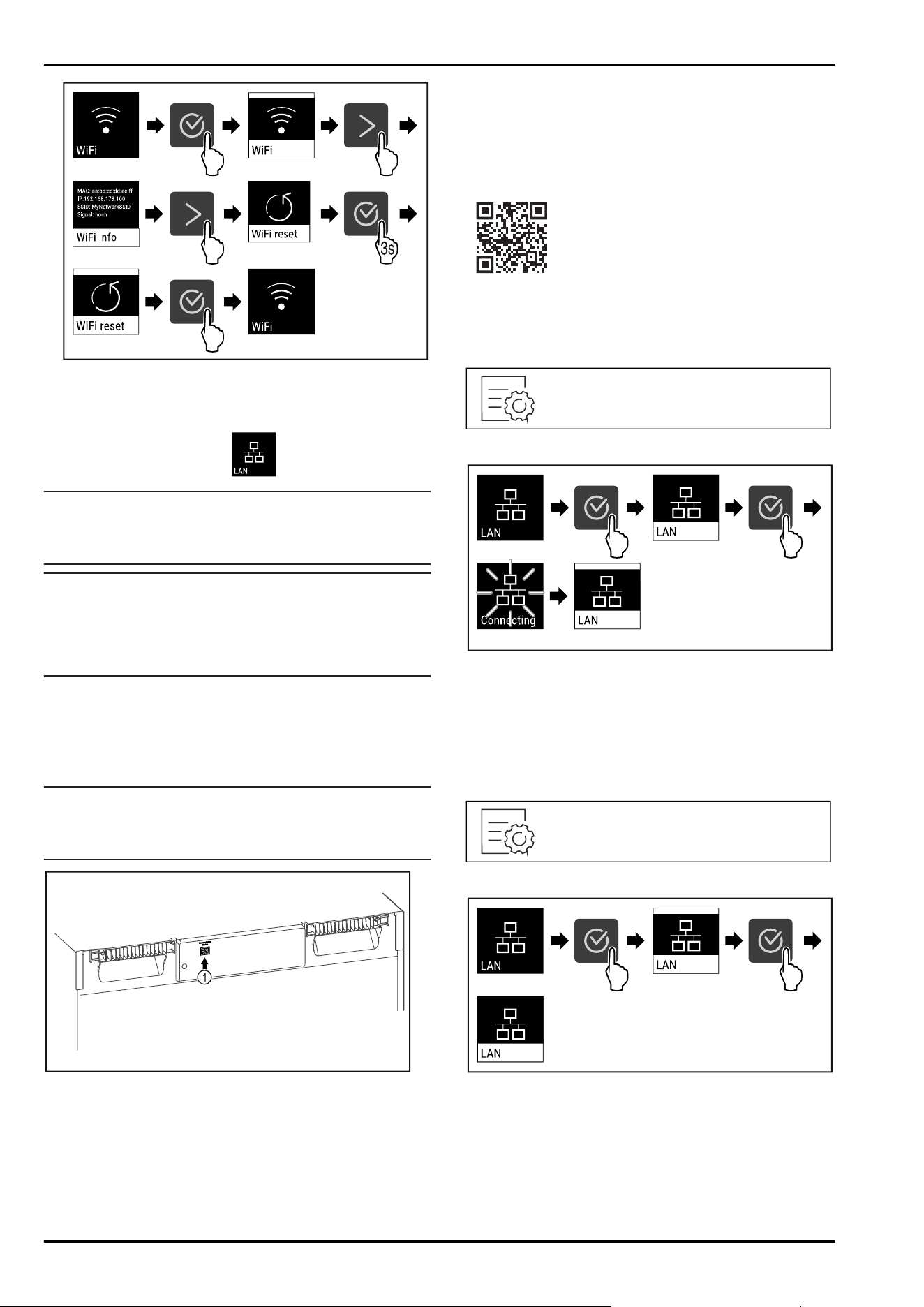
Fig. 109
► Carry out action steps according to the illustration.
▷ The WiFi settings are restored to the factory settings.
7.2.14 LAN connection
Note
Liebherr SmartMonitoring Dashboard is not available in all
countries. Check availability via the QR code by entering
your model.
Note
Use of the Liebherr SmartMonitoring Dashboard at https://
smartmonitoring.liebherr.com requires installation of a
SmartModule and a commercial MyLiebherr account. When
commissioning online you can register using the login data
you have, or register again and create a company account.
This setting establishes a wired connection between the
appliance and the internet. The connection is controlled via
the SmartModule. The appliance can be integrated via the
browser-based Liebherr SmartMonitoring Dashboard and
advanced options as well as customised methods relating
to control, administration and monitoring can be used.
Note
Accessories are available from Customer Service
(see 10.3 Customer Service) and the Liebherr-Hausgeräte
store at home.liebherr.com/shop/de/deu/zubehor.html.
Fig. 110
Make sure that the following requirements are fulfilled:
❑
SmartModule Fig. 110(1) is in use.
❑
A network cable is connected.
❑
The network is connected to the internet.
Establishing connection
You commission and set up your SmartModule online via the
Liebherr SmartMonitoring Dashboard on your web-enabled
device.
On the Liebherr SmartMonitoring Dashboard, information is
also available about retrofitting the SmartModule.
Fig.111
► Open the Liebherr SmartMonitoring Dashboard (see
Fig.111) .
On the refrigerator or freezer:
Fig.112
Fig.113
► Carry out action steps according to the illustration.
▷ Connection is established: LAN connecting appears. The
symbol flashes.
► Follow the Liebherr SmartMonitoring Dashboard instruc‐
tions.
▷ Connection is established.
Disconnecting
Fig. 114
Fig. 115
► Carry out action steps according to the illustration.
▷ There is no connection.
Controls
* Depending on model and options 27
7.2.15 Device information
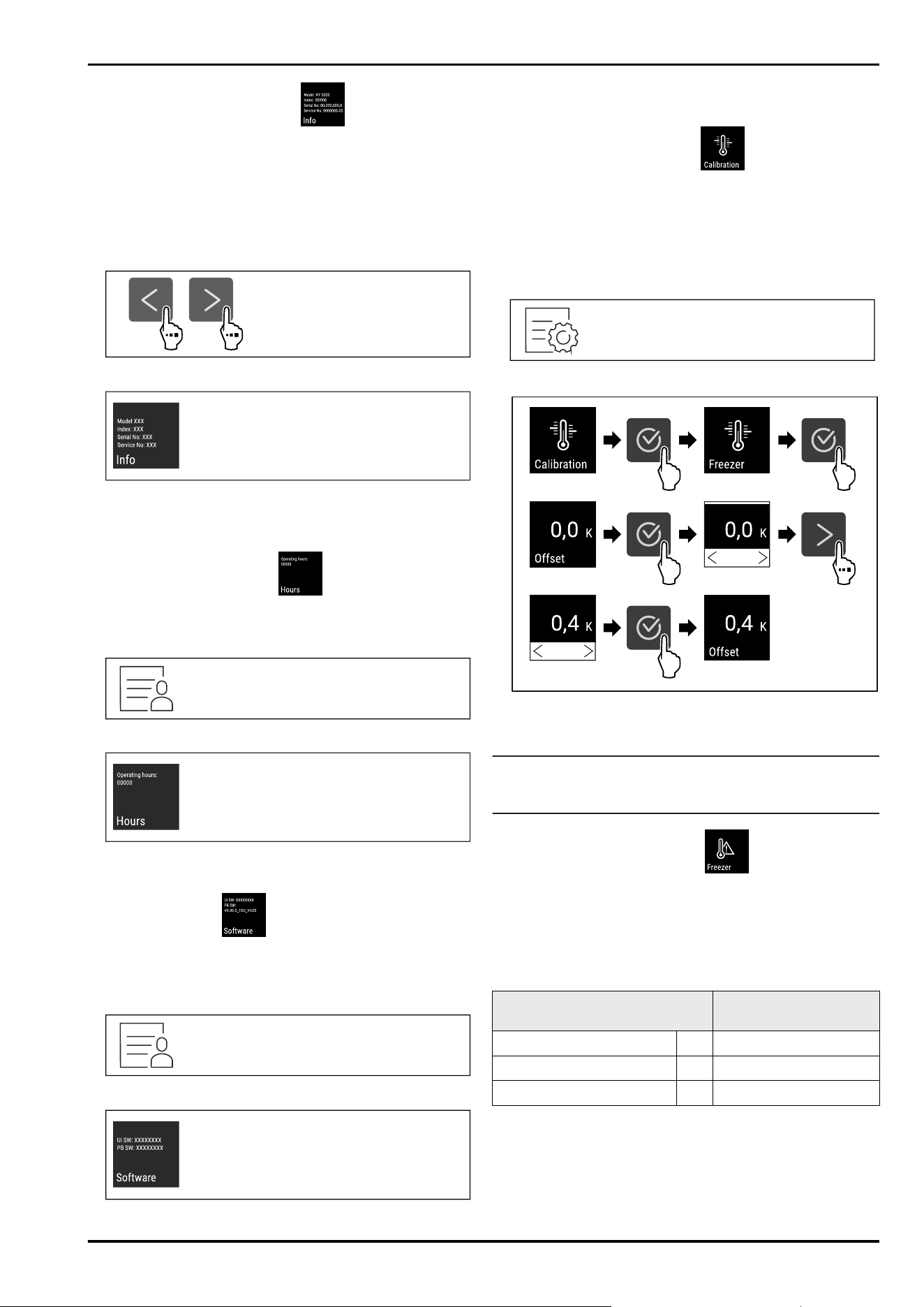
Use this function to indicate the model name, index, serial
number and service number of your device. You will need
the device information when you contact customer service.
(see 10.3 Customer Service)
This function also opens the Advanced menu. (see 4 Func‐
tionality of the Touch display)
Indicating the device information
Fig. 116
Fig.117
► Carry out action steps according to the illustration.
▷ Display indicates device information.
7.2.16 Operating hours
The display shows the appliance operating hours.
Displaying operating hours
Fig. 118
Fig. 119
▷ The operating hours appear.
7.2.17 Software
Use this function to indicate the software version of your
device.
Indicating the software version
Fig.120
Fig.121
►
Carry out action steps according to the illustration.
▷ Display indicates software version.
7.2.18 Sensor calibration
You can use sensor calibration to compensate for differ‐
ences between the set temperature and the actual existing
temperature. To do this, use calibrated measuring equip‐
ment to determine the actual existing temperature.
Setting range: +/- 3 Kelvin in 0.1 Kelvin increments.
Calibrating the sensor
Fig.122
Fig.123
► Carry out action steps according to the illustration.
▷ The sensor is calibrated.
Note
The calibrated temperature is indicated on the display
within two hours.
7.2.19 Temperature alarm
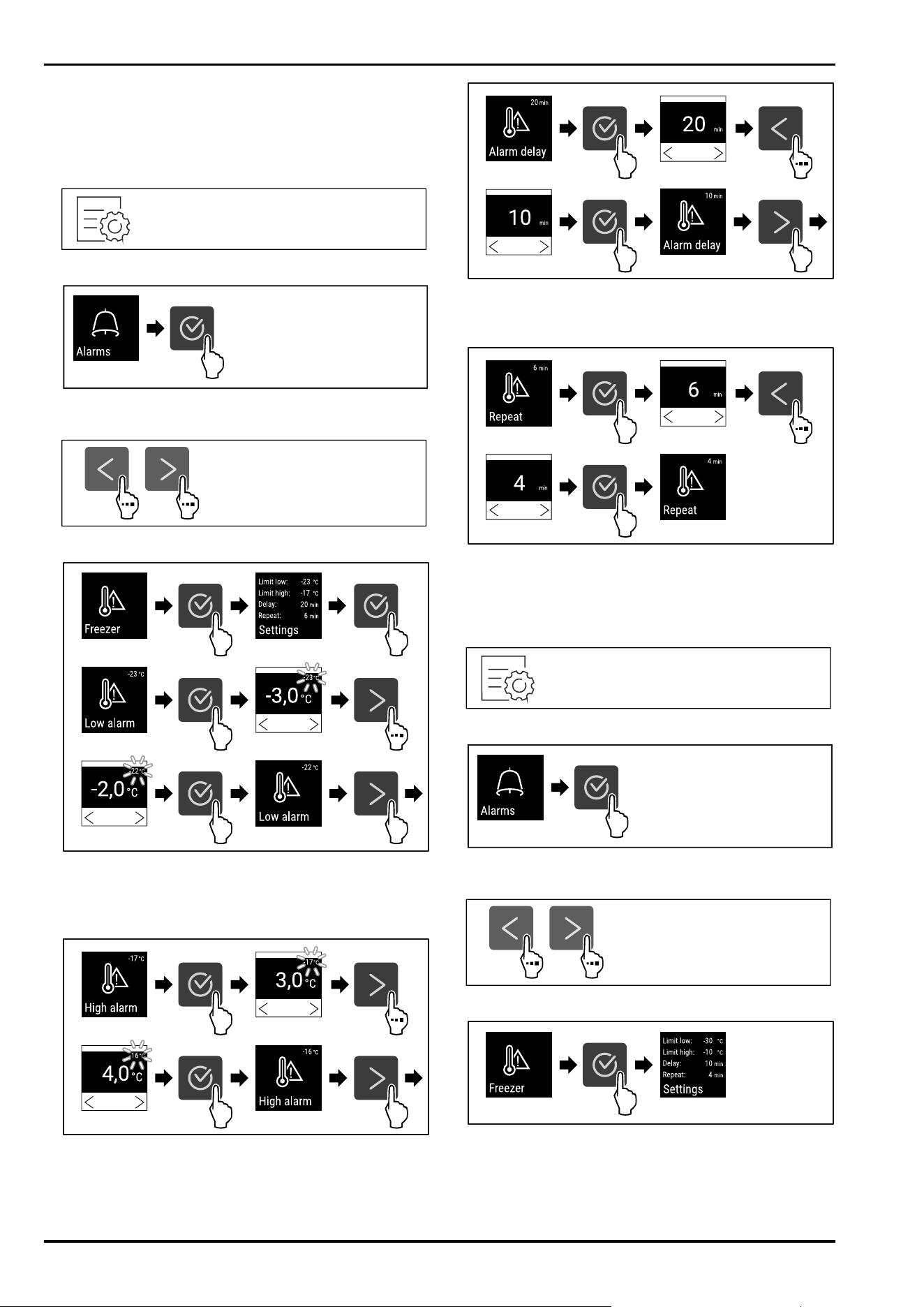
Use this function to set the temperature alarm. You set
the upper and lower temperature limits with a differential
offset to the indoor temperature currently set. The tempera‐
ture alarm is triggered as soon as the indoor temperature
leaves the set temperature range and any set delay time
has elapsed.
Example
Differential value to be
set
Current indoor temperature 5°C
Lower temperature limit 2°C -3°C
Upper temperature limit 8°C +3°C
The following values can be set:
-
Differential value for lower temperature limit in 0.1 °C
steps
-
Differential value for upper temperature limit in 0.1 °C
steps
Controls
28 * Depending on model and options
-
Alarm delay time from 0 to 60 minutes (setting “0” means
no temperature alarm delay.)
-
Alarm repetition frequency from 0 to 30 minutes (setting
“0” means no alarm repetition after confirming the
alarm.)
Setting temperature alarm
Fig. 124
Fig.125
► Carry out action steps according to the illustration.
Fig. 126
Fig. 127 Example of setting the lower temperature limit
based on a set appliance temperature of -20°C.
► Carry out action steps according to the illustration.
▷ Lower temperature limit has been set.
Fig. 128 Example of setting the lower temperature limit
based on a set appliance temperature of -20°C.
► Carry out action steps according to the illustration.
▷ Upper temperature limit has been set.
Fig.129
► Carry out action steps according to the illustration.
▷ Alarm delay time has been set.
Fig.130
► Carry out action steps according to the illustration.
▷ Alarm repetition interval has been set.
▷ Temperature alarm has been set.
Displaying set temperature alarm values
Fig.131
Fig.132
► Carry out action steps according to the illustration.
Fig.133
Fig.134
► Carry out action steps according to the illustration.
▷ Set temperature alarm values are displayed.
Controls
* Depending on model and options 29
7.2.20 Door alarm
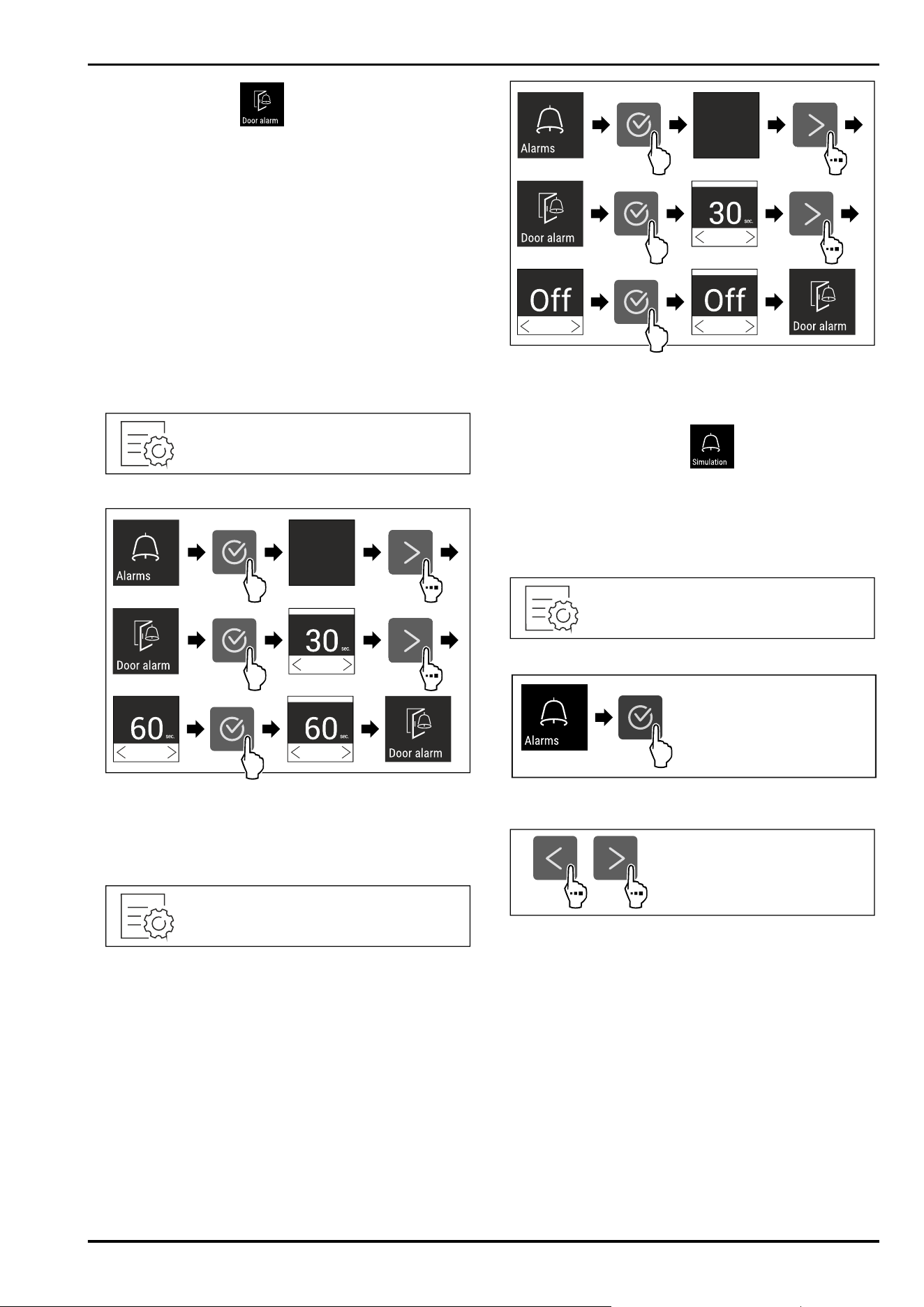
Use this function to activate or deactivate the door alarm.
The door alarm sounds if the door is open for too long. The
door alarm is activated on delivery. You can set how long
the door may be open before the door alarm sounds.
The following values can be set:
-
15seconds
-
30seconds
-
60seconds
-
90seconds
-
120seconds
-
150seconds
-
180seconds
-
Off
Setting the door alarm
Fig.135
Fig. 137 Example illustration: Switch door alarm from
30 seconds to 60seconds.
► Carry out action steps according to the illustration.
▷ The door alarm is set.
Deactivating the door alarm
Fig.138
Fig. 139
► Carry out action steps according to the illustration.
▷ The door alarm is deactivated.
7.2.21 Alarm simulation
You can use this function to simulate a temperature alarm in
the appliance, e.g. to check whether a safety device triggers
correctly. The safety device is connected to the potential-
free alarm output. (see 8.3 Interfaces)
Starting the alarm simulation
Fig. 140
Fig. 141
► Carry out action steps according to the illustration.
Fig. 142
Controls
30 * Depending on model and options
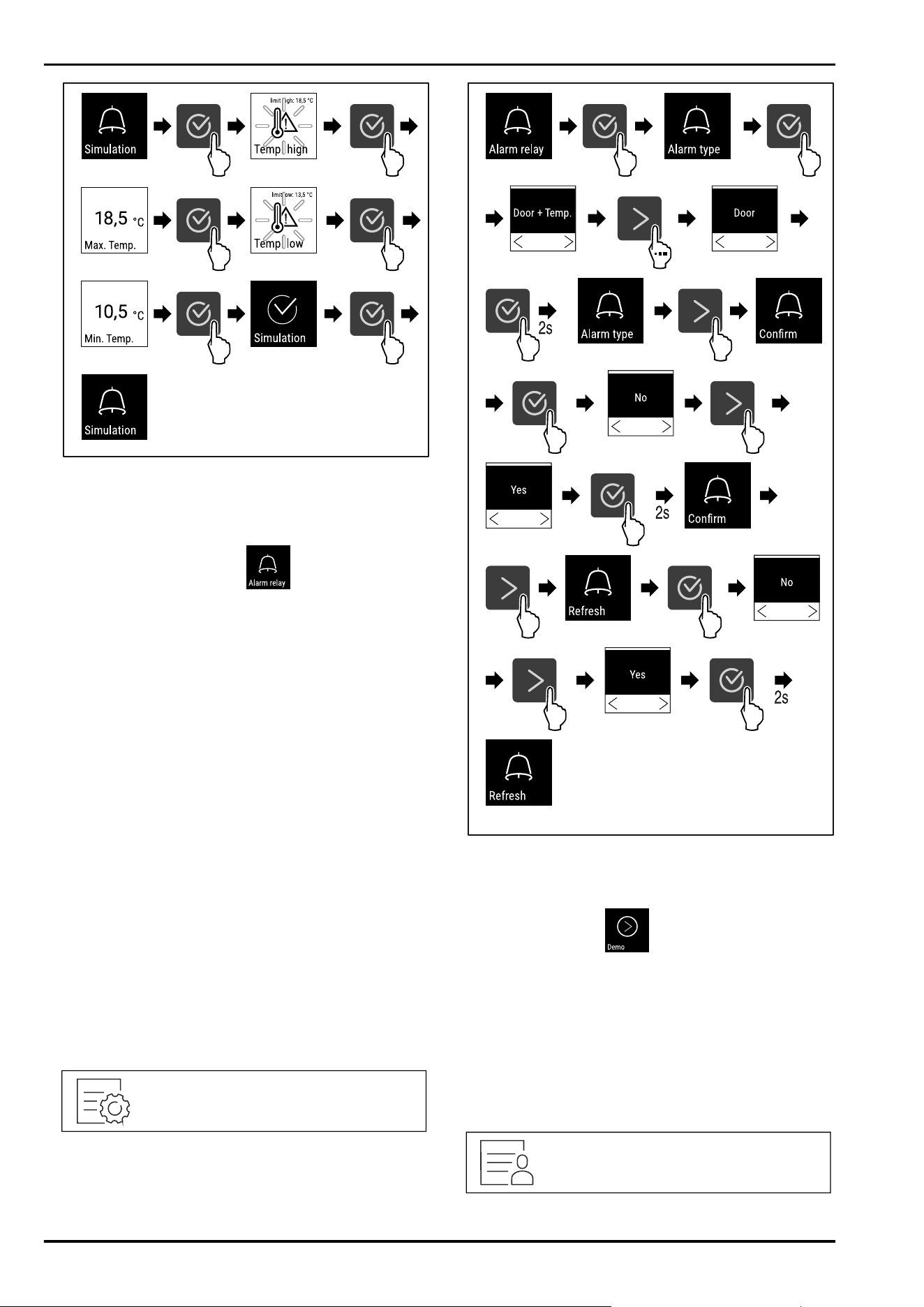
Fig. 143
► Carry out action steps according to the illustration.
▷ The simulation has been performed.
▷ Connected safety devices should have triggered.
7.2.22 Alarm forwarding
You can use this function to forward one or several
alarms to an external alarm receiver. The alarm receiver is
connected to the potential-free alarm output on the appli‐
ance. (see 8.3 Interfaces)
You can select the following settings:
-
Alarm type:
•
Door alarm
•
Temperature alarm
•
Door alarm and temperature alarm
•
All
-
Confirm:
•
Yes: The alarm is confirmed on the appliance and the
external, connected receiver.
•
No: The alarm is confirmed on the appliance and
remains active on the receiver until the fault is recti‐
fied.
-
Refresh (only visible if you select “Yes” when confirming):
•
Yes: Alarm repeats.
Temperature alarm depending on the set time
(see 7.2.19 Temperature alarm )
(If you set the alarm delay time to “0”, there is no
alarm repetition on the alarm relay.)
Door alarm after 1 or 4 minutes* (see 7.2.20 Door
alarm )
•
No: The alarm is confirmed permanently.
Activating alarm forwarding
Fig. 144
Fig. 145
► Carry out action steps according to the illustration.
▷ Alarm forwarding is set.
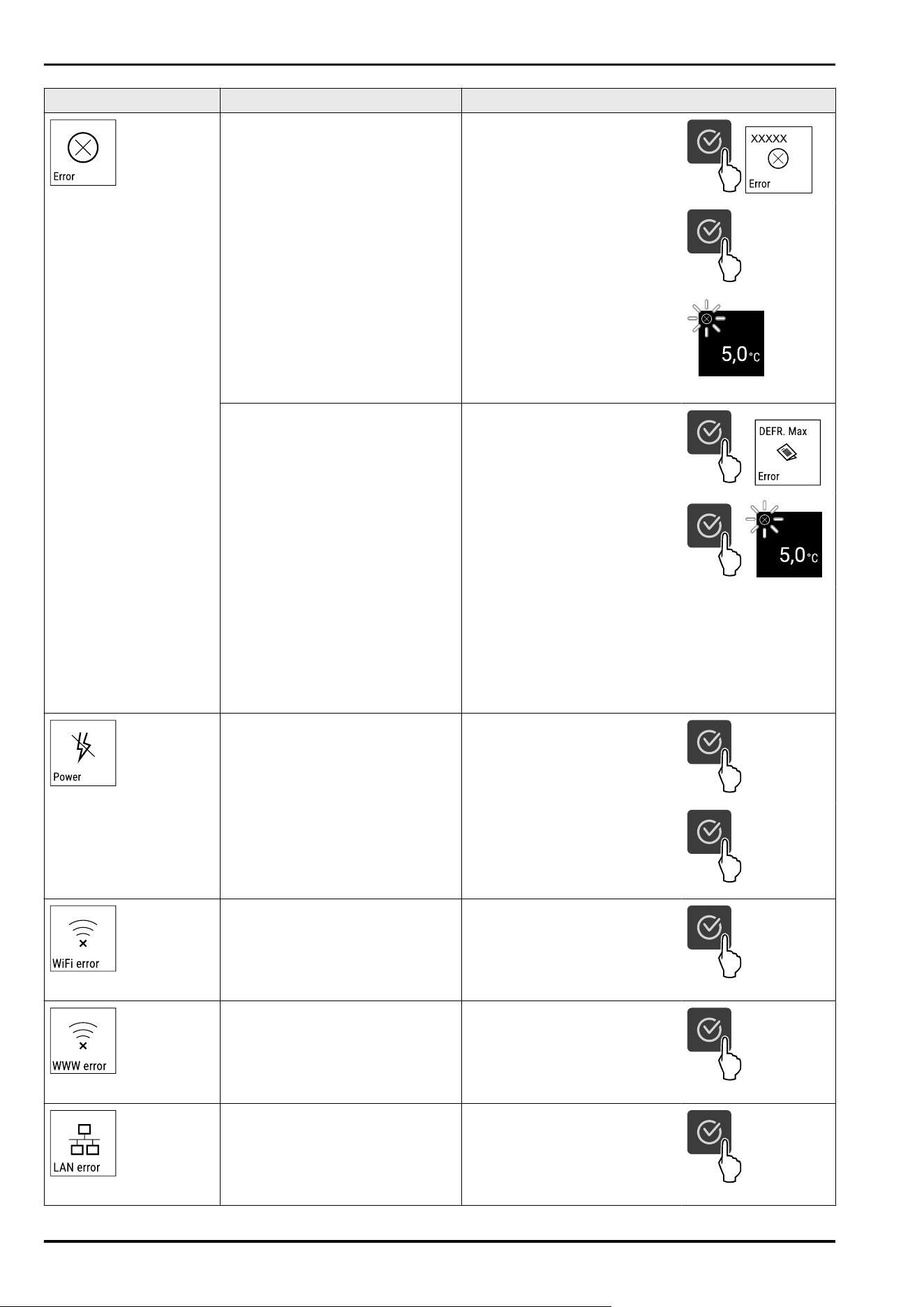
7.2.23 Demo mode
Demo mode is a special feature for dealers who want to
demonstrate appliance features. If you activate demo mode,
all refrigeration functions are deactivated.
If you switch on your appliance and a “D” appears on the
status display, demo mode is already activated.
If you activate and then deactivate demo mode, the appli‐
ance will be reset to factory defaults. (see 7.2.24 Resetting
to factory settings )
Activating demo mode
Fig. 146
Controls
* Depending on model and options 31
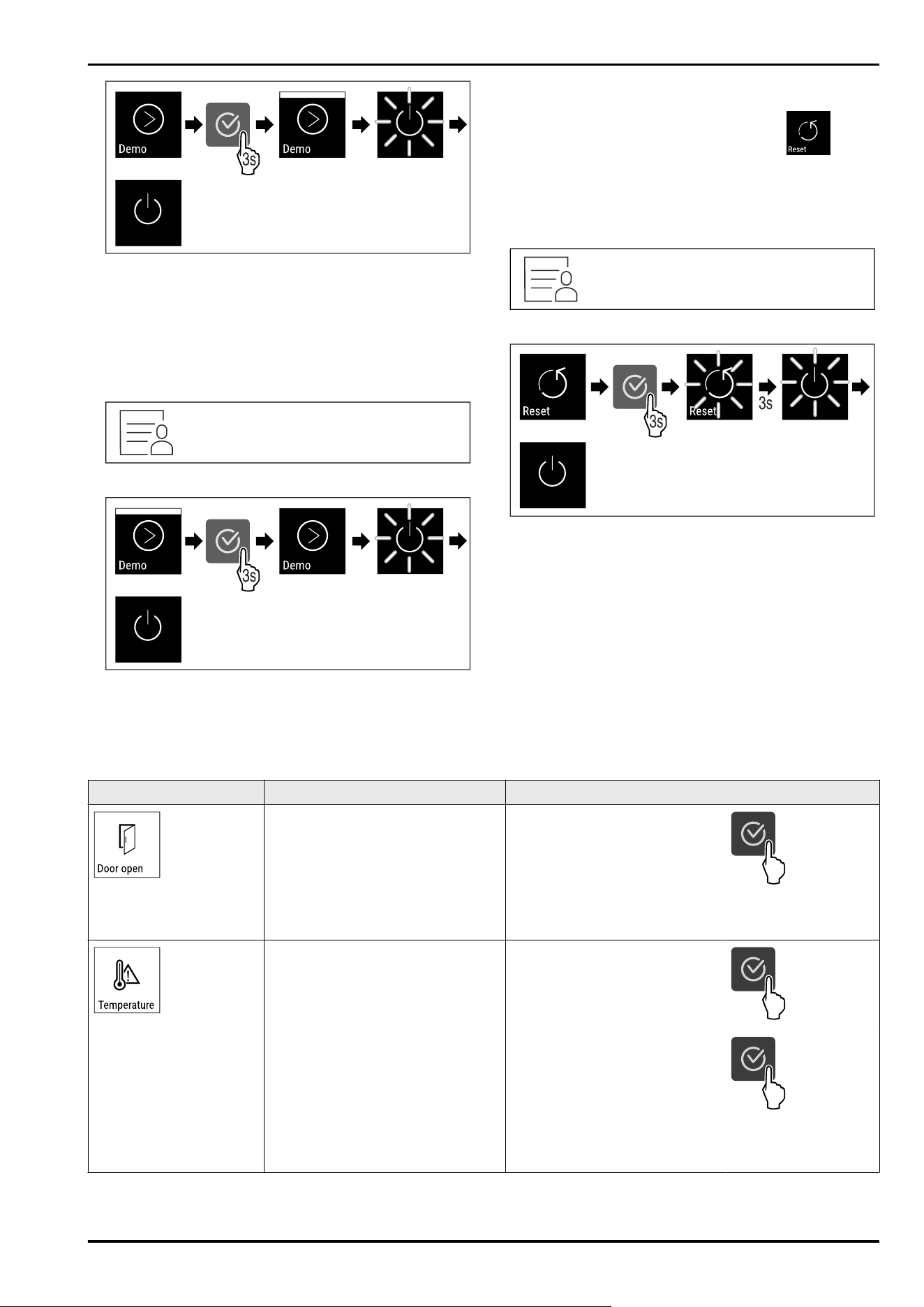
Fig. 147
► Carry out action steps according to the illustration.
▷ Demo mode is activated.
▷ Appliance is switched off.
► Switch on the appliance. (see 5.1 Switching on appliance
(first use))
▷ “D” appears in the status display.
Deactivating demo mode
Fig. 148
Fig. 149
► Carry out action steps according to the illustration.
▷ Demo mode is deactivated.
▷ Appliance is switched off.
► Switch on the appliance. (see 5.1 Switching on appliance
(first use))
▷ Appliance is reset to factory settings.
7.2.24 Resetting to factory settings
Use this function to reset all settings to factory defaults.
All settings you have made so far are reset to their original
settings.
Performing a reset
Fig. 150
Fig. 151
► Carry out action steps according to the illustration.
▷ Device is reset.
▷ Device is switched off.
► Restart the device. (see 5.1 Switching on appliance (first
use))
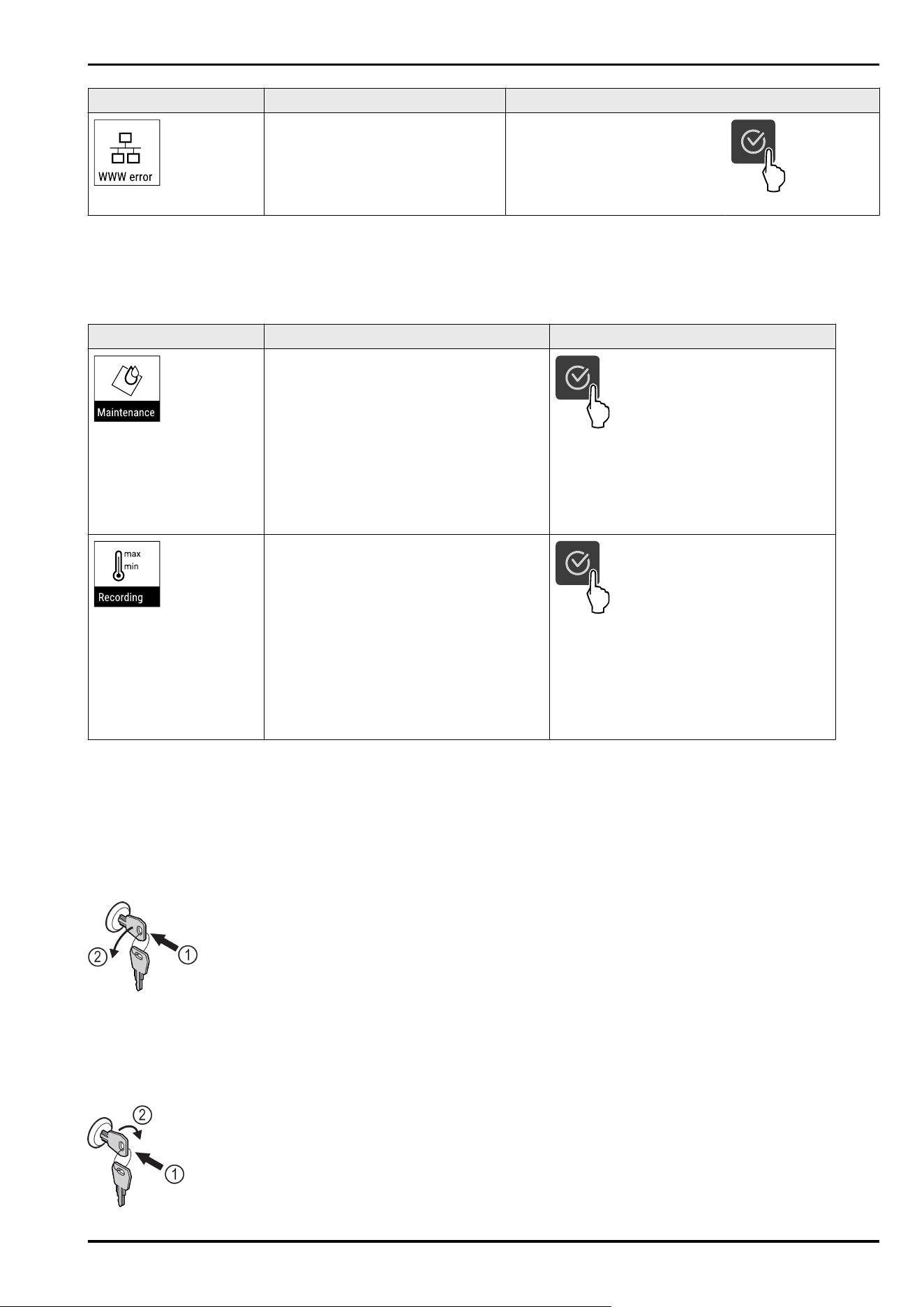
7.3 Messages
7.3.1 Warnings
Warnings are issued by means of an audio signal and visu‐
ally via a symbol on the display. The signal gets louder until
the warning is acknowledged.
Message
Cause Remedy
Door open
This message appears if the door is
open for too long.
Close the door.
Press the confirmation button.
Alarm is ended.
Note
You can set how long it takes
for this message to appear
(see 7.2.20Door alarm ) .
Temperature alarm
This message appears if the
temperature does not match the set
temperature. Reasons for the differ‐
ences in temperature can be:
⁃ Warm items for refrigeration have
been placed inside.
⁃ Too much warm room air flowed
in when rearranging and removing
refrigerated products.
The power was cut off for a
prolonged period.
Press the confirmation button.
Warmest temperature is
displayed.
Press the confirmation button.
The current temperature flashes
and the display alternates with
the temperature alarm symbol
until the set temperature is
reached.
Check the quality of the refriger‐
ated goods.
Controls
32 * Depending on model and options
Message Cause Remedy
Error
The appliance is defective, there is
an appliance fault or a component
of the appliance is faulty.
Transfer refrigerated goods.
Press the confirmation button.
Error code is displayed.
Press the confirmation button.
If present, another error code is
indicated.
or
Status screen with flashing error
symbol is displayed
Pressing the navigation buttons
indicates error code(s) again.
Note the error code(s) and
contact customer service.
Message indicates unplanned
defrosting behaviour. For example,
the evaporator may ice up abnor‐
mally due to prolonged openings of
the door and the defrosting time
may no longer be sufficient.
Press the confirmation button.
DEFR.MAX is displayed.
Press the confirmation button.
Status screen with flashing error
symbol is displayed
Pressing the navigation buttons displays the error code
again.
Move refrigerated goods and defrost the appliance by
hand. Alternatively, defrosting can be started manually.
If the message is displayed repeatedly and the
causes listed do not apply, contact customer service.
(see 10.3 Customer Service)
Power failure
The message appears after an
interruption in the power supply if
the temperature is above the alarm
limit when the power returns.
Press the confirmation button.
The warmest temperature is
displayed.
Press the confirmation button.
Alarm is cancelled and current
temperature is indicated.
Check the quality of the refriger‐
ated goods.
WLAN error
WLAN connection is interrupted. Check the connection.
Press the confirmation button.
Alarm is ended.
WLAN WWW error
The message appears if there is no
Internet connection via WLAN.
Check the connection.
Press the confirmation button.
Alarm is ended.
LAN error
LAN connection is interrupted. Check connection and network
cable.
Press the confirmation button.
Alarm is ended.
Controls
* Depending on model and options 33
Message Cause Remedy
LAN WWW error
The message appears if there is no
Internet connection via LAN.
Check the connection.
Press the confirmation button.
Alarm is ended.
7.3.2 Reminder
Reminders appear when you are being asked to do some‐
thing. They are issued by means of an audio signal and visu‐
ally via a symbol on the display. Acknowledge the message
by pressing the confirmation button.
Message Cause Remedy
Maintenance reminder
The message appears when the timer for
the set maintenance interval has expired.
Press the confirmation button.
Alarm is ended.
Note
The maintenance interval can be set
(see 7.2.7 Maintenance interval reminder ) .
Recording reminder
This message appears when the tempera‐
ture recording memory (999 hours) is full.
Press the confirmation button.
Alarm is ended.
The oldest data is overwritten.
Note
The temperature recording can be reset
(see 7.2.4 Temperature recording ) .
8 Features
8.1 Safety lock
The lock in the appliance door is equipped with a safety
mechanism.
8.1.1 Locking appliance
Fig. 152 Example illustration
► Insert key.
► Turn key anticlockwise by 90°.
▷ The appliance is locked.
8.1.2 Unlocking appliance
Fig. 153 Example illustration
► Insert key Fig. 153(1).
► Turn key clockwise by 90° Fig. 153(2).
▷ The appliance is unlocked.
8.2 Sensors
The appliance can be equipped with the following sensors
for temperature monitoring:
-
C sensor
8.2.1 C sensor (control sensor)
The C sensor is permanently installed and regulates the
interior temperature of the appliance. You can calibrate the
C sensor if necessary. (see 7.2.18 Sensor calibration )
8.3 Interfaces
There are various connection options on the back of the
appliance.
Features
34 * Depending on model and options
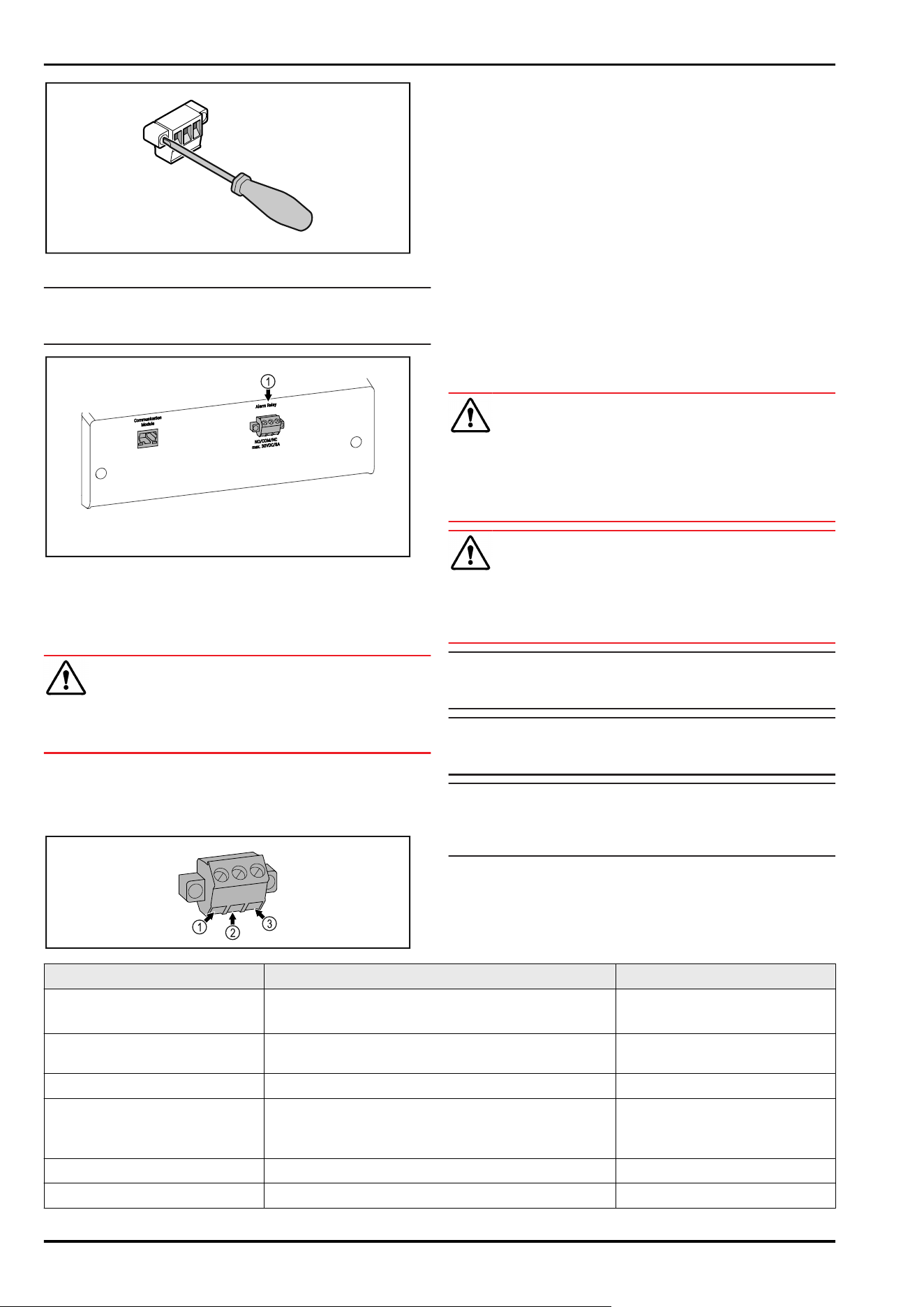
Fig. 154
Note
Screws secure the plugs. To enable disconnection of the
plugs, loosen the screws on the left and right.
Fig. 155
(1)
Potential-free alarm
output
8.3.1 Potential-free alarm output
WARNING
Risk of injury due to electric shock!
► The appliance may only be connected to an external
alarm device by trained specialist personnel.
These three contacts can be used to connect a visual or
an acoustic alarm device. The connection is designed for
a maximum of 30 V (DC) - 8 A from a safety low voltage
source SELV (minimum current 150mA).
Fig. 156
(1) NO (normally open)
Connection for indi‐
cator lamp, which is
active in normal opera‐
tion or when the appli‐
ance is switched off.
(3) NC (normally closed)
Connection for alarm
lamp or audible alarms,
which is active when
an alarm is triggered or
there is a lack of power
supply.
(2) COM (common)
External voltage
source
9 Maintenance
9.1 Maintenance schedule
Maintenance work is to be performed at regular intervals to
ensure proper appliance function.
CAUTION
Danger of injury and damage due to unprofessional mainte‐
nance work!
Personal injury and material damage.
► Maintenance work may only be performed by trained
specialist personnel.
WARNING
Short-circuit hazard due to live parts!
Electric shock or damage to the electronics.
► Switch off the appliance.
► Pull out mains plug or switch off fuse.
Note
A maintenance reminder function can be activated.
(see 7.2.7 Maintenance interval reminder )
Note
We recommend creating a maintenance log in which all
work (repairs, checks) performed is documented.
Note
Liebherr recommends yearly maintenance. For an individual
offer, please contact Customer Service (see 10.3 Customer
Service) .
Component Activity Maintenance interval
Sheet metal parts Check for damage and corrosion.
Replace damaged parts: (see 10.3 Customer Service)
Yearly
Door, hinges Check alignment (see 3.6 Aligning the door) , ease of
movement, and tight fit.
Yearly
Lock, door handle * Check for ease of movement and tight fit. Yearly
Door seal Check for damage, wear, and tight fit.
A replacement door seal is available via Customer
Service (see 10.3 Customer Service) .
Yearly
Sensor Calibrate sensor. (see 7.2.18 Sensor calibration ) Yearly
Sensor feedthrough Check that the sealing compound is intact. Yearly
Maintenance
* Depending on model and options 35
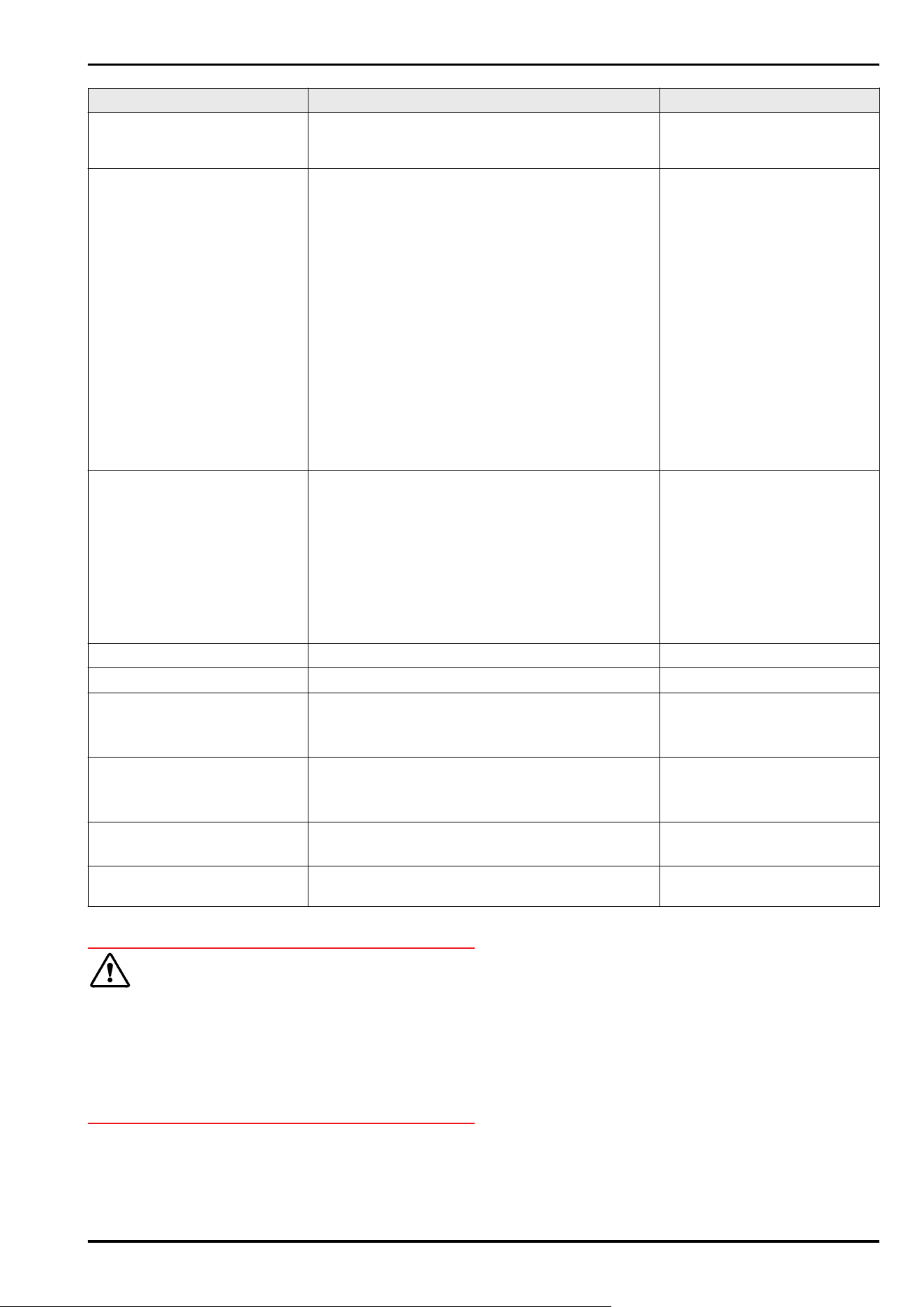
Component Activity Maintenance interval
Surfaces Cleaning (see 9.3Cleaning the appliance) Recommendation: monthly or
as required/specified at instal‐
lation location
Surfaces Disinfection
Liebherr has tested the following disinfectants:
Dismozon pur 1 % Lösung (Bode Chemie), Suma
Quicksan (Diversey), Incidin Extra N (Ecolab Health‐
care), Acrylan (Antiseptica chem.-pharm. Produkte),
Buraton 10 F (Schülke und Mayr), Frankocid N
(Franken Chemie), Apesin DSR 50 (Tana), Nüscosept
Spray (Dr. Nüsken), Melsept SF (B. Braun Melsungen),
Kohrsolin (Bode Chemie), Neoquat S (Dr. Weigert),
Indicin Rapid (Ecolab Healthcare), Bacillocid Spezial
(Bode Chemie), Neoform K Spray (Dr. Weigert), Apesin
Desinf. Spray (Tana), Nüscosept 100 (Dr. Nüsken),
Antisept T (Fink Tec), Apesin AP 100 0,50% Lösung
(Tana), Perform Pulver 2% Lösung (Schülke und Mayr)
Observe the operating instructions of the respec‐
tive manufacturer. If disinfectants other than those
stated are used, test them on a less exposed area
first.
Recommendation: monthly or
as required/specified at instal‐
lation location
Installation location, appliance Decontamination
The appliance is suitable for room decontamination
with hydrogen peroxide H
2
O
2
.
In this context, the values of the following applica‐
tion specifications must not be exceeded:
Concentration: maximum 250 ppm.
Humidity: maximum 85%.
Maximum permissible room temperature as per
climate class. (see2.4 Range of use of appliance)
Recommendation: as required/
specified at installation location,
maximum 2x per year
Fan air slots Cleaning Yearly
Alarm relay
Mains cable Check for damage. Yearly
or
if there is a change of location
Tilt angle Check for proper function and tight fit. Yearly
or
if there is a change of location
Adjusting feet/castors Check for proper function, damage, and tight fit.
Replace damaged parts. (see 10.3 Customer Service)
Yearly
Defrost water collection tray Check the fill level of the defrost water collection
tray and empty if necessary.
Regular visual inspection
9.2 Defrosting appliance
WARNING
Improper defrosting of the appliance!
Injuries and damage.
► Do not use mechanical equipment or other methods to
speed up the defrosting process other than those recom‐
mended by the manufacturer.
► Do not use electrical heating or steam-cleaning appli‐
ances, naked flames or defroster sprays to defrost.
► Do not use sharp objects to remove ice.
To maintain the functionality of the appliance, we recom‐
mend defrosting it when there is a high buildup of ice.
Icing in the interior is determined by the location (e.g.
high humidity), settings on the appliance and incorrect user
behaviour.
If automatic defrosting is insufficient, defrost the appliance
manually:
► Switch off appliance. (see 7.2.2 Switching appliance on
and off )
► Pull out mains plug.
► Store refrigerated items elsewhere.
► Leave appliance door open during defrosting process.
► Absorb any remaining defrost water with a cloth and
clean the appliance.
Maintenance
36 * Depending on model and options
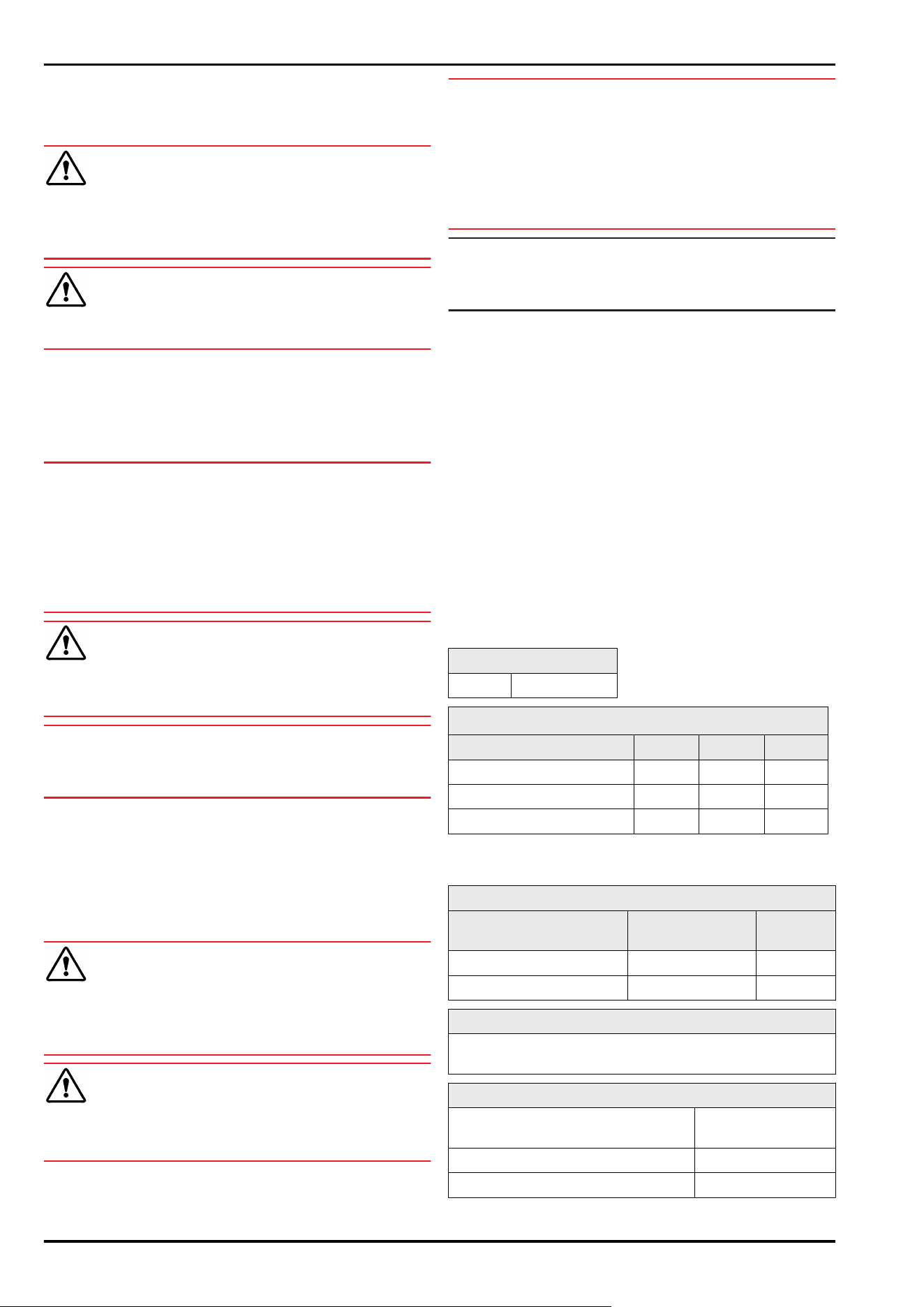
9.3 Cleaning the appliance
9.3.1 Preparing
WARNING
Short-circuit hazard due to live parts!
Electric shock or damage to the electronics.
► Switch off the appliance.
► Pull out mains plug or switch off fuse.
WARNING
Risk of fire
► Do not damage the refrigeration circuit.
►
Empty the appliance.
► Pull out the mains plug.
► Observe the notes on transporting the appliance.
(see 3.3 Transporting the appliance)
9.3.2 Cleaning housing
NOTICE
Improper cleaning!
Damage to the appliance.
► Only use soft cleaning cloths and ph-neutral all-purpose
cleaners.
► Do not uses abrasive sponges or steel wool which may
cause scratches.
► Do not use any sharp or abrasive cleaning agents, nor
any that contain sand, chloride or acid.
WARNING
Risk of injury and damage as a result of hot steam!
Hot steam can lead to burns and can damage the surfaces.
► Do not use any steam cleaners!
NOTICE
Risk of damage due to short circuit.
► When cleaning the appliance, make sure no water gets
into the electrical components.
► Wipe the housing down with soft, clean cloth. If very
dirty, use lukewarm water with a neutral cleaner. Glass
surfaces can also be cleaned with glass cleaner.
► Clean condenser coil each year. If the condenser coil is
not cleaned, this significantly reduces the efficiency of
the appliance.
9.3.3 Cleaning interior
WARNING
Short-circuit hazard due to live parts!
Electric shock or damage to the electronics.
► Switch off the appliance.
► Pull out mains plug or switch off fuse.
WARNING
Risk of injury and damage as a result of hot steam!
Hot steam can lead to burns and can damage the surfaces.
► Do not use any steam cleaners!
NOTICE
Improper cleaning!
Damage to the appliance.
► Only use soft cleaning cloths and ph-neutral all-purpose
cleaners.
► Do not uses abrasive sponges or steel wool which may
cause scratches.
► Do not use any sharp or abrasive cleaning agents, nor
any that contain sand, chloride or acid.
Note
Do not damage or remove the type plate on the inside of the
appliance. The type plate is important for Customer Service.
(see 10.3 Customer Service)
► Open the door.
► Empty the appliance.
► Clean interior and equipment parts with lukewarm water
and a little detergent. Do not use any gritty or acidic
cleaning agent or any chemical solvent.
9.3.4 After cleaning
► Wipe appliance and equipment parts dry.
► Connect and switch on appliance.
Once the temperature is sufficiently cold:
► put in items for refrigeration goods.
► Repeat cleaning regularly.
► Clean and remove dust from the refrigeration unit with
heat exchanger once a year.
10 Customer help
10.1 Technical specifications
Temperature range
Freezing -9°C to -30°C
Maximum load per shelf
A)
Appliance width 550mm 600mm 750mm
Grid shelves -- 45 kg 60 kg
Glass shelf 40 kg 40 kg 40 kg
Drawer (freezer appliances) 15 kg 15 kg 15 kg
A)
Heavier loads may result in a slight bending of the
shelves.
Maximum total load and net weight
Model (see 3.2 Appliance
dimensions)
Maximum total
load
Net weight
SFF.. 4001 270 kg 76 kg
SFFfg 5501 300 kg 100 kg
Net capacity
See net capacity on the type plate. (see 2.2 Overview of
appliance and equipment)
Set-up conditions
Degrees of pollution (surrounding
the appliance)
PD2
Ambient temperature +10°C to +35°C
Maximum relative ambient moisture 75%, not condensing
Customer help
* Depending on model and options 37
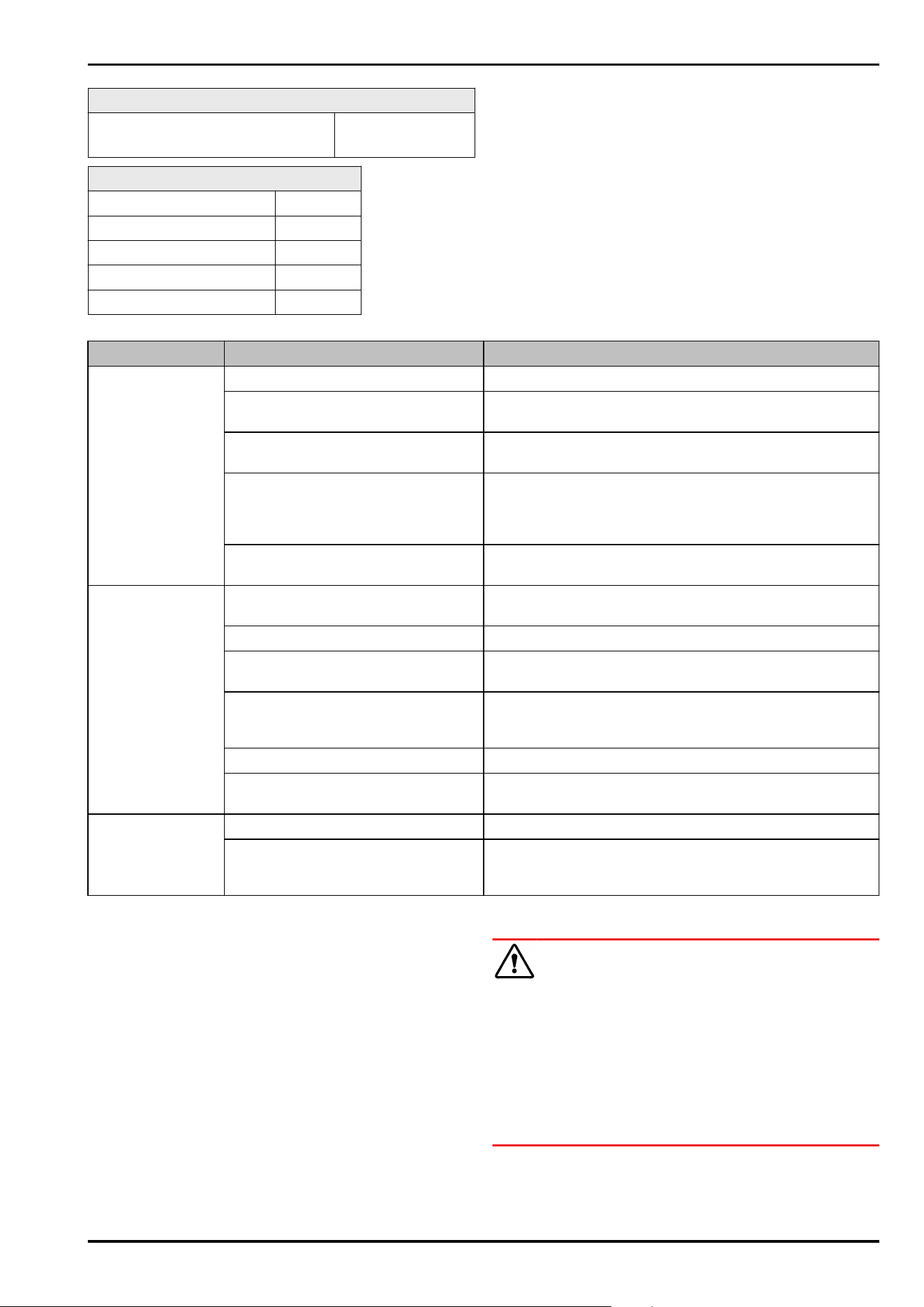
Set-up conditions
Maximum operating elevation
(metres above sea level)
2000m
1500m(glass door)
Electrical values
Nominal voltage 220-240 V~
Frequency 50Hz
Connected load 2,0A
Maximum mains fluctuation +/-10%
Overvoltage categories II
10.2 Technical fault
Your appliance is designed and built to ensure it works reli‐
ably and has a long service life. In the unlikely event that
a fault occurs during operation, please check whether the
fault is due to an operating error. If this is the case, you will
be charged for the cost incurred even if this falls within the
warranty period.
You can fix the following faults yourself.
10.2.1 Appliance function
Defect Cause Remedy
The appliance is
not working.
→ The appliance is not switched on. ► Switch on the appliance.
→ The mains plug is not properly
plugged into the socket.
► Check the mains plug.
→ There is something wrong with the
fuse in the socket.
► Check fuse.
→ Power cut ► Keep the appliance closed.
► If necessary move the refrigerated/frozen items to
another fridge or freezer if the power is off for a
prolonged period.
→ The IEC socket is not plugged into
the appliance correctly.
► Check the IEC socket.
Temperature is not
cold enough.
→ The appliance door is not closed
properly.
► Close appliance door.
→ Ventilation is not sufficient. ► Clear ventilation grille and clean it.
→ The ambient temperature is too
high.
► Ensure the correct ambient conditions: (see2.4 Range of
use of appliance)
→ The appliance was opened too
many times or for too long.
► Wait to see if the appliance goes back to the required
temperature by itself. If not, contact Customer Service.
(see 10.3 Customer Service)
→ The temperature is set incorrectly. ► Set a colder temperature and check after 24 hours.
→ The appliance is too close to a heat
source (oven, radiator, etc).
► Change where the appliance or the heat source are
located.
Frost formation on
the housing frame
and/or on the
inside of the door.
→ Door seal is damaged. ► Replace the door seal.
→ You have set the temperature too
cold or you have not opened the
door often enough.
► The appliance is not malfunctioning; simply remove any
condensation with a cloth.
10.3 Customer Service
First check whether you can remedy the fault yourself . If
this is not the case, please contact Customer Service.
You can find the address in the enclosed brochure “Liebherr-
Service” or at home.liebherr.com/service.
WARNING
Unprofessional repair!
Injuries.
► Have any repairs and action - not expressly specified -
on the appliance and mains cable carried out by service
personnel only. (see9 Maintenance)
► A damaged mains cable may only be replaced by the
manufacturer, the manufacturer’s Customer Service or a
similarly qualified person.
► In the case of appliances with an IEC connector, the
change may be made by the customer.
Customer help
38 * Depending on model and options
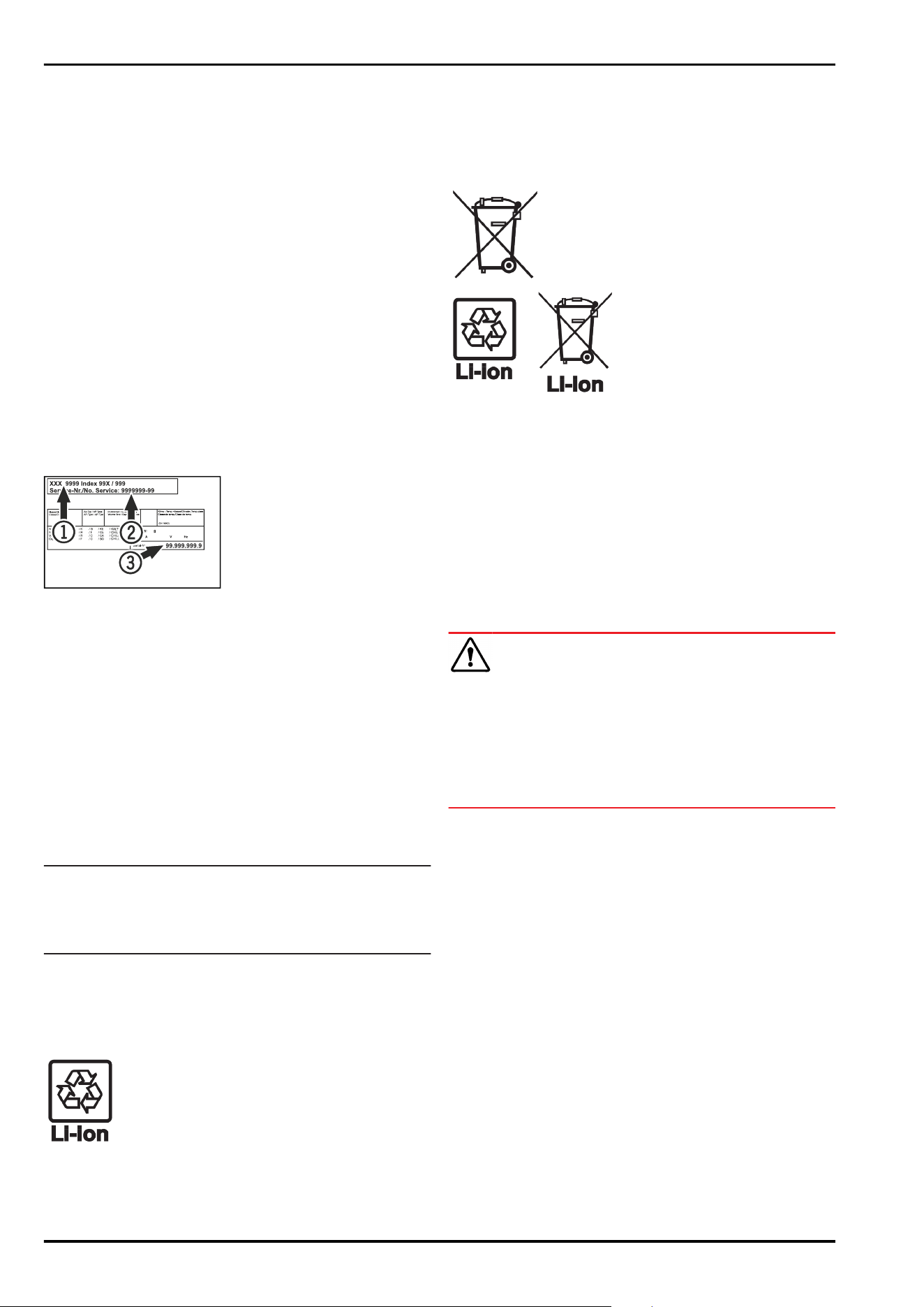
10.3.1 Contacting Customer Service
Make sure you have the following appliance data at the
ready:
❑
Appliance name (model and index)
❑
Service no. (Service)
❑
Serial no. (S no.)
► Access the appliance information via the display
(see 7.2.15 Device information ) .
-or-
► Refer to the type plate for appliance information.
(see 10.4 Type plate)
► Note down appliance information.
► Inform Customer Service: Report faults and the appliance
information.
▷ This will help us to provide a fast and focussed service.
► Follow any further instructions provided by Customer
Service.
10.4 Type plate
The type plate is inside the appliance. See appliance over‐
view.
Fig. 157
(1)
Appliance designation (3) Serial No.
(2) Service No.
11 Shutting down
► Empty the appliance.
► Switch off the appliance.
► Pull the mains plug out of the socket.
► Remove the IEC socket if required: Pull the IEC socket out
of the appliance plug and move it to the left and right at
the same time.
► Clean appliance (see 9.3Cleaning the appliance) .
► If present: Remove the covers and insulation from the
sensor feed-through to prevent mould forming.
► Leave the door open so that no bad odours form.
Note
Damage to the appliance and malfunctions!
► After shutting down, only store the appliance at the
permitted room temperature of between -10 °C and
+50°C.
12 Disposal
12.1 Preparing appliance for disposal
Liebherr uses batteries in some of its appli‐
ances. In the EU, for environmental reasons,
legislation obliges the end user to remove
these batteries before disposing of old appli‐
ances. If your appliance contains batteries, a
corresponding notice is attached.
Lamps If you can remove the lamps yourself without
destroying them, also remove these before
disposal.
► Take the appliance out of operation.
► If possible: remove lamps without destroying them.
12.2 Disposing of the appliance in an
environmentally friendly manner
The appliance still contains
valuable materials and must
be disposed of separately from
unsorted municipal waste.
Dispose of batteries separately
from the old appliance. To do
this, you can return the batteries
free of charge to retailers as
well as recycling centres and
collection centres for recyclable
materials.
Lamps Dispose of removed lamps
via the respective collection
systems.
For Germany: You can dispose of the appli‐
ance free of charge via the
class 1 collection containers
at the local recycling and
recyclable material collection
centres. When purchasing a new
fridge/freezer, if the sales area
> 400 m
2
, retailers will also take
back the old appliance free of
charge.
WARNING
Leaking coolant and oil!
Fire. The coolant contained in the appliance is eco-friendly,
but also flammable. The oil contained in the appliance
is flammable. Escaping coolant and oil can ignite if the
concentration is high enough and in contact with an
external heat source.
► Do not damage the pipelines of the coolant circuit and
the compressor.
► Observe the notes on transporting the appliance.
(see 3.3 Transporting the appliance)
► Transport the appliance without damaging it.
► Dispose of batteries, lamps and the appliance according
to the above specifications.
13 Additional information
Further information on warranty conditions can be found in
the enclosed service brochure or on the Internet at https://
home.liebherr.com.
Shutting down
* Depending on model and options 39

Additional information
40 * Depending on model and options
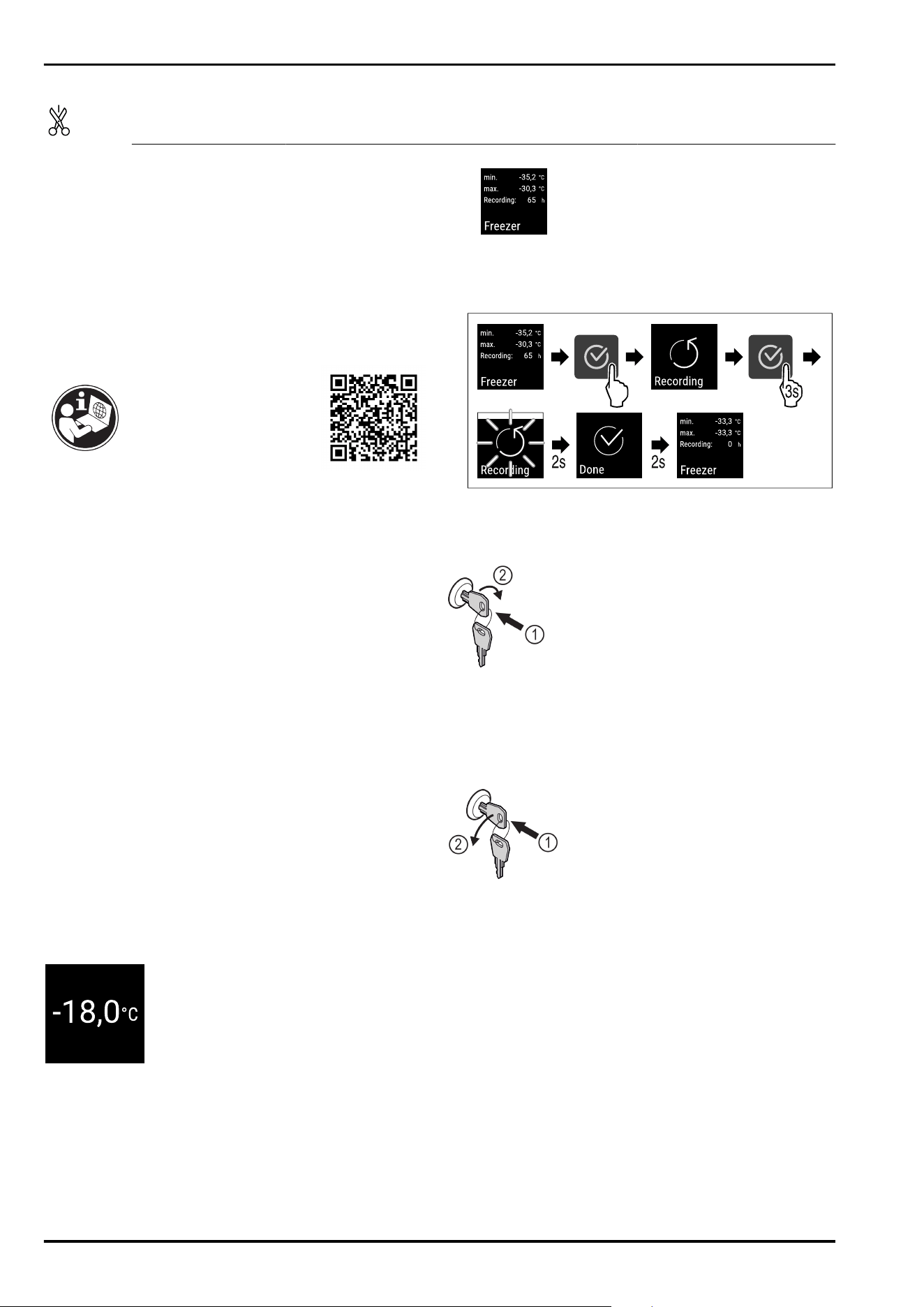
Pass on this info in
the event of a device
fault:
Model identifier /
Inventory number:
Quick Start Guide for everyday use
Information about using this Quick Start Guide:
-
This Quick Start Guide is not a substitute for the full
operating instructions nor is it a substitute for appliance
training.
-
This Quick Start Guide provides support for everyday use
and handling the appliance.
-
Read the full operating instructions and the safety notes
contained therein.
This quick start guide is for: SFFfg 40../55..
Scanning the QR code will
open the full operating
instructions:
Intended use
This laboratory freezer, with an interior free of ignition
sources, is suitable for professional storage of highly
flammable products in closed containers, at temperatures
between -9°C and -30°C.
Foreseeable incorrect use
Do not use the appliance for the following applications:
-
Storage and refrigeration of:
•
Chemically unstable substances
•
Blood, plasma or other body fluids for the purpose of
infusion, application or introduction in the human body
-
Use in potentially explosive atmospheres
-
Use outdoors or in areas exposed to dampness and
splashing water
When stocking, observe the following points:
❑
Position grid shelves according to the height required.
❑
Observe maximum load.
❑
When the storage temperature has been reached, load
the appliance (compliance with cold chain).
❑
Produce for cooling must not come into contact with the
evaporator on the rear wall.
❑
Keep liquids in closed containers.
❑
Leave space when storing refrigerated goods to ensure
good air circulation.
Status display
Fig. 158 Status display with actual temperature
Displaying temperature recording
The temperature recording displays the length of the
recording and the minimum and maximum temperatures
measured during this period of time.
Fig. 159
Resetting temperature recording
Fig. 160
Unlocking appliance
Fig. 161
► Insert the key. Fig. 161(1)
► Turn the key clockwise by 90°. Fig. 161(2)
▷ The appliance is unlocked.
Locking appliance
Fig. 162
► Insert the key. Fig. 162(1)
► Turn the key anticlockwise by 90°. Fig. 162(2)
▷ The appliance is locked.
Cleaning appliance
► Empty the appliance.
► Pull out the mains plug.
► Observe the information in the operating instructions.
► Dry the appliance and equipment thoroughly after
cleaning.
► Connect the appliance.
► Switch on the appliance.
► Load the appliance once the storage temperature is
reached.
Quick Start Guide for everyday use
* Depending on model and options 41
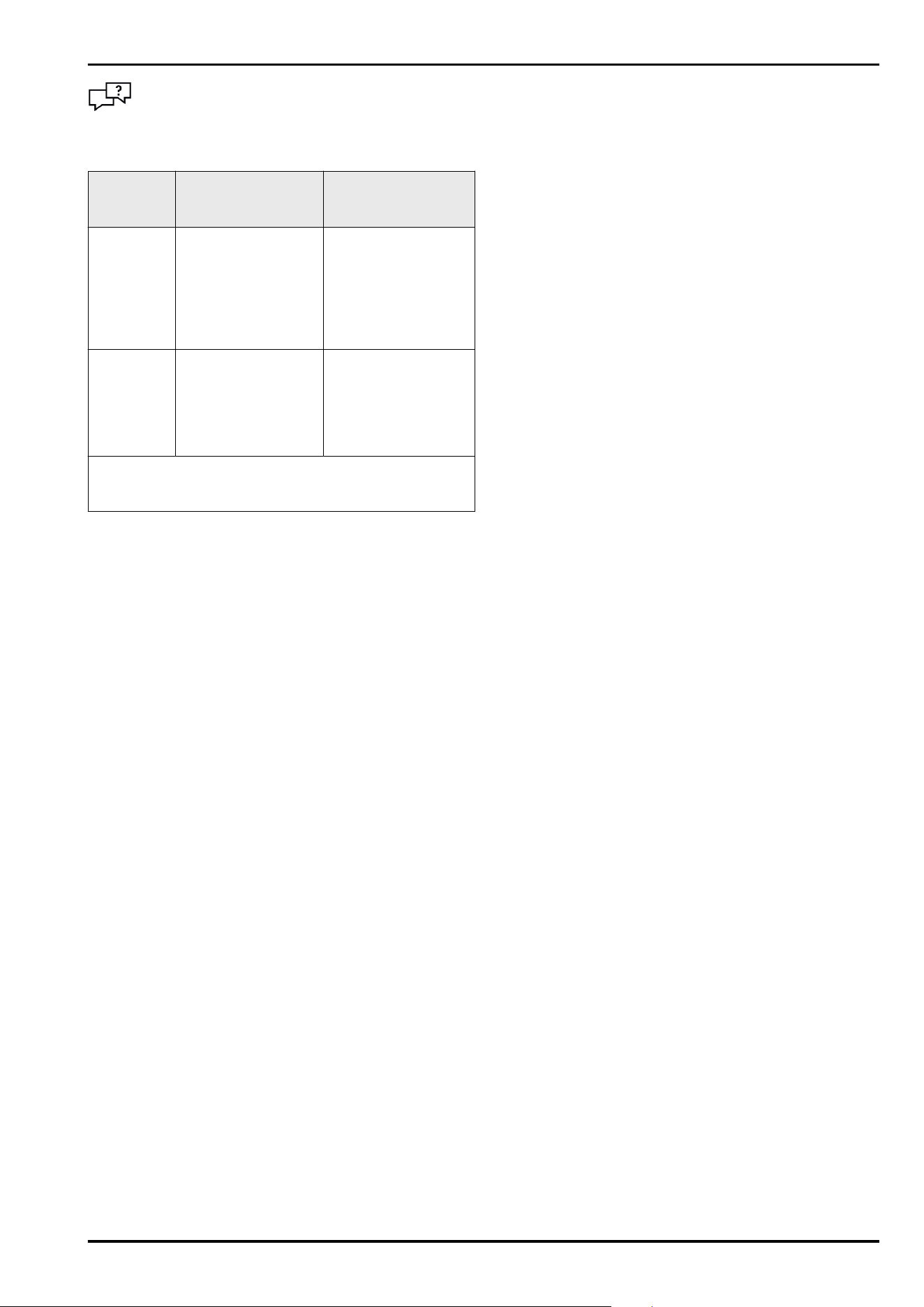
What should I do if there is a fault?
A message appears in the display if there is a fault.
Messages have different meanings:
Symbol
colour in
the display
Meaning Remedy
WHITE with
black bar
Reminder
Reminder of general
procedures. You can
carry out these
procedures to
eliminate the
message.
Consult the operating
instructions and
perform the
troubleshooting
steps.
WHITE
Warning
Appears when there
are malfunctions.
You can eliminate
simple malfunctions
yourself.
Consult the operating
instructions and
perform the
troubleshooting
steps.
If you cannot remedy the fault yourself, contact a
competent member of staff or your nearest customer
service outlet.
Quick Start Guide for everyday use
42 * Depending on model and options
home.liebherr.com/fridge-manuals
Freezer
ORIGINAL OPERATOR'S MANUAL
Issue date: 20251001
Part number index: 7080746-00
Liebherr Hausgeräte Lienz GmbH
Dr.-Hans-Liebherr-Strasse 1
A-9900Lienz
Österreich