To obtain assistance, contact Philips customer care center;
In the U.S.A., Canada, Puerto Rico, or the U.S. Virgin Islands
www.philips.com/support
1-833-978-3323
Call us:
TV Series 7875

Know these safety symbols
The lightning ash with arrowhead symbol, within an
equilateral triangle, is intended to alert the user to t
he
presence of uninsulated “dangerous voltage” within
the apparatus’s enclosure that may be of sucient
magnitude to constitute a risk of electric shock to
persons.
The exclamation point within an equilateral triangle
is
intended to alert the user to the presence of important
operating and maintenance (servicing) instructions
in
the literature accompanying the apparatus.
CAUTION: TO REDUCE THE RISK OF ELECTRIC SHOCK, DO NOT
REMOVE COVER (OR BACK). NO USER-SERVICEABLE PARTS ARE
INSIDE. REFER SERVICING TO QUALIFIED SERVICE PERSONNEL.
RISK OF ELECTRIC SHOCK
DO NOT OPEN
The caution marking is located on the rear or bottom of the cabinet.
CAUTION
W
ARNING: To reduce the risk of re or electric shock, do not expose this apparatus to rain or moisture.
Apparatus shall not be exposed to dripping or splashing and no objects lled with liquids,
such as vases, shall be placed on the apparatus.
CA
UTION: To prevent electric shock, match wide blade of plug to wide slot, fully insert.
For fastest support visit us online for chat and self service
solutions at www.philips.com/support
CHILD SAFETY:
PROPER TELEVISION PLACEMENT MATTERS
THE CONSUMER ELECTRONICS INDUSTRY CARES
• Manufacturers, retailers and the rest of the consumer
electronics industry are committed to making home
entertainment safe and enjoyable.
• As you enjoy your television, please note that all
televisions – new and old- must be supported on
proper stands or installed according to the
manufacturer’s recommendations. Televisions that are
inappropriately situated on dressers, bookcases,
shelves, desks, speakers, chests, carts, etc., may fall
over, resulting in injury.
TUNE IN TO SAFETY
• ALWAYS follow the manufacturer’s recommendations
for the safe installation of your television.
•
ALWAYS read and follow all instructions for proper
use of your television.
•
NEVER allow children to climb on or play on the
television or the furniture on which the television is
placed.
• NEVER place the television on furniture that can easily
be used as steps, such as a chest of drawers.
• ALWAYS install the television where it cannot be
pushed, pulled over or knocked down.
• ALWAYS route cords and cables connected to the
television so that they cannot be tripped over, pulled or
grabbed.
WALL OR CEILING MOUNT YOUR TELEVISION
• ALWAYS contact your retailer about professional
installation if you have any doubts about your ability to
safely mount your television.
• ALWAYS use a mount that has been recommended
by the television manufacturer and has a safety
certication by an independent laboratory (such as UL,
CSA, ETL).
• ALWAYS follow all instructions supplied by the
television and mount manufacturers.
• ALWAYS make sure that the wall or ceiling where you
are mounting the television is appropriate. Some
mounts are not designed to be mounted to walls and
ceilings with steel studs or cinder block construction. If
you are unsure, contact a professional installer.
• Televisions can be heavy. A minimum of two people is
required for a wall or ceiling mount installation.
MOVING AN OLDER TELEVISION TO A NEW PLACE
IN YOUR HOME
• Many new television buyers move their older CRT
televisions into a secondary room after the purchase of
a at-panel television. Special care should be made in
the placement of older CRT televisions.
• ALWAYS place your older CRT television on furniture
that is sturdy and appropriate for its size and weight.
• NEVER place your older CRT television on a dresser
where children may be tempted to use the drawers to
climb.
• ALWAYS make sure your older CRT television does not
hang over the edge of your furniture.
CTA.tech/safety
Important safety instructions
Read these instructions.
Keep these instructions.
Heed all warnings.
Follow all instructions.
Do not use this apparatus near water.
Clean only with dry cloth.
Do not block any ventilation openings. Install in
accordance with the manufacturer’s instructions.
Do not install near any heat sources such as
radiators, heat registers, stoves, or other apparatus
(including ampliers) that produce heat.
Do not defeat the safety purpose of the polarized
or grounding-type plug. A polarized plug has two
blades with one wider than the other. A
grounding type plug has two blades and a third
grounding prong. The wide blade or the third
prong are provided for your safety. If the provided
plug does not t into your outlet, consult an
electrician for replacement of the obsolete outlet.
Protect the power cord from being walked on or
pinched particularly at plugs, convenience
receptacles, and the point where they exit from
the apparatus.
Only use attachments/accessories specied by the
manufacturer.
Use only with the cart, stand,
tripod, bracket, or table specied
by the manufacturer, or sold with
the apparatus. When a cart is
used, use caution when moving
the cart/apparatus combination to
avoid injury from tip-over.
1.
2.
3.
4.
5.
6.
7.
8.
9.
10
.
11
.
12
.
Unplug this apparatus during lightning storms or
when unused for long periods of time.
Refer all servicing to qualied service personnel.
Servicing is require
d when the apparatus has been
damaged in any way, such as power-supply cord
or plug is damaged, liquid has been spilled or
objects have fallen into the apparatus, the
apparatus has been exposed to rain or moisture,
does not operate normally, or has been dropped.
13.
14.
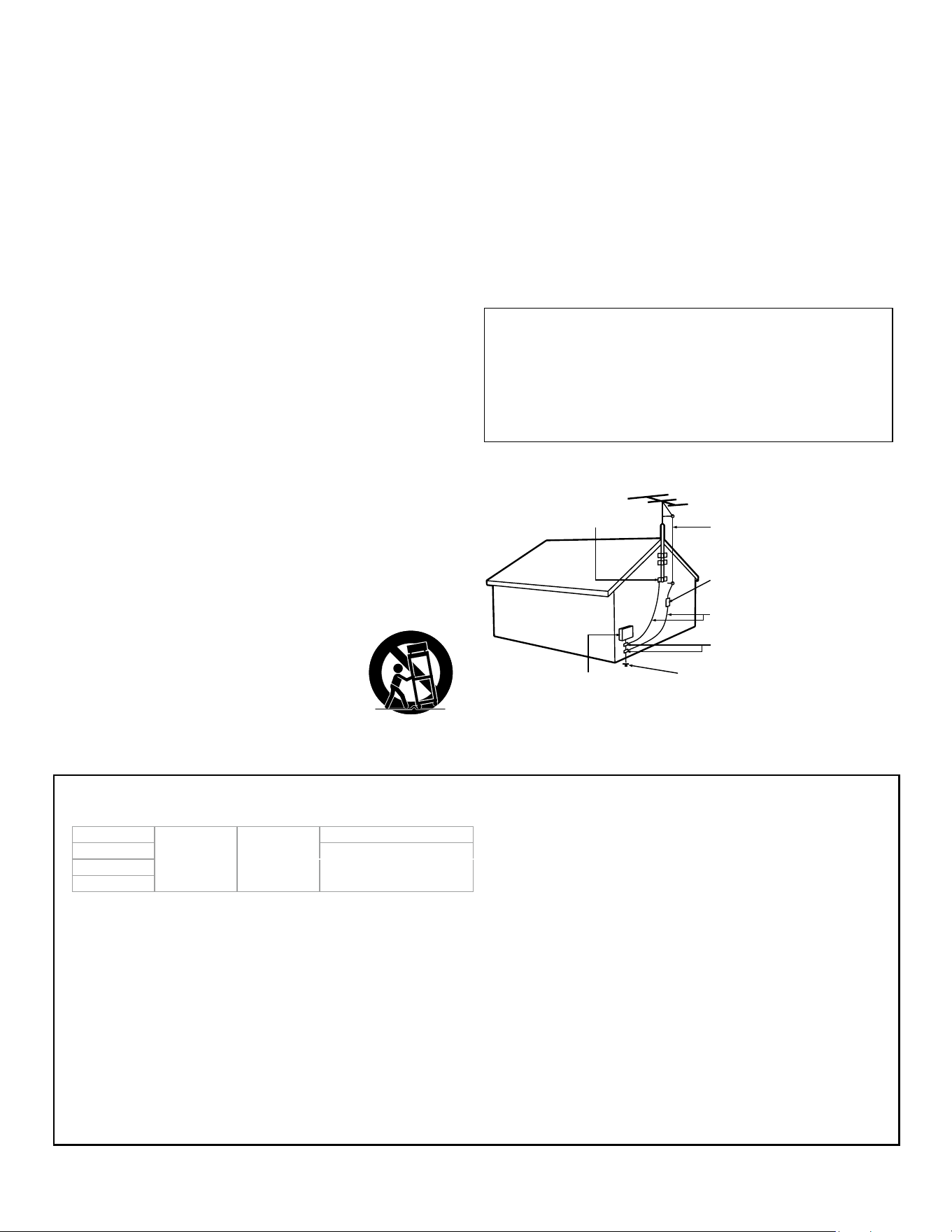
Note to the CATV system installer:
This reminder is provided to call the CATV system
installer’s attention to Article 820-40 of the NEC that
provides guidelines for proper grounding and, in
particular, specifies that the cable ground shall be
connected to the grounding system of the building,
as close to the point of cable entry as practical.
Example of antenna grounding as per NEC -
National Electric Code
ANTENNA LEAD IN WIRE
GROUND CLAMP
ANTENNA DISCHARGE UNIT
(NEC SECTION 810-20)
ELECTRIC SERVICE EQUIPMENT
GROUNDING CONDUCTORS
(NEC SECTION 810-21)
POWER SERVICE GROUNDING
ELECTRODE SYSTEM (NEC ART 250,
PART H)
GROUND CLAMPS
Wall mount bracket kit
Brand Model # Screw dimension
SANUS
VLT6-B1
M8 x 0.39”~0.63” (10 ~16 mm)
65”
55”
M6 x 0.35”~0.39” (9 ~10 mm)
50”
43”
●
Your TV meets the VESA standard for wall mounting. Consult
with your local dealer for a wall mount bracket which is compat-
ible with your TV model.
●
●
The recommended wall mount bracket kit (sold separately) allows
the mounting of the TV on the wall.
For detailed information on installing the wall mount, refer to the
wall mount Instruction book.
Skyworth USA Corporation is not responsible for any damage to
the product or injury to yourself or others if you elect to install the
TV wall mount bracket or mount the TV onto the bracket on your
own. The wall mount bracket must be installed by experts.
Skyworth USA Corporation is not liable for these types of
accidents or injuries noted below.
●
Install the wall mount bracket on a sturdy vertical wall.
●
If installed onto a ceiling or slanted wall, the TV and wall mount
bracket may fall which could result in a severe injury.
●
Do not use screws that are longer or shorter than their speci� ed
length. If screws too long are used this may cause mechanical or
electrical damage inside the TV set. If screws too short are used
this may cause the TV set to fall.
●
Do not fasten the screws by excessive force. This may damage the
product or cause the product to fall, leading to an injury.
●
For safety reasons use 2 people to mount the TV onto a wall
mounting bracket.
●
Do not mount the TV onto the wall mounting bracket while your
TV is plugged in or turned on. It may result in an electrical shock
injury.
When installing the unit on the wall, allow this much space.
Top : 1 1.8 ” (30 c m)
Left and right side : 5.9” (15 cm)
Bottom : 3.9” (10 cm)

Notice
Trademarks are the property of Koninklijke Philips N.V. or their respective
owners.
Skyworth USA Corporation reserves the right to change products at any
time with-out being obliged to adjust earlier supplies accordingly.
The material in this Owner’s manual is believed adequate for the intended
use of the system. If the product or its individual modules or procedures
are used for purposes other than those specified herein, confirmation of
their validity and suitability must be obtained. Skyworth USA Corporation
warrants that the material itself does not infringe any United States
patents. No further warranty is expressed or implied.
Skyworth USA Corporation cannot be held responsible neither for any
errors in the content of this document nor for any problems as a result of
the content in this document. Errors reported to Skyworth USA
Corporation will be adapted and published on the Skyworth USA
Corporation support website as soon as possible.
Pixel characteristics
This LCD product has a high number of color pixels. Although it has effec-
tive pixels of 99.999% or more, black dots or bright points of light (red,
green or blue) may appear constantly on the screen. This is a structural
property of the display (within common industry standards) and is not a
malfunction.
Warranty
No components are user serviceable. Do not open or remove covers to the
inside of the product. Repairs may only be done by service centers and
official repair shops. Failure to do so shall void any warranty, stated or
implied.
Any operation expressly prohibited in this manual, any adjustments or
assembly procedures not recommended or authorized in this manual shall
void the warranty.
Federal communications commission notice
This equipment has been tested and found to comply with the limits
for a Class B digital device, pursuant to part 15 of the FCC Rules.
These limits are designed to provide reasonable protection against
harmful interference in a residential installation. This equipment
generates, uses and can radiate radio frequency energy and, if not
installed and used in accordance with the instructions, may cause
harmful interference to radio communications. However, there is no
guarantee that interference will not occur in a particular installation.
If this equipment does cause harmful interference to radio or
television reception, which can be determined by turning the
equipment off and on, the user is encouraged to try to correct the
interference by one or more of the following measures:
●
Reorient or relocate the receiving antenna.
●
Increase the separation between the equipment and the receiver.
●
Connect the equipment into an outlet on a circuit different from that to
which the receiver is connected.
●
Consult the dealer or an experienced radio or television technician for
help.
Modifications
This apparatus may generate or use radio frequency energy. Changes or
modifications to this apparatus may cause harmful interference.
Any modifications to the apparatus must be approved by Skyworth USA
Corporation.
The user could lose the authority to operate this apparatus if an unauthor-
ized change or modification is made.
Cables
Connections to this device must be made with shielded cables with
metal-lic RFI/EMI connector hoods to maintain compliance with FCC Rules
and regulations.
Canadian notice
CAN ICES-3 (B)/NMB-3 (B)
Analog and digital television receiving apparatus, Canada BETS-7/
NTMR-7.
The following FCC/IC RSS applies to the wireless LAN
adapter included in this product.
FCC caution: Any changes or modifications not expressly ap-
proved by the party responsible for compliance could void the
user’s authority to operate this equipment.
This transmitter must not be co-located or operated in conjunction
with any other antenna or transmitter.
FCC/IC RF Exposure Compliance
This equipment complies with FCC/IC radiation exposure limits set
forth for an uncontrolled environment and meets the FCC radio
frequency (RF) Exposure Guidelines and RSS-102 of the IC radio
frequency (RF) Exposure rules.
This equipment should be installed and operated keeping the radia-
tor at least 20cm or more away from your body.
This device complies with Part 15 of FCC Rules and Industry Can-
ada licence-exempt RSS standard(s). Operation is subject to the
following two conditions: (1) this device may not cause interfer-
ence, and (2) this device must accept any interference, including
interference that may cause undesired operation of this device.
5150-5250 MHz band is restricted to indoor operations only.
High-power radars are allocated as primary users (i.e. priority us-
ers) of the bands 5250-5350 MHz and 5650-5850 MHz and that
these radars could cause interference and/or damage to LE-LAN
devices.
Compliance with FCC requirement 15.407(c) and IC
requirement RSS-210 A9.4.4
Data transmission is always initiated by software, which is the
passed down through the MAC, through the digital and analog
baseband, and finally to the RF chip. Several special packets are
initiated by the MAC. These are the only ways the digital baseband
portion will turn on the RF transmitter, which it then turns off at
the end of the packet. Therefore, the transmitter will be on only
while one of the aforementioned packets is being transmitted. In
other words, this device automatically discontinue transmission in
case of either absence of information to transmit or operational
failure.
Positioning the TV
●
Large screen TVs are heavy. 2 people are required to carry and handle a
large screen TV.
●
Make sure to hold the upper and
bottom frames of the unit firmly as il-
lustrated.
●
Install the unit in a horizontal and
stable position.
●
Do not install the unit in direct sunlight
or in a place subject to dust or strong
vibration.
●
Depending on the environment, the temperature of this unit may in-
crease slightly. This is not a malfunction.
●
When installing this unit in a temperate environment, avoid a place with
rapid temperature changes.
–
Operating temperature: 41°F (5°C) to 104°F (40°C)
●
This unit should not be used in a tropical environment as it has not been
evaluated under such conditions.
●
No objects should be placed directly on or under this unit, especially
lighted candles or other flaming objects.
●
Depending on your external devices, noise or disturbance of the picture
and/or sound may be generated if the unit is placed too close to them.
In this case, please ensure enough space between the external devices
and the unit.
●
Do not insert the AC power cord into the power socket outlet before all
the connections are made.
●
Ensure that you always have easy access to the AC power cord and out-
let to disconnect the TV from the AC outlet.
●
Before you move the TV, disconnect attached cables to prevent damage
to connectors, especially the TV tuner.
●
Be sure to unplug the AC power plug from the AC outlet before moving
or carrying the unit.
●
When moving the TV and then setting it down, please be careful not to
pinch the AC power cord under the unit.
●
Do not place this unit in an area where it may be exposed to water, oil or
grease such as:
near a bathtub, basin, kitchen sink, washing tub, swimming pool, kitchen
exhaust fan, etc., or in a damp basement.
Regulatory notices
WARNING : To prevent injury, this apparatus must be securely attached
to the furniture/wall in accordance with the instructions.
Tipping, shaking or rocking the unit may cause injury/death.
WARNING : Never place a TV in an unstable location. A TV may fall, caus-
ing serious personal injury or death. Many injuries, particu-
larly to children, can be avoided by taking simple precautions
such as:
–
Using cabinets or stands recommended by the manufac-
turer of the TV.
–
Only using furniture that can safely support the TV.
–
Ensuring the TV is not overhanging the edge of the sup-
porting furniture.
–
Not placing the TV on tall furniture (for example, cup-
boards or bookcases) without anchoring both the furniture
and the TV to a suitable support.
–
Not placing the TV on cloth or other materials that may be
located between the TV and supporting furniture.
–
Educating the children about the dangers of climbing on
furniture to reach the TV or its controls.
If your existing TV is being retained and relocated, the same considerations
as above should be applied.
Do not place the unit on the furniture that is capable of being tilted by
a child and an adult leaning, pulling, standing or climbing on it. A falling
unit can cause serious injury or even death.
In order to avoid interruption of ventilation, this unit should not be placed
in built-in equipment such as a book cabinet, rack, etc., and the vents
of this unit should not be covered with anything such as a tablecloth,
curtain, newspaper, etc. Make sure that there is enough ventilation space
(4 ”/10 cm or more) around this unit.
Press
B
to turn the unit on and go into standby mode. To completely turn
off the unit, you must unplug the AC power plug from the AC power out-
let.
Disconnect the AC power plug to shut the unit off when trouble is found
or not in use. The AC plug shall remain readily available.
Never use a gas duster on this TV.
The gas trapped inside of this unit may cause ignition and explosion.
Environmental care
The packaging of this product is intended to be recycled.
Contact your local authorities for information about how to recycle the
packaging.
For product recycling information, please visit - www.recycle.philips.com
End of life directives
Philips pays a lot of attention to produce environmental-friendly products
in green focal areas. Your new TV contains materials which can be recycled
and reused. At the end of its life, specialized companies can dismantle the
discarded TV to concentrate the reusable materials and to minimize the
amount of materials to be disposed of. Please ensure you dispose of your
old TV according to local regulations.
#
Batteries usage
CAUTION : Danger of explosion if battery is incorrectly replaced. Replace
only with the same or equivalent type.
WARNING : Batteries (battery pack or battery installed) should not be
exposed to excessive heat such as sunshine, fire or the like.
●
Do not mix old and new batteries.
●
Do not mix alkaline, standard (carbon-zinc) or rechargeable (ni-cad,
nimh, Li-ion, etc.) batteries.
Disposal of used batteries
The batteries included do not contain the heavy metals mercury
and cadmium, however in certain localities, disposing batteries with
household waste is not permitted. Please ensure you dispose of bat-
teries according to local regulations.
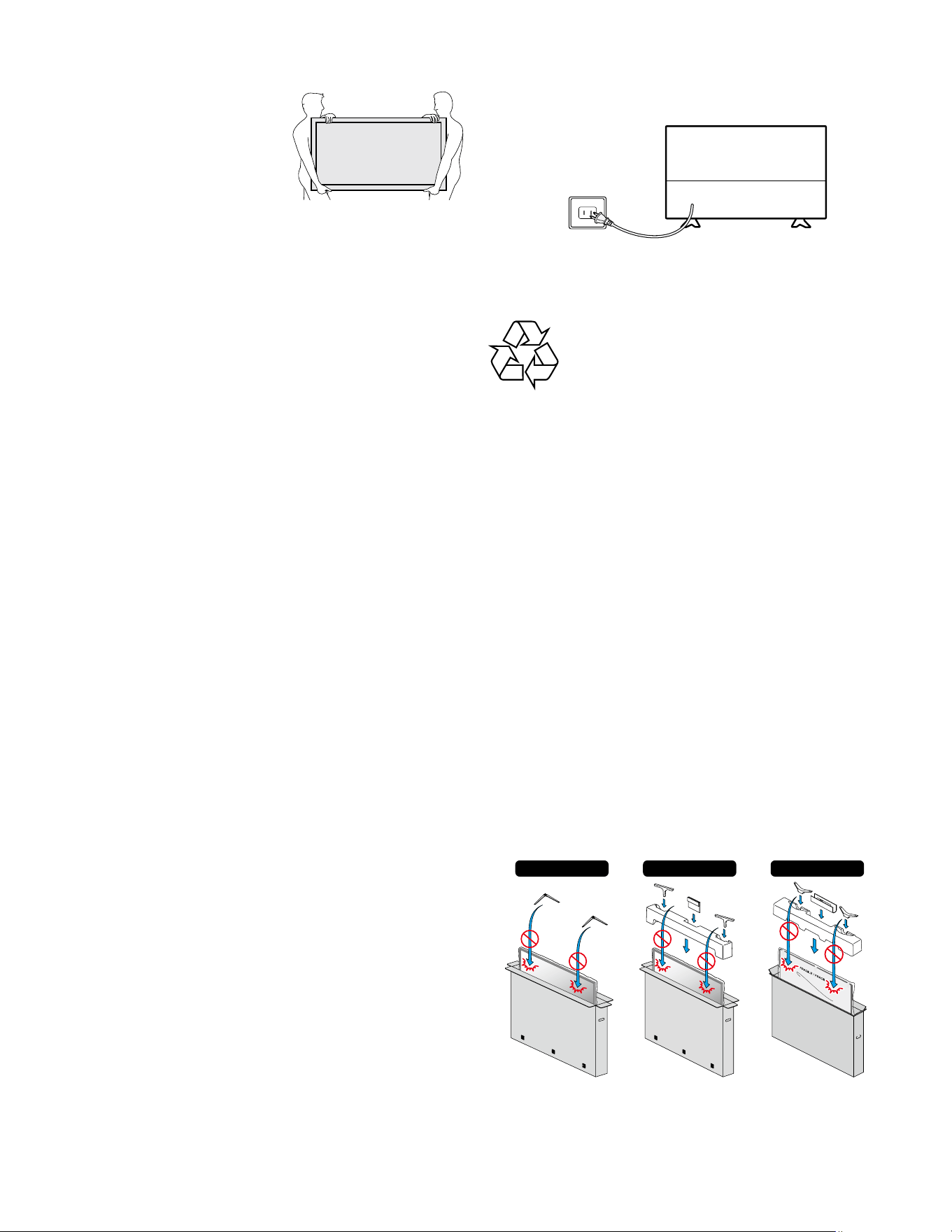
Preparing to move/ship the unit
Please pack the unit properly by following the diagram on the carton (as
noted below).
50 ”/43 ”/32 ”65 ”/55 ”75 ”
●
To avoid damage to the screen, do not pack the stand on the same side
as the TV screen, refer to the illustration above.
AC power plug
Copyright
All other registered and unregistered trademarks are the property of their
respective owners.
Th
e terms HDMI and HDMI High-
Definition Multimedia Interface, and
t
h
e HDMI Logo are trademarks or
registered trademarks of HDMI
Licensing Administrator, Inc.
in the
United States and other countries.
M
anufactured under license from
D
olby Laboratories. Dolby, Dolby
Audio, and the double-D symbol are
trademarks of Dolby Laboratories
Licensing Corporation.
Portions of this software are copyright © The FreeType Project
(www.freetype.org).
The American Academy of Pediatrics discourages television viewing
for children younger than two years of age.
Some apps are not pre-installed, internet connection is required for
download.
Some features may require an always-on broadband internet con-
nection, firmware update and/or a minimum bandwidth. Internet
services vary by location.
Skyworth USA Corporation does not warrant access to the portal or
to any of the services, content, software and advertising. Skyworth
USA Corporation may, in its sole discretion, add or remove access
to any specific services, content, software and advertising at any
time. Although Skyworth USA Corporation.
will strive to provide a good selection of services, content or soft-
ware, Skyworth USA Corporation does not warrant continued
access to any specific services, and content or software.
Skyworth USA Corporation does not warrant Wireless
Screencasting compatibility with all source devices such as
smartphones, tablets, laptops, etc. due to large variability in
hardware, firmware, drivers, software and implementation of
wireless casting applications on these source devices. Although
Skyworth USA Corporation will strive to enhance compatibility and
performance across a range of source devices, Skyworth USA
Corporation does not warrant compatibility with specific source
devices.
Channel Specification
Channel coverage Antenna DTV (ATSC)
Antenna Analog (NTSC)
Cable DTV (QAM)
Cable Analog (NTSC)
VHF: 2-13
UHF: 14-69
VHF: 2-13
UHF: 14-69
2-135
2-135
Tuning system Channel frequency synthesized tuning system

Trademark and copyright statement
© 2025 Roku, Inc. All rights reserved. Roku, Roku TV, the Roku logo, and the purple d-pad design are the trademarks of Roku, Inc. All other
trademarks and logos herein are the property of their respective owners. Material in this User Manual is the property of Roku, Inc., and is
protected under US and International copyright and/or other intellectual property laws. Reproduction or transmission of the materials, in
whole or in part, in any manner, electronic, print, or otherwise, without the prior written consent of Roku, Inc., is a violation of Roku, Inc.’s,
rights under the aforementioned laws.
No part of this publication may be stored, reproduced, transmitted or distributed, in whole or in part, in any manner, electronic or otherwise,
whether or not for a charge or other or no consideration, without the prior written permission of Roku, Inc.
Requests for permission to store, reproduce, transmit or distribute materials shall be made to the following address:
Roku, Inc.
1173 Coleman Avenue,
San Jose, CA 95110
Product name: Philips Roku TV featuring Philips exclusive Ambilight technology
Document name: Philips Roku TV (Ambilight) User Guide
Document revision: 14.5a – United States, English
Publication date: August 2025

iii
!
!
!
Contents
Welcome ........................................................................................................................................ 1
Introducing Ambilight TV: A new way to experience television ............................................................................... 1
Roku TV: more than a smart TV – A better TV ......................................................................................................... 3
Connecting brings out your TV’s full potential ......................................................................................................... 3
Take advantage of awesome features ...................................................................................................................... 4
What is streaming? ................................................................................................................................................... 6
Connections and setup ................................................................................................................... 8
Connecting an antenna, cable, or satellite box ........................................................................................................ 8
Connecting external equipment with a composite AV video cable (certain models) .............................................. 9
Connecting external equipment with an HDMI
®
cable ............................................................................................. 9
Connecting external HDMI
®
2.1 equipment ........................................................................................................... 10
Connecting headphones or analog soundbar (certain models) ............................................................................. 10
Connecting an AV receiver or digital soundbar ...................................................................................................... 11
Preparing for Internet connectivity ........................................................................................................................ 11
AC power ................................................................................................................................................................ 12
Controls ........................................................................................................................................ 13
Roku TV remote ...................................................................................................................................................... 13
Panel buttons ......................................................................................................................................................... 16
Guided Setup ................................................................................................................................ 19
Starting Guided Setup ............................................................................................................................................ 19
Guided Setup .......................................................................................................................................................... 20
The Home screen .......................................................................................................................... 33
Setting up live TV .......................................................................................................................... 35
How do I set up the TV tuner? ................................................................................................................................ 35
Using your TV ............................................................................................................................... 40
Status indicator ...................................................................................................................................................... 40
Standby mode energy savings ................................................................................................................................ 41
Opting in to Smart TV experience .......................................................................................................................... 41
Watching live TV channels ...................................................................................................................................... 43
Using the Live TV Channel Guide ............................................................................................................................ 43
Viewing program information ................................................................................................................................ 48
Adjusting settings while watching a program ........................................................................................................ 48
Pausing live TV ........................................................................................................................................................ 49
More Ways to Watch .............................................................................................................................................. 52
Switching TV inputs ................................................................................................................................................ 55
Using Roku Voice commands ................................................................................................................................. 57
Using Roku Voice for settings ................................................................................................................................. 59

iv
!
!
!
Playing content from USB storage devices ............................................................................................................. 61
Setting up a payment method ................................................................................................................................ 62
Using your TV in a hotel or dorm room .................................................................................................................. 63
Configuring your Ambilight TV ..................................................................................................... 66
Ambilight settings menus ....................................................................................................................................... 67
Ambilight settings over video content ................................................................................................................... 71
Using Apple AirPlay and the Apple Home app ............................................................................. 75
Apple AirPlay .......................................................................................................................................................... 75
Apple Home app ..................................................................................................................................................... 76
Adjusting TV settings .................................................................................................................... 77
Main Settings menu ............................................................................................................................................... 77
TV settings menu .................................................................................................................................................... 79
Sleep timer ............................................................................................................................................................. 80
Picture settings ....................................................................................................................................................... 80
Sound settings ........................................................................................................................................................ 88
Manage channels ................................................................................................................................................... 92
Accessibility & language ......................................................................................................................................... 94
Picture off ............................................................................................................................................................... 96
Displaying art and photos with Backdrops ................................................................................... 97
Set up Backdrops .................................................................................................................................................... 97
Change Backdrops settings ..................................................................................................................................... 98
Add your own photos to Backdrops ....................................................................................................................... 98
Navigate Backdrops ................................................................................................................................................ 99
Featured Free ............................................................................................................................. 100
Searching for something to watch .............................................................................................. 101
How do I search? .................................................................................................................................................. 101
Searching from the Roku mobile app ................................................................................................................... 102
Searching with Google Assistant .......................................................................................................................... 102
Searching with Amazon Alexa .............................................................................................................................. 103
Keyboard search using the remote ...................................................................................................................... 104
Direct-to-playback search results ......................................................................................................................... 104
Searching for free content .................................................................................................................................... 104
Using the Roku Store .................................................................................................................. 105
Automatic Account Link ....................................................................................................................................... 105
Customizing your TV ................................................................................................................... 106
Add TV inputs to your Home screen ..................................................................................................................... 106
Add streaming channels to your Home screen .................................................................................................... 106
Rename inputs ...................................................................................................................................................... 107

v
!
!
!
Remove unwanted inputs and channels .............................................................................................................. 108
Rearrange inputs and channels ............................................................................................................................ 108
Change the look and feel with themes ................................................................................................................. 109
Change menu volume ........................................................................................................................................... 110
Configure power settings ..................................................................................................................................... 111
Configure accessibility .......................................................................................................................................... 113
Customize the Home screen ................................................................................................................................. 115
Parental controls ........................................................................................................................ 116
Creating a parental control PIN ............................................................................................................................ 116
Blocking broadcast TV programs .......................................................................................................................... 117
What happens when a TV program is blocked? ................................................................................................... 123
Changing your PIN ................................................................................................................................................ 124
Resetting parental controls .................................................................................................................................. 125
More settings ............................................................................................................................. 126
Guest Mode .......................................................................................................................................................... 126
Network settings .................................................................................................................................................. 128
ZIP Code ................................................................................................................................................................ 128
Time settings ........................................................................................................................................................ 129
Scan again for live TV channels ............................................................................................................................ 130
HDMI
®
mode (not applicable to QHD (2K) models) .............................................................................................. 130
Control by mobile apps ........................................................................................................................................ 131
Changing privacy settings ..................................................................................................................................... 132
Roku TV soundbars and wireless speakers ........................................................................................................... 135
Roku wireless speakers ......................................................................................................................................... 135
Home theater configuration ................................................................................................................................. 137
Restart the TV ....................................................................................................................................................... 143
Reset the TV ......................................................................................................................................................... 144
Roku Account PIN ................................................................................................................................................. 146
Update the TV ...................................................................................................................................................... 147
Using other devices with your TV ............................................................................................... 148
Using Bluetooth
®
private listening (certain models) ............................................................................................. 148
Pairing your phone, tablet, or computer with Bluetooth
®
................................................................................... 150
Mirroring your phone or tablet ............................................................................................................................ 152
Roku mobile app ................................................................................................................................................... 153
Using a universal remote ...................................................................................................................................... 154
What if I didn’t connect my TV? ................................................................................................. 155
What you’re missing by not connecting ............................................................................................................... 155
Surfing only favorite channels when your TV is not connected ........................................................................... 157
Connecting your TV .............................................................................................................................................. 157
Updating a TV that is not connected .................................................................................................................... 158


!
!!
1
!
!
!
Welcome
Congratulations on the purchase of your new Philips Roku TV featuring Philips exclusive Ambilight
technology! Discover the joy of endless entertainment. After it’s set up, you’ll be able to access a world
of streaming entertainment, including paid subscription channels and thousands of free channels.
Important: When you connect your TV to the Internet and link it to a Roku
®
account, your TV receives
automatic updates from time to time, enabling new content and features. To determine the current
version of your Philips Roku TV, go to Settings > System > About. Note that some features of the TV might
change from time to time independently of Roku TV updates.
Introducing Ambilight TV: A new way to experience television
Get ready to transform your living room into an extraordinary entertainment hub with your new Philips
Roku TV featuring Philips exclusive Ambilight technology. Ambilight intelligently analyzes the colors on
your screen in real-time and extends them onto the surrounding wall, creating a captivating halo of light
that visually expands your screen and deepens your immersion. From movies and games to everyday
viewing, Ambilight brings a new dimension to your entertainment.
Follow these steps to get the most out of your Ambilight TV.
!
!!
2
!
!
!
Tips on Placement
• Position the TV where light does not shine directly on the screen.
• Dim lighting conditions in the room for optimal Ambilight effect.
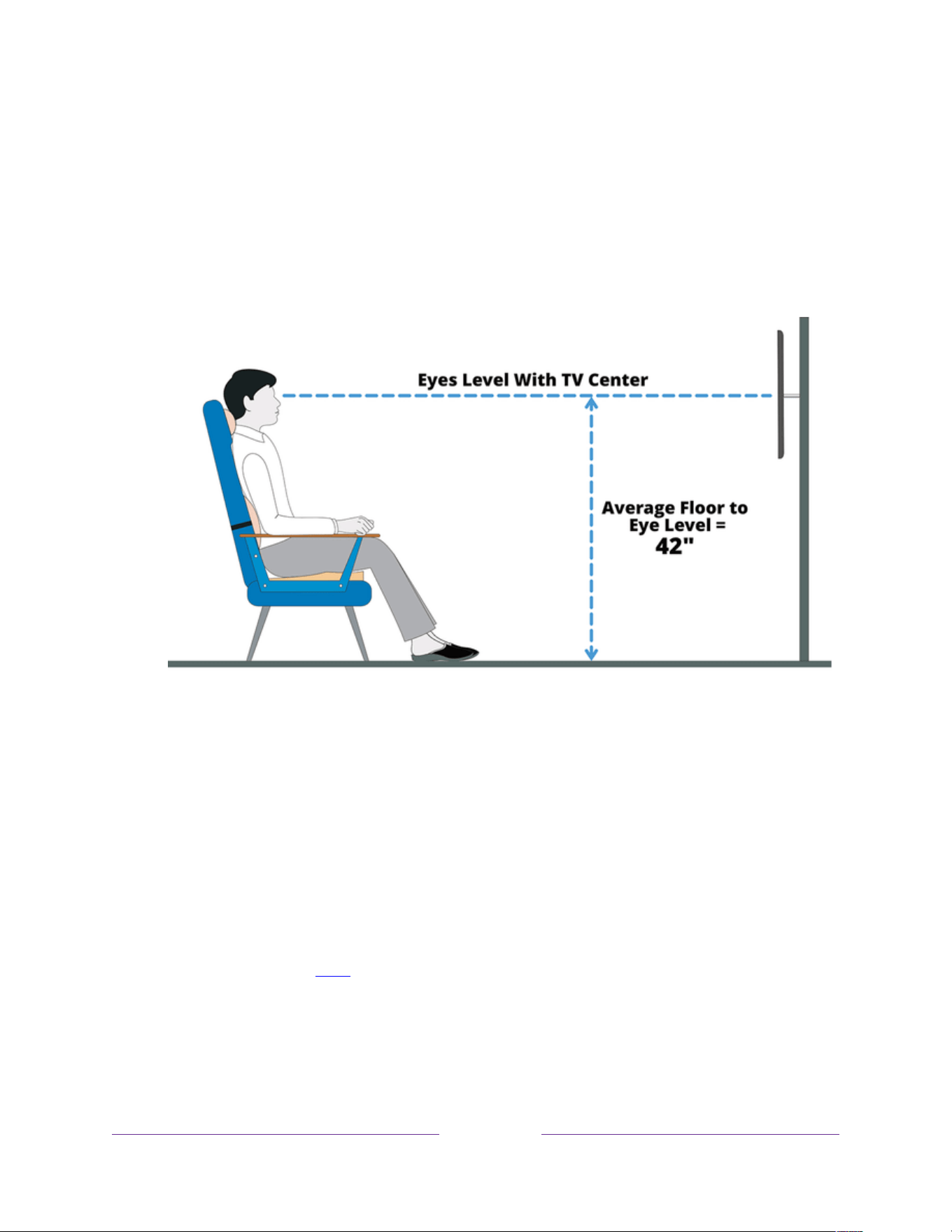
• The ideal distance to watch TV is two to five times its diagonal screen size. When seated, your
eyes should be level with the center of the screen.
Recommended distance to the wall:
A. Wall mounted - Position the TV 3-4 inches (7 to 10 cm) away from the wall.
B. TV stand - Position the TV 4-8 inches (10 to 20 cm) away from the wall, depending on the size of
stand.
To learn how to optimize Ambilight for the wall color in your environment and for your
viewing preferences, click here.

!
!!
3
!
!
!
Roku TV: more than a smart TV – A better TV
Welcome to TV like you’ve most likely never seen before – a home screen that you can personalize with
your favorite devices and streaming channels. Choose from hundreds of thousands of movies and TV
episodes, plus content genres such as music, sports, kids, family, international and much more. You
should never run out of things to watch.
Note: A paid subscription or other payments may be required for some channel content. Channel
availability is subject to change and varies by country.
Connecting brings out your TV’s full potential
Connecting to a new or existing Roku account is free. It’s easy, and unlocks a world of entertainment. All
you need is a network connection. Stream a massive selection of free, live, and premium TV.
Make any night a movie night
Thousands of movies to choose from, across all major streaming movie channels
1
.
Check out The Roku Channel
Use The Roku Channel as your new home page for an ever-growing assortment of free on-demand and
streaming movies, programs, live news, and kid’s TV. Use the Live TV Channel Guide within The Roku
Channel or while watching Live TV from your antenna or cable connection. Add premium subscriptions
to watch many of your favorite channels in one place, and manage them all through your Roku account.
Get in the groove
Stream endless hours of music from free and subscription-based channels. With almost instant access to
thousands of music artists, your favorite beats are just as close as your remote.
1 A paid subscription or other payments may be required for some channels. Channel availability is subject to change and
varies by country. Not all content is available in countries or regions where Roku
®
products are sold.

!
!!
4
!
!
!
Explore your passions
In addition to the most popular streaming channels, your Roku TV also offers hundreds of other
streaming channels to fuel your passions—including fitness, cooking, religion, outdoors, international
programming and much more.
Enhance your viewing room
With Roku
®
Backdrops, you can transform your TVs into a work of art by using images hand-picked from
Roku’s evolving catalogue, including famous classics, wide-ranging museum collections, abstract designs,
and more, completely free. You can also upload your own images or collaborate with friends and family
to create personalized Backdrop collections.
Take advantage of awesome features
Recommended row at the top of the Home screen provides quick access to curated recommendations
based on your viewing history.
Key sports leagues and a dedicated Roku sports channel with free, ad-supported, top-tier sports
content, including an all-inclusive NBA zone and an exclusive MLB zone, all directly accessible from the
Home screen menu.
Powerful, voice-enabled search lets you use voice commands to find movies and TV programs by title,
actor, director, or genre across multiple streaming channels
1
. Additionally, your search commands can
include popular movie quotes, and words like “free” and “4K.” In addition to streaming channels, your
search results include live TV programs airing in your region. Use an on-screen keyboard or the Roku
mobile app to search. Find any movie, show, song, or podcast across thousands of channels. You'll see
where it's streaming for free or at the lowest cost.
Voice for settings enables you to use a voice command to jump directly to a setting, rather than
navigating through the Settings menus. Use Roku Voice to quickly access settings for screensavers,
wallpapers, system updates, guest mode, screen mirroring, system language, and more, making your TV
experience faster, easier and more delightful.
1 Voice features support English, Spanish, Portuguese, and German languages.

!
!!
5
!
!
!
Voice commands with multiple device support let you use Apple Siri, Google Assistant, or Amazon Alexa
to change stations, TV inputs, launch streaming channels, and more. Use conversational commands and,
if needed, include a location in your command such as “in the bedroom” to specify which Roku device
you want to control.
Apple AirPlay 2 lets you use your iOS and macOS devices to effortlessly share videos, photos, music, and
more on Roku TVs
1
. Control AirPlay sessions with pause, rewind, and more using your iPhone, iPad, or
Mac. Play music from your Apple devices on Roku TVs and other AirPlay 2 enabled speakers in your
home at the same time in perfect sync. Plus, mirror the screen from your iPhone, iPad, or Mac to the big
screen.
Live TV Pause (certain models only) uses a USB thumb drive (not provided) to let you pause live TV for up
to 90 minutes. After pausing, you can play, fast-forward, rewind to any point within the rolling 90-
minute window.
Note: Live TV Pause is available on digital TV programs received on the ANT input.
Live TV Channel Guide includes both broadcast TV channels and live streaming channels. Use the guide
whenever you are watching Live TV or by selecting the Live TV Channel Guide within The Roku Channel.
Let Roku automatically organize the guide based on your viewing history, or organize it yourself by
channel number. Narrow down the list of channels by selecting a category such as Entertainment,
Music, Reality, News, Movies, Comedy, and more.
Screen mirroring can send your personal media to the big screen from your compatible smartphone or
tablet in just a few taps. Plus, with certain channels, you can send movies, programs, sport highlights,
and more directly to your TV.
Private Listening enables you to listen to programs on headphones (not included). You can enjoy private
listening in several ways, including:
• Using the Roku mobile app with headphones (not included) connected to your mobile phone.
1 Apple AirPlay 2 and HomeKit are supported by all Roku TVs except hardware IDs beginning with “6” (6XXXX) and “5” (5XXXX).
Your TV’s model number appears as the Hardware ID found under Settings > About.

!
!!
6
!
!
!
• Only on models with Bluetooth
®
private listening, through Bluetooth headphones (not included)
that have been paired with your TV.
Customizable Home screen puts your favorite streaming channels and TV inputs front-and-center.
Choose your own wallpaper and screensaver to customize your Roku TV, and configure your channels
and inputs just how you want them.
Automatic account linking keeps track of supported streaming subscriptions on other Roku devices, so
that you won’t have to re-enter your user name and password when adding the same channel on your
newly-activated Roku TV.
1
Free Roku mobile app for iOS
®
and Android™ mobile devices
2
gives you even more exclusive features,
such as:
• A second, more powerful remote control. Browse channels and search more easily using your
mobile device’s touch keyboard. Use Roku Voice commands to search and control your TV
3
.
• Experience private listening. Listen to TV audio through either wired or Bluetooth
®
headphones
connected to your mobile device.
• Use Play on Roku to play your videos, photos, and music on your TV.
• Create a screensaver from your photo library to show whenever your TV has been inactive for
an extended period.
What is streaming?
Streaming is viewing or listening to video or audio content that is sent over the Internet, or located on a
network-connected media server.
1 Not all streaming channels currently support automatic account linking.
2 IOS
®
is a trademark or registered trademark of Cisco in the U.S. and other countries and is used under license. Android™ is a
trademark of Google Inc.
3 Voice features support English, French, Spanish, Portuguese, and German languages.

!
!!
7
!
!
!
With streaming, you can buy or rent most programs on demand, when it’s convenient for you, and you
can also watch live streaming channels and events. Also, you can play, pause, rewind, and fast forward
most on-demand streaming programs.
Tip: Some content cannot be paused or skipped. For example, if you are viewing live programming or a
program that is supported by ads, you might not be allowed to skip the ads.
Your Roku TV lets you choose from thousands of streaming channels that offer a huge selection of
entertainment:
• Thousands of movies and TV episodes, both live and on-demand
• Unlimited music, live and on-demand
• Tons of live and on-demand sports
• Commercial-free programming for kids and family
• International programming in 22 languages
• 24x7 news and in-depth news commentary
Many streaming channels are free. Some streaming channels let you purchase or rent the latest movie
releases or popular TV series. Some channels charge a monthly subscription fee, and others are available
at no additional cost if you subscribe to a companion service through your cable or satellite provider.
If you have an existing subscription to a streaming provider, you can just sign in with your existing user
name and password.
To play streaming content, add one or more streaming channels to your Home screen. Use the
Streaming Store option on the Home Screen Menu to go to the Roku Store, and then select the
streaming channel you want to add. The channel remains on your Home screen unless you remove it,
and you can watch it at any time.
For more information, see Using the Roku Store.
Note: A paid subscription or other payments may be required for some channels. Channel availability is
subject to change and varies by country. Not all content is available in countries or regions where Roku
®
products are sold.
Let’s get started.

!
!!
8
!
!
!
Connections and setup
Refer to your TV’s Quick Start Guide or other provided documentation for model-specific information
about attaching the base or a wall mount and making connections to AC power and to your other
audio/video devices.
Connecting an antenna, cable, or satellite box
If you are using an antenna, CATV cable without a set-top box, or a cable or satellite box that has only an
antenna output, connect a 75-ohm coaxial cable (not provided) from the source to the ANT/CABLE input
on the TV.
Tip: If you are using an antenna with a 300-ohm twin-lead cable, you need to use a 300-to-75-ohm
adapter (not provided) to adapt the twin-lead cable to a connection that is compatible with the TV’s
antenna input.
Tip: If you receive your TV stations through a set top box from a cable or satellite TV provider, connect it
to the TV using the best connection method available:
• HDMI
®
input – Digital HD and SD video
• AV input (certain models only) – analog SD video

!
!!
9
!
!
!
Connecting external equipment with a composite AV video
cable (certain models)
Only on certain models, connect a device to the TV using a composite AV cable (not provided).
Composite AV cables typically have three RCA-type plugs on each end, color coded as follows:
• Yellow – Video
• Red – Audio, right channel
• White or black – Audio, left channel
Connect each plug to the corresponding connector on the device and on the TV.
Note: Some TV models have an AV input that looks like a headphone jack. You might need a breakout
cable (not included) to adapt this input to the three RCA-type plugs on your composite device. Some
models do not have an AV input.
Connecting external equipment with an HDMI
®
cable
If possible, connect your devices using HDMI
®
cables (not provided). They help to provide the best video
quality and also carry audio signals, so that only one cable is needed. For better picture quality, we
recommend that you use cables designated as High Speed HDMI
®
Cables.
Tip: You might need to configure the device to send its signal through its HDMI
®
connector.
The connector labeled HDMI (ARC) has the additional ability to use the audio return channel to send
digital audio to a receiver or soundbar, as explained in Connecting an AV receiver or digital soundbar.
Only on certain models: The connector labeled HDMI (eARC) provides the same functionality as the
HDMI ARC connector, plus the ability to pass through full-resolution sound formats such as Dolby
Atmos
®
and DTS:X from and to devices that support these formats, without additional processing by the
TV. Additional details are provided in Choosing an audio digital output format.

!
!!
10
!
!
!
Connecting external HDMI
®
2.1 equipment
Certain models have HDMI 2.1 inputs that accept 4K 120Hz signals. These inputs, if present on your TV,
are identified by a bounding box, a 120Hz label, and an adjacent game controller icon. Using these
inputs with HDMI 2.1-compatible equipment, especially game systems, enhances your gaming
experience with the following advanced features:
• Variable Refresh Rate (VRR) reduces or eliminates lag, stutter, and frame tearing for more fluid
and better detailed gameplay.
• Auto Low Latency Mode (ALLM) configures the ideal latency setting to allowing for
smooth, lag-free and uninterrupted viewing and interactivity.
• Quick Frame Transport (QFT) reduces latency for smoother no-lag gaming and real-time
interactive virtual reality.
• Quick Media Switching (QMS) for movies and video eliminates the delay that can occur when a
device changes from one HDMI frame rate to another.
To take advantage of all HDMI 2.1 features, you must connect your equipment with an Ultra High Speed
HDMI
®
cable. Look for cables that have the Ultra High Speed HDMI
®
Certification Label on the package
and the Ultra High Speed HDMI
®
Cable name printed on the cable jacket.
For full HDMI 2.1 information, see the HDMI 2.1B Specification Technology Overview.
Connecting headphones or analog soundbar (certain models)
Only on certain models, you can connect headphones or an analog soundbar (not provided) to the TV’s
headphone jack.
Tip: Inserting a plug in the headphone jack disables the sound from the TV’s built-in speakers.
Warning: Loud noise can damage your hearing. When using headphones, use the lowest volume setting
on your headphones that still lets you hear the sound.
Certain models also have an audio line out connection that is not affected by TV volume or mute
settings and does not disable the TV speakers. Use this connection when you want to use your amplifier

!
!!
11
!
!
!
or soundbar to control the TV volume. To turn off the TV’s built-in speakers, from the Home Screen
Menu, navigate to Settings > Audio > TV speakers and change the setting.
Note: Some models do not have a headphone or an audio line out jack.
Connecting an AV receiver or digital soundbar
You can enjoy Dolby Audio™ multichannel sound from your TV if you connect a digital amplifier or
soundbar (not provided) in any of the following ways:
• Digital optical audio out (S/PDIF) – Connect a TOSLINK optical cable (not provided) from the TV
to the Optical input on your receiver or soundbar.
• HDMI
®
ARC – Connect an HDMI
®
cable (not provided) from the HDMI (ARC) connector to the
HDMI
®
input on your receiver or soundbar. This connection uses the Audio Return Channel (ARC)
feature of HDMI
®
to output sound from the TV to a compatible device. To use this feature, you
must configure the TV to enable HDMI
®
ARC, as explained in Setting up a digital audio
connection.
• HDMI
®
eARC – Certain models only: Connect an HDMI
®
cable (not provided) from the HDMI
(eARC) connector to the HDMI (ARC) or HDMI (eARC) input on your receiver or soundbar. If your
receiver or soundbar supports HDMI enhanced ARC (eARC), the TV can pass through full-
resolution sound from programs containing enhanced audio. If your receiver or soundbar does
not support eARC, use the TV’s eARC port to make the connection to the device’s ARC port. The
eARC port is backward compatible with the ARC standard.
Preparing for Internet connectivity
Your TV has a built-in wireless LAN adapter. Note that for wireless connectivity, your TV supports only its
internal wireless network adapter—it does not support the use of a USB network adapter.
Some models have both wired and wireless network connectivity. To use the wired network connection
if available on your TV, connect an RJ-45 Ethernet cable (not provided) from the jack on the back of your

!
!!
13
!
!
!
Controls
Roku TV remote
Use the following information to identify the buttons on your Roku remote.
Note: Remote buttons and features vary somewhat by model. Your remote might not have all buttons or
features listed.
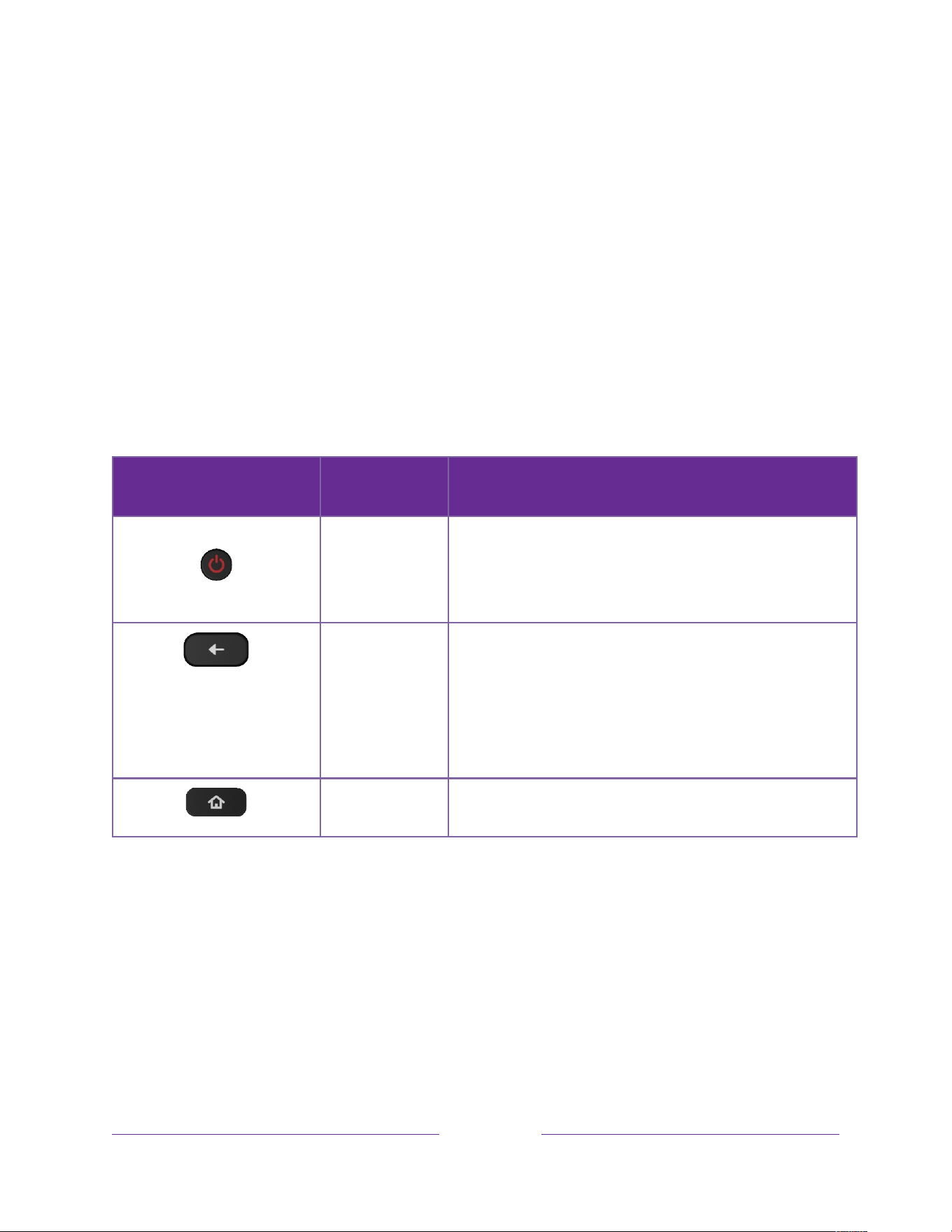
BUTTON
FUNCTION
DESCRIPTION
POWER
Turns TV on and off.
Note: If Backdrops is enabled, short press starts Backdrops. Hold
down POWER for a few seconds to turn off the TV.
BACK
Menu: Goes back to previous menu/screen.
Watching live TV or a TV input: Returns to Home screen.
Playing streaming content: Stops playing stream and returns to the
previous menu or screen.
Browsing streaming content: Goes to the previous level in the
content tree.
HOME
Immediately returns to the Home screen.
!
!!
14
!
!
!
BUTTON
FUNCTION
DESCRIPTION
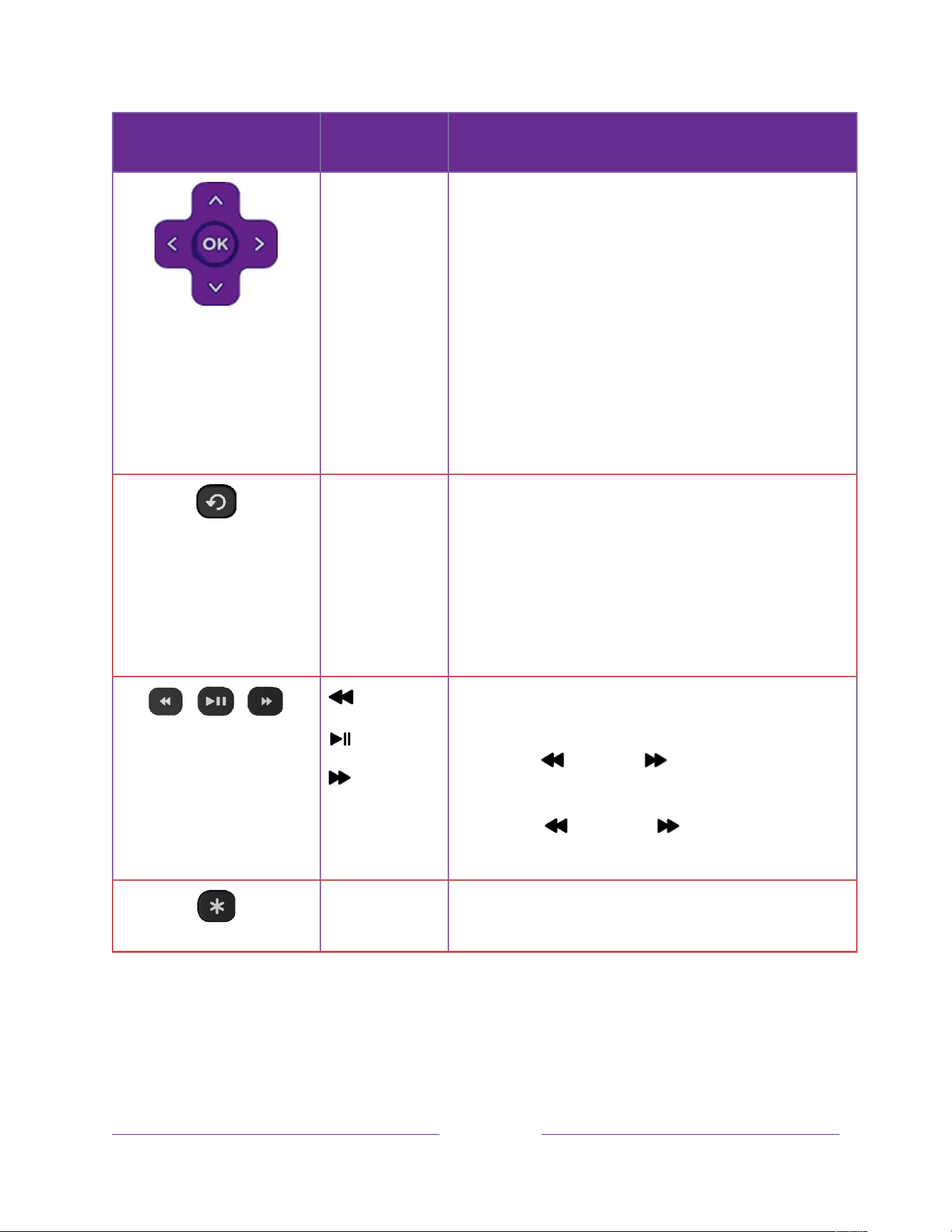
DIRECTIONAL PAD
Arrows move the highlight in the corresponding direction. OK
chooses the highlighted option.
While watching TV:
UP/DOWN changes channel.
LEFT displays Live TV Channel Guide.
LEFT/RIGHT In the channel list switches between ALL CHANNELS and
FAVORITE CHANNELS.
If Live TV Pause enabled: When program is paused, jumps
backward/forward approximately 10 seconds.
OK In the channel list, selects the highlighted channel. While
watching live TV, displays program information.
REPLAY
Live TV: Jumps to previously tuned channel. If Live TV Pause is
enabled, jumps back a few seconds with each press and resumes
playing.
Program guide: Returns to the current day and time.
Streaming content: Depends on the streaming channel.
On-screen keyboard: Backspaces in the text you are entering.
REWIND
PLAY/PAUSE
FAST FWD
Scan backward, pause, play, and scan forward in streaming content
and (if Live TV Pause is enabled) in live TV channels.
Press REWIND or FAST FWD one, two, or three times to
control the speed of the operation.
Note
: REWIND and FAST FWD also page through long lists
such as the channel list or Live TV Channel Guide.
STAR
Displays additional options when available. On-screen hints let you
know when this button is active.
!
!!
15
!
!
!
BUTTON
FUNCTION
DESCRIPTION
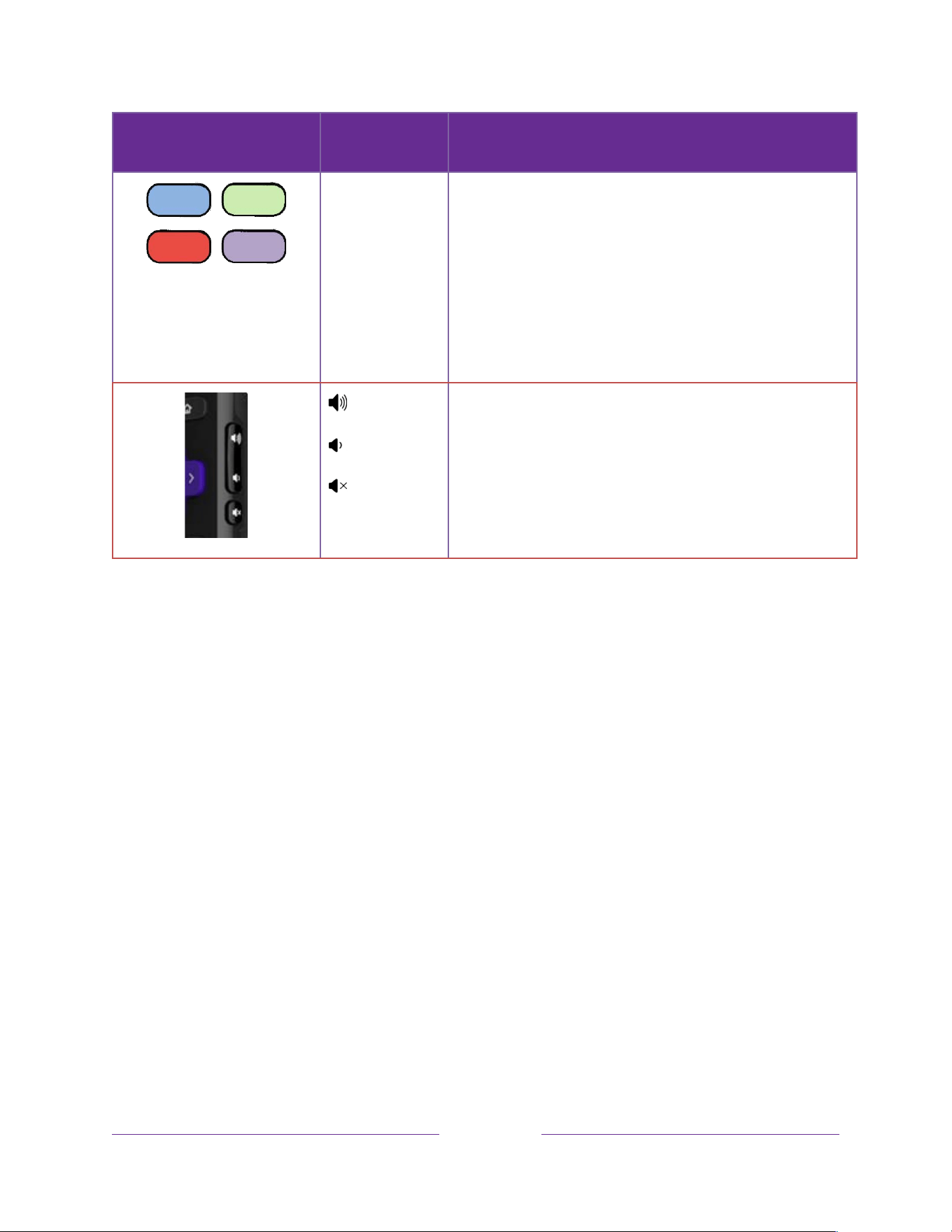
FACTORY ASSIGNED
CHANNEL SHORTCUT
Dedicated buttons show the logo of a preset streaming content
provider. Dedicated content providers vary by model and region.
Pressing a button turns on the TV and also does the following:
• Displays the streaming channel’s main page if you have already
added the channel to your Home screen.
• Displays the streaming channel’s sign-up page if you have not
already added the channel.
UP
DOWN
MUTE
Located on the right edge of the remote. Increases/decreases
volume and mutes the TV sound.

!
!!
16
!
!
!
Panel buttons
Your TV has buttons on the side, bottom, or back panel that perform simple control functions. The TV
panel buttons are not a substitute for the remote, as they do not give you access to all TV functions. The
panel button(s) on some models might be difficult to find. If the location is not obvious, check the
bottom center of the TV behind the status indicator LED, or the back panel of the TV near the lower right
or left side.
Different TV models have different panel button designs. Choose the one that applies to your TV from
the following list:

!
!!
17
!
!
!
BUTTON
DESIGN
FUNCTION
OPERATION
Single button
Power on
Short press (less than 2 seconds)
Power off
Long press (more than 2 seconds)
Input List
Short press when TV is on
Select next input
Short press while Input List displayed, then wait
Dismiss input list
No press (wait)
Two buttons
Normal control functions as listed for
single button models.
Lower button: Same as single button function listed above
Factory reset the TV
Press both buttons for at least five seconds.
Power off
Middle button, short press (less than 2 seconds)
Three buttons
Input List
Middle button, long press (more than 2 seconds)
Select next input
Right button when Input List is not displayed
Dismiss input list
Left button when Input List is not displayed
Input List
Middle button, short press when TV is on
Highlight next input
Right button while Input List is displayed
Highlight previous input
Left button while Input List is displayed
Select highlighted input
Middle button (or wait)
Power on/off
Middle button
Game pad style (5
buttons)
Increase/decrease volume
Up/down button
Input List
Left/right button
Select input
Left/right button while Input List is displayed, then wait
Power on/off
POWER
Four discrete buttons
Input List
INPUT
Select next input
INPUT while Input List is displayed, then wait
Volume up
VOLUME +
Volume down
VOLUME –
Power on/off
POWER
Five discrete buttons
(with mute)
Input List
INPUT
Select next input
INPUT while Input List is displayed, then wait
Volume up
VOLUME +
Volume down
VOLUME –
Mute
MUTE
Power on/off
POWER
Five discrete buttons
(without mute)
Input List
INPUT + or INPUT –
Select next input
INPUT + while Input List is displayed, then wait
Select previous input
INPUT – while Input List is displayed, then wait
Volume up
VOLUME +
Volume down
VOLUME –

!
!!
18
!
!
!
Power on/off
POWER
Seven discrete
buttons
Next channel
CHANNEL + while viewing a Live TV channel
Previous channel
CHANNEL – while viewing a Live TV channel
Input List
INPUT
Select next input
INPUT or CHANNEL + while Input List is displayed, then wait
Select previous input
CHANNEL – while Input List is displayed, then wait
Volume up
VOLUME +
Volume down
VOLUME –
Mute
MUTE

!
!!
19
!
!
!
Guided Setup
With the preliminaries out of the way, it’s time to turn on your TV. As the TV starts for the first time, it
leads you through Guided Setup, which configures the TV before you start to use it.
During Guided Setup, you’ll:
• Answer a few questions
• Provide network connection information
• Get a software update
• Link your TV to your Roku account.
• Connect devices such as a DVD player, game console, or cable box.
Starting Guided Setup
To start Guided Setup, press POWER on the remote to turn on your TV.
Note: Guided Setup normally runs only once, the first time you turn on your TV. If you need to run Guided
Setup again, you must perform a factory reset as explained in Factory reset everything.
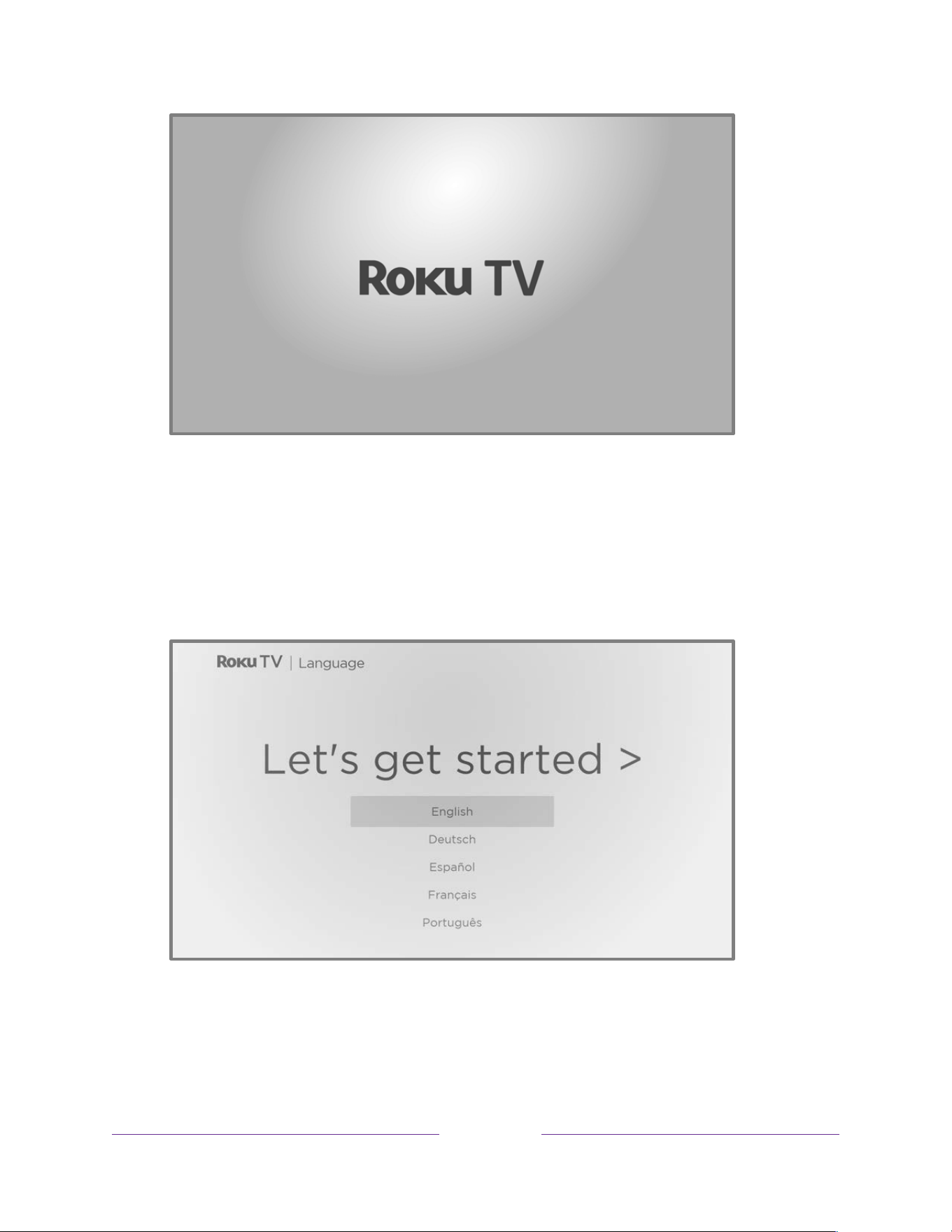
When you first turn on your TV, it will take a few seconds to get itself ready. You’ll notice the following
things happening:
• The status indicator blinks every time the TV is busy doing something; in this case it’s powering
up and getting ready for you.
• A startup screen appears and the status indicator blinks slowly for a few more seconds. The
startup screen shows a TV brand logo while the TV gets ready.
!
!!
20
!
!
!
After a few seconds, Guided Setup starts.
Guided Setup
At this point, you should be seeing the Language screen.
Accessibility: If you have selected English language, you can activate the screen reader, a text-to-
speech assistive device to help you navigate the TV’s menus and commands. To enable the
screen reader, press STAR
Þ
four times in rapid succession. Repeat to disable the screen reader.
!
!!
21
!
!
!
(STAR
Þ
is located directly below the purple directional pad on the right side of the Roku
remote.)
If you enabled the screen reader, choosing any language other than English disables it.
1. Press DOWN on the purple directional pad to highlight your preferred language, and then press
OK.
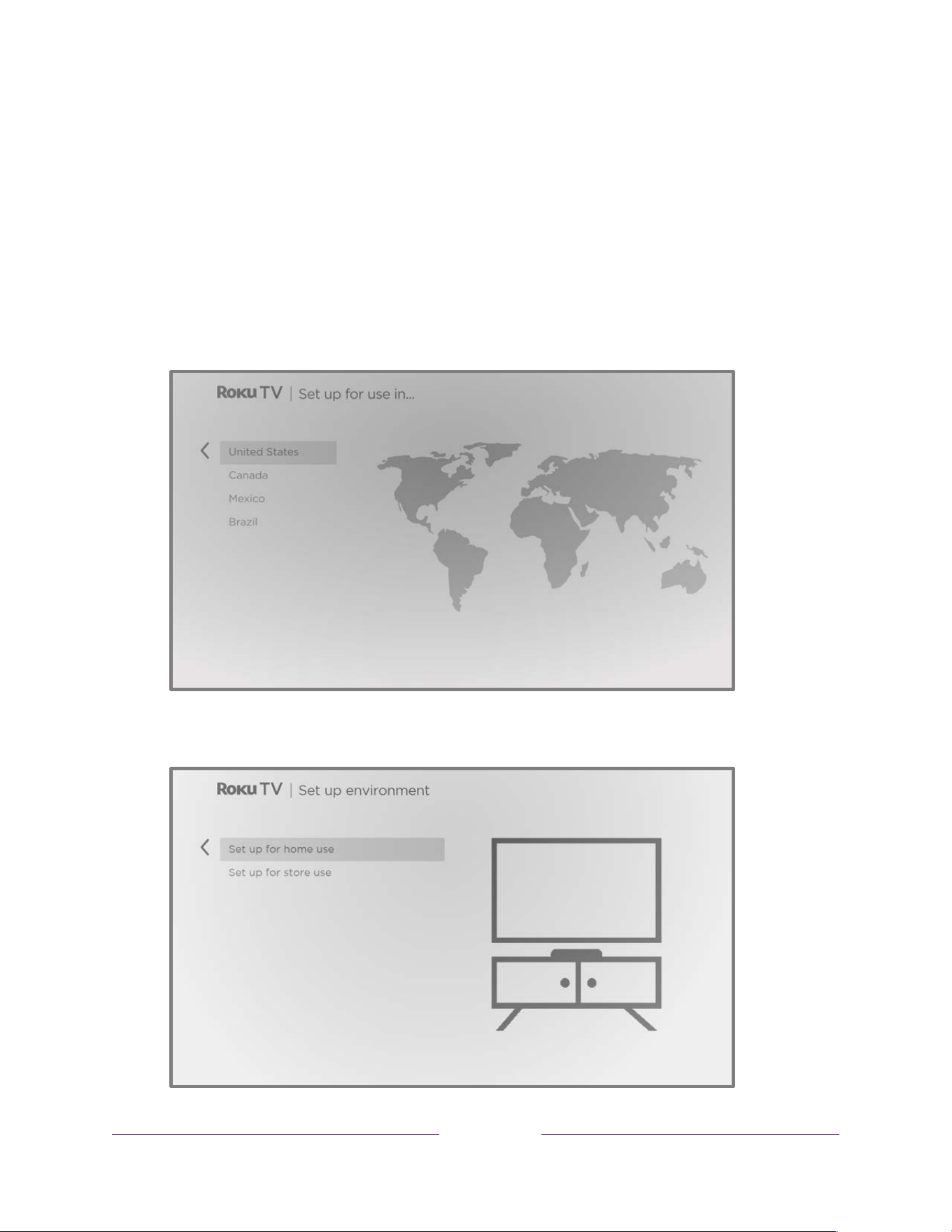
2. Some models have a country selection screen: If you don’t see this screen, skip ahead to the next
step.
If you see this screen, select your country, and then press OK.
!
!!
22
!
!
!
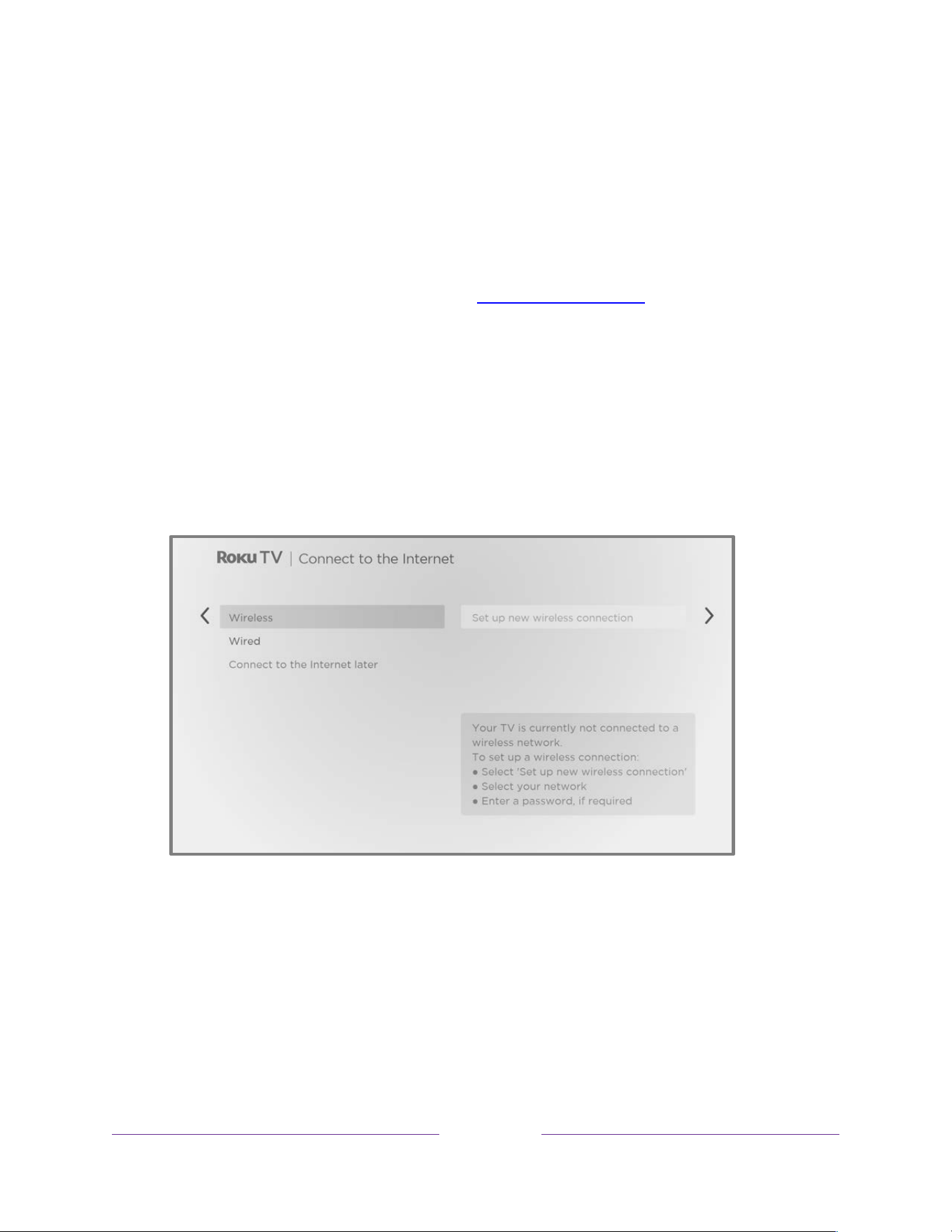
3. Press OK to select Set up for home use. This is the right choice for enjoying your TV at home. It
provides energy saving options as well as access to all features of the TV.
Note: Set up for store use configures the TV for retail display including video and screen overlays
demonstrating the features of the TV. This mode is not recommended for any other use. In store
mode, many features of the TV are missing or limited. To switch from one mode to the other, you
must perform a factory reset as explained in Factory reset everything, and then repeat Guided
Setup.
Network connection
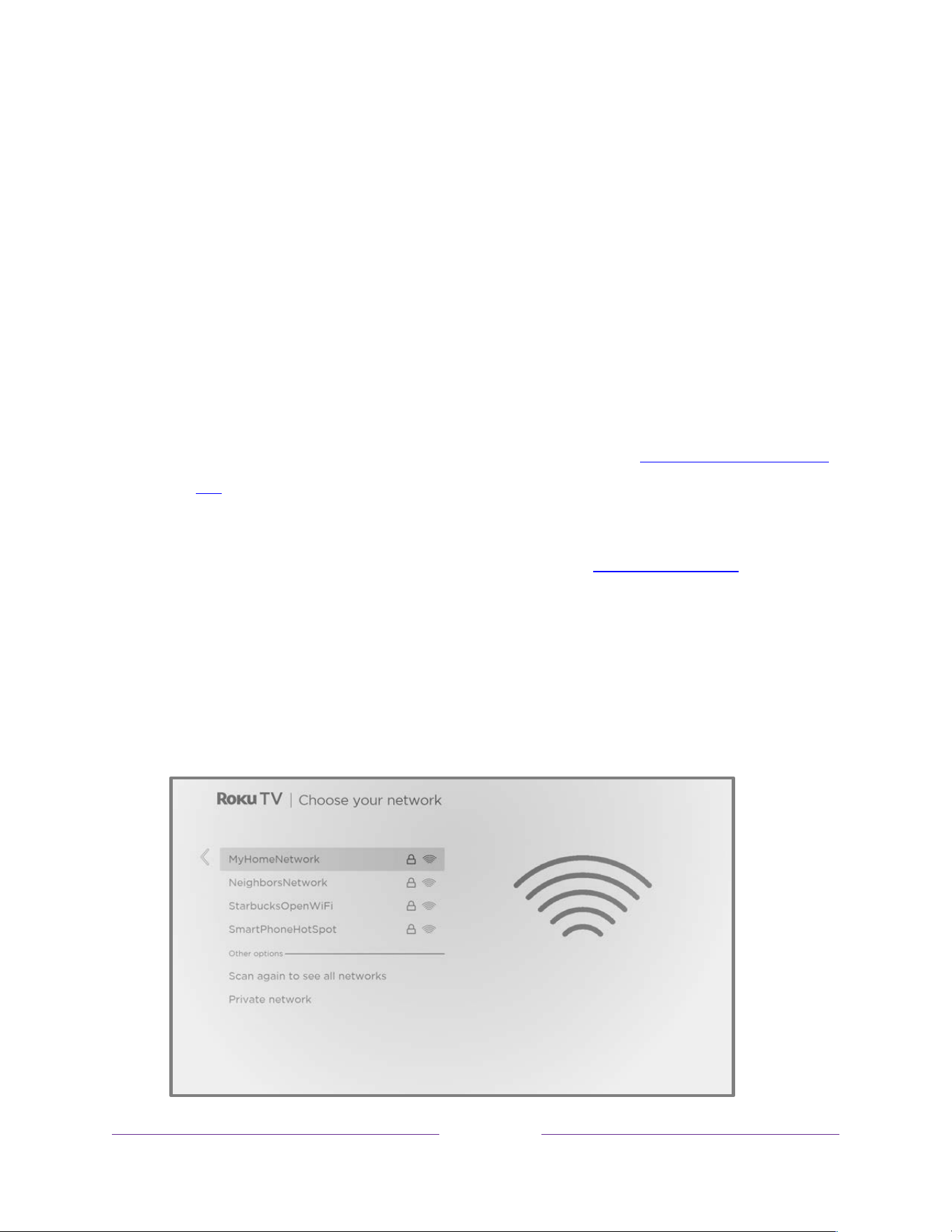
After you select Set up for home use, the TV prompts you to make a network connection. If your TV
has both wired and wireless connections, you’ll see the following screen. If your TV has only wireless
connectivity, skip the following step.
!
!!
23
!
!
!
4. Only on models that display the Connect to the Internet screen: Make a selection:
• Wireless connection – Highlight Set up new wireless connection and press OK. The TV
prompts you through wireless setup. Skip ahead to the next step for help with the process.
• Wired connection – Highlight Connect to wired network and press OK. The TV immediately
attempts to connect to your wired network, your local network, and then the Internet. Go
to Step 9 to continue with Guided Setup.
• Connect to the Internet later (Only on certain models) – Select this option to skip connecting
to the Internet. You can still use the TV to watch live TV channels, and connect your devices
to play games, watch DVDs, or watch content from a cable box or another streaming device.
When you’re ready to connect, it’s easy. We’ll show you how in What if I didn’t connect my
TV?
Note: If you decide not to connect to the Internet, Guided Setup skips ahead to setting up the
devices that you’ve connected to your TV. Jump ahead to Connect your devices to complete
Guided Setup.
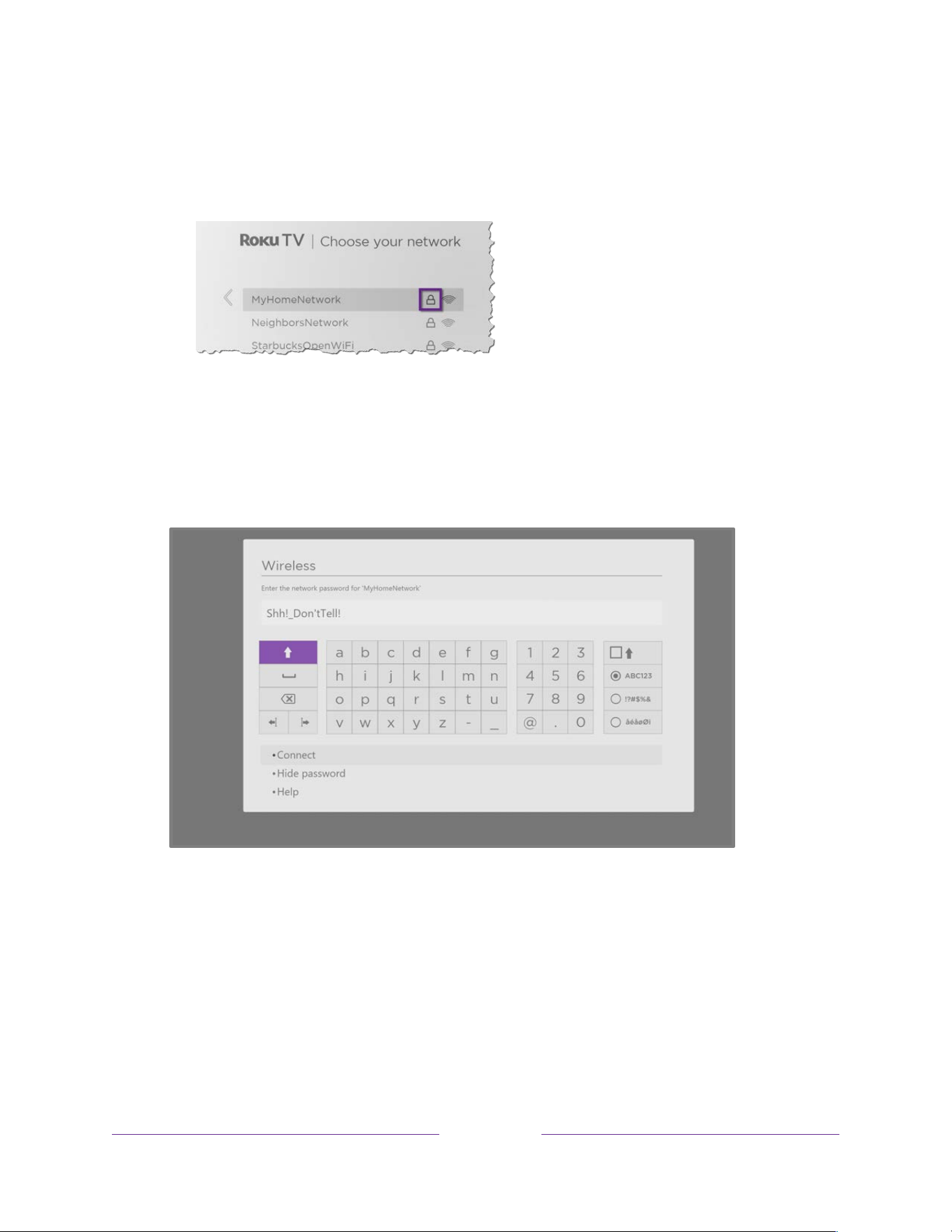
5. On wireless-only models or models with both wired and wireless and you’ve selected Wireless,
the TV scans for the wireless networks within range and displays them in order, with the
strongest signals first. In addition to your own wireless signal, the TV might pick up signals from
your neighbors.

!
!!
24
!
!
!
Press UP or DOWN to highlight the name of your wireless network, and then press OK to select
it.
Note: Some networks, such as those often found in dorm rooms, hotels, and other public places,
require you to read and agree to terms, enter a code, or provide identifying information before
letting you connect to the Internet. If your Roku TV detects that you are connecting to such a
network, it prompts you through the connection process using your smartphone or tablet to
provide the needed information. For more information, see Using your TV in a hotel or dorm
room.
Other options
• Scan again / Scan again to see all networks – The name of this option depends on the
number of wireless networks within range.
• Scan again appears if the list already shows all available wireless networks within range.
If you don’t see your wireless network name in the list, you might need to adjust the
location of your wireless router or the TV, turn on your router, or make other changes.
When everything is ready, select Scan again to see if your network name now appears in
the list.
• Scan again to see all networks appears only if there are more wireless networks than the
ones initially listed. If you don’t see your wireless network name in the list, this option
displays the complete list. If you still don’t see your network name, you might have your
router configured to provide wireless service as a “private network.”
Note: Highlighting either of these options displays an informational panel with the
unique media access control (MAC) address of your Roku TV. You will need the MAC
address if your wireless router is configured to use MAC address filtering.
• Private network – If your wireless network name is hidden, it won’t appear in the list. Select
Private network and then press OK to display an on-screen keyboard. Use the keyboard to
enter your network name. Unless you changed the factory-set network name, you can find
the name (also called SSID) on a label on the router.
!
!!
25
!
!
!
Tip: Wireless networks that are password-protected display a “padlock” icon adjacent to the
name. This icon enables you to know that you are going to be prompted to enter a password
after you select that network.
6. Unless you are connecting to an open wireless network, an on-screen keyboard appears. Enter
your wireless network password by using the purple directional pad to navigate the keyboard
and pressing OK to select a highlighted letter, number, or symbol. When you finish, press DOWN
to select Connect, and then press OK.
After you select Connect, the TV displays progress messages as it connects to your wireless
network, your local network, and the Internet.
!
!!
26
!
!
!
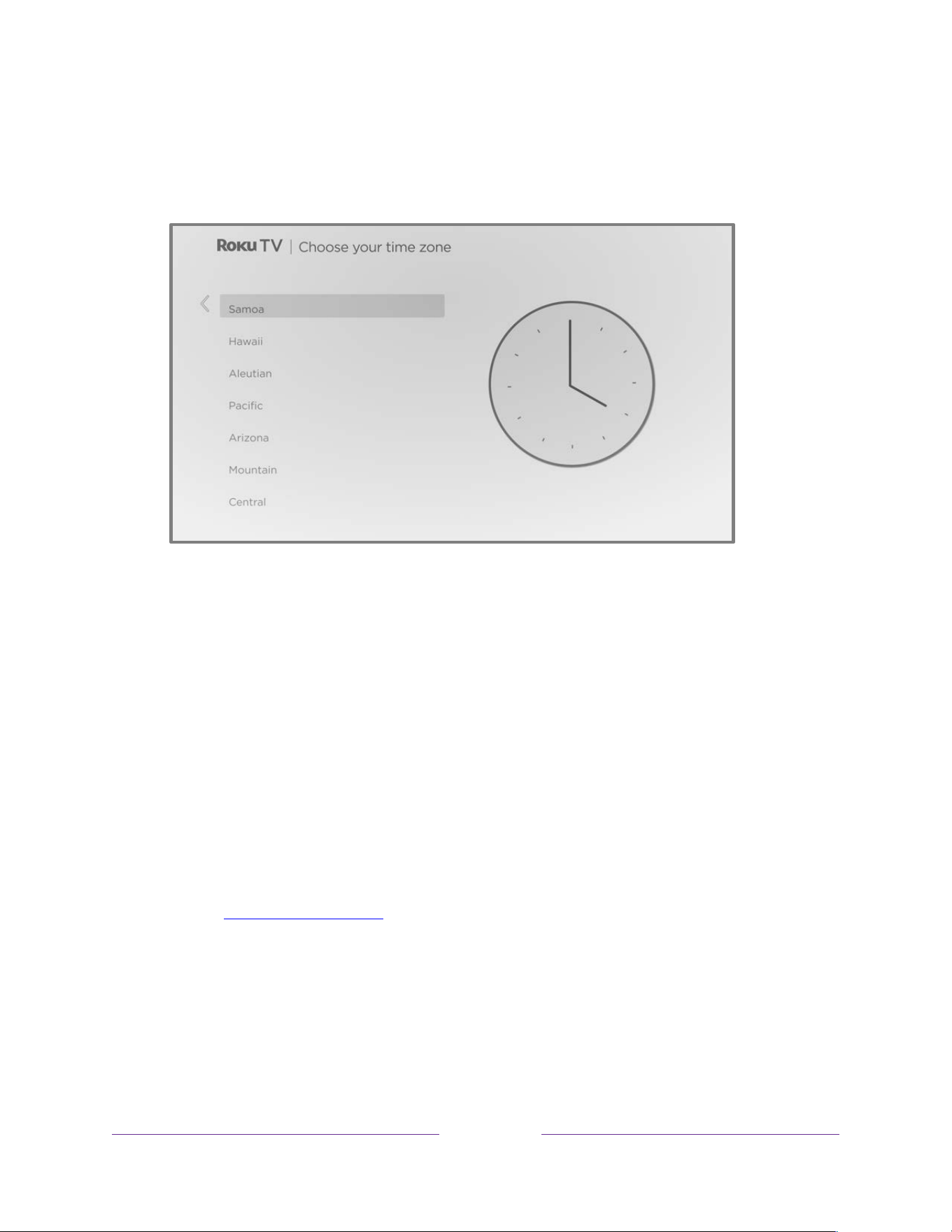
7. Only if your TV cannot get the correct time zone and current time from your network service
provider: The Choose your time zone screen appears. Press UP or DOWN to highlight your time
zone, and then press OK.
Tips: Your TV needs to know the local time zone so that it can correctly display information about
the program you are currently watching.
Your TV automatically checks for updates periodically. These updates provide new features and
improve your overall experience with the TV. After an update, you might notice that some
options have moved, and that there are new options or features. Note that certain features of
the TV might change from time to time independently of Roku TV updates.
To determine your current Roku TV software version, go to Settings > System > About after you
complete Guided Setup. You can download an updated User Guide for the latest software version
from the Roku TV web site at:
go.roku.com/tvmanual
Activation
After the TV restarts, it prompts you through activation. Note that you may need to supply your
email address to activate your TV.
8. To begin the activation process, either:

!
!!
27
!
!
!
• Using a smartphone or tablet with an Internet connection, scan the QR code that appears on
your screen, go to the indicated link, and complete the activation process.
• Enter your email address on the TV when prompted, and then use a computer, tablet, or
smartphone with an Internet connection to receive the resulting email. Follow the
instructions in the email to complete the activation process.
Note: Beware of scams. Roku never charges for activation support. For detailed information, see
the Roku support article, How to protect yourself from activation and technical support scams
Why do I need a Roku account?
You need a Roku account for several reasons:
• It links you, your Roku TV, and your other Roku streaming devices to the Roku Store and billing
service.
• Streaming content providers know that it’s OK to send content you request to your Roku TV.
• Roku can automatically update your TV with the latest features.
You need a Roku account to activate your device and access entertainment across thousands of streaming
channels. Linking to a Roku account also activates several advanced features on your TV, such as Guest
Mode, the Roku mobile app, and Live TV Pause, to name just a few. Roku accounts are free. Providing
payment information during signup makes renting, purchasing, and subscribing to entertainment from the
Roku Store fast and convenient.
After you activate your TV, it gets an acknowledgement from Roku and then adds your newly-
selected and pre-existing streaming channels from other Roku devices on the same account.
This process is automatic and takes a few moments—a little longer if you have added a lot of
streaming channels.
Tip: Roku periodically synchronizes streaming channels among all of the devices associated with
your account. Therefore, adding or removing a channel from one of your Roku devices adds or
removes it from all of your other Roku devices (subject to compatibility with the device).
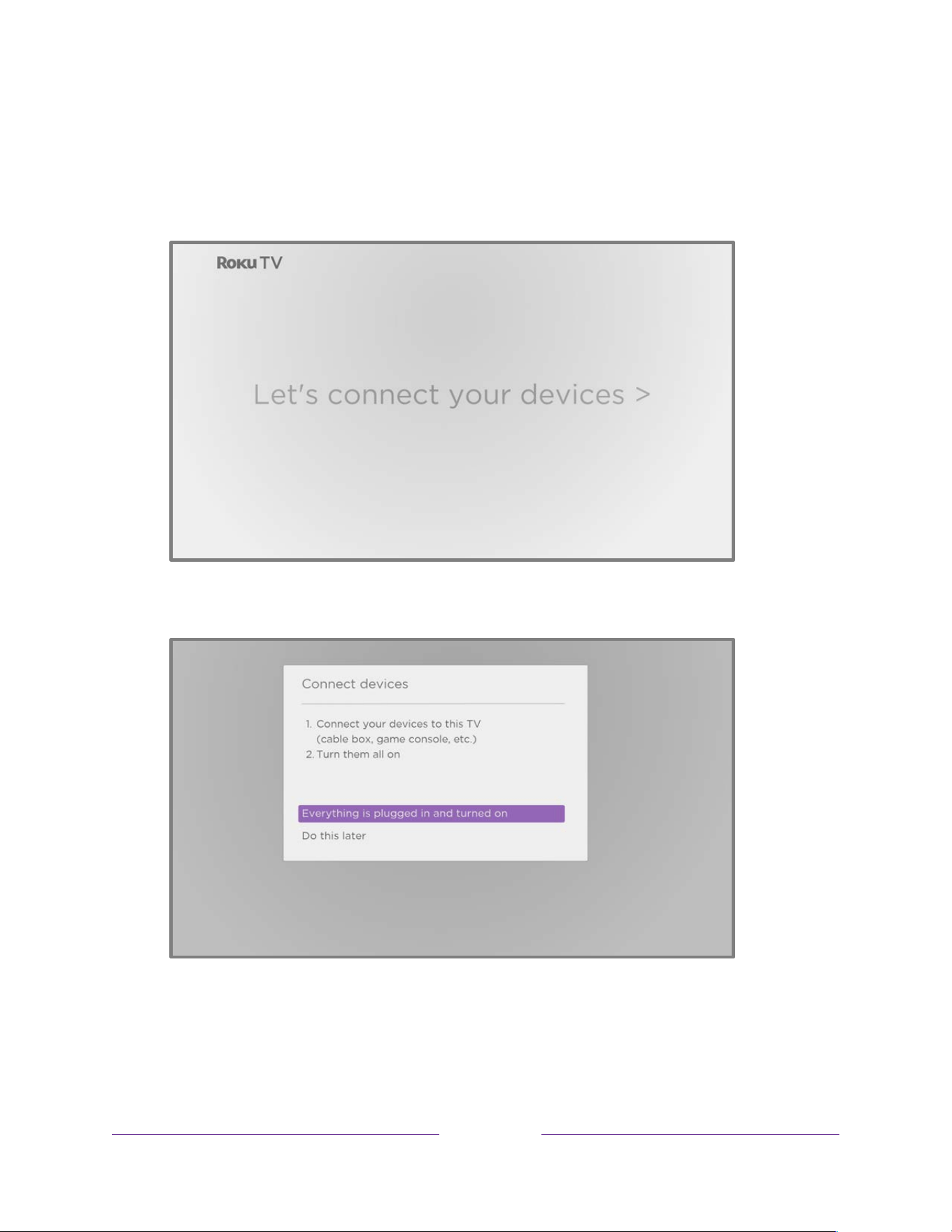
!
!!
28
!
!
!
Connect your devices
Next, Guided Setup helps you set up the external devices that you want to use with it, such as a
cable box, Blu-ray™ player, or game console.
9. Press OK to proceed:
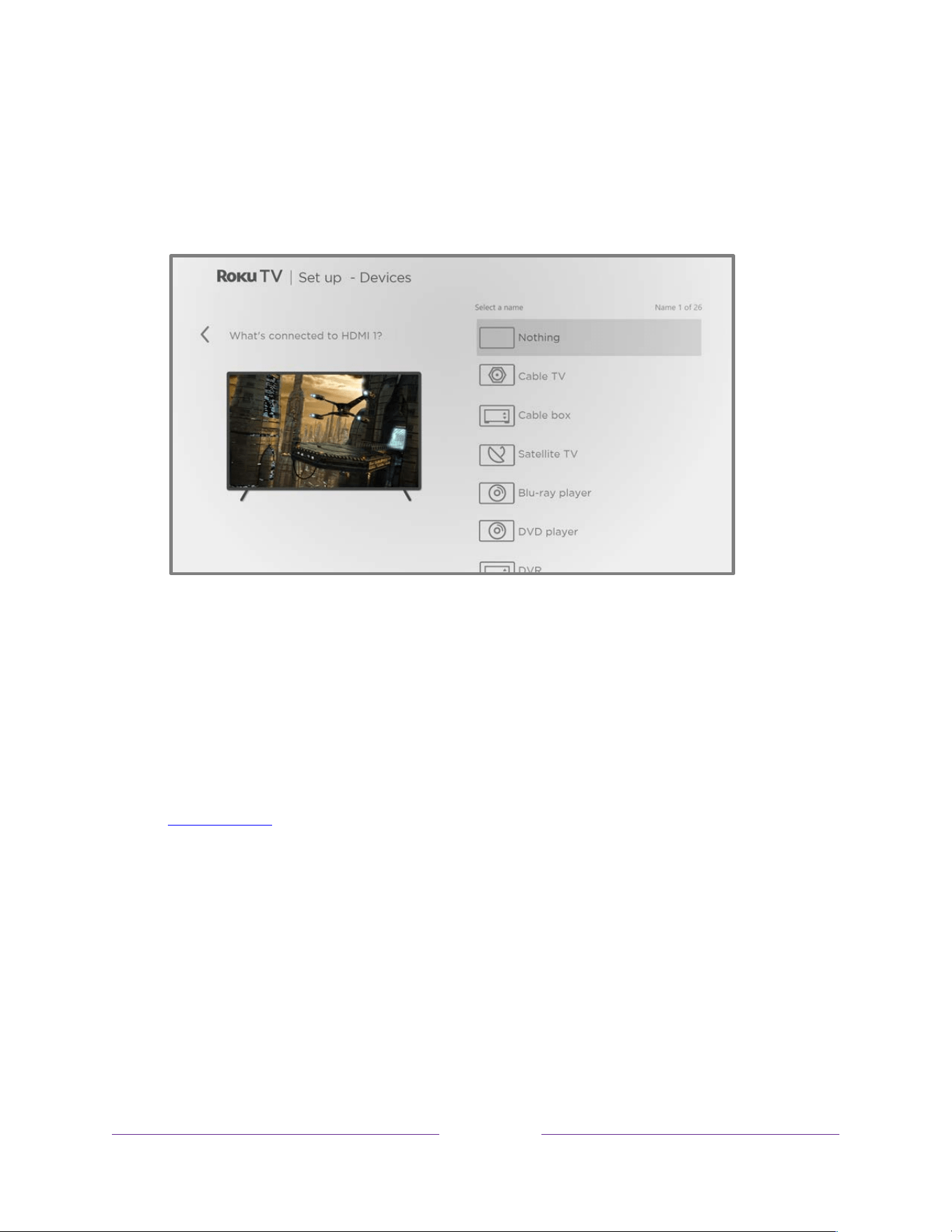
!
!!
29
!
!
!
10. Connect all the devices you plan to use with your TV, turn them all on, and then select
Everything is plugged in and turned on. The TV now takes you step by step through each of its
inputs and asks what kind of device you have connected. For each input that has a connected
and active device, you can see its picture and hear its sound.
11. Press UP or DOWN to highlight the label you want to associate with the input, and then press
OK. If you are not using the input, select Nothing, and the input won’t appear on the Home
screen.
12. While setting up your devices, rather than using the predefined names and icons, you can set a
custom name and icon. To do so, scroll up or down to highlight Set name & icon, and then press
OK. Follow the instructions on the screen to enter a name and select an icon for the input. See
Rename inputs for more information.
Note: If you specify a custom name for an input, voice commands will not reliably switch to that
input. Voice commands typically can only switch among inputs that use built-in names, such as
“AV,” and “Cable Box,” and “DVR.”
13. Repeat the previous step for each input.
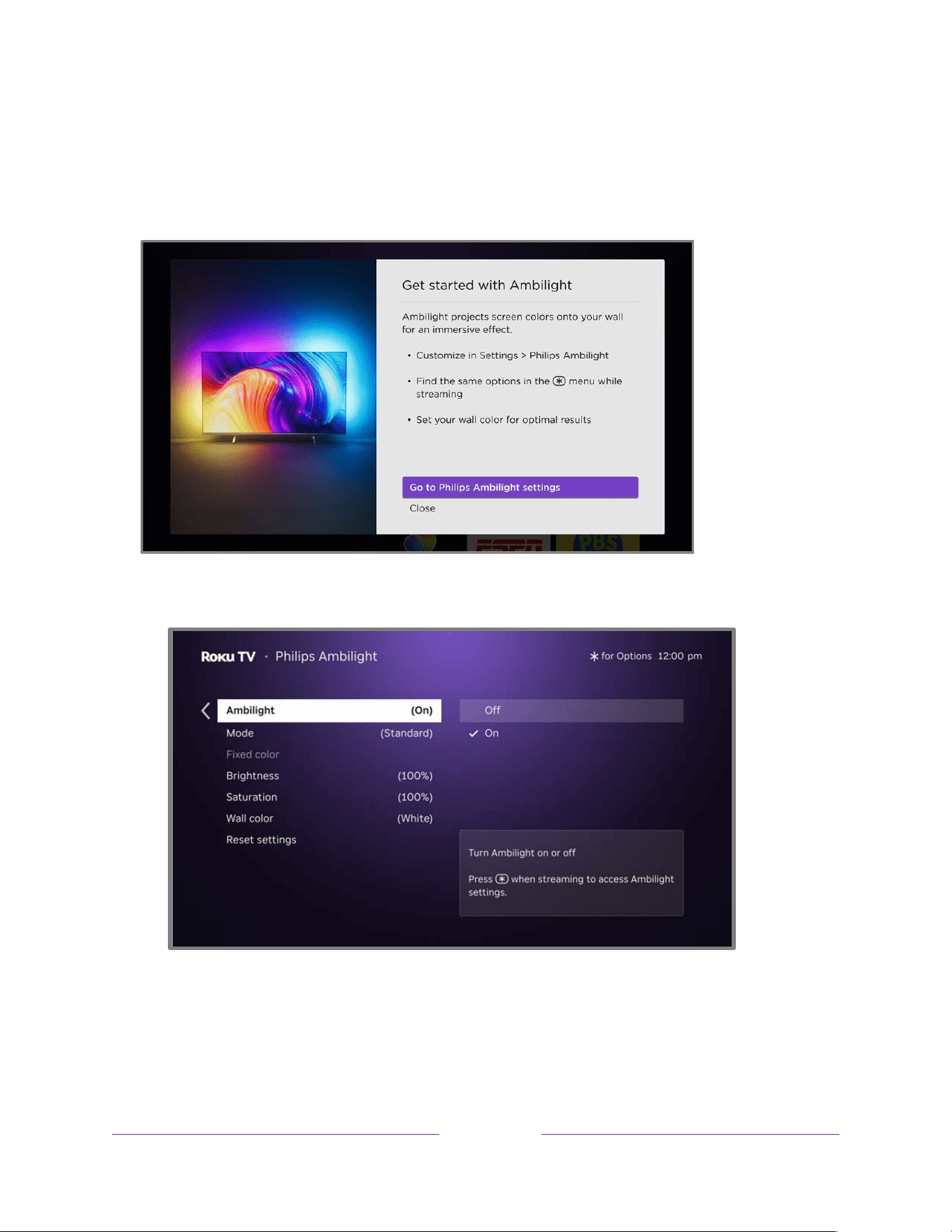
!
!!
30
!
!
!
Philips Ambilight settings
Because your TV features the unique Philips Ambilight technology, you’ll next be shown the Philips
Ambilight options where you can configure the Ambilight TV settings for your room.
14. For the best possible Ambilight experience, navigate down and select Wall color.
15. From the available options, select the wall color that most closely matches the wall color behind
your TV, and then press OK.
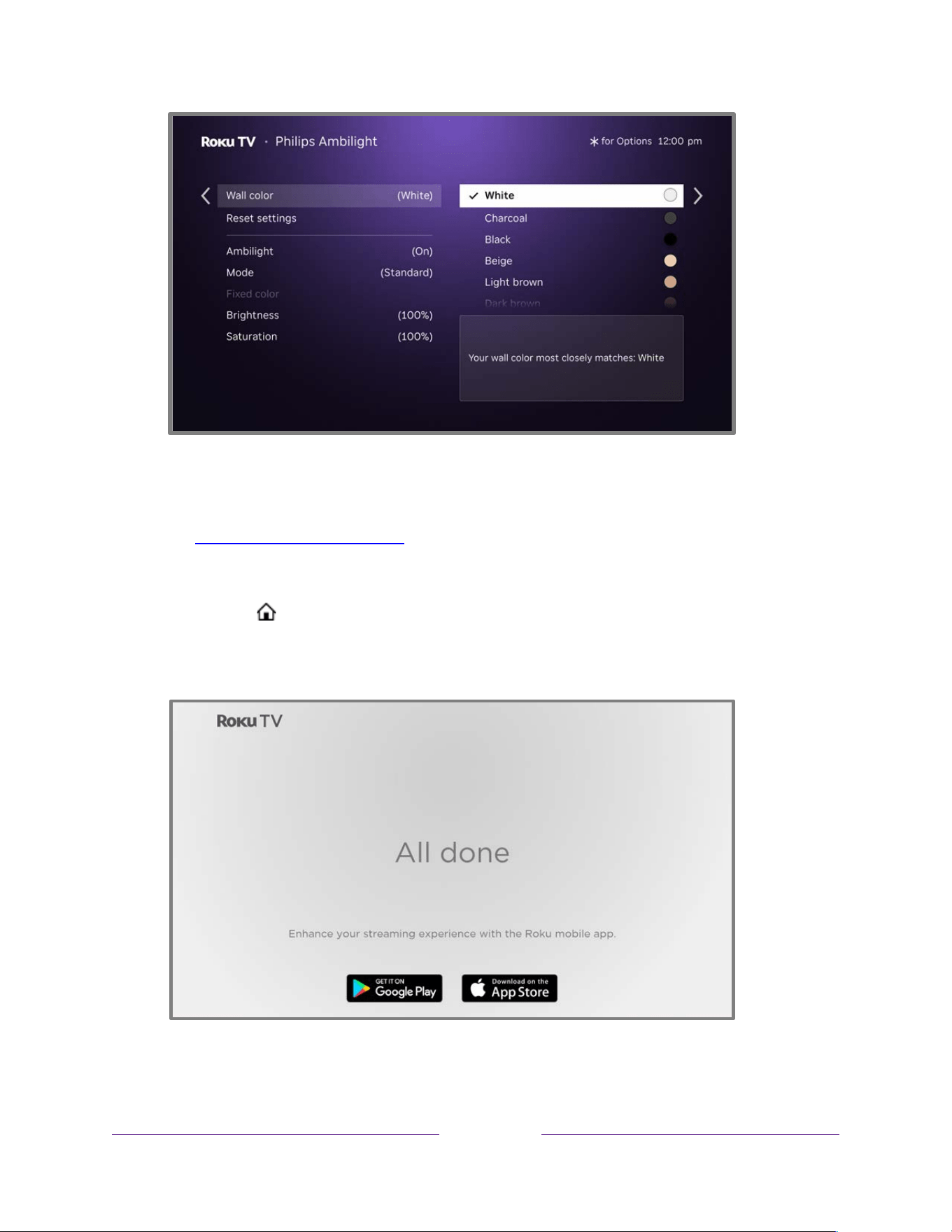
!
!!
31
!
!
!
16. While in the Philips Ambilight options, you can experiment with other settings such as
Brightness and Saturation to fine tune your experience, For complete details of these settings,
see Configuring your Ambilight TV.
17. After you have selected your wall color and made other choices, you’re done with Guided Setup.
Press HOME to exit setup and return to the Home screen.
You’re done with Guided Setup.

!
!!
32
!
!
!
From here, you can explore everything your TV has to offer. Use the purple directional pad to move
around, and then press OK to select a highlighted item. Press HOME from whatever you are viewing
to return to the Home screen.
We’ve designed the TV to encourage you to explore, and you can probably figure out most of the
capabilities and settings on your own. If you have any questions or difficulties, you can find answers and
solutions in this guide.
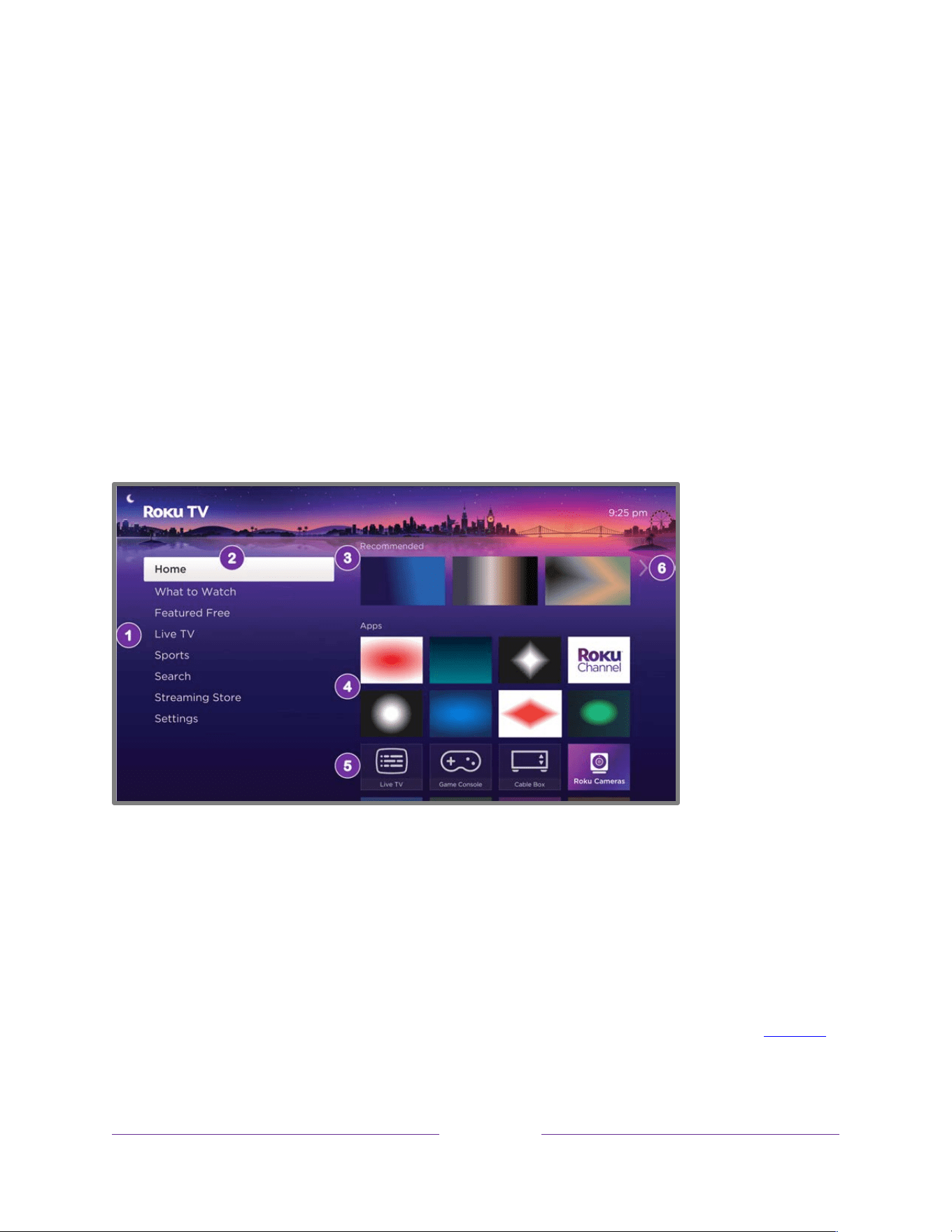
!
!!
33
!
!
!
The Home screen
The following illustration shows a typical Home screen. The Home screen you see on your TV will vary
depending on your location, theme, the number of TV inputs you’ve enabled, and the streaming
channels and apps you’ve added.
Note: A paid subscription or other payments may be required for some channel content. Channel
availability is subject to change and varies by country. Not all content is available in all countries or
regions where Roku
®
products are sold.
Typical Home screen
Note: The options appearing in the left navigation area vary by geographic location and might change
from time to time.
1. Home Screen Menu – shows options available to you when you are on the Home screen. Actual options vary
depending on your Home screen settings and on periodic updates by Roku.
2. Highlighted option – press OK to select.
3. Recommended row – highlights programs based on your viewing history.
4. Apps and streaming channels – select a tile to start watching. Add more streaming channels by using the Roku Store.
5. TV inputs – highlight and press OK to watch an input.
6. Next screen hint – press RIGHT to see the next screen.

!
!!
34
!
!
!
Customize your Home screen
There are many things you can do to customize your Home screen and make it just right for you and
your family:
• Add streaming channels by using the Streaming Store menu option to browse the Roku Store.
• Change the screen theme by going to Settings > Themes to find and pick one to suit your mood.
• Customize the Home screen. Hide or show the shortcut items and options that appear in the
Home Screen Menu.
• Remove an item by highlighting it and pressing STAR Þ. Then highlight Remove input or Remove
channel and press OK.
• Rearrange inputs and channels by highlighting a tile and pressing STAR Þ. Then highlight Move
input or Move channel and press OK. Use the purple directional pad to move the item, and then
press OK to lock it in its new location. Move the shortcuts within the shortcut area only.
Shortcuts are designed to always appear at the very bottom of the grid, so you can access them
quickly by pressing UP once when you’re at the top of the grid.
• Rename a TV input by highlighting it and pressing STAR Þ. Then highlight Rename input and
press OK. Highlight a new name in the list, and then press OK to assign that name.
Rather than using the predefined names and icons, you can set a custom name and icon. To do
so, scroll up or down to highlight Set name & icon, and then press OK. Follow the instructions on
the screen to enter a name and select an icon for the input.
Note: If you specify a custom name for an input, voice commands might not reliably switch to
that input. Voice commands typically can only switch among inputs that use built-in names, such
as “AV,” and “Cable Box,” and “DVR.”
• Only on channels that you have subscribed through your linked Roku account, manage your
subscriptions by highlighting a streaming channel and pressing STAR Þ. Then highlight Manage
subscription and press OK. Select Cancel subscription and then follow the instructions to confirm
your cancellation.

!
!!
35
!
!
!
Setting up live TV
In addition to the other entertainment possibilities of your Roku TV, you might want to watch broadcast
channels from an antenna or cable TV provider connected to the ANT/CABLE input. On your Roku TV,
you can watch broadcast TV in much the same way you watch other entertainment choices: select the
Live TV input on the Home screen.
The first time you select the Live TV input, you have to set up the TV tuner. Setting up the TV tuner scans
for active channels and adds them to your Live TV channel list.
Why do I have to set up the TV tuner?
Not everyone needs to use the TV tuner. For example, you might have a set top box provided by a cable or satellite
company that receives all of your channels. Most of these set top boxes use an HDMI
®
connection.
More and more people are watching only streaming TV and do not have a TV antenna or cable/satellite service. If
you don’t need the TV tuner, you can bypass setting it up and instead remove it from the Home screen as
explained in Remove unwanted inputs and channels.
When you set up live TV, the TV scans the signals on its antenna input for channels with a good signal, and adds
those to the channel list, skipping dead channels and channels with a very weak signal.
How do I set up the TV tuner?
1. Make sure your antenna or TV cable (not provided) is connected to the TV’s ANT/CABLE input.
2. On the Home screen, select the Live TV input. If it is not on your Home screen, go to Settings >
TV Inputs to add it. If you have already performed a channel scan, press STAR Þ while the Live
TV input tile is highlighted, and then select Scan for channels.
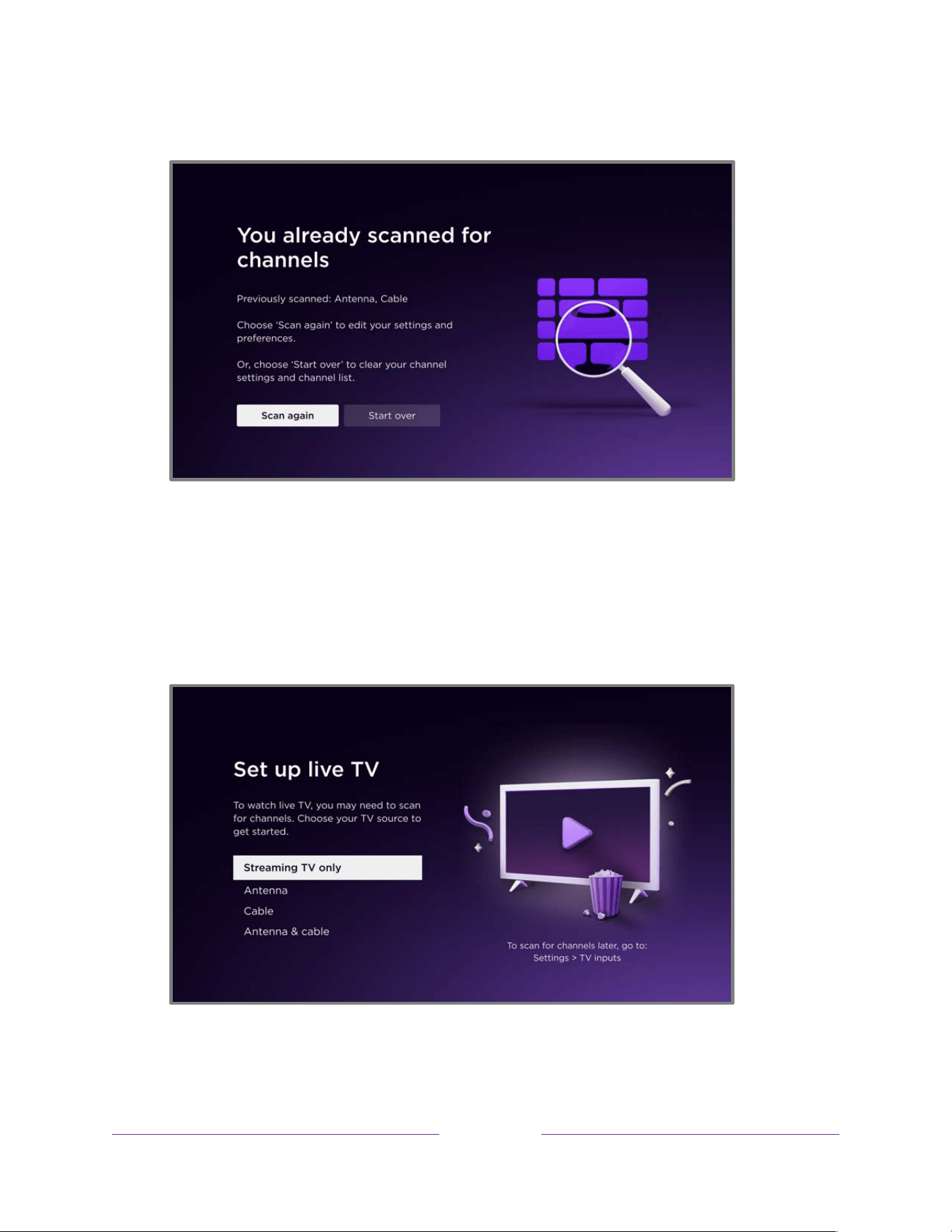
!
!!
36
!
!
!
3. Only if you have previously completed a channel scan, the following screen appears:
Choose one of the options:
• Scan again – Scans for more channels to add to your existing channel list. Preserves your
favorites and hidden channels.
• Start over – Clears your channels and replaces them with a new channel list.
4. Use the purple directional pad to select the appropriate option, and then press OK.
• Streaming TV only – Adds only Roku live streaming channels.
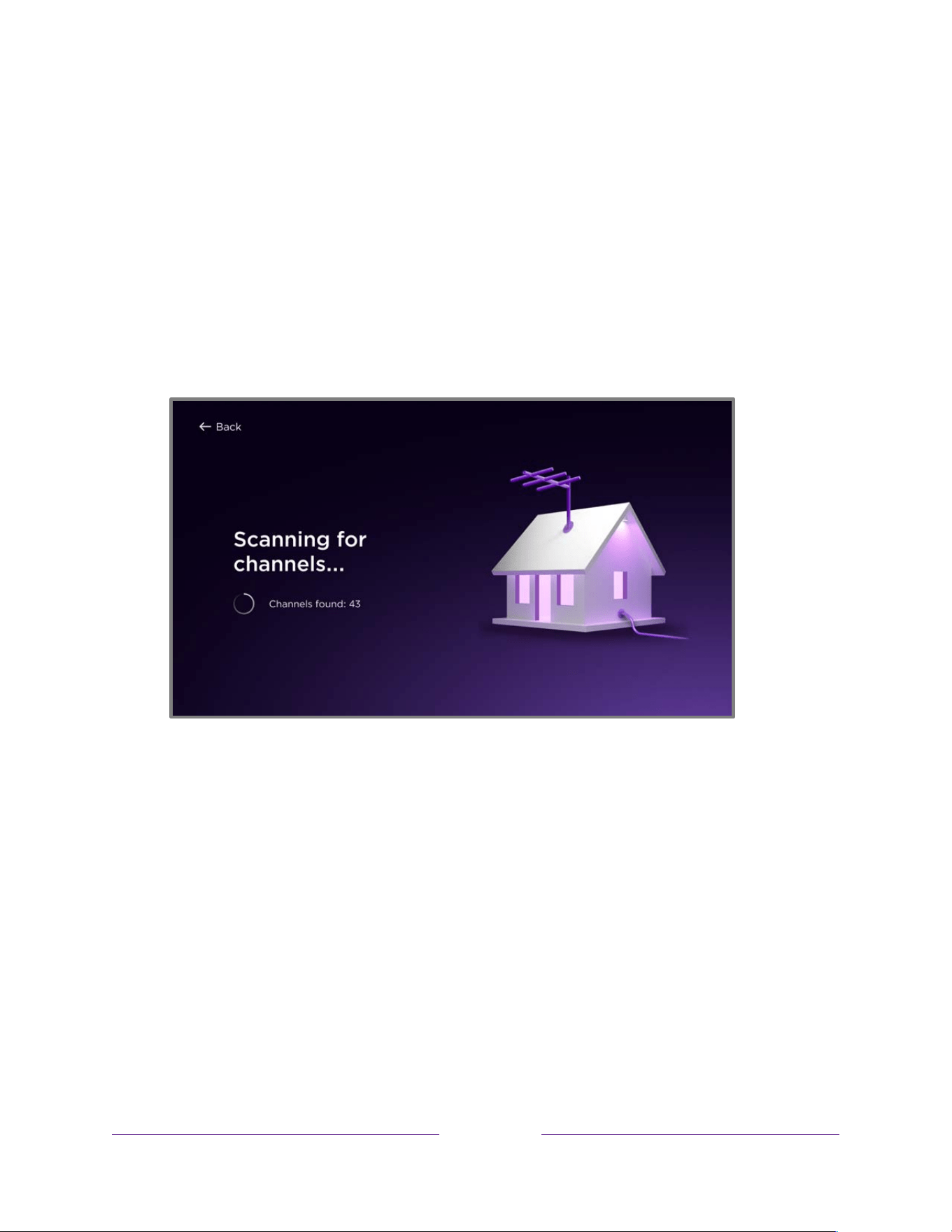
!
!!
37
!
!
!
• Antenna – Scans and adds over-the-air antenna channels in addition to adding Roku live
streaming channels.
• Cable – Scans and adds channels from your cable TV provider in addition to adding Roku live
streaming channels.
• Antenna & cable – Scans and adds both over-the-air and cable channels in addition to
adding Roku live streaming channels.
5. Wait while your TV scans for channels.
Scanning for channels can take several minutes.
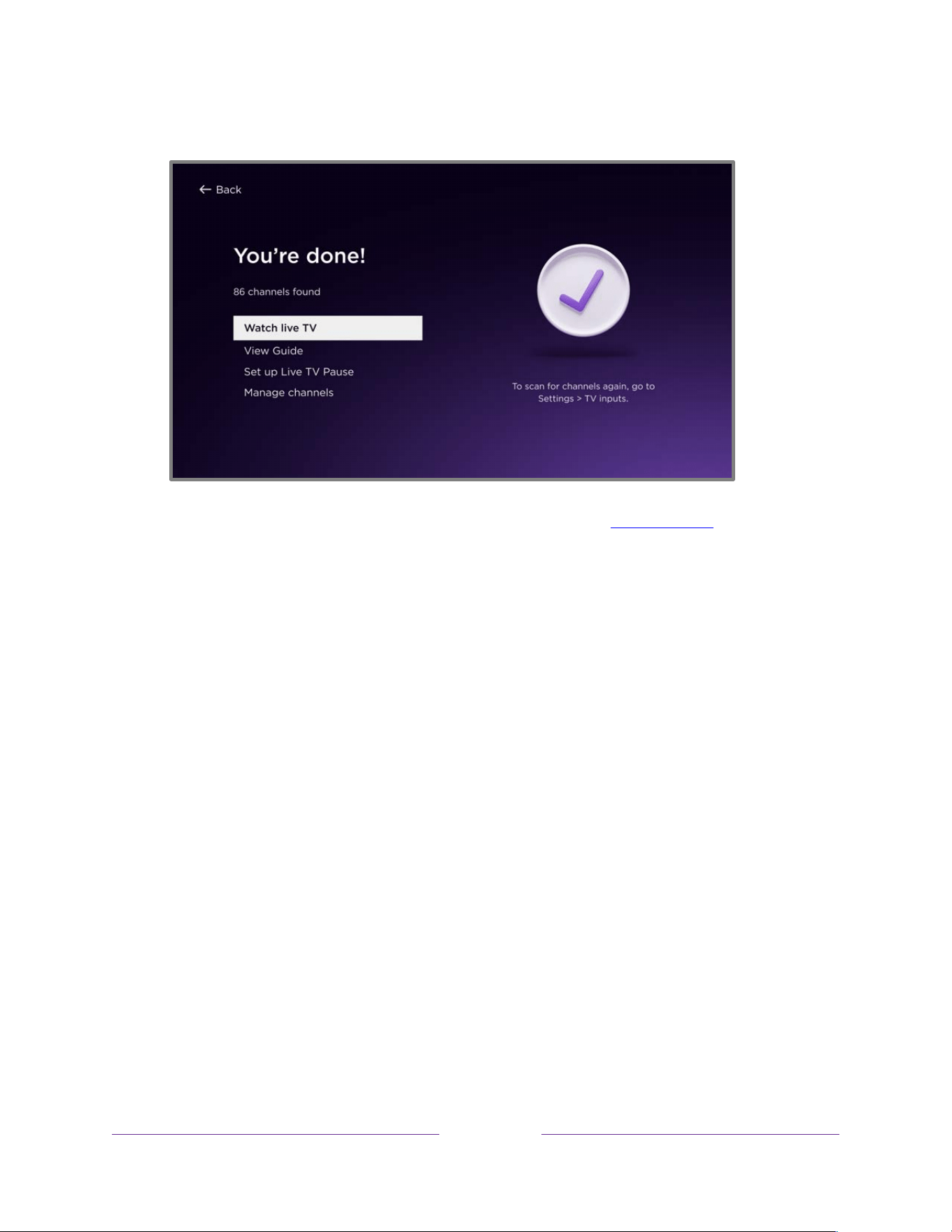
!
!!
38
!
!
!
6. When the channel scans finish, the screen shows the number of channels found.
7. Only on certain models, you can set up Live TV Pause. The topic Pausing live TV explains how to
set up and use this feature. If you don’t want to set up Live TV Pause right now, or if this option
is not available to you, select one of the other options.
Tip: Repeat the channel scan from time to time to make sure you are receiving all of the latest
channels. Broadcasters and cable providers add and remove channels, move channels to different
parts of the spectrum, and change the power levels of their channels periodically. Your reception and
picture quality depend on the position of your antenna and on your location relative to the antennas
of broadcasters in your area. To repeat the channel scan, use the purple directional pad to highlight
the Live TV input, press STAR
Þ
, select Rescan for channels, and then press OK.
You’ll also have to repeat the channel scan if you remove and re-add the Live TV input to the Home
screen or perform a factory reset.

!
!!
39
!
!
!
Now, you’re ready to watch live TV! While you’re watching, try the following tips:
• Press UP or DOWN to change channels.
• Press LEFT to display the Live TV Channel Guide, and then press UP or DOWN to select a channel
to watch. Or press REWIND or FAST FWD to jump through the Live TV Channel Guide a
page at a time.
• Press OK to display information about the current program.
• Press STAR Þ to see options for picture and sound settings.
• Use the Roku mobile app, Google Assistant, or Amazon Alexa to search for programs by title,
actor, director, or genre. The TV or the Roku mobile app displays the results along with the
streaming channels that offer the requested content.

!
!!
40
!
!
!
Using your TV
This section provides information on using the day-to-day features of your TV.
Status indicator
Your TV has a single status indicator. It goes on and off and blinks in different ways depending on the
status of the TV, as shown in the following table:
TV CONDITION
STATUS INDICATOR
MEANING
On (screen is active)
Off
Screen is communicating that TV is on.
Screensaver (screen is active)
Off
Screen is communicating that TV is on.
Off (no power)
Off
TV is not connected to power.
Off (standby)
On
TV is connected to power and is ready to use.
Starting up from off state
Slow pulsing blink until startup
completes
TV is doing something.
On (receiving update from USB)
Slow pulsing blink until update
completes
TV is doing something.
Remote command received
Dims on/off once
TV has received your command.
Network connection lost
Two short blinks, pause, repeat
TV was connected and paired with a Roku
account and now has no network connection.
Powering down to standby mode
Slow pulsing blink until the TV
reaches standby.
TV is doing something.
In standby mode, as long as the TV has power, the status indicator normally remains lit. If you prefer,
you can turn the status indicator off when the TV is in standby mode. To change this setting, from the
Home Screen Menu, navigate to Settings > System > Power, and then select Standby LED. Press RIGHT
and then select Off or On, as desired.
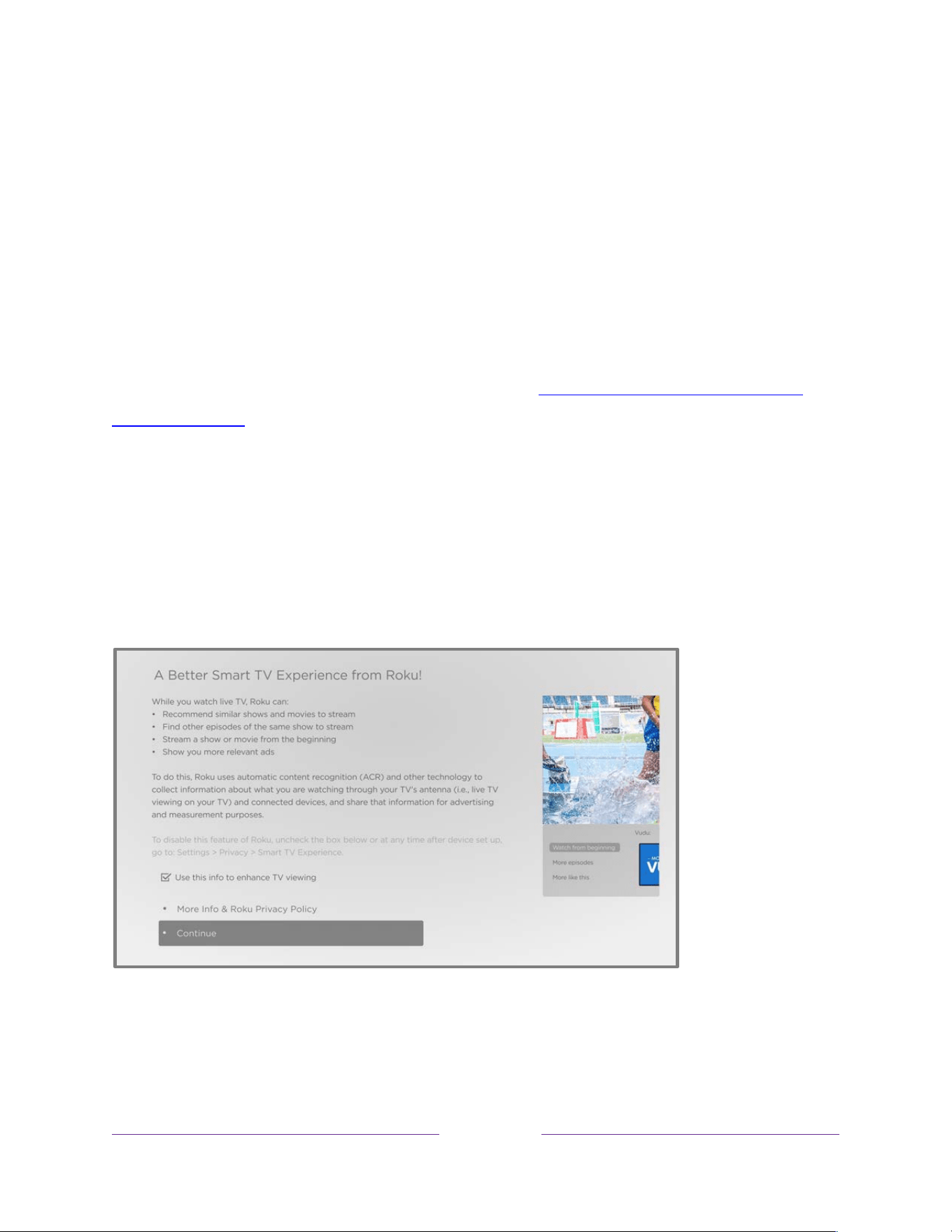
!
!!
41
!
!
!
Standby mode energy savings
If your TV is configured for maximum power savings, turning off your TV keeps it in a higher power mode
for a few minutes, after which it goes into a very low power standby mode. If you turn on the TV again
before it has entered the very low power mode, it turns on immediately. After the TV goes into the
lower power standby mode, it takes a few seconds to start up.
Only on certain models: To enable charging or powering a device from a USB port on the back of your TV
(for example, to conveniently charge your mobile phone or power a streaming device), you must
configure the appropriate USB power options as explained in Charging your Roku Voice Remote Pro
from a TV USB port.
Opting in to Smart TV experience
The first time you select live TV, an HDMI input, or AV input, your TV offers to enable the Smart TV
experience. If you decide to enable it at this time, you’re all set to enjoy its recommendations and
features.

!
!!
42
!
!
!
The Smart TV experience uses automatic content recognition (ACR) and other technology to collect
information about what you watch on live TV, and on devices like media players and cable boxes
connected to the HDMI or AV inputs. Opting in means that you give permission to analyze the programs
you watch for the purpose of making recommendations, as well as showing ads that are more relevant
to you.
If you decide not to enable the Smart TV experience at this first opportunity, you can enable it later. Or,
if you decide you’d rather not use the feature, you can disable it, but be aware that previously collected
information is retained and not deleted.
Opting out of the Smart TV experience
If you decide you want to opt out Smart TV experience after you have opted in, follow these steps:
1. From the Home Screen Menu, go to Settings > Privacy > Smart TV experience.
2. Navigate to the right to highlight Use info from TV inputs.
3. Press OK on the remote to clear the check box.
Disabling Auto Notifications
If you want to keep the Smart TV experience enabled, but you do not want to see notifications while you
are watching programs, you can disable notifications. To do so, follow these steps:
1. From the Home Screen Menu, go to Settings > Privacy > Smart TV experience.
2. Navigate to the right to highlight Use info from TV inputs.
3. Press DOWN to highlight Enable auto notifications.
4. Press OK to clear the check box.
Note: These settings do not affect recommendations for More Ways to Watch that you see in the Live TV
Channel Guide when watching live TV channels. Those recommendations show up only in the Live TV
Channel Guide and do not rely on ACR technology.

!
!!
43
!
!
!
Watching live TV channels
Select the Live TV input on the Home screen. Your TV remembers the last channel you watched and
starts with that channel playing.
Changing channels
To change channels, you can do any of the following:
• Press UP to change to the next higher channel.
• Press DOWN to change to the next lower channel.
• Press LEFT to display the Live TV Channel Guide, and then press the arrow keys to select the
channel or program you want to watch. Press REWIND or FAST FWD to move through
the list one page at a time. When you’ve highlighted the channel or program you want to watch,
press OK. (If you decide you don’t want to change channels, press BACK .)
• Only if Live TV Pause is not enabled, press REPLAY to jump to the previous channel. Press
again to return to the channel you were watching before you pressed REPLAY .
Using the Live TV Channel Guide
Use the Live TV Channel Guide to find both over-the-air and live streaming TV programs. The Live TV
Channel Guide lets you scroll through all the TV channels you receive (except those you have hidden, if
any), plus a large number of live streaming programs. You can see what’s on right now and the
upcoming 14 days.
For live, over-the-air TV programs, you can use More Ways to Watch to find the program you’re
watching and start watching it from the beginning from one of your streaming channels. Your clue that
there are More Ways to Watch a program is a purple star (Þ) next to the program name in the guide.
For example, you might turn on your TV at 10 minutes past the hour and discover you are missing the
current episode of the program you wanted to watch. But there is a purple star next to the program
title, so you can press STAR Þ and learn that there are several streaming channels where you can watch
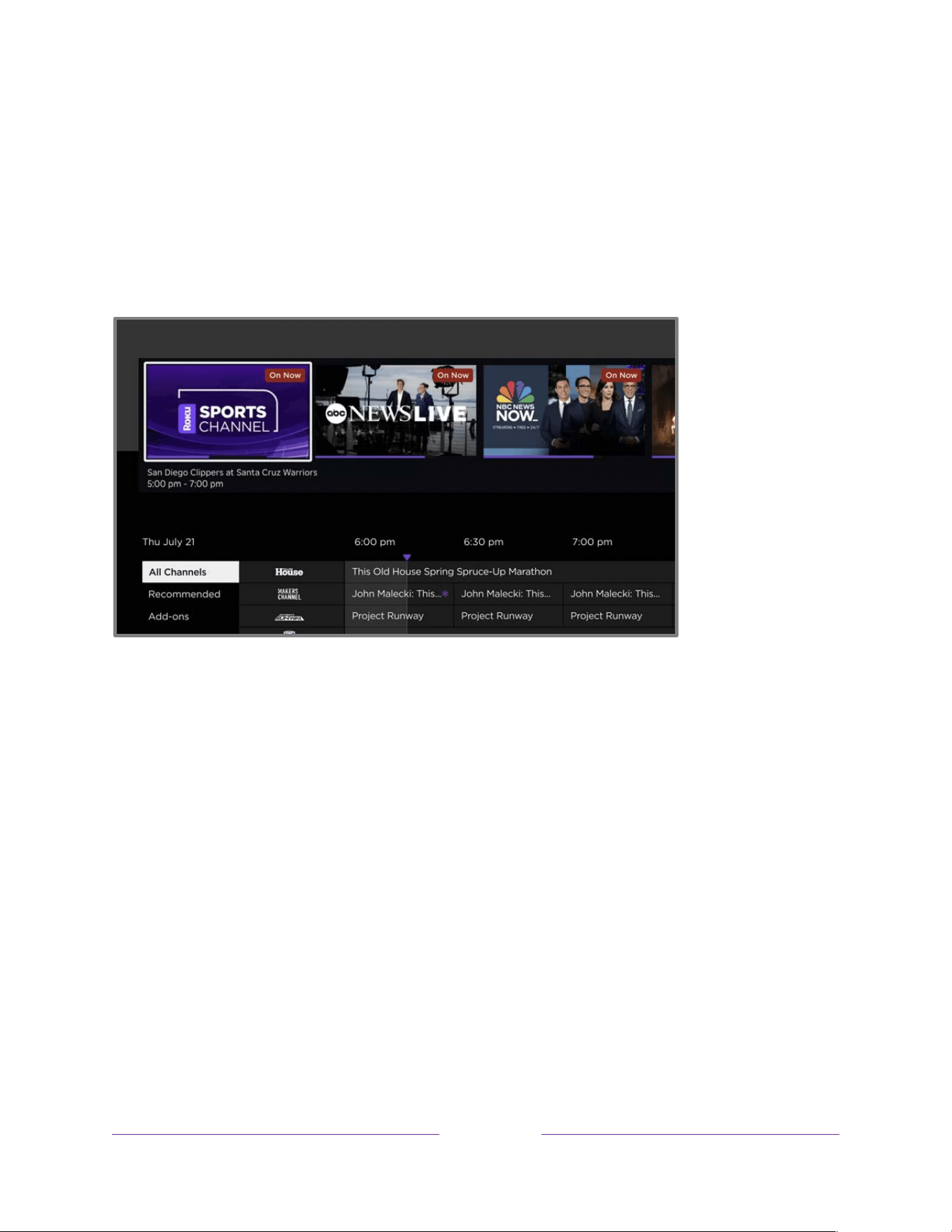
!
!!
44
!
!
!
the current episode from the beginning. You also can find more episodes of your program, and other
programs that have a similar theme.
Note: A paid subscription or other payments may be required for some streaming channels.
To open the Live TV Channel Guide, press LEFT while watching live TV. It opens with a recommendation
row, the name of the current program highlighted, and a lot more information.
Press LEFT or RIGHT to navigate through the recommended programs or press DOWN to access the Live
TV Channel Guide.
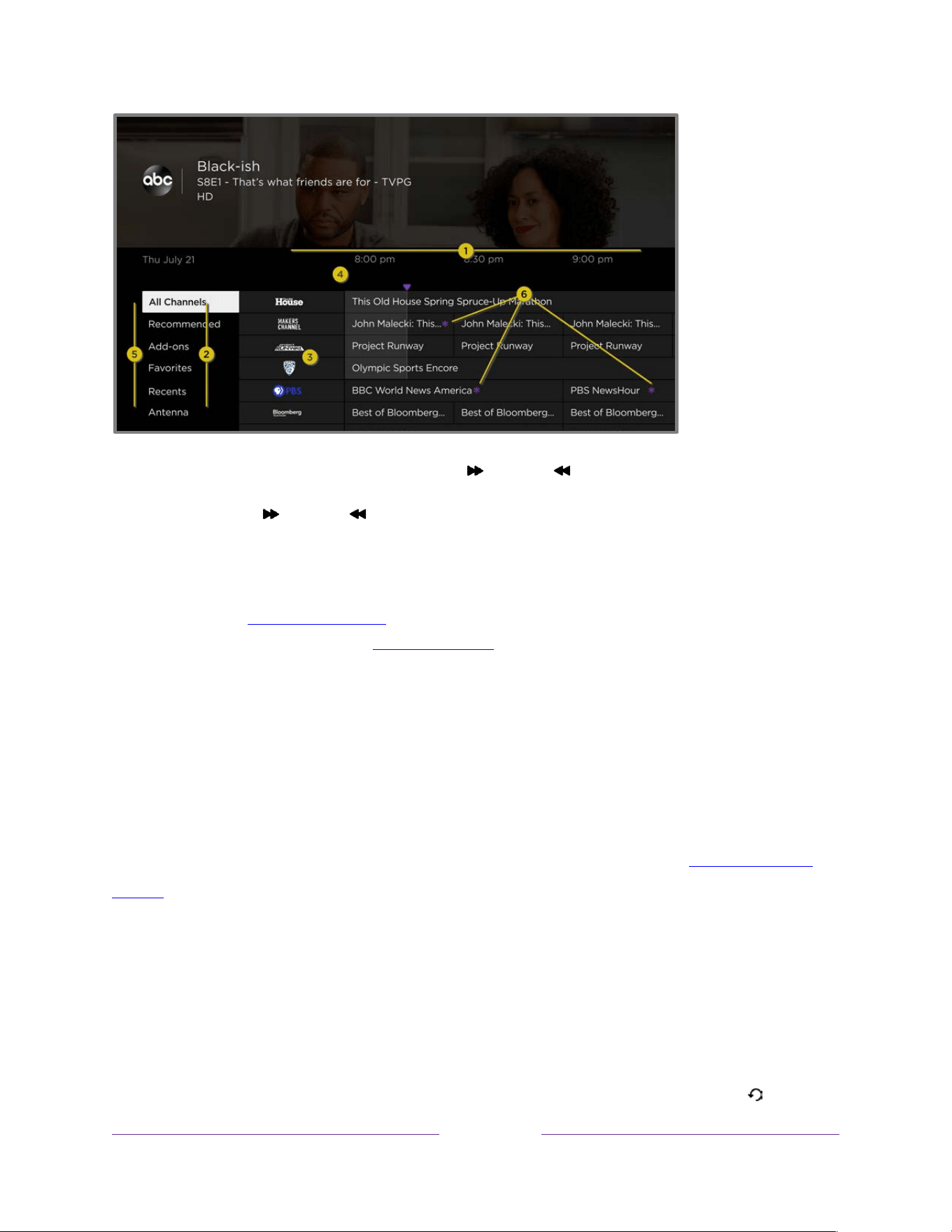
!
!!
45
!
!
!
1. Time slots. Navigate LEFT or RIGHT. Press FAST FWD or REWIND to skip ahead or back a screen at a time.
2. Channel list. Navigate UP or DOWN. Live TV Categories is currently set to All Channels. When a channel is highlighted,
press FAST FWD or REWIND to skip ahead or back a page at a time.
3. Program list. Shaded area is prior to the current time.
4. Progress bar. Indicates the current time relative to the listed programs.
5. Live TV Categories list, currently set to ALL CHANNELS. Navigate to this list, and then navigate up and down to select a
category. See Using Live TV Categories for more information.
6. More Ways to Watch indicator. See More Ways to Watch for more information.
When you are viewing the current time slot, notice that the Live TV Channel Guide shows a lighter
background for portions of programs before the current time, and a darker background for programs
and portions of programs that have not yet aired. The line dividing these two zones is the progress bar.
Note: By default, the channel list is sorted as recommended by Roku according to your viewing habits,
and channel numbers for streaming channels are hidden. If you prefer, you can sort the list by channel
number, in which case channel numbers for all channels are shown. For details, see Changing channel
options.
Navigating the Live TV Channel Guide
• Use the purple directional pad to move up, down, left, and right.
• To switch to a program that is currently in progress, highlight it, and then press OK. (Note that
pressing OK on a past or future program does nothing.)
• To return to the current time after navigating to a different time slot, press REPLAY .
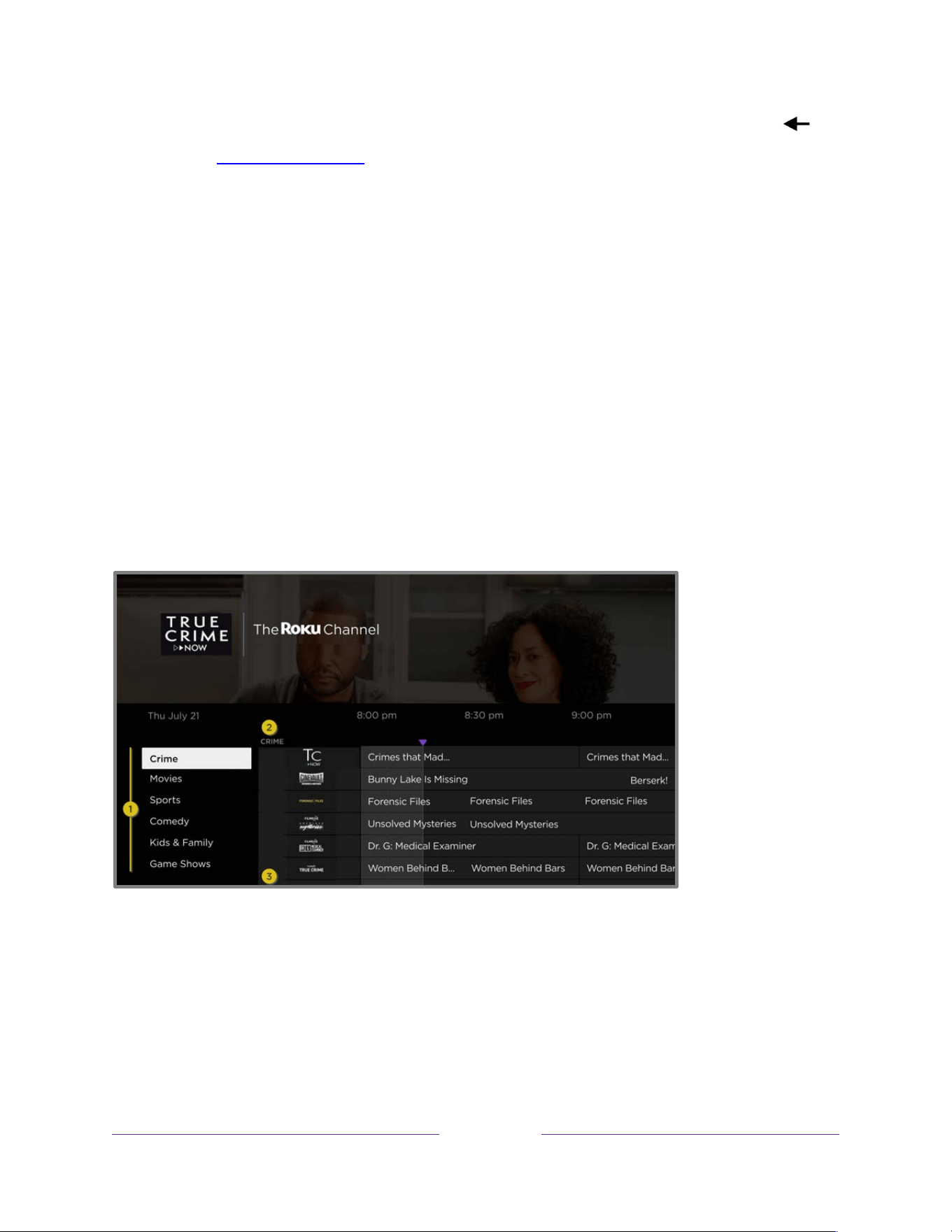
!
!!
46
!
!
!
• To return to the currently-airing program without causing a channel change, press BACK .
• To see More Ways to Watch, highlight any program that has a purple asterisk (Þ), and then
press STAR Þ. While using the Live TV Channel Guide, navigate all left to highlight a channel
number, and then press STAR Þ to open the Channel options dialog.
Using Live TV Categories
The list of channels you receive can become quite long, especially when it includes both broadcast and
live streaming channels. Use Live TV Categories to show only the channels that interest you at the
moment.
With the Live TV Channel Guide open, navigate left past the channel list to expand Live TV Categories.
From the list of categories, navigate up or down to select All Channels, Recents, Antenna, and Favorites.
If you have not hidden live streaming .channels, the list of categories also includes a list of curated
channels, such as Recommended, Add-ons, TV Shows, Entertainment, News, Sports, and many more.
1. Live TV Category list. Navigate up or down to highlight a category.
2. Selected category appears at the top of the channel list.
3. Other categories remain available if you navigate beyond the channels in the selected category.
With a category highlighted, navigate right into the channel list. The guide shows channels belonging to
the selected category. Note that you can also see channels in other categories by navigating up or down
without changing your category selection.
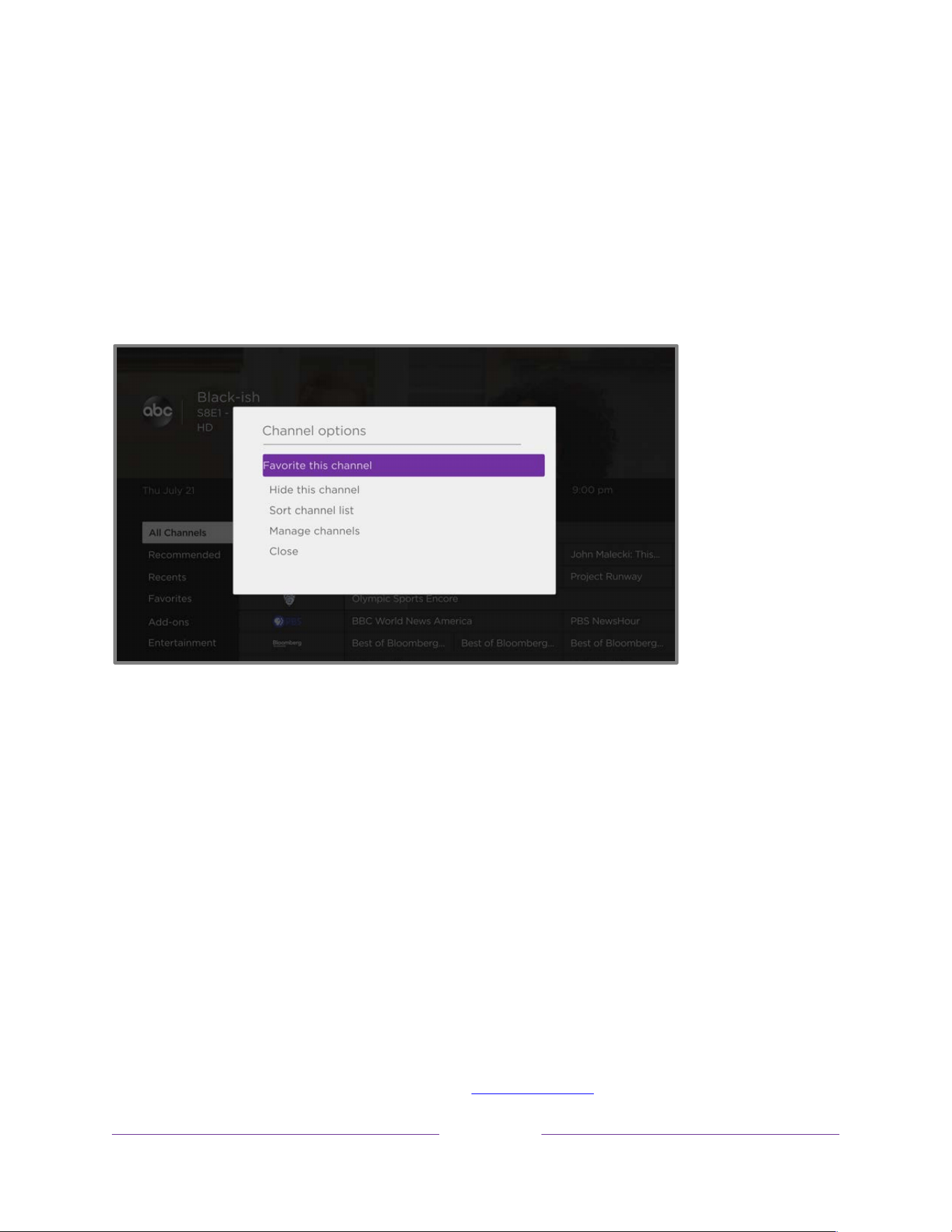
!
!!
47
!
!
!
The category you select is temporary—the next time you view the Live TV Channel Guide, it again shows
All Channels.
Changing channel options
While using the Live TV Channel Guide, navigate left to the channel number column, and then press
STAR Þ to open Channel options.
• Favorite/Unfavorite this channel – Select this option to make the selected channel a favorite.
Select again to remove the channel from your favorites.
• Hide/Unhide this channel – Select this option to hide the current channel. Select again before
moving on to unhide the channel if you hid it by mistake. But note that after you close the
dialog, you cannot access the channel to unhide it. Instead, use the Manage channels option to
unhide hidden channels.
• Sort channel list – Select this option to choose your preferred channel sorting.
o Choose As recommended by Roku to sort channels automatically according to your
viewing habits. Choosing this option hides streaming channel numbers.
o Choose By channel number to sort channels by channel number. Choosing this option
shows channel numbers for all channels.
• Manage channels – Opens the Manage Channels menu where you can edit the channel lineup
and mark certain channels as favorites. See Manage channels.

!
!!
48
!
!
!
Viewing program information
When you are viewing a program and no other guides or menus are open, press OK to view program
information in a banner at the bottom of the screen.
Program information banner
This banner provides details about the program you are watching. These details vary depending on the
information available and the source of the show (over-the-air or live streaming)
Tip: If you’ve enabled Live TV Pause and you’re watching live TV, you’ll also see a progress bar showing
the current playback position within the rolling 90-minute pause time. For more information, see Pausing
live TV.
Adjusting settings while watching a program
Press STAR Þ to display the TV settings menu. Press UP or DOWN to highlight an option, and then press
LEFT or RIGHT to change the setting. The topic Adjusting TV settings explains each of the settings in
detail.

!
!!
49
!
!
!
Pausing live TV
Only on certain models, Live TV Pause gives your Roku TV the ability to pause, play, fast forward, and
rewind digital live TV received on the ANT input. You can pause live TV for up to 90 minutes.
Requirements
To use this feature, you need to:
1. Connect your TV to a Roku account. If you didn’t connect during Guided Setup, see Connecting
your TV.
2. Provide your own USB flash drive (thumb drive} with the following minimum specifications.
• 16 GB
• 15 Mbps read/write speed
• USB 2.0 compliant
A USB flash drive (thumb drive) meeting the minimum requirements is highly recommended
over an externally powered hard disk drive. Note that you can use any larger size drive—there is
no limit to the maximum size—but using a larger drive does not extend the 90-minute pause
time.
Important: After warning you and giving you a chance to cancel Live TV Pause setup, all existing
content on your USB drive is erased when you enable this feature.
3. Connect your USB drive to the TV’s USB port.
Important: Some TV models have more than one USB port. You can connect your Live TV Pause
USB drive to any port, but make sure that nothing is connected to other USB ports while enabling
Live TV Pause. Reconnect other USB devices after you have finished enabling Live TV Pause.
4. Enable Live TV Pause, as explained in the following topic.

!
!!
50
!
!
!
Enabling Live TV Pause
You can start setting up Live TV Pause in any of the following ways:
• After completing a channel scan, select Set up Live TV Pause from the available options.
• Press PLAY/PAUSE on the Roku remote while watching a live TV channel.
• Highlight the Live TV input on the Home screen, press STAR Þ on the remote, and then select
Enable Live TV Pause.
After starting setup of Live TV Pause in any of these ways, the TV prompts you through the steps needed
to enable this feature. Setup takes only a few moments.
Note: Use of a USB hub is not supported.
Using Live TV Pause
If you have used the Roku remote to watch streaming channels, using Live TV Pause should be very
familiar to you.
• While watching a digital live TV channel, press PLAY/PAUSE to pause or play the content.
After the TV program has been paused for 90 minutes, the TV resumes playing from the point in
the program where you paused it.
• After watching a channel for a while, press REWIND to jump back up to the point where you
first started watching the channel, up to 90 minutes.
• After pausing or rewinding, press FAST FWD to jump ahead up to the point where you are
once again watching the live TV program.
• Press FAST FWD or REWIND repeatedly to cycle through 1x, 2x, and 3x skip speeds. Press
REPLAY to play back the last several seconds of the program.
• When the program is paused, press LEFT or RIGHT to move backward or forward through the
program approximately 10 seconds per press. Small frames appear across the screen to identify
your location in the program.
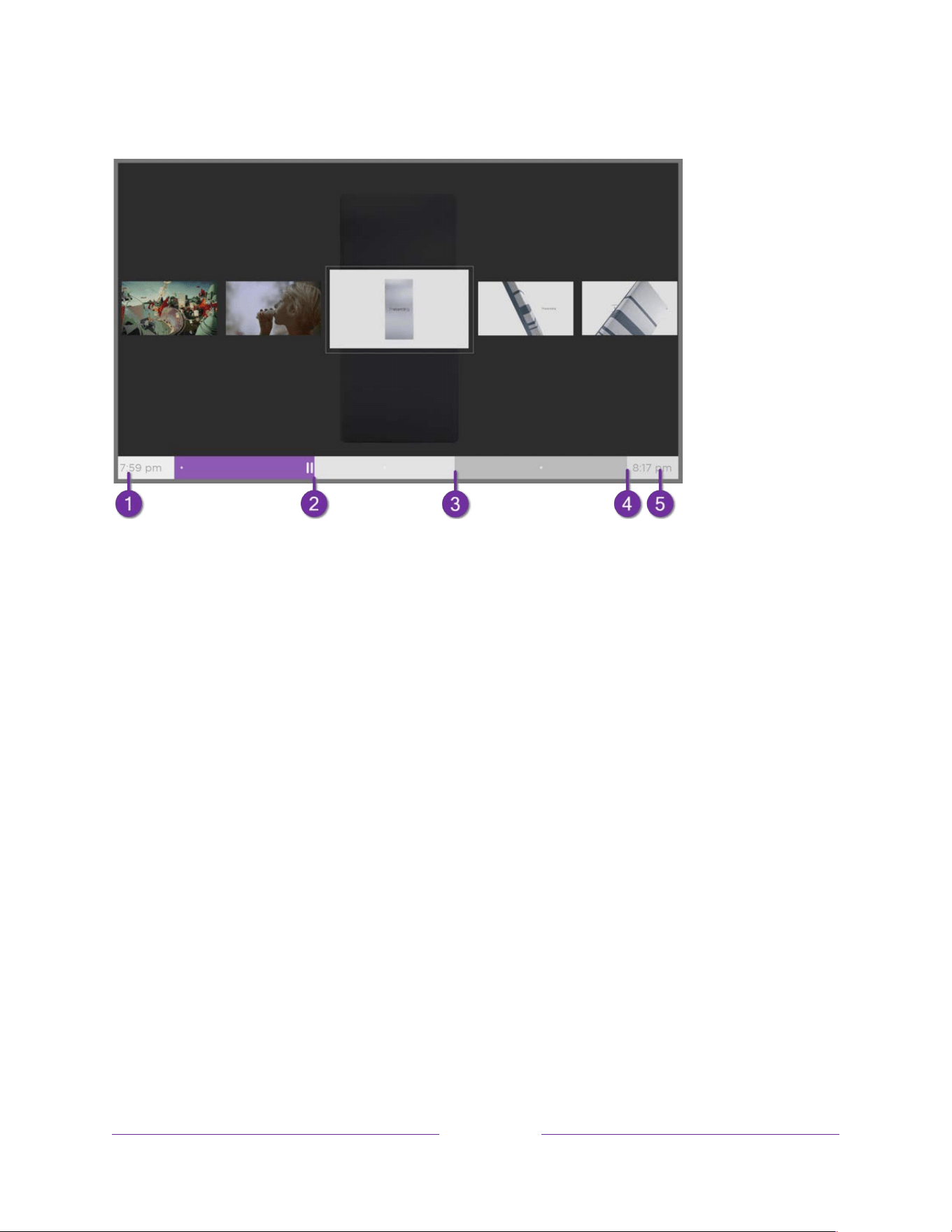
!
!!
51
!
!
!
Whenever you use any of the Live TV Pause features, the TV momentarily displays a progress bar:
1. Time at the current playback position.
2. Current playback position
3. Extent of pause time, representing the amount of time this channel has been buffered, up to 90 minutes.
4. 90-minute mark, representing the maximum extent of pause time.
5. Current time.
The progress bar also shows tick marks at each half hour point, to help you locate the boundaries where
one program ends and a new one begins.
Notes about Live TV Pause
• You can use Live TV Pause only with digital broadcast and cable channels received through the
TV’s ANT input (ATSC and Clear QAM channels).
• Changing channels erases and restarts the Live TV Pause buffer.
• Returning to the Home screen, selecting another input, or turning off the TV erases and resets
the Live TV Pause buffer.
• Disconnecting the USB drive erases the Live TV Pause buffer.

!
!!
52
!
!
!
More Ways to Watch
More Ways to Watch gives you recommendations about the programs you’re watching on the ANT,
HDMI, and AV inputs. You will automatically get these recommendations in the Live TV Channel Guide
for live TV programs. However, before you can get recommendations for programs you’re watching
through the HDMI or AV inputs, you must opt in to the Smart TV experience to acknowledge that you
want to allow the TV to use automatic content recognition (ACR). See Opting in to Smart TV experience
for details.
Using More Ways to Watch
Not every program provides recommendations. As you use More Ways to Watch, be aware that you’ll
only see suggestions on your TV when all of the following conditions are met:
• Your TV is in the United States.
• You have enabled Smart TV experience if you are watching programs through an HDMI or AV
input. (If you are watching live TV from the ANT input, this setting does not matter.)
• The program you’re watching contains the information needed to identify it. Note that some
programs, such as the daily news, typically do not activate More Ways to Watch.
• At least one participating streaming channel offers the movie or TV program you are watching,
or other episodes, or more programs like the one you are watching.
If all of these conditions are met, you can view the suggestions. More Ways to Watch recommendations
appear in two different places:
• When watching the HDMI and AV inputs, you’ll see a More Ways to Watch notification in the
lower right corner of the screen for a few seconds unless you have disabled Enable auto
notifications. Press STAR Þ to see the list of matching programs.
Note: After this banner disappears, you can restore the More Ways to Watch prompt by pressing
OK.
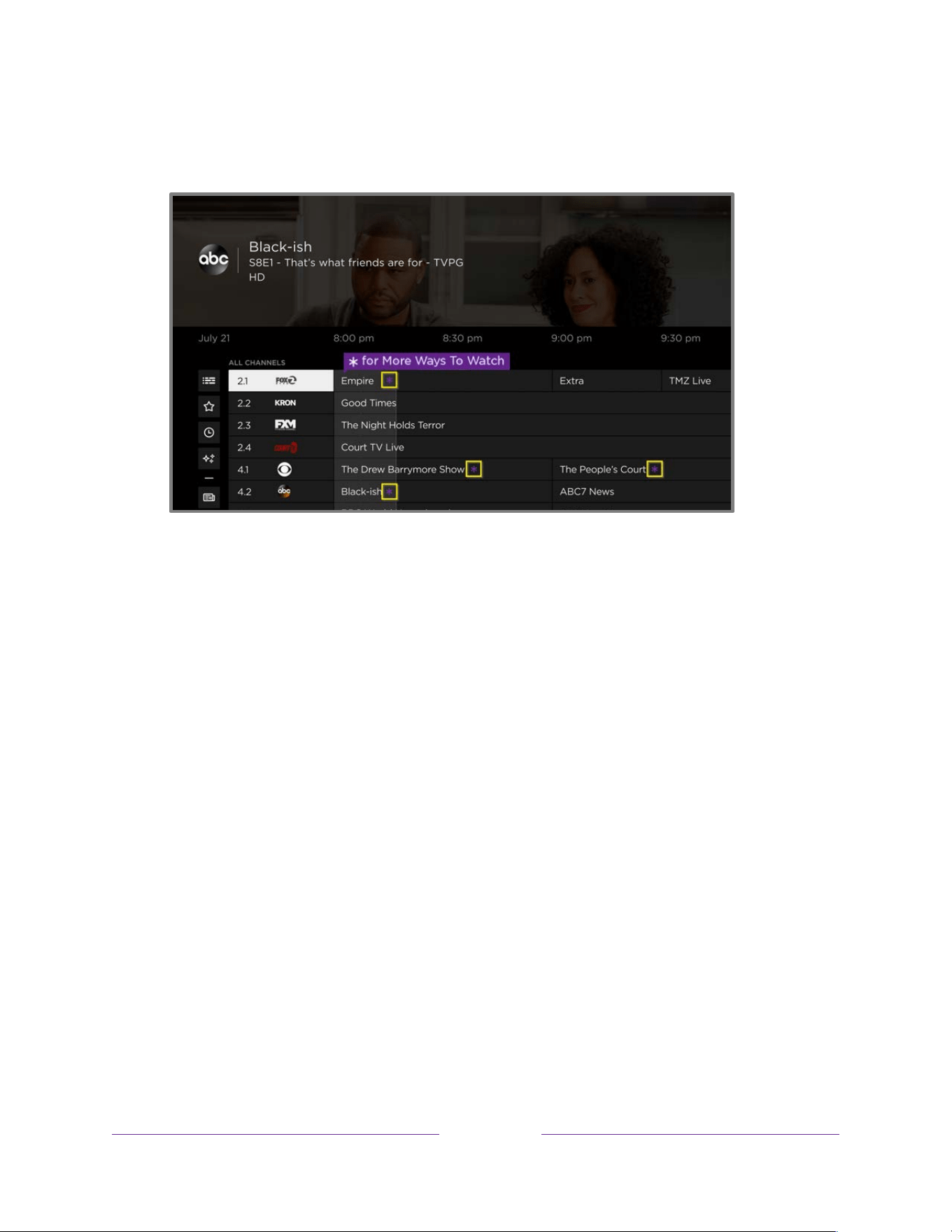
!
!!
53
!
!
!
• In the Live TV Channel Guide, all programs that meet the criteria for More Ways to Watch
display a purple asterisk Þ next to their titles:
Highlight the program of interest and press STAR Þ to see recommendations.
!
!!
54
!
!
!
Regardless of how you got to this point, the options you’ll see depend on the type of program
you’re watching and the available ways there are to watch, so you might see any or all of the
following:
• Watch from beginning – Streaming channels on which the same TV program or movie is
available. Often, this option does not appear on first run programs, because streaming
content typically is not available until sometime after the program is first broadcast.
• See more episodes – Streaming channels where you can find other episodes of the TV
program you are watching. Does not apply to movies.
• More like this –TV programs or movies with a similar theme.
• View full description – Full description of the selected program.
Press DOWN to select an option, and then press RIGHT to select the streaming channel you want
to watch.
Assuming you’ve already added the channel and completed any required sign-in, More Ways to Watch
takes you directly to the program in the streaming channel where you can select and watch the
program. Otherwise, it prompts you to add the channel and, if you do, then takes you to the program.

!
!!
55
!
!
!
Getting the most from More Ways to Watch
• Streaming channels you’ve already installed appear first in the list of suggestions.
• When you select a streaming channel, you leave the program you are currently watching.
• If you’ve used the Live TV Pause feature to pause the program, your paused program buffer is
deleted. In other words, you cannot return to a live TV channel and resume watching from
where you left off.
Switching TV inputs
Switch TV inputs to access the device connected to that input, for example, a Blu-ray™ player. To switch
inputs, highlight the input on the Home screen, and then press OK. The video signal on the input plays
on the screen.
Tip: To learn how to add, remove, rename, and rearrange the inputs and channels on your Home screen,
see Customizing your TV.
Auto-detecting devices
Your TV automatically detects when you connect a new device to an HDMI
®
input and turn on its power.
The input is automatically added to the Home screen if it isn’t already present.
Auto-naming devices
When you connect and power on an HDMI device, your TV identifies it, automatically renames the input,
and changes its icon to suit the device. For more information, see Rename inputs.
Adjusting audio/video settings
While watching video content on any input, press STAR Þ to display the TV settings menu. Press UP or
DOWN to highlight an option, and then press LEFT or RIGHT to change the setting. To learn about each
of the audio and video settings, see Adjusting TV settings.

!
!!
56
!
!
!
Setting preferred audio language for streaming channels
You can select the preferred language for the audio played by streaming channels. If the selected
language is available in the streaming content, the TV plays that language.
To set the preferred audio language:
1. From the Home Screen Menu, navigate to Settings > Audio > Audio preferred language.
2. Press RIGHT to highlight one of the languages.
3. Press UP or DOWN to highlight the language you want to use.
4. Press OK.
Note: Many streaming channels have an option to select the language while you are watching a
program. The Audio preferred language setting sets the default for that option.
Automatic game console configuration
Your TV automatically detects some game consoles and configures the key features it supports to
optimize TV performance while playing video games. When you connect a supported and powered-on
game console through an HDMI
®
input, the TV automatically changes the input icon to the game
console’s icon
1
. Only on certain models connected to compatible game consoles, it also enables any of
the following features, if available:
• Automatic low-latency mode (ALLM)
• Variable refresh rate (VRR)
• Quick Frame Transport (QFT)
• HDR gaming
• High frame rate
• Game mode
• THX Certified game mode
1 Certain game consoles, such as the Microsoft Xbox One, do not communicate their identity until you select the input after
connecting the console.
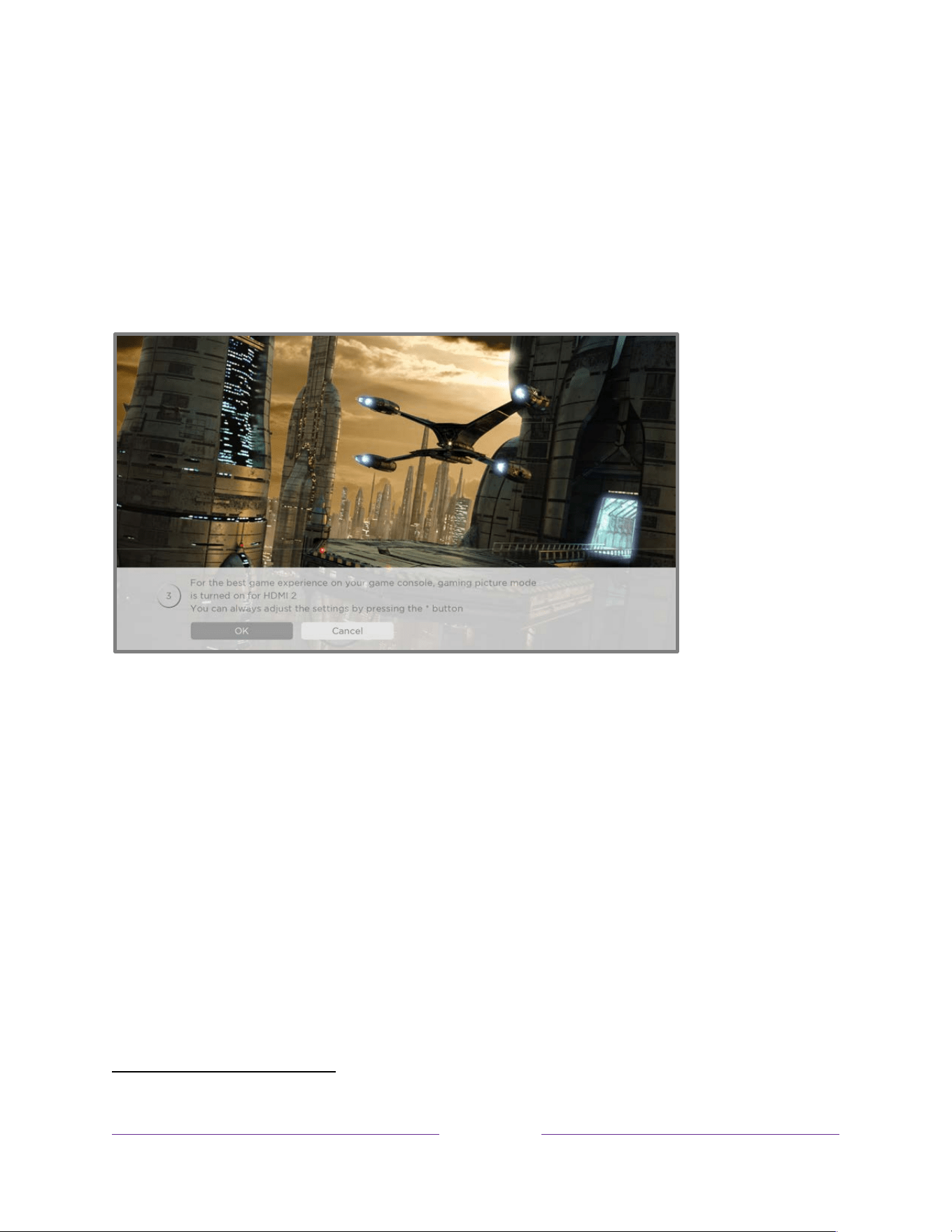
!
!!
57
!
!
!
Tip: Various combinations of these features are available only on certain models and in some cases, only
on certain HDMI inputs as denoted by a gaming icon on the input label. If present, you can disable
certain of these features by navigating to Settings > TV inputs and then selecting the corresponding
HDMI input.
When you start playing a game, your TV displays a message at the bottom of the screen to make you
aware of the settings that it will use.
Select Cancel before the timer runs out to keep the current TV picture settings. For example, you might
want to cancel automatic game configuration if you are watching a movie from your game console.
Using Roku Voice commands
Roku Voice commands
1
make it fast and easy to control your TV and find entertainment with simple
voice commands like “show me comedies.” Control your TV with commands like “switch to game
console,” or “watch channel 7.1.” Use the Roku mobile app or a compatible smart speaker to speak
1 Roku Voice supports English, French, Spanish, Portuguese, and German languages when the corresponding TV language is
selected.

!
!!
58
!
!
!
commands. When using a smart speaker, add “on my Roku” or, for example, “on my bedroom Roku” to
the end of the command.
To learn what commands to use, watch out for hints that appear at appropriate times. For example, if
you are in the TV settings menu with the Sleep timer command highlighted, a hint might appear
explaining how to use a Roku Voice command to set the sleep timer. You can use Roku Voice commands
at any time, without first calling up a menu.
Tap Voice on your remote to see helpful hints about how to use Roku Voice, and then explore these
additional voice features:
• See what’s on TV in the Live TV Channel Guide. Say “Show Guide.”
• Jump to a specific channel. Say “Go to 7 point 3” to open Live TV on channel 7.3. Or say, “ABC News”
(or another program name that has multiple options). Because there are multiple sources of the
program, you’ll see a panel where you can choose the one you want.
• Use voice commands to launch streaming channels, switch inputs, or change live TV channels. Say,
“Go to Netflix” to open Netflix. Or say, “Show This Old House” to go to that live program on The
Roku Channel.
• Set sleep timers. For example, say “Turn the TV off in 30 minutes”, or “Go to sleep at 11 p.m.”
• Go directly to playing a program whenever your search command can be uniquely identified and the
requested content is available at no additional cost to you.
1
• Search for movies based on popular quotes. For example, say “What movie is this from – ‘Here’s
looking at you, kid’.”
• Say “Show me 4K movies” to see a list of 4K movies available across participating streaming
channels.
• Use Roku Voice to make entries in a variety of on-screen keyboards. Keyboards that support voice
entry have a microphone icon next to the input field. You can say letters, characters, and numbers
1 Direct-to-playback commands spoken in English or Spanish work with supported streaming channels. Direct playback occurs
only when there is a high confidence of match, the content is free or you are already subscribed, and the channel is already
added to your Home screen.

!
!!
59
!
!
!
for an easy way to enter the required information. The TV displays helpful hints at appropriate times
to provide guidance.
• Use voice commands to turn the display off (for enjoying streaming music), turn closed captions on
or off, and to replay the last few seconds of a movie or TV program.
• Control Roku Media Player to play your personal music and show movies and photos. Say
commands like, “Play classic rock on Roku Media Player,” “Skip ahead 20 seconds,” or “Play the next
song.”
• Get help by pressing VOICE and saying, “Help.”
Using Roku Voice for settings
Voice for settings enables you to use a voice command to jump directly to a setting, rather than
navigating through the Settings menus. Use Roku Voice to quickly access settings for screensavers,
wallpapers, system updates, guest mode, screen mirroring, system language, and more, making your TV
experience faster and easier.

!
!!
60
!
!
!
Say commands like, “Add new device,” What’s my Wi-Fi,” “Payment method,” and “Restart my TV,” to
name just a few.
Note: When using this feature, your command takes you directly to the requested setting, but does not
make any changes to the setting. For example, once you are on the System Restart command, you must
use your remote to select Restart.
Using Apple Home with Roku TV
Ask Siri on your Apple device to control your Roku TV with just your voice
1
. Say things like “Hey Siri, play
jazz on the living room TV” to play music from your iPhone, iPad, Apple Watch, HomePod Mini, or Mac
on your Roku TV.
Roku TVs also support Apple HomeKit
1
, which allows you to easily and securely control your Roku device
while using the Home app or Siri. After installing your Roku TV, set it up with just a few simple steps
within the Apple Home app. You can even create your own custom automations and scenes that include
HomeKit-enabled accessories such as your Roku TV, to control your home setting. For more information,
see Apple Home app. For details about what Apple HomeKit controls are available with your TV, see the
Roku support article, How to use AirPlay and HomeKit with your Roku streaming device.
Using Google Home with Roku TV
Use Google Home, Google Pixel phone, or the Google Home mobile app to control your Roku TV. You
can search for movies and TV programs, launch most channels, control playback, adjust the volume,
switch inputs, turn the TV on and off, and more. Control multiple Roku devices by including the location
of the device in your commands. For example, say “Hey Google, turn off Roku in the bedroom.” For
information on linking and controlling your TV with Roku Action on Google, see the Roku support article,
How to use Google to control your Roku streaming device.
1 Apple AirPlay 2 and HomeKit are supported by all Roku TVs except for hardware IDs beginning with “6” (6XXXX) and “5”
(5XXXX).

!
!!
61
!
!
!
Using Amazon Alexa with Roku TV
Use Amazon Echo Dot, Echo Plus, Echo Show, or the Amazon Alexa mobile app to control your Roku TV.
You can search for movies and TV programs, launch most channels, control playback, adjust the volume,
switch inputs, turn the TV on and off, and more. Control multiple Roku devices by including the location
of the device in your commands. For example, say “Hey Alexa, pause Roku in the living room.” For
information on adding the Alexa Roku skills and controlling your Roku TV, see the Roku support article,
How to use Amazon Alexa to control your Roku streaming device.
Playing content from USB storage devices
Use Roku Media Player to play personal music, videos, and photo files from a personal USB flash drive or
hard disk connected to the TV’s USB port.
To use this feature, make sure your media files are compatible with Roku Media Player. To see the latest
list of supported formats, view Help in the Media Player
1
. Roku Media Player displays only supported file
types, and hides file types it knows it cannot play.
Note: If you do not see Roku Media Player on your Home screen, it might have been uninstalled. You can
reinstall it from the Roku Store.
For more information about playing back your personal videos, music, and photos, go to the following
link on the Roku web site:
go.roku.com/rokumediaplayer
Auto player launch
You can set your TV to automatically open Roku Media Player when you connect a USB drive with a
recognizable file system (such as FAT16/32, NTFS, HFS+ or EXT2/3). To configure this setting, from the
Home Screen Menu, navigate to Settings > System > USB settings. Choose from the following options:
1 There are many variants of each supported media format. Some variants may not play at all or may have issues or
inconsistencies during playback.

!
!!
62
!
!
!
• Auto-launch – Select Prompt, On, or Off, as desired.
• Prompt – (default) Display a prompt each time a recognized USB drive is connected. The
prompt provides options to launch Roku Media Player as well as to change future auto-play
behavior.
• On – Always launch Roku Media Player whenever you connect a recognized USB drive.
• Off – Never launch Roku Media Player automatically.
• Launch channel – Select the app you want to use to play back media files.
Playing content from local network media servers
Roku Media Player can play personal video, music, and photo files from a media server on your local
network. Media servers include personal computers running media server software such as Plex or
Windows Media Player, network file storage systems that have built-in media server software, and other
devices that implement the specifications of the Digital Living Network Alliance. Some servers do not
fully implement the DLNA specification but are UPNP (Universal Plug and Play) compatible. Roku Media
Player can connect to them as well.
Some media servers can convert files into Roku compatible formats. Digital Rights Management (DRM)
protected content is not supported.
Setting up a payment method
For channels that allow you to pay through your linked Roku account, you can enter a payment method
directly on your TV. Entering a payment method on your TV means that you don’t need to go to a
computer or mobile device to set up a payment method.
To add a payment method:
1. From the Home Screen Menu, navigate to Settings > Payment method > Add payment method.
2. Follow the prompts to update your payment method by selecting one of the listed options.

!
!!
63
!
!
!
Note: If you have already set up a payment method on my.roku.com, that payment method is
identified here in such a way as not to expose any personal data. You can use this screen to
change your payment method, if desired.
3. Select Save card, and then press OK.
To manage your saved payment method and to see other payment methods, log into your account at
go.roku.com/pay.
Using your TV in a hotel or dorm room
Hotels, school dorms, conference facilities, and similar locations with public wireless Internet access
often require you to interact with a web page to authenticate your access. These types of networks are
called restricted public networks. When you select a network of this type, the TV automatically detects
that additional information is needed and prompts you through using another wireless device to supply
the requested information.
About using your TV on a restricted public network
Here are some points to keep in mind when using your TV on a restricted public network:
• Using your Roku TV on a hotel or dorm room network requires wireless availability and a
network-connected smartphone, tablet, or computer to authenticate access to your wireless
access point.
• You will need your Roku TV remote.
• Some content might be limited or unavailable if you try to connect outside your home country
due to geo-filtering.
Connecting your Roku TV on a restricted public network
1. When setting up a network connection (either during Guided Setup or using Settings > Network
> Set up connection), the TV automatically detects that you are connecting to a restricted
network and displays the following prompt:
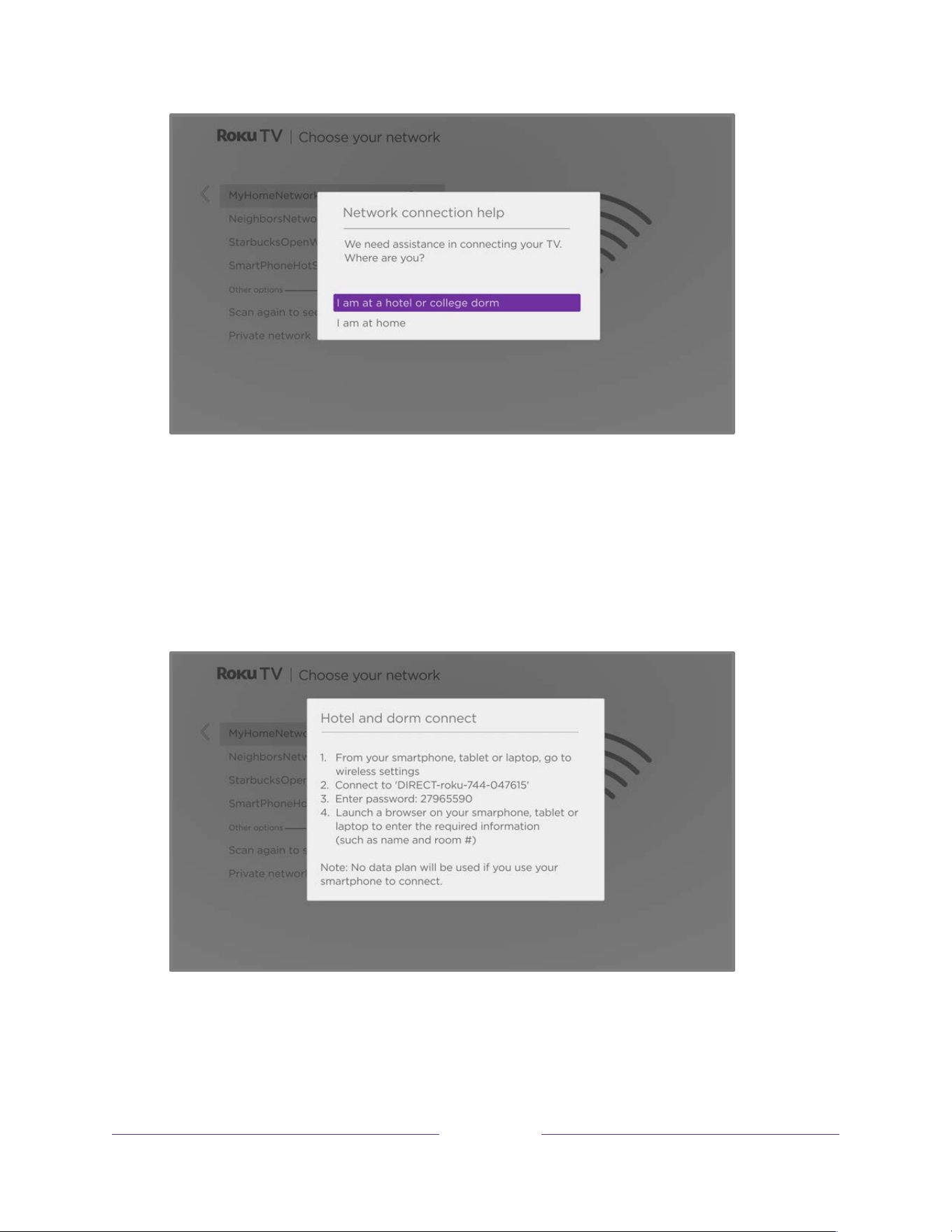
!
!!
64
!
!
!
Tip: Your TV can connect to a restricted network only if Enable ‘Device connect’ is selected in
Settings > System > Advanced system settings. Device connect is enabled by default, but if you
have disabled it, the TV cannot complete the connection.
2. After selecting the correct network, highlight I am at a hotel or college dorm, and then press OK.
The TV prompts you to use your smartphone, tablet, or laptop to complete the connection.
3. Use a mobile phone, tablet, or wireless-enabled computer to detect wireless networks. In most
cases, you can simply open the device’s Wi-Fi Settings or Network Settings screen to start
scanning.

!
!!
65
!
!
!
Note: The mobile phone, tablet, or computer must be on the same wireless network to which you
are connecting the TV.
4. Connect to the network named on your TV screen.
Note: The previous step connects your smartphone, tablet, or computer directly to the TV. No
connection charges apply and the connection does not impact your device’s data plan.
5. The wireless connection process prompts you for a password. Enter the password as shown on
the TV screen.
6. Start the web browser on your mobile phone, tablet, or computer. When you attempt to open
any web page, the restricted connection will prompt you for whatever information it needs. In
most cases, you must agree to terms and conditions, provide identifying information, or enter a
password, PIN, or room number to proceed. The information requested depends on the
organization that controls the wireless connection.
7. After you enter the requested information, the TV automatically proceeds to complete its
connection and resumes normal operation.
8. If the TV prompts you to link to your Roku account, use your mobile phone, tablet, or computer
to activate your Roku TV.
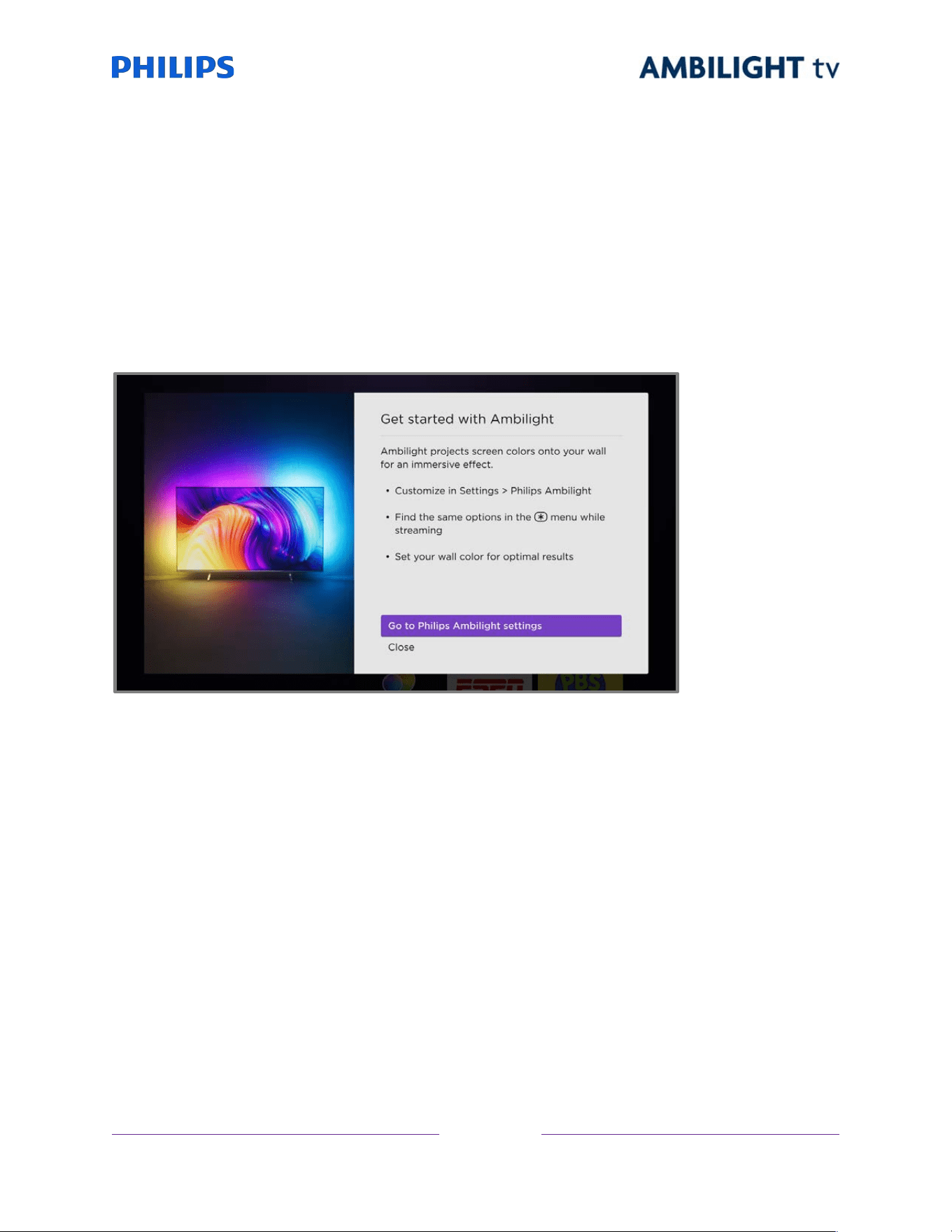
!
!!
66
!
!
!
Configuring your Ambilight TV
Take a moment to optimize your Ambilight experience. Once you’ve completed Guided Setup, a pop-up
will appear directing you to the Ambilight settings menu.
Note: You can access Ambilight settings at any time by going to Settings > Philips Ambilight.
For each of the Ambilight settings, use the remote control LEFT, RIGHT, UP, and DOWN buttons to
navigate among the options, and then press OK to select.
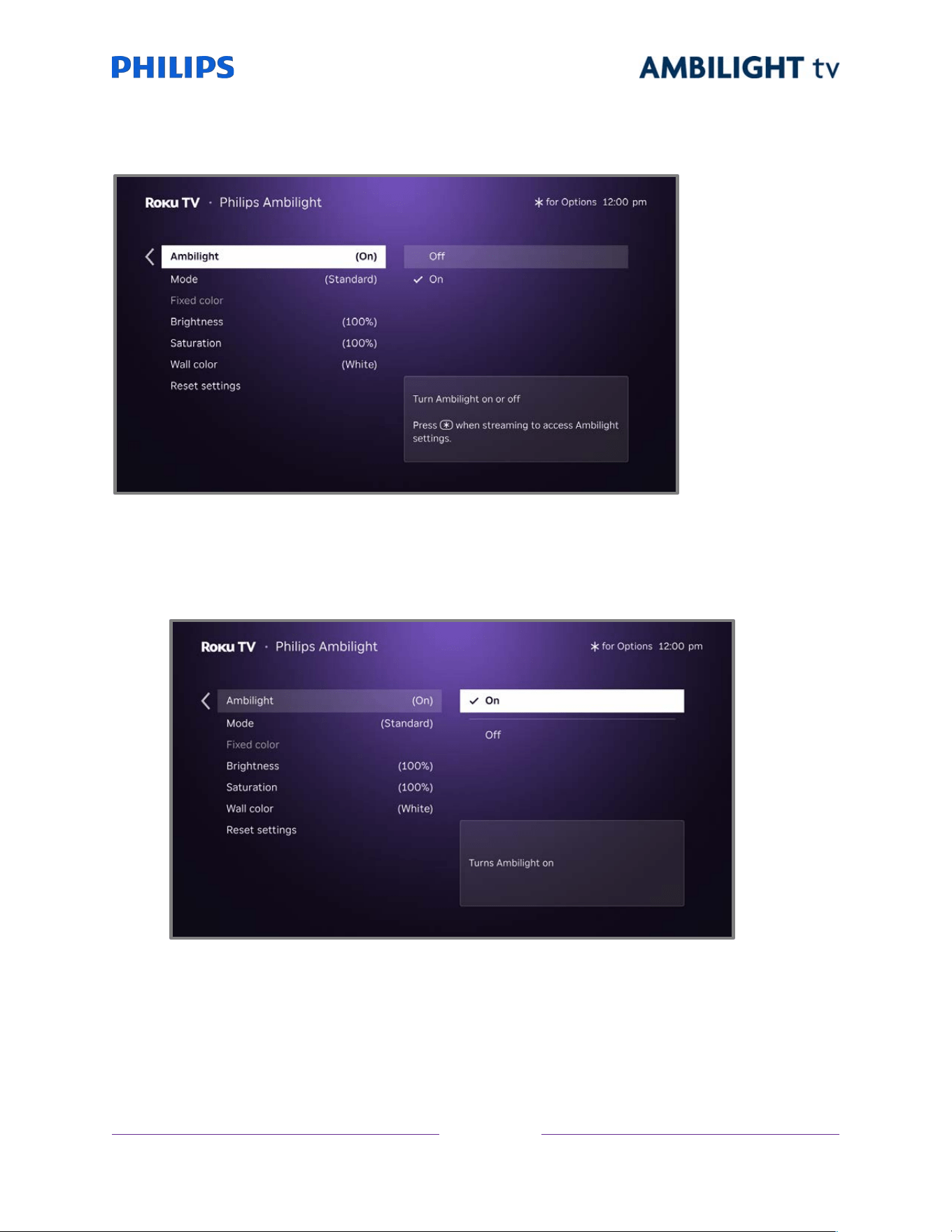
!
!!
67
!
!
!
Ambilight settings menus
Use the Philips Ambilight menu to:
• Toggle the Ambilight feature On or Off.
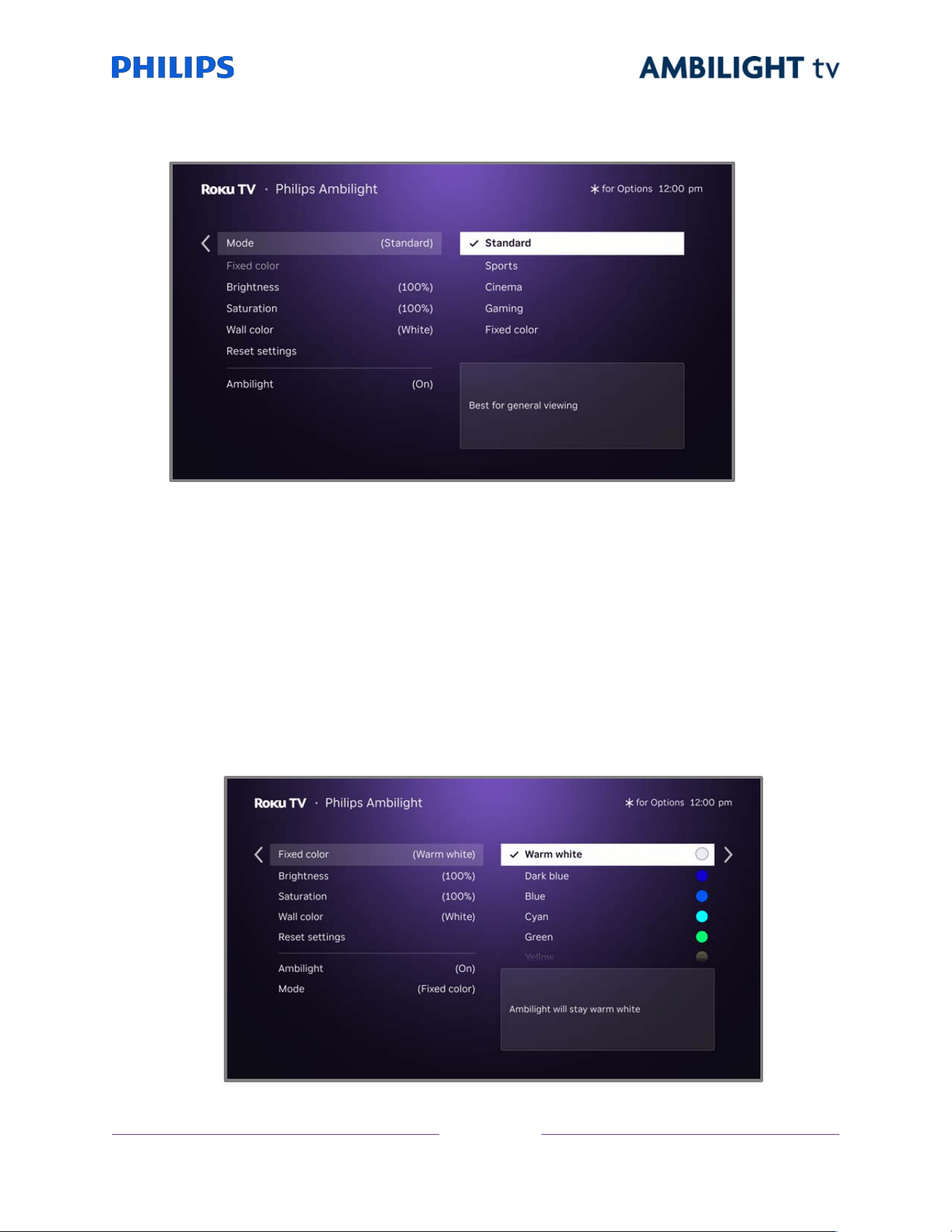
!
!!
68
!
!
!
• Choose from different modes to select the way Ambilight reacts to what’s playing on the screen.
o Standard – Ideal for everyday viewing.
o Cinema – Enhances the atmosphere of movies and shows with smoother transitions
between color changes.
o Sports – Ideal for sports programs because backlighting changes faster in real time with
the action.
o Gaming – Maximum immersion ideal for gaming.
o Fixed color – Displays a color palette from which you can select a single fixed backlight
color of your choice.
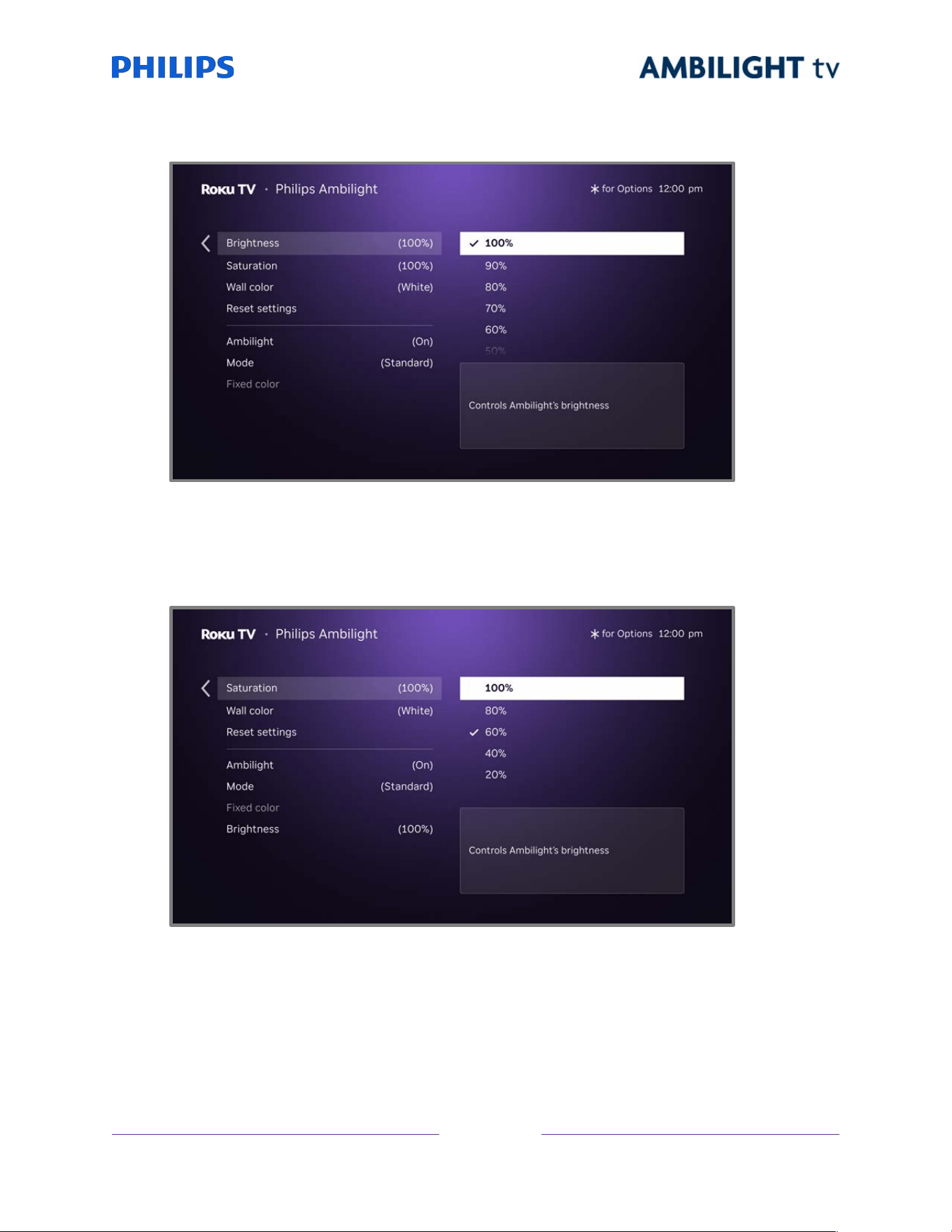
!
!!
69
!
!
!
• Adjust the brightness of light projection.
The default settings is 100%. Choose a lower level if you want to reduce the Ambilight effect.
• Adjust the saturation to control the Ambilight color intensity.
The default settings is 60%. Select a higher saturation if you want richer and deeper colors.
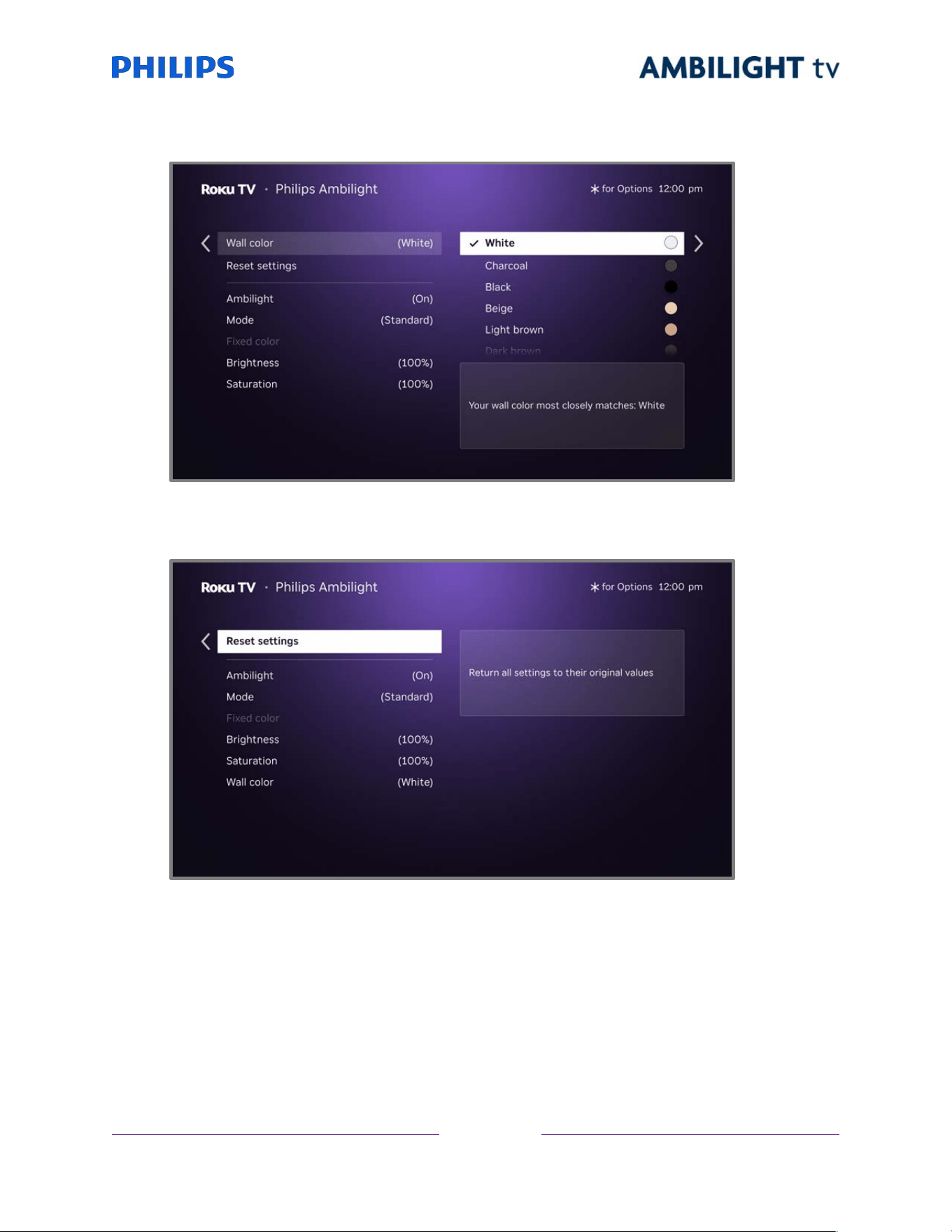
!
!!
70
!
!
!
• Select your wall color to ensure accurate Ambilight colors.
• Reset all Ambilight settings back to the original values.
When the TV displays a confirmation prompt, select Yes, reset Ambilight settings to return all
settings to their default values.
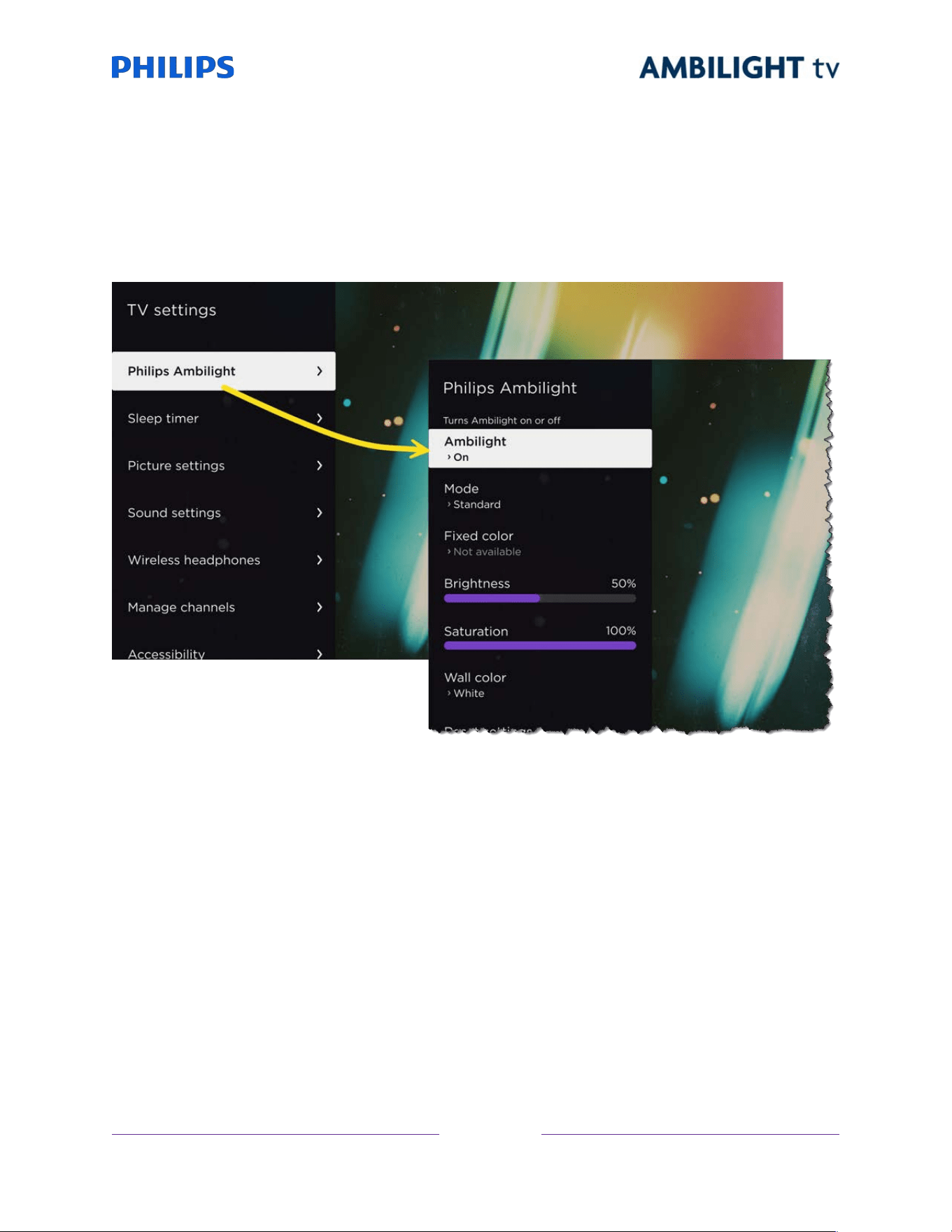
!
!!
71
!
!
!
Ambilight settings over video content
You can also adjust Ambilight settings while watching video content by pressing STAR Þ while video
content is playing. Then navigate to the Philips Ambilight option and press OK to open the Philips
Ambilight menu.
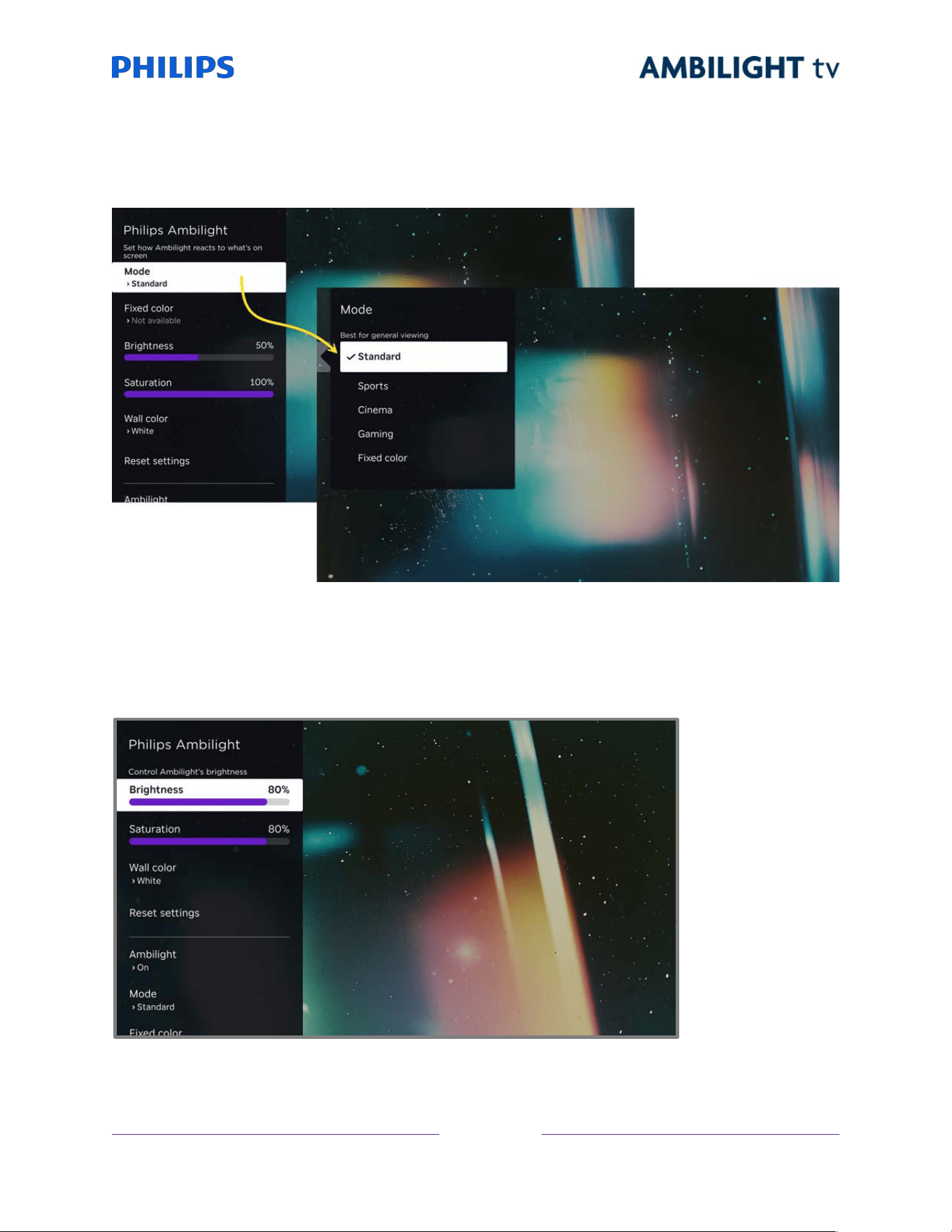
!
!!
72
!
!
!
Ambilight Mode
Select a different Ambilight mode or to select a fixed color.
Brightness
Change the Ambilight brightness.
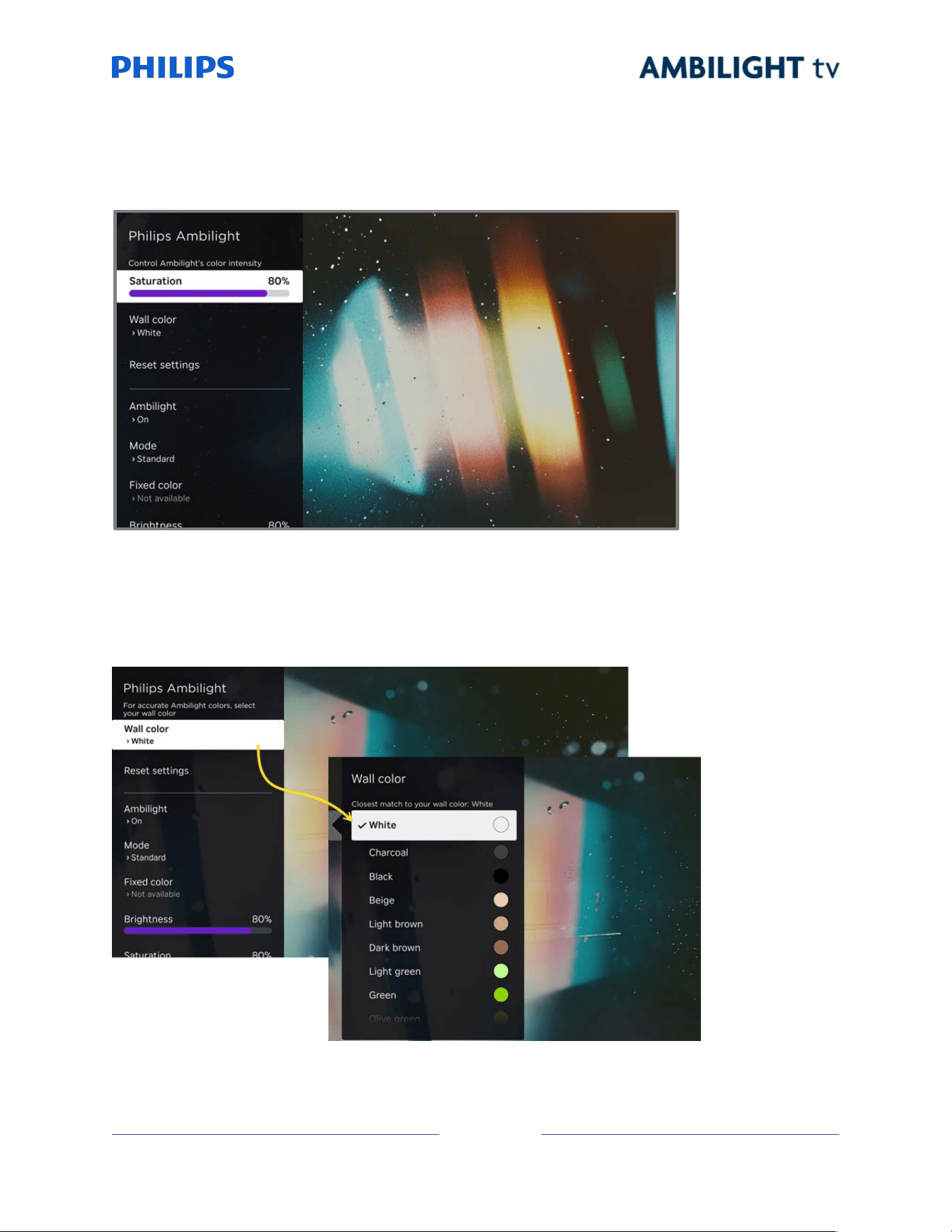
!
!!
73
!
!
!
Saturation
Change the Ambilight saturation.
Wall color
Change the wall color setting to match the color of the wall behind the TV.
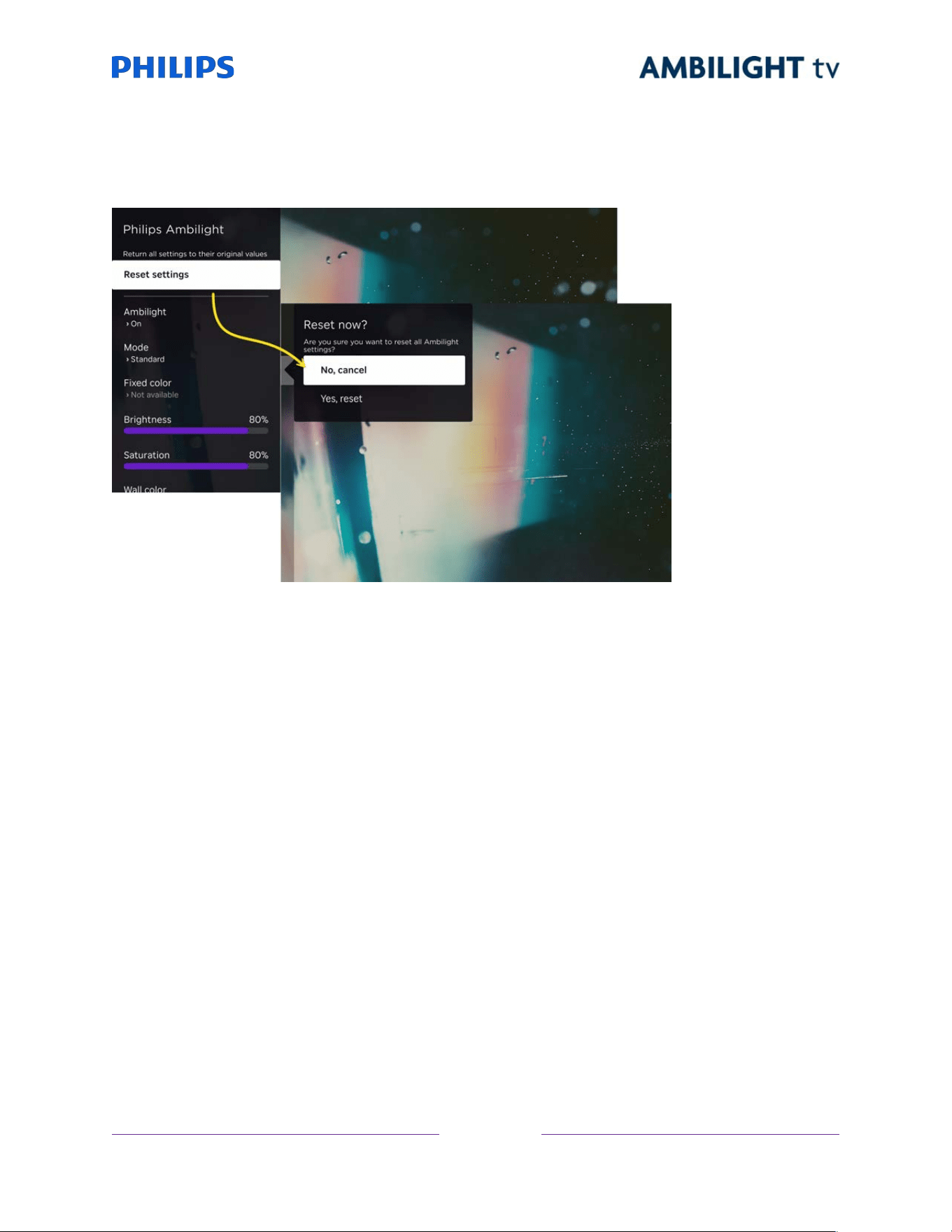
!
!!
74
!
!
!
Reset settings
Reset Ambilight settings to their default values.

!
!!
75
!
!
!
Using Apple AirPlay and the
Apple Home app
Apple AirPlay
AirPlay lets you share videos, photos, music, and more from your iPhone, iPad, or Mac. To use AirPlay,
your Roku TV must be on the same wireless network as your Apple device
1
. To configure your preferred
AirPlay security settings, navigate to Settings > Apple AirPlay and HomeKit from your Roku TV Home
screen. Depending on the AirPlay settings you select, you may be required to enter a password on your
Apple device to initiate an AirPlay session on your Roku TV.
Other AirPlay things to try
• Screen mirroring from an iOS device.
• Screen mirroring from a Mac.
• Using your Roku TV as an extended Mac display.
• Playing synchronized music on multiple AirPlay 2-enabled devices, including Roku TVs.
1 iPhone, iPad, or iPod touch with iOS 12.3 or later. Mac with macOS Mojave 10.14.5 or later.

!
!!
76
!
!
!
Apple Home app
Apple HomeKit controls compatible smart home lights, locks, thermostats, and other devices, including
Roku TVs. The Apple Home app lets you add your Roku TV to your Apple HomeKit ecosystem. You can
also interact with HomeKit-enabled devices by using Siri from your iPhone, iPad, Apple Watch, HomePod
or Mac.
To enable your Roku TV to work with the Apple Home app
1. From your TV’s Home screen, navigate to Settings > Apple AirPlay and HomeKit.
2. Under HomeKit, select Set Up. Your TV will display a unique QR code.
3. From your Apple device, open the Apple Home app and select Add Accessory.
4. Use the Apple Home app to scan the QR code displayed on your TV and follow the instructions.
Some Apple HomeKit things to try
On your Apple device, say:
• “Hey Siri, play jazz in the living room.”
• “Hey Siri, mute the TV in the office.”
• “Hey Siri, turn off the TVs in my home.”
Add your Roku TV to an Apple Home scene.
Find more ideas at https://www.apple.com/home-app/.

!
!!
77
!
!
!
Adjusting TV settings
You can adjust most picture and sound settings while you are watching a program by pressing STAR Þ
to open the TV settings menu. There are some additional picture and sound settings in the main Settings
menu.
In most cases, the changes you make apply only to the input you are using. Live TV, each HDMI
®
input,
and the AV input have their own settings that the TV remembers when you return to that input. The TV
also separately remembers the settings you specify while viewing streaming content.
Main Settings menu
Use the main Settings menu to adjust overall TV settings. Press HOME to go to the Home screen, and
then navigate to Settings > TV picture settings.
You can adjust the following overall TV picture settings from the Settings screen:
• TV brightness – Provide a better viewing experience in darker or brighter rooms. Increases or
decreases the TV’s general brightness across all TV inputs.
Notes: Some models have an ambient light sensor that automatically adjusts the brightness of
the picture to provide a consistent viewing experience as the lighting in your room changes. Your
TV has an ambient light sensor if the TV brightness screen has an Auto option, which is selected
by default. To disable the ambient light sensor, select one of the other TV brightness options.
The settings on the TV brightness screen are identical to the TV brightness settings in the TV
settings menu that you can access by pressing STAR
Þ
while watching a program.

!
!!
78
!
!
!
• HDR/Dolby Vision notification – Only on certain models: Controls whether the TV displays a
notification in the upper right corner of the screen for a few seconds when HDR or Dolby Vision
®
content begins to play.
• On – The TV displays a notification when HDR or Dolby Vision
®
content begins to play.
• Off – The TV does not display a notification when HDR or Dolby Vision
®
content begins to
play.
Note: This setting does not affect the HDR or Dolby Vision
®
notification that always appears in
the program information banner. Press OK while watching a program to open the program
information banner.
• Game mode notification – Only on certain models connected to compatible game consoles, your
TV automatically switches to game mode. This setting determines how often the TV shows a
notification that game mode has been activated.
• Always – Show a notification every time the TV switches game mode on.
• Once per session – Show a notification only the first time the TV switches game mode on
during a TV viewing session.
• Off – Do not show game mode notifications.
• Settings per input – Lists each enabled TV input. Select an input, and then press STAR Þ to
display the TV settings menu where you can adjust the input’s settings while watching the video
and listening to the sound from that input.
Tip: You don’t have to go to the main Settings menu first—you can display an input’s TV settings
menu and adjust its settings whenever you are watching the input by pressing STAR Þ.
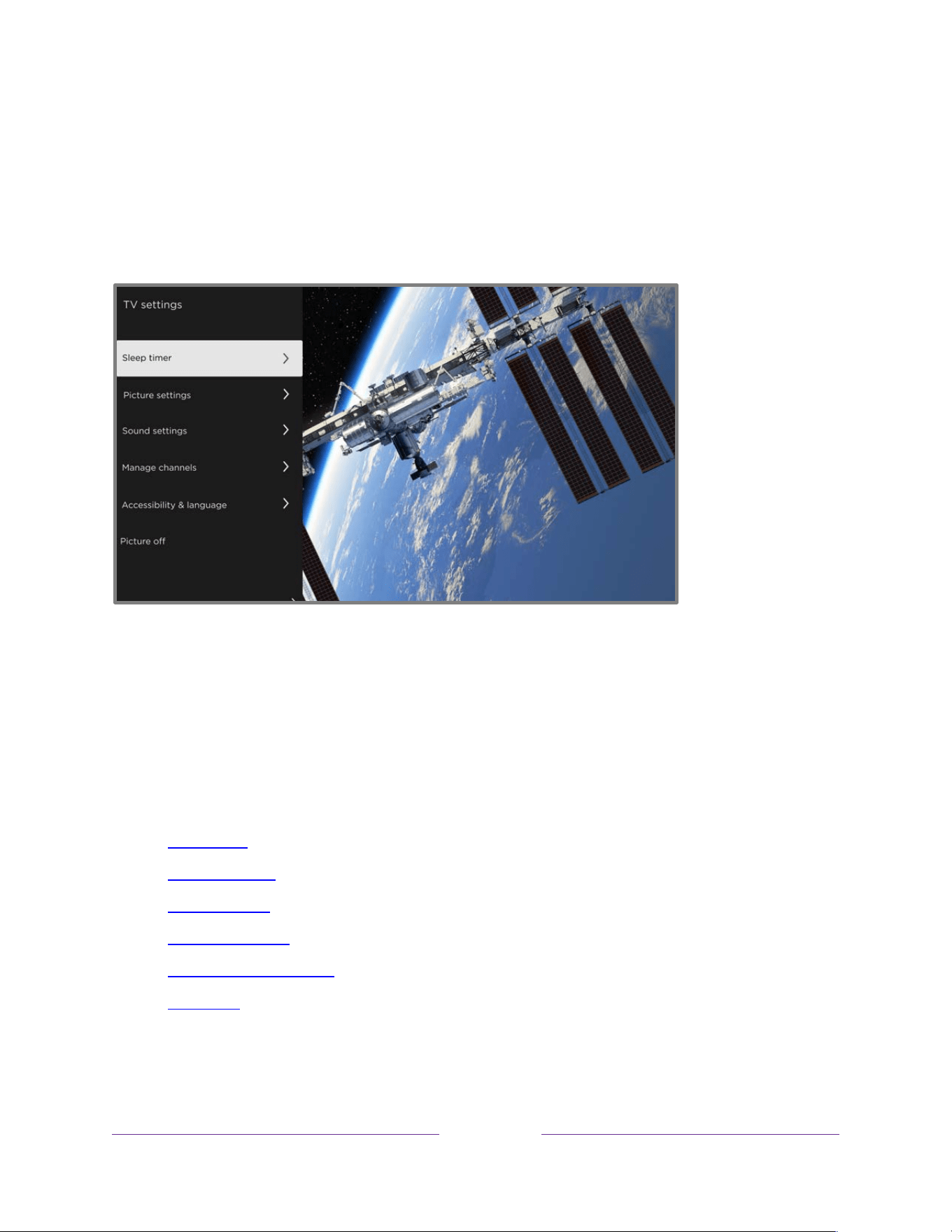
!
!!
79
!
!
!
TV settings menu
The TV settings menu provides settings for controlling the appearance of the picture and the quality of
the audio for each TV input. To view the TV settings menu, press STAR Þ whenever you are watching a
TV input or streaming a video.
TV settings menu
Tip: Some streaming channels assign STAR Þ to a different function (or no function at all), meaning this
button will not open the TV settings menu. In these cases, use a different channel, such as The Roku
Channel, to configure options. The selected settings remain active for all streaming channels.
Press UP or DOWN to highlight a setting, and then press OK or RIGHT to see the options for the setting.
You’ll see the changes you make right away in picture appearance or audio quality.
• Sleep timer
• Picture settings
• Sound settings
• Manage channels
• Accessibility & language
• Picture off
Tip: To dismiss the TV settings menu, just wait a few seconds without pressing any buttons. Or press
STAR
Þ
again to dismiss the menu immediately.
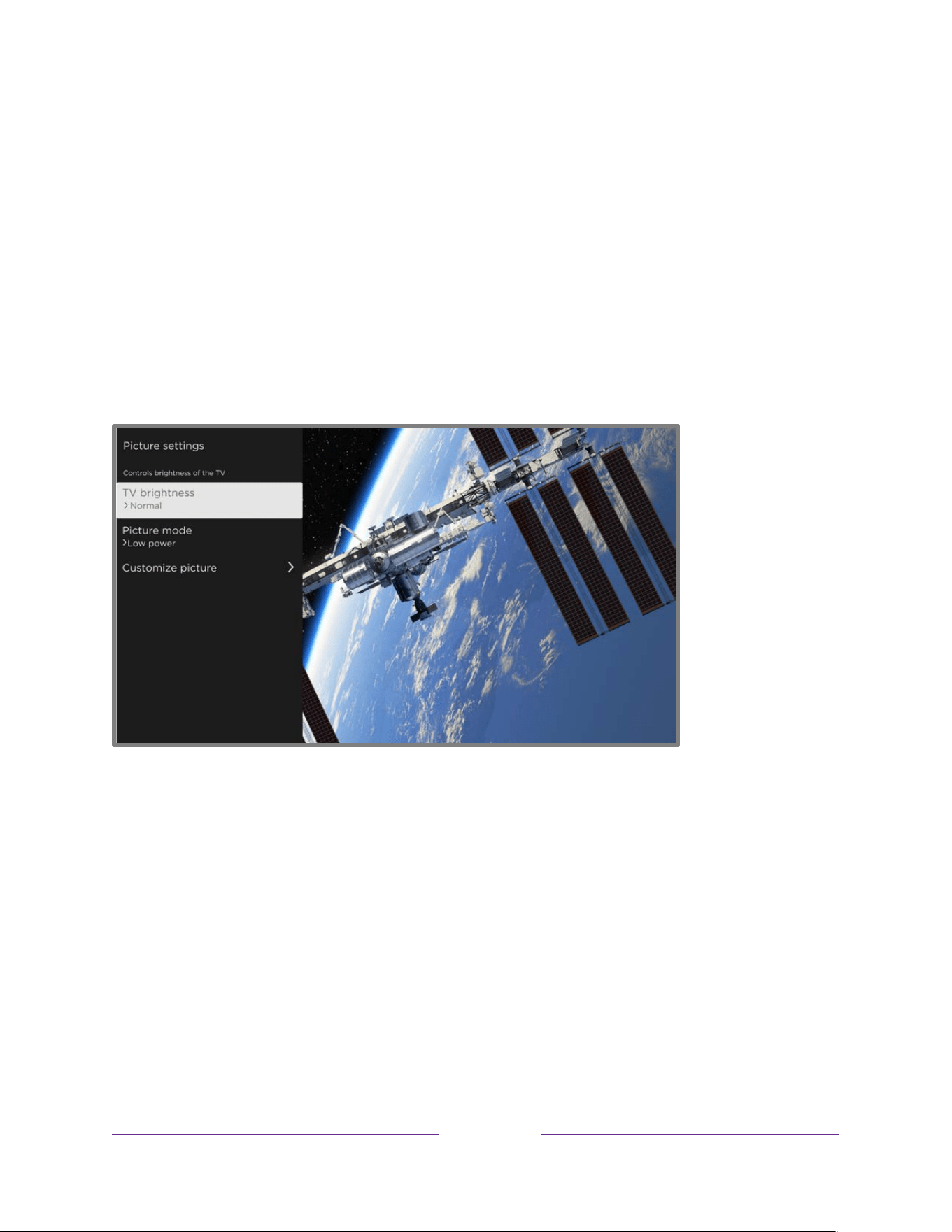
!
!!
80
!
!
!
Sleep timer
Opens the Sleep timer menu where you can set a timer that turns off the TV after the specific amount of
time. This setting remains in effect even if you stop watching the current input.
Picture settings
The Picture settings menu adjusts the appearance of the picture for the active input. To access picture
settings, press STAR Þ to display the TV settings menu, then select Picture settings. The options you see
vary depending on the program source.
Picture settings menu
• TV brightness – Overall brightness of the picture. This setting applies to all TV inputs and is
identical to the TV brightness setting under Settings > TV picture settings.
• Picture mode – Picture presets for various viewing preferences. For example, selecting Vivid sets
Brightness, Contrast, Sharpness, and other values to produce a very vibrant picture. Selecting
Movie changes the settings to produce a picture suitable for enjoying movies in a darkened
room. However, we recommend that you let the TV decide based on the content you are
watching by selecting Roku Smart Picture.
Tip: If you make changes to individual picture settings, these settings are saved for the current
input and the current Picture mode. In this way you can, for example, individually set the HDMI 1
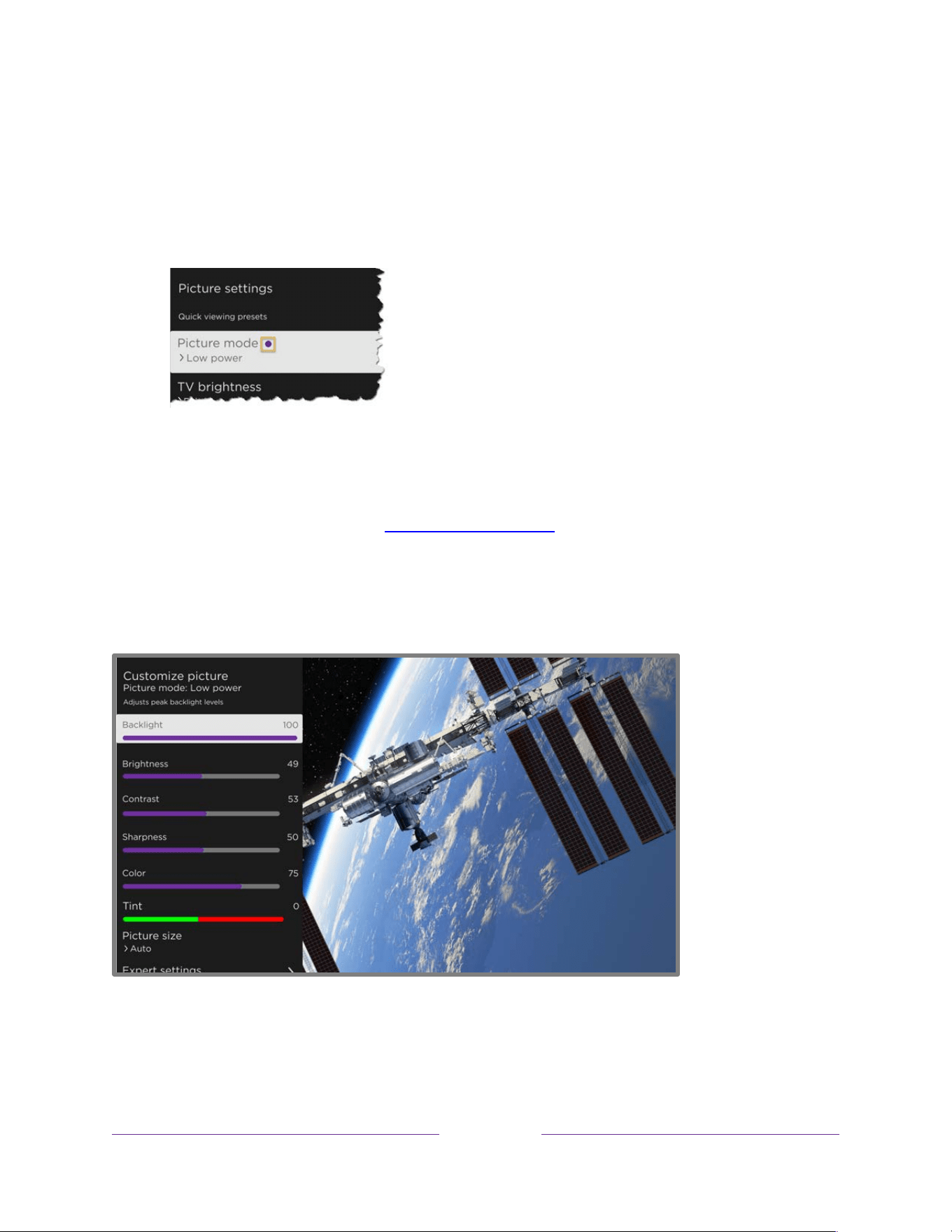
!
!!
81
!
!
!
input’s Movie picture mode to use different settings than the HDMI 2 input’s Movie picture
mode, and different settings than the Live TV input’s Movie picture mode.
Note: If you change the settings of a Picture mode, a small purple dot appears to the right of
Picture mode.
Use Reset picture settings, described below, to return the input’s selected picture mode to its
default settings.
• Customize picture – Opens the Customize picture menu, where you can adjust various aspects
of the picture quality.
Customize picture menu options
Customize picture menu
• Backlight - Adjusts the overall light intensity of the screen.
• Brightness – Adjusts the dark level of the picture.

!
!!
82
!
!
!
• Contrast – Adjusts the white level of the picture.
• Sharpness – Adjusts the sharpness of edges in the picture.
• Color – Adjusts the saturation of colors in the picture. A setting of 0 removes all color and
displays a black and white picture.
• Tint – Adjusts the color balance from green to red to obtain accurate colors in the picture.
• Picture size – Aspect ratio of the picture, enabling you to view a picture in its original format, or
zoom or stretch it to fill the screen. The Auto setting has been found to produce the best picture
in most cases.
• Game mode – Only on HDMI
®
and AV inputs: Enables less image processing resulting in less input
lag, which improves viewing of action games. Also see Variable refresh rate (VRR).
• Auto low latency mode (ALLM) – Only on certain models: Detects when certain game consoles
are connected to an HDMI input, and then automatically configures the best settings when that
input is selected. When ALLM is active, the manual Game mode setting is not available. Note
that there is no ALLM menu option.
• Expert settings – Opens the Expert settings menu where you can adjust fine details of picture
quality.
• Reset ‘mode name’ settings – Returns all picture settings for the input’s currently-selected
Picture mode to their original values.
• Apply settings to all inputs – Applies the settings you have made in the current Picture mode to
all TV inputs.
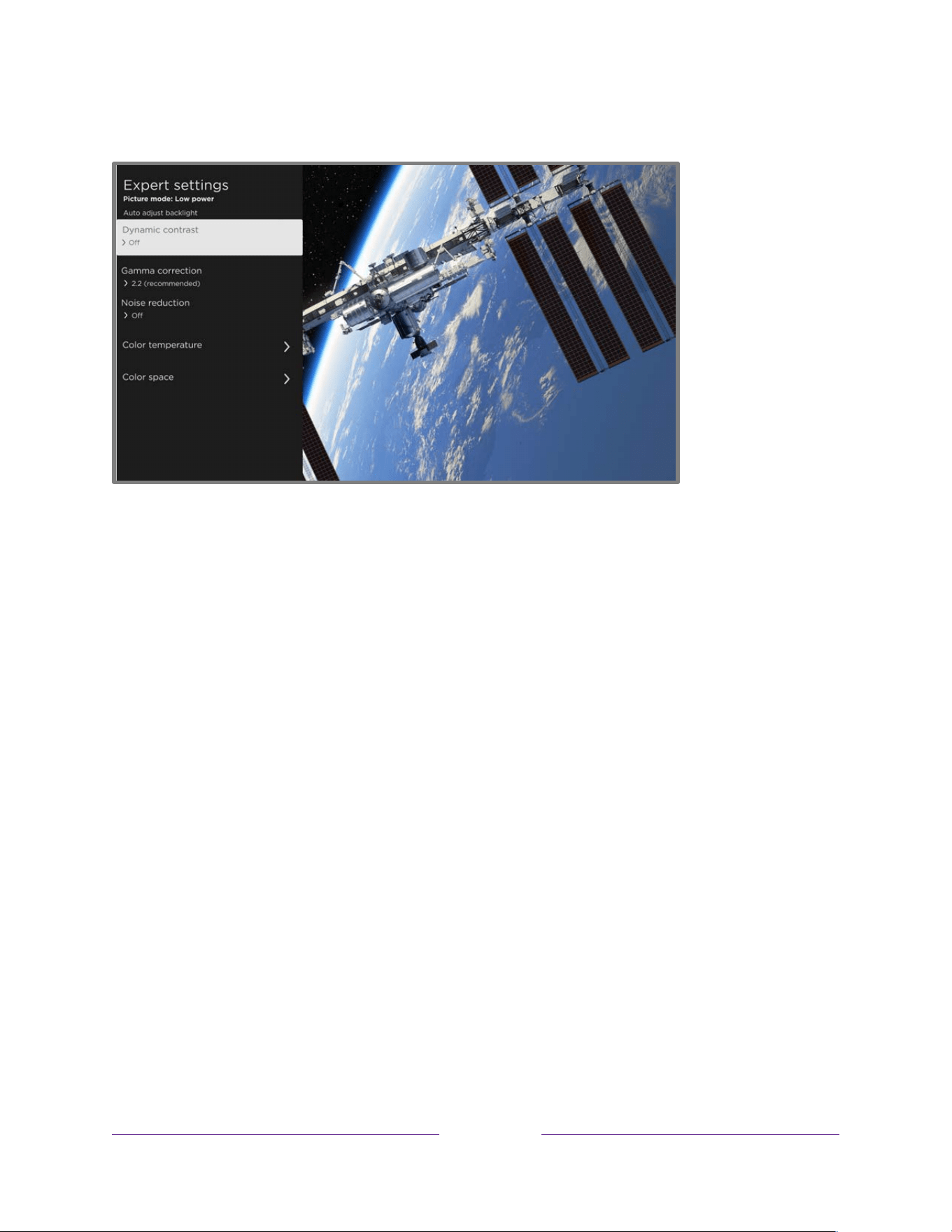
!
!!
83
!
!
!
Expert settings menu options
Expert settings menu, typical
Notes: Certain picture settings vary by brand and model. Not all settings are available on all TVs. Names
of certain settings also vary by brand and might differ from the names listed here.
• Dynamic contrast – Only on certain models: Automatically adjusts the backlight level to achieve
the optimum contrast and prevent excessive differences between light and dark areas of the
screen.
• Local dimming – Only on certain models: Sets the amount of dimming applied to multiple areas
of the screen’s backlight intensity. This setting can make dark areas darker without affecting the
brightness of light areas.
• Micro contrast – Only on certain models: Improves image contrast.
• Action Smoothing – Only on certain models. Your model might use a different name for this
option. Adjusts the amount of motion processing applied to the video signal. A higher setting
results in more smoothing, but can cause undesirable picture artifacts in certain types of
content. Each Picture mode has a different default setting.

!
!!
84
!
!
!
• Natural Cinema – Only on certain models. Your model might use a different name for this option.
Reduces “judder” often present when 24 frame-per-second movies are upscaled to TV standard
frame rates. Natural Cinema mode is On by default in Movie and HDR Dark modes, and Off by
default in other modes.
• Action Clarity – Only on certain 120Hz models. Your model might use a different name for this
option. Reduces blur in fast-moving images such as sports.
• LED Motion Clarity – Only on certain models that also have the local dimming feature. Your
model might use a different name for this option. Reduces motion blur caused by the screen
refresh rate. Enabling this feature inserts black frames between picture frames, providing
viewing improvements for fast moving games and sports, but reducing the brightness of the
picture. Select Low, Medium, High, or Off to achieve the desired picture quality balance.
• Gamma correction – Adjusts how smoothly the picture transitions from black to white, thereby
adjusting the contrast of shadows and midtones. Choose from among the listed values to
achieve the desired picture quality.
• Noise reduction – Adjusts the amount of video noise that the TV filters out of the picture.
Choose the setting that produces the best picture according to the type of program you are
watching—typically Off for high quality programs and one of the other settings for older, low-
definition programs. Using noise reduction in a program that doesn’t need it can result in a
lower quality viewing experience.
• Color temperature – Opens the Color temperature menu where you can adjust the overall color
tones in the picture or perform a custom 11-point white balance.
• Color space – Opens the Color space menu where you can perform an advanced color space
calibration.
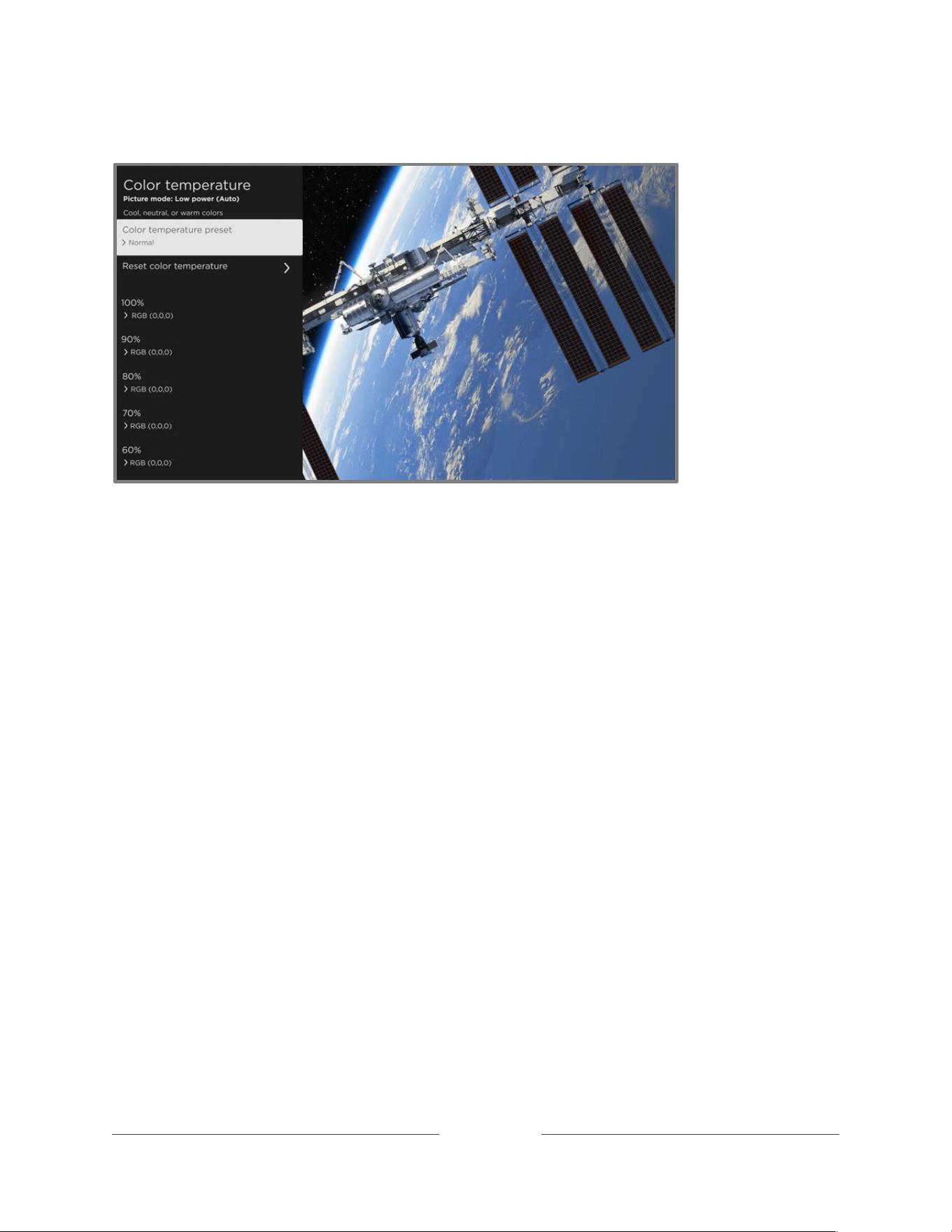
!
!!
85
!
!
!
Color temperature menu options
Color temperature menu
• Color temperature preset – Adjusts the overall color tones in the picture from Normal to slightly
more bluish (Cool) to slightly more reddish (Warm). If you are watching Dolby Vision content,
the option shows Dolby Vision and cannot be changed.
• Reset color temperature – Resets any custom white balance settings you have made to the
current Color temperature preset. This setting is not available if you are watching Dolby Vision
content.
• 11-point white balance settings – Lists 11 white balance points from 5% to 100%. For each white
balance point, you can specify custom red, green, and blue intensities to achieve perfect gray
tones at each brightness level for the currently-selected Color temperature preset. Correctly
adjusting these settings requires the use of special equipment, and so we do not recommend
that you adjust these settings without proper equipment. These values cannot be adjusted if
you are watching Dolby Vision content.
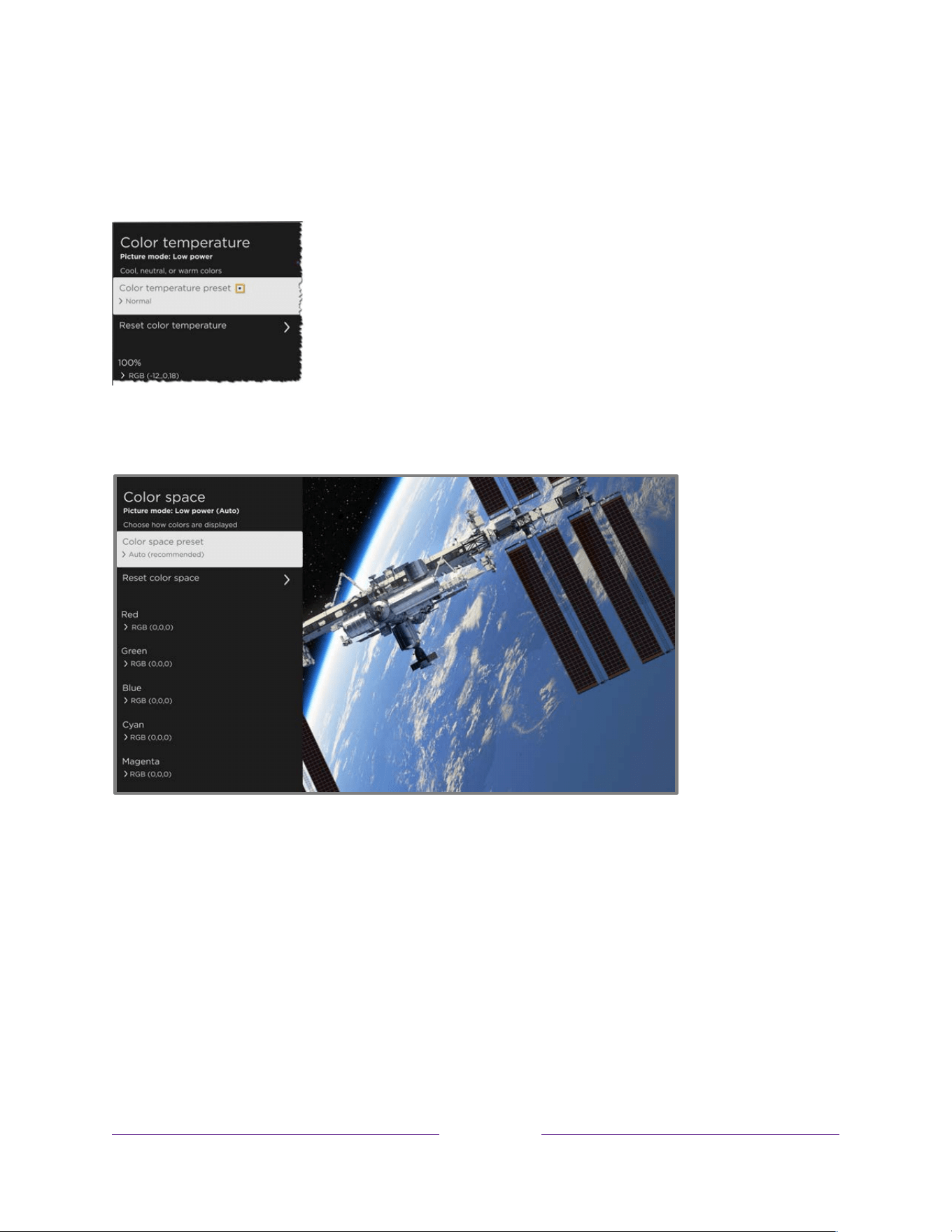
!
!!
86
!
!
!
Note: Changing the 11-point white balance settings affects the currently-selected Color temperature
preset only. The change to the preset is indicated by a small purple dot to the right the menu option, as
shown in the following illustration:
Color space menu options
Color space menu
• Color space preset – Adjusts the color space to Auto (recommended), Native, or Custom. Choose
Custom if you want to manually change the individual color space values.
• Reset color space – Resets any custom color space settings you have made.
• Individual color space settings – Lists six color values. These settings are not available unless you
set Color space preset to Custom. For each color value, you can specify custom red, green, and
blue intensities to achieve perfect color tones. Correctly adjusting these settings requires the
use of special equipment, and so we do not recommend that you adjust these settings by
without special equipment.

!
!!
87
!
!
!
Note: Changing the factory-preset color space settings affects only the Custom Color space preset
option. The change to these settings is indicated by a small purple dot to the right the menu option, as
shown in the following illustration:
Variable refresh rate (VRR)
Only on certain models: Variable refresh rate (VRR) allows a compatible game console or computer
connected via HDMI to control the refresh rate of the TV. This feature helps to ensure that the TV does
not begin to display a video frame until the video source has completely rendered it. The result is
smoother image animation with a lower instance of stutter or tearing. This feature requires the
following conditions:
• Variable refresh rate is turned On in the HDMI settings for the input. This setting is Off by
default.
• The HDMI mode is set to Auto or HDMI 2.0 in the HDMI settings for the input.
• Game mode is enabled.
• The connected device supports VRR.
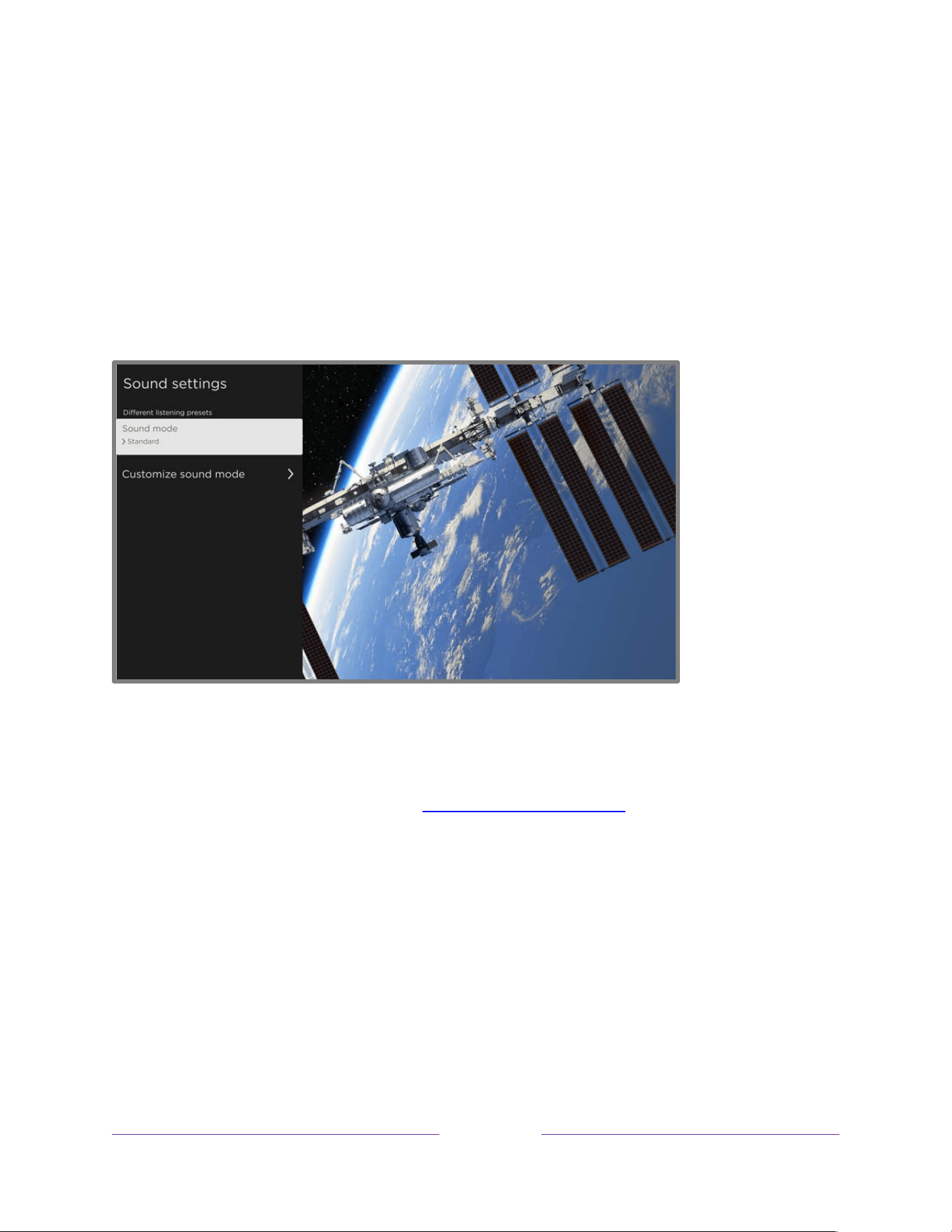
!
!!
88
!
!
!
Sound settings
The Sound settings menu adjusts the sound qualities of the TV. To access sound settings, press STAR Þ
to display the TV settings menu, then select Sound settings.
Note: Most sound settings do not affect the sound that you hear from a connected receiver or
headphones. Also, the Sound settings option is unavailable when you are using the private listening
feature through the Roku mobile app or (on certain models) through Bluetooth headphones.
Sound settings menu
• Sound mode – Preset sound modes to make programs sound their best. If you would rather let
the TV decide how to set the sound based on the program content, select Auto (recommended).
• Customize sound mode – Opens the Customize mode name menu, where you can adjust various
aspects of the sound according to the features available on your TV model.
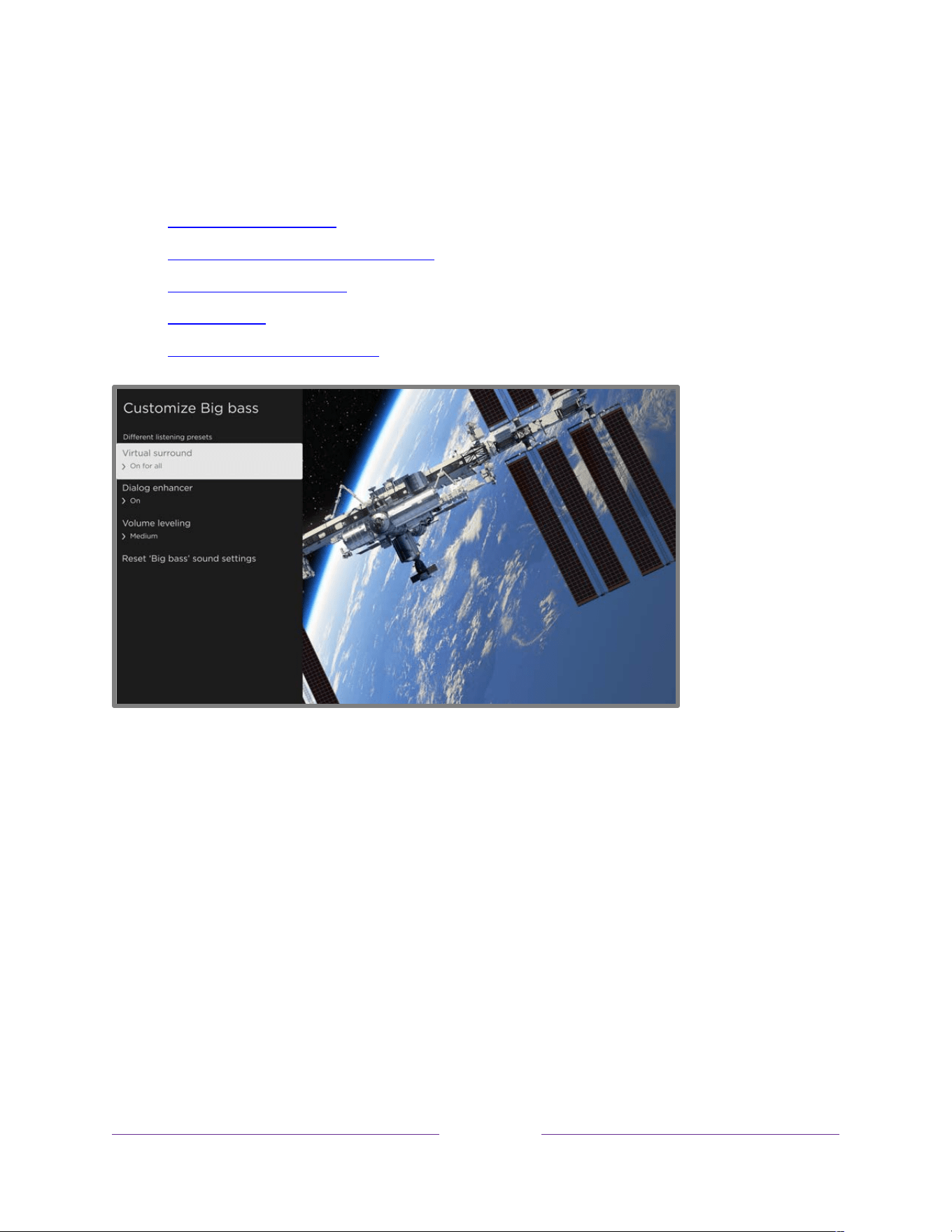
!
!!
89
!
!
!
Customize Mode name menu options
Your TV model might have any one of the following sound settings available in the TV settings menu
• Dolby
®
Audio Processing
• DTS
®
TruSurround / DTS
®
Studio Sound
• Sonic Emotion™ Premium
• Volume mode
• Roku premium audio products
Typical Customize Mode name menu
Dolby
®
Audio Processing (certain models only)
• Virtual surround (Only on certain models) – Simulates surround sound. Sometimes the effect
interferes with dialog clarity. Use the Dialog enhancer option to compensate.
• Dialog enhancer – Improves the clarity of speech.
• Volume leveling – Smooths out the high and low sounds.
• Dolby AC-4 Dialog Enhancement – Only on certain models: Enhances dialog in content that
supports the AC-4 audio format.
• Reset ‘Sound mode’ sound settings – Returns Virtual surround, Dialog enhancer, and Volume
leveling settings to their default settings for the selected Sound mode.

!
!!
90
!
!
!
Note: Dolby Atmos
®
decoding is available only when using the built-in TV speakers. Is not available
when using external speakers.
DTS
®
TruSurround / DTS
®
Studio Sound (certain models only)
• DTS TruSurround – Simulates surround sound. Sometimes the effect interferes with dialog
clarity. Use the Dialog clarity option to compensate.
• Dialog Clarity – Improves the clarity of dialog when you are using the DTS TruSurround feature.
• TruVolume – Minimizes annoying volume fluctuations in programs.
• Dolby AC-4 Dialog Enhancement – Only on certain models: Enhances dialog in content that
supports the AC-4 audio format.
• Reset ‘Sound mode’ sound settings – Returns DTS TruSurround, Dialog Clarity, and TruVolume
settings, to their default settings for the selected Sound mode.
Sonic Emotion
™
Premium (certain models only)
• Sonic Emotion Premium – Displays a menu with individual Sonic Emotion™ audio settings:
o Dialog Enhancement – Enhances your ability to hear and understand dialog in the
program.
o Bass Enhancement – Enhances the low frequency sound component in the program.
o Absolute 3D Sound – Simulates surround sound.
• Dolby AC-4 Dialog Enhancement – Only on certain models: Enhances dialog in content that
supports the AC-4 audio format.
• Reset ‘Sound mode’ sound settings – Returns Sonic emotion settings to their default settings for
the selected Sound mode.

!
!!
91
!
!
!
Volume mode (certain models only)
• Off – Content volume is unmodified.
• Leveling – Provides a consistent volume level across different types of content.
• Night – Soft sounds are increased while loud sounds are decreased, making it easier to hear your
TV at night without disturbing others.
• Dolby AC-4 Dialog Enhancement – Only on certain models: Enhances dialog in content that
supports the AC-4 audio format.
Roku premium audio products
Several different Roku premium audio products are available for separate purchase. You can connect
them to any Roku TV model. When you do, the Sound settings menu on the TV provides direct access to
the sound settings of the connected Roku audio product(s). For more information, see Roku TV
soundbars and wireless speakers.
Although the sound settings vary depending on the connected product and its current feature set,
following are examples of typical settings that you can control directly from your TV:
• Volume mode – Modes for normal listening, volume leveling, and night listening.
• Speech clarity – Makes voices easier to hear above the rest of the program.
• Expanded stereo – Simulates surround sound or, only with Roku wireless speakers in a supported
surround configuration, play stereo sound from all speakers.
• Bass – Adjusts the level of low frequency sounds.
• Treble – Adjusts the level of high frequency sounds.
• Surround level – Only if you have Roku wireless speakers in a supported surround configuration,
sets the surround volume level to your liking.
• Virtual surround – Only if you do not have Roku wireless speakers in a surround configuration,
enhances the stereo sound from the soundbar to simulate surround sound.
• Dolby AC-4 Dialog Enhancement – Only on certain models: Enhances dialog in content that
supports the AC-4 audio format.
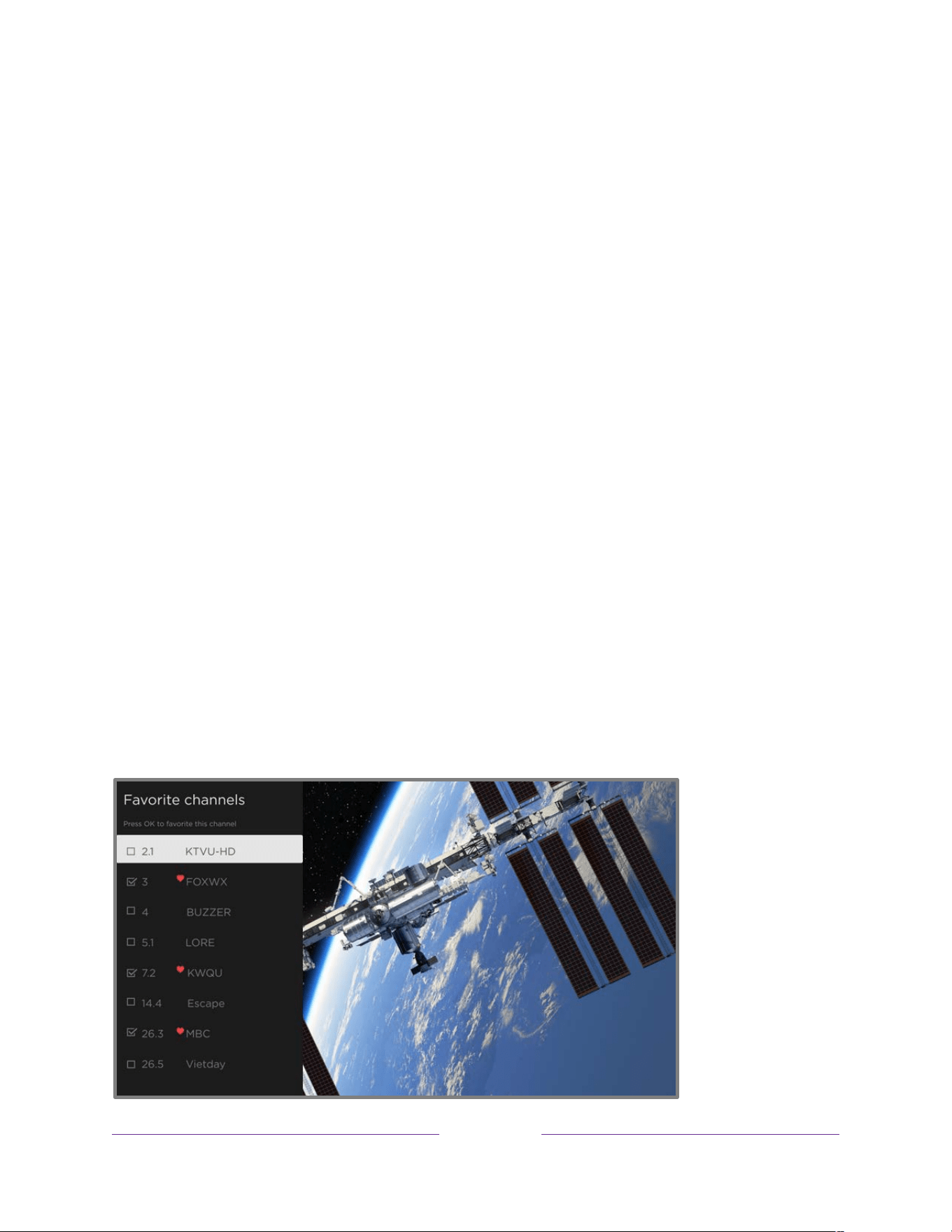
!
!!
92
!
!
!
• Reset sound settings – Returns all sound settings to their defaults for the selected Sound mode.
Manage channels
Designate favorite channels and edit your channel lineup in the Manage Channels menu. You can
navigate to the Manage Channels menu in several ways:
• From the Home Screen Menu, navigate to Settings > TV inputs > Live TV > Manage channels, and
then select Manage all channels and press OK.
• While watching a live TV program, press STAR Þ to display the TV settings menu, and then
navigate to Manage channels and press OK.
• While using the Live TV Channel Guide, navigate left to the channel column, and then press
STAR Þ. In the Channel options dialog, highlight Manage channels and press OK.
• While using the Live TV Channel Guide, navigate left past the channel column to the Live TV
Categories column. Scroll up or down to Favorites, press RIGHT to highlight Select to add
favorite channels, and then press OK.
In the Manage Channels menu, select Favorite channels or Edit channel lineup.
Favorite channels
Use the Favorite channels menu to designate any number of channels as your favorites.
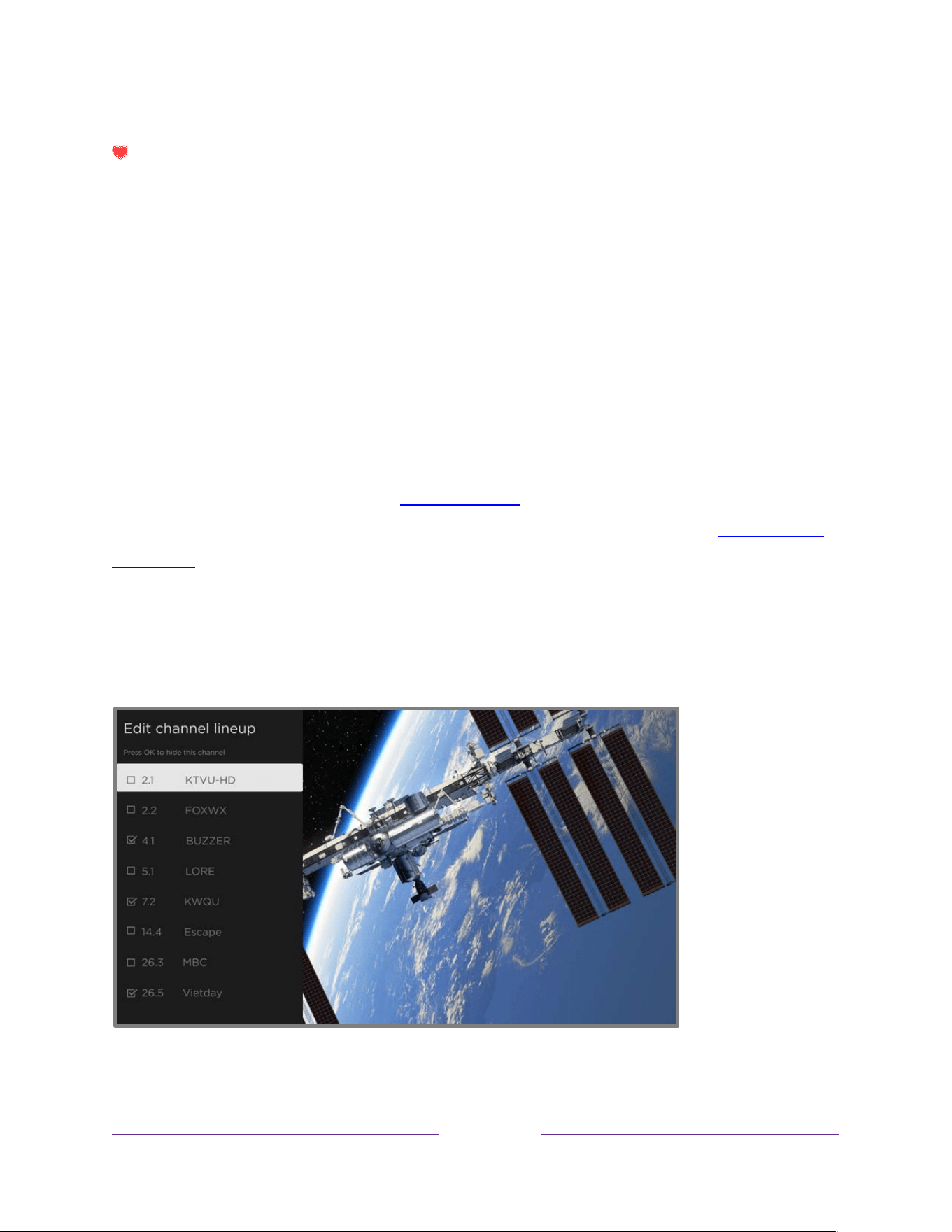
!
!!
93
!
!
!
Press UP or DOWN to highlight a channel, and then press OK to select or clear its check box. A FAVORITE
symbol appears next to each channel you designate as a favorite.
Tip: Pause for a few seconds for the TV to tune to the highlighted channel. You then can view and hear
the channel to decide whether you want to make it a favorite.
Note: If you’ve enabled parental controls and the program on the current channel is blocked, you won’t
see a picture or hear sound while using the Favorite channels menu.
To switch between surfing all channels and favorite channels, select Favorites in the filter column of the
Live TV Channel Guide.
Edit channel lineup
When you scan for channels described in Setting up live TV, the TV adds all the channels with good
signals that it can detect in your area. In addition, unless you hide them as explained in Hide streaming
TV channels, the channel lineup will include streaming channels along with your local TV stations.
At this point, you might have more channels than you want in your channel list. Use the Edit channel
lineup menu to hide any channels that you do not want in your channel list. You can hide both over-the-
air and streaming TV channels.
Press UP or DOWN to highlight a channel, and then press OK to select or clear its check box. Channels
with check marks are hidden in the Live TV Channel Guide and cannot be tuned.
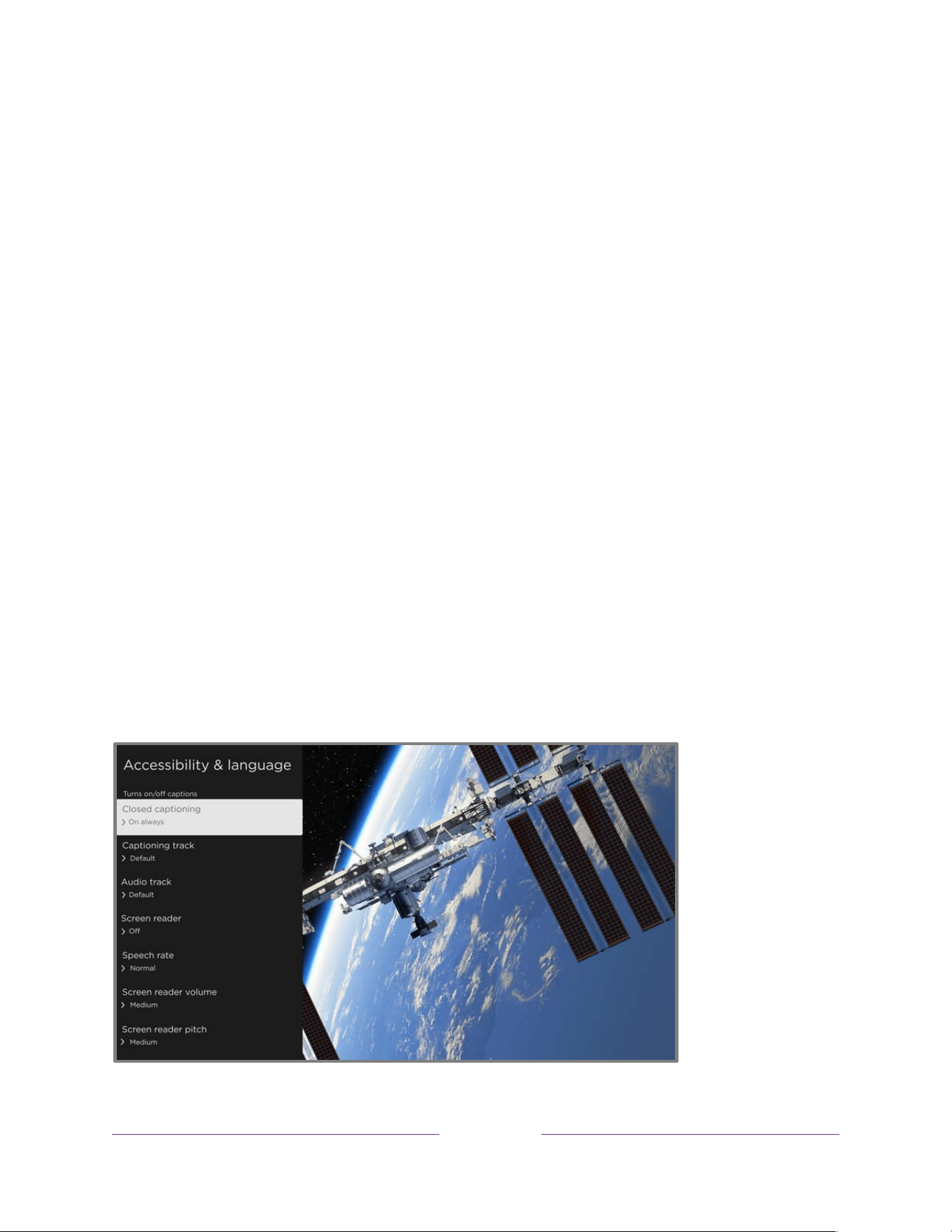
!
!!
94
!
!
!
Tip: Pause for a few seconds for the TV to tune to the highlighted channel. You then can view and hear
the channel to decide whether you want to hide it. If you’ve enabled parental controls and the program
on the current channel is blocked, you won’t see a picture or hear sound while using the Edit channel
lineup menu.
Note: Repeating the live TV channel scan unhides all hidden channels.
Hide streaming TV channels
By default, the Live TV Channel Guide shows both broadcast and streaming channels in one long list. If
you prefer, you can hide streaming channels from the Live TV Channel Guide.
To hide streaming TV channels, from the Home Screen Menu, navigate to Settings > TV inputs > Live TV
> Manage channels, and then highlight Hide streaming TV channels and press OK to select the adjacent
check box.
Accessibility & language
The settings on the Accessibility & language menu enable you to change the TV’s accessibility settings
without leaving the program you are watching. These settings are also available in the Home Screen
Menu under Settings > Accessibility.
Typical Accessibility & language menu

!
!!
95
!
!
!
Tip: Some streaming channels assign STAR Þ to a different function, meaning it will not open the TV
settings menu. In these cases, use a different channel, such as The Roku Channel, to configure
accessibility options.
Accessibility & language menu settings
• Closed captioning – Controls when you see captions. This setting appears only for programs you
watch through ANT, AV, streaming, and Roku Media Player. Any set value remains in effect
across only these inputs.
• Live TV – Set captions to Off, On always, On replay, or On mute.
• AV input – Set captions to Off, On always, On replay, or On mute.
• Streaming video channel and Roku Media Player – Set captions to Off, On always, On replay,
or On mute. Not all streaming content has captions. Note that some streaming channels
have other methods for turning captions on and off. In these cases, the Closed captioning
option does not appear on the TV settings menu.
• Captioning track – Selects which caption track to display when closed captioning is on. This
setting remains in effect on all inputs that provide captions.
• SAP – Select whether to play a secondary audio program or multichannel television sound, and
which choice to play. See Video description through Secondary Audio Program (SAP). This
setting applies only to live TV on digital channels.
• Audio track – Select the audio track to play with the current program. This setting applies only to
streaming content when multiple audio tracks are available.
• Screen reader – Present only when the TV Language is set to English. Turns the screen reader on
or off. The screen reader is a text-to-speech user interface to help you navigate the Roku user
interface. When enabled, it reads out text, menus and other on-screen items.
Accessibility: If Screen reader shortcut is enabled, you can enable or disable the screen reader by
pressing the STAR Þ four times in quick succession. (STAR Þ is located directly below the purple
directional pad on the right side of the Roku remote.)

!
!!
96
!
!
!
• Speech rate – Select the speed at which the screen reader speaks.
• Screen reader volume – Set the volume of the screen reader in relation to the main TV volume.
• Screen reader pitch – Select the desired pitch of the screen reader voice.
• Screen reader shortcut – Enable or disable the screen reader shortcut feature. When disabled,
pressing STAR Þ four times in quick succession does not enable or disable the screen reader.
Video description through Secondary Audio Program (SAP)
Video description of the action in a program helps individuals who are blind or visually impaired enjoy
programs. You enable video description by selecting one of the Secondary Audio Program (SAP) options.
To hear video description narrations in programs that have them, turn on SAP. If there are multiple SAP
options for a channel, such as Spanish and French, try each one to determine which setting carries the
video description track.
Accessibility: Broadcasters provide video descriptions only on a small number of programs. If you are
unable to hear video descriptions after following these instructions, the program you are viewing does
not provide them.
For more details about video description, go to:
https://www.fcc.gov/consumers/guides/audio-description
Picture off
Select Picture off to turn off the screen while continuing to play the sound. You might want to use this
feature when listening to music or podcasts, or at any other time that you do not want to see the TV
screen.
When you want to turn the picture back on, press OK. Or, if you turn off the TV while the screen is off, it
comes on again the next time you turn on the TV.

!
!!
97
!
!
!
Displaying art and photos with
Backdrops
In supported regions, during times when you are not actively watching your TV, use it to display curated
art from a wide range of categories. Or, upload your own photos to display your memories on the big
screen. Selected images appear when you turn off your TV. You can control:
• Selection of images that the TV displays
• TV brightness during Backdrops sessions
• Duration of each image
Set up Backdrops
1. If it’s not already in your Home screen grid, go to Settings > Backdrops and select Open the
Backdrops app. Otherwise, just select the Backdrops tile on the Home screen grid.

!
!!
98
!
!
!
2. Open the Backdrops app.
3. Scroll through and select the art you want to display from among the various categories, artists,
and photographers. Select an entire collection or individual items.
4. Choose either Set as Backdrop or Add to My Favorites.
5. If you want to display the selected collection or image, you are done. If you want to display your
favorites, scroll up to the top and select the My Favorites tile, and the select Set as Backdrop.
6. Press POWER on your remote control to start showing your selected Backdrops.
Note: To completely turn off the TV when you’ve enabled Backdrops, hold down POWER for a few
seconds until Powering off appears in the upper right corner of the screen.
Change Backdrops settings
When Backdrops in not active, you can change settings within the Backdrops app. Open the Backdrops
app from the Home screen and select the Settings icon.
When Backdrops is active, you can change settings by pressing STAR Þ and then choosing the setting
you want to change from the menu.
Add your own photos to Backdrops
From your mobile phone:
1. Open the Backdrops app.
2. Select Add your photos.
3. From the options that appear, choose one of the following:
• Upload photos. To use this option, use your mobile phone’s camera to scan the QR code
that appears on your TV screen, and then follow the instructions on your phone to upload
your photos.

!
!!
99
!
!
!
• Connect Google Photos. To use this option, use your mobile phone’s camera to scan the QR
code that appears on your TV screen, and then follow the instructions on your phone
connect your Roku account to your Google Photos account. You can then choose albums to
link to Backdrops.
• Settings. Opens Backdrops settings where you can choose Manage photo services to make
changes to your linked Google Photos account and linked albums.
From your computer:
1. Open your web browser and go to https://backdrops.roku.com.
2. Follow the instructions to add your own photos and manage your linked photo services.
Navigate Backdrops
When your TV is displaying a Backdrops image, you can do any of the following:
• Press RIGHT or LEFT to show the next or previous image in your selected collection.
• Press UP or DOWN to display information about the current image.
• Press STAR Þ to open the Backdrops settings menu.
• Press HOME to return the Home screen.
• Hold down POWER for a few seconds to turn off the TV.

!
!!
100
!
!
!
Featured Free
Use Featured Free to discover content that is free to watch.
As you browse through the programs, the featured channel’s icon appears in the upper left corner of the
screen. Use the purple directional pad to highlight a program, and then press OK to see more
information about it.
While you are viewing a program’s details, press OK to start playing the program. If you’ve already
added the channel, you’ll be taken directly to the channel and the program will begin to play. If you have
not added the channel, it will be added for you before playing the program.
If you don’t want to see Featured Free in the Home Screen Menu, you can hide it.
To hide Featured Free:
1. From the Home Screen Menu, navigate to Settings > Home screen, and then press RIGHT.
2. Select Featured Free.
3. Highlight Hide, and then press OK.

!
!!
101
!
!
!
Searching for something to
watch
Searching for movies and programs across streaming channels and live TV is one of the unique features
of your Roku TV. Within a single search operation, you can search by:
• Movie name
• TV program name
• Actor or director name
• Streaming channel name
• Interactive game name
• Music or podcast title or artist on Spotify
• Genre, including the special genres, “free” and “4K.”
Note: Roku Search searches across many, but not all, popular streaming channels. The actual channels it
searches vary by locale.
How do I search?
You can search in several different ways:
• By speaking search phrases in English, Spanish, Portuguese, or German (corresponding to your
selected TV language setting) using the Roku mobile app, Amazon Alexa, or Google Home
Assistant. Participating channels show results without leaving the channel you are viewing.
Results from the channel you’re currently watching appear in the first row, followed by results
from other channels.
• By using an on-screen keyboard that you navigate using the purple directional pad on your
remote
• By typing on the Roku mobile app on your phone or tablet
For more details about Voice Search, go to go.roku.com/voicesearch
.

!
!!
102
!
!
!
Searching from the Roku mobile app
Use the free Roku mobile app on your compatible smartphone or tablet to make searching even faster.
Use your mobile device’s keypad to type more quickly and easily than with the on-screen keyboard on
your TV. Or search by touching the Voice Search icon and saying the name of the movie, TV program,
actor, director, genre, streaming channel, or game.
When you use the Roku mobile app to search, search results are shown on your mobile device instead of
on the TV screen. When you make a selection from the search results, the TV starts playing the selected
program.
For more information, see Roku mobile app.
Searching with Google Assistant
Use your Google Home, Google Pixel phone, or the Google Home mobile app to search for programs:
1. Link your Roku account to your Google account using the Google Home mobile app on your iOS
or Android device.
2. Start your command with “Hey Google” or “OK Google,” and follow the command with “on
Roku.” Some examples:
• “Hey Google, show me documentaries on Roku.”
• “OK Google, show me comedies on Roku.”
Note: You also can issue commands to control your Roku TV. For example, you can turn on your TV by
saying, “OK Google, turn on Roku.”
For more information about setting up and using Google Assistant with your Roku TV, see the Roku
support article, How to use Google to control your Roku
®
streaming device.

!
!!
103
!
!
!
Searching with Amazon Alexa
Use your Amazon Echo Dot, Echo Plus, Echo Show, or the Amazon Alexa mobile app to search for
programs:
1. Link your Roku account to your Amazon account using the Amazon Alexa app on your iOS or
Android device.
2. Start your command with “Alexa,” and follow the command with “on Roku.” Some examples:
• “Alexa, turn up the volume on Roku.”
• “Alexa, show me documentaries on Roku.”
Note: You also can issue commands to control your Roku TV. For example, you can turn on your TV by
saying, “Alexa, turn on Roku.”
For more information about setting up and using Amazon Alexa with your Roku TV, see the Roku
support article, How to use Amazon Alexa to control your Roku
®
streaming device..

!
!!
104
!
!
!
Keyboard search using the remote
1. Select Search from the Home Screen Menu.
2. Use the purple directional pad to navigate the on-screen keyboard, entering a few characters of
the search term.
Each additional character you enter narrows down the search, making the search results more
relevant. You’ll often see the results you are seeking after entering only a few letters.
3. When you see the program you are searching for, press RIGHT to highlight it. Continue pressing
RIGHT to see more details about how to watch the program.
Direct-to-playback search results
With direct-to-playback, voice search results jump directly to and start playing the program whenever
your search command can be uniquely identified and the requested content is available at no additional
cost to you.
1
Searching for free content
You’ll discover an almost endless list of content through your Roku TV, and much of it is free. You can
easily find free content by including the word “free” in your search. For example:
• Roku mobile app—Say, “Show me free comedies” or “Show me free romance,” or simply, “Show
me free shows.”
• Google Home, Google Pixel phone, or the Google Home mobile app—Say “OK Google, show me
free programs on Roku,” or “Hey Google, show me free documentaries on Roku.”
• Amazon Alexa—Say “Alexa, show me free miniseries on Roku” or “Alexa, show me free dramas
on Roku.”
1 Direct-to-playback commands work with selected streaming channels. Direct playback occurs only when there is a high
confidence of match, the content is free or you are already subscribed, and the channel is already added to your Home screen.

!
!!
105
!
!
!
Using the Roku Store
From the Home Screen Menu, navigate to Streaming Store option to go to the Roku Store, where you
can select new free and subscription based streaming content.
When you find an item you want to add or learn more about, highlight it and press OK to display more
details.
• If the content is free, you can select it to start watching it immediately.
• If there is a one-time or recurring fee associated with using the content, you must agree to the
terms and conditions, accept the fee, and enter your Roku Account PIN to authorize these
charges.
• If you already have a subscription to the content—for example, you already subscribe to Netflix
or you receive HBO through your cable TV provider—you must complete a different, simple
authorization step to watch it on your Roku TV.
Content availability and pricing are subject to change. Charges may apply to your selection.
Tip: New content is continuously added to the Roku Store, so be sure to check back frequently for new
options.
Note: If you don’t remember your PIN, or if you want to change whether you need to use a PIN to make
purchases on your Roku account, see Roku Account PIN.
Automatic Account Link
Some streaming subscription channels take advantage of Automatic Account Link. If you have multiple
Roku devices, channels that support this feature require you to supply your user name and password on
only one device. For a growing list of channels that support this feature, see the Roku support article,
How to set up, or sync, subscription channels in your account on a second Roku
®
streaming device.

!
!!
106
!
!
!
Customizing your TV
There are many things you can do to personalize your TV.
Add TV inputs to your Home screen
As you use your TV, you might find that you need to add a TV input that you did not add during Guided
Setup. To add a TV input:
1. From the Home Screen Menu, navigate to Settings > TV inputs. Notice that the list of inputs is
divided into two sections: Inputs being used and Inputs not used.
2. Press UP or DOWN to highlight an input in the Inputs not used section of the list.
3. Press RIGHT to move the highlight to Set up input.
4. Press OK to add the input.
5. Press HOME to return to the Home screen. Notice that the input has been added to the top
of the Home screen. If you want to move the input to a different position in the grid, see
Rearrange inputs and channels.
Tip: If you purchase and connect a Roku premium audio product, such as a Roku Streambar
®
, your Roku
TV automatically controls all required sound settings, power, volume, and mute through your TV’s
remote control.
Add streaming channels to your Home screen
You can add streaming channels by searching in the Roku Store.
Streaming channels that you add appear at the bottom of the Home screen. If you want to move a
channel to a different position, see Rearrange inputs and channels.

!
!!
107
!
!
!
Hint: If you have multiple Roku devices, they will all show the same set of streaming channels after their
next daily update, except for channels that are not compatible with the device. So don’t be surprised
when you add a channel to your Roku TV and then see it the next day on your other Roku streaming
devices.
Rename inputs
When you connect and power on an HDMI
®
device, your TV identifies it, automatically renames the
input, and changes the icon to suit the device.
For other inputs, and for inputs whose automatic naming you do not like, you can change the name and
icon. To select a different name and icon for an input, you can either:
• Highlight the input on the Home screen, and then press STAR Þ to display a list of options. From
the list of options, select Rename input. Then select a new name and icon.
or
• From the Home Screen Menu, navigate to Settings > TV inputs. On the TV inputs screen, select
the input you want to rename, select Rename, and then select a new name and icon from the
provided list.
Custom input names/icons
Rather than using predefined names and icons, you can enter a custom name and select an icon. From
the Rename list, scroll down to Set name & icon, and then press OK. Follow the instructions on the
screen to enter a name and select an icon for the input.
Press HOME to return to the Home screen. The new name and icon are now in effect.

!
!!
108
!
!
!
Remove unwanted inputs and channels
If you never use a TV input or if you don’t like the streaming channel you added from the Roku Store,
you can remove the item from your Home screen.
Note: Be aware that removing the Live TV input deletes your channel list, so you’ll have to scan for
channels again if you later re-add the input. See Setting up live TV for details.
To remove an input or channel, you can either:
• Highlight the input or channel tile on the Home screen, and then press STAR Þ. From the list of
options, select Remove input. In the screen that follows, confirm you want to remove the item.
or
• Navigate to Settings > TV inputs. On the TV inputs screen, select the input you want to remove,
and then select Remove > Confirm. Press HOME to return to the Home screen.
Rearrange inputs and channels
Adding a TV input adds it at the top of the Home screen. Adding a streaming channel adds it at the
bottom of the Home screen.
You can rearrange the order of the inputs and channels on your Home screen to suit your viewing
preferences. For example, you might want Live TV to be the first item in your Home screen. But if you
mostly watch one streaming channel, you might want it to be the first one on your Home screen.
1. On the Home screen, highlight an input or channel tile you want to move.
2. Press STAR Þ to display a list of options for the item you selected.
3. Select Move input or Move channel. The list of options closes and the highlighted item shows
arrows indicating how it can be moved.
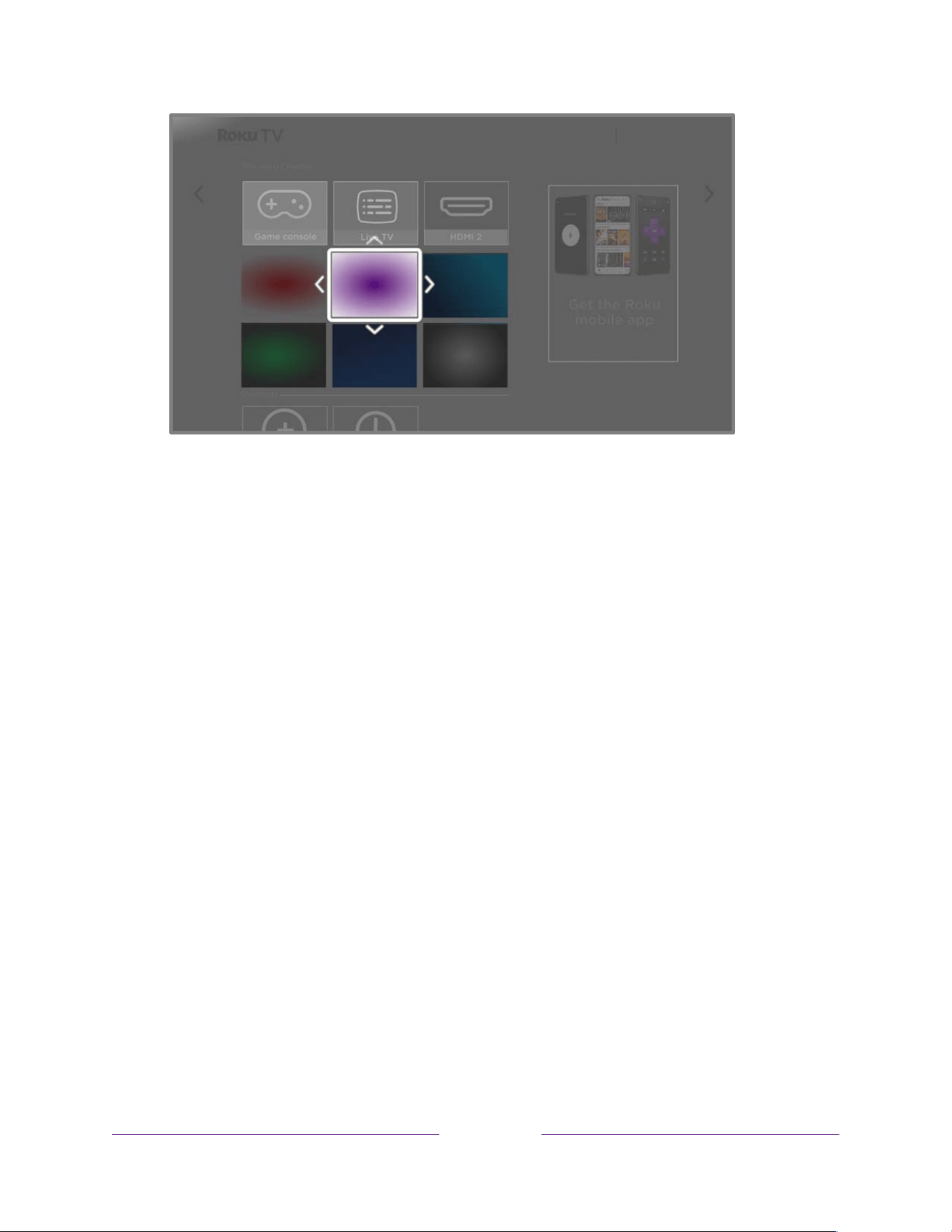
!
!!
109
!
!
!
4. Use the purple directional pad to move the highlighted item to its new position.
5. Press OK to lock the item into its new position.
6. Repeat these steps to move other inputs and channels until you have arranged your Home
screen to your liking.
Change the look and feel with themes
Another way to customize your TV is to change its theme. The theme establishes the look, feel, and
sounds of the TV through colors, designs, fonts, wallpaper (background), screensaver, and menu
navigation sounds.
To change the theme, from the Home Screen Menu navigate to Settings > Theme. In the Themes screen,
choose from the following options:
• Theme packs – Choose from a selection of packages that include coordinated wallpapers,
screensavers, and sounds.
• Wallpapers – Select a wallpaper of your choice.
• Screensavers – Select a screensaver of your choice.
• Sounds – Select a sound set of your choice.

!
!!
110
!
!
!
• Seasonal wallpapers – When this feature is on, Roku overrides your selected wallpaper with a
wallpaper of their own choosing for various holidays and significant events. After the holiday or
event passes, the TV reverts to your selected theme.
• Sponsored wallpapers – When this feature is on, Roku occasionally overrides your selected
theme with themes that celebrate TV shows, movies, and events.
• Wallpaper animations – When this feature is on, certain wallpapers display entertaining
animated features.
• Screensaver start time – Select the idle time after which you want your selected screensaver to
appear, or disable the screensaver.
• Restore default theme – Every Roku TV has a theme based on the TV brand and model. Use this
option to restore that default theme.
Change menu volume
Menu sounds are the sounds the TV makes to let you know it received your command. You can change
the volume of these menu sounds or turn them off.
To adjust the menu volume, from the Home Screen Menu, navigate to Settings > Audio > Menu volume.
Navigate to the right and then change the setting to High, Medium, Low, or Off.
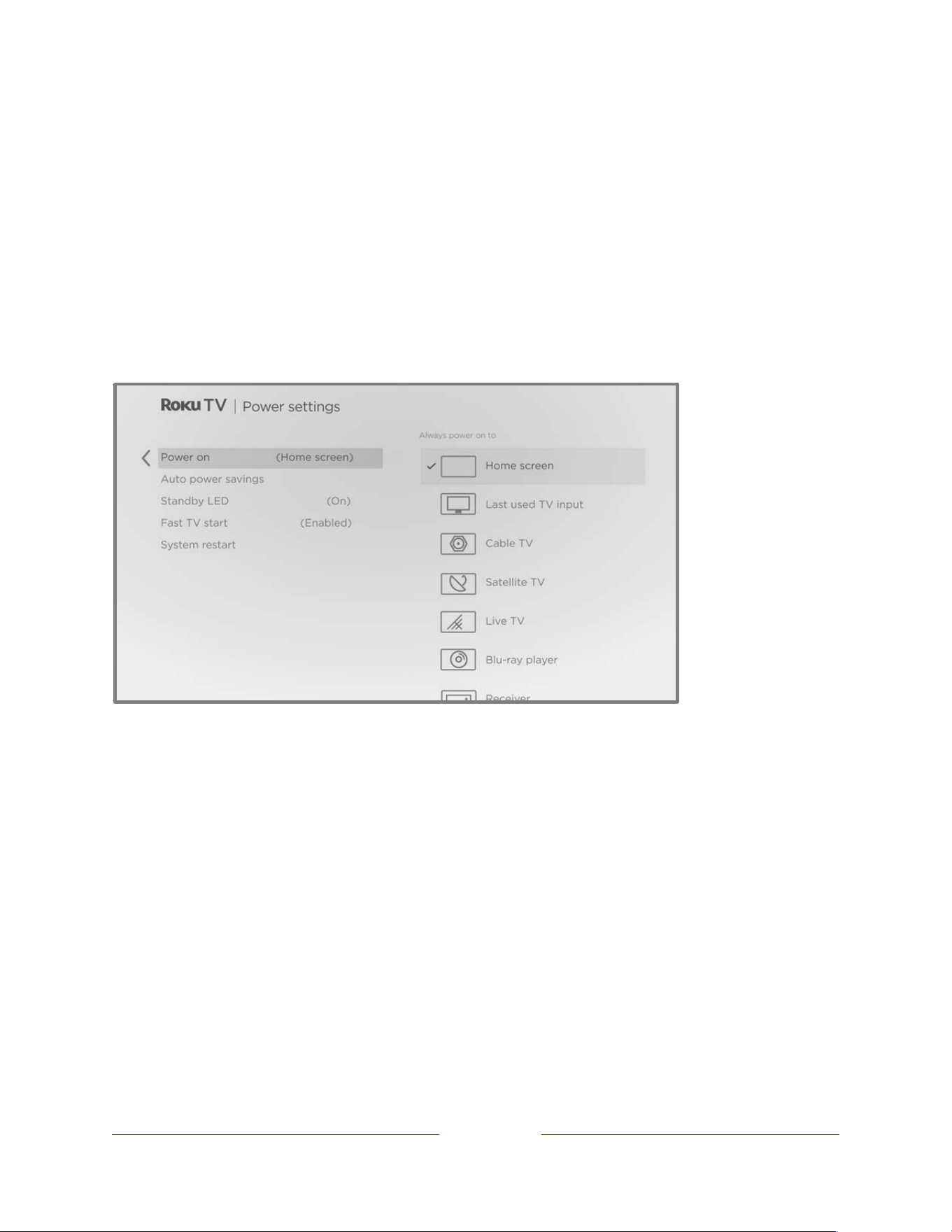
!
!!
111
!
!
!
Configure power settings
Power settings configure features related to how your TV’s power settings work.
Power on settings
Power on settings tell the TV what to do when you turn on the power. To configure the power on
settings, from the Home Screen Menu, navigate to Settings > System > Power > Power on. Highlight the
preferred power on location in the list, and then press OK.
Auto power savings
To help you save energy, your TV can automatically turn itself off after a period of inactivity or a period
during which no signal has been detected. It is factory-configured to do both of these things, but you can
change these settings if needed.
To configure automatic power off, from the Home Screen Menu navigate to Settings > System > Power >
Auto power savings. In the Power settings screen, highlight the following options and press OK to turn
them on or off:
• Reduce power after 15 minutes – If no video or audio activity and no user interaction occur for
15 minutes, the TV automatically turns off the screen and sound.

!
!!
112
!
!
!
• Turn off after 4 hours – If no video or audio activity and no user interaction occur for 4 hours,
the TV goes into standby mode.
Note: Some models can charge the remote control from the USB ports on the back of the TV. These
models can be configured to keep the USB port enabled for four hours, even if Auto power savings is
enabled, providing ample time to completely charge the remote control. If your TV model has this
feature, you can find the setting to configure USB power under System > USB settings.
Standby LED On/Off
Some TVs are factory configured so that their status indicator is on when the TV is in standby mode.
Other TVs are factory configured so that their status indicator is off in standby mode.
You can change the setting to suit your preference. To do so, from the Home Screen Menu, navigate to
Settings > System > Power > Standby LED, and then select the desired setting.
Regardless of the setting you choose, the status indicator still performs its other indication functions.
Fast TV start
Only on certain models, you can enable Fast TV start, which lets you start watching your TV almost
instantly after turning it on. Fast TV start also enables you to turn on your TV with your Roku Voice
Remote by saying, “Hey Roku, turn on my TV.”
To enable Fast TV Start, on the Home screen, navigate to Settings > System> Power> Fast TV Start and
select On.
Fast TV start uses significantly more power than normal standby and overrides default power settings.

!
!!
113
!
!
!
Configure accessibility
Accessibility settings enable users with vision or hearing impairment to use the TV more effectively.
Accessibility settings are located under Settings > Accessibility.
Captions mode
• Off – No captions appear.
• On always– Captions appear whenever they are available from the program source.
• On replay– Captions appear only when you use the replay feature, and only when you are
watching a streaming program that supports instant replay, watching a video through the Roku
Media Player, or watching a TV channel after enabling Live TV Pause.
• On mute – Captions appear only when the TV is muted.
Tip: You can also change the captions mode while watching a program. Press STAR Þ to display the TV
settings menu, and then select Accessibility & language > Closed captioning. However, note that some
streaming channels require you to enable captions through a setting within their channel even though
you have turned on captions elsewhere.
Note: Once enabled, the captions mode applies to all inputs that support captions and remains enabled
until you turn it off.
Tip: If you have a Roku Voice Remote or the Roku mobile app, you can use a voice command to turn
captions on or off. For example, just say, “Captions on,” Captions off,” “Captions replay,” or “Captions on
mute.”
Captions preferred language
Use the Captions preferred language setting to select the language in which you want closed captioning
to appear, when that language is available. If your preferred language is not available, then captioning
reverts to the default language for the program, which usually is English.
Highlight the language you prefer, and then press OK to select it.

!
!!
114
!
!
!
Captions style
• Text style – Choose from a list of fonts. As you move the highlight to each font, you can see a
sample of the result in an adjacent panel.
• Text edge effect – Choose from a list of edge effect styles, such as raised, depressed, and various
shadows. As you move the highlight to each effect, you can see a sample of the result in an
adjacent panel.
• Text size – Choose from a list of sizes. As you move the highlight to each size, you can see a
sample of the result in an adjacent panel.
• Text color - Choose from a list of colors for the text. As you move the highlight to each color, you
can see a sample of the result in an adjacent panel.
• Text opacity - Choose from a list of opacity settings for the text. This setting determines how
much the area behind the text shows through the text. A value of 100% blocks all of the content
behind the text. As you move the highlight to each setting, you can see a sample of the result in
an adjacent panel.
• Background color - Choose from a list of colors for the background area behind the text. As you
move the highlight to each color, you can see a sample of the result in an adjacent panel. Note
that you won’t see any change unless you set the Background opacity to a value other than Off.
• Background opacity - Choose from a list of opacity settings for the background of the caption.
This setting determines how much the area behind the caption background shows through the
background. A value of 100% blocks all of the content behind the background. As you move the
highlight to each setting, you can see a sample of the result in an adjacent panel.
• Window color - Choose from a list of colors for the window rectangle surrounding the entire
caption. As you move the highlight to each color, you can see a sample of the result in an
adjacent panel. Note that you won’t see any change unless you set the Window opacity to a
value other than Default or Off.
• Window opacity - Choose from a list of opacity settings for the window rectangle surrounding
the entire caption. This setting determines how much the area behind the caption window
shows through the window. A value of 100% blocks all of the content behind the window. As
you move the highlight to each setting, you can see a sample of the result in an adjacent panel.

!
!!
115
!
!
!
Screen reader
Screen reader settings help users who are blind or visually impaired to configure the text-to-speech
reader, enabling them to operate their TV more easily. The screen reader uses voice prompts that speak
volume and channel changes, menu options, and setting changes. Access screen reader settings from
the Home Screen Menu by navigating to Settings > Accessibility, and then set the various options as
desired in the Screen reader section.
Reduce motion
Use the Auto-play video setting to control whether certain videos play automatically while you are
navigating. If you prefer that videos do not play automatically, select Off.
Customize the Home screen
You can customize the Home screen in the following ways:
Menu items
If you prefer to not see certain features on the Home screen, you can hide them. From the Home Screen
Menu, navigate to Settings > Home screen, and then press RIGHT. Select either Hide or Show for each of
the available options.
Note: The items you can hide and show vary by locale and might change over time.
Layout
• Recommendation rows – Show or hide recommendation rows that appear at the top of the
Home screen grid.
• Tile size – Select a three (larger) or four column (smaller) Home screen grid.

!
!!
116
!
!
!
Parental controls
Parental controls enable you to decide whether the members of your household can view certain kinds
of broadcast TV programs. When a program is blocked, you can unblock it by entering a PIN that only
you know.
Note: Parental controls block content from the TV tuner. Parental controls do not block content on other
TV inputs or content from streaming channels you add to your TV.
Creating a parental control PIN
You create a new parental control PIN the first time you access the Parental controls screen on your
TV.
1. From the Home Screen Menu navigate to Settings > Parental controls. The screen displays a
numeric keypad.
2. Press RIGHT to highlight the numeric PIN entry number pad.
3. Use the on-screen number pad to enter a four-digit code, and then press OK.
4. Repeat the process to enter the same PIN again, just to make sure you correctly entered the PIN
you want to use.
5. Press OK to proceed to the Parental controls screen where you configure the types of programs
to block.

!
!!
117
!
!
!
Blocking broadcast TV programs
For broadcast TV, parental controls use information embedded in the broadcast signal to determine
whether to allow a program to be displayed. Parents can configure parental controls to block broadcast
TV programs that meet or exceed a specific rating, so they cannot be viewed or heard unless the correct
parental control PIN is entered.
Note: Rating standards differ by country.
Enabling parental control of TV programs
This setting is provided separately to make it easier for you to unblock all blocked programming without
disturbing the individual rating settings that you have made. For example, your kids are going to
summer camp for two weeks and while they are gone, you don’t want to have to deal with unblocking
programs that you want to watch. All you need to do is clear Enable parental controls, and all TV
programs are unblocked. When the kids return, select Enable parental controls again, and all of your
parental control settings are restored in a single operation.
To enable parental control of TV programs:
1. From the Home Screen Menu, navigate to Settings > Parental controls, and then enter your
parental control PIN.
2. In the Parental controls screen, navigate to TV tuner > Enable parental controls.
3. Make sure the Enable parental controls check box is selected. If not, highlight it and press OK.
To disable parental control of TV programs, repeat these steps, but highlight the Enable parental
controls check box and press OK to clear it.

!
!!
118
!
!
!
Blocking based on US TV ratings
Most broadcast US TV programs—other than movies—contain rating data that enables parental controls
to block programs that parents don’t want others to view. The ratings are divided into two groups that
function independently:
• Youth group – TV-Y, TV-Y7
• Main group – TV-G, TV-PG, TV-14, TV-MA
Within each of these groups, the ratings interact such that if you block a particular level of content, the
TV also blocks all content with a higher rating. Conversely, if you unblock a particular level of content,
the TV also unblocks all content with a lower rating. For example, if you block TV-PG programs, the TV
also blocks TV-14 and TV-MA programs. If you subsequently unblock TV-14 programs, TV-PG programs
are also unblocked, but TV-MA programs remain blocked.
Similarly, within the main group, content types can be individually blocked. For example, you can block
just coarse language in programs with a TV-PG rating. If you do, then the TV also blocks programs with
coarse language in the higher ratings (TV-14 and TV-MA). Subsequently unblocking coarse language in
TV-14 ratings does not unblock coarse language in TV-MA programs, but it does unblock coarse
language in TV-PG programs.
To block TV programs based on US television ratings:
1. From the Home Screen Menu, navigate to Settings > Parental controls, and then enter your
parental control PIN.
2. Make sure the check box next to Enable parental controls is checked. If not, highlight it and
press OK.
3. In the Parental controls screen, navigate to TV tuner > TV ratings. Choose among the following
settings:
• Entire ratings – Highlight the rating you want to block, and then navigate to the right and
select the first option that blocks the entire rating level (and all higher rating levels).
• Individual content types – Highlight the rating that contains the content type you want to
block, and then select the content types you want to block from among those listed.

!
!!
119
!
!
!
Remember that blocking a content type in one rating blocks the equivalent content type in
all higher rating levels.
Blocking based on US movie ratings
Most movies in the US are rated by the Motion Picture Association of America, or MPAA, so the ratings
are known as MPAA ratings. TV broadcast signals carry movie rating data that enables parental controls
to block programs that parents don’t want others to see. The ratings are:
• G – General audiences
• PG – Parental guidance suggested
• PG-13 – Parents strongly cautioned for children age 13 or younger
• R – Restricted
• NC-17 – Not for age 17 or younger
Unlike US TV ratings, there are no individual content types within the ratings. But like TV ratings,
blocking movies with a particular rating also blocks movies with a higher rating, and unblocking movies
with a particular rating also unblocks movies with a lower rating.
Tip: Blocking movies with an NC-17 rating also blocks programs with the now-obsolete X rating, which
can still occur in the program data of older movies.
To block movies based on MPAA ratings:
1. From the Home Screen Menu, navigate to Settings > Parental controls, and then enter your
parental control PIN.
2. Make sure the check box next to Enable parental controls is checked. If not, highlight it and
press OK.
3. In the Parental controls screen, navigate to TV Tuner > Movie ratings.
4. Select the rating level you want to block. You need only select one rating level, and all higher
levels are automatically blocked.

!
!!
120
!
!
!
Blocking based on Other ratings
Your TV can block programs having ratings that had not been defined when the TV was manufactured. It
does this by detecting a new Rating Region Table in a program and then downloading the new table and
displaying its rating in the Parental controls.
When the TV downloads a new Rating Region Table, it adds a new option to the list of rating types:
Other ratings. If you see this option in the Parental controls screen, you have tuned to a station that has
implemented a new rating table. Once the new rating table has been downloaded to the TV, it remains
in the TV until it is factory reset, and you can configure blocking based on the new ratings.
New Region Rating Tables can have independent rating levels, or rating levels that interact in the same
ways as the built-in US TV and MPAA Movie ratings.
Tip: If your TV downloads a new Region Rating Table, you’ll have to experiment with its settings to
understand how to use it.
Blocking based on Canadian English ratings
Canadian-English language and third-language programs that are broadcast in Canada are rated by the
Action Group on Violence on Television, or AGVOT. TV broadcast signals carry rating data that enables
parental controls to block programs that parents don’t want others to view based on content containing
violence, language, sex, or nudity. The ratings are:
• C – Children under 8 years
• C8 – Children 8 years and older
• G – Generally suitable for all age groups
• PG – Parental guidance suggested for viewers under 14 years
• 14+ – Generally not suitable for viewers under 14 years
• 18+ – Generally not suitable for viewers under 18 years
Blocking content with a particular rating also blocks content with a higher rating, and unblocking
content with a particular rating also unblocks movies with a lower rating.

!
!!
121
!
!
!
To block programs based on AGVOT ratings:
1. From the Home Screen Menu, navigate to Settings > Parental controls, and then enter your
parental control PIN.
2. Make sure the check box next to Enable parental controls is checked. If not, highlight it and
press OK.
3. In the Parental controls screen, navigate to TV tuner > Canadian English ratings.
4. Select the rating level you want to block. You need only select one rating level, and all higher
levels are automatically blocked.
Blocking based on Canadian French ratings
Canadian-French language programs that are broadcast in Canada are rated by Québec’s Ministry of
Culture and Communications. TV broadcast signals carry rating data that enables parental controls to
block programs that parents don’t want others to view based on content containing violence, language,
sex, or nudity. The ratings are:
• G – Generally suitable for all age groups
• 8+ – Viewers 8 years and older
• 13+ – Viewers 13 years and older
• 16+ – Viewers 16 years and older
• 18+ – Adults only
Blocking content with a particular rating also blocks content with a higher rating, and unblocking
content with a particular rating also unblocks movies with a lower rating.
To block programs based on Canadian-French ratings:
1. From the Home Screen Menu, navigate to Settings > Parental controls, and then enter your
parental control PIN.
2. Make sure the check box next to Enable parental controls is checked. If not, highlight it and
press OK.
3. In the Parental controls screen, navigate to TV tuner > Canadian French ratings.

!
!!
122
!
!
!
4. Select the rating level you want to block. You need only select one rating level, and all higher
levels are automatically blocked.
Blocking unrated programs
Some broadcast TV programs and movies do not have an assigned rating, and are considered to be
“Unrated”. Whether or not such programs contain content that is objectionable to you cannot be
determined. However, you can choose to block such programs.
To block all unrated broadcasts:
1. From the Home Screen Menu, navigate to Settings > Parental controls, and then enter your
parental control PIN.
2. Make sure the check box next to Enable parental controls is checked. If not, highlight it and
press OK.
3. In the Parental controls screen, navigate to TV tuner > Block all unrated programs.
4. Highlight Block all Unrated programs and press OK. When blocking is enabled, the adjacent
padlock icon changes from unlocked to locked.
Tip: Blocking programs that have not been assigned a rating does not block programs that specifically
have been assigned a US TV rating of “None” (for example a broadcast of a local town council meeting).
Programs that do not have an assigned rating display Rating NA (for “not applicable”) meaning a rating
is not needed).
In the absence of other ratings for a program, the parental controls do not consider the MPAA US movie
rating N/A (MPAA rating not applicable to this content) and NR (applicable content not rated by the
MPAA) to be ratings. In these cases, the TV handles the program as though it is unrated, blocking the
program if Unrated programs blocking is enabled.
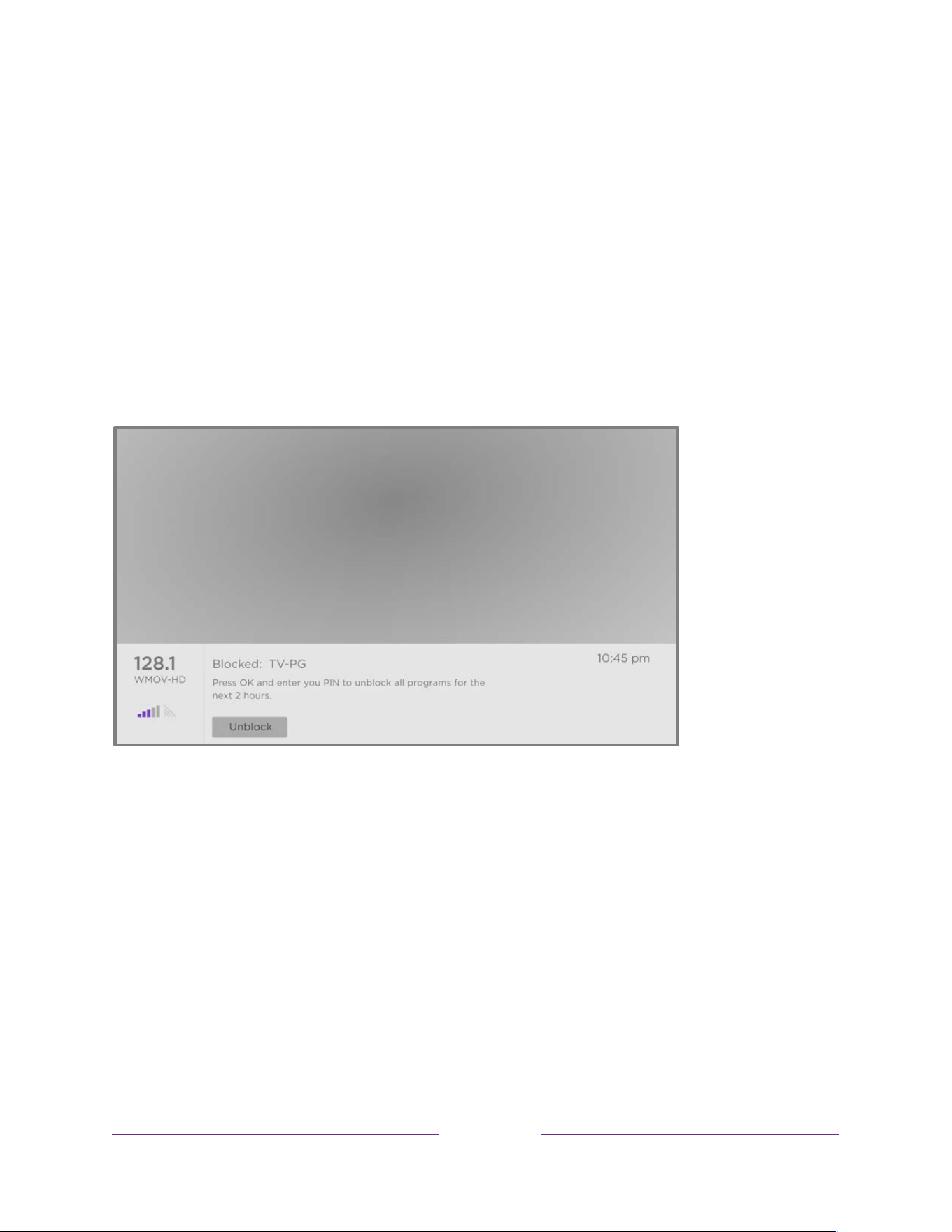
!
!!
123
!
!
!
What happens when a TV program is blocked?
After you’ve set up parental controls, TV programs and movies are blocked:
• When you change channels and the new channel is playing a program whose rating exceeds
your settings.
• When a new program comes on the channel you are watching and its rating exceeds your
settings.
When a program is blocked by parental control settings, the TV displays a blocked message:
Whenever this blocked message appears, both the video and audio of the program are blocked, as well
as program data that would normally appear in the area at the bottom of the screen.
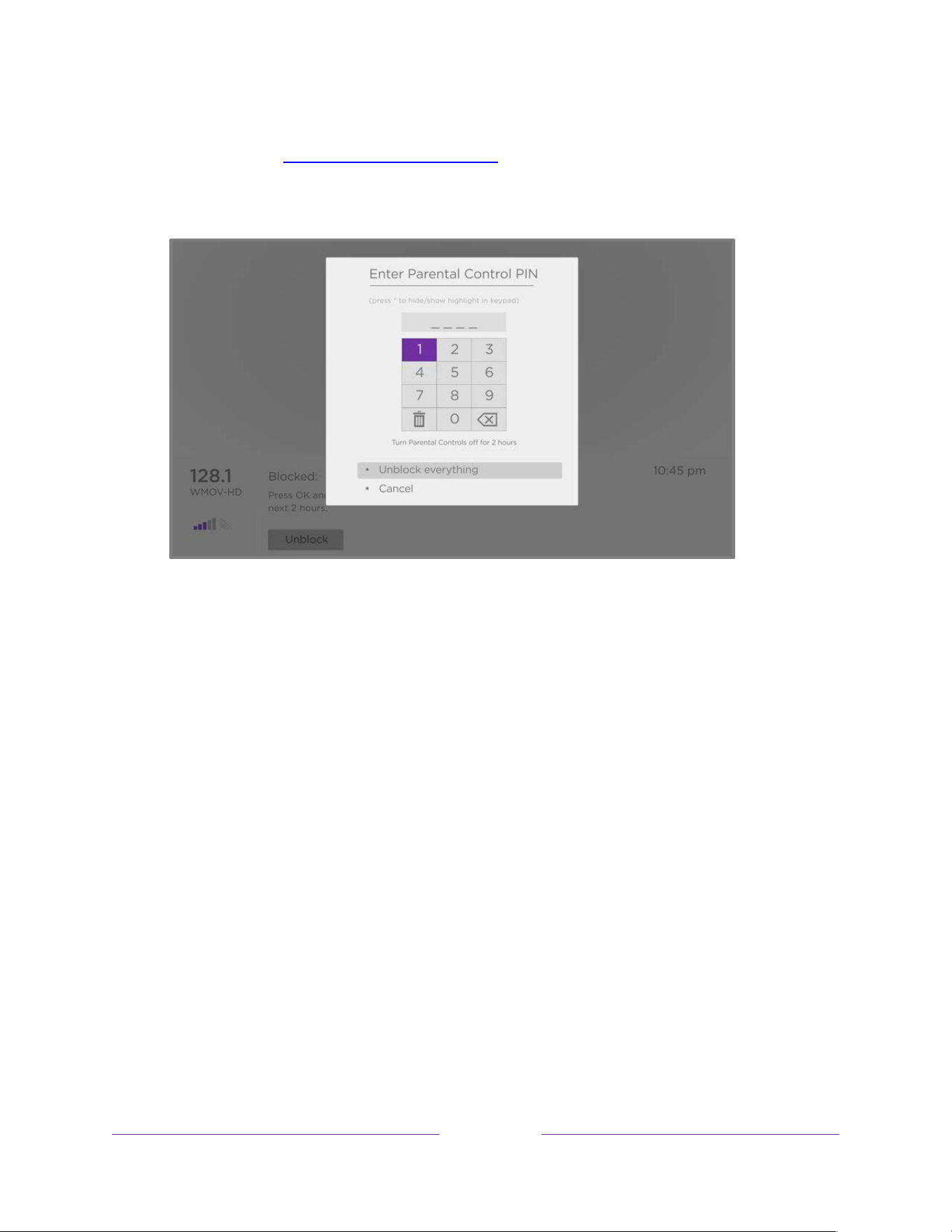
!
!!
124
!
!
!
To watch the blocked program, you need to know the PIN code defined when you enabled parental
controls, as explained in Creating a parental control PIN.
1. Press OK to select Unblock. The Parental Control PIN pad appears.
2. Use the purple directional pad to enter your parental control PIN code, and then press OK to
select Unblock everything.
Tip: To shield your parental control PIN from others in the room, press STAR
Þ
to hide the highlighted
numbers. When you hide the highlight, you will have to count key presses to keep track of which number
is selected.
After unblocking programs that have been blocked, all blocking is disabled for two hours or until you
turn off the TV.
Changing your PIN
1. From the Home Screen Menu, navigate to Settings > Parental controls, and then enter your
parental control PIN.
2. In the Parental controls screen, highlight Change PIN.

!
!!
125
!
!
!
3. Move the highlight into the on-screen keypad. Use the purple directional pad to enter a four-
digit code, and then press OK. Then repeat the process to enter the same PIN again to make
sure you correctly entered the PIN you want to use.
Resetting parental controls
1. From the Home Screen Menu, navigate to Settings > Parental controls, and then enter your
parental control PIN.
2. In the Parental controls screen, highlight Reset parental controls.
3. Follow the instructions on the screen to confirm that you want to erase all parental control
settings.
Tip: Resetting parental controls also erases your parental control PIN.

!
!!
126
!
!
!
More settings
This section describes the features and settings of the TV that were not covered in the other parts of this
guide.
Guest Mode
When you enable Guest Mode, your guests can sign in to subscription channels using their own account
credentials instead of using yours. Your guests’ credentials are then automatically removed on the date
they specify.
By enabling Guest Mode, your guests won’t have access to your personal streaming channel accounts
and won’t be able use your Roku account to make purchases. Instead, your guests can safely access their
own subscription channels. And they won’t have to remember to sign out before they leave.
To enable Guest Mode:
1. From the Home Screen Menu, navigate to Settings > Guest Mode.
2. Select Enter Guest Mode.
3. Use the purple directional pad to enter your Roku Account PIN in the on-screen keypad.
4. Select OK to confirm and put the TV into Guest Mode.
Note: You also can enable and disable Guest Mode remotely by logging in to my.roku.com on your
computer or smart phone, scrolling down to My linked devices, and then selecting Enable Guest Mode or
Disable Guest Mode, respectively.
After you put your TV into Guest Mode, it is ready to welcome your guests, allowing them to select a
sign-out date. On the Home screen, they will find an assortment of default subscription channels. They
can enjoy free content from The Roku Channel and many others, or sign-in and watch movies and TV
programs from their own subscriptions and saved content libraries. Your guests can select Streaming

!
!!
127
!
!
!
Store from the Home Screen Menu to access the Roku Store to find and add channels they watch at
home with confidence that their selections and usage history will be removed automatically on their
sign-out date.
For more information about the experience your guests will have when Guest Mode is enabled, see the
Roku support article How to turn Guest Mode on and off on your Roku streaming device.
To disable Guest Mode:
1. Press HOME to return to the Home Screen Menu.
2. Navigate to Settings > Guest Mode.
3. Select Exit Guest Mode.
4. Enter your Roku Account PIN in the on-screen keypad.
5. Select OK and confirm that you want to disable Guest Mode.
After you disable Guest Mode, all of your original settings are restored and your channels are
reinstalled. You might need to sign in to some of your subscription channels again to access your
content.
Note: Any game data that was stored on your TV is not restored.

!
!!
128
!
!
!
Network settings
If needed, you can change your network settings at any time. For example, if you change the name of
your wireless network (its SSID) or its password, you will need to change your TV’s settings so that it can
continue to connect.
To change network settings, from the Home Screen Menu, navigate to Settings > Network, and then
press RIGHT. At this point, you can choose from among the following options:
• About – Lists important information about your current network connection, such as status,
connection type, IP addresses, and MAC address. This information is often useful when
contacting customer support with connection issues.
• Check connection – Select your existing network connection type, and then press OK to start
checking the network connection. The TV uses your current network information to reconfirm
the wireless or wired network connection to the local network and the Internet connection.
• Set up connection – Select a network connection type, and then select the option to set up a
new connection. Follow the on-screen instructions to complete the network connection. For
help with each of the steps, see Connecting your TV.
• Bandwidth saver – Enable or disable this feature as appropriate. If On, your TV prompts you to
stop streaming if you haven’t used the remote control within the past four hours. If you do not
respond, streaming stops to save your data allocation and increase the network bandwidth
available to other devices in your home. Change to Off to disable the automatic bandwidth
saving feature.
Note: Some networks, such as those found in dorm rooms, hotels, and other public places, may
require you to read and agree to terms, enter a code, or provide identifying information before
letting you connect to the Internet. For more information, see Using your TV in a hotel or dorm room.
ZIP Code
Your TV needs to know your ZIP Code so that it can display the correct channels and program guide
information. It attempts to determine your location by using information from your Internet connection;

!
!!
129
!
!
!
however, the information available from this source is not always accurate. To ensure you have the
most accurate program guide information, use the ZIP Code option to enter your correct code.
To set your correct ZIP Code, from the Home Screen Menu, navigate to Settings > System > ZIP Code,
and then press RIGHT. Enter your ZIP Code in the on-screen keypad, and then select OK.
Time settings
You can change time settings to suit your preferences. You can find the following settings by navigating
from the Home Screen Menu to Settings > System > Time:
• Sleep timer – Set a time delay after which the TV will automatically shut off. This setting reflects
the setting you can make in the TV settings menu from any TV input, as explained in TV settings
menu.
Tip: The sleep timer setting is not input specific, and also can be set by using the Sleep timer
shortcut on the Home screen.
• Time zone – Your TV needs correct time zone information to correctly display program data.
Choose whether to set the time zone automatically or manually, and if set manually, select your
current time zone. Usually the TV can discover its own time zone automatically, but sometimes
it cannot and must be set manually. Initially, this setting is made when you set up the TV tuner,
as explained in Setting up live TV.
• Clock format – Choose whether to display time in a 12-hour or 24-hour format, or to turn off
time display.

!
!!
130
!
!
!
Scan again for live TV channels
There will be times when you need to create a new channel list. For example, you:
• Change cable providers
• Reorient your TV antenna
• Move to a different city with different channels
Whenever you need to update your TV channel list, you can repeat the channel scan.
Tip: Even if you don’t change anything related to your TV channel reception, you should repeat the
channel scan from time to time to make sure you are receiving all of the latest channels. Broadcasters
add and remove channels, move channels to different parts of the spectrum, and change the power
levels of their channels periodically.
Note: Your hidden and favorite channels are preserved when you rescan for channels.
To repeat the channel scan, highlight the Live TV input on the Home screen, and then press STAR Þ.
Next, select Rescan for channels and press OK. After that, the screens and options that appear during
this process are identical to those described in How do I set up the TV tuner?
HDMI
®
mode (not applicable to QHD (2K) models)
On UHD (4K and 8K) TVs, you can independently configure each HDMI input to match the capabilities of
the connected device.
Note: On certain models, not all available HDMI ports can support all capabilities of the connected device
(for example, 4K resolution at 120Hz on models that support this capability). Some TVs require you to use
specific HDMI inputs to access all capabilities of the connected devices.
From the Home Screen Menu, navigate to Settings > TV inputs, and then select an enabled HDMI input.
Next, select HDMI mode and then select one of the following settings:
• Auto (recommended) – Let the TV determine the best setting. Use this option unless your HDMI
®
device does not correctly communicate its HDMI
®
version information.

!
!!
131
!
!
!
• Standard – Configure the input for compatibility with HDMI
®
version 2.0, which supports a
maximum refresh rate of 60 Hz at full UHD resolution. You must use this mode to view HDR
content from the device connected to this HDMI input. However, note that many older HDMI
®
devices do not work correctly when the TV’s HDMI input is set to this mode. After enabling this
setting, you can optionally turn Auto low latency mode (ALLM) off or on.
• Compatibility – Configure the input for compatibility with HDMI
®
version 1.4, which supports a
maximum refresh rate of 30 Hz at full UHD resolution. Most HDMI
®
devices will work correctly
with the TV in this mode.
Control by mobile apps
You can choose the level of control you want to allow your TV to accept from external devices, such as
smart phones, tablets, and virtual assistants. Device connect settings enable other devices, including the
Roku mobile app, to control your TV over the local area network in your home.
To adjust the level of external control access:
1. From the Home Screen Menu, navigate to Settings > System > Advanced system settings >
Control by mobile apps.
2. Select Network access.
3. Select one of the following settings:
• Default – Devices can connect only through a private network address, and accept
commands only from other private network addresses on your home network. This setting is
suitable for most cases, including use of the Roku mobile app on your smartphone.
• Permissive – Devices can connect under all conditions, but accept commands only from
private network addresses or the same subnetwork within your home network. This setting
might be required when attempting to operate the TV from a third-party application, for
example, one of the Internet of Things (IoT) applications such as ifttt.com.
• Disabled – Device connection is completely disabled. The TV does not accept external
commands from any source, including the Roku mobile app.

!
!!
132
!
!
!
Changing privacy settings
Advertising
By default, your TV uses an advertising identifier to track your TV usage. You can change the advertising
settings on your TV in various ways using the settings on this screen.
To learn more about these options, please see Roku’s Privacy Policy at go.roku.com/PrivacyPolicy.
Voice
Select Voice to change settings related to using your voice to interact with the TV.
Microphone access
Your Roku TV does not have a built-in microphone. However streaming channel providers can use the
microphone on Roku Voice remotes (certain models) or on your mobile device when the Roku mobile
app is running. You can control whether streaming channels have permission to use the microphone.
Note: These settings affect only streaming channel access to the microphone. They do not affect your
Roku TV’s Voice Search feature.
Channel microphone access
You can control which streaming channels have permission to use the microphone, giving you control
over how the microphone is used by each streaming channel. The default setting is Prompt, so channels
will not be able to turn on the microphone without your permission.
To change microphone access settings:
1. From the Home Screen Menu, navigate to Settings > Privacy > Voice > Microphone access.
2. Select Channel microphone access.
3. Choose one of the following settings:
• Prompt – Display a notification the first time a streaming channel requests the use of the
microphone. When such a notification appears, you can select either Allow microphone

!
!!
133
!
!
!
access or Deny microphone access on a per-channel basis. If you choose to allow
microphone access, you’ll be prompted to confirm your choice by entering a numeric code
that appears on the screen.
• Always allow – Do not prompt, but always allow any streaming channel to use the
microphone.
• Never allow – Do not prompt, but never allow any streaming channel to use the
microphone.
Channel permissions
After granting or denying microphone access on a per-channel basis, you can reset channel permissions
to enable them to once again follow the system-wide setting you specify under Channel microphone
access.
To reset channel permissions:
1. From the Home Screen Menu, navigate to Settings > Privacy > Voice > Microphone access.
2. Select Channel permissions.
3. Highlight Reset channel permissions, or highlight a specific listed channel, and then press OK to
deny microphone access to all or to a specific channel.
Speech recognition
By default, Roku uses recordings of your voice interactions with Roku Voice Remotes and the Roku
mobile app to improve its speech recognition abilities. If you do not want to allow Roku to use your
voice for this purpose, from the Home Screen Menu, navigate to Settings > Privacy > Voice and clear the
Speech recognition check box.

!
!!
134
!
!
!
Smart TV experience
Your TV prompts you to opt in to the Smart TV experience when you first start watching TV programs.
Regardless of your decision at that time, you can change your decision later.
To change your Smart TV experience choices:
1. From the Home Screen Menu, navigate to Settings > Privacy > Smart TV experience.
2. Highlight the setting you want to change, and then press OK to enable or disable it.
• Use info from TV inputs – Authorizes Roku to collect and share information about what,
when, and how you are watching and use this to make recommendations.
• Enable auto notifications – Displays brief notifications from the Smart TV experience across
the bottom of the screen when recommendations are available.
Note: These settings do not affect recommendations for More Ways to Watch that you see in the
Live TV Channel Guide when watching live TV channels. Press STAR
Þ
while each of these settings is
highlighted to view more details about how Roku collects and uses this data.
Other privacy options
• Privacy Policy – Displays the latest Roku Privacy Policy on your screen.
• Privacy choices – Lets you specify certain privacy choices:
• Do not share/sell my information
• Limit use of sensitive information
• CA Privacy Notice – Displays the latest California Privacy Notice on your screen. This notice
applies to residents of states that have followed California’s privacy legislation, including
Colorado, Connecticut, Delaware, Florida, Iowa, Montana, Nebraska, New Hampshire, New
Jersey, Oregon, Texas, Utah, and Virginia.

!
!!
135
!
!
!
Roku TV soundbars and wireless speakers
Your Roku TV works with several Roku premium audio products, including the Roku Streambar
®
, Roku
Streambar Pro, Roku TV Wireless Soundbar, Roku wireless speakers, Roku Wireless Bass, and Roku
Wireless Bass Pro. Certain TV models also support pairing multiple wireless speakers in various
configurations to provide wireless surround sound without the use of a sound bar or home theater
receiver.
With Roku TV premium audio products, you can listen to all of your TV programs as well as the sound
from any streaming channel. After you have paired your speakers with your Roku TV, all sound normally
comes from the paired speakers instead of the internal TV speakers, unless you change the default
setting in Settings > Audio > Audio output.
If you have connected a Roku Streambar
®
to your Roku TV, you can put away the soundbar remote
control and use the TV’s Sound settings menu to control sound options while watching a program. See
Roku premium audio products for details.
Roku wireless speakers
TV models that support wireless surround sound can function with left and right front speakers in a 2.0
configuration or both right and left front and rear speakers in a 4.0 configuration. Add a Roku Wireless
Subwoofer to create a 2.1 or 4.1 surround configuration.
Note: Certain TVs support Dolby Atmos
®
audio technology. However, wireless surround speaker
configurations do not support Atmos. When you are playing Atmos content from a TV that supports
Atmos through wireless surround speakers, the TV instead applies Dolby Digital sound technology.
Setting up Roku wireless speakers
To begin pairing a set of wireless speakers:
1. Make sure the speakers are plugged in and your TV is turned on.
2. Hold down HOME on your TV remote for five seconds until the Select all devices to set up
screen appears.

!
!!
136
!
!
!
3. Select the appropriate item to set up: Wireless speakers, Wireless soundbar, or Subwoofer.
4. Select Continue, and then follow the instructions on the screen to complete the pairing process.
For more information, including details about how best to arrange your speakers in your room, see the
Roku support article How to set up your Roku wireless speakers.
Checking Roku Soundbar or Roku Speaker software version
If you are having issues with your Roku audio devices, your Roku support technician might ask you to
provide the software version of a particular device.
To determine the software version of a Roku audio device that is connected to or paired with your TV:
1. From the Home Screen Menu, navigate to Settings > Remotes & devices.
2. Select Speakers.
3. Select the device whose software version you want to view from among your connected
devices: Wireless speaker, Wireless soundbar, Streambar, Streambar Pro, or Subwoofer.
4. Select About. On this screen, you can find information about the device, including the Software
version.
5. Repeat steps 3 and 4 to view the software version for additional Roku audio devices.
Factory resetting a Roku soundbar or Roku speakers from the TV
If needed, you can factory reset your soundbar or speakers directly from your TV. You’ll need to factory
reset them if you want to pair them with another Roku device, or if you want to correct the speaker
channel (left, right, front, or rear) assignments. You also can factory reset your Roku Streambar if you
want to transfer it to another person. Factory resetting removes all of your channels, settings,
subscriptions, and personal information from the device.
To factory reset a connected Roku audio product:
1. From the Home Screen Menu, navigate to Settings > Remotes & devices.

!
!!
137
!
!
!
2. Select Speakers.
3. Select the device to reset from among your connected devices: Wireless speaker, Wireless
soundbar, Streambar, Streambar Pro, or Subwoofer.
4. Select Factory reset and then use the on-screen keypad to enter the code displayed on the
screen to confirm.
5. Repeat steps 3 and 4 to factory reset additional Roku audio devices.
For more information about resetting Roku audio devices, see the Roku support article How to factory
reset your Roku wireless audio device.
Home theater configuration
Your TV has several features that make it an ideal TV for a home theater. But you might not notice them
because they remain in the background until you decide to use them.
Controlling audio output
You can control how your TV outputs sound by navigating to Settings > Audio > Audio output. Choose
from the following options:
• Auto – Let the TV decide the best way to output audio, automatically selecting the S/PDIF
optical port, HDMI
®
ARC/eARC port, Roku wireless speakers (certain TV models), or the built-in
TV speakers.
• ARC/eARC (HDMI n) – Always output audio to the indicated HDMI
®
ARC or eARC port (depending
on model). Turn off the built-in TV speakers. The audio return channel (ARC) enables the TV to
send Dolby Audio™ or DTS audio content back to a home theater receiver or Roku Streambar
®
that is also sending an audio and video signal into the TV. Using HDMI
®
ARC or eARC reduces the
number of cables needed and controls the volume and mute state of the receiver while
watching TV.
• Built-in speakers – Always output audio to the built-in TV speakers.
• Optical – Always output audio to the S/PDIF optical port. Turn off the built-in TV speakers.

!
!!
138
!
!
!
Regardless of which setting you choose, your TV automatically mutes the active audio output when you
do any of the following:
• Plug headphones into the headphone jack on the TV.
• Plug headphones into a Roku remote that supports wireless private listening.
• Turn on wireless private listening in the Roku mobile app.
• Only on certain models, connect a Bluetooth headphone or speaker to the TV.
Wall-mounted TV
Only on certain models, you can optimize the sound from the TV speakers when your TV is mounted on a
wall. To do so, from the Home Screen Menu, navigate to Settings > Audio > Wall-mounted TV and toggle
the setting On.
Flush-mounted TV
Only on certain models that can be mounted flat against a wall, you were prompted to make this
selection during Guided Setup. Choosing the correct setting can make a significant difference in the
quality of the sound from the TV speakers. If you want to change your selection without repeating
Guided Setup, navigate to Settings > Audio > Flush-mounted TV.

!
!!
139
!
!
!
Setting up a digital audio connection
To take advantage of your TV’s advanced audio capabilities, connect it to an external amplifier, receiver,
or soundbar by using either of these two digital audio connections:
• HDMI ARC or HDMI eARC – The HDMI
®
Audio Return Channel (ARC) or on certain TVs
only, the HDMI
®
Enhanced ARC (eARC) connector enables the TV to output digital audio
on one of its HDMI
®
connectors. The connected amplifier then can function
simultaneously as an input source to the TV, if needed, without the need to use additional
cables.
To use the ARC or eARC capability, you must connect an HDMI
®
cable from your amplifier’s
HDMI
®
ARC or eARC connector to the HDMI ARC or HDMI eARC connector on the TV. You also
must do the following:
• Be sure your HDMI
®
cable is HDMI
®
certified.
• Select Auto or ARC/eARC under Settings > Audio > Audio output.
• S/PDIF optical – The S/PDIF optical connector outputs a digital audio signal. To use
the optical output, connect a TOSLINK optical cable from the amplifier to the
Optical or S/PDIF connector on the TV.
Important: To make sure the S/PDIF outputs audio reliably, you must turn off the TV’s speakers.
To do so, from the Home Screen Menu, navigate to Settings > Audio > Audio output and change
the setting to Optical.
Note: Dolby Audio™ support for Dolby Digital Plus™ format is not available through the S/ PDIF
optical output. This format is only available through the HDMI ARC connection.
Tip: When you use S/PDIF for audio, the TV can correctly detect more audio formats if you also
connect an HDMI
®
cable between the TV’s HDMI ARC or HDMI eARC port and the receiver’s ARC
or eARC port.

!
!!
140
!
!
!
Choosing a preferred audio streaming format
Some streaming content is available with multiple audio formats. You can choose the format you prefer
from among the following options:
• Auto – Automatically selects the best audio format for the content you are streaming.
• Dolby – Selects Dolby Audio if it is available. Otherwise, selects the best available format.
• DTS – Selects DTS if it is available. Otherwise, selects the best available format.
Choosing an audio digital output format
After making the required HDMI
®
ARC, eARC, or S/PDIF optical connection, from the Home Screen Menu,
go to Settings > Audio > Digital output format and select the audio format to use.
Choosing Auto is the easy solution, and generally provides good results. However, if you have a high-end
sound system and want to make sure you are getting the best sound quality available in the programs
you are watching, you can choose another setting.
• Auto – Automatically detects the incoming audio format and transcodes it to a compatible
available format for the audio output (ARC, eARC, or S/PDIF).
• Passthrough – Passes through the input audio to the connected receiver without transcoding,
sometimes resulting in better audio quality especially for high-end audio formats such as those
that take advantage of the higher bandwidth of eARC, including Dolby MAT and Dolby Digital
Plus 7.1, among others.
• Stereo – Always outputs stereo, regardless of input audio format.
• Custom – When selected, reveals the following additional options for Dolby and DTS audio:
• Dolby – Converts all input formats to either Dolby Digital or Dolby Digital Plus, according to
the option you choose:
• Dolby Digital – Converts all input formats to Dolby Digital.
• Dolby Digital Plus – Converts all input formats to Dolby Digital Plus.

!
!!
141
!
!
!
• DTS – If you select On, converts all audio sources except DTS to Dolby Digital or Dolby Digital
Plus according to the Dolby option you selected. If DTS is detected and the receiver supports
DTS, this option passes through the DTS audio without modification. If you select Off, the TV
does not detect or pass through DTS audio.
Note: DTS audio formats are meant to be used with ARC, eARC, or S/PDIF connections to a DTS-
capable home theater receiver. If you enable DTS when using the TV speakers, you might not
hear any audio.
Dolby Atmos notification
Only on models that support Dolby Atmos
®
audio technology, you can enable or disable the on-screen
notification that appears when you start watching content that contains Atmos audio.
To disable the notification, from the Home Screen Menu, navigate to Settings > Audio > Dolby Atmos
notification, and toggle the setting Off.
Adjusting audio delay
Soundbars, receivers, and other custom audio setups can introduce delays that cause the sound to be
out of sync with the picture. To correct this issue, you can use a feature of the Roku mobile app to
analyze the delay through your smart phone camera and microphone.
In the Roku mobile app
1
Remote screen, touch Settings, and then select Adjust audio delay. Follow the
instructions on the screen to complete the audio delay adjustment. Your Roku TV stores the delay values
and uses them whenever you play content through the connected audio device.
Turning off the TV screen while listening to music
While listening to music or other audio-only content on your TV, you might want to turn off the TV
screen.
To turn off the TV screen:
1. Press STAR Þ to display the TV settings menu.
1
Requires Roku mobile app version 8.7.0 or higher.

!
!!
142
!
!
!
2. Press DOWN to highlight Turn off display.
3. Press OK.
Tip: If you are using a Roku Voice Remote or the Roku mobile app, press VOICE and say, “Turn off the
display.”
Controlling other devices through CEC
Consumer Electronics Control (CEC) enables your TV and other CEC-compatible home entertainment
devices to control one another in various ways. First, the CEC-compatible devices must “discover” one
another and report their capabilities. After this, one device can control another according to the
features you enable. For example, playing a disc on a Blu-ray™ player could switch the TV to the Blu-
ray™ player’s input. Or, powering off the TV could also power off the Blu-ray™ player and the home
theater receiver.
Discover connected CEC devices
To discover CEC devices:
1. Make sure that your CEC-compatible devices are connected to the TV with a suitable certified
HDMI
®
Cable that supports HDMI
®
ARC and CEC control.
2. Turn on each device and make sure all devices are CEC enabled.
Tip: Some manufacturers have their own branded names for CEC functionality, so you might
need to read the product documentation to correctly identify the CEC features of the device.
3. On the TV’s Home Screen Menu, navigate to Settings > System > Control other devices (CEC) and
then select Search for CEC devices. Press OK to repeat the discovery process, if necessary.
When finished, the TV displays a list of CEC devices that are connected to each HDMI input, as well as
any devices that had previously been connected. The TV remembers the names of multiple CEC devices
even when they are no longer connected. If the list is longer than the allowed space, press STAR Þ to
see a complete list in a scrollable window.

!
!!
143
!
!
!
Enable 1-touch play
1-touch play enables a device to control which TV input is active. For example, pressing Play on your Blu-
ray™ player switches the TV to the Blu-ray™ input.
1-touch play is disabled by default. To enable 1-touch play, from the Home Screen Menu, navigate to
Settings > System > Control other devices (CEC) and highlight 1-touch play. Press OK to enable or disable
the feature.
Enable system standby
The system standby feature causes other devices to power off when you power off your TV. Depending
on the CEC System Standby implementation, it also might enable connected devices to power off your
TV when you power off the device.
System standby is disabled by default. To enable system standby, from the Home Screen Menu, navigate
to Settings > System > Control other devices (CEC) and highlight System standby. Press OK to enable or
disable the feature.
Restart the TV
You can restart the TV when necessary. Restarting has the same effect as unplugging the TV power and
then plugging it in again.
To restart the TV, navigate to Settings > System > Power, and then select System restart. Highlight
Restart, and then press OK to confirm restart.
While the TV restarts, the screen goes dark for a few seconds, and then displays the startup screen for a
few more seconds. When the restart operation completes, the TV displays the activity you selected in
Power on settings.

!
!!
144
!
!
!
Reset the TV
You can choose to reset only the TV picture and audio settings to their original values, or perform a full
factory reset to return the TV to the state it was in when you first unpacked and turned it on.
Reset audio/picture settings
To reset only the TV picture and audio settings to their original values, navigate to Settings > System >
Advanced system settings > Factory reset, and then highlight Reset TV audio/picture settings. Read the
information on the screen to make sure you understand what the reset operation does.
To proceed with the reset operation, press PLAY/PAUSE three times in a row.
Factory reset everything
A full factory reset returns the TV’s settings to their original state and removes all personally identifiable
information from the TV. When finished, you must repeat Guided Setup, reconnecting to the Internet,
re-linking your Roku account, and reloading any streaming channels. You also must repeat live TV setup
and input configuration.
Factory reset is the recommended choice if you want to transfer the TV to another owner, and it is the
only choice if you want to switch from Store mode to Home mode (if you inadvertently selected Store
mode during Guided Setup). Before performing a factory reset, we recommend you read this Roku
support article to diagnose your issue and determine if there are other ways to solve the problem: How
to system restart or factory reset your Roku streaming device.
To perform a factory reset, navigate to Settings > System > Advanced system settings > Factory reset,
and then highlight Factory reset everything. Read the information on the screen to make sure you
understand what this reset operation does.
To proceed with the full factory reset, use the on-screen number pad to enter the code displayed on the
screen, and then select OK to proceed.
When the factory reset operation completes, the TV restarts and displays the first Guided Setup screen.

!
!!
145
!
!
!
What if I can’t access the Factory Reset option?
It is possible for your TV to get into a state where you cannot access the various menus, including the
menu option that lets you perform a factory reset operation. If that happens, you can force the TV to
reset by following these steps.
TVs that have a back panel recessed RESET button
1. Using a straightened paper clip or ball-point pen, press and hold the recessed RESET button on
the TV connector panel.
2. Continue to hold the RESET button for approximately 12 seconds.
When the reset cycle completes, the status indicator comes on dim.
3. Release the RESET button. The TV is now powered off.
4. Turn on the TV and proceed through Guided Setup. See Guided Setup.
TVs that have a Roku remote-shaped button
• If your TV has two panel buttons, one of which is shaped like a Roku remote, you can factory
reset the TV by holding both buttons down for at least five seconds.
TVs that have no RESET button
• If your TV has no RESET button and does not have the two panel buttons described above, hold
down the POWER button on the TV for 10 seconds to reset.
Using Recovery Mode
Certain models have another reset option called Recovery Mode, which you can access by holding down
the RESET button for at least 20 seconds. For a list of models that support Recovery Mode and detailed
instructions about how to use it, see the Roku support article How to use Recovery Mode on your Roku
TV™.

!
!!
146
!
!
!
Network connection reset
If you want to remove your network connection information without disturbing other settings, navigate
from the Home Screen Menu to Settings > System > Advanced system settings > Network connection
reset, and then select Reset connection.
When you select this option, the TV removes your wireless network information, including the name of
the connection (its SSID) and your wireless password, if any, and then it restarts. After restarting, your
TV retains all of its other settings including its association with your Roku account.
After resetting your network connection, navigate from the Home Screen Menu to Settings > Network >
Set up connection to set up your network connection and enjoy all of the benefits of your connected TV.
Roku Account PIN
When you created your Roku account, you were given the opportunity to create a PIN code and specify
when it must be used. You can:
• Require that users enter the PIN to make purchases through the TV.
• Require that users enter the PIN to add items from the Roku Store.
• Establish parental controls for The Roku Channel.
• Enable or disable Guest Mode.
Follow these steps if you created a Roku PIN and want to change it, or you don’t remember your PIN, or
if you didn’t create a Roku Account PIN and want to add one.
1. Use a web browser to go to https://my.roku.com and sign in.
After signing in, the My account page appears.
2. Under PIN preference, click Update to open the Choose your PIN preferences page.
3. Use the options on this page to create or change your Roku PIN and to specify how the PIN is to
be used.
4. Click Save Changes to save your changes and return to the My Account page. Note that your
current setting is described under PIN preference.

!
!!
147
!
!
!
Update the TV
Your TV automatically updates itself from time to time. You don’t need to do anything. But if you are
aware that an update is available and you don’t want to wait until the TV updates itself, you can
manually check for updates.
If you’re someone who must have the latest, most up-to-date features the moment they are available,
you can check for updates as often as you want.
To check for updates, navigate to Settings > System > Software update, and then select Check now. The
TV responds either with a message saying that your TV is up to date, or with a message saying that an
update is available.
Follow the instructions on the screen to install the software update.
Note: Sometimes software updates install new system software, and other times they install new
features for streaming channels. Therefore, you won’t always see a change in the behavior of your TV
after a software update.
Tip: You can download an updated User Guide for the latest software version from the Roku TV web site
at:
go.roku.com/tvmanual

!
!!
148
!
!
!
Using other devices with your
TV
Using Bluetooth
®
private listening (certain models)
Only on certain models, you can pair your Bluetooth headphones or earbuds and use them to listen
privately to the TV. When Bluetooth headphones are connected, you can listen to any content playing
on your TV, and the TV automatically mutes the sound from its speakers or other connected audio
devices.
Note: You can also pair most Bluetooth speakers by following these instructions.
Pair your Bluetooth headphones
Before you can listen to your TV through your Bluetooth headphones, you must pair them with the TV.
You typically need to pair them only one time, after which they will appear in the list of paired devices.
To pair your headphones:
1. From the Home Screen Menu, navigate to Settings > Remotes & devices, and then select
Wireless headphones. (If you do not see this option, your TV does not have the Bluetooth
feature.)
2. Select Add new wireless headphones and press OK.
3. Turn on your Bluetooth headphones and using the manufacturer’s instructions, put them in
pairing mode.
4. Wait while your TV scans for Bluetooth headphones. Scanning might take up to 30 seconds.
5. Select your Bluetooth headphones from the list of available devices.

!
!!
149
!
!
!
Connect your Bluetooth headphones
When you are ready to listen to your TV through your Bluetooth headphones:
1. While playing a program on your TV, press STAR Þ and then select Wireless headphones.
Alternatively, if you are not already playing a program, from the Home Screen Menu, navigate to
Settings > Remotes & devices, and then select Wireless headphones.
2. Select your headphones from the list.
3. Select Connect.
Notes: When you connect your headphones, the TV mutes its speakers or other audio output devices
(soundbar or home theater receiver) until you disconnect the headphones.
When your Bluetooth headphones are connected, you can adjust the volume and mute by using the
buttons on your remote control or the buttons on the headphones themselves. When you do, notice that
the volume icon in the upper right corner of the TV screen shows a headphone icon .
You can pair multiple Bluetooth headphones to your TV but only one set can be connected and used at a
time. In the case of separate left and right wireless earbuds, the pair counts as a single device.
Disconnect your Bluetooth headphones
When you want to restore audio output from the TV speakers or other audio devices, you must
disconnect your headphones.
To disconnect your headphones, turn them off. Alternatively, you can repeat the steps you followed to
connect them, and then select Disconnect.
Disable Bluetooth auto detect
Most Bluetooth headphones when turned on try to connect to the most recent device. If auto-detect is
turned off or your headphones do not automatically connect, you must use the previous instructions to
manually connect your headphones when you want to use private listening.
To change the auto-detect setting:

!
!!
150
!
!
!
1. From the Home Screen Menu, navigate to Settings > Remotes & devices, and then select
Wireless headphones.
2. Select your headphones from the list.
3. Select Auto detect and select Off or On as desired.
Pairing your phone, tablet, or computer with Bluetooth
®
Only on certain TVs, you can pair your mobile phone, tablet, or computer via Bluetooth to play audio
from that device through your TV. Use this feature to play your music library, podcasts, meeting audio,
or any other sounds from your paired device.
Before you can connect your Bluetooth device to your TV, you must pair the device with the TV. You
typically need to pair your device only one time, after which it will appear in the list of paired devices. If
desired, you can pair multiple Bluetooth devices.
Pair your device
To pair your Bluetooth phone, tablet, or computer:
1. Turn on your device and navigate to its Bluetooth settings.
2. From the Home Screen Menu on your TV, navigate to Settings > Remotes & devices >
Smartphones & tablets, and then select Add a new smartphone or tablet. (If you do not see this
option, your TV does not have the Bluetooth feature.)
3. Wait until your device discovers the TV and displays it in its list of available Bluetooth devices. As
the pairing process progresses, your TV displays a Searching screen that shows the name to look
for in your device’s Bluetooth list.
4. Select your TV from the Bluetooth list on your device. Its name is listed according to the TV
model you are pairing, as was shown in the Searching screen. Example, Roku Plus Series 4K –
75”.

!
!!
151
!
!
!
5. A few moments after pairing, your device appears on the Remotes & devices screen. A check
mark adjacent to your device’s name indicates that it is connected.
Note: If no check mark appears next to the device’s name, follow the steps in the next topic to
connect.
For more information on using Bluetooth headphones for private listening, see the Roku support article
How to use Bluetooth headphones for private listening on your Roku streaming device.
Connect your device and play audio on your TV
When you are ready to play audio content from your Bluetooth device to your TV:
1. Turn on your TV and your device.
2. Navigate to your device’s Bluetooth settings.
3. Select your Roku TV from the list of paired devices to connect
Note: Your device might automatically connect to your TV. If so, steps 2 and 3 are not necessary.
4. Play audio content from your device.
• You can use either your device’s controls or your TV remote to control volume and mute.
You might find that the volume controls operate independently—that is, your device’s
volume does not control the TV volume, but affects the overall volume of the sound.
• Depending on your device, you can use the REWIND , FAST FWD , and PLAY/PAUSE
buttons on your TV remote to control playback.
5. From the Home Screen Menu on your TV, navigate to Settings > Remotes & devices >
Smartphones & tablets, and then select your device’s name from the list of paired devices.
Disconnect your device
If you do not want your device to automatically connect to your TV, you can disconnect it when you
finish playing your audio content. Disconnected devices remain paired and can be reconnected quickly
by following the steps in the previous topic.

!
!!
152
!
!
!
You can disconnect your TV from your device by doing either of the following:
• On your device, navigate to the Bluetooth settings menu, select your Roku TV, and then select
Disconnect.
• On your TV, navigate to Settings > Remotes & devices > Smartphones & tablets, select your
device’s name from the list of paired devices, and then select Disconnect.
For more information on using your phone, table, or computer to play audio via Bluetooth, see the Roku
support article How to turn on Bluetooth pairing and connect your phone to your Roku device.
Mirroring your phone or tablet
Your TV has a feature called screen mirroring that lets you mirror your compatible smartphone or tablet
on your TV. Share videos, photos, web pages, and more from compatible devices.
By default, your TV’s screen mirroring mode is set to Prompt. In this mode, when your TV receives a
screen mirroring request, it prompts you with the following options, unless you have previously selected
Always allow or Never allow for the device:
• Always allow – Always accept mirrored content from the mobile device without additional
prompting in the future for this device.
• Allow – Accept mirrored content from the mobile device this time only. Prompt again next time
this device attempts to mirror content.
• Block – Do not accept mirrored content from the mobile device at this time. Prompt again next
time this device attempts to mirror content.
• Always block – Never accept mirrored content from this mobile device.
Note: You can manage and change the list of devices that are set to Always allow or Always block by
navigating from the Home Screen Menu to Settings > System > Screen mirroring > Screen mirroring
devices.
• If you prefer to always allow all screen mirroring attempts without prompting, go to Settings >
System > Screen mirroring, and then change the Screen mirroring mode to Always allow.

!
!!
153
!
!
!
• If you prefer to never allow screen mirroring from any device, change the Screen mirroring
mode to Never allow.
For information on which devices may work with screen mirroring and instructions on how to use it, go
to the following link on the Roku web site:
go.roku.com/screenmirroring
Roku mobile app
Roku makes the Roku mobile app free for compatible iOS
®
and Android™ mobile devices.
The Roku mobile app is an alternative control center for your Roku TV, plus a way to stream Roku
content while you are on the go. The Roku mobile app helps you find and add new Roku Channels, more
easily search and find something to watch and even use your voice to search without typing.
Find more information and get the Roku mobile app by using the following link to the Roku web site:
go.roku.com/mobileapp
Private Listening on the Roku mobile app
Only on compatible Apple and Android devices, the Roku mobile app enables you to use headphones
connected to your device to listen to streaming programs and live digital TV channels. Make sure you
have the latest version of the Roku mobile app before using this feature.
For more information, go to the following link on the Roku web site:
go.roku.com/privatelistening

!
!!
154
!
!
!
Using a universal remote
In many cases, you can program your cable or satellite universal remote to also control your TV. You will
need to have instructions for programming the remote handy. Check with your cable or satellite
provider for instructions.
For details on how to set up the TV to work with universal remotes, go to the following link on the Roku
web site:
go.roku.com/universalremote

!
!!
155
!
!
!
What if I didn’t connect my TV?
Note: Some models cannot function without an Internet connection, and so this information might not
apply to you.
What if you went through Guided Setup and chose Connect to the Internet later? No worries. Your Roku
TV makes it easy to connect whenever you want. As you move around the Home screen, you’ll see
several places where you can start the connection process. For example:
• Now and then you’ll see a message appear on the panel to the right of the Home screen offering
a Connect Now option. You can highlight and select the Connect Now option to get started.
• Use the Connect and activate now option. From the Home Screen Menu, select Settings, then
Network, and then Connect and activate now.
• If you want to start over from the beginning, do a Factory reset, and then go through Guided
Setup again. This time, select your home network when prompted.
What you’re missing by not connecting
Many of your Roku TV’s best features are available only when you connect it to the Internet and pair it
with a free Roku account. Without connecting, your Home screen looks similar to the following:
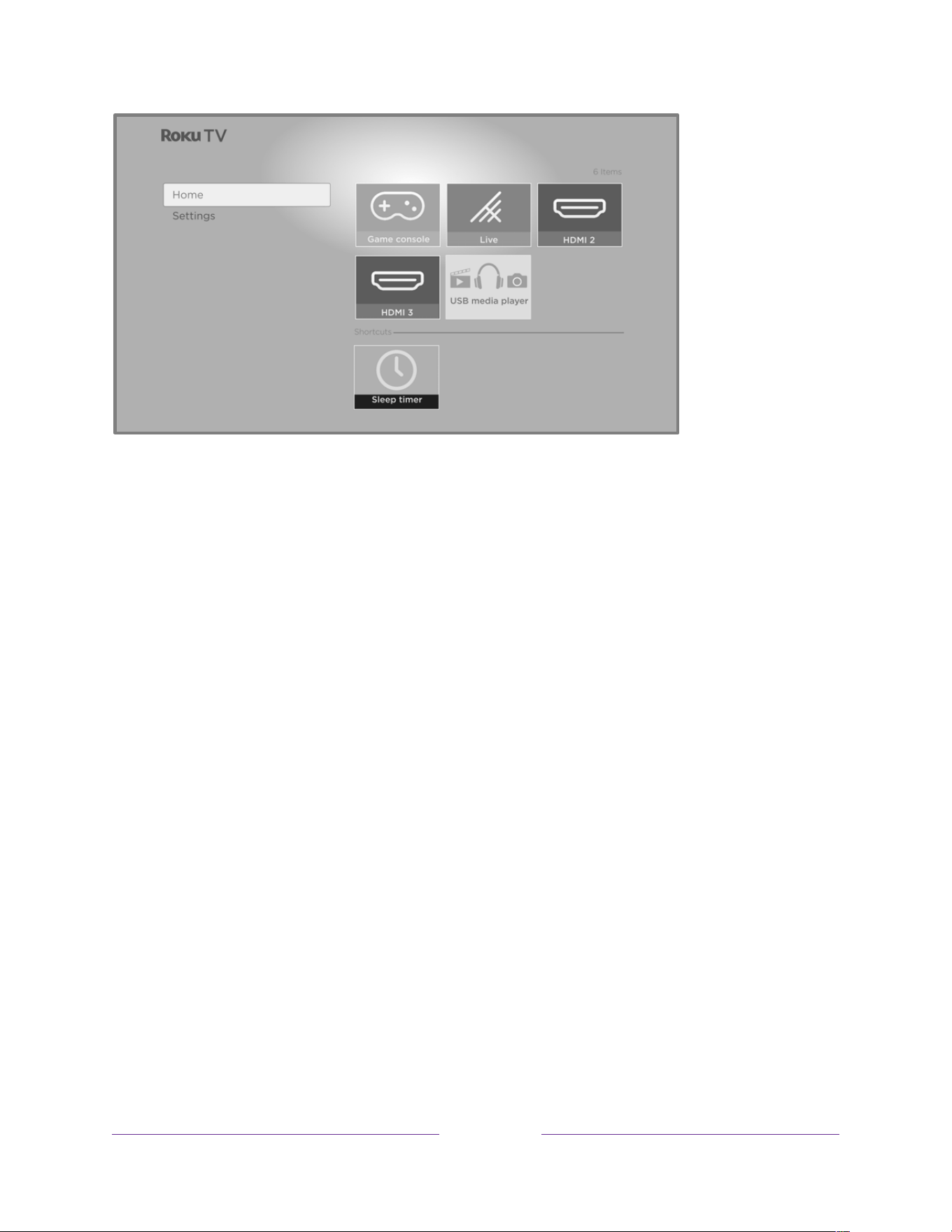
!
!!
156
!
!
!
Here is a list of what you are missing if you choose not to connect your TV:
• The Roku Channel
• The Roku Store and access to all streaming services
• Voice control and search features available through a Roku Voice Remote
• Google Home, Amazon Alexa, and Apple HomeKit/Apple Siri interactions
• Roku Search, including searching Live TV (over-the-air channels)
• Live streaming TV channels
• Live TV pause
• Recommendation row, Sports zone, What to watch
• Full-featured Live TV Channel Guide with categories, filtering, and auto sorting
• Backdrops
• More Ways to Watch
• Smart TV Experience
• Featured Free
• My Offers
• Guest mode
• Roku mobile app interactivity
• Bluetooth
®
private listening and Bluetooth phone/tablet/computer connectivity
• Roku Media Player, Media Player auto-launch, and DLNA/UPNP connectivity
• Picture off option

157
• Themes, theme packs, sounds, wallpapers, and screensavers.
Surfing only favorite channels when your TV is not connected
If you have marked one or more channels as favorites:
1. While watching live TV, press LEFT to display the channel list.
2. Press LEFT or RIGHT once to switch to Favorites. Notice that the word Favorites appears at the
top of the channel list.
3. Highlight a channel and press OK to select a channel from among your favorites.
To see all of your channels again, repeat these steps, but this time select All Channels.
Connecting your TV
If you went through Guided Setup and chose Connect to the Internet later—no worries. Your Roku TV
makes it easy to connect whenever you’re ready. As you move around the Home screen, you’ll see
several places where you can start the connection process. For example:
• Now and then you’ll see a message appear on the panel to the right of the Home screen offering
a Connect Now option. You can highlight and select the Connect Now option to get started.
• Use the Connect and activate now option. From the Home Screen Menu, select Settings, the
n
Network, and then Connect and activate now.
• If you want to start over from the beginning, do a Factory reset, and then go through Guide
d
Se
tup again. This time, select your home network when prompted.
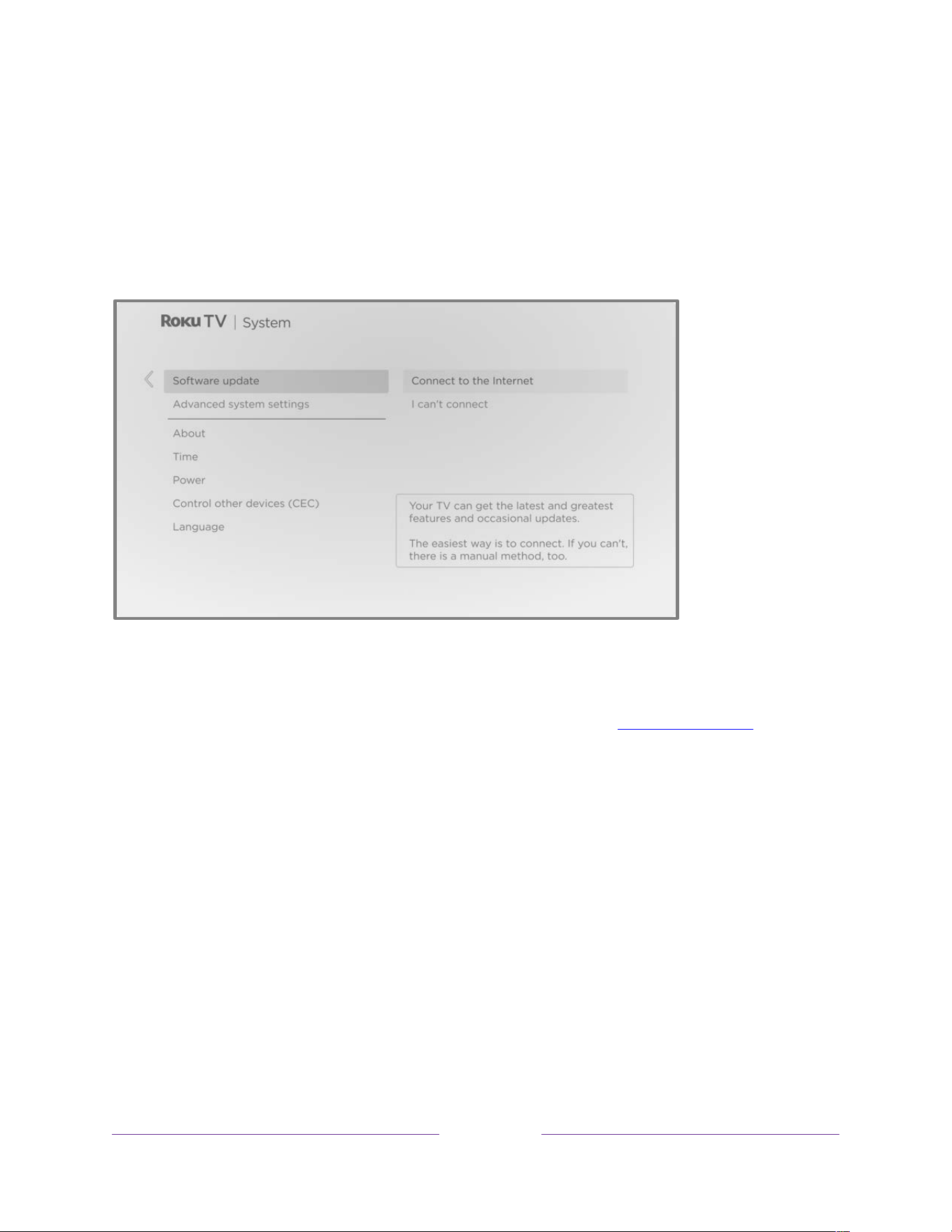
!
!!
158
!
!
!
Updating a TV that is not connected
If your TV is not connected to the Internet, you can still get software updates by using a USB flash drive
and a computer with an Internet connection.
To get a software update, navigate to Settings > System > Software update:
The Software update screen on a non-connected TV gives you the opportunity to connect your TV to the
Internet to automatically receive updates. We recommend this option if it is possible in your situation.
To proceed, select Connect to the Internet and follow the instructions in Connecting your TV.
Otherwise, if you can’t connect to the Internet, select I can’t connect, and then follow the instructions
on the screen. Here’s a summary:
1. On an Internet-connected computer, go to the web site displayed on the Software update
screen.
2. On the USB Update web page, select the correct brand and model, and then click Next.
3. Click Download Software, and then save the file to the root folder of a standard USB flash drive.

!
!!
159
!
!
!
USB flash drive
Any normal USB flash drive will work, provided it has a FAT-16 or FAT-32 file system format. (This is the
default for most flash drives.)
The size of the download is small—usually less than 100 MB—and so will fit on most any size flash drive
you might have.
4. When the download finishes, take the USB flash drive to the TV and plug it into the USB port.
When you do, the TV validates the files on the flash drive and displays a 12-digit code.
5. Write down the code and the web address, and take this information back to your Internet-
connected computer.
6. On the 12-digit code page, enter the code your TV displayed, and then click Next.
7. On the 6-digit code page, write down the 6-digit code that appears, and then take it back to
your TV.
12- and 6-digit codes
The USB update process uses a pair of codes to validate that you are authorized to install an update, and
to ensure you are not attempting to install an old, unsupported version of the system software.
8. Using the TV remote, select Next to move to the next screen, and then use the on-screen
keyboard to enter the 6-digit code. When finished, select OK. The software update begins. Do
not remove the USB flash drive until the TV restarts.
When the update finishes, the TV restarts. You can check the new version number by navigating to
Settings > System > About.


!
!!
161
!
!
!
Legal statement
Your use of the Roku TV is subject to the Roku TV Terms of Use. Your Roku account and other features and functionality offered by Roku may be
subject to additional terms. To learn more visit roku.com/legal/docs.
Dolby Audio™
Manufactured under license from Dolby Laboratories. Dolby, Dolby Audio, and the double-D symbol are
registered trademarks of Dolby Laboratories Licensing Corporation. Copyright 1992-2023 Dolby
Laboratories. All rights reserved.
Dolby Vision
®
and Dolby Atmos
®
Dolby, Dolby Vision, Dolby Atmos, and the double-D symbol are registered trademarks of Dolby
Laboratories. Manufactured under license from Dolby Laboratories Licensing Corporation. Confidential
unpublished works. Copyright © 2013-2023 Dolby Laboratories. All rights reserved.
DTS
®
DTS, the Symbol, and DTS and the Symbol together are registered trademarks of DTS, Inc. Copyright ©
2023 DTS, Inc. All rights reserved.
HDMI
®
The terms HDMI
®
and HDMI
®
High-Definition Multimedia Interface, and the HDMI
®
Logo are trademarks or
registered trademarks of HDMI
®
Licensing LLC in the United States and other countries.
Roku
Roku, Roku TV, the Roku logo, and the purple d-pad design are the trademarks of Roku, Inc. All other
trademarks and logos herein are the property of their respective owners.

Warranty
This warranty gives you speci�c legal rights. You may have other rights which vary from state/province to state/province.
LIMITED WARRANTY
ONE (1) YEAR
Skyworth USA Corporation Service, 2950
Toy Road, Groveport, OH 43125, USA
WARRANTY COVERAGE:
This warranty obligation is limited to the terms as set forth below.
WHO IS COVERED:
This product warranty is issued to the original purchaser or the
person receiving the product as a gift against defects in materials
and workmanship as based on the date of original purchase
(“Warranty Period”) from an Authorized Dealer. The original sales
receipt showing the product name and the purchase date from an
authorized retailer is considered such proof.
WHAT IS COVERED:
This warranty covers new products if a defect in material or
workmanship occurs and a valid claim is received within the
Warranty Period. At its option, the company will either (1) repair the
product at no charge, using new or refurbished replacement parts,
or (2) exchange the product with a product that is new or which has
been manufactured from new, or serviceable used parts and is at
least functionally equivalent or most comparable to the original
product in current inventory, or (3) refund the original purchase
price of the product.
Replacement products or parts provided under this warranty are
covered against defects in materials and workmanship from the
date of the replacement or repair for ninety (90) days or for the
remaining portion of the original product’s warranty, whichever
provides longer coverage for you. When a product or part is
exchanged, any replacement item becomes your property and the
replaced item becomes company property. When a refund is given,
your product becomes company property.
Note: Any product sold and identi�ed as refurbished or renewed
carries a ninety (90) day limited warranty.
Replacement product can only be sent if all warranty requirements
are met. Failure to follow all requirements can result in delay.
WHAT IS NOT COVERED - EXCLUSIONS AND LIMITATIONS:
This Limited Warranty applies only to new company manufactured
products that can be identi�ed by the trademark, trade name, or
logo affixed to it. This Limited Warranty does not apply to any
hardware product or any software, even if packaged or sold with the
product, as manufacturers, suppliers, or publishers may provide a
separate warranty for their own products packaged with the
bundled product.
The company is not liable for any damage to or loss of any programs,
data, or other information stored on any media contained within the
product, or other additional product or part not covered by this
warranty. Recovery or reinstallation of programs, data or other
information is not covered under this Limited Warranty.
This warranty does not apply (a) to damage caused by accident,
abuse, misuse, neglect, misapplication, or non-supplied product, (b)
to damage caused by service performed by anyone other than
company approved Authorized Service Location, (c) to a product or a
part that has been modi�ed without written company permission,
or (d) if any serial number has been removed or defaced, or (e)
product, accessories or consumables sold “AS IS” without warranty of
any kind by including refurbished product sold “AS IS” by some
retailers.
This Limited Warranty does not cover:
• Shipping charges to return defective product.
• Labor charges for installation or setup of the product, adjustment
of customer controls on the product, and installation or repair of
antenna/signal source systems outside of the product.
• Product repair and/or part replacement because of improper
installation or maintenance, connections to improper voltage
supply, power line surge, lightning damage, retained images or
screen markings resulting from viewing �xed stationary content
for extended periods, product cosmetic appearance items due to
normal wear and tear, unauthorized repair or other cause not
within the control of the company.
• Damage or claims for products not being available for use, or for
lost data or lost software.
• Damage from mishandled shipments or transit accidents when
returning product.
• A product that requires modi�cation or adaptation to enable it to
operate in any country other than the country for which it was
designed, manufactured, approved and/or authorized, or repair
of products damaged by these modi�cations.
• A product used for commercial or institutional purposes
(including but not limited to rental purposes).
• Product lost in shipment and no signature veri�cation receipt can
be provided.
• Failure to operate per User manual.
TO OBTAIN ASSISTANCE…
Contact the Customer Care Center at:
1-833-978-3323
or chat with us via the Philips website...
REPAIR OR REPLACEMENT AS PROVIDED UNDER THIS WARRANTY IS
THE EXCLUSIVE REMEDY FOR THE CONSUMER, WITH THE ISSUING
COMPANY NOT LIABLE FOR ANY INCIDENTAL OR CONSEQUENTIAL
DAMAGES FOR BREACH OF ANY EXPRESS OR IMPLIED WARRANTY
ON THIS PRODUCT. EXCEPT TO THE EXTENT PROHIBITED BY
APPLICABLE LAW, ANY IMPLIED WARRANTY OF MERCHANTABILITY
OR FITNESS FOR A PARTICULAR PURPOSE ON THIS PRODUCT IS
LIMITED IN DURATION TO THE DURATION OF THIS WARRANTY.
Some states do not allow the exclusions or limitation of incidental or
consequential damages, or allow limitations on how long an
implied warranty lasts, so the above limitations or exclusions may
not apply to you.

License
Skyworth USA Corporation hereby offers to deliver, upon request, a copy
of the complete corresponding source code for the copyrighted open
source code packages, on an “AS IS” basis, used in this product for which
such offer is requested by the respective licenses. This offer is valid up to
three years after the product purchase to anyone in receipt of this
information. To obtain source code, please contact Skyworth USA
Corporation. You should write to Skyworth USA Corporation Service
2950 Toy Road, Groveport, OH 43125, USA
Skyworth USA Corporation disclaims any and all warranties and
representa-tions with respect to such software and related source code
including quality, reliability, usability, and accuracy, and further disclaim
all express, implied, statutory or otherwise, including without limitation,
any implied warranties of title, non-infringement, merchantability, or
fitness for a particular purpose. Skyworth USA Corporation shall not be
liable to make any corrections to the open source software or source
code or to provide any support or assistance with respect to it. Skyworth
USA Corporation disclaims any and all liability arising out of or in
connection with the use of this software and/or source code.

Skyworth USA Corporation
10833 Valley View St. Ste. 415, Cypress, CA 90630
The Philips trademarks are registered trademarks of
Koninklijke Philips N.V. and are used under license. This
product has been manufactured and is sold under the
responsibility of Skyworth USA Corporation, and
Skyworth USA Corporation is the warrantor in relation
to this product.