
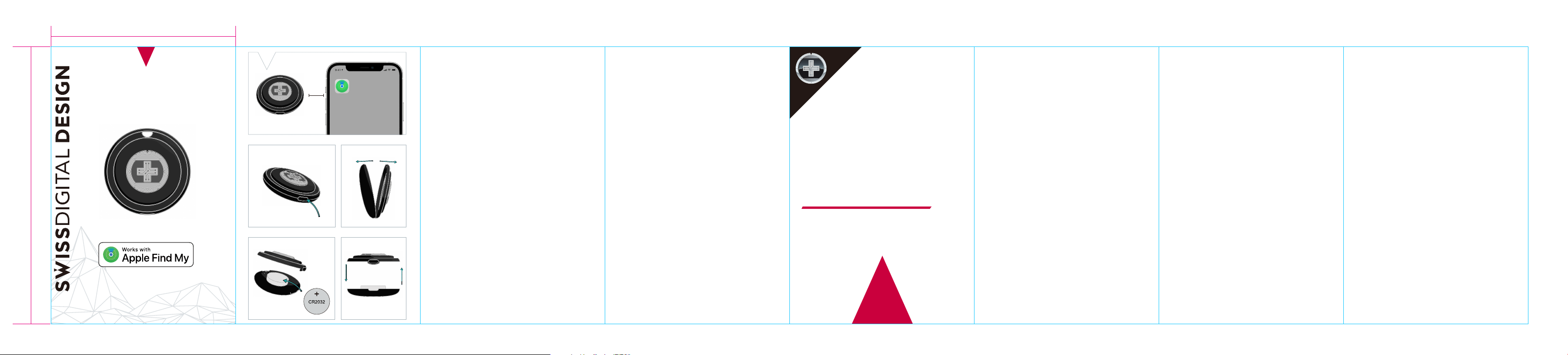
2.2 Long press the button on the SDD Finder 3 for about
0.6-3 seconds, the SDD Finder 3 is successfully awakened
when you hear a single “Beep” and see the red light flash
once. (Fig: 2)
2.3 Open the "Find My" app that comes with your device.
2.4 Click on "Item - Add - Add another item - Searching for
item (SDD Finder 3) - Connect - Name item - Continue -
Select emoticon - Continue - Agree - Finish”.
2.5 Unpair the SDD Finder 3 by clicking “Remove” on the
bottom of operation page, you will hear sounds “ Beep,
Beep Beep”, and the light flashes three times.
3. Additional Tips
3.1 Learn more-Serial number lookup
-Locate the button on the front of the SDD Finder 3.
-Press the button for four times, you will hear a single
“Beep”, and the light flashes once.
3.2 How to disable
-Locate the button of the SDD Finder 3.
-Press the button 5 times and 5 beeps will sound and
the LED light will flash 5 times.
3.3Restore factory settings
Long press the button on the side edge for 10s without
releasing, about 3s you will hear a "Beep", the red light
flashes once, about 5s you will hear two “Beep" “Beep",
the red light flashes twice, to about 10s you will hear
four “Beep", “Beep", "Beep", "Beep", the red light flashes
four times or emits a long beep, and then release the
hand. It is successfully restored to the factory settings.
4.BATTERY
The Finder 3 contains a coin cell battery. The battery
may need to be replaced during the life of the
Swissdigital Design Find My network (FMN) Finder
works with the Apple Find My network, helping to
locate belongings in an easy and secure way. The Find
My network is a crowdsourced network of almost one
billion Apple devices that use Bluetooth wireless
technology to detect missing devices or items nearby
and report their approximate location back to the
owner in the Find My app. The entire process is end-to-end
encrypted and anonymous, so no one else-not even Apple
or Swissdigital Design-can view a device's location or
information.
Visit www.apple.com for more information.
1. Instructions for use
1.1 Activating the SDD Finder 3
● Press the oval button on the side edge of SDD Finder
3 once and release when hearing a “Beep”. The red
light will flash, signaling that it is activated.
1.2 Allowed permissions
● In Settings - General - App - Find My (Apple’s built in
App), allow the use of application page permissions:
allow you to find Bluetooth devices, allow notifications,
allow to use location, allow to use wireless data, etc.
● Allow applications to run in the background with
unlimited battery usage, which may shorten the battery
life of your mobile device (If you set an application to
run in the background with limited battery usage, the
application may not work as expected and notifica-
tions may be delayed.)
2. How to pair
2.1 Place the SDD Finder 3 next to your IOS device. (Fig: 1)
Apple, Apple Find My, Apple Watch, Find My, iPhone,
iPad, iPadOS, Mac, macOS and watchOS are
trademarks of Apple Inc., registered in the U.S. and
other countries. IOS is a trademark or registered
trademark of Cisco in the U.S. and other countries and
is used under license.
To use the Apple Find My app to locate this item, the
latest version of iOS, iPadOS, or macOS is
recommended.
Use of the Works with Apple badge means that a
product has been designed to work specifically with
the technology identified in the badge and has been
certified by the product manufacturer to meet Apple
Find My network product specifications and
requirements. Apple is not responsible for the
operation of this device or use of this product or its
compliance with safety and regulatory standards.
5 cm
2 “
product. Replace only with the same type (CR2032)
and rating of battery and replace by observing the
correct negative & positive connection.
CAUTION: Use the correct battery type to avoid risks
of fire or electric shock.
5. Warnings
The SDD Finder 3 is not anti-theft. It only shows the
last location where your item was separated from
your mobile device.
6.Warranty
One-year limited warranty. Physical damage caused
by the user is not covered.
7.Declaration of conformity
7.1Specifications
●Model Name: SDD Finder 3
●Manufacturer: SWISSDIGITAL DESIGN
8.FCC Warning
This device complies with part 15 of the FCC Rules.
Operation is subject to the following two conditions:
(1) This device may not cause harmful interference, and
(2) this device must accept any interference received,
including interference that may cause undesired operation.
Open the SDD Finder 3 casing using the provided
tool (Fig: 3).
Insert the new battery with the positive (+) terminal
facing up (Fig: 4 ).
Snap the casing back into place (Fig: 5).
●
●
●
Any changes or modifications not expressly approved
by the party responsible for compliance could void the
user's authority to operate the equipment.
NOTE: This equipment has been tested and found to
comply with the limits for a Class B digital device,
pursuant to Part 15 of the FCC Rules. These limits are
designed to provide reasonable protection against
harmful interference in a residential installation. This
equipment generates, uses and can radiate radio
frequency energy and, if not installed and used in
accordance with the instructions, may cause harmful
interference to radio communications. However, there
is no guarantee that interference will not occur in a
particular installation.
If this equipment does cause harmful interference to
radio or television reception, which can be determined
by turning the equipment off and on, the user is
encouraged to try to correct the interference by one or
more of the following measures:
-- Reorient or relocate the receiving antenna.
-- Increase the separation between the equipment and
receiver.
-- Connect the equipment into an outlet on a circuit
different from that to which the receiver is connected.
-- Consult the dealer or an experienced radio/TV technician
for help.
The device has been evaluated to meet general
RF exposure requirement. The device can be used
in portable exposure condition without restriction.
Stay connected.
Break free.
swissdigital.com
Fig:1
Fig:2 Fig:3
Fig:4 Fig:5
60mm
90mm
User Manual
SDD Finder 3
