
User Manual
ORICO-H1-15-680-12256-SV
Obook Laptop
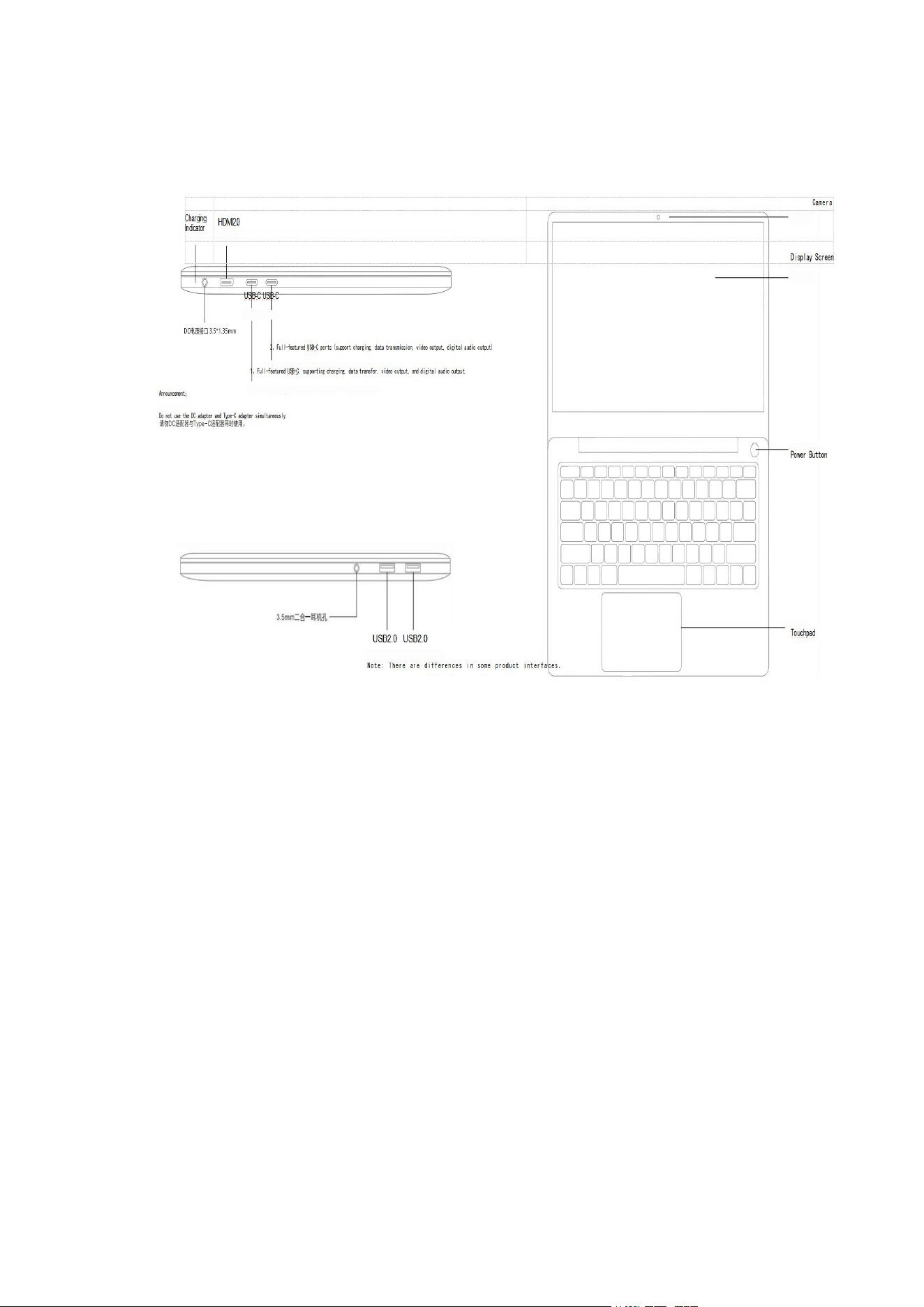
Product Overview and Features

Quick Start Guide
NOTE 1: When using this laptop for the first time, it is recommended to use AC
adapter and connect to AC power. Once the AC adapter is connected, the
battery will start charging.
NOTE 2: The AC adapter in the packing box has been verified to use with this
laptop; using adapters of other models may damage the laptop or other
devices connected to the computer.
Initial Setup
After pressing the power button, set up the system according to the following
steps (after each setup step, there will be loading time. Please be patient and
ensure the adapter is properly connected to avoid running out of battery):
1) Boot loading interface.
2) Enter the language selection interface and choose your desired system
language.
3) Follow the system prompts to set up the input method; add keyboard layout
and select "Skip".
4) Select "I have no Internet connection".
5) Please read the terms of the Microsoft Windows license agreement
carefully and choose to accept. (If you need to use the Windows operating
system, you must accept before proceeding to the next step. This terms is not
related to our company; it is provided by Microsoft's official operating system).
6) Set your account name (It must be entered; otherwise, you cannot proceed
to the next step).
7) After entering the account name, you can choose to create a startup
password, or click "Next" to skip it.
8) Afterwards, follow the instructions on the display screen to make selections,
and you can successfully enter the system.
Note: The entire boot-up process will take 10 to 20 minutes. Once again,
please be patient and ensure the adapter is properly connected and that the
computer is being charged to avoid system loading being affected by
insufficient battery power.
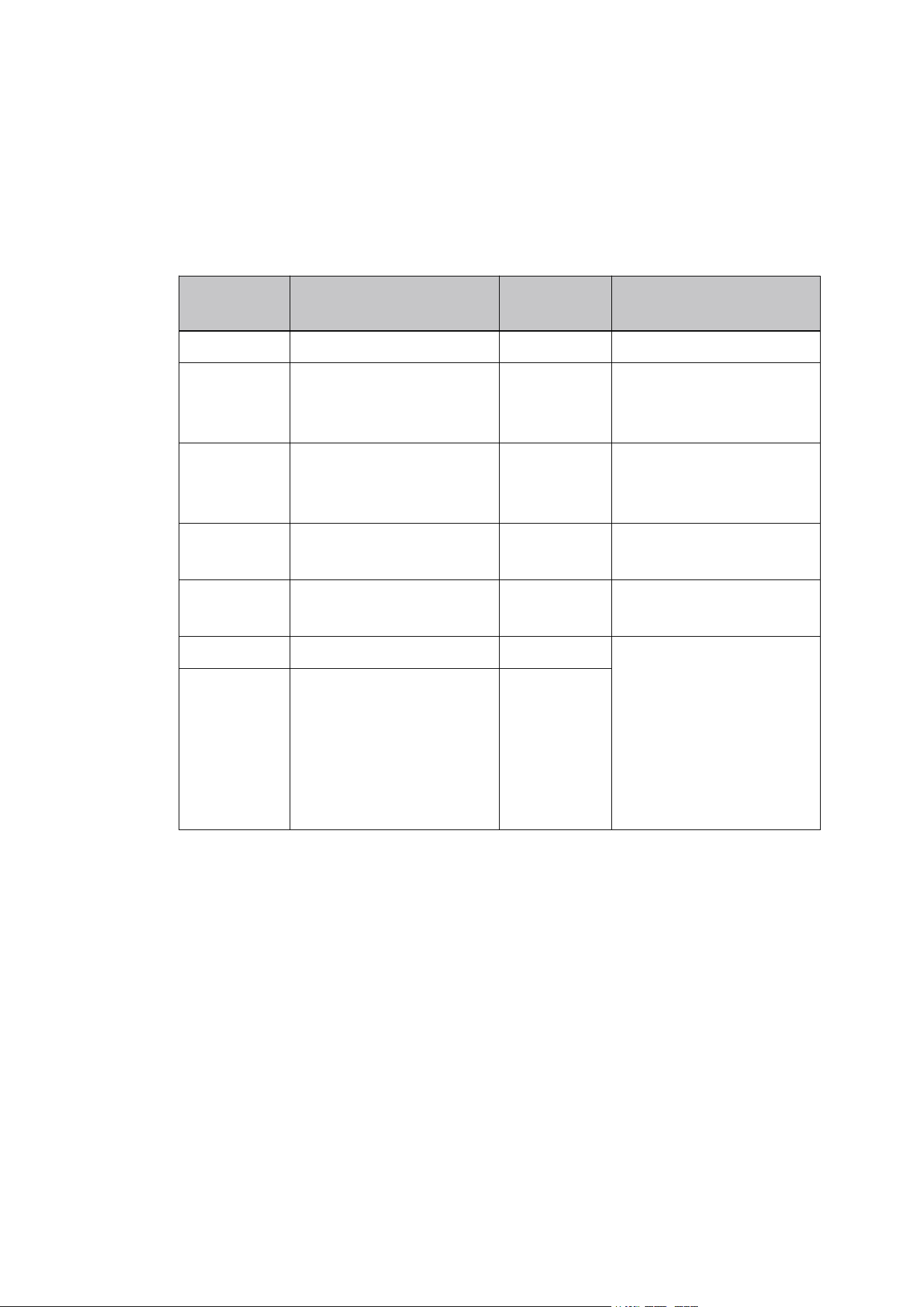
Fn Combination Key Introduction
The Fn key is used in combination with other keys to turn specific functions on
and off. Refer to your keyboard layout for the specific combination key
functions
:
Keyboard Maintenance Tip:
After prolonged use of the keyboard, dust usually accumulates in the gaps
between keys. You can use a small brush to clean the gaps, or use a
high-pressure air canister commonly used for cleaning camera lenses to blow
out the dust, or use a handheld vacuum cleaner to remove dust and debris
from the keyboard. For cleaning the keyboard surface, apply a small amount of
cleaner to a soft cloth and gently wipe the keyboard surface while the power is
off.
Key
Functional
Specification
Key
Functional
Specification
+
”
sleep
+
“
Increase the volume
·
+
”
Reduce the
brightness of the LCD
display screen
+
”
Keyboard backlight
adjustment
+”6
Increase the
brightness of the LCD
display screen
+
Calculator
+
External display
display mode
+"
Run the email
+
Touchpad activation
and deactivation
"+"
Turn on the settings
m+“
Silent mode
+0
Switch to the working
mode:
1.Energy-saving mode
Default setting
2.Balanced mode
3.High-performance
mode
□+4
Decrease volume

Touchpad operation gestures
Single-clicking or double-clicking on the touchpad is equivalent to the function
of the left mouse button.
Double-clicking on the touchpad is equivalent to right-clicking with a mouse,
and it will pop up a selection menu.
When you move both fingers up/down simultaneously, it enables the screen
scrolling, which is similar to the function of the mouse scroll wheel.
When browsing pictures, use two fingers to simultaneously swipe left or right.
This function allows you to move the pictures to the left or right.
Use both fingers to simultaneously draw apart or bring together diagonally to
enlarge or reduce the current image/page.
Network & internet
Connect to any working WiFi
Enable/disable the Airplane ModeTurn on/off the Data Saver*Add VPN
Connections
Select a private DNS mode
Apps
* Check the Apps recently opened* Check all the Apps on the tablet Clear the
cache of the Apps*Uninstall the third-party AppsSet default appsCheck the
screen time for Apps
and more
Notifications
Turn on/off the notification for each app.*Show or hide the notification
history.Check priority and modified conversations*Allow or disallow the apps to
show bubbles*Set privacy preferences for notificationsEnable or disable
Notification dot on an app icon
and more

Battery
*A rechargeable Li-ion battery is installed in the tablet.
* DO NOT attempt to replace the tablet battery by yourself because you
may damage the battery, which might cause overheating, fire or injury.
* DO NOT dispose of tablet in a fire.
* DO NOT expose the tablet battery to any heat source, direct sunlight or
high temperature.
Only use the ORIGINAL power adapter provided by us to charge the
tablet battery.
We suggest you fully drain the battery once a month if you use your
tablet only occasionally.
The Li-ion battery in your tablet should be serviced by authorized service
provider, and must be recycled or disposed of separately from household
waste.
* Dispose of battery according to your local environmental laws and
regulations.
Storage
* View and manage your storage space
Sound
* Set sound level for Media, Alarm and Notification* Enable/disable Do Not
Disturb to mute sound
* Show/hide the media player when the media session has ended
Set default notification sound alarm sound
Display
* Adjust the screen brightness
* Enable/disable the Dark theme
*Turn on/off Night Light
*Change the wallpaper
* Adjust the time of entering the sleep mode
* Turn on/off the auto-rotation of the screen
* Adjust the font size and display size
* Set a screen saver
* Set what to show when the tablet is locked and more
Location
Turn on/off the location services for specific Apps* Set apps that have access
to locationCheck and set Location services and more
Accessories and Environmental Protection Instructions
1)Accessory List
Special Note: The following accessory list is the standard accessory list for the
product. If the order has special requirements, it shall be subject to the specific
requirements. If our company's product accessories are updated and adjusted,
no further notice will be provided.
2)List of names and contents of toxic and harmful substances or
elements in the product:
Name of
parts
HSF
(Pb)
(Hg)
(Cd)
(Cr⁶+)
(PBB)
(PBDE)
Printed
circuit board
X
O
X
O
X
O
Hard disk
drive
X
O
X
O
X
O
Display
screen
X
O
X
O
X
O
Outer shell
X
O
X
O
X
O
Battery
X
O
X
O
X
O
Keyboard
X
O
X
O
X
O
Loudspeaker
X
O
X
O
X
O
Thermal
module
X
O
X
O
X
O
Microphone
X
O
X
O
X
O
Wi-Fi
module
X
O
X
O
X
O
AC adapter
X
O
X
O
X
O
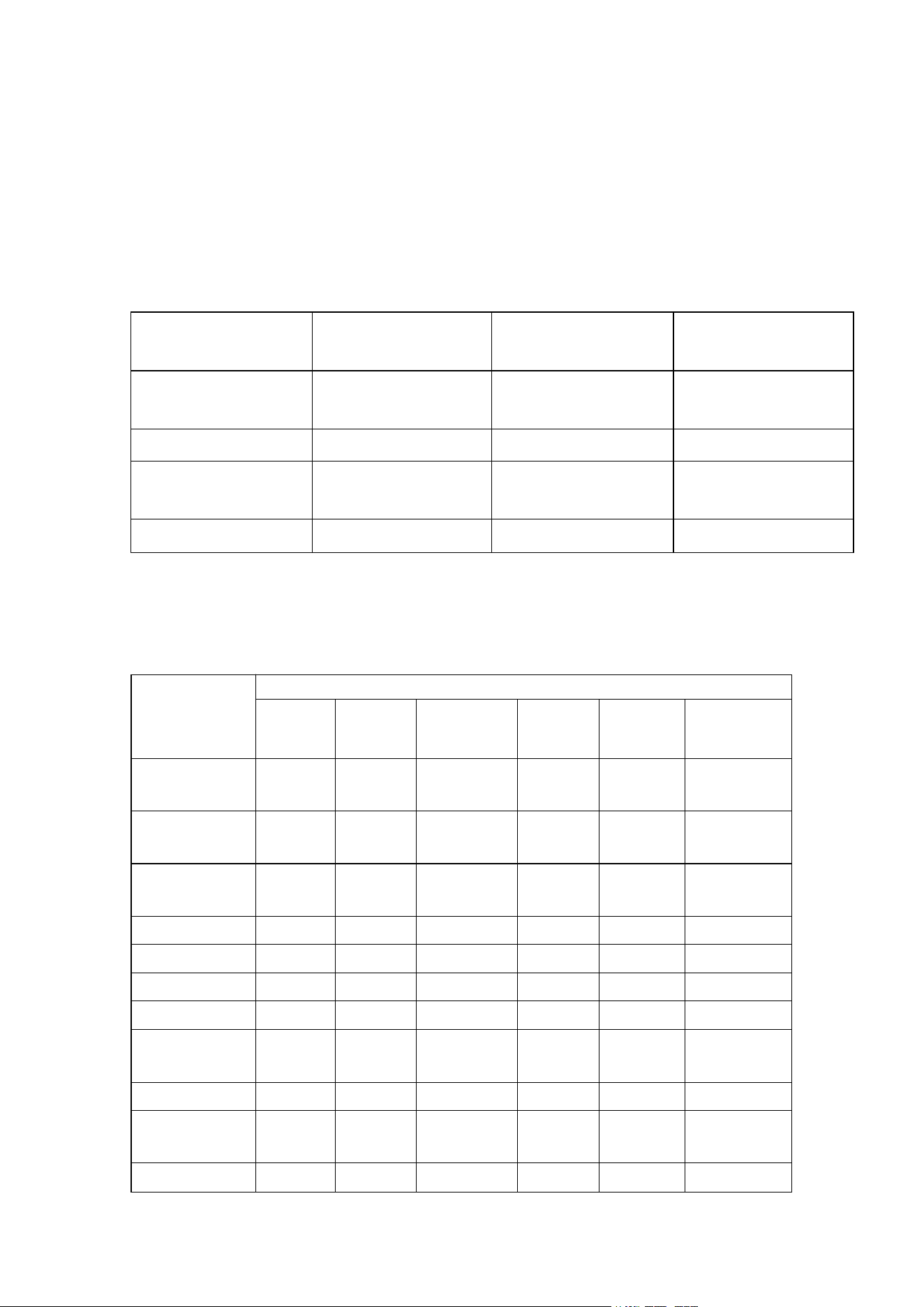
Serial
number
Name
Amount
Specification
1
User Manual
Warranty Card
1
2
Certificate
1
3
Power connection
cable
1
1.8 meters
4
Power adapter
1
This table is compiled in accordance with the provisions of SJ/T
11364-2014.
O: This indicates that the content of the harmful substance in all
homogeneous materials of this component is below the limit
requirements stipulated in GB/T 26572.
X: This indicates that the content of the harmful substance in at least one
homogeneous material of this component exceeds the limit
requirements stipulated in GB/T 26572.
The environmental protection usage period refers to the period during which,
under normal usage conditions, the harmful substances or elements contained
in portable computers (excluding batteries) and their accessories will not leak
out, and when users of electronic information products use this product, they
will not cause serious pollution to the environment or serious damage to their
persons or property.
Technical Description:
The metal structural components, injection molded parts, connectors and most
of the electronic components of this machine comply with the RoHS directives
of both China and the European Union. Only a few components, due to
limitations in global technological levels, may temporarily not be able to
replace toxic or harmful substances or elements. Consumers can rest assured
to use it. Under normal usage conditions, it will not cause any health impacts to
the users.
This label indicates the environmental protection usage period, which is (ten
years). The toxic and harmful substances or elements contained in electronic
information products will not leak or change abnormally under normal usage
conditions. The period during which users using this electronic information
product will not cause serious pollution to the environment or cause serious
damage to their persons or property.
This product can achieve zero energy consumption only when there is no
external input power.

Provisional Explanation of the "Regulations on the Recycling and
Disposal of Waste Electrical and Electronic Products":
When the user no longer needs this product or when the product's lifespan has
ended, please abide by the relevant national laws and regulations on the
recycling and disposal of waste electrical and electronic products, and hand it
over to the local manufacturer with the nationally recognized recycling and
disposal qualifications for recycling and disposal.
Usage, Maintenance and Care
• When the product will not be used for a long time, please disconnect the
product power to extend product life.
• When not using the computer, please shut down the entire machine following
the normal shutdown process. Do not shut down illegally or directly unplug the
power to ensure the stability of the product system.
• Non-professionals should not privately open any back cover of the product to
avoid damage to the product itself or threats to personal safety. If your product
has problems, please contact your dealer for handling.
• Please do not privately add any accessories that do not originally belong to
this product or are not specifically designed for this product.
• During thunder and lightning, never touch the power cord and signal cable;
this can be extremely dangerous and may cause electric shock. If possible,
please do not use the product during thunder and lightning.
• During installation, please confirm that this product is firmly fixed to avoid
falling injuries. Please try to install the product in places out of reach of
children.
• Please avoid throwing or pushing water or other objects into the product
casing; some internal components carry dangerous high voltage.
• Use this product away from fire sources. Do not install this product near or
above radiators or heat sources.
• This product is a heat-generating product. Please ensure the product is in a
relatively ventilated space during use. Do not block the product's heat
dissipation vents, as accumulated excessive heat may cause product failure.
• This product requires regular cleaning during use. Generally clean once
every 5 to 7 days; the specific frequency depends on the usage environment.
• When cleaning, please unplug the product power first, then clean the product
surface. Use a dry cloth to clean the back of the product. Do not use aerosols
directly on the product display screen, as excessive spray may cause electric
shock.
• When cleaning, please use a soft cloth or paper to wipe to prevent scratches.
Do not use chemicals such as benzene, paint thinner, or alcohol for cleaning.
• When cleaning the front of the product, spray water 2 to 3 times onto a soft
cloth, then wipe in only one direction. Please pay attention to the moisture of
the wiping cloth; a cloth that is too wet may cause staining.

Notes and Safety Warnings
Note: Please read this manual carefully and keep it handy. Strictly follow the
installation and operation precautions below.
Warning:If consumers use a power adapter for power supply, they should
purchase a matching power adapter that has obtained CCC certification and
meets standard requirements.
1. Before operating or using the product, please read the safety and operation
instructions carefully. Please retain this manual for future reference.
2. Follow all warning signs on the product and in the product user guide.
3. If abnormal sounds or odors occur inside the device, immediately turn off the
power and unplug the power cord. Do not continue to use if abnormality is
confirmed; please have it inspected by product maintenance personnel.
4. If the product will not be used for a long time, turn off the product power and
unplug the power cord. During thunderstorm seasons, disconnect the power
cord and network cable.
5. Try not to use this product during thunderstorms, as lightning may cause
product damage. Unplug the power cord and antenna before the thunderstorm
arrives to prevent lightning strikes.
6. Flammable and explosive materials, electric stoves, light bulbs, etc. must
not be placed on or near the machine to avoid accidents.
7. Be careful to prevent liquids and metals from entering the product. If liquids
or metals fall into the machine, do not turn it on again; have it handled by
professional personnel as soon as possible.
8. Do not wipe the machine with chemical reagents. Solvents may deteriorate
the casing and damage its painted surface. If there is dust or dirt, wipe with a
wrung-out damp cloth ten minutes after turning off the product. The display
screen can be gently wiped with a clean soft cloth. Before cleaning, unplug the
product from the wall power outlet. Do not use liquid cleaners or aerosol
cleaners.
9. Pay attention to water and moisture. Do not use this product in or near
places with water, such as bathtubs, washbasins, kitchens, water faucets,
laundry tubs, damp basements, or near swimming pools.
10. The device should not be exposed to dripping or splashing water, and
objects filled with liquids, such as vases, should not be placed on the device.
11. The recommended operating ambient temperature for the product is 5°C -
25°C. Use at ambient temperatures below 5°C or above 25°C may cause
permanent damage or loss to the battery.
12. This product is not sold with a power adapter. If using a power adapter for
power supply, purchase a matching power adapter that has obtained CCC
certification and meets standard requirements. This product is suitable for safe
use under non-tropical climate conditions.

FCC STATEMENT:
This device complies with part 15 of the FCC Rules. Operation is subject to the
following two conditions:
(1) This device may not cause harmful interference, and (2) this device must
accept any interference received, including interference that may cause
undesired operation. Any Changes or modifications not expressly approved by
the party responsible for compliance could void the user's authority to operate
the equipment.
Note: This equipment has been tested and found to comply with the limits for a
Class B digital device, pursuant to part 15 of the FCC Rules. These limits are
designed to provide reasonable protection against harmful interference in a
residential installation. This equipment generates uses and can radiate
radio frequency energy and, if not installed and used in accordance with the
instructions, may cause harmful interference to radio communications.
However, there is no guarantee that interference will not occur in a particular
installation. If this equipment does cause harmful interference to radio or
television reception, which can be determined by turning the equipment off and
on, the user is encouraged to try to correct the interference by one or more of
the following measures:
-Reorient or relocate the receiving antenna.
-Increase the separation between the equipment and receiver.
-Connect the equipment into an outlet on a circuit different from that to which
the receiver is connected.
-Consult the dealer or an experienced radio/TV technician for help.
This equipment complies with FCC radiation exposure limits set forth for an
uncontrolled environment.
FCC SAR:
FCC Radio Frequency Exposure Information and Statement:
The SAR in the United States (FCC) is below the limit of 1g 1.6 W/kg. Device
Type: Obook lapto (FCC ID: 2BNOR-ID9) has also been tested against this
SAR limit. During product certification, when properly worn on the body, the
maximum SAR value reported in accordance with this standard is less than 1.6
W/kg. The device has been tested for typical body-worn operation and has a
back The Obook lapto is kept 0 cm from the body. To maintain compliance
with.

Warranty Period
Warranty Certificate:
The purchase invoice and the three-guarantee certificate are the warranty
documents that enable you to enjoy the national "three-guarantee" and
standard services. Please ensure to keep them properly and present them to
our certified service institution when you need service.
Note:
The purchase invoice must be a genuine invoice recognized by the national
tax authorities.
Warranty Start Date:
The warranty start date for the Raytheon gaming laptop is based on the
purchase date indicated on the purchase invoice. If you cannot present a valid
purchase invoice and the three-guarantee certificate, or if the information
recorded in the above warranty certificates does not match the product, or if it
has been altered or is illegible, the "three-guarantee" period and the free repair
period for this product will be calculated as the warranty start date being one
month after the production date of the product. If we cannot obtain valid
product factory information, we will not provide free repair services.
Component warranty period:
The stipulations for major components are in accordance with the "three
guarantees" regulations.
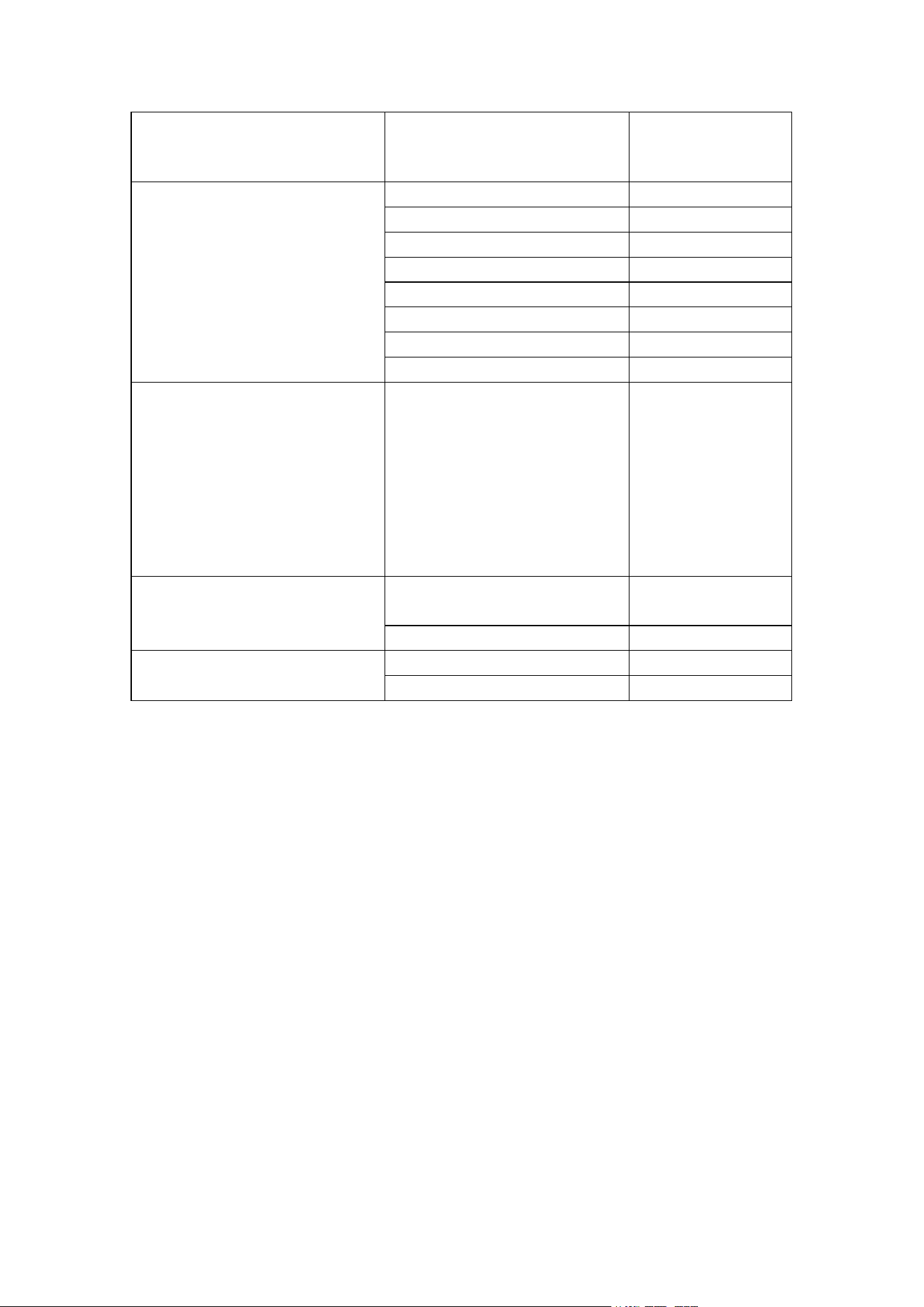
Notebook component
category
Name of parts
Warranty period
Main Component
Main board
Two years
CPU
Two years
LCD
Two years
Internal Storage
Two years
Hard disk drive
Two years
Power adapter
Two years
Keyboard
Two years
Display card (independent)
Two years
Other Components
CD drive, casing. Voltage
booster board,
touchpad,mouse button
board, touchpad to
motherboard cable, screen
cable, camera
Camera cable, wireless
network card, battery fan
1 year
Accessory
Random attachments
(CDs,power cords, etc.)
trimester
laptop bag
no
Software
Pre-instal led software
1 year
Random software
trimester
Note:
The components mentioned in the warranty period table should not be
construed as a commitment or description of the configuration of the product
you purchased. The product configuration should be based on the packing list
of the specific model you purchased.

Pre-installed software:
Pre-installed software refers to the operating system software that is bundled
with the
product and has been installed when the product is manufactured.
。
Random Software:
Random software refers to the software sold along with the product, which is
an integral part of the product. Generally, it refers to the driver programs of the
product. The random software may vary depending on the different products.
Warranty period after repair:
For products and components within the scope of this warranty, if they are
repaired by a certified service provider of the manufacturer, they will continue
to enjoy the services promised under this warranty for the period as stipulated.
If the repaired component was self-repaired and the period from the time of
self-repair to the end of the warranty period promised by this warranty is less
than three months, the service period of this component will be extended to
three months from the date of repair (applicable only to components with a free
warranty period of one year (inclusive) or more). At that time, please provide
valid repair records.