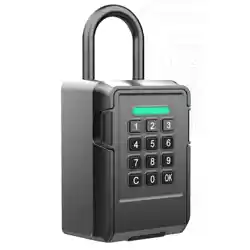
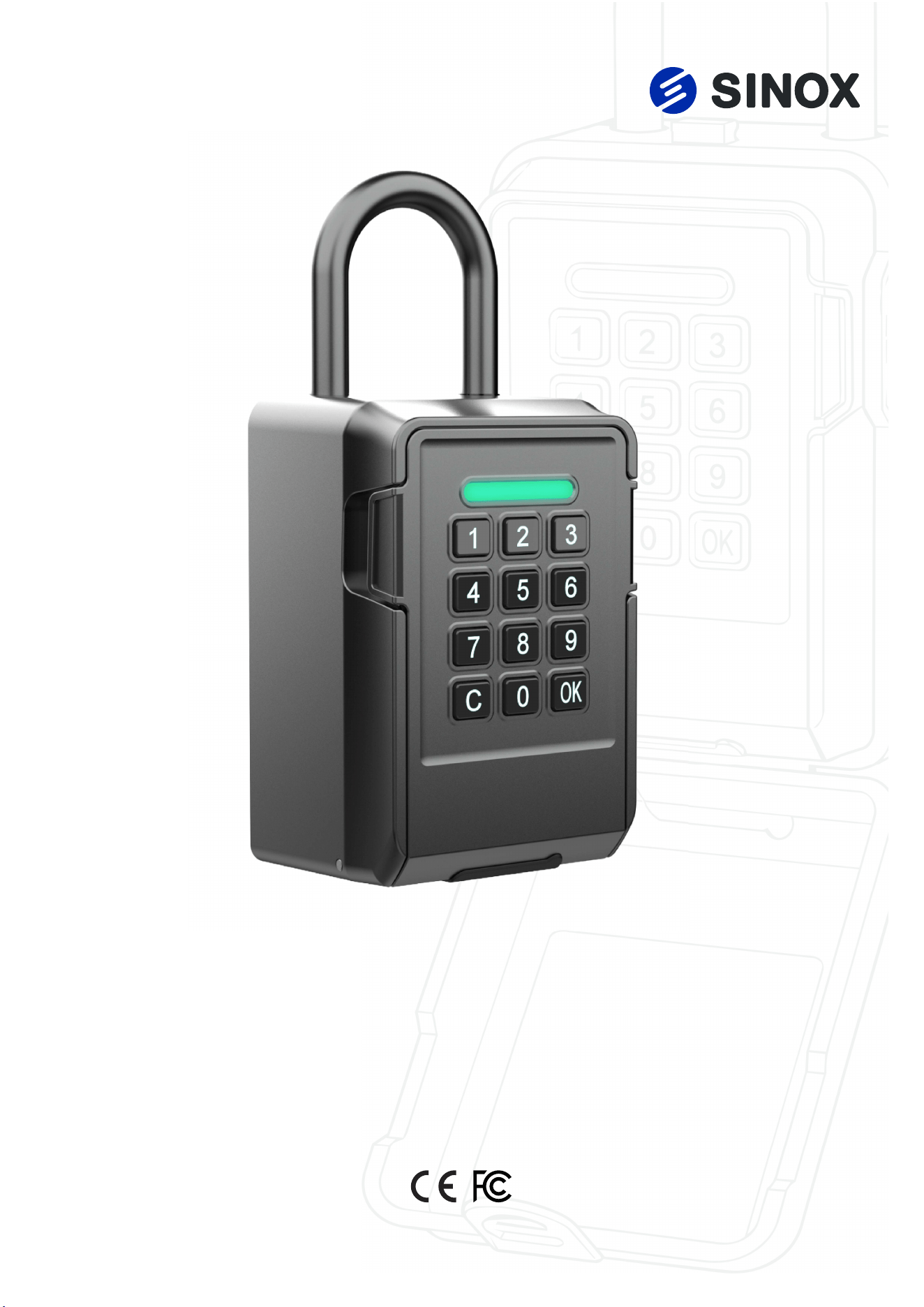
KB7009
Smart Key Box
Operation Manual
Contents
Package Contents
Specifications
Features
Product Overview
Installation & Power-On
Quick Operation Guide
Menu Functions
App Setup
1
2
3
4
5
6
7
11
KB7009
User Manual
USB Key Optional
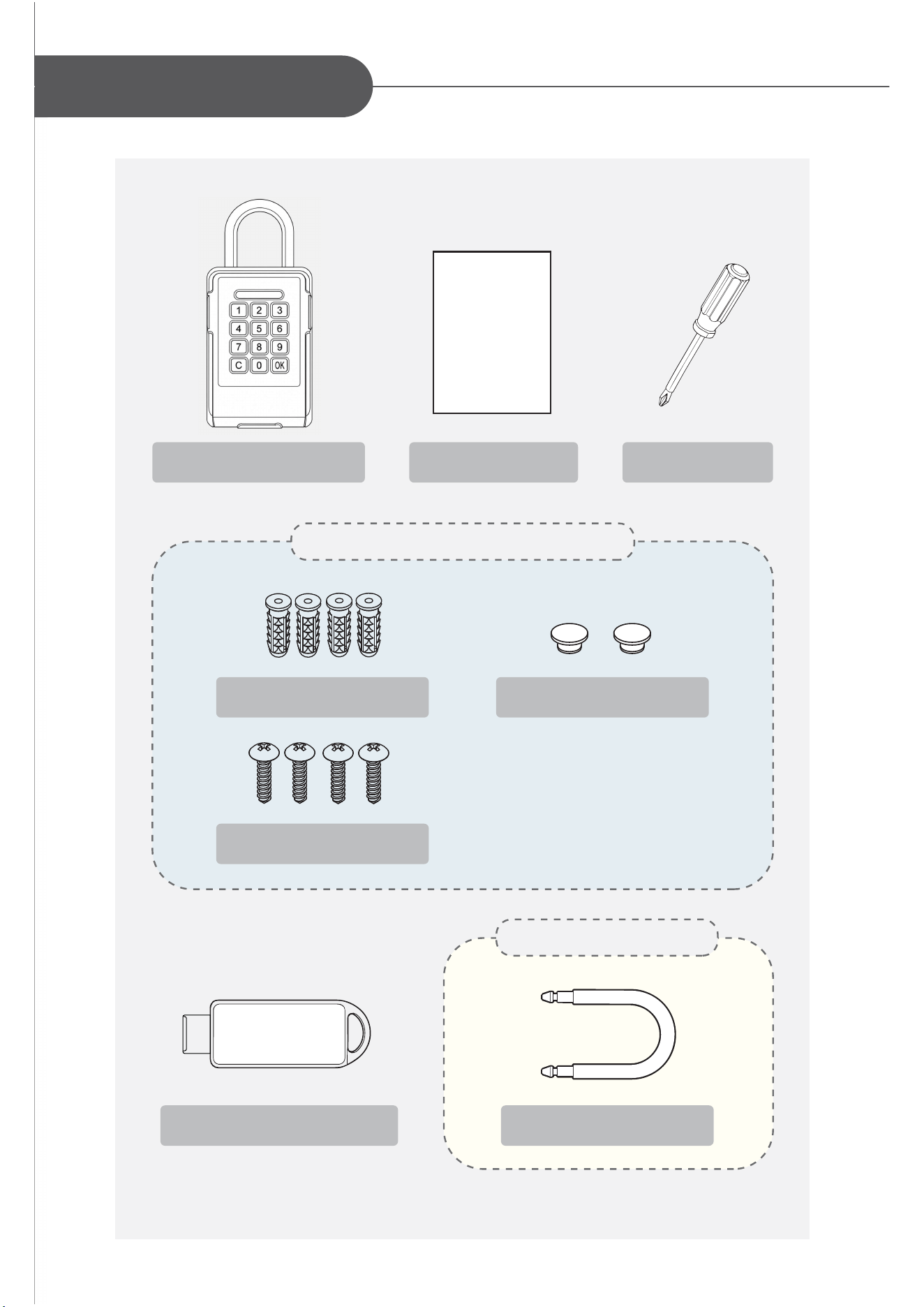
Package Contents
KB7009 Lock Box x1 Quick Guide x1
Shackle Hole Plug x2
Mounting Bolts x4
Installation Screws x4
Shackle
Screwdriver
Wall-Mount Version Accessories
Shackle Accessories
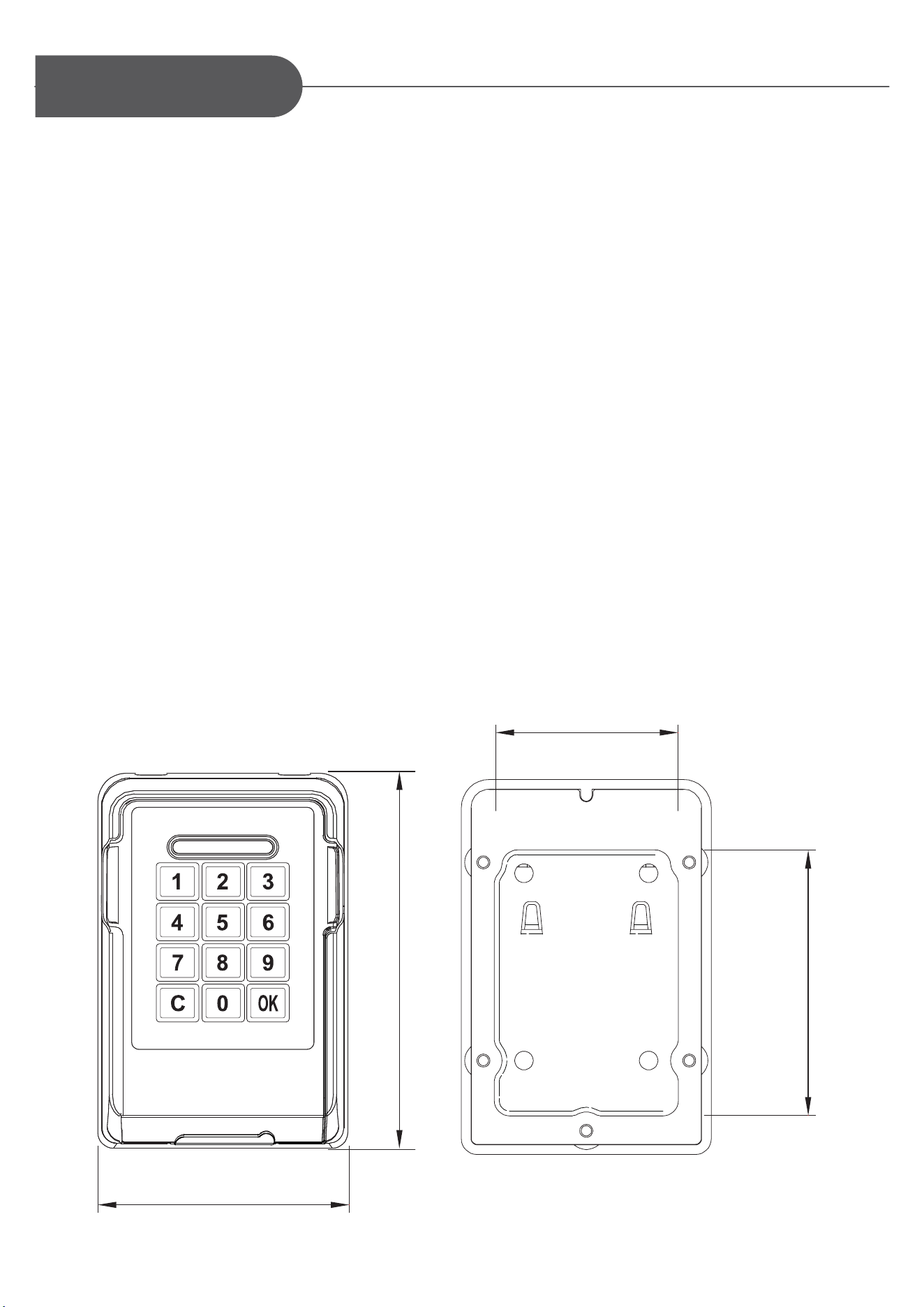
80.1 mm
60.6 mm
81.5 mm
120.2 mm
2
Specifications
Battery
Idle mode current
Battery Life
Operation Temperature
Storage Temperature
Emergency Power Supply I/O
CR123A x 1 pcs
70uA (avg. APP no pair )
100uA (avg. APP paired )
Standby over 365 days
-10°C ~ 65°C
-40°C ~ 85°C
USB Type-C 5V/1A
(No charging function)
Battery
Security
Low Battery Indicator
Battery Life
!
3
When the battery level is low, the lock box will emit a warning tone
upon wake-up and the LED indicator will light red. The KB7009
will continue to operate normally.
After the first low-battery warning, approximately 100 operations
remain. Replace the battery as soon as possible.
Emergency Power
If the battery is depleted, connect a power bank using a charging
cable and plug it into the lock box's USB port to provide emergency
power.
Keypad Security Lockout
After multiple incorrect password attempts, the lock box will emit a
warning tone and temporarily disable further password entry.
Weather Resistance
The KB7009 is suitable for use under various weather conditions
and provides basic protection against dust and water.
* The storage compartment is not a sealed waterproof enclosure.
Do not store items that are sensitive to moisture, prone to corrosion,
or susceptible to water damage inside the lock box.
Auto-Lock
The KB7009 automatically locks when the lock box door is closed.
The KB7009 lock box uses one CR123A
battery and supports at least 3,000 operations.
Feature
4
Product Overview
User Capacity
Unlock Methods
Passcode Length
Core Security
Battery
Passcode
App
Electronic USB Key
4–8 digit numeric code
Anti-Peep Passcode
incorrect attempt lockout
low battery warning
auto-lock
CR123A lithium battery
Feature Description
100 users
1 administrator
79 regular users
20 temporary guests
5
Electronic Key
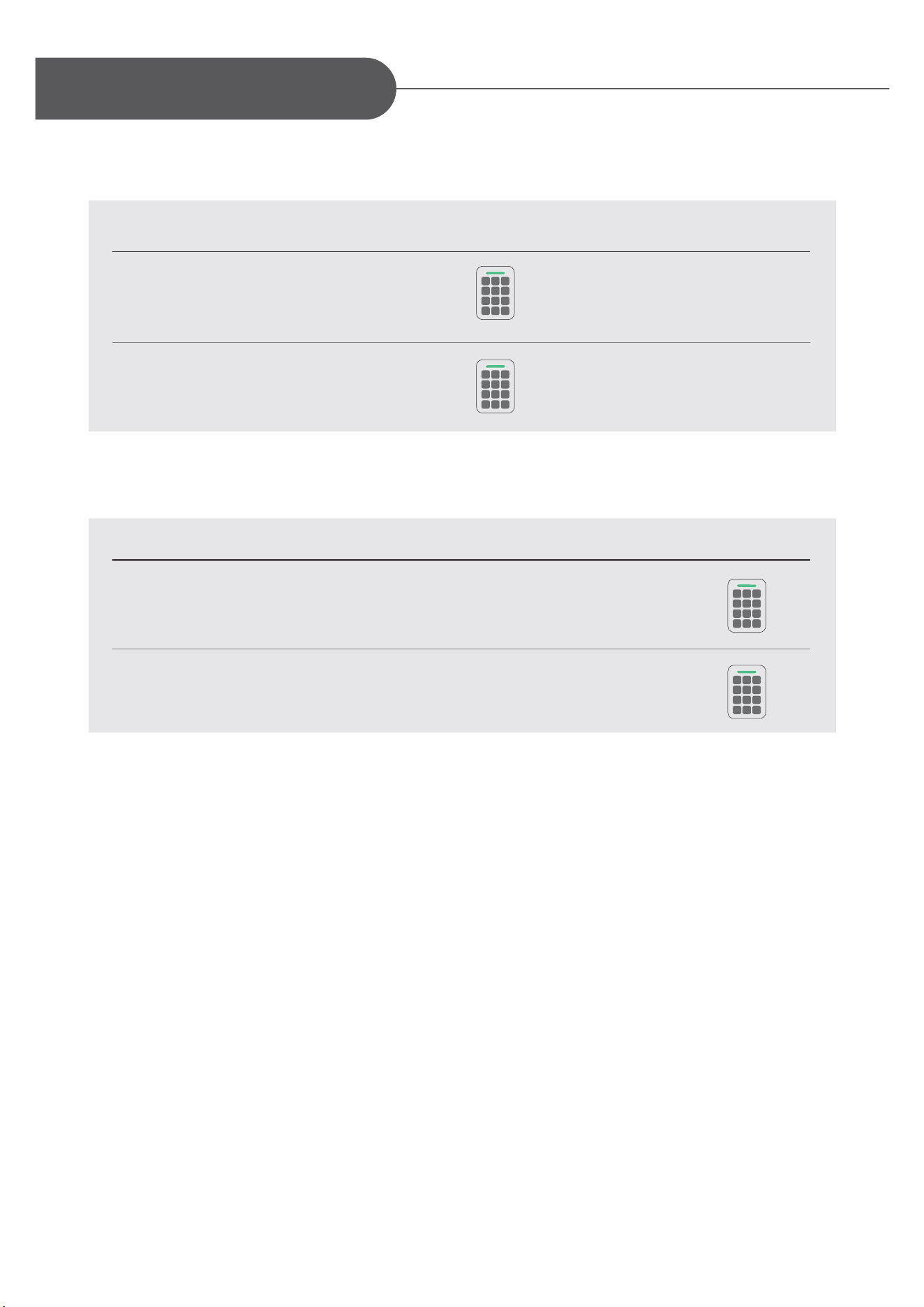
1. Insert Battery
Open the battery compartment and
correctly install one CR123A lithium
battery.
2. First Power On
After battery installation, the device
will beep once and the keypad will
light up, indicating it‘s ready.
3. First Power On to Wake Device Up
3-1 Wake Up: Press C key to wake device up, then the device will lock automatically.
3-2 The default Administrator Passcode is 123456 key-in 123456 OK to unlock.
3-3 Since the USB KEY can only be paired when the device is empty,
you need to insert the USB KEY and enter 701 OK to pair.
3-4 Please refer to Instruction 4-1 or 5-3 to initialize the admin passcode.
*After APP pairing, a changed Admin Passcode
remains valid. If unchanged, the default passcode
123456 becomes invalid and a new Admin
Passcode must be set in the App.
CR123A
Installation and Power-On
(Preset Password: 123456)
6
1
2
1 2 3
4 5 6
7 8 9
C 0
OK
1 2 3
4 5 6
7 8 9
C 0
OK
1 2 3
4 5 6
7 8 9
C 0
OK
1 2 3
4 5 6
7 8 9
C 0
OK
Quick Start Guide
One short beep sounds per key press.
Green LED stays on for 1 second
with one long beep.
Green LED stays on for 1 second
with one long beep.
3-1 Unlocking
Step Operation Response
Insert the paired electronic USB key
into the lock cylinder to unlock directly.
3.2 Locking
Mode Operation
Auto Relock
Manual Lock
In the unlocked state, short-press the C key to lock manually.
Simple close the door in place, the key box will
lock up automatically. (Green LED solid for 0.5s)
Enter the administrator passcode
or the passcode you have already
set to unlock.
7
-
Menu and Function Settings
To access the menu functions, need using the default
passcode: 123456 to entry the Administrator Mode, then Initialize Admin Passcode.
4-1 Login Administrator Mode
Please change the default passcode when using the device for the first time,
following the “Initialize Admin Passcode” instructions.
4-2 Menu Command Summary
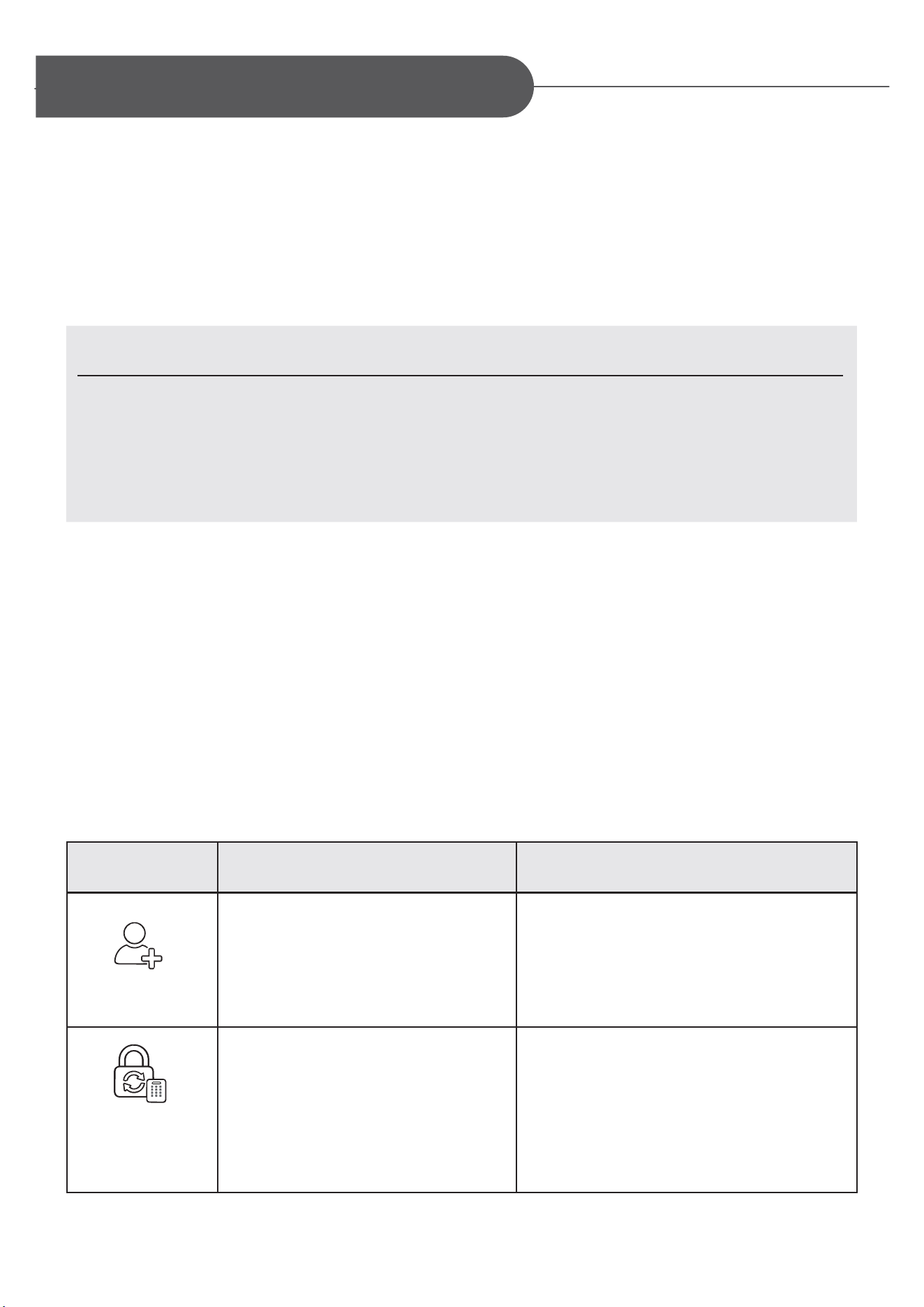
Function Command Sequence Notes
Initialize Admin
Passcode
Notes :
1. The system will enter sleep mode 1second after each user is successfully added.
2. If the maximum number of passcodes has been reached, the system will display an error message.
3. Up to 100 unique user passcodes can be stored. Duplicate passcodes are not allowed.
If a duplicate passcode is entered, the system will display an error message and require re-entry.
* 100 users (1 administrator + 79 regular users + 20 temporary guests)
4. If the two newly entered passcodes do not match, the system will display an error
message and require re-entry.
Press:OK→1→OK→123456→
OK→NewAdminPasscode→OK→
ConfirmNewAdminPasscode→OK
Default Admin Passcode:
123456
This command only work in
First Power On and Factory
Reset.
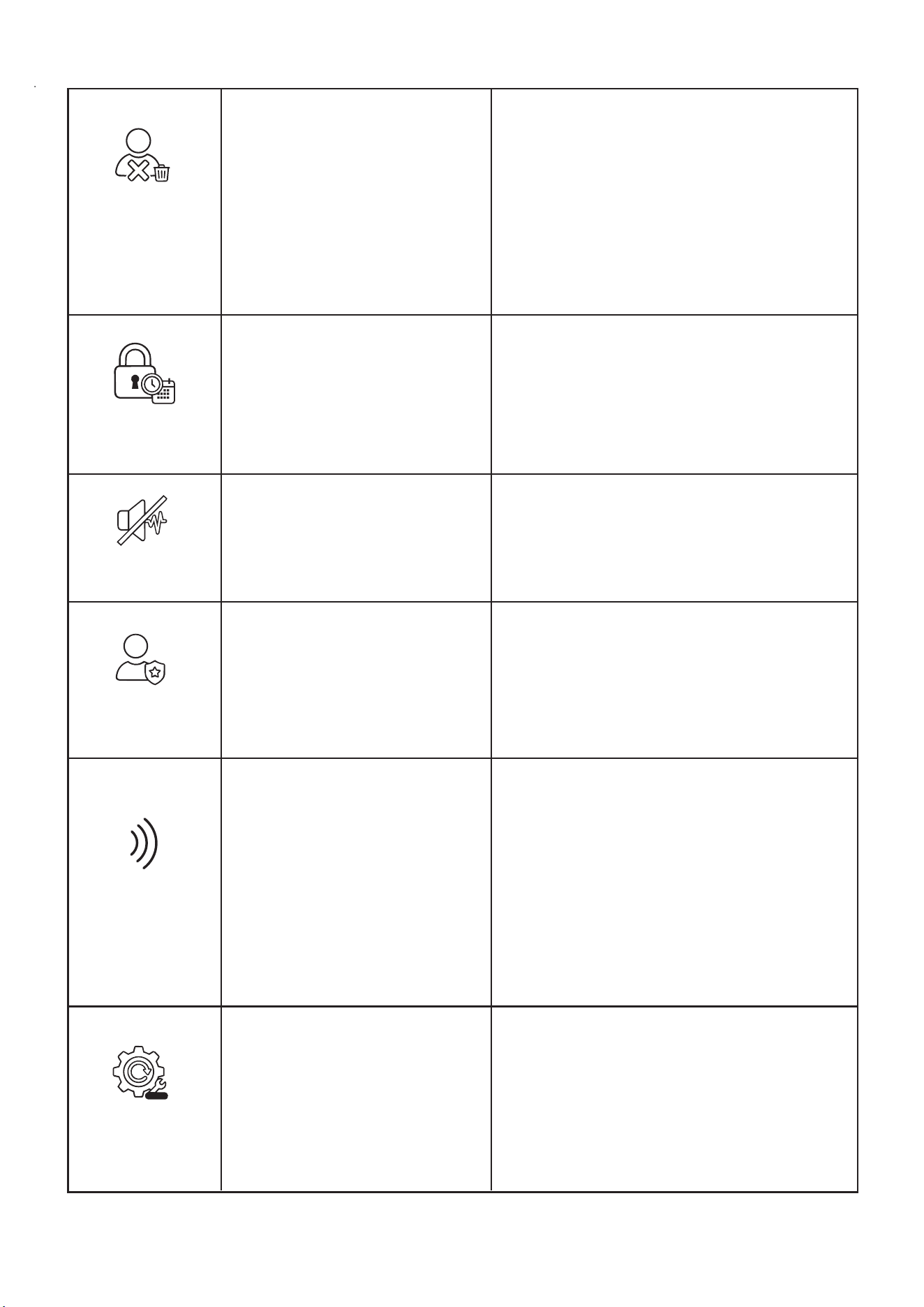
Function Command Sequence Notes
Add User
Change Passcode
Press:OK→1→OK→Admin
Passcode→OK→NewUser
Passcode→OK→ConfirmNew
UserPasscode→OK
Press:OK→2→OK→Admin
Passcode→OK→OldPasscode
→OK→NewPasscode→OK→
ConfirmNewPasscode→OK
1. The system will entry sleep
mode 1 second after each
successful update.
2. If the passcode does not exist,
the system will display an error
and exit.
Supports changing
the Admin or User
Passcode.
8
RESET
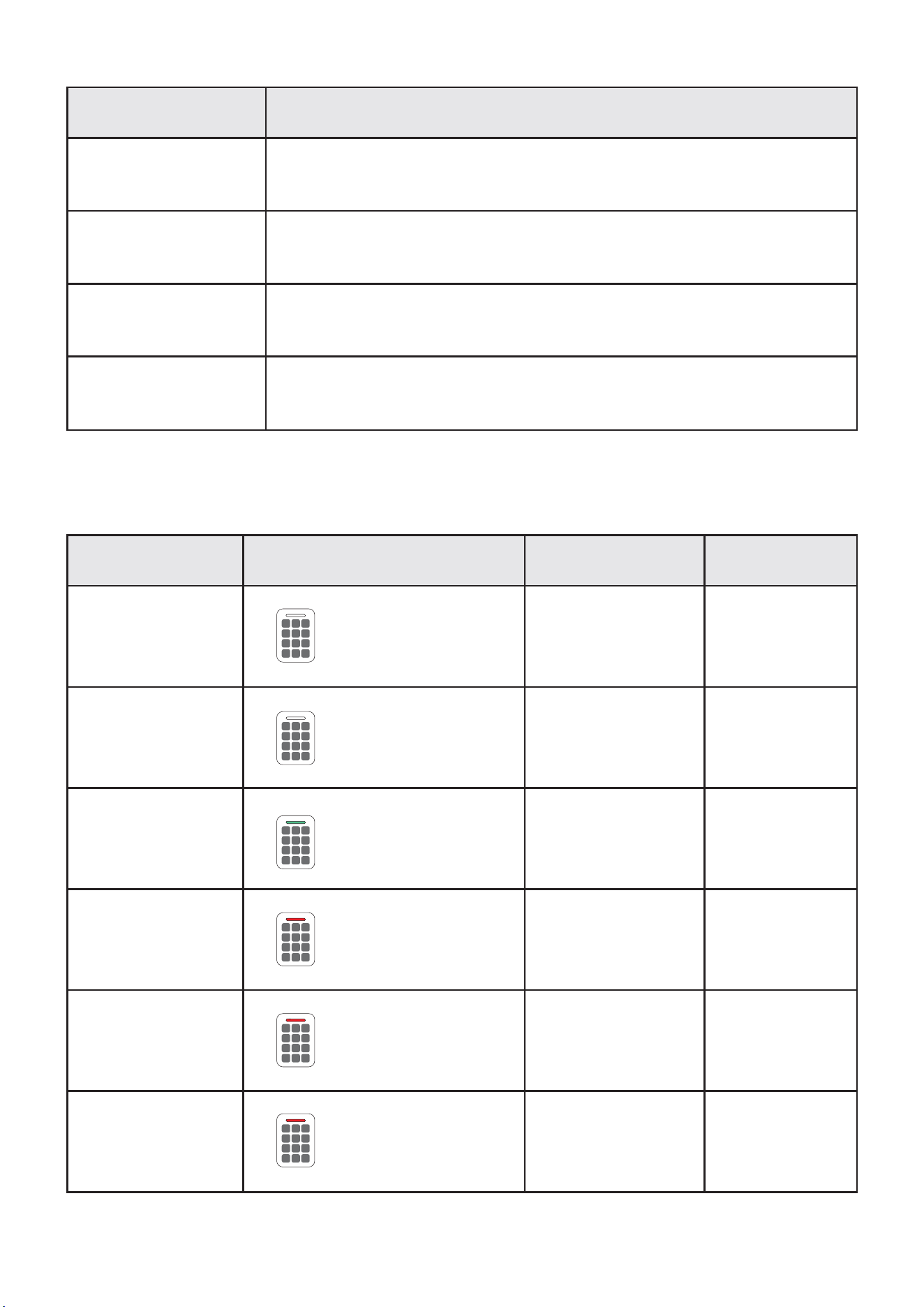
Temporary Guest
Passcode
Press:OK→3→OK→Admin
Passcode→OK→Passcode
(todelete)→OK
Press:OK→4→OK→Admin
Passcode→OK→Temporary
GuestPasscode→OK→
Confirm Temporary Guest
Passcode→OK
1. When deleting all regular users, the
command will execute and return a result
regardless of whether any users exist.
2. When deleting a single user, if the
passcode or ID does not exist, the
system will display an error and exit.
3. If only the admin passcode remains,
executing to delete user will result in an
error.
Temporary Guest Passcodes are valid
for one-time use only.
Mute Mode
Master Mode
Wireless Pairing
Clear Device Data
Press:OK→5→OK→Admin
Passcode→OK
Press:OK→6→OK→Admin
Passcode→OK
Press:OK→9→OK→Admin
Passcode→OK
Press:OK→0→OK→Admin
Passcode→OK→000→OK
Green LED stays on for 1 second, one long
beep sounds.
Repeat the operation to disable the Mute
Mode.
When enabled, only the administrator
passcode can unlock the device. The mode
is cleared after power loss.
Repeat the operation to disable the Master
Mode.
Restores factory settings and deletes all
user data.
The administrator passcode will be reset to
123456.
Both the App and USB Key will be
unbound and need to be set up again.
The green LED flashes for 90 seconds while
waiting for APP pairing.
1. In the factory-initialized state, pairing
advertising is enabled for 90 seconds after
wake-up.
2. Any mobile phone can perform pairing
during this period.
3. If the default Admin Passcode 123456 is
still in use when pairing, it will become
invalid after pairing, and a new Admin
Passcode must be set in the App.
Delete User
Enter 000 to delete
all regular users.
9
1 2 3
4 5 6
7 8 9
C 0
OK
1 2 3
4 5 6
7 8 9
C 0
OK
1 2 3
4 5 6
7 8 9
C 0
OK
1 2 3
4 5 6
7 8 9
C 0
OK
1 2 3
4 5 6
7 8 9
C 0
OK
1 2 3
4 5 6
7 8 9
C 0
OK
4-3. Other Functions
Function Description
Anti-Peep Passcode
Feature
Incorrect Lockout
Random digits may be entered before or after the correct passcode.
The total input length must not exceed 20 digits.
The keypad will be locked for 60 seconds after 5 consecutive
incorrect entries.
Low Battery Alert
Auto Relock
When the battery voltage drops below 2.5V, the red LED will flash and 7
consecutive beeps will sound after wake-up.
Simple close the door in place, the key box will lock up automatically.
(Green LED solid for 0.5s)
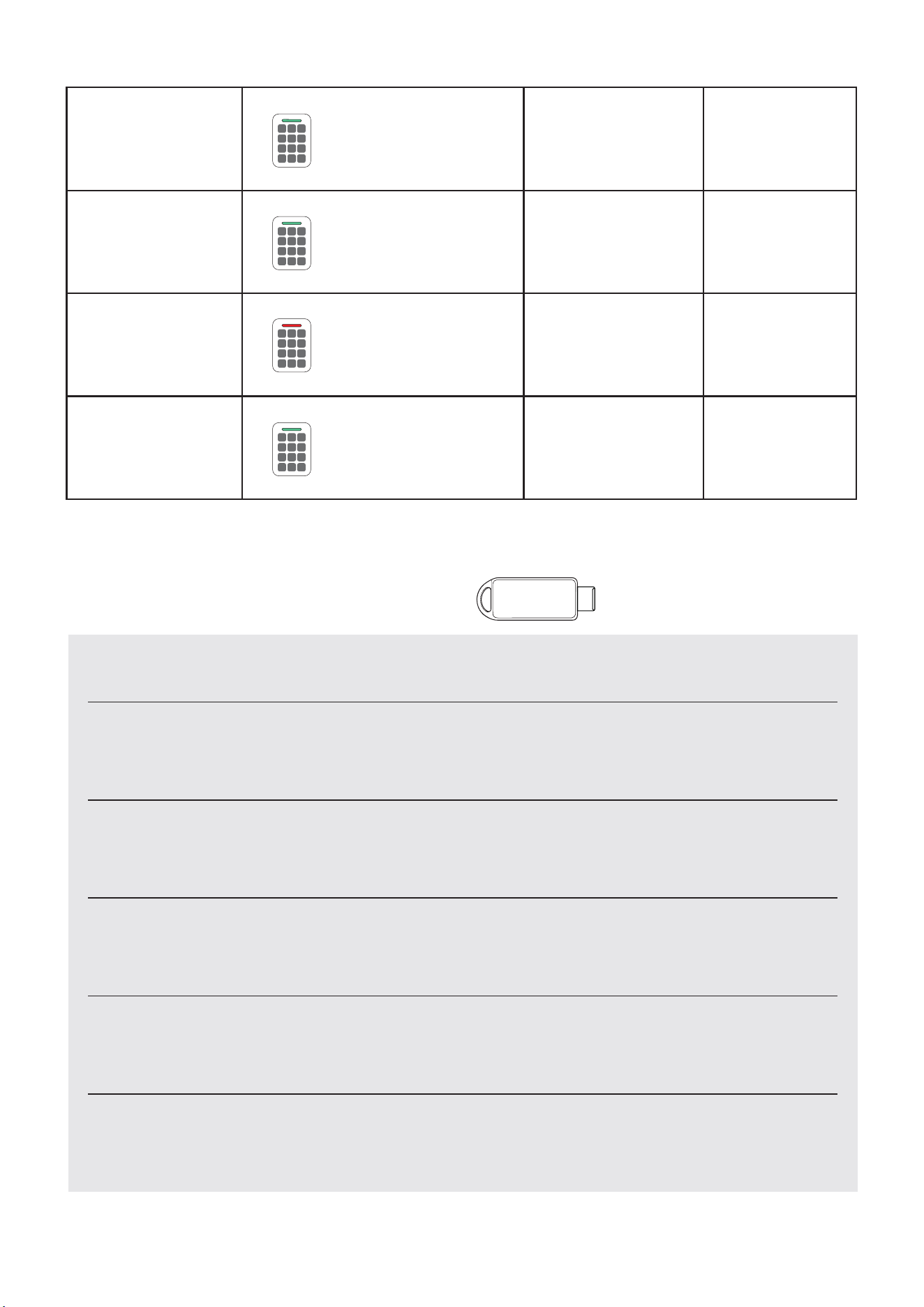
Status LED Buzzer Description
5. LED & Buzzer Indications
Wake Up
Keypad Press
Keypad backlight
on for 3 seconds
Keypad backlight
flashes
Unlock Success
Wrong Code
Green LED solid
for 1 second
Red LED flashes
twice
1 short beep To wake device up.
1 short beep
1 long beep
2 short beeps
Keypad Locked
Red LED flashes
twice
2 short beeps
Keypad is locked
for 60 seconds
after 5 consecutive
incorrect attempts.
Door Open Alert
Red LED flashes
20 times
Continuous beeps
for 20 seconds
Door remains
open for more
than 20 seconds
after unlocking.
10
1 2 3
4 5 6
7 8 9
C 0
OK
1 2 3
4 5 6
7 8 9
C 0
OK
1 2 3
4 5 6
7 8 9
C 0
OK
1 2 3
4 5 6
7 8 9
C 0
OK
Function Operation
Enter Admin Mode Green LED solid 1 long beep
Menu Operation
Success
Green LED solid
for 1 second
1 long beep
Factory Reset Green LED solid
for 1 second twice
1 long beep twice
Operation Failed
/ Error
Red LED flashes
twice
2 short beeps
6. Electronic USB Key Functions
Unlock
Clear System
Insert the paired electronic USB key into the lock cylinder
to unlock directly.
InserttheelectronicUSBkey,thenenter000→OKon
the keypad within 5 seconds
1. Ensure the lock is in a cleared state.
2. Insert the blank key.
3.Enter701→OKonthekeypad.
Pair Key (1-to-1)
1. Ensure the lock is in a cleared state.
2. Insert the blank key.
3.Enter702→OKonthekeypad.
Pair Key (1-to-Many)
InserttheelectronicUSBkeytobecleared,thenenter703→OK.Clear Key
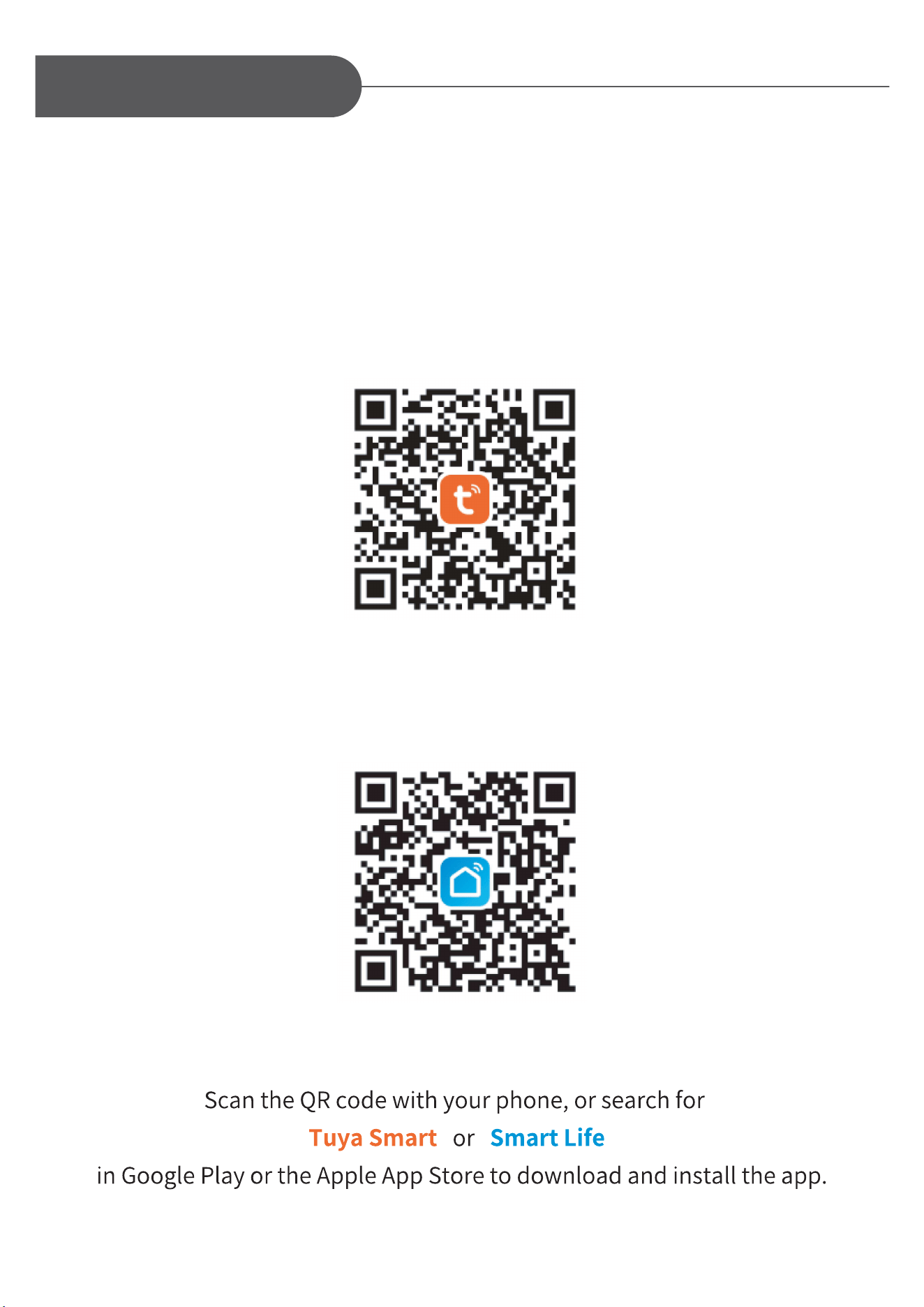
5-1. App Installation and First-Time Setup
Tuya Smart App
Smart Life App
11
App Compatibility
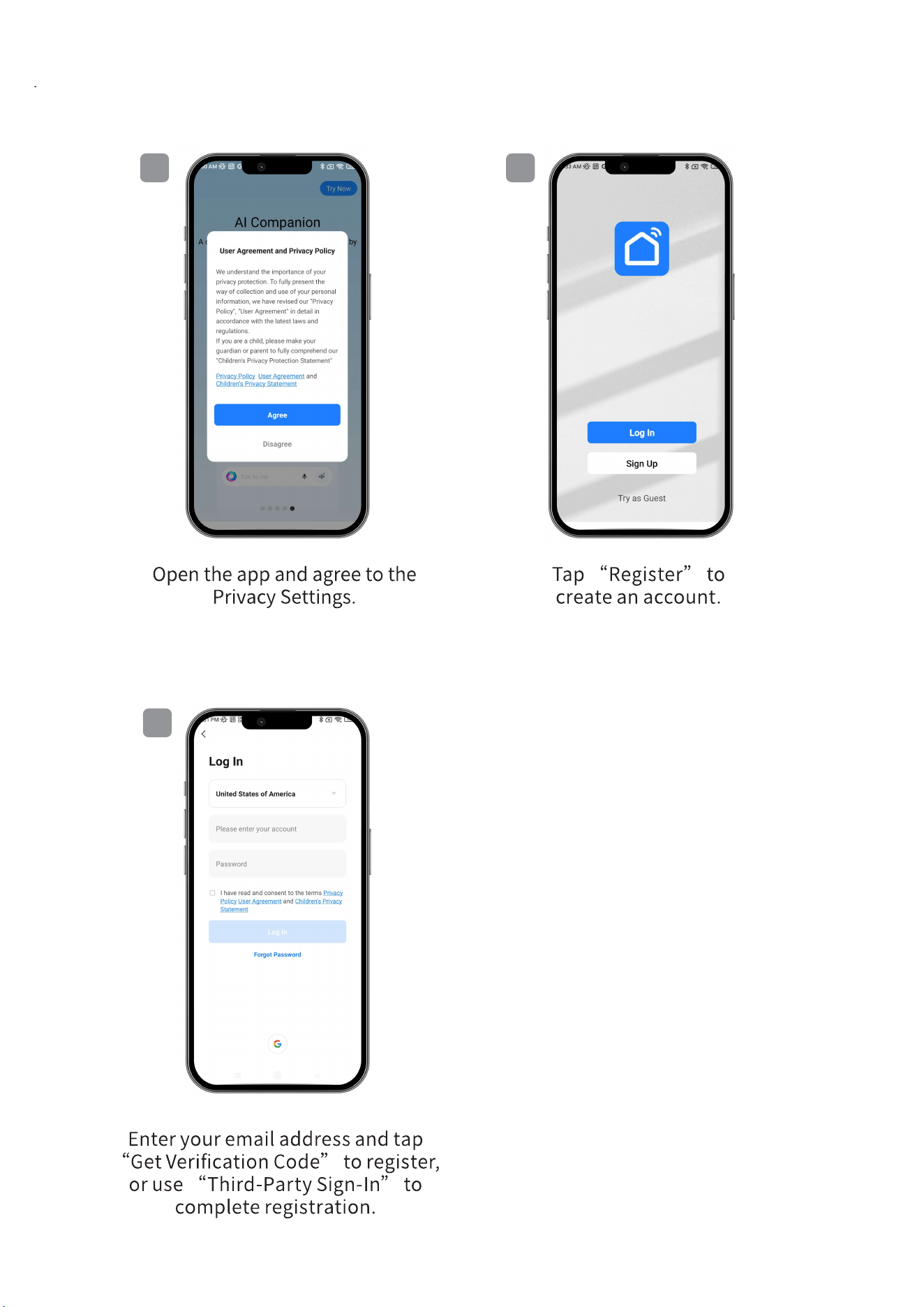
3
1 2
12
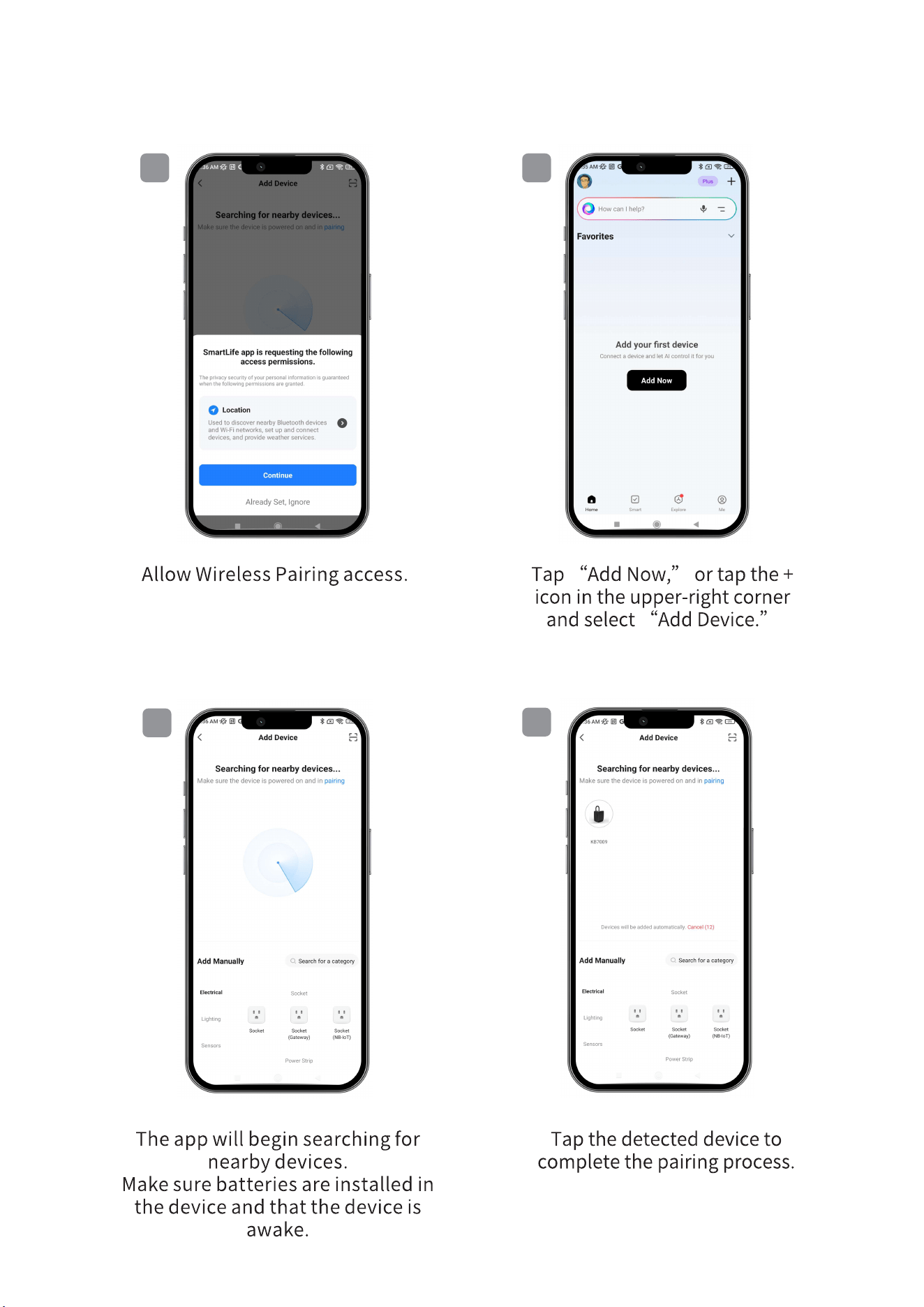
5-2. Add a Device
3
1 2
4
13
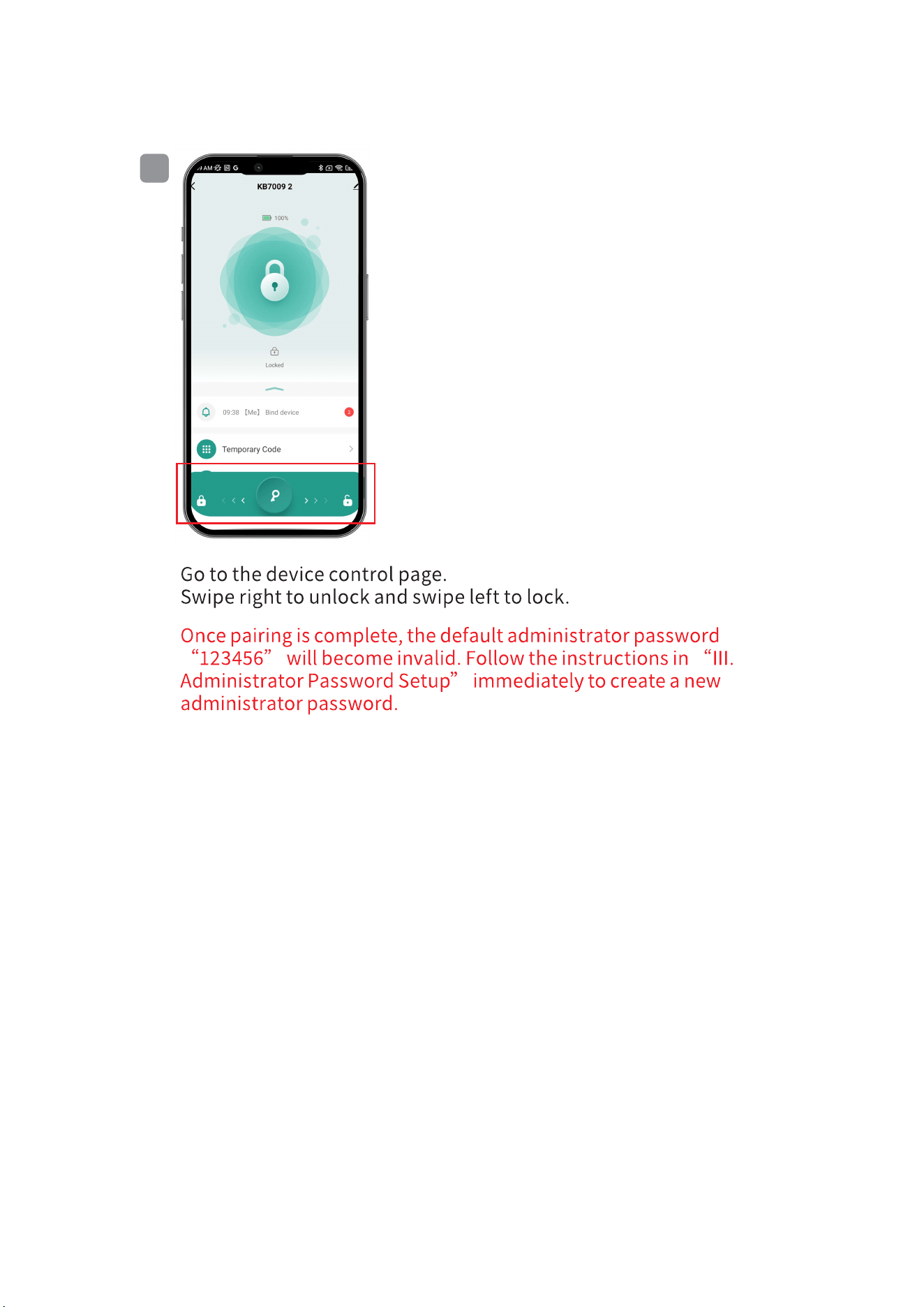
5
14
4
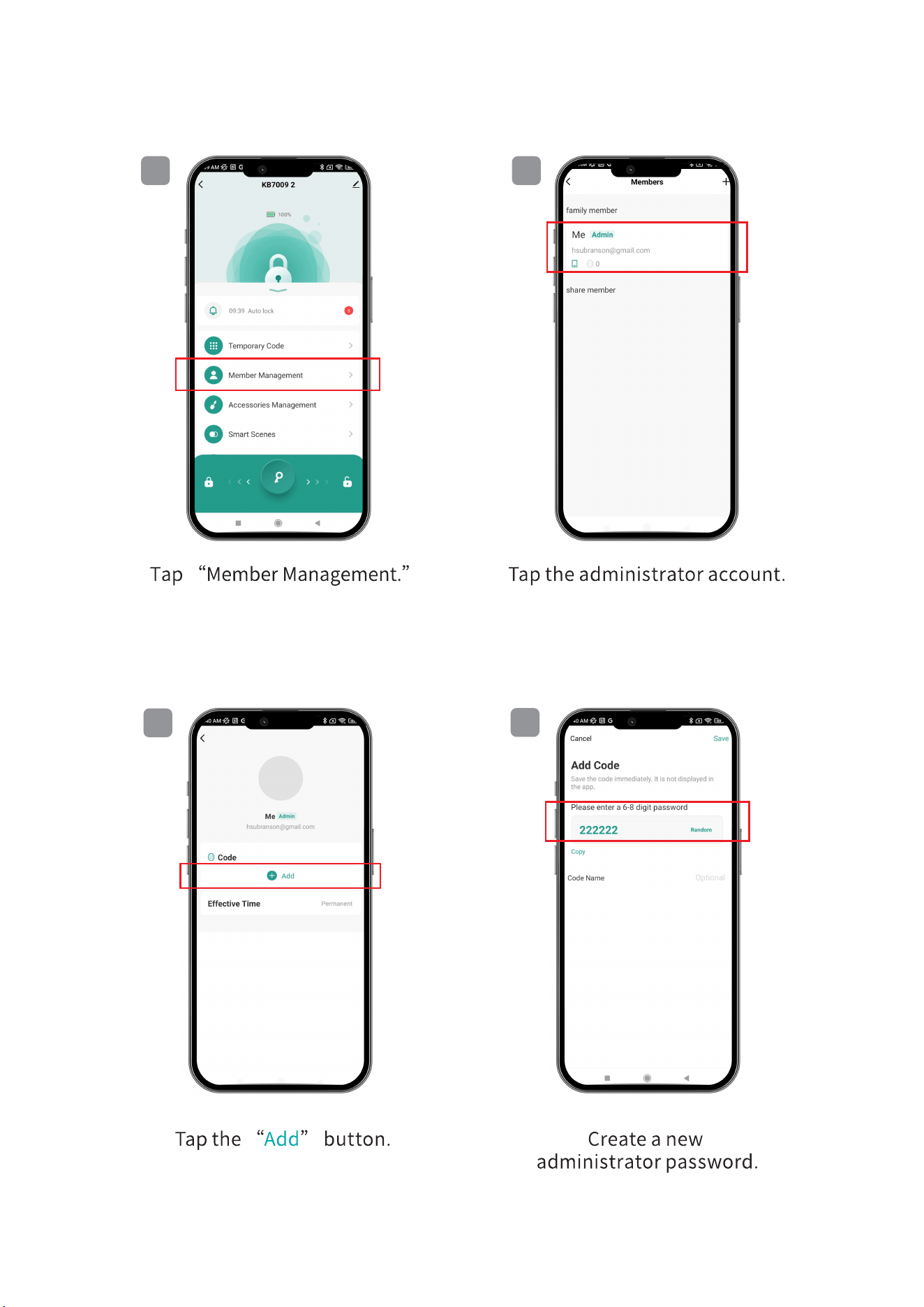
5-3. Administrator Password Setup
3
1 2
15