
© 2026 TEKTELIC Communications Inc., all rights reserved.
All products, names, and services are trademarks and registered trademarks of their respective companies.
TEKTELIC Communications Inc.
7657 10
th
Street NE
Calgary, AB, Canada T2E 8X2
Phone: (403) 338-6900
eBeat
Instructions for Use
DOCUMENT TYPE: Instructions for Use
DOCUMENT NUMBER: T0008383
DOCUMENT VERSION: 1.0
PRODUCT NAME: eBeat
MODULE T-CODE: T0008253
RELEASE DATE: March 30, 2026

eBeat
Instructions for Use
T0008
38
3_IFU
Version
1
.
0
TEKTELIC Communications Inc.
Page
2
of
85
1. Revision History
Revision Issue Date Editor Comments
1.0 March 30, 2026
Megan Tremaine,
Emma Tholl
Initial release.

eBeat
Instructions for Use
T0008
38
3_IFU
Version
1
.
0
TEKTELIC Communications Inc.
Page
3
of
85
Table of Contents
1. Revision History ....................................................................................................................... 2
2. Glossary ................................................................................................................................... 7
2.1. Warnings and Cautions .................................................................................................... 7
2.2. List of Symbols ................................................................................................................ 11
2.3. List of Terms and Acronyms ........................................................................................... 13
3. Product Description ............................................................................................................... 14
3.1. Device Introduction ........................................................................................................ 14
3.2. Indications for Use ......................................................................................................... 14
3.3. Contraindications ........................................................................................................... 15
3.4. Device Description ......................................................................................................... 15
3.4.1. Hardware Components ........................................................................................... 16
3.4.2. Software Components ............................................................................................ 19
4. Operating Information ........................................................................................................... 20
4.1. Required Equipment ...................................................................................................... 20
4.2. Unpacking and Inspection .............................................................................................. 20
4.3. Setup Instructions .......................................................................................................... 21
4.3.1. Gateway Setup ........................................................................................................ 21
4.3.2. Powering On the Device and Replacing the Battery ............................................... 21
4.4. Checkout Procedure ....................................................................................................... 23
4.5. Operating Instructions ................................................................................................... 24
4.5.1. Wearing the Device ................................................................................................. 24
4.5.2. Push-Button Functionality ...................................................................................... 25
4.5.3. Visual Indicator Lights ............................................................................................. 26
4.5.4. Reporting Modes .................................................................................................... 26
4.6. TEKTELIC eDoctor Mobile Application Functionality ..................................................... 26
4.6.1. TEKTELIC eDoctor Mobile Application Download and Registration ....................... 26
4.6.2. Authorization .......................................................................................................... 28
4.6.3. Setup wizard ........................................................................................................... 28

eBeat
Instructions for Use
T0008
38
3_IFU
Version
1
.
0
TEKTELIC Communications Inc.
Page
4
of
85
4.6.3.1. Adding a Gateway ............................................................................................ 28
4.6.3.1.1. Adding Gateway using QR Code .............................................................................. 29
4.6.3.1.2. Adding Gateway manually using gateway ID .......................................................... 30
4.6.3.1.3. Adding gateway manually using T-code, Revision and Serial number .................... 31
4.6.3.1.4. Editing gateway ....................................................................................................... 33
4.6.3.1.5. Gateway Connection ............................................................................................... 33
4.6.3.1.6. Skip Gateway Connection ........................................................................................ 34
4.6.3.2. Adding Device .................................................................................................. 35
4.6.3.2.1. Adding device using QR ........................................................................................... 36
4.6.3.2.2. Adding device manually using T-code, Revision and Serial number ....................... 36
4.6.3.2.3. Add device manually using device EUI .................................................................... 37
4.6.3.2.4. Editing device .......................................................................................................... 38
4.6.3.3. Activate device and complete setup wizard .................................................... 38
4.6.3.3.1. Skip Device Connection ........................................................................................... 39
4.6.4. Manage Patient ....................................................................................................... 40
4.6.4.1. Adding new patient ......................................................................................... 40
4.6.4.2. Editing patient information ............................................................................. 41
4.6.4.3. Delete Patient .................................................................................................. 41
4.6.4.4. Patient Device Data ......................................................................................... 42
4.6.4.4.1. View device data ..................................................................................................... 43
4.6.4.4.2. Reporting mode setting ........................................................................................... 45
4.6.5. Manage Gateways .................................................................................................. 45
4.6.5.1. View Gateway details ...................................................................................... 46
4.6.5.2. Gateway editing ............................................................................................... 47
4.6.5.3. Add new gateway ............................................................................................ 47
4.6.5.4. Gateway deleting ............................................................................................. 48
4.6.6. Manage devices ...................................................................................................... 48
4.6.6.1. View device details .......................................................................................... 48
4.6.6.2. Device editing .................................................................................................. 48
4.6.6.3. Add new device ............................................................................................... 48

eBeat
Instructions for Use
T0008
38
3_IFU
Version
1
.
0
TEKTELIC Communications Inc.
Page
5
of
85
4.6.6.4. Device deleting ................................................................................................ 49
4.6.7. Account Settings ..................................................................................................... 49
4.6.7.1. Forgot Password .............................................................................................. 49
4.6.7.2. Change Name .................................................................................................. 50
4.6.7.3. Change Password ............................................................................................. 50
4.6.7.4. Application settings ......................................................................................... 50
4.6.7.5. Logout .............................................................................................................. 50
4.7. TEKTELIC eDoctor Web Application Functionality ......................................................... 51
4.7.1. User authorization .................................................................................................. 51
4.7.2. Manage Patient ....................................................................................................... 51
4.7.2.1. Adding new patient ......................................................................................... 52
4.7.2.2. Editing patient information ............................................................................. 52
4.7.2.3. Delete patient .................................................................................................. 53
4.7.2.4. Patient device data .......................................................................................... 54
4.7.2.4.1. View device data ..................................................................................................... 55
4.7.2.4.2. Reporting mode setting ........................................................................................... 56
4.7.2.4.3. Change theme for data visualization ....................................................................... 57
4.7.2.5. Application settings ......................................................................................... 57
4.7.2.6. Full screen mode ............................................................................................. 58
4.7.2.7. Export patient’s data ....................................................................................... 59
4.7.3. Manage Devices ...................................................................................................... 61
4.7.4. Forgot Password ..................................................................................................... 61
4.7.5. Logout ..................................................................................................................... 62
4.8. Notifications ................................................................................................................... 63
4.8.1. Push-Button Assistance Request ............................................................................ 63
4.8.2. Device Wear Status ................................................................................................. 63
4.8.3. Measurement Thresholds ....................................................................................... 64
4.8.4. Poor SQI .................................................................................................................. 64
4.9. Software and Firmware Updates ................................................................................... 64
4.10. Cleaning Instructions .................................................................................................. 65

eBeat
Instructions for Use
T0008
38
3_IFU
Version
1
.
0
TEKTELIC Communications Inc.
Page
6
of
85
4.11. Maintenance ............................................................................................................... 66
4.12. Expected Service Life .................................................................................................. 66
4.13. Medical Device Disposal ............................................................................................. 67
5. Troubleshooting Information ................................................................................................ 68
6. Technical Description ............................................................................................................ 69
6.1. Software Bill of Material (SBOM) ................................................................................... 69
6.2. Essential Performance .................................................................................................... 69
6.3. Use Environments .......................................................................................................... 70
6.4. Monitoring Specifications .............................................................................................. 70
6.4.1. Device/System Security .......................................................................................... 70
6.4.1.1. Network Ports .................................................................................................. 72
6.4.1.2. Protection of Critical Functionality .................................................................. 72
6.4.1.3. Data Flow and Security Controls ..................................................................... 73
6.4.2. Pulse Rate ................................................................................................................ 73
6.4.3. Respiration Rate ...................................................................................................... 73
6.4.4. Blood Oxygen Saturation (SpO
2
) ............................................................................. 74
6.4.5. Skin Temperature .................................................................................................... 74
6.4.6. Heart Rate Variability (HRV) ................................................................................... 75
6.4.7. Signal Quality Indicator (SQI) .................................................................................. 75
6.4.8. Battery Capacity ...................................................................................................... 76
6.5. Electrical Safety .............................................................................................................. 76
6.6. MRI Safety Information .................................................................................................. 77
6.7. Electromagnetic Compatibility (EMC) ............................................................................ 77
6.8. FCC Compliance Statements .......................................................................................... 80
7. Precautions ............................................................................................................................ 82
8. Warranty ................................................................................................................................ 83
9. Contact Us.............................................................................................................................. 85

eBeat
Instructions for Use
T0008
38
3_IFU
Version
1
.
0
TEKTELIC Communications Inc.
Page
7
of
85
2. Glossary
2.1. Warnings and Cautions
⚠ WARNING – A WARNING statement indicates a potentially hazardous situation which, if not
avoided, could result in serious injury or death.
⚠ CAUTION – A CAUTION statement indicates a potentially hazardous situation which, if not
avoided, may result in minor or moderate injury, or damage to the equipment.
⚠ WARNING – For proper use of this device, read and follow these instructions for use.
⚠ WARNING – Adhere to all WARNINGS and CAUTIONS in these instructions for use to
maintain patient safety.
⚠ WARNING – The arm strap may pose a choking hazard. Do not chew or place in mouth.
⚠ CAUTION – The eBeat contains a lithium coin cell battery. Do not burn or puncture battery.
Please ensure disposal instructions are followed.
⚠ WARNING – This product contains a coin cell battery. Swallowing a coin cell battery can
cause severe internal chemical burns in as little as 2 hours and may result in serious injury or
death. Even used batteries can cause severe injury or death. If a battery is swallowed or placed
inside any part of the body, seek immediate medical attention or contact a local poison control
center.
⚠ CAUTION – Keep new and used batteries away from children. If the battery compartment
does not close securely, stop using the product and keep it out of reach of children.
⚠ CAUTION – Risk of fire or explosion if battery is replaced by an incorrect type.
⚠ CAUTION – Use only recommended accessories supplied by TEKTELIC.
⚠ CAUTION – Do not modify this equipment without authorization of the manufacturer.
⚠ CAUTION – If this equipment is modified, appropriate inspection and testing must be
conducted to ensure continued safe use of the equipment.

eBeat
Instructions for Use
T0008
38
3_IFU
Version
1
.
0
TEKTELIC Communications Inc.
Page
8
of
85
⚠ WARNING – Use of this equipment adjacent to or stacked with other equipment should be
avoided because it could result in improper operation. If such use is necessary, this equipment
and the other equipment should be observed to verify that they are operating normally.
⚠ WARNING – Use of accessories, transducers and cables other than those specified or
provided by the manufacturer of this equipment could result in increased electromagnetic
emissions or decreased electromagnetic immunity of this equipment and result in improper
operation.
⚠ WARNING – Portable RF communications equipment (including peripherals such as antenna
cables and external antennas) should be used no closer than 30 cm (12 inches) to any part of
the TEKTELIC eBeat Device, including cables specified by the manufacturer. Otherwise,
degradation of the performance of this equipment could result.
⚠ WARNING – Do not wear if sensitive to nylon, stainless-steel, or polycarbonate.
⚠ CAUTION – Avoid prolonged or excessive contact with fluids. If the device is exposed to
significant amounts of fluid, remove it from service and contact the manufacturer.
⚠ CAUTION – Review all cleaning instructions carefully before cleaning the device.
⚠ WARNING – Ensure the device has been cleaned before return to the manufacturer for
repair or maintenance, or before disposal, to reduce the risk of infection.
⚠ WARNING – Do not remove the enclosure, current-carrying components are present.
Service, repair, and maintenance must only be performed by the manufacturer.
⚠ WARNING – Device failure may occur due to use-life exceeded. Perform regular inspection
of the device and arm strap.
⚠ WARNING – Remove this device before patient defibrillation.
⚠ WARNING – Only wear the device on intact skin. Inspect the area of contact with the device
and strap at least every 24 hours. If irritation is observed, remove the device immediately.
⚠ CAUTION – Remove the device if skin irritation or discomfort occurs.

eBeat
Instructions for Use
T0008
38
3_IFU
Version
1
.
0
TEKTELIC Communications Inc.
Page
9
of
85
⚠ WARNING – Care provider users should ensure that their hospital network has firewalls,
network security protections, data security protections, and anti-virus protections subject to
HIPAA compliance within their network.
⚠ WARNING – TEKTELIC strongly advises the user NOT to modify, alter, or reset the software
without consent from TEKTELIC. Exceptions to this are when the App instructs the user to
perform a software update or if a TEKTELIC technical assistance representative instructs/guides
the user through maintenance and/or troubleshooting.
⚠ WARNING – Firmware updates are performed through FUOTA using manufacturer-
authorized update mechanisms. Users must not attempt unauthorized modification of device
firmware.
⚠ WARNING – Do not force discharge, recharge, disassemble, heat above 70°C or incinerate.
Doing so may result in injury due to venting, leakage, or explosion resulting in chemical burns.
⚠ CAUTION – Remove and immediately recycle or dispose of used batteries according to local
regulations and keep away from children. Do NOT dispose of batteries in household trash or
incinerate.
⚠ CAUTION – Do not attempt to recharge non-rechargeable batteries.
⚠ CAUTION – It will take 25 minutes for the device to warm to 20°C from the minimum storage
temperature.
⚠ CAUTION – It will take 25 minutes for the device to cool to 20°C from the maximum storage
temperature.
⚠ CAUTION – Please wait for the skin temperature readings to stabilize after putting the device
on or if there have been changes in environmental conditions.
⚠ CAUTION – Damage to the device may degrade sensor and electrode performance.
⚠ CAUTION – The device should not be near or in contact with high temperatures (i.e.,
Fireplace).
⚠ CAUTION – Keep the device out of reach of pets and children. Do not place the device in the
mouth, as it contains electrical components and a battery.

eBeat
Instructions for Use
T0008
38
3_IFU
Version
1
.
0
TEKTELIC Communications Inc.
Page
10
of
85
⚠ CAUTION – Remove and immediately recycle or dispose of batteries from equipment not
used for an extended period according to local regulations.
⚠ CAUTION – Do not mix old and new batteries, different brands or types of batteries, such as
alkaline, carbon-zinc, or rechargeable batteries.
⚠ CAUTION – Ensure the batteries are installed correctly according to polarity (+ and -).
⚠ CAUTION – Mobile devices and PCs used to access the eDoctor web app or the eDoctor
mobile app should be secured when not in use.
⚠ CAUTION – Users should regularly apply/allow security updates to your device’s operating
system (OS).
⚠ CAUTION – TEKTELIC does not make any commercial use of or disclose any private
information of eBeat users.
⚠ CAUTION – Follow applicable hospital data backup and disaster recovery processes and
ensure that data from the web and mobile applications is periodically backed up to maintain
availability of information. TEKTELIC technical support can be contacted to assist with disaster
recovery.
⚠ CAUTION – Safeguard your login information with the utmost care. Never share your
username and password with any third party.
⚠ CAUTION – Exercise prudence when installing mobile applications. Only install apps from
trusted sources, such as official app stores. Avoid downloading and installing applications from
unverified or unofficial sources.
⚠ CAUTION – Use strong, unique passwords for your web/mobile accounts. Combine a mix of
upper and lower-case letters, numbers, and symbols. Consider using a reputable password
manager.
⚠ CAUTION – TEKTELIC personnel will never request your password or login information.
Notify TEKTELIC immediately if you receive unexpected or confusing emails, phone calls, or
other forms of communication
⚠ CAUTION – Federal law restricts this device to sale by or on the order of a physician.
eBeat
Instructions for Use
T0008
38
3_IFU
Version
1
.
0
TEKTELIC Communications Inc.
Page
11
of
85
⚠ CAUTION – Do not touch the battery and the patient at the same time during battery
replacement.
⚠ CAUTION – Do not touch the gateway/smart phone/computer and patient at the same time.
⚠ CAUTION – The device has not been clinically validated in pregnant or breastfeeding
patients, and therefore performance in those groups is unknown.
⚠ CAUTION – The device has not been clinically validated in patients with pacemakers, and
therefore performance in those groups is unknown.
⚠ WARNING – The eBeat device and arm band are MR Unsafe. Do not expose the
device or the arm band to a magnetic resonance (MR) environment. The device and arm
band present projectile hazards. Patients should not receive an MR exam while the device and
arm band are fastened to the patient.
California Proposition 65:
⚠ WARNING – This product can expose you to chemicals including lead, nickel, and carbon black,
which are known to the State of California to cause cancer, birth defects, or other reproductive
harm. For more information, go to www.P65Warnings.ca.gov.
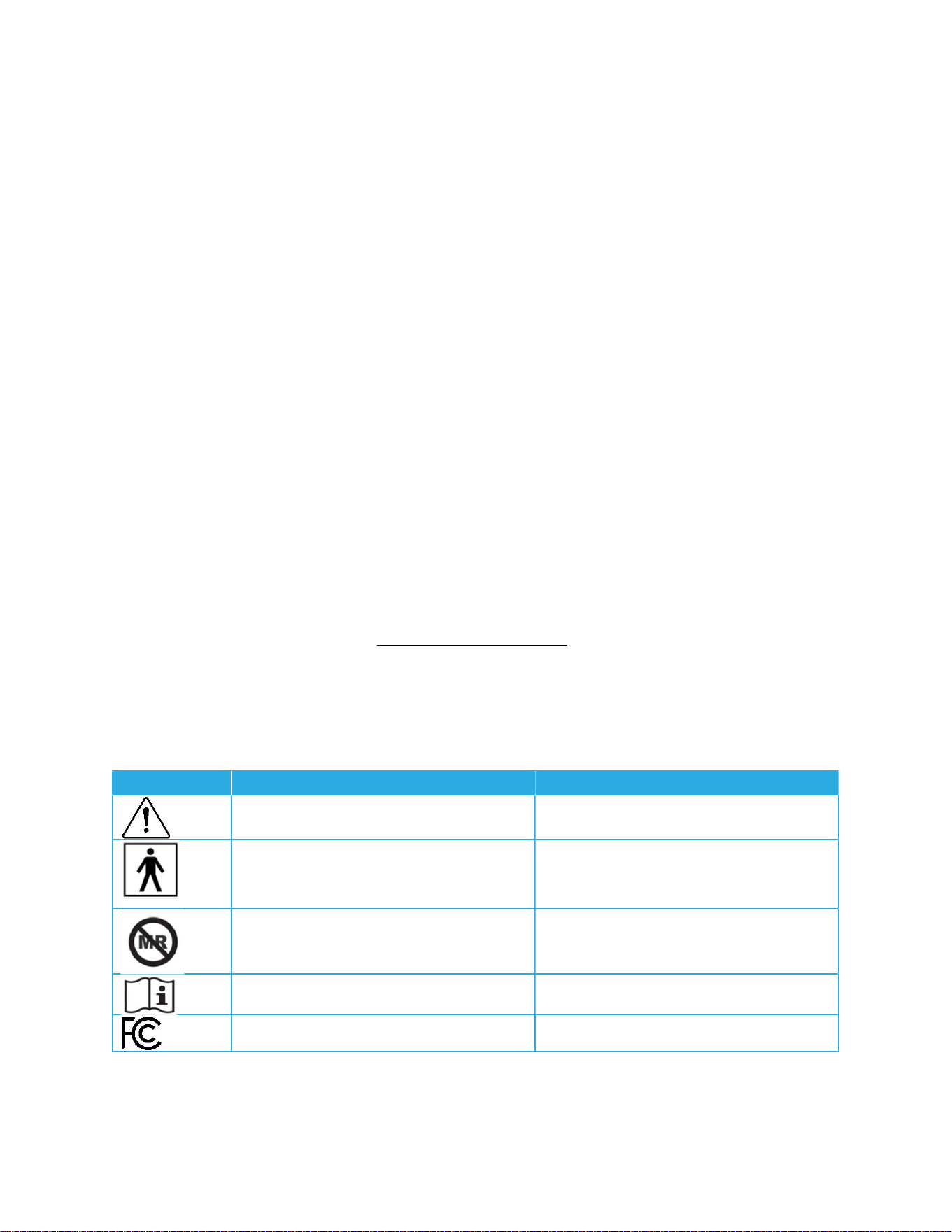
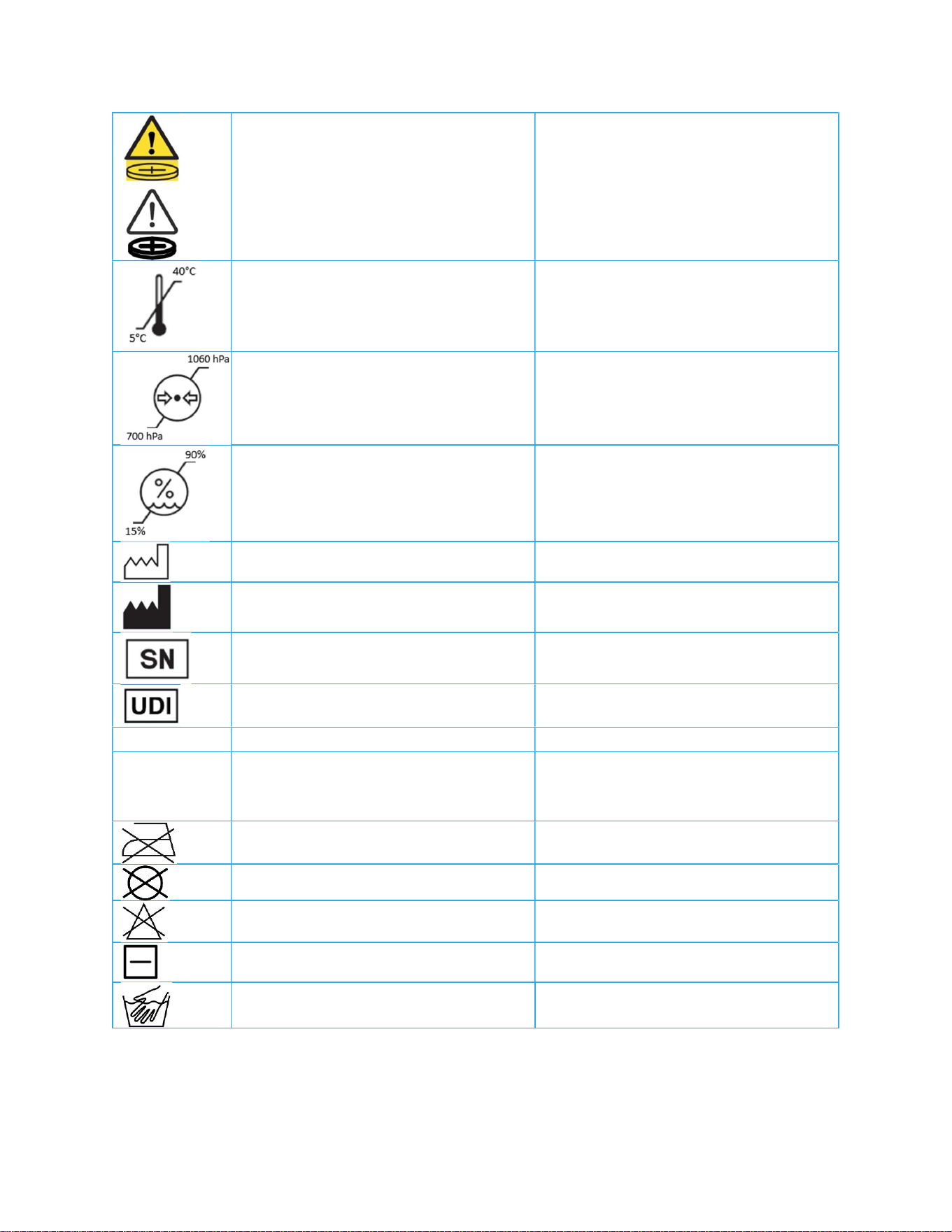
2.2. List of Symbols
Table 2-1: Symbols and Meaning
Symbol Meaning Source of Symbol
Warning/Caution. ISO 15223-1: 2021, Symbol 5.4.4
Type BF Applied Part. ANSI/AAMI ES60601-1:2005 &
A1:2012 & A2:2021, Table D.1,
Symbol 20
ASTM F2503-23, Fig. 9
Consult Instructions for Use. ISO 15223-1:2021, Symbol 5.4.3
FCC Declaration of Conformity. 47 CFR § 2.1074 (b)
eBeat
Instructions for Use
T0008
38
3_IFU
Version
1
.
0
TEKTELIC Communications Inc.
Page
12
of
85
Ingestion hazard. This product
contains a button cell or coin battery.
ANSI/UL 4200A-2023, Fig. 7B.1
Temperature Limitation.
(5°C to 40°C)
ISO 15223-1:2021, Symbol 5.3.7
Atmospheric Pressure Limitation.
(700 hPa to 1060 hPa)
ISO 15223-1:2021, Symbol 5.3.9
Humidity Limitation.
(15% to 90%)
ISO 15223-1:2021, Symbol 5.3.8
Date of Manufacture YYYY-MM-DD ISO 15223-1:2021, Symbol 5.1.3
Manufacturer. ISO 15223-1:2021, Symbol 5.1.1
Serial Number. ISO 15223-1:2021, Symbol 5.1.7
Unique Device Identifier. ISO 15223-1:2021, Symbol 5.7.10
Rx ONLY
Prescription Use Only. 21 CFR § 801.109 (b)(1)
IP22 IP Rating. ANSI/AAMI ES60601-1:2005 &
A1:2012 & A2:2021, Table D.3,
Symbol 2
Do Not Iron. (Arm Strap) ISO 7000, Symbol 3113
Do Not Dry Clean. (Arm Strap) ISO 7000, Symbol 3114
Do Not Bleach. (Arm Strap) ISO 7000, Symbol 3124
Dry Flat. (Arm Strap) ISO 7000, Symbol 3080
Hand Wash Normal. (Arm Strap) ISO 7000, Symbol 3125

eBeat
Instructions for Use
T0008
38
3_IFU
Version
1
.
0
TEKTELIC Communications Inc.
Page
13
of
85
2.3. List of Terms and Acronyms
BF Applied Part – Body Floating, a component making electrical contact with a patient’s
body, but not directly with the heart.
BPM - Beats per minute.
CAUTION – A CAUTION statement indicates a potentially hazardous situation which, if not
avoided, may result in minor or moderate injury, or damage to the equipment.
Device - TEKTELIC eBeat sensor supported by the eDoctor application.
Device EUI - A 16-letter/digit globally unique Extended Unique Identifier (EUI-64) is assigned
by the manufacturer, or the owner, of the end-device (ex. 647FDA00000XXXXX).
FUOTA – Firmware Update Over the Air.
Gateway - IoT based device that connects other appliances to a wider network. They act as
a bridge between these devices and the wider network, allowing them to communicate
with each other and exchange data.
Gateway ID - A 16-letter/digit unique gateway identifier, which is assigned by the
manufacturer (ex. 647FDAFFFE0XXXXX).
Healthcare Professional – Adult responsible for viewing the applications and setting up
patients.
IoT – Internet of Things.
LED – Light-emitting diode.
LoRaWAN – Long Range Wide Area Network.
Network Operator – Adult responsible for setting up a LoRaWAN network. This role is
offered as a service by TEKTELIC Communications Inc.
Patient – Adult wearing the TEKTELIC eBeat Device.
RPM - Respirations per minute.
Serial Number - A 9-letter/digit unique identifier which is assigned by TEKTELIC for each
gateway and device models that contains manufactory information (ex. 0000X0000).
Setup Wizard - simple and intuitive onboarding procedure for new users of eDoctor
application.
T-code - An 8-letter/digit unique identifier which is assigned by TEKTELIC for each gateway
and device models according to its region or specification (ex. T000XXXX).
WARNING – A WARNING statement indicates a potentially hazardous situation which, if not
avoided, could result in serious injury or death.

eBeat
Instructions for Use
T0008
38
3_IFU
Version
1
.
0
TEKTELIC Communications Inc.
Page
14
of
85
3. Product Description
3.1. Device Introduction
TEKTELIC eBeat is the ideal solution for the monitoring of patient health, physical readiness,
and overall well-being. This upper-arm wearable is designed to track key vital and wellness
parameters including skin temperature, pulse rate, heart rate variability, respiration rate, and
blood oxygen level (SpO
2
), while also monitoring battery status and signal quality to support
reliable measurements. Powered by a replaceable CR2477 coin-cell battery, the eBeat offers up
to 3+ months of operation between battery changes. It is worn on an adjustable, washable arm-
band strap for discreet use in clinical or home environments, wirelessly transmitting data over
LoRaWAN to TEKTELIC’s web and mobile applications for display and review.
Normal use of the device includes three roles: the network operator, the healthcare
professional, and the patient. The network operator is responsible for the configuration of the
gateway(s) and device(s) on the mobile and web applications. This role is offered as a service by
TEKTELIC Communications Inc. The healthcare professional is the main viewer of the data
displayed on the mobile and web applications and will configure patients on the applications
(i.e. Add new patients, pair a patient with a device, add patient information, remove patients,
etc.). The patient is responsible for simply wearing the device.
3.2. Indications for Use
The TEKTELIC eBeat Device is intended for reusable bedside, mobile, and central multi-
parameter, physiologic patient monitoring of adult patients in professional healthcare facilities,
such as hospitals or skilled nursing facilities, or their own home. It is intended for monitoring of
patients by trained healthcare professionals. The TEKTELIC eBeat Device is intended to be
reused on single or multiple patients. It has been designed for prolonged use and is transit-
operable, meaning it is intended to be worn on the body and is operable during movement.
The TEKTELIC eBeat Device is intended for intermittent monitoring of the following parameters
in adults:
Pulse rate (PR)
Heart rate variability (HRV)
Respiration rate (RR)
Blood oxygen saturation (SpO
2
)
Skin temperature (ST)

eBeat
Instructions for Use
T0008
38
3_IFU
Version
1
.
0
TEKTELIC Communications Inc.
Page
15
of
85
3.3. Contraindications
The eBeat Device is not intended for pediatric use.
The eBeat Device is not intended for use in high-acuity environments, such as ICU or operating
rooms.
The eBeat Device is not for emergency use or emergency situations. In a medical emergency or
if your condition suddenly worsens, do not rely on the eBeat Device. Follow your local
emergency procedures and seek immediate medical help.
The eBeat Device is not a substitute for an ECG monitor. The eBeat Device is not intended for
use on acutely ill cardiac patients where continuous ECG monitoring is more appropriate.
The eBeat Device is not suited for adults who are sensitive to contact with stainless steel, nylon,
or polycarbonate.
The eBeat Device is not intended for health condition diagnosis or treatment.
3.4. Device Description
This section will describe the hardware components and software components of the TEKTELIC
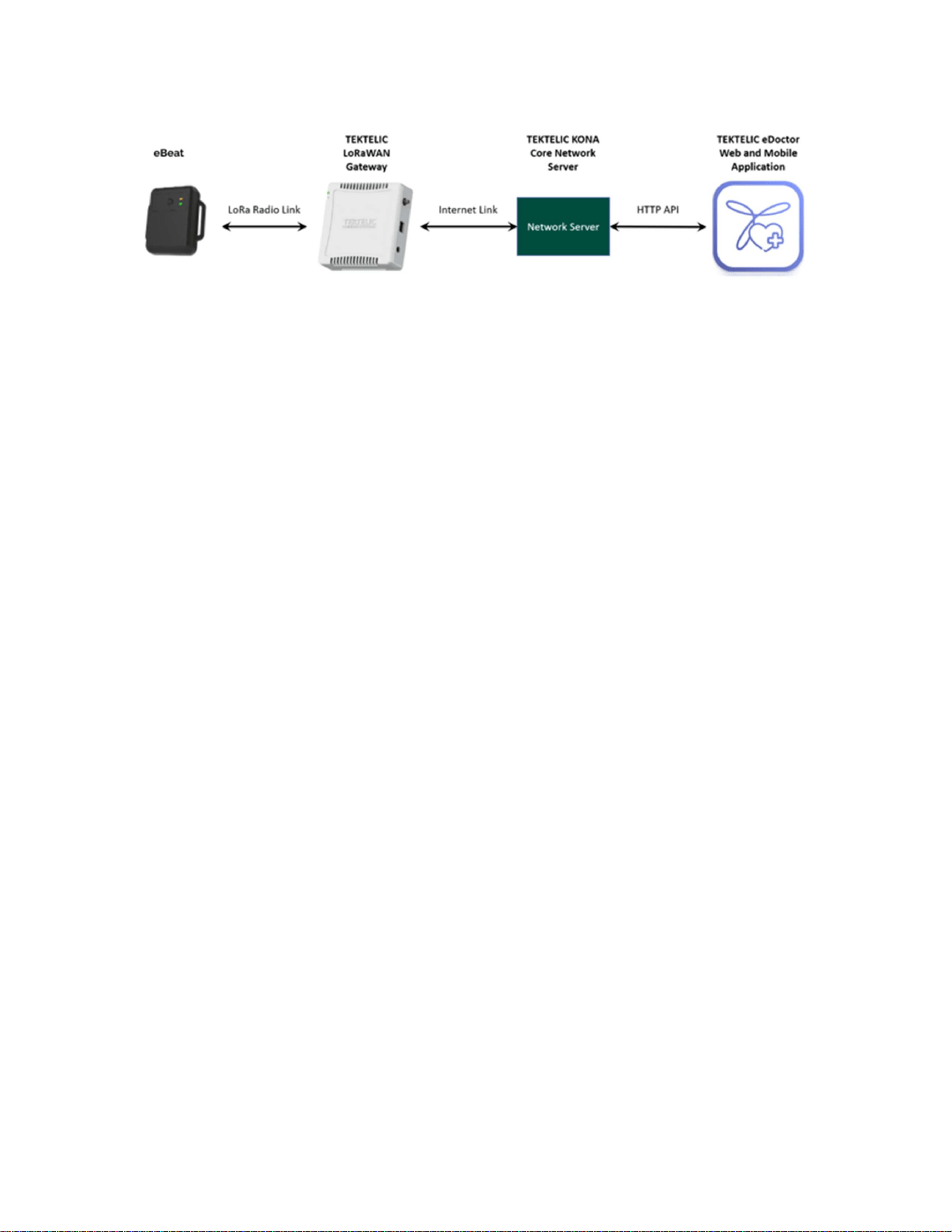
eBeat Device. A diagram representing the eBeat system can be seen in Figure 3-1 below.
The system consists of:
An eBeat device
An adjustable upper arm strap
A coin cell battery (3.0 V non-rechargeable CR2477 battery)
A 1.5mm hex screwdriver (not included, needed for battery removal/replacement)
A TEKTELIC LoRaWAN gateway (purchased separately)
TEKTELIC network server
eDoctor mobile application
eDoctor web application
Mobile device (not included)
eBeat
Instructions for Use
T0008
38
3_IFU
Version
1
.
0
TEKTELIC Communications Inc.
Page
16
of
85
Figure 3-1: eBeat System Diagram
3.4.1. Hardware Components
⚠ CAUTION – Use only recommended accessories supplied by TEKTELIC.
⚠ CAUTION – Do not modify this equipment without authorization of the manufacturer.
⚠ CAUTION – If this equipment is modified, appropriate inspection and testing must be
conducted to ensure continued safe use of the equipment.
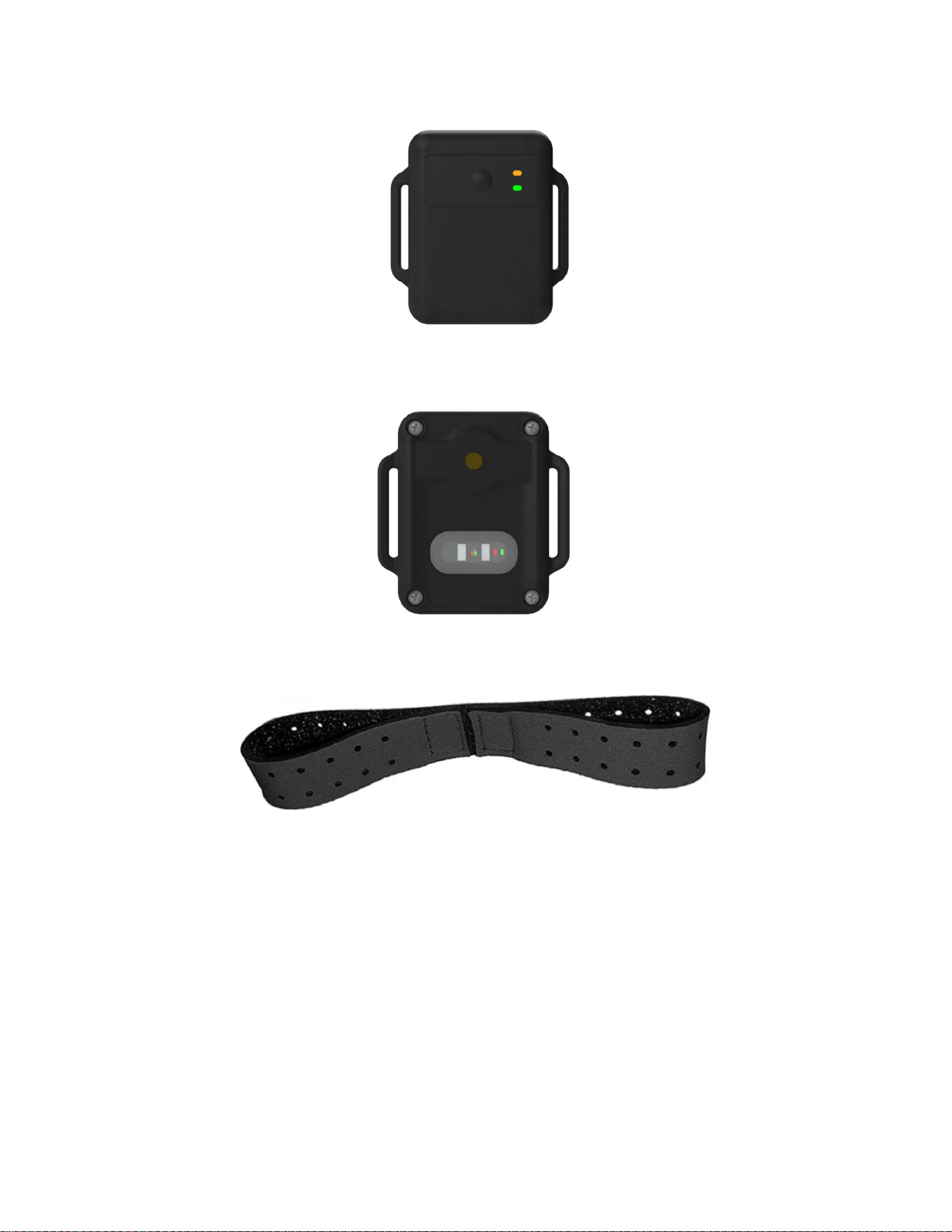
Figures 2-2 and 2-3 illustrate the eBeat enclosure and its external interfaces. The front of the
enclosure includes two indicator lights, one green and one orange, as well as a single push
button.
The eBeat has an IP classification of IP22. This classification indicates that the enclosure is
protected against solid foreign objects 12.5 mm in diameter and larger, and against vertically
falling water droplets when the enclosure is tilted up to 15°.
eBeat
Instructions for Use
T0008
38
3_IFU
Version
1
.
0
TEKTELIC Communications Inc.
Page
17
of
85
Figure 3-2: Front View of eBeat External Interfaces
Figure 3-3: Back View of eBeat External Interfaces
Figure 3-4: eBeat Upper Arm Strap
The eBeat sensor uses small lights and sensors to measure changes in blood flow just beneath
the skin of the upper arm. These measurements are used to track key health metrics.
When the device is worn, it first checks that it is properly positioned on the arm and then
adjusts the light output to match the user’s skin. Once this setup is complete, the sensor uses
the collected signals to calculate health metrics such as pulse rate (PR), respiratory rate (RR),
heart rate variability (HRV), blood oxygen saturation (SpO₂), and signal quality (SQI).

eBeat
Instructions for Use
T0008
38
3_IFU
Version
1
.
0
TEKTELIC Communications Inc.
Page
18
of
85
Additional sensing components include a temperature sensor for measuring skin temperature
and an accelerometer for determining when the device is in use.
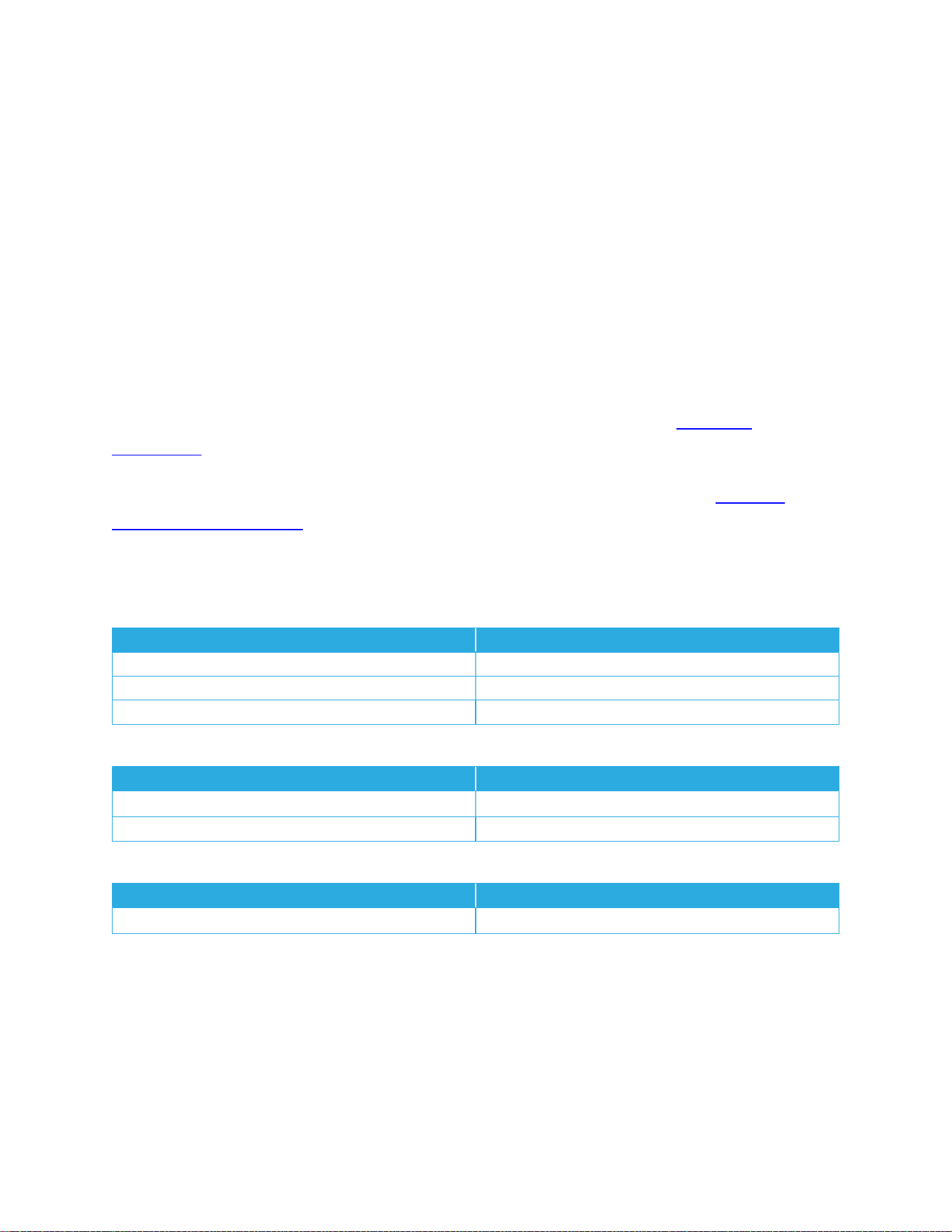
The eBeat specifications are listed in Table 3-1.
Table 3-1: eBeat Specifications
Parameter Specification
Use
E
nvironment
Indoor
professional healthcare facilities
Medical Device Classification
USA FDA Class II Device
Size
eBeat
:
6
5
x
55
x
20
mm
Arm Strap: 450 x 28 x 5 mm
Weight
eBeat
:
45 g
Arm Strap: 10 g
Power
S
ource
Battery operated (
one
3.
0
V
non
-
rechargeable
CR2477
battery
)
Network
T
echnology/Frequency
B
and
LoRaWAN using North American Region: US902
-
928
Transmit (Tx): 902 MHz – 915 MHz
Receive (Rx): 923 MHz – 928 MHz
Maximum Transmit Power (ERP)
1
4
dBm
Air Interface
LoRa (Chirp Spread Spectrum)
Battery Lifetime
>
3
months
*
Number of
Visual
Indicator
s
2
Visual Indicators
(one orange and one green)
Green: Indicates that the device is ready for use
Orange: Flashes when the push button has been successfully
pressed and the assistance request has been sent
Number of Push Buttons
1
push button that
allow
s
the wearer to request assistance
Sensing Functions
Skin temperature, pulse rate,
heart rate variability,
respiration
rate, SPO
2
IP Classification
IP22
Use Life
eBeat
Device:
2 years
Arm Strap: 2 years
Temperature Range
Operating: 5°C (41°F) to 40°C (104°F)
Storage: -25°C (-13°F) to 70°C (158°F)
Applied Parts of the System
BF Applied parts.
Temperature contact
, strap fabric
*Actual battery life depends on configuration, data rate, and operating temperature.
eBeat
Instructions for Use
T0008
38
3_IFU
Version
1
.
0
TEKTELIC Communications Inc.
Page
19
of
85
3.4.2. Software Components
The eBeat is designed to operate with the TEKTELIC eDoctor Web and Mobile Applications.
The TEKTELIC eDoctor Application is an easy-to-use tool used to store up to three months worth
of data and display the latest measurements from the eBeat Device.
The Mobile Application allows the network operator to create a LoRaWAN network by adding
gateways and devices. Once the network has been established, the healthcare professional can
assign devices to patients. When the device is worn by a patient, their reported parameters will
be visualized on both the Web and Mobile Applications.
The TEKTELIC eDoctor Mobile Application is available for download on the App Store and
Google Play.
To access the TEKTELIC eDoctor Web Application, click the link and log in to the TEKTELIC
eDoctor Web Application.
Please ensure the following minimum system requirements are met:
Table 3-2: Minimum Browser Versions
Browser Name Minimum Version
Google Chrome Version 123+
Mozilla Firefox Version 124+
Safari Version 16+
Table 3-3: Minimum Mobile Operating Systems
Mobile Operating System Minimum Version
Android Version 10+
iOS Version 13+
Table 3-4: Minimum Desktop Operating Systems
Desktop Operating System Minimum Version
Windows Version 10

eBeat
Instructions for Use
T0008
38
3_IFU
Version
1
.
0
TEKTELIC Communications Inc.
Page
20
of
85
4. Operating Information
⚠ WARNING – The arm strap may pose a choking hazard. Do not chew or place in mouth.
⚠ CAUTION – Do not modify this equipment without authorization of the manufacturer.
⚠ WARNING – Firmware updates are performed through FUOTA using manufacturer-
authorized update mechanisms. Users must not attempt unauthorized modification of device
firmware. Unauthorized attempts to modify the device firmware outside the manufacturer-
authorized update process may result in device malfunction, compromised security, or loss of
performance.
⚠ WARNING – Only wear the device on intact skin. Inspect the area of contact with the device
and strap at least every 24 hours. If irritation is observed, remove the device immediately.
⚠ CAUTION – Remove the device if skin irritation or discomfort occurs.
⚠ CAUTION – Remove and immediately recycle or dispose of used batteries according to local
regulations and keep away from children. Do NOT dispose of batteries in household trash or
incinerate.
This section describes the included product, required equipment for setup, unpacking and
inspection instructions, setup instructions, and operating instructions.
For concise operating information, please refer to the eBeat Quick Start Guide included in the
device packaging or visit the TEKTELIC website for an introductory video.
4.1. Required Equipment
To onboard and configure the TEKTELIC gateway(s), eBeat device(s), and patient(s), please
download the TEKTELIC eDoctor mobile application from the App Store or Google Play.
A 1.5mm hex screwdriver is required to lock/unlock the battery lid located on the back of the
enclosure. No other special equipment or tools are required to power or operate the eBeat.
4.2. Unpacking and Inspection
The following should be considered during the unpacking of a new eBeat:

eBeat
Instructions for Use
T0008
38
3_IFU
Version
1
.
0
TEKTELIC Communications Inc.
Page
21
of
85
1. Inspect the shipping carton and report any significant damage to TEKTELIC.
2. Unpacking should be conducted in a clean and dry location.
3. Do not discard the shipping box or inserts as they will be required if a unit is returned
for repair or maintenance. Store in a safe and dry location after unpacking.
4.3. Setup Instructions
The setup procedure is to be completed by the network operator in an indoor environment.
This procedure includes setting up the LoRaWAN network, creating the application account, as
well as onboarding the gateways and devices. This setup is offered as a service by TEKTELIC
Communications Inc.
The device can be powered on by either the network operator or the healthcare professional,
depending on what is most convenient.
4.3.1. Gateway Setup
To turn on the gateway, follow the steps below:
1. Connect power cable from the gateway to an outlet.
2. Connect the gateway to either ethernet or cellular.
a. For ethernet, connect the ethernet cable from the gateway to the ethernet
socket.
b. For cellular, insert a SIM card into the specified SIM port on the gateway. Please
refer to Kona Gateway Cellular Backhaul FAQ for additional support.
3. Once steps 1 and 2 have been completed, the gateway should be begin flashing green.
Further setup for onboarding and configuring the gateway on the app will be described in
Section 4.6.3.1 below.
4.3.2. Powering On the Device and Replacing the Battery
⚠ CAUTION – Do not touch the battery and the patient at the same time during battery
replacement.
⚠ CAUTION – Do not touch the gateway/smart phone/computer and patient at the same time.
The eBeat is shipped with a CR2477 coin cell battery installed and engaged, but with a battery
sticker on the negative terminal preventing the battery from turning the device on. Removing
eBeat
Instructions for Use
T0008
38
3_IFU
Version
1
.
0
TEKTELIC Communications Inc.
Page
22
of
85
the sticker and re-inserting the battery will activate the device. After the sticker has been
removed, the battery must be removed to turn off the device.
Prior to initial use, inspect the battery for signs of corrosion, such as white, green, or powdery
residue on the battery or contacts. Corrosion can affect device performance and safety. If
corrosion is present, or if the device has not been used for an extended period, replace the
battery with a NEW CR2477 (3V Lithium Manganese Dioxide) coin cell. Remove used batteries
promptly and recycle or dispose of them according to local regulations.
Recommended battery brand: Panasonic.
Do not mix old and new batteries, different brands or types of batteries, such as alkaline,
carbon-zinc, or rechargeable batteries.
To activate the unit or to replace the battery when required, follow these steps:
Note: Ensure the device has been onboarded to the mobile application by the network
operator before proceeding.
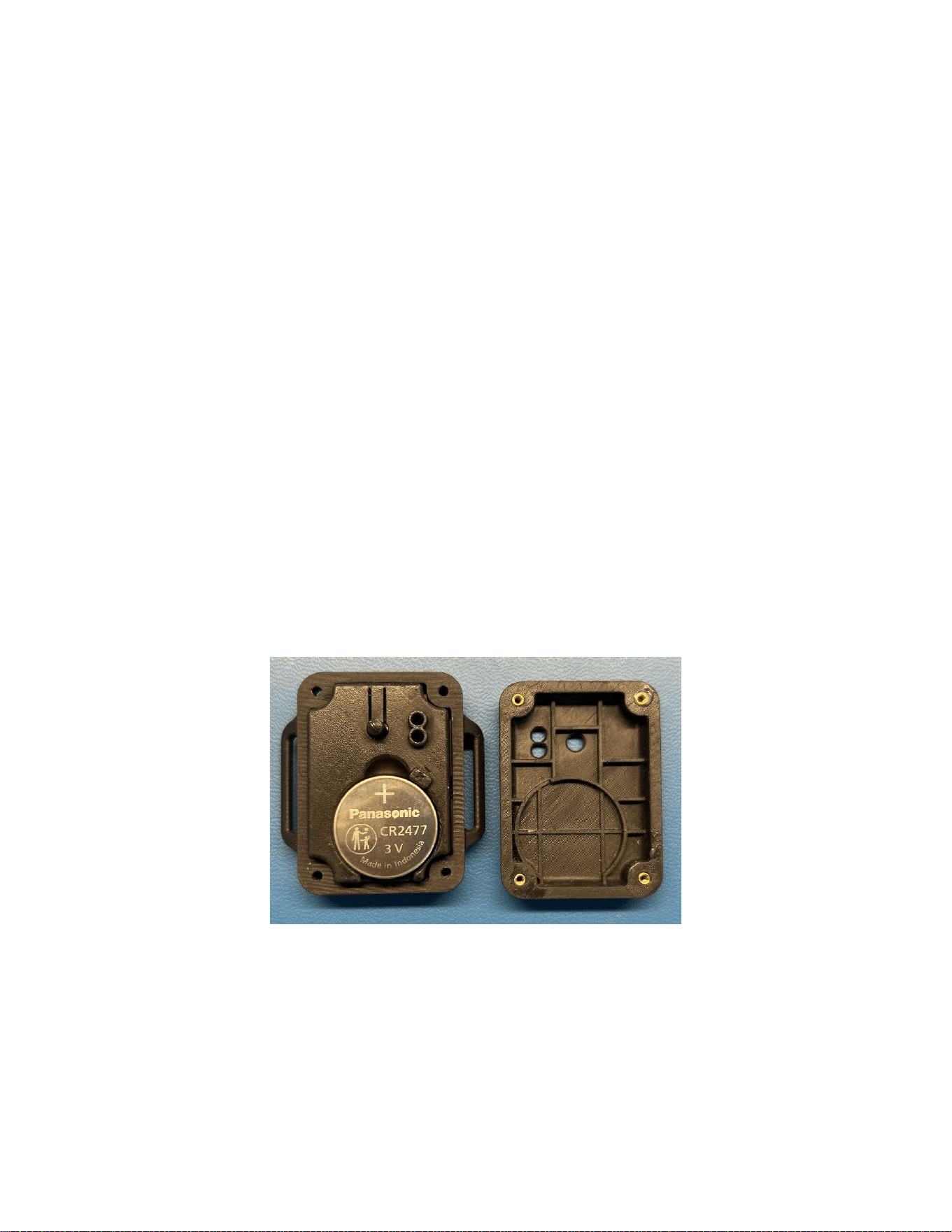
1. Locate the battery lid on the back of the eBeat. Remove the 4 screws holding the lid in
place and then remove the battery lid from the device.
Figure 4-1: Removing Battery Lid from eBeat
2. Remove the battery from the battery holder. For activation of a newly received device,
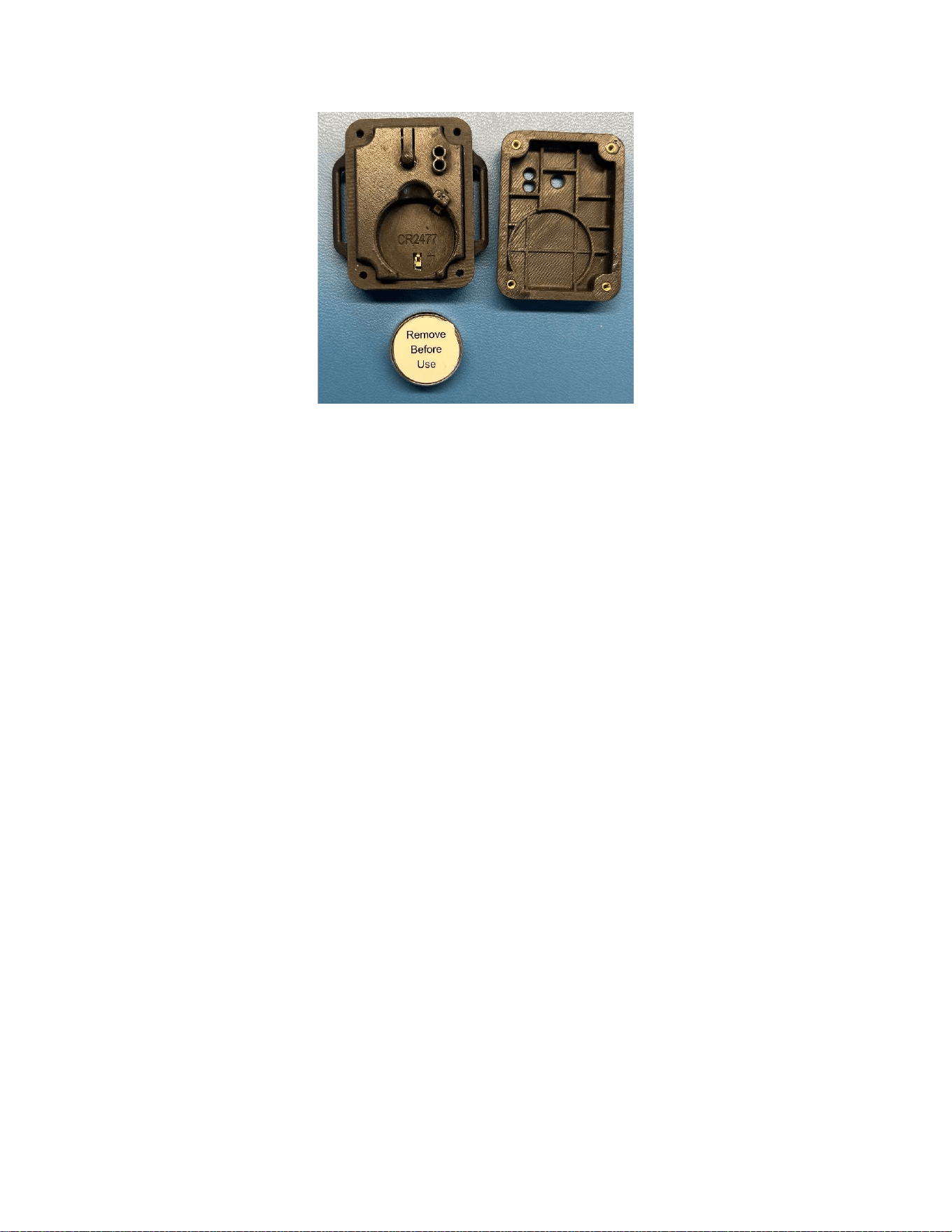
peel the sticker off the negative terminal of the battery. For battery replacement, use
only a new CR2477, 3V Lithium Manganese Dioxide coin cell. Recommended battery
brand: Panasonic.
eBeat
Instructions for Use
T0008
38
3_IFU
Version
1
.
0
TEKTELIC Communications Inc.
Page
23
of
85
Figure 4-2: Remove Battery Sticker
3. Place the battery inside the eBeat battery compartment ensuring the battery is installed
correctly according to polarity (+ and –). The positive terminal of the battery must be
visible after insertion, as shown in Figure 4-1. Replace the battery lid and the 4 screws.
Tighten the screws to hold the lid securely in place.
4. After a few seconds, the visual indicators on the eBeat should start blinking, showing
that the eBeat is trying to join the LoRaWAN network. The visual indicators will stop
blinking once the eBeat has joined the LoRaWAN network.
Note: Time from device powering on until ready for normal use may take up to 5 minutes. The
device will only report measurements while it is being worn.
Note: The eBeat may take a few minutes to fully power off because it uses supercapacitors for
internal energy storage. This is normal behavior.
4.4. Checkout Procedure
Once the patient has completed using the device, the healthcare professional can assist in
removing the strap and device from the patient. Afterward, the healthcare professional is
expected to follow the cleaning procedures outlined in the Cleaning Instructions section.

eBeat
Instructions for Use
T0008
38
3_IFU
Version
1
.
0
TEKTELIC Communications Inc.
Page
24
of
85
4.5. Operating Instructions
The following operating instructions assume the setup procedure has already been followed.
This means the LoRaWAN network has been fully setup, the gateways and devices have been
onboarded, and the device has been powered on.
The following sections will describe how to wear the device, how to use the push buttons, as
well as how to navigate and use different features on the mobile and web applications.
4.5.1. Wearing the Device
⚠ CAUTION – It will take 25 minutes for the device to warm to 20°C from the minimum storage
temperature.
⚠ CAUTION – It will take 25 minutes for the device to cool to 20°C from the maximum storage
temperature.
⚠ CAUTION – Please wait for the skin temperature readings to stabilize after putting the device
on or if there have been changes in environmental conditions.
⚠ WARNING – Do not wear if sensitive to nylon, stainless-steel, or polycarbonate.
⚠ WARNING – Only wear the device on intact skin. Inspect the area of contact with the device
and strap at least every 24 hours. If irritation is observed, remove the device immediately.
⚠ CAUTION – Remove the device if skin irritation or discomfort occurs.
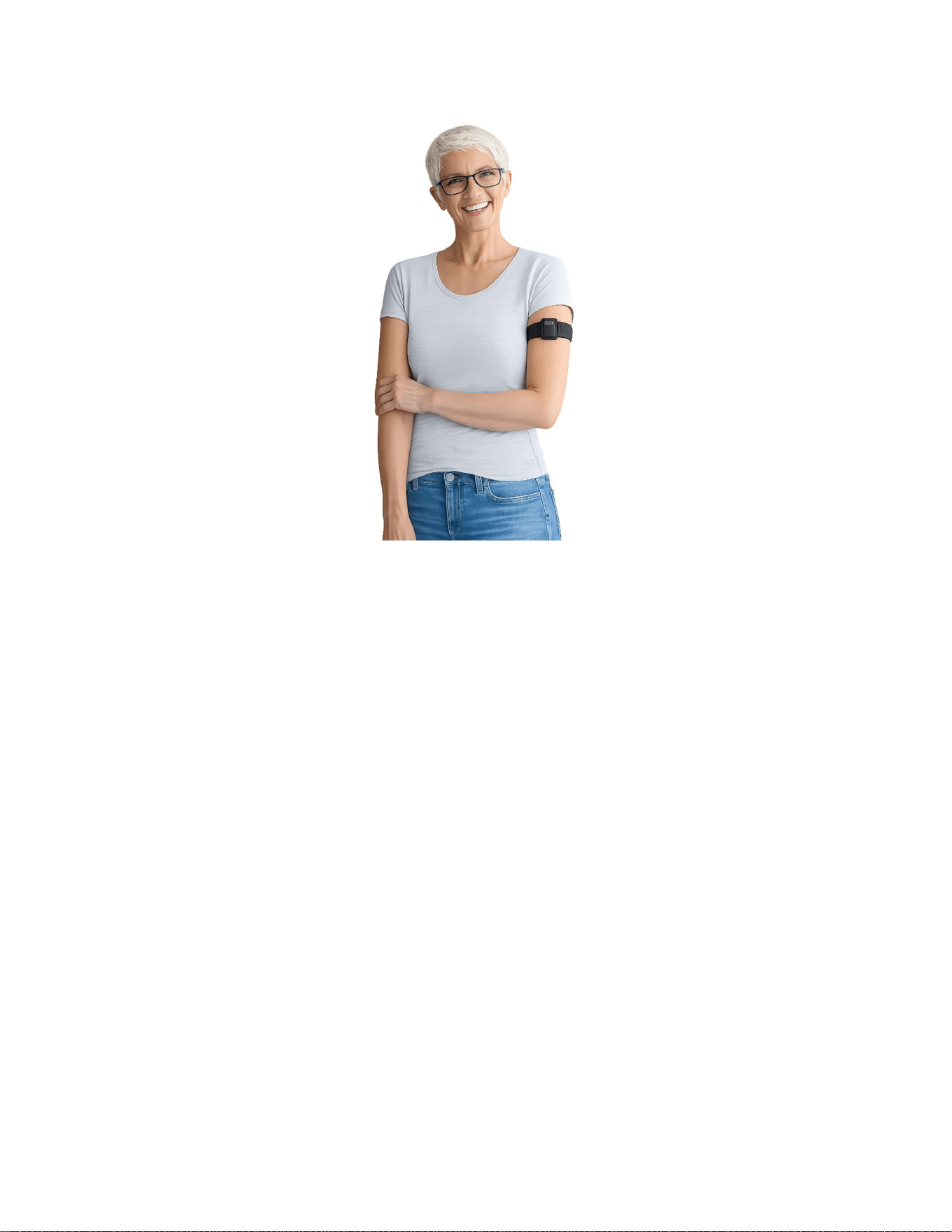
1. Attach the arm band to the eBeat by feeding the ends of the strap through the slots on
either side of the device and fastening the strap to itself.
2. Slide your arm into the strap until the device is positioned at your upper arm. Make sure
the eBeat is at the back of your arm. Ensure that the eBeat is in direct contact with your
skin. Tighten the strap so that the device stays in place. The user is advised to wear the
sensor snuggly. An easy rule of thumb is to adjust the strap on your arm to a tightness
where you can still slip two fingers under the band.
Note: The eBeat device and strap should sit comfortably without sagging.
eBeat
Instructions for Use
T0008
38
3_IFU
Version
1
.
0
TEKTELIC Communications Inc.
Page
25
of
85
Figure 3-7: Device and strap being worn correctly
Note: Inspect the arm strap to ensure it is not displaying any signs of deteriorations from
prolonged use such as loose fabric, rips, holes, etc. If the strap displays any of these signs,
please dispose the strap and use a new strap instead.
3. After a few minutes, the device will begin reporting data to the application. By default,
the device will report data every 5 minutes when worn.
Note: For accurate monitoring, ensure the device is worn snugly and correctly positioned. The
device must make direct contact with the skin and the strap should not sag. Improper fit or loose
contact, particularly during sleep, may result in inconsistent readings or temporary data gaps.
4.5.2. Push-Button Functionality
The eBeat is equipped with a push button that allows the wearer to request assistance. Pressing
the button sends a request to the application, where the viewer is notified and prompted to
acknowledge the request. If the button is pressed during an active measurement, the request
will be sent once the measurement is complete, which may result in a brief delay before the
notification appears in the application.

eBeat
Instructions for Use
T0008
38
3_IFU
Version
1
.
0
TEKTELIC Communications Inc.
Page
26
of
85
4.5.3. Visual Indicator Lights
The eBeat device uses two indicator lights, a green light and an orange light, to show its status
and confirm certain actions.
When the device is powered on, the lights may briefly turn on or blink while the device starts
up. This is normal and indicates the device is preparing for use. Once the startup process is
complete, the green light briefly blinks and then turns off. No lights will be visible during normal
operation.
When the push button is pressed to request assistance, the orange light flashes to confirm that
the request has been sent.
4.5.4. Reporting Modes
The eBeat supports two reporting modes: Normal Reporting Mode and Enhanced Reporting
Mode. By default, the device operates in Normal Reporting Mode, reporting data every five
minutes. Enhanced Reporting Mode increases the reporting frequency to once per minute.
4.6. TEKTELIC eDoctor Mobile Application Functionality
TEKTELIC eDoctor mobile application is an easy-to-use tool for monitoring patients’ vital signs in
real time. This app is a perfect choice for remote health monitoring and tracking any changes in
medical conditions. eBeat will significantly improve operational processes in the medical
sphere, reducing time wasted on regular checks and filling out the forms with updated
measurements. With this app, users can access measurements from eBeat device.
4.6.1. TEKTELIC eDoctor Mobile Application Download and Registration
The creation of an eDoctor Mobile Application account is offered by TEKTELIC Communications
Inc. To create an account, please reach out to the TEKTELIC Support Portal.
In order for TEKTELIC Communications Inc. to create an eDoctor Mobile Application account for
you, they will require the following information:
An email account that the eDoctor Mobile Application account can be created under
The gateway ID (GWID) of the gateway(s) that should be added to the account. The
GWID can be found on the bottom label of the gateway.
The device EUI (DevEUI) of the device(s) that should be added to the account. The
DevEUI can be found on the bottom label of the device.
eBeat
Instructions for Use
T0008
38
3_IFU
Version
1
.
0
TEKTELIC Communications Inc.
Page
27
of
85
From here, you will be sent an email at the email address provided to TEKTELIC that asks you to
change the password to your eDoctor Mobile Application account. Once the password has been
changed, you will gain access to the eDoctor Mobile Application account. This email address
and newly created password will also provide access to the eDoctor Web Application.
For instructions on how to add a patient, please refer to the Adding new patient section.
If you are setting up the TEKTELIC eDoctor mobile application on your own, please follow the
steps described in the following sections:
1. Download the TEKTELIC eDoctor mobile application from the App Store or Google Play
and then open it.
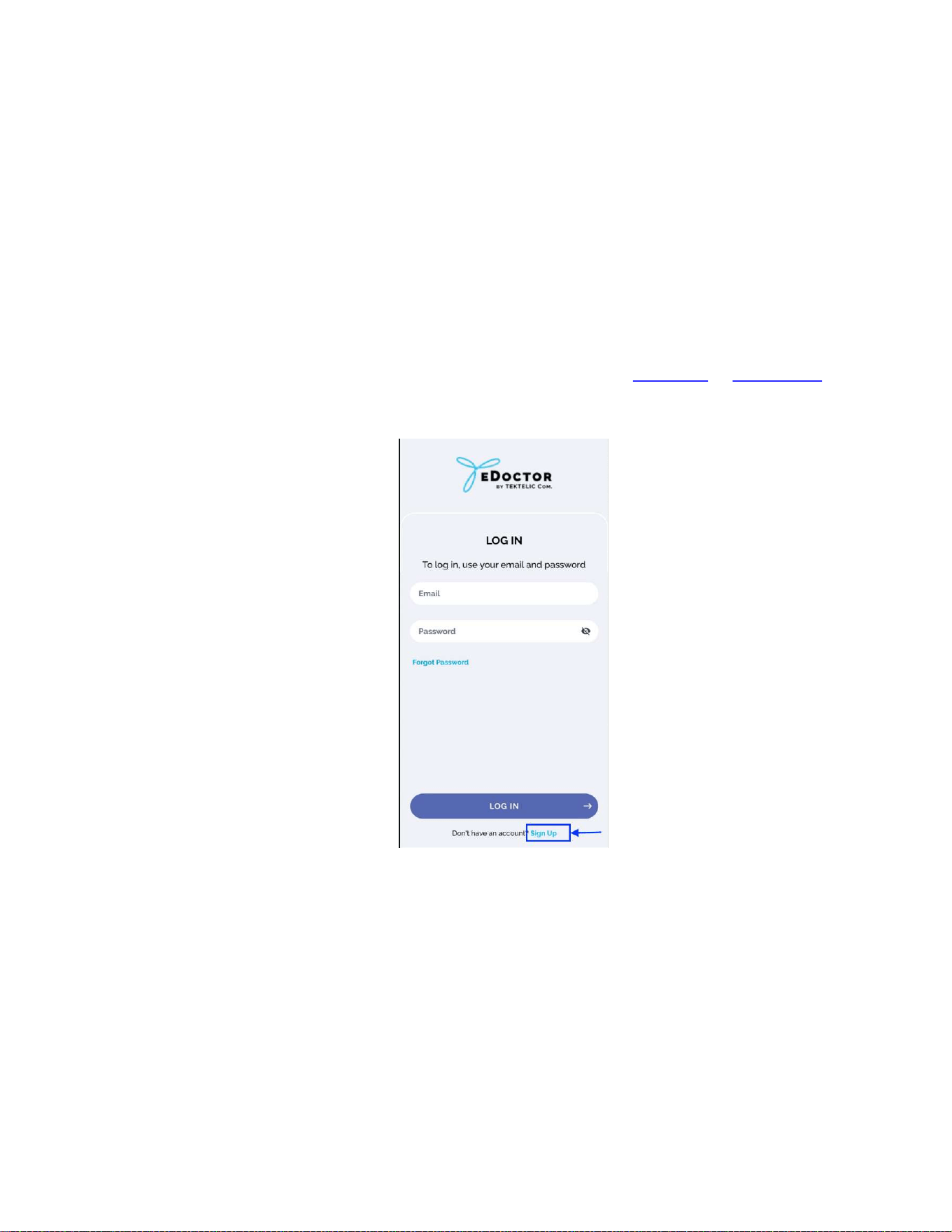
2. Tap on the "Sign Up" button to begin the registration process.
Figure 4-3: Starting the registration process
3. Enter your email address and password in the designated fields. Make sure to provide a
valid and accessible email address. Password should be at least 8 characters long with a
mix of letters, numbers and symbols.
4. Please read the privacy policy carefully by clicking on "Privacy Policy". After reading and
agreeing to the rules, click on the checkbox.
5. Once you have entered your email address and password, tap on the "Register" button.

eBeat
Instructions for Use
T0008
38
3_IFU
Version
1
.
0
TEKTELIC Communications Inc.
Page
28
of
85
6. Check your email and find a message with confirmation code. If you do not see the
email in your inbox, please check your spam or junk folder. If you don’t see the code in
your spam or junk folder, click “Resend code” to receive a new code.
7. Return to the App, enter confirmation code and tap on the "Continue" button.
Note: If the code matches, a confirmation message will appear, indicating that your registration
is successful.
Note: If the code doesn't match, an error message will appear, asking you to enter the correct
confirmation code. Please double-check the code or click “Resend code” to receive a new code.
4.6.2. Authorization
To log in to the application:
1. Open the app to access the login screen.
2. Enter the email and password you used during registration.
3. Tap the "Log in" button.
Once logged in and your profile is set up, you can begin using the app’s features.
If login fails, double-check your email and password and try again.
4.6.3. Setup wizard
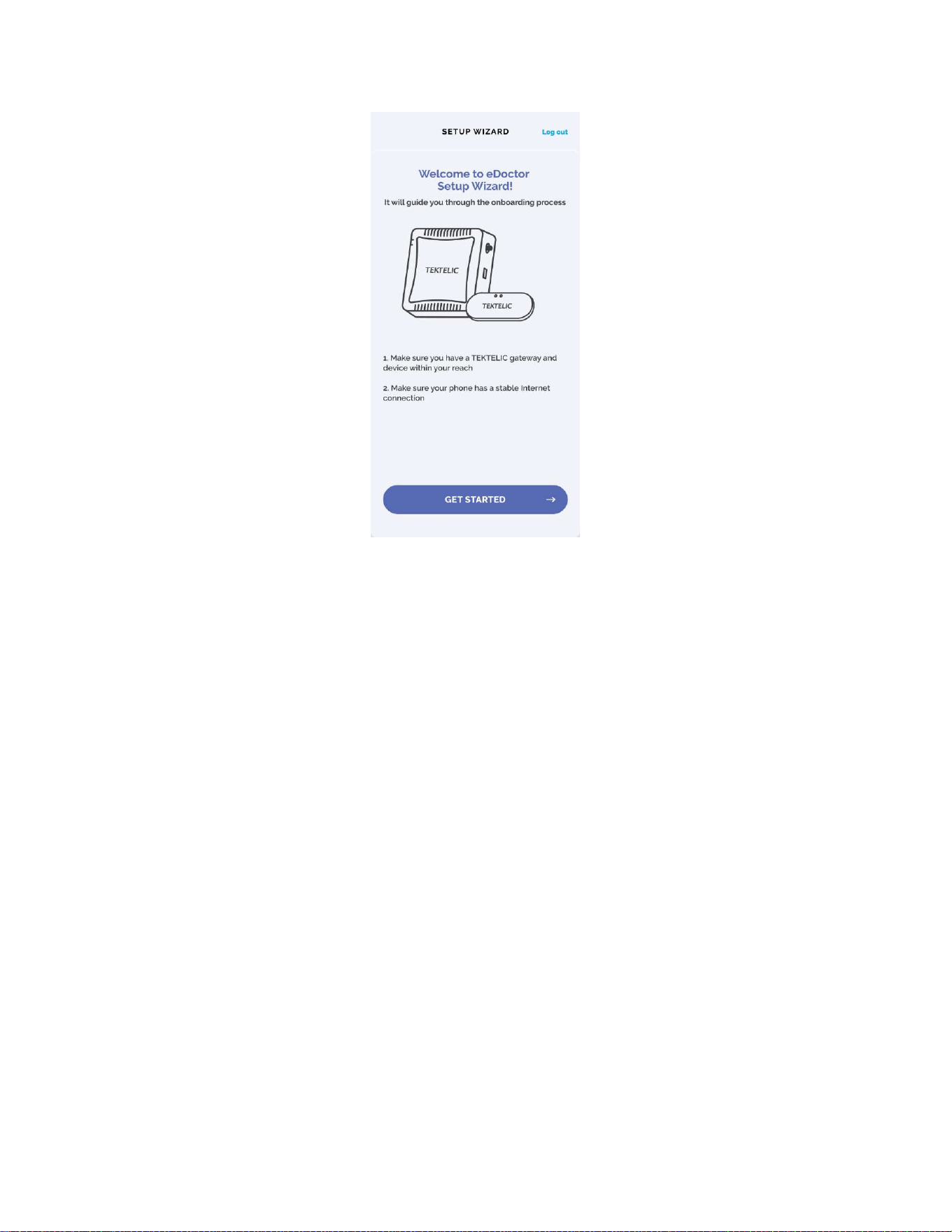
After registering and logging in for the first time, you'll be guided through the Setup Wizard.
The Setup Wizard is a step-by-step process that helps you connect and configure your gateways
and devices. It’s designed to simplify the initial setup and ensure a smooth start with the
application.
To begin, tap "GET STARTED" to add your first gateway.
4.6.3.1. Adding a Gateway
To add a gateway, tap the “ADD GATEWAY” button. You can either scan the QR code on the
device or enter the details manually, including the Gateway ID, Serial Number, Revision, and T-
Code.
eBeat
Instructions for Use
T0008
38
3_IFU
Version
1
.
0
TEKTELIC Communications Inc.
Page
29
of
85
Figure 4-4: Setup wizard start view
4.6.3.1.1. Adding Gateway using QR Code
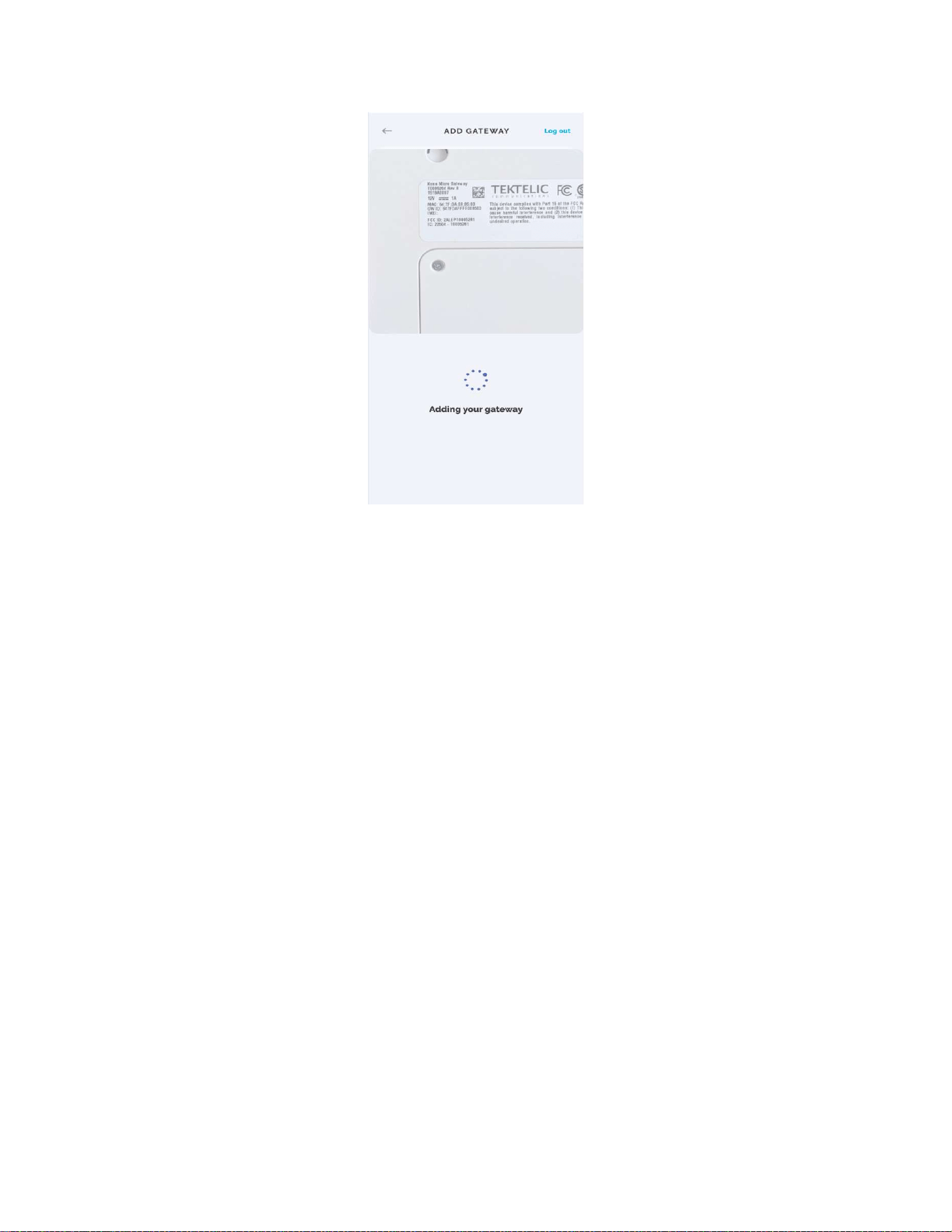
To add a gateway using a QR code, use the in-app camera to scan the QR code on your
gateway.
Make sure camera permission is enabled for the app. If you previously denied it, you can allow
it by going to your phone’s settings:
Settings → Apps → eDoctor → Permissions → Camera.
eBeat
Instructions for Use
T0008
38
3_IFU
Version
1
.
0
TEKTELIC Communications Inc.
Page
30
of
85
Figure 4-5: Scan gateway QR
4.6.3.1.2. Adding Gateway manually using gateway ID
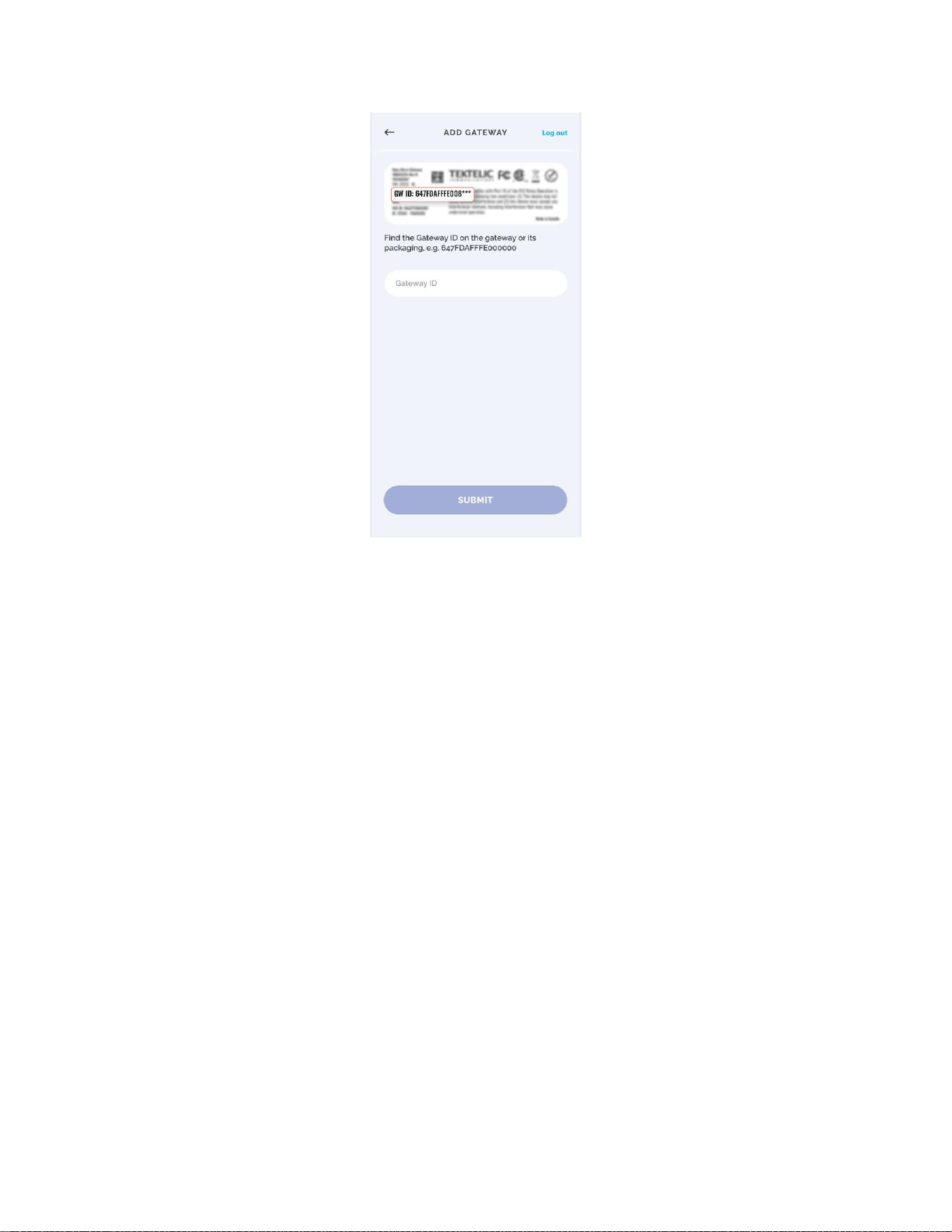
To add a gateway manually by entering the gateway ID you should click on “Don’t have the QR
code or can't scan?”.
eBeat
Instructions for Use
T0008
38
3_IFU
Version
1
.
0
TEKTELIC Communications Inc.
Page
31
of
85
Figure 4-6: Adding gateway using ID view
After scanning the QR code (or choosing manual entry), a screen will appear prompting you to
enter the Gateway ID.
Note: The Gateway ID must be 16 characters long and start with “647FDAFFFE”.
Once entered, click the "Submit" button. You’ll then be taken to the internet connection setup
screen.
4.6.3.1.3. Adding gateway manually using T-code, Revision and Serial number
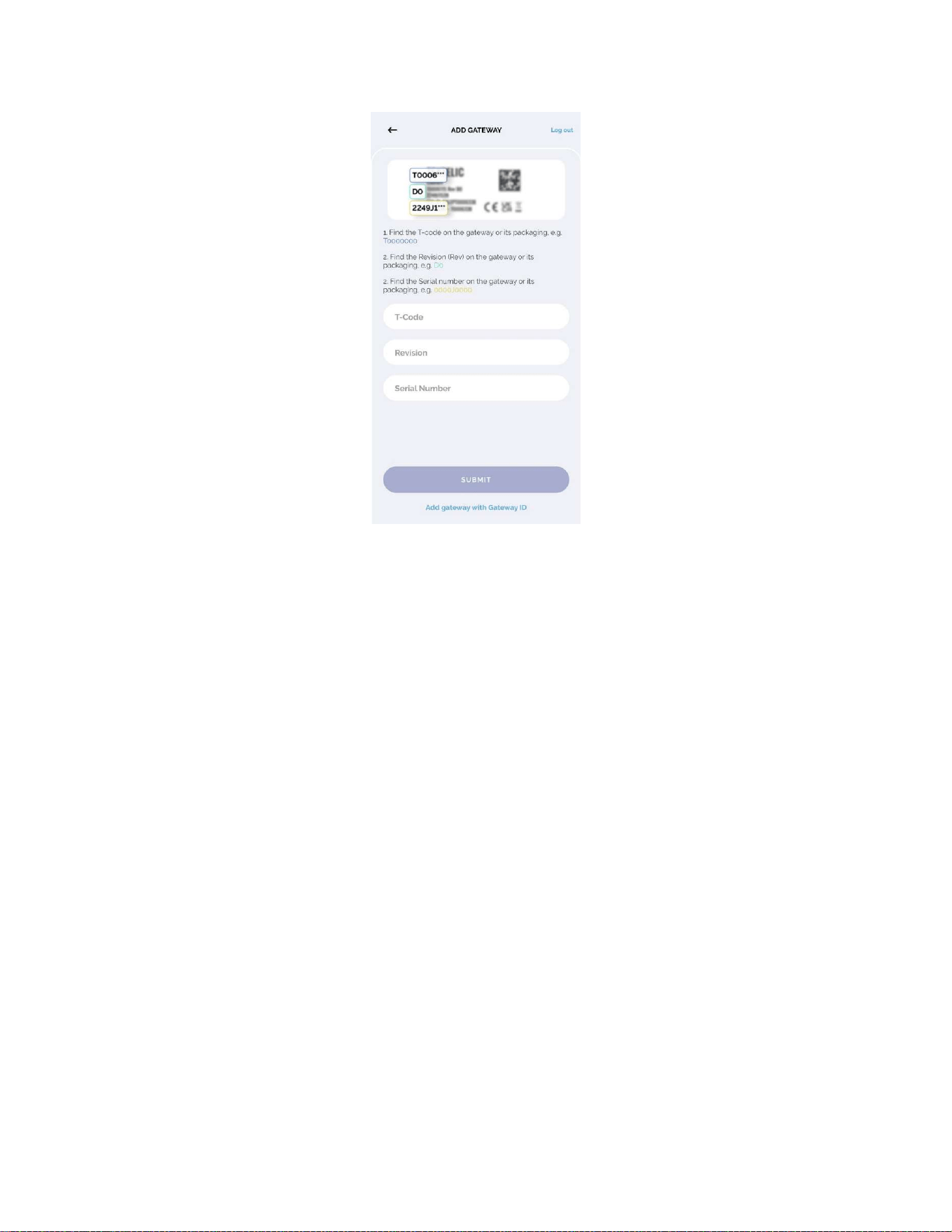
If you have forgotten your gateway ID or it is damaged, you can add a gateway using Serial
number and T-code. If this happens, click on “Add gateway with T-code, Revision and Serial
number”. After this, a screen will appear prompting the user to enter the T-code, Revision and
Serial number.
eBeat
Instructions for Use
T0008
38
3_IFU
Version
1
.
0
TEKTELIC Communications Inc.
Page
32
of
85
Figure 4-7: Adding gateway using serial number, revision and T-code
Note: The T-code should be 8 characters long and start with “T”.
Note: The Revision should have up to 4 characters (Latin letters and digits only).
Note: The Serial Number should be 9 characters long and contain a letter in the middle.
Click on the "Submit" button after entering T-code, Revision and Serial number. After submit
your entering, you will be taken to the internet connection setup.
eBeat
Instructions for Use
T0008
38
3_IFU
Version
1
.
0
TEKTELIC Communications Inc.
Page
33
of
85
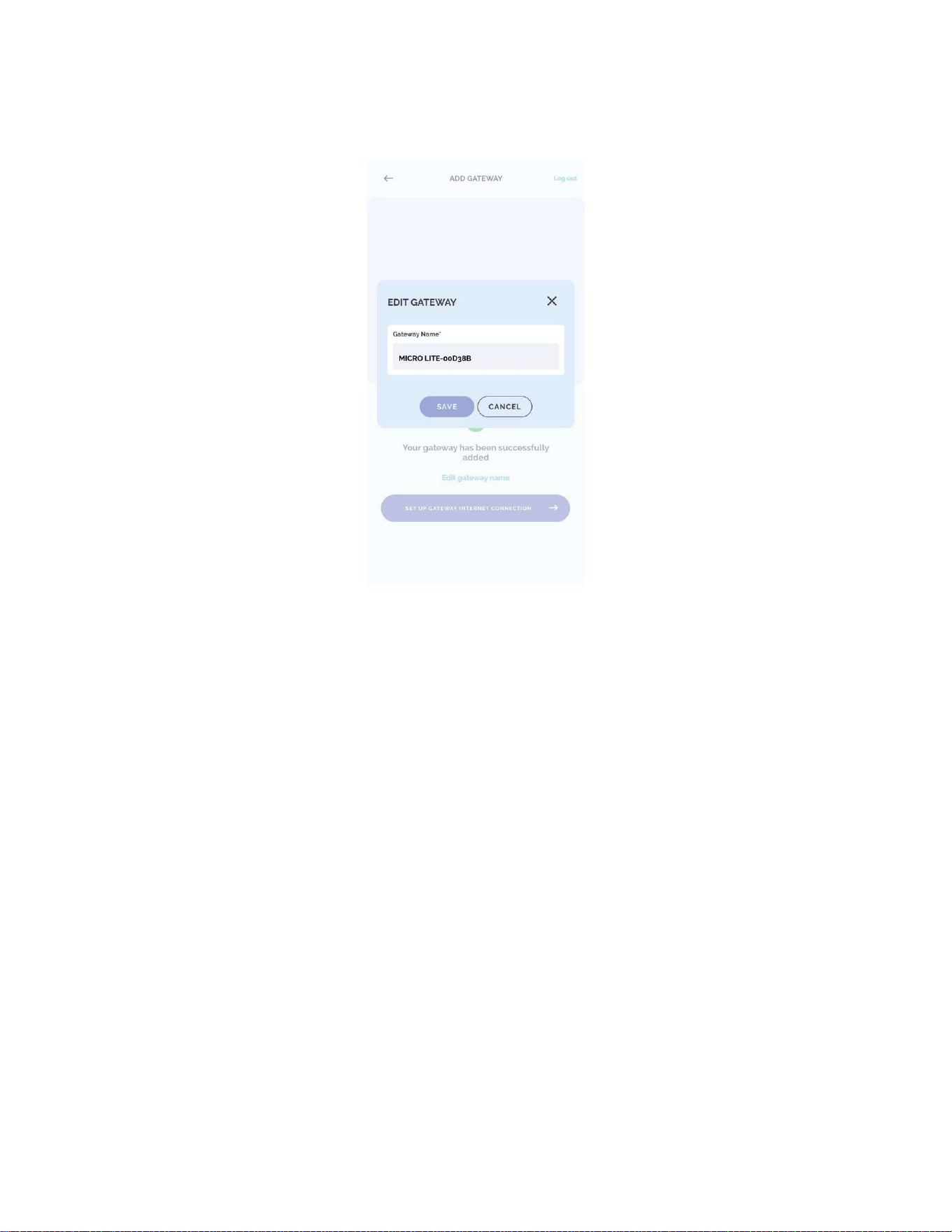
4.6.3.1.4. Editing gateway
Figure 4-8: Edit gateway view
After you successfully add a gateway, you can change its name by clicking on "Edit gateway
name".
To save the entered name, click "Save" button, and to cancel and return to the previous name,
click "Cancel".
Note: The Gateway Name should be minimum 3 and maximum 255 characters long.
Note: The Gateway Name should only contain Latin letters, numbers and special characters:
e.g., ! @ # ? ].
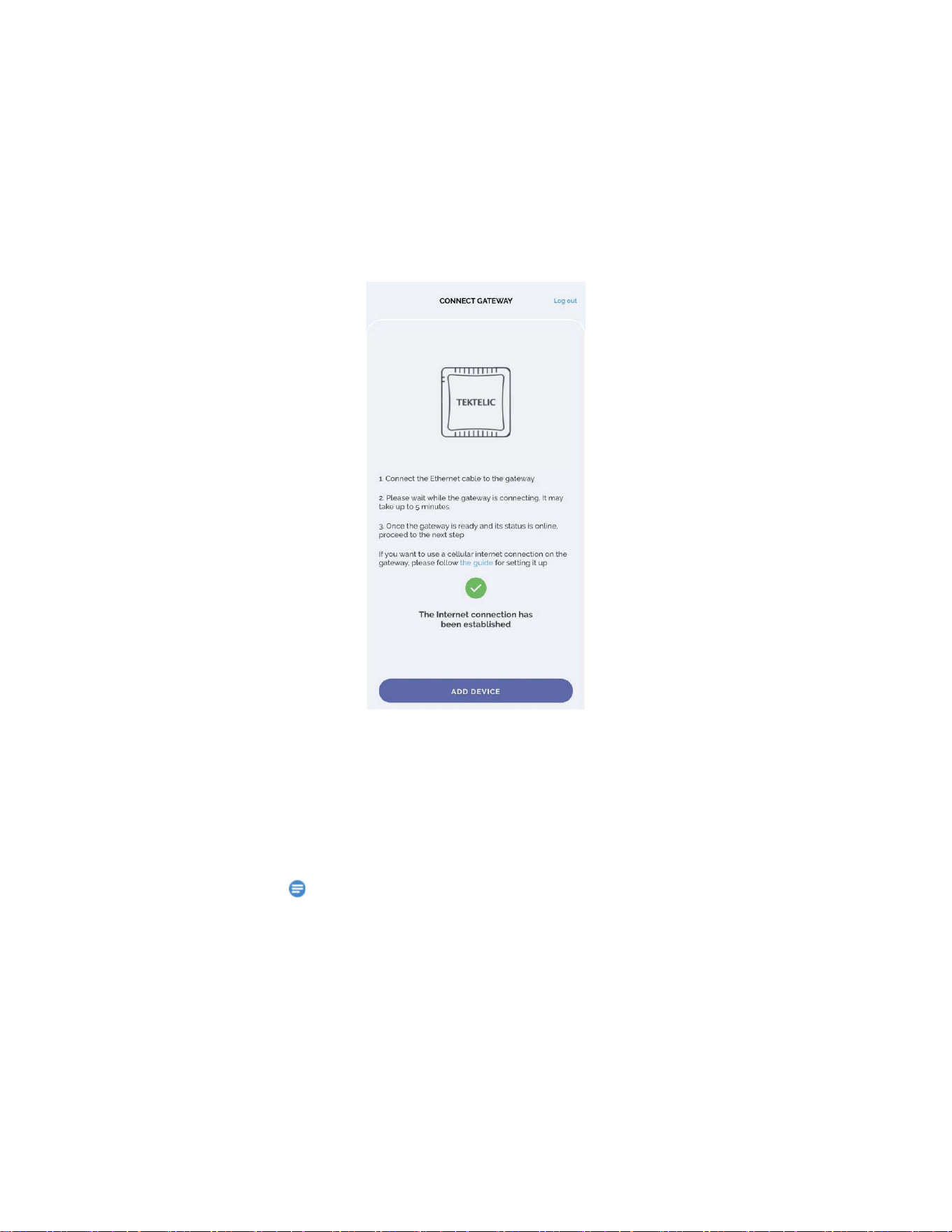
4.6.3.1.5. Gateway Connection
Go further to the internet connection setup by clicking on the "SET UP GATEWAY INTERNET
CONNECTION" button.
Connect the Ethernet cable to the gateway and wait while the gateway is connecting. It may
take up to 5 minutes. After completing the setup of the Internet connection, you will receive an
eBeat
Instructions for Use
T0008
38
3_IFU
Version
1
.
0
TEKTELIC Communications Inc.
Page
34
of
85
“The Internet connection has been established” message and you can add a device by clicking
on the "ADD DEVICE" button.
Figure 4-9: Successful internet connection view
If after 5 minutes the gateway does not pass the Internet connection stage, you will receive an
error screen and can restart the process by clicking on the "TRY AGAIN" button.
If you want to use a cellular internet connection on the gateway with LTE, please follow the
guide for setting it up - Cellular Configuration.
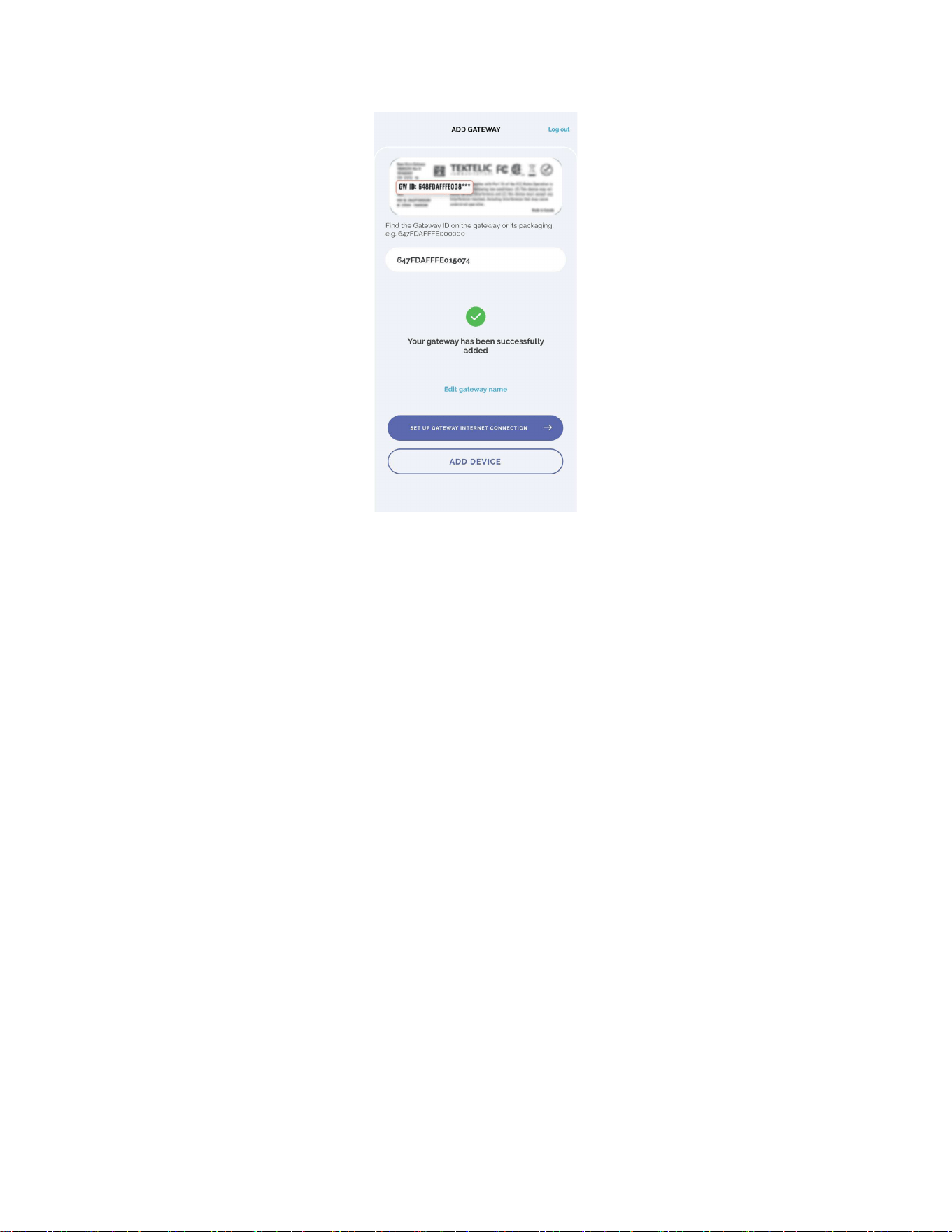
4.6.3.1.6. Skip Gateway Connection
If you do not want to complete the Internet connection setup at this step, you can skip the
gateway connection process and proceed directly to adding a device. To do this, click on the
"ADD DEVICE" button.
eBeat
Instructions for Use
T0008
38
3_IFU
Version
1
.
0
TEKTELIC Communications Inc.
Page
35
of
85
Figure 4-10: Skip gateway internet connection view
You will be redirected to the device setup screen without establishing the Internet connection
for the gateway
Please note that if you skip the gateway connection setup, you will still be able to configure the
internet connection later in the application when needed.
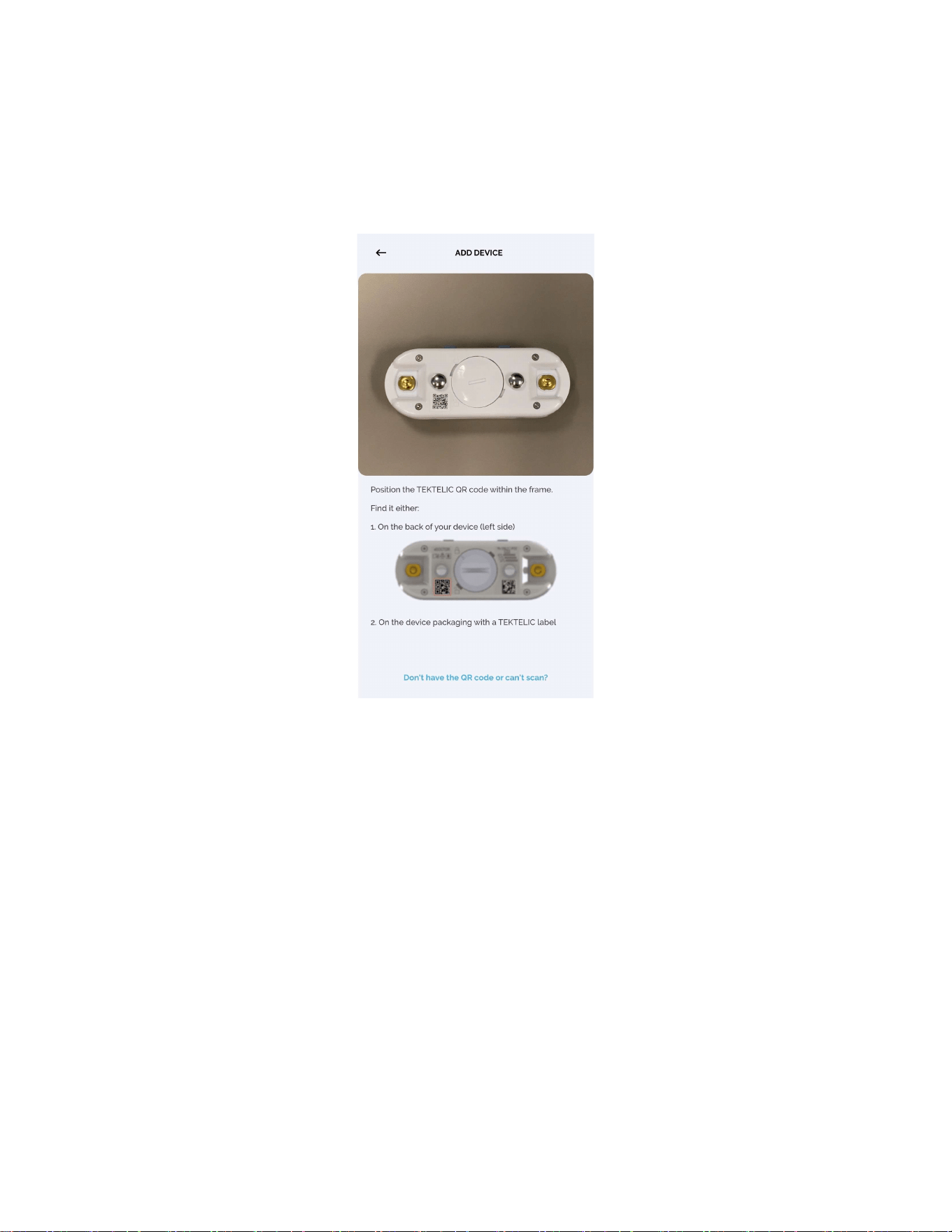
4.6.3.2. Adding Device
To add a device, click “ADD DEVICE”:
To add a device, scan its QR code or enter the serial number, revision and t-code, or device EUI,
manually.
eBeat
Instructions for Use
T0008
38
3_IFU
Version
1
.
0
TEKTELIC Communications Inc.
Page
36
of
85
4.6.3.2.1. Adding device using QR
To add a device using QR you should scan with the camera window in the app, the QR code of
your device.
Figure 4-11: Scan device QR code
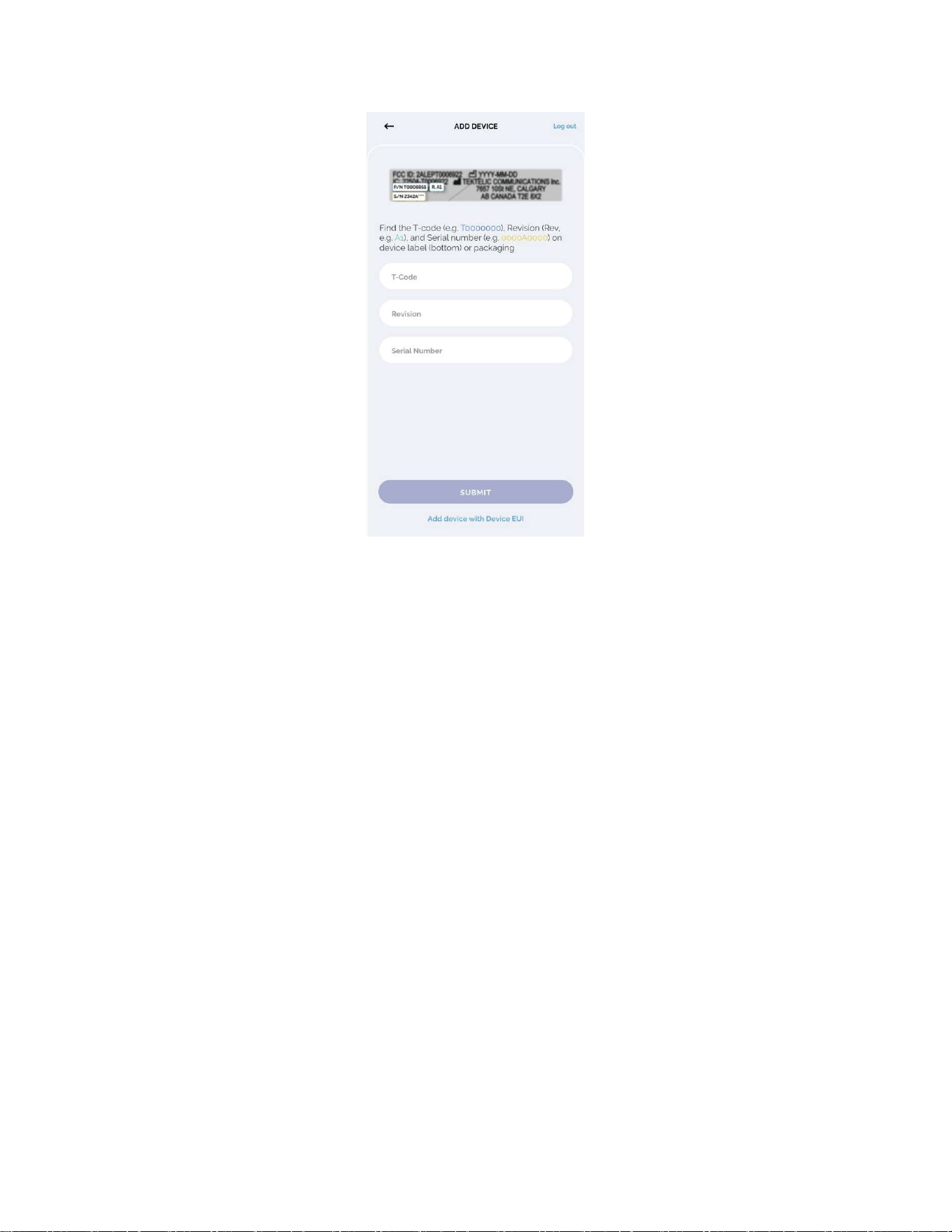
4.6.3.2.2. Adding device manually using T-code, Revision and Serial number
To add a device manually by entering the T-code, Revision and Serial number you should click on
“Don’t have the QR code or can't scan?”. After this, a screen will appear prompting you to enter
the T-code, Revision and Serial number.
eBeat
Instructions for Use
T0008
38
3_IFU
Version
1
.
0
TEKTELIC Communications Inc.
Page
37
of
85
Figure 4-12: Adding device using serial number, revision and T-code view
Note: The T-code should be 8 characters long and start with “T”.
Note: The Revision should have up to 4 characters (Latin letters and digits only).
Note: The Serial Number should be 9 characters long and contain a letter in the middle.
Click on the "Submit" button after entering your device T-code, revision and Serial number. After
submit your entering, you will be taken to the device establishing connection.
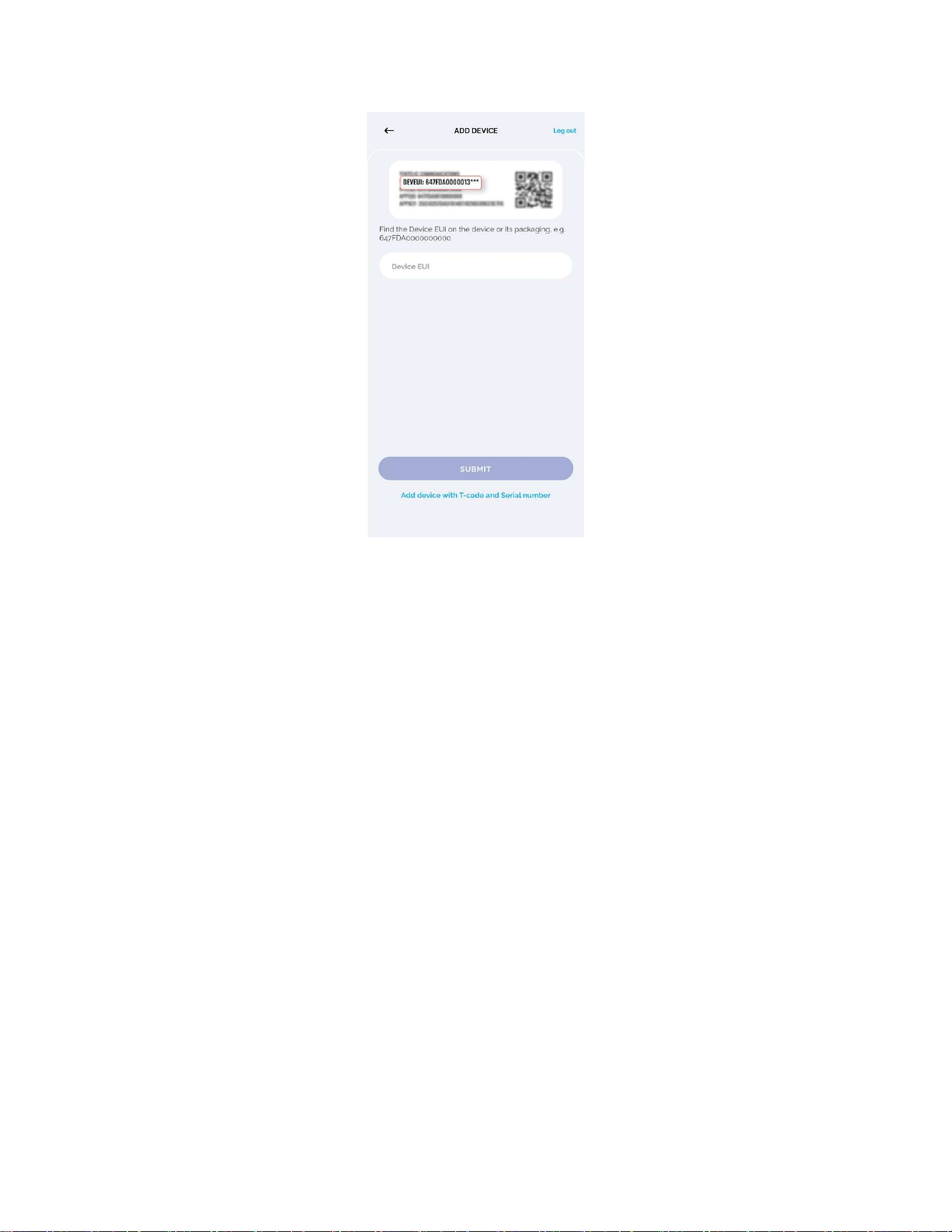
4.6.3.2.3. Add device manually using device EUI
Click on “Add device with Device EUI” if you only know the Device EUI of the device. After this, a
screen will appear prompting you to enter the Device EUI.
eBeat
Instructions for Use
T0008
38
3_IFU
Version
1
.
0
TEKTELIC Communications Inc.
Page
38
of
85
Figure 4-13: Adding device using device EUI
Note: The Device EUI should be 16 characters long and start with “647FDA”.
Click on the "Submit" button after entering your Device EUI. After submit your entering, you
will be taken to the device establishing connection.
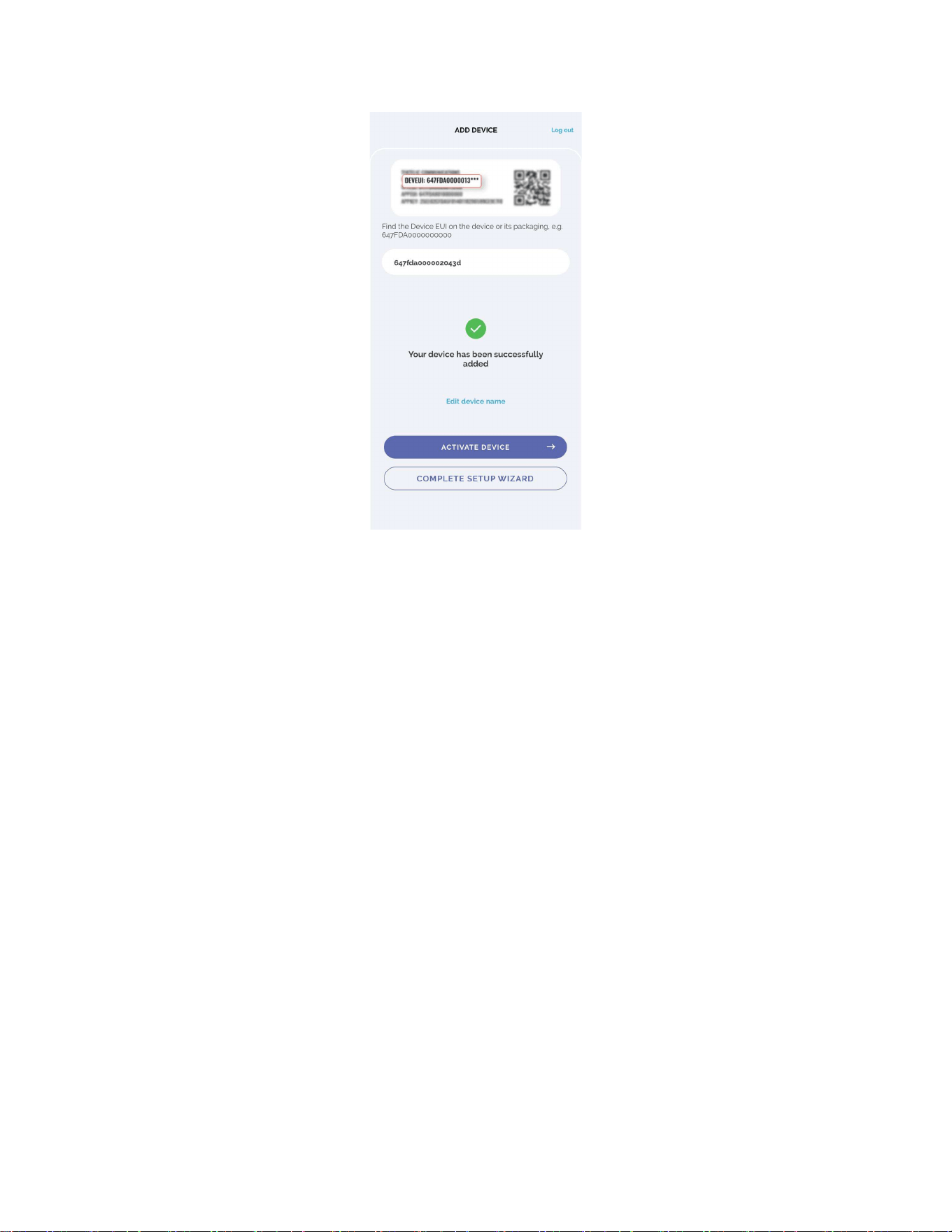
4.6.3.2.4. Editing device
After successfully add a device, can change its name by clicking on "Edit device name" or go
further to the activate device by clicking on the "ACTIVATE DEVICE" button.
Note: The Device Name should be minimum 3 and maximum 255 characters long.
Note: The Device Name should only contain Latin letters, numbers and special characters: e.g., !
@ # ? ].
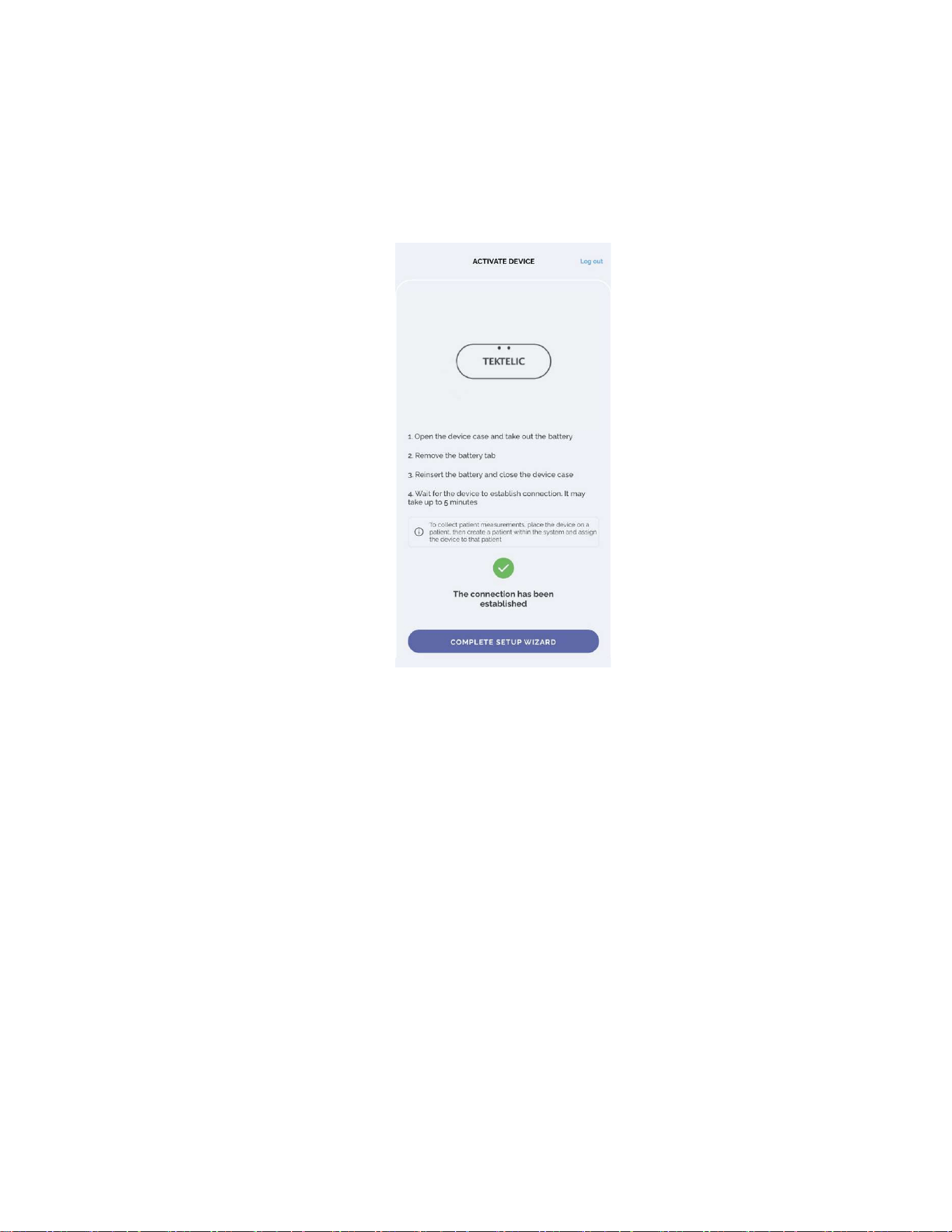
4.6.3.3. Activate device and complete setup wizard
For device activation:
1. Open the device case and take out the battery.
2. Remove the battery sticker.
eBeat
Instructions for Use
T0008
38
3_IFU
Version
1
.
0
TEKTELIC Communications Inc.
Page
39
of
85
3. Reinsert the battery and close the device case.
4. Wait for the device to start collecting the data. It may take up to 5 minutes. After
completing the device activation, will receive an “The connection has been established”
message and you can complete setup wizard by clicking on the "COMPLETE SETUP
WIZARD" button.
Figure 4-14: Successfully activate device view
⚠ If after 5 minutes the device does not pass the Internet connection stage, you will receive an
error screen and can restart the process by clicking on the "TRY AGAIN" button.
After successfully completing all the steps and by clicking on the "COMPLETE SETUP WIZARD",
will proceed to the main functionality of the application.
4.6.3.3.1. Skip Device Connection
If you do not want to activate the device during this step, you can skip the device activation and
complete the Setup Wizard. To do this, click on the "COMPLETE SETUP WIZARD" button.
You will finish the Setup Wizard without activating the device. This option allows you to
complete the setup process and return later to activate the device when needed.
eBeat
Instructions for Use
T0008
38
3_IFU
Version
1
.
0
TEKTELIC Communications Inc.
Page
40
of
85
Figure 4-15: Skip device internet connection view
Note: If you skip the device activation, the device will not start transmitting data until you
perform the device activation.
4.6.4. Manage Patient
The "Patient" page allows the user to manage patients (view device data, change patient
information and delete patients).
4.6.4.1. Adding new patient
After at least one device and one gateway have been added to the application, a new patient
can be created and assigned a device.
To add a new patient in the app, follow these 4 simple steps:
1. Tap the "+" icon
Tap the "+" icon in the lower right corner of the screen to begin.
2. Scan or enter the patient’s ID
Scan the patient’s QR code, or tap "QR is not available" to manually enter the patient’s Medical
ID (an internal identifier used in your organization), then tap "Next".

eBeat
Instructions for Use
T0008
38
3_IFU
Version
1
.
0
TEKTELIC Communications Inc.
Page
41
of
85
Note: The Patient QR code may contain any combination of letters and/or numbers that
uniquely identifies the patient. The specific format may vary depending on the hospital or
healthcare system.
3. Scan or select a device
Scan the QR code of the device, or tap "QR is not available" and select a device from the
dropdown list of previously added ones. Tap "Next" to continue.
4. Enter patient details
Enter the first name, last name, age, and gender. Optionally, set threshold values for
measurements.
Note: Pulse and Respiration Rate thresholds must be entered as whole numbers. Skin
Temperature thresholds can include decimal values; use a dot (.) as the decimal separator.
If everything is correct, tap "Submit" to complete patient creation. If changes are needed, tap
"Back" to edit the information.
Note: The device data screen updates every minute. Please wait at least one minute for the
data to appear.
4.6.4.2. Editing patient information
To edit patient information such as the first name, last name, or measurement thresholds:
1. Select the patient’s card.
2. Go to the “Information” section.
3. Tap the edit icon in the lower right corner of the screen.
Make the necessary changes and click the “SAVE” button to apply the updates.
4.6.4.3. Delete Patient
To delete a patient:
1. Select the patient’s card.
2. Click on the corresponding trash can icon in the right-top corner of the screen.
3. Confirm deleting by clicking on “OK”.
Note: The history of data for patient after its removal will also be deleted.
eBeat
Instructions for Use
T0008
38
3_IFU
Version
1
.
0
TEKTELIC Communications Inc.
Page
42
of
85
4.6.4.4. Patient Device Data
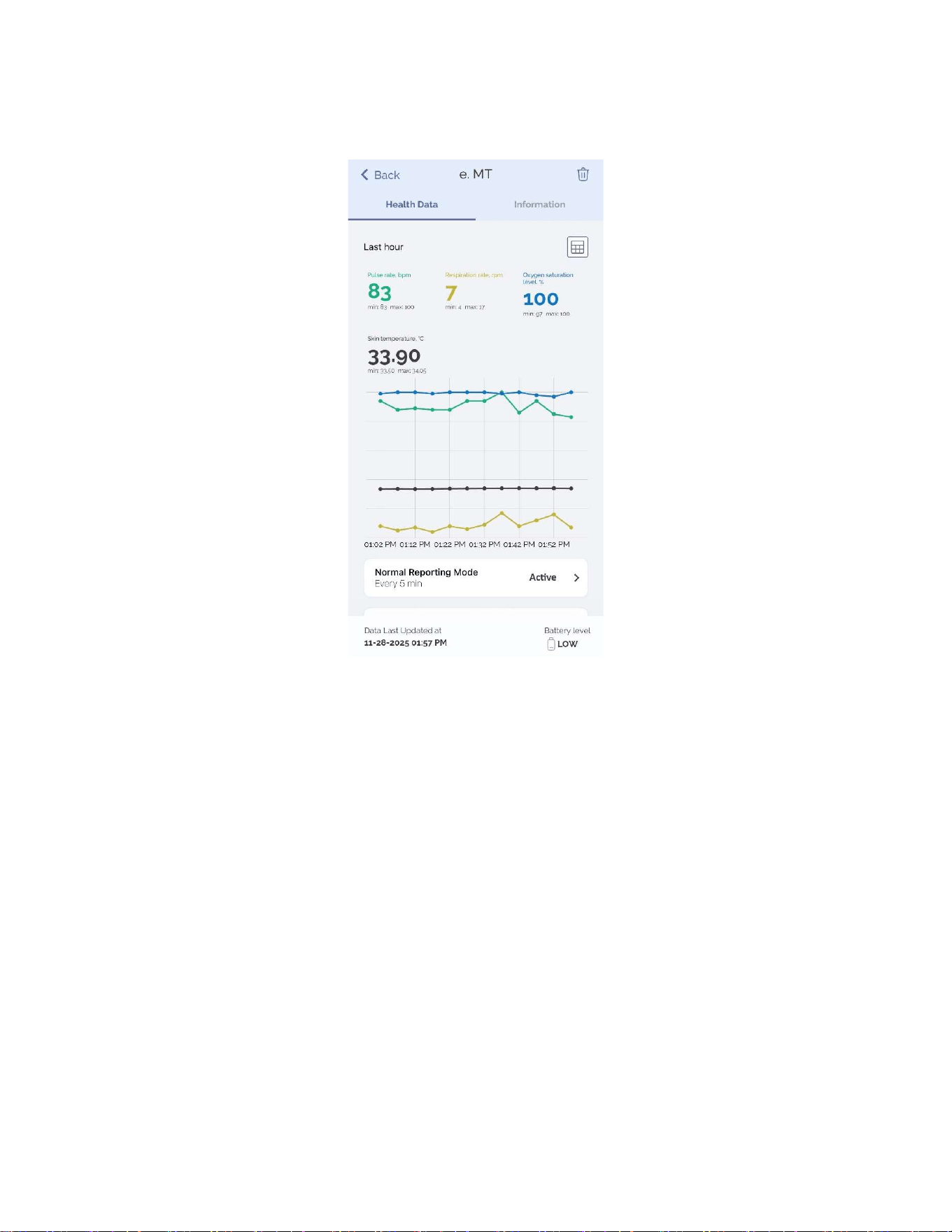
Figure 4-16: View of patient data reported from the eBeat device
After creating a patient, you can view their device-reported data by selecting the patient’s card.
The screen will automatically update to reflect new values reported by the device.
Above the graph, the most recently received value for each parameter within the past hour is
shown. Next to each parameter, the minimum and maximum values received during that hour
are also displayed.
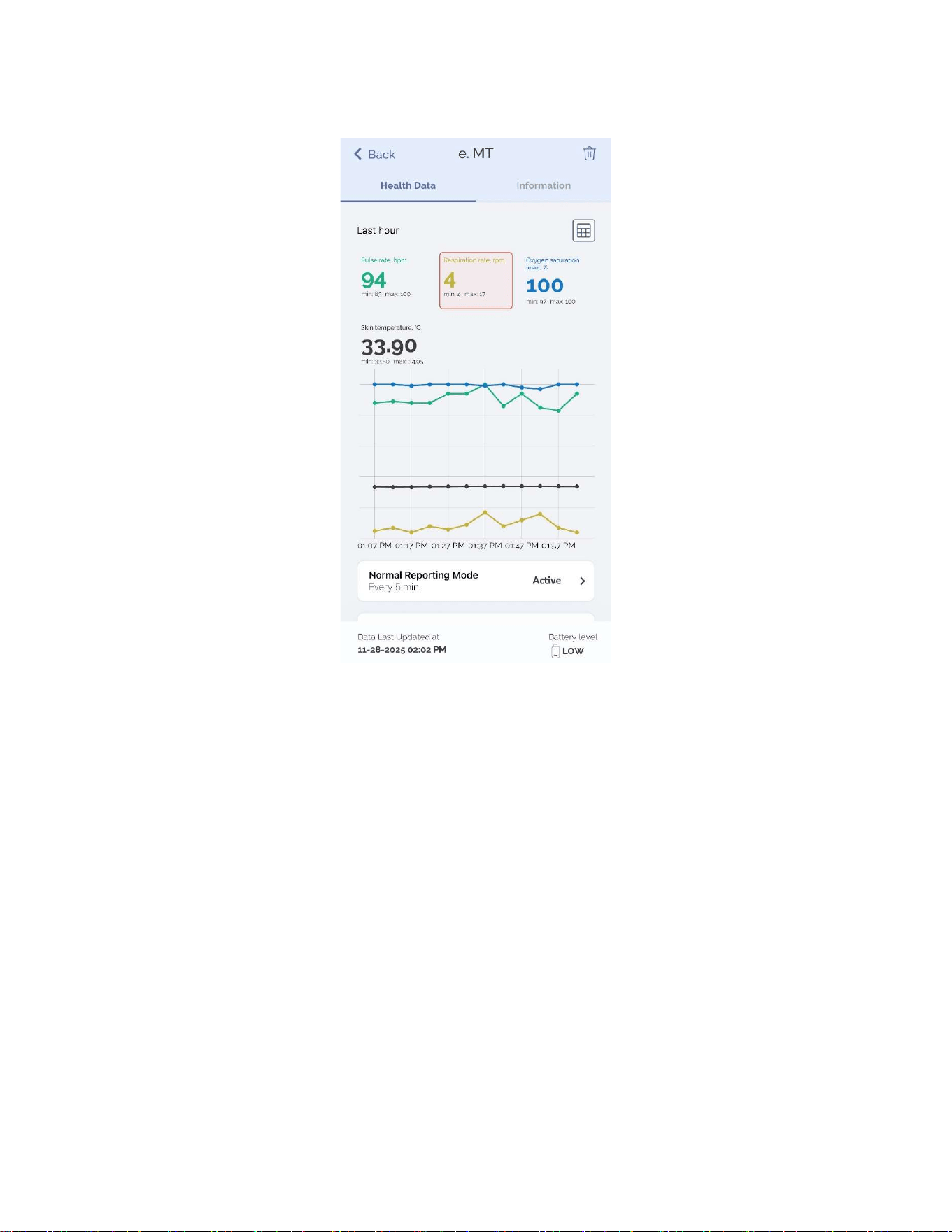
If a reported value for pulse rate, skin temperature, respiration rate, or SpO
2
falls outside the
set thresholds, it will be highlighted in red in the Last Hour view.
Also, the corresponding values outside the established thresholds are highlighted in red in table
view screen.
eBeat
Instructions for Use
T0008
38
3_IFU
Version
1
.
0
TEKTELIC Communications Inc.
Page
43
of
85
Figure 4-17: Highlighting patient’s thresholds
4.6.4.4.1. View device data
After the patient card is opened, you can view the latest data from the device. The eBeat device
reports skin temperature, pulse rate, respiration rate, SpO
2
, last report time, as well as the
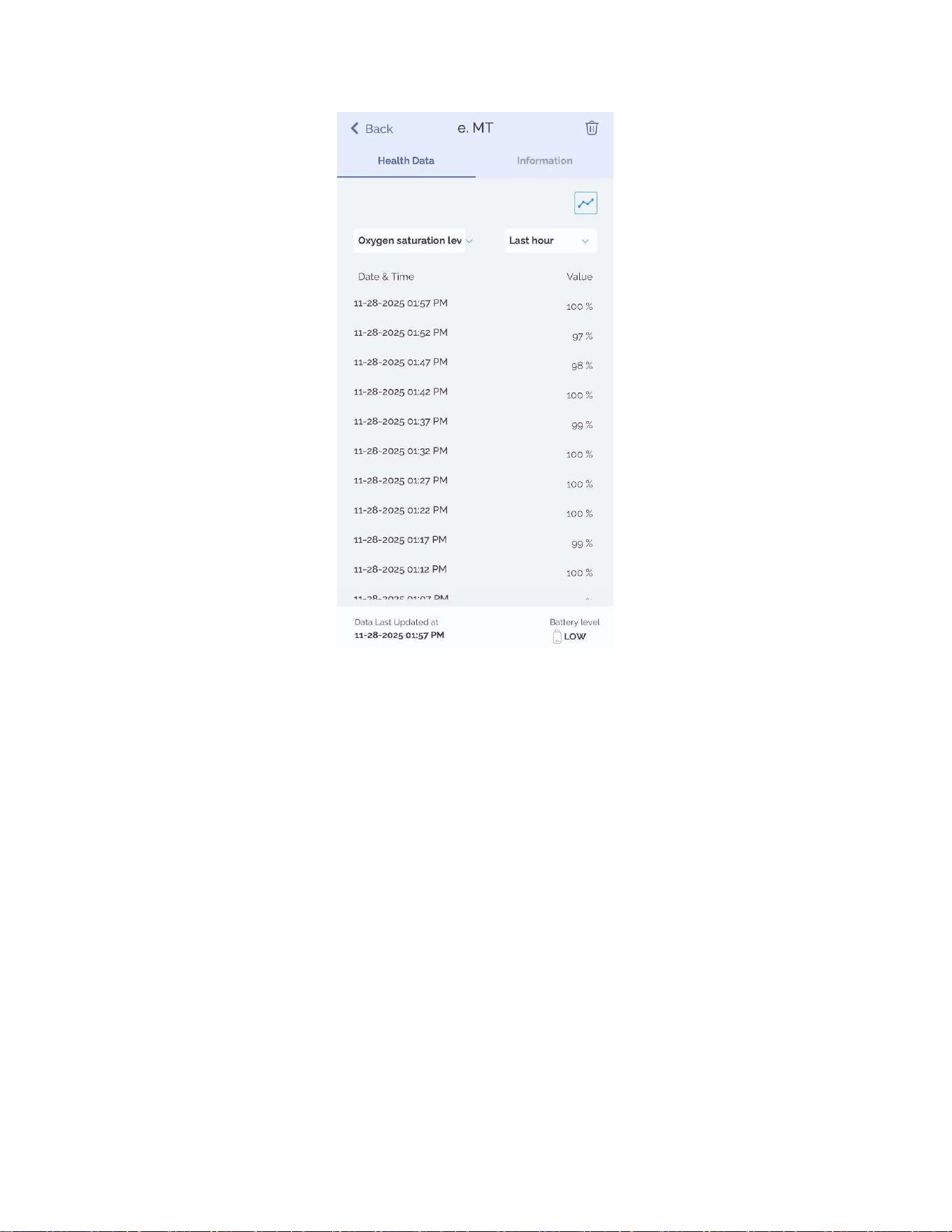
battery level of the device itself. To view data for a certain period, you must click on the table
icon in the upper right corner of the last measurement data. In Figure 4-18 below, skin
temperature is used as an example.
eBeat
Instructions for Use
T0008
38
3_IFU
Version
1
.
0
TEKTELIC Communications Inc.
Page
44
of
85
Figure 4-18: Data history screen
Clicking on the desired parameter will take you to the data history screen for that parameter.
You can customize the period of data display using the dropdown selector in the upper right
corner of the screen. You can select two main periods – last hour (which is set by default after
opening the history screen) and last 24 hours.
You can also customize measurement display using the dropdown selector in the upper left
corner of the screen. You can select five measurements – pulse rate (which is set by default
after opening the history screen), skin temperature, respiration rate, SpO
2
, and heart rate
variability.
For return to viewing measurement data for last hour, click on chart icon in the upper right
corner above the selection period of data display.

eBeat
Instructions for Use
T0008
38
3_IFU
Version
1
.
0
TEKTELIC Communications Inc.
Page
45
of
85
4.6.4.4.2. Reporting mode setting
New data from the device will be received after the period set in the device settings. By default,
Normal Reporting Mode is set with a reporting period of 5 minutes when worn.
The Normal Reporting Mode interval can be customized anywhere from every 2 minutes to
every 60 minutes, depending on user requirements. This can be changed by clicking on the
configuration icon and entering the desired reporting period.
1. Click on the corresponding icon.
2. Set the report value in minutes (minimum value 2, maximum value 60).
3. Confirm the selected value clicking "Save" button.
The user can also increase the device data reporting speed to every 1 minute by switching on
the Enhanced Reporting Mode (by clicking on the “Enhanced Reporting Mode button”, turning
it purple).
4.6.5. Manage Gateways
The "Gateways" page allows you to manage gateways (view details, add new gateway, change
gateway name and delete gateways).
You can open the “Gateways” page by clicking on the corresponding icon in the top menu.

eBeat
Instructions for Use
T0008
38
3_IFU
Version
1
.
0
TEKTELIC Communications Inc.
Page
46
of
85
Figure 4-19: Gateway page view
4.6.5.1. View Gateway details
To check the detailed information about your gateway, simply click on gateway in the table and
the system will open the detailed view where you can see the gateway details, its ID, model and
name.
eBeat
Instructions for Use
T0008
38
3_IFU
Version
1
.
0
TEKTELIC Communications Inc.
Page
47
of
85
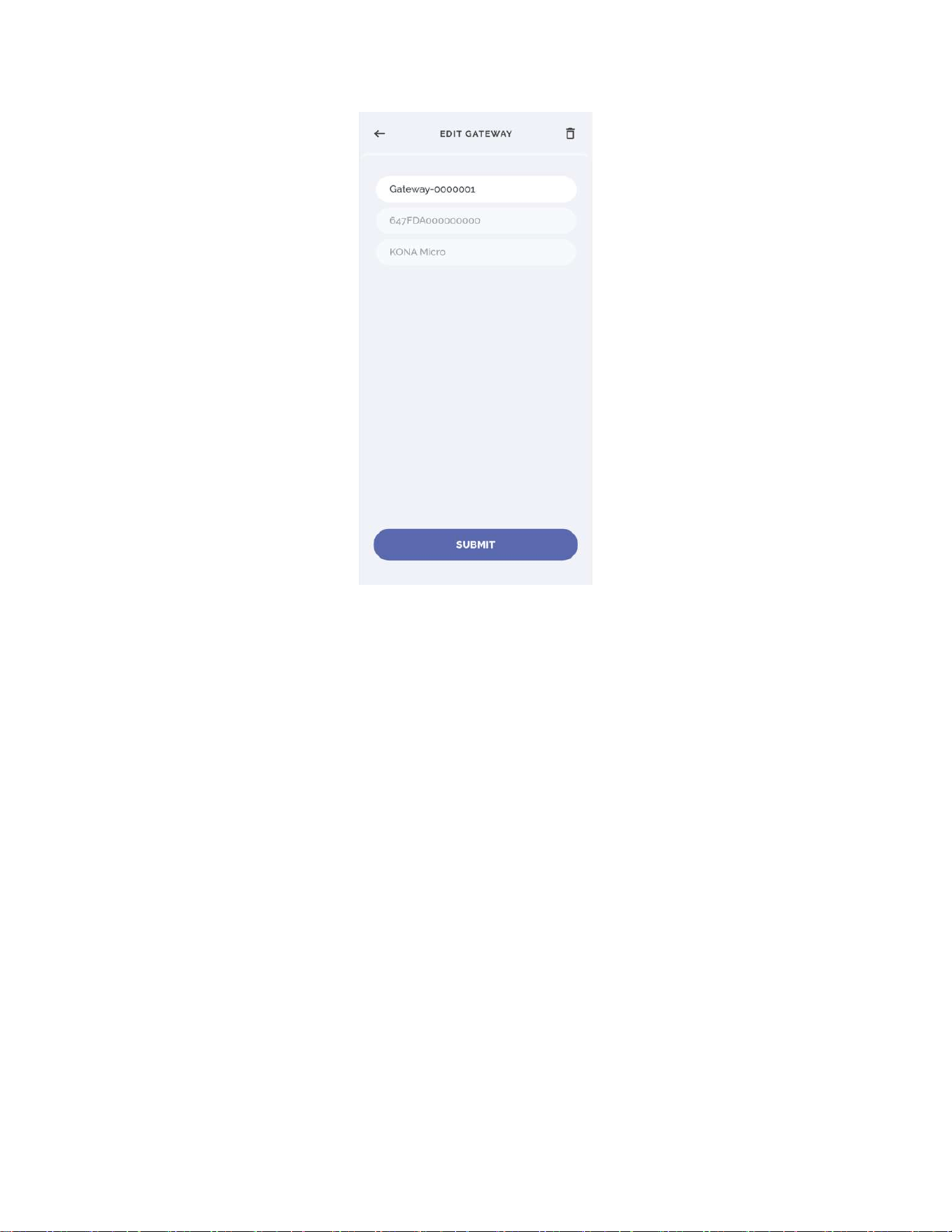
Figure 4-20: Gateway details view
4.6.5.2. Gateway editing
For editing gateway name:
1. Click on name field.
2. Enter new gateway name that does not repeat with an already existing name.
3. Click on the “SUBMIT” button. After changing the name of the gateway, a pop-up
message will appear.
Note: The Gateway Name should be minimum 3 and maximum 255 characters long.
Note: The Gateway Name should only contain Latin letters, numbers and special characters:
e.g., ! @ # ? ].
4.6.5.3. Add new gateway
To add a new gateway, click on the plus icon (in the lower right corner of the screen) and follow
the instructions in the Adding a Gateway section, described above. Unlike adding a gateway
using the setup wizard, you cannot immediately set up the Internet connection for your

eBeat
Instructions for Use
T0008
38
3_IFU
Version
1
.
0
TEKTELIC Communications Inc.
Page
48
of
85
gateway. Instead, you can add another existing gateway by clicking on 'Add one more gateway
+' or finish and return to the gateways page by clicking the 'Finish' button.
4.6.5.4. Gateway deleting
To delete a gateway that already exists, simply select the corresponding icon in the right-top
angle on gateway details screen you would like to delete.
⚠ After gateway deleting, all data transmissions from devices that were in coverage of the
gateway, will be disrupted.
4.6.6. Manage devices
The "Manage Devices" page allows the user to manage devices (view details, change device
name, add new device and delete devices).
You can open the “Manage Devices” page by clicking on the corresponding icon in the top
menu.
4.6.6.1. View device details
To check the detailed information about your device, simply click a record in the table and the
system will open the detailed view where you can see the device details, its id, type and name.
4.6.6.2. Device editing
For editing device name:
1. Click on name field.
2. Enter new device name that does not repeat with an already existing name.
3. Click on the “SUBMIT” button. After changing the name of the device, a pop-up
message will appear.
Note: The Device Name should be minimum 3 and maximum 255 characters long.
Note: The Device Name should only contain Latin letters, numbers and special characters: e.g., !
@ # ? ].
4.6.6.3. Add new device
To add a new device, click on the plus icon (in the lower right corner of the screen) and follow
the instructions in the Adding Device section described above. Unlike adding a device to the

eBeat
Instructions for Use
T0008
38
3_IFU
Version
1
.
0
TEKTELIC Communications Inc.
Page
49
of
85
setup wizard, you cannot immediately set up the connection of your device but add another
existing device clicking on "Add one more device +" or finish and return to the devices list by
clicking on "Finish" button.
4.6.6.4. Device deleting
To delete a device that already exists, simply select the corresponding icon in the right-top
angle on device details screen you would like to delete.
To delete a device, you must delete the patient to which this device is attached.
⚠ The history of data from the device after its removal will also be deleted.
4.6.7. Account Settings
You can also change and customize your account settings, such as setting/changing your
account name and password and also account disabling.
You can open the Account settings by clicking on the corresponding icon in the top menu.
4.6.7.1. Forgot Password
To recover your password in the application, you must:
1. Proceed to login screen by opening the app.
2. Click on the "Forgot Password” button.
3. Enter the email address that you previously used to create an account.
4. Click on the “Reset password” button.
5. Check your email and find a message with confirmation code. If you do not see the
email in your inbox, please check your spam or junk folder.
6. Return to the App, enter confirmation code and tap on the "Continue" button.
7. Enter password and confirm password in the designated fields and click on “Submit”
button to set new password for your account.
Password should be at least 8 characters long with a mix of letters, numbers and
symbols.
8. If the code matches, a confirmation message will appear, indicating that your password
reset is successful.
9. Click “OK” button and log in to the application using your email and new password.

eBeat
Instructions for Use
T0008
38
3_IFU
Version
1
.
0
TEKTELIC Communications Inc.
Page
50
of
85
4.6.7.2. Change Name
To change the account name setting, click on "Not Specified" if the account name is not yet set,
or click on the previously entered name to change it.
4.6.7.3. Change Password
To change the account password:
1. Click on the "Change password" option.
2. Enter the old password, new password, and confirm the new password.
3. After clicking the "Save" button, your account password will be updated.
Note: Password should be at least 8 characters long with a mix of letters, numbers and
symbols.
4.6.7.4. Application settings
To select the appropriate units of measurement according to your preferences:
1. Select the desired unit (Metric or Imperial).
2. Click on the “Save” button.
Note: Metric unit is the default value when creating an account.
The Metric system uses degrees Celsius (°C) to measure skin temperature. The Imperial system
uses degrees Fahrenheit (°F).
4.6.7.5. Logout
To logout from an app, click on the corresponding icon in the upper right corner of the screen.
You can re-login to your account by entering your email and password.

eBeat
Instructions for Use
T0008
38
3_IFU
Version
1
.
0
TEKTELIC Communications Inc.
Page
51
of
85
4.7. TEKTELIC eDoctor Web Application Functionality
TEKTELIC eDoctor Web is a user-friendly solution for real-time monitoring of patients' vital signs
and an ideal choice for remote health monitoring and tracking any changes in medical
conditions. The eDoctor Web is designed to streamline access to eBeat measurements, offering
users continuous control over their health parameters.
TEKTELIC eDoctor Web is your way to facilitate routine medical processes, make healthcare
accessible, and increase patients’ safety in remote areas. To use the web application, go to the
TEKTELIC eDoctor web and log in.
4.7.1. User authorization
For authorization in the eDoctor web, you should:
1. Enter the email and password in the appropriate fields from a previously created
account in the mobile application.
2. Click on the "Log in" button.
Note: Once you have completed the profile setup, you can start exploring and using the
eDoctor web features and functionalities.
Note: In case of unsuccessful login to the web application, try to recheck and re-enter your
email and password.
4.7.2. Manage Patient
The "Patient" page allows you to manage patients (view patient data, change patient
information and delete patients).
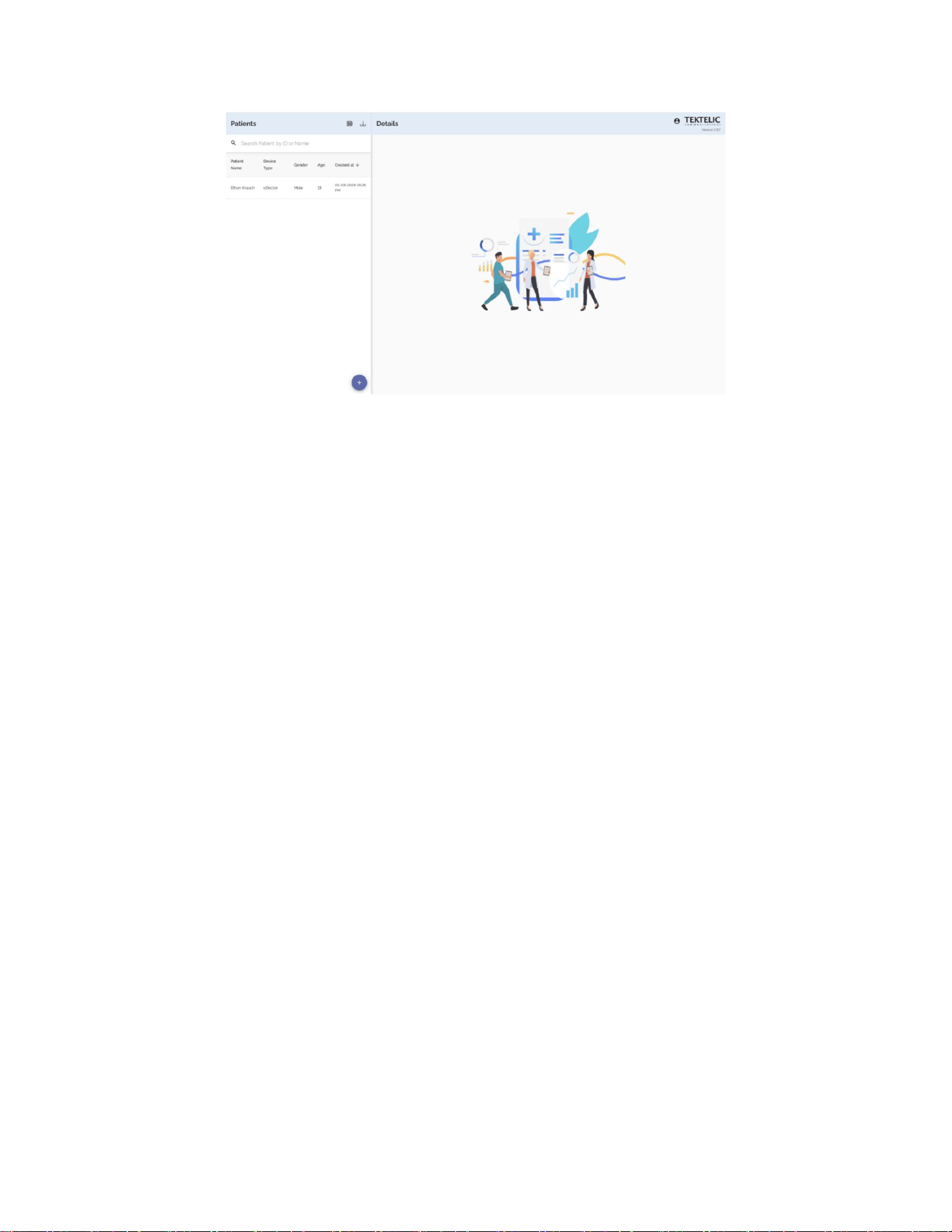
eBeat
Instructions for Use
T0008
38
3_IFU
Version
1
.
0
TEKTELIC Communications Inc.
Page
52
of
85
Figure 4-21: Patient page view
4.7.2.1. Adding new patient
After at least one device and one gateway have been added to the application, a new patient
can be created and assigned a device.
For adding a new patient, you need to follow 4 simple steps:
1. Click on the "+" icon in the bottom of the screen.
2. Fill in the patient's information (first name, last name, age, gender), fill in the threshold
fields for measurements (optional) and click "Next" button.
Note: Thresholds for pulse rate and respiration rate measurements can only contain
integer values, and thresholds for skin temperature measurement can contain both
integer and decimal values. To fill a decimal value, you should use only the dot symbol
3. Assign device for patient, selecting available device from dropdown list.
4. Carefully review the patient information you entered and if everything is correct and
click the “Submit” button to finish creating the patient. If you see that you have entered
incorrect data, then edit the patient's info.
4.7.2.2. Editing patient information
For editing patient information (first name, last name and measurements thresholds) select the
patient's card, then go to the "Details" block and click on the edit icon.
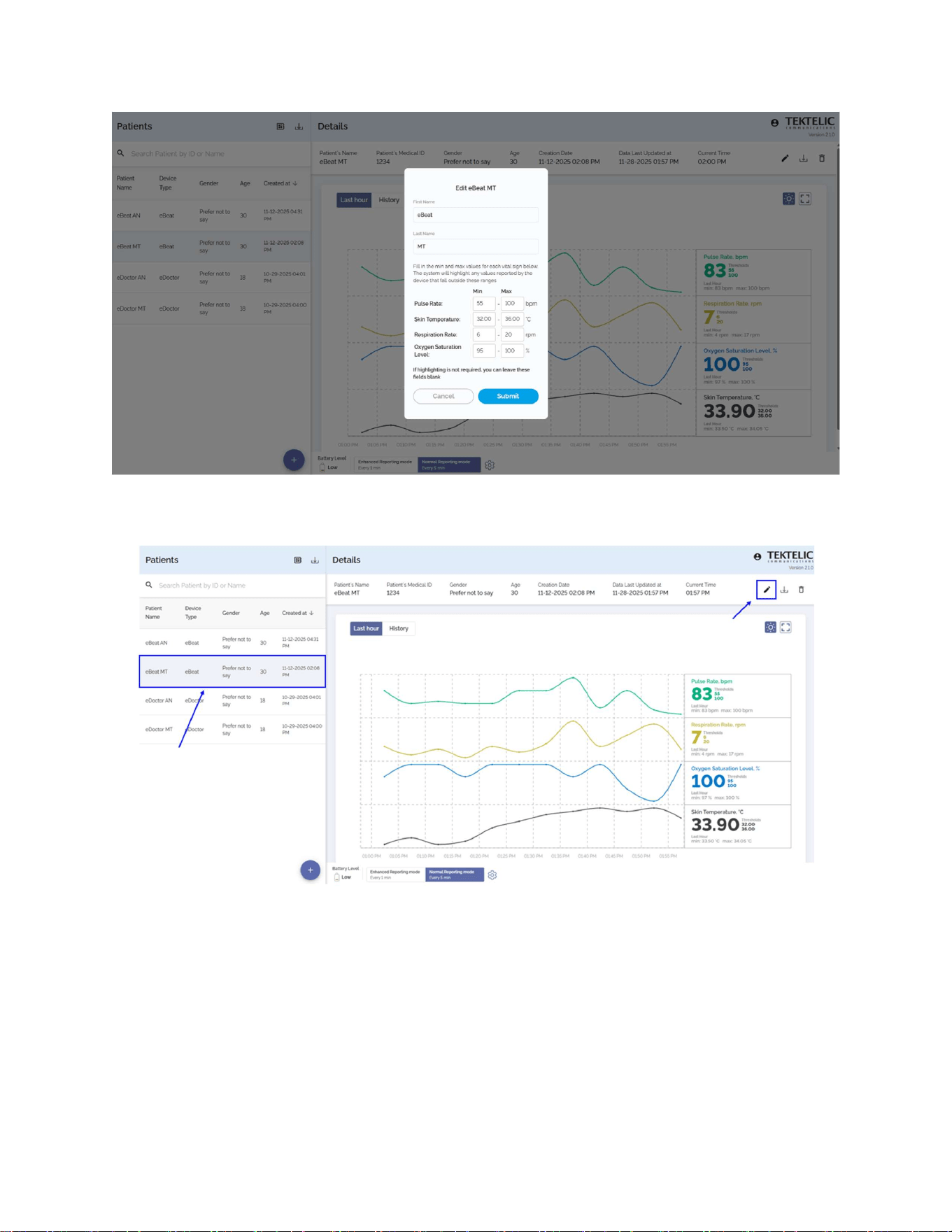
eBeat
Instructions for Use
T0008
38
3_IFU
Version
1
.
0
TEKTELIC Communications Inc.
Page
53
of
85
Figure 4-22: Editing patient info view
Figure 4-23: Selecting patient editing info view
Change first name, last name or measurements thresholds and click on “Submit” button.
4.7.2.3. Delete patient
To delete patient, simply select the patient's card, click on the corresponding icon in the right-
top corner of the screen and confirm deleting by clicking on "Submit".
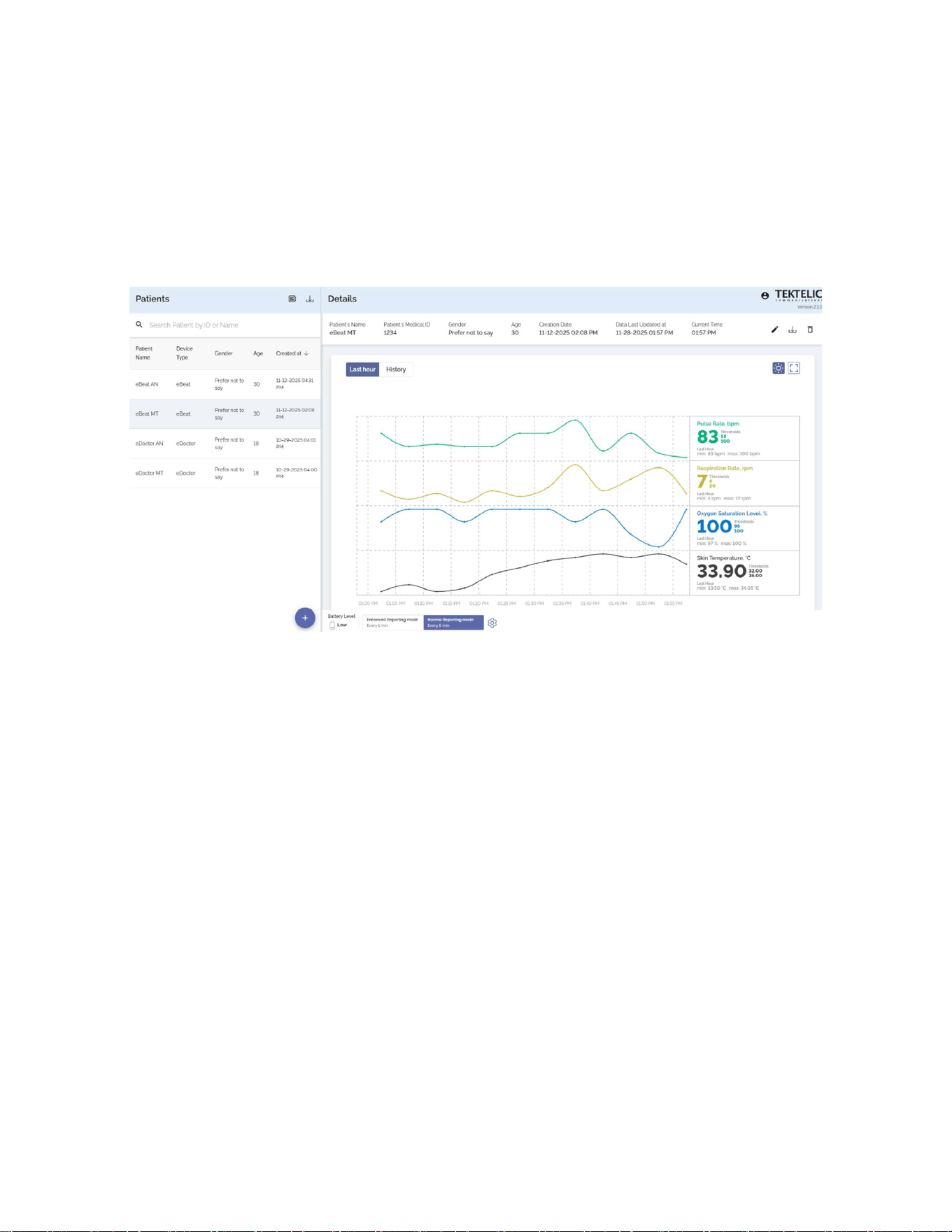
eBeat
Instructions for Use
T0008
38
3_IFU
Version
1
.
0
TEKTELIC Communications Inc.
Page
54
of
85
4.7.2.4. Patient device data
Once a patient is created, the Last Hour screen will open and display data from the device,
including the main report data for the eBeat device. The eBeat device report displays skin
temperature, pulse rate, respiration rate, SpO₂, the last report time, and the device’s battery
level.
Figure 4-24: Patient data from eBeat device view
The Last Hour screen displays data received over the last hour. The data will be updated on the
screen every minutes.
To the right of the graph, you can see the last received value of a specific parameter for the last
hour. Also, next to each parameter its minimum and maximum value obtained over the last
hour and the set threshold values are displayed.
If the obtained value for pulse rate, skin temperature, respiration rate, or SpO
2
measurements
is outside the established thresholds, the corresponding value is highlighted in red on the Last
Hour screen.
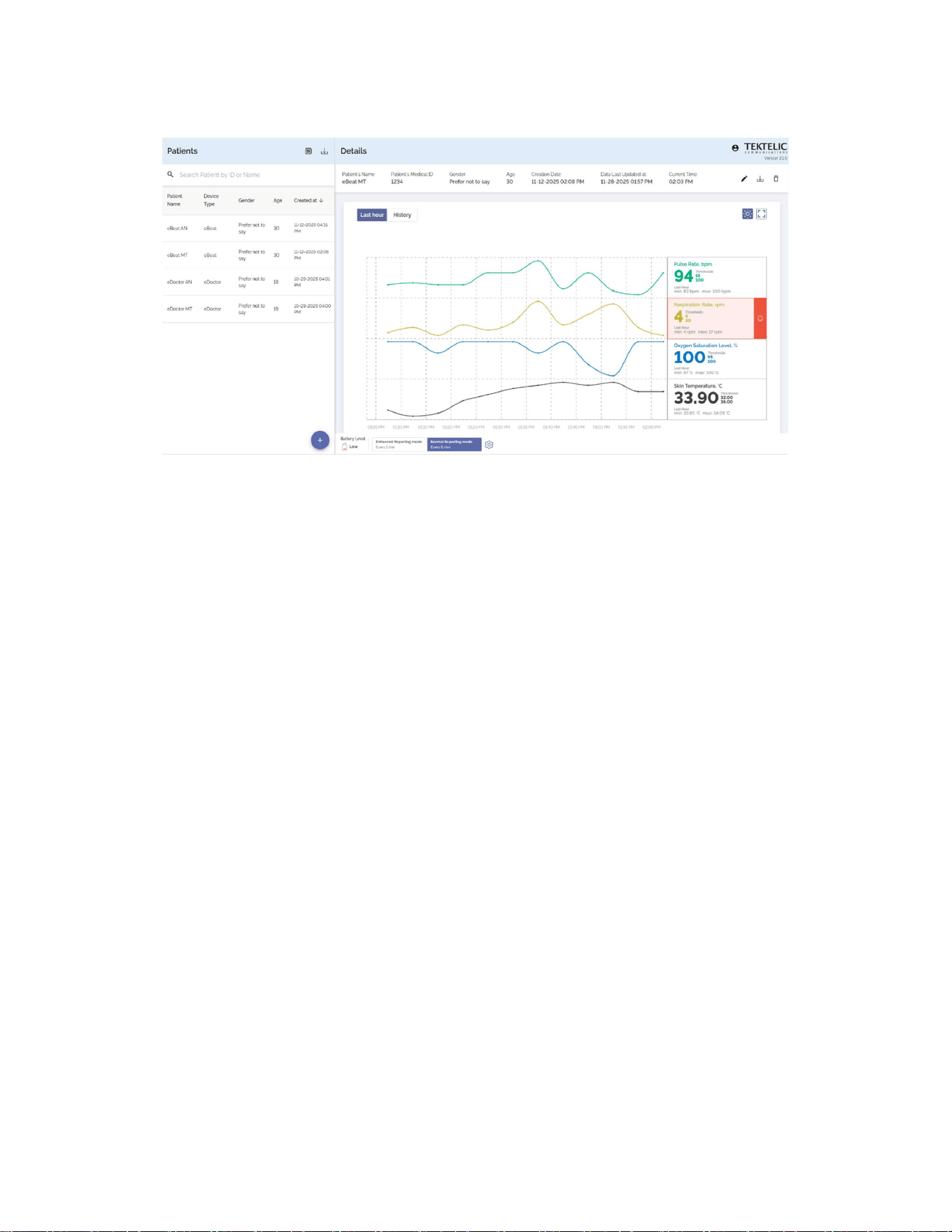
eBeat
Instructions for Use
T0008
38
3_IFU
Version
1
.
0
TEKTELIC Communications Inc.
Page
55
of
85
Figure 4-25: Highlighting patient’s thresholds
Also, the corresponding values outside the established thresholds are highlighted in red in table
view screen.
4.7.2.4.1. View device data
To view detailed information for the last three months, you need to go to the History screen.
To customize the information on the chart, select up to two measurements, the desired date
range for the last three months and the aggregation option.
Three aggregation options are available: by minutes, hourly, daily.
Per-minute aggregation displays all values of the selected measurement for the selected period.
Hourly aggregation displays the average received value per hour for the selected measurement
over the selected period.
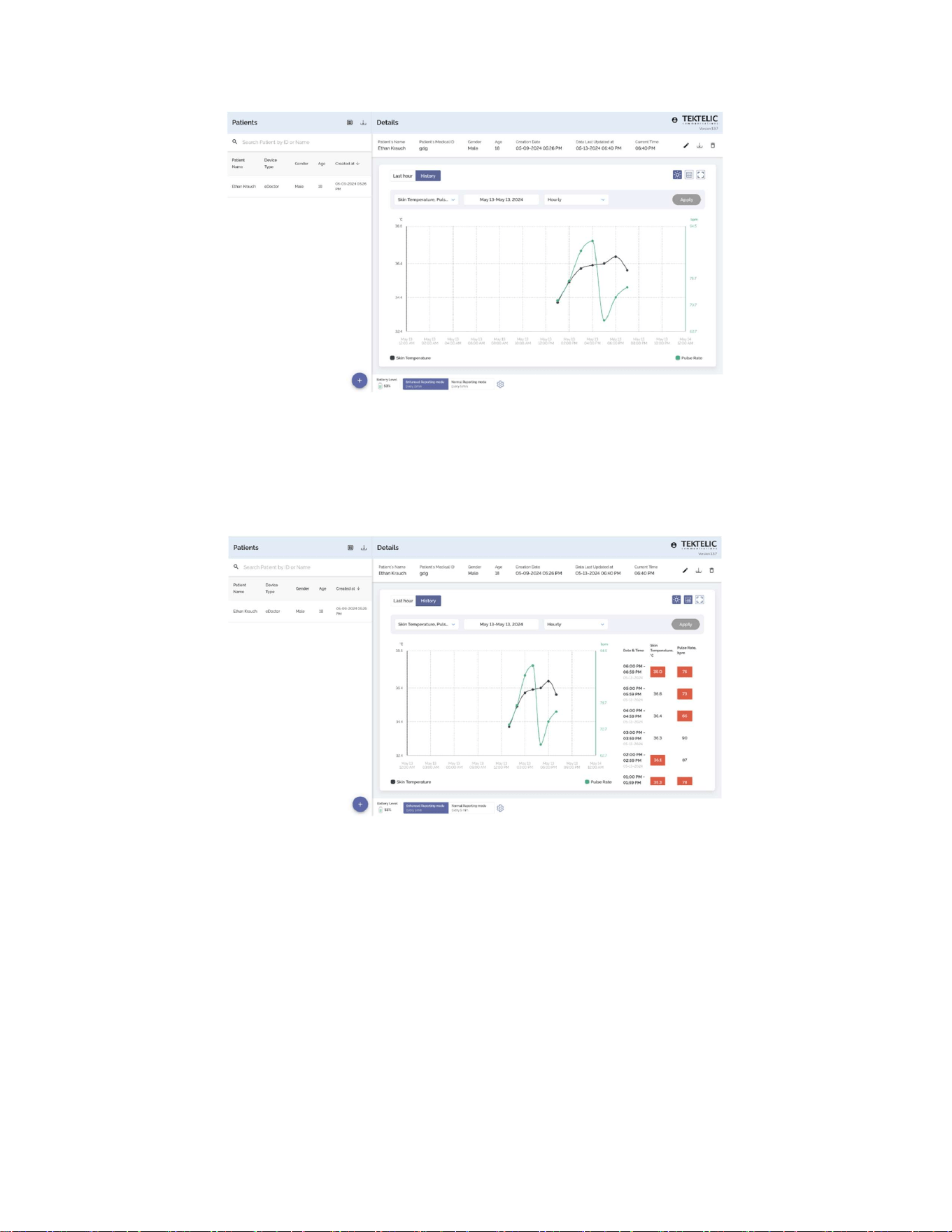
eBeat
Instructions for Use
T0008
38
3_IFU
Version
1
.
0
TEKTELIC Communications Inc.
Page
56
of
85
Figure 4-26: Data history chart view
Daily aggregation displays the average value received per day for the selected measurement
over the chosen time period.
Figure 4-27: Data history table view
The data history for the selected parameter is displayed in both table and chart views. You can
view the aggregated average (Avg) values for the selected period in the table or by hovering
over data points on the chart. Use the “Table View” button to toggle the table display on or off.
4.7.2.4.2. Reporting mode setting
New data from the device will be received after the period set in the device settings. By default,
Normal Reporting Mode is set with a reporting period of 5 minutes when worn.
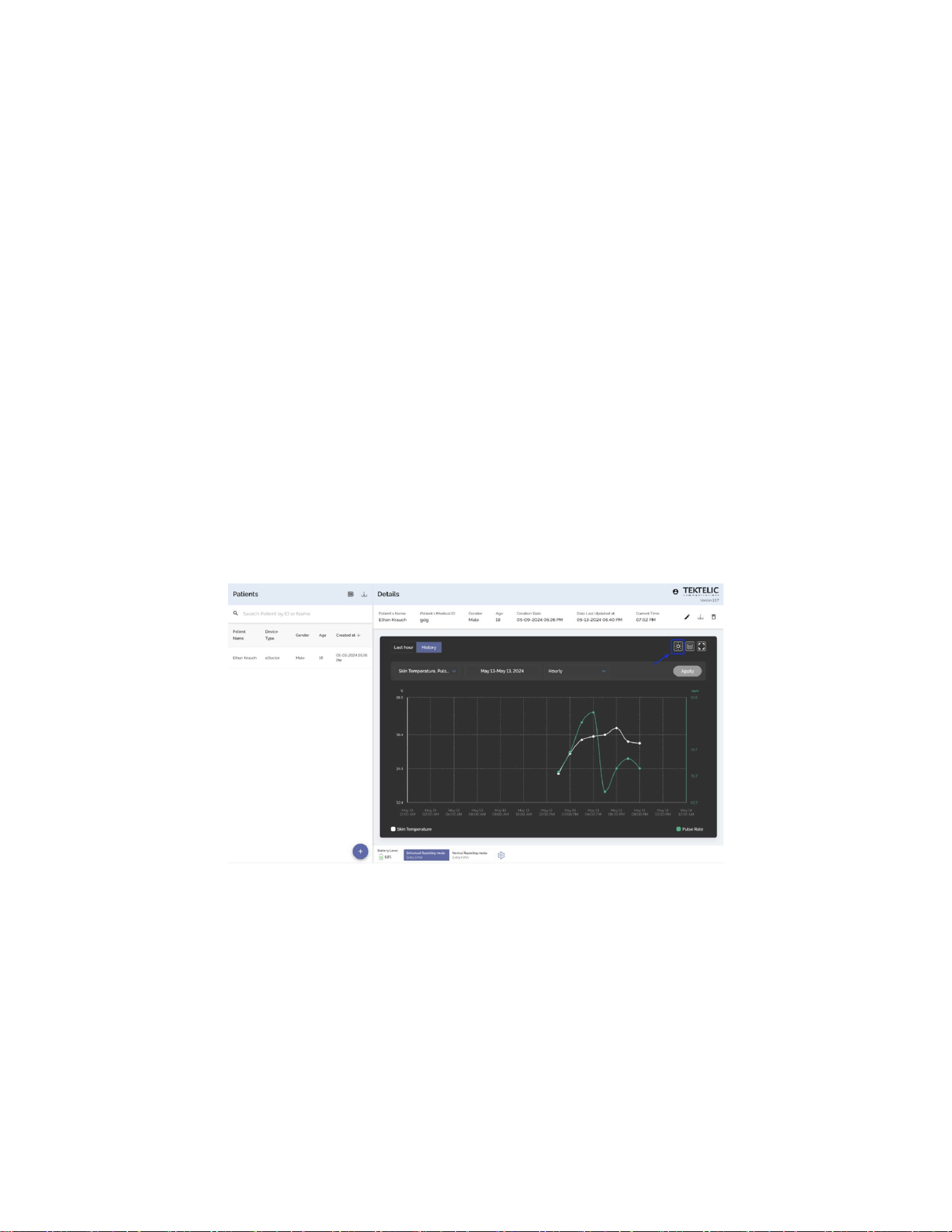
eBeat
Instructions for Use
T0008
38
3_IFU
Version
1
.
0
TEKTELIC Communications Inc.
Page
57
of
85
The Normal Reporting Mode interval can be customized anywhere from every 2 minutes to
every 60 minutes, depending on user requirements. This can be changed by clicking on the
configuration icon and entering the desired reporting period.
4. Click on the corresponding icon.
5. Set the report value in minutes (minimum value 2, maximum value 60).
6. Confirm the selected value clicking "Save" button.
The user can increase the device data reporting speed to every 1 minute by switching on the
Enhanced Reporting Mode (clicking on the “Enhanced Reporting Mode button”, turning it
purple).
4.7.2.4.3. Change theme for data visualization
To switch between light and dark themes for the visualized data, click on the corresponding
icon above the graph.
The theme change will be applied to the account in the web application.
Figure 4-28: Change theme for data visualization
4.7.2.5. Application settings
To select the appropriate units of measurement according to your preferences:
1. Click on the corresponding icon in the upper right corner of the screen and select
“Application settings”.
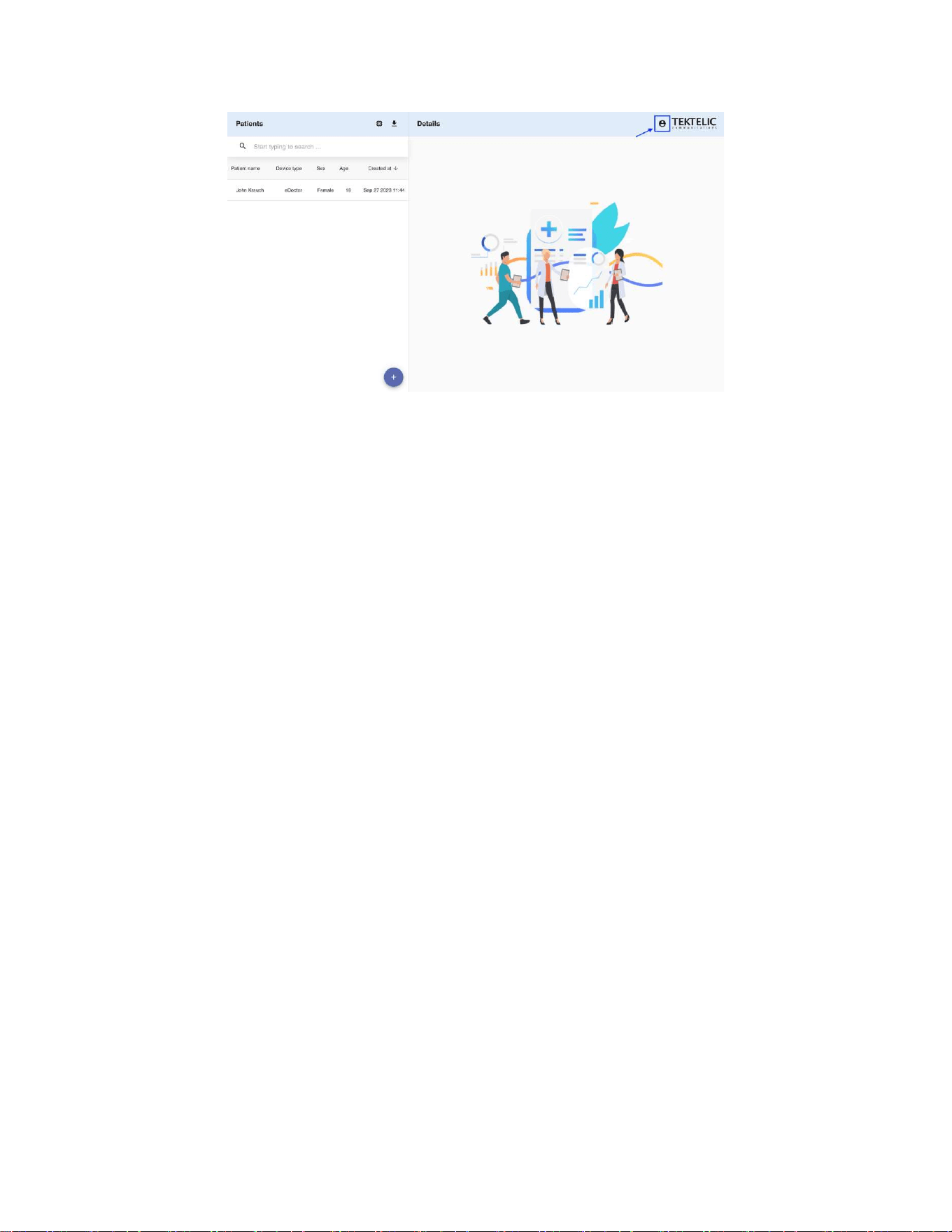
eBeat
Instructions for Use
T0008
38
3_IFU
Version
1
.
0
TEKTELIC Communications Inc.
Page
58
of
85
Figure 4-29: Account settings icon view
2. Select the desired unit (Metric or Imperial).
3. Click Save button.
Note: Metric unit is the default value when creating an account.
The Metric system uses degrees Celsius (°C) to measure skin temperature. The Imperial system
uses degrees Fahrenheit (°F).
4.7.2.6. Full screen mode
To open full-screen mode, click the corresponding icon above the graph. Full-screen mode is
available on both the “Last Hour” and “History” screens.
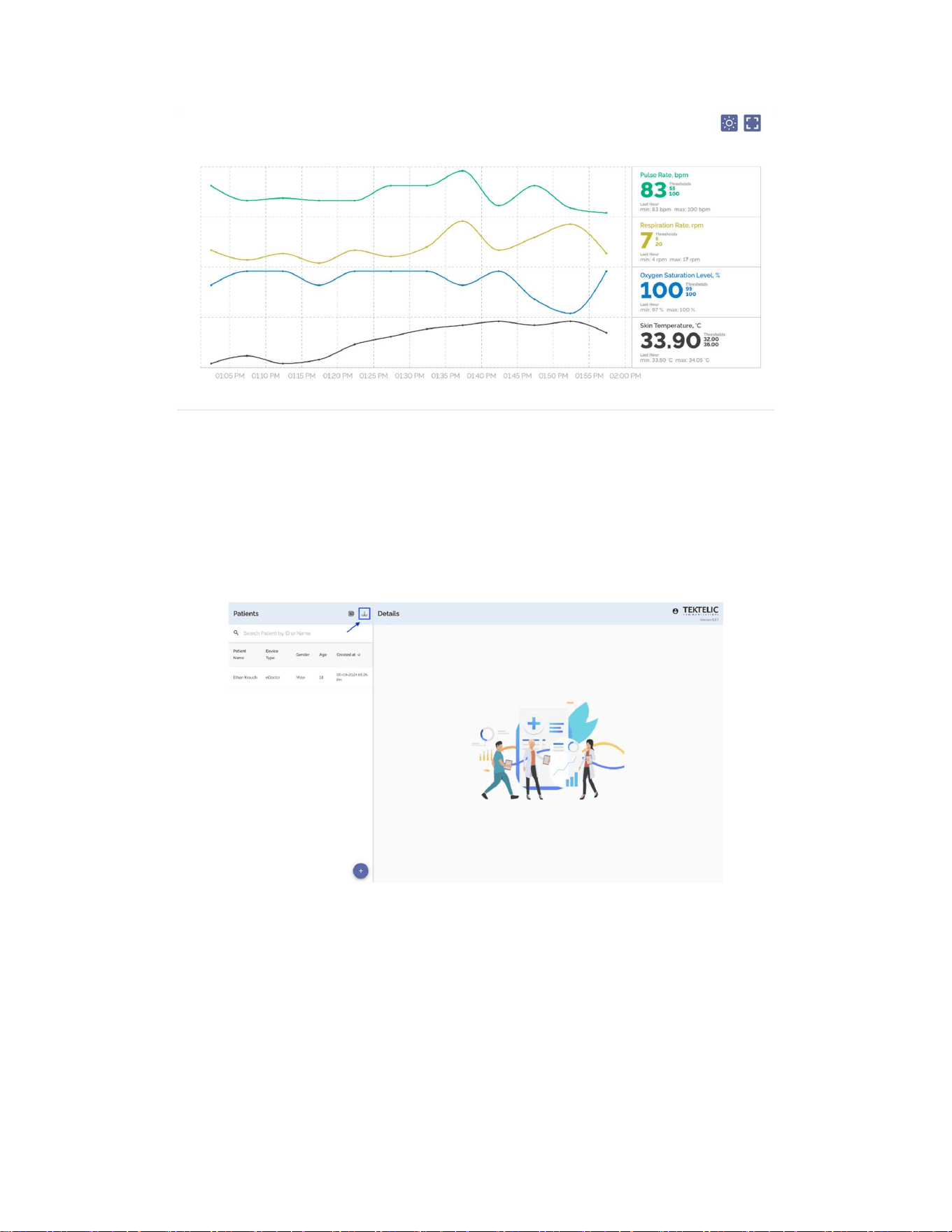
eBeat
Instructions for Use
T0008
38
3_IFU
Version
1
.
0
TEKTELIC Communications Inc.
Page
59
of
85
Figure 4-30: Full screen mode
4.7.2.7. Export patient’s data
To obtain a table with patient/patients' data, you can use data export to a csv file. This file
contains the history of the data from the patient's device and the patient’s personal data.
Figure 4-31: Export csv file with all patient’s data
To download the data of all patients into a csv file, use the corresponding icon above the list of
all patients.
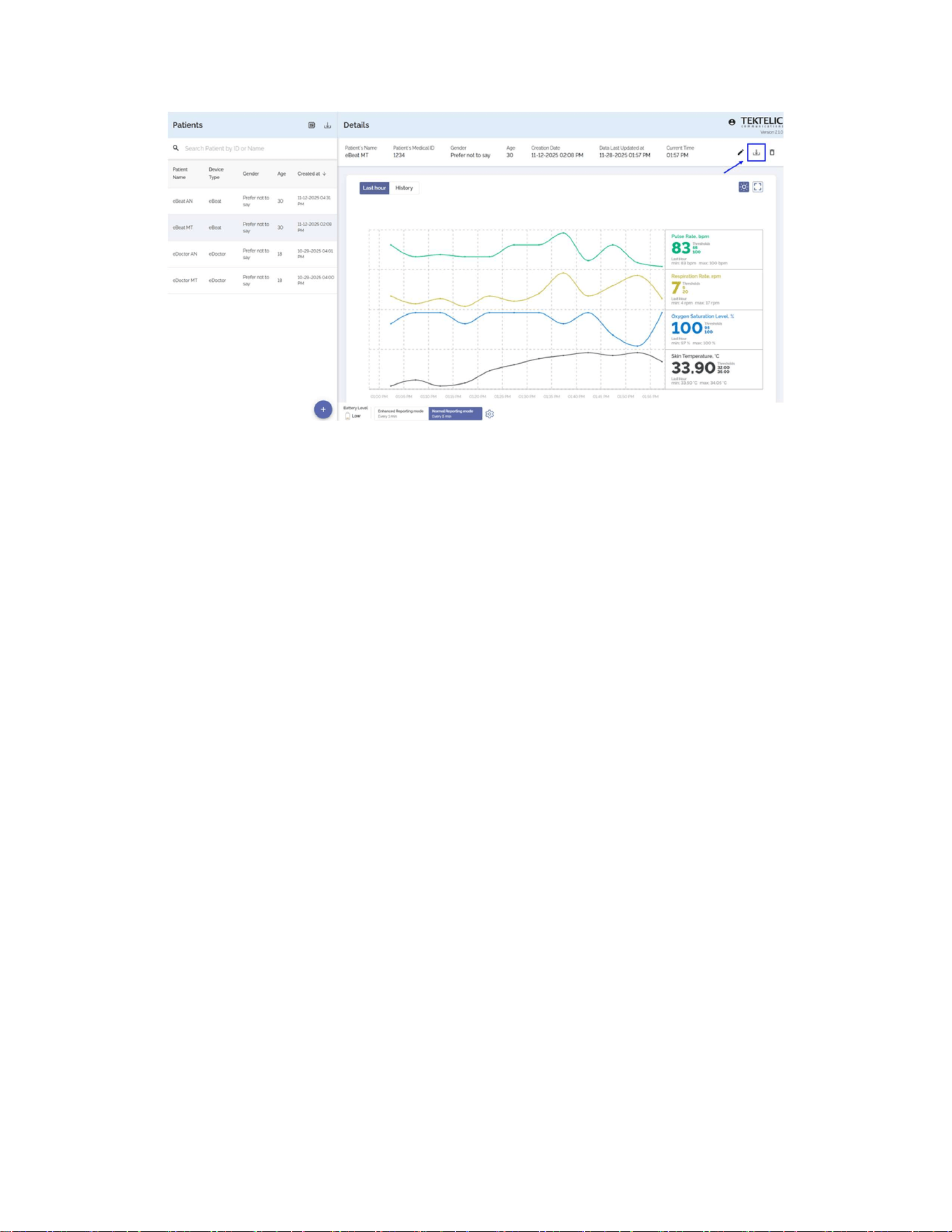
eBeat
Instructions for Use
T0008
38
3_IFU
Version
1
.
0
TEKTELIC Communications Inc.
Page
60
of
85
Figure 4-32: Export csv file of a specific patient’s data
To download the data of a specific patients into a csv file, select the needed patient's card and
use the corresponding icon in the patient details block.
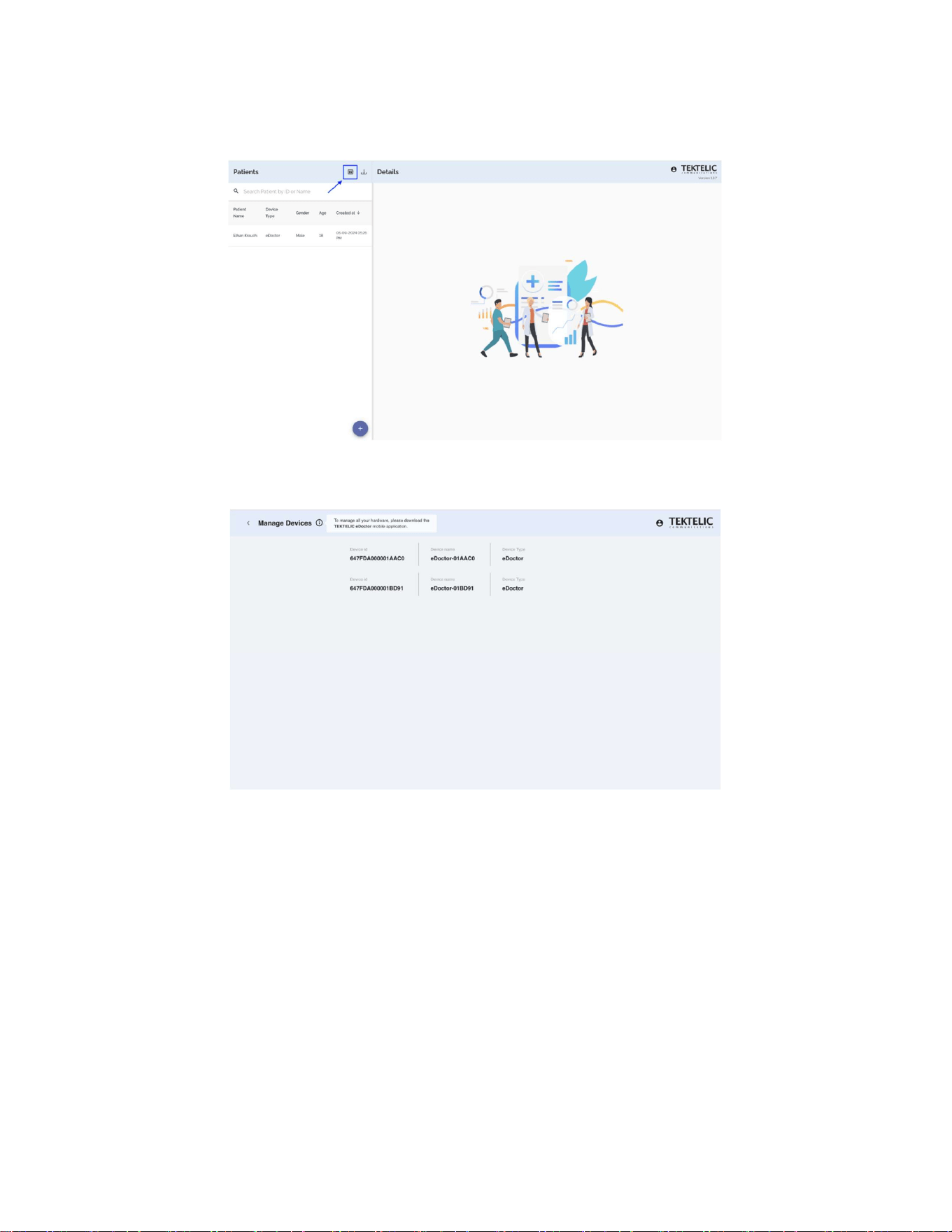
eBeat
Instructions for Use
T0008
38
3_IFU
Version
1
.
0
TEKTELIC Communications Inc.
Page
61
of
85
4.7.3. Manage Devices
Figure 4-33: Devices list
Figure 4-34: Manage devices list
The "Manage Devices" page allows you to view devices on account.
To manage all your hardware, please download the TEKTELIC eDoctor mobile application.
You can open the “Manage Devices” page by clicking on the corresponding icon in the top
menu.
4.7.4. Forgot Password
To recover your password in eDoctor web, you must:
1. Proceed to login screen by opening the web application.

eBeat
Instructions for Use
T0008
38
3_IFU
Version
1
.
0
TEKTELIC Communications Inc.
Page
62
of
85
2. Click on the "Forgot Password” button.
3. Enter the email address from the account you are trying to log in to.
4. Click on the “Reset password” button.
5. Check your email and find a message with confirmation code. If you do not see the
email in your inbox, please check your spam or junk folder.
6. Return to the web application and enter verification code.
7. Enter new password and confirm password in the designated fields and click on “Submit
new password” button to set new password for your account.
Note: Password should be at least 8 characters long with a mix of letters, numbers and
symbols.
8. After entering all fields correctly, the password will be successfully changed, and you will
be redirected to eDoctor web login screen.
9. If the verification code entered was incorrect, a corresponding pop-up notification will
appear.
4.7.5. Logout
To logout from eDoctor web, click on the corresponding icon in the upper right corner of the
screen (see Figure 4-35 below).
You can re-login to your account by entering your email and password.
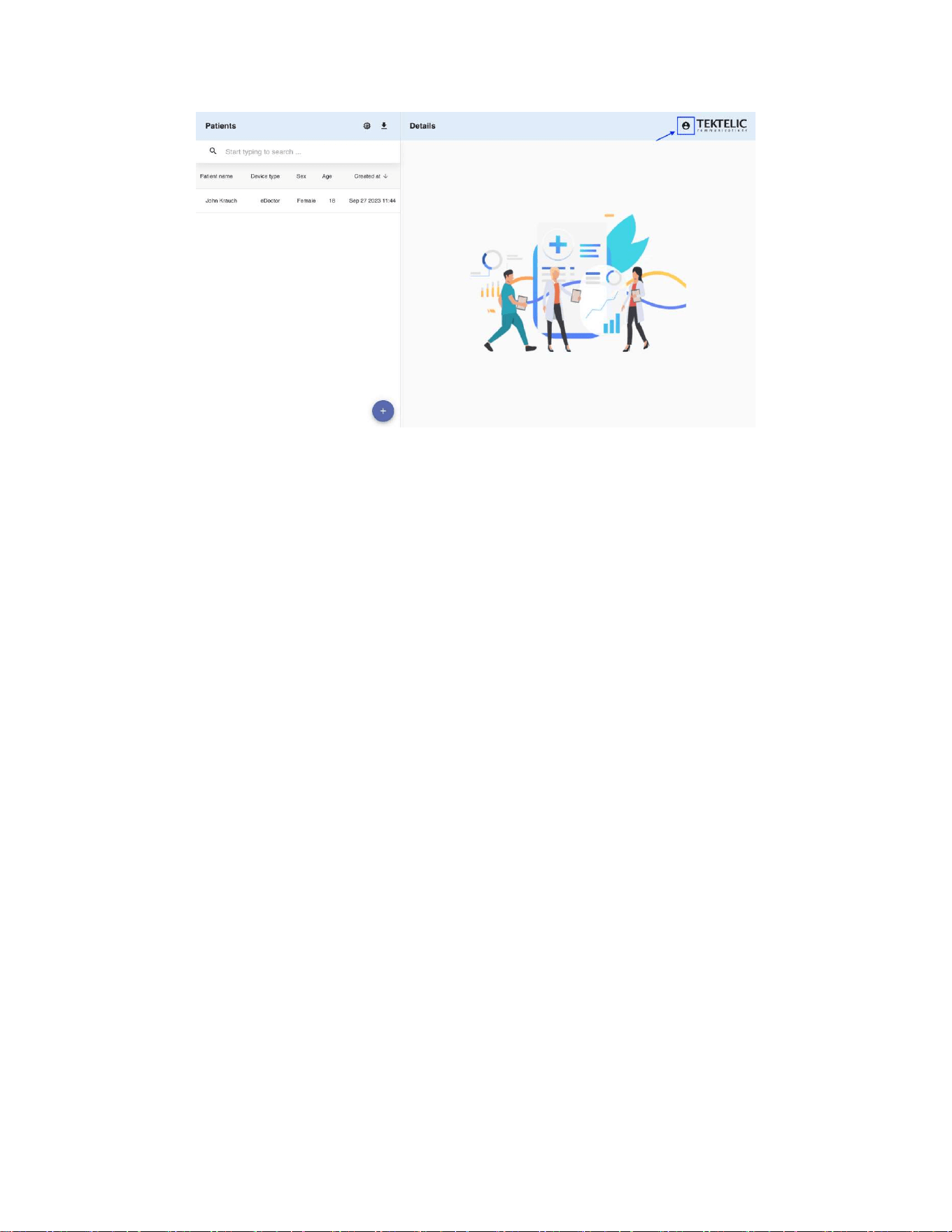
eBeat
Instructions for Use
T0008
38
3_IFU
Version
1
.
0
TEKTELIC Communications Inc.
Page
63
of
85
Figure 4-35: Logout from eDoctor web application
4.8. Notifications
Several types of notifications can be configured and displayed in the application. These
notifications relate to the push-button assistance request, device wear status (device not worn
or worn incorrectly), measurement thresholds, and poor SQI conditions. Each notification type
and its meaning are described below.
4.8.1. Push-Button Assistance Request
When the push-button on the eBeat device is pressed and the corresponding uplink is received
by the application, the patient and their data page are highlighted to indicate that the patient
has requested assistance. If notifications are enabled, this alert will also appear in the
notification section. A viewer of the application can acknowledge the notification, which
removes the alert from the patient’s page and indicates to other viewers that the patient has
already been assisted.
4.8.2. Device Wear Status
Two types of notifications can be generated based on the device’s wear status: Device Not
Being Worn and Device Being Worn Incorrectly.
Device Not Being Worn: Triggered when the device sends an uplink indicating it is
entering sleep mode, informing the application that the sensor is no longer in contact
with the user.

eBeat
Instructions for Use
T0008
38
3_IFU
Version
1
.
0
TEKTELIC Communications Inc.
Page
64
of
85
Device Being Worn Incorrectly: Triggered when the device fails calibration five or more
times consecutively. When this notification is received, it is recommended to readjust
the device on the patient, as the sensor is having difficulty preparing to take accurate
measurements.
4.8.3. Measurement Thresholds
When creating a new patient or editing an existing patient’s profile, measurement thresholds
can be configured to highlight a specific metric in red whenever it falls outside the defined
range. If notifications are enabled, the threshold alert will also appear in the notification
section. A viewer of the application can acknowledge the notification, which removes the alert
from the patient’s page and indicates to other viewers that the issue has already been
addressed.
4.8.4. Poor SQI
Poor Signal Quality Indicator (SQI) notifications alert users when the device is unable to obtain
reliable measurements. A notification is triggered only when five consecutive measurements
for a given metric receive low-quality SQI values.
Poor SQI notifications apply exclusively to the eBeat device and the following metrics:
Pulse Rate
SpO₂
Respiration Rate
If notifications are enabled, the alert appears in the application’s notification section. A viewer
can acknowledge the notification to remove it from the patient’s page and indicate to other
viewers that the issue has been addressed.
If a Poor SQI notification is received, it is recommended to adjust the device on the patient, as it
may not be worn optimally, or to minimize patient movement, since excessive motion can
interfere with signal quality.
4.9. Software and Firmware Updates
TEKTELIC Communications Inc. notifies users when software or firmware updates are available.
Notifications are sent via email to the address associated with the user’s registered account.

eBeat
Instructions for Use
T0008
38
3_IFU
Version
1
.
0
TEKTELIC Communications Inc.
Page
65
of
85
In addition, for mobile applications, update availability may be indicated through the respective
mobile operating system’s application store mechanisms. On iOS devices, the App Store may
display a badge indicating available updates after a new version has been approved and
published. On Android devices, the Google Play Store may generate system
notifications indicating that application updates are available.
Users are responsible for maintaining accurate and up-to-date contact information and for
ensuring that application updates are applied in accordance with their organization’s policies.
4.10.Cleaning Instructions
⚠ CAUTION – Avoid prolonged or excessive contact with fluids. If the device is exposed to
significant amounts of fluid, remove it from service and contact the manufacturer.
⚠ CAUTION – Review all cleaning instructions carefully before cleaning the device.
Table 4-1: Cleaning Supplies Required
Item Number Equipment / Applications
1 TEKTELIC eBeat Device
2 TEKTELIC eBeat Arm Strap
3 Hospital-Grade Decontamination Wipes
4 Bowl of Cold Water
5 Mild Detergent (Dishwashing Liquid)
The TEKTELIC eBeat Device and arm strap are both non-sterile, reusable, and can be used on
multiple patients.
The TEKTELIC eBeat Device and arm strap must be decontaminated between uses on different
patients and before being returned to the manufacturer for maintenance or repair. This
practice will limit the risk of infection and help ensure safety.
Cleaning Procedure for the eBeat Device:
1. Remove the eBeat device from the arm strap.
2. Ensure the battery lid is securely locked on the device before beginning to clean it with a
disinfecting wipe.
3. Wipe down all surfaces of the eBeat device with a new, unused, hospital-grade
disinfecting wipe. If the wipe dries out while cleaning, continue the cleaning with
another new, unused disinfecting wipe.

eBeat
Instructions for Use
T0008
38
3_IFU
Version
1
.
0
TEKTELIC Communications Inc.
Page
66
of
85
4. Once the eBeat device has been fully wiped down with a disinfecting wipe, set it in a
clean area to dry.
Cleaning Procedure for the Arm Strap:
1. Remove the eBeat device from the arm strap.
2. Place the strap in a bowl full of cold water with a small amount of a mild detergent, such
as dishwashing liquid.
3. Handwash the arm strap and allow it to air dry lying flat.
It is the responsibility of the healthcare professional to ensure this cleaning procedure is
completed correctly. Additional infection control precautions should be followed as directed by
your local operating institution’s guidelines.
Healthcare professionals and/or patients should regularly inspect the TEKTELIC eBeat Device
and arm strap for cleanliness and decontaminate as needed.
4.11. Maintenance
Maintenance must ONLY be completed by TEKTELIC staff.
⚠ WARNING – Ensure the device has been cleaned before return to the manufacturer for
repair or maintenance, or before disposal, to reduce the risk of infection.
⚠ WARNING – Do not remove the enclosure, current-carrying components are present.
Service, repair, and maintenance must only be performed by the manufacturer.
⚠ WARNING – Device failure may occur due to use-life exceeded. Perform regular inspection of
the device and arm strap.
4.12. Expected Service Life
The expected service life of the TEKTELIC eBeat Device and arm strap is 2 years. During this
expected service life, the device may require battery changes every 2-3 months depending on
use.
The expected service life is defined as the length of time at which the device and arm strap are
suggested to be replaced to prevent performance degradation.

eBeat
Instructions for Use
T0008
38
3_IFU
Version
1
.
0
TEKTELIC Communications Inc.
Page
67
of
85
When the expected service life of the device is reached, the device may no longer meet the
pulse rate, respiration rate, and/or skin temperature accuracy specifications. Security updates,
patches, and vulnerability mitigations may no longer be available. Devices used beyond their
supported service life may be subject to increased cybersecurity risk. Exceeding the expected
service life will not pose an electrical safety hazard.
4.13. Medical Device Disposal
⚠ WARNING – Ensure the device has been cleaned before return to the manufacturer for
repair or maintenance, or before disposal, to reduce the risk of infection.
⚠ CAUTION – The eBeat contains a lithium coin cell battery. Do not burn or puncture battery.
Please ensure disposal instructions are followed.
⚠ CAUTION – Remove and immediately recycle or dispose of batteries from equipment not
used for an extended period according to local regulations.
When the TEKTELIC eBeat device has reached its expected service life, remove and immediately
recycle or dispose of used batteries according to local regulations and keep away from children.
Do NOT dispose of batteries in household trash or incinerate.
When the TEKTELIC eBeat device and/or arm strap has reached its expected service life, please
dispose of it in the garbage.

eBeat
Instructions for Use
T0008
38
3_IFU
Version
1
.
0
TEKTELIC Communications Inc.
Page
68
of
85
5. Troubleshooting Information
Table 5-1: Troubleshooting Problems and Options
Basic Feature Problem Options
General Troubleshooting Difficulty with set-up,
operation, or application(s).
Refer to the “Setup
Instructions” section of
the IFU.
Refer to the “Operating
Instructions” section of
the IFU.
Refer to the “TEKTELIC
eDoctor Mobile
Application Functionality”
section of the IFU.
Refer to the “TEKTELIC
eDoctor Web Application
Functionality” section of
the IFU.
Accessory Troubleshooting Fitting/attaching the arm
strap.
Refer to the “Wearing the
device” section of the
IFU.
General Troubleshooting Powering on the device or
replacing the battery.
Refer to the “Powering
on the device/replacing
the battery” section of
the IFU.
General Troubleshooting Device remains blinking for
more than five minutes.
Ensure the device is
provisioned on the
Network Server.
Ensure the local
LoRaWAN Gateway has
also been provisioned on
the eDoctor Mobile
Application.
Ensure the local
LoRaWAN Gateway is
online and within range
of the device.
Health-Data Health metrics are not
displaying correctly.
Refer to the “Wearing the
device” section of the

eBeat
Instructions for Use
T0008
38
3_IFU
Version
1
.
0
TEKTELIC Communications Inc.
Page
69
of
85
IFU. Ensure the strap has
been adjusted correctly.
General Troubleshooting Setting up the gateway with
cellular backhaul (SIM card).
Refer to the Kona
Gateway Cellular
Backhaul FAQ.
General Troubleshooting Suspected cybersecurity
incident (e.g. unauthorized
access, abnormal behavior)
Disconnect the affected
system(s) from the
network
Notify your organization’s
IT/security team
Follow the procedure
outlined in the TEKTELIC
Vulnerability Disclosure
Policy
For further technical support, please visit the TEKTELIC Support Portal.
If any malfunctions or mistakes occur, please contact your TEKTELIC local representative on the
TEKTELIC Website.
6. Technical Description
6.1. Software Bill of Material (SBOM)
TEKTELIC Communications Inc. maintains a machine-readable SBOM for the eBeat device and
associated applications.
The SBOM includes a list of software components and dependencies to support cybersecurity
risk management.
The SBOM is available to authorized users upon request. Please refer to the TEKTELIC Support
Portal for access.
6.2. Essential Performance
Essential performance for the eBeat device is defined as: “The device shall report accurate
pulse rate, respiration rate, skin temperature, heart rate variability, and SpO
2
values.” To
ensure essential performance the following conditions should be considered:

eBeat
Instructions for Use
T0008
38
3_IFU
Version
1
.
0
TEKTELIC Communications Inc.
Page
70
of
85
⚠ CAUTION – Avoid prolonged or excessive contact with fluids. If the device is exposed to
significant amounts of fluid, remove it from service and contact the manufacturer.
⚠ CAUTION – Damage to the device may degrade sensor and electrode performance.
⚠ CAUTION – The device should not be near or in contact with high temperatures (i.e.,
Fireplace).
⚠ WARNING – Only wear the device on intact skin. Inspect the area of contact with the device
and strap at least every 24 hours. If irritation is observed, remove the device immediately.
For more information on the pulse rate, respiration rate, skin temperature, heart rate
variability, and SpO
2
accuracy specifications please refer to the Pulse Rate, Respiration Rate,
Skin Temperature, Heart Rate Variability, and SpO
2
sections.
6.3. Use Environments
The TEKTELIC eBeat Device is designed for use in indoor environments. The storage
temperature conditions range from -25°C to 70°C. The operational conditions range from 5°C to
40°C. The most common use environments would include in professional healthcare facilities,
such as hospitals or skilled nursing facilities, or their own home.
It will stop reporting after 1 minute of not being worn.
6.4. Monitoring Specifications
This section will describe the security specifications for the eBeat device, eDoctor web
application, eDoctor mobile application, and server application. It also describes the transducer,
measurement range, accuracy (if applicable), and resolution of all reported parameters.
Reported parameters without accuracy are considered wellness parameters.
6.4.1. Device/System Security
Table 6-1: eBeat Device Security Specifications
eBeat Device Security Specifications
Encryption Standard AES 128 encryption as per the LoRaWAN
Specification
Data Storage Data stored in the device flash memory
includes:
eBeat
Instructions for Use
T0008
38
3_IFU
Version
1
.
0
TEKTELIC Communications Inc.
Page
71
of
85
Parameter settings.
LoRaWAN settings, including secure keys.
Flash memory is protected against
unauthorized readout using device-level
read protection.
Data Exchange HTTPS protocol, transferred through TLS
connection, encrypted by algorithm RSA 2048
Firmware Update Control Firmware updates for the TEKTELIC eBeat
device are controlled through manufacturer-
authorized FUOTA mechanisms. Only
authenticated and authorized firmware
updates are permitted.
Table 6-2: eDoctor Web Application Security Specifications
eDoctor Web Application Security Specifications
Encryption Standard User-related data is stored in an AWS
Cognito user pool
Data Storage PostgreSQL database hosted on AWS cloud
server
Data Exchange (Between User and Software) HTTPS protocol, transferred through TLS
connection, encrypted by algorithm RSA 2048
Table 6-3: eDoctor Mobile Application Security Specifications
eDoctor Mobile Application Security Specifications
Encryption Standard User-related data is stored in an AWS
Cognito user pool
Data Storage Temporarily stores information the user
works with in the application
Data Exchange (Between User and Software) HTTPS protocol, transferred through TLS
connection, encrypted by algorithm RSA 2048
Table 6-4: eDoctor Server Application Security Specifications
eDoctor Server Application Security Specifications
Encryption Standard Amazon RDS
Data Storage User data is stored in AWS Cognito.
Information about devices, gateways,
patients, and patients’ parameters, user
account settings, and device configurations
are stored in the PostgreSQL database.
Data Exchange (Between User and Software) HTTPS protocol, transferred through TLS
connection, encrypted by algorithm RSA 2048

eBeat
Instructions for Use
T0008
38
3_IFU
Version
1
.
0
TEKTELIC Communications Inc.
Page
72
of
85
6.4.1.1. Network Ports
The TEKTELIC eDoctor application uses secure HTTPS (port 443) connections to communicate
with web browsers and mobile applications. LoRaWAN gateways deployed with the eBeat
solution may use MQTTS over port 8883 for secure communication. No inbound network
ports are required to be opened within the user’s or healthcare facility’s network for normal
system operation.
6.4.1.2. Protection of Critical Functionality
The TEKTELIC eBeat system incorporates security features intended to safeguard the device, its
core functionality, and associated user data. These protections are implemented by TEKTELIC
and are enabled as part of normal system operation.
Communications between the eBeat device, LoRaWAN gateway, and backend infrastructure are
secured using industry-standard encryption methods. Each device uses unique identifiers and
cryptographic keys to ensure that data is exchanged only with authorized system components.
Data transmitted across system elements, including cloud services and user-facing applications,
is protected through secure communication protocols (such as TLS). These protections help
prevent unauthorized access to system data and help ensure that device operation is not
altered or interfered with.
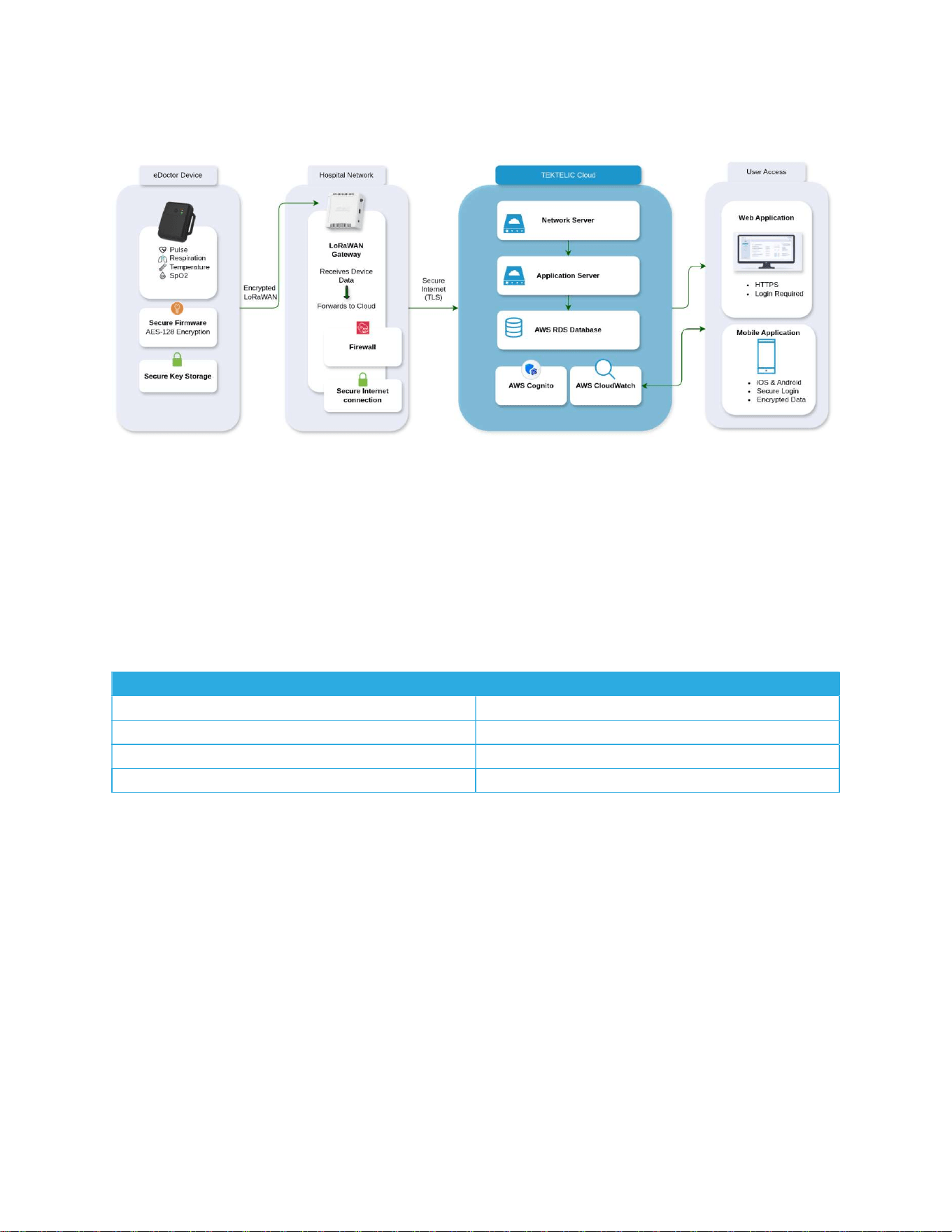
eBeat
Instructions for Use
T0008
38
3_IFU
Version
1
.
0
TEKTELIC Communications Inc.
Page
73
of
85
6.4.1.3. Data Flow and Security Controls
Figure 6-1: Data Flow and Security Controls
6.4.2. Pulse Rate
Pulse Rate shows how fast the heart is beating and helps indicate changes in activity level,
stress, or overall heart health. The unit of measurement for pulse rate is in beats per minute
(bpm).
Table 6-5: Pulse Rate Specifications
Pulse Rate Specifications
Measurement Method PPG-derived pulse rate algorithm
Measurement Range 30 bpm to 240 bpm
Resolution 1 bpm
Accuracy +/- 3 bpm
Measurements falling outside the measurement range are reported as invalid.
In the last 10 seconds of every minute, the pulse rate is sampled multiple times. The pulse rate
reported is the rounded statistical average of the per-minute pulse rate over the last three
minutes.
6.4.3. Respiration Rate
Respiration Rate shows how fast a person is breathing and can help identify changes in comfort,
activity, or breathing difficulty. The unit of measurement for respiration rate is respirations per
minute (rpm).
eBeat
Instructions for Use
T0008
38
3_IFU
Version
1
.
0
TEKTELIC Communications Inc.
Page
74
of
85
Table 6-6: Respiration Rate Specifications
Respiration Rate Specifications
Measurement Method PPG-derived respiration rate algorithm
Measurement Range 4 rpm to 36 rpm
Resolution 1 rpm
Accuracy +/- 2 rpm
Measurements falling outside the measurement range are reported as invalid.
In the last 20 seconds of every minute, the respiration rate is sampled multiple times. The
respiration rate reported is the rounded statistical average of the per-minute respiration rate
over the last three minutes.
6.4.4. Blood Oxygen Saturation (SpO
2
)
SpO₂ shows how much oxygen is in the blood and helps identify if a person is getting enough
oxygen during rest or activity. The unit of measurement for SpO
2
is percentage (%).
Table 6-7: SpO
2
Specifications
SpO
2
Specifications
Measurement Method PPG-derived SpO2 algorithm
Measurement Range 70% to 100%
Resolution 1%
Accuracy +/- 4%
Measurements falling outside the measurement range are reported as invalid.
In the last 10 seconds of every minute, SpO
2
is sampled multiple times. The SpO
2
reported is the
rounded statistical average of the per-minute SpO
2
over the last three minutes.
6.4.5. Skin Temperature
Skin Temperature helps monitor changes in body temperature, which can be useful for
detecting fever, heat stress, or environmental effects. The default unit of measurement for skin
temperature is degrees Celsius (°C), it can be changed to Fahrenheit on the application.
Note: To ensure the accuracy stated in the table below is achieved, please allow for the skin
temperature readings to stabilize.
Table 6-8: Skin Temperature Specifications
Skin Temperature Specifications
Measurement Method Skin-to-contact digital temperature sensor
Measurement Range 30°C to 43°C

eBeat
Instructions for Use
T0008
38
3_IFU
Version
1
.
0
TEKTELIC Communications Inc.
Page
75
of
85
Resolution 0.05°C
Accuracy +/- 0.3°C
Measurements falling outside the measurement range are reported as invalid.
Skin Temperature Time Constant: The device will take 60 seconds to warm to the wearer’s
actual skin temperature.
Skin temperature is measured by the skin-to-contact digital temperature sensor every minute
while being worn. The reported skin temperature is the skin temperature measurement
performed in the last minute.
6.4.6. Heart Rate Variability (HRV)
HRV shows how much time varies between heartbeats and can give insight into stress levels,
recovery, and overall wellness. The unit of measurement for HRV is milliseconds (ms).
Table 6-9: Heart Rate Variability Specifications
Heart Rate Variability Specifications
Measurement Method Derived from beat-to-beat (RR interval)
variability
Available Windows Past hour, past day, past week
Resolution 1 ms
Heart Rate Variability (HRV) has additional configuration options in the application, allowing
users to choose whether they want their HRV value calculated over the past hour, past day, or
past week of data. Shorter windows provide more immediate insight into recent physiological
changes, while longer windows offer a smoother measure of long-term trends.
An HRV value is only displayed when the device has collected at least one full window of data (1
hour, 1 day, or 1 week).
HRV is calculated from the variability between successive heartbeats using fixed internal
algorithms. The application computes HRV over the selected historical window and displays the
resulting short-term or long-term HRV statistic.
6.4.7. Signal Quality Indicator (SQI)
Pulse Rate, SpO₂, and Respiration Rate each have an associated Signal Quality Indicator (SQI)
value for every reported measurement. SQI shows how reliable a measurement is, helping
users understand when movement or poor contact may affect accuracy. SQI is a categorical
eBeat
Instructions for Use
T0008
38
3_IFU
Version
1
.
0
TEKTELIC Communications Inc.
Page
76
of
85
quality measure assigned to Pulse Rate, SpO2, and Respiration Rate. It does not have a numeric
unit.
Table 6-10: Signal Quality Indicator Specifications
SQI Categories Meaning
High Reliable signal quality
Medium Acceptable but reduced signal quality
Low Poor signal quality, measurement may be
inaccurate
When the user hovers over a metric, the application displays a three-bar SQI indicator next to
the value:
Three colored bars (green): High SQI
Two colored bars (yellow): Medium SQI
One colored bar (red): Low SQI
Five consecutive low-SQI readings trigger a Poor SQI notification, indicating the device may be
worn incorrectly or the patient is moving excessively.
6.4.8. Battery Capacity
Battery Capacity shows how much charge is left in the device so users can avoid interruptions in
monitoring. The unit of measurement for battery capacity is percentage (%).
Table 6-11: Battery Capacity Specifications
Battery Capacity Specifications
Measurement Method Internal battery estimation algorithm
Measurement Range 0% to 100%
Resolution 1%
Measurements falling outside the measurement range are reported as invalid.
Battery capacity is estimated by the device’s internal power-management algorithm. In the
application, battery level is shown as part of the device status, allowing users to easily see when
the eBeat device needs a battery replacement.
6.5. Electrical Safety
⚠ CAUTION – Do not touch the battery and the patient at the same time during battery
replacement.

eBeat
Instructions for Use
T0008
38
3_IFU
Version
1
.
0
TEKTELIC Communications Inc.
Page
77
of
85
⚠ CAUTION – Do not touch the gateway/smart phone/computer and patient at the same time.
The TEKTELIC eBeat Device has been tested for and complies with electrical safety and IEC 60601-
1:2005, AMD1:2012, AMD2:2021, IEC 60601-1-11:2015 and AMD1:2021 for devices intended for
home use.
6.6. MRI Safety Information
⚠ WARNING – The eBeat device and arm band are MR Unsafe. Do not expose the
device or the arm band to a magnetic resonance (MR) environment. The device and arm
band present projectile hazards. Patients should not receive an MR exam while the device and
arm band are fastened to the patient.
6.7. Electromagnetic Compatibility (EMC)
⚠ WARNING – Use of this equipment adjacent to or stacked with other equipment should be
avoided because it could result in improper operation. If such use is necessary, this equipment
and the other equipment should be observed to verify that they are operating normally.
⚠ WARNING – Use of accessories, transducers and cables other than those specified or
provided by the manufacturer of this equipment could result in increased electromagnetic
emissions or decreased electromagnetic immunity of this equipment and result in improper
operation.
⚠ WARNING – Portable RF communications equipment (including peripherals such as antenna
cables and external antennas) should be used no closer than 30 cm (12 inches) to any part of
the TEKTELIC eBeat Device, including cables specified by the manufacturer. Otherwise,
degradation of the performance of this equipment could result.
The TEKTELIC eBeat Device has been tested for and complies with IEC 60601-1-2:2014 +
AMD1:2021 and is FCC qualified as a portal device. The TEKTELIC eBeat device has also been
tested according to the recommendations of IEC TS 60601-4-2:2024 Medical electrical
equipment – Part 4-2: Guidance and interpretation – Electromagnetic immunity: performance
of medical electrical equipment and medical electrical systems.
Electromagnetic Emissions Declaration:
The eBeat device is designed for use in the specified electromagnetic environment outlined
below. Users must ensure that the eBeat device is operated within this environment.

eBeat
Instructions for Use
T0008
38
3_IFU
Version
1
.
0
TEKTELIC Communications Inc.
Page
78
of
85
Table 6-12: Emissions Test Compliance and Guidance
Emissions Test Compliance Electromagnetic Environment Guidance
Electromagnetic
Radiation Disturbance
(Radiated Emissions)
CISPR 11
Group 1 The eBeat uses RF energy only for its internal
function.
Electromagnetic
Radiation Disturbance
(Radiated Emissions)
CISPR 11
Class B The eBeat is intended for use in domestic
establishments.
Conducted
Disturbances
(Conducted Emissions)
CISPR 11
N/A Device is battery powered with no AC or DC
power port.
Harmonic Current
Emissions
IEC 61000-3-2
N/A
Device is battery powered with no AC or DC
power port.
Voltage Changes,
Voltage Fluctuations
and Flicker Emissions
IEC 61000-3-3
N/A Device is battery powered with no AC or DC
power port.
Electromagnetic Immunity Declaration:
The eBeat device is designed for use in the specified electromagnetic environment outlined
below. The compliance levels represent the levels at which the eBeat has been tested to ensure
that it maintains basic safety, essential performance, and non-clinical performance. Users must
ensure that the eBeat device is operated within this environment.
The eBeat may be unable to provide accurate results when subject to noise or interference
affecting the measurement quality. Ensure that the environment is free from potential sources
of interference to minimize the risk of inaccurate measurements. Examples of potential sources
of interference include, but are not limited to, other electronic devices or strong
electromagnetic fields.

eBeat
Instructions for Use
T0008
38
3_IFU
Version
1
.
0
TEKTELIC Communications Inc.
Page
79
of
85
Electrostatic discharge could cause the eBeat to restart. If this occurs, the eBeat is expected to
recover and continue operation within 30 seconds. This has no impact on the essential
performance of the eBeat.
The operator (i.e., the healthcare professional) should take appropriate measures to minimize
the impacts of potential interference by following the guidance below.
Table 6-13: Immunity Test Compliance and Guidance
Immunity Test Compliance Electromagnetic Environment Guidance
Electrostatic Discharge
IEC 61000-4-2
± 8 kV contact
± 2 kV, ± 4 kV, ±
8 kV, ± 15 kV
air
Floors should be wood, concrete or
ceramic tile. If floors are covered with
synthetic material, the relative humidity
should be at least 30%.
Radiated RF EM fields
IEC 61000-4-3
10 V/m
80 MHz – 2.7
GHz
80% AM at 1
kHz
Portable RF communications equipment
(including peripherals such as antenna
cables and external antennas) should be
used no closer than 30 cm (12 inches) to
any part of the TEKTELIC eBeat Device,
including cables specified by the
manufacturer. Otherwise, degradation of
the performance of this equipment could
result.
Proximity fields from RF
wireless communications
equipment
IEC 61000-4-3
See Table 6-14. Portable RF communications equipment
(including peripherals such as antenna
cables and external antennas) should be
used no closer than 30 cm (12 inches) to
any part of the TEKTELIC eBeat Device,
including cables specified by the
manufacturer. Otherwise, degradation of
the performance of this equipment could
result.
Rated power frequency
magnetic fields
IEC 61000-4-8
N/A
Device and arm band do not contain any
magnetically sensitive components.
Proximity Magnetic Fields
IEC 61000-4-39
N/A Device and arm band do not contain any
magnetically sensitive components.
Conducted disturbances
induced by RF fields
IEC 61000-4-6
N/A
Patient coupling points do not have
conducting cables.
Electrical fast
transients/bursts
IEC 61000-4-4
N/A
Device is battery powered with no AC or
DC power port.
eBeat
Instructions for Use
T0008
38
3_IFU
Version
1
.
0
TEKTELIC Communications Inc.
Page
80
of
85
Surges
IEC 61000-4-5
N/A
Device is battery powered with no AC or
DC power port.
Voltage dips
IEC 61000-4-11
N/A
Device is battery powered with no AC or
DC power port.
Voltage interruptions
IEC 61000-4-11
N/A Device is battery powered with no AC or
DC power port.
Electrical transient
conduction along supply
lines
ISO 7637-2
N/A Device is battery powered with no AC or
DC power port.
Table 6-14: Proximity Fields from RF Wireless Fields Immunity Test Compliance
Test Frequency (MHz) Modulation Immunity Test Level (V/m)
385 Pulse Modulation: 18 Hz 27
450 FM: ±5 kHz deviation, 1 kHz sine 28
710, 745, 780 Pulse Modulation: 217 Hz 9
810, 870, 930 Pulse Modulation: 18 Hz 28
1720, 1845, 1970 Pulse Modulation: 217 Hz 28
2450 Pulse Modulation: 217 Hz 28
5240, 5500, 5785 Pulse Modulation: 217 Hz 9
6.8. FCC Compliance Statements
Federal Communications Commission
This device complies with Part 15 of the FCC Rules. Operation is subject to the following two
conditions:
1. This device may not cause harmful interference, and
2. This device must accept any interference received, including interference that may
cause undesired operation.
To comply with FCC exposure limits for general population / uncontrolled exposure, this device
has lowered its maximum power to comply with SAR limits for wearable devices and must not
be co-located or operating in conjunction with any other transmitter.
Changes or modifications not expressly approved by the party responsible for compliance could
void the user’s authority to operate the equipment. This equipment has been tested and found
to comply with the limits for a Class B digital device, pursuant to Part 15 of the FCC Rules. These
limits are designed to provide reasonable protection against harmful interference in a
residential installation. This equipment generates uses and can radiate radio frequency energy

eBeat
Instructions for Use
T0008
38
3_IFU
Version
1
.
0
TEKTELIC Communications Inc.
Page
81
of
85
and, if not installed and used in accordance with the instructions, may cause harmful
interference to radio communications. However, there is no guarantee that interference will
not occur in a particular installation. If this equipment does cause harmful interference to radio
or television reception, which can be determined by turning the equipment off and on, the user
is encouraged to try to correct the interference by one of the following measures:
Reorient or relocate the receiving antenna.
Increase the separation between the equipment and receiver.
Connect the equipment into an outlet on a circuit different from that to which the
receiver is connected.
Consult the dealer or an experienced radio/TV technician for help.

eBeat
Instructions for Use
T0008
38
3_IFU
Version
1
.
0
TEKTELIC Communications Inc.
Page
82
of
85
7. Precautions
In the interest of ensuring a secure and enjoyable experience with our mobile and web
application, we strongly recommend the following precautions:
⚠ CAUTION – Mobile devices and PCs used to access the eDoctor web app or the eDoctor
mobile app should be secured when not in use.
⚠ CAUTION – Users should regularly apply/allow security updates to your device’s operating
system (OS).
⚠ CAUTION – TEKTELIC does not make any commercial use of or disclose any private
information of eBeat users.
⚠ CAUTION – Follow applicable hospital data backup and disaster recovery processes and
ensure that data from the web and mobile applications is periodically backed up to maintain
availability of information. TEKTELIC technical support can be contacted to assist with disaster
recovery.
⚠ CAUTION – Safeguard your login information with the utmost care. Never share your
username and password with any third party.
⚠ CAUTION – Exercise prudence when installing mobile applications. Only install apps from
trusted sources, such as official app stores. Avoid downloading and installing applications from
unverified or unofficial sources.
⚠ CAUTION – Use strong, unique passwords for your web/mobile accounts. Combine a mix of
upper and lower-case letters, numbers, and symbols. Consider using a reputable password
manager.
⚠ CAUTION – TEKTELIC personnel will never request your password or login information.
Notify TEKTELIC immediately if you receive unexpected or confusing emails, phone calls, or
other forms of communication.
By adhering to these precautions, you contribute to a safer and more secure experience while
using our mobile and web applications.

eBeat
Instructions for Use
T0008
38
3_IFU
Version
1
.
0
TEKTELIC Communications Inc.
Page
83
of
85
8. Warranty
Products sold hereunder are covered by a warranty against defects in material and
workmanship provided the Products and services are subjected to normal use and service. The
applicable warranty period is twelve (12) months plus two weeks from the date of shipment.
The foregoing warranty shall not apply to:
1) Products that have been modified by anyone other than TEKTELIC without TEKTELIC’s prior
written consent and/or subjected to improper handling, storage, installation, operation or
maintenance;
2) Any item of the Products which is furnished by Purchaser as a component part of a
purchased Product, or any equipment that is not manufactured by TEKTELIC and is purchased
by TEKTELIC on behalf of Purchaser. For the removal of doubt, components selected or sourced
by TEKTELIC shall be covered by the warranty;
3) Models or samples which are furnished to Purchaser as illustrations only of the general
properties of TEKTELIC’s products and workmanship;
4) Damage to Products caused by abrasive materials, corrosion due to aggressive fluids,
lightning, improper voltage supply, mishandling or misapplication.
Except as expressly set forth herein, TEKTELIC expressly disclaims any and all representations,
warranties, conditions, covenants, guarantees and/or assurances, whether express or implied,
relating to or arising out of Products or services and/or this contract, including without
limitation, any implied representations, warranties, conditions, covenants and/or guarantees as
to merchantability, merchantable quality, non-infringement, fitness for a particular purpose,
those arising by statute or otherwise, or from a course of dealing or usage or trade. To the
extent permitted by applicable law, all warranties, representations, terms and conditions other
than as expressly contained herein are excluded. Each party acknowledges that it has not relied
on any other term, condition, representation, warranty, matter, statement or conduct in
entering into this contract.
Purchaser’s sole remedy for a breach of this limited warranty, for any other liability under this
contract, or for any liability that cannot be excluded as provided by applicable law, shall be
limited (at TEKTELIC’s sole option) the repair, replacement or refund to Purchaser’s account for
any such Products which are returned by Purchaser during the applicable warranty period,
provided that (i) TEKTELIC is promptly notified in writing during such warranty period upon
discovery by Purchaser that the Products failed to conform to the express warranties set forth

eBeat
Instructions for Use
T0008
38
3_IFU
Version
1
.
0
TEKTELIC Communications Inc.
Page
84
of
85
above, (ii) such Products are returned to TEKTELIC Incoterms 2010 DDP TEKTELIC’s plant
shipping costs covered by the Purchaser, and (iii) TEKTELIC’s examination of such Products shall
disclose to TEKTELIC’s satisfaction that such alleged deficiencies actually exist and were not
caused by accident, misuse, neglect, alteration, improper installation, unauthorized repair or
improper testing as set forth above. If TEKTELIC elects to repair or replace such Products,
TEKTELIC shall have a reasonable time to make such repairs or replace such Products. The
Products shall be returned to Purchaser location Incoterms 2010 DDP, cost covered by
TEKTELIC. The repaired or refurbished units will receive a ninety (90) day warranty, or the
remainder of the original product warranty, whichever is longer.
eBeat
Instructions for Use
T0008
38
3_IFU
Version
1
.
0
TEKTELIC Communications Inc.
Page
85
of
85
9. Contact Us
For questions or comments about the device and its application, or other issues related to the
eBeat solution requiring assistance, please contact your TEKTELIC local representative which
can be found on the TEKTELIC Website.
For technical support please refer to the Troubleshooting section or visit the TEKTELIC Support
Portal.
To contact our local United States of America representative, please refer to the following
name and address:
Rook Quality Systems
1155 Mount Vernon Hwy
Suite 800
Dunwoody GA 30338
Table 9-1: Manufacturer Symbol and Description
Symbol Manufacturer
TEKTELIC Communications Inc.
7657 10 St NE, Calgary, AB T2E 8X2