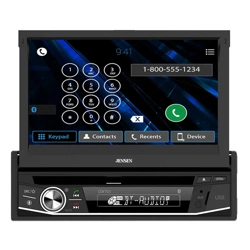
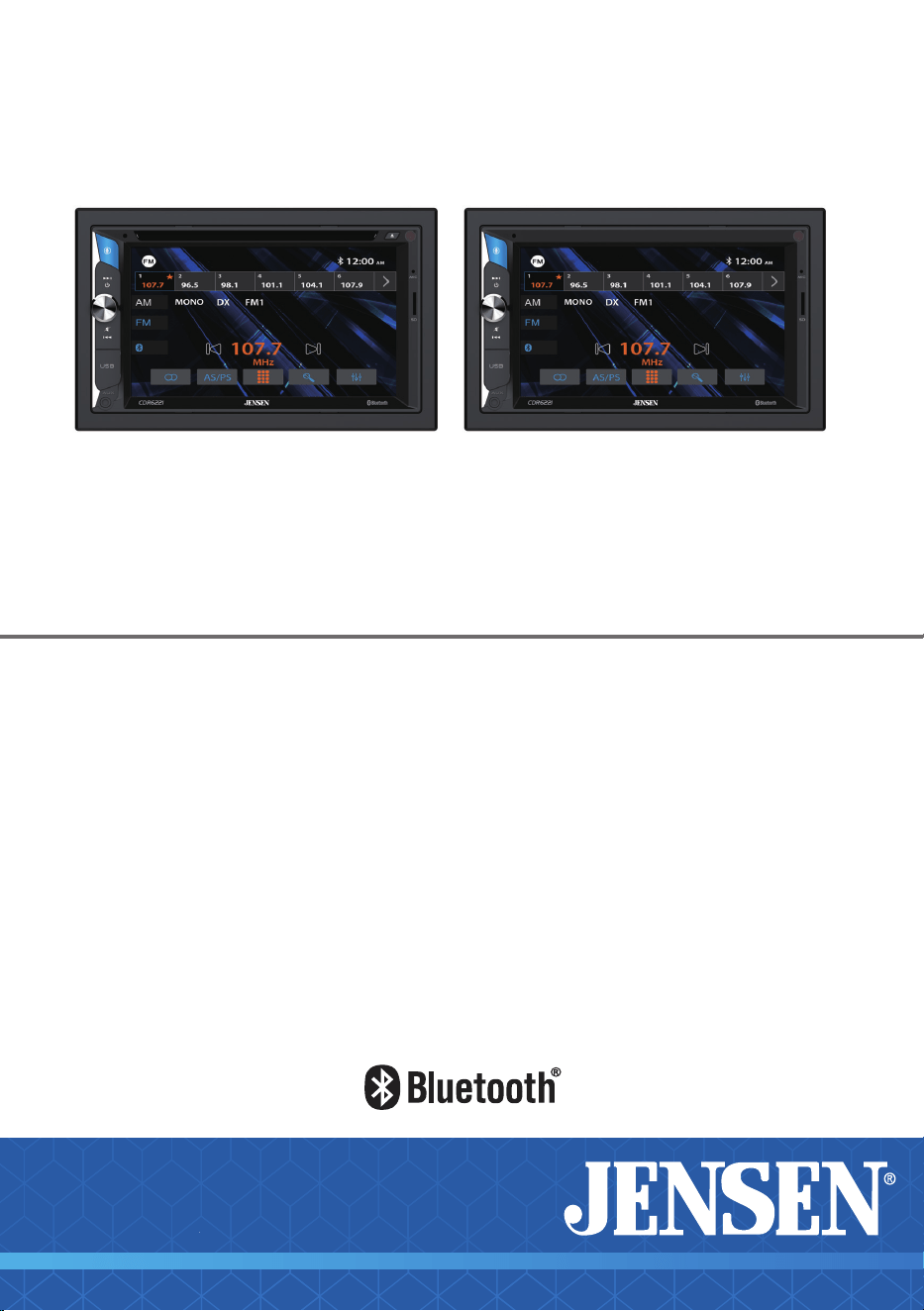
CDR6221
INSTALLATION &
OWNER’S MANUAL
DVD Multimedia Receiver with Bluetooth
featuring a 6.2" Touch-Screen Display
MECHLESSDVD

The Bluetooth® word mark and logos are registered trademarks owned by Bluetooth SIG, Inc.
microSD Logo is a registered trademark of SD-3C, LLC.
Siri and Apple are registered trademarks owned by Apple, Inc.
Google Assistant and Android are trademarks owned by Google LLC.
Other trademarks and trade names are those of their respective owners.
FCC Compliance
This device complies with Part 15 of the FCC Rules. Operation is subject to the following two
conditions:
(1) this device may not cause harmful interference, and
(2) this device must accept any interference received, including interference that may cause
undesired operation.
Warning: Changes or modifications to this unit not expressly approved by the party
responsible for compliance could void the user’s authority to operate the equipment.
Note: This equipment has been tested and found to comply with the limits for a Class B
digital device, pursuant to Part 15 of the FCC Rules. These limits are designed to provide
reasonable protection against harmful interference in a residential installation. This
equipment generates, uses and can radiate radio frequency energy and, if not installed
and used in accordance with the instructions, may cause harmful interference to radio
communications. However, there is no guarantee that interference will not occur in a
particular installation. If this equipment does cause harmful interference to radio or
television reception, which can be determined by turning the equipment off and on, the user
is encouraged to try to correct the interference by one or more of the following measures:
• Reorient or relocate the receiving antenna.
• Increase the separation between the equipment and receiver.
• Connect the equipment into an outlet on a circuit different from that to which the
receiver is connected.
• Consult the dealer or an experienced radio/TV technician for help.
Copyright and Trademark
2
CDR6221 PREPARATION
Video / movie playback will not operate while the vehicle is moving. This is a
safety feature to prevent driver distraction. In-dash video / movie functions will only
operate when vehicle is in Park and the parking brake is engaged. It is illegal in most
jurisdictions for the driver to view video while the vehicle is in motion.
Note : Only DVD Receiver
It is highly recommended that your JENSEN CDR6221 is installed by a professional installer or an
authorized dealer.
This product is only for use in vehicles with 12VDC negative ground only.
To prevent damage or injury:
• Make sure to ground the unit securely to the vehicle chassis ground.
• Do not remove the top or bottom covers of the unit.
• Do not install the unit in a spot exposed to direct sunlight or excessive heat or the possibility of
water splashing.
• Do not subject the unit to excessive shock.
• When replacing a fuse, only use a new one with the correct rating. Using a fuse with the wrong
rating may cause the unit to malfunction.
• To prevent short circuits when replacing a fuse, disconnect the wiring harness first.
• Use only the provided hardware and wire harness.
• If you experience problems during installation, consult your nearest JENSEN dealer.
• If the unit malfunctions, reset the unit as described. If the problem still persists, consult your
nearest JENSEN dealer or call tech assistance @ 1-888-921-4088.
• To clean the monitor, wipe only with a dry silicone cloth or soft cloth. Do not use a stiff cloth,
or solvents such as paint thinner and alcohol. They can scratch the surface of the panel and/or
remove the printing.
• When the temperature of the unit falls (as in winter), the liquid crystal inside the screen will
become darker than usual. Normal brightness will return after the unit is in use for a while.
• When extending the ignition, battery or ground wiring, make sure to use automotive-grade wir-
ing with an a minimum AWG 16 or more to prevent voltage drops.
• Do not touch the liquid crystal fluid if the LCD is damaged or broken. The liquid crystal fluid may
be hazardous to your health or fatal. If the liquid crystal fluid from the LCD contacts your body or
clothing, wash it off with soap immediately.
Safety Notice
3
Preparation
Please read and understand entire manual before installation. Consult a qualified technician for
detailed instructions or installation assistance.
Before You Start
• Disconnect negative battery terminal. Consult a qualified technician for instructions.
• Avoid installing the unit where it would be subject to high temperatures, such as from direct
sunlight, or where it would be subject to dust, dirt or excessive vibration.
Getting Started
• Unpack unit from its protective packaging.
• Connect vehicle wiring harness and antenna to this receiver's harness. See wiring instructions.
Consult a qualified technician if you are unsure.
• Certain vehicles may require an installation dash kit and/or wiring harness adapter (sold
separately).
• Reconnect battery negative terminal.
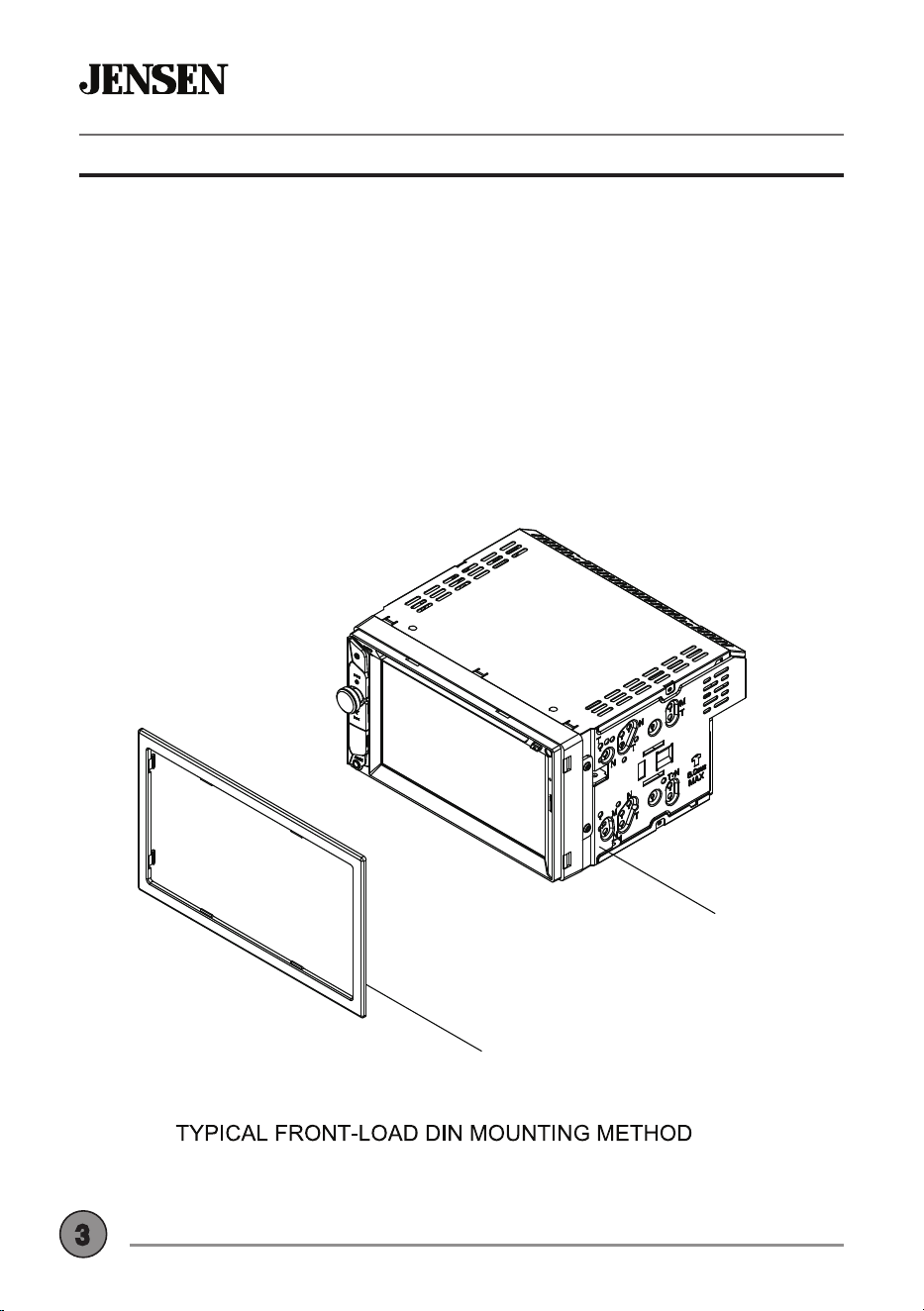
• Test for correct operation and secure back into dashboard.
• Snap trim ring into place if needed.
CDR6221 INSTALLATION
UNIT
TRIM PLATE
4
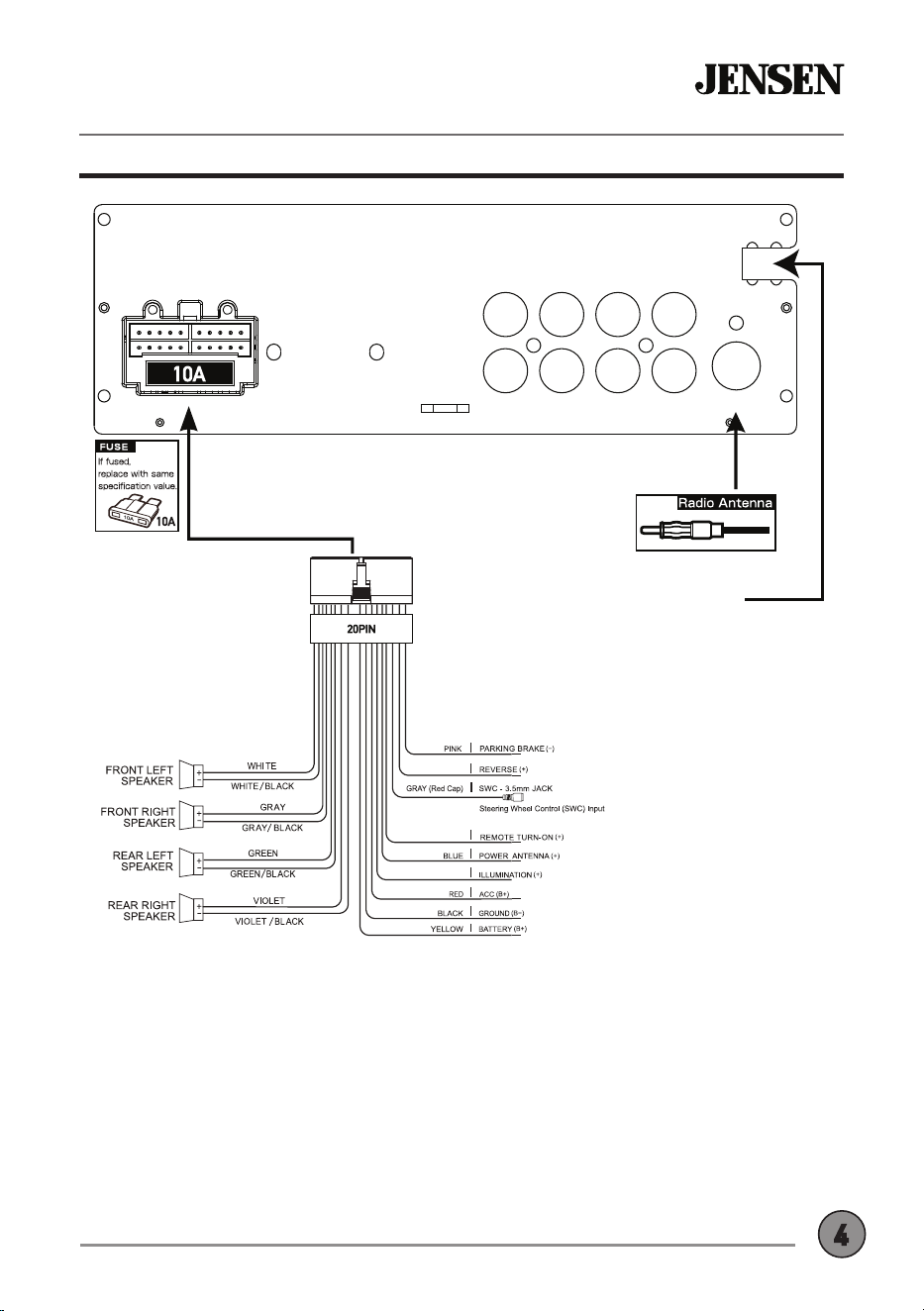
Wiring Diagram - Inputs/Outputs
CDR6221 INSTALLATION
Note:
When replacing a fuse, make sure to use the correct type and amperage. Using an incorrect fuse could
cause damage. The unit uses (1) 10 amp ATC mini style fuse located on the power connector.
Wiring Notes:
Rear camera input
A rear view camera (not included) can be used with the Camera input.
VIOLET/WHITE
BLUE/WHITE
ORANGE
RR OUT
FR OUT
RL OUT
FL OUT V OUT
CAM IN
SUB OUT
SUB OUT
ANT
(Compatible with most SWC Interfaces)
EXTERNAL MIC INPUT
5
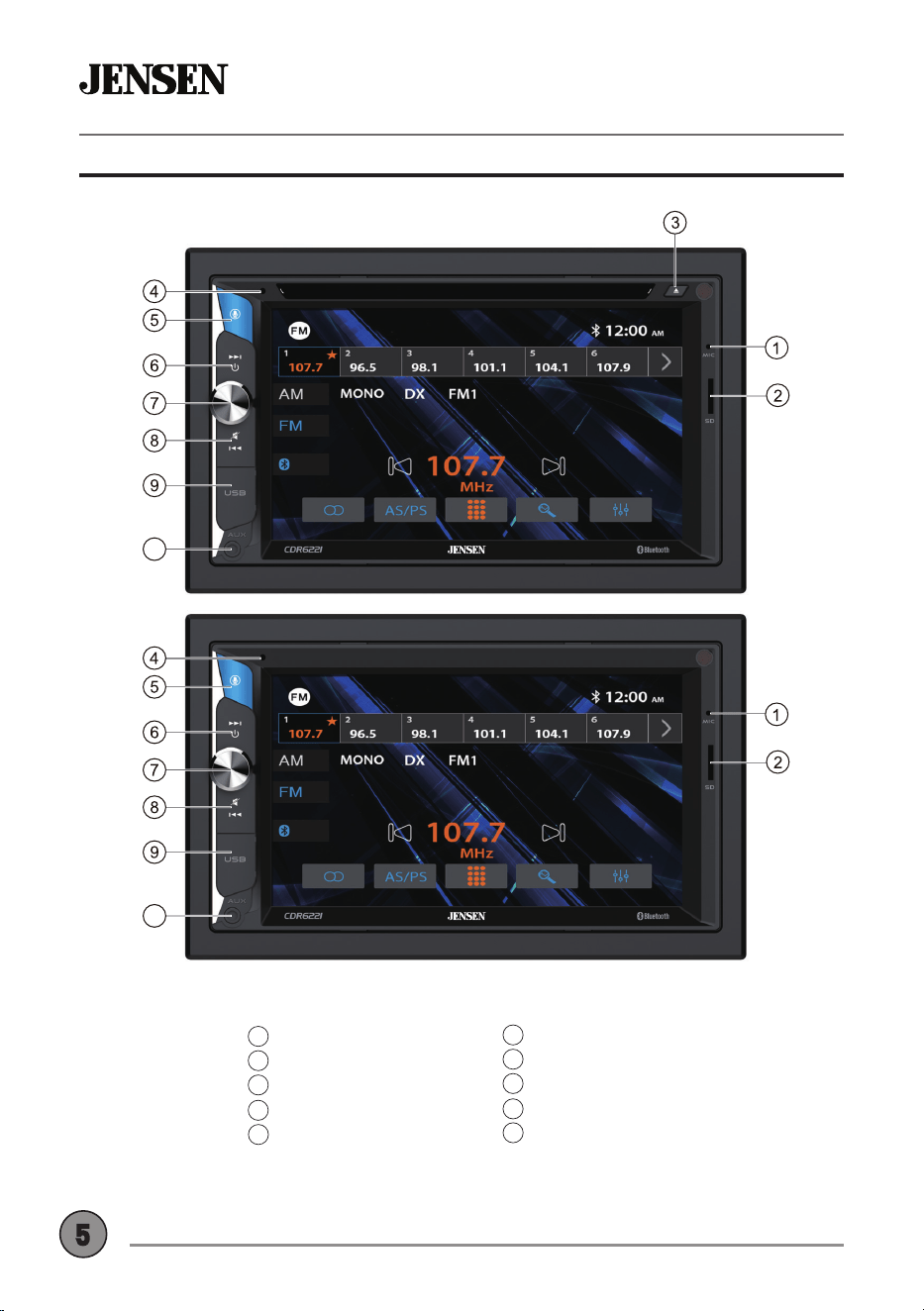
Control Locations
CDR6221 OPERATION
Microphone
microSD Card Slot
Eject
Reset
Voice Activation Button
1
2
3
4
Tune/Track Up
Power/Volume/Mute
Tune/Track Down
USB Port
Auxiliary Input
6
7
8
9
5
10
10
10
6
Momentarily press to turn the unit on. Press and hold to turn the
unit off.
Rotate the volume knob to increase or decrease the volume level.
Momentarily press MUTE to silence the audio. Momentarily press
MUTE again to return to the previously selected volume. Rotating
the volume knob while the volume is muted will also cancel the
mute function.
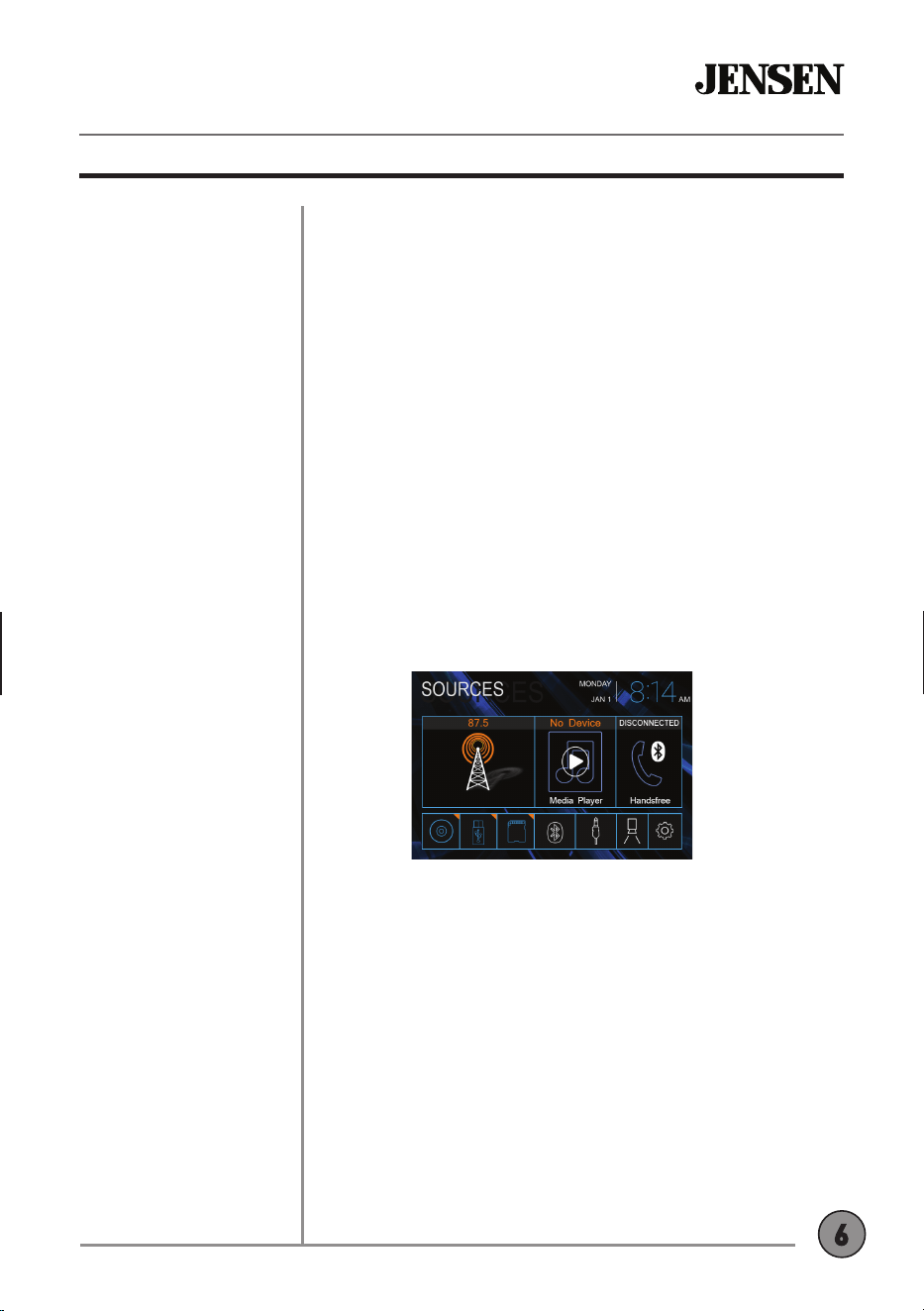
Press MODE to step through all available input modes: Radio, Disc,
microSD, USB, Bluetooth Phone, Bluetooth Music, Auxiliary Input,
Rear Camera and Settings. Modes of operation are indicated on the
display and/or the monitor. Optional USB device and microSD card
must be connected/inserted to appear in the mode selection string.
Connect external audio/video devices to the 3.5mm auxiliary input
on the front panel.
Insert a USB device to play MP3 or FLAC audio files.
Insert a microSD card into the microSD card slot to play MP3 or
FLAC audio files.
Press the house icon in the top left corner to access the Main Menu
screen.
To resolve abnormal operation or if the unit is inoperable, use the
tip of a pen to press the reset button. The unit will reset the main
processor to the default settings.
CDR6221 OPERATION
Power On/Off
Volume
Mute
Mode
Auxiliary Input
USB Input
microSD Card
Main Menu
Reset
General Operation
7
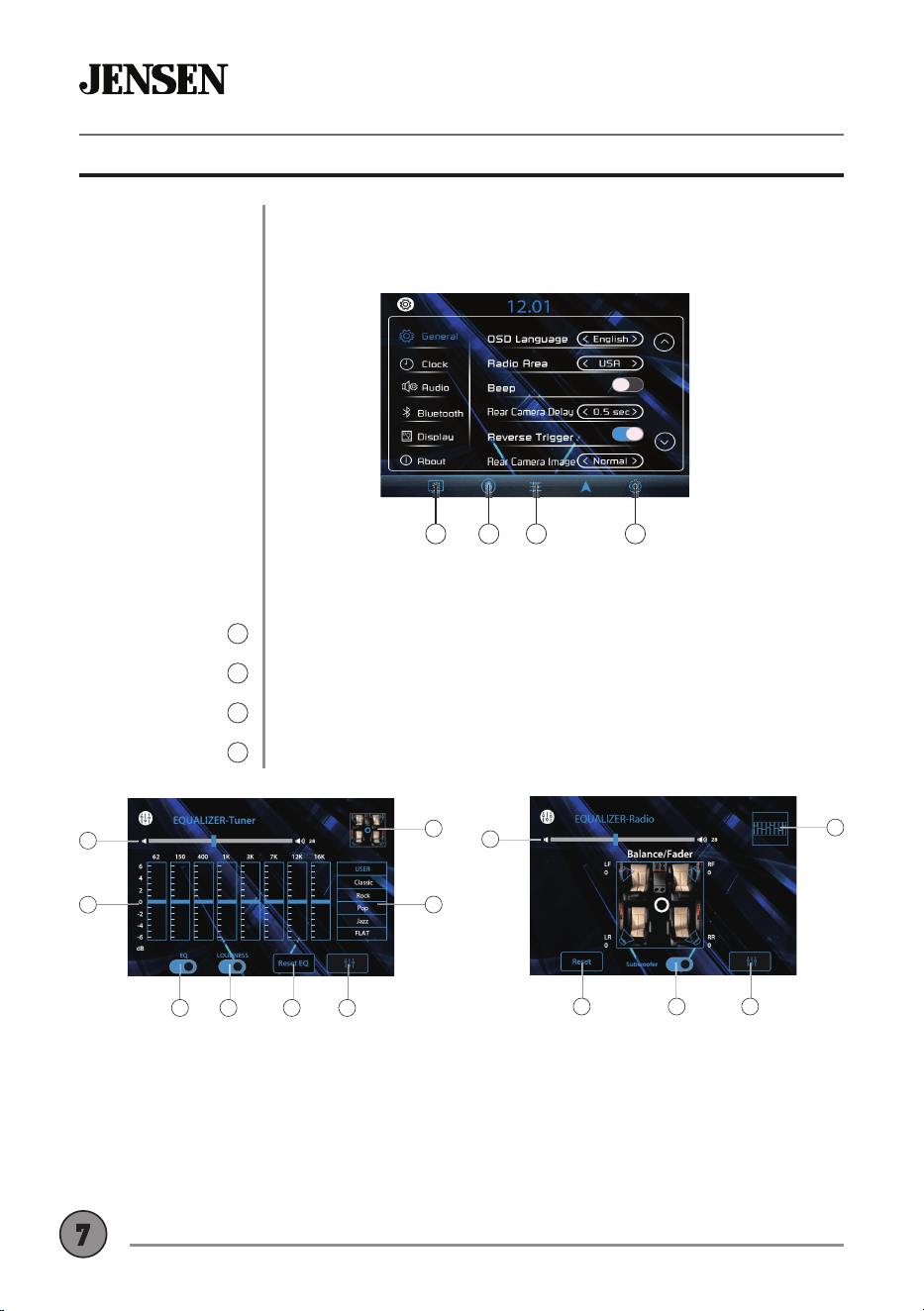
From the Main Menu screen, select Settings to access the Setup menu
and select from categories displayed on the left side of the screen:
General, Clock, Audio, Bluetooth, Display and About. Use the touch
screen to navigate and adjust individual options within each category.
The touch screen controls on the bottom of each screen allow direct
access to important features during any mode of operation.
Press to dim the display.
Press to utilize Voice Activation feature.
Press to adjust audio options such as EQ, Treble/Bass or Balance/Fader.
Press to access the settings menu.
CDR6221 OPERATION
General Operation
Settings Menu
Touch Screen
Controls
Dimmer
1
Voice Activation
2
Audio
3
Settings
4
1 32 4
2
3 4
1
8
6
7
5
2 3
4
1
5
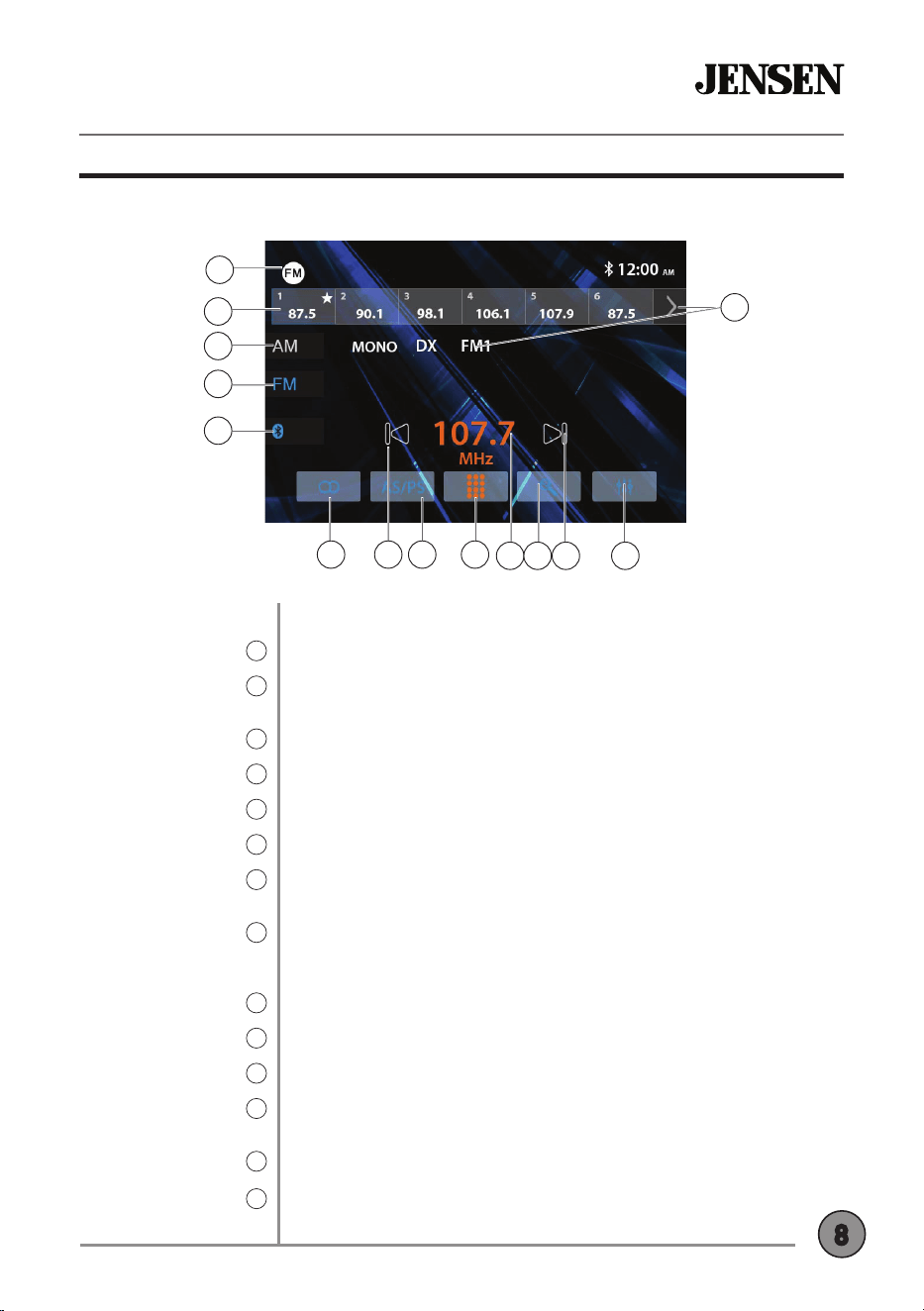
Audio Settings:
1. Volume
2. EQ Settings
3. EQ On/Off
4. Loudness On/Off
5. EQ Reset
6. Return to Source
7. EQ Presets / Custom
8. Balance / Fader
Balance/Fader Settings:
1. Volume
2. Fader Reset
3. Subwoofer On/Off
4. Return to Source
5. Return to EQ Controls
8
CDR6221 OPERATION
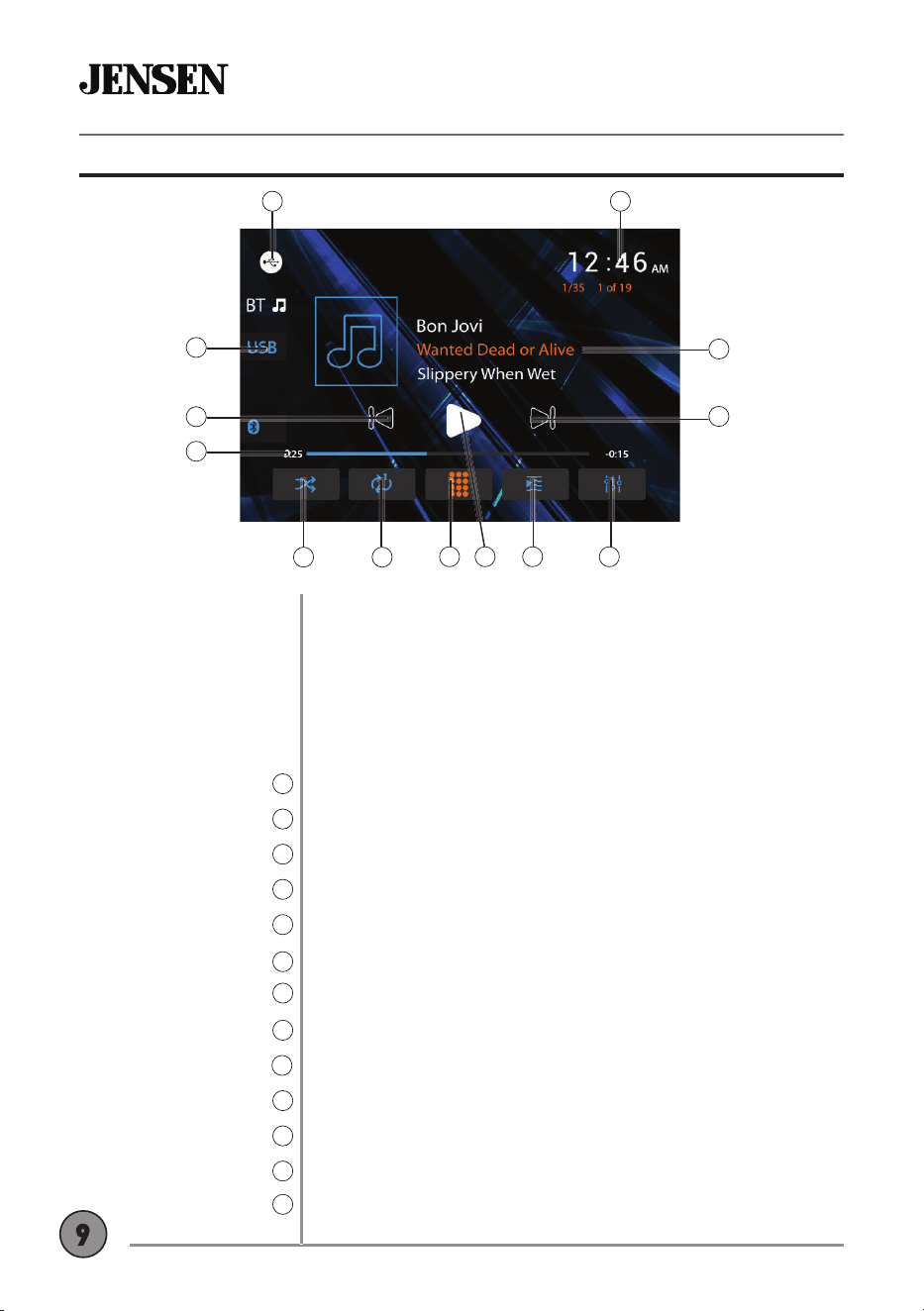
AM/FM Tuner Operation
Select the Radio icon from the Main Menu screen.
Displays current mode of operation. Press to return to Main Menu.
Press and hold to set the current station in that preset spot. Press
momentarily to recall the desired preset and begin playback.
Press to access AM bands.
Press to access FM bands.
Press to access Bluetooth phone.
Press to toggle between Stereo and Mono tuning.
Press << to tune radio to a lower frequency. Press and hold to tune the
unit down one step at a time.
Press to scan presets and listen to the first 10 seconds of each. Press
again to stop scanning and listen to the station. Press and hold to
automatically store the strongest stations as presets.
Press to display the keypad and directly enter desired station number.
Displays the current station number.
Press to search stations.
Press >> to tune radio to a higher frequency. Press and hold to tune
the unit up one step at a time.
Press to access and adjust audio settings.
Press to select between 2 AM and 3 FM bands.
Radio Operation
Mode / Main Menu
1
Preset Stations
2
AM
3
FM
4
Bluetooth
5
Stereo / Mono
6
Tune Down
7
AS/PS
8
Direct Station Entry
9
Station Number
10
Station Search
11
Tune Up
12
Audio Settings
13
Band
14
AM/FM Tuner Operation
2
3
4
5
6 7 8 9
1
14
10 11 12 13
9
CDR6221 OPERATION
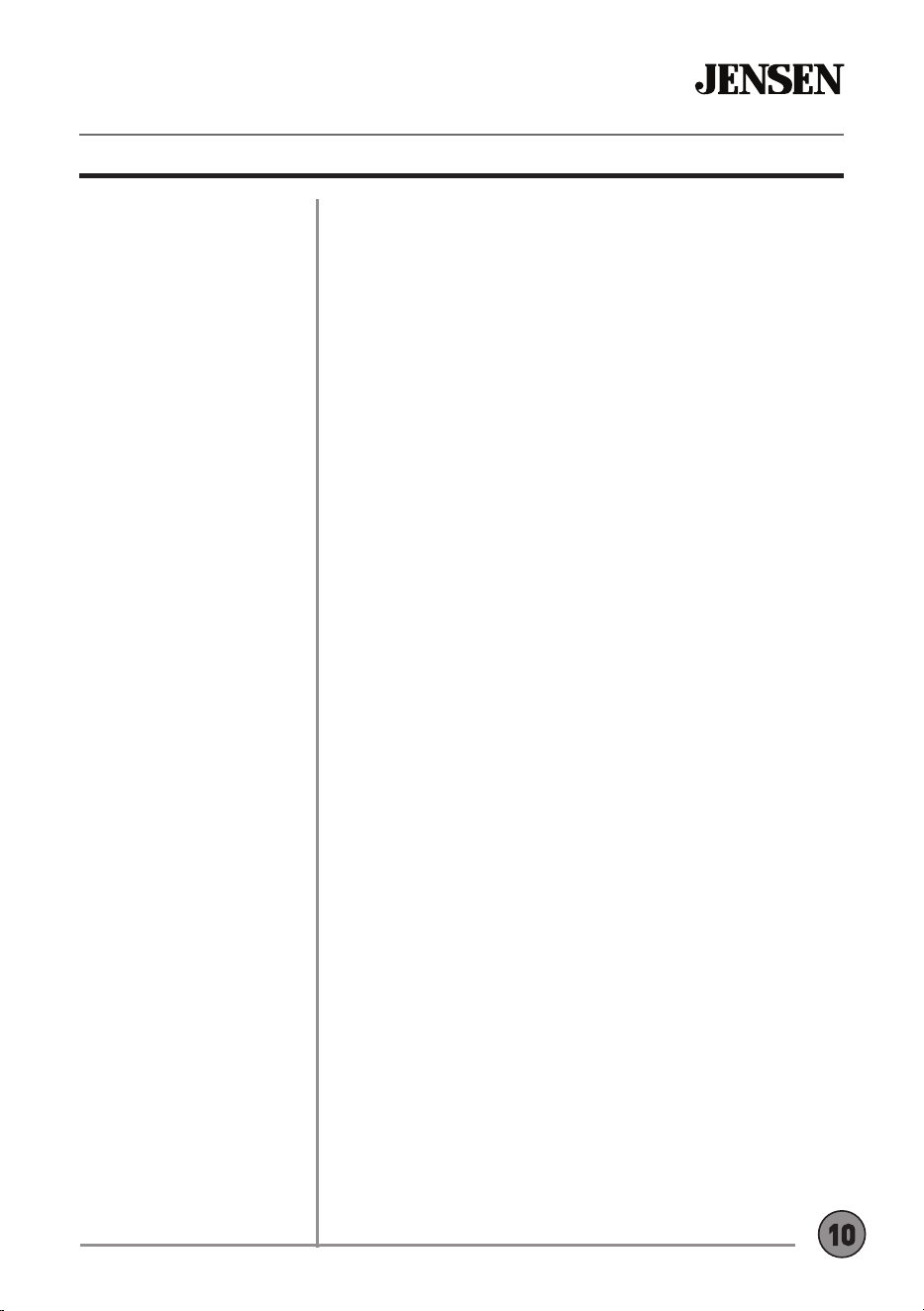
USB/microSD Card Operation
USB/microSD Operation
Main Menu
1
Clock
2
Current Mode Indicator
3
Previous File / Track
4
Elapsed Time Indicator
5
Random
6
Repeat
7
Direct Search
8
Play / Pause
9
File List
10
Audio Settings
11
Next File / Track
12
File Information
13
To play audio files from a USB device or microSD card, insert
device and playback will begin automatically. To return to USB or
microSD card playback from another mode of operation, select
the corresponding icon from the Main Menu.
• USB Playback - Insert a USB device into the USB slot on the
side of the unit.
• microSD Card Playback - Insert microSD card into the
microSD slot on the top of the unit. When inserting a
microSD card, the label should face up.
Press to return to Main Menu screen.
Displays the current time.
Displays current mode of operation.
Press to go back to the previous file or track.
Displays the elapsed time and time remaining on the current file.
Press to enable or disable random playback.
Press to select Repeat 1, Repeat Folder or Repeat Off.
Press to directly enter file number to begin playback of that file.
Press to pause or resume playback.
Press to display a list of all files on the device.
Press to access and adjust audio settings.
Press to advance to the next file or track.
Displays available information about the current file.
1
2
3
6 7
8 9
10
4
5
11
13
12
CDR6221 OPERATION
Media Compatibility
The following types of files are not compatible:
• MP3 PRO format, MP3 playlists
• RMP format
• WAV format
• WMV format
• AAC, protected AAC, M4A format, M4V format.
MP3 playback sequence begins in the root folder of the USB flash drive
or microSD card. Any empty folders or folders that do not include MP3/
FLAC files are skipped.
ISO9660 standards:
• Maximum nested folder depth is 8 (including the root folder).
• Valid characters for folder/file names are letters A-Z (all caps),
numbers 0-9, and “_” (underscore). Some characters may not be
displayed correctly, depending on the character type.
Some files may not play or be displayed correctly, depending on sampling
rates and bit rates.
For best results, use the following settings when ripping MP3 files:
128kbps or higher constant bit rate
44.1kHz or higher sampling frequency
Media Compatibility
Playback Order
Compatible Recording
Formats
Notes
10
CDR6221 OPERATION
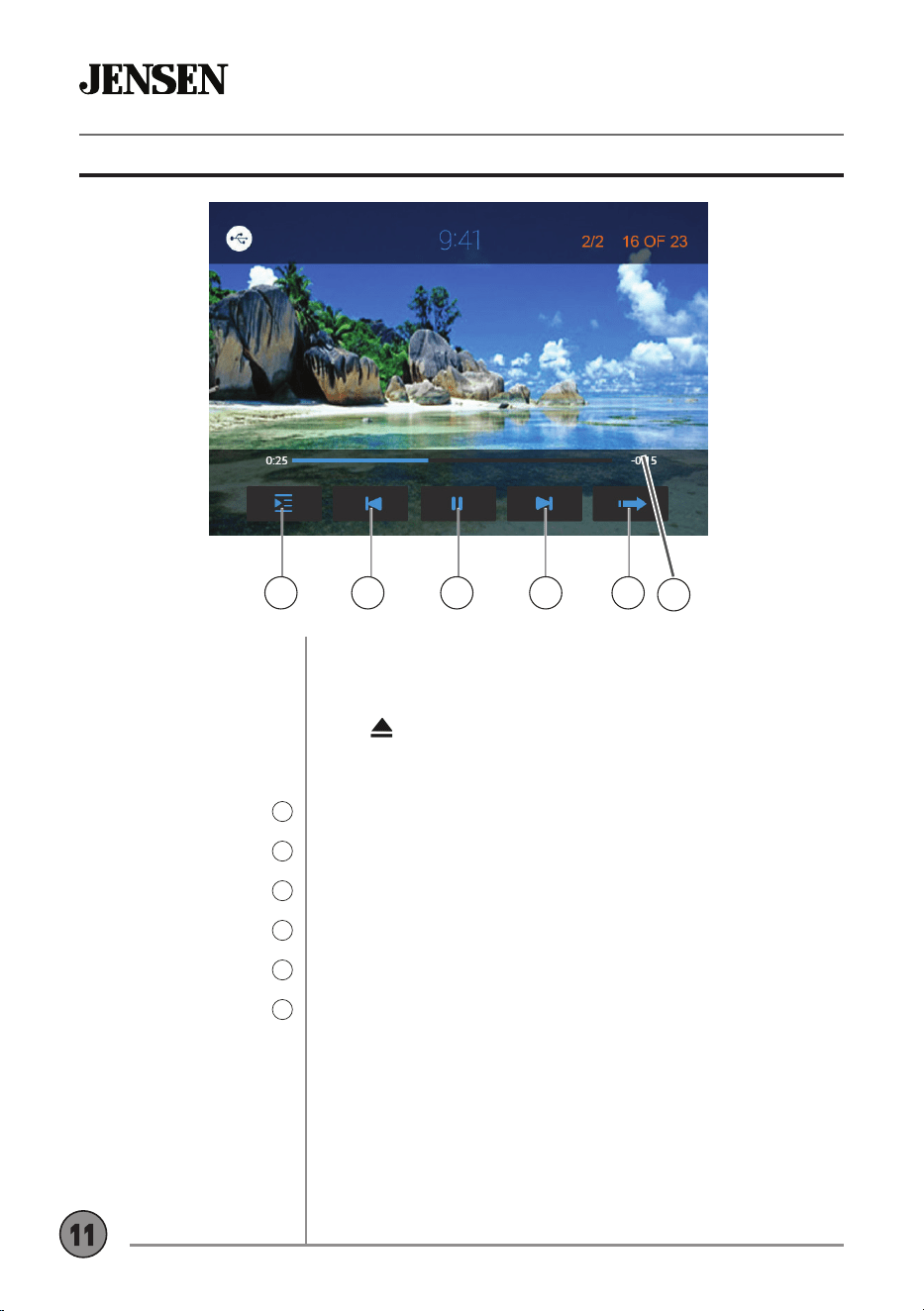
DVD Operation
Inserting a Disc
Ejecting the Disc
Touchscreen Controls
Disc Menu
1
Audio Settings
2
Previous Chapter
3
Play / Pause
4
Next Chapter
5
Next Page
6
Insert disc into the slot, and playback will begin automatically.
Sub-menus may have to be pressed to access the DVD content.
Read the directions of your specific DVD disc for other features.
Press to eject the disc.
Press anywhere on the LCD to display touch screen controls.
Press to select the disc menu.
Press to adjust audio settings.
Press to return to the previous chapter.
Press to pause or resume playback.
Press to advance to the next chapter.
Press to display the next page of options.
1 3 4
2 5
6
11
DVD Operation
CDR6221 OPERATION
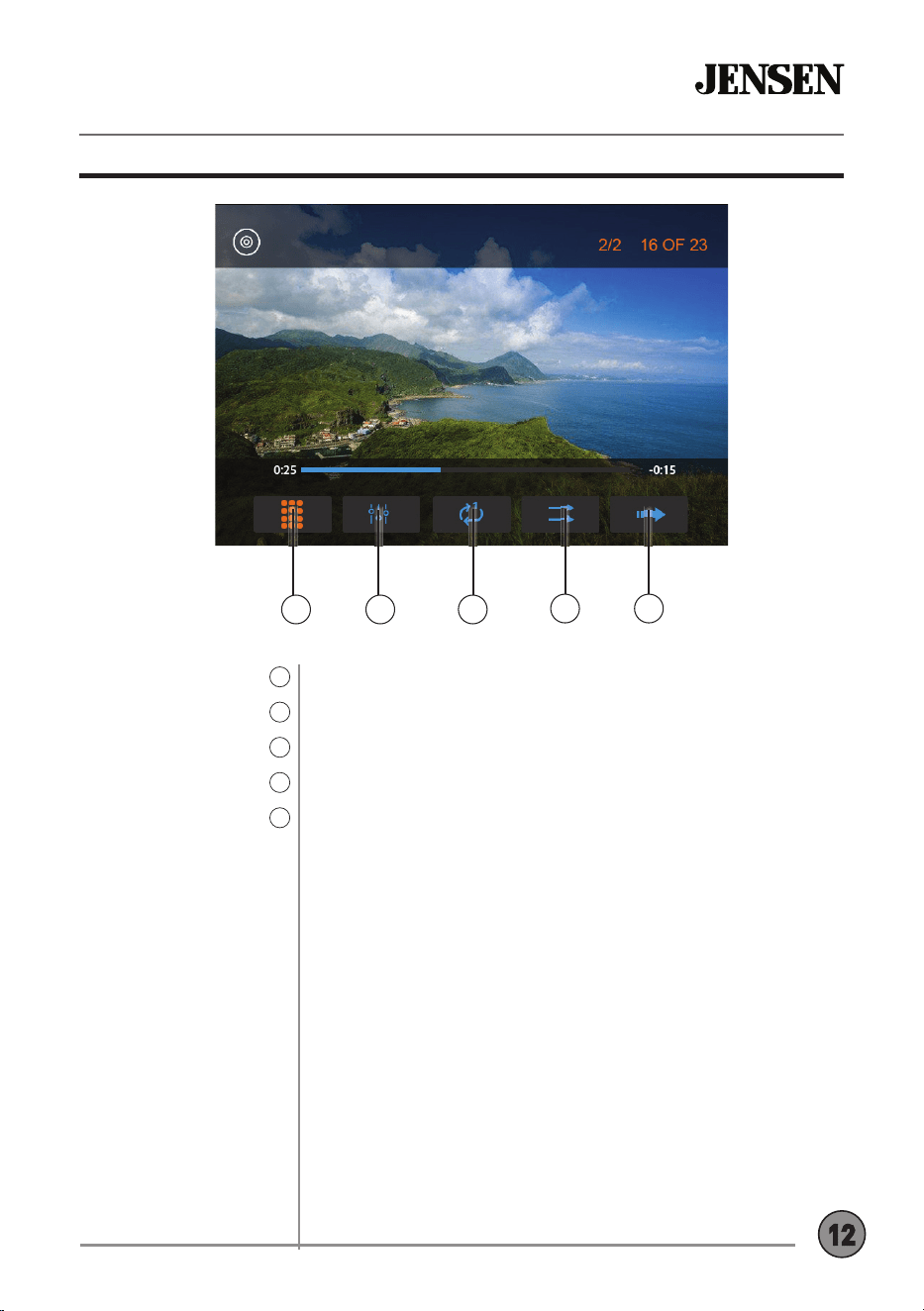
Enter a chapter number directly to begin playback.
Press to access and adjust audio settings.
Press to repeat current chapter.
Press to enable or disable random playback.
Press to display the next page of options.
Direct Entry
7
Audio
8
Repeat
9
Random
10
Next Page
11
8
7
10 11
9
12
CDR6221 OPERATION
Bluetooth Operation
Before you can use a Bluetooth device, it must be paired and
connected. Make sure that Bluetooth is activated on your device
before you begin the pairing process.
The built-in microphone is located on the front of the receiver. An
external microphone is also included and is designed to mount on a
visor or on a pillar inside the vehicle.
The unit broadcasts the pairing signal constantly when no devices
are currently connected. Complete the pairing sequence from your
Bluetooth device. Refer to the owner's manual for your device
for more details. The device name is "CDR6221". The Bluetooth
passcode is "0000". The unit can be in any mode of operation when
pairing is performed. On certain phones, pairing may need to be
done more than once.
Most Bluetooth devices support the auto-connect feature and
will connect automatically if the device is in range when the unit
is powered-on. If your device was previously paired but does not
connect, enter the Bluetooth setup menu and turn Auto Connect on.
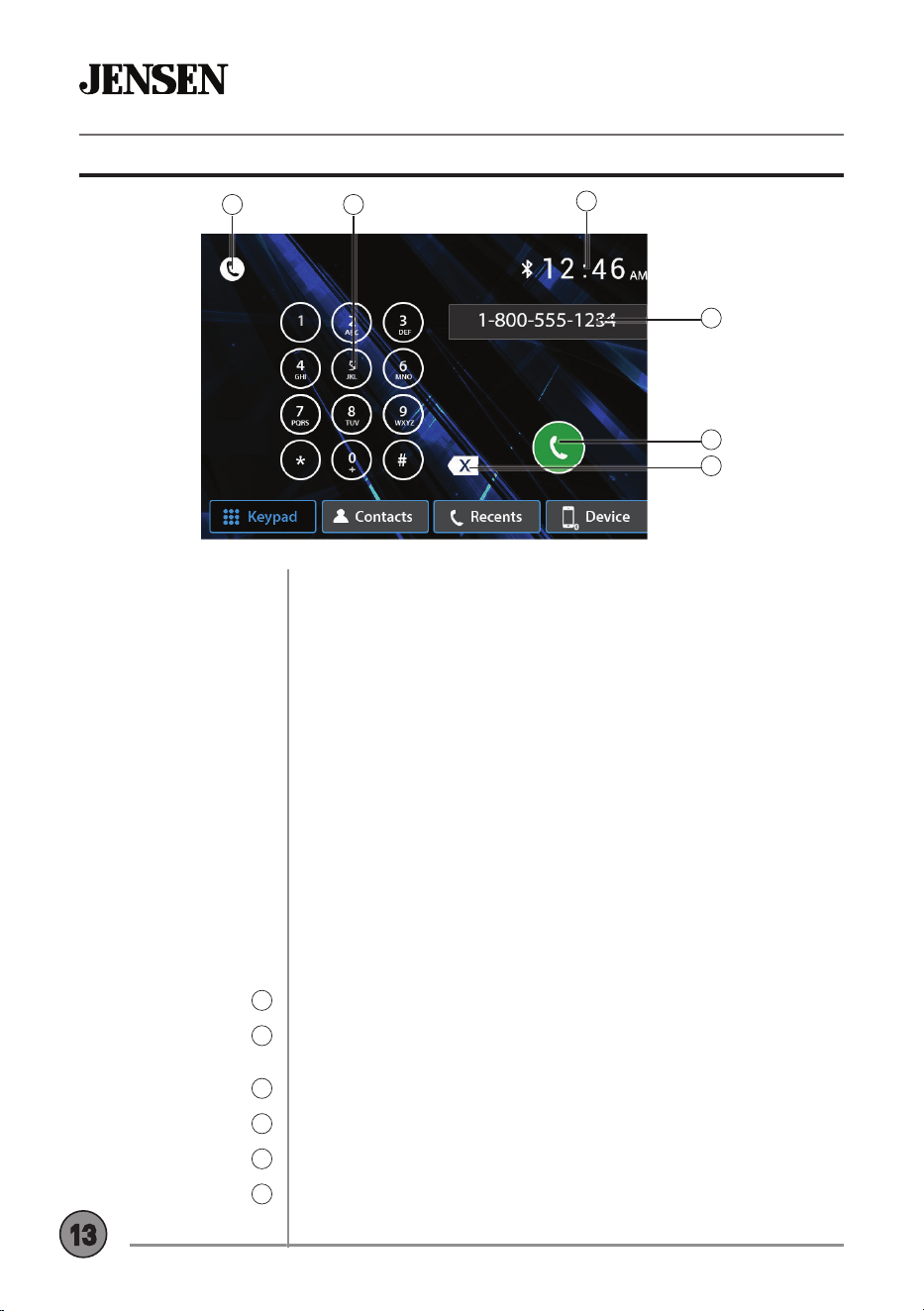
To access the phone, select Bluetooth Phone from the Main Menu or
press the phone icon from any operational mode.
Press to return to the Main Menu screen.
Use the phone keypad to dial the desired phone number. Alternately,
numbers can be dialed directly from the phone.
Displays current time.
Shows the current phone number as it is dialed.
Press to connect a call.
Press to backspace when using the keypad.
Preparation
Microphone
Pairing a New Device
Connecting a
Paired Device
Bluetooth Phone
Main Menu
1
Phone Keypad
2
Clock
3
Phone Number
4
Talk
5
Backspace
6
1
3
4
5
2
6
13
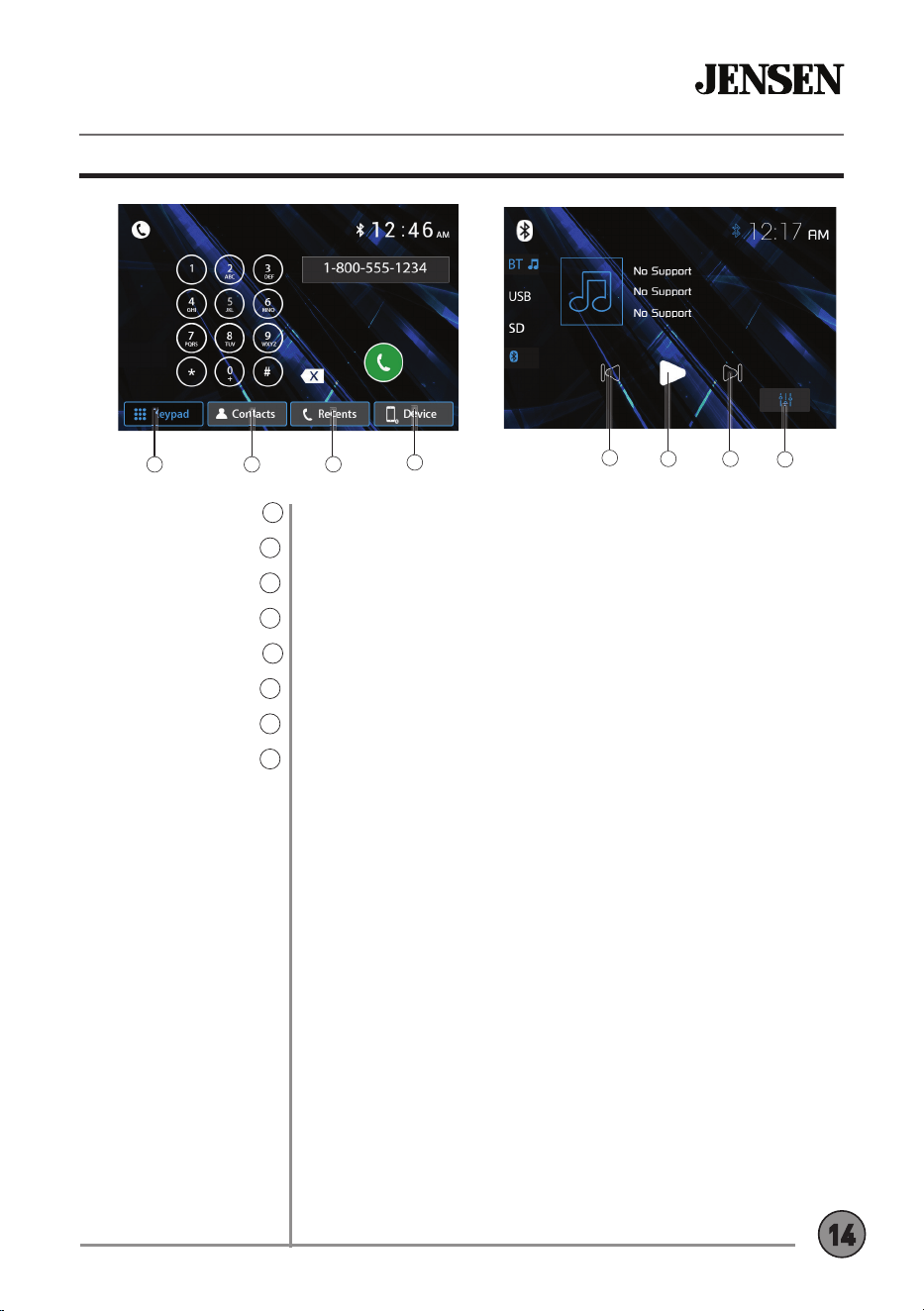
Keypad
7
Contacts
8
Recents
9
Device
10
Previous File/Track
11
Play / Pause
12
Next File/Track
13
Audio
14
Press to display the telephone keypad.
Press to display a list of stored contacts.
Press to view a list of recently calls.
Press to view and select available devices.
Press to return to the previous file/track.
Press to pause or resume playback.
Press to advance to the next file/track.
Press to access and adjust audio settings.
12 13
14
Bluetooth Operation
CDR6221 OPERATION
9
87
10
11
14
CDR6221 OPERATION
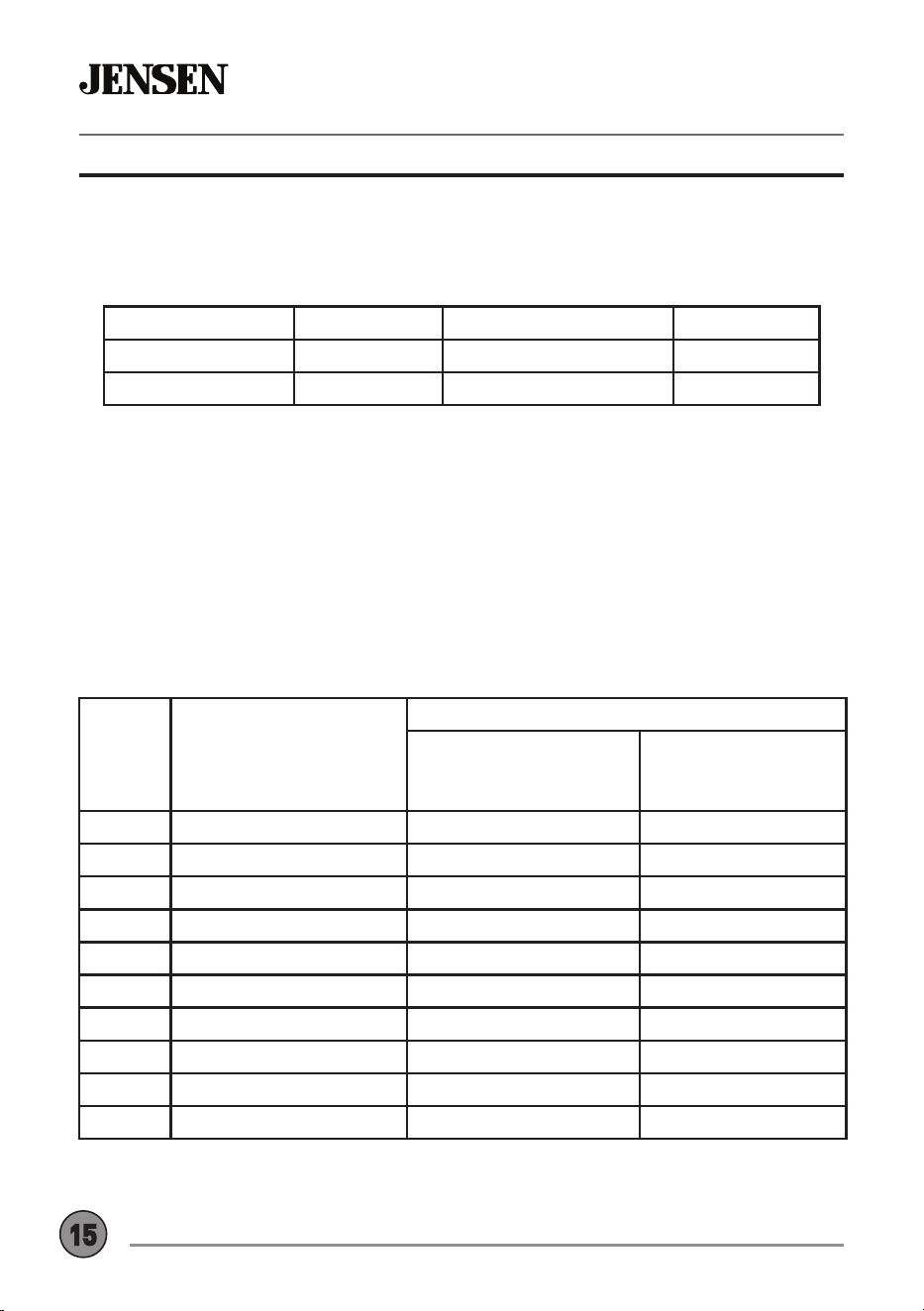
The built-in SWC Interface is compatible with PAC steering wheel control modules.
The PAC SWI-RC is recommended. A third-party adapter must be used in order for the
XDVD600 to be compatible with any steering wheel controls. The following controls are
available for most vehicles.
Note: Not all OE steering wheel functions may be supported by the XDVD600.
1. Volume Up (+) 4. Preset (+) 7. Seek/Track Up (+) 10. BT Talk
2. Volume Down (-) 5. Preset (-) 8. Seek/Track Down (-) 11. BT End
3. Mute 6. Mode 9. Band
PAC SWI-RC Installation Hints
1. Set "Radio Select Switch". Set the SWI-RC to position 7 - "Pioneer/Other/Sony".
2. To program, use the Pioneer/Sony/Other radio function mapping order for CDR171
units.
3. When programming the SWI-RC, if a function is not supported (or not desired), then
the
function MUST be skipped as per the PAC SWI-RC instructions.
Func-
tion
Order
Function
Mapping
SWI-RC (3.3VDC Reference)
Center Pin (Ring) Volt-
age
(Function Select)
Tip Pin Voltage
1 Volume + H 5.0v 2.07
2 Volume - H 5.0v 2.32
3 Mute H 5.0v 1.01
4 Preset + L 0.0V 1.54
5 Preset - L 0.0V 1.81
6 Source H 5.0v 0.60
7 Seek + / Track + H 5.0v 1.54
8 Seek - / Track - H 5.0v 1.81
9 Band H 5.0v 2.73
10 BT Talk L 0.0V 0.60
SWC Input Operation
15

CDR6221 OPERATION
Your receiver is designed with an easy access voice activation button to use Siri® or
the Google Assistant™ via your car’s Bluetooth. Interact with your smartphone assis-
tant while you drive with only the push of a button!
Bluetooth should be paired between your smartphone and the receiver. Press the
voice activation button, and the receiver will switch into Bluetooth mode, This will
activate Siri® or Google Assistant™ on your smartphone. You will need to manually
switch back to the previous or desired mode once this operation is terminated.
Voice Assistant
16

CDR6221 OPERATION
Front 3.5mm Aux Input
Connect an optional audio source into the 3.5mm (front panel) input. Select auxiliary
input from the Main Menu to listen to audio. Adjust volume on the external audio
source as needed (if connected to the headphone output of the device).
Rear Camera Operation - (Optional)
Connect an optional rear camera to the Camera Input (Black RCA connector). Refer to
the wiring diagram for details.
Manual selection - Touch CAMERA icon from the Main Menu or from any operational
mode (when enabl
ed) to select camera mode. Touch the top left area on the screen to
e
xit camera mode.
Note: The manual mode is for dedicated cameras that are ALWAYS on while driving, it
is not meant for cameras that are connected to the vehicle's reverse light.
The unit will automatically select camera mode when connected to the reverse lamp
circuitry.
17

CDR6221 OPERATION
Limited One Year (Or Two Year*) Warranty
This warranty gives you specific legal rights. You
may also have other rights which vary from state
to state.
Namsung America Inc warrants this product to
the original purchaser to be free from defects in
material and workmanship for a period of one
year from the date of the original purchase.
Namsung America Inc agrees, at our option,
during the warranty period, to repair any defect in
material or workmanship or to furnish an equal
new, renewed or comparable product (whichever
is deemed necessary) in exchange without
charges, subject to verification of the defect or
malfunction and proof of the date of purchase.
Subsequent replacement products are warranted
for the balance of the original warranty period.
Who is covered? This warranty is extended to the
original retail purchaser for products purchased
from an authorized JENSEN dealer and used in
the U.S.A.
What is covered? This warranty covers all
defects in material and workmanship in this
product. The following are not covered: software,
installation/removal costs, damage resulting
from accident, misuse, abuse, neglect, product
modification, improper installation, incorrect
line voltage, unauthorized repair or failure to
follow instructions supplied with the product, or
damage occurring during return shipment of the
product. Specific license conditions and copyright
notices for the software can be found via www.
jensenmobile.com.
Warranty Coverage
Limited 1-year warranty when purchased from an
authorized Jensen dealer.
or
*Limited 2-year warranty when purchased from
and professionally installed by an authorized
Jensen dealer.(Proof of purchase and Installation
required)
What to do?
1. Before you call for service, check the
troubleshooting guide in your owner’s manual.
A slight adjustment of any custom controls
may save you a service call.
2. If you require service during the warranty
period, you must carefully pack the product
(preferably in the original package) and ship
it by prepaid transportation with a copy of the
original receipt from the retailer to an
authorized service center.
3. Please describe your problem in writing and
include your name, a return UPS shipping
address (P.O. Box not acceptable), and a
daytime phone number with your shipment.
4. For more information and for the location of
the nearest authorized service center please
contact us by one of the following methods:
• Call us toll-free at (888) 921-4088
• E-mail us at [email protected]om
Exclusion of Certain Damages: This warranty
is exclusive and in lieu of any and all other
warranties, expressed or implied, including
without limitation the implied warranties of
merchantability and fitness for a particular
purpose and any obligation, liability, right,
claim or remedy in contract or tort, whether
or not arising from the company’s negligence,
actual or imputed. No person or representative
is authorized to assume for the company any
other liability in connection with the sale of this
product. In no event shall the company be liable
for indirect, incidental or consequential damages.
18
CDR6221 OPERATION
Specifications
Disc
FM Tuner
AM Tuner
Front USB
microSD
Monitor
General
Frequency response: 20Hz-20kHz
Channel separation @ 1kHz: >80dB
D/A converter: 24 Bit
Tuning range: 87.5MHz-107.9MHz
Usable sensitivity: 10dBf
50dB quieting sensitivity: 20dBf
Stereo separation @ 1kHz: 38dB
Frequency response: 30Hz-13kHz
Tuning range: 530kHz-1710kHz
Usable sensitivity: 24uV
Frequency response: 30Hz-2.3kHz
Compatibility: High Speed USB 2.0
USB Class: Mass storage class
Compatibility:
microSD memory card & microSDHC memory card
Panel size: 6.2” diagonal measurement
View angle (up/down/left/right): 50/70/70/70
Resolution: 800 (H) x 480 (V)
Brightness (cd/m
2
): 250
Contrast ratio: 500:1
Pixels: 1,152,000
Speaker output impedance: 4 ohms
Line output voltage: 2 volt RMS
Line output impedance: 200 ohms
Chassis dimensions: 6.2” x 6.2” x 4” (W x D x H)
Design and specifications subject to change without notice.
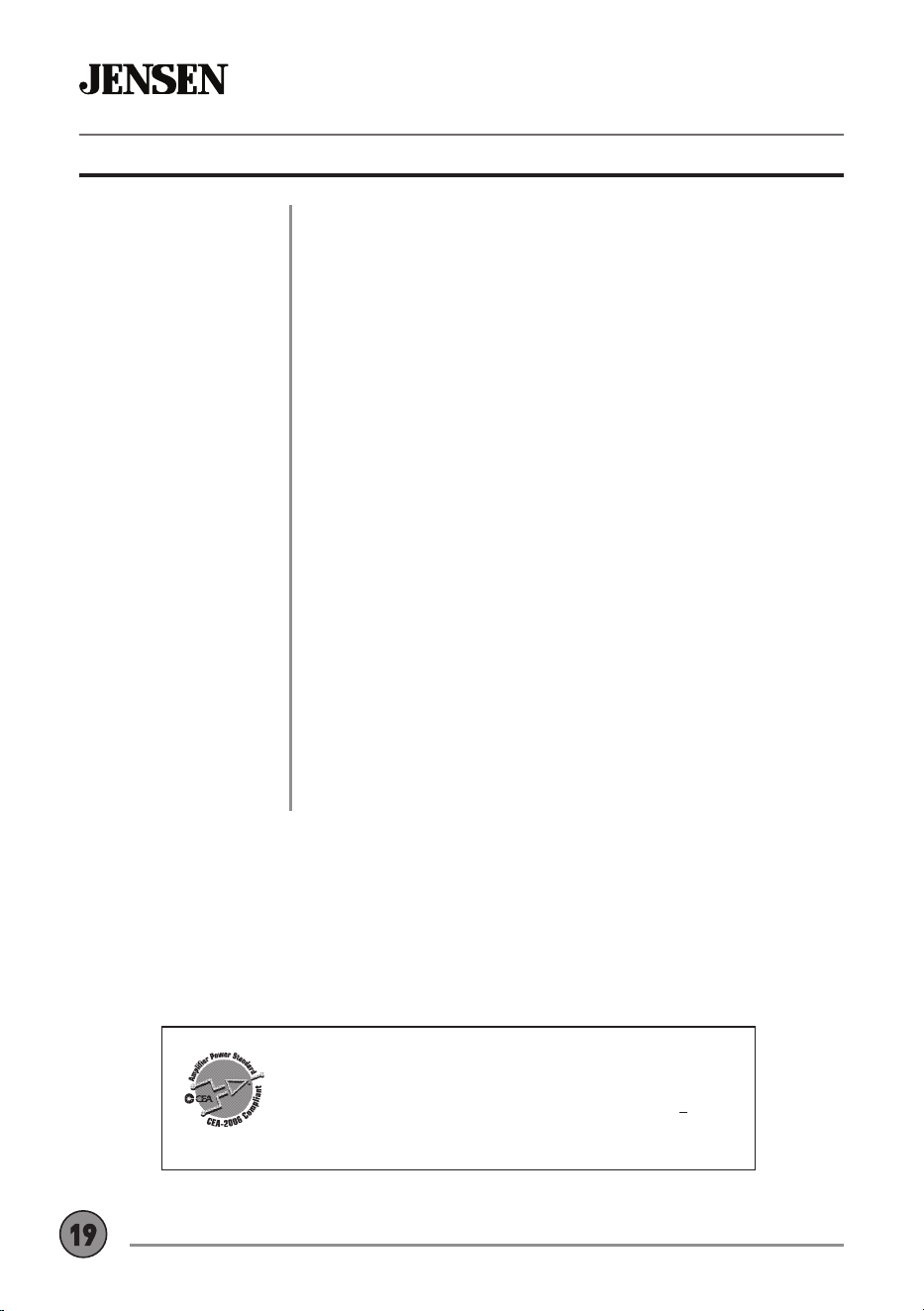
CEA-2006 Power Standard Specifications
(reference: 14.4VDC +/- 0.2V, 20Hz~20kHz)
Power Output: 16 Watts RMS x 4 channels at 4 ohms and < 1%
THD+N
Signal to Noise Ratio: 80dBA (reference: 1 watt into 4 ohms)
19
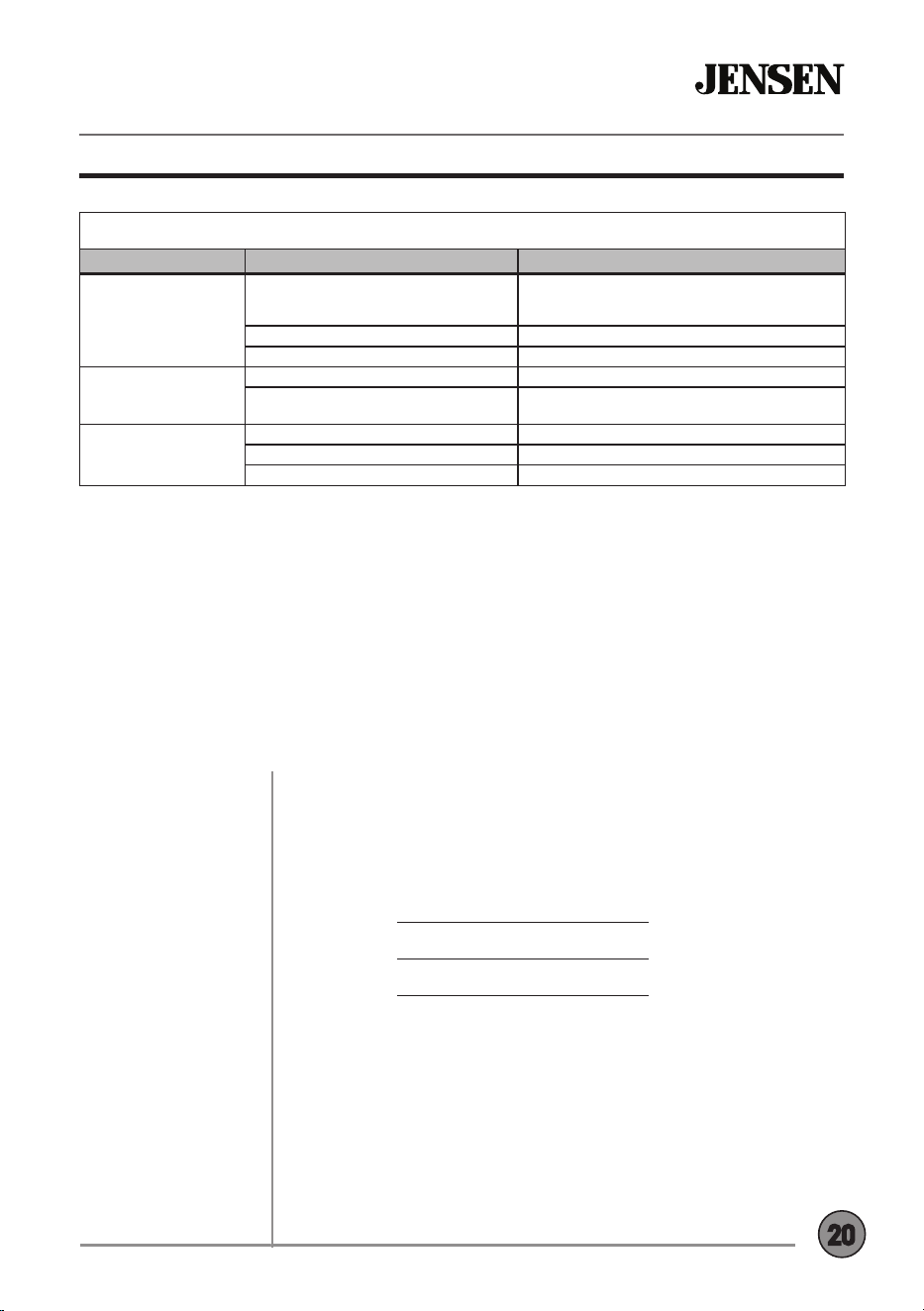
Troubleshooting
General
Problem Cause Action
Unit will not turn on
(no power)
Yellow wire not connected or incorrect
voltage Red wire not connected or incorrect
voltage
Check connections for proper voltage (11~16VDC)
Black wire not connected Check connection to ground
Fuse blown Replace fuse(s)
Unit has power
(but no sound)
Speaker wires not connected Check connections at speakers
One or more speaker wires touching each
other or touching chassis ground
Insulate all bare speaker wires from each other and
chassis ground
Unit blows fuse(s)
Yellow or red wire touching chassis ground Check for pinched wire
Speaker wires touching chassis ground Check for pinched wire
Incorrect fuse rating Use fuses with correct rating
Please keep your original sales receipt and be prepared to provide this receipt
in the event you require service, as your original receipt is considered the best
proof of purchase and indicates the date you purchased your JENSEN product.
Dealer Name
Dealer Phone
Purchase Date
For Your Records
CDR6221 OPERATION
Customer Support
1-888-921-4088
(Monday-Friday, 9AM-5PM EST)
Visit https://www.jensenmobile.com
20

CDR6221
INSTALLATION &
OWNER’S MANUAL
Customer Support
1-888-921-4088
(Monday-Friday, 9AM-5PM EST)
Visit https://www.jensenmobile.com
Designed and Engineered in USA
NSA0721-v01
Namsung America Inc.
©2021 Namsung America Inc.
All rights reserved.
All rights reserved. No part of this publication may be
reproduced, distributed, or transmitted in any form or
by any means, including photocopying, recording, or
other electronic or mechanical methods, without the
prior written permission of NAMSUNG AMERICA INC.