6 7 8 9 10
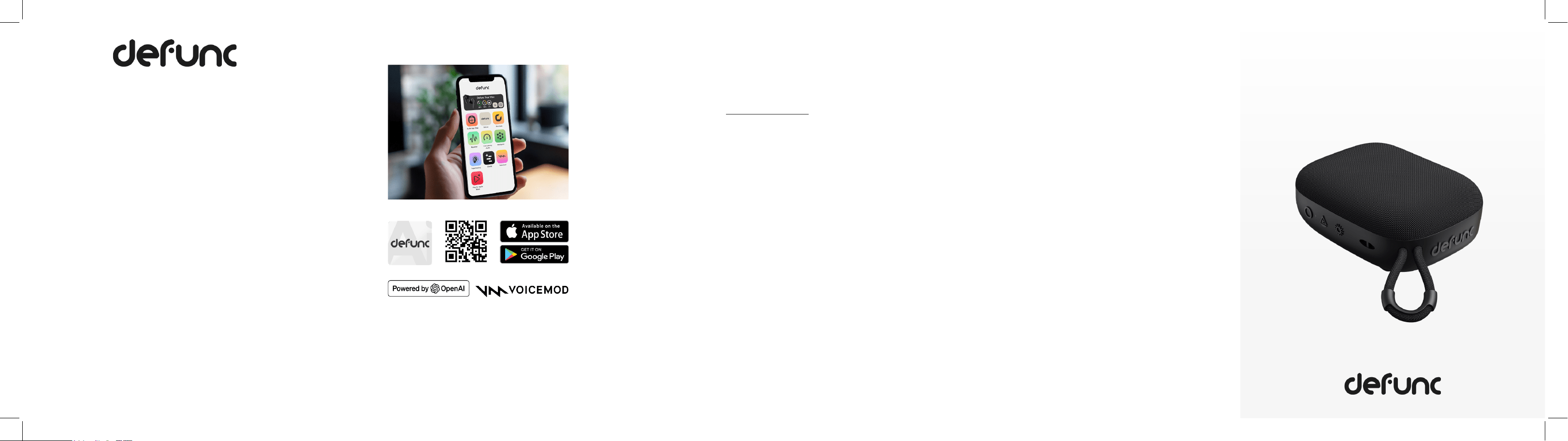
BEAT 5
QUICK START GUIDE
Simplify your listening experience with the Defunc
AI App. It provides an efficient way for your speaker
to communicate with your device — either through
voice commands or by using the app’s built-in features.
The Defunc AI App offers a companion app ecosystem
that lets you customize your experience based on
your preferences and needs. Access features such as
translation services, AI Chat, and other tailored tools.
DEFUNC AI APP FEATURES INCLUDE
• AI Chat
• Voice filters for messages
• Customer service, FAQs, and manuals
• A library of additional features and accompanying apps
AI-APP
RULES & REGULATIONS 1/2 RULES & REGULATIONS 2/2
HOW TO MAKE A CLAIM ON MY DEFUNC PRODUCT
If you receive your goods and discover that they are
damaged, or have other defects, please contact customer
service. Just provide us with your contact and purchase
details, go to defunc.com/support/ - scroll down, and click
on the <GET IN TOUCH> button.
COMPLIANCE WITH FCC REGULATIONS
Caution! The user is cautioned that changes or modifica-
tions not expressly approved by the party responsible for
compliance could void the user’s authority to operate the
equipment. This equipment has been tested and found to
comply with the limits for a Class B digital device, pursuant
to Part 15 of the FCC Rules. These limits are designed to
provide reasonable protection against harmful interference
in a residential installation. This equipment generates, and
can radiate radio frequency energy and, if not installed and
used in accordance with the instructions, may cause harmful
interference to radio communications. However, there is no
guarantee that interference will not occur in a particular in-
stallation. If this equipment does cause harmful interference
to radio or television reception, which can be determined
by turning the equipment on and off, the user is encoura-
ged to try to correct the interference by one or more of the
following measures:
• Reorient or relocate the receiving antenna
• Increase the separation between the equipment and receiver
• Connect the equipment into an outlet on a circuit different
from that to which the receiver is connected.
• Consult the dealer or an experienced radio/TV technician
for help.
This device complies with Part 15 of the FCC Rules. Operation
is subject to the following two conditions: (1) this device
may not cause harmful interference, and (2) this device must
accept any interference received, including interference
that may cause undesired operation.
THE SPECIFICATION AND EXTERNAL APPEARANCE OF
THE SPEAKER MAY BE SUBJECT TO CHANGE WITHOUT
PRIOR NOTICE.
If at any time in future you should need to dispose of this
product, please note that waste electrical products should
not be disposed of with household waste. Please recycle
where facilities exist. Check with your local authority or
retailer for recycling advice.
EU DECLARATION OF CONFORMITY
The Art of Utility AB hereby declares that Defunc BEAT 15
complies with Directive 2014/53/EU. The full text of the EU
Declaration of Conformity is available here:
defunc.com/documents.
APP FEATURES
Any Changes or modifications not expressly approved by
the party responsible for compliance could void the user's
authority to operate the equipment.
The device has been evaluated to meet general RF e
xposure
requirement. The device can be used in portable exposure
condition without restriction.
1 2 3 4 5
ENJOY YOUR NEW DEFUNC PRODUCT!
Get started by downloading the Defunc AI App
from your app store. Access tips and tricks on how to
optimize your BEAT 5 speaker, and explore additional
features for your device.
Download here:
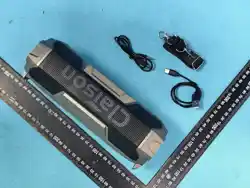
INCLUDED IN THE BOX:
• Defunc BEAT 5 Speaker
• USB-C charging cable
• Quick guide manual
CHARGING
1. Connect the USB-C cable to the speaker
2. Plug the other end into a DC5V/1A power source
3. The red LED lights up during charging
4. The light turns off when fully charged
Attention! Use only certified charging accessories.
RESET
Press and hold Volume + and Volume – together for
6 seconds to reset the speaker to factory settings.
GET STARTED
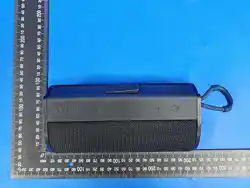
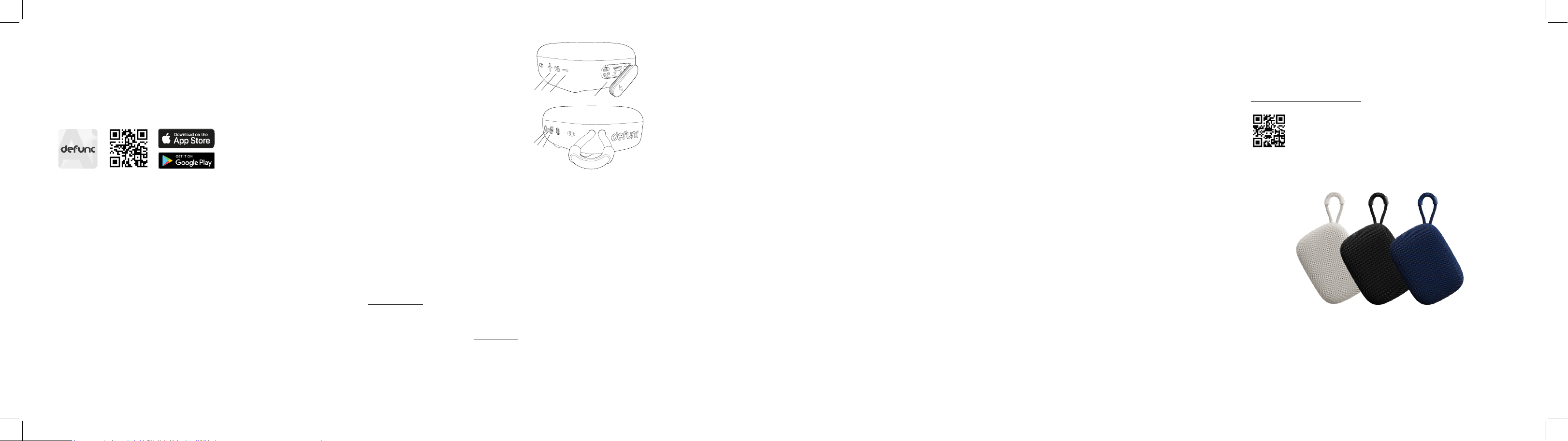
PRODUCT OVERVIEW
1. + Button
Volume up - short press
Next song - press and hold
2. - Button
Volume down - short press
Previous song - press and hold
3. Play/Pause
Play or pause music - short press
Calls: answer - short press / reject - press and hold
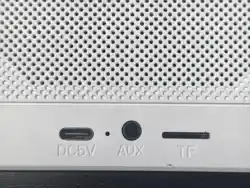
4. Type-C port
Charging : DC5V/1A, USB-Audio input, TF memorycard
(max 32G) input
5. Power button
Power on/off - press and hold for 3 seconds
Change to BT/TF/USB audio mode - short press
6. Auracast button
Press the Auracast button once to turn on/off.
On = Auracast transmitter mode.
7. LED indicator
WHITE LIGHT: Flashing when waiting for Bluetooth pairing. Stays lit
when connected. Flashing slowly when waiting for Auracast pairing.
Stays lit when connected. White color stays lit - when TF card or USB
audio cable mode is active. RED LIGHT: Flashing - when battery is low.
Lit - while charging. The light goes out when the speaker is fully charged.
8. Light button
LED light on/off - press and hold for 3 seconds
Change to preffered light mode/color
CHANGE AUDIO MODE
Short press on the power button to switch between:
• Bluetooth
• TF Card (maximum 32G)
LED LIGHT MODES
1. Turn the LED Light on/off - press and hold the light button
for 3 seconds.
2. Change Light Mode/Color: short press on the light button.
LED INDICATOR
Light off - Fully charged
White Light
Flashing – waiting for Bluetooth pairing mode
Light stays lit – Bluetooth connected
Light stays lit - in TF / USB mode
Slow flashing – Waiting for Auracast pairing
Light stays lit – Auracast connected
Red Light
Flashing – Low battery
Light stays lit – Charging
POWER ON
Press and hold the power button for 3 seconds until the LED
indicator lights up.
POWER OFF
Press and hold the power button for 3 seconds until the
LED indicator turns off.
VOICE ASSISTANT
Press and hold the play/pause button to activate
CALLS
1. Answer / End Call - press the play/pause button once
2. Reject Call - press and hold the play/pause button
BLUETOOTH PAIRING
1. Turn on the speaker.
2. The device automatically enters Bluetooth pairing mode.
3. Open Bluetooth settings on your device.
4. Select Defunc BEAT 5 from the list.
5. When connected, the LED indicator stays lit.
AURACAST CONNECTION (MULTIPLE SPEAKERS)
1. Connect your speaker to your device via Bluetooth.
2. Press the Auracast button once to enter transmitter mode.
3. To connect an additional speaker:
1. Clear the Bluetooth connection on the additional speaker.
2. Press and hold the Auracast button for 6 seconds to enter receiver
mode. The speakers will automatically connect to each other.
FULL MANUAL
For full instructions, and the complete user manual, download
the PDF from defunc.com:
https://defunc.com/support/
3.
4.
1.
2.
5.
7.
6.
8.