
Micro Gateway Gen 2
MGW2ULU
User Manual
ubilink
Version 1.0
MGW2ULU User Manual
Page
2
1. Product Overview
The Micro Gateway Gen 2 (MGW2ULU) is an IoT gateway developed by ubilink. It serves as the
central hub for ubilink-based LoRa networks, connecting up to 250 end devices and relaying
data to the cloud via Wi-Fi 2.4GHz.
Key Features:
• ubilink LoRa protocol for long-range, low-power IoT communication
• Supports up to 250 end devices
• Wi-Fi 2.4GHz uplink to cloud server
• Battery backup (AA battery) for power outage protection
• Enhanced antenna for improved LoRa coverage (upgraded from Gen 1)
• Easy setup via Custos Home app (iOS / Android) over Bluetooth Low Energy (BLE)
• Built-in monitoring: temperature, battery, offline, and power outage reports
2. What’s in the Box
• MGW2ULU gateway unit x 1
• USB-C cable x 1
• Power adapter x 1
• Quick start guide x 1
• Non-rechargeable AA battery x 2
If any items are missing or damaged, please contact ubilink support.
3. Hardware Overview
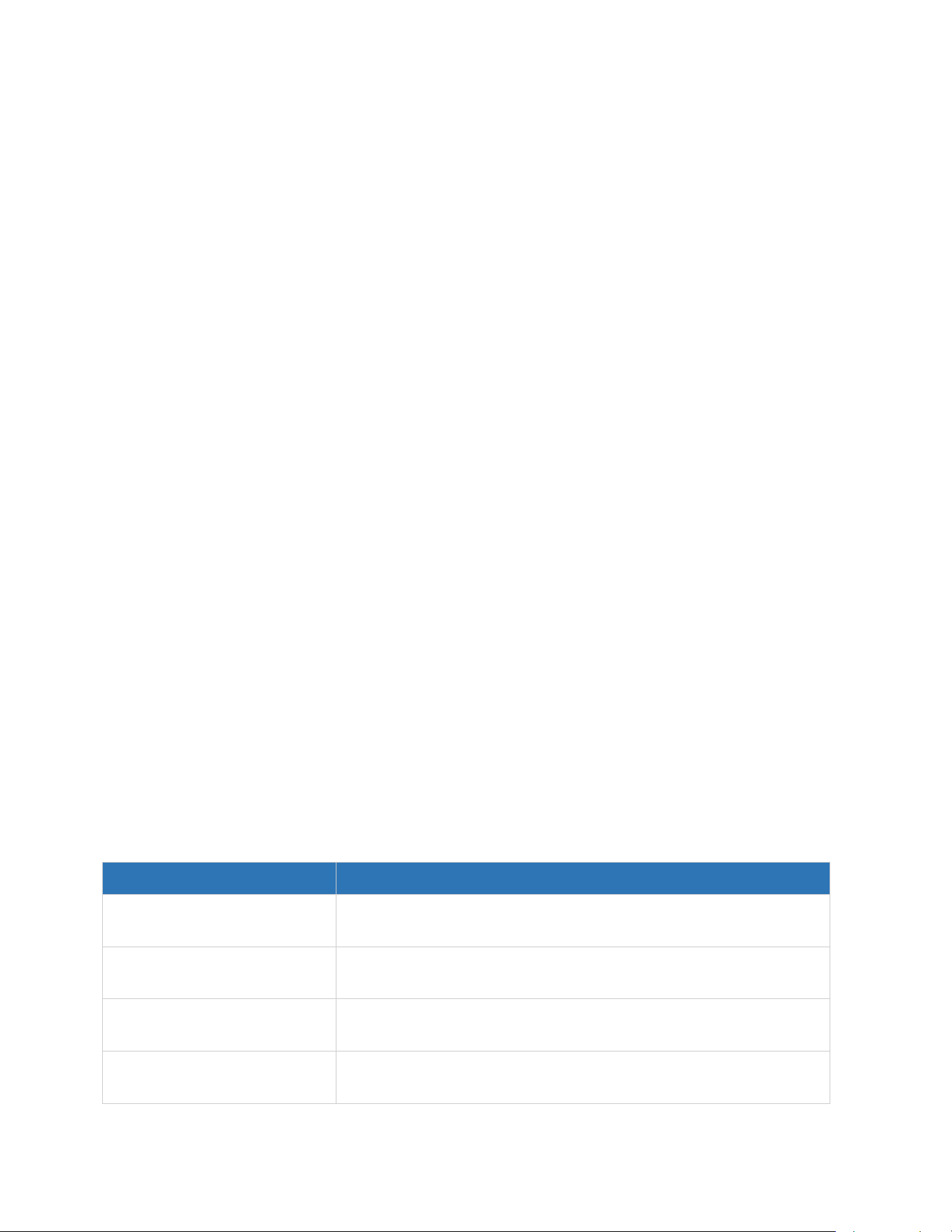
The MGW2ULU features the following physical components:
Component
Description
USB-C Port
Power input for the gateway. Connect to the included power
adapter using the USB-C cable.
RGB LED Indicator
Displays the current status of the gateway using different
colors. See Section 4 for details.
Reset Button
Used for Wi-Fi reset and factory reset operations. See Section
8 for details.
AA Battery Compartment
Houses a non-rechargeable AA battery for backup power
during power outages.
MGW2ULU User Manual
Page
3
4. LED Indicator Guide
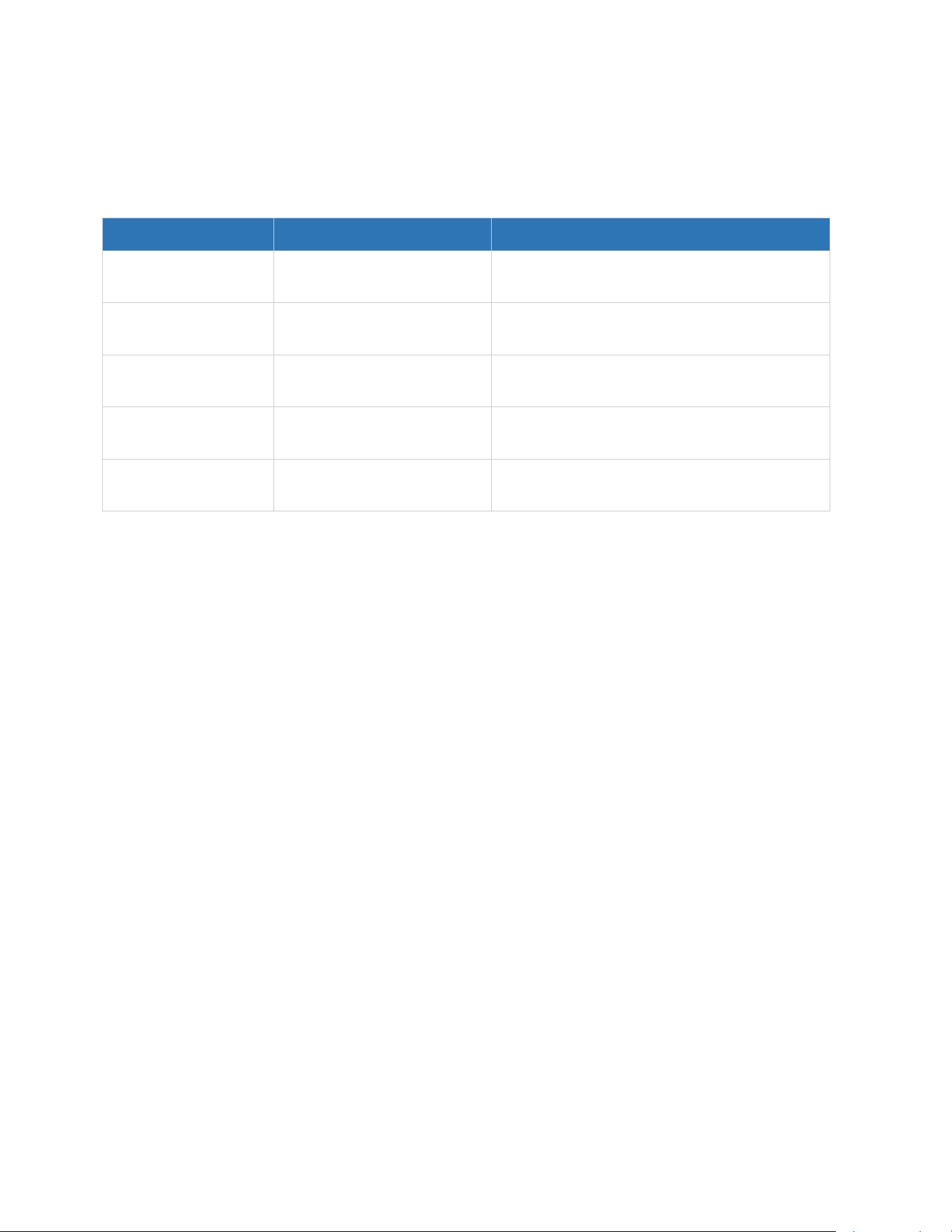
The RGB LED on the MGW2ULU indicates the current device status:
LED Color
Status
Description
Yellow
Not Configured
The gateway has not been set up. Follow
Section 5 to configure.
Red
Wi-Fi Disconnected
The gateway has lost its Wi-Fi
connection.Check your network.
Green
Wi-Fi Connected, Server
Disconnected
Wi-Fi is connected but the gateway
cannot reach the ubilink server.
Blue
Fully Operational
Wi-Fi and server are both connected. The
gateway is working normally.
White (flashing 3x)
Rebooting
The gateway is restarting. Wait for it to
complete.
5. Getting Started
Follow these steps to set up your MGW2ULU for the first time:
1. Insert a non-rechargeable AA battery into the battery compartment.
2. Connect the USB-C cable to the MGW2ULU and plug the other end into the included
power adapter.
3. Plug the power adapter into a power outlet. The LED will turn yellow, indicating the
gateway is ready for setup.
4. Download the Custos Home app from the iOS App Store or Google Play Store on your
smartphone.
5. Enable Bluetooth on your smartphone.
6. Open the Custos Home app and follow the on-screen instructions to pair with the
MGW2ULU via BLE.
7. When prompted, select your Wi-Fi network (2.4GHz only) and enter the password.
8. Wait for the gateway to connect. The LED will turn blue when the MGW2ULU is fully
operational.
6. App Setup Guide
6.1 Downloading the App
The Custos Home app is available on both iOS and Android:
• iOS: Search for “Custos Home” in the App Store

MGW2ULU User Manual
Page
4
• Android: Search for “Custos Home” in Google Play Store
6.2 Pairing with MGW2ULU
1. Ensure your MGW2ULU is powered on and the LED is yellow (unconfigured).
2. Open the Custos Home app.
3. Ensure Bluetooth is enabled on your phone.
4. Follow the in-app instructions to discover and pair with the MGW2ULU.
5. Configure the Wi-Fi settings when prompted (2.4GHz networks only).
6.3 Viewing Device Status
Once the MGW2ULU is set up, tap on the device in the Custos Home app to view all status
information, including temperature reports, battery level, and connection status.
7. Built-in Features
The MGW2ULU includes several built-in monitoring and reporting features accessible through
the Custos Home app.
7.1 Temperature Report
• Reports temperature data from external connected sensors.
• Updates every 30 minutes.
• Viewable in the Custos Home app by tapping into the device to view its status.
7.2 Battery Report
• Monitors the MGW2ULU’s internal AA battery level.
• Displays battery level as both a percentage and a High / Medium / Low indicator.
• Alert thresholds can be configured in the Custos Home app.
7.3 Offline Report
• Triggers when the MGW2ULU loses connectivity and goes offline.
• A notification is sent to the user 10 minutes after the gateway goes offline.
7.4 Power Outage Report
• Triggers immediately when USB-C power is lost and the MGW2ULU switches to AA
battery backup.
MGW2ULU User Manual
Page
5
• An instant notification is sent to the user, alerting them to the power outage.
8. Reset Operations
The MGW2ULU reset button is located on the device. Each press produces a beep sound for
confirmation.
8.1 Reset Wi-Fi
Use this to clear the saved Wi-Fi configuration and reconfigure the network.
9. Press the reset button 3 times.
10. 3 rapid beeps will confirm the command was accepted.
11. The device will reboot within 3 seconds. The LED will flash white 3 times during reboot.
12. After reboot, the LED will turn yellow, indicating the gateway is ready for reconfiguration.
8.2 Factory Reset
Use this to erase all settings and restore the gateway to its default state.
13. Press and hold the reset button until you hear 10 beeps.
14. The LED will turn green. Release the button.
15. The device will reboot within 3 seconds. The LED will flash white 3 times during reboot.
16. After reboot, the LED will turn yellow. All settings have been erased.
8.3 Button Combination Failure
If the reset button sequence is not recognized:
• You will hear 3 slow beeps.
• The LED will flash red 3 times.
• No action is taken. Please retry the intended reset operation.
Note: You can also reset Wi-Fi through the Custos Home app by navigating to Settings →
Reset Wi-Fi.
9. Installation Guidelines
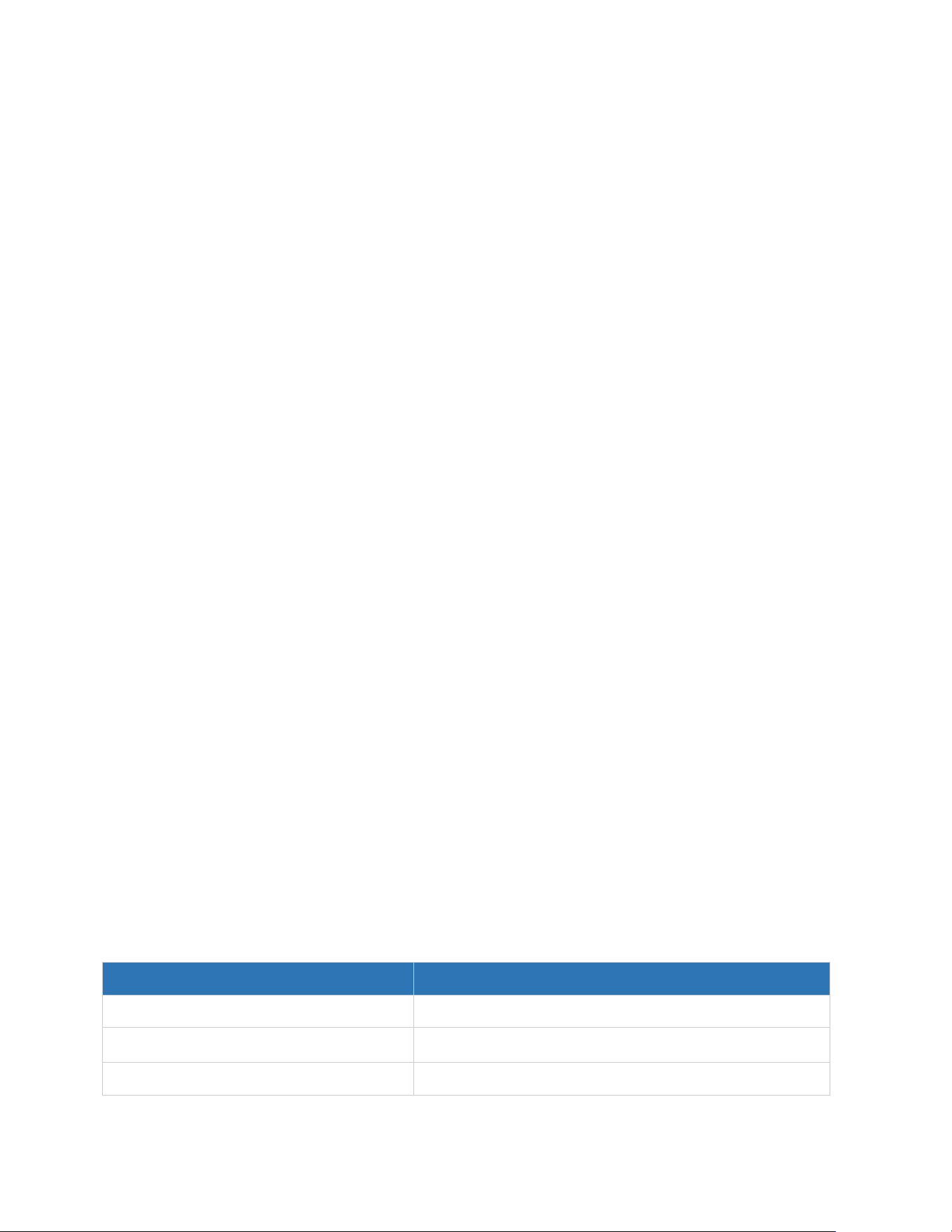
The MGW2ULU can be used in both indoor and outdoor environments.
Parameter
Value
Indoor / Outdoor Use
Supported
Operating Temperature Range
-20°C~+45°C
Recommended Installation Location
In the center of the home with strong wi-fi signal

MGW2ULU User Manual
Page
6
Tips:
• Place the MGW2ULU as close to your Wi-Fi router as practical for the best connectivity.
• Ensure the gateway has a clear line of sight to LoRa end devices for optimal coverage.
10. Troubleshooting / FAQ
Q: MGW2ULU cannot connect to Wi-Fi
• Verify the Wi-Fi password is entered correctly.
• Check the Wi-Fi signal strength. Move the MGW2ULU closer to the router if the signal is
weak.
• Ensure your Wi-Fi network is operating on the 2.4GHz band. The MGW2ULU does not
support 5GHz networks.
• Position the MGW2ULU as close to the router as possible for optimal connectivity.
• Try resetting Wi-Fi via the reset button (press 3 times) and reconfigure through the
Custos Home app.
Q: LED is green (Wi-Fi connected but server not connected)
• Check that your Wi-Fi network has an active internet connection.
• In the Custos Home app, go to Settings → Reset Wi-Fi and follow the on-screen
instructions to reconfigure.
Q: App cannot find MGW2ULU during BLE pairing
• Ensure Bluetooth is enabled on your smartphone.
• Check that the Custos Home app has the required permissions (Bluetooth, and Location
if applicable).
• Verify that the MGW2ULU’s LED is yellow, indicating it is in pairing mode.
• Try reinstalling the Custos Home app.
• Perform a factory reset on the gateway (press and hold reset button for 10 beeps).
Q: MGW2ULU suddenly goes offline (LED changes from blue)
• Check your network connection and ensure your Wi-Fi router is functioning properly.
• In the Custos Home app, go to Settings → Reset Wi-Fi and follow the on-screen
instructions to reconfigure.
Q: How many end devices can MGW2ULU support?
The MGW2ULU supports up to 250 ubilink end devices.
Q: What is the LoRa coverage range?
MGW2ULU User Manual
Page
7
Approx 300m-500m line of sight.
Q: Can I power MGW2ULU with a power bank?
Yes, the MGW2ULU can be powered via a USB-C power bank. However, this is not
recommended for long-term or permanent use.
Q: How do I update the firmware?
In the Custos Home app, go to Settings → Firmware Update and follow the on-screen
instructions to update the gateway firmware.
Q: How long does the AA battery backup last?
10 hours
11. Warranty
Warranty Period / Terms : 1 year limited, conditions applied.
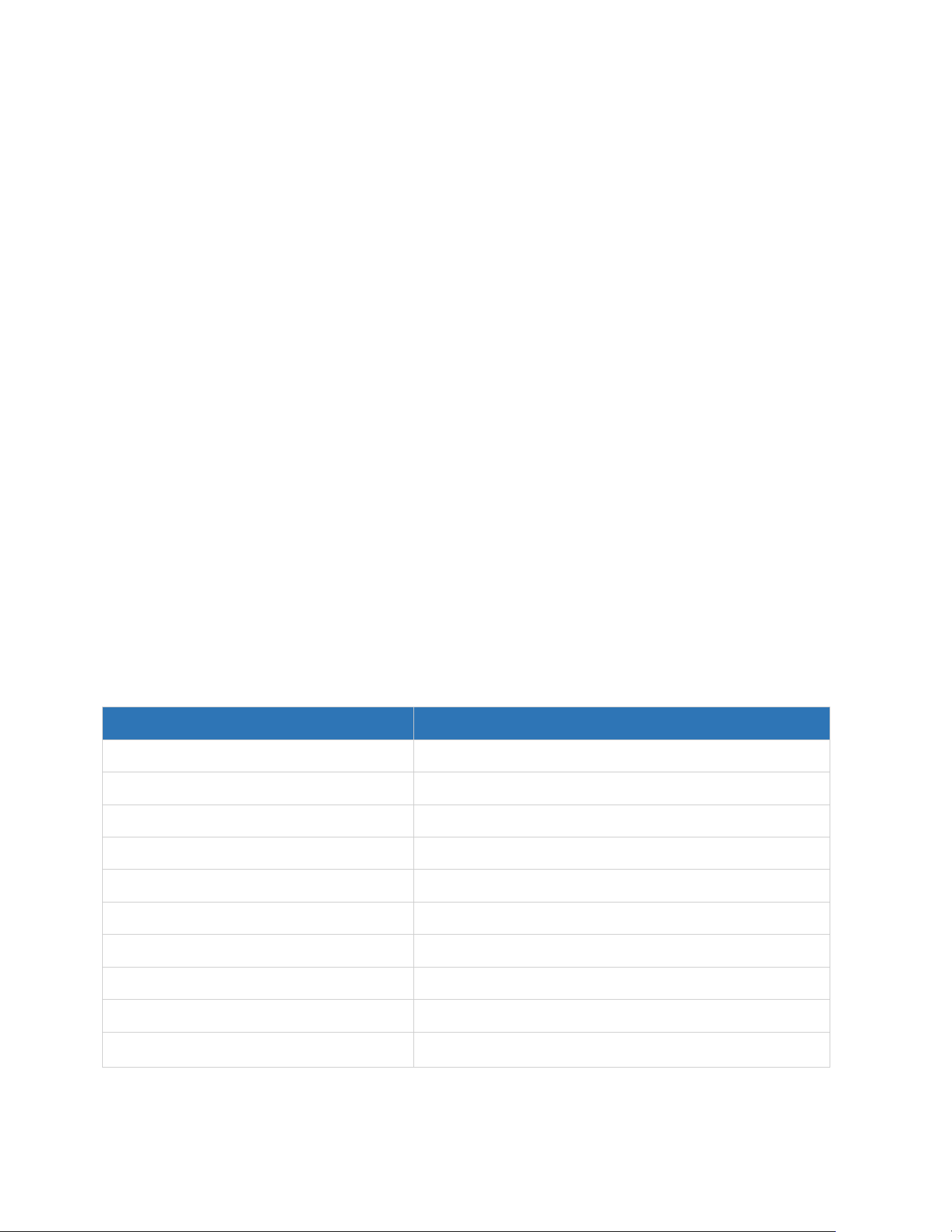
12. Specifications
Specification
Value
LoRa Protocol
Ubilink
Max End Devices
250
Uplink
Wi-Fi 2.4GHz
Configuration
BLE via Custos Home app (iOS / Android)
Power Input
USB-C 5V 1A
Battery Backup
AA sized Alkaline 1.5V x 2
LED Indicator
RGB
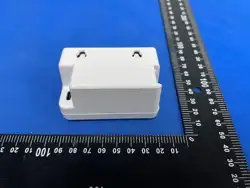
Dimensions
73mm x 57mm x 39mm
Weight
63.4g
Operating Temperature
-20°C~+45°C

FCC Warnning:
This equipment has been tested and found to comply with the limits for a Class B digital device,
pursuant to part 15 of the FCC Rules. These limits are designed to provide
reasonable
protection againstharmful interference in a residential installation. This equipment generates,
uses and can radiateradio
frequency
energy
and,
if
not
installed
and
used
in
accordance
with
the
instructions,
maycause
harmful
interference
to
radio
communications.
However,
there
is
no
guarantee
thatinterference
will
not
occur
in
a
particular
installation.
If
this
equipment
does
cause
harmfulinterference to radio or television reception, which can be
determined by turning the equipmentoff
and
on,
the
user
is
encouraged
to
try
to
correct
the
interference
by
one
or
more
of
thefollowing measures:
•
Reorient or relocate the receiving antenna.
•
Increase the separation between the equipment and receiver.
•
Connect the equipment into an outlet on a circuit different from that to which the receiver is
connected.
• Consult the dealer or an experienced radio/TV technician for help.
Caution:
Any
changes
or
modifications
to
this
device
not
explicitly
approved
by
manufacturer
could void your authority to operate this equipment.
This
device
complies
with
part
15
of
the
FCC
Rules.
Operation
is
subject
to
the
following
two
conditions:
(1)This
device
may
not
cause
harmful
interference,
and
(2)
this
device
must
accept
any
interference received, including interference that may cause undesired operation.
This
equipment
complies
with
FCC
radiation
exposure
limits
set
forth
for
an
uncontrolled
environment.
This
equipment
should
be
installed
and
operated
with
minimum
distance
20cm
between the radiator and your body.