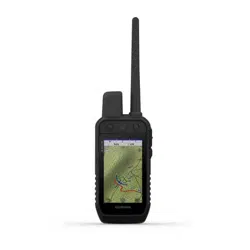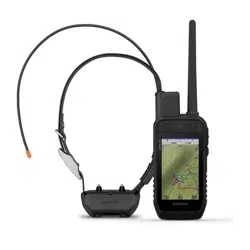
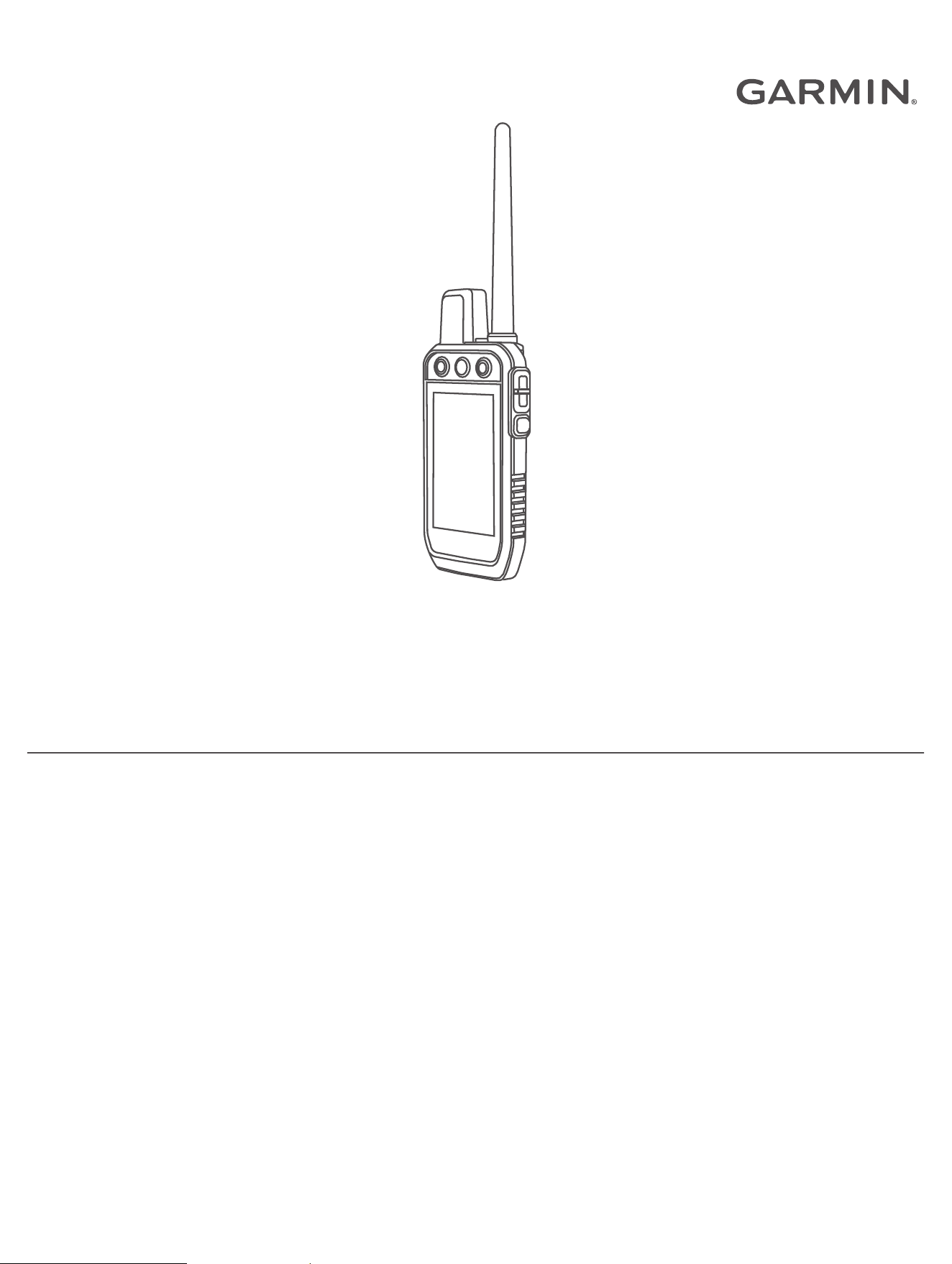
Alpha
®
200 with Training
Owner’s Manual

© 2020 Garmin Ltd. or its subsidiaries
All rights reserved. Under the copyright laws, this manual may not be copied, in whole or in part, without the written consent of Garmin. Garmin reserves the right to change or
improve its products and to make changes in the content of this manual without obligation to notify any person or organization of such changes or improvements. Go to
www.garmin.com for current updates and supplemental information concerning the use of this product.
Garmin
®
, the Garmin logo, Alpha
®
, ANT
®
, ANT+
®
, City Navigator
®
, and Xero
®
are trademarks of Garmin Ltd. or its subsidiaries, registered in the USA and other countries. BaseCamp
™
,
Garmin Explore
™
, Garmin Express
™
, Garmin HuntView
™
, tempe
™
, and TT
™
are trademarks of Garmin Ltd. or its subsidiaries. These trademarks may not be used without the express
permission of Garmin.
Apple
®
and Mac
®
are trademarks of Apple Inc., registered in the U.S. and other countries. The BLUETOOTH
®
word mark and logos are owned by the Bluetooth SIG, Inc. and any use
of such marks by Garmin is under license. microSD
®
and the microSDHC logo are trademarks of SD-3C, LLC. Wi‑Fi
®
is a registered mark of Wi-Fi Alliance Corporation. Windows
®
is
a registered trademark of Microsoft Corporation in the United States and other countries. Other trademarks and trade names are those of their respective owners.

Table of Contents
Getting Started.................................1
Setting Up the Alpha System................. 1
Device Overviews.................................... 2
Alpha Handheld Device...................... 2
Dog Collar Device................................ 4
Installing the Battery Pack..................... 5
Charging the Handheld Device.............. 5
Charging the Dog Collar Device............. 6
Turning On the Device............................ 6
Turning Off the Device........................ 6
Selecting a Language............................. 6
Using the Touchscreen...........................6
Using the Status Page............................ 7
Acquiring Satellite Signals..................... 7
Dog Collar Device Setup................... 7
Methods to Add a Dog Collar Device to a
Handheld Device..................................... 7
Adding a Dog to the Alpha Handheld
Using Wireless Pairing........................ 8
Sharing a Dog Wirelessly.................... 8
Adding a Dog Using the Track and
Control Codes..................................... 8
VHF Radio Information....................... 9
Managing a Group.................................. 9
Editing Dog Information......................... 9
Resetting a Dog's Statistics and
Track.................................................... 9
Changing the Dog Name.................... 9
Changing the Color of the Dog's
Track.................................................... 9
Changing the Dog Type...................... 9
Changing the Dog ID......................... 10
Removing a Dog................................ 10
Fitting the Collar on Your Dog.............. 10
Communication with the Collar........... 11
Entering Sleep Mode............................ 11
Exiting Sleep Mode........................... 11
Dog Tracking..................................11
Tracking Your Dog on the Map............ 12
Dog Status Icons.................................. 12
Dog Tracking Compass........................ 13
Navigating to Your Dog........................ 13
Changing the Length of the Dog's
Track...................................................... 13
Location Alerts...................................... 13
Setting Location Alerts..................... 14
Editing Location Alerts..................... 14
Disabling Dog Data Broadcast............. 14
Dog Training.................................. 14
Selecting and Installing the Contact
Points.................................................... 15
Removing the Contact Points.......... 15
Training Methods..................................15
Linear and Traditional Stimulation.. 15
Choosing the Correct Intensity
Level...................................................15
Customizing the Training Keys............ 16
Using the Hard Keys for Training
Adjustments.......................................... 16
Default Training Settings......................16
Collar Training.......................................17
Connected Features....................... 17
Pairing a Smartphone with Your
Device.................................................... 17
Connecting to a Wireless Network...... 17
Garmin Explore..................................... 18
Contact Tracking............................18
Turning On and Off the Transmitter.... 18
Methods to Add a Contact to a
Handheld Device................................... 18
Adding a Contact Using Wireless
Pairing................................................... 18
Adding a Contact Using a Contact ID.. 19
Initiating an Emergency Alert............... 19
Sending a Message to Your
Contacts................................................ 19
Tracking a Contact............................... 19
Finding Your Contact ID....................... 19
Changing Your Contact ID.................... 19
Updating a Contact ID.......................... 20
Hunting with the Alpha System...... 20
Marking Your Truck Location...............20
Marking a Covey................................... 20
Active Hunt Metrics.............................. 20
Turning On the Collar Light.................. 20
Table of Contents i

Turning On Rescue Mode..................... 21
Pausing Dog Tracking.......................... 21
Waypoints, Routes, and Tracks.......21
Waypoints............................................. 21
Marking Your Current Location........ 21
Marking a Waypoint Using the
Map.................................................... 21
Editing a Waypoint............................ 21
Repositioning a Waypoint to Your
Current Location............................... 22
Moving a Waypoint on the Map....... 22
Increasing the Accuracy of a Waypoint
Location............................................. 22
Projecting a Waypoint...................... 22
Deleting a Waypoint.......................... 22
Routes................................................... 22
Creating a Route............................... 23
Editing the Name of a Route............ 23
Navigating a Saved Route................ 23
Editing a Route.................................. 23
Reversing a Route............................. 23
Viewing the Active Route..................23
Deleting a Route................................ 23
Recordings............................................ 23
Recording Track Logs.......................24
Viewing Details about the Track...... 24
Viewing the Elevation Plot of a
Track.................................................. 24
Navigating to the Start of a Track....24
Changing the Track Color.................24
Saving the Current Track.................. 24
Clearing the Current Track............... 24
Deleting a Track................................ 24
Navigation......................................25
Map........................................................ 25
Measuring Distance on the Map..........25
Compass............................................... 25
Calibrating the Compass.................. 25
Navigating with the Bearing
Pointer............................................... 25
Where To? Menu................................... 25
Finding a Waypoint by Name........... 25
Navigating with Sight 'N Go................. 26
Elevation Plot........................................ 26
Calibrating the Barometric
Altimeter............................................ 26
Navigating to a Point on the Plot..... 26
Changing the Plot Type.................... 26
Resetting the Elevation Plot............. 26
Trip Computer....................................... 26
Customizing the Trip Computer Data
Fields................................................. 26
Resetting the Trip Computer............ 26
Applications................................... 27
Setting a Proximity Alarm.................... 27
Calculating the Size of an Area............27
Setting an Alarm................................... 27
Using the Competition Timer............... 27
Satellite Page........................................ 27
Changing the Satellite View............. 27
Turning Off GPS................................ 27
Simulating a Location....................... 28
Downloading BirdsEye Imagery........... 28
Customizing Your Device............... 28
Customizing the Main Menu................ 28
Customizing the Data Fields................ 28
System Settings.................................... 29
Display Settings.................................... 29
Accessibility Settings....................... 29
Setting the Device Tones..................... 29
Setting Dog Alerts............................. 29
Map Settings......................................... 29
Tracked Devices Map Settings........ 30
Advanced Map Settings................... 30
Tracks Settings..................................... 30
Auto Save Settings........................... 30
Routing Settings................................... 31
Sensors Settings...................................31
Changing the Units of Measure........... 31
Position Format Settings..................... 31
Device Information......................... 31
Viewing E-label Regulatory and
Compliance Information...................... 31
Support and Updates............................ 32
Product Updates............................... 32
Device Care........................................... 32
Cleaning the Device.......................... 32
Cleaning the Touchscreen............... 32
ii Table of Contents

Specifications....................................... 33
Alpha Handheld Device
Specifications................................... 33
Dog Collar Device Specifications.....33
Mini Dog Collar Device
Specifications................................... 33
Battery Information...............................34
Long-Term Storage........................... 34
Maximizing the Battery Life............. 34
Saving Energy While Charging the
Device.................................................... 35
Data Management................................ 35
Installing a Memory Card................. 36
Connecting the Handheld Device to a
Computer........................................... 36
Connecting the Collar to a
Computer........................................... 37
Transferring Dog Tracks to
BaseCamp™.......................................37
Deleting Files..................................... 37
Disconnecting the USB Cable.......... 37
Resetting Data and Settings.............37
Appendix........................................38
Accessories and Replacement Parts.. 38
Purchasing Accessories................... 38
tempe................................................. 38
Tips for Pairing ANT+ Accessories
with Your Garmin Device.................. 38
Dog Collar Device Battery
Replacement Instructions................ 39
Replacing the Mini Dog Collar Device
Battery............................................... 41
Replacing the Collar Strap................ 41
Replacing the VHF Antenna in the Dog
Collar Device..................................... 42
Changing the Fuse in the Vehicle
Power Cable...................................... 43
Data Field Options................................ 44
Index..............................................47
Table of Contents iii


Getting Started
WARNING
See the Important Safety and Product Information guide in the product box for product warnings and other
important information.
Setting Up the Alpha System
Before you can use the Alpha system, you must set up the devices.
1 Charge the handheld device (Charging the Handheld Device, page 5).
2 Charge the dog collar device (Charging the Dog Collar Device, page 6).
3 Turn on the devices (Turning On the Device, page 6).
4 Select a language (Selecting a Language, page 6).
5 If necessary, pair the dog collar device with the handheld device (Methods to Add a Dog Collar Device to a
Handheld Device, page 7).
6 If necessary, calibrate the compass on the handheld device (Calibrating the Compass, page 25).
Getting Started 1
Device Overviews
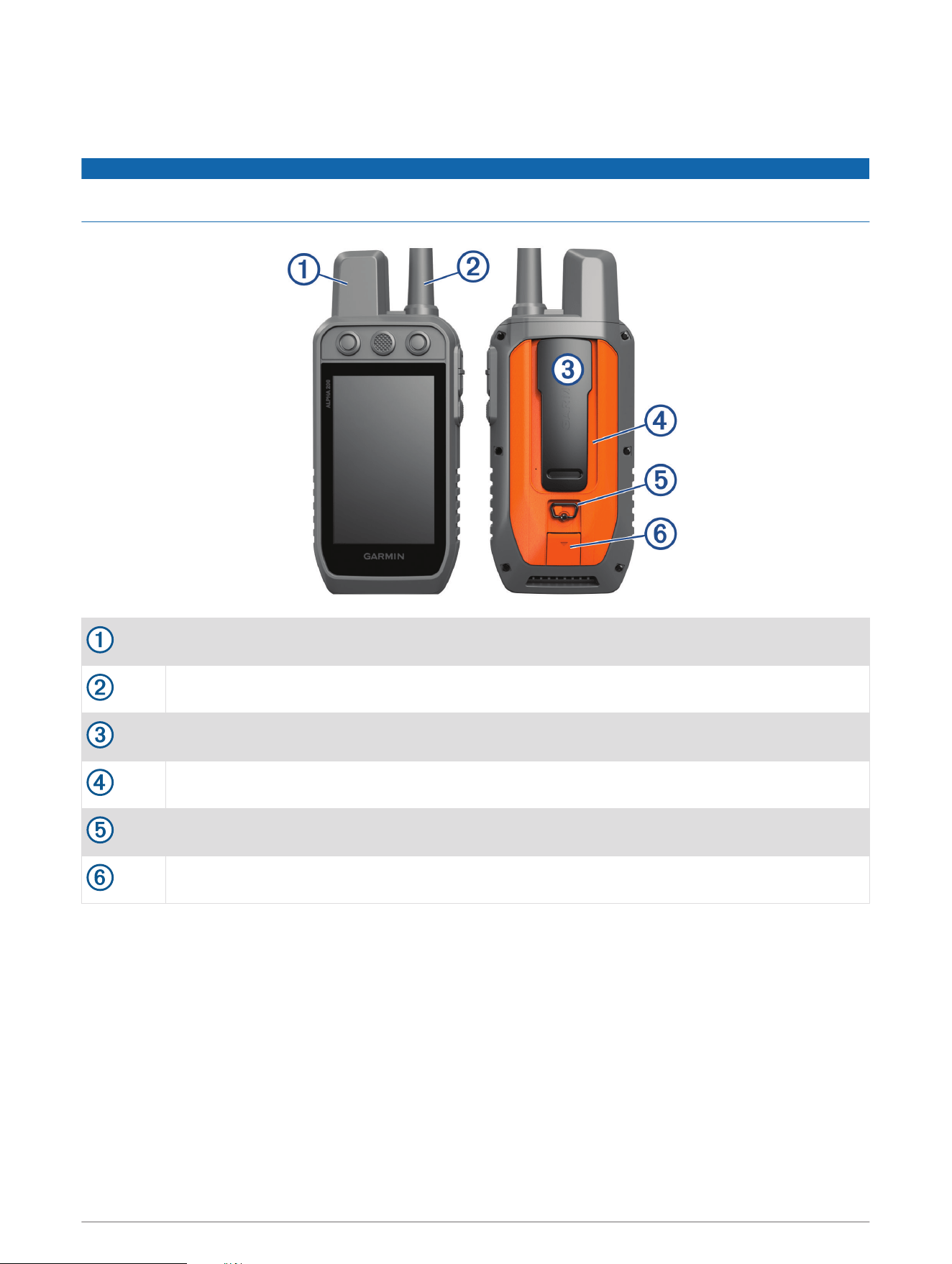
Alpha Handheld Device
NOTICE
Avoid using a high-powered radio (greater than 5 W) in close proximity to the handheld device. It may cause
irreversible damage to the handheld device.
Satellite antenna
VHF radio antenna
Mounting spine
microSD
®
memory card slot (under battery)
Battery cover D-ring
Micro-USB port (under weather cap)
2 Getting Started
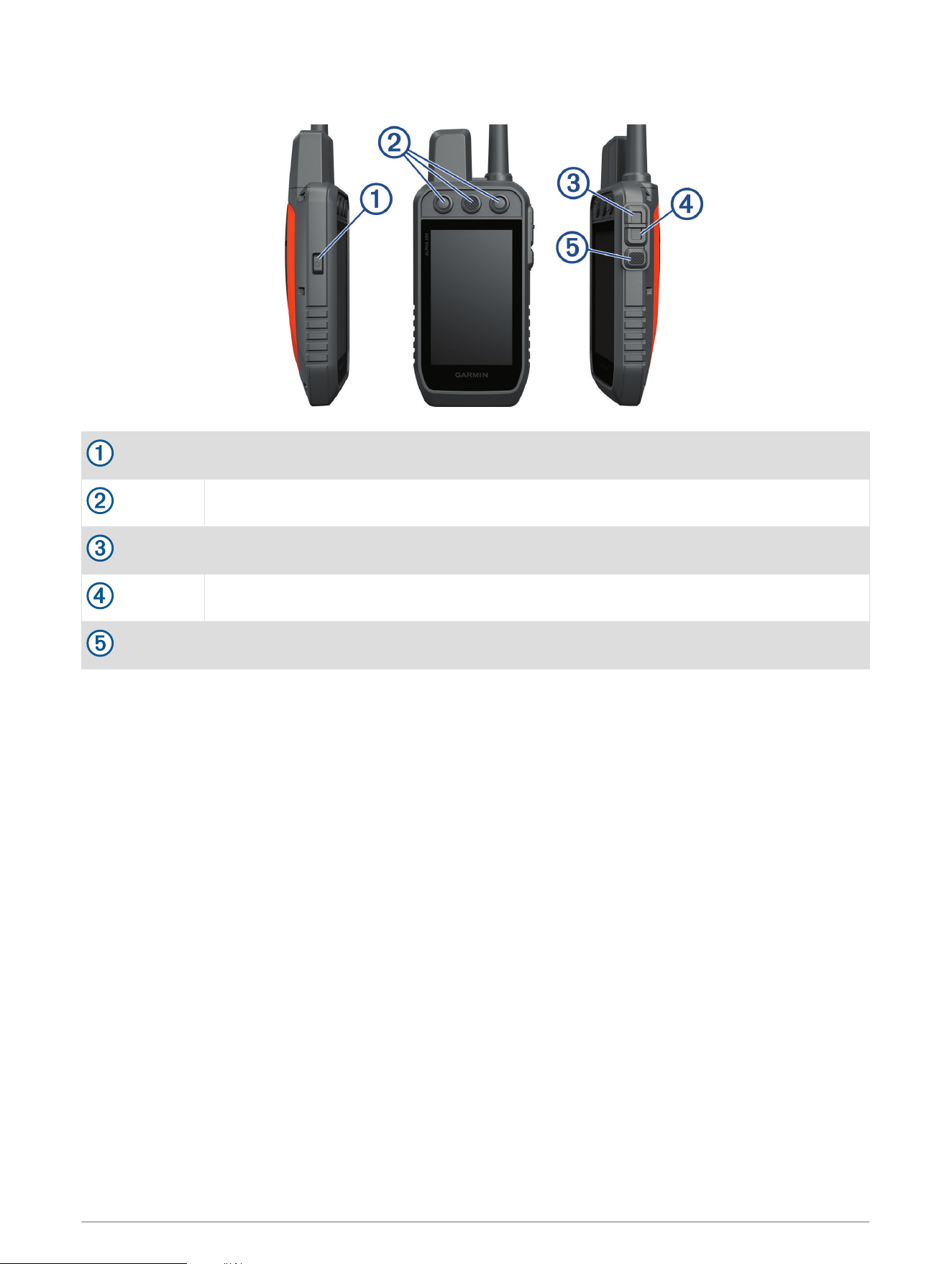
Alpha Device Keys
Power key
Customizable training keys
Training up
Training down
Training enter
Getting Started 3
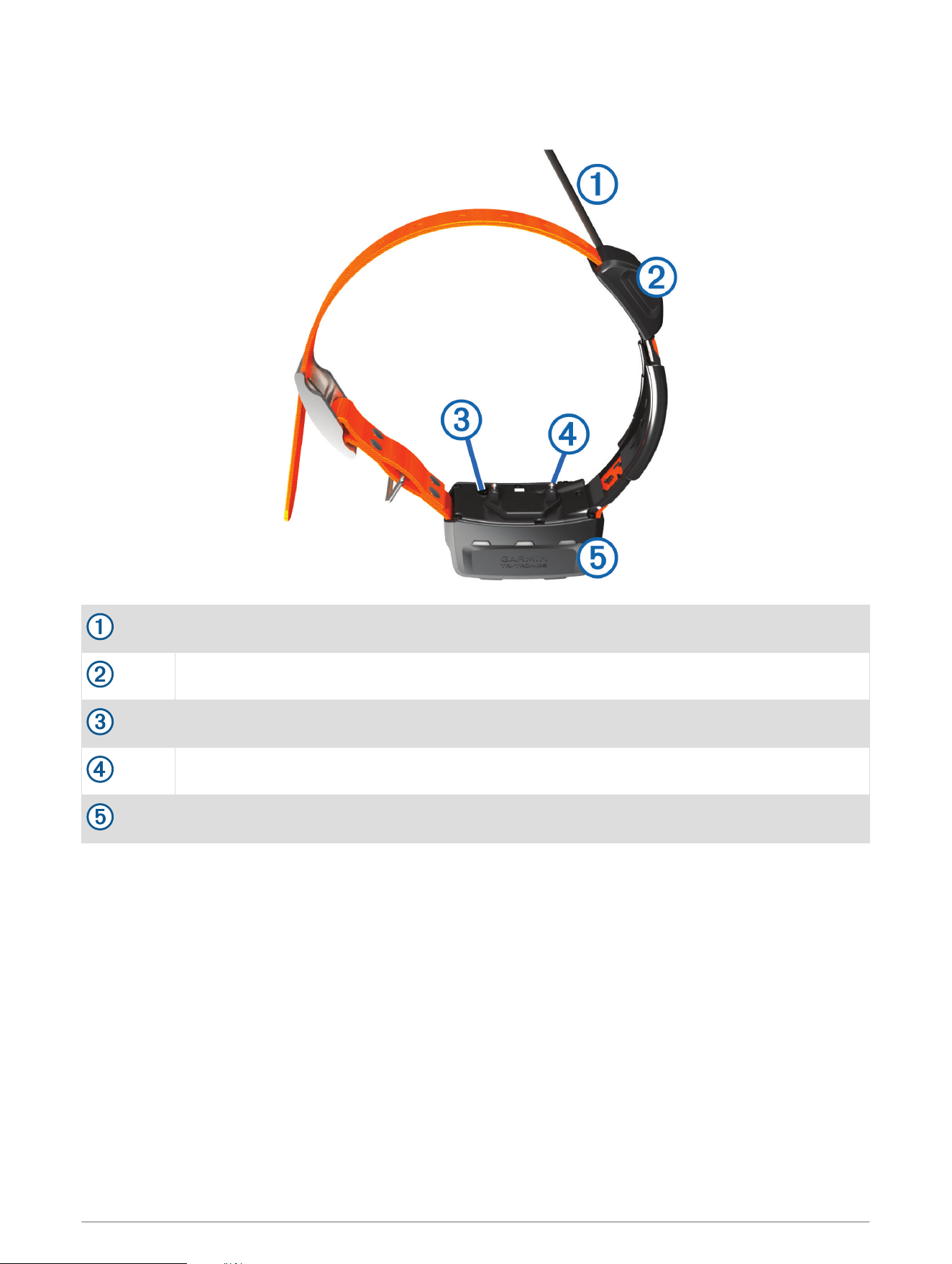
Dog Collar Device
NOTE: Your dog collar device may look different than the device pictured.
VHF antenna
GPS antenna
Power key
Contact points
Status LED and flashing beacon LEDs
4 Getting Started
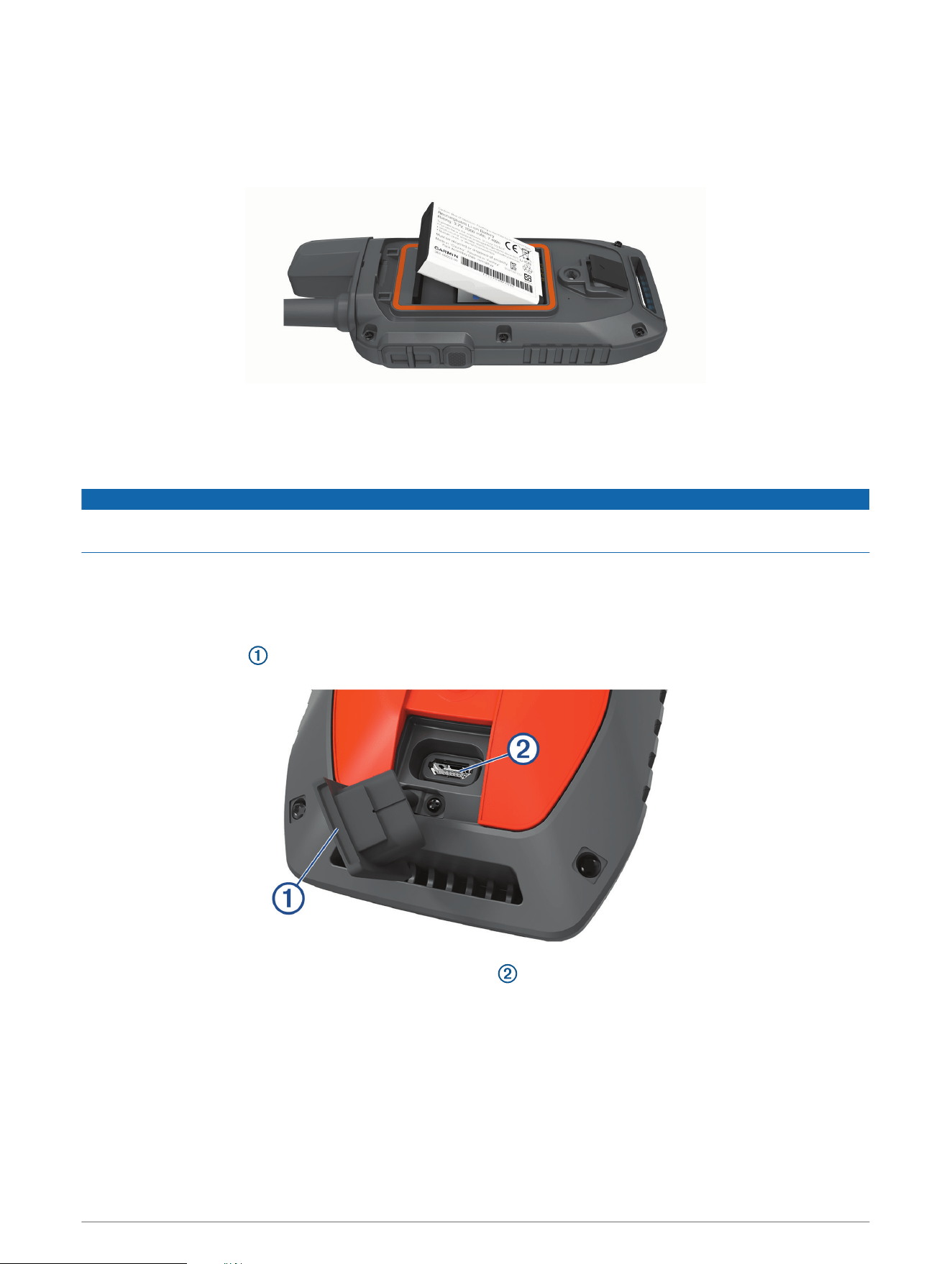
Installing the Battery Pack
1 Turn the D-ring counter-clockwise, and pull up to remove the cover.
2 Locate the metal contacts on the end of the lithium-ion battery.
3 Insert the battery into the compartment, contacts first.
4 Press the battery into place.
5 Replace the battery cover, and turn the D-ring clockwise.
Charging the Handheld Device
NOTICE
To prevent corrosion, thoroughly dry the USB port, the weather cap, and the surrounding area before charging or
connecting to a computer.
NOTE: The device does not charge when it is outside the approved temperature range (Alpha Handheld Device
Specifications, page 33).
You should fully charge the battery before you use the device for the first time. Charging a fully depleted battery
takes about 4 hours.
1 Lift the weather cap .
2 Plug the small end of the power cable into the USB port on the device.
3 Plug the other end of the power cable into an appropriate power source.
The LCD display on the handheld device shows the current battery charge level.
Getting Started 5
Charging the Dog Collar Device
NOTICE
To prevent corrosion, thoroughly dry the contacts on the collar and the surrounding area before connecting the
charging clip.
NOTE: Your dog collar device may look different than the device pictured.
You should fully charge the battery before you use the device for the first time. Charging a fully depleted battery
takes about five hours.
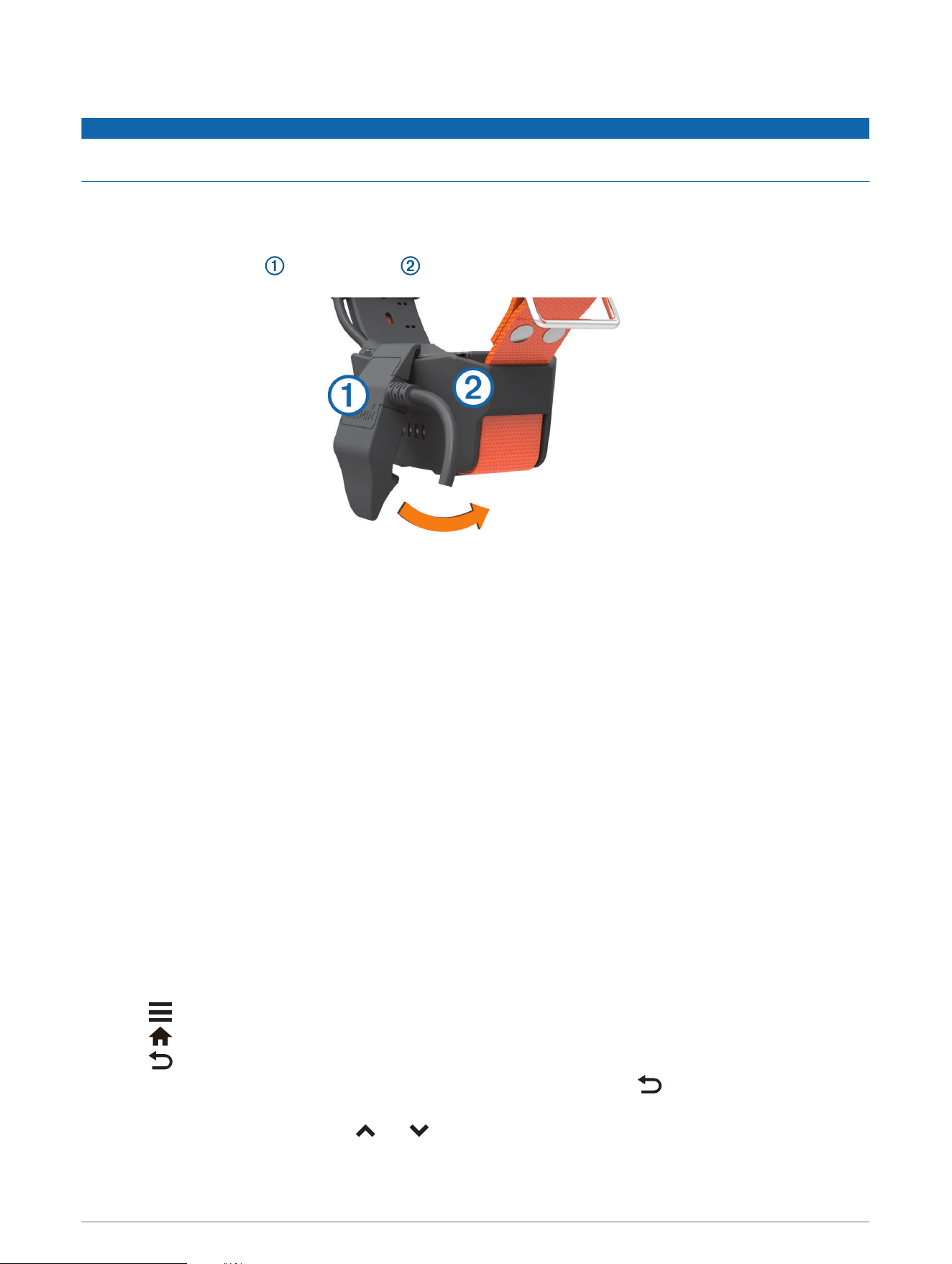
1 Snap the charging clip onto the device .
2 Plug the small end of the power cable into the mini-USB port on the charging clip cable.
3 Plug the power cable into a power source.
The status LED is solid red when the collar is charging.
4 After the status LED turns solid green, remove the charging clip from the collar.
Turning On the Device
• On the handheld device, press the power key.
• On the dog collar device, hold the power key until the status LED flashes and the collar beeps.
Turning Off the Device
• On the handheld device, hold the power key until the LCD screen turns off.
• On the dog collar device, hold the power key until the status LED turns red.
Selecting a Language
When you turn on your device for the first time, you will select the device language from a list of available
languages. You can change the language setting from the System settings.
1 From the main menu, select Setup > System > Language.
2 Select a language.
Using the Touchscreen
• Select to open a menu.
• Select to return to the home screen.
• Select to return to the previous page.
• If you are more than one menu away from the home screen, select and hold to return to the home
screen.
• If scroll controls are enabled, select and to scroll (Accessibility Settings, page 29).
6 Getting Started

Using the Status Page
The status page displays the time, your GPS signal strength, and the device battery life. It also allows you to
adjust settings and access shortcuts. You can open the status page from any other page by pressing the power
key.
Screen brightness: Adjusts the brightness of the screen.
Lock Screen: Locks the touchscreen to prevent inadvertent screen touches.
Lock Keys: Locks the device keys to prevent inadvertent key presses.
My ID: Displays your device ID and allows you to transmit your device information to a compatible handheld
device. You can also turn the transmitter on and off.
Alerts: Displays unread dog alerts.
Acquiring Satellite Signals
Both the collar and handheld device must acquire satellite signals before you put the collar on your dog.
Acquiring satellites can take a few minutes.
1 Go outdoors to an open area.
2 Turn on both devices (Turning On the Device, page 6).
in the status bar shows the GPS signal strength.
When the collar has acquired satellite signals, the status LED flashes a double-blink or triple-blink in green.
Dog Collar Device Setup
Methods to Add a Dog Collar Device to a Handheld Device
You can add up to 100 devices to one handheld device by using MURS/VHF, entering the track and control
codes, or by sharing wirelessly using ANT+
®
technology. Up to 20 devices can be active at one time.
Using MURS/VHF: Allows you to add a dog collar device after you have placed the dog collar device into pairing
mode by pressing the power key.
This method is helpful when you are adding a new accessory collar to the system prior to leaving for the
hunt (Adding a Dog to the Alpha Handheld Using Wireless Pairing, page 8).
Entering the track and control codes: Allows you to add a dog collar device that you do not own and that is not
in the area. The dog's owner must determine if you can only track the dog or can track and control the dog.
This method requires the dog's owner to find and communicate the codes to the person adding the dog
collar device.
This method is helpful when you would like to add a dog collar device during a hunt, but you are not near the
dog. For example, you are adding another member of your hunting party's dog collar device to your handheld
device, but you do not own the dog collar device (Adding a Dog Using the Track and Control Codes,
page 8).
NOTE: This feature varies based on dog collar device type and feature availability in your area. You may see
track codes only or track and control codes.
Sharing wirelessly using ANT+ wireless technology: Allows you to add a dog collar device that you do not own
and that is not in the area. The dog's owner must determine if you can only track the dog or can track and
train the dog. This method does not require the dog's owner to find and communicate the codes to the
person adding the dog collar device. This method also adds dog information, such as the dog's name,
communication settings, and initial position, from the sending handheld device to your device. The two
handheld devices must be within range 3 m (10 ft.) to share data wirelessly.
This method is helpful when you want to add a dog collar device during a hunt, but you are not near the dog.
For example, the dogs have already been let loose, and you are near the dog owner, who can share the dog
wirelessly (Sharing a Dog Wirelessly, page 8).
Dog Collar Device Setup 7

Adding a Dog to the Alpha Handheld Using Wireless Pairing
1 If the dog collar device is on, turn off the dog collar device (Turning Off the Device, page 6).
2 Hold the power key on the dog collar device until the device emits two series of beeps (about 2 seconds),
and then release the power button.
The status LED flashes rapidly in green. The dog collar device is now ready to be linked, or paired, with a
handheld device.
3 On the handheld device, select Dog List > Add Dog.
4 Select an option:
• If you are near the dog collar device, select Pair Collar, and follow the on-screen instructions.
• To pair a dog collar device by receiving the information from another handheld device, select Receive
from Handheld.
NOTE: To successfully pair the device, the other handheld device must be wirelessly sharing the dog
collar device information (Sharing a Dog Wirelessly, page 8).
5 After successfully adding the dog collar device, enter the name of the dog, and select .
Sharing a Dog Wirelessly
Before you can share data wirelessly over ANT+, you must bring your Alpha handheld device within 3 m (10 ft.)
of the other handheld device.
1 Select Dog List.
2 Select the dog to share.
3 Select > Share Wirelessly.
4 Select an option:
• To allow the other person to track your dog's location with the map and dog tracking compass, select
Track Only.
• To allow the other person to track your dog and correct your dog's behavior, select Track and Train.
To successfully share the dog collar device, the other handheld device must be receiving the device
information (Adding a Dog to the Alpha Handheld Using Wireless Pairing, page 8).
Adding a Dog Using the Track and Control Codes
NOTE: This feature varies based on dog collar device type and feature availability in your area.
Before you can add a dog using the track and control codes, the dog owner must find the track and control
codes (Finding the Dog ID and Track and Control Codes, page 8) and tell them to you.
You can use track and control codes to authorize a handheld device to interact with your dog collar device. If
you are not near the dog you want to add or you cannot put the collar into pairing mode, you can add the dog
using the track and control codes.
1 Select Dog List > Add Dog.
2 Select Enter Track or Control Code.
3 Enter the track or control code for the collar, and select .
The dog’s track code allows you to track the dog. The dog’s control code allows you to both track and train
the dog.
4 Enter the name of the dog, and select .
Finding the Dog ID and Track and Control Codes
You can share a dog’s track code so another person can track your dog. Also, you can share a dog’s control
code so another person can track and train your dog.
1 Select Dog List.
2 Select a dog.
The track code and the control code are displayed under the dog's name.
8 Dog Collar Device Setup
VHF Radio Information
This product may be used only on specific radio frequencies, which vary depending on the country of use. The
handheld device and the dog device allow the user to install a different antenna. Changing the antenna can
result in improved radio performance and higher radiated power. You must not use the device with a third party
antenna or an antenna not approved by Garmin
®
. Go to www.garmin.com/tracking-legal for details about the
performance and radio frequency of this product, lawful accessories, and power limits for countries.
Managing a Group
Before you can create a group, you must pair one or more dog devices to your handheld.
1 Select Dog List.
2 Select .
3 If necessary, select Create Group, and enter a group name.
4 Select a group from the list.
5 Select an option:
• To activate the group, select Activate Group.
• To deactivate the group, select Deactivate Group.
• To add a device to the group, select Manage Group > Add Device.
• To rename the group, select Rename, and enter a new name.
• To delete the group, select Delete Group.
Editing Dog Information
Resetting a Dog's Statistics and Track
You might want to clear the dog statistics and track before a new hunt.
1 Select Dog List.
2 Select a dog.
3 Select > Reset.
Changing the Dog Name
1 Select Dog List.
2 Select a dog.
3 Select the dog’s name.
4 Enter the name, and select .
Changing the Color of the Dog's Track
You can change the track color of the dog. It is helpful to have the track color match the color of the collar
strap, if possible.
1 Select Dog List.
2 Select a dog.
3 Select the colored square next to the dog’s name.
4 Select a color.
Changing the Dog Type
Before you can change the dog type, the collar must be turned on and within range of the handheld device.
1 Select Dog List.
2 Select a dog.
3 Select > Change Dog Type.
4 Select a dog type.
Dog Collar Device Setup 9
Changing the Dog ID
Before you can change the dog ID, the collar must be turned on and within range of the handheld device.
If you are experiencing interference from other collars or handheld devices in the area, you might need to
change the ID for the dog.
1 Select Dog List.
2 Select a dog.
3 Select > Change ID.
4 Select an available ID.
If another handheld device is tracking this dog, for best results, remove the dog from the device, and use the
track and control codes to add the dog again (Adding a Dog Using the Track and Control Codes, page 8).
Removing a Dog
1 Select Dog List.
2 Select a dog.
3 Select > Remove.
Fitting the Collar on Your Dog
CAUTION
To prevent irritation from the contact points, remove the collar for at least eight hours out of every 24-hour
period.
This device is not intended for human use. Do not attempt to use on any person.
Do not spray the device or collar with harsh chemicals including but not limited to flea or tick spray. Always
ensure that any flea or tick spray that is applied to the dog is completely dry before placing the collar on the
dog. Small amounts of harsh chemicals can damage the plastic components and collar laminate.
In order to effectively train the dog, the collar and device must fit the dog properly. If the collar is too loose or
positioned incorrectly, stimulation may be inconsistent. This can delay or prevent successful training.
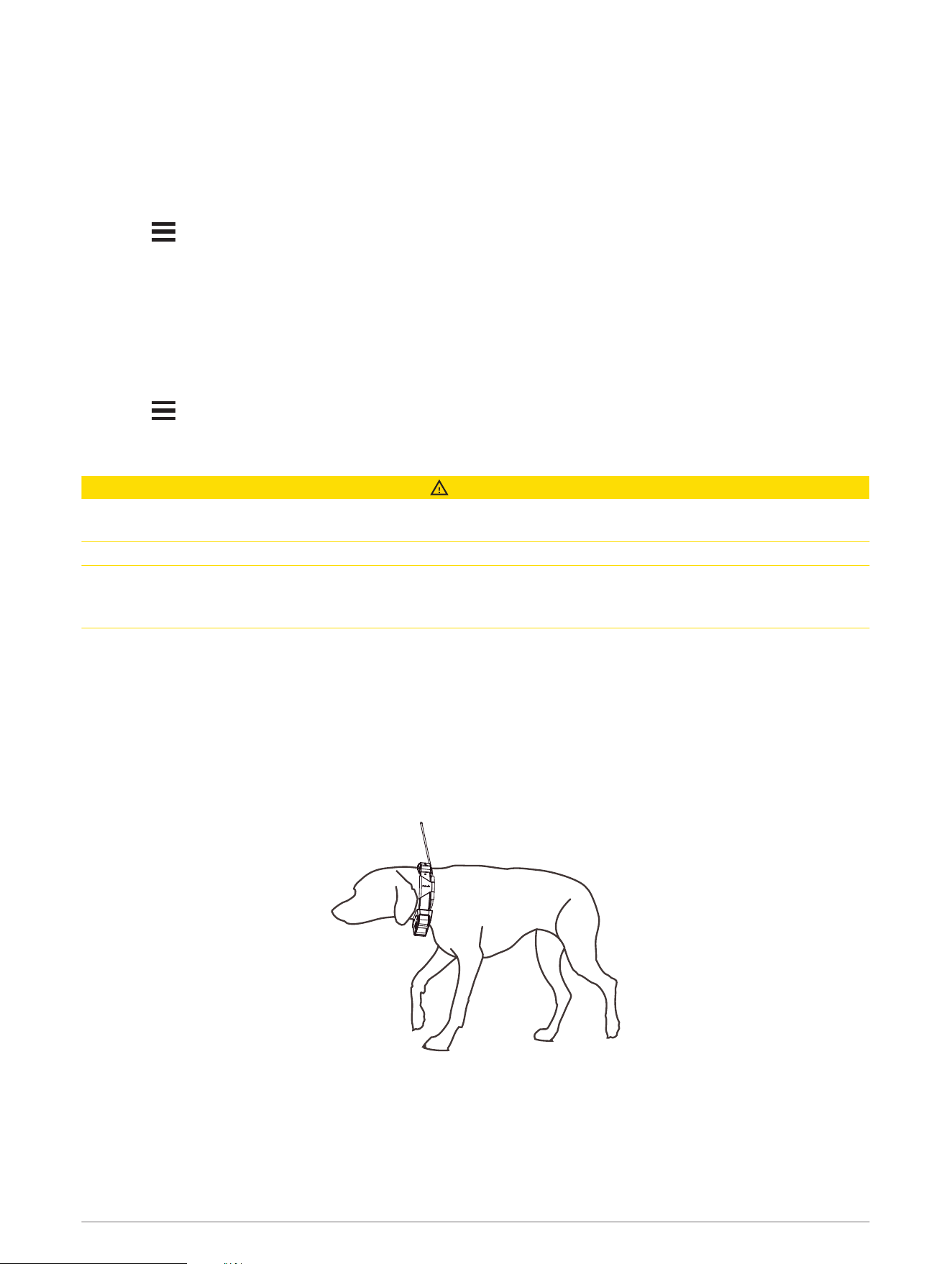
1 Position the device at the front of the dog's neck, with the status LED facing toward the dog's chin and the
contact points against the throat.
2 Tighten the strap so that it is very snug around the dog's neck, and fasten the buckle.
NOTE: The collar should fit tightly and should not be able to rotate or slide on the dog's neck. The dog must
be able to swallow food and water normally. You should observe your dog's behavior to verify that the collar
is not too tight.
3 Wiggle the device to work the contact points through the dog's coat.
NOTE: The contact points must have contact with the dog's skin to be effective.
4 If the strap is too long, cut off the excess, leaving at least 8 cm (3 in.) to spare.
TIP: You can mark the hole used to fasten the buckle for future reference.
10 Dog Collar Device Setup
Communication with the Collar
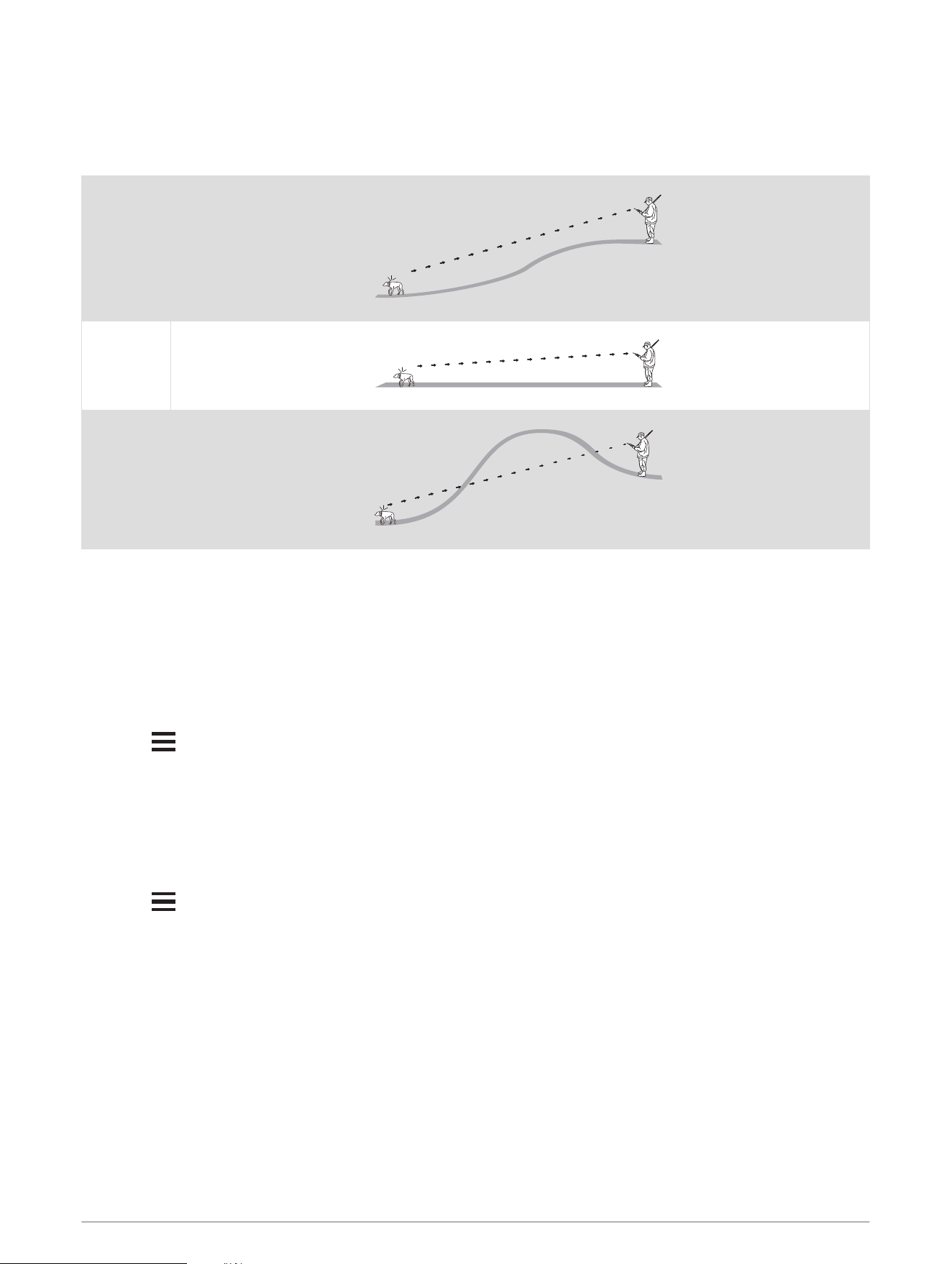
You should keep an unobstructed line of sight between your handheld device and the dog collar device to
produce the best communication signal. To achieve the best line-of-sight conditions, you should move to the
highest elevation point in your area (for example, on the top of a hill).
Best
Good
Poor
Entering Sleep Mode
NOTE: This feature is not available with all dog collar device models.
Before you can enter sleep mode, you must track your dog's location using the compatible dog collar device.
When connected with the handheld device, the dog collar device can be put into sleep mode to conserve the
battery when you are not actively tracking your dog.
1 Select Dog List.
2 Select a dog.
3 Select > Adjust Collar Sleep Mode > Sleep.
Exiting Sleep Mode
NOTE: This feature is not available with all dog collar device models.
You can exit sleep mode on the compatible dog collar device while you are not actively tracking your dog.
1 Select Dog List.
2 Select a dog.
3 Select > Adjust Collar Sleep Mode > Wake.
Dog Tracking
The handheld device allows you to track your dog or multiple dogs, using the tracking compass or map. The
map displays your location and your dog's location and tracks. The compass pointer indicates the direction of
the dog's current location.
Dog Tracking 11
Tracking Your Dog on the Map
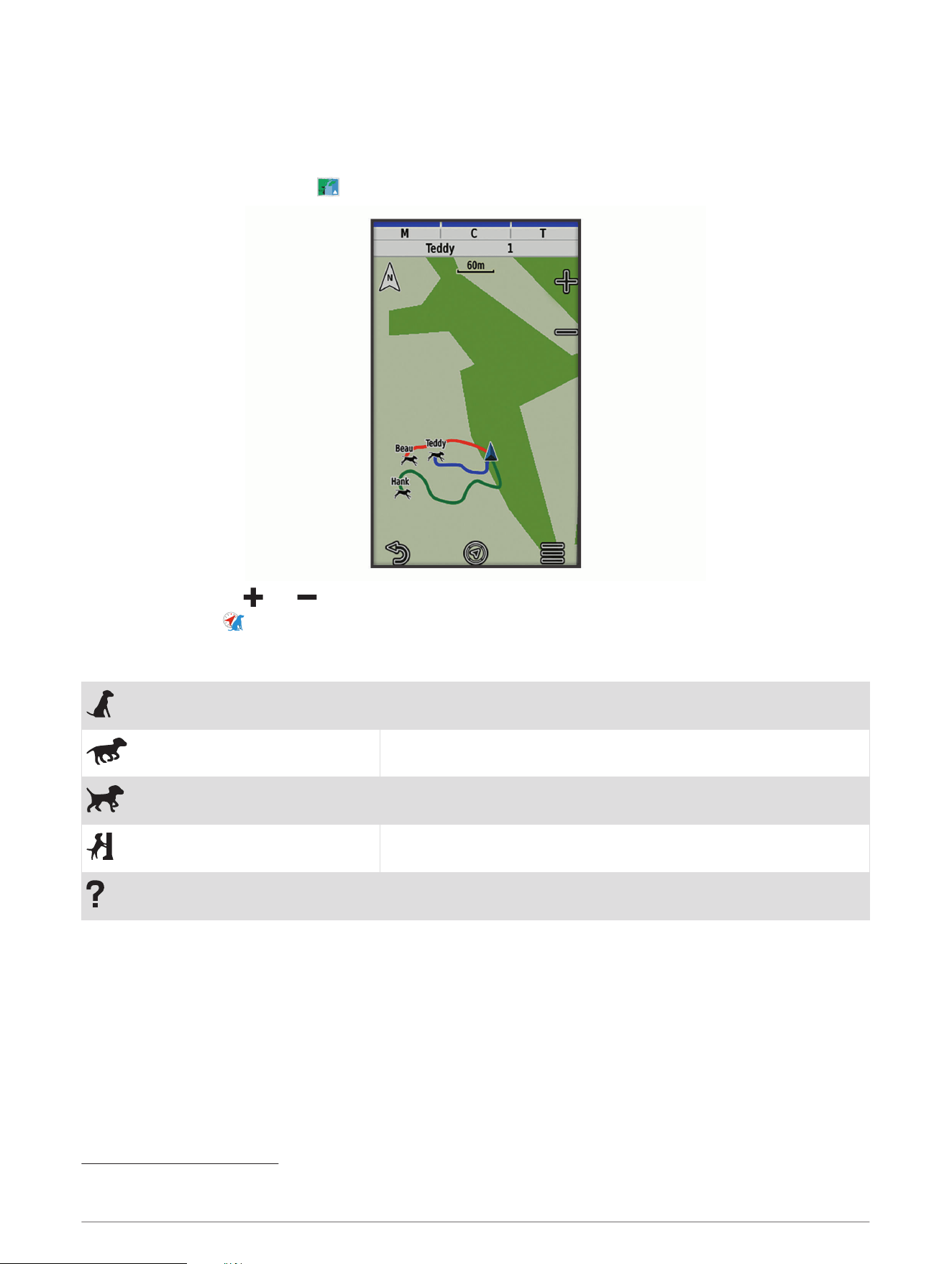
Before you can track a dog on the map, you must add it to the handheld device (Adding a Dog to the Alpha
Handheld Using Wireless Pairing, page 8).
You can view the dog's location on the map.
1 From the home screen, select .
2 If necessary, select and to zoom in and out of the map.
TIP: You can select to track the dog using the dog tracking compass (Dog Tracking Compass, page 13).
Dog Status Icons
Sitting
Running
On point
Treed
Unknown
1
1
The unknown status icon indicates that the collar has not acquired a satellite signal and that the handheld device cannot determine the location of the dog.
12 Dog Tracking
Dog Tracking Compass
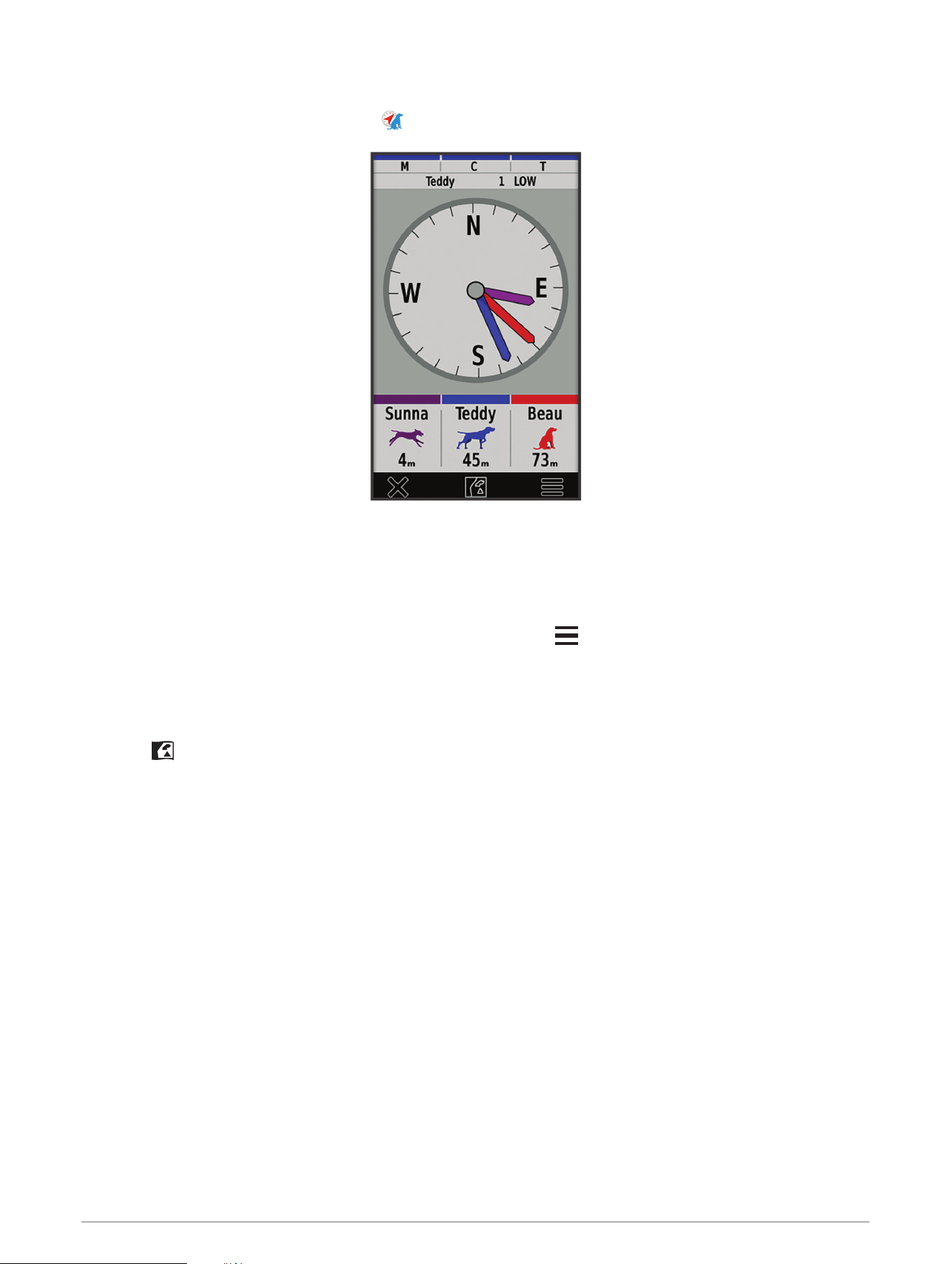
To open the dog tracking compass, select .
You can use the dog tracking compass to view the direction and distance to your dog, your vehicle, and any
paired devices. The dog tracking compass also shows the dog's status, such as running or on point (Dog Status
Icons, page 12). The color of the pointer corresponds to the color of the track.
The dog tracking compass is most accurate when the dog, vehicle, or paired device is more than 9.1 m (30 ft.)
away. When the dog, vehicle, or paired device is less than 9.1 m (30 ft.) away, "Near" appears.
TIP: You can open an alternative view of the compass by selecting > Pro View.
Navigating to Your Dog
1 Select Dog List.
2 Select the dog.
3 Select > Go.
4 Follow the colored line to the dog.
Changing the Length of the Dog's Track
You can adjust the length of time the dog track appears on the map. Reducing the duration of the track can
reduce the clutter on the map. Changing the map does not affect the tracks stored in the handheld device.
1 Select Setup > Map > Tracked Devices > Dog Tracks on Map.
2 Select a time frame.
Location Alerts
Location alerts notify you when your dogs enter or exit a particular location. You can create a custom geofence
or use a radius around your current location.
A geofence is an invisible boundary around an area and is created using points on the map. The virtual
boundaries of a geofence are accurate up to approximately 3 m (10 ft.). Geofences perform best when sized to
cover an area encompassing an average sized backyard (approximately ¼ acre).
Dog Tracking 13
Setting Location Alerts
1 Select Location Alerts > Add Alert.
2 Select an option:
• To create a geofence alert, select Geofence, select a point for the first corner of the geofence, select Use,
and select additional points to define the geofence boundary.
You must select at least 3 points to create a geofence alert.
• To create a radius alert, select Radius, select the unit of measurement, and enter the radius distance.
Editing Location Alerts
1 Select Location Alerts.
2 Select an alert.
3 Select an option:
• Select Disable to turn off notifications for this alert.
• Select Set Alert Type to set the way the device notifies you for this alert.
• Select Set Alert Mode to set the notification to sound on exit, entrance, or both.
• Select View Map to view a geofence on the map.
NOTE: This feature is not available for the radius alert type.
• Select Delete to remove the alert.
Disabling Dog Data Broadcast
By default, the handheld device broadcasts dog data to compatible devices. You can disable data broadcasting
to keep your data from being seen on other compatible devices. See the owner's manual for your compatible
device for more information.
Select Setup > System > Broadcast Dog Data > Off.
Dog Training
NOTICE
You should research and investigate the training methods best suited for you, your dog, and your needs. This
manual provides some basic guidelines for training, but each dog has unique training needs.
When used properly, the Alpha training system is a very effective training tool to aid your dog in reaching its full
potential. The use of the training system should be part of an overall training program.
Begin training your dog on a leash, without the Alpha training system. You should train your dog how to heel, sit,
and come to you. After the dog understands these three basic commands, you can begin training with the dog
collar device and the leash. Finally, when the dog consistently obeys commands using the leash and collar, you
may be able to remove the leash to train with only the dog collar device.
14 Dog Training

Selecting and Installing the Contact Points
CAUTION
To prevent irritation from the contact points, remove the collar for at least eight hours out of every 24-hour
period.
Do not spray the device or collar with harsh chemicals including but not limited to flea or tick spray. Always
ensure that any flea or tick spray that is applied to the dog is completely dry before placing the collar on the
dog. Small amounts of harsh chemicals can damage the plastic components and collar laminate.
For best results, select the correct contact points based on your dog's coat.
1 Select the correct contact point length for your dog's coat type:
• For dogs with thicker coats, use the longer contact points.
• For dogs with shorter coats, use the shorter contact points.
2 If necessary, use the included wrench to remove the contact points.
3 Twist the contact points into the collar.
4 Tighten with the included wrench, but do not overtighten.
When you put the collar on the dog, make sure the contact points are tight against the neck.
Removing the Contact Points
When you are not training the dog using the training keys, remove the contact points.
1 Use the included wrench to remove both contact points.
2 Place the cap over the contact point holes.
Training Methods
NOTE: Training features are not available in all areas for tracking collars.
Momentary stimulation: Applies a brief stimulation when you press the training key, regardless of how long the
key is depressed.
Continuous stimulation: Applies stimulation to the dog the entire time you press the training key, for a
maximum of 8 seconds. Your stimulations should typically be much shorter than 8 seconds.
Tone: Activates an audible tone the entire time you press the training key.
Vibration: Applies vibration to the dog the entire time you press the training key, for a maximum of 8 seconds.
The effectiveness of vibration may vary based on the dog's temperament and experience.
Linear and Traditional Stimulation
You can use linear or traditional stimulation to customize your training experience. The default intensity
method is linear, which allows progressive stimulation from level 1 to level 18. Traditional stimulation allows
you to make quick changes using low, medium, and high settings within predetermined stimulation levels (1
through 6).
Choosing the Correct Intensity Level
1 Set the intensity to the lowest level (Customizing the Training Keys, page 16).
2 Select a training key.
3 Observe the dog for a reaction, such as a head shake, neck movement, or just a change in expression.
Sometimes dogs will vocalize due to the surprise of the electrical stimulation. If the dog vocalizes more than
once, the intensity level is too high for beginning training.
4 If there is no reaction, increase the intensity level by one level until the dog has a slight but recognizable
reaction to the stimulation.
The intensity level that causes a slight but recognizable reaction is your dog's baseline level for beginning collar
training. You do not need to, and should not, apply this intensity selection test again.
After you begin training, the dog’s performance guides your intensity selection. As the dog advances in training,
you may need to change the level depending upon the training situation.
Dog Training 15

Customizing the Training Keys
You can assign an application, device action, or utility to a training key. If a compatible dog collar is paired, you
can also add a dog training command to a training key. You can add multiple pages of training key settings. For
example, this is useful when training multiple dogs.
1 Select Training Setup > Training Keys.
2 Select Add Item Here below the empty key you are customizing.
3 Select a command category.
4 Select a command or, if selecting a training command, select the name of the dog to command.
5 If selecting a dog training command, select momentary (M), continuous (C), tone (T), vibration (V), or light
(L).
6 Select or to choose the intensity level.
7 If you are using traditional stimulation mode, select LOW, MED, or HI.
8 If you want to customize more than three keys, use the additional rows to add another page of training key
commands.
Using the Hard Keys for Training Adjustments
Before you can use this feature, you must customize your training keys with dog training commands
(Customizing the Training Keys, page 16).
You can access and adjust training commands using the device's hard keys.
1 From any screen, press the training up and down keys until the command page you want to adjust appears.
2 Press the training enter key to select the command page.
3 Use the training up and training down keys to highlight the training command you want to change, and press
the training enter key.
4 Select the command mode, and press the training enter key.
5 If necessary, use the training up and down keys to adjust the command setting.
6 Press the training enter key to return to the previous screen.
Default Training Settings
From the main menu, select Training Setup > Training Defaults.
Add When Paired: Automatically sets default training modes for each button when a new dog collar is paired.
Left Button: Sets the default training mode for the left training button.
Center Button: Sets the default training mode for the center training button.
Right Button: Sets the default training mode for the right training button.
16 Dog Training

Collar Training
Begin training your dog on a leash, without using the Alpha training system. After the dog shows a grasp of the
commands "heel," "sit," and "here," you can begin training with the collar and the leash.
During the initial stage of collar introduction, the dog learns that collar stimulation means the same thing as a
tug on the leash. At first, the dog may be alarmed by the electronic stimulation. The key is to be patient and
consistent and not to start off at too high of an intensity. Be fair and consistent, and use repetition and praise
when using the collar as a training tool.
If the dog does not respond to the stimulation level you have selected (Choosing the Correct Intensity Level,
page 15), increase the stimulation one level at a time until you achieve the appropriate response. After you
achieve the desired response, you can lower the stimulation level as long as the dog maintains consistency.
As the dog becomes more proficient with the commands, you can begin to introduce distractions, such as
rolling a ball in front of the dog or walking him in the presence of others.
After the dog begins to respond consistently to the command during collar training, you can remove the leash
and train with just the collar.
NOTE: You should train without a leash only when it is appropriate for your environment and your dog's
temperament. You should follow all laws and regulations for your area regarding the use of dog leashes.
Eventually in most training situations, your commands will not require stimulation to be given with the
command. You should only use stimulation when you need to repeat a command because the dog did not obey
the first one.
As the dog becomes better trained, you can decrease the use of collar training. Continue to have the dog wear
the collar until you feel certain that it is no longer needed to reinforce known commands. Abandoning the collar
too early can lead to problems in the future.
Connected Features
Connected features are available for your Alpha device when you connect the device to a wireless network or a
compatible smartphone using Bluetooth
®
technology. Some features require you to install the Garmin Explore
™
app on your smartphone. Go to garmin.com/apps for more information.
BirdsEye imagery: Allows you to download BirdsEye Satellite Imagery directly to your device when connected to
a Wi‑Fi
®
network.
Garmin Explore: The Garmin Explore app syncs and shares waypoints, tracks, and routes with your device. You
can also download maps to your smartphone for offline access.
Software Updates: Allows you to receive updates for your device software when connected to a Wi‑Fi network.
Pairing a Smartphone with Your Device
1 Bring your compatible smartphone within 10 m (33 ft.) of your device.
2 From the main menu on your device, select Setup > Bluetooth.
3 On your compatible smartphone, enable Bluetooth technology, and open the Garmin Explore app.
4 From the Garmin Explore app, select Devices > Pair Device.
5 Follow the on-screen instructions in the Garmin Explore app to pair your device.
Connecting to a Wireless Network
1 Select Setup > Wi-Fi.
2 Select the toggle switch to enable Wi‑Fi technology, if necessary.
3 Select Add Network.
4 Select a wireless network from the list and enter the password, if necessary.
The device stores the network information and connects automatically when you return to this location.
Connected Features 17

Garmin Explore
The Garmin Explore website and mobile app allow you to plan trips and use cloud storage for your waypoints,
routes, and tracks. They offer advanced planning both online and offline, allowing you to share and sync data
with your compatible Garmin device. You can use the mobile app to download maps for offline access, and
then navigate anywhere without using your cellular service.
You can download the Garmin Explore app from the app store on your smartphone, or you can go to
explore.garmin.com.
Contact Tracking
You can track other hunters so you know where they are at all times. You can also send messages to your
contacts. One Alpha handheld device can track up to 20 devices, including compatible dog collar devices and
Alpha handheld devices.
Turning On and Off the Transmitter
Before you can add a contact or initiate an emergency alert, you must ensure the transmitter is enabled.
NOTE: In cold temperatures, if you transmit when the battery is low, the device may shut down.
1 Press to open the status page.
2 Select My ID > Transmitting.
Methods to Add a Contact to a Handheld Device
Using MURS/VHF: Allows you to add a handheld device contact after you have placed your handheld device
into pairing mode.
This method is helpful when you are adding a new device to the system prior to leaving for the hunt (Adding
a Contact Using Wireless Pairing, page 18).
Entering the device ID: Allows you to add a handheld device contact that is not in the area. This method
requires the contact to find and communicate their handheld device code to the person adding the device
contact.
This method is helpful when you would like to add a handheld device contact during a hunt, but you are not
near the device. For example, if you are adding another member of your hunting party to your handheld
device, but you do not own the device (Adding a Contact Using a Contact ID, page 19).
Sharing wirelessly using ANT+ wireless technology: Allows you to add a handheld device that you do not own
as a contact. This method does not require the contact to find and communicate their device code to the
person adding the device. The two handheld devices must be within a range of 3 m (10 ft.) to share data
wirelessly.
This method is helpful when you want to add a handheld device during a hunt without entering the device ID
(Adding a Contact Using Wireless Pairing, page 18).
Adding a Contact Using Wireless Pairing
Before you can add a contact wirelessly, you should be near the contact's handheld device.
1 Select Dog List > .
2 Select an option:
• On your handheld device select Add > Pair Handheld, and follow the on-screen instructions.
• To add a contact by receiving the information from the contact's handheld device, select Add > Receive
from Handheld.
3 After successfully adding the contact, enter the name of the contact, and select .
The contact is added to your handheld device.
You can repeat this procedure using another hunter's handheld device to add your contact ID to that device.
18 Contact Tracking
Adding a Contact Using a Contact ID
Before you can add a hunter using a contact ID, the hunter must find the contact ID (Finding Your Contact ID,
page 19) and send it to you.
If you are not near the hunter you want to add, you can add the hunter using a contact ID.
1 On your handheld device, select Dog List > > Add > Enter ID.
2 Select the contact ID for the contact you are adding.
3 Enter the name of the contact, and select .
The contact is added to your handheld device.
You can repeat this procedure using another hunter's handheld device to add your contact ID to that device.
Initiating an Emergency Alert
Before you can initiate an emergency alert, you must turn on the transmitter (Turning On and Off the
Transmitter, page 18).
Before someone can receive your emergency alert, someone must add you as a contact (Adding a Contact
Using Wireless Pairing, page 18).
You can use an emergency alert when you need immediate assistance and you are away from your group.
Select Dog List > > > Yes.
When your contact accepts your emergency alert request, the device displays a message indicating that
your contact has started navigating to your location.
After receiving the alert, your contacts can navigate to your location.
Sending a Message to Your Contacts
Before you can send a message to your contacts, you must turn on the transmitter (Turning On and Off the
Transmitter, page 18).
You can send and receive automated messages. There are 18 messages you can choose from, such as "Help"
and "I'm Coming."
1 Select Dog List > > Message.
2 Select a message.
The message is sent to your contacts with your name before the message. Anyone tracking your handheld
device receives the message.
Tracking a Contact
You can keep track of contacts' locations using the map.
Select .
Finding Your Contact ID
Press to open the status page.
The contact ID for your handheld device is listed under the My ID option.
Changing Your Contact ID
If you are experiencing interference from other collars or handheld devices in the area, you might need to
change the contact ID for your handheld device.
1 Press to open the status page.
2 Select My ID > ID.
3 Select a contact ID that is not yet assigned to another device in the area.
Each time a contact changes their contact ID, you must update the contact ID in your handheld device
(Updating a Contact ID, page 20).
Contact Tracking 19

Updating a Contact ID
If a contact has changed their contact ID, you can quickly update the contact ID in your handheld device.
1 Select Dog List > .
2 Select the contact.
3 Select > Update ID.
4 Select the contact ID that matches the contact's new contact ID.
Hunting with the Alpha System
You can perform various tasks that can be helpful when you are hunting with the Alpha system.
• Mark your truck's location (Marking Your Truck Location, page 20).
• Track your dogs (Tracking Your Dog on the Map, page 12).
• Track your fellow hunters (Tracking a Contact, page 19).
• Mark the location of a covey (Marking a Covey, page 20).
• View your active hunt metrics (Active Hunt Metrics, page 20).
• Send messages to your fellow hunters (Sending a Message to Your Contacts, page 19).
• Turn on the collar light (Turning On the Collar Light, page 20).
• Put the collar into rescue mode to save battery power (Turning On Rescue Mode, page 21).
• Pause tracking while you move the dogs (Pausing Dog Tracking, page 21).
Marking Your Truck Location
You can mark the location of the truck, so you can navigate back to your truck after the hunt.
1 Select Mark Waypoint > Truck.
2 Select Save.
Marking a Covey
You can mark a covey location and enter the estimated number of birds flushed and the number of birds taken.
1 Select Mark Waypoint > Covey.
2 Enter the number of birds flushed, the number of birds taken, and select OK.
3 Review and edit location information (optional).
4 Select Save.
Active Hunt Metrics
You can select Hunt from the main menu to view the active hunt metrics. The active hunt metrics page displays
the active hunt time and distance traveled for your handheld device and each paired dog collar device. It also
shows the dog status, such as on point, treed, or barking, if available. When you select End Hunt, the hunt timer
and distance traveled stop recording.
Turning On the Collar Light
You can turn on the LEDs on the collar at night to help locate a dog or to warn drivers if a dog wanders near a
road. The light is visible for up to 100 yards.
1 Select Dog List.
2 Select a dog.
3 Select Adjust Collar Light.
4 Select Continuous, Blink Slow, or Blink Fast.
TIP: Select different light setting for each dog to help you identify the dogs in the field.
20 Hunting with the Alpha System
Turning On Rescue Mode
You can turn on rescue mode to conserve battery power at the end of a long hunt or if your dog might get out of
range.
1 Select Dog List.
2 Select a dog.
3 Select > Rescue Mode.
After you have turned on rescue mode, it stays on until you turn it off.
When the collar battery power falls below 25%, the collar data updates only once every 2 minutes.
Pausing Dog Tracking
You can pause the tracking of a single dog during a hunt. This can be helpful if the dog is taking a break.
1 Select Dog List.
2 Select a dog.
3 Use the Active toggle switch to turn tracking on and off.
Waypoints, Routes, and Tracks
Waypoints
Waypoints are locations you record and store in the device. Waypoints can mark where you are, where you are
going, or where you have been. You can add details about the location, such as name, elevation, and depth.
You can add a .gpx file that contains waypoints by transferring the file to the GPX folder (Connecting the
Handheld Device to a Computer, page 36).
Marking Your Current Location
1 Select Mark Waypoint.
2 Select an option:
• Select New.
• Select a default location name, such as Truck or Camp.
3 Edit the location information (optional).
4 Select Save.
Marking a Waypoint Using the Map
1 Select .
2 Select a location on the map.
3 Select the information bar at the top of the screen.
4 Select > OK.
Editing a Waypoint
Before you can edit a waypoint, you must create a waypoint.
1 From the main menu, select Waypoint Manager.
2 Select a waypoint.
3 Select an item to edit, such as the name.
4 Enter the new information.
Waypoints, Routes, and Tracks 21
Repositioning a Waypoint to Your Current Location
You can change the position of a waypoint. For example, if you move your vehicle, you can change the location
to your current position.
1 Select Waypoint Manager.
2 Select a waypoint.
3 Select > Reposition Here.
The waypoint location changes to your current location.
Moving a Waypoint on the Map
1 Select Waypoint Manager.
2 Select a waypoint.
3 Select > Move Waypoint.
4 Select the new location on the map.
5 Select Move.
Increasing the Accuracy of a Waypoint Location
You can refine a waypoint location for more accuracy. When averaging, the device takes several readings at the
same location and uses the average value to provide more accuracy.
1 Select Waypoint Manager.
2 Select a waypoint.
3 Select > Average Location.
4 Move to the waypoint location.
5 Select Start.
6 Follow the on-screen instructions.
7 When the confidence status bar reaches 100%, select Save.
For best results, collect 4 to 8 samples for the waypoint, waiting at least 90 minutes between samples.
Projecting a Waypoint
You can create a new location by projecting the distance and bearing from a marked location to a new location.
1 Select Waypoint Manager.
2 Select a waypoint.
3 Select > Project Waypoint.
4 Enter the bearing, and select .
5 Select a unit of measure.
6 Enter the distance, and select .
7 Select Save.
Deleting a Waypoint
1 Select Waypoint Manager.
2 Select a waypoint.
3 Select > Delete > Delete.
Routes
A route is a sequence of waypoints or locations that leads you to your final destination.
22 Waypoints, Routes, and Tracks

Creating a Route
1 Select Route Planner > Create Route > Select First Point.
2 Select a category.
3 Select the first point on the route.
4 Select Use > Select Next Point.
5 Select a point.
6 Repeat steps 3 through 5 to add all the points in the route.
Editing the Name of a Route
1 Select Route Planner.
2 Select a route.
3 Select Change Name.
4 Enter the new name, and select .
Navigating a Saved Route
1 Select Route Planner.
2 Select a route.
3 Select View Map > Go.
Editing a Route
1 Select Route Planner.
2 Select a route.
3 Select Edit Route.
4 Select a point.
5 Select an option:
• To view the point on the map, select Review.
• To change the order of the points on the route, select Move Up or Move Down.
• To insert an additional point on the route, select Insert.
The additional point is inserted before the point you are editing.
• To remove the point from the route, select Remove.
Reversing a Route
1 Select Route Planner.
2 Select a route.
3 Select Reverse Route.
Viewing the Active Route
1 Select Active Route.
2 Select a point in the route to view additional details.
Deleting a Route
1 Select Route Planner.
2 Select a route.
3 Select Delete Route.
Recordings
Your device records your path as an activity. Activities contain information about points along your recorded
path, including time, location, and elevation for each point.
Waypoints, Routes, and Tracks 23
Recording Track Logs
By default, the device automatically starts recording your path as a track when it is turned on and has acquired
satellite signals. You can pause and start recording manually.
1 Select Track Manager > My Track.
2 Select an option:
• To control the current track recording, select the current track tab.
• To view data fields for the track, select the information tab.
• To view the current track on the map, select the map tab.
• To view the elevation plot for the current track, select the elevation plot tab.
Viewing Details about the Track
1 Select Track Manager.
2 Select a track.
3 Select .
The beginning and the end of the track are marked by flags.
4 Select the information bar along the top of the screen.
Information about the track is listed.
Viewing the Elevation Plot of a Track
1 Select Track Manager.
2 Select a track.
3 Select .
Navigating to the Start of a Track
You can navigate back to the beginning of a track. This can be helpful when finding your way back to camp or
the trail head.
1 Select Track Manager > My Track > .
2 Select TracBack.
Changing the Track Color
1 Select Track Manager.
2 Select a track.
3 Select > Color.
4 Select a color.
Saving the Current Track
1 From the main menu, select Track Manager.
2 Select My Track > Save.
Clearing the Current Track
Select Track Manager > My Track > Discard.
Deleting a Track
1 Select Track Manager.
2 Select a track.
3 Select > Delete.
24 Waypoints, Routes, and Tracks
Navigation
You can navigate routes and tracks to a waypoint, geocache, or any saved location in the device. You can use
the map or the compass to navigate to your destination.
Map
represents your location on the map. As you travel, the icon moves and leaves a track log. Waypoint names
and symbols appear on the map. When you are navigating to a destination, your route is marked with a line on
the map.
When the map orientation is Track Up, objects on the map appear to rotate around your position. As you travel,
the entire map reorients in the direction you are facing. You can stabilize the objects by setting the orientation
to North Up (Map Settings, page 29).
To open the map, select .
Measuring Distance on the Map
You can measure the distance between two locations.
1 From the map, select a location.
2 Select > Measure Distance > Use.
3 Move the pin to another location on the map.
Compass
The handheld device has a 3-axis, tilt-compensated compass. You can use a bearing pointer or a course pointer
to navigate to your destination.
Calibrating the Compass
NOTICE
Calibrate the electronic compass outdoors. To improve heading accuracy, do not stand near objects that
influence magnetic fields, such as vehicles, buildings, and overhead power lines.
You should calibrate the compass after moving long distances, experiencing temperature changes, or removing
the battery.
1 Select Compass > > Calibrate Compass > Start.
2 Follow the on-screen instructions.
Navigating with the Bearing Pointer
When navigating to a destination, points to your destination, regardless of the direction you are moving.
1 While navigating to a destination, select Compass.
2 Turn until points toward the top of the compass, and continue moving in that direction to the destination.
Where To? Menu
You can use the Where To? menu to find a destination to navigate to. Not all Where To? categories are
available in all areas and maps.
Finding a Waypoint by Name
1 Select Navigation > Where To? > Waypoints > > Spell Search.
2 Enter the name.
3 Select .
Navigation 25
Navigating with Sight 'N Go
You can point the device at an object in the distance, lock in the direction, and navigate to the object.
1 Select Navigation > Compass > > Sight 'N Go.
2 Point the device at an object.
3 Select Lock Direction > Set Course.
Elevation Plot
By default, the elevation plot displays the elevation for an elapsed time.
To open the elevation plot, select Track Manager > My Track > .
Calibrating the Barometric Altimeter
You can calibrate the barometric altimeter manually if you know the correct elevation or the correct barometric
pressure.
1 Go to a location where the elevation or barometric pressure is known.
2 Select Track Manager > My Track > > > Altimeter Setup > Calibrate Altimeter.
3 Follow the on-screen instructions.
Navigating to a Point on the Plot
1 Select Track Manager > My Track > .
2 Select an individual point on the plot.
3 Select > View Map.
4 Select Go.
Changing the Plot Type
You can change the elevation plot to display pressure and elevation over time or distance.
1 Select Track Manager > My Track > > > Altimeter Setup > Plot Type.
2 Select an option.
Resetting the Elevation Plot
Select Track Manager > My Track > > > Reset.
Trip Computer
The trip computer displays your current speed, average speed, maximum speed, trip odometer, and other
helpful statistics. You can customize the trip computer layout, dashboard, and data fields (Customizing the Trip
Computer Data Fields, page 26).
To open the trip computer, select Trip Computer.
Customizing the Trip Computer Data Fields
1 Select Navigation > Trip Computer.
2 Select a data field to customize.
3 Select a category or select All Categories.
4 Select the new data field.
For data field descriptions, see Data Field Options, page 44.
Resetting the Trip Computer
For more accurate trip information, reset the trip computer before beginning a trip.
Select Navigation > Trip Computer > > Reset Trip.
26 Navigation
Applications
Additional device features can be found in the applications. You can customize the main menu to display
additional applications (Customizing the Main Menu, page 28).
Setting a Proximity Alarm
Proximity alarms alert you when you or your dogs are within a specified range of a particular location. A tone
sounds when you enter the designated radius.
1 Select Proximity Alarms.
2 Select Create Alarm.
3 Select a category.
4 Select a location.
5 Select Use.
6 Enter a radius.
When you enter an area with a proximity alarm, the device sounds a tone.
Calculating the Size of an Area
1 Select Area Calculation > Start.
2 Walk around the perimeter of the area you want to calculate.
3 When finished, select Calculate.
Setting an Alarm
1 Select Alarm Clock.
2 Select and to set the time.
3 Select Turn Alarm On.
The alarm sounds at the selected time. If the device is off at the alarm time, the device turns on and sounds the
alarm.
Using the Competition Timer
1 Select Competition Timer.
2 Select an option:
• Select to start and pause the competition timer.
• Select to reset the competition timer.
• Select to set the competition timer duration and alerts.
• Select from the list to create a customized timer that counts up from zero.
Satellite Page
The satellite page shows your current location, GPS accuracy, satellite locations, and signal strength.
Changing the Satellite View
By default, the satellite view is with North at the top. You can change the view of the satellites to be oriented
with your current track toward the top of the screen.
Select Satellite > > Track Up.
Turning Off GPS
Select Satellite > > Satellite Setup > Satellite System > Demo Mode.
Applications 27

Simulating a Location
1 Select Satellite > > Satellite Setup > Satellite System > Demo Mode.
2 Select > Set Location On Map.
3 Select a location.
4 Select Use.
Downloading BirdsEye Imagery
Before you can download BirdsEye imagery directly to your device, you must connect to a wireless network
(Connecting to a Wireless Network, page 17).
1 Select BirdsEye Direct > Download Imagery.
2 Select an option:
• To download BirdsEye imagery files for a specific location or area, select Location, and select a category.
NOTE: The location defaults to your current location.
• To edit the name of the downloaded imagery files, select Name.
• To select an image quality option, select Detail.
• To define the size of the area to be shown in the downloaded imagery files, select Radius, and enter a
distance from the selected location.
An estimated file size appears for the selected image quality and radius. You should verify your device has
enough available storage space for the imagery file.
3 Select Download.
Customizing Your Device
Customizing the Main Menu
1 From the main menu, select Setup > Main Menu.
2 Select an option:
• To move a menu item, select a menu item, and select a new location.
• To delete a menu item from the list, select a menu item, and select Remove.
• To add a new menu item to the list, or to place an item on the list after you have removed it, select Add
Item Here.
• To reset the order of all items in the menu, select > Restore Defaults.
Customizing the Data Fields
You can customize the data fields and dashboards of the map, compass, elevation plot, and trip computer.
1 Open the page for which you will change the data fields.
2 Select a data field to customize.
3 Select the new data field.
For data field descriptions, see Data Field Options, page 44 .
28 Customizing Your Device

System Settings
Select Setup > System.
Satellite: Sets the satellite system options and enables or disables the use of Wide Area Augmentation
System/European Geostationary Navigation Overlay Service (WAAS/EGNOS) data.
Language: Sets the text language on the device.
NOTE: Changing the text language does not change the language of user-entered data or map data, such as
street names.
Mass Storage Mode: Sets whether your device goes into mass storage mode when it is connected to the
computer.
Broadcast Dog Data: Automatically sends dog data to compatible devices.
Units: Sets the units of measure.
Time: Sets the time zone and format.
Display Settings
Select Setup > Display.
Backlight Timeout: Adjusts the length of time before the backlight turns off.
Battery Save: Saves the battery power and prolongs the battery life by turning off the screen when the backlight
times out (Turning On the Handheld Battery Save Mode, page 35).
Appearance: Sets the displayed accent colors for day and night.
Screen Capture: Allows you to save the image on the device screen.
Accessibility: Adds or changes device features to make your device more accessible (Accessibility Settings,
page 29).
Accessibility Settings
Select Setup > Display > Accessibility.
Touch Sensitivity: Sets the touchscreen sensitivity.
Review Text Size: Adjusts the size of the text.
Scroll Controls: Adds scroll arrows to the screen when a menu, list, or grid is scrollable.
Setting the Device Tones
You can customize tones for messages, keys, warnings, and alarms.
1 Select Setup > Tones & Alerts.
2 Select a tone for each audible type.
Setting Dog Alerts
You can adjust how the handheld device alerts you to certain actions of the dog.
1 Select Setup > Tones & Alerts > Dog Alerts.
2 Select an action.
3 Select the method the device uses to alert you for this action.
Map Settings
Select Setup > Map.
Configure Maps: Enables or disables the maps currently loaded on the device.
Tracked Devices: Opens the map settings options for tracked devices (Tracked Devices Map Settings,
page 30).
Show Training Bar: Displays the training bar on the map.
Show Data Fields: Displays configurable data fields on the map.
Advanced: Opens the advanced map settings (Advanced Map Settings, page 30).
Customizing Your Device 29

Tracked Devices Map Settings
Select Setup > Map > Tracked Devices.
Auto Zoom: Allows the map to zoom out automatically, so the selected devices are always displayed on the
map.
Dog Tracks on Map: Determines how much of the track log for a tracked dog collar appears on the map.
Handheld Tracks on Map: Determines how much of the track log for a tracked handheld device appears on the
map.
Dog Display: Enables and disables the dog information shown on the map.
Show Offscreen Dogs: Enables or disables the offscreen dog indicator on the map.
Advanced Map Settings
Select Setup > Map > Advanced.
Orientation: Adjusts how the map is shown on the page. North Up shows North at the top of the page. Track Up
shows your current direction of travel toward the top of the page. Automotive Mode shows an automotive
perspective with the direction of travel at the top.
Shaded Relief: Shows detail relief on the map (if available) or turns off shading.
Map Pointer: Displays the directional pointer on the map.
Text Size: Sets the text size for map items.
Tracks Settings
Select Setup > Tracks.
Record Method: Sets how the device records track data. The Smart recording option allows for longer track
recordings. The Every Second recording option provides more detailed track recordings, but may not record
entire tracks that last for longer periods of time.
Auto Save: Allows you to customize the Auto Save settings (Auto Save Settings, page 30).
Auto Start: Starts recording a track automatically when the device acquires satellites.
Auto Save Settings
When Full: Automatically saves the current recording and starts a new one when the current recording is near
20,000 track points.
Daily: Automatically saves the previous day's recording and starts a new one when you turn on the device
during a new day.
Weekly: Automatically saves the previous week's recording and starts a new one when you turn on the device
during a new week.
Auto: Automatically saves the current recording based on its length and the number of track points taken.
Never: Never saves the current recording automatically. When the current recording nears 20,000 track points,
the device filters the active track to remove redundant points while retaining the shape and history of the
recording. Unfiltered points are saved in a temporary GPX and FIT file that is saved or discarded when the
recording stops.
NOTE: When importing FIT activities or GPX tracks with more than 20,000 track points, the device filters the
line to fit in the device memory and improve map drawing performance, while retaining the shape and history
of the recording. The FIT and GPX files retain all of their original track points.
30 Customizing Your Device

Routing Settings
The available routing settings vary based on whether Direct Routing is enabled or disabled.
Select Setup > Routing.
Direct Routing: Enables or disables direct routing. Direct routing calculates the most direct route possible to
the destination.
Activity: Sets an activity while routing. The device calculates routes optimized for the type of activity you are
doing.
Calculation Method: Sets the method used to calculate your route.
Lock On Road: Locks the blue triangle, which represents your position on the map, onto the nearest road. This
is most useful when driving or navigating on roads.
Off Route Recalculation: Sets recalculation preferences when navigating away from an active route.
Avoidance Setup: Sets the types of roads, terrain, and transportation methods to avoid while navigating.
Route Transitions: Sets how the device routes from one point on the route to the next. This setting is available
only for some activities. The Distance option routes you to the next point on the route when you are within a
specified distance of your current point.
Sensors Settings
Select Setup > Sensors.
Tempe Sensor: Allows you to pair a tempe
™
sensor and turn a paired tempe sensor on and off.
Xero: Allows you to enable or disable your sharing status and make sharing public or private.
NOTE: You can share your location from a compatible Xero
®
device.
Changing the Units of Measure
You can customize units of measure for distance and speed, elevation, and temperature.
1 Select Setup > System > Units.
2 Select a measurement type.
3 Select a unit of measure for the setting.
Position Format Settings
NOTE: You should not change the position format or the map datum coordinate system unless you are using a
map or chart that specifies a different position format.
Select Setup > System > Units > Position Format.
Position Format: Sets the position format in which a location reading appears.
Map Datum: Sets the coordinate system on which the map is structured.
Map Spheroid: Shows the coordinate system the device is using. The default coordinate system is WGS 84.
Device Information
Viewing E-label Regulatory and Compliance Information
The label for this device is provided electronically. The e-label may provide regulatory information, such as
identification numbers provided by the FCC or regional compliance markings, as well as applicable product and
licensing information.
1 Select Setup.
2 Select About.
Device Information 31
Support and Updates
• You can update software and maps for your handheld device and compatible dog collar device using Garmin
Express
™
.
• Go to support.garmin.com for FAQs, videos, and more information.
Product Updates
On your computer, install Garmin Express (www.garmin.com/express).
This provides easy access to these services for Garmin devices:
• Software updates
• Map updates
• Product registration
Device Care
NOTICE
Do not store the device where prolonged exposure to extreme temperatures can occur, because it can cause
permanent damage.
Never use a hard or sharp object to operate the touchscreen, or damage may result.
Avoid chemical cleaners, solvents, and insect repellents that can damage plastic components and finishes.
Secure the weather cap tightly to prevent damage to the USB port.
Avoid extreme shock and harsh treatment, because it can degrade the life of the product.
Cleaning the Device
NOTICE
Even small amounts of sweat or moisture can cause corrosion of the electrical contacts when connected to a
charger. Corrosion can prevent charging and data transfer.
1 Wipe the device using a cloth dampened with a mild detergent solution.
2 Wipe it dry.
After cleaning, allow the device to dry completely.
Cleaning the Touchscreen
1 Use a soft, clean, lint-free cloth.
2 If necessary, lightly dampen the cloth with water.
3 If using a dampened cloth, turn off the device and disconnect the device from power.
4 Gently wipe the screen with the cloth.
32 Device Information
Specifications
Alpha Handheld Device Specifications
Battery type Rechargeable, replaceable lithium-ion
1
Battery life Up to 20 hr.
Operating temperature range From -20° to 60°C (from -4° to 140°F)
Charging temperature range From 0° to 45°C (from 32° to 113°F)
Long-term storage temperature range From 0° to 25°C (from 32° to 77°F)
VHF wireless range Up to 14.5 km (9 mi.)
ANT+ low power wireless range About 3 m (10 ft.)
Wireless frequencies/protocols 152-169 MHz @ 32.5 dBm maximum, 2.4 GHz @ 14.8 dBm maximum
SAR (body) 0.66 W/kg simultaneous
Water rating IEC 60529 IPX7
2
Dog Collar Device Specifications
Battery type Rechargeable, replaceable lithium-ion
Battery life
From 20 to 40 hr.
Battery life is determined by the handheld device in use.
Operating temperature range From -20° to 60°C (from -4° to 140°F)
Charging temperature range From 0° to 40°C (from 32° to 104°F )
ANT
®
wireless range Up to 10 m (32.8 ft.)
VHF radio range Up to 14.48 km (9 mi.)
Wireless frequencies/protocols 152-155 MHz @ 31.6 dBm maximum, 2.4 GHz @ 23.1 dBm maximum
Water rating 1 ATM
3
Mini Dog Collar Device Specifications
Battery type Rechargeable, replaceable lithium-ion
Battery life Up to 16 to 30 hr., typical use
Operating temperature range From -20° to 60°C (from -4° to 140°F)
Charging temperature range From 5° to 40°C (from 41° to 104°F)
ANT wireless range Up to 5 m (16.4 ft.)
VHF radio range Up to 6.44 km (4 mi.)
Wireless frequencies/protocols 152-155 MHz @ 31.6 dBm maximum, 2.4 GHz @ 23.1 dBm maximum
Water rating 1 ATM
3
1
Only for use with Garmin part number 361-00053-04.
2
The device withstands incidental exposure to water of up to 1 m for up to 30 min. For more information, go to www.garmin.com/waterrating.
3
The device withstands pressure equivalent to a depth of 10 m. For more information, go to www.garmin.com/waterrating.
Device Information 33
Battery Information
WARNING
This product contains a lithium-ion battery. To prevent the possibility of personal injury or product damage
caused by battery exposure to extreme heat, store the device out of direct sunlight.
Do not use a sharp object to remove batteries.
CAUTION
Contact your local waste disposal department to properly recycle the batteries.
Long-Term Storage
NOTICE
The normal long-term decrease in the charging capacity of lithium-ion batteries can be accelerated by exposure
to elevated temperatures. Storing a fully charged device in a location with a temperature outside the long-term
storage temperature range can significantly reduce its recharging capacity.
When you do not plan to use the handheld device for several months, the battery should be removed. Stored
data is not lost when the battery is removed.
When you do not plan to use the collar for several months, the battery should be charged to about 50%. The
device should be stored in a cool, dry place with temperatures around the typical household level. After storage,
the collar should be fully recharged before use.
Maximizing the Battery Life
You can do several things to extend the life of the batteries in the handheld device and collar.
• Reduce the backlight brightness (Adjusting the Backlight Brightness, page 34).
• Reduce the backlight timeout (Adjusting the Backlight Timeout, page 34).
• Turn off the transmitter (Turning On and Off the Transmitter, page 18).
• Use battery save mode (Turning On the Handheld Battery Save Mode, page 35).
• Put the dog collar device into rescue mode to conserve the collar battery (Turning On Rescue Mode,
page 21).
• Extend the duration for the collar update rate to conserve the collar battery (Changing the Dog Collar Device
Update Rate, page 35).
Adjusting the Backlight Brightness
Extensive use of screen backlighting can significantly reduce battery life. You can adjust the backlight
brightness to maximize the battery life.
NOTE: The backlight brightness may be limited when the battery is low.
1 Select .
2 Use the slider bar to adjust the backlight brightness.
The device may feel warm when the backlight setting is high.
Adjusting the Backlight Timeout
You can decrease the backlight timeout to maximize the battery life.
1 Select Setup > Display > Backlight Timeout.
2 Select an option.
34 Device Information

Changing the Dog Collar Device Update Rate
Before you can change the collar update rate, the collar must be turned on and within range of the handheld
device.
You can select a longer duration for the update rate to conserve battery power.
1 Select Dog List.
2 Select a dog.
3 Select Update Rate.
4 Select an option.
Turning On the Handheld Battery Save Mode
You can use battery save mode to prolong the battery life.
Select Setup > Display > Battery Save > On.
When in battery save mode, the screen shuts off when the backlight times out.
Saving Energy While Charging the Device
You can turn off the device display and all other features while charging.
1 Connect your device to an external power source.
The remaining battery capacity appears.
2 Hold the power key for 4 to 5 seconds.
The display turns off, and the device goes into a low power, battery charging mode.
3 Charge the device completely.
Data Management
The device has a memory card slot for additional data storage.
NOTE: The device is compatible with Windows
®
7 and newer, and Mac
®
OS 10.4 and newer.
Device Information 35
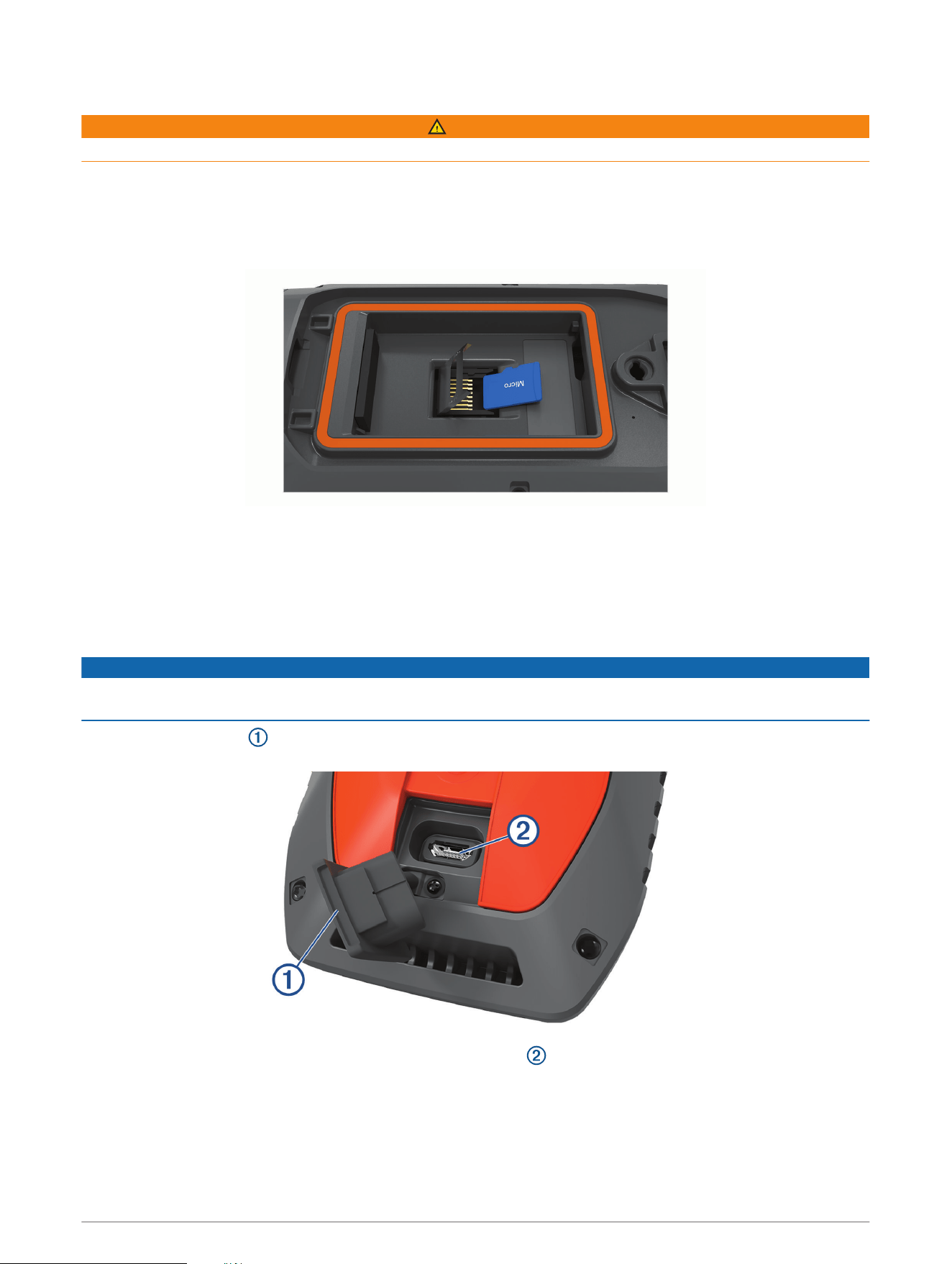
Installing a Memory Card
WARNING
Do not use a sharp object to remove user-replaceable batteries.
You can install a microSD memory card in the handheld device for additional storage or pre-loaded maps.
1 Turn the D-ring counter-clockwise, and pull up to remove the cover.
2 Remove the battery.
3 Slide the card holder to the left and lift up.
4 Place the memory card with the gold contacts facing down.
5 Close the card holder.
6 Slide the card holder to the right to lock it.
7 Replace the battery and cover.
Connecting the Handheld Device to a Computer
NOTICE
To prevent corrosion, thoroughly dry the USB port, the weather cap, and the surrounding area before charging or
connecting to a computer.
1 Lift the weather cap .
2 Plug the small end of the USB cable into the USB connector on the device.
3 Plug the other end of the USB cable into an available USB port on the computer.
Your device appears as a removable drive in My Computer on Windows computers and as mounted
volumes on Mac computers.
36 Device Information
Connecting the Collar to a Computer
NOTICE
To prevent corrosion, you should dry the contacts on the collar and the surrounding area before connecting the
charging clip.
1 Snap the charging clip onto the collar.
2 Plug the small end of the USB cable into the USB port on the charging clip cable.
3 Plug the other end of the USB cable into a USB port on the computer.
Transferring Dog Tracks to BaseCamp
™
You can transfer the dog tracks to BaseCamp.
1 Connect the dog collar device to the computer (Connecting the Collar to a Computer, page 37).
The dog collar device turns on automatically.
2 Select on the dog collar device.
3 Open BaseCamp.
BaseCamp recognizes the device.
4 Select Device > Receive from Device.
5 Select the dog collar device from the list, and click OK.
BaseCamp creates a folder of transferred data in My Collection.
Deleting Files
NOTICE
If you do not know the purpose of a file, do not delete it. Your device memory contains important system files
that should not be deleted.
1 Open the Garmin drive or volume.
2 If necessary, open a folder or volume.
3 Select a file.
4 Press the Delete key on your keyboard.
NOTE: If you are using an Apple
®
computer, you must empty the Trash folder to completely remove the files.
Disconnecting the USB Cable
If your device is connected to your computer as a removable drive or volume, you must safely disconnect your
device from your computer to avoid data loss. If your device is connected to your Windows computer as a
portable device, it is not necessary to safely disconnect the device.
1 Complete an action:
• For Windows computers, select the Safely Remove Hardware icon in the system tray, and select your
device.
• For Apple computers, select the device, and select File > Eject.
2 Disconnect the cable from your computer.
Resetting Data and Settings
The device offers options for deleting your user data and resetting all settings to the factory default values.
1 Select Setup > Reset.
2 Select an option:
• To reset all settings to the default values and save all user-entered information, select Reset All Settings.
• To delete all user data and reset all settings to the factory default values, select Delete All.
Device Information 37

Appendix
Accessories and Replacement Parts
Purchasing Accessories
• Optional accessories are available at garmin.com or from your Garmin dealer.
Optional Maps
You can use additional maps with the device, such as BirdsEye satellite imagery, City Navigator
®
, and Garmin
HuntView
™
Plus detailed maps. Detailed maps may contain additional points of interest, such as restaurants or
marine services. For more information, go to buy.garmin.com or contact your Garmin dealer.
tempe
The tempe is an ANT+ wireless temperature sensor. You can attach the sensor to a secure strap or loop where
it is exposed to ambient air, and therefore, provides a consistent source of accurate temperature data. You
must pair the tempe with your device to display temperature data from the tempe.
Tips for Pairing ANT+ Accessories with Your Garmin Device
• Verify that the ANT+ accessory is compatible with your Garmin device.
• Before you pair the ANT+ accessory with your Garmin device, move 10 m (33 ft.) away from other ANT+
accessories.
• Bring the Garmin device within range 3 m (10 ft.) of the ANT+ accessory.
• After you pair the first time, your Garmin device automatically recognizes the ANT+ accessory each time it is
activated. This process occurs automatically when you turn on the Garmin device and only takes a few
seconds when the accessories are activated and functioning correctly.
• When paired, your Garmin device receives data from only your accessory, and you can go near other
accessories.
38 Appendix
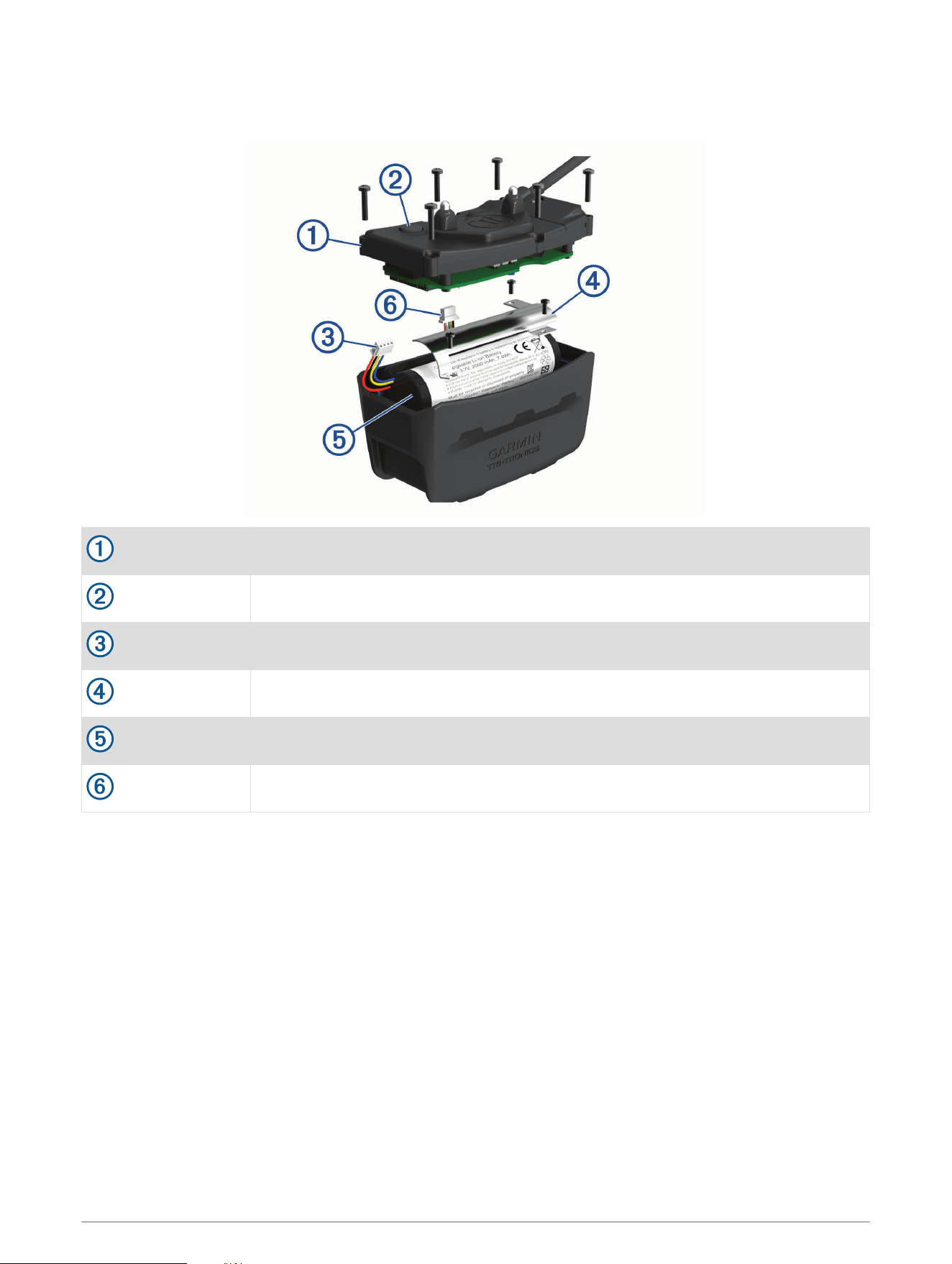
Dog Collar Device Battery Replacement Instructions
Dog Collar Device Components
Back plate
Power key
Battery connector
Battery cover
Battery
Power connector
Removing the Old Battery
Before you replace the battery, you must remove all dirt, water, and debris from the device. You must also have
a small Phillips screwdriver.
1 Remove the six screws from the outer edges of the back plate.
NOTE: You should leave the two inner screws in place.
2 Pry off the back plate.
3 Disconnect the battery connector and power connector.
4 Remove the screws that secure the battery cover.
5 Remove the battery cover and the battery.
Remember the orientation of the battery. You must install the new battery the same way.
After you remove the old battery, contact your local waste disposal department to properly recycle the battery.
Appendix 39
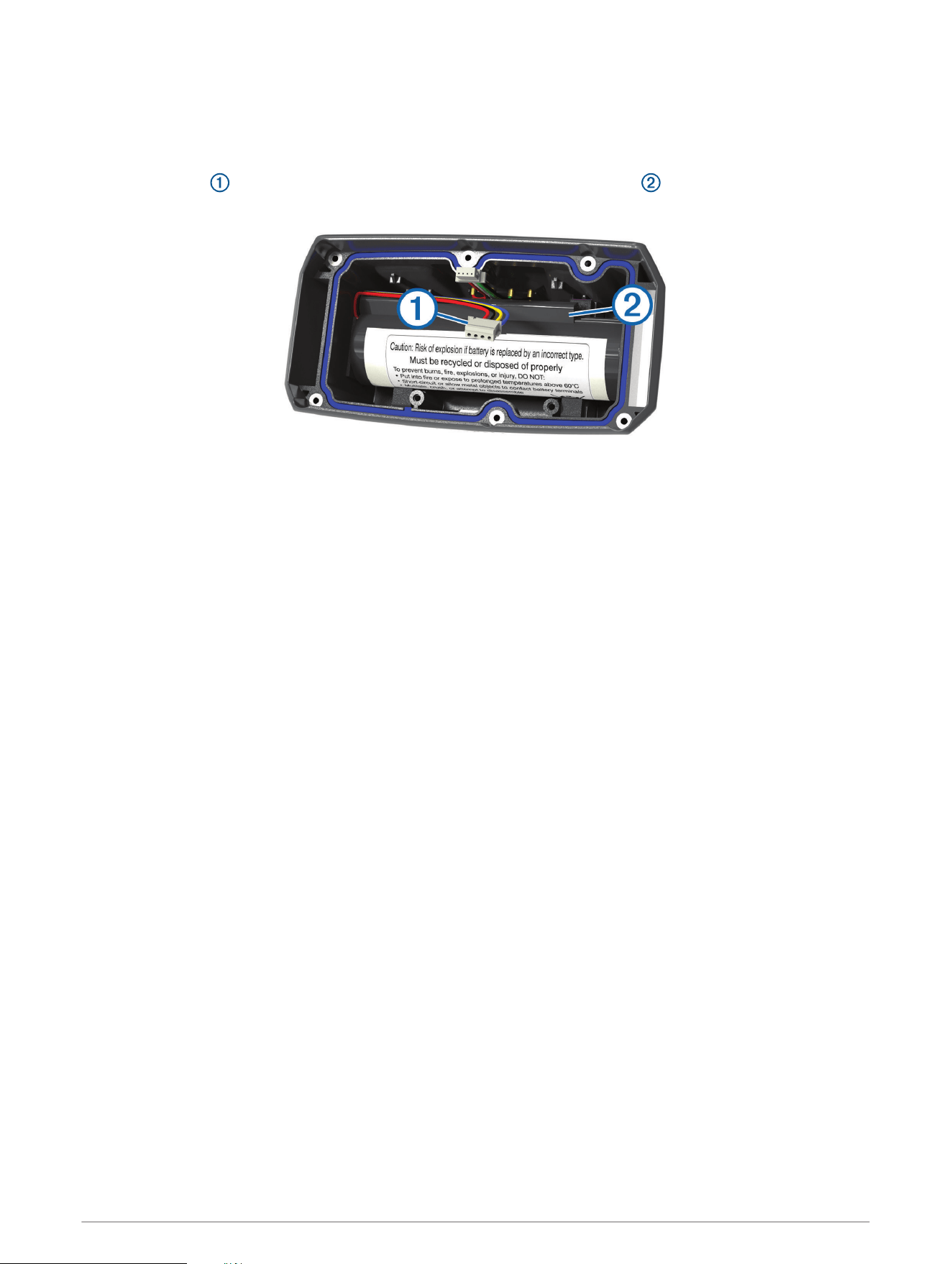
Installing the New Battery
Before you replace the battery, you must remove the old battery (Removing the Old Battery, page 39). You also
must have a small Phillips screwdriver. You may need a small flat screwdriver.
1 Install the new battery using the same orientation as the old battery.
The connector should face the end nearest the power key, and the bump where the wires connect to
the battery should face toward the side with the charging clip contacts.
2 Replace the battery cover.
3 Replace the screws to secure the battery cover.
4 Connect the battery connector and power connector.
You may need to use a flat screwdriver to help secure the connectors.
5 Select the power key to test the connections.
When properly connected, a tone is emitted and the status LED blinks green.
6 Turn off the device.
7 Verify the gasket located inside the bottom cover is fully seated.
8 Replace the back plate.
9 Replace the six screws to secure the back plate.
After you install the new battery, charge the collar completely.
40 Appendix
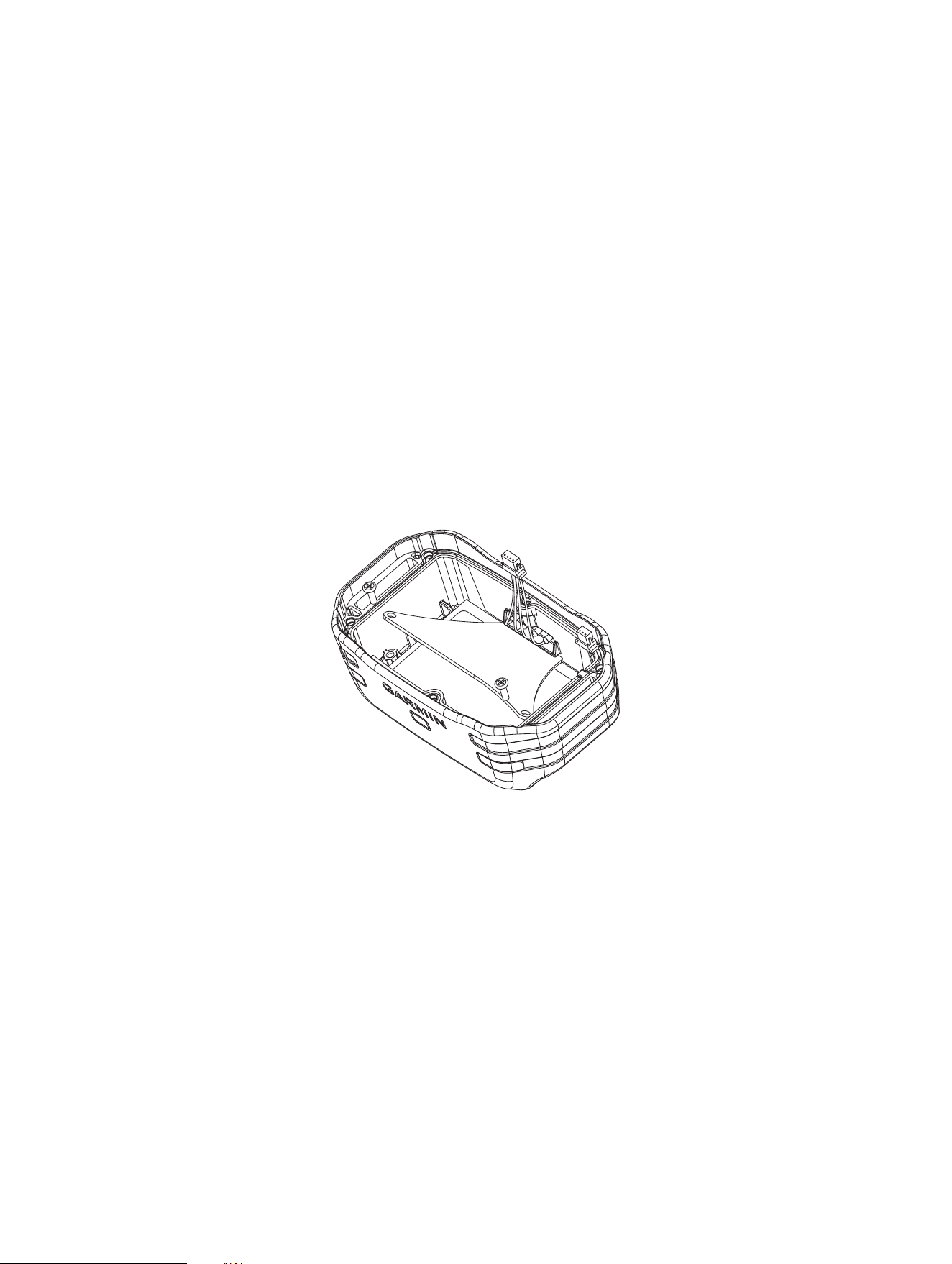
Replacing the Mini Dog Collar Device Battery
Before you can replace the battery, you must remove all dirt, water, and debris from the device. You also need a
small Phillips screwdriver and the security screwdriver included in the battery replacement kit.
1 Remove the screws from the L-shaped cover over the VHF antenna.
2 Pry off the L-shaped cover.
3 Remove the screws from the outer edges of the back plate.
4 Pry off the back plate.
5 Grip the battery connector wires close to the connector, and pull the connector perpendicular to the circuit
board to disconnect the battery connector from the device.
6 Grip the power connector wires close to the connector, and pull the connector parallel to the circuit board to
disconnect the power connecter from the device.
7 Remove the screws from the battery plate.
8 Remove the battery plate.
9 Remove the battery.
The battery fits tightly. It may be necessary to pry the battery out of the back plate using a non-sharp, non-
metal object.
10 Install the new battery into the front enclosure with the label side of the battery facing up, and the leading
edge of the battery placed under the charging contact ledge of the device.
11 Replace the battery plate, and replace and tighten the two screws.
12 Verify the gasket is not damaged and is completely seated in the groove.
13 Connect the battery connector and the power connector to the device.
When properly installed, the connector plugs snap into the ports.
14 Replace the back plate, and replace and tighten the screws to secure the back plate.
15 Replace the L-shaped cover, and replace and tighten the screws to secure the L-shaped plate.
16 Verify the gasket is not sticking out of the device.
Replacing the Collar Strap
Before you replace the collar strap, you must remove all dirt, water, and debris from the device (Cleaning the
Device, page 32).
1 Pull the collar strap out of the GPS antenna, antenna guide, and the dog device.
You may need to push and pull the collar strap to properly remove it. You may need to loosen the screw on
the GPS antenna case, but do not remove them.
2 Thread the new collar strap through the dog device, antenna guide, and GPS antenna.
3 If necessary, tighten the screws that secure the GPS antenna case.
Appendix 41
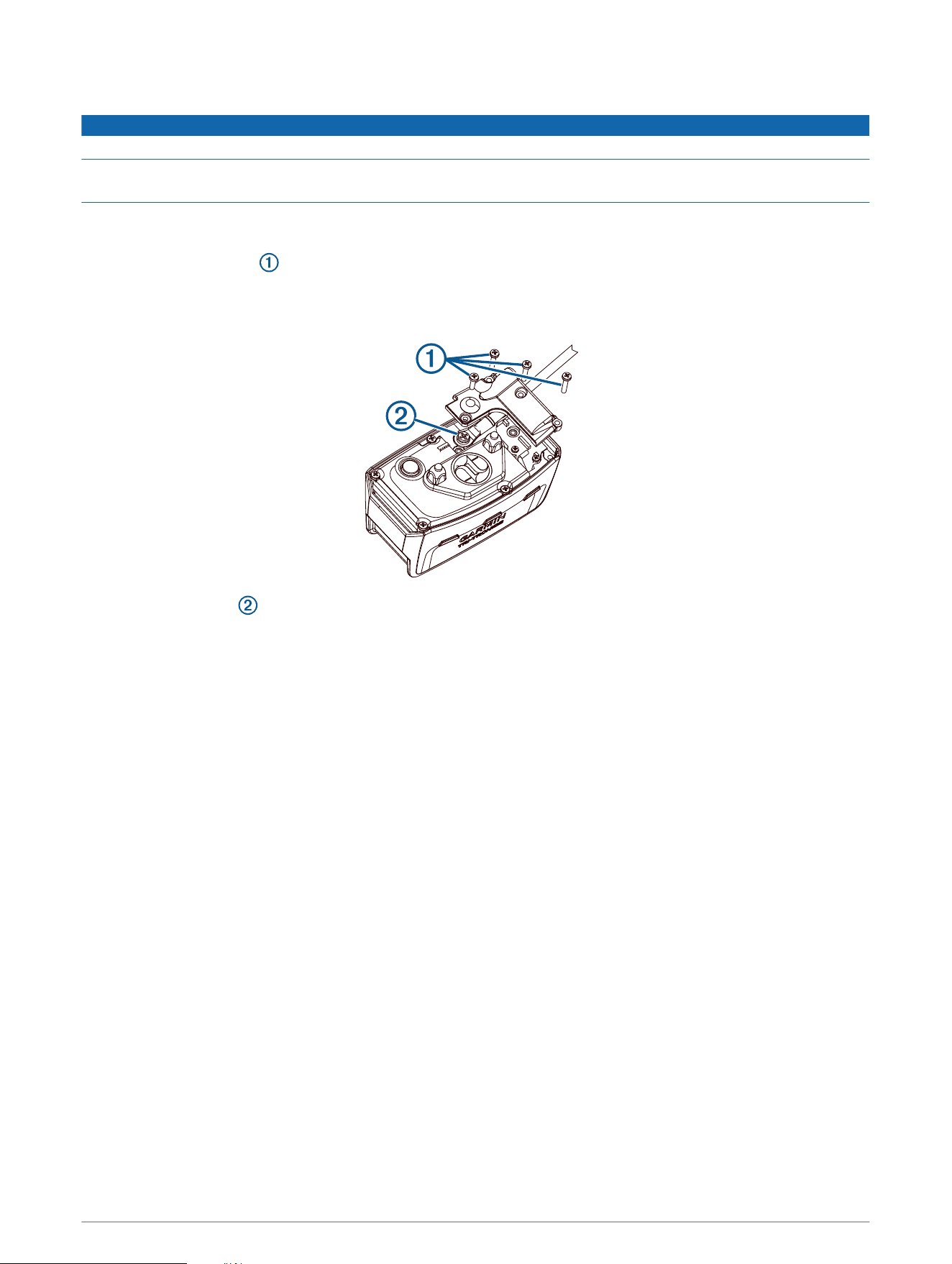
Replacing the VHF Antenna in the Dog Collar Device
NOTICE
Do not excessively bend the band that connects the main device case with the GPS antenna.
When the L-shaped cover is removed, do not disturb the sealant opposite the VHF antenna, because this can
damage the waterproof seal of the dog collar device.
Before you replace the VHF antenna, you must remove all dirt, water, and debris from the device (Cleaning the
Device, page 32). Also, you need a small Phillips screwdriver.
1 Remove the 4 screws from the L-shaped cover over the VHF antenna.
NOTE: You should note the location of the one short screw.
2 Pry off the L-shaped cover.
3 Remove the screw securing the VHF antenna to the back plate.
4 Pull the length of the antenna from the antenna guide to remove the old antenna.
5 Loop the antenna guide around the collar strap, and thread the new VHF antenna through the guide.
This helps to point the antenna up.
6 Replace the screw securing the VHF antenna to the back plate.
7 Replace the L-shaped cover over the VHF antenna.
8 Replace the 4 screws on the L-shaped cover, replacing the short screw in the correct location.
42 Appendix
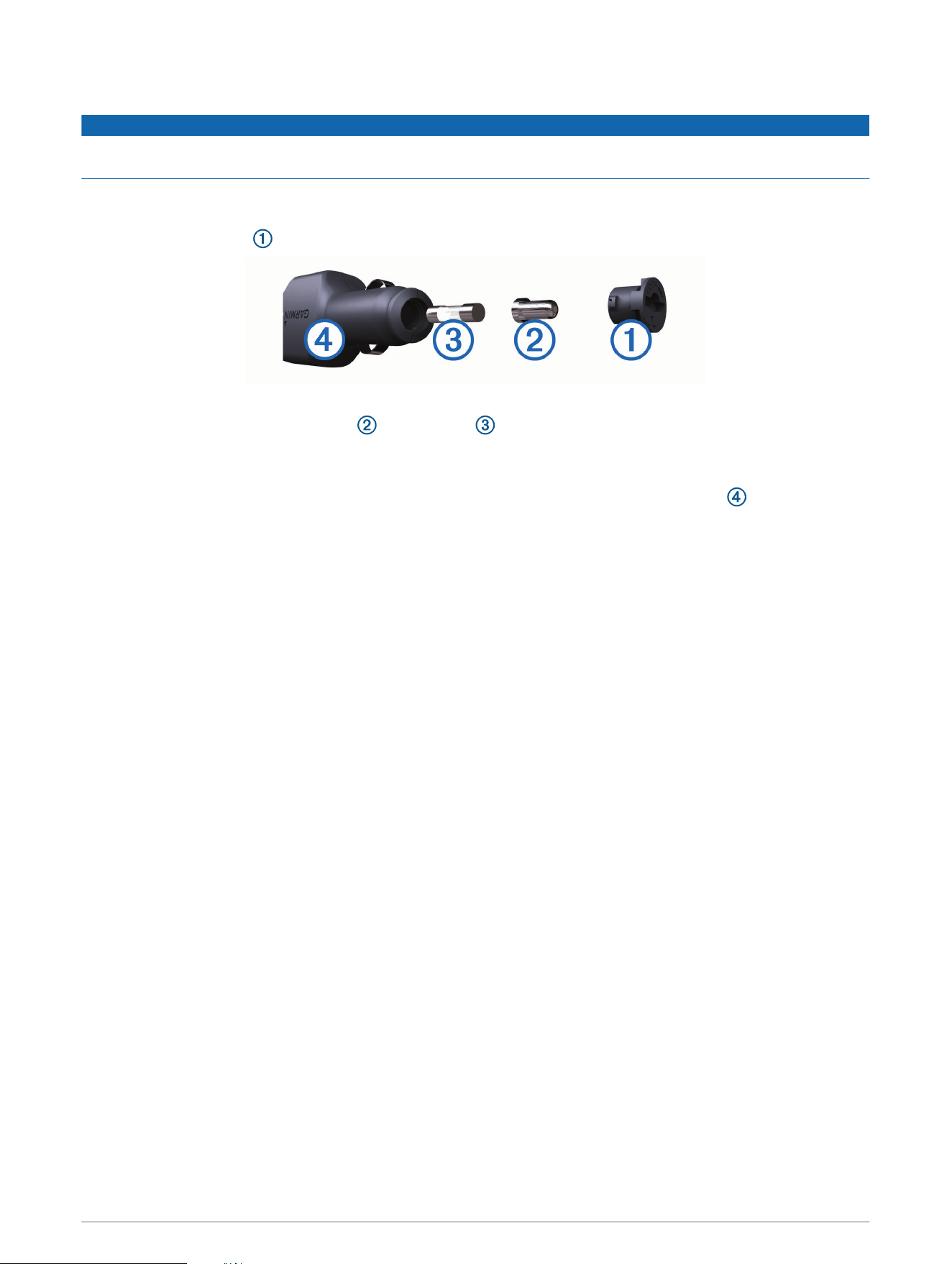
Changing the Fuse in the Vehicle Power Cable
NOTICE
When replacing the fuse, do not lose any of the small pieces and make sure they are put back in the proper
position. The vehicle power cable does not work unless it is assembled correctly.
If your device does not charge in your vehicle, you may need to replace the fuse located at the tip of the vehicle
adapter.
1 Rotate the end piece counter clockwise to unlock it.
TIP: You may need to use a coin to remove the end piece.
2 Remove the end piece, the silver tip , and the fuse .
3 Insert a new fast-blow fuse that has the same current, such as 1 A or 2 A.
4 Place the silver tip in the end piece.
5 Push in the end piece and rotate it clockwise to lock it back into the vehicle power cable .
Appendix 43

Data Field Options
24 hr. Max. Temperature: The maximum temperature recorded in the last 24 hours.
24 hr. Min. Temperature: The minimum temperature recorded in the last 24 hours.
Accuracy of GPS: The margin of error for your exact location. For example, your GPS location is accurate to
within +/- 12 ft. (3.65 m).
Alarm Timer: The current time of the countdown timer.
Ambient Pressure: The uncalibrated environmental pressure.
Ascent - Average: The average vertical distance of ascent since the last reset.
Ascent - Maximum: The maximum rate of ascent in feet per minute or meters per minute since the last reset.
Ascent - Total: The total elevation distance ascended since the last reset.
Automotive Turn: The direction of the next turn in the route. You must be navigating for this data to appear.
Average Lap: The average lap time for the current activity.
Barometer: The calibrated current pressure.
Battery Level: The remaining battery power.
Bearing: The direction from your current location to a destination. You must be navigating for this data to
appear.
Calories: The amount of total calories burned.
Compass Heading: The direction you are moving based on the compass.
Course: The direction from your starting location to a destination. Course can be viewed as a planned or set
route. You must be navigating for this data to appear.
Current Lap: The stopwatch time for the current lap.
Date: The current day, month, and year.
Descent - Average: The average vertical distance of descent since the last reset.
Descent - Maximum: The maximum rate of descent in feet per minute or meters per minute since the last reset.
Descent - Total: The total elevation distance descended since the last reset.
Distance to Dest.: The remaining distance to the final destination. You must be navigating for this data to
appear.
Distance to Next: The remaining distance to the next waypoint on the route. You must be navigating for this
data to appear.
Elapsed Track Time: The total time recorded. For example, if you start the timer and run for 10 minutes, then
stop the timer for 5 minutes, then start the timer and run for 20 minutes, your elapsed time is 35 minutes.
Elevation: The altitude of your current location above or below sea level.
Elevation Above Ground: The altitude of your current location above ground level (if maps contain sufficient
elevation information).
Elevation - Maximum: The highest elevation reached since the last reset.
Elevation - Minimum: The lowest elevation reached since the last reset.
ETA at Destination: The estimated time of day when you will reach the final destination (adjusted to the local
time of the destination). You must be navigating for this data to appear.
ETA at Next: The estimated time of day when you will reach the next waypoint on the route (adjusted to the
local time of the waypoint). You must be navigating for this data to appear.
Glide Ratio: The ratio of horizontal distance traveled to the change in vertical distance.
Glide Ratio to Dest.: The glide ratio required to descend from your current position to the destination elevation.
You must be navigating for this data to appear.
GPS Elevation: The altitude of your current location using GPS.
GPS Heading: The direction you are moving based on GPS.
GPS Signal Strength: The strength of the GPS satellite signal.
44 Appendix

Grade: The calculation of rise (elevation) over run (distance). For example, if for every 10 ft. (3 m) you climb you
travel 200 ft. (60 m), the grade is 5%.
Heading: The direction you are moving.
Lap Ascent: The vertical distance of ascent for the current lap.
Lap Descent: The vertical distance of descent for the current lap.
Lap Distance: The distance traveled for the current lap.
Laps: The number of laps completed for the current activity.
Lap Speed: The average speed for the current lap.
Last Lap Ascent: The vertical distance of ascent for the last completed lap.
Last Lap Descent: The vertical distance of descent for the last completed lap.
Last Lap Distance: The distance traveled for the last completed lap.
Last Lap Speed: The average speed for the last completed lap.
Last Lap Time: The stopwatch time for the last completed lap.
Location (lat/lon): The current position in latitude and longitude regardless of the selected position format
setting.
Location (selected): The current position using the selected position format setting.
Location of Dest.: The position of your final destination. You must be navigating for this data to appear.
None: This is a blank data field.
Odometer: A running tally of distance traveled for all trips. This total does not clear when resetting the trip data.
Off Course: The distance to the left or right by which you have strayed from the original path of travel. You must
be navigating for this data to appear.
Pointer: An arrow points in the direction of the next waypoint or turn. You must be navigating for this data to
appear.
Speed: The current rate of travel.
Speed Limit: The reported speed limit for the road. Not available in all maps and in all areas. Always rely on
posted road signs for actual speed limits.
Speed - Maximum: The highest speed reached since the last reset.
Speed - Moving Avg.: The average speed while moving since the last reset.
Speed - Overall Avg.: The average speed while moving and stopped since the last reset.
Stopwatch Timer: The stopwatch time for the current activity.
Sunrise: The time of sunrise based on your GPS position.
Sunset: The time of sunset based on your GPS position.
Temperature: The temperature of the air. Your body temperature affects the temperature sensor.
Time of Day: The current time of day based on your current location and time settings (format, time zone,
daylight saving time).
Time to Destination: The estimated time remaining before you reach the destination. You must be navigating
for this data to appear.
Time to Next: The estimated time remaining before you reach the next waypoint in the route. You must be
navigating for this data to appear.
To Course: The direction in which you must move to get back on the route. You must be navigating for this data
to appear.
Total Lap: The stopwatch time for all the completed laps.
Trip Odometer: A running tally of the distance traveled since the last reset.
Trip Time: A running tally of the total time spent moving and not moving since the last reset.
Trip Time - Moving: A running tally of the time spent moving since the last reset.
Trip Time - Stopped: A running tally of the time spent not moving since the last reset.
Turn: The angle of difference (in degrees) between the bearing to your destination and your current course. L
means turn left. R means turn right. You must be navigating for this data to appear.
Appendix 45

Velocity Made Good: The speed at which you are closing on a destination along a route. You must be
navigating for this data to appear.
Vertical Dist. to Dest.: The elevation distance between your current position and the final destination. You must
be navigating for this data to appear.
Vertical Dist. to Next: The elevation distance between your current position and the next waypoint in the route.
You must be navigating for this data to appear.
Vertical Speed: The rate of ascent or descent over time.
Vertical Speed to Dest.: The rate of ascent or descent to a predetermined altitude. You must be navigating for
this data to appear.
Waypoint at Dest.: The last point on the route to the destination. You must be navigating for this data to
appear.
Waypoint at Next: The next point on the route. You must be navigating for this data to appear.
46 Appendix

Index
A
accessories 38
activities 23
alarms
clock 27
proximity 27
tones 29
alerts 19
dog 29
location 13, 14
altimeter, calibrating 26
ANT+ sensors, pairing 38
applications 17, 18
area calculation 27
B
backlight 34, 35
BaseCamp 37
battery 34, 39
charging 5, 35
installing 5
life 29
maximizing 11, 21, 34, 35
replacing 39–41
storage 34
beacon 20
bearing pointer 25
Bluetooth technology 17
C
calibrating, altimeter 26
charging 35
collar 6
handheld 5
cleaning the device 32
cleaning the touchscreen 32
collar 11
charging 6
contact points 15
fitting 10
light 20
replacing battery 39, 40
replacing strap 41
VHF antenna 4, 42
compass 13, 25
calibrating 25
navigating 25
computer, connecting 35–37
contact 18, 19
adding 18, 19
ID 19, 20
viewing on map 19
contact points 10, 15
covey, marking 20
D
data
sharing 14
sharing data 14
storing 18
transferring 18
data fields 26, 28
deleting, all user data 37
device, care 32
display settings 29
dog 7, 9, 10, 18, 27
adding 7, 8
alerts 14, 29
collar 21
ID 8, 10
information 9, 10
navigating to 13
statistics 9, 20
track and control codes 8
tracking 11–14, 21
tracks 9, 13, 37
training 15, 16
training basics 14, 17
training intensity levels 15
type 9
update rate 35
E
elevation 24, 26
plot 26
F
fuse, changing 43
G
Garmin Express
registering the device 32
updating software 32
geofences 13, 14
GPS 27, 28
settings 29
H
history, sending to computer 18
hunter 18
I
icons 12
initial setup 6
intensity level, choosing 15
K
keys 2, 3
training 16
L
line-of-sight radio communication 11
M
main menu, customizing 28
maps 21, 24
BirdsEye imagery 28
measuring distances 25
navigation 25
optional 38
orientation 25, 29
settings 29, 30
updating 32
zoom 12, 30
measuring distances 25
memory card 2, 36
messages 19
microSD card. See memory card
MicroSD card. See memory card
N
navigation 13, 25, 26
altimeter 26
O
on-screen buttons 6
P
pairing
ANT+ sensors 38
smartphone 17
position format 31
power cables, changing the fuse 43
power key 2, 3, 6
product registration 32
proximity alarms 27
R
radio communication 11
radio frequencies 9
registering the device 32
replacement parts 38–42
rescue mode 21
resetting the device 37
routes 22, 23
creating 23
deleting 23
editing 23
navigating 23
settings 31
S
satellite signals 27, 28
acquiring 7
settings 16, 29–31
device 30, 31
recording 30
Sight 'N Go 26
sleep mode 11
smartphone 18
applications 17
pairing 17
software
updates 32
updating 32
specifications 33
storing data 18
T
tempe 31, 38
Tempe 31
temperature 38
tones 29
TracBack 24
tracks 13, 24
navigating 24
recording 24
settings 30
training
stimulation 15
tone 15
vibration 15
transferring, tracks 37
trip information
resetting 26
viewing 26
trip planner. See routes
troubleshooting 37
U
units of measure 31
updates, software 32
USB
connector 2
disconnecting 37
user data, deleting 37
V
VHF antenna 2, 42
W
waypoints 21, 25
deleting 22
editing 21, 22
projecting 22
saving 20, 21
Wi‑Fi 17
connecting 17
Z
zooming, maps 12
Index 47
support.garmin.com
GUID-7936C255-EDC9-4713-AA2B-26476A140DA6 v1September 2021