USER
MANUAL
2
Introduction
How a Dash Cam Works
iQ Overview
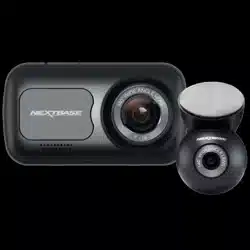
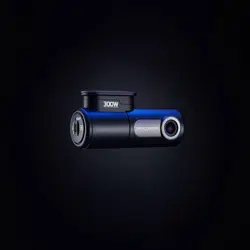
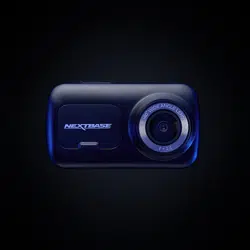
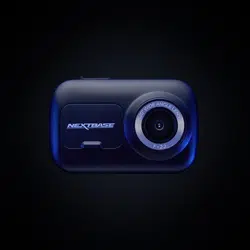
Your iQ Dash Cam
Camera Parts
4G Information
Set Up
iQ App
Subscriptions
Driving & Remote Features
Emergency SOS
Radar and Guardian Mode
Witness Mode
Live View & Remote Functions
Voice Control
FAQs
Useful Links
Glossary
iQ Screens and Lights
Legal, Compliance & Conformity
Usage Warnings & Terms of Service
4
5
6
7
8
9
10
17
21
22
23
25
26
28
29
30
32
33
35
37
39
3
CONTENTS
Introduction
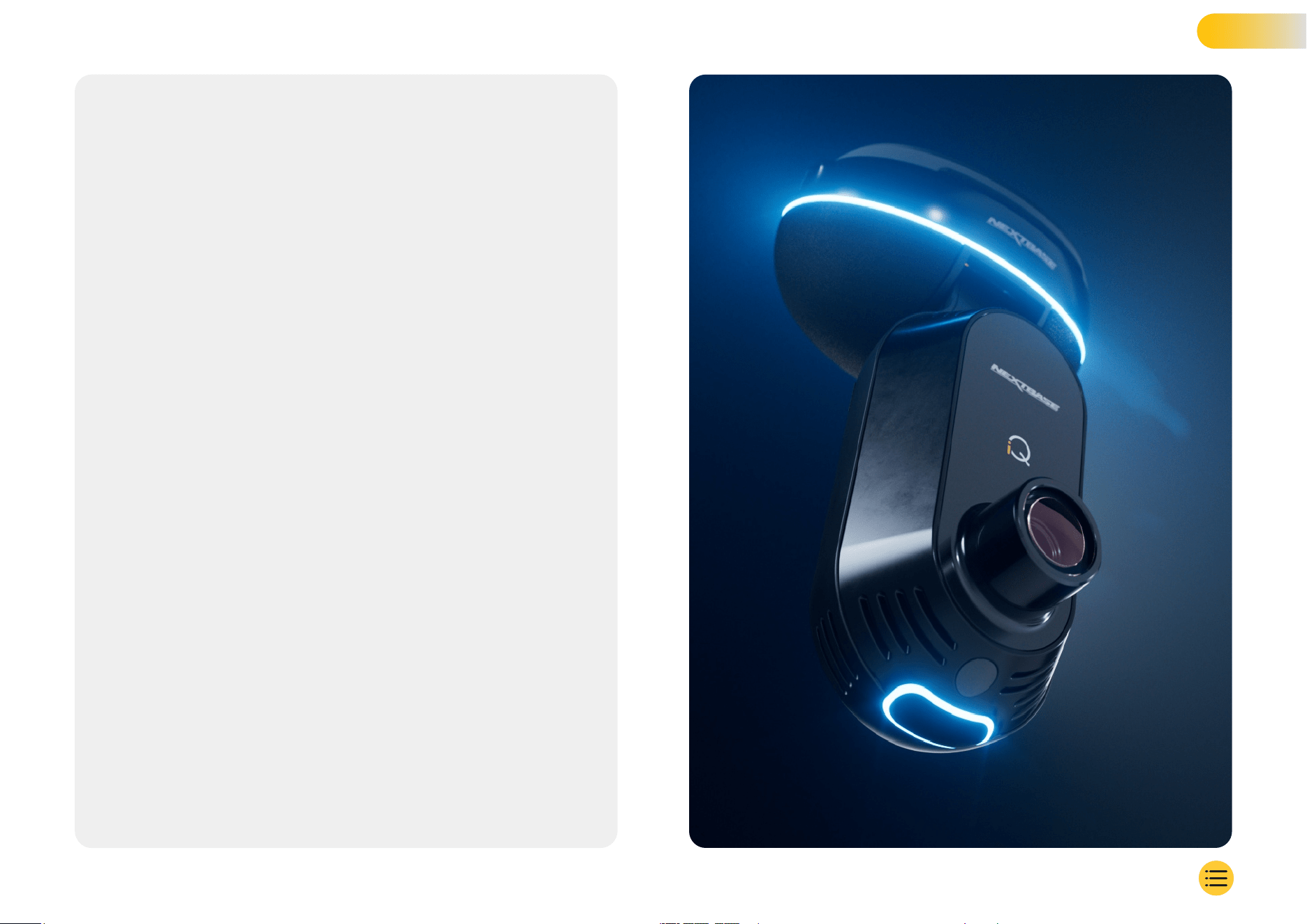
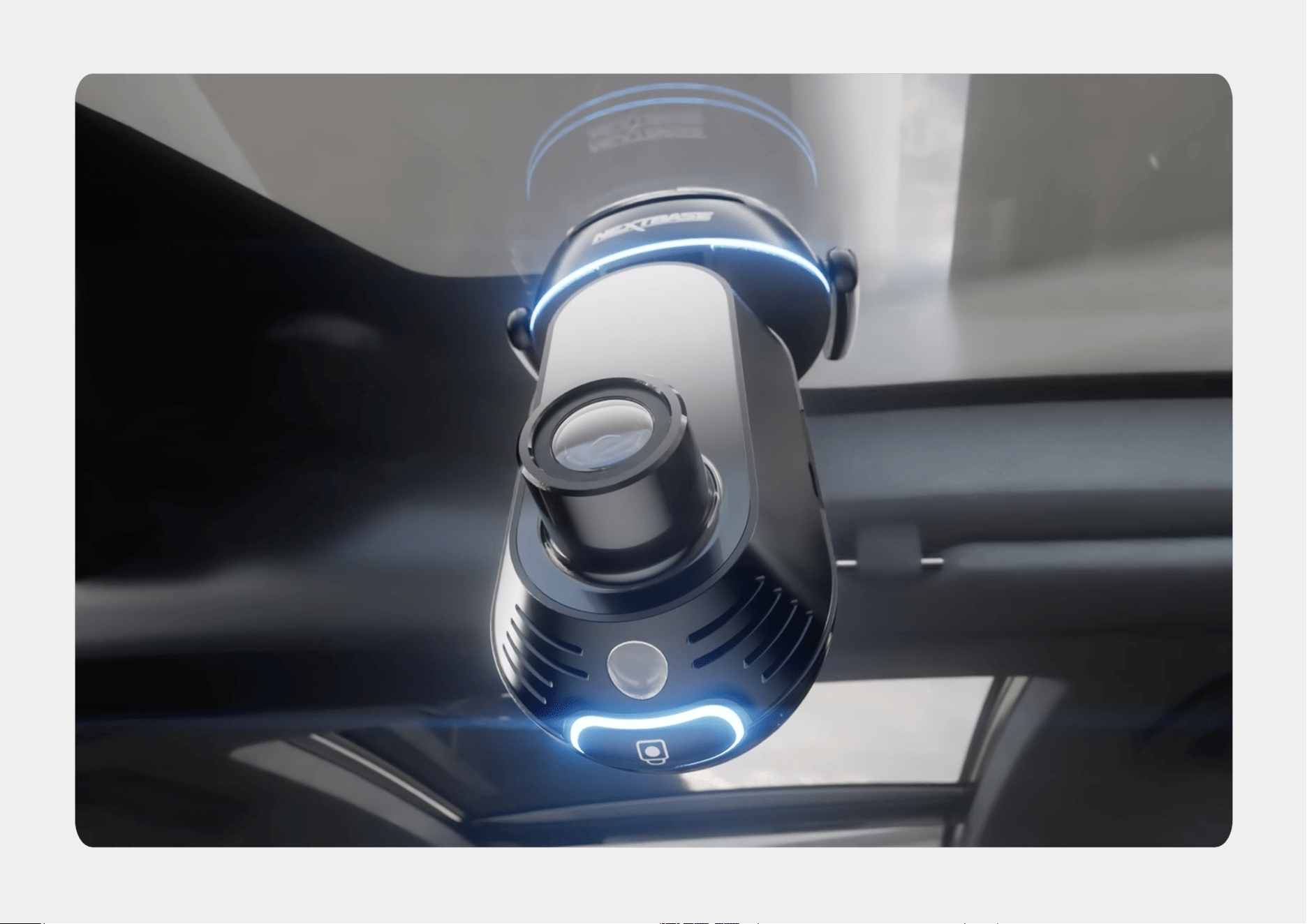
Welcome to your iQ Dash Cam, the world’s most
advanced connected Dash Cam.
It’s safety, security, and peace of mind like never before.
Record your journeys front, back and inside, giving
you total coverage in case of an incident.
All of your footage can be stored in the cloud,
letting you access it anytime.
Before using iQ, please ensure you familiarise
yourself with the contents of this manual including
Safety Notices on page 36.
4
Camera
iQ has front facing and interior cameras (and an optional
rear-window camera) to record in and around your vehicle.
Power Source
When connected to your vehicle's OBD port, iQ automatically
turns on and starts recording when the engine is started.
Recording
The camera continuously records video footage while you're
driving. The video is typically recorded in short segments,
a few minutes long, to make it easier to manage the files.
Storage
The recorded video footage is stored on a memory card
inserted into the dash cam. The memory card acts as
storage, similar to an SD card in a digital camera.
Loop Recording
As the memory card fills up with recorded video, iQ uses a
feature called "loop recording" to overwrite the oldest footage
with new recordings. This ensures that the camera can keep
recording even when the memory card is full. Important files
can be manually saved to prevent them from being overwritten.
Event Recording
iQ has built-in G-sensors and Radar, which detect sudden
movements or impacts in and around your vehicle. When an event
like a collision or sudden braking is detected, iQ will automatically
save the footage surrounding the event and mark it as an important
file that to be reviewed. When you’re away from your vehicle, iQ can
send you notifications to let you know of suspicious activity near
where you’re parked, letting you keep an eye on what’s going on.
Playback and Accessing Footage
To view the recorded footage, use the iQ app (recommended)
or remove the memory card from the dash cam and insert it
into a computer. Once the footage is accessed, you can
review, edit, or share the recordings as needed.
iQ Overview
How a Dash Cam Works
5
iQ Overview
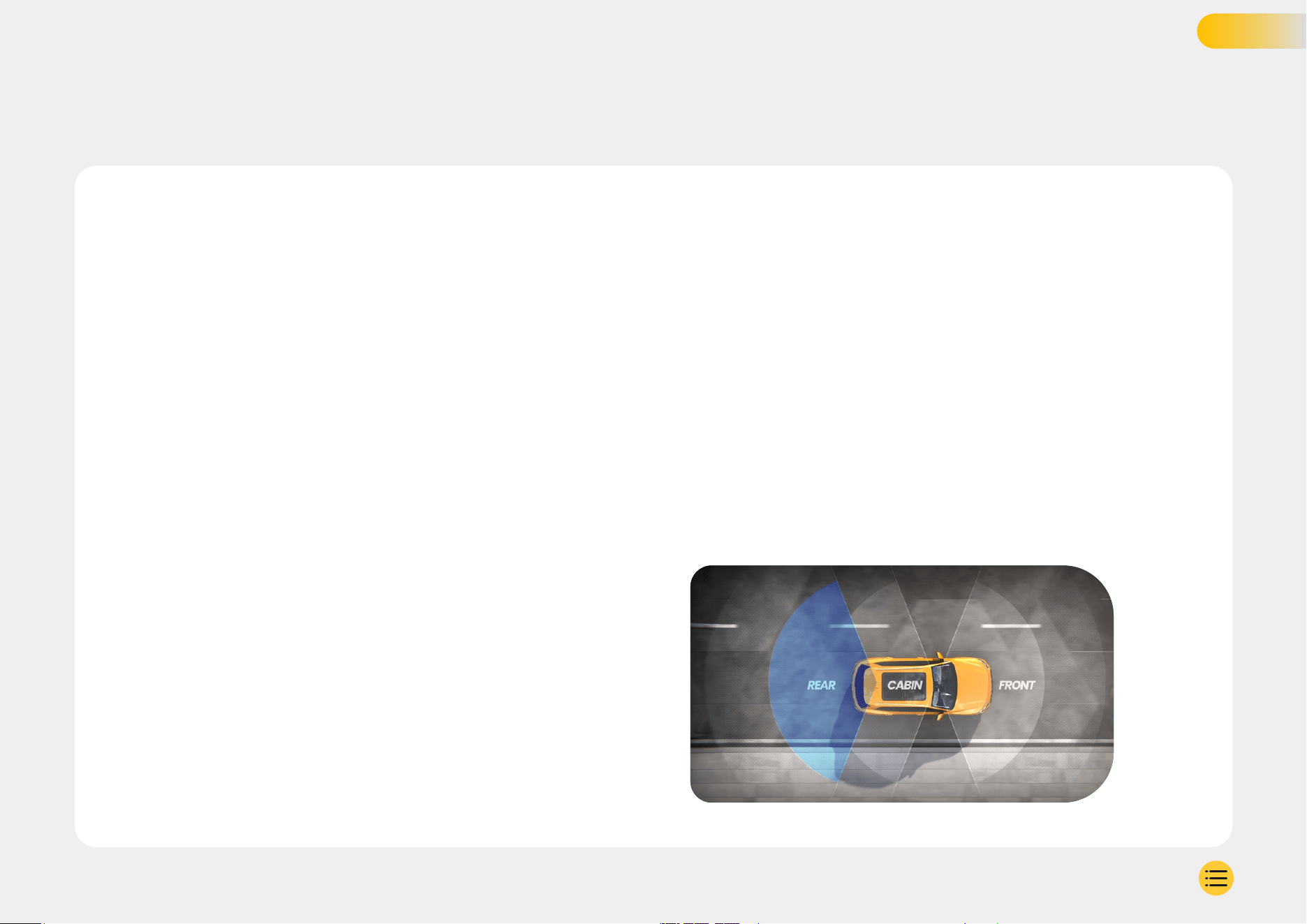
With stunning front view resolution (up to 4K, selected models), coupled with a
built-in HD cabin view surveillance and optional Rear Window Camera you’ll
have complete visibility both inside and out.
An optional 1440p Rear Window Camera guards against tailgaters and rear
end impacts, providing yet a further level of detail, security and safety.
The iQ App has been designed with user ease in mind. It will help you set up iQ,
show you the latest features and allow to easily browse your recorded videos
and journeys. It will also allow you to remotely access your iQ, download
recorded videos, and share important clips so you never lose useful footage.
Using the iQ App you can also enable user-set notifications, so you
are alerted to activity near your vehicle when you aren’t near it.
iQ has 4G connection capability, which can provide unique security features
such as remote Live View, Cloud Storage, and remote access to your iQ
recorded videos. iQ can be used as a single unconnected camera, however
for maximum coverage we highly recommend downloading the iQ app
and subscribing to access the full range of safety and security options.
Radar in both the Front and Rear Cameras provides all round motion detection,
while cutting edge features such as Emergency SOS, Voice Control,
and Witness Mode keep you safe whatever the situation.
6
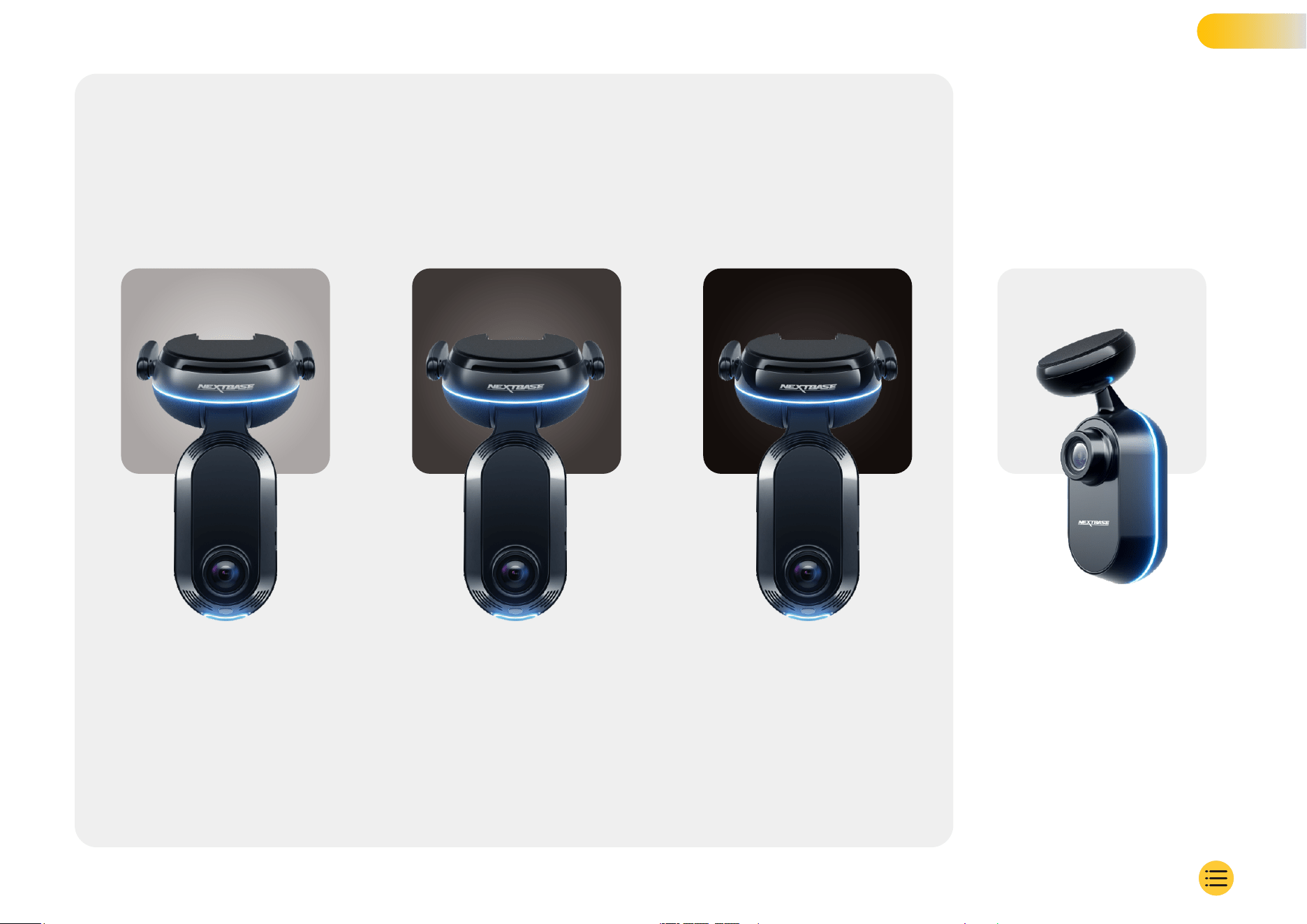
Your iQ Dash Cam
1K
All the relevant
details in Full HD.
Recording Angle Front
Recording Angle Cabin
Cabin Resolution
Recording Format
140°
180°
1080p
Mp4
1920 x 1080p
2
K
Recording Angle Front
Recording Angle Cabin
Cabin Resolution
Recording Format
140°
180°
1440p
Mp4
2560 x 1440p
Step up to quad HD for
superior clarity. Perfect
for the everyday driver.
Recording Angle Rear
Recording Format
140°
Mp4
2560 x 1440p
Connect a Rear Window Camera to
provide total coverage around your
vehicle, now in crystal clear quad HD.
4K REAR
Recording Angle Front
Recording Angle Cabin
Cabin Resolution
Recording Format
140°
180°
1440p
Mp4
3840 x 2160p
Choose the best — 4K delivers crystal
perfection that captures everything.
Use on the busiest roads where even
the tiniest details matter.
7
7
6
8
9
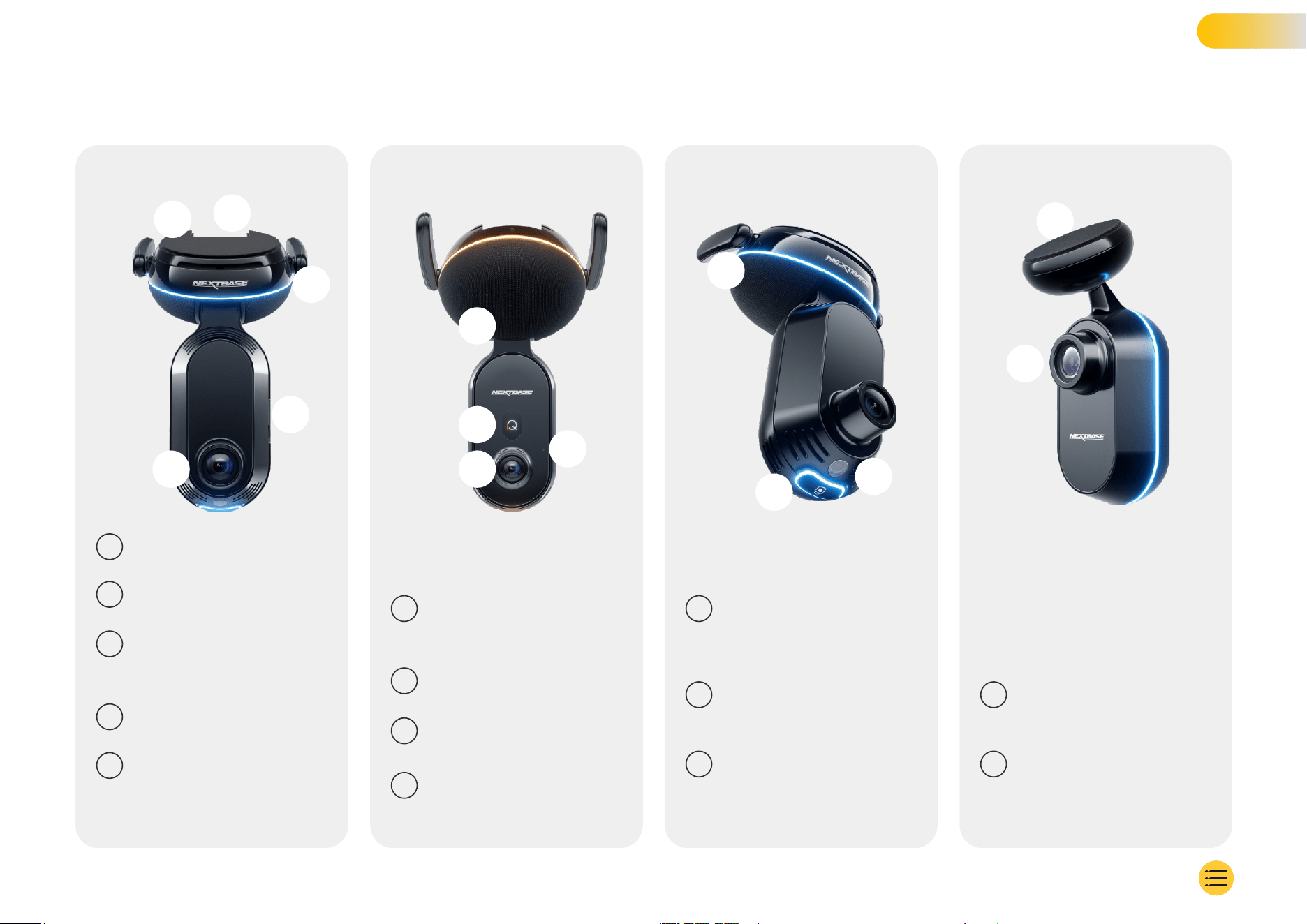
Shows icons such as signal strength,
GPS strength, recording status,
and processes.
Display
6
Records the vehicle interior.
Interior camera
7
iQ sounds will emit from here.
Speaker
8
Records sound for video and
listens for voice commands.
Microphone
9
Remove the red cover to expose adhesive
pad beneath. This pad is pressed onto the
rear window to mount the Rear Camera.
Adhesive Pad
13
Records the road behind the vehicle.
Rear Camera
14
Press to protect the current video file.
Protect Button
11
The ring light has multiple modes that
correspond to what action iQ is performing.
See page 36 for the full list of light modes.
Ring Light
10
Measures the light level to decide
when to switch between day and
night recording.
Light Sensor
12
4
Connect Power and Rear Cam Cable.
Connectors
5
Remove the red cover to expose adhesive
pad beneath. This pad is pressed onto
the windscreen to mount the iQ. The mount
pad can be removed for easier access to
the connectors.
Adhesive Pad
Records the road in front.
Front Camera
1
SD card slot.
Dust Cover
2
Connects iQ to the 4G network, allowing you
to access iQ videos and Live View remotely.
These are fragile, be careful when handling.
4G Antennae
3
13
5
1
2
3
4
12
10
11
14
8
CAMERA PARTS
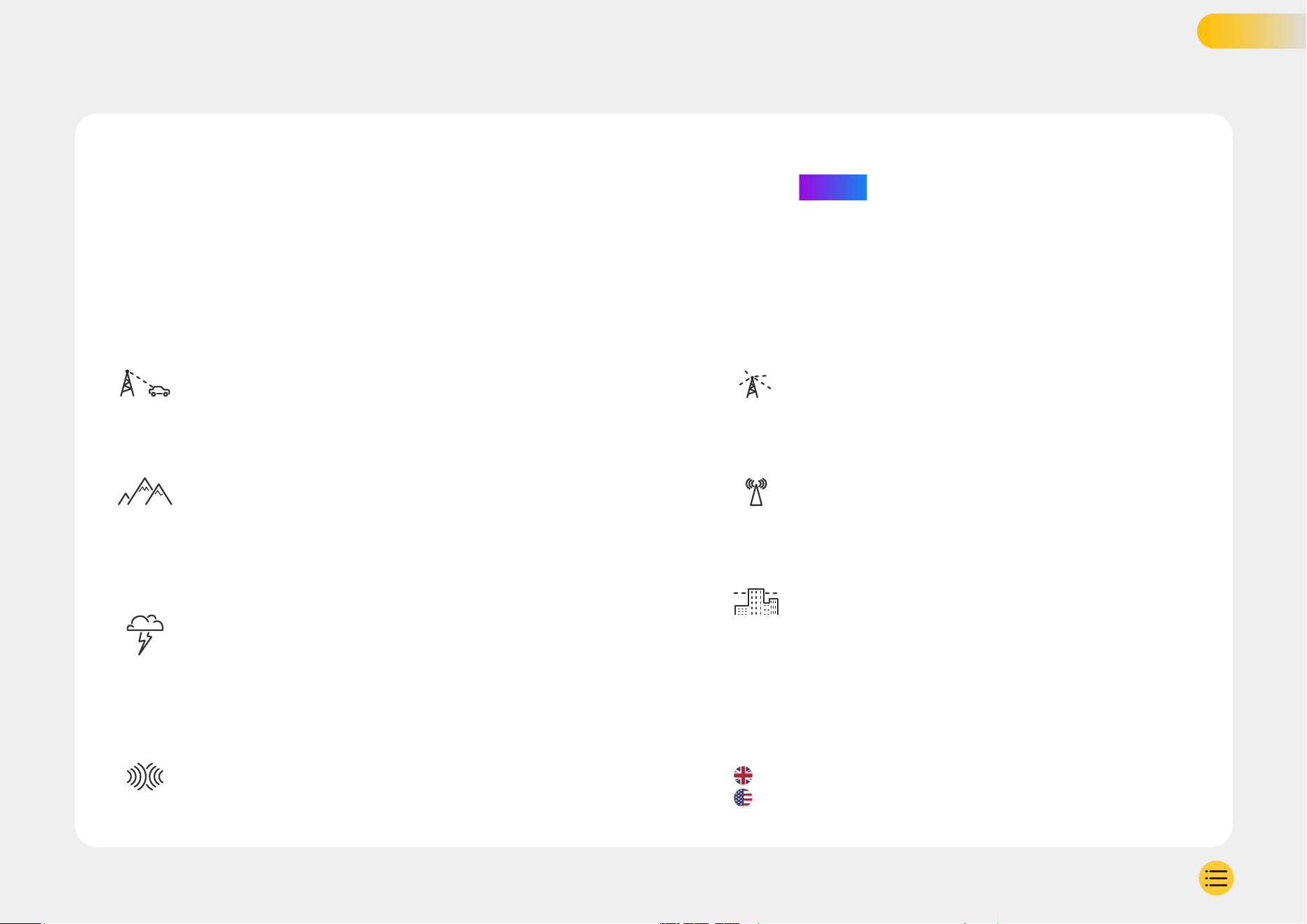
iQ’s 4G capability allows you to interact with iQ remotely.
See the live video feed, access files and use security
features such as the alarm.
Distance from Cell Tower
The farther you are from a 4G cell tower, the weaker
the signal strength becomes.
Obstacles
Physical obstructions such as buildings, walls, trees,
and mountains can block or weaken 4G signal strength.
Weather Conditions
Weather conditions, such as heavy rain, thunderstorms,
and snowstorms, can interfere with 4G signals.
Interference occurs because water droplets in the
atmosphere can scatter and absorb radio waves
reducing signal strength.
Interference from Other Electronic Devices
Some electronic devices emit electromagnetic
waves that can interfere with 4G signals.
High Network Congestion
Large numbers of users simultaneously accessing
the 4G network in a specific area can lead to delays.
Electromagnetic Interference (EMI)
EMI can occur from sources such as power lines,
electrical equipment, and radio frequency (RF) devices.
Geographical Factors
Hilly terrain or dense urban environments with
tall buildings can affect 4G signal.
NOTE
iQ subscription is required to access 4G Features.
iQ’s 4G capability works in much the same way as your mobile
devices’ data usage. Here are several factors can interfere with
4G signals and affect the quality of wireless communication.
9
4G Information
Please note that while these factors can impact 4G signals, network operators
generally strive to optimize coverage and minimize interference.
Use the below links to check coverage in your area :
vodafone.co.uk/network/status-checker
t-mobile.com/coverage/coverage-map

Open the iQ App and select ‘Power your iQ’.
For optimum results follow the step-by-step instructions closely.
Here’s a breakdown of the steps needed for setup:
Clean Windshield
Wipe the front windshield and back window with alcohol
rub, wipe clear with cloth, and leave to dry for 5 minutes.
Connect your iQ
Connect the end of the QuickConnect power cable
to your iQ. Plug in your QuickConnect OBD Cable.
Most vehicles have their OBD outlet near the footwell,
on either the passenger or driver’s side.
Connect Rear Camera (if necessary).
Plug the rear camera cable into the top of your iQ. If you’re
having trouble accessing the connectors, you can slide the
mount pad off for easier access.
Use Live View to Position iQ Camera
Use the iQ app to scan the QR Code on the iQ.
Hold your iQ where you intend to mount it, using the Live View
to ensure you have a clear and level view of the road. You can
do this for both Front and Rear cameras.
Ensure that the road is positioned in the centre third
of the Live View, and the road is centered in frame.
Your iQ should not obstruct the driver’s view.
1
2
3
4
Mount iQ
Remove the red cover from the adhesive mount and firmly
press the mount onto the windscreen. Hold for 10 seconds.
If necessary, manually adjust the angle of your iQ, also using
the Live View to ensure the road is clear and level.
Mount Rear Cam
Connect the Rear Camera to iQ using the Rear Cam
Connector Cable. Choose a position for the Rear Camera
at the top of the rear window, leaving enough loose cable
to allow the tailgate to be opened.
When ready, remove the adhesive cover, and firmly press the
mount to rear window for 10 seconds in your desired position.
Adjust angle using the iQ App Live view if required.
Create an Account
Continue to follow the iQ App setup steps, by
creating an account and setting up a subscription.
A subscription is necessary to access iQ’s unique
4G features such as Emergency SOS, Witness Mode,
and Remote Notifications.
5
SET UP
11
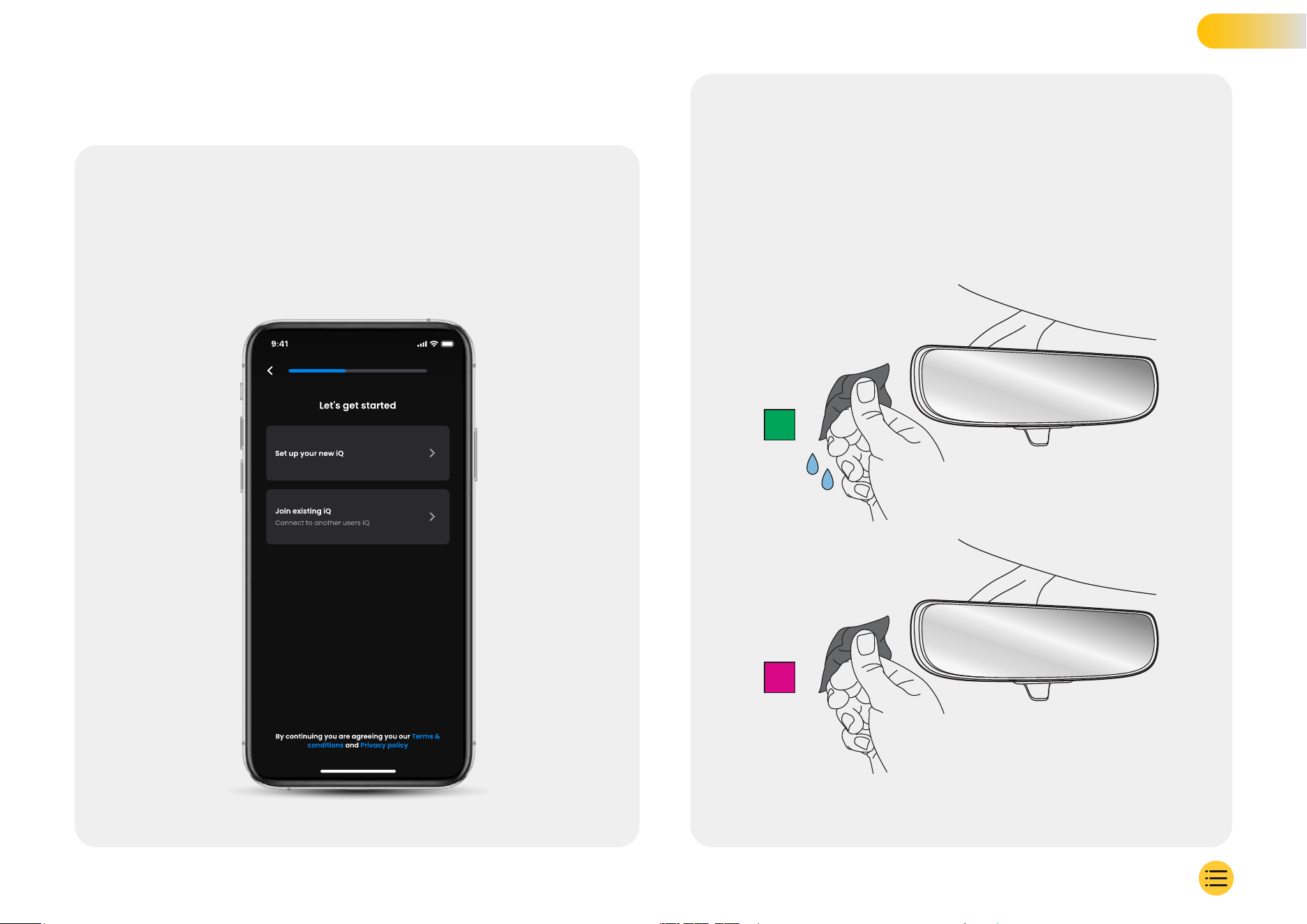
Clean Windscreen
STEP 1
Open the iQ App. The app will walk you through setting up
your Dash Cam. We've included additional steps here as
well to ensure your iQ is set up correctly.
Clean windshield;
wipe with alcohol rub, wipe clear with cloth,
then leave to dry for 5 minutes.
Alcohol Rub
Dry Cloth
1
2
iQ App Onboarding screen
12
SET UP
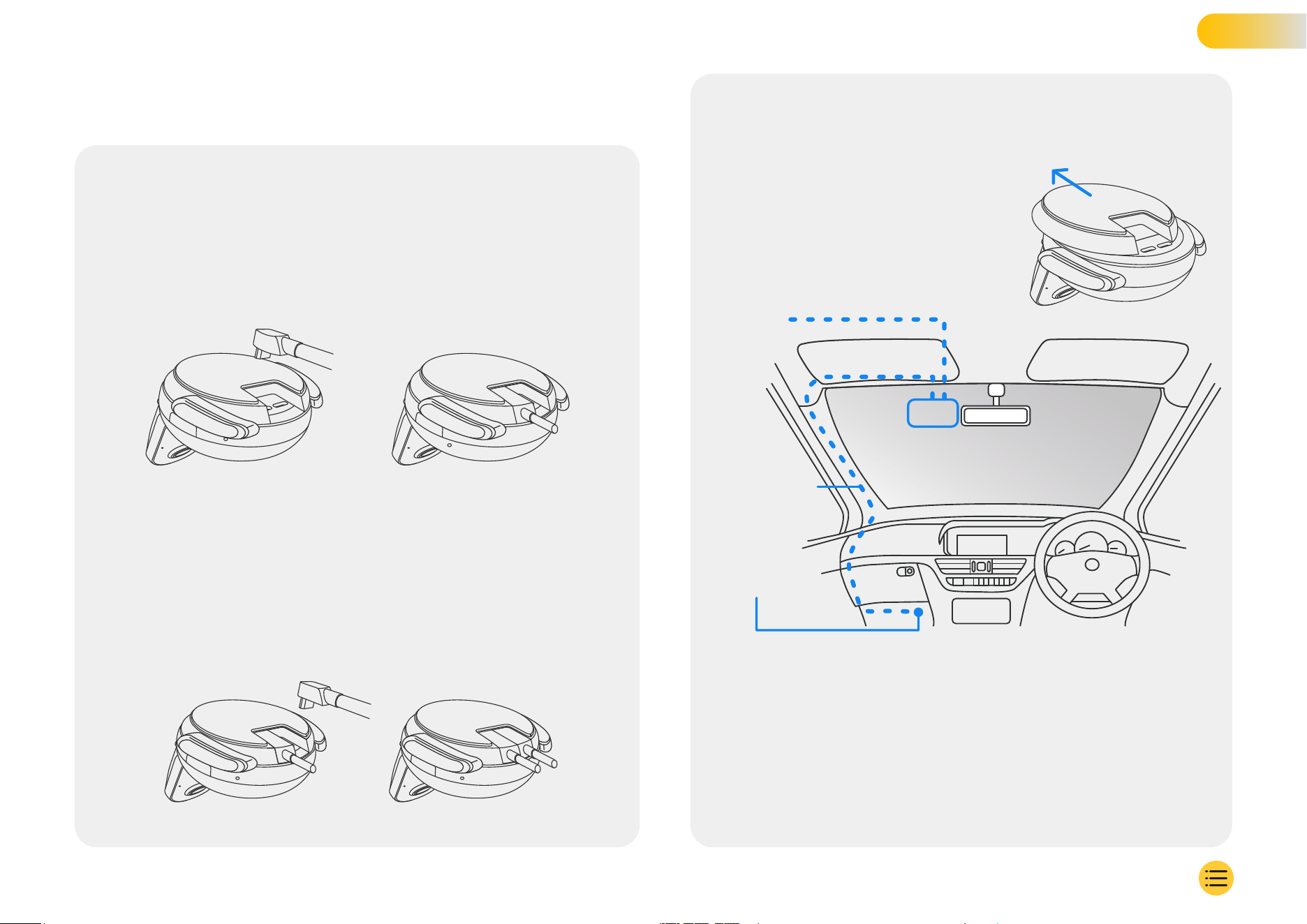
Connections
STEP 2
If you are using a Rear Camera
Plug the Rear Cam into the Rear Cam Connector Cable.
Plug the Rear Cam Connector Cable into iQ (left connector). Route
the Rear Cam Connector Cable towards the Rear of the vehicle.
Rear Cam Connector Cable to iQ
QuickConnect OBD Cable to iQ
To Connect Power
Plug in your QuickConnect OBD cable (right connectpr).
The vehicle OBD connector is usually found in the footwell;
check your vehicle's manual to locate it. Connect the
QuickConnect Cable to your iQ.
Note: Your iQ will only draw power from your OBD connection,
no vehicle data is transferred.
Power Up
Once the connections are made, turn on the vehicle to power
up the iQ Camera. Ensure the iQ Camera is connected to the
vehicle’s OBD port and the Rear Camera (if applicable).
Approximate placement of iQ, OBD, and QuickConnect Cable.
iQ
OBD
Connector
To Rear
Window
OBD
QuickConnect
Cable
13
SET UP
Note
If you are having trouble accessing
the connectors, you can slide the
mount pad forward for easier access.
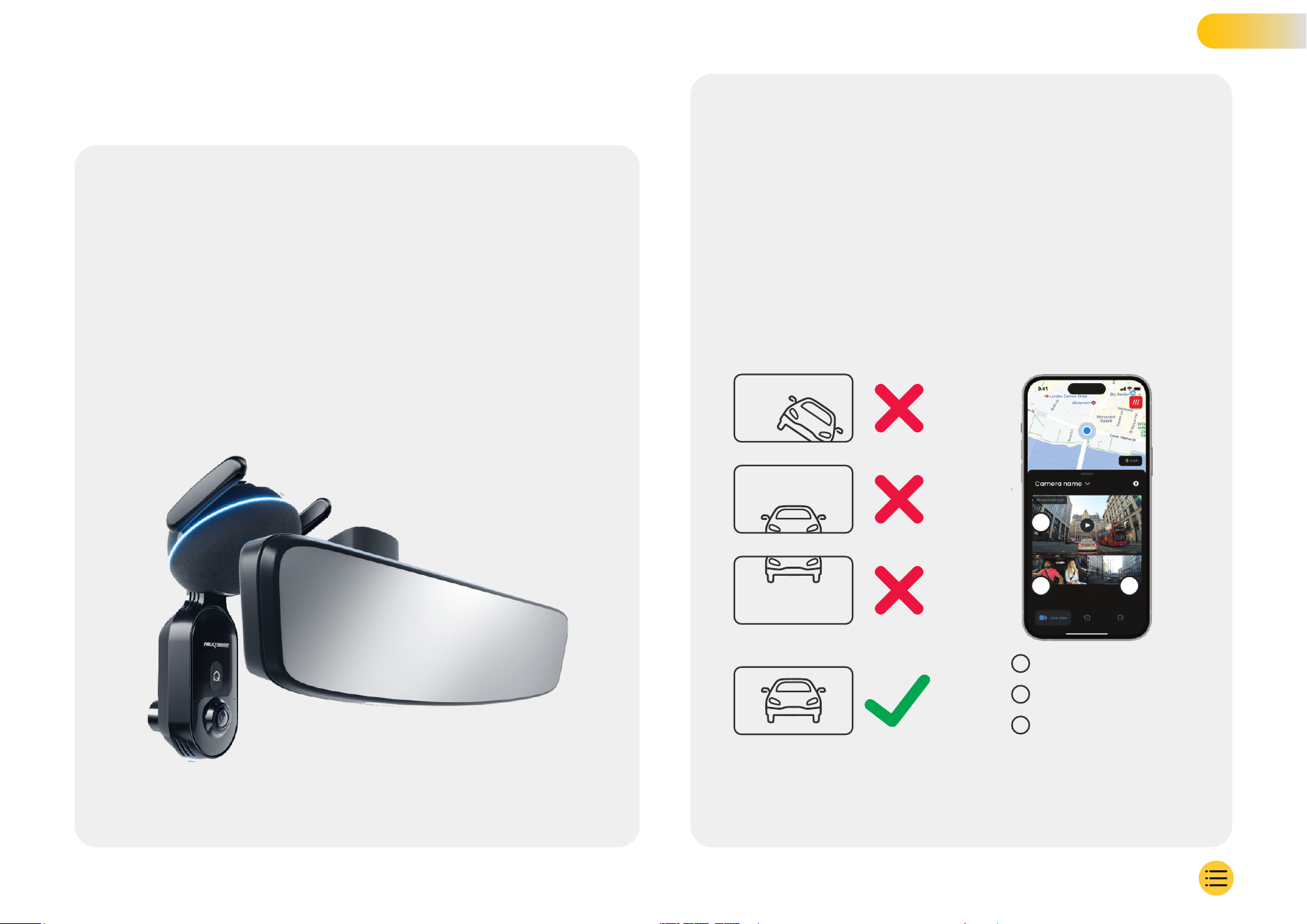
Position iQ
STEP 3
Open the iQ App and when prompted, scan the QR Code
that appears on the iQ to connect your iQ and iQ App.
Position and align the iQ using the Live View on the iQ App.
Do this for Front, Cabin, and Rear Window views.
The iQ should be placed high on the windshield as
close behind the rear view mirror as possible.
The camera must not obstruct the driver’s view.
Where to mount the iQ
Positioning the Cameras
Ensure that objects on the Live View display are level and
adjust as required. Ensure that the road ahead is at the
centre of the image, in the central third of the display.
If too much of the sky is visible it may risk underexposing
details on the road; ensure that the road ahead is clearly
visible on the Live View display.
Do NOT attempt to adjust the Dash Cam while driving.
Once you are happy with each cameras’ position you can
affix your iQ to the windscreen or rear window (see next page).
Front Camera
1
Cabin Camera
2
Rear Window
3
14
SET UP
1
2
3
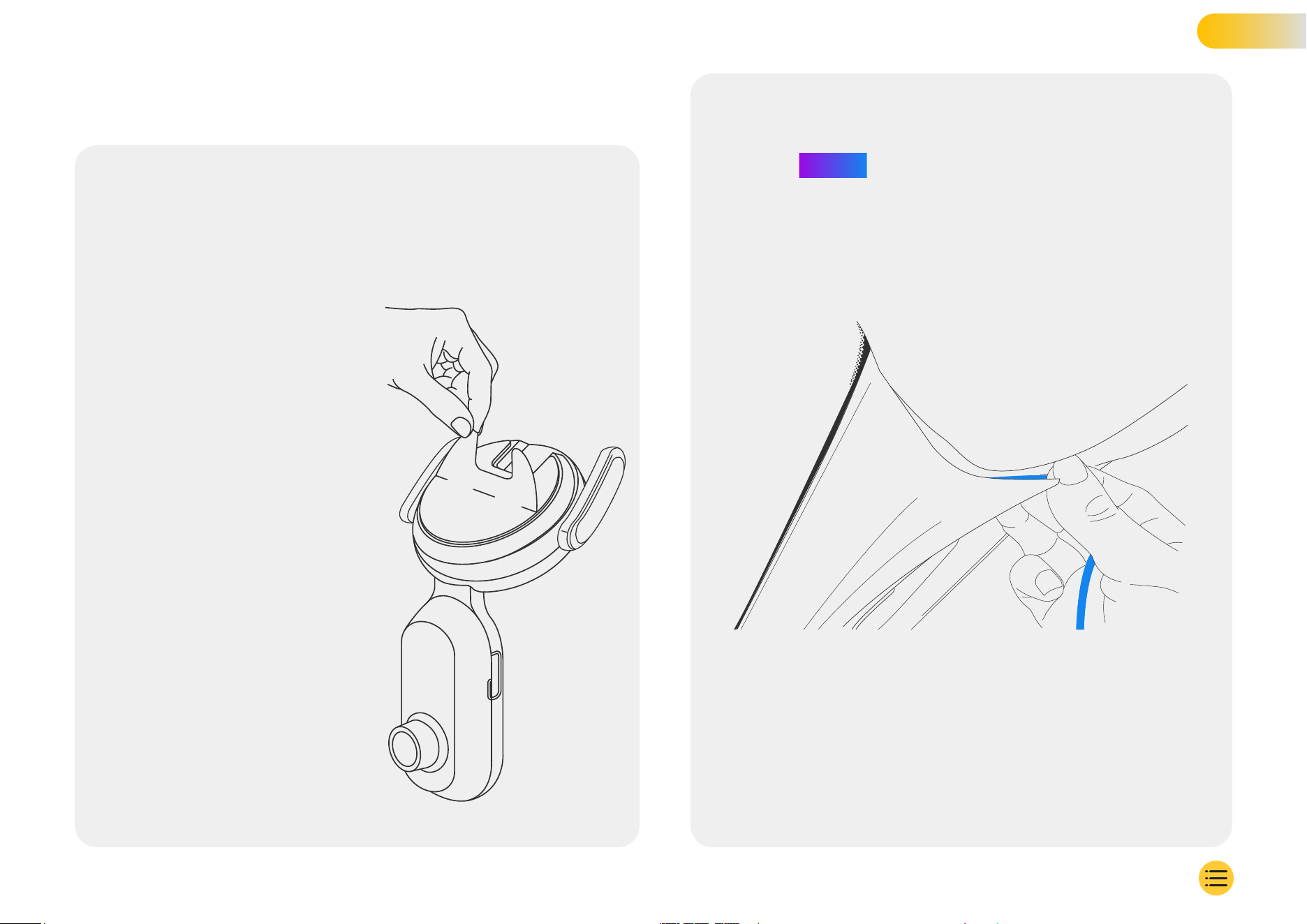
Ensure that the Camera and cables do not block
or hinder the deployment of the airbag. Ensure the
Camera and cables do not obstruct the driver’s view.
Remove adhesive cover from the mount and firmly press
mount onto windscreen. Hold for 10 seconds and release.
Leave iQ for as long as possible;
the longer the mount adheres
to the windscreen without usage
the more effective the adhesion
will be.
Once the mount is firmly fixed
in place, adjust the angle of
the camera if required, still
using the Live View.
Hide any unsecured cable in the roof trim so it is out of the way.
Mount Camera
STEP 4
15
NOTE
SET UP
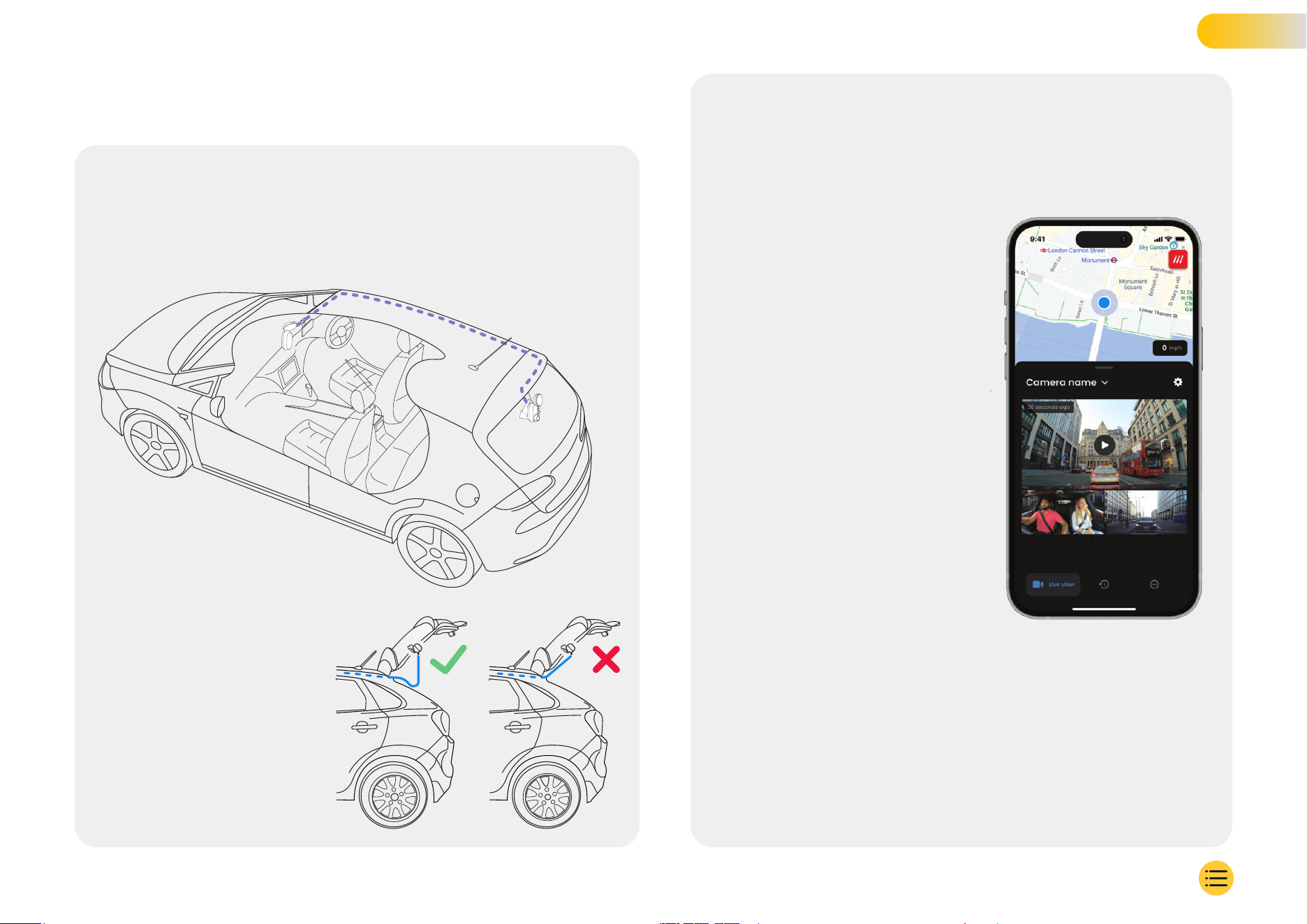
Rear Camera
STEP 5
Route Rear Camera cable to the rear of the vehicle.
Clean the rear window. Wipe with alcohol rub,
wipe clear with cloth, then leave to dry for 5 minutes.
Choose a position for the
Rear Camera at the top
of the rear window,
leaving enough loose
cable to allow tailgate
to be opened.
16
iQ
Rear
Window
Move the Rear Camera into the
position you wish to mount it,
using the Live View on the iQ App
to ensure the road is clear and
level on the screen, as you did
for the Front Camera.
Remove adhesive cover from the mount and firmly press the
mount onto the rear window. Hold for 10 seconds to ensure
maximum adhesion. Manually adjust the angle of the camera if
required using the Live View.
SET UP
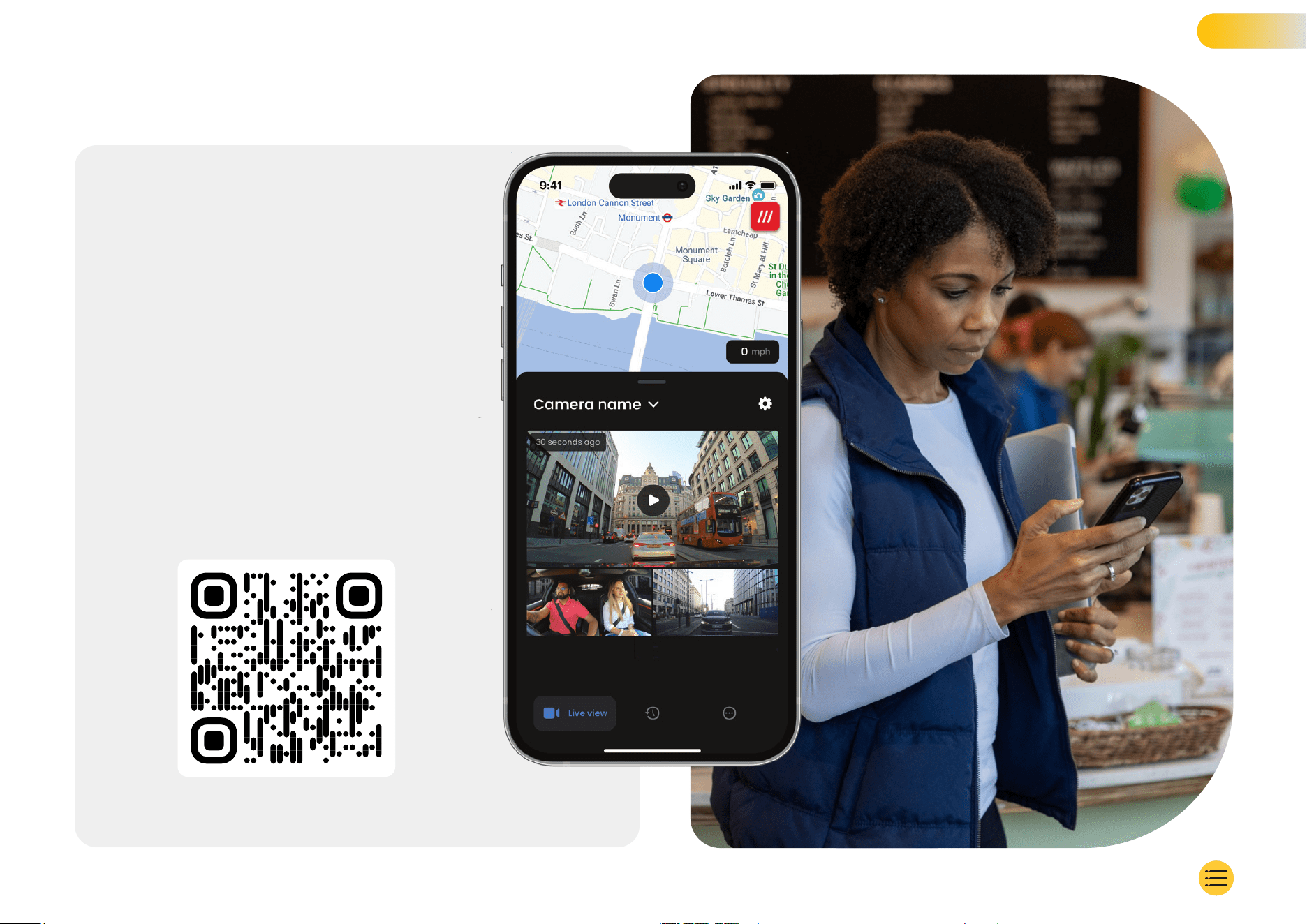
The all-new “iQ” app has been developed
from the ground up, specifically built for
our new Smart range.
Expect the same security you would with
a home monitoring system, plus a whole
lot more via the iQ app.
With real-time alerts you can access
incident videos and images, all when you
are a world away.
Intuitive, smarter and faster–would you
expect anything less from a genius?
iQ APP
17
Scan the QR Code to
download the iQ App
1
2
3
4
1
2
3
4
5
5
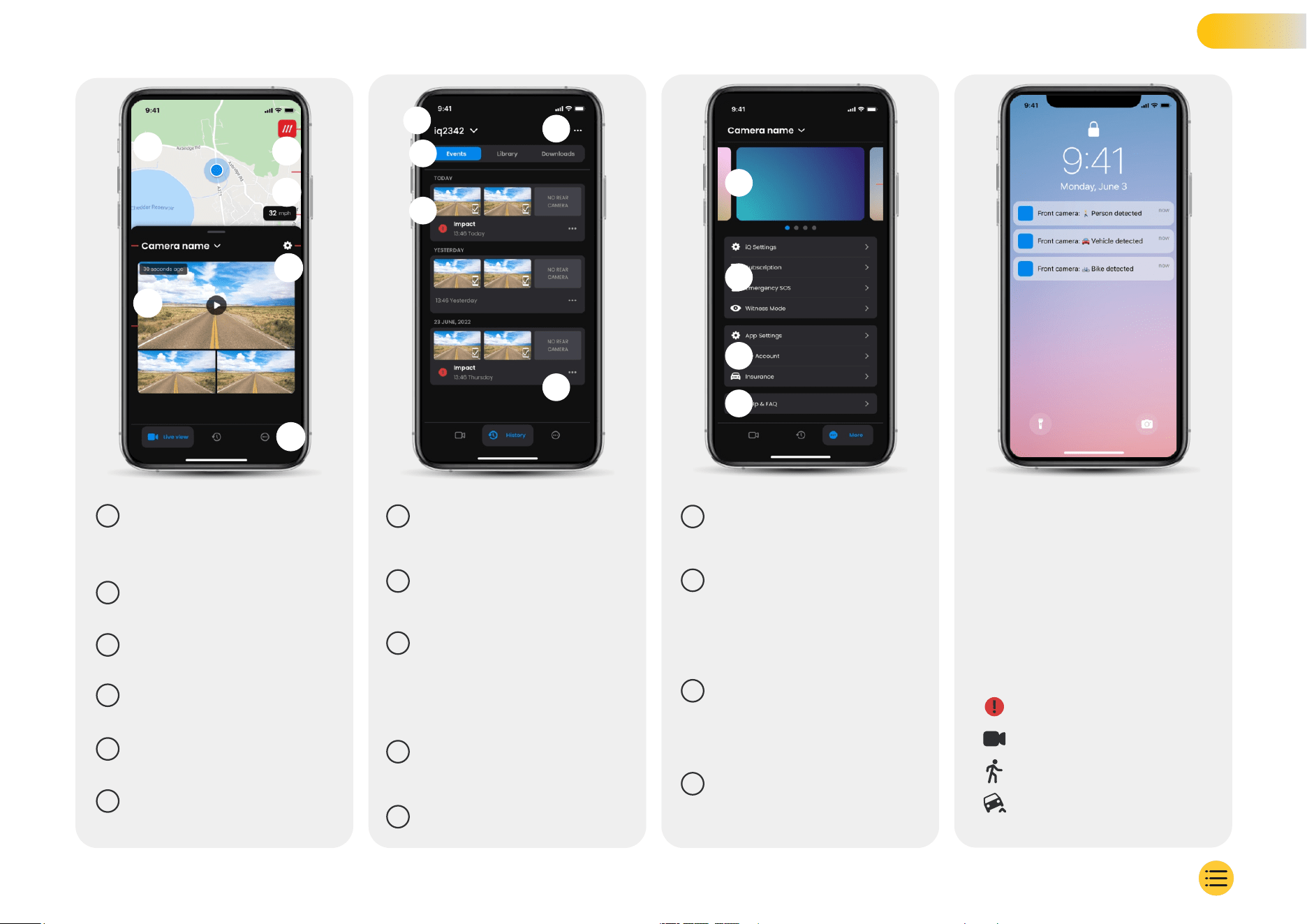
Go to Dash Cam Settings
Settings
6
Live View, History, and More
App Navigation
1
Your current location
Blue Dot - Live GPS location
Grey Dot - No live GPS data, last location
Map
2
See your W3W location
What3words
3
Your current driving speed
Speed
4
Live view from 3 Cameras
Live View
Download, share, delete, more
Video Options
5
Connected Dash Cam name
Choose Dash Cam
1
News and ads from Nextbase
Information
1
You can receive notifications from your
Front, Cabin, and Rear Camera, with
information about the type of event
trigger (see above).
Notifications
These icons may appear on video tiles in
your library showing you what triggered
the recording (see below).
Event Icons
Events, All videos, or downloade media.
Video Navigation
2
Dash Cam settings control,
subscription information,
and setup for Emergency SOS
and Witness Mode
Dash Cam Features
2
Video preview, Active Cams,
event type, recording date
and time. Click for full video
playback
Video Card
3
App Settings, Account
information, and insurance
information
App and Account
3
Live view from 3 Cameras
Filter
4
Help & FAQ
Assistance
4
Motion Detected
Something is moving around the vehicle
Live View Capture
Manually recorded during Live View
Impact
Something has hit the vehicle
Car Tilted
Vehicle is at an abnormal angle
18
1
2
3
5
4
6
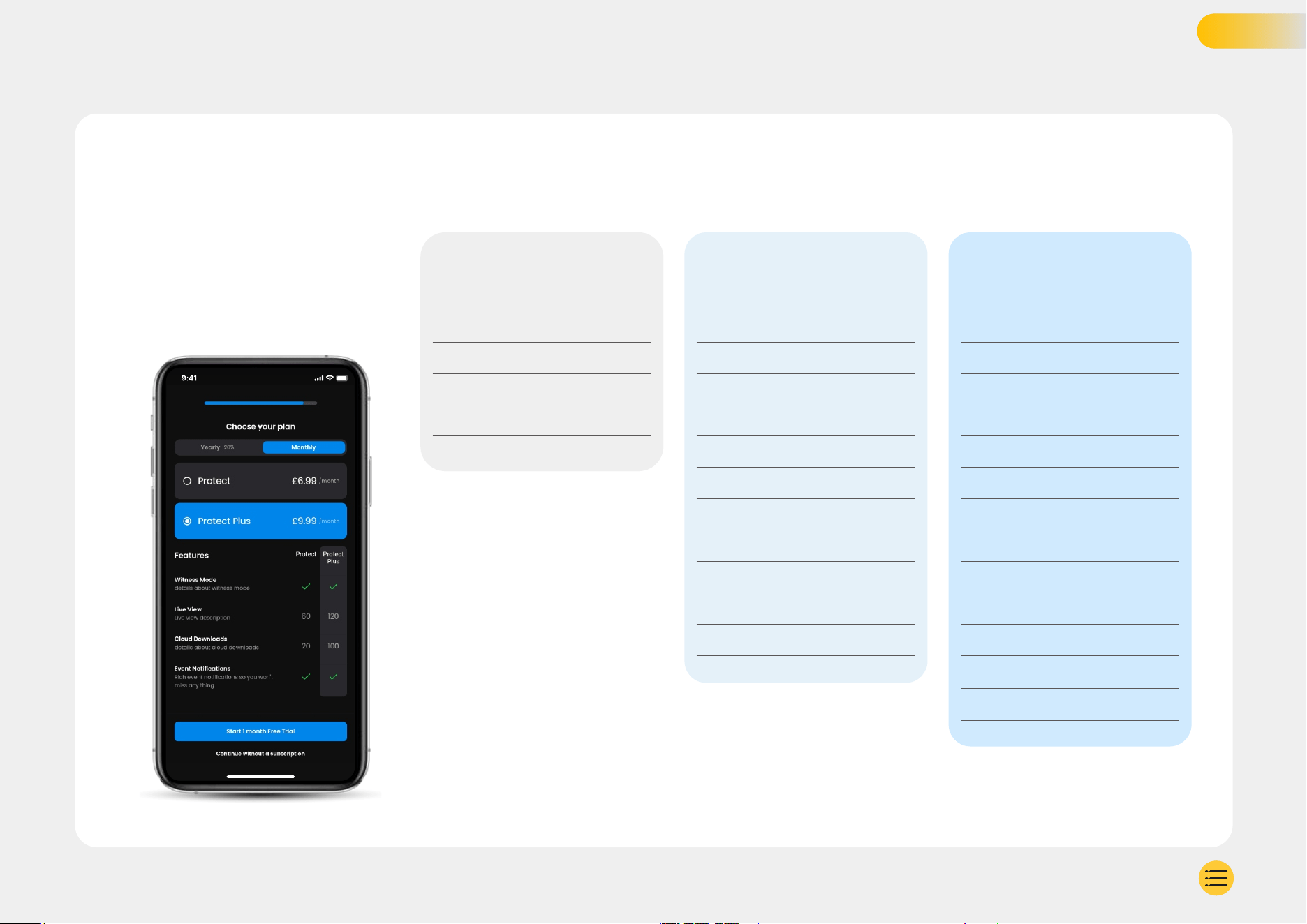
Protect Plus unlocks the full
potential of your Dash Cam.
Choose your subscription
package using the iQ app.
iQ App
Voice Control
Notifications - text
Free
6.99
£
£
9.99
iQ app
Voice Control
Notifications - images & text
Live View
Smart Sense Parking
Witness Mode
Roadwatch AI
Guardian mode
Remote Alarm
Cloud Storage - 30 days
iQ app
Voice Control
Notifications - images & text
Live View
Smart Sense Parking
Witness Mode
Roadwatch AI
Guardian mode
Remote Alarm
Cloud Storage - 180 days
Multiple User Accounts
Emergency SOS
Monthly prices shown; annual payment also available.
19
Solo Protect Protect Plus
SUBSCRIPTIONS

Here’s a rundown of what settings and
parameters can be changed using the iQ App.
Notifications
Select what type of events you would like to be notified of or toggle
all notifications On or Off.
iQ Sounds
iQ plays sounds and tones when certain actions are taken, such as
starting recording or protecting a file. Toggle these sounds On or Off.
Motion Detection Sensitivity
Adjust the sensitivity and direction of the stationary radar to ensure
that you only receive useful notifications. You can also choose the
sensitivity of the G-Sensor and Impact Detection by specifying
your vehicle type.
Voice Commands
Toggle Voice Commands On or Off and choose the language you
want to give voice commands in.
Local Connections and Permissions
Manage your device’s connection and permission options.
Bluetooth, Wi-Fi, and camera. Bluetooth and Wi-Fi enable
connections from your mobile device to iQ. Allowing the
camera permission means you can scan the iQ QR code
to connect your device.
SD Card Manager Check the storage status and details of the
SD Card in your iQ. Format the SD Card from here, if needed.
Formatting the SD Card will delete all files.
Back up any files you want to keep before formatting.
Time Settings
Toggle between 12 and 24 hour time stamp on iQ videos.
Audio
Toggle Audio recording on videos On or Off.
Exposure
Move the sliders to adjust the exposure levels of the iQ Cameras.
Video Stamps
Toggle video stamps on and off for time & date, etc.
Shared Access
Multiple devices can connect to iQ. You can manage
connected devices here, including adding and deleting users.
Software Update
When connected to the internet, the iQ App will look for any
available iQ updates. It will automatically install and list the
new features for you to review.
Some features are unavailable during update.
Privacy Mode
Privacy Mode Privacy Mode disables 4G connection which
allows you to use IQ undetected.** Voice command only
Low Power Cut Off
Temporarily disables non-essential function to save your
vehicle battery power. Do not adjust if you are unsure about
your vehicle’s battery level.
APP SETTINGS
20
The laws of your State or Territory apply to the use of audio, optical, and tracking surveillance devices. It may not be lawful to use in-cabin recording or witness mode in your State or Territory if other
people will be recorded without their consent. Additionally, in some States and Territories, it is an offence to possess a surveillance device which is intended for use in contravention of the laws.
It is your responsibility to be aware of the applicable laws. Supplied window stickers may be used to alert people to in-cabin recording, or you may elect to turn off in-cabin recording in the iQ App.
* - Feature requires a subscription
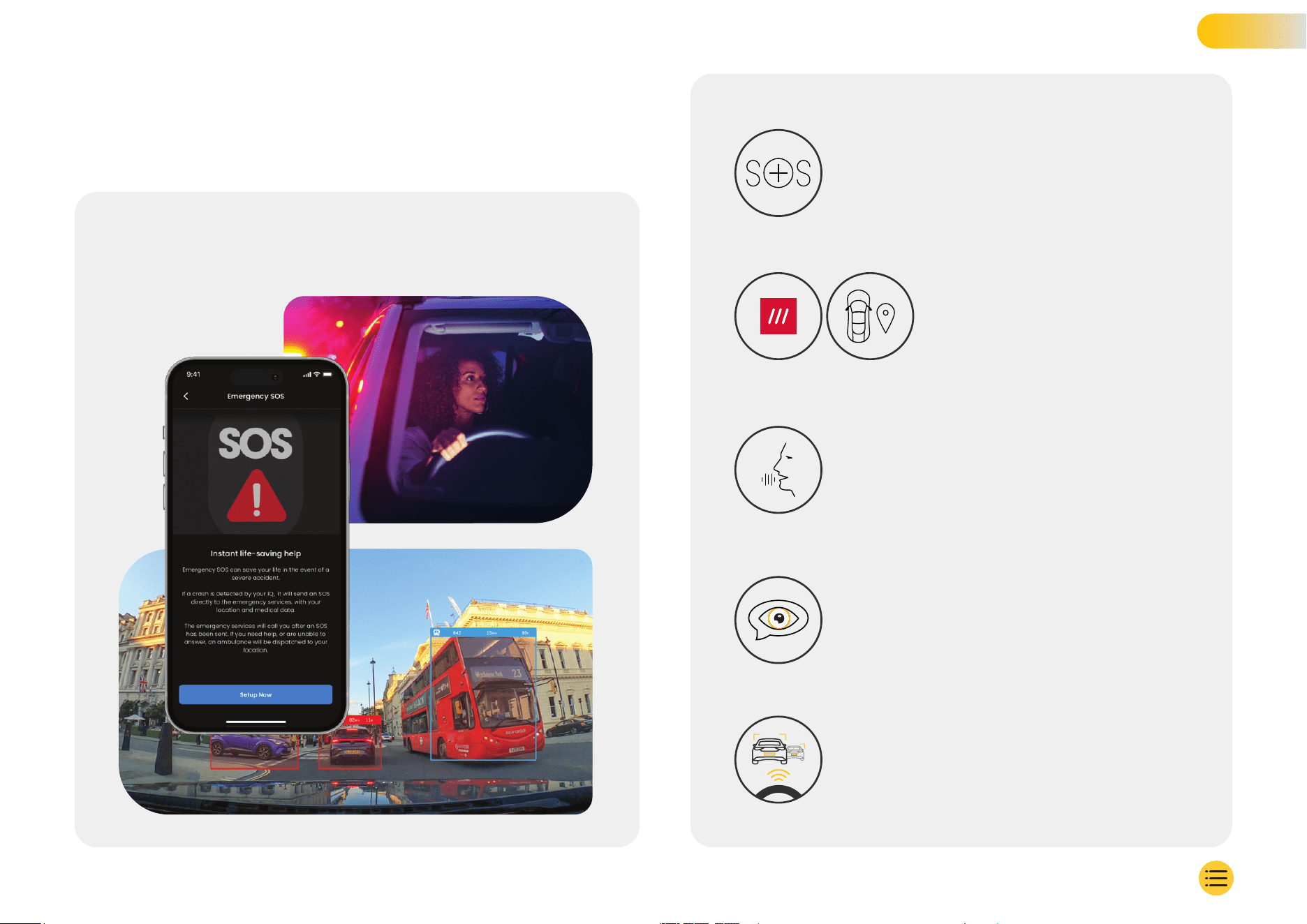
Emergency SOS - Safety secured*
A world-leading safety feature to automatically notify
emergency services in the event of an accident when the
driver is unresponsive. Key information, including location,
medical details, and blood type are shared with emergency
personnel.
Location - What3words & GPS*
Stay visible on the grid. what3words provides
precise location sharing, crucial to emergency
services, or even friends and family, to show
exactly where you are located within a ten
foot (3m) square proximity to your vehicle.
Even when you aren’t sure yourself,
w3w will always help others find you.
Voice Control - We’re here, just ask
Convenient voice control without having to lift a finger.
Nextbase Native Voice Control gives you hassle-free direct
command of your Smart Cam without requiring internet or
phone linking setup. Save recorded footage instantly with
a simple voice command. With your hands safely on the
wheel, Nextbase hears you loud and clear.
Witness Mode - Always protecting you*
For those critical moments when you feel in danger, iQ is
always looking out for you. From road rage to police stops,
simply saying “Start Witness Mode” enables immediate
recording and real-time sharing directly to emergency
contacts, family and friends. Drive secure, knowing you
have all the evidence you need.
DRIVING
FEATURES
AI Roadwatch - Eyes on the Road*
Roadwatch AI can classify pedestrians, cyclists, vehicles and
more and help you track their movements as you watch. At
the same time, it shows the approximate speed and distance
of the vehicles around you to give anyone watching a clearer
idea of what happened. Use the App to select which videos you
want analyzed, and we’ll notify you when they’re ready.
21
* - Feature requires a subscription
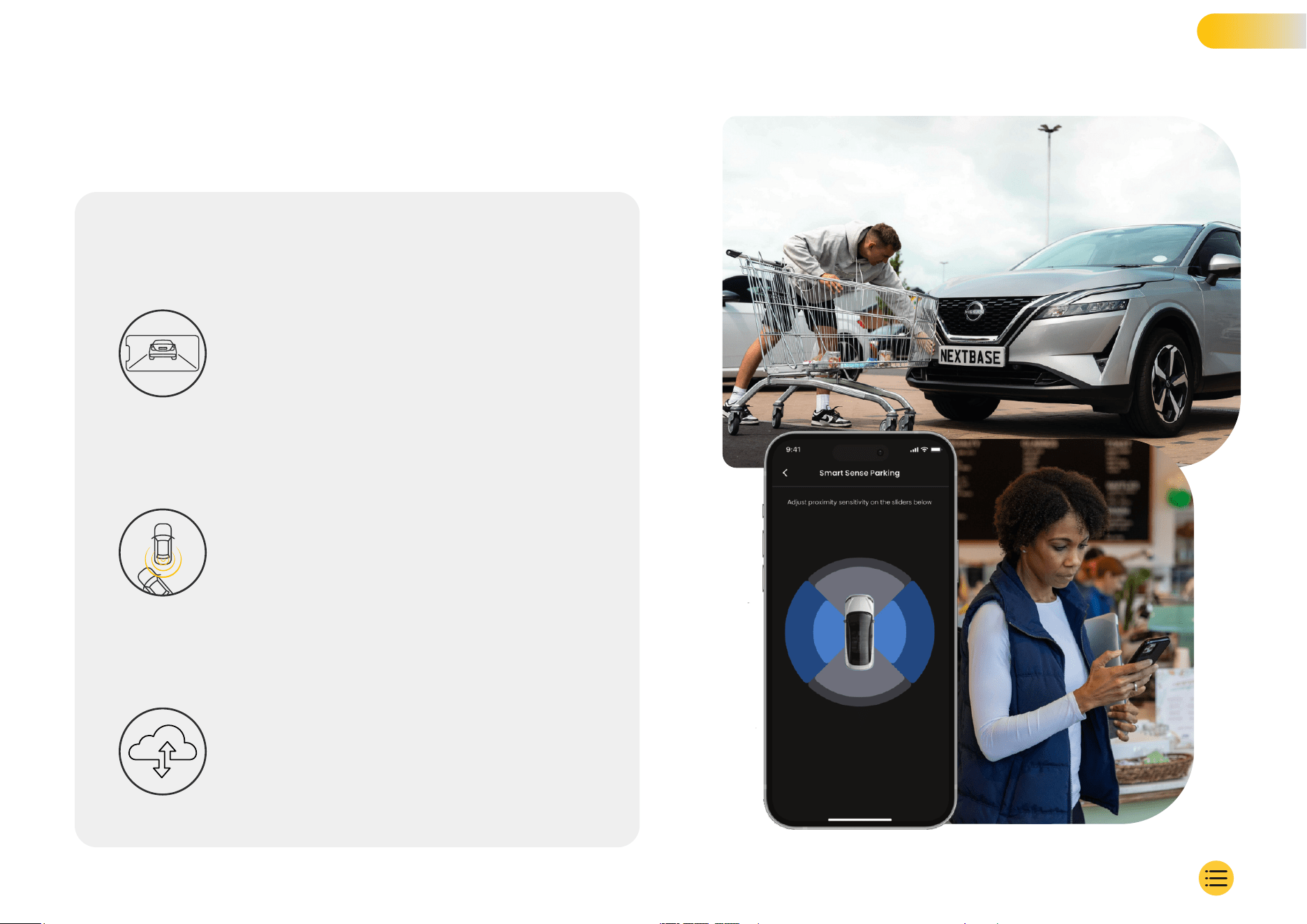
Connected - Front, Cabin, & Rear Cameras
Connectivity is key. The world’s first “blended data upload” Dash
Cam uses both 4G and Wi-Fi for optimum performance to give
you global network coverage (4G connection requires
subscription). iQ makes the connections happen by always
linking you to the Dash Cam. Access footage (such as driving
and parking incidents) on demand from the cloud or via
user-set notifications*.
Security - Watching out for you*
Guardian Mode, Parking Mode, Radar, Live View and more let you
remotely monitor your vehicle in case of any suspicious activity.
If a car bumps you, if someone is loitering next to your vehicle, or
even if you just want to check-in, you can remotely access Live
View to assess the situation. Not happy with what you see?
Activate the iQ Alarm to let bystanders know you’re watching.
You can manage the frequency of notifications in the app,
to ensure you are only notified when it really matters.
Live View - Never miss a moment*
Always have access with real-time streaming, anytime, any place.
Live View allows you to instantly monitor your vehicle from any
camera (front, rear, cabin). If you are notified of an intruder, you
can take action immediately, ideal for parents of young drivers,
employers, or fleets, offering extra peace of mind and safety.
You can also record a voice message when viewing Live View
to be sent to your iQ. iQ will then play the message.
SECURITY &
REMOTE FEATURES
22
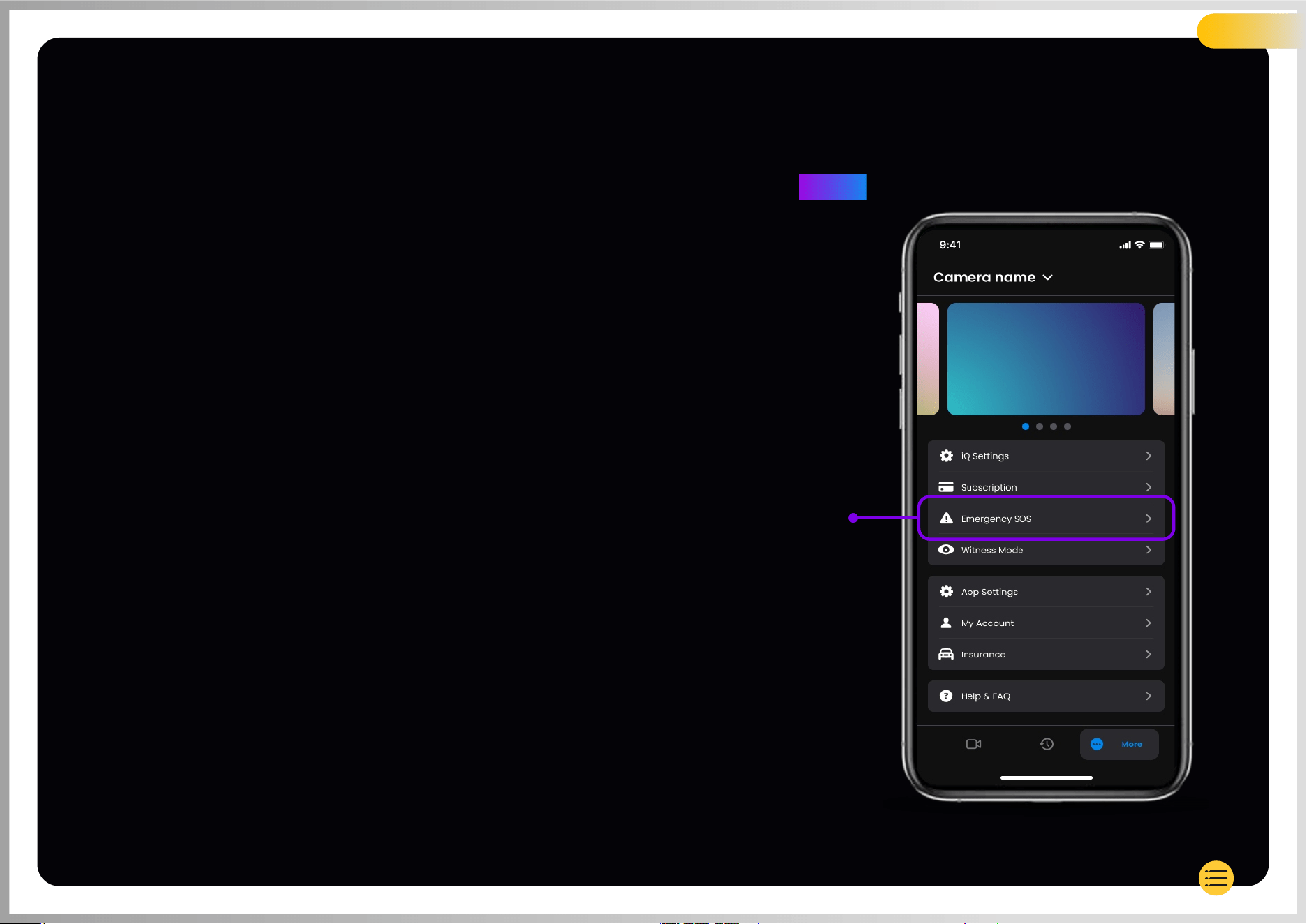
A world-leading safety feature to automatically notify
emergency services in the event of an accident when
the driver is unresponsive.
Key information, including location, medical details,
and blood-type are shared with emergency personnel.
Set up Emergency SOS using the iQ App, adding in
your medical, personal and vehicle information.
If you — or whoever is driving — are unresponsive
during an accident, the iQ will share location and
medical details with emergency personnel so you
can get the help you need. Fast.
Use the iQ App
to set up
Emergency SOS
EMERGENCY SOS
Feature Highlight
23
NOTE
iQ subscription is required to access 4G Features.
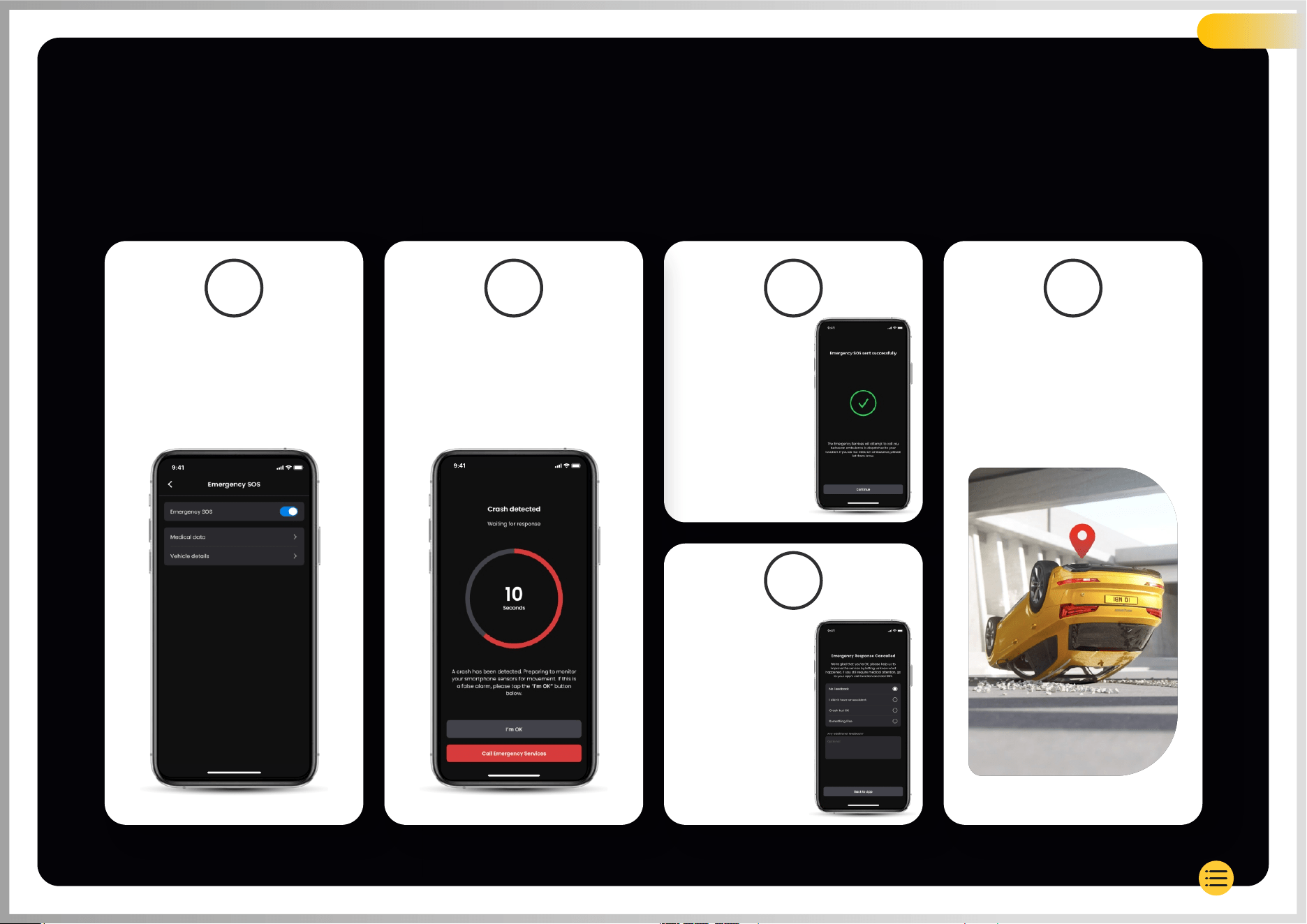
EMERGENCY SOS STEPS
Feature Highlight
Emergency Services are called
to your location to assist.
Ensure Emergency SOS
is enabled, and you have
entered your medical
and vehicle information.
1
Crash detected:
countdown begins
2
3a
3b
4
You are unable
to cancel.
Emergency
Services
contacted.
You manually
cancel ESOS.
No further action,
return to app.
Below is a diagram showing how Emergency SOS
can work for you. Ensure you have an active
iQ Subscription to allow Emergency SOS to work.
24
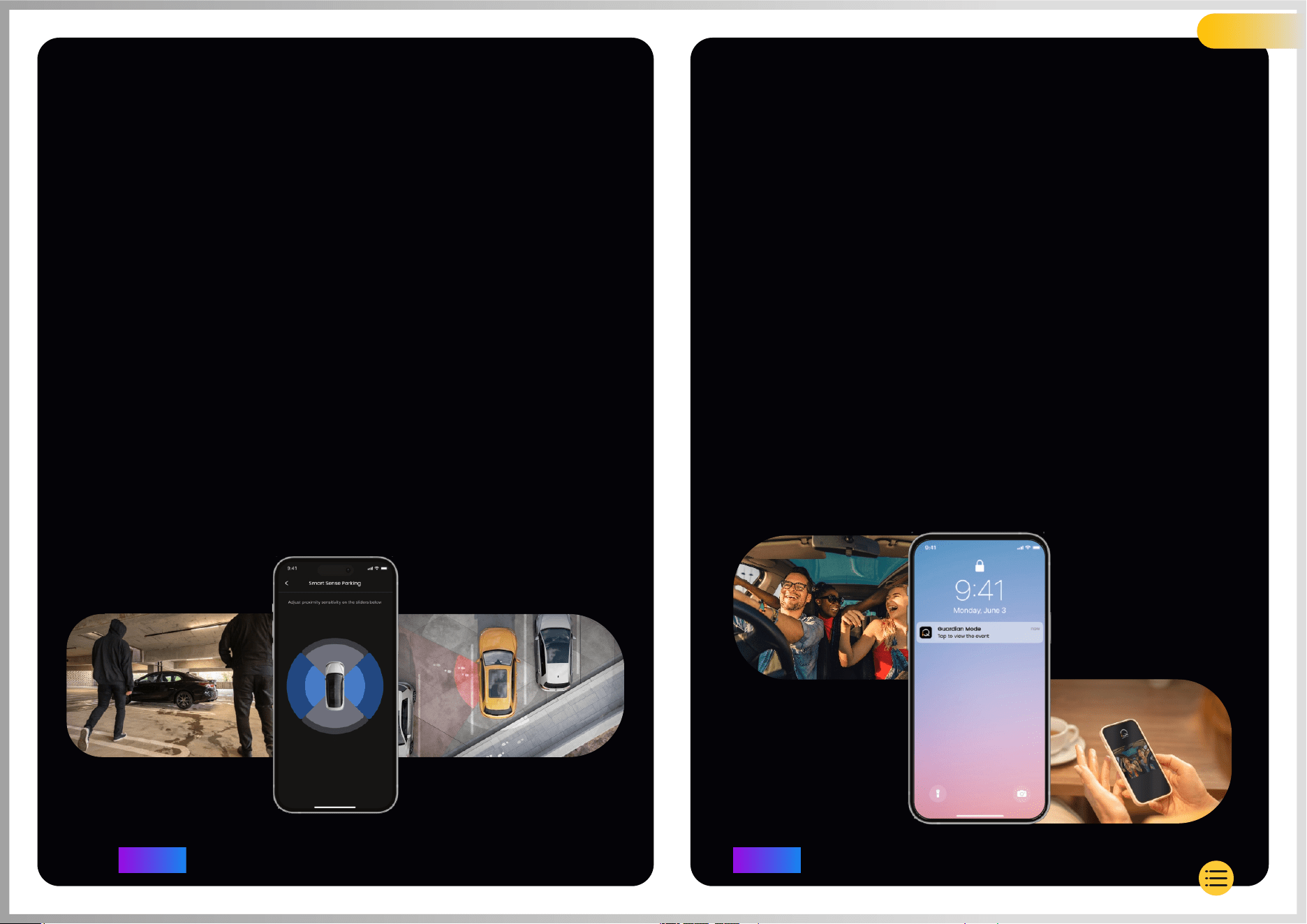
NOTE
iQ subscription is required to access 4G Features.
NOTE
iQ subscription is required to access 4G Features.
RADAR
GUARDIAN MODE
(Smart Sense Parking)
Feature Highlight Feature Highlight
When set up in the iQ app Smart Sense Parking will begin
recording when it detects movement within its sensory field.
Using the iQ App, you can change the sensitivity and
direction of the radar (see below app screen), as well as
adjust notification settings to filter out harmless or repeat
warnings so you are only notified when it really matters.
Radar sensors are located in both the Front Camera and
the Rear Camera. Using the Rear Camera increases the
Radar coverage.
Guardian Mode expands your iQ’s vehicle protection to cover
situations when the vehicle is in use but the owner is away.
You can set parameters for remote, real-time alerts when
leaving the vehicle with another person, such as a valet,
service mechanic, or a newly qualified driver.
Triggers can include excessive speed or travelling outside of a
certain geographic area, called geofencing.
Turn Guardian Mode On/Off and adjust the parameters for
these triggers using the iQ app.
25
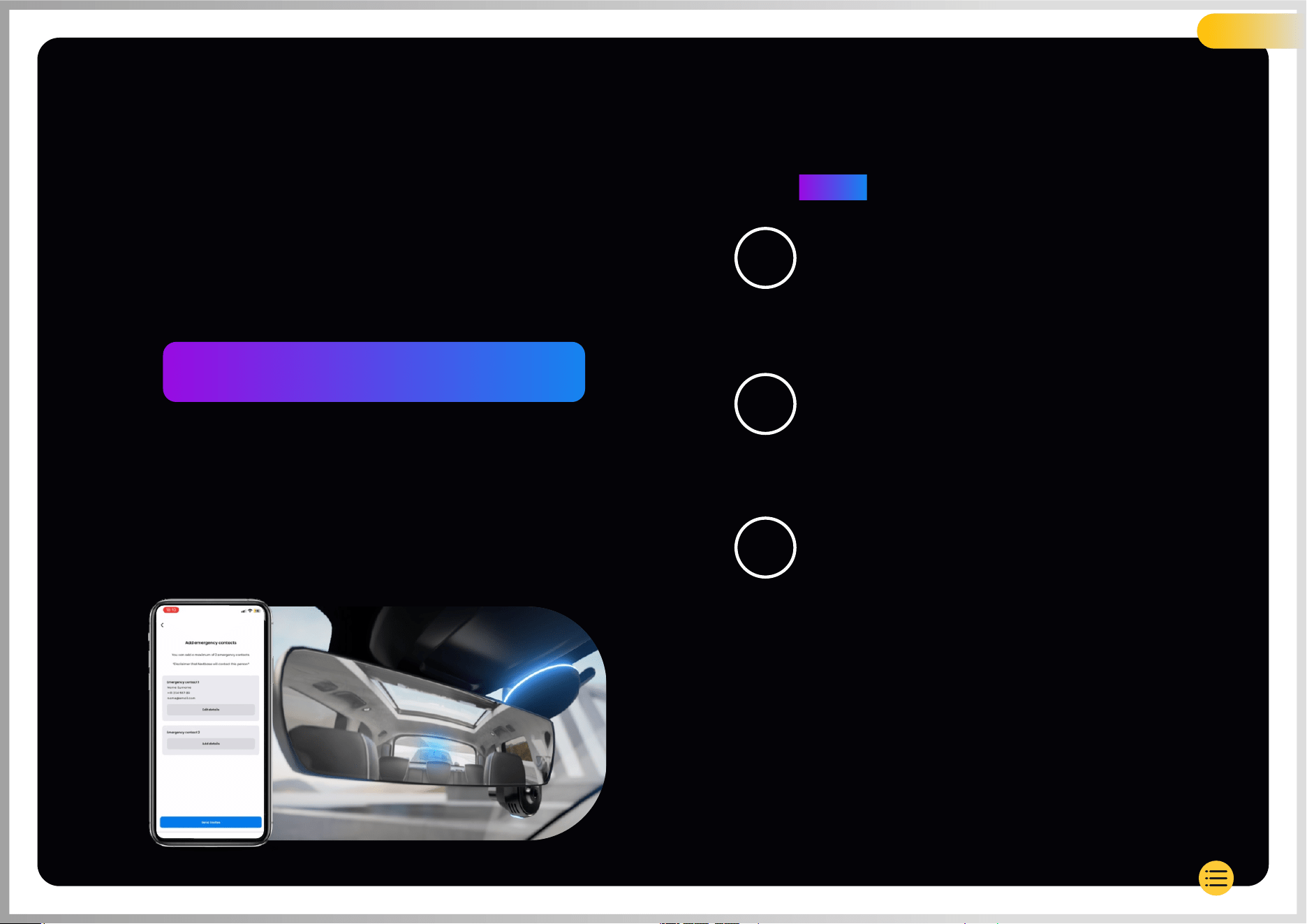
WITNESS MODE
Feature Highlight
In the event of a dangerous or stressful situation, Witness Mode will
allow you to stream video to an emergency contact; to activate
Witness Mode, use the voice command:
After activating Witness Mode, your iQ video feed will be streamed to
the cloud. A link to this stream is sent to your emergency contact that
will allow them to watch the live stream. The Witness Mode recording
will last 30 minutes, or can be stopped by saying “iQ, stop Witness Mode”.
The link to the stream will be accessible for 30 days.
“Dash Cam, turn on Witness Mode”
Choose a Subscription Plan
Witness Mode requires a subscription; in order to
use the service you will need to sign up and ensure
that your account has successfully been set up.
Witness Mode
From the Home Page showing Live View, go to
the ‘More’ tab, shown by the 3 dots in the bottom
right of the page. From there, select “Witness Mode.”
Setup
Set up Witness Mode by entering details for up
to 3 Emergency Contacts; they will be sent an
invite to be put on your Witness Mode contact List.
Once they accept, if Witness Mode is triggered
they will be sent a link to your live stream,
allowing them to monitor your situation.
Your contacts can be managed through
the Witness Mode button on the “More” page.
1
2
3
26
NOTE
iQ subscription is required to access 4G Features.
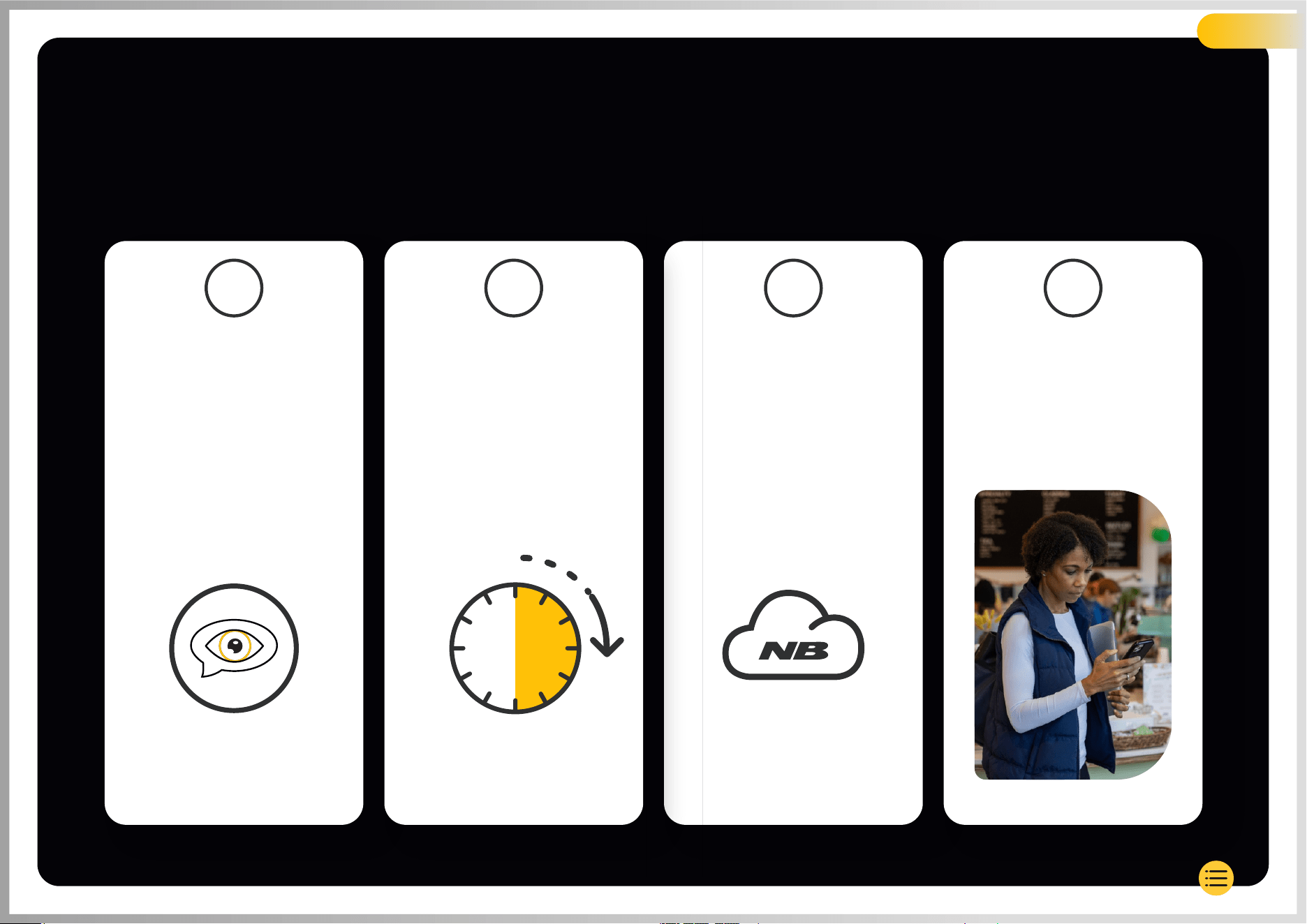
If you feel unsafe and
want a video link forwarded
to your Emergency Contacts,
activate Witness Mode
by saying:
“Dash Cam, turn on
Witness Mode”
A link to the video
stream is generated
on Nextbase Cloud.
A link to the video
is sent to your
Emergency contacts
for them to view.
The link is available
for 30 days.
30 minutes of video
recording begins.
Video can be
stopped by saying
“Dash Cam, stop
Witness Mode”.
Below is a diagram showing how Witness Mode
can work for you. Ensure you have an active
iQ Subscription to allow Witness Mode to work.
1
2
3
4
WITNESS MODE STEPS
Feature Highlight
27
30m
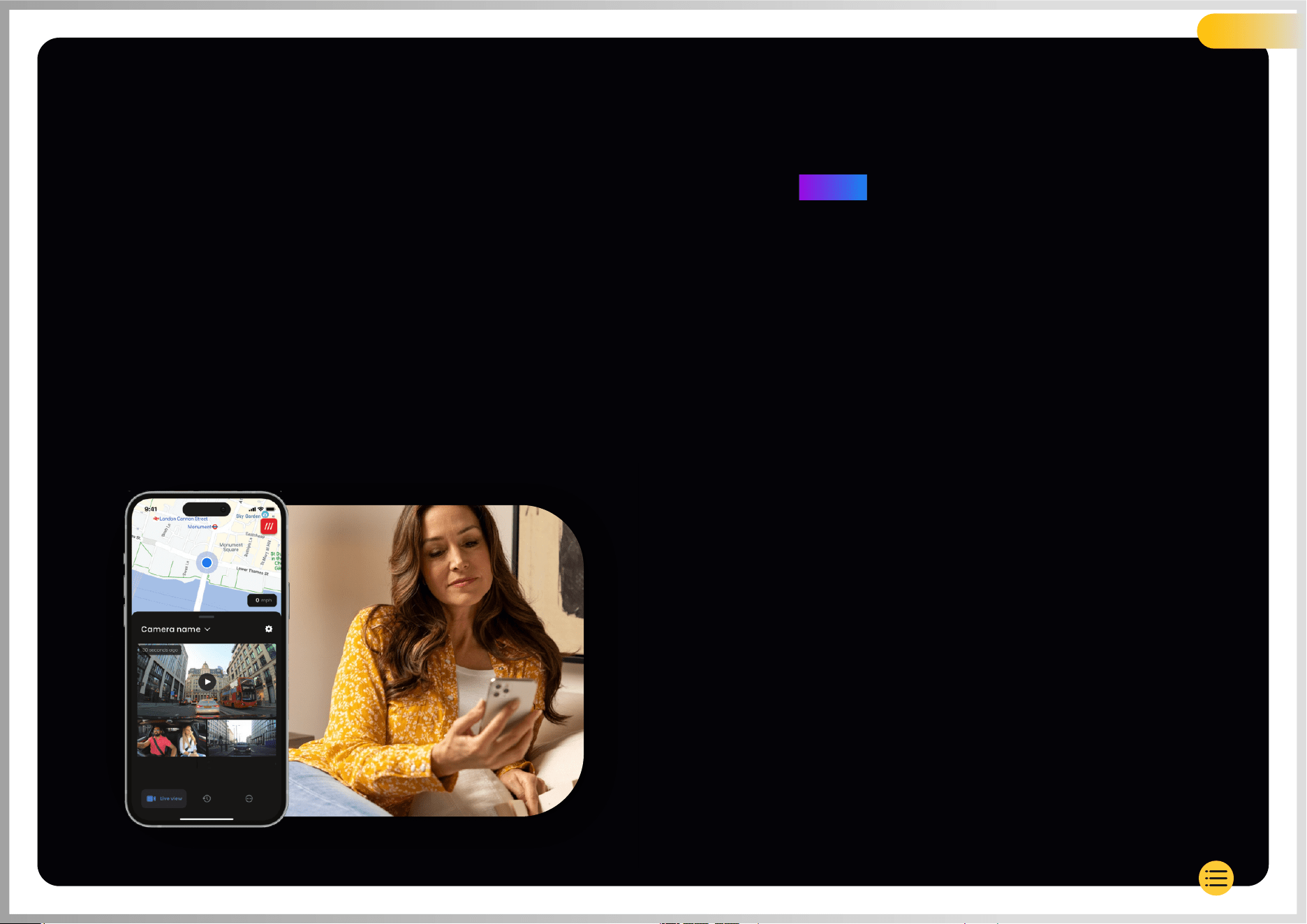
Always have access with real-time streaming, anytime,
any place. iQ’s 4G connection allows you to monitor
your vehicle from all angles (Front, Rear, Cabin).
If you are notified of an intruder, you can warn them
by sounding an alarm. This is ideal for parents of young
drivers, employers or fleets, offering extra peace of mind
and safety.
Notifications
When you’re notified of suspicious activity around your
vehicle, check your Dash Cam’s Live View video feed to
check what’s going on, putting you in the centre of the
action, from anywhere.
Alarm
If you see someone in or around your vehicle you can remotely
activate the iQ Alarm to let them know you can see them.
The alarm is accessible through Live View in the iQ App.
Live View & Check in
Lending your vehicle to someone else? Or just want
to check in on your vehicle? Use the Live View to make
sure nothing is amiss while you’re away from your vehicle.
Voice Message
Record a voice message when viewing Live View to be sent to
your iQ. iQ will then play the message, to be heard by anyone
in the vehicle.
28
NOTE
iQ subscription is required to access 4G Features.
LIVE VIEW
Feature Highlight
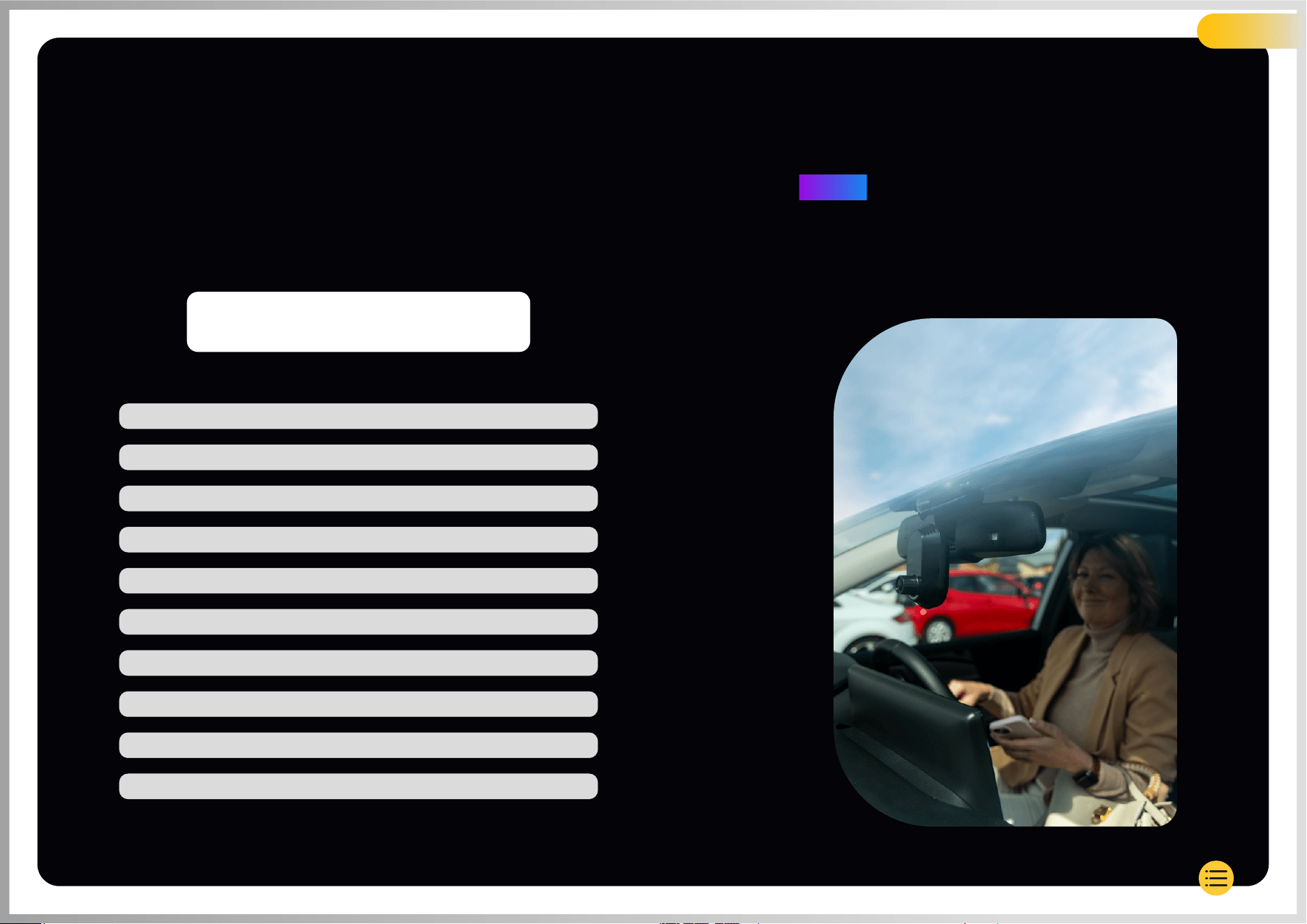
Stay Hands Free and enjoy your drive.
Start your command using the phrase:
and follow it with any of the commands listed below.
29
VOICE CONTROL
Feature Highlight
“Hey Dash Cam...”
...Protect this file
...Lock this file
...Start Witness Mode
...Stop Witness Mode
...Turn Microphone On
...Turn Microphone Off
...Turn Cabin Camera On
...Turn Cabin Camera Off
...Turn Privacy Mode On
...Turn Privacy Mode Off
NOTE
iQ subscription is required to access 4G Features.

Frequently Asked
Questions
How do I check the iQ Dash Cam’s firmware version?
While connected to the iQ App, go to “Dash Cam Settings” in the “More” tab to check
if there is an update available for your current Dash Cam Firmware version. You will
be prompted in the app if there is an update available.
How do I check the iQ App’s firmware version?
Within the iQ App, navigate to the “App Info” tab to see the current app version.
You will be prompted in the app if there is an update available.
How do I update the firmware on both Dash Cam and App?
The app checks for updates automatically after the app is paired with the
camera. It will display a message when an update is available. Or you can
download the latest Dash Cam Firmware from the Nextbase website onto
the SD Card, which can then be inserted into the Dash Cam.
What type of SD Card do I need to use with the iQ Dash Cam?
We would recommend a Dash Cam compatible 32GB-256GB U3 Micro SD card,
specifically designed for Dash Cam or CCTV usage. We would recommend a
Nextbase SD card for most consistent functionality with a Nextbase product.
If another brand of SD Card is used we cannot guarantee results.
I keep losing my 4G connection.
4G coverage is broad but not universal; use the below links check
the 4G signal strength in your area.
Check your mobile’s 4G signal and compare it to iQ to see if the issue is localised to iQ.
When will iQ be active?
Your iQ Camera will run as long as the engine is turned on. While you are
away from your vehicle, the OBD connection will provide enough power to
send you notifications in the event that parking mode is triggered. If your
vehicle’s battery falls below a certain voltage, iQ will stop using power to
allow your vehicle to turn on properly. If this happens you will not receive
notifications. Typically, it is expected that a vehicle can be left for
approximately 6 days before the voltage drops too low. For optimal
performance of iQ and your vehicle, we recommend frequent driving
to charge the vehicle battery.
How do I access 4G features?
4G Features require a subscription, which can be set up in the iQ App.
Why would I need to update iQ firmware?
Occasionally Nextbase will release new firmware to improve iQ’s performance.
We recommend updating to stay up to date with the latest features.
I’m having a problem with the iQ App.
The minimum app requirements are Android 8 or iOS 13, and Bluetooth 4.2.
Please check that your phone meets these minimum requirements. Please
check in your phone’s settings that all the app permissions are enabled for
the iQ App. These settings being wrongly configured account for the majority
of app issues that users experience. Please also ensure that Bluetooth and
Wi-Fi are both enabled on your phone.
For further help, please contact Nextbase Support at [email protected],
Live Chat or (UK) or +1 (888) 817 4209 (US). +44 808 169 9126
30
vodafone.co.uk/network/status-checker
t-mobile.com/coverage/coverage-map
The Mount does not stay attached to the windscreen?
The following factors may contribute to a loss of adhesion between the mount
and windscreen:
- Extreme temperature changes.
- Debris on the windshield due to not having been cleaned prior to mounting.
- Touching the adhesive prior to mounting.
- Not allowing sufficient time for the adhesive to bond to the windshield before use.
How do I know that iQ is recording?
Once it has been installed correctly, your iQ Camera will record whenever the
ignition is on. When iQ powers on, a small tone will be heard and a red circle will
appear on the screen. Video recording will continue until the ignition is turned off.
If you have a valid subscription, you can view the camera feed through the iQ App,
and manually record any live footage of interest.
How do I protect a file?
During the course of normal recording you can click the ‘protect’ button found on the
bottom of the iQ Camera. iQ will also automatically protect videos if the G-Sensor
is triggered or any ‘events’ are triggered when you are away from your vehicle.
How do I view my recorded videos?
Videos are stored on your iQ Camera’s SD Card. These videos can be accessed and
viewed through the iQ App or by removing the SD Card and using a card reader to
view the files on a computer.
How do I set up a subscription to access 4G features?
Subscriptions are managed in the iQ App. Check the ‘Settings’ to amend personal,
payment, and subscription type information.
How can I best take care of my iQ Dash Cam?
There are a few ways to keep iQ running smoothly:
- Use your vehicle at least once a week to ensure that your vehicle battery is in
the best condition to continue to power your iQ when you access it remotely.
- Format your SD Card every couple of weeks to free up space to allow new
recordings to be stored locally.
- Keep up to date with any newly released firmware for the iQ Camera and
the iQ App, as these are released to improve performance.
How do I access 4G features?
4G Features require a subscription, which can be set up in the iQ App.
Once you have an active subscription you can sign up for Emergency SOS,
and begin using other features like Witness Mode, and setting up remote
notifications.
What resolution is my iQ Camera?
There are 3 iQ models and a Rear Window Camera:
What do I do with the spare lengths of cables once iQ is installed?
Once your iQ Camera is in place, tuck the exposed QuickConnect Cable into the
trim of your vehicle using the supplied Cable Tidy tool. Hide as much of it as
much of it as possible so any remaining cable is not a distraction to the driver.
The more pixels the video has the higher
the quality of the video, and the larger
the file.
Frequently Asked
Questions
31
1K
1080p
1440p
4K
1440p
2K
4K
Rear
Camera

Glossary of Terms
Dash Cam
Also known as a dashboard camera, a Dash Cam is a video recording device mounted on the windshield of a
vehicle to capture video footage. iQ includes a front facing and cabin facing camera in one unit, with the
option of connecting a camera to mount on the rear window of your vehicle.
Loop Recording
The dash cam records continuously by overwriting older footage when the storage capacity is full. Loop
recording ensures that the camera always has the latest footage available.
4G
iQ’s 4G capability works in much the same way as your mobile devices’ data usage; iQ will communicate with
the 4G network to create a link with the iQ App on your mobile device, allowing you remote access to iQ’s
video feeds, and cloud upload. There are many factors can interfere with 4G signals and affect the quality of
wireless communication such as weather, network usage, and physical obstacles that can block and distort
the 4G signal.
Use this link to check 4G coverage in your area:
iQ has 2 4G antennas, located on the sides of the mount that aid in connecting to the 4G network. These
antennas are fragile, be careful when handling iQ so as not to damage them.
iQ
With stunning front view 4K resolution, iQ is the world’s first and only true 4K, three-way cam video system.
Coupled with a built-in HD cabin-view surveillance up to 1440p, you’ll have complete visibility both inside and
out, while 4G connectivity allows remote viewing of your vehicle, wherever you are.
Micro SD Card
iQ uses a microSD card for storage. The card's capacity determines how much footage can be stored before
looping begins. It's important to use Nextbase-branded, high-quality, high-capacity cards that are
compatible with the dash cam. iQ comes with an SD card pre-installed; it is important that this SD Card is not
removed during recording, or forced into the slot, as this could damage the SD Card.
Onboarding
Onboarding is the process of introducing new users to iQ in order to help users understand the product, its
capabilities and how to set up iQ to get up and running. When you first open up the iQ App, you will be walked
through the setup and features of your iQ range.
iQ App
Specially designed iQ App to work exclusively with iQ allowing full remote control over your Dash Cam while
you’re away from your vehicle. App can be downloaded from the App Store and Google Play Store.
QR Code
A QR code consists of black squares arranged in a square grid on a white background. This can be scanned
by a mobile phone camera with varying effects; it can link devices together, link to a website, open a video file
and much more.
Emergency SOS
When Emergency SOS is set up, in the event of an incident that leaves you unable to call for help,
Emergency SOS will contact emergency services to your location to assess the situation and assist
where necessary. Emergency SOS can be set up using the iQ App (subscription necessary).
Witness Mode
In the event of a dangerous or stressful situation, Witness Mode will allow you to capture video and
designate a 3rd party to receive a link to a live stream from you iQ, allowing them to see what you’re
seeing. Witness Mode can be set up using the iQ App (subscription necessary).
Radar
iQ uses a number of sensors to detect movement around your vehicle. If you’re not with your vehicle,
iQ will record the event to be reviewed later. Radar can be set up using the iQ App (subscription
necessary).
Subscription
IQ can be used on its own, but to benefit from the range of new features users can subscribe(monthly
or yearly) to activate 4G features. This includes remote notifications, Witness Mode, Emergency SOS,
and much more.
Live View
In the iQ App landing page, the video feeds from all connected iQ cameras can be seen (Front, cabin,
and Rear). If you are away from your vehicle, this feed will be shown using a 4G connection, meaning
a subscription is required. From the Live View screen you can send a voice message to be played on
your iQ.
Voice Control
iQ comes with built-in Voice Control. You can ask iQ to perform a variety of basic functions without
having to open the app or physically interact with the Dash Cam.
Resolution
Refers to the clarity and sharpness of the video footage recorded by iQ. iQ is available in 3 models,
1080p, and 1440p or 4K (Ultra HD).
Field of View (FOV)
Describes the angle of the road or area captured by the dash cam. It is usually measured in degrees
and determines the width of the recorded footage. In the case of iQ the front/rear window FOV is 125°
while the cabin FOV is 180°.
G-Sensor
A built-in sensor that detects sudden changes in motion or impact. If Parking Mode is turned On, an
event will be recorded if the G-Sensor levels pass a predetermined threshold. G-Sensor data is also
recorded along with video feeds.
33
vodafone.co.uk/network/status-checker
t-mobile.com/coverage/coverage-map

Glossary of Terms
Parking Mode
iQ has a parking mode feature that allows it to continue recording even when the vehicle is parked and
the engine is turned off. It typically uses motion detection or the G-sensor to activate recording when an
event occurs. If Parking Mode is turned On, an event will be recorded if the G-Sensor levels pass a
predetermined threshold. This threshold denotes ‘normal’ external forces; passing the threshold implies
an abnormal event, and iQ will start recording
Live Chat
Talk directly to a member of the Nextbase Support team in order to answer any questions you might
have.
OBD
On-Board Diagnostics (OBD), refers to the system in a vehicle that monitors and reports the status of
various vehicle components and systems. In the case of iQ, the Dash Cam is plugged into the OBD outlet
as a power source. The OBD outlet is usually found in the passenger footwell, but the precise
location can be found in your vehicle’s manual. Your iQ will only draw power from your OBD connection,
no vehicle data is transferred.
QuickConnect OBD Cable
Use this cable to connect iQ to the OBD outlet. This connection will provide power to the Dash Cam.
Rear Window Camera
A separate camera that plugs into the main iQ unit via the long connector cable. This points backwards
out the rear window of the vehicle.
Front Camera
The front facing camera on the iQ unit. This points forwards out of the front windscreen of the vehicle.
Cabin View camera
The rear facing camera on the iQ unit. This points backwards into the interior of the vehicle.
Software Update
From time to time Nextbase will release new software for iQ and the iQ App to improve performance and
release new features. If new software is available for either the dash Cam or app you will be prompted to
update through the App.
iQ Account
This contains your personal information such as e-mail address and payment details (for subscriptions).
This information can be edited at any time in the App.
Events
Events refers to anything that triggers a video to be saved or a notification to be sent to your mobile
device
Library
The list of recorded videos on the iQ SD Card, found in the iQ App. This can be filtered by date,
event, and more. Your mobile device must be connected to iQ to view these videos. If your iQ is not
connected to the internet you will only be able to view downloaded videos.
Downloads
The list of videos that have been downloaded from iQ to your mobile device.
These can be viewed on your mobile device at any time.
History
Refers to the full archive of recorded videos on the iQ SD Card. These videos are divided into
Events, Library and Downloads.
Exposure
Refers to the amount of light that reaches the camera sensor during the process of capturing an
image. It directly affects the brightness or darkness of the resulting video.
Privacy Mode
Turns off all 4G connections and disables all smart features. Allows the IQ to be used as a video
recorder only, storing video files on the SD Card only.
Settings (App)
Adjust settings relating to the app, including personal information, notifications etc,
Settings (iQ)
Adjust settings relating to the functioning of the iQ Dash Cam; radar, Emergency SOS, and much
more.
34
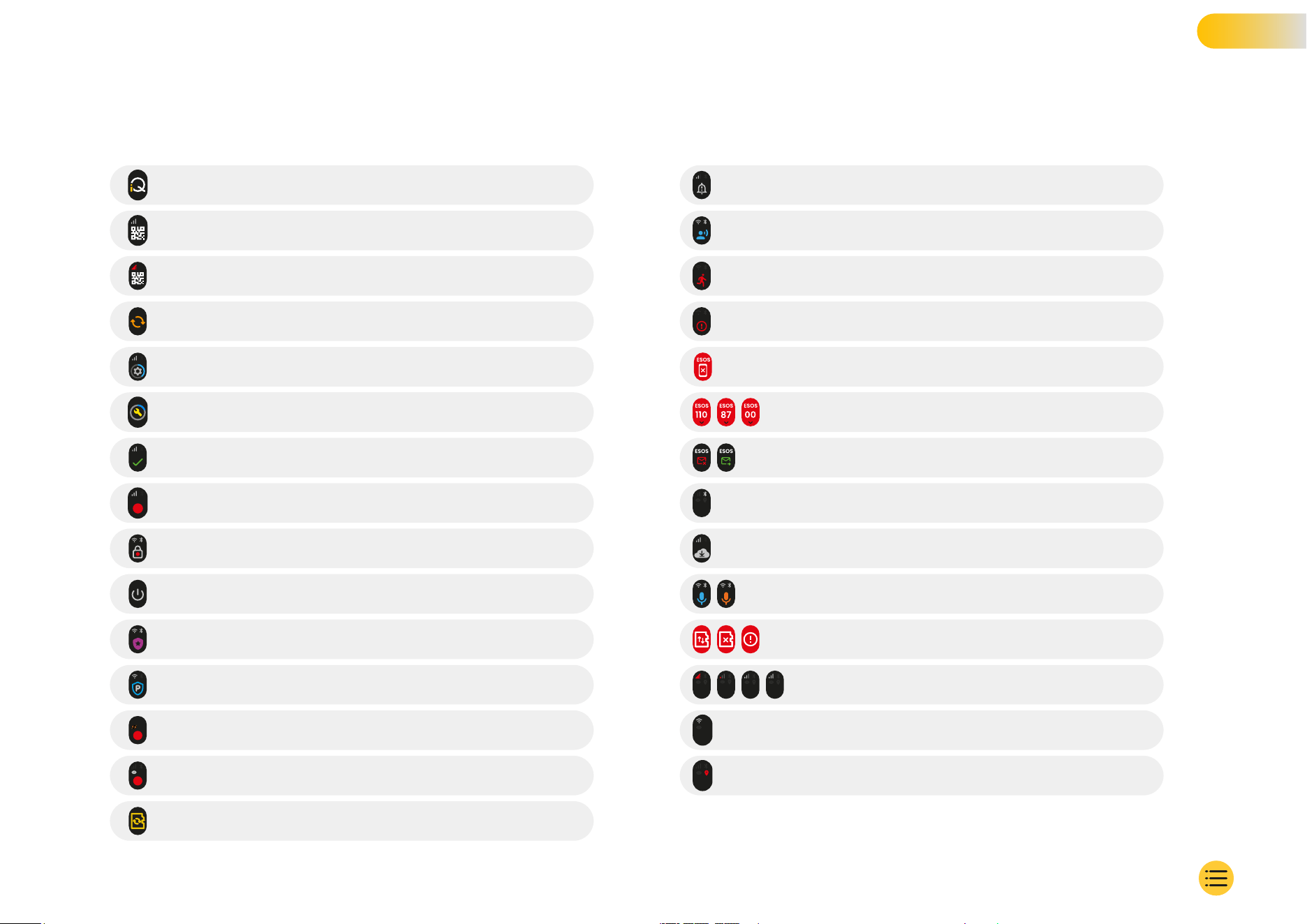
iQ Screens
Power On Screen
QR Code Pair device using QR Code
QR Code Cannot pair, 4G not available
Device in Onboarding Mode
Device Setup in Progress
Update in Progess
Action successfully completed Setup, update, etc.
Loop Recording in progress
Footage Protected
Power Off Screen
Witness Mode Active
Parking Mode Active
Loop Recording with Incognito Mode Active
Loop Recording with Live View Active
Formatting SD Card
Siren Activated Through App
Incoming Voice Message
Motion Detected
Impact / Vehicle Movement Detected
Emergency SOS Mode Activated
Emergency SOS Countdown from 110 to 0
ESOS Message Sent / Failed
In the event of failure the device must be reset.
Bluetooth Connected
Remote Cloud Transfer
Voice Command processing / Not Recognized
Error States
Replace SD card / SD Card not detected / General Error
Signal Strength No signal / Weak / Medium / Strong
Connected Locally
No GPS Signal
35
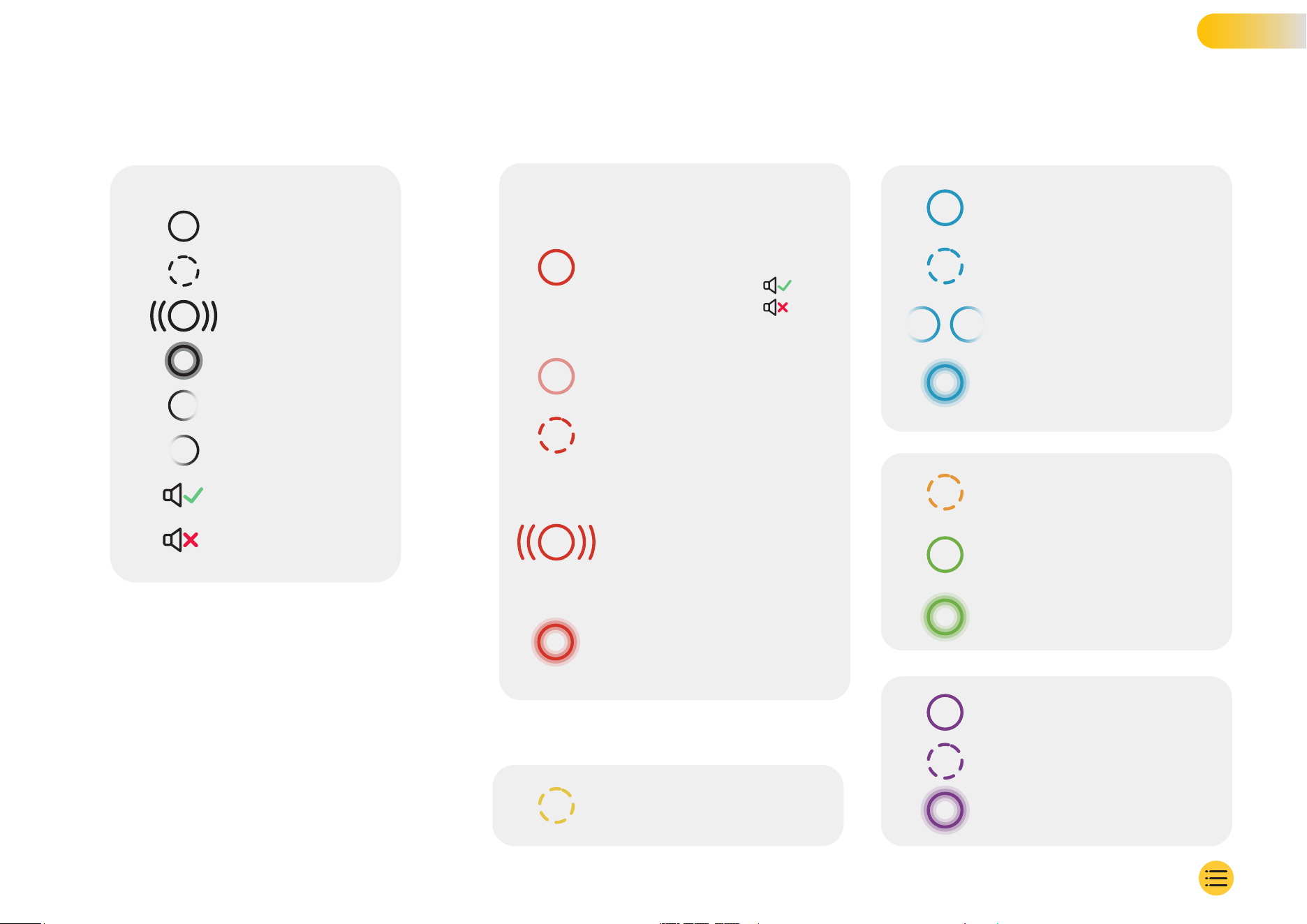
iQ Light Modes
Icon Key
There are lights on the iQ mount, body, and Rear Camera
that show different colours and behaviours to display its
functions. Use this guide if you are unsure what the lights
on iQ mean.
Note: In general, a Green light with a positive tone
indicates a successful process, while a Red light with a
Negative tone indicates that something has gone wrong.
Solid Light
Spin
Flash
Pulse
Fade Out
Fade In
36
iQ Turn On / Off
Voice Command Processing
Voice Command Actioned
Process Completed
Software Update Completed
SD Card Format Completed
Bluetooth Pairing Completed
On Boarding
Bluetooth pairing
Witness Mode Active
Live View Active
iQ Resetting
Voice Command Detected
Positive Tone
Negative Tone
Radar Detects Movement
G-Sensor Triggered
ESOS Activated
Siren Activated
Low Voltage (iQ will turn off
to protect vehicle battery)
Voice Command Not Recognised
No 4G For Pairing
Parking Mode Triggered
Software Update In Progress
SD Card Formatting
Loop Recording Active (low light)
General Error
SD Card Error
No SD Card
Replace SD Card
Process Failed
ESOS Message Sent
ESOS Message Not Sent
ESOS Error
RED
YELLOW
BLUE
GREEN
PURPLE
Windshield Mounting Legal Restriction Precaution
Before using the Dash Cam on your windshield, check the state and local laws and ordinances where you drive.
Some laws prohibit or restrict the placement of objects on the windshield of a motor vehicle.
IT IS THE USER'S RESPONSIBILITY TO MOUNT THE DEVICE IN COMPLIANCE WITH ALL APPLICABLE LAWS AND ORDINANCES.
Always mount your Nextbase Dash Cam in a location that does not obstruct the driver's view of the road.
Nextbase does not assume any responsibility for any fines, penalties, or damages that may be incurred as
a result of any state or local law or ordinance relating to the use of your Nextbase Dash Cam.
Camera Legal Requirements Precaution
In some jurisdictions it could be considered an invasion of privacy rights to take or publicly display photographs
or videos of people or their vehicles using this product. It is your responsibility to know and comply with applicable
laws and rights to privacy in your jurisdiction and in any jurisdiction in which you may use this device. Video recordings
made by this Dash Cam should be for personal use only. Publication of the recordings on YouTube, the internet or
other methods is subject to the data protection legislation and the requirements thereof must be adhered to. Such
data protection legislation may prohibit the use and dissemination by you of Dash Cam footage or may impose
restrictions on it. We recommend that you check the legal requirements with your legal advisor before disseminating
any Dash Cam footage. If the Dash Cam is to be used within a UK commercial environment (i.e., truck use) then the
CCTV regulations apply in addition to the Data Protection Act regulations. This includes labelling to identify the use
of CCTV is taking place, the omission of Audio recording and informing the relevant authorities of who controls the
data. For use in a commercial environment in non-UK countries, please refer and adhere to local regulations and
requirements. For non-UK operation, specific legal requirements may apply where Dash Cams are to be used in
a commercial or employment context. We recommend that you check the legal requirements with your legal
advisors prior to commencing use of Dash Cams in commercial or employment contexts.
Australasia
The laws of your State or Territory apply to the use of audio, optical, and tracking surveillance devices.
It may not be lawful to use in-cabin recording or witness mode in your State or Territory if other people will
be recorded without their consent. Additionally, in some States and Territories, it is an offence to possess a
surveillance device which is intended for use in contravention of the laws. It is your responsibility to be aware
of the applicable laws. Supplied window stickers may be used to alert people to in-cabin recording, or you
may elect to turn off in-cabin recording in the iQ App.
For certifications and compliance information, follow the link:
NEXTBASE.CO.UK/CERTIFICATIONS
Legal & Compliance
37
EU Regulatory Conformance
CE Statement
Hereby, Portable Multimedia Limited t/a Nextbase declares that the radio equipment type iQ is in compliance
with Directive 2014/53/EU. The full text of the EU declaration of conformity is available at the following address
https://www.nextbase.com/certifications
Restrictions in the 5GHz band
This device is restricted to indoor use (which also applies to inside a vehicle) only when operating in the
5150 to 5250 MHz frequency range in the following countries.
Product Wireless Information
The frequency bands and transmitting power (radiated and or conducted)for this radio equipment are as
follows; LTE Bands 1,1920-1980MHz /3, 1710-1785MHz /7, 2500-2570MHz /8, 880-915MHz /20, 832-862MHz
/28A, 703-733MHz/ 38,2570-2620MHz, 23dBm conducted; Bluetooth (BR+EDR) 2402-2480MHz, 3.4dBm EIRP;
2.4G WIFI 802.11b, 802.11g, 802.11n(HT20), 2412-2472MHz,18.6dBm EIRP; 5G WIFI 802.11a, 802.11n(HT20/40),
802.11ac(VHT20/40/80) Band 1 5180-5240MHz, 19.4dBmEIRP; GPS, GLONASS, 24GHz Radar 24000-24250 Mhz,
14.37 dBm EIRP.
Disposal of this Product
RoHS Compliance
This product complies with Directive 2011/65/EU and its amendments, on the restriction of the use of
certain hazardous substances in electrical and electronic equipment.
RF Exposure Information (MPE)
This device meets the EU requirements and the International Commission on Non-Ionizing Radiation Protection
(ICNIRP) on the limitation of exposure of the general public to electromagnetic fields by way of health protection.
To comply with the RF exposure requirements, this equipment must be operated at a minimum of 20cm
separation distance to the user.
UK Regulatory Conformance
UKCA Statement
Hereby, Portable Multimedia Limited t/a Nextbase declares that the radio equipment type iQ is in compliance
with the UK Regulation S.I. 2017 No. 1206. The full text of the EU declaration of conformity is available at the
following address https://www.nextbase.co.uk/certifications
FCC Regulatory Compliance
FCC Compliance Statement
This device complies with Part 15 of the FCC Rules. Operation is subject to the following two conditions:
(1) this device may not cause harmful interference, and
(2) this device must accept any interference received, including interference that may cause undesired operation.
AT
EE
IE
PL
LI
BE
EL
IT
PT
NO
BG
ES
LT
RO
TR
CY
FI
LU
SE
UK (NI)
CZ
FR
LV
SK
DE
HR
MT
CH
DK
HU
NL
IS
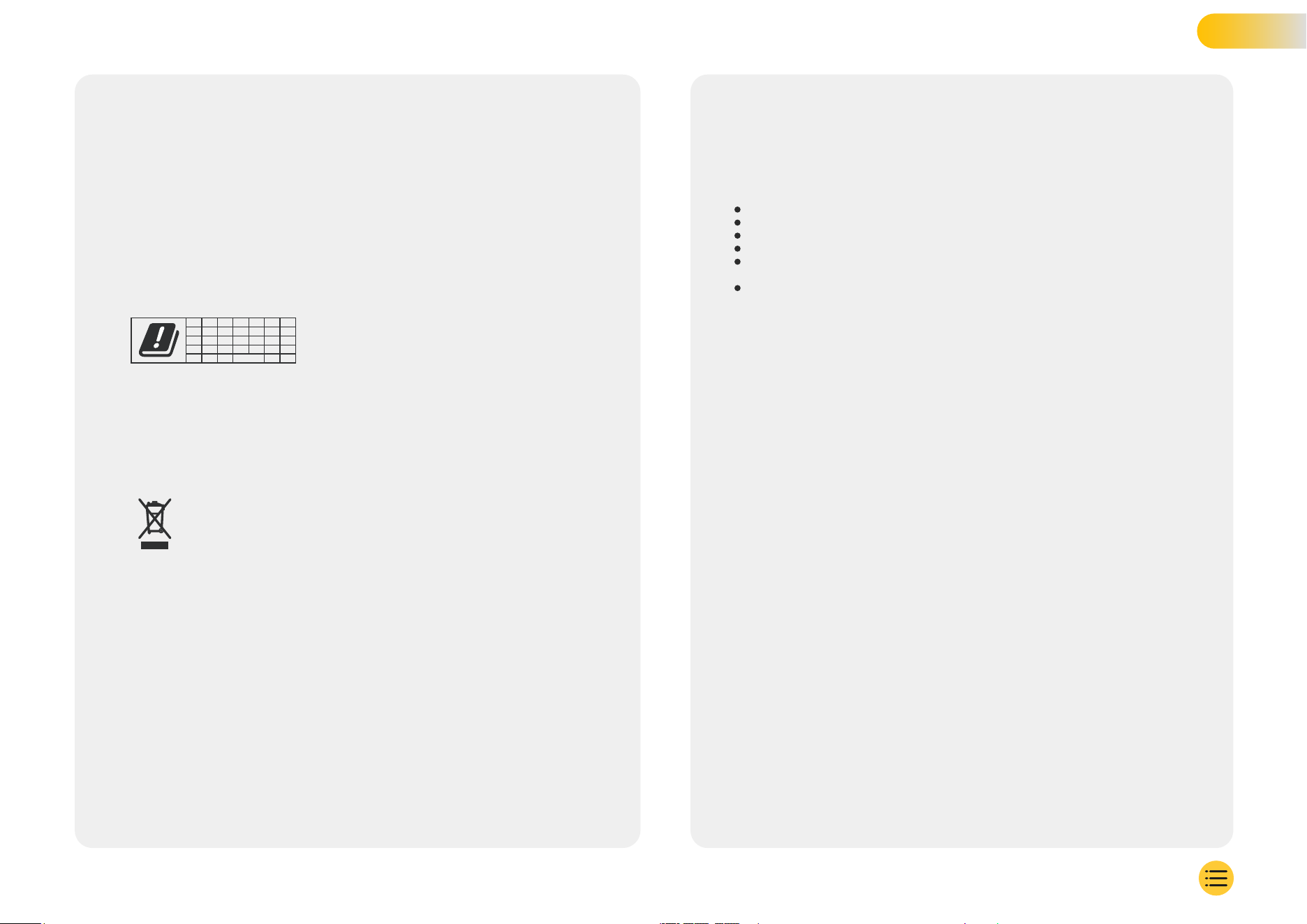
The crossed-out wheelie bin symbol on your iQ, and its packaging indicates that the product
and its electronic accessories should not be disposed of with other household waste.
Your iQ should be handed over to an authorized collection site for recycling waste electronic
equipment. Improper handling of this type of waste could have a possible negative effect
on the environment. For more information on where you can drop off your waste equipment,
please contact your local waste authority, or your household waste disposal service.
NOTE This equipment has been tested and found to comply with the limits for a Class B digital device,
pursuant to Part 15 of the FCC Rules. These limits are designed to provide reasonable protection
against harmful interference in a residential installation. This equipment generates, uses and can
radiate radio frequency energy and, if not installed and used in accordance with the instructions,
may cause harmful interference to radio communications. However, there is no guarantee that
interference will not occur in a particular installation. If this equipment does cause harmful
interference to radio or television reception, which can be determined by turning the equipment off
and on, the user is encouraged to try to correct the interference by one or more of the following measures:
Reorient or relocate the receiving antenna.
Increase the separation between the equipment and receiver.
Connect the equipment to an outlet on a circuit different from that to which the receiver is connected.
Consult the dealer or an experienced radio/TV technician for help.
This appliance and its antenna must not be co-located or operated in conjunction with
any other antenna or transmitter.
A minimum separation distance of 20cm must be maintained between the antenna
and the person for this appliance to satisfy the RF exposure requirements.
FCC Caution This product does not contain any user serviceable parts. Repairs should only be
made by an authorized Nextbase™ service center. Unauthorized repairs or modifications could
result in permanent damage to the equipment and void your warranty and your authority to
operate this device under Part 15 regulations.
The device meets the FCC Radio Frequency Emission Guidelines and is certified with the FCC. Information
about this product is on file with the FCC and can be found by inputting the Product's FCC ID (available
on the product giftbox and on the product’s mount into the FCC ID Search form available at:
https://www.fcc.gov/oet/ea/fccid
The party responsible for FCC compliance is:
Portable Multimedia Limited, 230 Blackfriars Road, London, England, SE1 8NW
Note 5G frequency band 5150-5250MHz indoor use only - LE-LAN devices are restricted to indoor
operation only in the band 5150-5250 Mhz.
Industry Canada Conformance Compliance
IC Warning This device complies with Industry Canada license-exempt RSS standard(s).
Operation is subject to the following two conditions:
(1) this device may not cause interference, and
(2) this device must not accept any interference, including interference that may cause undesired
operation of the device.
Le présent appareil est conforme aux CNR d'Industrie Canada applicable aux appareils radio exempts
de licence. L'exploitation est autorisée aux deux conditions suivantes:
(1) l'appareil ne doit pas produire de brouillage, et
(2) l'utilisateur de l'appareil doit accepter tout brouillage radioélectrique subi, même si le brouillge
est susceptible d'en compromettre le fonctionnement.
This device has been evaluated to meet general RF exposure requirement. To maintain compliance
with RSS-102 - Radio Frequency (RF) Exposure guidelines, this equipment should be installed and
operated with a minimum distance of 20cm between the radiator and your body.
le depositif de a été évalué à répondre général rf exposition exigence. Pour maintenir la conformité
avec les directives d'exposition du RSS-102 - Radio Fréquence (RF). Ce matériel doit être installé et
exploité à une distance minimale de 20cm entre le radiateur et votre corps.
IC: 28201-NBIQ1KUS
Regulatory Conformance
38

SAFETY Please read safety and health information carefully before you install your iQ so that you can
ensure its safe and proper operation in your vehicle.
WARNING Failure to correctly install iQ may present hazards for the safe operation of your vehicle and
could contribute to an accident resulting in serious injury, death or damage to property for you, your
passengers or others. When installing this device in your vehicle;
You must correctly locate iQ on your windshield. Mounting iQ in a position that obscures the forward
line of sight for the driver of your vehicle may cause the driver of your vehicle to be unable to
adequately see other road users, obstacles or persons around your vehicle. This could result in an
accident that causes serious injury, death or property damage. Carefully follow the mounting
instructions in your App and in the installation section of this manual.
You must adequately secure iQ to your windshield. The 3M pad supplied with your iQ consists of a
pressure activated tape. If an inadequate bond is achieved whilst fitting iQ may separate from the
windshield. If this occurs whilst the vehicle is being driven, it could become a restriction to safe
operation of your vehicle leading to an accident that causes serious injury, death or property damage.
Stop your vehicle as soon as it is safe to do so and disconnect iQ. Only attempt to refit iQ with a new
3M pad when your vehicle is stationary.
You must route the iQ power cable (and rear camera cable) appropriately. You must route the power
cable (and rear camera cable if you are fitting a Rear Window Camera) so that there is no interference
with the deployment of airbags installed on your vehicle. If you impede the deployment of airbags, you
will reduce the effectiveness of the secondary protection system which could result in serious injury,
death or property damage. You must also ensure that cables do not interfere with vehicle operating
controls. If you are hindered from correctly accessing vehicle controls whilst driving, it may cause an
accident which could result in serious injury, death or property damage.
CAUTION Do not expose iQ to liquids under any circumstances, doing so may result in the risk of
electric shock or fire. Should your iQ become wet, disconnect it from the OBD-II Power Cable and
allow it to dry naturally. DO NOT ATTEMPT to accelerate drying by external means.
CAUTION You should only use iQ in compliance with all applicable laws, including local laws of the
country and region in which you reside or in which you use your iQ. When you use iQ, you do so at
your own initiative and you are responsible for compliance with any applicable laws, including but
not limited to applicable privacy and data collection laws, and laws prohibiting or restricting the
placement of objects on the windshield of a motor vehicle.
PSTI Statement of Compliance
We, Portable Multimedia Limited t/a Nextbase. hereby declare under our own responsibility that the
devices NBIQ1K, NBIQ2K and NBIQ4K comply with the applicable security requirements in Schedule 1 of
The Product Security and Telecommunications Infrastructure (Security Requirements for Relevant
Connectable Products) Regulations 2023.
1. Password is unique per device or defined by the user of the device, and the password which is
unique per device is generated by using as security mechanism that reduces the risk of automated
attacks against a class or type of device.
2. Users can report vulnerabilities to Nextbase as per our Vulnerability Disclosure policy available via
https://nextbase.co.uk/vulnerability-disclosure-policy , users will receive acknowledgment of the receipt
of a security issues report and status updates until the resolution of the reported security issues.
3. We will provide security updates for this product during the support period. The defined support period
is listed here https://nextbase.co.uk/security-maintenance-period-policy
Signature:
WARNING You should not attempt to manually adjust iQ’s setting whilst driving. Always maintain awareness of
your surroundings and do not attempt to adjust iQ whilst driving. Distractions whilst driving increase the risk of
an accident that could lead to serious injury, death or property damage.
CAUTION Ensure that you check the warranty status for your vehicle before you install the OBD-II Power Cable
for iQ. Some manufacturers may prohibit the use of OBD-II connections which could void your warranty
agreement. NEXTBASE IS NOT RESPONSIBLE FOR ANY COSTS OR EXPENSES ASSOICATED WITH VOID WARRANTIES
OR VEHICLE REPAIRS.
If you experience any change in your vehicle's engine performance after connecting the OBD-II Power Cable for
iQ, you should disconnect the device as soon as it is safe to do so and contact Nextbase Technical Support.
DO NOT CONTINUE TO USE OBD-II POWER CABLE IF VEHICLE ENGINE POWER IS AFFECTED
The OBD-II Power Cable will provide power to your iQ until your vehicles battery drops below a certain level. The
default minimum voltage cut-off is 12Vdc for a 12V battery. BATTERIES IN POOR CONDITION MAY NOT PROVIDE THE
REQUIRED CURRENT (AMPS) TO START YOUR CAR IN SPITE OF VOLTAGE PROTECTION.
If your vehicle is going to be parked for an extended period of time, you should consider unplugging the device
to avoid draining your vehicle’s battery.
Warnings & Cautions
39
Failure to follow these guidelines may cause harm to your
device, your property, your health or the health of others.
Caerphilly, UK
th
15 April 2024
Keelan O'Connor
Quality and Compliance Manager Nextbase
Place of declaration issue:
Date of Issue:
Issued by:

G-Sensor Notice The G-Sensor within iQ measures forces exerted upon it; one g which is the nominal force
exerted upon us when stationary on the earth's surface. The G-Sensor will activate to protect any recording
currently in progress if a pre-determined threshold of force is exceeded. The G-Sensor protection will be
adversely affected if iQ is NOT mounted in the vertical direction (i.e., with the lens pointing to or from the
direction of travel). G-Force information derived from a G-Sensor is not warranted to be totally accurate
at all times, as it is derived from the G-Sensor through a sampling method over time. The precision of the
G-Sensor value recorded depends upon when the acceleration took place at the instance of the sample
taken. The thresholds to activate the video protection rely upon a trigger value being exceeded between
two successive samples in any one of the three G-Sensor axes. If the Automatic G-Sensor protection does
NOT trigger during an event, then the Protect button should be pressed in order to protect the file.
Protecting the file can also be performed using the Playback function on iQ or through the App.
Care & Maintenance The following suggestions will help you maintain and prolong the life of your iQ.
Only qualified and authorized personal should make repairs to this product
Clean iQ and its accessories with a soft dry cloth. For tough dirt sparingly apply some neutral
detergent diluted in 5 to 6 parts of water with a rung-out cloth. NEVER immerse iQ or it’s
accessories in water (see usage notes).
Avoid making contact with the lenses as damage may occur.
If required, clean the glass lens carefully using a spectacle cleaning cloth. Use of inappropriate
cleaning cloths may scratch iQs lens.
Do not drop, shake, or twist iQ. Avoid placing iQ on sloping surfaces such as dashboards whilst
securing the baseplate to your vehicle’s windshield.
Do not attempt to rotate the external antennas on iQ. Antenna positions are limited to
4 positions at 90 degrees to each other. Rotating the antenna will break the connection
to the device and will cause connectivity issues.
Every 2-3 weeks we recommend that you format the memory card. This will wipe any files
from the card and set it up afresh for continued use with your iQ. Of course, you should only
do this AFTER you've downloaded any files from the card that you may want to keep, as
formatting the card will remove all content.
Format your memory card using the iQ App. This will make sure that the card is structured
specifically for your camera. Within the Setup menu, select ‘Format SD Card’ and follow the
on-screen instructions.
Switch off iQ Cam before removing the SD card, to prevent the chance of damage being
caused to the memory card or the files stored upon it.
If it becomes necessary to replace the SD card supplied with iQ, we strongly recommend
using our Nextbase branded SD cards which are available to purchase online from
nextbase.com, or your nearest retailer. A card that is not made specifically for a Dash
Cam may appear to work perfectly in the beginning, although failure tends to happen
after prolonged use, this could be days, weeks, or months. In a worst-case scenario,
you may only discover recording failure after your SD card fails to record a serious
incident, therefore using a suitable SD card is imperative.
High Temperature Use iQ is designed to function at a maximum ambient temperature of 40°C / 104°F.
Above this temperature some of the functions of iQ will automatically be restricted to ensure that the
device is not damaged. The device will function will be restored once its core temperature is returned
to operating parameters.
Product Specifications
Product Name 1K, 2K, 4K regionalised for Europe and North America, and Rear Window Camera
Model Number NBIQIKEU, NBIQ1KUS, NBIQ2KEU, NBIQ2KUS, NBIQ4KEU, NBIQ4KUS and NBIQRWC
Operating Temperature 50ºC / 122ºF.
Electrical Rating Front Cameras, Input 12-16Vdc, 3A; Rear Window Camera, Input 12-16Vdc, 0.5A
Camera Legal Requirements Precaution In some jurisdictions it could be considered an invasion
of privacy rights to take or publicly display photographs or videos of people or their vehicles using
this product. It is your responsibility to know and comply with applicable laws and rights to privacy
in your jurisdiction and in any jurisdiction in which you may use this device. Video recordings made
by this Dash Cam should be for personal use only.
Publication of the recordings on YouTube, the internet or other methods is subject to the data
protection legislation and the requirements thereof must be adhered to. Such data protection
legislation may prohibit the use and dissemination by you of Dash Cam footage or may impose
restrictions on it – we recommend that you check the legal requirements with your legal advisor
before disseminating any Dash Cam footage.
Many regions have far tighter controls of audio recording than video. The default setting on iQ is for
microphones to be active so that voice controls can function. Please ensure you respect the laws
of the area in which you live and/or you operate iQ in your vehicle (see usage notes and warnings).
We strongly recommend that you use the window stickers provided with iQ to advise passengers
and pedestrians that active audio and video recording is taking place in your vehicle.
Terms of Service
By purchasing of using iQ, you agree to the Terms of Service found at;
EU https://nextbase.eu/de/terms-and-conditions/
UK https://nextbase.co.uk/terms-and-conditions/
US https://nextbase.com/terms-and-conditions/
Information on our warranty agreements can be found at;
EU https://nextbase.eu/de/help-and-support/warranty-information/
UK https://nextbase.co.uk/warranty-policy/
US https://nextbase.com/warranty-policy/
Customer Support Your iQ and its accessories are made to the highest standards and undergo
rigorous testing. In the unlikely event that you should encounter any issues with your iQ, or if you
need assistance with connecting your device, please contact our Support Team by following the
Assistance link at the top of the Nextbase main website for your region.
Usage Notes &
Terms of Service
40
The Ultimate
Peace of Mind

NBDVRiQ-EN-R6