
AMOON SPIRITS – USER MANUAL
5. App Setup & Pairing
o Download the Amoon App from the App Store or Google
Play.
o Turn on Bluetooth on your phone.
o Open the app and create your profile.
o Tap "+" in Amoon App and follow on-screen steps.
o Can “Group Bottles” up to 5 max.
o Once paired, you’ll see your bottle listed under “Bottles.”
o Create Custom Shows under (My Custom Shows).
6. LED Light Features
o Choose from a spectrum of 16 thousand colors.
o Select show presets like "Firestorm," "Ocean Waves," or
"Electric Storm."
o Customize your own LED show.
7. Vortex Control Unit
o Tap the Tornado button in the app.
o Choose spin speed: F1-F5.
o Use vortex to display a mesmerizing light swirl.
8. Creating an AI Show
o Navigate to "Create a Show with AI " in the app.
o Input your vibe (e.g., “Energetic,” “Chill,” “Romantic”).
o AI will automatically Customize visuals, Vortex timing, and
LED pulses. Save and replay shows.
o Shows can be edited or duplicated by pressing 3 dots
inside the app.
9. Power-Off & Bluetooth
o Tap and Tap & hold to power on and off bottle
o Tap Tap and Tap & Hold to connect to bluetooth.
The
bottle will flash red until it is successfully connected.
o If the bottle is already connected to another device, you
must delete it from that device before connecting to a new
one.
o The Amoon Vodka Bottle is Detachable. To remove the
bottle from the VCU, simply pull it out. To reattach, push
the bottle back into place and align the wrap with the
grooves on the bottle.
10. Troubleshooting
o If VCU is not responding, delete the bottle in the app or
perform a manual power cycle.
o App not pairing, Ensure Bluetooth is on and bottle is
charged.
11. Contact & Support
Email: office@amoonspirits.com
Follow us on Instagram @amoonspirits
AMOON SPIRITS – USER MANUAL
Welcome to the future of drinking. Your Amoon Spirits bottle is more than
just a bottle it's an experience.
Table of Contents
1. Introduction
2. What’s in the Box
3. Safety & Usage Warnings
4. Charging Your Bottle
5. App Setup & Pairing
6. LED Light Features
7. Vortex Control Unit (VCU)
8. Creating an AI Show
9. Power-Off & Bluetooth
10. Troubleshooting
11. Contact & Support
Quick Setup
1. Turn on Bluetooth on your smartphone or tablet.
2. Download the Amoon App from the App Store or Google Play Store.
3. Follow the on-screen instructions to connect and pair your bottle
4. Open App and Follow on-onscreen steps to pair your bottle
1. Introduction
Thank you for choosing Amoon Spirits an immersive smart beverage
experience. Each Amoon bottle is powered by LED lighting, AI show creation,
and a vortex mixer all controlled from your phone.
2. What’s in the Box
o Amoon Spirits Vodka Bottle and VCU.
o Amoon User Manual.
3. Safety & Usage Warnings
o Do not submerge in water. Do not tamper with VCU to
access mechanical or electrical components.
o Avoid exposure to temperatures outside of operating
range.
o VCU shall operate between 40F and 110F.
o Do not place in dishwasher or microwave.
o Do not incinerate this appliance even if it is severely
damaged. The batteries can explode in a fire
o The end-product appliance shall be marked in proximity to
the connection point as to the type of source USB
o Use only with a Listed/Certified Information Technology
(Computer) Equipment USB power source, Listed/Certified
ITE Power Supply, or Listed Class 2 Power Unit."
4. Charging Your Bottle
o Connect the charging cable to the port on the VCU base.
o Plug the USB end into a power source.
o LED will pulse green while charging.
AMOON SPIRITS – USER MANUAL
FCC Compliance
**FCC Statement**
Pursuant to FCC 15.21 of the FCC rules, changes not expressly approved by Amoon
Spirits LLC might cause harmful interference and void the FCC authorization to operate
this product.
This product complies with FCC & Industry Canada’s RSS-102 radiation exposure limits
set forth for an uncontrolled environment
This equipment has been tested and found to comply with the limits for a Class B digital
device, pursuant to part 15 of the FCC Rules. These limits are designed to provide
reasonable protection against harmful interference in a residential installation. This
equipment generates, uses and can radiate radio frequency energy and, if not installed
and used in accordance with the instructions, may cause harmful interference to radio
communications. However, there is no guarantee that interference will not occur in a
particular installation. If this equipment does cause harmful interference to radio or
television reception, which can be determined by turning the equipment off and on,
the user is encouraged to try to correct the interference by one or more of the
following measures:
• Reorient or relocate the receiving antenna.
• Increase the separation between the equipment and receiver.
• Connect the equipment into an outlet on a circuit different from that to
which the receiver is connected.
• Consult the dealer or an experienced radio/TV technician for help.”
FCC ID:2BOV6-AMOONVCU1
***Modifications Statement***
Changes or modifications not expressly approved by the party responsible for
compliance could void the user's authority to operate the equipment.
Canada
PMN: AMOONVCU1
Model Number: AMN-VOD-750ML-1VCU
This device complies with Part 15 of the FCC Rules and Innovation, Science and
Economic Development Canada license-exempt RSS standard(s). Operation is subject to
the following two conditions: (1) This device may not cause harmful interference. and
(2) this device must accept any interference received, including interference that may
cause undesired operation.
Ce produit est conforme à la norme FCC et aux limites d'exposition au rayonnement
RSS-102 d'Industrie Canada définies pour un environnement non contrôlé.
Cet appareil est conforme à des règlements Innovation, Sciences et Développement
économique Canada exempts de licence standard RSS (s). Son fonctionnement est
soumis aux deux conditions suivantes: (1) Ce dispositif ne doit pas causer
d'interférences nuisibles, et (2) cet appareil doit accepter toute interférence reçue, y
compris les interférences pouvant entraîner un fonctionnement indésirable.
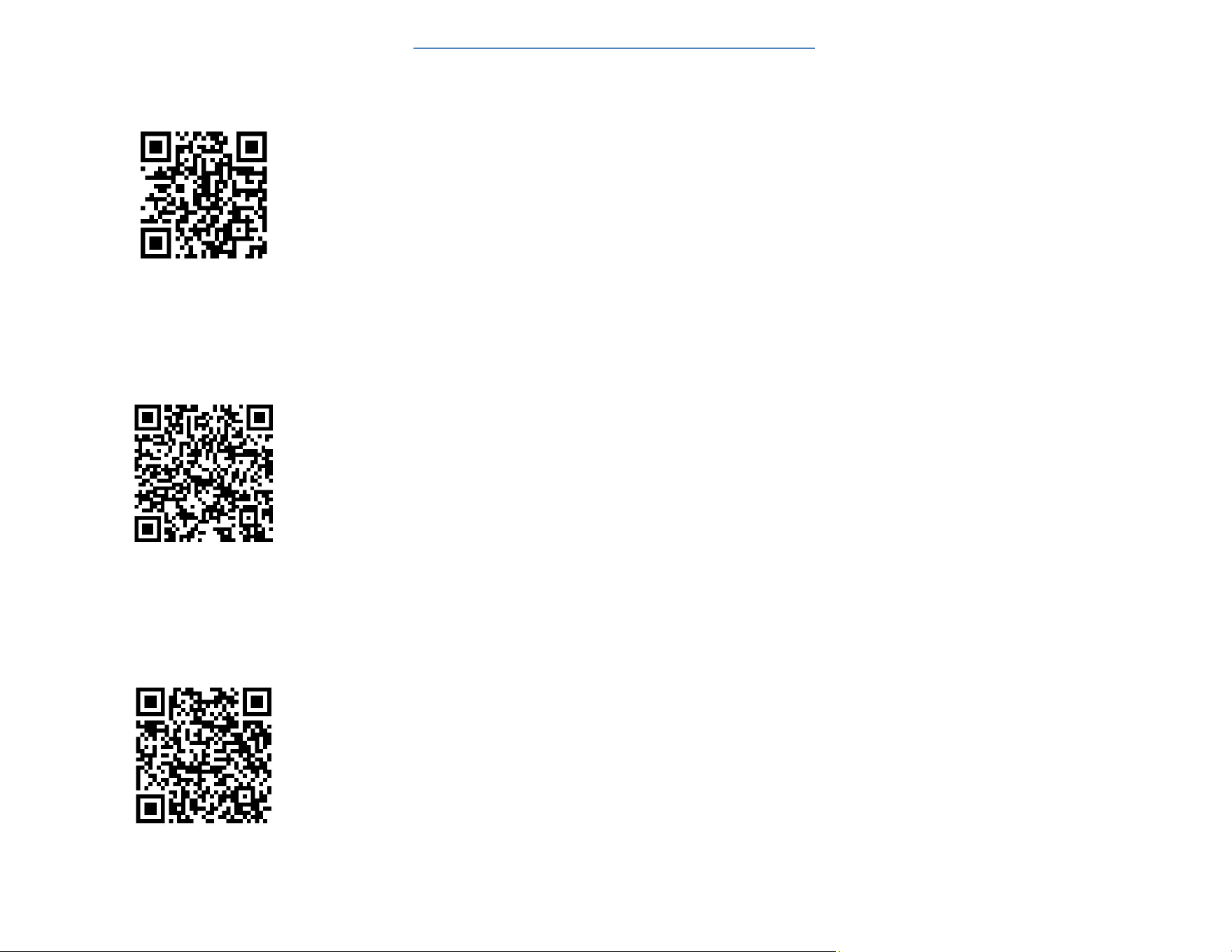
VIP SIGN UP LIST
GOOGLE PLAY
APPLE STORE