402-V1.0
GPS Tracker User Manual
Thank you for purchasing the tracker. This manual shows how to operate the device smoothly and
correctly. Make sure to read this manual carefully before using this product. Please note that
specifications and information are subject to changes without prior notice in this manual. Any change
will be integrated into the latest release. The manufacturer assumes no responsibility for any errors or
omissions in this document.
1
1 Specifications
Product name
GPSTRACKER
Model
402
DIM.
8.2×3.2×1.5cm
Weight
50g
Network
LTE
Band
B2/B4/B5/B66
GPS sensitivity
-165dBm
GPS accuracy
5m
Time To First Fix
Cold status 45s
Warm status 35s
Hot status 1s
Voltage of power
9V-90V
Battery
Chargeable 3.7V 90mAh Li-ion battery
Storage Temp.
-40°C to +85°C
Operation Temp.
-20°C to +45°C
Humidity
5%--95% non-condensing
2 Hardware Description
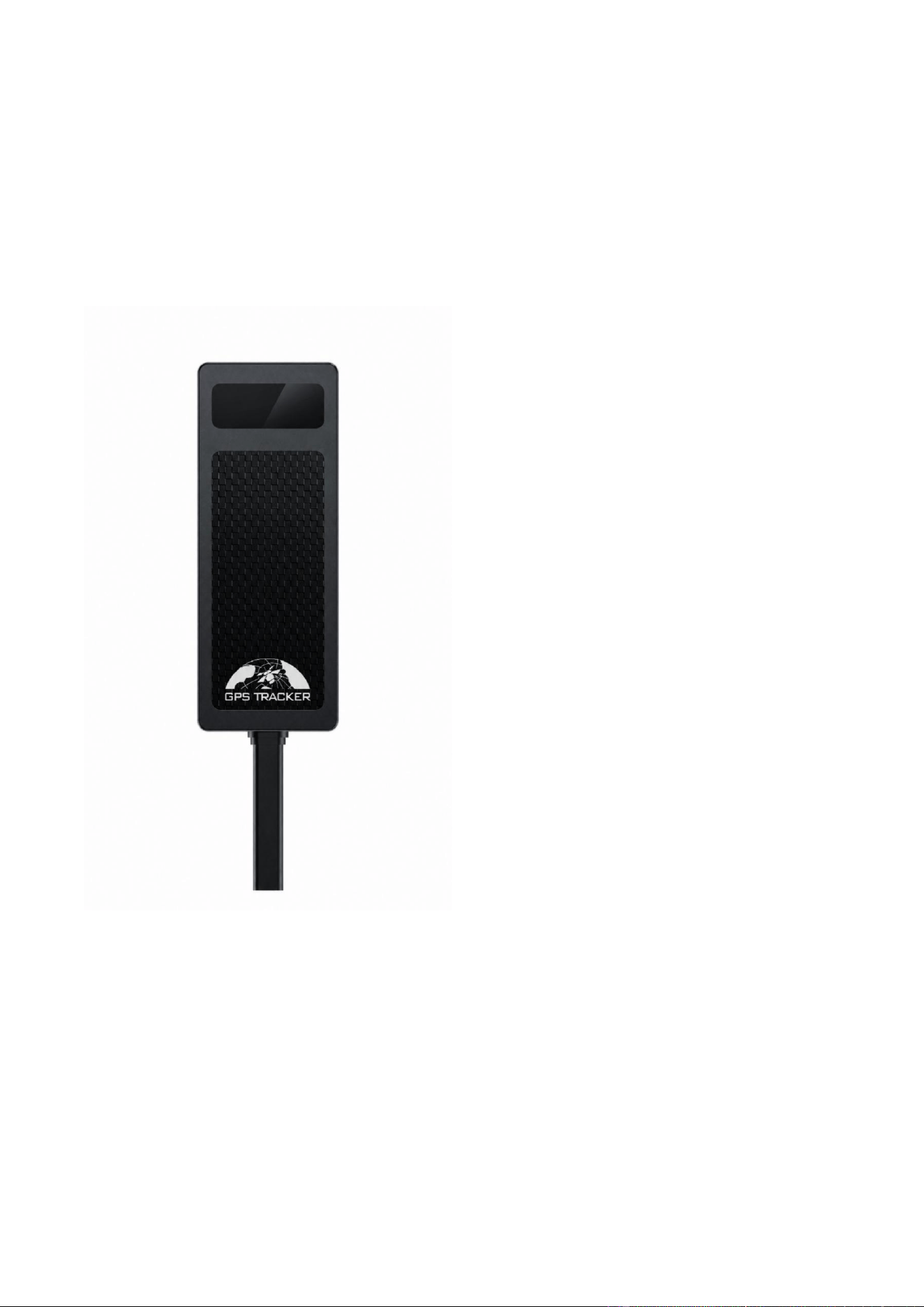
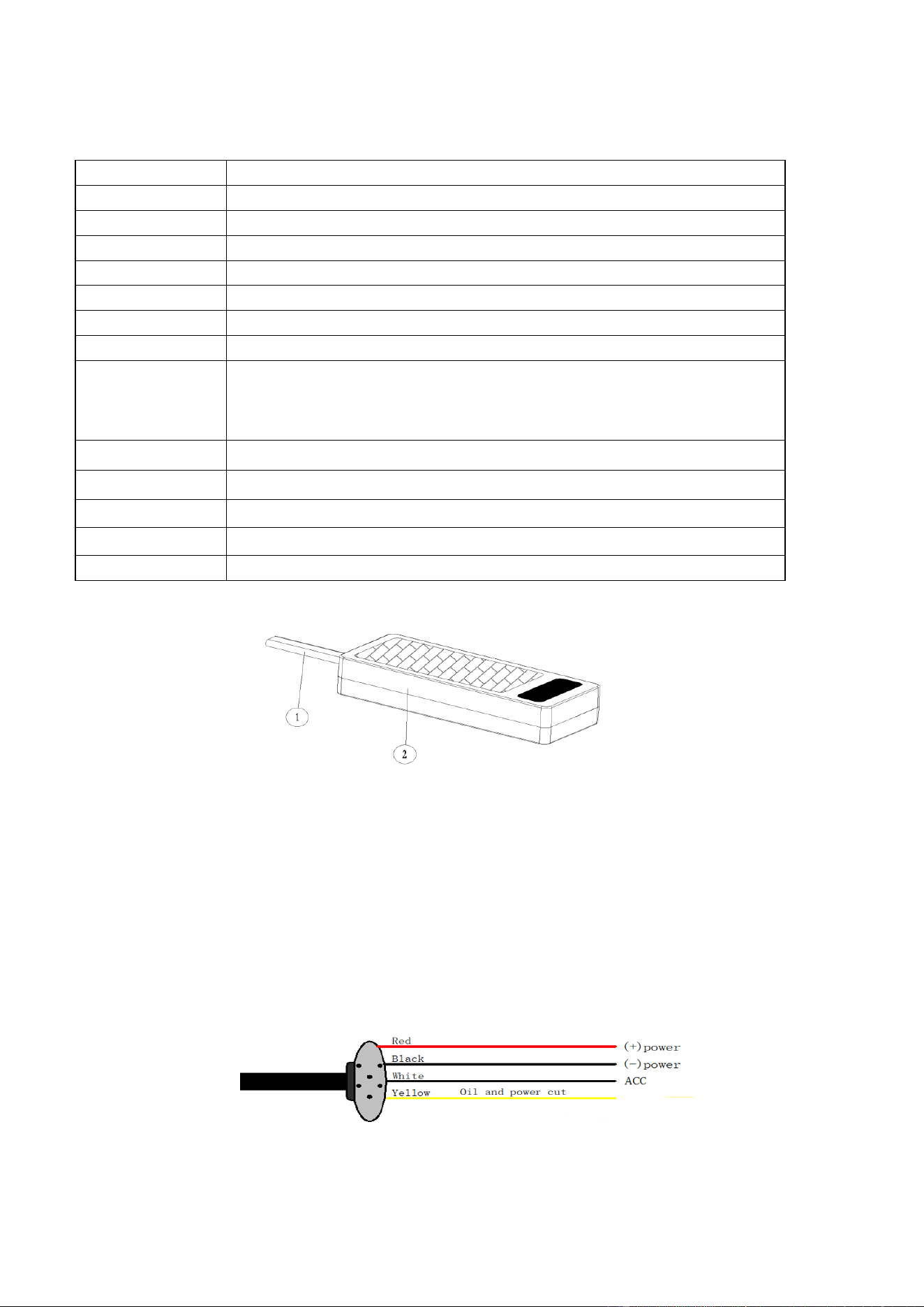
① Harness ② Indicator
3 Terminal Installation
1. Please ask a qualified engineer to install it.
2. The installation environment should ensure that the LTE and GPS signals are good
3. Please do not install it in a dusty and humid environment.
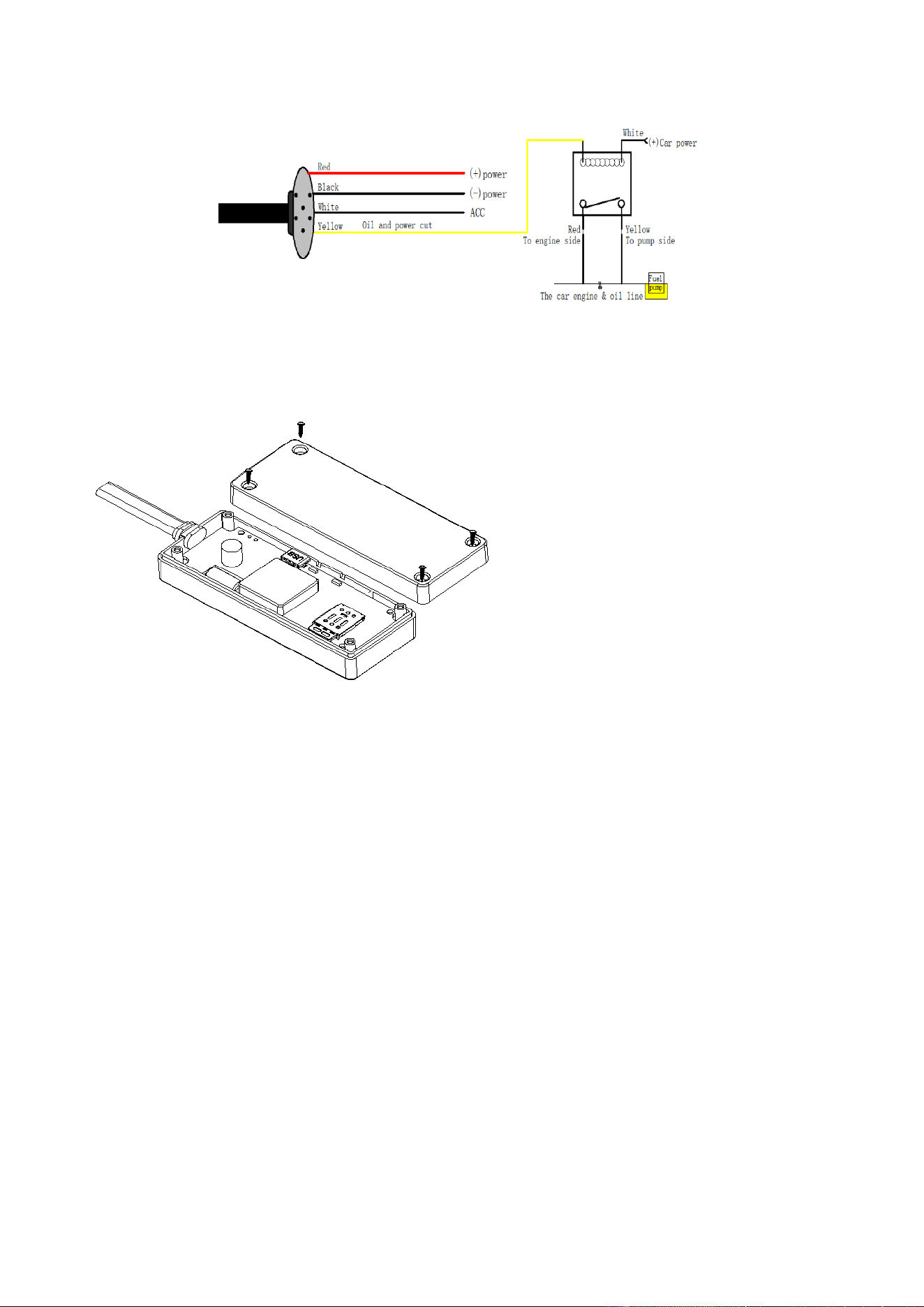
4. Find the wiring harness provided with the product, insert it into the corresponding wiring hole of
the product. Diagram 3.4.1 below shows the connection to the original vehicle circuit. If a relay
was selected, refer to Diagram 3.4.2 below.
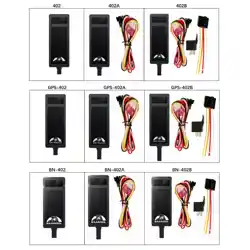
Diagram3.4.1(For A Model wiring diagram)
2
Diagram3.4.2(For B Model wiring diagram )
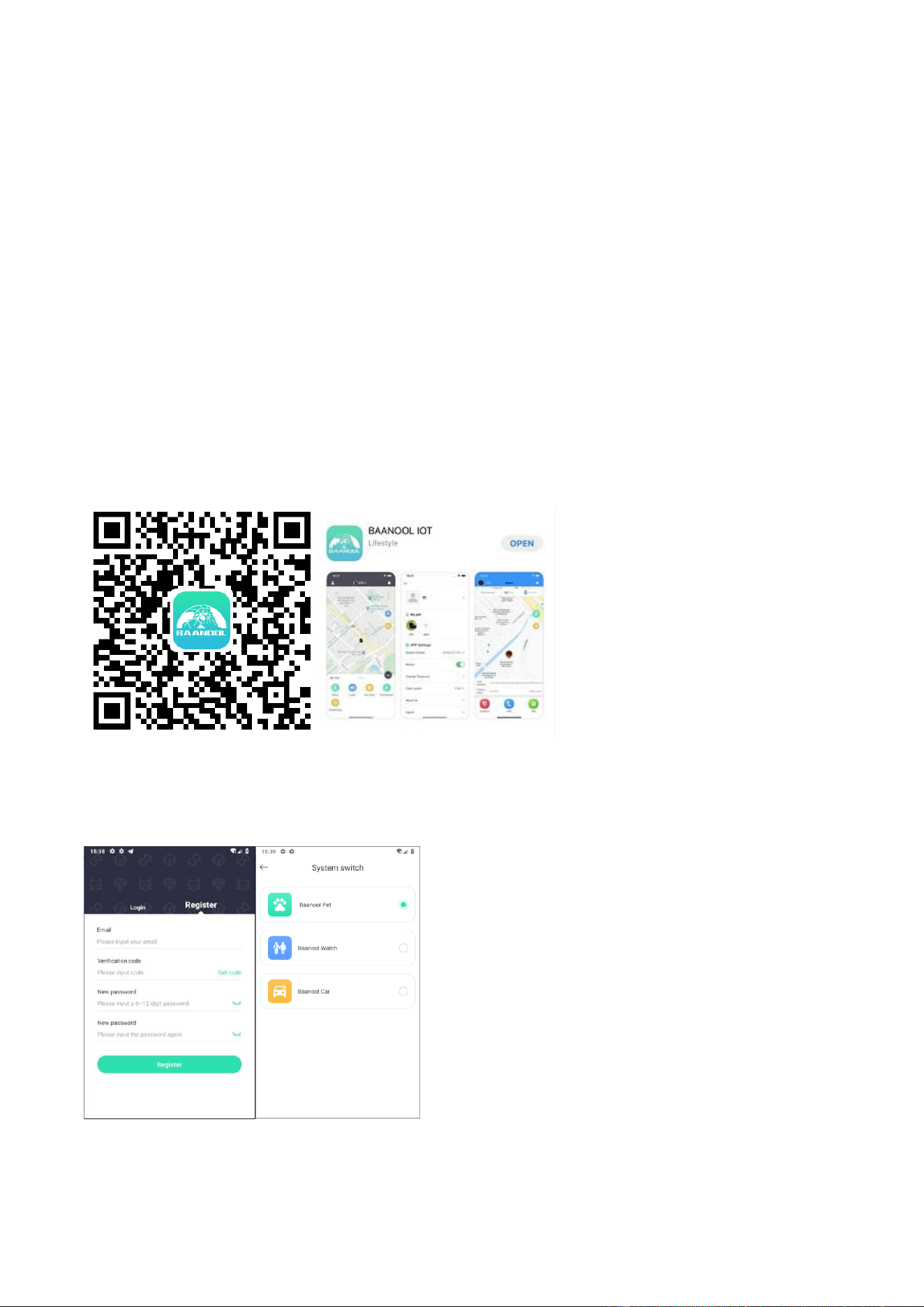
5. SIM card installation, please be sure to confirm that the SIM card network frequency band is
supported by the device.
6. After inserting the SIM card, take the device at outdoor, the device will find LTE and GPS signal
and work normally after 10-40 seconds.
① Remove the screws and open
the cover.
② Insert the SIM card, the device
will turn on automatically.
③ Close the cover and re-tighten
the screws.
3
4 Device Status Light
Green light: Flashes every 1 second when LTE network signal normally, flashes every 3 seconds
when works in LTE mode; always on when no LTE network.
Blue light: Flashes every 1 second when GPS signal is normal; flashes 3 times per second when GPS
signal is very good and turns offif lost fix to satellites.
5 This GPS Tracker Supports Mobile APP, Web Server
Platformand SMS for Managementin Multiple Ways
If you use the mobile APP or web server platform, you need a SIM card to open a data plan or use a
data card.
If you use SMS, you need a SIM card to enable SMS.
6 Mobile APP
Scan the QR code to download APP
Google Play、App Store search “BAANOOL IOT” to download it
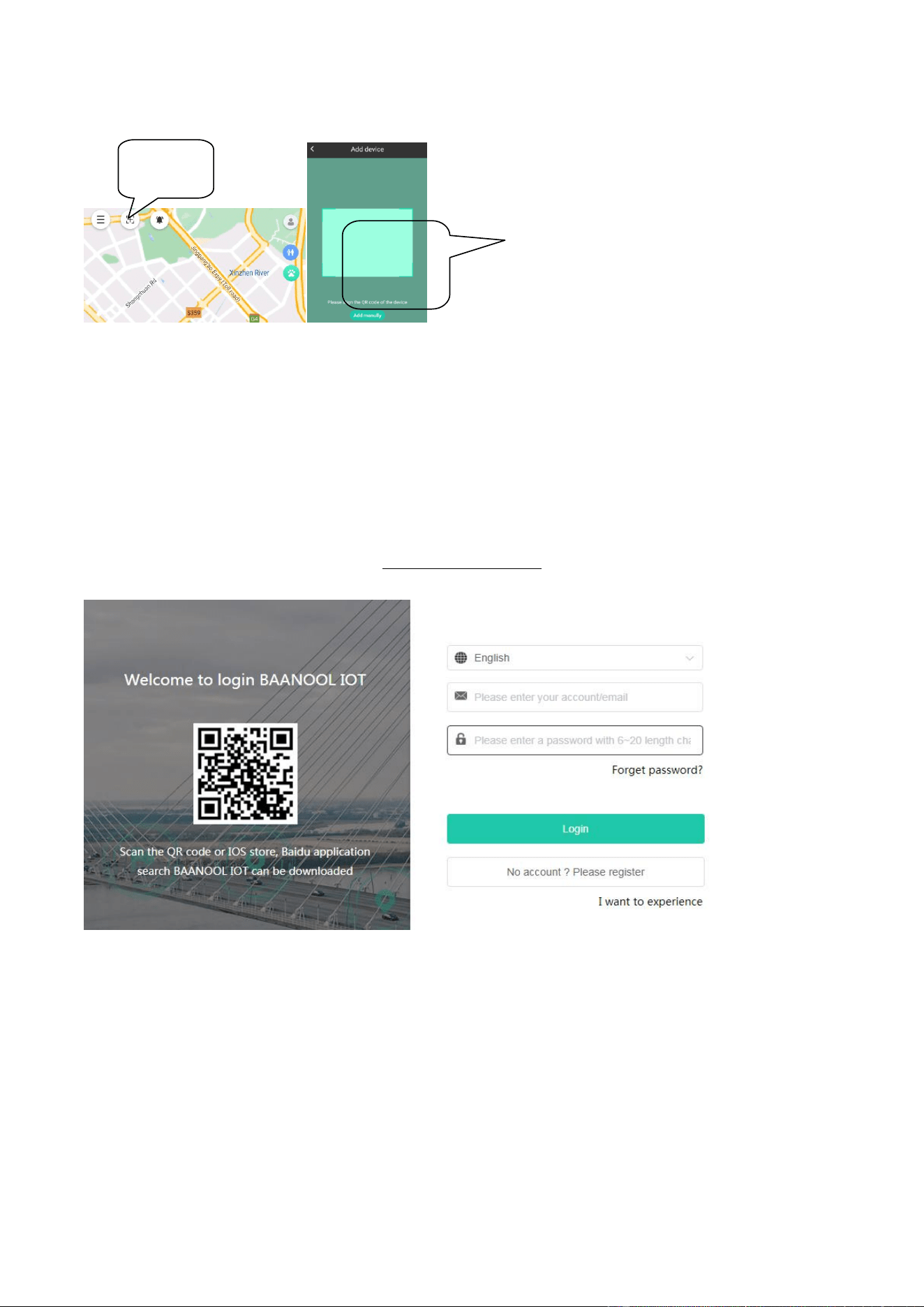
Register
Open BAANOOL IOT, register a new account and login, Choose “BAANOOL car “to enter it.
Bind Device
Click “Add the device”, scan the QR CODE on the device or enter
4
the IMEI manually to bind the device
Using tracker
Under normal circumstances, the device can automatically select the APN, username and password
without setting it. If the device is still offline after 3 minutes of binding, you need to set the APN and
username and password in SMS according to 9.16 and 9.17. After the device comes online normally,
you can view and manage the device.
7 Web Platform Version
BAANOOLIOT’sWebVersion Website: www.baanooliot.com, the login account name and password
are the same as phone app’s
8 Function details of mobile APP and web version
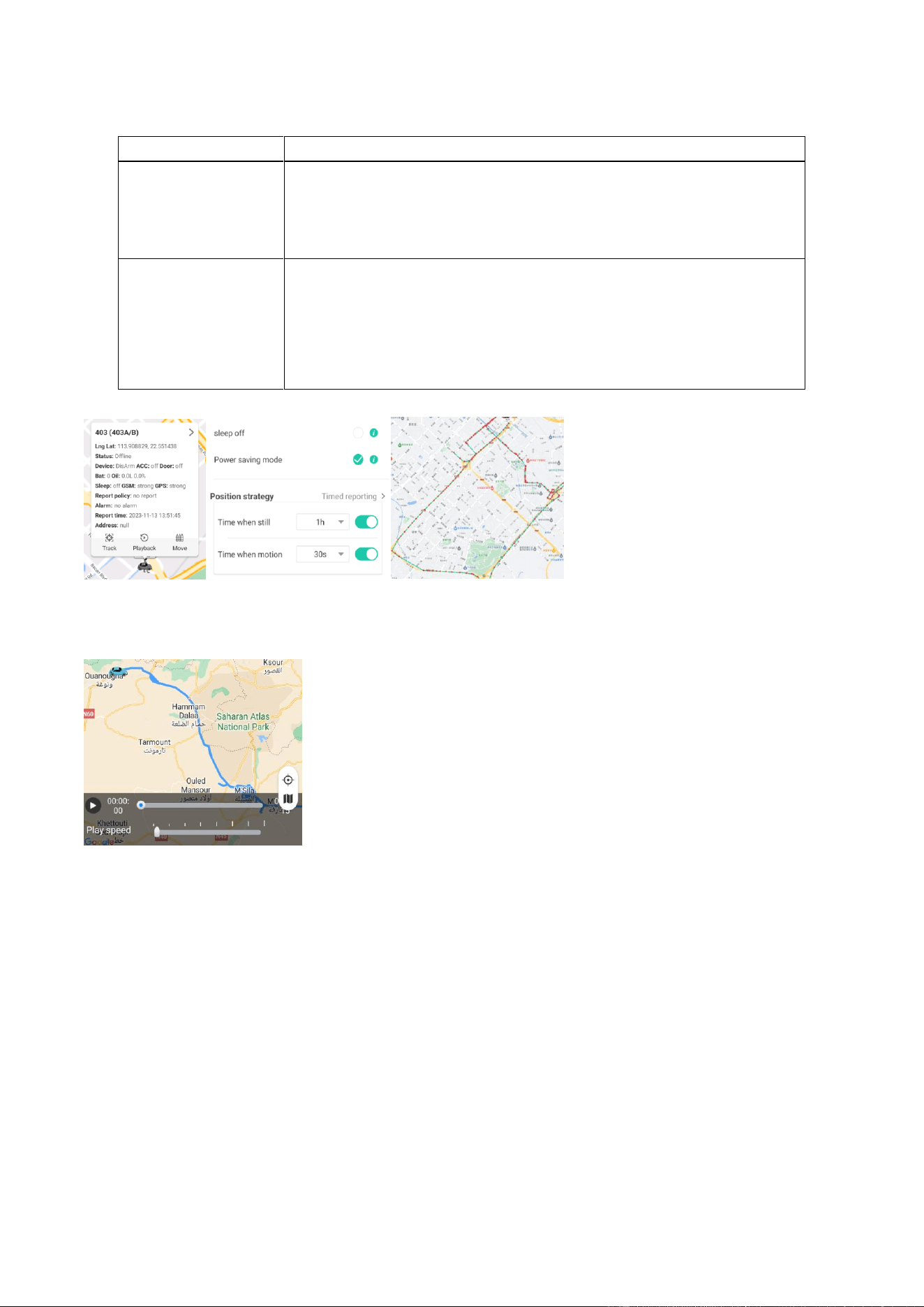
8.1 Positioning strategy
You can click the positioning button to select the working mode and positioning strategy. When
stationary, you can set a longer period of time to report location information (such as 1 hours), and
when it moving, you can set a short period of time to report location information frequently (such as
10second). When the tracker moves, the movement trajectory will be displayed.
Scan QR CODE
or enter the
IMEI number
Click to add
the device
点击添加
设备
5
8.1.1 Working mode
Working Mode
Description
Realtime online
The tracker is online in real time and reports its location according
to the set motion/stationary intervals.
The tracker is online in real time by default and reports its location
at intervals of 10 seconds of movement and 1 hour of stationary.
Smart mode
Offline when stationary (SMS, alarms can trigger online. After
ACC alarms are triggered, the device will be online in real time
until the alarm is canceled). Wake up and go online when in
motion. Whether it is stationary or moving, the device will report at
the set interval.
8.1.2 Positioning interval
8.2 History playback
You can click the playback button to view the historical track
8.3 Remote immobilizing( For B Model )
Cut off oil and powerdelayed mode, Cut off oil and power immediately mode, Resume oil and power
8.4 Arming/Disarming
Arming 、Silent Arming、Disarming
8.5 Alarm function in arming state
8.5.1 ACC Alarm
In arming state, if the ignition of the vehicle has been switched “ON”(Key is rotated to “ACC ON”
position or vehicle is started, ACC alarm is triggered. disarming to quite the alarm.
8.5.2 Shock alarm
In arming state,the tracker detect the movement and shock, will send “Sensor alarm + latitude /
longitude” to authorized numbers, and only send once in 3 minutes.

6
8.6 Other alarm functions
8.6.1 Low battery alarm
When the tracker's built-in battery voltage is close to 3.55V, tracker will send a low battery alarm
every 15 minutes, a total of 2 times.
8.6.2 External power disconnection alarm
It is activated by default. When it is activated and the external power supply is disconnected, the
device will send an external power disconnection alarm.
8.6.3 Geo-fence
After multiple geo fences are set up on the APP or platform, the geo fence alarm will be triggered
when the device enters or leaves the set fence.
8.6.4 Movement alarm
Draw a circle with the current position of the device as the center. When the device leaves the current
position and exceeds the range, movement alarm will be triggered.
8.6.5 Over speed alarm
After setting the overspeed value, an overspeed alarm will be triggered when the device speed
exceeds the set threshold.
8.7 Other Functions setting
You can control the device to stop alarming, check balance, restart the device, restore factory settings,
set shock sensitivity level, authorization number, times of alarm, time zone, external power on/off,
vibration sensitivity, and Smart angle updating setting, device password, and check device details,
operation records, and installation information.
* If you prefer to use the mobile APP and web version to manage your device, you do not need to
pay attention to the following content.
9 SMS Functions
The device turns on LTE& SMS by default,If you only use SMS to manage the device, it is
recommended to turn off LTE by referring to the 9.20 command to save power and data.
Attention:

7
When reading this user manual, you will notice that we have used "+" and "space"between some
words;"+" between two words means they should be written together as one word and "space"
between two words means you should leave one character space between two words.
9.1 Changing password
SMS command: password+old password+space+new password, Response: password ok
The default password is 123456, which must be changed when using it for the first time.
9.2 Authorization
Set up: admin+password+space+Mobile phone number, Response: admin ok
Cancel:noadmin+password+space+authorization number,Response: noadmin ok
9.3 Single Tracking
SMS Command:position+password, tracker reply with the location information and click the link to
view the device location on the map.
9.4 Positioning strategy
9.4.1 Working mode
Real time online:online+password, LTE always online, the location can be queried at any time, and
whether the device is stationary or moving, the location will be reported at set intervals.
Smart mode: sleep+password The device sleeps when it is stationary (text messages, and alarms can
trigger it to go online. After the ACC alarm is triggered, the device will be online in real time until
the alarm is lifted). It wakes up when it is moving. Whether it is stationary or moving, the device will
report its position according to the set multiple positioning intervals.
9.4.2 Positioning interval
SMS Command:fix+020s+002h+005n+password,tracker will report at 20 seconds interval when the
device is moving, and 2 hour when it is stop , and only report 5 times, 005n means limited to 5 times
of positioning, * **n means unlimited times.
Cancel:nofix+password,response:nofix ok
9.5 Remote immobilizing ( For B Model )
Delayed immobilizing
Command: stop+password. When the current speed of the vehicle is greater than 20km/h, the
command will not be executed immediately. It will be executed only after the vehicle speed is less
than 20Km/h.
Immobilizing immediately
Command: quickstop+password, no matter whether the vehicle speed is greater than 20km/h, the
command will be executed immediately.
Remote fuel resume
Command: resume+password, restore fuel and power supply.
9.6 Arm/Disarm
Arm:arm+password,Response:Tracker isactivated,the vehicle terminal enters the armed state. If
the vehicle is in the ignition state(ACC is ON),itcannotenterthe armedstate,and then reply “set up

8
fail! pls turn off ACC”
Silent arming:silent+ password,Response:silent ok!,the terminal enters the silent arming state.
After the alarm is triggered an alarm text message will be sent to the authorized number
Disarming:disarm+ password,Response:Tracker is deactivated,The device will stop all alarms
9.7 Alarm function in arming state
9.7.1 ACC Alarm
Tracker will send “ACC alarm + latitude / longitude” to authorized numbers if the ignition of the
vehicle has been switched “ON” (Key is rotated to “ACC ON” position when tracker works in
arming state,disarming to quit the alarm
9.7.2 Shock alarm
In Arming state, tracker will send SMS notification " sensor alarm+longtitude& latitude" to
authorized phone numbers when device moves or vibrates, shock alarm will send once within 3
minutes.
Vibration sensitivity defaults to level 2, which can be set to 1, 2, or 3.
SMS command: sensitivity+password+space+2
9.8 Other alarms
9.8.1 Low battery alarm
This feature is activated by default, when the battery voltage is close to 3.55V, tracker will send alert
messageto authorized numbers for 2 times at 15 minutes interval.
Deactivate:lowbattery+password+space+off,Tracker response: lowbattery off ok
Activate: lowbattery+password+space+on,Tracker response:lowbattery on ok
9.8.2 External power disconnection alarm
It is activated by default. When turned on and the external power supply is disconnected, the device
will trigger an external power disconnection alarm.
Turn on:extpower+password+space+on,Response:extpower on ok
Turn off:extpower+password +space+off,Response:extpower off oK
9.8.3 Movement alarm
SMS command:move+password+space+radius, response: move ok
Cancel: nomove+password, response: nomove ok
Draw a circle with the current location of the tracker as the center. Once the tracker exceeds the
radius, a movement alarm will be triggered
9.8.4 Over speed alarm
SMS command:speed+password+space+speed value, reply: speed ok
Cancel: nospeed+password, response: nospeed ok
When the speed exceeds the set speed value, overspeed alarm will be triggered
9.9 Configure times of alarm
External powerdisconnection、Illegal ignition alarms can be set
Command: xtime+password+times value,Response: xtime ok
Send once by default.
9
9.10 ACC ON/OFF Alert
This function is turned off by default. After turn on this function, If tracker detect vehicle“ignition on”
signal , tracker will send “ACC on+latitude& longitude” to authorize number to tell you the vehicle
has been started;When detect “ignition off” signal, it will send “ACC off+ latitude & longitude”
to tell you the vehicle has been stopped.
Activate:ACC+password,Tracker Response:ACC ok
Deactivate : noacc+password,Tracker response:noacc ok.
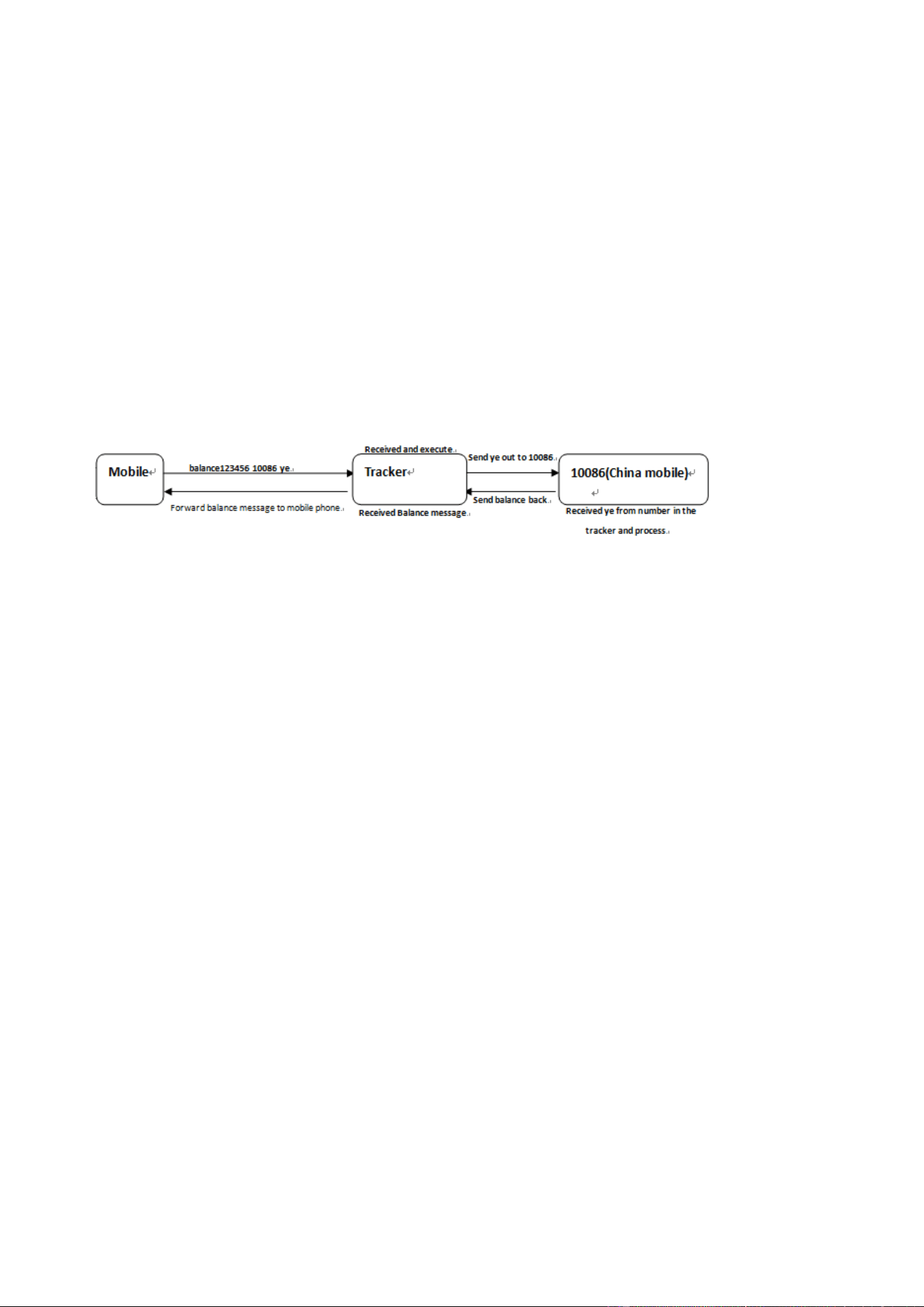
9.11 SIM Card Balance Enquiry
Way 1
Command: balance+password+space+operator number+space+code
The device will forward the received text message from the operator to the sender of the command
Way 2
Command: forward+password+space+operator number
When the network operator sends a text message to remind you to top up your sim card, the tracker
will forward the notification message to the authorized number
9.12 Check status
Command: check+password, reply: battery level, GPS signal, LTE signal, LTE status, APN, UP, IP,
port, etc .
9.13 Check IMEI
Command: imei+password, reply: device IMEI
9.14 Time zone setting
The device automatically synchronizes the local time zone. If the time is wrong, you need to set the
time zone.
Command: time+space+zone password+space+time zone, reply: time ok
9.15 Hardware Reset
Command: reset+password, response: reset ok
9.16 APN Setting
Command: apn+password+space+local apn, response: apn ok
Settings are only required when using the APP and web version
9.17 Configure User Name and Password of LTE Network
Command: up+password+space+user+space+Password,response: up ok
10
Settings are only required when using the APP and web version
9.18 Set Server IP/DNSand Port
Command: adminip+password+space+IP/DNS+space+port, reply: adminip ok
No setup required to use our BAANOOL IOT server, the default is BAANOOL domain name and
port
9.19 TCP/UDP Switch
Command: tcp+password, response: tcp ok
Command: udp+password, response: udp ok
No setup required to use our BAANOOL IOT server
9.20 SMS mode
Command: SMS+password
Device Reply: sms ok
The device default mode is LTE mode, if user prefer to sms managing gps device, please use this
command to close LTE mode
9.21 LTE mode
Command: LTE+password
Device response: LTE ok
9.22 Initialization
Command: begin+password
Device response: begin ok
All commands setting will return to default factory settings
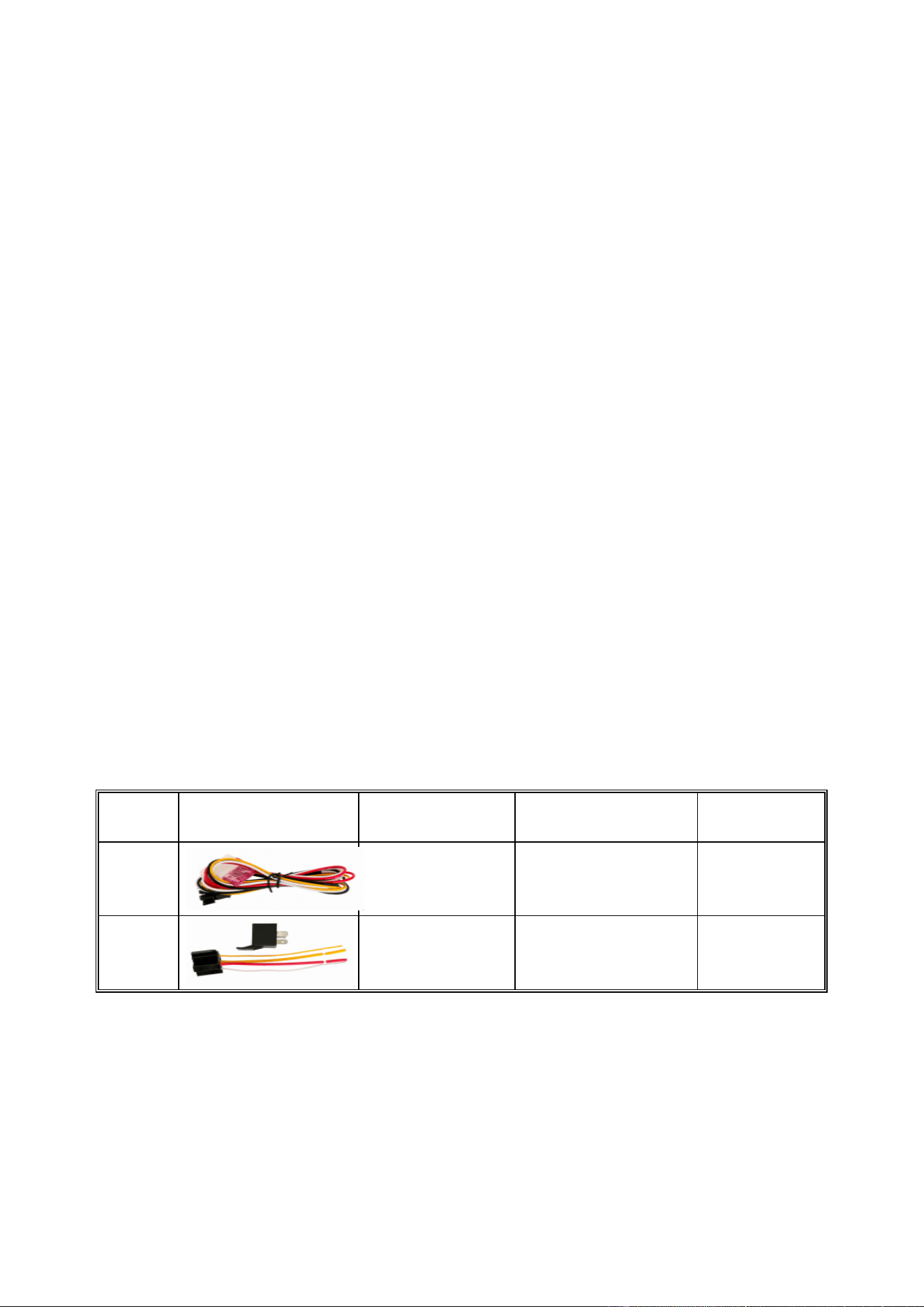
10 Accessories
No.
Picture
Name
Specifications
Applicable
model
1
Harness
4PIN
Standard
2
Relay
12V/40A or 24V/40A
For B Model
FCC Caution:
Any Changes or modifications not expressly approved by the party responsible for compliance could void the
user's authority to operate the equipment.
This device complies with part 15 of the FCC Rules. Operation is subject to the following two conditions: (1)

11
This device may not cause harmful interference, and (2) this device must accept any interference received,
including interference that may cause undesired operation.
IMPORTANT NOTE:
Note: This equipment has been tested and found to comply with the limits for a Class B digital device, pursuant
to part 15 of the FCC Rules. These limits are designed to provide reasonable protection against harmful
interference in a residential installation. This equipment generates, uses and can radiate radio frequency
energy and, if not installed and used in accordance with the instructions, may cause harmful interference to
radio communications. However, there is no guarantee that interference will not occur in a particular installation.
If this equipment does cause harmful interference to radio or television reception, which can be determined by
turning the equipment off and on, the user is encouraged to try to correct the interference by one or more of the
following measures:
—Reorient or relocate the receiving antenna.
—Increase the separation between the equipment and receiver.
—Connect the equipment into an outlet on a circuit different from that to which the receiver is connected.
—Consult the dealer or an experienced radio/TV technician for help.
FCC Radiation Exposure Statement:
This equipment complies with FCC radiation exposure limits set forth for an uncontrolled
environment.This equipment should be installed and operated with minimum distance 20cm between
the radiator& your body.