
1
[User Manual]
[Product Presentation]
Thanks for your purchasing our goods,this
munal will introduce screen’s basic functions
and use tips, to help you learn and use it quickly,
please take some time to read this manul to take
full advantege of your product’s benefits and
features.
[日期]
Dongguan Yicheng Electronic Technology Co., Ltd.

2
Catalogue
1.Power on and off ......................................................... 1
1.1 Touch Screen Keys introduction ................ 1
2.Main Interface ............................................................. 1
3.LCD Instrument ............................................................. 2
3.1 Speed ................................................................ 2
3.2 Battery Status ................................................ 2
4. Basic Functions ............................................................... 2
5 Setting ........................................................................... 3
5.1 Time Setting .................................................... 3
5.2 Volume Adjustment ........................................ 4
5.3 EQ ................................................................................. 4
5.4 General Setting .............................................. 5
5.4.1 Language Setting ................................ 5
5.4.3 Smart Phone .......................................... 7
5.4.4 Brintness Adjustment ........................ 7
5.4.5 System Information ............................ 7
6.Phone ............................................................................... 8
7.Radio ..............................................................................10
8.Front View Camera ......................................................11
10.Apple Carplay ............................................................12
11.Android Auto .............................................................. 12
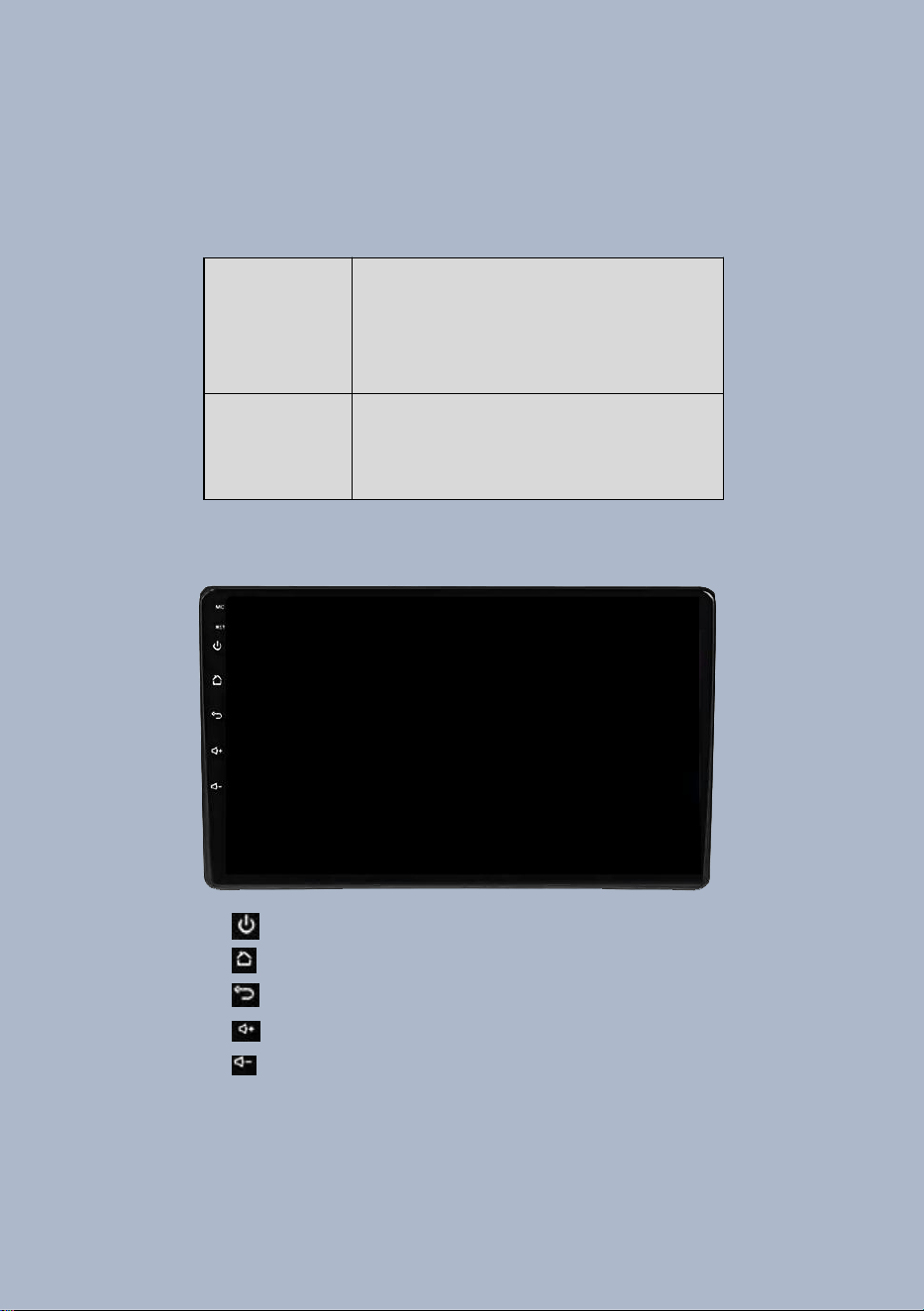
1
1.Power on & off
1.1 Touch Screen Keys
① Mute key
② Home key
③ Back key
④ Volume + key
⑤ Volume - key
2.Main Interface
Power on
it will auto on and show the logo
when turn the ignition key on.
Power off
it will auto off when you unplug
key
2
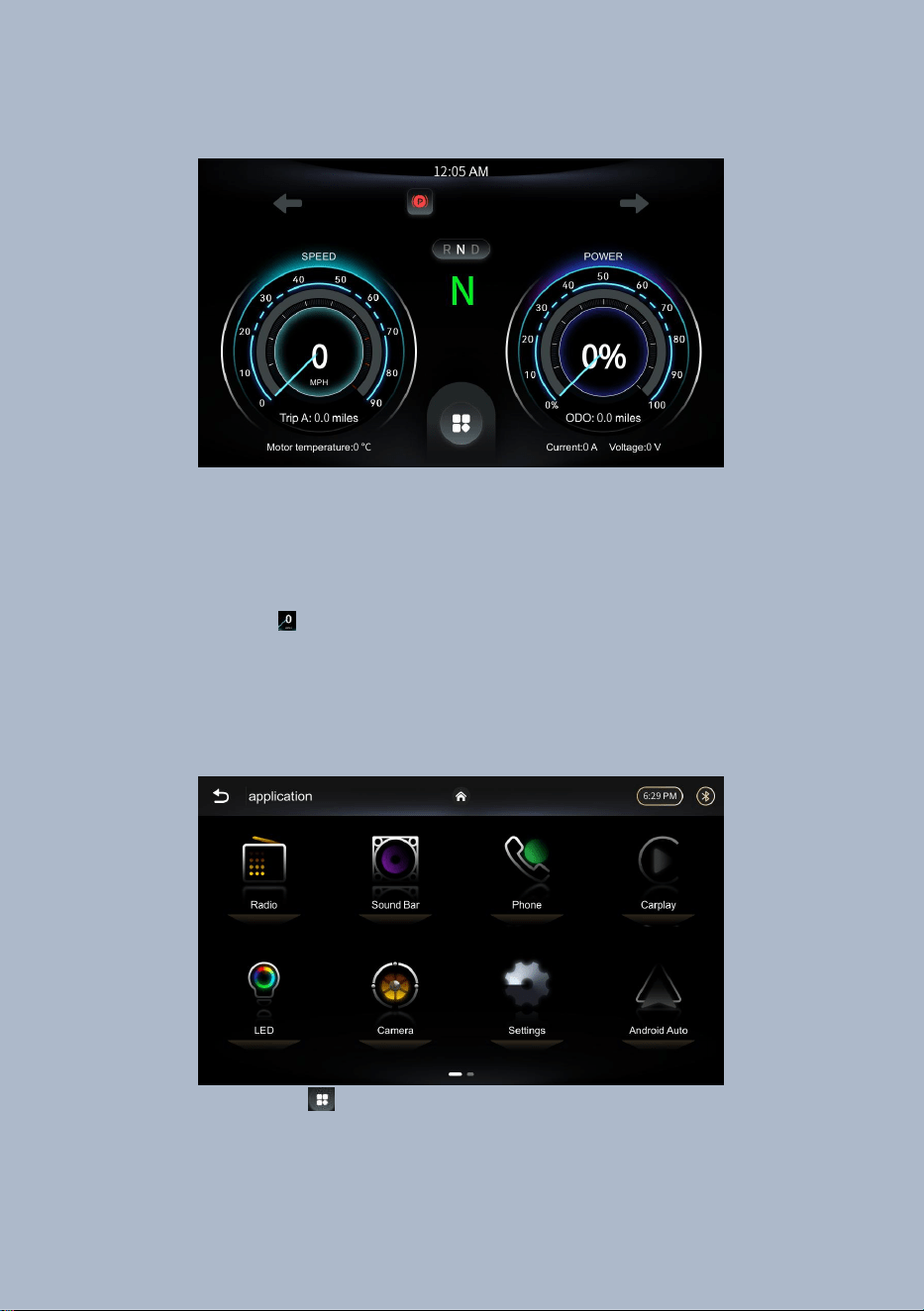
3.Dashboard Screen Introduction
3.1 Speed:
Display the KM/H & MP/H ,long
stress icon can switch to KM/H or MP/H.
3.2 Battery:
Battery status display
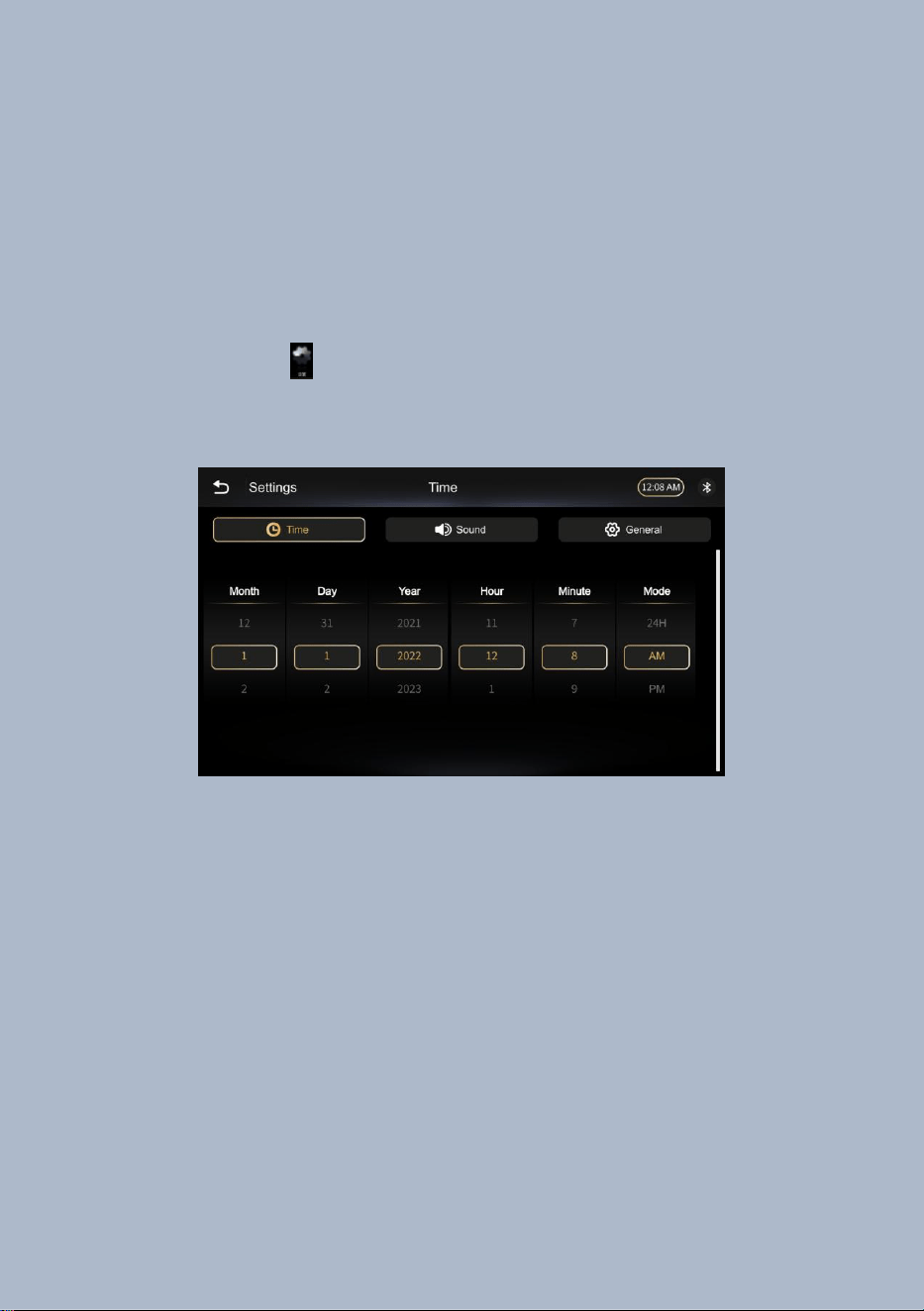
4.Basic Functions
Touch the icon will enter into main interface.
3
5.Setting
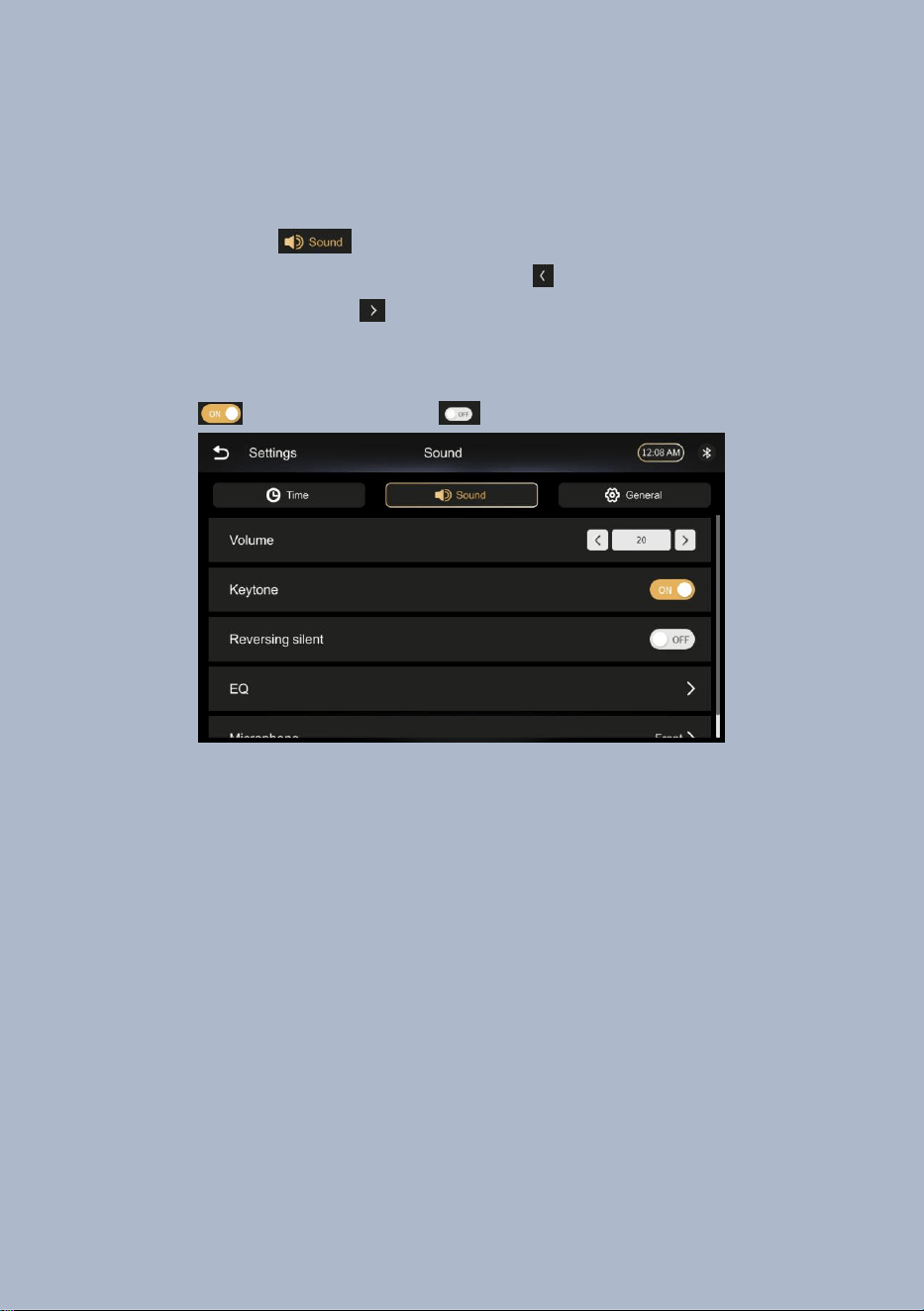
5.1 Time Setting
Clicking enter into“Time Setting” page.
Select “Time” to set time.
4
5.2 Volume Adjustment
Select switch to “Volume Setting” page
①Voulume adjustment,select to reduce
volume,select to add volume.
②Keytone setting
③Revering silent
Power on Power off
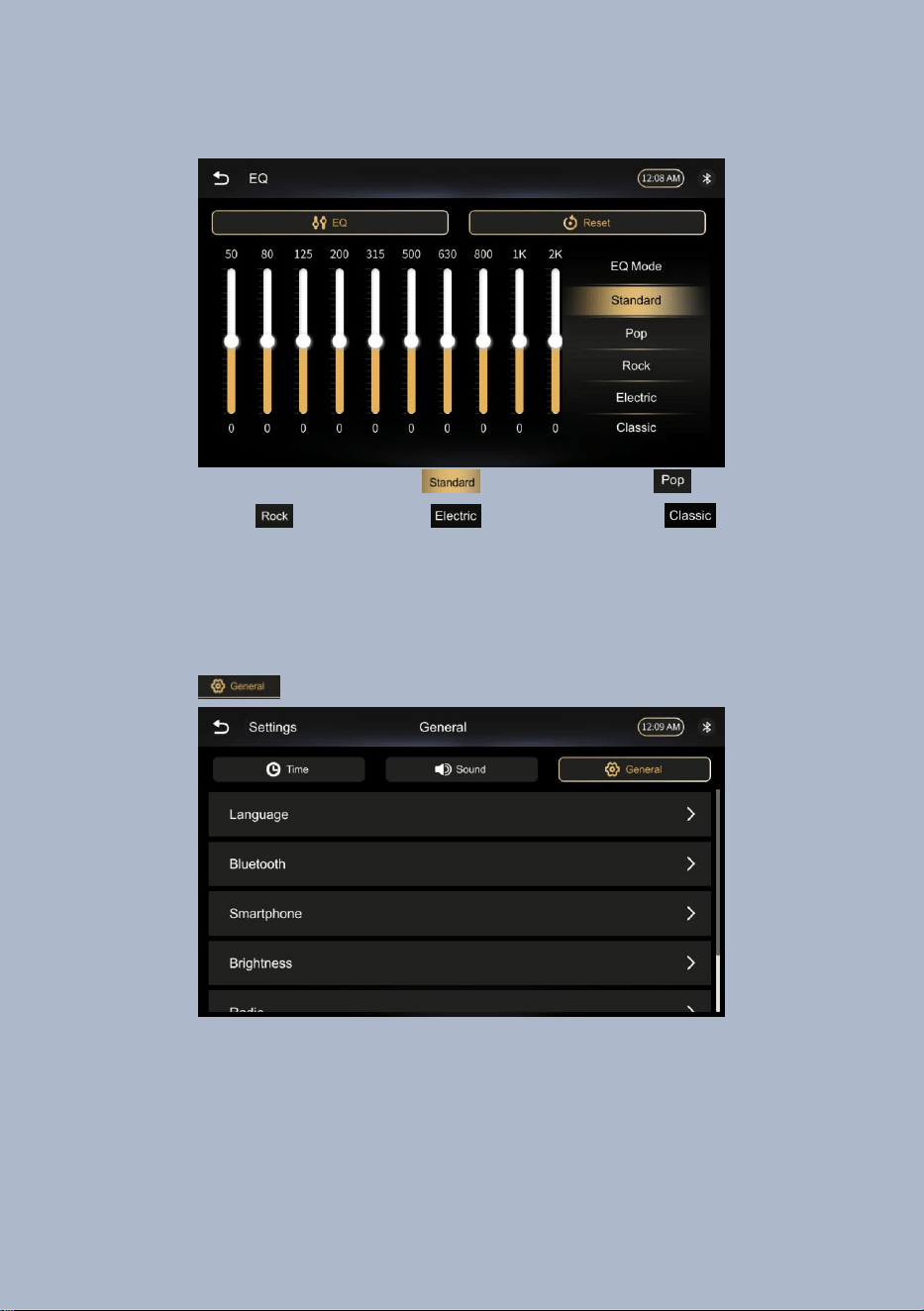
5.3 EQ
5
There are 5 EQ modes,
Standard Mode,
Pop
Mode, Rock Mode, Electric Mode,
Classic Mode
5.4 General
Press setting enter to General
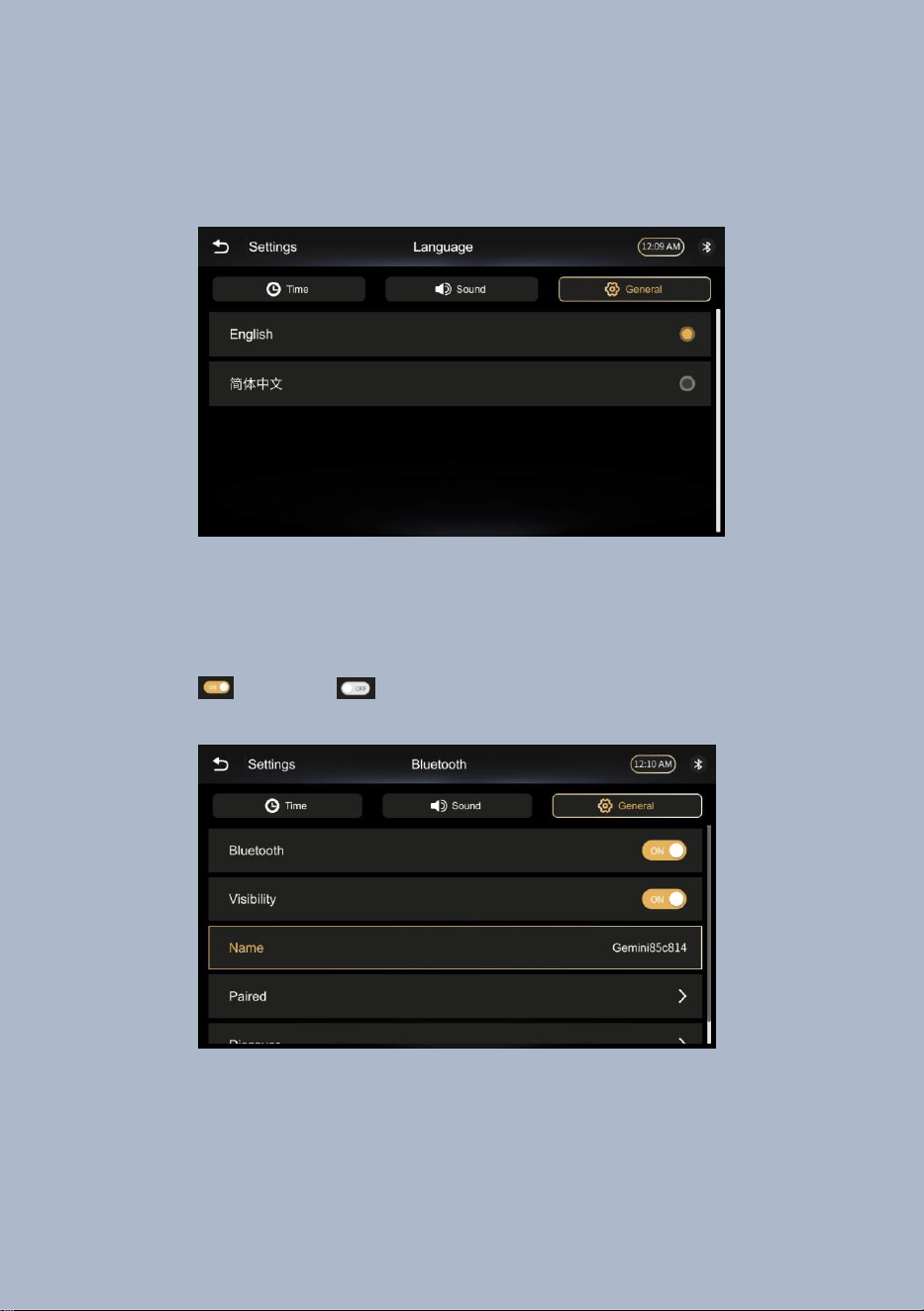
5.4.1 Language
6
Press Setting-- General--Language--Click
English or Chinese
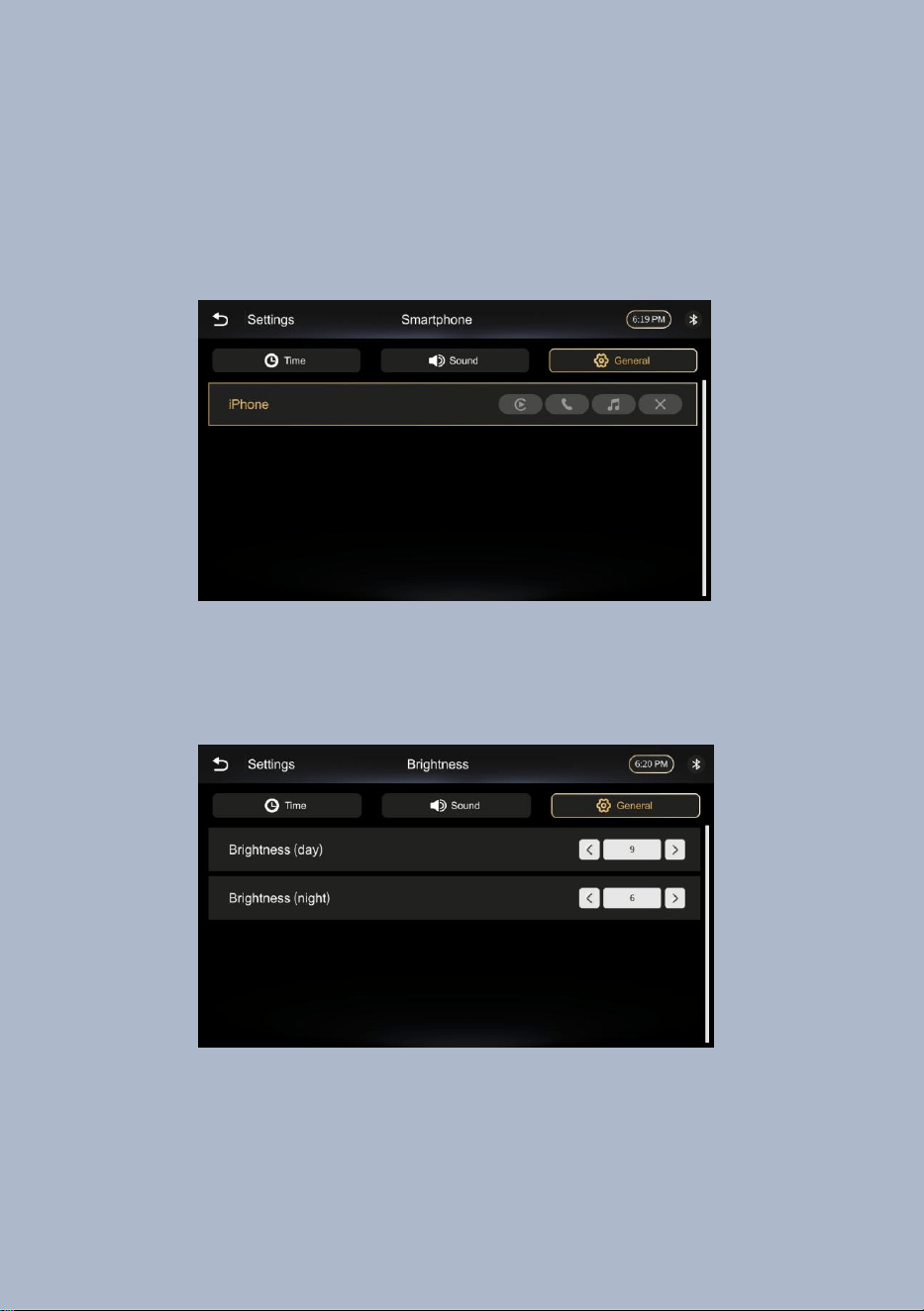
5.4.2 Bluetooth
Press Setting-- General--Bluetooth--Click to
the enter --to setting BT
Open BT, Close BT
7
5.4.3 Smartphone
Press Setting--General--Smartphone--Connect
with phone
5.4.4 Brightness Adjuestment
Press Setting-- General--Brightness--
Brightness Adjuestment
8
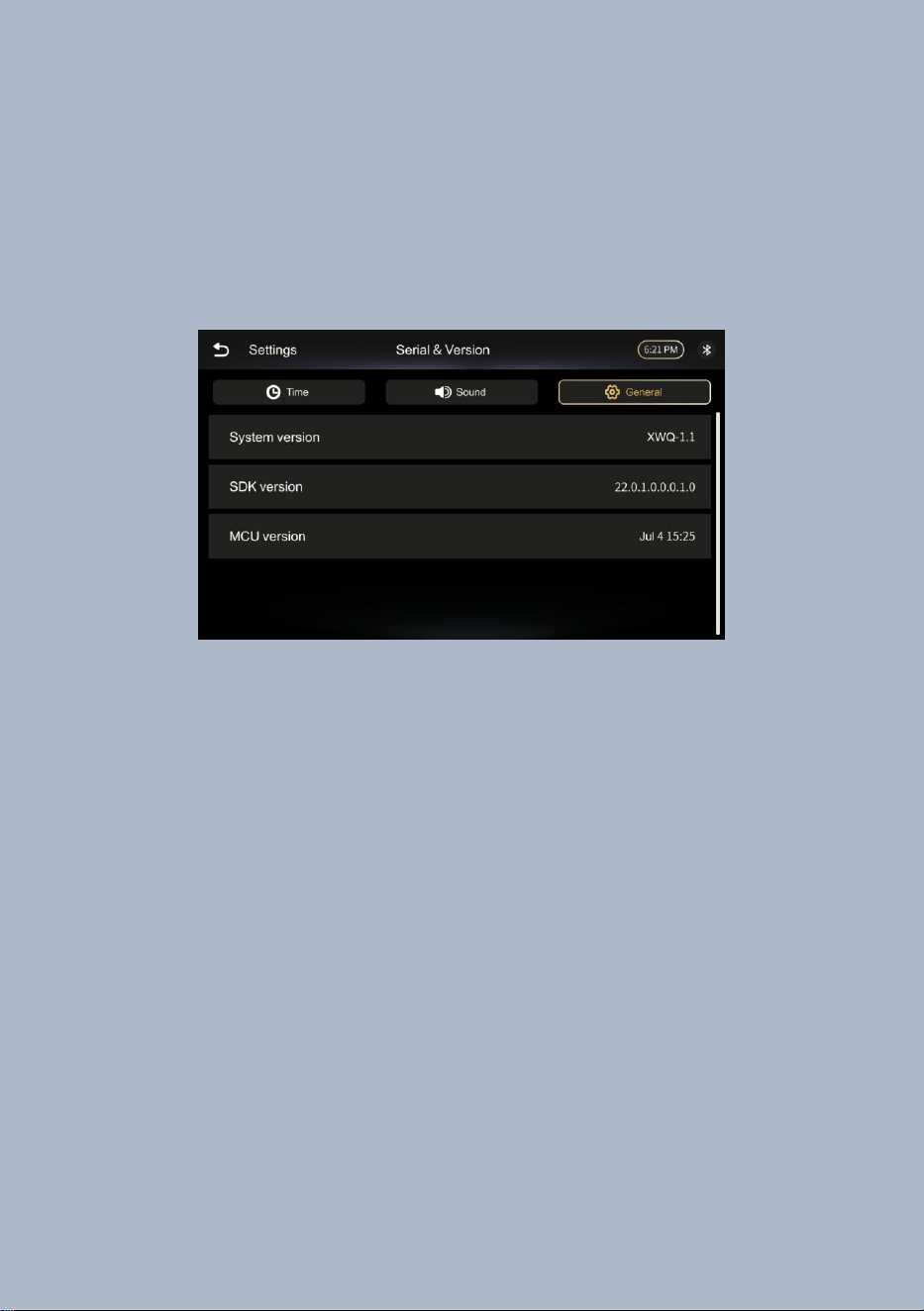
5.4.5 System Information
Press Setting-- General--System--System
Version--SDK Version--MCU
Version
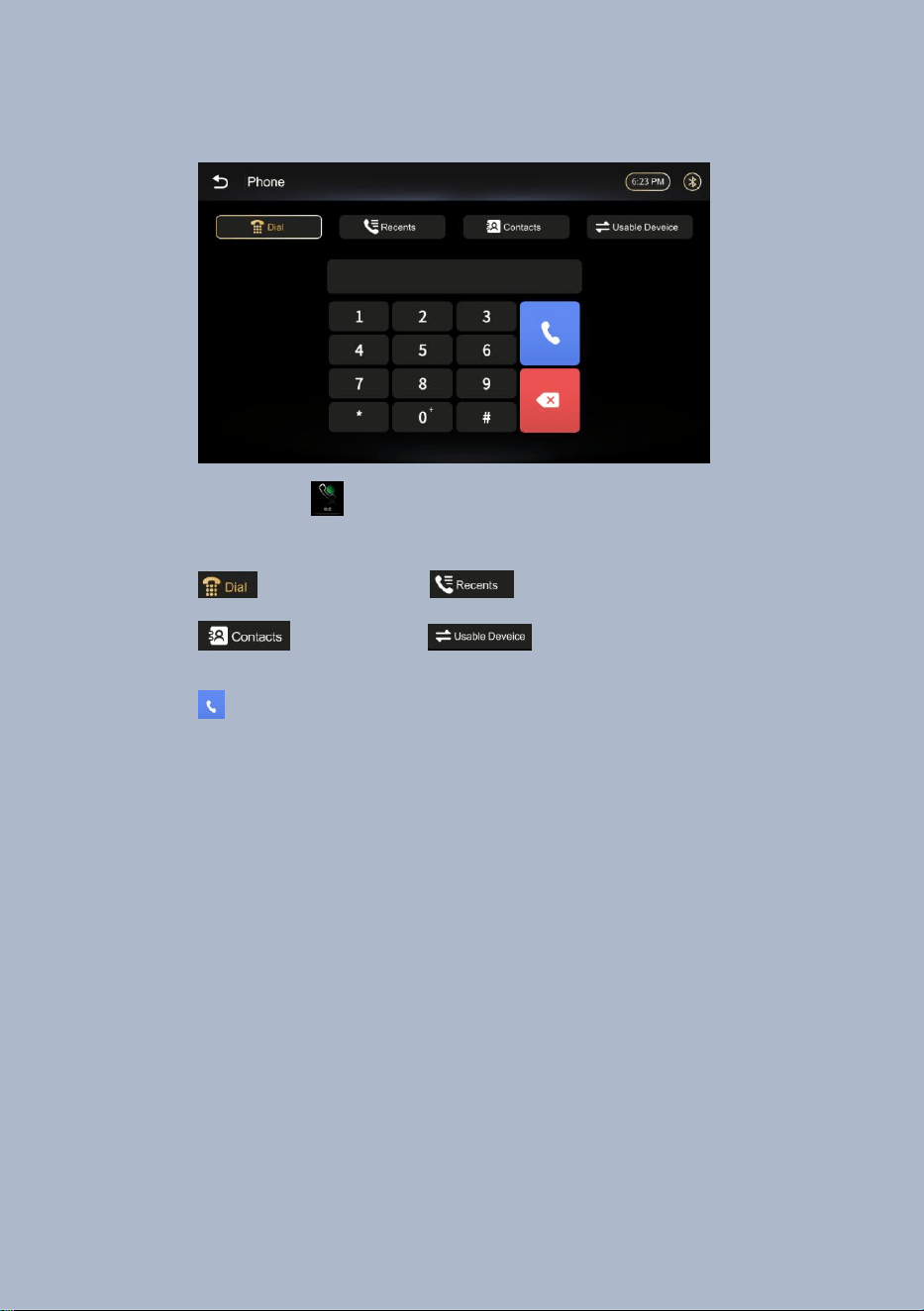
6. Phone
Note: For your safety, please do not use a mobile
phone while driving, even if it is fully
hands-free.
9
Press the icon on the homepage to enter the
Phone menu.
Dial call records
Contacts Usable Deveice
Make a call
10
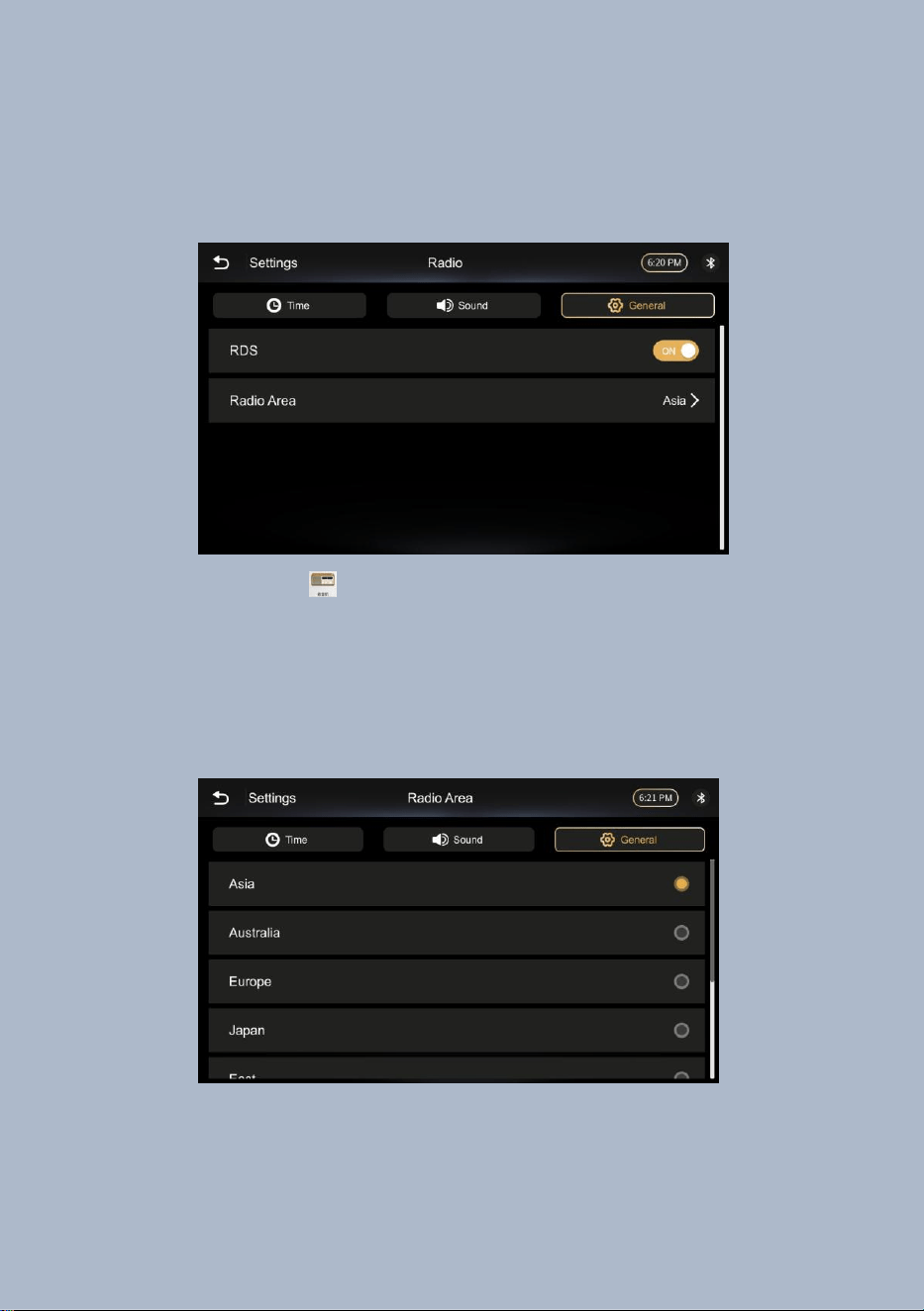
7.Radio
Touch the icon to listen to the radio,If your
radio is set to a different region/country,you
can change the region and perform a scan to see
what stations are available. The setting can be
found in: Setting--Radio--Radio Area.
11
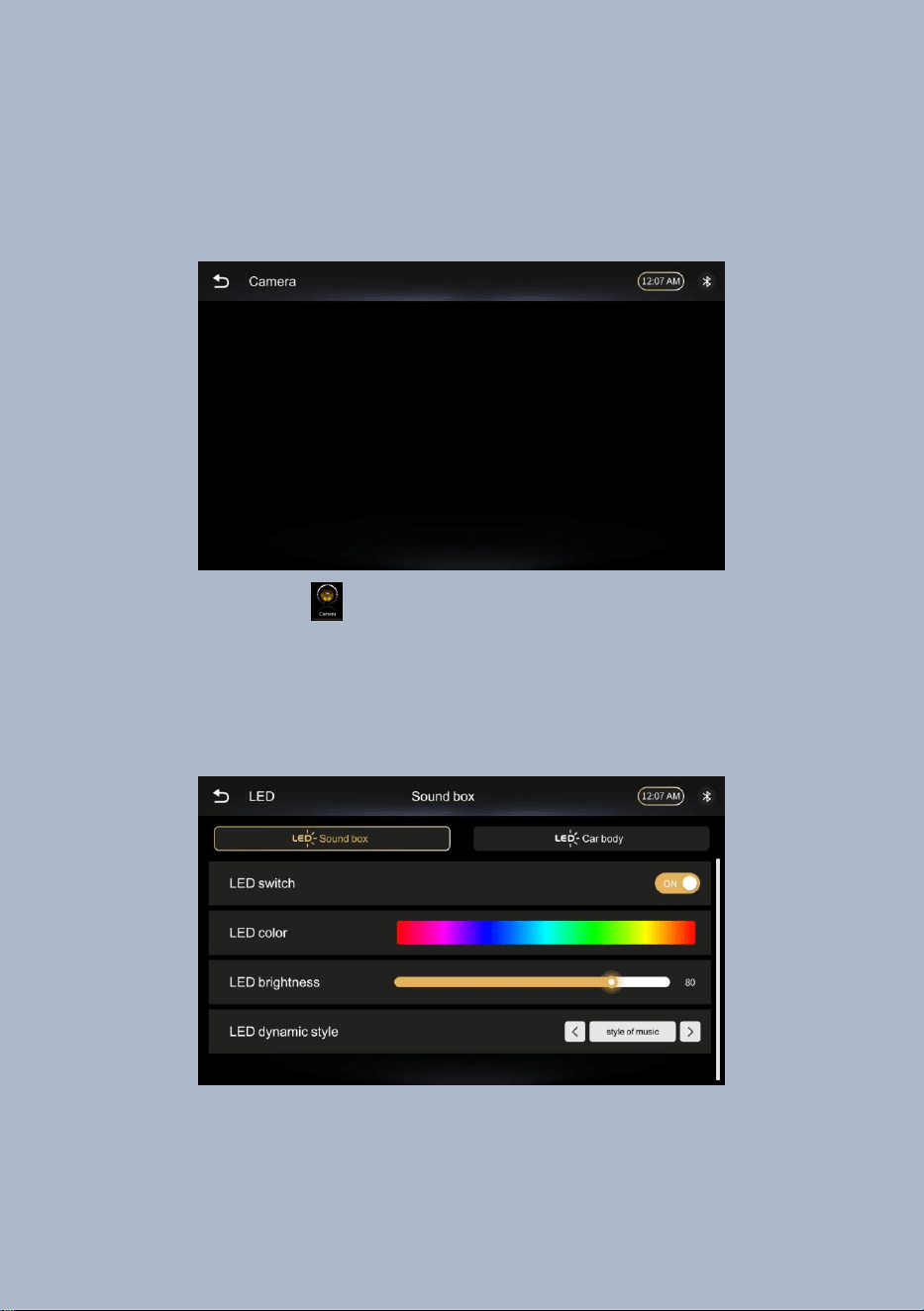
8.Front View Camera
Press the icon on the homepage to enter the
Camera menu.It need to connect with camera.
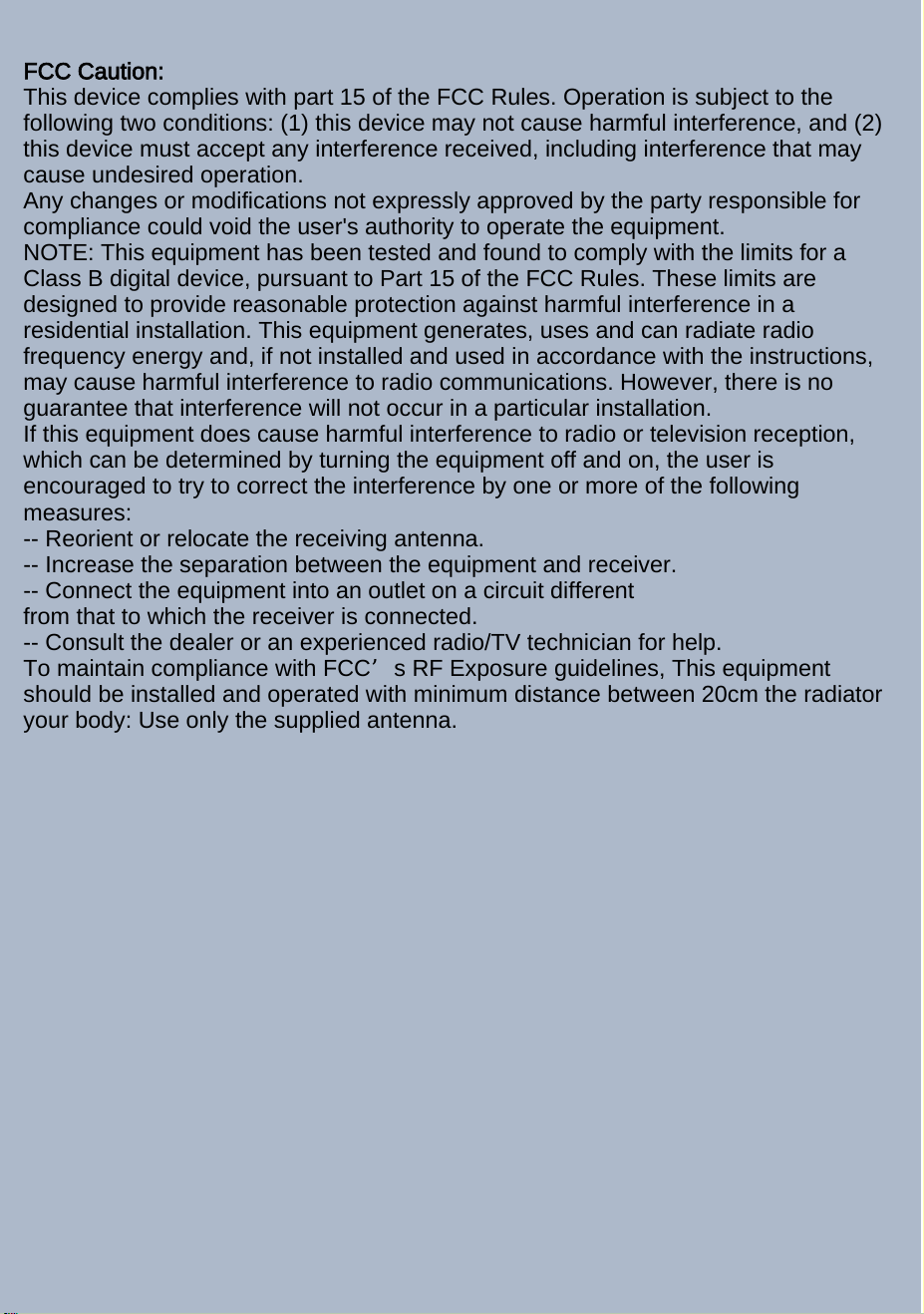
9.LED

Press th
12
e icon on the homepage to enter the
LED menu.LED-Sound box and LED-Car body.
Open LED Switch,adjust LED color, LED brightness,
and LED dynamic style.
10.Apple Carplay
Press the icon on the homepage to enter the
Carplay menu.Please connect with iPhone by
Bluetooth before use the function.
Note: It is work with iPhone.
11.Android Auto
Press the icon on the homepae to enter the
Android Auto menu. Please connect with android
phone by Bluetooth before use the function.
Note: It is work with android phone.
FCC Caution:
This device complies with part 15 of the FCC Rules. Operation is subject to the
following two conditions: (1) this device may not cause harmful interference, and (2)
this device must accept any interference received, including interference that may
cause undesired operation.
Any changes or modifications not expressly approved by the party responsible for
compliance could void the user's authority to operate the equipment.
NOTE: This equipment has been tested and found to comply with the limits for a
Class B digital device, pursuant to Part 15 of the FCC Rules. These limits are
designed to provide reasonable protection against harmful interference in a
residential installation. This equipment generates, uses and can radiate radio
frequency energy and, if not installed and used in accordance with the instructions,
may cause harmful interference to radio communications. However, there is no
guarantee that interference will not occur in a particular installation.
If this equipment does cause harmful interference to radio or television reception,
which can be determined by turning the equipment off and on, the user is
encouraged to try to correct the interference by one or more of the following
measures:
-- Reorient or relocate the receiving antenna.
-- Increase the separation between the equipment and receiver.
-- Connect the equipment into an outlet on a circuit different
from that to which the receiver is connected.
-- Consult the dealer or an experienced radio/TV technician for help.
To maintain compliance with FCC’s RF Exposure guidelines, This equipment
should be installed and operated with minimum distance between 20cm the radiator
your body: Use only the supplied antenna.
13
American agent information
Company Name: GLOCERTS TECHNOLOGY INC
FRN: 0036339737
Contact Name: Huiying Fan
Address: 19784 SUNKISSED RIDGE DR, RIVERSIDE, CA 92507
Telephone No: (626) 588-8039
Email: [email protected]

感谢您的阅读!