JD-126
1.0
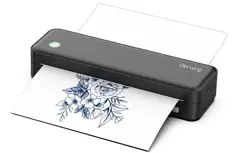
Portable Wireless A4 Printer
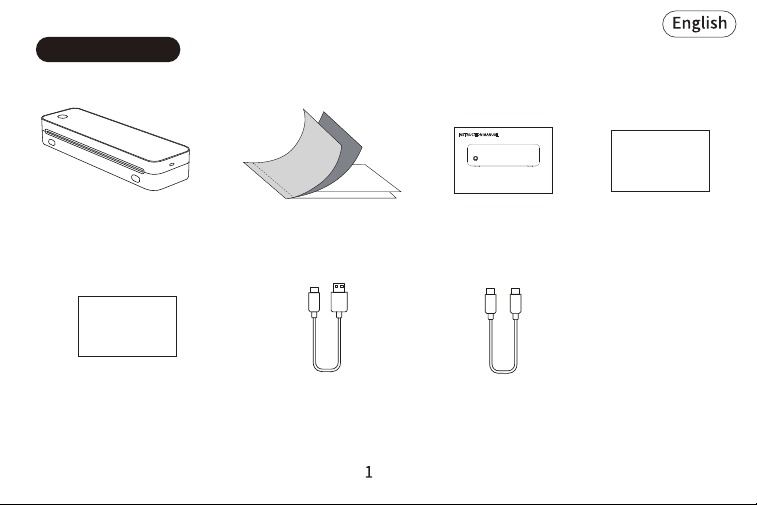
USB-A to USB-C
Cable*1
User Manual*1Transfer Paper *40Printer*1
Portable Wireless A4 Printer
APP Guide Card*1
1. Packing List
USB-C to USB-C
Cable*1
APP Guide Card
for WIN
for MAC
Transfer Process Guide*1
Transfer Process Guide
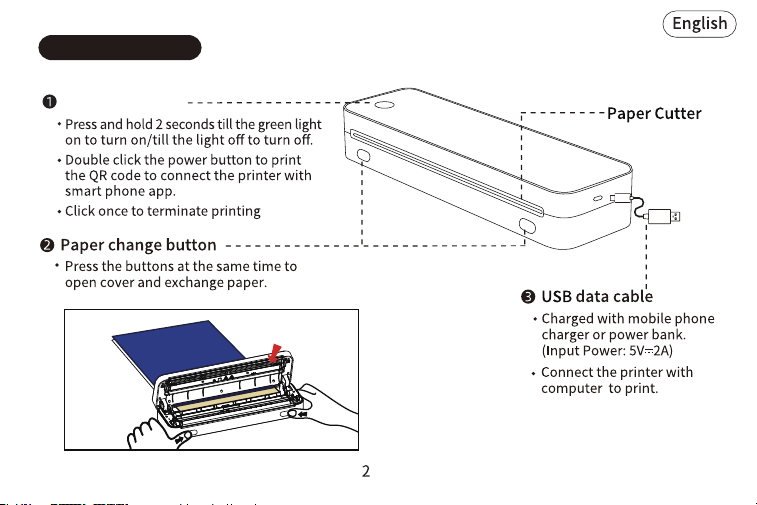
2. Product Sketch
Print-head
Power button
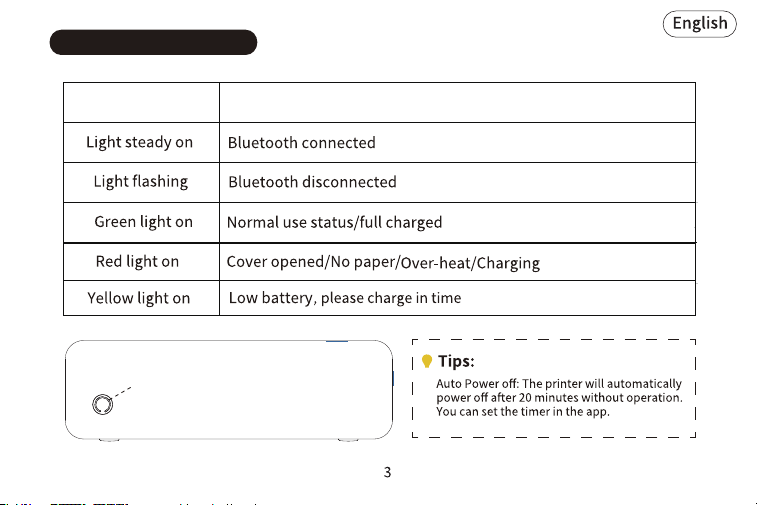
3. LED Indicator Status
Indicator Description
Indicator
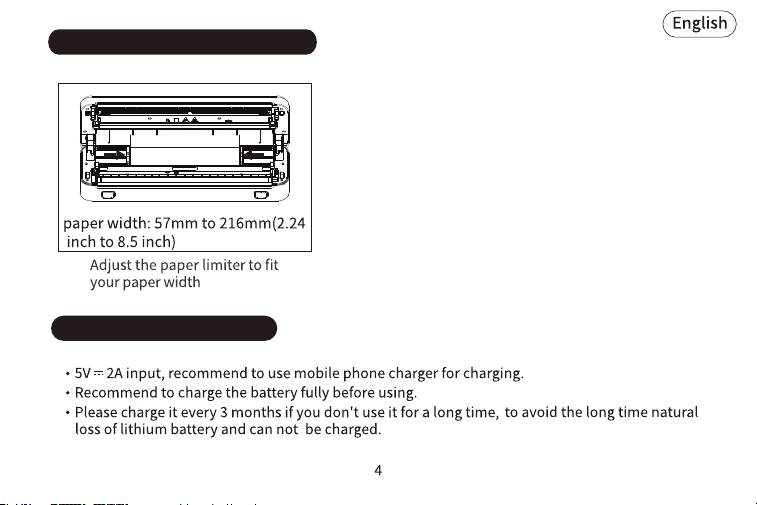
4. Paper Limiter Usage Method
5. Charging Instructions
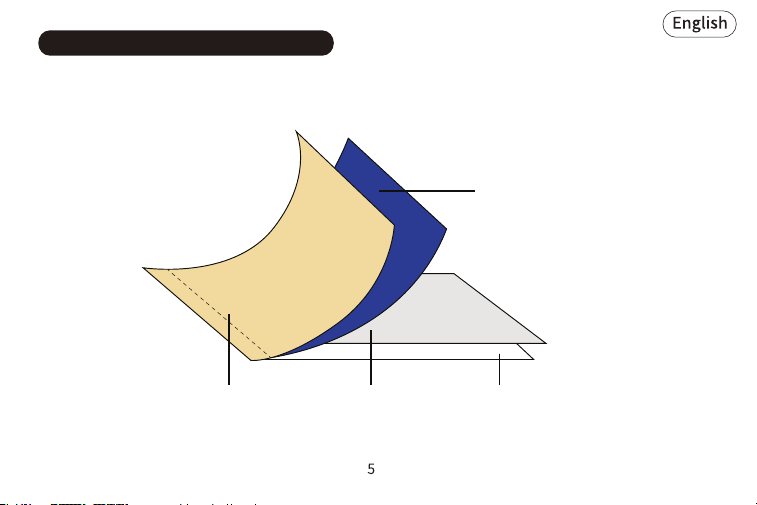
6. Transfer Paper Instruction Guide
Bottom Paper
(Yellow)
Transfer Paper
(Blue)
Protect Paper
(White)
Tracing paper
(White)
Transfer Paper Introduction:
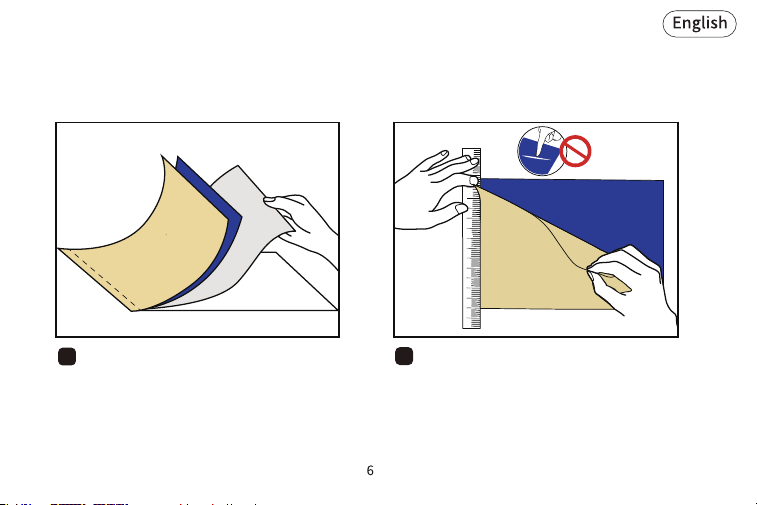
To ensure printing with high quality, please refer to the following steps:
1
2
Remove the protect paper.
Detach the bottom paper horizontally.
Ensure no damage to the blue transfer
paper.
No Scratch!
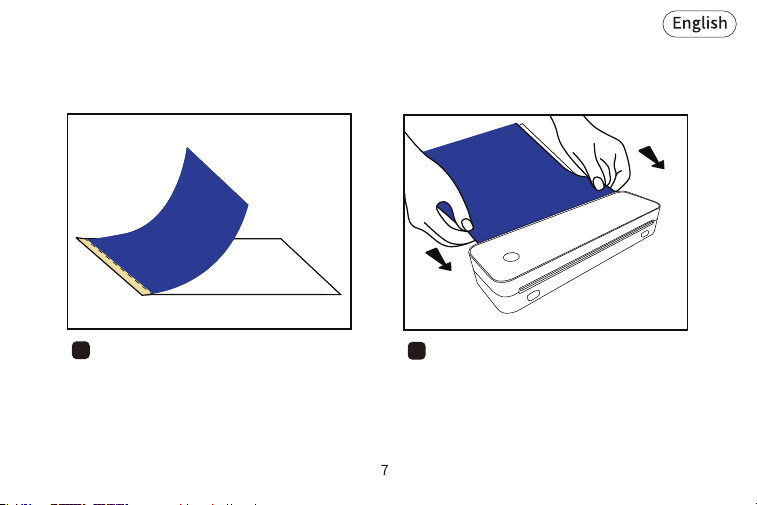
3
The paper is ready with remaining blue
transfer paper and tracing paper.
4
Insert the paper from the back into the
printer. The blue transfer paper must be
facing up.
Blue paper
face up
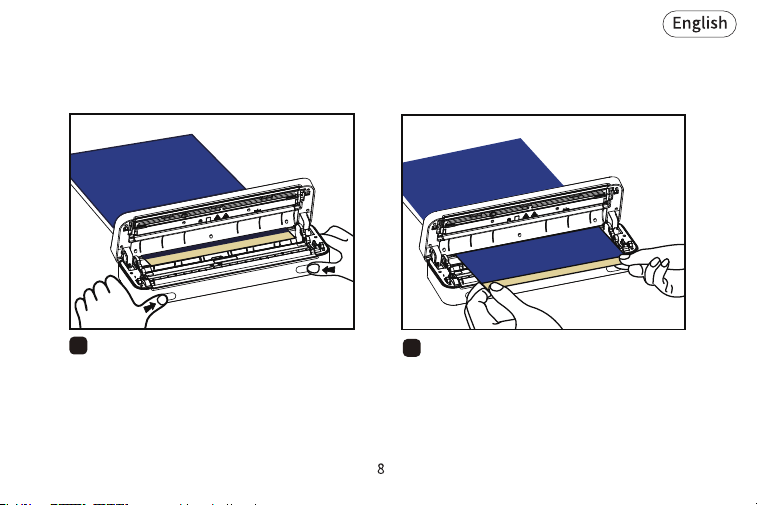
5
6
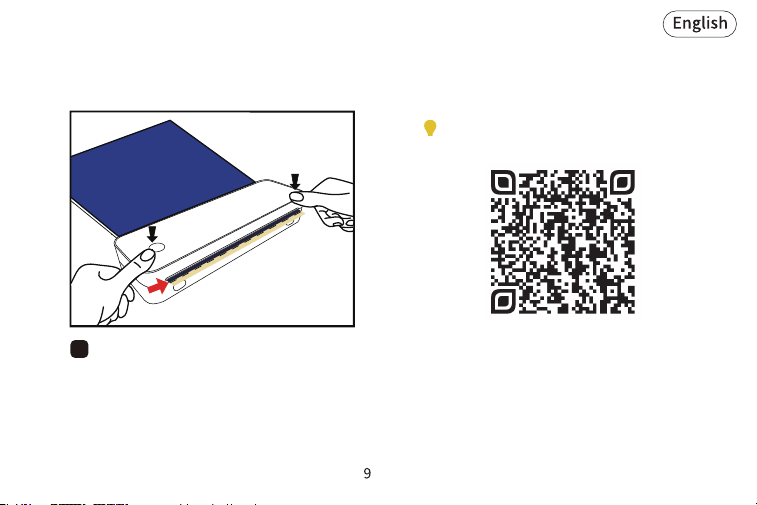
Press paper change buttons at once and
open the cover.
Pull the paper forward till the end of
yellow bonding part just out of the paper
cutter.
7
Close the cover and make sure the edge
of blue transfer paper in line with the
paper cutter.
Scan the QR code below for a tutorial on
how to print a tattoo with your printer.
10
7. Mobile APP Printing
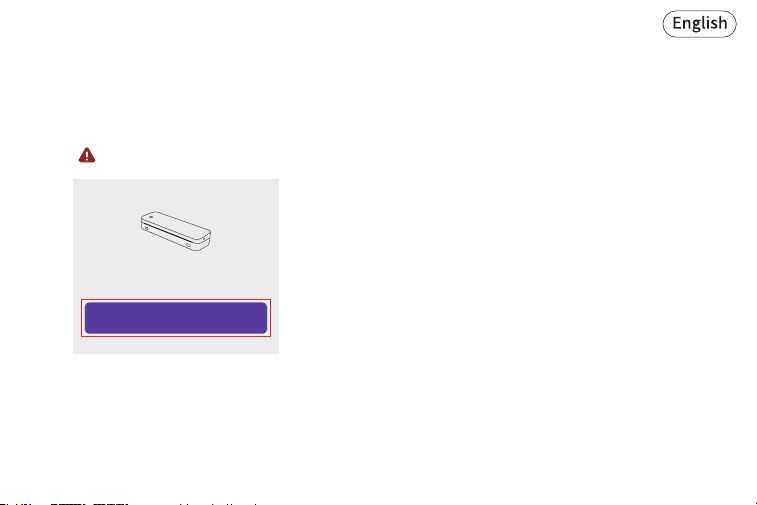
Search for [Printat] on Google Play or AppStore. Or scan below QR code to download APP.
APP download
1. Turn on device and smart phone Bluetooth, and then open [Printat] APP.
(Please pair in APP, NOT in setting.)
Bluetooth connection
11
2. Press and hold the power button for 2 seconds to turn on the printer and green light on.
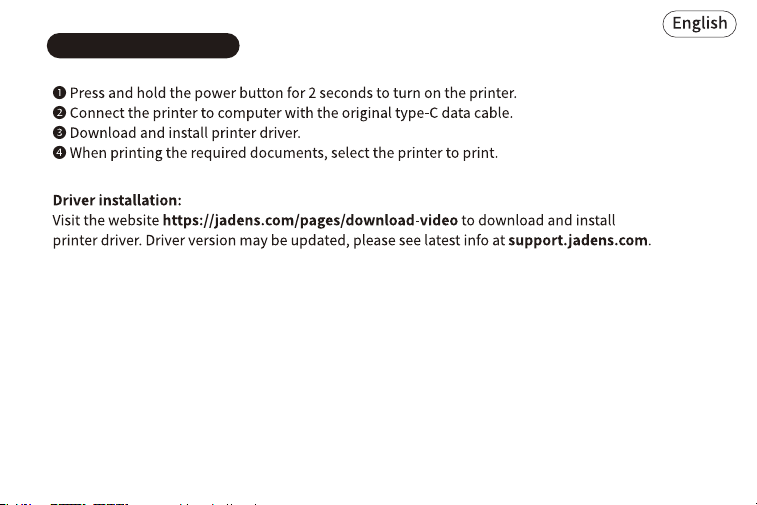
3. Connect your device:
Open the App, and click 'Add a device' to search the device and choose the correct
device.
( Note: Don't connect printer in the mobile phone Bluetooth settings.)
4. Select and edit the content to be printed in the App, confirm and print.
+ Add a device
Printat
No device temporarily
Let's go get connected
12
8. Computer Printing
13
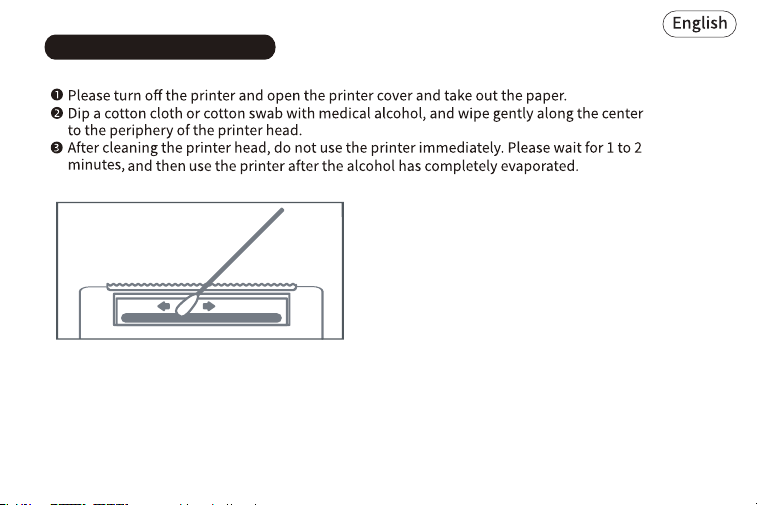
9. Clean the Printer Head

14
1-YEAR LIMITED WARRANTY - REGISTER AND
ACTIVATE AT PHONE APPLICATION 'Printat'.
This 1-year limited warranty applies to repair
or replacement if product,at JADENS's option,
is found to be defective in material or
workmanship.
1. This warranty only applies to hardware
components of the product that are not subject
to accident, misuse, neglect, fire or damage
from other external causes, alteration, repair
2. This warranty does not cover damage resulting
from any unauthorized attempts to repair or from
any use not in accordance with the instruction
manual.
4. Please read the Instruction Manual carefully before
setting up or using this product. If you believe this
product to be suffering from a manufacturing fault,
or if you have inquiries about this product, please
contact Customer Support:
ATTN: Customer Support
Email: [email protected]
Model:
Date of purchase:
Purchased from:
Order Number:
3. This warranty applies only to the original purchaser
of this product from the original date of purchase.
This warranty applies only if the unit is purchased
new from an authorized retailer and is non-
transferable from the original purchaser of the item.
Any warranties accompanied with this product is
only valid in the country of purchase.
All warranty requests must be accompanied by
proof of purchase. When contacting us for
warranty, please have the information below.
or commercial use. Defects that are the result of
normal wear and tear will not be considered
manufacturing defects under this warranty.
10. Warranty Information
15
(English only)
16
Benutzerhandbuch*1Transferpapier *40Drucker*1
Portable Wireless A4 Printer
APP-Anleitungskarte*1
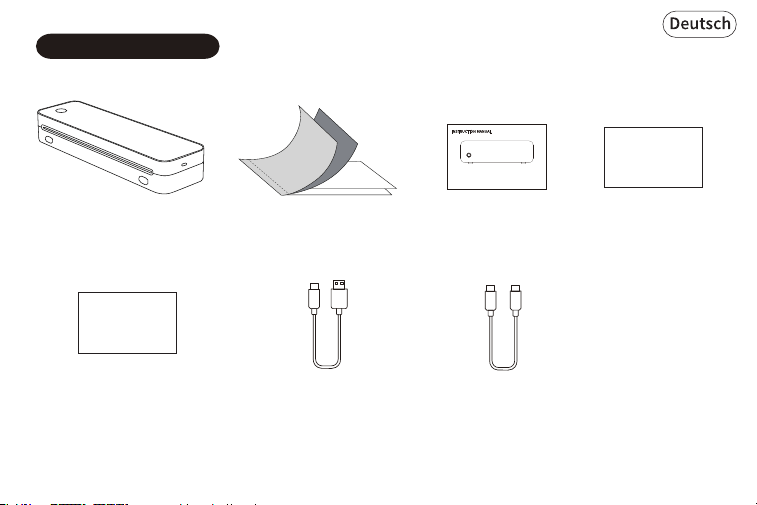
1. Verpackungsliste
APP Guide Card
Transfer Process Guide
Anleitung zum
Übertragungsprozess*1
USB-A auf USB-C
Kabel*1
für WIN
USB-C auf USB-C
Kabel*1
für MAC
17
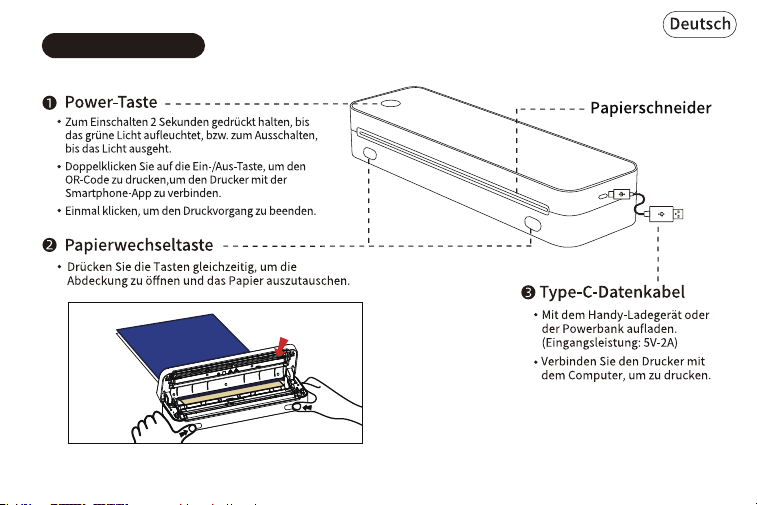
2. Produkt Skizze
Druckkopf
18
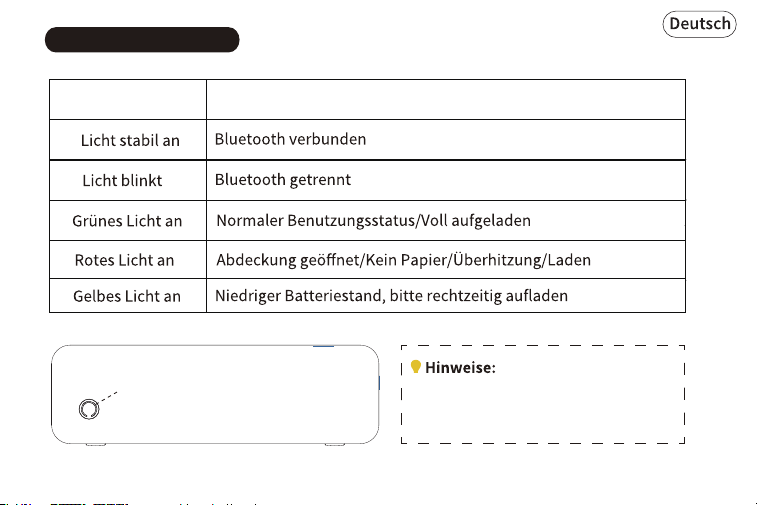
3. LED-Anzeigestatus
Anzeige Beschreibung
Anzeige
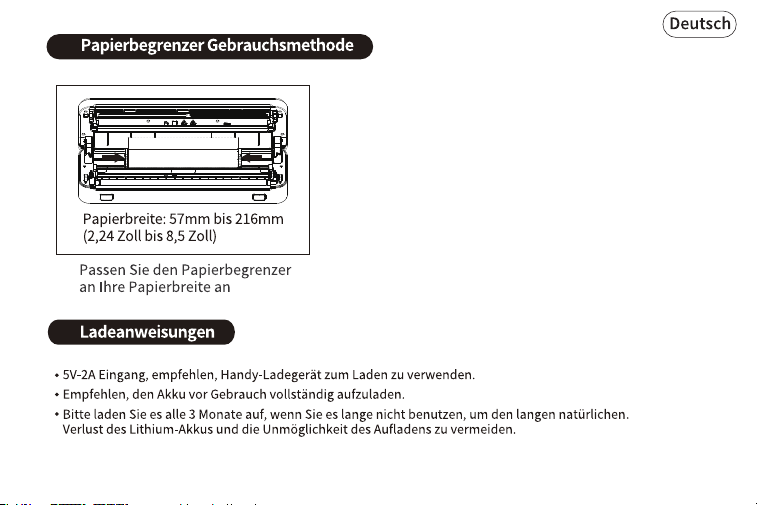
Automatische Abschaltung: Der Drucker schaltet
sich nach 20 Minuten ohne Betrieb automatisch
aus. Sie können den Timer in der App einstellen.
19
4.
5.
20
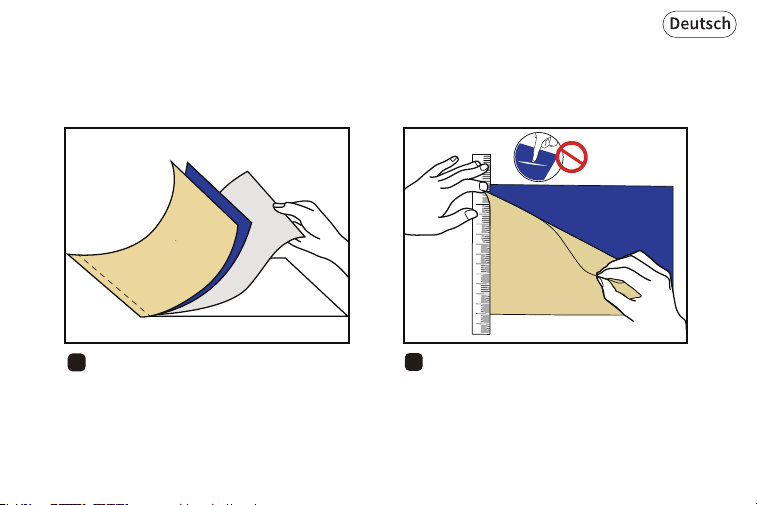
6. Transferpapieranweisungsführer
Unteres Papier
(Gelb)
Transferpapier
(Blau)
Schutzpapier
(Weiß)
Pauspapier
(Weiß)
Transferpapier Einführung:
21
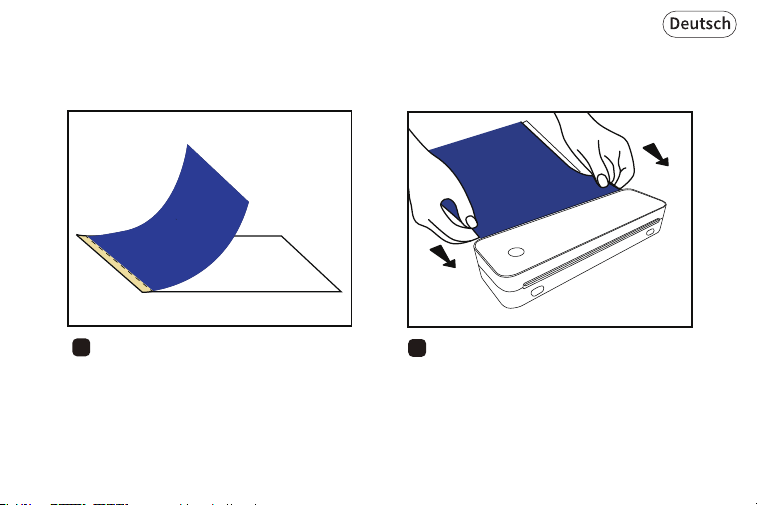
Um eine hochwertige Druckqualität zu gewährleisten, beachten Sie bitte die
folgenden Schritte:
1
2Entfernen Sie das Schutzpapier.
Entfernen Sie das untere Papier horizontal.
Stellen Sie sicher, dass das blaue
Transferpapier nicht beschädigt wird.
Keine Kratzer!
22
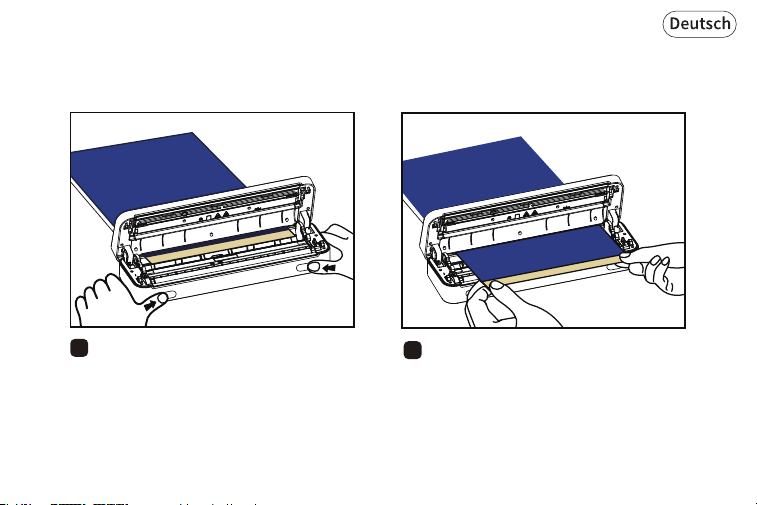
3
Das Papier ist mit dem restlichen Blau
fertig Transferpapier und Pauspapier.
4
Legen Sie das Papier von hinten in den
Drucker ein.
Das blaue Transferpapier muss nach
oben zeigen.
Blaues Papier
Gesicht nach oben
23
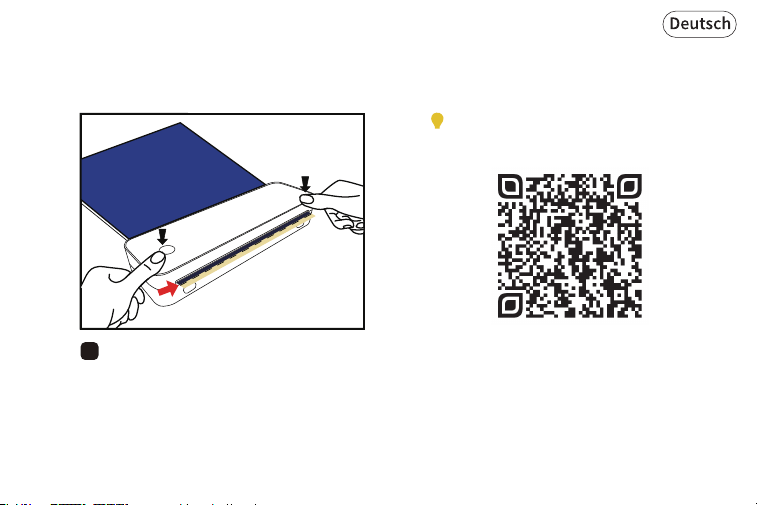
5
6
Drücken Sie gleichzeitig die Papiertasten
und öffnen Sie die Abdeckung.
Ziehen Sie das Papier nach vorne bis zum
Ende des gelben Klebeteils, das gerade aus
dem Papierschneider herausragt.
24
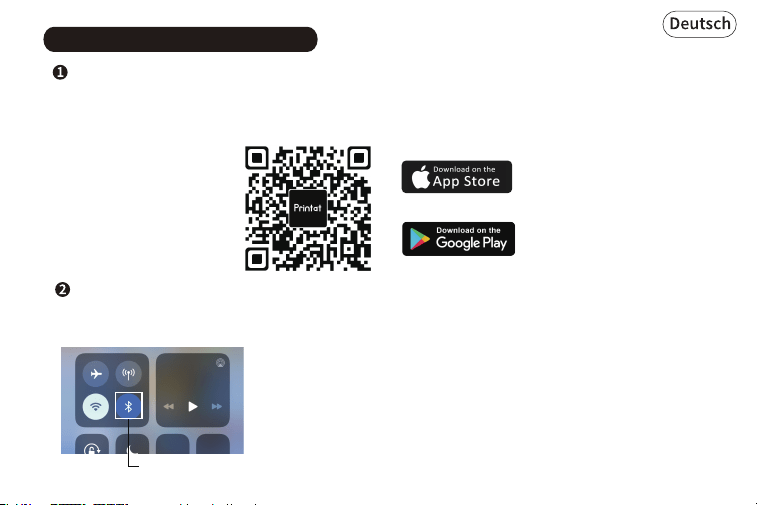
7
Schließen Sie die Abdeckung und stellen
Sie sicher, dass die Kante des blauen
Transferpapiers mit dem
Papierschneider ausgerichtet ist.
Scannen Sie den QR-Code unten für ein
Tutorial zum Drucken eines Tattoos mit
Ihrem Drucker.
25
Suchen Sie nach [Printat] im Google Play Store oder AppStore. Oder scannen Sie den QR-Code
unten, um die App herunterzuladen.
App herunterladen
7. Drucken mit der mobilen App
1. Schalten Sie das Gerät und das Bluetooth Ihres Smartphones ein, und öffnen Sie dann die [Printat]
App. (Bitte koppeln Sie in der App, nicht in den Einstellungen.)
Bluetooth-Verbindung
Schalten Sie Bluetooth ein
26
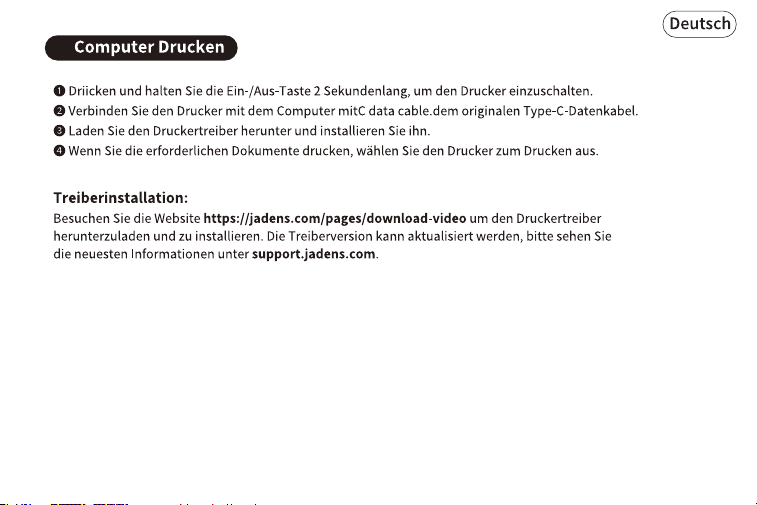
2. Drücken und halten Sie die Ein-/Aus-Taste 2 Sekunden lang, um den Drucker einzuschalten. Die
grüne Lampe leuchtet auf.
3. Verbinden Sie Ihr Gerät:
Öffnen Sie die App und klicken Sie auf 'Gerät hinzufügen', um das Gerät zu suchen und das richtige
Gerät auszuwählen.
( Hinweis: Verbinden Sie den Drucker nicht über die Bluetooth-Einstellungen des Mobiltelefons.)
4. Wählen Sie den zu druckenden Inhalt in der App aus, bearbeiten Sie ihn und bestätigen Sie den
Druck.
+ Add a device
Printat
No device temporarily
Let's go get connected
27
8.
28
9.
29
1-JAHRIGE BESCHRÄNKTE GARANTIE - REGISTRIEREN
UND AKTIVIEREN SIE DIE GARANTIE ÜBER DIE
SMARTPHONE-ANWENDUNG 'Printat'.
Diese 1-jährige beschränkte Garantie gilt für Reparatur
oder Ersatz, wenn das Produkt nach Wahl von JADENS
als fehlerhaft in Material oder Verarbeitung erkannt wird.
1. Diese Garantie gilt nur für Hardwarekomponenten des
Produkts, die nicht durch Unfall, Missbrauch,
Vernachlässigung, Feuer oder Schäden durch andere äußere
Einflüsse, Änderungen, Reparaturen oder kommerzielle
2. Diese Garantie deckt keine Schäden ab, die durch
unbefugte Reparaturversuche oder durch unsachgemäße
Verwendung gemäß der Bedienungsanleitung entstehen.
4. Lesen Sie bitte das Handbuch sorgfältig durch, bevor
Sie dieses Produkt aufstellen oder verwenden. Wenn Sie
glauben, dass dieses Produkt unter einem
Herstellungsfehler leidet, oder wenn Sie Anfragen zu
diesem Produkt haben, kontaktieren Sie bitte den
Kundensupport:
Zu Händen: Kundensupport
E-Mail: [email protected]
Modell:
Kaufdatum:
Gekauft von:
Bestellnummer:
3. Diese Garantie gilt nur für den Originalkäufer dieses
Produkts ab dem ursprünglichen Kaufdatum. Sie gilt nur,
wenn das Gerät neu von einem autorisierten Händler
erworben wurde, und ist nicht übertragbar vom
ursprünglichen Käufer des Artikels. Etwaige mit diesem
Produkt mitgelieferte Garantien sind nur im Land des
Kaufs gültig.
Alle Garantieanfragen müssen durch einen Kaufnachweis
begleitet werden. Wenn Sie uns bezüglich der Garantie
kontaktieren, halten Sie bitte die unten stehenden
Informationen bereit.
Nutzung beeinträchtigt wurden. Mängel, die auf normalen
Verschleiß zurückzuführen sind, gelten nicht als
Herstellungsfehler im Rahmen dieser Garantie.
10. Gewährleistungsinformationen
30
31
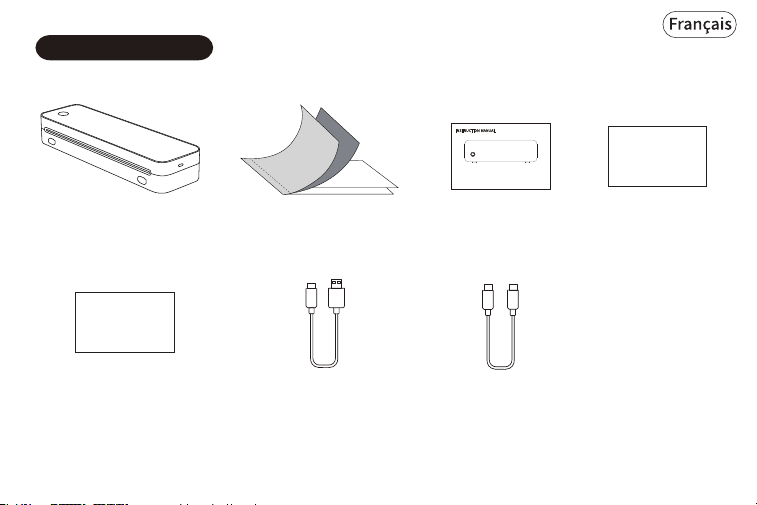
Manuel
de l'utilisateur*1
Papier de transfert*40Imprimante*1
Portable Wireless A4 Printer
Carte guide de
l'application*1
1. Liste de colisage
APP Guide Card
Guide du processus
de transfert*1
Transfer Process Guide
USB-A vers USB-C
Câble*1
pour WIN
USB-C vers USB-C
Câble*1
pour MAC
32
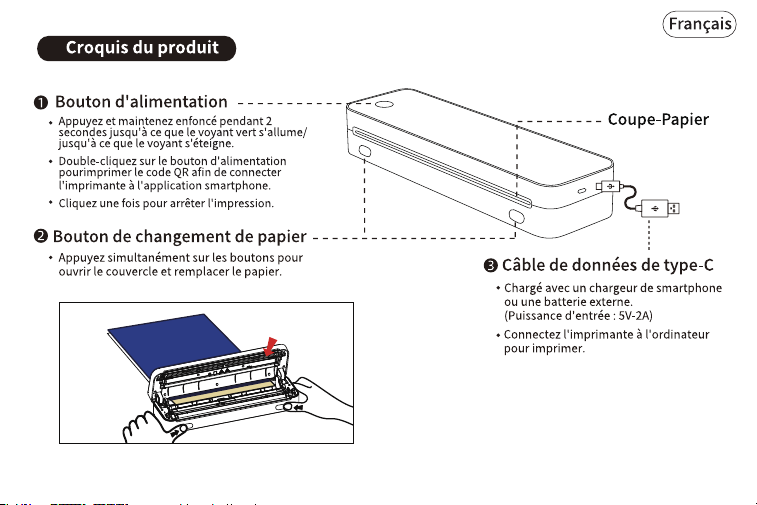
2.
Tête d'impression
33
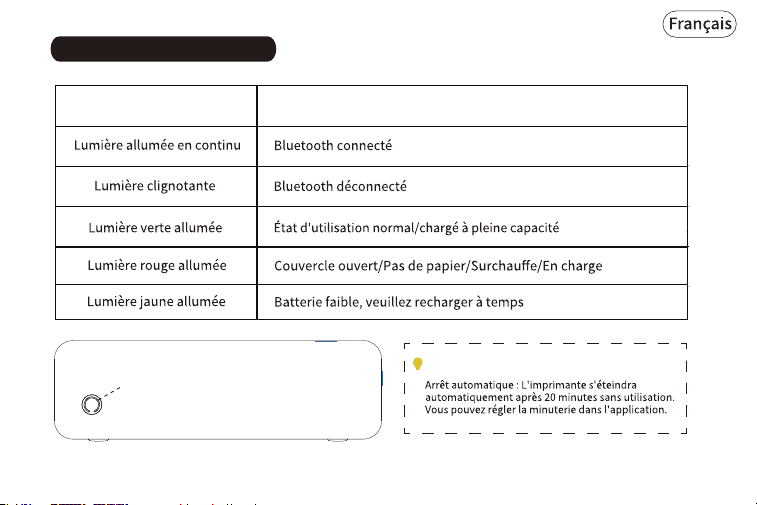
Indicateur Description
3. État de l'indicateur LED
Indicateur
Conseils :
34
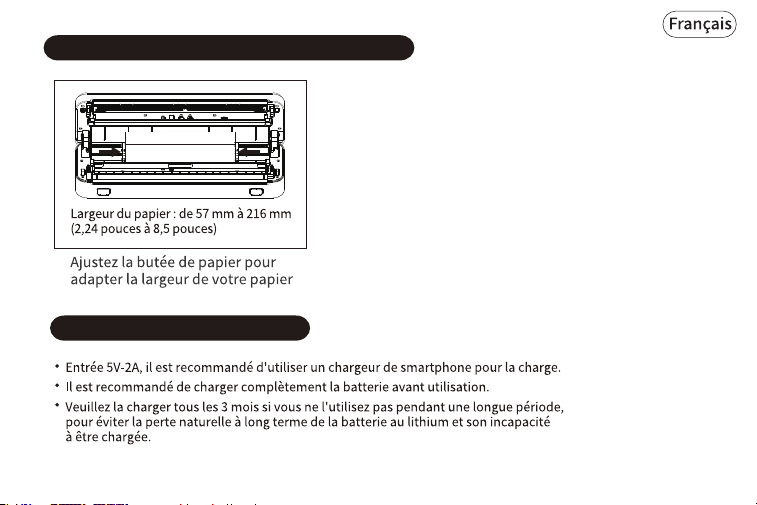
4. Méthode d'utilisation du limiteur de papier
5. Instructions de chargement
35
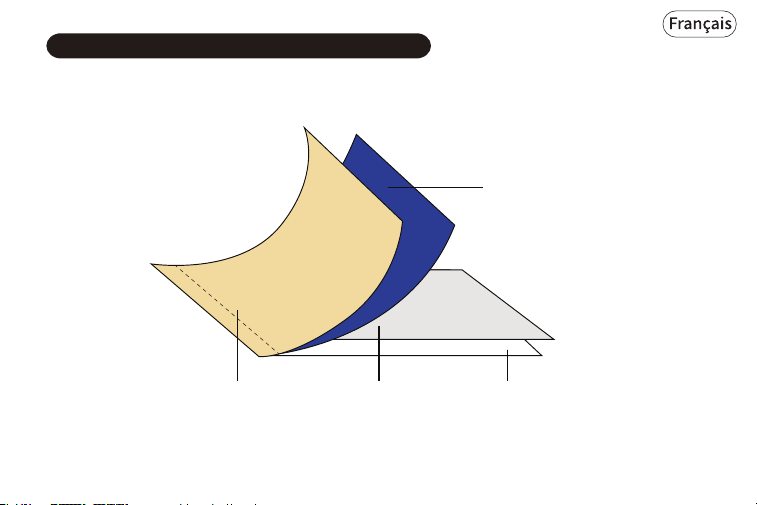
6. Guide d'instructions pour le papier transfert
Papier inférieur
(jaune)
Papier transfert
(bleu)
Papier protecteur
(blanc)
(blanc)
Introduction au papier transfert:
Papier calque
36
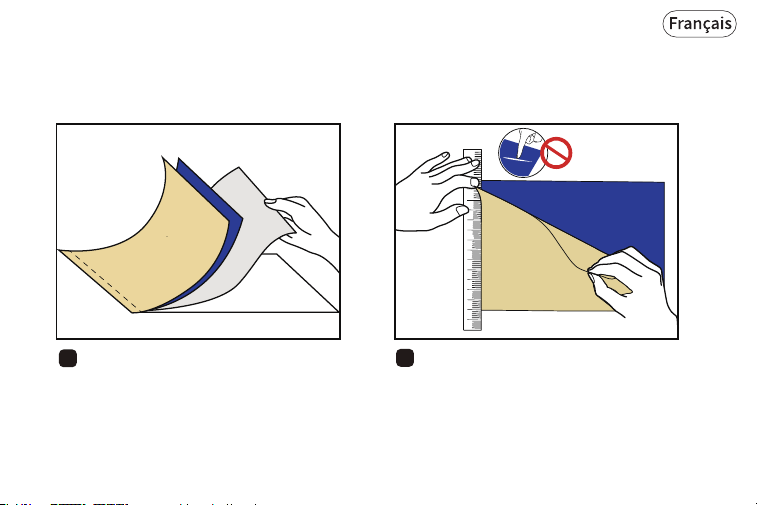
Pour assurer une impression de haute qualité, veuillez suivre les étapes suivantes :
1
2
Retirez le papier protecteur.
Détachez le papier inférieur horizontalement.
Assurez-vous de ne pas endommager le
papier transfert bleu.
Pas de rayures!
37
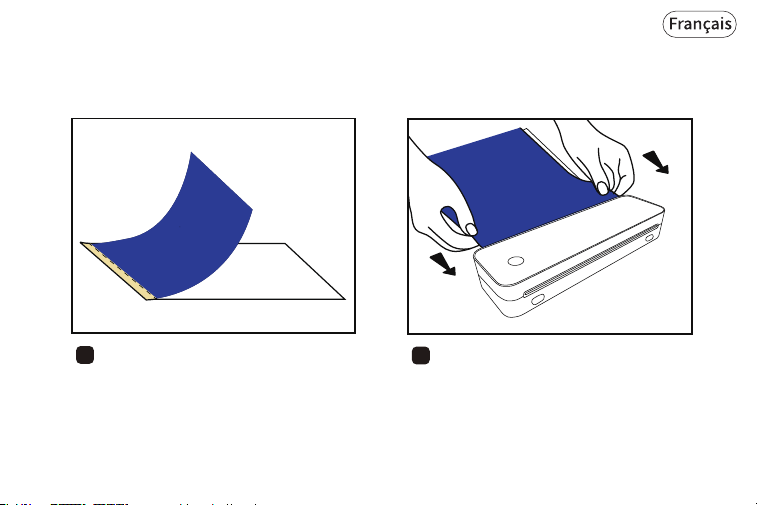
3
Le papier est prêt avec le reste du papier
transfert bleu et du papier calque.
4
Insérez le papier par l'arrière dans
l'imprimante. Le papier transfert bleu doit
être orienté vers le haut.
Papier bleu
face vers le haut
38
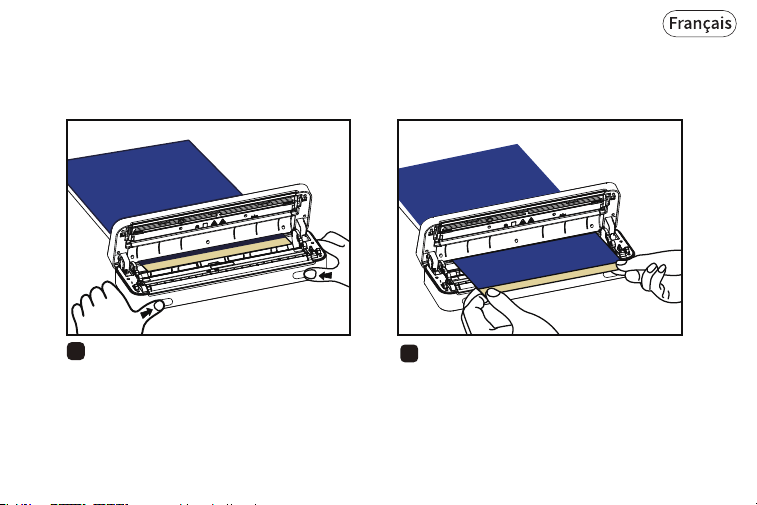
5
6
Appuyez simultanément sur les boutons
de changement de papier et ouvrez le
capot.
Tirez le papier vers l'avant jusqu'au bout
de la partie jaune de liaison juste hors de
la découpeuse de papier.
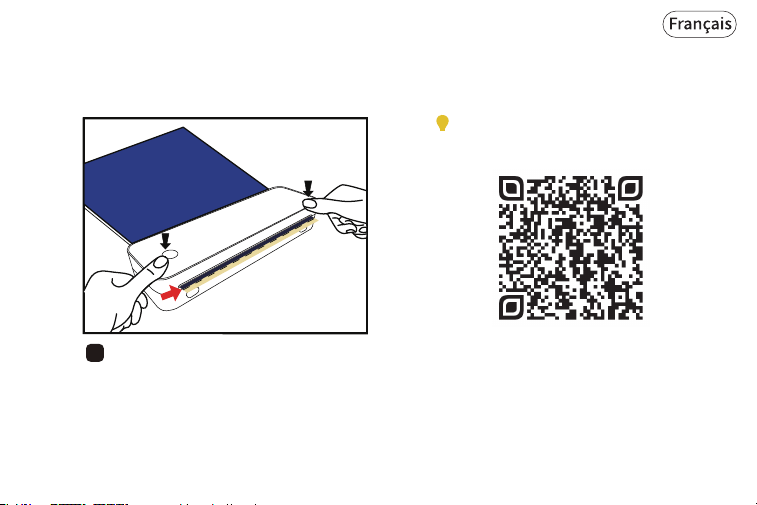
39
7
Refermez le capot et assurez-vous que
le bord du papier transfert bleu est
aligné avec la découpeuse de papier.
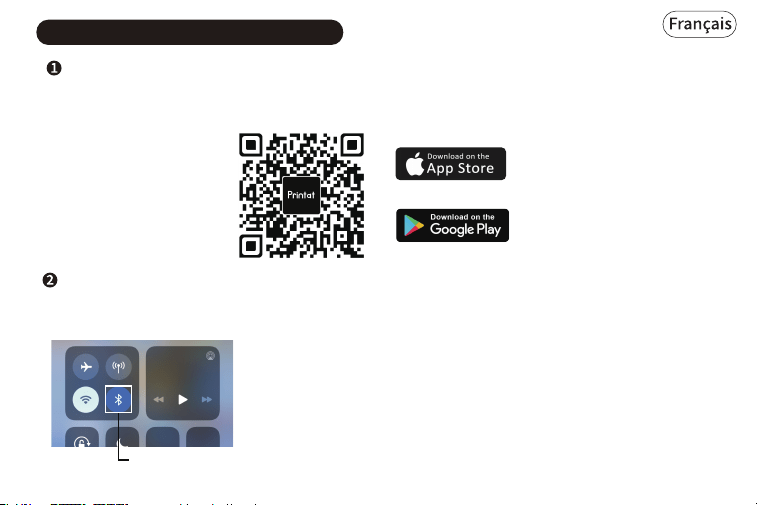
Scannez le code QR ci-dessous pour un
tutoriel sur la façon d'imprimer un
tatouage avec votre imprimante.
40
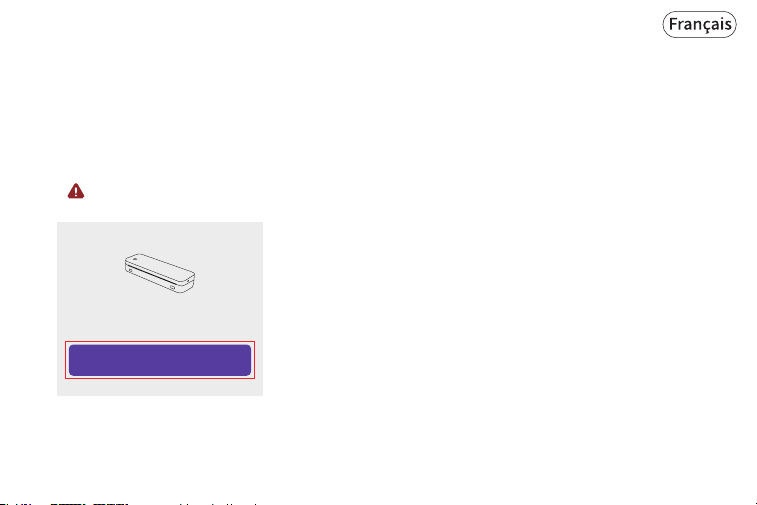
Recherchez [Printat] sur Google Play ou l'AppStore. Ou scannez le code QR ci-dessous pour télécharger
l'application.
1. Allumez le périphérique et activez le Bluetooth du smartphone, puis ouvrez l'application [Printat].
(Veuillez appairer dans l'application, pas dans les paramètres.)
Connexion Bluetooth
Téléchargement de l'application
7. lmpression via l'application mobile
Activez le Bluetooth
41
2. Maintenez le bouton d'alimentation enfoncé pendant 2 secondes pour allumer l'imprimante et la
lumière verte s'allumera.
3. Connectez votre appareil :
Ouvrez l'application, puis cliquez sur 'Ajouter un périphérique' pour rechercher le périphérique et
sélectionner le bon périphérique.
( Remarque : Ne connectez pas l'imprimante dans les paramètres Bluetooth du téléphone mobile.)
4. Sélectionnez et éditez le contenu à imprimer dans l'application, confirmez et lancez l'impression.
+ Add a device
Printat
No device temporarily
Let's go get connected
42
8. Impression depuis l'ordinateur
43
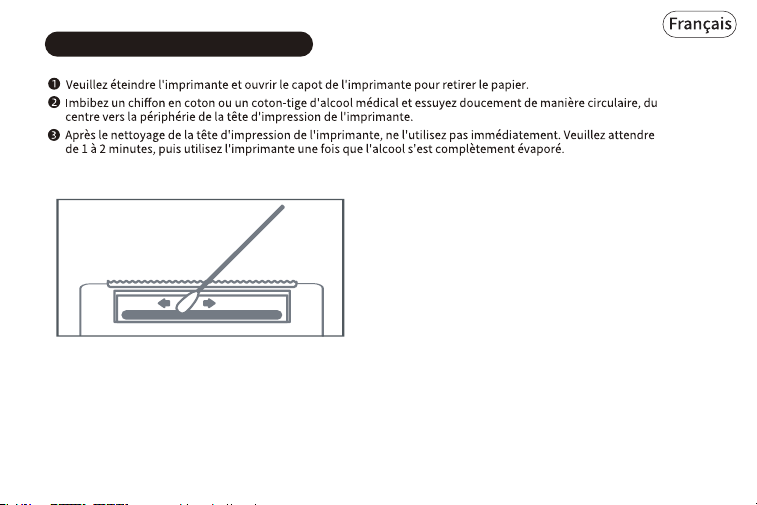
9. Nettoyer la tête d'impression
44
10. Informations sur la garantie
GARANTIE LIMITÉE D'UN AN - ENREGISTREZ ET ACTIVEZ
VIA L'APPLICATION TÉLÉPHONIQUE 'Printat'.
Cette garantie limitée d'un an s'applique à la réparation
ou au remplacement du produit, à la discrétion de
JADENS, s'il est jugé défectueux au niveau du matériau
ou de la fabrication.
1. Cette garantie ne s'applique qu'aux composants matériels
du produit qui ne sont pas sujets à un accident, une
2. Cette garantie ne couvre pas les dommages résultant de
toute tentative non autorisée de réparation ou de toute
utilisation non conforme au manuel d'instructions.
4. Veuillez lire attentivement le Manuel d'Instructions avant
de configurer ou d'utiliser ce produit. Si vous estimez que ce
produit présente un défaut de fabrication, ou si vous avez des
questions à ce sujet, veuillez contacter le service client :
À l'attention du service client
E-mail : [email protected]
Modèle:
Date d'achat:
Achété chez:
Numéro de commande:
3. Cette garantie s'applique uniquement à l'acheteur original
de ce produit à partir de la date d'achat originale. Cette
garantie s'applique uniquement si l'unité est achetée neuve
auprès d'un revendeur agréé et est non transférable de
l'acheteur original de l'article. Toutes les garanties
accompagnant ce produit ne sont valables que dans le pays
d'achat.
Toutes les demandes de garantie doivent être
accompagnées d'une preuve d'achat. Lorsque vous nous
contactez pour une garantie, veuillez avoir les
informations ci-dessous.
mauvaise utilisation, négligence, incendie ou dommages
résultant d'autres causes externes, modification, réparation
ou usage commercial. Les défauts résultant de l'usure
normale ne seront pas considérés comme des défauts de
fabrication dans le cadre de cette garantie.
45