

Contents
01 User Manual
05 Benutzerhandbuch
09 Mode d'Emploi
13 Manuale d'uso
17 Manual del usuario
English
English
Deutsch
English
Español
English
Français
English
Italiano
“ ”: Volume Up
Nova S40
Model No.: U2100
Prefer video tutorial?
WE ARE
READY
TO HELP
support.ultimea.com
+1888-598-8875(US) Mon-Fri 9am-5pm(PST)
+49 89-628-25828(EU) Mon-Fri 9am-5pm(CET)
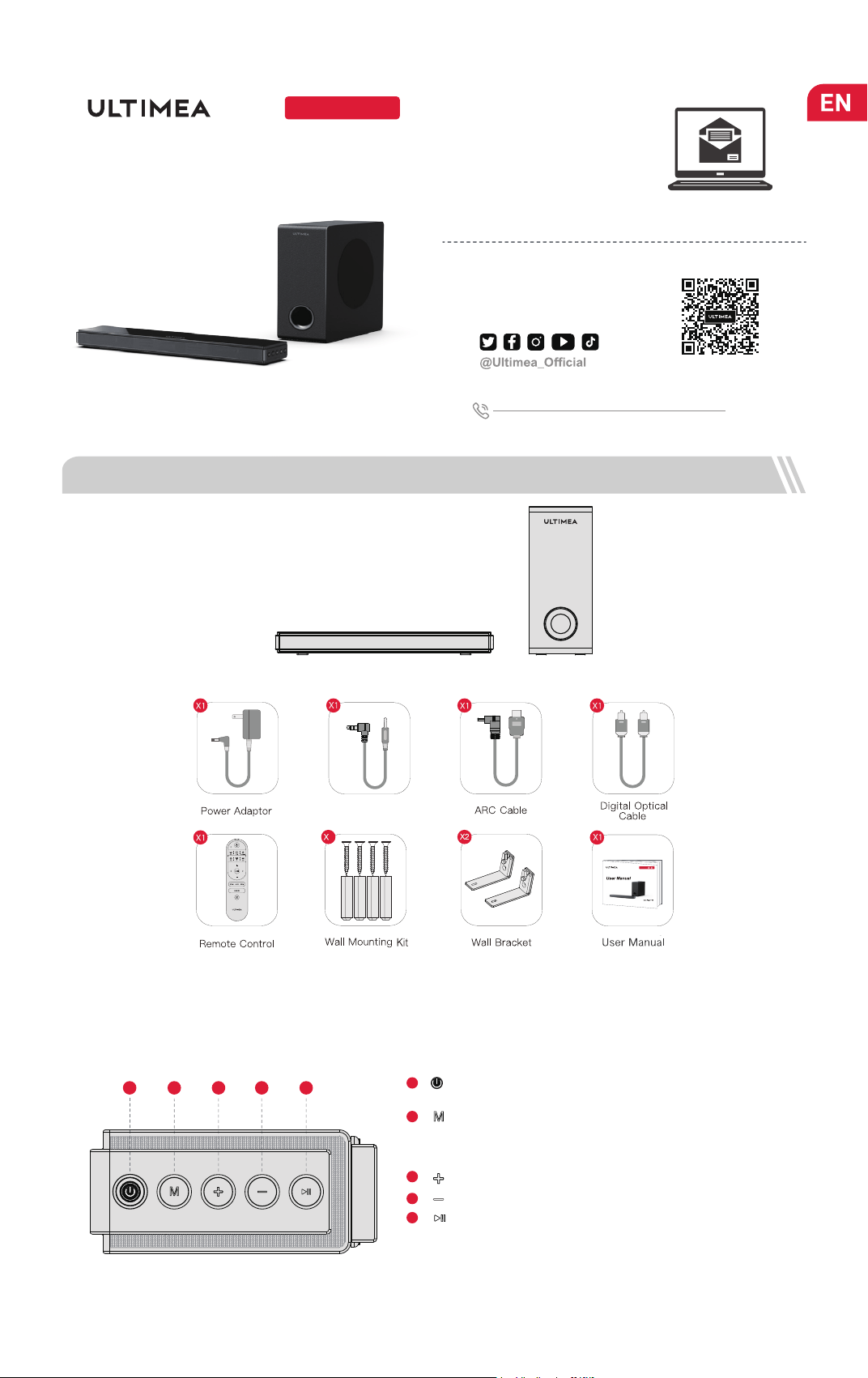
1 ACCESSORIES LIST
Soundbar
Control Panel
“ ”: Power Button
Press to power on / Hold for 3 seconds to power off.
1
“ ”: Input Mode
Press to switch channels: ARC - Optical - Coaxial - BT - AUX -
USB, hold for 3 seconds to switch to BT mode, and enter pairing
mode.
2
3
“ ”: Play/ Pause
For BT and USB mode only.
USB mode: Hold for 3 seconds to switch between single loop
playback and list loop playback.
“ ”: Volume Down
4
5
Setup guidance video, or USER
MANUAL on ULTIMEA website.
2 SOUNDBAR CONTROLS
4321
5
User Manual
Subwoofer
4
21
4
Nova
01
Stereo 3.5mm to
3.5mm Audio Cable
3
Press to switch to BT channel and enter pairing mode.
Hold for 3 second to disconnect.
“ ”: Bluetooth
4
“ ”: Volume Up.
6
“ ”: Volume Down.
7
Press to switch to Movie mode, the display will show: “
Eq01”.
“ ”:
8
Press to enhance the Bass, press again to restore to normal bass.
“ ”: BASSMX
9
“ ”: Mute Recover the volume.
10
In BT and USB mode: Press to switch between Play and Pause, the
display will show “PAUS”.
USB mode: Hold for 3 seconds to switch between USB single loop
playback and list loop playback, the display will show “ALL” or “ONE
”.
“ ”: Pla
Pause
8
1
2
3
4
5
6
7
9
12
13
10
11
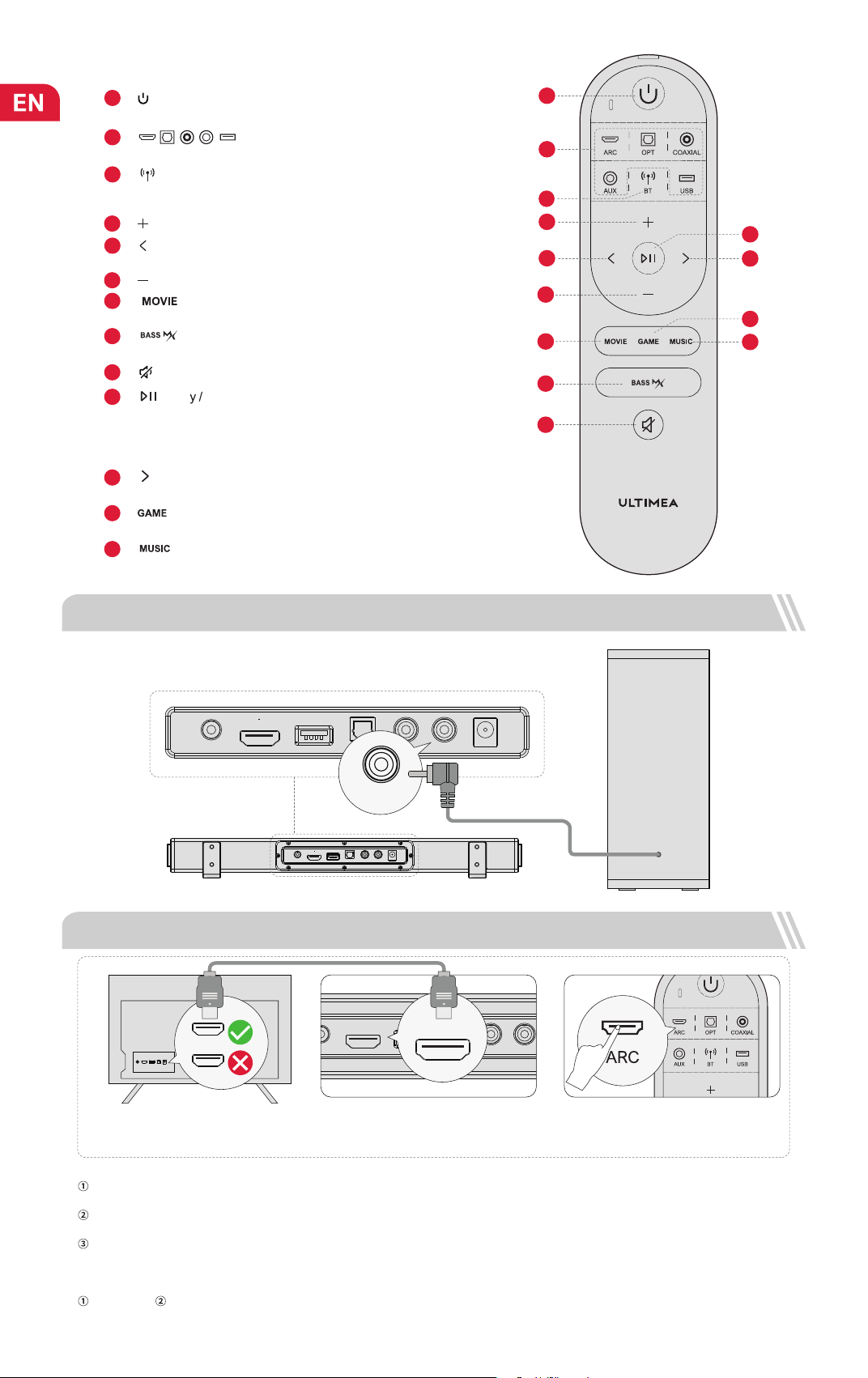
Remote Control
1
Press to power on / Hold for 3 seconds to power off.
“ ”
:
Power
“ ”
:
ARC / OPT / COAX / AUX / USB
Press to switch channels.
2
5
BT and USB mode: skip to previous track.
“ ”: Previous
11
BT and USB mode: skip to next track.
“ ”: Next Button
Press to switch to Game mode, the display will show: “ Eq02”.
12
“ ”:
13
Press to switch to Music mode, the display will show: “
Eq03
”.
“ ”:
3 CONNECT TO SUBWOOFER
4 CONNECT TO THE TV VIA ARC
ARC
USB
AUX
OPTICAL
COAXIAL
SUB OUT
DC IN
ARC USB
AUX
OPTICAL
COAXIAL
SUB OUT
DC IN
ARC
HDMI
What’s the difference between: HDMI IN, HDMI ARC, HDMI eARC?
HDMI IN is a standard HDMI input that allows you to connect devices to your TV or audio system. It supports audio and video signals, but it does not
support audio return channel (ARC) or enhanced audio return channel (eARC) functionality.
HDMI ARC is a special HDMI port that supports two-way communication between your TV and audio system. This means that audio can be sent from
your TV to your audio system, and audio system can send audio back to your TV.
HDMI eARC (Enhanced Audio Return Channel) is an updated version of HDMI ARC that supports higher quality audio formats such as Dolby Atmos
and DTS:X.
Note:
When ARC is connected, your TV remote control can control the soundbar and TV simultaneously:
Turn on/off Adjust the volume
If there is no sound: try setting the TV audio output to PCM: TV Settings > Home > Settings> Sound > Digital Audio Output > PCM.
ARC USB
AUX
OPTICAL COAXIAL
SUB OUT
DC IN
Steps 01:
Connect one end of the HDMI cable to the
ARC/eARC port on the back of your TV.
Steps 02:
Then connect the other end into the HDMI
ARC port of the soundbar.
Steps 03 :
Press “ARC” button on the remote contorl
to select “ARC” input.
SUB OUT
ARC
02
/
ARC USB
AUX
OPTICAL
COAXIAL
SUB OUT
DC IN
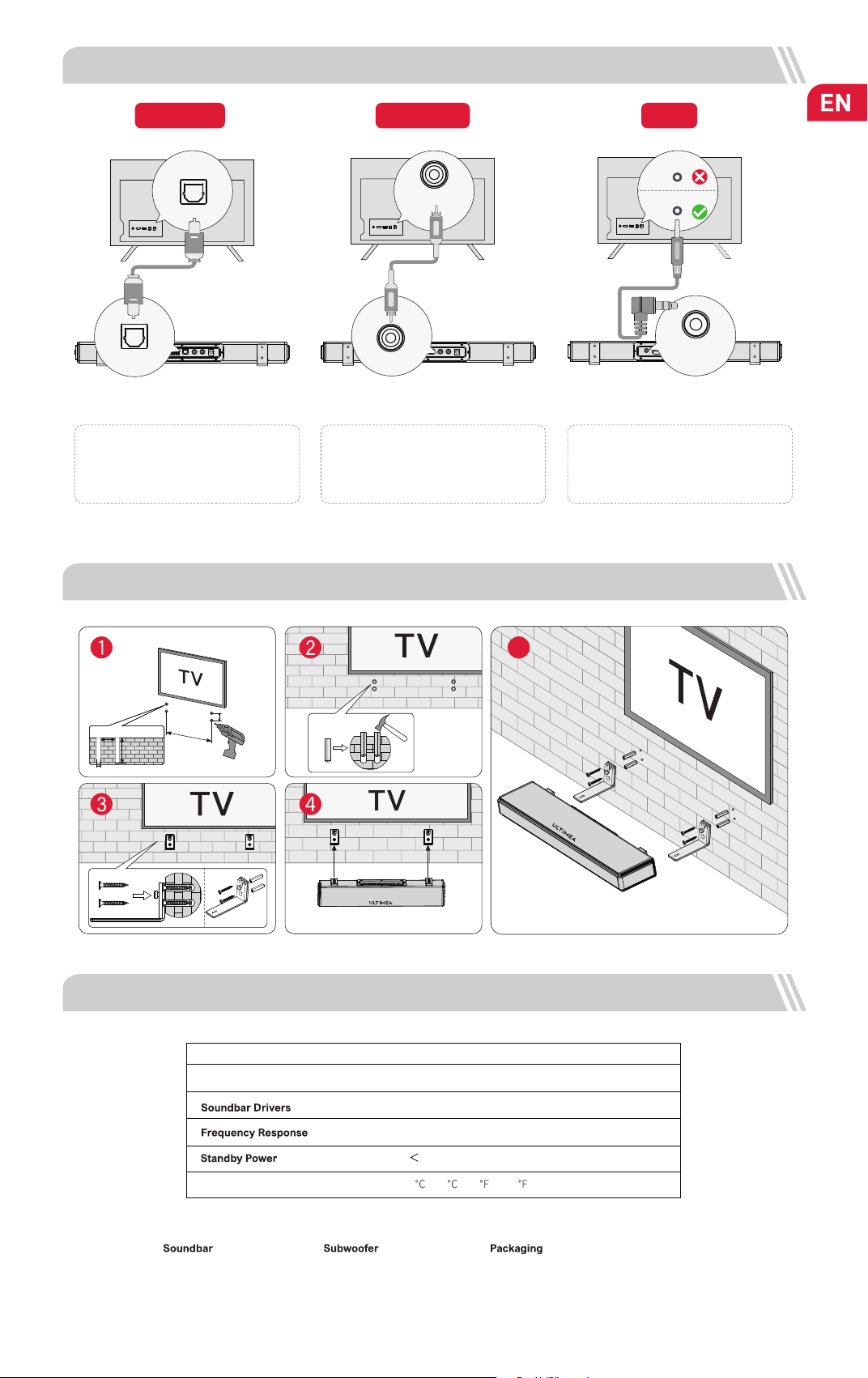
5 CONNECT TO TV VIA OPTICAL / COAXIAL / AUX
AUX
OPTICAL
OPTION 1: OPTICAL
NOTE:
1. Make sure the TV's port is OPTICAL OUT.
2. If audio is playing from the internal TV
speakers, mute or minimize TV volume.
6 WALL MOUNT INSTALLATION
OPTION 3: AUX
NOTE:
1. Use the 3.5mm to 3.5mm audio cable to
connect to your TV’s RCA AUDIO OUT port.
7 SPECIFICATIONS
Net Weight
3.3 kg
Gross Weight
4.2 kg
Model No U2100
Power Supply
AC 100-240V, ~50/60Hz
(1.2” x 3.8”) x 2 (Soundbar) + 5.25” (Subwoofer)
45Hz - 20kHz
0.5W
Operating Temperature
0
- 45 / 32 - 113
Dimensions and Weight:
400(W) x 80(H) x 38(D)mm
15.1” x 3.1” x 1.5”
270(W) x 270(H) x 115(D)mm
10.6” x 10.6” x 4.5”
432(W) x 322(H) x 190 (D)mm
17” x 12.77” x 7.5”
If there is no sound: try setting the TV audio output to PCM: TV Setings > Home > Setings> Sound > Digital Audio Output > PCM
DIGITAL AUDIO
OUT
OPTICAL
OPTICAL
OPTICAL
ARC USB
AUX
OPTICAL
COAXIAL
SUB OUT
DC IN
COAXIAL
OPTION 2: COAXIAL
NOTE:
1. Make sure the TV's port is COAXIAL OUT.
2. If audio is playing from the internal TV
speakers, mute or minimize TV volume.
COAXIAL
COAXIAL
03
ARC USB
AUX
OPTICAL
COAXIAL
SUB OUT
DC IN
AUX
AUDIO OUTPUT
AUDIO IN
300mm
20mm
20mm
5mm
28mm
5
8 NOTES FOR TV AUDIO SETTINGS OF VARIOUS BRAND
Very lmportant!!!
How to Set up the Soundbar and TV? Normally as below:
More examples for various TV brands:
Samsung TV
●
Settings > Sound > Sound output > select Receiver (HDMI)
●
Settings > Sound > Expert Settings > Digital Output Audio Format > PCM
●
Settings General > External Device Manager > Anynet+ (HDM - CEC)> ON
Vizio TV
●
Settings > Audio > TV Speakers > Off
●
Settings > Audio > Digital Audio Out > PCM
●
Settings > System > CEC > Enabled
Sony TV
●
Settings > Display & Sounds > Audio Output > Speakers > Audio System
●
Settings > Display & Sounds > Audio Output > Digital Audio Out > PCM
●
Settings > Display & Sounds > Audio Output > Pass Through Mode > OFF
●
Settings Channels & Inputs > External inputs >BRAVIA Sync > BRAVIA
Sync control > ON
LG TV
●
All Settings > General - Devices > HDMI Settings > SlMPLINK (HDMI - CEC)> ON
●
All Settings > Sound > Advances Settings > Digital Sound Output > PCM
●
All Settings > Sound > Sound Out > Use Wired Speaker > HDMI (ARC) Device
TCL ROKU TV
●
Settings > Audio > Audio output > Auto
●
Settings > Audio > Digital audio format > Select Stereo
Hisense ROKU TV
●
Settings > Audio > TV Speakers > Select Disabled
●
Settings > Audio > Digital Audio out > Select Stereo
ONN ROKU TV
●
Settings > Audio > TV Speakers > Select Disabled
●
Settings > Audio > Digital Audio Format > Select Stereo
Insignia Fire TV
●
Settings Display & Sounds > Audio Output > TV Speakers > select OFF
●
Settings Display& Sounds > Audio Output > Digital Audio Format > select PCM
●
Settings Display & Sounds > HDMI CEC Device Control >ON
Toshiba Fire TV
●
Settings > Display & Sounds > Audio Output > TV Speakers > select OFF
●
Settings > Display & Sounds > Audio Output > Digital Audio Format > select PCM
●
Settings > Display & Sounds > HDMI CEC Device Control > ON
Panasonic TV
●
Menu Audio Settings > Advanced Audio > TV Speakers > select OFF
●
Menu > Audio Settings > Advanced Audio > HDMI > select DIGITAL
●
Menu > Audio Settings > Advanced Audio > Digital Audio Out > select PCM
Sharp TV (Powered by Android)
●
settings > devices preferences > sound > Digital Output > select PCM
●
settings > devices preferences > sound > Speakers > External audio system
Roku TV Stick
●
Settings > Audio > Digital Output Format > Stereo
●
Settings > Audio > Audio Mode > Select Stereo
Fire TV stick
●
Settings > Display & Sounds > Audio > Surround Sound > PCM
●
Settings > Display & Sounds > HDMI CEC Device Control > ON
Hisense ROKU TV
●
Settings > Audio > TV Speakers > Select Disabled
●
Settings > Audio > Digital Audio out > Select Stereo
ONN ROKU TV
●
Settings > Audio > TV Speakers > Select Disabled
●
Settings > Audio > Digital Audio Format > Select Stereo
Hisense TV ( Powered by Android )
●
Settings > Sound > Speakers > select ARC
●
Settings > Sound > Advanced Settings > Digital
Audio Out > select PCM
Sharp TV
●
Settings > sound > Advanced audio settings > TV Speaker & ARC
> select ARC
●
Settings > sound > Advanced audio settings > Digital
Audio Out > select PCM
TCL TV ( Powered by Android )
●
T
V Settings > Audio > Advanced Settings > Digital
Audio Out
> Select PCM
●
TV Settings > System > T - Link > Select ON
TVTV
Settings Sound Digital Audio Output PCM
04