2
• The contents of this manual are subject to change without notice.
• The contents of this manual have been checked at each step along the production process. Feel free to
contact us if you notice anything that is questionable, erroneous, etc.
• No part of this manual may be reproduced in any form without the express written consent of the
manufacturer.
• The displays and illustrations (such as key markings) shown in this manual are for illustrative purposes
only, and may differ somewhat from the actual items they represent.
• Windows is a registered trademark or trademark of Microsoft Corporation in the United States and/or other
countries.
• Mac and macOS are registered trademarks or trademarks of Apple Inc. in the United States and/or other
countries.
• Company and product names used in this manual may be registered trademarks or trademarks of their
respective owners.
• Note that trademark ™ and registered trademark
®
are not used within the text of this manual.
• In no event shall CASIO Computer Co., Ltd. be liable to anyone for special, collateral, incidental, or
consequential damages in connection with or arising out of the purchase or use of this product and
items that come with it. Moreover, CASIO Computer Co., Ltd. shall not be liable for any claim of any kind
whatsoever by any other party arising out of the use of this product and the items that come with it.
• In no event will the manufacturer and its suppliers be liable to you or any other person for any damages,
expenses, lost profits, lost savings or any other damages arising out of loss of data and/or formulas arising
out of malfunction, repairs, or battery replacement. It is up to you to prepare physical records of data to
protect against such data loss.
Contents
Introduction ............................................................................................................. 3
System Requirements ...................................................................................................................................3
To Check the Operating System Version of Your Calculator
.........................................................................3
Updating the Calculator Operating System ......................................................... 4
To Update the Calculator Operating System ................................................................................................. 4
What to Do If the Update Failed
....................................................................................................................7
3
Introduction
The OS Update application updates the operating system of CASIO Graphic Scientific Calculator.
System Requirements
The minimum computer system requirements for running the OS Update application are shown below. Check
to make sure that your computer complies with these requirements before installing the application on it.
Windows
Operating Systems: Refer to the website at the URL below:
https://s.casio.jp/c/11297en/
Computer: Computer with one of the Windows operating systems pre-installed (Excluding
computers with an upgraded operating system and self-built computers.)
Account Type: Administrator
Disk Space: 100 MB for installation and uninstall.
Other: USB port for direct connection (connection via a USB hub is not supported)
Video adapter and display must support resolution of XGA (1024×768) or higher,
16-bit or higher system color.
macOS
Operating Systems: Refer to the website at the URL below:
https://s.casio.jp/c/11303en/
Disk Space: 100 MB for installation and uninstall.
Other: USB port for direct connection (connection via a USB hub is not supported)
Video adapter and display must support resolution of XGA (1024×768) or higher.
Note
• Actual requirements and product functionality may vary based on your system configuration and
operating system.
To Check the Operating System Version of Your Calculator
1. On the calculator, press h and then select [System].
2. On the System Manager menu that appears, select [Version].
4
Updating the Calculator Operating System
Important!
• Updating deletes all data in the calculator’s Main Memory. If you need the data, make sure you back it
up before updating. Use the Memory app backup function to backup data.
• If you have multiple calculators to update, do so one at a time. Be sure to connect only one calculator to
the computer at a time. Connecting multiple calculators to your computer and executing the OS update
operation creates the risk of data being deleted and damage to the calculators.
• Make sure there is no other CASIO device besides the calculator whose OS you are about to update
connected to the computer. If there is, disconnect the other device.
• Do not perform any of the following operations while OS Update is running.
– Connecting a USB device to the computer
– Turning a connected USB device on or off
– Starting up another application on the computer
– Inserting a memory card into the computer or removing a memory card from the computer
Note
• The explanations below cover both Windows and macOS. All of the screen shots are from Windows 11,
but operational procedures are virtually identical for both Windows and macOS.
To Update the Calculator Operating System
1. If a calculator is already connected to the computer, disconnect it.
Important!
• Do not connect the calculator to your computer until specifically instructed on screen to do so (see
step 4 below).
2. Close all applications running on the computer, if any.
3. Start up the OS Update application.
Windows:
On your computer, double-click the OS Update application EXE file.
macOS:
(1) On your computer, double-click the OS Update application pkg file.
This installs the OS Update application on your computer.
(2) Double-click the OS Update application file.
5
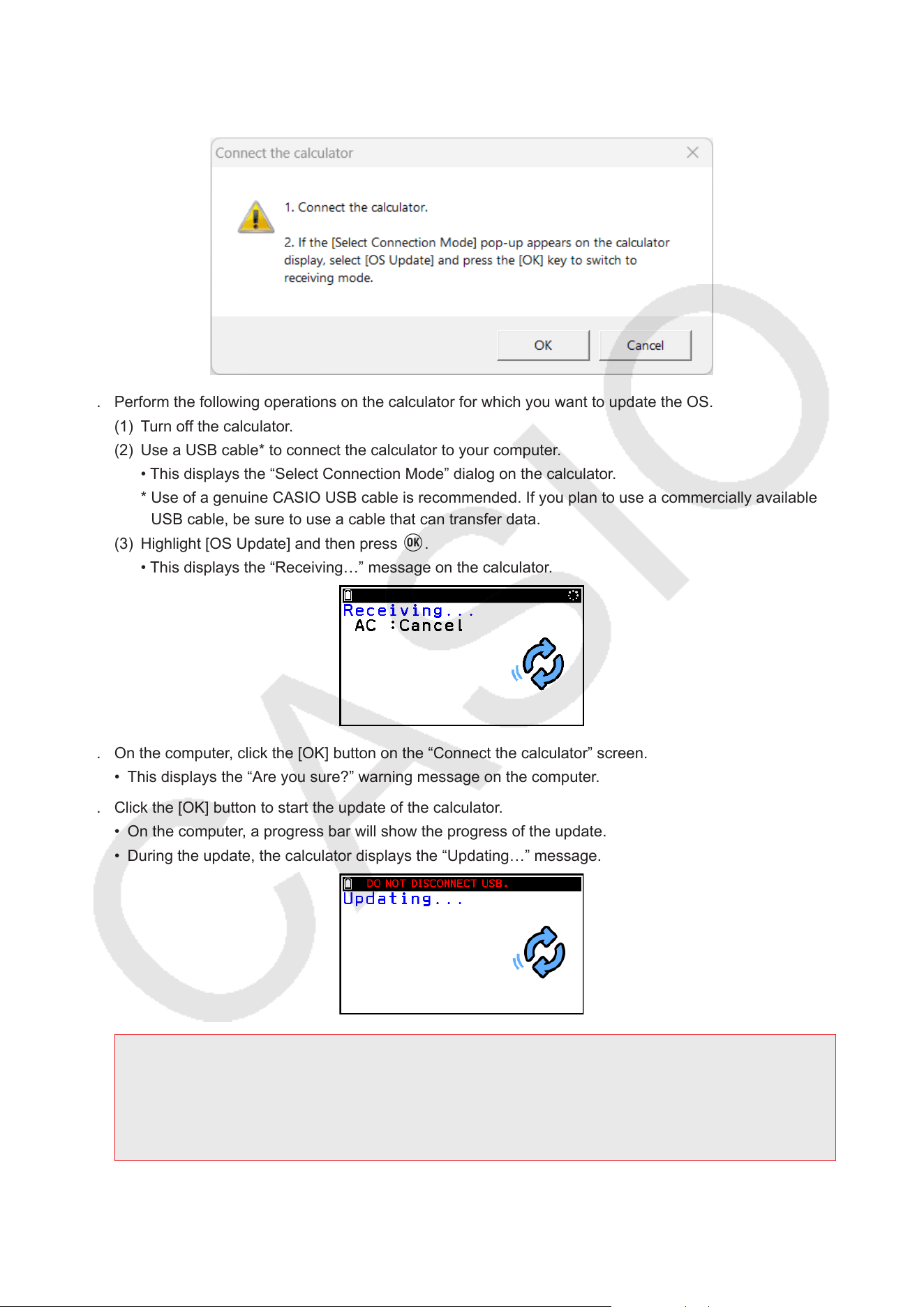
4. Perform operations as instructed by the text that appears on the screen.
• When the “Connect the calculator” screen below appears, proceed to step 5 without clicking the [OK]
button.
5. Perform the following operations on the calculator for which you want to update the OS.
(1) Turn off the calculator.
(2) Use a USB cable* to connect the calculator to your computer.
• This displays the “Select Connection Mode” dialog on the calculator.
* Use of a genuine CASIO USB cable is recommended. If you plan to use a commercially available
USB cable, be sure to use a cable that can transfer data.
(3) Highlight [OS Update] and then press O.
• This displays the “Receiving…” message on the calculator.
6. On the computer, click the [OK] button on the “Connect the calculator” screen.
• This displays the “Are you sure?” warning message on the computer.
7. Click the [OK] button to start the update of the calculator.
• On the computer, a progress bar will show the progress of the update.
• During the update, the calculator displays the “Updating…” message.
Important!
• Do not unplug the cable while updating is in progress.
If the cable becomes unplugged during updating, the calculator automatically restarts and the
message “OS ERROR Please update OS.” appears on the calculator display. If this happens, see
“What to Do If the Update Failed” for information about what you need to do.
6
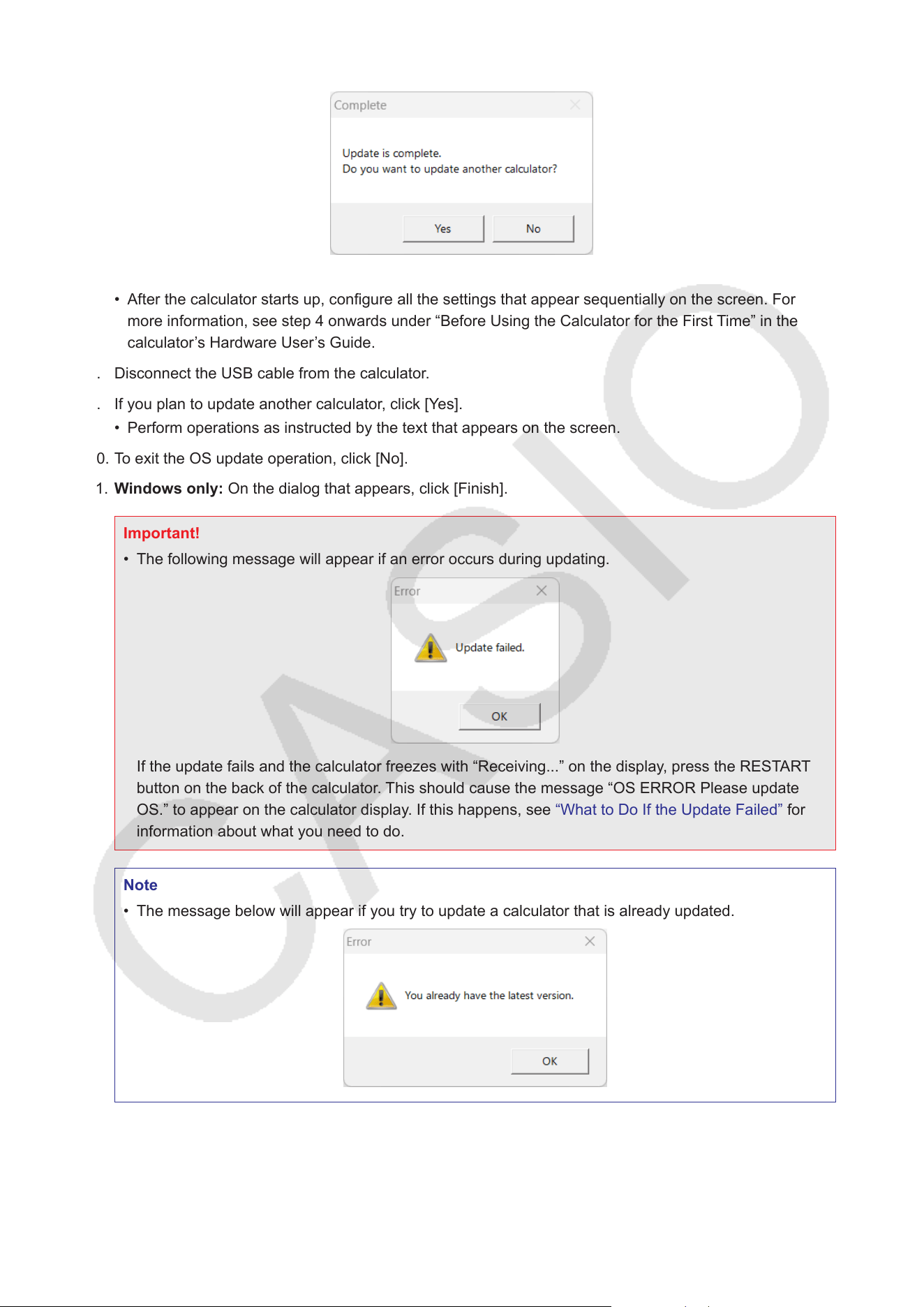
• When the update is complete, the dialog shown below will appear on the computer.
• At this time, the calculator will automatically restart.
• After the calculator starts up, configure all the settings that appear sequentially on the screen. For
more information, see step 4 onwards under “Before Using the Calculator for the First Time” in the
calculator’s Hardware User’s Guide.
8. Disconnect the USB cable from the calculator.
9. If you plan to update another calculator, click [Yes].
• Perform operations as instructed by the text that appears on the screen.
10. To exit the OS update operation, click [No].
11. Windows only: On the dialog that appears, click [Finish].
Important!
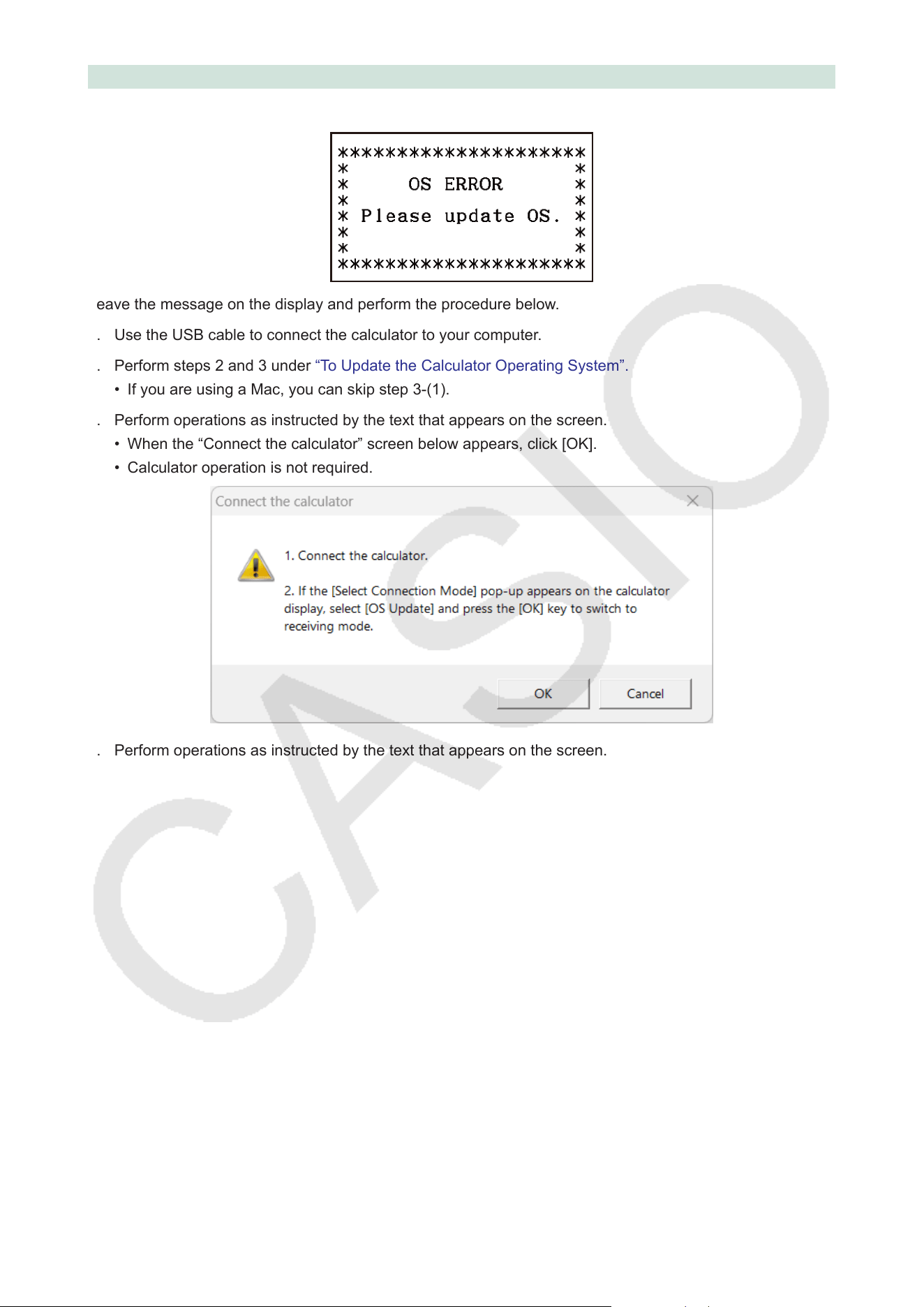
• The following message will appear if an error occurs during updating.
If the update fails and the calculator freezes with “Receiving...” on the display, press the RESTART
button on the back of the calculator. This should cause the message “OS ERROR Please update
OS.” to appear on the calculator display. If this happens, see “What to Do If the Update Failed” for
information about what you need to do.
Note
• The message below will appear if you try to update a calculator that is already updated.
7
What to Do If the Update Failed
The message below will appear if the calculator’s system memory becomes corrupted.
Leave the message on the display and perform the procedure below.
1. Use the USB cable to connect the calculator to your computer.
2. Perform steps 2 and 3 under “To Update the Calculator Operating System”.
• If you are using a Mac, you can skip step 3-(1).
3. Perform operations as instructed by the text that appears on the screen.
• When the “Connect the calculator” screen below appears, click [OK].
• Calculator operation is not required.
4. Perform operations as instructed by the text that appears on the screen.

CASIO COMPUTER CO., LTD.
6-2, Hon-machi 1-chome
Shibuya-ku, Tokyo 151-8543, Japan

