LAST UPDATED: 03/10/22
SYLVANIA Smart+ Wi-Fi Setup
shop.ledvanceus.com

Basics
Connect WiFi Devices to Alexa
Connect WiFi Devices to Google
Apple Siri Shortcuts
Which app do I use?
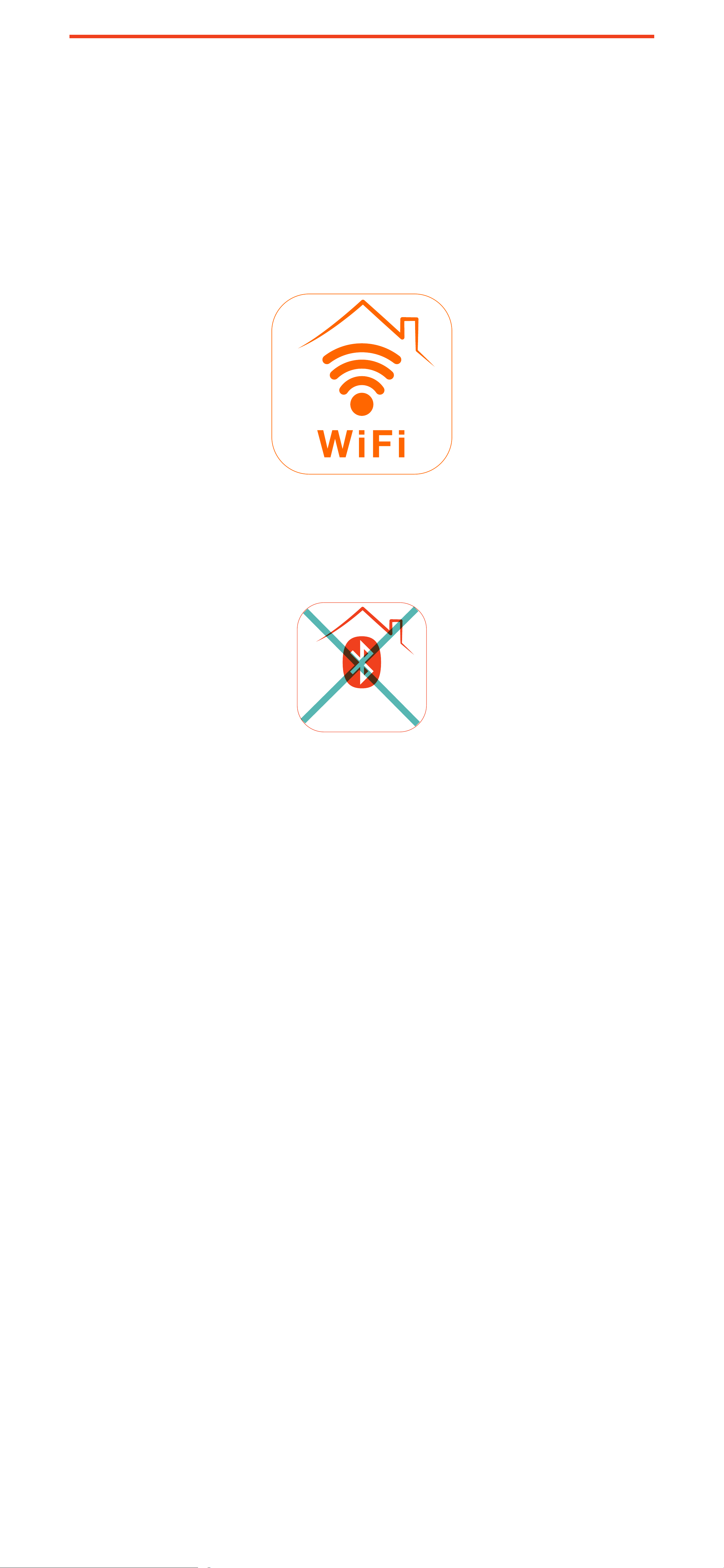
Your new WiFi device(s) work with the SYLVANIA
Smart WiFi app, which looks like this:
Please take care to download the SYLVANIA Smart
WiFi app, and not the SYLVANIA Smart Home app:
The Smart Home app will not work with these
devices.
Which voice assistants do these devices
support?
Currently, these devices support Amazon Alexa, Hey
Google, and Siri Shortcuts, and can work with all
three simultaneously. For example, you may turn on
your devices with Alexa and off with Hey Google.
Can I control it when I’m not at home?
Yes, you can remotely control your light when not at
home, using the SYLVANIA Smart WiFi app.
Bluetooth
BASICS
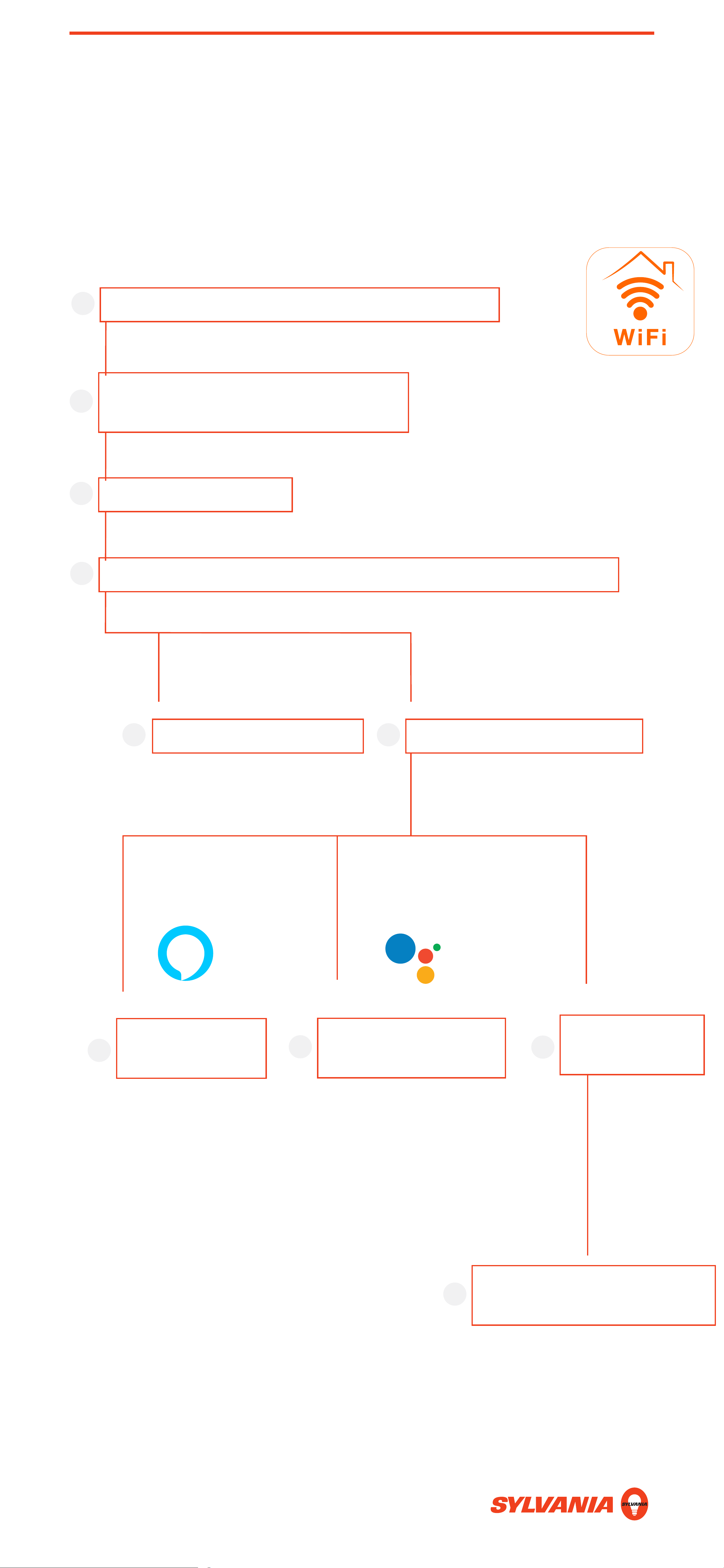
SETUP: OVERVIEW
Voice Control
5
Set up to use with Siri
Shortcuts (Refer to Page 18)
7
Enter or Create Your
SYLVANIA Smart WiFi credentials
2
Add Device
3
Turn on Device and tap Go to add
4
Link to Google Home
(Refer to Page 11)
6
Open the SYLVANIA Smart WiFi app
1
App Control
5
Link to Alexa
(Refer to Page 5)
6
Go back to the
home screen
6
2
ALEXA: SETUP
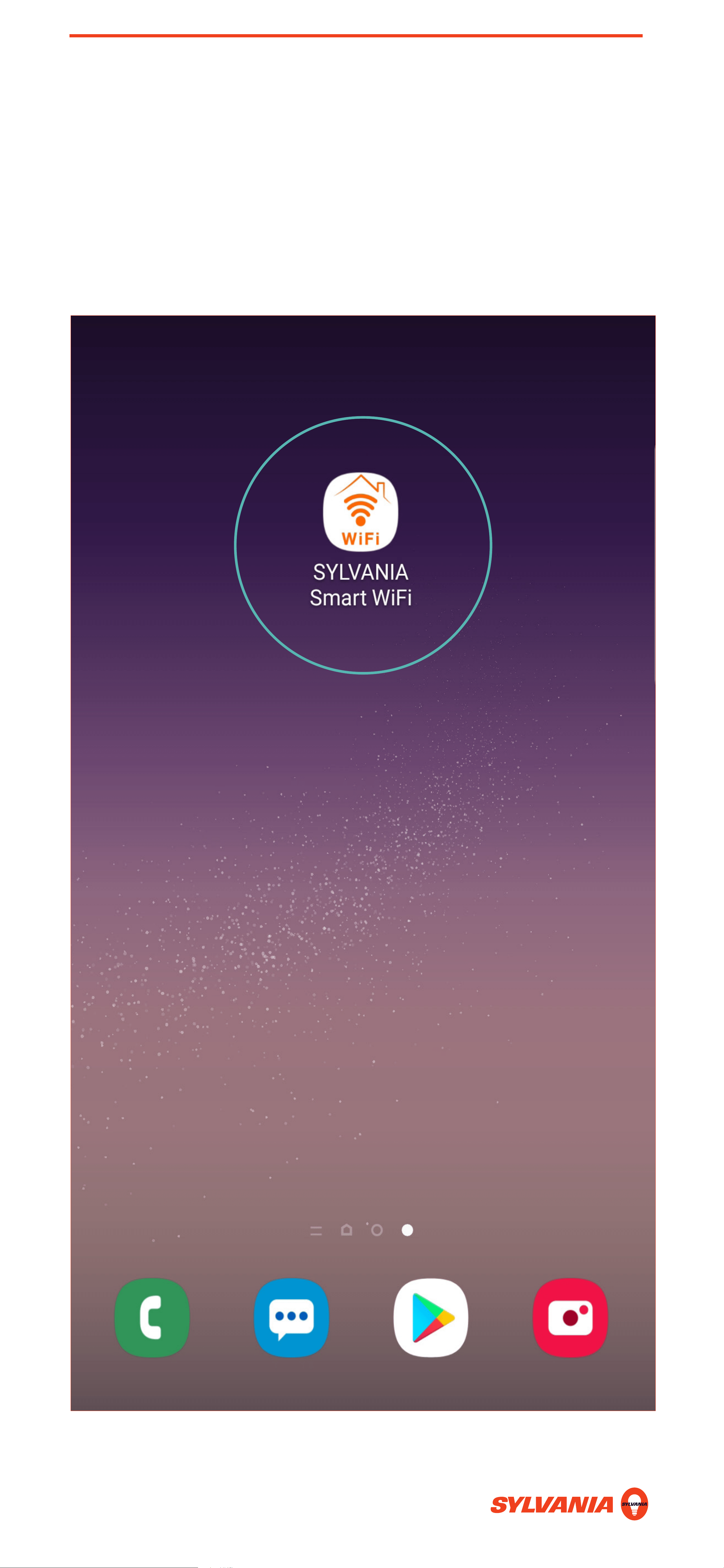
1. Confirm that you are signed into your Amazon
Alexa account, then open the SYLVANIA Smart
WiFi app.
ALEXA: SETUP
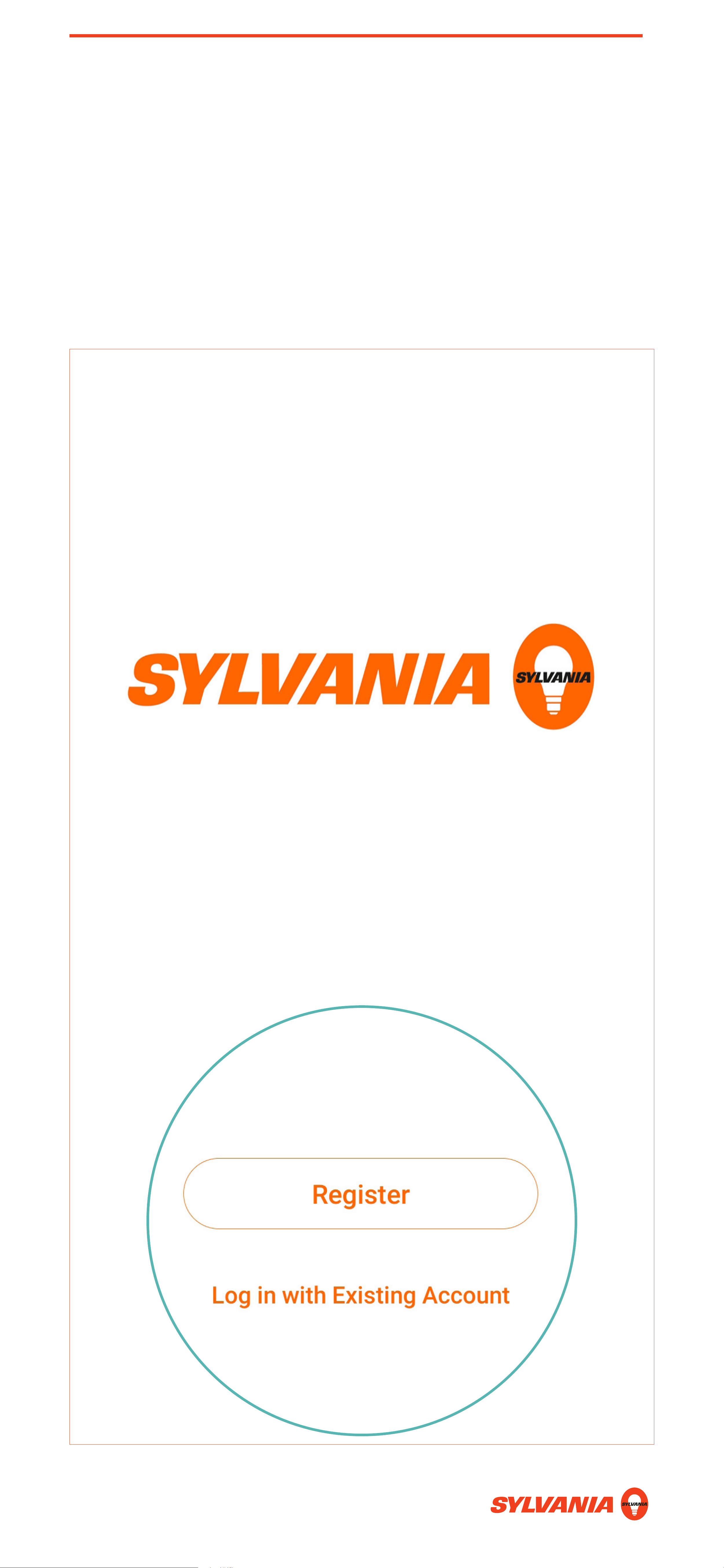
2. If you already have a SYLVANIA Smart WiFi
Account, log in with your existing account.
Otherwise, tap Register to create a new
account.
ALEXA: SETUP
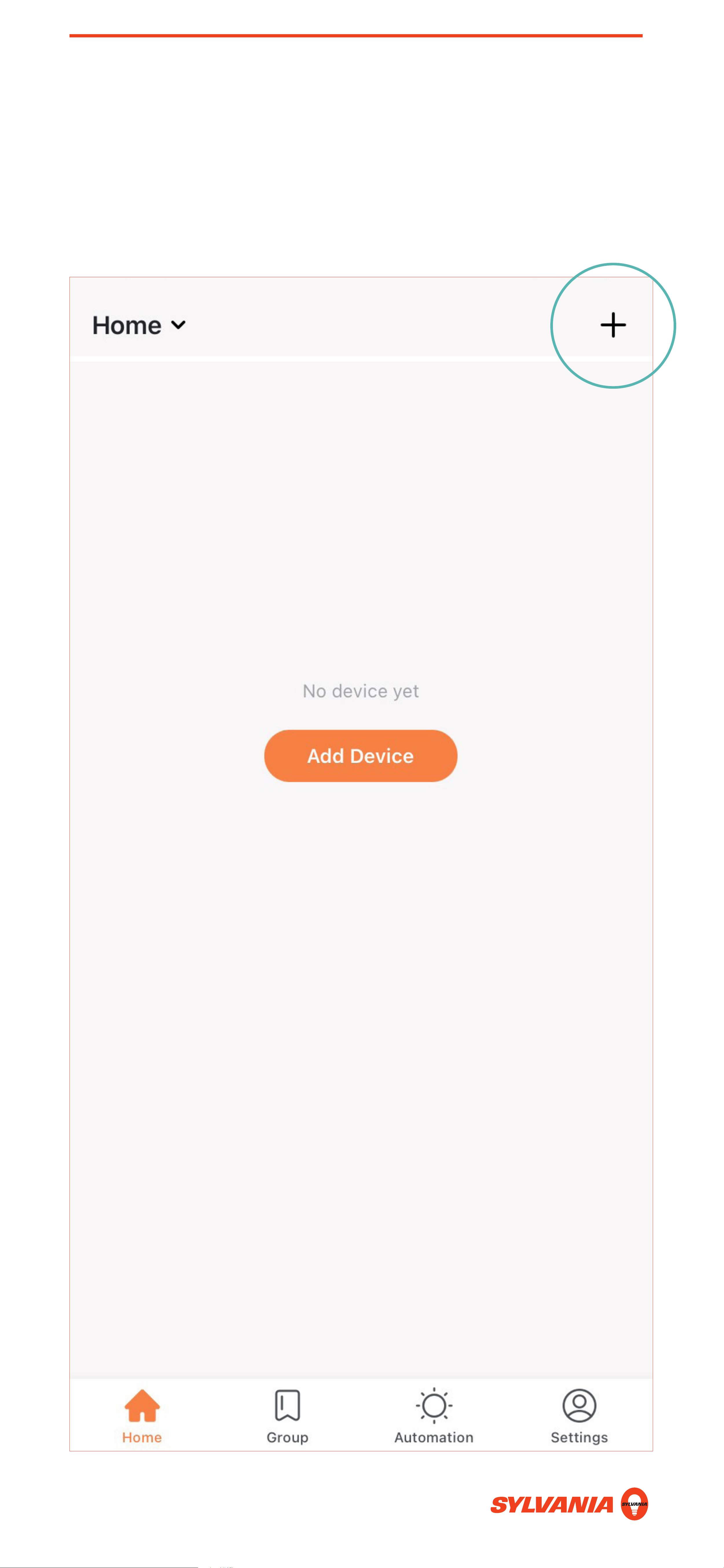
3. Tap the + symbol on the top right corner of the
screen.
ALEXA: SETUP
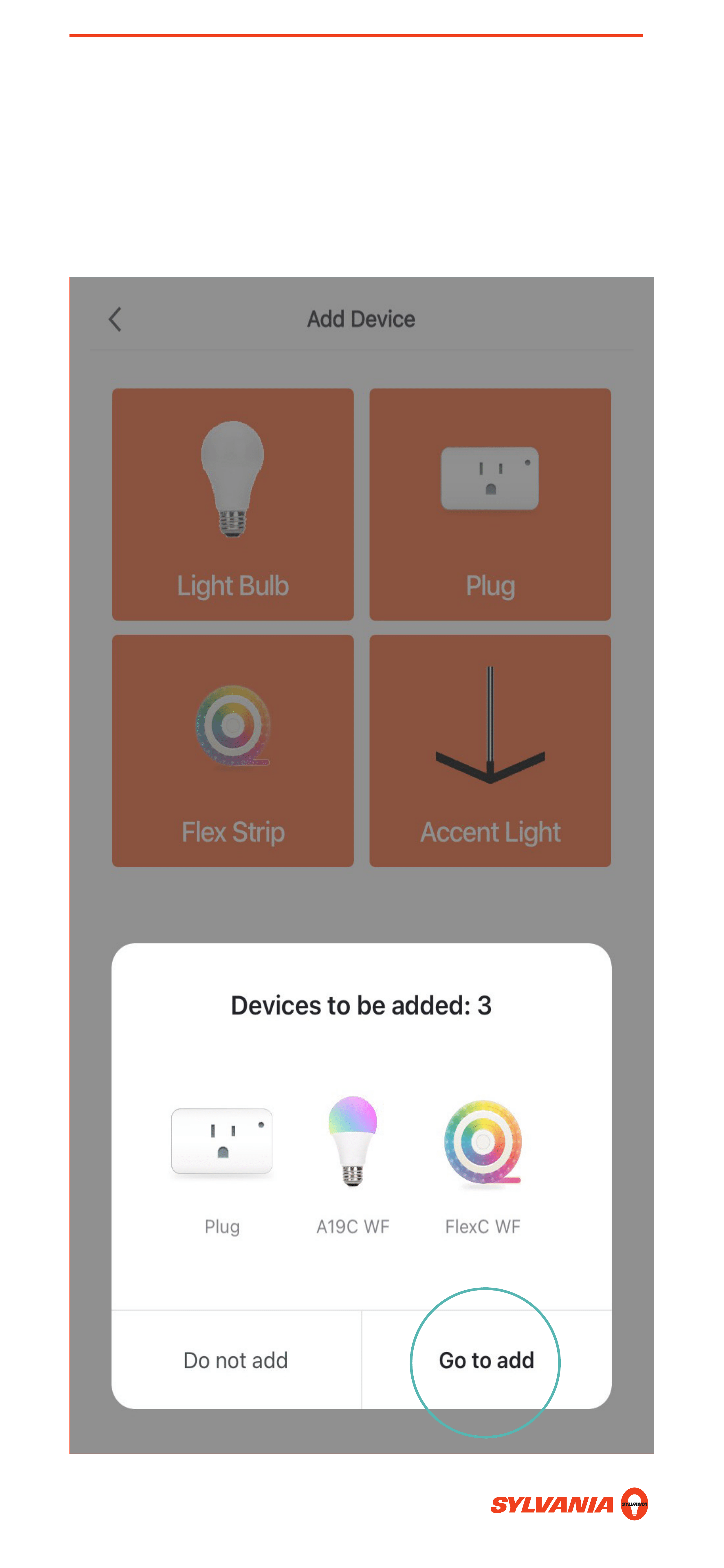
4. Power on the device. a prompt will appear. Tap
Go to add.
ALEXA: SETUP
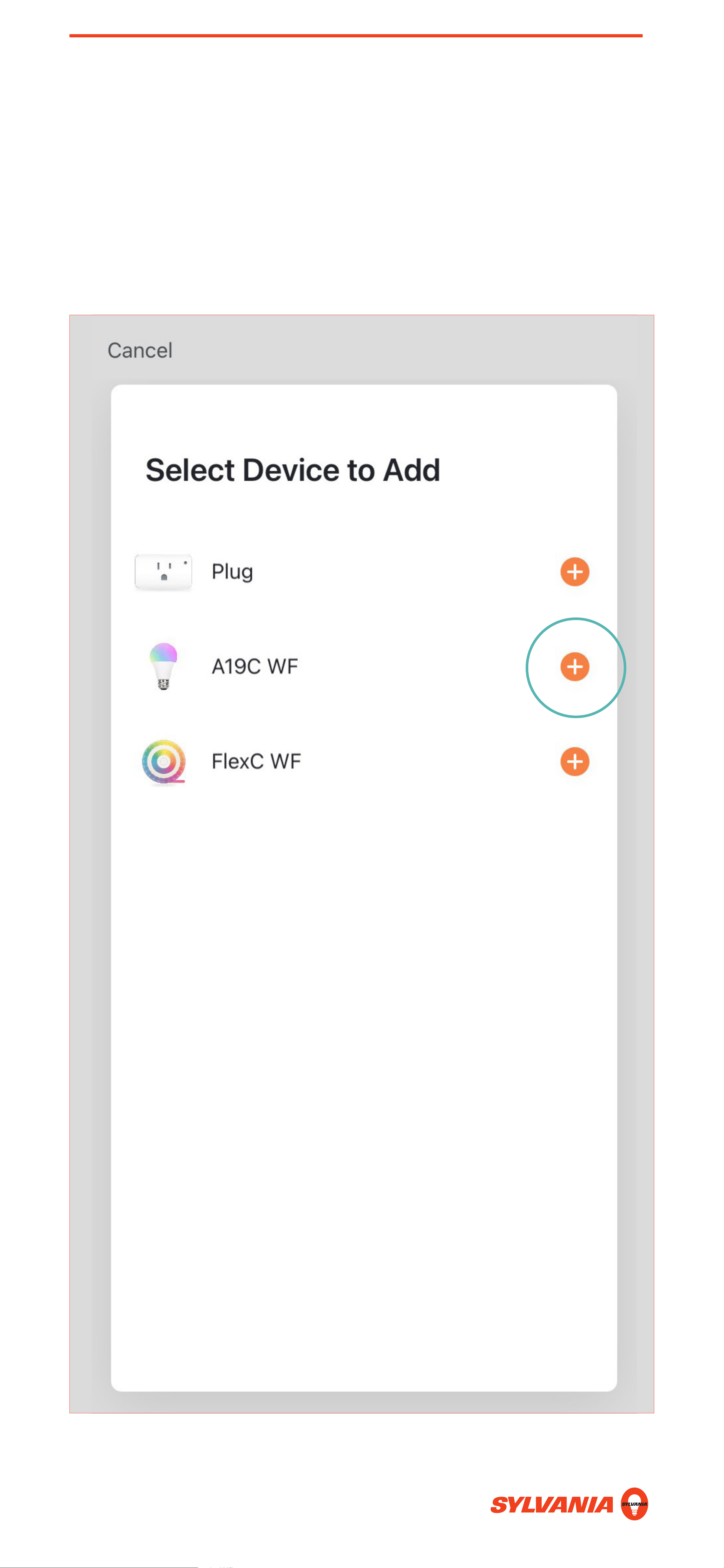
5. Devices can only be paired one at a time. Press
the + button next to the device you want to pair to
the Sylvania Smart Wifi app.
ALEXA: SETUP
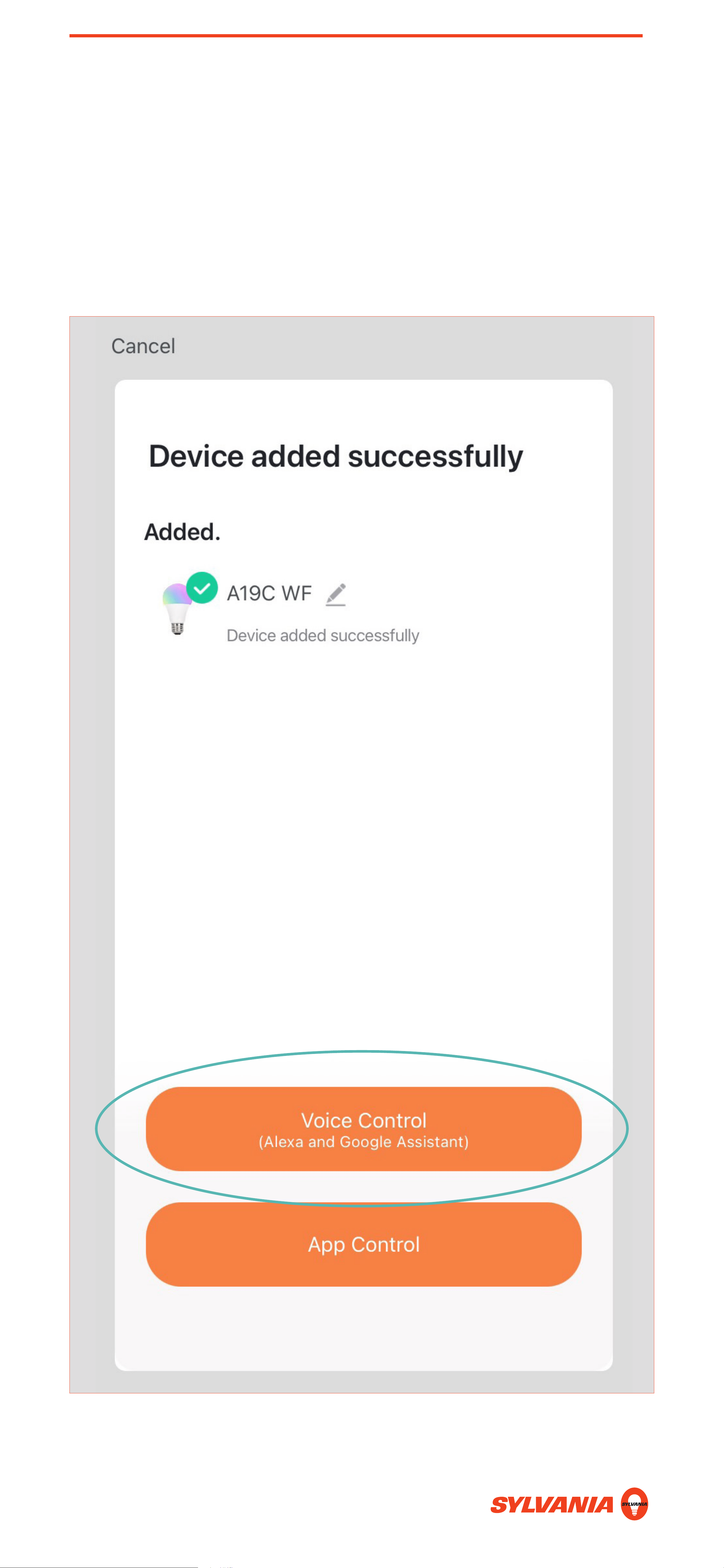
6. After pairing you will see the following screen. Tap
Voice Control to begin linking your SYLVANIA
Smart WiFi Account to Alexa.
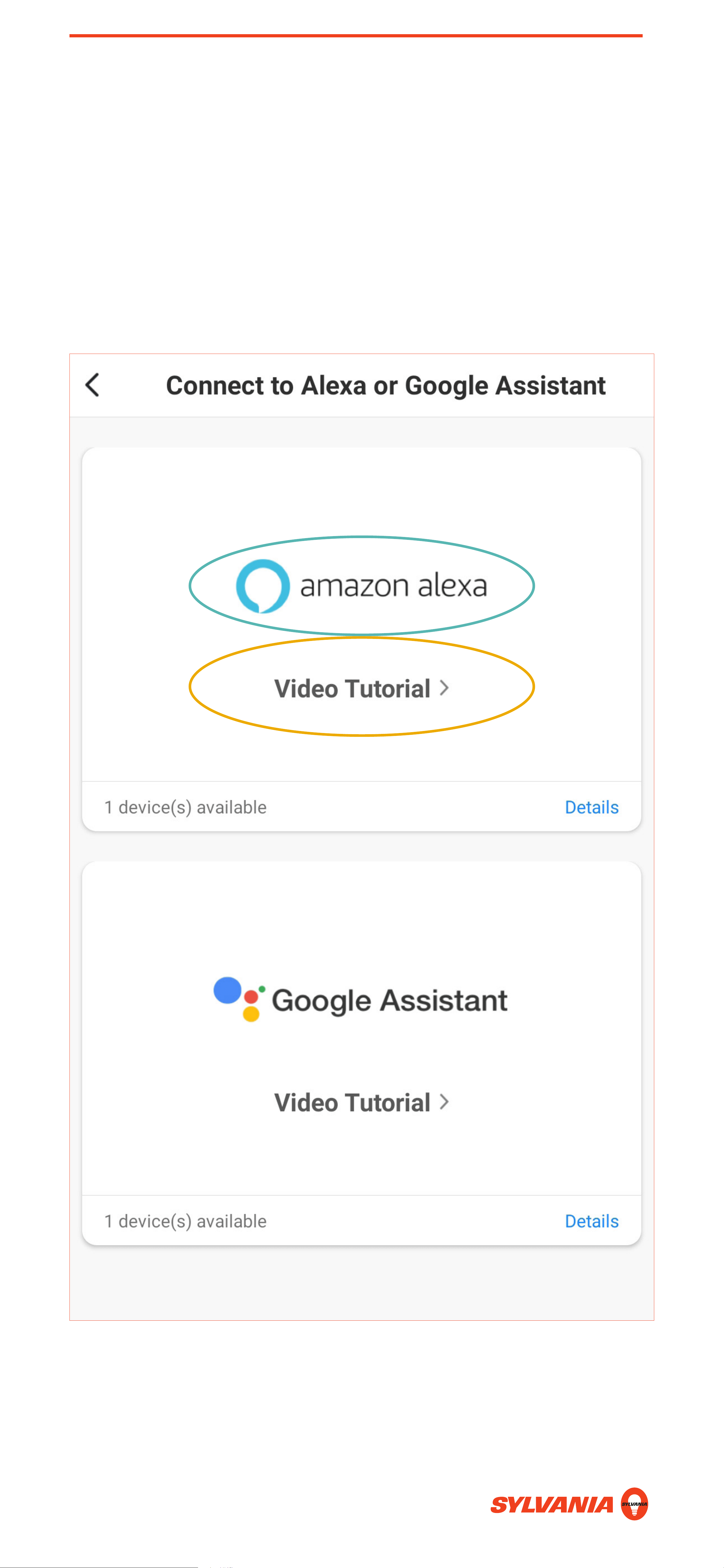
ALEXA: SETUP
7. Tap Amazon Alexa to link your account to
Alexa. This only needs to be done once. To view
a walkthrough video of this process, tap Video
Tutorial.
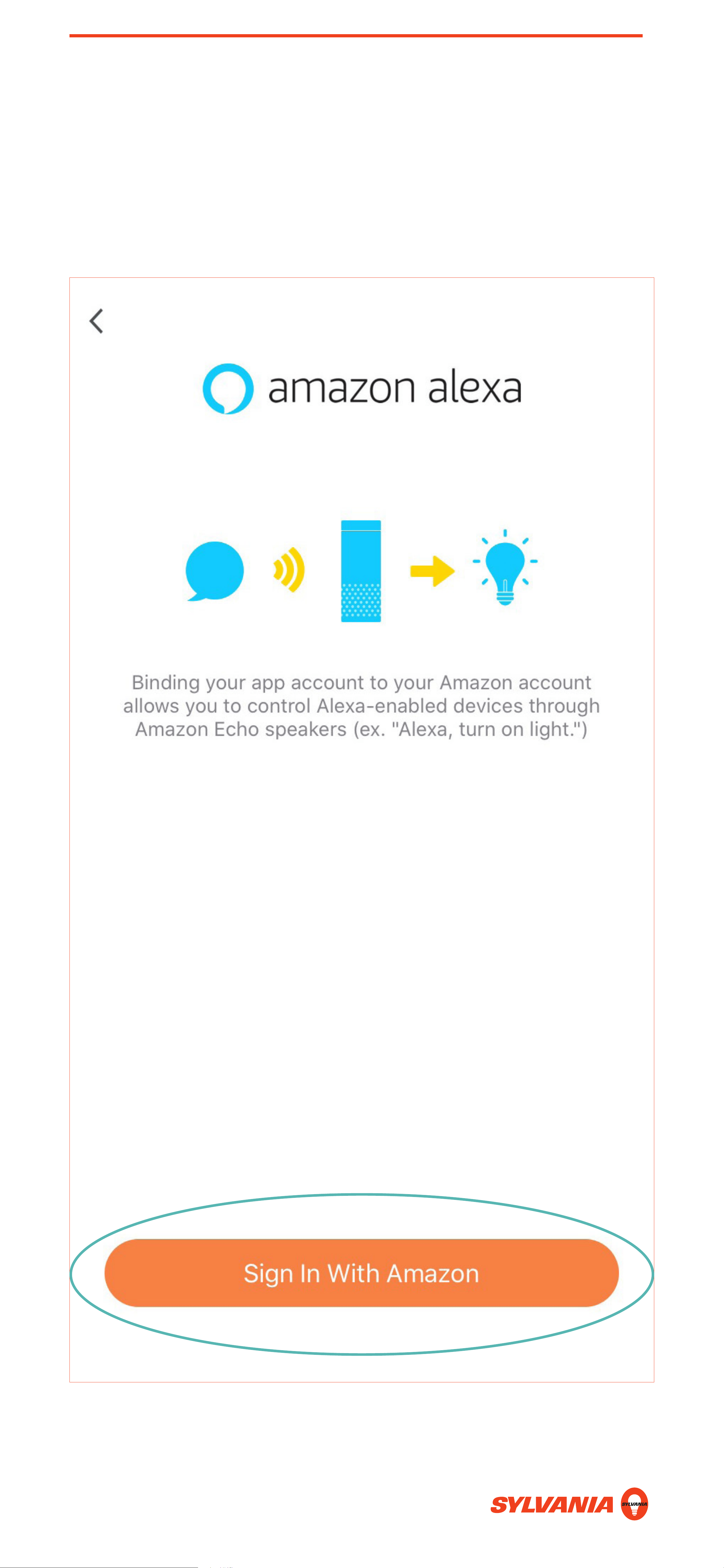
ALEXA: SETUP
8. First, ensure you have signed into your Alexa app
account. Then, tap Sign In With Amazon.
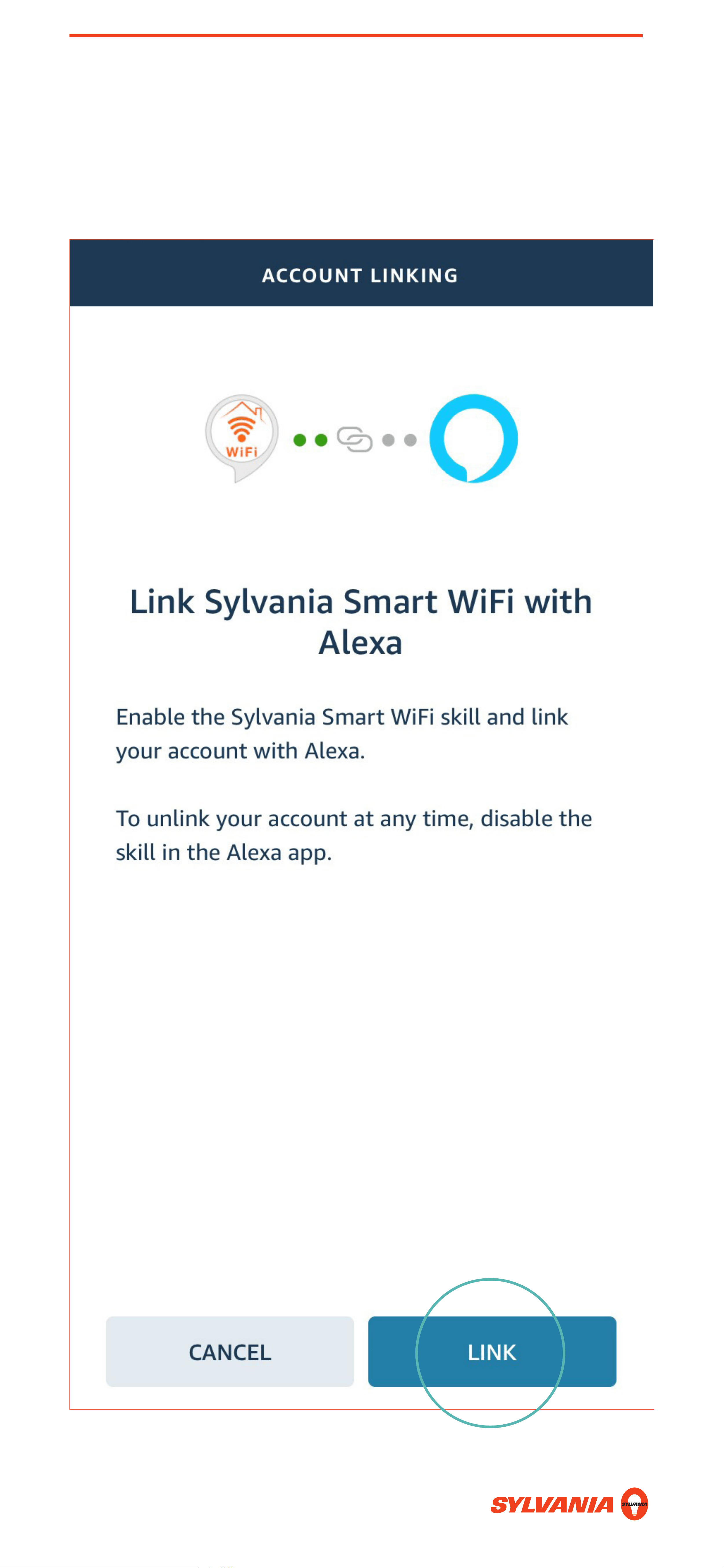
ALEXA: SETUP
9. Tap Link.
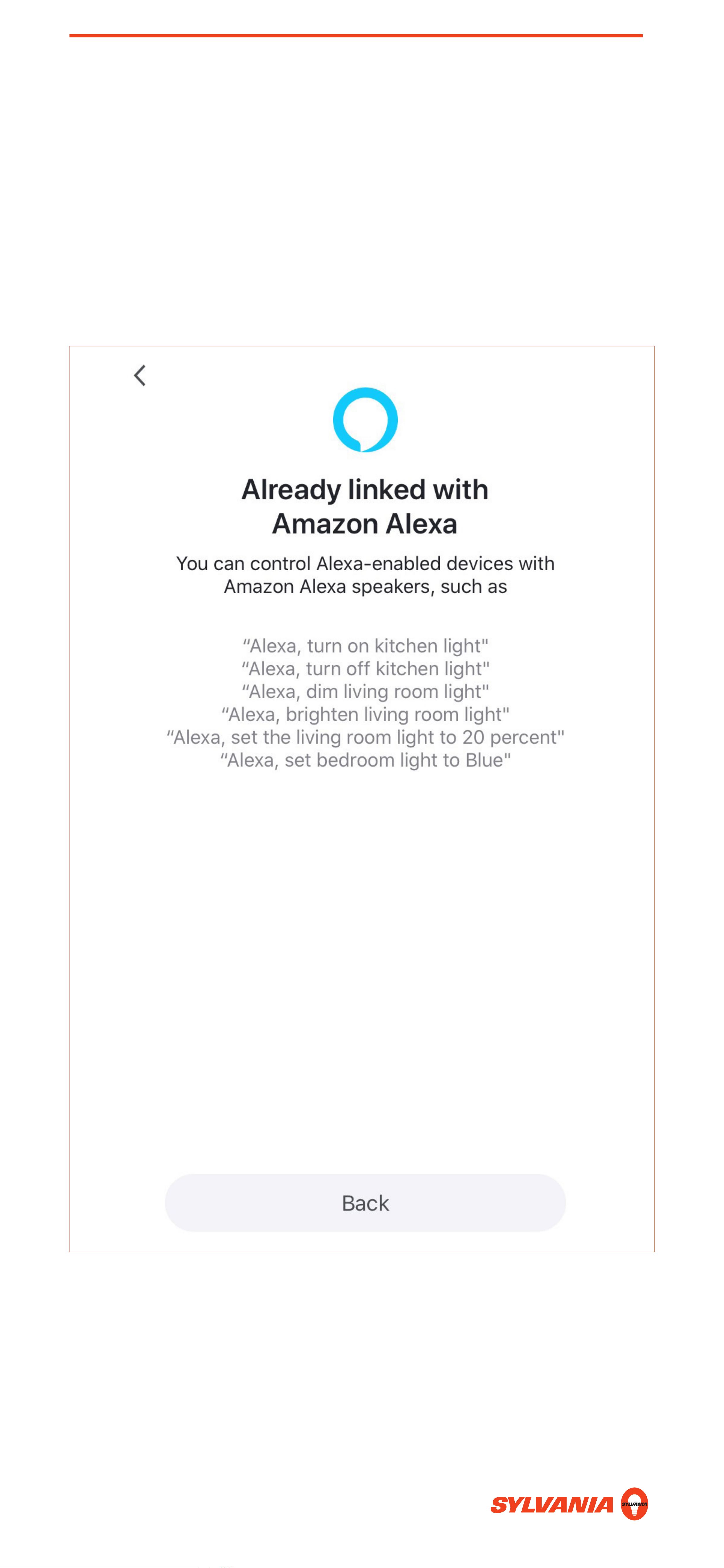
ALEXA: SETUP
10. If successful, you will see this screen. Alexa will
now accept voice commands.
Note: If you do not see the paired devices in the
Alexa app under Devices, refresh the Alexa app.

ALEXA: SETUP
11. To pair additional SYLVANIA WiFi devices, repeat
Steps 1–6.
NOTE: You must pair additional devices to the
SYLVANIA Smart WiFi app first, or Alexa will
not find them. After pairing to the SYLVANIA
Smart WiFi app, Alexa will automatically discover
your devices.
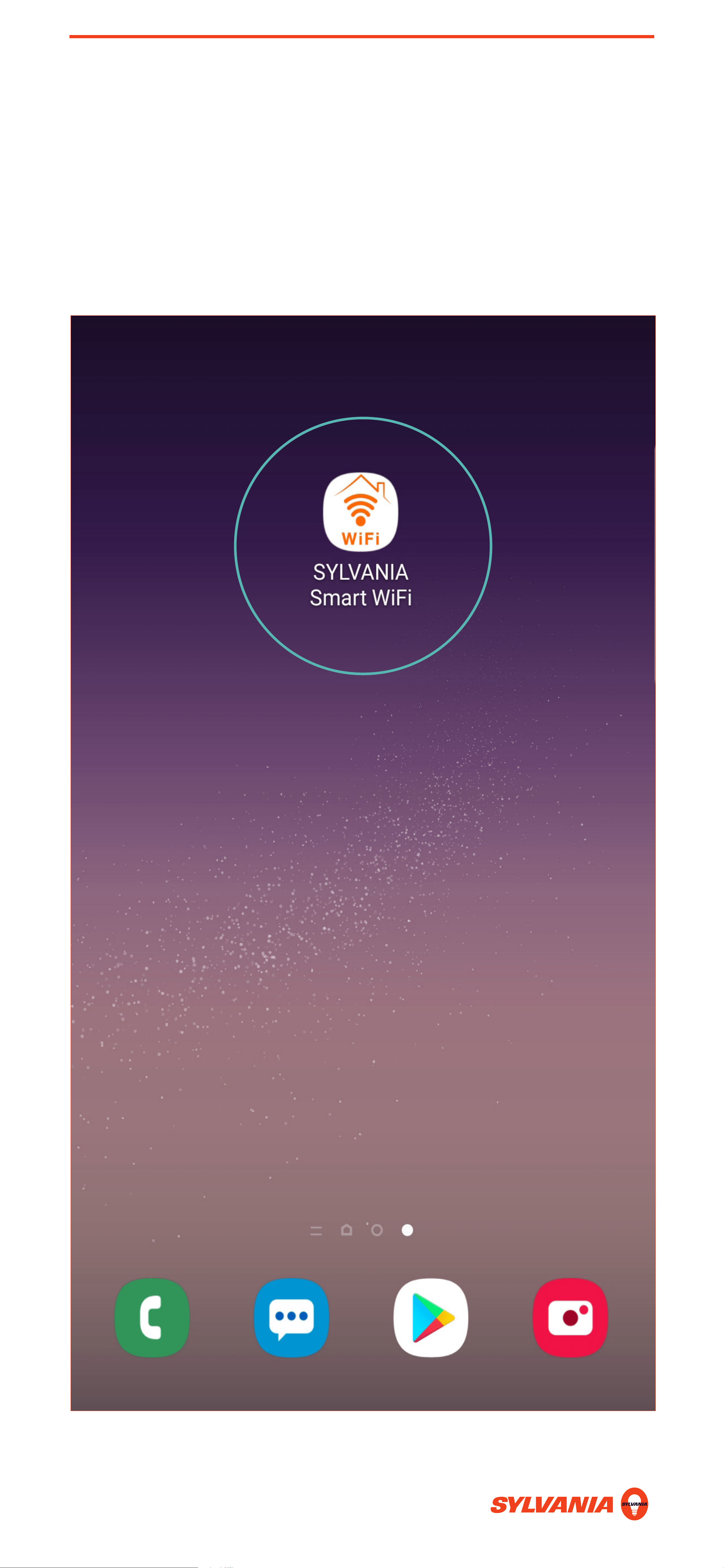
HEY GOOGLE: SETUP
1. Confirm that you are signed into your Google
account, then open the SYLVANIA Smart WiFi
app.
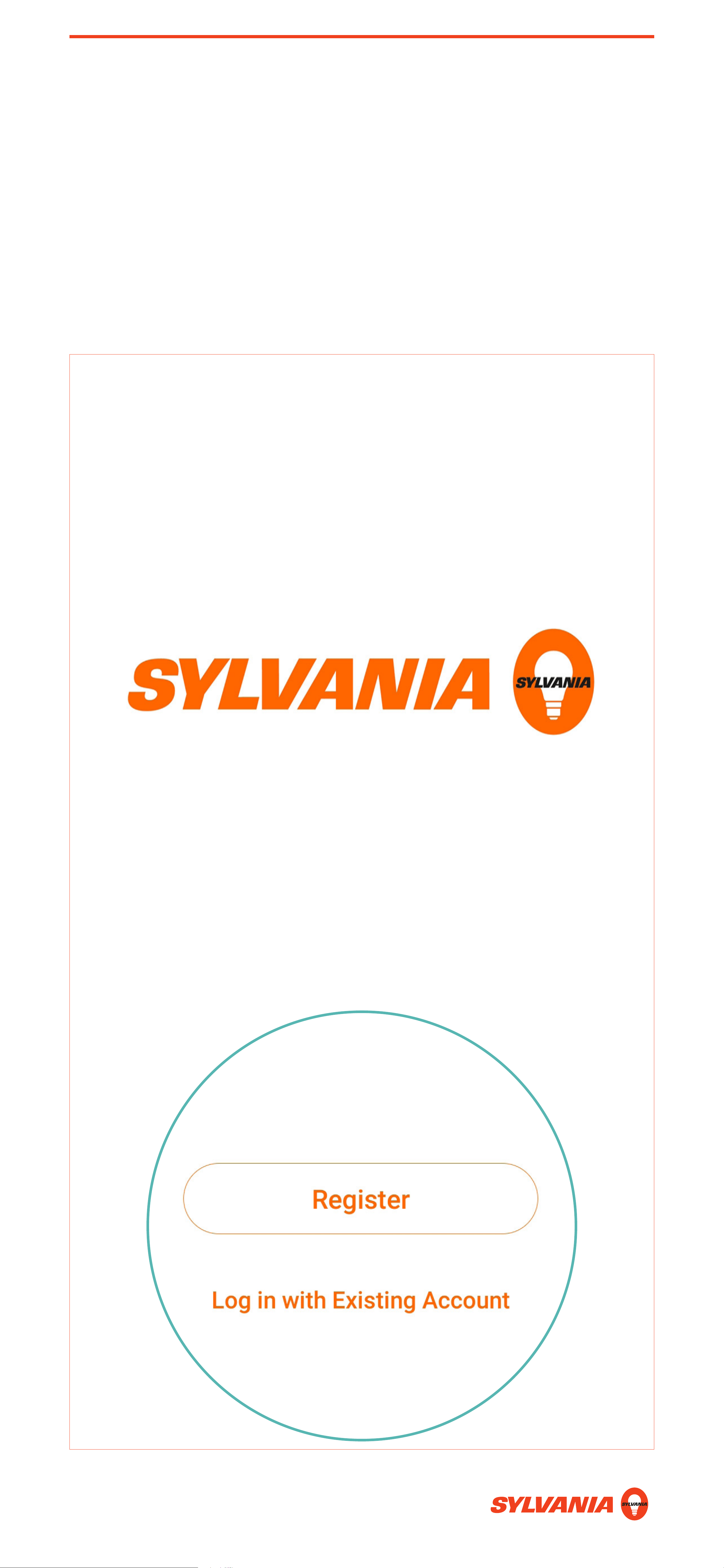
HEY GOOGLE: SETUP
2. If you already have a SYLVANIA Smart WiFi
Account, login with your existing account.
Otherwise, tap Register to create a new
account.
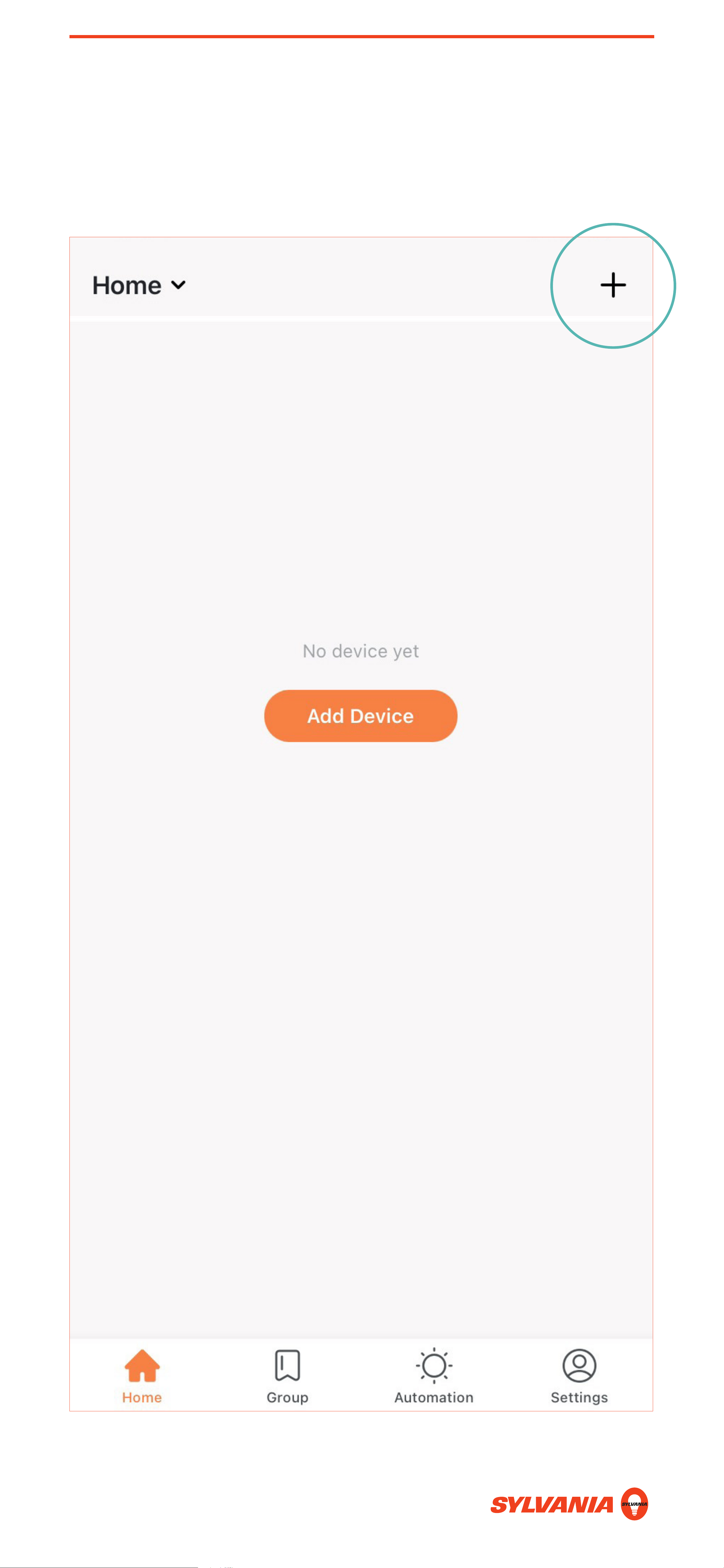
HEY GOOGLE: SETUP
3. Tap +.
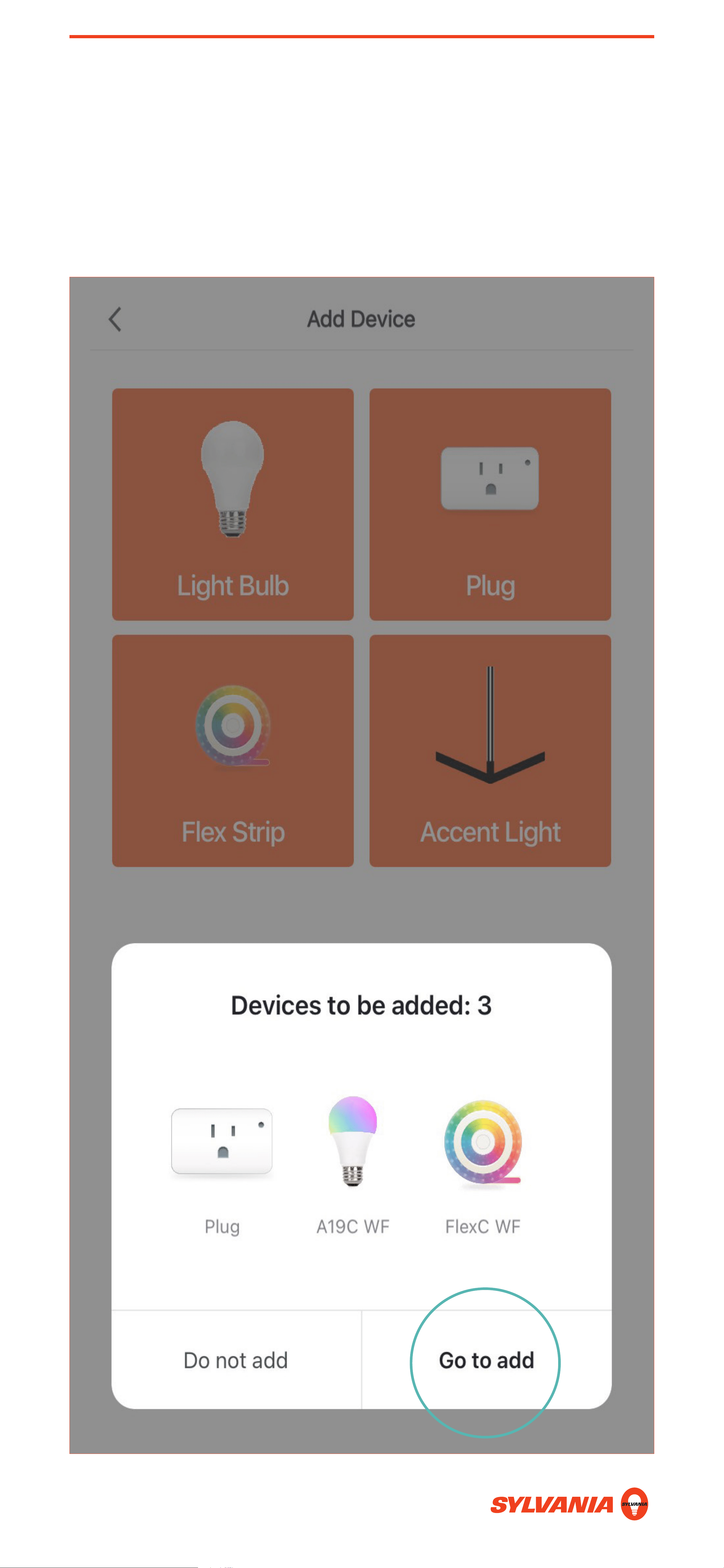
HEY GOOGLE: SETUP
4. Power on your device. A prompt will appear. Tap
Go to add.
HEY GOOGLE: SETUP
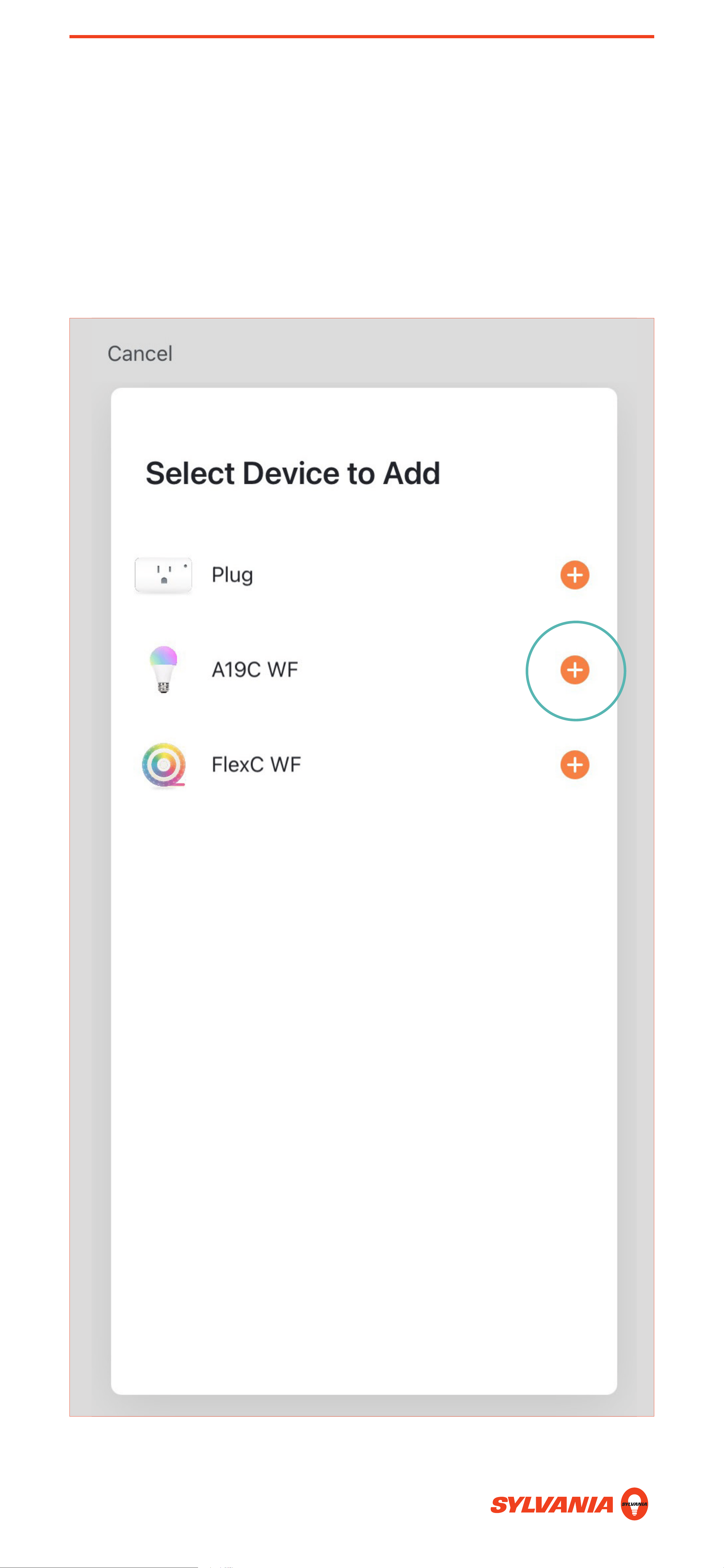
5. Devices can only be paired one at a time. Press
the + button next to the device you want to pair to
the Sylvania Smart Wifi app.
HEY GOOGLE: SETUP
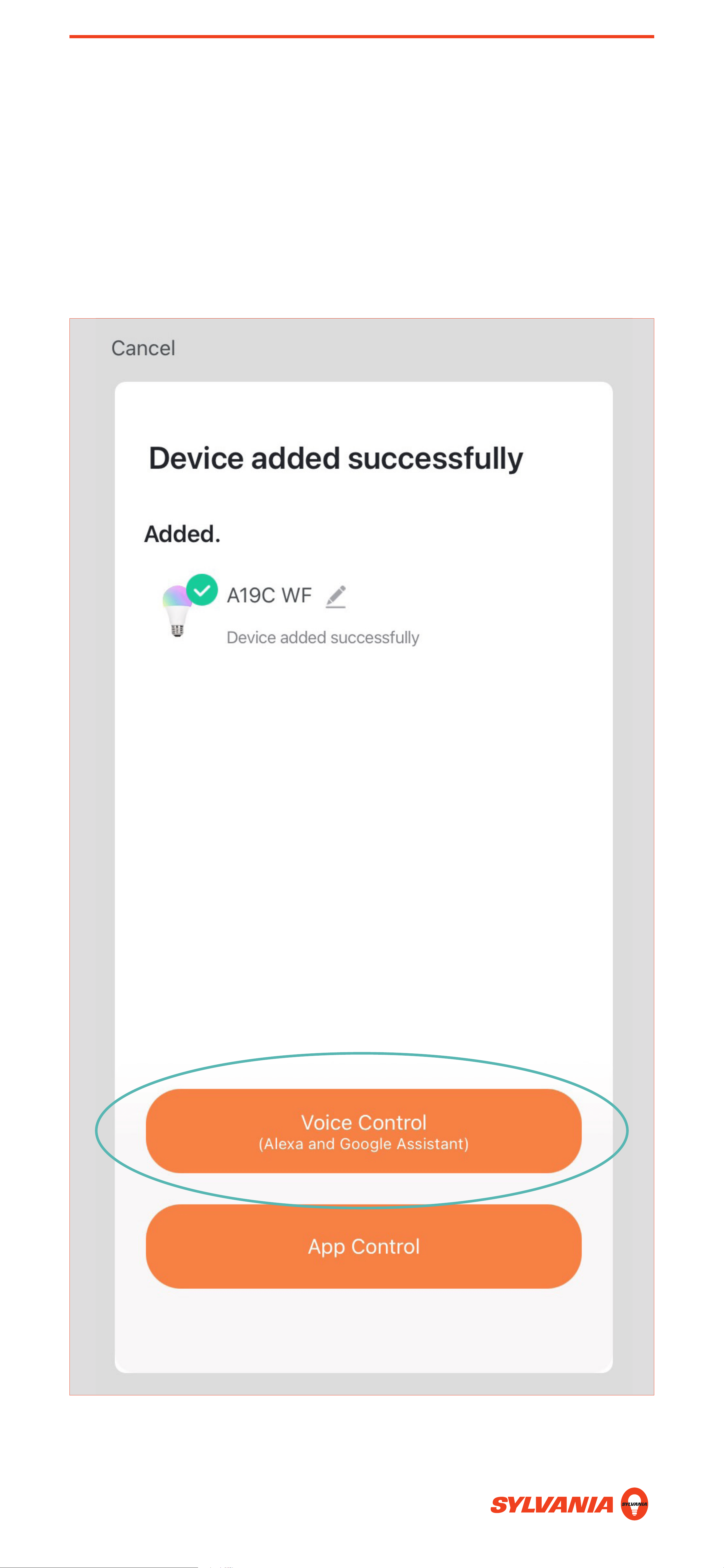
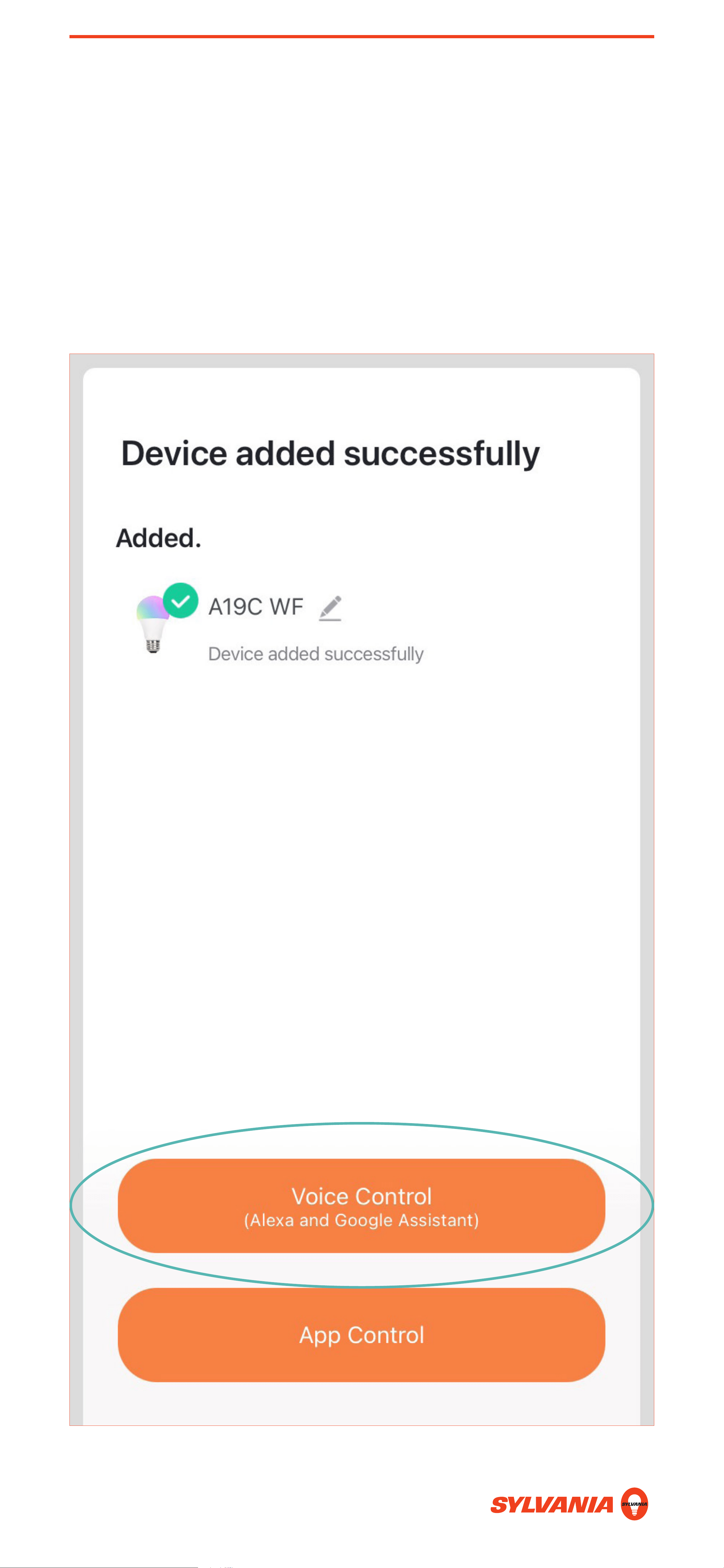
6. After pairing you will see this screen. Tap Voice
Control to begin linking your SYLVANIA Smart
WiFi account to Google Home.
HEY GOOGLE: SETUP
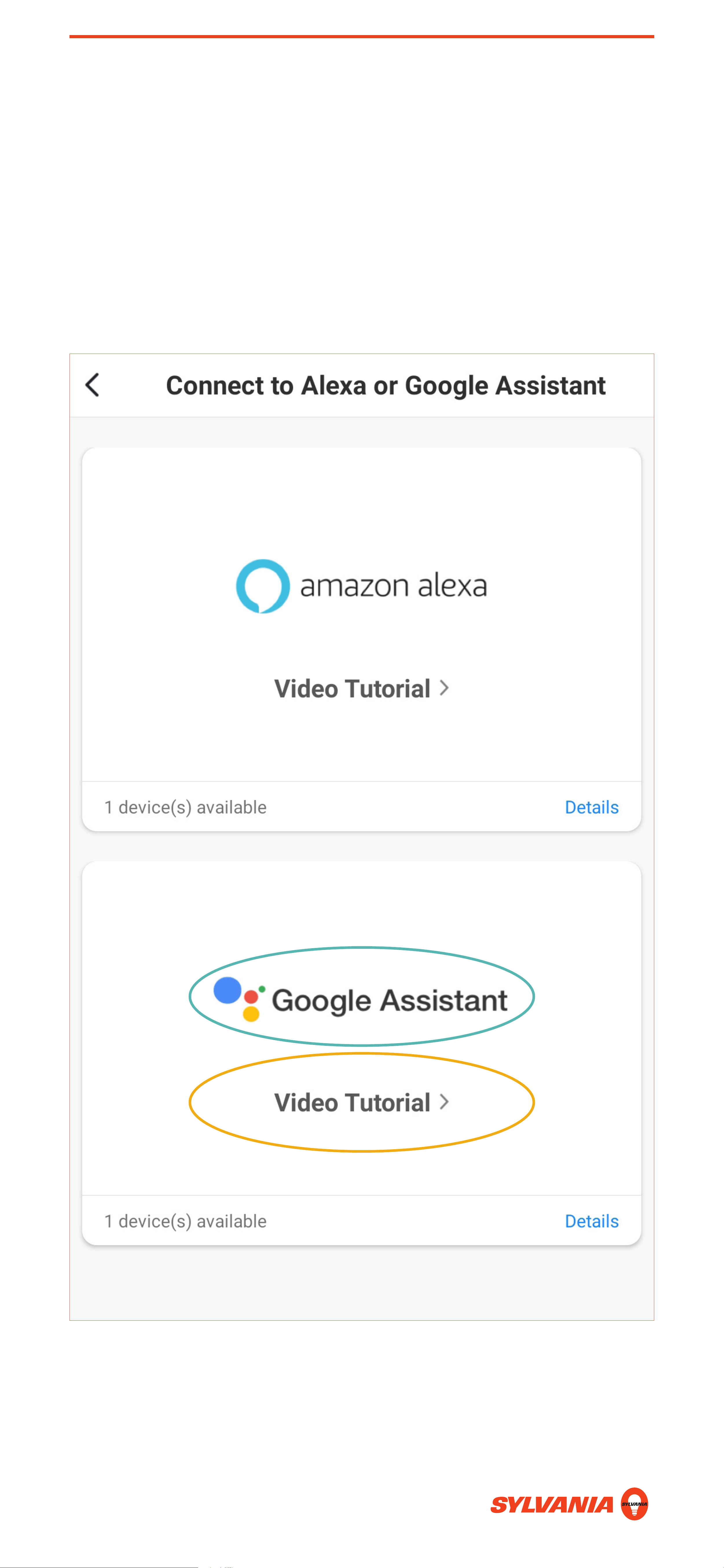
7. Tap Google Assistant to link your account to
Google Home. Please note this only needs to be
done once. To view a walkthrough video of this
process, tap Video Tutorial.
HEY GOOGLE: SETUP
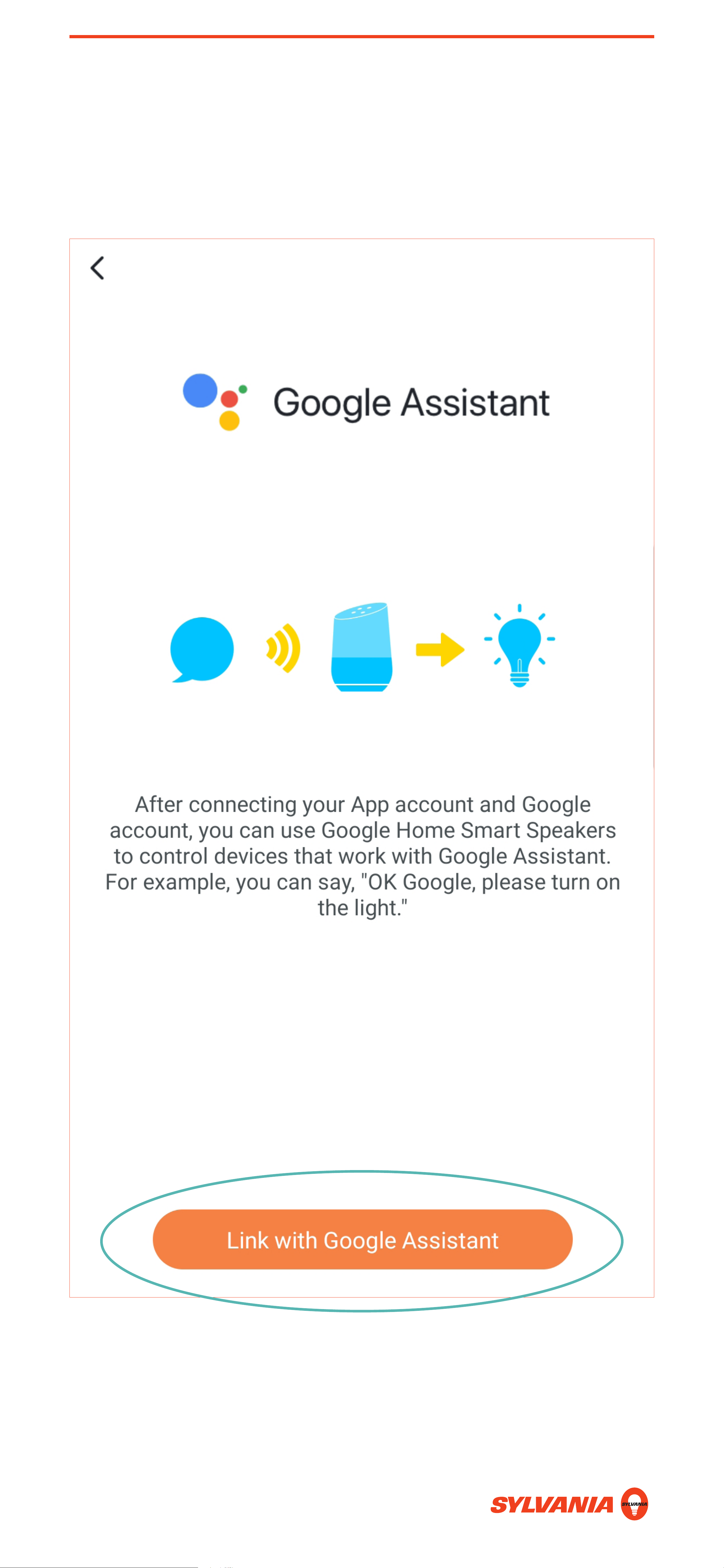
8. Tap Link with Google Assistant.
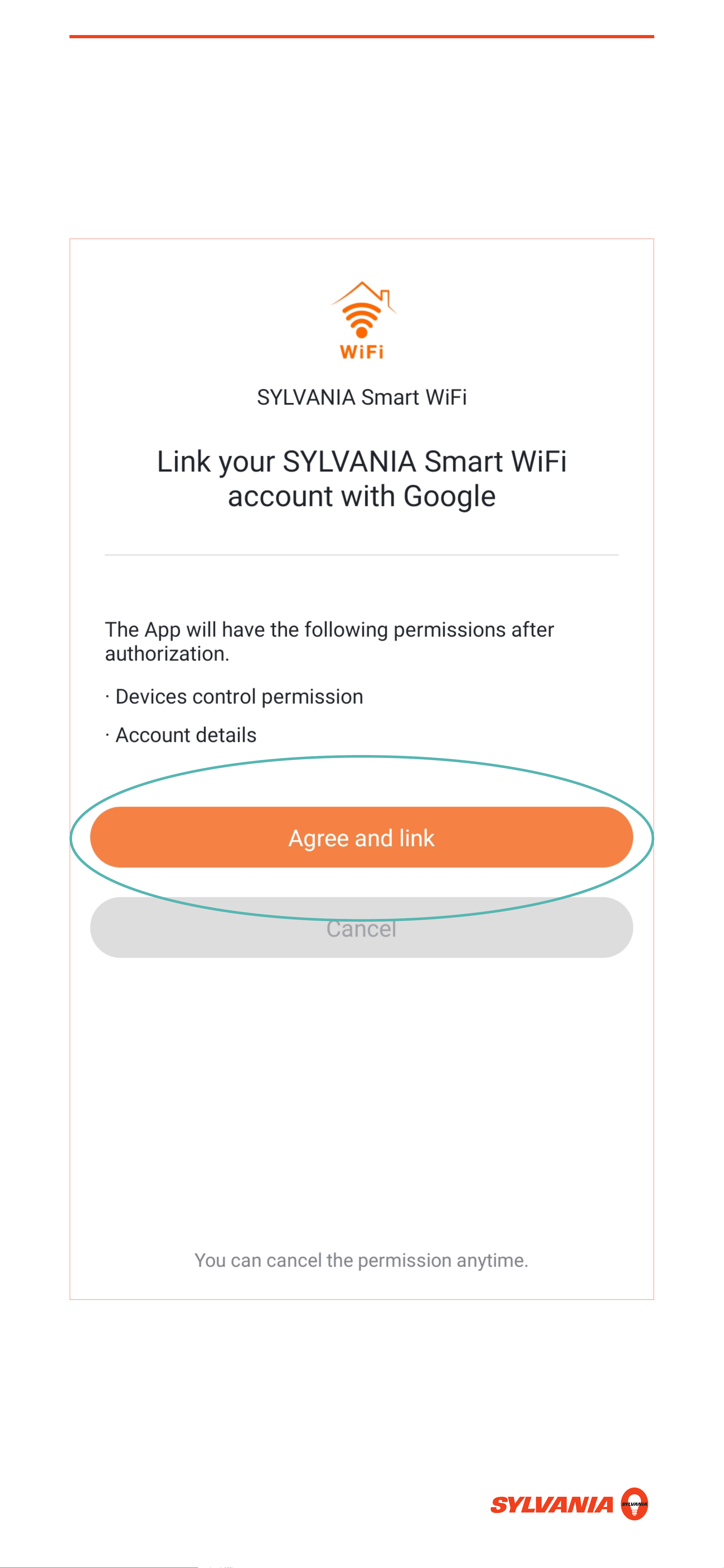
HEY GOOGLE: SETUP
9. Tap Agree and Link.
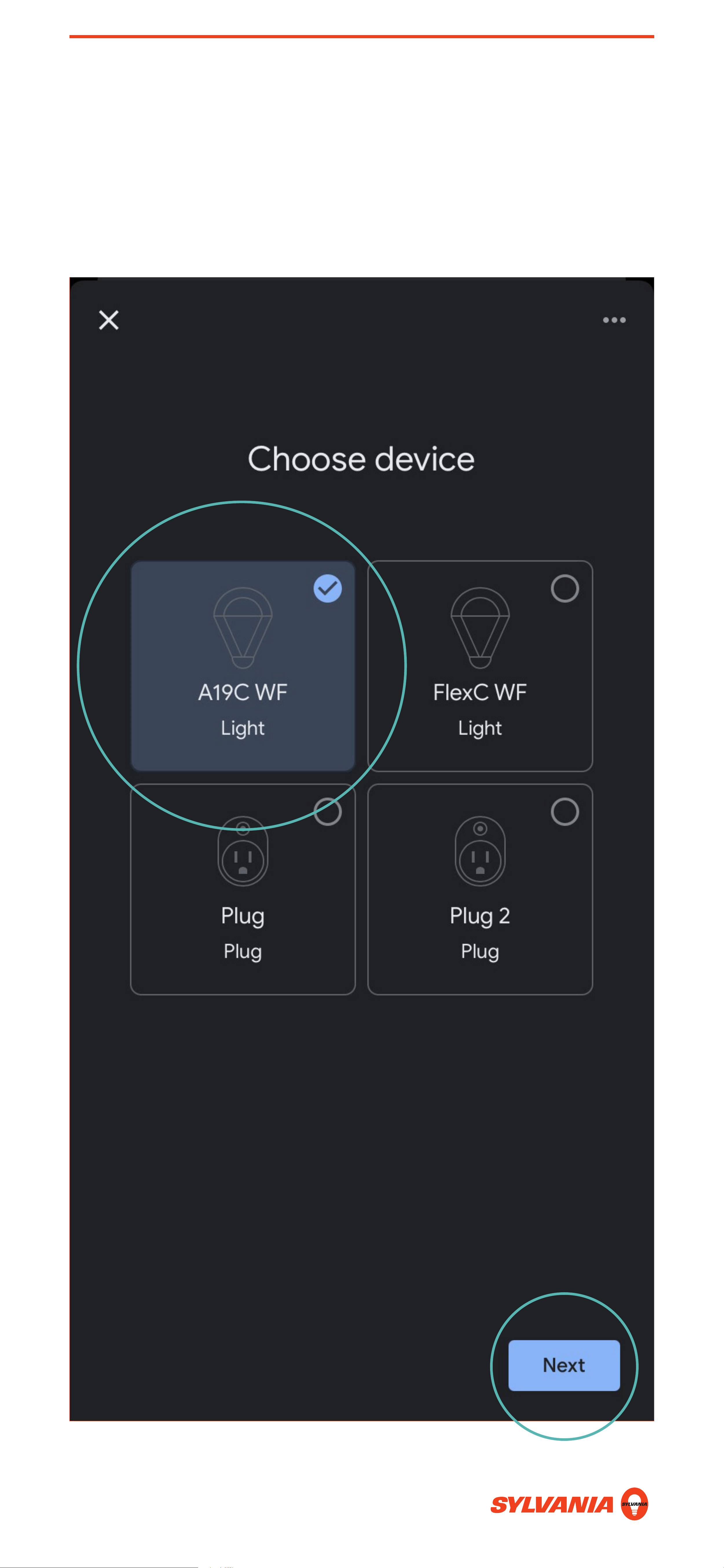
HEY GOOGLE: SETUP
10. Tap the device you want to add. Then, tap Next
to proceed.
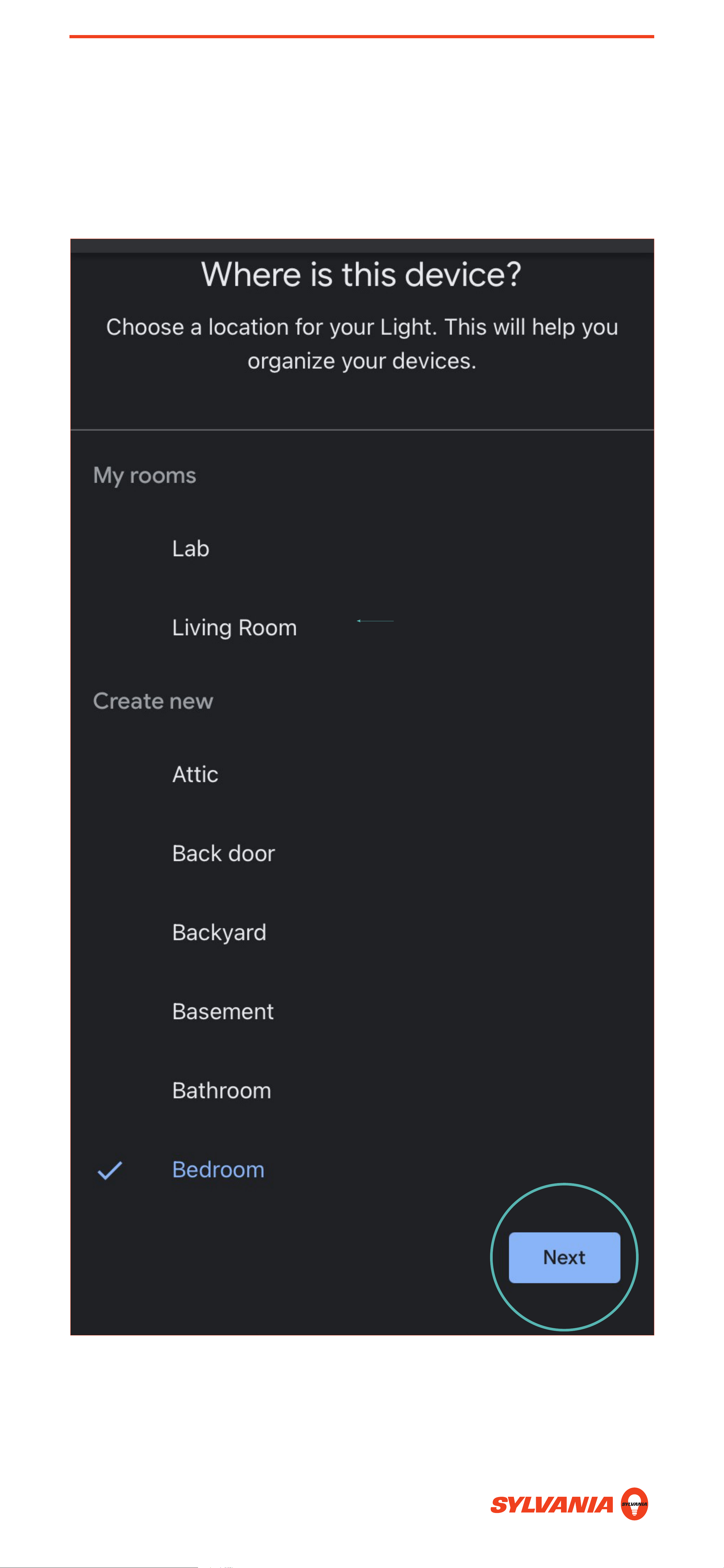
HEY GOOGLE: SETUP
11. Select the room for your device and tap Next.
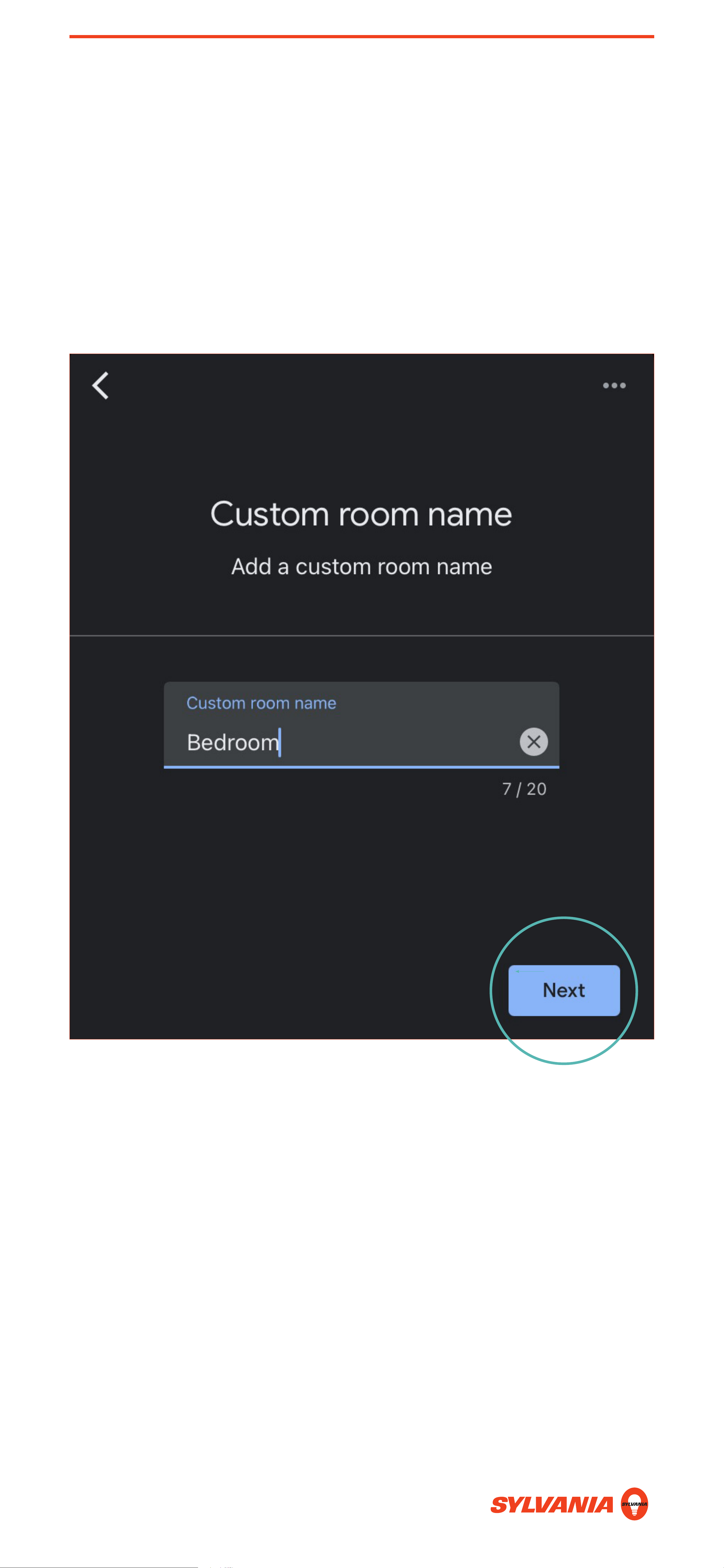
HEY GOOGLE: SETUP
12. If creating a new room, you will have the option
to edit your room name. Tap Next when you are
done. Your device(s) are now able to accept voice
controls.
HEY GOOGLE: SETUP
13. To pair additional devices, repeat Steps 1–6.
Note: Additional devices must be paired to the
SYLVANIA Smart WiFi app before it is
discovered automatically in the Google Home App.
HEY GOOGLE: SETUP
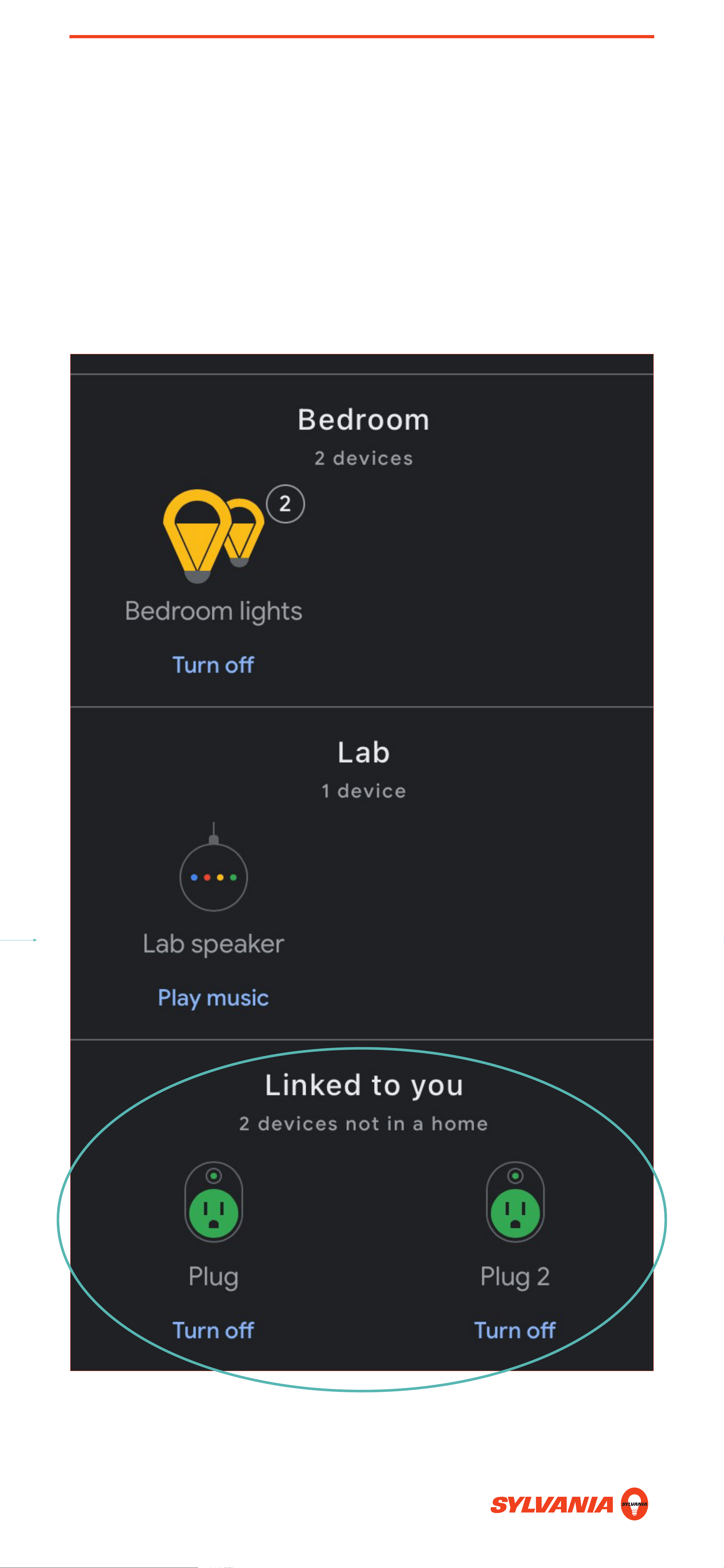
14. You can find paired devices in the Google Home
app, under Linked to you. If they were just
paired, you’ll need to assign them to a room. Tap
on the light you want to assign.

SIRI SHORTCUTS: SETUP
SYLVANIA WiFi devices can also be voice controlled
via Siri shortcuts with an iOS device with iOS 12 or
later. No hub is required. This process is done within
the SYLVANIA Smart WiFi app.
Note: These devices do not support Apple HomeKit.
You cannot control them through the Home app.
SMART+ Bluetooth lights are HomeKit-compatible.
SIRI SHORTCUTS: SETUP
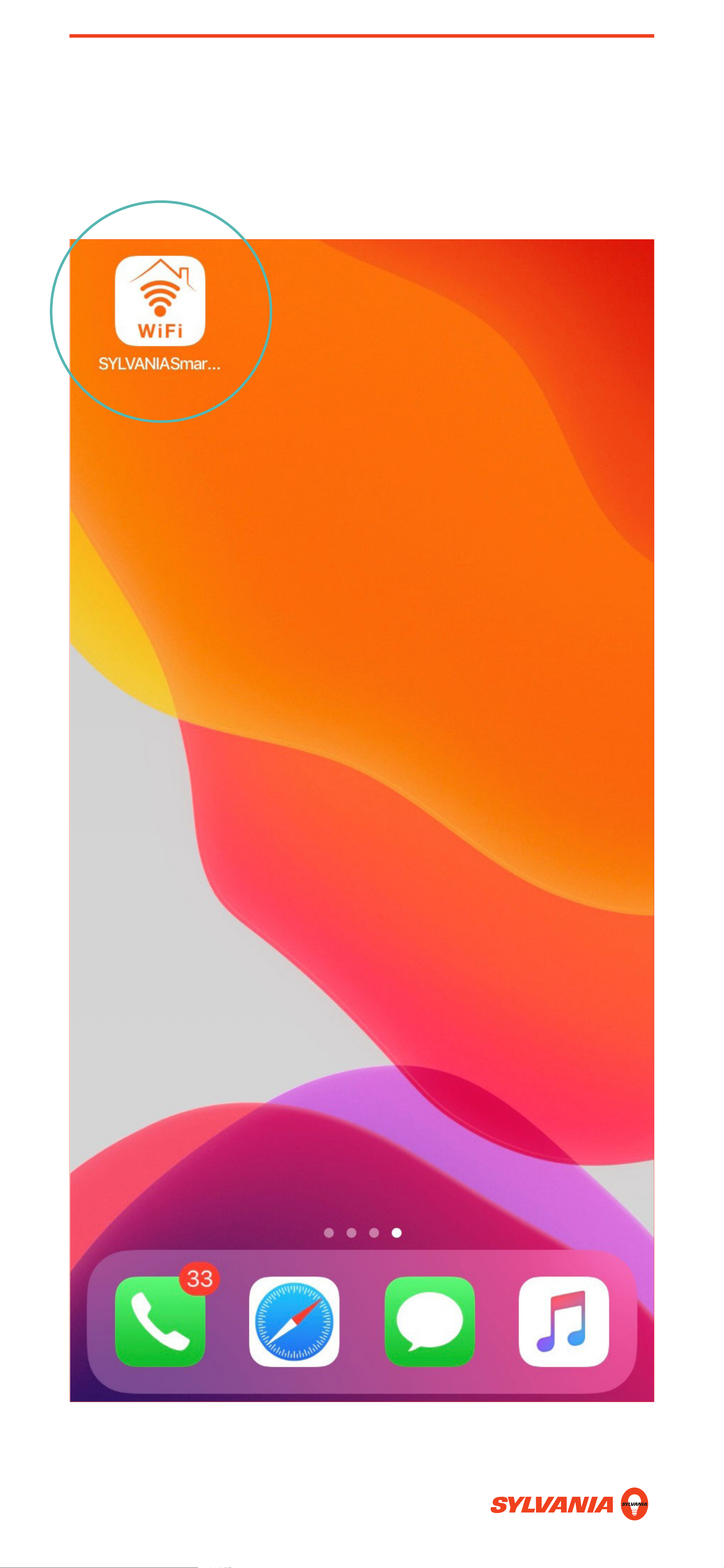
1. Open the SYLVANIA Smart WiFi app.
SIRI SHORTCUTS: SETUP
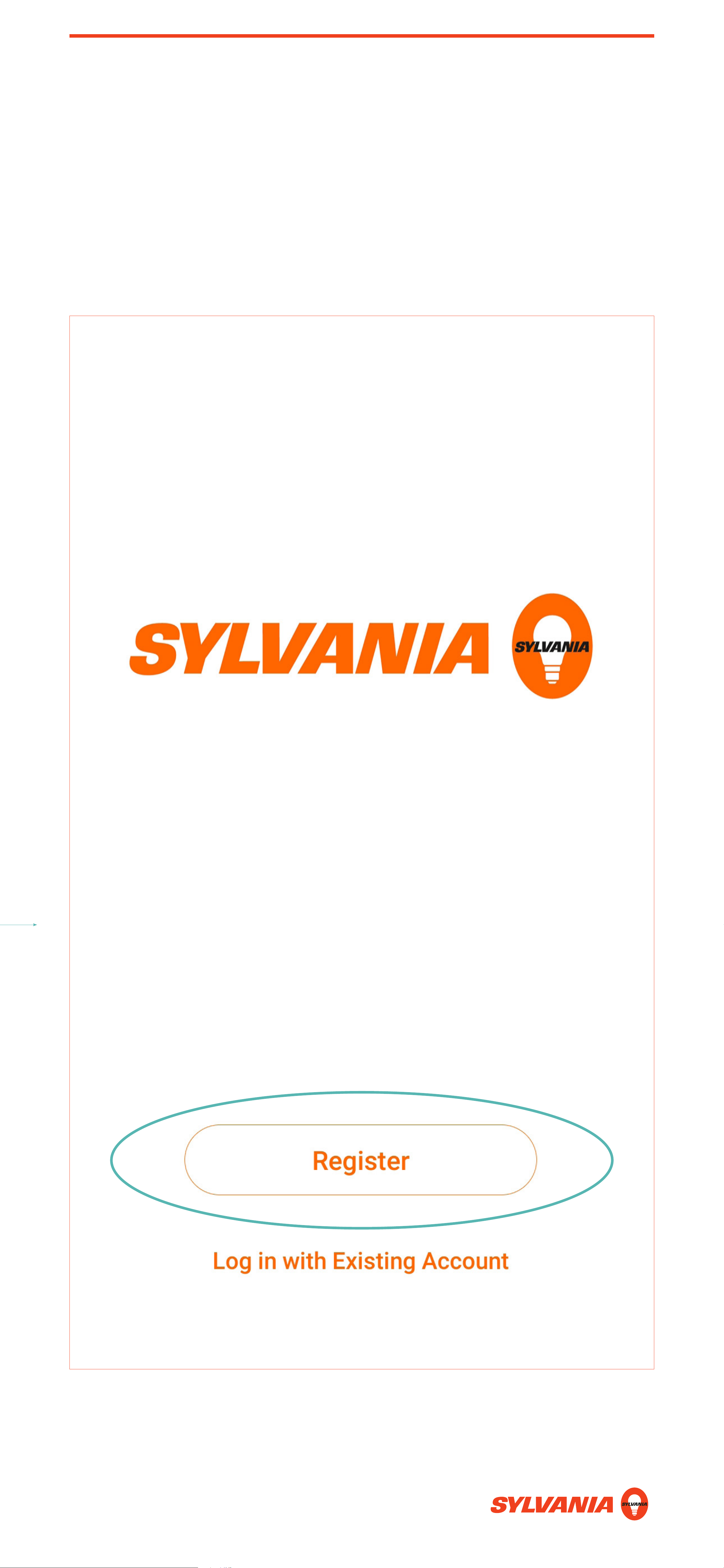
2. Log into your existing SYLVANIA Smart WiFi
account, or tap Register to create a new
account.
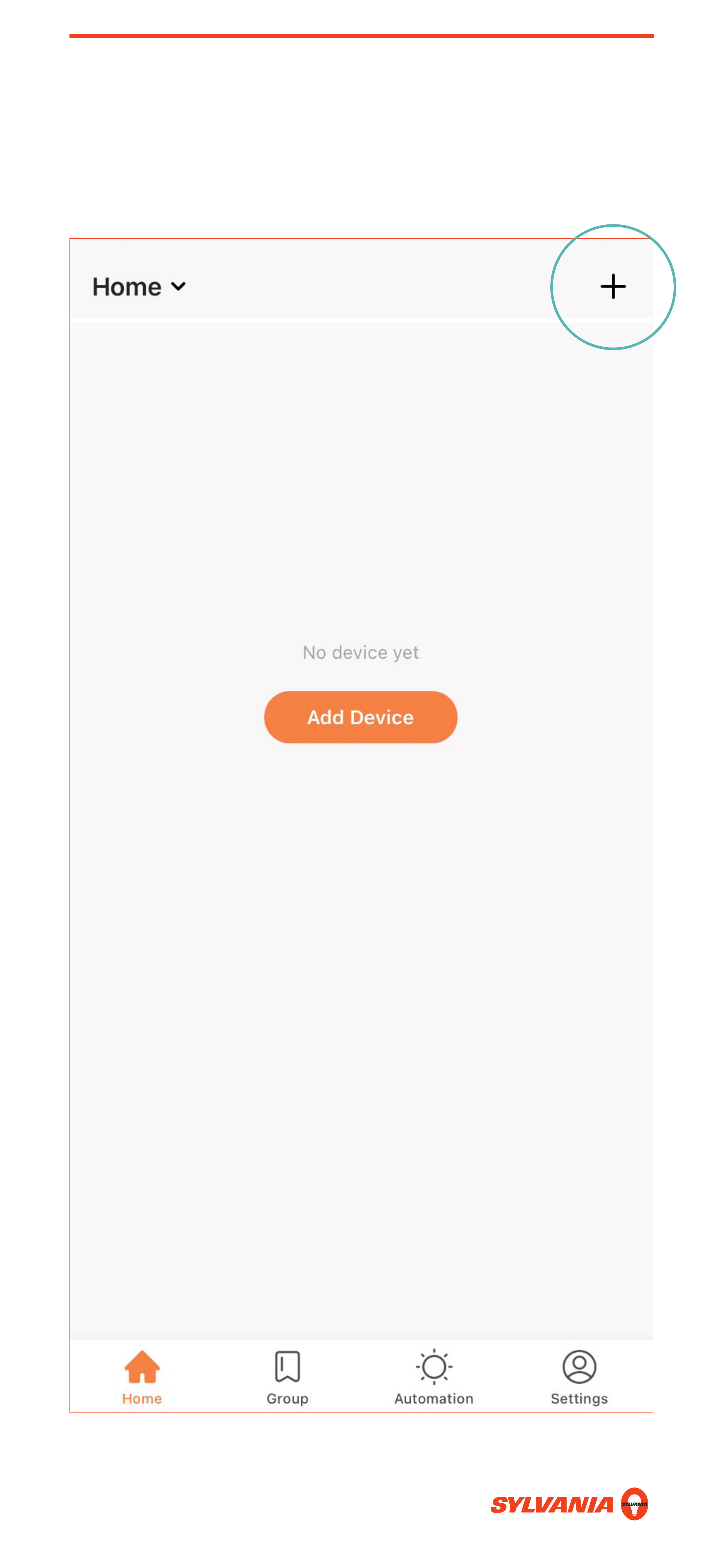
SIRI SHORTCUTS: SETUP
3. Tap +.
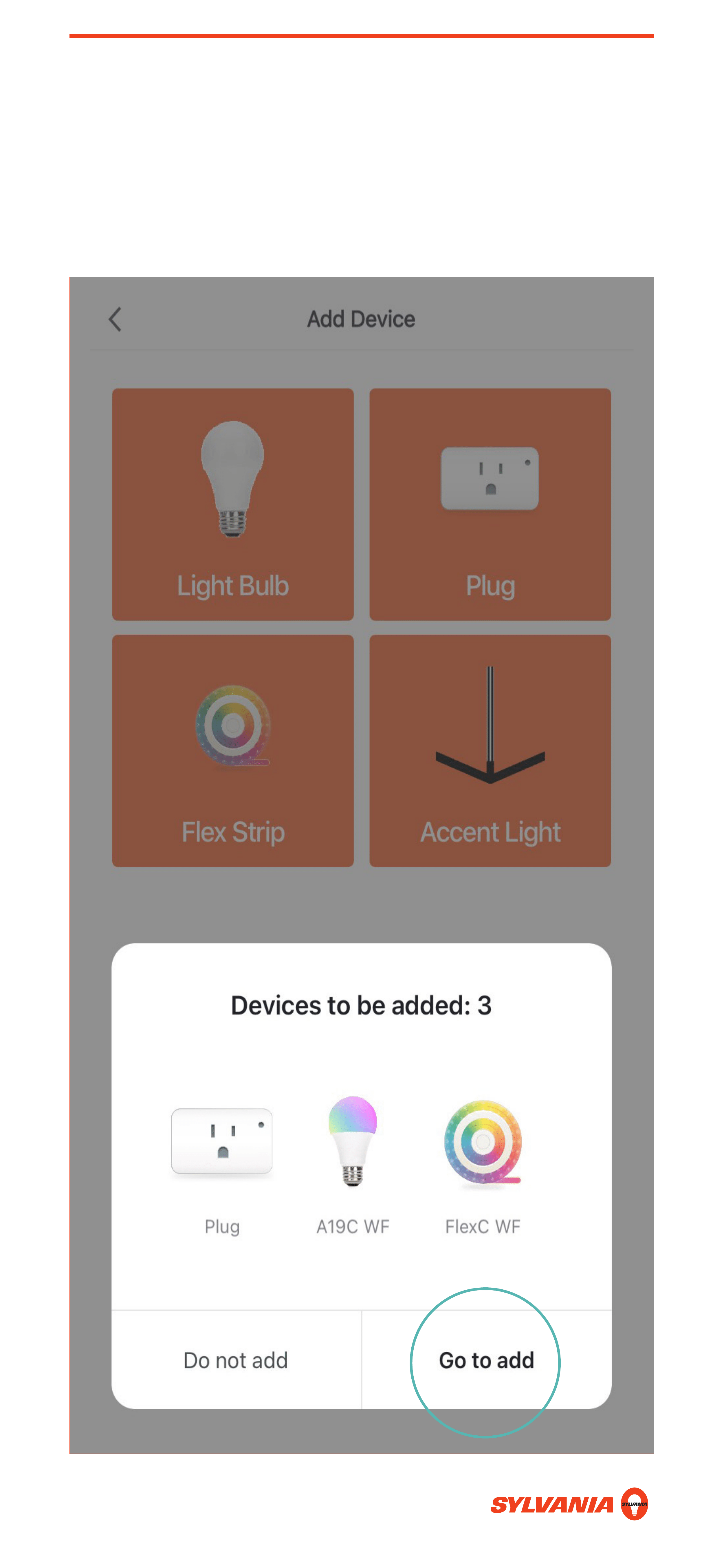
SIRI SHORTCUTS: SETUP
4. Power on your device. A prompt will appear. Tap
Go to add.
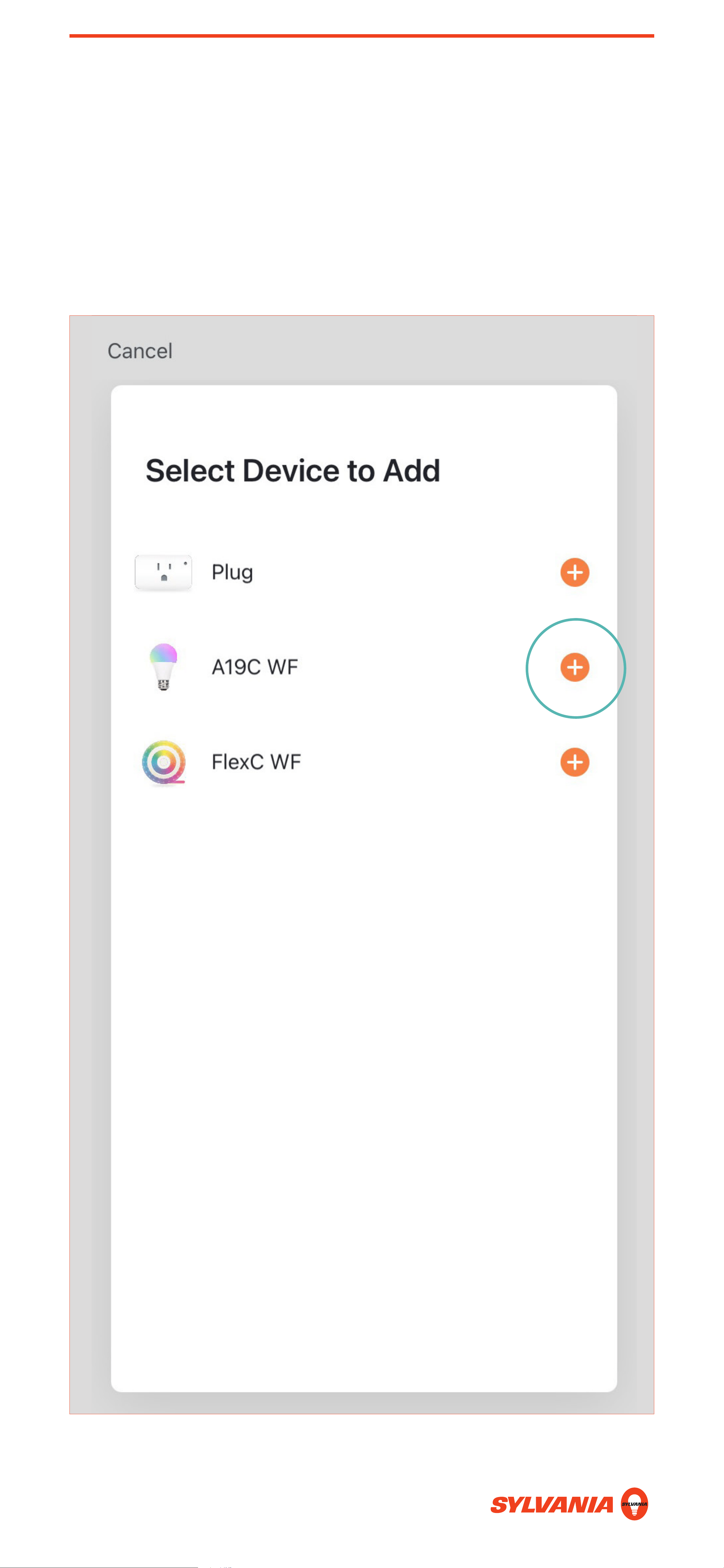
SIRI SHORTCUTS: SETUP
5. Devices can only be paired one at a time. Press
the + button next to the device you want to pair to
the SYLNVANIA Smart Wifi app.
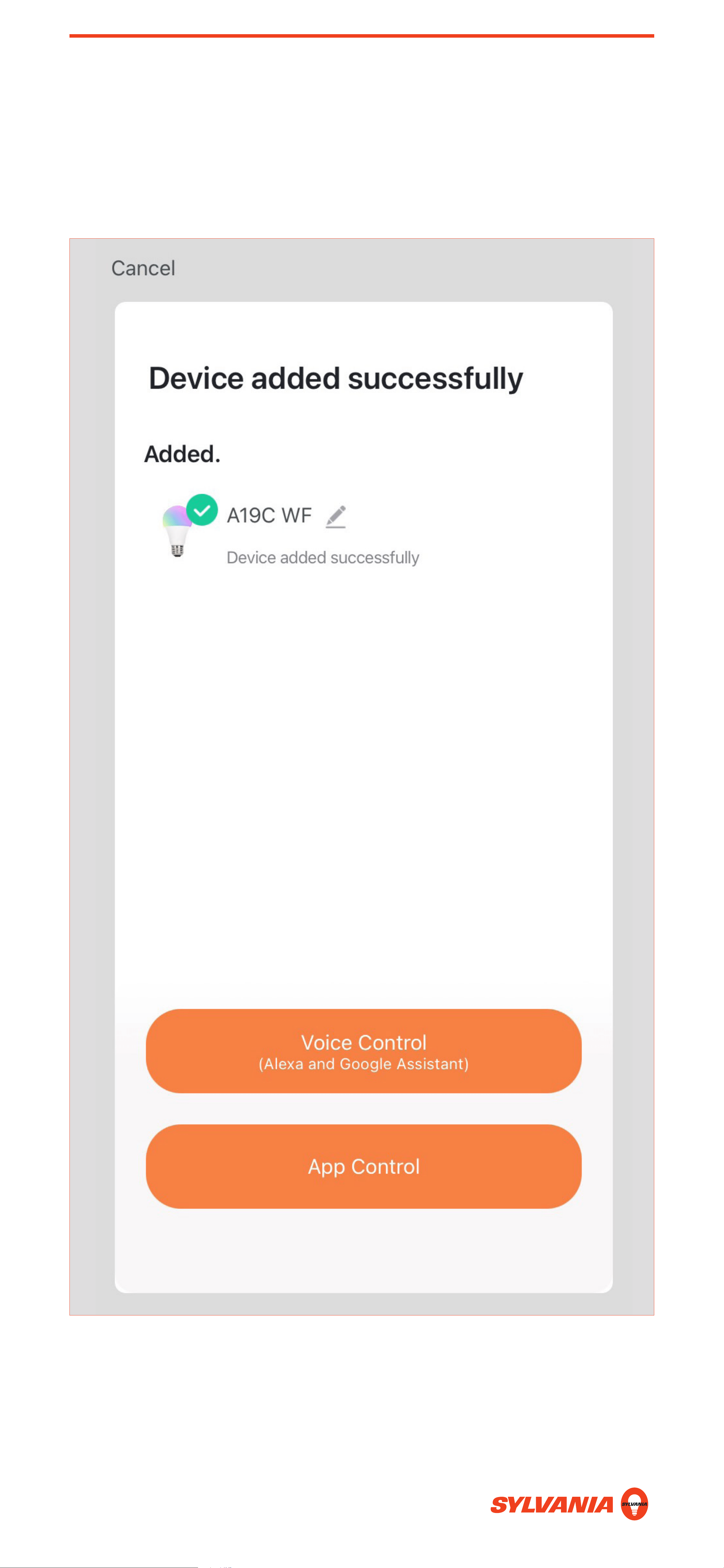
SIRI SHORTCUTS: SETUP
6. After pairing you will see this screen.
SIRI SHORTCUTS: SETUP
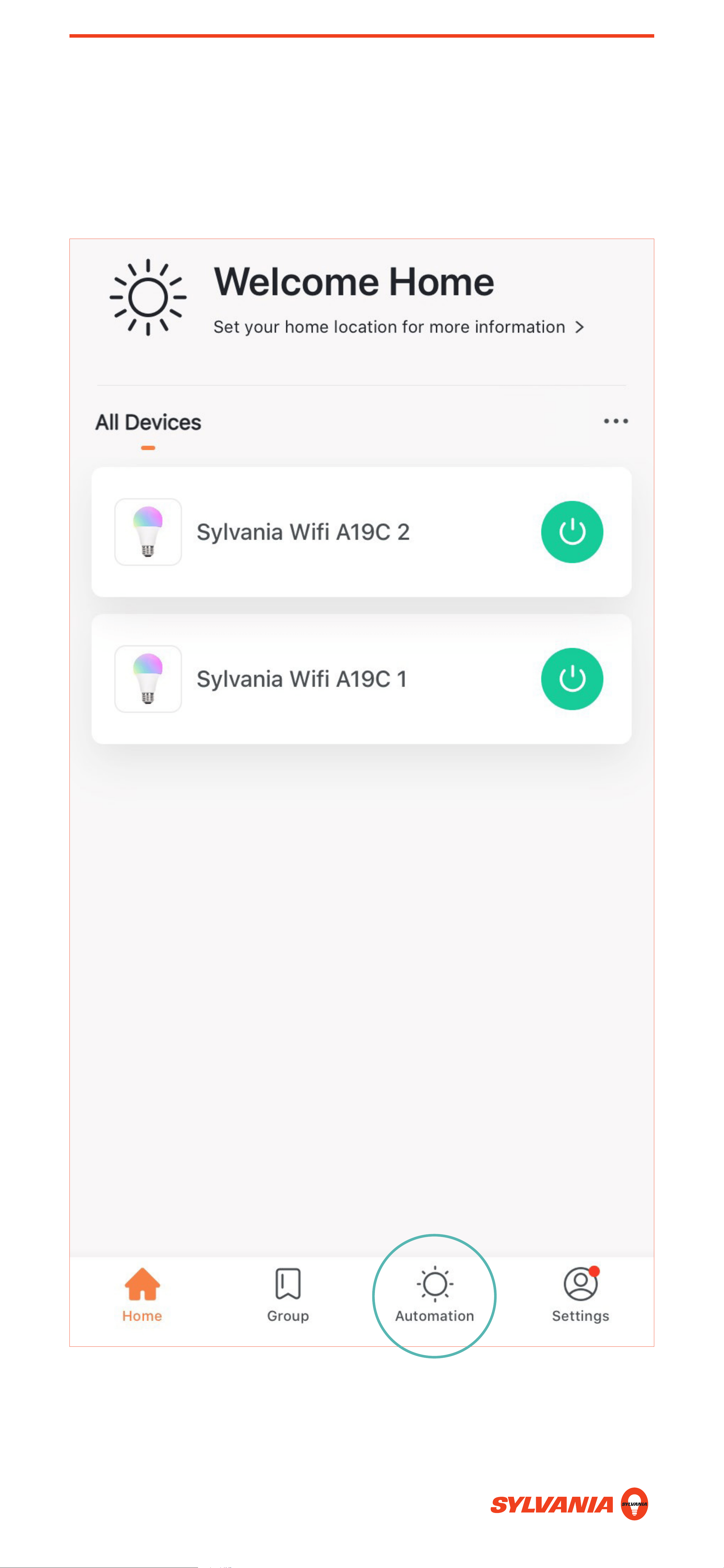
7. Go back to the home page and tap Automation.
SIRI SHORTCUTS: SETUP
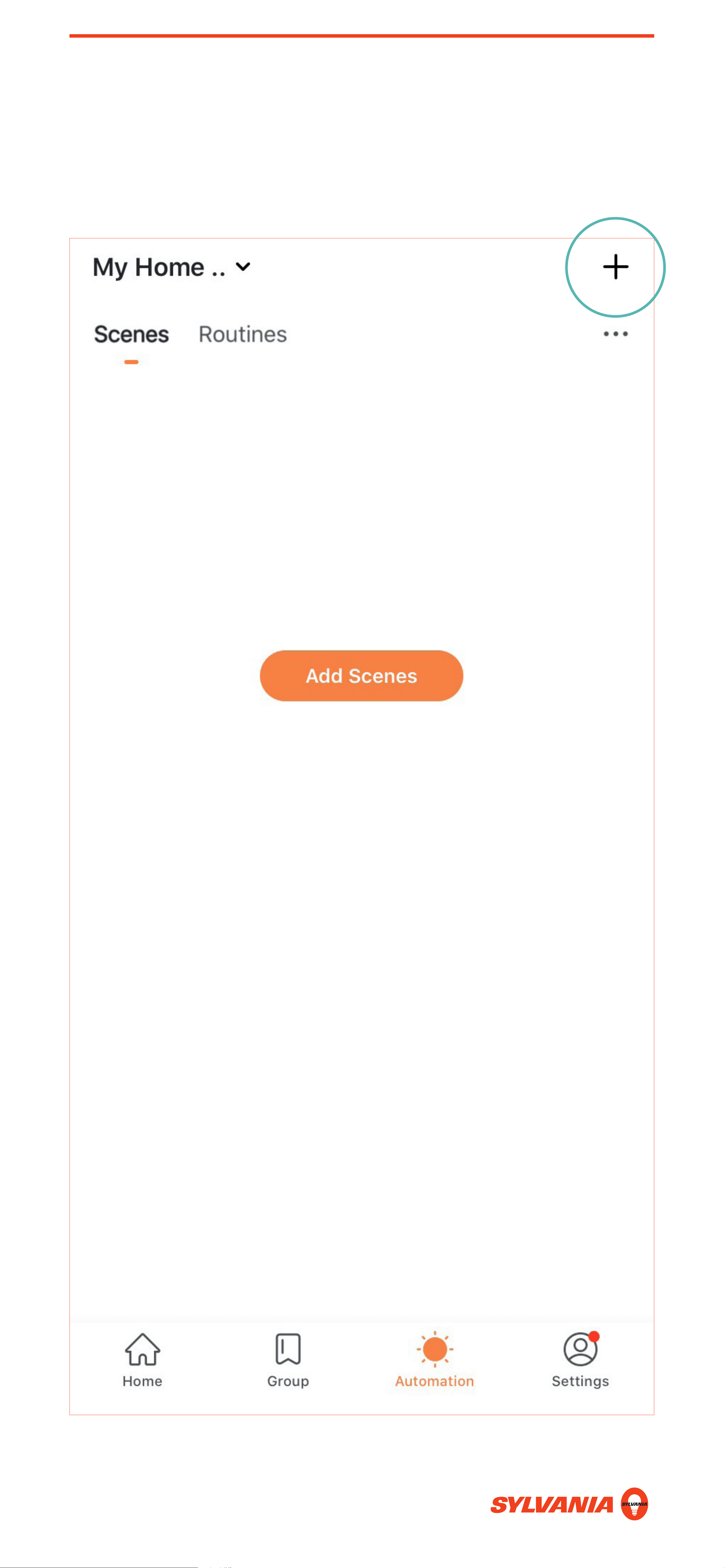
8. Tap +.
SIRI SHORTCUTS: SETUP
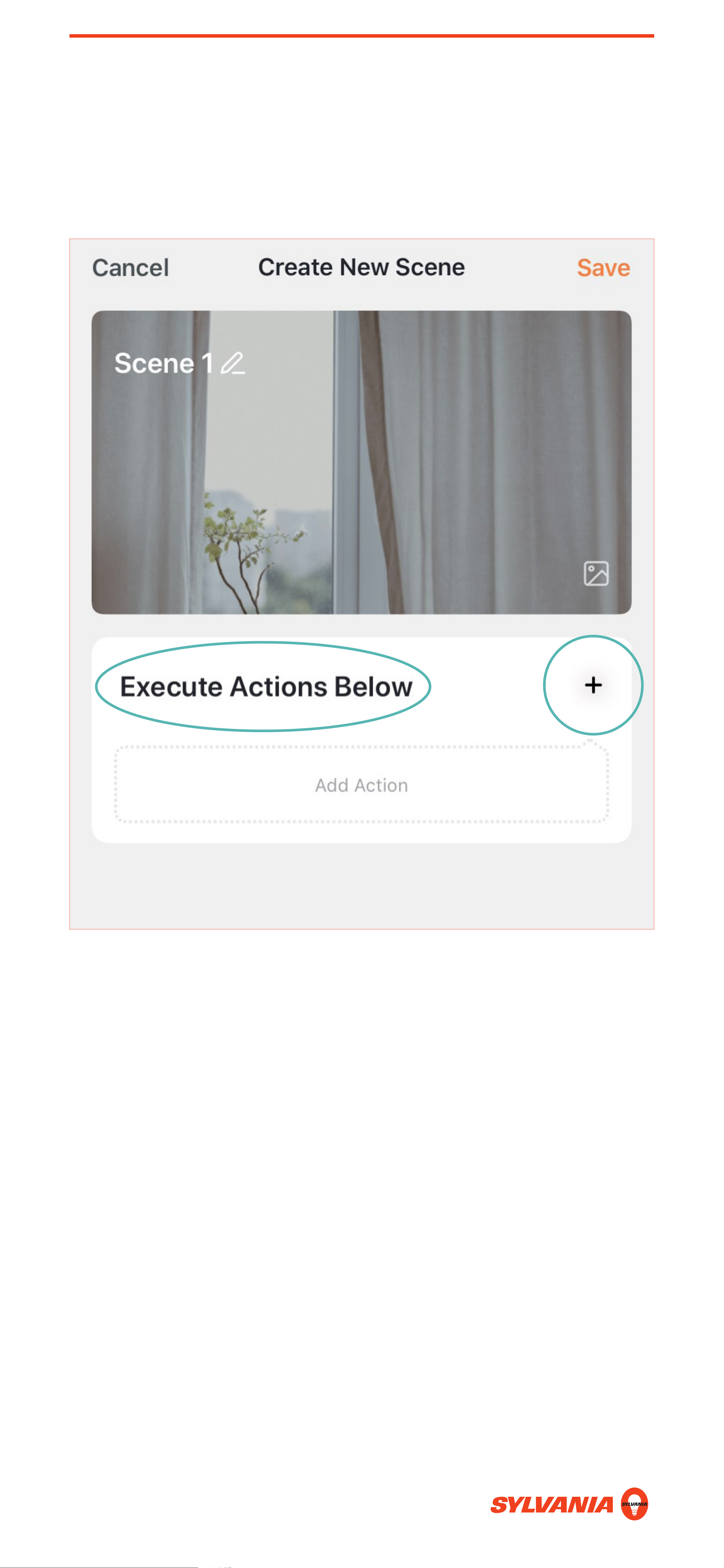
9. In Execute Actions Below, tap + or Add Action.
SIRI SHORTCUTS: SETUP
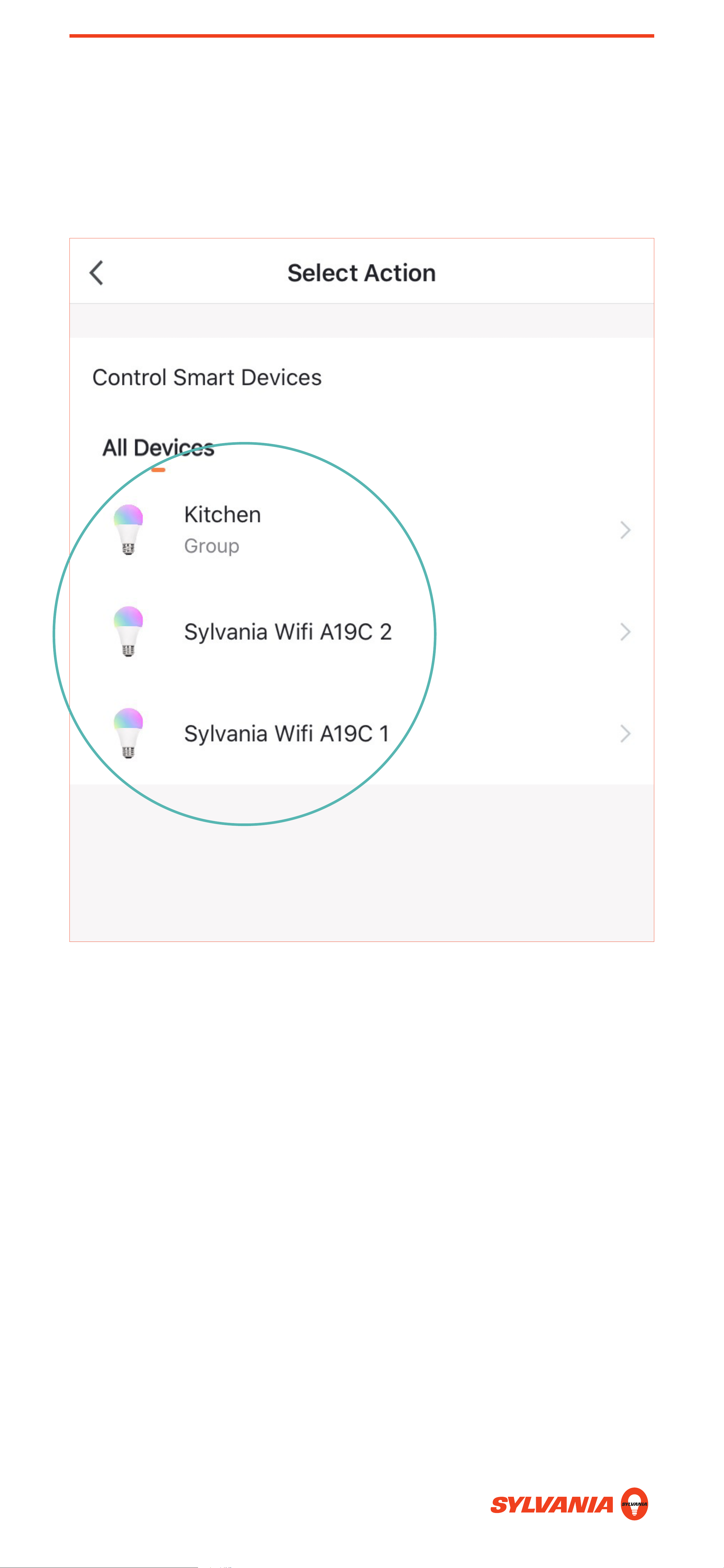
10. Select the device or group you want to control.
SIRI SHORTCUTS: SETUP
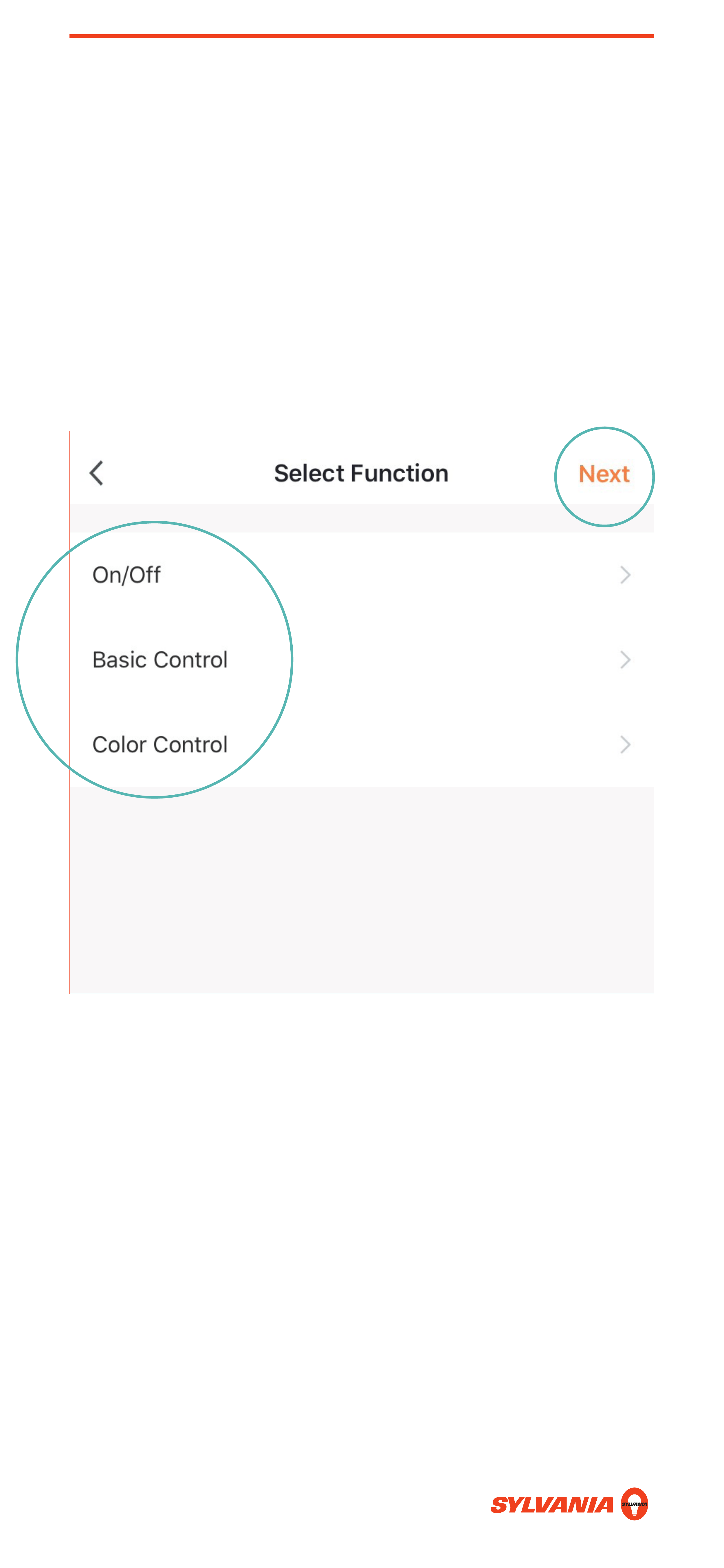
11. Select your functionality:
Basic Control changes color temperature (warm
to cool) and brightness.
Color Control changes colors (red, green, blue,
etc.) and brightness.
Tap Next when done.
SIRI SHORTCUTS: SETUP
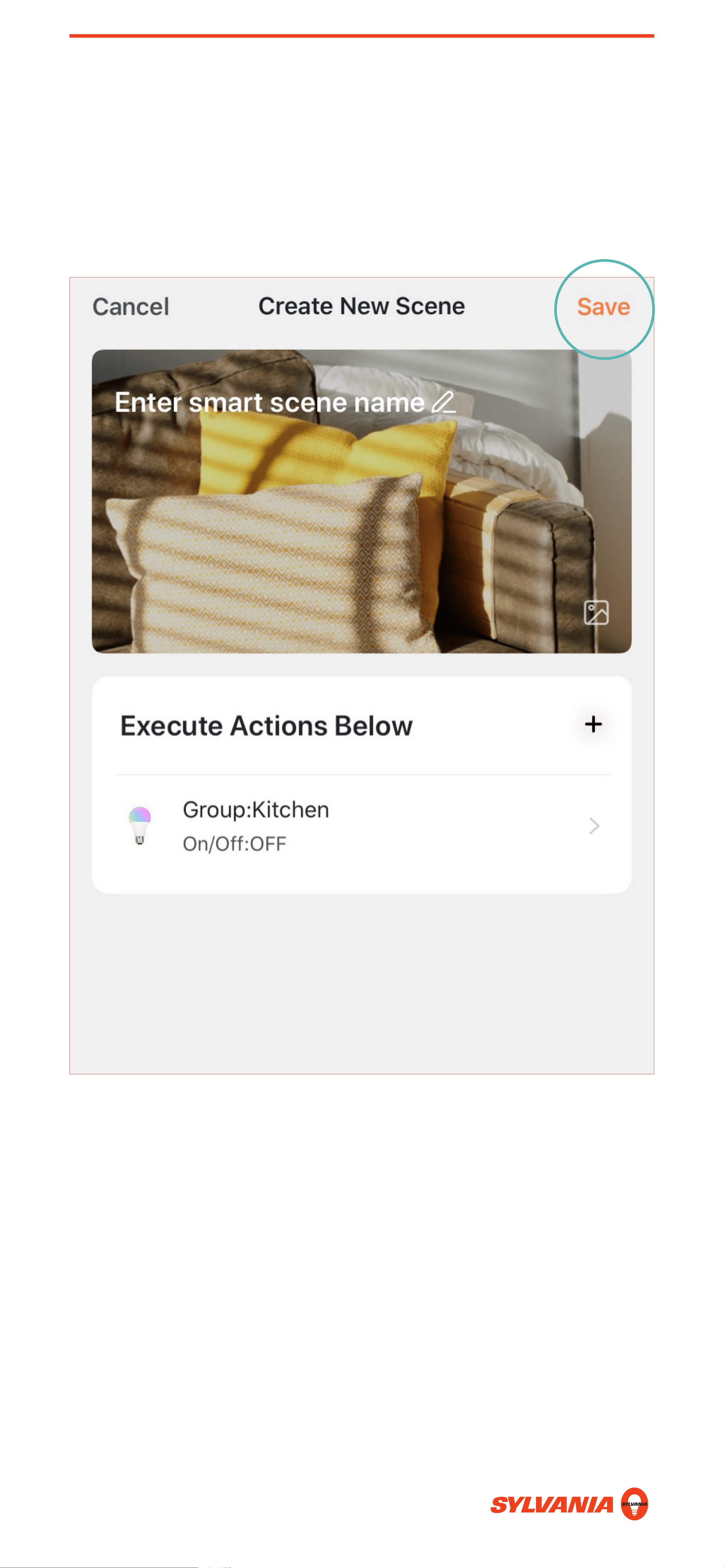
12. Name your scene if you haven’t done so already.
Tap Save.
SIRI SHORTCUTS: SETUP
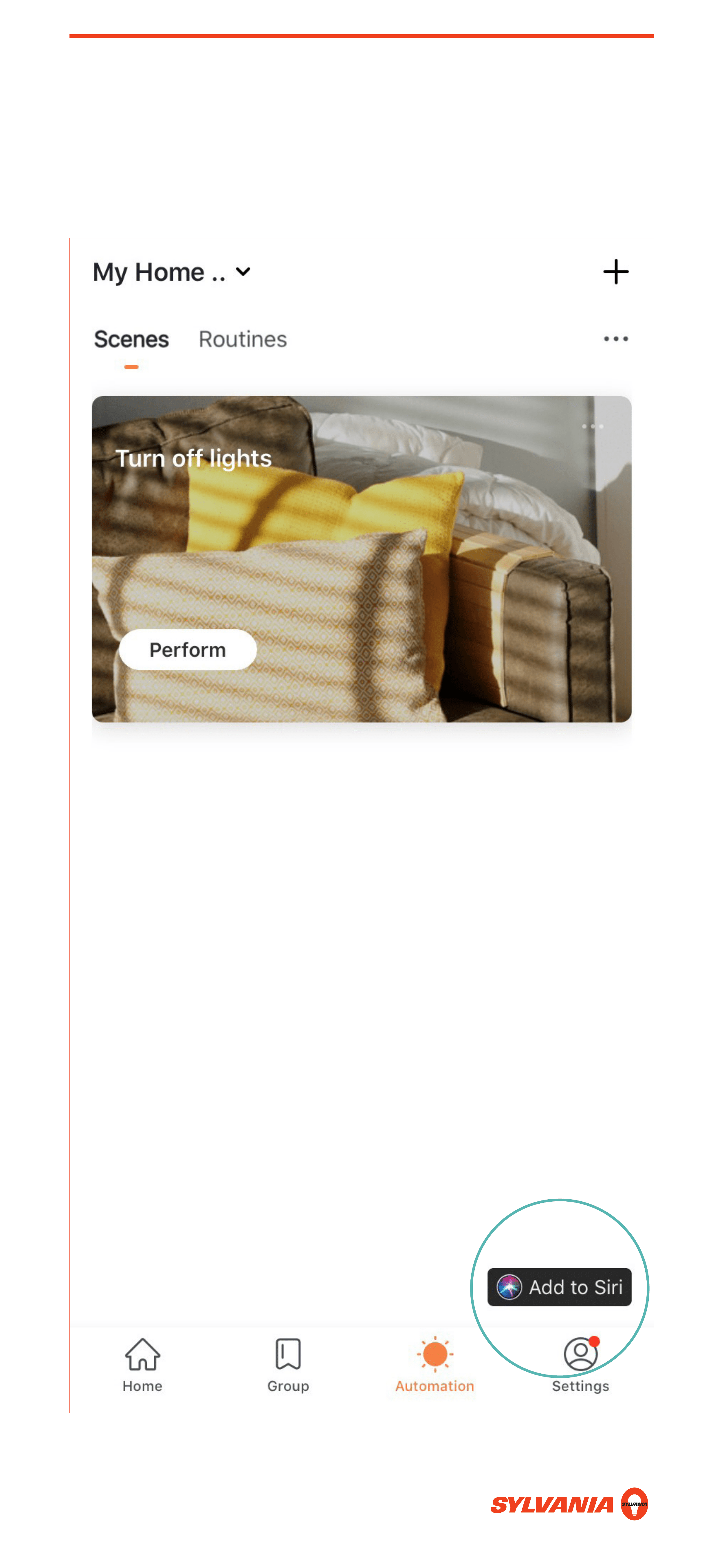
13. Tap Add to Siri.
SIRI SHORTCUTS: SETUP
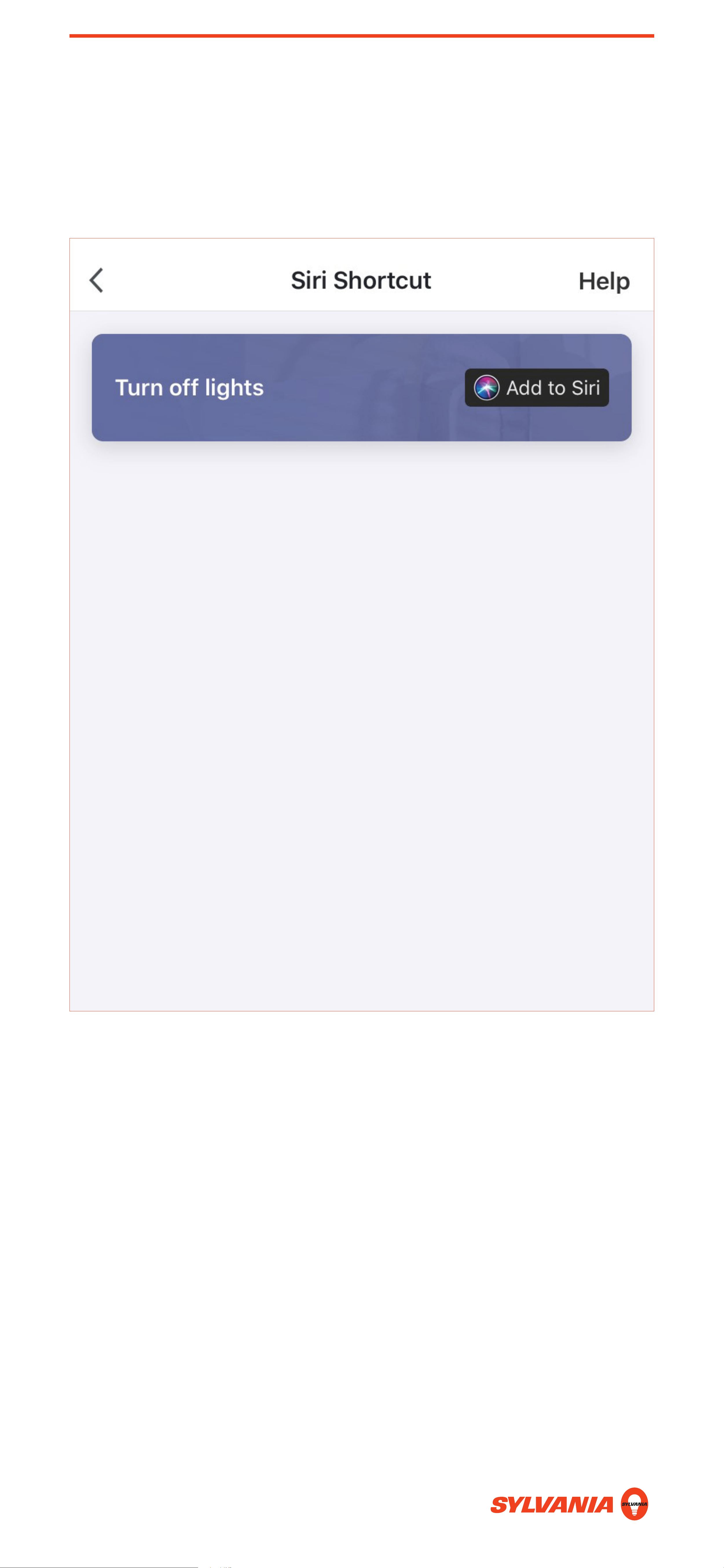
14. Tap Add to Siri on the shortcut you just created.
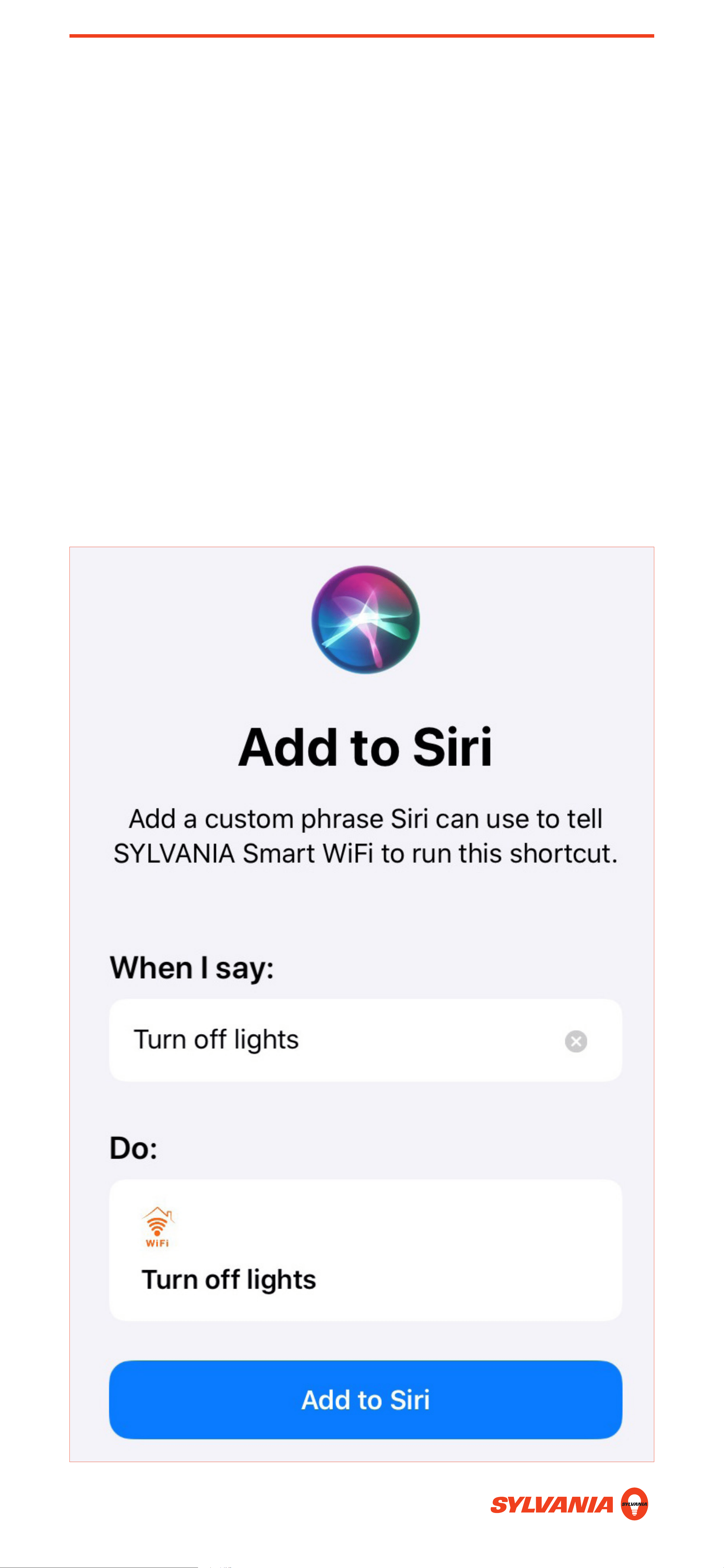
SIRI SHORTCUTS: SETUP
15. Enter a phrase to tell Siri to run your shortcut.
For example, “Turn off lights.” Siri will run your
shortcut with the phrase you entered. Tap Add to
Siri when done.
Note: When deleting a Siri shortcut phrase, you
must delete it in both the SYLVANIA Smart WiFi
app and Apple’s Shortcuts app. If you delete the
phrase in only the SYLVANIA Smart WiFi app and
try to add it again, an error will appear.