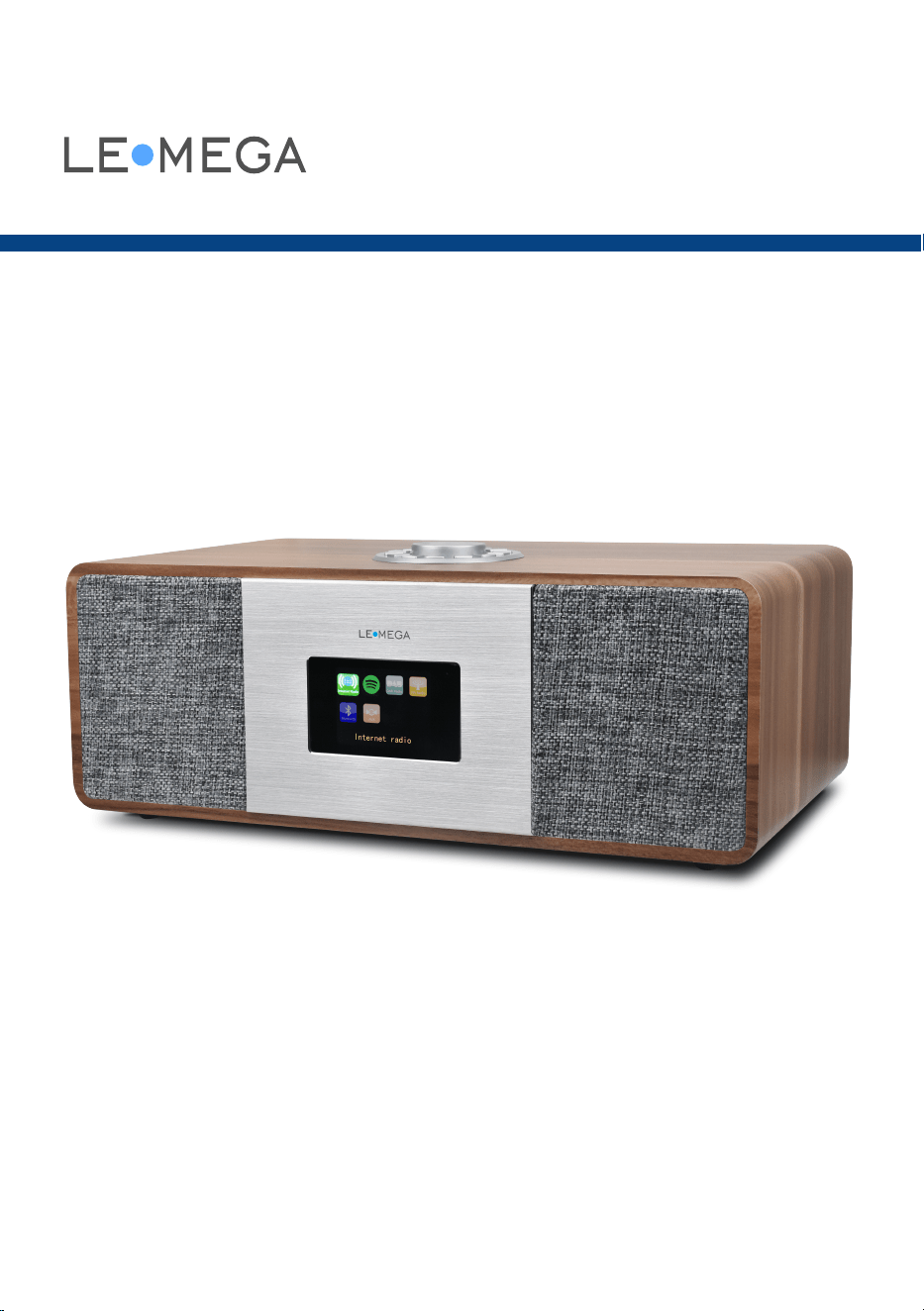
Owner's manual
LIFE & ALOUD
MSY3 ALL-IN-O NE MUSIC SYS TEM

Table of content
1. Introduction
…………………………………………...….....
3
1.1 Safety
……………………………………………........
3
1.2 Features
..……………………………………………...... 5
1.3 Carton contents
………………………………………...…..........
5
1.4 External resources
…………………………….……..…................
5
1.5 Conventions used in this manual
………………………………..…………........... 6
2 Controls, connectors and display
…………………………….……………......…..
6
2.1 Main controls
……………………………………...................
6
2.2 Conn
ectors
………………………………….…................... 8
2.3 Remote control
………………………………………….……....
8
2.4 Operation
…………………………………….………..….. 9
2.5 Menu navigation
…………………………………........................
9
3 Started and setup
..………………………………….....................
10
3.1 Setup wizard
……………………………………...................11
3.2 Other settings
………………………………………...............
14
4 Internet radio mode
…………………………………….……………
16
4.1 <Country>
…………………………………….…… …….. 17
4.
2 History
………………………………….…...................
17
4. 3 Search
…………………………….……………….……17
4.4 Location
…………………………………........................
18
4.5 Popular
……………………………….…………............
18
4.6 Discover
…………………………………...….................
18
4.7 Now playing
……………………………………………...…..
18
5. Spotify connect
……………………………………………….…
19
6 DAB radio mode (Optional)
……………………………………………....…
20
6.1 Scanning for stations
……………………………..............................
. 20
6.2 Selecting stations
………………………………............................
21
6.3 Now playing information
…………………………………………..... ........21
6.4 Settings
……………………………..................... .........
21
7 FM radio mode (Optional)
………………………….........................
.
.
..........
22
7.1 Selecting stations
……………………………….………....……….22
7.2 Now playing information
……………………………................................
23
7.3 Settings
……………………………….................
............ 23
8 Aux in mode
………………………….………………………..23
2

9 Bluetooth mode
…………………………………................. 24
10 Alarms and sleep
………………………………….…............. 25
10.1 Alarms
………………………………….….………. 25
10.2 Sleep
………………………………….................. 26
11 Software upgrade and factory reset
………………………………..................... 26
11.1 Software upgrade
…………………………….……............... 26
11.2 Factory reset
…………………………………................ 27
12 Troubleshooting and error messages
…………………………………................. 27
1
2.1 E
rror messages
…………………………………................. 27
12.2 Troubleshooting
…………………………………….…..…
28
13 Technical Specifications
………………………………..................... 30
1
. Introduction
1.1 Safety Instructions
Please store this instruction manual for future reference.
•
WARNING: To reduce the risk of fire or electric shock, do not expose this
apparatus to rain or moisture. The apparatus shall not be exposed to dripping or
splashing and that objects filled with liquids, such as vases, shall not be placed on
apparatus.
•
WARNING: The direct plug-in adapter is used as disconnect device, the
disconnect device shall remain readily operable.
• This lightning flash with arrowhead symbol within an equilateral triangle is intended
to alert the user to the presence of non-insulated “dangerous voltage” within the
product’s enclosure that may be of sufficient magnitude to constitute a risk of
electric shock.
•
Warning: To reduce the risk of electric shock, do not remove cover (or back) as
there are no user-serviceable parts inside. Refer servicing to qualified personnel.
•
The exclamation point within an equilateral triangle is intended to alert the user to
the presence of important operating and maintenance instructions in the literature
accompanying the appliance.
3

• Correct Disposal of this product. This marking indicates that this product
should not be disposed with other household wastes throughout the EU. To
prevent possible harm to the environment or human health from uncontrolled
waste disposal, recycle it responsibly to promote the sustainable reuse of material
resources. To return your used device, please use the return and collection
systems or contact the retailer where the product was purchased. They can take
this produ
ct for environmental safe recycling.
•
No naked flame sources, such as lighted candles, should be placed on the
apparatus.
•
Do not use this product near water or moisture.
•
Clean only with a dry cloth.
•
Unplug this product from the wall outlet before cleaning.
•
Place the unit on a solid surface.
•
Do not put it in a closed bookcase or a cabinet that may keep air from
flowing through its ventilation openings.
•
Do not install near any heat sources, such as radiators, heat registers,
stoves or other appliances that produce heat.
•
Protect the power cord from being walked on or pinched, particularly
at plugs and the point where they exit from the product.
•
Servicing is required when the product has been damaged. Do not
attempt to service this product yourself. Opening or removing covers
may expose you to dangerous voltages or other hazards. Please contact the
manufacturer to be referred to an authorized service center near you.
•
To prevent risk of fire or electric shock, avoid over loading wall outlets,
extension cords, or integral convenience receptacles.
•
Do not let objects or liquids enter the product.
•
Use proper power sources. Plug the product into a proper power source,
as described in the operating instructions or as marked on the product.
•
In the rare event you experience an error, unplug the power adapter for 60
seconds and then plug it back in firmly.
4
1.2 Features
This manual describes how to use the MSY3, an advanced but easy-to-use Wi-Fi
connected audio system with the following modes:
•
Internet Radio with access to thousands of stations by wifi streaming. ‘Listen
again’ broadcasts and podcasts
•
Spotify acting as wireless speakers controlled by the Spotify App available for
iOS/Android smart devices and a desktop client for PCs.
•
DAB/DAB+ digital radio with a wide choice of channels and digital quality sound
broadcast free-to-air
•
FM with RDS (Radio Data System)
•
Bluetooth - streaming music and control from Smart device.
•
USB (5V/1A) port for mobile charging.
•
Aux in for external MP3 music sources from iPod/iPad or other MP3 players
M
SY3 also provides the following features:
• Large TFT color display for easy control and clear information display.
•
Infrared remote control
•
Remote control from an Android or iOS Smart Device, using Spotify App or
UNDOK the Frontier Silicon Remote Control App to control the playback.
•
Clock with auto-update capability and dual independent alarms Sleep/snooze
•
Multiple network profiles for easy setup and portability
•
Multiple languages options.
1
.3 Carton contents
After you unpack the box, you will find the following items
•
1 MSY3 unit
• 1 12V/2.5A power adapter
•
1 owner’s manual
• 1 Remote Control
• 1 Warranty Card
1
.4 External resources
To operate MSY3, the following external resources are needed:
•
A power adapter
5
• A wireless (Wi-Fi) network (provided through a router) with Appropriate
permissions and password if necessary (for Internet radio)
•
Broadband Internet access (for Internet radio mode and Spotify mode and Internet
Software Update)
•
An iOS or Android device (for using control apps).
•
An external audio source (for Aux in mode)
1
.5 Conventions used in this manual
Button (press) Physical button on the keypad
Option (select) Menu option shown on the display
Name Menu, screen or other name
2
. Controls, connectors and display
2.1 Main controls
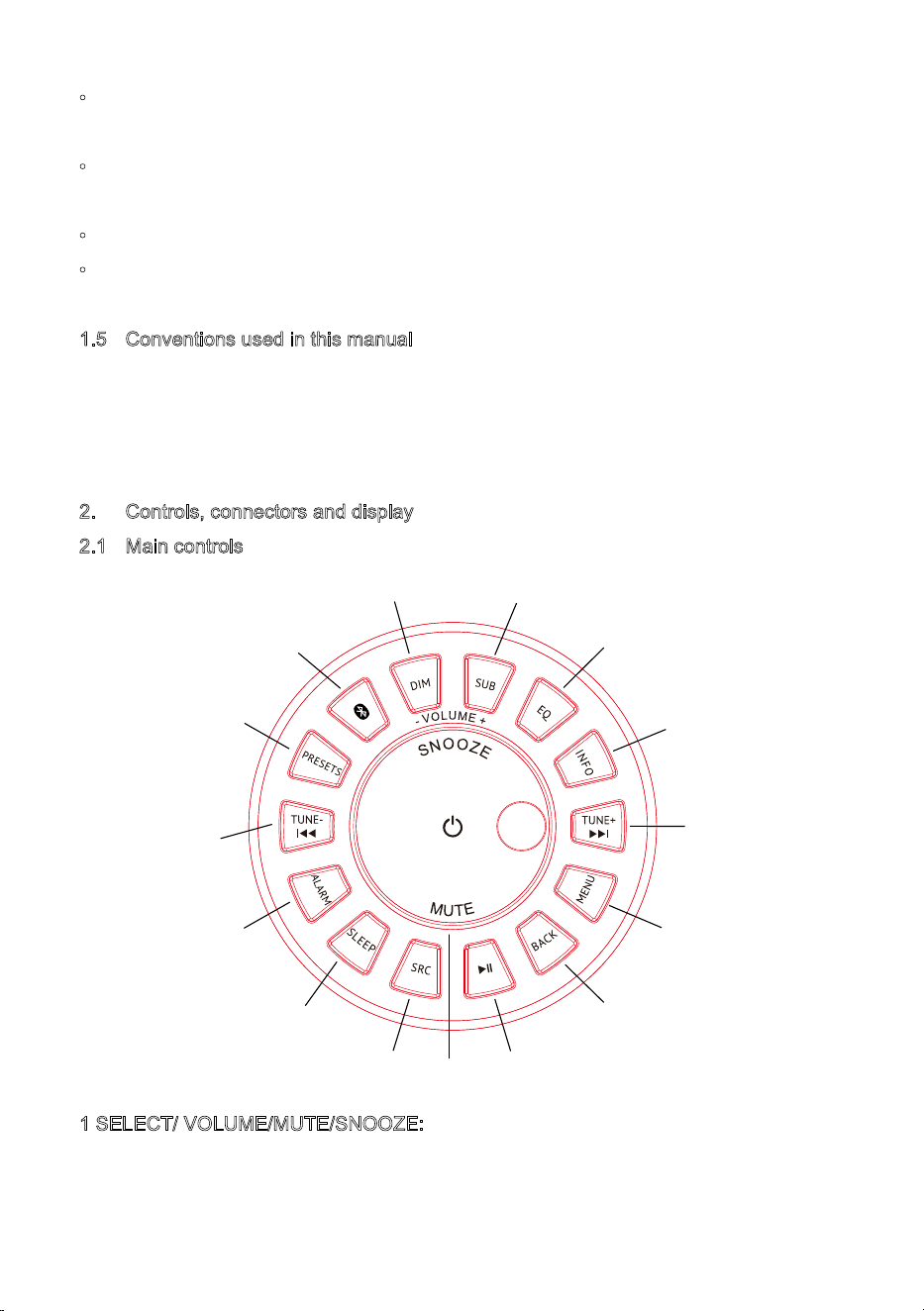
1 SELECT/ VOLUME/MUTE/SNOOZE:
a. SELECT: Turn to scroll through a menu or station list. The chosen option is
highlighted in yellow text), Press to the button to select.
6
1
2
3
4
5
6
7
8
9
10
11
12
13
14
15
b. VOLUME: Turn to the button to adjust the volume up or down when playback.
c. MUTE: Press to the button to mute the music when playing.
d. SNOOZE: Press the button to snooze a set time when alarm sounding.
e. Power on | off the unit: Long press this button to power on/off the unit.
2
SRC : Press to Source to select different modes Internet radio, Spotify, DAB, FM,
Bluetooth, and Aux
3
Sleep: Press to set the sleep
4
Alarm: Press to set the alarm
5
TUNE-/Previous: Press to select the previous track under Spotify/FM/DAB / Bluetooth
mode; Press and hold the TUNE- button to auto-scan the stations under the FM mode.
6
Presets button
7 Bluetooth mode is Bluetooth pairing;
8 DIM: Adjust the display backlight
9
SUB:Short press to get the subwoofer off or subwoofer on
1
0 EQ:Adjust the EQ setting
1
1 INFO: View more information about the station or track playing. Press again to cycle
through further information screens then return to the normal Now playing screen
1
2 TUNE+/Next: Press to select the next track under Spotify/FM/DAB/Bluetooth
Mode; Press and hold the Tune+ button to auto-scan the stations under the FM mode
1
3 MENU: press the MENU to show the MENU for the current mode. Press again to
show now playing screen
1
4 BACK: press the BACK to return to the previous screen.
1
5 Press to select Play/Pause under internet radio, Spotify, and BT mode. In FM mode,
press to do auto scans the stations
7
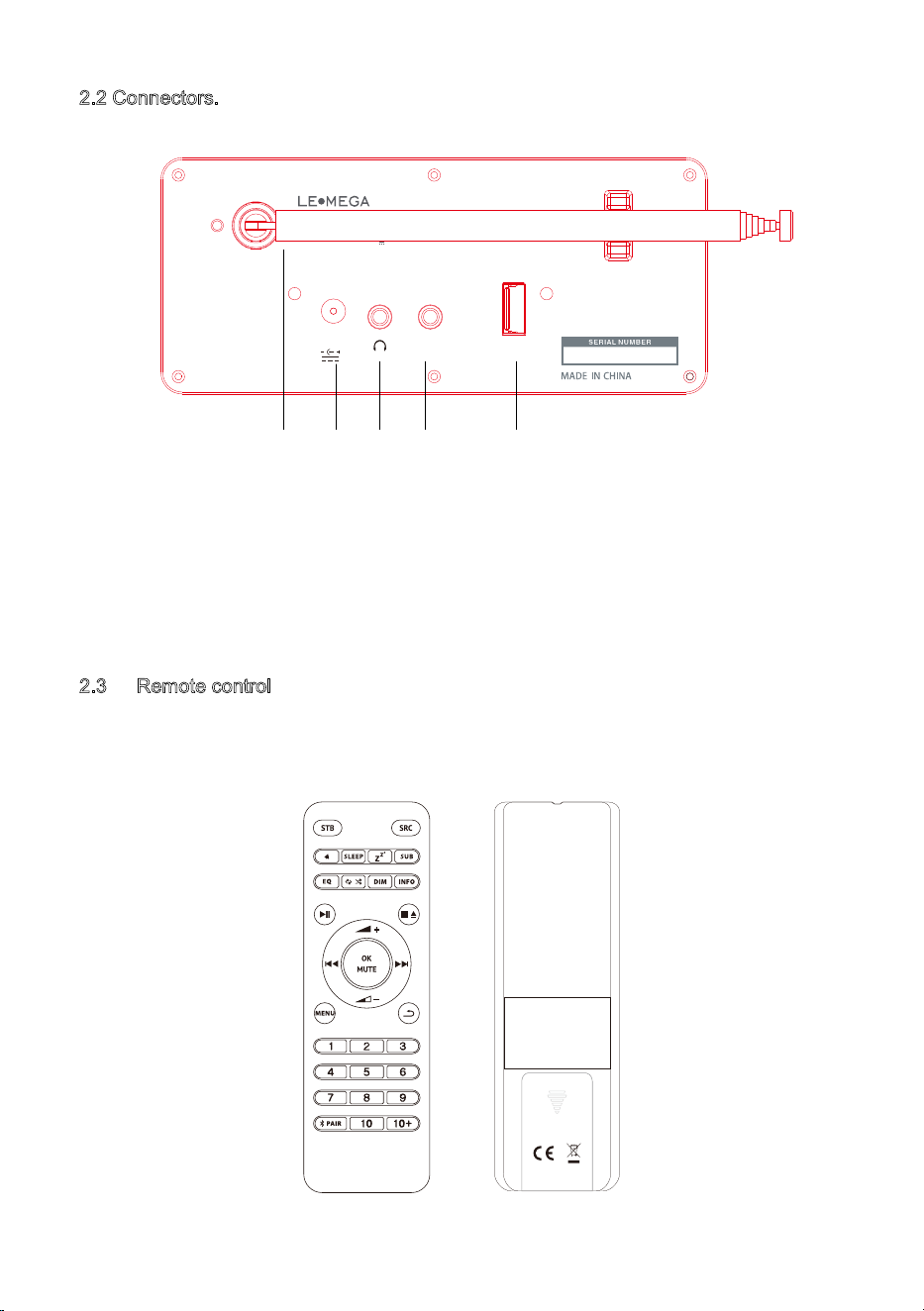
2.2 Connectors.
As shown below has connectors (from left to right) for the following:
1. Antenna
2. DC in (12V)
3. Headphone socket
4. Aux in (to connect external MP3 music source from the iPod or other devices)
5. 5V/1A is for mobile charging
2
.3 Remote control
In additional to duplicating most of buttons on top of the unit, the remote control adds
the following functions:
8
DC 12V/2.5A
AUX IN 5V 1A
MODEL : MSY3
INPUT : DC 12V 2.5A
ALL-IN-ONE MUSIC SYSTEM
1 2 3 4 5
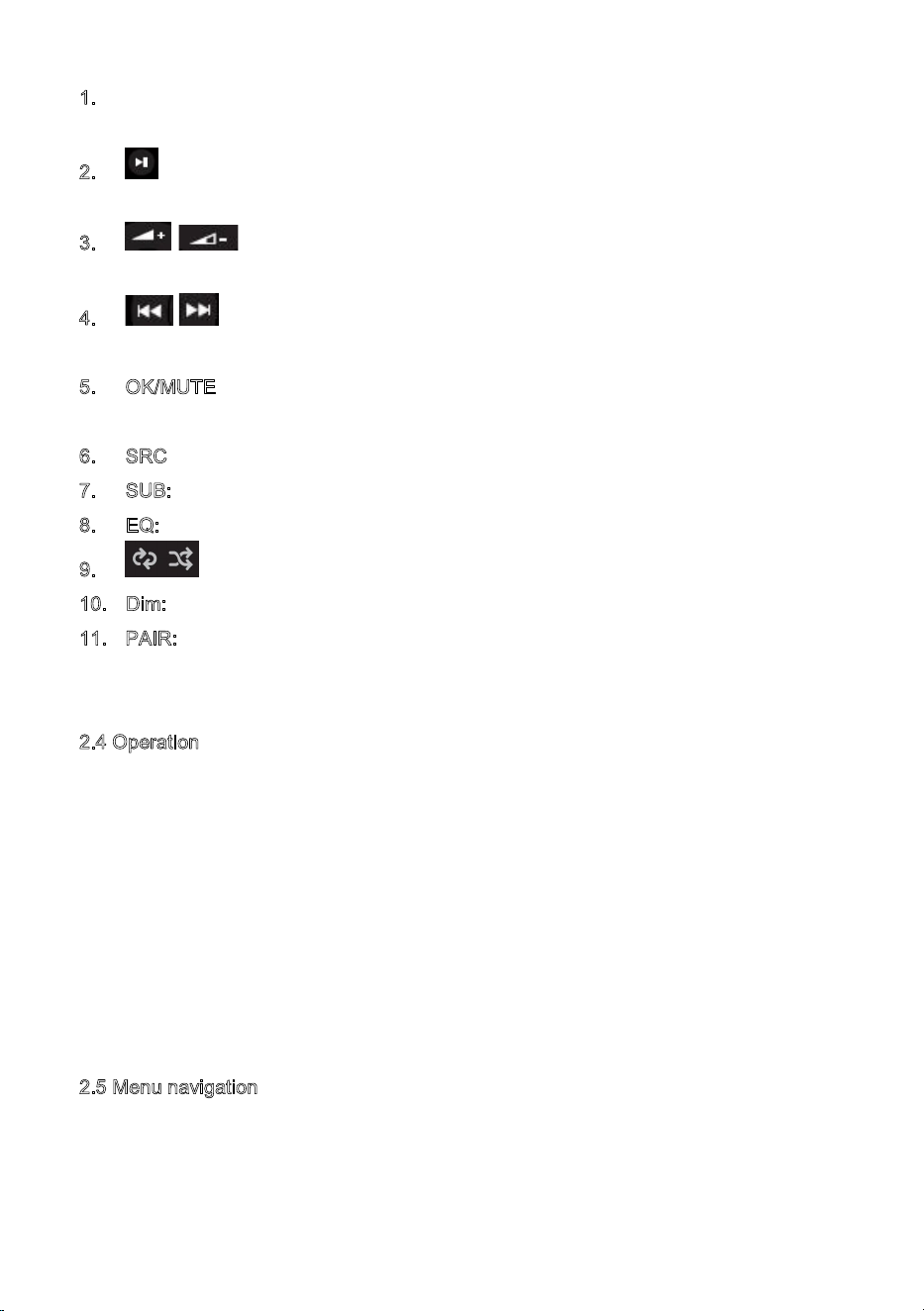
1. 1, 2, 3, 4, 5, 6, 7, 8, 9,10: Short press to preset the stations. For the 10+, it needs
to long press the 10+ and then short press the 1-9 to get the 10+ preset number
2
. : Press to play / pause the playing BT mode. Auto Scan stations under DAB
and FM mode.
3
. / : Press to volume up or volume down in playing screen. Press up or
down to select menu for settings.
4
. / Press right or left to select mode. In playing screen, press right or left to
select FM, DAB
5
. OK/MUTE: Long press the button to switch DAB normal playing screen image to
full screen slide show image.
6
. SRC: Source button
7
. SUB: Short press to get the subwoofer off or subwoofer on.
8
. EQ: Adjust the EQ setting.
9
. : Repeat in Spotify mode
1
0. Dim: Adjust the display backlight setting
1
1. PAIR: In Bluetooth mode, it is Bluetooth pairing.
Remark: As the remote is sharing with other models, some functions can not use.
2
.4 Operation
After the initial setup, MSY3 is ready for operating in most Modes.
To select a Mode, press source until the required Mode splash screen is displayed.
Press select button to that mode. The last station or track previously used in that mode
is selected. If this is not possible, MSY3 scans for relevant stations, networks, or
prompts the user for appropriate input. See the relevant Mode section for details of how
to use each listening mode.
The Common local controls for sound volu
me, Mute and Play/Pause are available in all
listening modes.
2
.5 Menu navigation
The primary control for moving through menus and options is the Select Control. Rotate
the control to move up or down a menu. Once the required option or value is highlighted
press the Select Control. All menus and lists act as loops such that turning the control to
9
go beyond the first or last entry in a menu or list takes you to the opposite end of the
menu or list. So going up from the first entry in a menu will take you to the last option in
the menu, etc.
A “>” appears on the right of the screen if there are more options above or below those
visible.
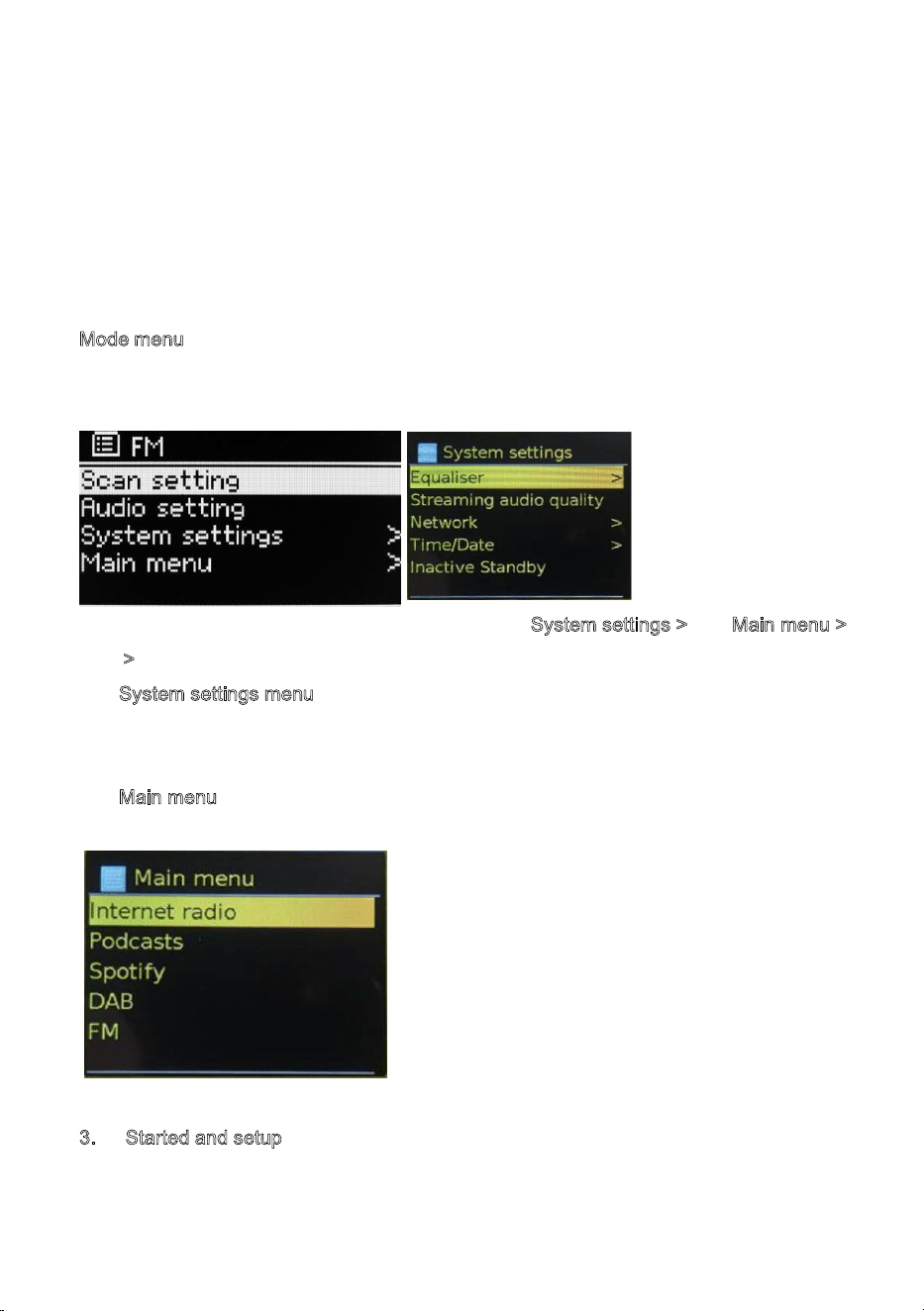
To enter the menu tree in a particular mode press Menu . To move back a menu
Level press Back . To exit the menu system, press Menu again. Each mode has a
M
ode menu, with options specific to that mode. For example, the FM mode menu has two
mode specific
options: Scan setting and Audio setting.
In addition, each mode menu has two final options: System settings > and Main menu >.
The ‘>
’ indicates options leading to further menus.
The S
ystem settings menu presents system setting functions to allow the user to setup
how the unit behaves. This includes Equalizer, network, time/date, language, factory reset
and software update…….
The M
ain menu presents an alternative method for selecting listening modes plus sleeps
and alarm functions.
3. Started and setup
MSY3 is easy to use. To play DAB or FM radio, all you need is a 12V/2.5A power
adapter; For Internet-connected modes such as Internet radio, you need a broadband
10
Internet connection.
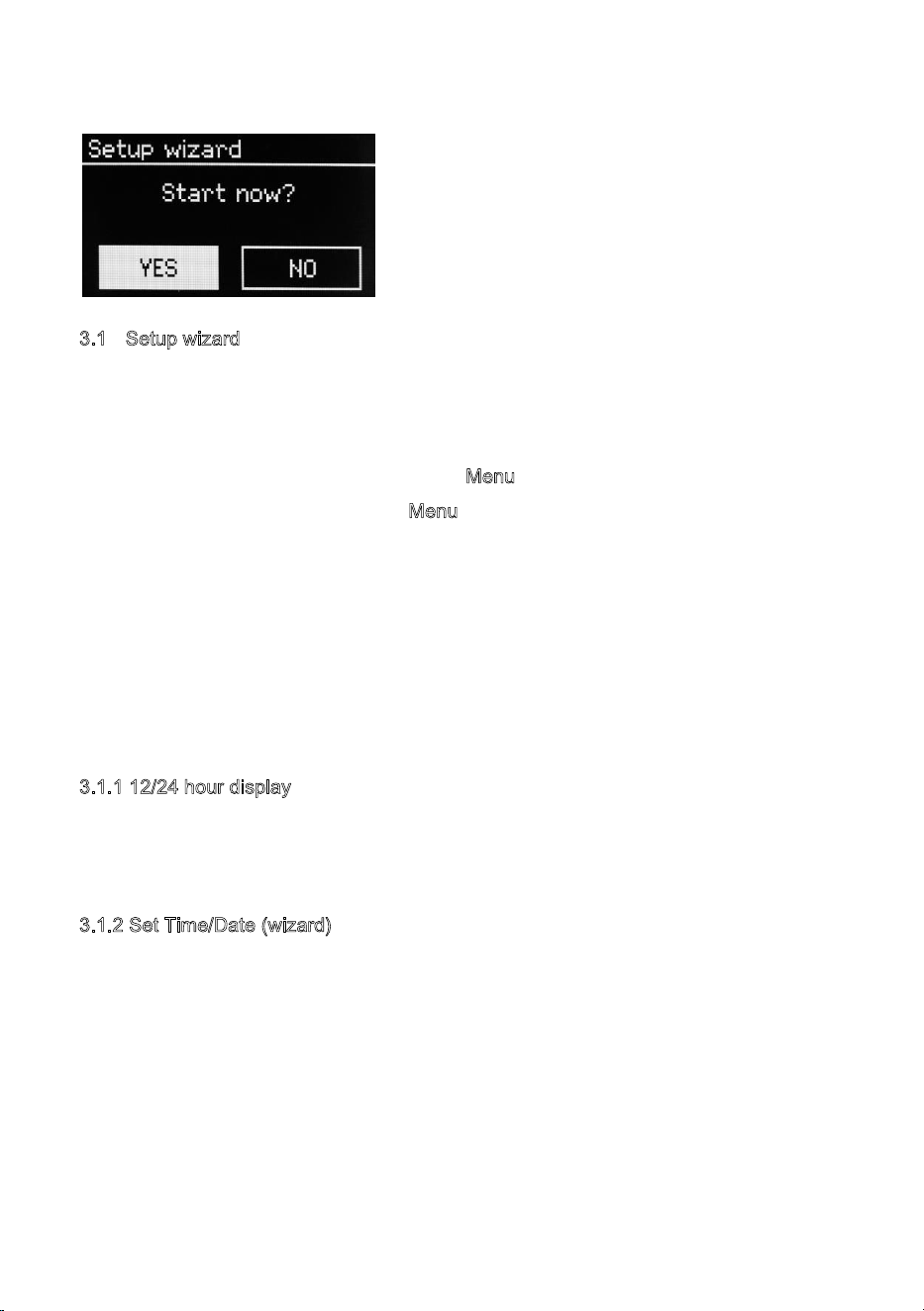
3.1 Setup wizard
When MSY3 is started for the first time, it runs through a setup wizard to configure
settings for date/time and network. Once this has finished, the system is ready to use in
most modes.
Note: To change these settings later, select M
enu > System settings >.
To run the setup wizard again, select M
enu > System settings > Setup wizard.
Select Yes to start the setup wizard.
If you choose No, the next screen asks if you would like to run the wizard next time
MSY3 is started. The system then starts without configuring time/date and network
settings and enters the Main Menu.
Note: If power is removed while the wizard is in progress, the wizard will run again next
time MSY3 is started.
3
.1.1 12/24 hour display
To change between 12 and 24 hour display, select Set 12/24 hour and then select your
preference.
3
.1.2 Set Time/Date (wizard)
The date and time are displayed as dd-mm-yyyy and hh:mm AM/PM with the first value,
dd, active (flashing).
Adjust each value with the Select control. As each value is set by pressing the Select
control, the next value becomes active ready for adjustment.
11
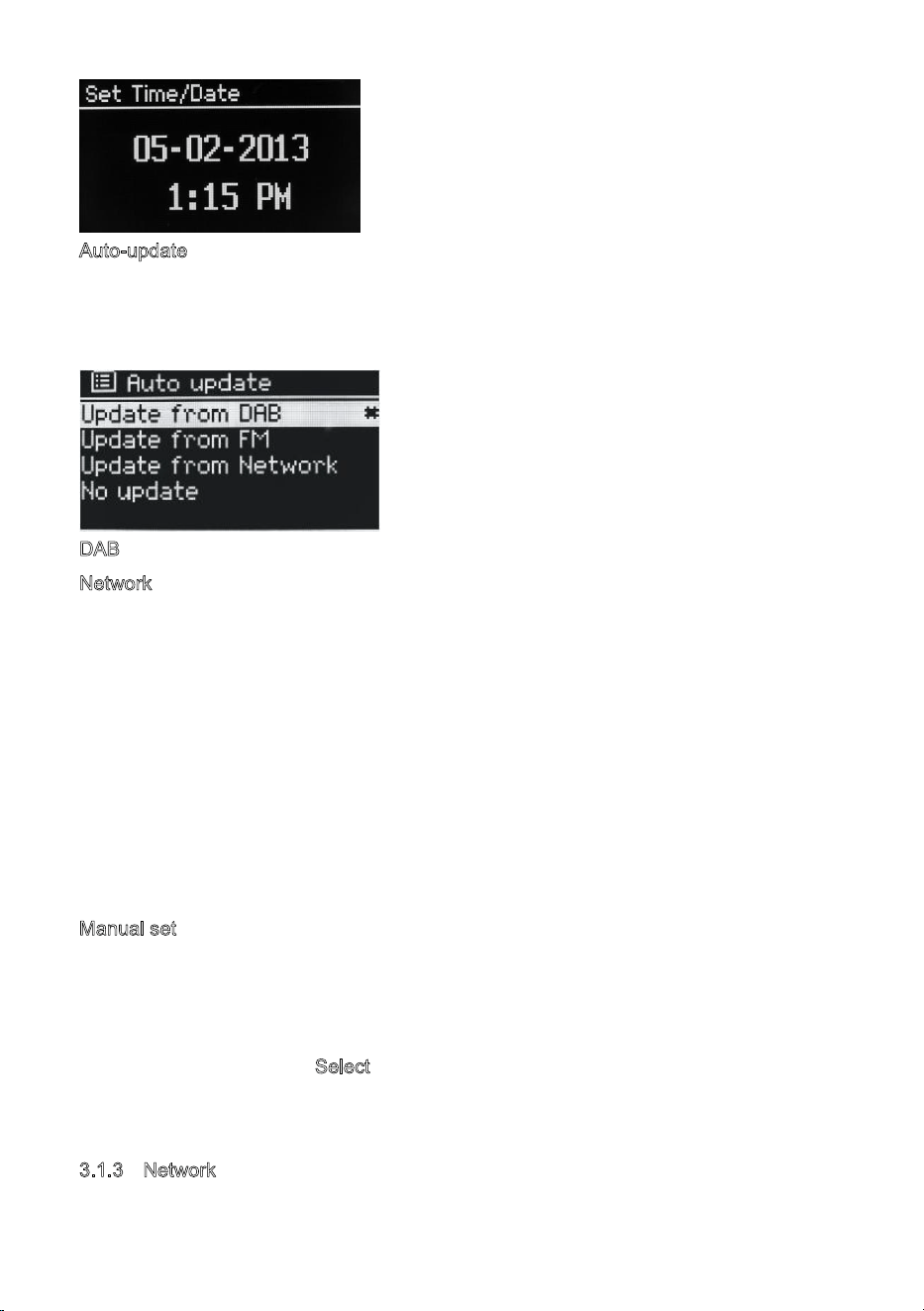
Auto-update
Auto-update works with data sent over DAB, FM or the Internet. The clock is
only updated when in a corresponding mode, so it is best to select a mode you
use regularly.
DAB and FM use time signals broadcast with radio transmissions.
N
etwork uses a time signal sent from the Internet radio portal when in any
network-connected mode.
1.Select Update from DAB, Update from FM, Update from Network or No update.
2. If you are updating from the network, set your time zone.
3. If your country uses daylight saving, the automatically updated time from the network
may be wrong by one hour. When daylight savings are in effect (during the winter), turn
on the Daylight savings option to rectify this.
Note that if you are updating t
he time from DAB or FM, the Daylight savings option has
no effect on the clock’s time.
MSY3 will auto-update from the selected source when time information is available.
M
anual set
If you set No update, the wizard now prompts you to set the time and date manually.
The date and time are displayed as dd-mm-yyyy and hh:mm AM/PM with the first value,
dd, active (flashing).
Adjust each value with the S
elect control.
As each value is set, the next value becomes active and flashes.
3
.1.3 Network
MSY3 is compatible with all common network protocols and encryption methods,
12
including Wi-Fi Protected Setup (WPS).
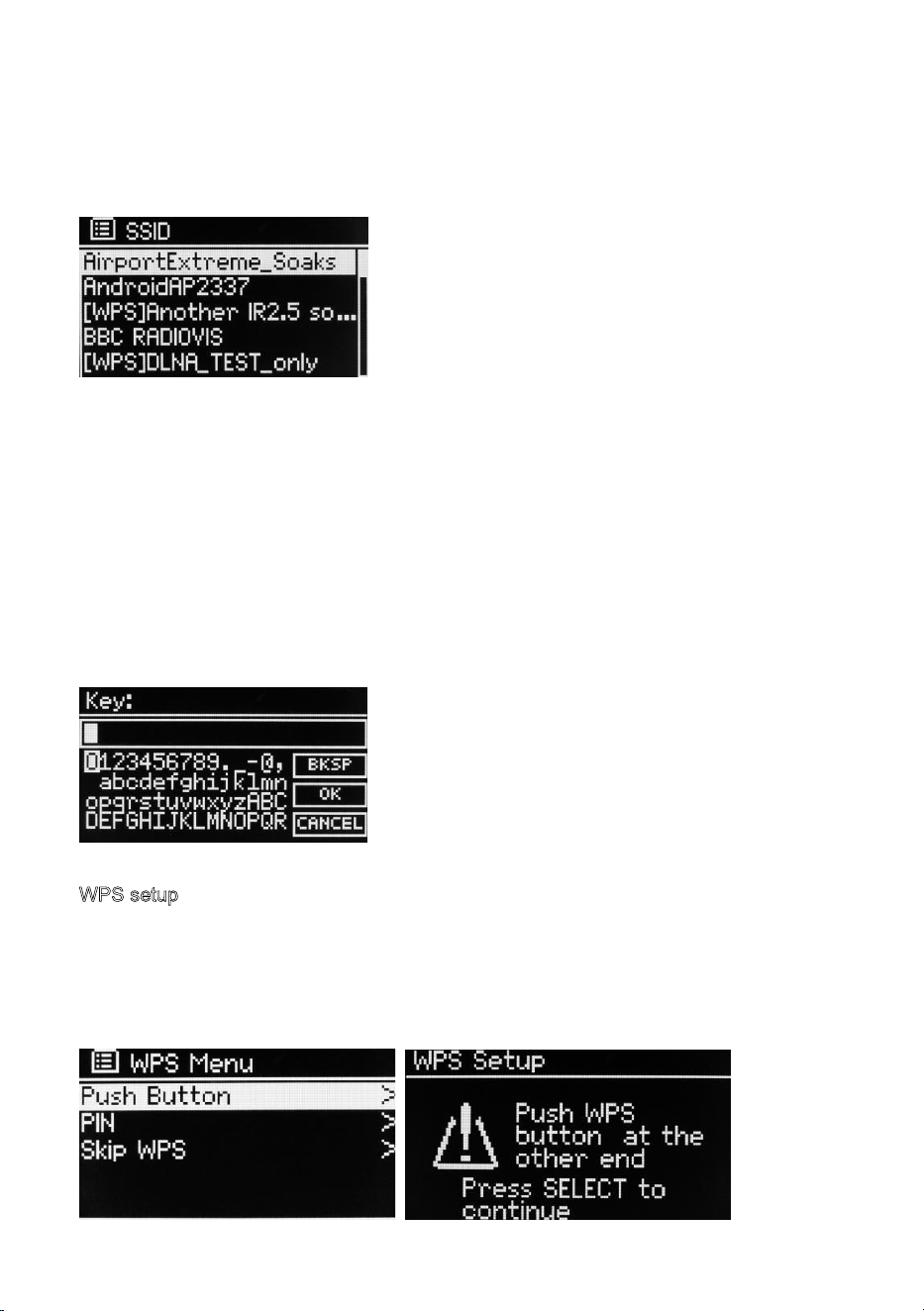
To connect MSY3 to your network, you need a Wi-Fi wireless router, together with
password key if set Select WLAN region/country >Wi-Fi network (SSID), and then select
a network from the list.
If the network is open (non-encrypted), MSY3 connects and no further details are
required; see Completion below.
Standard encrypted network
To enter the network’s key (password), use the Select control to highlight the next
relevant character and press to select each character in turn. As each character is
selected, the key is built up near the top of the display.
The three options – Backspace, OK and Cancel are included in the selection loop.
These can be accessed just usin
g the Select control, or, a short cut is available,
pressing the Info key, which moves the selection highlight to the BackSpace option.
WPS setup
WPS encrypted networks are identified by ‘[WPS]’ at the start of the network
name, and have two methods of connection. Select one and follow the prompts. When
using the network wizard an additional option to Skip WPS is available.
Select one and follow the prompts:
13
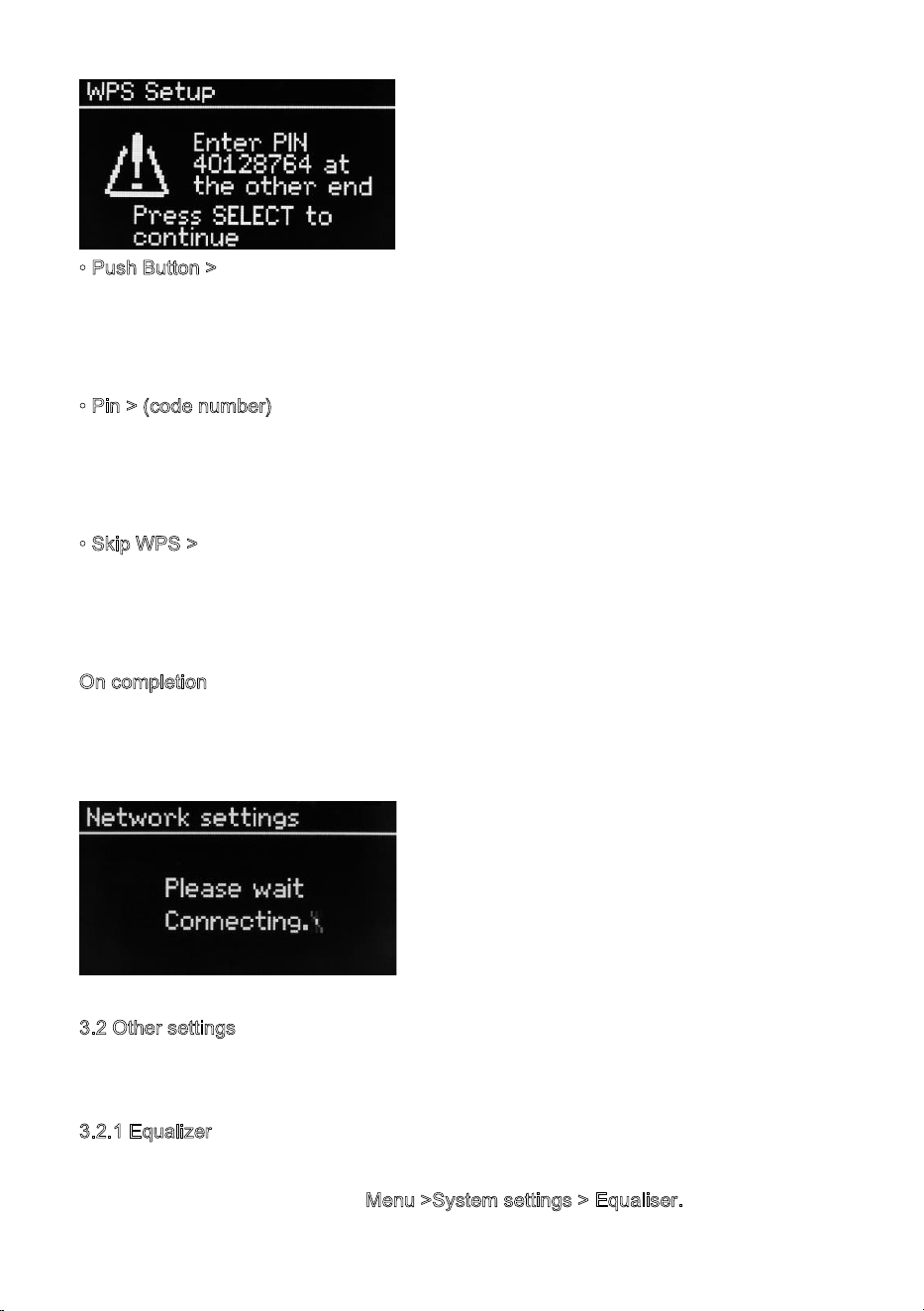
• Push Button >
MSY3 prompts you to press the connect button on the router. It then press
the select control.
•
Pin > (code number)
MSY3 generates an 8-digit code number which you enter into the wireless router,
access point.
•
Skip WPS >
Enter key as for a standard encrypted network, above. For more information
on setting up a WPS encrypted network, see your WPS router’s instructions.
O
n completion
MSY3 connects to the selected network.
If connecting fails, MSY3 returns to a previous screen to try again. To exit the process
use the Back/Menu button
3.2 Other settings
Sections for those modes. Common settings are covered below.
3
.2.1 Equalizer
Several preset EQ modes are available; also a user-defined setting (My EQ).
To choose an EQ setting, select M
enu >System settings > Equaliser.
14
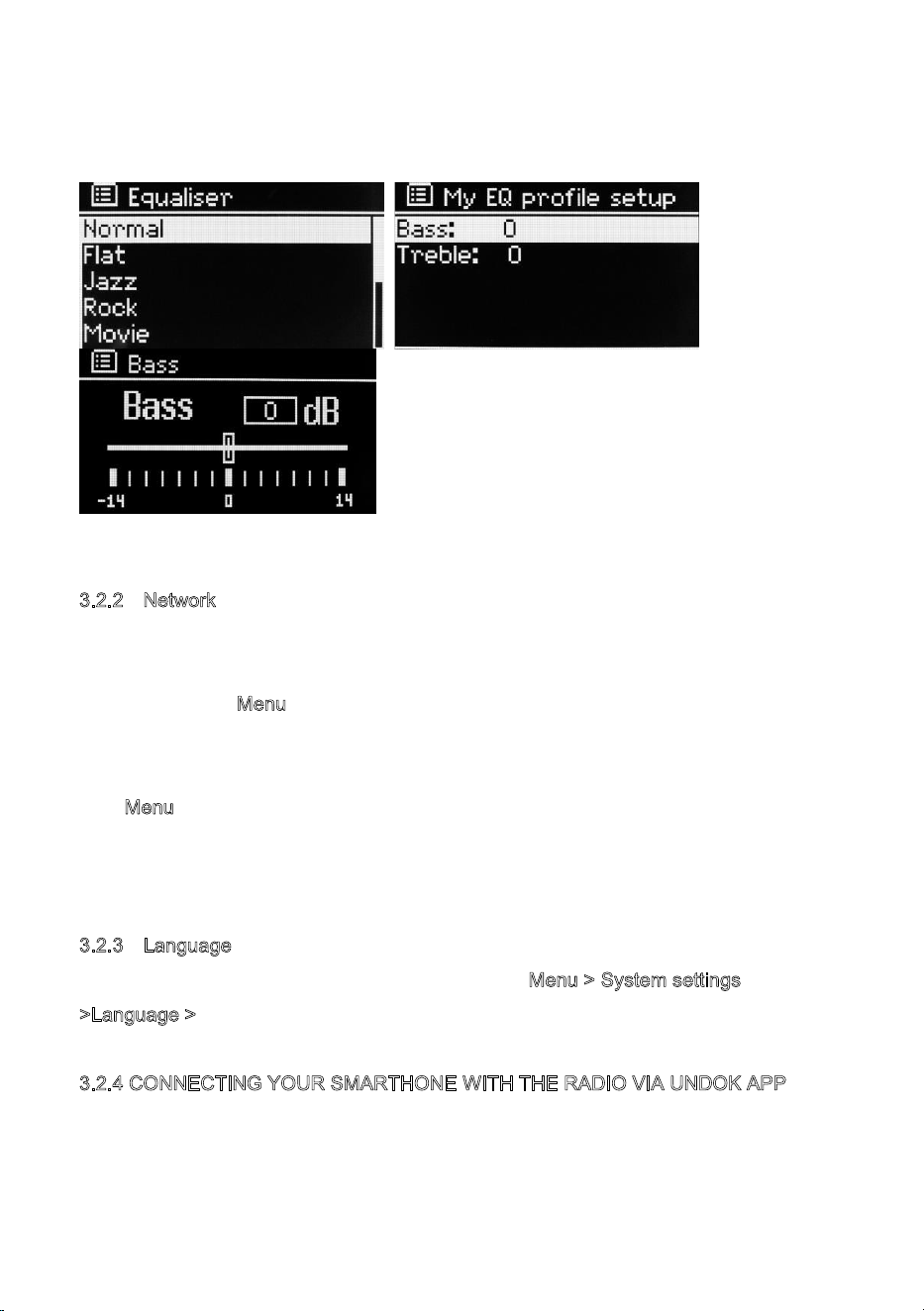
You can then choose from a variety of preset modes and My EQ
The last option ‘My EQ profile setup’ allows you to define your own settings for the ‘My
EQ’ option, with custom bass, and treble settings.
3.2.2 Network
MSY3 remembers the last four wireless networks it has connected to, and automatically
tries to connect to whichever one of them it can find. You can see the list of registered
networks through M
enu > System settings >Network > Network profile >From here you
can delete unwanted networks by turning and pressing Select then confirming delete
Yes. There are also other options for viewing and manually altering network settings
from M
enu > System settings > Network.
Users experienced with networking may find these options useful for diagnosing and
fixing network problems.
3
.2.3 Language
The default language is English. To change, select Menu > System settings
>Language >then select your language.
3
.2.4 CONNECTING YOUR SMARTHONE WITH THE RADIO VIA UNDOK APP
To connect your Smarthone with MSY3 you need to download the free app
“UNDOK“ from Apple Store or Google Play Store. IMPORTANT: The phone must be in
the same wireless network as the music system.
15
• Download the app and open it.
•
The app automatically searches for available devices. Select “LEMEGA MSY3”
from the list.
•
Open SOURCE to choose between different input signals.
•
Open BROWSE to get a list of available stations. Select the desired station.
•
Open NOW PLAYING to get more information about the channel.
•
Open the settings to adjust the equalizer, set sleep timer and other functions
easily.
4
. Internet radio mode
MSY3 can play thousands of radio stations and podcasts from around the world though
a broadband Internet connection.
When you select Internet radio mode, MSY3 contacts the Frontier Silicon Internet radio
portal to get a list of stations, organized into different categories like Country, Most
popular and Genre.
Once you select a station, MSY3 connects directly to that station.
To enter Internet Radio mode, either press Mode until the display shows Internet Radio
or select M
enu >Main menu > Internet Radio.
Note: The station list menu is provided from the Internet radio portal, so it is only
accessible when MSY3 is connected to the Internet. Station lists and submenus may
change from time to time.
The station list is organized into various categories and search facilities:
• ”Country “This menu item is localized for each country, for example, China, please
update accordingly
• History
• Search
• Location
• Popular
• Discover
16
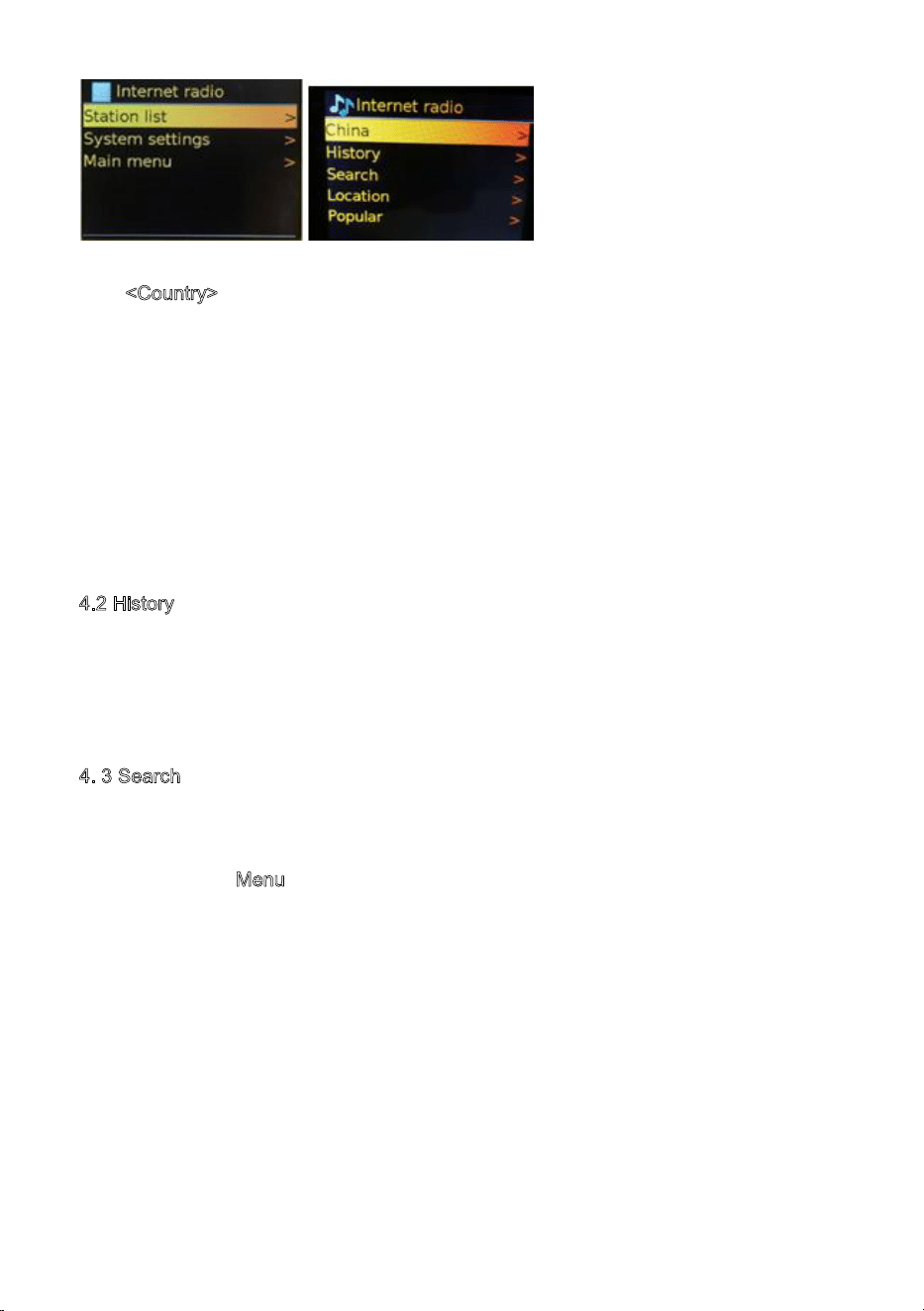
4.1 <Country>
This menu item is localised for each country, for example, ‘UK’, please update
accordingly.
Presents a sub-menu to search for stations using a variety of categories, for example,
local stations, BBC stations, Genres or stations from a specific city.
Choose the required category and either a further list of sub categories is shown, or (if
there are no further cub-categories) the available stations for the chosen category are
listed.
4
.2 History
When Internet radio mode restarts, the last-listened station is selected. To select
another recently used station, select Menu > History then one of the stations listed.
Most recent stations appear at the top of the list
4
. 3 Search
You can also search through Internet broadcasts for stations or podcasts
with particular keywords in their title.
To search, select M
enu > Search
Enter a keyword by selecting characters then OK. The search entry screens are similar
in operation to the Wi-Fi password entry screen.
Select a broadcast from the list.
For podcasts, you may be able to select a particular episode.
17
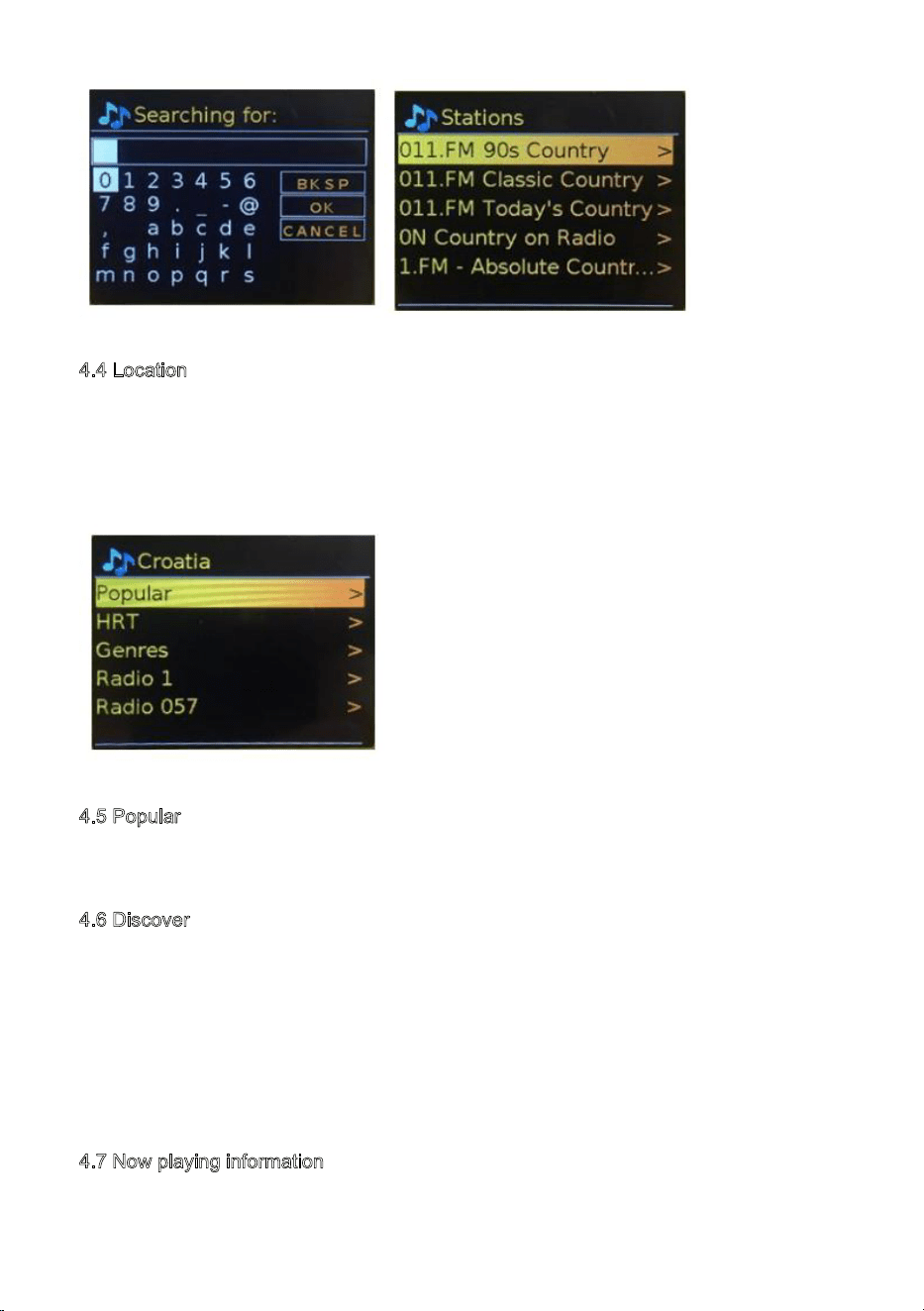
4.4 Location
To select an Internet broadcast from a particular location, select Menu > Location >.
Select a continent from the menu and a list of countries available is presented, select a
country and the available internet radio stations are presented.
Choose a radio station from the list to tune to that station.
4.5 Popular
Presents a list of the most popular internet stations from around the world.
4
.6 Discover
Allows you to select from a list of stations defined by either their origin (Country), Genre
(style of music) or language. Navigate through the category options, once you have
made your selection a screen confirms your selected category and the number of
stations within that category. To see the list, select the option showing the number of
available stations.
4
.7 Now playing information
While the stream is playing, the screen shows its name and description. If artist and
18
track information is available, this is also shown. To view further information, press Info .
Each time you press Info, another set of information is displayed, cycling through the
following details:
• Slogan (default; where available)
• Language/Location
• Codec and sampling rate
• Playback buffer
• Today’s Date.
5
. Spotify Connect
With Spotify you get millions of songs easily accessible. The artists you like, the latest
hit songs and new discoveries, just for you.
With Spotify Connect feature lets you play and control all your music wirelessly. Select
music on your smartphone or tablet and hear on the radio.
Your radio has Spotify Connect built. This allows you to control the music playing on the
radio using the Spotify app on your smartphone or tablet.
Listen Nobody is seamless - you can call, play games
, watch movies, and even turn off
the phone without interfering music. There is a better way to hear music at home.
* For availability in your region, see www.spotify.com
You must have a Spotify Premium account to get full access to millions of songs from
Spotify archive, all with adequate sound quality.
If you do not have it, you can go to www.spotify.com/freetrial for a 30 - day trial.
To use Spotify Connect
Use your phone, tablet or computer as a remote control for Spotify.
Go to spotify.com/connet to learn how
The Spotify Software is subject to third party license found here:
http://www.spotify.com/connect/third-party-license
1. Download Spotify app for your Smartphone or tablet ( iOS or Android) .
2. Connect the radio to the same wireless network as your Smartphone or tablet, and
19
then press the MODE button repeatedly to select Spotify Connect mode.
3. Open Spotify app on your Smartphone or tablet and play a song.
4. Touch the picture of the album at the bottom left of the screen. Then press Connect
icon
5. Press MSY3 to select your radio and it will start playing from you MSY3.
Note that radio is that " LEMEGAxxxxxxxxxxxx " ( 12-digit number is the MAC address
of the radio ) in Spotify app.
6
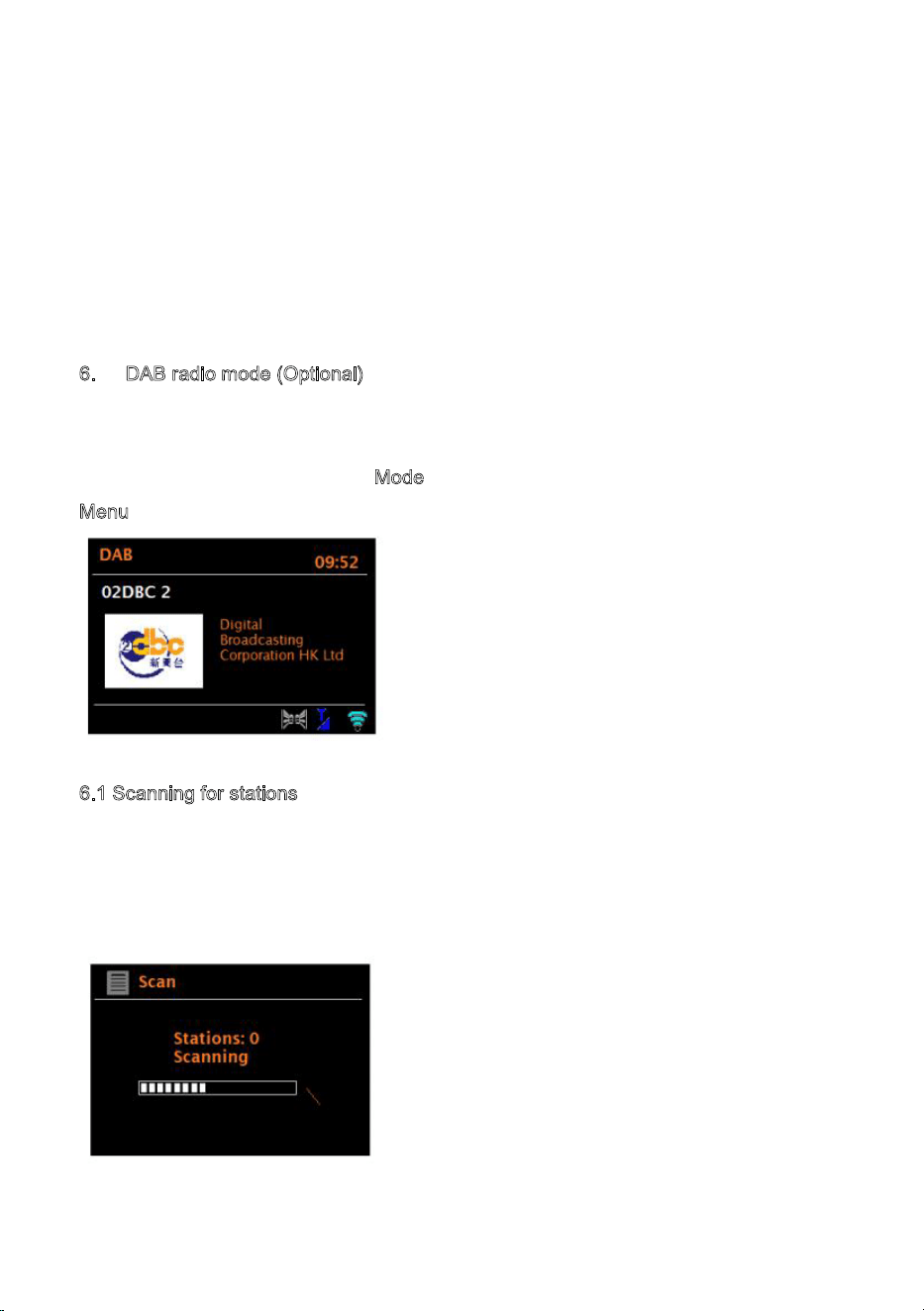
. DAB radio mode (Optional)
DAB radio mode receives DAB/DAB+ digital radio and displays information about the
station, stream and track playing.
To enter DAB mode, either press M
ode until the display shows DAB Radio or select;
M
enu > Main menu > DAB.
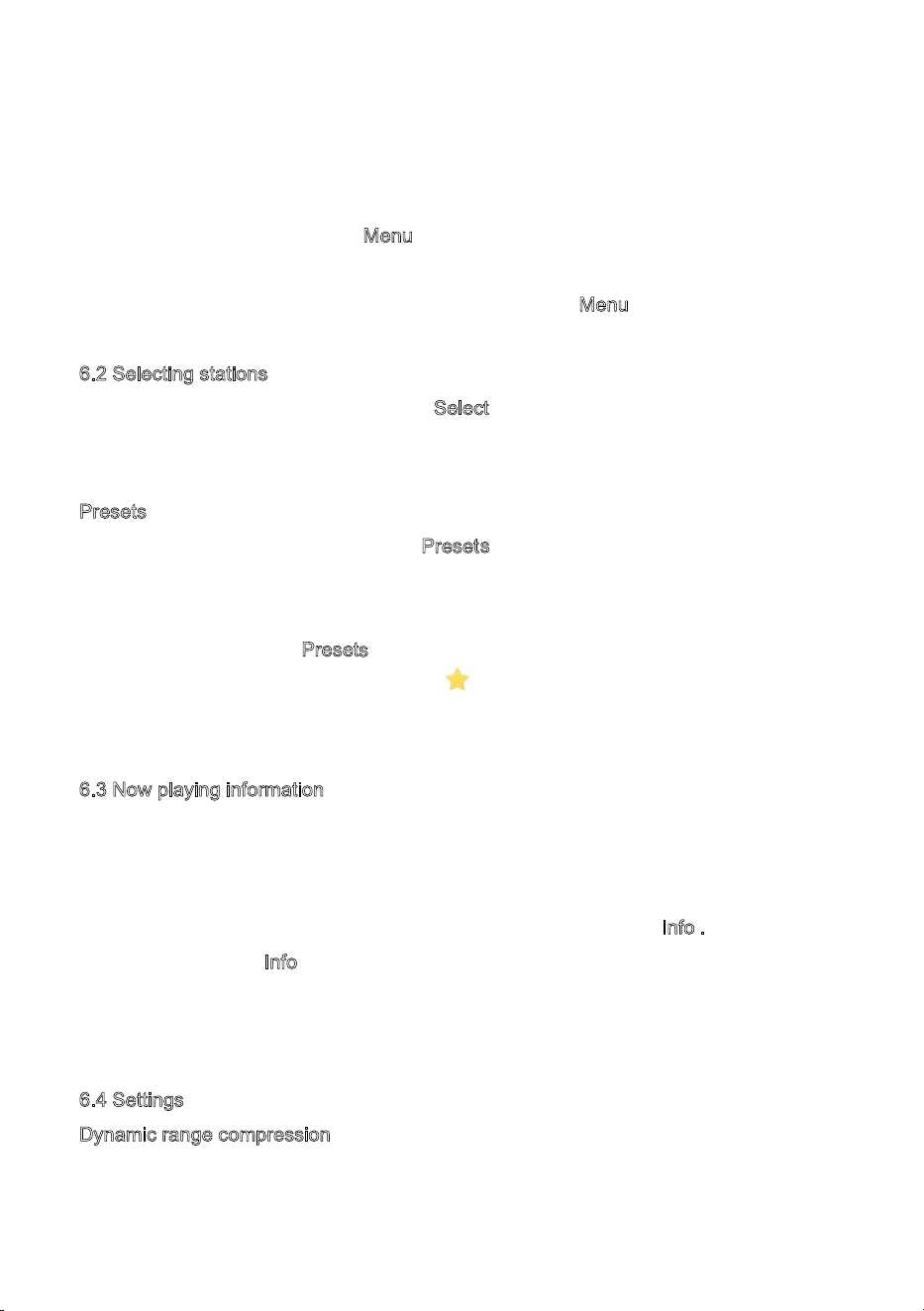
6.1 Scanning for stations
The first time you select DAB radio mode, Or if the station list is empty,
MSY3automatically performs a full scan to see what stations are available. You may
also need to start a scan manually to update the list of stations for one of the following
reasons:
Available stations change from time to time.
20
If reception was not good for the original scan (for example the antenna was not up),this
may result in an empty or incomplete list of available stations.
If you have poor reception of some stations (burbling), you may wish to list only stations
with good signal strength.
To start a scan manually, select M
enu > Scan.
Once the scan is complete, the radio shows a list of available stations.
To remove stations that are listed but unavailable, select M
enu > Prune invalid.
6
.2 Selecting stations
To listen to or change a station, turn the Select control to view a list of stations and
press to select. Once selected, the station plays and the screen shows information
about the station, track or show as broadcast.
P
resets
s
s
To store a DAB preset, press and hold Preset until the display shows the Save preset
screen.
Select one of the 20 presets (on the remote) to save the currently playing station.
To select a preset, press P
reset briefly, then select one of the listed preset stations.
When a preset station is playing, it shows
1,2,3 etc in the bottom middle of the
screen.
6
.3 Now playing information
While the stream is playing, the screen shows its name and DLS (Dynamic Label
Segment) information broadcast by the station giving real-time information such as
programme name, track title and contact details. Stereo broadcasts are indicated with
an icon at the top of the screen. To view further information, press I
nfo .
Each time you press Info, another set of information is displayed, cycling through DLS
text, programme type, ensemble name/frequency, signal strength/error rate, bit
rate/codec/channels and today’s date.
6
.4 Settings
Dynamic range compression
Some DAB broadcasts offer dynamic range compression (DRC). This feature allows
radios to compress the dynamic range of the output audio stream, so that the volume of
21
quiet sounds is increased, and the volume of loud sounds is reduced. This can be useful
if you are listening to music with a high dynamic range in a noisy environment (for
example, classical music while cooking).
To change the DRC of the MSY3, select M
enu > DRC, and then DRC high, DRC low or
DRC off.
Note: The MSY3’s DRC setting does have any effect if DRC data is not included in the
broadcast.
S
tation order
You can choose the order of the DAB station list to be either Alphanumeric, Ensemble
or Valid. Ensemble lists groups of stations that are broadcast together on the same
ensemble, for example BBC or South Wales local. Valid lists valid stations first,
alphanumerically, then off-air stations.
To change station order, select M
enu > Station order > then Alphanumeric, Ensemble
or Valid.
7
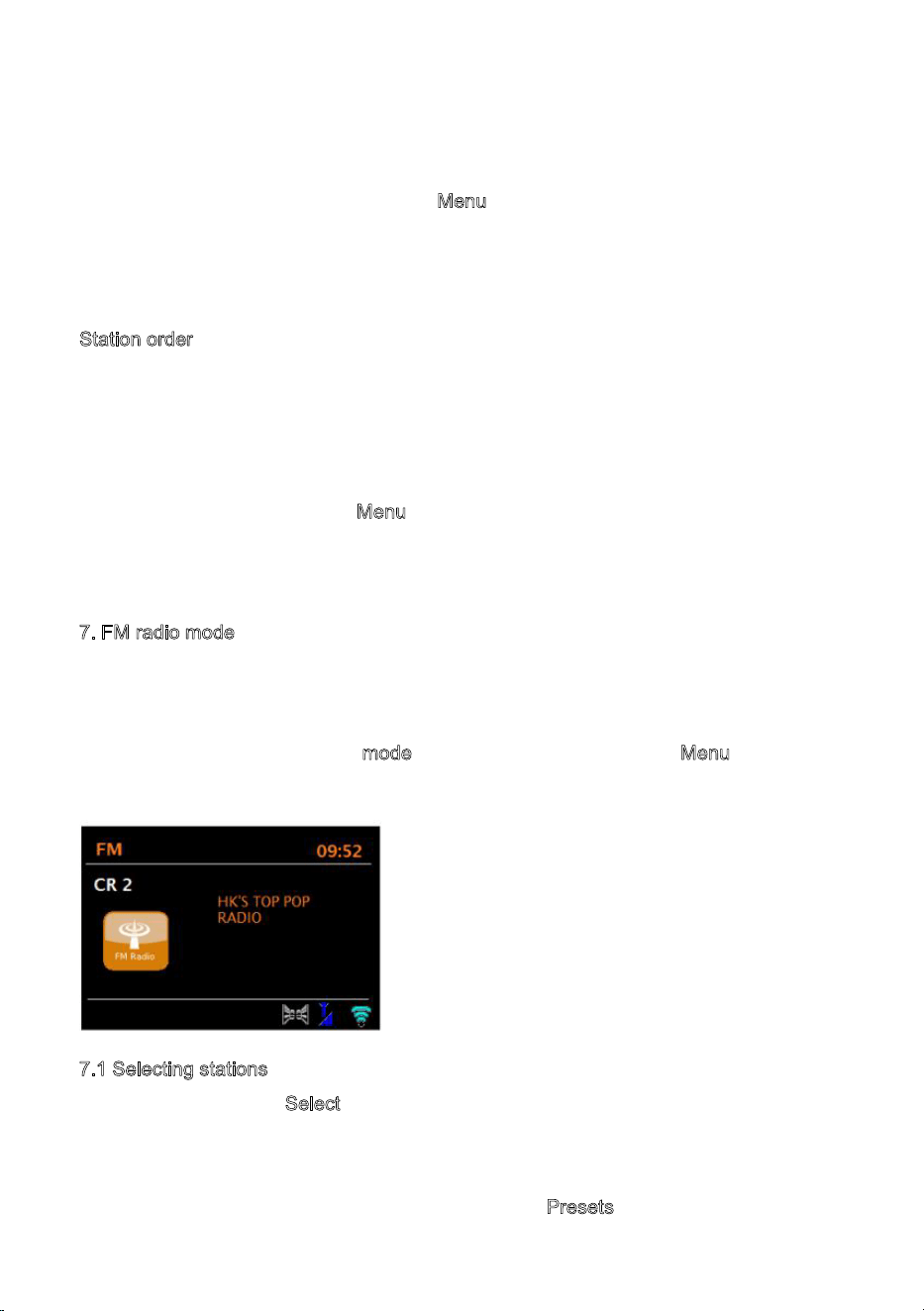
. FM radio mode
FM radio mode receives analogue radio from the FM band and displays RDS
(Radio Data System) information about the station and show (where broadcast).
To enter FM mode, either press m
ode to choose FM Radio or select Menu >Main
menu >FM.
7.1 Selecting stations
To find a station, press Select. The frequency display starts to run up as MSY3 scans
the FM band. Alternatively, you can scan up or down by pressing and holding the >> or
<<buttons or tune manually with quick presses, or by turning the Select control.
Presets to store an FM preset, press and hold button
P
res set until the display
22
shows the Save preset screen. Select one of the 20 presets to save the currently
playing station.
To select a preset, press P
res set briefly, then select one of the listed Preset stations.
When a preset station is playing, it shows
1,2,3 etc in the bottom middle of the
screen.
7
.2 Now playing information
While an FM station is playing, the screen shows one of the two following sets data:
If RDS information is available, by default the service name (i.e. station name) is
displayed.
You can cycle through further RDS information by pressing I
nfo .Each time you press
I
nfo, another set of information is displayed, cycling through RDS radio text, RDS
programme type, frequency and today’s date.
If no RDS information is available, the currently tuned frequency is shown.
7
.3 Settings
Scan settings
By default, FM scans stop at any available station. This may result in a poor
signal-to-noise ratio (hiss) from weak stations. To change the scan settings to stop only
at stations with good signal strength, select M
enu > Scan setting > Strong stations only?
> Yes.
Audio settings
By default, all stereo stations are reproduced in stereo. For weak stations, this may
result in a poor signal-to-noise ratio (hiss). To play weak stations in mono, select
M
enu >Audio setting > FM weak reception: Listen in mono only > Yes.
8
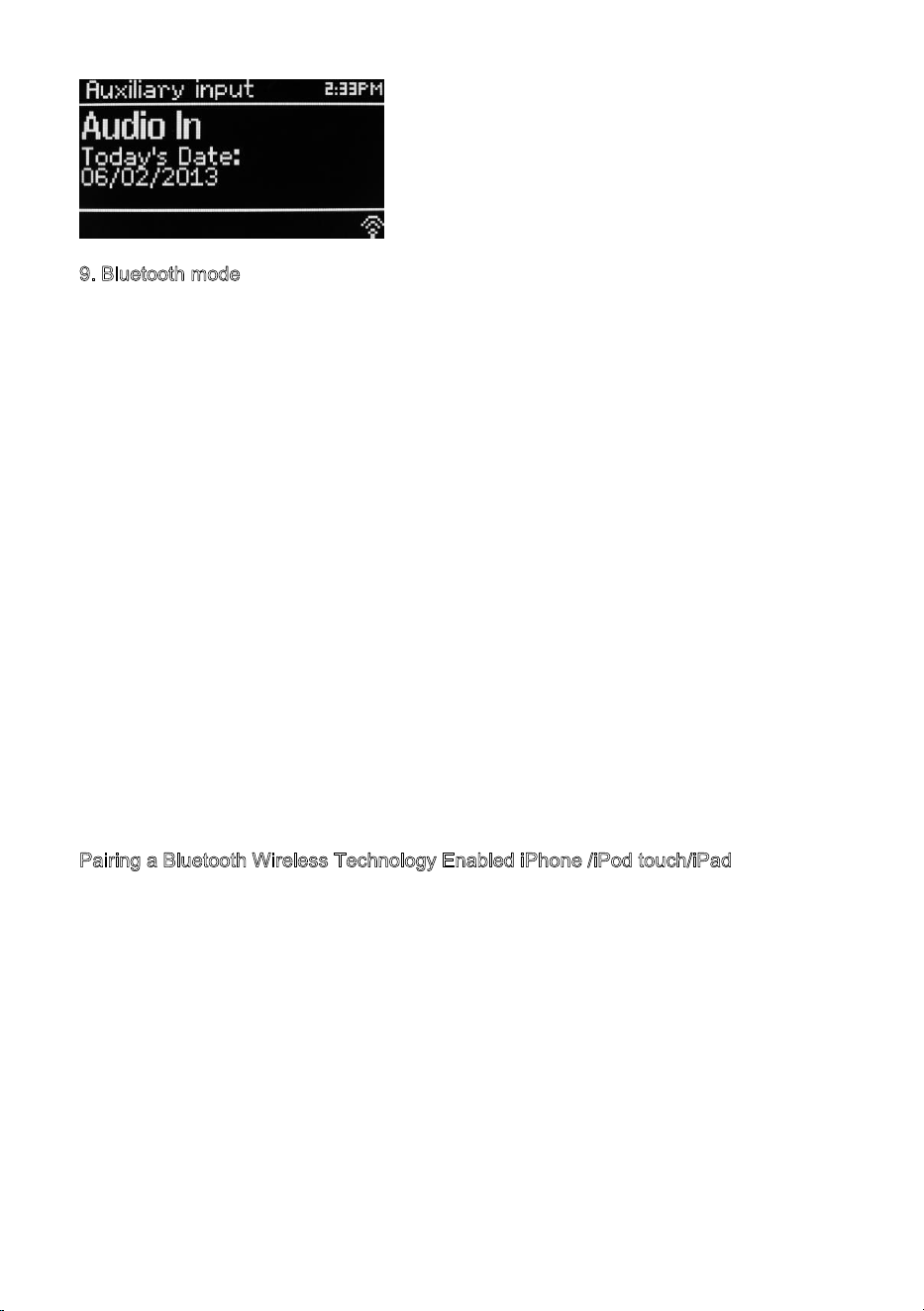
AUX mode
Aux in mode plays audio from an external source such as an MP3 player.
To play audio with Aux in mode,
1).Connect the external audio source to the Aux In (RCA) stereo socket.
2). Either press M
ode until the display shows AUX in or select Menu> Main menu >
AUX in.
3). Adjust the volume of MSY3 (and, if necessary, the audio source device) as required.
23
9. Bluetooth mode
Prior to pairing, verify your device supports Bluetooth 4.0+EDR A2DP and your device
is not connected to any other Bluetooth product. Devices may pair differently. Below is a
general guide.
1. Press to source to Bluetooth mode. This will power on the Bluetooth. Turn the volume
up about ¼ to start. Also turn up the volume on the source device (the device you are
streaming from).
2. Turn on the Bluetooth on your enabled device.
3. Select Bluetooth device name “LEMEGA MSY3” when it
appears on your device’s
screen to initiate searching.
4. You can start to play your music files wirelessly. Adjust the volume level on your
device.
You should not have to pair your device again.
Depending on your device, you may need to make multiple attempts at Pairing and/or
Connecting to the “LEMEGA MSY3”, but please give your device adequate time to Pair
or Connect before repeating the process.
P
airing a Bluetooth Wireless Technology Enabled iPhone /iPod touch/iPad
1. Press source to select Bluetooth mode. This will power on the Bluetooth.
Turn the volume up about ¼ to start. Also turn up the volume on the source device (the
device you are streaming from).
2. Select “Settings”. (Depending on software version)
3. Select “General”.
4. Select “Bluetooth”.
5. Switch Bluetooth “On” to initiate searching.
6. Select “LEMEGA MSY3” when it appears on the display.
7. You can begin playing your music files wirelessly once the BT logo is stop flashi
ng at
the bottom right of the display.(means connected successfully).
24
Adjust the volume level on your device. You should not have to pair your
iPhone/iPod/iPad again. The volume output level of music files varies.
If you prefer an even higher output level, check the settings in your iPhone/iPod
touch/iPad:
Set the EQ Off, the Sound Check Off, and the Volume limit Off. If you encounter a
problem Pairing, press the small arrow to the right of “LEMEGA MSY3” on your
iPhone/iPod touch/iPad display and select “Forget this Device”, then repeat the Pair
ing
process. Depending on your device.
You may need to make multiple attempts at Pairing and/or Connecting to the MSY3, but
please give your device adequate time to Pair or Connect before repeating the process.
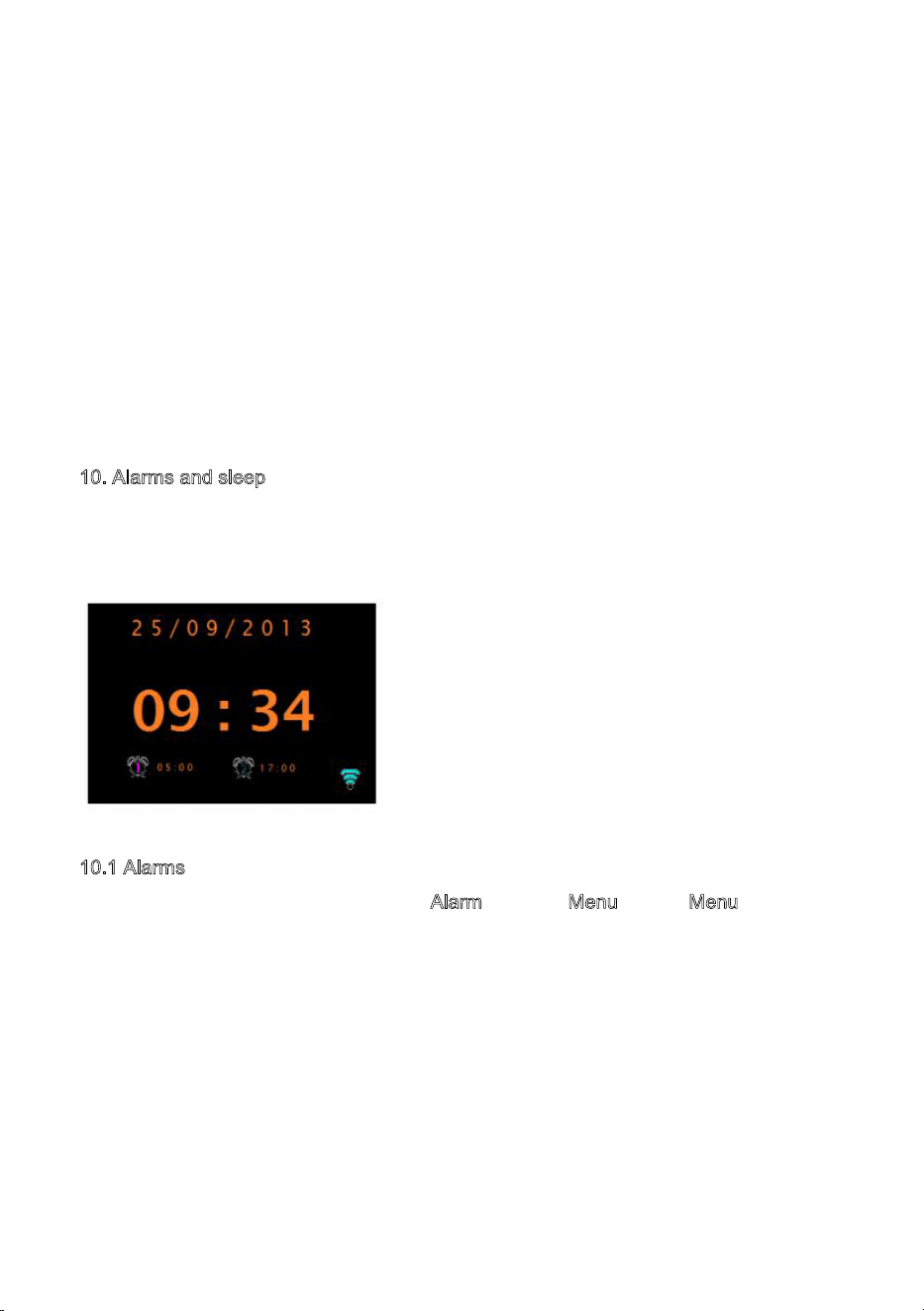
1
0. Alarms and sleep
As well as a clock/calendar, there are two versatile wake-up alarms with snooze facility,
and a sleep function to turn the system off after a set period. Each alarm can be set to
start in a particular mode.
10.1 Alarms
To set or change an alarm, either press Alarm or select Menu > Main Menu > Alarms.
Select the alarm number (1 or 2) then configure the following parameters:
Enable: on/off,
Frequency: Daily, Once, Weekends or Weekdays,
Time:0-max
Mode: Buzzer, Internet radio, DAB, FM
Preset: Last listened or 1-20,
Volume: 0 - max.
To activate the new settings, scroll down and select Save.
The screen shows active alarms with an icon at the bottom left.
25
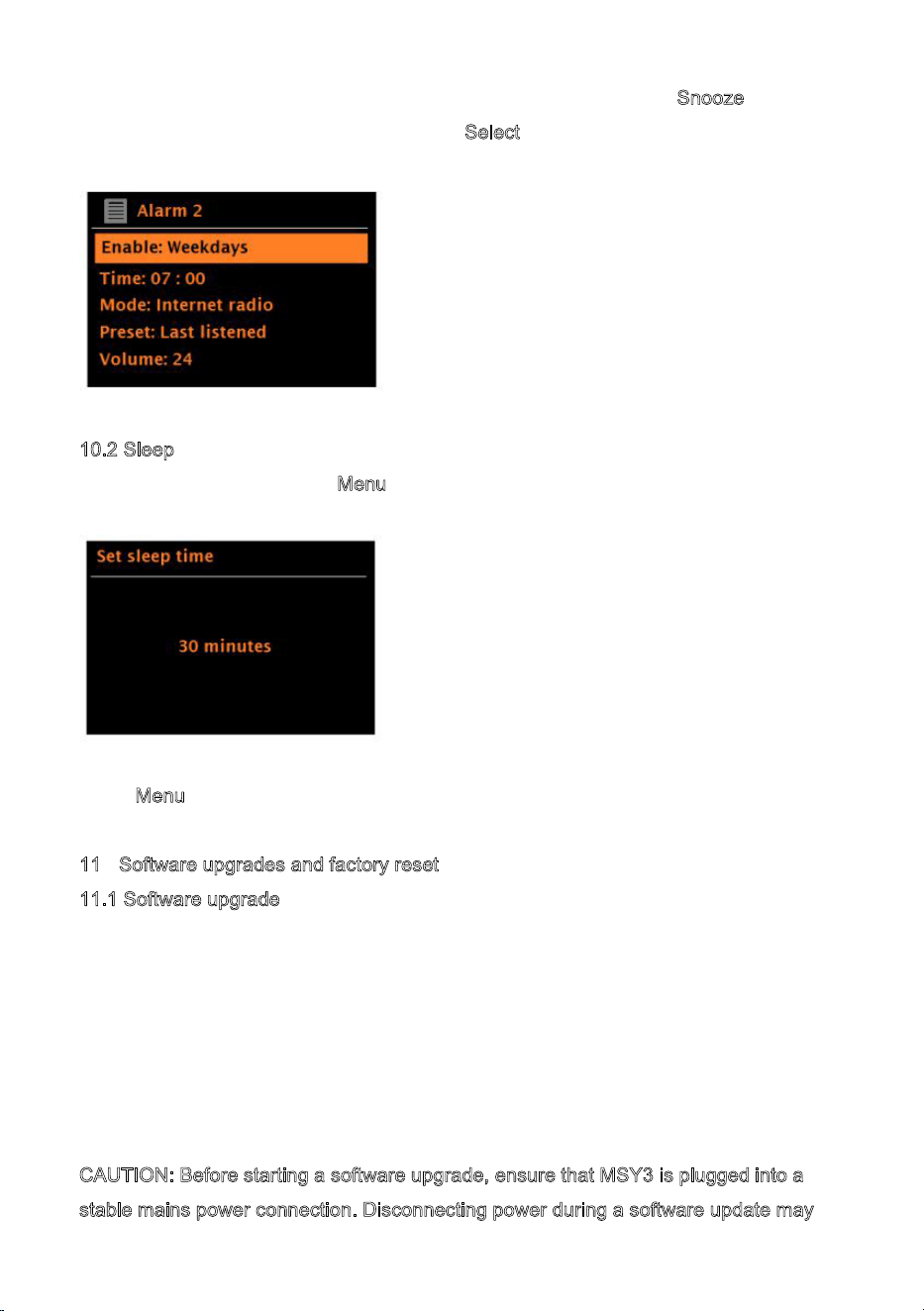
At the set time, the alarm will sound. To temporarily silence it, press Snooze .
You can change the snooze period with the S
elect control if you like. The radio returns
to standby for the set period, with the silenced alarm icon flashing.
10.2 Sleep
To set the sleep timer, select Menu > Main menu > Sleep then choose from Sleep OFF,
15 MINS, 30 MINS, 45 MINS or 60 MINS.
Once you select a sleep period, the system returns to the main menu.
Press M
enu to return to the Now playing screen.
1
1 Software upgrades and factory reset
11.1 Software upgrade
From time to time, MSY3 may make software upgrades available with bug Fixes and/or
additional features. You can either check manually, or set MSY3 to check periodically
automatically (this is the default). If MSY3 detects that newer software is available, it
asks if you want to go ahead with an update.
If you agree, the new software is then downloaded and installed. After a software
upgrade, all user settings are maintained.
C
AUTION: Before starting a software upgrade, ensure that MSY3 is plugged into a
stable mains power connection. Disconnecting power during a software update may
26
permanently damage the unit.
To turn automatic checking on or off, select Menu > System settings >Software
update >Auto-check setting.
11.2 Factory reset
A factory reset resets all user settings to default values, so time/date, network
configuration and presets are lost. However, the radio’s current software version is
maintained, as is registration with the Internet radio portal. Internet radio favourites
therefore remain unless you re-register your radio with another account on the portal
website.
To perform a factory reset, select M
enu > System settings > Factory reset
proceed >Yes.
1
2 Troubleshooting and error messages
12.1 Error messages
Message
Description
Example
Failed to
connect
Correct key entered,
But router rejects request
MAC filtering enabled
on router
Format error
Cannot recognise file format -independent
of network
Received.wma, but
found that the stream
wasn’t WMA when
trying to decode
Network error
Problem past router -incorrect data being
received from network
Data obtained from
server is unreadable.
Network not
ready
Problem with connection to router
Router switched off
Network timeout
Problem past router – no response being
received from network
Streaming IR station
and suddenly station
becomes unavailable
Service not
available (DAB)
No DAB reception
Waiting for Spotify mode - No Spotify account
27

12.2 Troubleshooting
Users credentials available on the MSY3 audio
system. Connect to the audio system
using a Spotify Connect account.
‘Press Play…’
Spotify mode – Waiting for playback
information; for example, when the audio
playback is moved by the Spotify app to a
different audio speaker or the smart
device itself.
Problem Cause Solutions
FM: Hiss
DAB:
burbling/intermittent
cut-out
Low signal
strength
Check/move antenna
Move radio
Rescan local (high-strength) stations only
For DAB, check local coverage at
www.ukdigitalradio.com/coverage
DAB: ‘No stations
available’ message
Low signal
strength
As above then rescan stations.
Cannot connect
to network
Network down Check that network is working between a
computer and the router
Cannot connect
to network
Router restricts
access to listed
MAC addresses
Obtain the MSY3 MAC address from
Menu > System settings > Network >
View settings and add to router list.
Insufficient Wi-Fi
signal strength
Check distance to router; see if a computer
can connect to the network in this location
Unusual network
configuration
Setup network manually through Menu >
System settings > Network > Manual
settings
Firewall
preventing access
Check the following ports are open on the
router: UDP and TCP ports 80 and 123;
DNS port 53. Windows shares: ports 135 –
139 and 445.
28

Problem
Cause
Solutions
Cannot connect to
Internet
Internet connection down
Check that Internet is working for
a computer connected to the
same network
Firewall preventing access Check the following ports are
open: UDP and TCP ports 80
and 123; DNS port 53.
Some Internet radio stations may
require additional ports to be
opened.
Cannot play
particular Internet
radio station
Station not broadcasting,
overloaded or insufficient
bandwidth.
Station broadcasting using
unknown codec.
Link out of date.
Try other stations; try listening
on computer via Internet radio
portal website; t
ry later.
29
13 Technical Specification:
Model: MSY3 ALL-IN-ONE MUSIC SYSTEM
Type: WiFi/Spotify/Internet radio/DAB/DAB+/FM/AUX/Bluetooth Music system
Speaker: 2 x 3” (full range)
Power: RMS 30W
Power Supply: 12V/2.5A power adapter
Dimension (mm): 350W x 135H x 200D
Weight: 3.24 KG
Specifications are subject to change without notice
If you have any questions or suggestions, please share with us.
i
This device complies with Part 15 of the FCC rules. Operation is subject to the following
two conditions: 1) this device may not cause harmful interference, and 2) this device
must accept any interference received, including interference that may cause undesired
operation.
Changes or modifications not expressly approved by the party responsible for
compliance could void the user's authority to operate the equipment.
30


MSY3 ALL-IN-ONE MU SIC SYSTEM
LIFE & ALOUD
If you have any questions or suggestions,
please share with us.
www.lemegaaudio.com
Made in China