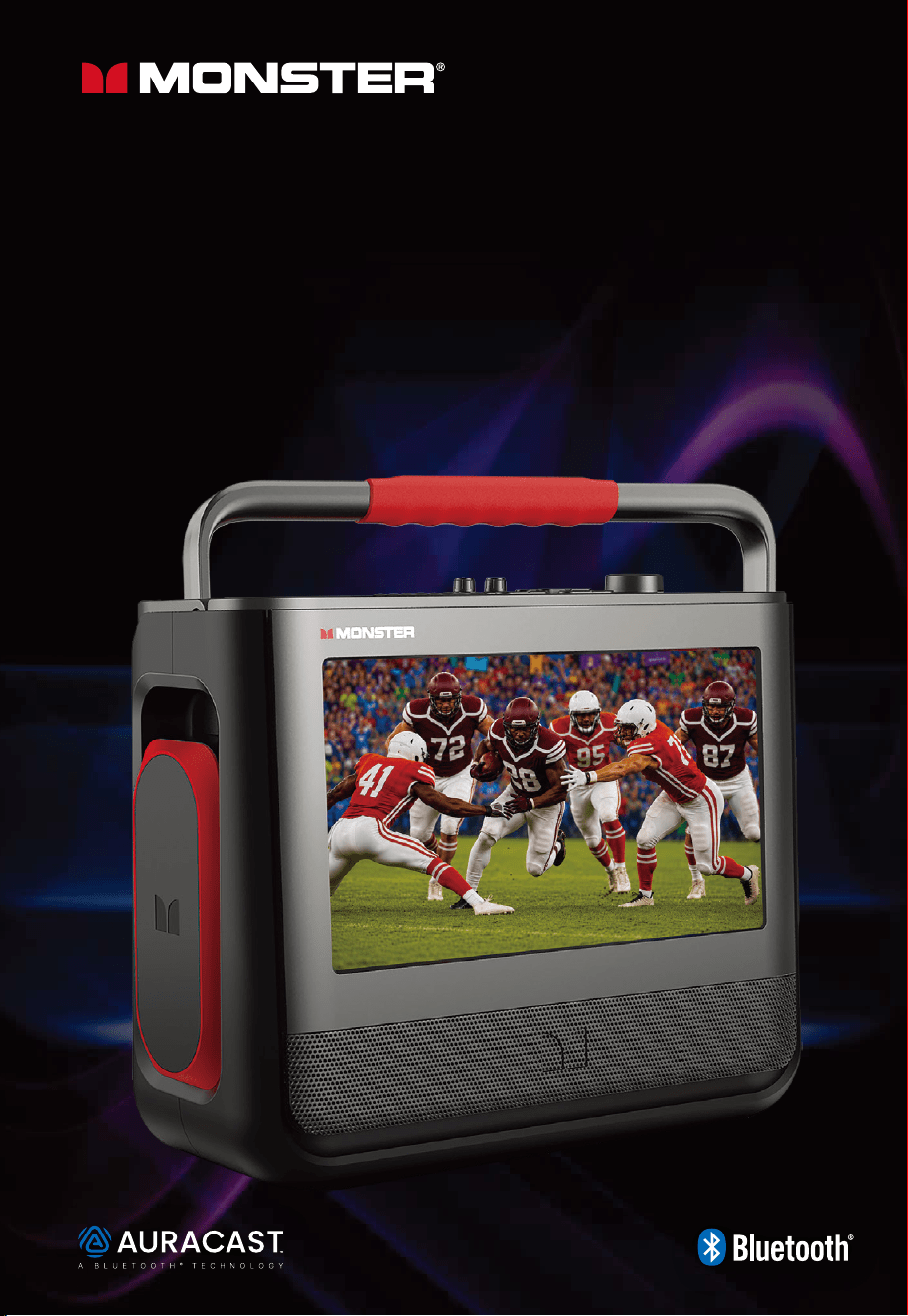
VISION 3
Portable Video Entertainment System
USER MANUAL
2
FCC Warning Statement 3
Safety Instructions 3
Contents 5
Remote Control 5
Getting Started 6
Source Switching Key 6
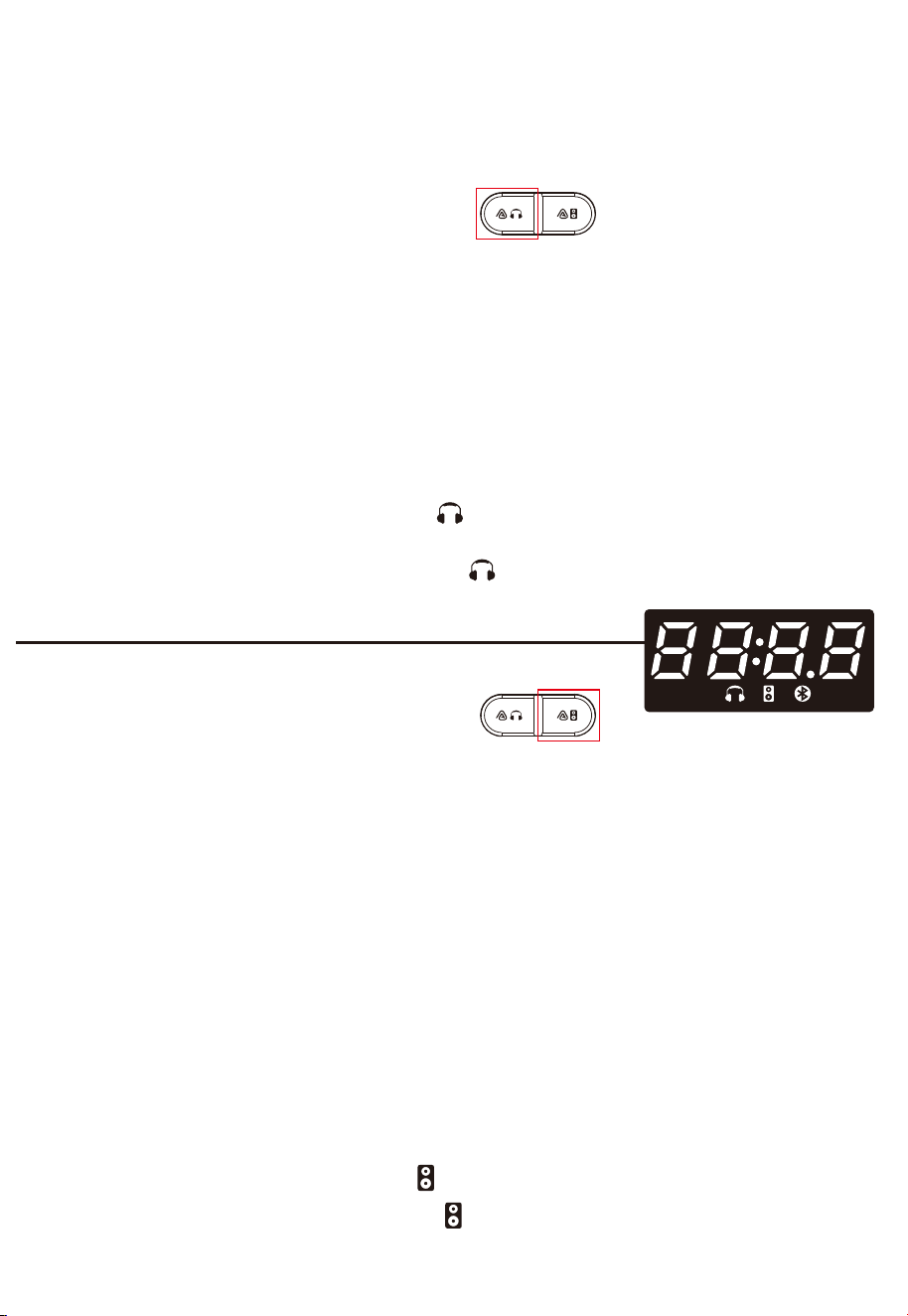
Bluetooth Connection 6
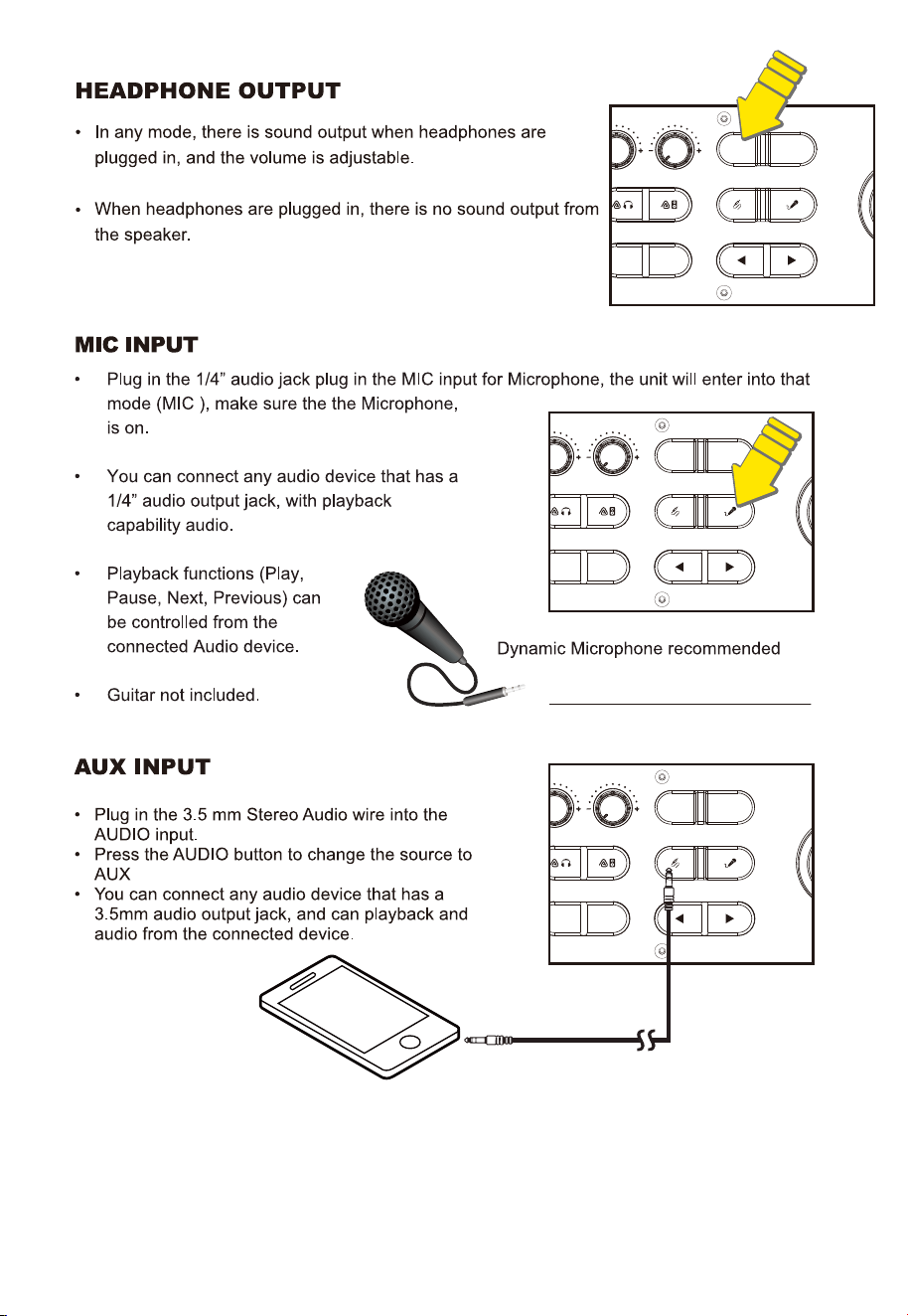
Headphone Output 8
Auracast 7
Mic Input 8
AUX Input 8
HDMI Input 9
FM Radio 10
USB Charging 10
USB Player 10
EQ Presets Audio 10
EQ Presets Video 10
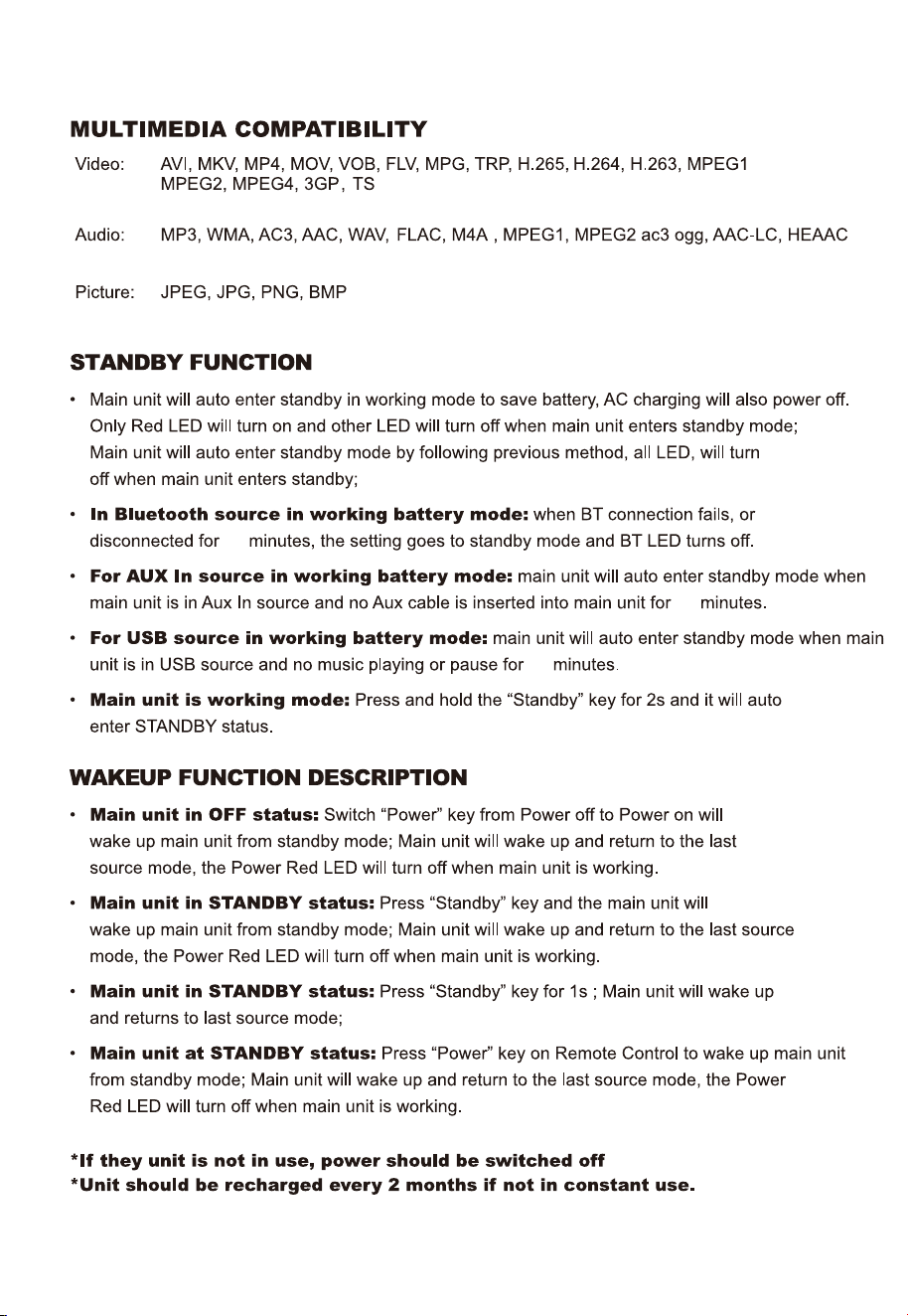
Multimedia Compatibility 11
Standby Function 11
Wakeup Function 11
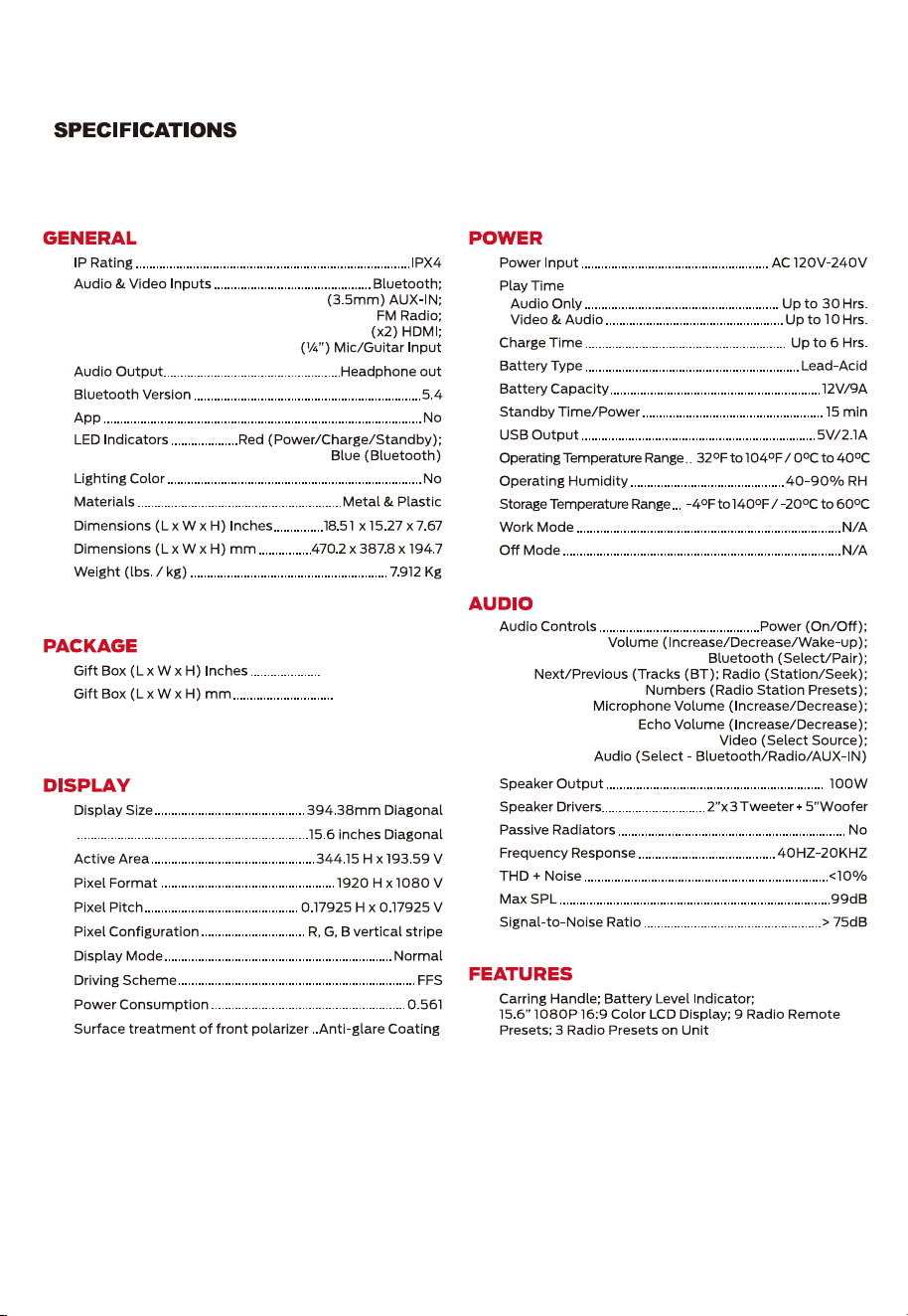
Specifications 12
Limited Warranty 13
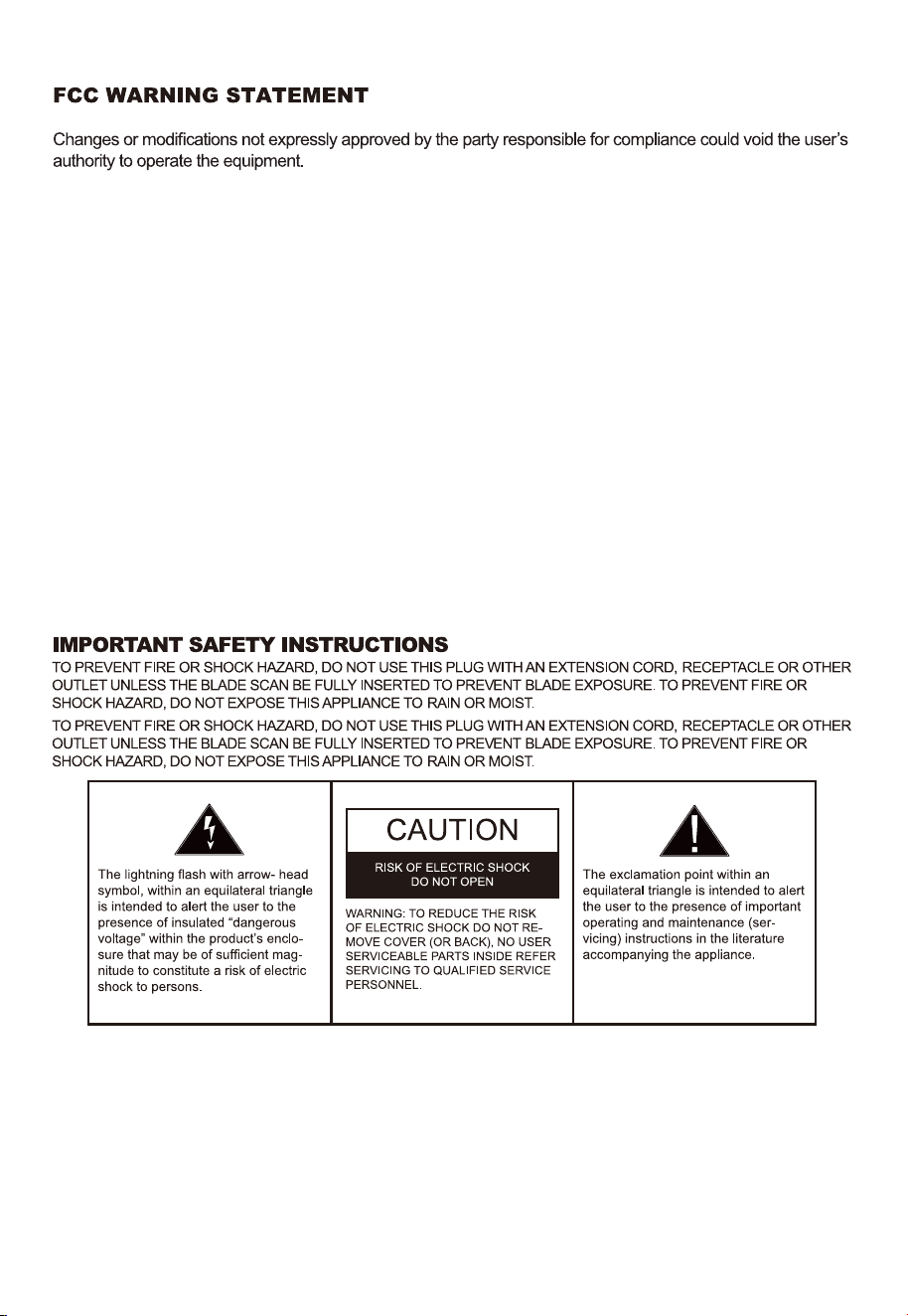
Important Safety Instructions
1) Read these instructions – All the safety and operating instructions should be read before this
product is operated.
2) Keep these instructions – The safety and operating instructions should be retained for future
reference.
3) Heed all warnings - All warnings on the appliance and in the operating instructions should
be adhered to.
4) Follow all instructions – All operating and use instructions should be followed.
3
This device complies with part 15 of the FCC Rules. Operation is subject to the following two conditions:
(1) This device may not cause harmful interference, and
(2) this device must accept any interference received, including interference that may cause undesired
operation.
This equipment has been tested and found to comply with the limits for a Class B digital device,
pursuant to part 15 of the FCC Rules. These limits are designed to provide reasonable protection against
harmful interference in a residential installation. This equipment generates, uses and can radiate radio
frequency energy and, if not installed and used in accordance with the instructions, may cause harmful
interference to radio communications. However, there is no guarant ee that interference will not occur in
a particular installation. If this equipment does cause harmful interference to radio or television
reception, which can be determined by turning the equipment off and on, the user is encouraged to try
to correct the interference by one or more of the following measures:
—Reorient or relocate the receiving antenna.
—Increase the separation between the equipment and receiver.
—Connect the equipment into an outlet on a circuit different from that to which the receiver is connected.
—Consult the dealer or an experienced radio/TV technician for help.
Caution: Any changes or modifications not expressly approved by the party responsible for compliance
could void the user's authority to operate the equipment. This equipment complies with FCC radiation
exposure limits set forth for an uncontrolled environm ent. This transmitter must not be co‐located or
operating in conjunction with any other antenna or transmitter.
This equipment should be installed and operated with minimum distance 20cm between the radiator&your
body.

5) This apparatus can be used in wet location conditions after disconnected the AC Mains supply
and closing the water proof cap for the AC inlet. It must not be used in wet location conditions
when charging. Do not use this apparatus near water-The appliance should not be used near
water or moisture – for example, in wet basement or near a swimming pool.
6) Clean only with dry cloth.
7) Do not block any ventilation openings, install in accordance with the manufacturer’s instructions.
8) Do not install near any heat sources such as radiations, heat registers, stoves, or other
apparatus (including amplifiers) that produce heat.
9) Do not defeat the safety purpose of the polarized or grounding plug. A polarized plug has two
blades with one wider than the other. A grounding plug has two blades and a third grounding
prong. The wide blade or the third prong is provided for your safety. If the provided plug does
not fit into your outlet, consult an electrician for replacement of the obsolete outlet.
10) Protected the power cord from being walked on or pinched particularly at plugs, convenience
receptacles, and the point where they exit from the apparatus.
11) Only use attachments/accessories specified by the manufacturer.
12) Use only with the cart, stand, tripod, bracket, or table specified by the manufacturer, or sold
with the apparatus. When a cart or rack is used, use caution when moving the cart/apparatus
combination to avoid injury from tip-over.
13) Unplug this apparatus during lighting storms or when unused for long periods of time.
14) Refer all servicing to qualified service personnel. Servicing is required when the apparatus
has been damaged in any way, such as power-supply cord or plug is damaged, liquid has
been spilled or objects have fallen into the apparatus, the apparatus has been exposed to
rain or moisture, does not operate normally, or has been dropped.
15) Mains plug is used as the disconnect device, the disconnect device shall remain readily
operable.
16) Do not install this equipment in a confined or building-in space such as a book case or
similar unit, and remain a well ventilation conditions at open site. The ventilation should not
be impeded by covering the ventilation openings with items, such as newspapers, table-cloth,
curtains, etc.
17) No naked flame sources, such as lighted candles, should be placed on the apparatus.
18) Attention should be drawn to the environmental aspects of battery disposal.
19) The use of apparatus in moderate climate.
20) The apparatus shall not be exposed to dripping or splashing and that no objects filled with
liquids, such as vases, shall be placed on the apparatus.
WARNING: To reduce the risk of fire or electric shock, do not expose this apparatus to rain
or moisture.
WARNING: The batteries shall not be exposed to excessive heat such as sunshine, fire or
the like.
CAUTION: Danger of explosion if battery is incorrectly replaced. Replace only with the same
or equivalent type.
Protective earthing terminal. The apparatus should be connected to a mains socket outlet
with a protective earthing connection.
4
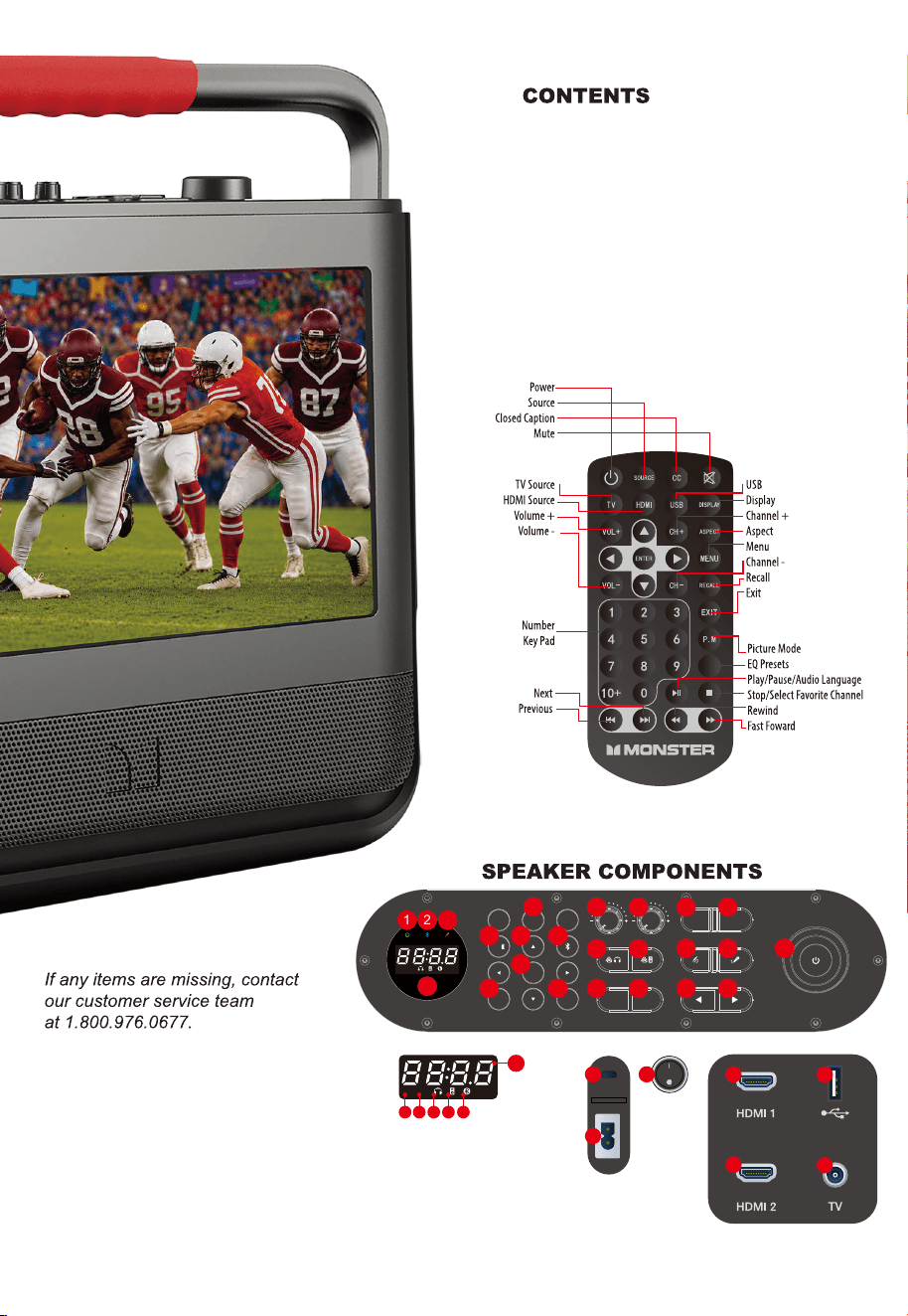
This box includes the following items:
• Remote Control
• User Manual (incl. Warranty Statement)
• Quick Start Guide
• TYPE-C to HDMI Cable
• Micro USB Cable
• TV Tuner Antenna
• Cloth Bag
REMOTE CONTROL
EQ
5
• Monster Vision 3
• AC Power Cable
1
2
3
ENT ER
MEN U
EXI T
- VOL +
MIC VO L ECHO
EQ/
SOU RCE VID EO
H/P O UT
USB
5
1 2
4
3
12
16
13 14 15
18 19 24
22 23
17
20 21
7
6 8
9
10 11
1. Power Green LED
2. Bluetooth Blue LED
3. Mic Orange LED
4. Display
5. Number Key 1-3
6. EQ Presets / Battery Level
7. Curosr
8. Bluetooth
9. Enter
10. Menu
11. Exit
12. Mic Level
13. Echo Level
14. Headphone Out
15. USB Charging Port
16. Headphone Auracast
17. Speaker Auracast
18. Aux In Port
19. Mic Port
20. Source
21. Video
22. Previous
23. Next
24. Power / Vol knob
25. USB-C In
26. AC Input Power
27. Power Rocker Switch
28. HDMI 1 Port
29. HDMI 2 Port
30. USB Player Port
31. TV Antenna Port
32. Segmant LED
33. TX Icon
34. RX Icon
35. Headphone Source Icon
36. Speaker Source Icon
37. Bluetooth Source Icon
28 30
31
29
25 27
26
TX RX
32
TX RX
33 34 35 36 37
SOURCE SWITCHING KEY
• Main unit has 4 Sources (Display/Bluetooth/Aux in/Radio)
Press “Source” key on remote control to change between
source DISPLAY/FM/AUX/BT sequence: DISPLAY/FM/AUX/BT
• The main unit supports 4 sources under audio mode:
1. Display source (default source);
2. FM source;
3. AUX IN source;
4. Bluetooth source.
• If Main unit is on in Display mode, it will have 4 sub-sources in Display mode. Press the video key
on the unit OR press “TV”/”HDMI”/ ”USB” button on Remote Control to change source between
“TV”/ ”HDMI1”/”HDMI2”/ ”USB”; the related source message will show on TV screen;
“
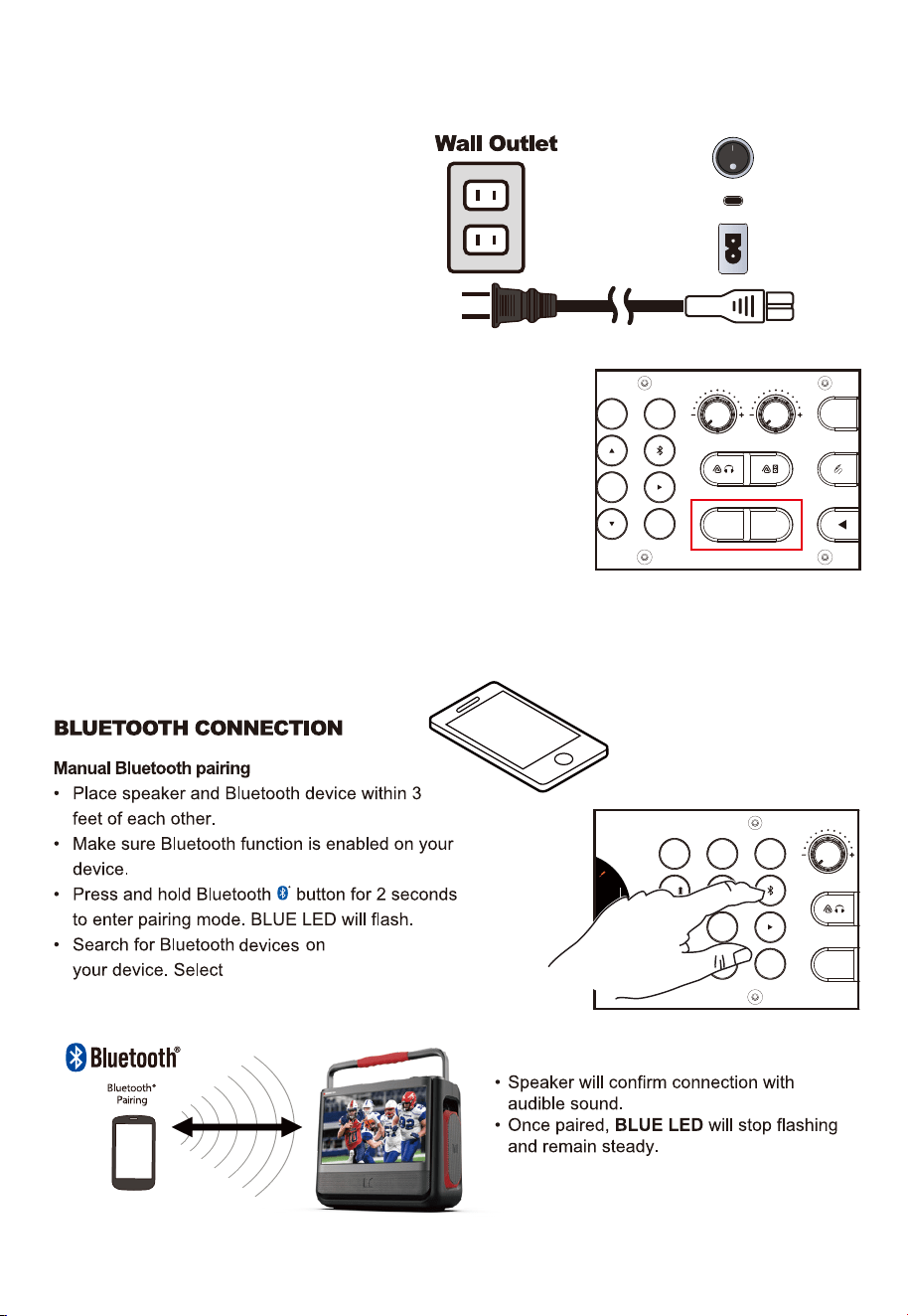
GETTING STARTED
• Flip the power switch to ON to check
current battery level.
• The LED battery indicator will turn on.
• The unit will enter into "Setup Wizard”
mode, please choose “Home” for
regular use.
6
MONSTER VISION 3”.
1
2
3
ENTER
MENU
EXIT
MIC V OL ECH O
EQ/
SOU RCE VI DEO
H/P O UT
USB
1
2
3
ENTER
MENU
EXIT
MIC V OL
ECH O
EQ/
SOU RCE
VID EO
7
Using Auracast on Your SpeakerTM
- VOL +
- VOL +
P OUT
USB
Auracast is a Bluetooth audio broadcasting technology that allows one device to share its audio with multiple receivers. Whether
you're syncing multiple speakers for an immersive sound experience or broadcasting to headphones, Auracast makes it seamless.
TMHow to Connect AURACAST (Headphone)
TMHow to Connect AURACAST (Speaker)&(TV Mode)
How to find the Main device and Secondary device
Main device (Transmitter Mode) Setup:
• Select "MONSTER VISION 3" as main device from your Bluetooth enabled audio device and paired with it.
• Press the Auracast Headphone button on the MONSTER VISION 3 to activate Main device as
Transmitter (TX). It has Voice prompt with “Auracast Headphone Pairing”.
Secondary device (Receiving Mode) Setup:
• Power on the secondary device of Headphone equipped with standard Auracast function on Bluetooth
Pairing mode and do not pair it with any other Bluetooth devices.
• Press the Auracast button on the Headphone to activate the Auracast function as Secondary device as
receiver (RX) and scan for available broadcasts.
Note: Please ensure the headphone with standard Auracast function.
The Auracast Headphone indicator
• Search Mode:The TX LED and the Headphone LED solid and other headphones equipped with standard
Auracast functionality will flash or solid. (Behavior varies by model; please refer to the specific indicator light on your
headphones.
• Connected Mode: The TX LED and the Headphone LED solid and other headphones equipped with standard
Auracast functionality will solid. (Behavior varies by model; please refer to the specific indicator light on your
headphones).
How to find the Main device and Secondary device
Main device (Transmitter Mode) Setup:
• Select "MONSTER VISION 3" as main device from your Bluetooth enabled audio device and paired with it.
• Press the Auracast Speaker button on the MONSTER VISION 3 to activate Main device as Transmitter (TX). It
has Voice prompt with “Auracast Speaker Pairing”.
Secondary device (Receiving Mode) Setup:
• Power on the secondary Speaker of MONSTER VISION 3 on Bluetooth Pairing mode and do not pair it with any
other Bluetooth devices.
• Press the Auracast Speaker button on the speaker to activate Secondary speaker as receiver (RX) and scan
for available broadcasts.
TV Mode
• After powering on the device, switch to "Display" mode to play audio and video content. Briefly press the
"Auracast Speaker" button to enter Auracast transmission mode. Ensure the secondary speaker is in Bluetooth
pairing mode, then briefly press its "Auracast Speaker" button to enter reception mode; the audio will then be
synchronized.
Note: The secondary speaker's screen remains off; it receives audio only.
• Briefly press the "Source" button to switch between FM, USB, and AUX modes. Both the transmitting speaker and
the receiving speaker will switch modes synchronously without disconnecting the Auracast link.
The Auracast Speaker indicator
• Search Mode:The TX LED and the Speaker LED solid, and the RX LED is flashing,the unit is in the search
mode.
• Connected Mode:The TX LED and the Speaker LED solid,and the RX LED is solid,he unit is in the connect
mode.
TX RX
8
1
2
3
ENTER
MENU
EXIT
- VOL +
MI
C VOL EC HO
EQ/
S
OUR CE VID EO
H/P O UT
USB
1
2
3
ENTER
MENU
EXIT
- VOL +
MI
C VOL EC HO
EQ/
S
OUR CE VID EO
H/P O UT
USB
1
2
3
ENTER
MENU
EXIT
- VOL +
MI
C VOL EC HO
EQ/
S
OUR CE VID EO
H/P O UT
USB
HDMI Input when using USB Type-C Cable
Note: When using an HDMI-C (USB-C to HDMI) cable to mirror your smartphone screen on the Monster
Vision display, make sure your smart device supports USB-C 1.4 with Display Port function and with
most updated system software. Not all smart devices are compatible with mirror function. In addition to
that, certain streaming services—such as Netflix, Disney+, and Amazon Prime Video—may have a
restriction due to Digital Rights Management (DRM) protections. If you encounter video playback
issues while mirroring from your phone, please note that this is a limitation of the streaming service
itself, not the product.
Plug the Type-C/M cable into the HDMI1 or HDMI2 port, and press the SOURCE button or HDMI button to
switch to the corresponding HDMI1 or HDMI2 mode.
1. Before using the HDMI-C/M cable for mirroring to Monster Vision (HDMI mode), ensure that the
connected smart device is supported.
2. When using an HDMI cable for mirroring, the device will typically automatically detect and
match the optimal resolution.
3. Different applications (APPs) may have varying performance when using the mirroring function.
4. When using an APP to play videos, audio, or images, it may be subject to the copyright and
regulations of the relevant works.
HDMI Cable Mirroring Function and Specifications
HDMI
HDCP
Resolution Ratio
Supports up to HDMI 2.0
Supports up to HDCP 2.3 & 1.4
Up to 3840×
2160 @ 60Hz, & 1920×1080 @ 120Hz
9
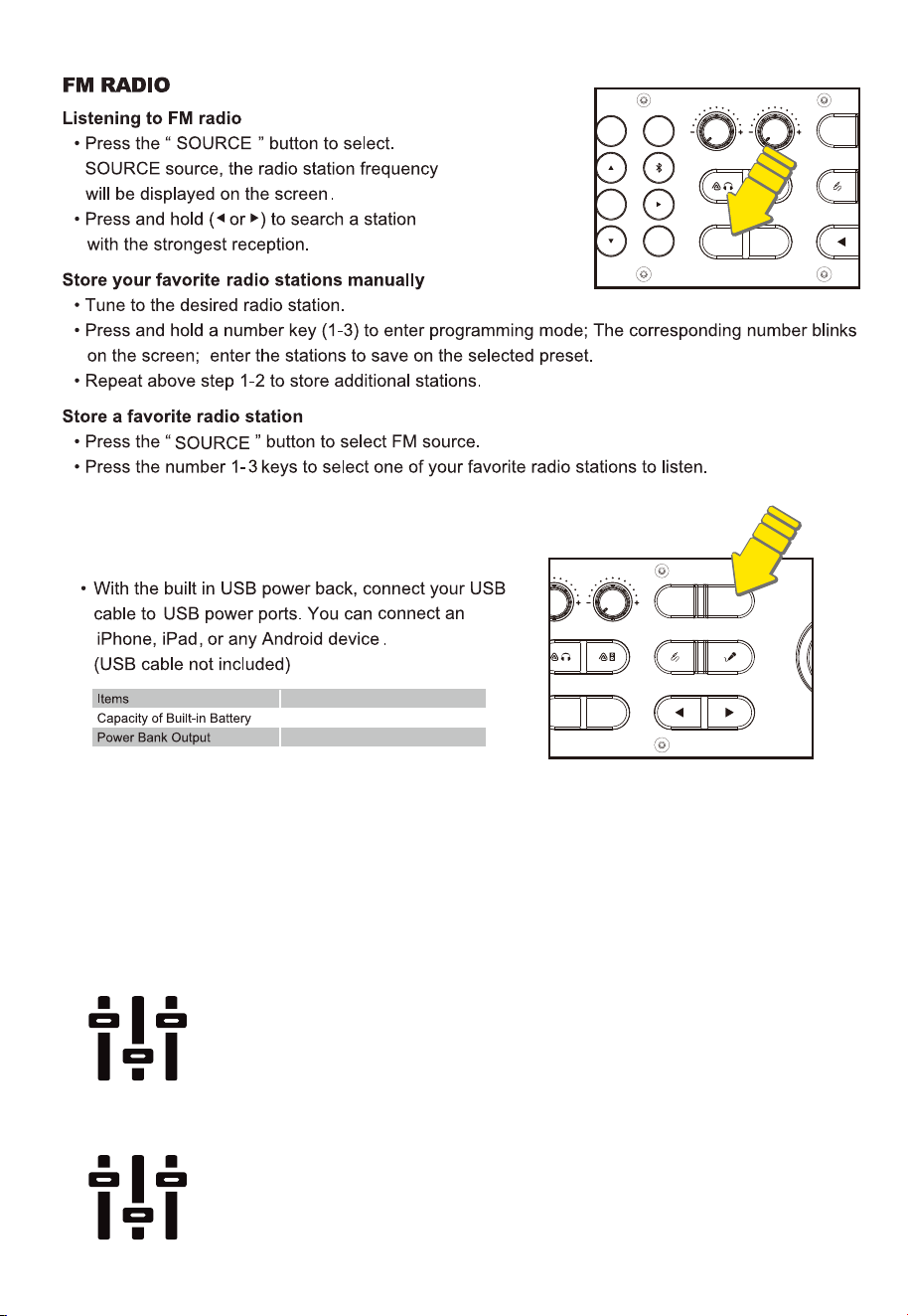
USB CHARGING
Customize your
listening experience
with 6 EQ settings when
in Bluetooth, AUX, or FM mode.
Voltage 5V/2.1A
12V / 9A
Parameters
USB Player (REAR USB ONLY)
The USB Player can support “Photo”/”Music”/”Video”;
1. USB Version 1.0, 1.1, 2.0; up to 64GB;
2. Compression format is MP3;
3. MP3 bit rates: 32 - 320 kbps;
4. Can't Display MP3 embedded album art;
EQUALIZER (EQ) PRESETS AUDIO
EQUALIZER (EQ) PRESETS VIDEO
Customize your view experience
with 4 EQ setting when playing
display source.
Audio:
EQ 1 MUSIC
EQ 2 FLAT
EQ3 JAZZ
EQ4 ROCK
EQ5 POP
EQ6 CLASSIC
VIDEO:
EQ1 MUSIC
EQ2 MOVIE
EQ3 NEWS
EQ4 OUTDOOR
PRESET FUNCTION WORKS SIMILARLY ON SUPPLIED REMOTE WITH
AN ADDITIONAL 6 PRESETS FOR A TOTAL OF 9
5. MP3 ID3 tag is V1.2;
6. Only support Mass Storage Class
(MSC) playback;
7. Support Fat16/Fat32;
8. Playback folder 7 level;
10
1
2
3
ENTER
MENU
EXIT
MIC V OL ECH O
EQ/
SOU RCE VI DEO
H/P O UT
USB
1
2
3
ENTER
MENU
EXIT
- VOL +
MI
C VOL EC HO
EQ/
S
OUR CE VID EO
H/P O UT
USB
- VOL +
11
12
19.13 x 9.05 x 18.03
486 x 230 x 458
13
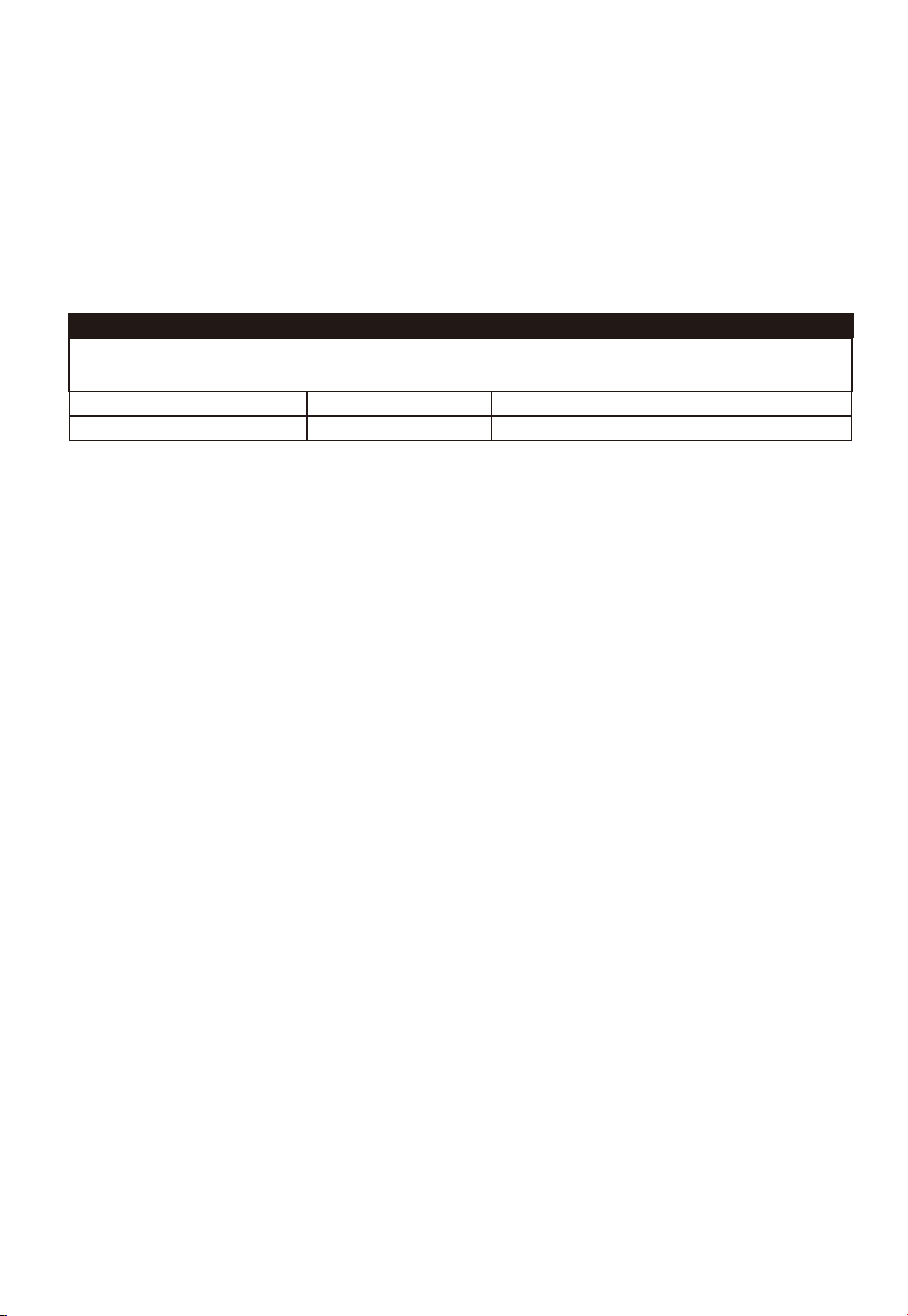
3


FOR QUESTIONS OR TECHNICAL SUPPORT
Please call:
1-800-976-0677
Please do not return this product to the store