INSTALLATION GUIDE / USER MANUAL
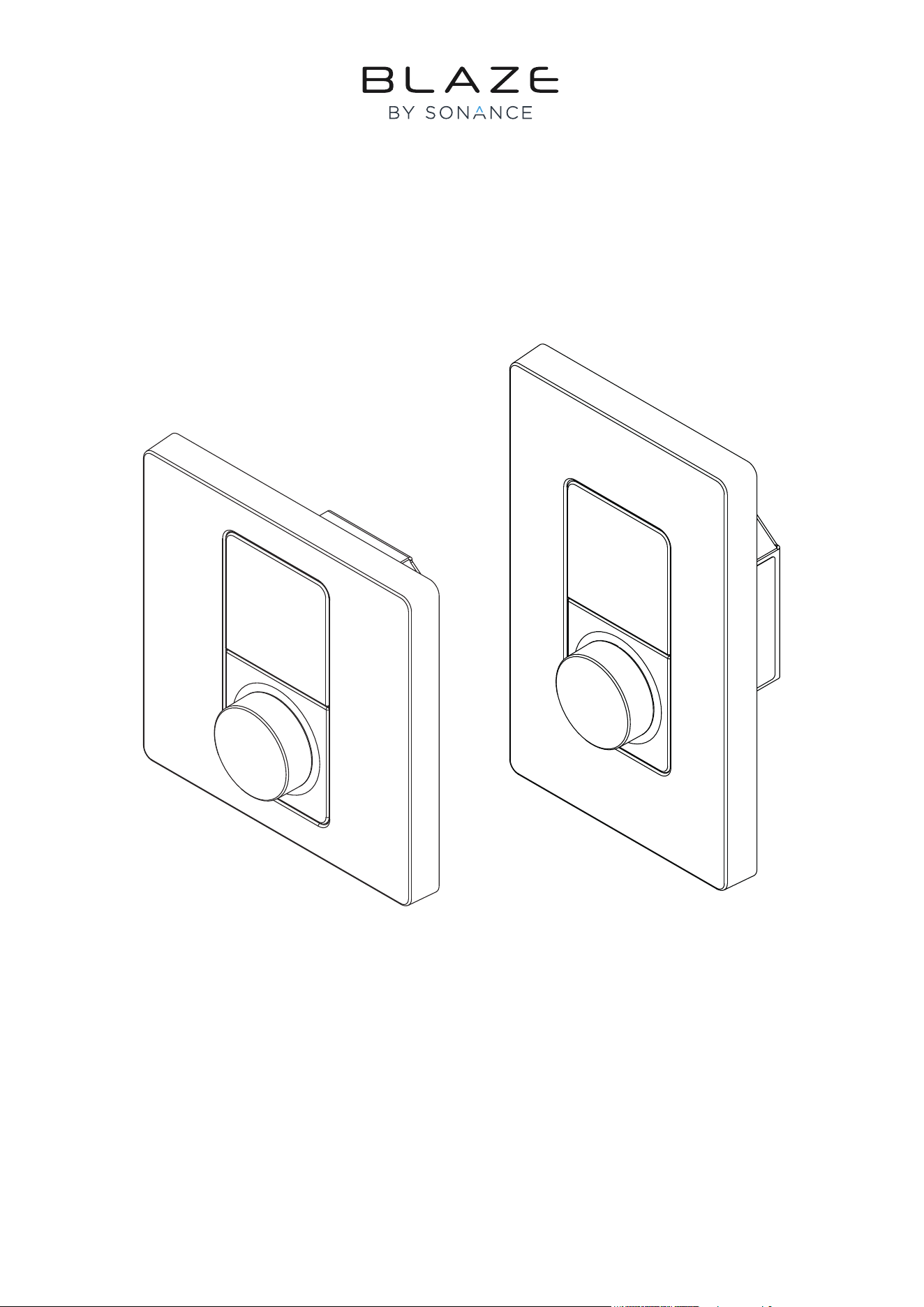
Wall-S1 W-EU • Wall-S1 W-US
Wall-S1 B-EU • Wall-S1 B-US

Technical and Safety Notices
Before installing and using this unit, please read this
guide carefully.
1. Ensure to store this document in a safe place for future
reference.
2. Note this product is intended for installation by profes-
sional installers only.
3. This document is intended to provide professional in-
stallers with product installation, configuration, and safety
guidelines for this product in typical
fixed-installation systems.
4. Please read this document and all safety warnings before
attempting installation.
5. Please note that this product does NOT include the
in-wall mounting electrical box and installation screws
required to install the controller.
6. Use a commercially available in-wall mounting electrical
box and installation screws suitable for the specific wall
material and installation situation.
7. All Blaze Audio products must be installed in accordance
with local, state, federal and industry regulations. It is the
installer’s responsibility to ensure installation is performed
in accordance with all applicable codes, including local
building codes and regulations. Consult the local authority
having jurisdiction before installing this product.
8. Do not mount the product in locations where
condensation may occur.
9. To reduce the risk of fire or electrical shock, do NOT
expose this product to rain, liquids or moisture.
10. This product is not intended for installation or use in
indoor water facility areas (including, without limitation,
indoor pools, indoor water parks, hot tub rooms, saunas,
steam rooms and indoor skating rinks).
11. Keep the product away from fire and heat
sources.
12. Do NOT place naked flame sources, such as
lighted candles, on or near the product.
13. Do NOT make unauthorized alterations to this product.
1/19
This manual is divided into sections covering the following
topics:
• 1. Introduction
• 2. Connection
• 3. Mounting
• 4. Operation
• 5. Setup
• 6. Configuration
• 7. Reset
• 8. Specifications
Important Safety Instructions
1. Read these instructions.
2. Keep these instructions.
3. Heed all warnings.
4. Follow all instructions.
5. Do not use this apparatus near water.
6. Clean only with a soft, dry cloth.
7. Do not install near any heat sources such as ra-
diators, heat registers, stoves, or other apparatus
(including amplifiers) that produce heat.
8. Only use attachments/accessories specified by the
manufacturer.
9. Refer all servicing to qualified service personnel.
Servicing is required when the apparatus has been
damaged in any way, such as power-supply cord or
plug is damaged, liquid has been spilled or objects
have fallen into the apparatus, the apparatus has been
exposed to rain or moisture, does not operate normal-
ly, or has been dropped.
FOR CUSTOMERS IN EUROPE
Information to the User
This product complies with the European Directives request
and the other Commission Regulations.
Environmental Statement
This product complies with international directives,
including but not limited to the Restriction of Hazardous
Substances (RoHS) in electrical and electronic equipment,
the Registration, Evaluation, Authorization and restriction
of Chemicals (REACH) and the disposal of Waste Electrical
and Electronic Equipment (WEEE). Consult your local waste
disposal authority for guidance on how properly to recycle
or dispose of this product.
FOR CUSTOMERS IN THE USA
Information to the User
This device complies with part 15 of the FCC Rules.
Operation is subject to the following two conditions:
(1) This device may not cause harmful interference, and
(2) this device must accept any interference received,
including interference that may cause undesired operation.
This equipment has been tested and found to comply with
the limits for a Class B digital device, pursuant to part 15
of the FCC Rules. These limits are designed to provide
reasonable protection against harmful interference when
the equipment is operated in a residential installation. This
equipment generates, uses, and can radiate radio frequency
energy and, if not installed and used in accordance with the
instruction manual, may cause harmful interference to radio
communications. However, there is no guarantee that inter-
ference will not occur in a particular installation.
Changes or modifications to this equipment not expressly
approved by Blaze Audio for compliance could void the
user’s authority to operate this
equipment.
POUR LES CLIENTS AU CANADA
Informations a l’utilisateur
CAN ICES-003 (B)/NMB-003(B)
Cet appareil est conforme à la partie 15 de la
réglementation de la FCC. Son fonctionnement repose sur
les deux conditions suivantes: (1) cet appareil ne doit pas
provoquer d’interférences et (2) cet appareil doit tolérer les
interférences externes, y compris celles qui peuvent provo-
quer un fonctionnement anormal.
Ce matériel a fait l’objet de tests prouvant sa conformité
aux limites imposées aux appareils numériques de classe B,
conformément à la partie 15 des réglementations de la
FCC. Ces limites sont conçues pour fournir une protection
raisonnable contre les interférences nuisibles lorsque
l’équipement est utilisé dans une installation résidentielle.
Cet équipement génère, utilise et peut émettre de
l’énergie de radiofréquence et, s’il n’est pas installé et utilisé
conformément au manuel d’instructions, peut causer des
interférences nuisibles aux communications radio.
Cependant, il n’y a aucune garantie que des interférences ne
se produiront pas dans une installation particulière.
Toute modification non autorisée expressément par Blaze
Audio est susceptible d’annuler le droit de l’utilisateur à
utiliser cet appareil.
2/19
Introduction
Connection
1.1 Device Description
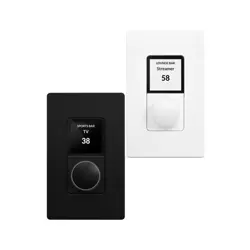
Wall-S1 is a wall-mounted device designed for the remote
control of volume level and input source selection, of a
Blaze PowerZone™ Connect Amplifier.
Each Wall-S1 device can control one zone only. For
example, the remote control of four zones would require
four devices – each assigned to one of the 4 individual
zones.
Multiple Wall-S1 devices can be assigned to the same zone,
although it is not recommended to connect more than eight
(8) Wall-S1 devices per Blaze amplifier.
1.2 Device Requirements
Wall-S1 devices are only compatible with Blaze
PowerZone™ Connect Amplifiers running firmware version
1.3.0 or later. This manual refers to firmware version 1.4.
Ensure to update the firmware installed on the Blaze
PowerZone™ Connect Amplifier before attempting to install
and configure Wall-S1 devices. Visit blaze-audio.com/
support to check and obtain the latest firmware.
Note that the Wall-S1 is not self-powered. Power is
supplied to the device with the use of a standard PoE Switch
(or PoE injector) and Cat5 cable (or above).
Note this product is not compatible with Blaze amplifiers
from the PowerZone™ series - e.g.,
PowerZone™ 252; PowerZone™ 504; PowerZone™ 1004.
Note this product is not compatible with amplifiers of third
parties – i.e., those not sold under the Blaze brand.
1.3 Device Specifications
Input Rating
Connector: RJ45
Cables: Category 5e (or faster STP cables)
PoE Class I device, 48V
Power Consumption
3.84Wmax
Dimensions (H x W x D)
EU: 86,79 x 86,79 x 42,8mm
US: 115,1 x 70,6 x 42,8mm (4,53 x 2,72 x 1,68in)
Weight
EU: 120g / US: 120g (4.2oz.)
Operating Temperature Range
0-40°C (32-104°F)
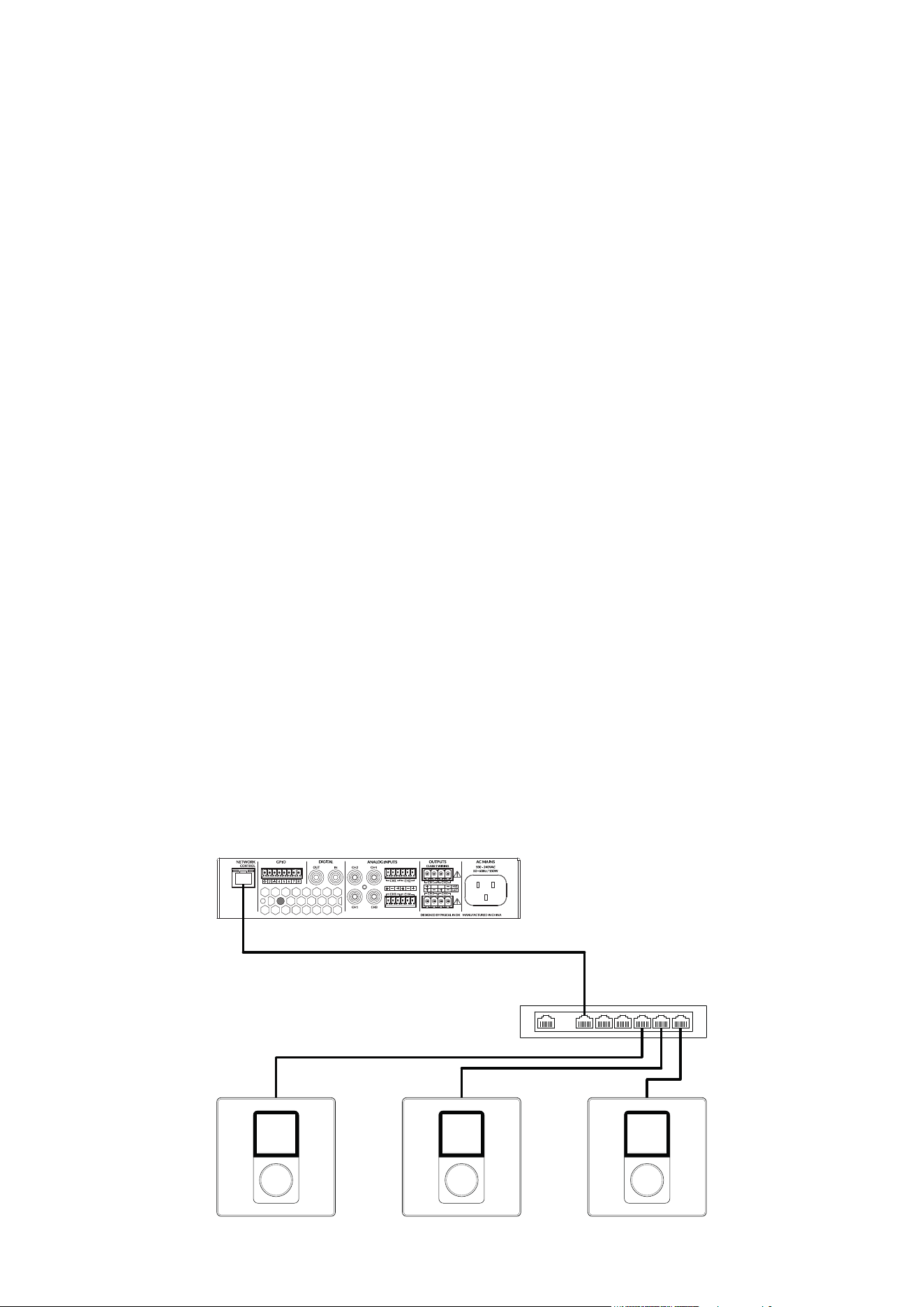
2.1 Device Connection
The illustration below outlines how to connect multiple
Wall-S1 devices to a Blaze PowerZone™ Connect Amplifi-
er, via the use of a standard PoE network switch and Cat5
cable.
Unit 2Unit 1 Unit 3
PoE Class1
S/UTP cat.5e Cable
S/UTP cat.5e Cables
3/19
Mounting
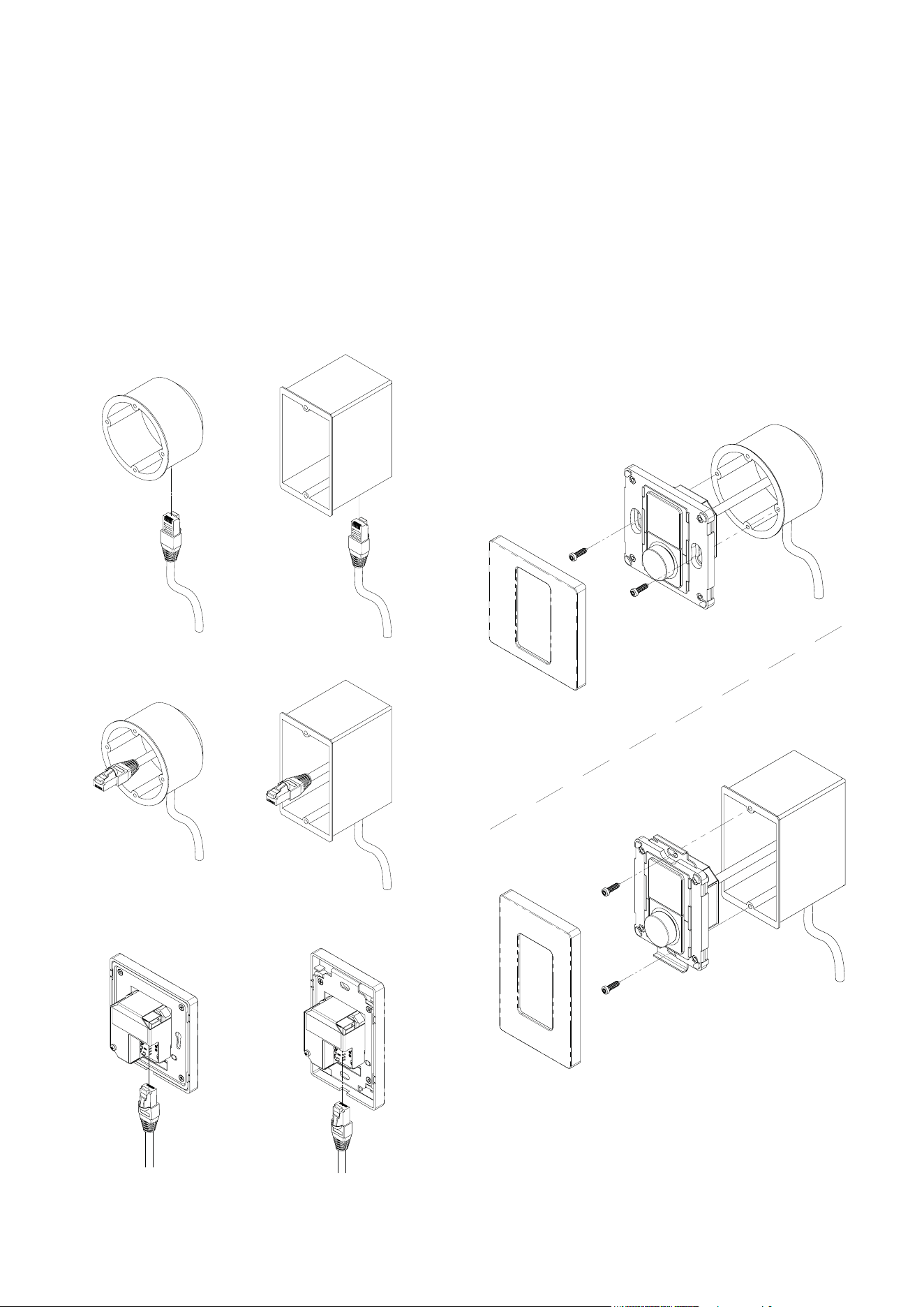
3.1 Device Mounting
Please note that this product does NOT include the in-wall
mounting electrical box and installation screws required to
install the controller.
Use a commercially available in-wall mounting electrical
box and installation screws suitable for the specific wall
material and installation situation.
1. Feed the Ethernet cable through the electrical box.
2. Mount the electrical box into the wall.
3. Connect the Ethernet cable to the Wall-S1 unit.
4. Click off the front panel.
Screw the Wall-S1 unit into the electrical box.
- Put the front panel on - and click it into place.
4/19

Operation
4.1 Device Operation
Wall-S1 has been designed for easy and intuitive operation.
Once installed and configured, the user operates all the de-
vice’s functions via a highly tactile rotary encoder dial, with
all relevant information presented via a
high-resolution color display screen.
• The dial is highly sensitive which makes menu naviga-
tion and unit adjustments a frustration-free experience.
• When navigating a menu or adjusting a setting by
rotating the encoder dial, the user feels a tactile change
in the units via a subtle ‘clicking’ sensation from the dial
through their fingers.
• When operating the device by pressing and
releasing the rotary encoder dial, the user can both feel
and hear a clear click – thereby confirming the action
taken.
The three primary functions of the device are operated as
outlined below.
1. Twisting the rotary encoder allows the user to adjust
volume and navigate menu options.
• Twisting the rotary encoder to the left (anticlock-
wise) turns down the volume and twisting it to the right
(clockwise) turns up the volume.
2. Tapping the rotary encoder allows the user to change
input source.
• Switching between input sources is performed by tap-
ping the rotary encoder dial, twisting the rotary encoder
to view the source inputs available; and confirming the
desired choice by tapping the rotary encoder once more.
3. Pressing and holding the rotary encoder allows the user
to access the settings menu.
• Note that access to the settings menu can also be
restricted via use of optional PIN code protection –
activated and configured within the settings of the Web
App.
5/19
Setup
5.1 Device Setup
Note: When connecting multiple Wall-S1 devices to a single
amplifier, we recommend completing all stages of the setup
process, before connecting and configuring a subsequent
device.
Step 1: Start Up Device
Once the Wall-S1 device is receiving power via the
connected Ethernet cable, the product will power up and
display the Blaze logo for a few seconds. The Blaze logo will
disappear and be replaced by the setup screen. The setup
screen displays the following:
• Device pairing code
• Option to change IP address [“Edit IP Settings”]
Step 2: Edit the Device’s IP Setting
(if required)
When the device is connected to a PowerZone™ Connect
amplifier via a network router, the Wall-S1 device will be
automatically assigned an IP address (dynamic DCHP)
– this is the default setting, and in this situation, there is no
need to edit the IP settings.
However, if the device is connected to a
PowerZone™ Connect amplifier via a network
switch, you must edit the IP settings to static IP.
On initial set-up, this can only be done via the device itself
and is performed by following the steps outlined below.
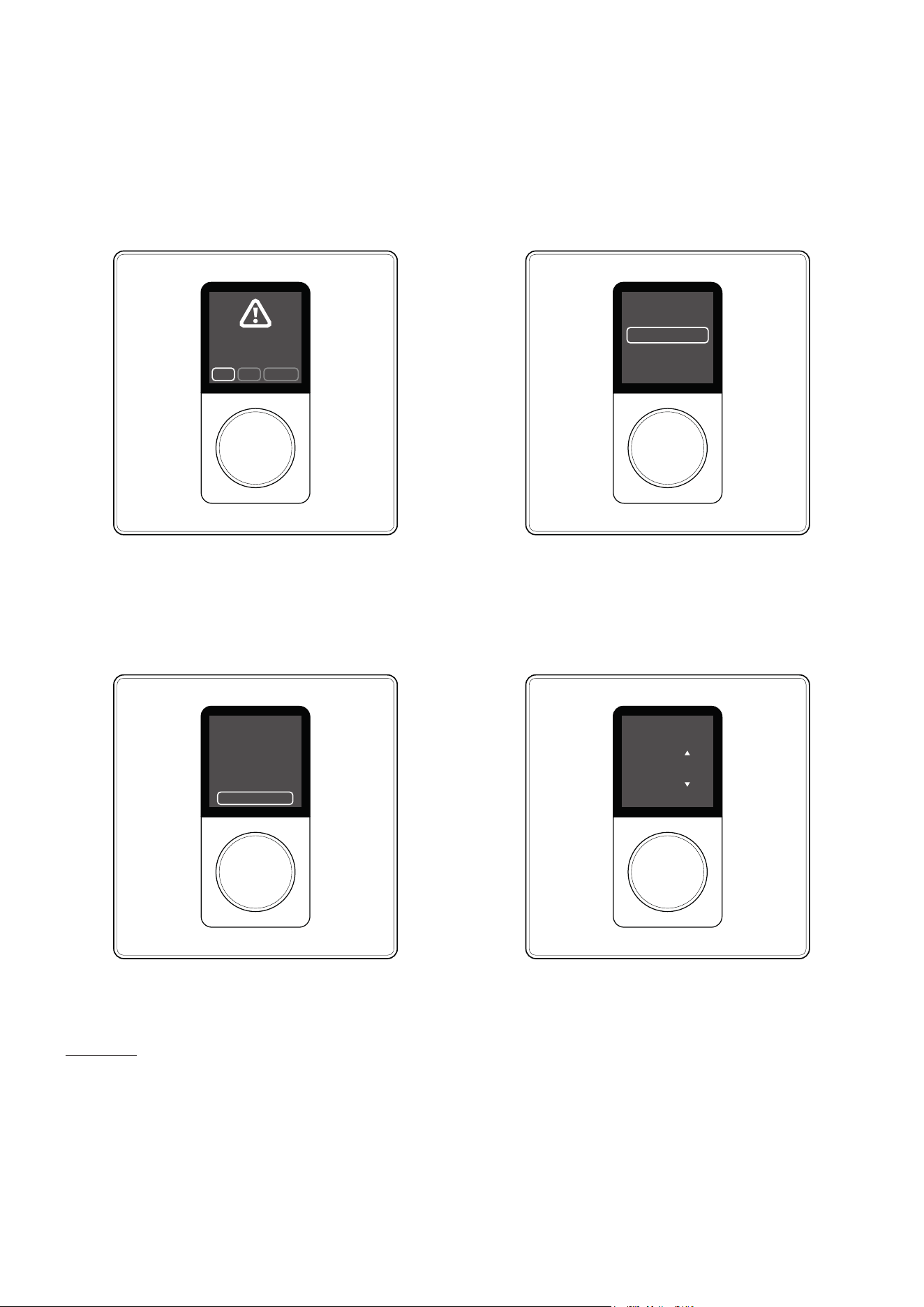
1. Tap the rotary encoder to confirm the action to “Edit IP
Settings”
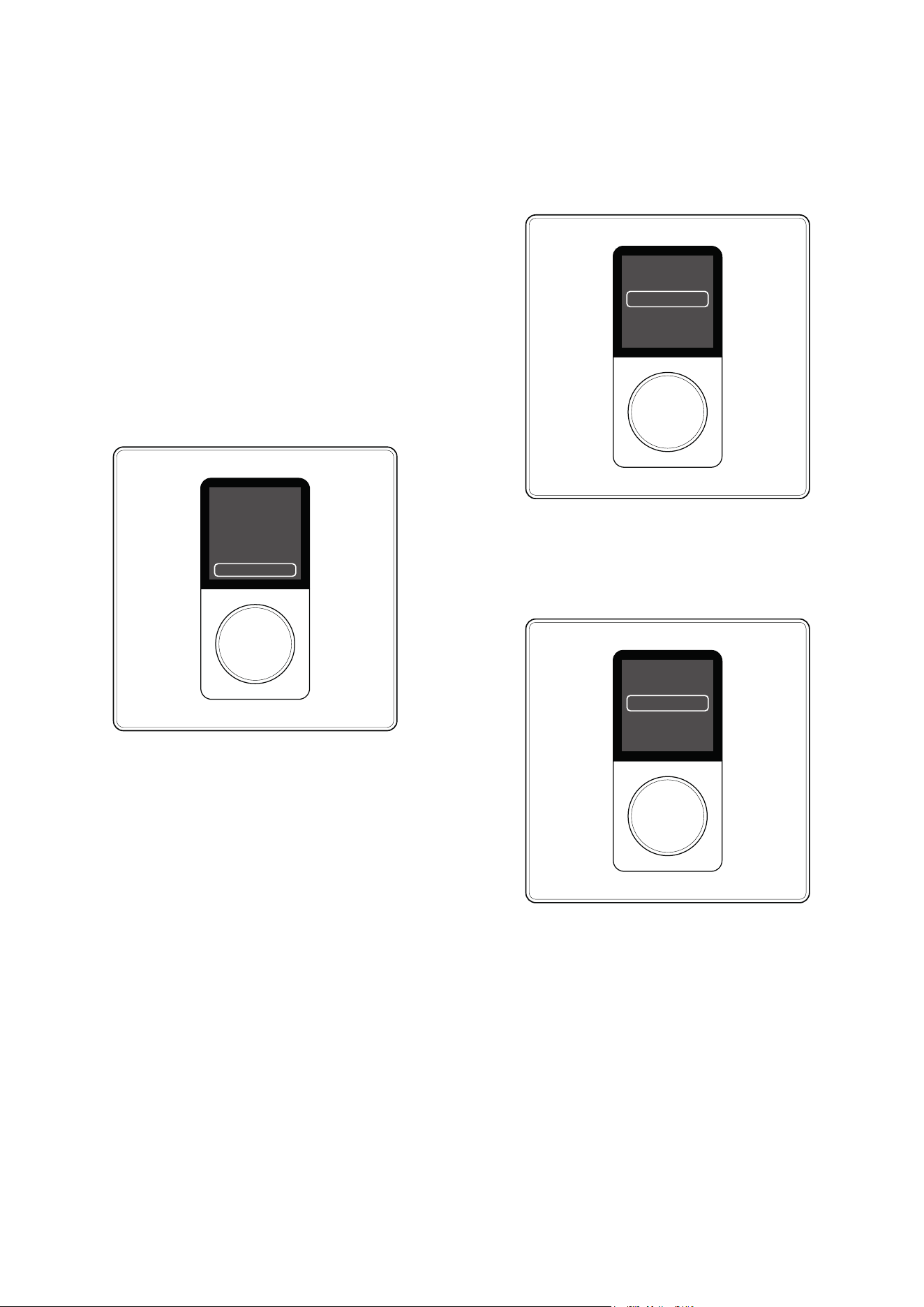
2. On the display you will be presented with a set of
options.
Use Amplier to Pair
Edit IP Settings
3S80
(Settings/External Devices)
IP Settings
IP mode:DHCP
Mode
Adrress
Twist the rotary encoder one click to the left
(anticlockwise) and tap the rotary encoder to confirm the
selection of the option labeled “MODE”.
IP Mode
Set static IP mode
Static
DHCP
Back
4. You will be automatically returned to the previous menu.
IMPORTANT - Jump to Step 12 if this is not the first
device you are connecting to the same amplifier!
5. Twist the rotary encoder 4 clicks to the right (clockwise)
to navigate to the option labeled “Back”.
6. Tap the rotary encoder to confirm the selection of the
option “Back”.
3. Tap the rotary encoder to confirm the selection of the
option labeled “Static”.
6/19
Setup
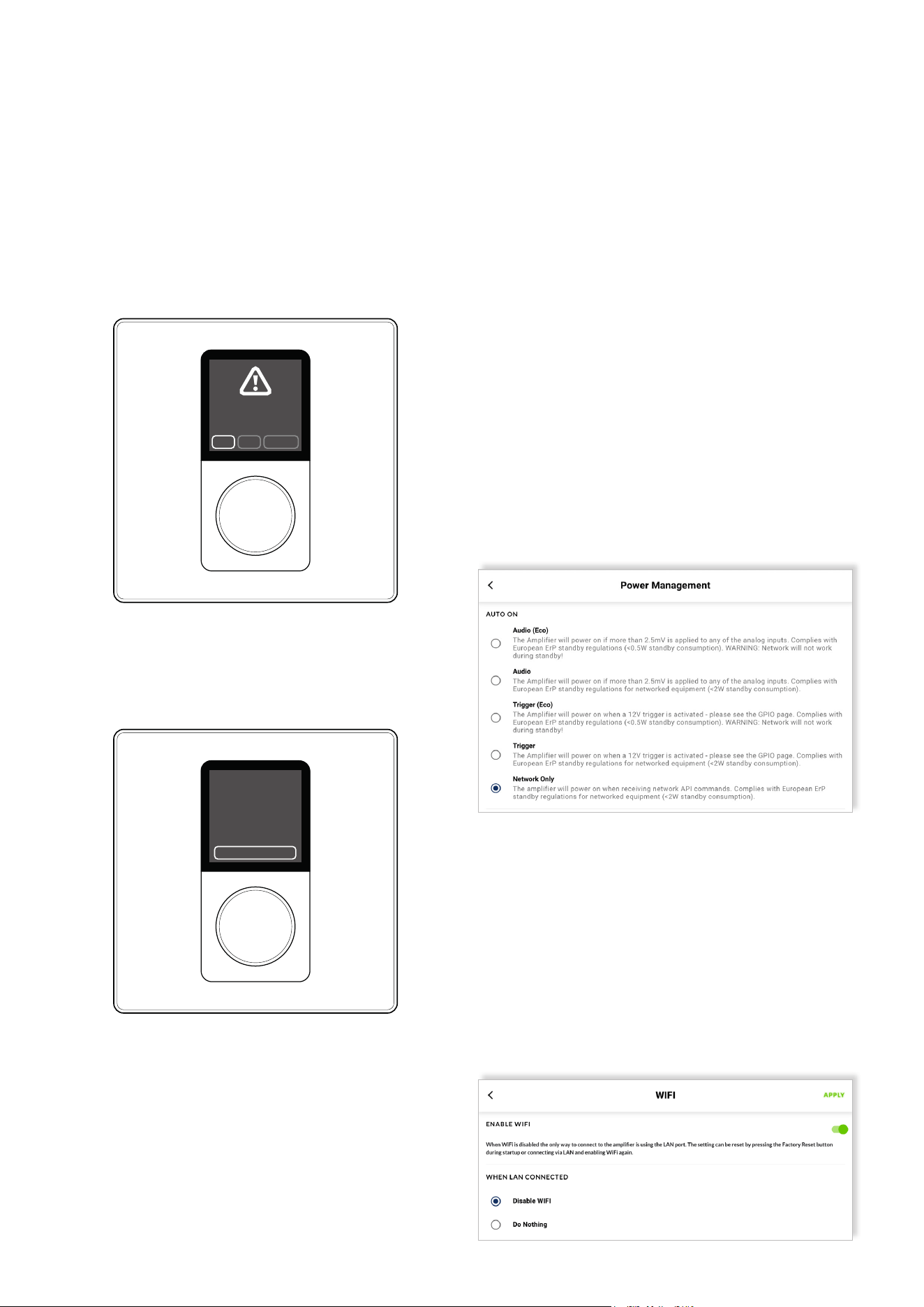
7. You will be presented with the question
“Apply IP Changes?”
8. Tap the rotary encoder to confirm the selection of the
option labeled “Yes”.
9. You will now be presented with the exact same display
as at the beginning of the process, showing a pairing code –
like that shown in the image below.
NoYes Cancel
Apply IP
Changes?
Use Amplier to Pair
Edit IP Settings
3S80
(Settings/External Devices)
10. You have now completed the necessary steps for
editing the IP settings required when configuring the
first device to be connected to the amplifier.
IMPORTANT – When connecting >1 devices to the
same amplier, additional actions, as described below,
must be taken after Step 5 to ensure each device has
a unique IP address.
11. Twist the rotary encoder one click to the right (clock-
wise) and tap the rotary encoder to confirm the
selection of the option labeled “Address”.
12. Tap the rotary encoder multiple times until the last digit
of the IP address is selected.
IP Settings
192.168.64.110
Address
Mode
Mask
Set IP Address
Hold button to exit
1 1 1
192.168.064.111
13. Twist the rotary encoder right (clockwise) to change
the final digit of the IP address for this device – so it is not
matching those of any other device also linked to the same
amplifier. (e.g., for the second device change the final digit
to #2; for the second device change the final digit to #3, and
so forth).
14. Tap the rotary encoder to confirm the change and exit
(as advised on the screen).
15. Twist the rotary encoder 3 clicks to the right (clockwise)
to navigate to the option labeled “Back”.
7/19
Step 3: Connect to the amplifier using the
PowerZone™ Control Web App
If you haven’t already, connect now to the Blaze
PowerZone™ Connect Amplifier via your phone, tablet or
computer using the PowerZone™ Control Web App.
Refer to the quick start guide for a Blaze PowerZone™
Connect amplifier if you need a reminder on how to so this.
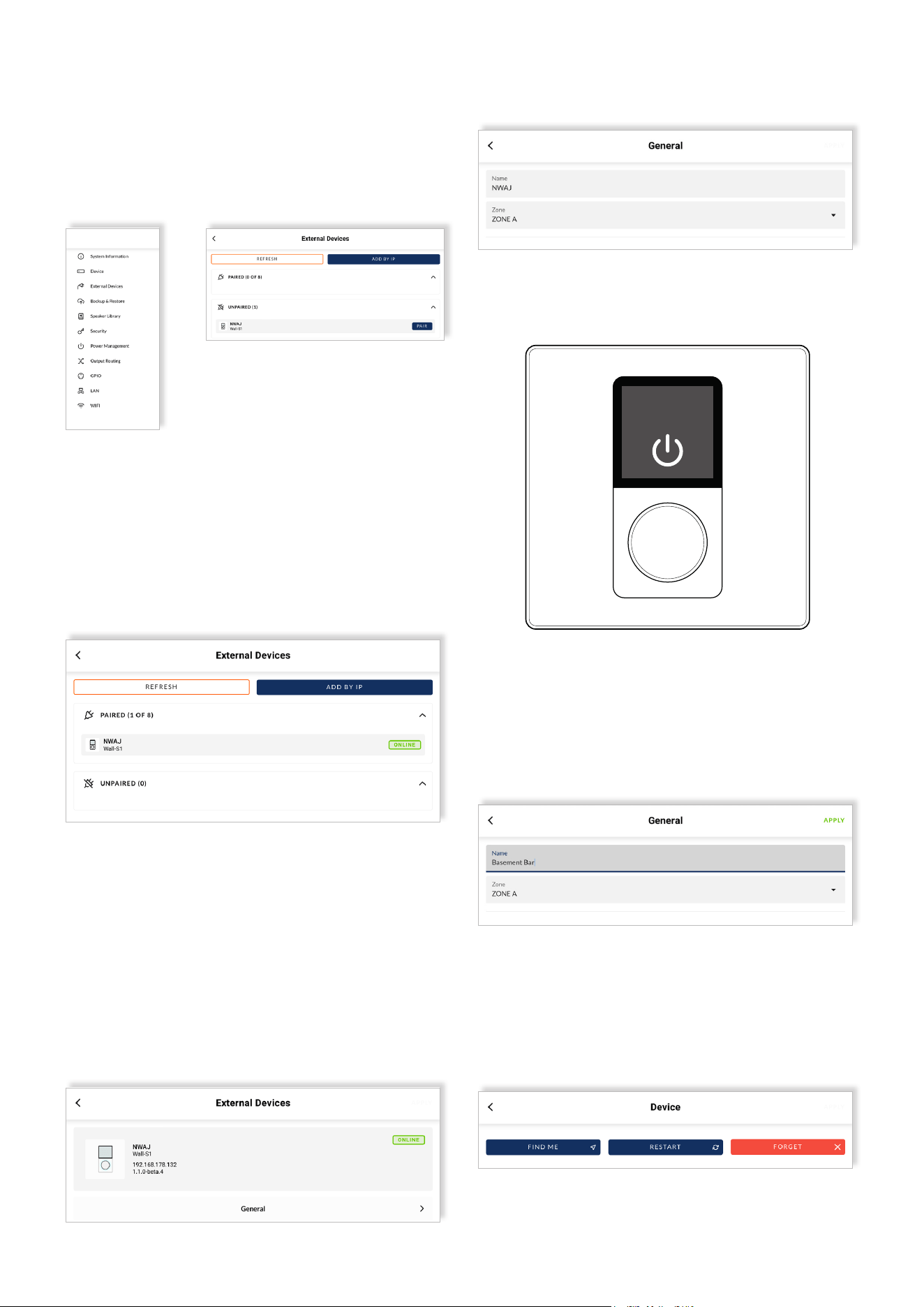
IMPORTANT –After connecting to the amplifier,
we strongly recommend changing the Power
Management setting to ”Network Only”.
There are two main reasons for this recommendation:
• The default setting labeled “Audio” can potentially
block the (optional) function of being able to success-
fully power down the amplifier directly from the wall
controller.
• Setting Power Management to one of the Eco modes
[”Audio (Eco)” or ”Trigger (Eco)”] is also not recommend-
ed, as under these settings the amplifier can easily lose
connection with the networked devices.
IMPORTANT - If accessing the Web App by
connecting to the amplifier via a wired (Ethernet)
network connection, we strongly recommend
changing the WIFI settings as outlined below.
• Under the ‘Settings Menu’, go to ‘WIFI’ settings and select
the option “Disable WIFI” when LAN connected. Then click
“APPLY” in the upper right-hand corner.
Making this adjustment to the WIFI settings will not only
avoid any potential IP address conflict, but also better se-
cure access to the amplifier and its networked devices.
Setup
20. You have now completed the necessary steps for
editing the IP settings required when configuring the sec-
ond, third or further device to be connected to the amplifier.
NoYes Cancel
Apply IP
Changes?
19. You will now be presented with the exact same display
as at the beginning, showing a pairing code.
16. Push the rotary encoder to confirm the selection of the
option “Back”.
17. You will be presented with the question
“Apply IP Changes?”
18. Twist the rotary encoder one click to the left
(anticlockwise) and tap the rotary encoder to confirm the
selection of the option labeled “Yes”.
Use Amplier to Pair
Edit IP Settings
3S80
(Settings/External Devices)
8/19
Setup
Step 4: Pair the device with the amplifier
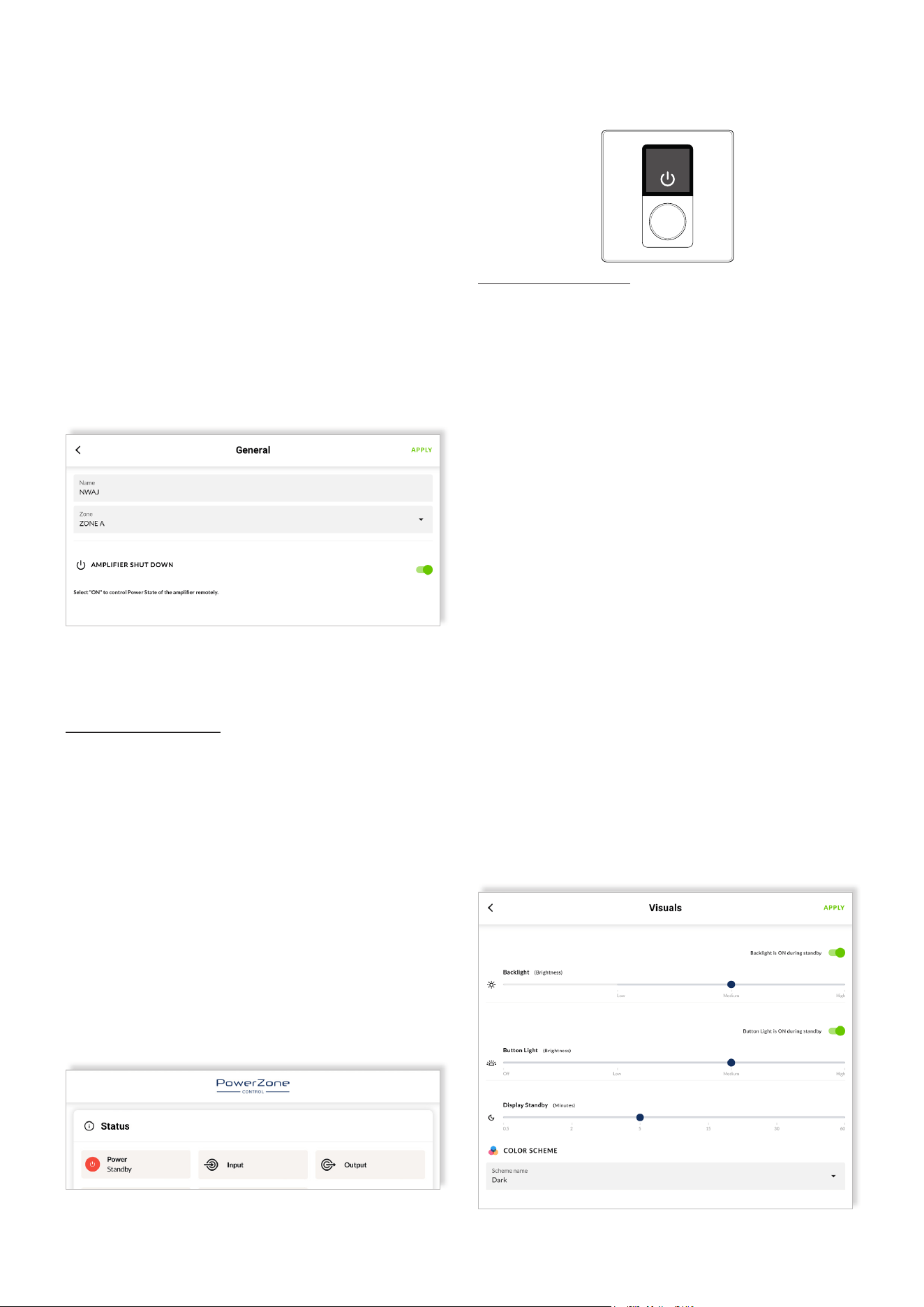
To pair the Wall-S1 device with the Blaze PowerZone™
Connect amplifier, navigate to the menu ‘Settings’
> ‘External Devices’ in the Web App.
Step 6: Name the device
Under the tab labeled “General” you are now
recommended to type in a name for the device.
We recommend using a name that describes the device’s
point of installation or usage (e.g., ‘Basement Bar’).
Click “APPLY” to activate the name change.
Step 5: Select the audio zone the device is intended
to control
In the PowerZone™ Control Web App, click on the device
shown within the paired devices menu and navigate to the
tab labeled “General”.
Assign the device to a specific audio zone, selecting the
desired zone from the drop-down menu (e.g., Zone A) that
the device is intended to control.
Notice how the new name of the zone associated with the
wall controller is instantly displayed at the top of screen of
the Wall-S1 device.
The Wall-S1 device you are configuring will be displayed
under ‘Unpaired’ devices.
Pair the device by clicking the button labeled “PAIR” next to
the respective Wall-S1 device.
The process of pairing the Wall-S1 device with the
Blaze PowerZone™ Connect Amplifier takes just a few
seconds. Once pairing is successful, the device will be
shown under ‘paired devices’ in the web app, and the
green “ONLINE” icon will be displayed alongside it.
Zone A
iPhone
The Wall-S1 device is now configured and able to
remotely control the volume and source input of the zone it
is associated with.
Individual Wall-S1 device identification can be established
by selecting the Find Me option in the ‘Settings’> ‘External
Devices’ in the Web App. The display and rotary encoder
illumination of the connected device will flash.
9/19
Notice how the new name of the zone associated with the
wall controller is instantly displayed at the top of screen of
the Wall-S1 device.
Configuration
6.1 Amplifier Power On/Off Feature
The amplifier can be both powered on and off, directly from
the Wall-S1 device.
By default, this function is not active and so needs to be first
activated within the settings of the device via the
PowerZone™ Control Web App.
Under the tab labeled “General” there is an option at the
bottom labeled “AMPLIFIER SHUT DOWN”, and a toggle
switch to the right.
Firstly, toggle the switch so it displays as active (green).
Secondly, click “APPLY” in the top right-hand corner to
activate the feature.
Once the feature has been activated, it is possible for the
amplifier to be both powered on and off, directly from the
Wall-S1 device.
To turn the amplifier off (into standby mode), follow the
steps outlined below.
1. Press and hold the rotary encoder until the option
“Power Off Amp” appears (shows below the setting menu
when the feature is activated).
2. Tap the rotary encoder to confirm the selection of the
option action “Power Off Amp”.
3. You will be presented with the question
“Power Down Amplifier?”
4. Twist the rotary encoder to highlight the option “Yes”
and tap the rotary encoder to confirm the selection.
When the amplifier is in standby power mode, it will be
communicated via both the dashboard section of the Web
App, and on the display screen of the Wall-S1 device itself.
(See next column top right)
To turn the amplifier on (back from standby mode), follow
the steps outlined below.
1. Tap the rotary encoder.
2. You will be presented with the question
“Power Up Amplifier?”
3. Twist the rotary encoder to highlight the option “Yes”
and tap the rotary encoder to confirm the selection.
6.2 Display Screen Backlight Settings:
Brightness - Customization
Thanks to the color LCD display the user can clearly see
the zone the controller is associated with, the audio source
input that is selected and the current volume level. The
high-resolution screen provides enough space for a font size
adequate for the user to read and navigate text and menu
settings.
The intensity of the display screen’s backlight can be adjust-
ed to suit the use environment and user preference. The
adjustment can be made directly on the wall controller itself
or changed within the PowerZone™ Control Web App.
Three setting levels are possible:
• Low (least bright)
• Medium
• High (most bright)
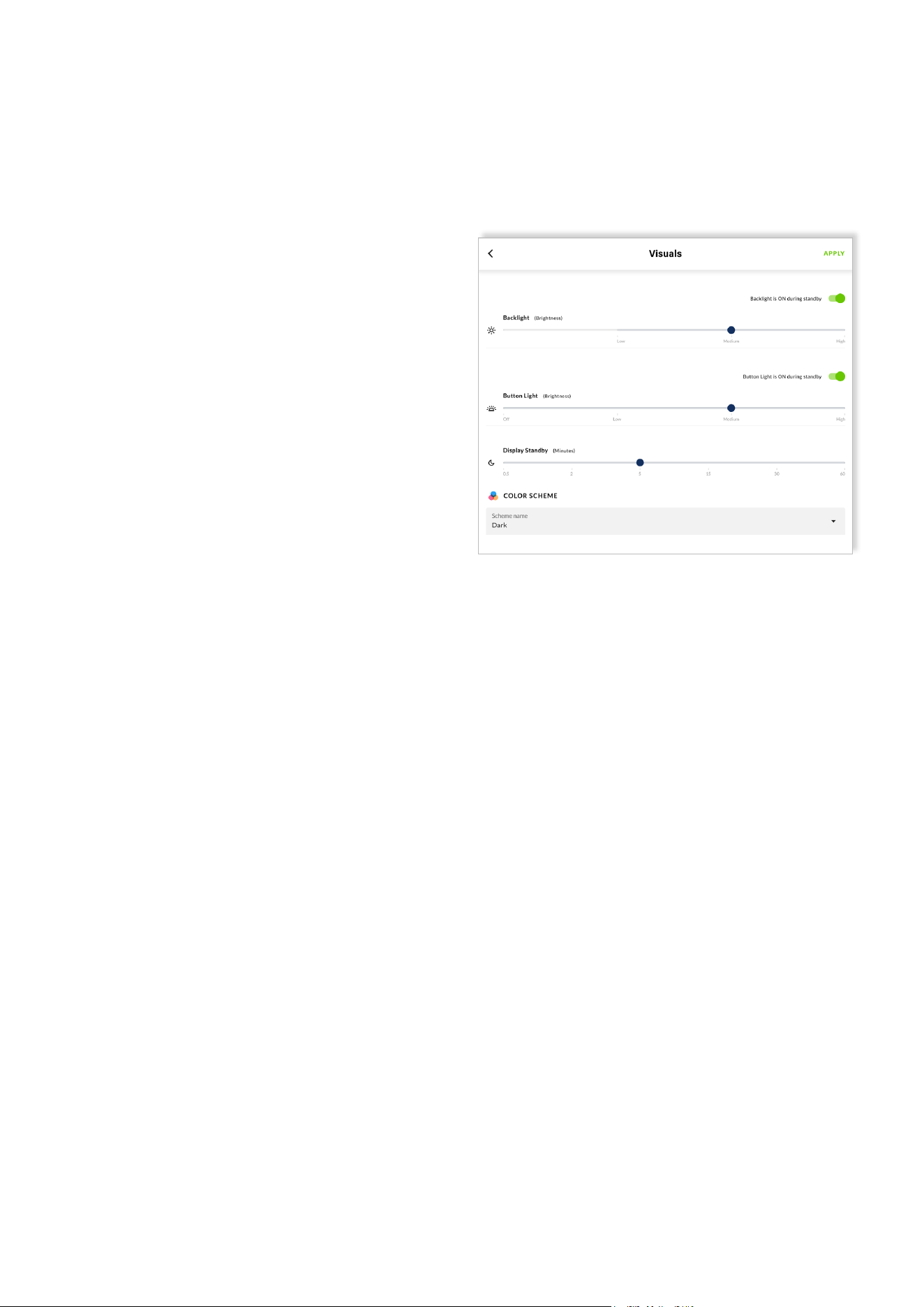
In the PowerZone™ Control Web App, click on the device
shown within the paired devices menu and navigate to the
tab labeled “Visuals”. Select the preferred brightness level
and, then click the button labeled “APPLY” in the top right-
hand corner to activate the change.
Zone A
iPhone
10/19
Configuration
6.3 Display Screen Backlight Settings:
Standby - Customization
To enhance the user experience, the backlight of the display
can also be deactivated, when the is is in standby mode.
This feature is especially valuable when lighting conditions
of the room change – e.g., from bright sunlight during the
day to darker conditions in the evening. Please note that
when the backlight is deactivated, the screen appears com-
pletely blank to the user, and no longer communicates the
zone, source input or volume level of the associated zone.
The adjustment can be made directly on the wall controller
itself or changed within the PowerZone™ Control Web App.
The intensity of the display screen’s backlight can also be
customized within the settings menu of the Wall-S1 device
itself. To change the intensity of the display screen’s back-
light via the Wall-S1 device, follow the steps outlined below.
1. Press and hold the rotary encoder until the
settings menu appears.
2. Tap the rotary encoder to confirm the selection of the
“Settings” menu.
3. Tap the rotary encoder to confirm the selection of the
“Visuals” menu.
4. Tap the rotary encoder to confirm the selection of the
“Backlight” menu.
5. Twist the rotary encoder left and right to explore the
options available, as shown on the screen.
6. Tap the rotary encoder to confirm the desired intensi-
ty of the display screen’s backlight.
7. Twist the rotary encoder one click to the right (clock-
wise) to navigate to the option labeled “Back”.
8. Tap the rotary encoder to confirm the selection of the
option action “Back”.
9. Twist the rotary encoder 2 clicks to the right (clock-
wise) to navigate to the option labeled “Back”.
10. Tap the rotary encoder to confirm the selection of
the option action “Back”.
11. You will be presented with the question “Apply Visu-
al Changes?”
12. Twist the rotary encoder to highlight the
option “Yes” and tap the rotary encoder to confirm the
selection .
13. Twist the rotary encoder 2 clicks to the right (clock-
wise) to navigate to the option labeled “Back”.
14. Tap the rotary encoder to confirm the selection of
the option action “Back”.
15. You are now returned to the primary screen view
displaying the zone, source input and volume level of the
associated zone.
The display screen can also be deactivated when the display
is in standby mode within the settings menu of the Wall-S1
device itself.
To deactivate the screen display when the display is in
standby mode via the Wall-S1 device, simply follow the
steps outlined below.
1. Press and hold the rotary encoder until the
settings menu appears.
2. Tap the rotary encoder to confirm the selection of the
“Settings” menu.
3. Tap the rotary encoder to confirm the selection of the
“Visuals” menu.
4. Tap the rotary encoder to confirm the selection of the
“Backlight” menu.
5. Twist the rotary encoder one click to the left (anti-
clockwise) to navigate to the option labeled “Standby”.
6. Tap the rotary encoder to confirm the selection of the
“Standby” menu.
7. Twist the rotary encoder left and right to toggle be-
tween the display standby options “ON” and “OFF”.
8. Tap the rotary encoder to confirm your preferred
display standby setting (ON means display screen back-
light remains on even when Wall-S1 device is in standby
mode).
9. Twist the rotary encoder 2 clicks to the right (clock-
wise) to navigate to the option labeled “Back”.
10. Tap the rotary encoder to confirm the selection of
the option action “Back”.
Using the Web App ”Visuals” tab, firstly move the toggle
switch to the left – so the text “Backlight is OFF during
standby” is displayed.
Afterwards, click the button labeled “APPLY” in the top
right-hand corner to activate the feature.
11/19
Configuration
6.4 Rotary Encoder Dial Backlight Settings:
Brightness - Customization
The intensity of the backlight behind the rotary encoder
dial can be adjusted to suit the use environment and user
preference. Four setting levels are possible:
• Off (no light)
• Low (least bright)
• Medium
• High (most bright)
The adjustment can be made directly on the wall controller
itself or changed within the PowerZone™ Control Web App.
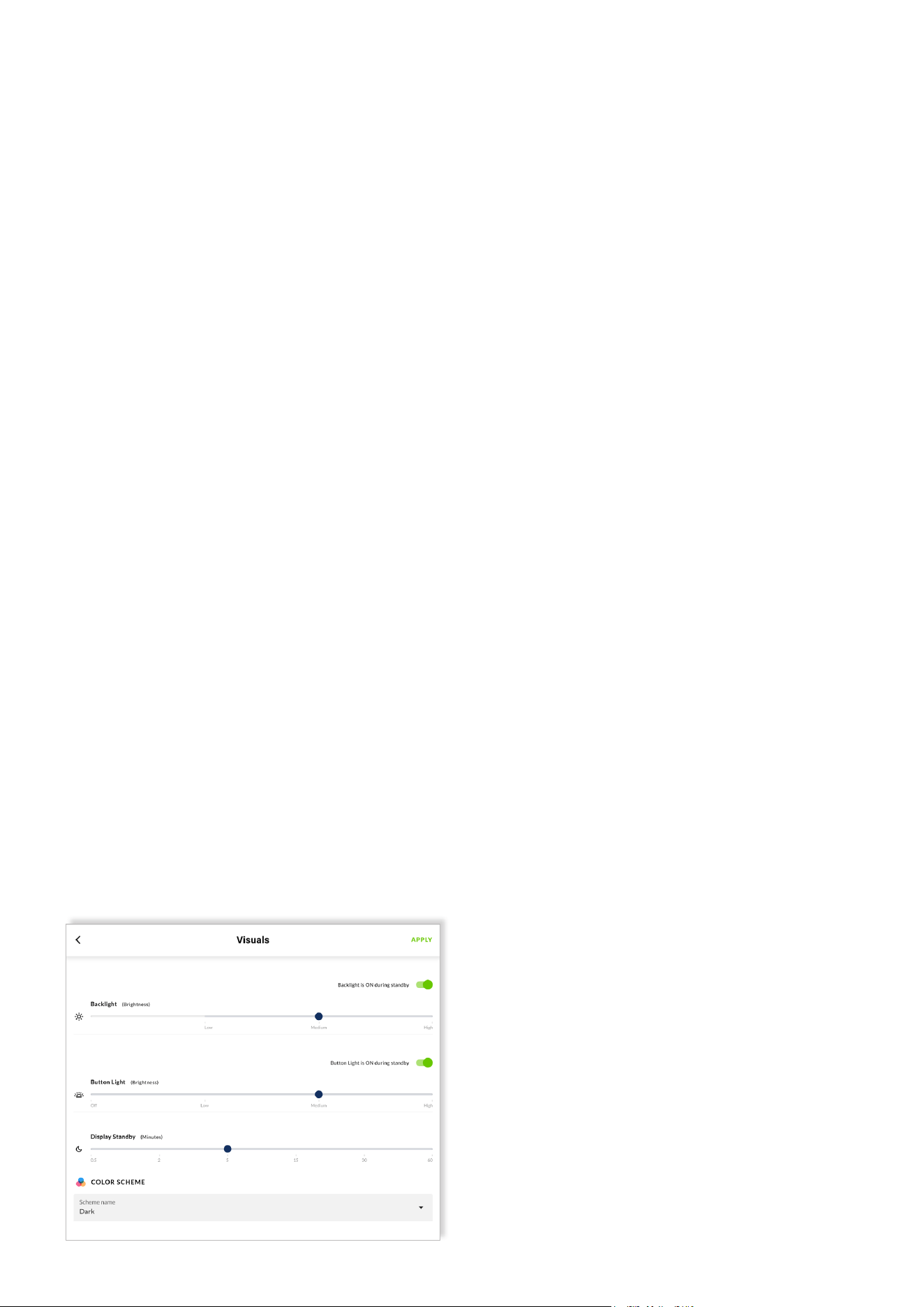
Using the Web App, the intensity of rotary encoder dial
backlight can be quickly changed via the slider located at in
the center of the “Visuals” tab.
Simply choose the preferred brightness level and, then click
the button labeled “APPLY” in the top right-hand corner to
activate the change.
The intensity of the back-light behind the rotary encoder
dial can also be customized within the settings menu of the
Wall-S1 device itself. To change the intensity of the
backlight behind the rotary encoder dial via the Wall-S1
device, simply follow the steps outlined below.
1. Press and hold the rotary encoder until the
settings menu appears.
2. Tap the rotary encoder to confirm the selection of the
“Settings” menu.
3. Tap the rotary encoder to confirm the selection of the
“Visuals” menu.
4. Twist the rotary encoder one click to the right (clock-
wise) and tap the rotary encoder to confirm the selec-
tion of the option labeled “Button Light”.
5. Tap the rotary encoder to confirm the selection of the
option labeled “Brightness”.
6. Tap the rotary encoder to confirm the selection of the
“Brightness” menu.
7. Twist the rotary encoder left and right to toggle be-
tween the four options “OFF”; “LOW”; “MID”; “HIGH”.
8. Tap the rotary encoder to confirm your preferred
setting.
9. Twist the rotary encoder 1 click to the right (clock-
wise) to navigate to the option labeled “Back”.
10. Tap the rotary encoder to confirm the selection of
the option action “Back” .
11. Twist the rotary encoder 1 click to the right (clock-
wise) to navigate to the option labeled “Back”.
12. Tap the rotary encoder to confirm the selection of
the option action “Back”.
13. You will be presented with the question “Apply Visu-
al Changes?”
14. Twist the rotary encoder to highlight the option
“Yes” and tap the rotary encoder to confirm the selec-
tion.
15. Twist the rotary encoder 2 clicks to the right (clock-
wise) to navigate to the option labeled “Back”.
16. Tap the rotary encoder to confirm the selection of
the option action “Back”.
17. You are now returned to the primary screen view
displaying the zone, source input and volume level of the
associated zone.
12/19
11. Twist the rotary encoder 2 clicks to the right (clock-
wise) to navigate to the option labeled “Back”.
12. Tap the rotary encoder to confirm the selection of
the option action “Back”.
13. You will be presented with the question “Apply Visu-
al Changes?”
14. Twist the rotary encoder to highlight the
option “Yes” and tap the rotary encoder to confirm the
selection.
15. Twist the rotary encoder 2 clicks to the right (clock-
wise) to navigate to the option labeled “Back”.
16. Tap the rotary encoder to confirm the selection of
the option action “Back”.
17. You are now returned to the primary screen view
displaying the zone, source input and volume level of the
associated zone.
Configuration
The backlight of the rotary encoder dial can also be
deactivated when the display is in standby mode, within the
settings menu of the Wall-S1 device itself.
To deactivate the backlight of the rotary encoder dial when
the display is in standby mode via the Wall-S1 device,
simply follow the steps outlined below.
1. Press and hold the rotary encoder until the settings
menu appears.
2. Tap the rotary encoder to confirm the selection of the
“Settings” menu.
3. Tap the rotary encoder to confirm the selection of the
“Visuals” menu.
4. Twist the rotary encoder one click to the right (clock-
wise) and tap the rotary encoder to confirm the selec-
tion of the option labeled “Button Light”.
5. Twist the rotary encoder one click to the left (anti-
clockwise) and tap the rotary encoder to confirm the
selection of the option labeled “Standby”.
6. Twist the rotary encoder left and right to toggle be-
tween the display standby options “ON” and “OFF”.
7. Tap the rotary encoder to confirm your preferred
display standby setting (ON means the rotary
encoder dial backlight remains on even when Wall-S1
device is in standby mode).
8. Twist the rotary encoder 2 clicks to the right (clock-
wise) to navigate to the option labeled “Back”.
9. Tap the rotary encoder to confirm the selection of the
option action “Back”.
10. Twist the rotary encoder 1 click to the right (clock-
wise) to navigate to the option labeled “Back”.
11. Tap the rotary encoder to confirm the selection of
the option action “Back”.
12. You will be presented with the question
“Apply Visual Changes?”
13. Twist the rotary encoder to highlight the
option “Yes” and tap the rotary encoder to confirm the
selection.
14. Twist the rotary encoder 2 clicks to the right (clock-
wise) to navigate to the option labeled “Back”.
15. Tap the rotary encoder to confirm the selection of
the option action “Back”.
16. You are now returned to the primary screen view
displaying the zone, source input and volume level of the
associated zone.
6.5 Rotary Encoder Dial Backlight Settings:
Standby - Customization
To facilitate the ideal user experience, the backlight of the
rotary encoder dial can also be deactivated, when the dis-
play is in standby mode.
This feature is especially valuable when lighting conditions
of the room change – e.g., from bright sunlight during the
day to darker conditions in the evening.
The adjustment can be made directly on the wall controller
itself or changed within the PowerZone™ Control Web App.
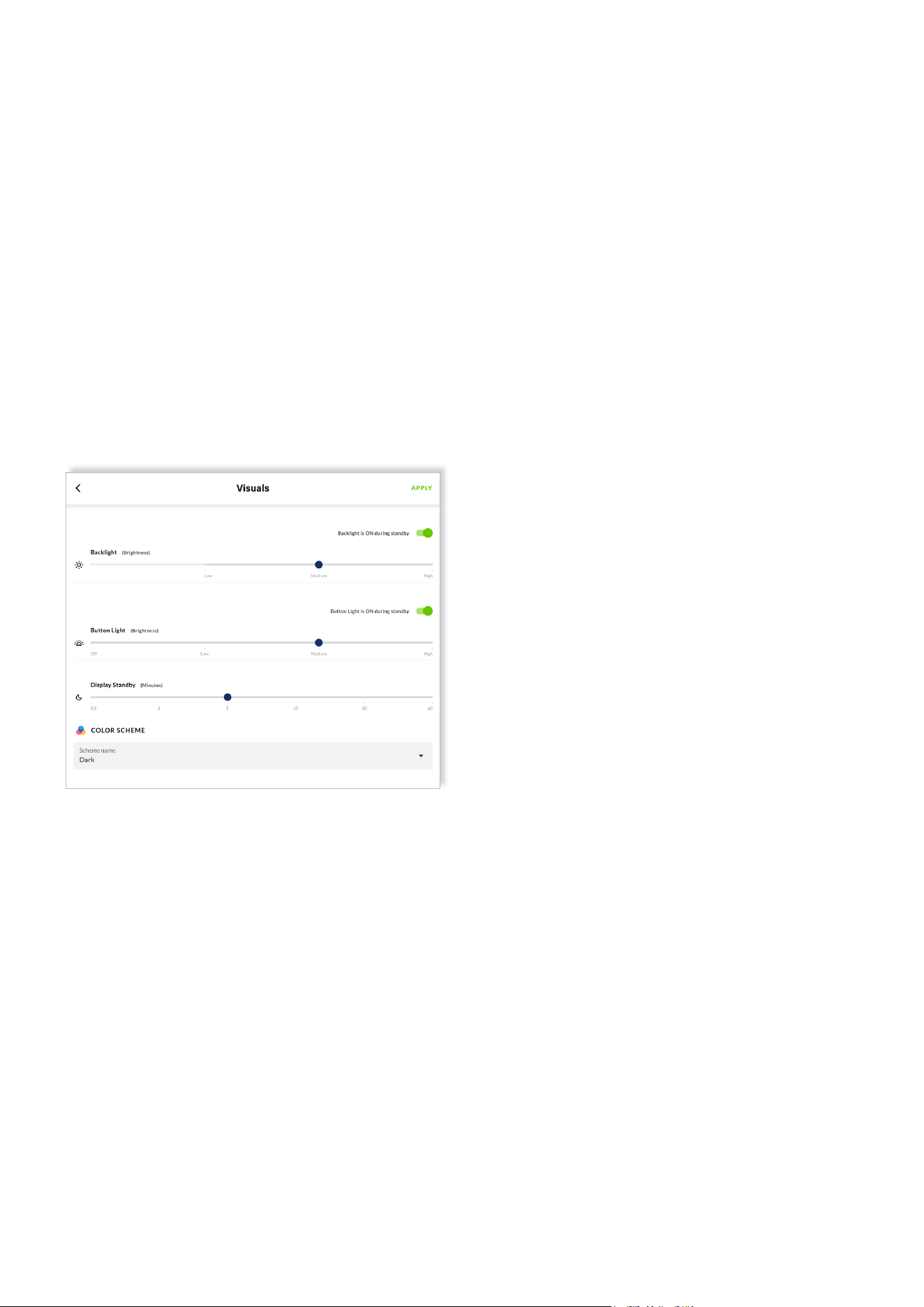
Using the Web App, firstly move the toggle switch to the
left – so the text “Button Light is OFF during standby” is
displayed.
Afterwards, click the button labeled “APPLY” in the top
right-hand corner to activate the feature.
13/19
Configuration
6.6 Display Screen Colour Scheme - Customization
Thanks to the color LCD display the user can clearly see
the zone the controller is associated with, the audio source
input that is selected and the current volume level.
The high-resolution screen provides enough space for a font
size adequate for the user to read and navigate text and
menu settings.
A choice of four different color schemes also provides the
possibility to customize the display to best match the use
environment and/or personal preference.
• BLUE = White Text on Blue Background.
• DARK = White Text on Dark Grey Background.
• LIGHT = Black Text on Light Grey Background.
• ORANGE= Orange Text on Dark Grey Background.
Note, that by default the color scheme is set to “DARK”.
Customization can be made within the PowerZone™ Con-
trol Web App, or directly via the Wall-S1 device itself.
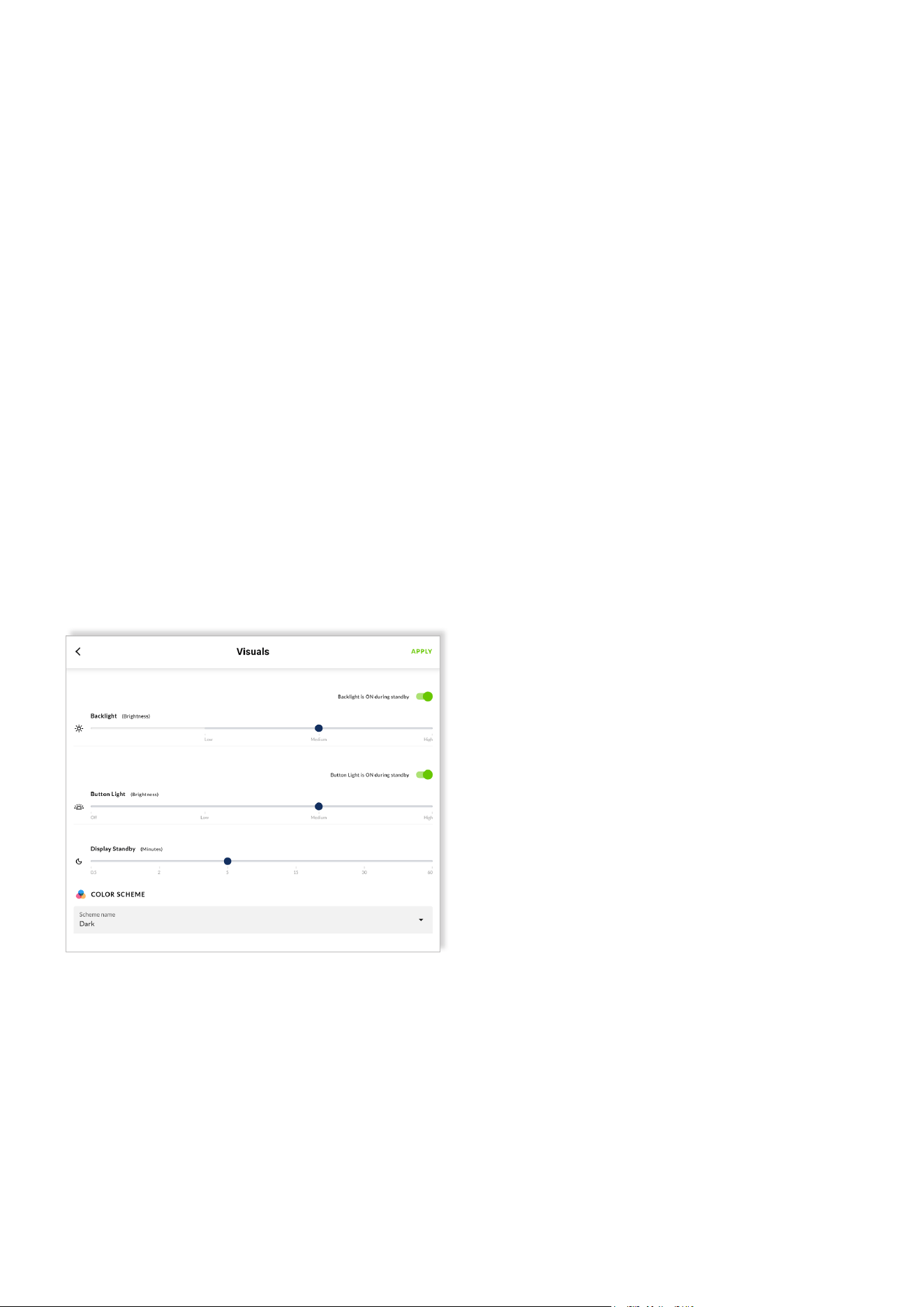
Using the Web App, the color scheme can be quickly
changed via the drop-down menu located at the bottom of
the “Visuals” tab. Simply choose the preferred color scheme,
and then click the button labeled “APPLY” in the top right-
hand corner to activate the change.
The color scheme can also be customized within the settings
menu of the Wall-S1 device itself. To change the screen
color scheme via the Wall-S1 device, simply follow the steps
outlined below.
1. Press and hold the rotary encoder until the
settings menu appears.
2. Tap the rotary encoder to confirm the selection of the
“Settings” menu.
3. Tap the rotary encoder to confirm the selection of the
“Visuals” menu.
4. Twist the rotary encoder one click to the left (anti-
clockwise) and tap the rotary encoder to confirm the
selection of the option labeled “Color Scheme”.
5. Twist the rotary encoder left and right to explore the
options available, as shown on the screen.
6. Tap the rotary encoder to confirm the desired color
scheme.
7. Twist the rotary encoder to the right (clockwise) until
you have navigated to the option labeled “Back”.
8. Tap the rotary encoder to confirm the selection of the
option action “Back”.
9. Twist the rotary encoder 3 clicks to the right (clock-
wise) to navigate to the option labeled “Back”.
10. Tap the rotary encoder to confirm the selection of
the option action “Back”.
11. You will be presented with the question
“Apply Visual Changes?”
12. Twist the rotary encoder to highlight the
option “Yes” and tap the rotary encoder to confirm the
selection.
13. Twist the rotary encoder 2 clicks to the right (clock-
wise) to navigate to the option labeled “Back”.
14. Tap the rotary encoder to confirm the selection of
the option action “Back”.
15. You are now returned to the primary screen view
displaying the zone, source input and volume level of the
associated zone.
14/19
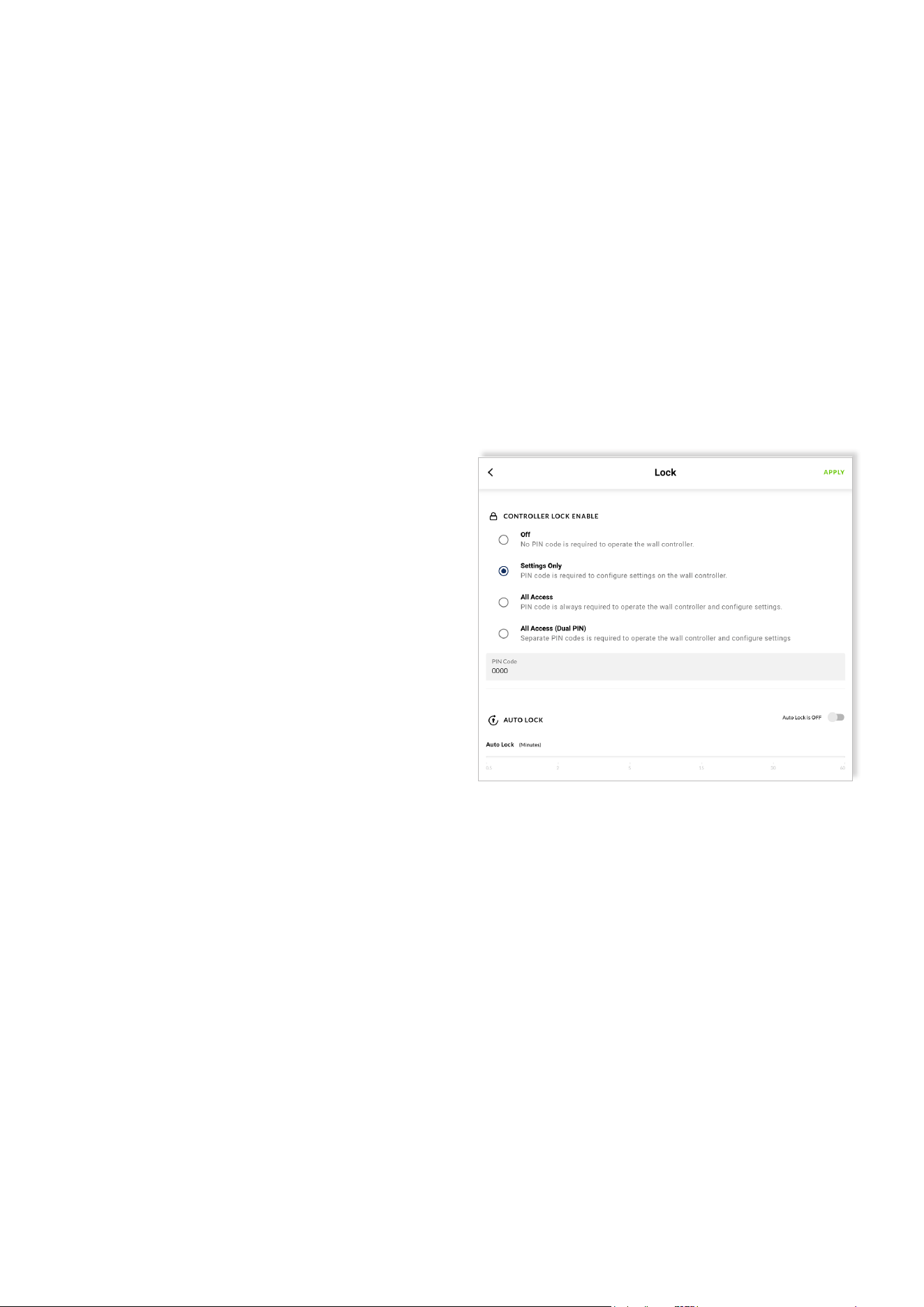
Configuration
6.8.2 Level B: “All Access” - Applied to Protect
Access To All Functions
Typical Use Case Scenario: Example - Wall-S1 devices are
placed within easy reach of customers of a café. Enabling
the local user lock function and setting it to “All Access”
prevents the possibility of customers adjusting the volume,
switching the audio source, or making any other adjustment
to the installed system.
• Until unlocked, none of the functions of the Wall-S1 device
can be accessed.
• If a user attempts to use the device, they are
prompted to enter the correct PIN code on the device – turn-
ing the rotary encode dial to select each digit on the screen;
and pushing the dial to conrm each digit.
• Once successfully unlocked, functions become accessible.
• Note: To enter the ”Settings” menu you will be prompted to
enter the PIN code again – this helps ensure the security of
the device whilst the Auto Lock function is off.
Steps To Setup:
1. Using the PowerZone™ Control Web App, navigate
to the “Lock” tab and select the option “Settings Only”
shown under the headline “CONTROLLER LOCK EN-
ABLE”.
2. Type into the box labeled “PIN Code” a 4-digit PIN
code of your choice (we recommend changing the PIN
code, otherwise it will remain ‘0000’).
3. Click the button labeled “APPLY” in the top right-hand
corner to activate the feature as configured.
Note that the “Auto Lock” function is NOT an available
option under this second level. The locking of the settings
menu applies all the time, from the instant the option is
applied in the Web App.
6.7 Local User Lock and Unlock (PIN Code Protection)
A 4-digit numerical pin code can be set, reset, and enabled
within the PowerZone™ Control Web App to restrict usage
of the device.
When enabled, no one can operate the device and/or
adjust the settings - unless they are able to enter the
correct PIN code. This makes it possible to place devices in
areas where unauthorized room users have easy access to
the device.
Note that the PIN code can always be reset via the Web
App. This solves the problem of potentially forgotten PIN
codes, whilst also providing the opportunity to change the
PIN code if circumstances change.
The PIN code protection can either be kept deactivated
(“OFF”) or applied at three distinct levels: (A) “Settings
Only”; (B) “All Access”, and (C) All Access (Dual PIN).
6.8.1 Level A: “Settings Only” - Applied to Protect
Access to The Settings Menu Only
Typical Use Case Scenario: Example – Wall-S1 devices are
placed within easy reach of authorized users (e.g., workers)
of a café. Enabling the local user lock function and setting
it to “Settings Only” allows the users to adjust volume and
switch audio source, but prevents the users being able to
customize the device, change critical settings or reset the
device.
• All functions of the wall controller are available, and
the device remains completely unlocked for use by any
user with physical access to the device.
• Only when the user attempts to access the
“Settings” menu are they prompted to enter the correct
PIN code on the device – turning the rotary encode dial
to select each digit on the screen; and pushing the dial to
confirm each digit.
• If successfully unlocked, all functions under the set-
tings menu become accessible.
• Until the correct PIN code is entered, the functions
inaccessible to the user include:
- Visuals (settings relating to customization of stand-
by, backlights and color scheme).
- Reset Device (ability to completely reset the de-
vice).
- IP Settings (ability to adjust the IP settings of the
device).
15/19
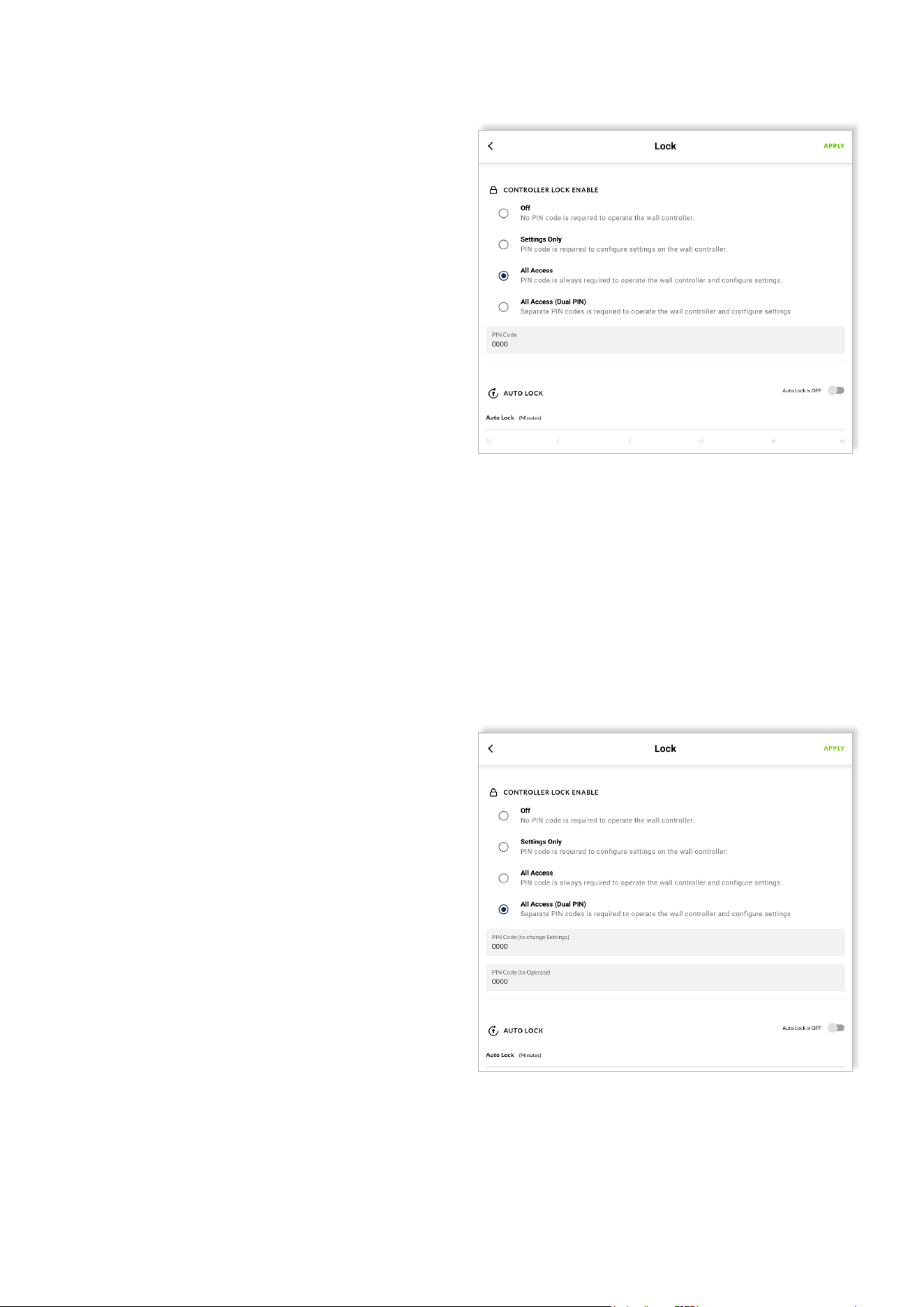
Configuration
Steps to Setup:
1. Using the Web App, navigate to the “Lock” tab and
select the option “All Access” shown under the headline
“CONTROLLER LOCK ENABLE”.
2. Type into the box labeled “PIN Code” a 4-digit PIN
code of your choice (we recommend changing the PIN
code, otherwise it will remain ‘0000’).
3. Toggle to the right the switch labeled “Auto Lock” - it
will turn green (active) and display the label
“Auto Lock is ON”.
4. Using the slider, select the desired period of time to
elapse before the controller is locked, and thus requiring
the entering of the correct PIN code to
unlock. (We suggest that under many circumstances the
shortest period of 30 seconds would be suitable).
5. Finally, click the button labeled “APPLY” in the top
right-hand corner to activate the feature as
configured.
6. Once activated, you can choose to manually lock the
device immediately, or let the device
automatically lock itself after the period of period of
time selected on the Auto Lock slider.
7. To manually lock the device immediately, do as de-
scribed.
• Press and hold the rotary encoder of the device
until the option “Lock Controller” appears on the
display screen.
• Tap the rotary encoder to confirm the action to
“Lock Controller” - you will be immediately present-
ed with the message “Controller Locked”, and there-
after a padlock icon will appear on the display screen
of the device; indicating the device is now locked
– thus requiring the entering of a PIN code to unlock.
8. To let the device automatically lock itself, do as de-
scribed.
• Wait until the period of time selected on the Auto
Lock slider has elapsed. You will subsequently notice
a padlock icon appear on the display screen of the
device, indicating the device requires the entering of
a PIN code to unlock.
9. To unlock the device, the user must enter the correct
PIN code on the device. This is performed by turning the
rotary encode dial to select each digit on the screen; and
pushing the dial to confirm each digit.
16/19
6.8.3 Level C: “All Access (Dual PIN)” - Applied to
Protect Access To All Functions with Dual PIN
A further level of security is available with Option C
enabling different PIN controlled access to Wall-S1
operation and settings.
This option enables, for example, operators with different
responsibilities to have access only to the functions
appropriate to their roles.
Option C setup is carried out in a similar manner to Option
B described in Section 6.8.2. the only difference is that two
four digit PINs are required.
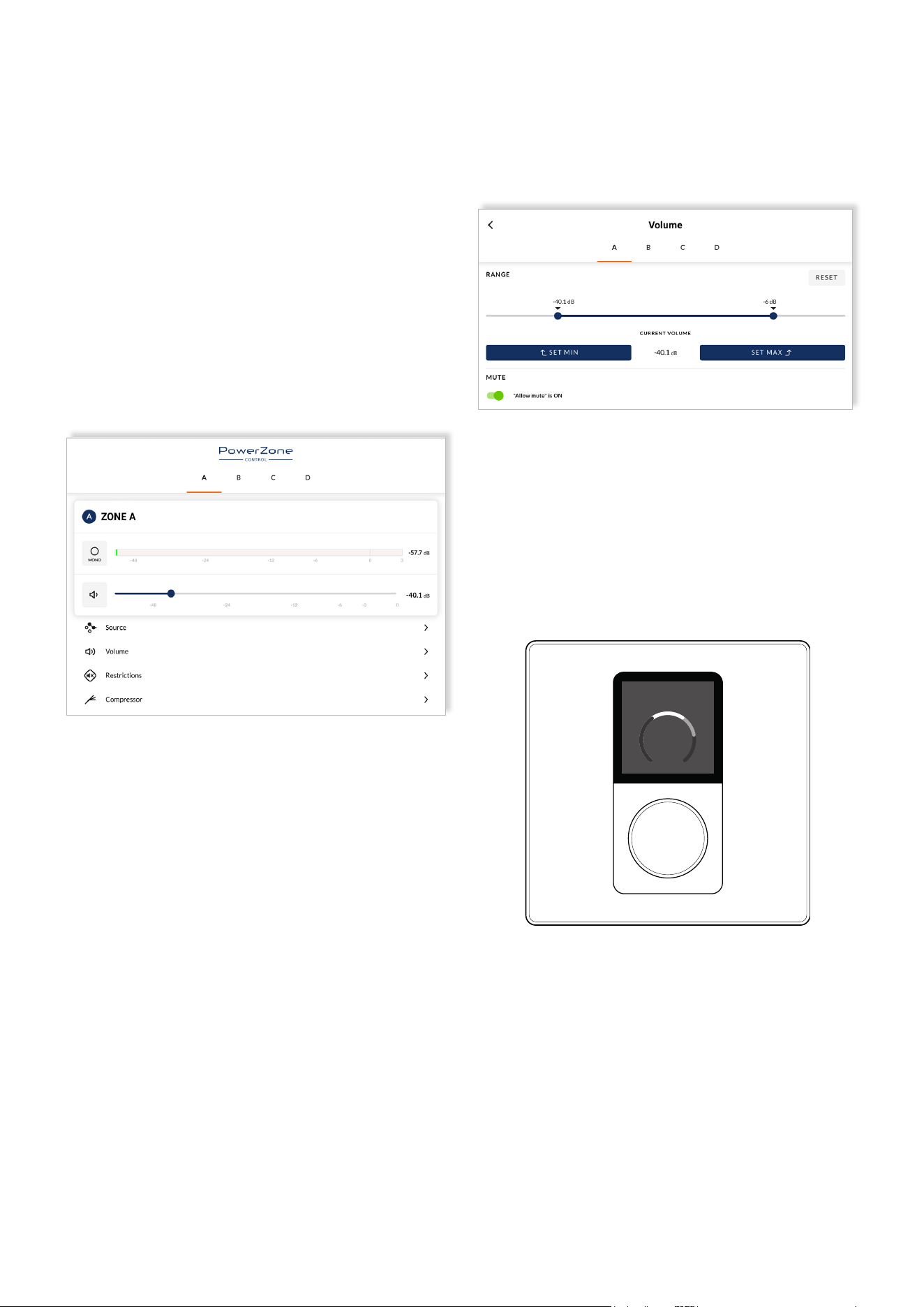
Configuration
The minimum and maximum volume limits are set using a
slider found within the section labeled “RANGE”. For accu-
racy, volume settings are displayed in decibels (dB)
(see below).
On the device, the end user is made visually aware of the
volume range limitation when adjusting the volume level
(see below).
Note that as a convenience to the user, the volume settings
on the device are always displayed as a relative level on a
scale of 0 – 100, rather than in decibels.
Note that if the volume is turned below the minimum level,
the output is completely muted, and the mute icon is shown
on the display screen.
Zone A
60
17/19
6.9 Volume Control (Range) Limitation
A lower (minimum) and upper (maximum) volume
limitation can be applied to the zone the device is
configured to control.
This feature is especially valuable in scenarios where the
total power of the channel output greatly exceeds the
volume suitable for the installation environment.
The feature is also very useful to apply in scenarios where it
is preferred the volume does not fall below a certain level -
with the exception of complete muting.
Within the PowerZone™ Control Web App, this feature can
be found by navigating to the volume menu of the Zone
Tab, within the Web App (see below).
It is also possible to disable the amplifier zone mute func-
tion. This can be particularly significant in situations where
important information potentially needs to be heard in a
specific zone. To disable or enable the the mute function,
toggle the ”Allow mute” switch in Volume menu of the Zone
Tab.
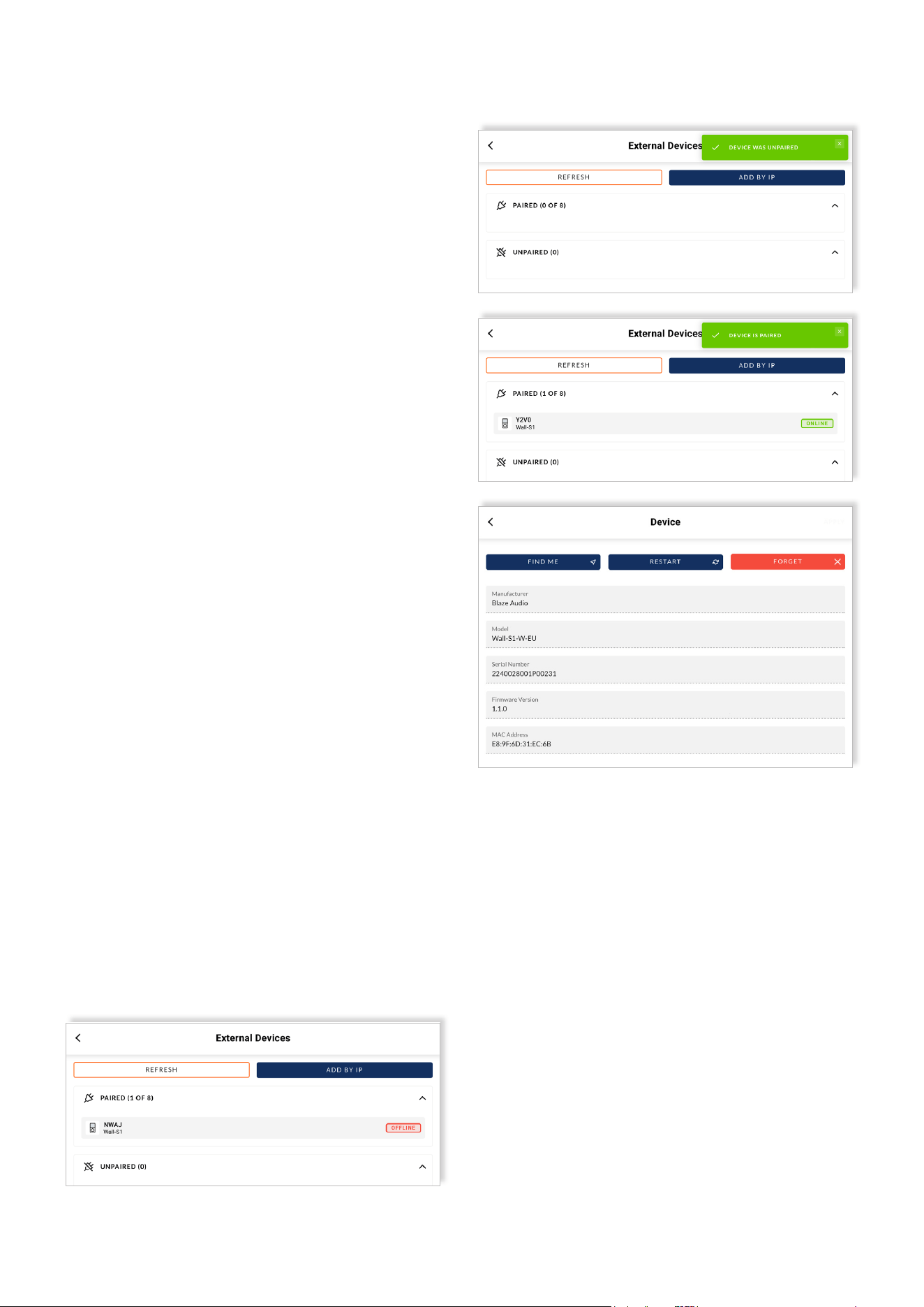
Reset
7.1 Device Reset
It is possible to reset a Wall-S1 device back to its facto-
ry-default state. When resetting the device, any previous
settings including IP address information is cleared.
The use of this function is only required in exceptional cir-
cumstances whereby a complete device reset is necessary.
To perform a complete device reset, follow the steps
outlined below.
1. Press and hold the rotary encoder until the
“Settings” menu appears.
2. Tap the rotary encoder to confirm the selection of the
“Settings” menu.
3. Twist the rotary encoder one click to the left (anti-
clockwise) and tap the rotary encoder to confirm the
selection of the option labeled “Reset Device”
4. Tap the rotary encoder to confirm the selection of the
option action “Reset Device”.
5. You will be presented with the question
“Reset to Factory Defaults?”
6. Twist the rotary encoder to highlight the option “Yes”
and tap the rotary encoder to confirm the selection.
7. After a few seconds the device will turn off, then re-
start and show a new paring code on the display screen.
8. In the Web App, you will notice the device you just
reset shows up with a red box stating the device is “Of-
fline” (as shown below).
9. In the Web App, click on the device and navigate to
the “Device” tab.
10. In the bottom right-hand corner of the device tab
there is a red button labeled “Forget Device”
– click this to completely remove the device from the
system.
11. You will be returned to the “External Devices” page
and a green pop-up will state “DEVICE WAS UNPAIRED”
– confirming the completion of the process.
12. The device is now ready to be re-paired and config-
ured.
18/19
©2025 Sonance. All rights reserved. Sonance is a registered trademarks of Dana Innovations.
Due to continuous product improvement, all features and specifications are subject to change without notice.
For the latest Sonance product specification information visit our website at www.sonance.com.
SONANCE • 991 Calle Amanecer • San Clemente, CA 92673 USA • Phone: (949) 492-7777 • Technical Support: (949) 492-7777 • www.sonance.com • 07.01.25
Specifications
Rev B/24/06/2025
Amplier Compatibility
Model
BLAZE AUDIO - PowerZone™ Connect series
0-40°C
(32-104°F)
240 x 240 pixels
Plastic (ABS-PC)
Power to the RJ45 ethernet port on the rear of device using a category 5e cable
(or faster STP) with the use of a standard PoE switch, or PoE injector
100m (328ft)
27.72mm x 27.72mm
RGB, Transmissive / Normally Black
Pre-galvanized steel
6 settings available: 30 secs, 2 mins, 5 mins, 15 mins, 30 mins, 60 mins
IP 30
768.4sqmm
High gloss polished transparent acrylic
PoE Class 1 / 3.84 Wmax
RJ45, Blaze Audio proprietary over CAT 5e (or faster STP)
2 Years
Mounting Holes, Distance (Center to
Center)
External Dimensions (H x W)
86.79 x 86.79mm
(3.42 x 3.42in)
White
(RAL9003)
W-EU
23.7mm
(0.93in)
42.8mm
(1.68in)
60 mm
(2.36in)
120g (4.2oz.) 120g (4.2oz.)
83.5mm
(3.29in)
42.8mm
(1.68in)
23.1mm
(0.91in)
White
(RAL9003)
W-US
Black
(RAL9005)
B-EU
Black
(RAL9005)
B-US
115.1 x 70.6mm
(4.53 x 2.78in)
External Dimensions, Depth [From rear
side of mounting plate to outer side of
shield box]
External Dimensions, Depth [From tip
of rotary encoder dial to outer side of
shield box]
Operating Temperature Range
Display Screen Resolution
Exterior & Mechanical Parts Material
Power Supply
Maximum Cable Length
(CAT 5e)
Colour
Weight
Display Screen Area
(excluding black border)
Display Screen Dimension
(excluding black border)
Display Screen Type
Base Construction & Shield Material
Standby Modes
IP Rating
Display Screen Material
Power Consumption
Connection & Data Protocol
Warranty Period