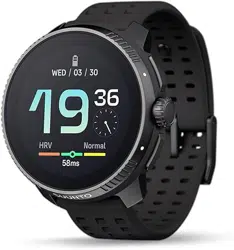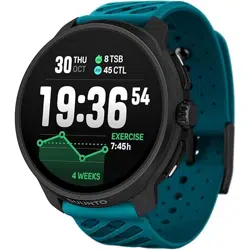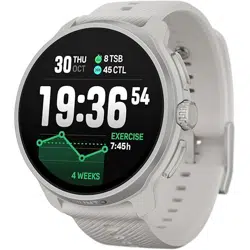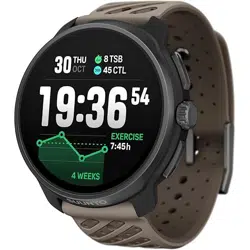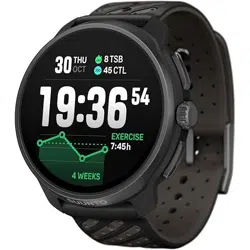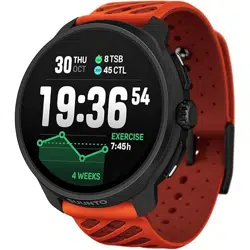

SUUNTO RACE 2
USER GUIDE
2025-08-18

1. SAFETY............................................................................................................................................................ 6
2. Getting started.............................................................................................................................................. 8
2.1. Touch screen and buttons.............................................................................................................. 8
2.2. Adjusting settings............................................................................................................................ 9
2.3. Software updates............................................................................................................................. 9
2.4. Suunto app....................................................................................................................................... 10
2.5. Optical heart rate............................................................................................................................10
3. Settings..........................................................................................................................................................12
3.1. Button and screen lock.................................................................................................................. 12
3.2. Automatic display brightness...................................................................................................... 12
3.3. Tones and vibration........................................................................................................................ 13
3.4. Bluetooth connectivity...................................................................................................................13
3.5. Airplane mode................................................................................................................................. 13
3.6. Do Not Disturb mode.....................................................................................................................14
3.7. Stand up reminder...........................................................................................................................14
3.8. Find my phone.................................................................................................................................14
3.9. Time and date..................................................................................................................................14
3.9.1. Alarm clock............................................................................................................................15
3.10. Language and unit system..........................................................................................................15
3.11. Watch faces......................................................................................................................................16
3.11.1. Complications...................................................................................................................... 16
3.12. Power saving..................................................................................................................................16
3.13. Pairing pods and sensors............................................................................................................17
3.13.1. Calibrating bike pod.......................................................................................................... 18
3.13.2. Calibrating foot pod..........................................................................................................18
3.13.3. Calibrating power pod..................................................................................................... 18
3.14. Flashlight..........................................................................................................................................18
3.15. Alarms.............................................................................................................................................. 18
3.15.1. Sunrise and sunset alarms...............................................................................................19
3.15.2. Storm alarm........................................................................................................................ 19
3.16. FusedSpeed™................................................................................................................................ 20
3.17. FusedAlti.......................................................................................................................................... 21
3.18. Altimeter.......................................................................................................................................... 21
3.19. Position formats............................................................................................................................. 21
3.20. Device info.................................................................................................................................... 22
3.21. Resetting your watch...................................................................................................................22
4. Recording an exercise.............................................................................................................................. 24
4.1. Sport modes.....................................................................................................................................25
4.2. Navigating during exercise......................................................................................................... 25
4.2.1. Find back.............................................................................................................................. 26
Suunto Race 2
2

4.2.2. Snap to route......................................................................................................................26
4.3. Using targets when exercising...................................................................................................26
4.4. Battery power management....................................................................................................... 27
4.5. Multisport exercise........................................................................................................................ 28
4.6. Snorkeling and mermaiding........................................................................................................28
4.7. Swimming......................................................................................................................................... 29
4.8. Interval training...............................................................................................................................30
4.9. Autopause.........................................................................................................................................31
4.10. Voice feedback.............................................................................................................................. 31
4.11. Feeling..............................................................................................................................................32
4.12. Intensity zones.............................................................................................................................. 32
4.12.1. Heart rate zones................................................................................................................33
4.12.2. Pace zones.........................................................................................................................34
4.12.3. Power zones......................................................................................................................35
4.12.4. Using HR, pace or power zones when exercising...................................................35
5. Navigation.................................................................................................................................................... 37
5.1. Oine maps..................................................................................................................................... 37
5.2. Altitude navigation........................................................................................................................ 38
5.3. Bearing navigation........................................................................................................................ 39
5.4. Routes...............................................................................................................................................39
5.5. Points of interest............................................................................................................................. 41
5.5.1. Adding and deleting POIs................................................................................................. 41
5.5.2. Navigating to a POI...........................................................................................................42
5.5.3. POI types..............................................................................................................................43
5.6. Climb guidance.............................................................................................................................. 45
5.7. Ruler................................................................................................................................................... 47
6. Widgets.........................................................................................................................................................48
6.1. Weather............................................................................................................................................. 48
6.2.
Notifications.................................................................................................................................... 48
6.3. Media controls................................................................................................................................49
6.4. Heart rate.........................................................................................................................................49
6.5. Recovery, HRV (Heart Rate Variability).................................................................................... 50
6.6. Progress...........................................................................................................................................50
6.7. Training...............................................................................................................................................51
6.8. Recovery, training..........................................................................................................................52
6.9. Blood oxygen..................................................................................................................................52
6.10. Sleep............................................................................................................................................... 52
6.11. Steps and calories.........................................................................................................................53
6.12. Sun & Moon................................................................................................................................... 54
6.13. Logbook..........................................................................................................................................55
6.14. Resources.......................................................................................................................................55
Suunto Race 2
3

6.15. Alti & Baro...................................................................................................................................... 56
6.16. Compass.........................................................................................................................................57
6.16.1. Calibrating compass.........................................................................................................57
6.16.2. Setting declination...........................................................................................................57
6.17. Timer................................................................................................................................................ 58
7. SuuntoPlus™ guides....................................................................................................................................59
8. SuuntoPlus™ sports apps......................................................................................................................... 60
9. Care and support........................................................................................................................................ 61
9.1. Handling guidelines........................................................................................................................ 61
9.2. Battery............................................................................................................................................... 61
9.3. Disposal.............................................................................................................................................61
10. Reference................................................................................................................................................... 62
10.1. Compliance.....................................................................................................................................62
10.2. CE.....................................................................................................................................................62
Suunto Race 2
4

Suunto Race 2
5
1. SAFETY
Types of safety precautions
WARNING: - is used in connection with a procedure or situation that may result in
serious injury or death.
CAUTION: - is used in connection with a procedure or situation that will result in
damage to the product.
NOTE: - is used to emphasize important information.
TIP: - is used for extra tips on how to utilize the features and functions of the device.
Safety precautions
WARNING: Keep the USB cable away from medical devices such as pacemakers, as well
as key cards, credit cards and similar items. The USB cable device connector includes a
strong magnet which may interfere with the operation of medical or other electronic devices
and items with magnetically stored data.
WARNING: Allergic reactions or skin irritations may occur when the product is in contact
with skin, even though our products comply with industry standards. In such event, stop use
immediately and consult a doctor.
WARNING: Always consult your doctor before beginning an exercise program.
Overexertion may cause serious injury.
WARNING: Only for recreational use.
WARNING: Do not entirely rely on the GPS or battery lifetime of the product. Always use
maps and other backup material to ensure your safety.
CAUTION: Only use the provided charging cable when charging your Suunto Race 2.
CAUTION: Do not apply solvent of any kind to the product, as it may damage the
surface.
CAUTION: Do not apply insect repellent on the product, as it may damage the surface.
CAUTION: Do not throw the product away, but treat it as electronic waste to preserve the
environment.
CAUTION: Do not knock or drop the product, as it may get damaged.
CAUTION: Colored textile straps might bleed onto other fabrics or skin when new or wet.
Suunto Race 2
6

NOTE: At Suunto we use advanced sensors and algorithms to generate metrics that can
help you in your activities and adventures. We strive to be as accurate as possible. However,
none of the data our products and services collect is perfectly reliable, nor are the metrics
they generate absolutely precise. Calories, heart rate, location, movement detection, shot
recognition, physical stress indicators and other measurements may not match the real
world. Suunto products and services are intended for recreational use only and are not
meant for medical purposes of any kind.
Suunto Race 2
7
2. Getting started
Starting your Suunto Race 2 for the first time is quick and simple.
1. Keep the upper button pressed to wake up the watch.
2. Tap the screen to begin the setup wizard.
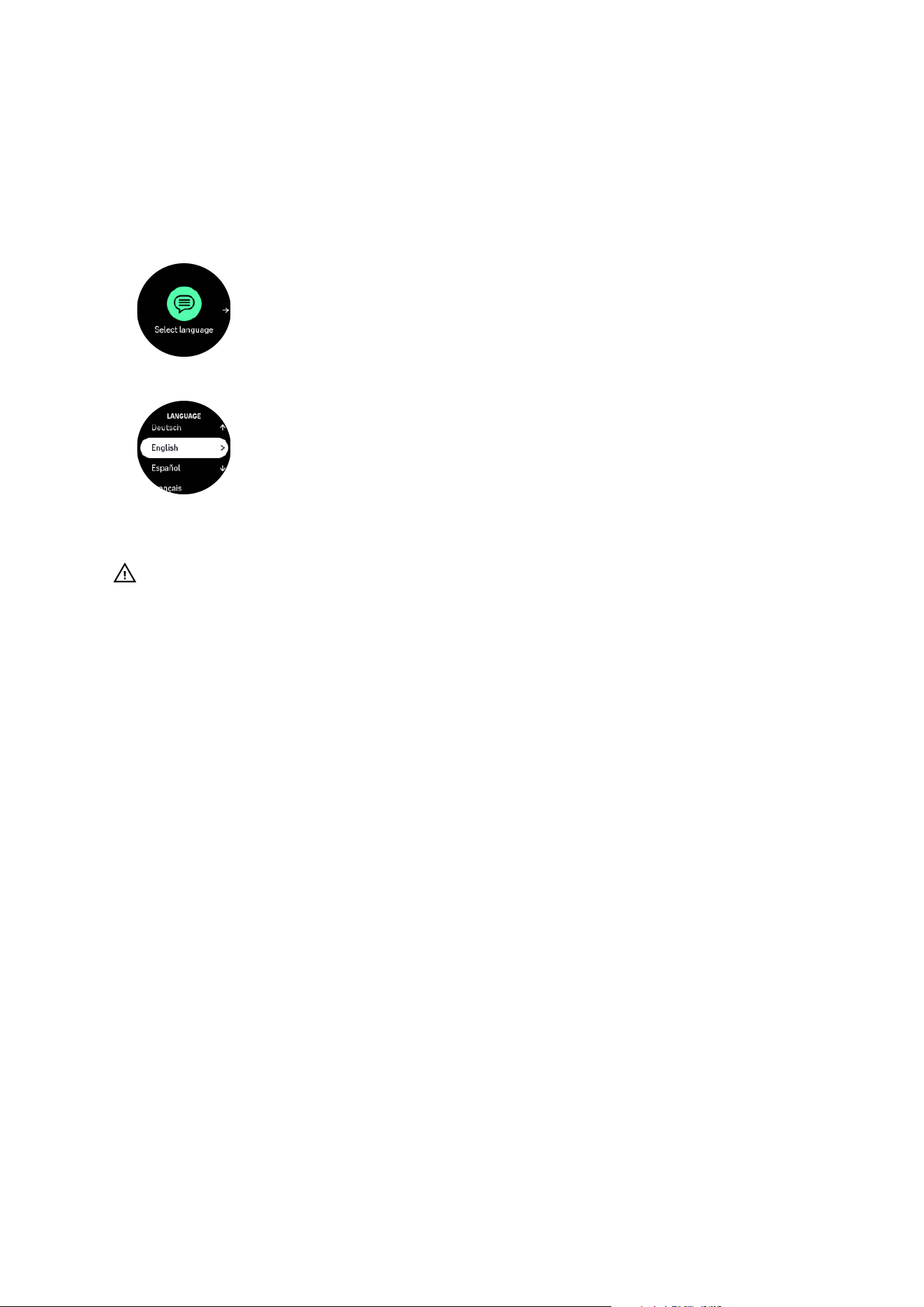
3. Select your language by swiping up or down and tapping on the language.
4. Follow the wizard to complete initial settings. Swipe up or down to select values. Tap the
screen or press the crown to accept a value and go to the next step.
CAUTION: Only use the provided charging cable when charging your Suunto Race 2.
2.1. Touch screen and buttons
Suunto Race 2 has a touch screen, a crown (also referred to as the middle button) and two
more additional buttons you can use to navigate through displays and features.
Swipe and tap
•
swipe up or down to move in displays and menus
•
swipe right and left to move backwards and forwards in displays
•
tap to select an item
Upper button
•
from watch face, press to open the menu for last exercise
•
from watch face, long press to
define and open shortcuts
Crown/middle button
•
press to select an item
•
scroll to move in displays and menus
•
from watch face, press to open the pinned widget
•
from watch face, long press to open settings menu
Lower button
•
press to go back in views and menus
•
long press to go back to watch face
•
from watch face, press to enter the control panel
•
from watch face, long press to
define and open shortcuts
Suunto Race 2
8
While recording an exercise:
Upper button
•
press to pause and resume the activity
•
long press to change activity
Crown/middle button
•
press to move to the next display
•
long press to go back to the previous display
Lower button
•
press to mark a lap
•
long press to open the control panel where you find the exercise options
•
when in the control panel, press to go back to the activity screen
•
when the activity is paused, press to end or discard the activity
2.2. Adjusting settings
You can adjust all watch settings directly in the watch.
To adjust a setting:
1. From watch face, keep the crown pressed to open Settings.
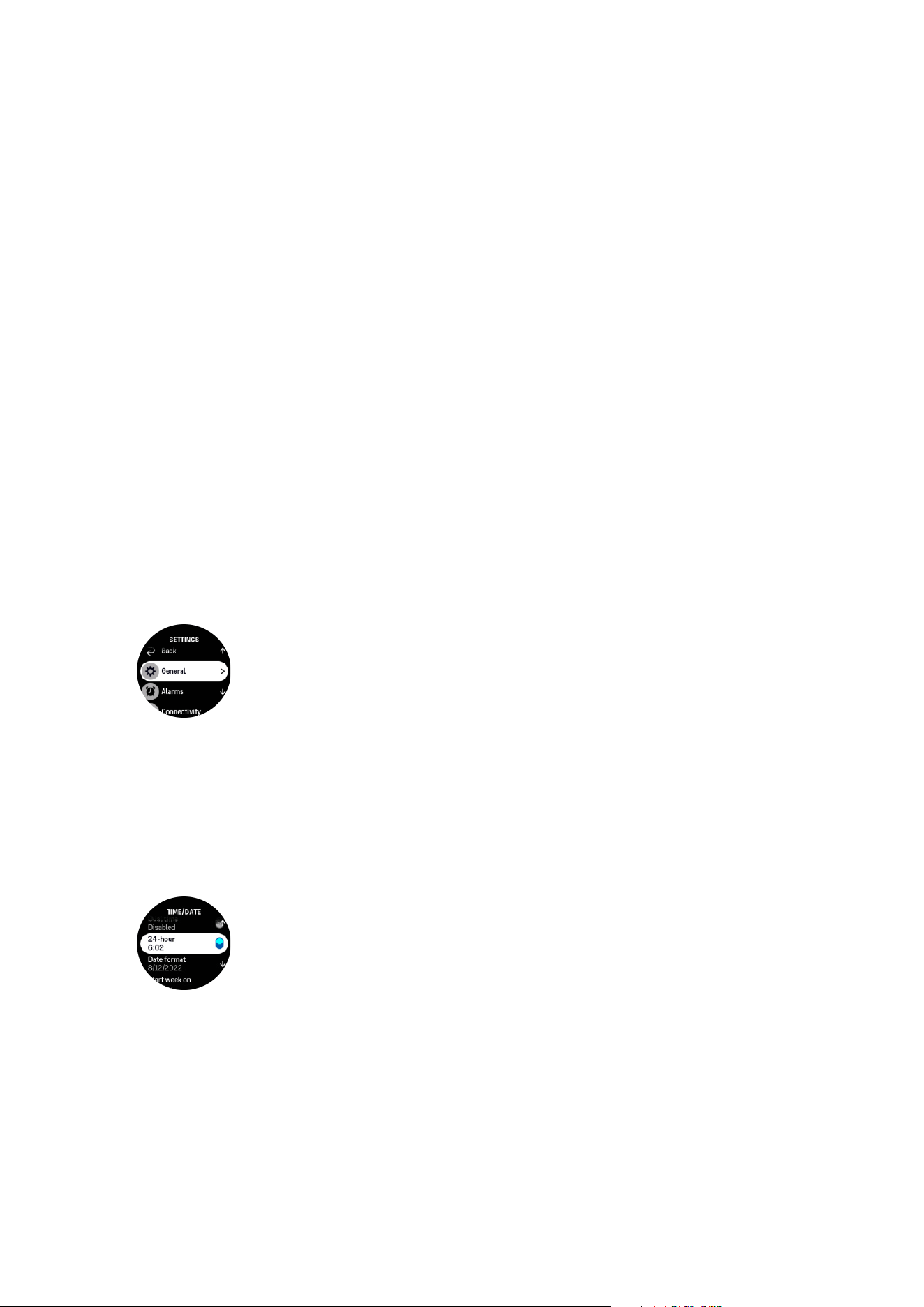
2. Scroll through the settings menu by swiping up/down or turning the crown.
3. Select a setting by tapping the setting name or pressing the crown when the setting is
highlighted. Go back in the menu by swiping right, pressing the lower button or selecting
Back.
4. For settings with a value range, change the value by swiping up/down or turning the
crown.
5. For settings with just two values, such as on or
o, change the value by tapping the setting
or by pressing the crown.
2.3. Software updates
Software updates add important improvements and new features to your watch. Suunto Race
2 is updated automatically, if it is connected to Suunto app.
When an update is available and your watch is connected with Suunto app, the software
update will be downloaded to the watch automatically. The status of this download can be
viewed in Suunto app.
Suunto Race 2
9

Once the software is downloaded to your watch, the watch will update itself during the night
as long as the battery level is at least 20% and no exercise is being recorded simultaneously.
If you want to install the update manually before it happens automatically during the night,
navigate to Settings » General and select Software update.
NOTE: When the update is complete, the release notes will be visible in Suunto app.
2.4. Suunto app
With the Suunto app, you can further enrich your Suunto Race 2 experience. Pair your watch
with the mobile app to sync your activities, create workouts, get mobile notifications, insights
and more.
NOTE: You cannot pair anything if airplane mode is on. Turn o airplane mode before
pairing.
To pair your watch with Suunto app:
1. Ensure your watch Bluetooth is on. Under the settings menu, go to Connectivity »
Discovery and enable it if it is not already.
2. Download and install Suunto app on your compatible mobile device from the iTunes App
Store, Google Play in addition to several popular app stores in China.
3. Start Suunto app and turn on Bluetooth if it is not on already.
4. Tap the watch icon in the upper-left of the app screen and then tap “PAIR” to pair your
watch.
5. Verify the pairing by typing the code that is displayed on your watch in the app.
NOTE: Some features require an internet connection over Wi-Fi or mobile network.
Carrier data connection fees may apply.
2.5. Optical heart rate
Optical heart rate measurement from the wrist is an easy and convenient way to track your
heart rate. Best results for heart rate measurement may be
aected by the following factors:
•
The watch must be worn directly against your skin. No clothing, however thin, can be
between the sensor and your skin.
•
The watch may need to be higher on your arm than where watches are normally worn.
The sensor reads blood
flow through tissue. The more tissue it can read, the better.
•
Arm movements and
flexing muscles, such as gripping a tennis racket, can change the
accuracy of the sensor readings.
•
When your heart rate is low, the sensor may not be able to provide stable readings. A
short warm up of a few minutes before you start the recording helps.
•
Skin pigmentation and tattoos block light and prevent reliable readings from the optical
sensor.
•
The optical sensor may not provide accurate heart rate readings for swimming activities.
•
For higher accuracy and quicker responses to changes in your heart rate, we recommend
using a compatible chest heart rate sensor such as Suunto Smart Sensor.
Suunto Race 2
10

WARNING: The optical heart rate feature may not be accurate for every user during
every activity. Optical heart rate may also be
aected by an individual’s unique anatomy and
skin pigmentation. Your actual heart rate may be higher or lower than the optical sensor
reading.
WARNING: Only for recreational use; the optical heart rate feature is not for medical use.
WARNING: Always consult a doctor before beginning a training program. Overexertion
may cause serious injury.
WARNING: Allergic reaction or skin irritations may occur when products are in contact
with skin, even though our products comply with industry standards. In such event, stop use
immediately and consult a doctor.
Suunto Race 2
11

3. Settings
From the watch face, press the lower button to get access to all of the watch settings via the
Control panel.
TIP: The settings menu can be accessed directly if you long press the crown while you
are in the watch face view.
If you want quick access to certain settings and/or features, you can customize the top and
lower button logic (from watch face view) and create shortcuts to your most useful settings/
features.
Navigate to the Control panel and select Customize followed by Top shortcut or Bottom
shortcut and select what function the top and bottom button will have when long pressed.
3.1. Button and screen lock
While recording an exercise, you can lock the buttons by keeping the lower button pressed
and toggle Button lock on. Once locked, you cannot perform any action that requires button
interaction (create laps, pause/end exercise etc.), but it is possible to change the display
views.
To unlock everything, keep the lower button pressed again and toggle Button lock
o.
TIP: You can customize a lower button shortcut for locking the buttons and the screen
with one button press when you are not recording an exercise. Select Button lock under
Customize > Bottom shortcut. Then you can lock and unlock the buttons and the screen from
the watch face by long pressing the lower button.
When you are not recording an exercise, the screen becomes inactive and dims after one
minute of inactivity. To activate the screen, press any button.
The screen also goes to sleep (blank) after a period of inactivity. Any movement turns the
screen on again. See 3.2. Automatic display brightness for information on the screen
behavior.
3.2. Automatic display brightness
The display has three features that you can adjust: the level of brightness (Brightness),
whether the inactive display shows any information (Always-on display), and whether the
display activates when you raise and turn your wrist (Raise to wake).
The display features can be adjusted from the settings under General > Display.
•
The Brightness setting determines the overall intensity of display brightness; Low, Medium
or High.
•
The Always-on display setting determines if the inactive display is blank or shows
information, for example, the time. Always-on display can be toggled to on or
o:
•
On: The display shows certain information all the time.
•
O: When the display is inactive, the screen is blank.
•
The Raise to wake feature activates the display when raising your wrist to look at the
watch. The three options for Raise to wake are:
•
O: Raising your wrist does nothing.
Suunto Race 2
12

•
Display only: Raising your wrist only activates the display. A button press is required to
use the watch.
•
Full wake mode: Raising your wrist activates the watch, making it ready to use.
CAUTION: Prolonged use of the high brightness display reduces battery life and may
cause screen burn-in. Avoid using high brightness for extended period to lengthen display
lifetime.
3.3. Tones and vibration
Tones and vibration alerts are used for
notifications, alarms and other key events and actions.
Both can be adjusted from the settings under General » Tones.
Under Tones, you can select from the following options:
•
All on: all events trigger an alert
•
All o: no events trigger alerts
•
Buttons o: all events other than pushing buttons trigger alerts.
By toggling Vibration, you can switch vibrations on and o.
Under Alarm, you can select from the following options:
•
Vibration: vibration alert
•
Tones: sound alert
•
Both: both vibration and sound alert.
3.4. Bluetooth connectivity
Suunto Race 2 uses Bluetooth technology to send and receive information from your mobile
device when you have paired your watch with the Suunto app. Same technology is also used
when pairing PODs and sensors.
However, if you do not want your watch to be visible for Bluetooth scanners, you can activate
or deactivate the discovery setting from the settings under Connectivity » Discovery.
The Bluetooth can also be completely turned o by activating airplane mode, see 3.5.
Airplane mode.
3.5. Airplane mode
Activate airplane mode when needed to turn o wireless transmissions. You can activate or
deactivate airplane mode from the settings under Connectivity or in the Control panel.
Suunto Race 2
13

NOTE: To pair anything with your device, you need to first turn o airplane mode if you
have it on.
3.6. Do Not Disturb mode
The Do Not Disturb mode is a setting that mutes all sounds and vibrations and dims the
screen, making it a very useful option when wearing the watch in, for example, a theater or
any environment where you want the watch to operate as usual, but silently.
To turn on/o the Do Not Disturb mode:
1. From the watch face, swipe up or press the bottom button to open Control panel.
2. Scroll down to Do Not Disturb.
3. Tap on the function name or press the crown to activate Do Not Disturb mode.
If you have an alarm set, it sounds as normal and disables Do Not Disturb mode unless you
snooze the alarm.
3.7. Stand up reminder
Regular movement is very beneficial for you. With Suunto Race 2, you can activate a stand up
reminder that reminds you to move around a bit if you have been sitting too long.
From the settings, select Activity and toggle on Stand up reminder.
If you have been inactive during 2 consecutive hours, your watch will notify you and remind
you to stand up and move around a bit.
3.8. Find my phone
You can use the Find my phone feature to
find your phone when you do not remember where
you left it. Your Suunto Race 2 can ring your phone if they are connected. As Suunto Race 2
uses Bluetooth to connect to your phone, the phone needs to be in Bluetooth range so that
the watch can ring it.
To activate the find my phone feature:
1. From the watch face, press the bottom button to open Control panel.
2. Scroll down to Find my phone.
3. Start ringing your phone by tapping on the function name or pressing the crown.
4. Press the lower button to stop ringing.
3.9. Time and date
You can set time and date during the initial startup of your watch. After this, your watch uses
GPS time to correct any
oset.
Once you have paired with Suunto app, your watch gets updated time, date, time zone and
daylight-saving time from mobile devices.
In the Settings, under General » Time/date, tap Auto time update to toggle the feature on
and o.
You can manually adjust time and date from the settings under General » Time/date where
you can also change time and date formats.
Suunto Race 2
14
In addition to the main time, you can use dual time to follow the time at a dierent location, for
example, when you are traveling. Under General » Time/date, tap Dual time to set the time
zone by selecting a location.
3.9.1. Alarm clock
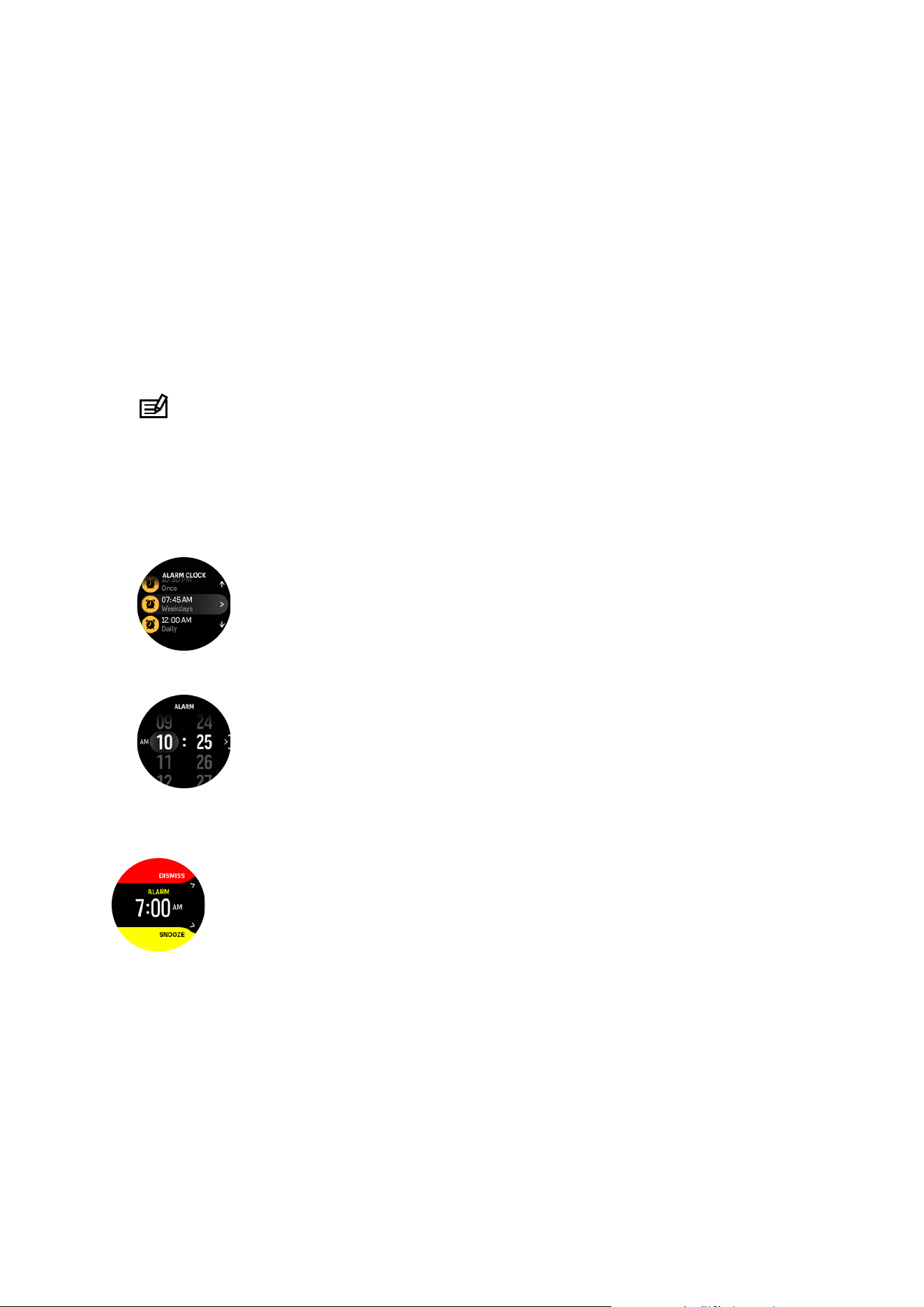
Your watch has an alarm clock that can sound once or repeat on specific days. Activate the
alarm clock from the settings under Alarm clock.
To set a fixed alarm time:
1. From the watch face, press the lower button to access the Control panel.
2. Scroll down to Alarm clock.
3. Select New alarm.
NOTE: Older alarms can be deleted or edited if selected in the list below New alarm.
4. Select how often you want the alarm to sound. The options are:
Once: alarm sounds once in the next 24 hours at the set time
Daily: alarm sounds at the same time every day of the week
Weekdays: alarm sounds at the same time Monday thru Friday
5. Set the hour and minutes and then exit the settings.
When the alarm sounds, you can dismiss it to end the alarm, or you can select the snooze
option. The snooze time is 10 minutes and can be repeated up to 10 times.
If you let the alarm continue to sound, it will automatically snooze after 30 seconds.
3.10. Language and unit system
You can change your watch language and unit system from the settings under General »
Language.
Suunto Race 2
15
3.11. Watch faces
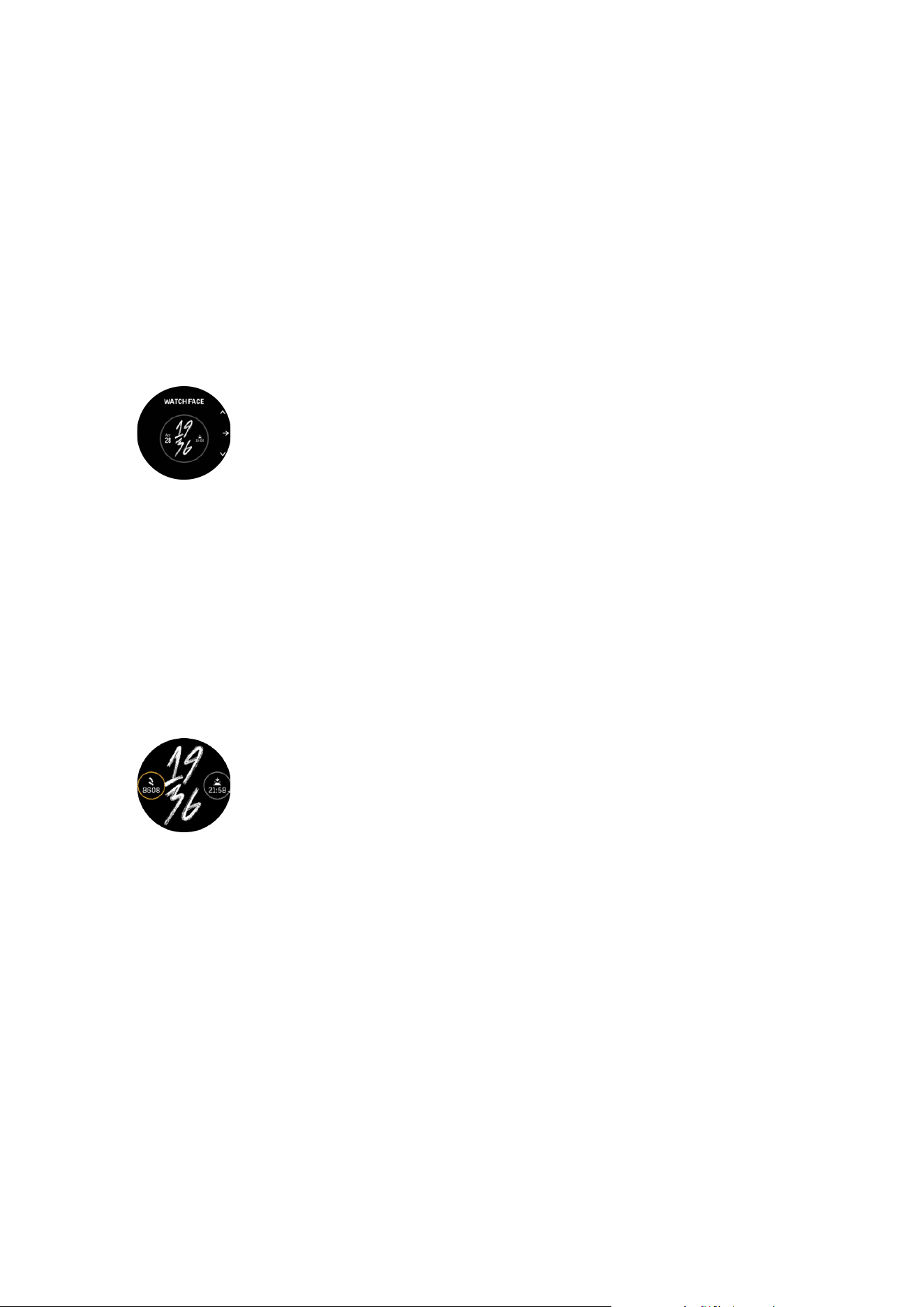
Suunto Race 2 comes with one watch face by default. You can install several other watch
faces, both digital and analog styles, from the SuuntoPlus™ Store in Suunto app.
To change the watch face:
1. Open SuuntoPlus™ Store and install your favorite watch faces on your watch.
2. Sync the watch with the app.
3. Open Customize from the watch settings or in the Control panel.
4. Open Watch face by tapping on the menu option or pressing the crown.
5. Swipe up and down to scroll through the watch face previews and tap on the one you
want to use or select it by pressing the crown.
6. Scroll down and open Accent color to select the color you want to use on the watch face.
7. Scroll down and open Complications to customize the information you want to see on the
watch face. See 3.11.1. Complications.
3.11.1. Complications
Each watch face has additional information, such as date, dual time, outdoor or activity data.
You can customize the information you want to see on the watch face.
1. Open Customize from the settings or in the Control panel.
2. Scroll down and open Complications.
3. Select the complication you want to change by tapping on it.
4. Swipe up and down or turn the crown to scroll through the list of complications and select
one by tapping on it or pressing the crown.
5. After updating all complications, swipe up or scroll down with the crown and select Done.
3.12. Power saving
Your watch includes a power saving option that turns
o all vibration, daily HR and Bluetooth
notifications to extend battery life during normal daily use. For power saving options while
recording activities, see 4.4. Battery power management.
Enable/disable power saving from the settings under General » Power saving or in the
Control panel.
Suunto Race 2
16
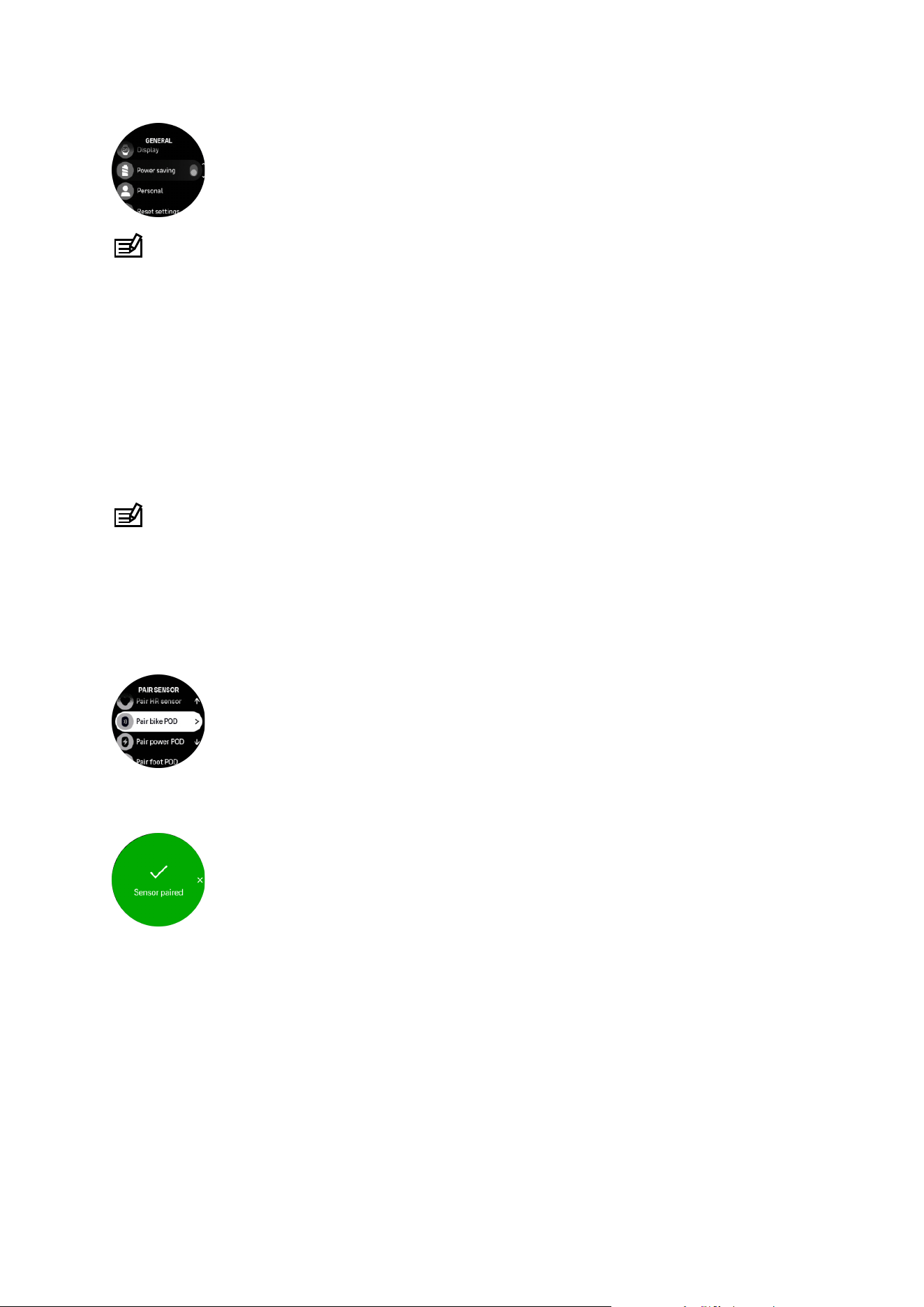
NOTE: Power saving is automatically enabled when the battery level reaches 10%.
3.13. Pairing pods and sensors
Pair your watch with Bluetooth Smart pods and sensors to collect additional information, such
as cycling power, when recording an exercise.
Suunto Race 2 supports the following types of pods and sensors:
•
Heart rate
•
Bike
•
Power
•
Foot
NOTE: You cannot pair anything if airplane mode is on. Turn o airplane mode before
pairing. See 3.5. Airplane mode.
To pair a pod or sensor:
1. Go to your watch settings and select Connectivity.
2. Select Pair sensor to get the list of sensor types.
3. Swipe down to see the whole list and tap on the sensor type you want to pair.
4. Follow the instructions in the watch to complete pairing (refer to sensor or pod manual if
needed), press the middle button to advance to the next step.
If the pod has required settings, such as crank length for a power pod, you are prompted to
enter a value during the pairing process.
Once the pod or sensor is paired, your watch searches for it as soon as you select a sport
mode that uses that sensor type.
You can see the full list of paired devices in your watch from the settings under Connectivity »
Paired devices.
From this list, you can remove (unpair) the device if needed. Select the device you want to
remove, and tap Forget.
Suunto Race 2
17

3.13.1. Calibrating bike pod
For bike pods, you need to set the wheel circumference in your watch. The circumference
shall be in millimeters and it is done as a step in the calibration. If you change the wheels (with
new circumference) of your bike, the wheel circumference setting in the watch must also be
changed.
To change the wheel circumference:
1. In settings, go to Connectivity » Paired devices.
2. Select Bike POD.
3. Select the new wheel circumference.
3.13.2. Calibrating foot pod
When you pair a foot pod, your watch automatically calibrates the pod using GPS. We
recommend using the automatic calibration, but you can disable it if needed from the pod
settings under Connectivity » Paired devices.
For the first calibration with GPS, you should select a sport mode where the foot pod is used
and the GPS accuracy is set to Best. Start the recording and run at a steady pace on a level
surface, if possible, for at least 15 minutes.
Run at your normal average pace for the initial calibration, and then stop the exercise
recording. The next time you use the foot pod, the calibration is ready.
Your watch automatically re-calibrates the foot pod as needed whenever GPS speed is
available.
3.13.3. Calibrating power pod
For power pods (power meters), you need to initiate the calibration from the sport mode
options in your watch.
To calibrate a power pod:
1. Pair a power pod with your watch if you have not done so already.
2. Select a sport mode that uses a power pod and then open the mode options.
3. Select Calibrate power POD and follow the instructions in the watch.
You should re-calibrate the power pod from time to time.
3.14. Flashlight
Your Suunto Race 2 has an extra bright backlight that you can use as a
flashlight.
To activate the flashlight, swipe up from watch face or scroll down with the crown and select
Control panel. Scroll to Flashlight and turn it on by tapping on it or by pressing the crown.
To turn o the flashlight, press the crown or swipe right.
3.15. Alarms
In the Alarms menu of your watch, under Settings you can set dierent adaptive alarm types.
You can set an alarm for sunrise and sunset and also for storm alarm. See 3.15.1. Sunrise and
sunset alarms and 3.15.2. Storm alarm.
Suunto Race 2
18
3.15.1. Sunrise and sunset alarms
The sunrise/sunset alarms in your Suunto Race 2 are adaptive alarms based on your location.
Instead of setting a fixed time, you set the alarm for how much in advance you want to be
alerted before the actual sunrise or sunset.
The sunrise and sunset times are determined via GPS, so your watch relies on the GPS data
from the last time you used GPS.
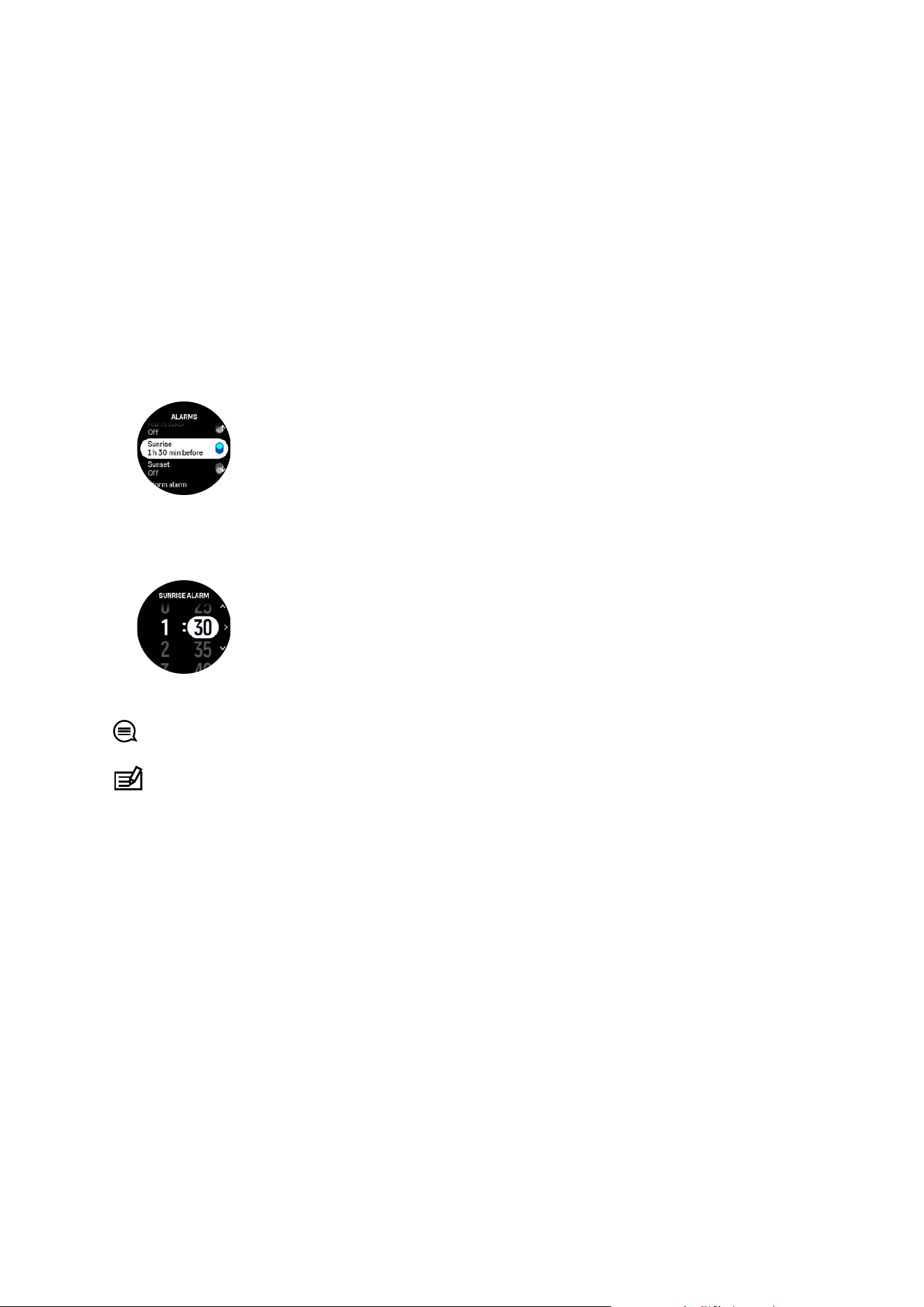
To set sunset/sunrise alarms:
1. From watch face, keep the crown pressed to enter Settings.
2. Scroll to Alarms and enter the menu by tapping on its name or pressing the middle button.
3. Scroll to the alarm that you want to set and select it by tapping on its name or pressing the
crown.
4. Set the desired hours and minutes prior to sunrise/sunset by scrolling up and down with
the crown or by swiping up and down on the screen and
confirming with the middle
button.
5. Press the middle button to confirm and exit.
TIP: A watch face is also available that shows sunrise and sunset times.
NOTE: Sunrise and sunset times and alarms require a GPS fix. The times are blank until
GPS data is available.
3.15.2. Storm alarm
A
significant drop in barometric pressure typically means a storm is coming and you should
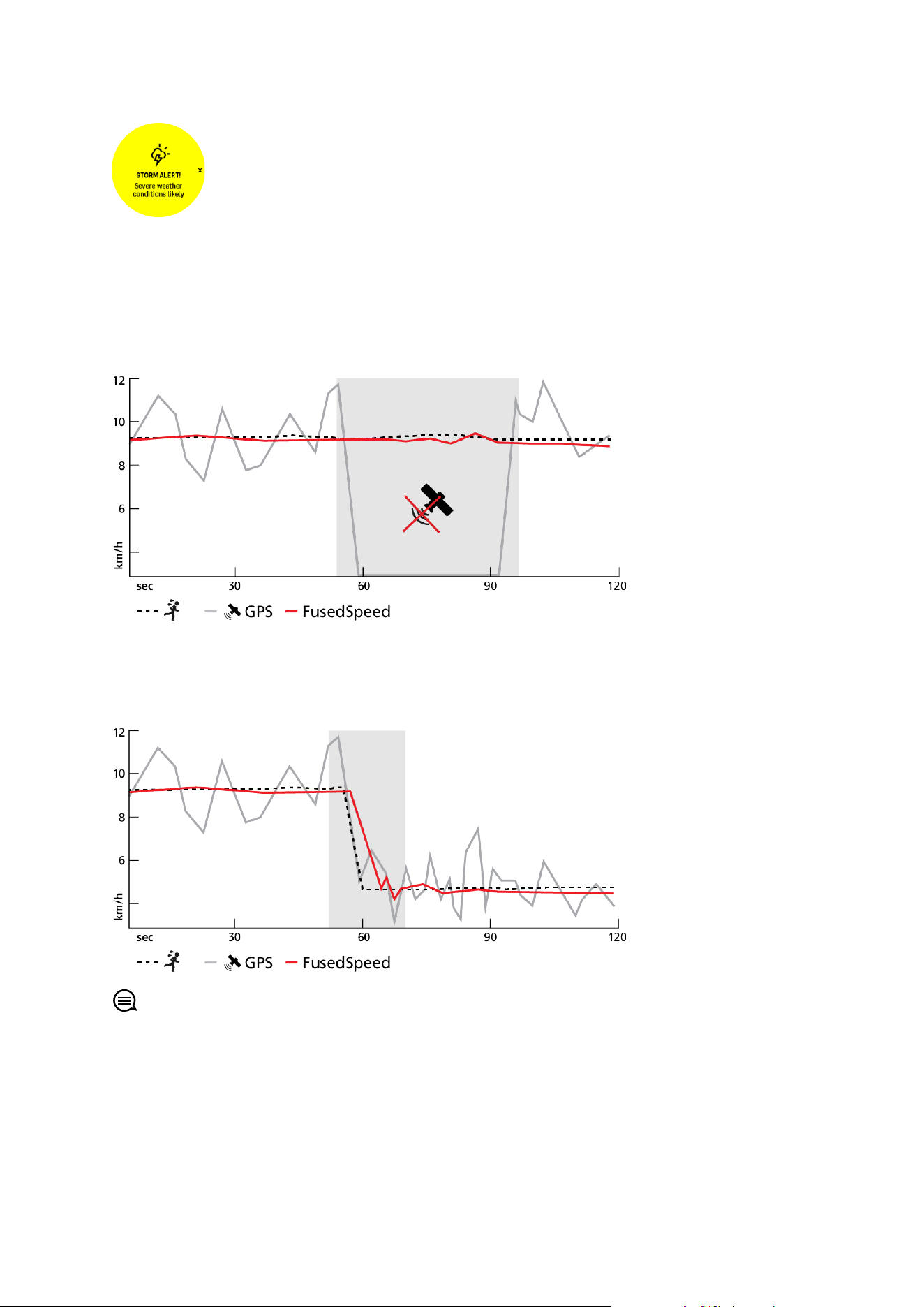
take cover. When the storm alarm is active, Suunto Race 2 sounds an alarm and displays a
storm symbol when the pressure drops 4 hPa (0.12 inHg) or more during a 3-hour period.
To activate the storm alarm:
1. From watch face, keep the crown pressed to enter Settings.
2. Scroll to Alarms and enter the menu by tapping on its name or pressing the crown.
3. Scroll to Storm alarm and toggle it
on/o by tapping on its name or pressing the crown.
When a storm alarm sounds, pressing any button ends the alarm. If no button is pressed, the
alarm
notification lasts for one minute. The storm symbol remains on the display until the
weather conditions stabilize (pressure drop slows down).
Suunto Race 2
19
3.16. FusedSpeed™
FusedSpeed™ is a unique combination of GPS and wrist acceleration sensor readings for
measuring your running speed more accurately. The GPS signal is adaptively
filtered based
on wrist acceleration, giving more accurate readings at steady running speeds and quicker
responses to changes in speed.
FusedSpeed benefits you the most when you need highly reactive speed readings during
training, for example, when running on uneven terrain or during interval training. If you
temporarily lose the GPS signal, for example, Suunto Race 2 is able to continue showing
accurate speed readings with the help of the GPS calibrated accelerometer.
TIP: To get the most accurate readings with FusedSpeed, only glance shortly at the
watch when needed. Holding the watch in front of you without moving it reduces the
accuracy.
FusedSpeed is automatically enabled for running and other similar types of activities, such as
orienteering,
floor ball and football (soccer).
Suunto Race 2
20

3.17. FusedAlti
FusedAltiTM provides an altitude reading that is a combination of GPS and barometric
altitude. It minimizes the eect of temporary and oset errors in the final altitude reading.
NOTE: By default, altitude is measured with FusedAlti during exercises that use GPS and
during navigation. When GPS is switched
o, altitude is measured with the barometric sensor.
3.18. Altimeter
Suunto Race 2 uses barometric pressure to measure altitude. To get accurate readings, you
need to
define an altitude reference point. This can be your current elevation if you know the
exact value. Alternatively, you can use FusedAlti (see 3.17. FusedAlti) to set your reference
point automatically.
Set your reference point from the settings under Alti & baro.
3.19. Position formats
The position format is the way your GPS position is displayed on the watch. All the formats
relate to the same location, they only express it in a dierent way.
You can change the position format in the watch settings under Navigation » Position format.
Latitude/longitude is the most commonly used grid and has three
dierent formats:
•
WGS84 Hd.d°
•
WGS84 Hd°m.m'
•
WGS84 Hd°m's.s
Other common position formats available include:
•
UTM (Universal Transverse Mercator) gives a two-dimensional horizontal position
presentation.
•
MGRS (Military Grid Reference System) is an extension of UTM and consists of a grid zone
designator, 100,000-meter square
identifier and a numerical location.
Suunto Race 2 also supports the following local position formats:
•
BNG (British)
•
ETRS-TM35FIN (Finnish)
•
KKJ (Finnish)
•
IG (Irish)
•
RT90 (Swedish)
•
SWEREF 99 TM (Swedish)
•
CH1903 (Swiss)
•
UTM NAD27 (Alaska)
•
UTM NAD27 Conus
•
UTM NAD83
Suunto Race 2
21

•
NZTM2000 (New Zealand)
NOTE: Some position formats cannot be used in the areas north of 84° and south of 80°,
or outside the countries that they are intended for. If you are outside the allowed area, your
location coordinates cannot be displayed on the watch.
3.20. Device info
You can check details of your watch software and hardware from the settings under General »
About.
3.21. Resetting your watch
All Suunto watches have two types of reset available to address
dierent issues:
•
the first one, the soft reset, also known as the restart.
•
the second one, the hard reset, also known as the factory reset.
Soft reset (restart):
Performing a restart on your watch might help with the following situations:
•
the device is not responding to any button presses, taps, or swipes (the touch screen is
not working).
•
the display is either frozen or blank.
•
there is no vibration, e.g., during button presses.
•
the watch functionalities are not working as expected, e.g., the watch does not record
your heart rate (optical heart rate LEDs are not blinking), the compass is not
finalizing the
calibration process, etc.
•
the step counter is not counting your daily steps at all (please note, recorded steps may
be shown with a delay in the app).
NOTE: The restart will end and save any active exercise. Under normal circumstances,
the exercise data will not be lost. On rare occasions, a soft reset may cause memory
corruption issues.
Press and hold the upper button for 12 seconds and release it to perform a soft reset.
There are
specific circumstances under which the soft reset might not solve the issue and the
second type of reset may be performed. If the above has not helped with the issue you were
aiming to solve; the hard reset might help.
The hard reset (factory reset):
The factory reset will restore your watch to the default values. It will erase all data from your
watch, including exercise data, personal data and settings that have not been synced to
Suunto app. After a hard reset, you must go through the initial setup of your Suunto watch.
Performing a factory reset on your watch may be performed in the following situations:
•
a Suunto Customer Support representative has asked you to do so as part of the
troubleshooting procedure.
•
the soft reset did not solve the issue.
•
the battery life of your device is
significantly reducing.
Suunto Race 2
22

•
the device is not connecting to GPS and other troubleshooting has not helped.
•
the device has connectivity issues with Bluetooth devices (e.g., Smart Sensor or mobile
app) and other troubleshooting has not helped.
The factory reset of your watch is done via the Settings on your watch. Select General and
scroll down to Reset settings. All data on your watch will be deleted during the reset. Initiate
the reset by selecting Reset.
NOTE: The factory reset deletes the previous pairing information your watch might have
had. To start the pairing process with the Suunto app again, we recommend you delete the
previous pairing from the Suunto app and your phone's Bluetooth - under Paired devices.
NOTE: Both presented scenarios are to be performed only for emergencies. You should
not perform them regularly. If any issue persists, we recommend you either contact our
Customer Support or send your watch to one of your authorized service centers.
Suunto Race 2
23

4. Recording an exercise
In addition to 24/7 activity monitoring, you can use your watch to record your training
sessions or other activities to get detailed feedback and follow your progress.
To record an exercise:
1. Put on a heart rate sensor (optional).
2. Swipe down from watch face or turn the crown.
3. Find the sport mode you want to use by scrolling up and select it by pressing the crown.
4. Dierent sport modes have dierent options, swipe up or turn the crown to scroll through
them and adjust them by pressing the crown.
5. Above the start indicator, a set of icons appears, depending on what you are using with
the sport mode (such as heart rate and connected GPS):
•
The arrow icon (connected GPS) flashes gray while searching and turns green once a
signal is found.
•
The heart icon (heart rate) flashes gray while searching and once a signal is found, it
turns into a colored heart attached to a belt if you are using a heart rate sensor or a
colored heart without the belt if you are using the optical heart rate sensor.
•
The icon to the left is only visible if you have a POD paired and it turns green when the
POD signal is found.
There is also a battery estimation visible, that tells you how many hours you can exercise
before the battery runs out.
If you are using a heart rate sensor but the icon turns to green only (meaning that the
optical heart rate sensor is active), check that the heart rate sensor is paired, see 3.13.
Pairing pods and sensors, and try again.
We recommend you to wait for each icon to turn green before starting an exercise for
more accurate data. Start the recording by selecting Start.
Once the recording is started, the selected heart rate source is locked and cannot be
changed during the ongoing training session.
6. While recording, you can switch between displays by pressing the crown.
7. Press the upper button to pause the recording. A timer starts blinking at the bottom of the
screen showing how long the recording has been paused.
8. Press the lower button to open the list of options.
9. Stop and save by selecting End.
Suunto Race 2
24

NOTE: It is also possible to delete your exercise log by selecting Discard.
After you stop the recording, you are asked how you felt. You can answer or skip the question
(see 4.11. Feeling). The next screen shows a summary of the activity that you can browse
through with the touch screen or by turning the crown.
If you made a recording you do not want to keep, you can delete the log entry by scrolling to
the bottom of the summary and tapping the delete button. You can also delete logs in the
same way from the logbook.
4.1. Sport modes
Your watch comes with a wide range of pre-defined sport modes. The modes are designed
for specific activities and purposes, from a casual walk outside to a triathlon race.
Before you record an exercise (see 4. Recording an exercise), you can view and select from
the complete list of sport modes.
Each sport mode has a unique set of displays that show
dierent data depending on the
selected sport mode. You can edit and customize the data shown on the watch display during
your exercise with Suunto app.
Learn how to customize sport modes in Suunto app (Android) or Suunto app (iOS).
4.2. Navigating during exercise
You can navigate a route or to a POI while you are recording an exercise.
The sport mode you are using needs to have GPS enabled to be able to access the
navigation options. If the sport mode GPS accuracy is OK or Good, when you select a route or
POI, the GPS accuracy is changed to Best.
To navigate during exercise:
1. Create a route or POI in Suunto app and sync your watch if you haven't done so already.
2. Select a sport mode that uses GPS.
3. Scroll down and select Navigation.
4. Swipe up and down or use the crown to select a navigation option and press the crown.
5. Select the route or POI you want to navigate and press the crown. Then press the upper
button to start navigating.
6. Scroll up to the start view and start your recording as normal.
While exercising, press the crown to scroll to the navigation display where you will see the
route or POI that you selected. For more information on the navigation display, see 5.5.2.
Navigating to a POI and 5.4. Routes.
While on this display, press the lower button to open your navigation options. From the
navigation options, you can, for example, select a
dierent route or POI, check your current
location coordinates, as well as end navigation by selecting Breadcrumb.
Suunto Race 2
25
4.2.1. Find back
If you are using GPS when recording an activity, Suunto Race 2 automatically saves the
starting point of your exercise. With Find back, Suunto Race 2 can guide you directly back to
your starting point.
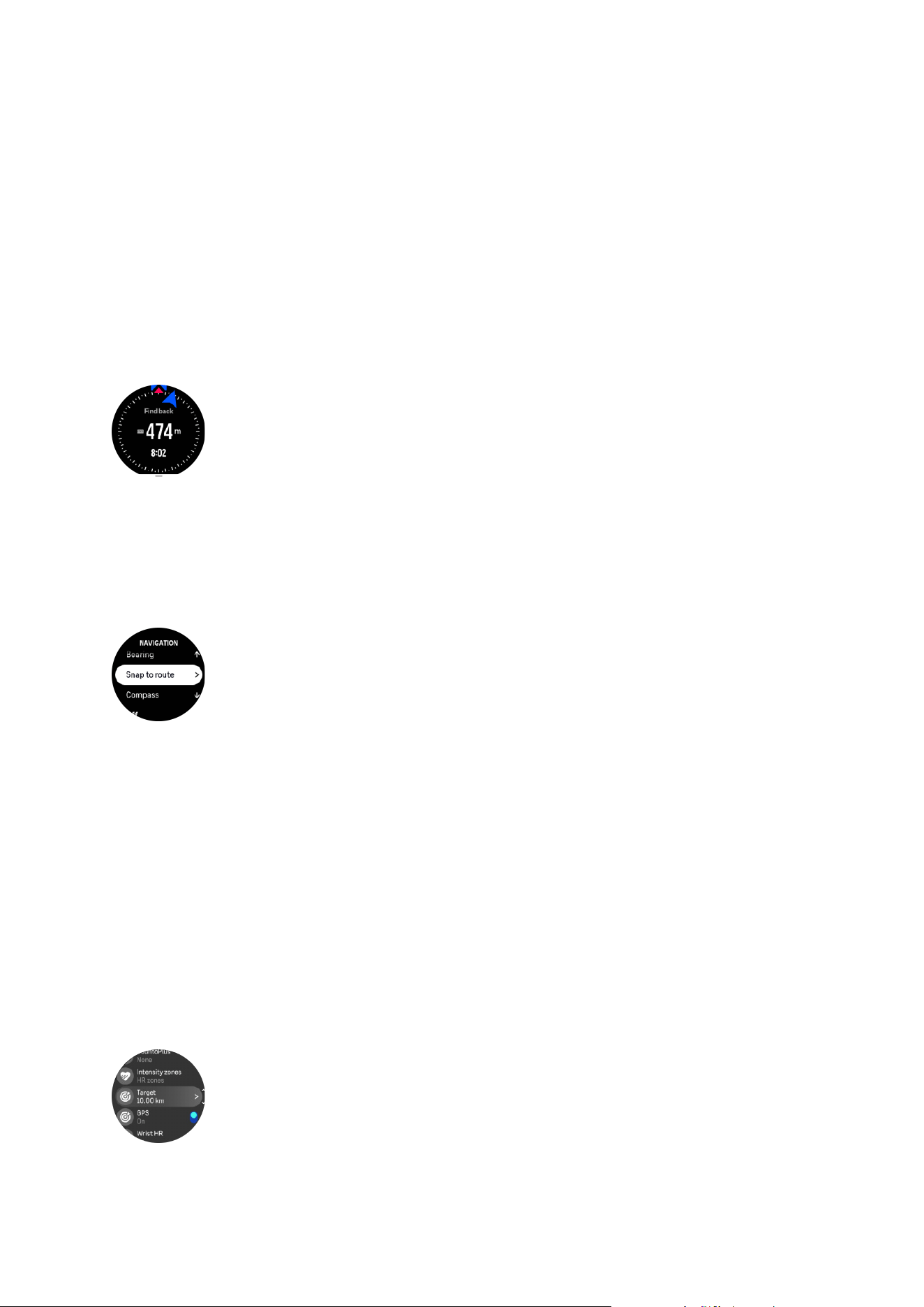
To start Find back:
1. Start an exercise with GPS.
2. Press the crown until you reach the navigation display.
3. Press the lower button to open the shortcut menu.
4. Scroll to Find back and tap the screen or press the middle button to select.
The navigation guidance is shown in the navigation display.
4.2.2. Snap to route
In urban surroundings the GPS can struggle to follow you correctly. If you select one of your
predefined routes and follow that route, the watch GPS is used purely to locate where you are
on the predefined route, not actually creating a track from the run. The recorded track will be
identical to the route used for the run.
To use Snap to route during exercise:
1. Create a route in Suunto app and sync your watch if you haven't done so already.
2. Select a sport mode that uses GPS.
3. Scroll down and select Navigation.
4. Select Snap to route and press the middle button.
5. Select the route you want to use and press the middle button.
Start your exercise as normal and follow the selected route.
4.3. Using targets when exercising
It is possible to set
dierent targets with your Suunto Race 2 when exercising.
If the sport mode you selected has targets as an option, you can adjust them before starting
the recording by swiping up or turning the crown.
To exercise with general target:
Suunto Race 2
26
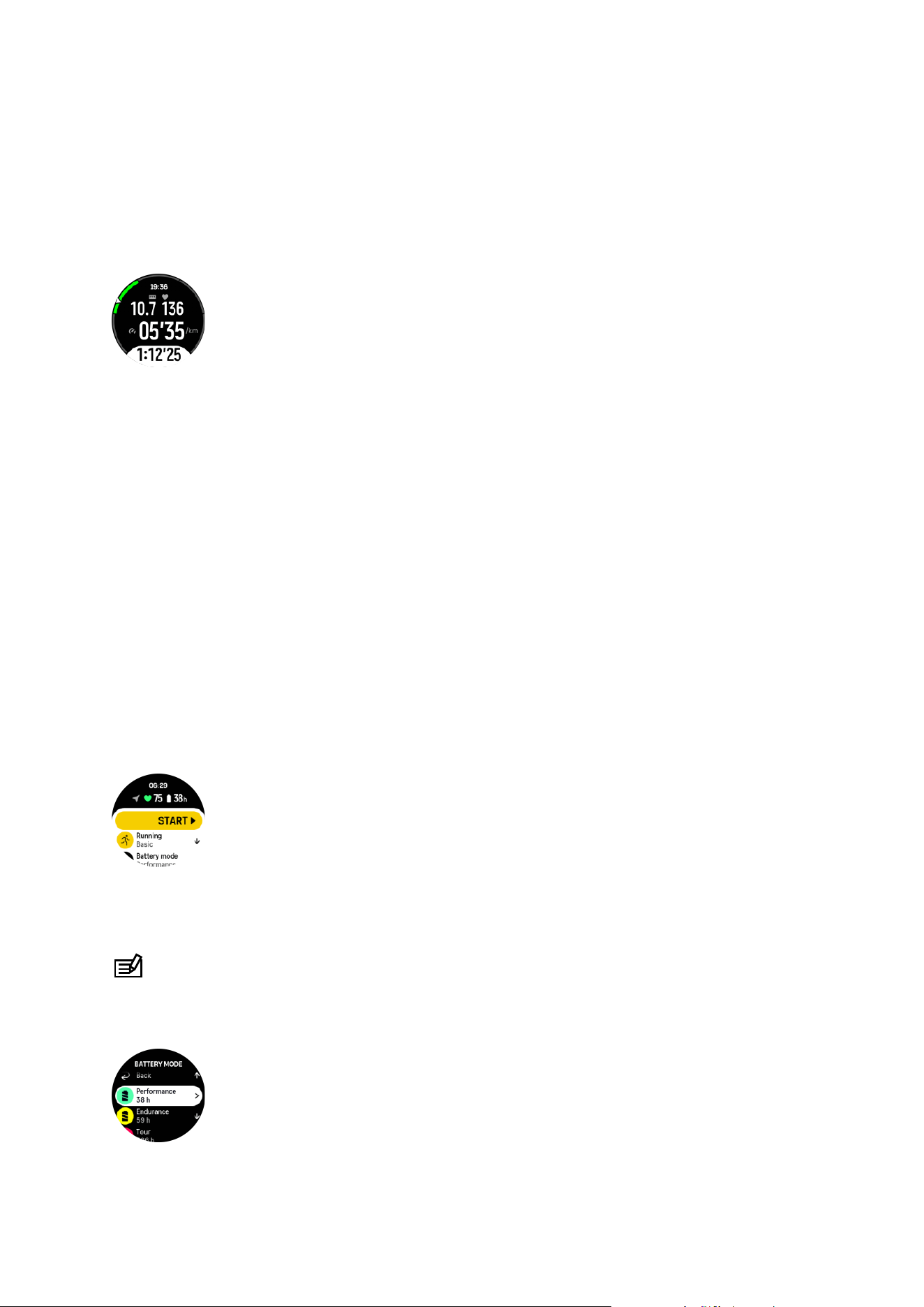
1. Before you start an exercise recording, swipe up or turn the crown and select Target.
2. Select Duration or Distance.
3. Select your target.
4. Scroll up and start your exercise.
When you have general targets activated, a target gauge is visible on every data display
showing your progress.
You will also receive a notification when you have reached 50% of your target and when your
selected target is fulfilled.
To exercise with intensity target:
1. Before you start an exercise recording, swipe up or turn the crown and select Intensity
zones.
2. Select HR zones, Pace zones or Power zones.
(The options depend on selected sport mode and if you have a power pod paired with the
watch).
3. Select your target zone.
4. Scroll up and start your exercise.
4.4. Battery power management
Your Suunto Race 2 has a battery power management system that uses intelligent battery
technology to help ensure your watch does not run out of power when you need it most.
Before you start recording an exercise (see 4. Recording an exercise) you see an estimate of
how much battery life you have left in the current battery mode.
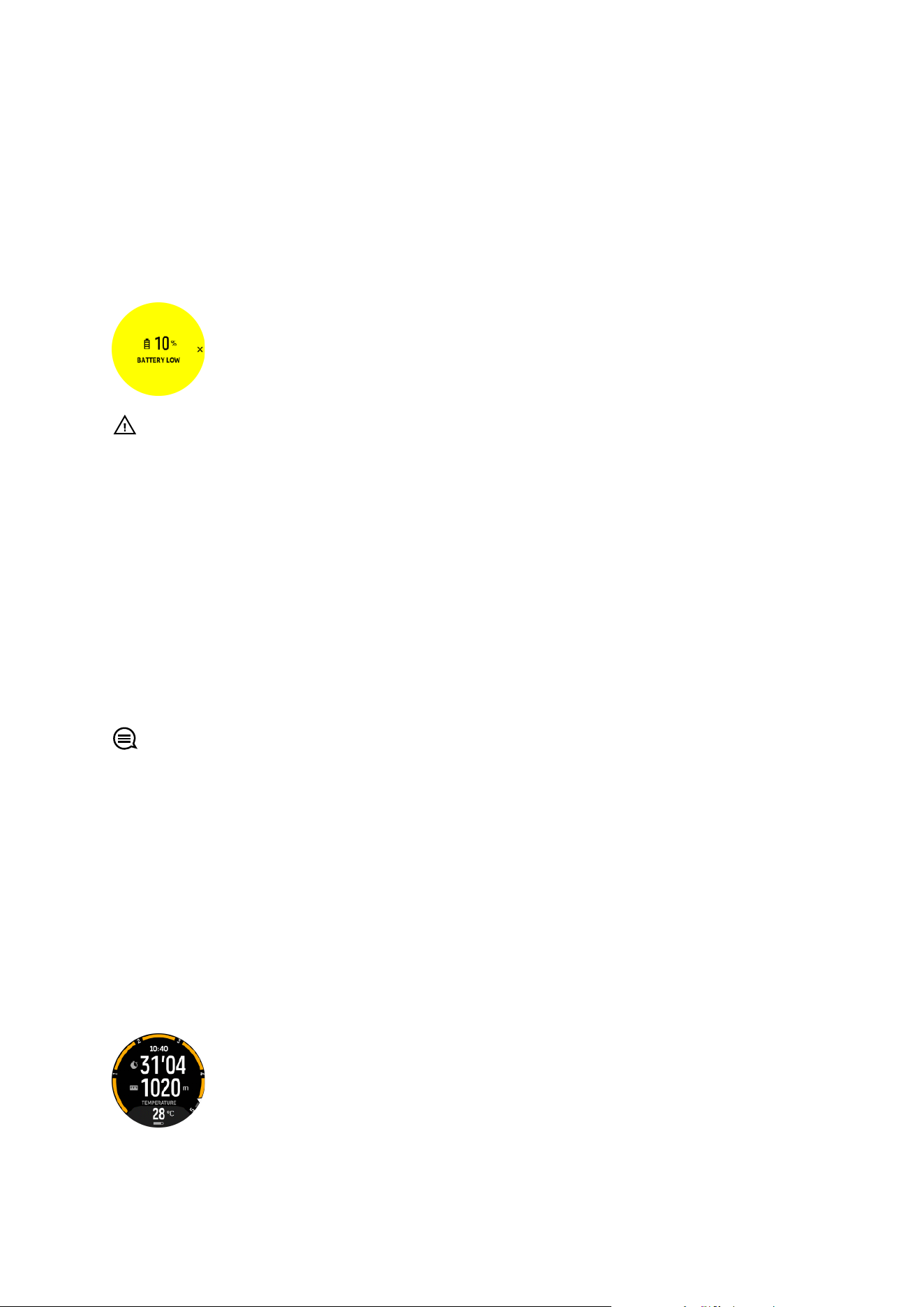
There are four predefined battery modes; Performance (default), Endurance, Ultra and Tour.
Changing between these modes will change the lifetime of the battery but also changes the
performance of the watch.
NOTE: By default, Tour mode disables all HR tracking (both wrist and chest).
While in the start display, scroll down and select Battery mode to change battery modes and
see how each mode aects the performance of the watch.
Suunto Race 2
27
Battery notifications
In addition to the battery modes, your watch uses smart reminders to help you ensure you
have enough battery life for your next adventure. Some reminders are preemptive based on,
for example, your activity history. You also get notified, for example, when the watch notices
you are running low on battery while recording an activity. It will automatically suggest
changing to a dierent battery mode.
Your watch will alert you once when the battery is at 20% and again at 10%.
CAUTION: Only use the provided charging cable when charging your Suunto Race 2.
4.5. Multisport exercise
Your Suunto Race 2 has predefined Triathlon sport modes that you can use to track your
Triathlon exercises and races but if you need to track another sort of multisport activity, you
can easily do so directly from the watch.
To use multisport exercises:
1. Select the sport mode you want to use for the
first leg of your multisport exercise.
2. Start recording an exercise as normal.
3. Press and hold the upper button for two seconds to enter multisport menu.
4. Select the next sport mode you want to use and press the middle button.
5. The recording with the new sport mode will start immediately.
TIP: You can change sport mode as many times you need during one single recording,
including a sport mode you used previously.
4.6. Snorkeling and mermaiding
You can use your Suunto Race 2 for snorkeling and mermaid diving. These two activities are
normal sport modes and are selected just like any other sport mode, see 4. Recording an
exercise.
The Suunto Race 2 is capable of measuring depth up to 10 m. It is however waterproof up to
100 m according to ISO 22810.
These sport modes have four exercise displays that focus on dive related data. The four
exercise displays are:
Surface
Navigation
Suunto Race 2
28
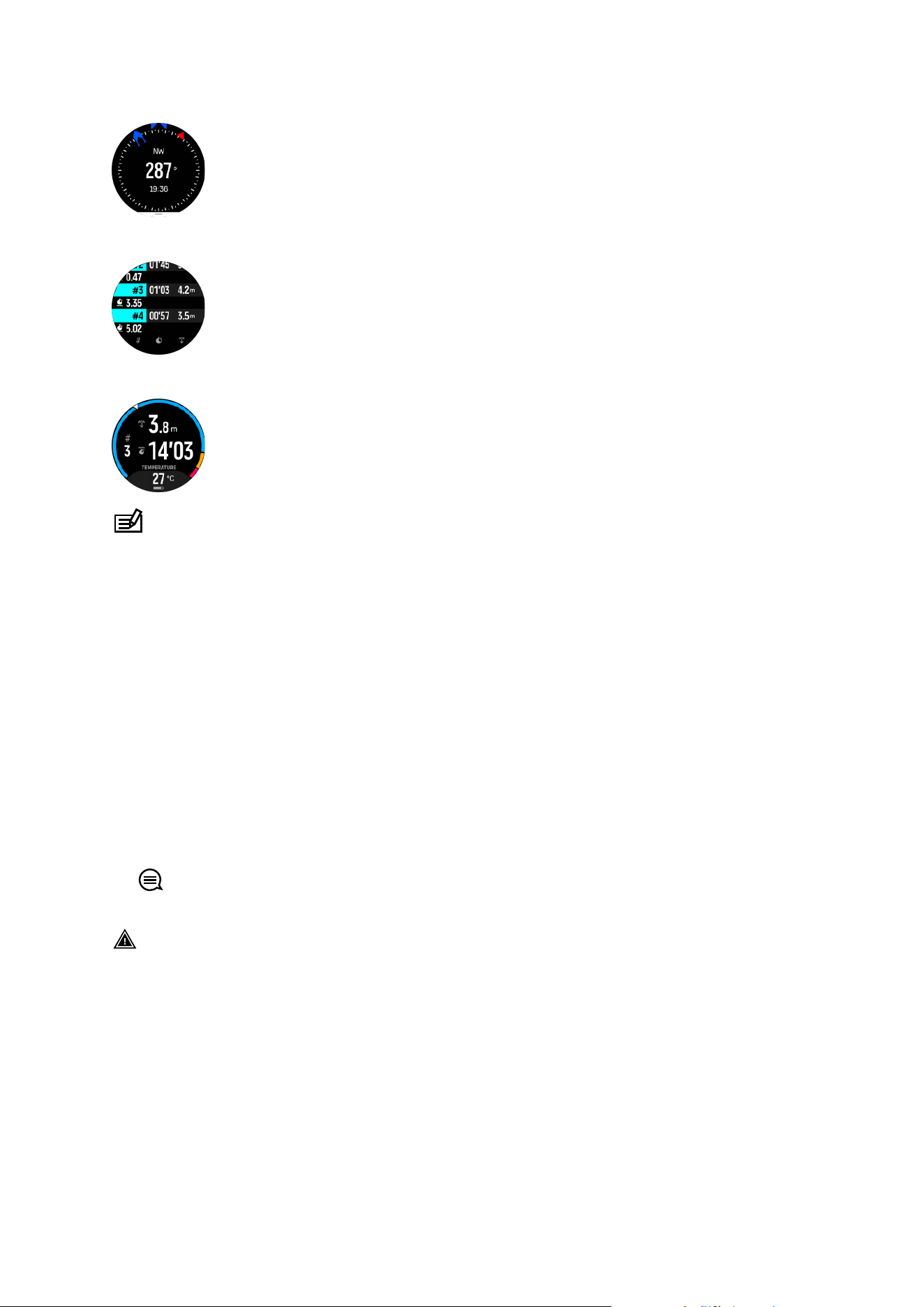
Dive session
Underwater
NOTE: The touch screen is not activated when the watch is underwater.
The default view for Snorkeling and Mermaiding is the Surface view. While recording the
exercise, you can browse between the dierent views by pressing the middle button.
Suunto Race 2 automatically switches between surface and dive state. If you are more than 1
m (3.2 ft) below the surface, the underwater view is activated.
When using the Snorkeling mode, the watch relies on GPS to calculate distance. Because
GPS signals do not travel under water, the watch needs to come out of the water periodically
to get a GPS
fix.
These are challenging conditions for GPS, so it is important that you have a strong GPS signal
before you jump in the water. To ensure good GPS, you should:
•
Sync your watch with Suunto app before you go snorkeling to optimize your GPS with the
latest satellite orbit data.
•
After you selected the Snorkeling mode, wait at least three minutes on land before starting
your activity. This gives the GPS time to establish strong positioning.
TIP: During snorkeling we recommend resting your hands on your lower back for
ecient water movement and optimal distance measurement.
WARNING: Suunto Race 2 is not for certified scuba divers. Recreational scuba diving
may expose the diver to depths and conditions that tend to increase the risk of
decompression sickness (DCS) and errors that may lead to serious injury or death. Trained
divers should always use a dive computer developed for scuba diving purposes.
4.7. Swimming
You can use your Suunto Race 2 for swimming in pools or openwater.
When you use a pool swimming sport mode, the watch relies on the pool length to determine
distance. You can change the pool length as needed under the sport mode options before
you start swimming.
Suunto Race 2
29

Openwater swimming relies on GPS to calculate distance. Because GPS signals do not travel
under water, the watch needs to come out of the water periodically, such as with the freestyle
stroke, to get a GPS fix.
These are challenging conditions for GPS, so it is important that you have a strong GPS signal
before you jump in the water. To ensure good GPS, you should:
•
Sync your watch with your online account before you go swimming to optimize your GPS
with the latest satellite orbit data.
•
After you select an openwater swimming sport mode and a GPS signal is acquired, wait at
least three minutes before starting your swim. This gives the GPS time to establish strong
positioning.
4.8. Interval training
Interval workouts are a common form of training consisting of repetitive sets of high and low
intensity eorts. With Suunto Race 2, you can define in the watch your own interval training
for each sport mode.
When defining your intervals, you have four items to set:
•
Intervals:
on/o toggle that enables interval training. When you toggle this on, an interval
training display is added to your sport mode.
•
Repetitions: the number of interval + recovery sets you want to do.
•
Interval: the length of your high intensity interval, based on distance or duration.
•
Recovery: the length of your rest period between intervals, based on distance or duration.
Keep in mind that if you use distance to
define your intervals, you need to be in a sport mode
that measures distance. The measurement can be based on GPS, or from a foot or bike POD,
for example.
NOTE: If you are using intervals, you cannot activate navigation.
To train with intervals:
1. Before you start an exercise recording, swipe up or turn the crown to scroll down to
Intervals and tap the setting or press the crown.
2. Toggle Intervals on and adjust the settings described above.
3. Scroll back up to the start view and start your exercise as normal.
4. Press the crown until you reach the intervals display and press the upper button when you
are ready to start your interval training.
5. If you want to stop the interval training before you have completed all your repetitions,
keep the crown pressed to open the sport mode options and toggle o Intervals.
NOTE: While you are in the intervals display, buttons work as normal, for example,
pressing the upper button pauses the exercise recording, not just the interval training.
Suunto Race 2
30

After you have stopped your exercise recording, interval training is automatically toggled o
for that sport mode. The other settings, however, are maintained so you can easily start the
same workout the next time you use the sport mode.
4.9. Autopause
Autopause pauses the recording of your exercise when your speed is less than 2 km/h (1.2
mph). When your speed increases to more than 3 km/h (1.9 mph), the recording continues
automatically.
You can turn autopause
on/o for each sport mode in the start exercise view in the watch
before you start your exercise recording.
If you turn this function on and the recording is paused automatically, a timer starts blinking at
the bottom of the screen showing how long the recording has been paused.
You can let the recording resume automatically when you start moving again, or resume it
manually by pressing the upper button.
4.10. Voice feedback
You can get voice feedback with valuable information during your exercise. The feedback can
help you to keep track on your progress and give you useful indicators, depending on what
feedback options you have selected. The voice feedback comes from your phone so your
watch must be paired with Suunto app.
To activate voice feedback before an exercise:
1. Before starting an exercise, scroll down and select Voice feedback.
2. Toggle Voice feedback from app on.
3. Scroll down and select which voice feedback you want activated by turning the toggles
on/o.
4. Go back and start your exercise as you normally do.
Your phone will now bring you various voice feedback during your exercise, depending on
which voice feedback you have activated.
To activate voice feedback during an exercise:
1. Press the upper button to pause the exercise.
2. Press the lower button to open the list of options.
3. Select Control panel.
4. Scroll down and select Voice feedback.
5. Toggle Voice feedback from app on.
6. Scroll down and select which voice feedback you want activated by turning the toggles
on/o.
7. Go back and resume your exercise by pressing the upper button.
Suunto Race 2
31

4.11. Feeling
If you are training regularly, following how you feel after each session is an important indicator
of your overall physical condition. A coach or personal trainer can also use your feeling trend
to track your progress over time.
There are five degrees of feeling to choose from:
•
Poor
•
Average
•
Good
•
Very good
•
Excellent
What these options mean exactly are up to you (and your coach) to decide. The important
thing is that you use them consistently.
For each training session, you can record how you felt in the watch directly after stopping the
recording by answering the 'How was it?' question.
You can skip answering the question by pressing the middle button.
4.12. Intensity zones
Using intensity zones for exercising helps guide your fitness development. Each intensity
zone stresses your body in dierent ways, leading to dierent eects on your physical fitness.
There are five dierent zones, numbered 1 (lowest) to 5 (highest), defined as percentage
ranges based on your maximum heart rate (max HR), pace or power.
It is important to train with intensity in mind and understand how that intensity should feel.
And don't forget, regardless of your planned training, that you should always take time to
warm up before an exercise.
The
five dierent intensity zones used in Suunto Race 2 are:
Zone 1: Easy
Exercising in zone 1 is relatively easy on your body. When it comes to
fitness training, intensity
this low is significant mainly in restorative training and improving your basic fitness when you
are just beginning to exercise, or after a long break. Everyday exercise – walking, climbing
stairs, cycling to work, etc. – is usually performed within this intensity zone.
Zone 2: Moderate
Exercising at zone 2 improves your basic
fitness level eectively. Exercising at this intensity
feels easy, but workouts with a long duration can have a very high training eect. The majority
of cardiovascular conditioning training should be performed within this zone. Improving basic
fitness builds a foundation for other exercise and prepares your system for more energetic
activity. Long duration workouts at this zone consume a lot of energy, especially from your
body’s stored fat.
Zone 3: Hard
Suunto Race 2
32

Exercising at zone 3 begins to be quite energetic and feels like pretty hard going. It will
improve your ability to move quickly and economically. In this zone, lactic acid begins to form
in your system, but your body is still able to completely flush it out. You should train at this
intensity at most a couple of times per week, as it puts your body under a lot of stress.
Zone 4: Very hard
Exercising at zone 4 will prepare your system for competition type events and high speeds.
Workouts in this zone can be performed either at constant speed or as interval training
(combinations of shorter training phases with intermittent breaks). High-intensity training
develops your
fitness level quickly and eectively, but done too often or at too high intensity
may lead to overtraining, which may force you to take a long break from your training
program.
Zone 5: Maximal
When your heart rate during a workout reaches zone 5, the training will feel extremely hard.
Lactic acid will build up in your system much faster than it can be removed, and you will be
forced to stop after a few minutes at most. Athletes include these maximum-intensity
workouts in their training program in a very controlled manner,
fitness enthusiasts do not
require them at all.
4.12.1. Heart rate zones
Heart rate zones are
defined as percentage ranges based on your maximum heart rate (max
HR).
By default, your max HR is calculated using the standard equation: 220 - your age. If you
know your exact max HR, you should adjust the default value accordingly.
Suunto Race 2 has default and
activity-specific HR zones. The default zones can be used for
all activities, but for more advanced training, you can use specific HR zones for running and
cycling activities.
Set max HR
Set your maximum HR from the settings under Training » Intensity zones » Default HR zones
for all sports.
1. Tap the max HR (highest value, bpm) or press the crown.
2. Select your new max HR by swiping up or down or by turning the crown.
3. Tap your selection or press the middle button.
4. To exit the HR zones view, swipe right or press the lower button.
NOTE: You can also set your maximum HR from the settings under General » Personal.
Set default HR zones
Set your default HR zones from the settings under Training » Intensity zones » Default HR
zones for all sports.
Suunto Race 2
33
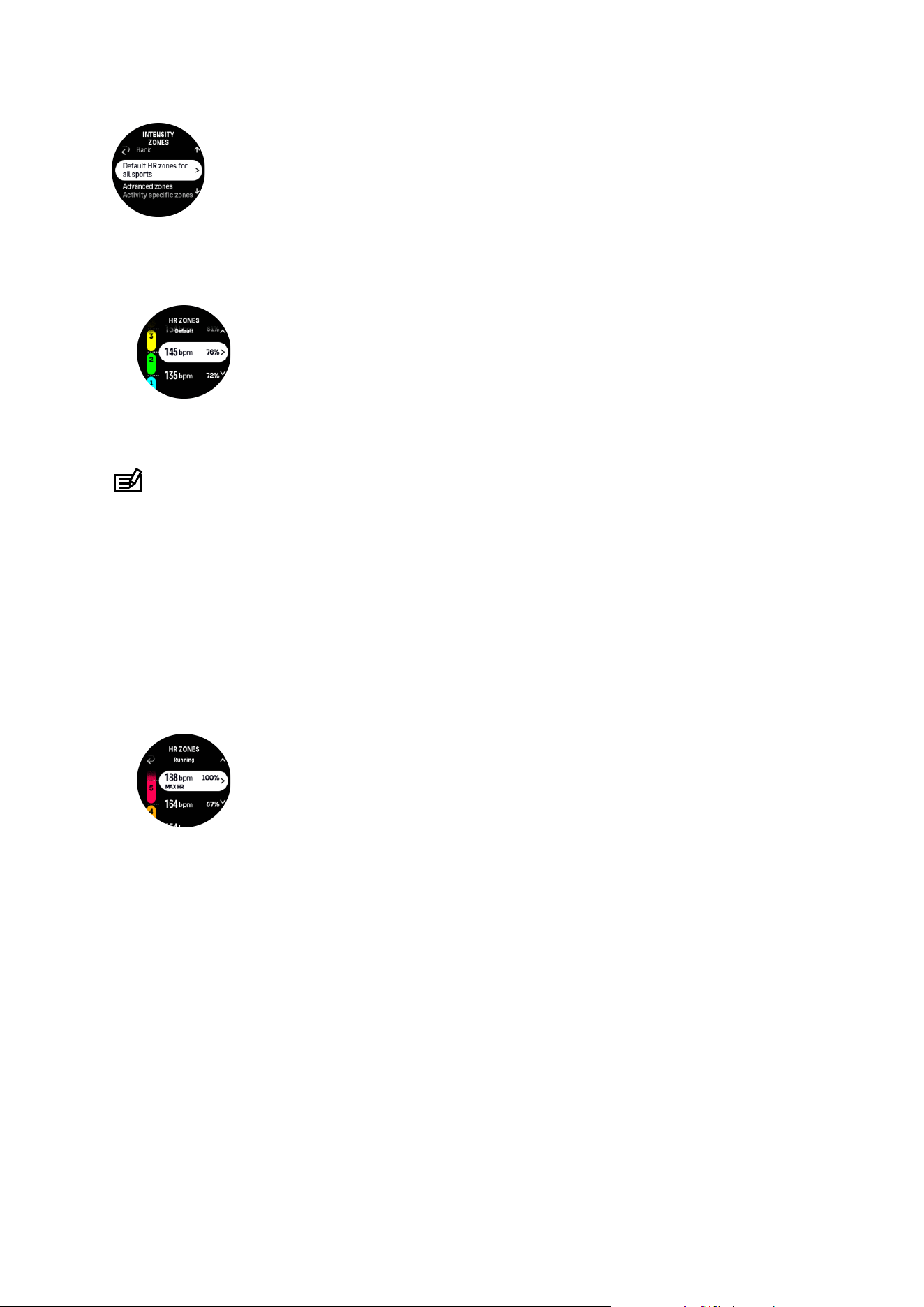
1. Scroll up/down and tap or press the crown when the HR zone you want to change is
highlighted.
2. Select your new HR zone by swiping up or down or by turning the crown.
3. Tap your selection or press the crown.
4. To exit the HR zones view, swipe right or or press the lower button.
NOTE: Selecting Reset in the HR zones view will reset the HR zones to the default value.
Set activity specific HR zones
Set your activity specific HR zones from the settings under Training » Intensity zones »
Advanced zones.
1. Tap the activity (Running or Cycling) that you want to edit or press the crown when the
activity is highlighted.
2. Press the crown to toggle the HR zones on.
3. Scroll up/down and tap or press the crown when the HR zone you want to change is
highlighted.
4. Select your new HR zone by swiping up or down or by turning the crown.
5. Tap your selection or press the crown.
6. To exit the HR zones view, swipe right or press the lower button.
4.12.2. Pace zones
Pace zones work just like HR zones but the intensity of your training is based on your pace
instead of your heart rate. The pace zones are shown either as metric or imperial value
depending on your settings.
Suunto Race 2 has
five default pace zones that you can use or you can define your own.
Pace zones are available for running and cycling.
Set pace zones
Set your activity specific pace zones from the settings under Training » Intensity zones »
Advanced zones.
1. Tap Running or Cycling or press the crown.
Suunto Race 2
34
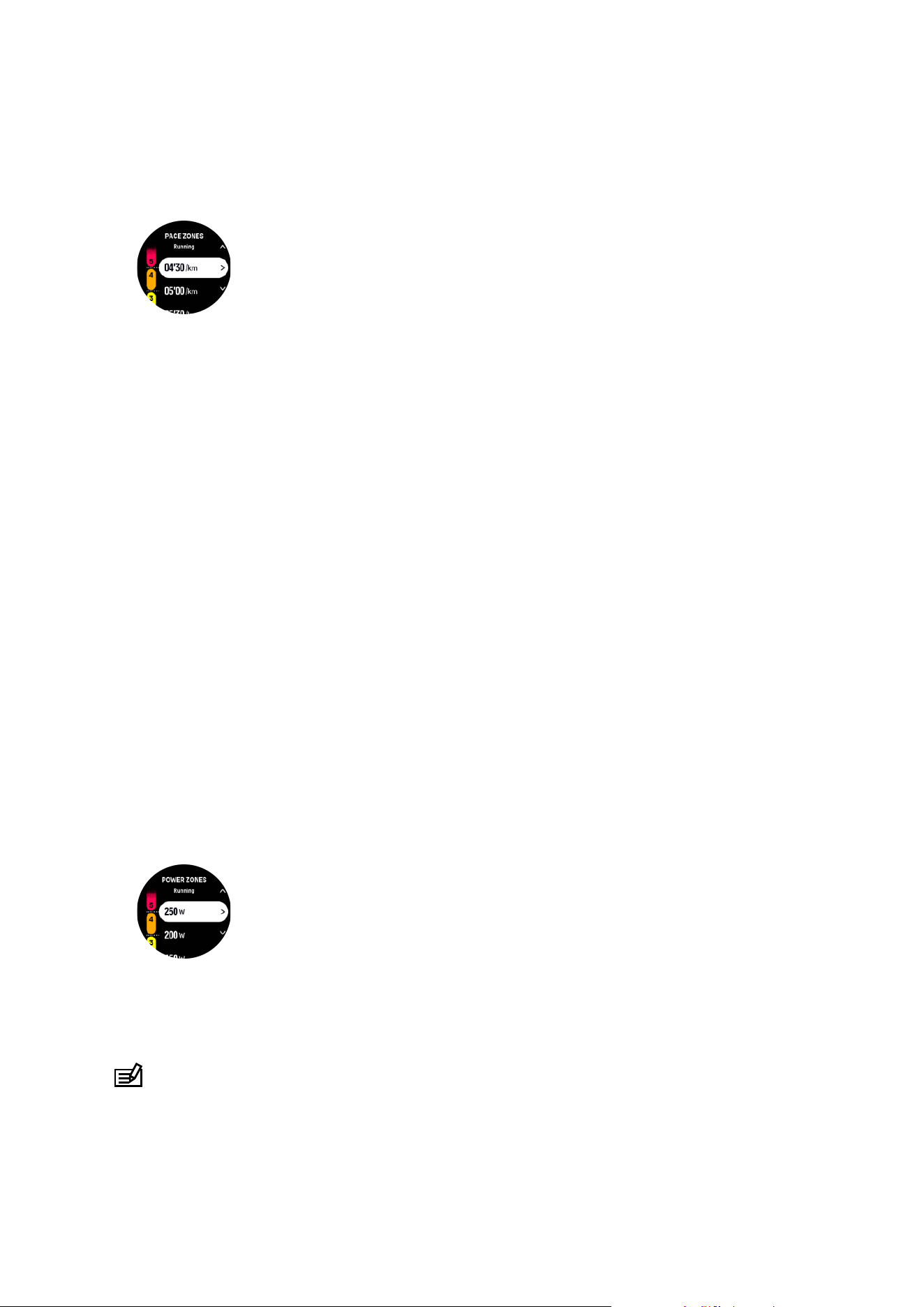
2. Swipe or turn the crown and select pace zones.
3. Swipe up/down or turn the crown and press the crown when the pace zone you want to
change is highlighted.
4. Select your new pace zone by swiping up/down or by turning the crown.
5. Press the crown to select the new pace zone value.
6. Swipe right or press the lower button to exit the pace zones view.
4.12.3. Power zones
Power meter measures the amount of physical eort needed to perform a certain activity. The
eort is measured in watts. The main advantage gained with a power meter is precision. The
power meter reveals exactly how hard you really work and how much power you produce. It
is also easy to see your progress when analyzing the watts.
Power zones can help you train with the correct power output.
Suunto Race 2 has five default power zones that you can use or you can define your own.
Power zones are available in all default sport modes for cycling, indoor cycling and mountain
biking. For running and trail running, you need to use the
specific “Power” sport modes to get
power zones. If you are using custom sport modes, make sure your mode uses a power POD
so that you also get power zones.
Set activity specific power zones
Set your activity
specific power zones from the settings under Training » Intensity zones »
Advanced zones.
1. Tap the activity (running or cycling) that you want to edit or press the crown when the
activity is highlighted.
2. Swipe up or turn the crown and select power zones.
3. Swipe up/down or turn the crown and select the power zone you want to edit.
4. Select your new power zone by swiping up/down or by turning the crown.
5. Press the crown to select the new power value.
6. Swipe right or press the lower button to exit the power zones view.
4.12.4. Using HR, pace or power zones when exercising
NOTE: You need to have a power pod paired with your watch to be able to use power
zones when exercising, see 3.13. Pairing pods and sensors.
When you record an exercise (see 4. Recording an exercise), and have selected HR, pace or
power as an intensity target (see 4.3. Using targets when exercising), a zone gauge, divided
Suunto Race 2
35

into five sections, is viewed. These five sections are shown around the outer edge of the
sport mode display. The gauge indicates the zone you have chosen as an intensity target by
lighting up the corresponding section. The small arrow in the gauge indicates where you are
within the zone range.
Your watch alerts you when you hit your selected target zone. During your exercise the watch
will prompt you to speed up or slow down, if your current HR, pace or power is outside the
selected target zone.
In addition, a dedicated display for intensity zones can be added if you customize the current
sport mode you are using. The zone display shows your current zone in the middle field, how
long you have been in that zone, and how far away you are to the next zones up or down. The
middle bar also lights up, indicating that you are training in the correct zone.
In the exercise summary, you get a breakdown of how much time you have spent in each
zone.
Suunto Race 2
36
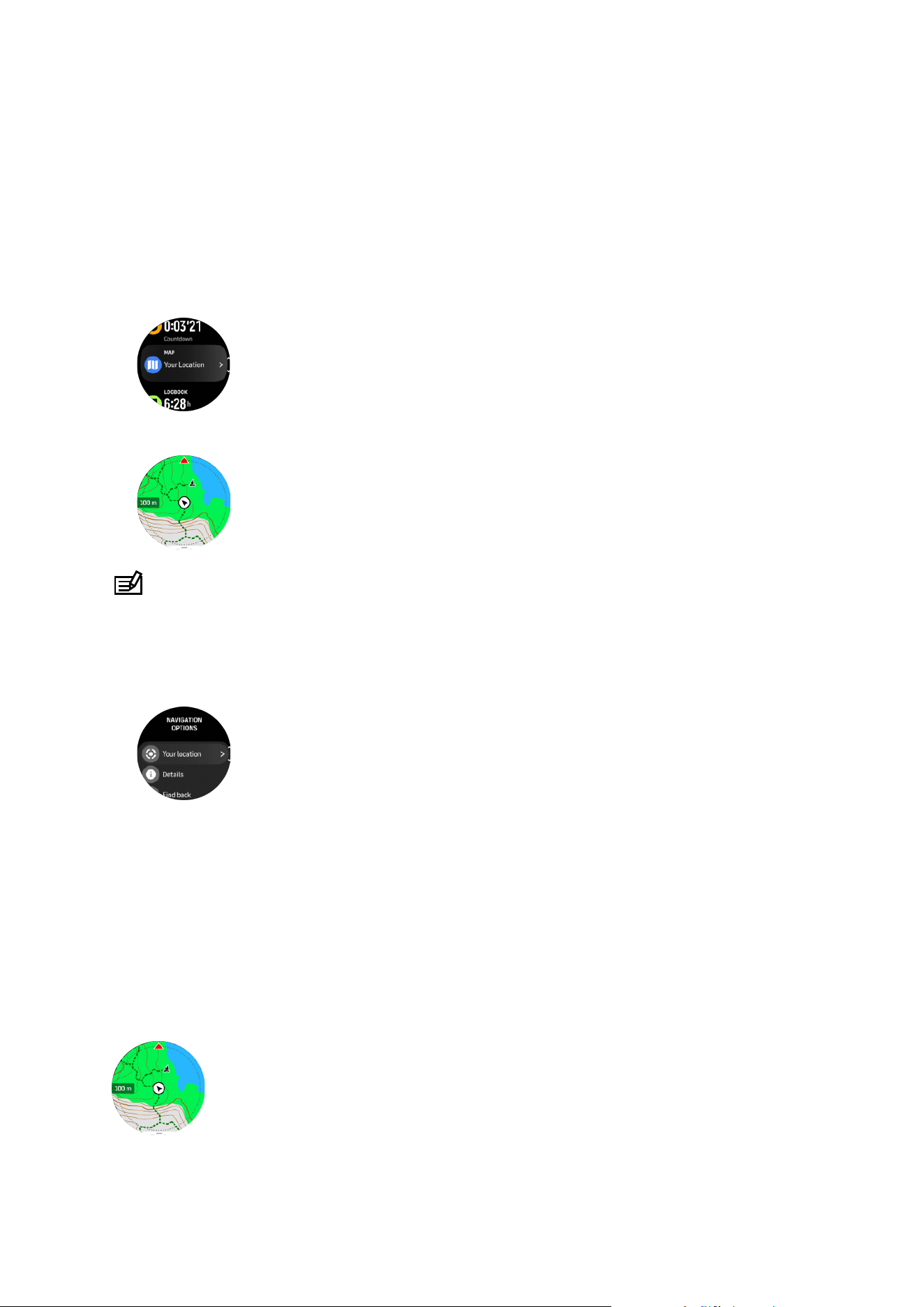
5. Navigation
You can use your watch to navigate in various ways. You can, for example, use it to orient
yourself in relation to magnetic north, navigate a route or to a point of interest (POI).
To use the navigation feature:
1. Swipe up from watch face or turn the crown.
2. Select Map.
3. The map display shows your current location and the surroundings.
NOTE: If the compass is not calibrated, you are prompted to calibrate the compass
when you enter the map.
4. Press the lower button to open a list of shortcuts. The shortcuts give you quick access to
navigation actions such as checking the coordinates of your current location or selecting a
route to navigate.
5.1. Oine maps
With Suunto Race 2 you can have oine maps downloaded on your watch, and leave your
phone behind and find your way just by using your watch.
Before you can use oine maps in your watch, you need to set up a wireless network
connection in Suunto app and download the selected map area to your watch. You will get a
notification on your watch when the map download is complete.
A more detailed instruction on how to set up a wireless network and download
oine maps in
Suunto app is available here.
Select oine maps before exercise:
Suunto Race 2
37

1. Select a sport mode that uses GPS.
2. Scroll down and select Map.
3. Select which map style you want to use and confirm with the middle button.
4. Scroll up and start your exercise as normal.
5. Press the middle button to scroll to the map.
NOTE: If O is selected in map menu, no map will be shown, only a breadcrumb trail.
Select oine maps without exercising:
1. From watch face, swipe up or turn the crown.
2. Select Map.
3. Press the lower button to exit the map.
4. Select Exit.
Map gestures
Lower button
•
Press to open navigation options
Crown
•
Turn to zoom in/zoom out
Swipe and tap
•
Touch and drag the map to pan (If the screen has not been touched for a while, the map
returns to your current location. Set the recenter time in the Navigation settings.)
•
Tap to center the map around your current location
•
Flick to scroll the map
NOTE: If button lock is on, you cannot use the buttons and the swipe and tap functions
in the map view.
5.2. Altitude navigation
If you are navigating a route that has altitude information, you can also navigate based on
ascent and descent using the altitude profile display. During the exercise, press the middle
button to switch to the altitude
profile display.
The altitude profile display shows you the following information:
•
top: your current altitude
•
center: altitude
profile showing your current position
•
bottom: remaining ascent or descent (tap screen to change views)
If you stray too far o from the route while using altitude navigation, your watch will give you
an O route message in the altitude profile display. If you see this message, scroll to the
route navigation display to get back on track before continuing with altitude navigation.
Suunto Race 2
38

5.3. Bearing navigation
Bearing navigation is a feature that you can use outdoors to follow the target path for a
location you see or have found on a map. You can use this feature stand alone as a compass
or together with a paper map.
If you set the target distance and altitude while setting the direction, your watch can be used
to navigate to that target location.
To use bearing navigation during an exercise (only available for outdoor activities):
1. Before you start an exercise recording, swipe up or turn the crown and select Navigation.
2. Select Bearing.
3. If needed, calibrate the compass by following the on-screen instructions.
4. Point the blue arrow on the screen towards your target location and press the middle
button.
5. If you do not know the distance and altitude to the location, select No.
6. Press the crown to acknowledge the set bearing.
7. If you know the distance and altitude to the location, select Yes.
8. Enter the distance and altitude to the location.
9. Press the crown to acknowledge the set bearing.
To use bearing navigation without exercising:
1. Scroll to Map by swiping up or turning the crown from watch face.
2. Press the lower button to open navigation options.
3. Select Bearing navigation.
4. If needed, calibrate the compass by following the on-screen instructions.
5. Point the blue arrow on the screen towards your target location and press the middle
button.
6. If you do not know the distance and altitude to the location, select No and follow the blue
arrow to the location.
7. If you do know the distance and altitude to the location, select Yes.
8. Enter the distance and altitude to the location and follow the blue arrow to the location.
The display will also show the distance and altitude left to the location.
9. Press the lower button and select New Bearing to set a new bearing.
10. Press the lower button and select Exit to end the navigation.
5.4. Routes
You can use your Suunto Race 2 to navigate routes. Plan your route with Suunto app and
transfer it to your watch with the next sync.
To navigate on a route:
1. From watch face, swipe up or turn the crown and select Map.
Suunto Race 2
39
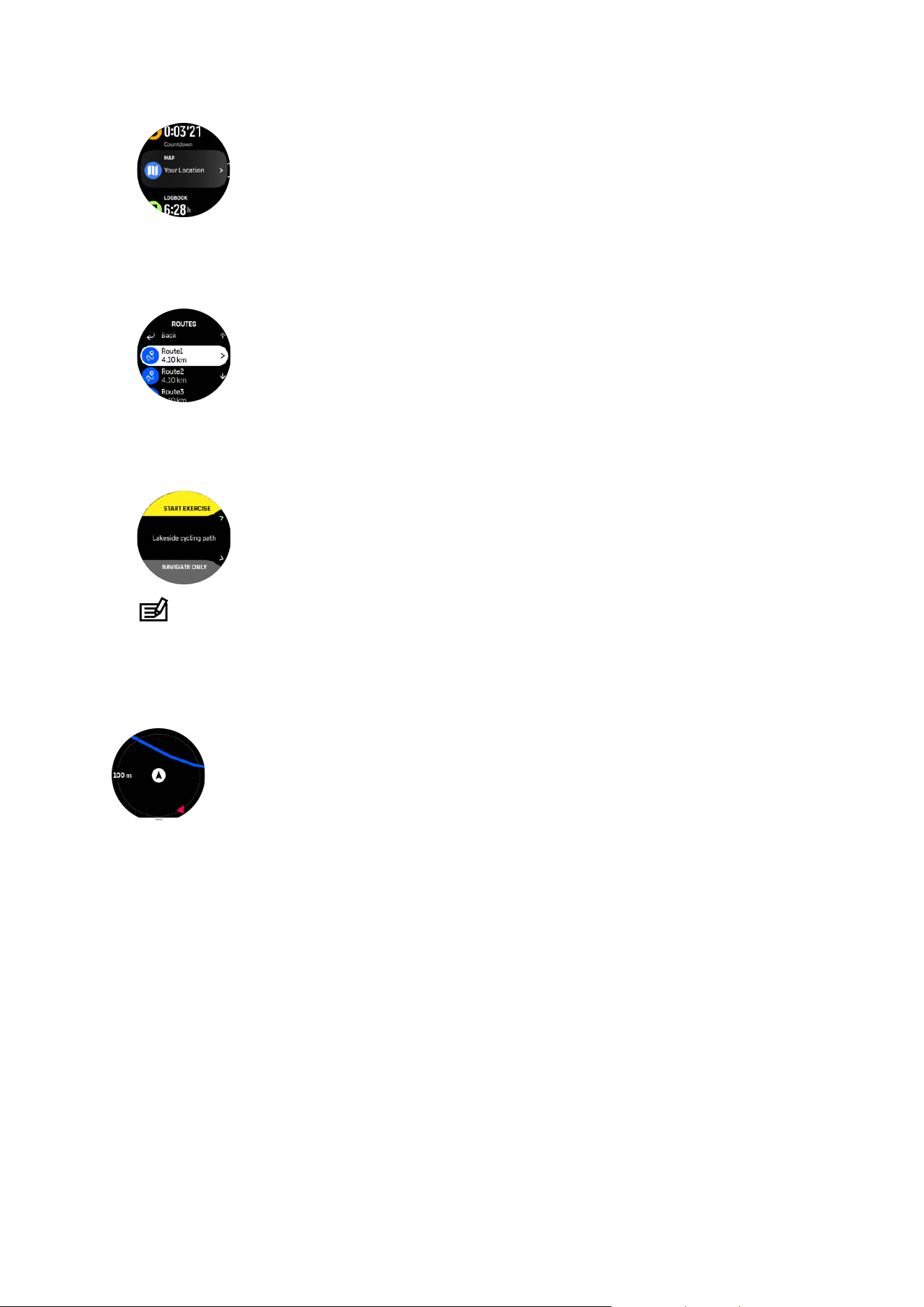
2. In the map display, press the lower button.
3. Scroll to Routes and press the crown to open your list of routes.
4. Scroll to the route you want to navigate to and press the crown.
5. Select the route by pressing the upper button.
6. Select Start exercise if you want to use the route for exercising or select Navigate only if
you only want to navigate the route.
NOTE: If you only navigate the route, nothing will be saved or logged in Suunto app.
7. If you only navigate the route, press the lower button and select End navigation to stop
navigating. If you navigate during an exercise, press the lower button and select
Breadcrumb to stop navigating without quitting the exercise.
If the
oine maps are o, only the route is shown. Adjust the zoom level with the crown.
While you are in the route navigation display, you can press the lower button to open
navigation menu. The menu gives you quick access to navigation actions such as saving your
current location or selecting another route to navigate.
All sport modes with GPS also have a route selection option. See 4.2. Navigating during
exercise.
Navigation guidance
As you navigate a route, your watch helps you stay on the correct path by giving you
additional data in the navigation guidance
field at the bottom of the screen and sending you
notifications as you progress along the route.
For example, if you go more than 100 m (330 ft) o route, the watch notifies you that you are
not on the right track, as well as lets you know when you are back on route.
Suunto Race 2
40

The guidance field shows the distance to the next waypoint (if there are no waypoints on your
route, the distance to the end of the route is shown). Once you approach a waypoint or POI
on the route, you get an informative popup showing the distance to the next waypoint or POI.
NOTE: If you are navigating a route that crosses itself, such as a figure-8, and you make
a wrong turn at the crossing, your watch assumes you are intentionally going in a dierent
direction on the route. The watch shows the next waypoint based on the current, new
direction of travel. So, keep an eye on your breadcrumb trail to ensure you are going the
right way when you are navigating a complicated route.
Turn-by-turn navigation
When creating routes in Suunto app, you can choose to activate turn-by-turn instructions.
When the route is transferred to your watch and used for navigation, it will give you turn-by-
turn instructions with a sound alert and information on which way to turn.
5.5. Points of interest
A point of interest, or POI, is a special location, such as camping spot or vista along a trail, you
can save and navigate to later. You can create POIs in Suunto app from a map and do not
have to be at the POI location. Creating a POI in your watch is done by saving your current
location.
Each POI is
defined by:
•
POI name
•
POI type
•
Date and time created
•
Latitude
•
Longitude
•
Elevation
You can store up to 250 POIs in your watch.
5.5.1. Adding and deleting POIs
You can add a POI to your watch either with Suunto app or by saving your current location in
the watch.
If you are outside with your watch and come across a spot you want to save as a POI, you can
add the location directly in your watch.
To add a POI with your watch:
1. Swipe up or turn the crown and select Map.
2. From the map display, press the lower button.
3. Select Your location and press the crown.
4. Wait for the watch to activate GPS and
find your location.
Suunto Race 2
41
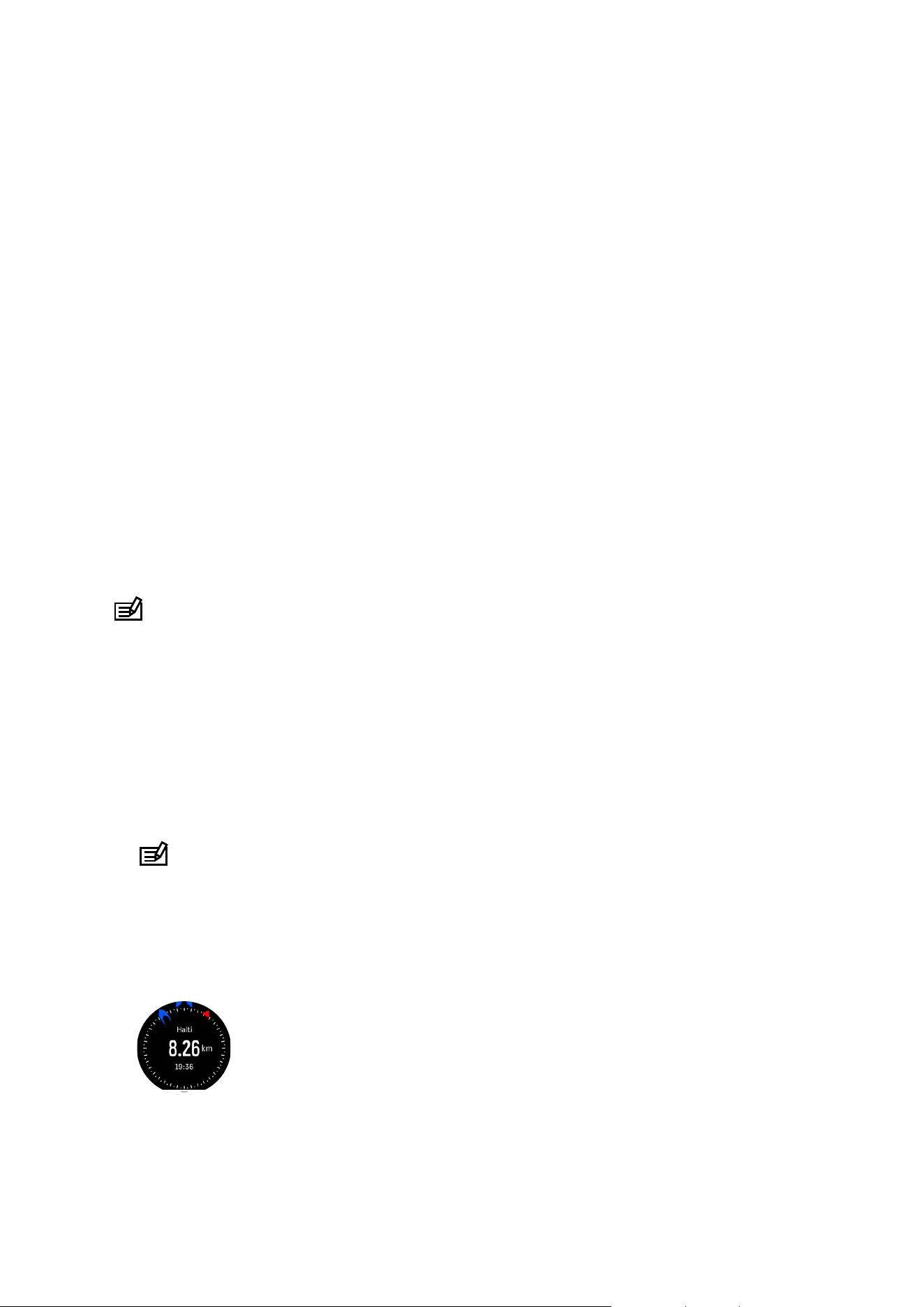
5. When the watch displays your latitude and longitude, press the upper button to save your
location as a POI and select the POI type.
6. By default the POI name is the same as the POI type (with a running number after it). You
can edit the name later in Suunto app.
Deleting POIs
You can remove a POI by deleting the POI from the POI list in the watch or removing it in
Suunto app.
To delete a POI in your watch:
1. Swipe up or turn the crown and select Map.
2. From the map display, press the lower button.
3. Select POIs and press the crown.
4. Scroll to the POI you want to remove from the watch and press the crown.
5. Scroll to the end of the details and select Delete.
When you delete a POI from your watch, the POI is not permanently deleted.
To permanently delete a POI, you need to delete the POI in Suunto app.
5.5.2. Navigating to a POI
You can navigate to any POI that is in your watch POI list.
NOTE: When navigating to a POI, your watch uses full power GPS.
To navigate to a POI:
1. Swipe up or turn the crown and select Map.
2. From the map display, press the lower button.
3. Select POIs and press the crown.
4. Scroll to the POI you want to navigate to and press the crown.
5. Press the upper button or tap Select.
6. Select Start exercise if you want to use the POI for exercising or select Navigate only if
you only want to navigate to the POI.
NOTE: If you only navigate to the POI, nothing will be saved or logged in Suunto app.
7. If you only navigate the route, press the lower button and select End navigation to stop
navigating. If you navigate during an exercise, press the lower button and select
Breadcrumb to stop navigating without quitting the exercise.
The POI navigation has two views:
•
POI view with direction indicator and distance to the POI
•
map view showing your current location relative to the POI and your breadcrumb trail (the
track you have traveled)
Suunto Race 2
42
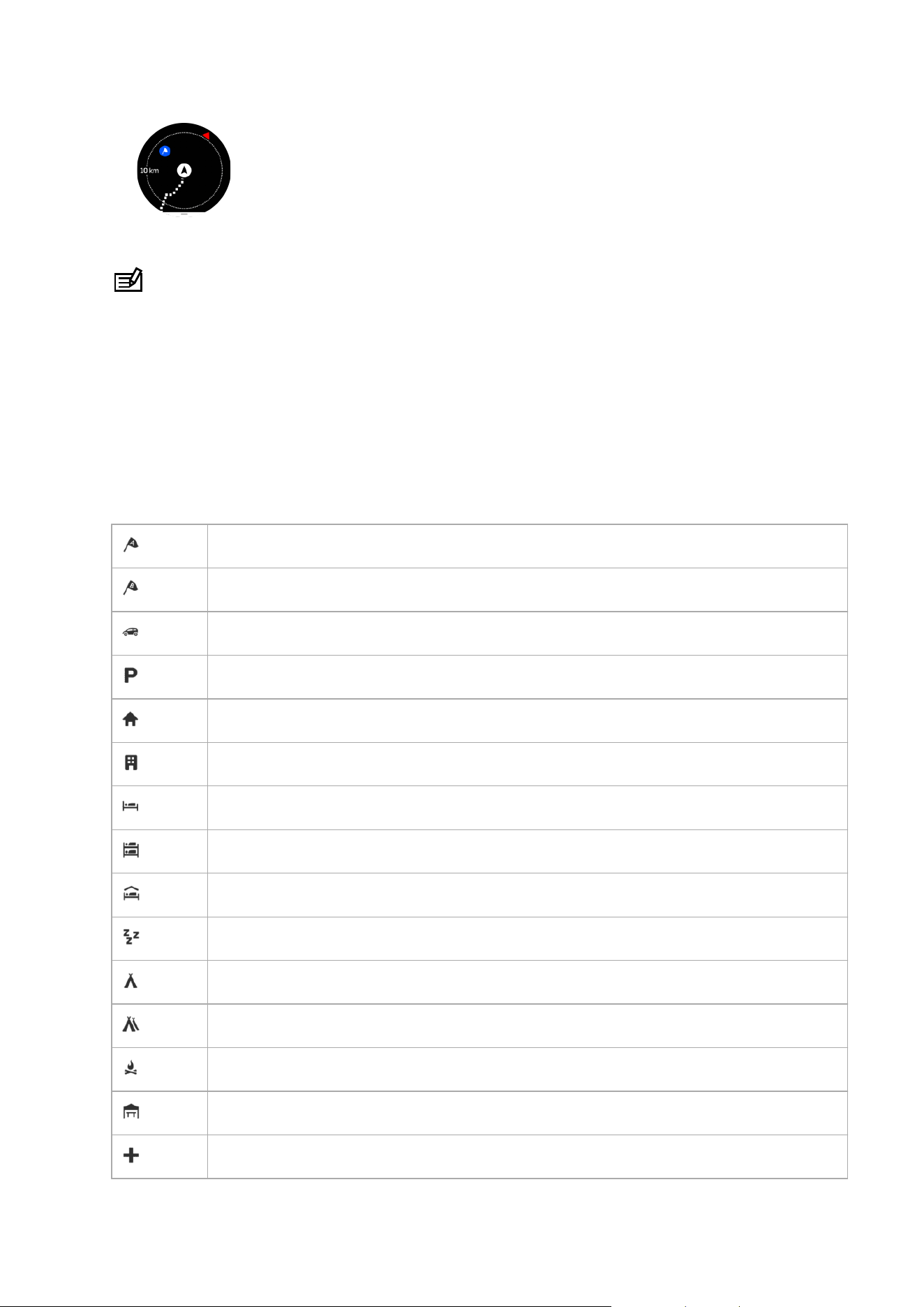
Press the crown to switch between views.
NOTE: If oine maps are activated, the map view will display a detailed map of your
surroundings.
In the map view, other POIs nearby are shown in gray. In the map view, you can adjust the
zoom level by turning the crown.
While navigating, you can press the lower button to open the navigation menu. The menu
gives you quick access to POI details and actions such as saving your current location or
selecting another POI to navigate to, as well as ending navigation.
5.5.3. POI types
The following POI types are available in Suunto Race 2:
Begin
End
Car
Parking
Home
Building
Hotel
Hostel
Lodging
Bedding
Camp
Camping site
Camp fire
Aid station
Emergency
Suunto Race 2
43
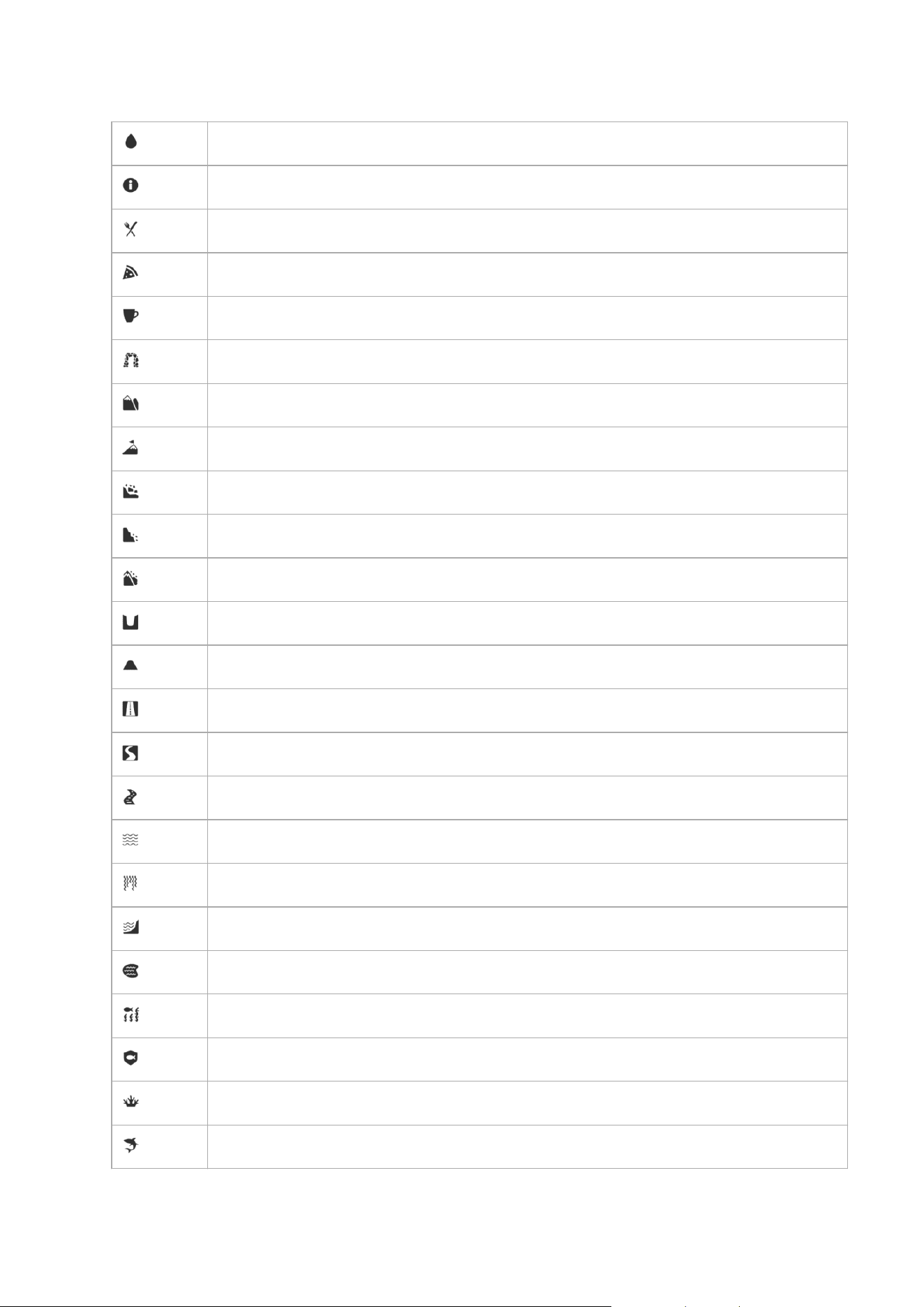
Waterpoint
Information
Restaurant
Food
Cafe
Cave
Mountain
Peak
Rock
Cli
Avalanche
Valley
Hill
Road
Trail
River
Water
Waterfall
Coast
Lake
Kelp forest
Marine reserve
Coral reef
Big fish
Suunto Race 2
44
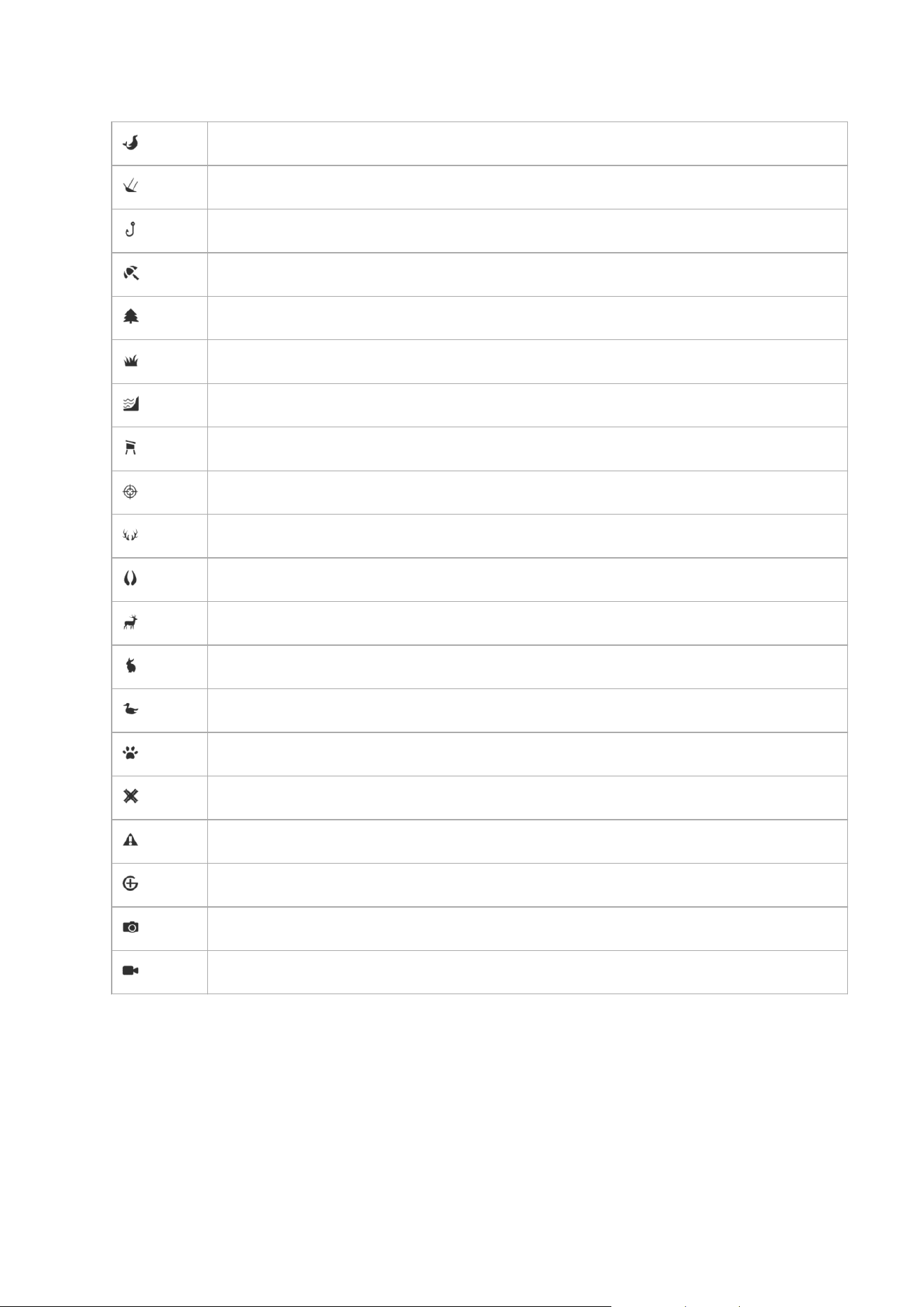
Marine mammal
Wreck
Fishing spot
Beach
Forest
Meadow
Coast
Stand
Shot
Rub
Scrape
Big game
Small game
Bird
Prints
Crossroads
Danger
Geocache
Sight
Trailcam
5.6. Climb guidance
When you navigate a route, Climb guidance provides you with elevation data.
When you plan a route in Suunto app, the app shows the route as sections, each marked with
colors based on their elevation data. The five section categories are the following:
•
Flat
•
Uphill
Suunto Race 2
45
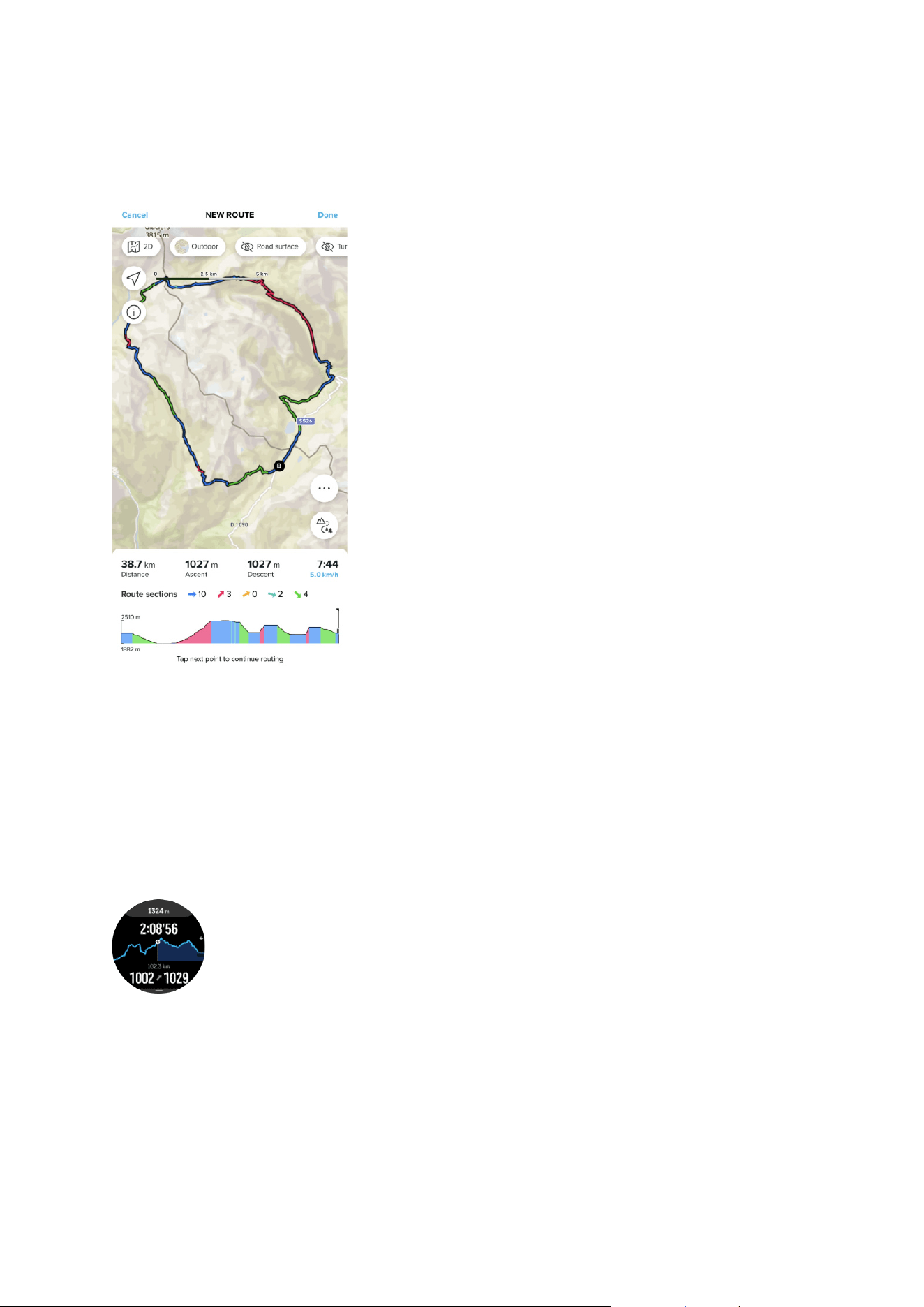
•
Downhill
•
Climb
•
Descent
While navigating with the watch, press the crown to change between displays. The climb
guidance view shows an overview of the elevation of the route you are navigating on. The
following information is displayed:
•
top: your current altitude
•
below the top window: the total duration of the exercise
•
center: route elevation graph
•
below the graph: the remaining distance of the planned route
•
bottom left: the ascent/descent done
•
bottom right: the remaining ascent/descent
Turn the crown to zoom into the section you are currently on. On the section display, you see
the following information:
•
top: the average ascent/descent grade of the current section
•
below the top window: the total duration of the exercise
•
center: route elevation graph of the current section
•
below the graph: the remaining distance of the current section
•
bottom left: the ascent/descent done on the current section
Suunto Race 2
46
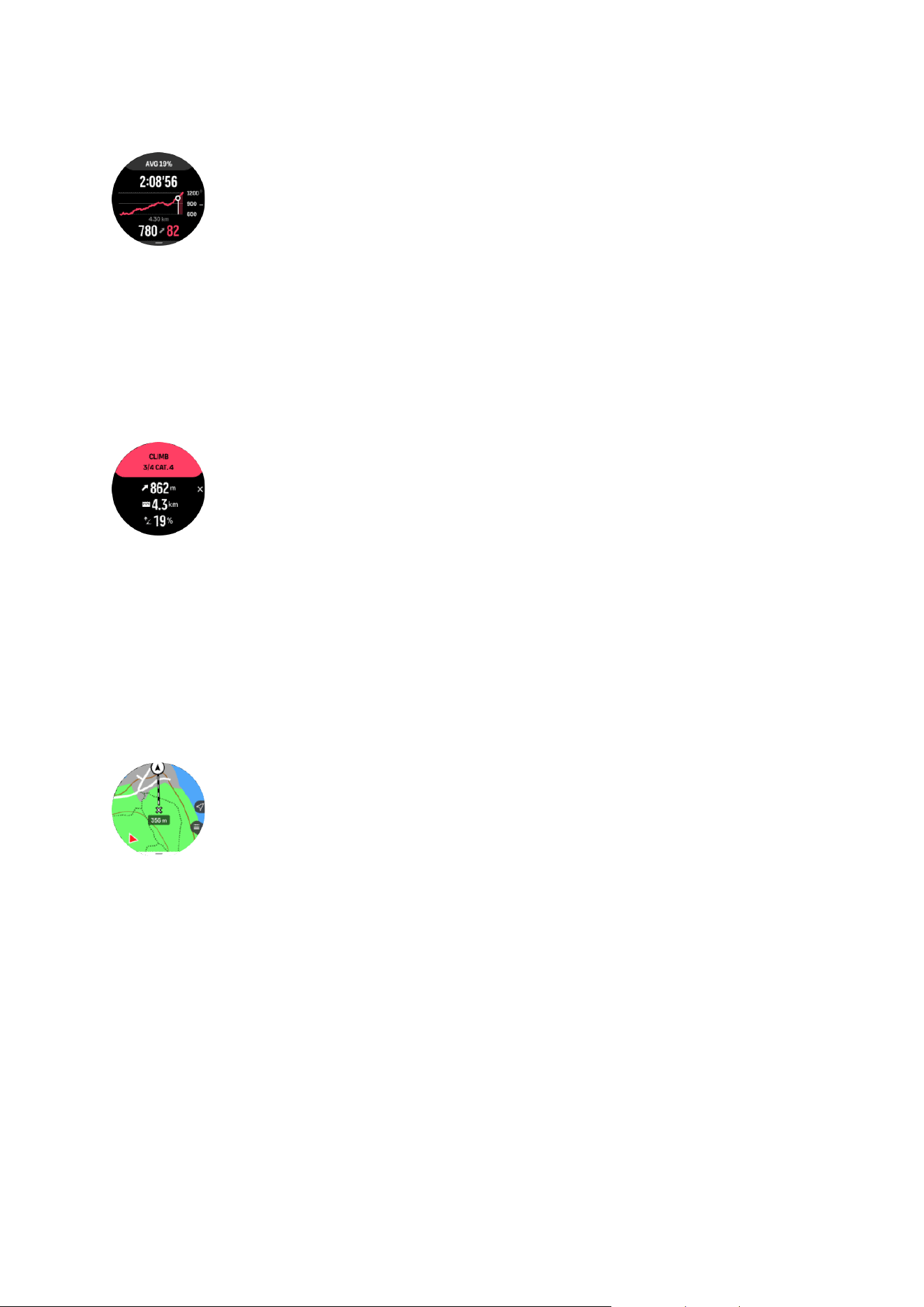
•
bottom right: the remaining ascent/descent of the current section
You can set climb guidance settings before and during exercise. To change the settings
before starting an exercise, scroll down from the start view and open Climb guidance. To
change the settings during exercise, pause the exercise and press the lower button. Open
Control panel where you find Climb guidance. Toggle Notifications on or o according to
your preferences. Open Grade value to select if you want to see the elevation data in
degrees or percentages.
If you turn notifications on, the watch will notify you about the upcoming ascents and
descents and provides you with a summary of the next the climb or descent before it starts.
5.7. Ruler
The Ruler is a tool to show the straight line distance between your location and any point you
select on the map.
To use the ruler, press the lower button when on the map view (during exercise or without
exercising). When the Navigation options opens, scroll down and toggle on Ruler. Go back to
the map view and select any point on the map to measure its straight line distance from your
current position. When you don't need the ruler anymore, you can turn it
o in the Navigation
options.
Suunto Race 2
47
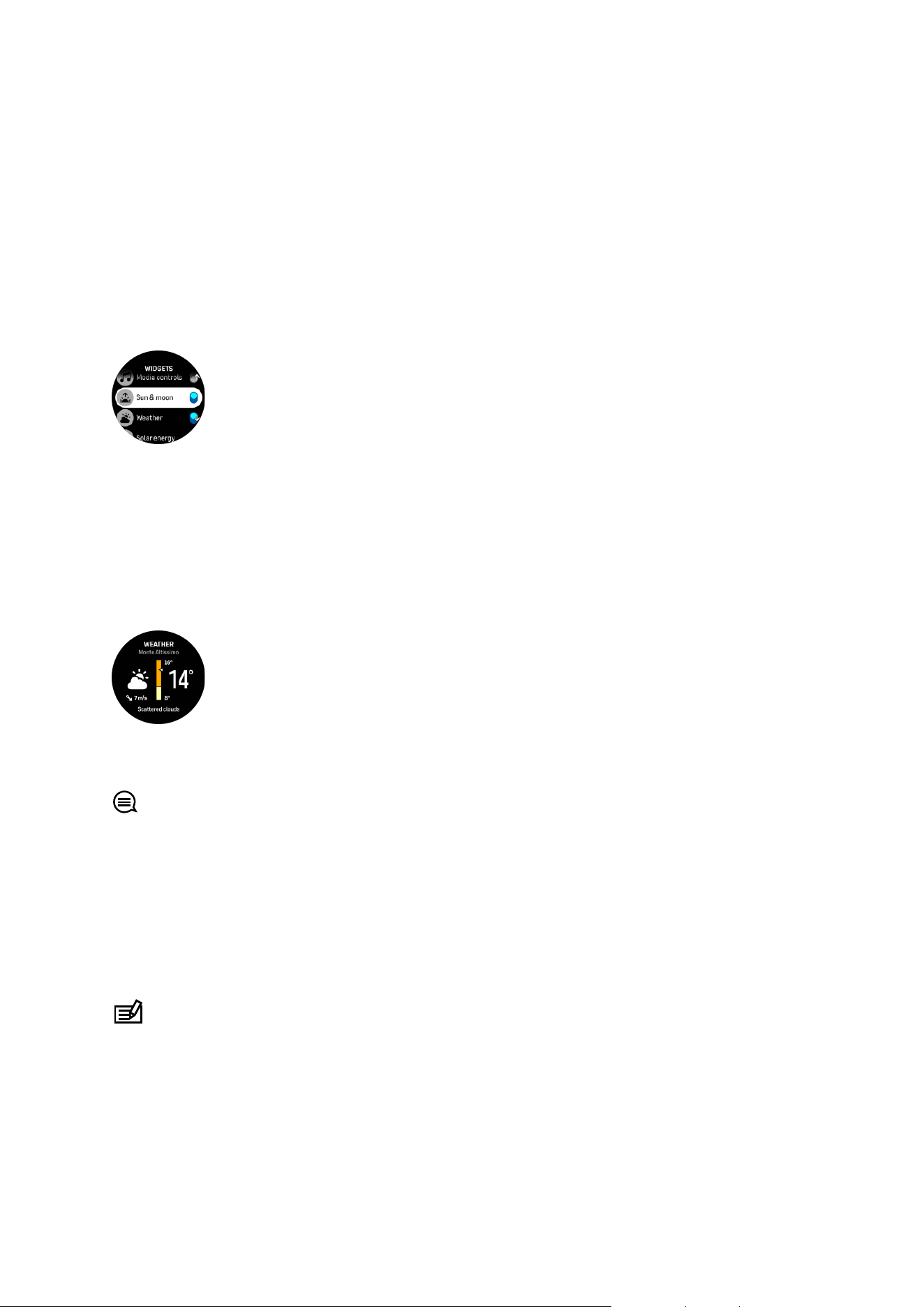
6. Widgets
Widgets give you useful information of your activity and training. The widgets are accessible
from the watch face by swiping up or turning the crown.
It is possible to pin a widget for quick and easy access. From watch face, press the crown and
double tap the screen to select which widget you want to have pinned. It is also possible to
pin a widget under Customize in the Control panel.
The widgets can be turned
on/o from the Control panel under Customize > Widgets. Select
which widgets you want to use by turning the toggle on.
You can also select which widgets you want to use in your watch and in which order by
turning them on and o and sorting them in Suunto app.
6.1. Weather
The weather widget provides you with information of the current weather. It shows the current
temperature, wind speed and direction and current weather type both as text and icon.
Weather types can be, for example, sunny, cloudy, rainy etc.
Swipe up or turn the crown to see more detailed weather data such as humidity, air quality
and forecast data.
TIP: Make sure that your watch is connected with Suunto app to get the most accurate
weather data.
6.2. Notifications
If you have paired your watch with Suunto app, you can get notifications of, for example,
incoming calls and text messages, on your watch.
When you pair your watch with the app, notifications are on by default. You can turn them o
from the settings under Notifications.
NOTE: Messages received from some apps used for communication might not be
compatible with Suunto Race 2.
When a notification arrives, a pop-up appears on the watch face.
Suunto Race 2
48
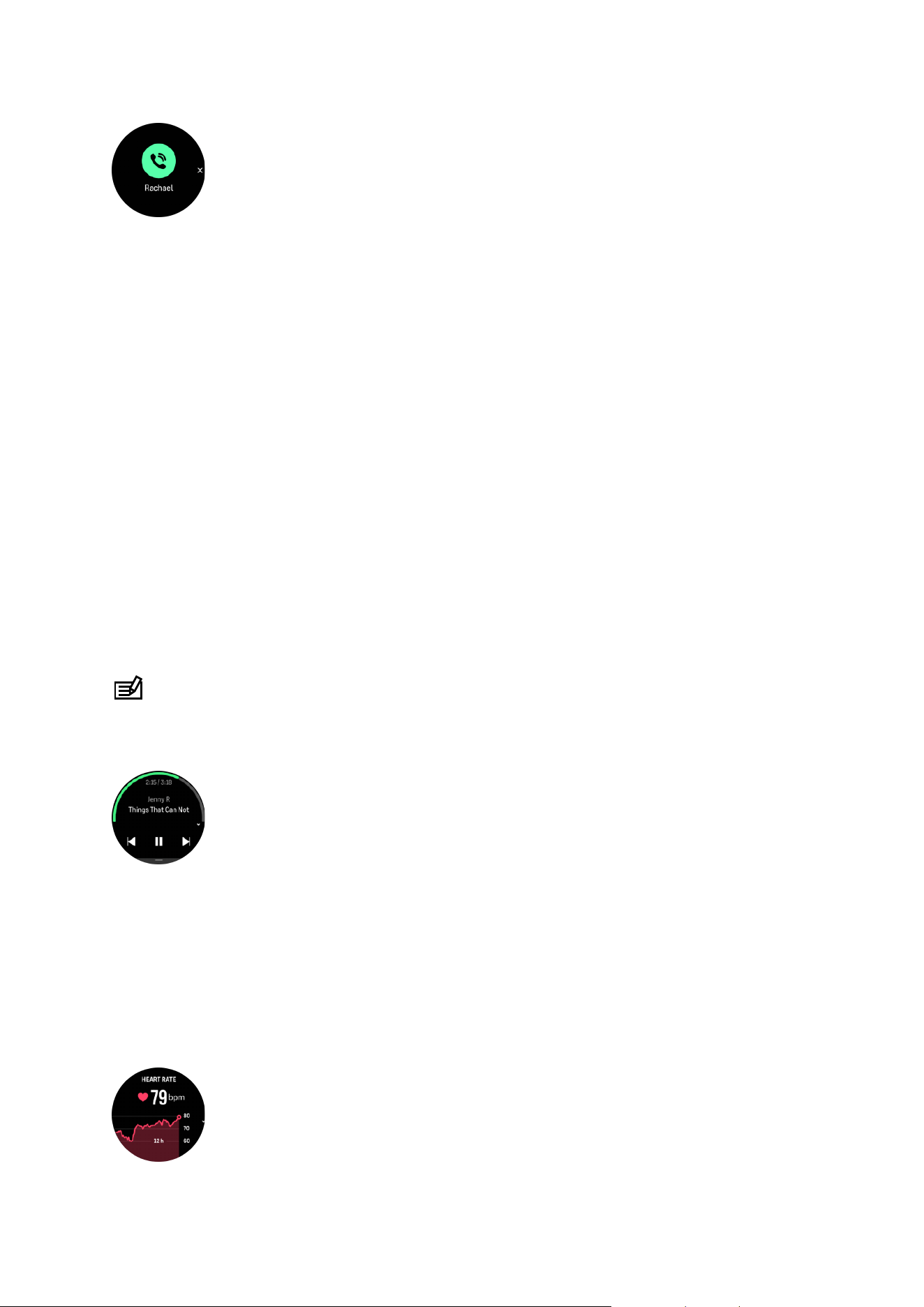
Press the crown to remove the popup. If the message doesn't fit on the screen, turn the crown
or swipe up to scroll through the full text.
Below Actions, you can interact with the notification (the available options vary depending on
your phone and which of your mobile apps sent the
notification).
For apps used for communications, you can use your watch to send a Quick reply. You can
select and modify the predefined messages in Suunto app.
Notification history
If you have unread notifications or missed calls on your mobile device, you can view them on
your watch.
From the watch face, swipe up and select the notification widget and then turn the crown to
scroll through the notification history.
The notification history is cleared when you check the messages on your mobile device or if
you select Clear all messages in the
notification widget.
6.3. Media controls
Your Suunto Race 2 can be used to control the music, podcast, and other media played on
your phone or being cast from your phone to another device.
NOTE: You need to pair your watch with your phone before you can use Media controls.
To access the media controls widget, swipe up from watch face or, during an exercise, press
the crown until the media control widget is shown.
In the media control widget, tap play, next track or previous track to control your media.
Swipe up or turn the crown to enter the complete setup of the media controls.
Press the lower button to exit the media control widget.
6.4. Heart rate
The HR widget provides a quick snapshot of your heart rate and a 12-hour graph of your heart
rate. The graph is plotted using your average heart rate based on 24-minute time slots.
Suunto Race 2
49
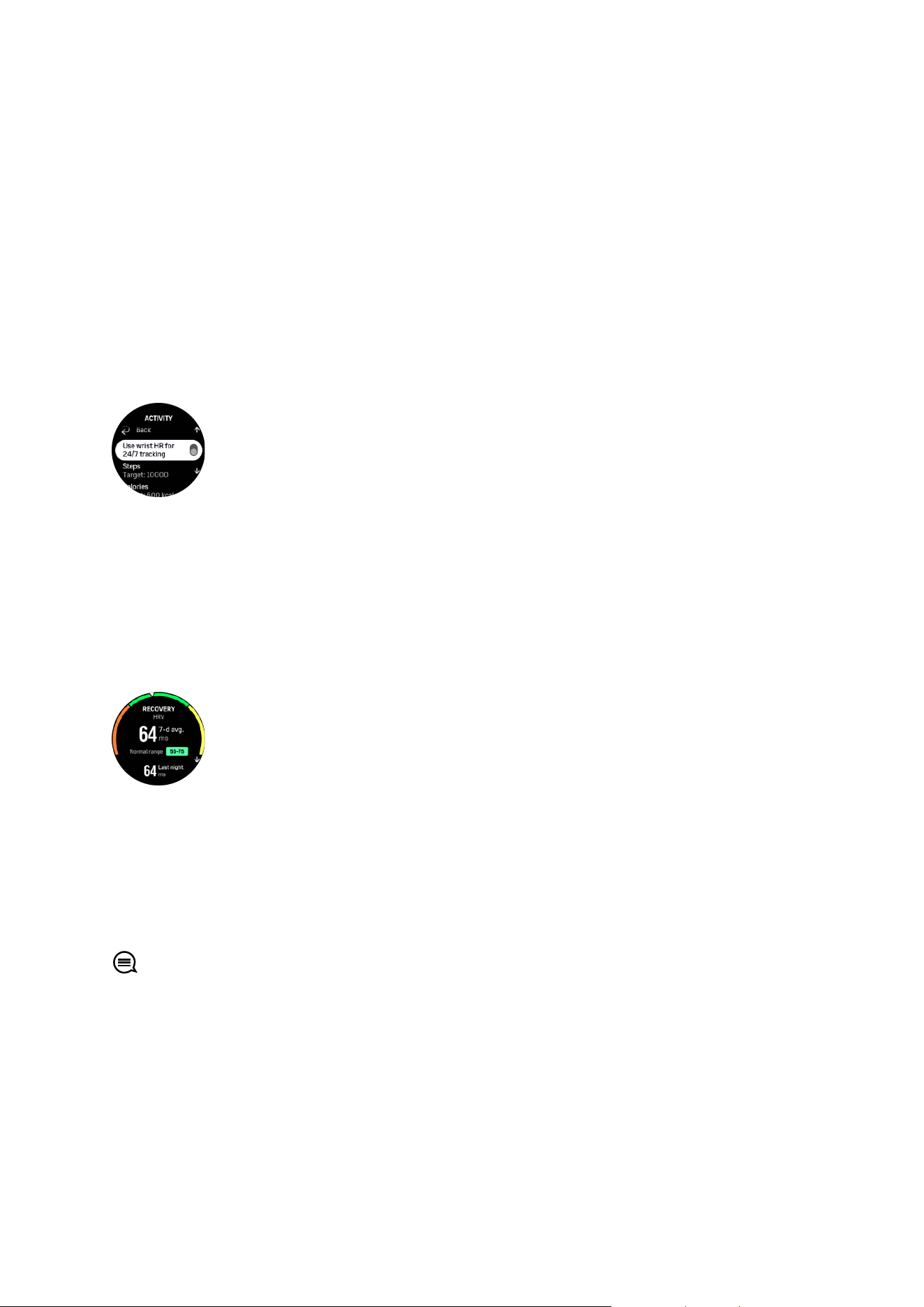
Your minimum heart rate from the last 12 hours is a good indicator of your recovery state. If it
is higher than normal, you probably are not yet fully recovered from your last training session.
If you record an exercise, the daily HR values reflect the elevated heart rate and calorie
consumption from your training. But keep in mind that the graph and consumption rates are
averages. If your heart rate peaks at 200 bpm while exercising, the graph does not show that
maximum value, but rather the average from the 24 minutes during which you hit that peak
rate.
To be able to see the daily HR widget values, the daily HR feature needs to be activated. You
can toggle the feature on or
o from the settings under Activity or scroll down to the end of
the HR widget and activate it there.
With this feature on, your watch activates the optical heart rate sensor on a regular basis to
check your heart rate. This slightly increases battery power consumption.
Once activated, your watch needs 24 minutes before it can start display heart rate
information.
Swipe right or press the lower button to return to the watch face view.
6.5. Recovery, HRV (Heart Rate Variability)
Heart Rate Variability (HRV) is a measure of the variation in time between heartbeats and its
value is a good predictor of overall health and well-being.
HRV helps you to understand your recovery state and it measures your physical and mental
stress and implies how ready your body is to train.
To be able to get an eective average HRV, you need to track your sleep at least three times
a week over a longer period to establish your HRV range.
Dierent situations and conditions such as a relaxed holiday, physical and mental exertion or
developing flu can lead to changes in HRV.
TIP: Please refer to www.suunto.com or Suunto app to learn more about HRV recovery.
6.6. Progress
The progress widget provides you with data that helps you to increase your training load over
a longer period of time, whether it is the training frequency, duration or intensity.
Suunto Race 2
50
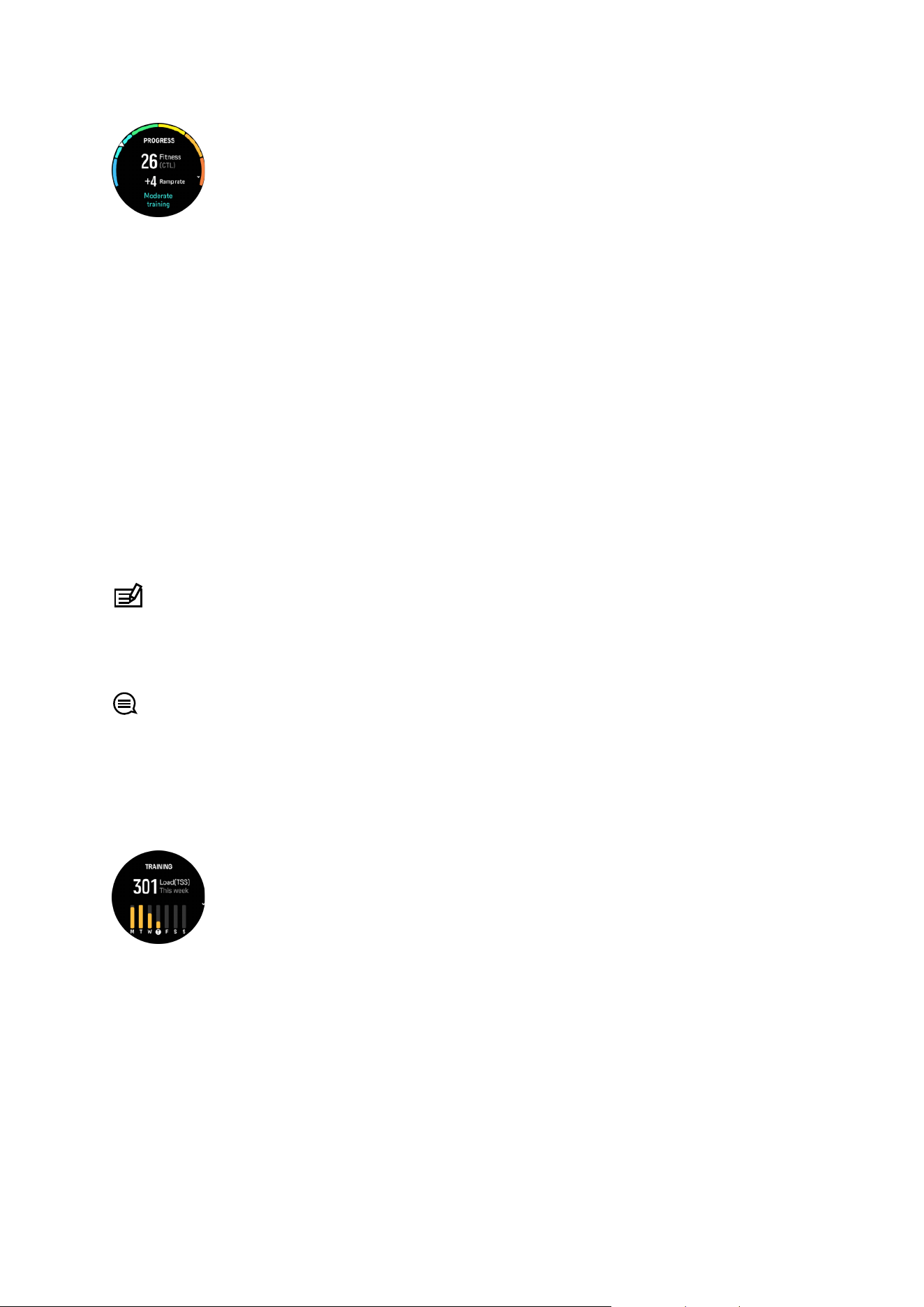
Every training session gets a Training Stress Score (TSS) (based on the duration and the
intensity) and this value is the base for calculating the training load for both short and long-
time averages. From this TSS value, your watch can calculate your fitness level (defined as
VO₂max), CTL (Chronic Training Load) and also provide you with an estimation on your lactate
threshold and a prediction on your running pace on various distances.
The ramp rate is a metric that monitors your rate of increase or decrease in your
fitness over a
set time.
Your aerobic
fitness level is defined as VO₂max (maximal oxygen consumption), a widely
recognized measure of aerobic endurance capacity. In other words, VO₂max shows how well
your body can use oxygen. The higher your VO₂max, the better you can use oxygen.
The estimation of your fitness level is based on detecting your heart rate response during
each recorded running or walking workout. To get your
fitness level estimated, record a run or
walk with a duration for at least 15 minutes while wearing your Suunto Race 2.
The widget also views your estimated fitness age. Fitness age is a metric value that
reinterprets your VO₂max value in terms of age.
NOTE: Improvement of VO₂max is highly individual and it depends on factors such as
age, gender, genetics and training background. If you are already very
fit, increasing your
fitness level will be slower. If you are just starting to exercise regularly, you may see a quick
increase in fitness.
TIP: Please refer to www.suunto.com or Suunto app to learn more about Suunto's training
load analysis concept.
6.7. Training
The training widget provides you with information on the training load for the current week
and also the total duration on all of your training sessions.
This widget also gives you guidance on how your form is, if you start losing fitness, if you are
maintaining it or if you currently do productive training.
The CTL (Chronic Training load) value is a weighted average on your long term TSS (Training
Stress Score), the more you train the higher your fitness is.
The ATL (Acute Training Load) value is the 7-day weighted average of your TSS and basically
tracks how fatigued you currently are.
The TSB (Training Stress Balance) value shows your form which is basically the
dierence
between long-term, chronic training load (CTL) and short-term, acute training load (ATL).
Suunto Race 2
51

TIP: Please refer to www.suunto.com or Suunto app to learn more about Suunto's training
load analysis concept.
6.8. Recovery, training
The recovery training widget shows your current form and your workout feelings the last
week as well as your last 6 weeks. Please note that you need to register you feeling after
each workout to get this data, see 4.11. Feeling.
This widget will also tell you how your recovery matches your current training load.
TIP: Please refer to www.suunto.com or Suunto app to learn more about Suunto's training
load analysis concept.
6.9. Blood oxygen
WARNING: Suunto Race 2 is not a medical device and the blood oxygen level indicated
by Suunto Race 2 is not intended for diagnosing or monitoring medical conditions.
You can measure your blood oxygen level with Suunto Race 2. From the watch face view,
swipe up or turn the crown to scroll to and select the Blood oxygen widget.
Blood oxygen level can provide an indication of overtraining or fatigue and the measurement
can also be a helpful indicator of high altitude acclimation progress.
Normal blood oxygen levels are between 96% and 99% at sea level. At high altitudes, healthy
values can be slightly lower. Successful acclimation to high altitude makes the value increase
again.
How to measure your blood oxygen level from the Blood oxygen widget:
1. Select Measure now.
2. Hold your hand still while the watch is measuring.
3. If the measuring failed, please follow the in-watch instructions.
4. When the measuring is complete, your blood oxygen value is displayed.
You can also measure your blood oxygen level during your 6.10. Sleep.
6.10. Sleep
A good night's sleep is important for a healthy mind and body. You can use your watch to
track your sleep and follow how much sleep you get on average.
When you wear your watch while sleeping, Suunto Race 2 tracks your sleep based on
accelerometer data.
To track sleep:
1. From watch face, scroll down and select Sleep.
2. Toggle on Sleep tracking.
Suunto Race 2
52

You can choose to have your watch in Do Not Disturb mode during your sleeping hours and
also choose if you want to measure your Blood oxygen and HRV tracking during your sleep.
Once you have enabled sleep tracking, you can also set your sleep target. A typical adult
needs between 7 and 9 hours of sleep per day, though your ideal amount of sleep may vary
from the norms.
Sleep trends
When you wake up, you are greeted with a summary of your sleep. The summary includes, for
example, the total duration of your sleep, as well as the estimated time you were awake
(moving around) and the time you were in deep sleep (no movement).
In addition to the sleep summary, you can follow your overall sleep trend with the sleep
widget. From the watch face, swipe up or turn the crown until you see the Sleep widget. The
first view shows your last sleep and a graph of the last seven days.
While in the sleep widget, you can swipe up to see the sleep details for your last sleep.
NOTE: All sleep measurements are based on movement only, so they are estimates that
may not reflect your actual sleep habits.
Measuring heart rate, blood oxygen and heart rate variability
(HRV) while sleeping
If you wear your watch during the night, you can get additional feedback on your heart rate,
HRV and blood oxygen level while sleeping.
Automatic Do Not Disturb mode
You can use the auto Do Not Disturb setting to automatically enable Do Not Disturb mode
while you sleep.
6.11. Steps and calories
Your watch keeps track of your overall activity level throughout the day. This is an important
factor whether you just aim to be fit and healthy or you are training for an upcoming
competition.
It is good to be active, but when training hard, you need to have proper rest days with low
activity.
The activity counter automatically resets at midnight every day. At the end of the week
(Sunday), the watch provides a summary of your activity showing your average for the week
and daily totals.
Your watch counts steps using an accelerometer. The total step count accumulates 24/7, also
while recording training sessions and other activities. However, with some
specific sports,
such as swimming and cycling, steps are not counted.
Suunto Race 2
53
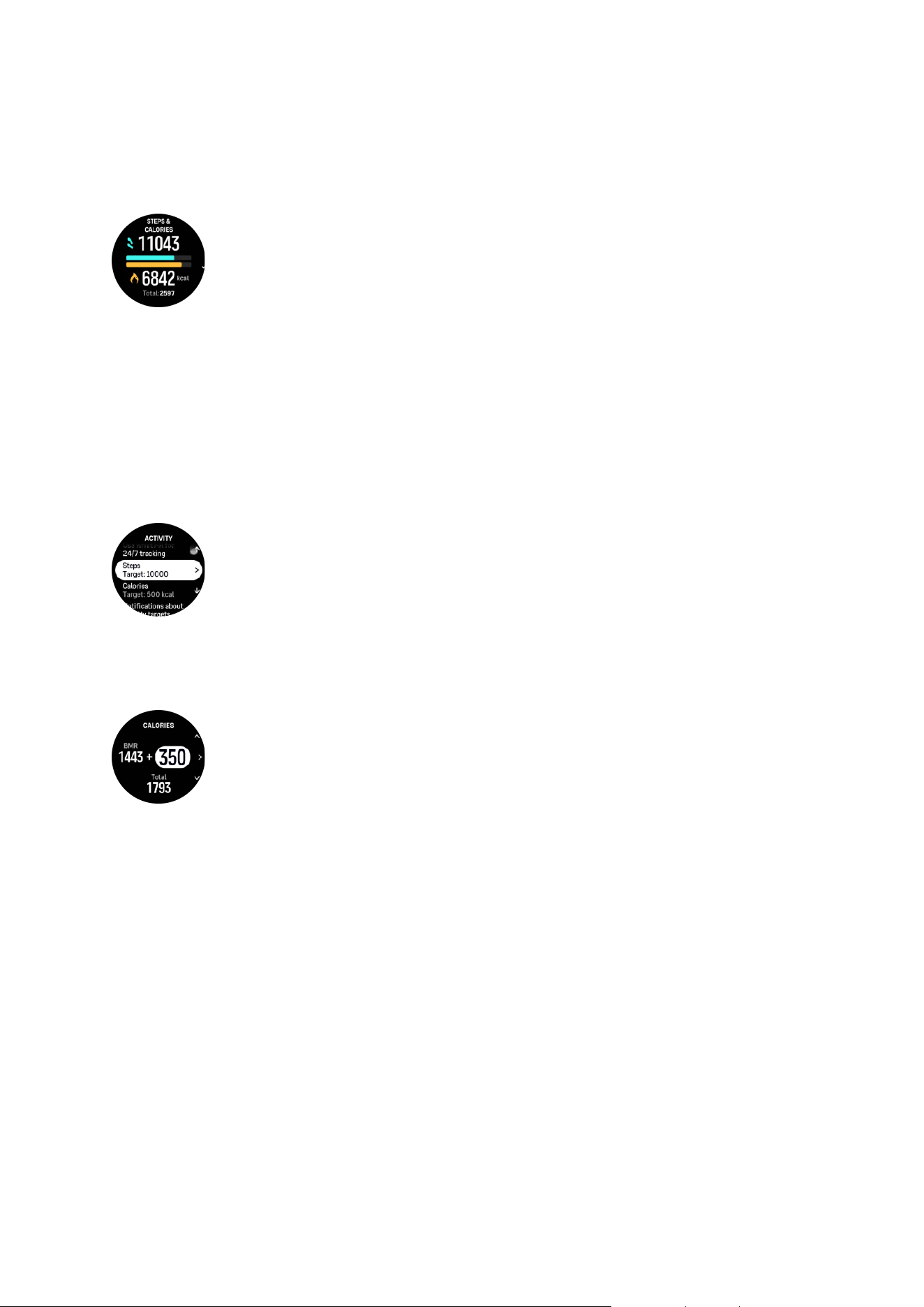
The top value in the widget shows the total step count for that day and the bottom value is
the estimated amount of active calories you have burned so far during the day. Below this you
see the total calories burned. The total includes both active calories and your Basal Metabolic
Rate, BMR (see below).
The half rings in the widget indicate how close you are to your daily activity goals. These
targets can be adjusted to your personal preferences (see below).
You can also check your steps and calories burned over the last seven days by swiping up
from the widget.
Activity goals
You can adjust your daily goals for both steps and calories. From the settings, select Activity
to open the activity goal settings.
When setting your steps goal, you define the total number of steps for the day.
The total calories you burn per day is based on two factors: your Basal Metabolic Rate (BMR)
and your physical activity.
Your BMR is the amount of calories your body burns while at rest. These are the calories your
body needs to stay warm and perform basic function like blink your eyes or beat your heart.
This number is based on your personal
profile, including factors such as age and gender.
When you set a calorie goal, you define how many calories you want to burn in addition to
your BMR. These are your so-called active calories. The ring around the activity display
advances according to how many active calories you burn during the day compared to your
goal.
6.12. Sun & Moon
From watch face, swipe up or turn the crown to scroll to the Sun & moon widget. Your watch
will give you the time until the next sunset or sunrise, depending on which one comes next.
If you select the widget, you get more details such as the time when the sun rises and sets,
and also the current moon phase.
Suunto Race 2
54
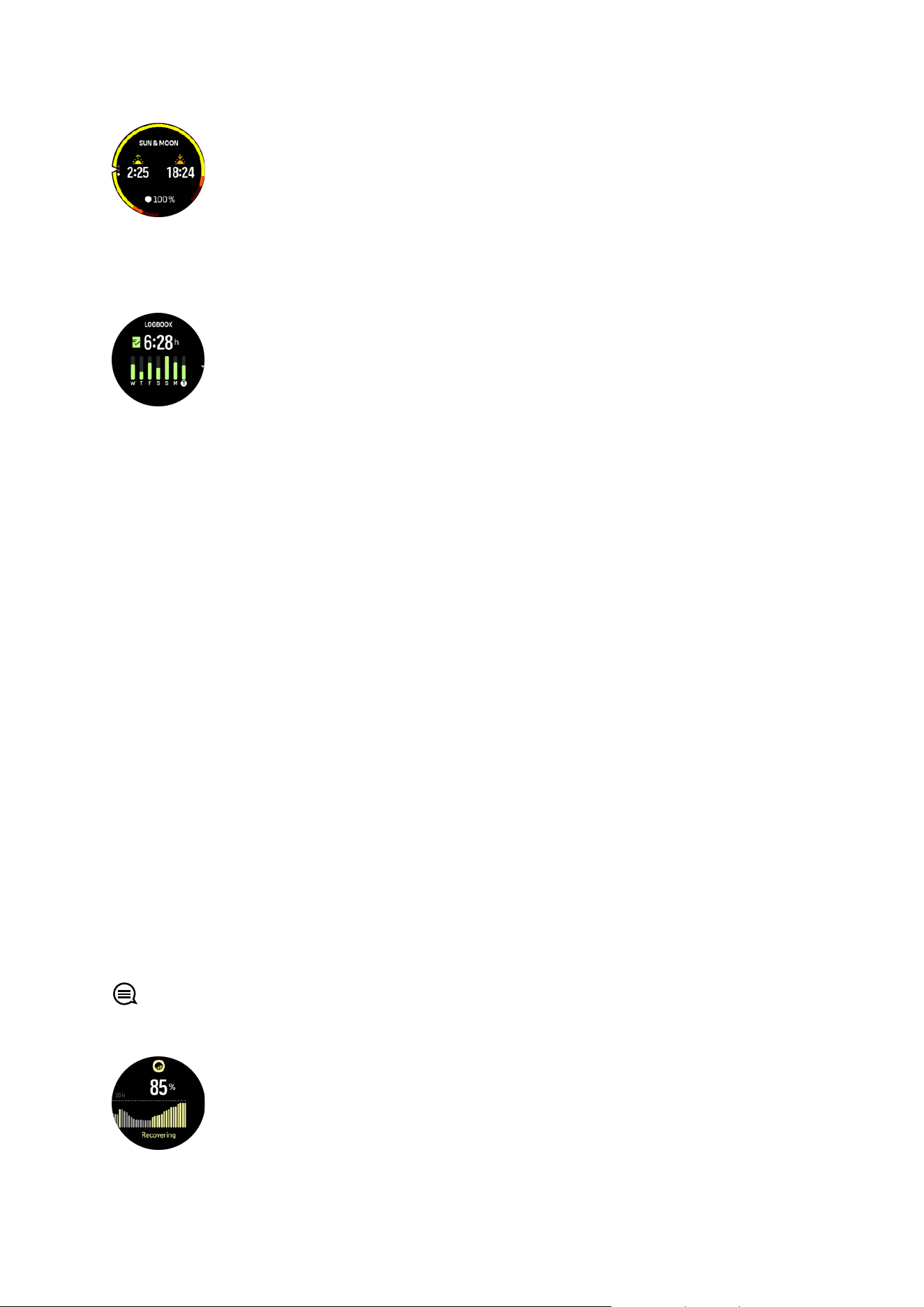
6.13. Logbook
Your watch provides an overview of your training activity via a logbook.
In the logbook you can see a summary of your current training week. The summary includes
the total duration and an overview of which days you have exercised.
Swiping up gives you information on which activities you have performed and when. Selecting
one of the activities, by pressing the crown, provides you with even more details and also the
possibility to delete the activity from your logbook.
6.14. Resources
Your resources are a good indication of your body's energy levels, which directly influence
your capacity to handle stress and cope with the daily challenges.
Stress and physical activity deplete your resources, while rest and recovery restore them.
Good sleep is an essential part of ensuring your body has the resources it needs.
When your resource levels are high, you will likely feel fresh and energetic. Going for a run
when your resources are high means you'll probably have a great run, because your body has
the energy it needs to adapt and improve as a result.
Being able to track your resources can help you manage and use them wisely. You can also
use your resource levels as a guide to identify stress factors, personally
eective recovery
boosting strategies, and the impact of good nutrition.
Stress and recovery uses optical heart sensor readings and to get those during the day, daily
HR must be enabled, see 6.4. Heart rate.
It is important that your Max HR and Rest HR are set to match your heart rate to ensure that
you get the most accurate readings. By default, the Rest HR is set to 60 bpm and the Max HR
is based on your age.
These HR values can easily be changed in the settings under General » Personal.
TIP: Use the lowest heart rate reading measured during your sleep as your Rest HR.
From the watch face, turn the crown or swipe up to scroll to the resources widget.
Suunto Race 2
55
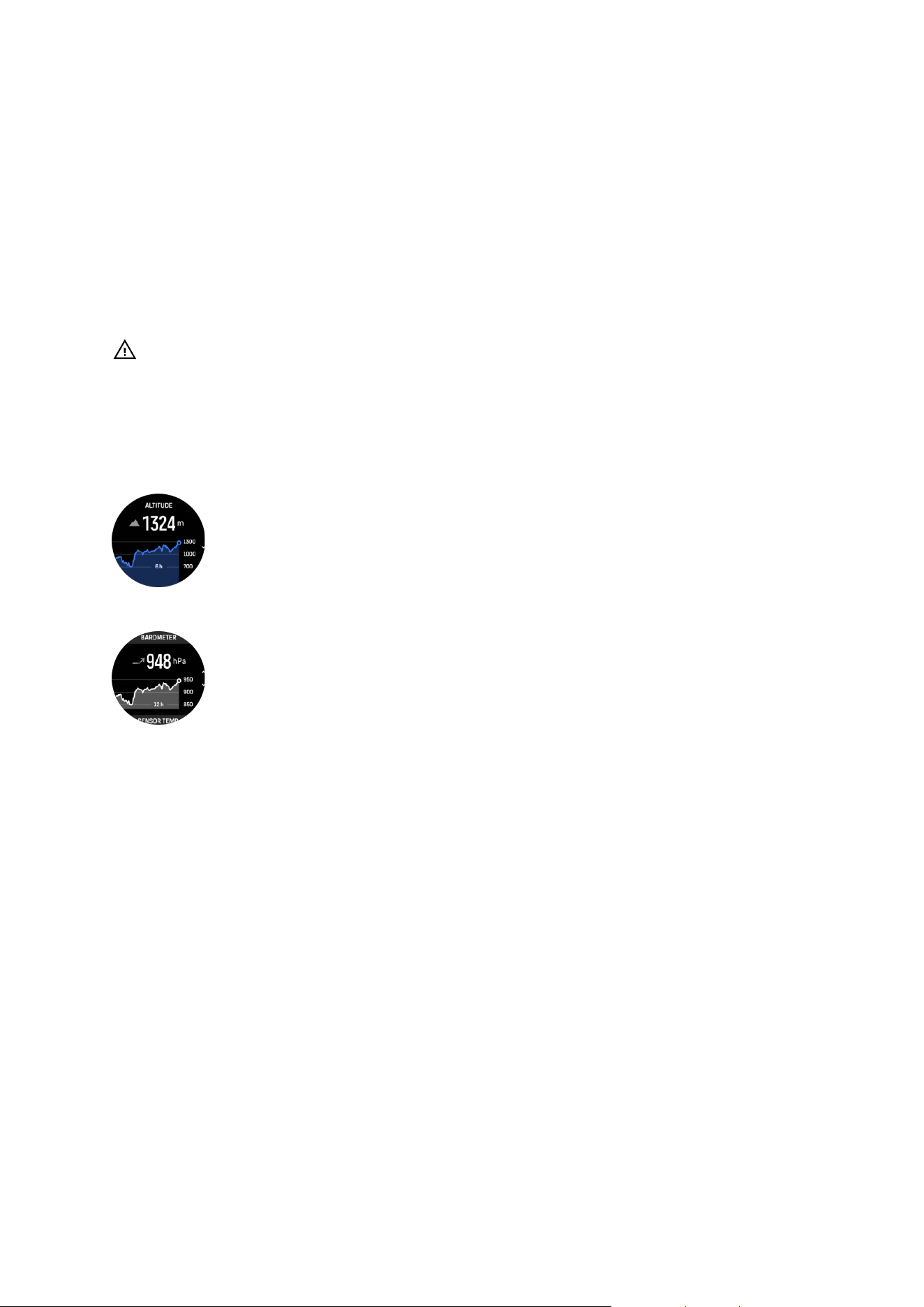
The color around the widget icon indicates your overall resource level. If it is green, it means
you are recovering. The status tells you your current state (active, inactive, recovering or
stressed). The bar chart shows your resources over the last 16 hours and the percentage
value is an estimate of your current resource level.
6.15. Alti & Baro
Suunto Race 2 constantly measures absolute air pressure using the built-in pressure sensor.
Based on this measurement and your altitude reference value, it calculates altitude or air
pressure.
CAUTION: Keep the area around the two air pressure sensor holes located at six o'clock
on the side of your watch free of dirt and sand. Never insert any objects into the holes as this
may damage the sensor.
From watch face, swipe up or turn the crown to scroll to the alti & baro widget. The widget has
three views that can be accessed by swiping up and down. The
first view displays the current
altitude.
Swipe up to see the barometric pressure and the barometer trend graph.
Swipe up again to see the temperature.
Swipe down or press the lower button to go back.
Be sure to have your altitude reference value set correctly (see 3.18. Altimeter). The altitude of
your current location can be found from most topographic maps or major on-line map services
such as Google Maps.
Changes in local weather conditions
aect altitude readings. If local weather changes often,
you should reset the altitude reference value regularly, preferably before starting your next
journey.
Automatic alti-baro profile
Weather and altitude changes both cause a change in air pressure. To handle this, Suunto
Race 2 automatically switches between interpreting changes in air pressure as altitude or
weather changes based on your movement.
If your watch senses vertical movement, it switches to measuring altitude. When you are
viewing the altitude graph, it is updated with a maximum delay of 10 seconds.
If you are at a constant altitude (less than 5 meters of vertical movement within 12 minutes),
your watch interprets air pressure changes as weather changes and adjusts the barometer
graph accordingly.
Suunto Race 2
56
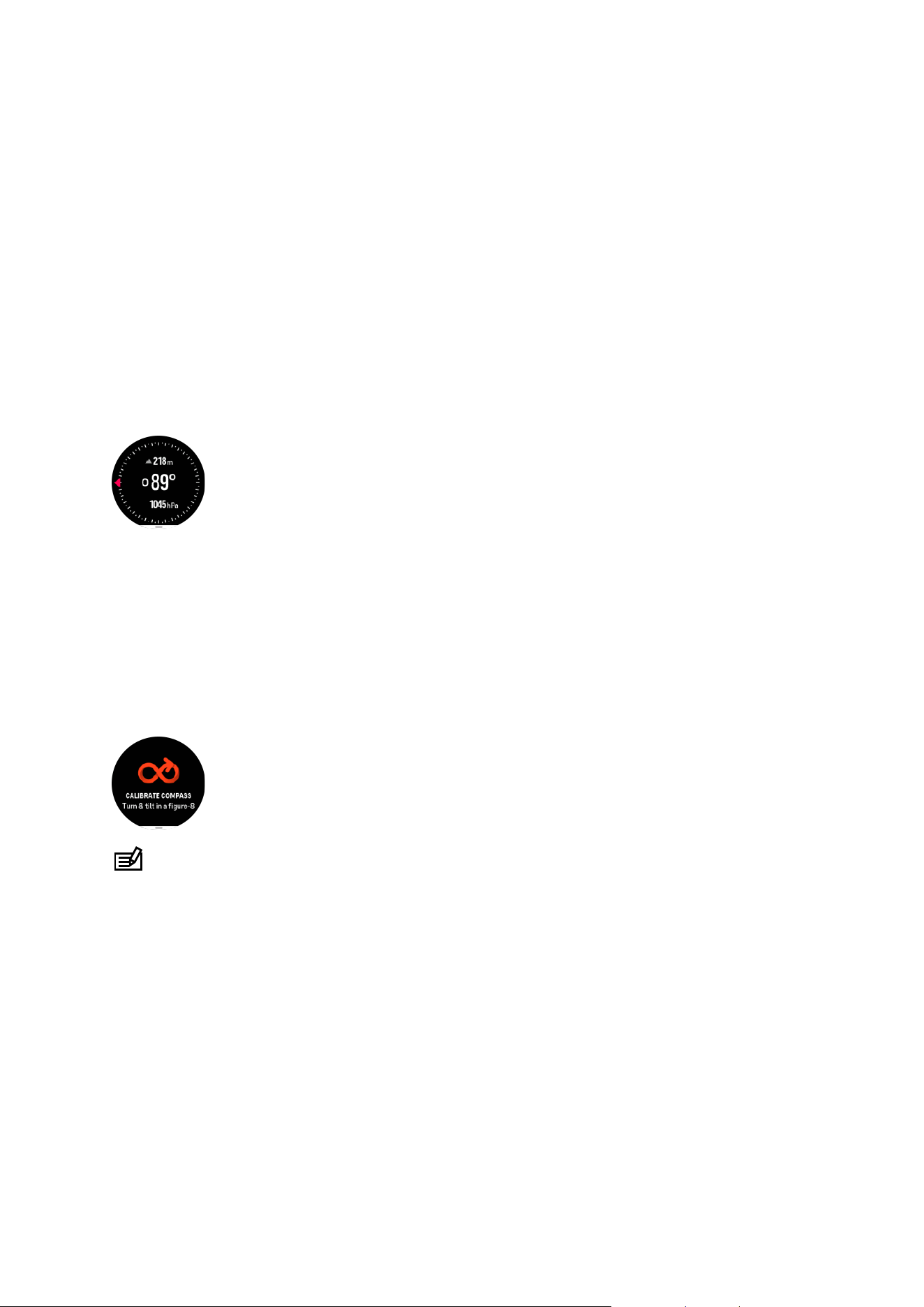
6.16. Compass
Suunto Race 2 has a gyro-assisted compass that allows you to orient yourself in relation to
magnetic north. The tilt-compensated compass gives you accurate readings even if the
compass is not horizontally level.
You can access the compass by swiping up from the watch face or by turning the crown and
selecting Compass.
The compass widget includes the following information:
•
Arrow pointing to magnetic north
•
Heading cardinal
•
Heading in degrees
•
Altitude
•
Barometric pressure
To exit the compass widget, press the lower button.
While you are in the compass widget, you can swipe up from the bottom of the screen to
open a list of shortcuts. The shortcuts give you quick access to navigation actions such as
checking the coordinates of your current location or selecting a route to navigate.
6.16.1. Calibrating compass
If the compass is not calibrated, you are prompted to calibrate the compass when you enter
the compass widget.
NOTE: The compass calibrates itself when in use, but if the watch has been aected by
strong magnetic fields or a hard knock, the compass might show the wrong direction. Do a
new calibration to resolve this issue.
6.16.2. Setting declination
To ensure correct compass readings, set an accurate declination value.
Paper maps point to true north. Compasses, however, point to magnetic north – a region
above the Earth where the Earth’s magnetic
fields pull. Because magnetic North and true
North are not at the same location, you must set the declination on your compass. The angle
in between magnetic and true north is your declination.
The declination value appears on most maps. The location of magnetic north changes yearly,
so the most accurate and up-to-date declination value can be found from websites such as
www.magnetic-declination.com.
Suunto Race 2
57
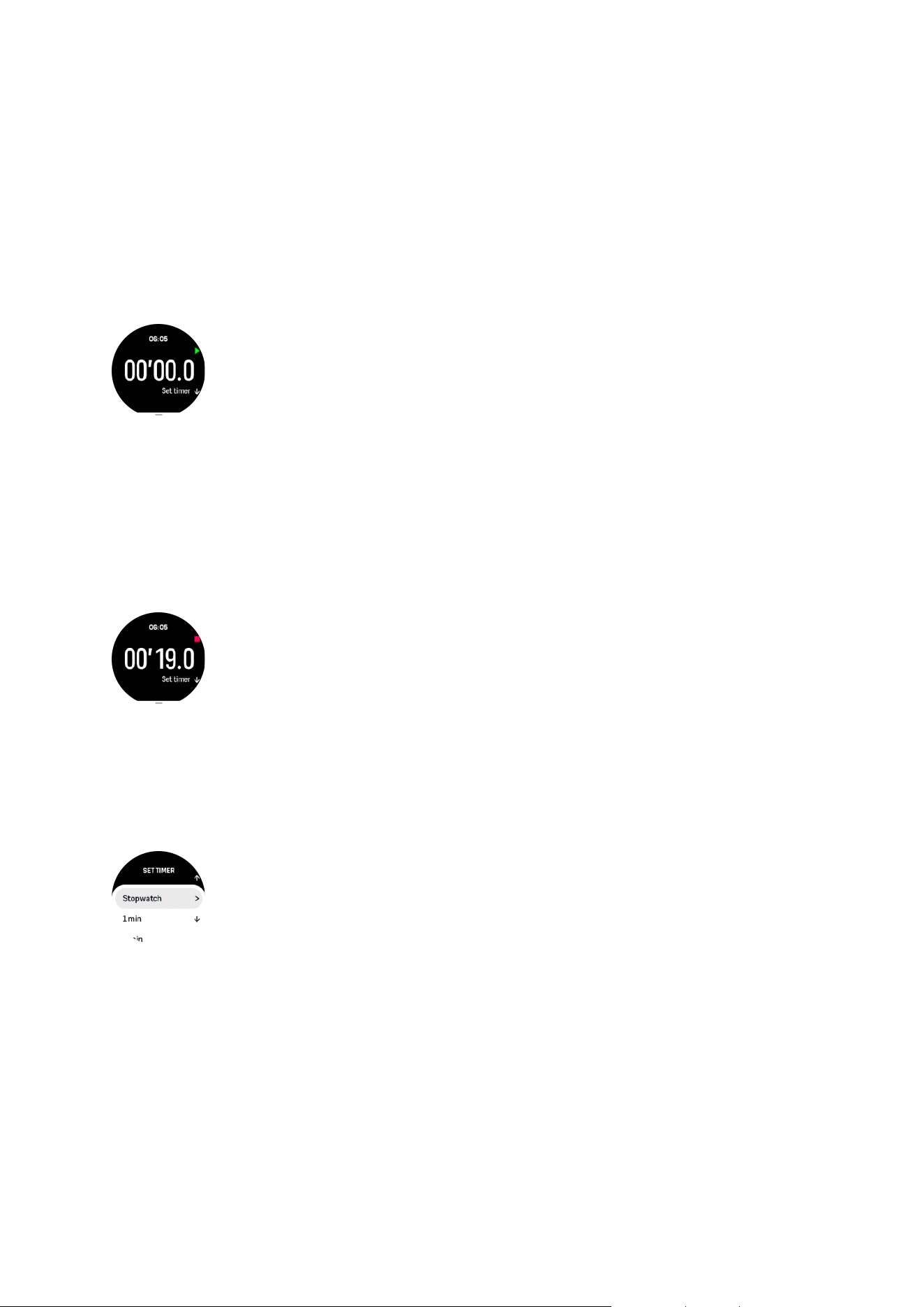
Orienteering maps, however, are drawn in relation to magnetic north. If you are using an
orienteering map, you need to turn the declination correction o by setting the declination
value to 0 degrees.
You can set your declination value from the Settings under Navigation » Declination.
6.17. Timer
Your watch includes a stopwatch and countdown timer for basic time measurement. From the
watch face, swipe up or turn the crown until you reach the timer widget.
When you first enter the widget, it shows the stopwatch. After that, it remembers whatever
you used last, stopwatch or countdown timer.
Swipe up to open the Set timer shortcuts menu where you can change the timer settings.
Stopwatch
Start and stop the stopwatch by pressing the upper button. You can resume by pressing the
upper button again. Reset by pressing the lower button.
Exit the timer by pressing the lower button.
Countdown timer
In the timer widget, swipe up to open the shortcuts menu. From there you can select a pre-
defined countdown time or create custom countdown time.
Stop and reset as needed with the upper and lower buttons.
Exit the countdown timer by pressing the lower button.
Suunto Race 2
58

7. SuuntoPlus™ guides
SuuntoPlus™ guides bring real-time guidance on your Suunto watch from your favorite sports
and outdoor services. You can also find new guides from SuuntoPlus™ Store or create new
ones with tools such as Suunto app workout planner.
For more information regarding all available guides and how to sync 3rd party guides to your
device, visit www.suunto.com/suuntoplus/#HowToGuides.
To select SuuntoPlus™ guides in your watch:
1. Before you start an exercise recording, swipe up or turn the crown and select
SuuntoPlus™.
2. Scroll to the guide you want to use and press the crown.
3. Go back to the start view and start your exercise as normal.
4. Press the crown until you reach the SuuntoPlus™ guide, which is shown as a separate
display.
NOTE: Ensure that your Suunto Race 2 has the latest software version and that you
have synced your watch with Suunto app.
Suunto Race 2
59

8. SuuntoPlus™ sports apps
SuuntoPlus™ sports apps equip your Suunto Race 2 with new tools and new insights to give
you inspiration and new ways to enjoy your active lifestyle. You can find new sports apps from
SuuntoPlus™ Store where new apps are being published for your Suunto Race 2. Select the
ones you
find interesting and sync them to your watch and get more out of your exercises!
To use SuuntoPlus™ sports apps:
1. Before you start an exercise recording, scroll down and select SuuntoPlus™.
2. Select the sports app you want.
3. If the sports app is using an external device or sensor, it will make the connection
automatically.
4. Scroll up to the start view and start your exercise as normal.
5. Swipe left or press the crown until you reach the SuuntoPlus™ sports app, which is shown
as a separate display.
6. After you have stopped the exercise recording, you can find the SuuntoPlus™ sports app
result in the summary, if there was a relevant result.
You can select which SuuntoPlus™ sports apps you want to use in the watch in Suunto app.
Visit Suunto.com/Suuntoplus to see which sports apps are available for your watch.
NOTE: Ensure that your Suunto Race 2 has the latest software version and that you
have synced your watch with Suunto app.
Suunto Race 2
60
9. Care and support
9.1. Handling guidelines
Handle the unit with care – do not knock or drop it.
Under normal circumstances, the watch does not require servicing. On a regular basis, rinse it
with fresh water, mild soap, and carefully clean the housing with a moist, soft cloth or chamois.
Use only original Suunto accessories - damage caused by non-original accessories is not
covered by warranty.
9.2. Battery
The duration on a single charge depends on how you use your watch and in what conditions.
Low temperatures, for example, reduce the duration of a single charge. In general, the
capacity of rechargeable batteries decreases over time.
NOTE: In case of abnormal capacity decrease due to defective battery, Suunto covers
battery replacement for one year or maximum 300 charging times, whichever comes
first.
When the battery charge level is less than 20% and later 5%, your watch displays a low
battery icon. If the charge level gets very low, your watch goes into a low power mode and
display a charge icon.
Use the supplied USB cable to charge your watch. Once the battery level is high enough, the
watch wakes up from lower power mode.
9.3. Disposal
Please dispose of the device in accordance with local regulations for electronic waste. Do not
throw it in the garbage. If you wish, you may return the device to your nearest Suunto dealer.
Suunto Race 2
61
10. Reference
10.1. Compliance
For compliance related information and detailed technical
specifications, see “Product Safety
and Regulatory Information” delivered together with your Suunto Race 2 or available at
www.suunto.com/userguides.
10.2. CE
Hereby, Suunto Oy, declares that the radio equipment type OW243. is in compliance with
Directive 2014/53/EU. The full text of the EU declaration of conformity is available at the
following internet address: www.suunto.com/EUconformity.
Suunto Race 2
62

Suunto Race 2
63