

Tables of contents|
1. Desktop
2. Drop-down Menu
3. Navigation
4. Themes
5. Boot animation
6. Music
7. Video
8. Radio
9. Bluetooth
10.Car settings
11. File manager
12. Tlink
13. Play store
14. Chrome

FCCStatement
ThisequipmenthasbeentestedandfoundtocomplywiththelimitsforaClassBdigitaldevice,
pursuanttopart15oftheFCCRules.Theselimitsaredesignedtoprovidereasonableprotection
againstharmfulinterferenceinaresidentialinstallation.Thisequipmentgenerates,usesandcan
radiateradiofrequencyenergyand,ifnotinstalledandusedinaccordancewiththeinstructions,
maycauseharmfulinterferencetoradiocommunications.However,thereisnoguaranteethat
interferencewillnotoccurinaparticularinstallation.Ifthisequipmentdoescauseharmful
interferencetoradioortelevisionreception,whichcanbedeterminedbyturningtheequipment
offandon,theuserisencouragedtotrytocorrecttheinterferencebyoneormoreofthe
followingmeasures:
• Reorientorrelocatethereceivingantenna.
• Increasetheseparationbetweentheequipmentandreceiver.
• Connecttheequipmentintoanoutletonacircuitdifferentfromthattowhichthereceiveris
connected.
• Consultthedealeroranexperiencedradio/TVtechnicianforhelp.
Caution:Anychangesormodificationstothisdevicenotexplicitlyapprovedbymanufacturer
couldvoidyourauthoritytooperatethisequipment.
Thisdevicecomplieswithpart15oftheFCCRules.Operationissubjecttothefollowingtwo
conditions:(1)Thisdevicemaynotcauseharmfulinterference,and(2)thisdevicemustaccept
anyinterferencereceived,includinginterferencethatmaycauseundesiredoperation.
RFExposureInformation
ThisequipmentcomplieswithFCCradiationexposurelimitssetforthforanuncontrolled
environment.Thisequipmentshouldbeinstalledandoperatedwithminimumdistance20cm
betweentheradiatorandyourbody.
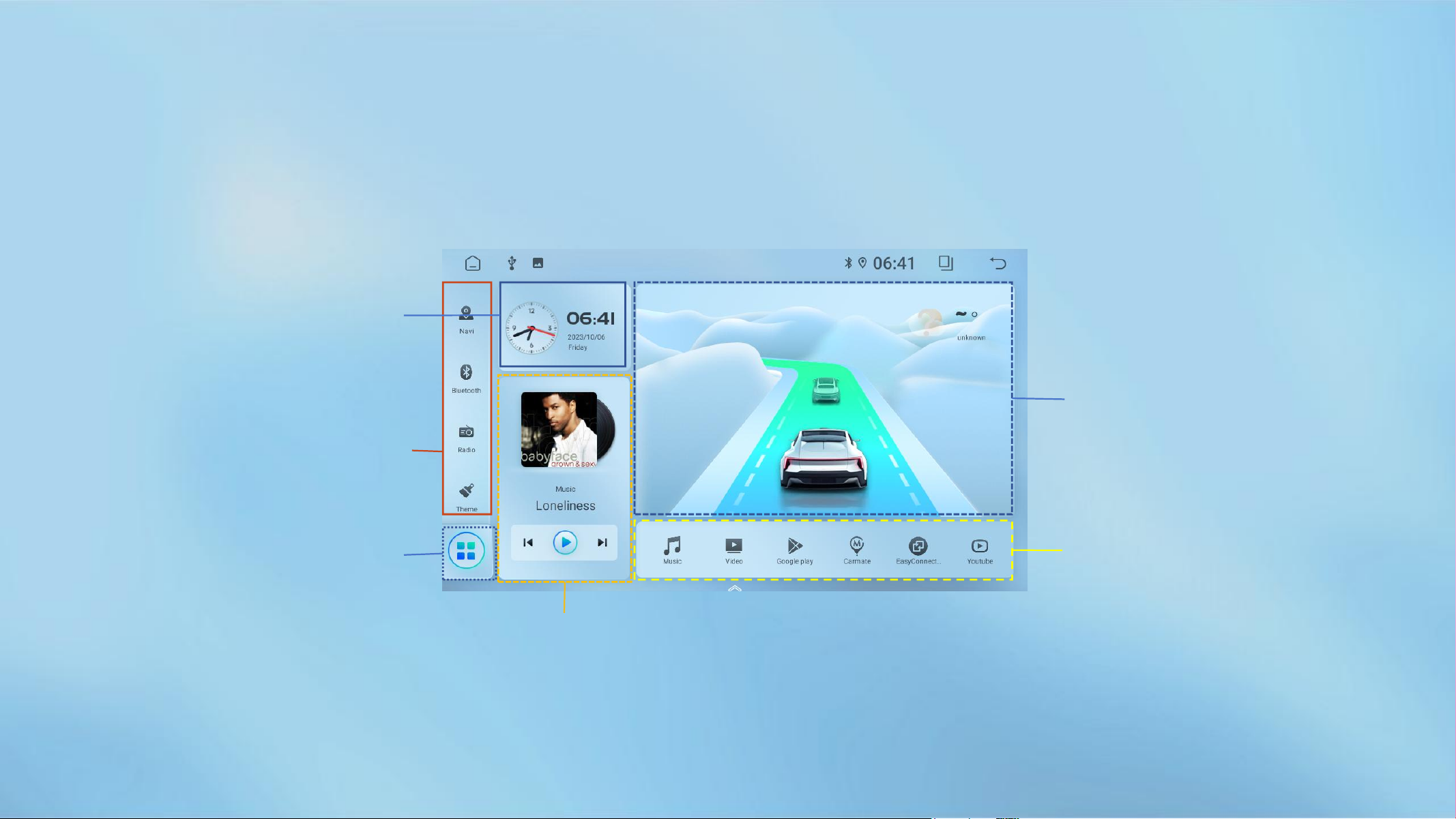
01 Desktop
Shortcut icon: Click to
enter the application
interface, long press
to edit
Shortcut icon: Click
to enter the
application interface,
long press to edit
APPS icon: Click to
enter the application
interface, long press
to edit
Media plug-in: Click to enter the
corresponding media interface
Time: Click to enter
the time adjustment
interface
Click this box
area to quickly
enter the
corresponding
navigation
application
interface
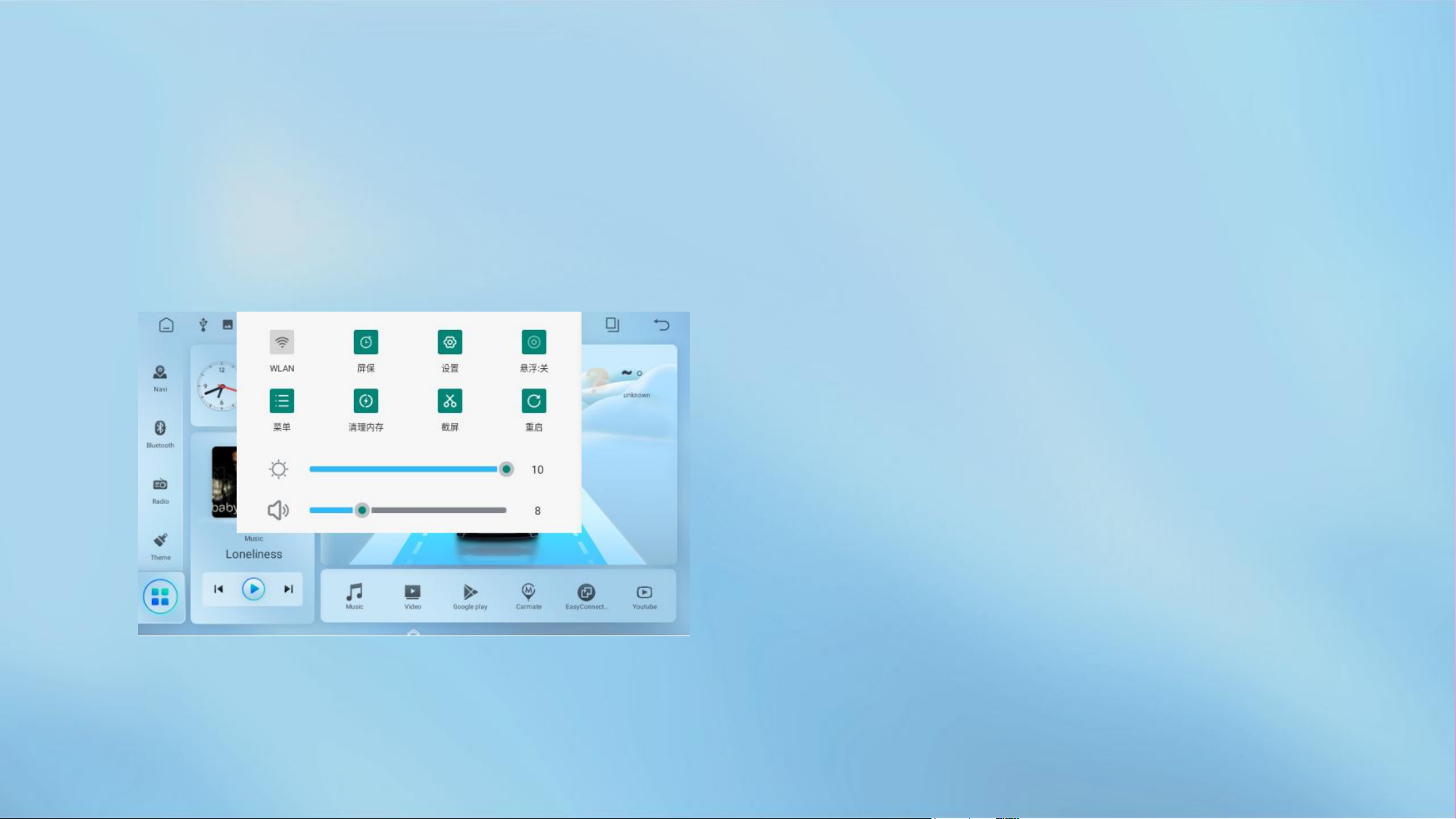
02 Drop-down Menu
01. WiFi: Short press to turn on/off the switch, long
press to enter the WiFi page
02. Screen saver: Overwrite screen saver, display time:
year, month, day, week, hour, minute information,
touch screen to cancel screen saver display
03. Settings: Jump to the settings page
04. Suspended icon, default off, click on to open,
including Home key, power key, volume+, volume -,
return key, mute key, and screen close key
05. Menu: In AUX mode, parameter adjustment
window
06. Clean up memory, end running applications, and
free up memory
07. Screenshot: Save to File Manager Image
Classification
08. Restarting, does the pop-up confirm restarting the
car machine
09. Below are the brightness and volume bars, drag to
adjust
Touch the screen and drag it down to pop up the
drop-down menu, and drag it up to hide it.
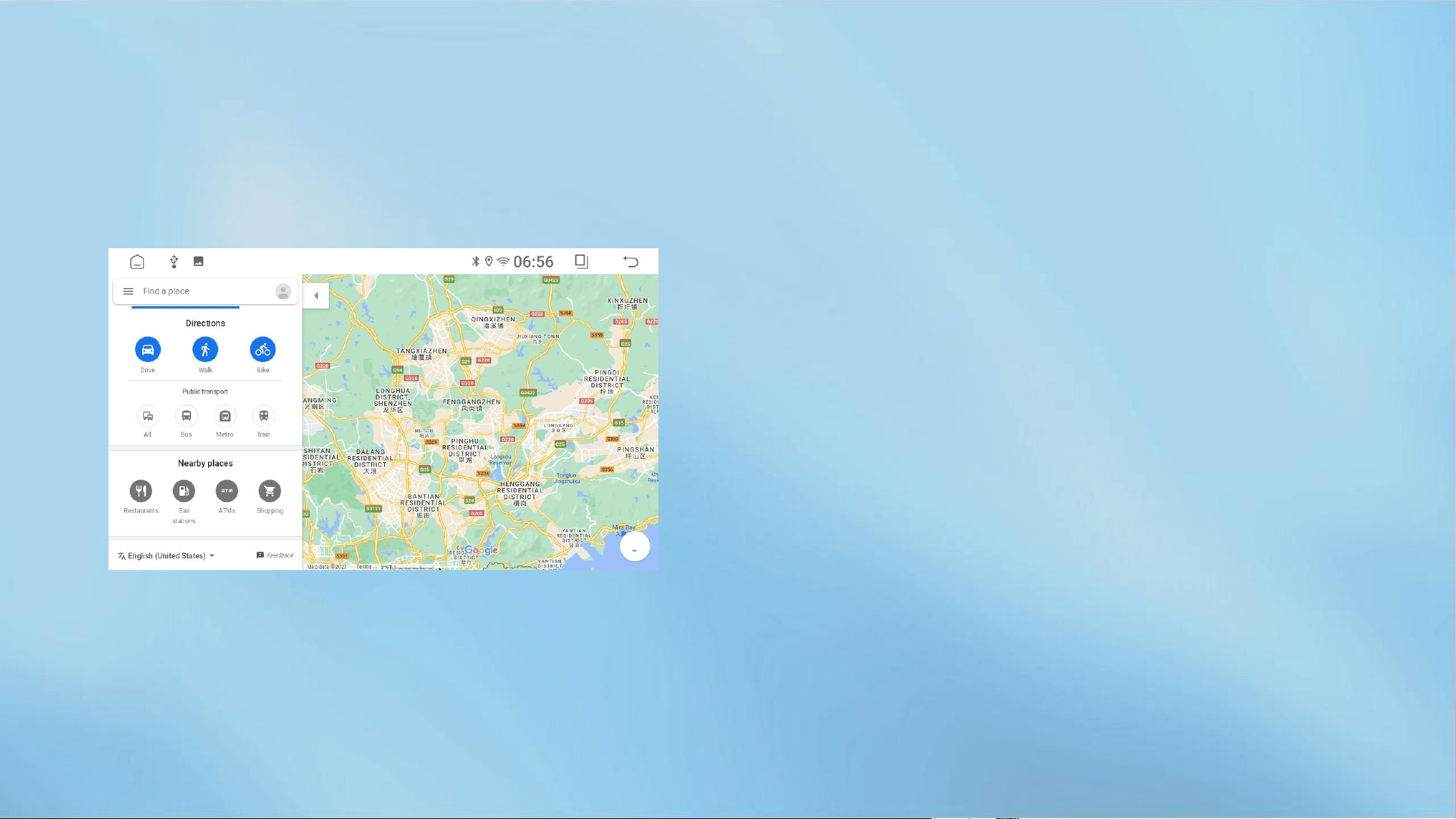
03 Navigation
The icon enters the navigation interface
Intelligent route planning, voice search easy
query route. Precision Navigation, real-time road
conditions, avoiding congestion, indoor and
outdoor planningDirect to destination. Offline
maps, off-line navigation data for cities across
the country Packages are free to download and
enjoy accurate data while saving 90 percentFlow.
Wonderful nearby consultation, take you around
a good place.
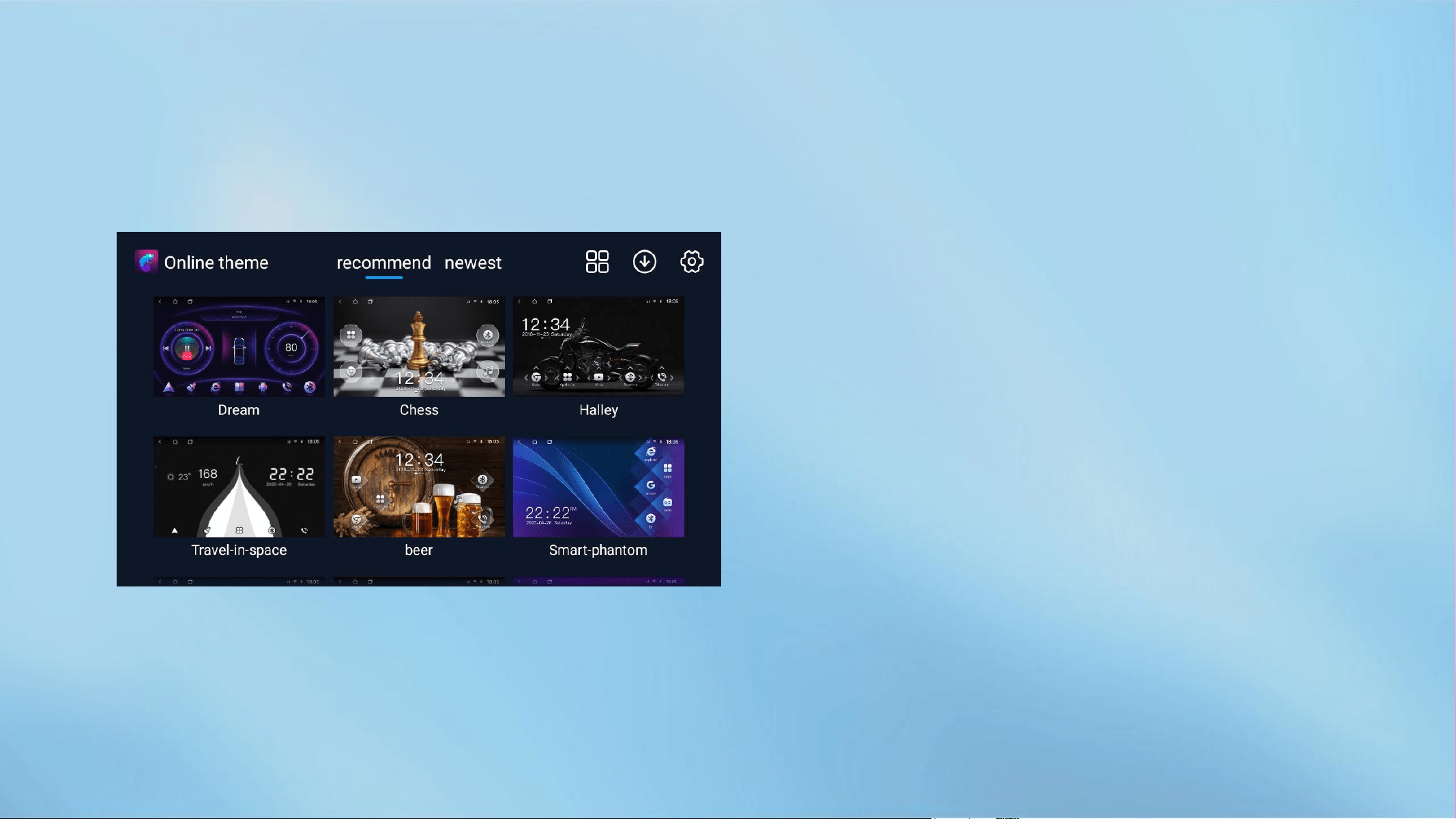
04 Themes
The icon enters the theme interface Creative
personality theme, make your car different;
dynamic screen saver ,100 Change theme, popular
film and television, popular beauty girl, animation
quadratic element, each The style is your choice. A
variety of personality themes continue to update,
always one Suitable for you!
01. Topics are divided into online and local. [My]
Directory looks at local topics.
02. Select topics according to time or popularity.
03. Free local exchange activity theme based on
exchange code.
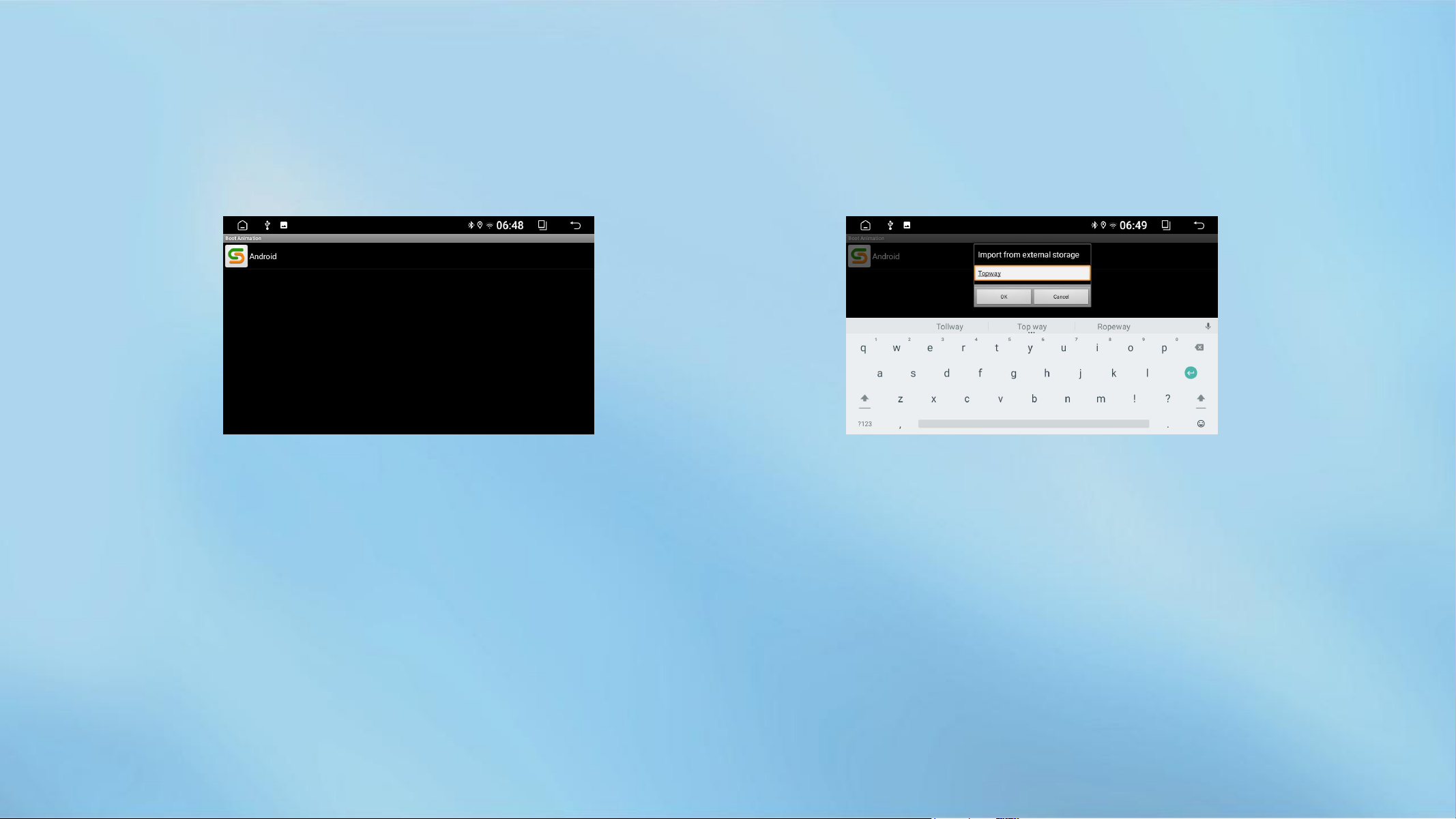
05 Boot animation
Connect the USB device containing the boot
animation to the USB/SD of the box ->Open the
[Boot Animation] application ->Drop down
menu ->Click menu button ->Enter password,
and the animation package in the USB device
will automatically synchronize
This device comes with two animation
package options.
Animation setting steps: Animation
name--click [OK] in the pop-up box.
After setting, slide down the drop-down
menu and restart the car to view it.
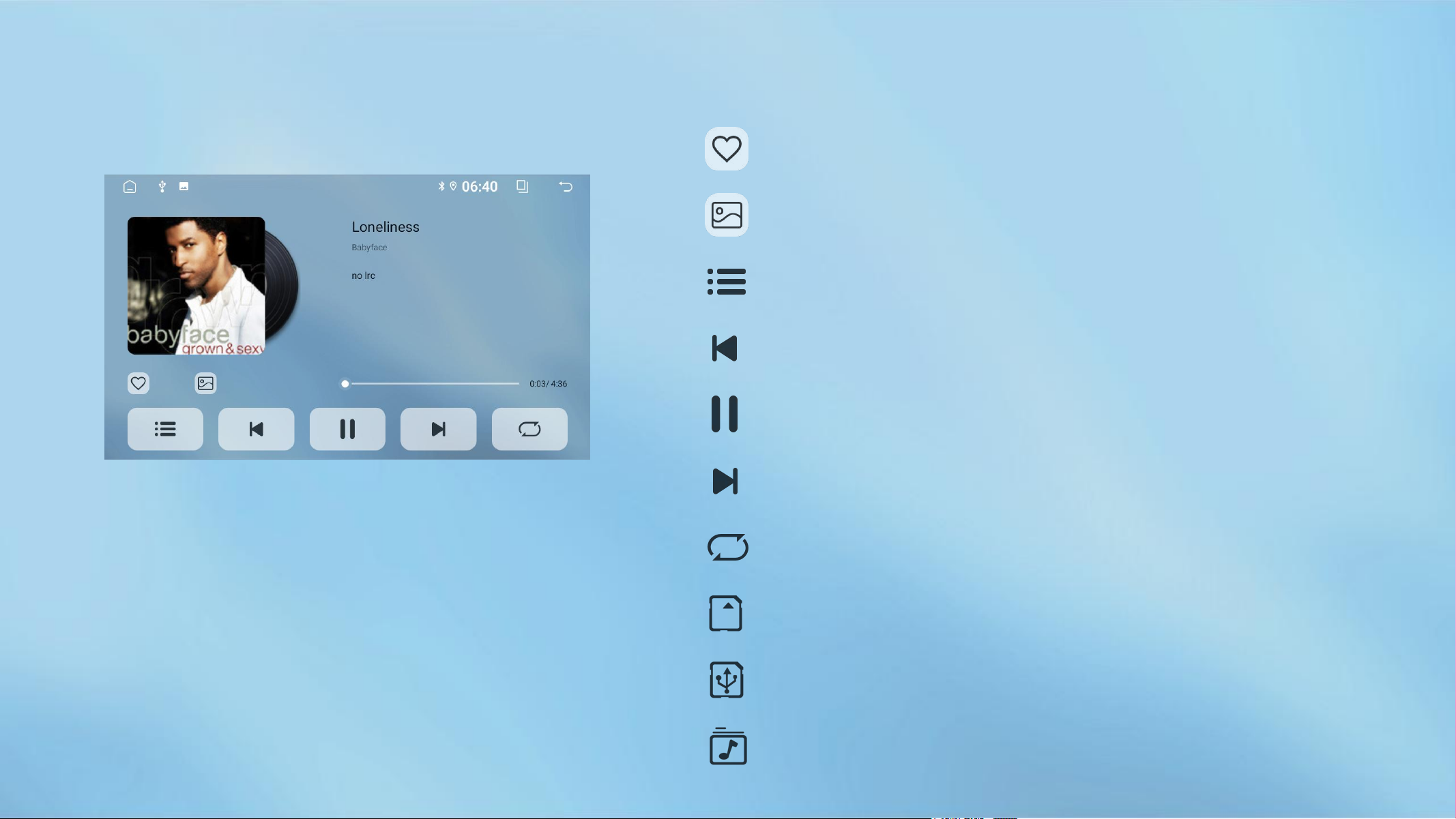
06 Music
Playlist/Playlist
Switch to previous track
Pause/Resume Playback
Switch to Next Song
List loop, single loop, shuffle
Favorite Song List
Change wallpaper
SD card playback source
USB flash drive playback source; Connect multiple audio USB
drives and click this icon to switch the USB drive directory.
(Audio files must be included, otherwise there will be no content
displayed when switching the USB drive directory.)
INand Playback Source (Local)
INand playback source: Connect to audio
USB drive/SD card device - Application
menu - Open [File Manager] - Check the
audio file and click [Copy] - Switch to
"Local" - "iNand" folder - Click Paste to
restart the car.
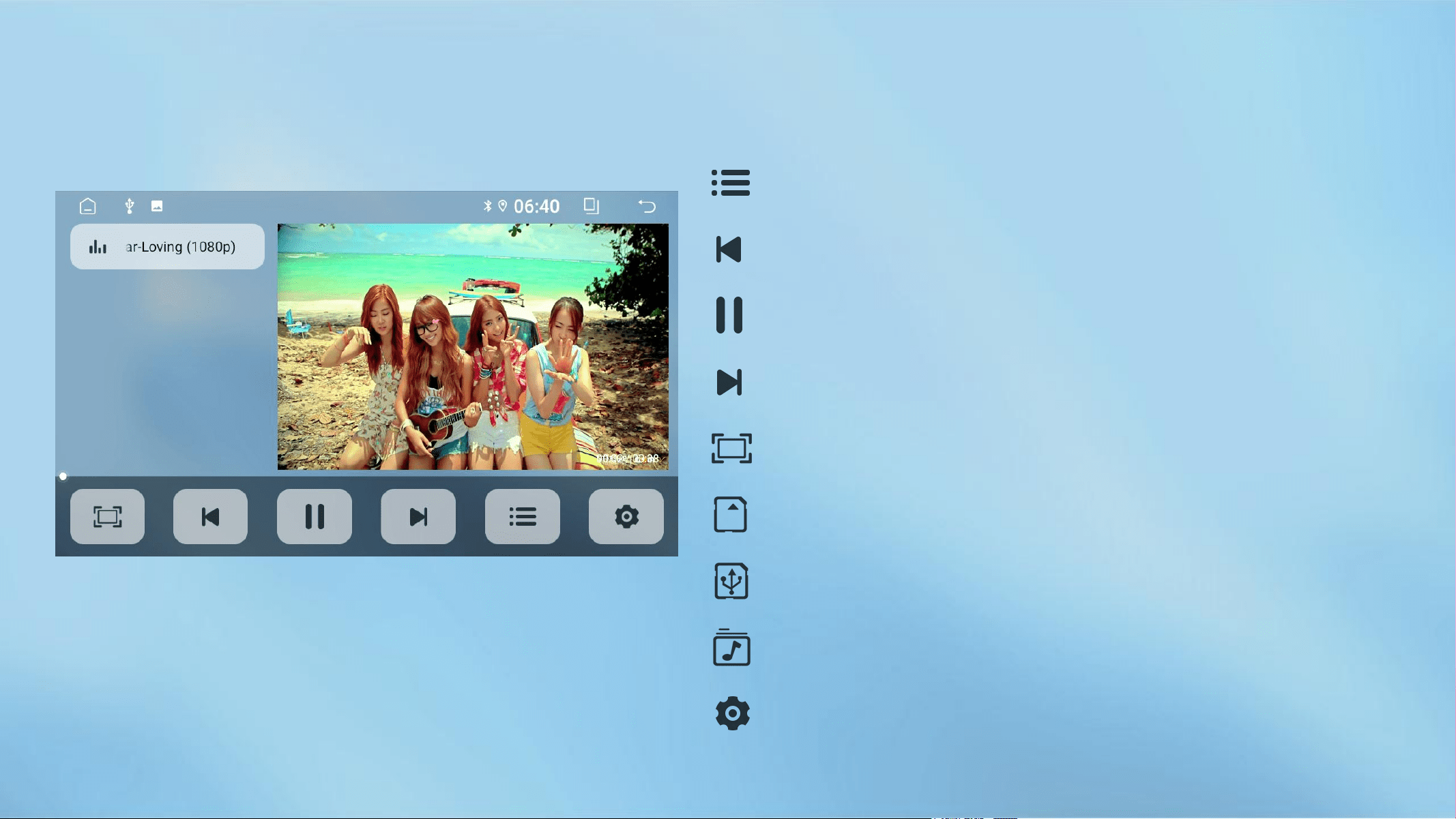
07 Video
Playlist/Playlist
Switch to previous track
Pause/Resume Playback
Switch to Next Song
SD card playback source
USB flash drive playback source; Connect multiple audio USB
drives and click this icon to switch the USB drive directory.
(Audio files must be included, otherwise there will be no content
displayed when switching the USB drive directory.)
Change wallpaper
Full screen mode
Setting interface: changing wallpaper,
video floating frame, safe driving
Video support formats:MP4、3GP、ASF、AVI、
DVIX、FLV、M2ST、M4V、MKV、TP、VOB、
WMV、2K、4K、1080P、TS...
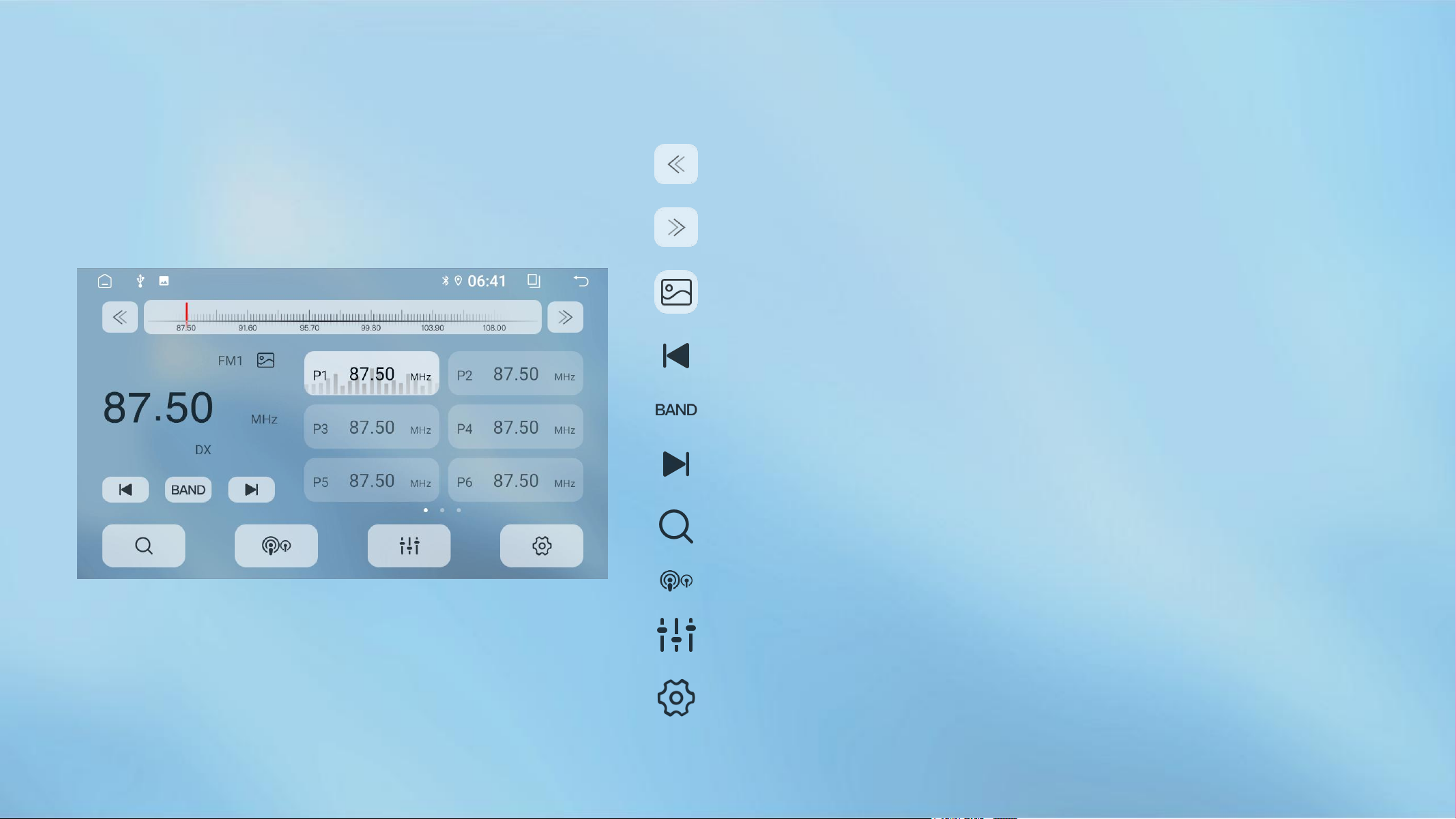
08 Radio
Low frequency step
high frequency step
Change wallpaper
Switch to previous track
Switch to Next Song
Switch between AM (medium wave) radio mode
and FM (frequency modulation) mode. The default is FM;
Store stations; scan the entire disk, the searched stations are
stored in the P1-P18 (87.5 MHz) cell of FM1-FM3 (or AM1-AM3) and
displayed; slide to browse the stored stations.
far/short range switch; long range/close range search for
radio stations.
Equalizer; click to jump to the equalizer interface
settings; channel selection (stereo/mono)
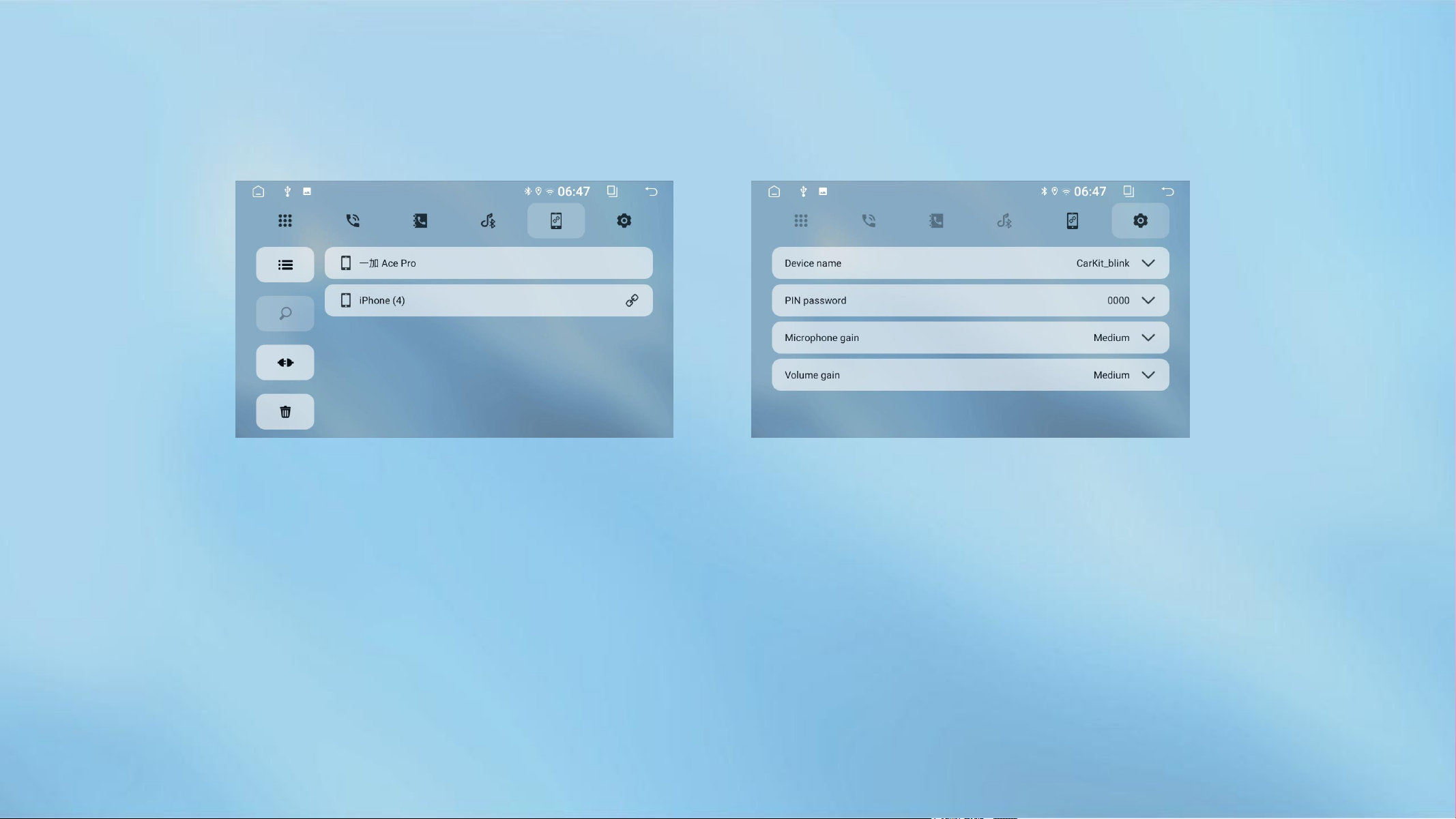
09 Bluetooth
Set the page to view the device name and PIN code, as well as Bluetooth data service. List
on the left side of the pairing interface: pairing list, Search key, disconnect, delete pairing
record...Pairing steps are as follws:
Enter the pairing interface--click to search for devices--Click the name of the device that
needs to be paired (for example, iPhone(4) in the figure), the phone will pop up a PIN
code box - enter the PIN code, an after the device name indicates a successful
connection.
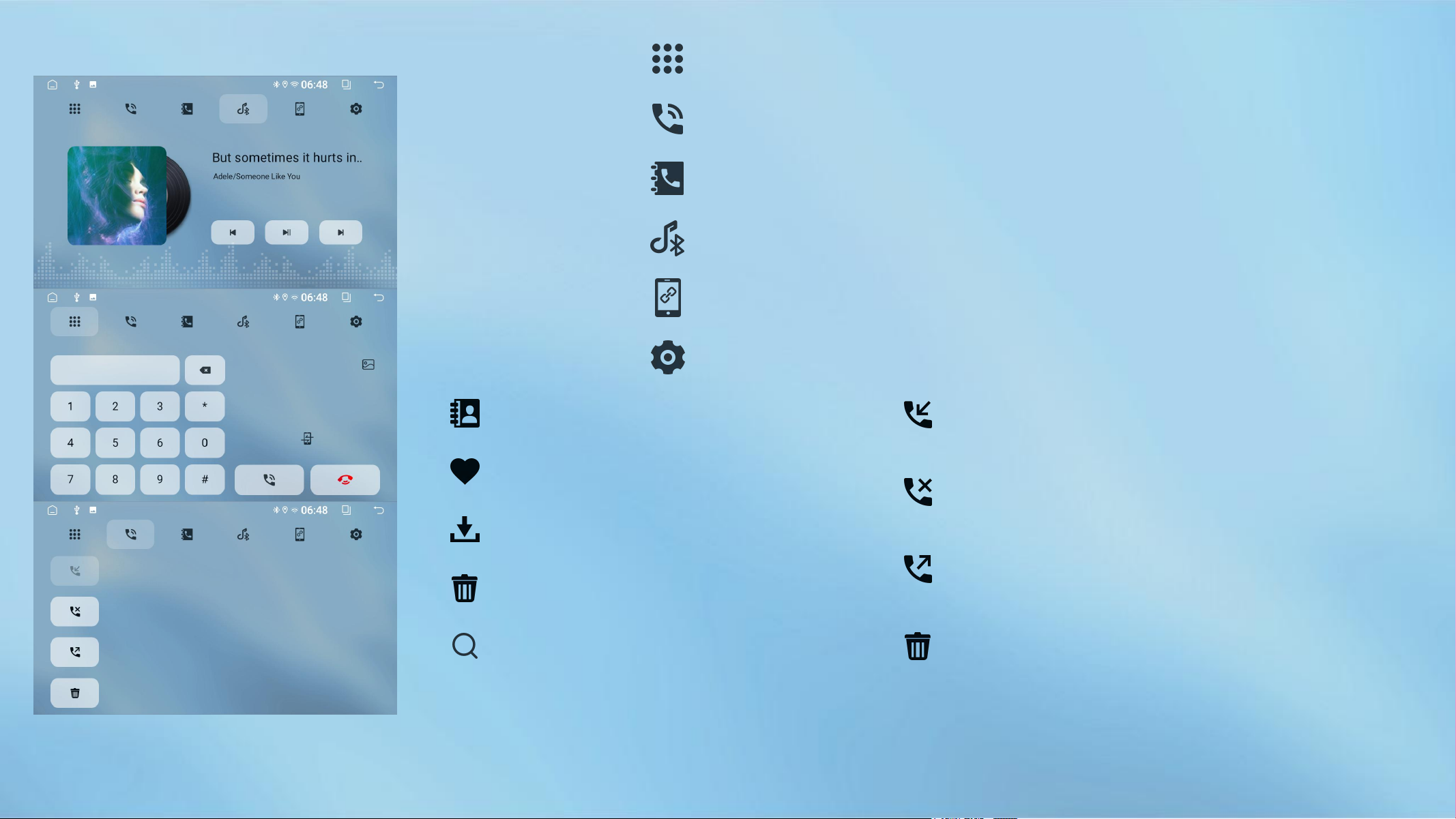
Bluetooth settings interface
Bluetooth pairing interface
Bluetooth music interface
Bluetooth phone book interface
Bluetooth phone record
Bluetooth dialing interface
Downloaded phone book list
Phonebook Favorite List
Phone book download icon*
Delete Bluetooth phone book
Phone book search icon
Bluetooth phone answering record
Telephone Rejection Record
Bluetooth phone dialing records
Delete corresponding record information
*Phone book interface - select 'Phone book' - click on download button - pop up the
'Allow access to contact information' box on the phone and confirm. The phone will
synchronize the phone contacts (please do not operate arbitrarily during the process)
10 Car settings
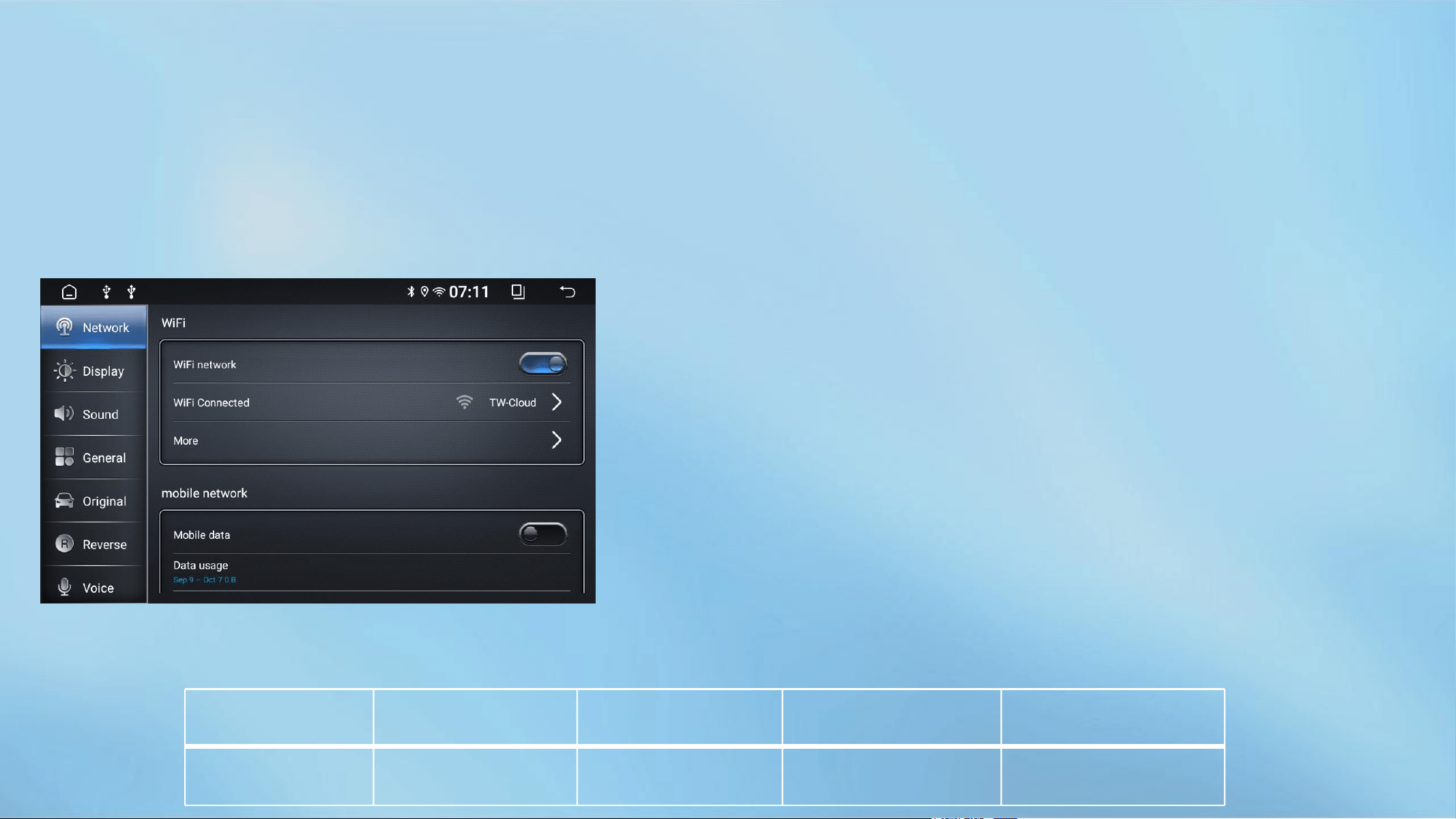
Network:
1.1WIFI connection: button to turn on/off. [More settings]
enter the WiFi interface
1.2Mobile network settings, default off
1.3Other network settings: airplane mode, closed by default
Sound:Sound priority, navigation channel, mix ratio...
General: Settings for sleep time, panel lights, navigation applications,
location information, application permissions, video output, etc...
Display:Brightness adjustment, brightness mode, font size
adjustment...
Original vehicle:External temperature display, air conditioning
display, door display, radar display...
Reversing:Reverse radar, trajectory line, reverse scale line, camera
mode
NTSC
AHD 720P 25fps
TVI 720P 25fps
AHD 1080P 25fps
TVI 1080P 25fps
PAL
AHD 720P 30fps
TVI 720P 30fps
AHD 1080P 30fps
TVI 1080P 30fps
voice:Select voice software
Personal:Account, language selection, input method
settings
System:MCU upgrade, system upgrade, time and date,
restore factory settings...
Factory: password:8888,Original car up and down,
export log. bin, obtain vehicle speed method, left and right
peptides, and other options...
More:Including network, application, storage, privacy,
location information, account, accessibility, system
information....
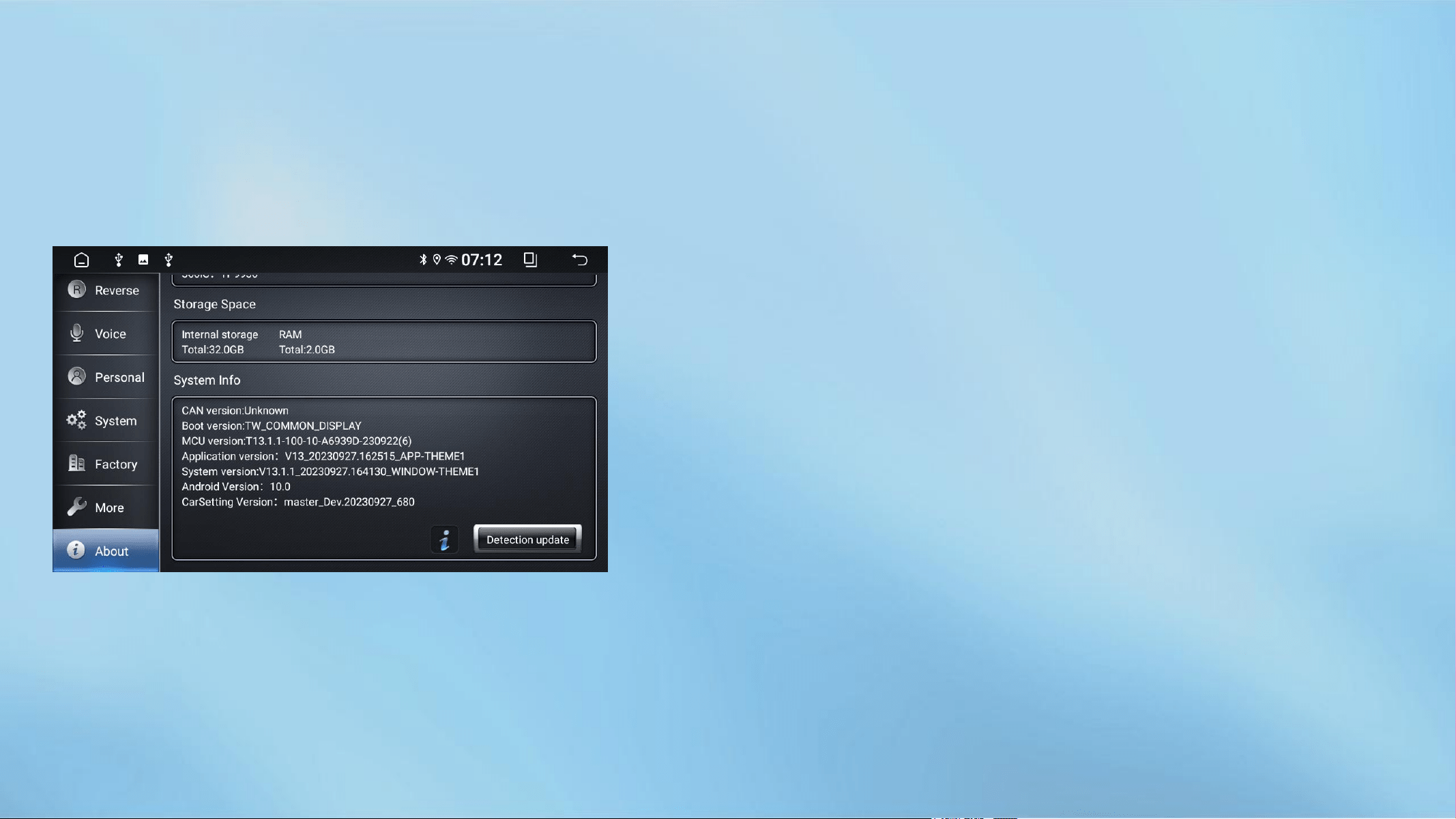
About:General settings, hardware information, storage
information, system information, detection updates
11 File manager
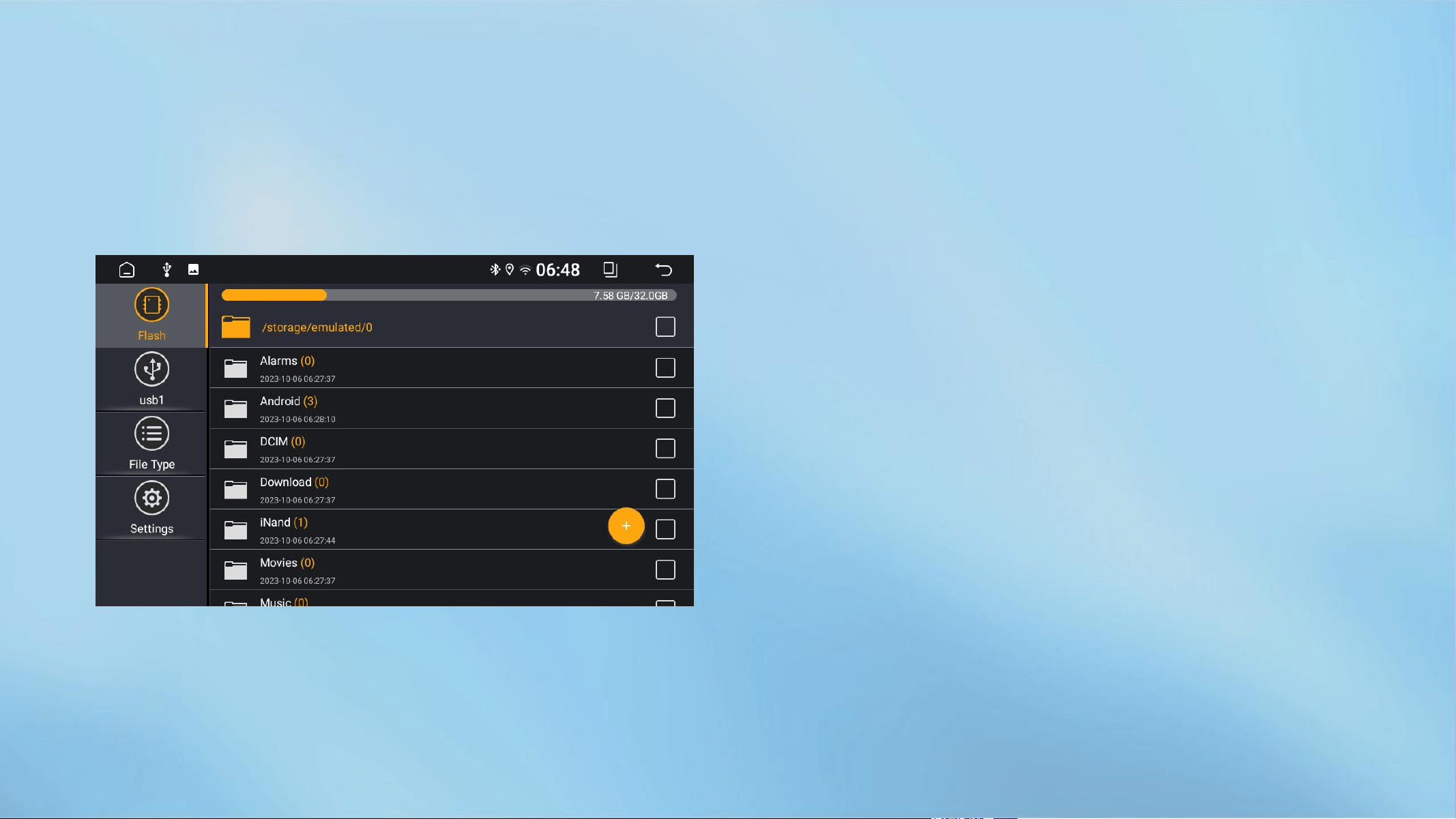
A powerful and easy-to-use resource
management software, classified
management of music, video, gallery,
applications and documents; efficient search
for target resources. Application installation,
file copy, copy, delete, create, information
view, cut and other functions are all
available. Real-time memory reminder to
avoid system lag and usage degradation. It
also supports external device operation, U
disk, SD card, etc.
12 Tlink
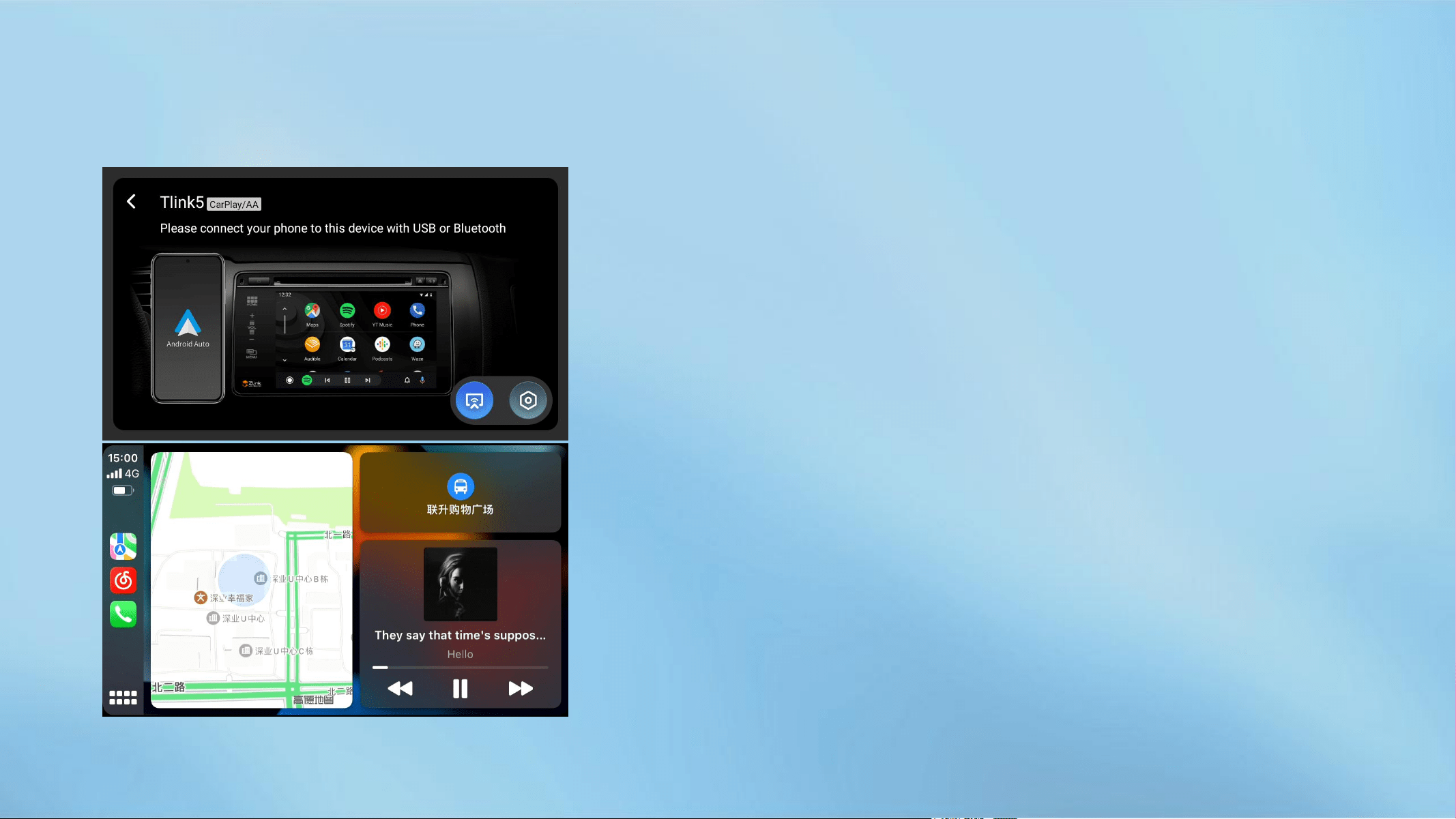
Wireless Carplay connection steps:
01.Make sure that the phone is connected to Bluetooth
02.Open TLink5, the car automatically detects the
connection and displays "Connecting"
03.Phone pop-up box to confirm "Use CarPlay Car"
Wireless Android auto connection steps:
1. Turn on Bluetooth and search for devices;
2. Select the Bluetooth of the car stereo for pairing
connection;
3. After successful connection, the car phone displays the
application screen (at this time, the phone's WiFi will
automatically connect to the car phone hotspot)
Wired Carplay/Android Auto connection steps:
1.Open TLink5
2.Use USB cable to connect mobile phone and car
machine
3.TLink5 will automatically detect and connect
13 Play store
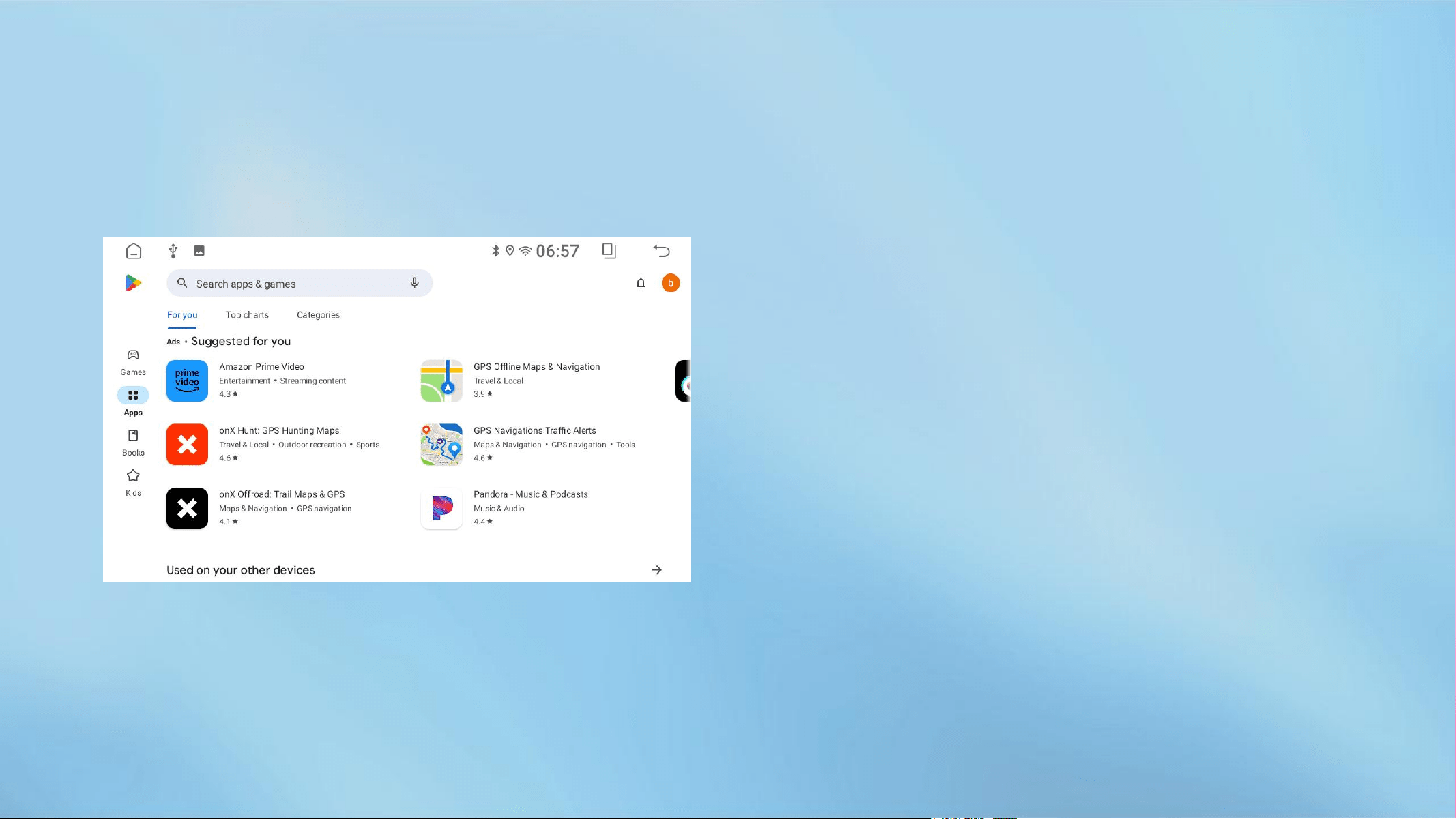
It is the official app store for the device Running
the Android operating system, allowing for User
browsing, downloading, and usage Application.
It is also a digital media store Android operating
system. It contains Services include Google Play
Books, Google Play games, Google plays movies
and TV Google plays music and allows users to
browse Download e-books, music, games, and
video applications, etc
14 Chrome
A web browser developed by Google. This browser
is based on other open source software, including
WebKit and Mozilla, with the goal of improving
stability, speed, and security, and creating a simple
and efficient user interface. The name of the
software comes from the graphical user interface
(GUI) of a web browser, also known as "Chrome"
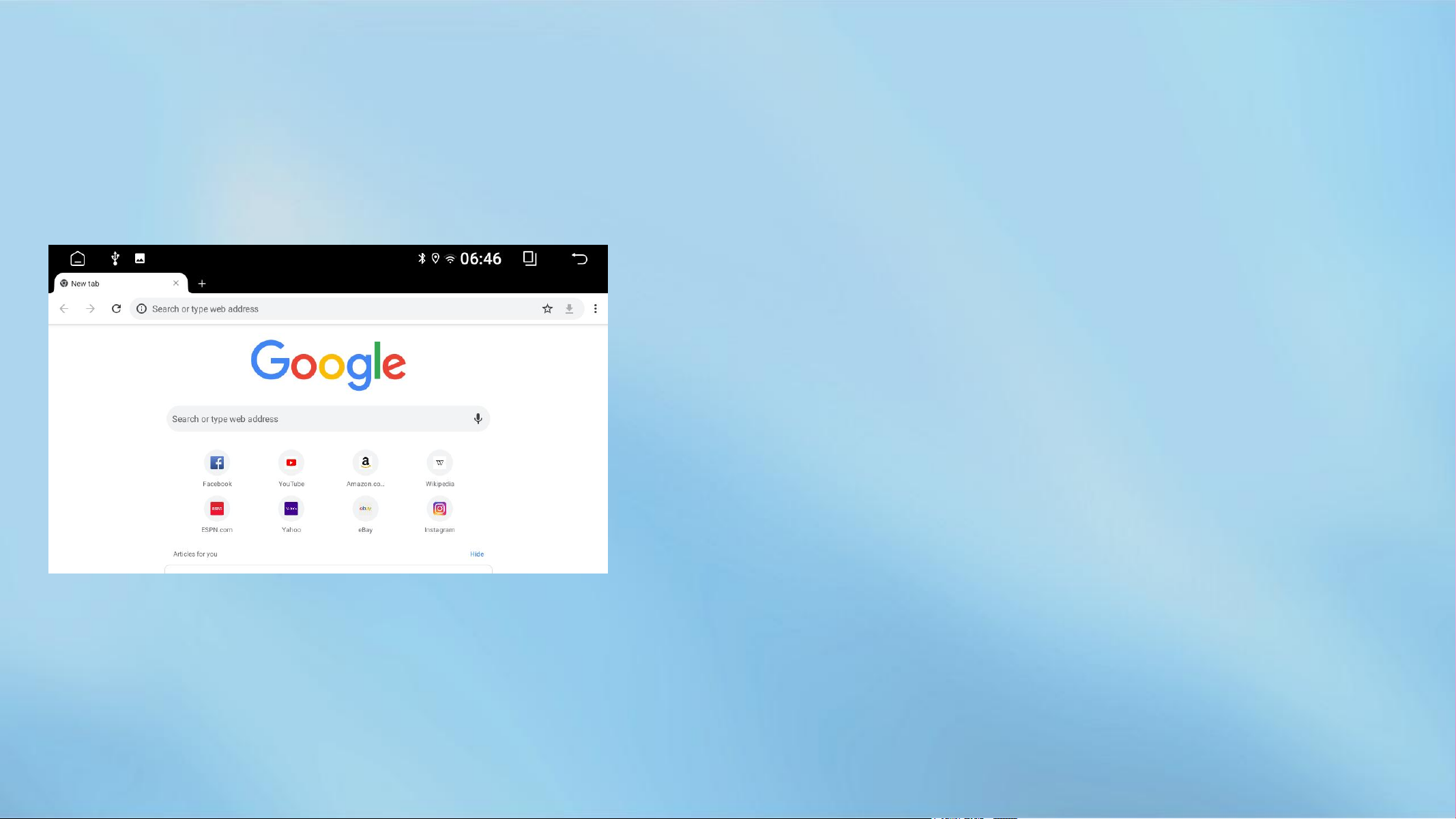
Chrome uses a "new tab" to replace the homepage
that other browsers load when opening a new tab.
The new tab page defaults to displaying thumbnails
of the last eight visited websites, as well as the
most frequently searched websites, recent
bookmarks, and recently closed pages.